DonorDrive Matching Gift Integration with 
Double the Donation
Instructions Provided by Double the Donation’s Team
https://doublethedonation.com
support@doublethedonation.com
About DonorDrive and Double the Donation
DonorDrive (https://donordrive.com) is a leading provider of online 
fundraising software which helps nonprofits tap into participant 
networks so they can reach more, raise more, & do more.
Double the Donation (https://doublethedonation.com) is a leading 
provider of employee matching gift data and tools to nonprofits. 
This guide was put together to help organizations who use 
DonorDrive’s fundraising platform incorporate Double the Donation’s 
employee matching gift plugin into their fundraising pages.
Requirements: Your organization must be a customer of DonorDrive
and Double the Donation.
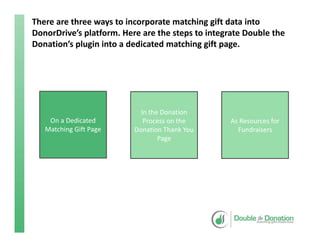
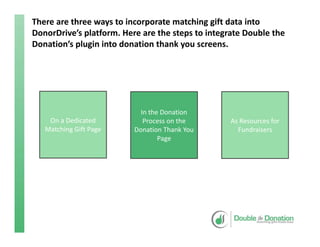
There are three ways to incorporate matching gift data into 
DonorDrive’s platform. Here are the steps to integrate Double the 
Donation’s plugin into a dedicated matching gift page.
On a Dedicated 
Matching Gift Page
As Resources for 
Fundraisers
In the Donation 
Process on the 
Donation Thank You 
Page
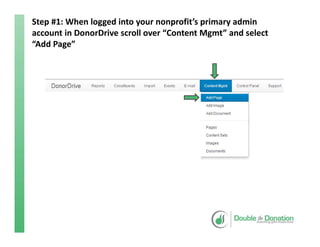
Step #1: When logged into your nonprofit’s primary admin 
account in DonorDrive scroll over “Content Mgmt” and select 
“Add Page”
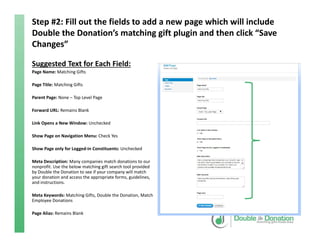
Step #2: Fill out the fields to add a new page which will include 
Double the Donation’s matching gift plugin and then click “Save 
Changes”
Suggested Text for Each Field:
Page Name: Matching Gifts
Page Title: Matching Gifts
Parent Page: None – Top Level Page
Forward URL: Remains Blank
Link Opens a New Window: Unchecked
Show Page on Navigation Menu: Check Yes
Show Page only for Logged‐in Constituents: Unchecked
Meta Description: Many companies match donations to our 
nonprofit. Use the below matching gift search tool provided 
by Double the Donation to see if your company will match 
your donation and access the appropriate forms, guidelines, 
and instructions.
Meta Keywords: Matching Gifts, Double the Donation, Match 
Employee Donations
Page Alias: Remains Blank
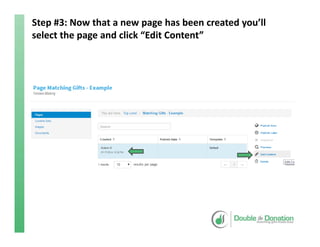
Step #3: Now that a new page has been created you’ll 
select the page and click “Edit Content”
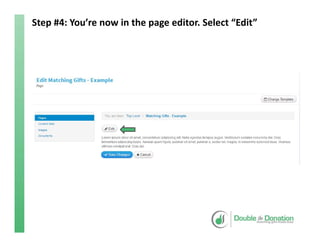
Step #4: You’re now in the page editor. Select “Edit”
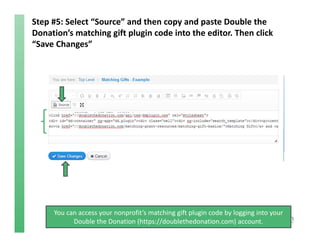
Step #5: Select “Source” and then copy and paste Double the 
Donation’s matching gift plugin code into the editor. Then click 
“Save Changes”
You can access your nonprofit’s matching gift plugin code by logging into your 
Double the Donation (https://doublethedonation.com) account.
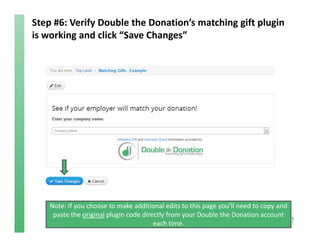
Step #6: Verify Double the Donation’s matching gift plugin 
is working and click “Save Changes”
Note: If you choose to make additional edits to this page you’ll need to copy and 
paste the original plugin code directly from your Double the Donation account 
each time. 
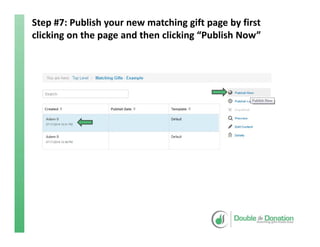
Step #7: Publish your new matching gift page by first 
clicking on the page and then clicking “Publish Now”
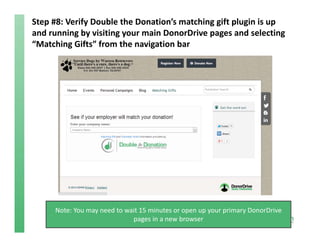
Step #8: Verify Double the Donation’s matching gift plugin is up 
and running by visiting your main DonorDrive pages and selecting 
“Matching Gifts” from the navigation bar 
Note: You may need to wait 15 minutes or open up your primary DonorDrive
pages in a new browser
There are three ways to incorporate matching gift data into 
DonorDrive’s platform. Here are the steps to integrate Double the 
Donation’s plugin into donation thank you screens.
On a Dedicated 
Matching Gift Page
As Resources for 
Fundraisers
In the Donation 
Process on the 
Donation Thank You 
Page
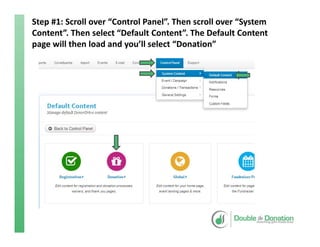
Step #1: Scroll over “Control Panel”. Then scroll over “System 
Content”. Then select “Default Content”. The Default Content 
page will then load and you’ll select “Donation”
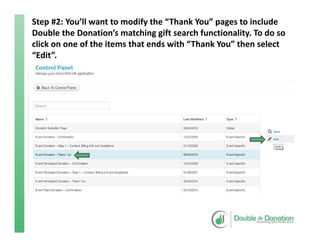
Step #2: You’ll want to modify the “Thank You” pages to include 
Double the Donation’s matching gift search functionality. To do so 
click on one of the items that ends with “Thank You” then select 
“Edit”.
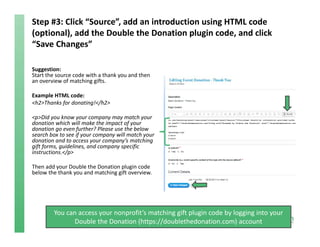
Step #3: Click “Source”, add an introduction using HTML code 
(optional), add the Double the Donation plugin code, and click 
“Save Changes”
Suggestion:
Start the source code with a thank you and then 
an overview of matching gifts. 
Example HTML code:
<h2>Thanks for donating!</h2>
<p>Did you know your company may match your 
donation which will make the impact of your 
donation go even further? Please use the below 
search box to see if your company will match your 
donation and to access your company’s matching 
gift forms, guidelines, and company specific 
instructions.</p>
Then add your Double the Donation plugin code 
below the thank you and matching gift overview.
You can access your nonprofit’s matching gift plugin code by logging into your 
Double the Donation (https://doublethedonation.com) account
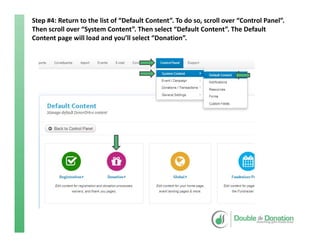
Step #4: Return to the list of “Default Content”. To do so, scroll over “Control Panel”. 
Then scroll over “System Content”. Then select “Default Content”. The Default 
Content page will load and you’ll select “Donation”.
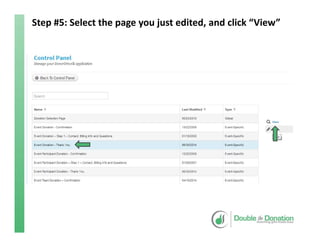
Step #5: Select the page you just edited, and click “View”
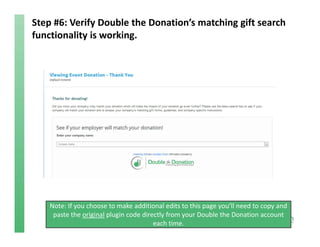
Step #6: Verify Double the Donation’s matching gift search 
functionality is working.
Note: If you choose to make additional edits to this page you’ll need to copy and 
paste the original plugin code directly from your Double the Donation account 
each time. 
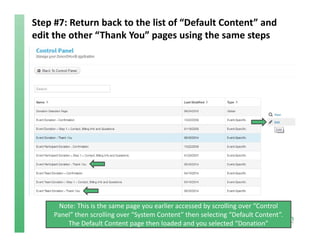
Step #7: Return back to the list of “Default Content” and 
edit the other “Thank You” pages using the same steps
Note: This is the same page you earlier accessed by scrolling over “Control 
Panel” then scrolling over “System Content” then selecting “Default Content”. 
The Default Content page then loaded and you selected “Donation”
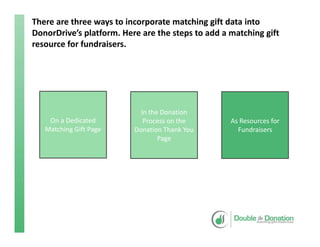
There are three ways to incorporate matching gift data into 
DonorDrive’s platform. Here are the steps to add a matching gift 
resource for fundraisers.
On a Dedicated 
Matching Gift Page
As Resources for 
Fundraisers
In the Donation 
Process on the 
Donation Thank You 
Page
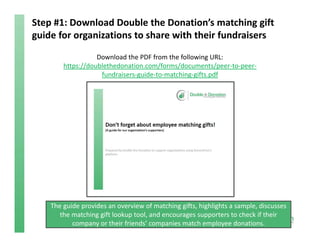
Step #1: Download Double the Donation’s matching gift 
guide for organizations to share with their fundraisers
The guide provides an overview of matching gifts, highlights a sample, discusses 
the matching gift lookup tool, and encourages supporters to check if their 
company or their friends’ companies match employee donations.
Download the PDF from the following URL:
https://doublethedonation.com/forms/documents/peer‐to‐peer‐
fundraisers‐guide‐to‐matching‐gifts.pdf
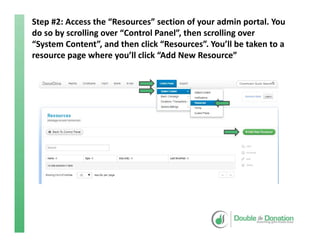
Step #2: Access the “Resources” section of your admin portal. You 
do so by scrolling over “Control Panel”, then scrolling over 
“System Content”, and then click “Resources”. You’ll be taken to a 
resource page where you’ll click “Add New Resource”
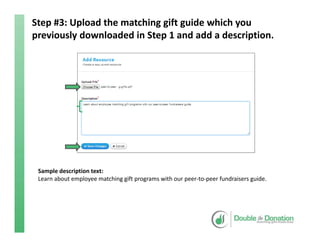
Step #3: Upload the matching gift guide which you 
previously downloaded in Step 1 and add a description.
Sample description text:
Learn about employee matching gift programs with our peer‐to‐peer fundraisers guide.
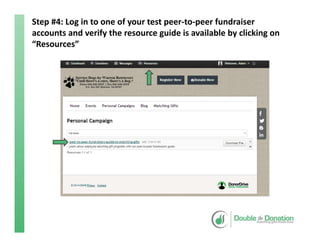
Step #4: Log in to one of your test peer‐to‐peer fundraiser 
accounts and verify the resource guide is available by clicking on 
“Resources”
Have Questions About Double the Donation’s Service?
• Learn more about Double the Donation’s service by visiting our website at 
https://doublethedonation.com.
• View Double the Donation’s pricing or start your risk‐free trial at 
https://doublethedonation.com/pricing.
• Email Double the Donation at info@doublethedonation.com.
• Use the contact form for Double the Donation’s customer support team at 
https://doublethedonation.com/contact‐us/.
• Schedule a demo of Double the Donation’s service at 
http://www.vcita.com/v/doublethedonation/set_meeting.

DonorDrive Matching Gift Integration