Education Leadership &
Administration
Portfolio Instructional Guide
1
**Please view the instructional
guide as a slideshow**
Three important steps:
1. Once you have created your portfolio in Taskstream, do
not forget to PUBLISH to the web. Slides 19 thru 22.
2. Include your portfolio web address & password (if
specified) before submitting work to your instructor. Slides
28 & 29.
3. Submit Work! Slides 30 thru 32.
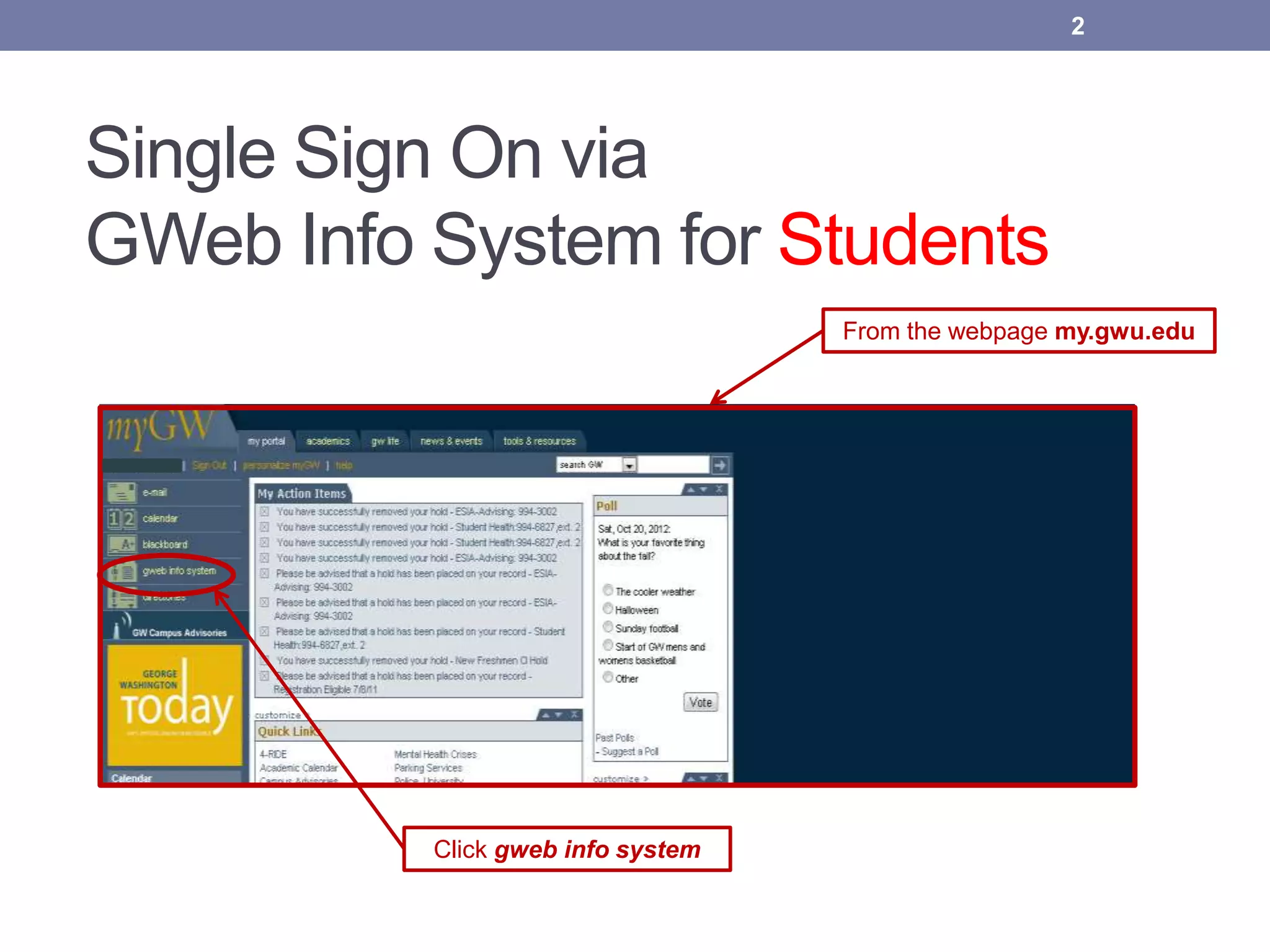
Single Sign On via
GWeb Info System for Students
Click gweb info system
From the webpage my.gwu.edu
2
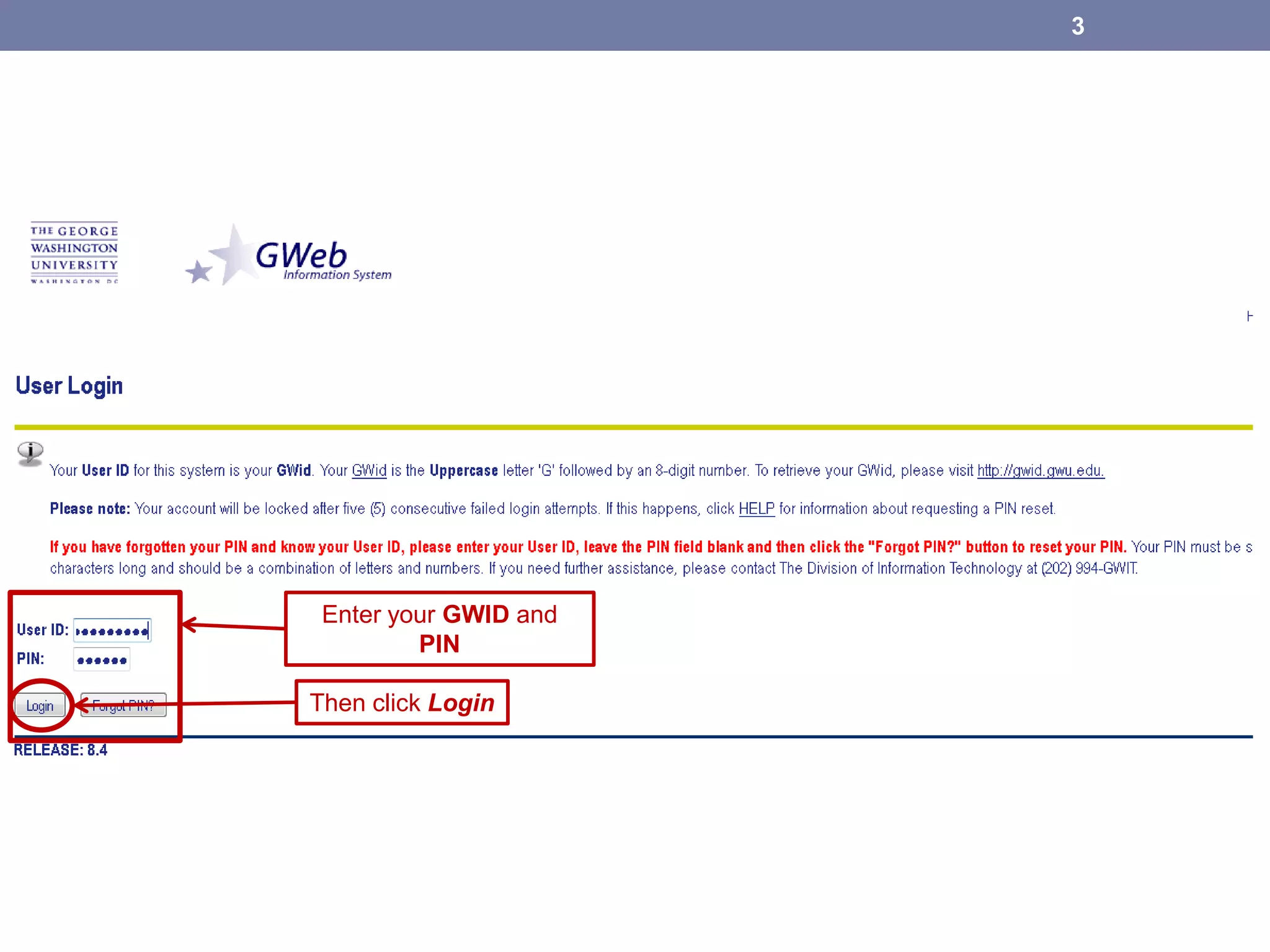
Enter your GWID and
PIN
Then click Login
3
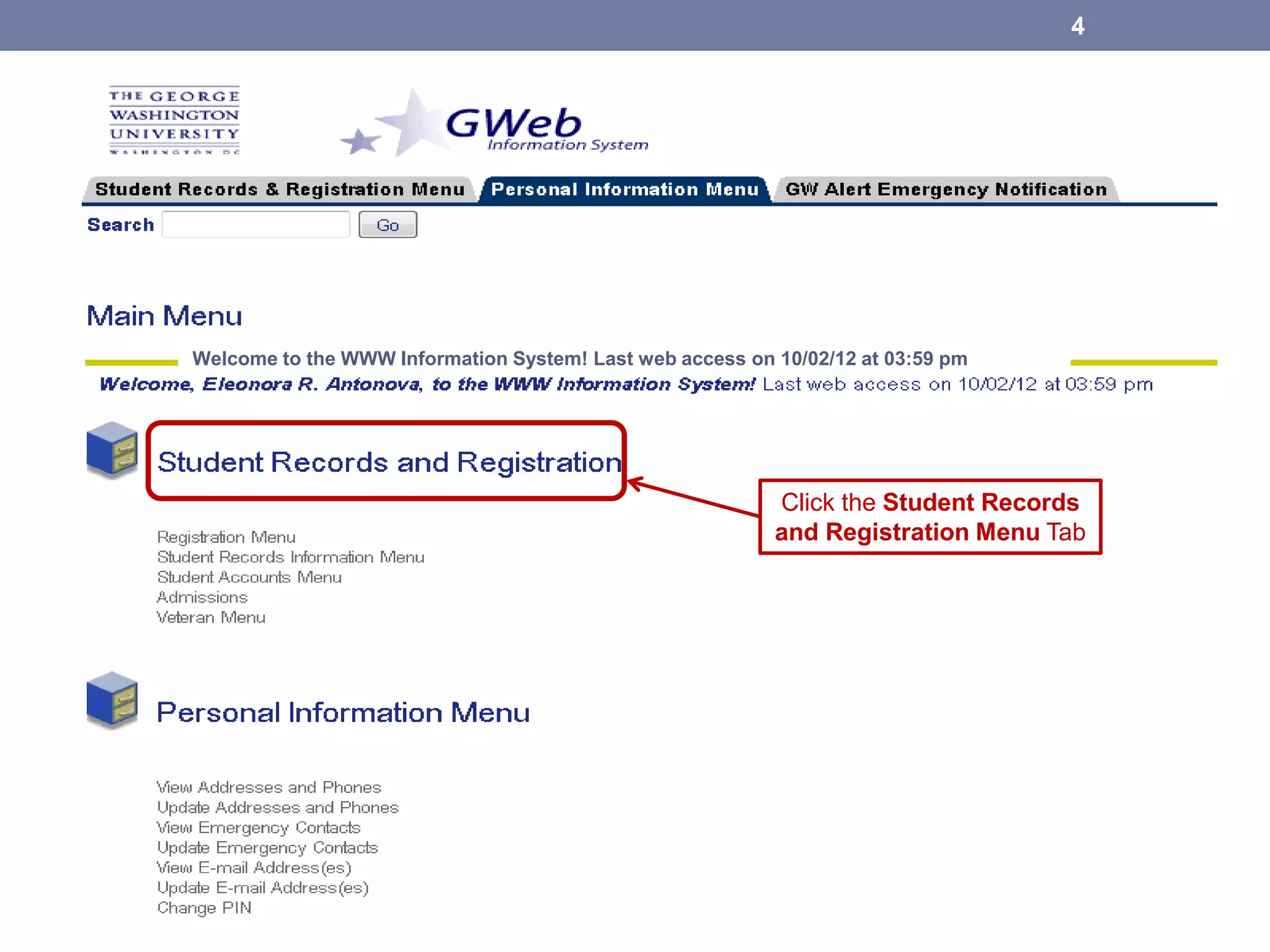
Click the Student Records
and Registration Menu Tab
4
Welcome to the WWW Information System! Last web access on 10/02/12 at 03:59 pm
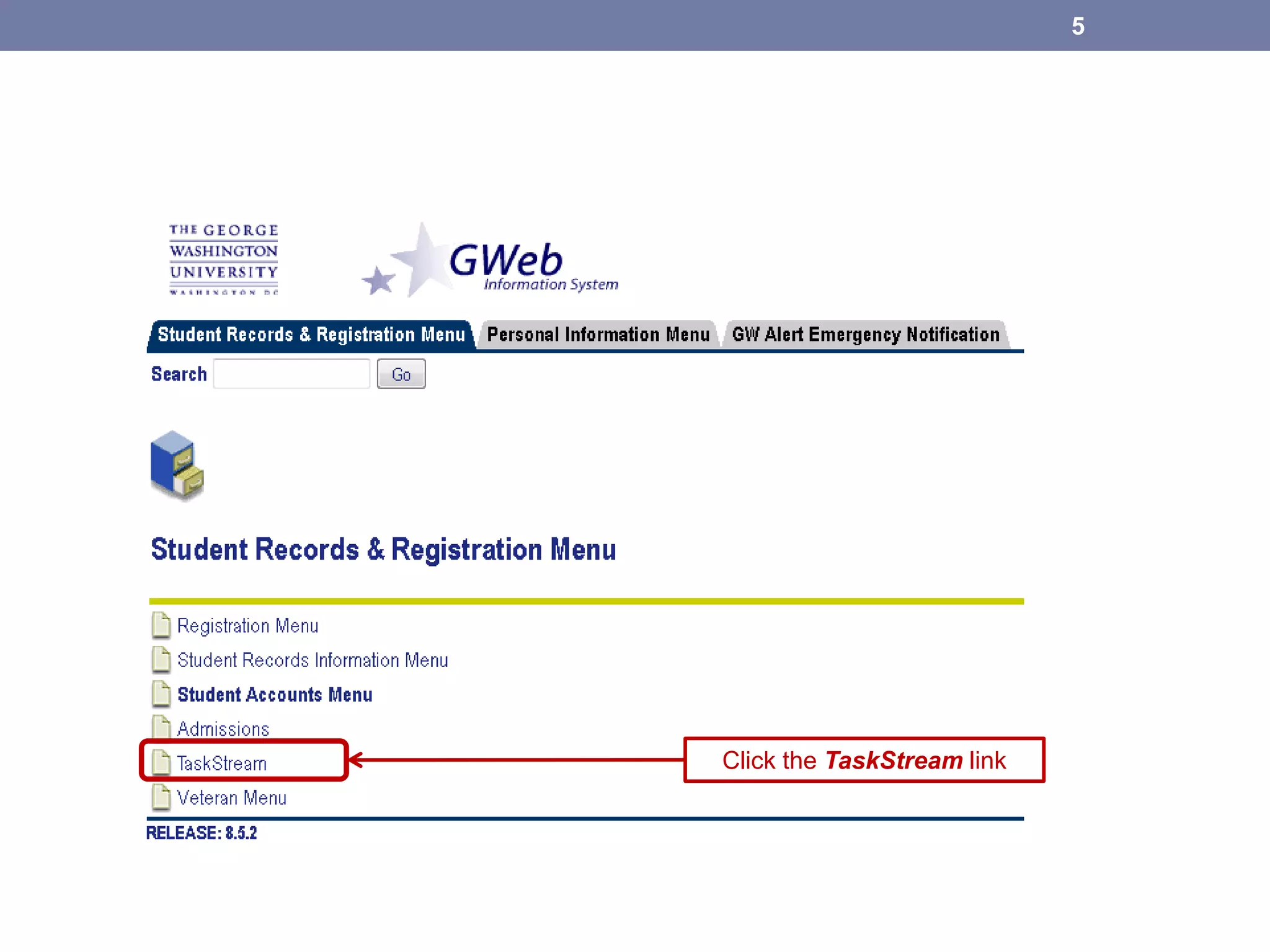
Click the TaskStream link
5
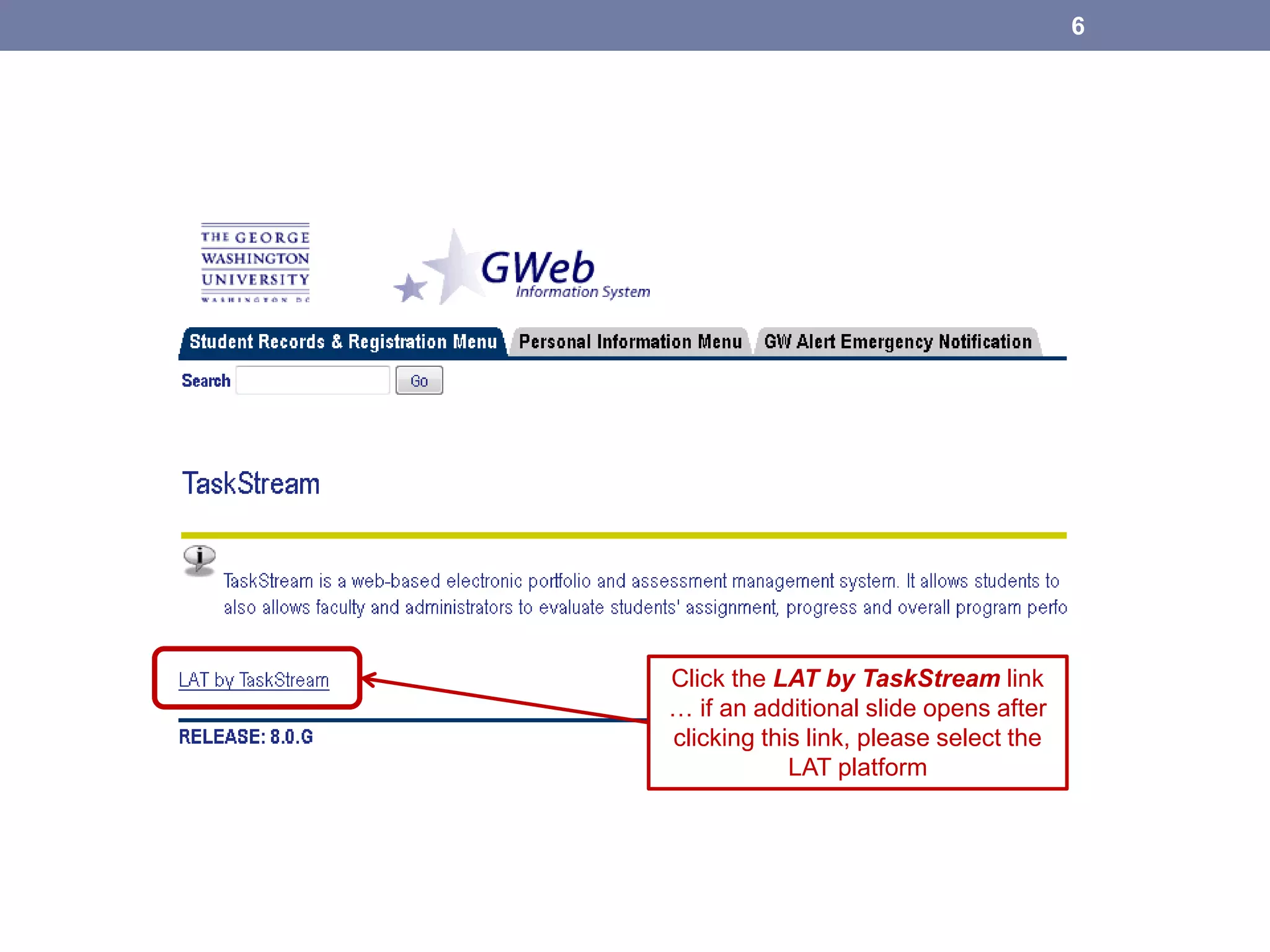
Click the LAT by TaskStream link
… if an additional slide opens after
clicking this link, please select the
LAT platform
6
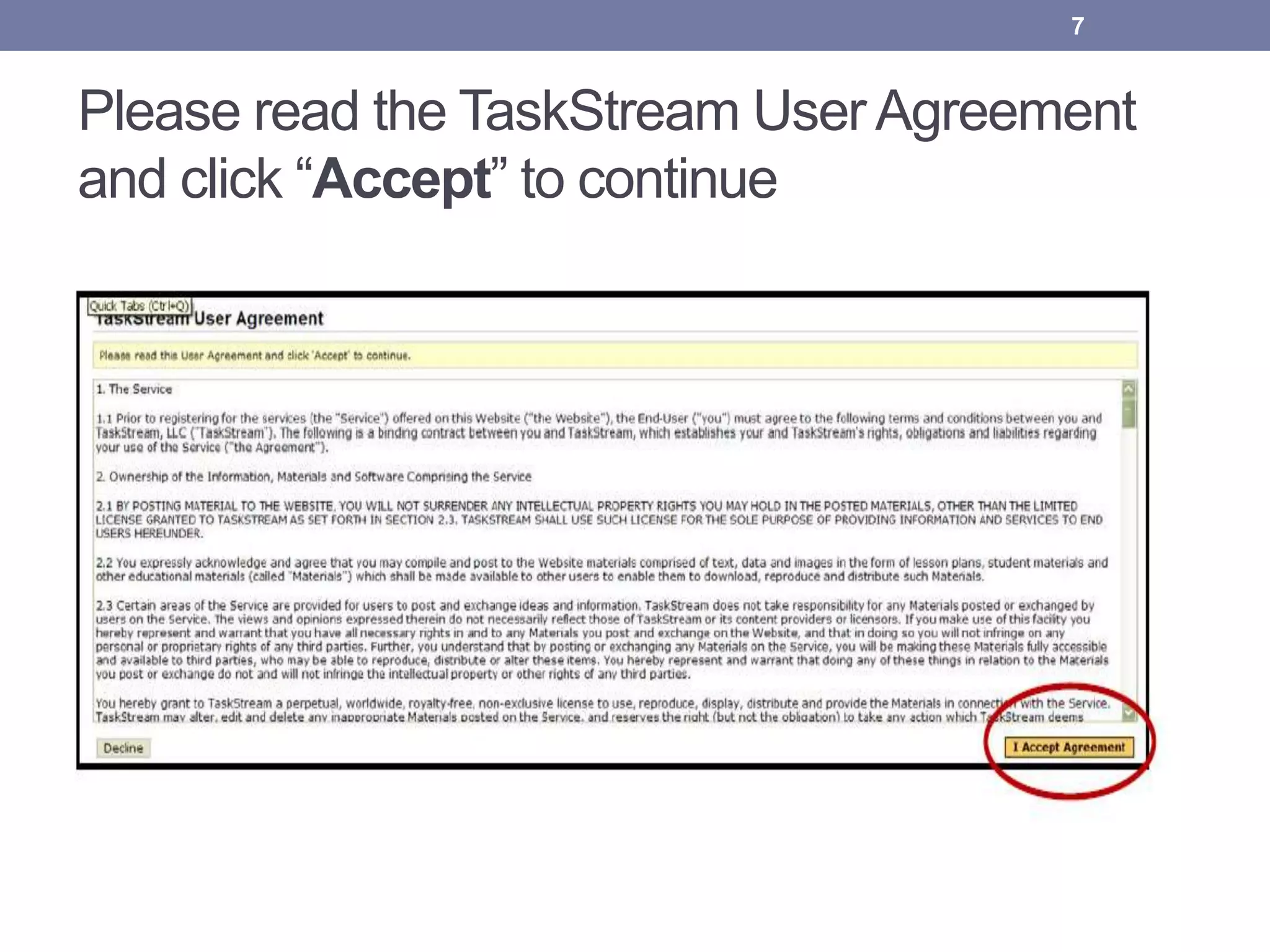
Please read the TaskStream UserAgreement
and click “Accept” to continue
7
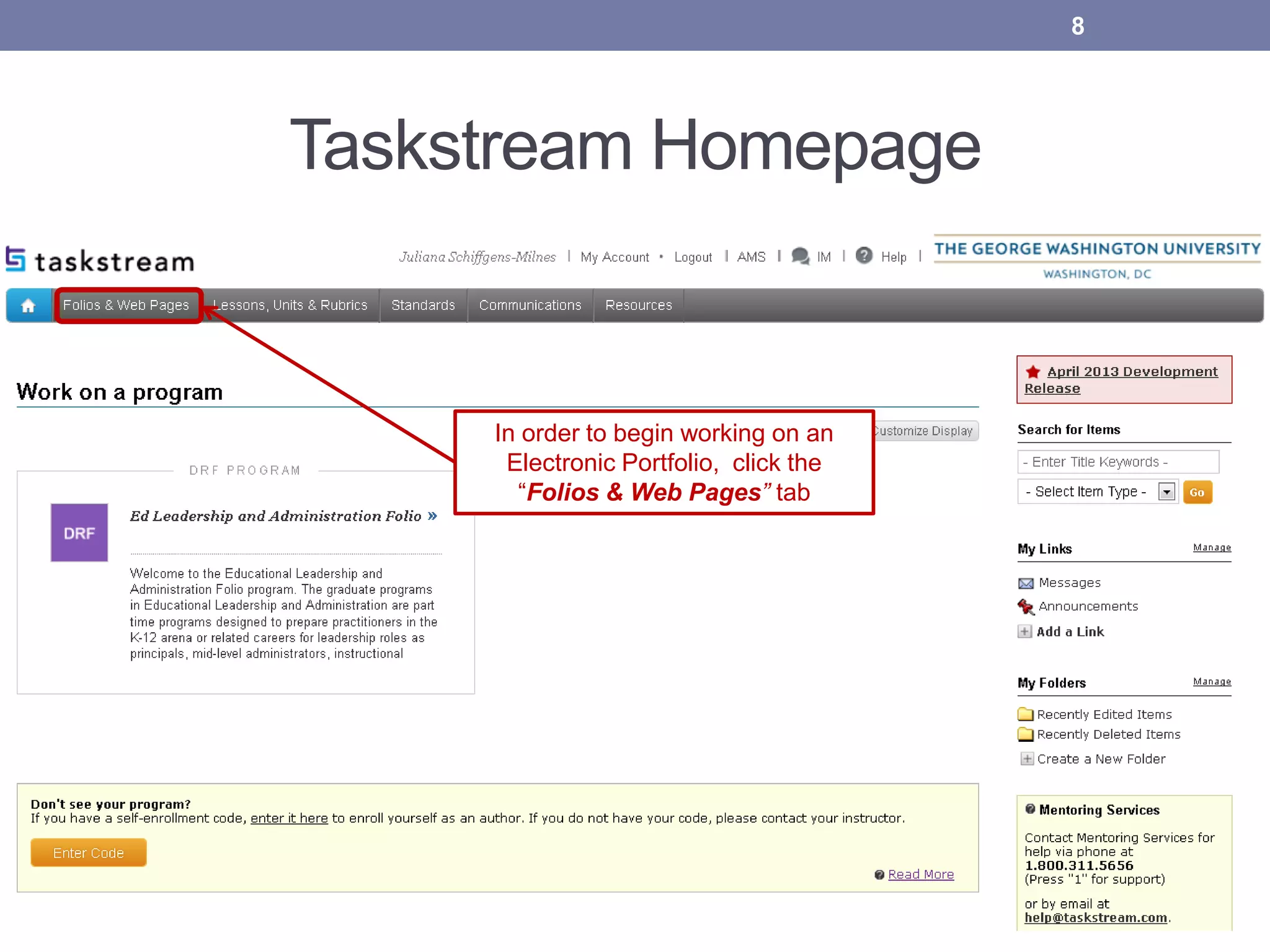
Taskstream Homepage
In order to begin working on an
Electronic Portfolio, click the
“Folios & Web Pages” tab
8
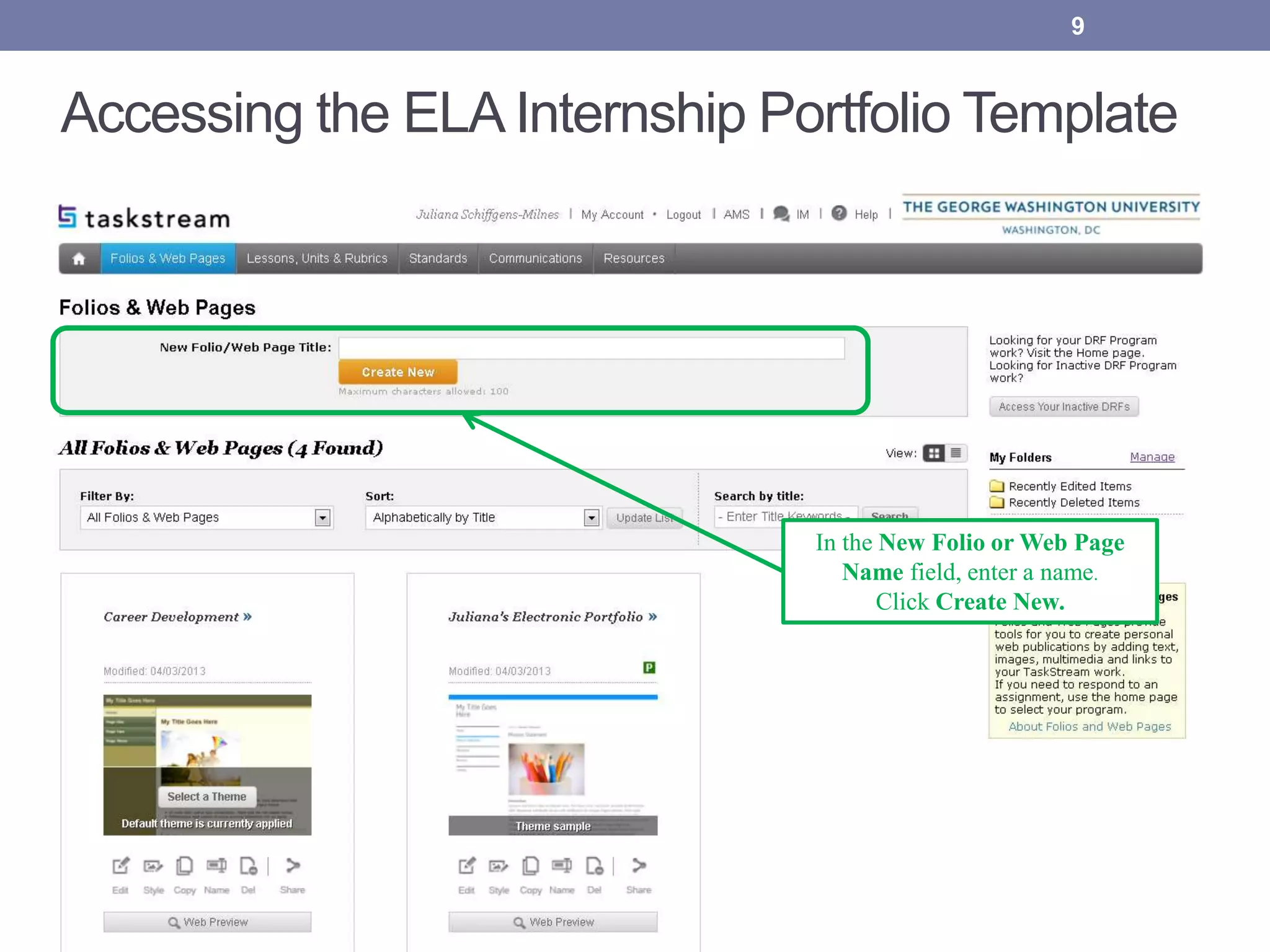
Accessing the ELA Internship Portfolio Template
In the New Folio or Web Page
Name field, enter a name.
Click Create New.
9
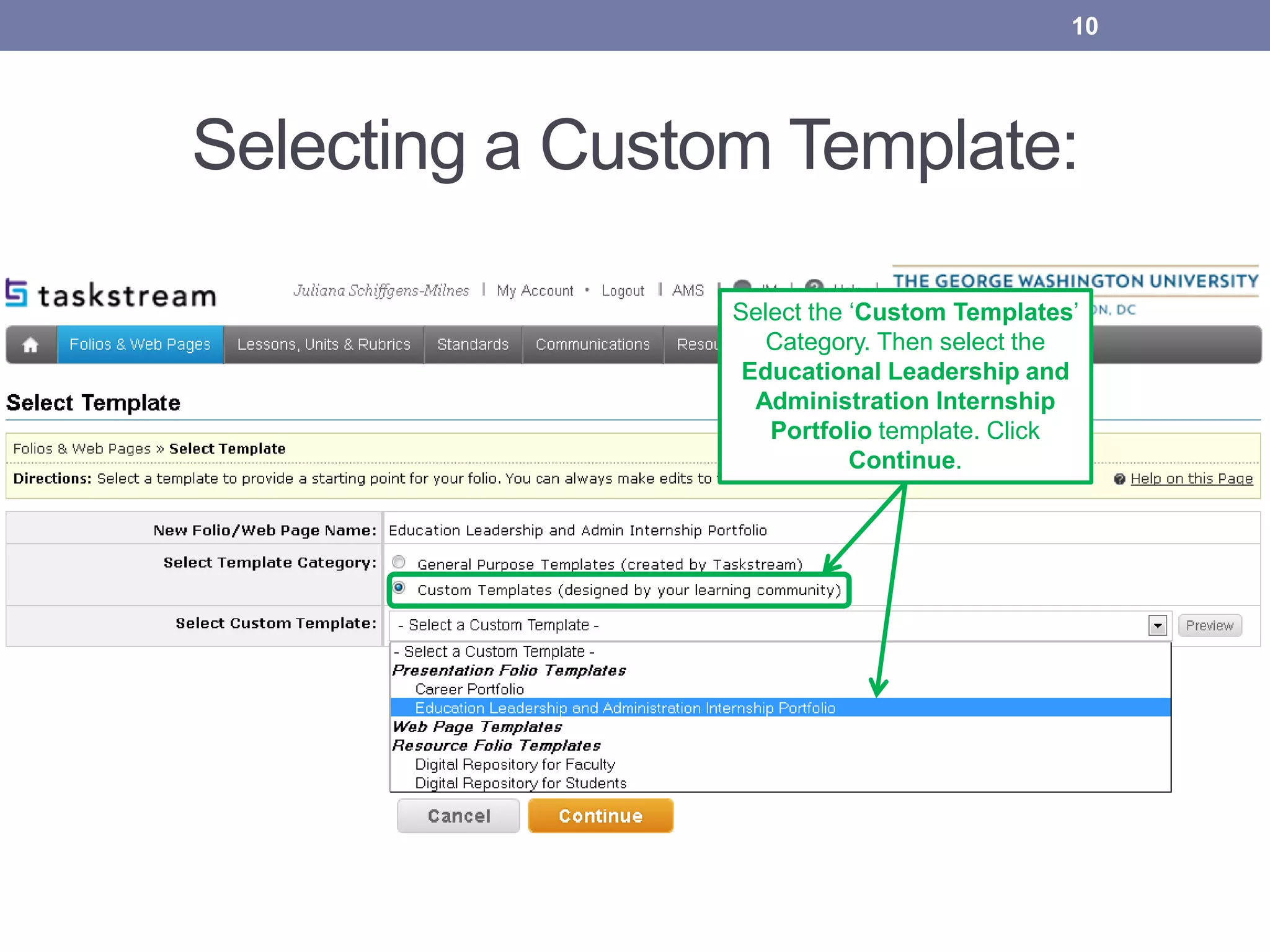
Selecting a Custom Template:
Select the ‘Custom Templates’ Category.
Then select the Education Leadership and
Administration Internship Portfolio
template. Click Continue.
10
Select the ‘Custom Templates’
Category. Then select the
Educational Leadership and
Administration Internship
Portfolio template. Click
Continue.
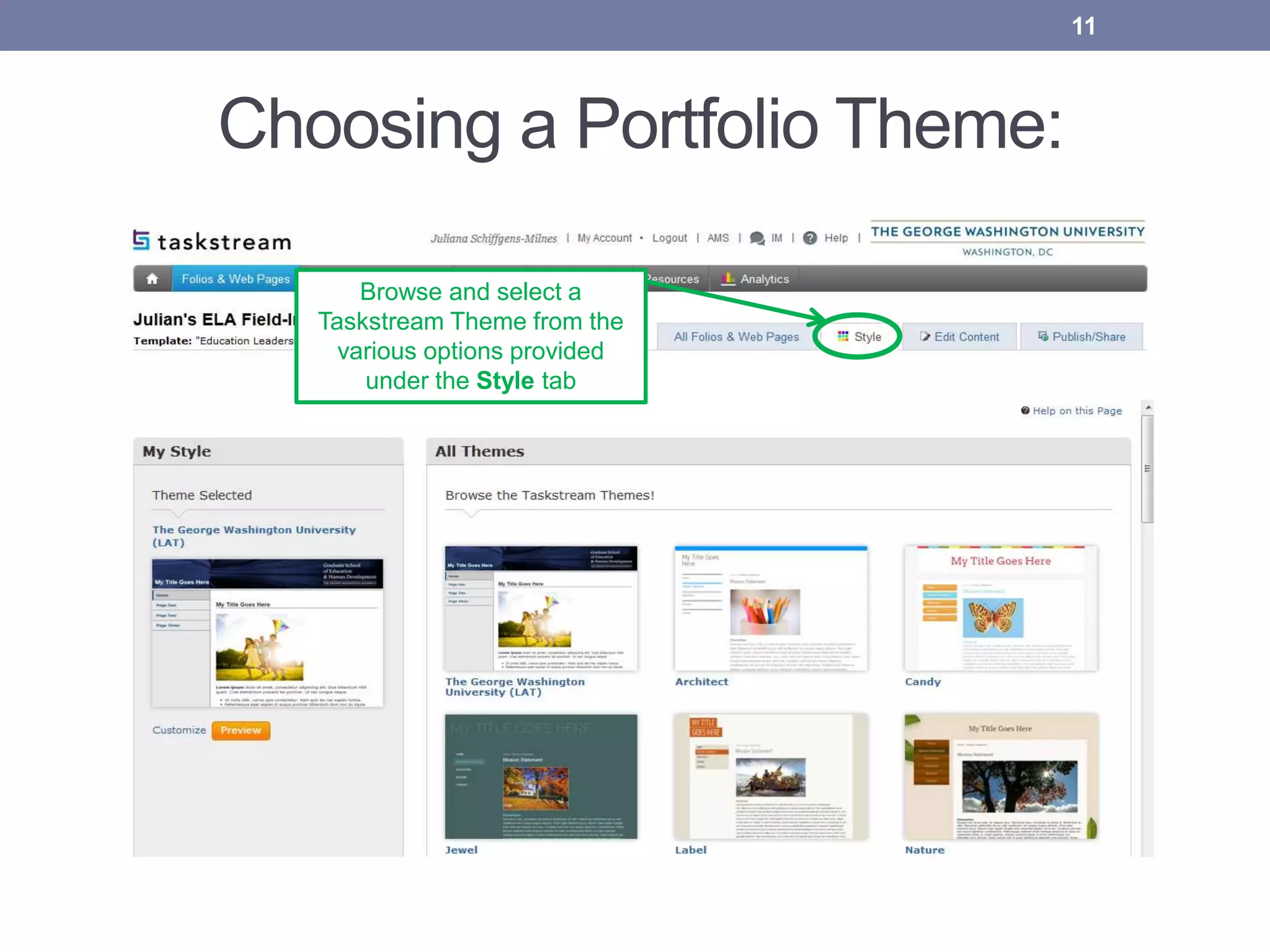
Choosing a Portfolio Theme:
11
Browse and select a
Taskstream Theme from the
various options provided
under the Style tab
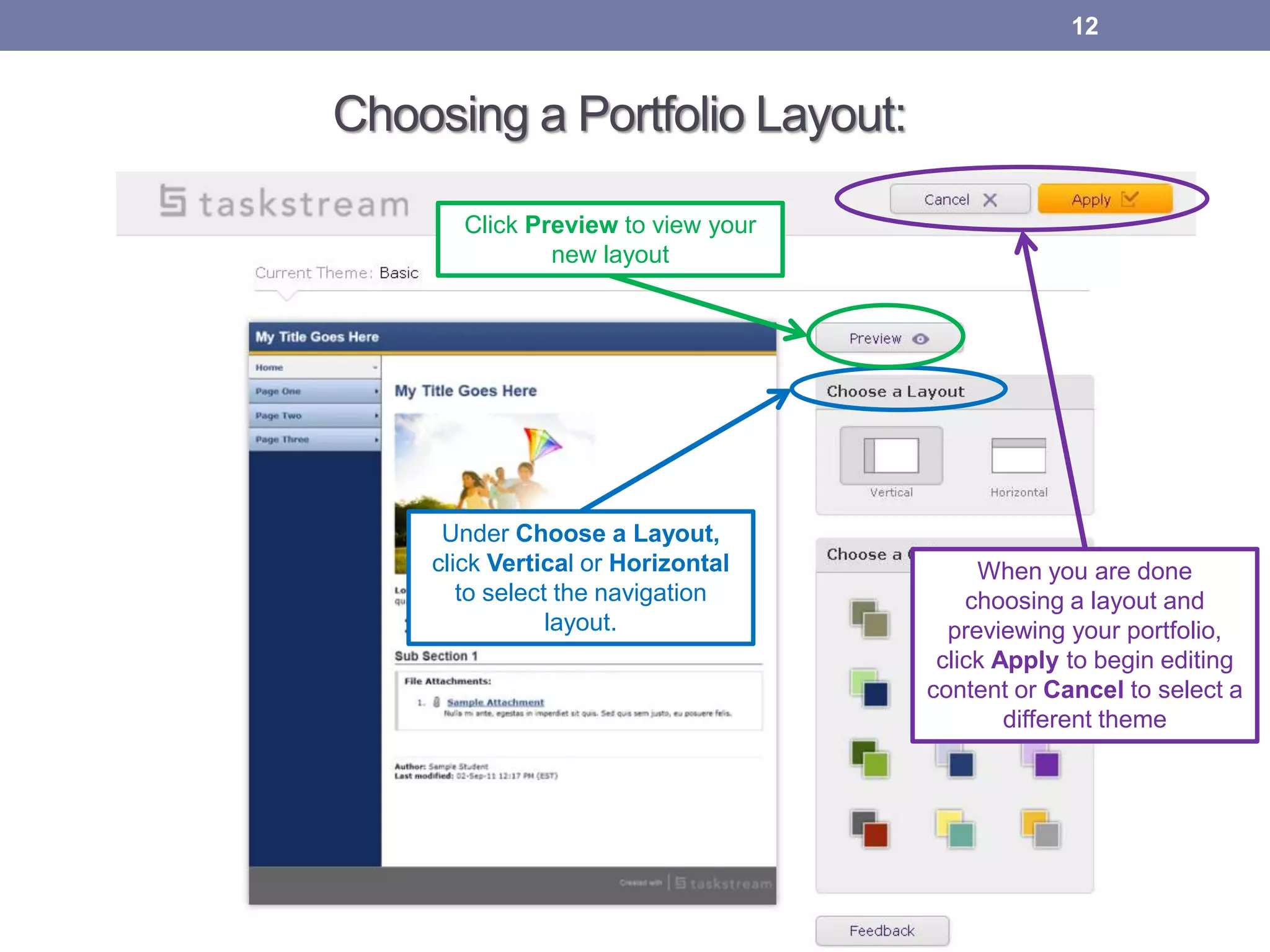
Choosing a Portfolio Layout:
12
Under Choose a Layout,
click Vertical or Horizontal
to select the navigation
layout.
Click Preview to view your
new layout
When you are done
choosing a layout and
previewing your portfolio,
click Apply to begin editing
content or Cancel to select a
different theme
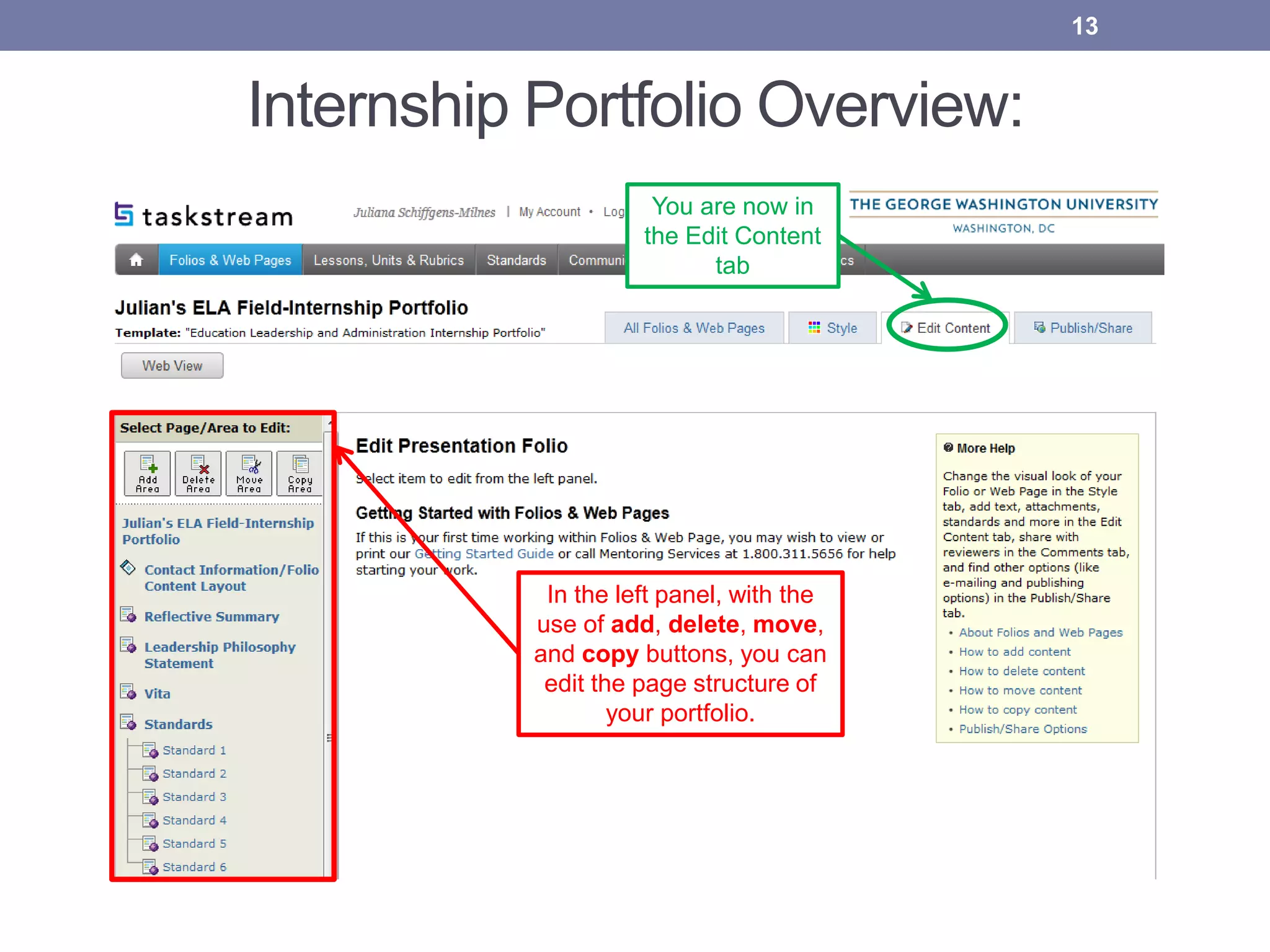
Internship Portfolio Overview:
13
In the left panel, with the
use of add, delete, move,
and copy buttons, you can
edit the page structure of
your portfolio.
You are now in
the Edit Content
tab
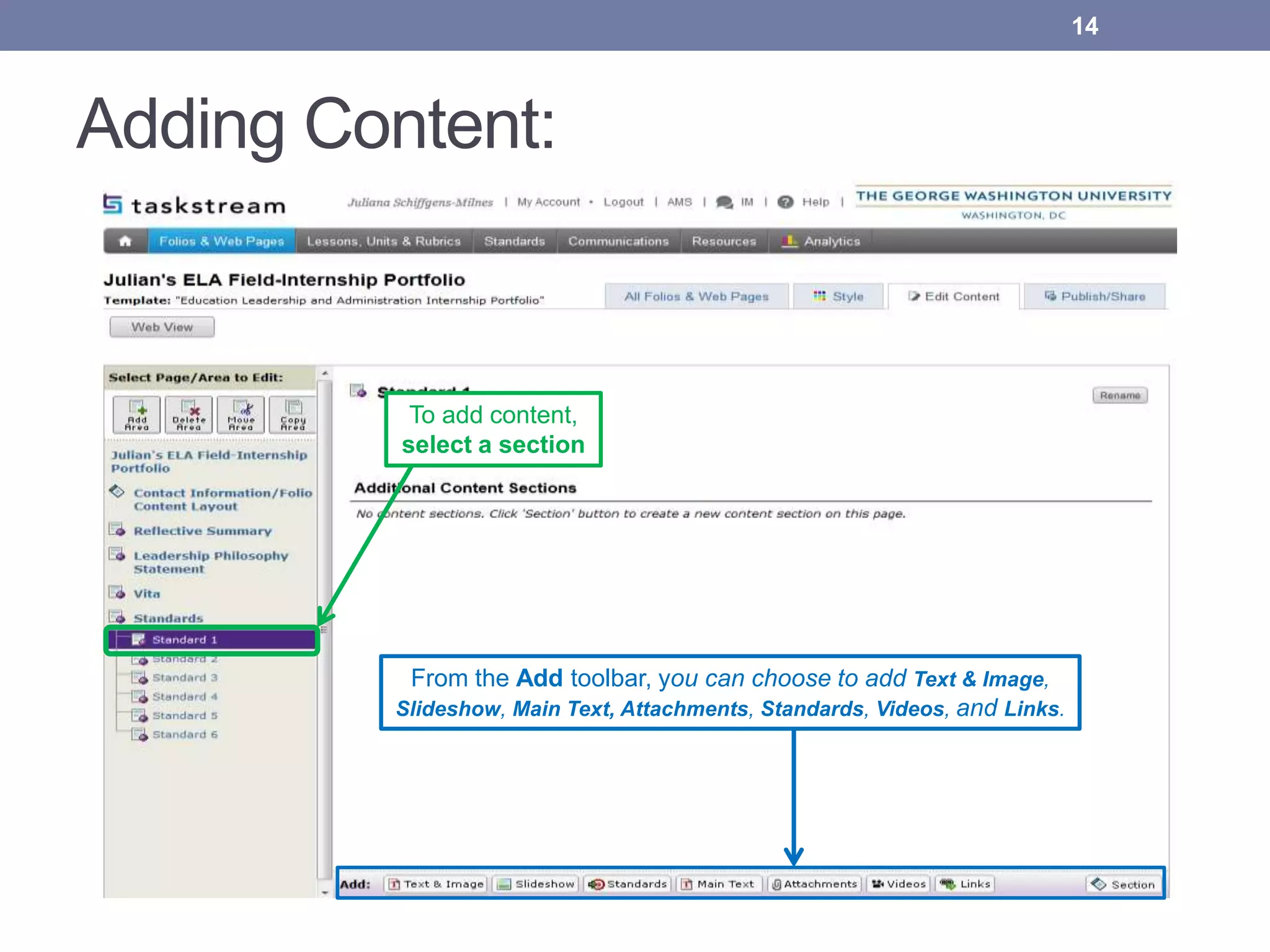
Adding Content:
14
From the Add toolbar, you can choose to add Text & Image,
Slideshow, Main Text, Attachments, Standards, Videos, and Links.
To add content,
select a section
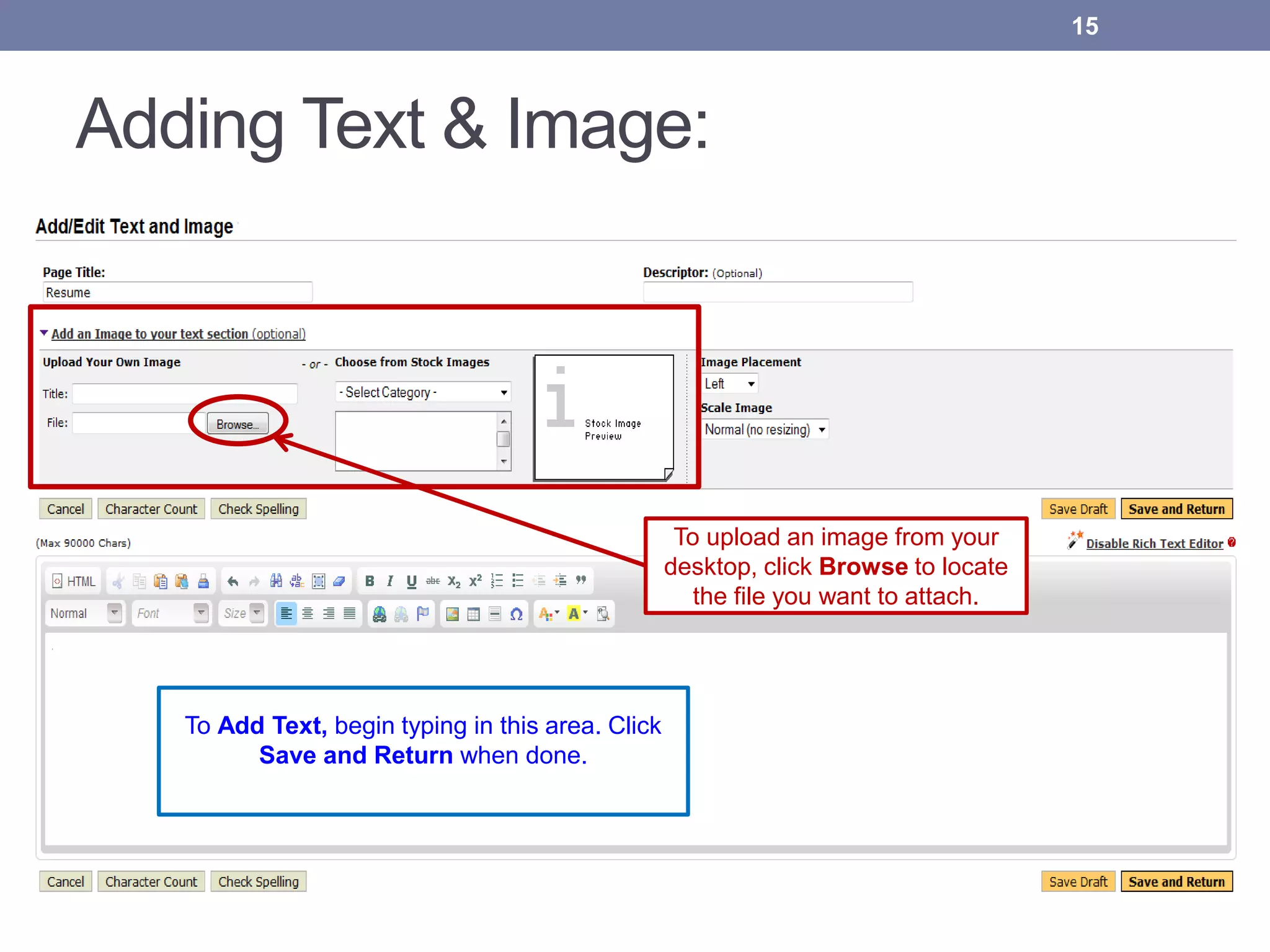
Adding Text & Image:
To Add Text, begin typing in this area. Click
Save and Return when done.
To upload an image from your
desktop, click Browse to locate
the file you want to attach.
15
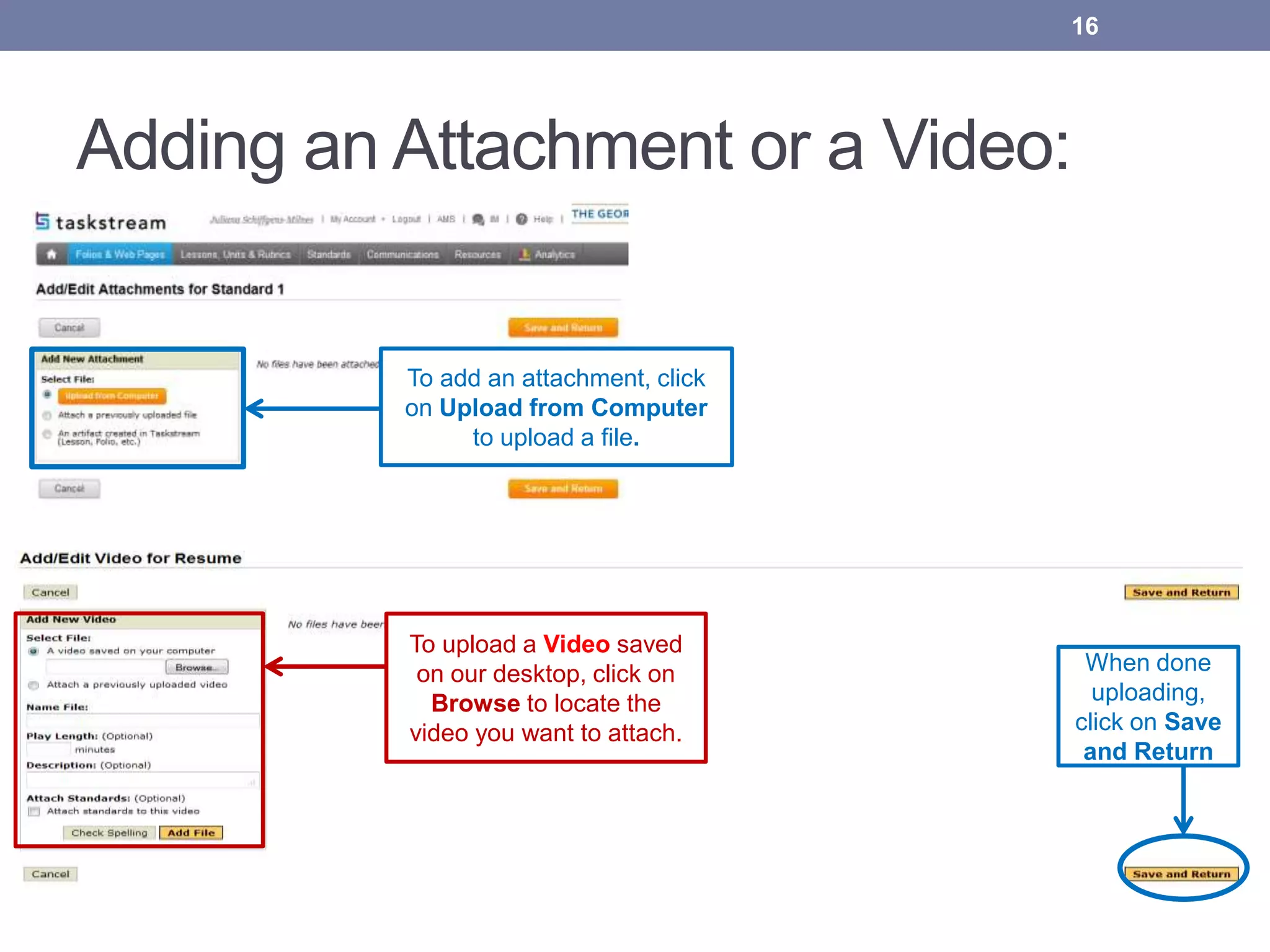
Adding an Attachment or a Video:
To upload a Video saved
on our desktop, click on
Browse to locate the
video you want to attach.
16
When done
uploading,
click on Save
and Return
To add an attachment, click
on Upload from Computer
to upload a file.
Adding Web Links:
17
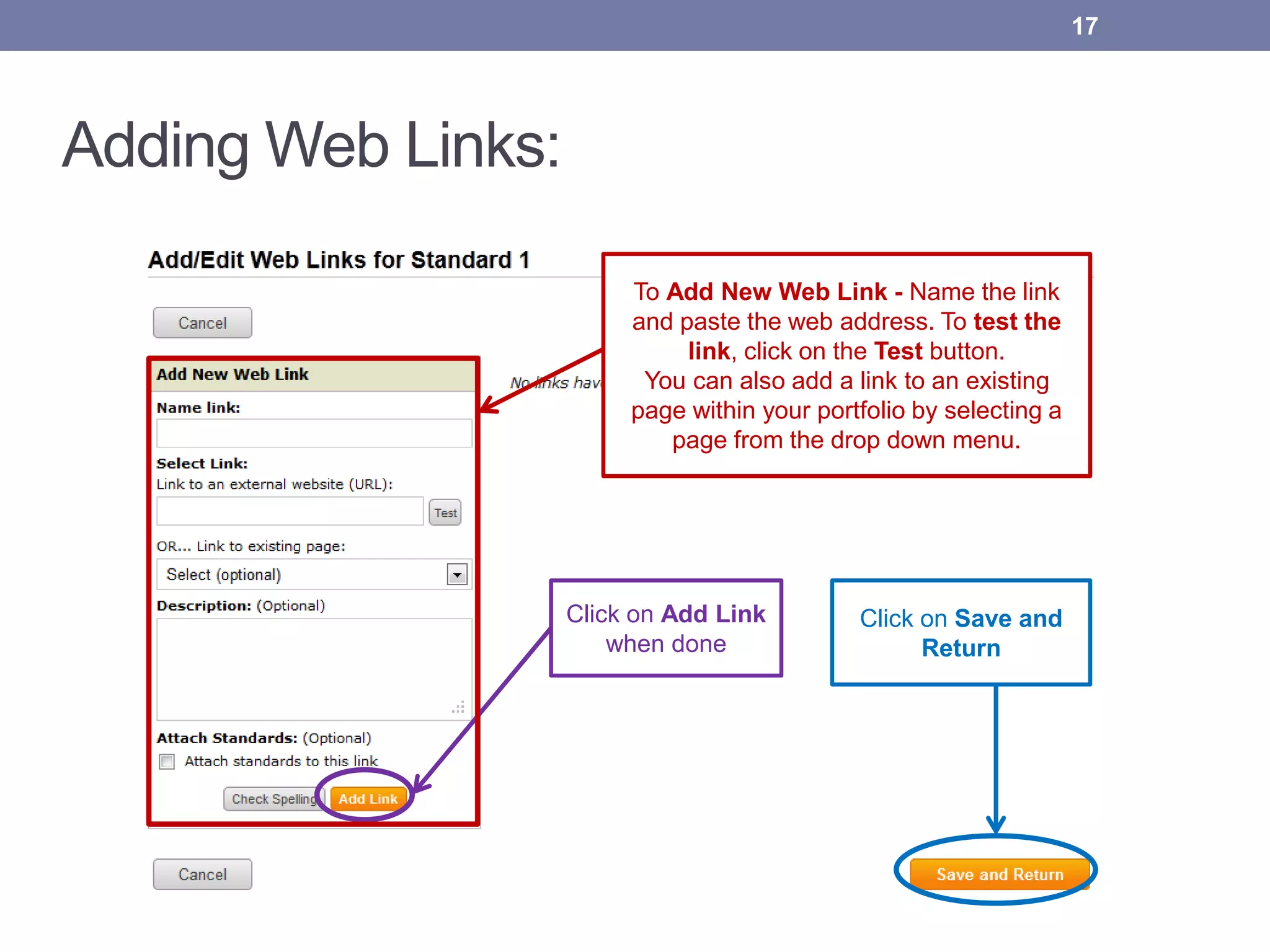
To Add New Web Link - Name the link
and paste the web address. To test the
link, click on the Test button.
You can also add a link to an existing
page within your portfolio by selecting a
page from the drop down menu.
Click on Save and
Return
Click on Add Link
when done
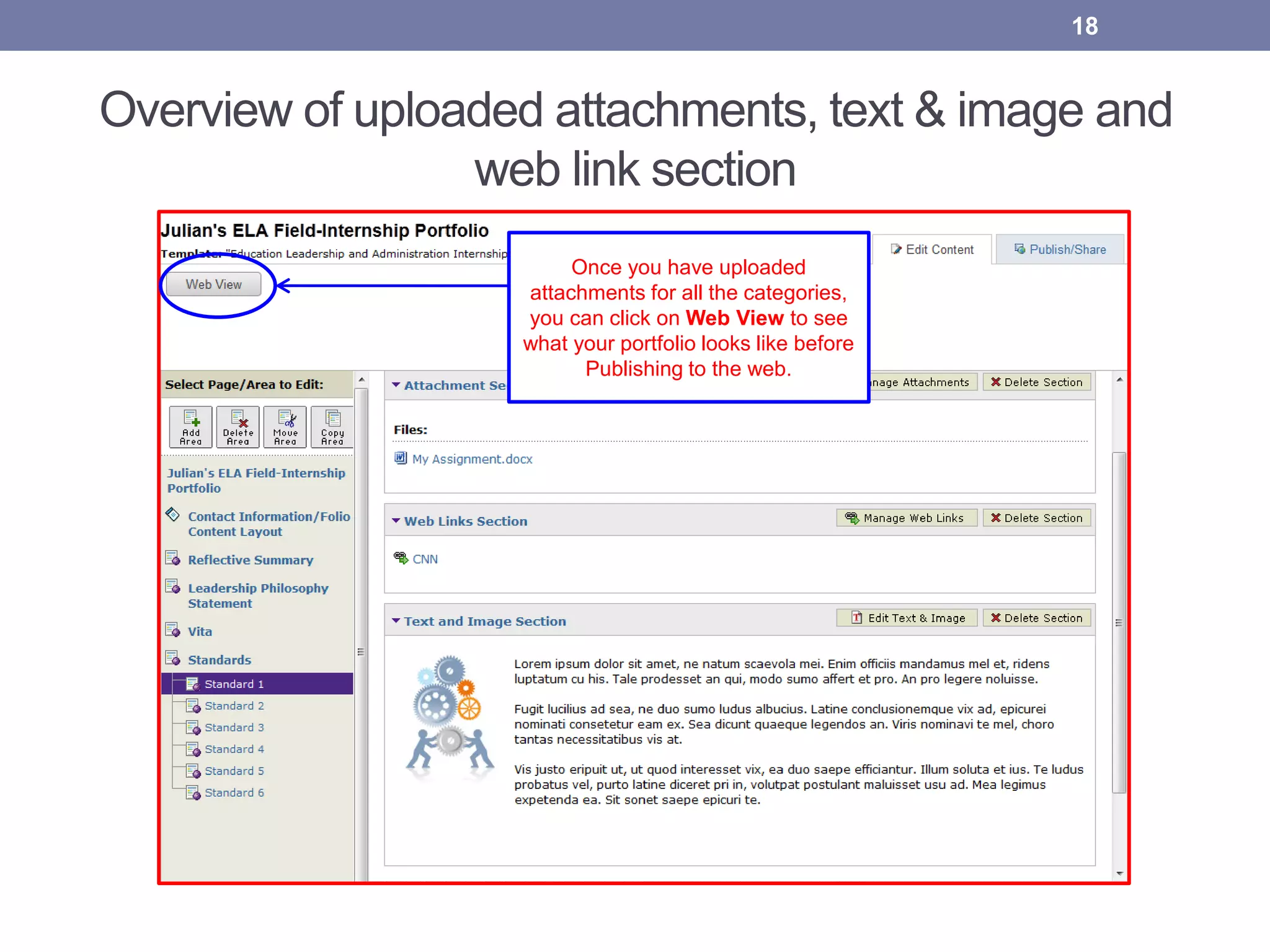
Overview of uploaded attachments, text & image and
web link section
18
Once you have uploaded
attachments for all the categories,
you can click on Web View to see
what your portfolio looks like before
Publishing to the web.
Publish your Portfolio!
Publish your folio or web page to the Internet via a
customized web address that you create. You can limit
access by creating a password.
19
20
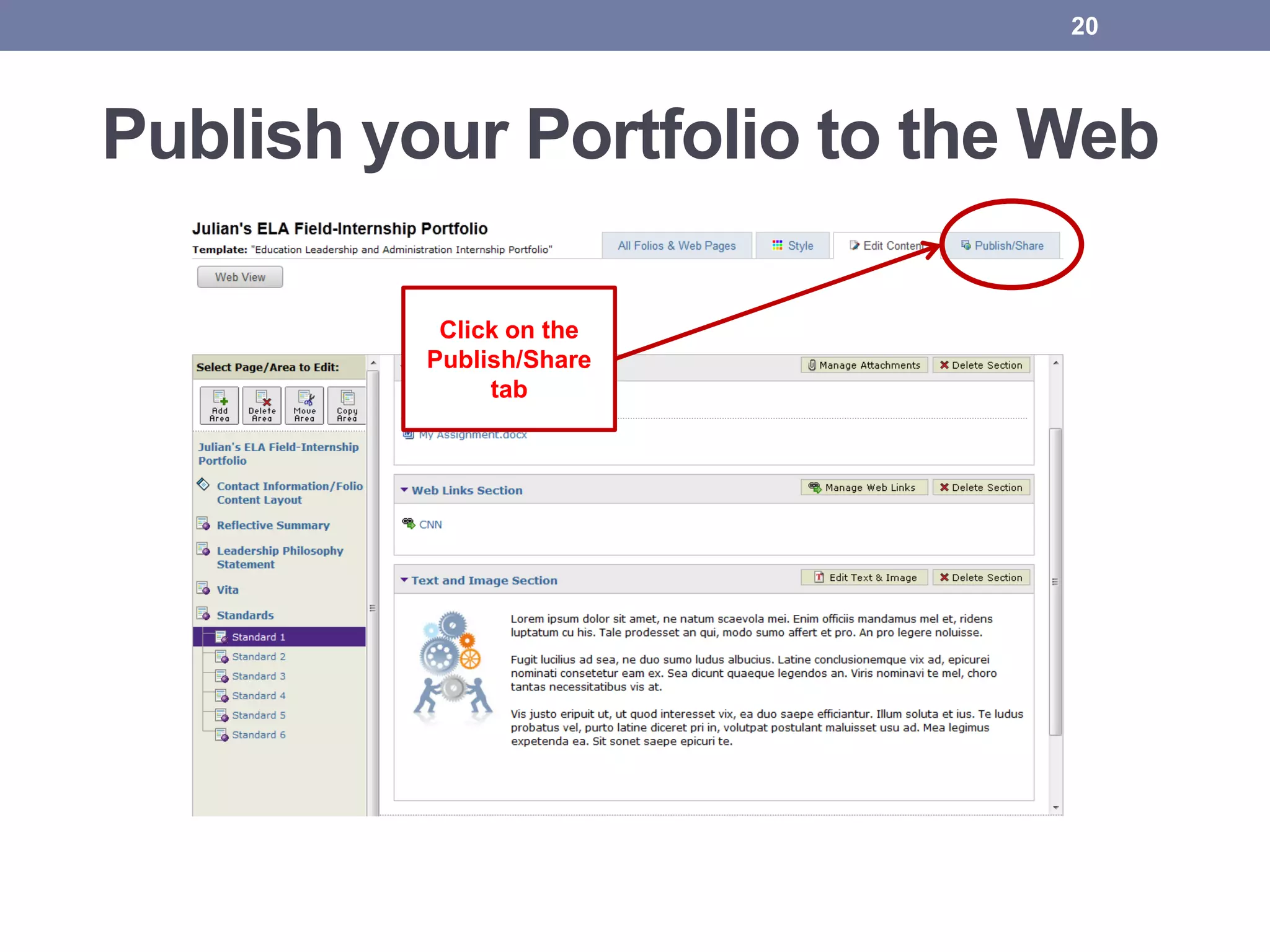
Publish your Portfolio to the Web
Click on the
Publish/Share
tab
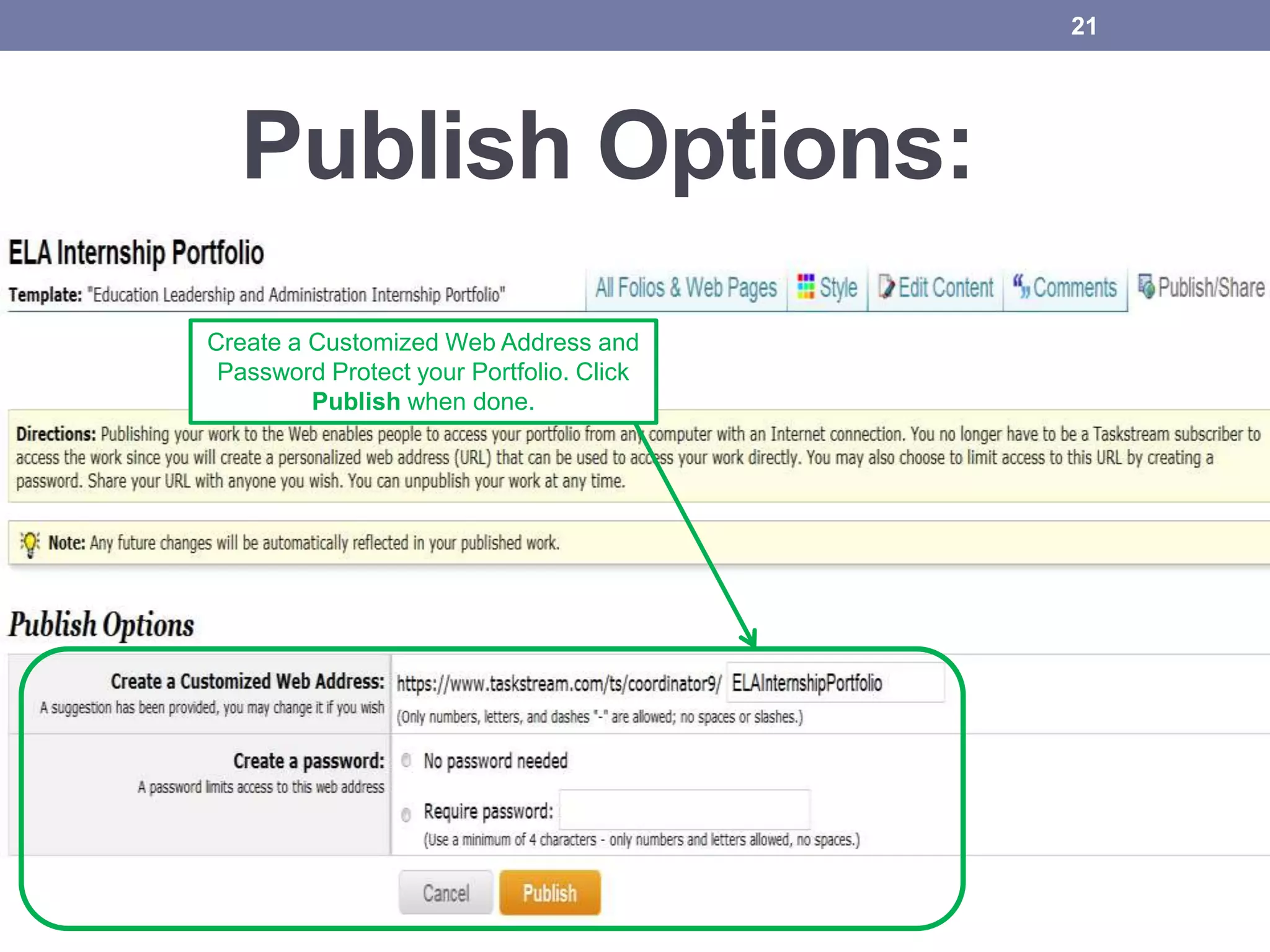
Publish Options:
21
Create a Customized Web Address and
Password Protect your Portfolio. Click
Publish when done.
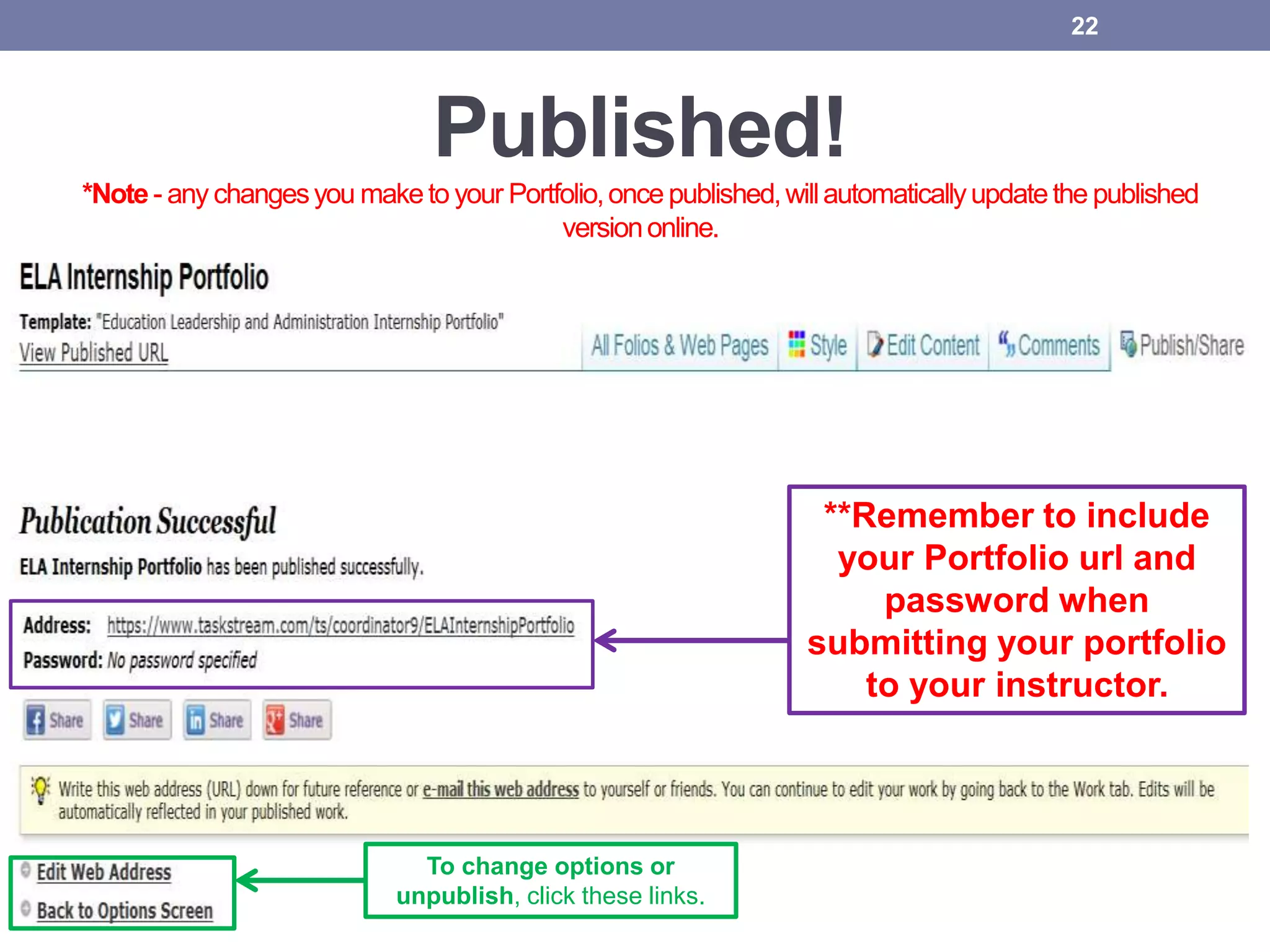
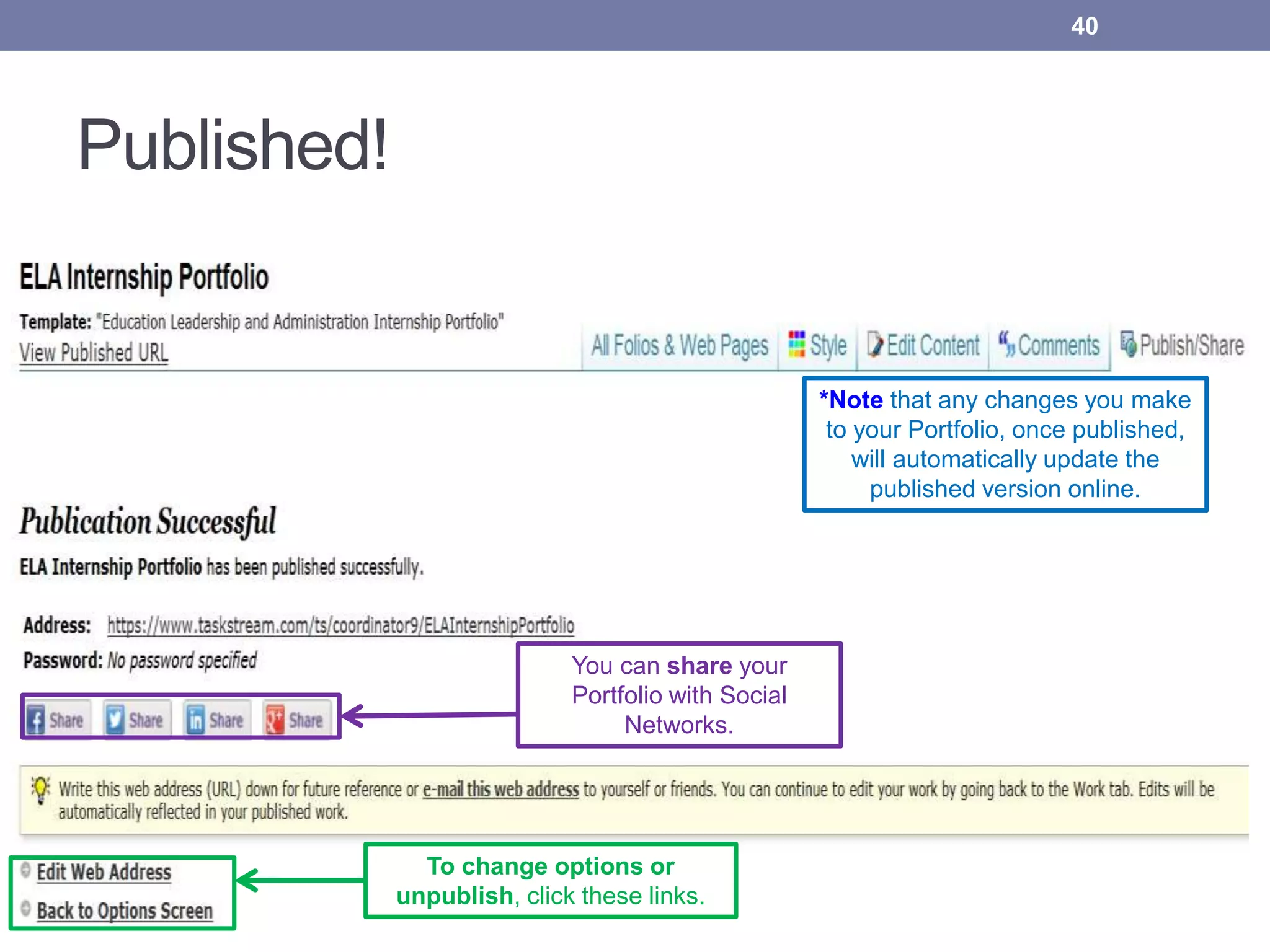
Published!
*Note - any changesyou maketo your Portfolio,once published,willautomaticallyupdatethe published
versiononline.
22
To change options or
unpublish, click these links.
**Remember to include
your Portfolio url and
password when
submitting your portfolio
to your instructor.
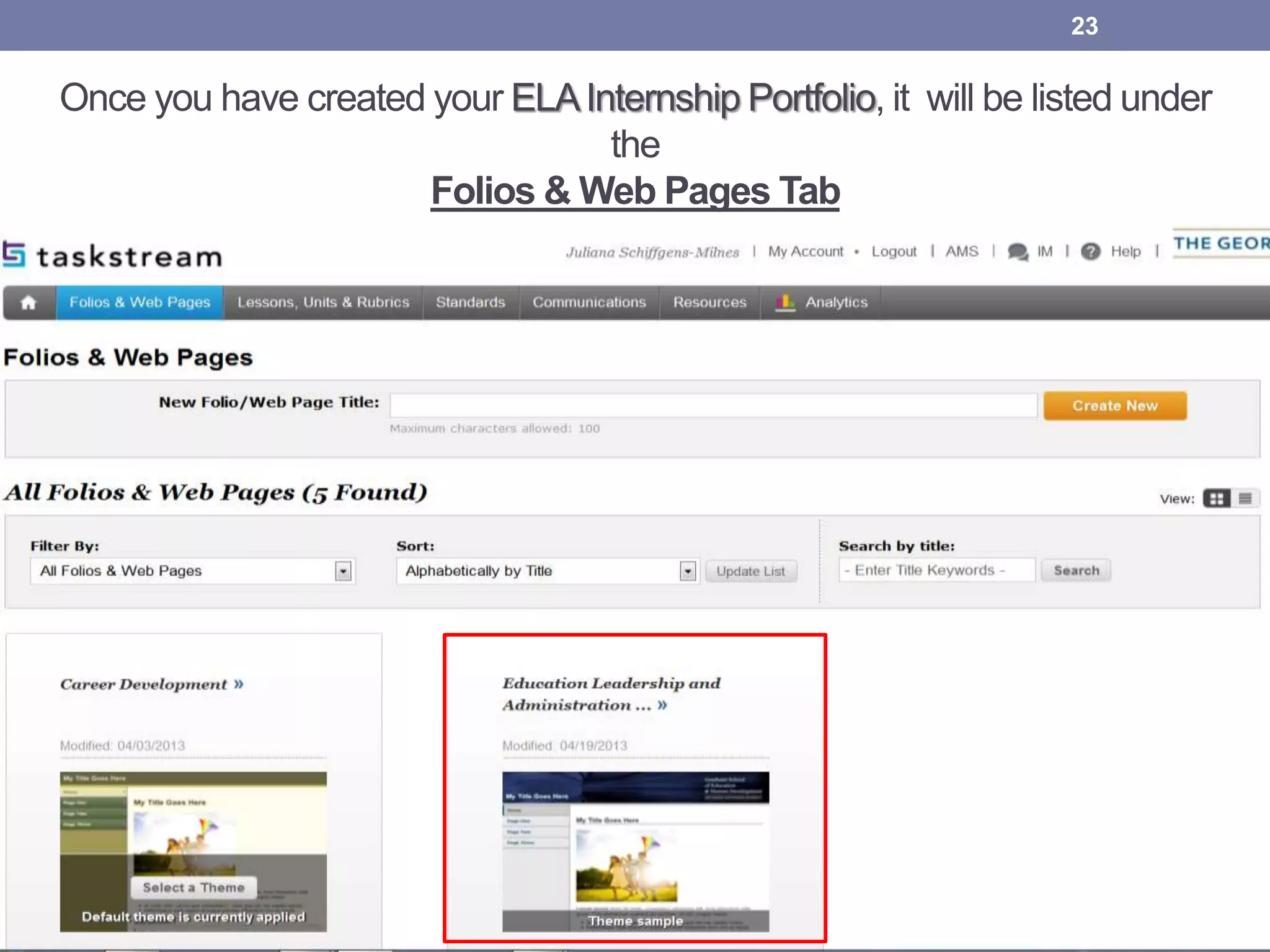
Once you have created your ELAInternship Portfolio, it will be listed under
the
Folios & Web Pages Tab
23
How to Add your Web Folio as
an assignment in Taskstream
24
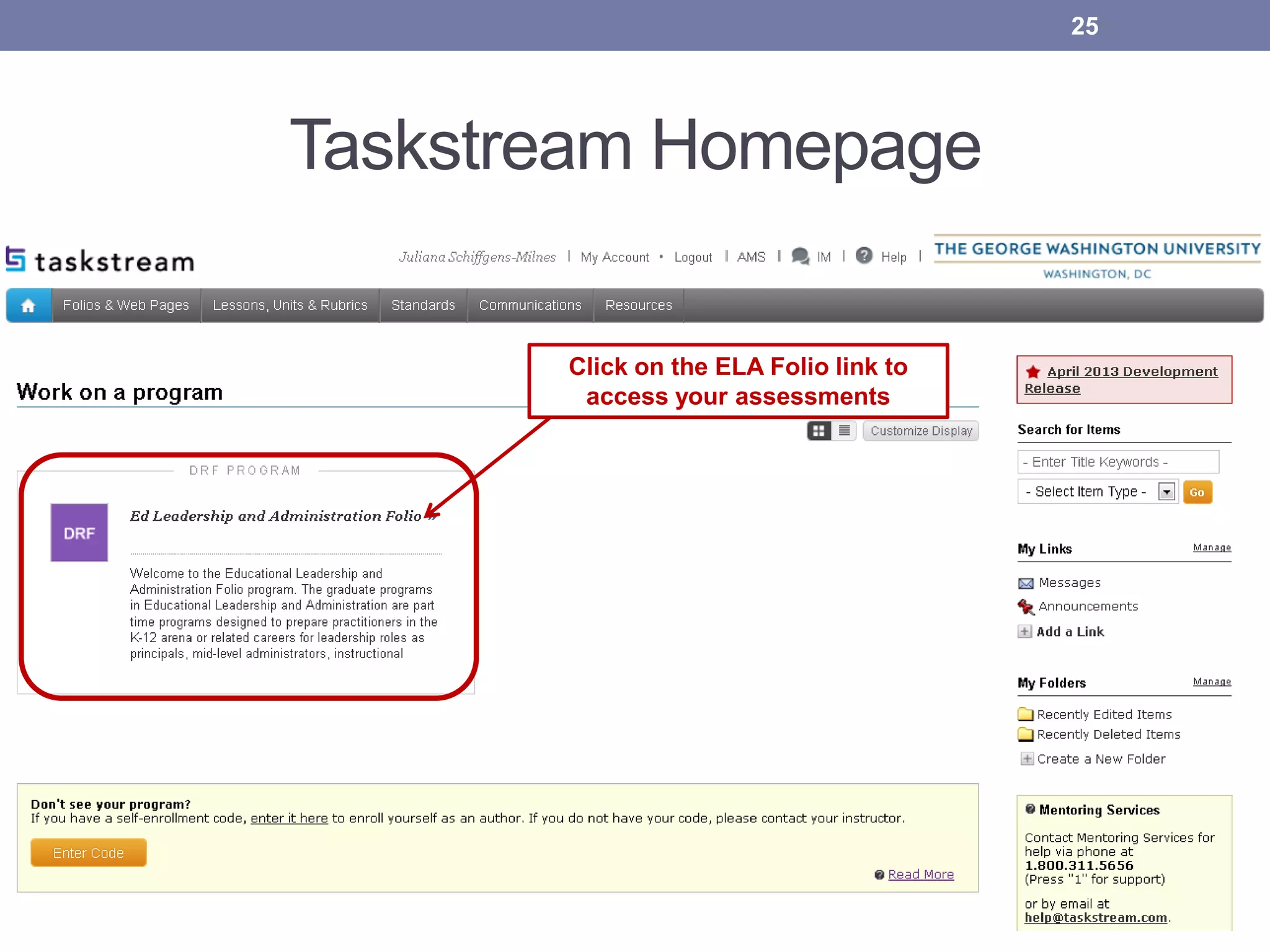
Taskstream Homepage
Click on the ELA Folio link to
access your assessments
25
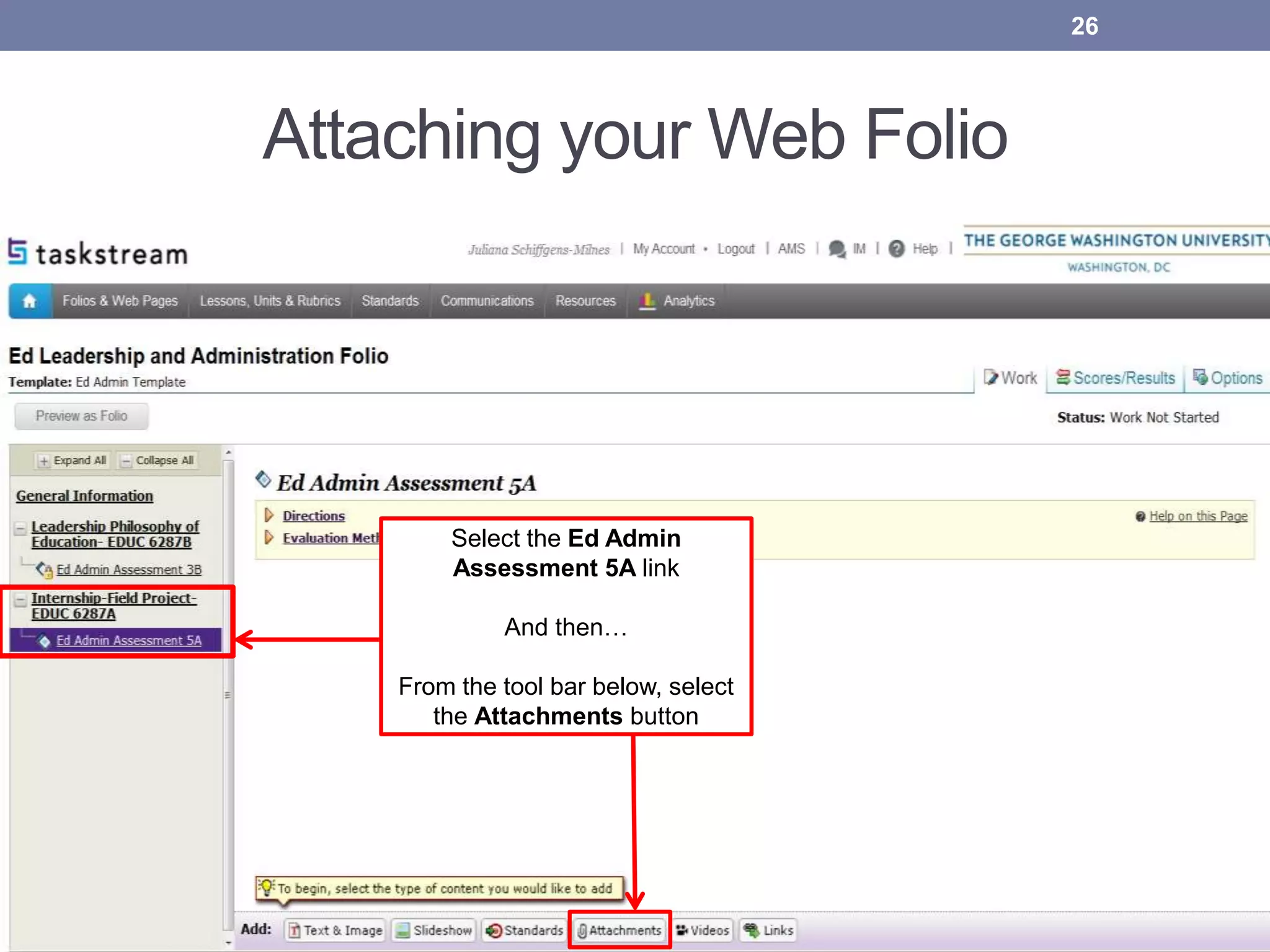
Attaching your Web Folio
26
Select the Ed Admin
Assessment 5A link
And then…
From the tool bar below, select
the Attachments button
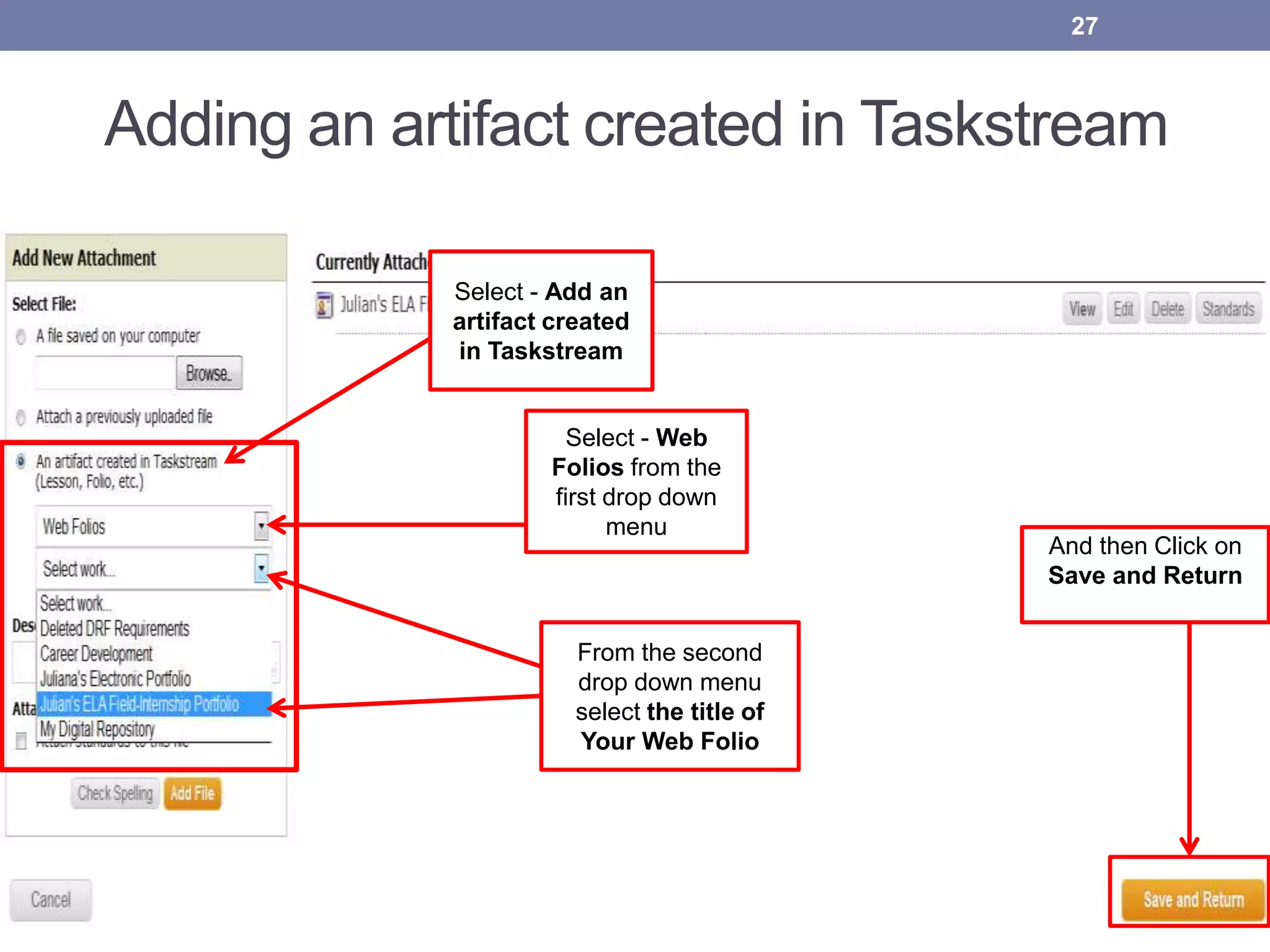
27
Select - Add an
artifact created
in Taskstream
Select - Web
Folios from the
first drop down
menu
From the second
drop down menu
select the title of
Your Web Folio
And then Click on
Save and Return
Adding an artifact created in Taskstream
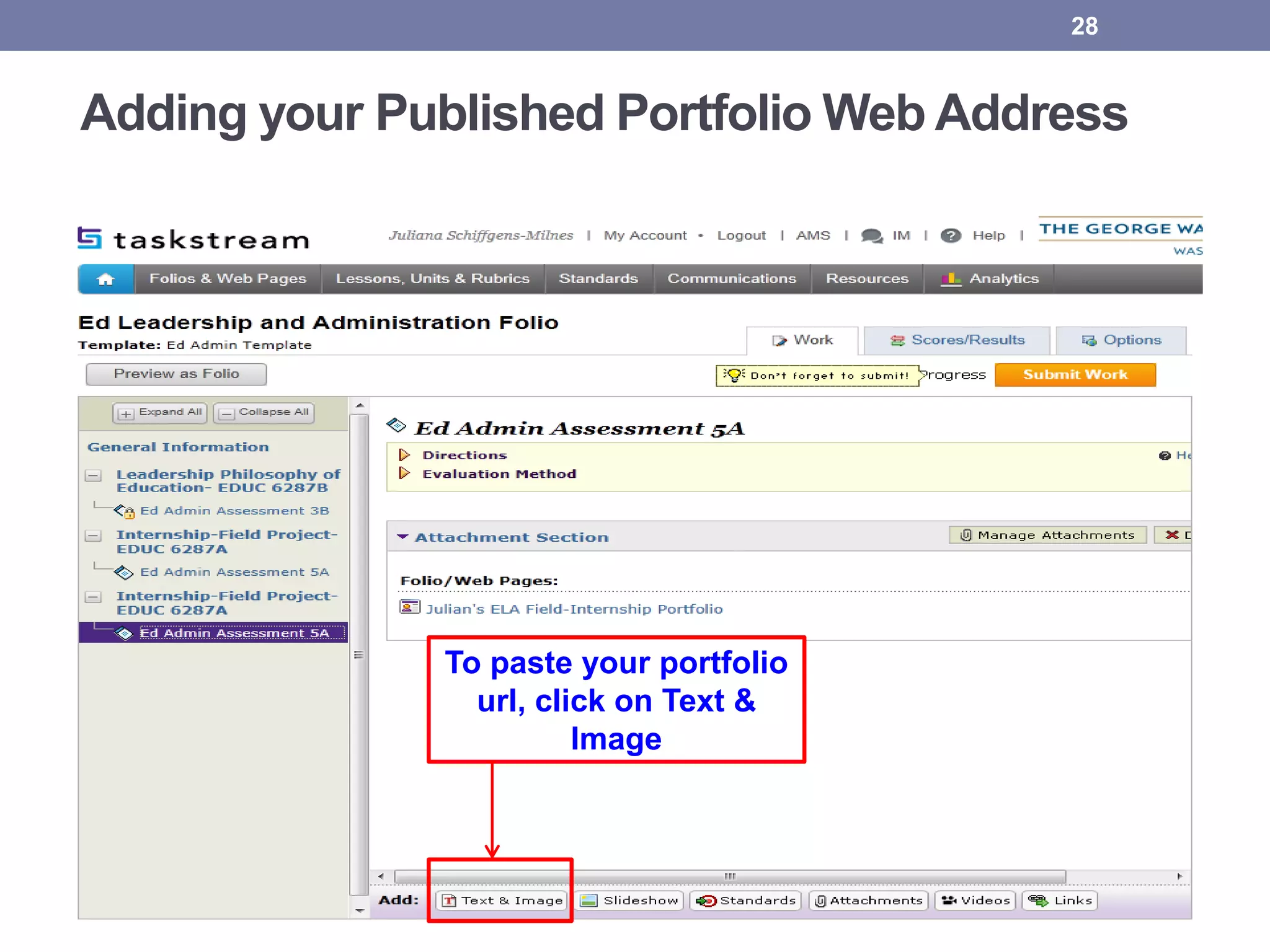
28
To paste your portfolio
url, click on Text &
Image
Adding your Published Portfolio Web Address
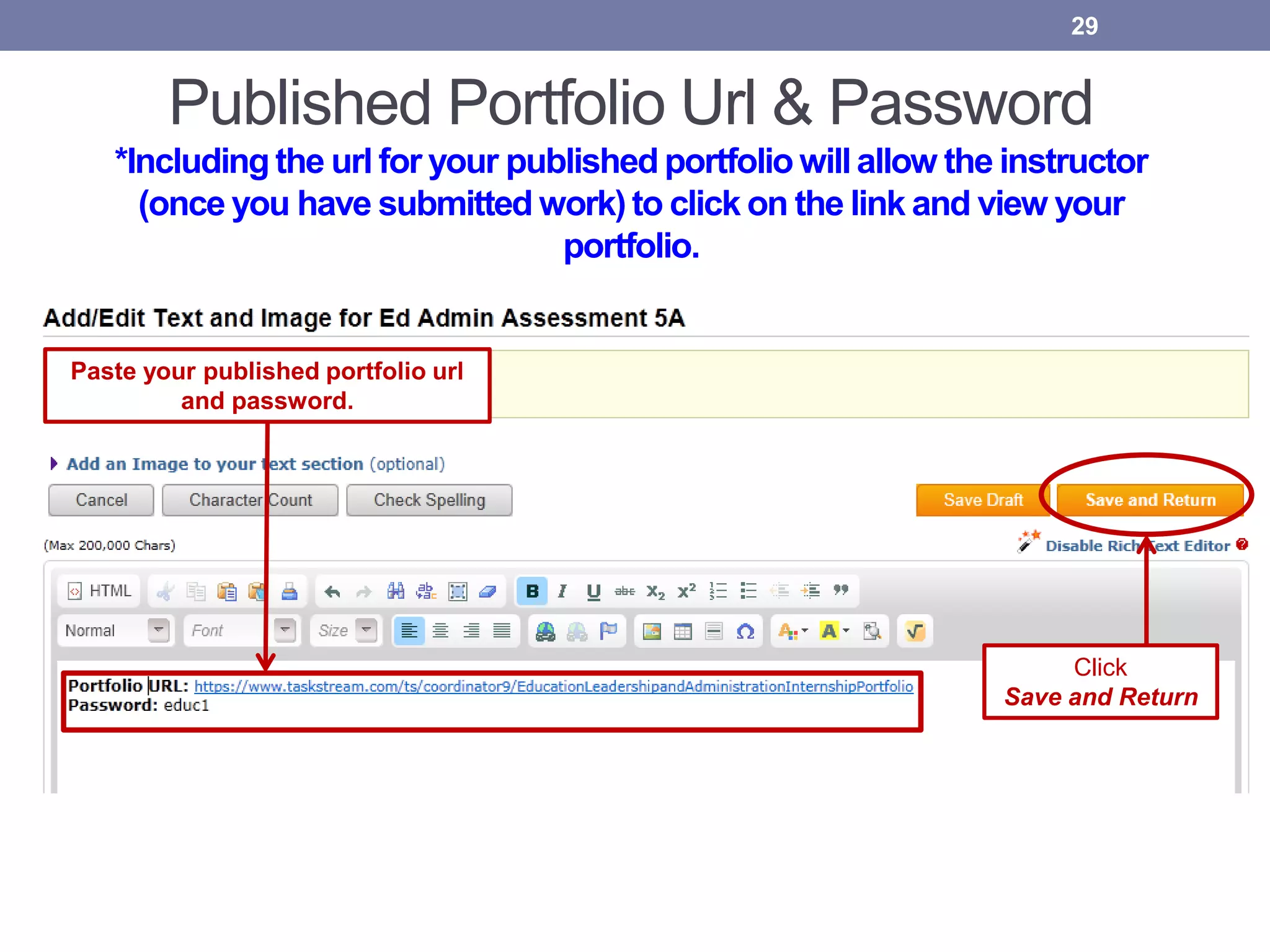
Published Portfolio Url & Password
*Including the url for your published portfolio will allow the instructor
(once you have submitted work) to click on the link and view your
portfolio.
29
Paste your published portfolio url
and password.
Click
Save and Return
LAST STEP:
Submit Your Work!
30
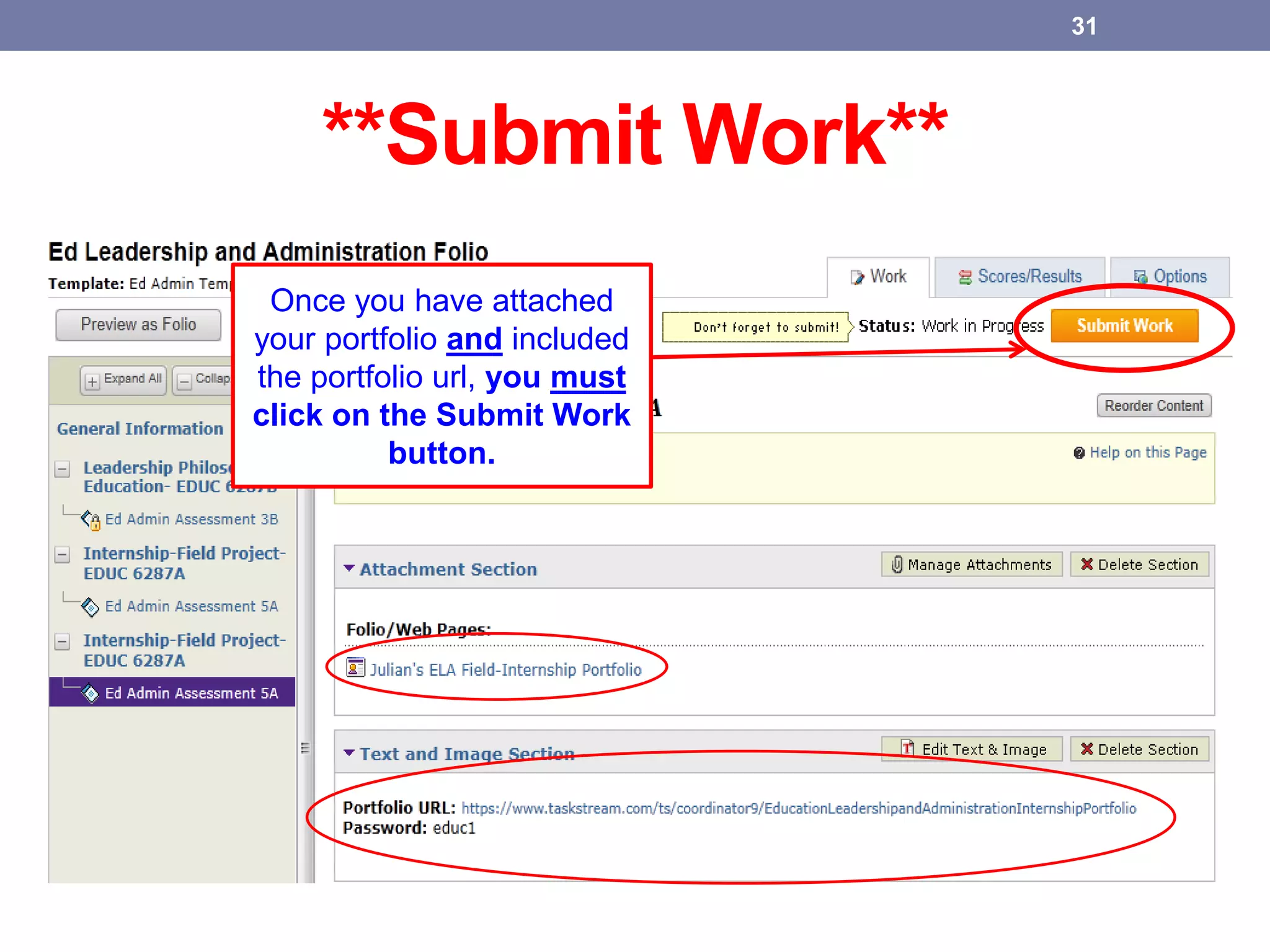
**Submit Work**
31
Once you have attached
your portfolio and included
the portfolio url, you must
click on the Submit Work
button.
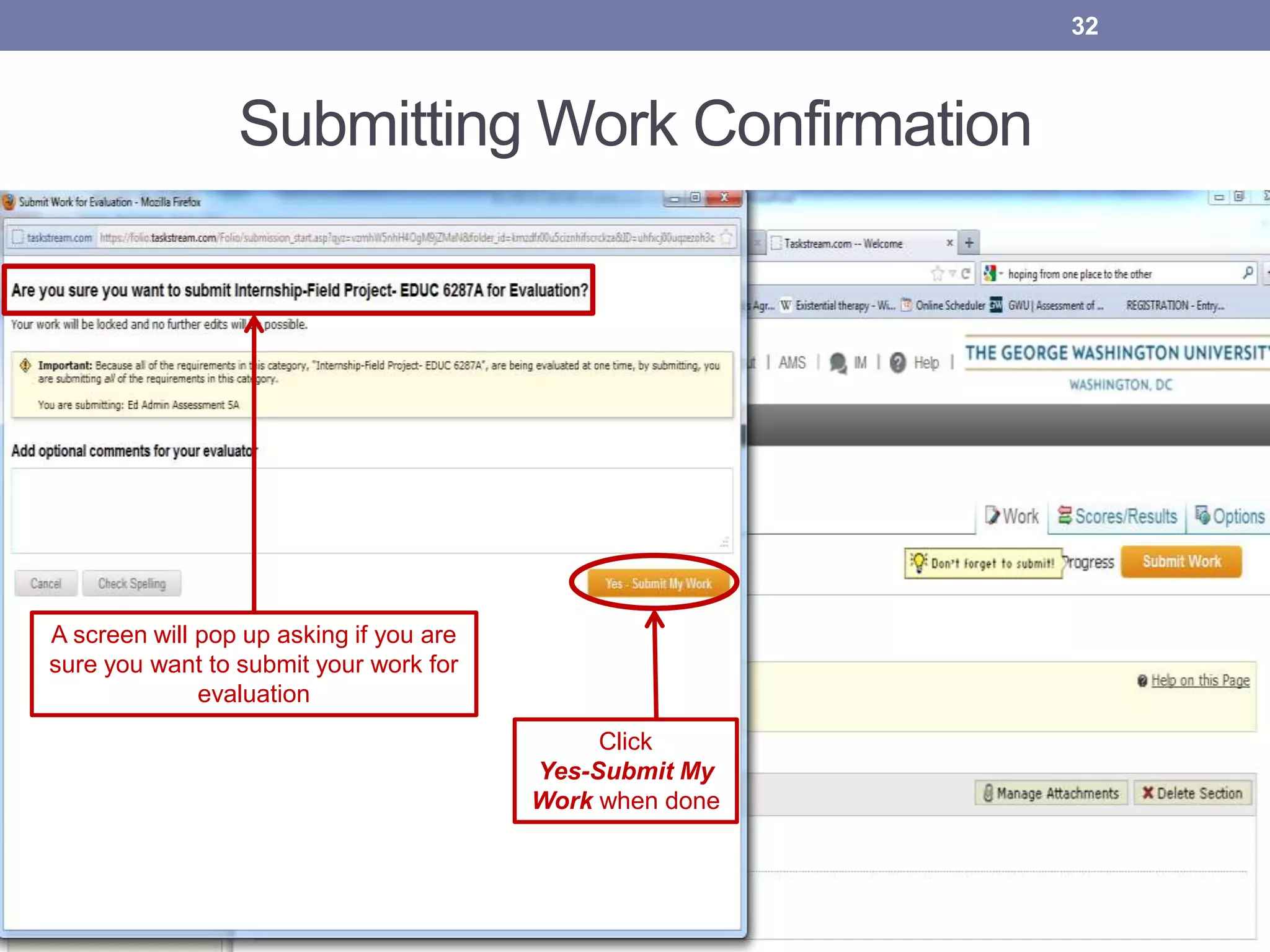
Submitting Work Confirmation
32
A screen will pop up asking if you are
sure you want to submit your work for
evaluation
Click
Yes-Submit My
Work when done
CONGRATULATIONS!!
YOU HAVE SUCCESSFULLY SUBMITTED
YOUR WORK

33
Appendix 1
34
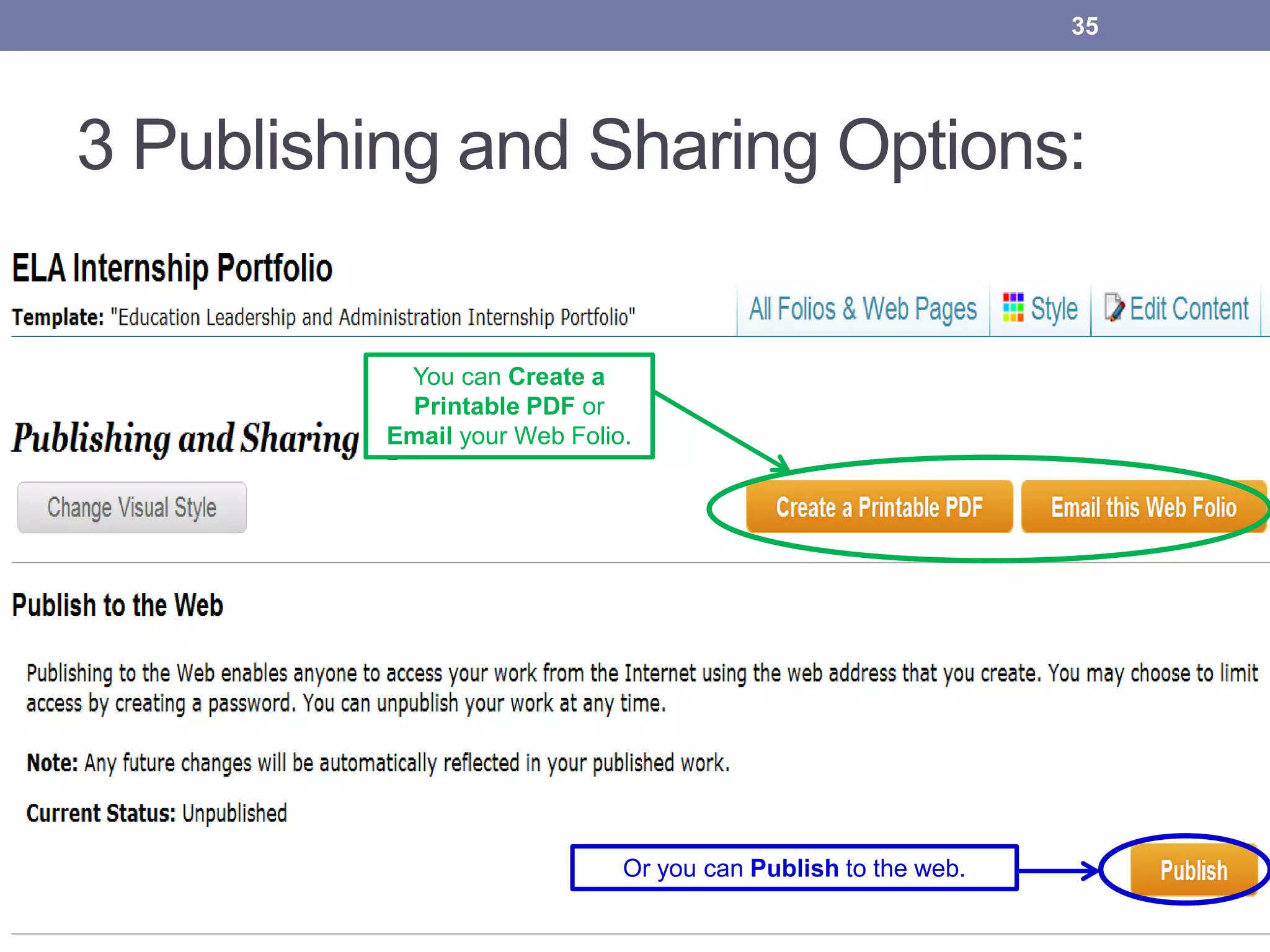
Students have 3 Publishing and Sharing Options once
the Internship Portfolio has been submitted for
evaluation:
Create a Printable PDF
Email your Web Folio
Publish to Web (with password protection)
The following six slides provide step-by-step instructions on how to publish
and share your portfolio.
3 Publishing and Sharing Options:
35
You can Create a
Printable PDF or
Email your Web Folio.
Or you can Publish to the web.
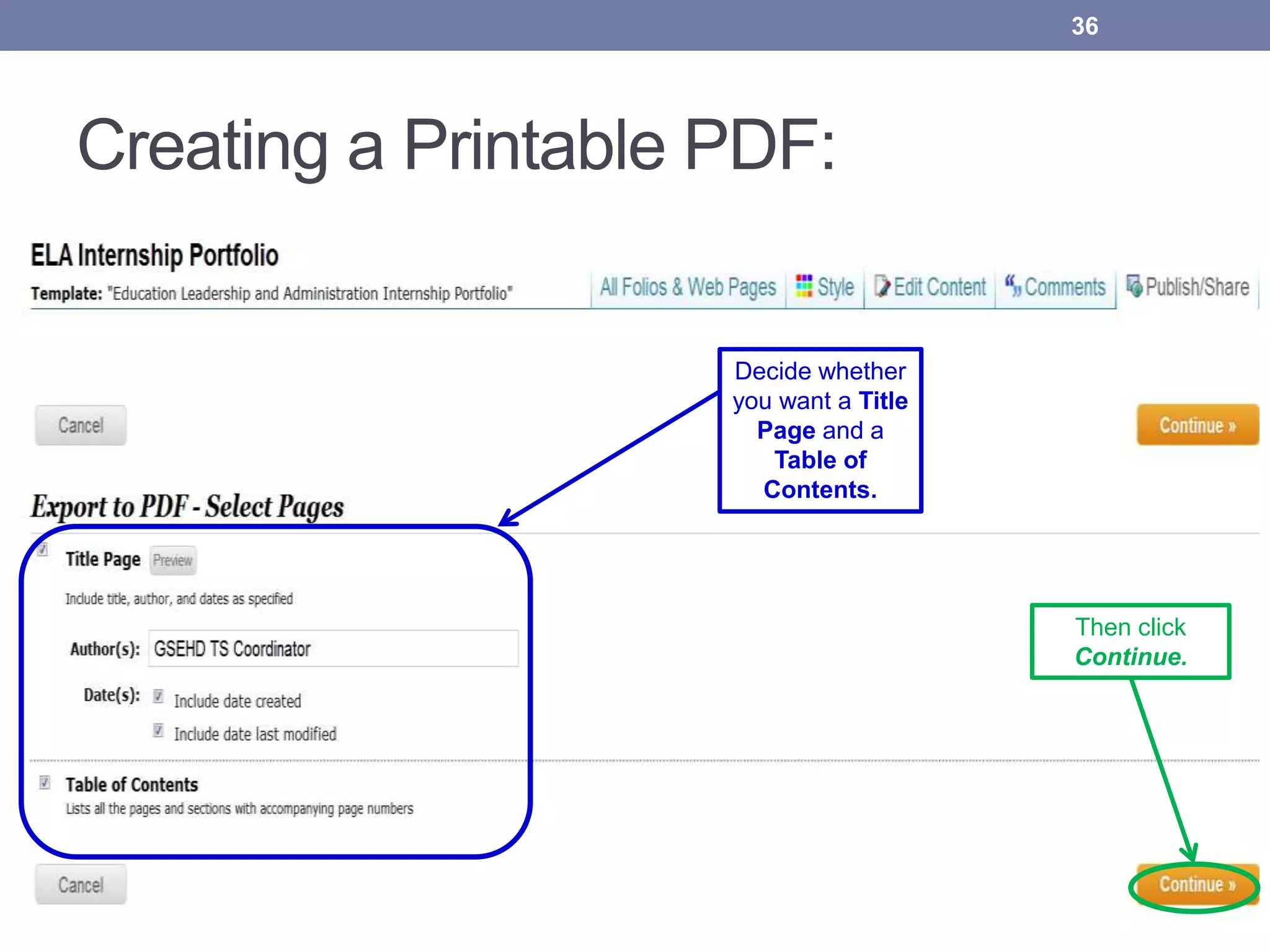
Creating a Printable PDF:
36
Decide whether
you want a Title
Page and a
Table of
Contents.
Then click
Continue.
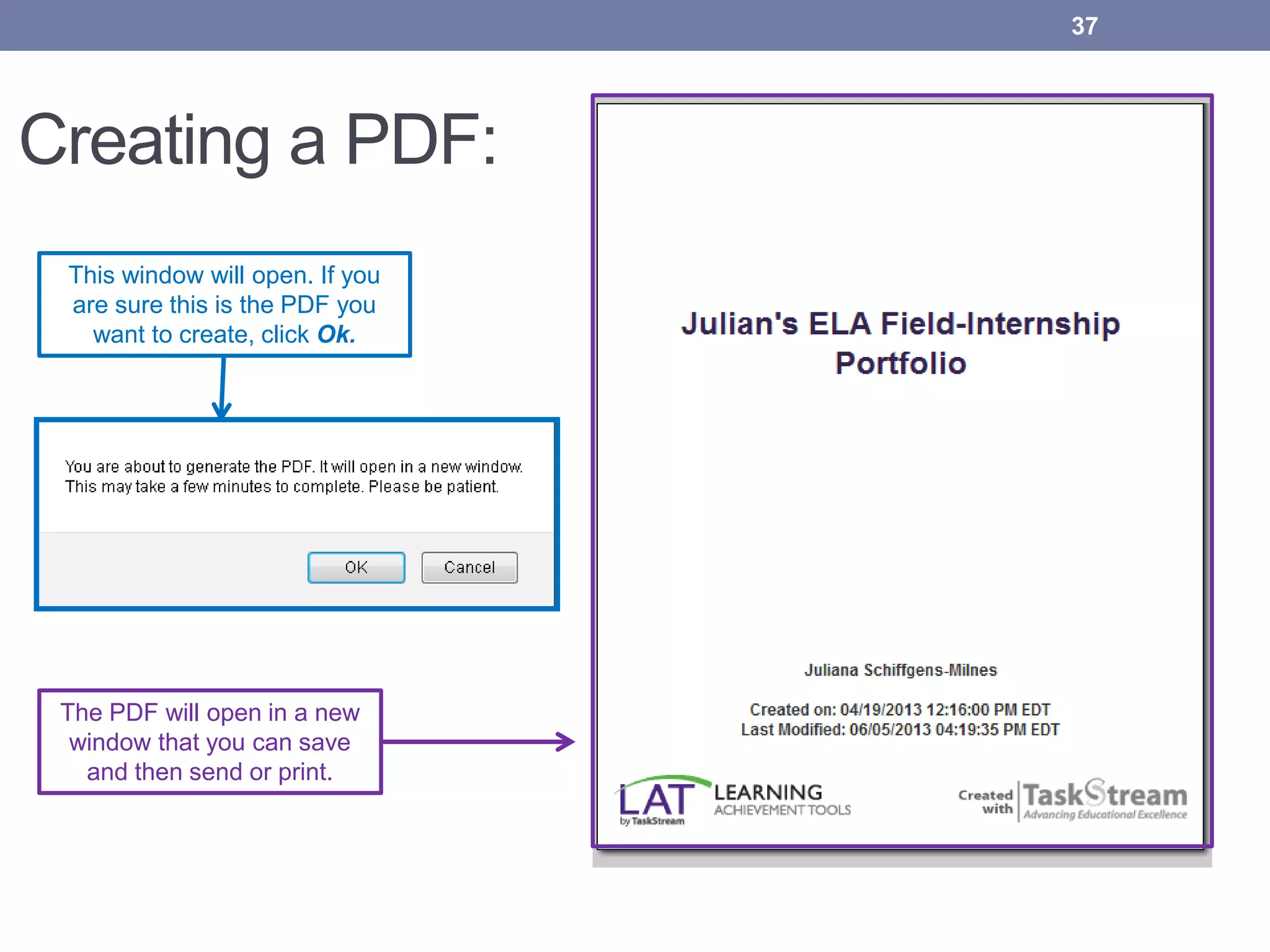
Creating a PDF:
This window will open. If you
are sure this is the PDF you
want to create, click Ok.
The PDF will open in a new
window that you can save
and then send or print.
37
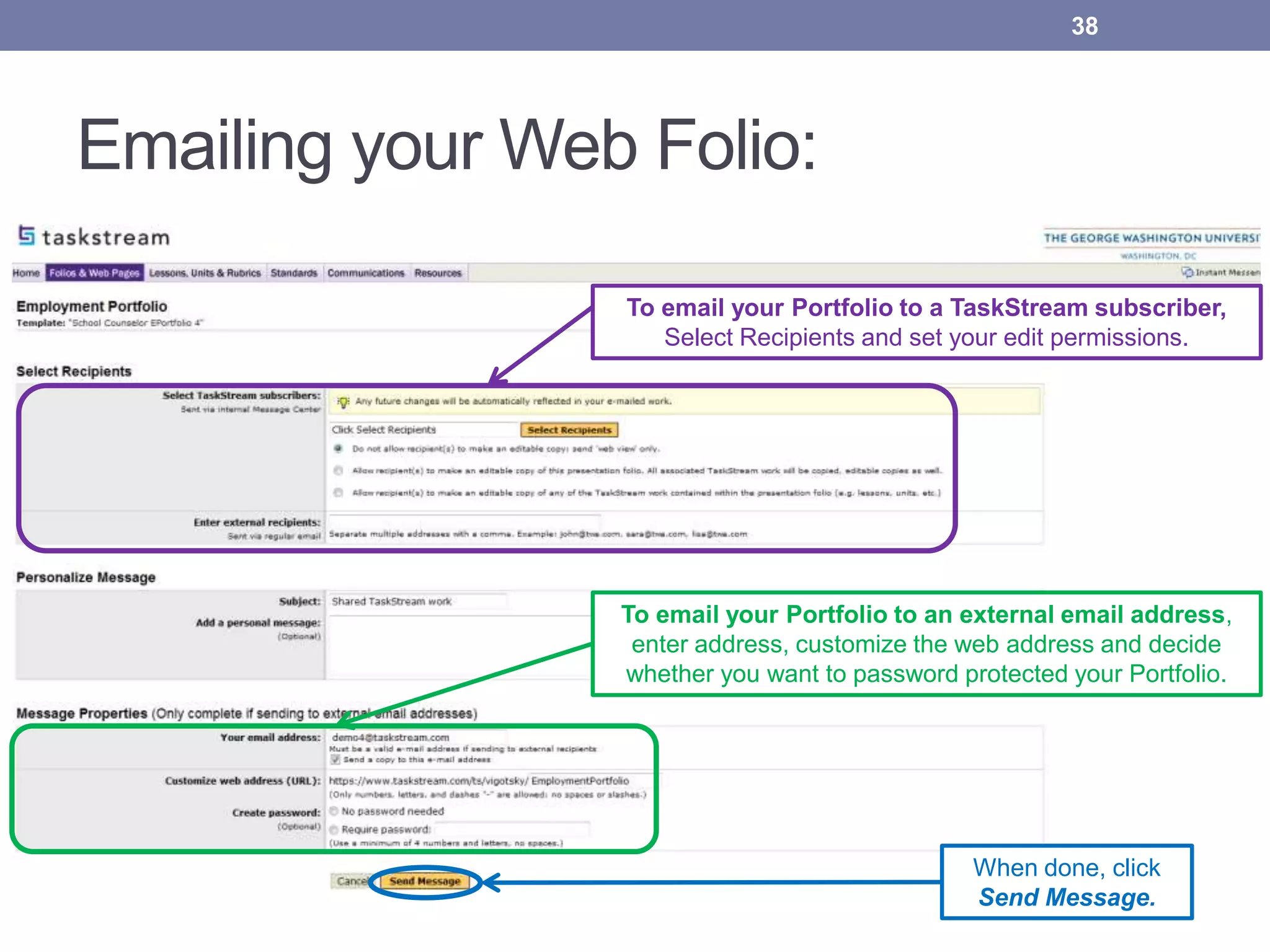
Emailing your Web Folio:
To email your Portfolio to a TaskStream subscriber,
Select Recipients and set your edit permissions.
To email your Portfolio to an external email address,
enter address, customize the web address and decide
whether you want to password protected your Portfolio.
When done, click
Send Message.
38
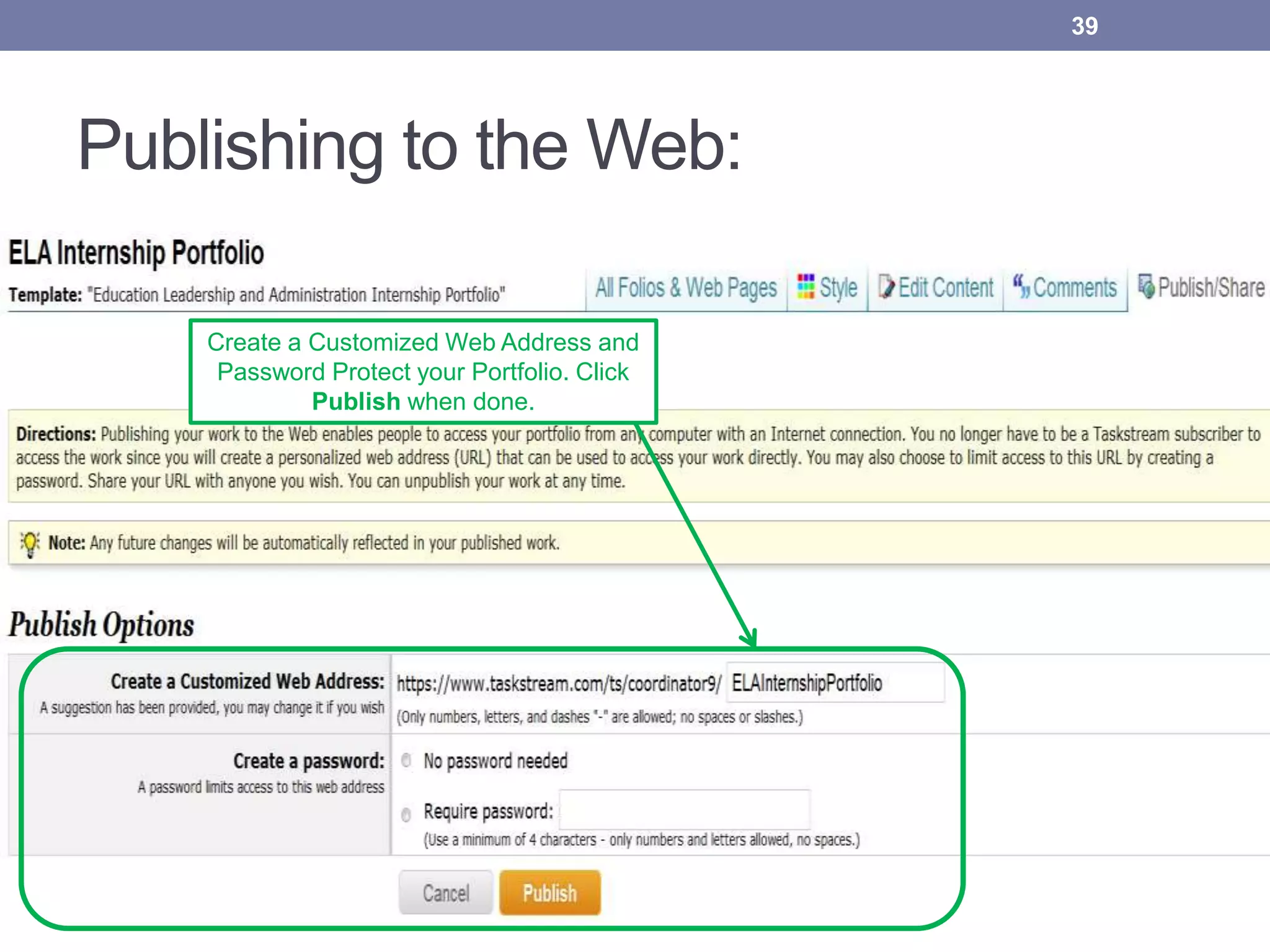
Publishing to the Web:
39
Create a Customized Web Address and
Password Protect your Portfolio. Click
Publish when done.
Published!
40
To change options or
unpublish, click these links.
*Note that any changes you make
to your Portfolio, once published,
will automatically update the
published version online.
You can share your
Portfolio with Social
Networks.
THANK YOU!
For additional assistance, feel free to contact:
TaskStream’s Mentoring Services department by calling 1-800-311-5656 or
email help@taskstream.com
Or the GSEHD TaskStream Administrators, Leslie J. Ward, Ed.D., and
Ellen Wanjiru by calling 202-994-0359 or emailing oppats@gwu.edu
41

Creating & submitting your ela internship portfolio in taskstream guide

  • 1.
    Education Leadership & Administration PortfolioInstructional Guide 1 **Please view the instructional guide as a slideshow** Three important steps: 1. Once you have created your portfolio in Taskstream, do not forget to PUBLISH to the web. Slides 19 thru 22. 2. Include your portfolio web address & password (if specified) before submitting work to your instructor. Slides 28 & 29. 3. Submit Work! Slides 30 thru 32.
  • 2.
    Single Sign Onvia GWeb Info System for Students Click gweb info system From the webpage my.gwu.edu 2
  • 3.
    Enter your GWIDand PIN Then click Login 3
  • 4.
    Click the StudentRecords and Registration Menu Tab 4 Welcome to the WWW Information System! Last web access on 10/02/12 at 03:59 pm
  • 5.
  • 6.
    Click the LATby TaskStream link … if an additional slide opens after clicking this link, please select the LAT platform 6
  • 7.
    Please read theTaskStream UserAgreement and click “Accept” to continue 7
  • 8.
    Taskstream Homepage In orderto begin working on an Electronic Portfolio, click the “Folios & Web Pages” tab 8
  • 9.
    Accessing the ELAInternship Portfolio Template In the New Folio or Web Page Name field, enter a name. Click Create New. 9
  • 10.
    Selecting a CustomTemplate: Select the ‘Custom Templates’ Category. Then select the Education Leadership and Administration Internship Portfolio template. Click Continue. 10 Select the ‘Custom Templates’ Category. Then select the Educational Leadership and Administration Internship Portfolio template. Click Continue.
  • 11.
    Choosing a PortfolioTheme: 11 Browse and select a Taskstream Theme from the various options provided under the Style tab
  • 12.
    Choosing a PortfolioLayout: 12 Under Choose a Layout, click Vertical or Horizontal to select the navigation layout. Click Preview to view your new layout When you are done choosing a layout and previewing your portfolio, click Apply to begin editing content or Cancel to select a different theme
  • 13.
    Internship Portfolio Overview: 13 Inthe left panel, with the use of add, delete, move, and copy buttons, you can edit the page structure of your portfolio. You are now in the Edit Content tab
  • 14.
    Adding Content: 14 From theAdd toolbar, you can choose to add Text & Image, Slideshow, Main Text, Attachments, Standards, Videos, and Links. To add content, select a section
  • 15.
    Adding Text &Image: To Add Text, begin typing in this area. Click Save and Return when done. To upload an image from your desktop, click Browse to locate the file you want to attach. 15
  • 16.
    Adding an Attachmentor a Video: To upload a Video saved on our desktop, click on Browse to locate the video you want to attach. 16 When done uploading, click on Save and Return To add an attachment, click on Upload from Computer to upload a file.
  • 17.
    Adding Web Links: 17 ToAdd New Web Link - Name the link and paste the web address. To test the link, click on the Test button. You can also add a link to an existing page within your portfolio by selecting a page from the drop down menu. Click on Save and Return Click on Add Link when done
  • 18.
    Overview of uploadedattachments, text & image and web link section 18 Once you have uploaded attachments for all the categories, you can click on Web View to see what your portfolio looks like before Publishing to the web.
  • 19.
    Publish your Portfolio! Publishyour folio or web page to the Internet via a customized web address that you create. You can limit access by creating a password. 19
  • 20.
    20 Publish your Portfolioto the Web Click on the Publish/Share tab
  • 21.
    Publish Options: 21 Create aCustomized Web Address and Password Protect your Portfolio. Click Publish when done.
  • 22.
    Published! *Note - anychangesyou maketo your Portfolio,once published,willautomaticallyupdatethe published versiononline. 22 To change options or unpublish, click these links. **Remember to include your Portfolio url and password when submitting your portfolio to your instructor.
  • 23.
    Once you havecreated your ELAInternship Portfolio, it will be listed under the Folios & Web Pages Tab 23
  • 24.
    How to Addyour Web Folio as an assignment in Taskstream 24
  • 25.
    Taskstream Homepage Click onthe ELA Folio link to access your assessments 25
  • 26.
    Attaching your WebFolio 26 Select the Ed Admin Assessment 5A link And then… From the tool bar below, select the Attachments button
  • 27.
    27 Select - Addan artifact created in Taskstream Select - Web Folios from the first drop down menu From the second drop down menu select the title of Your Web Folio And then Click on Save and Return Adding an artifact created in Taskstream
  • 28.
    28 To paste yourportfolio url, click on Text & Image Adding your Published Portfolio Web Address
  • 29.
    Published Portfolio Url& Password *Including the url for your published portfolio will allow the instructor (once you have submitted work) to click on the link and view your portfolio. 29 Paste your published portfolio url and password. Click Save and Return
  • 30.
  • 31.
    **Submit Work** 31 Once youhave attached your portfolio and included the portfolio url, you must click on the Submit Work button.
  • 32.
    Submitting Work Confirmation 32 Ascreen will pop up asking if you are sure you want to submit your work for evaluation Click Yes-Submit My Work when done
  • 33.
    CONGRATULATIONS!! YOU HAVE SUCCESSFULLYSUBMITTED YOUR WORK  33
  • 34.
    Appendix 1 34 Students have3 Publishing and Sharing Options once the Internship Portfolio has been submitted for evaluation: Create a Printable PDF Email your Web Folio Publish to Web (with password protection) The following six slides provide step-by-step instructions on how to publish and share your portfolio.
  • 35.
    3 Publishing andSharing Options: 35 You can Create a Printable PDF or Email your Web Folio. Or you can Publish to the web.
  • 36.
    Creating a PrintablePDF: 36 Decide whether you want a Title Page and a Table of Contents. Then click Continue.
  • 37.
    Creating a PDF: Thiswindow will open. If you are sure this is the PDF you want to create, click Ok. The PDF will open in a new window that you can save and then send or print. 37
  • 38.
    Emailing your WebFolio: To email your Portfolio to a TaskStream subscriber, Select Recipients and set your edit permissions. To email your Portfolio to an external email address, enter address, customize the web address and decide whether you want to password protected your Portfolio. When done, click Send Message. 38
  • 39.
    Publishing to theWeb: 39 Create a Customized Web Address and Password Protect your Portfolio. Click Publish when done.
  • 40.
    Published! 40 To change optionsor unpublish, click these links. *Note that any changes you make to your Portfolio, once published, will automatically update the published version online. You can share your Portfolio with Social Networks.
  • 41.
    THANK YOU! For additionalassistance, feel free to contact: TaskStream’s Mentoring Services department by calling 1-800-311-5656 or email help@taskstream.com Or the GSEHD TaskStream Administrators, Leslie J. Ward, Ed.D., and Ellen Wanjiru by calling 202-994-0359 or emailing oppats@gwu.edu 41