Children with Emotional and
Behavioral Disabilities (CEBD)

Instructor Training Guide

1
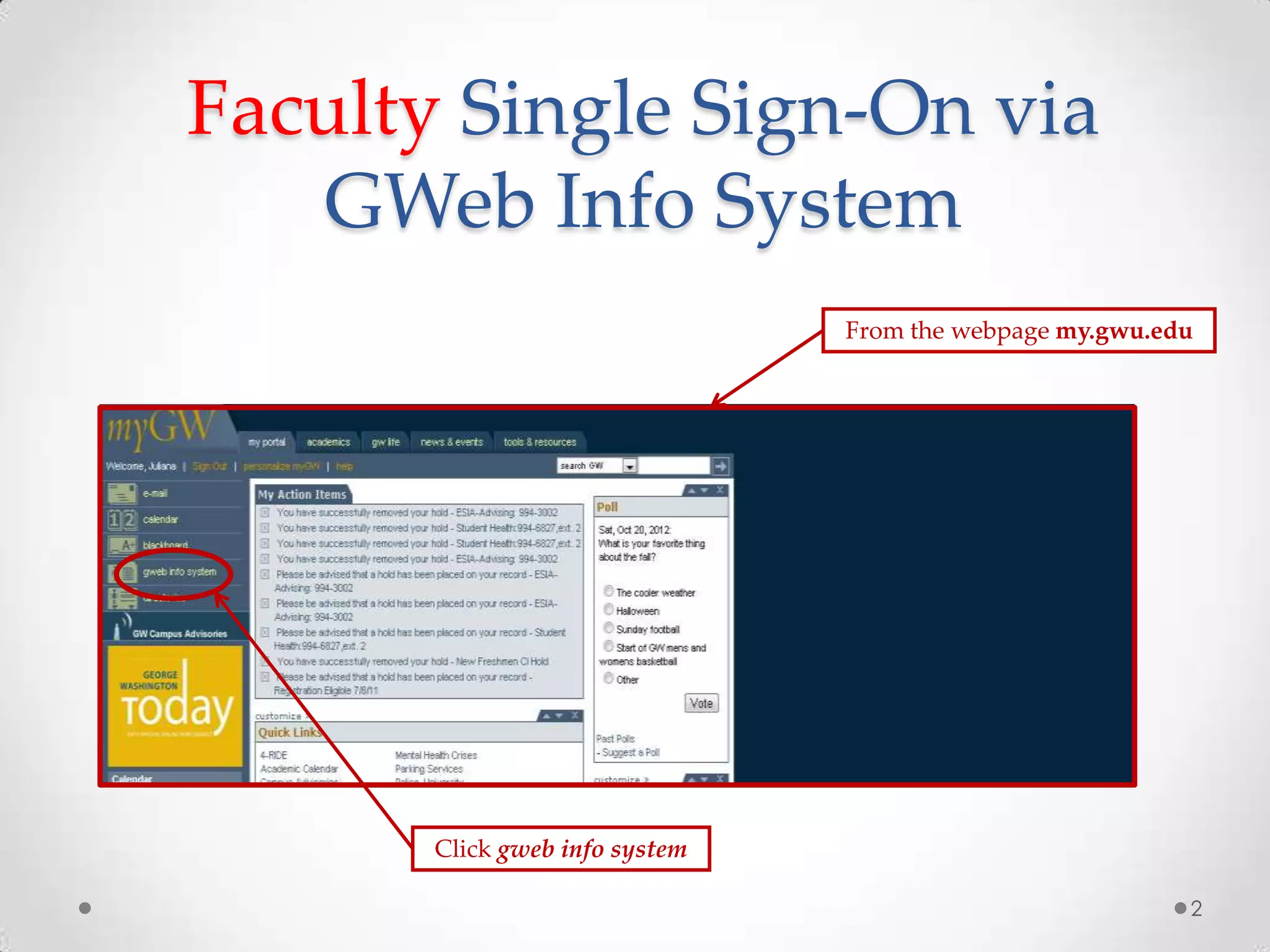
Faculty Single Sign-On via
GWeb Info System
From the webpage my.gwu.edu

Click gweb info system
2
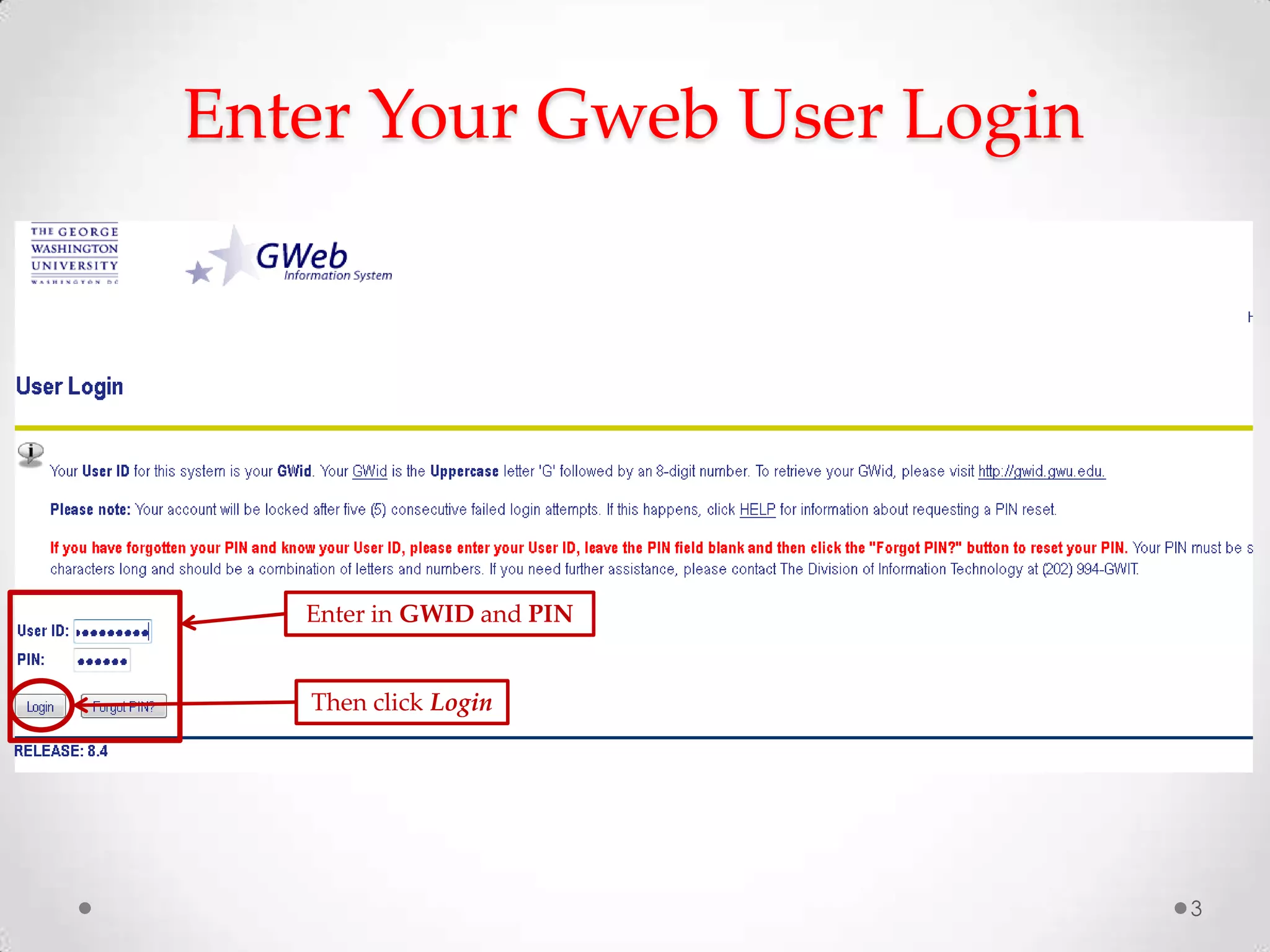
Enter Your Gweb User Login

Enter in GWID and PIN

Then click Login

3
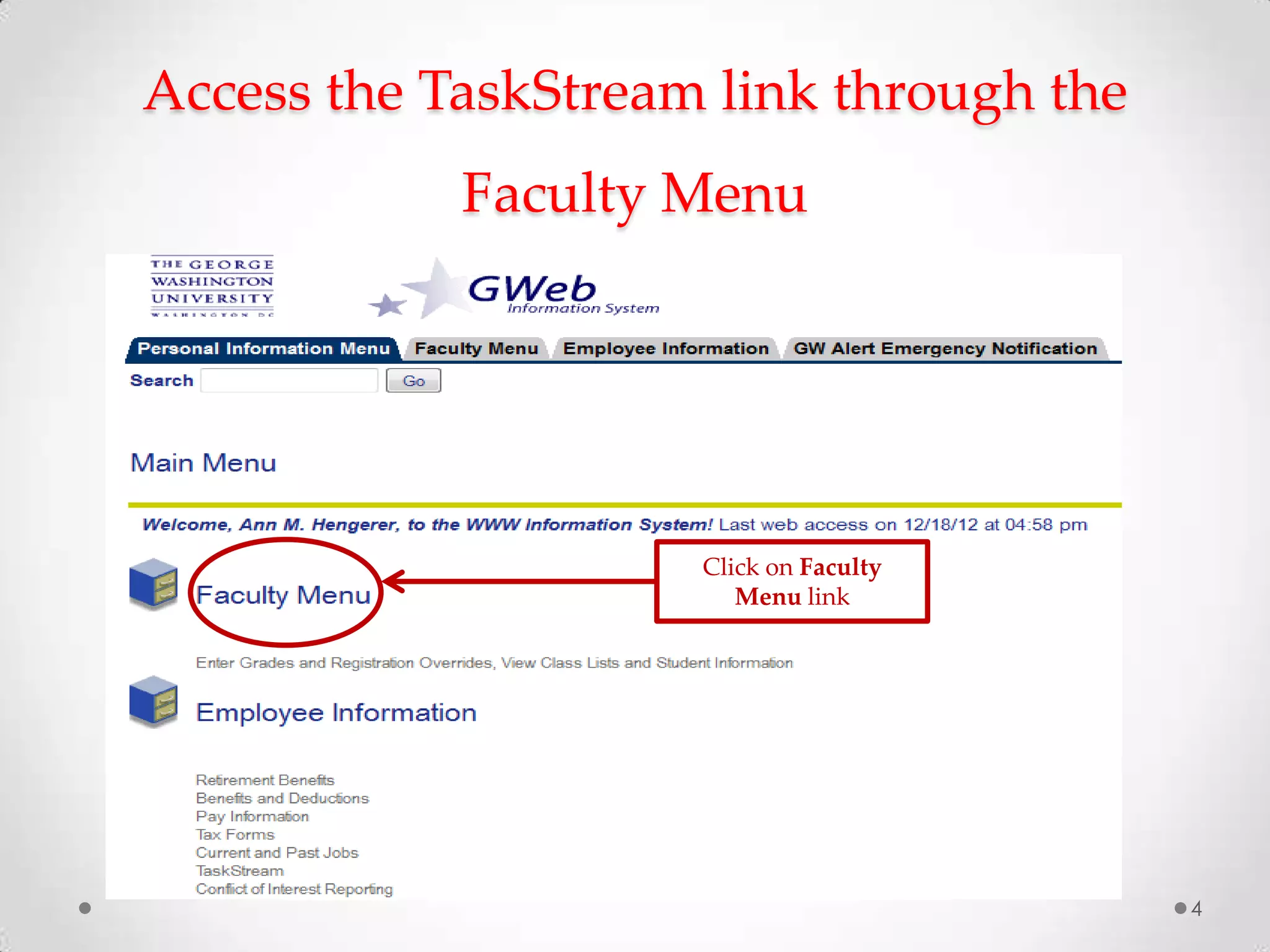
Access the TaskStream link through the

Faculty Menu

Click on Faculty
Menu link

4
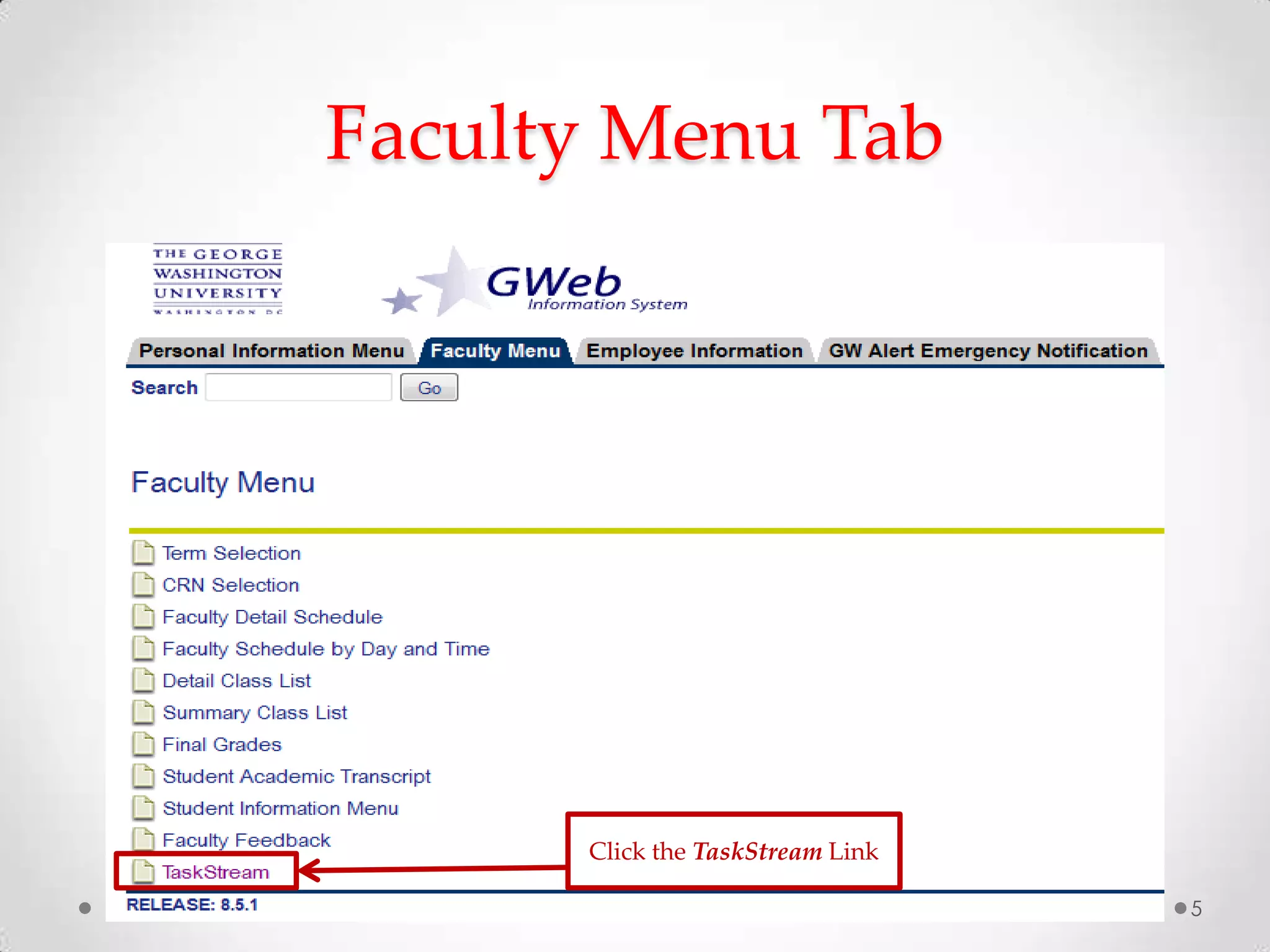
Faculty Menu Tab

Click the TaskStream Link
5
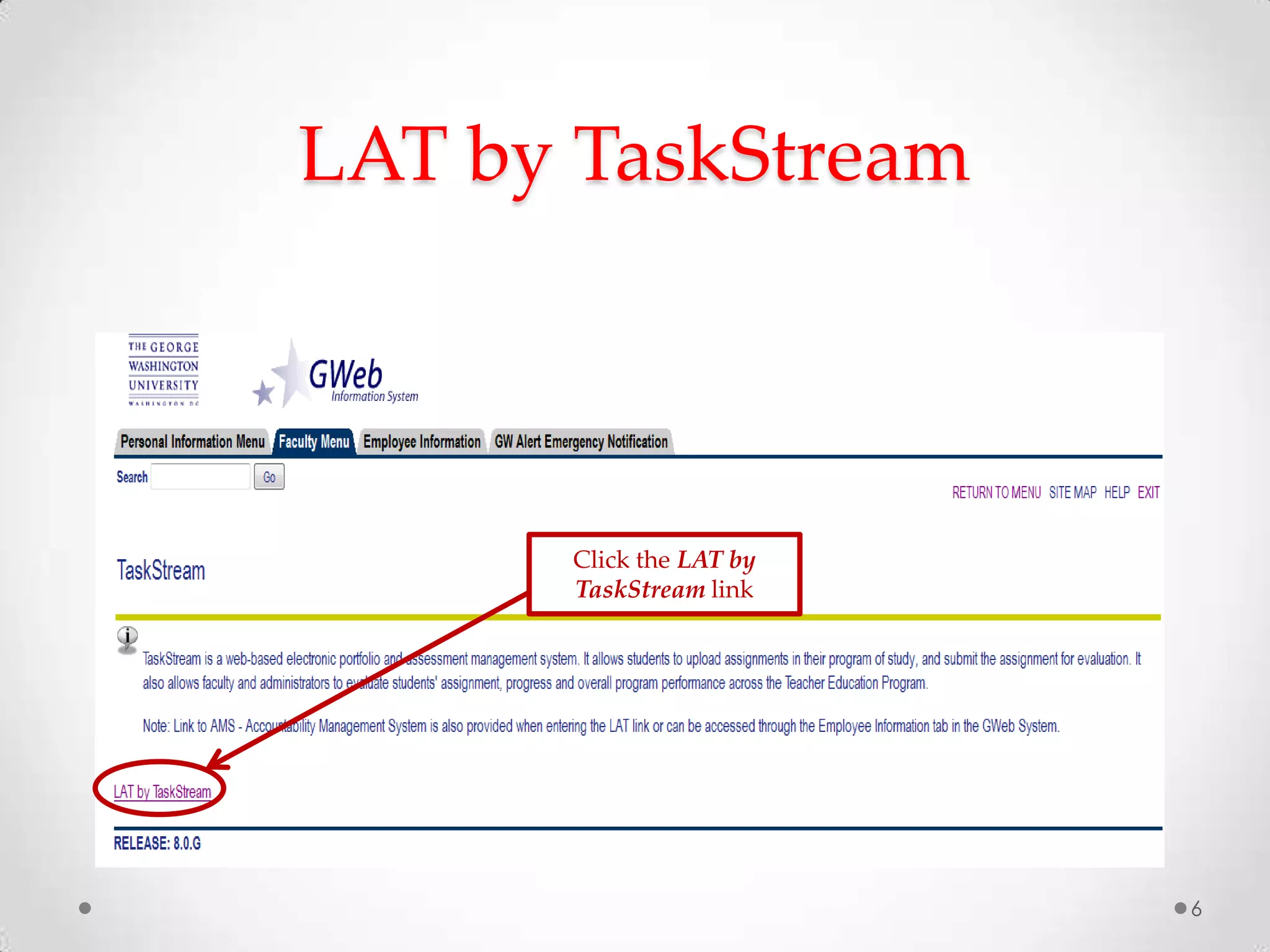
LAT by TaskStream

Click the LAT by
TaskStream link

6
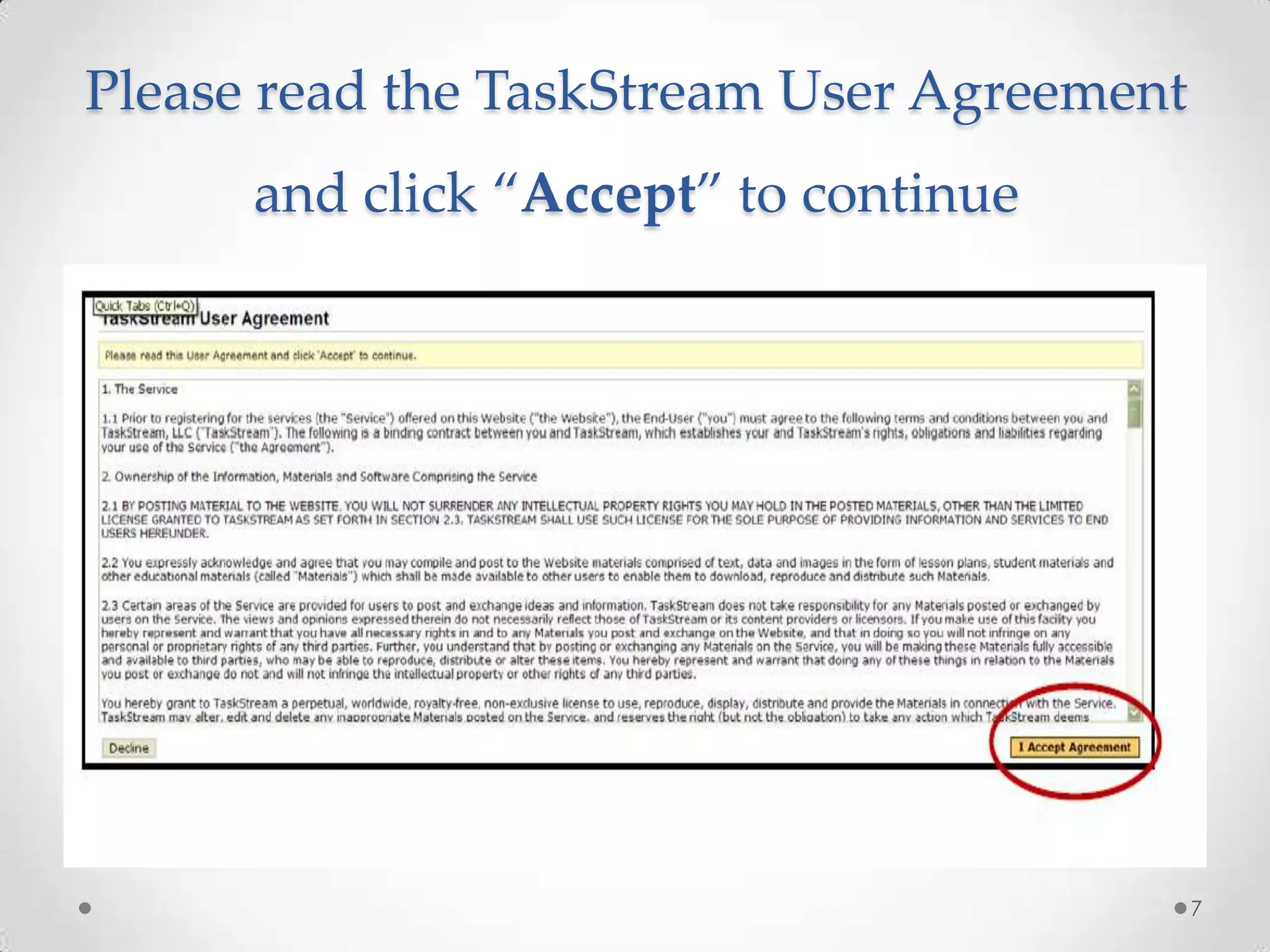
Please read the TaskStream User Agreement

and click “Accept” to continue

7
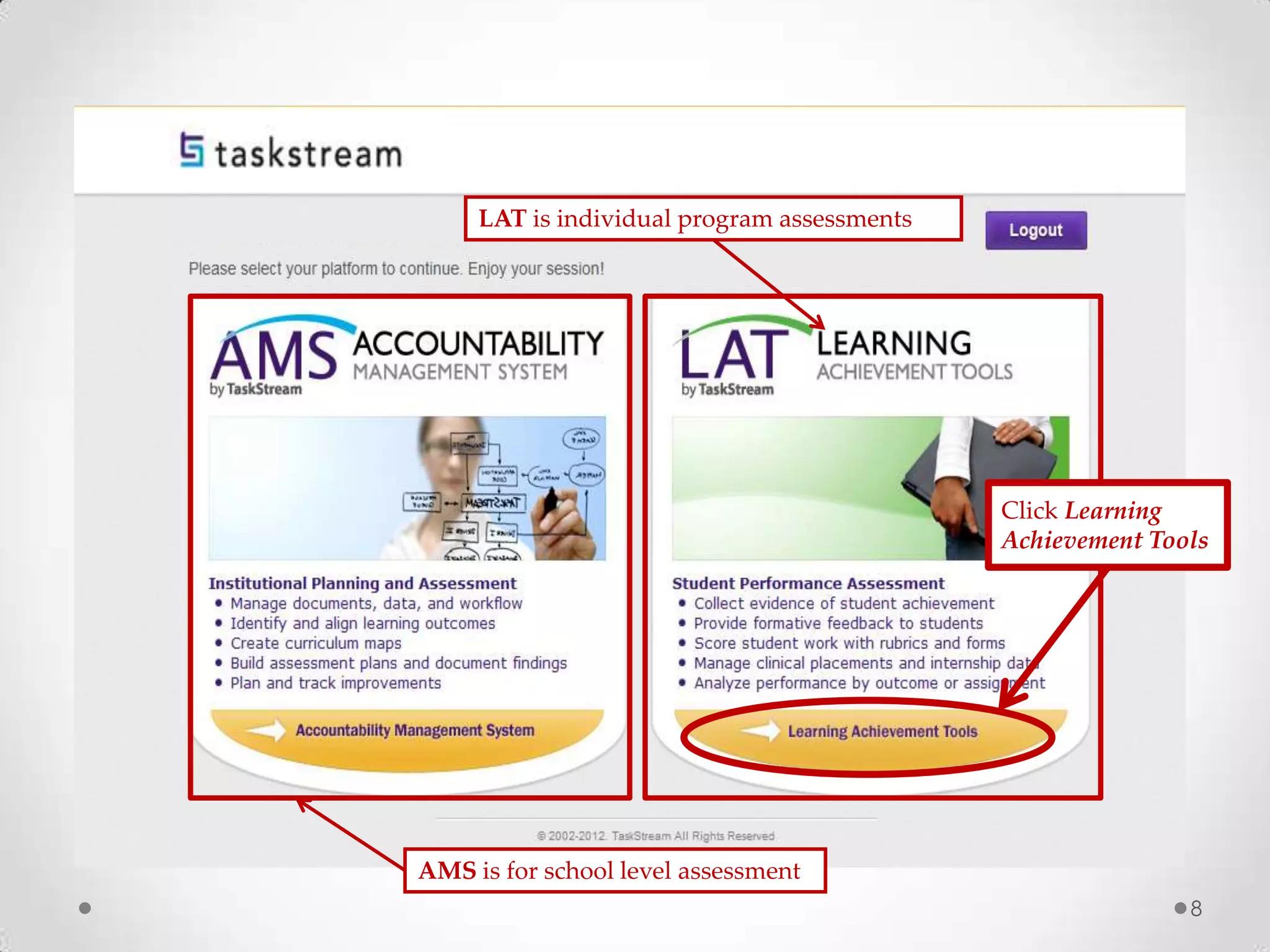
LAT is individual program assessments

Click Learning
Achievement Tools

AMS is for school level assessment
8
Faculty Homepage

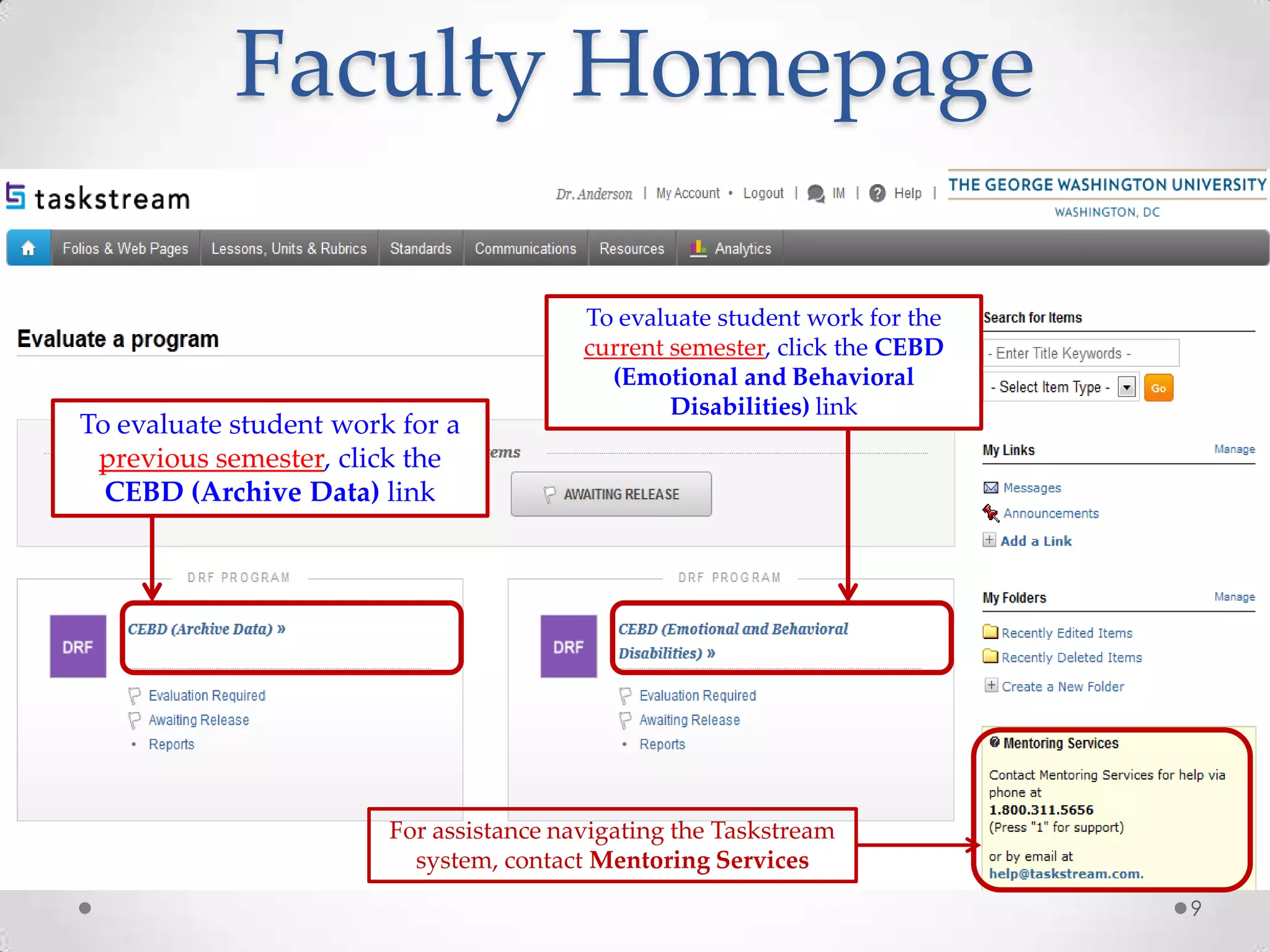
To evaluate student work for a
previous semester, click the
CEBD (Archive Data) link

To evaluate student work for the
current semester, click the CEBD
(Emotional and Behavioral
Disabilities) link

For assistance navigating the Taskstream
system, contact Mentoring Services
9
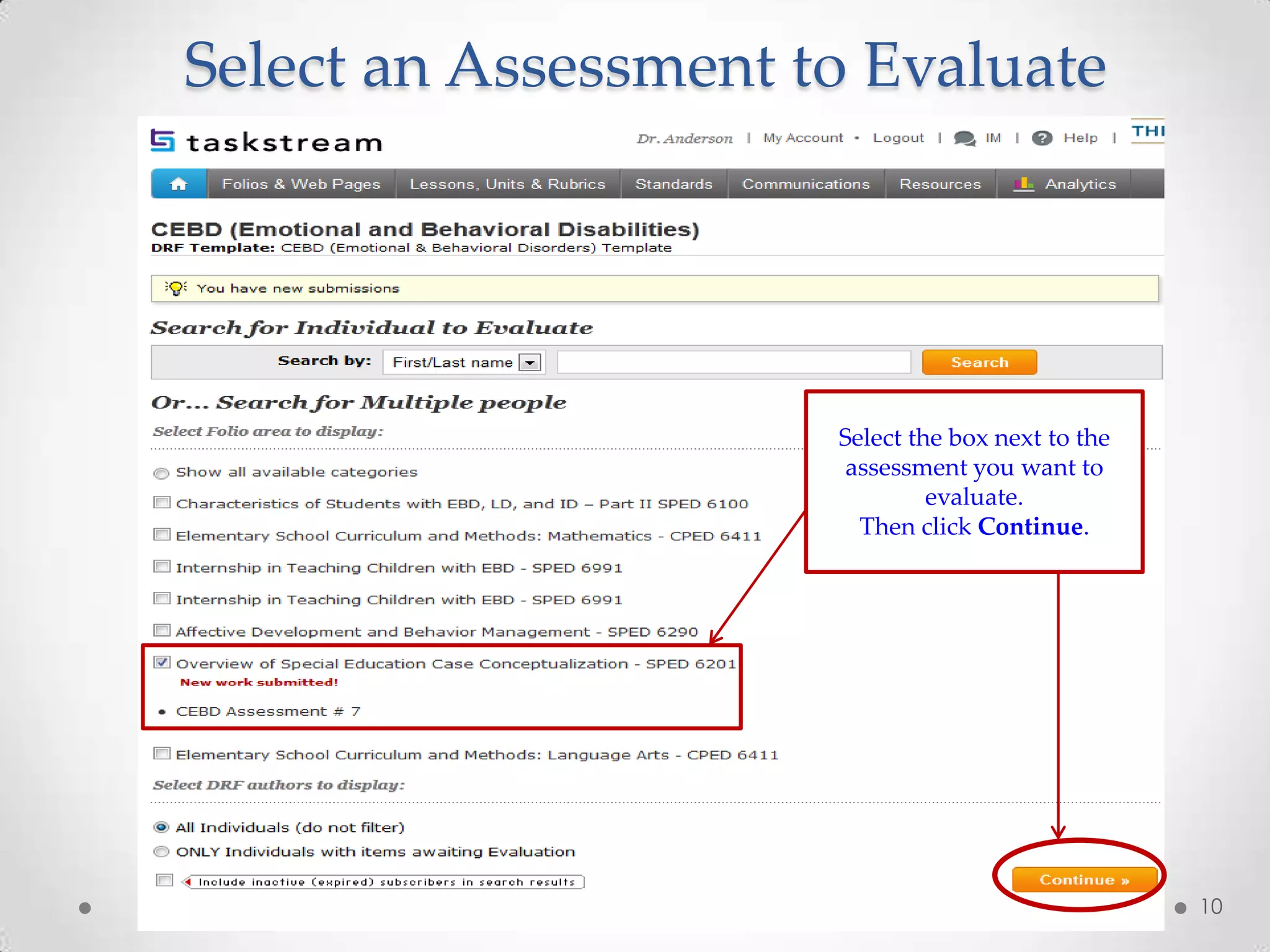
Select an Assessment to Evaluate

Select the box next to the
assessment you want to
evaluate.
Then click Continue.

10
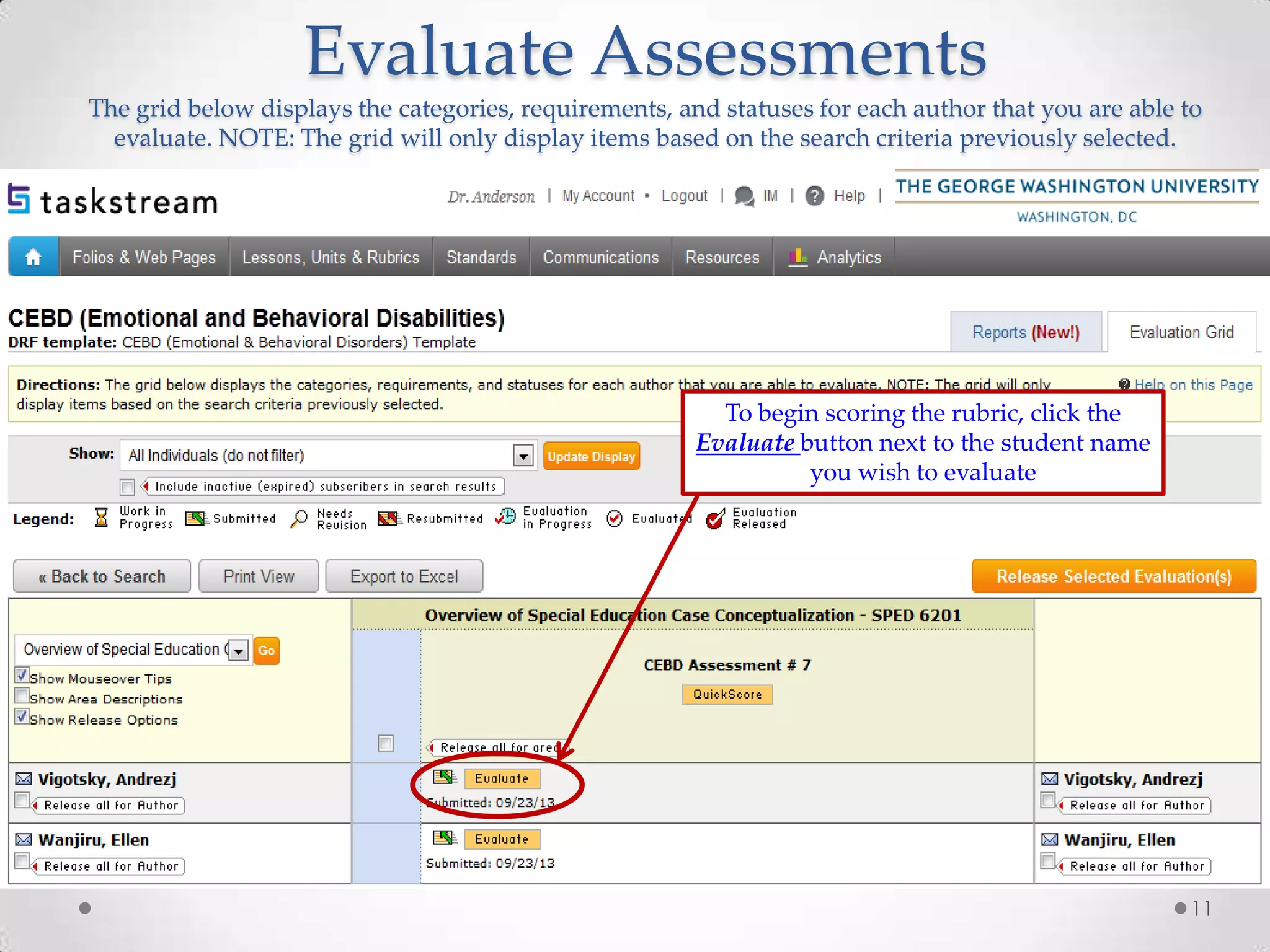
Evaluate Assessments
The grid below displays the categories, requirements, and statuses for each author that you are able to
evaluate. NOTE: The grid will only display items based on the search criteria previously selected.

To begin scoring the rubric, click the
Evaluate button next to the student name
you wish to evaluate

11
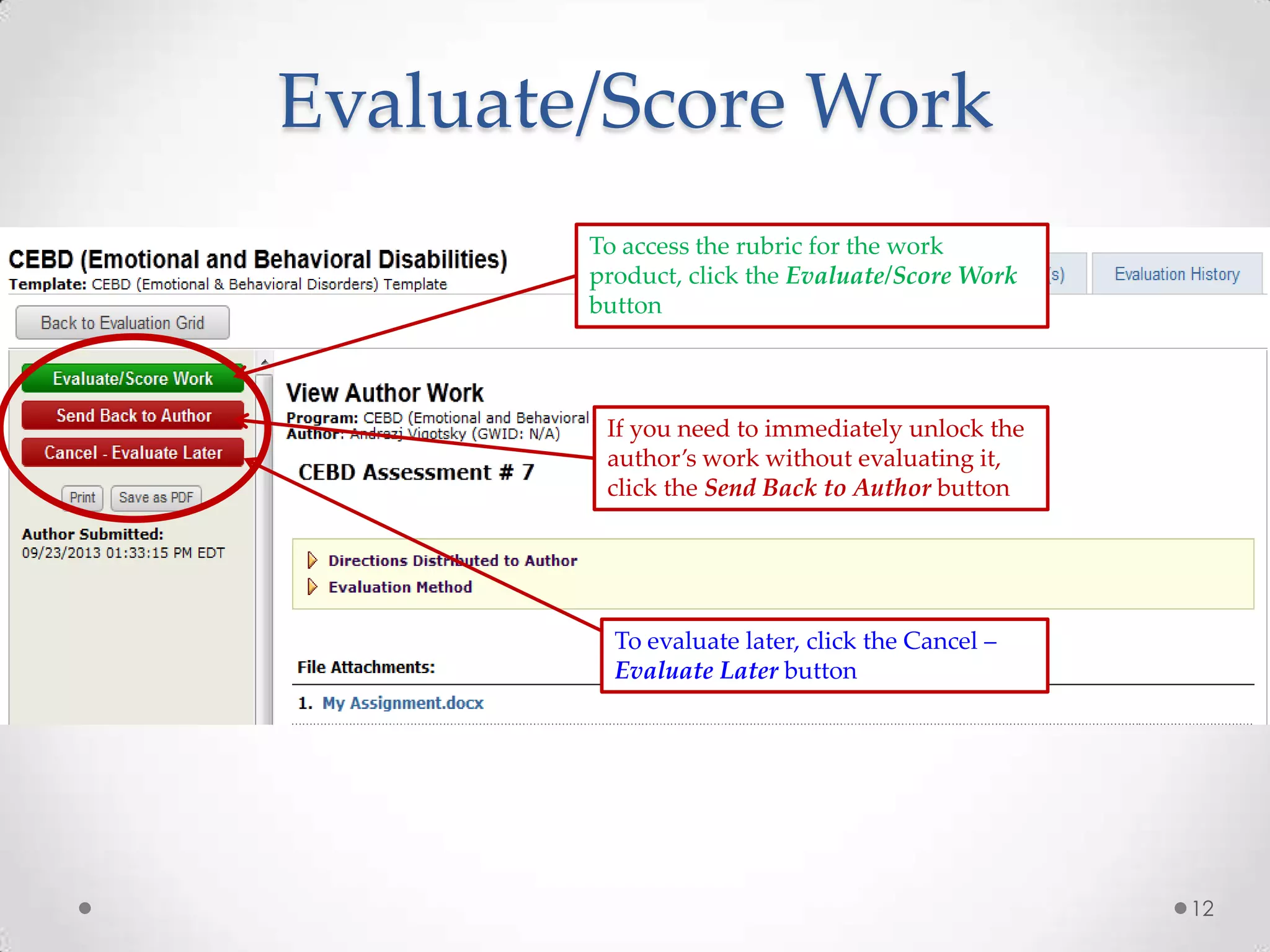
Evaluate/Score Work
To access the rubric for the work
product, click the Evaluate/Score Work
button

If you need to immediately unlock the
author’s work without evaluating it,
click the Send Back to Author button

To evaluate later, click the Cancel –
Evaluate Later button

12
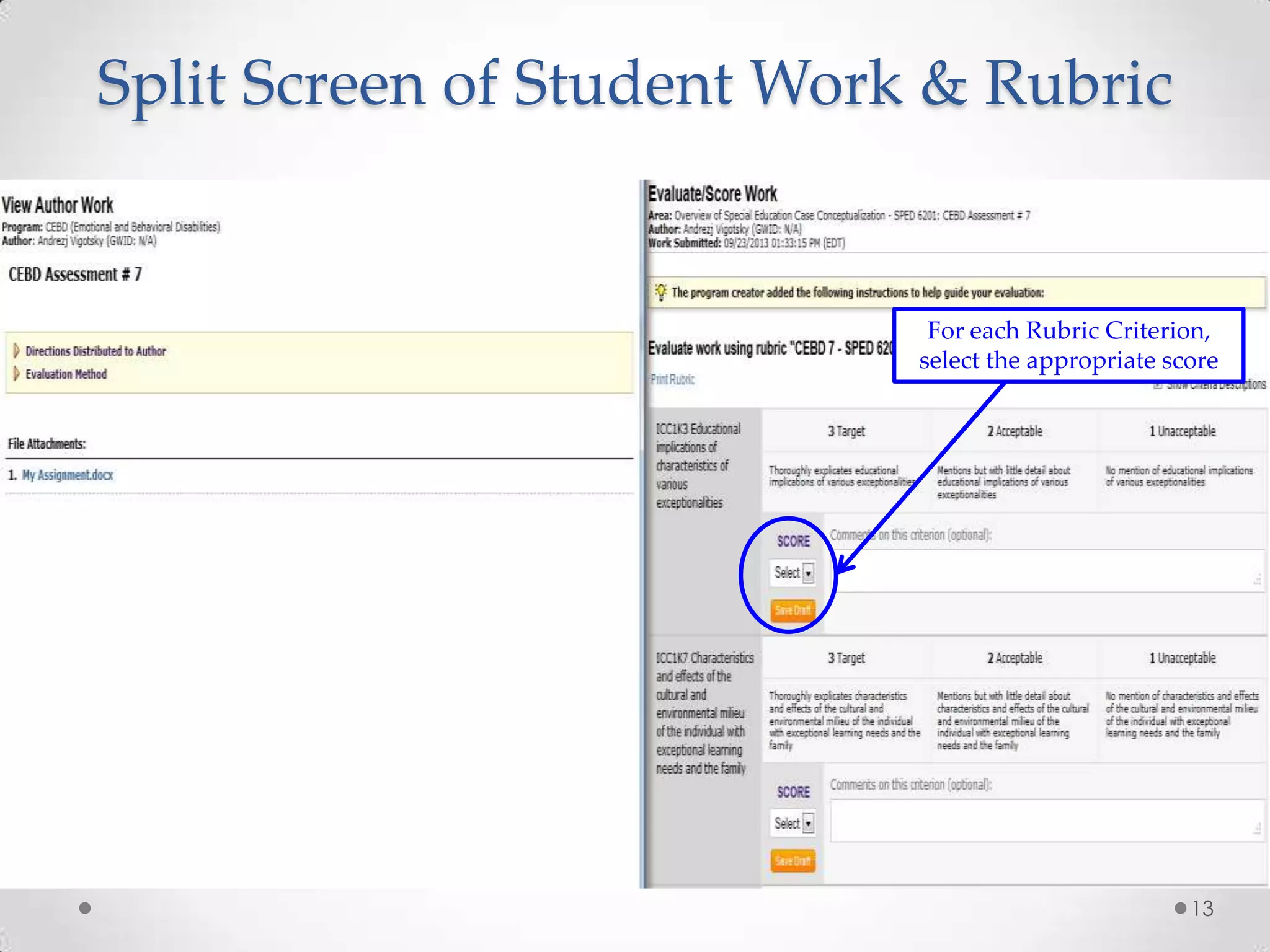
Split Screen of Student Work & Rubric

For each Rubric Criterion,
select the appropriate score

13
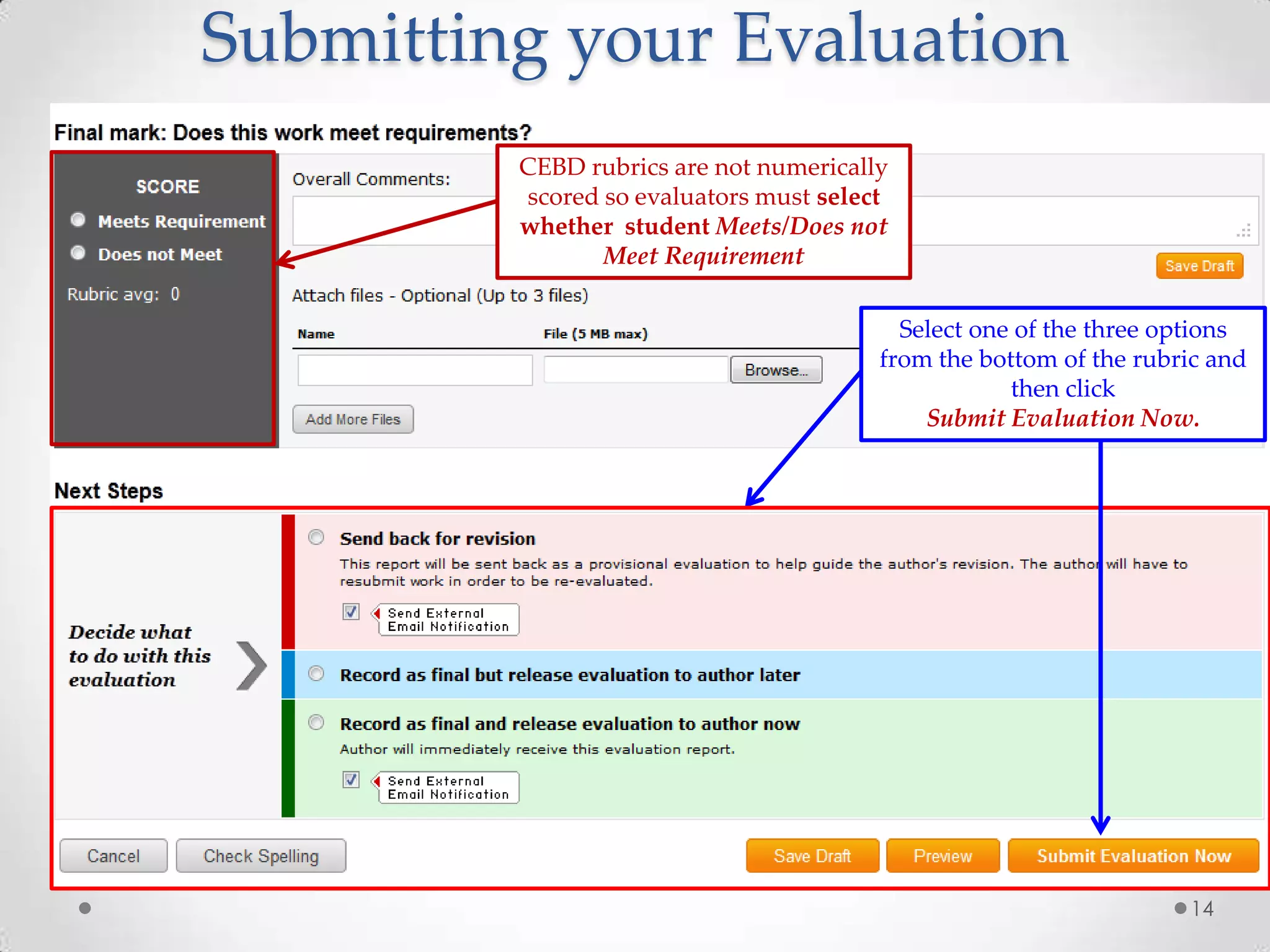
Submitting your Evaluation
CEBD rubrics are not numerically
scored so evaluators must select
whether student Meets/Does not
Meet Requirement
Select one of the three options
from the bottom of the rubric and
then click
Submit Evaluation Now.

14
QuickScore
An optional method for faculty to simultaneously evaluate submitted
work items for multiple authors within a category or requirement of a
single program.
*** DISCLAIMERS ***
The maximum number of evaluations that can be simultaneously
scored in one QuickScore form is 20
&
The maximum number of rubric items for QuickScore is 30

The following slides provide a step by step process of entering
assessment data using the QuickScore method.
15
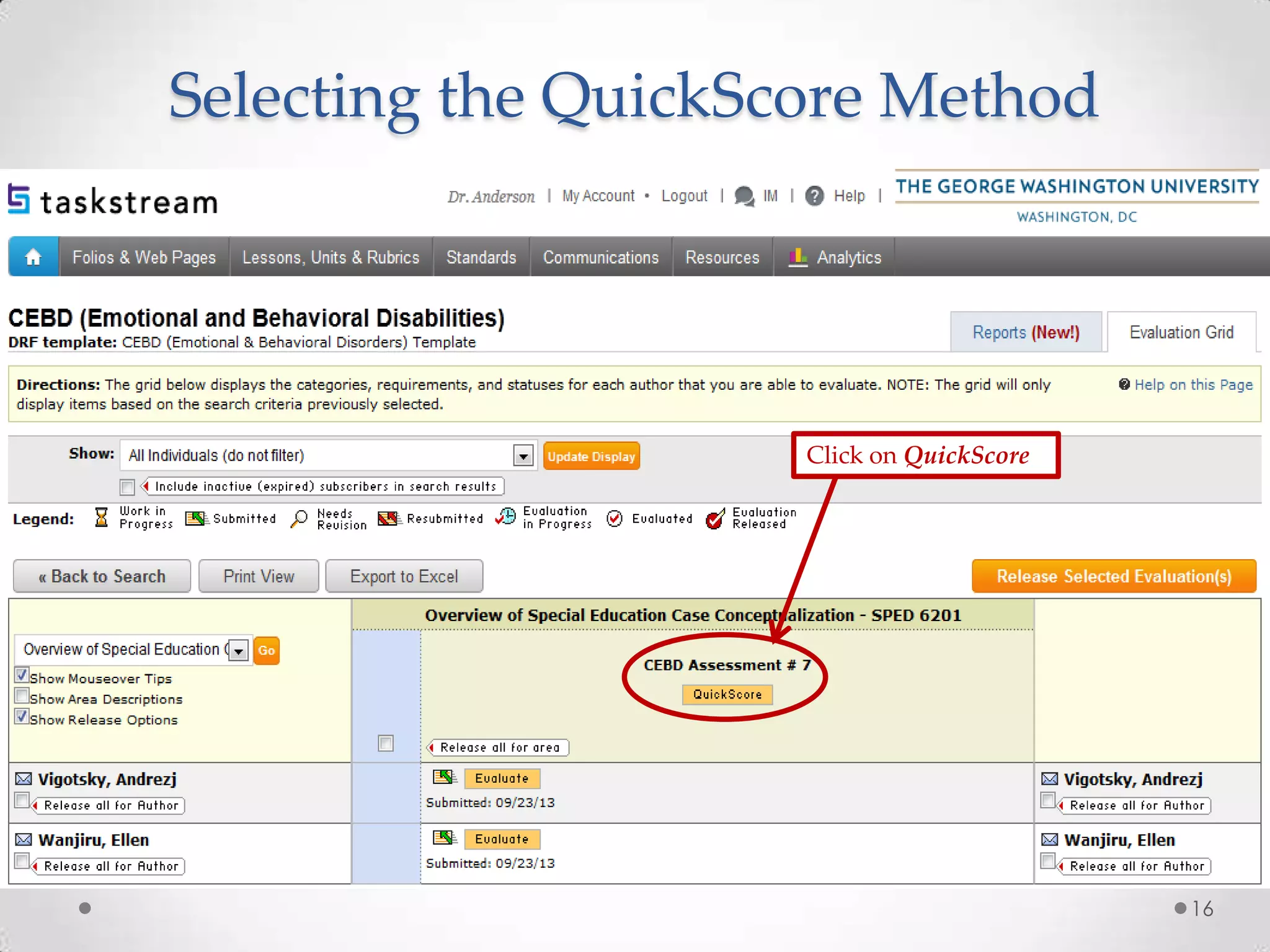
Selecting the QuickScore Method

Click on QuickScore

16
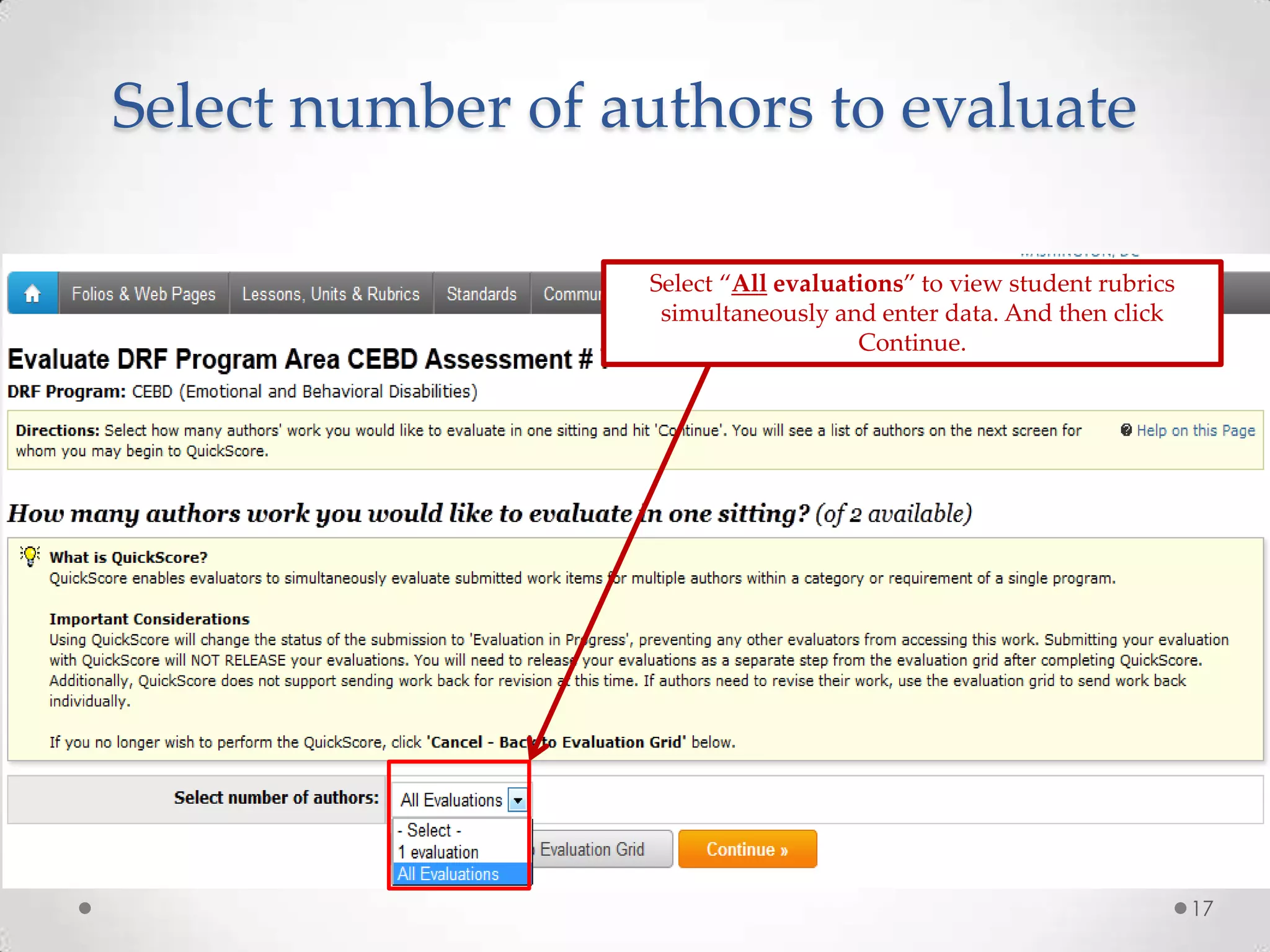
Select number of authors to evaluate
Select “All evaluations” to view student rubrics
simultaneously and enter data. And then click
Continue.

17
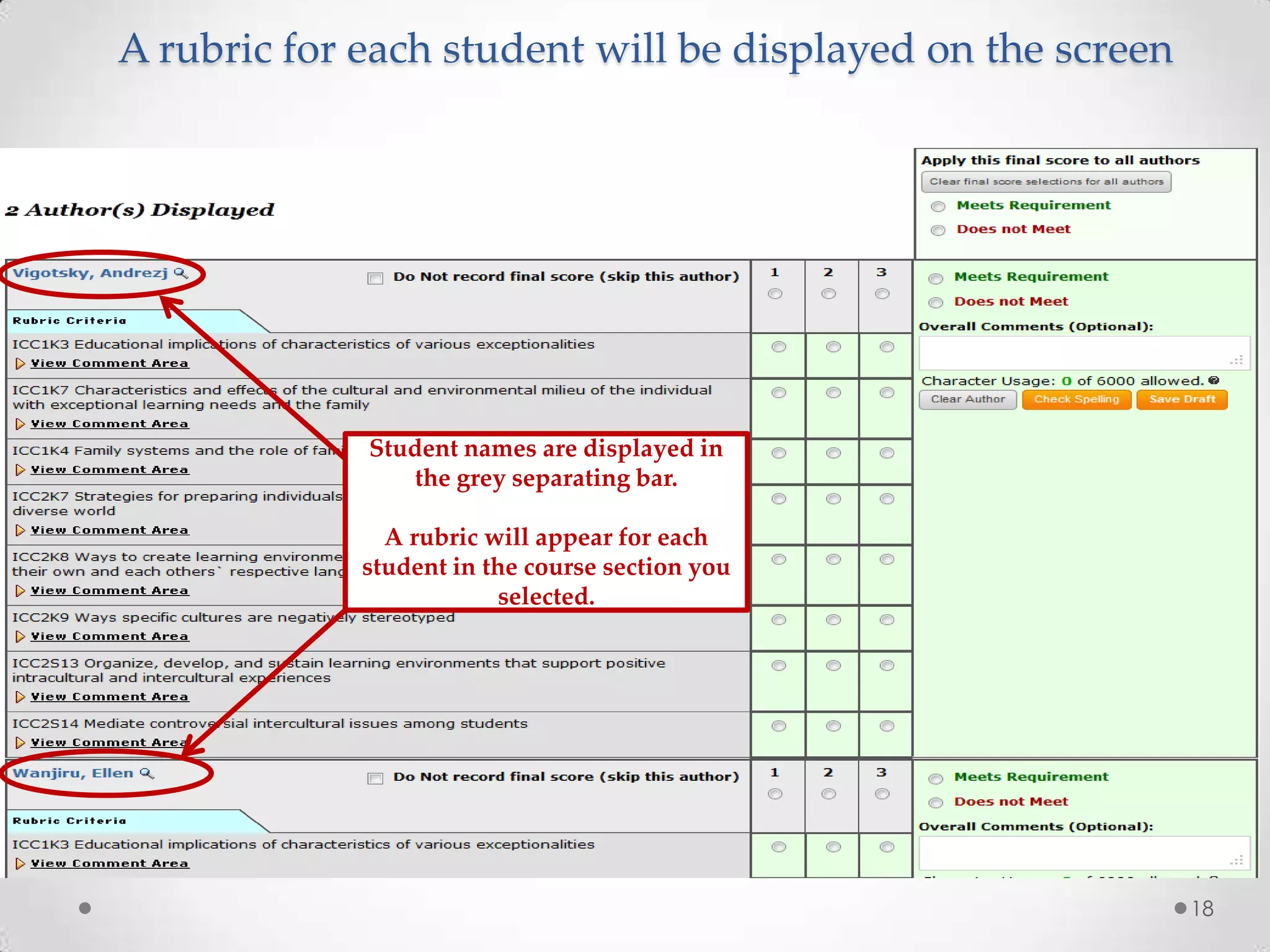
A rubric for each student will be displayed on the screen

Student names are displayed in
the grey separating bar.
A rubric will appear for each
student in the course section you
selected.

18
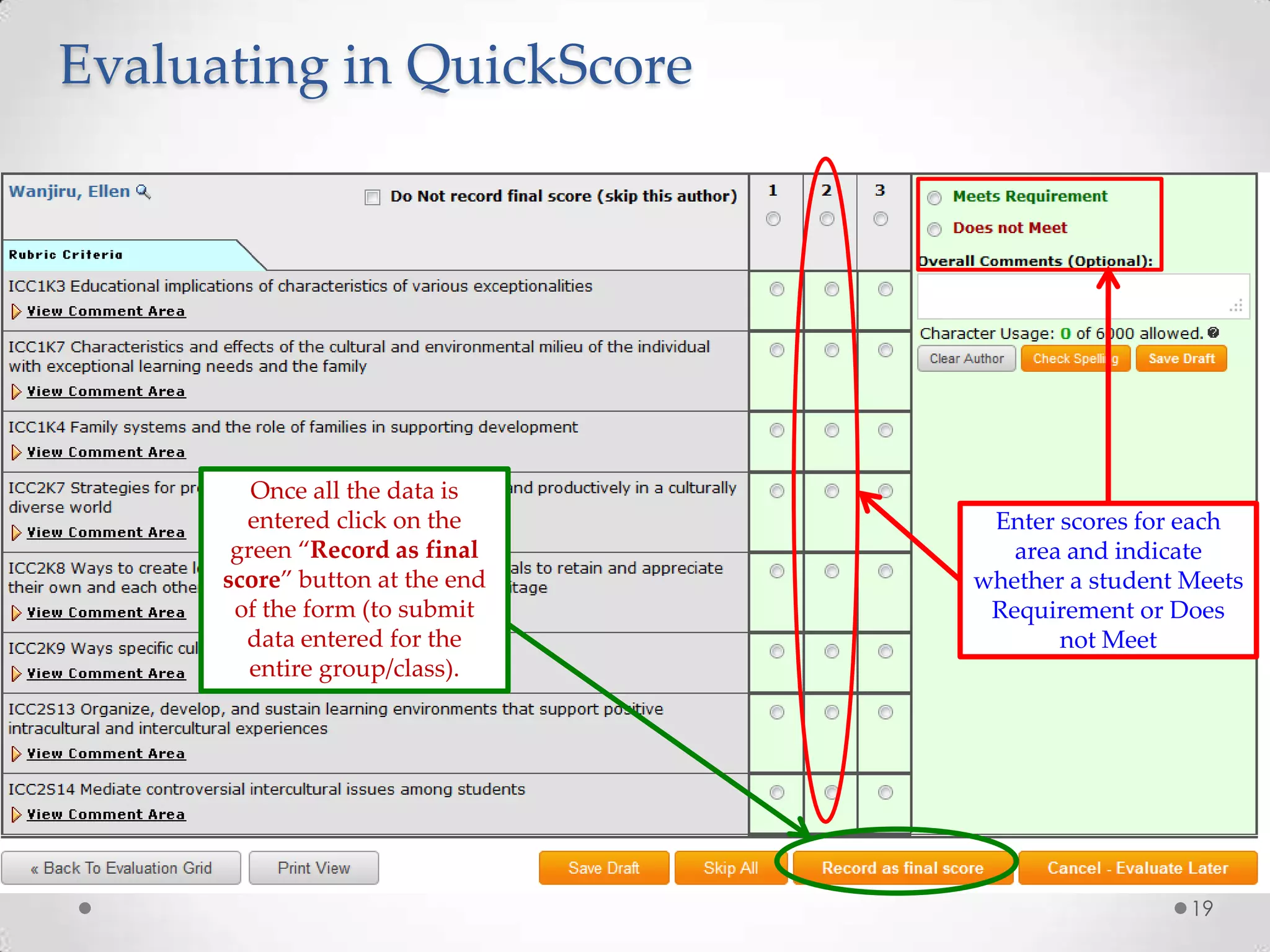
Evaluating in QuickScore

Once all the data is
entered click on the
green “Record as final
score” button at the end
of the form (to submit
data entered for the
entire group/class).

Enter scores for each
area and indicate
whether a student Meets
Requirement or Does
not Meet

19
Faculty Submitted Results
(Demo Evaluation Grid)
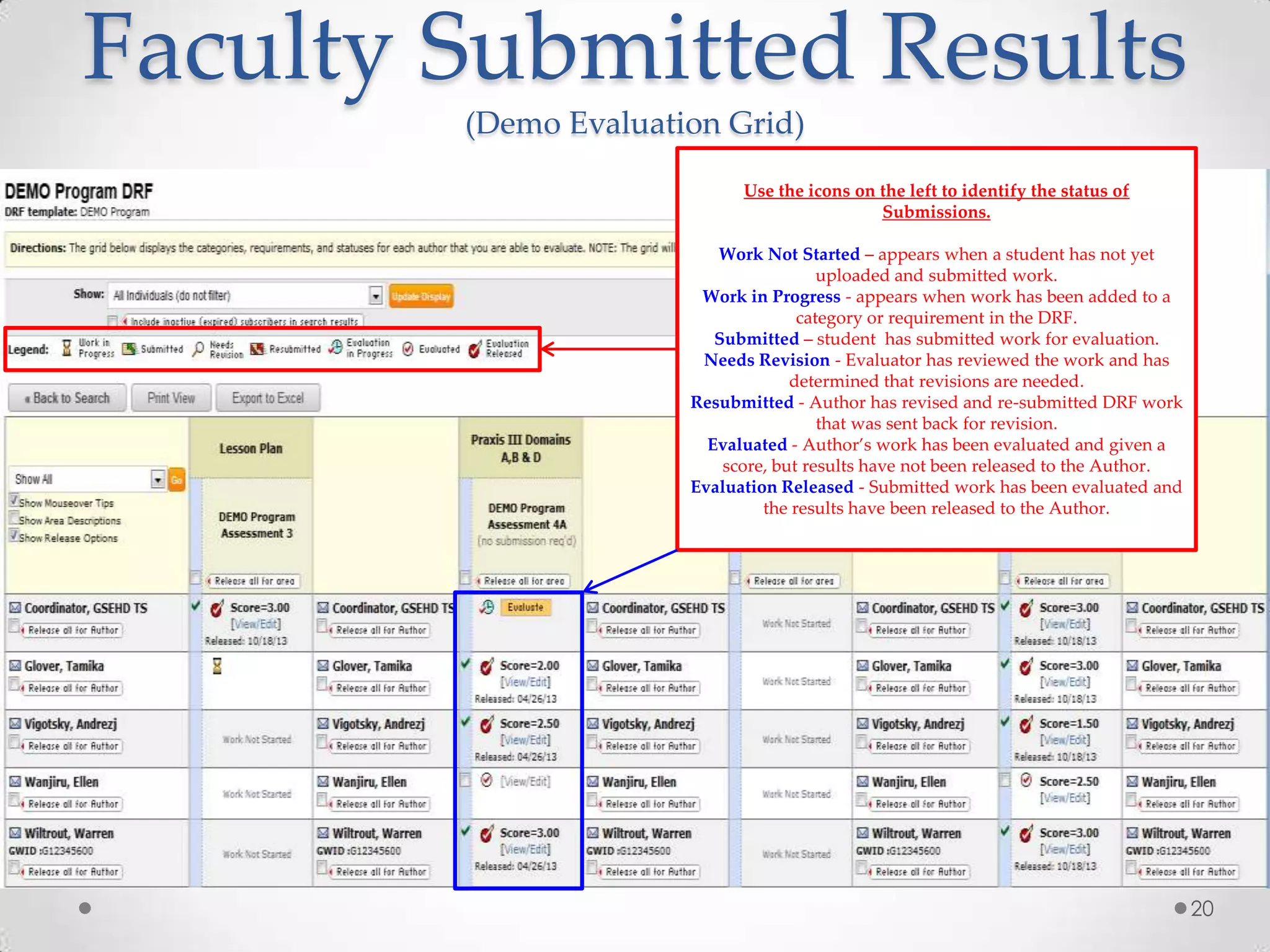
Use the icons on the left to identify the status of
Submissions.
Work Not Started – appears when a student has not yet
uploaded and submitted work.
Work in Progress - appears when work has been added to a
category or requirement in the DRF.
Submitted – student has submitted work for evaluation.
Needs Revision - Evaluator has reviewed the work and has
determined that revisions are needed.
Resubmitted - Author has revised and re-submitted DRF work
that was sent back for revision.
Evaluated - Author’s work has been evaluated and given a
score, but results have not been released to the Author.
Evaluation Released - Submitted work has been evaluated and
the results have been released to the Author.

20
Faculty Submitted Results
(Demo Evaluation Grid)
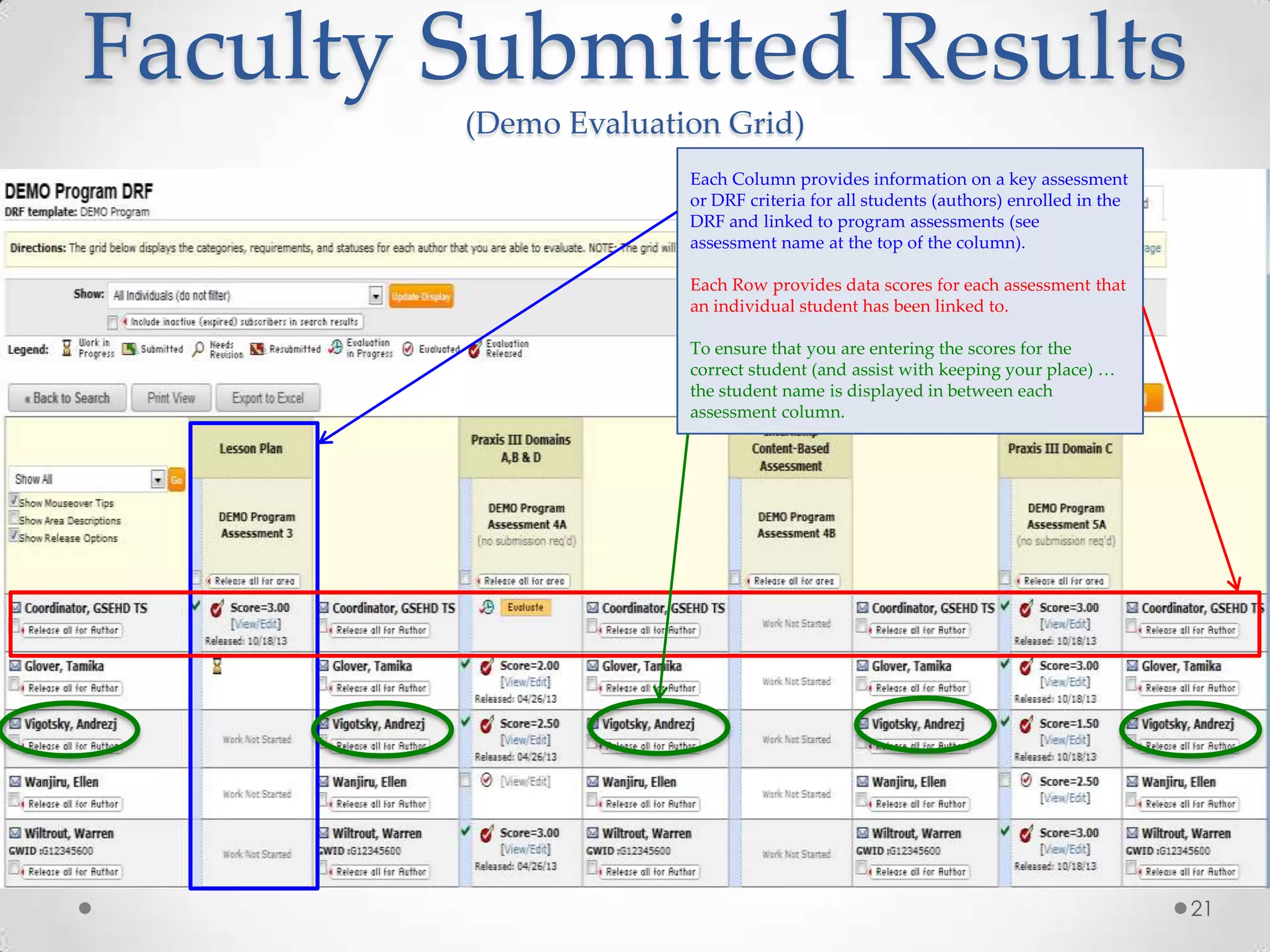
Each Column provides information on a key assessment
or DRF criteria for all students (authors) enrolled in the
DRF and linked to program assessments (see
assessment name at the top of the column).
Each Row provides data scores for each assessment that
an individual student has been linked to.
To ensure that you are entering the scores for the
correct student (and assist with keeping your place) …
the student name is displayed in between each
assessment column.

21
Generating Evaluator Reports
As an Evaluator you can generate reports on your
completed evaluation results within your DRF.
Available when you access a DRF program via the
name link on your Evaluator home page, the Reports
tab navigates you to a Select DRF Area page that lists
all of the Assessments within that Program.
*Each area of the Program is described by name, final score overview, and evaluation
method, as well as the number of students you have evaluated.
22
Accessing Your Evaluator Report
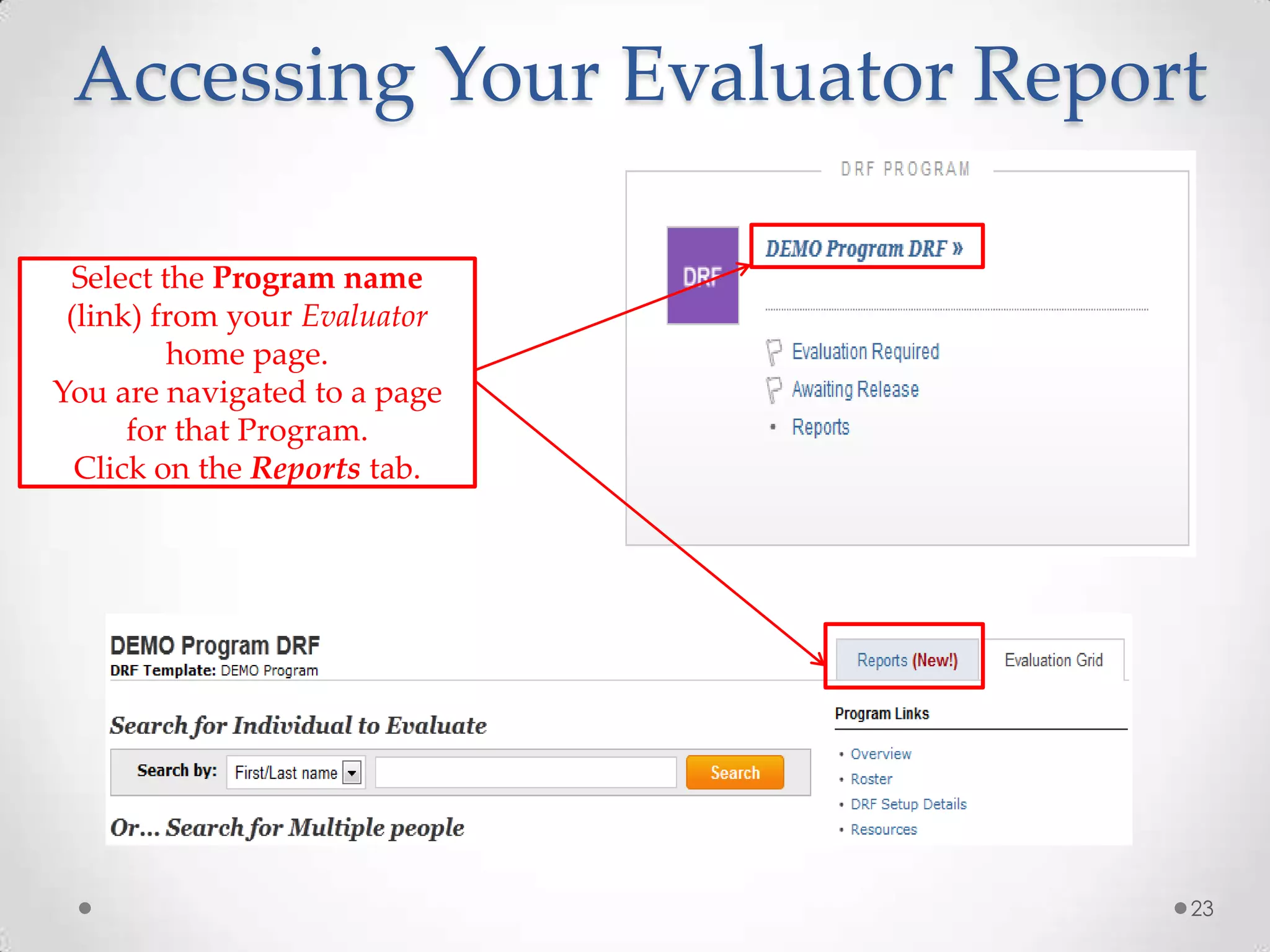
Select the Program name
(link) from your Evaluator
home page.
You are navigated to a page
for that Program.
Click on the Reports tab.

23
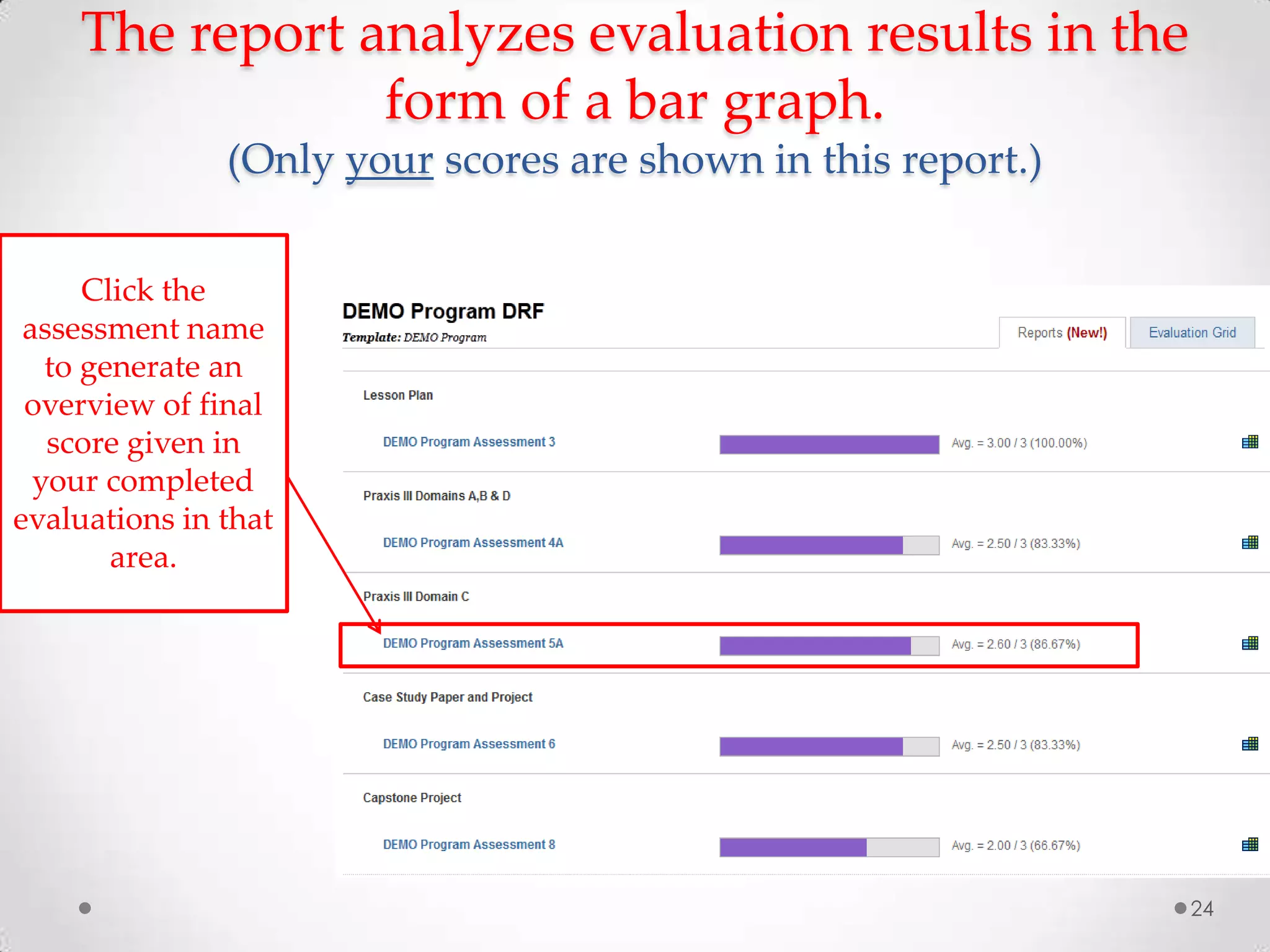
The report analyzes evaluation results in the
form of a bar graph.
(Only your scores are shown in this report.)
Click the
assessment name
to generate an
overview of final
score given in
your completed
evaluations in that
area.

24
Your Evaluation Summary
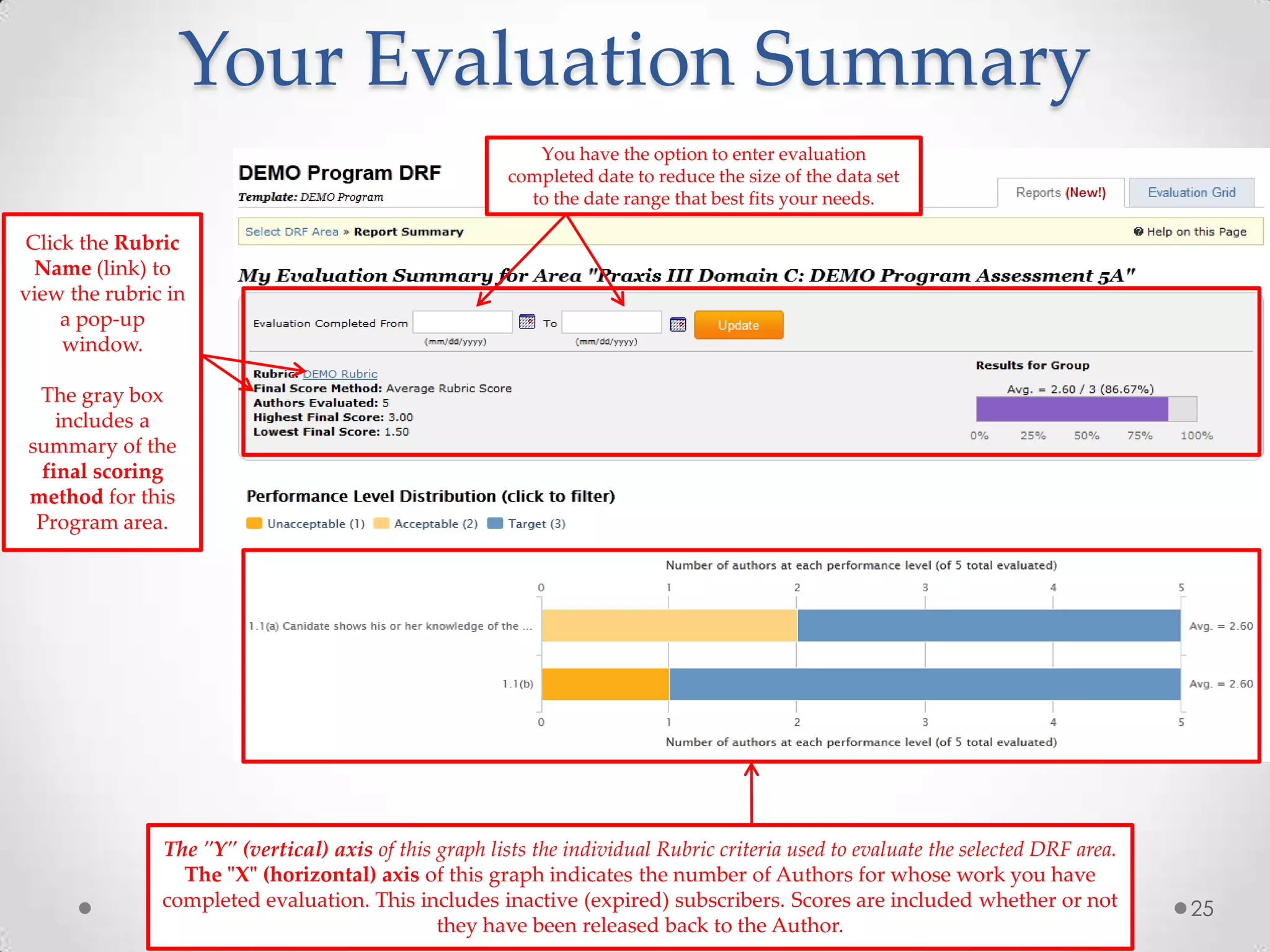
You have the option to enter evaluation
completed date to reduce the size of the data set
to the date range that best fits your needs.

Click the Rubric
Name (link) to
view the rubric in
a pop-up
window.
The gray box
includes a
summary of the
final scoring
method for this
Program area.

The "Y" (vertical) axis of this graph lists the individual Rubric criteria used to evaluate the selected DRF area.
The "X" (horizontal) axis of this graph indicates the number of Authors for whose work you have
completed evaluation. This includes inactive (expired) subscribers. Scores are included whether or not
they have been released back to the Author.

25
Thank you!
For additional assistance, feel free to contact:
Taskstream’s Mentoring Services via phone at 1-800-311-5656 (Press
“1” for support) / via email at help@taskstream.com and/or contact
the GSEHD Taskstream Coordinator, Ellen Wanjiru at 202-994-0359 or
oppats@gwu.edu
For program or department level LAT questions please contact the
GSEHD Taskstream Administrator, Dr. Leslie J. Ward, Ed.D. at
ljward@gwu.edu
26

Cebd ts faculty instructional guide revised 10.18.13

  • 1.
    Children with Emotionaland Behavioral Disabilities (CEBD) Instructor Training Guide 1
  • 2.
    Faculty Single Sign-Onvia GWeb Info System From the webpage my.gwu.edu Click gweb info system 2
  • 3.
    Enter Your GwebUser Login Enter in GWID and PIN Then click Login 3
  • 4.
    Access the TaskStreamlink through the Faculty Menu Click on Faculty Menu link 4
  • 5.
    Faculty Menu Tab Clickthe TaskStream Link 5
  • 6.
    LAT by TaskStream Clickthe LAT by TaskStream link 6
  • 7.
    Please read theTaskStream User Agreement and click “Accept” to continue 7
  • 8.
    LAT is individualprogram assessments Click Learning Achievement Tools AMS is for school level assessment 8
  • 9.
    Faculty Homepage To evaluatestudent work for a previous semester, click the CEBD (Archive Data) link To evaluate student work for the current semester, click the CEBD (Emotional and Behavioral Disabilities) link For assistance navigating the Taskstream system, contact Mentoring Services 9
  • 10.
    Select an Assessmentto Evaluate Select the box next to the assessment you want to evaluate. Then click Continue. 10
  • 11.
    Evaluate Assessments The gridbelow displays the categories, requirements, and statuses for each author that you are able to evaluate. NOTE: The grid will only display items based on the search criteria previously selected. To begin scoring the rubric, click the Evaluate button next to the student name you wish to evaluate 11
  • 12.
    Evaluate/Score Work To accessthe rubric for the work product, click the Evaluate/Score Work button If you need to immediately unlock the author’s work without evaluating it, click the Send Back to Author button To evaluate later, click the Cancel – Evaluate Later button 12
  • 13.
    Split Screen ofStudent Work & Rubric For each Rubric Criterion, select the appropriate score 13
  • 14.
    Submitting your Evaluation CEBDrubrics are not numerically scored so evaluators must select whether student Meets/Does not Meet Requirement Select one of the three options from the bottom of the rubric and then click Submit Evaluation Now. 14
  • 15.
    QuickScore An optional methodfor faculty to simultaneously evaluate submitted work items for multiple authors within a category or requirement of a single program. *** DISCLAIMERS *** The maximum number of evaluations that can be simultaneously scored in one QuickScore form is 20 & The maximum number of rubric items for QuickScore is 30 The following slides provide a step by step process of entering assessment data using the QuickScore method. 15
  • 16.
    Selecting the QuickScoreMethod Click on QuickScore 16
  • 17.
    Select number ofauthors to evaluate Select “All evaluations” to view student rubrics simultaneously and enter data. And then click Continue. 17
  • 18.
    A rubric foreach student will be displayed on the screen Student names are displayed in the grey separating bar. A rubric will appear for each student in the course section you selected. 18
  • 19.
    Evaluating in QuickScore Onceall the data is entered click on the green “Record as final score” button at the end of the form (to submit data entered for the entire group/class). Enter scores for each area and indicate whether a student Meets Requirement or Does not Meet 19
  • 20.
    Faculty Submitted Results (DemoEvaluation Grid) Use the icons on the left to identify the status of Submissions. Work Not Started – appears when a student has not yet uploaded and submitted work. Work in Progress - appears when work has been added to a category or requirement in the DRF. Submitted – student has submitted work for evaluation. Needs Revision - Evaluator has reviewed the work and has determined that revisions are needed. Resubmitted - Author has revised and re-submitted DRF work that was sent back for revision. Evaluated - Author’s work has been evaluated and given a score, but results have not been released to the Author. Evaluation Released - Submitted work has been evaluated and the results have been released to the Author. 20
  • 21.
    Faculty Submitted Results (DemoEvaluation Grid) Each Column provides information on a key assessment or DRF criteria for all students (authors) enrolled in the DRF and linked to program assessments (see assessment name at the top of the column). Each Row provides data scores for each assessment that an individual student has been linked to. To ensure that you are entering the scores for the correct student (and assist with keeping your place) … the student name is displayed in between each assessment column. 21
  • 22.
    Generating Evaluator Reports Asan Evaluator you can generate reports on your completed evaluation results within your DRF. Available when you access a DRF program via the name link on your Evaluator home page, the Reports tab navigates you to a Select DRF Area page that lists all of the Assessments within that Program. *Each area of the Program is described by name, final score overview, and evaluation method, as well as the number of students you have evaluated. 22
  • 23.
    Accessing Your EvaluatorReport Select the Program name (link) from your Evaluator home page. You are navigated to a page for that Program. Click on the Reports tab. 23
  • 24.
    The report analyzesevaluation results in the form of a bar graph. (Only your scores are shown in this report.) Click the assessment name to generate an overview of final score given in your completed evaluations in that area. 24
  • 25.
    Your Evaluation Summary Youhave the option to enter evaluation completed date to reduce the size of the data set to the date range that best fits your needs. Click the Rubric Name (link) to view the rubric in a pop-up window. The gray box includes a summary of the final scoring method for this Program area. The "Y" (vertical) axis of this graph lists the individual Rubric criteria used to evaluate the selected DRF area. The "X" (horizontal) axis of this graph indicates the number of Authors for whose work you have completed evaluation. This includes inactive (expired) subscribers. Scores are included whether or not they have been released back to the Author. 25
  • 26.
    Thank you! For additionalassistance, feel free to contact: Taskstream’s Mentoring Services via phone at 1-800-311-5656 (Press “1” for support) / via email at help@taskstream.com and/or contact the GSEHD Taskstream Coordinator, Ellen Wanjiru at 202-994-0359 or oppats@gwu.edu For program or department level LAT questions please contact the GSEHD Taskstream Administrator, Dr. Leslie J. Ward, Ed.D. at ljward@gwu.edu 26