Creating a Documentin Writer
2OpenOffice.org WriterProvides a set of tools for:Entering and revising textAdding graphical elements (e.g., color and tables)Formatting and printing completed documents
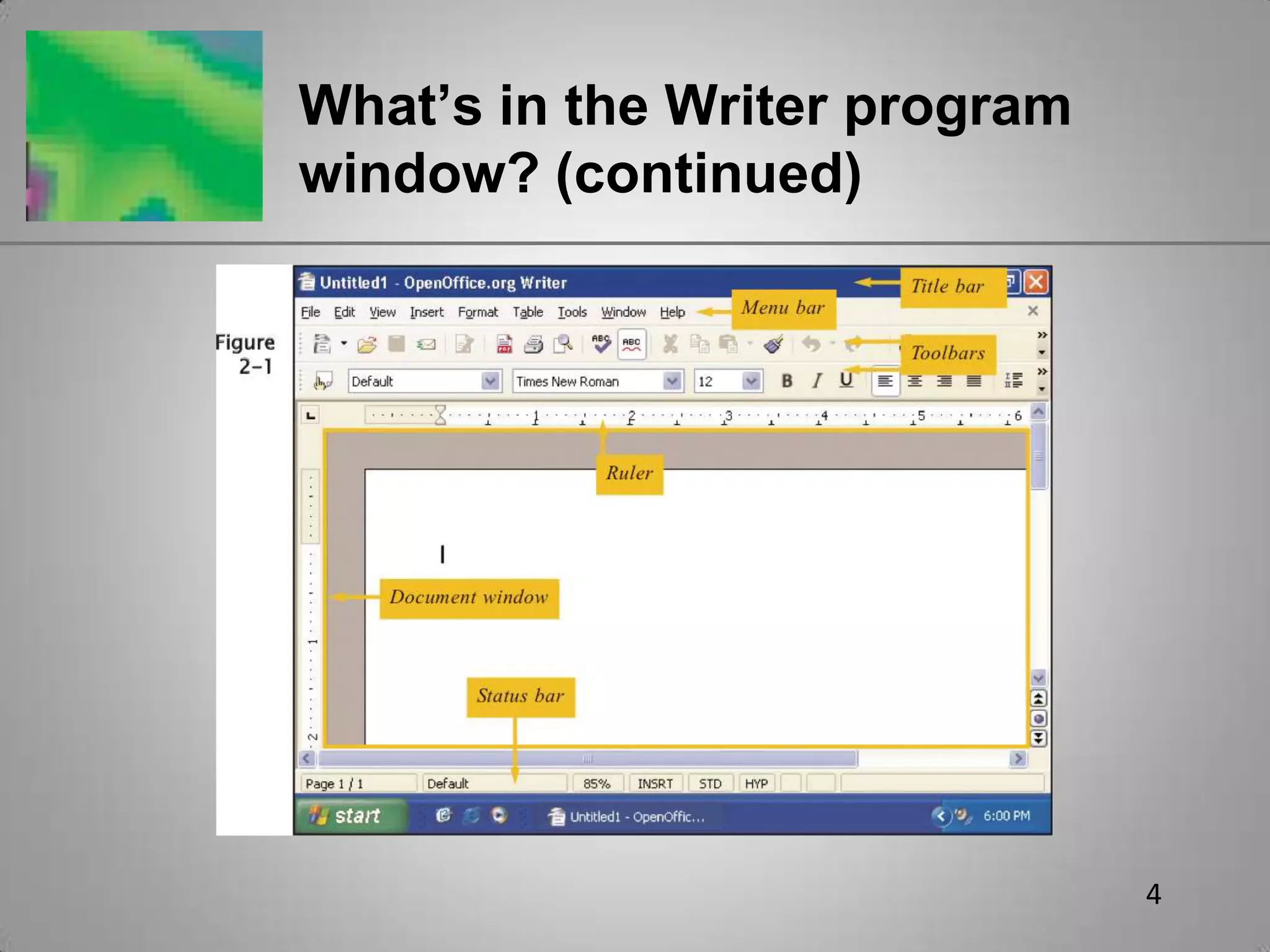
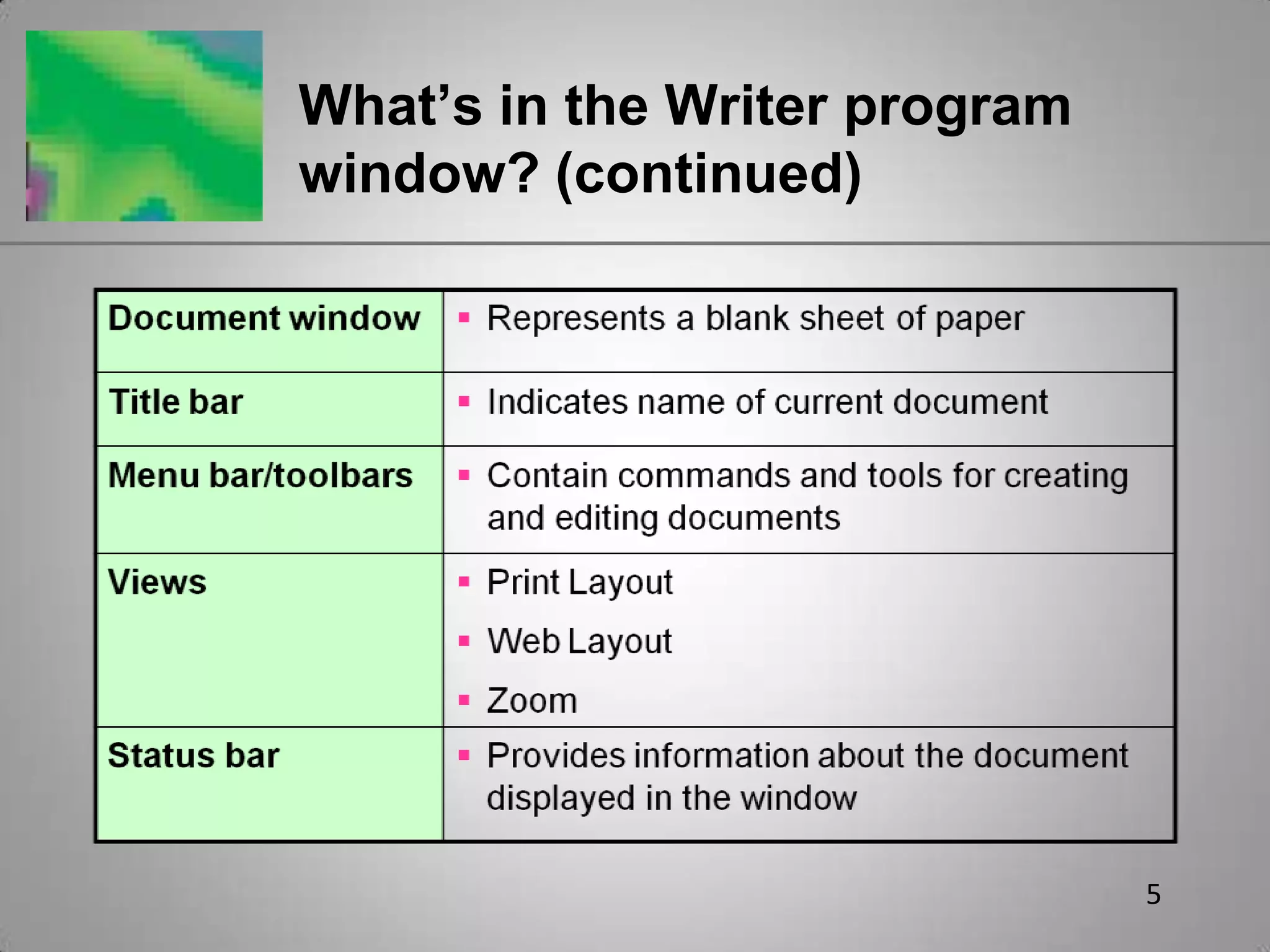
3What’s in the Writer program window?Objects for creating, editing, saving, printing, and formatting documentsDocument windowTitle barMenu bar and toolbarsViewsStatus bars
4What’s in the Writer program window? (continued)
5What’s in the Writer program window? (continued)
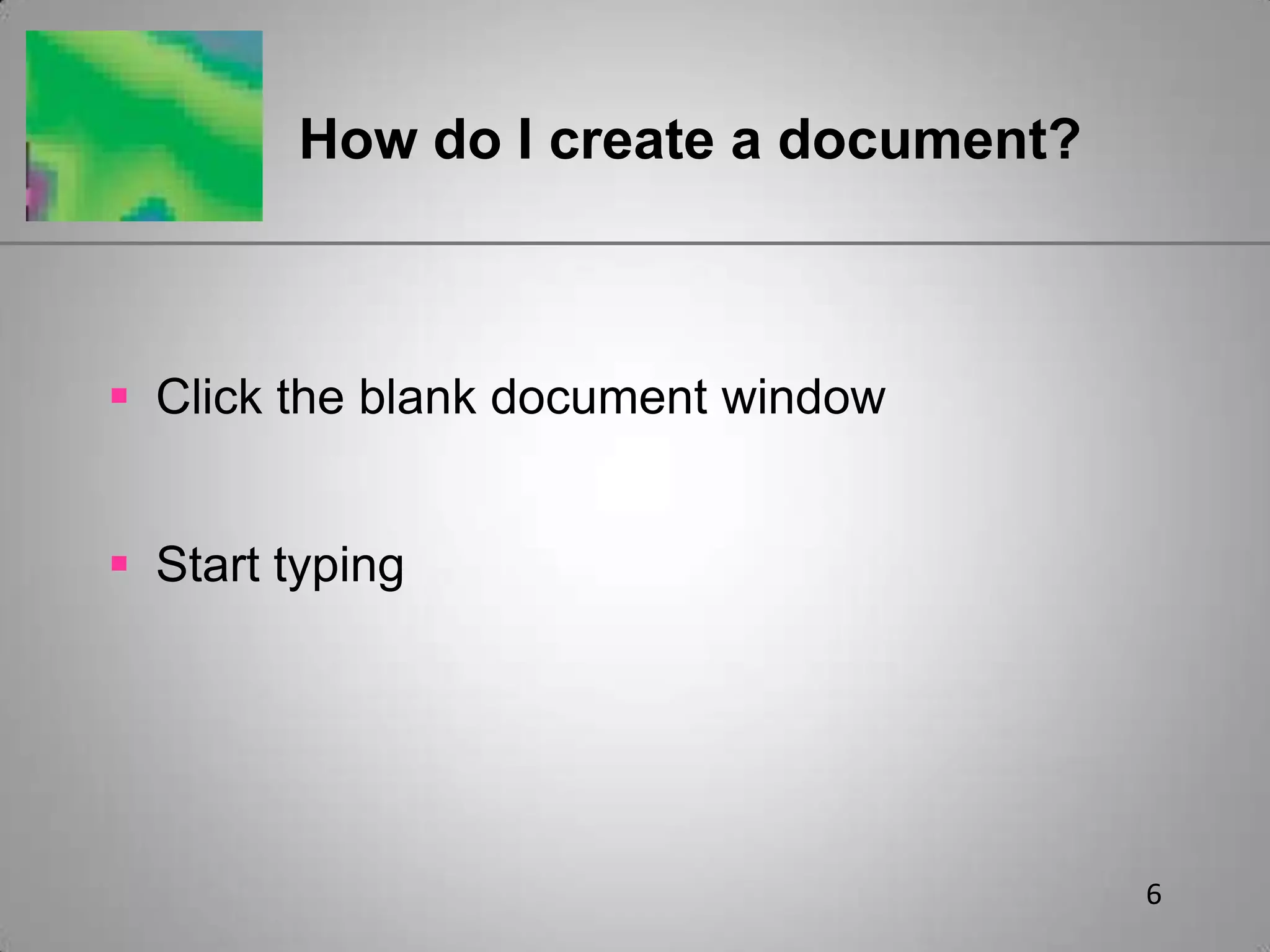
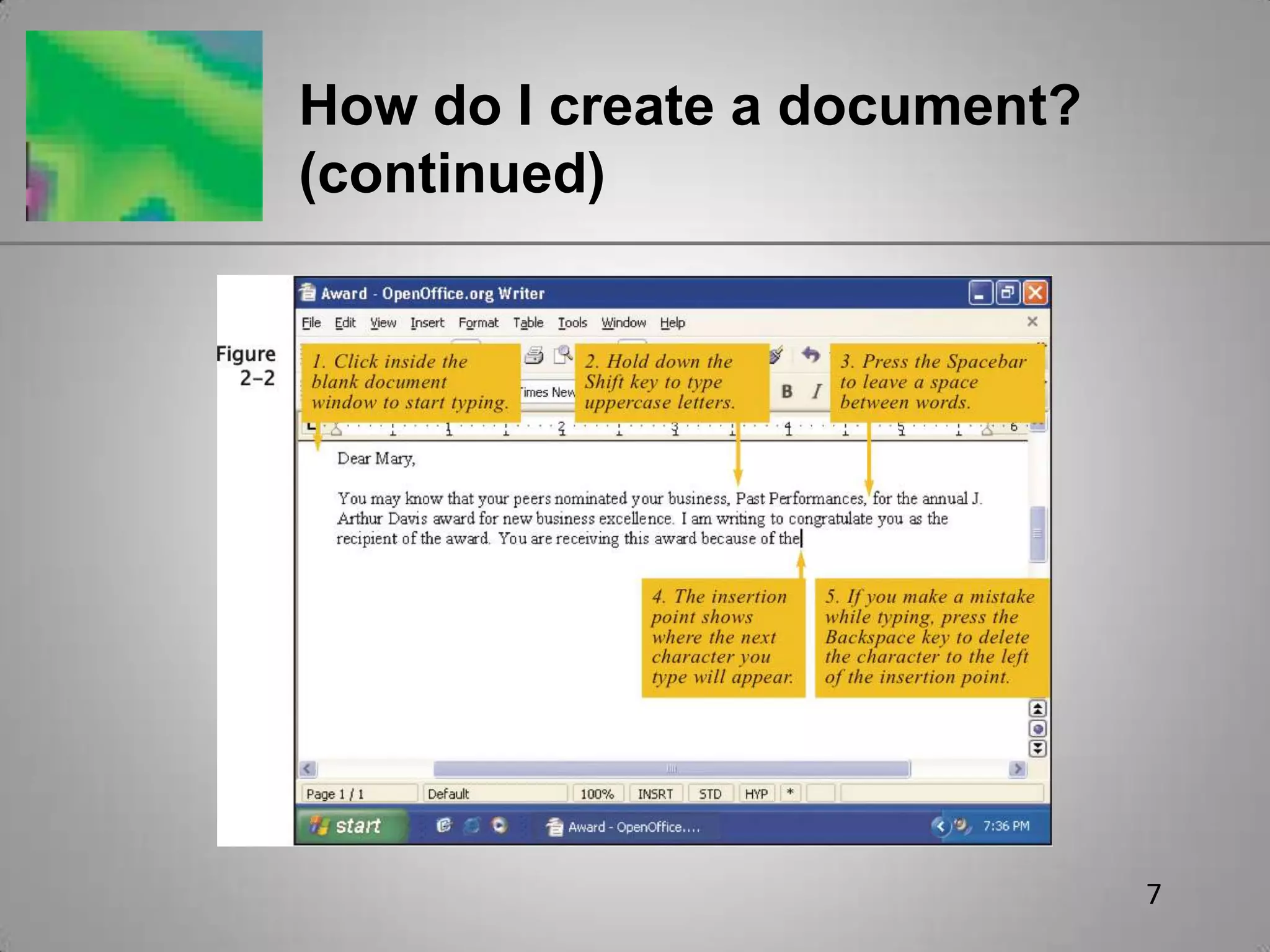
6How do I create a document?Click the blank document windowStart typing
7How do I create a document? (continued)
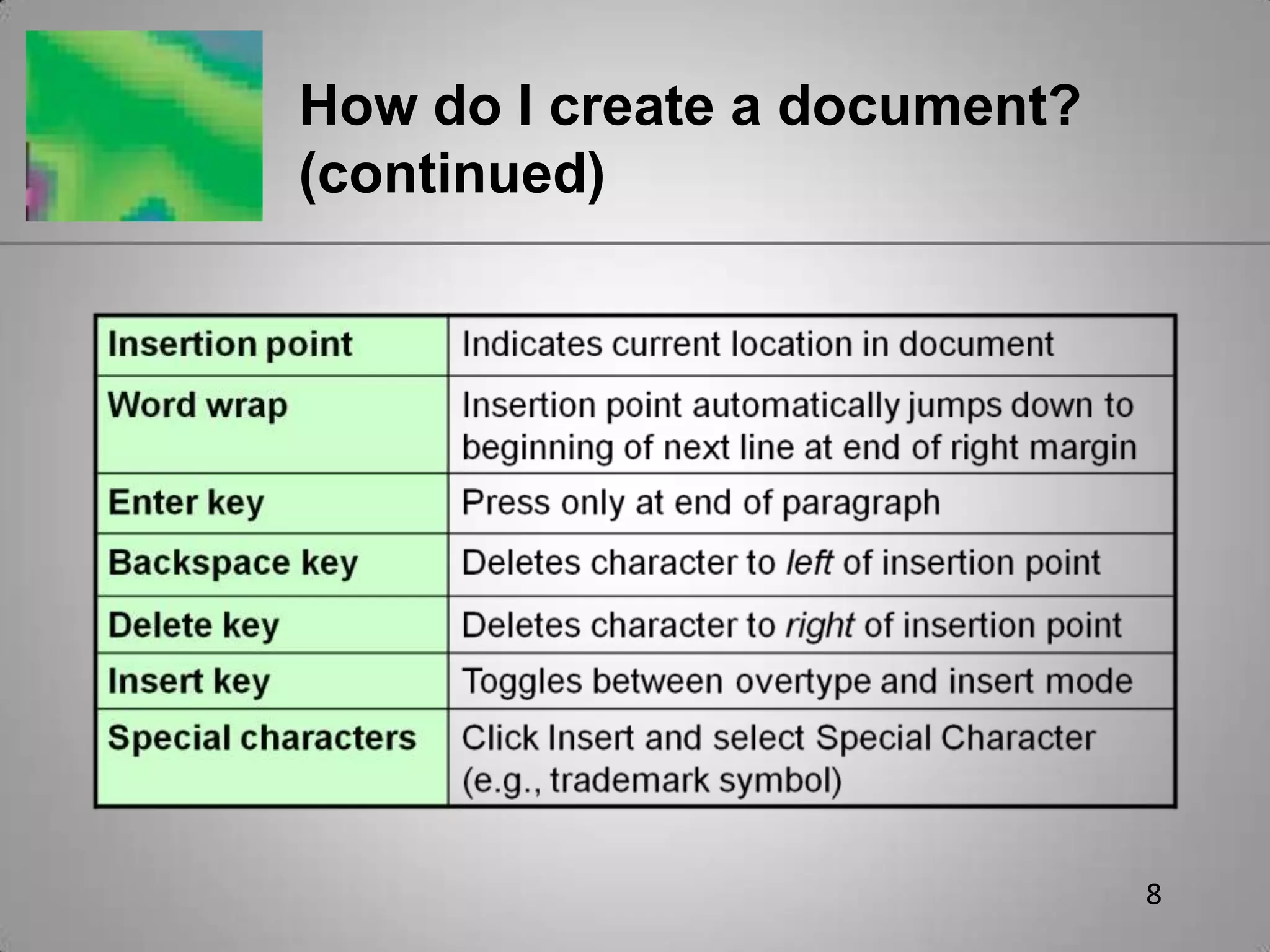
8How do I create a document? (continued)
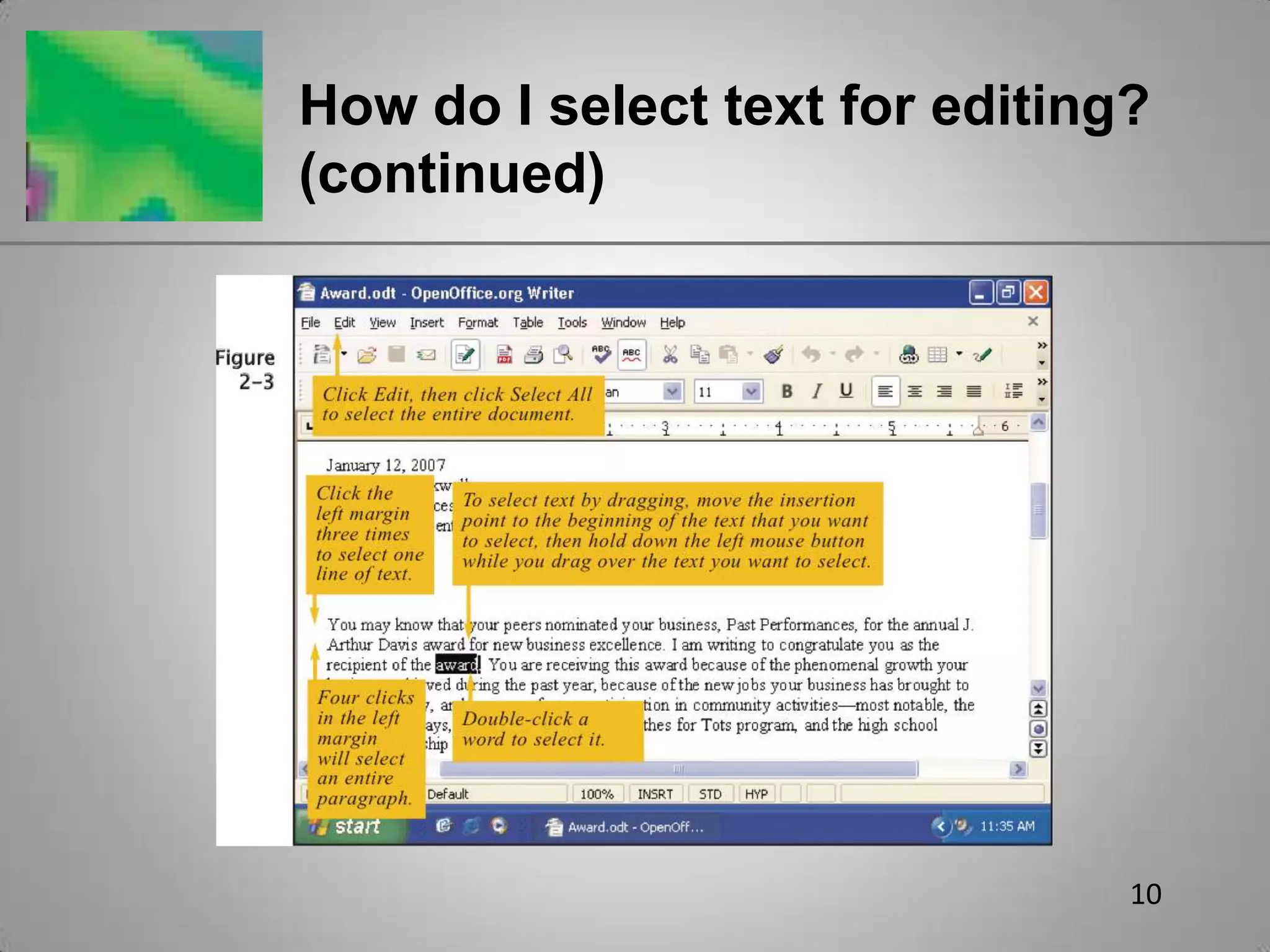
9How do I select text for editing?Selecting text marks characters, words, sentences, or paragraphs to be modified
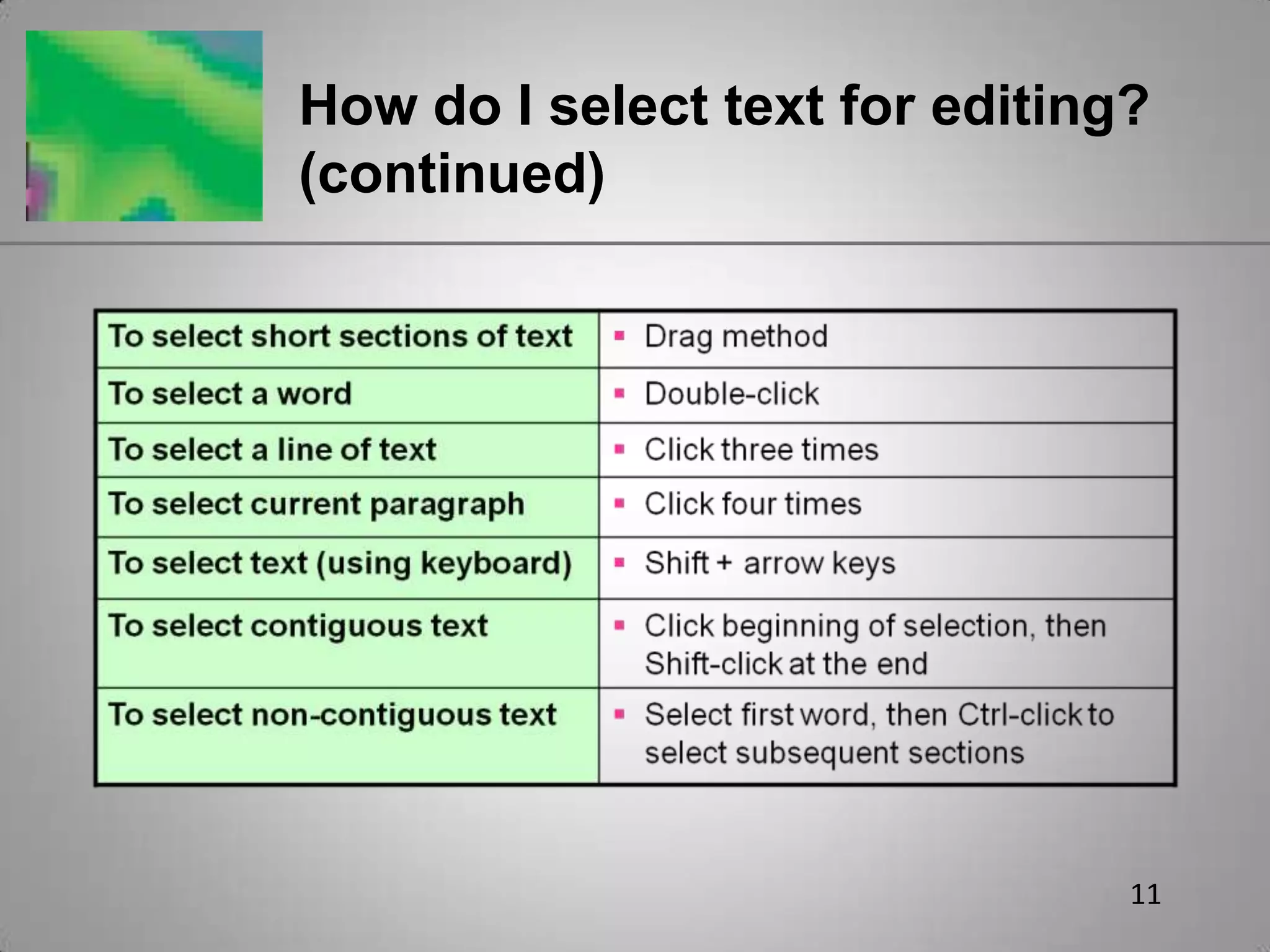
10How do I select text for editing? (continued)
11How do I select text for editing? (continued)
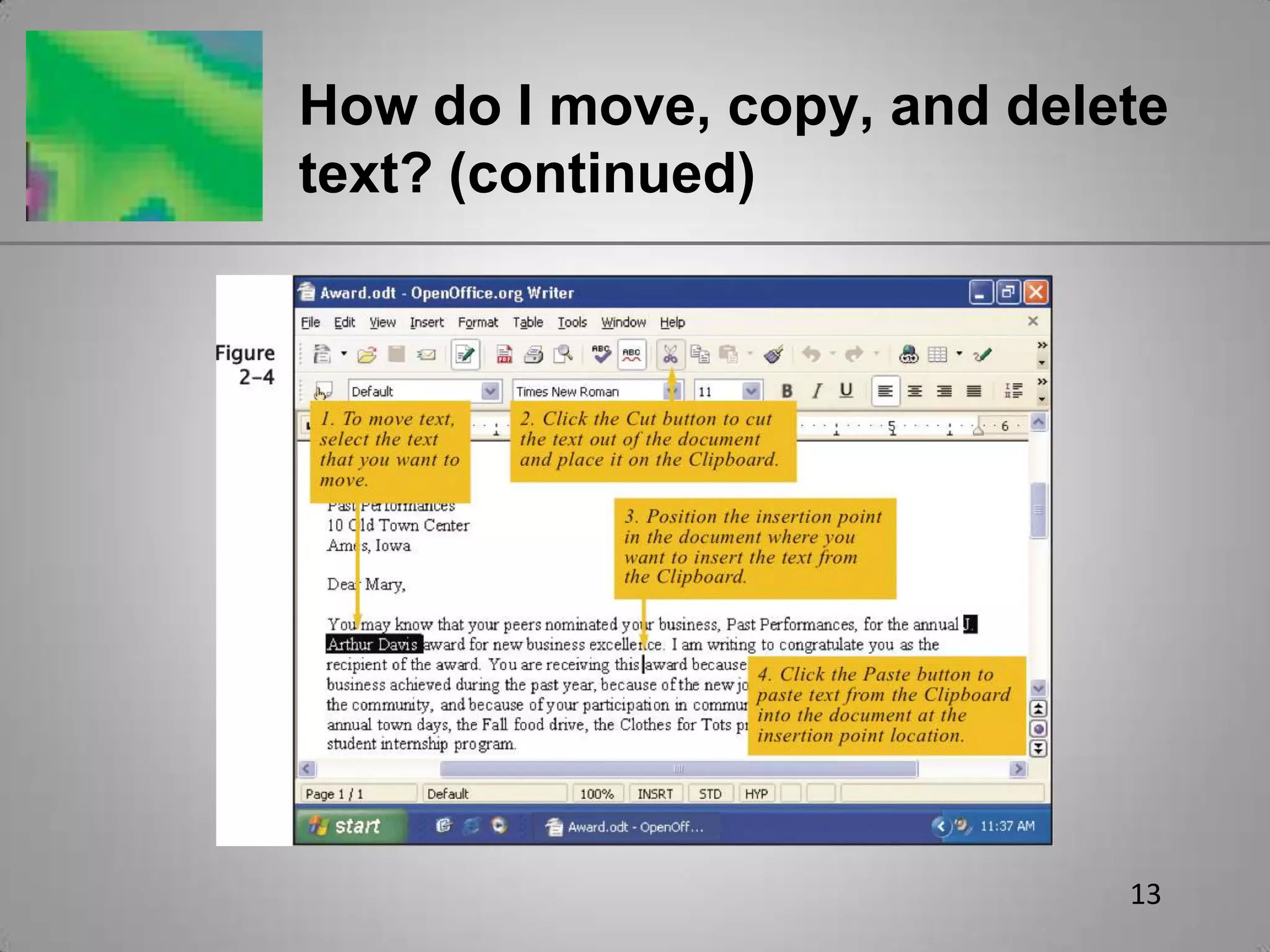
12How do I move, copy, and delete text?Cut and pasteUse Cut button and Paste buttonUse drag and drop methodCopy and pasteUse Copy button and Paste buttonText can be cut/copied and pasted between applications
13How do I move, copy, and delete text? (continued)
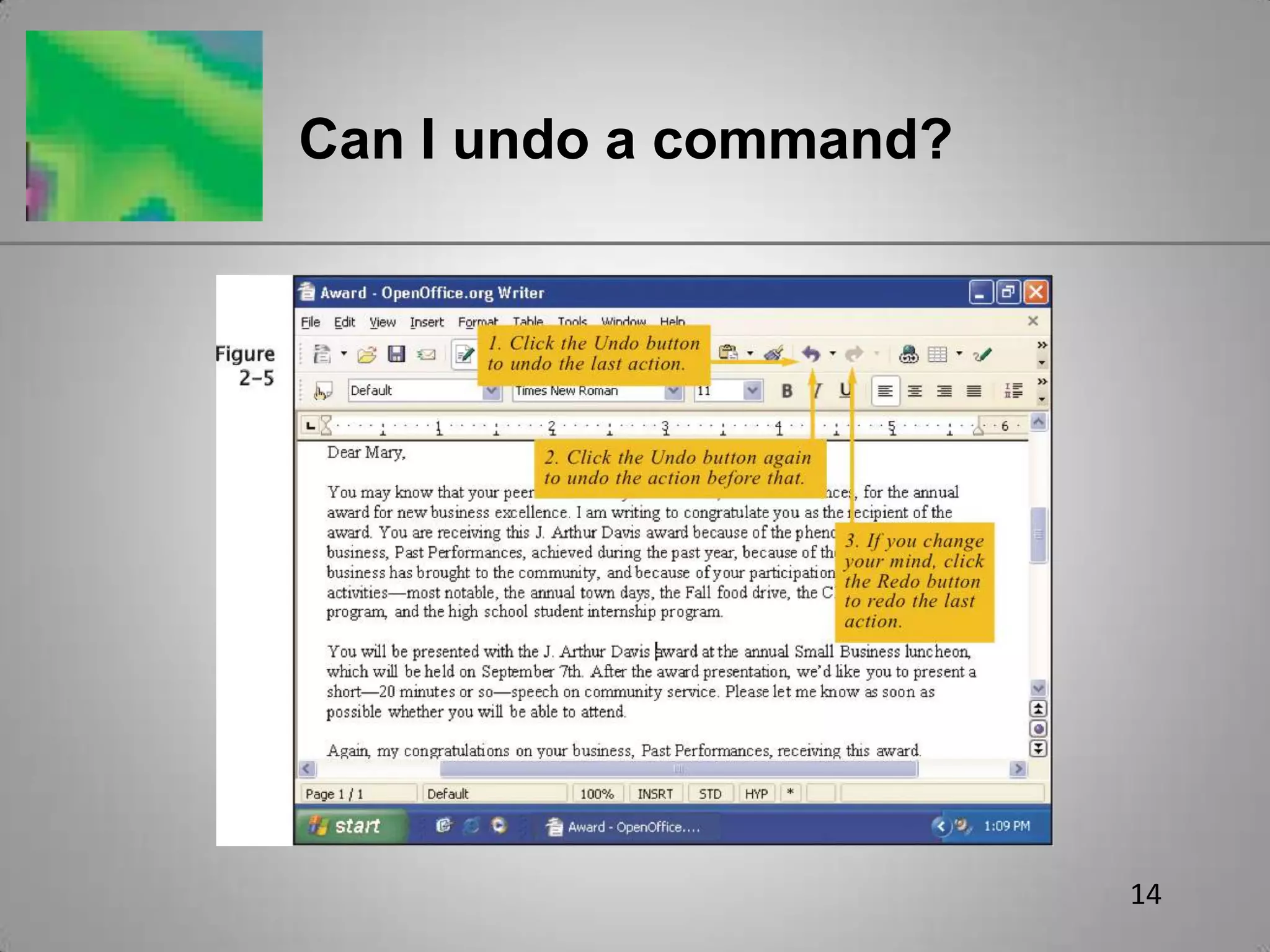
14Can I undo a command?
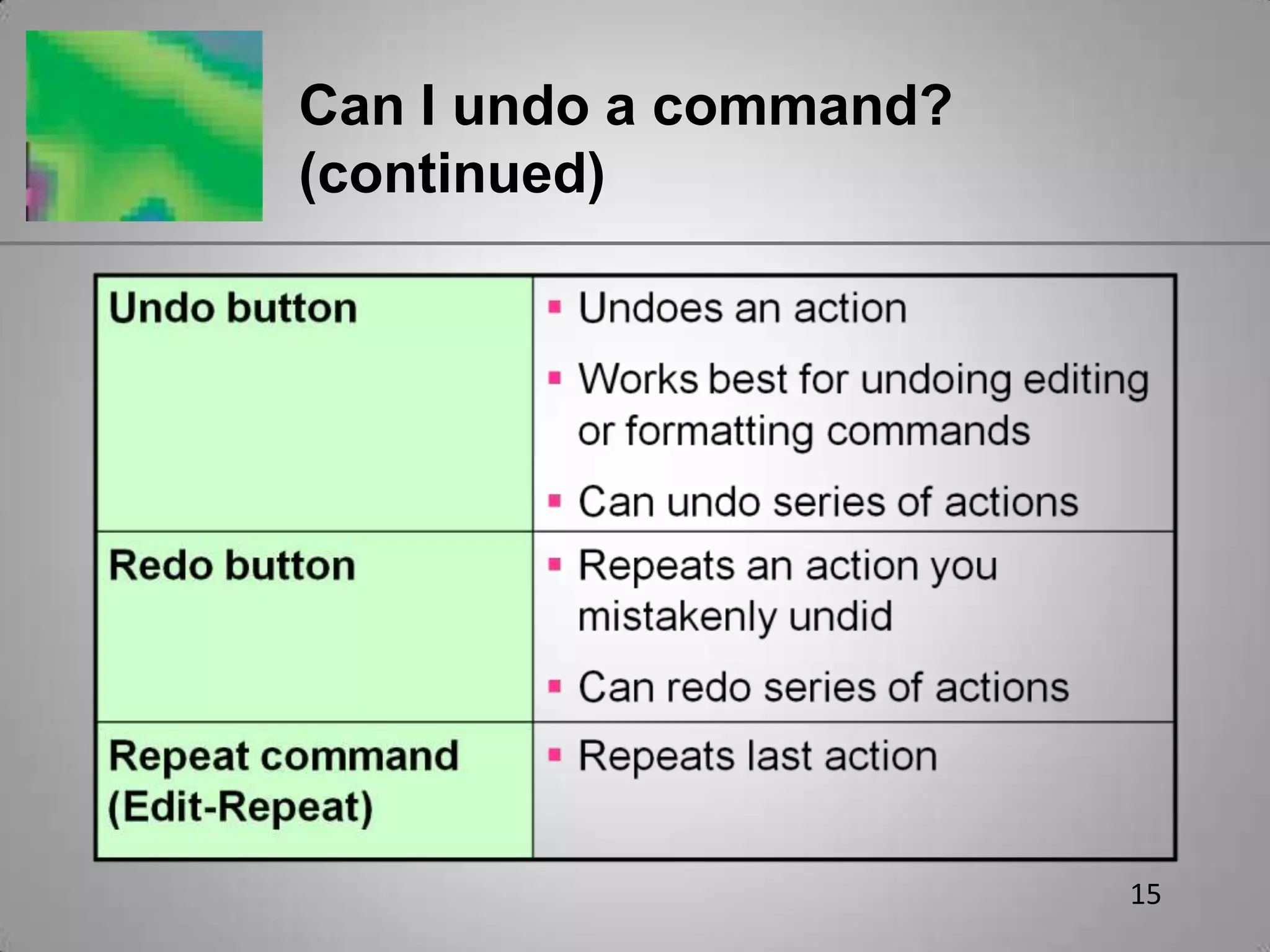
15Can I undo a command? (continued)
16How do I create and use a document template?Document templatePre-formatted document for use as a foundation for creating a new documentExamples: letterheads, fax cover sheets, memos
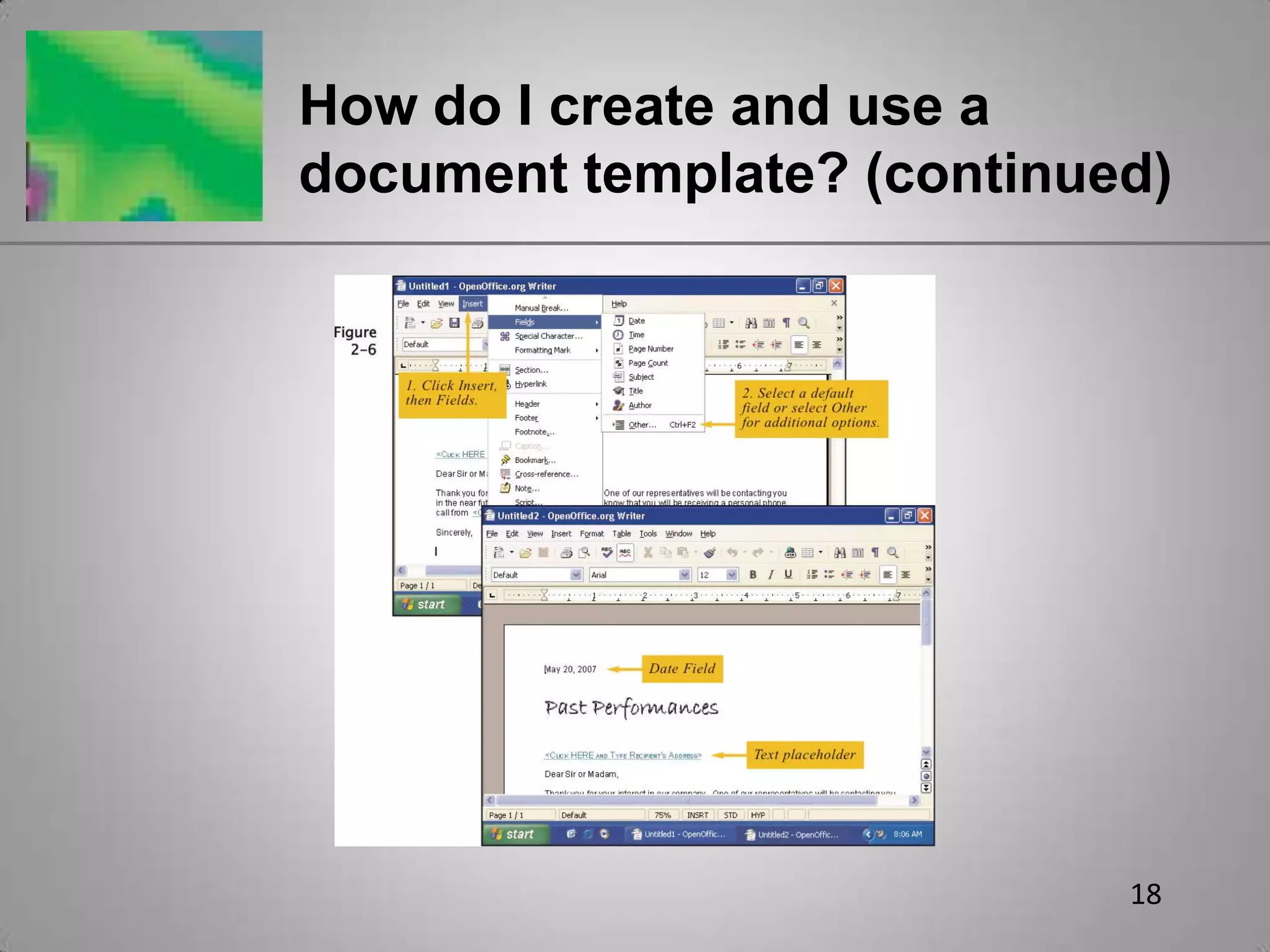
17How do I create and use a document template? (continued)FieldsUsed to insert pre-formatted information that updates automatically or easilyExamples: current date, page numbersPlaceholdersElements into which text is entered to personalize the documentExamples: name, address
18How do I create and use a document template? (continued)
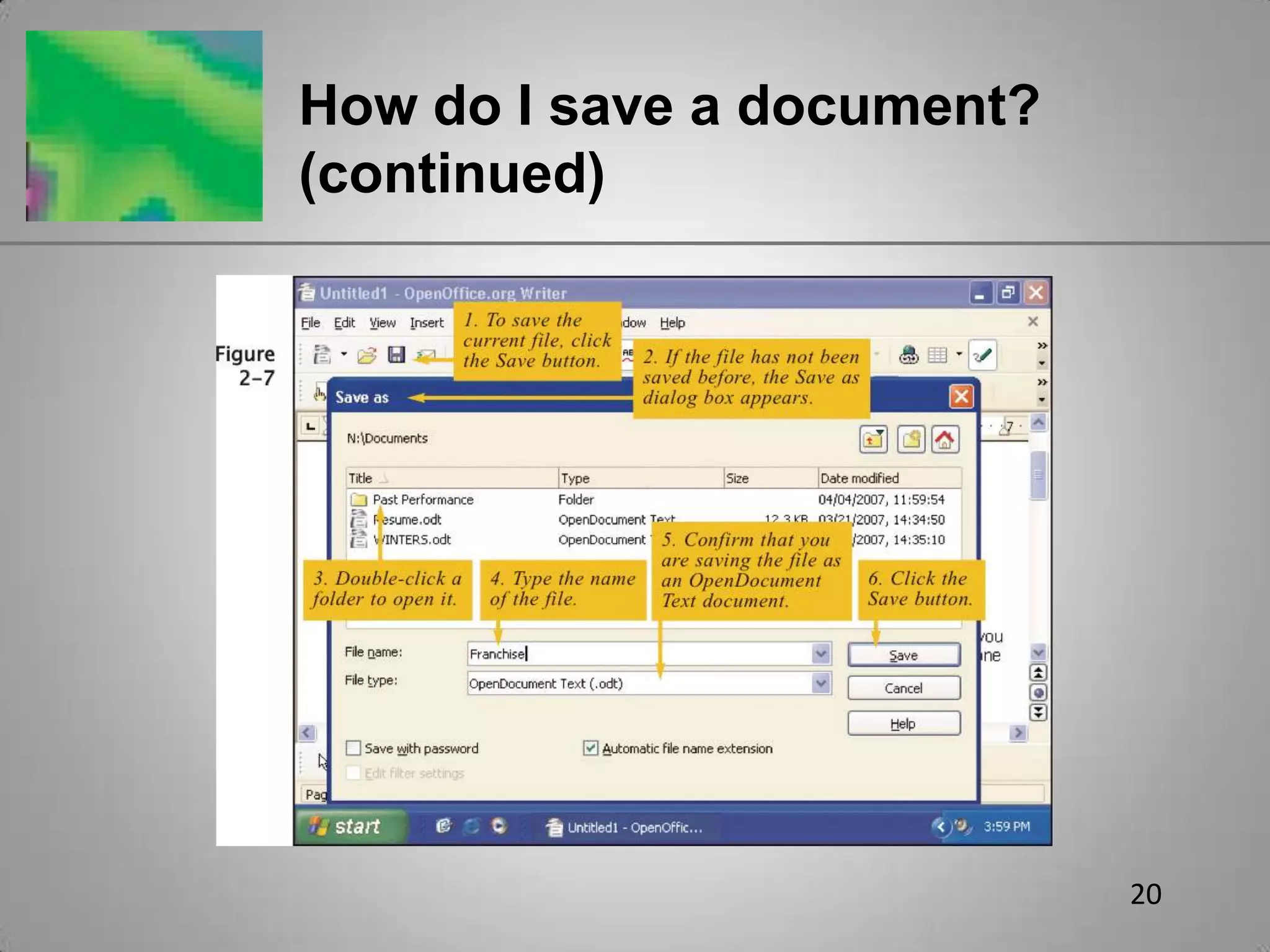
19How do I save a document?Click Save buttonFirst timeSave as dialog box appears; Saves to My Documents folder with .odt extension (default)Select different drive and folder to save to another locationClick down-arrow button to right of File type text box to save as different file typeSubsequent timesAutomatically saves document using original file name in drive and folder where previously stored
20How do I save a document? (continued)
21How do I save a document? (continued)Save frequently to minimize data loss due to power outages, software bugs, or other unforeseen events
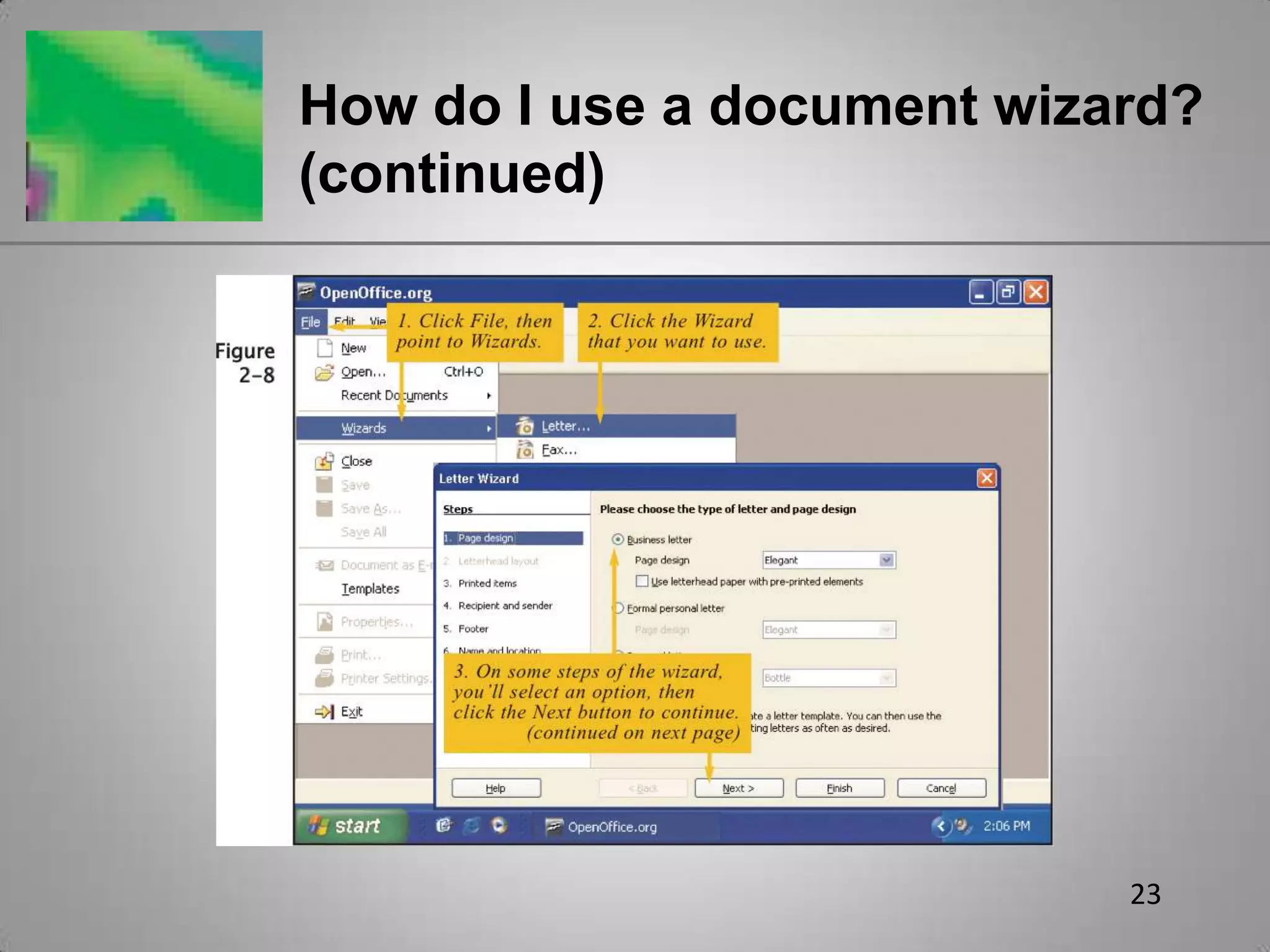
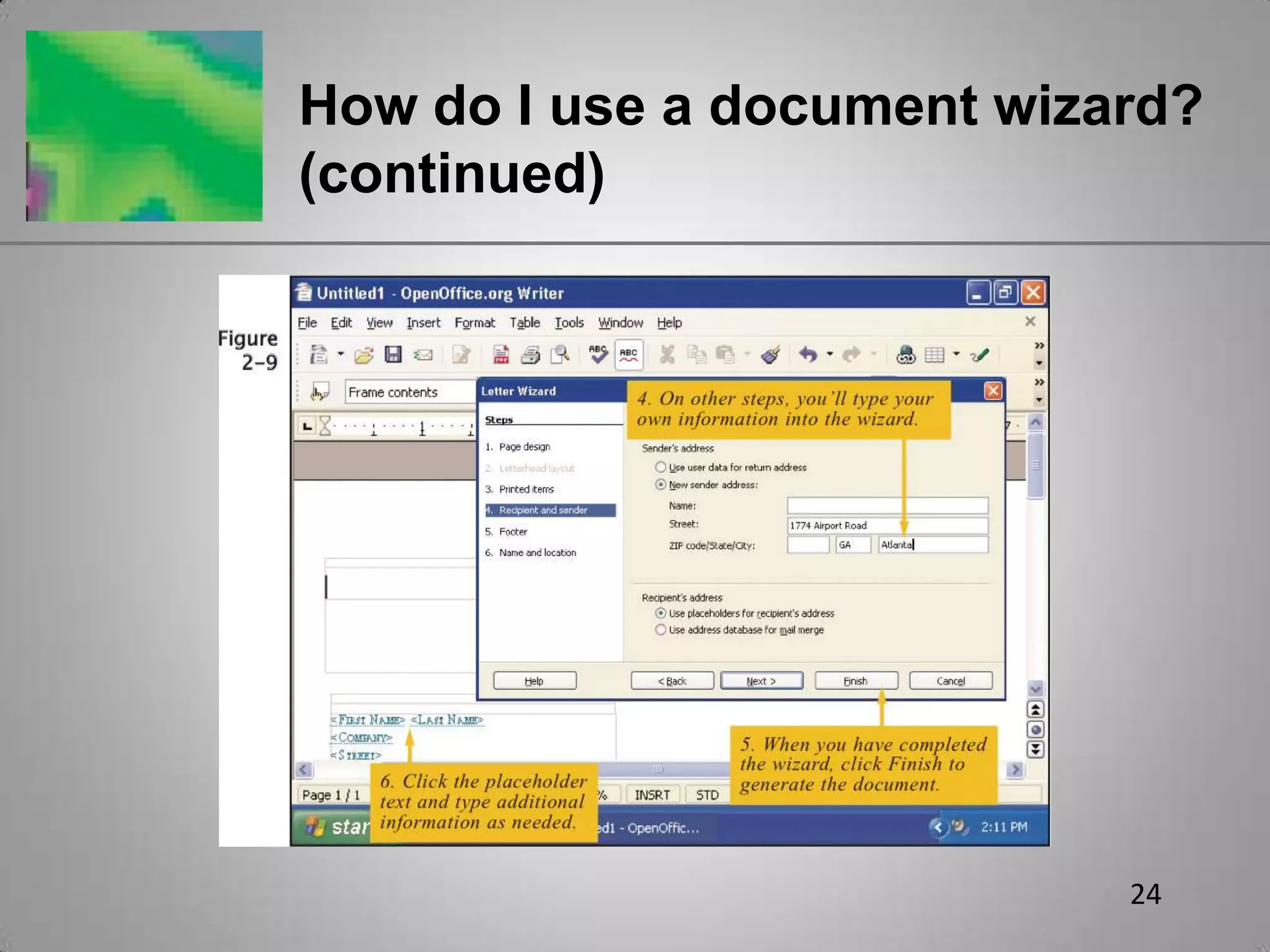
22How do I use a document wizard?Document wizardProvides a pre-formatted documentPrompts you to enter information (into dialog boxes) which is automatically incorporated into final documentTypically offers a selection of formatting optionsFinal document reflects choices you made and includes information you entered
23How do I use a document wizard? (continued)
24How do I use a document wizard? (continued)
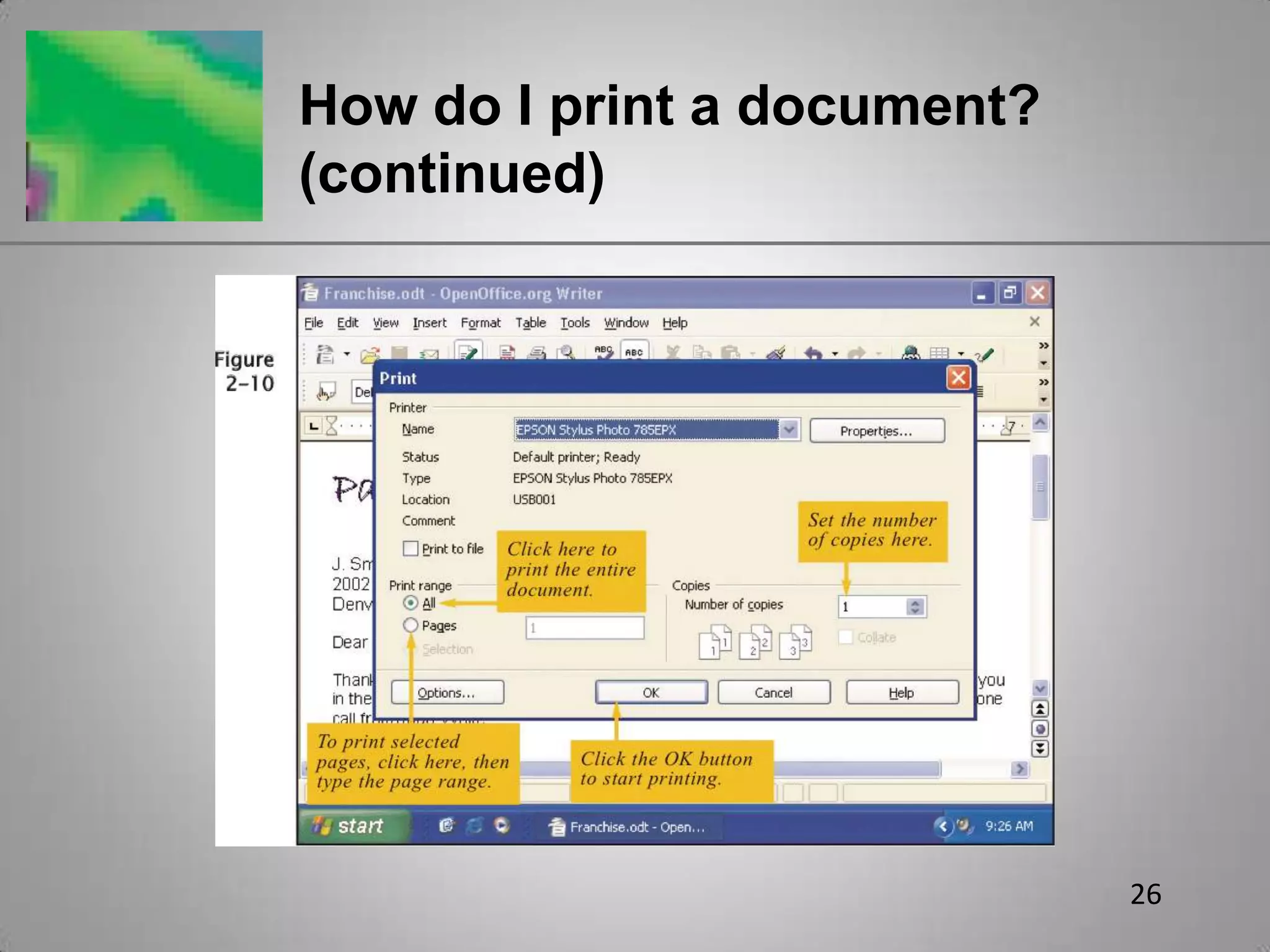
25How do I print a document?Print File Directly button on Writer toolbarPrints one copy of current document using default printer settingsPrint option on the File menuAllows you to print multiple copies, print selected pages, or select an alternate printerUse Page Preview to see how it will look when printed
26How do I print a document? (continued)
27How can I troubleshoot printing problems?Common causesPrinter itselfSoftware that controls the printerInstallation glitches
28How can I troubleshoot printing problems? (continued)Check out the printerConfirm that power light is onVerify that printer is ready to print (press appropriate buttons on printer’s control panel)Make sure printer is loaded with correct size and type of paper, and that ribbon, print cartridge, or toner cartridge is properly installed
29How can I troubleshoot printing problems? (continued)Check print queueTo display information about each print jobTo pause, restart, or cancel print jobsTo move documents higher or lower in queueMake sure default printer setting is correct
30SummaryThe Writer program windowCreating a documentSelecting text for editingMoving, copying, and deleting textUndoing a command
31Summary (continued)Creating and using a document templateSaving a documentUsing a document wizardPrinting a documentTroubleshooting printing problems

Creating a Writer Document

  • 1.
  • 2.
    2OpenOffice.org WriterProvides aset of tools for:Entering and revising textAdding graphical elements (e.g., color and tables)Formatting and printing completed documents
  • 3.
    3What’s in theWriter program window?Objects for creating, editing, saving, printing, and formatting documentsDocument windowTitle barMenu bar and toolbarsViewsStatus bars
  • 4.
    4What’s in theWriter program window? (continued)
  • 5.
    5What’s in theWriter program window? (continued)
  • 6.
    6How do Icreate a document?Click the blank document windowStart typing
  • 7.
    7How do Icreate a document? (continued)
  • 8.
    8How do Icreate a document? (continued)
  • 9.
    9How do Iselect text for editing?Selecting text marks characters, words, sentences, or paragraphs to be modified
  • 10.
    10How do Iselect text for editing? (continued)
  • 11.
    11How do Iselect text for editing? (continued)
  • 12.
    12How do Imove, copy, and delete text?Cut and pasteUse Cut button and Paste buttonUse drag and drop methodCopy and pasteUse Copy button and Paste buttonText can be cut/copied and pasted between applications
  • 13.
    13How do Imove, copy, and delete text? (continued)
  • 14.
    14Can I undoa command?
  • 15.
    15Can I undoa command? (continued)
  • 16.
    16How do Icreate and use a document template?Document templatePre-formatted document for use as a foundation for creating a new documentExamples: letterheads, fax cover sheets, memos
  • 17.
    17How do Icreate and use a document template? (continued)FieldsUsed to insert pre-formatted information that updates automatically or easilyExamples: current date, page numbersPlaceholdersElements into which text is entered to personalize the documentExamples: name, address
  • 18.
    18How do Icreate and use a document template? (continued)
  • 19.
    19How do Isave a document?Click Save buttonFirst timeSave as dialog box appears; Saves to My Documents folder with .odt extension (default)Select different drive and folder to save to another locationClick down-arrow button to right of File type text box to save as different file typeSubsequent timesAutomatically saves document using original file name in drive and folder where previously stored
  • 20.
    20How do Isave a document? (continued)
  • 21.
    21How do Isave a document? (continued)Save frequently to minimize data loss due to power outages, software bugs, or other unforeseen events
  • 22.
    22How do Iuse a document wizard?Document wizardProvides a pre-formatted documentPrompts you to enter information (into dialog boxes) which is automatically incorporated into final documentTypically offers a selection of formatting optionsFinal document reflects choices you made and includes information you entered
  • 23.
    23How do Iuse a document wizard? (continued)
  • 24.
    24How do Iuse a document wizard? (continued)
  • 25.
    25How do Iprint a document?Print File Directly button on Writer toolbarPrints one copy of current document using default printer settingsPrint option on the File menuAllows you to print multiple copies, print selected pages, or select an alternate printerUse Page Preview to see how it will look when printed
  • 26.
    26How do Iprint a document? (continued)
  • 27.
    27How can Itroubleshoot printing problems?Common causesPrinter itselfSoftware that controls the printerInstallation glitches
  • 28.
    28How can Itroubleshoot printing problems? (continued)Check out the printerConfirm that power light is onVerify that printer is ready to print (press appropriate buttons on printer’s control panel)Make sure printer is loaded with correct size and type of paper, and that ribbon, print cartridge, or toner cartridge is properly installed
  • 29.
    29How can Itroubleshoot printing problems? (continued)Check print queueTo display information about each print jobTo pause, restart, or cancel print jobsTo move documents higher or lower in queueMake sure default printer setting is correct
  • 30.
    30SummaryThe Writer programwindowCreating a documentSelecting text for editingMoving, copying, and deleting textUndoing a command
  • 31.
    31Summary (continued)Creating andusing a document templateSaving a documentUsing a document wizardPrinting a documentTroubleshooting printing problems