Creating a Website in WeeblyJoey WeaverIDT 7062
Welcome!After viewing this slidecastyou  should be able to:
Welcome!After viewing this slidecastyou  should be able to:Create a Weebly account.
Welcome!After viewing this slidecastyou  should be able to:Create a Weebly account.Choose a title and address.
Welcome!After viewing this slidecastyou  should be able to:Create a Weebly account.Choose a title and address.Choose a design.
Welcome!After viewing this slidecastyou  should be able to:Create a Weebly account.Choose a title and address.Choose a design.Add Elements to your page and edit them.
Welcome!After viewing this slidecastyou  should be able to:Create a Weebly account.Choose a title and address.Choose a design.Add Elements to your page and edit them.Add pages to your website.
Welcome!After viewing this slidecastyou  should be able to:Create a Weebly account.Choose a title and address.Choose a design.Add Elements to your page and edit them.Add pages to your website.Publish your website.
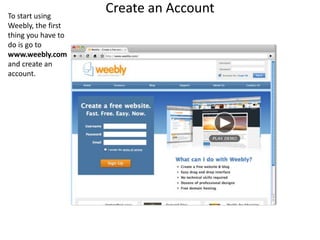
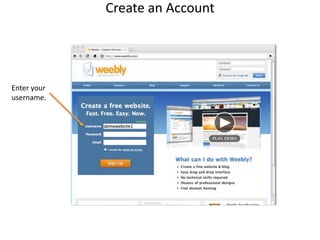
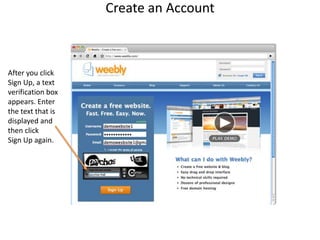
Create an AccountTo start usingWeebly, the first thing you have todo is go to www.weebly.comand create an account.
Create an AccountEnter your username.
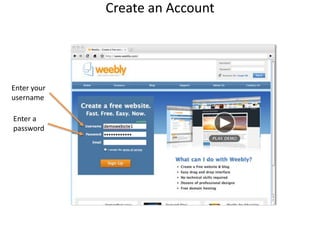
Create an AccountEnter your usernameEnter apassword
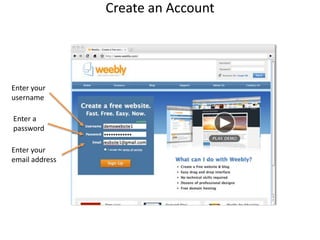
Create an AccountEnter your usernameEnter apasswordEnter your email address
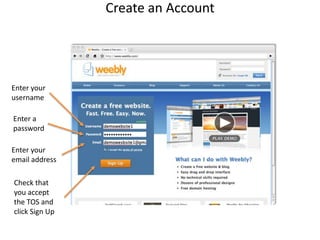
Create an AccountEnter your usernameEnter apasswordEnter your email addressCheck that you accept the TOS and click Sign Up
Create an AccountAfter you clickSign Up, a textverification boxappears. Enter the text that isdisplayed and then click Sign Up again.
Great!Create a Weebly account.Choose a title and address.Choose a design.Add Elements to your page and edit them.Add pages to your website.Publish your website.
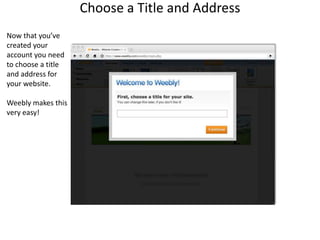
Choose a Title and AddressNow that you’vecreated youraccount you needto choose a titleand address foryour website.Weebly makes thisvery easy!
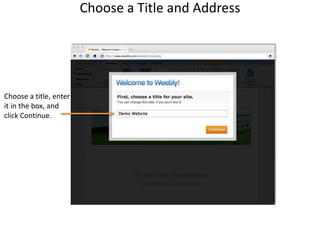
Choose a Title and AddressChoose a title, enterit in the box, andclick Continue.
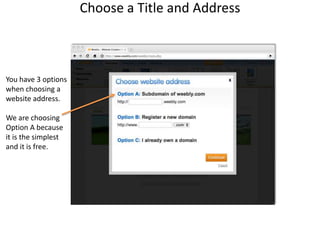
Choose a Title and AddressYou have 3 optionswhen choosing awebsite address.We are choosingOption A becauseit is the simplest and it is free.
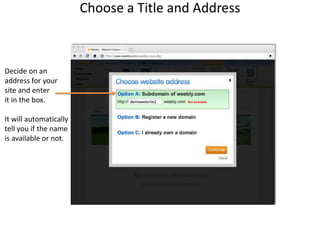
Choose a Title and AddressDecide on anaddress for yoursite and enterit in the box.It will automaticallytell you if the nameis available or not.
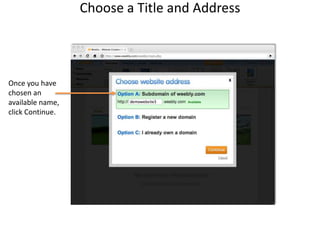
Choose a Title and AddressOnce you havechosen an available name,click Continue.
Great!Create a Weebly account.Choose a title and address.Choose a design.Add Elements to your page and edit them.Add pages to your website.Publish your website.
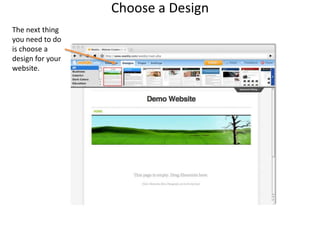
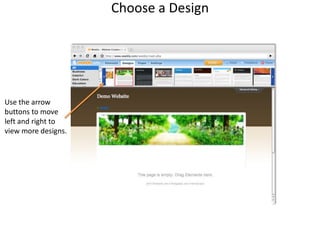
Choose a DesignThe next thingyou need to dois choose adesign for yourwebsite.
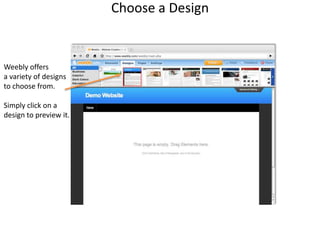
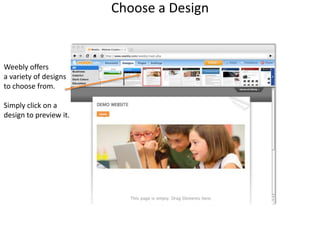
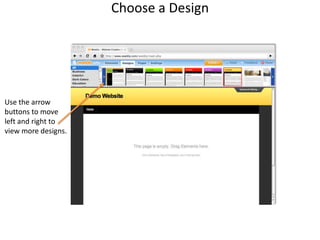
Choose a DesignWeebly offersa variety of designsto choose from.Simply click on adesign to preview it.
Choose a DesignUse the arrowbuttons to moveleft and right toview more designs.
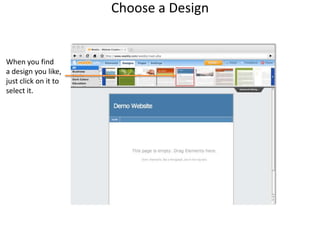
Choose a DesignWhen you finda design you like,just click on it toselect it.
Great!Create a Weebly account.Choose a title and address.Choose a design.Add Elements to your page and edit them.Add pages to your website.Publish your website.
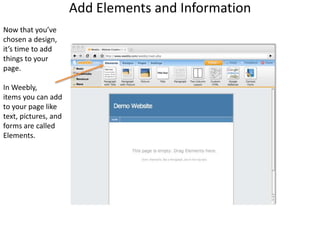
Add Elements and InformationNow that you’vechosen a design,it’s time to addthings to yourpage. In Weebly,items you can add to your page like text, pictures, and forms are calledElements.
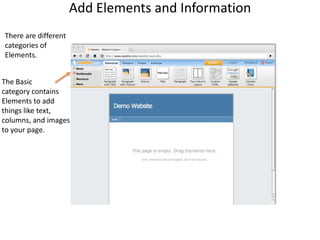
Add Elements and InformationThere are differentcategories of Elements.The Basic category containsElements to addthings like text,columns, and imagesto your page.
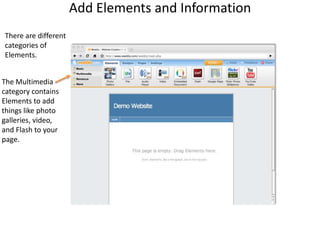
Add Elements and InformationThere are differentcategories of Elements.The Multimedia category containsElements to addthings like photogalleries, video,and Flash to your page.
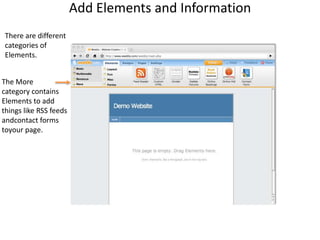
Add Elements and InformationThere are differentcategories of Elements.The Morecategory containsElements to addthings like RSS feeds andcontact forms toyour page.
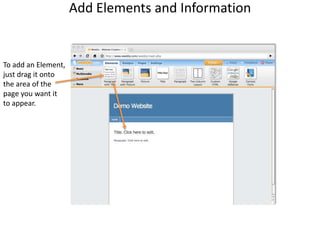
Add Elements and InformationTo add an Element,just drag it ontothe area of thepage you want itto appear.
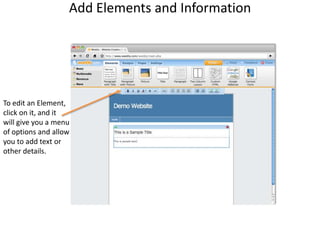
Add Elements and InformationTo edit an Element,click on it, and itwill give you a menuof options and allowyou to add text orother details.
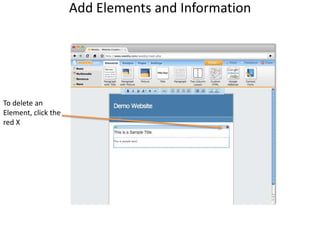
Add Elements and InformationTo delete an Element, click thered X
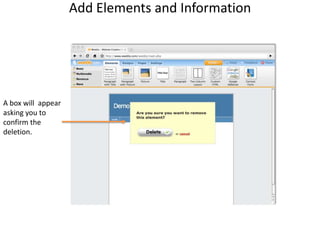
Add Elements and InformationA box will  appearasking you to confirm the deletion.
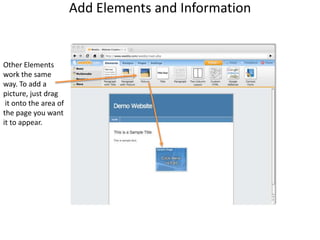
Add Elements and InformationOther Elementswork the same way. To add apicture, just drag it onto the area of the page you want it to appear.
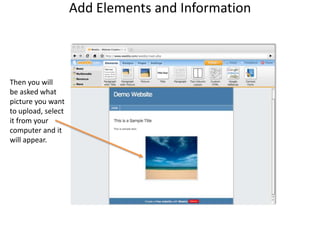
Add Elements and InformationThen you willbe asked whatpicture you wantto upload, selectit from yourcomputer and itwill appear.
Great!Create a Weebly account.Choose a title and address.Choose a design.Add Elements to your page and edit them.Add pages to your website.Publish your website.
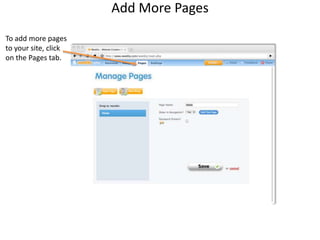
Add More PagesTo add more pagesto your site, clickon the Pages tab.
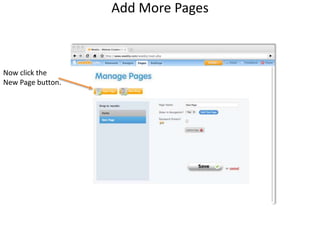
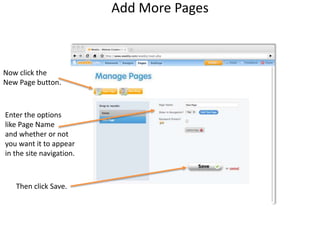
Add More PagesNow click theNew Page button.
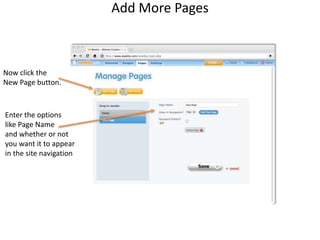
Add More PagesNow click theNew Page button.Enter the optionslike Page Nameand whether or notyou want it to appearin the site navigation
Add More PagesNow click theNew Page button.Enter the optionslike Page Nameand whether or notyou want it to appearin the site navigation.Then click Save.
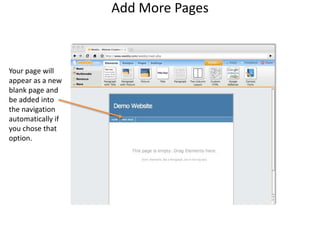
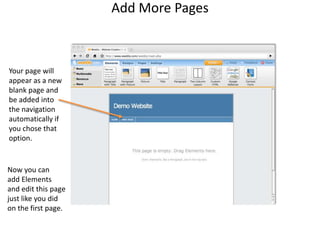
Add More PagesYour page willappear as a newblank page andbe added intothe navigationautomatically ifyou chose thatoption.
Add More PagesYour page willappear as a newblank page andbe added intothe navigationautomatically ifyou chose thatoption.Now you can add Elementsand edit this pagejust like you didon the first page.
Great!Create a Weebly account.Choose a title and address.Choose a design.Add Elements to your page and edit them.Add pages to your website.Publish your website.
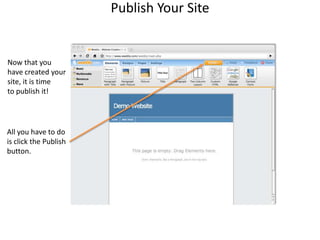
Publish Your SiteNow that youhave created yoursite, it is timeto publish it!All you have to dois click the Publishbutton.
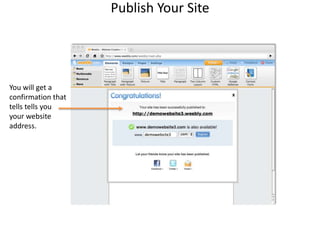
Publish Your SiteYou will get a confirmation thattells tells youyour websiteaddress.
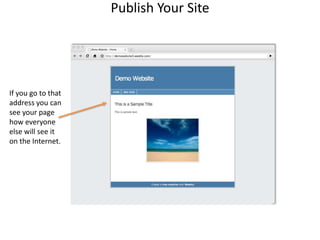
Publish Your SiteIf you go to thataddress you cansee your pagehow everyoneelse will see iton the Internet.
Great!Create a Weebly account.Choose a title and address.Choose a design.Add Elements to your page and edit them.Add pages to your website.Publish your website.
Congratulations!Create a Weebly account.Choose a title and address.Choose a design.Add Elements to your page and edit them.Add pages to your website.Publish your website.

Creating a Website in Weebly

  • 1.
    Creating a Websitein WeeblyJoey WeaverIDT 7062
  • 2.
    Welcome!After viewing thisslidecastyou should be able to:
  • 3.
    Welcome!After viewing thisslidecastyou should be able to:Create a Weebly account.
  • 4.
    Welcome!After viewing thisslidecastyou should be able to:Create a Weebly account.Choose a title and address.
  • 5.
    Welcome!After viewing thisslidecastyou should be able to:Create a Weebly account.Choose a title and address.Choose a design.
  • 6.
    Welcome!After viewing thisslidecastyou should be able to:Create a Weebly account.Choose a title and address.Choose a design.Add Elements to your page and edit them.
  • 7.
    Welcome!After viewing thisslidecastyou should be able to:Create a Weebly account.Choose a title and address.Choose a design.Add Elements to your page and edit them.Add pages to your website.
  • 8.
    Welcome!After viewing thisslidecastyou should be able to:Create a Weebly account.Choose a title and address.Choose a design.Add Elements to your page and edit them.Add pages to your website.Publish your website.
  • 9.
    Create an AccountTostart usingWeebly, the first thing you have todo is go to www.weebly.comand create an account.
  • 10.
  • 11.
    Create an AccountEnteryour usernameEnter apassword
  • 12.
    Create an AccountEnteryour usernameEnter apasswordEnter your email address
  • 13.
    Create an AccountEnteryour usernameEnter apasswordEnter your email addressCheck that you accept the TOS and click Sign Up
  • 14.
    Create an AccountAfteryou clickSign Up, a textverification boxappears. Enter the text that isdisplayed and then click Sign Up again.
  • 15.
    Great!Create a Weeblyaccount.Choose a title and address.Choose a design.Add Elements to your page and edit them.Add pages to your website.Publish your website.
  • 16.
    Great!Create a Weeblyaccount.Choose a title and address.Choose a design.Add Elements to your page and edit them.Add pages to your website.Publish your website.
  • 17.
    Choose a Titleand AddressNow that you’vecreated youraccount you needto choose a titleand address foryour website.Weebly makes thisvery easy!
  • 18.
    Choose a Titleand AddressChoose a title, enterit in the box, andclick Continue.
  • 19.
    Choose a Titleand AddressYou have 3 optionswhen choosing awebsite address.We are choosingOption A becauseit is the simplest and it is free.
  • 20.
    Choose a Titleand AddressDecide on anaddress for yoursite and enterit in the box.It will automaticallytell you if the nameis available or not.
  • 21.
    Choose a Titleand AddressOnce you havechosen an available name,click Continue.
  • 22.
    Great!Create a Weeblyaccount.Choose a title and address.Choose a design.Add Elements to your page and edit them.Add pages to your website.Publish your website.
  • 23.
    Choose a DesignThenext thingyou need to dois choose adesign for yourwebsite.
  • 24.
    Choose a DesignWeeblyoffersa variety of designsto choose from.Simply click on adesign to preview it.
  • 25.
    Choose a DesignWeeblyoffersa variety of designsto choose from.Simply click on adesign to preview it.
  • 26.
    Choose a DesignUsethe arrowbuttons to moveleft and right toview more designs.
  • 27.
    Choose a DesignUsethe arrowbuttons to moveleft and right toview more designs.
  • 28.
    Choose a DesignWhenyou finda design you like,just click on it toselect it.
  • 29.
    Great!Create a Weeblyaccount.Choose a title and address.Choose a design.Add Elements to your page and edit them.Add pages to your website.Publish your website.
  • 30.
    Add Elements andInformationNow that you’vechosen a design,it’s time to addthings to yourpage. In Weebly,items you can add to your page like text, pictures, and forms are calledElements.
  • 31.
    Add Elements andInformationThere are differentcategories of Elements.The Basic category containsElements to addthings like text,columns, and imagesto your page.
  • 32.
    Add Elements andInformationThere are differentcategories of Elements.The Multimedia category containsElements to addthings like photogalleries, video,and Flash to your page.
  • 33.
    Add Elements andInformationThere are differentcategories of Elements.The Morecategory containsElements to addthings like RSS feeds andcontact forms toyour page.
  • 34.
    Add Elements andInformationTo add an Element,just drag it ontothe area of thepage you want itto appear.
  • 35.
    Add Elements andInformationTo edit an Element,click on it, and itwill give you a menuof options and allowyou to add text orother details.
  • 36.
    Add Elements andInformationTo delete an Element, click thered X
  • 37.
    Add Elements andInformationA box will appearasking you to confirm the deletion.
  • 38.
    Add Elements andInformationOther Elementswork the same way. To add apicture, just drag it onto the area of the page you want it to appear.
  • 39.
    Add Elements andInformationThen you willbe asked whatpicture you wantto upload, selectit from yourcomputer and itwill appear.
  • 40.
    Great!Create a Weeblyaccount.Choose a title and address.Choose a design.Add Elements to your page and edit them.Add pages to your website.Publish your website.
  • 41.
    Add More PagesToadd more pagesto your site, clickon the Pages tab.
  • 42.
    Add More PagesNowclick theNew Page button.
  • 43.
    Add More PagesNowclick theNew Page button.Enter the optionslike Page Nameand whether or notyou want it to appearin the site navigation
  • 44.
    Add More PagesNowclick theNew Page button.Enter the optionslike Page Nameand whether or notyou want it to appearin the site navigation.Then click Save.
  • 45.
    Add More PagesYourpage willappear as a newblank page andbe added intothe navigationautomatically ifyou chose thatoption.
  • 46.
    Add More PagesYourpage willappear as a newblank page andbe added intothe navigationautomatically ifyou chose thatoption.Now you can add Elementsand edit this pagejust like you didon the first page.
  • 47.
    Great!Create a Weeblyaccount.Choose a title and address.Choose a design.Add Elements to your page and edit them.Add pages to your website.Publish your website.
  • 48.
    Publish Your SiteNowthat youhave created yoursite, it is timeto publish it!All you have to dois click the Publishbutton.
  • 49.
    Publish Your SiteYouwill get a confirmation thattells tells youyour websiteaddress.
  • 50.
    Publish Your SiteIfyou go to thataddress you cansee your pagehow everyoneelse will see iton the Internet.
  • 51.
    Great!Create a Weeblyaccount.Choose a title and address.Choose a design.Add Elements to your page and edit them.Add pages to your website.Publish your website.
  • 52.
    Congratulations!Create a Weeblyaccount.Choose a title and address.Choose a design.Add Elements to your page and edit them.Add pages to your website.Publish your website.