Creating a Quiz
Using Visual Basic
6.0
Ella Marie M. Wico
IV-Pope Pius IX
Objectives:
•Creating multiple Forms in
1 project.
Jargon Buster:
(Definition of Terms)

Progressbar is an animated
bar usually used to see if
there is a page that is to be
loaded.
Form is the start of the program
when the application is first run.
The Form looks like a blank
application window you see when
you open any Visual Basic
software program.
Timer executes code at
regular intervals by causing a
timer event to occur
PictureBox displays graphics
Form bitmap, icon, or
metafile, JPEG or GIF files
TextBox displays information
entered at design time,
entered by the user with a
toggle choice
If then Else, an IF block
statement is used to check
whether the logical test is true
or false. It will take the course
of action based on the result
retrieved on the logical test.
<Name of Form>.Show
allows the user to go
automatically to the next
question/Form
Me.Hide allows the user to
hide the current Form
Steps in
Making a Visual
Basic Game
Part I: User
Interface
Form 1 (Log In)
1. Open Visual Basic 6.0
portable and create a new
Standard EXE Project
2. First insert additional control in
the toolbox
2.1 Go to the Project Menu and
then choose Components.
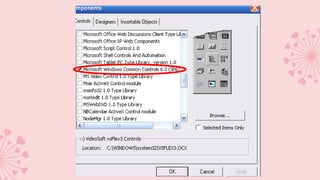
2.2 On the Components dialog
box, choose the controls that are
needed in the program.
2.3 Choose Microsoft Windows
Common Controls 6.0
2.4 Click Apply and then
Close.
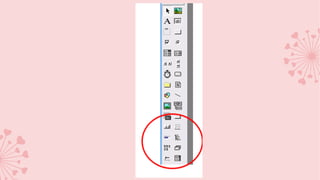
2.5 The Toolbox will have
additional controls like the picture
shown below.
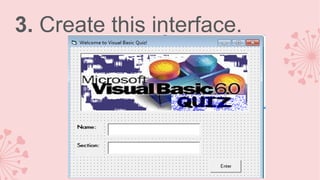
3. Create this interface.
3.1 Drag the Form in the size
you want.
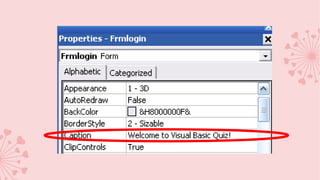
3.2 Change its Caption in the
Properties Window.
Change it into “Welcome to
Visual Basic Quiz”
3.3 Click the Picturebox in the
toolbox
3.4 Drag it into the size you
want.
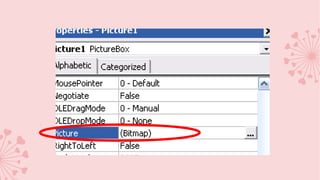
3.5 In the Properties window,
select the picture you want in
you file. Then select it.
3.6 Click Label on the toolbox
3.7 Create a label and then change its
caption into “Name:”
3.8 Create another label and then
change its caption into “Section:”
3.9 Create a text box beside the two
labels.
3.10 Create a command button and
change its caption to “Enter”
4. Save your Form, CTRL +
S, create a folder wherein you
can save your files. In the
filename: name your 1st Form
as “frmlogin” then click
Save.
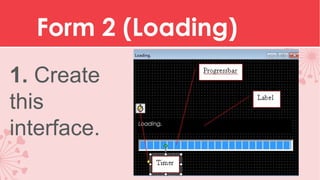
Form 2 (Loading)
1. Create
this
interface.
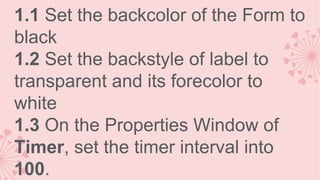
1.1 Set the backcolor of the Form to
black
1.2 Set the backstyle of label to
transparent and its forecolor to
white
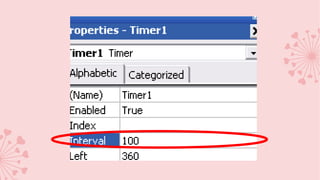
1.3 On the Properties Window of
Timer, set the timer interval into
100.
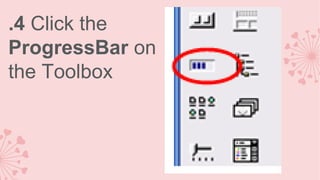
.4 Click the
ProgressBar on
the Toolbox
2. Save your form, CTRL + S,
save your file in the folder that
you’ve made earlier. In the
filename: name your 2nd form
as “frmloading” then click
Save
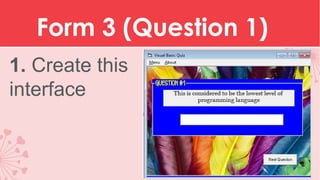
Form 3 (Question 1)
1. Create this
interface
1.1 Click the PictureBox in
the toolbox
1.2 Drag it until it has the
same size as the form
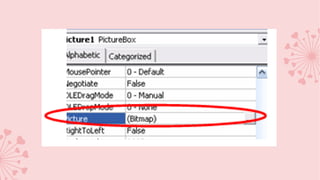
1.3 Choose your desired
picture, and then select it.
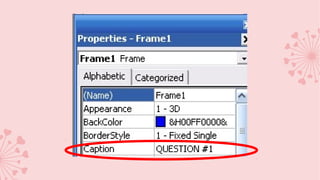
1.4 Create a Frame and then
change its back color to blue
1.5 Change its Caption to
“Question # 1”
1.6 Create a label inside the
frame and change its Caption to
your desired question “This is
considered to be the lowest
level of programming
language”
1.7 Create a text box under it
1.8 Create a command button and
change its Caption into “Next
Question”
2. Save your form, CTRL + S, save
your file in the folder that you’ve
made earlier. In the filename:
name your 3rd form as
“frmquestion1” then click Save.
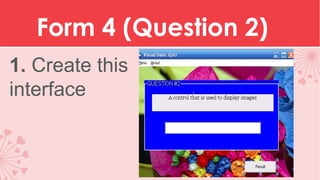
Form 4 (Question 2)
1. Create this
interface
And then repeat steps 1.1 to 1.7 on the
previous form.
1.8 Create a Command button and
change its Caption into “Result”
2. Save your form, CTRL + S, save your
file in the folder that you’ve made earlier.
In the filename: name your 4th form as
“frmquestion2” then click Save.
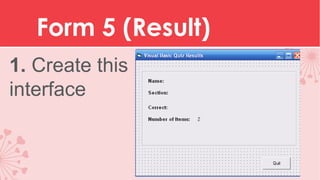
Form 5 (Result)
1. Create this
interface
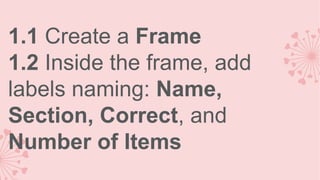
1.1 Create a Frame
1.2 Inside the frame, add
labels naming: Name,
Section, Correct, and
Number of Items
1.3 Create a Command button
naming “Quit”
1.4 Save your form, CTRL + S,
save your file in the folder that
you’ve made earlier. In the
filename: name your 5th form as
“frmresult” then click Save.
Part II:
Coding
Form 1 (Log In)
1. Double click the Enter
command button, write these
codes
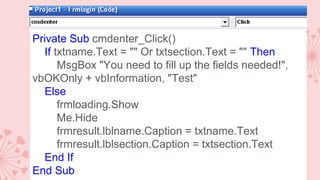
Private Sub cmdenter_Click()
If txtname.Text = "" Or txtsection.Text = "" Then
MsgBox "You need to fill up the fields needed!",
vbOKOnly + vbInformation, "Test"
Else
frmloading.Show
Me.Hide
frmresult.lblname.Caption = txtname.Text
frmresult.lblsection.Caption = txtsection.Text
End If
End Sub
2. Click CTRL+S to
save
Form 2 (Loading)
1. Double click the Timer,
write these codes
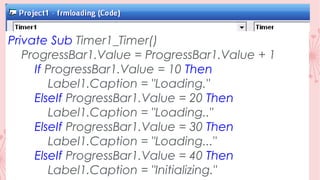
Private Sub Timer1_Timer()
ProgressBar1.Value = ProgressBar1.Value + 1
If ProgressBar1.Value = 10 Then
Label1.Caption = "Loading."
ElseIf ProgressBar1.Value = 20 Then
Label1.Caption = "Loading.."
ElseIf ProgressBar1.Value = 30 Then
Label1.Caption = "Loading..."
ElseIf ProgressBar1.Value = 40 Then
Label1.Caption = "Initializing."
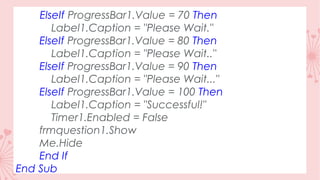
ElseIf ProgressBar1.Value = 70 Then
Label1.Caption = "Please Wait."
ElseIf ProgressBar1.Value = 80 Then
Label1.Caption = "Please Wait.."
ElseIf ProgressBar1.Value = 90 Then
Label1.Caption = "Please Wait..."
ElseIf ProgressBar1.Value = 100 Then
Label1.Caption = "Successful!"
Timer1.Enabled = False
frmquestion1.Show
Me.Hide
End If
End Sub
2. Click CTRL+S to
save
Form 3 (Question 1)
1. Double-click the Next
Question Command
Button and enter these
codes
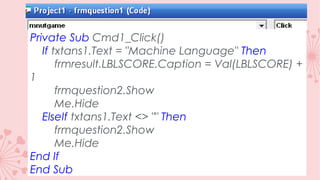
Private Sub Cmd1_Click()
If txtans1.Text = "Machine Language" Then
frmresult.LBLSCORE.Caption = Val(LBLSCORE) +
1
frmquestion2.Show
Me.Hide
ElseIf txtans1.Text <> "" Then
frmquestion2.Show
Me.Hide
End If
End Sub
2. Click CTRL+S to
save
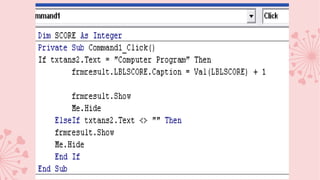
Form 4 (Question 2)
1. Double-click the
Result Command
Button and enter these
codes
2. Click CTRL+S to
save
Form 5 (Result)
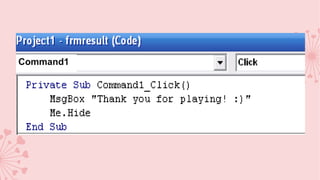
1. Double click the Quit
command button, enter
these codes below.
Command1
2. Click CTRL+S to
save
Part III:
Testing
1.Press F5 on your
keyboard to execute
your program
Saving
1. Go to the first form
2. Save the program as an
.EXE file (executable) from
the Menu bar, click File then
choose MakeProject1.exe
3. Name your executable file
as "Microsoft Visual Basic
Game" then save it to the
folder you created a while ago
The End

Creating a quiz using visual basic 6

  • 1.
    Creating a Quiz UsingVisual Basic 6.0 Ella Marie M. Wico IV-Pope Pius IX
  • 2.
  • 3.
    Jargon Buster: (Definition ofTerms) Progressbar is an animated bar usually used to see if there is a page that is to be loaded.
  • 4.
    Form is thestart of the program when the application is first run. The Form looks like a blank application window you see when you open any Visual Basic software program.
  • 5.
    Timer executes codeat regular intervals by causing a timer event to occur
  • 6.
    PictureBox displays graphics Formbitmap, icon, or metafile, JPEG or GIF files
  • 7.
    TextBox displays information enteredat design time, entered by the user with a toggle choice
  • 8.
    If then Else,an IF block statement is used to check whether the logical test is true or false. It will take the course of action based on the result retrieved on the logical test.
  • 9.
    <Name of Form>.Show allowsthe user to go automatically to the next question/Form
  • 10.
    Me.Hide allows theuser to hide the current Form
  • 11.
    Steps in Making aVisual Basic Game
  • 12.
  • 13.
    Form 1 (LogIn) 1. Open Visual Basic 6.0 portable and create a new Standard EXE Project
  • 14.
    2. First insertadditional control in the toolbox 2.1 Go to the Project Menu and then choose Components. 2.2 On the Components dialog box, choose the controls that are needed in the program.
  • 16.
    2.3 Choose MicrosoftWindows Common Controls 6.0 2.4 Click Apply and then Close. 2.5 The Toolbox will have additional controls like the picture shown below.
  • 18.
    3. Create thisinterface.
  • 19.
    3.1 Drag theForm in the size you want. 3.2 Change its Caption in the Properties Window. Change it into “Welcome to Visual Basic Quiz”
  • 21.
    3.3 Click thePicturebox in the toolbox 3.4 Drag it into the size you want. 3.5 In the Properties window, select the picture you want in you file. Then select it.
  • 23.
    3.6 Click Labelon the toolbox 3.7 Create a label and then change its caption into “Name:” 3.8 Create another label and then change its caption into “Section:” 3.9 Create a text box beside the two labels. 3.10 Create a command button and change its caption to “Enter”
  • 24.
    4. Save yourForm, CTRL + S, create a folder wherein you can save your files. In the filename: name your 1st Form as “frmlogin” then click Save.
  • 25.
    Form 2 (Loading) 1.Create this interface.
  • 26.
    1.1 Set thebackcolor of the Form to black 1.2 Set the backstyle of label to transparent and its forecolor to white 1.3 On the Properties Window of Timer, set the timer interval into 100.
  • 28.
  • 29.
    2. Save yourform, CTRL + S, save your file in the folder that you’ve made earlier. In the filename: name your 2nd form as “frmloading” then click Save
  • 30.
    Form 3 (Question1) 1. Create this interface
  • 31.
    1.1 Click thePictureBox in the toolbox 1.2 Drag it until it has the same size as the form 1.3 Choose your desired picture, and then select it.
  • 33.
    1.4 Create aFrame and then change its back color to blue 1.5 Change its Caption to “Question # 1”
  • 35.
    1.6 Create alabel inside the frame and change its Caption to your desired question “This is considered to be the lowest level of programming language” 1.7 Create a text box under it
  • 36.
    1.8 Create acommand button and change its Caption into “Next Question” 2. Save your form, CTRL + S, save your file in the folder that you’ve made earlier. In the filename: name your 3rd form as “frmquestion1” then click Save.
  • 37.
    Form 4 (Question2) 1. Create this interface
  • 38.
    And then repeatsteps 1.1 to 1.7 on the previous form. 1.8 Create a Command button and change its Caption into “Result” 2. Save your form, CTRL + S, save your file in the folder that you’ve made earlier. In the filename: name your 4th form as “frmquestion2” then click Save.
  • 39.
    Form 5 (Result) 1.Create this interface
  • 40.
    1.1 Create aFrame 1.2 Inside the frame, add labels naming: Name, Section, Correct, and Number of Items
  • 41.
    1.3 Create aCommand button naming “Quit” 1.4 Save your form, CTRL + S, save your file in the folder that you’ve made earlier. In the filename: name your 5th form as “frmresult” then click Save.
  • 42.
  • 43.
    Form 1 (LogIn) 1. Double click the Enter command button, write these codes
  • 44.
    Private Sub cmdenter_Click() Iftxtname.Text = "" Or txtsection.Text = "" Then MsgBox "You need to fill up the fields needed!", vbOKOnly + vbInformation, "Test" Else frmloading.Show Me.Hide frmresult.lblname.Caption = txtname.Text frmresult.lblsection.Caption = txtsection.Text End If End Sub
  • 45.
  • 46.
    Form 2 (Loading) 1.Double click the Timer, write these codes
  • 47.
    Private Sub Timer1_Timer() ProgressBar1.Value= ProgressBar1.Value + 1 If ProgressBar1.Value = 10 Then Label1.Caption = "Loading." ElseIf ProgressBar1.Value = 20 Then Label1.Caption = "Loading.." ElseIf ProgressBar1.Value = 30 Then Label1.Caption = "Loading..." ElseIf ProgressBar1.Value = 40 Then Label1.Caption = "Initializing."
  • 48.
    ElseIf ProgressBar1.Value =70 Then Label1.Caption = "Please Wait." ElseIf ProgressBar1.Value = 80 Then Label1.Caption = "Please Wait.." ElseIf ProgressBar1.Value = 90 Then Label1.Caption = "Please Wait..." ElseIf ProgressBar1.Value = 100 Then Label1.Caption = "Successful!" Timer1.Enabled = False frmquestion1.Show Me.Hide End If End Sub
  • 49.
  • 50.
    Form 3 (Question1) 1. Double-click the Next Question Command Button and enter these codes
  • 51.
    Private Sub Cmd1_Click() Iftxtans1.Text = "Machine Language" Then frmresult.LBLSCORE.Caption = Val(LBLSCORE) + 1 frmquestion2.Show Me.Hide ElseIf txtans1.Text <> "" Then frmquestion2.Show Me.Hide End If End Sub
  • 52.
  • 53.
    Form 4 (Question2) 1. Double-click the Result Command Button and enter these codes
  • 55.
  • 56.
    Form 5 (Result) 1.Double click the Quit command button, enter these codes below.
  • 57.
  • 58.
  • 59.
  • 60.
    1.Press F5 onyour keyboard to execute your program
  • 61.
  • 62.
    1. Go tothe first form
  • 63.
    2. Save theprogram as an .EXE file (executable) from the Menu bar, click File then choose MakeProject1.exe
  • 64.
    3. Name yourexecutable file as "Microsoft Visual Basic Game" then save it to the folder you created a while ago
  • 65.