Class: BSc III Sem VI
Paper: Advanced Java and VB.net
Unit IV
Windows Applications:
Forms:
Technically speaking, forms are what you work with in forms designers; they represent the
windows that will appear in your application. However, it's become common to refer to both
the windows under design and the windows in your running application as forms in Visual
Basic applications.
The whole power of Visual Basic has been that you can develop forms visually, adding
controls and other items from the toolbox. In VB .NET, the support for Windows forms is in
the System. Windows. Forms namespace, and the form class is
System.Windows.Forms.Form. The Form class itself is based on the Control class, which
means that forms share a lot of the properties and methods that controls do.
Here's what the class hierarchy looks like for the Form class; every level is derived from the
one above it (note that all classes are derived from the Object class):
Object
MarshalByRefObject
Component
Control
ScrollableControl
ContainerControl
Form
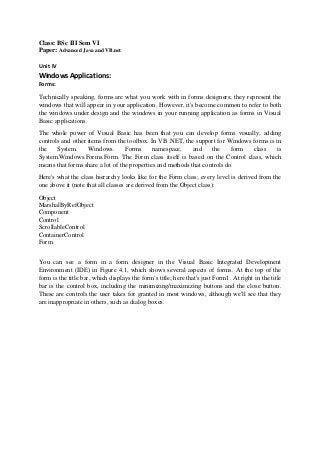
You can see a form in a form designer in the Visual Basic Integrated Development
Environment (IDE) in Figure 4.1, which shows several aspects of forms. At the top of the
form is the title bar, which displays the form's title; here that's just Form1. At right in the title
bar is the control box, including the minimizing/maximizing buttons and the close button.
These are controls the user takes for granted in most windows, although we'll see that they
are inappropriate in others, such as dialog boxes.
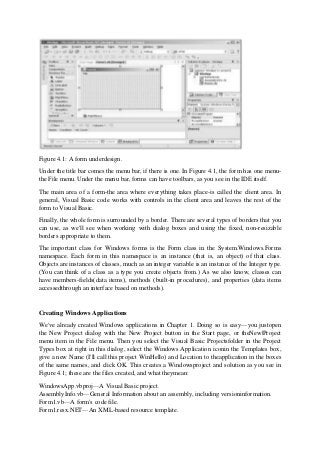
Figure 4.1: A form underdesign.
Under the title bar comes the menu bar, if there is one. In Figure 4.1, the form has one menu-
the File menu. Under the menu bar, forms can have toolbars, as you see in the IDE itself.
The main area of a form-the area where everything takes place-is called the client area. In
general, Visual Basic code works with controls in the client area and leaves the rest of the
form to Visual Basic.
Finally, the whole form is surrounded by a border. There are several types of borders that you
can use, as we'll see when working with dialog boxes and using the fixed, non-resizable
borders appropriate to them.
The important class for Windows forms is the Form class in the System.Windows.Forms
namespace. Each form in this namespace is an instance (that is, an object) of that class.
Objects are instances of classes, much as an integer variable is an instance of the Integer type.
(You can think of a class as a type you create objects from.) As we also know, classes can
have members-fields(data items), methods (built-in procedures), and properties (data items
accessedthrough an interface based on methods).
Creating Windows Applications
We've already created Windows applications in Chapter 1. Doing so is easy—you justopen
the New Project dialog with the New Project button in the Start page, or theNew|Project
menu item in the File menu. Then you select the Visual Basic Projectsfolder in the Project
Types box at right in this dialog, select the Windows Application iconin the Templates box,
give a new Name (I'll call this project WinHello) and Location to theapplication in the boxes
of the same names, and click OK. This creates a Windowsproject and solution as you see in
Figure 4.1; these are the files created, and what theymean:
WindowsApp.vbproj—A Visual Basic project.
AssemblyInfo.vb—General Information about an assembly, including versioninformation.
Form1.vb—A form's code file.
Form1.resx.NET—An XML-based resource template.
WindowsApp.vbproj.user—Stores project user options.
WindowsApp.sln—The solution file, storing the solution's configuration.
WindowsApp.suo—Stores solution user options.
bin—Directory for binary executables.
obj—Directory for debugging binaries.
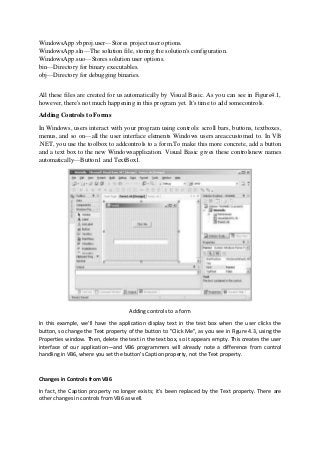
All these files are created for us automatically by Visual Basic. As you can see in Figure4.1,
however, there's not much happening in this program yet. It's time to add somecontrols.
Adding Controls to Forms
In Windows, users interact with your program using controls: scroll bars, buttons, textboxes,
menus, and so on—all the user interface elements Windows users areaccustomed to. In VB
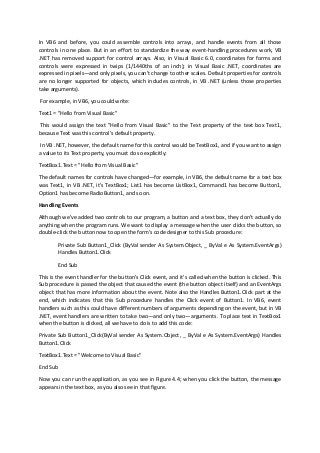
.NET, you use the toolbox to addcontrols to a form.To make this more concrete, add a button
and a text box to the new Windowsapplication. Visual Basic gives these controlsnew names
automatically—Button1 and TextBox1.
Adding controls to a form
In this example, we'll have the application display text in the text box when the user clicks the
button, so change the Text property of the button to "Click Me", as you see in Figure 4.3, using the
Properties window. Then, delete the text in the text box, so it appears empty. This creates the user
interface of our application—and VB6 programmers will already note a difference from control
handling in VB6, where you set the button's Caption property, not the Text property.
Changes in Controls from VB6
In fact, the Caption property no longer exists; it's been replaced by the Text property. There are
other changes in controls from VB6 as well.
In VB6 and before, you could assemble controls into arrays, and handle events from all those
controls in one place. But in an effort to standardize the way event-handling procedures work, VB
.NET has removed support for control arrays. Also, in Visual Basic 6.0, coordinates for forms and
controls were expressed in twips (1/1440ths of an inch); in Visual Basic .NET, coordinates are
expressed in pixels—and only pixels, you can't change to other scales. Default properties for controls
are no longer supported for objects, which includes controls, in VB .NET (unless those properties
take arguments).
For example, in VB6, you could write:
Text1 = "Hello from Visual Basic"
This would assign the text "Hello from Visual Basic" to the Text property of the text box Text1,
because Text was this control's default property.
In VB .NET, however, the default name for this control would be TextBox1, and if you want to assign
a value to its Text property, you must do so explicitly:
TextBox1.Text = "Hello from Visual Basic"
The default names for controls have changed—for example, in VB6, the default name for a text box
was Text1, in VB .NET, it's TextBox1; List1 has become ListBox1, Command1 has become Button1,
Option1 has become RadioButton1, and so on.
Handling Events
Although we've added two controls to our program, a button and a text box, they don't actually do
anything when the program runs. We want to display a message when the user clicks the button, so
double-click the button now to open the form's code designer to this Sub procedure:
Private Sub Button1_Click (ByVal sender As System.Object, _ ByVal e As System.EventArgs)
Handles Button1.Click
End Sub
This is the event handler for the button's Click event, and it's called when the button is clicked. This
Sub procedure is passed the object that caused the event (the button object itself) and an EventArgs
object that has more information about the event. Note also the Handles Button1.Click part at the
end, which indicates that this Sub procedure handles the Click event of Button1. In VB6, event
handlers such as this could have different numbers of arguments depending on the event, but in VB
.NET, event handlers are written to take two—and only two—arguments. To place text in TextBox1
when the button is clicked, all we have to do is to add this code:
Private Sub Button1_Click(ByVal sender As System.Object, _ ByVal e As System.EventArgs) Handles
Button1.Click
TextBox1.Text = "Welcome to Visual Basic"
End Sub
Now you can run the application, as you see in Figure 4.4; when you click the button, the message
appears in the text box, as you also see in that figure.
Running a Windowsapplication.
Using the MsgBox Function
Visual Basic—you can use the MsgBox andInputBox functions. You can also use the
MessageBox class built into the .NETFramework to display messages and accept input from
the user. You'll find all of theseat work in the MsgAndInputBoxes example on the
CDROM—all you need to do is toclick a button to use these various functions. I'll start with
the MsgBox function in this
topic:
Public Function MsgBox(Prompt As Object [, Buttons As MsgBoxStyle =
MsgBoxStyle.OKOnly [, Title As Object = Nothing]]) As MsgBoxResultArguments
Here are the arguments you pass to this function:
Prompt—A string expression displayed as the message in the dialog box. Themaximum
length is about 1,024 characters (depending on the width of thecharacters used).
Buttons—The sum of values specifying the number and type of buttons todisplay, the icon
style to use, the identity of the default button, and the modalityof the message box. If you
omit Buttons, the default value is zero. See below.
Title—String expression displayed in the title bar of the dialog box. Note that ifyou omit
Title, the application name is placed in the title bar.
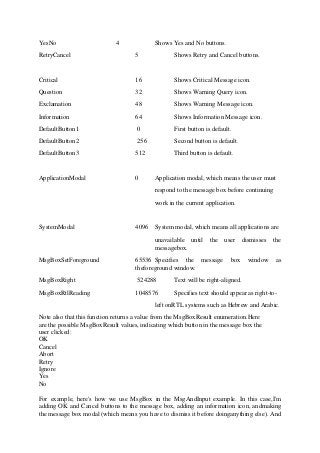
You can find the possible constants to use for the Buttons argument in Table 4.4.
Table 4.4: MsgBox constants.
Constant Value Description
OKOnly 0 Shows OK button only.
OKCancel 1 Shows OK and Cancel buttons.
AbortRetryIgnore 2 Shows Abort, Retry, and Ignore buttons.
YesNoCancel 3 Shows Yes, No, and Cancel buttons.
YesNo 4 Shows Yes and No buttons.
RetryCancel 5 Shows Retry and Cancel buttons.
Critical 16 Shows Critical Message icon.
Question 32 Shows Warning Query icon.
Exclamation 48 Shows Warning Message icon.
Information 64 Shows Information Message icon.
DefaultButton1 0 First button is default.
DefaultButton2 256 Second button is default.
DefaultButton3 512 Third button is default.
ApplicationModal 0 Application modal, which means the user must
respond to the message box before continuing
work in the current application.
SystemModal 4096 System modal, which means all applications are
unavailable until the user dismisses the
messagebox.
MsgBoxSetForeground 65536 Specifies the message box window as
theforeground window.
MsgBoxRight 524288 Text will be right-aligned.
MsgBoxRtlReading 1048576 Specifies text should appear as right-to-
left onRTL systems such as Hebrew and Arabic.
Note also that this function returns a value from the MsgBoxResult enumeration.Here
are the possible MsgBoxResult values, indicating which button in the message box the
user clicked:
OK
Cancel
Abort
Retry
Ignore
Yes
No
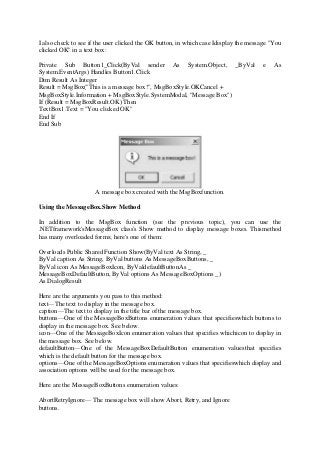
For example, here's how we use MsgBox in the MsgAndInput example. In this case,I'm
adding OK and Cancel buttons to the message box, adding an information icon, andmaking
the message box modal (which means you have to dismiss it before doinganything else). And
I also check to see if the user clicked the OK button, in which case Idisplay the message "You
clicked OK" in a text box:
Private Sub Button1_Click(ByVal sender As System.Object, _ByVal e As
System.EventArgs) Handles Button1.Click
Dim Result As Integer
Result = MsgBox("This is a message box!", MsgBoxStyle.OKCancel +
MsgBoxStyle.Information + MsgBoxStyle.SystemModal, "Message Box")
If (Result = MsgBoxResult.OK) Then
TextBox1.Text = "You clicked OK"
End If
End Sub
A message box created with the MsgBoxfunction.
Using the MessageBox.Show Method
In addition to the MsgBox function (see the previous topic), you can use the
.NETframework'sMessageBox class's Show method to display message boxes. Thismethod
has many overloaded forms; here's one of them:
Overloads Public Shared Function Show(ByVal text As String, _
ByVal caption As String, ByVal buttons As MessageBoxButtons, _
ByVal icon As MessageBoxIcon, ByValdefaultButtonAs _
MessageBoxDefaultButton, ByVal options As MessageBoxOptions _)
As DialogResult
Here are the arguments you pass to this method:
text—The text to display in the message box.
caption—The text to display in the title bar of the message box.
buttons—One of the MessageBoxButtons enumeration values that specifieswhich buttons to
display in the message box. See below.
icon—One of the MessageBoxIcon enumeration values that specifies whichicon to display in
the message box. See below.
defaultButton—One of the MessageBoxDefaultButton enumeration valuesthat specifies
which is the default button for the message box.
options—One of the MessageBoxOptions enumeration values that specifieswhich display and
association options will be used for the message box.
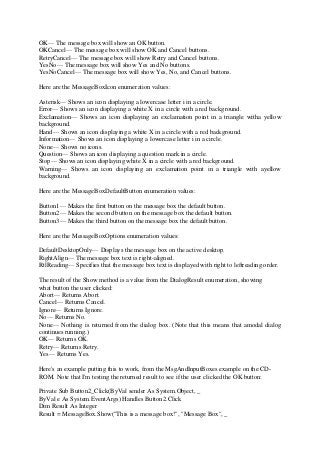
Here are the MessageBoxButtons enumeration values:
AbortRetryIgnore— The message box will show Abort, Retry, and Ignore
buttons.
OK— The message box will show an OK button.
OKCancel— The message box will show OK and Cancel buttons.
RetryCancel— The message box will show Retry and Cancel buttons.
YesNo— The message box will show Yes and No buttons.
YesNoCancel— The message box will show Yes, No, and Cancel buttons.
Here are the MessageBoxIcon enumeration values:
Asterisk— Shows an icon displaying a lowercase letter i in a circle.
Error— Shows an icon displaying a white X in a circle with a red background.
Exclamation— Shows an icon displaying an exclamation point in a triangle witha yellow
background.
Hand— Shows an icon displaying a white X in a circle with a red background.
Information— Shows an icon displaying a lowercase letter i in a circle.
None— Shows no icons.
Question— Shows an icon displaying a question mark in a circle.
Stop— Shows an icon displaying white X in a circle with a red background.
Warning— Shows an icon displaying an exclamation point in a triangle with ayellow
background.
Here are the MessageBoxDefaultButton enumeration values:
Button1— Makes the first button on the message box the default button.
Button2— Makes the second button on the message box the default button.
Button3— Makes the third button on the message box the default button.
Here are the MessageBoxOptions enumeration values:
DefaultDesktopOnly— Displays the message box on the active desktop.
RightAlign— The message box text is right-aligned.
RtlReading— Specifies that the message box text is displayed with right to leftreading order.
The result of the Show method is a value from the DialogResult enumeration, showing
what button the user clicked:
Abort— Returns Abort.
Cancel— Returns Cancel.
Ignore— Returns Ignore.
No— Returns No.
None— Nothing is returned from the dialog box. (Note that this means that amodal dialog
continues running.)
OK— Returns OK.
Retry— Returns Retry.
Yes— Returns Yes.
Here's an example putting this to work, from the MsgAndInputBoxes example on the CD-
ROM. Note that I'm testing the returned result to see if the user clicked the OK button:
Private Sub Button2_Click(ByVal sender As System.Object, _
ByVal e As System.EventArgs) Handles Button2.Click
Dim Result As Integer
Result = MessageBox.Show("This is a message box!", "Message Box", _
MessageBoxButtons.OKCancel, MessageBoxIcon.Information, _
MessageBoxDefaultButton.Button1, _
MessageBoxOptions.DefaultDesktopOnly)
If (Result = DialogResult.OK) Then
TextBox1.Text = "You clicked OK"
End If
End Sub
You can see the results of this code in Figure 4.6. Note that this message box looks justlike
the one created with the MsgBox function in the previous topic.
Using the InputBox Function
You can use the InputBox function to get a string of text from the user. Here's the
syntax for this function:
Public Function InputBox(Prompt As String [, Title As _
String = "" [, DefaultResponse As String = "" [, _
XPos As Integer = -1 [, YPos As Integer = -1]]]]) As String
And here are the arguments for this function:
Prompt— A string expression displayed as the message in the dialog box. Themaximum
length is about 1,024 characters (depending on the width of thecharacters used).
Title— String expression displayed in the title bar of the dialog box. Note that ifyou omit
Title, the application name is placed in the title bar.
DefaultResponse— A string expression displayed in the text box as the defaultresponse if no
other input is provided. Note that if you omit DefaultResponse,the displayed text box is
empty.
XPos— The distance in pixels of the left edge of the dialog box from the leftedge of the
screen. Note that if you omit XPos, the dialog box is centeredhorizontally.
YPos— The distance in pixels of the upper edge of the dialog box from the topof the screen.
Note that if you omit YPos, the dialog box is positioned verticallyabout one-third of the way
down the screen.
Input boxes let you display a prompt and read a line of text typed by the user, and the
InputBox function returns the string result. Here's an example from theMsgAndInputBoxes
example on the CD-ROM:
Private Sub Button3_Click(ByVal sender As System.Object, _ByVal e As
System.EventArgs) Handles Button3.Click
Dim Result As String
Result = InputBox("Enter your text!")
TextBox1.Text = Result
End Sub
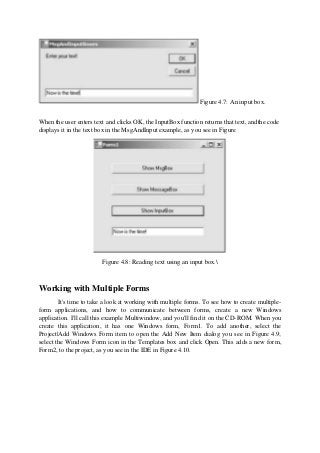
You can see the results of this code in Figure 4.7.
Figure 4.7: An input box.
When the user enters text and clicks OK, the InputBox function returns that text, andthe code
displays it in the text box in the MsgAndInput example, as you see in Figure
Figure 4.8: Reading text using an input box.
Working with Multiple Forms
It's time to take a look at working with multiple forms. To see how to create multiple-
form applications, and how to communicate between forms, create a new Windows
application. I'll call this example Multiwindow, and you'll find it on the CD-ROM. When you
create this application, it has one Windows form, Form1. To add another, select the
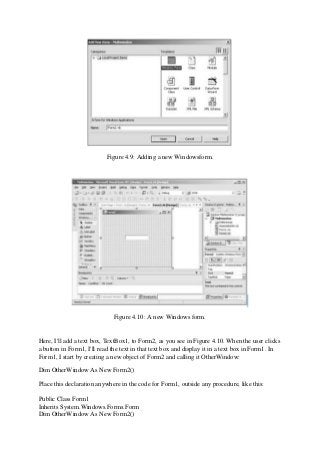
Project|Add Windows Form item to open the Add New Item dialog you see in Figure 4.9;
select the Windows Form icon in the Templates box and click Open. This adds a new form,
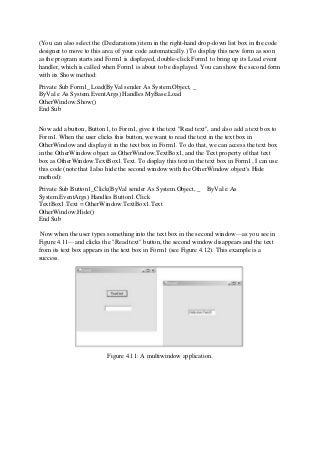
Form2, to the project, as you see in the IDE in Figure 4.10.
Figure 4.9: Adding a new Windowsform.
Figure 4.10: A new Windows form.
Here, I'll add a text box, TextBox1, to Form2, as you see in Figure 4.10. When the user clicks
a button in Form1, I'll read the text in that text box and display it in a text box in Form1. In
Form1, I start by creating a new object of Form2 and calling it OtherWindow:
Dim OtherWindow As New Form2()
Place this declaration anywhere in the code for Form1, outside any procedure, like this:
Public Class Form1
Inherits System.Windows.Forms.Form
Dim OtherWindow As New Form2()
(You can also select the (Declarations) item in the right-hand drop-down list box in the code
designer to move to this area of your code automatically.) To display this new form as soon
as the program starts and Form1 is displayed, double-click Form1 to bring up its Load event
handler, which is called when Form1 is about to be displayed. You can show the second form
with its Show method:
Private Sub Form1_Load(ByVal sender As System.Object, _
ByVal e As System.EventArgs) Handles MyBase.Load
OtherWindow.Show()
End Sub
Now add a button, Button1, to Form1, give it the text "Read text", and also add a text box to
Form1. When the user clicks this button, we want to read the text in the text box in
OtherWindow and display it in the text box in Form1. To do that, we can access the text box
in the OtherWindow object as OtherWindow.TextBox1, and the Text property of that text
box as OtherWindow.TextBox1.Text. To display this text in the text box in Form1, I can use
this code (note that I also hide the second window with the OtherWindow object's Hide
method):
Private Sub Button1_Click(ByVal sender As System.Object, _ ByVal e As
System.EventArgs) Handles Button1.Click
TextBox1.Text = OtherWindow.TextBox1.Text
OtherWindow.Hide()
End Sub
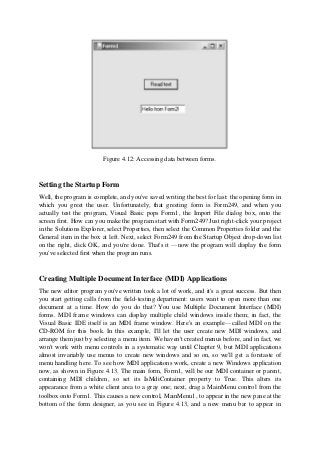
Now when the user types something into the text box in the second window—as you see in
Figure 4.11—and clicks the "Read text" button, the second window disappears and the text
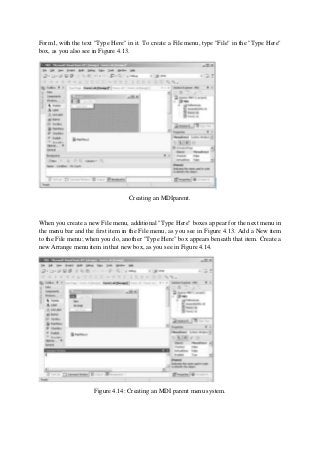
from its text box appears in the text box in Form1 (see Figure 4.12). This example is a
success.
Figure 4.11: A multiwindow application.
Figure 4.12: Accessing data between forms.
Setting the Startup Form
Well, the program is complete, and you've saved writing the best for last: the opening form in
which you greet the user. Unfortunately, that greeting form is Form249, and when you
actually test the program, Visual Basic pops Form1, the Import File dialog box, onto the
screen first. How can you make the program start with Form249? Just right-click your project
in the Solutions Explorer, select Properties, then select the Common Properties folder and the
General item in the box at left. Next, select Form249 from the Startup Object drop-down list
on the right, click OK, and you're done. That's it —now the program will display the form
you've selected first when the program runs.
Creating Multiple Document Interface (MDI) Applications
The new editor program you've written took a lot of work, and it's a great success. But then
you start getting calls from the field-testing department: users want to open more than one
document at a time. How do you do that? You use Multiple Document Interface (MDI)
forms. MDI frame windows can display multiple child windows inside them; in fact, the
Visual Basic IDE itself is an MDI frame window. Here's an example—called MDI on the
CD-ROM for this book. In this example, I'll let the user create new MDI windows, and
arrange them just by selecting a menu item. We haven't created menus before, and in fact, we
won't work with menu controls in a systematic way until Chapter 9, but MDI applications
almost invariably use menus to create new windows and so on, so we'll get a foretaste of
menu handling here. To see how MDI applications work, create a new Windows application
now, as shown in Figure 4.13. The main form, Form1, will be our MDI container or parent,
containing MDI children, so set its IsMdiContainer property to True. This alters its
appearance from a white client area to a gray one; next, drag a MainMenu control from the
toolbox onto Form1. This causes a new control, MainMenu1, to appear in the new pane at the
bottom of the form designer, as you see in Figure 4.13, and a new menu bar to appear in
Form1, with the text "Type Here" in it. To create a File menu, type "File" in the "Type Here"
box, as you also see in Figure 4.13.
Creating an MDIparent.
When you create a new File menu, additional "Type Here" boxes appear for the next menu in
the menu bar and the first item in the File menu, as you see in Figure 4.13. Add a New item
to the File menu; when you do, another "Type Here" box appears beneath that item. Create a
new Arrange menu item in that new box, as you see in Figure 4.14.
Figure 4.14: Creating an MDI parent menu system.
Now double-click the New item in the File menu to open the event handler for this menu item
in code (as you see from this code, the New item is MenuItem2, not MenuItem1; the File
menu itself is MenuItem1):
Public Class Form1
Inherits System.Windows.Forms.Form
'Windows Form Designer generated code
Private Sub MenuItem2_Click(ByVal sender As System.Object, _ByVal e As
System.EventArgs) Handles MenuItem2.Click
End Sub
⋮ When the user clicks the New menu item, we want to display a new MDI child window. To
do that, create a new form class, Form2, by adding a new form to the project, as we did in the
topic "Working with Multiple Forms." (That is, with the Project|Add Windows Form menu
item in the VB .NET IDE). We can make these child windows useful by dragging a
RichTextBox control onto Form2. Rich text boxes, which we'll see in Chapter 5, support rich
format (RTF) text, including all kinds of formatting, from italics to bold text to selecting
fonts and colors. This allows you to create mini-word processors in your application. Make
sure the rich text box's Multiline property is set to True so it can handle multiline text.
Creating MDI Child Windows in Code
Now that we've created a new form class, Form2, for our MDI child windows, we can create
and display a new object of that class each time the user clicks the File|New menu item in our
program. To make that new form object a child window of our MDI parent, Form1, all we
have to do is to set its MdiParent property to the main window (which also sets its
IsMdiChildproperty to True). Because we'll be working with a number of child windows, I'll
store them in an array of forms, incrementing the number of forms each time a new one is
created, setting the text in its title bar to "Document1", "Document2", and so on, like this:
Public Class Form1
Inherits System.Windows.Forms.Form
Dim NumberForms As Integer = 0
Dim Forms(10) As Form2
'Windows Form Designer generated code
Private Sub MenuItem2_Click(ByVal sender As System.Object, _ ByVal e As
System.EventArgs) Handles MenuItem2.Click
NumberForms += 1
Forms(NumberForms) = New Form2()
Forms(NumberForms).Text="Document"&Str(NumberForms)
Forms(NumberForms).MdiParent = Me
Forms(NumberForms).Show()
End Sub
End Class
Tip: As it turns out, there's another way to access all your child MDI forms in an array—use
the MdiChildren property of the MDI parent, which returns an array of its MDI child forms.
Arranging MDI Child Windows
All that's left is to enable the File|Arrange menu item in our application. To automatically
arrange MDI child windows, you can use the LayoutMdi method:
Public Sub LayoutMdi(ByVal value As MdiLayout)
This Sub procedure takes one argument, value, which is one of the MdiLayout enumeration
values that defines the layout of MDI child forms:
ArrangeIcons— All MDI child icons (which are displayed when you minimize an MDI child
window) are arranged.
Cascade— All MDI child windows are cascaded.
TileHorizontal— All MDI child windows are tiled horizontally.
TileVertical— All MDI child windows are tiled vertically.
In our example, I'll use the cascade layout, so I add this code to the Arrange menu item's
event handler:
Private Sub MenuItem3_Click(ByVal sender As System.Object, _ ByVal e As
System.EventArgs) Handles MenuItem3.Click
Me.LayoutMdi(MdiLayout.Cascade)
End Sub
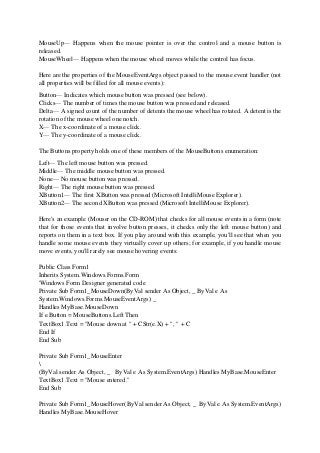
And you can see the results in Figure 4.17—just select the File|New menu item to display a
new MDI child, and the File|Arrange menu item to arrange the MDI children.
Figure 4.17: An MDI application.
Handling Mouse Events
You can handle mouse events—such as mouse movements—in forms and controls; here are
the possible events for the Control class, which is a base class for controls and forms:
MouseDown— Happens when the mouse pointer is over the control and a mouse button is
pressed.
MouseEnter— Happens when the mouse pointer enters the control.
MouseHover— Happens when the mouse pointer hovers over the control.
MouseLeave— Happens when the mouse pointer leaves the control.
MouseMove— Happens when the mouse pointer is moved over the control.
MouseUp— Happens when the mouse pointer is over the control and a mouse button is
released.
MouseWheel— Happens when the mouse wheel moves while the control has focus.
Here are the properties of the MouseEventArgs object passed to the mouse event handler (not
all properties will be filled for all mouse events):
Button— Indicates which mouse button was pressed (see below).
Clicks— The number of times the mouse button was pressed and released.
Delta— A signed count of the number of detents the mouse wheel has rotated. A detent is the
rotation of the mouse wheel one notch.
X— The x-coordinate of a mouse click.
Y— The y-coordinate of a mouse click.
The Buttons property holds one of these members of the MouseButtons enumeration:
Left— The left mouse button was pressed.
Middle— The middle mouse button was pressed.
None— No mouse button was pressed.
Right— The right mouse button was pressed.
XButton1— The first XButton was pressed (Microsoft IntelliMouse Explorer).
XButton2— The second XButton was pressed (Microsoft IntelliMouse Explorer).
Here's an example (Mouser on the CD-ROM) that checks for all mouse events in a form (note
that for those events that involve button presses, it checks only the left mouse button) and
reports on them in a text box. If you play around with this example, you'll see that when you
handle some mouse events they virtually cover up others; for example, if you handle mouse
move events, you'll rarely see mouse hovering events:
Public Class Form1
Inherits System.Windows.Forms.Form
'Windows Form Designer generated code
Private Sub Form1_MouseDown(ByVal sender As Object, _ ByVal e As
System.Windows.Forms.MouseEventArgs) _
Handles MyBase.MouseDown
If e.Button = MouseButtons.Left Then
TextBox1.Text = "Mouse down at " + CStr(e.X) + ", " + C
End If
End Sub
Private Sub Form1_MouseEnter

(ByVal sender As Object, _ ByVal e As System.EventArgs) Handles MyBase.MouseEnter
TextBox1.Text = "Mouse entered."
End Sub
Private Sub Form1_MouseHover(ByVal sender As Object, _ ByVal e As System.EventArgs)
Handles MyBase.MouseHover
TextBox1.Text = "Mouse is hovering."
End Sub
Private Sub Form1_MouseLeave(ByVal sender As Object, _ ByVal e As
System.EventArgs) Handles MyBase.MouseLeave
TextBox1.Text = "Mouse left."
End Sub
Private Sub Form1_MouseMove(ByVal sender As Object, _ ByVal e As
System.Windows.Forms.MouseEventArgs) _ Handles MyBase.MouseMove
TextBox1.Text = "Mouse moved: " + CStr(e.X) + ", " + CStr(e.X)
End Sub
Private Sub Form1_MouseUp(ByVal sender As Object, _ ByVal e As
System.Windows.Forms.MouseEventArgs) _ Handles MyBase.MouseUp
If e.Button = MouseButtons.Left Then
TextBox1.Text = "Mouse up at " + CStr(e.X) + ", " + CSt
End If
End Sub
Private Sub Form1_MouseWheel(ByVal sender As Object, _ ByVal e As
System.Windows.Forms.MouseEventArgs) _ Handles MyBase.MouseWheel
TextBox1.Text = "Mouse rotated " + CStr(e.Delta) + " detent
End Sub
End Class
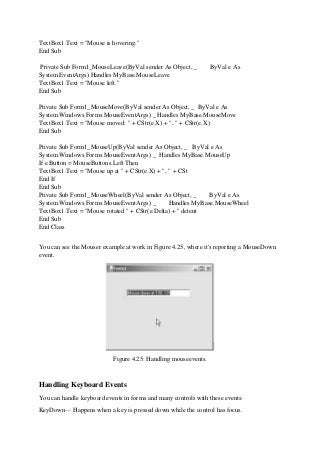
You can see the Mouser example at work in Figure 4.25, where it's reporting a MouseDown
event.
Figure 4.25: Handling mouseevents.
Handling Keyboard Events
You can handle keyboard events in forms and many controls with these events:
KeyDown— Happens when a key is pressed down while the control has focus.
KeyPress— Happens when a key is pressed while the control has focus.
KeyUp— Happens when a key is released while the control has focus.
For KeyDown and KeyUp events, the event handler receives an argument of type
KeyEventArgs containing data related to this event, with these properties:
Alt— Holds a value indicating whether the Alt key was pressed.
Control— Holds a value indicating whether the Ctrl key was pressed.
Handled— Holds or sets a value indicating whether the event was handled.
KeyCode— Holds the keyboard code for a KeyDown or KeyUp event.
KeyData— Holds the keyboard data for a KeyDown or KeyUp event.
KeyValue— Holds the keyboard value for a KeyDown or KeyUp event.
Modifiers— Holds the modifier flags for a KeyDown or KeyUp event. This indicates which
modifier keys (Ctrl, Shift, and/or Alt) were pressed.
Shift— Holds a value indicating whether the Shift key was pressed.
For KeyPress events, you get an argument of type KeyPressEventArgs containingthe
following KeyPressEventArgs properties:
Handled— Gets or sets a value indicating whether the KeyPress event was handled. If you set
this value to True, Visual Basic will not handle this key (so if you want to delete it, set
Handled to True and do no further processing on it).
KeyChar— Holds the character corresponding to the key pressed.
In the KeyDown and KeyUp events, you're responsible for determining which modifier
key—Ctrl, Shift, or Alt—is down. Letter characters are passed to you as character codes as
though they were in upper case, whether or not they should be. Here's an example where I
check if Shift was actually on, and decipher the key code passed to us, displaying it in a
message box in a KeyDown event handler (I'm only handling letter keys
in this example):
Dim strText As String
Private Sub Form1_KeyDown(ByVal sender As Object, _ ByVal e As
System.Windows.Forms.KeyEventArgs) Handles MyBase.Ke
If e.KeyCode>= Keys.A And e.KeyCode<= Keys.Z Then
strText += Switch(e.Shift, Chr(e.KeyCode), Not e.Shift, _
Char.ToLower(Chr(e.KeyCode)))
MsgBox(strText)
End If
End Sub
If you want to get the actual character typed without this kind of checking, use the KeyPress
event, which passes you the character as a Char object directly, making handling that
character much easier (KeyPress events occur after Visual Basic has had a chance to process
and decipher the key itself):
Dim strText As String
Private Sub Form1_KeyPress(ByVal sender As Object, _ ByVal e As
System.Windows.Forms.KeyPressEventArgs) _ Handles MyBase.KeyPress
strText += e.KeyChar
MsgBox(strText)
End Sub
Common controls
1.Text Boxes
Every Windows user is familiar with text boxes: they're exactly what their name implies:
box-like controls in which you can enter text. Text boxes can be multiline, have scroll bars,
be read-only, and have many other attributes, as we'll see in this chapter. (Not every
Windows user is familiar with rich text boxes, on the other hand. Rich text boxes support not
only plain text, but also rich text format [RTF] text.) The TextBox class is derived from the
TextBoxBase class, which is based on Control:
Object
MarshalByRefObject
Component
Control
TextBoxBase
TextBox
Note :In fact, most of the functionality of the text box control is simply inherited from the
TextBoxBase class, which is also a base class for the rich text box control.
Windows forms text boxes are used to get input from the user or to display text. The TextBox
control is generally used for editable text, although it can also be made readonly. Text boxes
can display multiple lines, wrap text to the size of the control, and add basic formatting, such
as quotation marks and masking characters for passwords.
The text displayed by the control is contained in the Text property. By default, you can enter
up to 2,048 characters in a text box. If you set the MultiLine property to True to make the
control accept multiple lines of text, you can enter up to 32KB of text. The Text property can
be set at design time with the Properties window, at run time in code, or by user input at run
time. The current contents of a text box can be retrieved at run time by reading the Text
property. We've seen how to do this already, as in this example, which inserts text into a text
box:
Private Sub Button1_Click(ByVal sender As System.Object, _ ByVal e As
System.EventArgs) Handles Button1.Click
TextBox1.Text = "Hello from Visual Basic"
End Sub
You can set or read text from text boxes at run time, and the user can enter and edit text in
text boxes as well. You can limit the amount of text entered into a TextBox control by setting
the MaxLength property to a specific number of characters. TextBox controls also can be
used to accept passwords if you use the PasswordChar property to mask characters.
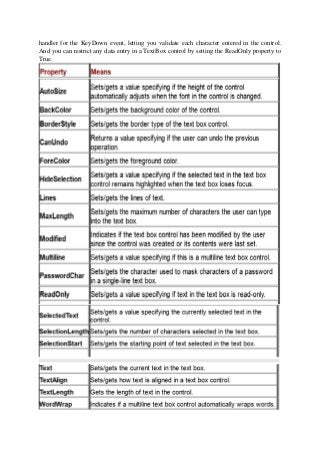
You also can restrict text from being entered in a TextBox control by creating an event
handler for the KeyDown event, letting you validate each character entered in the control.
And you can restrict any data entry in a TextBox control by setting the ReadOnly property to
True.
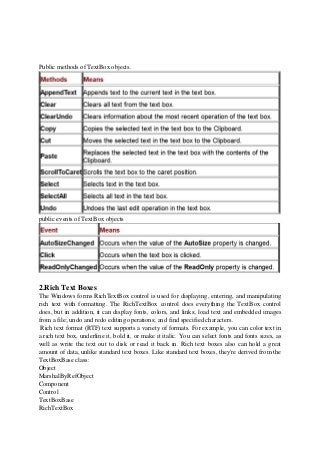
Public methods of TextBox objects.
public events of TextBox objects
2.Rich Text Boxes
The Windows forms RichTextBox control is used for displaying, entering, and manipulating
rich text with formatting. The RichTextBox control does everything the TextBox control
does, but in addition, it can display fonts, colors, and links; load text and embedded images
from a file; undo and redo editing operations; and find specified characters.
Rich text format (RTF) text supports a variety of formats. For example, you can color text in
a rich text box, underline it, bold it, or make it italic. You can select fonts and fonts sizes, as
well as write the text out to disk or read it back in. Rich text boxes also can hold a great
amount of data, unlike standard text boxes. Like standard text boxes, they're derived from the
TextBoxBase class:
Object
MarshalByRefObject
Component
Control
TextBoxBase
RichTextBox
RTF text was designed to be a step beyond plain text, and because many word processors let
you save text in the rich text format, it can provide a link between different types of word
processors. Using rich text boxes, you also can create your own word processors. Rich text
boxes are used to support text manipulation and display features similar to the big-time word
processors such as Microsoft Word. Like the TextBox control, the RichTextBox control can
display scroll bars.
As with the TextBox control, the text displayed is set by the Text property. The RichTextBox
control has many properties to format text, and we'll explore them here. You can set font
attributes, set indents, create hanging indents, create bulleted paragraphs, and more. To work
with files, you can use the LoadFile and SaveFile methods. You can even use a RichTextBox
for Web-style links by setting the DetectUrls property to True and writing code to handle the
LinkClicked event. And you can undo and redo most edit operations by calling the Undo and
Redo methods; the CanRedo method will let you know if the last operation the user has
undone can be reapplied.
Although plenty of Visual Basic programmers know about the rich text control, very few of
them actually know how to format text in these controls; we'll see how to do that in this
chapter. (As you might expect, it's changed totally from the way you used to do it in VB6.)
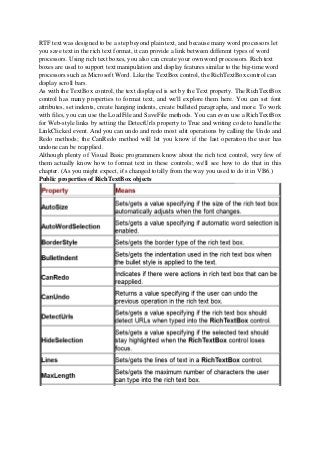
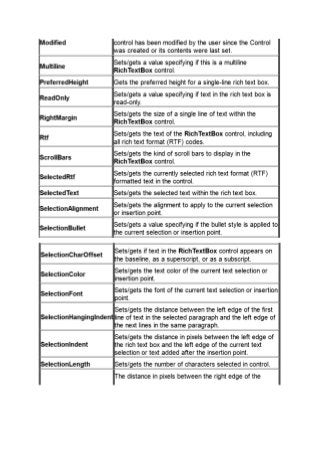
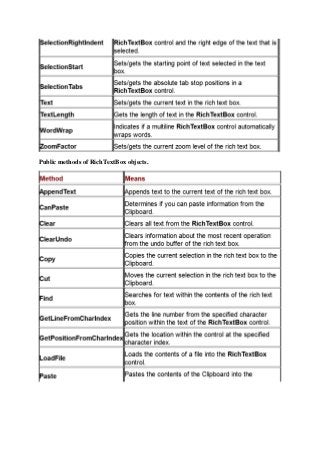
Public properties of RichTextBox objects
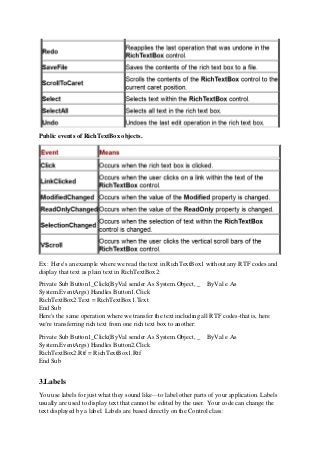
Public methods of RichTextBox objects.
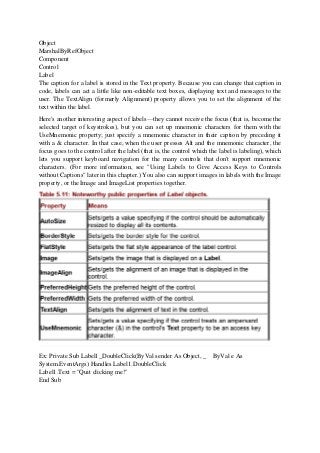
Public events of RichTextBox objects.
Ex : Here's an example where we read the text in RichTextBox1 without any RTF codes and
display that text as plain text in RichTextBox2:
Private Sub Button1_Click(ByVal sender As System.Object, _ ByVal e As
System.EventArgs) Handles Button1.Click
RichTextBox2.Text = RichTextBox1.Text
End Sub
Here's the same operation where we transfer the text including all RTF codes-that is, here
we're transferring rich text from one rich text box to another:
Private Sub Button1_Click(ByVal sender As System.Object, _ ByVal e As
System.EventArgs) Handles Button2.Click
RichTextBox2.Rtf = RichTextBox1.Rtf
End Sub
3.Labels
You use labels for just what they sound like—to label other parts of your application. Labels
usually are used to display text that cannot be edited by the user. Your code can change the
text displayed by a label. Labels are based directly on the Control class:
Object
MarshalByRefObject
Component
Control
Label
The caption for a label is stored in the Text property. Because you can change that caption in
code, labels can act a little like non-editable text boxes, displaying text and messages to the
user. The TextAlign (formerly Alignment) property allows you to set the alignment of the
text within the label.
Here's another interesting aspect of labels—they cannot receive the focus (that is, become the
selected target of keystrokes), but you can set up mnemonic characters for them with the
UseMnemonic property; just specify a mnemonic character in their caption by preceding it
with a & character. In that case, when the user presses Alt and the mnemonic character, the
focus goes to the control after the label (that is, the control which the label is labeling), which
lets you support keyboard navigation for the many controls that don't support mnemonic
characters. (For more information, see "Using Labels to Give Access Keys to Controls
without Captions" later in this chapter.) You also can support images in labels with the Image
property, or the Image and ImageList properties together.
Ex: Private Sub Label1_DoubleClick(ByVal sender As Object, _ ByVal e As
System.EventArgs) Handles Label1.DoubleClick
Label1.Text = "Quit clicking me!"
End Sub
4.Buttons
There is no more popular control in Visual Basic than buttons, with the possible exception of
text boxes. Buttons are the plain controls that you simply click and release, the buttons you
see everywhere in Visual Basic applications-usually just rounded rectangular, gray buttons
with a caption, as you see in the Buttons example on the CDROM and which you will see at
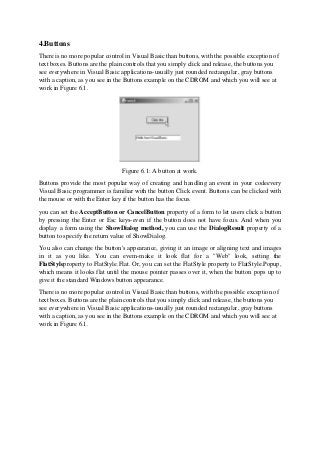
work in Figure 6.1.
Figure 6.1: A button at work.
Buttons provide the most popular way of creating and handling an event in your codeevery
Visual Basic programmer is familiar with the button Click event. Buttons can be clicked with
the mouse or with the Enter key if the button has the focus.
you can set the AcceptButton or CancelButton property of a form to let users click a button
by pressing the Enter or Esc keys-even if the button does not have focus. And when you
display a form using the ShowDialog method, you can use the DialogResult property of a
button to specify the return value of ShowDialog.
You also can change the button's appearance, giving it an image or aligning text and images
in it as you like. You can evem-make it look flat for a "Web" look, setting the
FlatStyleproperty to FlatStyle.Flat. Or, you can set the FlatStyle property to FlatStyle.Popup,
which means it looks flat until the mouse pointer passes over it, when the button pops up to
give it the standard Windows button appearance.
There is no more popular control in Visual Basic than buttons, with the possible exception of
text boxes. Buttons are the plain controls that you simply click and release, the buttons you
see everywhere in Visual Basic applications-usually just rounded rectangular, gray buttons
with a caption, as you see in the Buttons example on the CDROM and which you will see at
work in Figure 6.1.
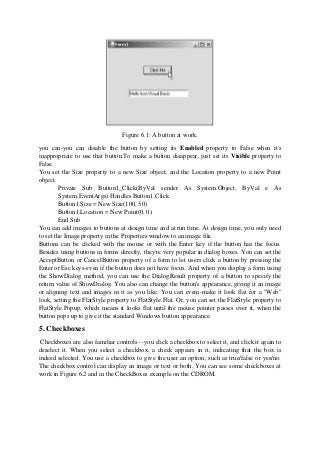
Figure 6.1: A button at work.
you can-you can disable the button by setting its Enabled property to False when it's
inappropriate to use that button.To make a button disappear, just set its Visible property to
False.
You set the Size property to a new Size object, and the Location property to a new Point
object.
Private Sub Button1_Click(ByVal sender As System.Object, ByVal e As
System.EventArgs) Handles Button1.Click
Button1.Size = New Size(100, 50)
Button1.Location = New Point(0, 0)
End Sub
You can add images to buttons at design time and at run time. At design time, you only need
to set the Image property in the Properties window to an image file.
Buttons can be clicked with the mouse or with the Enter key if the button has the focus.
Besides using buttons in forms directly, they're very popular in dialog boxes. You can set the
AcceptButton or CancelButton property of a form to let users click a button by pressing the
Enter or Esc keys-even if the button does not have focus. And when you display a form using
the ShowDialog method, you can use the DialogResult property of a button to specify the
return value of ShowDialog. You also can change the button's appearance, giving it an image
or aligning text and images in it as you like. You can evem-make it look flat for a "Web"
look, setting the FlatStyle property to FlatStyle.Flat. Or, you can set the FlatStyle property to
FlatStyle.Popup, which means it looks flat until the mouse pointer passes over it, when the
button pops up to give it the standard Windows button appearance.
5. Checkboxes
Checkboxes are also familiar controls—you click a checkbox to select it, and click it again to
deselect it. When you select a checkbox, a check appears in it, indicating that the box is
indeed selected. You use a checkbox to give the user an option, such as true/false or yes/no.
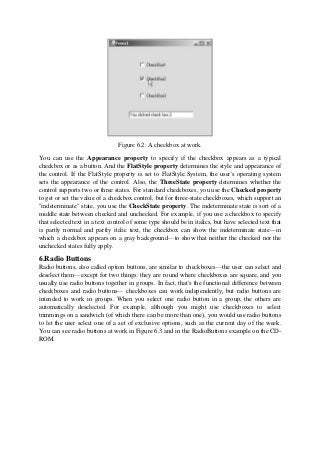
The checkbox control can display an image or text or both. You can see some checkboxes at
work in Figure 6.2 and in the CheckBoxes example on the CDROM.
Figure 6.2: A checkbox at work.
You can use the Appearance property to specify if the checkbox appears as a typical
checkbox or as a button. And the FlatStyle property determines the style and appearance of
the control. If the FlatStyle property is set to FlatStyle.System, the user's operating system
sets the appearance of the control. Also, the ThreeState property determines whether the
control supports two or three states. For standard checkboxes, you use the Checked property
to get or set the value of a checkbox control, but for three-state checkboxes, which support an
"indeterminate" state, you use the CheckState property. The indeterminate state is sort of a
middle state between checked and unchecked. For example, if you use a checkbox to specify
that selected text in a text control of some type should be in italics, but have selected text that
is partly normal and partly italic text, the checkbox can show the indeterminate state—in
which a checkbox appears on a gray background—to show that neither the checked nor the
unchecked states fully apply.
6.Radio Buttons
Radio buttons, also called option buttons, are similar to checkboxes—the user can select and
deselect them—except for two things: they are round where checkboxes are square, and you
usually use radio buttons together in groups. In fact, that's the functional difference between
checkboxes and radio buttons— checkboxes can work independently, but radio buttons are
intended to work in groups. When you select one radio button in a group, the others are
automatically deselected. For example, although you might use checkboxes to select
trimmings on a sandwich (of which there can be more than one), you would use radio buttons
to let the user select one of a set of exclusive options, such as the current day of the week.
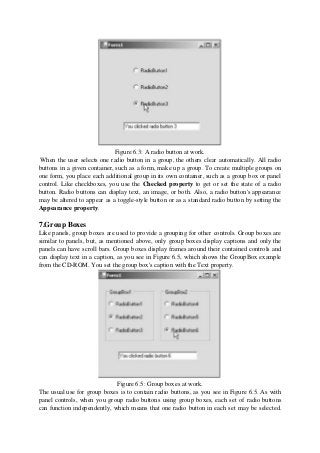
You can see radio buttons at work in Figure 6.3 and in the RadioButtons example on the CD-
ROM.
Figure 6.3: A radio button at work.
When the user selects one radio button in a group, the others clear automatically. All radio
buttons in a given container, such as a form, make up a group. To create multiple groups on
one form, you place each additional group in its own container, such as a group box or panel
control. Like checkboxes, you use the Checked property to get or set the state of a radio
button. Radio buttons can display text, an image, or both. Also, a radio button's appearance
may be altered to appear as a toggle-style button or as a standard radio button by setting the
Appearance property.
7.Group Boxes
Like panels, group boxes are used to provide a grouping for other controls. Group boxes are
similar to panels, but, as mentioned above, only group boxes display captions and only the
panels can have scroll bars. Group boxes display frames around their contained controls and
can display text in a caption, as you see in Figure 6.5, which shows the GroupBox example
from the CD-ROM. You set the group box's caption with the Text property.
Figure 6.5: Group boxes at work.
The usual use for group boxes is to contain radio buttons, as you see in Figure 6.5. As with
panel controls, when you group radio buttons using group boxes, each set of radio buttons
can function independently, which means that one radio button in each set may be selected.
And that's enough overview-it's time to start putting these controls to work and addressing the
finer points of each in the Immediate Solutions section.
8.List Boxes
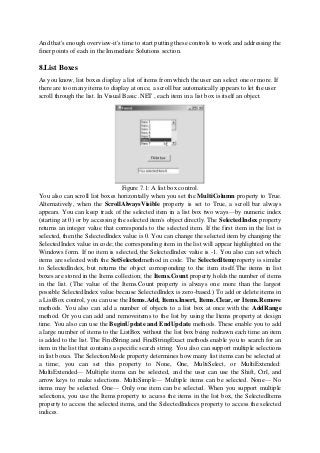
As you know, list boxes display a list of items from which the user can select one or more. If
there are too many items to display at once, a scroll bar automatically appears to let the user
scroll through the list. In Visual Basic .NET , each item in a list box is itself an object.
Figure 7.1: A list box control.
You also can scroll list boxes horizontally when you set the MultiColumn property to True.
Alternatively, when the ScrollAlwaysVisible property is set to True, a scroll bar always
appears. You can keep track of the selected item in a list box two ways—by numeric index
(starting at 0) or by accessing the selected item's object directly. The SelectedIndex property
returns an integer value that corresponds to the selected item. If the first item in the list is
selected, then the SelectedIndex value is 0. You can change the selected item by changing the
SelectedIndex value in code; the corresponding item in the list will appear highlighted on the
Windows form. If no item is selected, the SelectedIndex value is -1. You also can set which
items are selected with the SetSelectedmethod in code. The SelectedItemproperty is similar
to SelectedIndex, but returns the object corresponding to the item itself.The items in list
boxes are stored in the Items collection; the Items.Count property holds the number of items
in the list. (The value of the Items.Count property is always one more than the largest
possible SelectedIndex value because SelectedIndex is zero-based.) To add or delete items in
a ListBox control, you can use the Items.Add, Items.Insert, Items.Clear, or Items.Remove
methods. You also can add a number of objects to a list box at once with the AddRange
method. Or you can add and removeitems to the list by using the Items property at design
time. You also can use the BeginUpdate and EndUpdate methods. These enable you to add
a large number of items to the ListBox without the list box being redrawn each time an item
is added to the list. The FindString and FindStringExact methods enable you to search for an
item in the list that contains a specific search string. You also can support multiple selections
in list boxes. The SelectionMode property determines how many list items can be selected at
a time; you can set this property to None, One, MultiSelect, or MultiExtended:
MultiExtended— Multiple items can be selected, and the user can use the Shift, Ctrl, and
arrow keys to make selections. MultiSimple— Multiple items can be selected. None— No
items may be selected. One— Only one item can be selected. When you support multiple
selections, you use the Items property to access the items in the list box, the SelectedItems
property to access the selected items, and the SelectedIndices property to access the selected
indices.
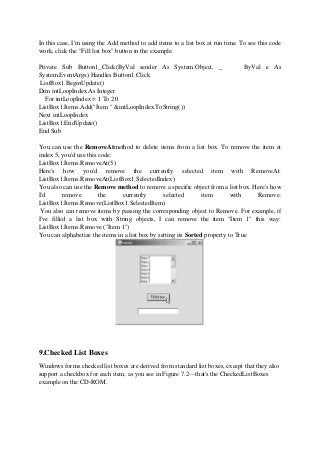
In this case, I'm using the Add method to add items to a list box at run time. To see this code
work, click the "Fill list box" button in the example:
Private Sub Button1_Click(ByVal sender As System.Object, _ ByVal e As
System.EventArgs) Handles Button1.Click
ListBox1.BeginUpdate()
Dim intLoopIndex As Integer
For intLoopIndex = 1 To 20
ListBox1.Items.Add("Item " &intLoopIndex.ToString())
Next intLoopIndex
ListBox1.EndUpdate()
End Sub
You can use the RemoveAtmethod to delete items from a list box. To remove the item at
index 5, you'd use this code:
ListBox1.Items.RemoveAt(5)
Here's how you'd remove the currently selected item with RemoveAt:
ListBox1.Items.RemoveAt(ListBox1.SelectedIndex)
You also can use the Remove method to remove a specific object from a list box. Here's how
I'd remove the currently selected item with Remove:
ListBox1.Items.Remove(ListBox1.SelectedItem)
You also can remove items by passing the corresponding object to Remove. For example, if
I've filled a list box with String objects, I can remove the item "Item 1" this way:
ListBox1.Items.Remove ("Item 1")
You can alphabetize the items in a list box by setting its Sorted property to True
9.Checked List Boxes
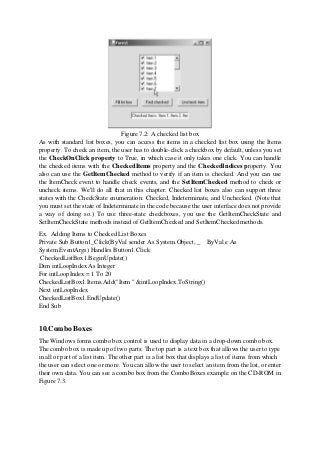
Windows forms checked list boxes are derived from standard list boxes, except that they also
support a checkbox for each item, as you see in Figure 7.2—that's the CheckedListBoxes
example on the CD-ROM.
Figure 7.2: A checked list box
As with standard list boxes, you can access the items in a checked list box using the Items
property. To check an item, the user has to double-click a checkbox by default, unless you set
the CheckOnClick property to True, in which case it only takes one click. You can handle
the checked items with the CheckedItems property and the CheckedIndices property. You
also can use the GetItemChecked method to verify if an item is checked. And you can use
the ItemCheck event to handle check events, and the SetItemChecked method to check or
uncheck items. We'll do all that in this chapter. Checked list boxes also can support three
states with the CheckState enumeration: Checked, Indeterminate, and Unchecked. (Note that
you must set the state of Indeterminate in the code because the user interface does not provide
a way of doing so.) To use three-state checkboxes, you use the GetItemCheckState and
SetItemCheckState methods instead of GetItemChecked and SetItemChecked methods.
Ex. Adding Items to Checked List Boxes
Private Sub Button1_Click(ByVal sender As System.Object, _ ByVal e As
System.EventArgs) Handles Button1.Click
CheckedListBox1.BeginUpdate()
Dim intLoopIndex As Integer
For intLoopIndex = 1 To 20
CheckedListBox1.Items.Add("Item " &intLoopIndex.ToString()
Next intLoopIndex
CheckedListBox1.EndUpdate()
End Sub
10.Combo Boxes
The Windows forms combo box control is used to display data in a drop-down combo box.
The combo box is made up of two parts: The top part is a text box that allows the user to type
in all or part of a list item. The other part is a list box that displays a list of items from which
the user can select one or more. You can allow the user to select an item from the list, or enter
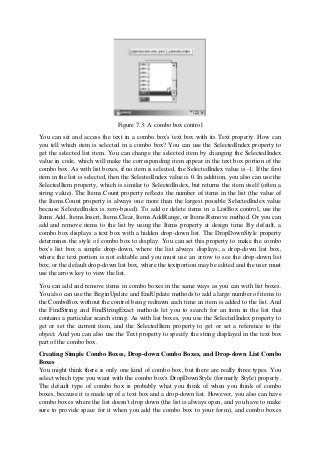
their own data. You can see a combo box from the ComboBoxes example on the CD-ROM in
Figure 7.3.
Figure 7.3: A combo box control
You can set and access the text in a combo box's text box with its Text property. How can
you tell which item is selected in a combo box? You can use the SelectedIndex property to
get the selected list item. You can change the selected item by changing the SelectedIndex
value in code, which will make the corresponding item appear in the text box portion of the
combo box. As with list boxes, if no item is selected, the SelectedIndex value is -1. If the first
item in the list is selected, then the SelectedIndex value is 0. In addition, you also can use the
SelectedItem property, which is similar to SelectedIndex, but returns the item itself (often a
string value). The Items.Count property reflects the number of items in the list (the value of
the Items.Count property is always one more than the largest possible SelectedIndex value
because SelectedIndex is zero-based). To add or delete items in a ListBox control, use the
Items.Add, Items.Insert, Items.Clear, Items.AddRange, or Items.Remove method. Or you can
add and remove items to the list by using the Items property at design time. By default, a
combo box displays a text box with a hidden drop-down list. The DropDownStyle property
determines the style of combo box to display. You can set this property to make the combo
box's list box a simple drop-down, where the list always displays; a drop-down list box,
where the text portion is not editable and you must use an arrow to see the drop-down list
box; or the default drop-down list box, where the textportion may be edited and the user must
use the arrow key to view the list.
You can add and remove items in combo boxes in the same ways as you can with list boxes.
You also can use the BeginUpdate and EndUpdate methods to add a large number of items to
the ComboBox without the control being redrawn each time an item is added to the list. And
the FindString and FindStringExact methods let you to search for an item in the list that
contains a particular search string. As with list boxes, you use the SelectedIndex property to
get or set the current item, and the SelectedItem property to get or set a reference to the
object. And you can also use the Text property to specify the string displayed in the text box
part of the combo box.
Creating Simple Combo Boxes, Drop-down Combo Boxes, and Drop-down List Combo
Boxes
You might think there is only one kind of combo box, but there are really three types. You
select which type you want with the combo box's DropDownStyle (formerly Style) property.
The default type of combo box is probably what you think of when you think of combo
boxes, because it is made up of a text box and a drop-down list. However, you also can have
combo boxes where the list doesn't drop down (the list is always open, and you have to make
sure to provide space for it when you add the combo box to your form), and combo boxes
where the user only can select from the list. Here are the settings for the combo box
DropDownStyle property- these are members of the ComboBoxStyle enumeration:
DropDown(the default)-Includes a drop-down list and a text box. The user can select from
the list or type in the text box.
Simple-Includes a text box and a list, which doesn't drop down. The user can select from the
list or type in the text box. The size of a simple combo box includes both the edit and list
portions. By default, a simple combo box is sized so that none of the list is displayed.
Increase the Height property to display more of the list.
DropDownList-This style allows selection only from the drop-down list. This is a good one
to keep in mind when you want to restrict the user's input, but if you want to use this one, you
also should consider simple list boxes.
Ex: Adding item to the Combo Box
Private Sub Button1_Click(ByVal sender As System.Object, _ ByVal e As
System.EventArgs) Handles Button1.Click ComboBox1.BeginUpdate()
Dim intLoopIndex As Integer
For intLoopIndex = 0 To 20
ComboBox1.Items.Add("Item " + intLoopIndex.ToString())
Next
ComboBox1.Text = "Select one..." ComboBox1.
EndUpdate()
End Sub
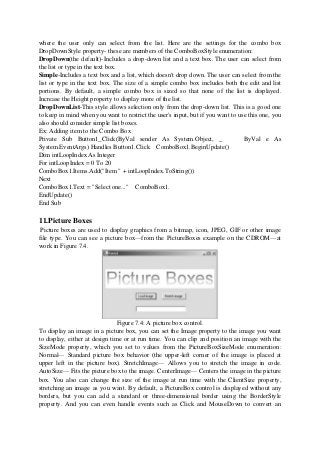
11.Picture Boxes
Picture boxes are used to display graphics from a bitmap, icon, JPEG, GIF or other image
file type. You can see a picture box—from the PictureBoxes example on the CDROM—at
work in Figure 7.4.
Figure 7.4: A picture box control.
To display an image in a picture box, you can set the Image property to the image you want
to display, either at design time or at run time. You can clip and position an image with the
SizeMode property, which you set to values from the PictureBoxSizeMode enumeration:
Normal— Standard picture box behavior (the upper-left corner of the image is placed at
upper left in the picture box). StretchImage— Allows you to stretch the image in code.
AutoSize— Fits the picture box to the image. CenterImage— Centers the image in the picture
box. You also can change the size of the image at run time with the ClientSize property,
stretching an image as you want. By default, a PictureBox control is displayed without any
borders, but you can add a standard or three-dimensional border using the BorderStyle
property. And you can even handle events such as Click and MouseDown to convert an
image into an image map, as we'll see later in this chapter. For more details on all these
controls, see the Immediate Solutions section, coming right up.
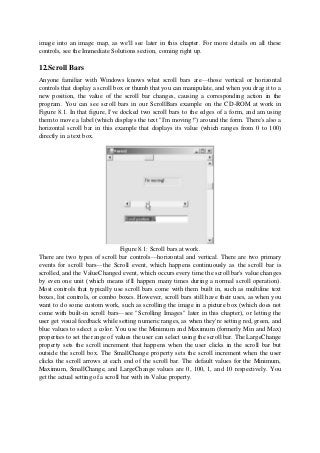
12.Scroll Bars
Anyone familiar with Windows knows what scroll bars are—those vertical or horizontal
controls that display a scroll box or thumb that you can manipulate, and when you drag it to a
new position, the value of the scroll bar changes, causing a corresponding action in the
program. You can see scroll bars in our ScrollBars example on the CD-ROM at work in
Figure 8.1. In that figure, I've docked two scroll bars to the edges of a form, and am using
them to move a label (which displays the text "I'm moving!") around the form. There's also a
horizontal scroll bar in this example that displays its value (which ranges from 0 to 100)
directly in a text box.
Figure 8.1: Scroll bars at work.
There are two types of scroll bar controls—horizontal and vertical. There are two primary
events for scroll bars—the Scroll event, which happens continuously as the scroll bar is
scrolled, and the ValueChanged event, which occurs every time the scroll bar's value changes
by even one unit (which means it'll happen many times during a normal scroll operation).
Most controls that typically use scroll bars come with them built in, such as multiline text
boxes, list controls, or combo boxes. However, scroll bars still have their uses, as when you
want to do some custom work, such as scrolling the image in a picture box (which does not
come with built-in scroll bars—see "Scrolling Images" later in this chapter), or letting the
user get visual feedback while setting numeric ranges, as when they're setting red, green, and
blue values to select a color. You use the Minimum and Maximum (formerly Min and Max)
properties to set the range of values the user can select using the scroll bar. The LargeChange
property sets the scroll increment that happens when the user clicks in the scroll bar but
outside the scroll box. The SmallChange property sets the scroll increment when the user
clicks the scroll arrows at each end of the scroll bar. The default values for the Minimum,
Maximum, SmallChange, and LargeChange values are 0, 100, 1, and 10 respectively. You
get the actual setting of a scroll bar with its Value property.
13.Tool Tips
All Windows users know what tool tips are—they're those small windows that appear with
explanatory text when you let the mouse rest on a control or window. That's what tool tips are
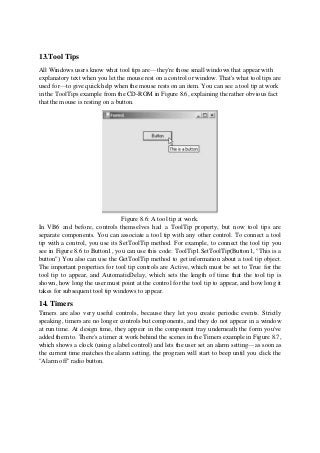
used for—to give quick help when the mouse rests on an item. You can see a tool tip at work
in the ToolTips example from the CD-ROM in Figure 8.6, explaining the rather obvious fact
that the mouse is resting on a button.
Figure 8.6: A tool tip at work.
In VB6 and before, controls themselves had a ToolTip property, but now tool tips are
separate components. You can associate a tool tip with any other control. To connect a tool
tip with a control, you use its SetToolTip method. For example, to connect the tool tip you
see in Figure 8.6 to Button1, you can use this code: ToolTip1.SetToolTip(Button1, "This is a
button") You also can use the GetToolTip method to get information about a tool tip object.
The important properties for tool tip controls are Active, which must be set to True for the
tool tip to appear, and AutomaticDelay, which sets the length of time that the tool tip is
shown, how long the user must point at the control for the tool tip to appear, and how long it
takes for subsequent tool tip windows to appear.
14. Timers
Timers are also very useful controls, because they let you create periodic events. Strictly
speaking, timers are no longer controls but components, and they do not appear in a window
at run time. At design time, they appear in the component tray underneath the form you've
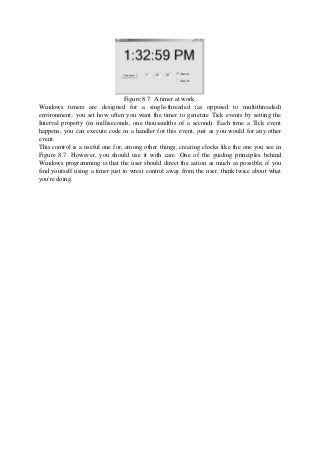
added them to. There's a timer at work behind the scenes in the Timers example in Figure 8.7,
which shows a clock (using a label control) and lets the user set an alarm setting—as soon as
the current time matches the alarm setting, the program will start to beep until you click the
"Alarm off" radio button.
Figure 8.7: A timer at work.
Windows timers are designed for a single-threaded (as opposed to multithreaded)
environment; you set how often you want the timer to generate Tick events by setting the
Interval property (in milliseconds, one thousandths of a second). Each time a Tick event
happens, you can execute code in a handler for this event, just as you would for any other
event.
This control is a useful one for, among other things, creating clocks like the one you see in
Figure 8.7. However, you should use it with care. One of the guiding principles behind
Windows programming is that the user should direct the action as much as possible; if you
find yourself using a timer just to wrest control away from the user, think twice about what
you're doing.

Unit IV-Checkboxes and Radio Buttons in VB.Net in VB.NET

  • 1.
    Class: BSc IIISem VI Paper: Advanced Java and VB.net Unit IV Windows Applications: Forms: Technically speaking, forms are what you work with in forms designers; they represent the windows that will appear in your application. However, it's become common to refer to both the windows under design and the windows in your running application as forms in Visual Basic applications. The whole power of Visual Basic has been that you can develop forms visually, adding controls and other items from the toolbox. In VB .NET, the support for Windows forms is in the System. Windows. Forms namespace, and the form class is System.Windows.Forms.Form. The Form class itself is based on the Control class, which means that forms share a lot of the properties and methods that controls do. Here's what the class hierarchy looks like for the Form class; every level is derived from the one above it (note that all classes are derived from the Object class): Object MarshalByRefObject Component Control ScrollableControl ContainerControl Form You can see a form in a form designer in the Visual Basic Integrated Development Environment (IDE) in Figure 4.1, which shows several aspects of forms. At the top of the form is the title bar, which displays the form's title; here that's just Form1. At right in the title bar is the control box, including the minimizing/maximizing buttons and the close button. These are controls the user takes for granted in most windows, although we'll see that they are inappropriate in others, such as dialog boxes.
  • 2.
    Figure 4.1: Aform underdesign. Under the title bar comes the menu bar, if there is one. In Figure 4.1, the form has one menu- the File menu. Under the menu bar, forms can have toolbars, as you see in the IDE itself. The main area of a form-the area where everything takes place-is called the client area. In general, Visual Basic code works with controls in the client area and leaves the rest of the form to Visual Basic. Finally, the whole form is surrounded by a border. There are several types of borders that you can use, as we'll see when working with dialog boxes and using the fixed, non-resizable borders appropriate to them. The important class for Windows forms is the Form class in the System.Windows.Forms namespace. Each form in this namespace is an instance (that is, an object) of that class. Objects are instances of classes, much as an integer variable is an instance of the Integer type. (You can think of a class as a type you create objects from.) As we also know, classes can have members-fields(data items), methods (built-in procedures), and properties (data items accessedthrough an interface based on methods). Creating Windows Applications We've already created Windows applications in Chapter 1. Doing so is easy—you justopen the New Project dialog with the New Project button in the Start page, or theNew|Project menu item in the File menu. Then you select the Visual Basic Projectsfolder in the Project Types box at right in this dialog, select the Windows Application iconin the Templates box, give a new Name (I'll call this project WinHello) and Location to theapplication in the boxes of the same names, and click OK. This creates a Windowsproject and solution as you see in Figure 4.1; these are the files created, and what theymean: WindowsApp.vbproj—A Visual Basic project. AssemblyInfo.vb—General Information about an assembly, including versioninformation. Form1.vb—A form's code file. Form1.resx.NET—An XML-based resource template.
  • 3.
    WindowsApp.vbproj.user—Stores project useroptions. WindowsApp.sln—The solution file, storing the solution's configuration. WindowsApp.suo—Stores solution user options. bin—Directory for binary executables. obj—Directory for debugging binaries. All these files are created for us automatically by Visual Basic. As you can see in Figure4.1, however, there's not much happening in this program yet. It's time to add somecontrols. Adding Controls to Forms In Windows, users interact with your program using controls: scroll bars, buttons, textboxes, menus, and so on—all the user interface elements Windows users areaccustomed to. In VB .NET, you use the toolbox to addcontrols to a form.To make this more concrete, add a button and a text box to the new Windowsapplication. Visual Basic gives these controlsnew names automatically—Button1 and TextBox1. Adding controls to a form In this example, we'll have the application display text in the text box when the user clicks the button, so change the Text property of the button to "Click Me", as you see in Figure 4.3, using the Properties window. Then, delete the text in the text box, so it appears empty. This creates the user interface of our application—and VB6 programmers will already note a difference from control handling in VB6, where you set the button's Caption property, not the Text property. Changes in Controls from VB6 In fact, the Caption property no longer exists; it's been replaced by the Text property. There are other changes in controls from VB6 as well.
  • 4.
    In VB6 andbefore, you could assemble controls into arrays, and handle events from all those controls in one place. But in an effort to standardize the way event-handling procedures work, VB .NET has removed support for control arrays. Also, in Visual Basic 6.0, coordinates for forms and controls were expressed in twips (1/1440ths of an inch); in Visual Basic .NET, coordinates are expressed in pixels—and only pixels, you can't change to other scales. Default properties for controls are no longer supported for objects, which includes controls, in VB .NET (unless those properties take arguments). For example, in VB6, you could write: Text1 = "Hello from Visual Basic" This would assign the text "Hello from Visual Basic" to the Text property of the text box Text1, because Text was this control's default property. In VB .NET, however, the default name for this control would be TextBox1, and if you want to assign a value to its Text property, you must do so explicitly: TextBox1.Text = "Hello from Visual Basic" The default names for controls have changed—for example, in VB6, the default name for a text box was Text1, in VB .NET, it's TextBox1; List1 has become ListBox1, Command1 has become Button1, Option1 has become RadioButton1, and so on. Handling Events Although we've added two controls to our program, a button and a text box, they don't actually do anything when the program runs. We want to display a message when the user clicks the button, so double-click the button now to open the form's code designer to this Sub procedure: Private Sub Button1_Click (ByVal sender As System.Object, _ ByVal e As System.EventArgs) Handles Button1.Click End Sub This is the event handler for the button's Click event, and it's called when the button is clicked. This Sub procedure is passed the object that caused the event (the button object itself) and an EventArgs object that has more information about the event. Note also the Handles Button1.Click part at the end, which indicates that this Sub procedure handles the Click event of Button1. In VB6, event handlers such as this could have different numbers of arguments depending on the event, but in VB .NET, event handlers are written to take two—and only two—arguments. To place text in TextBox1 when the button is clicked, all we have to do is to add this code: Private Sub Button1_Click(ByVal sender As System.Object, _ ByVal e As System.EventArgs) Handles Button1.Click TextBox1.Text = "Welcome to Visual Basic" End Sub Now you can run the application, as you see in Figure 4.4; when you click the button, the message appears in the text box, as you also see in that figure.
  • 5.
    Running a Windowsapplication. Usingthe MsgBox Function Visual Basic—you can use the MsgBox andInputBox functions. You can also use the MessageBox class built into the .NETFramework to display messages and accept input from the user. You'll find all of theseat work in the MsgAndInputBoxes example on the CDROM—all you need to do is toclick a button to use these various functions. I'll start with the MsgBox function in this topic: Public Function MsgBox(Prompt As Object [, Buttons As MsgBoxStyle = MsgBoxStyle.OKOnly [, Title As Object = Nothing]]) As MsgBoxResultArguments Here are the arguments you pass to this function: Prompt—A string expression displayed as the message in the dialog box. Themaximum length is about 1,024 characters (depending on the width of thecharacters used). Buttons—The sum of values specifying the number and type of buttons todisplay, the icon style to use, the identity of the default button, and the modalityof the message box. If you omit Buttons, the default value is zero. See below. Title—String expression displayed in the title bar of the dialog box. Note that ifyou omit Title, the application name is placed in the title bar. You can find the possible constants to use for the Buttons argument in Table 4.4. Table 4.4: MsgBox constants. Constant Value Description OKOnly 0 Shows OK button only. OKCancel 1 Shows OK and Cancel buttons. AbortRetryIgnore 2 Shows Abort, Retry, and Ignore buttons. YesNoCancel 3 Shows Yes, No, and Cancel buttons.
  • 6.
    YesNo 4 ShowsYes and No buttons. RetryCancel 5 Shows Retry and Cancel buttons. Critical 16 Shows Critical Message icon. Question 32 Shows Warning Query icon. Exclamation 48 Shows Warning Message icon. Information 64 Shows Information Message icon. DefaultButton1 0 First button is default. DefaultButton2 256 Second button is default. DefaultButton3 512 Third button is default. ApplicationModal 0 Application modal, which means the user must respond to the message box before continuing work in the current application. SystemModal 4096 System modal, which means all applications are unavailable until the user dismisses the messagebox. MsgBoxSetForeground 65536 Specifies the message box window as theforeground window. MsgBoxRight 524288 Text will be right-aligned. MsgBoxRtlReading 1048576 Specifies text should appear as right-to- left onRTL systems such as Hebrew and Arabic. Note also that this function returns a value from the MsgBoxResult enumeration.Here are the possible MsgBoxResult values, indicating which button in the message box the user clicked: OK Cancel Abort Retry Ignore Yes No For example, here's how we use MsgBox in the MsgAndInput example. In this case,I'm adding OK and Cancel buttons to the message box, adding an information icon, andmaking the message box modal (which means you have to dismiss it before doinganything else). And
  • 7.
    I also checkto see if the user clicked the OK button, in which case Idisplay the message "You clicked OK" in a text box: Private Sub Button1_Click(ByVal sender As System.Object, _ByVal e As System.EventArgs) Handles Button1.Click Dim Result As Integer Result = MsgBox("This is a message box!", MsgBoxStyle.OKCancel + MsgBoxStyle.Information + MsgBoxStyle.SystemModal, "Message Box") If (Result = MsgBoxResult.OK) Then TextBox1.Text = "You clicked OK" End If End Sub A message box created with the MsgBoxfunction. Using the MessageBox.Show Method In addition to the MsgBox function (see the previous topic), you can use the .NETframework'sMessageBox class's Show method to display message boxes. Thismethod has many overloaded forms; here's one of them: Overloads Public Shared Function Show(ByVal text As String, _ ByVal caption As String, ByVal buttons As MessageBoxButtons, _ ByVal icon As MessageBoxIcon, ByValdefaultButtonAs _ MessageBoxDefaultButton, ByVal options As MessageBoxOptions _) As DialogResult Here are the arguments you pass to this method: text—The text to display in the message box. caption—The text to display in the title bar of the message box. buttons—One of the MessageBoxButtons enumeration values that specifieswhich buttons to display in the message box. See below. icon—One of the MessageBoxIcon enumeration values that specifies whichicon to display in the message box. See below. defaultButton—One of the MessageBoxDefaultButton enumeration valuesthat specifies which is the default button for the message box. options—One of the MessageBoxOptions enumeration values that specifieswhich display and association options will be used for the message box. Here are the MessageBoxButtons enumeration values: AbortRetryIgnore— The message box will show Abort, Retry, and Ignore buttons.
  • 8.
    OK— The messagebox will show an OK button. OKCancel— The message box will show OK and Cancel buttons. RetryCancel— The message box will show Retry and Cancel buttons. YesNo— The message box will show Yes and No buttons. YesNoCancel— The message box will show Yes, No, and Cancel buttons. Here are the MessageBoxIcon enumeration values: Asterisk— Shows an icon displaying a lowercase letter i in a circle. Error— Shows an icon displaying a white X in a circle with a red background. Exclamation— Shows an icon displaying an exclamation point in a triangle witha yellow background. Hand— Shows an icon displaying a white X in a circle with a red background. Information— Shows an icon displaying a lowercase letter i in a circle. None— Shows no icons. Question— Shows an icon displaying a question mark in a circle. Stop— Shows an icon displaying white X in a circle with a red background. Warning— Shows an icon displaying an exclamation point in a triangle with ayellow background. Here are the MessageBoxDefaultButton enumeration values: Button1— Makes the first button on the message box the default button. Button2— Makes the second button on the message box the default button. Button3— Makes the third button on the message box the default button. Here are the MessageBoxOptions enumeration values: DefaultDesktopOnly— Displays the message box on the active desktop. RightAlign— The message box text is right-aligned. RtlReading— Specifies that the message box text is displayed with right to leftreading order. The result of the Show method is a value from the DialogResult enumeration, showing what button the user clicked: Abort— Returns Abort. Cancel— Returns Cancel. Ignore— Returns Ignore. No— Returns No. None— Nothing is returned from the dialog box. (Note that this means that amodal dialog continues running.) OK— Returns OK. Retry— Returns Retry. Yes— Returns Yes. Here's an example putting this to work, from the MsgAndInputBoxes example on the CD- ROM. Note that I'm testing the returned result to see if the user clicked the OK button: Private Sub Button2_Click(ByVal sender As System.Object, _ ByVal e As System.EventArgs) Handles Button2.Click Dim Result As Integer Result = MessageBox.Show("This is a message box!", "Message Box", _
  • 9.
    MessageBoxButtons.OKCancel, MessageBoxIcon.Information, _ MessageBoxDefaultButton.Button1,_ MessageBoxOptions.DefaultDesktopOnly) If (Result = DialogResult.OK) Then TextBox1.Text = "You clicked OK" End If End Sub You can see the results of this code in Figure 4.6. Note that this message box looks justlike the one created with the MsgBox function in the previous topic. Using the InputBox Function You can use the InputBox function to get a string of text from the user. Here's the syntax for this function: Public Function InputBox(Prompt As String [, Title As _ String = "" [, DefaultResponse As String = "" [, _ XPos As Integer = -1 [, YPos As Integer = -1]]]]) As String And here are the arguments for this function: Prompt— A string expression displayed as the message in the dialog box. Themaximum length is about 1,024 characters (depending on the width of thecharacters used). Title— String expression displayed in the title bar of the dialog box. Note that ifyou omit Title, the application name is placed in the title bar. DefaultResponse— A string expression displayed in the text box as the defaultresponse if no other input is provided. Note that if you omit DefaultResponse,the displayed text box is empty. XPos— The distance in pixels of the left edge of the dialog box from the leftedge of the screen. Note that if you omit XPos, the dialog box is centeredhorizontally. YPos— The distance in pixels of the upper edge of the dialog box from the topof the screen. Note that if you omit YPos, the dialog box is positioned verticallyabout one-third of the way down the screen. Input boxes let you display a prompt and read a line of text typed by the user, and the InputBox function returns the string result. Here's an example from theMsgAndInputBoxes example on the CD-ROM: Private Sub Button3_Click(ByVal sender As System.Object, _ByVal e As System.EventArgs) Handles Button3.Click Dim Result As String Result = InputBox("Enter your text!") TextBox1.Text = Result End Sub You can see the results of this code in Figure 4.7.
  • 10.
    Figure 4.7: Aninput box. When the user enters text and clicks OK, the InputBox function returns that text, andthe code displays it in the text box in the MsgAndInput example, as you see in Figure Figure 4.8: Reading text using an input box. Working with Multiple Forms It's time to take a look at working with multiple forms. To see how to create multiple- form applications, and how to communicate between forms, create a new Windows application. I'll call this example Multiwindow, and you'll find it on the CD-ROM. When you create this application, it has one Windows form, Form1. To add another, select the Project|Add Windows Form item to open the Add New Item dialog you see in Figure 4.9; select the Windows Form icon in the Templates box and click Open. This adds a new form, Form2, to the project, as you see in the IDE in Figure 4.10.
  • 11.
    Figure 4.9: Addinga new Windowsform. Figure 4.10: A new Windows form. Here, I'll add a text box, TextBox1, to Form2, as you see in Figure 4.10. When the user clicks a button in Form1, I'll read the text in that text box and display it in a text box in Form1. In Form1, I start by creating a new object of Form2 and calling it OtherWindow: Dim OtherWindow As New Form2() Place this declaration anywhere in the code for Form1, outside any procedure, like this: Public Class Form1 Inherits System.Windows.Forms.Form Dim OtherWindow As New Form2()
  • 12.
    (You can alsoselect the (Declarations) item in the right-hand drop-down list box in the code designer to move to this area of your code automatically.) To display this new form as soon as the program starts and Form1 is displayed, double-click Form1 to bring up its Load event handler, which is called when Form1 is about to be displayed. You can show the second form with its Show method: Private Sub Form1_Load(ByVal sender As System.Object, _ ByVal e As System.EventArgs) Handles MyBase.Load OtherWindow.Show() End Sub Now add a button, Button1, to Form1, give it the text "Read text", and also add a text box to Form1. When the user clicks this button, we want to read the text in the text box in OtherWindow and display it in the text box in Form1. To do that, we can access the text box in the OtherWindow object as OtherWindow.TextBox1, and the Text property of that text box as OtherWindow.TextBox1.Text. To display this text in the text box in Form1, I can use this code (note that I also hide the second window with the OtherWindow object's Hide method): Private Sub Button1_Click(ByVal sender As System.Object, _ ByVal e As System.EventArgs) Handles Button1.Click TextBox1.Text = OtherWindow.TextBox1.Text OtherWindow.Hide() End Sub Now when the user types something into the text box in the second window—as you see in Figure 4.11—and clicks the "Read text" button, the second window disappears and the text from its text box appears in the text box in Form1 (see Figure 4.12). This example is a success. Figure 4.11: A multiwindow application.
  • 13.
    Figure 4.12: Accessingdata between forms. Setting the Startup Form Well, the program is complete, and you've saved writing the best for last: the opening form in which you greet the user. Unfortunately, that greeting form is Form249, and when you actually test the program, Visual Basic pops Form1, the Import File dialog box, onto the screen first. How can you make the program start with Form249? Just right-click your project in the Solutions Explorer, select Properties, then select the Common Properties folder and the General item in the box at left. Next, select Form249 from the Startup Object drop-down list on the right, click OK, and you're done. That's it —now the program will display the form you've selected first when the program runs. Creating Multiple Document Interface (MDI) Applications The new editor program you've written took a lot of work, and it's a great success. But then you start getting calls from the field-testing department: users want to open more than one document at a time. How do you do that? You use Multiple Document Interface (MDI) forms. MDI frame windows can display multiple child windows inside them; in fact, the Visual Basic IDE itself is an MDI frame window. Here's an example—called MDI on the CD-ROM for this book. In this example, I'll let the user create new MDI windows, and arrange them just by selecting a menu item. We haven't created menus before, and in fact, we won't work with menu controls in a systematic way until Chapter 9, but MDI applications almost invariably use menus to create new windows and so on, so we'll get a foretaste of menu handling here. To see how MDI applications work, create a new Windows application now, as shown in Figure 4.13. The main form, Form1, will be our MDI container or parent, containing MDI children, so set its IsMdiContainer property to True. This alters its appearance from a white client area to a gray one; next, drag a MainMenu control from the toolbox onto Form1. This causes a new control, MainMenu1, to appear in the new pane at the bottom of the form designer, as you see in Figure 4.13, and a new menu bar to appear in
  • 14.
    Form1, with thetext "Type Here" in it. To create a File menu, type "File" in the "Type Here" box, as you also see in Figure 4.13. Creating an MDIparent. When you create a new File menu, additional "Type Here" boxes appear for the next menu in the menu bar and the first item in the File menu, as you see in Figure 4.13. Add a New item to the File menu; when you do, another "Type Here" box appears beneath that item. Create a new Arrange menu item in that new box, as you see in Figure 4.14. Figure 4.14: Creating an MDI parent menu system.
  • 15.
    Now double-click theNew item in the File menu to open the event handler for this menu item in code (as you see from this code, the New item is MenuItem2, not MenuItem1; the File menu itself is MenuItem1): Public Class Form1 Inherits System.Windows.Forms.Form 'Windows Form Designer generated code Private Sub MenuItem2_Click(ByVal sender As System.Object, _ByVal e As System.EventArgs) Handles MenuItem2.Click End Sub ⋮ When the user clicks the New menu item, we want to display a new MDI child window. To do that, create a new form class, Form2, by adding a new form to the project, as we did in the topic "Working with Multiple Forms." (That is, with the Project|Add Windows Form menu item in the VB .NET IDE). We can make these child windows useful by dragging a RichTextBox control onto Form2. Rich text boxes, which we'll see in Chapter 5, support rich format (RTF) text, including all kinds of formatting, from italics to bold text to selecting fonts and colors. This allows you to create mini-word processors in your application. Make sure the rich text box's Multiline property is set to True so it can handle multiline text. Creating MDI Child Windows in Code Now that we've created a new form class, Form2, for our MDI child windows, we can create and display a new object of that class each time the user clicks the File|New menu item in our program. To make that new form object a child window of our MDI parent, Form1, all we have to do is to set its MdiParent property to the main window (which also sets its IsMdiChildproperty to True). Because we'll be working with a number of child windows, I'll store them in an array of forms, incrementing the number of forms each time a new one is created, setting the text in its title bar to "Document1", "Document2", and so on, like this: Public Class Form1 Inherits System.Windows.Forms.Form Dim NumberForms As Integer = 0 Dim Forms(10) As Form2 'Windows Form Designer generated code Private Sub MenuItem2_Click(ByVal sender As System.Object, _ ByVal e As System.EventArgs) Handles MenuItem2.Click NumberForms += 1 Forms(NumberForms) = New Form2() Forms(NumberForms).Text="Document"&Str(NumberForms) Forms(NumberForms).MdiParent = Me Forms(NumberForms).Show() End Sub End Class
  • 16.
    Tip: As itturns out, there's another way to access all your child MDI forms in an array—use the MdiChildren property of the MDI parent, which returns an array of its MDI child forms. Arranging MDI Child Windows All that's left is to enable the File|Arrange menu item in our application. To automatically arrange MDI child windows, you can use the LayoutMdi method: Public Sub LayoutMdi(ByVal value As MdiLayout) This Sub procedure takes one argument, value, which is one of the MdiLayout enumeration values that defines the layout of MDI child forms: ArrangeIcons— All MDI child icons (which are displayed when you minimize an MDI child window) are arranged. Cascade— All MDI child windows are cascaded. TileHorizontal— All MDI child windows are tiled horizontally. TileVertical— All MDI child windows are tiled vertically. In our example, I'll use the cascade layout, so I add this code to the Arrange menu item's event handler: Private Sub MenuItem3_Click(ByVal sender As System.Object, _ ByVal e As System.EventArgs) Handles MenuItem3.Click Me.LayoutMdi(MdiLayout.Cascade) End Sub And you can see the results in Figure 4.17—just select the File|New menu item to display a new MDI child, and the File|Arrange menu item to arrange the MDI children. Figure 4.17: An MDI application. Handling Mouse Events You can handle mouse events—such as mouse movements—in forms and controls; here are the possible events for the Control class, which is a base class for controls and forms: MouseDown— Happens when the mouse pointer is over the control and a mouse button is pressed. MouseEnter— Happens when the mouse pointer enters the control. MouseHover— Happens when the mouse pointer hovers over the control. MouseLeave— Happens when the mouse pointer leaves the control. MouseMove— Happens when the mouse pointer is moved over the control.
  • 17.
    MouseUp— Happens whenthe mouse pointer is over the control and a mouse button is released. MouseWheel— Happens when the mouse wheel moves while the control has focus. Here are the properties of the MouseEventArgs object passed to the mouse event handler (not all properties will be filled for all mouse events): Button— Indicates which mouse button was pressed (see below). Clicks— The number of times the mouse button was pressed and released. Delta— A signed count of the number of detents the mouse wheel has rotated. A detent is the rotation of the mouse wheel one notch. X— The x-coordinate of a mouse click. Y— The y-coordinate of a mouse click. The Buttons property holds one of these members of the MouseButtons enumeration: Left— The left mouse button was pressed. Middle— The middle mouse button was pressed. None— No mouse button was pressed. Right— The right mouse button was pressed. XButton1— The first XButton was pressed (Microsoft IntelliMouse Explorer). XButton2— The second XButton was pressed (Microsoft IntelliMouse Explorer). Here's an example (Mouser on the CD-ROM) that checks for all mouse events in a form (note that for those events that involve button presses, it checks only the left mouse button) and reports on them in a text box. If you play around with this example, you'll see that when you handle some mouse events they virtually cover up others; for example, if you handle mouse move events, you'll rarely see mouse hovering events: Public Class Form1 Inherits System.Windows.Forms.Form 'Windows Form Designer generated code Private Sub Form1_MouseDown(ByVal sender As Object, _ ByVal e As System.Windows.Forms.MouseEventArgs) _ Handles MyBase.MouseDown If e.Button = MouseButtons.Left Then TextBox1.Text = "Mouse down at " + CStr(e.X) + ", " + C End If End Sub Private Sub Form1_MouseEnter (ByVal sender As Object, _ ByVal e As System.EventArgs) Handles MyBase.MouseEnter TextBox1.Text = "Mouse entered." End Sub Private Sub Form1_MouseHover(ByVal sender As Object, _ ByVal e As System.EventArgs) Handles MyBase.MouseHover
  • 18.
    TextBox1.Text = "Mouseis hovering." End Sub Private Sub Form1_MouseLeave(ByVal sender As Object, _ ByVal e As System.EventArgs) Handles MyBase.MouseLeave TextBox1.Text = "Mouse left." End Sub Private Sub Form1_MouseMove(ByVal sender As Object, _ ByVal e As System.Windows.Forms.MouseEventArgs) _ Handles MyBase.MouseMove TextBox1.Text = "Mouse moved: " + CStr(e.X) + ", " + CStr(e.X) End Sub Private Sub Form1_MouseUp(ByVal sender As Object, _ ByVal e As System.Windows.Forms.MouseEventArgs) _ Handles MyBase.MouseUp If e.Button = MouseButtons.Left Then TextBox1.Text = "Mouse up at " + CStr(e.X) + ", " + CSt End If End Sub Private Sub Form1_MouseWheel(ByVal sender As Object, _ ByVal e As System.Windows.Forms.MouseEventArgs) _ Handles MyBase.MouseWheel TextBox1.Text = "Mouse rotated " + CStr(e.Delta) + " detent End Sub End Class You can see the Mouser example at work in Figure 4.25, where it's reporting a MouseDown event. Figure 4.25: Handling mouseevents. Handling Keyboard Events You can handle keyboard events in forms and many controls with these events: KeyDown— Happens when a key is pressed down while the control has focus.
  • 19.
    KeyPress— Happens whena key is pressed while the control has focus. KeyUp— Happens when a key is released while the control has focus. For KeyDown and KeyUp events, the event handler receives an argument of type KeyEventArgs containing data related to this event, with these properties: Alt— Holds a value indicating whether the Alt key was pressed. Control— Holds a value indicating whether the Ctrl key was pressed. Handled— Holds or sets a value indicating whether the event was handled. KeyCode— Holds the keyboard code for a KeyDown or KeyUp event. KeyData— Holds the keyboard data for a KeyDown or KeyUp event. KeyValue— Holds the keyboard value for a KeyDown or KeyUp event. Modifiers— Holds the modifier flags for a KeyDown or KeyUp event. This indicates which modifier keys (Ctrl, Shift, and/or Alt) were pressed. Shift— Holds a value indicating whether the Shift key was pressed. For KeyPress events, you get an argument of type KeyPressEventArgs containingthe following KeyPressEventArgs properties: Handled— Gets or sets a value indicating whether the KeyPress event was handled. If you set this value to True, Visual Basic will not handle this key (so if you want to delete it, set Handled to True and do no further processing on it). KeyChar— Holds the character corresponding to the key pressed. In the KeyDown and KeyUp events, you're responsible for determining which modifier key—Ctrl, Shift, or Alt—is down. Letter characters are passed to you as character codes as though they were in upper case, whether or not they should be. Here's an example where I check if Shift was actually on, and decipher the key code passed to us, displaying it in a message box in a KeyDown event handler (I'm only handling letter keys in this example): Dim strText As String Private Sub Form1_KeyDown(ByVal sender As Object, _ ByVal e As System.Windows.Forms.KeyEventArgs) Handles MyBase.Ke If e.KeyCode>= Keys.A And e.KeyCode<= Keys.Z Then strText += Switch(e.Shift, Chr(e.KeyCode), Not e.Shift, _ Char.ToLower(Chr(e.KeyCode))) MsgBox(strText) End If End Sub If you want to get the actual character typed without this kind of checking, use the KeyPress event, which passes you the character as a Char object directly, making handling that character much easier (KeyPress events occur after Visual Basic has had a chance to process and decipher the key itself): Dim strText As String Private Sub Form1_KeyPress(ByVal sender As Object, _ ByVal e As System.Windows.Forms.KeyPressEventArgs) _ Handles MyBase.KeyPress
  • 20.
    strText += e.KeyChar MsgBox(strText) EndSub Common controls 1.Text Boxes Every Windows user is familiar with text boxes: they're exactly what their name implies: box-like controls in which you can enter text. Text boxes can be multiline, have scroll bars, be read-only, and have many other attributes, as we'll see in this chapter. (Not every Windows user is familiar with rich text boxes, on the other hand. Rich text boxes support not only plain text, but also rich text format [RTF] text.) The TextBox class is derived from the TextBoxBase class, which is based on Control: Object MarshalByRefObject Component Control TextBoxBase TextBox Note :In fact, most of the functionality of the text box control is simply inherited from the TextBoxBase class, which is also a base class for the rich text box control. Windows forms text boxes are used to get input from the user or to display text. The TextBox control is generally used for editable text, although it can also be made readonly. Text boxes can display multiple lines, wrap text to the size of the control, and add basic formatting, such as quotation marks and masking characters for passwords. The text displayed by the control is contained in the Text property. By default, you can enter up to 2,048 characters in a text box. If you set the MultiLine property to True to make the control accept multiple lines of text, you can enter up to 32KB of text. The Text property can be set at design time with the Properties window, at run time in code, or by user input at run time. The current contents of a text box can be retrieved at run time by reading the Text property. We've seen how to do this already, as in this example, which inserts text into a text box: Private Sub Button1_Click(ByVal sender As System.Object, _ ByVal e As System.EventArgs) Handles Button1.Click TextBox1.Text = "Hello from Visual Basic" End Sub You can set or read text from text boxes at run time, and the user can enter and edit text in text boxes as well. You can limit the amount of text entered into a TextBox control by setting the MaxLength property to a specific number of characters. TextBox controls also can be used to accept passwords if you use the PasswordChar property to mask characters. You also can restrict text from being entered in a TextBox control by creating an event
  • 21.
    handler for theKeyDown event, letting you validate each character entered in the control. And you can restrict any data entry in a TextBox control by setting the ReadOnly property to True.
  • 22.
    Public methods ofTextBox objects. public events of TextBox objects 2.Rich Text Boxes The Windows forms RichTextBox control is used for displaying, entering, and manipulating rich text with formatting. The RichTextBox control does everything the TextBox control does, but in addition, it can display fonts, colors, and links; load text and embedded images from a file; undo and redo editing operations; and find specified characters. Rich text format (RTF) text supports a variety of formats. For example, you can color text in a rich text box, underline it, bold it, or make it italic. You can select fonts and fonts sizes, as well as write the text out to disk or read it back in. Rich text boxes also can hold a great amount of data, unlike standard text boxes. Like standard text boxes, they're derived from the TextBoxBase class: Object MarshalByRefObject Component Control TextBoxBase RichTextBox
  • 23.
    RTF text wasdesigned to be a step beyond plain text, and because many word processors let you save text in the rich text format, it can provide a link between different types of word processors. Using rich text boxes, you also can create your own word processors. Rich text boxes are used to support text manipulation and display features similar to the big-time word processors such as Microsoft Word. Like the TextBox control, the RichTextBox control can display scroll bars. As with the TextBox control, the text displayed is set by the Text property. The RichTextBox control has many properties to format text, and we'll explore them here. You can set font attributes, set indents, create hanging indents, create bulleted paragraphs, and more. To work with files, you can use the LoadFile and SaveFile methods. You can even use a RichTextBox for Web-style links by setting the DetectUrls property to True and writing code to handle the LinkClicked event. And you can undo and redo most edit operations by calling the Undo and Redo methods; the CanRedo method will let you know if the last operation the user has undone can be reapplied. Although plenty of Visual Basic programmers know about the rich text control, very few of them actually know how to format text in these controls; we'll see how to do that in this chapter. (As you might expect, it's changed totally from the way you used to do it in VB6.) Public properties of RichTextBox objects
  • 25.
    Public methods ofRichTextBox objects.
  • 26.
    Public events ofRichTextBox objects. Ex : Here's an example where we read the text in RichTextBox1 without any RTF codes and display that text as plain text in RichTextBox2: Private Sub Button1_Click(ByVal sender As System.Object, _ ByVal e As System.EventArgs) Handles Button1.Click RichTextBox2.Text = RichTextBox1.Text End Sub Here's the same operation where we transfer the text including all RTF codes-that is, here we're transferring rich text from one rich text box to another: Private Sub Button1_Click(ByVal sender As System.Object, _ ByVal e As System.EventArgs) Handles Button2.Click RichTextBox2.Rtf = RichTextBox1.Rtf End Sub 3.Labels You use labels for just what they sound like—to label other parts of your application. Labels usually are used to display text that cannot be edited by the user. Your code can change the text displayed by a label. Labels are based directly on the Control class:
  • 27.
    Object MarshalByRefObject Component Control Label The caption fora label is stored in the Text property. Because you can change that caption in code, labels can act a little like non-editable text boxes, displaying text and messages to the user. The TextAlign (formerly Alignment) property allows you to set the alignment of the text within the label. Here's another interesting aspect of labels—they cannot receive the focus (that is, become the selected target of keystrokes), but you can set up mnemonic characters for them with the UseMnemonic property; just specify a mnemonic character in their caption by preceding it with a & character. In that case, when the user presses Alt and the mnemonic character, the focus goes to the control after the label (that is, the control which the label is labeling), which lets you support keyboard navigation for the many controls that don't support mnemonic characters. (For more information, see "Using Labels to Give Access Keys to Controls without Captions" later in this chapter.) You also can support images in labels with the Image property, or the Image and ImageList properties together. Ex: Private Sub Label1_DoubleClick(ByVal sender As Object, _ ByVal e As System.EventArgs) Handles Label1.DoubleClick Label1.Text = "Quit clicking me!" End Sub
  • 28.
    4.Buttons There is nomore popular control in Visual Basic than buttons, with the possible exception of text boxes. Buttons are the plain controls that you simply click and release, the buttons you see everywhere in Visual Basic applications-usually just rounded rectangular, gray buttons with a caption, as you see in the Buttons example on the CDROM and which you will see at work in Figure 6.1. Figure 6.1: A button at work. Buttons provide the most popular way of creating and handling an event in your codeevery Visual Basic programmer is familiar with the button Click event. Buttons can be clicked with the mouse or with the Enter key if the button has the focus. you can set the AcceptButton or CancelButton property of a form to let users click a button by pressing the Enter or Esc keys-even if the button does not have focus. And when you display a form using the ShowDialog method, you can use the DialogResult property of a button to specify the return value of ShowDialog. You also can change the button's appearance, giving it an image or aligning text and images in it as you like. You can evem-make it look flat for a "Web" look, setting the FlatStyleproperty to FlatStyle.Flat. Or, you can set the FlatStyle property to FlatStyle.Popup, which means it looks flat until the mouse pointer passes over it, when the button pops up to give it the standard Windows button appearance. There is no more popular control in Visual Basic than buttons, with the possible exception of text boxes. Buttons are the plain controls that you simply click and release, the buttons you see everywhere in Visual Basic applications-usually just rounded rectangular, gray buttons with a caption, as you see in the Buttons example on the CDROM and which you will see at work in Figure 6.1.
  • 29.
    Figure 6.1: Abutton at work. you can-you can disable the button by setting its Enabled property to False when it's inappropriate to use that button.To make a button disappear, just set its Visible property to False. You set the Size property to a new Size object, and the Location property to a new Point object. Private Sub Button1_Click(ByVal sender As System.Object, ByVal e As System.EventArgs) Handles Button1.Click Button1.Size = New Size(100, 50) Button1.Location = New Point(0, 0) End Sub You can add images to buttons at design time and at run time. At design time, you only need to set the Image property in the Properties window to an image file. Buttons can be clicked with the mouse or with the Enter key if the button has the focus. Besides using buttons in forms directly, they're very popular in dialog boxes. You can set the AcceptButton or CancelButton property of a form to let users click a button by pressing the Enter or Esc keys-even if the button does not have focus. And when you display a form using the ShowDialog method, you can use the DialogResult property of a button to specify the return value of ShowDialog. You also can change the button's appearance, giving it an image or aligning text and images in it as you like. You can evem-make it look flat for a "Web" look, setting the FlatStyle property to FlatStyle.Flat. Or, you can set the FlatStyle property to FlatStyle.Popup, which means it looks flat until the mouse pointer passes over it, when the button pops up to give it the standard Windows button appearance. 5. Checkboxes Checkboxes are also familiar controls—you click a checkbox to select it, and click it again to deselect it. When you select a checkbox, a check appears in it, indicating that the box is indeed selected. You use a checkbox to give the user an option, such as true/false or yes/no. The checkbox control can display an image or text or both. You can see some checkboxes at work in Figure 6.2 and in the CheckBoxes example on the CDROM.
  • 30.
    Figure 6.2: Acheckbox at work. You can use the Appearance property to specify if the checkbox appears as a typical checkbox or as a button. And the FlatStyle property determines the style and appearance of the control. If the FlatStyle property is set to FlatStyle.System, the user's operating system sets the appearance of the control. Also, the ThreeState property determines whether the control supports two or three states. For standard checkboxes, you use the Checked property to get or set the value of a checkbox control, but for three-state checkboxes, which support an "indeterminate" state, you use the CheckState property. The indeterminate state is sort of a middle state between checked and unchecked. For example, if you use a checkbox to specify that selected text in a text control of some type should be in italics, but have selected text that is partly normal and partly italic text, the checkbox can show the indeterminate state—in which a checkbox appears on a gray background—to show that neither the checked nor the unchecked states fully apply. 6.Radio Buttons Radio buttons, also called option buttons, are similar to checkboxes—the user can select and deselect them—except for two things: they are round where checkboxes are square, and you usually use radio buttons together in groups. In fact, that's the functional difference between checkboxes and radio buttons— checkboxes can work independently, but radio buttons are intended to work in groups. When you select one radio button in a group, the others are automatically deselected. For example, although you might use checkboxes to select trimmings on a sandwich (of which there can be more than one), you would use radio buttons to let the user select one of a set of exclusive options, such as the current day of the week. You can see radio buttons at work in Figure 6.3 and in the RadioButtons example on the CD- ROM.
  • 31.
    Figure 6.3: Aradio button at work. When the user selects one radio button in a group, the others clear automatically. All radio buttons in a given container, such as a form, make up a group. To create multiple groups on one form, you place each additional group in its own container, such as a group box or panel control. Like checkboxes, you use the Checked property to get or set the state of a radio button. Radio buttons can display text, an image, or both. Also, a radio button's appearance may be altered to appear as a toggle-style button or as a standard radio button by setting the Appearance property. 7.Group Boxes Like panels, group boxes are used to provide a grouping for other controls. Group boxes are similar to panels, but, as mentioned above, only group boxes display captions and only the panels can have scroll bars. Group boxes display frames around their contained controls and can display text in a caption, as you see in Figure 6.5, which shows the GroupBox example from the CD-ROM. You set the group box's caption with the Text property. Figure 6.5: Group boxes at work. The usual use for group boxes is to contain radio buttons, as you see in Figure 6.5. As with panel controls, when you group radio buttons using group boxes, each set of radio buttons can function independently, which means that one radio button in each set may be selected.
  • 32.
    And that's enoughoverview-it's time to start putting these controls to work and addressing the finer points of each in the Immediate Solutions section. 8.List Boxes As you know, list boxes display a list of items from which the user can select one or more. If there are too many items to display at once, a scroll bar automatically appears to let the user scroll through the list. In Visual Basic .NET , each item in a list box is itself an object. Figure 7.1: A list box control. You also can scroll list boxes horizontally when you set the MultiColumn property to True. Alternatively, when the ScrollAlwaysVisible property is set to True, a scroll bar always appears. You can keep track of the selected item in a list box two ways—by numeric index (starting at 0) or by accessing the selected item's object directly. The SelectedIndex property returns an integer value that corresponds to the selected item. If the first item in the list is selected, then the SelectedIndex value is 0. You can change the selected item by changing the SelectedIndex value in code; the corresponding item in the list will appear highlighted on the Windows form. If no item is selected, the SelectedIndex value is -1. You also can set which items are selected with the SetSelectedmethod in code. The SelectedItemproperty is similar to SelectedIndex, but returns the object corresponding to the item itself.The items in list boxes are stored in the Items collection; the Items.Count property holds the number of items in the list. (The value of the Items.Count property is always one more than the largest possible SelectedIndex value because SelectedIndex is zero-based.) To add or delete items in a ListBox control, you can use the Items.Add, Items.Insert, Items.Clear, or Items.Remove methods. You also can add a number of objects to a list box at once with the AddRange method. Or you can add and removeitems to the list by using the Items property at design time. You also can use the BeginUpdate and EndUpdate methods. These enable you to add a large number of items to the ListBox without the list box being redrawn each time an item is added to the list. The FindString and FindStringExact methods enable you to search for an item in the list that contains a specific search string. You also can support multiple selections in list boxes. The SelectionMode property determines how many list items can be selected at a time; you can set this property to None, One, MultiSelect, or MultiExtended: MultiExtended— Multiple items can be selected, and the user can use the Shift, Ctrl, and arrow keys to make selections. MultiSimple— Multiple items can be selected. None— No items may be selected. One— Only one item can be selected. When you support multiple selections, you use the Items property to access the items in the list box, the SelectedItems property to access the selected items, and the SelectedIndices property to access the selected indices.
  • 33.
    In this case,I'm using the Add method to add items to a list box at run time. To see this code work, click the "Fill list box" button in the example: Private Sub Button1_Click(ByVal sender As System.Object, _ ByVal e As System.EventArgs) Handles Button1.Click ListBox1.BeginUpdate() Dim intLoopIndex As Integer For intLoopIndex = 1 To 20 ListBox1.Items.Add("Item " &intLoopIndex.ToString()) Next intLoopIndex ListBox1.EndUpdate() End Sub You can use the RemoveAtmethod to delete items from a list box. To remove the item at index 5, you'd use this code: ListBox1.Items.RemoveAt(5) Here's how you'd remove the currently selected item with RemoveAt: ListBox1.Items.RemoveAt(ListBox1.SelectedIndex) You also can use the Remove method to remove a specific object from a list box. Here's how I'd remove the currently selected item with Remove: ListBox1.Items.Remove(ListBox1.SelectedItem) You also can remove items by passing the corresponding object to Remove. For example, if I've filled a list box with String objects, I can remove the item "Item 1" this way: ListBox1.Items.Remove ("Item 1") You can alphabetize the items in a list box by setting its Sorted property to True 9.Checked List Boxes Windows forms checked list boxes are derived from standard list boxes, except that they also support a checkbox for each item, as you see in Figure 7.2—that's the CheckedListBoxes example on the CD-ROM.
  • 34.
    Figure 7.2: Achecked list box As with standard list boxes, you can access the items in a checked list box using the Items property. To check an item, the user has to double-click a checkbox by default, unless you set the CheckOnClick property to True, in which case it only takes one click. You can handle the checked items with the CheckedItems property and the CheckedIndices property. You also can use the GetItemChecked method to verify if an item is checked. And you can use the ItemCheck event to handle check events, and the SetItemChecked method to check or uncheck items. We'll do all that in this chapter. Checked list boxes also can support three states with the CheckState enumeration: Checked, Indeterminate, and Unchecked. (Note that you must set the state of Indeterminate in the code because the user interface does not provide a way of doing so.) To use three-state checkboxes, you use the GetItemCheckState and SetItemCheckState methods instead of GetItemChecked and SetItemChecked methods. Ex. Adding Items to Checked List Boxes Private Sub Button1_Click(ByVal sender As System.Object, _ ByVal e As System.EventArgs) Handles Button1.Click CheckedListBox1.BeginUpdate() Dim intLoopIndex As Integer For intLoopIndex = 1 To 20 CheckedListBox1.Items.Add("Item " &intLoopIndex.ToString() Next intLoopIndex CheckedListBox1.EndUpdate() End Sub 10.Combo Boxes The Windows forms combo box control is used to display data in a drop-down combo box. The combo box is made up of two parts: The top part is a text box that allows the user to type in all or part of a list item. The other part is a list box that displays a list of items from which the user can select one or more. You can allow the user to select an item from the list, or enter their own data. You can see a combo box from the ComboBoxes example on the CD-ROM in Figure 7.3.
  • 35.
    Figure 7.3: Acombo box control You can set and access the text in a combo box's text box with its Text property. How can you tell which item is selected in a combo box? You can use the SelectedIndex property to get the selected list item. You can change the selected item by changing the SelectedIndex value in code, which will make the corresponding item appear in the text box portion of the combo box. As with list boxes, if no item is selected, the SelectedIndex value is -1. If the first item in the list is selected, then the SelectedIndex value is 0. In addition, you also can use the SelectedItem property, which is similar to SelectedIndex, but returns the item itself (often a string value). The Items.Count property reflects the number of items in the list (the value of the Items.Count property is always one more than the largest possible SelectedIndex value because SelectedIndex is zero-based). To add or delete items in a ListBox control, use the Items.Add, Items.Insert, Items.Clear, Items.AddRange, or Items.Remove method. Or you can add and remove items to the list by using the Items property at design time. By default, a combo box displays a text box with a hidden drop-down list. The DropDownStyle property determines the style of combo box to display. You can set this property to make the combo box's list box a simple drop-down, where the list always displays; a drop-down list box, where the text portion is not editable and you must use an arrow to see the drop-down list box; or the default drop-down list box, where the textportion may be edited and the user must use the arrow key to view the list. You can add and remove items in combo boxes in the same ways as you can with list boxes. You also can use the BeginUpdate and EndUpdate methods to add a large number of items to the ComboBox without the control being redrawn each time an item is added to the list. And the FindString and FindStringExact methods let you to search for an item in the list that contains a particular search string. As with list boxes, you use the SelectedIndex property to get or set the current item, and the SelectedItem property to get or set a reference to the object. And you can also use the Text property to specify the string displayed in the text box part of the combo box. Creating Simple Combo Boxes, Drop-down Combo Boxes, and Drop-down List Combo Boxes You might think there is only one kind of combo box, but there are really three types. You select which type you want with the combo box's DropDownStyle (formerly Style) property. The default type of combo box is probably what you think of when you think of combo boxes, because it is made up of a text box and a drop-down list. However, you also can have combo boxes where the list doesn't drop down (the list is always open, and you have to make sure to provide space for it when you add the combo box to your form), and combo boxes
  • 36.
    where the useronly can select from the list. Here are the settings for the combo box DropDownStyle property- these are members of the ComboBoxStyle enumeration: DropDown(the default)-Includes a drop-down list and a text box. The user can select from the list or type in the text box. Simple-Includes a text box and a list, which doesn't drop down. The user can select from the list or type in the text box. The size of a simple combo box includes both the edit and list portions. By default, a simple combo box is sized so that none of the list is displayed. Increase the Height property to display more of the list. DropDownList-This style allows selection only from the drop-down list. This is a good one to keep in mind when you want to restrict the user's input, but if you want to use this one, you also should consider simple list boxes. Ex: Adding item to the Combo Box Private Sub Button1_Click(ByVal sender As System.Object, _ ByVal e As System.EventArgs) Handles Button1.Click ComboBox1.BeginUpdate() Dim intLoopIndex As Integer For intLoopIndex = 0 To 20 ComboBox1.Items.Add("Item " + intLoopIndex.ToString()) Next ComboBox1.Text = "Select one..." ComboBox1. EndUpdate() End Sub 11.Picture Boxes Picture boxes are used to display graphics from a bitmap, icon, JPEG, GIF or other image file type. You can see a picture box—from the PictureBoxes example on the CDROM—at work in Figure 7.4. Figure 7.4: A picture box control. To display an image in a picture box, you can set the Image property to the image you want to display, either at design time or at run time. You can clip and position an image with the SizeMode property, which you set to values from the PictureBoxSizeMode enumeration: Normal— Standard picture box behavior (the upper-left corner of the image is placed at upper left in the picture box). StretchImage— Allows you to stretch the image in code. AutoSize— Fits the picture box to the image. CenterImage— Centers the image in the picture box. You also can change the size of the image at run time with the ClientSize property, stretching an image as you want. By default, a PictureBox control is displayed without any borders, but you can add a standard or three-dimensional border using the BorderStyle property. And you can even handle events such as Click and MouseDown to convert an
  • 37.
    image into animage map, as we'll see later in this chapter. For more details on all these controls, see the Immediate Solutions section, coming right up. 12.Scroll Bars Anyone familiar with Windows knows what scroll bars are—those vertical or horizontal controls that display a scroll box or thumb that you can manipulate, and when you drag it to a new position, the value of the scroll bar changes, causing a corresponding action in the program. You can see scroll bars in our ScrollBars example on the CD-ROM at work in Figure 8.1. In that figure, I've docked two scroll bars to the edges of a form, and am using them to move a label (which displays the text "I'm moving!") around the form. There's also a horizontal scroll bar in this example that displays its value (which ranges from 0 to 100) directly in a text box. Figure 8.1: Scroll bars at work. There are two types of scroll bar controls—horizontal and vertical. There are two primary events for scroll bars—the Scroll event, which happens continuously as the scroll bar is scrolled, and the ValueChanged event, which occurs every time the scroll bar's value changes by even one unit (which means it'll happen many times during a normal scroll operation). Most controls that typically use scroll bars come with them built in, such as multiline text boxes, list controls, or combo boxes. However, scroll bars still have their uses, as when you want to do some custom work, such as scrolling the image in a picture box (which does not come with built-in scroll bars—see "Scrolling Images" later in this chapter), or letting the user get visual feedback while setting numeric ranges, as when they're setting red, green, and blue values to select a color. You use the Minimum and Maximum (formerly Min and Max) properties to set the range of values the user can select using the scroll bar. The LargeChange property sets the scroll increment that happens when the user clicks in the scroll bar but outside the scroll box. The SmallChange property sets the scroll increment when the user clicks the scroll arrows at each end of the scroll bar. The default values for the Minimum, Maximum, SmallChange, and LargeChange values are 0, 100, 1, and 10 respectively. You get the actual setting of a scroll bar with its Value property.
  • 38.
    13.Tool Tips All Windowsusers know what tool tips are—they're those small windows that appear with explanatory text when you let the mouse rest on a control or window. That's what tool tips are used for—to give quick help when the mouse rests on an item. You can see a tool tip at work in the ToolTips example from the CD-ROM in Figure 8.6, explaining the rather obvious fact that the mouse is resting on a button. Figure 8.6: A tool tip at work. In VB6 and before, controls themselves had a ToolTip property, but now tool tips are separate components. You can associate a tool tip with any other control. To connect a tool tip with a control, you use its SetToolTip method. For example, to connect the tool tip you see in Figure 8.6 to Button1, you can use this code: ToolTip1.SetToolTip(Button1, "This is a button") You also can use the GetToolTip method to get information about a tool tip object. The important properties for tool tip controls are Active, which must be set to True for the tool tip to appear, and AutomaticDelay, which sets the length of time that the tool tip is shown, how long the user must point at the control for the tool tip to appear, and how long it takes for subsequent tool tip windows to appear. 14. Timers Timers are also very useful controls, because they let you create periodic events. Strictly speaking, timers are no longer controls but components, and they do not appear in a window at run time. At design time, they appear in the component tray underneath the form you've added them to. There's a timer at work behind the scenes in the Timers example in Figure 8.7, which shows a clock (using a label control) and lets the user set an alarm setting—as soon as the current time matches the alarm setting, the program will start to beep until you click the "Alarm off" radio button.
  • 39.
    Figure 8.7: Atimer at work. Windows timers are designed for a single-threaded (as opposed to multithreaded) environment; you set how often you want the timer to generate Tick events by setting the Interval property (in milliseconds, one thousandths of a second). Each time a Tick event happens, you can execute code in a handler for this event, just as you would for any other event. This control is a useful one for, among other things, creating clocks like the one you see in Figure 8.7. However, you should use it with care. One of the guiding principles behind Windows programming is that the user should direct the action as much as possible; if you find yourself using a timer just to wrest control away from the user, think twice about what you're doing.