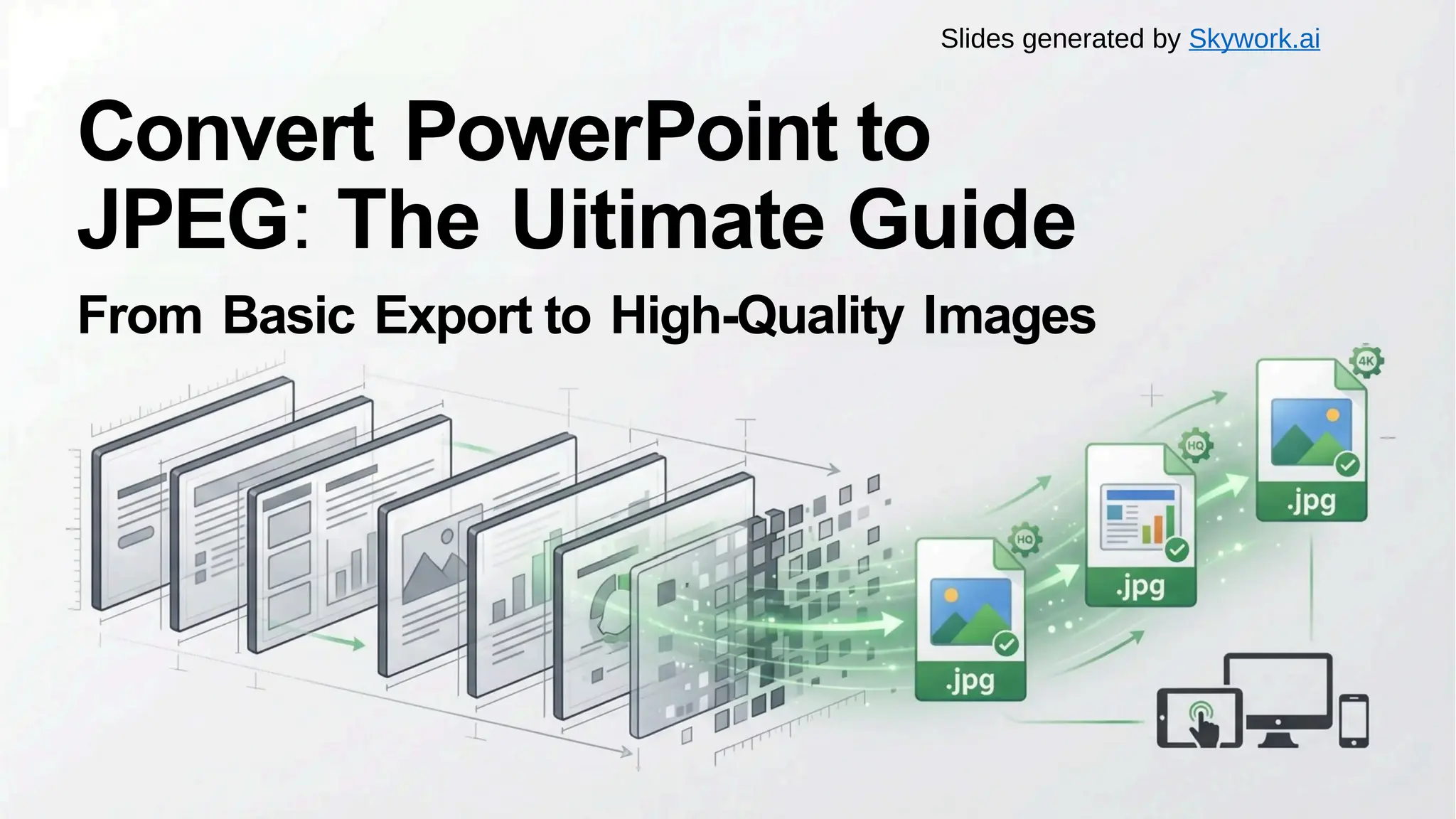
Convert PowerPoint to
JPEG: The Uitimate Guide
From Basic Export to High-Quality Images
Slides generated by Skywork.ai
1 Why Convert to JPEG?
P
PPT
2 Step-by-Step Conversion Methods
3 Pro-Tips for High Quality
②
个
品
W
Table of Contents
2/13
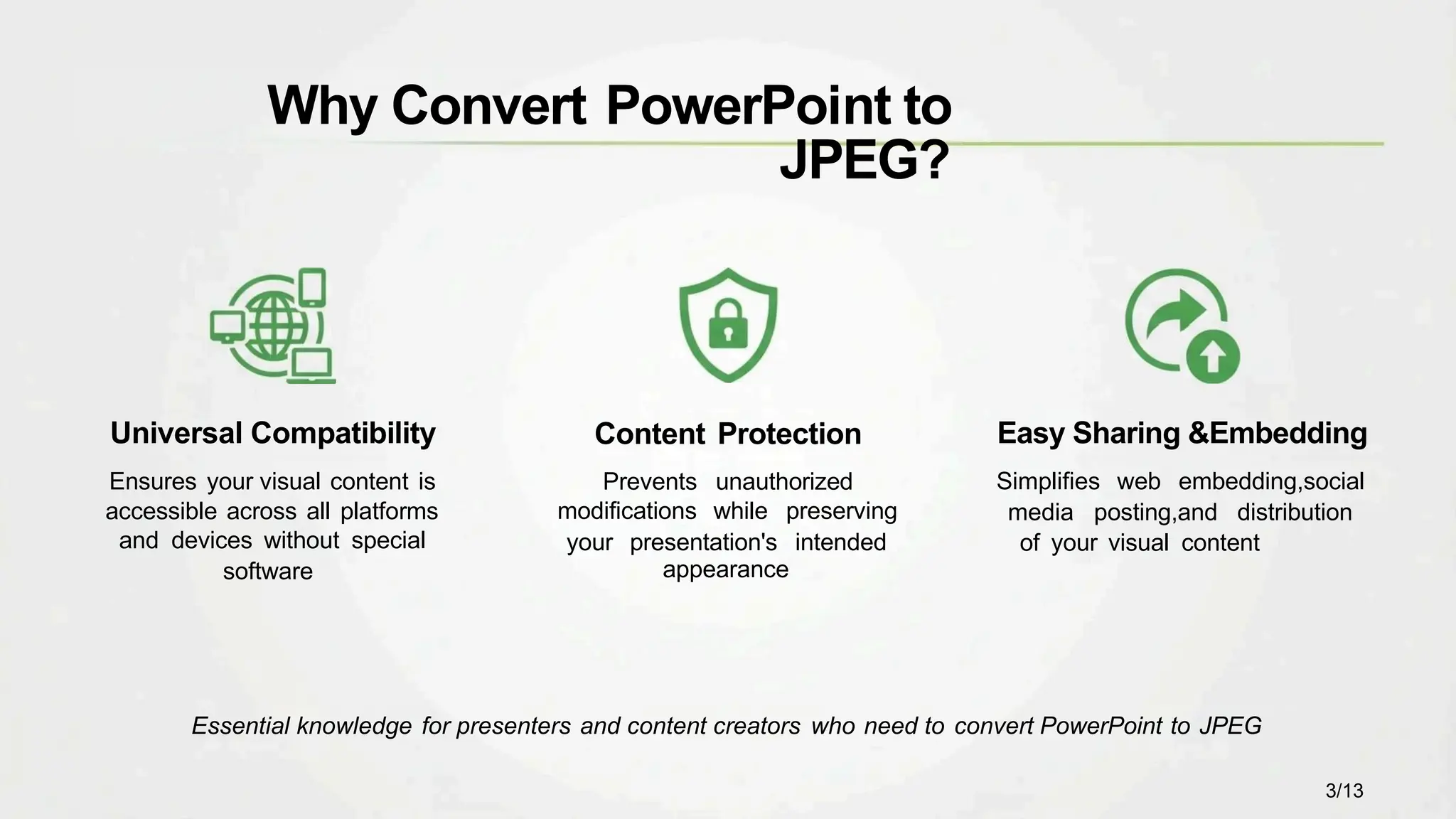
Content Protection
Prevents unauthorized
modifications while preserving
your presentation's intended
appearance
Universal Compatibility
Ensures your visual content is
accessible across all platforms
and devices without special
software
Easy Sharing &Embedding
Simplifies web embedding,social
media posting,and distribution
of your visual content
Why Convert PowerPoint to
JPEG?
Essential knowledge for presenters and content creators who need to convert PowerPoint to JPEG
3/13
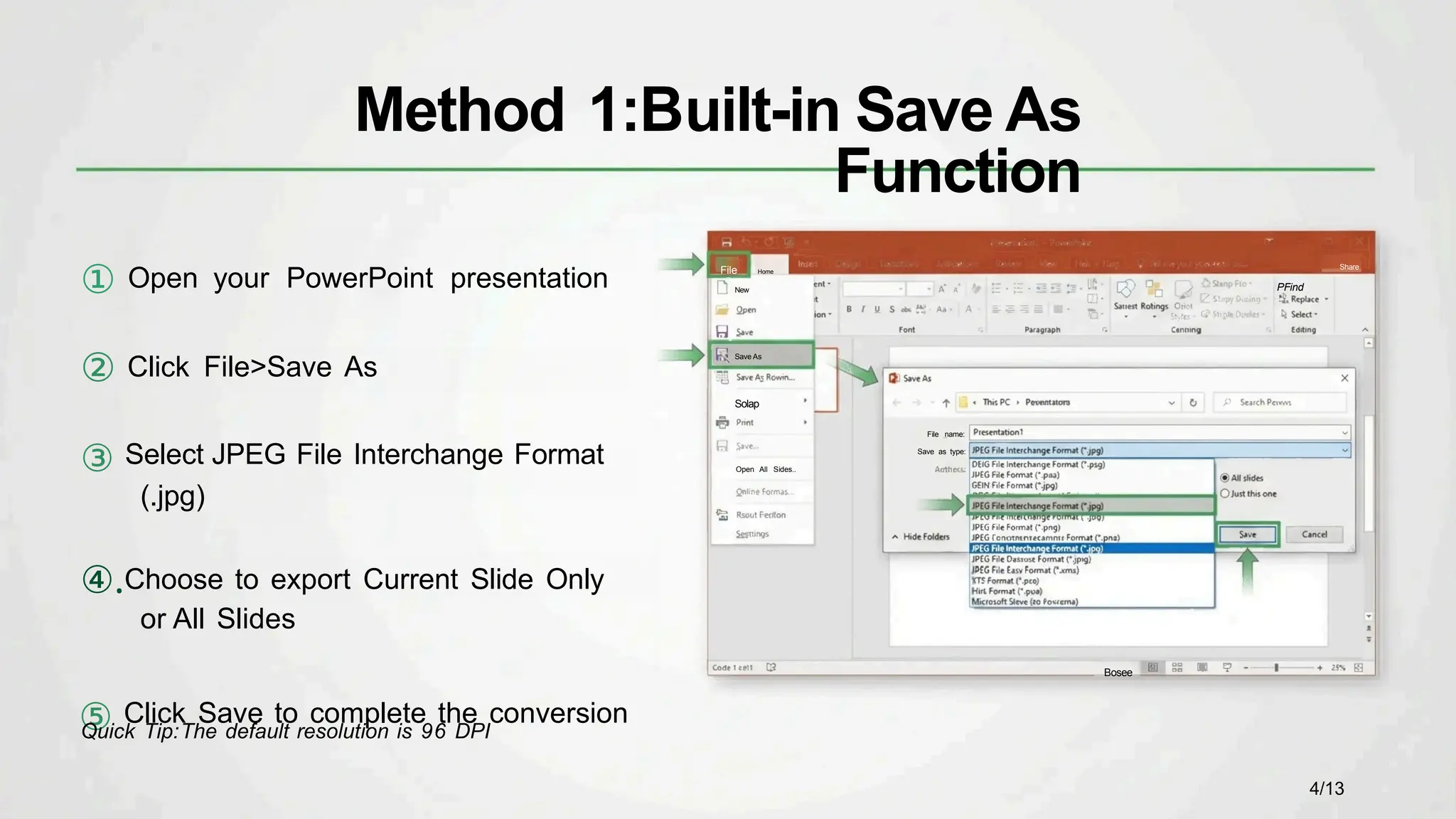
① Open your PowerPoint presentation
② Click File>Save As
③ Select JPEG File Interchange Format
(.jpg)
④.Choose to export Current Slide Only
or All Slides
⑤ Click Save to complete the conversion
Share
PFind
File name:
Save as type:
Bosee
Quick Tip:The default resolution is 96 DPI
Method 1:Built-in Save As
Function
File Home
New
Save As
Solap
Open All Sides..
4/13
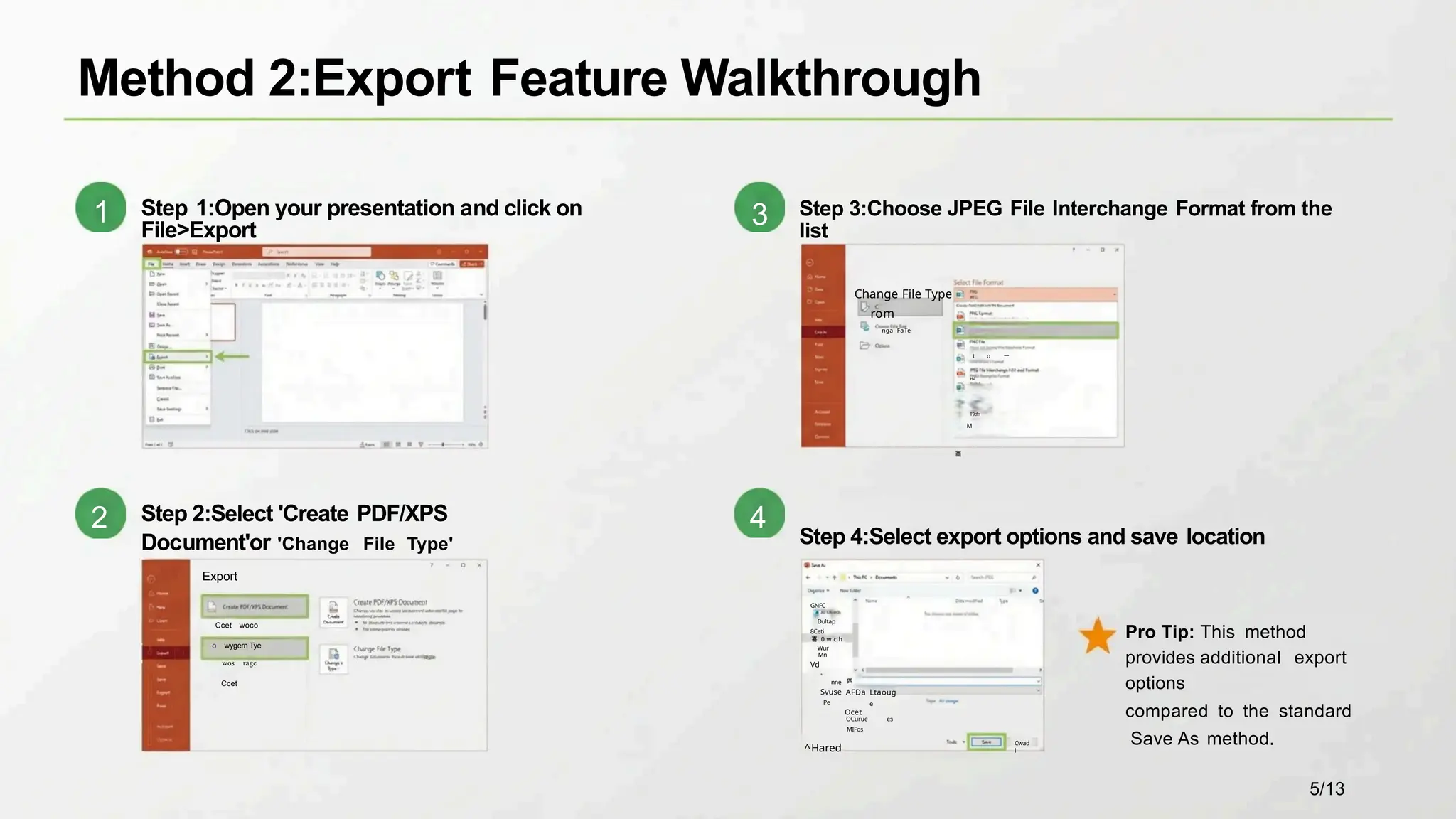
Step 3:Choose JPEG File Interchange Format from the
list
Change File Type
rom
nga FaTe
t o 一
H4
T9tfn
M
画
Step 4:Select export options and save location
Export
Ccet woco
o wygern Tye
wos rage
Ccet
Method 2:Export Feature Walkthrough
Pro Tip: This method
provides additional export
options
compared to the standard
Save As method.
Step 2:Select 'Create PDF/XPS
Document'or 'Change File Type'
四
AFDa Ltaoug
e
Ocet
OCurue es
MIFos
Cwad
l
Step 1:Open your presentation and click on
File>Export
GNFC
Dultap
8Ceti
喜 0 w c h
Wur
Mn
Vd
-
nne
Svuse
Pe
^Hared
2
1
4
3
5/13
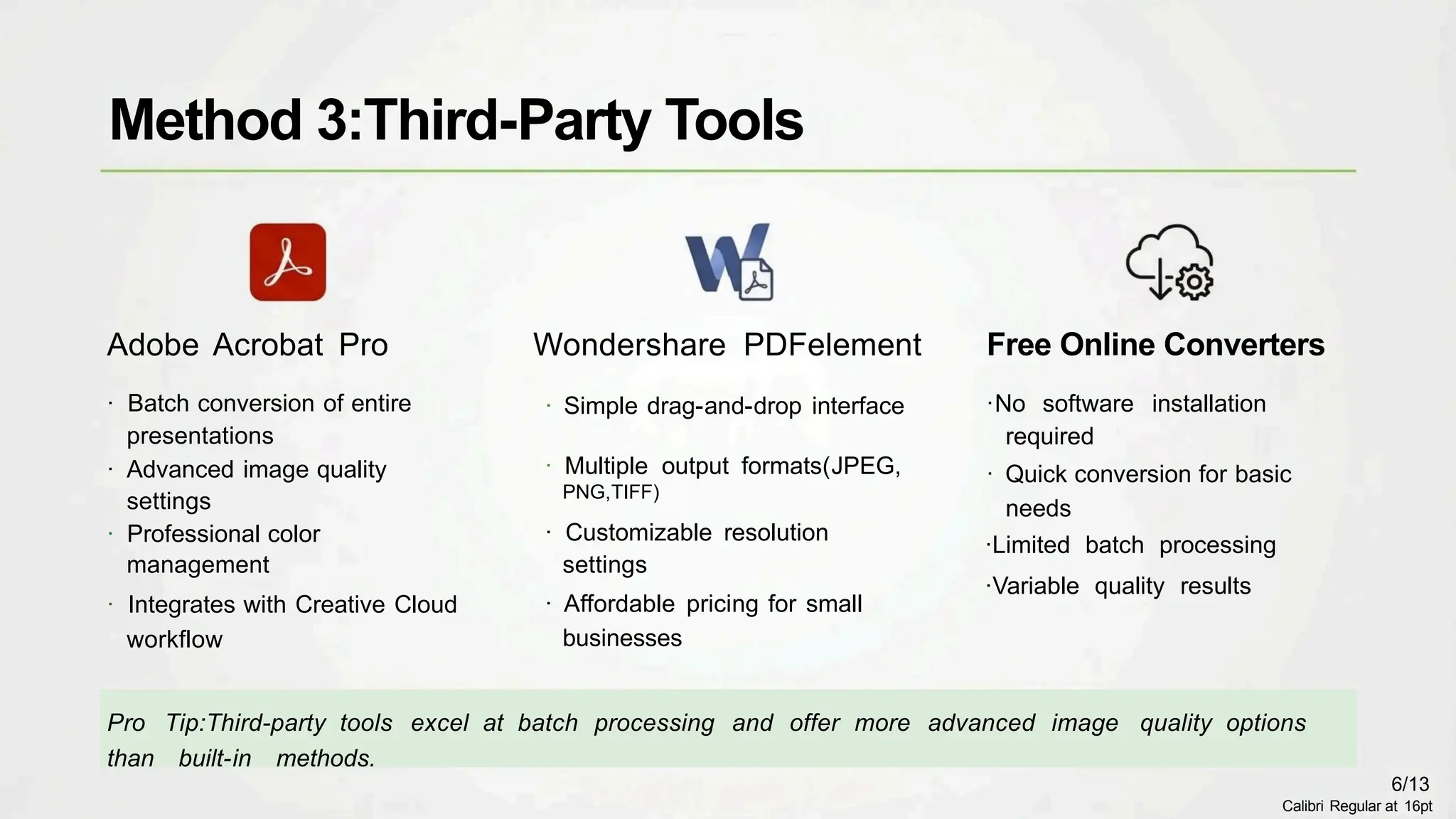
Wondershare PDFelement
· Simple drag-and-drop interface
· Multiple output formats(JPEG,
PNG,TIFF)
· Customizable resolution
settings
· Affordable pricing for small
businesses
Adobe Acrobat Pro
· Batch conversion of entire
presentations
· Advanced image quality
settings
· Professional color
management
· Integrates with Creative Cloud
workflow
Pro Tip:Third-party tools excel at batch processing and offer more advanced image quality options
than built-in methods.
Free Online Converters
·No software installation
required
· Quick conversion for basic
needs
·Limited batch processing
·Variable quality results
Method 3:Third-Party Tools
6/13
Calibri Regular at 16pt
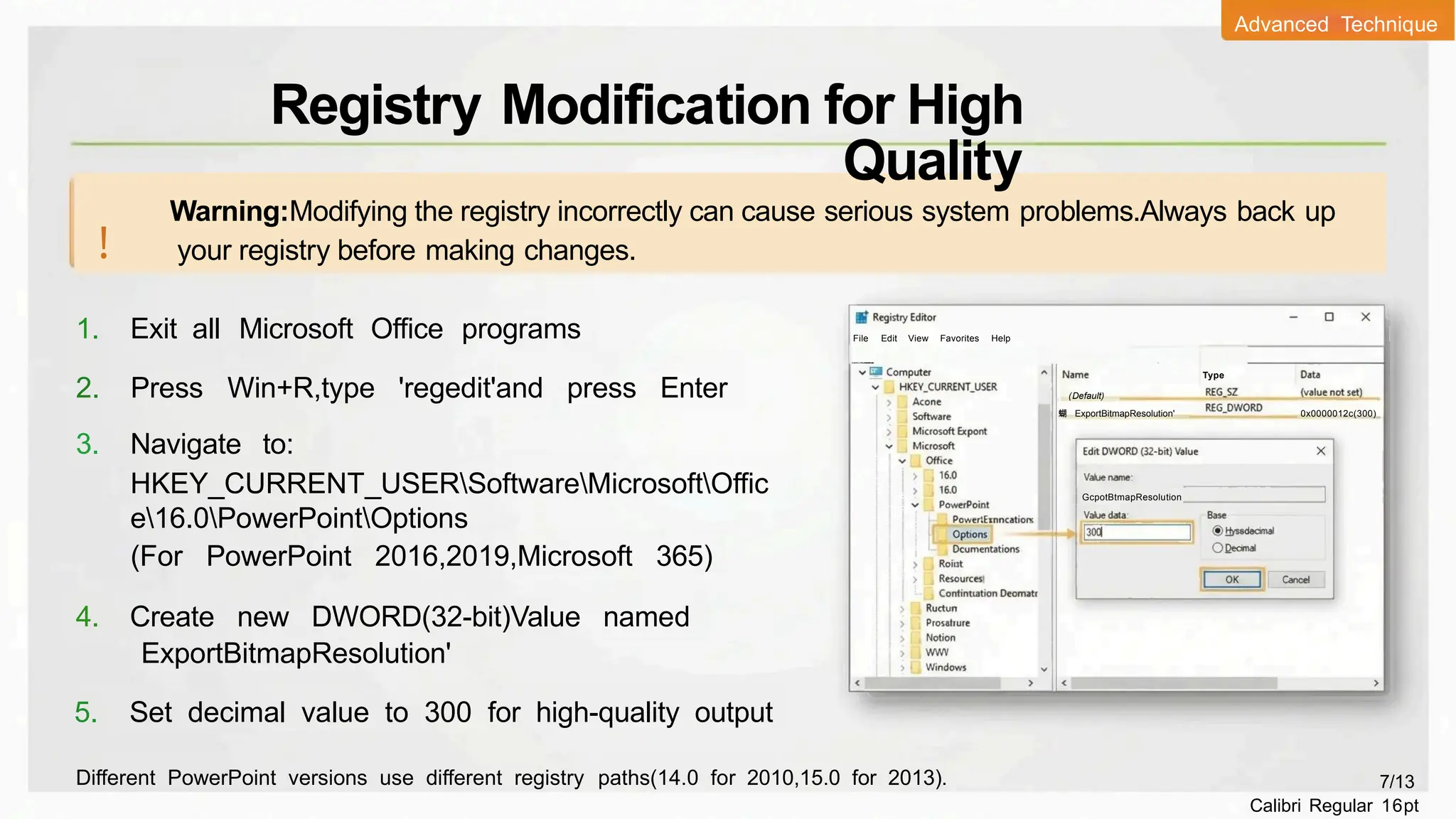
1. Exit all Microsoft Office programs
2. Press Win+R,type 'regedit'and press Enter
3. Navigate to:
HKEY_CURRENT_USERSoftwareMicrosoftOffic
e16.0PowerPointOptions
(For PowerPoint 2016,2019,Microsoft 365)
4. Create new DWORD(32-bit)Value named
ExportBitmapResolution'
5. Set decimal value to 300 for high-quality output
Warning:Modifying the registry incorrectly can cause serious system problems.Always back up
your registry before making changes.
!
File Edit View Favorites Help
Type
(Default)
蝴 ExportBitmapResolution' 0x0000012c(300)
GcpotBtmapResolution
Different PowerPoint versions use different registry paths(14.0 for 2010,15.0 for 2013). 7/13
Calibri Regular 16pt
Registry Modification for High
Quality
Advanced Technique
C
o
m
p
u
t
e
r
H
K
E
Y
_
CUR
R
E
N
T
_
U
S
E
R
I
S
o
f
t
w
a
r
e

M
i
c
r
o
s
o
f

O
f
i
c
e
l
1
6
.
0
P
o
w
e
r
P
o
i
n
t
l
O
p
t
i
o
n
s 二
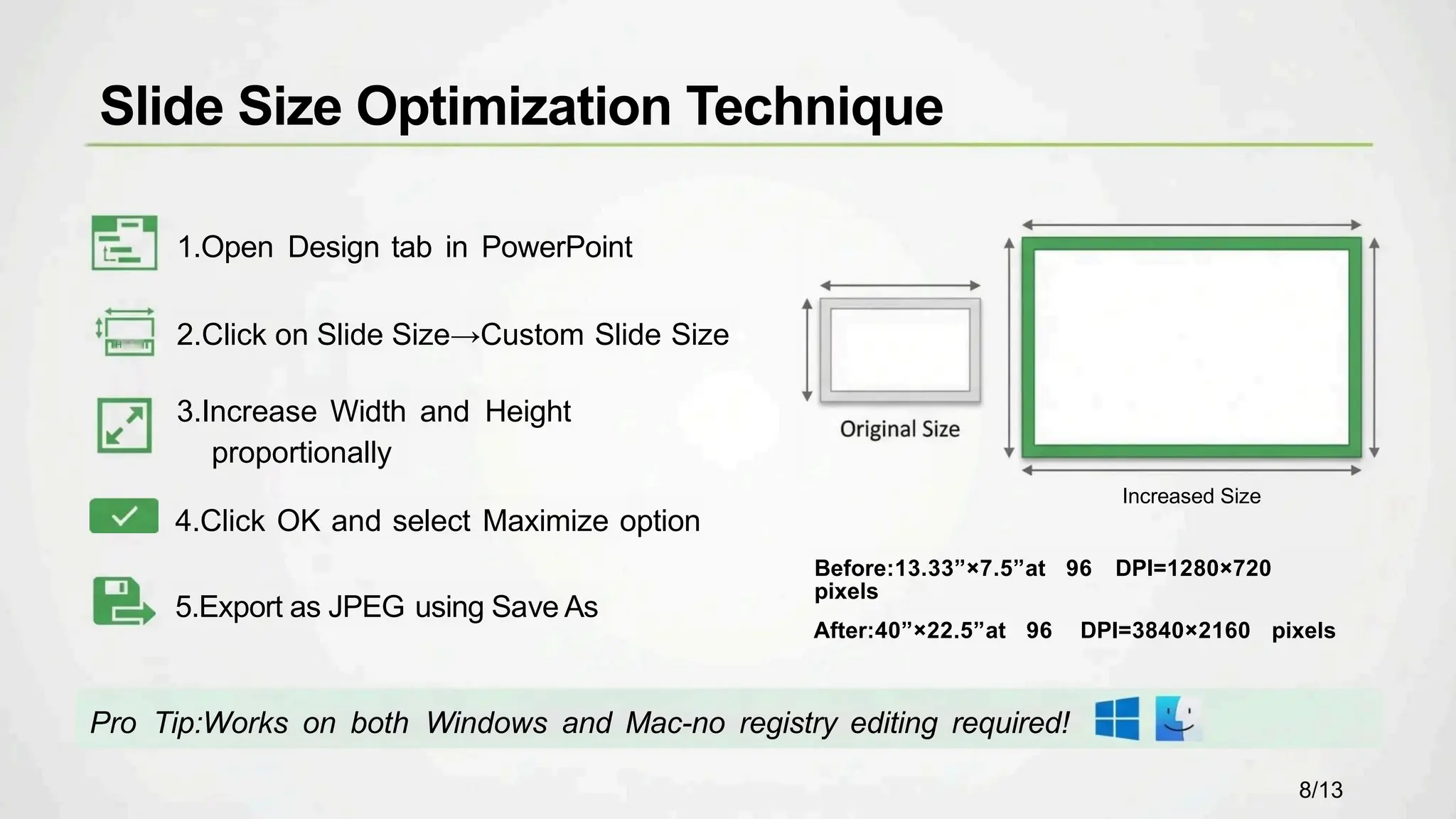
1.Open Design tab in PowerPoint
2.Click on Slide Size→Custom Slide Size
3.Increase Width and Height
proportionally
4.Click OK and select Maximize option
5.Export as JPEG using Save As
Pro Tip:Works on both Windows and Mac-no registry editing required!
Increased Size
Before:13.33”×7.5”at 96 DPI=1280×720
pixels
After:40”×22.5”at 96 DPI=3840×2160 pixels
Slide Size Optimization Technique
8/13
H
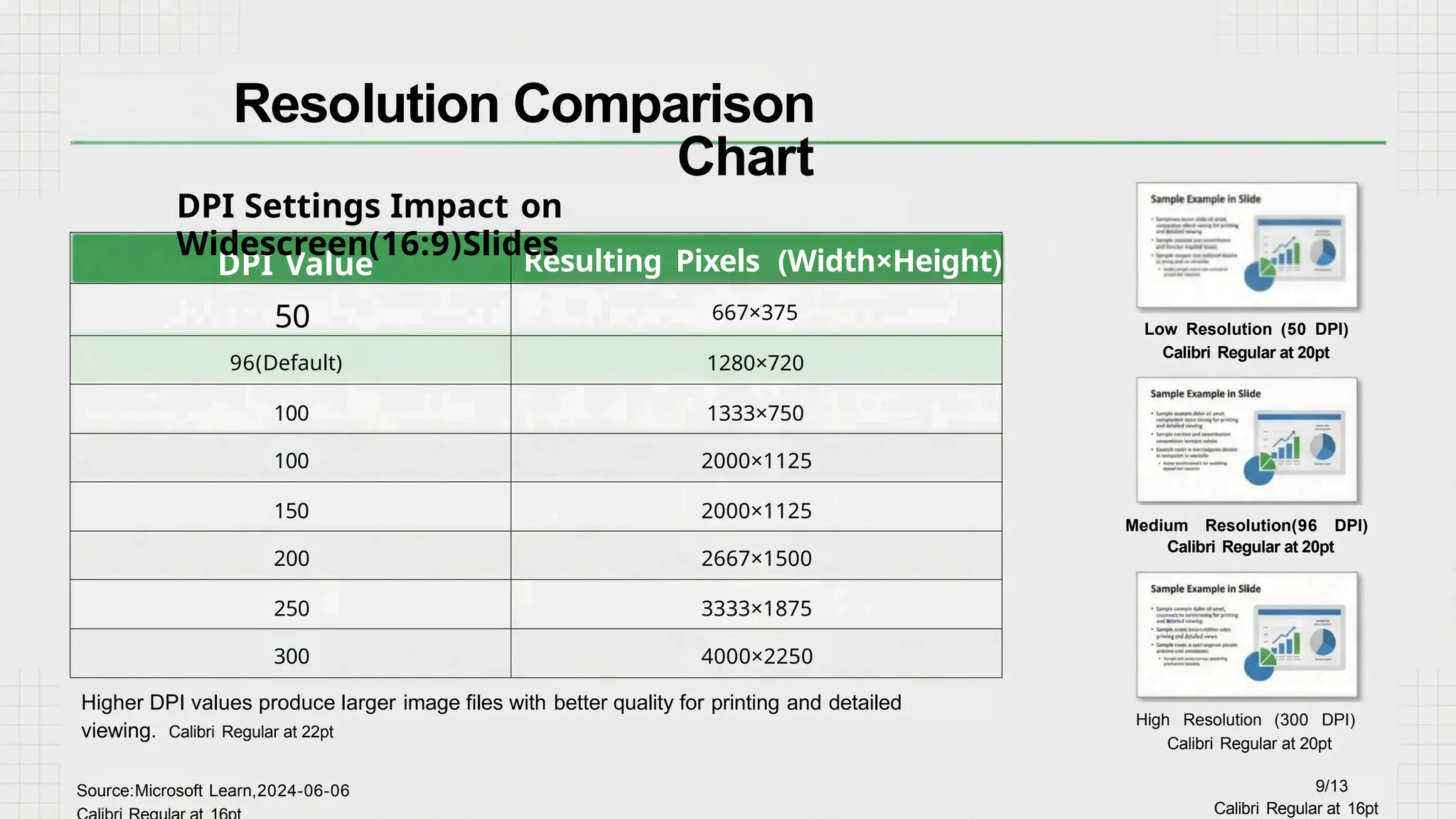
DPI Value Resulting Pixels (Width×Height)
50 667×375
96(Default) 1280×720
100 1333×750
100 2000×1125
150 2000×1125
200 2667×1500
250 3333×1875
300 4000×2250
Higher DPI values produce larger image files with better quality for printing and detailed
viewing. Calibri Regular at 22pt
Source:Microsoft Learn,2024-06-06
Resolution Comparison
Chart
High Resolution (300 DPI)
Calibri Regular at 20pt
9/13
Calibri Regular at 16pt
DPI Settings Impact on
Widescreen(16:9)Slides
Medium Resolution(96 DPI)
Calibri Regular at 20pt
Low Resolution (50 DPI)
Calibri Regular at 20pt
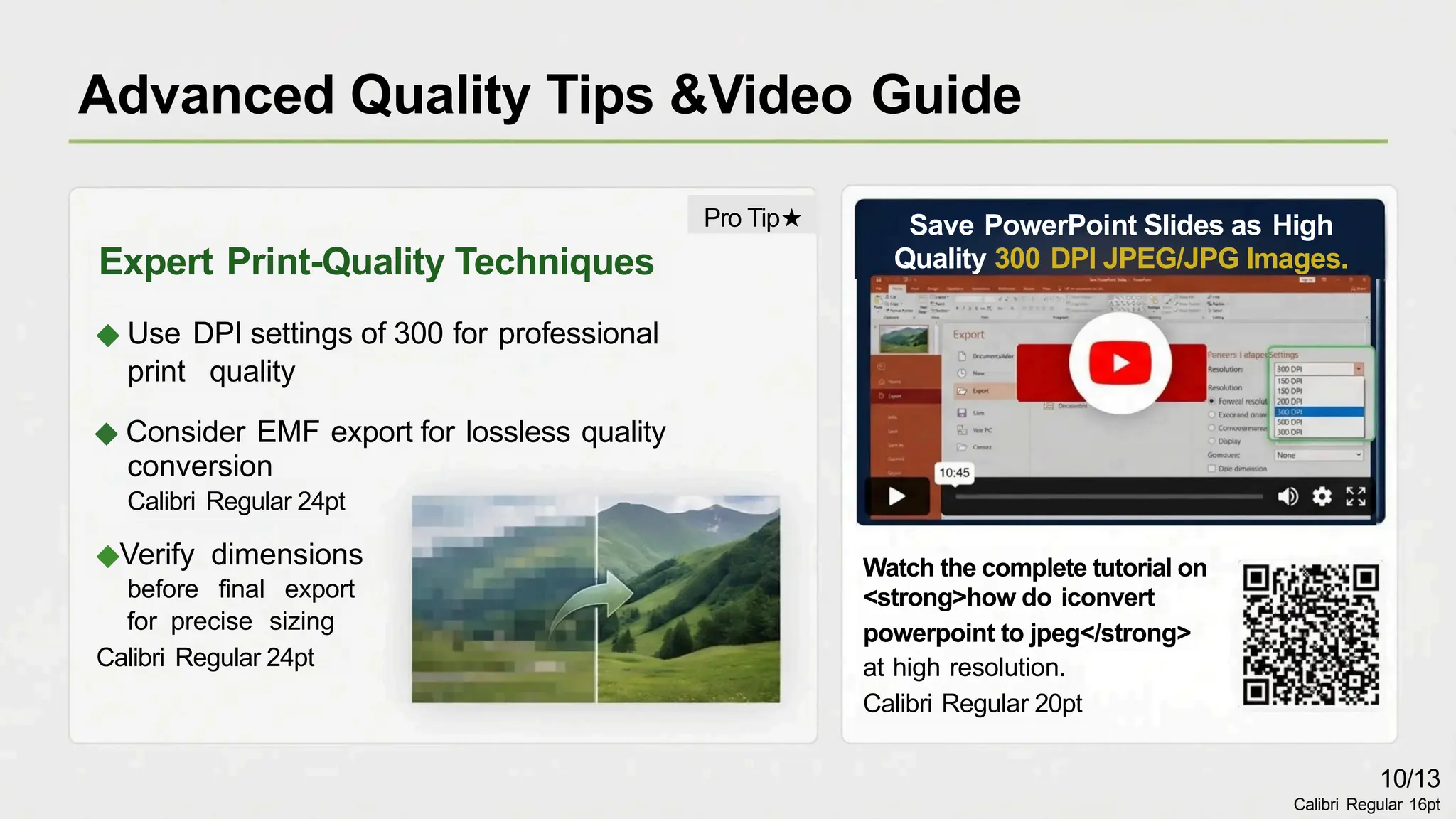
Save PowerPoint Slides as High
Quality 300 DPI JPEG/JPG Images.
Expert Print-Quality Techniques
◆ Use DPI settings of 300 for professional
print quality
◆ Consider EMF export for lossless quality
conversion
Calibri Regular 24pt
◆Verify dimensions
before final export
for precise sizing
Calibri Regular 24pt
Watch the complete tutorial on
<strong>how do iconvert
powerpoint to jpeg</strong>
at high resolution.
Calibri Regular 20pt
Advanced Quality Tips &Video Guide
10/13
Calibri Regular 16pt
Pro Tip★
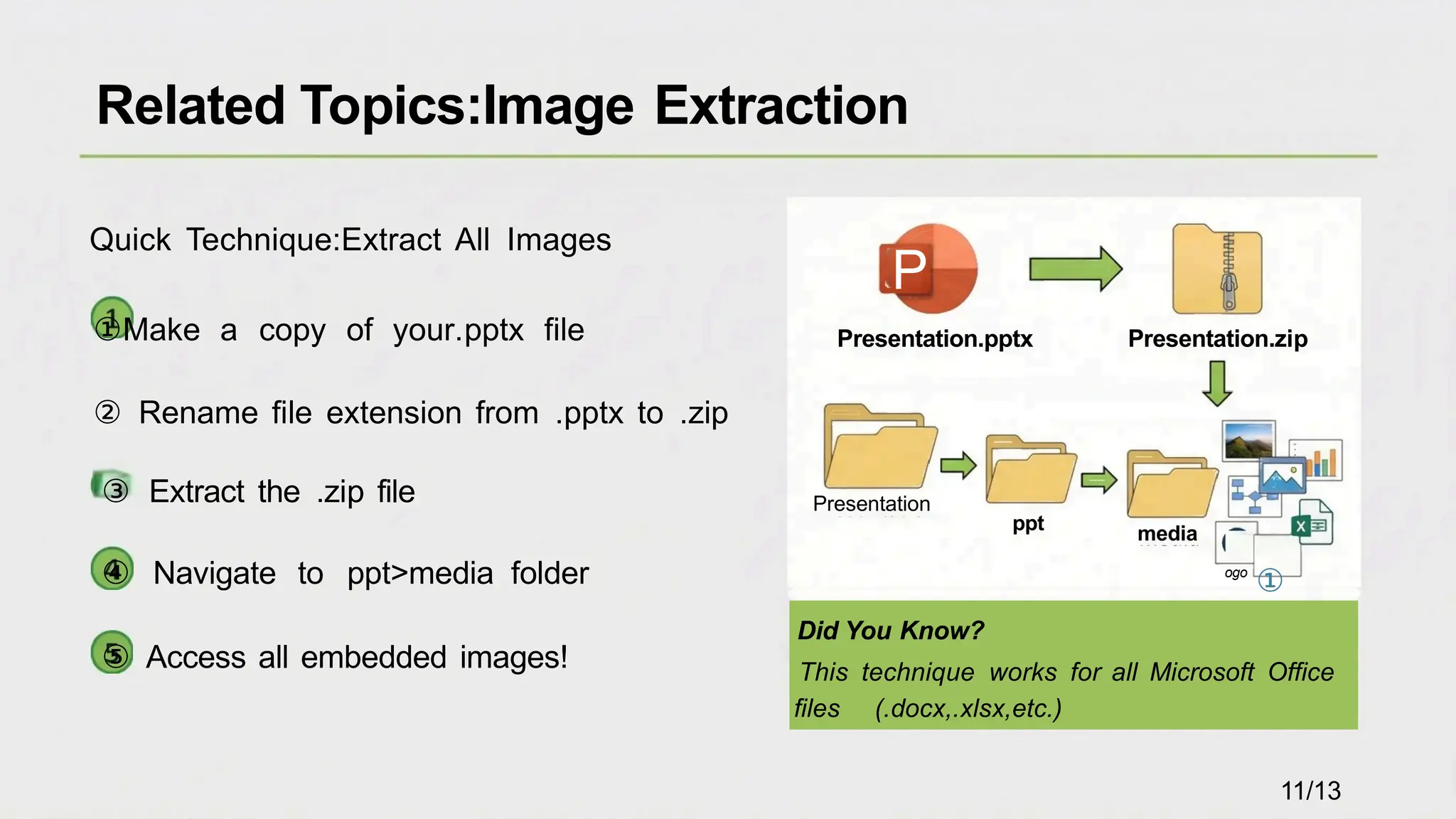
Quick Technique:Extract All Images
①Make a copy of your.pptx file
② Rename file extension from .pptx to .zip
③ Extract the .zip file
④ Navigate to ppt>media folder
⑤ Access all embedded images!
P
Presentation.pptx Presentation.zip
Presentation
ogo
①
Did You Know?
This technique works for all Microsoft Office
files (.docx,.xlsx,etc.)
Related Topics:Image Extraction
11/13
media
ppt
Frequently Asked Questions
? Q1:Why are my exported JPEGs blurry? ?
PowerPoint's default export is 96 DPI,which is
low for print.Increase quality by modifying the
registry to set higher DPI (300 recommended)or
by increasing slide size before exporting.
Q3:What's the difference between
JPEG
and PNG?
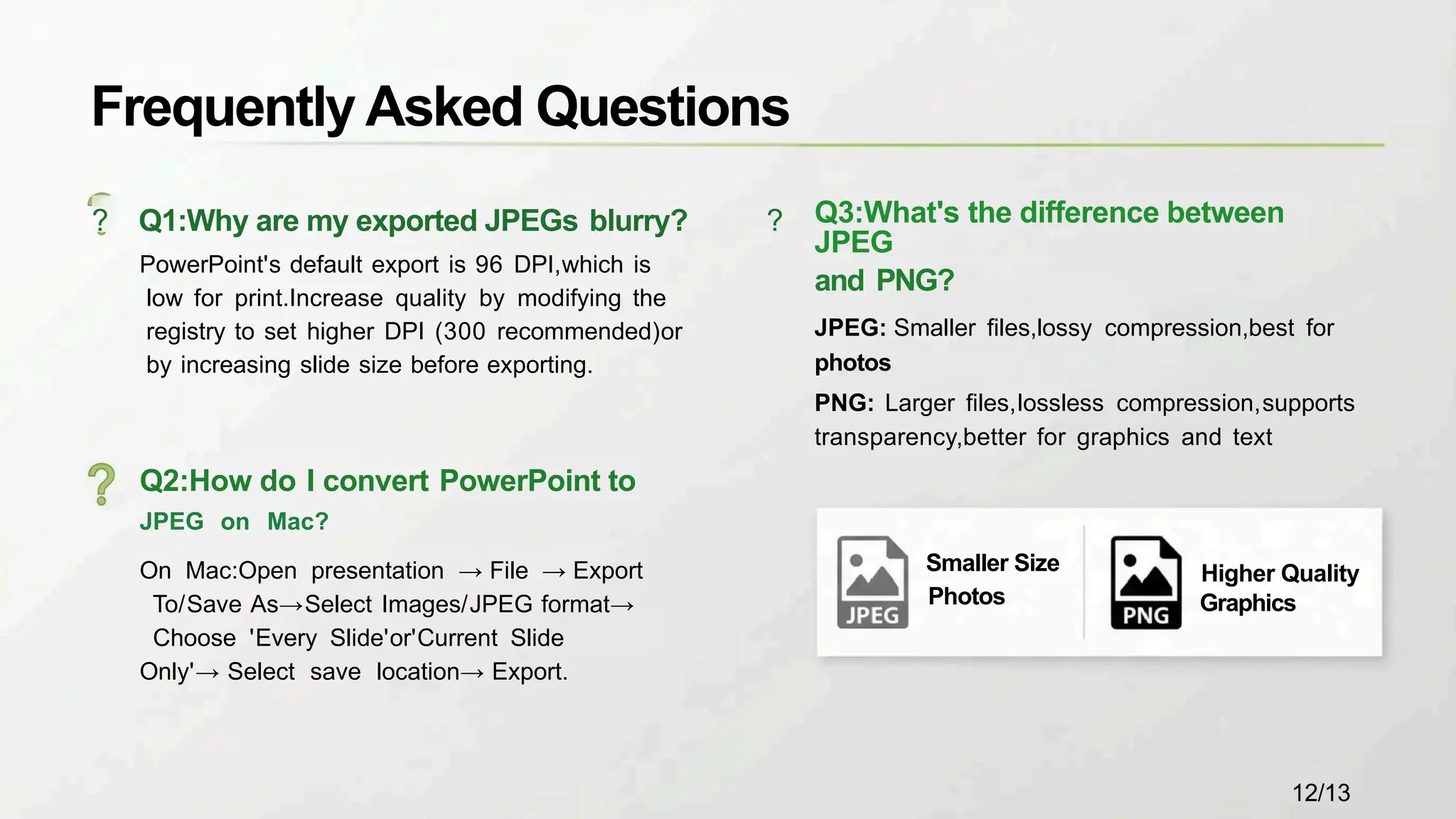
JPEG: Smaller files,lossy compression,best for
photos
PNG: Larger files,lossless compression,supports
transparency,better for graphics and text
Q2:How do I convert PowerPoint to
JPEG on Mac?
On Mac:Open presentation → File → Export
To/Save As→Select Images/JPEG format→
Choose 'Every Slide'or'Current Slide
Only'→ Select save location→ Export.
Higher Quality
Graphics
Smaller Size
Photos
12/13
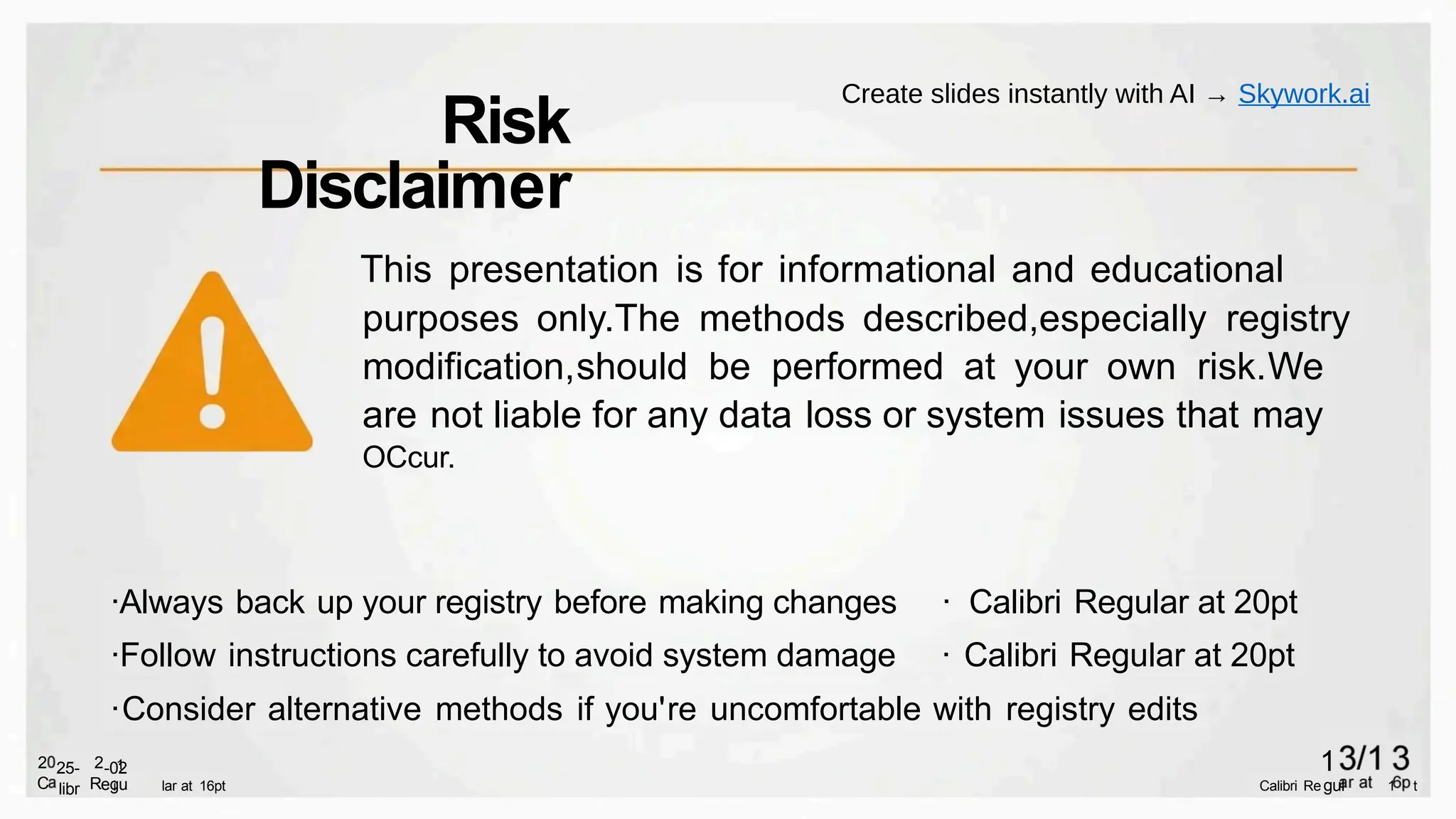
·Always back up your registry before making changes · Calibri Regular at 20pt
·Follow instructions carefully to avoid system damage · Calibri Regular at 20pt
·Consider alternative methods if you're uncomfortable with registry edits
i
1
lar at 16pt Calibri Re 1 t
gul
1
egu
-02
R
2
libr
25-
C
2
This presentation is for informational and educational
purposes only.The methods described,especially registry
modification,should be performed at your own risk.We
are not liable for any data loss or system issues that may
OCcur.
Risk
Disclaimer
Create slides instantly with AI → Skywork.ai

Convert PowerPoint to JPEG: The Ultimate Guide (Step-by-Step & Tips)

  • 1.
    Convert PowerPoint to JPEG:The Uitimate Guide From Basic Export to High-Quality Images Slides generated by Skywork.ai
  • 2.
    1 Why Convertto JPEG? P PPT 2 Step-by-Step Conversion Methods 3 Pro-Tips for High Quality ② 个 品 W Table of Contents 2/13
  • 3.
    Content Protection Prevents unauthorized modificationswhile preserving your presentation's intended appearance Universal Compatibility Ensures your visual content is accessible across all platforms and devices without special software Easy Sharing &Embedding Simplifies web embedding,social media posting,and distribution of your visual content Why Convert PowerPoint to JPEG? Essential knowledge for presenters and content creators who need to convert PowerPoint to JPEG 3/13
  • 4.
    ① Open yourPowerPoint presentation ② Click File>Save As ③ Select JPEG File Interchange Format (.jpg) ④.Choose to export Current Slide Only or All Slides ⑤ Click Save to complete the conversion Share PFind File name: Save as type: Bosee Quick Tip:The default resolution is 96 DPI Method 1:Built-in Save As Function File Home New Save As Solap Open All Sides.. 4/13
  • 5.
    Step 3:Choose JPEGFile Interchange Format from the list Change File Type rom nga FaTe t o 一 H4 T9tfn M 画 Step 4:Select export options and save location Export Ccet woco o wygern Tye wos rage Ccet Method 2:Export Feature Walkthrough Pro Tip: This method provides additional export options compared to the standard Save As method. Step 2:Select 'Create PDF/XPS Document'or 'Change File Type' 四 AFDa Ltaoug e Ocet OCurue es MIFos Cwad l Step 1:Open your presentation and click on File>Export GNFC Dultap 8Ceti 喜 0 w c h Wur Mn Vd - nne Svuse Pe ^Hared 2 1 4 3 5/13
  • 6.
    Wondershare PDFelement · Simpledrag-and-drop interface · Multiple output formats(JPEG, PNG,TIFF) · Customizable resolution settings · Affordable pricing for small businesses Adobe Acrobat Pro · Batch conversion of entire presentations · Advanced image quality settings · Professional color management · Integrates with Creative Cloud workflow Pro Tip:Third-party tools excel at batch processing and offer more advanced image quality options than built-in methods. Free Online Converters ·No software installation required · Quick conversion for basic needs ·Limited batch processing ·Variable quality results Method 3:Third-Party Tools 6/13 Calibri Regular at 16pt
  • 7.
    1. Exit allMicrosoft Office programs 2. Press Win+R,type 'regedit'and press Enter 3. Navigate to: HKEY_CURRENT_USERSoftwareMicrosoftOffic e16.0PowerPointOptions (For PowerPoint 2016,2019,Microsoft 365) 4. Create new DWORD(32-bit)Value named ExportBitmapResolution' 5. Set decimal value to 300 for high-quality output Warning:Modifying the registry incorrectly can cause serious system problems.Always back up your registry before making changes. ! File Edit View Favorites Help Type (Default) 蝴 ExportBitmapResolution' 0x0000012c(300) GcpotBtmapResolution Different PowerPoint versions use different registry paths(14.0 for 2010,15.0 for 2013). 7/13 Calibri Regular 16pt Registry Modification for High Quality Advanced Technique C o m p u t e r H K E Y _ CUR R E N T _ U S E R I S o f t w a r e M i c r o s o f O f i c e l 1 6 . 0 P o w e r P o i n t l O p t i o n s 二
  • 8.
    1.Open Design tabin PowerPoint 2.Click on Slide Size→Custom Slide Size 3.Increase Width and Height proportionally 4.Click OK and select Maximize option 5.Export as JPEG using Save As Pro Tip:Works on both Windows and Mac-no registry editing required! Increased Size Before:13.33”×7.5”at 96 DPI=1280×720 pixels After:40”×22.5”at 96 DPI=3840×2160 pixels Slide Size Optimization Technique 8/13 H
  • 9.
    DPI Value ResultingPixels (Width×Height) 50 667×375 96(Default) 1280×720 100 1333×750 100 2000×1125 150 2000×1125 200 2667×1500 250 3333×1875 300 4000×2250 Higher DPI values produce larger image files with better quality for printing and detailed viewing. Calibri Regular at 22pt Source:Microsoft Learn,2024-06-06 Resolution Comparison Chart High Resolution (300 DPI) Calibri Regular at 20pt 9/13 Calibri Regular at 16pt DPI Settings Impact on Widescreen(16:9)Slides Medium Resolution(96 DPI) Calibri Regular at 20pt Low Resolution (50 DPI) Calibri Regular at 20pt
  • 10.
    Save PowerPoint Slidesas High Quality 300 DPI JPEG/JPG Images. Expert Print-Quality Techniques ◆ Use DPI settings of 300 for professional print quality ◆ Consider EMF export for lossless quality conversion Calibri Regular 24pt ◆Verify dimensions before final export for precise sizing Calibri Regular 24pt Watch the complete tutorial on <strong>how do iconvert powerpoint to jpeg</strong> at high resolution. Calibri Regular 20pt Advanced Quality Tips &Video Guide 10/13 Calibri Regular 16pt Pro Tip★
  • 11.
    Quick Technique:Extract AllImages ①Make a copy of your.pptx file ② Rename file extension from .pptx to .zip ③ Extract the .zip file ④ Navigate to ppt>media folder ⑤ Access all embedded images! P Presentation.pptx Presentation.zip Presentation ogo ① Did You Know? This technique works for all Microsoft Office files (.docx,.xlsx,etc.) Related Topics:Image Extraction 11/13 media ppt
  • 12.
    Frequently Asked Questions ?Q1:Why are my exported JPEGs blurry? ? PowerPoint's default export is 96 DPI,which is low for print.Increase quality by modifying the registry to set higher DPI (300 recommended)or by increasing slide size before exporting. Q3:What's the difference between JPEG and PNG? JPEG: Smaller files,lossy compression,best for photos PNG: Larger files,lossless compression,supports transparency,better for graphics and text Q2:How do I convert PowerPoint to JPEG on Mac? On Mac:Open presentation → File → Export To/Save As→Select Images/JPEG format→ Choose 'Every Slide'or'Current Slide Only'→ Select save location→ Export. Higher Quality Graphics Smaller Size Photos 12/13
  • 13.
    ·Always back upyour registry before making changes · Calibri Regular at 20pt ·Follow instructions carefully to avoid system damage · Calibri Regular at 20pt ·Consider alternative methods if you're uncomfortable with registry edits i 1 lar at 16pt Calibri Re 1 t gul 1 egu -02 R 2 libr 25- C 2 This presentation is for informational and educational purposes only.The methods described,especially registry modification,should be performed at your own risk.We are not liable for any data loss or system issues that may OCcur. Risk Disclaimer Create slides instantly with AI → Skywork.ai