amir-jafari.com
©2015 Amir Jafari – www.amir-Jafari.com. All rights reserved. Page 1 of 12
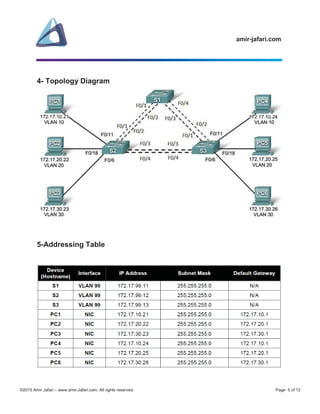
CCNA Lab 4:
Configuring EtherChannels and optimizing
Spanning Tree Protocol on Switch
amir-jafari.com
©2015 Amir Jafari – www.amir-Jafari.com. All rights reserved. Page 2 of 12
Table of Contents Page
1- Objectives...................................................................................................................................................4
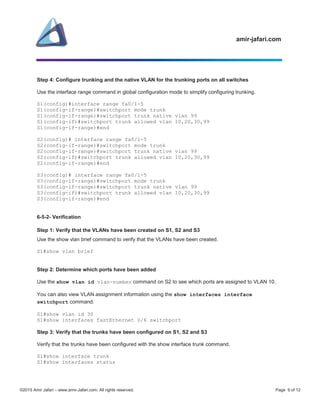
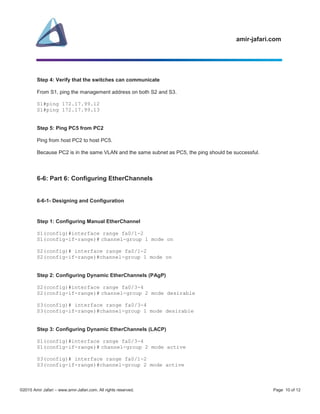
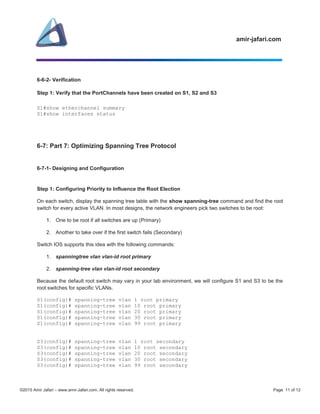
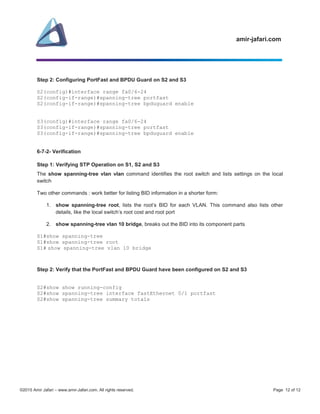
2- Scenario .....................................................................................................................................................4
3- Equipment List............................................................................................................................................4
4- Topology Diagram ......................................................................................................................................5
5-Addressing Table.........................................................................................................................................5
6-Detailed Lab Steps ......................................................................................................................................6
6-1 Part 1: Prepare the Network (Cable, Erase, and Reload the Switch)...................................................6
6-1-1- Designing and Configuration ........................................................................................................6
6-1-2- Verification ....................................................................................................................................6
6-1-3 Troubleshooting .............................................................................................................................6
6-2: Part 2: Perform Basic Device Configurations ......................................................................................7
6-2-1- Designing and Configuration ........................................................................................................7
6-2-2- Verification ....................................................................................................................................7
6-3: Part 3: Configure Switch to Accept Incoming SSH Connections.........................................................7
6-3-1- Designing and Configuration ........................................................................................................7
6-3-2- Verification ....................................................................................................................................7
6-4: Part 4: Configure and Activate Ethernet Interfaces .............................................................................8
6-5: Part 5: Configure VLANs on the Switch...............................................................................................8
6-5-1- Designing and Configuration ........................................................................................................8
6-5-2- Verification ....................................................................................................................................9
6-6: Part 6: Configuring EtherChannels................................................................................................... 10
6-6-1- Designing and Configuration ..................................................................................................... 10
6-6-2- Verification ................................................................................................................................. 11
6-7: Part 7: Optimizing Spanning Tree Protocol ...................................................................................... 11
6-7-1- Designing and Configuration ..................................................................................................... 11
amir-jafari.com
©2015 Amir Jafari – www.amir-Jafari.com. All rights reserved. Page 3 of 12
6-7-2- Verification ................................................................................................................................. 12
amir-jafari.com
©2015 Amir Jafari – www.amir-Jafari.com. All rights reserved. Page 4 of 12
1- Objectives
Perform EtherChannel configuration tasks on a switch
Observe and explain the default behavior of Spanning Tree Protocol (STP, 802.1D)
Modify the placement of the spanning tree root
Observe the response to a change in the spanning tree topology
Configuring PortFast and BPDU Guard
2- Scenario
In this lab you will practice configuring EtherChannels, optimizing Spanning Tree Protocol, configuring
PortFast and BPDU Guard and verifying EtherChannels and STP.
3- Equipment List
Three Cisco Catalyst 2960 Switchs with Cisco IOS Release 12.2. The Cisco implementation of
SSH requires Cisco IOS Software to support RSA authentication and minimum DES encryption—
a cryptographic software image.
Six PCs that will run Windows XP or later
amir-jafari.com
©2015 Amir Jafari – www.amir-Jafari.com. All rights reserved. Page 5 of 12
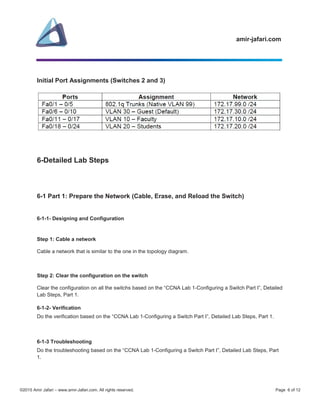
4- Topology Diagram
5-Addressing Table
amir-jafari.com
©2015 Amir Jafari – www.amir-Jafari.com. All rights reserved. Page 6 of 12
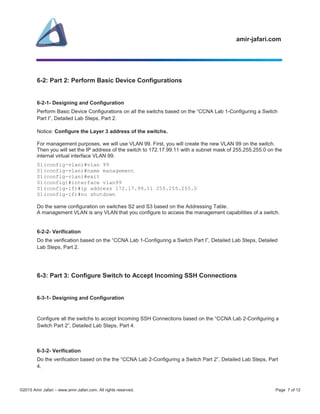
Initial Port Assignments (Switches 2 and 3)
6-Detailed Lab Steps
6-1 Part 1: Prepare the Network (Cable, Erase, and Reload the Switch)
6-1-1- Designing and Configuration
Step 1: Cable a network
Cable a network that is similar to the one in the topology diagram.
Step 2: Clear the configuration on the switch
Clear the configuration on all the switchs based on the “CCNA Lab 1-Configuring a Switch Part I”, Detailed
Lab Steps, Part 1.
6-1-2- Verification
Do the verification based on the “CCNA Lab 1-Configuring a Switch Part I”, Detailed Lab Steps, Part 1.
6-1-3 Troubleshooting
Do the troubleshooting based on the “CCNA Lab 1-Configuring a Switch Part I”, Detailed Lab Steps, Part
1.
amir-jafari.com
©2015 Amir Jafari – www.amir-Jafari.com. All rights reserved. Page 7 of 12
6-2: Part 2: Perform Basic Device Configurations
6-2-1- Designing and Configuration
Perform Basic Device Configurations on all the switchs based on the “CCNA Lab 1-Configuring a Switch
Part I”, Detailed Lab Steps, Part 2.
Notice: Configure the Layer 3 address of the switchs.
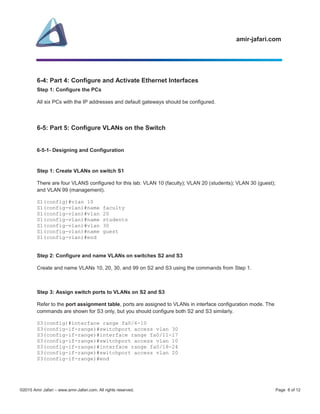
For management purposes, we will use VLAN 99. First, you will create the new VLAN 99 on the switch.
Then you will set the IP address of the switch to 172.17.99.11 with a subnet mask of 255.255.255.0 on the
internal virtual interface VLAN 99.
S1(config-vlan)#vlan 99
S1(config-vlan)#name management
S1(config-vlan)#exit
S1(config)#interface vlan99
S1(config-if)#ip address 172.17.99.11 255.255.255.0
S1(config-if)#no shutdown
Do the same configuration on switches S2 and S3 based on the Addressing Table.
A management VLAN is any VLAN that you configure to access the management capabilities of a switch.
6-2-2- Verification
Do the verification based on the “CCNA Lab 1-Configuring a Switch Part I”, Detailed Lab Steps, Detailed
Lab Steps, Part 2.
6-3: Part 3: Configure Switch to Accept Incoming SSH Connections
6-3-1- Designing and Configuration
Configure all the switchs to accept Incoming SSH Connections based on the “CCNA Lab 2-Configuring a
Switch Part 2”, Detailed Lab Steps, Part 4.
6-3-2- Verification
Do the verification based on the the “CCNA Lab 2-Configuring a Switch Part 2”, Detailed Lab Steps, Part
4.
amir-jafari.com
©2015 Amir Jafari – www.amir-Jafari.com. All rights reserved. Page 8 of 12
6-4: Part 4: Configure and Activate Ethernet Interfaces
Step 1: Configure the PCs
All six PCs with the IP addresses and default gateways should be configured.
6-5: Part 5: Configure VLANs on the Switch
6-5-1- Designing and Configuration
Step 1: Create VLANs on switch S1
There are four VLANS configured for this lab: VLAN 10 (faculty); VLAN 20 (students); VLAN 30 (guest);
and VLAN 99 (management).
S1(config)#vlan 10
S1(config-vlan)#name faculty
S1(config-vlan)#vlan 20
S1(config-vlan)#name students
S1(config-vlan)#vlan 30
S1(config-vlan)#name guest
S1(config-vlan)#end
Step 2: Configure and name VLANs on switches S2 and S3
Create and name VLANs 10, 20, 30, and 99 on S2 and S3 using the commands from Step 1.
Step 3: Assign switch ports to VLANs on S2 and S3
Refer to the port assignment table, ports are assigned to VLANs in interface configuration mode. The
commands are shown for S3 only, but you should configure both S2 and S3 similarly.
S3(config)#interface range fa0/6-10
S3(config-if-range)#switchport access vlan 30
S3(config-if-range)#interface range fa0/11-17
S3(config-if-range)#switchport access vlan 10
S3(config-if-range)#interface range fa0/18-24
S3(config-if-range)#switchport access vlan 20
S3(config-if-range)#end
amir-jafari.com
©2015 Amir Jafari – www.amir-Jafari.com. All rights reserved. Page 9 of 12
Step 4: Configure trunking and the native VLAN for the trunking ports on all switches
Use the interface range command in global configuration mode to simplify configuring trunking.
S1(config)#interface range fa0/1-5
S1(config-if-range)#switchport mode trunk
S1(config-if-range)#switchport trunk native vlan 99
S1(config-if)#switchport trunk allowed vlan 10,20,30,99
S1(config-if-range)#end
S2(config)# interface range fa0/1-5
S2(config-if-range)#switchport mode trunk
S2(config-if-range)#switchport trunk native vlan 99
S2(config-if)#switchport trunk allowed vlan 10,20,30,99
S2(config-if-range)#end
S3(config)# interface range fa0/1-5
S3(config-if-range)#switchport mode trunk
S3(config-if-range)#switchport trunk native vlan 99
S3(config-if)#switchport trunk allowed vlan 10,20,30,99
S3(config-if-range)#end
6-5-2- Verification
Step 1: Verify that the VLANs have been created on S1, S2 and S3
Use the show vlan brief command to verify that the VLANs have been created.
S1#show vlan brief
Step 2: Determine which ports have been added
Use the show vlan id vlan-number command on S2 to see which ports are assigned to VLAN 10.
You can also view VLAN assignment information using the show interfaces interface
switchport command.
S1#show vlan id 30
S1#show interfaces fastEthernet 0/6 switchport
Step 3: Verify that the trunks have been configured on S1, S2 and S3
Verify that the trunks have been configured with the show interface trunk command.
S1#show interface trunk
S1#show interfaces status
amir-jafari.com
©2015 Amir Jafari – www.amir-Jafari.com. All rights reserved. Page 10 of 12
Step 4: Verify that the switches can communicate
From S1, ping the management address on both S2 and S3.
S1#ping 172.17.99.12
S1#ping 172.17.99.13
Step 5: Ping PC5 from PC2
Ping from host PC2 to host PC5.
Because PC2 is in the same VLAN and the same subnet as PC5, the ping should be successful.
6-6: Part 6: Configuring EtherChannels
6-6-1- Designing and Configuration
Step 1: Configuring Manual EtherChannel
S1(config)#interface range fa0/1-2
S1(config-if-range)# channel-group 1 mode on
S2(config)# interface range fa0/1-2
S2(config-if-range)#channel-group 1 mode on
Step 2: Configuring Dynamic EtherChannels (PAgP)
S2(config)#interface range fa0/3-4
S2(config-if-range)# channel-group 2 mode desirable
S3(config)# interface range fa0/3-4
S3(config-if-range)#channel-group 1 mode desirable
Step 3: Configuring Dynamic EtherChannels (LACP)
S1(config)#interface range fa0/3-4
S1(config-if-range)# channel-group 2 mode active
S3(config)# interface range fa0/1-2
S3(config-if-range)#channel-group 2 mode active
amir-jafari.com
©2015 Amir Jafari – www.amir-Jafari.com. All rights reserved. Page 11 of 12
6-6-2- Verification
Step 1: Verify that the PortChannels have been created on S1, S2 and S3
S1#show etherchannel summary
S1#show interfaces status
6-7: Part 7: Optimizing Spanning Tree Protocol
6-7-1- Designing and Configuration
Step 1: Configuring Priority to Influence the Root Election
On each switch, display the spanning tree table with the show spanning-tree command and find the root
switch for every active VLAN. In most designs, the network engineers pick two switches to be root:
1. One to be root if all switches are up (Primary)
2. Another to take over if the first switch fails (Secondary)
Switch IOS supports this idea with the following commands:
1. spanningtree vlan vlan-id root primary
2. spanning-tree vlan vlan-id root secondary
Because the default root switch may vary in your lab environment, we will configure S1 and S3 to be the
root switches for specific VLANs.
S1(config)# spanning-tree vlan 1 root primary
S1(config)# spanning-tree vlan 10 root primary
S1(config)# spanning-tree vlan 20 root primary
S1(config)# spanning-tree vlan 30 root primary
S1(config)# spanning-tree vlan 99 root primary
S3(config)# spanning-tree vlan 1 root secondary
S3(config)# spanning-tree vlan 10 root secondary
S3(config)# spanning-tree vlan 20 root secondary
S3(config)# spanning-tree vlan 30 root secondary
S3(config)# spanning-tree vlan 99 root secondary
amir-jafari.com
©2015 Amir Jafari – www.amir-Jafari.com. All rights reserved. Page 12 of 12
Step 2: Configuring PortFast and BPDU Guard on S2 and S3
S2(config)#interface range fa0/6-24
S2(config-if-range)#spanning-tree portfast
S2(config-if-range)#spanning-tree bpduguard enable
S3(config)#interface range fa0/6-24
S3(config-if-range)#spanning-tree portfast
S3(config-if-range)#spanning-tree bpduguard enable
6-7-2- Verification
Step 1: Verifying STP Operation on S1, S2 and S3
The show spanning-tree vlan vlan command identifies the root switch and lists settings on the local
switch
Two other commands : work better for listing BID information in a shorter form:
1. show spanning-tree root, lists the root’s BID for each VLAN. This command also lists other
details, like the local switch’s root cost and root port
2. show spanning-tree vlan 10 bridge, breaks out the BID into its component parts
S1#show spanning-tree
S1#show spanning-tree root
S1# show spanning-tree vlan 10 bridge
Step 2: Verify that the PortFast and BPDU Guard have been configured on S2 and S3
S2#show show running-config
S2#show spanning-tree interface fastEthernet 0/1 portfast
S2#show spanning-tree summary totals

CCNA Lab 4-Configuring EtherChannels and optimizing Spanning Tree Protocol on Switch

  • 1.
    amir-jafari.com ©2015 Amir Jafari– www.amir-Jafari.com. All rights reserved. Page 1 of 12 CCNA Lab 4: Configuring EtherChannels and optimizing Spanning Tree Protocol on Switch
  • 2.
    amir-jafari.com ©2015 Amir Jafari– www.amir-Jafari.com. All rights reserved. Page 2 of 12 Table of Contents Page 1- Objectives...................................................................................................................................................4 2- Scenario .....................................................................................................................................................4 3- Equipment List............................................................................................................................................4 4- Topology Diagram ......................................................................................................................................5 5-Addressing Table.........................................................................................................................................5 6-Detailed Lab Steps ......................................................................................................................................6 6-1 Part 1: Prepare the Network (Cable, Erase, and Reload the Switch)...................................................6 6-1-1- Designing and Configuration ........................................................................................................6 6-1-2- Verification ....................................................................................................................................6 6-1-3 Troubleshooting .............................................................................................................................6 6-2: Part 2: Perform Basic Device Configurations ......................................................................................7 6-2-1- Designing and Configuration ........................................................................................................7 6-2-2- Verification ....................................................................................................................................7 6-3: Part 3: Configure Switch to Accept Incoming SSH Connections.........................................................7 6-3-1- Designing and Configuration ........................................................................................................7 6-3-2- Verification ....................................................................................................................................7 6-4: Part 4: Configure and Activate Ethernet Interfaces .............................................................................8 6-5: Part 5: Configure VLANs on the Switch...............................................................................................8 6-5-1- Designing and Configuration ........................................................................................................8 6-5-2- Verification ....................................................................................................................................9 6-6: Part 6: Configuring EtherChannels................................................................................................... 10 6-6-1- Designing and Configuration ..................................................................................................... 10 6-6-2- Verification ................................................................................................................................. 11 6-7: Part 7: Optimizing Spanning Tree Protocol ...................................................................................... 11 6-7-1- Designing and Configuration ..................................................................................................... 11
  • 3.
    amir-jafari.com ©2015 Amir Jafari– www.amir-Jafari.com. All rights reserved. Page 3 of 12 6-7-2- Verification ................................................................................................................................. 12
  • 4.
    amir-jafari.com ©2015 Amir Jafari– www.amir-Jafari.com. All rights reserved. Page 4 of 12 1- Objectives Perform EtherChannel configuration tasks on a switch Observe and explain the default behavior of Spanning Tree Protocol (STP, 802.1D) Modify the placement of the spanning tree root Observe the response to a change in the spanning tree topology Configuring PortFast and BPDU Guard 2- Scenario In this lab you will practice configuring EtherChannels, optimizing Spanning Tree Protocol, configuring PortFast and BPDU Guard and verifying EtherChannels and STP. 3- Equipment List Three Cisco Catalyst 2960 Switchs with Cisco IOS Release 12.2. The Cisco implementation of SSH requires Cisco IOS Software to support RSA authentication and minimum DES encryption— a cryptographic software image. Six PCs that will run Windows XP or later
  • 5.
    amir-jafari.com ©2015 Amir Jafari– www.amir-Jafari.com. All rights reserved. Page 5 of 12 4- Topology Diagram 5-Addressing Table
  • 6.
    amir-jafari.com ©2015 Amir Jafari– www.amir-Jafari.com. All rights reserved. Page 6 of 12 Initial Port Assignments (Switches 2 and 3) 6-Detailed Lab Steps 6-1 Part 1: Prepare the Network (Cable, Erase, and Reload the Switch) 6-1-1- Designing and Configuration Step 1: Cable a network Cable a network that is similar to the one in the topology diagram. Step 2: Clear the configuration on the switch Clear the configuration on all the switchs based on the “CCNA Lab 1-Configuring a Switch Part I”, Detailed Lab Steps, Part 1. 6-1-2- Verification Do the verification based on the “CCNA Lab 1-Configuring a Switch Part I”, Detailed Lab Steps, Part 1. 6-1-3 Troubleshooting Do the troubleshooting based on the “CCNA Lab 1-Configuring a Switch Part I”, Detailed Lab Steps, Part 1.
  • 7.
    amir-jafari.com ©2015 Amir Jafari– www.amir-Jafari.com. All rights reserved. Page 7 of 12 6-2: Part 2: Perform Basic Device Configurations 6-2-1- Designing and Configuration Perform Basic Device Configurations on all the switchs based on the “CCNA Lab 1-Configuring a Switch Part I”, Detailed Lab Steps, Part 2. Notice: Configure the Layer 3 address of the switchs. For management purposes, we will use VLAN 99. First, you will create the new VLAN 99 on the switch. Then you will set the IP address of the switch to 172.17.99.11 with a subnet mask of 255.255.255.0 on the internal virtual interface VLAN 99. S1(config-vlan)#vlan 99 S1(config-vlan)#name management S1(config-vlan)#exit S1(config)#interface vlan99 S1(config-if)#ip address 172.17.99.11 255.255.255.0 S1(config-if)#no shutdown Do the same configuration on switches S2 and S3 based on the Addressing Table. A management VLAN is any VLAN that you configure to access the management capabilities of a switch. 6-2-2- Verification Do the verification based on the “CCNA Lab 1-Configuring a Switch Part I”, Detailed Lab Steps, Detailed Lab Steps, Part 2. 6-3: Part 3: Configure Switch to Accept Incoming SSH Connections 6-3-1- Designing and Configuration Configure all the switchs to accept Incoming SSH Connections based on the “CCNA Lab 2-Configuring a Switch Part 2”, Detailed Lab Steps, Part 4. 6-3-2- Verification Do the verification based on the the “CCNA Lab 2-Configuring a Switch Part 2”, Detailed Lab Steps, Part 4.
  • 8.
    amir-jafari.com ©2015 Amir Jafari– www.amir-Jafari.com. All rights reserved. Page 8 of 12 6-4: Part 4: Configure and Activate Ethernet Interfaces Step 1: Configure the PCs All six PCs with the IP addresses and default gateways should be configured. 6-5: Part 5: Configure VLANs on the Switch 6-5-1- Designing and Configuration Step 1: Create VLANs on switch S1 There are four VLANS configured for this lab: VLAN 10 (faculty); VLAN 20 (students); VLAN 30 (guest); and VLAN 99 (management). S1(config)#vlan 10 S1(config-vlan)#name faculty S1(config-vlan)#vlan 20 S1(config-vlan)#name students S1(config-vlan)#vlan 30 S1(config-vlan)#name guest S1(config-vlan)#end Step 2: Configure and name VLANs on switches S2 and S3 Create and name VLANs 10, 20, 30, and 99 on S2 and S3 using the commands from Step 1. Step 3: Assign switch ports to VLANs on S2 and S3 Refer to the port assignment table, ports are assigned to VLANs in interface configuration mode. The commands are shown for S3 only, but you should configure both S2 and S3 similarly. S3(config)#interface range fa0/6-10 S3(config-if-range)#switchport access vlan 30 S3(config-if-range)#interface range fa0/11-17 S3(config-if-range)#switchport access vlan 10 S3(config-if-range)#interface range fa0/18-24 S3(config-if-range)#switchport access vlan 20 S3(config-if-range)#end
  • 9.
    amir-jafari.com ©2015 Amir Jafari– www.amir-Jafari.com. All rights reserved. Page 9 of 12 Step 4: Configure trunking and the native VLAN for the trunking ports on all switches Use the interface range command in global configuration mode to simplify configuring trunking. S1(config)#interface range fa0/1-5 S1(config-if-range)#switchport mode trunk S1(config-if-range)#switchport trunk native vlan 99 S1(config-if)#switchport trunk allowed vlan 10,20,30,99 S1(config-if-range)#end S2(config)# interface range fa0/1-5 S2(config-if-range)#switchport mode trunk S2(config-if-range)#switchport trunk native vlan 99 S2(config-if)#switchport trunk allowed vlan 10,20,30,99 S2(config-if-range)#end S3(config)# interface range fa0/1-5 S3(config-if-range)#switchport mode trunk S3(config-if-range)#switchport trunk native vlan 99 S3(config-if)#switchport trunk allowed vlan 10,20,30,99 S3(config-if-range)#end 6-5-2- Verification Step 1: Verify that the VLANs have been created on S1, S2 and S3 Use the show vlan brief command to verify that the VLANs have been created. S1#show vlan brief Step 2: Determine which ports have been added Use the show vlan id vlan-number command on S2 to see which ports are assigned to VLAN 10. You can also view VLAN assignment information using the show interfaces interface switchport command. S1#show vlan id 30 S1#show interfaces fastEthernet 0/6 switchport Step 3: Verify that the trunks have been configured on S1, S2 and S3 Verify that the trunks have been configured with the show interface trunk command. S1#show interface trunk S1#show interfaces status
  • 10.
    amir-jafari.com ©2015 Amir Jafari– www.amir-Jafari.com. All rights reserved. Page 10 of 12 Step 4: Verify that the switches can communicate From S1, ping the management address on both S2 and S3. S1#ping 172.17.99.12 S1#ping 172.17.99.13 Step 5: Ping PC5 from PC2 Ping from host PC2 to host PC5. Because PC2 is in the same VLAN and the same subnet as PC5, the ping should be successful. 6-6: Part 6: Configuring EtherChannels 6-6-1- Designing and Configuration Step 1: Configuring Manual EtherChannel S1(config)#interface range fa0/1-2 S1(config-if-range)# channel-group 1 mode on S2(config)# interface range fa0/1-2 S2(config-if-range)#channel-group 1 mode on Step 2: Configuring Dynamic EtherChannels (PAgP) S2(config)#interface range fa0/3-4 S2(config-if-range)# channel-group 2 mode desirable S3(config)# interface range fa0/3-4 S3(config-if-range)#channel-group 1 mode desirable Step 3: Configuring Dynamic EtherChannels (LACP) S1(config)#interface range fa0/3-4 S1(config-if-range)# channel-group 2 mode active S3(config)# interface range fa0/1-2 S3(config-if-range)#channel-group 2 mode active
  • 11.
    amir-jafari.com ©2015 Amir Jafari– www.amir-Jafari.com. All rights reserved. Page 11 of 12 6-6-2- Verification Step 1: Verify that the PortChannels have been created on S1, S2 and S3 S1#show etherchannel summary S1#show interfaces status 6-7: Part 7: Optimizing Spanning Tree Protocol 6-7-1- Designing and Configuration Step 1: Configuring Priority to Influence the Root Election On each switch, display the spanning tree table with the show spanning-tree command and find the root switch for every active VLAN. In most designs, the network engineers pick two switches to be root: 1. One to be root if all switches are up (Primary) 2. Another to take over if the first switch fails (Secondary) Switch IOS supports this idea with the following commands: 1. spanningtree vlan vlan-id root primary 2. spanning-tree vlan vlan-id root secondary Because the default root switch may vary in your lab environment, we will configure S1 and S3 to be the root switches for specific VLANs. S1(config)# spanning-tree vlan 1 root primary S1(config)# spanning-tree vlan 10 root primary S1(config)# spanning-tree vlan 20 root primary S1(config)# spanning-tree vlan 30 root primary S1(config)# spanning-tree vlan 99 root primary S3(config)# spanning-tree vlan 1 root secondary S3(config)# spanning-tree vlan 10 root secondary S3(config)# spanning-tree vlan 20 root secondary S3(config)# spanning-tree vlan 30 root secondary S3(config)# spanning-tree vlan 99 root secondary
  • 12.
    amir-jafari.com ©2015 Amir Jafari– www.amir-Jafari.com. All rights reserved. Page 12 of 12 Step 2: Configuring PortFast and BPDU Guard on S2 and S3 S2(config)#interface range fa0/6-24 S2(config-if-range)#spanning-tree portfast S2(config-if-range)#spanning-tree bpduguard enable S3(config)#interface range fa0/6-24 S3(config-if-range)#spanning-tree portfast S3(config-if-range)#spanning-tree bpduguard enable 6-7-2- Verification Step 1: Verifying STP Operation on S1, S2 and S3 The show spanning-tree vlan vlan command identifies the root switch and lists settings on the local switch Two other commands : work better for listing BID information in a shorter form: 1. show spanning-tree root, lists the root’s BID for each VLAN. This command also lists other details, like the local switch’s root cost and root port 2. show spanning-tree vlan 10 bridge, breaks out the BID into its component parts S1#show spanning-tree S1#show spanning-tree root S1# show spanning-tree vlan 10 bridge Step 2: Verify that the PortFast and BPDU Guard have been configured on S2 and S3 S2#show show running-config S2#show spanning-tree interface fastEthernet 0/1 portfast S2#show spanning-tree summary totals