amir-jafari.com
©2015 Amir Jafari – www.amir-Jafari.com. All rights reserved. Page 1 of 10
CCNA Lab 2:
Configuring a Switch Part II
amir-jafari.com
©2015 Amir Jafari – www.amir-Jafari.com. All rights reserved. Page 2 of 10
Table of Contents Page
1- Objectives...................................................................................................................................................3
2- Scenario .....................................................................................................................................................3
3- Equipment List............................................................................................................................................3
4- Topology Diagram ......................................................................................................................................4
5-Addressing Table.........................................................................................................................................4
6-Detailed Lab Steps ......................................................................................................................................5
6-1 Part 1: Prepare the Network (Cable, Erase, and Reload the Switch)...................................................5
6-1-1- Designing and Configuration ........................................................................................................5
6-1-2- Verification ....................................................................................................................................5
6-1-3 Troubleshooting .............................................................................................................................5
6-2: Part 2: Perform Basic Device Configurations ......................................................................................5
6-2-1- Designing and Configuration ........................................................................................................5
6-2-2- Verification ....................................................................................................................................6
6-3: Part 3: Configuring Port Security .........................................................................................................6
6-3-1- Designing and Configuration ........................................................................................................6
Then connect PC2 to switch port Fast Ethernet 0/20..............................................................................7
Disconnect PC1, PC2 and connect PC1 to port Fast Ethernet 0/20. Wait for the amber link light to turn
green. Once it turns green, it should almost immediately turn off...........................................................7
Note: Some IOS version may require a manual shutdown command before entering the no shutdown
command.................................................................................................................................................7
6-3-2- Verification ....................................................................................................................................8
6-4: Part 4: Configure Switch to Accept Incoming SSH Connections.........................................................8
6-3-1- Designing and Configuration ........................................................................................................8
6-3-2- Verification ....................................................................................................................................9
amir-jafari.com
©2015 Amir Jafari – www.amir-Jafari.com. All rights reserved. Page 3 of 10
1- Objectives
 Configure basic switch port security
 Manage the MAC address table
 Configuring SSH to remotely connect to other devices
2- Scenario
This lab introduces you the basic switch port security configuration and configuring the Switch to accept
incoming SSH connections.
3- Equipment List
 Cisco Catalyst 2960 Switch with Cisco IOS Release 12.2. The Cisco implementation of SSH
requires Cisco IOS Software to support RSA authentication and minimum DES encryption—a
cryptographic software image.
 Two PCs that will run Windows XP or later
amir-jafari.com
©2015 Amir Jafari – www.amir-Jafari.com. All rights reserved. Page 4 of 10
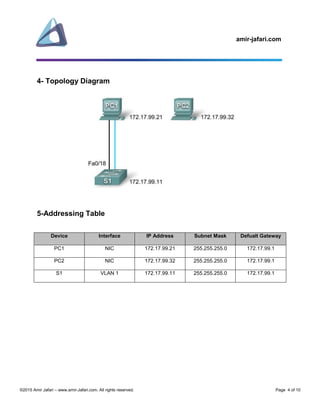
4- Topology Diagram
5-Addressing Table
Device Interface IP Address Subnet Mask Defualt Gateway
PC1 NIC 172.17.99.21 255.255.255.0 172.17.99.1
PC2 NIC 172.17.99.32 255.255.255.0 172.17.99.1
S1 VLAN 1 172.17.99.11 255.255.255.0 172.17.99.1
amir-jafari.com
©2015 Amir Jafari – www.amir-Jafari.com. All rights reserved. Page 5 of 10
6-Detailed Lab Steps
6-1 Part 1: Prepare the Network (Cable, Erase, and Reload the Switch)
6-1-1- Designing and Configuration
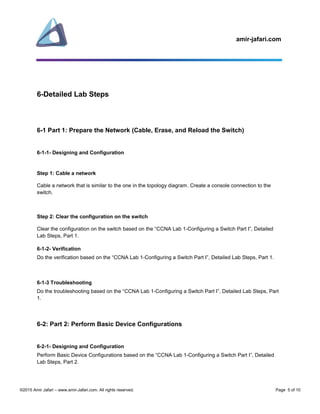
Step 1: Cable a network
Cable a network that is similar to the one in the topology diagram. Create a console connection to the
switch.
Step 2: Clear the configuration on the switch
Clear the configuration on the switch based on the “CCNA Lab 1-Configuring a Switch Part I”, Detailed
Lab Steps, Part 1.
6-1-2- Verification
Do the verification based on the “CCNA Lab 1-Configuring a Switch Part I”, Detailed Lab Steps, Part 1.
6-1-3 Troubleshooting
Do the troubleshooting based on the “CCNA Lab 1-Configuring a Switch Part I”, Detailed Lab Steps, Part
1.
6-2: Part 2: Perform Basic Device Configurations
6-2-1- Designing and Configuration
Perform Basic Device Configurations based on the “CCNA Lab 1-Configuring a Switch Part I”, Detailed
Lab Steps, Part 2.
amir-jafari.com
©2015 Amir Jafari – www.amir-Jafari.com. All rights reserved. Page 6 of 10
6-2-2- Verification
Do the verification based on the “CCNA Lab 1-Configuring a Switch Part I”, Detailed Lab Steps, Detailed
Lab Steps, Part 2.
6-3: Part 3: Configuring Port Security
6-3-1- Designing and Configuration
Step 1: Configure hosts
Set the IP address, subnet mask and default gateway for PC1 and PC2 based on the address table. Do
not connect PC2 to the switch yet.
Step 2: Configure port security on an access port (Learn the MAC addresses dynamically)
Configure switch port Fast Ethernet 0/18 to accept only two devices, to learn the MAC addresses of those
devices dynamically, and to block traffic from invalid hosts if a violation occurs.
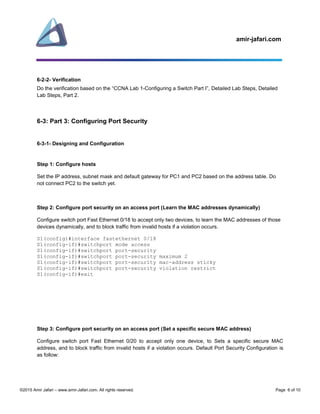
S1(config)#interface fastethernet 0/18
S1(config-if)#switchport mode access
S1(config-if)#switchport port-security
S1(config-if)#switchport port-security maximum 2
S1(config-if)#switchport port-security mac-address sticky
S1(config-if)#switchport port-security violation restrict
S1(config-if)#exit
Step 3: Configure port security on an access port (Set a specific secure MAC address)
Configure switch port Fast Ethernet 0/20 to accept only one device, to Sets a specific secure MAC
address, and to block traffic from invalid hosts if a violation occurs. Default Port Security Configuration is
as follow:
amir-jafari.com
©2015 Amir Jafari – www.amir-Jafari.com. All rights reserved. Page 7 of 10
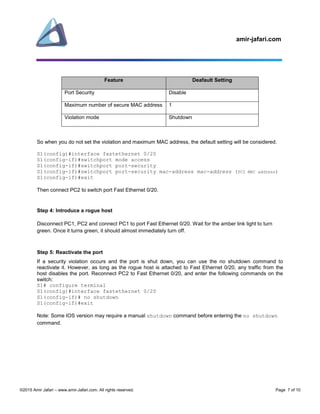
Feature Deafault Setting
Port Security Disable
Maximum number of secure MAC address 1
Violation mode Shutdown
So when you do not set the violation and maximum MAC address, the default setting will be considered.
S1(config)#interface fastethernet 0/20
S1(config-if)#switchport mode access
S1(config-if)#switchport port-security
S1(config-if)#switchport port-security mac-address mac-address (PC2 MAC address)
S1(config-if)#exit
Then connect PC2 to switch port Fast Ethernet 0/20.
Step 4: Introduce a rogue host
Disconnect PC1, PC2 and connect PC1 to port Fast Ethernet 0/20. Wait for the amber link light to turn
green. Once it turns green, it should almost immediately turn off.
Step 5: Reactivate the port
If a security violation occurs and the port is shut down, you can use the no shutdown command to
reactivate it. However, as long as the rogue host is attached to Fast Ethernet 0/20, any traffic from the
host disables the port. Reconnect PC2 to Fast Ethernet 0/20, and enter the following commands on the
switch:
S1# configure terminal
S1(config)#interface fastethernet 0/20
S1(config-if)# no shutdown
S1(config-if)#exit
Note: Some IOS version may require a manual shutdown command before entering the no shutdown
command.
amir-jafari.com
©2015 Amir Jafari – www.amir-Jafari.com. All rights reserved. Page 8 of 10
6-3-2- Verification
Step 1: Verify the results
Show the port security settings.
S1#show port-security
Step 2: Examine the running configuration file
With sticky secure MAC addresses feature, port security learns the MAC addresses off each port and
stores those in the port security configuration (in the running-config file). Port security does not save the
configuration of the sticky addresses, so use the copy running-config startup-config command if
desired.
S1#show running-config
Step 3: Determine the MAC addresses that the switch has learned
Any MAC addresses associated with a port on which port security is enabled show up as static MAC
addresses.
S1#show mac-address-table
6-4: Part 4: Configure Switch to Accept Incoming SSH Connections
6-3-1- Designing and Configuration
Step 1: Creates a locally significant username/ password combination
To work, SSH requires a local username database.
S1(config)#username cisco password class
Step 2: Configure the vty lines to use usernames
Tell Switch to require SSH connections to use a locally configured username/password pair.
amir-jafari.com
©2015 Amir Jafari – www.amir-Jafari.com. All rights reserved. Page 9 of 10
S1(config)#line vty 0 15
S1(config-line)#login local
S1(config-line)#exit
Step 3: Creates a host domain for the Switch
To work, SSH requires a local IP domain.
S1(config)#ip domain-name cisco.com
Step 4: Create the encryption keys
Enables the SSH server for local and remote authentication on the switch and generates an RSA key pair.
S1(config)#crypto key generate rsa
How many bits in the modulus [512]: 1024
Step 5: Enable SSH Version 2
S1(config)#ip ssh version 2
Step 6: Disable support for inbound Telnet connections
The switch supports both Telnet and SSH on the vty lines, but you can disable Telnet for tighter security.
S1(config)#line vty 0 15
S1(config-line)#transport input ssh
6-3-2- Verification
Step 1: Examine the running configuration file
S1#show running-config
Step 2: The status information about the SSH server
The show ip ssh command lists status information about the SSH server itself.
S1#show ip ssh
amir-jafari.com
©2015 Amir Jafari – www.amir-Jafari.com. All rights reserved. Page 10 of 10
Step 3: Information about each SSH client
The show ssh command then lists information about each SSH client currently connected into the switch.
S1#show ssh
Step 4: Displays who is connected remotely to Switch
This command lists all users logged in to the Swtich, including users at the console, and those connecting
using both Telnet and SSH.
S1#show users
Step 5: Disconnects the remote user connected to Swtich on line x
The line number is listed in the output gained from the show users command.
S1#clear line x

CCNA Lab 2-Configuring a Switch Part II

  • 1.
    amir-jafari.com ©2015 Amir Jafari– www.amir-Jafari.com. All rights reserved. Page 1 of 10 CCNA Lab 2: Configuring a Switch Part II
  • 2.
    amir-jafari.com ©2015 Amir Jafari– www.amir-Jafari.com. All rights reserved. Page 2 of 10 Table of Contents Page 1- Objectives...................................................................................................................................................3 2- Scenario .....................................................................................................................................................3 3- Equipment List............................................................................................................................................3 4- Topology Diagram ......................................................................................................................................4 5-Addressing Table.........................................................................................................................................4 6-Detailed Lab Steps ......................................................................................................................................5 6-1 Part 1: Prepare the Network (Cable, Erase, and Reload the Switch)...................................................5 6-1-1- Designing and Configuration ........................................................................................................5 6-1-2- Verification ....................................................................................................................................5 6-1-3 Troubleshooting .............................................................................................................................5 6-2: Part 2: Perform Basic Device Configurations ......................................................................................5 6-2-1- Designing and Configuration ........................................................................................................5 6-2-2- Verification ....................................................................................................................................6 6-3: Part 3: Configuring Port Security .........................................................................................................6 6-3-1- Designing and Configuration ........................................................................................................6 Then connect PC2 to switch port Fast Ethernet 0/20..............................................................................7 Disconnect PC1, PC2 and connect PC1 to port Fast Ethernet 0/20. Wait for the amber link light to turn green. Once it turns green, it should almost immediately turn off...........................................................7 Note: Some IOS version may require a manual shutdown command before entering the no shutdown command.................................................................................................................................................7 6-3-2- Verification ....................................................................................................................................8 6-4: Part 4: Configure Switch to Accept Incoming SSH Connections.........................................................8 6-3-1- Designing and Configuration ........................................................................................................8 6-3-2- Verification ....................................................................................................................................9
  • 3.
    amir-jafari.com ©2015 Amir Jafari– www.amir-Jafari.com. All rights reserved. Page 3 of 10 1- Objectives  Configure basic switch port security  Manage the MAC address table  Configuring SSH to remotely connect to other devices 2- Scenario This lab introduces you the basic switch port security configuration and configuring the Switch to accept incoming SSH connections. 3- Equipment List  Cisco Catalyst 2960 Switch with Cisco IOS Release 12.2. The Cisco implementation of SSH requires Cisco IOS Software to support RSA authentication and minimum DES encryption—a cryptographic software image.  Two PCs that will run Windows XP or later
  • 4.
    amir-jafari.com ©2015 Amir Jafari– www.amir-Jafari.com. All rights reserved. Page 4 of 10 4- Topology Diagram 5-Addressing Table Device Interface IP Address Subnet Mask Defualt Gateway PC1 NIC 172.17.99.21 255.255.255.0 172.17.99.1 PC2 NIC 172.17.99.32 255.255.255.0 172.17.99.1 S1 VLAN 1 172.17.99.11 255.255.255.0 172.17.99.1
  • 5.
    amir-jafari.com ©2015 Amir Jafari– www.amir-Jafari.com. All rights reserved. Page 5 of 10 6-Detailed Lab Steps 6-1 Part 1: Prepare the Network (Cable, Erase, and Reload the Switch) 6-1-1- Designing and Configuration Step 1: Cable a network Cable a network that is similar to the one in the topology diagram. Create a console connection to the switch. Step 2: Clear the configuration on the switch Clear the configuration on the switch based on the “CCNA Lab 1-Configuring a Switch Part I”, Detailed Lab Steps, Part 1. 6-1-2- Verification Do the verification based on the “CCNA Lab 1-Configuring a Switch Part I”, Detailed Lab Steps, Part 1. 6-1-3 Troubleshooting Do the troubleshooting based on the “CCNA Lab 1-Configuring a Switch Part I”, Detailed Lab Steps, Part 1. 6-2: Part 2: Perform Basic Device Configurations 6-2-1- Designing and Configuration Perform Basic Device Configurations based on the “CCNA Lab 1-Configuring a Switch Part I”, Detailed Lab Steps, Part 2.
  • 6.
    amir-jafari.com ©2015 Amir Jafari– www.amir-Jafari.com. All rights reserved. Page 6 of 10 6-2-2- Verification Do the verification based on the “CCNA Lab 1-Configuring a Switch Part I”, Detailed Lab Steps, Detailed Lab Steps, Part 2. 6-3: Part 3: Configuring Port Security 6-3-1- Designing and Configuration Step 1: Configure hosts Set the IP address, subnet mask and default gateway for PC1 and PC2 based on the address table. Do not connect PC2 to the switch yet. Step 2: Configure port security on an access port (Learn the MAC addresses dynamically) Configure switch port Fast Ethernet 0/18 to accept only two devices, to learn the MAC addresses of those devices dynamically, and to block traffic from invalid hosts if a violation occurs. S1(config)#interface fastethernet 0/18 S1(config-if)#switchport mode access S1(config-if)#switchport port-security S1(config-if)#switchport port-security maximum 2 S1(config-if)#switchport port-security mac-address sticky S1(config-if)#switchport port-security violation restrict S1(config-if)#exit Step 3: Configure port security on an access port (Set a specific secure MAC address) Configure switch port Fast Ethernet 0/20 to accept only one device, to Sets a specific secure MAC address, and to block traffic from invalid hosts if a violation occurs. Default Port Security Configuration is as follow:
  • 7.
    amir-jafari.com ©2015 Amir Jafari– www.amir-Jafari.com. All rights reserved. Page 7 of 10 Feature Deafault Setting Port Security Disable Maximum number of secure MAC address 1 Violation mode Shutdown So when you do not set the violation and maximum MAC address, the default setting will be considered. S1(config)#interface fastethernet 0/20 S1(config-if)#switchport mode access S1(config-if)#switchport port-security S1(config-if)#switchport port-security mac-address mac-address (PC2 MAC address) S1(config-if)#exit Then connect PC2 to switch port Fast Ethernet 0/20. Step 4: Introduce a rogue host Disconnect PC1, PC2 and connect PC1 to port Fast Ethernet 0/20. Wait for the amber link light to turn green. Once it turns green, it should almost immediately turn off. Step 5: Reactivate the port If a security violation occurs and the port is shut down, you can use the no shutdown command to reactivate it. However, as long as the rogue host is attached to Fast Ethernet 0/20, any traffic from the host disables the port. Reconnect PC2 to Fast Ethernet 0/20, and enter the following commands on the switch: S1# configure terminal S1(config)#interface fastethernet 0/20 S1(config-if)# no shutdown S1(config-if)#exit Note: Some IOS version may require a manual shutdown command before entering the no shutdown command.
  • 8.
    amir-jafari.com ©2015 Amir Jafari– www.amir-Jafari.com. All rights reserved. Page 8 of 10 6-3-2- Verification Step 1: Verify the results Show the port security settings. S1#show port-security Step 2: Examine the running configuration file With sticky secure MAC addresses feature, port security learns the MAC addresses off each port and stores those in the port security configuration (in the running-config file). Port security does not save the configuration of the sticky addresses, so use the copy running-config startup-config command if desired. S1#show running-config Step 3: Determine the MAC addresses that the switch has learned Any MAC addresses associated with a port on which port security is enabled show up as static MAC addresses. S1#show mac-address-table 6-4: Part 4: Configure Switch to Accept Incoming SSH Connections 6-3-1- Designing and Configuration Step 1: Creates a locally significant username/ password combination To work, SSH requires a local username database. S1(config)#username cisco password class Step 2: Configure the vty lines to use usernames Tell Switch to require SSH connections to use a locally configured username/password pair.
  • 9.
    amir-jafari.com ©2015 Amir Jafari– www.amir-Jafari.com. All rights reserved. Page 9 of 10 S1(config)#line vty 0 15 S1(config-line)#login local S1(config-line)#exit Step 3: Creates a host domain for the Switch To work, SSH requires a local IP domain. S1(config)#ip domain-name cisco.com Step 4: Create the encryption keys Enables the SSH server for local and remote authentication on the switch and generates an RSA key pair. S1(config)#crypto key generate rsa How many bits in the modulus [512]: 1024 Step 5: Enable SSH Version 2 S1(config)#ip ssh version 2 Step 6: Disable support for inbound Telnet connections The switch supports both Telnet and SSH on the vty lines, but you can disable Telnet for tighter security. S1(config)#line vty 0 15 S1(config-line)#transport input ssh 6-3-2- Verification Step 1: Examine the running configuration file S1#show running-config Step 2: The status information about the SSH server The show ip ssh command lists status information about the SSH server itself. S1#show ip ssh
  • 10.
    amir-jafari.com ©2015 Amir Jafari– www.amir-Jafari.com. All rights reserved. Page 10 of 10 Step 3: Information about each SSH client The show ssh command then lists information about each SSH client currently connected into the switch. S1#show ssh Step 4: Displays who is connected remotely to Switch This command lists all users logged in to the Swtich, including users at the console, and those connecting using both Telnet and SSH. S1#show users Step 5: Disconnects the remote user connected to Swtich on line x The line number is listed in the output gained from the show users command. S1#clear line x