CSS BACKGROUND
background-color
background-image
background-repeat
background-attachment
background-position
background (shorthand property)
In these chapters, you will learn about the following CSS
background properties:
MODULE 10
•The CSS background properties are used to add
background effects for elements.
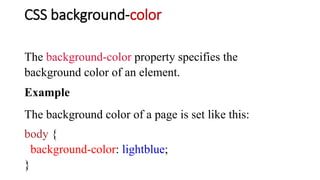
CSS background-color
The background-color property specifies the
background color of an element.
Example
The background color of a page is set like this:
body {
background-color: lightblue;
}
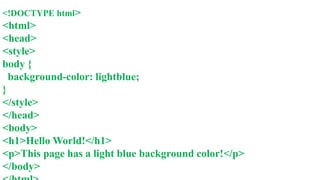
<!DOCTYPE html>
<html>
<head>
<style>
body {
background-color: lightblue;
}
</style>
</head>
<body>
<h1>Hello World!</h1>
<p>This page has a light blue background color!</p>
</body>
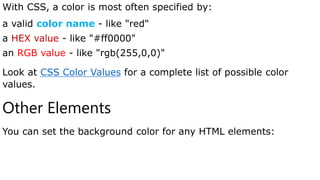
With CSS, a color is most often specified by:
a valid color name - like "red"
a HEX value - like "#ff0000"
an RGB value - like "rgb(255,0,0)"
Look at CSS Color Values for a complete list of possible color
values.
Other Elements
You can set the background color for any HTML elements:
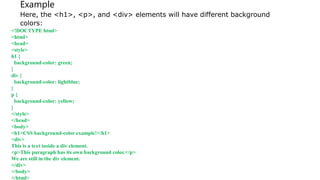
Example
Here, the <h1>, <p>, and <div> elements will have different background
colors:
<!DOCTYPE html>
<html>
<head>
<style>
h1 {
background-color: green;
}
div {
background-color: lightblue;
}
p {
background-color: yellow;
}
</style>
</head>
<body>
<h1>CSS background-color example!</h1>
<div>
This is a text inside a div element.
<p>This paragraph has its own background color.</p>
We are still in the div element.
</div>
</body>
</html>
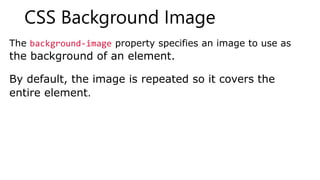
CSS Background Image
The background-image property specifies an image to use as
the background of an element.
By default, the image is repeated so it covers the
entire element.
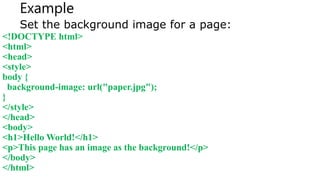
Example
Set the background image for a page:
<!DOCTYPE html>
<html>
<head>
<style>
body {
background-image: url("paper.jpg");
}
</style>
</head>
<body>
<h1>Hello World!</h1>
<p>This page has an image as the background!</p>
</body>
</html>
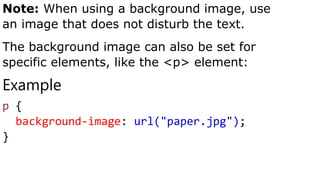
Note: When using a background image, use
an image that does not disturb the text.
The background image can also be set for
specific elements, like the <p> element:
Example
p {
background-image: url("paper.jpg");
}
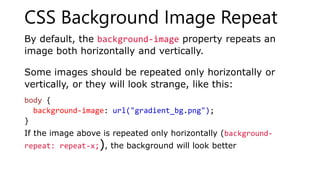
CSS Background Image Repeat
By default, the background-image property repeats an
image both horizontally and vertically.
Some images should be repeated only horizontally or
vertically, or they will look strange, like this:
body {
background-image: url("gradient_bg.png");
}
If the image above is repeated only horizontally (background-
repeat: repeat-x;), the background will look better
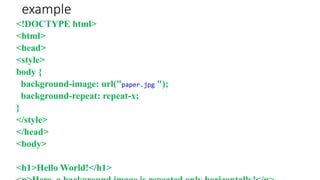
example
<!DOCTYPE html>
<html>
<head>
<style>
body {
background-image: url("paper.jpg ");
background-repeat: repeat-x;
}
</style>
</head>
<body>
<h1>Hello World!</h1>
Tip: To repeat an image vertically,
set background-repeat: repeat-y;
CSS background-repeat: no-repeat
Showing the background image only once is also
specified by the background-repeat property:
Example
Show the background image only once:
body {
background-image: url("img_tree.png");
background-repeat: no-repeat;
}
• In the example above, the background image is placed in the
same place as the text. But We can change the position of the
image, so that it does not disturb the text too much by using
background-position property
CSS background-position
The background-position property is used to specify the position
of the background image.
Example: Position the background image in the top-
right corner:
body {
background-image: url("img_tree.png");
background-repeat: no-repeat;
background-position: right top;
}
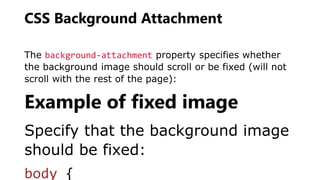
CSS Background Attachment
The background-attachment property specifies whether
the background image should scroll or be fixed (will not
scroll with the rest of the page):
Example of fixed image
Specify that the background image
should be fixed:
body {
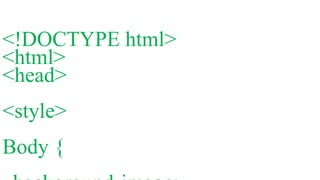
<!DOCTYPE html>
<html>
<head>
<style>
Body {
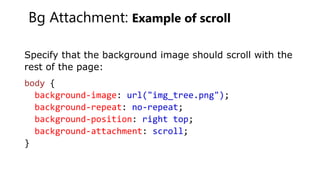
Bg Attachment: Example of scroll
Specify that the background image should scroll with the
rest of the page:
body {
background-image: url("img_tree.png");
background-repeat: no-repeat;
background-position: right top;
background-attachment: scroll;
}
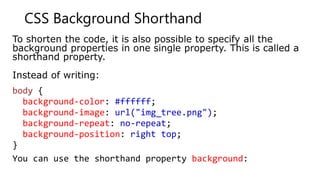
CSS Background Shorthand
To shorten the code, it is also possible to specify all the
background properties in one single property. This is called a
shorthand property.
Instead of writing:
body {
background-color: #ffffff;
background-image: url("img_tree.png");
background-repeat: no-repeat;
background-position: right top;
}
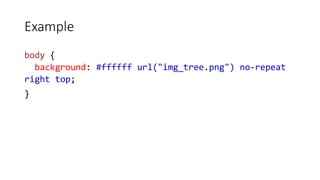
You can use the shorthand property background:
Example
body {
background: #ffffff url("img_tree.png") no-repeat
right top;
}
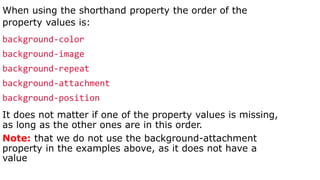
When using the shorthand property the order of the
property values is:
background-color
background-image
background-repeat
background-attachment
background-position
It does not matter if one of the property values is missing,
as long as the other ones are in this order.
Note: that we do not use the background-attachment
property in the examples above, as it does not have a
value
Assessment:
Apply the above background features to style your website project
End of MODULE 10 lecture
Thank you

Cascading Style Sheets Background .pptx

  • 1.
    CSS BACKGROUND background-color background-image background-repeat background-attachment background-position background (shorthandproperty) In these chapters, you will learn about the following CSS background properties: MODULE 10
  • 2.
    •The CSS backgroundproperties are used to add background effects for elements.
  • 3.
    CSS background-color The background-colorproperty specifies the background color of an element. Example The background color of a page is set like this: body { background-color: lightblue; }
  • 4.
    <!DOCTYPE html> <html> <head> <style> body { background-color:lightblue; } </style> </head> <body> <h1>Hello World!</h1> <p>This page has a light blue background color!</p> </body>
  • 5.
    With CSS, acolor is most often specified by: a valid color name - like "red" a HEX value - like "#ff0000" an RGB value - like "rgb(255,0,0)" Look at CSS Color Values for a complete list of possible color values. Other Elements You can set the background color for any HTML elements:
  • 6.
    Example Here, the <h1>,<p>, and <div> elements will have different background colors: <!DOCTYPE html> <html> <head> <style> h1 { background-color: green; } div { background-color: lightblue; } p { background-color: yellow; } </style> </head> <body> <h1>CSS background-color example!</h1> <div> This is a text inside a div element. <p>This paragraph has its own background color.</p> We are still in the div element. </div> </body> </html>
  • 7.
    CSS Background Image Thebackground-image property specifies an image to use as the background of an element. By default, the image is repeated so it covers the entire element.
  • 8.
    Example Set the backgroundimage for a page: <!DOCTYPE html> <html> <head> <style> body { background-image: url("paper.jpg"); } </style> </head> <body> <h1>Hello World!</h1> <p>This page has an image as the background!</p> </body> </html>
  • 9.
    Note: When usinga background image, use an image that does not disturb the text. The background image can also be set for specific elements, like the <p> element: Example p { background-image: url("paper.jpg"); }
  • 10.
    CSS Background ImageRepeat By default, the background-image property repeats an image both horizontally and vertically. Some images should be repeated only horizontally or vertically, or they will look strange, like this: body { background-image: url("gradient_bg.png"); } If the image above is repeated only horizontally (background- repeat: repeat-x;), the background will look better
  • 11.
    example <!DOCTYPE html> <html> <head> <style> body { background-image:url("paper.jpg "); background-repeat: repeat-x; } </style> </head> <body> <h1>Hello World!</h1>
  • 12.
    Tip: To repeatan image vertically, set background-repeat: repeat-y;
  • 13.
    CSS background-repeat: no-repeat Showingthe background image only once is also specified by the background-repeat property: Example Show the background image only once: body { background-image: url("img_tree.png"); background-repeat: no-repeat; }
  • 14.
    • In theexample above, the background image is placed in the same place as the text. But We can change the position of the image, so that it does not disturb the text too much by using background-position property
  • 15.
    CSS background-position The background-positionproperty is used to specify the position of the background image. Example: Position the background image in the top- right corner: body { background-image: url("img_tree.png"); background-repeat: no-repeat; background-position: right top; }
  • 16.
    CSS Background Attachment Thebackground-attachment property specifies whether the background image should scroll or be fixed (will not scroll with the rest of the page): Example of fixed image Specify that the background image should be fixed: body {
  • 17.
  • 18.
    Bg Attachment: Exampleof scroll Specify that the background image should scroll with the rest of the page: body { background-image: url("img_tree.png"); background-repeat: no-repeat; background-position: right top; background-attachment: scroll; }
  • 19.
    CSS Background Shorthand Toshorten the code, it is also possible to specify all the background properties in one single property. This is called a shorthand property. Instead of writing: body { background-color: #ffffff; background-image: url("img_tree.png"); background-repeat: no-repeat; background-position: right top; } You can use the shorthand property background:
  • 20.
    Example body { background: #ffffffurl("img_tree.png") no-repeat right top; }
  • 21.
    When using theshorthand property the order of the property values is: background-color background-image background-repeat background-attachment background-position It does not matter if one of the property values is missing, as long as the other ones are in this order. Note: that we do not use the background-attachment property in the examples above, as it does not have a value
  • 22.
    Assessment: Apply the abovebackground features to style your website project End of MODULE 10 lecture Thank you