BIOS Configuration
What is a BIOS?
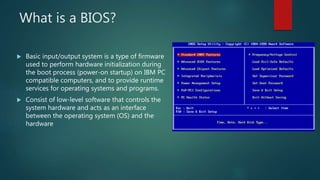
 Basic input/output system is a type of firmware
used to perform hardware initialization during
the boot process (power-on startup) on IBM PC
compatible computers, and to provide runtime
services for operating systems and programs.
 Consist of low-level software that controls the
system hardware and acts as an interface
between the operating system (OS) and the
hardware
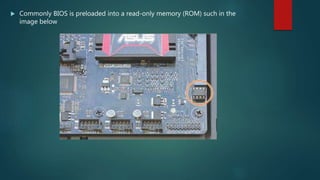
 Commonly BIOS is preloaded into a read-only memory (ROM) such in the
image below
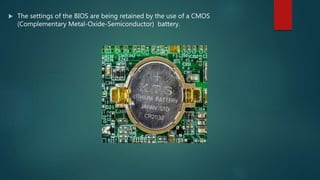
 The settings of the BIOS are being retained by the use of a CMOS
(Complementary Metal-Oxide-Semiconductor) battery.
What is the function of the BIOS?
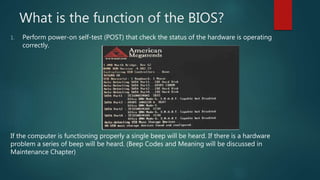
1. Perform power-on self-test (POST) that check the status of the hardware is operating
correctly.
If the computer is functioning properly a single beep will be heard. If there is a hardware
problem a series of beep will be heard. (Beep Codes and Meaning will be discussed in
Maintenance Chapter)
What is the function of the BIOS?
2. The BIOS identifies which drive are available.
3. The BIOS identifies which drive are bootable
4. How the memory is configured.
5. How PCIe and PCI expansion slots are configured
6. How SATA and USB ports are configured
7. Motherboard power management features
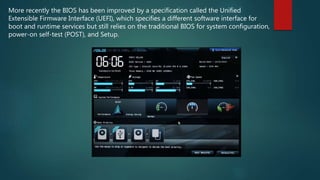
More recently the BIOS has been improved by a specification called the Unified
Extensible Firmware Interface (UEFI), which specifies a different software interface for
boot and runtime services but still relies on the traditional BIOS for system configuration,
power-on self-test (POST), and Setup.
How to enter BIOS in Windows
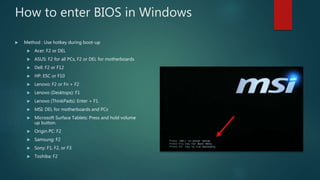
 Method : Use hotkey during boot-up
 Acer: F2 or DEL
 ASUS: F2 for all PCs, F2 or DEL for motherboards
 Dell: F2 or F12
 HP: ESC or F10
 Lenovo: F2 or Fn + F2
 Lenovo (Desktops): F1
 Lenovo (ThinkPads): Enter + F1.
 MSI: DEL for motherboards and PCs
 Microsoft Surface Tablets: Press and hold volume
up button.
 Origin PC: F2
 Samsung: F2
 Sony: F1, F2, or F3
 Toshiba: F2
Reference:
 https://www.hp.com/us-en/shop/tech-takes/how-to-enter-bios-setup-
windows-pcs
 https://www.youtube.com/watch?v=LGz0Io_dh_I
 https://www.youtube.com/watch?v=9GblKZO-smU

BIOS/UEFI

  • 1.
  • 2.
    What is aBIOS?  Basic input/output system is a type of firmware used to perform hardware initialization during the boot process (power-on startup) on IBM PC compatible computers, and to provide runtime services for operating systems and programs.  Consist of low-level software that controls the system hardware and acts as an interface between the operating system (OS) and the hardware
  • 3.
     Commonly BIOSis preloaded into a read-only memory (ROM) such in the image below
  • 4.
     The settingsof the BIOS are being retained by the use of a CMOS (Complementary Metal-Oxide-Semiconductor) battery.
  • 5.
    What is thefunction of the BIOS? 1. Perform power-on self-test (POST) that check the status of the hardware is operating correctly. If the computer is functioning properly a single beep will be heard. If there is a hardware problem a series of beep will be heard. (Beep Codes and Meaning will be discussed in Maintenance Chapter)
  • 6.
    What is thefunction of the BIOS? 2. The BIOS identifies which drive are available. 3. The BIOS identifies which drive are bootable 4. How the memory is configured. 5. How PCIe and PCI expansion slots are configured 6. How SATA and USB ports are configured 7. Motherboard power management features
  • 7.
    More recently theBIOS has been improved by a specification called the Unified Extensible Firmware Interface (UEFI), which specifies a different software interface for boot and runtime services but still relies on the traditional BIOS for system configuration, power-on self-test (POST), and Setup.
  • 8.
    How to enterBIOS in Windows  Method : Use hotkey during boot-up  Acer: F2 or DEL  ASUS: F2 for all PCs, F2 or DEL for motherboards  Dell: F2 or F12  HP: ESC or F10  Lenovo: F2 or Fn + F2  Lenovo (Desktops): F1  Lenovo (ThinkPads): Enter + F1.  MSI: DEL for motherboards and PCs  Microsoft Surface Tablets: Press and hold volume up button.  Origin PC: F2  Samsung: F2  Sony: F1, F2, or F3  Toshiba: F2
  • 9.