BASIC COMPUTER OPERATION
(WINDOWS OS)
BY-AMRESH TIWARI, SUNBEAM SUNCITY(SCHOOL & HOSTEL)
Session – 4
By – Amresh Tiwari (SGEI)
What is an
Operating
System?
BY-AMRESH TIWARI, SUNBEAM SUNCITY(SCHOOL & HOSTEL)
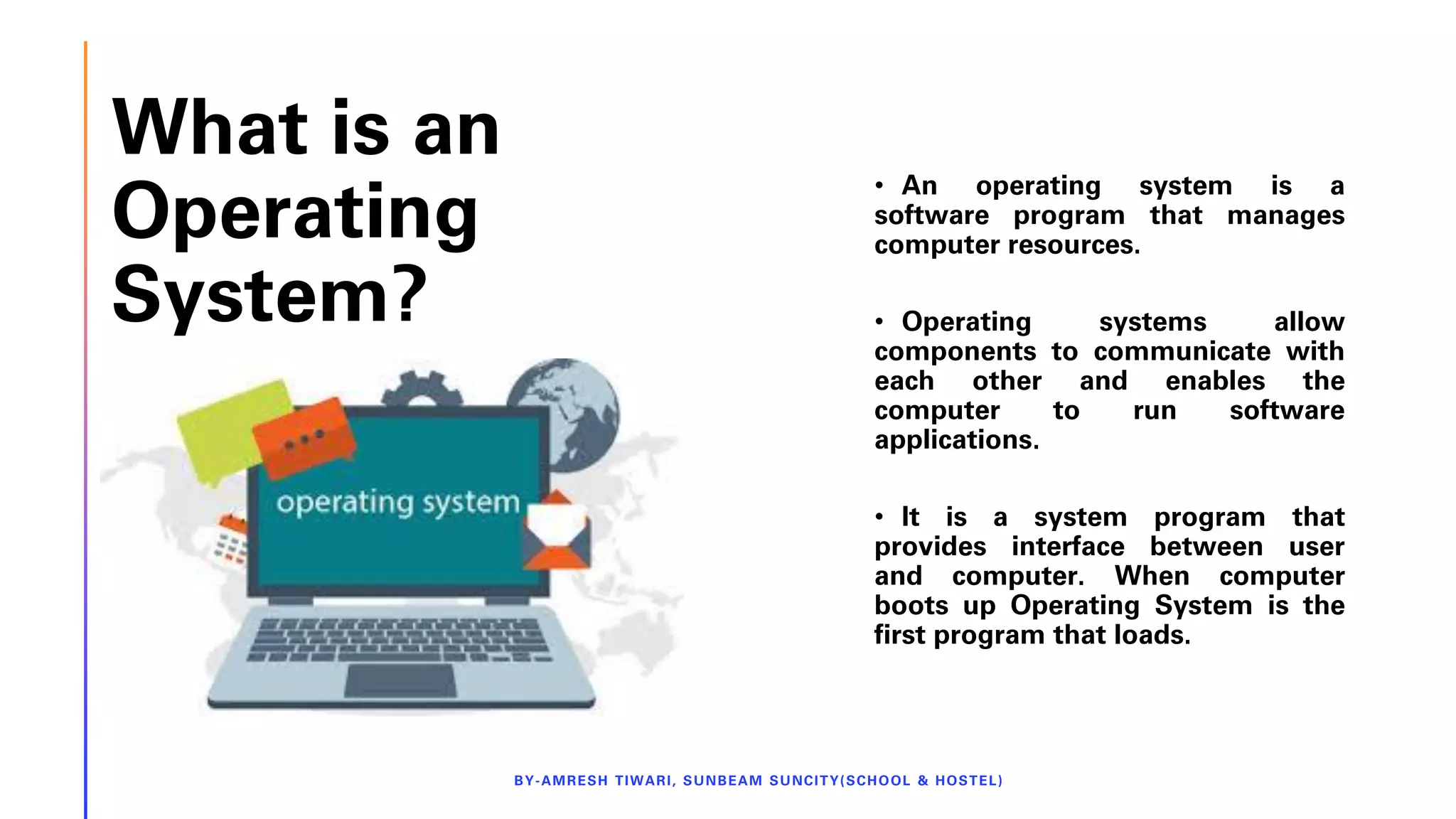
• An operating system is a
software program that manages
computer resources.
• Operating systems allow
components to communicate with
each other and enables the
computer to run software
applications.
• It is a system program that
provides interface between user
and computer. When computer
boots up Operating System is the
first program that loads.
BY-AMRESH TIWARI, SUNBEAM SUNCITY(SCHOOL & HOSTEL)
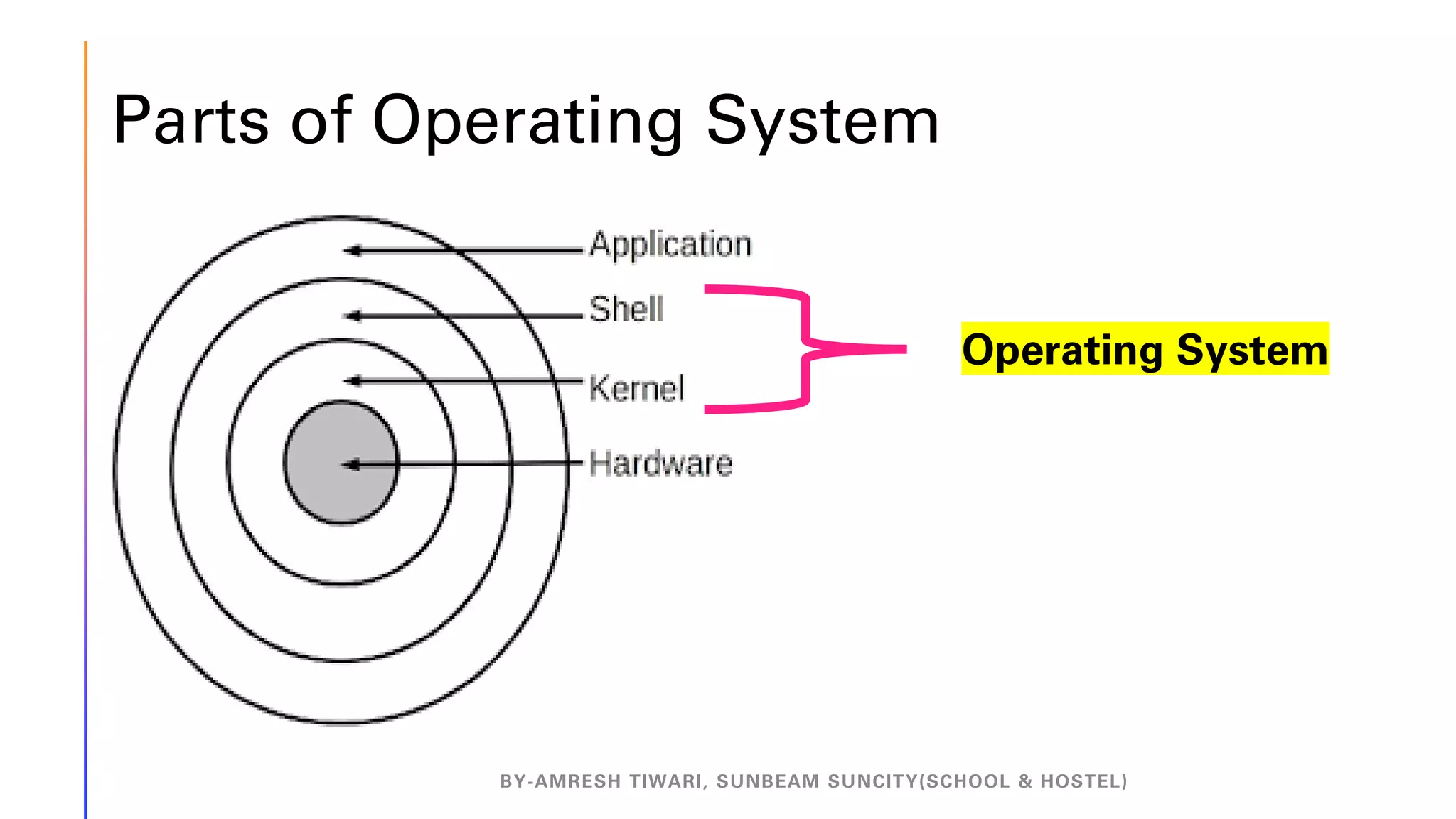
Parts of Operating System
BY-AMRESH TIWARI, SUNBEAM SUNCITY(SCHOOL & HOSTEL)
Operating System
The Kernel
BY-AMRESH TIWARI, SUNBEAM SUNCITY(SCHOOL & HOSTEL)
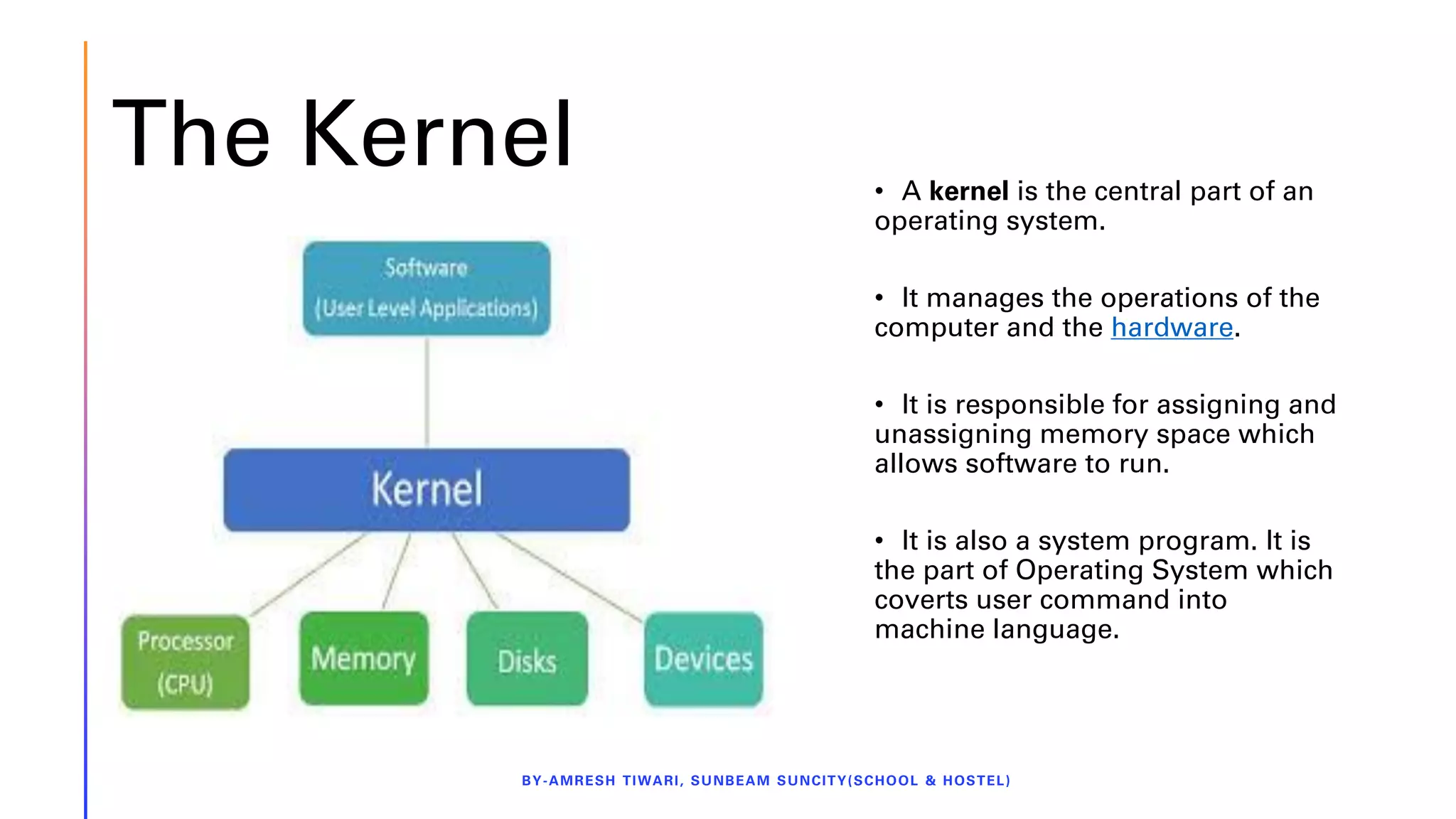
• A kernel is the central part of an
operating system.
• It manages the operations of the
computer and the hardware.
• It is responsible for assigning and
unassigning memory space which
allows software to run.
• It is also a system program. It is
the part of Operating System which
coverts user command into
machine language.
The Shell
BY-AMRESH TIWARI, SUNBEAM SUNCITY(SCHOOL & HOSTEL)
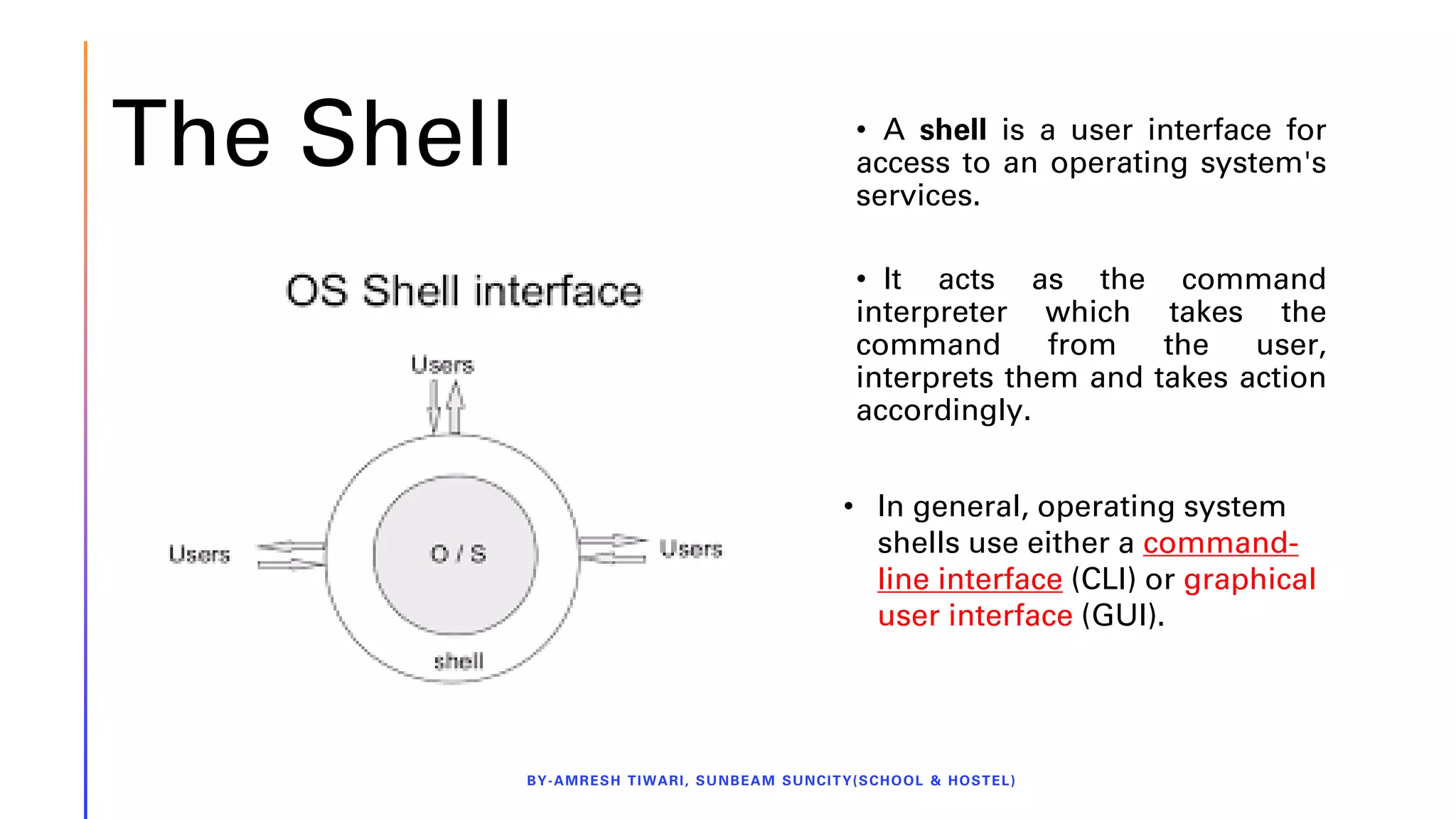
• A shell is a user interface for
access to an operating system's
services.
• It acts as the command
interpreter which takes the
command from the user,
interprets them and takes action
accordingly.
• In general, operating system
shells use either a command-
line interface (CLI) or graphical
user interface (GUI).
Graphical User
Interface(GUI)
BY-AMRESH TIWARI, SUNBEAM SUNCITY(SCHOOL & HOSTEL)
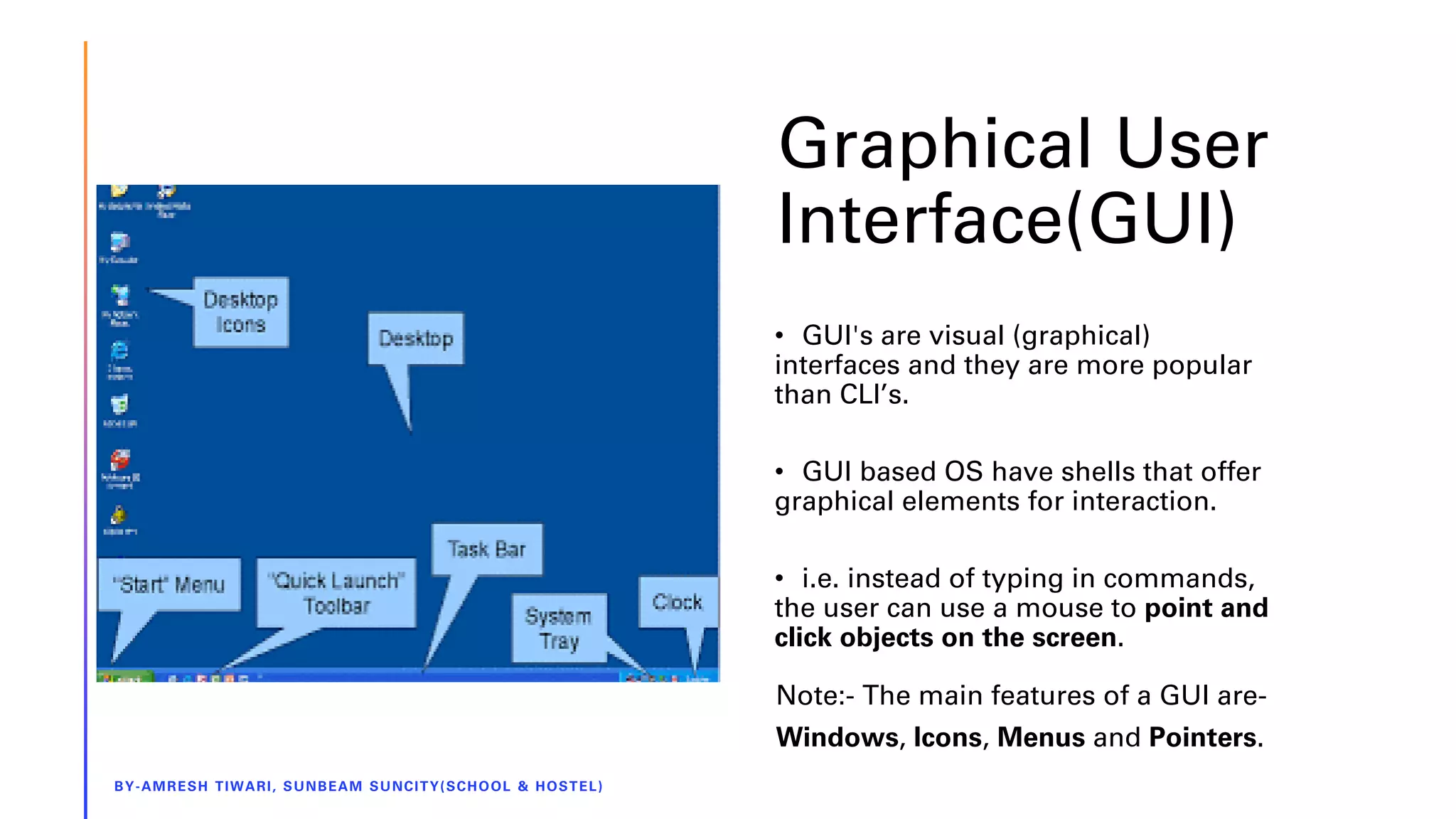
• GUI's are visual (graphical)
interfaces and they are more popular
than CLI’s.
• GUI based OS have shells that offer
graphical elements for interaction.
• i.e. instead of typing in commands,
the user can use a mouse to point and
click objects on the screen.
Note:- The main features of a GUI are-
Windows, Icons, Menus and Pointers.
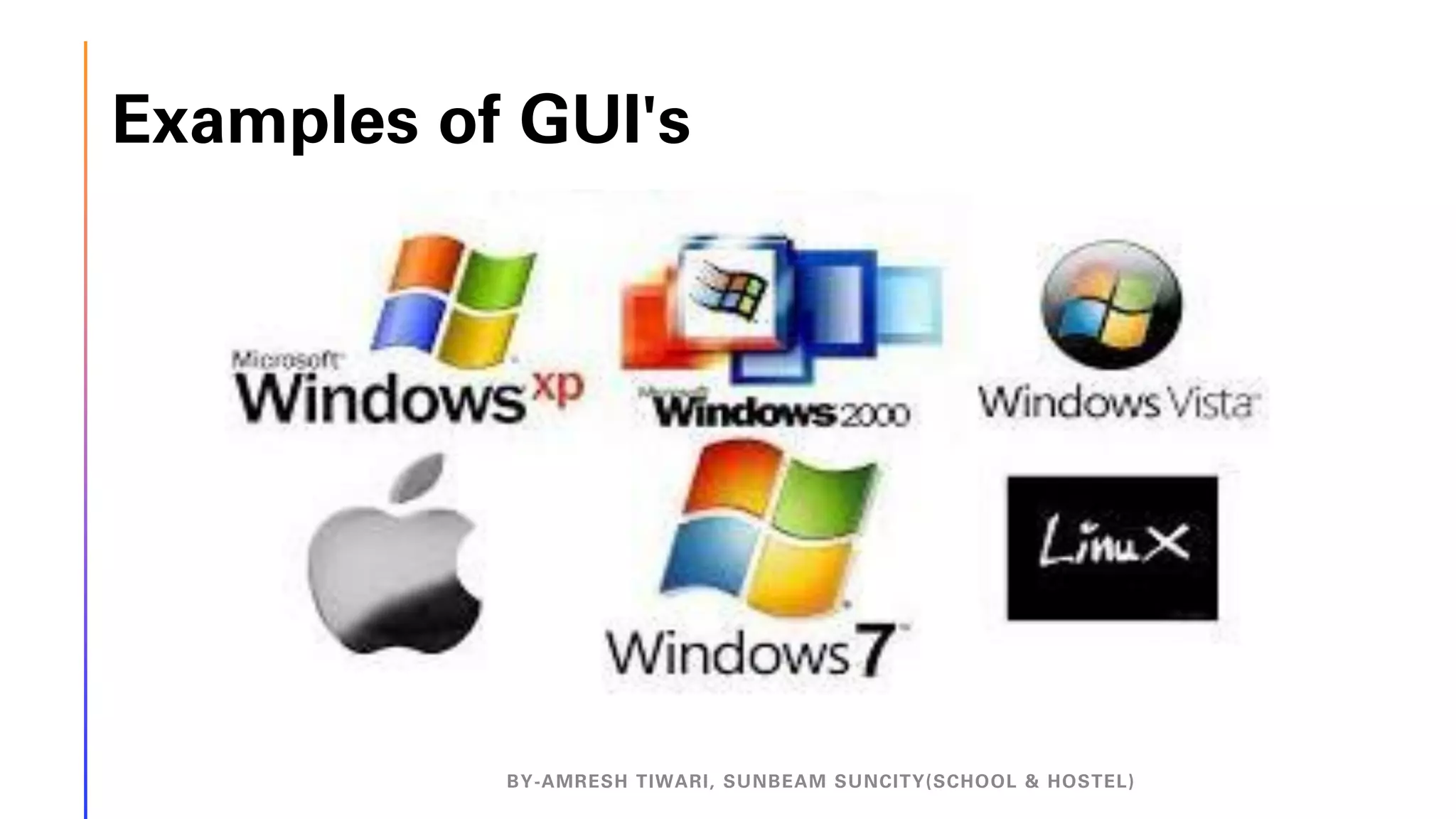
Examples of GUI's
BY-AMRESH TIWARI, SUNBEAM SUNCITY(SCHOOL & HOSTEL)
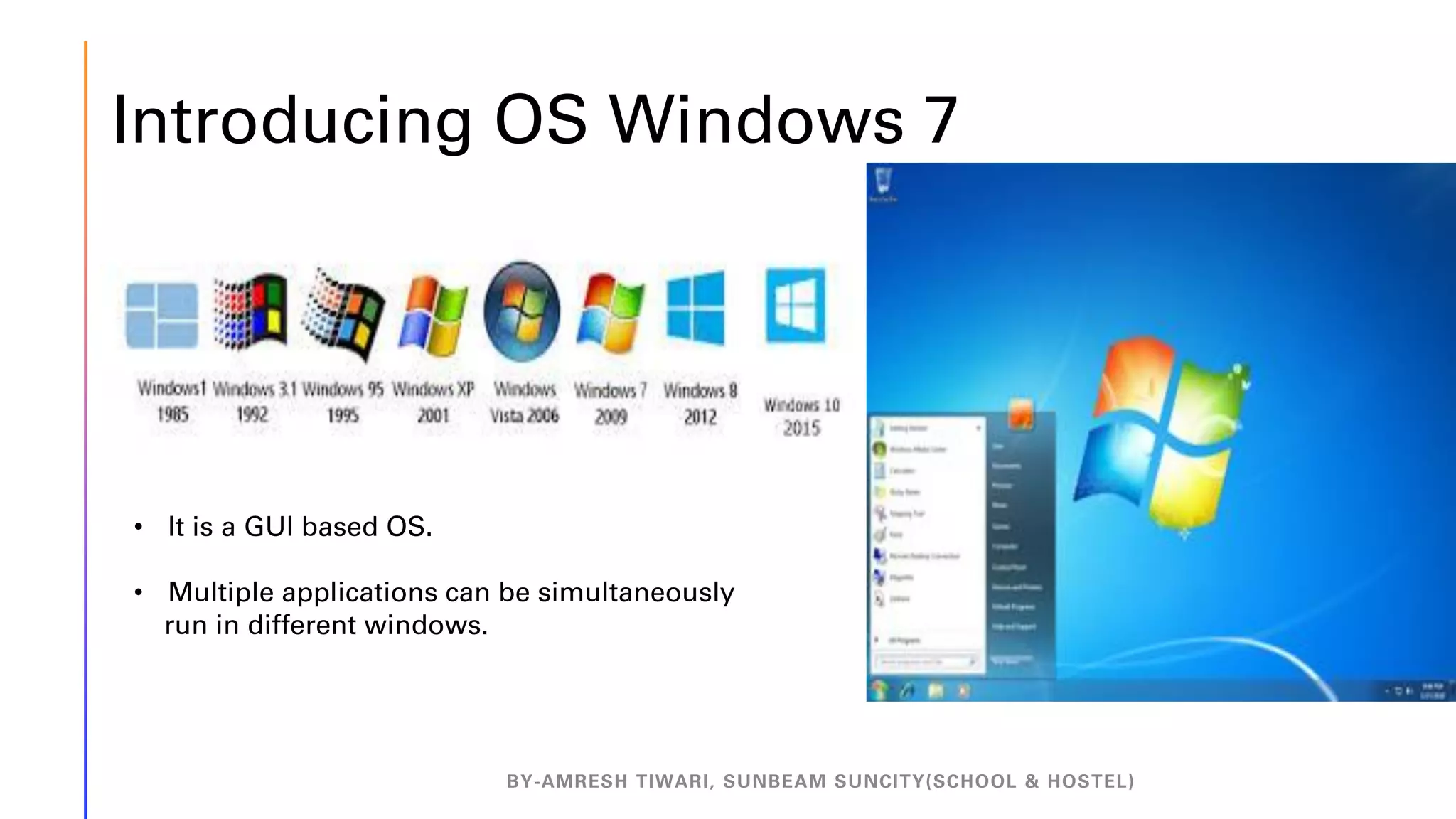
Introducing OS Windows 7
BY-AMRESH TIWARI, SUNBEAM SUNCITY(SCHOOL & HOSTEL)
• It is a GUI based OS.
• Multiple applications can be simultaneously
run in different windows.
Working with Mouse and Keyboard
BY-AMRESH TIWARI, SUNBEAM SUNCITY(SCHOOL & HOSTEL)
The Windows operating system uses both Mouse and Keyboard as input devices.
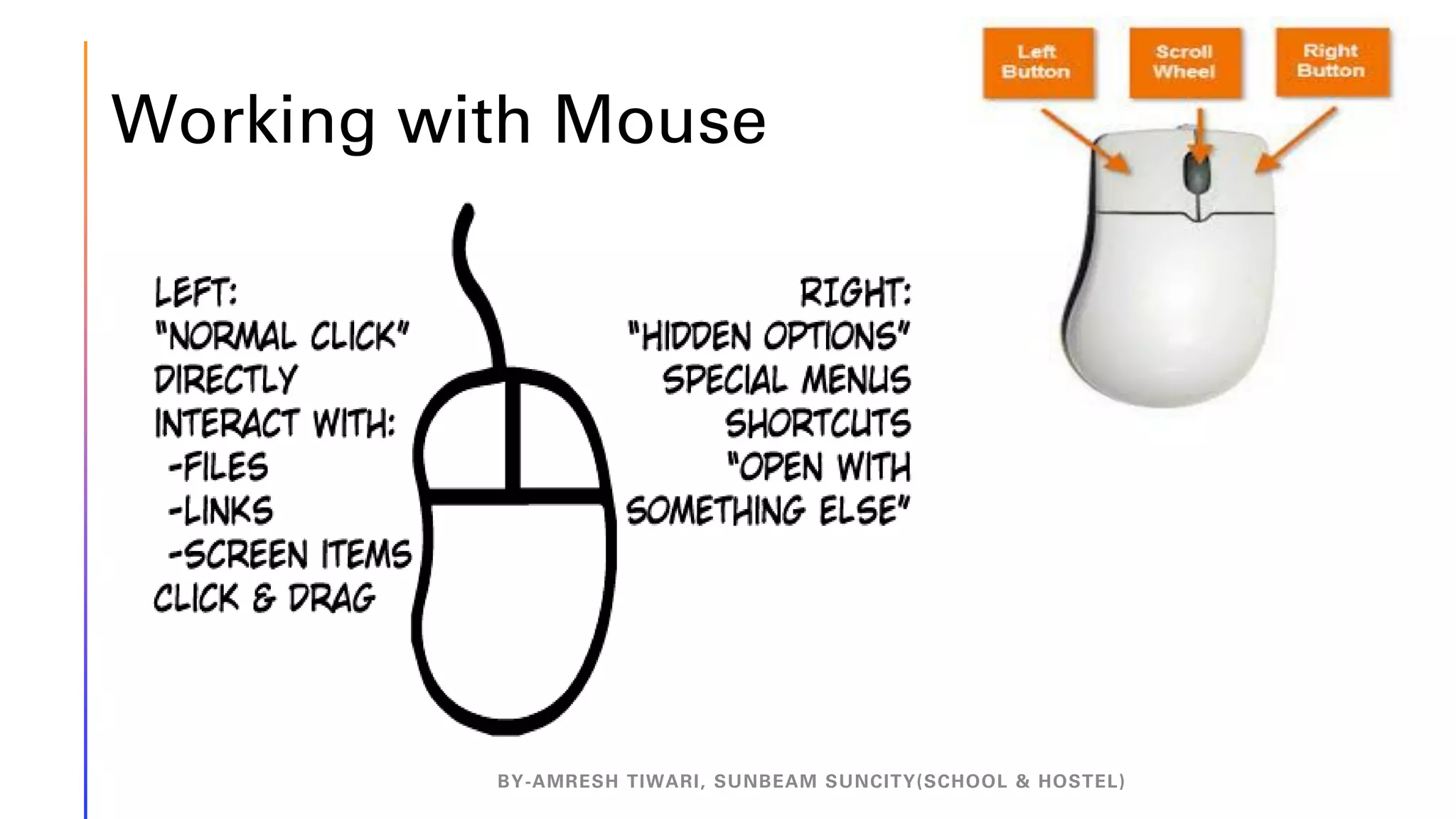
Working with Mouse
BY-AMRESH TIWARI, SUNBEAM SUNCITY(SCHOOL & HOSTEL)
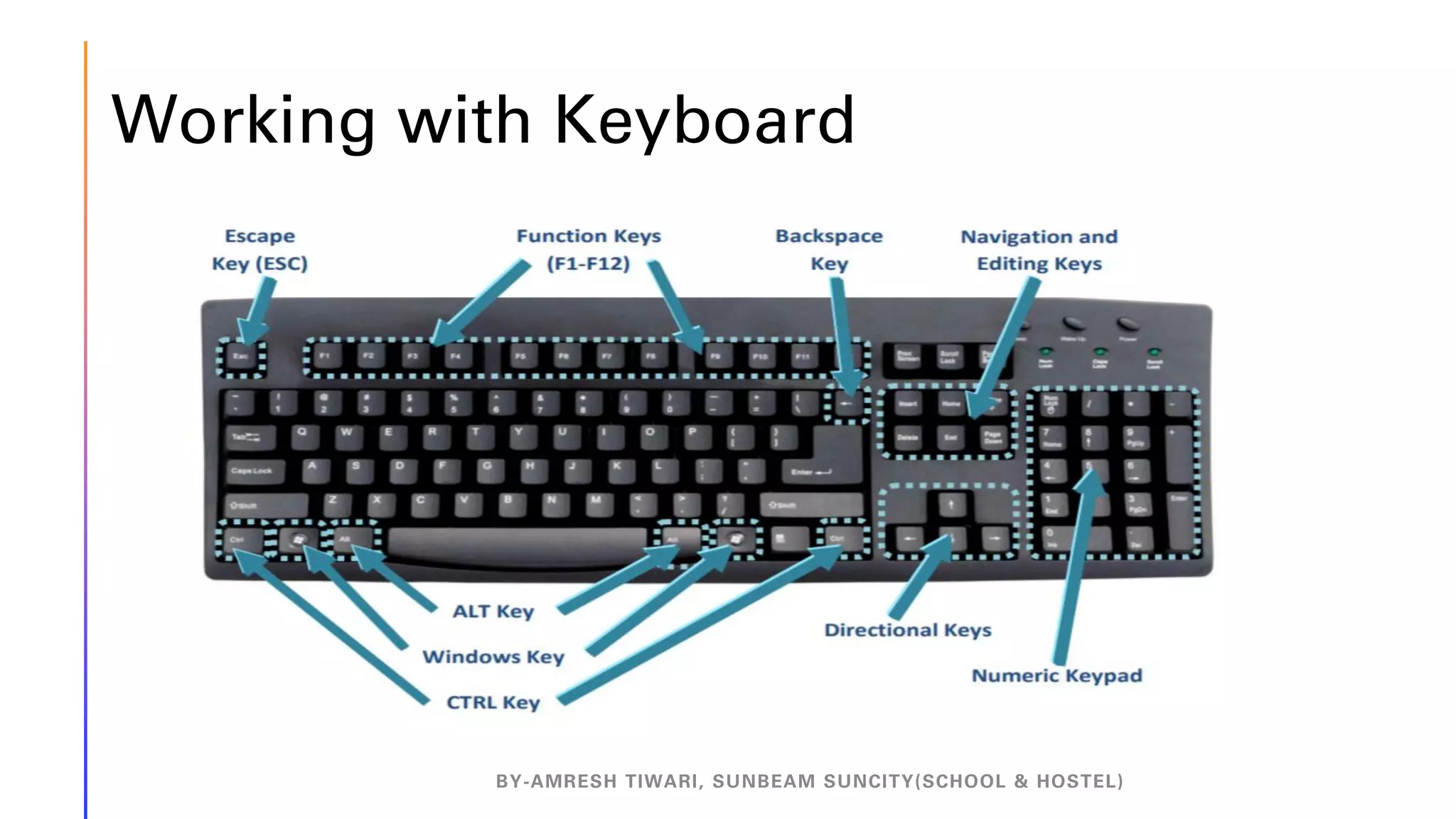
Working with Keyboard
BY-AMRESH TIWARI, SUNBEAM SUNCITY(SCHOOL & HOSTEL)
Explore Your Computer
BY-AMRESH TIWARI, SUNBEAM SUNCITY(SCHOOL & HOSTEL)
… means to see what all things (files, applications etc.) are there on computer.
Most commonly used way to navigate around the computer are-
❑ Start button and Taskbar
❑ My Computer
❑ Windows Explorer
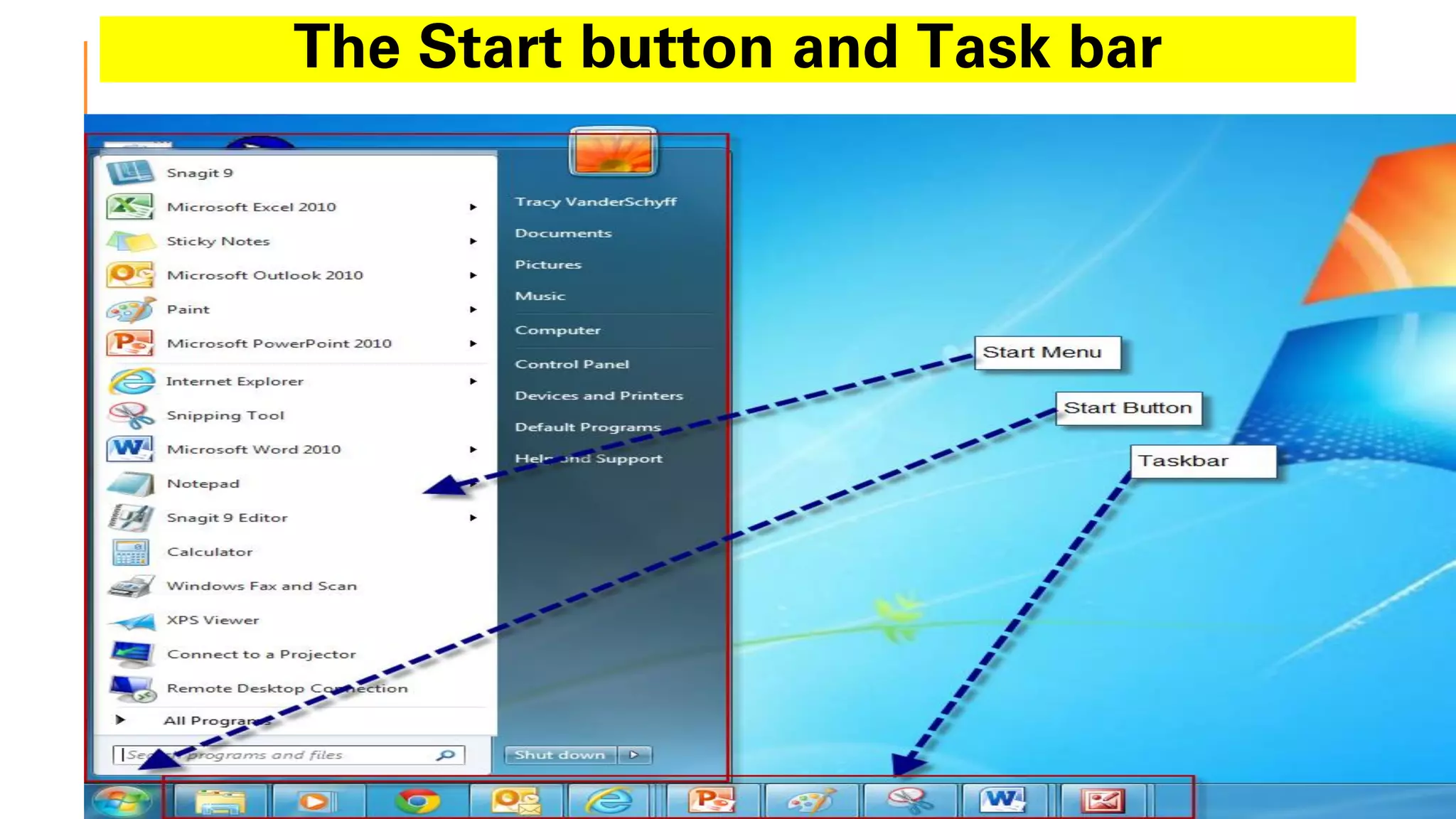
The Start button and Task bar
BY-AMRESH TIWARI, SUNBEAM SUNCITY(SCHOOL & HOSTEL)
How to click the Start with the keyboard?
The Start can also be activated using the Windows key or by pressing Ctrl+Esc on
the keyboard.
Note - Start button( ) or windows button allows you to access your
computer programs and configure Microsoft Windows easily by accessing the Start
menu.
Start menu - The Microsoft Windows Start menu is the primary location in Windows
to locate your installed programs and find any files or folders.
BY-AMRESH TIWARI, SUNBEAM SUNCITY(SCHOOL & HOSTEL)
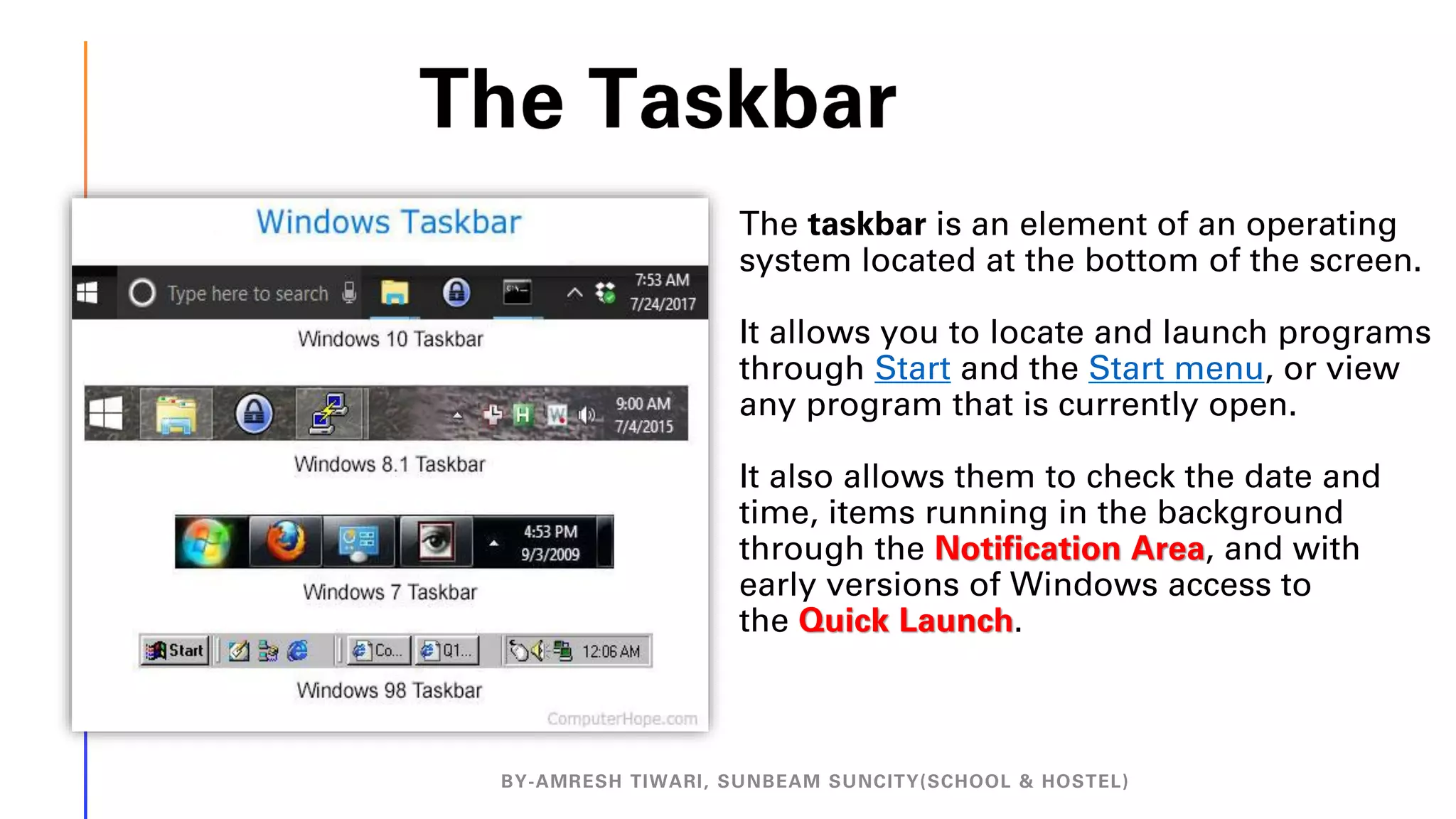
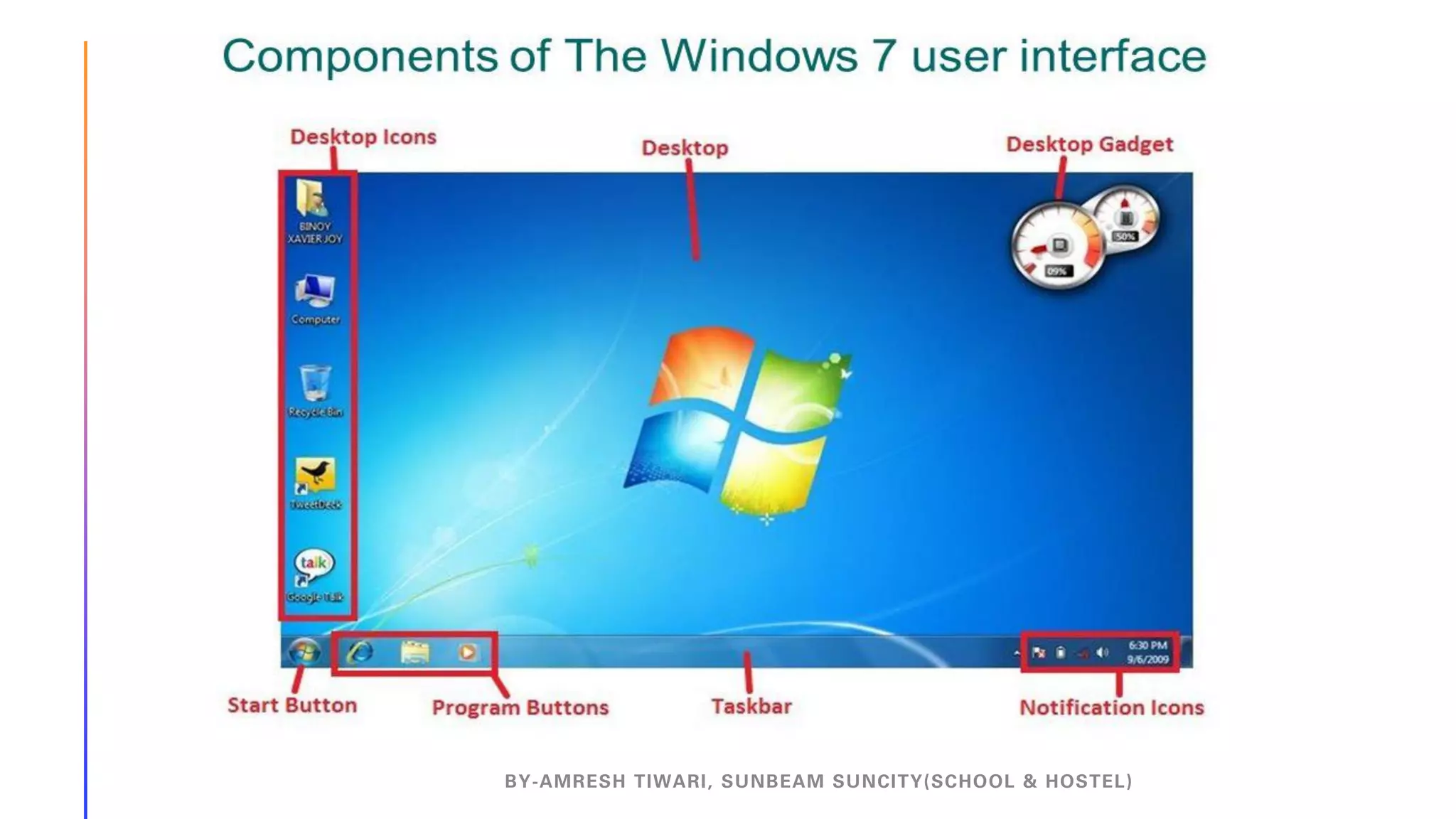
The taskbar is an element of an operating
system located at the bottom of the screen.
It allows you to locate and launch programs
through Start and the Start menu, or view
any program that is currently open.
It also allows them to check the date and
time, items running in the background
through the Notification Area, and with
early versions of Windows access to
the Quick Launch.
BY-AMRESH TIWARI, SUNBEAM SUNCITY(SCHOOL & HOSTEL)
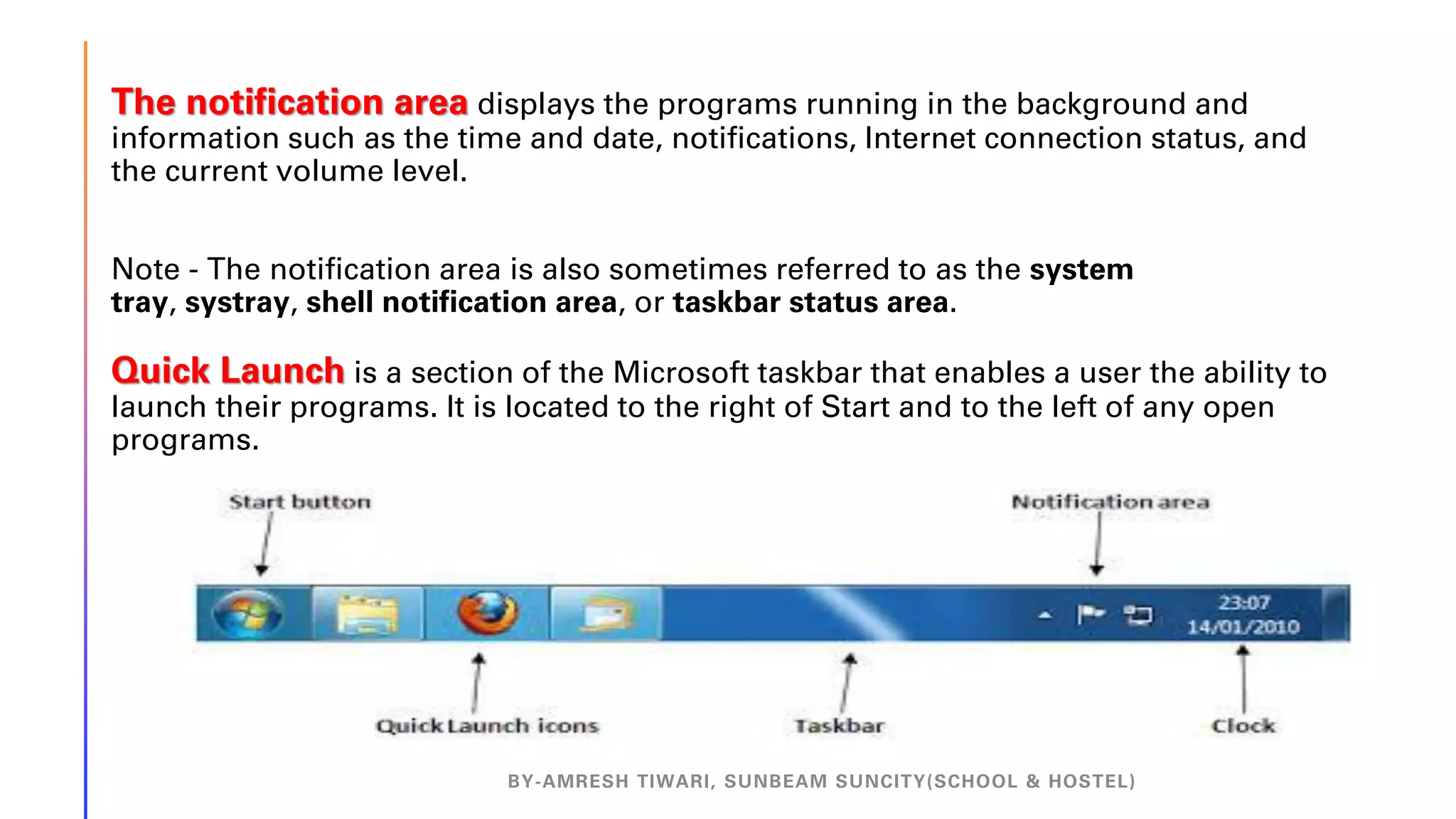
The notification area displays the programs running in the background and
information such as the time and date, notifications, Internet connection status, and
the current volume level.
Note - The notification area is also sometimes referred to as the system
tray, systray, shell notification area, or taskbar status area.
Quick Launch is a section of the Microsoft taskbar that enables a user the ability to
launch their programs. It is located to the right of Start and to the left of any open
programs.
BY-AMRESH TIWARI, SUNBEAM SUNCITY(SCHOOL & HOSTEL)
My Computer/Computer
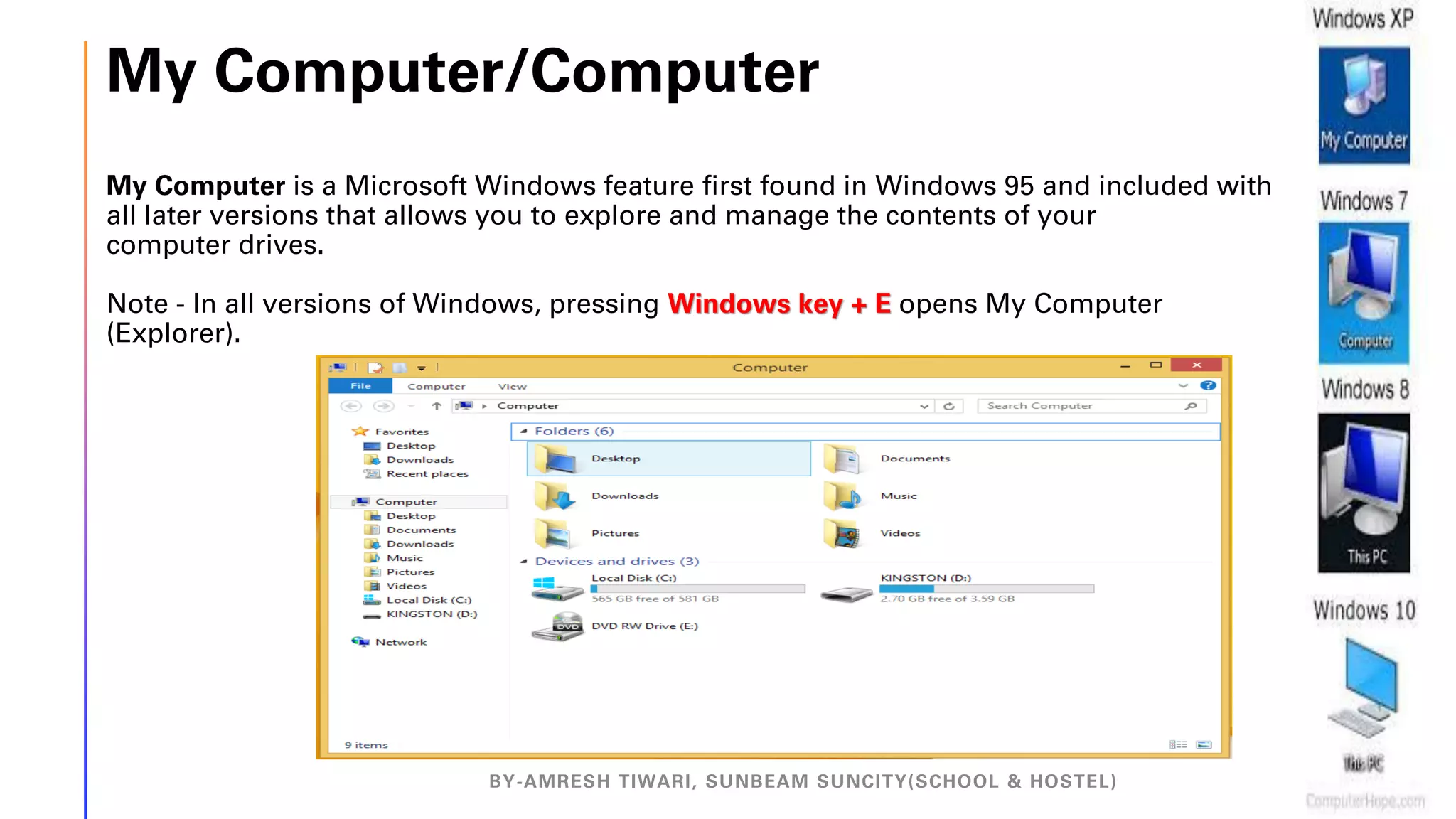
My Computer is a Microsoft Windows feature first found in Windows 95 and included with
all later versions that allows you to explore and manage the contents of your
computer drives.
Note - In all versions of Windows, pressing Windows key + E opens My Computer
(Explorer).
BY-AMRESH TIWARI, SUNBEAM SUNCITY(SCHOOL & HOSTEL)
Using My Computer
Once My Computer (This PC) is open, you will see all available drives on your
computer. The primary location of all your files is the Local Disk (C:), which is the
default hard drive that stores all files.
Double-click this drive icon to open it and view its contents.
Adjust system settings with My Computer
To manage or view your computer settings-
Right-click on the My Computer icon and then click Properties.
Performing these steps opens your System Properties (the same window accessible
through the Control Panel).
BY-AMRESH TIWARI, SUNBEAM SUNCITY(SCHOOL & HOSTEL)
Windows Explorer
BY-AMRESH TIWARI, SUNBEAM SUNCITY(SCHOOL & HOSTEL)
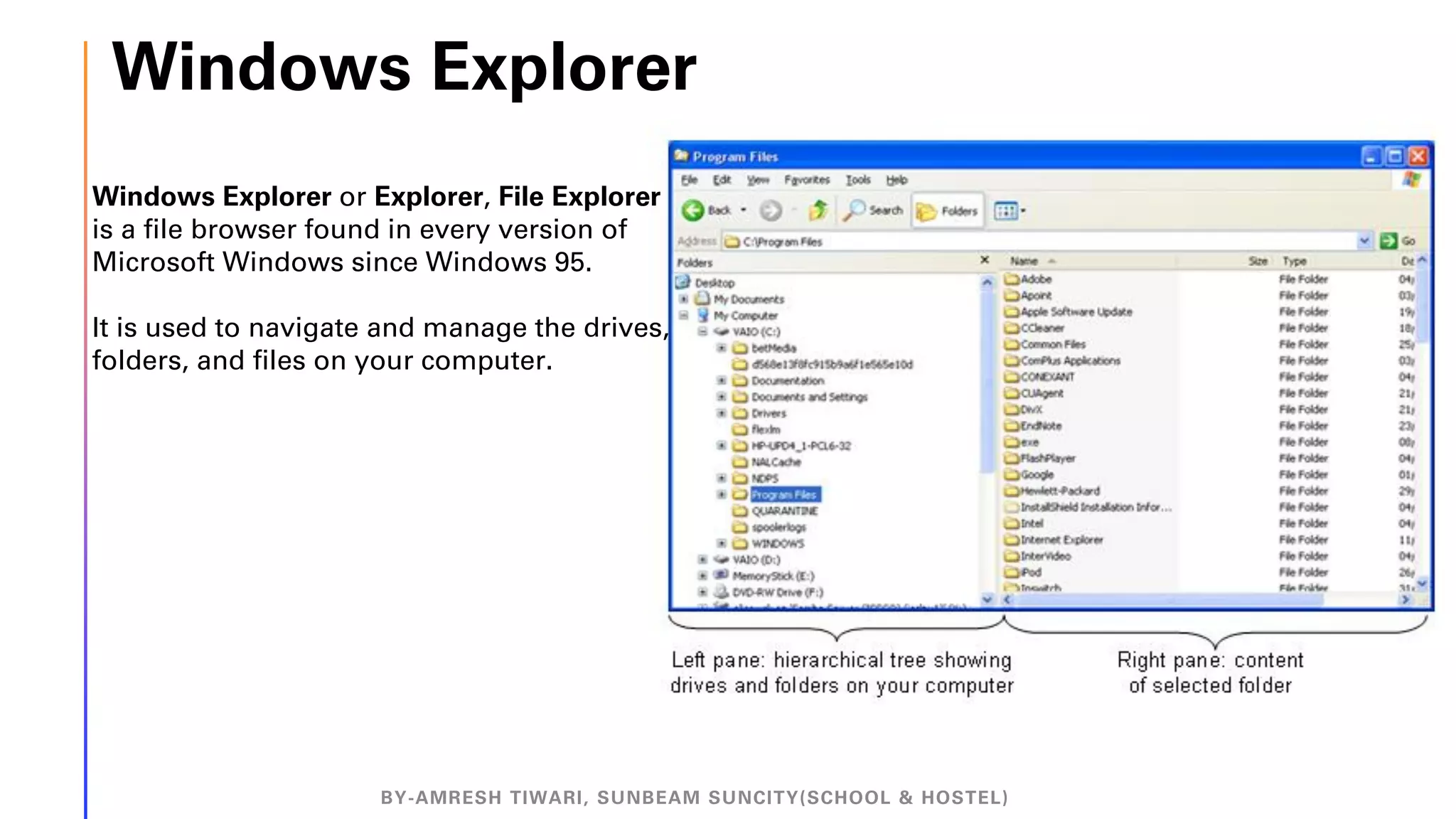
Windows Explorer or Explorer, File Explorer
is a file browser found in every version of
Microsoft Windows since Windows 95.
It is used to navigate and manage the drives,
folders, and files on your computer.
BY-AMRESH TIWARI, SUNBEAM SUNCITY(SCHOOL & HOSTEL)
Desktop Icon • An icon is a small graphical
representation of a program or file.
• When you double-click an icon,
the associated file or program will
be opened.
BY-AMRESH TIWARI, SUNBEAM SUNCITY(SCHOOL & HOSTEL)
Note - We can quickly rename any
highlighted Windows icon by pressing
the F2 key, typing in a new name, and then
pressing Enter.
Managing Files
and Folders
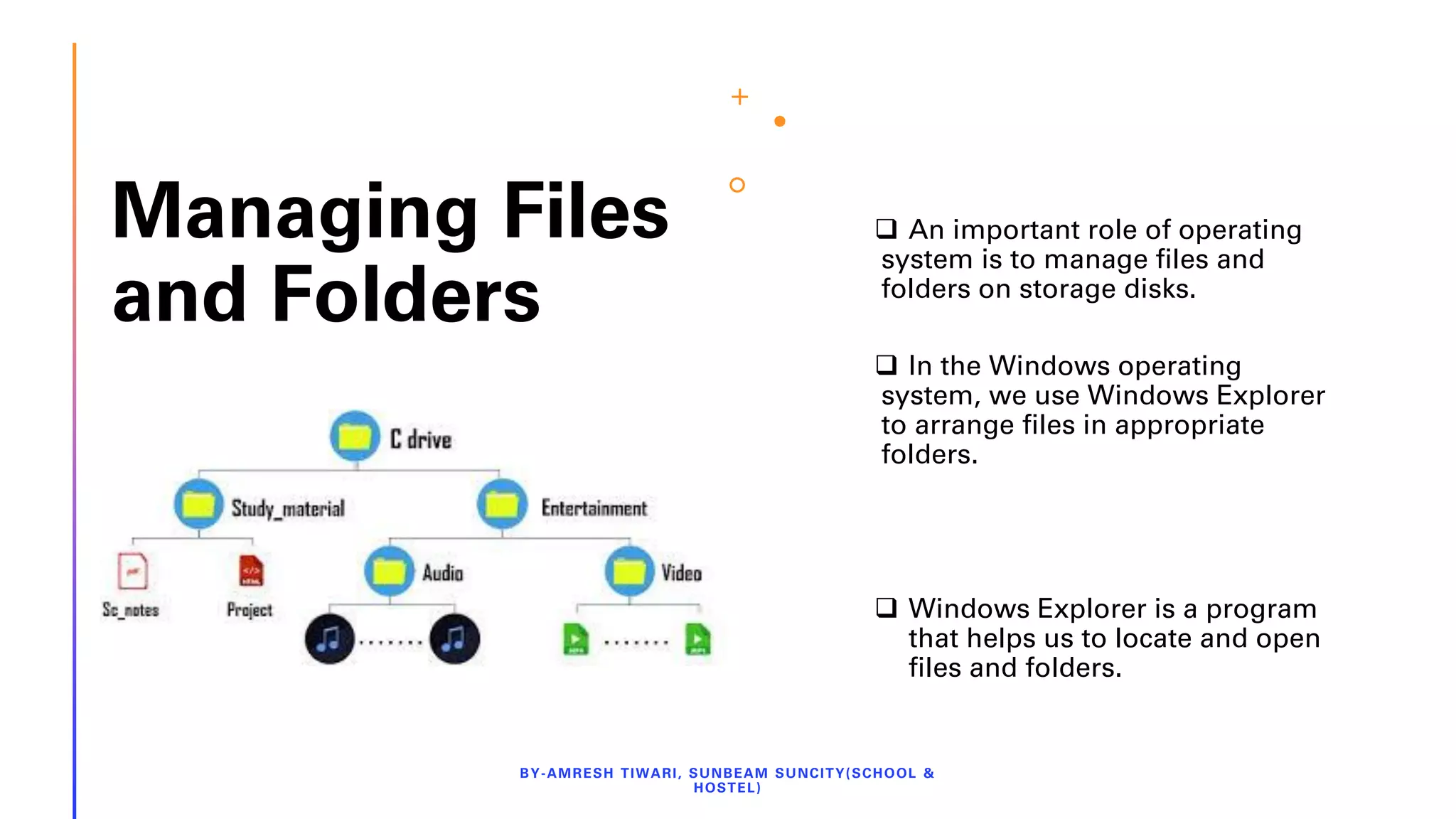
❑ An important role of operating
system is to manage files and
folders on storage disks.
❑ In the Windows operating
system, we use Windows Explorer
to arrange files in appropriate
folders.
❑ Windows Explorer is a program
that helps us to locate and open
files and folders.
BY-AMRESH TIWARI, SUNBEAM SUNCITY(SCHOOL &
HOSTEL)
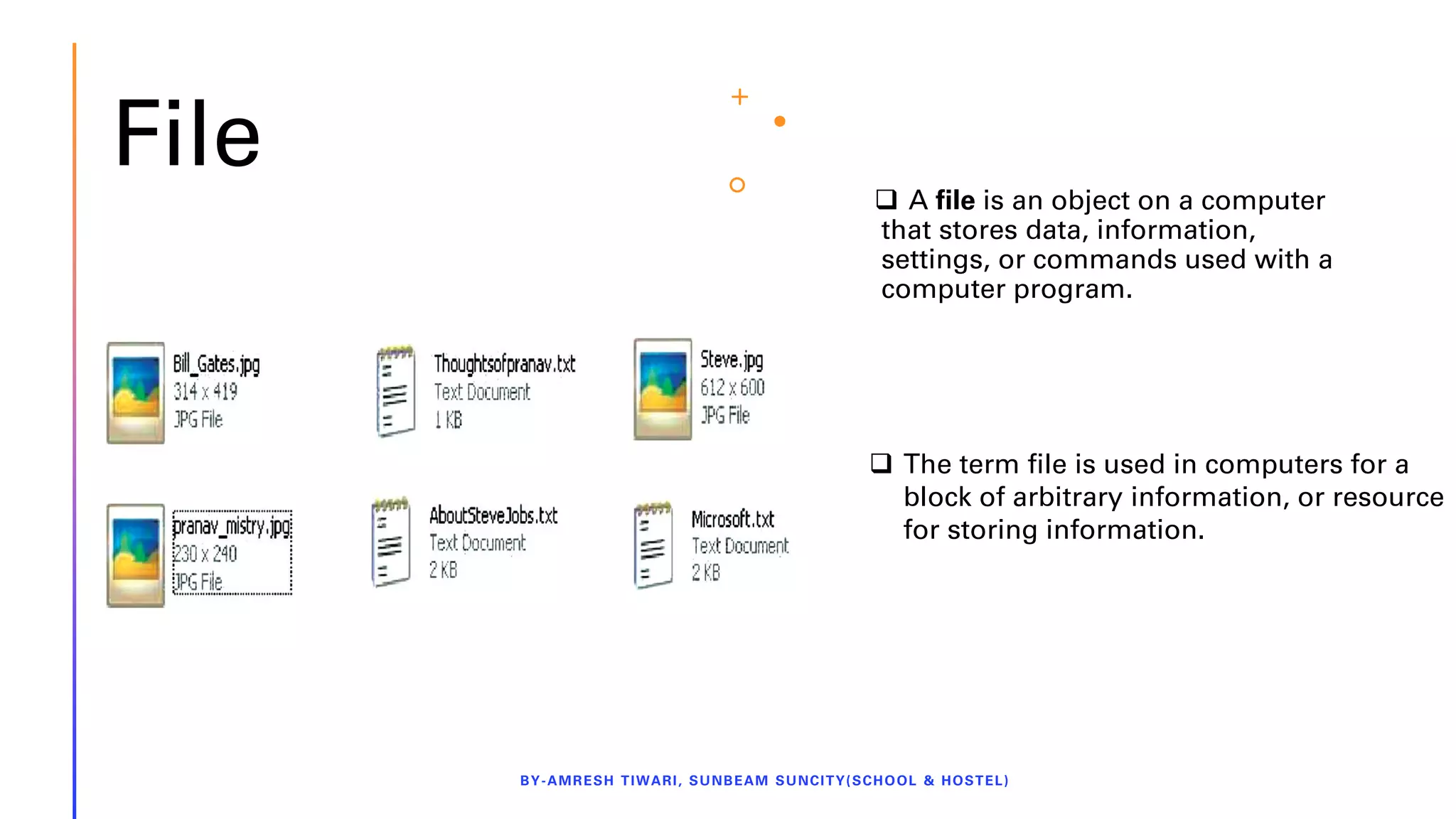
File ❑ A file is an object on a computer
that stores data, information,
settings, or commands used with a
computer program.
BY-AMRESH TIWARI, SUNBEAM SUNCITY(SCHOOL & HOSTEL)
❑ The term file is used in computers for a
block of arbitrary information, or resource
for storing information.
Folder
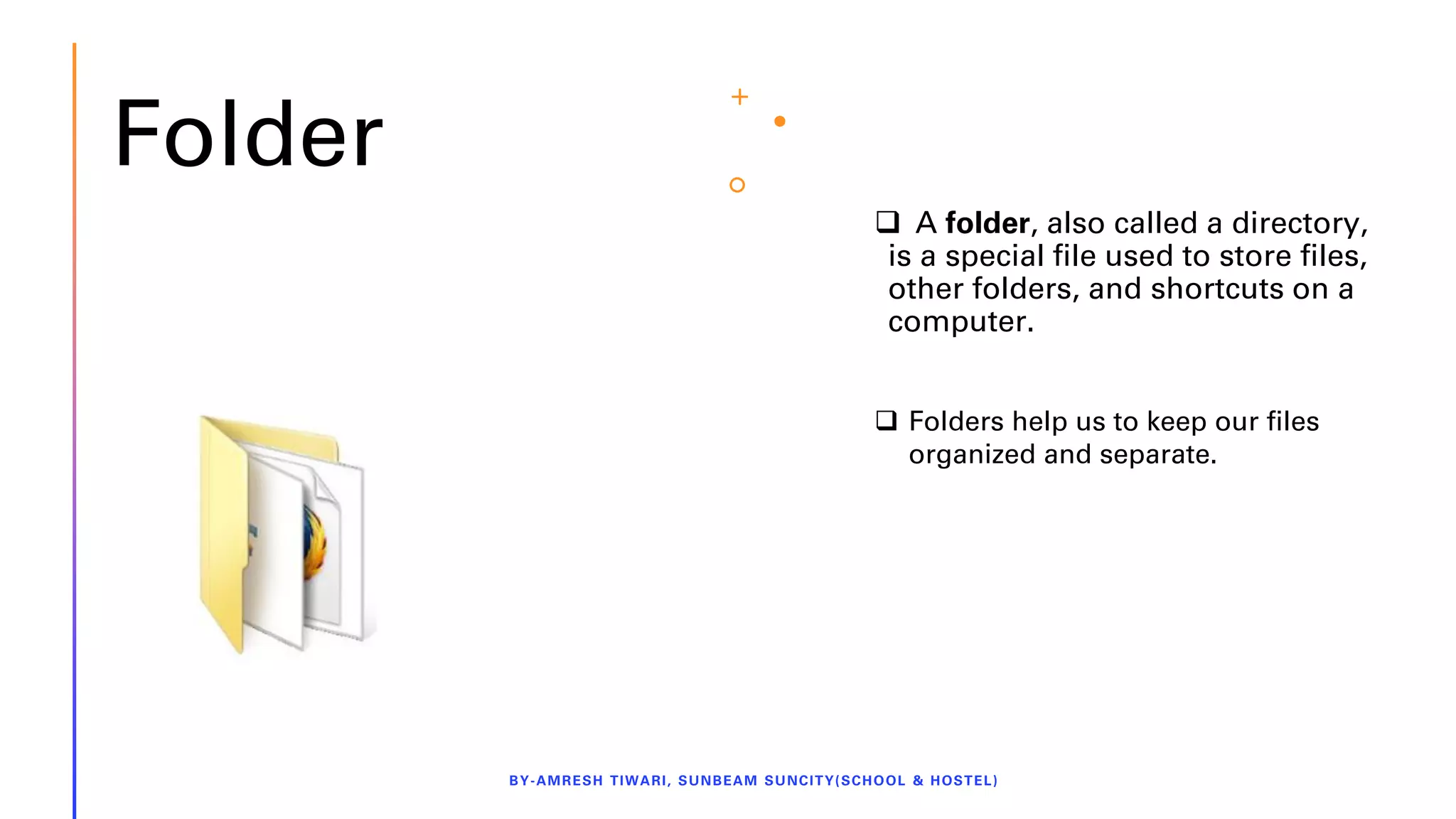
❑ A folder, also called a directory,
is a special file used to store files,
other folders, and shortcuts on a
computer.
BY-AMRESH TIWARI, SUNBEAM SUNCITY(SCHOOL & HOSTEL)
❑ Folders help us to keep our files
organized and separate.
PERFORMING
BASIC FILE
OPERATIONS
BY-AMRESHTIWARI,SUNBEAMSUNCITY(SCHOOL&HOSTEL)
Creating a File or Folder
Rename a file or Folder
To delete a file or Folder
To COPY-PASTE a file or Folder
To CUT-PASTE a file or Folder
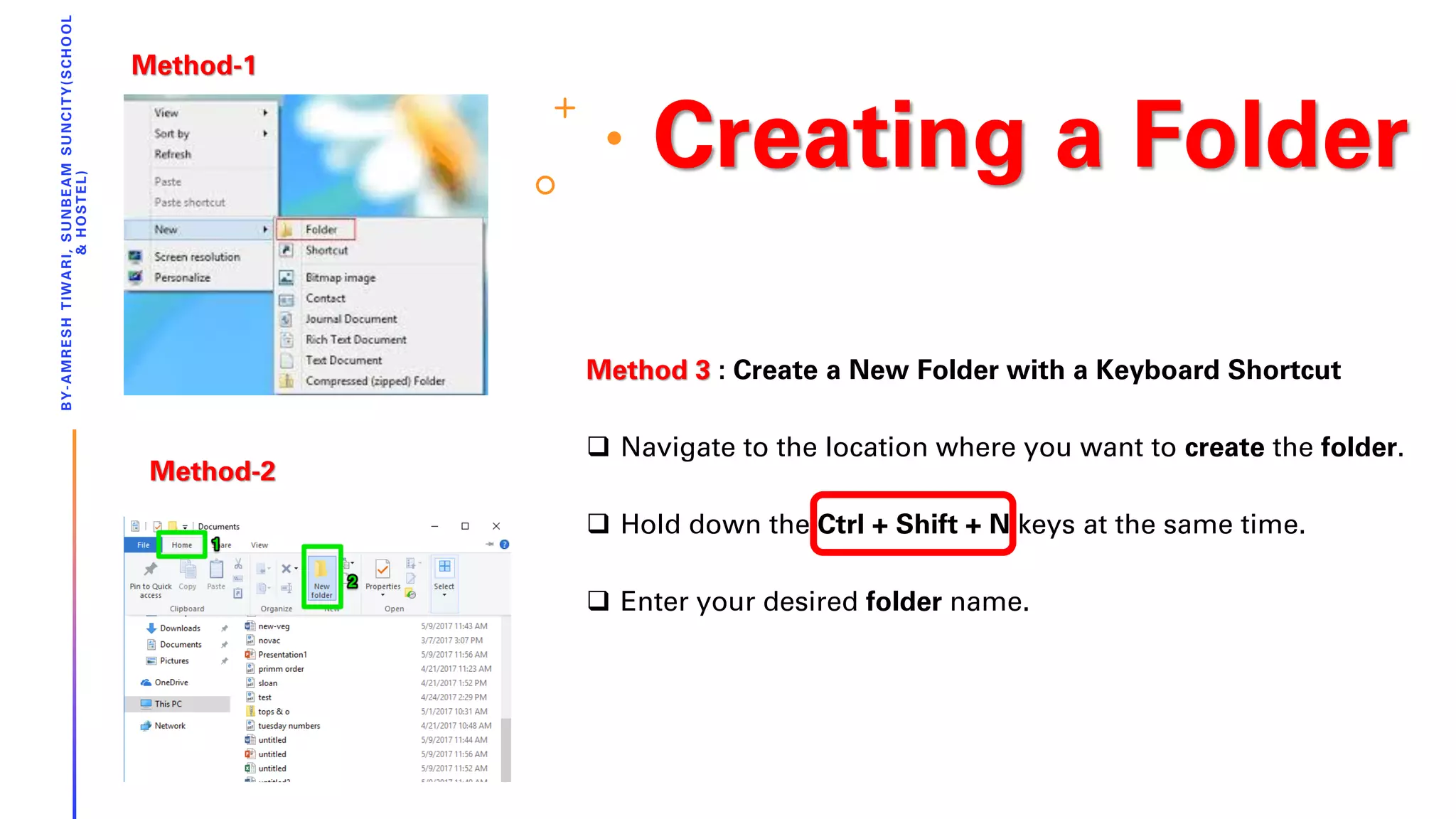
Creating a Folder
BY-AMRESHTIWARI,SUNBEAMSUNCITY(SCHOOL
&HOSTEL)
Method 3 : Create a New Folder with a Keyboard Shortcut
❑ Navigate to the location where you want to create the folder.
❑ Hold down the Ctrl + Shift + N keys at the same time.
❑ Enter your desired folder name.
Method-1
Method-2
Rename a file or folder
Close the file to be renamed, if opened.
Locate and Select the file
[1] Click the right button of mouse
[2] Select Rename
[3] The filename will become editable – type the new
name and press ENTER Key on the keyboard.
BY-AMRESHTIWARI,SUNBEAMSUNCITY(SCHOOL
&HOSTEL)
OR
Locate and Select the file
[1] Click F2 button of mouse
[2] The filename will become editable – type the new name and press ENTER Key on the keyboard.
To delete a file or Folder
BY-AMRESH TIWARI, SUNBEAM SUNCITY(SCHOOL & HOSTEL)
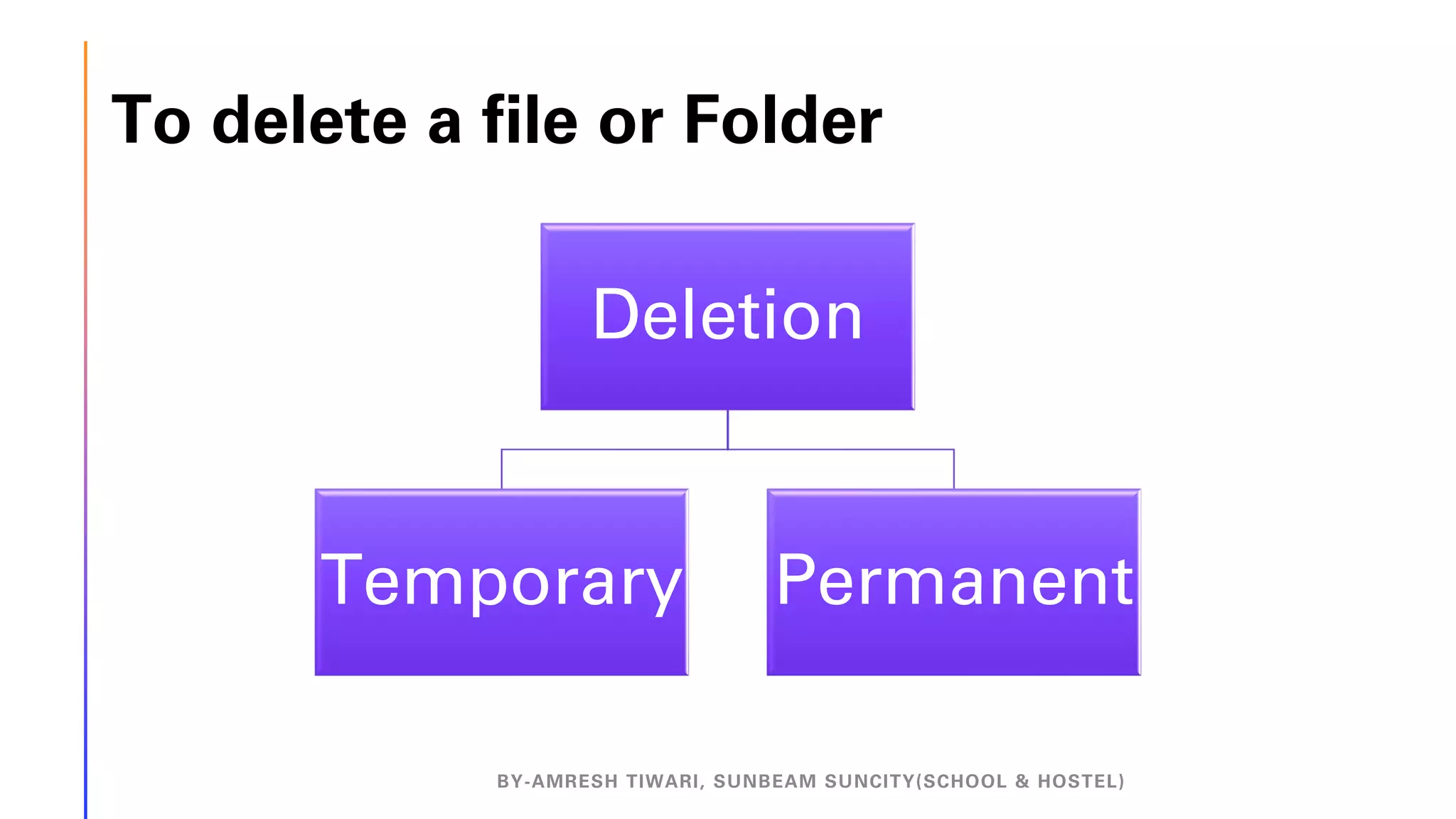
Deletion
Temporary Permanent
Temporary
Deletion
Close the file to be deleted, if opened.
Locate and Select the file
[1] Click the right button of mouse
[2] Select Delete
[3] Pop up will ask to confirm File Delete
– Click on YES.
BY-AMRESHTIWARI,SUNBEAMSUNCITY(SCHOOL
&HOSTEL)
OR
Locate and Select the file
[1] Press Delete key on keyboard
[2] Pop up will ask to confirm File Delete
– Click on YES.
Permanent
Deletion
Locate and Select the file
[1] Press SHIFT + Delete key on
keyboard
[2] Pop up will ask to confirm File
Delete – Click on YES.
BY-AMRESHTIWARI,SUNBEAMSUNCITY(SCHOOL
&HOSTEL)
To COPY-PASTE a
file
Locate and Select the file
[1] Click the right button of mouse
[2] Select Copy
[3] Change the Drive and Folder to target location
[4] Click the right button
[5] Select Paste.
OR
Locate and Select the file
[1] Press CTR + C Keys together
[2] Change the Drive and Folder to target location
[3] Press CTR + V Keys together.
Note: In Copy-Paste, the file will remain there in the
original location and a copy of the same will be saved
on the new location.
BY-AMRESH TIWARI, SUNBEAM SUNCITY(SCHOOL & HOSTEL)
To CUT-PASTE a file
Close the file to be moved, if opened. Locate and
Select the file
[1] Click the right button of mouse, context menu
will appear.
[2] Select Cut
[3] Change the Drive and Folder to target location
[4] Click the right button
[5] Select Paste.
BY-AMRESHTIWARI,SUNBEAMSUNCITY(SCHOOL
&HOSTEL)
OR
Locate and Select the file
[1] Press CTR + X Keys together
[2] Change the Drive and Folder to target
location
[3] Press CTR + V Keys together.
WHAT COMBINATION OF KEYS HELPS YOU TO
SELECT ALL THE FILES IN A FOLDER?
BY-AMRESH TIWARI, SUNBEAM SUNCITY(SCHOOL & HOSTEL)
CTRL + A
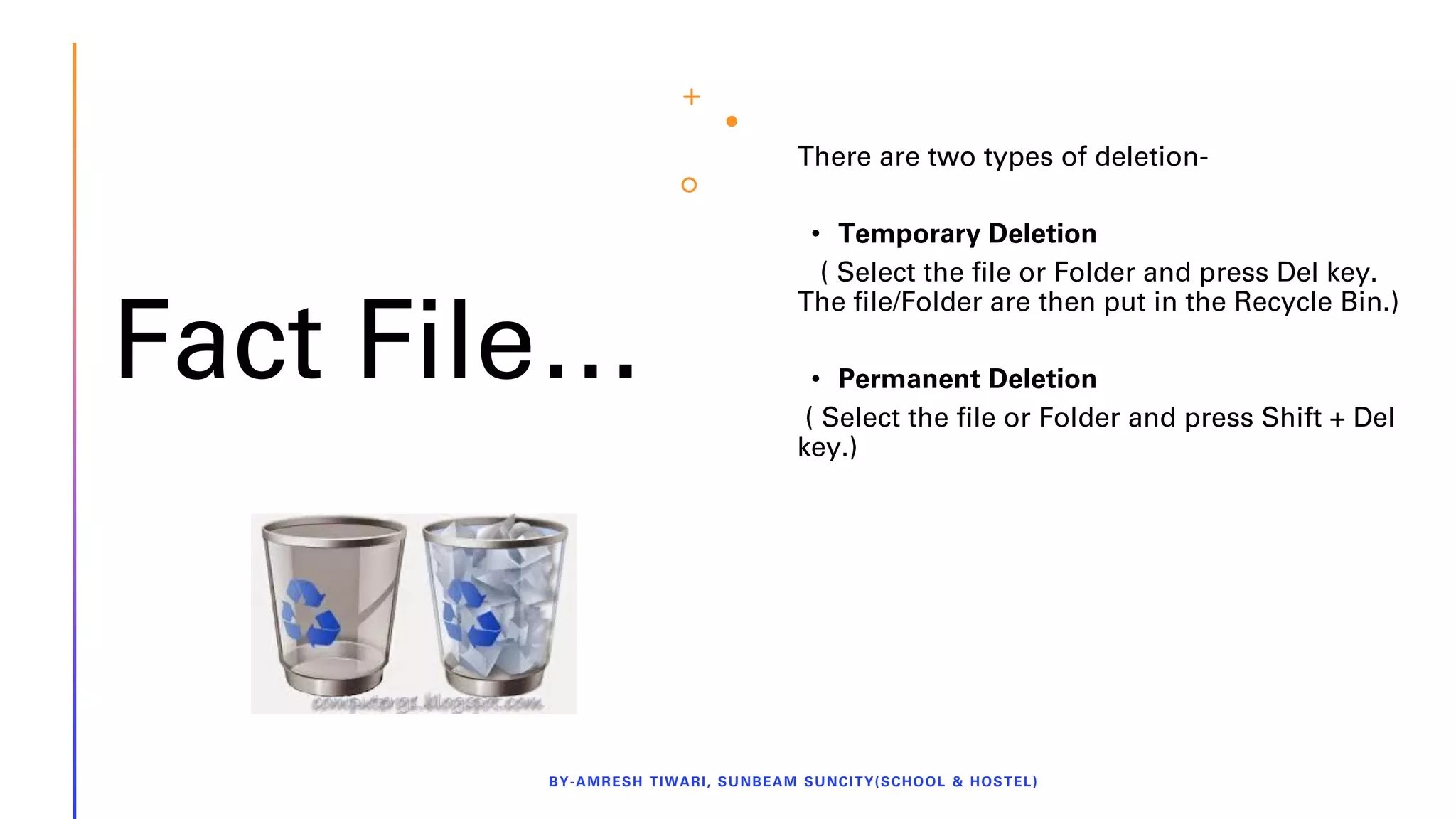
Fact File…
There are two types of deletion-
• Temporary Deletion
( Select the file or Folder and press Del key.
The file/Folder are then put in the Recycle Bin.)
• Permanent Deletion
( Select the file or Folder and press Shift + Del
key.)
BY-AMRESH TIWARI, SUNBEAM SUNCITY(SCHOOL & HOSTEL)
THANK YOU
BY-AMRESHTIWARI,SUNBEAM
SUNCITY(SCHOOL&HOSTEL)

Basic computer operation (windows os) - Amresh Tiwari

  • 1.
    BASIC COMPUTER OPERATION (WINDOWSOS) BY-AMRESH TIWARI, SUNBEAM SUNCITY(SCHOOL & HOSTEL) Session – 4 By – Amresh Tiwari (SGEI)
  • 2.
    What is an Operating System? BY-AMRESHTIWARI, SUNBEAM SUNCITY(SCHOOL & HOSTEL) • An operating system is a software program that manages computer resources. • Operating systems allow components to communicate with each other and enables the computer to run software applications. • It is a system program that provides interface between user and computer. When computer boots up Operating System is the first program that loads.
  • 3.
    BY-AMRESH TIWARI, SUNBEAMSUNCITY(SCHOOL & HOSTEL)
  • 4.
    Parts of OperatingSystem BY-AMRESH TIWARI, SUNBEAM SUNCITY(SCHOOL & HOSTEL) Operating System
  • 5.
    The Kernel BY-AMRESH TIWARI,SUNBEAM SUNCITY(SCHOOL & HOSTEL) • A kernel is the central part of an operating system. • It manages the operations of the computer and the hardware. • It is responsible for assigning and unassigning memory space which allows software to run. • It is also a system program. It is the part of Operating System which coverts user command into machine language.
  • 6.
    The Shell BY-AMRESH TIWARI,SUNBEAM SUNCITY(SCHOOL & HOSTEL) • A shell is a user interface for access to an operating system's services. • It acts as the command interpreter which takes the command from the user, interprets them and takes action accordingly. • In general, operating system shells use either a command- line interface (CLI) or graphical user interface (GUI).
  • 7.
    Graphical User Interface(GUI) BY-AMRESH TIWARI,SUNBEAM SUNCITY(SCHOOL & HOSTEL) • GUI's are visual (graphical) interfaces and they are more popular than CLI’s. • GUI based OS have shells that offer graphical elements for interaction. • i.e. instead of typing in commands, the user can use a mouse to point and click objects on the screen. Note:- The main features of a GUI are- Windows, Icons, Menus and Pointers.
  • 8.
    Examples of GUI's BY-AMRESHTIWARI, SUNBEAM SUNCITY(SCHOOL & HOSTEL)
  • 9.
    Introducing OS Windows7 BY-AMRESH TIWARI, SUNBEAM SUNCITY(SCHOOL & HOSTEL) • It is a GUI based OS. • Multiple applications can be simultaneously run in different windows.
  • 10.
    Working with Mouseand Keyboard BY-AMRESH TIWARI, SUNBEAM SUNCITY(SCHOOL & HOSTEL) The Windows operating system uses both Mouse and Keyboard as input devices.
  • 11.
    Working with Mouse BY-AMRESHTIWARI, SUNBEAM SUNCITY(SCHOOL & HOSTEL)
  • 12.
    Working with Keyboard BY-AMRESHTIWARI, SUNBEAM SUNCITY(SCHOOL & HOSTEL)
  • 13.
    Explore Your Computer BY-AMRESHTIWARI, SUNBEAM SUNCITY(SCHOOL & HOSTEL) … means to see what all things (files, applications etc.) are there on computer. Most commonly used way to navigate around the computer are- ❑ Start button and Taskbar ❑ My Computer ❑ Windows Explorer
  • 14.
    The Start buttonand Task bar BY-AMRESH TIWARI, SUNBEAM SUNCITY(SCHOOL & HOSTEL)
  • 15.
    How to clickthe Start with the keyboard? The Start can also be activated using the Windows key or by pressing Ctrl+Esc on the keyboard. Note - Start button( ) or windows button allows you to access your computer programs and configure Microsoft Windows easily by accessing the Start menu. Start menu - The Microsoft Windows Start menu is the primary location in Windows to locate your installed programs and find any files or folders. BY-AMRESH TIWARI, SUNBEAM SUNCITY(SCHOOL & HOSTEL)
  • 16.
    The taskbar isan element of an operating system located at the bottom of the screen. It allows you to locate and launch programs through Start and the Start menu, or view any program that is currently open. It also allows them to check the date and time, items running in the background through the Notification Area, and with early versions of Windows access to the Quick Launch. BY-AMRESH TIWARI, SUNBEAM SUNCITY(SCHOOL & HOSTEL)
  • 17.
    The notification areadisplays the programs running in the background and information such as the time and date, notifications, Internet connection status, and the current volume level. Note - The notification area is also sometimes referred to as the system tray, systray, shell notification area, or taskbar status area. Quick Launch is a section of the Microsoft taskbar that enables a user the ability to launch their programs. It is located to the right of Start and to the left of any open programs. BY-AMRESH TIWARI, SUNBEAM SUNCITY(SCHOOL & HOSTEL)
  • 18.
    My Computer/Computer My Computeris a Microsoft Windows feature first found in Windows 95 and included with all later versions that allows you to explore and manage the contents of your computer drives. Note - In all versions of Windows, pressing Windows key + E opens My Computer (Explorer). BY-AMRESH TIWARI, SUNBEAM SUNCITY(SCHOOL & HOSTEL)
  • 19.
    Using My Computer OnceMy Computer (This PC) is open, you will see all available drives on your computer. The primary location of all your files is the Local Disk (C:), which is the default hard drive that stores all files. Double-click this drive icon to open it and view its contents. Adjust system settings with My Computer To manage or view your computer settings- Right-click on the My Computer icon and then click Properties. Performing these steps opens your System Properties (the same window accessible through the Control Panel). BY-AMRESH TIWARI, SUNBEAM SUNCITY(SCHOOL & HOSTEL)
  • 20.
    Windows Explorer BY-AMRESH TIWARI,SUNBEAM SUNCITY(SCHOOL & HOSTEL) Windows Explorer or Explorer, File Explorer is a file browser found in every version of Microsoft Windows since Windows 95. It is used to navigate and manage the drives, folders, and files on your computer.
  • 21.
    BY-AMRESH TIWARI, SUNBEAMSUNCITY(SCHOOL & HOSTEL)
  • 22.
    Desktop Icon •An icon is a small graphical representation of a program or file. • When you double-click an icon, the associated file or program will be opened. BY-AMRESH TIWARI, SUNBEAM SUNCITY(SCHOOL & HOSTEL) Note - We can quickly rename any highlighted Windows icon by pressing the F2 key, typing in a new name, and then pressing Enter.
  • 23.
    Managing Files and Folders ❑An important role of operating system is to manage files and folders on storage disks. ❑ In the Windows operating system, we use Windows Explorer to arrange files in appropriate folders. ❑ Windows Explorer is a program that helps us to locate and open files and folders. BY-AMRESH TIWARI, SUNBEAM SUNCITY(SCHOOL & HOSTEL)
  • 24.
    File ❑ Afile is an object on a computer that stores data, information, settings, or commands used with a computer program. BY-AMRESH TIWARI, SUNBEAM SUNCITY(SCHOOL & HOSTEL) ❑ The term file is used in computers for a block of arbitrary information, or resource for storing information.
  • 25.
    Folder ❑ A folder,also called a directory, is a special file used to store files, other folders, and shortcuts on a computer. BY-AMRESH TIWARI, SUNBEAM SUNCITY(SCHOOL & HOSTEL) ❑ Folders help us to keep our files organized and separate.
  • 26.
    PERFORMING BASIC FILE OPERATIONS BY-AMRESHTIWARI,SUNBEAMSUNCITY(SCHOOL&HOSTEL) Creating aFile or Folder Rename a file or Folder To delete a file or Folder To COPY-PASTE a file or Folder To CUT-PASTE a file or Folder
  • 27.
    Creating a Folder BY-AMRESHTIWARI,SUNBEAMSUNCITY(SCHOOL &HOSTEL) Method3 : Create a New Folder with a Keyboard Shortcut ❑ Navigate to the location where you want to create the folder. ❑ Hold down the Ctrl + Shift + N keys at the same time. ❑ Enter your desired folder name. Method-1 Method-2
  • 28.
    Rename a fileor folder Close the file to be renamed, if opened. Locate and Select the file [1] Click the right button of mouse [2] Select Rename [3] The filename will become editable – type the new name and press ENTER Key on the keyboard. BY-AMRESHTIWARI,SUNBEAMSUNCITY(SCHOOL &HOSTEL) OR Locate and Select the file [1] Click F2 button of mouse [2] The filename will become editable – type the new name and press ENTER Key on the keyboard.
  • 29.
    To delete afile or Folder BY-AMRESH TIWARI, SUNBEAM SUNCITY(SCHOOL & HOSTEL) Deletion Temporary Permanent
  • 30.
    Temporary Deletion Close the fileto be deleted, if opened. Locate and Select the file [1] Click the right button of mouse [2] Select Delete [3] Pop up will ask to confirm File Delete – Click on YES. BY-AMRESHTIWARI,SUNBEAMSUNCITY(SCHOOL &HOSTEL) OR Locate and Select the file [1] Press Delete key on keyboard [2] Pop up will ask to confirm File Delete – Click on YES.
  • 31.
    Permanent Deletion Locate and Selectthe file [1] Press SHIFT + Delete key on keyboard [2] Pop up will ask to confirm File Delete – Click on YES. BY-AMRESHTIWARI,SUNBEAMSUNCITY(SCHOOL &HOSTEL)
  • 32.
    To COPY-PASTE a file Locateand Select the file [1] Click the right button of mouse [2] Select Copy [3] Change the Drive and Folder to target location [4] Click the right button [5] Select Paste. OR Locate and Select the file [1] Press CTR + C Keys together [2] Change the Drive and Folder to target location [3] Press CTR + V Keys together. Note: In Copy-Paste, the file will remain there in the original location and a copy of the same will be saved on the new location. BY-AMRESH TIWARI, SUNBEAM SUNCITY(SCHOOL & HOSTEL)
  • 33.
    To CUT-PASTE afile Close the file to be moved, if opened. Locate and Select the file [1] Click the right button of mouse, context menu will appear. [2] Select Cut [3] Change the Drive and Folder to target location [4] Click the right button [5] Select Paste. BY-AMRESHTIWARI,SUNBEAMSUNCITY(SCHOOL &HOSTEL) OR Locate and Select the file [1] Press CTR + X Keys together [2] Change the Drive and Folder to target location [3] Press CTR + V Keys together.
  • 34.
    WHAT COMBINATION OFKEYS HELPS YOU TO SELECT ALL THE FILES IN A FOLDER? BY-AMRESH TIWARI, SUNBEAM SUNCITY(SCHOOL & HOSTEL) CTRL + A
  • 35.
    Fact File… There aretwo types of deletion- • Temporary Deletion ( Select the file or Folder and press Del key. The file/Folder are then put in the Recycle Bin.) • Permanent Deletion ( Select the file or Folder and press Shift + Del key.) BY-AMRESH TIWARI, SUNBEAM SUNCITY(SCHOOL & HOSTEL)
  • 36.