Setup Azure Cloudfor Students
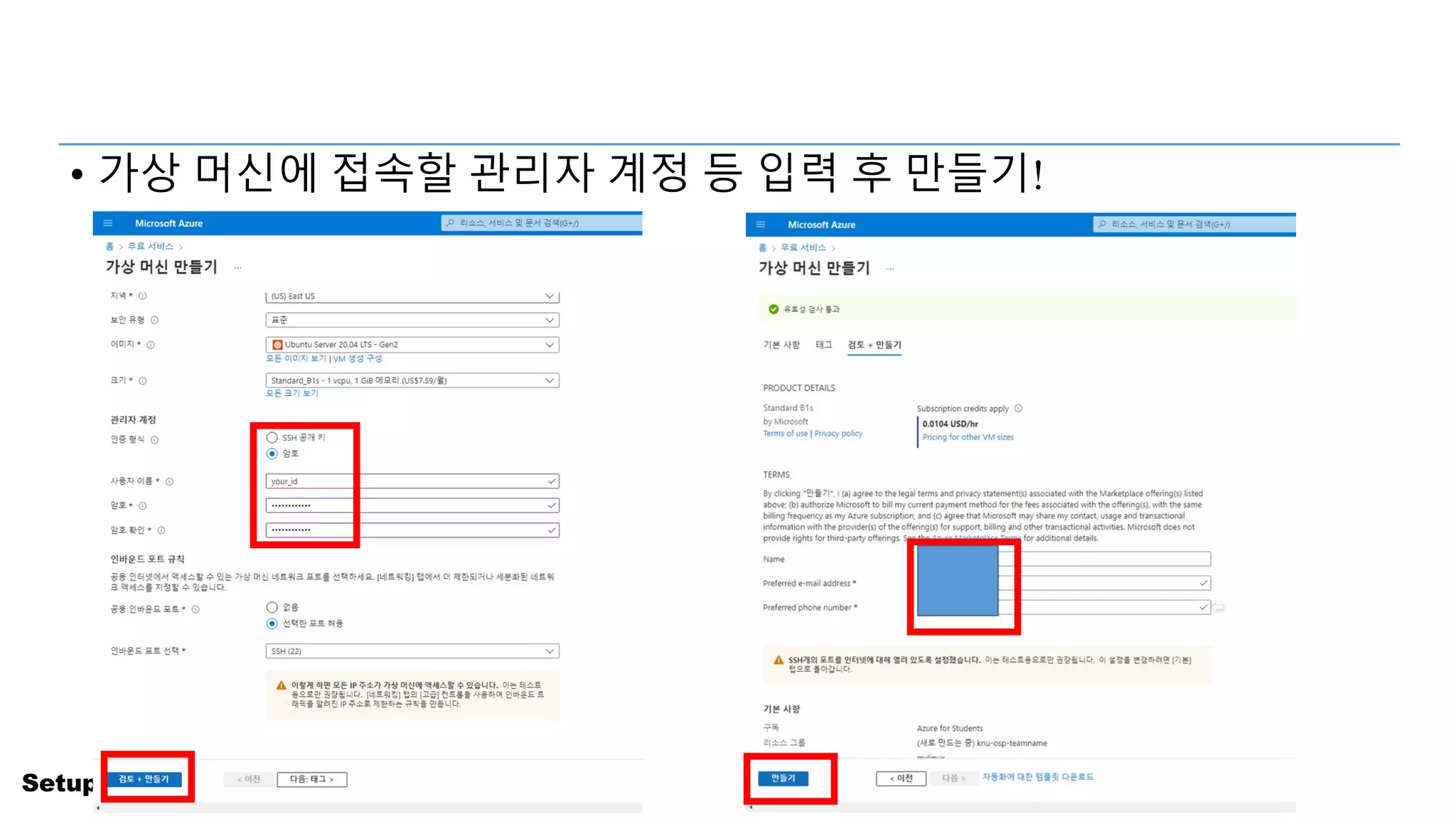
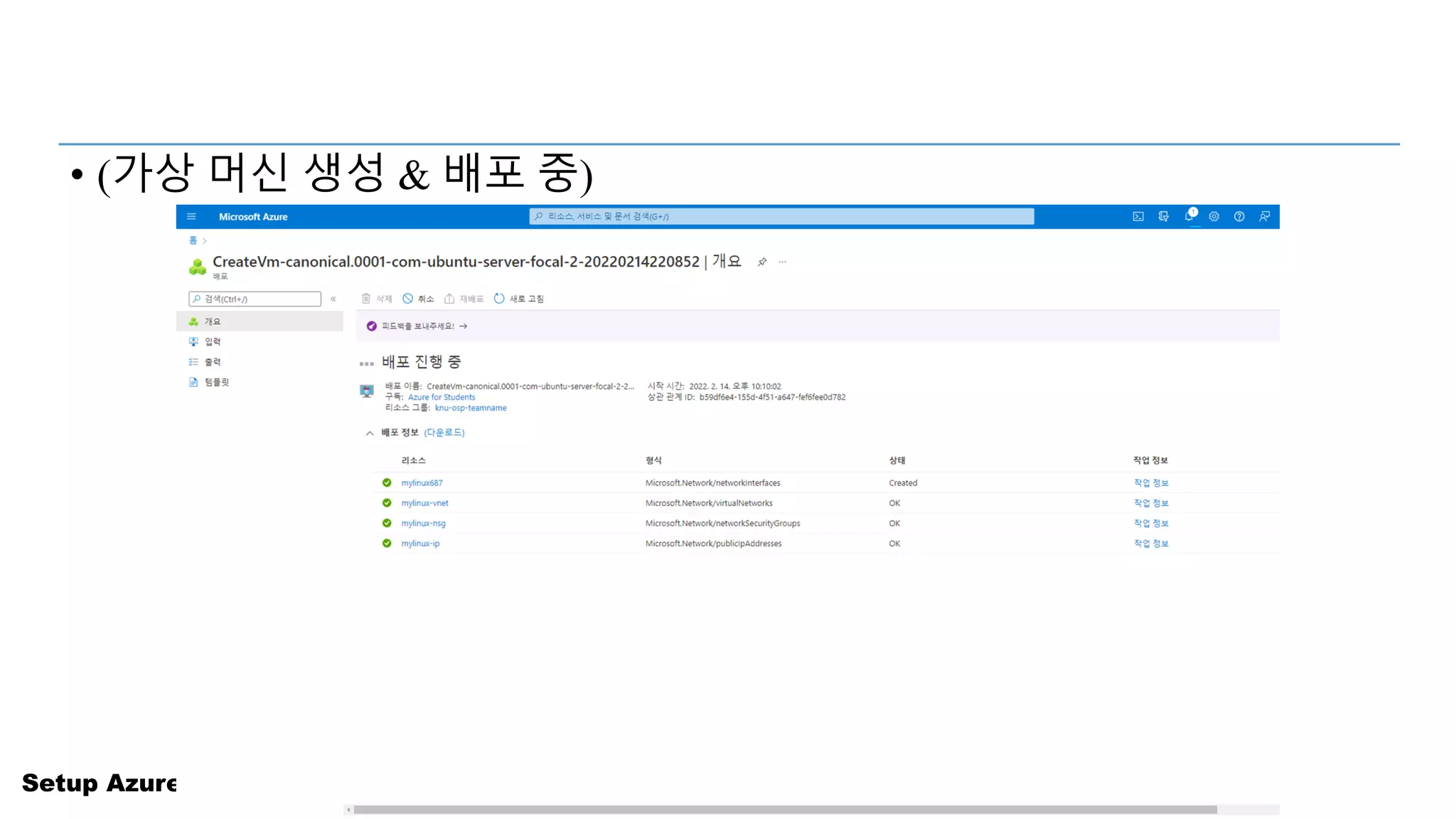
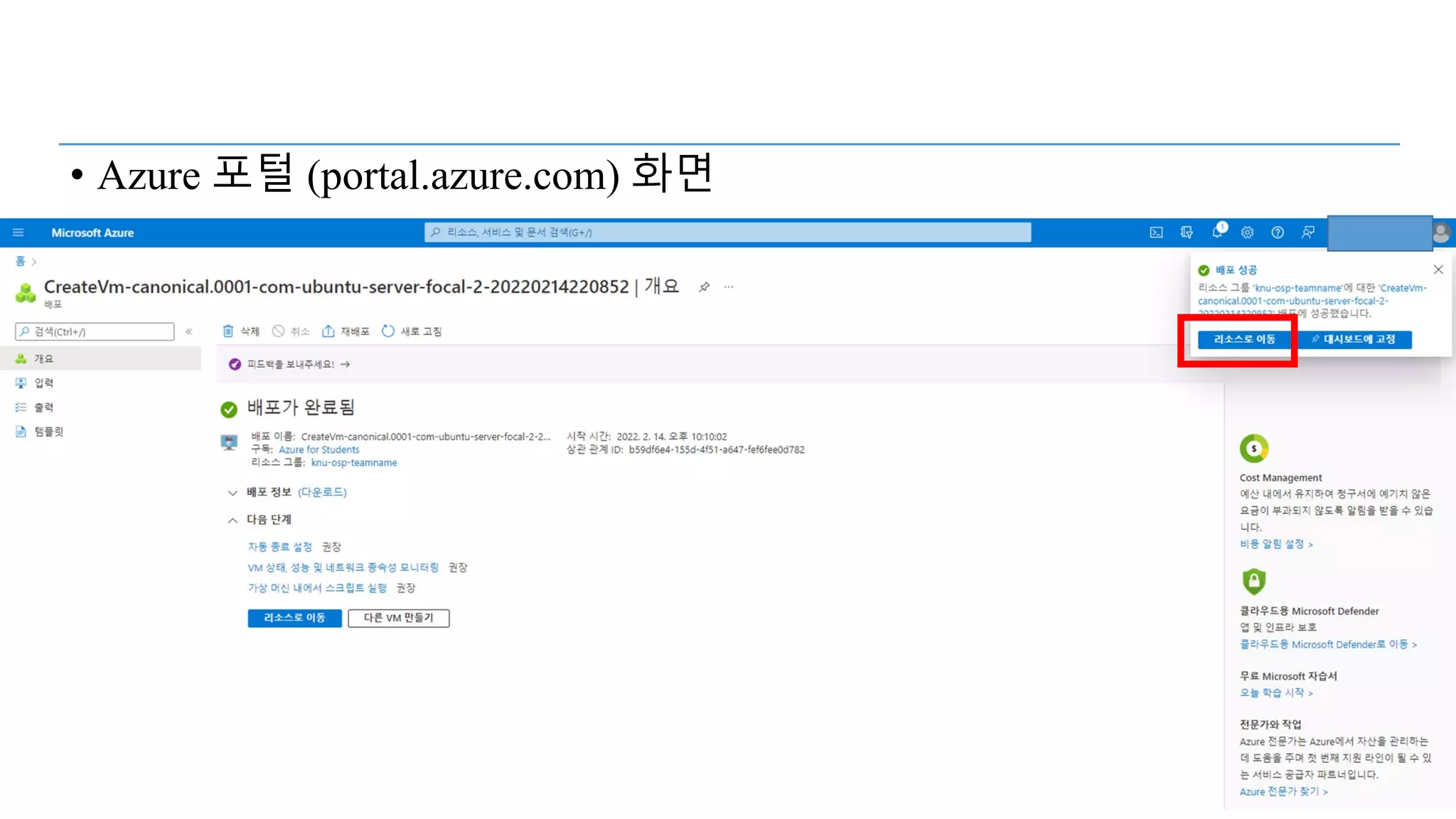
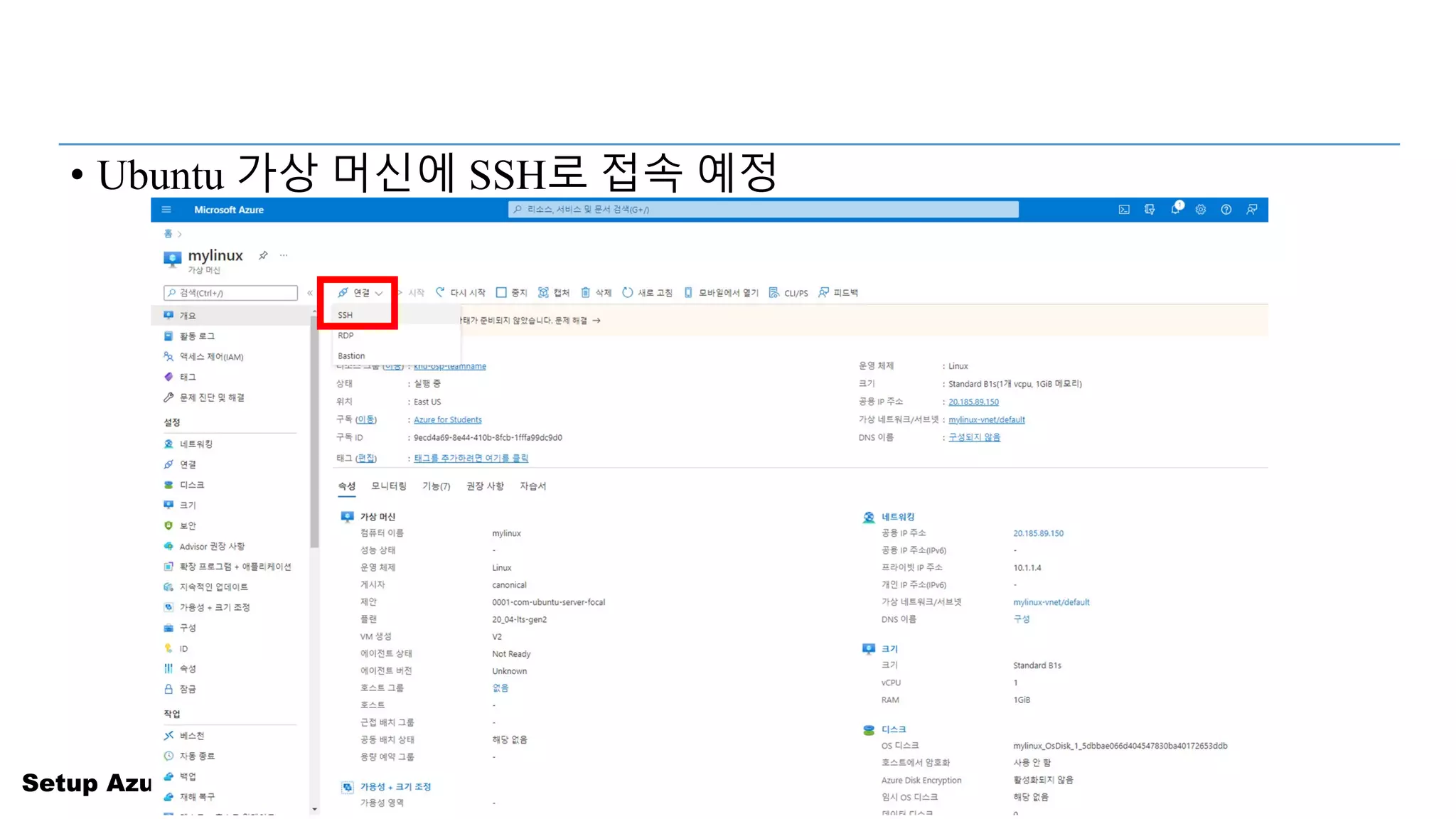
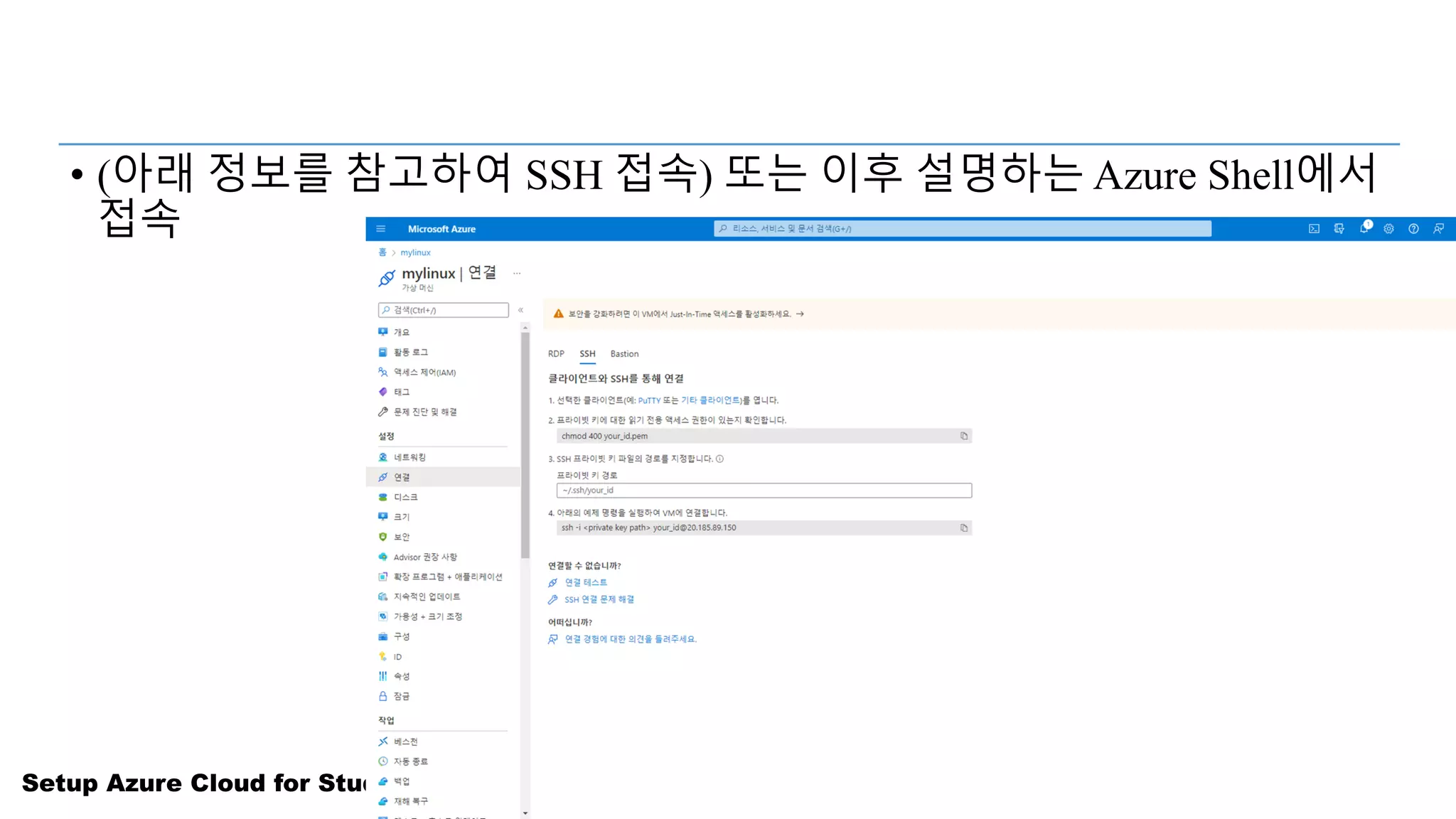
• (아래 정보를 참고하여 SSH 접속) 또는 이후 설명하는 Azure Shell에서
접속
23.
Setup Azure Cloudfor Students
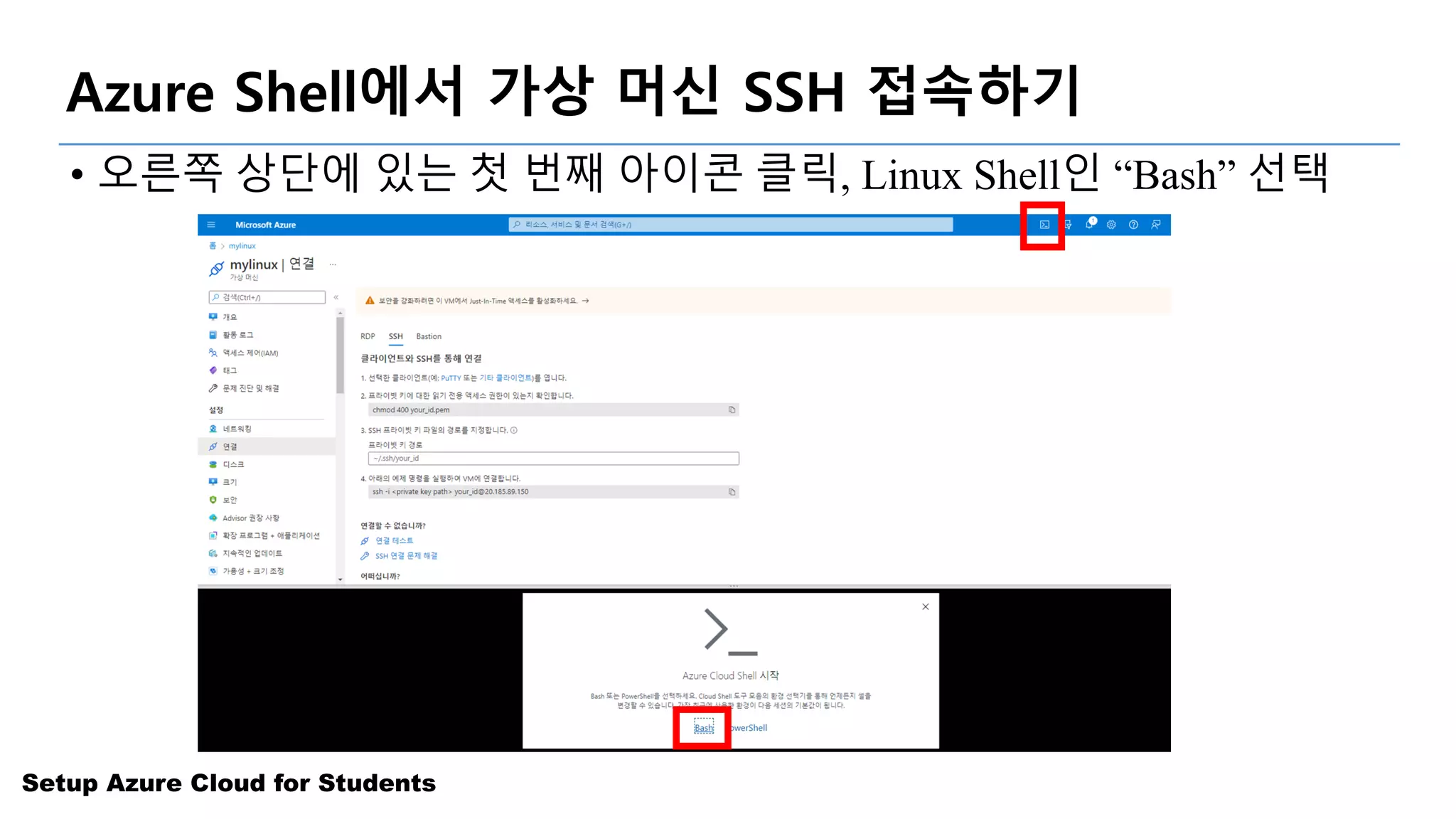
Azure Shell에서 가상 머신 SSH 접속하기
• 오른쪽 상단에 있는 첫 번째 아이콘 클릭, Linux Shell인 “Bash” 선택
24.
Setup Azure Cloudfor Students
Azure Shell에서 가상 머신 SSH 접속하기
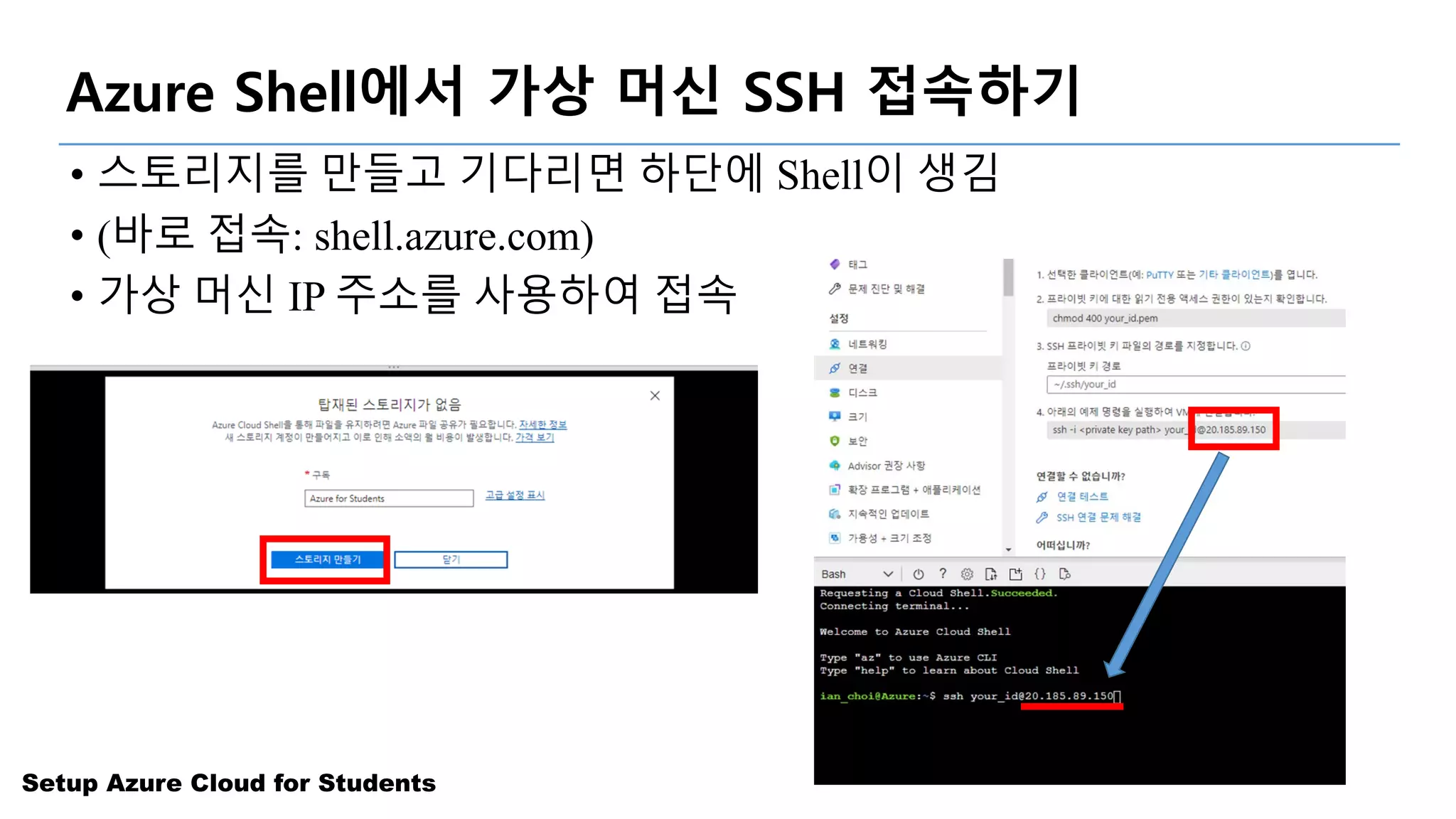
• 스토리지를 만들고 기다리면 하단에 Shell이 생김
• (바로 접속: shell.azure.com)
• 가상 머신 IP 주소를 사용하여 접속
25.
Setup Azure Cloudfor Students
Azure Shell에서 가상 머신 SSH 접속하기
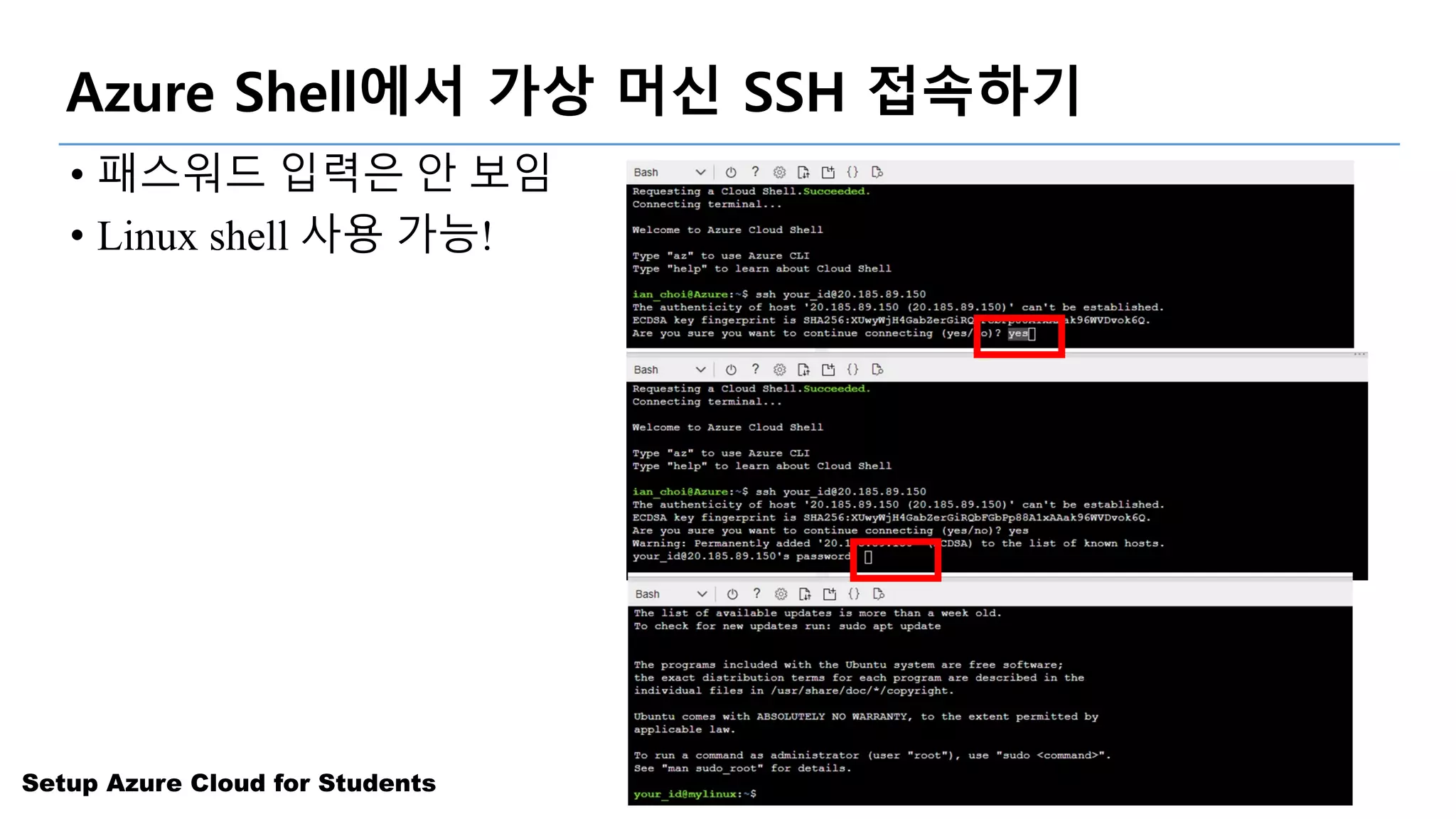
• 패스워드 입력은 안 보임
• Linux shell 사용 가능!
26.
Setup Azure Cloudfor Students
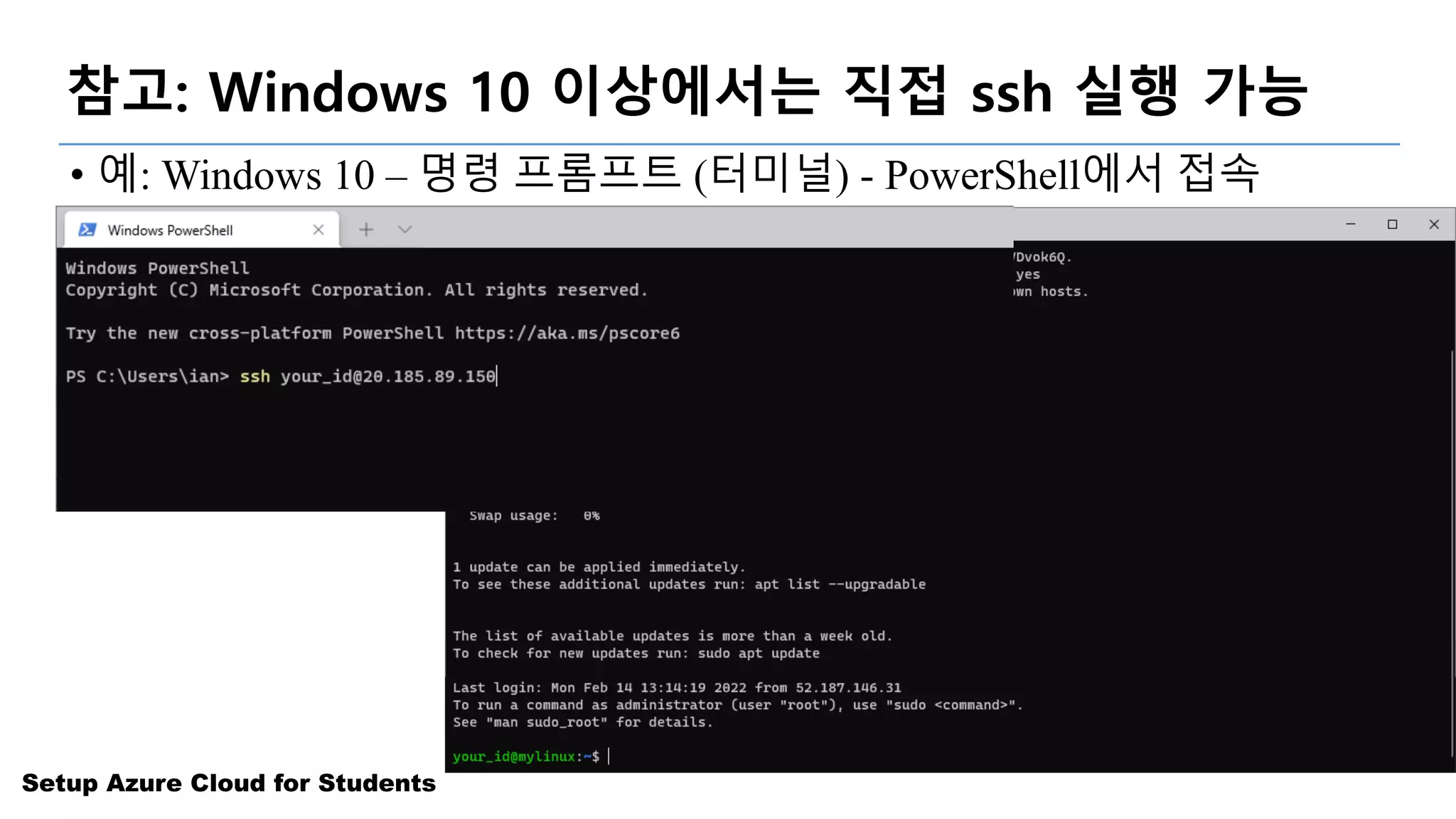
참고: Windows 10 이상에서는 직접 ssh 실행 가능
• 예: Windows 10 – 명령 프롬프트 (터미널) - PowerShell에서 접속
• (바로 접속: shell.azure.com)
• 가상 머신 IP 주소를 사용하여 접속
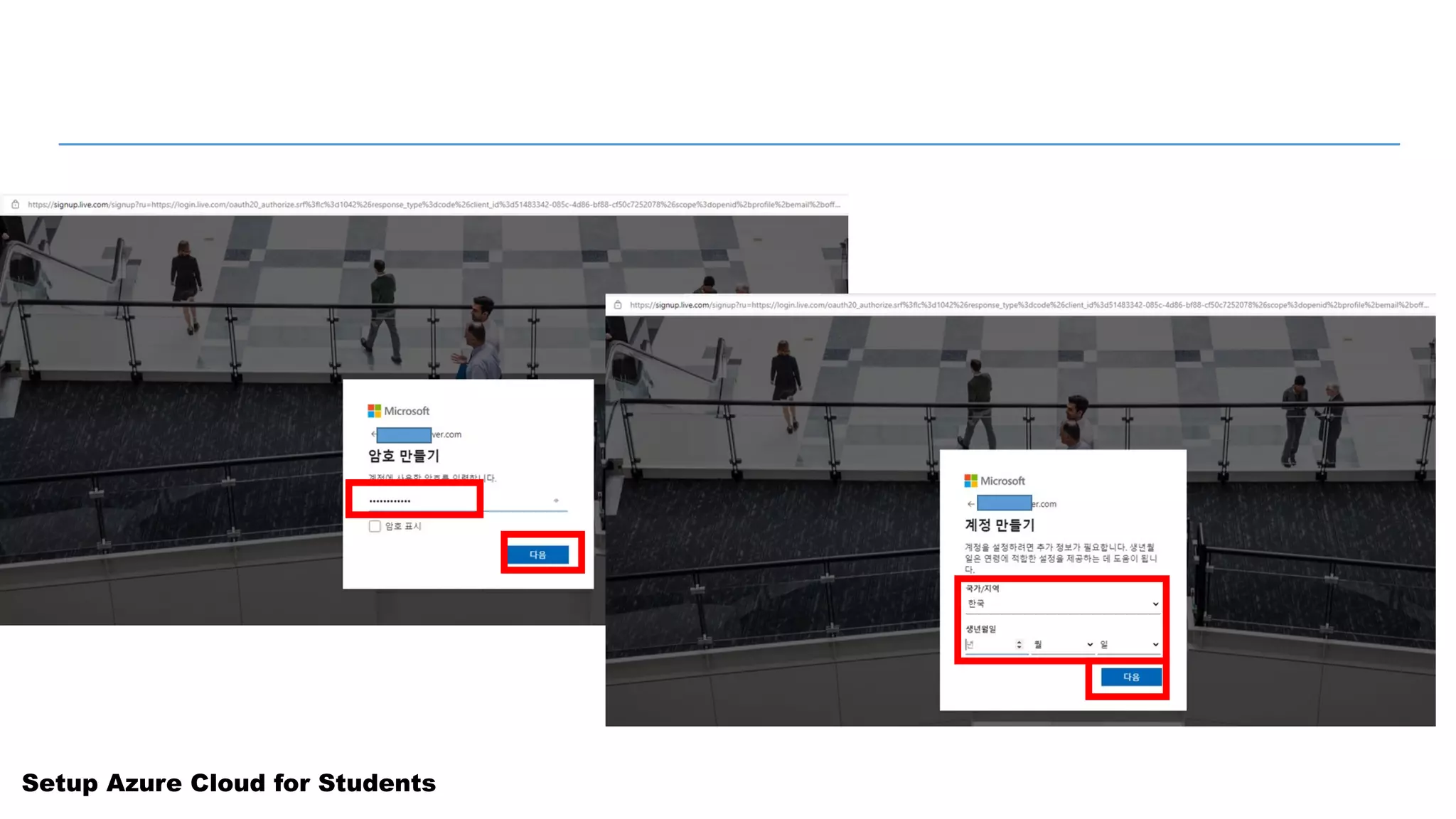
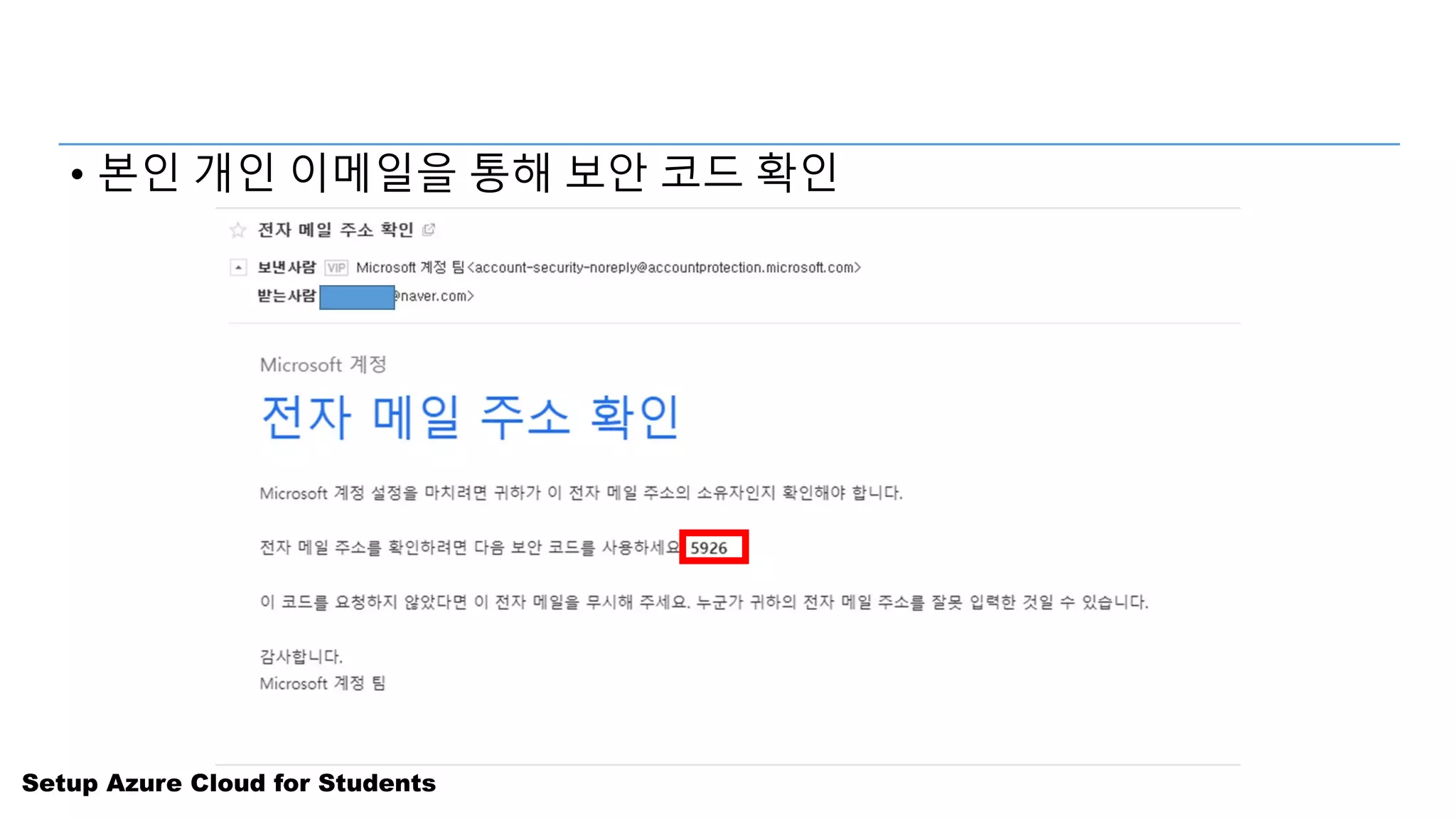
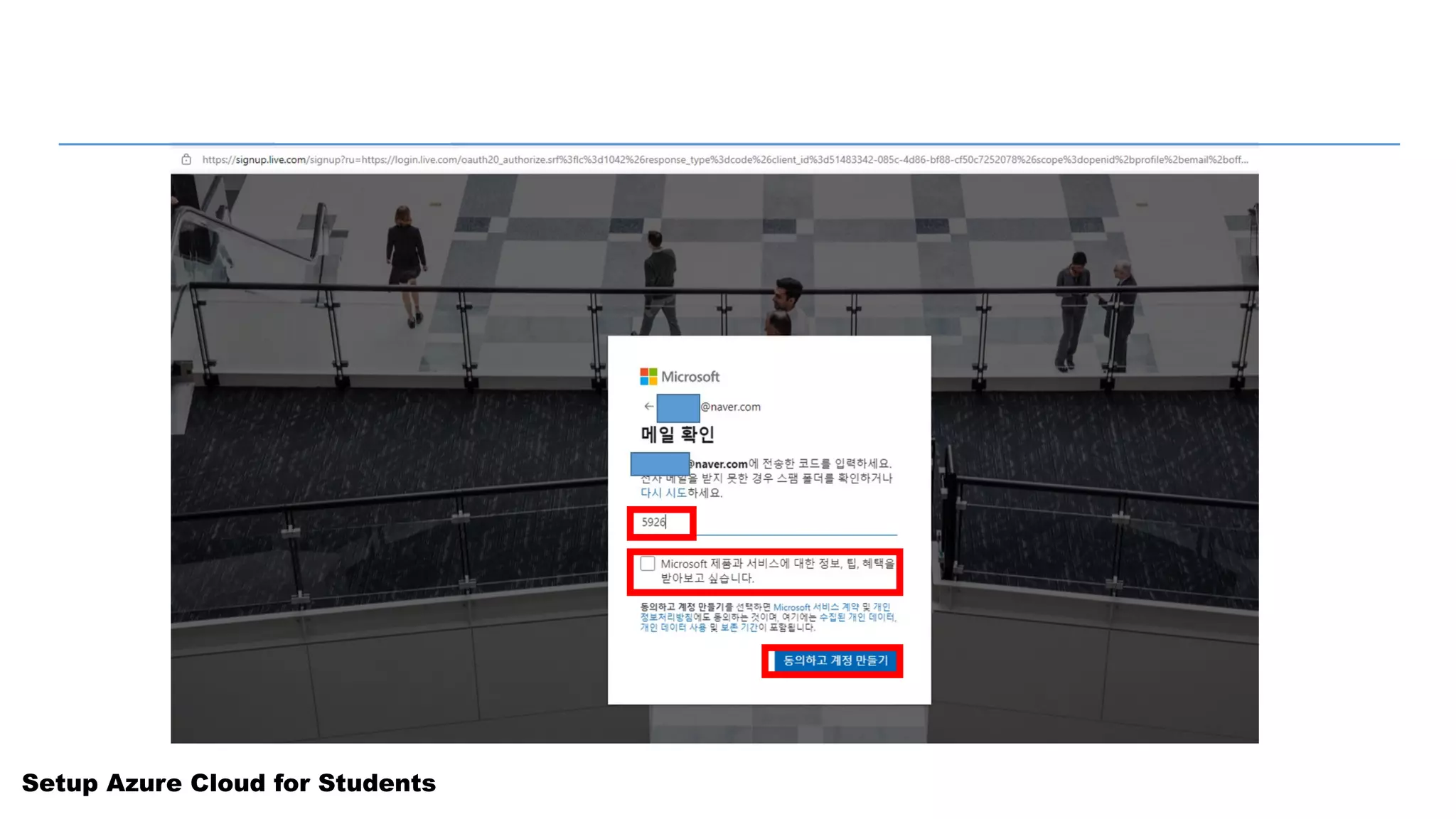
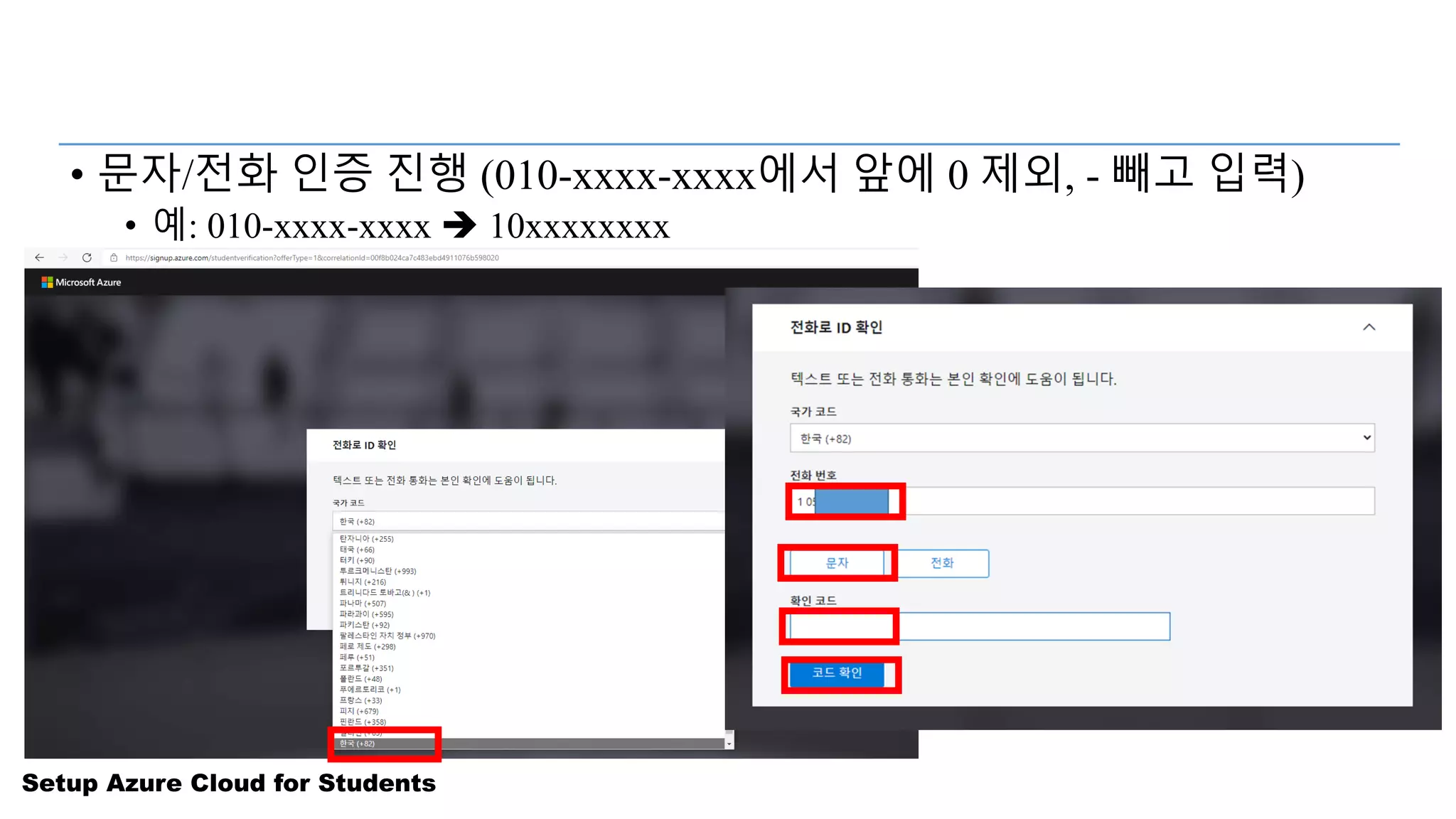
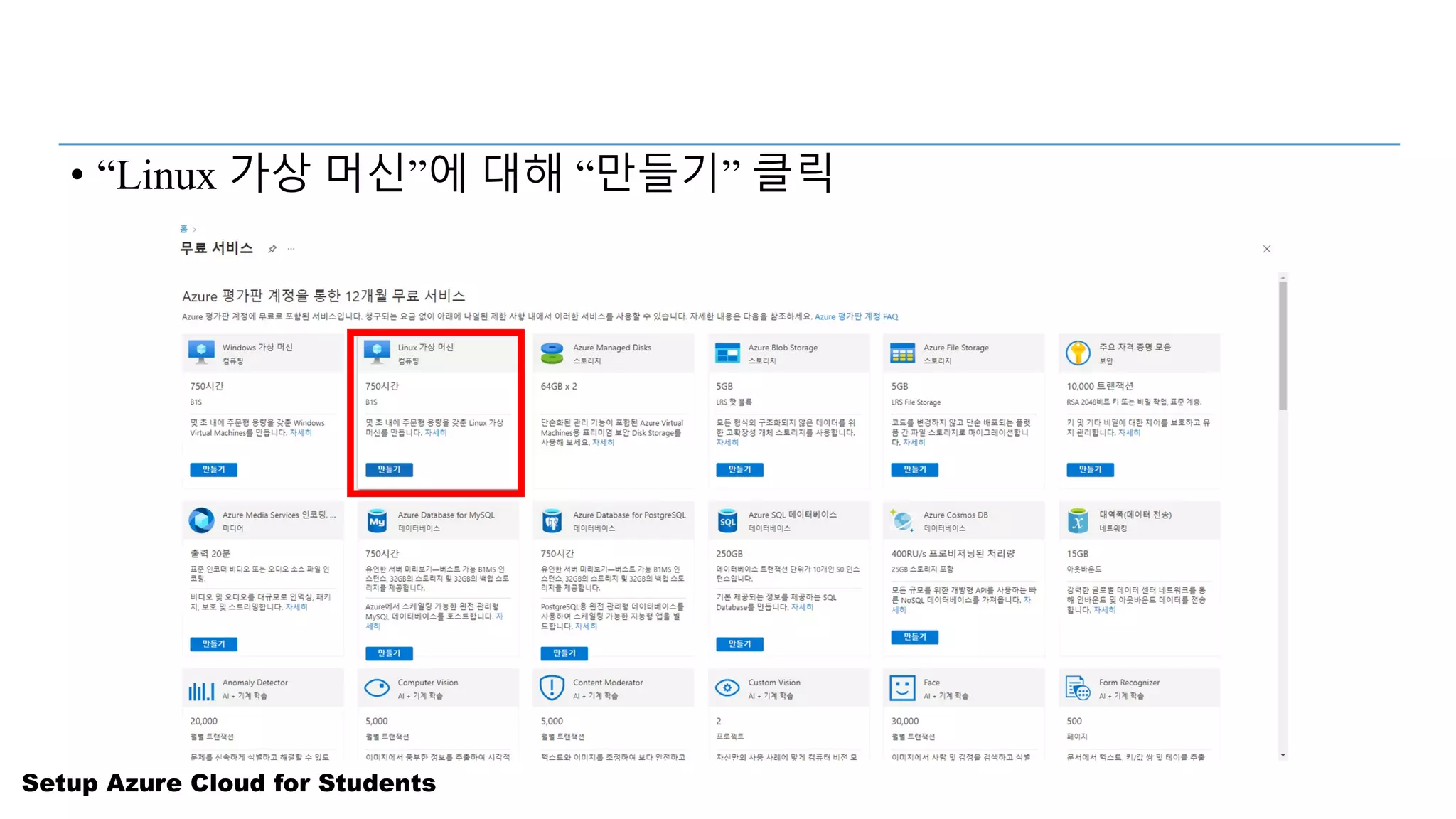
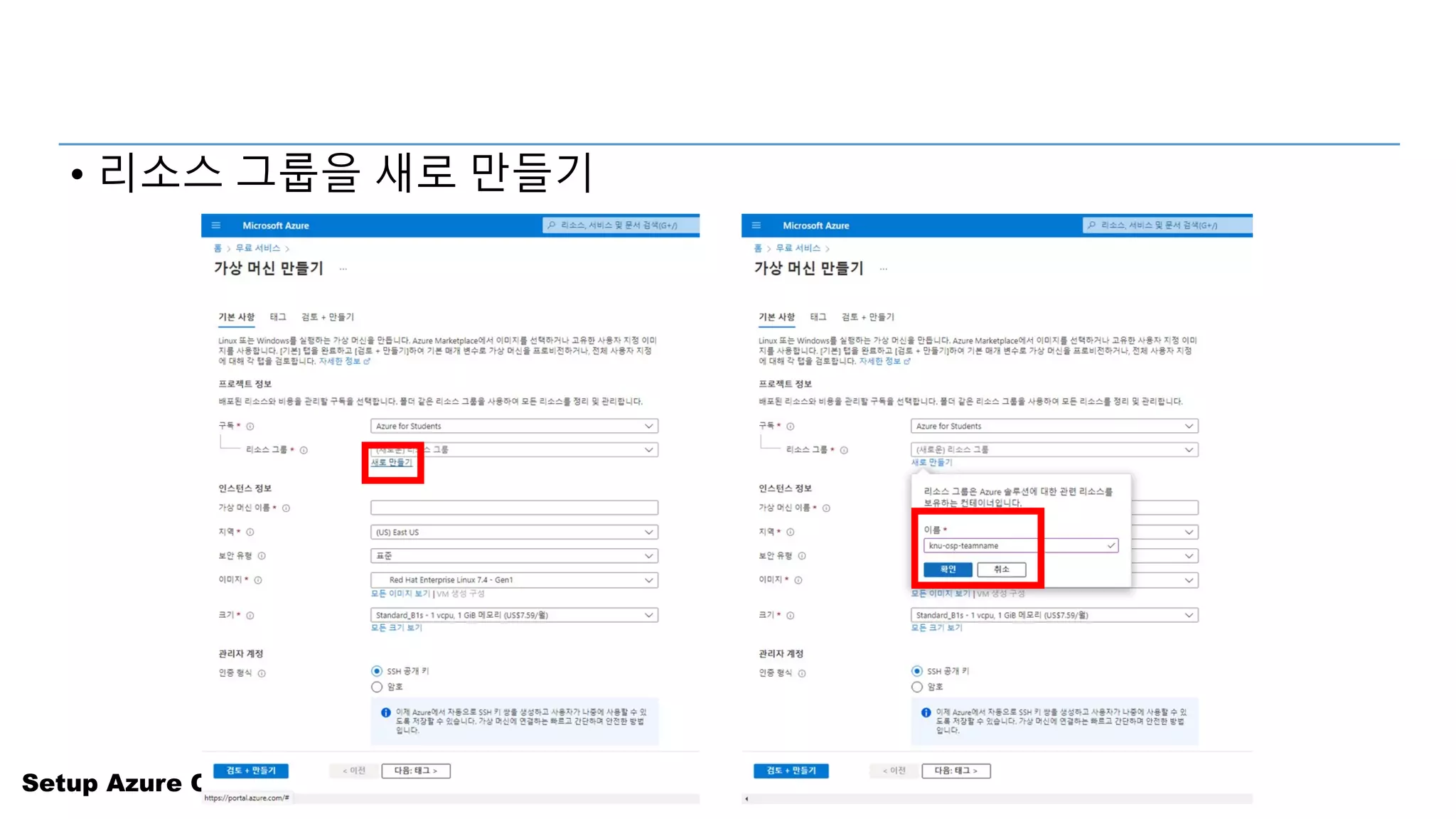
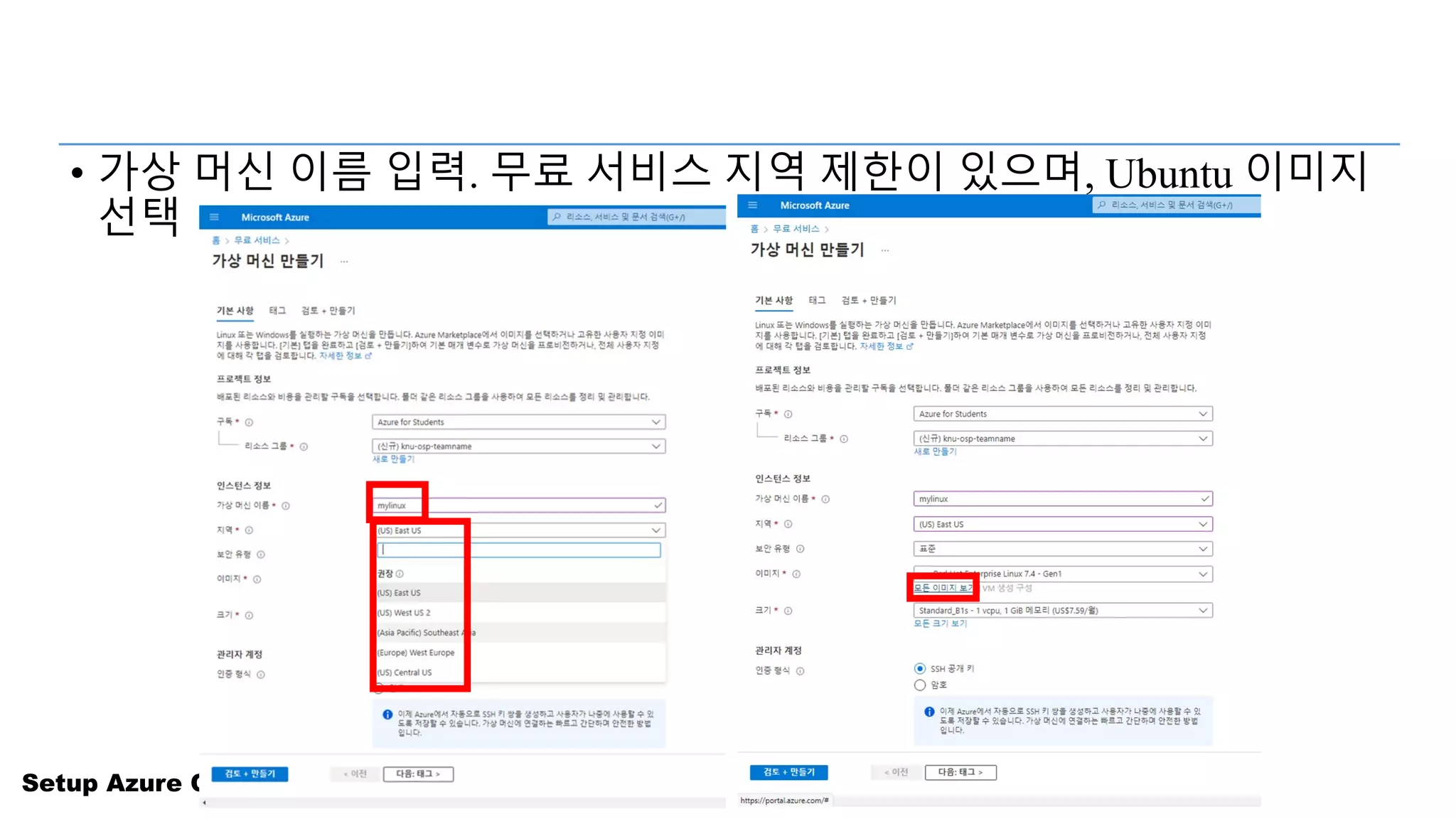
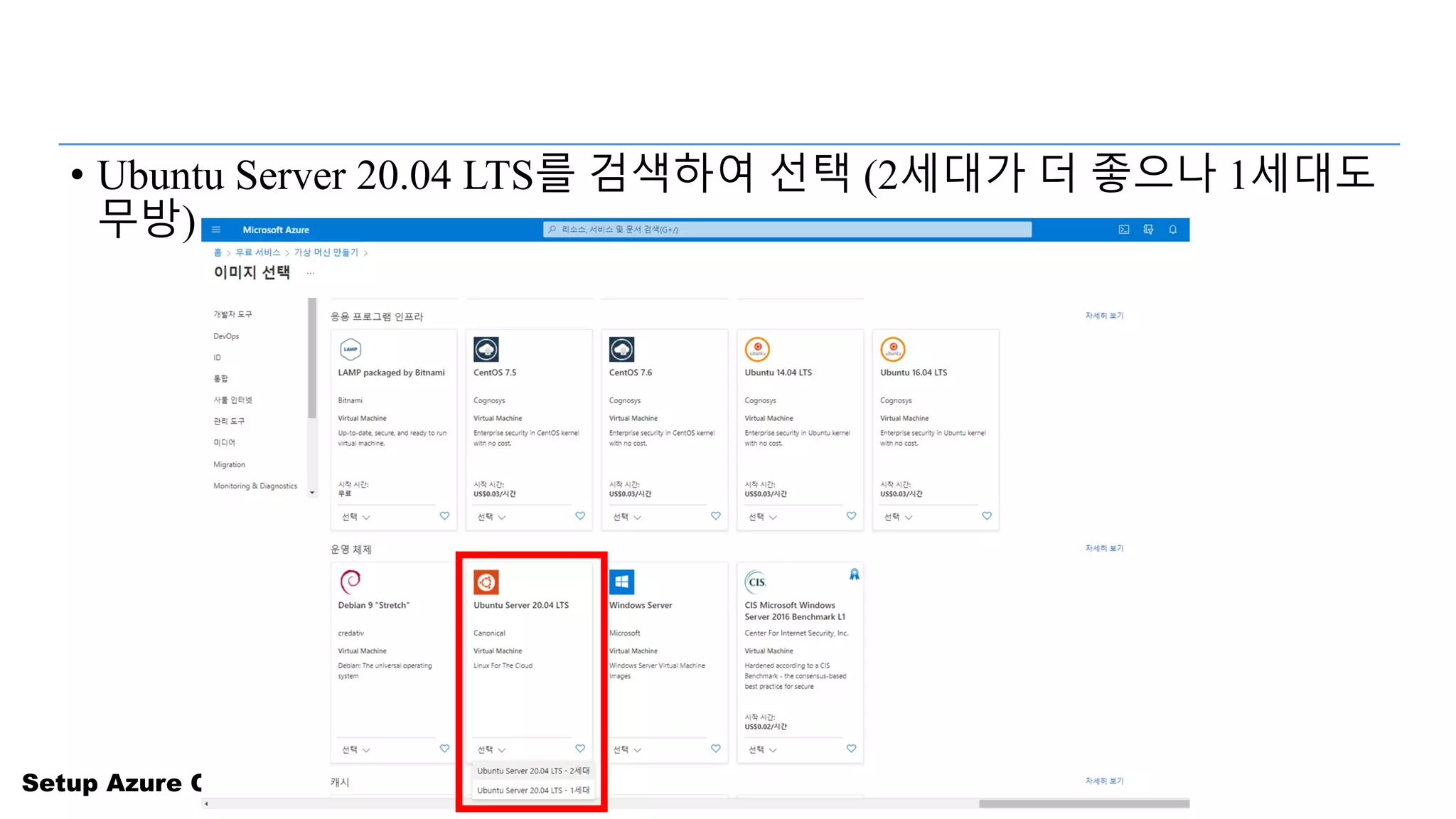
![Setup Azure Cloud for Students
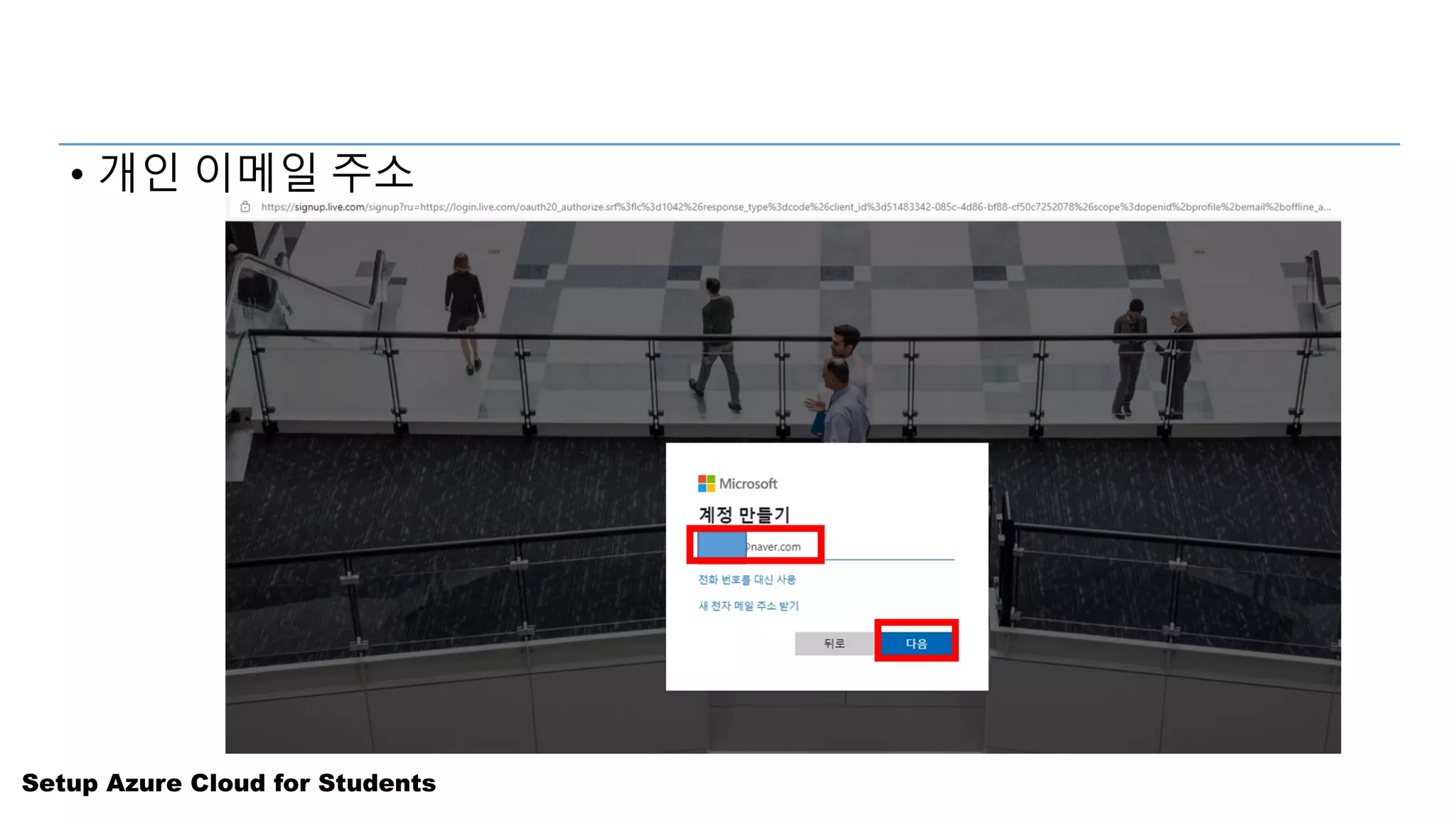
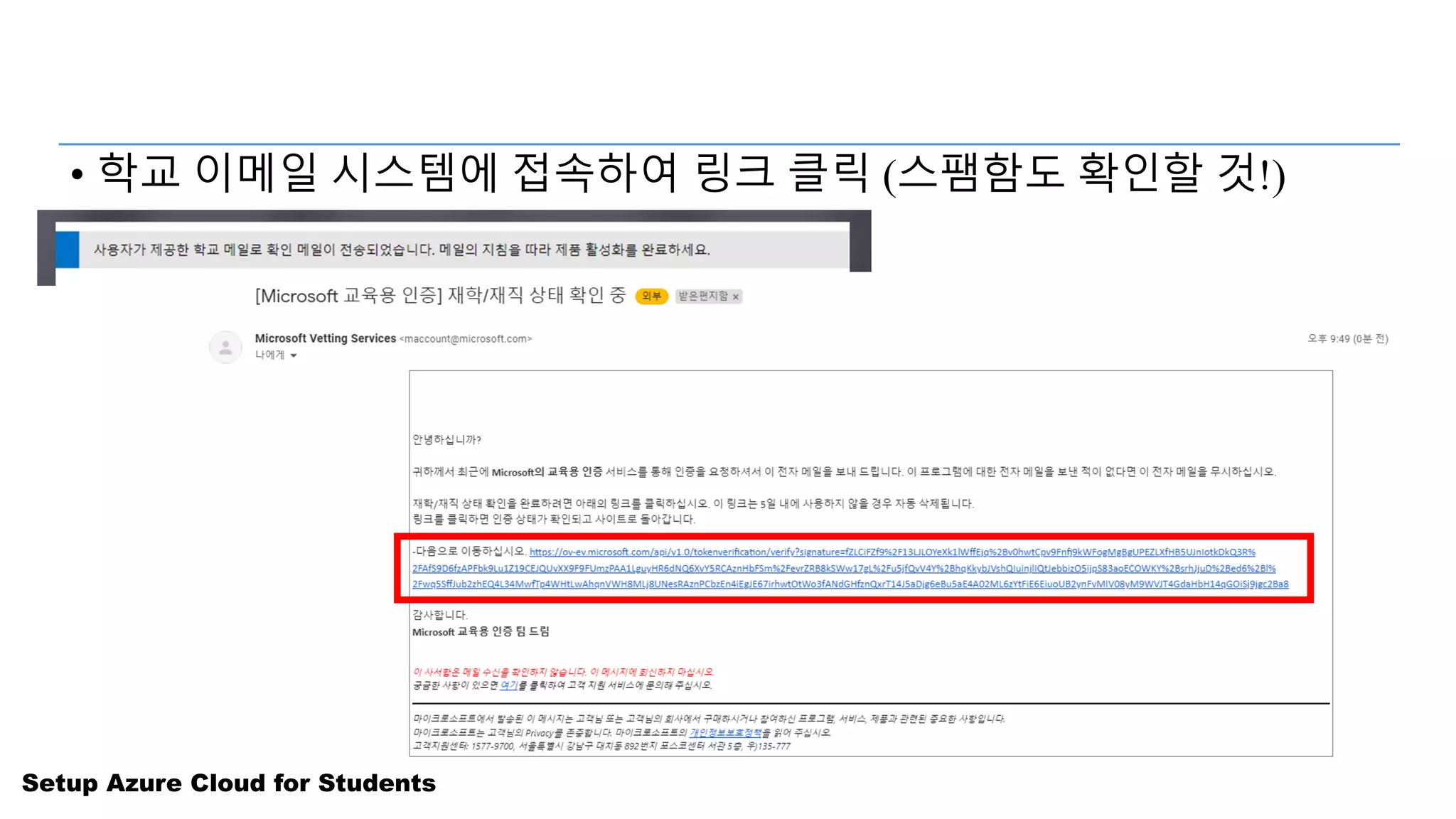
• 재학 상태 확인을 위해 yyyyyy@[학교 도메인 – e.g., knu.ac.kr]
이메일 주소 입력](https://image.slidesharecdn.com/setup-azure-for-students-220409045539/75/Azure-Ubuntu-VM-Mar-2022-9-2048.jpg)


![[오픈테크넷서밋2022] 국내 PaaS(Kubernetes) Best Practice 및 DevOps 환경 구축 사례.pdf](https://cdn.slidesharecdn.com/ss_thumbnails/2022paaskubernetesbestpracticedevops-220927105318-84776c9a-thumbnail.jpg?width=640&height=640&fit=bounds)


![[AWSマイスターシリーズ] Amazon CloudFront / Amazon Elastic Transcoderによるコンテンツ配信](https://cdn.slidesharecdn.com/ss_thumbnails/20131120aws-medister-regenerate-cloudfrontetspublic-131120181553-phpapp01-thumbnail.jpg?width=640&height=640&fit=bounds)


![[OpenInfra Days Korea 2018] K8s workshop: with containers & K8s on OpenStack ...](https://cdn.slidesharecdn.com/ss_thumbnails/oidk2018-day2-k8s-180701165541-thumbnail.jpg?width=640&height=640&fit=bounds)


![[OpenStack] 공개 소프트웨어 오픈스택 입문 & 파헤치기](https://cdn.slidesharecdn.com/ss_thumbnails/opensource-skimmingopenstackwithkoreausergroup-180824144737-thumbnail.jpg?width=640&height=640&fit=bounds)

![[201808] GitHub 사용하기 - GIt & 협업 활용](https://cdn.slidesharecdn.com/ss_thumbnails/201808github-gitandcollaboration-180825003942-thumbnail.jpg?width=640&height=640&fit=bounds)


![[Pycon KR 2017] Rst와 함께하는 Python 문서 작성 & OpenStack 문서 활용 사례](https://cdn.slidesharecdn.com/ss_thumbnails/pyconkr2017-rst-ianychoi-share-170811232929-thumbnail.jpg?width=640&height=640&fit=bounds)


![[OpenInfra Days Vietnam 2019] Innovation with open sources and app modernizat...](https://cdn.slidesharecdn.com/ss_thumbnails/innovationwithopensourcesandappmodernizationfordevelopers-dist-190824044544-thumbnail.jpg?width=640&height=640&fit=bounds)
![[2018 KOSSLAB 컨트리뷰톤] 오픈스택 (OpenStack) 프로젝트 소개 + 업스트림 컨트리뷰션](https://cdn.slidesharecdn.com/ss_thumbnails/201808openstack-upstreamcontributionandcontributhon-dist-180817004435-thumbnail.jpg?width=640&height=640&fit=bounds)
![[2018 공개SW그랜드챌린지] 오픈 인프라와 오픈 커뮤니티에서의 협력](https://cdn.slidesharecdn.com/ss_thumbnails/201806-open-infra-and-collaboration-among-open-communities-180706082222-thumbnail.jpg?width=640&height=640&fit=bounds)


