AutoTallyBackup Module Reference Manual


            : Module Developed by :

V.K.Computeri
V.K.Computerized System
           1st Floor,Mahavir Cloth Centre,
              Patelwada,Godhra,Gujarat
Tallyfon:(02672)249977,DirectCall: 98250 42042
       Email : vinay_chauhan83@yahoo.com


                    Page 1 of 12
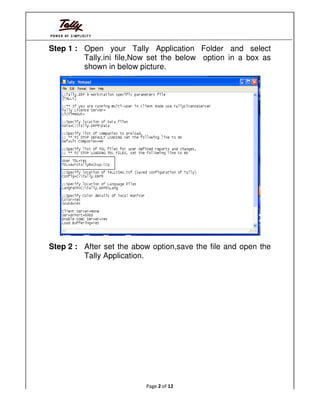
Step 1 : Open your Tally Application Folder and select
         Tally.ini file,Now set the below option in a box as
         shown in below picture.


Step 2 : After set the abow option,save the file and open the
         Tally Application.


                          Page 2 of 12
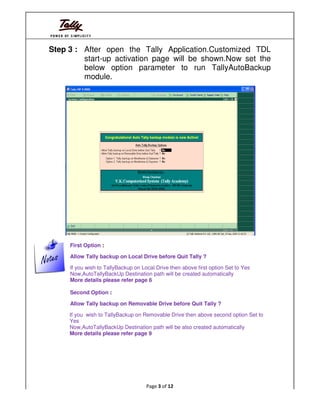
Step 3 : After open the Tally Application.Customized TDL
         start-up activation page will be shown.Now set the
         below option parameter to run TallyAutoBackup
         module.


     First Option :

     Allow Tally backup on Local Drive before Quit Tally ?

     If you wish to TallyBackup on Local Drive then above first option Set to Yes
     Now,AutoTallyBackUp Destination path will be created automatically
     More details please refer page 6

     Second Option :

     Allow Tally backup on Removable Drive before Quit Tally ?

     If you wish to TallyBackup on Removable Drive then above second option Set to
     Yes
     Now,AutoTallyBackUp Destination path will be also created automatically
     More details please refer page 9


                                     Page 3 of 12
Third Option :

      Option 1. Tally backup on Monthwise & Datewise ?

      If you wish to TallyBackup on Monthwise & Datewise style then above Third option
      Set to Yes
      Now,Monthwise & Datewise style TallyBackup Destination path will be created as…
      C:MonthlyTallyERP9BackupSeptember-200919-Sep-2009          (where Septmber-
      2009 is a current backup month & 19-Sep-2009 is a current backup Date)

      Fourth Option :

      Option 2. Tally backup on Monthwise & Daywise ?

      If you wish to TallyBackup on Monthwise & Daywise style then above Fourth option
      Set to Yes
      Now,Monthwise & Daywise style TallyBackup Destination path will be created as…
      C:MonthlyTallyERP9BackupSeptember-2009Saturday (where Septmber-2009 is
      a current backup month & Saturday is a current backup Day)

Step 3 (1 ) : If you wish to TallyAutoBackup Configuration modify during runtime
              Tally Application then below option also available.
Go to > Gateway of Tally >Press F12 >Select General Menu > Auto Tally Backup
            Options will be shown


                                     Page 4 of 12
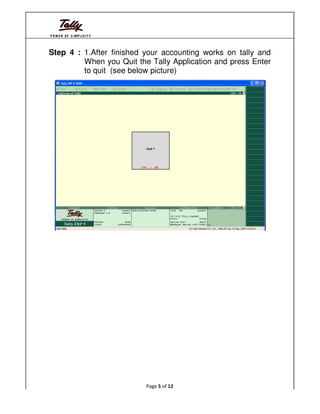
Step 4 : 1.After finished your accounting works on tally and
         When you Quit the Tally Application and press Enter
         to quit (see below picture)


                          Page 5 of 12
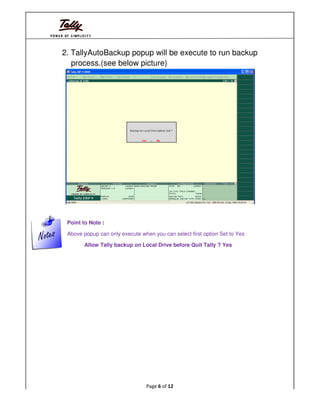
2. TallyAutoBackup popup will be execute to run backup
   process.(see below picture)


 Point to Note :

 Above popup can only execute when you can select first option Set to Yes

       Allow Tally backup on Local Drive before Quit Tally ? Yes


                                 Page 6 of 12
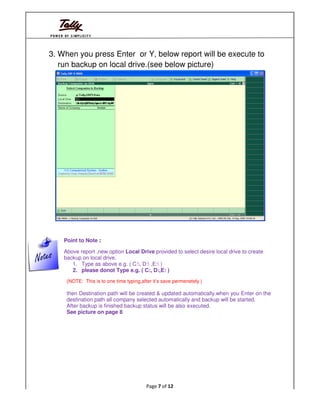
3. When you press Enter or Y, below report will be execute to
   run backup on local drive.(see below picture)


    Point to Note :

    Above report ,new option Local Drive provided to select desire local drive to create
    backup on local drive.
       1. Type as above e.g. ( C:, D: ,E: )
       2. please donot Type e.g. ( C:, D:,E: )
     (NOTE: This is to one time typing,after it’s save permenetely )

     then Destination path will be created & updated automatically.when you Enter on the
     destination path all company selected automatically and backup will be started.
     After backup is finished backup status will be also executed.
     See picture on page 8


                                          Page 7 of 12
backup process is starting (see below picture)


backup status is showing (see below picture)


                      Page 8 of 12
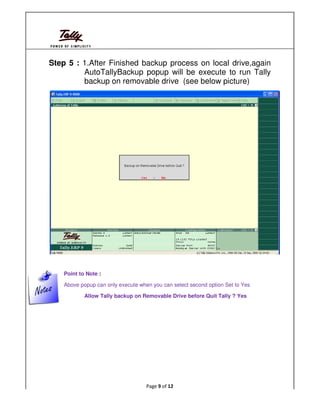
Step 5 : 1.After Finished backup process on local drive,again
         AutoTallyBackup popup will be execute to run Tally
         backup on removable drive (see below picture)


    Point to Note :

    Above popup can only execute when you can select second option Set to Yes

            Allow Tally backup on Removable Drive before Quit Tally ? Yes


                                    Page 9 of 12
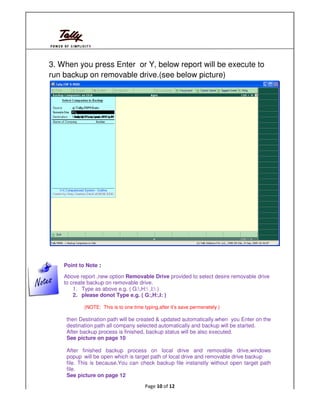
3. When you press Enter or Y, below report will be execute to
run backup on removable drive.(see below picture)


    Point to Note :

    Above report ,new option Removable Drive provided to select desire removable drive
    to create backup on removable drive.
        1. Type as above e.g. ( G:,H: ,I: )
        2. please donot Type e.g. ( G:,H:,I: )

            (NOTE: This is to one time typing,after it’s save permenetely )

     then Destination path will be created & updated automatically.when you Enter on the
     destination path all company selected automatically and backup will be started.
     After backup process is finished, backup status will be also executed.
     See picture on page 10

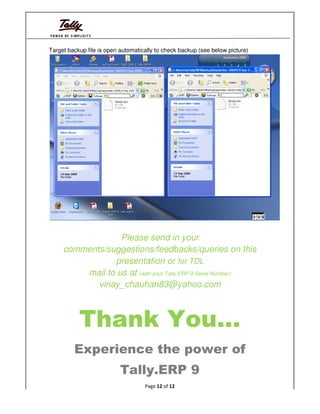
     After finished backup process on local drive and removable drive,windows
     popup will be open which is target path of local drive and removable drive backup
     file. This is because,You can check backup file instanstly without open target path
     file.
     See picture on page 12
                                        Page 10 of 12
backup process is starting (see below picture)


backup status is showing (see below picture)


                      Page 11 of 12
Target backup file is open automatically to check backup (see below picture)


                  Please send in your
     comments/suggestions/feedbacks/queries on this
                presentation or for TDL
         mail to us at (with your Tally.ERP 9 Serial Number)
            vinay_chauhan83@yahoo.com


           Thank You…
         Experience the power of
                           Tally.ERP 9
                                    Page 12 of 12

Auto Tally Backup Reference Manual

  • 1.
    AutoTallyBackup Module ReferenceManual : Module Developed by : V.K.Computeri V.K.Computerized System 1st Floor,Mahavir Cloth Centre, Patelwada,Godhra,Gujarat Tallyfon:(02672)249977,DirectCall: 98250 42042 Email : vinay_chauhan83@yahoo.com Page 1 of 12
  • 2.
    Step 1 :Open your Tally Application Folder and select Tally.ini file,Now set the below option in a box as shown in below picture. Step 2 : After set the abow option,save the file and open the Tally Application. Page 2 of 12
  • 3.
    Step 3 :After open the Tally Application.Customized TDL start-up activation page will be shown.Now set the below option parameter to run TallyAutoBackup module. First Option : Allow Tally backup on Local Drive before Quit Tally ? If you wish to TallyBackup on Local Drive then above first option Set to Yes Now,AutoTallyBackUp Destination path will be created automatically More details please refer page 6 Second Option : Allow Tally backup on Removable Drive before Quit Tally ? If you wish to TallyBackup on Removable Drive then above second option Set to Yes Now,AutoTallyBackUp Destination path will be also created automatically More details please refer page 9 Page 3 of 12
  • 4.
    Third Option : Option 1. Tally backup on Monthwise & Datewise ? If you wish to TallyBackup on Monthwise & Datewise style then above Third option Set to Yes Now,Monthwise & Datewise style TallyBackup Destination path will be created as… C:MonthlyTallyERP9BackupSeptember-200919-Sep-2009 (where Septmber- 2009 is a current backup month & 19-Sep-2009 is a current backup Date) Fourth Option : Option 2. Tally backup on Monthwise & Daywise ? If you wish to TallyBackup on Monthwise & Daywise style then above Fourth option Set to Yes Now,Monthwise & Daywise style TallyBackup Destination path will be created as… C:MonthlyTallyERP9BackupSeptember-2009Saturday (where Septmber-2009 is a current backup month & Saturday is a current backup Day) Step 3 (1 ) : If you wish to TallyAutoBackup Configuration modify during runtime Tally Application then below option also available. Go to > Gateway of Tally >Press F12 >Select General Menu > Auto Tally Backup Options will be shown Page 4 of 12
  • 5.
    Step 4 :1.After finished your accounting works on tally and When you Quit the Tally Application and press Enter to quit (see below picture) Page 5 of 12
  • 6.
    2. TallyAutoBackup popupwill be execute to run backup process.(see below picture) Point to Note : Above popup can only execute when you can select first option Set to Yes Allow Tally backup on Local Drive before Quit Tally ? Yes Page 6 of 12
  • 7.
    3. When youpress Enter or Y, below report will be execute to run backup on local drive.(see below picture) Point to Note : Above report ,new option Local Drive provided to select desire local drive to create backup on local drive. 1. Type as above e.g. ( C:, D: ,E: ) 2. please donot Type e.g. ( C:, D:,E: ) (NOTE: This is to one time typing,after it’s save permenetely ) then Destination path will be created & updated automatically.when you Enter on the destination path all company selected automatically and backup will be started. After backup is finished backup status will be also executed. See picture on page 8 Page 7 of 12
  • 8.
    backup process isstarting (see below picture) backup status is showing (see below picture) Page 8 of 12
  • 9.
    Step 5 :1.After Finished backup process on local drive,again AutoTallyBackup popup will be execute to run Tally backup on removable drive (see below picture) Point to Note : Above popup can only execute when you can select second option Set to Yes Allow Tally backup on Removable Drive before Quit Tally ? Yes Page 9 of 12
  • 10.
    3. When youpress Enter or Y, below report will be execute to run backup on removable drive.(see below picture) Point to Note : Above report ,new option Removable Drive provided to select desire removable drive to create backup on removable drive. 1. Type as above e.g. ( G:,H: ,I: ) 2. please donot Type e.g. ( G:,H:,I: ) (NOTE: This is to one time typing,after it’s save permenetely ) then Destination path will be created & updated automatically.when you Enter on the destination path all company selected automatically and backup will be started. After backup process is finished, backup status will be also executed. See picture on page 10 After finished backup process on local drive and removable drive,windows popup will be open which is target path of local drive and removable drive backup file. This is because,You can check backup file instanstly without open target path file. See picture on page 12 Page 10 of 12
  • 11.
    backup process isstarting (see below picture) backup status is showing (see below picture) Page 11 of 12
  • 12.
    Target backup fileis open automatically to check backup (see below picture) Please send in your comments/suggestions/feedbacks/queries on this presentation or for TDL mail to us at (with your Tally.ERP 9 Serial Number) vinay_chauhan83@yahoo.com Thank You… Experience the power of Tally.ERP 9 Page 12 of 12