Assets2Go Mobile Lifecycle Solution  Overview Linium's Mobility Solutions Assets2GO (A2G) application allows technicians and management to extend your asset lifecycle process to any Pocket PC or Windows Mobile Device. With Linium's Mobile Application Suite, your organizations inventory management solution extends to the field where you need it most.  Benefits Streamlines asset lifecycle process Increases efficiency and productivity Extends lifecycle processes to field technicians regardless of their location. Helps ensure data accuracy and integrity
Assets2Go Mobile Lifecycle Solution  SUPPORTED LIFECYCLE PROCESSES Receiving Deployment Move Retire Audit
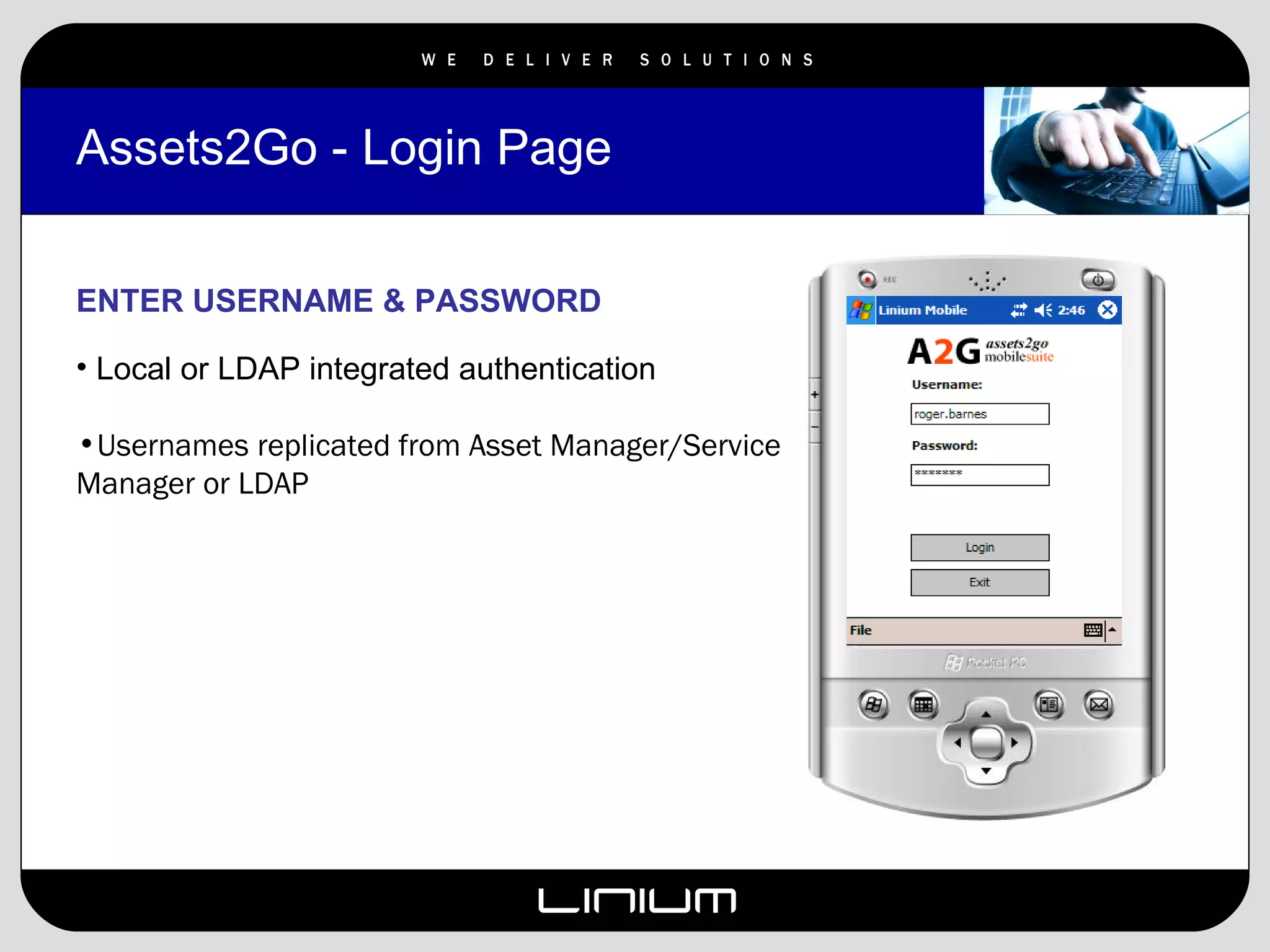
Assets2Go - Login Page ENTER USERNAME & PASSWORD Local or LDAP integrated authentication Usernames replicated from Asset Manager/Service Manager or LDAP
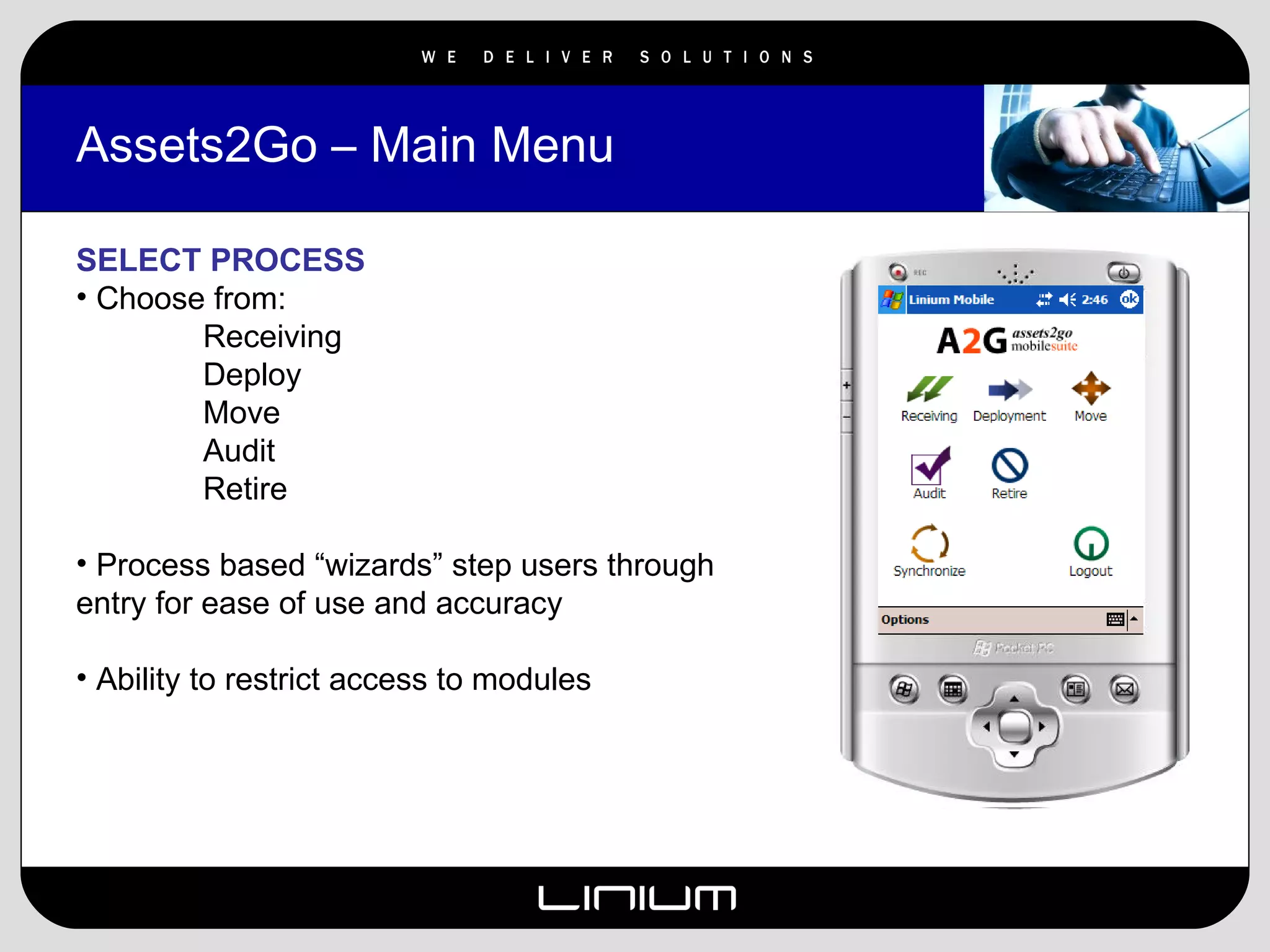
Assets2Go – Main Menu  SELECT PROCESS Choose from: Receiving Deploy Move Audit Retire Process based “wizards” step users through entry for ease of use and accuracy Ability to restrict access to modules
Assets2Go Audit Function
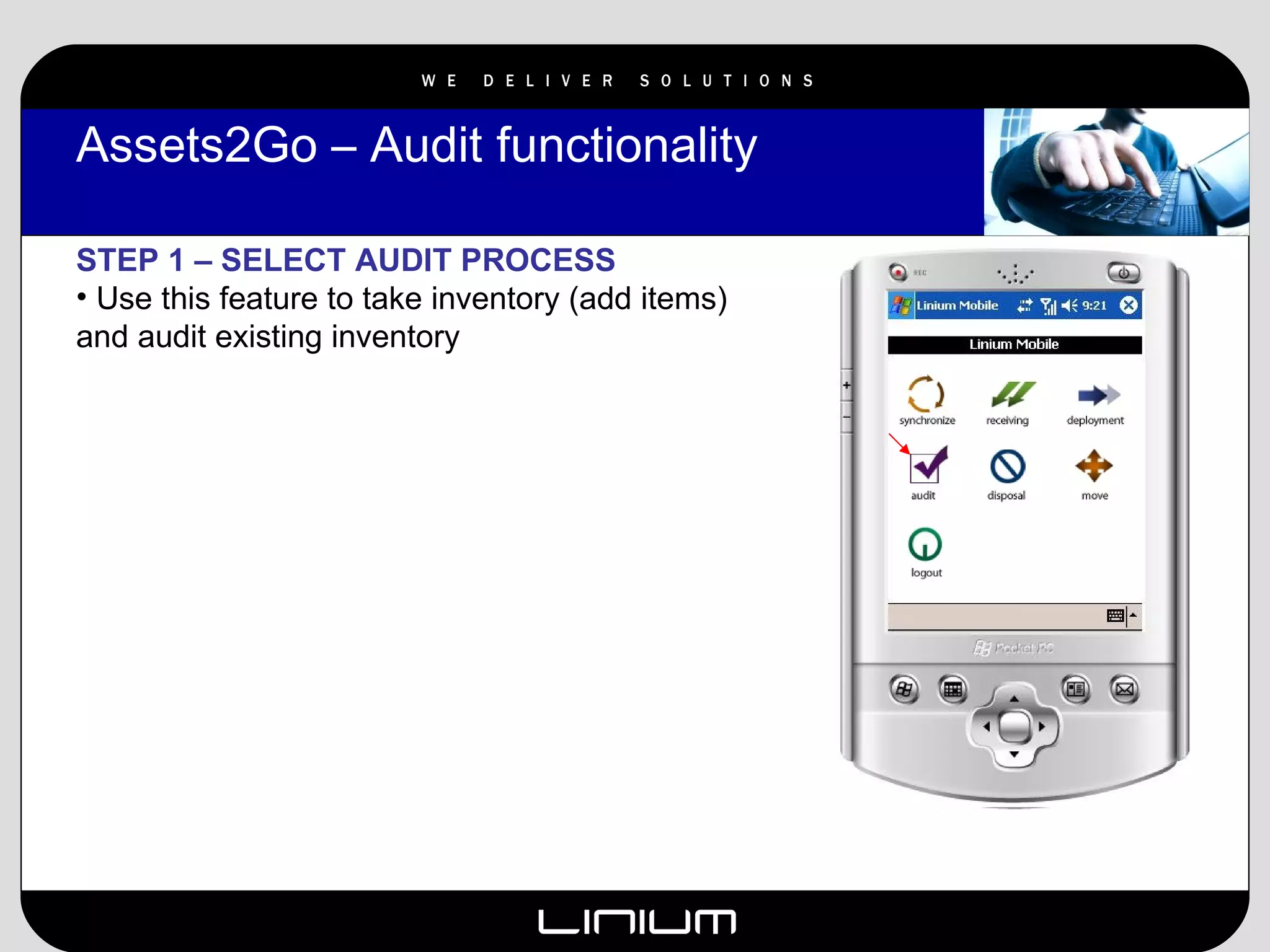
Assets2Go – Audit functionality  STEP 1 – SELECT AUDIT PROCESS Use this feature to take inventory (add items) and audit existing inventory
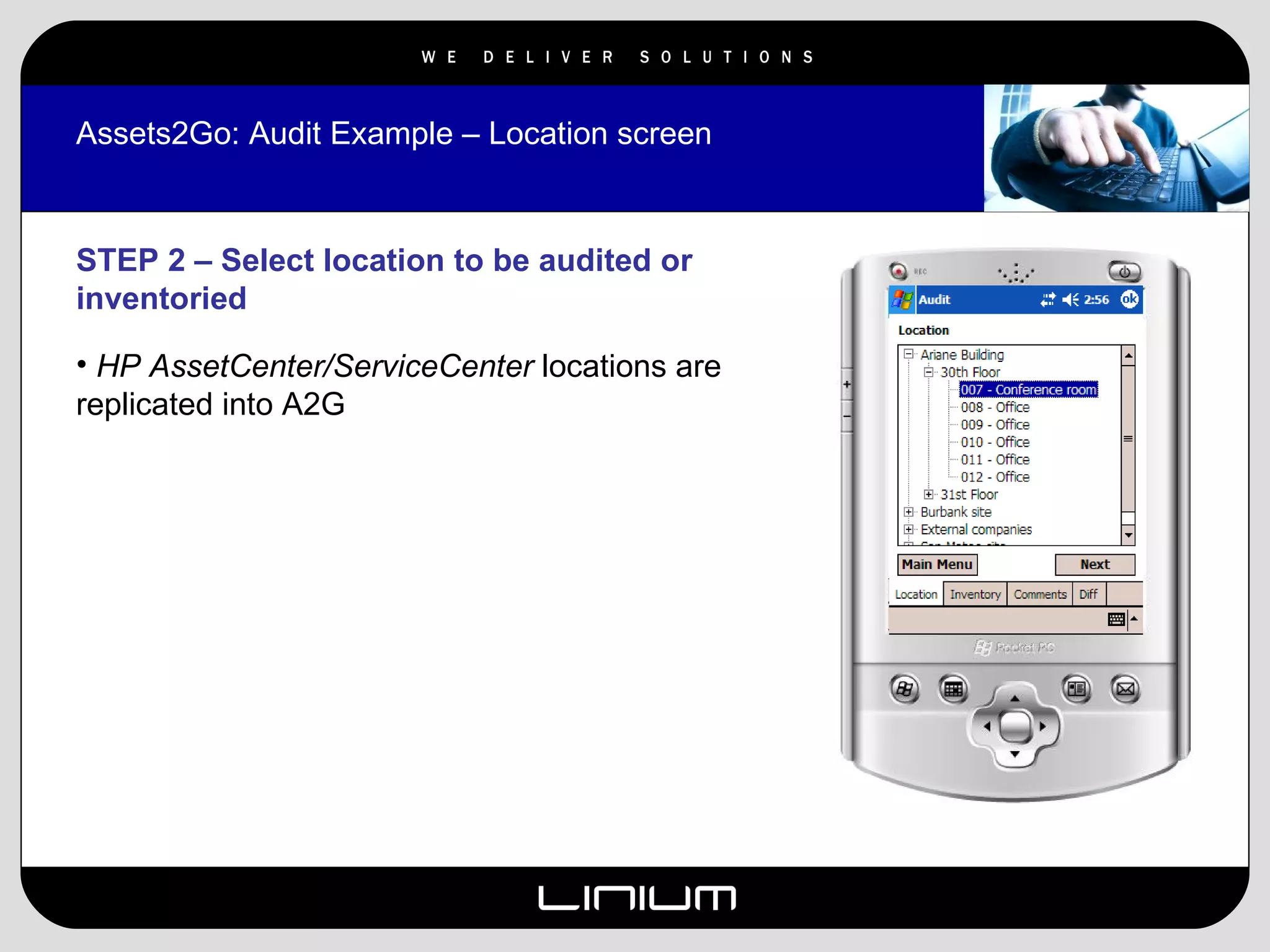
Assets2Go: Audit Example – Location screen STEP 2 – Select location to be audited or inventoried HP AssetCenter/ServiceCenter  locations are replicated into A2G
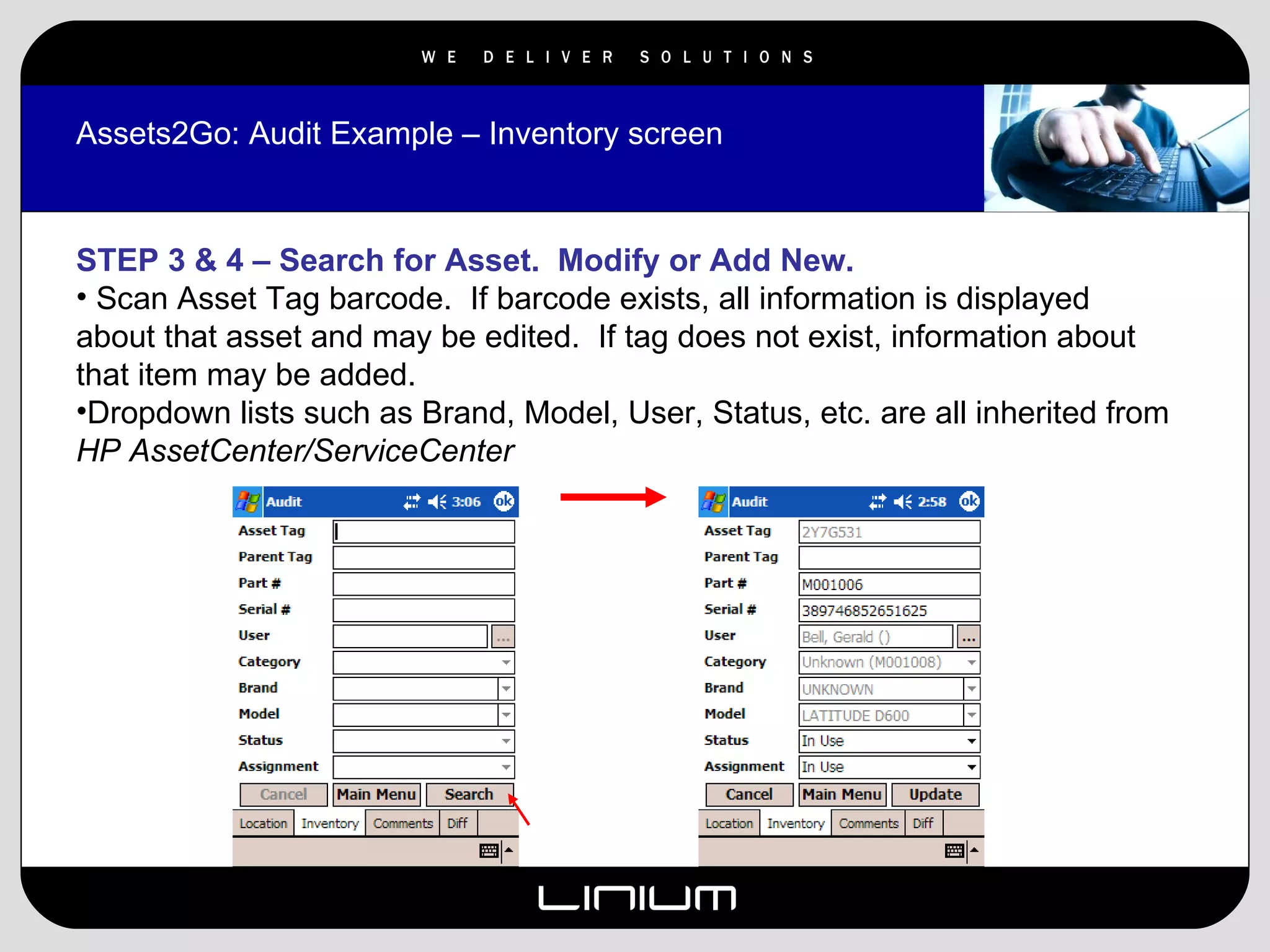
Assets2Go: Audit Example – Inventory screen STEP 3 & 4 – Search for Asset.  Modify or Add New. Scan Asset Tag barcode.  If barcode exists, all information is displayed about that asset and may be edited.  If tag does not exist, information about that item may be added. Dropdown lists such as Brand, Model, User, Status, etc. are all inherited from  HP AssetCenter/ServiceCenter
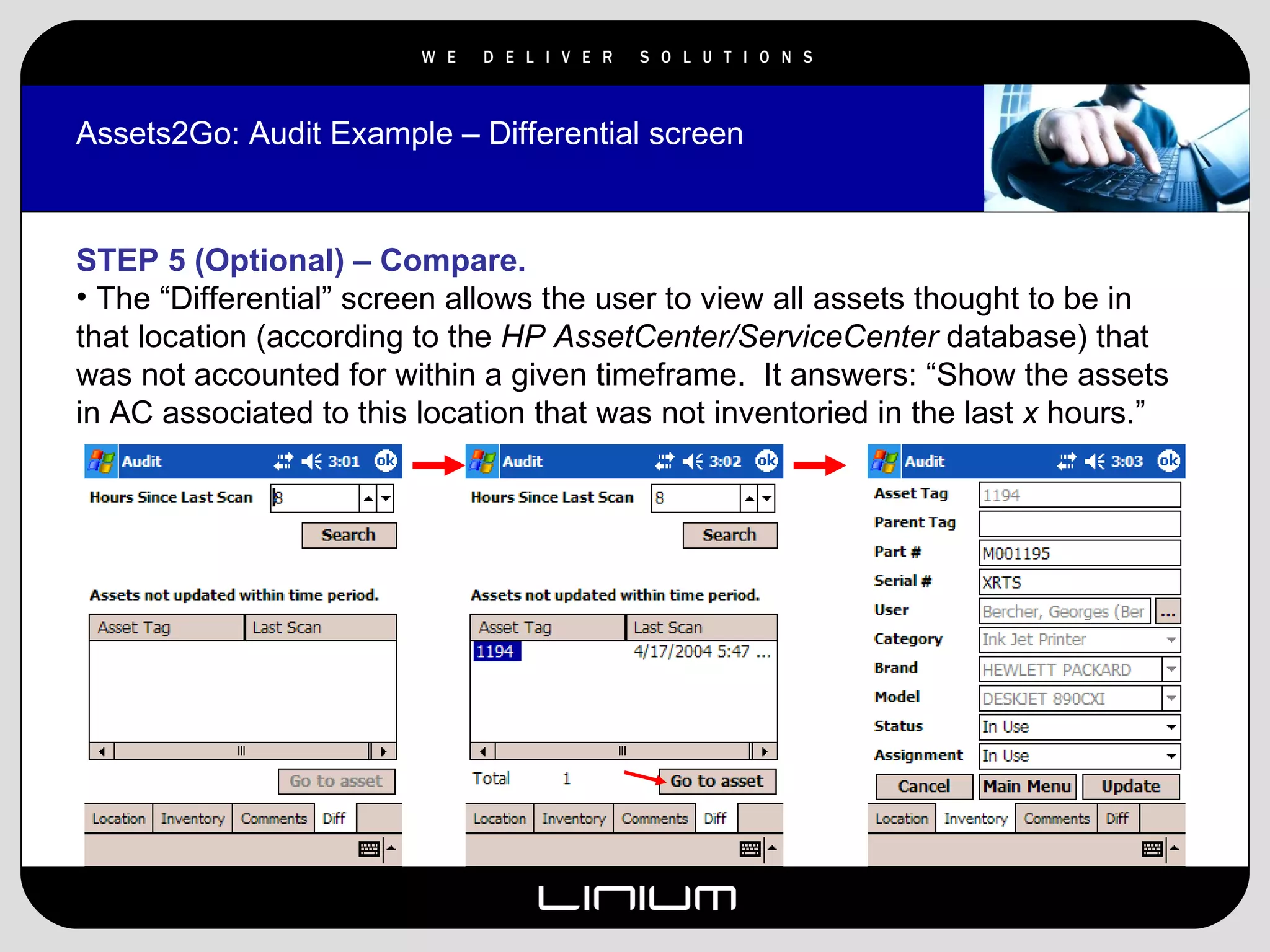
Assets2Go: Audit Example – Differential screen STEP 5 (Optional) – Compare. The “Differential” screen allows the user to view all assets thought to be in that location (according to the  HP AssetCenter/ServiceCenter  database) that was not accounted for within a given timeframe.  It answers: “Show the assets in AC associated to this location that was not inventoried in the last  x  hours.”
Assets2Go Move Function
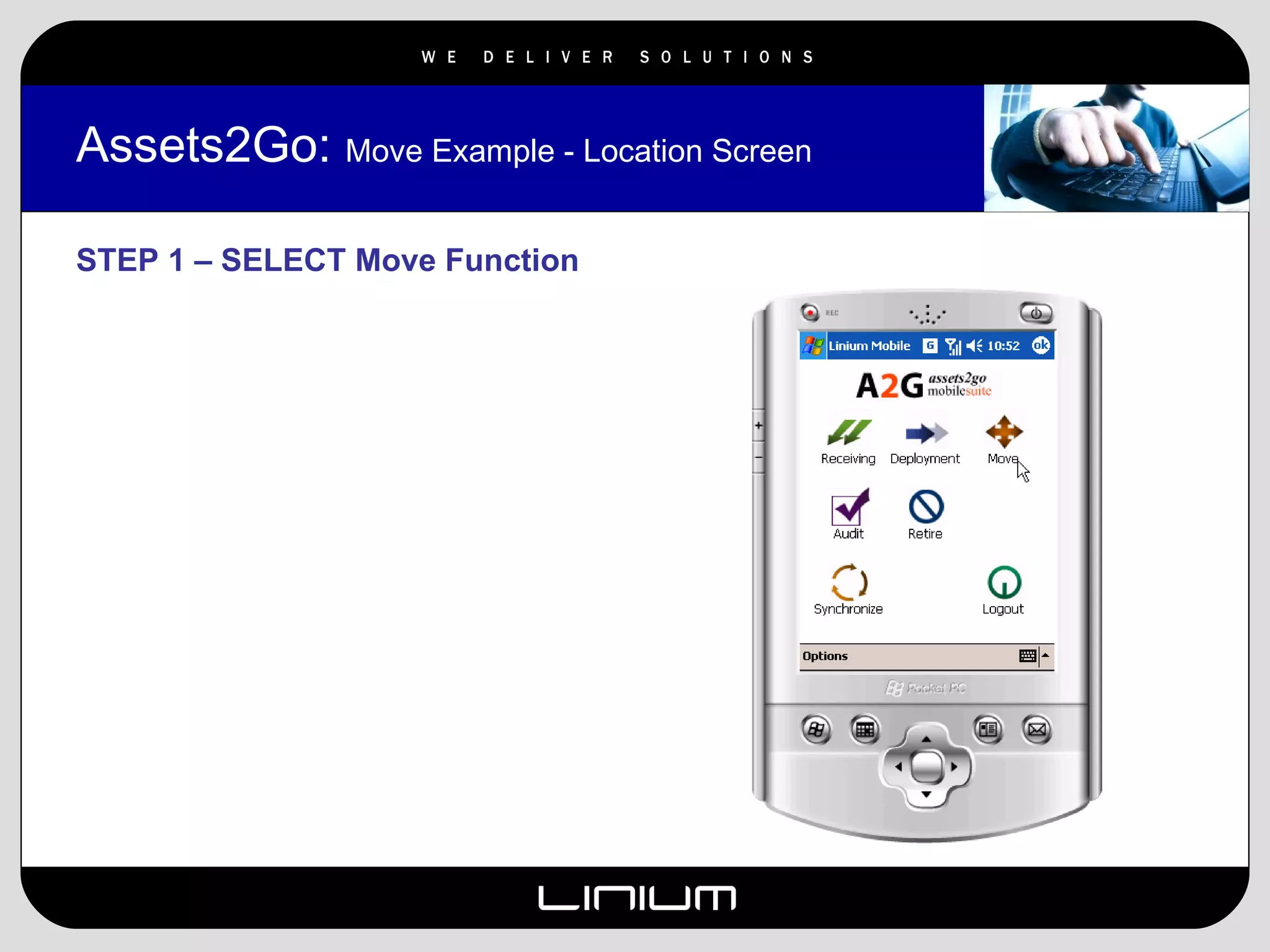
Assets2Go:  Move Example - Location Screen STEP 1 – SELECT Move Function
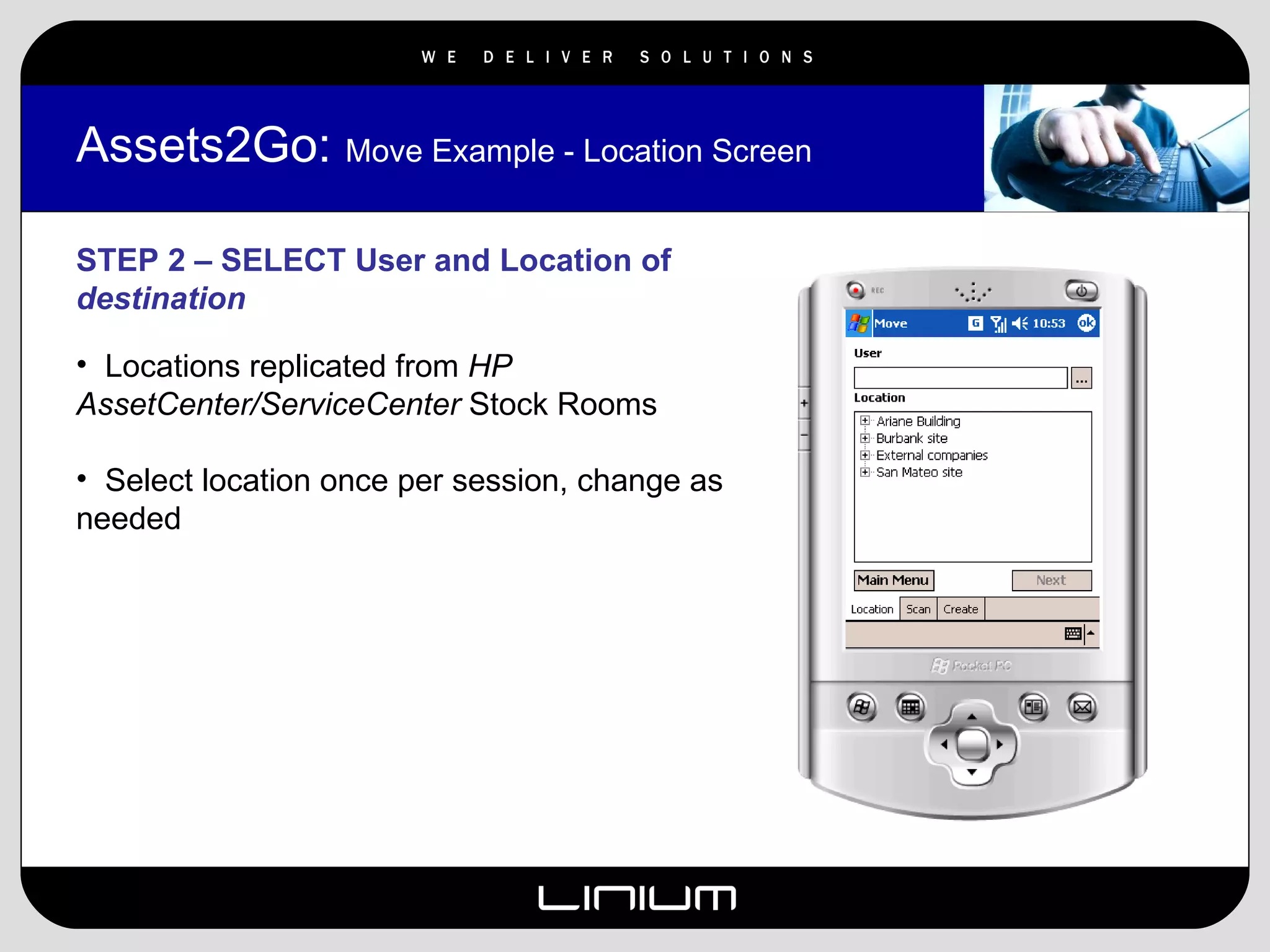
Assets2Go:  Move Example - Location Screen STEP 2 – SELECT User and Location of  destination Locations replicated from  HP AssetCenter/ServiceCenter  Stock Rooms Select location once per session, change as needed
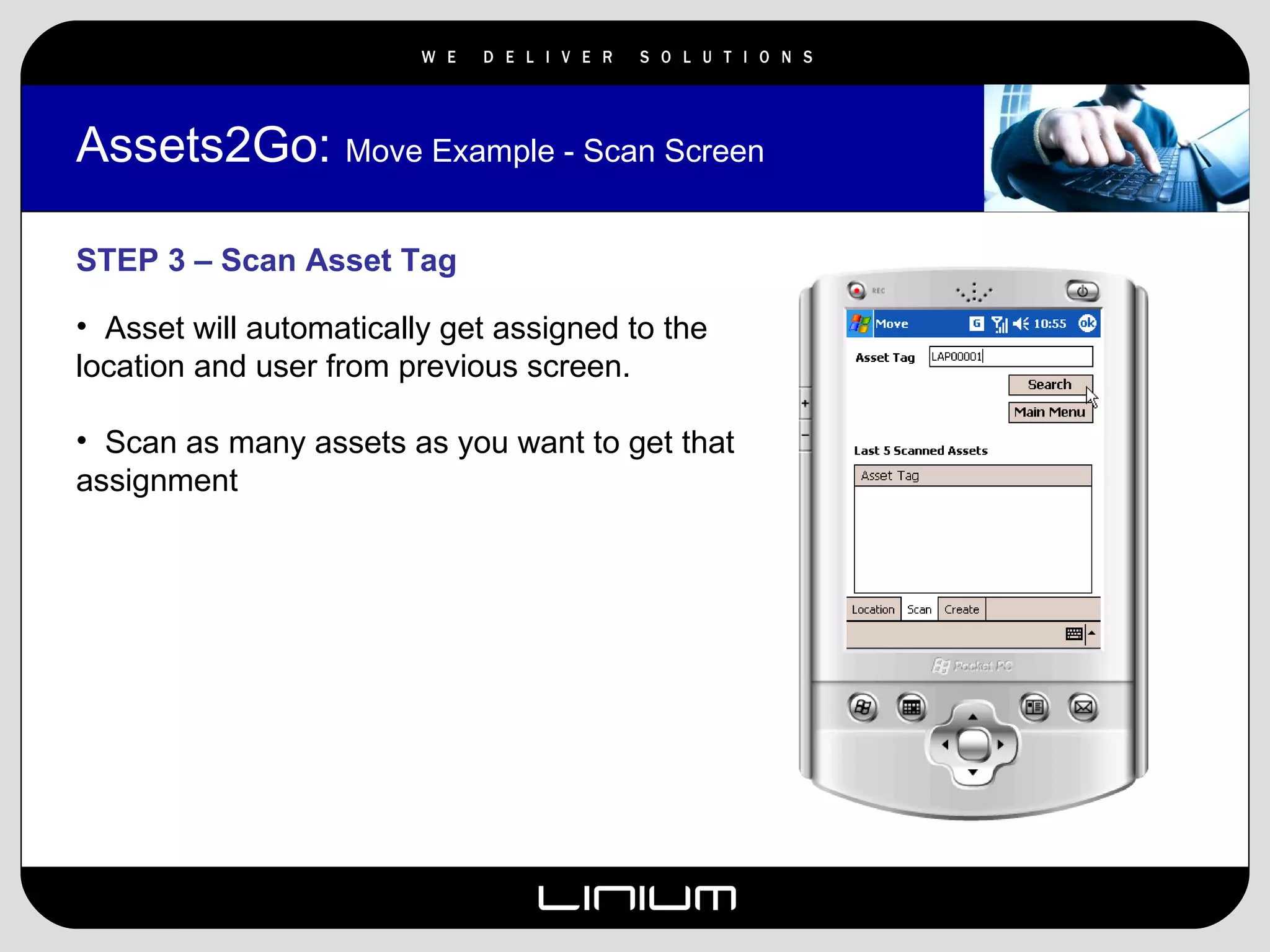
Assets2Go:  Move Example - Scan Screen STEP 3 – Scan Asset Tag Asset will automatically get assigned to the location and user from previous screen. Scan as many assets as you want to get that assignment
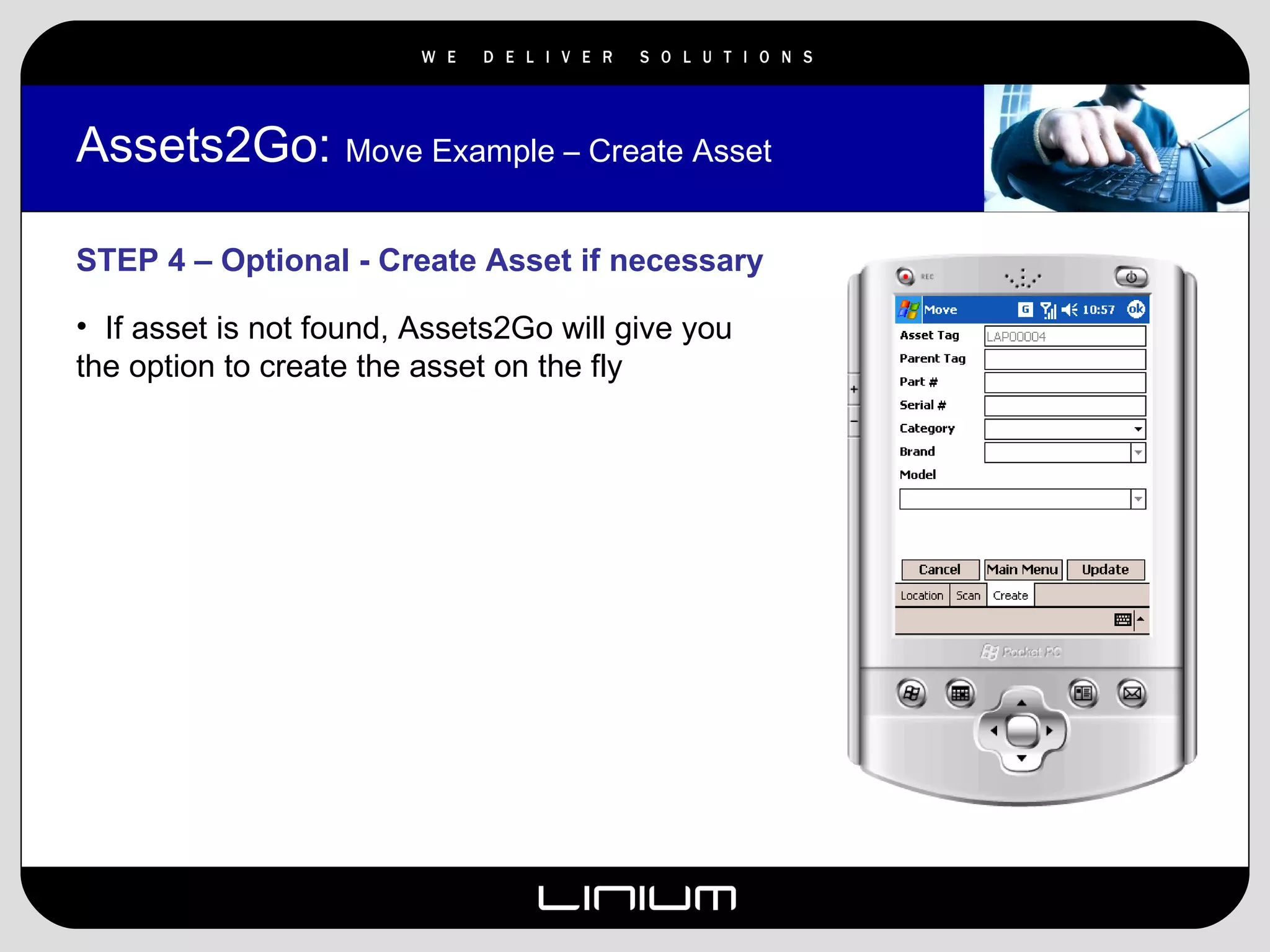
Assets2Go:  Move Example – Create Asset STEP 4 – Optional - Create Asset if necessary If asset is not found, Assets2Go will give you the option to create the asset on the fly
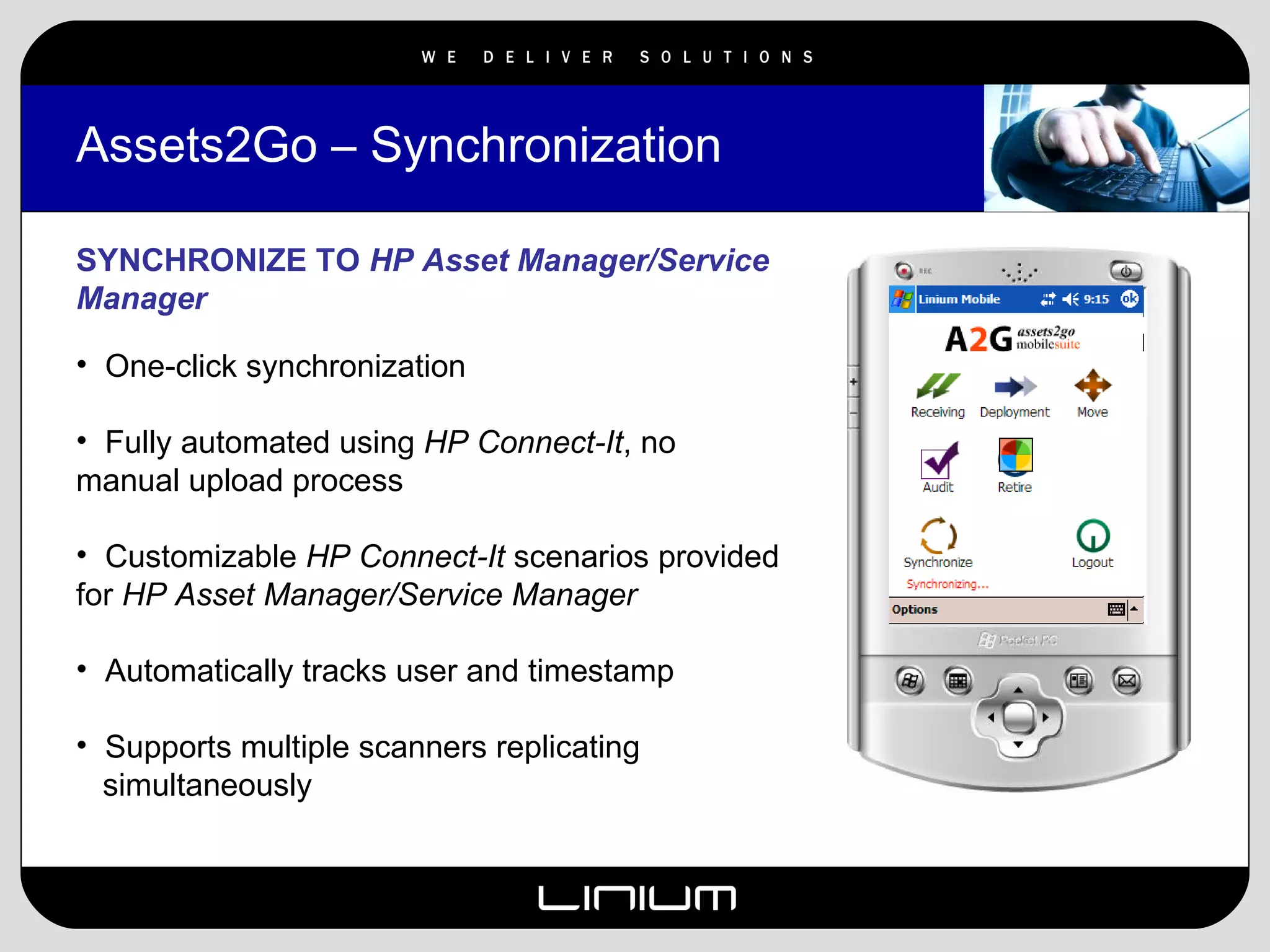
Assets2Go – Synchronization SYNCHRONIZE TO  HP Asset Manager/Service Manager One-click synchronization Fully automated using  HP Connect-It , no manual upload process Customizable  HP Connect-It  scenarios provided for  HP Asset Manager/Service Manager Automatically tracks user and timestamp Supports multiple scanners replicating  simultaneously
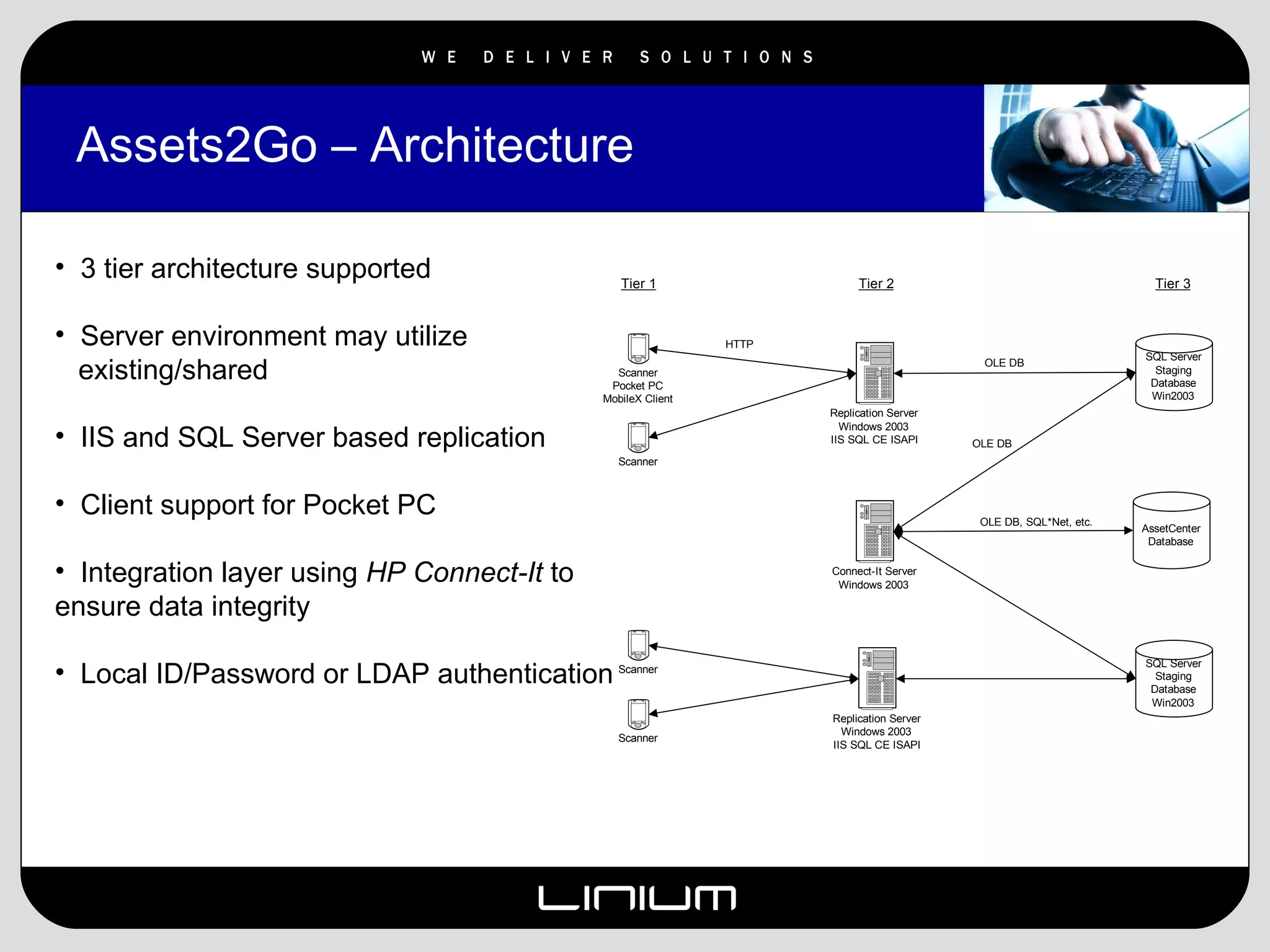
Assets2Go – Architecture 3 tier architecture supported Server environment may utilize  existing/shared  IIS and SQL Server based replication Client support for Pocket PC Integration layer using  HP Connect-It  to ensure data integrity Local ID/Password or LDAP authentication
Assets2Go – Contact Information FOR MORE INFORMATION PLEASE CONTACT: MARIALANA DEROSSI   VP Business Development State and Local Government [email_address] 518-689-3191 -or- Ted Miale Principal Consultant Asset Management Practice [email_address] 518.689.3144
Assets2Go Receiving Function
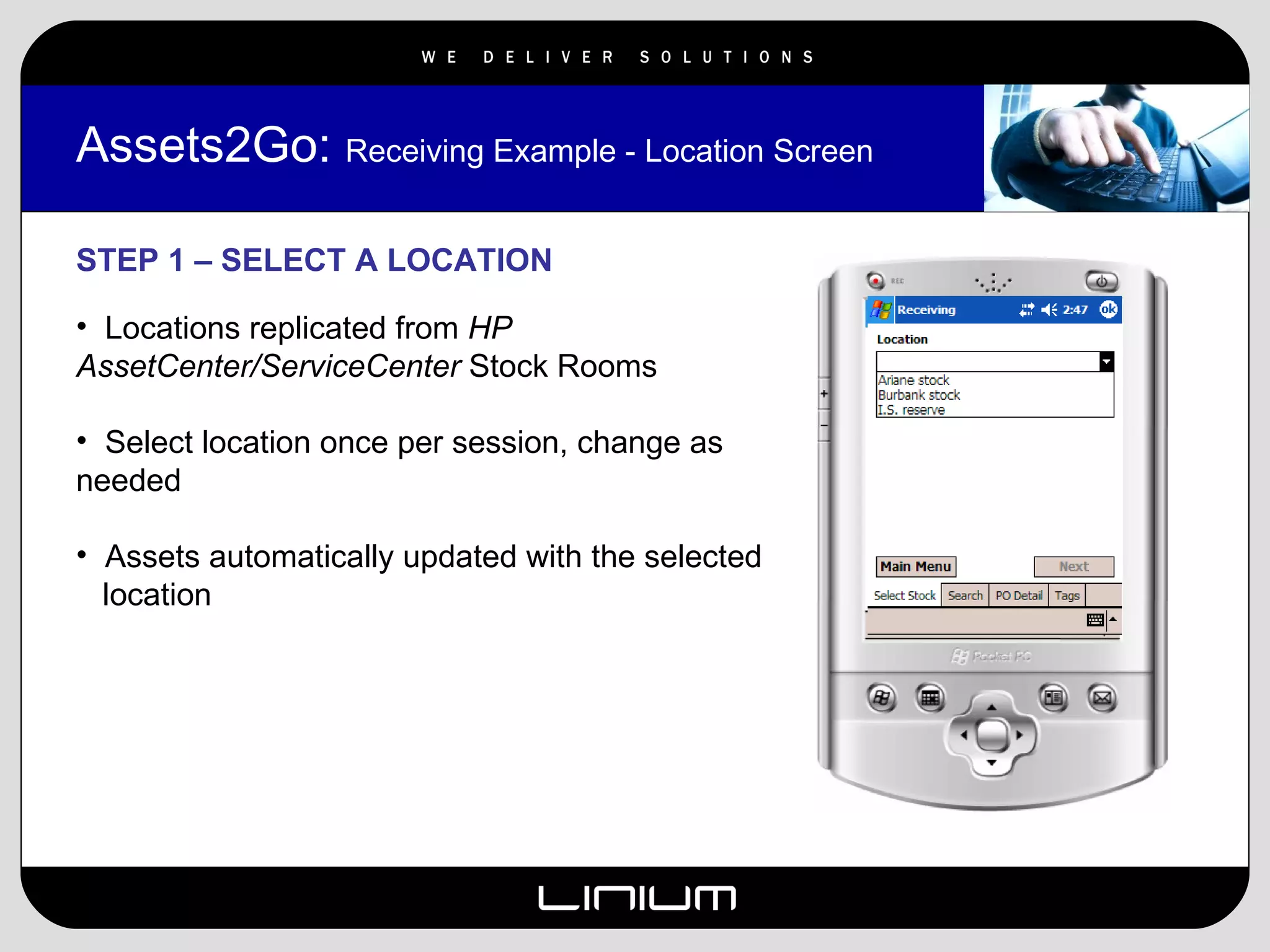
Assets2Go:  Receiving Example - Location Screen STEP 1 – SELECT A LOCATION Locations replicated from  HP AssetCenter/ServiceCenter  Stock Rooms Select location once per session, change as needed Assets automatically updated with the selected  location
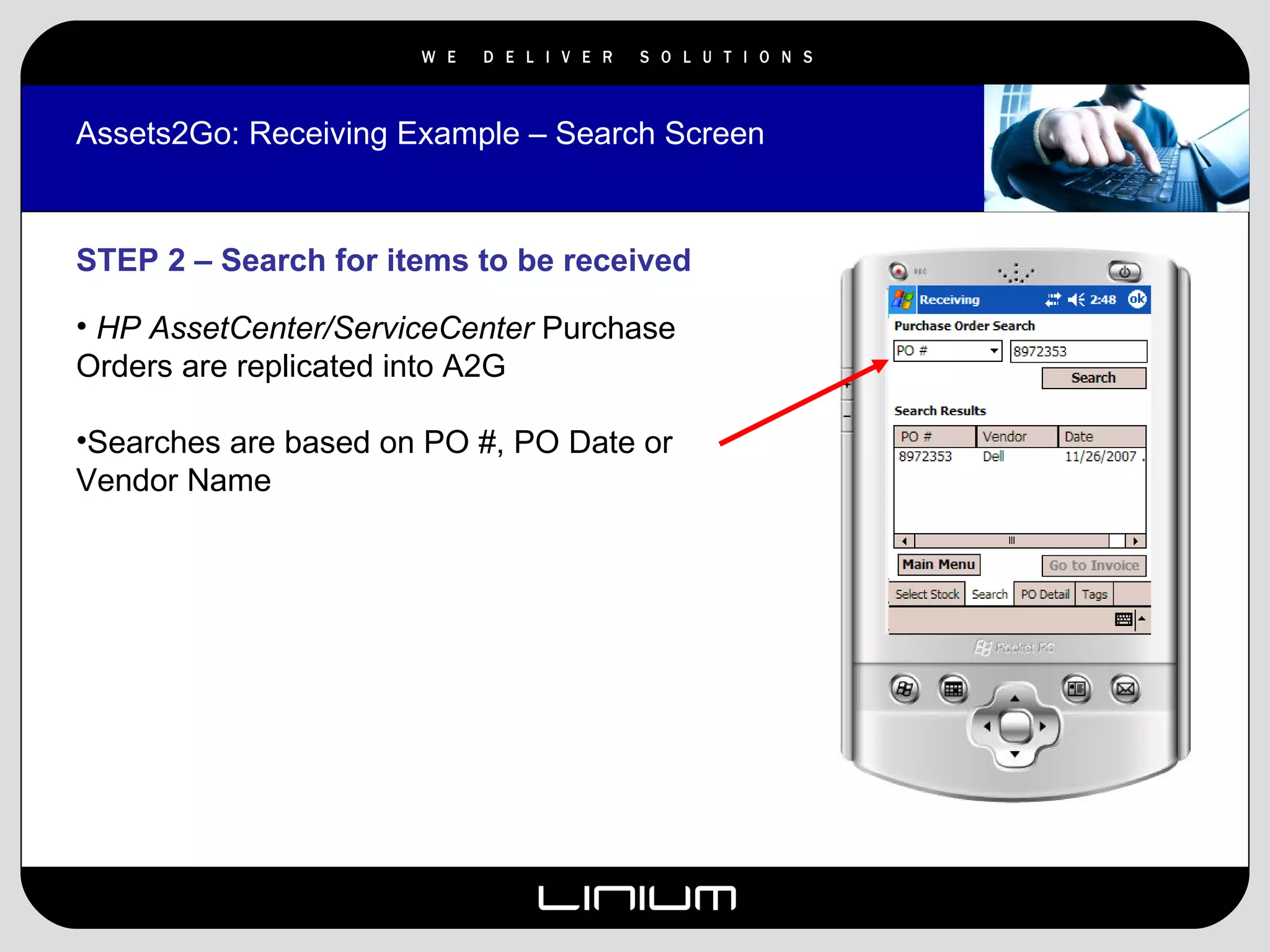
Assets2Go: Receiving Example – Search Screen STEP 2 – Search for items to be received HP AssetCenter/ServiceCenter  Purchase Orders are replicated into A2G Searches are based on PO #, PO Date or Vendor Name
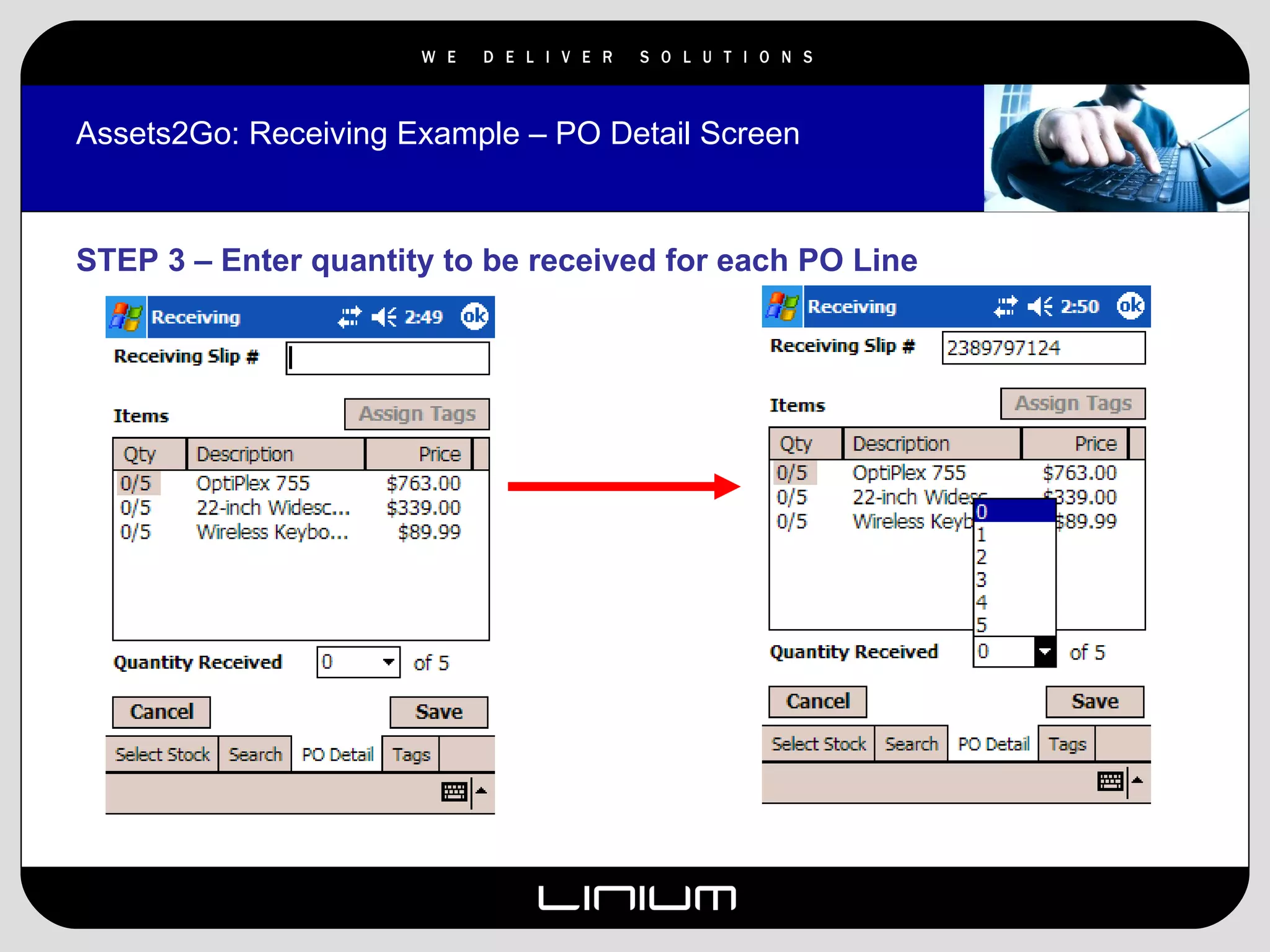
Assets2Go: Receiving Example – PO Detail Screen STEP 3 – Enter quantity to be received for each PO Line
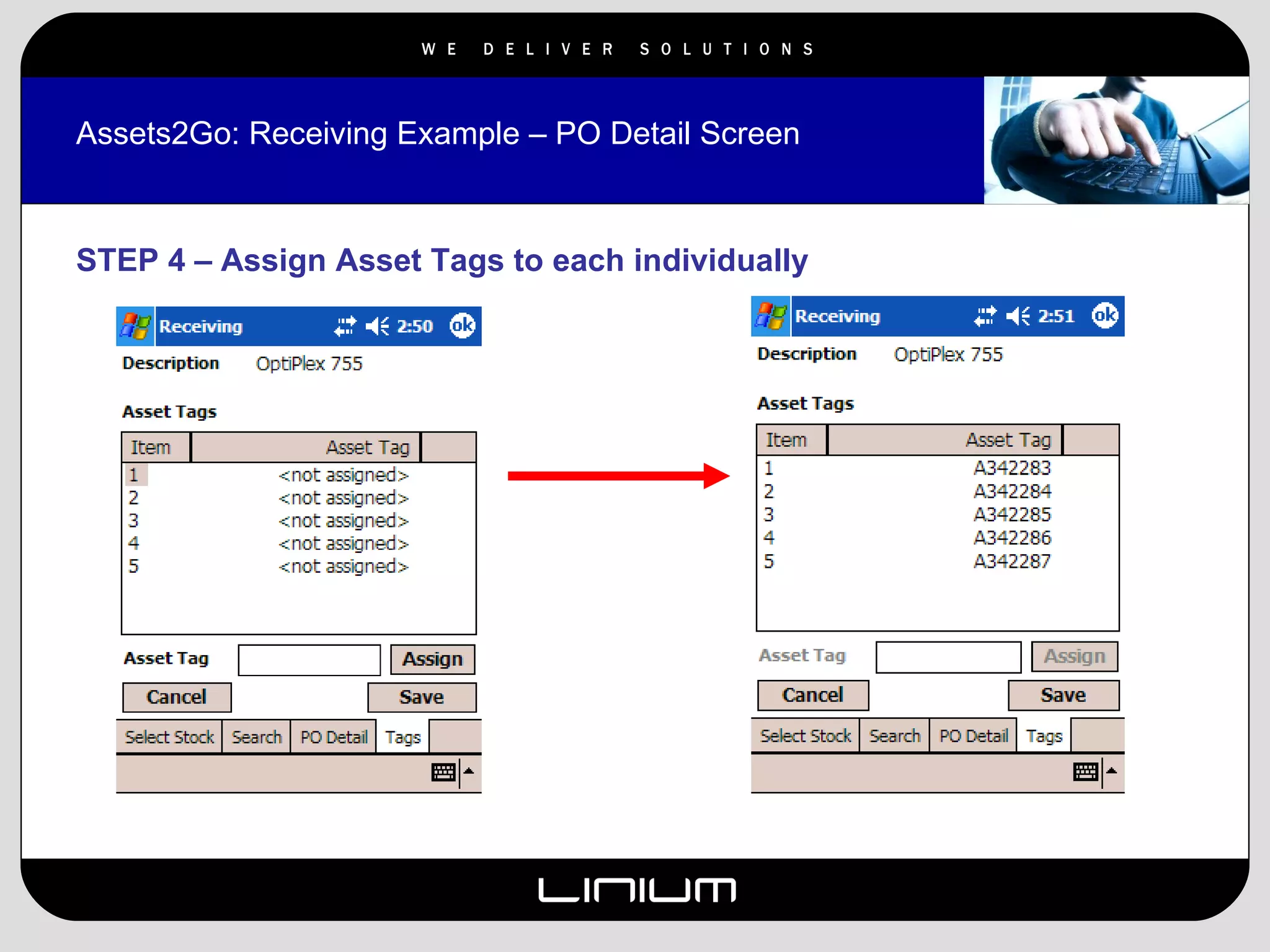
Assets2Go: Receiving Example – PO Detail Screen STEP 4 – Assign Asset Tags to each individually
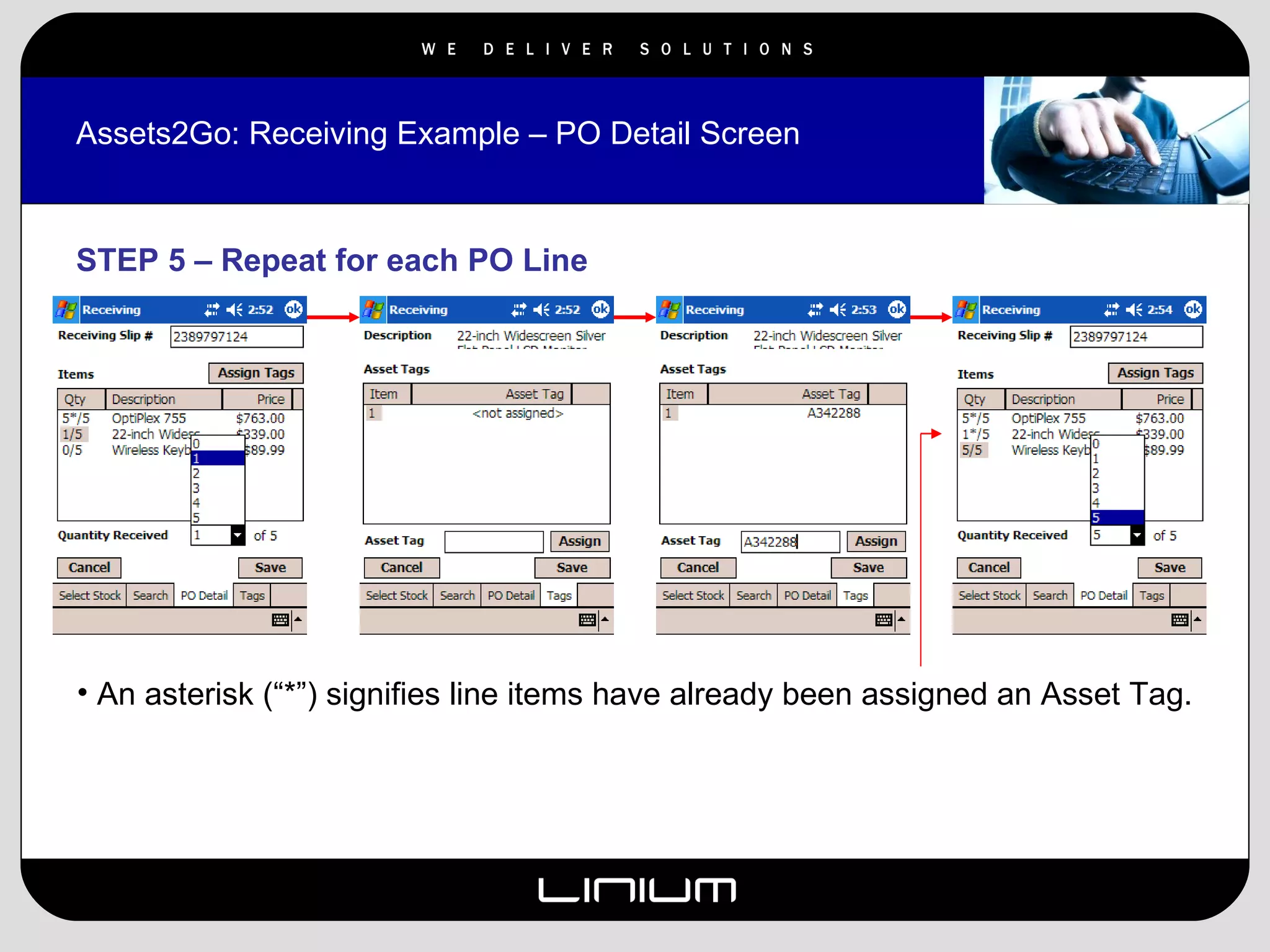
Assets2Go: Receiving Example – PO Detail Screen STEP 5 – Repeat for each PO Line An asterisk (“*”) signifies line items have already been assigned an Asset Tag.
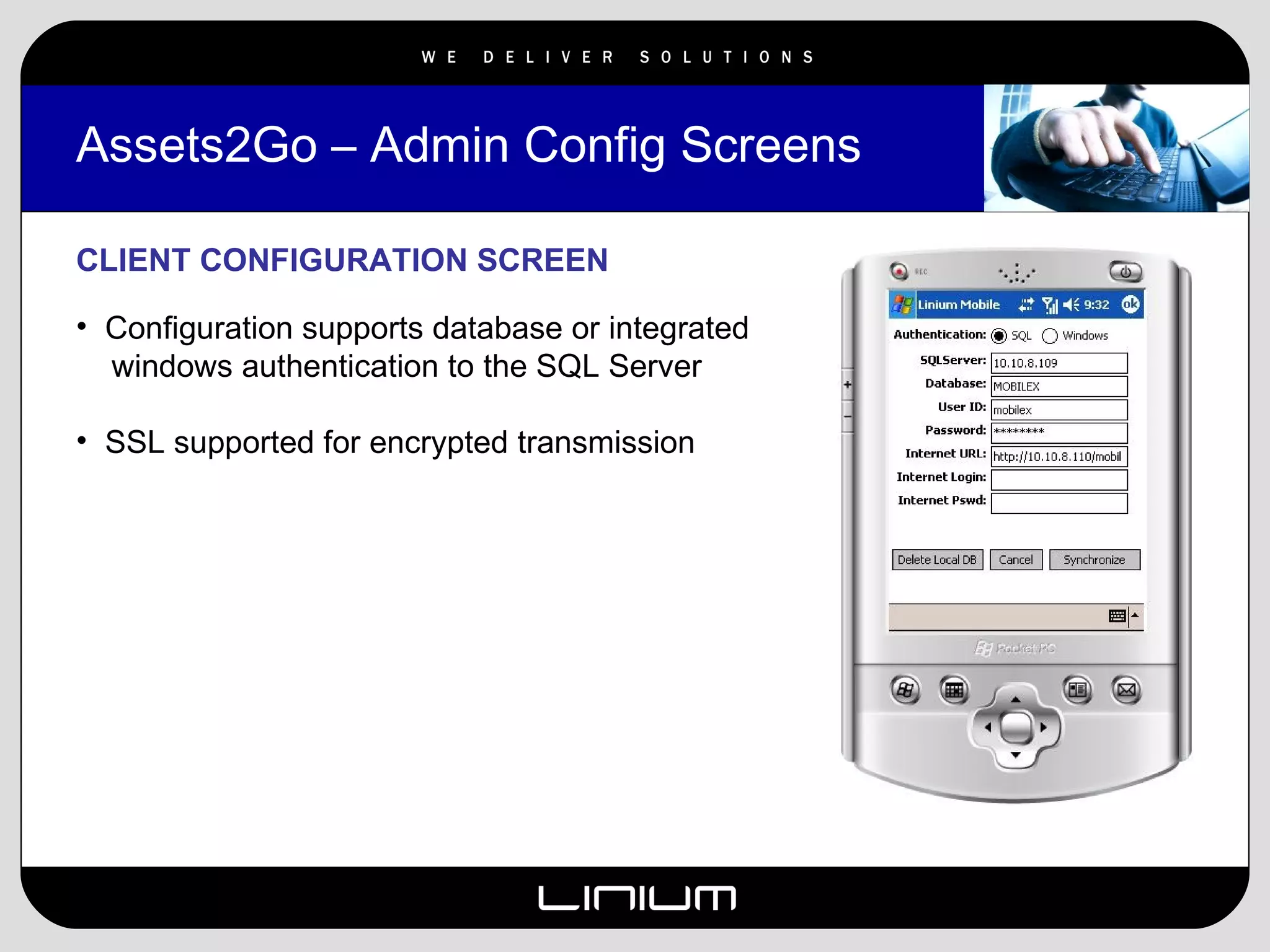
Assets2Go – Admin Config Screens CLIENT CONFIGURATION SCREEN Configuration supports database or integrated  windows authentication to the SQL Server SSL supported for encrypted transmission
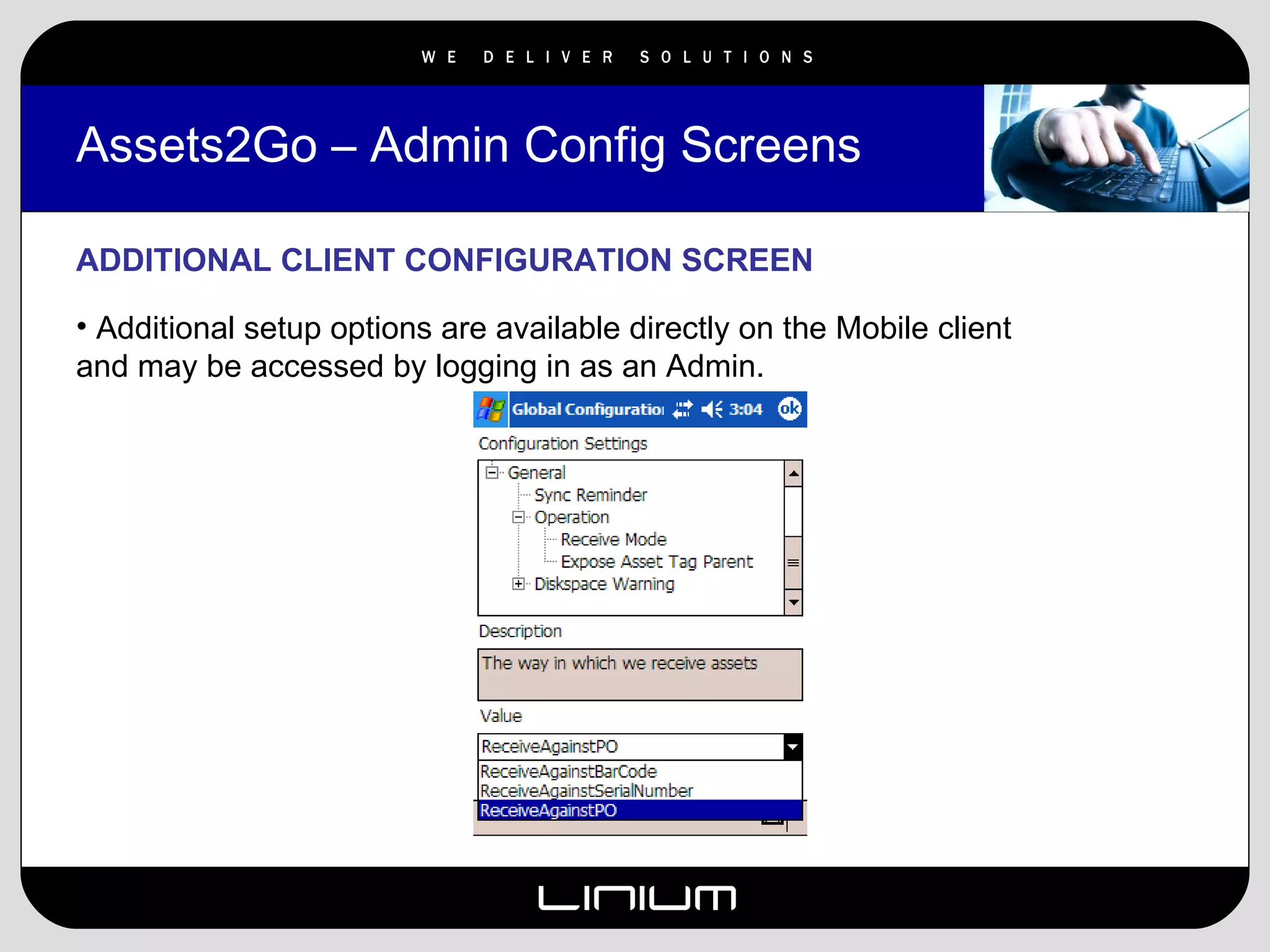
Assets2Go – Admin Config Screens ADDITIONAL CLIENT CONFIGURATION SCREEN Additional setup options are available directly on the Mobile client and may be accessed by logging in as an Admin.

Assets2 Go 3 0 2

  • 1.
  • 2.
    Assets2Go Mobile LifecycleSolution Overview Linium's Mobility Solutions Assets2GO (A2G) application allows technicians and management to extend your asset lifecycle process to any Pocket PC or Windows Mobile Device. With Linium's Mobile Application Suite, your organizations inventory management solution extends to the field where you need it most. Benefits Streamlines asset lifecycle process Increases efficiency and productivity Extends lifecycle processes to field technicians regardless of their location. Helps ensure data accuracy and integrity
  • 3.
    Assets2Go Mobile LifecycleSolution SUPPORTED LIFECYCLE PROCESSES Receiving Deployment Move Retire Audit
  • 4.
    Assets2Go - LoginPage ENTER USERNAME & PASSWORD Local or LDAP integrated authentication Usernames replicated from Asset Manager/Service Manager or LDAP
  • 5.
    Assets2Go – MainMenu SELECT PROCESS Choose from: Receiving Deploy Move Audit Retire Process based “wizards” step users through entry for ease of use and accuracy Ability to restrict access to modules
  • 6.
  • 7.
    Assets2Go – Auditfunctionality STEP 1 – SELECT AUDIT PROCESS Use this feature to take inventory (add items) and audit existing inventory
  • 8.
    Assets2Go: Audit Example– Location screen STEP 2 – Select location to be audited or inventoried HP AssetCenter/ServiceCenter locations are replicated into A2G
  • 9.
    Assets2Go: Audit Example– Inventory screen STEP 3 & 4 – Search for Asset. Modify or Add New. Scan Asset Tag barcode. If barcode exists, all information is displayed about that asset and may be edited. If tag does not exist, information about that item may be added. Dropdown lists such as Brand, Model, User, Status, etc. are all inherited from HP AssetCenter/ServiceCenter
  • 10.
    Assets2Go: Audit Example– Differential screen STEP 5 (Optional) – Compare. The “Differential” screen allows the user to view all assets thought to be in that location (according to the HP AssetCenter/ServiceCenter database) that was not accounted for within a given timeframe. It answers: “Show the assets in AC associated to this location that was not inventoried in the last x hours.”
  • 11.
  • 12.
    Assets2Go: MoveExample - Location Screen STEP 1 – SELECT Move Function
  • 13.
    Assets2Go: MoveExample - Location Screen STEP 2 – SELECT User and Location of destination Locations replicated from HP AssetCenter/ServiceCenter Stock Rooms Select location once per session, change as needed
  • 14.
    Assets2Go: MoveExample - Scan Screen STEP 3 – Scan Asset Tag Asset will automatically get assigned to the location and user from previous screen. Scan as many assets as you want to get that assignment
  • 15.
    Assets2Go: MoveExample – Create Asset STEP 4 – Optional - Create Asset if necessary If asset is not found, Assets2Go will give you the option to create the asset on the fly
  • 16.
    Assets2Go – SynchronizationSYNCHRONIZE TO HP Asset Manager/Service Manager One-click synchronization Fully automated using HP Connect-It , no manual upload process Customizable HP Connect-It scenarios provided for HP Asset Manager/Service Manager Automatically tracks user and timestamp Supports multiple scanners replicating simultaneously
  • 17.
    Assets2Go – Architecture3 tier architecture supported Server environment may utilize existing/shared IIS and SQL Server based replication Client support for Pocket PC Integration layer using HP Connect-It to ensure data integrity Local ID/Password or LDAP authentication
  • 18.
    Assets2Go – ContactInformation FOR MORE INFORMATION PLEASE CONTACT: MARIALANA DEROSSI VP Business Development State and Local Government [email_address] 518-689-3191 -or- Ted Miale Principal Consultant Asset Management Practice [email_address] 518.689.3144
  • 19.
  • 20.
    Assets2Go: ReceivingExample - Location Screen STEP 1 – SELECT A LOCATION Locations replicated from HP AssetCenter/ServiceCenter Stock Rooms Select location once per session, change as needed Assets automatically updated with the selected location
  • 21.
    Assets2Go: Receiving Example– Search Screen STEP 2 – Search for items to be received HP AssetCenter/ServiceCenter Purchase Orders are replicated into A2G Searches are based on PO #, PO Date or Vendor Name
  • 22.
    Assets2Go: Receiving Example– PO Detail Screen STEP 3 – Enter quantity to be received for each PO Line
  • 23.
    Assets2Go: Receiving Example– PO Detail Screen STEP 4 – Assign Asset Tags to each individually
  • 24.
    Assets2Go: Receiving Example– PO Detail Screen STEP 5 – Repeat for each PO Line An asterisk (“*”) signifies line items have already been assigned an Asset Tag.
  • 25.
    Assets2Go – AdminConfig Screens CLIENT CONFIGURATION SCREEN Configuration supports database or integrated windows authentication to the SQL Server SSL supported for encrypted transmission
  • 26.
    Assets2Go – AdminConfig Screens ADDITIONAL CLIENT CONFIGURATION SCREEN Additional setup options are available directly on the Mobile client and may be accessed by logging in as an Admin.