HP ArcSight Risk Insight
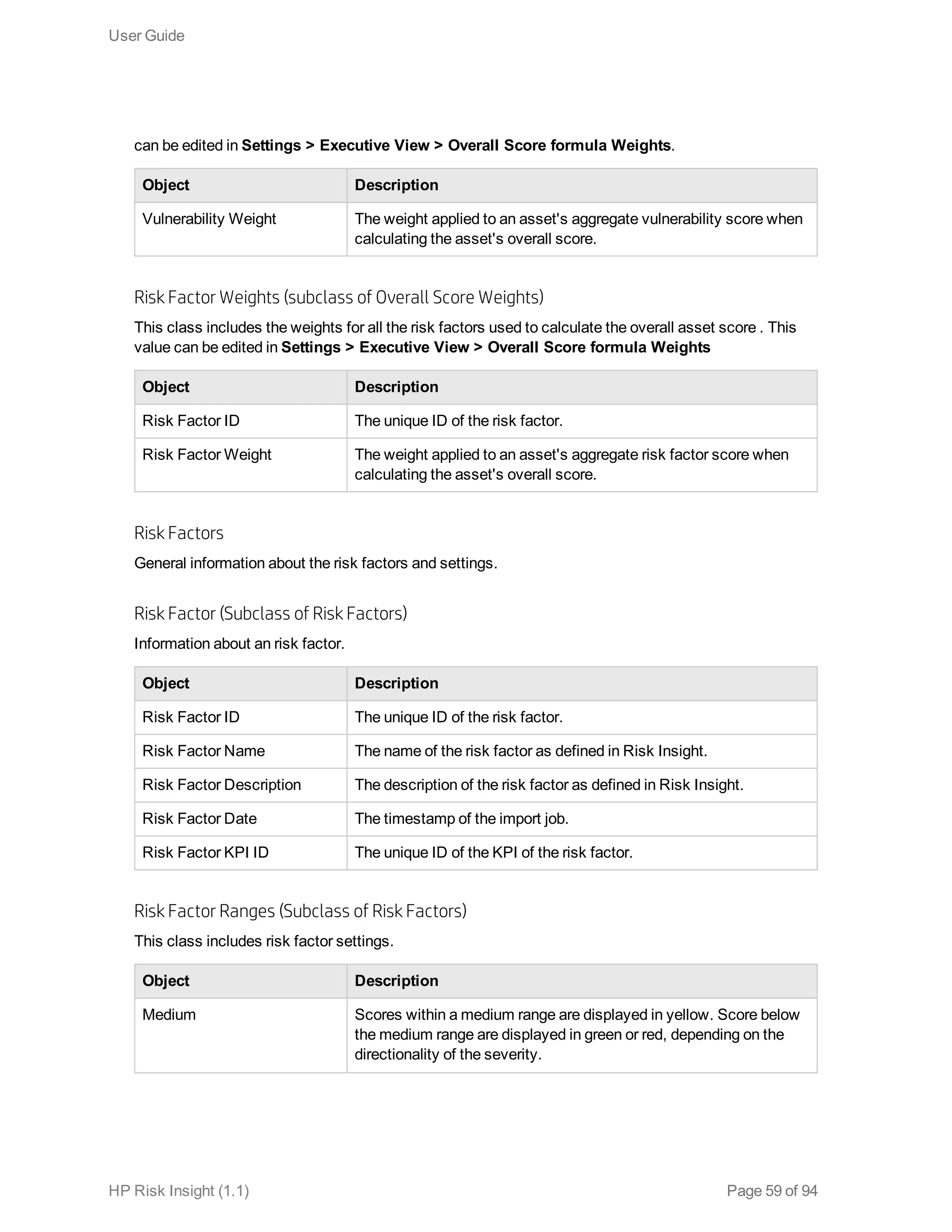
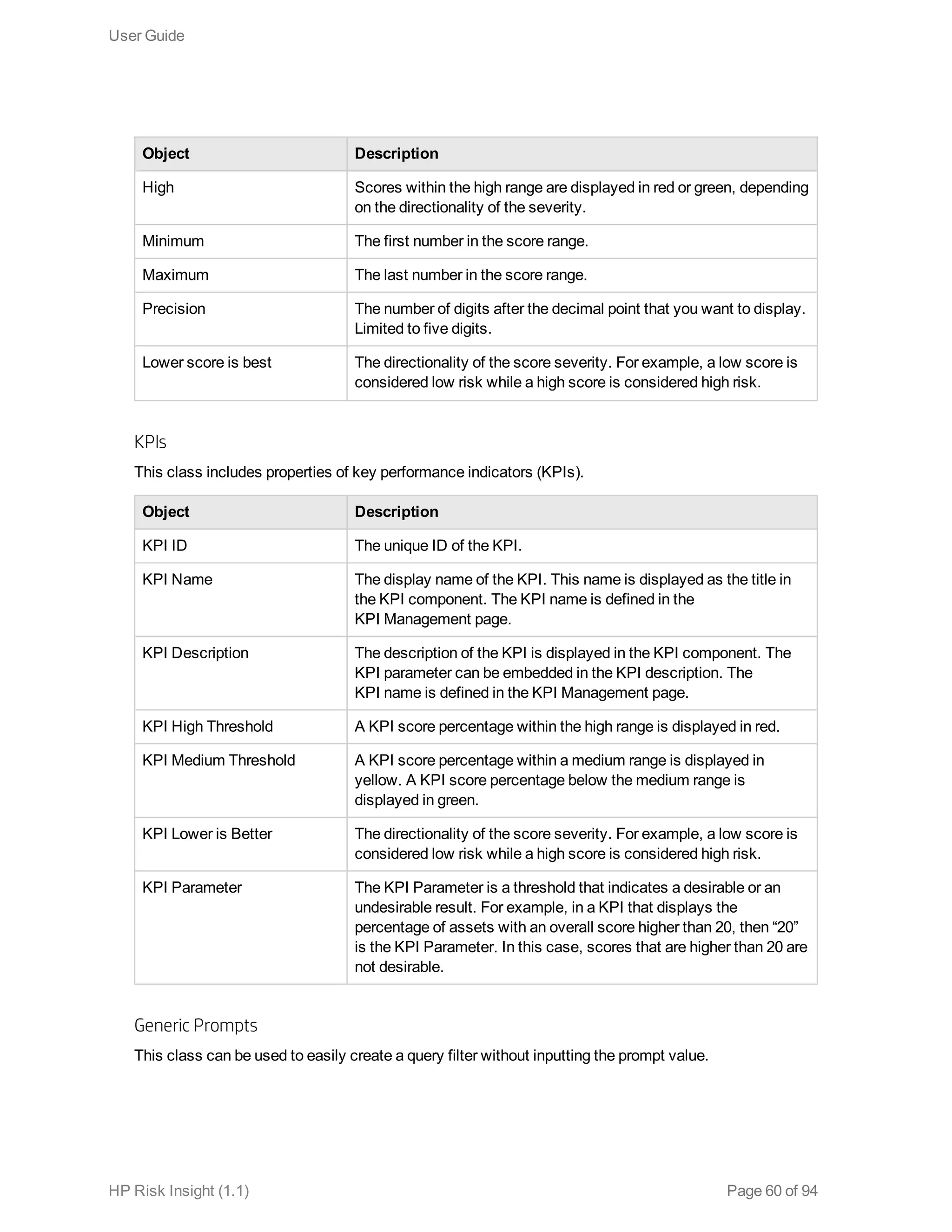
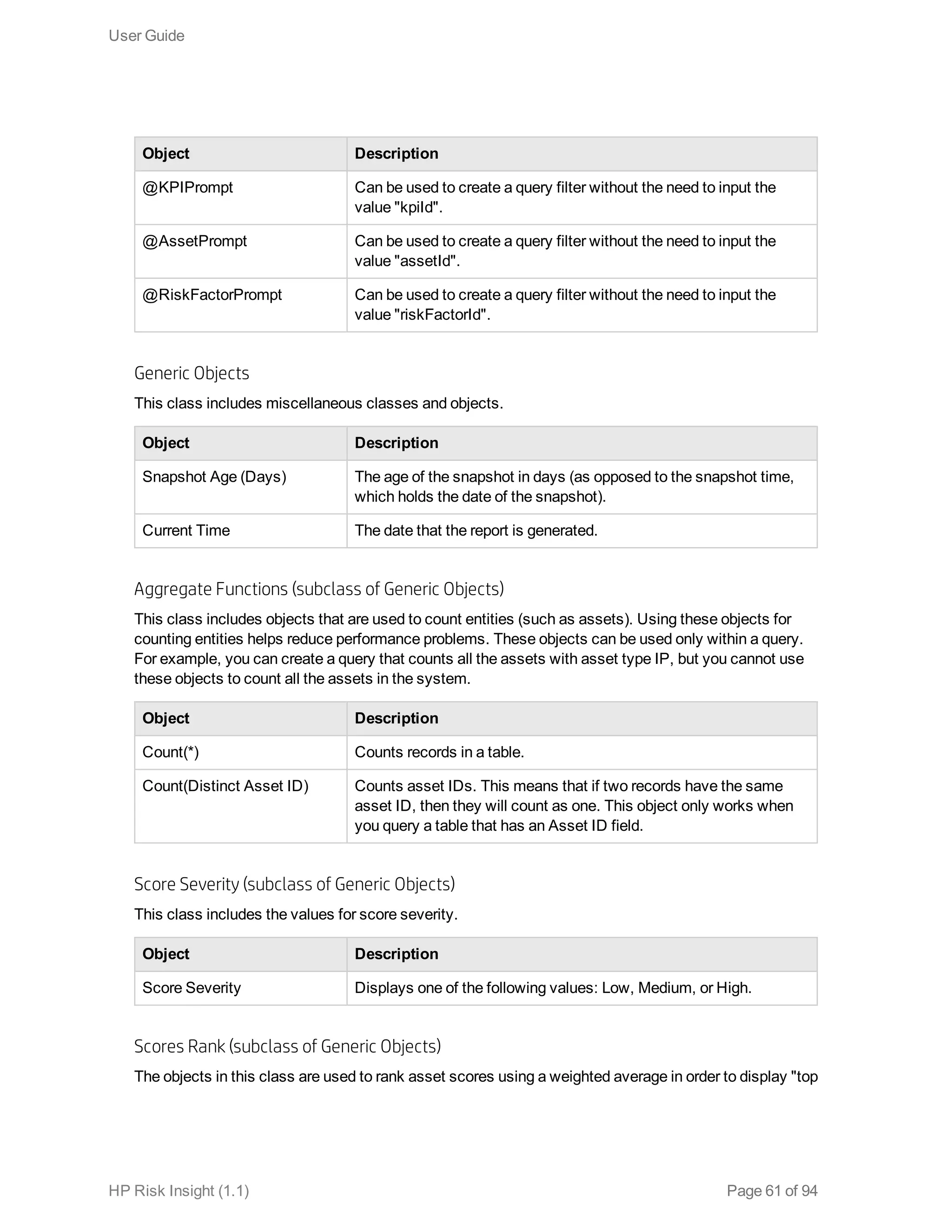
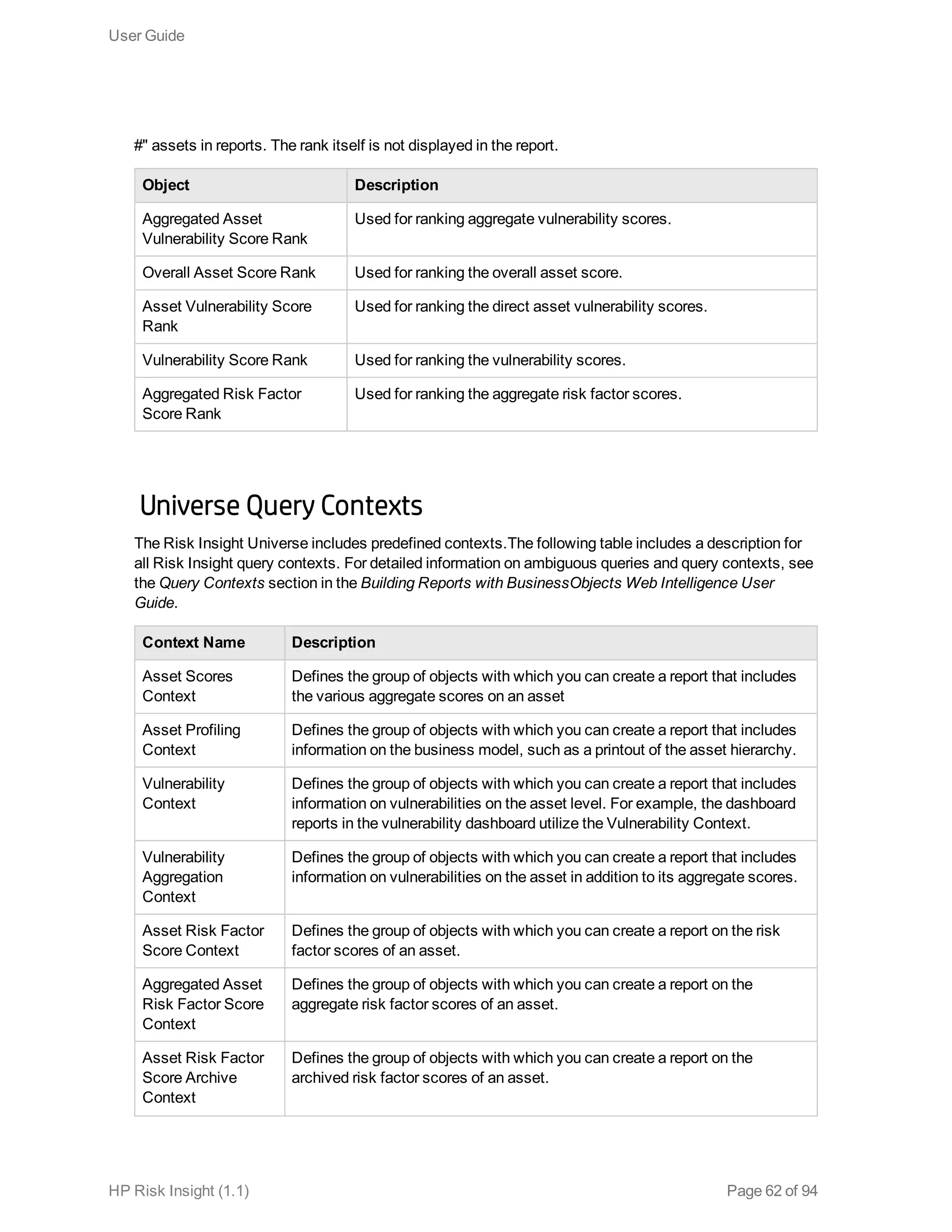
Software Version: 1.1
Linux Operating System
User Guide
December 1, 2015
Legal Notices
Warranty
The only warranties for HP products and services are set forth in the express warranty statements accompanying such products
and services. Nothing herein should be construed as constituting an additional warranty. HP shall not be liable for technical or
editorial errors or omissions contained herein.
The information contained herein is subject to change without notice.
The network information used in the examples in this document (including IP addresses and hostnames) is for illustration
purposes only.
HP ArcSight products are highly flexible and function as you configure them. The accessibility, integrity, and confidentiality of
your data is your responsibility. Implement a comprehensive security strategy and follow good security practices.
This document is confidential.
Restricted Rights Legend
Confidential computer software. Valid license from HP required for possession, use or copying. Consistent with FAR 12.211
and 12.212, Commercial Computer Software, Computer Software Documentation, and Technical Data for Commercial Items
are licensed to the U.S. Government under vendor's standard commercial license.
Copyright Notice
© Copyright 2015 Hewlett-Packard Development Company, L.P.
Follow this link to see a complete statement of copyrights and acknowledgements:
https://www.protect724.hpe.com/docs/DOC-13026
Support
Phone A list of phone numbers is available on the HP ArcSight Technical Support
Page: https://softwaresupport.hp.com/documents/10180/14684/esp-support-
contact-list
Support Web Site https://softwaresupport.hp.com
Protect 724 Community https://www.protect724.hpe.com
Contact Information
HP Risk Insight (1.1) Page 2 of 94
Contents
Chapter 1: Welcome to This Guide 5
About ArcSight Risk Insight 5
Navigating the User Interface 6
Toolbar Description 7
Chapter 2: Asset Profiling 10
Common Platform Enumeration 10
Manage Asset Types 11
How to Build a Business Model 12
Create an Asset 13
Connect an Asset to the Business Model 15
Search for an Asset 16
Filter Assets by a CPE 16
Disconnect an Asset from the Business Model 17
Delete an Asset 18
Add a CPE to an Asset 18
Asset Properties 19
Asset Profiling Window 22
Chapter 3: Risk Factors 29
Configure Risk Factor KPI Settings 30
Out-of-the-Box Risk Factors 30
Chapter 4: Key Performance Indicators 32
Configure KPI Settings 32
Out-of-the-Box KPIs 33
Chapter 5: Dashboards and Reports 35
Root Cause Analysis 35
Create a Report Using SAP BusinessObjects Web Intelligence 37
Printing Reports 39
Risk Register 40
Overall Score Heat Map 42
Risk Indicators 43
Risk Factors Dashboard 46
Risk Insight Universe 48
Universe Query Contexts 62
Chapter 6: Vulnerability Management 64
HP Risk Insight (1.1) Page 3 of 94
About the Vulnerability Life Cycle 66
Vulnerability Types 68
Web Application 68
Network 68
Configuration 68
Common Vulnerability Scoring System 68
Manage the Vulnerability Life Cycle 69
Attach a Vulnerability to an Asset 70
Configure Asset Vulnerability Score Aggregation Parameters 71
Configure Vulnerability Score Ranges 71
Vulnerability Properties 72
Asset Vulnerability Score Aggregation Mechanism 79
Vulnerability Error Handling 80
Vulnerability Management Window 81
Vulnerability Assignment Window 85
Vulnerability Dictionary 88
Chapter 7: Settings 90
Configure Overall Score Formula Weights 91
Configure Asset Overall Score Ranges 92
Configure Criticality Level Ranges 92
Send Documentation Feedback 94
User Guide
HP Risk Insight (1.1) Page 4 of 94
Chapter 1: Welcome to This Guide
Welcome to ArcSight Risk Insight User Guide. This guide provides you with information about all of the
operational aspects of Risk Insight.
This guide is intended for all Risk Insight users.
This guide includes the following chapters:
"Asset Profiling" on page 10
"Vulnerability Management" on page 64
"Key Performance Indicators" on page 32
"Risk Factors" on page 29
"Dashboards and Reports" on page 35
"Settings" on page 90
About ArcSight Risk Insight
Risk Insight is an ArcSight ESM add-on that enables Risk Managers and Security Operation Center
(SOC) Managers to analyze security risk information in a business context and prioritize actions to
minimize that risk. Security risk information is processed periodically providing continuous monitoring
capabilities on the risks imposed on your organization's assets.
Risk Insight optimizes the way risk information is delivered in the following ways:
l By building a hierarchical business model from the assets defined in ESM. The business model
depicts the entire organization from high-level business assets to low-level IT assets, allowing you
to quickly respond to real-time threats and to invest your resources efficiently.
l By defining risk factors based on the logic that exists in ESM to help focus the risk analysis on what
really matters to the organization.
l By following up after the various risk factors using sophisticated executive dashboards. You can
present risk information visually in configurable dashboards, create custom dashboards, create new
KPIs, and apply any other type of logic to your risk information in order to make analysis more
efficient.
Risk Insight also includes a Vulnerability Management module that collects vulnerabilities by using
ArcSight SmartConnectors, removes duplicates, assigns them to assets, and prioritizes them
accordingly, allowing you to manage the remediation process.
HP Risk Insight (1.1) Page 5 of 94
Navigating the User Interface
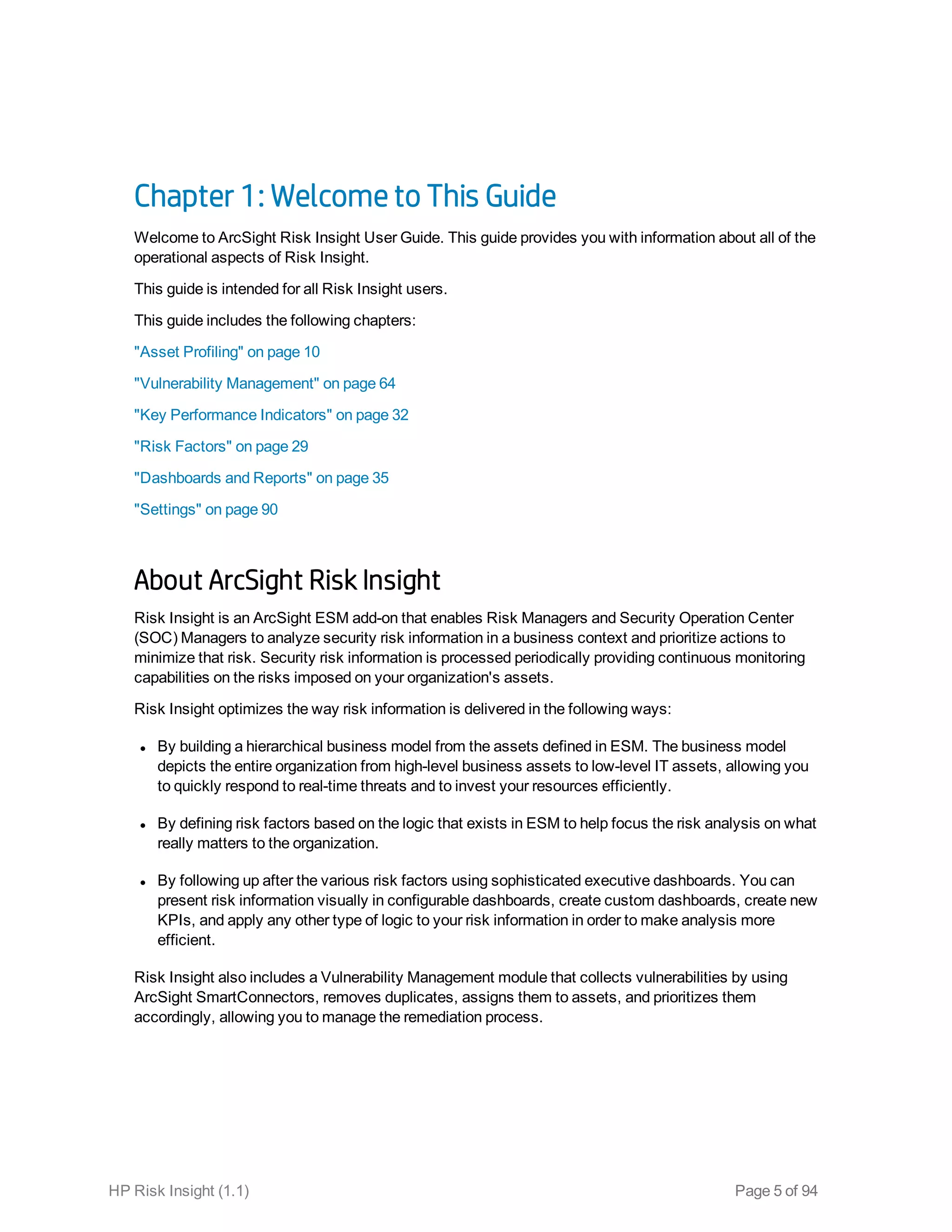
You can navigate the Risk Insight user interface by using the navigation bar. The navigation bar is
conveniently located on the left side of every screen.
Clicking the icon of a module in the navigation bar opens a sub menu that includes its components.
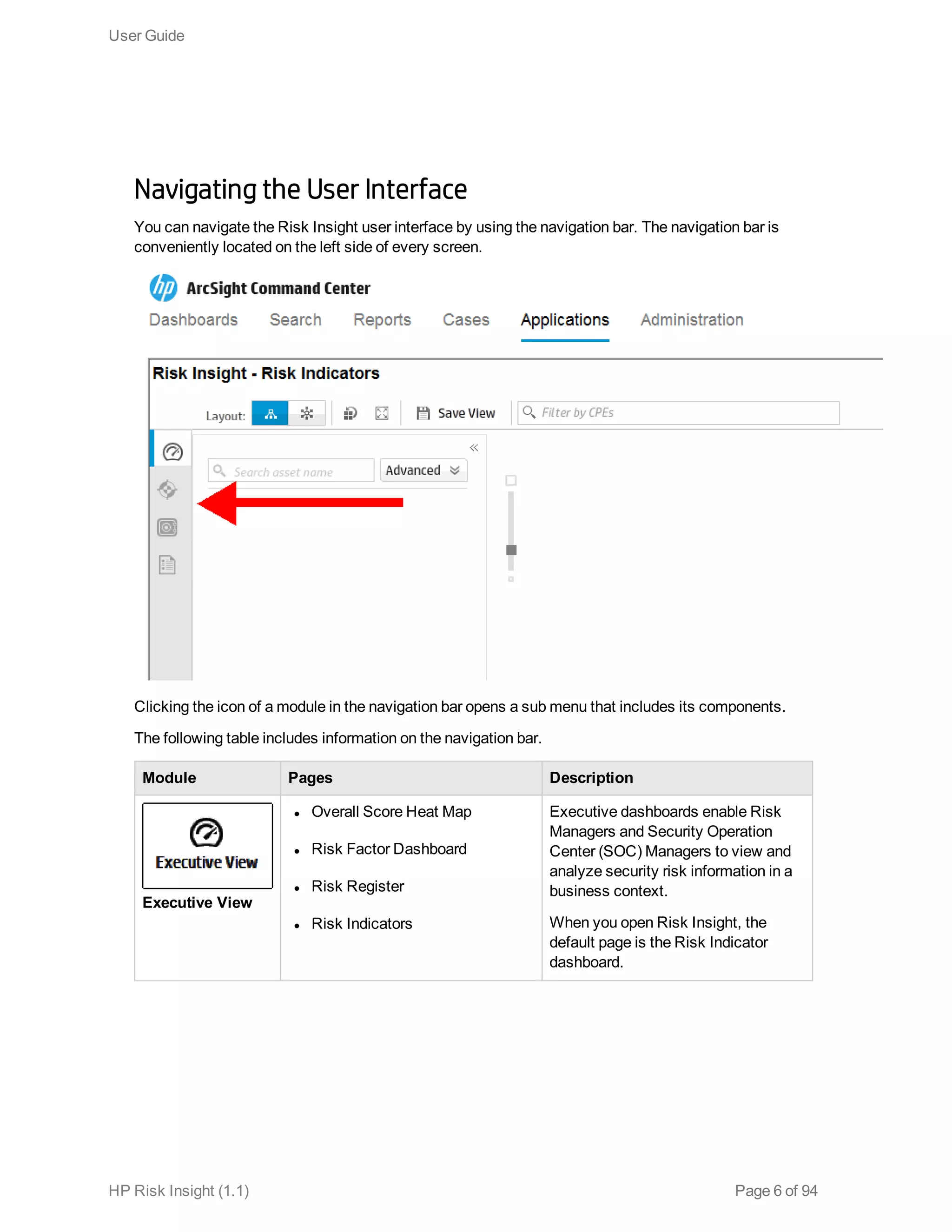
The following table includes information on the navigation bar.
Module Pages Description
Executive View
l Overall Score Heat Map
l Risk Factor Dashboard
l Risk Register
l Risk Indicators
Executive dashboards enable Risk
Managers and Security Operation
Center (SOC) Managers to view and
analyze security risk information in a
business context.
When you open Risk Insight, the
default page is the Risk Indicator
dashboard.
User Guide
HP Risk Insight (1.1) Page 6 of 94
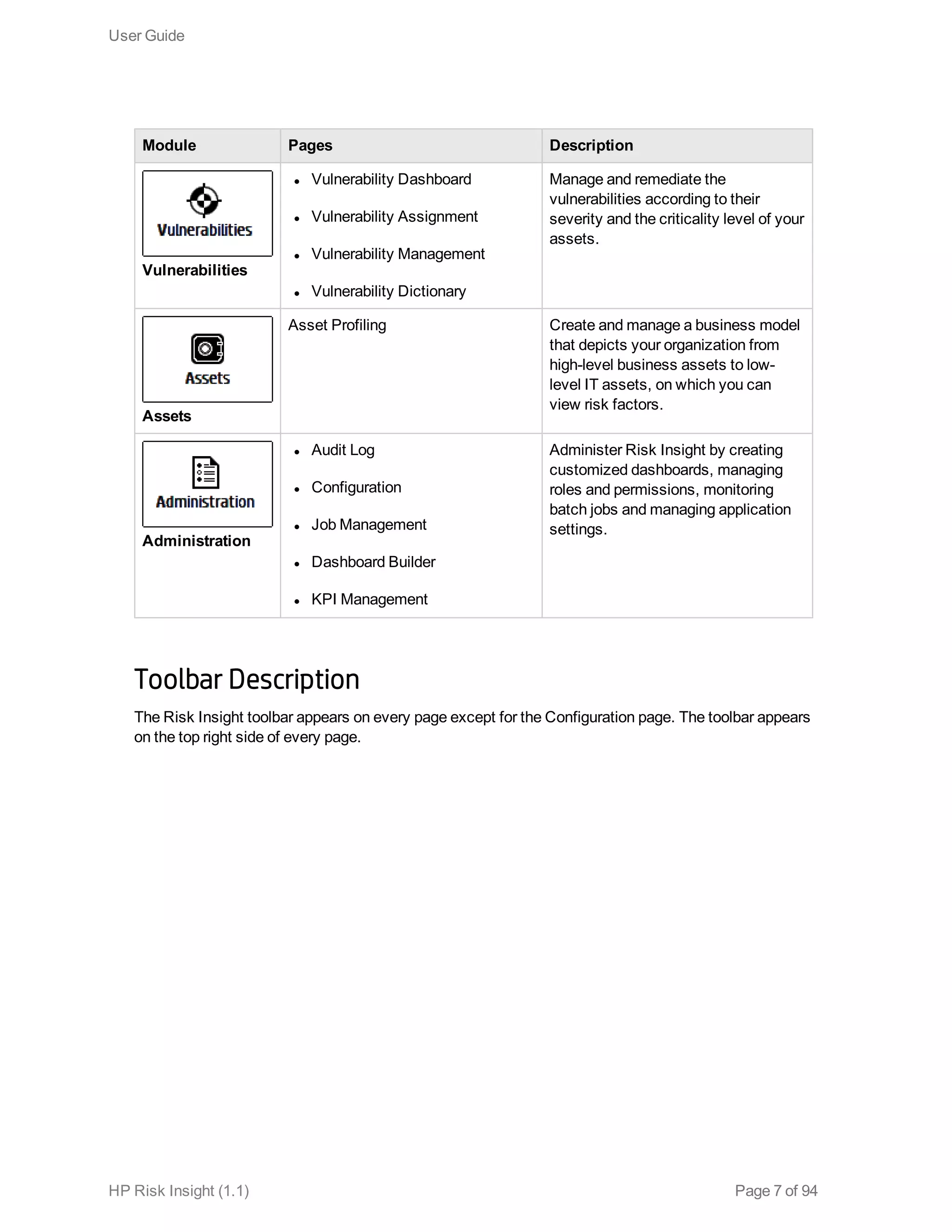
Module Pages Description
Vulnerabilities
l Vulnerability Dashboard
l Vulnerability Assignment
l Vulnerability Management
l Vulnerability Dictionary
Manage and remediate the
vulnerabilities according to their
severity and the criticality level of your
assets.
Assets
Asset Profiling Create and manage a business model
that depicts your organization from
high-level business assets to low-
level IT assets, on which you can
view risk factors.
Administration
l Audit Log
l Configuration
l Job Management
l Dashboard Builder
l KPI Management
Administer Risk Insight by creating
customized dashboards, managing
roles and permissions, monitoring
batch jobs and managing application
settings.
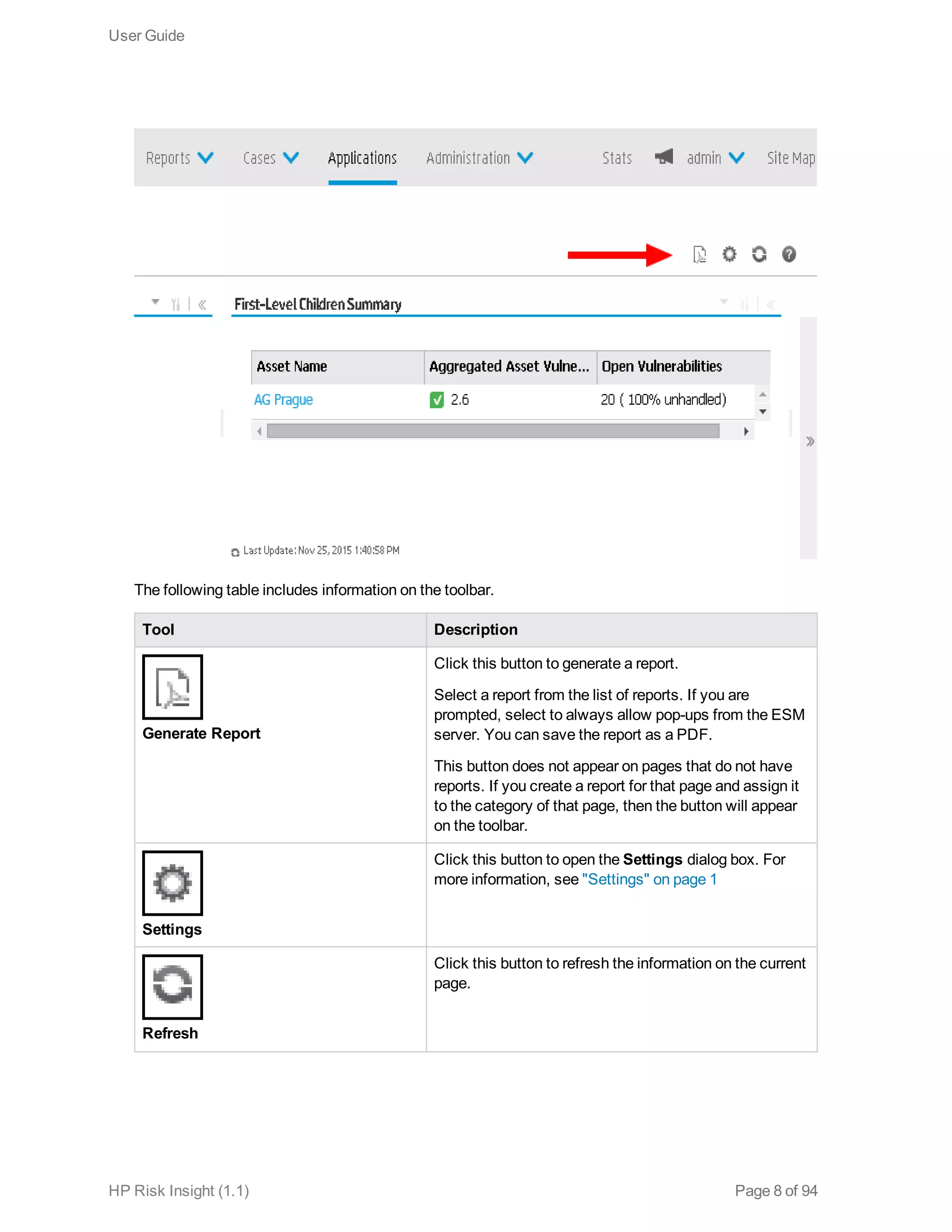
Toolbar Description
The Risk Insight toolbar appears on every page except for the Configuration page. The toolbar appears
on the top right side of every page.
User Guide
HP Risk Insight (1.1) Page 7 of 94
The following table includes information on the toolbar.
Tool Description
Generate Report
Click this button to generate a report.
Select a report from the list of reports. If you are
prompted, select to always allow pop-ups from the ESM
server. You can save the report as a PDF.
This button does not appear on pages that do not have
reports. If you create a report for that page and assign it
to the category of that page, then the button will appear
on the toolbar.
Settings
Click this button to open the Settings dialog box. For
more information, see "Settings" on page 1
Refresh
Click this button to refresh the information on the current
page.
User Guide
HP Risk Insight (1.1) Page 8 of 94
Tool Description
Help
Click this button to open the help relevant to the current
page.
Personalization
Risk Insight stores the last asset that you worked on. When you navigate Risk Insight, the UI pages
appear in the context of that asset. For example, you can view statistical information for a specific
asset in the different dashboards without having to select the asset in every dashboard. The context is
also saved when you log out.
User Guide
HP Risk Insight (1.1) Page 9 of 94
Chapter 2: Asset Profiling
In Risk Insight, an asset is an entity that represents a physical or logical resource in the system. For
example, assets can represent hardware, software, services, people, documents or business units.
Assets are the building blocks of the business model. They are organized into a hierarchical format
based on the dependencies in your organization’s IT environment.The Risk Insight business model
depicts the entire IT environment, from the highest level of the organization (such as an office location
or a line of business) to the lowest level (such as a software application). Each entity in the Risk Insight
business model is an asset. For more information on building a business model, see "How to Build a
Business Model" on page 12.
The business model is the foundation for all core Risk Insight functionality. An extensive business
model provides Risk Insight users with more accurate information about the organization's overall risk.
There are many different types of assets, which are divided into categories. For more information,see
"Manage Asset Types" on the next page.
Common Platform Enumeration
Common Platform Enumeration (CPE) is a structured naming scheme for describing and identifying
classes of applications, operating systems, and hardware devices present among an enterprise’s
computing assets. The official version of the CPE Product Dictionary is maintained by National
Institute for Standards and Technology (NIST).
In Risk Insight, a CPE is primarily an asset property that helps identify the asset by using this
standardized method. But it is also one of the vulnerability properties, for the vulnerabilities defined in
the vulnerability dictionary.This means that you can use CPEs as a source of information for identifying
potential vulnerabilities on your organizations assets. CPEs are updated along with the vulnerability
dictionary.
A CPE has the following URI-based format:
cpe:/<part>:<vendor>:<product>:<version>:<update>:<edition>:<language>
The part field includes one of the following values: 
l a for applications
l h for hardware platforms
l o for operating systems
Fields at the end of the URI can be left off.
HP Risk Insight (1.1) Page 10 of 94
For example:
cpe:/a:hp:loadrunner:11.50.
This format is based on the CPE 2.2 version, although the CPEs in the dictionary are from version 2.3.
Note: CPEs are derived from data found in ESM asset categories. This means that your business
model must be category-based in order to include CPEs.
Manage Asset Types
Risk Insight includes the following asset categories:
l Organization: Includes only one asset type—Organization. The Organization is the starting point of
the business model. Risk Insight includes a predefined Organization asset.
l Location: Includes types such as Country, City, and Building.
l Business: Includes a business reference or a line of business, such as online banking.
l IP: Includes only one asset type—IP Address. Risk Insight supports both IPv4 and IPv6.
l Infrastructure Elements: Includes hardware, such as a computer (network entity) or a printer.
l Running Software: Includes software applications, such as a mail server or a database.
l People: Includes groups and individuals.
l Documents: Includes one asset type—Document.
Each of these categories includes various predefined asset types. In addition to the asset types that
come with Risk Insight, you can add new asset types to any category, except the Organization
category, which includes only one Organization asset.
You can also edit or delete an asset type.
Note: Deleting or renaming an asset type in the Configuration module only affects new assets;
they do not affect existing assets in the business model. Existing assets of the deleted or renamed
type are displayed with a question mark icon.
To add an asset type
1. Click Administration > Configuration.
User Guide
HP Risk Insight (1.1) Page 11 of 94
2. In the Configuration module, in the left pane, click Asset Management > Asset Type
Categories, and then click the asset category to which you want to add an asset type.
3. In the right pane, click the Add configuration to configuration set button, and then do the
following:
n In the Type box, enter the internal name of the asset type.
n In the Label box, enter the display name of the asset type.
n From the Icon list, select the image for the asset type icon.
4. Save and apply the configuration changes. For more information, see the Save and Apply
Configuration Changes section in the ArcSight Risk Insight Deployment Guide.
To edit an asset type
1. Click Administration > Configuration.
2. In the Configuration module, in the left pane, click Asset Management > Asset Type
Categories, and then click the asset category to which the asset type that you want to edit
belongs.
3. In the right pane, make the required changes for the asset type that you want to change.
4. Save and apply the configuration changes. For more information, see the Save and Apply
Configuration Changes section in the ArcSight Risk Insight Deployment Guide.
To delete an asset type
1. Click Administration > Configuration.
2. In the Configuration module, in the left pane, click Asset Management > Asset Type
Categories, and then click the asset category from which you want to delete an asset type.
3. In the right pane, click the asset type that you want to delete, and then click the Remove
configuration from the configuration set button.
4. Save and apply the configuration changes. For more information, see the Save and Apply
Configuration Changes section in the ArcSight Risk Insight Deployment Guide.
How to Build a Business Model
The following procedure outlines the steps for creating a business model in Risk Insight.
User Guide
HP Risk Insight (1.1) Page 12 of 94
To create a business model
1. Follow the instructions in the Integrate with ArcSight Enterprise Security Manager section in the
ArcSight Risk Insight Deployment Guide .
2. During the first import, all imported assets are saved as Unattached. Follow the instructions in
"Connect an Asset to the Business Model" on page 15. Repeat this process until all imported
assets are connected to the business model.
Creating the business model from imported assets is a one-time task. After the business model is
created, each subsequent synchronization automatically updates the business model for all
existing assets, and only newly introduced assets are saved as unattached.
Create an Asset
New assets must be connected to the business model. You cannot create an unattached asset, but
you can create a new asset and then detach it from the business model. For more information, see
"Disconnect an Asset from the Business Model" on page 17.
To create an asset
1. Click Assets > Asset Profiling.
2. Search for the source (parent) asset, as described in "Search for an Asset" on page 16, or click the
asset in the map.
3. In the asset's asset card, click the Connect to another asset (mark as source asset)
button.
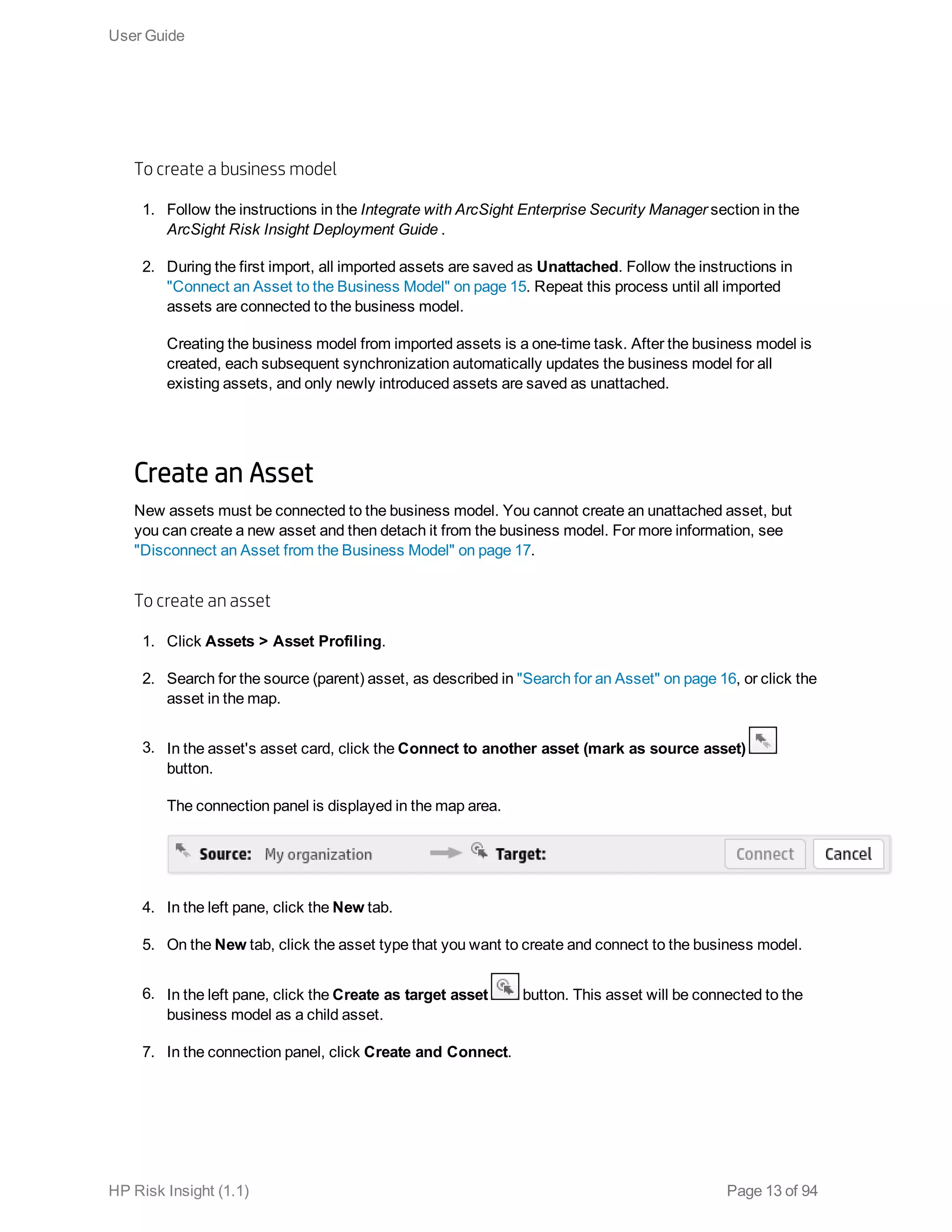
The connection panel is displayed in the map area.
4. In the left pane, click the New tab.
5. On the New tab, click the asset type that you want to create and connect to the business model.
6. In the left pane, click the Create as target asset button. This asset will be connected to the
business model as a child asset.
7. In the connection panel, click Create and Connect.
User Guide
HP Risk Insight (1.1) Page 13 of 94
The asset is added to the business model and the Edit Asset Properties dialog box opens.
8. In the Edit Asset Properties dialog box, enter the relevant information, and then click Save. For a
detailed description on asset properties, see "Asset Properties" on page 19.
9. To cancel the connection, in the connection panel, click Cancel.
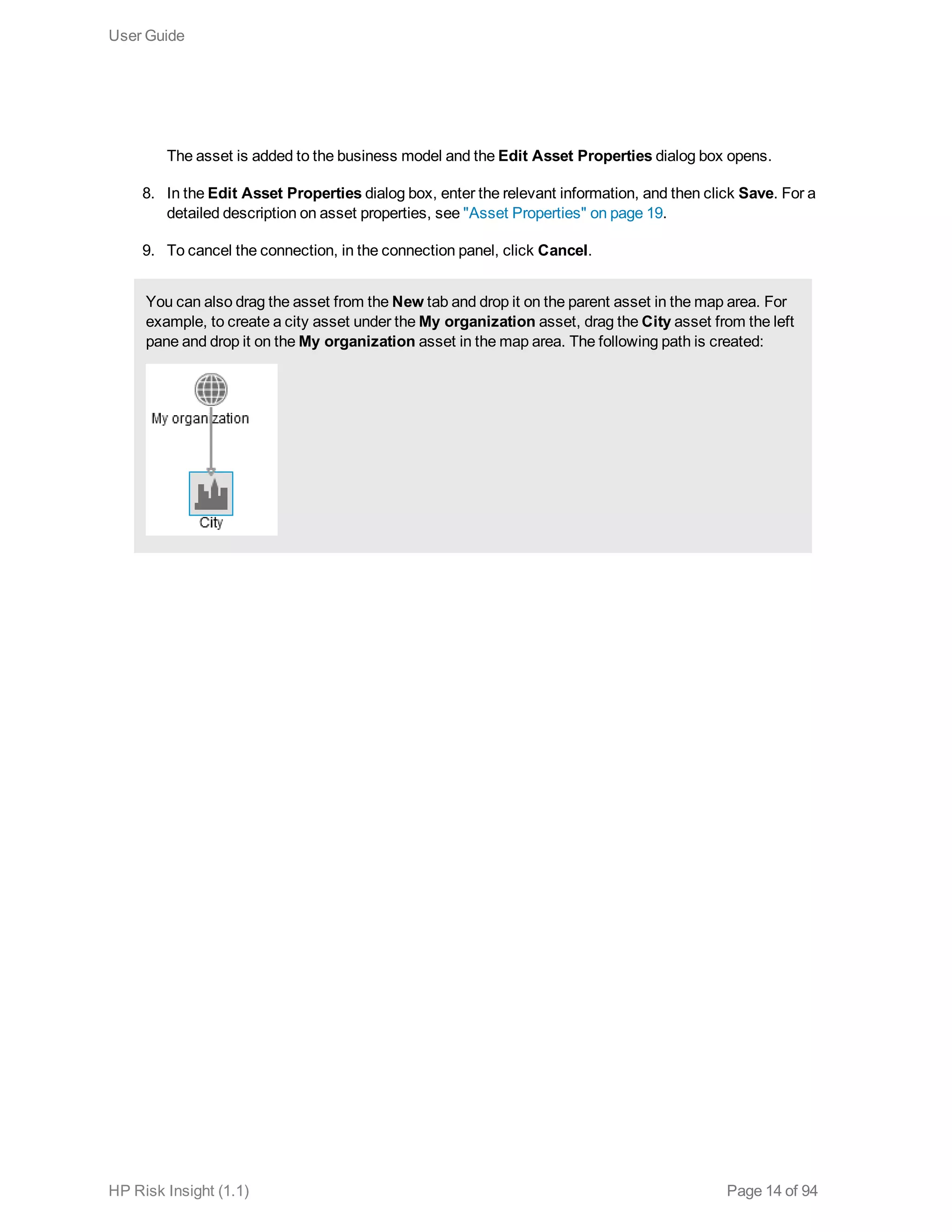
You can also drag the asset from the New tab and drop it on the parent asset in the map area. For
example, to create a city asset under the My organization asset, drag the City asset from the left
pane and drop it on the My organization asset in the map area. The following path is created:
User Guide
HP Risk Insight (1.1) Page 14 of 94
Connect an Asset to the Business Model
You can connect unattached assets to the business model or connect assets that are already part of
the business model to a different parent asset.
There are two scenarios in which assets are saved as unattached in Risk Insight:
l Assets are saved as unattached the first time that they are imported from an external asset
repository. After the business model is created, each subsequent synchronization automatically
updates the business model for all existing assets, and only newly introduced assets are saved as
unattached.
l Assets that have been disconnected from the business model are also saved as unattached.
To connect an asset to the business model
1. Click Assets > Asset Profiling.
2. In the left pane, click the Unattached tab and find the asset that you want to connect to the
business model, or search for the asset, as described in "Search for an Asset" on the next page.
3. Click the Mark as target asset button. This asset will be connected to the business model as
a child asset.
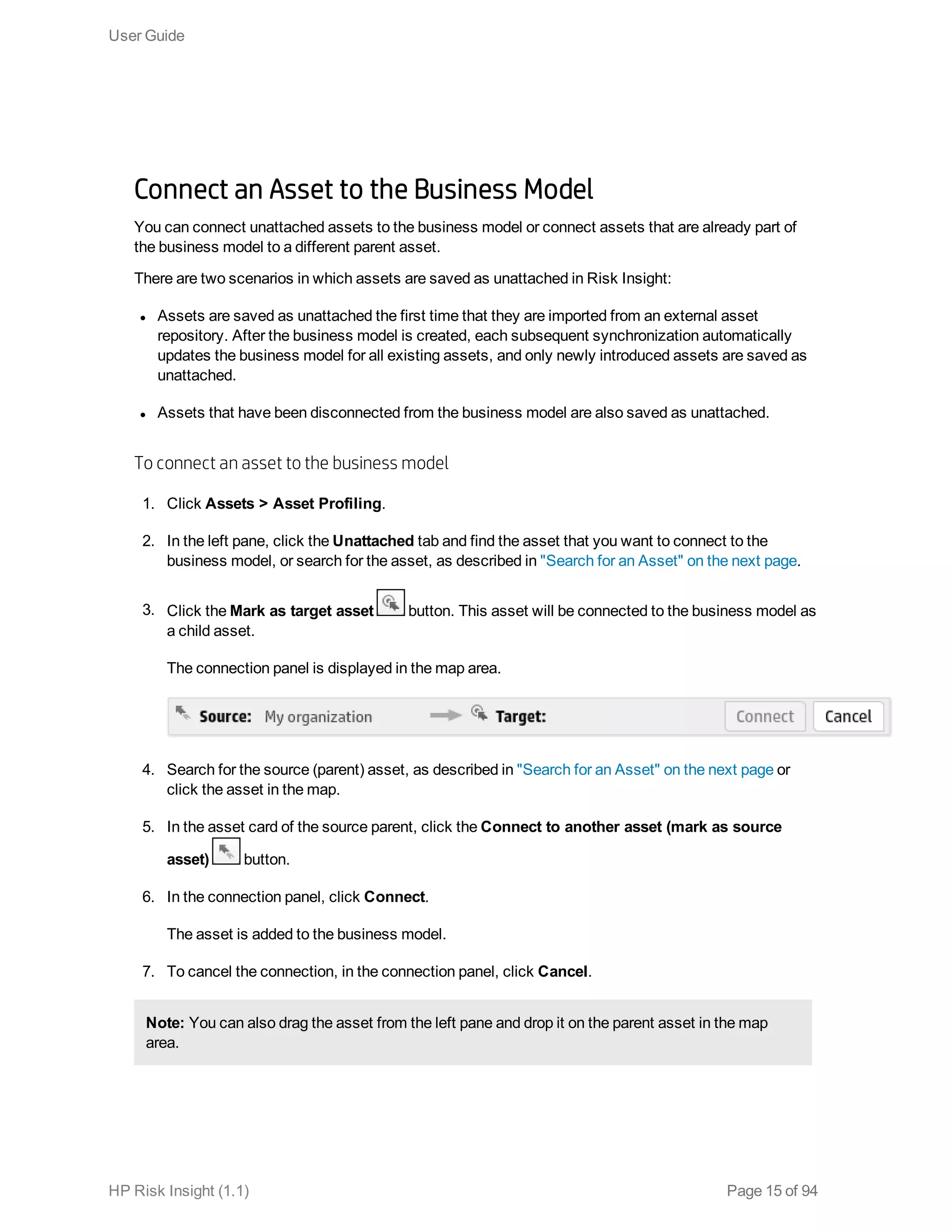
The connection panel is displayed in the map area.
4. Search for the source (parent) asset, as described in "Search for an Asset" on the next page or
click the asset in the map.
5. In the asset card of the source parent, click the Connect to another asset (mark as source
asset) button.
6. In the connection panel, click Connect.
The asset is added to the business model.
7. To cancel the connection, in the connection panel, click Cancel.
Note: You can also drag the asset from the left pane and drop it on the parent asset in the map
area.
User Guide
HP Risk Insight (1.1) Page 15 of 94
Search for an Asset
You can search for a name or a partial name of any asset, either attached to the business model or
unattached, in the Search tab. You can also search for an asset according to the user or group that is
authorized to work on that asset.
To search for an asset
1. Click Assets > Asset Profiling, and then, in the left pane, click the Search tab.
2. In the Search asset name box, enter the asset name or a partial asset name, and then press
ENTER.
The search results are displayed in the left pane. The two immediate parent assets are displayed
next to each asset that is found.
3. Click Advanced to search by asset category or type. Select the category or type from the list, and
then click Search.
4. To display the asset in the business model map, click the Show on Map button.
To search for an asset by user or group
1. Click Assets > Asset Profiling, and then, in the left pane, click the Authorized User tab.
2. In the Search asset by user or group box, enter the name of the user or group according to
which you want to search, and then press ENTER.
The search results are displayed in the left pane.
Note: Only assets on which the user or group are authorized to work on directly (as opposed
to assets that inherited the access rights) are displayed.
Filter Assets by a CPE
You can filter assets by a CPE in order to create a business model view that is product or vendor
specific. For example, you can create a filter that displays a segment of the business model that
includes only servers that host an Oracle database. For more information on CPEs, see "Common
Platform Enumeration" on page 10.
The filter is applied to the entire Asset Profiling page. This means that if you filter the page and search
for assets, you will receive search results out of the filtered results.
User Guide
HP Risk Insight (1.1) Page 16 of 94
To filter assets by a CPE
1. Click Assets > Asset Profiling.
2. In the Asset Profiling page, in the Filter by CPEs box, enter the CPE (vendor:product:version)
or a partial CPE (vendor:product).
The business model is collapsed.
3. Expand the business model to display the assets that are associated with the CPE.
The assets that are displayed in the map in the business model are assets that are directly
associated with the CPE and their parent assets. The full hierarchy is displayed.
Disconnect an Asset from the Business Model
To disconnect an asset from the business model you must delete the relationship between the asset
and its parent.
You can delete only relationships that you created within Risk Insight. You cannot delete relationships
that you imported from an external asset repository.
If the asset has only one parent, then when it is disconnected, it is saved as unattached; the asset
itself is not deleted. If the asset has more than one parent, then it remains in the business model.
Disconnected assets can be reconnected to the business model at any time.
To disconnect an asset from the business model
1. Click Assets > Asset Profiling.
2. Search for the asset that you want to disconnect, as described in "Search for an Asset" on the
previous page.
3. In the Search tab, click the asset that you want to disconnect, and then click the Show on Map
button.
4. In the map area, click the relationship between the asset that you want to disconnect and its
parent asset, and then press DELETE.
5. Click Yes to confirm the action.
The disconnected asset can be viewed in the Unattached tab in the left pane.
User Guide
HP Risk Insight (1.1) Page 17 of 94
Delete an Asset
You can only delete assets created in Risk Insight. In order to preserve the integrity of the business
model, assets imported from an external asset repository cannot be deleted directly from Risk Insight;
they must be deleted in the system from which they originated. When the business model is next
synchronized, the change will be displayed in Risk Insight.
To delete an asset
1. Click Assets > Asset Profiling.
2. Search for the asset that you want to delete, as described in "Search for an Asset" on page 16.
3. Click the asset that you want to delete and then click the Delete button or select the asset in
the map and press DELETE.
A confirmation message is displayed. Confirm this action by clicking Yes.
Note: If you delete an asset that has children, then the asset is deleted and the children are
saved as unattached.
Add a CPE to an Asset
You can add or remove CPEs that are associated with an asset. You can add CPEs only to asset that
belong to the following categories:
l Running Software
l Infrastructure Element
l IP 
You can add CPEs only to assets that were created in Risk Insight. CPEs that were imported from a
CSV file or from ArcSight ESM cannot be removed and are read-only.
To add a CPE to an asset
1. Click Assets > Asset Profiling.
2. Search for the asset to which you want to add a CPE, as described in "Search for an Asset" on
page 16.
User Guide
HP Risk Insight (1.1) Page 18 of 94
3. Click the asset in the search results, and then click the Edit Asset Properties button.
4. In the Edit Asset Properties dialog box, click the CPEs tab.
5. In the search box, enter a CPE (vendor:product:version) or a partial CPE (vendor:product).
Note: To optimize your search, enter the full vendor and product name.
6. Click Add.
7. Click Save.
To remove a CPE from an asset
1. Click Assets > Asset Profiling.
2. Search for the asset from which you want to remove a CPE, as described in "Search for an Asset"
on page 16.
3. Click the asset in the search results, and then click the Edit Asset Properties button.
4. In the Edit Asset Properties dialog box, click the CPEs tab.
5. From the list of CPEs, click the CPE that you want to remove, and then click the Remove this
CPE from the asset button.
6. Click Save.
Asset Properties
The asset properties include the following information:
l Asset General Properties
The following table describes all of the properties for each asset category.
l CPEs
A CPE is an asset identifier. For more information, see "Common Platform Enumeration" on page
10.
You can add or remove CPEs that are associated with the asset. CPEs that were imported from a
User Guide
HP Risk Insight (1.1) Page 19 of 94
CSV file or from ArcSight ESM cannot be removed and are read-only.
You can filter assets according to their CPE, as described in "Filter Assets by a CPE" on page 16.
Category Property Description
General Name The name of the asset. It is displayed in the business
model's graphic view along with the asset type icon.
This field is mandatory.
Description Additional information about the asset.
Type The asset type.
Source The source name for the Organization asset is System.
The source name for assets created in Risk Insight is
empty.
For assets imported from an external asset repository, the
source name is the same as the connector name defined in
the Configuration module.
Location Latitude The geographical coordinates of the asset's location.
Longitude The geographical coordinates of the asset's location.
Address The street address of the asset.
ZIP Code The asset location ZIP code.
City The city of the asset.
State The state of the asset.
Country The country of the asset.
Criticality Level A numeric index, between 0 and 10, indicating the severity
of a potential catastrophe and the probability of its
occurrence.
The default criticality level of all assets is 1.
Business Criticality Level See above description.
Value A numeric, monetary value.
Infrastructure
Element
OS Name The operating system that is installed on the infrastructure
element.
OS Version The version of the operating system that is installed on the
infrastructure element.
Asset General Properties
User Guide
HP Risk Insight (1.1) Page 20 of 94
Category Property Description
Running
Software
Application
Name
The name of the application.
Application
Version
The version of the application.
IP DNS Name The server name as defined in the network DNS.
MAC Address The server MAC address.
IP Address The server IP address.
People Role The role of the person or the group in the organization.
Documents Version The version of the document.
Purpose The purpose for which the document was created.
Classification The type of document, such as legal or technical.
Release Date The date on which the document was published.
Asset General Properties, continued
User Guide
HP Risk Insight (1.1) Page 21 of 94
Asset Profiling Window
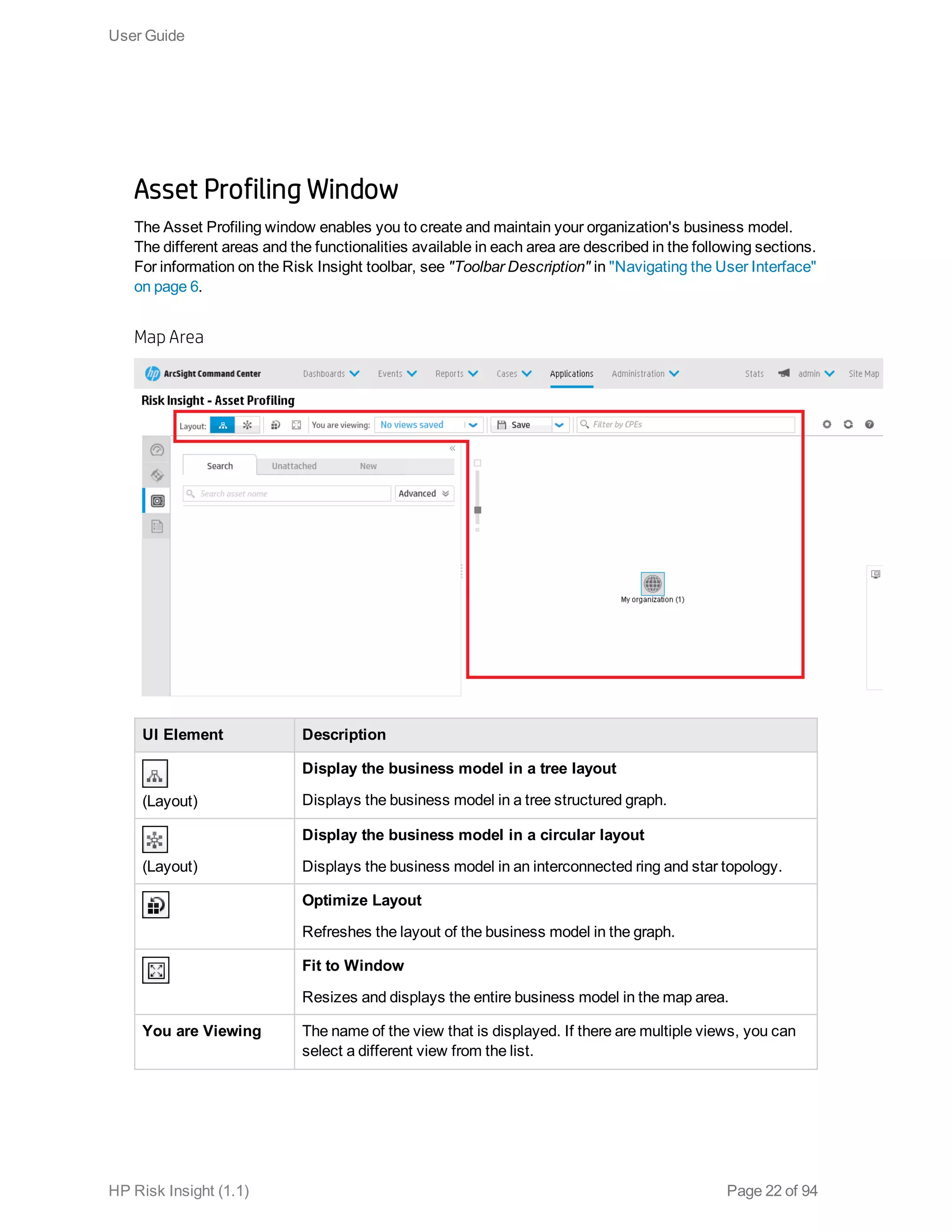
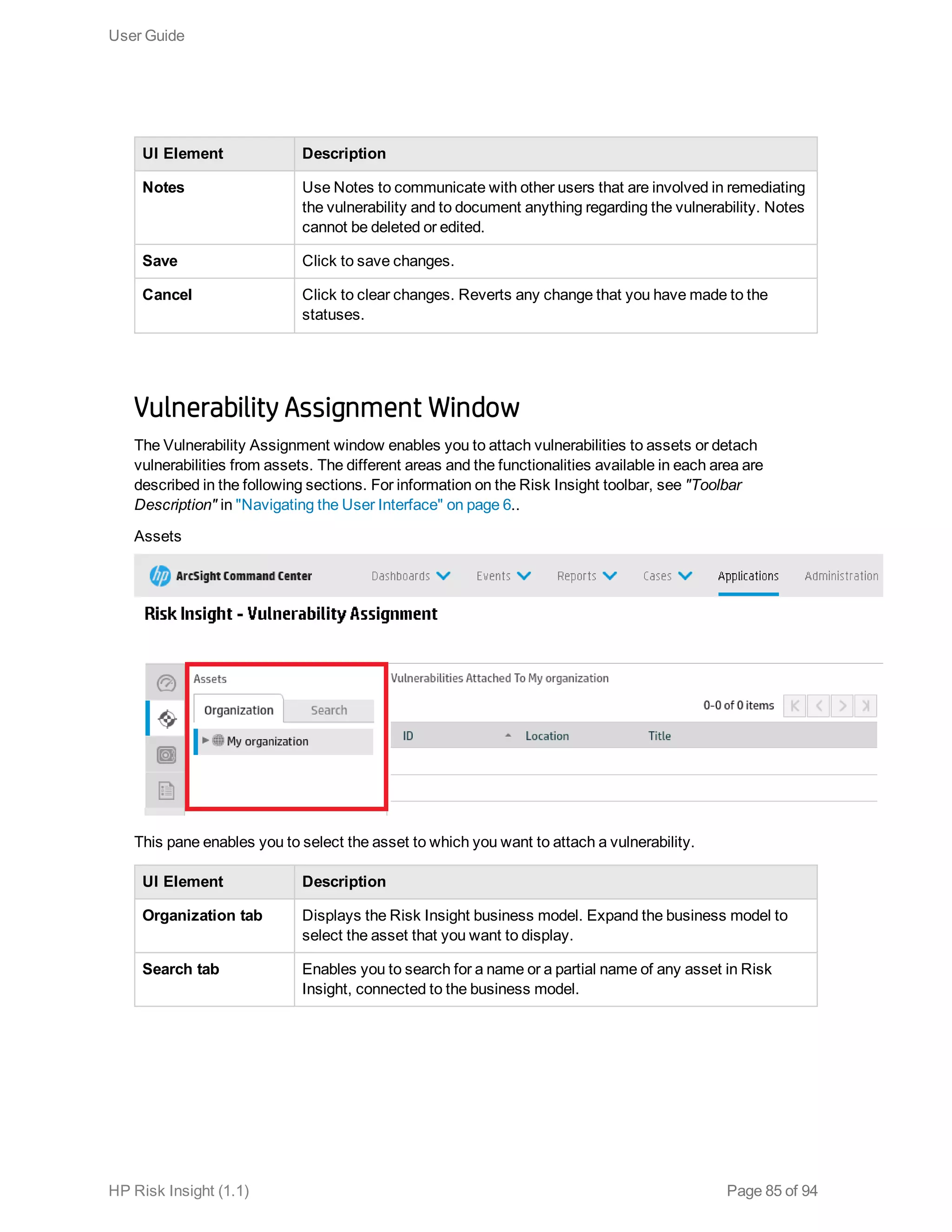
The Asset Profiling window enables you to create and maintain your organization's business model.
The different areas and the functionalities available in each area are described in the following sections.
For information on the Risk Insight toolbar, see "Toolbar Description" in "Navigating the User Interface"
on page 6.
Map Area
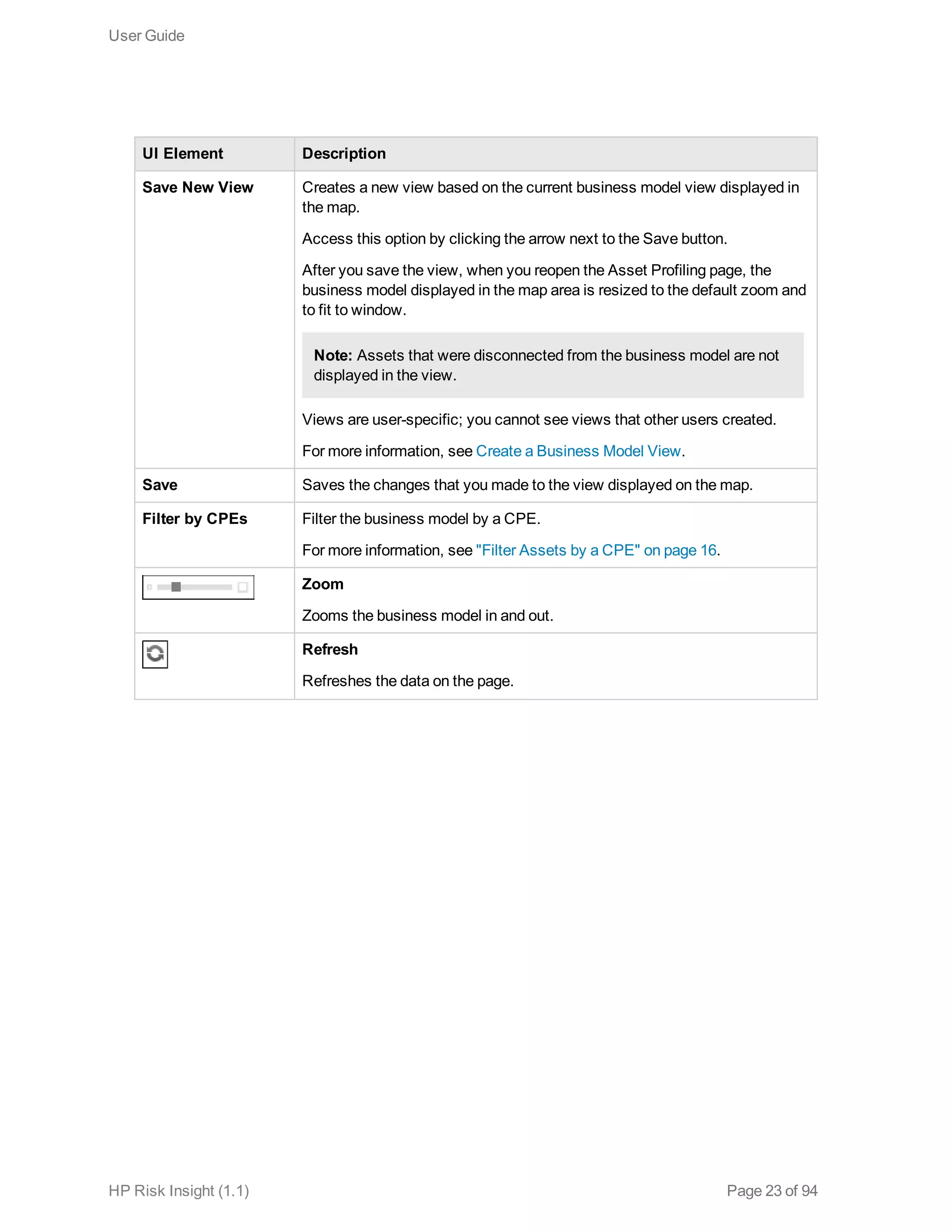
UI Element Description
(Layout)
Display the business model in a tree layout
Displays the business model in a tree structured graph.
(Layout)
Display the business model in a circular layout
Displays the business model in an interconnected ring and star topology.
Optimize Layout
Refreshes the layout of the business model in the graph.
Fit to Window
Resizes and displays the entire business model in the map area.
You are Viewing The name of the view that is displayed. If there are multiple views, you can
select a different view from the list.
User Guide
HP Risk Insight (1.1) Page 22 of 94
UI Element Description
Save New View Creates a new view based on the current business model view displayed in
the map.
Access this option by clicking the arrow next to the Save button.
After you save the view, when you reopen the Asset Profiling page, the
business model displayed in the map area is resized to the default zoom and
to fit to window.
Note: Assets that were disconnected from the business model are not
displayed in the view.
Views are user-specific; you cannot see views that other users created.
For more information, see Create a Business Model View.
Save Saves the changes that you made to the view displayed on the map.
Filter by CPEs Filter the business model by a CPE.
For more information, see "Filter Assets by a CPE" on page 16.
Zoom
Zooms the business model in and out.
Refresh
Refreshes the data on the page.
User Guide
HP Risk Insight (1.1) Page 23 of 94
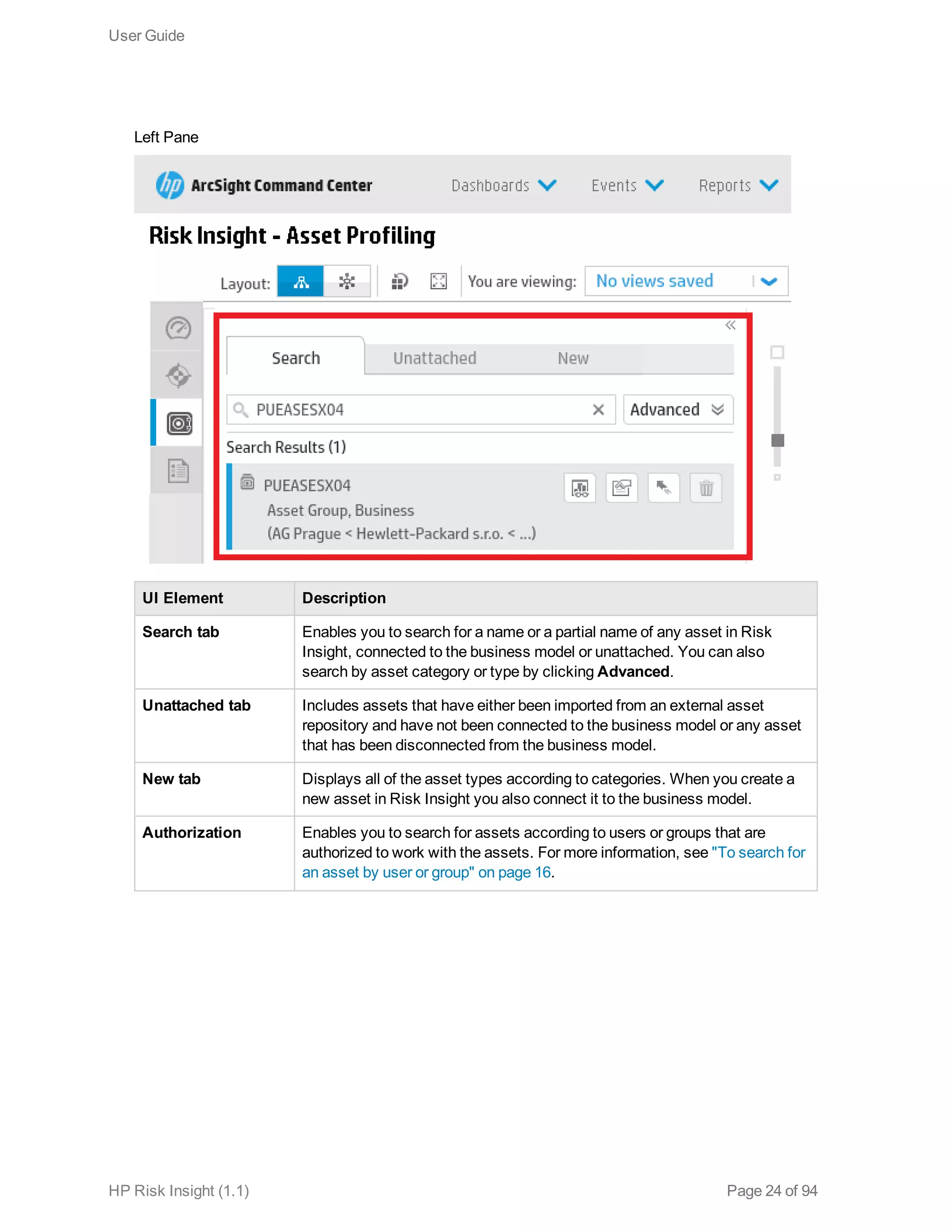
Left Pane
UI Element Description
Search tab Enables you to search for a name or a partial name of any asset in Risk
Insight, connected to the business model or unattached. You can also
search by asset category or type by clicking Advanced.
Unattached tab Includes assets that have either been imported from an external asset
repository and have not been connected to the business model or any asset
that has been disconnected from the business model.
New tab Displays all of the asset types according to categories. When you create a
new asset in Risk Insight you also connect it to the business model.
Authorization Enables you to search for assets according to users or groups that are
authorized to work with the assets. For more information, see "To search for
an asset by user or group" on page 16.
User Guide
HP Risk Insight (1.1) Page 24 of 94
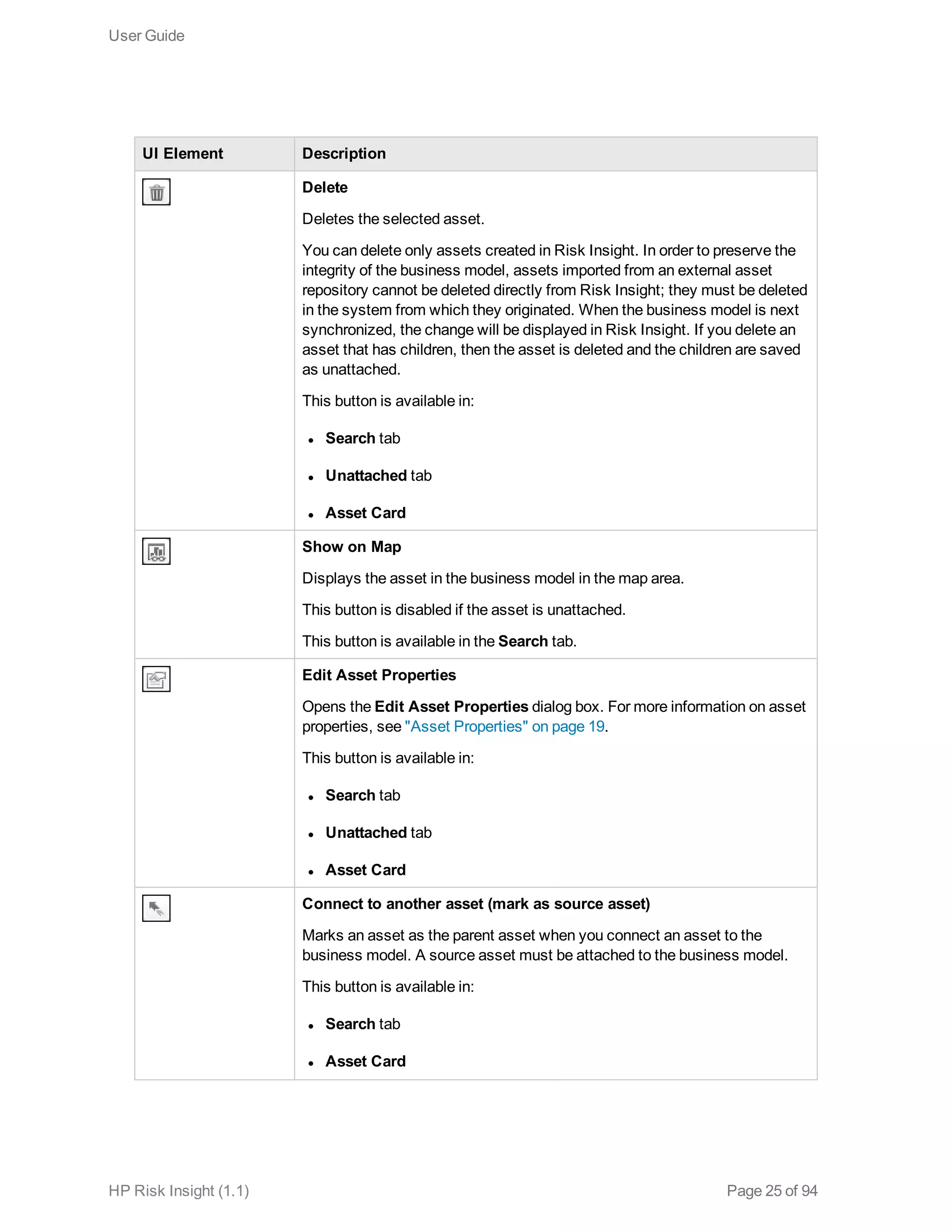
UI Element Description
Delete
Deletes the selected asset.
You can delete only assets created in Risk Insight. In order to preserve the
integrity of the business model, assets imported from an external asset
repository cannot be deleted directly from Risk Insight; they must be deleted
in the system from which they originated. When the business model is next
synchronized, the change will be displayed in Risk Insight. If you delete an
asset that has children, then the asset is deleted and the children are saved
as unattached.
This button is available in:
l Search tab
l Unattached tab
l Asset Card
Show on Map
Displays the asset in the business model in the map area.
This button is disabled if the asset is unattached.
This button is available in the Search tab.
Edit Asset Properties
Opens the Edit Asset Properties dialog box. For more information on asset
properties, see "Asset Properties" on page 19.
This button is available in:
l Search tab
l Unattached tab
l Asset Card
Connect to another asset (mark as source asset)
Marks an asset as the parent asset when you connect an asset to the
business model. A source asset must be attached to the business model.
This button is available in:
l Search tab
l Asset Card
User Guide
HP Risk Insight (1.1) Page 25 of 94
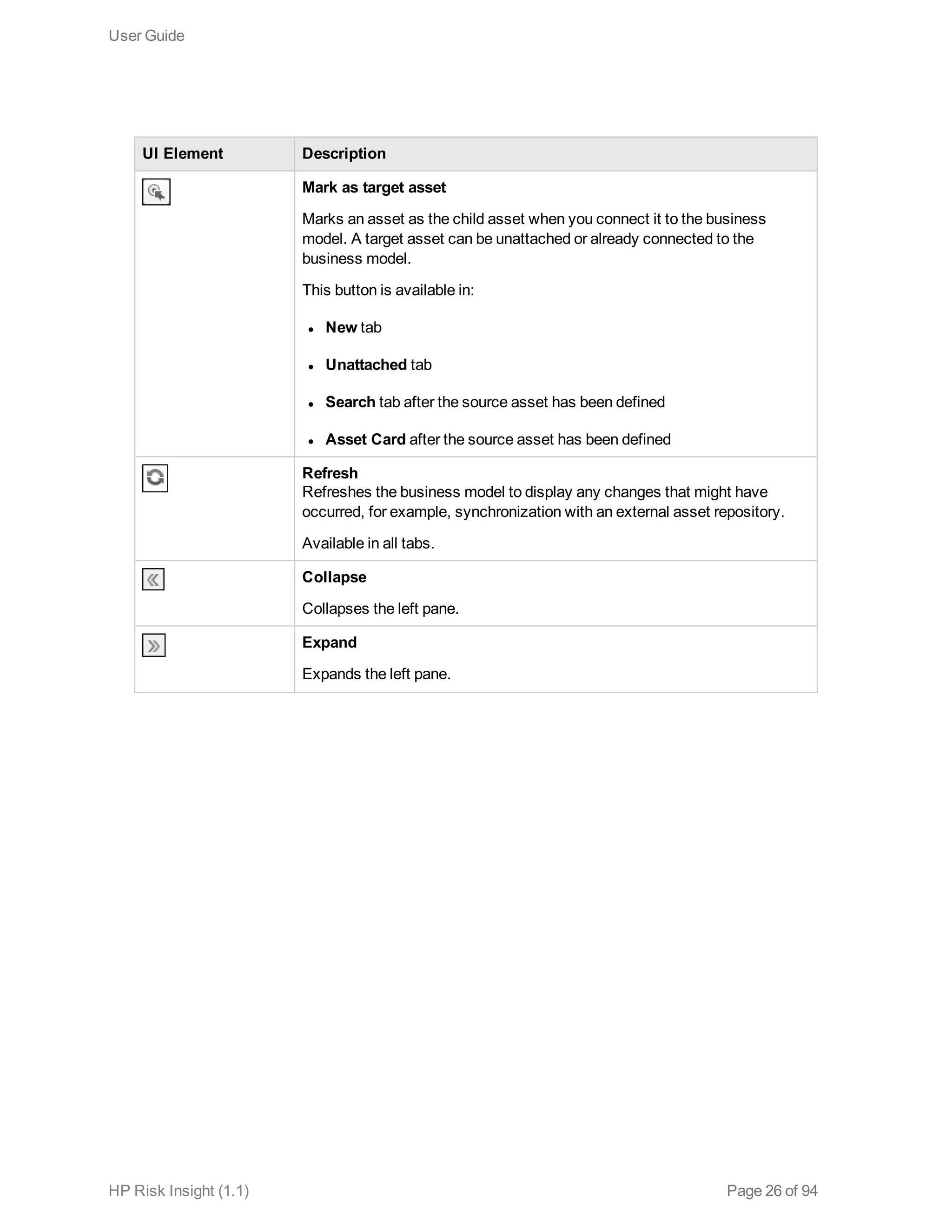
UI Element Description
Mark as target asset
Marks an asset as the child asset when you connect it to the business
model. A target asset can be unattached or already connected to the
business model.
This button is available in:
l New tab
l Unattached tab
l Search tab after the source asset has been defined
l Asset Card after the source asset has been defined
Refresh
Refreshes the business model to display any changes that might have
occurred, for example, synchronization with an external asset repository.
Available in all tabs.
Collapse
Collapses the left pane.
Expand
Expands the left pane.
User Guide
HP Risk Insight (1.1) Page 26 of 94
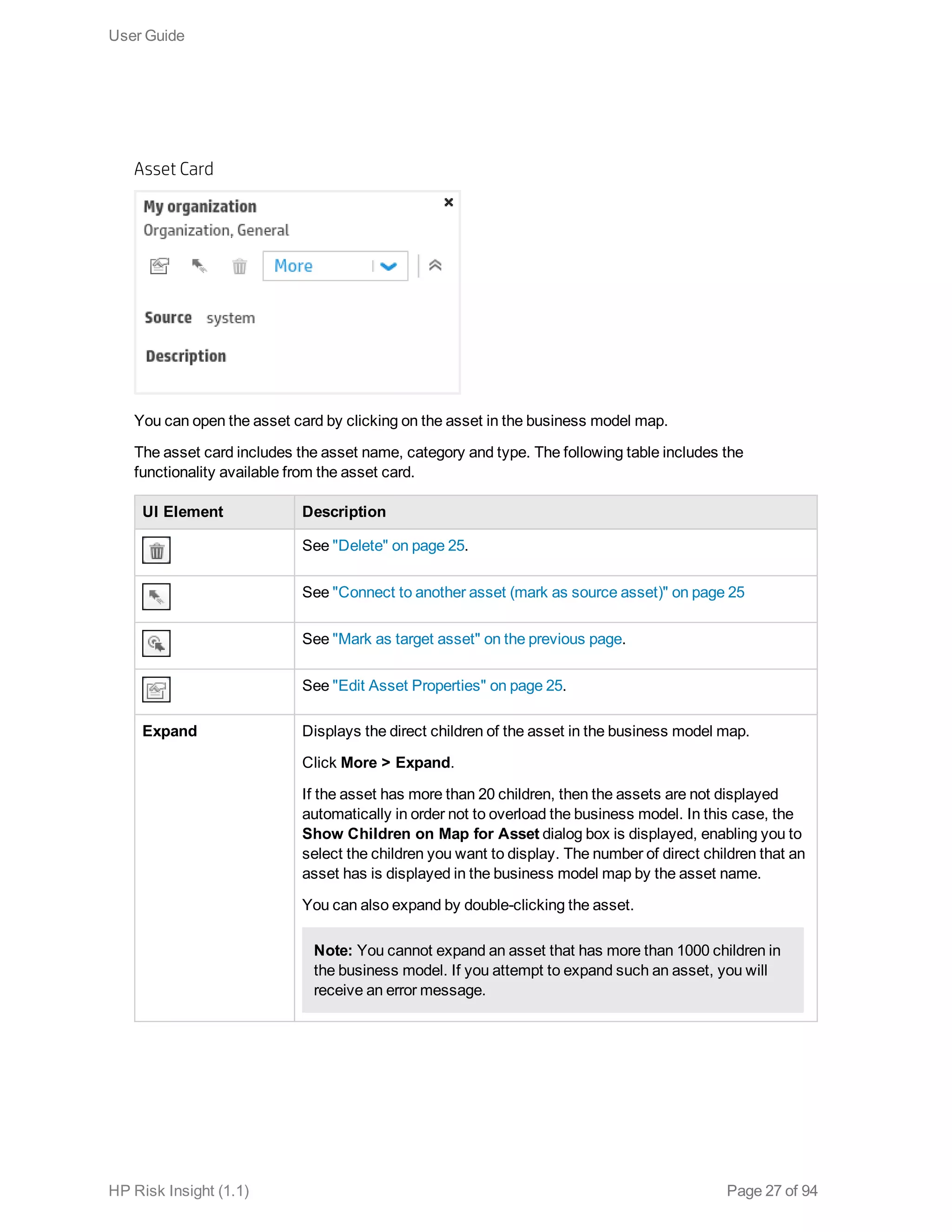
Asset Card
You can open the asset card by clicking on the asset in the business model map.
The asset card includes the asset name, category and type. The following table includes the
functionality available from the asset card.
UI Element Description
See "Delete" on page 25.
See "Connect to another asset (mark as source asset)" on page 25
See "Mark as target asset" on the previous page.
See "Edit Asset Properties" on page 25.
Expand Displays the direct children of the asset in the business model map.
Click More > Expand.
If the asset has more than 20 children, then the assets are not displayed
automatically in order not to overload the business model. In this case, the
Show Children on Map for Asset dialog box is displayed, enabling you to
select the children you want to display. The number of direct children that an
asset has is displayed in the business model map by the asset name.
You can also expand by double-clicking the asset.
Note: You cannot expand an asset that has more than 1000 children in
the business model. If you attempt to expand such an asset, you will
receive an error message.
User Guide
HP Risk Insight (1.1) Page 27 of 94
UI Element Description
Collapse Hides the direct children of the asset in the business model map.
Click More > Collapse.
You can also collapse by double-clicking the asset.
Show Parents Displays the parent assets of the asset in the business model map.
Click More > Show Parents.
Hide Parents Hides the parent assets of the asset in the business model map.
Click More > Hide Parents.
Open Properties
Displays properties in read-only mode. For more information on asset
properties, see "Asset Properties" on page 19.
Close Properties
Closes properties view.
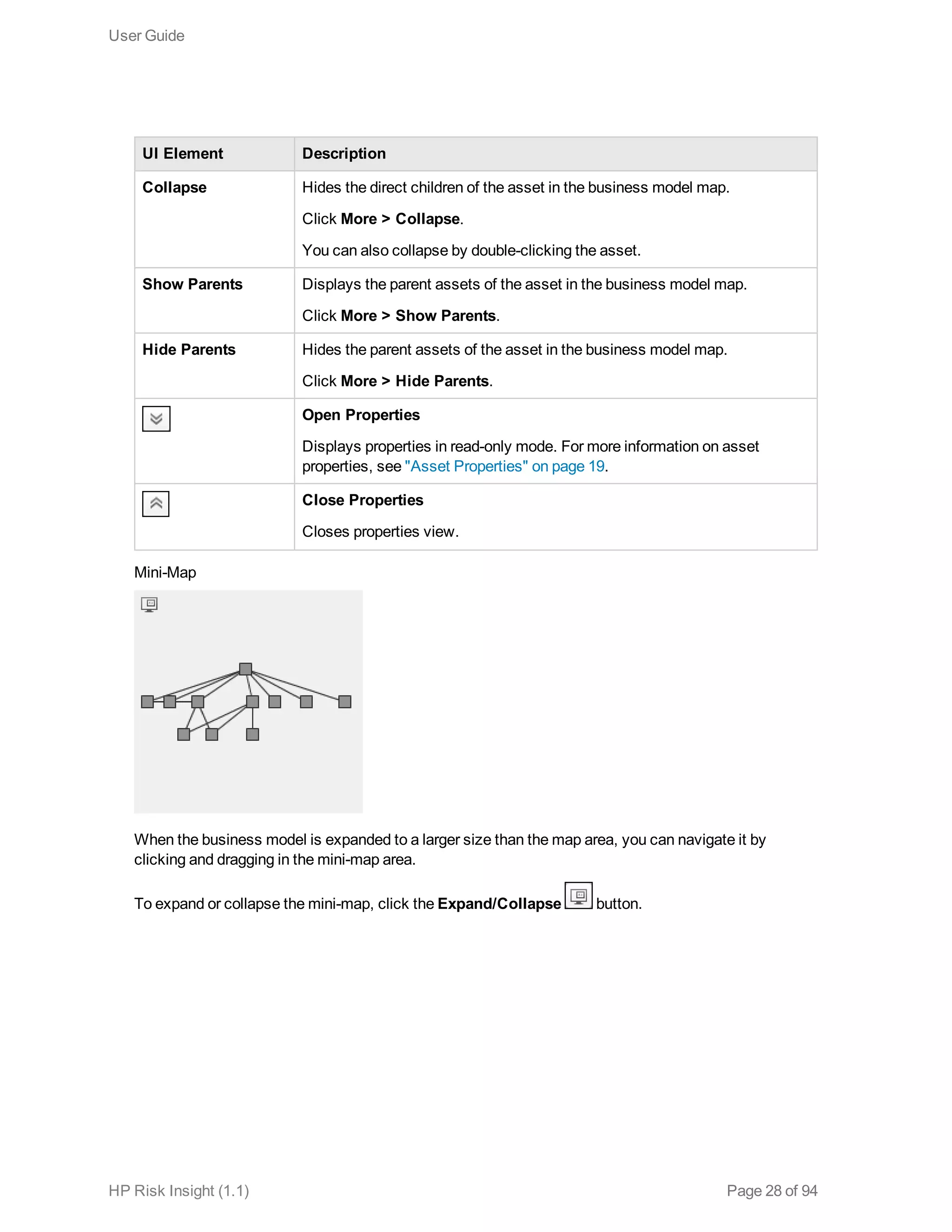
Mini-Map
When the business model is expanded to a larger size than the map area, you can navigate it by
clicking and dragging in the mini-map area.
To expand or collapse the mini-map, click the Expand/Collapse button.
User Guide
HP Risk Insight (1.1) Page 28 of 94
Chapter 3: Risk Factors
The risk posture of the assets in your organization can be affected by various risk factors. Risk Insight
includes the risk factors from the following sources:
l Vulnerability assessment tools (scanners): Vulnerabilities are imported into Risk Insight using
ArcSight SmartConnector. For more information, see "Vulnerability Management" on page 64.
l ESM: For a list of all risk factors originating from ESM, see "Out-of-the-Box Risk Factors" on the
next page.
You can import risk information from ESM for any risk factor that you deem significant and that impacts
the overall risk score of your organization. For example, the score of IPS security alerts resulting from
security attacks on a segment of your network.For more information on importing risk information from
ESM , see the Import Risk Information from ESM section in the Risk Insight Administration Guide.
The scores of all risk factors are consolidated into one score—asset overall score—that reflects the
overall risk posture of the assets in your organization. For more information on how the overall score is
calculated, see "Configure Overall Score Formula Weights" on page 91.
Risk factors must fulfill the following conditions:
l A risk factor must be associated with an asset defined in Risk Insight. Information that does not
relate to a particular asset is discarded.
l The information must be numeric. Only numeric information can be aggregated, included in the
overall score, and reflected in trend charts.
Whenever you add a risk factor to Risk Insight, a corresponding KPI is created automatically. KPIs are
managed in the KPI Management page. You can configure the risk factor KPI settings, as described in
"Configure Risk Factor KPI Settings" on the next page. You can also configure risk factor ranges, as
described in the Configure Risk Factor Ranges section in the ArcSight Risk Insight Deployment Guide.
Risk factors are reflected in:
l Risk Register: Aggregate scores for risk factors are displayed in the Asset Summary component
and in the First-Level Children Summary component. For more information, see "Risk Register" on
page 40.
l Risk Indicators: Risk factors are regarded as risk indicators. For more information, see "Risk
Indicators" on page 43.
Risk factors have a dedicated dashboard—Risk Factor Dashboard—that displays information on all
the risk factors that are imported into Risk Insight. For more information, see "Risk Factors Dashboard"
on page 46. You can also incorporate risk factor scores, aggregate scores and any other information
into user created reports. For more information on creating reports, see the Create a Report Using SAP
BusinessObjects WebIntelligence in the ArcSight Risk Insight Administration Guide.
HP Risk Insight (1.1) Page 29 of 94
Configure Risk Factor KPI Settings
You can configure KPI settings in order to reflect the tolerance of your organization to the risk factor.
For example, if you lower the High threshold of a KPI, then the KPI will reflect more tolerance towards
the risk factor.
You can also configure the KPI settings in the KPI Management page, as described in the Edit a
KPI section in the ArcSight Risk Insight Administration Guide.
To configure KPI settings
1. Click the Settings button, and then, in the Settings dialog box, click Risk Factor.
2. In the left pane, select the risk factor that you want to configure.
3. Edit the following options as necessary:
n KPI Parameter: Enter the threshold that indicates a desirable or an undesirable result.
n Thresholds: Drag the sliders to define the severity of the percentage ranges, for low, medium,
and high thresholds.
These thresholds are reflected in the gauge that represents the KPI and they define whether the
KPI is acceptable or not.
4. Click Save.
Out-of-the-Box Risk Factors
Risk Insight includes out-of-the-box risk factors that are based on ESM reports. The reports are
imported into ESM during the integration process.
Risk Factor Description Data Source
Antivirus Shows whether the antivirus installed on the asset is
updated or not.
Assets
Brute Force Attempt Shows the brute force attempts events for assets that
have been targeted in the last hour.
Active List
DoS Attacks Shows the denial of service score for assets that have
been targeted in the past day.
Active List
User Guide
HP Risk Insight (1.1) Page 30 of 94
Risk Factor Description Data Source
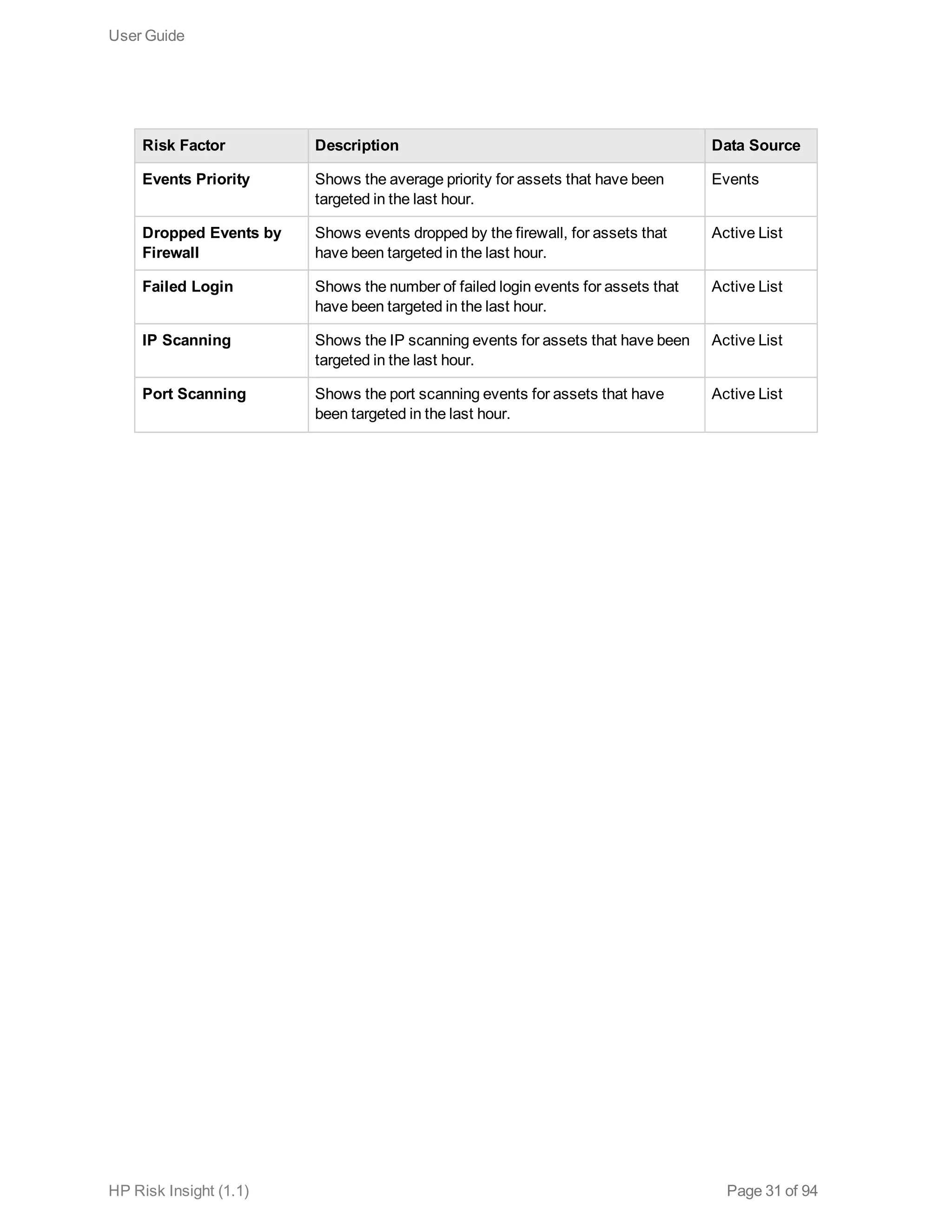
Events Priority Shows the average priority for assets that have been
targeted in the last hour.
Events
Dropped Events by
Firewall
Shows events dropped by the firewall, for assets that
have been targeted in the last hour.
Active List
Failed Login Shows the number of failed login events for assets that
have been targeted in the last hour.
Active List
IP Scanning Shows the IP scanning events for assets that have been
targeted in the last hour.
Active List
Port Scanning Shows the port scanning events for assets that have
been targeted in the last hour.
Active List
User Guide
HP Risk Insight (1.1) Page 31 of 94
Chapter 4: Key Performance Indicators
Risk Insight includes key performance indicators (KPIs) that are used to measure the progression of
your organization towards its objectives. In Risk Insight, KPIs are used to monitor and improve upon
the different aspects that comprise risk in your organization.
Simple KPIs enable you to define the ranges for the score severity of various risk factors, according to
your business needs. For example, asset vulnerability scores are displayed along with an icon that
represents a low, medium or high score throughout the application. The color indication is also reflected
in the trend charts and heat maps.
More complex KPIs include the percentage of assets with scores that are above or below a certain
threshold. For example, the vulnerability KPI indicates the percentage of assets with an aggregate
vulnerability score that is higher than a certain threshold. The higher the percentage the farther the
organization is from its vulnerability objectives.
Risk Insight includes out-of-the-box KPIs, as described in "Out-of-the-Box KPIs" on the next page as
well as a corresponding KPI for any risk factor added to Risk Insight. In addition, custom KPIs can be
created by an Administrator for any risk factor defined in Risk Insight. For more information, see the
Create a KPI section in the ArcSight Risk Insight Administration Guide.
All KPIs, both custom and out-of-the-box, are configurable. You can change the KPI parameter or
threshold, as described in "Configure KPI Settings" below.
Configure KPI Settings
You can configure KPI settings in order to reflect the tolerance of your organization to the risk factor.
For example, if you lower the High threshold of a KPI, then the KPI will reflect more tolerance towards
the risk factor.
To configure KPI settings
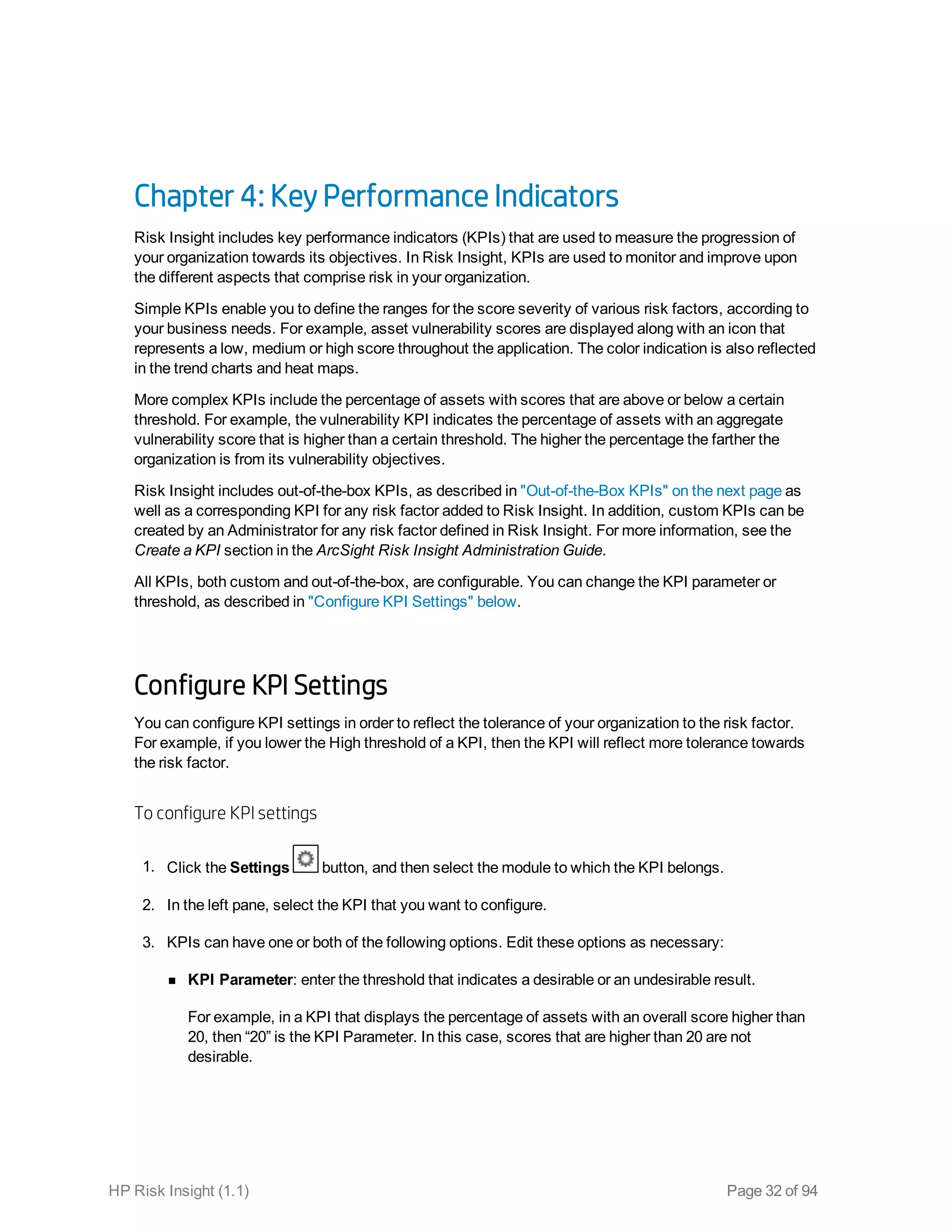
1. Click the Settings button, and then select the module to which the KPI belongs.
2. In the left pane, select the KPI that you want to configure.
3. KPIs can have one or both of the following options. Edit these options as necessary:
n KPI Parameter: enter the threshold that indicates a desirable or an undesirable result.
For example, in a KPI that displays the percentage of assets with an overall score higher than
20, then “20” is the KPI Parameter. In this case, scores that are higher than 20 are not
desirable.
HP Risk Insight (1.1) Page 32 of 94
n Thresholds: drag the sliders to define the severity of the percentage ranges, for low, medium,
and high thresholds.
These thresholds are reflected in the gauge that represents the KPI and they define whether the
KPI is acceptable or not.
4. Click Save.
Out-of-the-Box KPIs
Risk Insight includes out-of-the-box KPIs described in the following table. You can configure the
settings for out-of-the-box KPIs as well as custom KPIs, as described in "Configure KPI Settings" on
the previous page.
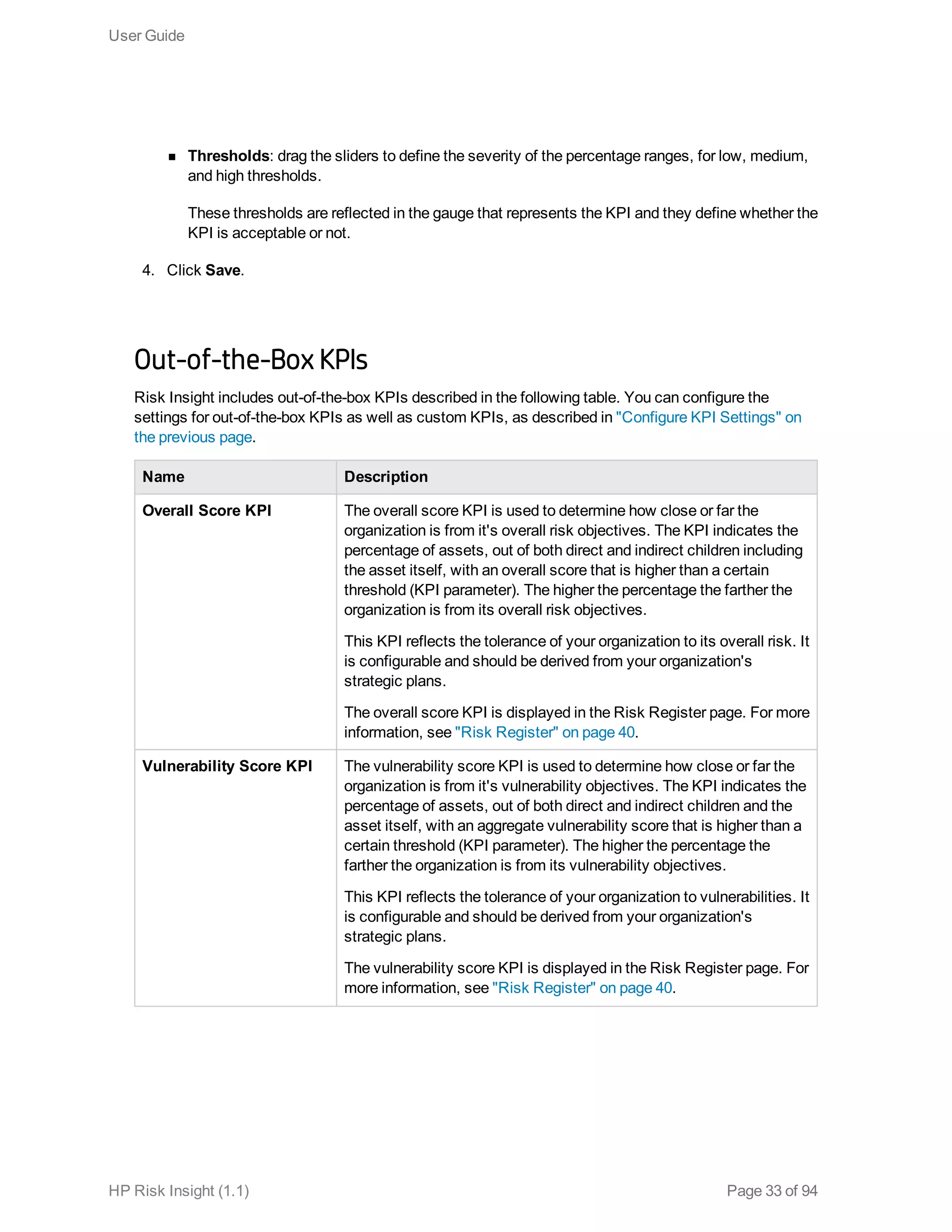
Name Description
Overall Score KPI The overall score KPI is used to determine how close or far the
organization is from it's overall risk objectives. The KPI indicates the
percentage of assets, out of both direct and indirect children including
the asset itself, with an overall score that is higher than a certain
threshold (KPI parameter). The higher the percentage the farther the
organization is from its overall risk objectives.
This KPI reflects the tolerance of your organization to its overall risk. It
is configurable and should be derived from your organization's
strategic plans.
The overall score KPI is displayed in the Risk Register page. For more
information, see "Risk Register" on page 40.
Vulnerability Score KPI The vulnerability score KPI is used to determine how close or far the
organization is from it's vulnerability objectives. The KPI indicates the
percentage of assets, out of both direct and indirect children and the
asset itself, with an aggregate vulnerability score that is higher than a
certain threshold (KPI parameter). The higher the percentage the
farther the organization is from its vulnerability objectives.
This KPI reflects the tolerance of your organization to vulnerabilities. It
is configurable and should be derived from your organization's
strategic plans.
The vulnerability score KPI is displayed in the Risk Register page. For
more information, see "Risk Register" on page 40.
User Guide
HP Risk Insight (1.1) Page 33 of 94
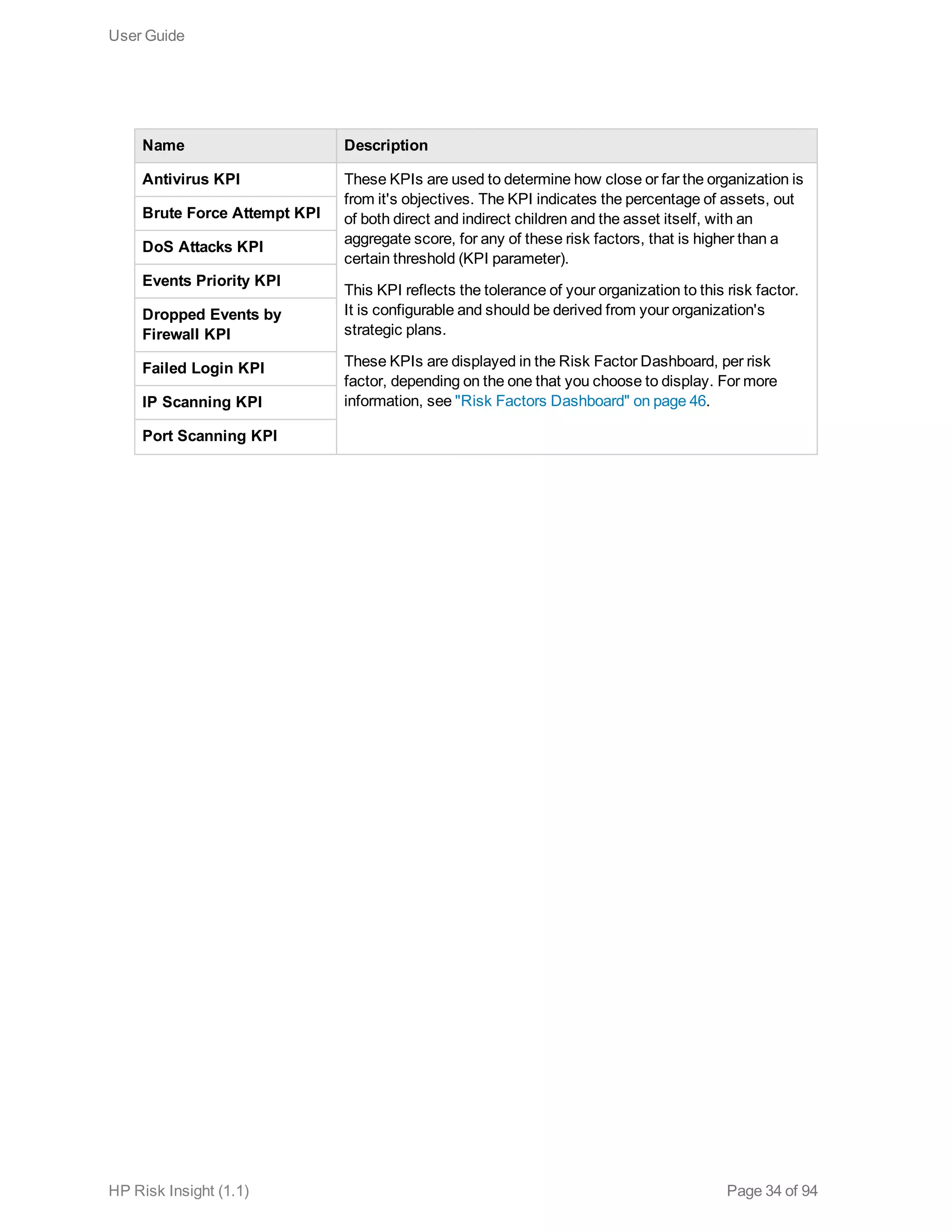
Name Description
Antivirus KPI These KPIs are used to determine how close or far the organization is
from it's objectives. The KPI indicates the percentage of assets, out
of both direct and indirect children and the asset itself, with an
aggregate score, for any of these risk factors, that is higher than a
certain threshold (KPI parameter).
This KPI reflects the tolerance of your organization to this risk factor.
It is configurable and should be derived from your organization's
strategic plans.
These KPIs are displayed in the Risk Factor Dashboard, per risk
factor, depending on the one that you choose to display. For more
information, see "Risk Factors Dashboard" on page 46.
Brute Force Attempt KPI
DoS Attacks KPI
Events Priority KPI
Dropped Events by
Firewall KPI
Failed Login KPI
IP Scanning KPI
Port Scanning KPI
User Guide
HP Risk Insight (1.1) Page 34 of 94
Chapter 5: Dashboards and Reports
Risk Insight comes with a variety of out-of-the-box dashboards and printable reports. Risk Insight
administrators can create customized role-based dashboards for different types of users, as described
in the Create a Customized Dashboards Page in the ArcSight Risk Insight Administration Guide. The
dashboards can be created from predefined reports or from user-created reports.
There are two types of reports that you can create:
l Printable
These reports are available from any page that is associated with a report. These reports are
generated as print-friendly PDF documents by clicking the Generate Report button. For more
information on the reports included in Risk Insight, see "Printing Reports" on page 39.
l Dashboard
These reports are used as data analysis components and can be grouped together with other
components in order to create comprehensive dashboards, such as the Risk Register, for the
various roles. For more information, see "Risk Register" on page 40
You can create reports that belong to both categories. For more information on creating reports, see the
Create a Report Using SAP BusinessObjects WebIntelligence in the ArcSight Risk Insight
Administration Guide.
Root Cause Analysis
Root cause analysis (RCA) is a structured approach for identifying the underlying causes of problems
or events. RCA is based on the assumption that problems should be solved by addressing their root
causes rather than their obvious symptoms. You can use RCA to mitigate, eliminate, or prevent risk in
your organization.
Risk Insight dashboards support RCA. The dashboards include a drill-down functionality, strategically
placed links, allowing you to trace root problems by navigating the various dashboards and Risk Insight
pages. These links are available depending on your role and permissions. In addition, the Risk Insight
Risk Indicators is an RCA tool that offers you the quickest way to identify risk sources in your
organization's business model. It provides you with graphical risk indication on top of your business
model map.
There are two main approaches for RCA in Risk Insight:
l Identifying the underlying asset or assets that are responsible for increasing the overall risk in your
organization.
HP Risk Insight (1.1) Page 35 of 94
To follow this approach, you can track the source asset by drilling down in the business model.
Example:
a. Start by opening the Risk Register (Executive View > Risk Register) for your root asset.
b. Identify the asset with the highest risk in the First-Level Children Summary component,
and click its name.
The Risk Register is updated with information on the asset that you selected.
c. Continue drilling down until you identify the underlying problematic asset.
l Identifying the risk element that is responsible for increasing the overall risk in an asset.
To follow this approach, you can track the risk element by investigating it specifically.
Example:
a. Start by opening the Risk Register for your root asset.
b. Identify the risk element that appears to be problematic the in the Asset Summary, and
click its name.
Risk Insight navigates to the dashboard that corresponds with the risk element that you
chose. For example, if the problematic risk element is the vulnerability score, then when
you click Vulnerability, the Vulnerability Dashboard opens.
c. Continue drilling down until you identify the underlying problematic risk element.
Regardless of the approach you take, after you have identified the problematic asset or risk element,
you can navigate to the relevant Risk Insight page through which you can mitigate the problem.
Example:
1. Identify an asset with a high aggregate asset vulnerability score in the Risk Register.
2. Click the Aggregate Asset Vulnerability Score label in the Vulnerability Dashboard.
The Vulnerability Management page opens with information about the specific asset.
3. Continue investigating the vulnerabilities using the tools available in the Vulnerability
Management page. For example, you can filter vulnerabilities according to their score.
4. Handle the vulnerabilities attached to the asset to lower the asset vulnerability score.
User Guide
HP Risk Insight (1.1) Page 36 of 94
Create a Report Using SAP BusinessObjects Web
Intelligence
In addition to the various reports provided by Risk Insight, you can create customized reports by using
BusinessObjects Web Intelligence. For information on creating reports, see Building Reports with
BusinessObjects Web Intelligence User Guide.
You can create printable reports, dashboard reports, or reports that belong to both categories.
Note: To create a report you must be familiar with the process of creating reports in
BusinessObjects.
General instructions for creating a report for Risk Insight
1. Select Risk Insight Universe when you create a new document (report). For detailed information
on the classes and objects in the Risk Insight Universe, see the Risk Insight Universe section in
the ArcSight Risk Insight User Guide.
2. Prompts can be added to the report in order to get the application context. Add an assetId prompt
to create a report for a certain asset. For more information on prompts, see the Filtering Data
Using Prompts chapter in the Building Reports with BusinessObjects Web Intelligence User
Guide
3. The query that you created could be an ambiguous query. In this case, after you run the query, you
are prompted to select a context. For detailed information on ambiguous queries and query
contexts, see the Query Contexts section in the Building Reports with BusinessObjects Web
Intelligence User Guide. The Risk Insight Universe includes predefined contexts. For information
on the contexts, see " Universe Query Contexts" on page 62.
4. Assign a category to the report when you export the document to the Central Management Server
(CMS). Select the categories that apply to the report (one or more). The category determines from
which page the report will be available. If you are creating a report for a page that does not have a
category, then you need to create a category, as described in the Working with Categories section
in the SAP BusinessObjects Enterprise Administrator's Guide. The name of the category must
reflect the name of the page and it is not case-sensitive.
Note: If you do not assign the report to a category, then it will not be displayed in Risk Insight.
To create a report for a single asset, use the Asset ID object as query filter and the
@AssetPrompt object as the prompt value.
User Guide
HP Risk Insight (1.1) Page 37 of 94
To create an Risk Insight report that displays the children of a specific asset
l When you create the query, drag the following objects to the Results Object area:
n Parent Asset ID ( Asset Children class)
n Child Asset ID (Children class)
n Hierarchy Level (Children class)
Add the rest of the objects that you want to display to the Results Object area.
For information on how to create a query, see the Building and Working with Queries section in the
Building Reports with BusinessObjects Web Intelligence User Guide.
l Use the following objects as Query Filters:
n Parent Asset ID to determine the asset that contains the assets that you want to display.
n Hierarchy Level to determine which levels of children are displayed in the report.
For information on query filters, see the Filtering Data Using Query Filters section in the Building
Reports with BusinessObjects Web Intelligence User Guide.
The report that you created is automatically added to Risk Insight. You can access printable reports by
clicking the Generate Report button from any page that has a report associated with it.
You can access dashboard reports and create customized dashboards from the BusinessObjects
Reports component, as described in the Create a Customized Dashboard Page section in the ArcSight
Risk Insight Deployment Guide.
User Guide
HP Risk Insight (1.1) Page 38 of 94
Printing Reports
Out-of-the-box printable reports are available from the Risk Factor Dashboard, Risk Register,
Vulnerability Management page. Custom reports are available from the page that you associated with
them when you created the report. These reports are generated as print-friendly PDF documents by
clicking the Generate Report button.
In addition to the various reports provided by Risk Insight, you can create your own customized reports
using BusinessObjects Web Intelligence, as described in Create a Report Using SAP
BusinessObjects WebIntelligence in the ArcSight Risk Insight Administration Guide.
The following table includes all of the out-of-the-box reports in Risk Insight.
Page Report Name Description
Risk Register Overall Score
Trend
This report includes overall scores for the asset selected
and its children, for the following times:
l Current date
l The date on which the last score was archived (within
the last week)
l Within the last month
This reports shows a general pattern of change in data
over time.
Risk Factor
Dashboard
Risk Factor Score
Trend
This report includes risk factor scores for the asset
selected and its children, for the following times:
l Current date
l The date on which the last score was archived (within
the last week)
l Within the last month
This reports shows a general pattern of change in data
over time.
User Guide
HP Risk Insight (1.1) Page 39 of 94
Page Report Name Description
Vulnerability Open
Vulnerabilities
Summary
This report includes the vulnerability score and the
number of locations that the vulnerability was found for all
open vulnerabilities for a selected asset and all of its
children.
Note: If the vulnerability is attached to more than one
asset, then the score for each vulnerability,
displayed in the Score column, may be different. In
this case, the highest score is displayed.
Product
Vulnerability
Details
This report reflects the degree of vulnerability of products
that are connected to assets in the business model
according to the number of occurrences, the highest
vulnerability score, and the average vulnerability score.
Actual vs.
Potential
Vulnerabilities by
Product
This report includes the number of actual vulnerabilities
found on a product (according to the CPEs associated
with an asset) versus the number of potential
vulnerabilities that a product can have (according to the
CPEs defined in the Vulnerability Dictionary).
Risk Register
The Risk Insight Risk Register is a comprehensive dashboard that provides you with all the risk-related
information identified by your organization.
To open the Risk Register, click Executive View > Risk Register.
The Risk Register includes the following components:
l Asset Selector
This component enables you to select the asset that you want to display in the Risk Register.
The Organization tab displays the Risk Insight business model. Expand the business model to
select the asset that you want to display.
The Search tab enables you to search for a name or a partial name of any asset connected to the
business model.
After you have selected the asset, you can collapse the Asset Selector by clicking the Collapse
button. To expand the Asset Selector, click the Expand Asset Selector button.
The asset that you selected is saved for when you next log on.
User Guide
HP Risk Insight (1.1) Page 40 of 94
l Asset Summary
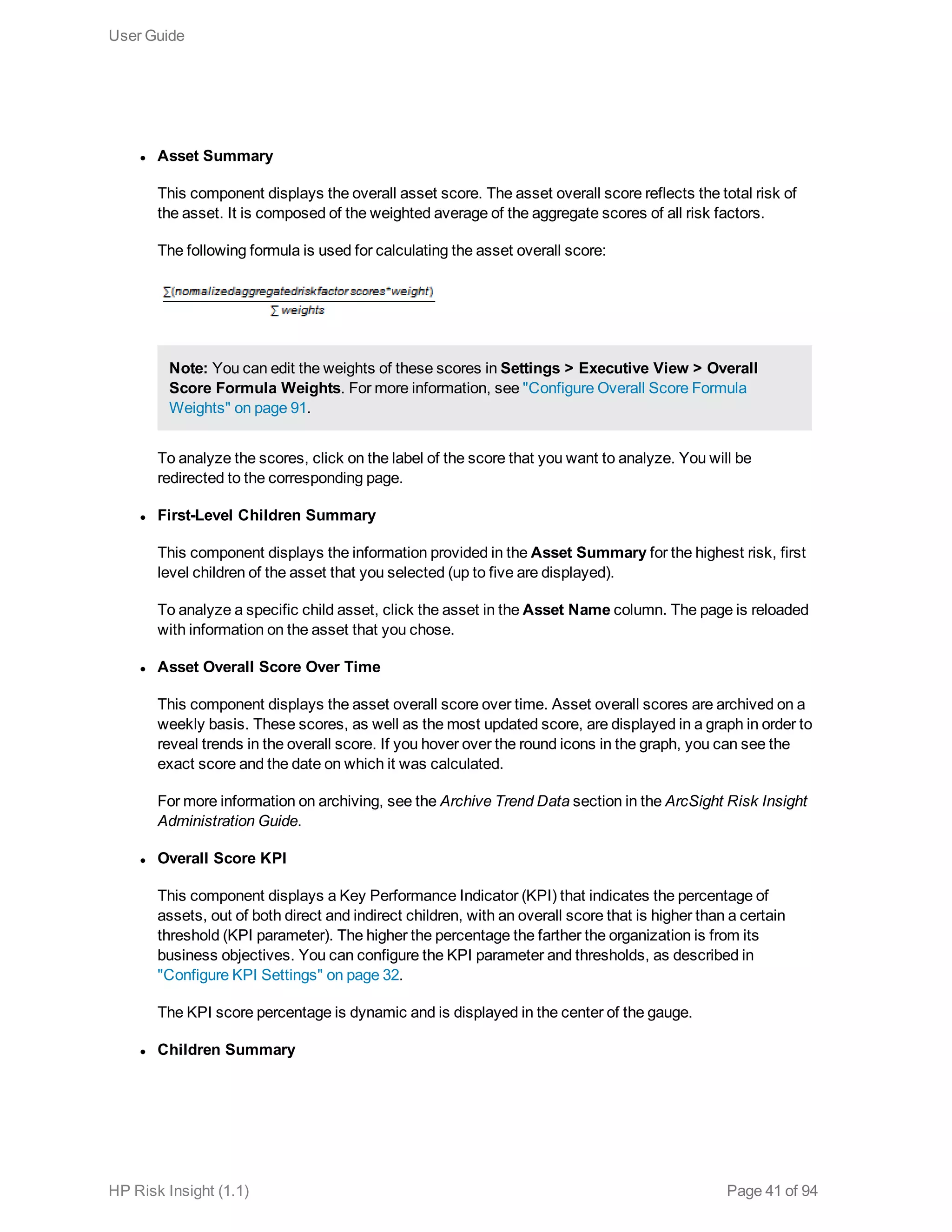
This component displays the overall asset score. The asset overall score reflects the total risk of
the asset. It is composed of the weighted average of the aggregate scores of all risk factors.
The following formula is used for calculating the asset overall score:
Note: You can edit the weights of these scores in Settings > Executive View > Overall
Score Formula Weights. For more information, see "Configure Overall Score Formula
Weights" on page 91.
To analyze the scores, click on the label of the score that you want to analyze. You will be
redirected to the corresponding page.
l First-Level Children Summary
This component displays the information provided in the Asset Summary for the highest risk, first
level children of the asset that you selected (up to five are displayed).
To analyze a specific child asset, click the asset in the Asset Name column. The page is reloaded
with information on the asset that you chose.
l Asset Overall Score Over Time
This component displays the asset overall score over time. Asset overall scores are archived on a
weekly basis. These scores, as well as the most updated score, are displayed in a graph in order to
reveal trends in the overall score. If you hover over the round icons in the graph, you can see the
exact score and the date on which it was calculated.
For more information on archiving, see the Archive Trend Data section in the ArcSight Risk Insight
Administration Guide.
l Overall Score KPI
This component displays a Key Performance Indicator (KPI) that indicates the percentage of
assets, out of both direct and indirect children, with an overall score that is higher than a certain
threshold (KPI parameter). The higher the percentage the farther the organization is from its
business objectives. You can configure the KPI parameter and thresholds, as described in
"Configure KPI Settings" on page 32.
The KPI score percentage is dynamic and is displayed in the center of the gauge.
l Children Summary
User Guide
HP Risk Insight (1.1) Page 41 of 94
This component displays the assets, both direct and indirect, with the highest overall score (up to
five are displayed).
To analyze a specific child asset, click the asset in the Asset Name column. The page is reloaded
with information on the asset that you chose.
Overall Score Heat Map
The Overall Score Heat Map enables you to view the overall score of Business and Location assets
according to their urgency. The urgency allows for more precise risk analysis.
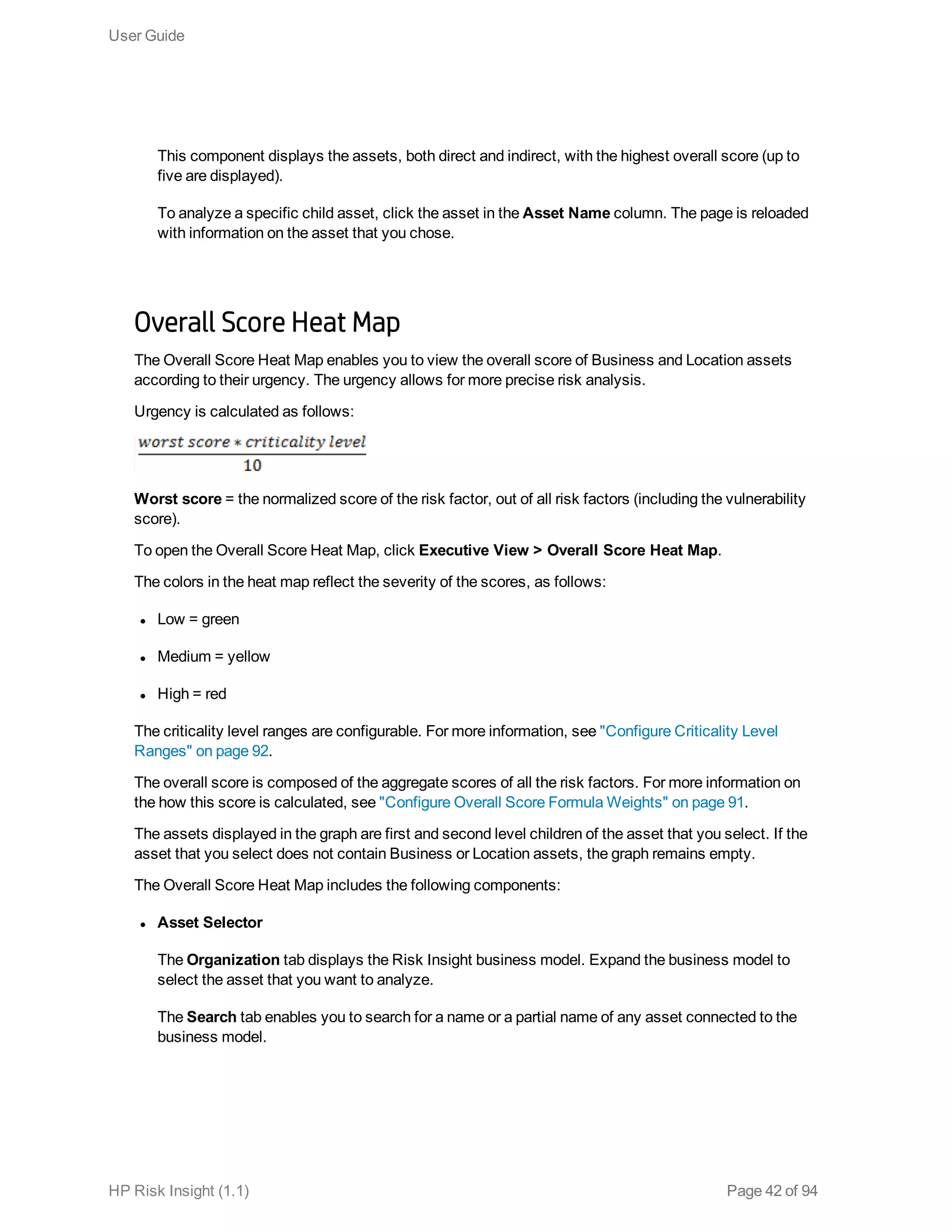
Urgency is calculated as follows:
Worst score = the normalized score of the risk factor, out of all risk factors (including the vulnerability
score).
To open the Overall Score Heat Map, click Executive View > Overall Score Heat Map.
The colors in the heat map reflect the severity of the scores, as follows:
l Low = green
l Medium = yellow
l High = red
The criticality level ranges are configurable. For more information, see "Configure Criticality Level
Ranges" on page 92.
The overall score is composed of the aggregate scores of all the risk factors. For more information on
the how this score is calculated, see "Configure Overall Score Formula Weights" on page 91.
The assets displayed in the graph are first and second level children of the asset that you select. If the
asset that you select does not contain Business or Location assets, the graph remains empty.
The Overall Score Heat Map includes the following components:
l Asset Selector
The Organization tab displays the Risk Insight business model. Expand the business model to
select the asset that you want to analyze.
The Search tab enables you to search for a name or a partial name of any asset connected to the
business model.
User Guide
HP Risk Insight (1.1) Page 42 of 94
After you have selected the asset, you can collapse the Asset Selector by clicking the Collapse
button. To expand the Asset Selector, click the Expand Asset Selector button.
l Overall Score Heat Map
The name of the asset that you selected is displayed above the graph along with its overall asset
score and its criticality level, if it is defined.
Note: Only assets that have been assessed are displayed on the graph.
The assets that are displayed in the legend are sorted alphabetically and are numbered accordingly.
Hover over the asset on the graph to display the name of the asset, the criticality level and the
overall asset score. Click the icon of the asset in the graph to highlight the asset in the legend and
vice versa. If two or more assets have the same criticality level and overall asset score, then they
both appear as a single point on the graph and the icon is displayed with an ellipsis (...). Hover over
the ellipsis icon to display information on all the assets that have the same overall asset score and
criticality level.
Risk Indicators
The Risk Indicators page is a root cause analysis tool that helps you identify risk sources in your
organization's business model. It provides you with graphical risk indication on top of your business
model map.
Risk indicators include the vulnerability score, the scores of all the risk factors defined in Risk Insight,
and the overall score. For information on how the asset overall score is calculated, see "Configure
Overall Score Formula Weights" on page 91.
You can select the risk indicator that you want to display on the business model map from the indicator
menu. When you select an indicator from the indicator menu, information is updated in the business
model map, in the asset card, and in the search pane. The name of the indicator that you selected
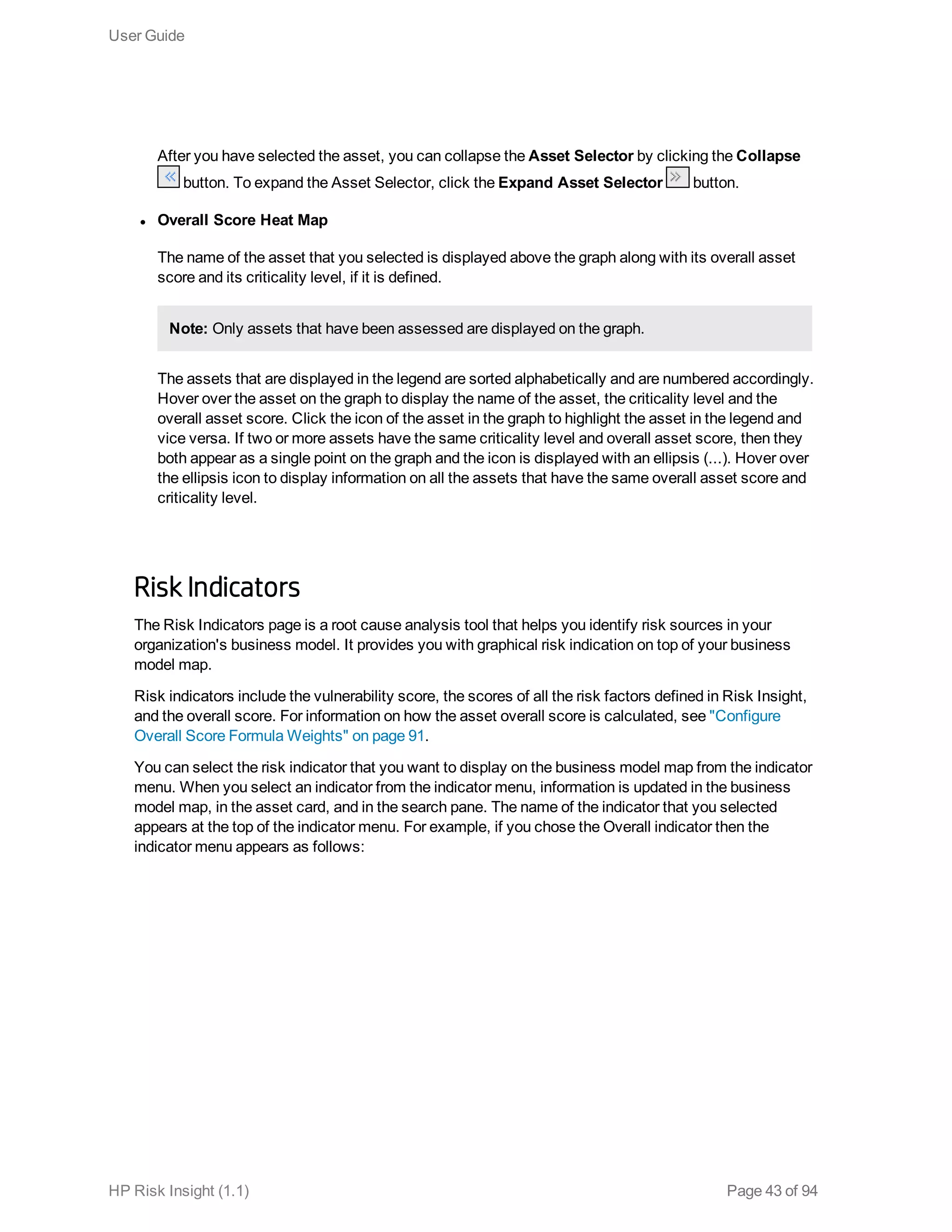
appears at the top of the indicator menu. For example, if you chose the Overall indicator then the
indicator menu appears as follows:
User Guide
HP Risk Insight (1.1) Page 43 of 94
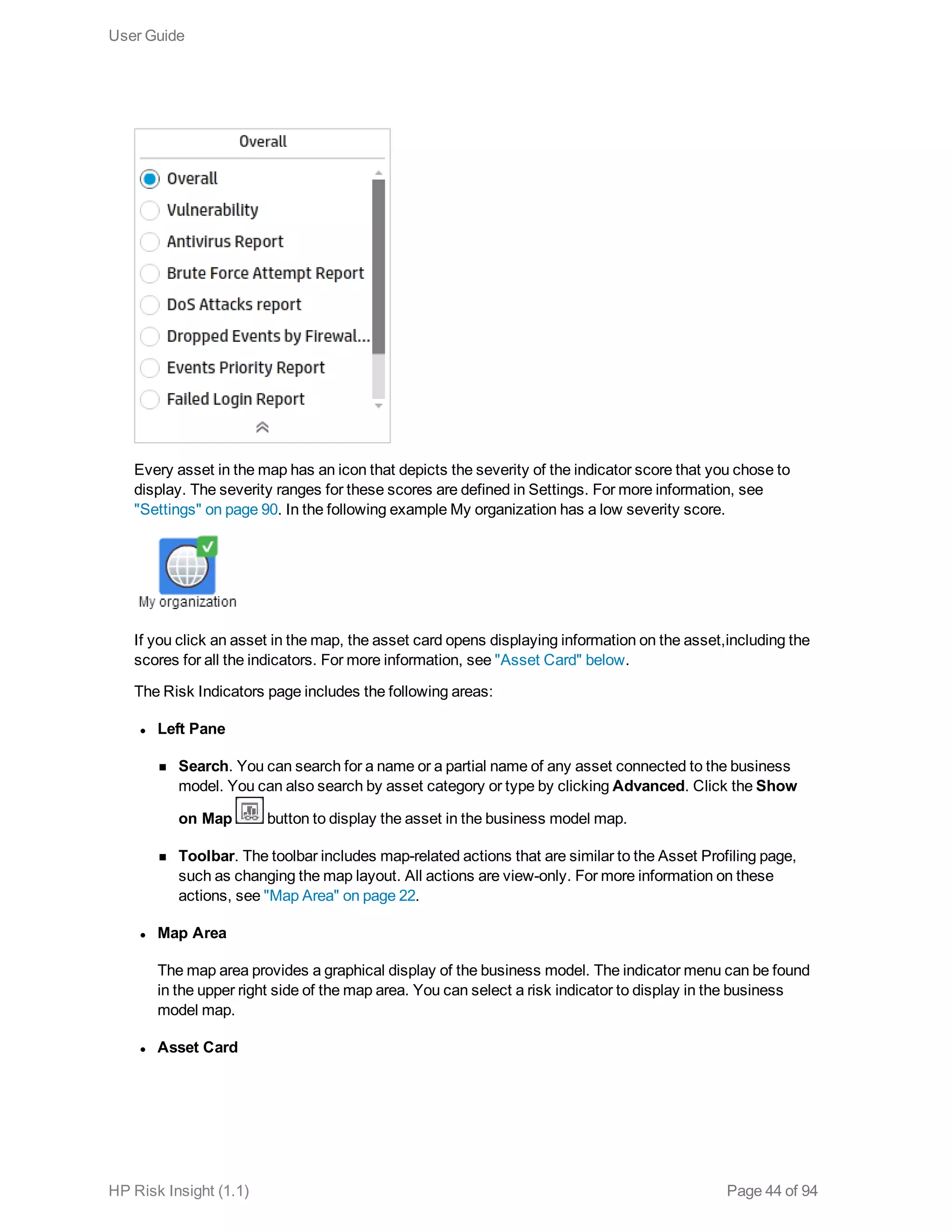
Every asset in the map has an icon that depicts the severity of the indicator score that you chose to
display. The severity ranges for these scores are defined in Settings. For more information, see
"Settings" on page 90. In the following example My organization has a low severity score.
If you click an asset in the map, the asset card opens displaying information on the asset,including the
scores for all the indicators. For more information, see "Asset Card" below.
The Risk Indicators page includes the following areas:
l Left Pane
n Search. You can search for a name or a partial name of any asset connected to the business
model. You can also search by asset category or type by clicking Advanced. Click the Show
on Map button to display the asset in the business model map.
n Toolbar. The toolbar includes map-related actions that are similar to the Asset Profiling page,
such as changing the map layout. All actions are view-only. For more information on these
actions, see "Map Area" on page 22.
l Map Area
The map area provides a graphical display of the business model. The indicator menu can be found
in the upper right side of the map area. You can select a risk indicator to display in the business
model map.
l Asset Card
User Guide
HP Risk Insight (1.1) Page 44 of 94
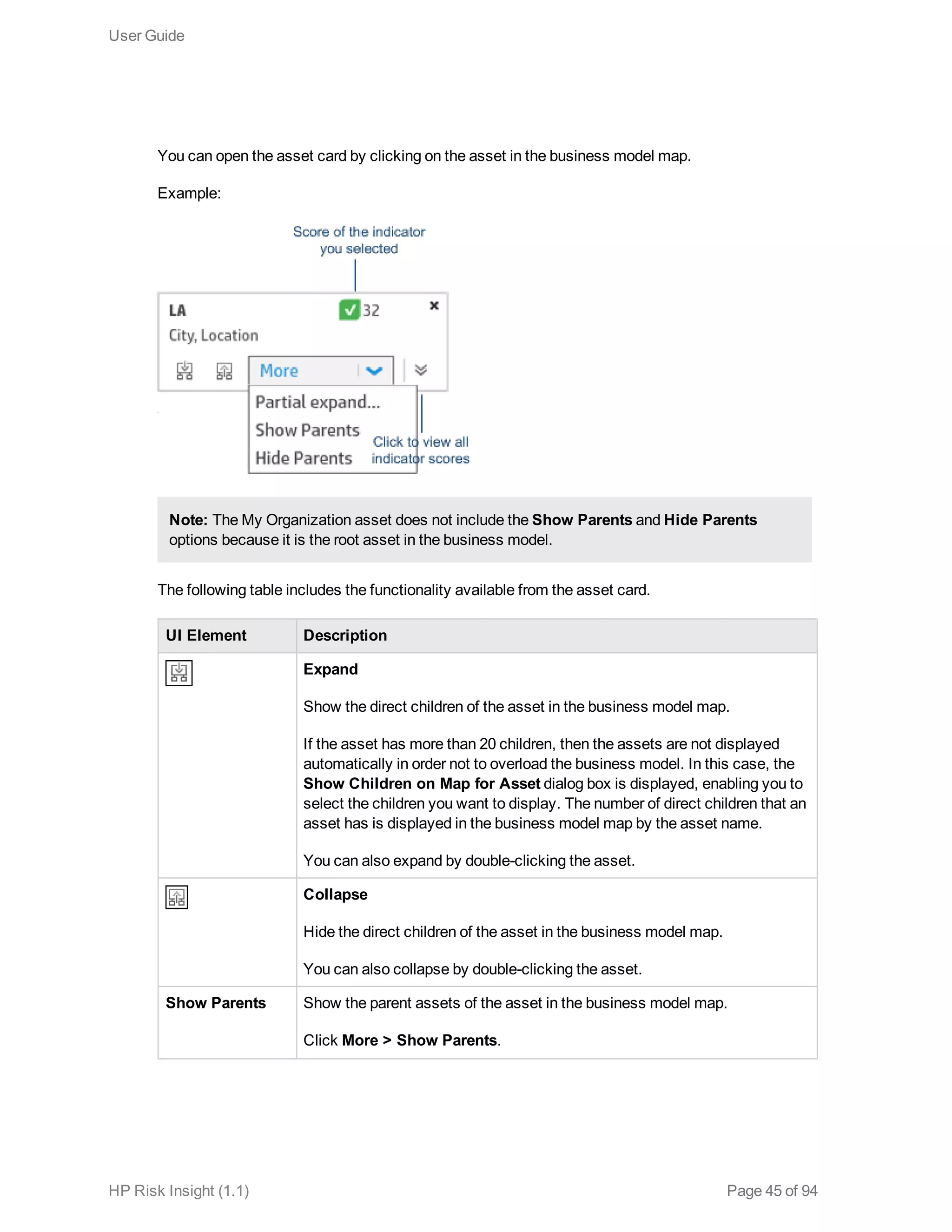
You can open the asset card by clicking on the asset in the business model map.
Example:
Note: The My Organization asset does not include the Show Parents and Hide Parents
options because it is the root asset in the business model.
The following table includes the functionality available from the asset card.
UI Element Description
Expand
Show the direct children of the asset in the business model map.
If the asset has more than 20 children, then the assets are not displayed
automatically in order not to overload the business model. In this case, the
Show Children on Map for Asset dialog box is displayed, enabling you to
select the children you want to display. The number of direct children that an
asset has is displayed in the business model map by the asset name.
You can also expand by double-clicking the asset.
Collapse
Hide the direct children of the asset in the business model map.
You can also collapse by double-clicking the asset.
Show Parents Show the parent assets of the asset in the business model map.
Click More > Show Parents.
User Guide
HP Risk Insight (1.1) Page 45 of 94
UI Element Description
Hide Parents Hide the parent assets of the asset in the business model map.
Click More > Hide Parents.
Open Indicator Scores
Click to view all indicator scores.
To analyze the scores, click on the label of the score that you want to
analyze. You will be redirected to the corresponding page.
Close Indicator Scores
Close indicator scores.
l Mini-Map
When the business model is expanded to a larger size than the map area, you can navigate it by
clicking and dragging in the mini-map area.
To expand or collapse the mini-map, click the Expand/Collapse button.
High-risk assets that are displayed with a red severity indication in the map are also marked in red in
the mini-map.
Risk Factors Dashboard
The Risk Factors Dashboard is a comprehensive dashboard that provides you with information on risk
factors that have been imported into Risk Insight from ESM . For more information on risk factors, see
"Risk Factors" on page 29.
To open the Risk Factors Dashboard, click Executive View > Risk Factors Dashboard.
l Risk Factor and Asset Selector
This component enables you to select an asset and a risk factor and display risk information on that
asset and its children.
You must first select a risk factor from the list.
The Organization tab displays the Risk Insight business model. Expand the business model to
select the asset that you want to display.
User Guide
HP Risk Insight (1.1) Page 46 of 94
The Search tab enables you to search for a name or a partial name of any asset connected to the
business model.
After you have selected the asset, you can collapse the Risk Factor and Asset Selector by
clicking the Collapse Risk Factor and Asset Selector button. To expand theRisk Factor and
Asset Selector, click the Expand Risk Factor and Asset Selector button.
l Summary
This component displays the score and aggregate score for a specific risk factor for the asset that
you have selected.
l First level Children Summary
This component displays the information provided in the Summary component for the highest risk
first-level children of the asset that you selected (up to five are displayed).
l Aggregate Risk Score Over Time
Asset aggregate risk factor scores are archived on a regular basis. The archived scores and the
current score are displayed in a graph in order to reveal trends in risk. Hover over the round icons in
the graph to see the exact risk factor score and the date on which it was calculated.
For more information on archiving, see the Archive Trend Data section in the ArcSight Risk Insight
Administration Guide.
l Risk Factor KPI
Indicates the percentage of assets, out of both direct and indirect children and the asset itself, with
an aggregate risk factor score that is higher or lower than a certain threshold (KPI parameter). The
percentage indicates how near or far the organization is from its risk objectives.
This KPI reflects the tolerance of your organization to risk. It is configurable and should be derived
from your organization's strategic plans.
User Guide
HP Risk Insight (1.1) Page 47 of 94
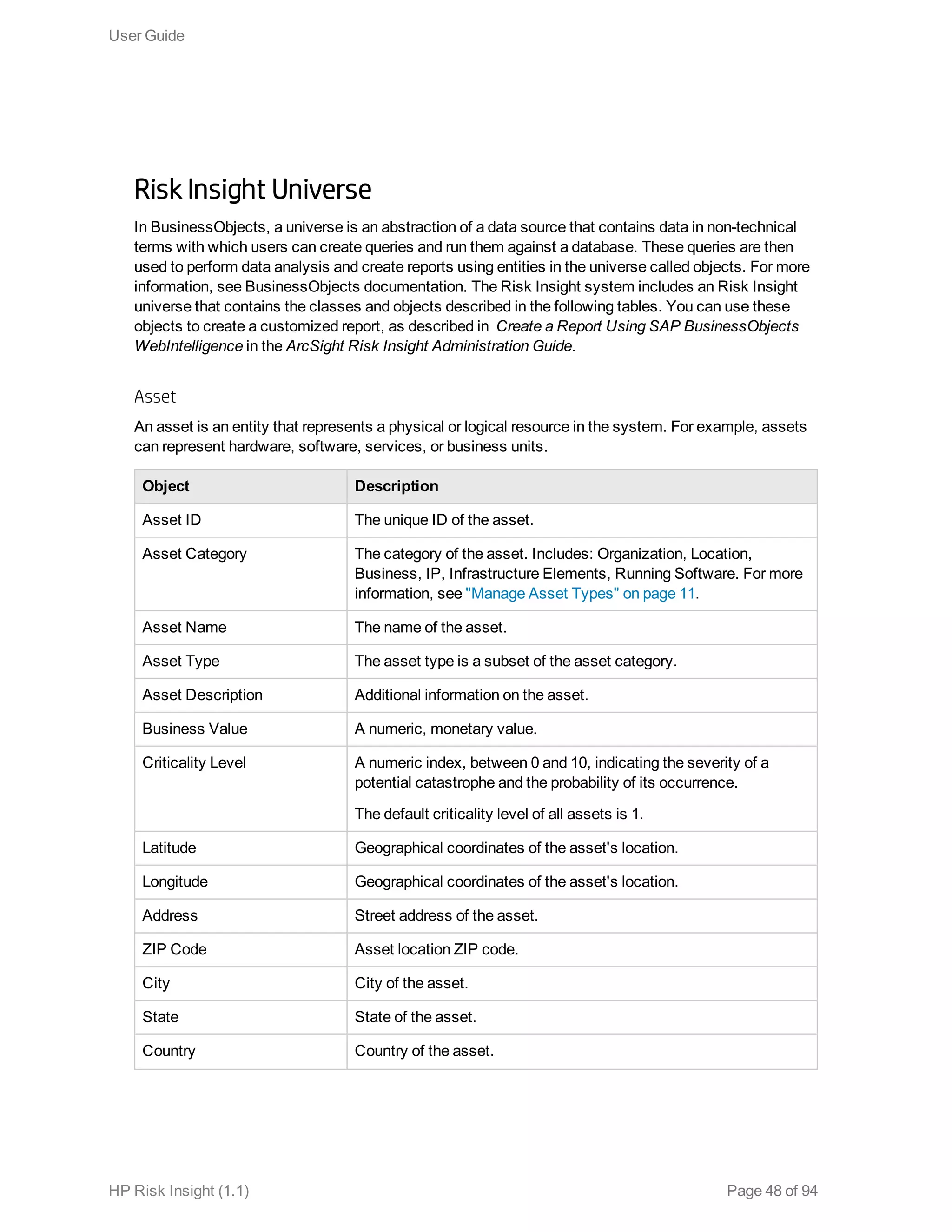
Risk Insight Universe
In BusinessObjects, a universe is an abstraction of a data source that contains data in non-technical
terms with which users can create queries and run them against a database. These queries are then
used to perform data analysis and create reports using entities in the universe called objects. For more
information, see BusinessObjects documentation. The Risk Insight system includes an Risk Insight
universe that contains the classes and objects described in the following tables. You can use these
objects to create a customized report, as described in Create a Report Using SAP BusinessObjects
WebIntelligence in the ArcSight Risk Insight Administration Guide.
Asset
An asset is an entity that represents a physical or logical resource in the system. For example, assets
can represent hardware, software, services, or business units.
Object Description
Asset ID The unique ID of the asset.
Asset Category The category of the asset. Includes: Organization, Location,
Business, IP, Infrastructure Elements, Running Software. For more
information, see "Manage Asset Types" on page 11.
Asset Name The name of the asset.
Asset Type The asset type is a subset of the asset category.
Asset Description Additional information on the asset.
Business Value A numeric, monetary value.
Criticality Level A numeric index, between 0 and 10, indicating the severity of a
potential catastrophe and the probability of its occurrence.
The default criticality level of all assets is 1.
Latitude Geographical coordinates of the asset's location.
Longitude Geographical coordinates of the asset's location.
Address Street address of the asset.
ZIP Code Asset location ZIP code.
City City of the asset.
State State of the asset.
Country Country of the asset.
User Guide
HP Risk Insight (1.1) Page 48 of 94
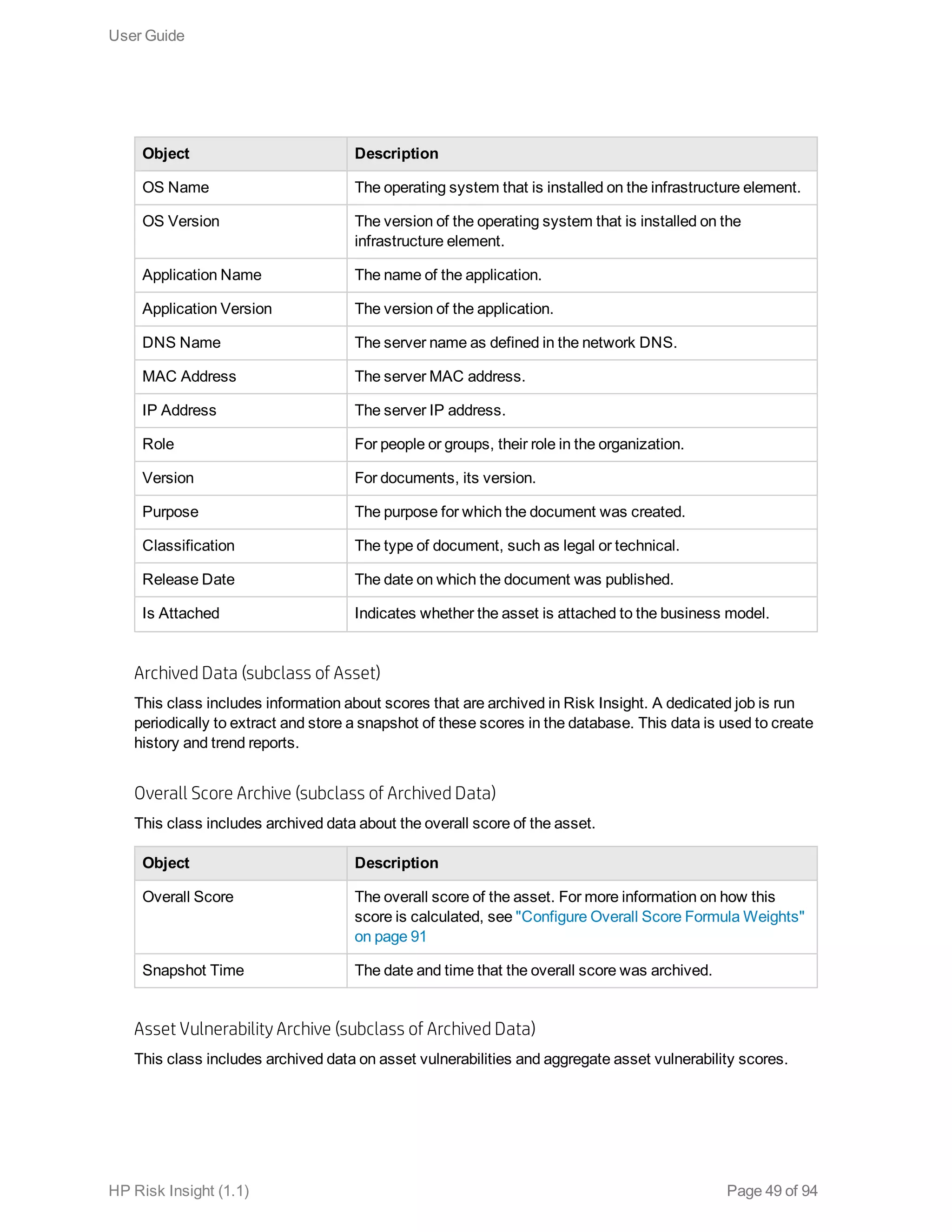
Object Description
OS Name The operating system that is installed on the infrastructure element.
OS Version The version of the operating system that is installed on the
infrastructure element.
Application Name The name of the application.
Application Version The version of the application.
DNS Name The server name as defined in the network DNS.
MAC Address The server MAC address.
IP Address The server IP address.
Role For people or groups, their role in the organization.
Version For documents, its version.
Purpose The purpose for which the document was created.
Classification The type of document, such as legal or technical.
Release Date The date on which the document was published.
Is Attached Indicates whether the asset is attached to the business model.
Archived Data (subclass of Asset)
This class includes information about scores that are archived in Risk Insight. A dedicated job is run
periodically to extract and store a snapshot of these scores in the database. This data is used to create
history and trend reports.
Overall Score Archive (subclass of Archived Data)
This class includes archived data about the overall score of the asset.
Object Description
Overall Score The overall score of the asset. For more information on how this
score is calculated, see "Configure Overall Score Formula Weights"
on page 91
Snapshot Time The date and time that the overall score was archived.
Asset Vulnerability Archive (subclass of Archived Data)
This class includes archived data on asset vulnerabilities and aggregate asset vulnerability scores.
User Guide
HP Risk Insight (1.1) Page 49 of 94
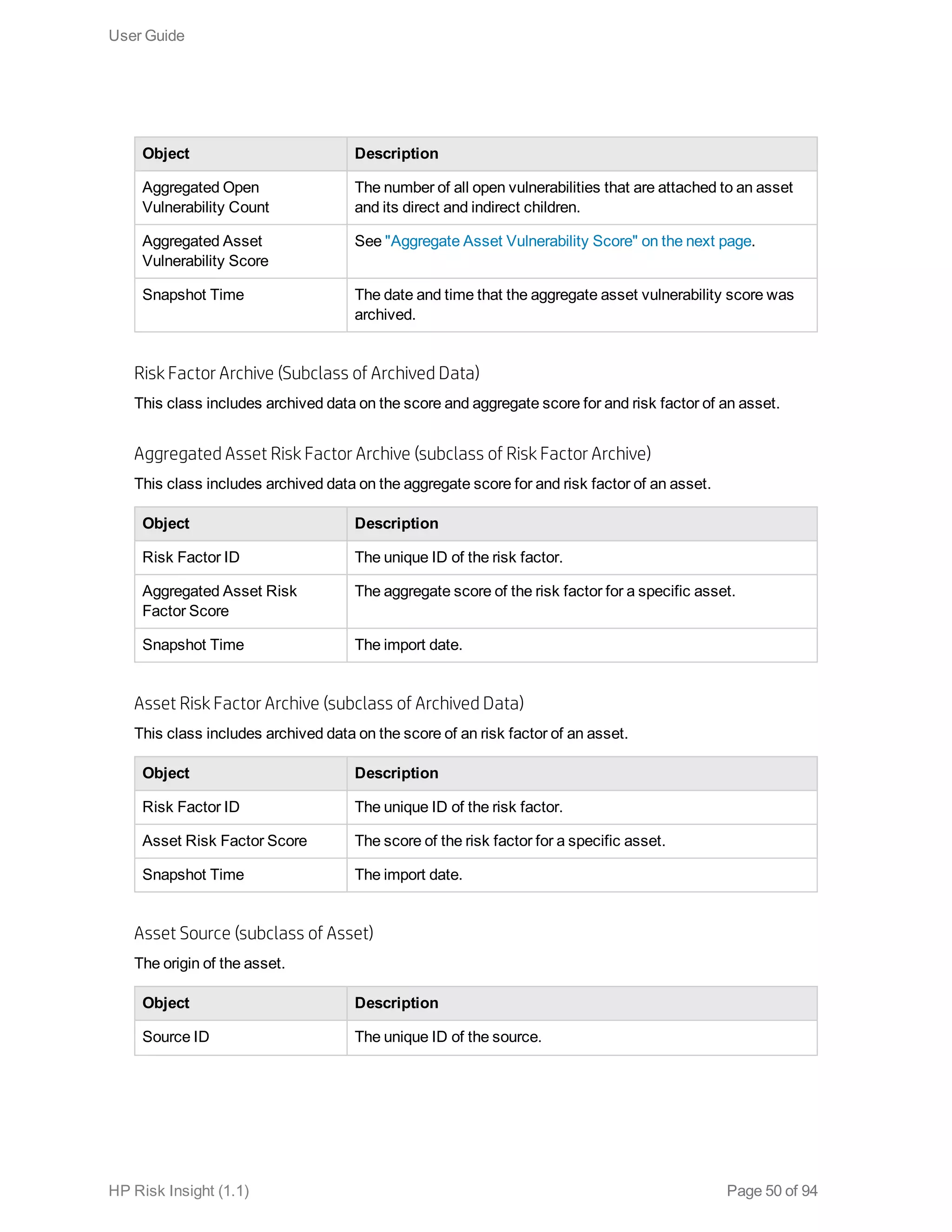
Object Description
Aggregated Open
Vulnerability Count
The number of all open vulnerabilities that are attached to an asset
and its direct and indirect children.
Aggregated Asset
Vulnerability Score
See "Aggregate Asset Vulnerability Score" on the next page.
Snapshot Time The date and time that the aggregate asset vulnerability score was
archived.
Risk Factor Archive (Subclass of Archived Data)
This class includes archived data on the score and aggregate score for and risk factor of an asset.
Aggregated Asset Risk Factor Archive (subclass of Risk Factor Archive)
This class includes archived data on the aggregate score for and risk factor of an asset.
Object Description
Risk Factor ID The unique ID of the risk factor.
Aggregated Asset Risk
Factor Score
The aggregate score of the risk factor for a specific asset.
Snapshot Time The import date.
Asset Risk Factor Archive (subclass of Archived Data)
This class includes archived data on the score of an risk factor of an asset.
Object Description
Risk Factor ID The unique ID of the risk factor.
Asset Risk Factor Score The score of the risk factor for a specific asset.
Snapshot Time The import date.
Asset Source (subclass of Asset)
The origin of the asset.
Object Description
Source ID The unique ID of the source.
User Guide
HP Risk Insight (1.1) Page 50 of 94
Object Description
Source Name l If assets are created in Risk Insight, then the source name is
empty.
l If assets are imported from an external asset repository, then the
source name is the same as the connector name defined in the
Configuration module.
l For the Organization asset the source name is System.
External ID The ESM asset ID.
Overall Asset Score (subclass of Asset)
Object Description
Overall
Asset
Score
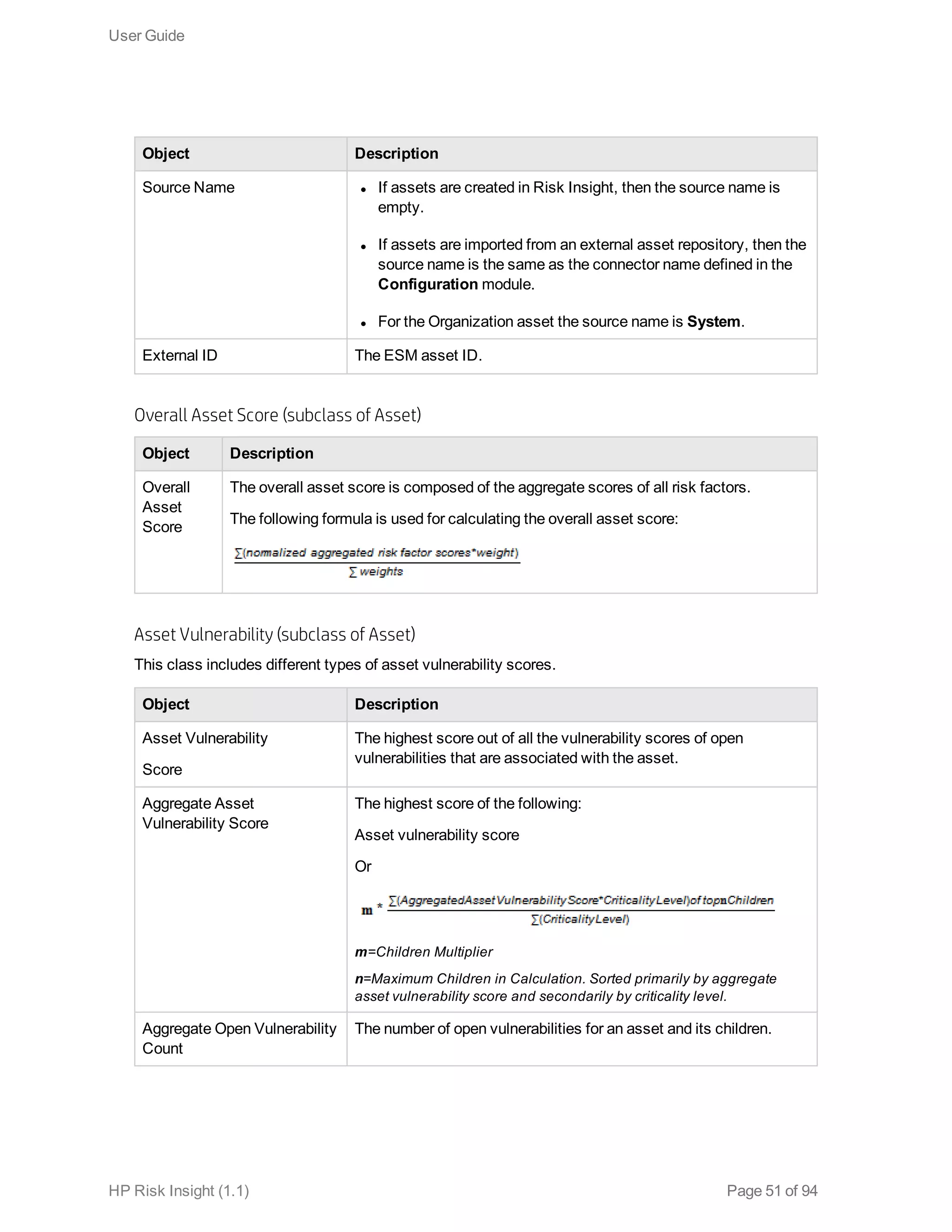
The overall asset score is composed of the aggregate scores of all risk factors.
The following formula is used for calculating the overall asset score:
Asset Vulnerability (subclass of Asset)
This class includes different types of asset vulnerability scores.
Object Description
Asset Vulnerability
Score
The highest score out of all the vulnerability scores of open
vulnerabilities that are associated with the asset.
Aggregate Asset
Vulnerability Score
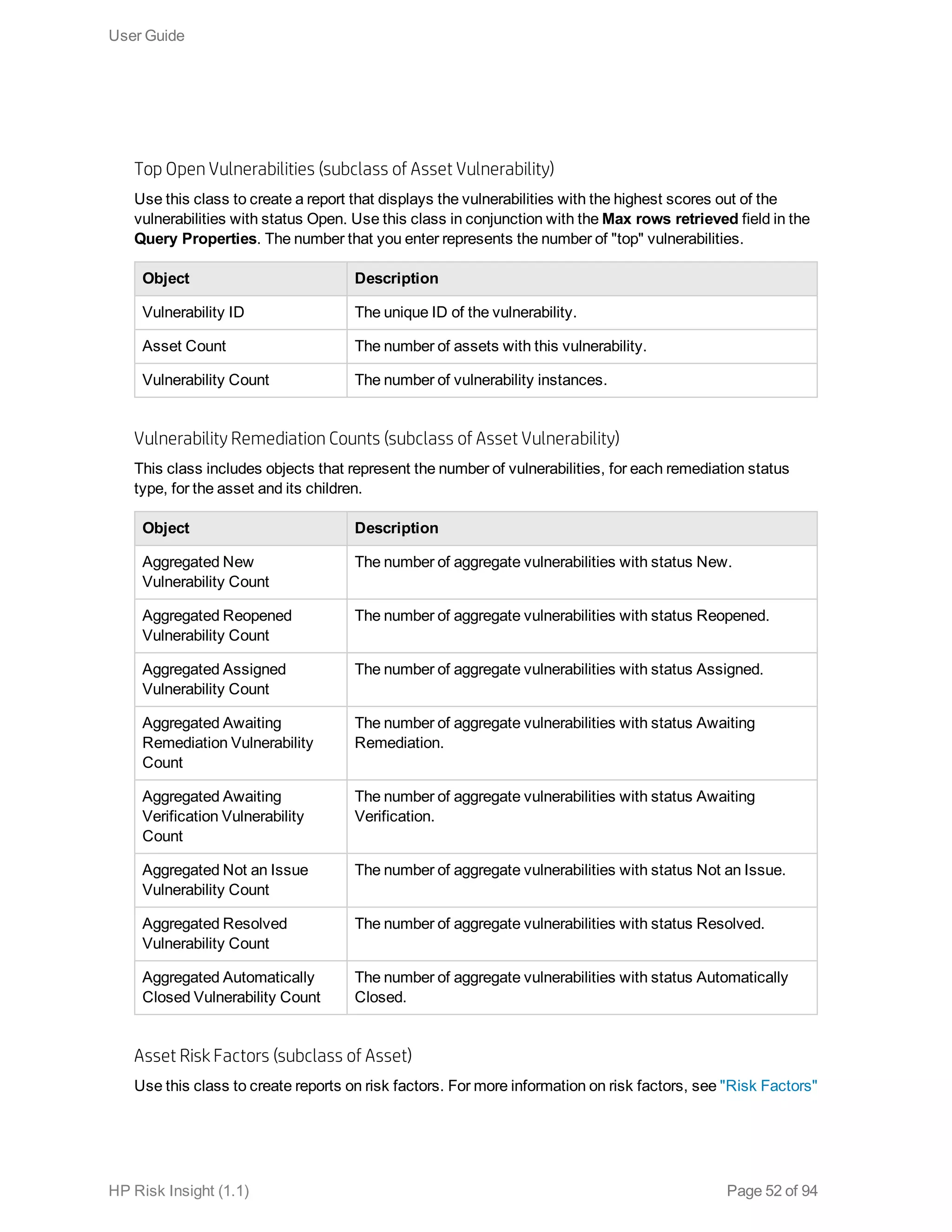
The highest score of the following:
Asset vulnerability score
Or
m=Children Multiplier
n=Maximum Children in Calculation. Sorted primarily by aggregate
asset vulnerability score and secondarily by criticality level.
Aggregate Open Vulnerability
Count
The number of open vulnerabilities for an asset and its children.
User Guide
HP Risk Insight (1.1) Page 51 of 94
Top Open Vulnerabilities (subclass of Asset Vulnerability)
Use this class to create a report that displays the vulnerabilities with the highest scores out of the
vulnerabilities with status Open. Use this class in conjunction with the Max rows retrieved field in the
Query Properties. The number that you enter represents the number of "top" vulnerabilities.
Object Description
Vulnerability ID The unique ID of the vulnerability.
Asset Count The number of assets with this vulnerability.
Vulnerability Count The number of vulnerability instances.
Vulnerability Remediation Counts (subclass of Asset Vulnerability)
This class includes objects that represent the number of vulnerabilities, for each remediation status
type, for the asset and its children.
Object Description
Aggregated New
Vulnerability Count
The number of aggregate vulnerabilities with status New.
Aggregated Reopened
Vulnerability Count
The number of aggregate vulnerabilities with status Reopened.
Aggregated Assigned
Vulnerability Count
The number of aggregate vulnerabilities with status Assigned.
Aggregated Awaiting
Remediation Vulnerability
Count
The number of aggregate vulnerabilities with status Awaiting
Remediation.
Aggregated Awaiting
Verification Vulnerability
Count
The number of aggregate vulnerabilities with status Awaiting
Verification.
Aggregated Not an Issue
Vulnerability Count
The number of aggregate vulnerabilities with status Not an Issue.
Aggregated Resolved
Vulnerability Count
The number of aggregate vulnerabilities with status Resolved.
Aggregated Automatically
Closed Vulnerability Count
The number of aggregate vulnerabilities with status Automatically
Closed.
Asset Risk Factors (subclass of Asset)
Use this class to create reports on risk factors. For more information on risk factors, see "Risk Factors"
User Guide
HP Risk Insight (1.1) Page 52 of 94
on page 29.
Object Description
Risk Factor ID The unique ID of the risk factor.
Risk Factor Comment Additional information to the risk factor score imported from the risk
source.
Risk Factor Score The score for a specific asset for a risk factor imported from an
external source.
Aggregated Risk Factor
Score
The aggregate score for a specific asset for a risk factor imported
from an external source.
Asset CPE (subclass of Asset)
This class includes information on CPEs that are associated with the assets in the business model.
Object Description
CPE ID The unique ID of the CPE.
CPE Name The name of the CPE is composed of the vendor name, the product
name, and the version of the product, in the following
format: vendor:product:version.
Asset Product (subclass of Asset CPE)
This class includes information on products that are included in the CPE definitions, for CPEs that are
associated with assets in the business model.
Object Description
Product ID The unique ID of the product.
Product Name The name of the product as it appears in the CPE.
Asset Vendor (subclass of Asset Product)
This class includes information on vendors that are included in the CPE definitions, for CPEs that are
associated with assets in the business model.
Object Description
Vendor ID The unique ID of the vendor.
Vendor Name The name of the vendor as it appears in the CPE.
User Guide
HP Risk Insight (1.1) Page 53 of 94
Asset Children
Use this class to create reports on an asset's children.
Object Description
Parent Asset ID Parent asset unique ID. This asset is the starting point for the asset
hierarchy.
Children (subclass of Asset Children)
Use this class to create reports on an asset's children.
Object Description
Child Asset ID Child asset unique ID.
Hierarchy Level The position of the asset in the hierarchical tree, in reference to the
parent asset (Parent Asset ID object).
Asset Profiling
This class includes information that is relevant to asset properties.
Criticality Level Ranges (subclass of Asset profiling)
This class includes color indication for the criticality level ranges.
Object Description
Medium Criticality level within a medium range is displayed in yellow. Score
below the medium range is displayed in green.
High Criticality level within the high range is displayed in red.
Vulnerability
A vulnerability is a flaw or a weakness in the software (in the network layer or the application layer) or a
system configuration issue that can be exploited by an attacker and used to gain access to a system or
a network.
Object Description
Count (Distinct Vulnerability
ID)
Counts vulnerability IDs. This means that if two records have the
same vulnerability ID, then they will count as one. This object only
works when you query a table that has an Vulnerability ID field.
User Guide
HP Risk Insight (1.1) Page 54 of 94
Object Description
Vulnerability ID A common classification ID. This ID can be defined in the
vulnerability dictionary or not.
It can be a CVE, CCE, or identification provided by the scanner. It is
displayed in the User Interface.
Vulnerability Internal ID The unique ID of the vulnerability. It is not displayed in the User
Interface.
Vulnerability Name A descriptive name of the vulnerability.
Vulnerability Type Network, Application, and Configuration
Vulnerability Score The vulnerability score is the severity level of the vulnerability
expressed as a number between 0 and 10. It is calculated by Risk
Insight labs.
The scoring system varies between the different vulnerability types:
l Network and Web application vulnerabilities
The score is CVSS version 2.0 compliant. For more information,
see "Common Vulnerability Scoring System" on page 68. Scores
of new vulnerabilities that do not exist in the dictionary are
imported from the scanner and are normalized to the Risk Insight
scoring system.
l Configuration vulnerabilities
 The score is determined according to the check results:
n Passed (the configuration is correct): the score is 0.
n Failed (the configuration is incorrect): the score is 10.
n Unknown (there is not enough information to determine if the
check failed or passed): the score is 5.
User Guide
HP Risk Insight (1.1) Page 55 of 94
Object Description
Vulnerability Location The location displayed depends on the type of the vulnerability. Each
type has the following location formats:
l Network and configuration: <Hostname>:<Network Port>.
Hostname and IP address are interchangeable.
l Application: <Normalized URI>:<Vulnerable Parameter>.
The original URI indicating the location of the vulnerability is
normalized by the Vulnerability Import Job. The vulnerable
parameter is isolated from the query string passed in the original
URI.
Vulnerability Number of
Times Reported
The number of times that a specific vulnerability is reported from
various sources.
Vulnerability First Reported
On
The date and time of the first report of the vulnerability, as recorded
by the external source from which the vulnerability was imported.
Vulnerability Last Reported
On
The date and time of the last report of the vulnerability, as recorded
by the external source from which the vulnerability was imported.
Vulnerability Statuses (subclass of Vulnerability)
This class includes the names and ID of all types of vulnerability statuses.
Vulnerability Status (subclass of Vulnerability Statuses)
This class includes the names and ID for all vulnerability statuses.
Object Description
Vulnerability Status ID The unique ID of the vulnerability status.
Vulnerability Status Name Indicates the values Open or Closed.
Vulnerability Remediation Status (subclass of Vulnerability Statuses)
This class includes the names and ID for all remediation statuses.
Object Description
Vulnerability Remediation
Status ID
The unique ID of the vulnerability remediation status.
User Guide
HP Risk Insight (1.1) Page 56 of 94
Object Description
Vulnerability Remediation
Status Name
Indicates the values New, Reopened, Assigned, Awaiting
Remediation, Not an Issue, Awaiting Verification, Resolved, or
Automatically Closed.
Vulnerability Score Ranges (subclass of Vulnerability)
This class includes color indication for the vulnerability score ranges.
Object Description
Medium Scores within a medium range are displayed in yellow. Scores below
the medium range are displayed in green.
High Scores within the high range are displayed in red.
Vulnerability Dictionary
This class includes information on vulnerabilities in the vulnerability dictionary.
Object Description
Count(Distinct Vulnerability
ID)
Counts vulnerability IDs. This means that if two records have the
same vulnerability ID, then they will count as one. This object only
works when you query a table that has an Vulnerability ID field.
Vulnerability ID The unique ID of the vulnerability.
Vulnerability Type Network, Application, and Configuration
Vulnerability Details A detailed description of the vulnerability.
Vulnerability Title A short description of the vulnerability.
For configuration vulnerabilities, the title and the details are identical.
Vulnerability Score The vulnerability score is the severity level of the vulnerability
expressed as a number between 0 and 10.
The score of a vulnerability is calculated by Risk Insight labs. It is
CVSS version 2.0 compliant. For more information, see "Common
Vulnerability Scoring System" on page 68. Scores of new
vulnerabilities that do not exist in the dictionary are imported from the
scanner and are normalized to the Risk Insight scoring system.
CPE (subclass of Vulnerability Dictionary)
This class includes information on CPEs that are associated with the vulnerabilities in the vulnerability
dictionary.
User Guide
HP Risk Insight (1.1) Page 57 of 94
Object Description
CPE ID The unique ID of the CPE.
CPE Name The name of the CPE is composed of the vendor name, the product
name, and the version of the product, in the following
format: vendor:product:version.
Product (subclass of CPE)
This class includes information on products that are included in the CPE definitions, for CPEs that are
associated with vulnerabilities in the vulnerability dictionary.
Object Description
Product ID The unique ID of the product.
Product Name The name of the product as it appears in the CPE.
Vendor (subclass of Product)
This class includes information on vendors that are included in the CPE definitions, for CPEs that are
associated with vulnerabilities in the vulnerability dictionary.
Object Description
Vendor ID The unique ID of the vendor.
Vendor Name The name of the vendor as it appears in the CPE.
Overall Score
This class includes overall score settings.
Overall Score Ranges (subclass of Overall Score)
This class includes color indication for the overall score ranges.
Object Description
Medium Scores within a medium range are displayed in yellow. Scores below
the medium range are displayed in green.
High Scores within the high range are displayed in red.
Overall Score Weights (subclass of Overall Score)
This class includes the weights for all the factors used to calculate the overall asset score. This value
User Guide
HP Risk Insight (1.1) Page 58 of 94
can be edited in Settings > Executive View > Overall Score formula Weights.
Object Description
Vulnerability Weight The weight applied to an asset's aggregate vulnerability score when
calculating the asset's overall score.
Risk Factor Weights (subclass of Overall Score Weights)
This class includes the weights for all the risk factors used to calculate the overall asset score . This
value can be edited in Settings > Executive View > Overall Score formula Weights
Object Description
Risk Factor ID The unique ID of the risk factor.
Risk Factor Weight The weight applied to an asset's aggregate risk factor score when
calculating the asset's overall score.
Risk Factors
General information about the risk factors and settings.
Risk Factor (Subclass of Risk Factors)
Information about an risk factor.
Object Description
Risk Factor ID The unique ID of the risk factor.
Risk Factor Name The name of the risk factor as defined in Risk Insight.
Risk Factor Description The description of the risk factor as defined in Risk Insight.
Risk Factor Date The timestamp of the import job.
Risk Factor KPI ID The unique ID of the KPI of the risk factor.
Risk Factor Ranges (Subclass of Risk Factors)
This class includes risk factor settings.
Object Description
Medium Scores within a medium range are displayed in yellow. Score below
the medium range are displayed in green or red, depending on the
directionality of the severity.
User Guide
HP Risk Insight (1.1) Page 59 of 94
Object Description
High Scores within the high range are displayed in red or green, depending
on the directionality of the severity.
Minimum The first number in the score range.
Maximum The last number in the score range.
Precision The number of digits after the decimal point that you want to display.
Limited to five digits.
Lower score is best The directionality of the score severity. For example, a low score is
considered low risk while a high score is considered high risk.
KPIs
This class includes properties of key performance indicators (KPIs).
Object Description
KPI ID The unique ID of the KPI.
KPI Name The display name of the KPI. This name is displayed as the title in
the KPI component. The KPI name is defined in the
KPI Management page.
KPI Description The description of the KPI is displayed in the KPI component. The
KPI parameter can be embedded in the KPI description. The
KPI name is defined in the KPI Management page.
KPI High Threshold A KPI score percentage within the high range is displayed in red.
KPI Medium Threshold A KPI score percentage within a medium range is displayed in
yellow. A KPI score percentage below the medium range is
displayed in green.
KPI Lower is Better The directionality of the score severity. For example, a low score is
considered low risk while a high score is considered high risk.
KPI Parameter The KPI Parameter is a threshold that indicates a desirable or an
undesirable result. For example, in a KPI that displays the
percentage of assets with an overall score higher than 20, then “20”
is the KPI Parameter. In this case, scores that are higher than 20 are
not desirable.
Generic Prompts
This class can be used to easily create a query filter without inputting the prompt value.
User Guide
HP Risk Insight (1.1) Page 60 of 94
Object Description
@KPIPrompt Can be used to create a query filter without the need to input the
value "kpiId".
@AssetPrompt Can be used to create a query filter without the need to input the
value "assetId".
@RiskFactorPrompt Can be used to create a query filter without the need to input the
value "riskFactorId".
Generic Objects
This class includes miscellaneous classes and objects.
Object Description
Snapshot Age (Days) The age of the snapshot in days (as opposed to the snapshot time,
which holds the date of the snapshot).
Current Time The date that the report is generated.
Aggregate Functions (subclass of Generic Objects)
This class includes objects that are used to count entities (such as assets). Using these objects for
counting entities helps reduce performance problems. These objects can be used only within a query.
For example, you can create a query that counts all the assets with asset type IP, but you cannot use
these objects to count all the assets in the system.
Object Description
Count(*) Counts records in a table.
Count(Distinct Asset ID) Counts asset IDs. This means that if two records have the same
asset ID, then they will count as one. This object only works when
you query a table that has an Asset ID field.
Score Severity (subclass of Generic Objects)
This class includes the values for score severity.
Object Description
Score Severity Displays one of the following values: Low, Medium, or High.
Scores Rank (subclass of Generic Objects)
The objects in this class are used to rank asset scores using a weighted average in order to display "top
User Guide
HP Risk Insight (1.1) Page 61 of 94
#" assets in reports. The rank itself is not displayed in the report.
Object Description
Aggregated Asset
Vulnerability Score Rank
Used for ranking aggregate vulnerability scores.
Overall Asset Score Rank Used for ranking the overall asset score.
Asset Vulnerability Score
Rank
Used for ranking the direct asset vulnerability scores.
Vulnerability Score Rank Used for ranking the vulnerability scores.
Aggregated Risk Factor
Score Rank
Used for ranking the aggregate risk factor scores.
Universe Query Contexts
The Risk Insight Universe includes predefined contexts.The following table includes a description for
all Risk Insight query contexts. For detailed information on ambiguous queries and query contexts, see
the Query Contexts section in the Building Reports with BusinessObjects Web Intelligence User
Guide.
Context Name Description
Asset Scores
Context
Defines the group of objects with which you can create a report that includes
the various aggregate scores on an asset
Asset Profiling
Context
Defines the group of objects with which you can create a report that includes
information on the business model, such as a printout of the asset hierarchy.
Vulnerability
Context
Defines the group of objects with which you can create a report that includes
information on vulnerabilities on the asset level. For example, the dashboard
reports in the vulnerability dashboard utilize the Vulnerability Context.
Vulnerability
Aggregation
Context
Defines the group of objects with which you can create a report that includes
information on vulnerabilities on the asset in addition to its aggregate scores.
Asset Risk Factor
Score Context
Defines the group of objects with which you can create a report on the risk
factor scores of an asset.
Aggregated Asset
Risk Factor Score
Context
Defines the group of objects with which you can create a report on the
aggregate risk factor scores of an asset.
Asset Risk Factor
Score Archive
Context
Defines the group of objects with which you can create a report on the
archived risk factor scores of an asset.
User Guide
HP Risk Insight (1.1) Page 62 of 94
Context Name Description
Aggregated Asset
Risk Factor Score
Archive Context
Defines the group of objects with which you can create a report on the
archived aggregate risk factor scores of an asset.
User Guide
HP Risk Insight (1.1) Page 63 of 94
Chapter 6: Vulnerability Management
In Risk Insight, a vulnerability is a flaw or a weakness in a software application or a system
configuration issue that can be exploited by an attacker and used to gain access to a system or a
network or impact the confidentiality, integrity, and availability of a system or a network. For example, a
user account that does not have a password, or an input validation error, such as SQL injection.
Risk Insight supports three types of vulnerabilities:
l Network
l Application
l Configuration
For more information on each type, see "Vulnerability Types" on page 68.
The Vulnerabilities module enables you to manage the life cycle of vulnerabilities in your organization
including collection, aggregation, prioritization, and remediation. For more information on the
vulnerability life cycle, see "About the Vulnerability Life Cycle" on page 66. You can manage the
vulnerability's life cycle by applying statuses aiding you in managing remediation, as described in
"Manage the Vulnerability Life Cycle" on page 69.
The Vulnerabilities module enables you to view vulnerabilities that affect an asset and its children in a
summarized view or a detailed view. Both views offer filtering capabilities so that, for example,
vulnerabilities can be viewed within a specific score range or a specific location.
Risk Insight assigns vulnerabilities to specific assets in your business model, but you can also attach
or remove vulnerabilities to assets manually, as described in "Attach a Vulnerability to an Asset" on
page 70. Asset vulnerability scores are derived from vulnerability scores (see "Common Vulnerability
Scoring System" on page 68) and the asset's criticality level (see "Criticality Level" on page 20) and are
trickled up and aggregated to top-level assets, providing business context to the state of your
organization's security.
Risk Insight imports vulnerability information from output generated by the following vulnerability
assessment tools:
l Tenable Nessus Vulnerability Scanner
l McAfee Vulnerability Manager (Foundscan)
l Qualys Guard
l Rapid7 Nexpose
l HP WebInspect
The vulnerability information is imported into Risk Insight using ArcSight SmartConnectors. For
information on deploying ArcSight SmartConnectors, see the Import Vulnerabilities From Vulnerability
Assessment Tools section in the ArcSight Risk Insight Deployment Guide.
HP Risk Insight (1.1) Page 64 of 94
Risk Insight is CVE (Common Vulnerabilities and Exposures) and CCE (Common Configuration
Enumeration) compliant, aligned with most established dictionary of common names for publicly known
information security vulnerabilities. However, Risk Insight also supports management of vulnerabilities
from sources that do not have a CVE or a CCE classification.
The same vulnerability can be reported numerous times and by numerous vulnerability assessment
tools. Risk Insight aggregates these reports into a single vulnerability, in order to eliminate duplication
of data, allowing you to manage the vulnerability only once.
User Guide
HP Risk Insight (1.1) Page 65 of 94
About the Vulnerability Life Cycle
In Risk Insight, the vulnerability life cycle is managed by using the vulnerability's status (see "Status"
on page 75) and the vulnerability's remediation status (see "Remediation Status" on page 74). For more
information about managing the vulnerability life cycle, see "Manage the Vulnerability Life Cycle" on
page 69. Vulnerability remediation has both manual and automatic aspects. For more information on the
automatic aspects, see the About the Vulnerability Import Job section in the Risk Insight Deployment
Guide.
The following example outlines how to manage the vulnerability life cycle:
1. When a vulnerability occurrence is first imported into Risk Insight, it can have one of the following
status combinations:
n A New remediation status and an Open status. Remediation status Reopened is handled the
same as remediation status New.
n A Passed remediation status and a Closed status, relevant only for configuration
vulnerabilities. Does not require further handling.
2. A user with an appropriate role assigns New and Reopened vulnerabilities to users for handling.
Note: Users can use the Notes parameter to communicate information to one another or for
any other comments that the user wants to document.
3. The user to whom the vulnerability is assigned must first determine whether the vulnerability is an
actual problem.
n If the vulnerability is not found to be significant, then the user can close it, and change its
remediation status to Not an Issue. Cases in which vulnerabilities are identified as non-issues
include vulnerabilities that have very low scores, when the organization uses security tools that
provide virtual patching to solve security issues in the network, and any other case in which
insignificant reports unnecessarily overload the system.
n If the vulnerability is found to be significant, then the user investigates methods for solving the
problem. The user can use the Solution parameter (see "Solution" on page 78 to help solve the
problem. When the solution is found, the user changes the remediation status to Awaiting
Remediation.
4. After the vulnerability is fixed, the user changes the vulnerability's remediation status to Awaiting
Verification.
5. The user verifies that the vulnerability is fixed by rescanning the network.
6. If the vulnerability is not reported, then the user changes the vulnerability status to Closed and the
remediation status to Resolved.
User Guide
HP Risk Insight (1.1) Page 66 of 94
7. If a new vulnerability instance is reported for a closed and resolved vulnerability, then the
vulnerability status is changed to Open and the remediation status is changed to Reopened,
automatically.
The following flowchart depicts the process described above.
User Guide
HP Risk Insight (1.1) Page 67 of 94
Vulnerability Types
Risk Insight distinguishes between three vulnerability types:
l Web Application (referred to as "Application" in the user interface)
l Network
l Configuration
Web Application
Web application vulnerabilities are vulnerabilities that are found by Web application vulnerability
scanners. A Web application vulnerability scanner communicates with a Web application (a 3rd party
application or a custom application) through the application's URL in order to identify vulnerabilities in
the application and its architecture. The scanner searched for security flaws based on a database of
known flaws. Examples of Web application vulnerabilities include: cross-site scripting, SQL injection,
and remote file inclusion.
Network
Network vulnerabilities are vulnerabilities that are found by network vulnerability scanners. A network
vulnerability scanner scans all the network elements (such as operating system, ports, services, and
firewalls) and runs tests applicable to each host. An example of a network vulnerability is include:
TCP/IP stack buffer overflow.
Configuration
Configuration vulnerabilities are actually misconfigurations in network elements, such as servers,
applications, and firewalls. Configuration checks are defined in a configuration file provided in OVAL
(Open Vulnerability and Assessment Language) format and are entered into the scanner. Examples of
configuration checks include: port numbers that are higher than 2000 must be closed to
communication, and all users defined in an Active Directory must have a password with over X
characters and must include special characters. The scanner provides information for both correct
configurations and misconfigurations, as opposed to Web application and network vulnerabilities,
which only report weaknesses. Most vulnerability properties are shared between the different types,
but there are also some differences. For more information on the various vulnerability properties. See
"Vulnerability Properties" on page 72".
Common Vulnerability Scoring System
The Common Vulnerability Scoring System (CVSS) is an industry standard vulnerability scoring
system for assessing the severity IT vulnerabilities. It is widely adopted by commercial and open-
User Guide
HP Risk Insight (1.1) Page 68 of 94
source products, such as McAfee, National Vulnerability Database, Qualys, and Tenable network
Security.
Risk Insight uses CVSS v2 as the scoring system for the network and application vulnerabilities
defined in the vulnerability dictionary. For more information on the vulnerability dictionary, see
"Vulnerability Dictionary" on page 88.
The score defined in the vulnerability dictionary is based on the following metrics:
l Base:  Represent the intrinsic qualities of a vulnerability.
l Temporal: Represent the characteristics of a vulnerability that change over time but are not related
to your organization's environment.
Because temporal metrics are dynamic by nature, the vulnerability score is regularly updated by Risk
Insight labs. Every time you update the vulnerability dictionary in Risk Insight, you receive the most
updated vulnerability scores. In addition to the vulnerability score, Risk Insight displays the scoring
vector, providing you a breakdown of the score calculation. For more information on the vulnerability
score, see "Vulnerability Properties" on page 72.
After a vulnerability is attached to an asset, the vulnerability score on that asset is recalculated to
include environmental metrics. Therefore, the vulnerability score defined in the vulnerability dictionary
will usually be different than the vulnerability score on a specific asset.
Manage the Vulnerability Life Cycle
You can change vulnerability statuses, as described in the following procedure. For information on the
vulnerability life cycle, see "About the Vulnerability Life Cycle" on page 66.
To manage the vulnerability life cycle
1. Click Vulnerabilities > Management.
2. From the grid, select the relevant vulnerability, and then click the Details View button.
3. In the Status Management, perform the following steps, and then click Save:
a. If required, change the Status field.
b. From the Remediation Status list, select the relevant status.
c. If required, use the Notes parameter to communicate information with other users or for any
other comments that you want to document.
User Guide
HP Risk Insight (1.1) Page 69 of 94
Attach a Vulnerability to an Asset
During the Vulnerability Import Job, vulnerabilities are mapped and attached to assets. For more
information, see the About the Vulnerability Import Job section in the ArcSight Risk Insight Deployment
Guide. In some cases, vulnerabilities cannot be mapped to assets, which results in unattached
vulnerabilities. You can manually attach vulnerabilities to assets through the Vulnerability Assignment
window. You can also detach vulnerabilities from one asset and reattach them to a another asset.
Note: In order to put vulnerabilities in a business context, it is important to attach all vulnerabilities
to assets. The more vulnerabilities are attached to assets the more accurate the overall asset risk
score will be.
To attach a vulnerability to an asset
1. Click Vulnerabilities > Assignment.
2. On the Vulnerability Assignment window, in the Assets pane, select the asset to which you
want to attach a vulnerability/vulnerabilities using either of the following methods:
n In the Organization tab, expand the organization tree.
n In the Search tab, enter the asset name or a partial name.
The Unattached Vulnerabilities pane displays all the vulnerabilities that have been imported into
Risk Insight that are not currently attached to an asset.
3. If necessary, you can filter the vulnerabilities according to the vulnerability score or status, or by
clicking More Filters. For more information on the vulnerability properties in the Filter
Vulnerabilities dialog box, see "Summary View Grid" on page 72.
4. From the Unattached Vulnerabilities, select the vulnerability that you want to attach to the
asset, and then click . You can also select multiple vulnerabilities by pressing CTRL
and selecting the vulnerabilities from the list.
The vulnerability/vulnerabilities are displayed in the Attached Vulnerabilities pane.
To detach a vulnerability from an asset
1. Click Vulnerabilities > Assignment.
2. On the Vulnerability Assignment window, in the Assets pane, select the asset from which you
want to detach the vulnerabilities.
3. From the Attached Vulnerabilities pane, select the vulnerability or vulnerabilities that you want
User Guide
HP Risk Insight (1.1) Page 70 of 94
to detach from the asset, and then click .
The vulnerability/vulnerabilities are displayed in the Unattached Vulnerabilities pane.
Configure Asset Vulnerability Score Aggregation
Parameters
You can configure the asset vulnerability score aggregation parameters to better suit your business
needs and your organization's structure. For more information on these parameters, see "Asset
Vulnerability Score Aggregation Mechanism" on page 79.
To configure asset vulnerability score aggregation parameters
1. On the Risk Insight toolbar, click the Settings button.
2. In the Settings dialog box, click Vulnerabilities > Asset Vulnerability Score Aggregation.
3. In the Asset Vulnerability Score Aggregation page, enter the following information:
n Maximum Children in Calculation. Lower the impact of the children severity on the score.
n Children Multiplier. Lower the impact of the children on the score.
Note: This change recalculates scores for the entire business model, therefore it might take
some time until the updated scores are apparent.
4. Click Save.
Configure Vulnerability Score Ranges
You can configure the ranges for the score severity indication for vulnerability scores.
Vulnerability scores are displayed with one of the following icons:
Low score
Medium score
High score
This configuration is reflected throughout the application, wherever these scores are displayed. For
example, on the Vulnerability Management page, in the Score column in the grid.
User Guide
HP Risk Insight (1.1) Page 71 of 94
To configure vulnerability score ranges
1. On the Risk Insight toolbar, click the Settings button.
2. In the Settings dialog box, click Vulnerabilities > Vulnerability Ranges.
3. Under Vulnerability Score Ranges, drag the slider to define the score ranges.
4. Click Save.
Vulnerability Properties
The following tables describe all the vulnerability properties according to where they are displayed in
the Vulnerabilities module.
Some properties are relevant only to specific vulnerability types.
Summary View Grid
The Summary View is available from the Vulnerability Management window.
Each record in the summary view grid is an occurrence of a vulnerability in a specific location.
Property Description
ID A common classification ID. This ID can be defined in the vulnerability
dictionary or not.
It can be a CVE, CCE, or identification provided by the scanner.
CVE IDs are linkable to the NVD website.
Type See "Vulnerability Types" on page 68.
User Guide
HP Risk Insight (1.1) Page 72 of 94
Property Description
Score The vulnerability score is the severity level of the vulnerability expressed
as a number between 0 and 10. It is calculated by Risk Insight labs.
The scoring system varies between the different vulnerability types:
l Network and Web application vulnerabilities
The score is CVSS version 2.0 compliant. For more information, see
"Common Vulnerability Scoring System" on page 68. Scores of new
vulnerabilities that do not exist in the dictionary are imported from the
scanner and are normalized to the Risk Insight scoring system.
l Configuration vulnerabilities
 The score is determined according to the vulnerability status and the
check results from the scanner. For more information, see
Configuration Vulnerabilities Scoring Method.
Location The location displayed depends on the type of the vulnerability. Each
type has the following location formats:
l Network and configuration: <Hostname>:<Network Port>.
Hostname and IP address are interchangeable.
l Application: <Normalized URI>:<Vulnerable Parameter>.
The original URI indicating the location of the vulnerability is
normalized by the Vulnerability Import Job. The vulnerable parameter
is isolated from the query string passed in the original URI.
User Guide
HP Risk Insight (1.1) Page 73 of 94
Property Description
Remediation Status The remediation status depends on the vulnerability status, meaning that
a vulnerability with status Open has different remediation status options
than a vulnerability with status Closed. Some statuses can be applied
manually and some are applied automatically by Risk Insight.
The following options are available:
l New: The default remediation status for open vulnerabilities.
l Passed: Applicable to only for configuration vulnerabilities. The
remediation status for vulnerabilities that have passed the
configuration check. This remediation status is given automatically by
the system, according to the check status reported by the scanner.
For more information, see Last Scan Status. Because the
configuration is correct, the vulnerability status is Closed.
l Reopened: A closed vulnerability can be automatically reopened by
Risk Insight if a new instance of the same vulnerability occurrence is
found.
l Assigned: An open vulnerability is assigned to a system user.
l Awaiting Remediation: Remediation for an open vulnerability was
found, but has not been applied.
l Not an Issue: A closed vulnerability that was identified as irrelevant
to the organization, due to its severity, to the probability of an attack
using this vulnerability or for any other reason defined by the
organization. A vulnerability with this status will not be reopened.
l Awaiting Verification: Remediation was applied to a vulnerability,
but was not verified.
l Resolved: The vulnerability was fixed.
l Automatically Closed: Applicable only for network and application
vulnerabilities. This status is assigned automatically when a
vulnerability has been open for more than N days and none of its
properties have been changed (based on the Last Updated On
property). The number of days is configurable in the Configuration
module. For more information, see the Schedule and Activate
Vulnerabilities Import Job section in the ArcSight Risk Insight
Deployment Guide.
User Guide
HP Risk Insight (1.1) Page 74 of 94
Property Description
Status The following options are available:
l Open: The default status of all vulnerabilities that are imported into
Risk Insight. As long as the vulnerability exists, its status is open. A
vulnerability can be reopened automatically by Risk Insight if a new
instance of the same vulnerability occurrence is found.
l Closed: You can manually change the status to Closed. Open
vulnerabilities are automatically closed by Risk Insight if they have
been open for more than N days. The number of days is configurable
in the Configuration module.For more information, see the Schedule
and Activate Vulnerabilities Import Job section in the ArcSight Risk
Insight Deployment Guide.
Closed vulnerabilities do not affect the vulnerability scores of assets
in the business model.
Attached to Asset The asset name in the Risk Insight business model to which the
vulnerability is attached. Vulnerabilities can be attached automatically to
IP assets according to their host, IP address or MAC address.
Vulnerabilities can also be attached manually to assets. If a vulnerability
is not attached to an asset, then this field is empty. For more information,
see "Attach a Vulnerability to an Asset" on page 70.
Times Reported The number of instances of a vulnerability occurrence.
Imported vulnerabilities can be reported more than once, either by
different vulnerability assessment tools or due to multiple scans from the
same tool.
First Reported On The date that the vulnerability occurrence was first reported, as recorded
by the external source from which the vulnerability was imported.
Format: Mon Day, Year
Example: Jan 16, 1970
Last Reported On The date that the vulnerability occurrence was last reported, as recorded
by the external source from which the vulnerability was imported.
Title A short description of the vulnerability.
Details View
The Details View is available from the Vulnerability Management window. The Details View displays
information on a single vulnerability occurrence.
User Guide
HP Risk Insight (1.1) Page 75 of 94
Category Property Description
General ID See "ID" on page 72
Type See "Vulnerability Types" on page 68.
Score See "Score" on page 73.
Related CVEs Not relevant for configuration vulnerabilities.
The CVE identifiers of related vulnerabilities. Defined by
Risk Insight labs.
CVE IDs are linkable to the NVD website.
References The identifiers defined by various sources for
vulnerabilities that are similar or related to the
vulnerability defined in the Risk Insight vulnerability
dictionary.
CVE IDs are linkable to the NVD website.
Groups Vulnerabilities are grouped according to different
vulnerability categories. EnterpriseView adopted the
Common Weakness Enumeration (CWE) system for
identifying most vulnerability groups. Other vulnerability
groups are internal and can be identified by an "EVG"
prefix.
CWE IDs are linkable to the NVD website.
Details A detailed description of the vulnerability.
Location See "Location" on page 73.
Attached to Asset See "Attached to Asset" on the previous page
Times Reported See "Times Reported" on the previous page.
First Reported On See "First Reported On" on the previous page
Last Updated On The last time that one of the properties of the vulnerability
occurrence was changed. This property is not updated if
a vulnerability is attached or detached from an asset or if
a new note has been added.
User Guide
HP Risk Insight (1.1) Page 76 of 94
Category Property Description
Last Scan Status Relevant only for configuration vulnerabilities.
Typically, scanners provide a status for configuration
vulnerability checks. Common values include: Pass,
Fixed, Error, Unknown, Not Applicable, Not Checked,
not Selected, and Warning. If a scanner provides such a
status, then it is displayed as this property.
If the last scan status is Passed or Fixed, then the
remediation status is Passed. For more information, see
"Remediation Status" on page 74.
Host The host where the vulnerability was found.
Port Relevant only for network vulnerabilities.
The port where the vulnerability was found.
Vulnerable
Parameter
Relevant only for application vulnerabilities.
The parameter from the URI that is used to exploit the
vulnerability. For example, User ID can be the vulnerable
parameter in case of an SQL injection vulnerability.
Platform Relevant only for configuration vulnerabilities.
The application or operating system where the
vulnerability was found.
Associated
Technical
Mechanism
Relevant only for configuration vulnerabilities.
The method by which the configuration is implemented.
Conceptual
Parameters
Relevant only for configuration vulnerabilities.
A list of valid values of the field or property that needs to
be configured.
Note: the following properties are relevant only for network and application vulnerabilities; they
are not relevant for configuration vulnerabilities.
User Guide
HP Risk Insight (1.1) Page 77 of 94
Category Property Description
CVSS Base Score Represents the intrinsic qualities of a vulnerability. This
score is static. For more information on CVSS, see
"Common Vulnerability Scoring System" on page 68.
Temporal Score Represent the characteristics of a vulnerability that
change over time but are not related to the organization's
environment. This score is updated when the vulnerability
dictionary content is updated, as described in the About
the Dictionary Information Import Job section in the
ArcSight Risk Insight Administration Guide.
For more information on CVSS, see "Common
Vulnerability Scoring System" on page 68.
Vector The components from which the score was calculated
and their values. Both base and temporal metrics. Click
the Show link to see how the score was derived.
Remediation Solution A recommended solution for fixing the vulnerability, as
provided from the vulnerability assessment tool.
Instances
The Instances tab is available from the Details View page.
The Instances tab includes all the instances reported for a single vulnerability occurrence. The data
displayed is provided by the connectors.
Property Description
Reported On The date and time that the vulnerability instance was reported by the
connector.
Source Rule ID The identifier of the rule that corresponds to the vulnerability defined in
the vulnerability assessment tool.
CVEs A list of CVEs that correspond to the scanner rule, as provided by the
connector.
Scanner The name of the vulnerability assessment tool.
Scanner Type Network or Application.
Scanner Version The version of the vulnerability assessment tool.
User Guide
HP Risk Insight (1.1) Page 78 of 94
Property Description
Origin Information on the instance origin. A concatenation of the following
parameters separated by a dash:
l Source name: Nessus, Qualys, McAfee, or WebInspect.
l The output of the scanner, either file name or URL
l CSV file name (connector output)
l The line number where the vulnerability was reported in the CSV file
Example, Nessus-/home/Credit Card Vulns/Visa/nessus_report_
WebTrends.nessus- 2011-09-06-17-42-19.done.csv-555
IP Relevant for network and configuration vulnerabilities.
IP address where the vulnerability was found.
MAC Relevant for network and configuration vulnerabilities.
MAC address where the vulnerability was found.
Asset Vulnerability Score Aggregation Mechanism
The aggregate asset vulnerability score is calculated as the higher score out of the following:
l The direct asset vulnerability score, which is the highest score out of all the vulnerability scores of
open vulnerabilities that are associated with the asset.
l
n m=Children Multiplier: This variable is a number between 0 and 1 (inclusive) that is typically
used to decrease the impact of the children on the aggregate asset vulnerability score; the lower
the number, the smaller the effect. Consider the structure of your business model when
configuring this variable. For example, if you have a flat organizational structure, then the
children will have a bigger impact then if you have a structure with many levels of hierarchy.
n n=Maximum Children in Calculation: Sorted primarily by aggregate asset vulnerability score
and secondarily by criticality level. This variable is used to decrease the impact of the children
severity on the aggregate asset vulnerability score; the higher the number, the smaller the
impact. Consider the structure of your business model when configuring this variable. For
example, if assets in your business model have a maximum of five children each, then it would
be meaningless if this variable is configured to six.
For more information on configuring these variables, see the Configure Vulnerability Score
Aggregation Parameters section in the ArcSight Risk Insight Deployment Guide.
User Guide
HP Risk Insight (1.1) Page 79 of 94
Vulnerability Error Handling
Vulnerability assessment tools generate reports in a variety of formats, such as an XML file or into a
database. The information is converted to CSV format using connectors. The Vulnerability Import Job
retrieves the CSV files, processes the information and writes it to the Risk Insight database. For more
information on the Vulnerability Import Job, see the About the Vulnerability Import Job section in the
ArcSight Risk Insight Deployment Guide.
The connectors write the CSV file to the <Risk Insight Installation
folder>vmimportpending<connector ID> folder. The Vulnerability Import Job processes the files
and does the following:
l Successfully processed files are moved to the <Risk Insight Installation
folder>vmimportdone<connector ID> folder. When vulnerabilities are not defined in the
vulnerability dictionary, their records might contain data that was not fully imported into Risk Insight
due to format constraints. In these cases, the data is truncated, and only partial information is
displayed.
For example,the Description field in Risk Insight can be a maximum of 4000 characters, but
the field in the file holds a value of 5000 characters. In this case, only the first 4000 characters
are imported and displayed.
If a record is modified then a notification, indicated by "INFO", is entered into the redcat-
vulnerability-admin.log file that is located in the <Risk Insight Installation folder>logs folder.
l Files containing erroneous records are moved to the <Risk Insight Installation
folder>vmimporterrors<connector ID> folder. If an erroneous record exists, then the record is
skipped and an error message is entered into the redcat-vulnerability-admin.log file that is located in
the <Risk Insight Installation folder>logs folder.
In either case, vulnerability information is displayed in the Vulnerability Management window. The Last
Imported On field on the toolbar of the Vulnerability Management window displays the date and time of
the most recent import update. If there are any ERROR or INFO messages in the redcat-vulnerability-
admin.log file, an icon informing the user of errors or notifications is displayed right next to the Last
Imported On field.
The redcat-vulnerability-admin.log file is updated with each import. The maximum size of this file is
4MB. When the maximum size is reached, a backup copy of the file is created with the following suffix:
redcat-vulnerability-admin.log .1
Whenever a new backup file is created, the suffix is incremented by 1. Up to 19 backup files can be
created. After the maximum number of files is reached, the oldest file is deleted.
Because the log file generally includes multiple imports, you can use the Job Execution ID to locate the
latest job. Check the Job Management module for the last job executed. For more information, see the
Troubleshoot Batch Jobs section in the ArcSight Risk Insight Administration Guide.
User Guide
HP Risk Insight (1.1) Page 80 of 94
File Format
Following is the format of a log file record:
<timestamp> ERROR/INFO "The file <file name> for job execution ID <ID> has the following issues in
line number <line number>
<error/info message1>
<error/info message2>"
Example:
2012-01-31 18:07:43,801 ERROR The file '6_error-handling.done.csv' for job
execution ID '36' has the following issues in line number 3
The values in the following fields exceed the maximum length:
Description (event.flexString1), maximum length: 4000
These fields were truncated to the maximum length.
The following fields are mandatory and are missing from the record:
Host (event.destinationHostName)
This record was skipped.
Vulnerability Management Window
The Vulnerability Management window enables you to filter the vulnerabilities found in your
organization's network using various criteria, creating views that help you manage the vulnerability life
cycle. The different areas and the functionalites available in each area are described in the following
sections. For information on the Risk Insight toolbar, see "Toolbar Description" in "Navigating the User
Interface" on page 6.
Toolbar
User Guide
HP Risk Insight (1.1) Page 81 of 94
UI Element Description
Vulnerabilities
Affecting Asset
Filter the vulnerabilities in the grid using one of the following options:
l All Vulnerabilities: View all vulnerabilities, both attached to assets and
unattached assets.
l Unattached Vulnerabilities: Select this option to view vulnerabilities
that are not attached to an asset.
l My Organization: Expand the business model and select an asset.
View all vulnerabilities that affect this asset; meaning all vulnerabilities
that are directly attached to this asset or that are attached to any of its
children.
Summary View
This is the default view. For more information, see "Summary View" on the
next page.
Filters are retained when passing from one view to another.
Details View
To open this view, select a vulnerability from the grid, and then select this
view. For more information, see "Details View" on page 84.
Filters are retained when passing from one view to another.
Reports Generate Report
Click this button to generate a report.
Select a report from the list of reports. If you are prompted, select to always
allow pop-ups from the Risk Insight server. You can save the report as a
PDF.
You can generate a report for an asset or for an asset and its children.
User Guide
HP Risk Insight (1.1) Page 82 of 94
UI Element Description
Last Imported On Displays the date of the most recent import update. If any ERROR or INFO
messages are in the redcat-vulnerability-admin.log file, one of the following
icons is displayed:
Errors. Hovering over this icon displays the following message:
"Last update completed with errors."
Notifications (INFO). Hovering over this icon displays the following
message:
"Last update completed with notifications."
For more information or error handling, see "Vulnerability Error Handling" on
page 80.
Aggregate Asset
Vulnerability Score
For <asset>
You can click the score to open the Vulnerability Dashboard page and view
more information about the vulnerabilities attached to the asset. For more
information on how this score is calculated, see "Asset Vulnerability Score
Aggregation Mechanism" on page 79.
Filter Vulnerabilities
Click this button to open the Filter Vulnerabilities dialog box. You can filter
the vulnerabilities in the grid according to the vulnerability properties that are
displayed in the grid, described in "Summary View Grid" on page 72. To
remove a filter, you can either open the Filter Vulnerabilities dialog box and
change the filter, or you can close the filter indicators that display on the
toolbar.
Clear Filter
Click this button to clear all the filters that you set.
Summary View
Each record in the summary view grid is an occurrence of a vulnerability in a specific location.
You can filter vulnerabilities using the grid column headers. If the filter string that you enter exceeds 200
characters, only the first 200 characters are used.
The Summary View includes the vulnerability properties describes in "Summary View Grid" on page 72.
User Guide
HP Risk Insight (1.1) Page 83 of 94
Details View
The Details View includes the following areas:
Left Pane
This area displays a minimized version of the vulnerabilities grid that is displayed in the Summary
View. It includes the vulnerability ID, Location and Title. Clicking on a vulnerability in this grid displays
its details in the other panes,allowing you to navigate through the vulnerabilities without changing the
view. Vulnerabilities can be filtered using the grid column headers.
Details (middle pane)
This area displays the vulnerability properties described in "Details View" on page 75.
Instances (tab)
This tab displays the vulnerability properties described in "Instances " on page 78.
Status Management
UI Element Description
Status Assign a status to the vulnerability (Open or Closed).
Remediation Status Assign a remediation status to the vulnerability. For more information on the
different statuses, see "Remediation Status" on page 74.
User Guide
HP Risk Insight (1.1) Page 84 of 94
UI Element Description
Notes Use Notes to communicate with other users that are involved in remediating
the vulnerability and to document anything regarding the vulnerability. Notes
cannot be deleted or edited.
Save Click to save changes.
Cancel Click to clear changes. Reverts any change that you have made to the
statuses.
Vulnerability Assignment Window
The Vulnerability Assignment window enables you to attach vulnerabilities to assets or detach
vulnerabilities from assets. The different areas and the functionalities available in each area are
described in the following sections. For information on the Risk Insight toolbar, see "Toolbar
Description" in "Navigating the User Interface" on page 6..
Assets
This pane enables you to select the asset to which you want to attach a vulnerability.
UI Element Description
Organization tab Displays the Risk Insight business model. Expand the business model to
select the asset that you want to display.
Search tab Enables you to search for a name or a partial name of any asset in Risk
Insight, connected to the business model.
User Guide
HP Risk Insight (1.1) Page 85 of 94
Attached Vulnerabilities
This pane displays all the vulnerabilities that are attached to a selected asset. When an asset is
selected, the title of this pane displays the asset name.
UI Element Description
Attach Attach Vulnerabilities to Asset
From the grid, select or multi-select (CTRL+click) the vulnerabilities that you
want to attach to the asset, and then click this button. For more information,
see "Attach a Vulnerability to an Asset" on page 70.
Detach Detach Vulnerabilities from Asset
From the grid, select or multi-select (CTRL+click) the vulnerabilities that you
want to detach from the asset, and then click this button. For more
information, see "To detach a vulnerability from an asset" on page 70.
<Vulnerability
Grid>
A grid with the details of the vulnerabilities that are directly attached to the
asset in the Assets pane.
User Guide
HP Risk Insight (1.1) Page 86 of 94
Unattached Vulnerabilities
This pane displays vulnerabilities that are not attached to an asset. It includes the following methods
for filtering unattached vulnerabilities: 
l Quick filters accessible from the screen
l Header filters
l The Filter Vulnerabilities dialog box
UI Element Description
Score Filter according to the vulnerability score severity:
Low
Medium
High
The ranges are determined in the Configure Vulnerability Score Ranges
section in the ArcSight Risk Insight Deployment Guide.
Status Filter according to Open or Closed.
More Filters Filter Vulnerabilities
Click this button to open the Filter Vulnerabilities dialog box. You can filter
the vulnerabilities in the grid according to the vulnerability properties that are
displayed in the grid, described in "Summary View Grid" on page 72. To
remove a filter, click More Filters to open the Filter Vulnerabilities dialog
box and change the filter.
User Guide
HP Risk Insight (1.1) Page 87 of 94
UI Element Description
Clear Filter
Click this button to clear all the filters that you set through the Filter
Vulnerabilities dialog box.
<Vulnerability
Grid>
A minimized version of the vulnerabilities grid that is displayed in the
Summary View. It includes the vulnerability ID, Location, Title, and Score.
You can filter vulnerabilities using the grid column headers.
Vulnerability Dictionary
Many information security tools and resources, both commercial and non-commercial, include a
vulnerability database. Each has a different methodology for naming and identifying vulnerabilities. This
means that the same vulnerability can be defined differently in each of these sources. Because the
Vulnerabilities module receives vulnerability information from various sources, the disparity would
make it difficult to identify duplicate reports, provide additional information about the vulnerabilities, and
efficiently associate them with remediation actions.
To solve this problem, Risk Insight labs created and maintains a comprehensive vulnerability dictionary
that includes all vulnerabilities, regardless of whether they have been recognized by an industry
standard source. Risk Insight labs compiles, correlates, processes and enriches these vulnerabilities,
and creates a single point of reference for each vulnerability.
The vulnerability dictionary is continually expanded by the labs and can be updated in Risk Insight, as
described in the Update the Vulnerability Dictionary section in the ArcSight Risk Insight Administration
Guide . As time goes by, some vulnerability properties can change. In such cases, these changes are
reflected in the dictionary.
Risk Insight labs sources are varied. Some of the leading industry standard sources from which
information is derived are:
l National Vulnerability Database (NVD), for Common Vulnerabilities and Exposures (CVE) and
Common Configuration Enumeration (CCE)
l Open Source Vulnerability Database (OSVDB)
l BugTraq
You can view the vulnerabilities in the dictionary through the Risk Insight user interface. To access the
vulnerability dictionary, click Vulnerabilities > Dictionary.
The Vulnerability Dictionary window includes two panes:
l Left pane: Displays the vulnerabilities and includes the properties: Vulnerability ID, Title, Modified
Date (either date of creation or the last date it was updated), and score.
l Right pane: Displays the properties of the vulnerability that is selected and Common Platform
User Guide
HP Risk Insight (1.1) Page 88 of 94
Enumerations (CPEs) that are associated with the vulnerability. For more information on CPEs, see
"Common Platform Enumeration" on page 10.
To view the properties of a vulnerability, click the vulnerability record in the left pane. The
Properties tab is displayed. To view CPEs associated with the vulnerability, click the CPEs tab.
You can search for vulnerabilities using their ID, title, details, or group or partial strings from these
properties.
Note: You can perform wildcard searches. For example, if you type ser*, the results will contain
words beginning with ser (such as server and service). An asterisks cannot be placed before a
string (*ser).
User Guide
HP Risk Insight (1.1) Page 89 of 94
Chapter 7: Settings
Risk Insight includes a centralized settings module, through which you can configure all internal
settings.
To access the settings module, on the Risk Insight toolbar, click the Settings button. When the
Settings dialog box opens, it displays one of the following:
l Links to every module that has specific settings. This display appears when the Risk Insight page
that is currently open does not have specific settings. Click the module name in order to access the
configuration options for that module.
l The settings for a specific module. This display appears when the Risk Insight page that is currently
open has specific settings. For example, if the Vulnerability Management page is open, when you
click the Settings button, then the Settings dialog box opens on the Vulnerabilities page. To
return to the Settings main page, click Settings on the title bar.
After you make a change in settings, you need to refresh the page in order to apply the changes.
The following table includes all the configuration options available through the Settings dialog box, for
each module.
HP Risk Insight (1.1) Page 90 of 94
Module Setting Page
Executive View Overall Score Formula
For more information, see "Configure Overall Score Formula Weights"
below.
Overall Score Ranges
For more information, see "Configure Asset Overall Score Ranges" on
the next page.
Criticality Level Ranges
For more information, see "Configure Criticality Level Ranges" on the
next page.
Executive View KPI
For more information, see "Overall Score KPI" on page 33.
Vulnerabilities Asset Vulnerability Score Aggregation
For more information, see "Configure Asset Vulnerability Score
Aggregation Parameters" on page 71.
Vulnerability KPI
For more information, see "Vulnerability Score KPI " on page 33.
Vulnerability Ranges
For more information, see "Configure Vulnerability Score Ranges" on
page 71
Risk Factor <Risk Factor Name>
For more information, see the Configure Risk Factor Ranges section in
the ArcSight Risk Insight Deployment Guide and "Configure Risk Factor
KPI Settings" on page 30.
Configure Overall Score Formula Weights
The asset overall score reflects the total risk of the asset. It is composed of the weighted average of
the aggregate scores of all risk factors.
Following is the formula for calculating the asset overall score:
You can edit the weights of each of the variables in the formula.
User Guide
HP Risk Insight (1.1) Page 91 of 94
To configure the overall score formula weights:
1. On the Risk Insight toolbar, click the Settings button.
2. In the Settings dialog box, click Executive View > Overall Score Formula Weights.
3. In the Overall Score Formula Weights page, enter the weight for each variable in the formula.
4. Click Save.
Configure Asset Overall Score Ranges
You can configure the ranges for the score severity indication for asset overall scores.
Asset overall scores are displayed with one of the following icons:
Low score
Medium score
High score
This configuration is reflected throughout the application, wherever these scores are displayed. For
example, on the Risk Register page, in the Asset Summary component and in the Overall Score Heat
Map page.
To configure vulnerability score ranges
1. On the Risk Insight toolbar, click the Settings button.
2. In the Settings dialog box, click Executive View > Overall Score Ranges.
3. Under Overall Score Ranges, drag the slider to define the score ranges.
4. Click Save.
Configure Criticality Level Ranges
You can configure the ranges for the severity indication for the criticality levels. Severity is indicated by
color:
User Guide
HP Risk Insight (1.1) Page 92 of 94
l Low = green
l Medium = yellow
l High = red
This configuration is reflected in the Overall Score Heat Map.
To configure criticality level ranges
1. On the Risk Insight toolbar, click the Settings button.
2. In the Settings dialog box, click Executive View > Criticality Level Ranges.
3. Under Criticality Level Ranges, drag the slider to define the ranges.
4. Click Save.
User Guide
HP Risk Insight (1.1) Page 93 of 94
Send Documentation Feedback
If you have comments about this document, you can contact the documentation team by email. If an
email client is configured on this system, click the link above and an email window opens with the
following information in the subject line:
Feedback on User Guide (Risk Insight 1.1)
Just add your feedback to the email and click send.
If no email client is available, copy the information above to a new message in a web mail client, and
send your feedback to arc-doc@hp.com.
We appreciate your feedback!
HP Risk Insight (1.1) Page 94 of 94

User Guide for Risk Insight 1.1

  • 1.
    HP ArcSight Risk Insight SoftwareVersion: 1.1 Linux Operating System User Guide December 1, 2015
  • 2.
    Legal Notices Warranty The onlywarranties for HP products and services are set forth in the express warranty statements accompanying such products and services. Nothing herein should be construed as constituting an additional warranty. HP shall not be liable for technical or editorial errors or omissions contained herein. The information contained herein is subject to change without notice. The network information used in the examples in this document (including IP addresses and hostnames) is for illustration purposes only. HP ArcSight products are highly flexible and function as you configure them. The accessibility, integrity, and confidentiality of your data is your responsibility. Implement a comprehensive security strategy and follow good security practices. This document is confidential. Restricted Rights Legend Confidential computer software. Valid license from HP required for possession, use or copying. Consistent with FAR 12.211 and 12.212, Commercial Computer Software, Computer Software Documentation, and Technical Data for Commercial Items are licensed to the U.S. Government under vendor's standard commercial license. Copyright Notice © Copyright 2015 Hewlett-Packard Development Company, L.P. Follow this link to see a complete statement of copyrights and acknowledgements: https://www.protect724.hpe.com/docs/DOC-13026 Support Phone A list of phone numbers is available on the HP ArcSight Technical Support Page: https://softwaresupport.hp.com/documents/10180/14684/esp-support- contact-list Support Web Site https://softwaresupport.hp.com Protect 724 Community https://www.protect724.hpe.com Contact Information HP Risk Insight (1.1) Page 2 of 94
  • 3.
    Contents Chapter 1: Welcometo This Guide 5 About ArcSight Risk Insight 5 Navigating the User Interface 6 Toolbar Description 7 Chapter 2: Asset Profiling 10 Common Platform Enumeration 10 Manage Asset Types 11 How to Build a Business Model 12 Create an Asset 13 Connect an Asset to the Business Model 15 Search for an Asset 16 Filter Assets by a CPE 16 Disconnect an Asset from the Business Model 17 Delete an Asset 18 Add a CPE to an Asset 18 Asset Properties 19 Asset Profiling Window 22 Chapter 3: Risk Factors 29 Configure Risk Factor KPI Settings 30 Out-of-the-Box Risk Factors 30 Chapter 4: Key Performance Indicators 32 Configure KPI Settings 32 Out-of-the-Box KPIs 33 Chapter 5: Dashboards and Reports 35 Root Cause Analysis 35 Create a Report Using SAP BusinessObjects Web Intelligence 37 Printing Reports 39 Risk Register 40 Overall Score Heat Map 42 Risk Indicators 43 Risk Factors Dashboard 46 Risk Insight Universe 48 Universe Query Contexts 62 Chapter 6: Vulnerability Management 64 HP Risk Insight (1.1) Page 3 of 94
  • 4.
    About the VulnerabilityLife Cycle 66 Vulnerability Types 68 Web Application 68 Network 68 Configuration 68 Common Vulnerability Scoring System 68 Manage the Vulnerability Life Cycle 69 Attach a Vulnerability to an Asset 70 Configure Asset Vulnerability Score Aggregation Parameters 71 Configure Vulnerability Score Ranges 71 Vulnerability Properties 72 Asset Vulnerability Score Aggregation Mechanism 79 Vulnerability Error Handling 80 Vulnerability Management Window 81 Vulnerability Assignment Window 85 Vulnerability Dictionary 88 Chapter 7: Settings 90 Configure Overall Score Formula Weights 91 Configure Asset Overall Score Ranges 92 Configure Criticality Level Ranges 92 Send Documentation Feedback 94 User Guide HP Risk Insight (1.1) Page 4 of 94
  • 5.
    Chapter 1: Welcometo This Guide Welcome to ArcSight Risk Insight User Guide. This guide provides you with information about all of the operational aspects of Risk Insight. This guide is intended for all Risk Insight users. This guide includes the following chapters: "Asset Profiling" on page 10 "Vulnerability Management" on page 64 "Key Performance Indicators" on page 32 "Risk Factors" on page 29 "Dashboards and Reports" on page 35 "Settings" on page 90 About ArcSight Risk Insight Risk Insight is an ArcSight ESM add-on that enables Risk Managers and Security Operation Center (SOC) Managers to analyze security risk information in a business context and prioritize actions to minimize that risk. Security risk information is processed periodically providing continuous monitoring capabilities on the risks imposed on your organization's assets. Risk Insight optimizes the way risk information is delivered in the following ways: l By building a hierarchical business model from the assets defined in ESM. The business model depicts the entire organization from high-level business assets to low-level IT assets, allowing you to quickly respond to real-time threats and to invest your resources efficiently. l By defining risk factors based on the logic that exists in ESM to help focus the risk analysis on what really matters to the organization. l By following up after the various risk factors using sophisticated executive dashboards. You can present risk information visually in configurable dashboards, create custom dashboards, create new KPIs, and apply any other type of logic to your risk information in order to make analysis more efficient. Risk Insight also includes a Vulnerability Management module that collects vulnerabilities by using ArcSight SmartConnectors, removes duplicates, assigns them to assets, and prioritizes them accordingly, allowing you to manage the remediation process. HP Risk Insight (1.1) Page 5 of 94
  • 6.
    Navigating the UserInterface You can navigate the Risk Insight user interface by using the navigation bar. The navigation bar is conveniently located on the left side of every screen. Clicking the icon of a module in the navigation bar opens a sub menu that includes its components. The following table includes information on the navigation bar. Module Pages Description Executive View l Overall Score Heat Map l Risk Factor Dashboard l Risk Register l Risk Indicators Executive dashboards enable Risk Managers and Security Operation Center (SOC) Managers to view and analyze security risk information in a business context. When you open Risk Insight, the default page is the Risk Indicator dashboard. User Guide HP Risk Insight (1.1) Page 6 of 94
  • 7.
    Module Pages Description Vulnerabilities lVulnerability Dashboard l Vulnerability Assignment l Vulnerability Management l Vulnerability Dictionary Manage and remediate the vulnerabilities according to their severity and the criticality level of your assets. Assets Asset Profiling Create and manage a business model that depicts your organization from high-level business assets to low- level IT assets, on which you can view risk factors. Administration l Audit Log l Configuration l Job Management l Dashboard Builder l KPI Management Administer Risk Insight by creating customized dashboards, managing roles and permissions, monitoring batch jobs and managing application settings. Toolbar Description The Risk Insight toolbar appears on every page except for the Configuration page. The toolbar appears on the top right side of every page. User Guide HP Risk Insight (1.1) Page 7 of 94
  • 8.
    The following tableincludes information on the toolbar. Tool Description Generate Report Click this button to generate a report. Select a report from the list of reports. If you are prompted, select to always allow pop-ups from the ESM server. You can save the report as a PDF. This button does not appear on pages that do not have reports. If you create a report for that page and assign it to the category of that page, then the button will appear on the toolbar. Settings Click this button to open the Settings dialog box. For more information, see "Settings" on page 1 Refresh Click this button to refresh the information on the current page. User Guide HP Risk Insight (1.1) Page 8 of 94
  • 9.
    Tool Description Help Click thisbutton to open the help relevant to the current page. Personalization Risk Insight stores the last asset that you worked on. When you navigate Risk Insight, the UI pages appear in the context of that asset. For example, you can view statistical information for a specific asset in the different dashboards without having to select the asset in every dashboard. The context is also saved when you log out. User Guide HP Risk Insight (1.1) Page 9 of 94
  • 10.
    Chapter 2: AssetProfiling In Risk Insight, an asset is an entity that represents a physical or logical resource in the system. For example, assets can represent hardware, software, services, people, documents or business units. Assets are the building blocks of the business model. They are organized into a hierarchical format based on the dependencies in your organization’s IT environment.The Risk Insight business model depicts the entire IT environment, from the highest level of the organization (such as an office location or a line of business) to the lowest level (such as a software application). Each entity in the Risk Insight business model is an asset. For more information on building a business model, see "How to Build a Business Model" on page 12. The business model is the foundation for all core Risk Insight functionality. An extensive business model provides Risk Insight users with more accurate information about the organization's overall risk. There are many different types of assets, which are divided into categories. For more information,see "Manage Asset Types" on the next page. Common Platform Enumeration Common Platform Enumeration (CPE) is a structured naming scheme for describing and identifying classes of applications, operating systems, and hardware devices present among an enterprise’s computing assets. The official version of the CPE Product Dictionary is maintained by National Institute for Standards and Technology (NIST). In Risk Insight, a CPE is primarily an asset property that helps identify the asset by using this standardized method. But it is also one of the vulnerability properties, for the vulnerabilities defined in the vulnerability dictionary.This means that you can use CPEs as a source of information for identifying potential vulnerabilities on your organizations assets. CPEs are updated along with the vulnerability dictionary. A CPE has the following URI-based format: cpe:/<part>:<vendor>:<product>:<version>:<update>:<edition>:<language> The part field includes one of the following values:  l a for applications l h for hardware platforms l o for operating systems Fields at the end of the URI can be left off. HP Risk Insight (1.1) Page 10 of 94
  • 11.
    For example: cpe:/a:hp:loadrunner:11.50. This formatis based on the CPE 2.2 version, although the CPEs in the dictionary are from version 2.3. Note: CPEs are derived from data found in ESM asset categories. This means that your business model must be category-based in order to include CPEs. Manage Asset Types Risk Insight includes the following asset categories: l Organization: Includes only one asset type—Organization. The Organization is the starting point of the business model. Risk Insight includes a predefined Organization asset. l Location: Includes types such as Country, City, and Building. l Business: Includes a business reference or a line of business, such as online banking. l IP: Includes only one asset type—IP Address. Risk Insight supports both IPv4 and IPv6. l Infrastructure Elements: Includes hardware, such as a computer (network entity) or a printer. l Running Software: Includes software applications, such as a mail server or a database. l People: Includes groups and individuals. l Documents: Includes one asset type—Document. Each of these categories includes various predefined asset types. In addition to the asset types that come with Risk Insight, you can add new asset types to any category, except the Organization category, which includes only one Organization asset. You can also edit or delete an asset type. Note: Deleting or renaming an asset type in the Configuration module only affects new assets; they do not affect existing assets in the business model. Existing assets of the deleted or renamed type are displayed with a question mark icon. To add an asset type 1. Click Administration > Configuration. User Guide HP Risk Insight (1.1) Page 11 of 94
  • 12.
    2. In theConfiguration module, in the left pane, click Asset Management > Asset Type Categories, and then click the asset category to which you want to add an asset type. 3. In the right pane, click the Add configuration to configuration set button, and then do the following: n In the Type box, enter the internal name of the asset type. n In the Label box, enter the display name of the asset type. n From the Icon list, select the image for the asset type icon. 4. Save and apply the configuration changes. For more information, see the Save and Apply Configuration Changes section in the ArcSight Risk Insight Deployment Guide. To edit an asset type 1. Click Administration > Configuration. 2. In the Configuration module, in the left pane, click Asset Management > Asset Type Categories, and then click the asset category to which the asset type that you want to edit belongs. 3. In the right pane, make the required changes for the asset type that you want to change. 4. Save and apply the configuration changes. For more information, see the Save and Apply Configuration Changes section in the ArcSight Risk Insight Deployment Guide. To delete an asset type 1. Click Administration > Configuration. 2. In the Configuration module, in the left pane, click Asset Management > Asset Type Categories, and then click the asset category from which you want to delete an asset type. 3. In the right pane, click the asset type that you want to delete, and then click the Remove configuration from the configuration set button. 4. Save and apply the configuration changes. For more information, see the Save and Apply Configuration Changes section in the ArcSight Risk Insight Deployment Guide. How to Build a Business Model The following procedure outlines the steps for creating a business model in Risk Insight. User Guide HP Risk Insight (1.1) Page 12 of 94
  • 13.
    To create abusiness model 1. Follow the instructions in the Integrate with ArcSight Enterprise Security Manager section in the ArcSight Risk Insight Deployment Guide . 2. During the first import, all imported assets are saved as Unattached. Follow the instructions in "Connect an Asset to the Business Model" on page 15. Repeat this process until all imported assets are connected to the business model. Creating the business model from imported assets is a one-time task. After the business model is created, each subsequent synchronization automatically updates the business model for all existing assets, and only newly introduced assets are saved as unattached. Create an Asset New assets must be connected to the business model. You cannot create an unattached asset, but you can create a new asset and then detach it from the business model. For more information, see "Disconnect an Asset from the Business Model" on page 17. To create an asset 1. Click Assets > Asset Profiling. 2. Search for the source (parent) asset, as described in "Search for an Asset" on page 16, or click the asset in the map. 3. In the asset's asset card, click the Connect to another asset (mark as source asset) button. The connection panel is displayed in the map area. 4. In the left pane, click the New tab. 5. On the New tab, click the asset type that you want to create and connect to the business model. 6. In the left pane, click the Create as target asset button. This asset will be connected to the business model as a child asset. 7. In the connection panel, click Create and Connect. User Guide HP Risk Insight (1.1) Page 13 of 94
  • 14.
    The asset isadded to the business model and the Edit Asset Properties dialog box opens. 8. In the Edit Asset Properties dialog box, enter the relevant information, and then click Save. For a detailed description on asset properties, see "Asset Properties" on page 19. 9. To cancel the connection, in the connection panel, click Cancel. You can also drag the asset from the New tab and drop it on the parent asset in the map area. For example, to create a city asset under the My organization asset, drag the City asset from the left pane and drop it on the My organization asset in the map area. The following path is created: User Guide HP Risk Insight (1.1) Page 14 of 94
  • 15.
    Connect an Assetto the Business Model You can connect unattached assets to the business model or connect assets that are already part of the business model to a different parent asset. There are two scenarios in which assets are saved as unattached in Risk Insight: l Assets are saved as unattached the first time that they are imported from an external asset repository. After the business model is created, each subsequent synchronization automatically updates the business model for all existing assets, and only newly introduced assets are saved as unattached. l Assets that have been disconnected from the business model are also saved as unattached. To connect an asset to the business model 1. Click Assets > Asset Profiling. 2. In the left pane, click the Unattached tab and find the asset that you want to connect to the business model, or search for the asset, as described in "Search for an Asset" on the next page. 3. Click the Mark as target asset button. This asset will be connected to the business model as a child asset. The connection panel is displayed in the map area. 4. Search for the source (parent) asset, as described in "Search for an Asset" on the next page or click the asset in the map. 5. In the asset card of the source parent, click the Connect to another asset (mark as source asset) button. 6. In the connection panel, click Connect. The asset is added to the business model. 7. To cancel the connection, in the connection panel, click Cancel. Note: You can also drag the asset from the left pane and drop it on the parent asset in the map area. User Guide HP Risk Insight (1.1) Page 15 of 94
  • 16.
    Search for anAsset You can search for a name or a partial name of any asset, either attached to the business model or unattached, in the Search tab. You can also search for an asset according to the user or group that is authorized to work on that asset. To search for an asset 1. Click Assets > Asset Profiling, and then, in the left pane, click the Search tab. 2. In the Search asset name box, enter the asset name or a partial asset name, and then press ENTER. The search results are displayed in the left pane. The two immediate parent assets are displayed next to each asset that is found. 3. Click Advanced to search by asset category or type. Select the category or type from the list, and then click Search. 4. To display the asset in the business model map, click the Show on Map button. To search for an asset by user or group 1. Click Assets > Asset Profiling, and then, in the left pane, click the Authorized User tab. 2. In the Search asset by user or group box, enter the name of the user or group according to which you want to search, and then press ENTER. The search results are displayed in the left pane. Note: Only assets on which the user or group are authorized to work on directly (as opposed to assets that inherited the access rights) are displayed. Filter Assets by a CPE You can filter assets by a CPE in order to create a business model view that is product or vendor specific. For example, you can create a filter that displays a segment of the business model that includes only servers that host an Oracle database. For more information on CPEs, see "Common Platform Enumeration" on page 10. The filter is applied to the entire Asset Profiling page. This means that if you filter the page and search for assets, you will receive search results out of the filtered results. User Guide HP Risk Insight (1.1) Page 16 of 94
  • 17.
    To filter assetsby a CPE 1. Click Assets > Asset Profiling. 2. In the Asset Profiling page, in the Filter by CPEs box, enter the CPE (vendor:product:version) or a partial CPE (vendor:product). The business model is collapsed. 3. Expand the business model to display the assets that are associated with the CPE. The assets that are displayed in the map in the business model are assets that are directly associated with the CPE and their parent assets. The full hierarchy is displayed. Disconnect an Asset from the Business Model To disconnect an asset from the business model you must delete the relationship between the asset and its parent. You can delete only relationships that you created within Risk Insight. You cannot delete relationships that you imported from an external asset repository. If the asset has only one parent, then when it is disconnected, it is saved as unattached; the asset itself is not deleted. If the asset has more than one parent, then it remains in the business model. Disconnected assets can be reconnected to the business model at any time. To disconnect an asset from the business model 1. Click Assets > Asset Profiling. 2. Search for the asset that you want to disconnect, as described in "Search for an Asset" on the previous page. 3. In the Search tab, click the asset that you want to disconnect, and then click the Show on Map button. 4. In the map area, click the relationship between the asset that you want to disconnect and its parent asset, and then press DELETE. 5. Click Yes to confirm the action. The disconnected asset can be viewed in the Unattached tab in the left pane. User Guide HP Risk Insight (1.1) Page 17 of 94
  • 18.
    Delete an Asset Youcan only delete assets created in Risk Insight. In order to preserve the integrity of the business model, assets imported from an external asset repository cannot be deleted directly from Risk Insight; they must be deleted in the system from which they originated. When the business model is next synchronized, the change will be displayed in Risk Insight. To delete an asset 1. Click Assets > Asset Profiling. 2. Search for the asset that you want to delete, as described in "Search for an Asset" on page 16. 3. Click the asset that you want to delete and then click the Delete button or select the asset in the map and press DELETE. A confirmation message is displayed. Confirm this action by clicking Yes. Note: If you delete an asset that has children, then the asset is deleted and the children are saved as unattached. Add a CPE to an Asset You can add or remove CPEs that are associated with an asset. You can add CPEs only to asset that belong to the following categories: l Running Software l Infrastructure Element l IP  You can add CPEs only to assets that were created in Risk Insight. CPEs that were imported from a CSV file or from ArcSight ESM cannot be removed and are read-only. To add a CPE to an asset 1. Click Assets > Asset Profiling. 2. Search for the asset to which you want to add a CPE, as described in "Search for an Asset" on page 16. User Guide HP Risk Insight (1.1) Page 18 of 94
  • 19.
    3. Click theasset in the search results, and then click the Edit Asset Properties button. 4. In the Edit Asset Properties dialog box, click the CPEs tab. 5. In the search box, enter a CPE (vendor:product:version) or a partial CPE (vendor:product). Note: To optimize your search, enter the full vendor and product name. 6. Click Add. 7. Click Save. To remove a CPE from an asset 1. Click Assets > Asset Profiling. 2. Search for the asset from which you want to remove a CPE, as described in "Search for an Asset" on page 16. 3. Click the asset in the search results, and then click the Edit Asset Properties button. 4. In the Edit Asset Properties dialog box, click the CPEs tab. 5. From the list of CPEs, click the CPE that you want to remove, and then click the Remove this CPE from the asset button. 6. Click Save. Asset Properties The asset properties include the following information: l Asset General Properties The following table describes all of the properties for each asset category. l CPEs A CPE is an asset identifier. For more information, see "Common Platform Enumeration" on page 10. You can add or remove CPEs that are associated with the asset. CPEs that were imported from a User Guide HP Risk Insight (1.1) Page 19 of 94
  • 20.
    CSV file or fromArcSight ESM cannot be removed and are read-only. You can filter assets according to their CPE, as described in "Filter Assets by a CPE" on page 16. Category Property Description General Name The name of the asset. It is displayed in the business model's graphic view along with the asset type icon. This field is mandatory. Description Additional information about the asset. Type The asset type. Source The source name for the Organization asset is System. The source name for assets created in Risk Insight is empty. For assets imported from an external asset repository, the source name is the same as the connector name defined in the Configuration module. Location Latitude The geographical coordinates of the asset's location. Longitude The geographical coordinates of the asset's location. Address The street address of the asset. ZIP Code The asset location ZIP code. City The city of the asset. State The state of the asset. Country The country of the asset. Criticality Level A numeric index, between 0 and 10, indicating the severity of a potential catastrophe and the probability of its occurrence. The default criticality level of all assets is 1. Business Criticality Level See above description. Value A numeric, monetary value. Infrastructure Element OS Name The operating system that is installed on the infrastructure element. OS Version The version of the operating system that is installed on the infrastructure element. Asset General Properties User Guide HP Risk Insight (1.1) Page 20 of 94
  • 21.
    Category Property Description Running Software Application Name Thename of the application. Application Version The version of the application. IP DNS Name The server name as defined in the network DNS. MAC Address The server MAC address. IP Address The server IP address. People Role The role of the person or the group in the organization. Documents Version The version of the document. Purpose The purpose for which the document was created. Classification The type of document, such as legal or technical. Release Date The date on which the document was published. Asset General Properties, continued User Guide HP Risk Insight (1.1) Page 21 of 94
  • 22.
    Asset Profiling Window TheAsset Profiling window enables you to create and maintain your organization's business model. The different areas and the functionalities available in each area are described in the following sections. For information on the Risk Insight toolbar, see "Toolbar Description" in "Navigating the User Interface" on page 6. Map Area UI Element Description (Layout) Display the business model in a tree layout Displays the business model in a tree structured graph. (Layout) Display the business model in a circular layout Displays the business model in an interconnected ring and star topology. Optimize Layout Refreshes the layout of the business model in the graph. Fit to Window Resizes and displays the entire business model in the map area. You are Viewing The name of the view that is displayed. If there are multiple views, you can select a different view from the list. User Guide HP Risk Insight (1.1) Page 22 of 94
  • 23.
    UI Element Description Save NewView Creates a new view based on the current business model view displayed in the map. Access this option by clicking the arrow next to the Save button. After you save the view, when you reopen the Asset Profiling page, the business model displayed in the map area is resized to the default zoom and to fit to window. Note: Assets that were disconnected from the business model are not displayed in the view. Views are user-specific; you cannot see views that other users created. For more information, see Create a Business Model View. Save Saves the changes that you made to the view displayed on the map. Filter by CPEs Filter the business model by a CPE. For more information, see "Filter Assets by a CPE" on page 16. Zoom Zooms the business model in and out. Refresh Refreshes the data on the page. User Guide HP Risk Insight (1.1) Page 23 of 94
  • 24.
    Left Pane UI Element Description Searchtab Enables you to search for a name or a partial name of any asset in Risk Insight, connected to the business model or unattached. You can also search by asset category or type by clicking Advanced. Unattached tab Includes assets that have either been imported from an external asset repository and have not been connected to the business model or any asset that has been disconnected from the business model. New tab Displays all of the asset types according to categories. When you create a new asset in Risk Insight you also connect it to the business model. Authorization Enables you to search for assets according to users or groups that are authorized to work with the assets. For more information, see "To search for an asset by user or group" on page 16. User Guide HP Risk Insight (1.1) Page 24 of 94
  • 25.
    UI Element Description Delete Deletes theselected asset. You can delete only assets created in Risk Insight. In order to preserve the integrity of the business model, assets imported from an external asset repository cannot be deleted directly from Risk Insight; they must be deleted in the system from which they originated. When the business model is next synchronized, the change will be displayed in Risk Insight. If you delete an asset that has children, then the asset is deleted and the children are saved as unattached. This button is available in: l Search tab l Unattached tab l Asset Card Show on Map Displays the asset in the business model in the map area. This button is disabled if the asset is unattached. This button is available in the Search tab. Edit Asset Properties Opens the Edit Asset Properties dialog box. For more information on asset properties, see "Asset Properties" on page 19. This button is available in: l Search tab l Unattached tab l Asset Card Connect to another asset (mark as source asset) Marks an asset as the parent asset when you connect an asset to the business model. A source asset must be attached to the business model. This button is available in: l Search tab l Asset Card User Guide HP Risk Insight (1.1) Page 25 of 94
  • 26.
    UI Element Description Mark astarget asset Marks an asset as the child asset when you connect it to the business model. A target asset can be unattached or already connected to the business model. This button is available in: l New tab l Unattached tab l Search tab after the source asset has been defined l Asset Card after the source asset has been defined Refresh Refreshes the business model to display any changes that might have occurred, for example, synchronization with an external asset repository. Available in all tabs. Collapse Collapses the left pane. Expand Expands the left pane. User Guide HP Risk Insight (1.1) Page 26 of 94
  • 27.
    Asset Card You canopen the asset card by clicking on the asset in the business model map. The asset card includes the asset name, category and type. The following table includes the functionality available from the asset card. UI Element Description See "Delete" on page 25. See "Connect to another asset (mark as source asset)" on page 25 See "Mark as target asset" on the previous page. See "Edit Asset Properties" on page 25. Expand Displays the direct children of the asset in the business model map. Click More > Expand. If the asset has more than 20 children, then the assets are not displayed automatically in order not to overload the business model. In this case, the Show Children on Map for Asset dialog box is displayed, enabling you to select the children you want to display. The number of direct children that an asset has is displayed in the business model map by the asset name. You can also expand by double-clicking the asset. Note: You cannot expand an asset that has more than 1000 children in the business model. If you attempt to expand such an asset, you will receive an error message. User Guide HP Risk Insight (1.1) Page 27 of 94
  • 28.
    UI Element Description Collapse Hidesthe direct children of the asset in the business model map. Click More > Collapse. You can also collapse by double-clicking the asset. Show Parents Displays the parent assets of the asset in the business model map. Click More > Show Parents. Hide Parents Hides the parent assets of the asset in the business model map. Click More > Hide Parents. Open Properties Displays properties in read-only mode. For more information on asset properties, see "Asset Properties" on page 19. Close Properties Closes properties view. Mini-Map When the business model is expanded to a larger size than the map area, you can navigate it by clicking and dragging in the mini-map area. To expand or collapse the mini-map, click the Expand/Collapse button. User Guide HP Risk Insight (1.1) Page 28 of 94
  • 29.
    Chapter 3: RiskFactors The risk posture of the assets in your organization can be affected by various risk factors. Risk Insight includes the risk factors from the following sources: l Vulnerability assessment tools (scanners): Vulnerabilities are imported into Risk Insight using ArcSight SmartConnector. For more information, see "Vulnerability Management" on page 64. l ESM: For a list of all risk factors originating from ESM, see "Out-of-the-Box Risk Factors" on the next page. You can import risk information from ESM for any risk factor that you deem significant and that impacts the overall risk score of your organization. For example, the score of IPS security alerts resulting from security attacks on a segment of your network.For more information on importing risk information from ESM , see the Import Risk Information from ESM section in the Risk Insight Administration Guide. The scores of all risk factors are consolidated into one score—asset overall score—that reflects the overall risk posture of the assets in your organization. For more information on how the overall score is calculated, see "Configure Overall Score Formula Weights" on page 91. Risk factors must fulfill the following conditions: l A risk factor must be associated with an asset defined in Risk Insight. Information that does not relate to a particular asset is discarded. l The information must be numeric. Only numeric information can be aggregated, included in the overall score, and reflected in trend charts. Whenever you add a risk factor to Risk Insight, a corresponding KPI is created automatically. KPIs are managed in the KPI Management page. You can configure the risk factor KPI settings, as described in "Configure Risk Factor KPI Settings" on the next page. You can also configure risk factor ranges, as described in the Configure Risk Factor Ranges section in the ArcSight Risk Insight Deployment Guide. Risk factors are reflected in: l Risk Register: Aggregate scores for risk factors are displayed in the Asset Summary component and in the First-Level Children Summary component. For more information, see "Risk Register" on page 40. l Risk Indicators: Risk factors are regarded as risk indicators. For more information, see "Risk Indicators" on page 43. Risk factors have a dedicated dashboard—Risk Factor Dashboard—that displays information on all the risk factors that are imported into Risk Insight. For more information, see "Risk Factors Dashboard" on page 46. You can also incorporate risk factor scores, aggregate scores and any other information into user created reports. For more information on creating reports, see the Create a Report Using SAP BusinessObjects WebIntelligence in the ArcSight Risk Insight Administration Guide. HP Risk Insight (1.1) Page 29 of 94
  • 30.
    Configure Risk FactorKPI Settings You can configure KPI settings in order to reflect the tolerance of your organization to the risk factor. For example, if you lower the High threshold of a KPI, then the KPI will reflect more tolerance towards the risk factor. You can also configure the KPI settings in the KPI Management page, as described in the Edit a KPI section in the ArcSight Risk Insight Administration Guide. To configure KPI settings 1. Click the Settings button, and then, in the Settings dialog box, click Risk Factor. 2. In the left pane, select the risk factor that you want to configure. 3. Edit the following options as necessary: n KPI Parameter: Enter the threshold that indicates a desirable or an undesirable result. n Thresholds: Drag the sliders to define the severity of the percentage ranges, for low, medium, and high thresholds. These thresholds are reflected in the gauge that represents the KPI and they define whether the KPI is acceptable or not. 4. Click Save. Out-of-the-Box Risk Factors Risk Insight includes out-of-the-box risk factors that are based on ESM reports. The reports are imported into ESM during the integration process. Risk Factor Description Data Source Antivirus Shows whether the antivirus installed on the asset is updated or not. Assets Brute Force Attempt Shows the brute force attempts events for assets that have been targeted in the last hour. Active List DoS Attacks Shows the denial of service score for assets that have been targeted in the past day. Active List User Guide HP Risk Insight (1.1) Page 30 of 94
  • 31.
    Risk Factor DescriptionData Source Events Priority Shows the average priority for assets that have been targeted in the last hour. Events Dropped Events by Firewall Shows events dropped by the firewall, for assets that have been targeted in the last hour. Active List Failed Login Shows the number of failed login events for assets that have been targeted in the last hour. Active List IP Scanning Shows the IP scanning events for assets that have been targeted in the last hour. Active List Port Scanning Shows the port scanning events for assets that have been targeted in the last hour. Active List User Guide HP Risk Insight (1.1) Page 31 of 94
  • 32.
    Chapter 4: KeyPerformance Indicators Risk Insight includes key performance indicators (KPIs) that are used to measure the progression of your organization towards its objectives. In Risk Insight, KPIs are used to monitor and improve upon the different aspects that comprise risk in your organization. Simple KPIs enable you to define the ranges for the score severity of various risk factors, according to your business needs. For example, asset vulnerability scores are displayed along with an icon that represents a low, medium or high score throughout the application. The color indication is also reflected in the trend charts and heat maps. More complex KPIs include the percentage of assets with scores that are above or below a certain threshold. For example, the vulnerability KPI indicates the percentage of assets with an aggregate vulnerability score that is higher than a certain threshold. The higher the percentage the farther the organization is from its vulnerability objectives. Risk Insight includes out-of-the-box KPIs, as described in "Out-of-the-Box KPIs" on the next page as well as a corresponding KPI for any risk factor added to Risk Insight. In addition, custom KPIs can be created by an Administrator for any risk factor defined in Risk Insight. For more information, see the Create a KPI section in the ArcSight Risk Insight Administration Guide. All KPIs, both custom and out-of-the-box, are configurable. You can change the KPI parameter or threshold, as described in "Configure KPI Settings" below. Configure KPI Settings You can configure KPI settings in order to reflect the tolerance of your organization to the risk factor. For example, if you lower the High threshold of a KPI, then the KPI will reflect more tolerance towards the risk factor. To configure KPI settings 1. Click the Settings button, and then select the module to which the KPI belongs. 2. In the left pane, select the KPI that you want to configure. 3. KPIs can have one or both of the following options. Edit these options as necessary: n KPI Parameter: enter the threshold that indicates a desirable or an undesirable result. For example, in a KPI that displays the percentage of assets with an overall score higher than 20, then “20” is the KPI Parameter. In this case, scores that are higher than 20 are not desirable. HP Risk Insight (1.1) Page 32 of 94
  • 33.
    n Thresholds: dragthe sliders to define the severity of the percentage ranges, for low, medium, and high thresholds. These thresholds are reflected in the gauge that represents the KPI and they define whether the KPI is acceptable or not. 4. Click Save. Out-of-the-Box KPIs Risk Insight includes out-of-the-box KPIs described in the following table. You can configure the settings for out-of-the-box KPIs as well as custom KPIs, as described in "Configure KPI Settings" on the previous page. Name Description Overall Score KPI The overall score KPI is used to determine how close or far the organization is from it's overall risk objectives. The KPI indicates the percentage of assets, out of both direct and indirect children including the asset itself, with an overall score that is higher than a certain threshold (KPI parameter). The higher the percentage the farther the organization is from its overall risk objectives. This KPI reflects the tolerance of your organization to its overall risk. It is configurable and should be derived from your organization's strategic plans. The overall score KPI is displayed in the Risk Register page. For more information, see "Risk Register" on page 40. Vulnerability Score KPI The vulnerability score KPI is used to determine how close or far the organization is from it's vulnerability objectives. The KPI indicates the percentage of assets, out of both direct and indirect children and the asset itself, with an aggregate vulnerability score that is higher than a certain threshold (KPI parameter). The higher the percentage the farther the organization is from its vulnerability objectives. This KPI reflects the tolerance of your organization to vulnerabilities. It is configurable and should be derived from your organization's strategic plans. The vulnerability score KPI is displayed in the Risk Register page. For more information, see "Risk Register" on page 40. User Guide HP Risk Insight (1.1) Page 33 of 94
  • 34.
    Name Description Antivirus KPIThese KPIs are used to determine how close or far the organization is from it's objectives. The KPI indicates the percentage of assets, out of both direct and indirect children and the asset itself, with an aggregate score, for any of these risk factors, that is higher than a certain threshold (KPI parameter). This KPI reflects the tolerance of your organization to this risk factor. It is configurable and should be derived from your organization's strategic plans. These KPIs are displayed in the Risk Factor Dashboard, per risk factor, depending on the one that you choose to display. For more information, see "Risk Factors Dashboard" on page 46. Brute Force Attempt KPI DoS Attacks KPI Events Priority KPI Dropped Events by Firewall KPI Failed Login KPI IP Scanning KPI Port Scanning KPI User Guide HP Risk Insight (1.1) Page 34 of 94
  • 35.
    Chapter 5: Dashboardsand Reports Risk Insight comes with a variety of out-of-the-box dashboards and printable reports. Risk Insight administrators can create customized role-based dashboards for different types of users, as described in the Create a Customized Dashboards Page in the ArcSight Risk Insight Administration Guide. The dashboards can be created from predefined reports or from user-created reports. There are two types of reports that you can create: l Printable These reports are available from any page that is associated with a report. These reports are generated as print-friendly PDF documents by clicking the Generate Report button. For more information on the reports included in Risk Insight, see "Printing Reports" on page 39. l Dashboard These reports are used as data analysis components and can be grouped together with other components in order to create comprehensive dashboards, such as the Risk Register, for the various roles. For more information, see "Risk Register" on page 40 You can create reports that belong to both categories. For more information on creating reports, see the Create a Report Using SAP BusinessObjects WebIntelligence in the ArcSight Risk Insight Administration Guide. Root Cause Analysis Root cause analysis (RCA) is a structured approach for identifying the underlying causes of problems or events. RCA is based on the assumption that problems should be solved by addressing their root causes rather than their obvious symptoms. You can use RCA to mitigate, eliminate, or prevent risk in your organization. Risk Insight dashboards support RCA. The dashboards include a drill-down functionality, strategically placed links, allowing you to trace root problems by navigating the various dashboards and Risk Insight pages. These links are available depending on your role and permissions. In addition, the Risk Insight Risk Indicators is an RCA tool that offers you the quickest way to identify risk sources in your organization's business model. It provides you with graphical risk indication on top of your business model map. There are two main approaches for RCA in Risk Insight: l Identifying the underlying asset or assets that are responsible for increasing the overall risk in your organization. HP Risk Insight (1.1) Page 35 of 94
  • 36.
    To follow thisapproach, you can track the source asset by drilling down in the business model. Example: a. Start by opening the Risk Register (Executive View > Risk Register) for your root asset. b. Identify the asset with the highest risk in the First-Level Children Summary component, and click its name. The Risk Register is updated with information on the asset that you selected. c. Continue drilling down until you identify the underlying problematic asset. l Identifying the risk element that is responsible for increasing the overall risk in an asset. To follow this approach, you can track the risk element by investigating it specifically. Example: a. Start by opening the Risk Register for your root asset. b. Identify the risk element that appears to be problematic the in the Asset Summary, and click its name. Risk Insight navigates to the dashboard that corresponds with the risk element that you chose. For example, if the problematic risk element is the vulnerability score, then when you click Vulnerability, the Vulnerability Dashboard opens. c. Continue drilling down until you identify the underlying problematic risk element. Regardless of the approach you take, after you have identified the problematic asset or risk element, you can navigate to the relevant Risk Insight page through which you can mitigate the problem. Example: 1. Identify an asset with a high aggregate asset vulnerability score in the Risk Register. 2. Click the Aggregate Asset Vulnerability Score label in the Vulnerability Dashboard. The Vulnerability Management page opens with information about the specific asset. 3. Continue investigating the vulnerabilities using the tools available in the Vulnerability Management page. For example, you can filter vulnerabilities according to their score. 4. Handle the vulnerabilities attached to the asset to lower the asset vulnerability score. User Guide HP Risk Insight (1.1) Page 36 of 94
  • 37.
    Create a ReportUsing SAP BusinessObjects Web Intelligence In addition to the various reports provided by Risk Insight, you can create customized reports by using BusinessObjects Web Intelligence. For information on creating reports, see Building Reports with BusinessObjects Web Intelligence User Guide. You can create printable reports, dashboard reports, or reports that belong to both categories. Note: To create a report you must be familiar with the process of creating reports in BusinessObjects. General instructions for creating a report for Risk Insight 1. Select Risk Insight Universe when you create a new document (report). For detailed information on the classes and objects in the Risk Insight Universe, see the Risk Insight Universe section in the ArcSight Risk Insight User Guide. 2. Prompts can be added to the report in order to get the application context. Add an assetId prompt to create a report for a certain asset. For more information on prompts, see the Filtering Data Using Prompts chapter in the Building Reports with BusinessObjects Web Intelligence User Guide 3. The query that you created could be an ambiguous query. In this case, after you run the query, you are prompted to select a context. For detailed information on ambiguous queries and query contexts, see the Query Contexts section in the Building Reports with BusinessObjects Web Intelligence User Guide. The Risk Insight Universe includes predefined contexts. For information on the contexts, see " Universe Query Contexts" on page 62. 4. Assign a category to the report when you export the document to the Central Management Server (CMS). Select the categories that apply to the report (one or more). The category determines from which page the report will be available. If you are creating a report for a page that does not have a category, then you need to create a category, as described in the Working with Categories section in the SAP BusinessObjects Enterprise Administrator's Guide. The name of the category must reflect the name of the page and it is not case-sensitive. Note: If you do not assign the report to a category, then it will not be displayed in Risk Insight. To create a report for a single asset, use the Asset ID object as query filter and the @AssetPrompt object as the prompt value. User Guide HP Risk Insight (1.1) Page 37 of 94
  • 38.
    To create anRisk Insight report that displays the children of a specific asset l When you create the query, drag the following objects to the Results Object area: n Parent Asset ID ( Asset Children class) n Child Asset ID (Children class) n Hierarchy Level (Children class) Add the rest of the objects that you want to display to the Results Object area. For information on how to create a query, see the Building and Working with Queries section in the Building Reports with BusinessObjects Web Intelligence User Guide. l Use the following objects as Query Filters: n Parent Asset ID to determine the asset that contains the assets that you want to display. n Hierarchy Level to determine which levels of children are displayed in the report. For information on query filters, see the Filtering Data Using Query Filters section in the Building Reports with BusinessObjects Web Intelligence User Guide. The report that you created is automatically added to Risk Insight. You can access printable reports by clicking the Generate Report button from any page that has a report associated with it. You can access dashboard reports and create customized dashboards from the BusinessObjects Reports component, as described in the Create a Customized Dashboard Page section in the ArcSight Risk Insight Deployment Guide. User Guide HP Risk Insight (1.1) Page 38 of 94
  • 39.
    Printing Reports Out-of-the-box printablereports are available from the Risk Factor Dashboard, Risk Register, Vulnerability Management page. Custom reports are available from the page that you associated with them when you created the report. These reports are generated as print-friendly PDF documents by clicking the Generate Report button. In addition to the various reports provided by Risk Insight, you can create your own customized reports using BusinessObjects Web Intelligence, as described in Create a Report Using SAP BusinessObjects WebIntelligence in the ArcSight Risk Insight Administration Guide. The following table includes all of the out-of-the-box reports in Risk Insight. Page Report Name Description Risk Register Overall Score Trend This report includes overall scores for the asset selected and its children, for the following times: l Current date l The date on which the last score was archived (within the last week) l Within the last month This reports shows a general pattern of change in data over time. Risk Factor Dashboard Risk Factor Score Trend This report includes risk factor scores for the asset selected and its children, for the following times: l Current date l The date on which the last score was archived (within the last week) l Within the last month This reports shows a general pattern of change in data over time. User Guide HP Risk Insight (1.1) Page 39 of 94
  • 40.
    Page Report NameDescription Vulnerability Open Vulnerabilities Summary This report includes the vulnerability score and the number of locations that the vulnerability was found for all open vulnerabilities for a selected asset and all of its children. Note: If the vulnerability is attached to more than one asset, then the score for each vulnerability, displayed in the Score column, may be different. In this case, the highest score is displayed. Product Vulnerability Details This report reflects the degree of vulnerability of products that are connected to assets in the business model according to the number of occurrences, the highest vulnerability score, and the average vulnerability score. Actual vs. Potential Vulnerabilities by Product This report includes the number of actual vulnerabilities found on a product (according to the CPEs associated with an asset) versus the number of potential vulnerabilities that a product can have (according to the CPEs defined in the Vulnerability Dictionary). Risk Register The Risk Insight Risk Register is a comprehensive dashboard that provides you with all the risk-related information identified by your organization. To open the Risk Register, click Executive View > Risk Register. The Risk Register includes the following components: l Asset Selector This component enables you to select the asset that you want to display in the Risk Register. The Organization tab displays the Risk Insight business model. Expand the business model to select the asset that you want to display. The Search tab enables you to search for a name or a partial name of any asset connected to the business model. After you have selected the asset, you can collapse the Asset Selector by clicking the Collapse button. To expand the Asset Selector, click the Expand Asset Selector button. The asset that you selected is saved for when you next log on. User Guide HP Risk Insight (1.1) Page 40 of 94
  • 41.
    l Asset Summary Thiscomponent displays the overall asset score. The asset overall score reflects the total risk of the asset. It is composed of the weighted average of the aggregate scores of all risk factors. The following formula is used for calculating the asset overall score: Note: You can edit the weights of these scores in Settings > Executive View > Overall Score Formula Weights. For more information, see "Configure Overall Score Formula Weights" on page 91. To analyze the scores, click on the label of the score that you want to analyze. You will be redirected to the corresponding page. l First-Level Children Summary This component displays the information provided in the Asset Summary for the highest risk, first level children of the asset that you selected (up to five are displayed). To analyze a specific child asset, click the asset in the Asset Name column. The page is reloaded with information on the asset that you chose. l Asset Overall Score Over Time This component displays the asset overall score over time. Asset overall scores are archived on a weekly basis. These scores, as well as the most updated score, are displayed in a graph in order to reveal trends in the overall score. If you hover over the round icons in the graph, you can see the exact score and the date on which it was calculated. For more information on archiving, see the Archive Trend Data section in the ArcSight Risk Insight Administration Guide. l Overall Score KPI This component displays a Key Performance Indicator (KPI) that indicates the percentage of assets, out of both direct and indirect children, with an overall score that is higher than a certain threshold (KPI parameter). The higher the percentage the farther the organization is from its business objectives. You can configure the KPI parameter and thresholds, as described in "Configure KPI Settings" on page 32. The KPI score percentage is dynamic and is displayed in the center of the gauge. l Children Summary User Guide HP Risk Insight (1.1) Page 41 of 94
  • 42.
    This component displaysthe assets, both direct and indirect, with the highest overall score (up to five are displayed). To analyze a specific child asset, click the asset in the Asset Name column. The page is reloaded with information on the asset that you chose. Overall Score Heat Map The Overall Score Heat Map enables you to view the overall score of Business and Location assets according to their urgency. The urgency allows for more precise risk analysis. Urgency is calculated as follows: Worst score = the normalized score of the risk factor, out of all risk factors (including the vulnerability score). To open the Overall Score Heat Map, click Executive View > Overall Score Heat Map. The colors in the heat map reflect the severity of the scores, as follows: l Low = green l Medium = yellow l High = red The criticality level ranges are configurable. For more information, see "Configure Criticality Level Ranges" on page 92. The overall score is composed of the aggregate scores of all the risk factors. For more information on the how this score is calculated, see "Configure Overall Score Formula Weights" on page 91. The assets displayed in the graph are first and second level children of the asset that you select. If the asset that you select does not contain Business or Location assets, the graph remains empty. The Overall Score Heat Map includes the following components: l Asset Selector The Organization tab displays the Risk Insight business model. Expand the business model to select the asset that you want to analyze. The Search tab enables you to search for a name or a partial name of any asset connected to the business model. User Guide HP Risk Insight (1.1) Page 42 of 94
  • 43.
    After you haveselected the asset, you can collapse the Asset Selector by clicking the Collapse button. To expand the Asset Selector, click the Expand Asset Selector button. l Overall Score Heat Map The name of the asset that you selected is displayed above the graph along with its overall asset score and its criticality level, if it is defined. Note: Only assets that have been assessed are displayed on the graph. The assets that are displayed in the legend are sorted alphabetically and are numbered accordingly. Hover over the asset on the graph to display the name of the asset, the criticality level and the overall asset score. Click the icon of the asset in the graph to highlight the asset in the legend and vice versa. If two or more assets have the same criticality level and overall asset score, then they both appear as a single point on the graph and the icon is displayed with an ellipsis (...). Hover over the ellipsis icon to display information on all the assets that have the same overall asset score and criticality level. Risk Indicators The Risk Indicators page is a root cause analysis tool that helps you identify risk sources in your organization's business model. It provides you with graphical risk indication on top of your business model map. Risk indicators include the vulnerability score, the scores of all the risk factors defined in Risk Insight, and the overall score. For information on how the asset overall score is calculated, see "Configure Overall Score Formula Weights" on page 91. You can select the risk indicator that you want to display on the business model map from the indicator menu. When you select an indicator from the indicator menu, information is updated in the business model map, in the asset card, and in the search pane. The name of the indicator that you selected appears at the top of the indicator menu. For example, if you chose the Overall indicator then the indicator menu appears as follows: User Guide HP Risk Insight (1.1) Page 43 of 94
  • 44.
    Every asset inthe map has an icon that depicts the severity of the indicator score that you chose to display. The severity ranges for these scores are defined in Settings. For more information, see "Settings" on page 90. In the following example My organization has a low severity score. If you click an asset in the map, the asset card opens displaying information on the asset,including the scores for all the indicators. For more information, see "Asset Card" below. The Risk Indicators page includes the following areas: l Left Pane n Search. You can search for a name or a partial name of any asset connected to the business model. You can also search by asset category or type by clicking Advanced. Click the Show on Map button to display the asset in the business model map. n Toolbar. The toolbar includes map-related actions that are similar to the Asset Profiling page, such as changing the map layout. All actions are view-only. For more information on these actions, see "Map Area" on page 22. l Map Area The map area provides a graphical display of the business model. The indicator menu can be found in the upper right side of the map area. You can select a risk indicator to display in the business model map. l Asset Card User Guide HP Risk Insight (1.1) Page 44 of 94
  • 45.
    You can openthe asset card by clicking on the asset in the business model map. Example: Note: The My Organization asset does not include the Show Parents and Hide Parents options because it is the root asset in the business model. The following table includes the functionality available from the asset card. UI Element Description Expand Show the direct children of the asset in the business model map. If the asset has more than 20 children, then the assets are not displayed automatically in order not to overload the business model. In this case, the Show Children on Map for Asset dialog box is displayed, enabling you to select the children you want to display. The number of direct children that an asset has is displayed in the business model map by the asset name. You can also expand by double-clicking the asset. Collapse Hide the direct children of the asset in the business model map. You can also collapse by double-clicking the asset. Show Parents Show the parent assets of the asset in the business model map. Click More > Show Parents. User Guide HP Risk Insight (1.1) Page 45 of 94
  • 46.
    UI Element Description Hide ParentsHide the parent assets of the asset in the business model map. Click More > Hide Parents. Open Indicator Scores Click to view all indicator scores. To analyze the scores, click on the label of the score that you want to analyze. You will be redirected to the corresponding page. Close Indicator Scores Close indicator scores. l Mini-Map When the business model is expanded to a larger size than the map area, you can navigate it by clicking and dragging in the mini-map area. To expand or collapse the mini-map, click the Expand/Collapse button. High-risk assets that are displayed with a red severity indication in the map are also marked in red in the mini-map. Risk Factors Dashboard The Risk Factors Dashboard is a comprehensive dashboard that provides you with information on risk factors that have been imported into Risk Insight from ESM . For more information on risk factors, see "Risk Factors" on page 29. To open the Risk Factors Dashboard, click Executive View > Risk Factors Dashboard. l Risk Factor and Asset Selector This component enables you to select an asset and a risk factor and display risk information on that asset and its children. You must first select a risk factor from the list. The Organization tab displays the Risk Insight business model. Expand the business model to select the asset that you want to display. User Guide HP Risk Insight (1.1) Page 46 of 94
  • 47.
    The Search tabenables you to search for a name or a partial name of any asset connected to the business model. After you have selected the asset, you can collapse the Risk Factor and Asset Selector by clicking the Collapse Risk Factor and Asset Selector button. To expand theRisk Factor and Asset Selector, click the Expand Risk Factor and Asset Selector button. l Summary This component displays the score and aggregate score for a specific risk factor for the asset that you have selected. l First level Children Summary This component displays the information provided in the Summary component for the highest risk first-level children of the asset that you selected (up to five are displayed). l Aggregate Risk Score Over Time Asset aggregate risk factor scores are archived on a regular basis. The archived scores and the current score are displayed in a graph in order to reveal trends in risk. Hover over the round icons in the graph to see the exact risk factor score and the date on which it was calculated. For more information on archiving, see the Archive Trend Data section in the ArcSight Risk Insight Administration Guide. l Risk Factor KPI Indicates the percentage of assets, out of both direct and indirect children and the asset itself, with an aggregate risk factor score that is higher or lower than a certain threshold (KPI parameter). The percentage indicates how near or far the organization is from its risk objectives. This KPI reflects the tolerance of your organization to risk. It is configurable and should be derived from your organization's strategic plans. User Guide HP Risk Insight (1.1) Page 47 of 94
  • 48.
    Risk Insight Universe InBusinessObjects, a universe is an abstraction of a data source that contains data in non-technical terms with which users can create queries and run them against a database. These queries are then used to perform data analysis and create reports using entities in the universe called objects. For more information, see BusinessObjects documentation. The Risk Insight system includes an Risk Insight universe that contains the classes and objects described in the following tables. You can use these objects to create a customized report, as described in Create a Report Using SAP BusinessObjects WebIntelligence in the ArcSight Risk Insight Administration Guide. Asset An asset is an entity that represents a physical or logical resource in the system. For example, assets can represent hardware, software, services, or business units. Object Description Asset ID The unique ID of the asset. Asset Category The category of the asset. Includes: Organization, Location, Business, IP, Infrastructure Elements, Running Software. For more information, see "Manage Asset Types" on page 11. Asset Name The name of the asset. Asset Type The asset type is a subset of the asset category. Asset Description Additional information on the asset. Business Value A numeric, monetary value. Criticality Level A numeric index, between 0 and 10, indicating the severity of a potential catastrophe and the probability of its occurrence. The default criticality level of all assets is 1. Latitude Geographical coordinates of the asset's location. Longitude Geographical coordinates of the asset's location. Address Street address of the asset. ZIP Code Asset location ZIP code. City City of the asset. State State of the asset. Country Country of the asset. User Guide HP Risk Insight (1.1) Page 48 of 94
  • 49.
    Object Description OS NameThe operating system that is installed on the infrastructure element. OS Version The version of the operating system that is installed on the infrastructure element. Application Name The name of the application. Application Version The version of the application. DNS Name The server name as defined in the network DNS. MAC Address The server MAC address. IP Address The server IP address. Role For people or groups, their role in the organization. Version For documents, its version. Purpose The purpose for which the document was created. Classification The type of document, such as legal or technical. Release Date The date on which the document was published. Is Attached Indicates whether the asset is attached to the business model. Archived Data (subclass of Asset) This class includes information about scores that are archived in Risk Insight. A dedicated job is run periodically to extract and store a snapshot of these scores in the database. This data is used to create history and trend reports. Overall Score Archive (subclass of Archived Data) This class includes archived data about the overall score of the asset. Object Description Overall Score The overall score of the asset. For more information on how this score is calculated, see "Configure Overall Score Formula Weights" on page 91 Snapshot Time The date and time that the overall score was archived. Asset Vulnerability Archive (subclass of Archived Data) This class includes archived data on asset vulnerabilities and aggregate asset vulnerability scores. User Guide HP Risk Insight (1.1) Page 49 of 94
  • 50.
    Object Description Aggregated Open VulnerabilityCount The number of all open vulnerabilities that are attached to an asset and its direct and indirect children. Aggregated Asset Vulnerability Score See "Aggregate Asset Vulnerability Score" on the next page. Snapshot Time The date and time that the aggregate asset vulnerability score was archived. Risk Factor Archive (Subclass of Archived Data) This class includes archived data on the score and aggregate score for and risk factor of an asset. Aggregated Asset Risk Factor Archive (subclass of Risk Factor Archive) This class includes archived data on the aggregate score for and risk factor of an asset. Object Description Risk Factor ID The unique ID of the risk factor. Aggregated Asset Risk Factor Score The aggregate score of the risk factor for a specific asset. Snapshot Time The import date. Asset Risk Factor Archive (subclass of Archived Data) This class includes archived data on the score of an risk factor of an asset. Object Description Risk Factor ID The unique ID of the risk factor. Asset Risk Factor Score The score of the risk factor for a specific asset. Snapshot Time The import date. Asset Source (subclass of Asset) The origin of the asset. Object Description Source ID The unique ID of the source. User Guide HP Risk Insight (1.1) Page 50 of 94
  • 51.
    Object Description Source Namel If assets are created in Risk Insight, then the source name is empty. l If assets are imported from an external asset repository, then the source name is the same as the connector name defined in the Configuration module. l For the Organization asset the source name is System. External ID The ESM asset ID. Overall Asset Score (subclass of Asset) Object Description Overall Asset Score The overall asset score is composed of the aggregate scores of all risk factors. The following formula is used for calculating the overall asset score: Asset Vulnerability (subclass of Asset) This class includes different types of asset vulnerability scores. Object Description Asset Vulnerability Score The highest score out of all the vulnerability scores of open vulnerabilities that are associated with the asset. Aggregate Asset Vulnerability Score The highest score of the following: Asset vulnerability score Or m=Children Multiplier n=Maximum Children in Calculation. Sorted primarily by aggregate asset vulnerability score and secondarily by criticality level. Aggregate Open Vulnerability Count The number of open vulnerabilities for an asset and its children. User Guide HP Risk Insight (1.1) Page 51 of 94
  • 52.
    Top Open Vulnerabilities(subclass of Asset Vulnerability) Use this class to create a report that displays the vulnerabilities with the highest scores out of the vulnerabilities with status Open. Use this class in conjunction with the Max rows retrieved field in the Query Properties. The number that you enter represents the number of "top" vulnerabilities. Object Description Vulnerability ID The unique ID of the vulnerability. Asset Count The number of assets with this vulnerability. Vulnerability Count The number of vulnerability instances. Vulnerability Remediation Counts (subclass of Asset Vulnerability) This class includes objects that represent the number of vulnerabilities, for each remediation status type, for the asset and its children. Object Description Aggregated New Vulnerability Count The number of aggregate vulnerabilities with status New. Aggregated Reopened Vulnerability Count The number of aggregate vulnerabilities with status Reopened. Aggregated Assigned Vulnerability Count The number of aggregate vulnerabilities with status Assigned. Aggregated Awaiting Remediation Vulnerability Count The number of aggregate vulnerabilities with status Awaiting Remediation. Aggregated Awaiting Verification Vulnerability Count The number of aggregate vulnerabilities with status Awaiting Verification. Aggregated Not an Issue Vulnerability Count The number of aggregate vulnerabilities with status Not an Issue. Aggregated Resolved Vulnerability Count The number of aggregate vulnerabilities with status Resolved. Aggregated Automatically Closed Vulnerability Count The number of aggregate vulnerabilities with status Automatically Closed. Asset Risk Factors (subclass of Asset) Use this class to create reports on risk factors. For more information on risk factors, see "Risk Factors" User Guide HP Risk Insight (1.1) Page 52 of 94
  • 53.
    on page 29. ObjectDescription Risk Factor ID The unique ID of the risk factor. Risk Factor Comment Additional information to the risk factor score imported from the risk source. Risk Factor Score The score for a specific asset for a risk factor imported from an external source. Aggregated Risk Factor Score The aggregate score for a specific asset for a risk factor imported from an external source. Asset CPE (subclass of Asset) This class includes information on CPEs that are associated with the assets in the business model. Object Description CPE ID The unique ID of the CPE. CPE Name The name of the CPE is composed of the vendor name, the product name, and the version of the product, in the following format: vendor:product:version. Asset Product (subclass of Asset CPE) This class includes information on products that are included in the CPE definitions, for CPEs that are associated with assets in the business model. Object Description Product ID The unique ID of the product. Product Name The name of the product as it appears in the CPE. Asset Vendor (subclass of Asset Product) This class includes information on vendors that are included in the CPE definitions, for CPEs that are associated with assets in the business model. Object Description Vendor ID The unique ID of the vendor. Vendor Name The name of the vendor as it appears in the CPE. User Guide HP Risk Insight (1.1) Page 53 of 94
  • 54.
    Asset Children Use thisclass to create reports on an asset's children. Object Description Parent Asset ID Parent asset unique ID. This asset is the starting point for the asset hierarchy. Children (subclass of Asset Children) Use this class to create reports on an asset's children. Object Description Child Asset ID Child asset unique ID. Hierarchy Level The position of the asset in the hierarchical tree, in reference to the parent asset (Parent Asset ID object). Asset Profiling This class includes information that is relevant to asset properties. Criticality Level Ranges (subclass of Asset profiling) This class includes color indication for the criticality level ranges. Object Description Medium Criticality level within a medium range is displayed in yellow. Score below the medium range is displayed in green. High Criticality level within the high range is displayed in red. Vulnerability A vulnerability is a flaw or a weakness in the software (in the network layer or the application layer) or a system configuration issue that can be exploited by an attacker and used to gain access to a system or a network. Object Description Count (Distinct Vulnerability ID) Counts vulnerability IDs. This means that if two records have the same vulnerability ID, then they will count as one. This object only works when you query a table that has an Vulnerability ID field. User Guide HP Risk Insight (1.1) Page 54 of 94
  • 55.
    Object Description Vulnerability IDA common classification ID. This ID can be defined in the vulnerability dictionary or not. It can be a CVE, CCE, or identification provided by the scanner. It is displayed in the User Interface. Vulnerability Internal ID The unique ID of the vulnerability. It is not displayed in the User Interface. Vulnerability Name A descriptive name of the vulnerability. Vulnerability Type Network, Application, and Configuration Vulnerability Score The vulnerability score is the severity level of the vulnerability expressed as a number between 0 and 10. It is calculated by Risk Insight labs. The scoring system varies between the different vulnerability types: l Network and Web application vulnerabilities The score is CVSS version 2.0 compliant. For more information, see "Common Vulnerability Scoring System" on page 68. Scores of new vulnerabilities that do not exist in the dictionary are imported from the scanner and are normalized to the Risk Insight scoring system. l Configuration vulnerabilities  The score is determined according to the check results: n Passed (the configuration is correct): the score is 0. n Failed (the configuration is incorrect): the score is 10. n Unknown (there is not enough information to determine if the check failed or passed): the score is 5. User Guide HP Risk Insight (1.1) Page 55 of 94
  • 56.
    Object Description Vulnerability LocationThe location displayed depends on the type of the vulnerability. Each type has the following location formats: l Network and configuration: <Hostname>:<Network Port>. Hostname and IP address are interchangeable. l Application: <Normalized URI>:<Vulnerable Parameter>. The original URI indicating the location of the vulnerability is normalized by the Vulnerability Import Job. The vulnerable parameter is isolated from the query string passed in the original URI. Vulnerability Number of Times Reported The number of times that a specific vulnerability is reported from various sources. Vulnerability First Reported On The date and time of the first report of the vulnerability, as recorded by the external source from which the vulnerability was imported. Vulnerability Last Reported On The date and time of the last report of the vulnerability, as recorded by the external source from which the vulnerability was imported. Vulnerability Statuses (subclass of Vulnerability) This class includes the names and ID of all types of vulnerability statuses. Vulnerability Status (subclass of Vulnerability Statuses) This class includes the names and ID for all vulnerability statuses. Object Description Vulnerability Status ID The unique ID of the vulnerability status. Vulnerability Status Name Indicates the values Open or Closed. Vulnerability Remediation Status (subclass of Vulnerability Statuses) This class includes the names and ID for all remediation statuses. Object Description Vulnerability Remediation Status ID The unique ID of the vulnerability remediation status. User Guide HP Risk Insight (1.1) Page 56 of 94
  • 57.
    Object Description Vulnerability Remediation StatusName Indicates the values New, Reopened, Assigned, Awaiting Remediation, Not an Issue, Awaiting Verification, Resolved, or Automatically Closed. Vulnerability Score Ranges (subclass of Vulnerability) This class includes color indication for the vulnerability score ranges. Object Description Medium Scores within a medium range are displayed in yellow. Scores below the medium range are displayed in green. High Scores within the high range are displayed in red. Vulnerability Dictionary This class includes information on vulnerabilities in the vulnerability dictionary. Object Description Count(Distinct Vulnerability ID) Counts vulnerability IDs. This means that if two records have the same vulnerability ID, then they will count as one. This object only works when you query a table that has an Vulnerability ID field. Vulnerability ID The unique ID of the vulnerability. Vulnerability Type Network, Application, and Configuration Vulnerability Details A detailed description of the vulnerability. Vulnerability Title A short description of the vulnerability. For configuration vulnerabilities, the title and the details are identical. Vulnerability Score The vulnerability score is the severity level of the vulnerability expressed as a number between 0 and 10. The score of a vulnerability is calculated by Risk Insight labs. It is CVSS version 2.0 compliant. For more information, see "Common Vulnerability Scoring System" on page 68. Scores of new vulnerabilities that do not exist in the dictionary are imported from the scanner and are normalized to the Risk Insight scoring system. CPE (subclass of Vulnerability Dictionary) This class includes information on CPEs that are associated with the vulnerabilities in the vulnerability dictionary. User Guide HP Risk Insight (1.1) Page 57 of 94
  • 58.
    Object Description CPE ID Theunique ID of the CPE. CPE Name The name of the CPE is composed of the vendor name, the product name, and the version of the product, in the following format: vendor:product:version. Product (subclass of CPE) This class includes information on products that are included in the CPE definitions, for CPEs that are associated with vulnerabilities in the vulnerability dictionary. Object Description Product ID The unique ID of the product. Product Name The name of the product as it appears in the CPE. Vendor (subclass of Product) This class includes information on vendors that are included in the CPE definitions, for CPEs that are associated with vulnerabilities in the vulnerability dictionary. Object Description Vendor ID The unique ID of the vendor. Vendor Name The name of the vendor as it appears in the CPE. Overall Score This class includes overall score settings. Overall Score Ranges (subclass of Overall Score) This class includes color indication for the overall score ranges. Object Description Medium Scores within a medium range are displayed in yellow. Scores below the medium range are displayed in green. High Scores within the high range are displayed in red. Overall Score Weights (subclass of Overall Score) This class includes the weights for all the factors used to calculate the overall asset score. This value User Guide HP Risk Insight (1.1) Page 58 of 94
  • 59.
    can be editedin Settings > Executive View > Overall Score formula Weights. Object Description Vulnerability Weight The weight applied to an asset's aggregate vulnerability score when calculating the asset's overall score. Risk Factor Weights (subclass of Overall Score Weights) This class includes the weights for all the risk factors used to calculate the overall asset score . This value can be edited in Settings > Executive View > Overall Score formula Weights Object Description Risk Factor ID The unique ID of the risk factor. Risk Factor Weight The weight applied to an asset's aggregate risk factor score when calculating the asset's overall score. Risk Factors General information about the risk factors and settings. Risk Factor (Subclass of Risk Factors) Information about an risk factor. Object Description Risk Factor ID The unique ID of the risk factor. Risk Factor Name The name of the risk factor as defined in Risk Insight. Risk Factor Description The description of the risk factor as defined in Risk Insight. Risk Factor Date The timestamp of the import job. Risk Factor KPI ID The unique ID of the KPI of the risk factor. Risk Factor Ranges (Subclass of Risk Factors) This class includes risk factor settings. Object Description Medium Scores within a medium range are displayed in yellow. Score below the medium range are displayed in green or red, depending on the directionality of the severity. User Guide HP Risk Insight (1.1) Page 59 of 94
  • 60.
    Object Description High Scoreswithin the high range are displayed in red or green, depending on the directionality of the severity. Minimum The first number in the score range. Maximum The last number in the score range. Precision The number of digits after the decimal point that you want to display. Limited to five digits. Lower score is best The directionality of the score severity. For example, a low score is considered low risk while a high score is considered high risk. KPIs This class includes properties of key performance indicators (KPIs). Object Description KPI ID The unique ID of the KPI. KPI Name The display name of the KPI. This name is displayed as the title in the KPI component. The KPI name is defined in the KPI Management page. KPI Description The description of the KPI is displayed in the KPI component. The KPI parameter can be embedded in the KPI description. The KPI name is defined in the KPI Management page. KPI High Threshold A KPI score percentage within the high range is displayed in red. KPI Medium Threshold A KPI score percentage within a medium range is displayed in yellow. A KPI score percentage below the medium range is displayed in green. KPI Lower is Better The directionality of the score severity. For example, a low score is considered low risk while a high score is considered high risk. KPI Parameter The KPI Parameter is a threshold that indicates a desirable or an undesirable result. For example, in a KPI that displays the percentage of assets with an overall score higher than 20, then “20” is the KPI Parameter. In this case, scores that are higher than 20 are not desirable. Generic Prompts This class can be used to easily create a query filter without inputting the prompt value. User Guide HP Risk Insight (1.1) Page 60 of 94
  • 61.
    Object Description @KPIPrompt Canbe used to create a query filter without the need to input the value "kpiId". @AssetPrompt Can be used to create a query filter without the need to input the value "assetId". @RiskFactorPrompt Can be used to create a query filter without the need to input the value "riskFactorId". Generic Objects This class includes miscellaneous classes and objects. Object Description Snapshot Age (Days) The age of the snapshot in days (as opposed to the snapshot time, which holds the date of the snapshot). Current Time The date that the report is generated. Aggregate Functions (subclass of Generic Objects) This class includes objects that are used to count entities (such as assets). Using these objects for counting entities helps reduce performance problems. These objects can be used only within a query. For example, you can create a query that counts all the assets with asset type IP, but you cannot use these objects to count all the assets in the system. Object Description Count(*) Counts records in a table. Count(Distinct Asset ID) Counts asset IDs. This means that if two records have the same asset ID, then they will count as one. This object only works when you query a table that has an Asset ID field. Score Severity (subclass of Generic Objects) This class includes the values for score severity. Object Description Score Severity Displays one of the following values: Low, Medium, or High. Scores Rank (subclass of Generic Objects) The objects in this class are used to rank asset scores using a weighted average in order to display "top User Guide HP Risk Insight (1.1) Page 61 of 94
  • 62.
    #" assets in reports.The rank itself is not displayed in the report. Object Description Aggregated Asset Vulnerability Score Rank Used for ranking aggregate vulnerability scores. Overall Asset Score Rank Used for ranking the overall asset score. Asset Vulnerability Score Rank Used for ranking the direct asset vulnerability scores. Vulnerability Score Rank Used for ranking the vulnerability scores. Aggregated Risk Factor Score Rank Used for ranking the aggregate risk factor scores. Universe Query Contexts The Risk Insight Universe includes predefined contexts.The following table includes a description for all Risk Insight query contexts. For detailed information on ambiguous queries and query contexts, see the Query Contexts section in the Building Reports with BusinessObjects Web Intelligence User Guide. Context Name Description Asset Scores Context Defines the group of objects with which you can create a report that includes the various aggregate scores on an asset Asset Profiling Context Defines the group of objects with which you can create a report that includes information on the business model, such as a printout of the asset hierarchy. Vulnerability Context Defines the group of objects with which you can create a report that includes information on vulnerabilities on the asset level. For example, the dashboard reports in the vulnerability dashboard utilize the Vulnerability Context. Vulnerability Aggregation Context Defines the group of objects with which you can create a report that includes information on vulnerabilities on the asset in addition to its aggregate scores. Asset Risk Factor Score Context Defines the group of objects with which you can create a report on the risk factor scores of an asset. Aggregated Asset Risk Factor Score Context Defines the group of objects with which you can create a report on the aggregate risk factor scores of an asset. Asset Risk Factor Score Archive Context Defines the group of objects with which you can create a report on the archived risk factor scores of an asset. User Guide HP Risk Insight (1.1) Page 62 of 94
  • 63.
    Context Name Description AggregatedAsset Risk Factor Score Archive Context Defines the group of objects with which you can create a report on the archived aggregate risk factor scores of an asset. User Guide HP Risk Insight (1.1) Page 63 of 94
  • 64.
    Chapter 6: VulnerabilityManagement In Risk Insight, a vulnerability is a flaw or a weakness in a software application or a system configuration issue that can be exploited by an attacker and used to gain access to a system or a network or impact the confidentiality, integrity, and availability of a system or a network. For example, a user account that does not have a password, or an input validation error, such as SQL injection. Risk Insight supports three types of vulnerabilities: l Network l Application l Configuration For more information on each type, see "Vulnerability Types" on page 68. The Vulnerabilities module enables you to manage the life cycle of vulnerabilities in your organization including collection, aggregation, prioritization, and remediation. For more information on the vulnerability life cycle, see "About the Vulnerability Life Cycle" on page 66. You can manage the vulnerability's life cycle by applying statuses aiding you in managing remediation, as described in "Manage the Vulnerability Life Cycle" on page 69. The Vulnerabilities module enables you to view vulnerabilities that affect an asset and its children in a summarized view or a detailed view. Both views offer filtering capabilities so that, for example, vulnerabilities can be viewed within a specific score range or a specific location. Risk Insight assigns vulnerabilities to specific assets in your business model, but you can also attach or remove vulnerabilities to assets manually, as described in "Attach a Vulnerability to an Asset" on page 70. Asset vulnerability scores are derived from vulnerability scores (see "Common Vulnerability Scoring System" on page 68) and the asset's criticality level (see "Criticality Level" on page 20) and are trickled up and aggregated to top-level assets, providing business context to the state of your organization's security. Risk Insight imports vulnerability information from output generated by the following vulnerability assessment tools: l Tenable Nessus Vulnerability Scanner l McAfee Vulnerability Manager (Foundscan) l Qualys Guard l Rapid7 Nexpose l HP WebInspect The vulnerability information is imported into Risk Insight using ArcSight SmartConnectors. For information on deploying ArcSight SmartConnectors, see the Import Vulnerabilities From Vulnerability Assessment Tools section in the ArcSight Risk Insight Deployment Guide. HP Risk Insight (1.1) Page 64 of 94
  • 65.
    Risk Insight isCVE (Common Vulnerabilities and Exposures) and CCE (Common Configuration Enumeration) compliant, aligned with most established dictionary of common names for publicly known information security vulnerabilities. However, Risk Insight also supports management of vulnerabilities from sources that do not have a CVE or a CCE classification. The same vulnerability can be reported numerous times and by numerous vulnerability assessment tools. Risk Insight aggregates these reports into a single vulnerability, in order to eliminate duplication of data, allowing you to manage the vulnerability only once. User Guide HP Risk Insight (1.1) Page 65 of 94
  • 66.
    About the VulnerabilityLife Cycle In Risk Insight, the vulnerability life cycle is managed by using the vulnerability's status (see "Status" on page 75) and the vulnerability's remediation status (see "Remediation Status" on page 74). For more information about managing the vulnerability life cycle, see "Manage the Vulnerability Life Cycle" on page 69. Vulnerability remediation has both manual and automatic aspects. For more information on the automatic aspects, see the About the Vulnerability Import Job section in the Risk Insight Deployment Guide. The following example outlines how to manage the vulnerability life cycle: 1. When a vulnerability occurrence is first imported into Risk Insight, it can have one of the following status combinations: n A New remediation status and an Open status. Remediation status Reopened is handled the same as remediation status New. n A Passed remediation status and a Closed status, relevant only for configuration vulnerabilities. Does not require further handling. 2. A user with an appropriate role assigns New and Reopened vulnerabilities to users for handling. Note: Users can use the Notes parameter to communicate information to one another or for any other comments that the user wants to document. 3. The user to whom the vulnerability is assigned must first determine whether the vulnerability is an actual problem. n If the vulnerability is not found to be significant, then the user can close it, and change its remediation status to Not an Issue. Cases in which vulnerabilities are identified as non-issues include vulnerabilities that have very low scores, when the organization uses security tools that provide virtual patching to solve security issues in the network, and any other case in which insignificant reports unnecessarily overload the system. n If the vulnerability is found to be significant, then the user investigates methods for solving the problem. The user can use the Solution parameter (see "Solution" on page 78 to help solve the problem. When the solution is found, the user changes the remediation status to Awaiting Remediation. 4. After the vulnerability is fixed, the user changes the vulnerability's remediation status to Awaiting Verification. 5. The user verifies that the vulnerability is fixed by rescanning the network. 6. If the vulnerability is not reported, then the user changes the vulnerability status to Closed and the remediation status to Resolved. User Guide HP Risk Insight (1.1) Page 66 of 94
  • 67.
    7. If anew vulnerability instance is reported for a closed and resolved vulnerability, then the vulnerability status is changed to Open and the remediation status is changed to Reopened, automatically. The following flowchart depicts the process described above. User Guide HP Risk Insight (1.1) Page 67 of 94
  • 68.
    Vulnerability Types Risk Insightdistinguishes between three vulnerability types: l Web Application (referred to as "Application" in the user interface) l Network l Configuration Web Application Web application vulnerabilities are vulnerabilities that are found by Web application vulnerability scanners. A Web application vulnerability scanner communicates with a Web application (a 3rd party application or a custom application) through the application's URL in order to identify vulnerabilities in the application and its architecture. The scanner searched for security flaws based on a database of known flaws. Examples of Web application vulnerabilities include: cross-site scripting, SQL injection, and remote file inclusion. Network Network vulnerabilities are vulnerabilities that are found by network vulnerability scanners. A network vulnerability scanner scans all the network elements (such as operating system, ports, services, and firewalls) and runs tests applicable to each host. An example of a network vulnerability is include: TCP/IP stack buffer overflow. Configuration Configuration vulnerabilities are actually misconfigurations in network elements, such as servers, applications, and firewalls. Configuration checks are defined in a configuration file provided in OVAL (Open Vulnerability and Assessment Language) format and are entered into the scanner. Examples of configuration checks include: port numbers that are higher than 2000 must be closed to communication, and all users defined in an Active Directory must have a password with over X characters and must include special characters. The scanner provides information for both correct configurations and misconfigurations, as opposed to Web application and network vulnerabilities, which only report weaknesses. Most vulnerability properties are shared between the different types, but there are also some differences. For more information on the various vulnerability properties. See "Vulnerability Properties" on page 72". Common Vulnerability Scoring System The Common Vulnerability Scoring System (CVSS) is an industry standard vulnerability scoring system for assessing the severity IT vulnerabilities. It is widely adopted by commercial and open- User Guide HP Risk Insight (1.1) Page 68 of 94
  • 69.
    source products, suchas McAfee, National Vulnerability Database, Qualys, and Tenable network Security. Risk Insight uses CVSS v2 as the scoring system for the network and application vulnerabilities defined in the vulnerability dictionary. For more information on the vulnerability dictionary, see "Vulnerability Dictionary" on page 88. The score defined in the vulnerability dictionary is based on the following metrics: l Base:  Represent the intrinsic qualities of a vulnerability. l Temporal: Represent the characteristics of a vulnerability that change over time but are not related to your organization's environment. Because temporal metrics are dynamic by nature, the vulnerability score is regularly updated by Risk Insight labs. Every time you update the vulnerability dictionary in Risk Insight, you receive the most updated vulnerability scores. In addition to the vulnerability score, Risk Insight displays the scoring vector, providing you a breakdown of the score calculation. For more information on the vulnerability score, see "Vulnerability Properties" on page 72. After a vulnerability is attached to an asset, the vulnerability score on that asset is recalculated to include environmental metrics. Therefore, the vulnerability score defined in the vulnerability dictionary will usually be different than the vulnerability score on a specific asset. Manage the Vulnerability Life Cycle You can change vulnerability statuses, as described in the following procedure. For information on the vulnerability life cycle, see "About the Vulnerability Life Cycle" on page 66. To manage the vulnerability life cycle 1. Click Vulnerabilities > Management. 2. From the grid, select the relevant vulnerability, and then click the Details View button. 3. In the Status Management, perform the following steps, and then click Save: a. If required, change the Status field. b. From the Remediation Status list, select the relevant status. c. If required, use the Notes parameter to communicate information with other users or for any other comments that you want to document. User Guide HP Risk Insight (1.1) Page 69 of 94
  • 70.
    Attach a Vulnerabilityto an Asset During the Vulnerability Import Job, vulnerabilities are mapped and attached to assets. For more information, see the About the Vulnerability Import Job section in the ArcSight Risk Insight Deployment Guide. In some cases, vulnerabilities cannot be mapped to assets, which results in unattached vulnerabilities. You can manually attach vulnerabilities to assets through the Vulnerability Assignment window. You can also detach vulnerabilities from one asset and reattach them to a another asset. Note: In order to put vulnerabilities in a business context, it is important to attach all vulnerabilities to assets. The more vulnerabilities are attached to assets the more accurate the overall asset risk score will be. To attach a vulnerability to an asset 1. Click Vulnerabilities > Assignment. 2. On the Vulnerability Assignment window, in the Assets pane, select the asset to which you want to attach a vulnerability/vulnerabilities using either of the following methods: n In the Organization tab, expand the organization tree. n In the Search tab, enter the asset name or a partial name. The Unattached Vulnerabilities pane displays all the vulnerabilities that have been imported into Risk Insight that are not currently attached to an asset. 3. If necessary, you can filter the vulnerabilities according to the vulnerability score or status, or by clicking More Filters. For more information on the vulnerability properties in the Filter Vulnerabilities dialog box, see "Summary View Grid" on page 72. 4. From the Unattached Vulnerabilities, select the vulnerability that you want to attach to the asset, and then click . You can also select multiple vulnerabilities by pressing CTRL and selecting the vulnerabilities from the list. The vulnerability/vulnerabilities are displayed in the Attached Vulnerabilities pane. To detach a vulnerability from an asset 1. Click Vulnerabilities > Assignment. 2. On the Vulnerability Assignment window, in the Assets pane, select the asset from which you want to detach the vulnerabilities. 3. From the Attached Vulnerabilities pane, select the vulnerability or vulnerabilities that you want User Guide HP Risk Insight (1.1) Page 70 of 94
  • 71.
    to detach fromthe asset, and then click . The vulnerability/vulnerabilities are displayed in the Unattached Vulnerabilities pane. Configure Asset Vulnerability Score Aggregation Parameters You can configure the asset vulnerability score aggregation parameters to better suit your business needs and your organization's structure. For more information on these parameters, see "Asset Vulnerability Score Aggregation Mechanism" on page 79. To configure asset vulnerability score aggregation parameters 1. On the Risk Insight toolbar, click the Settings button. 2. In the Settings dialog box, click Vulnerabilities > Asset Vulnerability Score Aggregation. 3. In the Asset Vulnerability Score Aggregation page, enter the following information: n Maximum Children in Calculation. Lower the impact of the children severity on the score. n Children Multiplier. Lower the impact of the children on the score. Note: This change recalculates scores for the entire business model, therefore it might take some time until the updated scores are apparent. 4. Click Save. Configure Vulnerability Score Ranges You can configure the ranges for the score severity indication for vulnerability scores. Vulnerability scores are displayed with one of the following icons: Low score Medium score High score This configuration is reflected throughout the application, wherever these scores are displayed. For example, on the Vulnerability Management page, in the Score column in the grid. User Guide HP Risk Insight (1.1) Page 71 of 94
  • 72.
    To configure vulnerabilityscore ranges 1. On the Risk Insight toolbar, click the Settings button. 2. In the Settings dialog box, click Vulnerabilities > Vulnerability Ranges. 3. Under Vulnerability Score Ranges, drag the slider to define the score ranges. 4. Click Save. Vulnerability Properties The following tables describe all the vulnerability properties according to where they are displayed in the Vulnerabilities module. Some properties are relevant only to specific vulnerability types. Summary View Grid The Summary View is available from the Vulnerability Management window. Each record in the summary view grid is an occurrence of a vulnerability in a specific location. Property Description ID A common classification ID. This ID can be defined in the vulnerability dictionary or not. It can be a CVE, CCE, or identification provided by the scanner. CVE IDs are linkable to the NVD website. Type See "Vulnerability Types" on page 68. User Guide HP Risk Insight (1.1) Page 72 of 94
  • 73.
    Property Description Score Thevulnerability score is the severity level of the vulnerability expressed as a number between 0 and 10. It is calculated by Risk Insight labs. The scoring system varies between the different vulnerability types: l Network and Web application vulnerabilities The score is CVSS version 2.0 compliant. For more information, see "Common Vulnerability Scoring System" on page 68. Scores of new vulnerabilities that do not exist in the dictionary are imported from the scanner and are normalized to the Risk Insight scoring system. l Configuration vulnerabilities  The score is determined according to the vulnerability status and the check results from the scanner. For more information, see Configuration Vulnerabilities Scoring Method. Location The location displayed depends on the type of the vulnerability. Each type has the following location formats: l Network and configuration: <Hostname>:<Network Port>. Hostname and IP address are interchangeable. l Application: <Normalized URI>:<Vulnerable Parameter>. The original URI indicating the location of the vulnerability is normalized by the Vulnerability Import Job. The vulnerable parameter is isolated from the query string passed in the original URI. User Guide HP Risk Insight (1.1) Page 73 of 94
  • 74.
    Property Description Remediation StatusThe remediation status depends on the vulnerability status, meaning that a vulnerability with status Open has different remediation status options than a vulnerability with status Closed. Some statuses can be applied manually and some are applied automatically by Risk Insight. The following options are available: l New: The default remediation status for open vulnerabilities. l Passed: Applicable to only for configuration vulnerabilities. The remediation status for vulnerabilities that have passed the configuration check. This remediation status is given automatically by the system, according to the check status reported by the scanner. For more information, see Last Scan Status. Because the configuration is correct, the vulnerability status is Closed. l Reopened: A closed vulnerability can be automatically reopened by Risk Insight if a new instance of the same vulnerability occurrence is found. l Assigned: An open vulnerability is assigned to a system user. l Awaiting Remediation: Remediation for an open vulnerability was found, but has not been applied. l Not an Issue: A closed vulnerability that was identified as irrelevant to the organization, due to its severity, to the probability of an attack using this vulnerability or for any other reason defined by the organization. A vulnerability with this status will not be reopened. l Awaiting Verification: Remediation was applied to a vulnerability, but was not verified. l Resolved: The vulnerability was fixed. l Automatically Closed: Applicable only for network and application vulnerabilities. This status is assigned automatically when a vulnerability has been open for more than N days and none of its properties have been changed (based on the Last Updated On property). The number of days is configurable in the Configuration module. For more information, see the Schedule and Activate Vulnerabilities Import Job section in the ArcSight Risk Insight Deployment Guide. User Guide HP Risk Insight (1.1) Page 74 of 94
  • 75.
    Property Description Status Thefollowing options are available: l Open: The default status of all vulnerabilities that are imported into Risk Insight. As long as the vulnerability exists, its status is open. A vulnerability can be reopened automatically by Risk Insight if a new instance of the same vulnerability occurrence is found. l Closed: You can manually change the status to Closed. Open vulnerabilities are automatically closed by Risk Insight if they have been open for more than N days. The number of days is configurable in the Configuration module.For more information, see the Schedule and Activate Vulnerabilities Import Job section in the ArcSight Risk Insight Deployment Guide. Closed vulnerabilities do not affect the vulnerability scores of assets in the business model. Attached to Asset The asset name in the Risk Insight business model to which the vulnerability is attached. Vulnerabilities can be attached automatically to IP assets according to their host, IP address or MAC address. Vulnerabilities can also be attached manually to assets. If a vulnerability is not attached to an asset, then this field is empty. For more information, see "Attach a Vulnerability to an Asset" on page 70. Times Reported The number of instances of a vulnerability occurrence. Imported vulnerabilities can be reported more than once, either by different vulnerability assessment tools or due to multiple scans from the same tool. First Reported On The date that the vulnerability occurrence was first reported, as recorded by the external source from which the vulnerability was imported. Format: Mon Day, Year Example: Jan 16, 1970 Last Reported On The date that the vulnerability occurrence was last reported, as recorded by the external source from which the vulnerability was imported. Title A short description of the vulnerability. Details View The Details View is available from the Vulnerability Management window. The Details View displays information on a single vulnerability occurrence. User Guide HP Risk Insight (1.1) Page 75 of 94
  • 76.
    Category Property Description GeneralID See "ID" on page 72 Type See "Vulnerability Types" on page 68. Score See "Score" on page 73. Related CVEs Not relevant for configuration vulnerabilities. The CVE identifiers of related vulnerabilities. Defined by Risk Insight labs. CVE IDs are linkable to the NVD website. References The identifiers defined by various sources for vulnerabilities that are similar or related to the vulnerability defined in the Risk Insight vulnerability dictionary. CVE IDs are linkable to the NVD website. Groups Vulnerabilities are grouped according to different vulnerability categories. EnterpriseView adopted the Common Weakness Enumeration (CWE) system for identifying most vulnerability groups. Other vulnerability groups are internal and can be identified by an "EVG" prefix. CWE IDs are linkable to the NVD website. Details A detailed description of the vulnerability. Location See "Location" on page 73. Attached to Asset See "Attached to Asset" on the previous page Times Reported See "Times Reported" on the previous page. First Reported On See "First Reported On" on the previous page Last Updated On The last time that one of the properties of the vulnerability occurrence was changed. This property is not updated if a vulnerability is attached or detached from an asset or if a new note has been added. User Guide HP Risk Insight (1.1) Page 76 of 94
  • 77.
    Category Property Description LastScan Status Relevant only for configuration vulnerabilities. Typically, scanners provide a status for configuration vulnerability checks. Common values include: Pass, Fixed, Error, Unknown, Not Applicable, Not Checked, not Selected, and Warning. If a scanner provides such a status, then it is displayed as this property. If the last scan status is Passed or Fixed, then the remediation status is Passed. For more information, see "Remediation Status" on page 74. Host The host where the vulnerability was found. Port Relevant only for network vulnerabilities. The port where the vulnerability was found. Vulnerable Parameter Relevant only for application vulnerabilities. The parameter from the URI that is used to exploit the vulnerability. For example, User ID can be the vulnerable parameter in case of an SQL injection vulnerability. Platform Relevant only for configuration vulnerabilities. The application or operating system where the vulnerability was found. Associated Technical Mechanism Relevant only for configuration vulnerabilities. The method by which the configuration is implemented. Conceptual Parameters Relevant only for configuration vulnerabilities. A list of valid values of the field or property that needs to be configured. Note: the following properties are relevant only for network and application vulnerabilities; they are not relevant for configuration vulnerabilities. User Guide HP Risk Insight (1.1) Page 77 of 94
  • 78.
    Category Property Description CVSSBase Score Represents the intrinsic qualities of a vulnerability. This score is static. For more information on CVSS, see "Common Vulnerability Scoring System" on page 68. Temporal Score Represent the characteristics of a vulnerability that change over time but are not related to the organization's environment. This score is updated when the vulnerability dictionary content is updated, as described in the About the Dictionary Information Import Job section in the ArcSight Risk Insight Administration Guide. For more information on CVSS, see "Common Vulnerability Scoring System" on page 68. Vector The components from which the score was calculated and their values. Both base and temporal metrics. Click the Show link to see how the score was derived. Remediation Solution A recommended solution for fixing the vulnerability, as provided from the vulnerability assessment tool. Instances The Instances tab is available from the Details View page. The Instances tab includes all the instances reported for a single vulnerability occurrence. The data displayed is provided by the connectors. Property Description Reported On The date and time that the vulnerability instance was reported by the connector. Source Rule ID The identifier of the rule that corresponds to the vulnerability defined in the vulnerability assessment tool. CVEs A list of CVEs that correspond to the scanner rule, as provided by the connector. Scanner The name of the vulnerability assessment tool. Scanner Type Network or Application. Scanner Version The version of the vulnerability assessment tool. User Guide HP Risk Insight (1.1) Page 78 of 94
  • 79.
    Property Description Origin Informationon the instance origin. A concatenation of the following parameters separated by a dash: l Source name: Nessus, Qualys, McAfee, or WebInspect. l The output of the scanner, either file name or URL l CSV file name (connector output) l The line number where the vulnerability was reported in the CSV file Example, Nessus-/home/Credit Card Vulns/Visa/nessus_report_ WebTrends.nessus- 2011-09-06-17-42-19.done.csv-555 IP Relevant for network and configuration vulnerabilities. IP address where the vulnerability was found. MAC Relevant for network and configuration vulnerabilities. MAC address where the vulnerability was found. Asset Vulnerability Score Aggregation Mechanism The aggregate asset vulnerability score is calculated as the higher score out of the following: l The direct asset vulnerability score, which is the highest score out of all the vulnerability scores of open vulnerabilities that are associated with the asset. l n m=Children Multiplier: This variable is a number between 0 and 1 (inclusive) that is typically used to decrease the impact of the children on the aggregate asset vulnerability score; the lower the number, the smaller the effect. Consider the structure of your business model when configuring this variable. For example, if you have a flat organizational structure, then the children will have a bigger impact then if you have a structure with many levels of hierarchy. n n=Maximum Children in Calculation: Sorted primarily by aggregate asset vulnerability score and secondarily by criticality level. This variable is used to decrease the impact of the children severity on the aggregate asset vulnerability score; the higher the number, the smaller the impact. Consider the structure of your business model when configuring this variable. For example, if assets in your business model have a maximum of five children each, then it would be meaningless if this variable is configured to six. For more information on configuring these variables, see the Configure Vulnerability Score Aggregation Parameters section in the ArcSight Risk Insight Deployment Guide. User Guide HP Risk Insight (1.1) Page 79 of 94
  • 80.
    Vulnerability Error Handling Vulnerabilityassessment tools generate reports in a variety of formats, such as an XML file or into a database. The information is converted to CSV format using connectors. The Vulnerability Import Job retrieves the CSV files, processes the information and writes it to the Risk Insight database. For more information on the Vulnerability Import Job, see the About the Vulnerability Import Job section in the ArcSight Risk Insight Deployment Guide. The connectors write the CSV file to the <Risk Insight Installation folder>vmimportpending<connector ID> folder. The Vulnerability Import Job processes the files and does the following: l Successfully processed files are moved to the <Risk Insight Installation folder>vmimportdone<connector ID> folder. When vulnerabilities are not defined in the vulnerability dictionary, their records might contain data that was not fully imported into Risk Insight due to format constraints. In these cases, the data is truncated, and only partial information is displayed. For example,the Description field in Risk Insight can be a maximum of 4000 characters, but the field in the file holds a value of 5000 characters. In this case, only the first 4000 characters are imported and displayed. If a record is modified then a notification, indicated by "INFO", is entered into the redcat- vulnerability-admin.log file that is located in the <Risk Insight Installation folder>logs folder. l Files containing erroneous records are moved to the <Risk Insight Installation folder>vmimporterrors<connector ID> folder. If an erroneous record exists, then the record is skipped and an error message is entered into the redcat-vulnerability-admin.log file that is located in the <Risk Insight Installation folder>logs folder. In either case, vulnerability information is displayed in the Vulnerability Management window. The Last Imported On field on the toolbar of the Vulnerability Management window displays the date and time of the most recent import update. If there are any ERROR or INFO messages in the redcat-vulnerability- admin.log file, an icon informing the user of errors or notifications is displayed right next to the Last Imported On field. The redcat-vulnerability-admin.log file is updated with each import. The maximum size of this file is 4MB. When the maximum size is reached, a backup copy of the file is created with the following suffix: redcat-vulnerability-admin.log .1 Whenever a new backup file is created, the suffix is incremented by 1. Up to 19 backup files can be created. After the maximum number of files is reached, the oldest file is deleted. Because the log file generally includes multiple imports, you can use the Job Execution ID to locate the latest job. Check the Job Management module for the last job executed. For more information, see the Troubleshoot Batch Jobs section in the ArcSight Risk Insight Administration Guide. User Guide HP Risk Insight (1.1) Page 80 of 94
  • 81.
    File Format Following isthe format of a log file record: <timestamp> ERROR/INFO "The file <file name> for job execution ID <ID> has the following issues in line number <line number> <error/info message1> <error/info message2>" Example: 2012-01-31 18:07:43,801 ERROR The file '6_error-handling.done.csv' for job execution ID '36' has the following issues in line number 3 The values in the following fields exceed the maximum length: Description (event.flexString1), maximum length: 4000 These fields were truncated to the maximum length. The following fields are mandatory and are missing from the record: Host (event.destinationHostName) This record was skipped. Vulnerability Management Window The Vulnerability Management window enables you to filter the vulnerabilities found in your organization's network using various criteria, creating views that help you manage the vulnerability life cycle. The different areas and the functionalites available in each area are described in the following sections. For information on the Risk Insight toolbar, see "Toolbar Description" in "Navigating the User Interface" on page 6. Toolbar User Guide HP Risk Insight (1.1) Page 81 of 94
  • 82.
    UI Element Description Vulnerabilities Affecting Asset Filterthe vulnerabilities in the grid using one of the following options: l All Vulnerabilities: View all vulnerabilities, both attached to assets and unattached assets. l Unattached Vulnerabilities: Select this option to view vulnerabilities that are not attached to an asset. l My Organization: Expand the business model and select an asset. View all vulnerabilities that affect this asset; meaning all vulnerabilities that are directly attached to this asset or that are attached to any of its children. Summary View This is the default view. For more information, see "Summary View" on the next page. Filters are retained when passing from one view to another. Details View To open this view, select a vulnerability from the grid, and then select this view. For more information, see "Details View" on page 84. Filters are retained when passing from one view to another. Reports Generate Report Click this button to generate a report. Select a report from the list of reports. If you are prompted, select to always allow pop-ups from the Risk Insight server. You can save the report as a PDF. You can generate a report for an asset or for an asset and its children. User Guide HP Risk Insight (1.1) Page 82 of 94
  • 83.
    UI Element Description Last ImportedOn Displays the date of the most recent import update. If any ERROR or INFO messages are in the redcat-vulnerability-admin.log file, one of the following icons is displayed: Errors. Hovering over this icon displays the following message: "Last update completed with errors." Notifications (INFO). Hovering over this icon displays the following message: "Last update completed with notifications." For more information or error handling, see "Vulnerability Error Handling" on page 80. Aggregate Asset Vulnerability Score For <asset> You can click the score to open the Vulnerability Dashboard page and view more information about the vulnerabilities attached to the asset. For more information on how this score is calculated, see "Asset Vulnerability Score Aggregation Mechanism" on page 79. Filter Vulnerabilities Click this button to open the Filter Vulnerabilities dialog box. You can filter the vulnerabilities in the grid according to the vulnerability properties that are displayed in the grid, described in "Summary View Grid" on page 72. To remove a filter, you can either open the Filter Vulnerabilities dialog box and change the filter, or you can close the filter indicators that display on the toolbar. Clear Filter Click this button to clear all the filters that you set. Summary View Each record in the summary view grid is an occurrence of a vulnerability in a specific location. You can filter vulnerabilities using the grid column headers. If the filter string that you enter exceeds 200 characters, only the first 200 characters are used. The Summary View includes the vulnerability properties describes in "Summary View Grid" on page 72. User Guide HP Risk Insight (1.1) Page 83 of 94
  • 84.
    Details View The DetailsView includes the following areas: Left Pane This area displays a minimized version of the vulnerabilities grid that is displayed in the Summary View. It includes the vulnerability ID, Location and Title. Clicking on a vulnerability in this grid displays its details in the other panes,allowing you to navigate through the vulnerabilities without changing the view. Vulnerabilities can be filtered using the grid column headers. Details (middle pane) This area displays the vulnerability properties described in "Details View" on page 75. Instances (tab) This tab displays the vulnerability properties described in "Instances " on page 78. Status Management UI Element Description Status Assign a status to the vulnerability (Open or Closed). Remediation Status Assign a remediation status to the vulnerability. For more information on the different statuses, see "Remediation Status" on page 74. User Guide HP Risk Insight (1.1) Page 84 of 94
  • 85.
    UI Element Description Notes UseNotes to communicate with other users that are involved in remediating the vulnerability and to document anything regarding the vulnerability. Notes cannot be deleted or edited. Save Click to save changes. Cancel Click to clear changes. Reverts any change that you have made to the statuses. Vulnerability Assignment Window The Vulnerability Assignment window enables you to attach vulnerabilities to assets or detach vulnerabilities from assets. The different areas and the functionalities available in each area are described in the following sections. For information on the Risk Insight toolbar, see "Toolbar Description" in "Navigating the User Interface" on page 6.. Assets This pane enables you to select the asset to which you want to attach a vulnerability. UI Element Description Organization tab Displays the Risk Insight business model. Expand the business model to select the asset that you want to display. Search tab Enables you to search for a name or a partial name of any asset in Risk Insight, connected to the business model. User Guide HP Risk Insight (1.1) Page 85 of 94
  • 86.
    Attached Vulnerabilities This panedisplays all the vulnerabilities that are attached to a selected asset. When an asset is selected, the title of this pane displays the asset name. UI Element Description Attach Attach Vulnerabilities to Asset From the grid, select or multi-select (CTRL+click) the vulnerabilities that you want to attach to the asset, and then click this button. For more information, see "Attach a Vulnerability to an Asset" on page 70. Detach Detach Vulnerabilities from Asset From the grid, select or multi-select (CTRL+click) the vulnerabilities that you want to detach from the asset, and then click this button. For more information, see "To detach a vulnerability from an asset" on page 70. <Vulnerability Grid> A grid with the details of the vulnerabilities that are directly attached to the asset in the Assets pane. User Guide HP Risk Insight (1.1) Page 86 of 94
  • 87.
    Unattached Vulnerabilities This panedisplays vulnerabilities that are not attached to an asset. It includes the following methods for filtering unattached vulnerabilities:  l Quick filters accessible from the screen l Header filters l The Filter Vulnerabilities dialog box UI Element Description Score Filter according to the vulnerability score severity: Low Medium High The ranges are determined in the Configure Vulnerability Score Ranges section in the ArcSight Risk Insight Deployment Guide. Status Filter according to Open or Closed. More Filters Filter Vulnerabilities Click this button to open the Filter Vulnerabilities dialog box. You can filter the vulnerabilities in the grid according to the vulnerability properties that are displayed in the grid, described in "Summary View Grid" on page 72. To remove a filter, click More Filters to open the Filter Vulnerabilities dialog box and change the filter. User Guide HP Risk Insight (1.1) Page 87 of 94
  • 88.
    UI Element Description Clear Filter Clickthis button to clear all the filters that you set through the Filter Vulnerabilities dialog box. <Vulnerability Grid> A minimized version of the vulnerabilities grid that is displayed in the Summary View. It includes the vulnerability ID, Location, Title, and Score. You can filter vulnerabilities using the grid column headers. Vulnerability Dictionary Many information security tools and resources, both commercial and non-commercial, include a vulnerability database. Each has a different methodology for naming and identifying vulnerabilities. This means that the same vulnerability can be defined differently in each of these sources. Because the Vulnerabilities module receives vulnerability information from various sources, the disparity would make it difficult to identify duplicate reports, provide additional information about the vulnerabilities, and efficiently associate them with remediation actions. To solve this problem, Risk Insight labs created and maintains a comprehensive vulnerability dictionary that includes all vulnerabilities, regardless of whether they have been recognized by an industry standard source. Risk Insight labs compiles, correlates, processes and enriches these vulnerabilities, and creates a single point of reference for each vulnerability. The vulnerability dictionary is continually expanded by the labs and can be updated in Risk Insight, as described in the Update the Vulnerability Dictionary section in the ArcSight Risk Insight Administration Guide . As time goes by, some vulnerability properties can change. In such cases, these changes are reflected in the dictionary. Risk Insight labs sources are varied. Some of the leading industry standard sources from which information is derived are: l National Vulnerability Database (NVD), for Common Vulnerabilities and Exposures (CVE) and Common Configuration Enumeration (CCE) l Open Source Vulnerability Database (OSVDB) l BugTraq You can view the vulnerabilities in the dictionary through the Risk Insight user interface. To access the vulnerability dictionary, click Vulnerabilities > Dictionary. The Vulnerability Dictionary window includes two panes: l Left pane: Displays the vulnerabilities and includes the properties: Vulnerability ID, Title, Modified Date (either date of creation or the last date it was updated), and score. l Right pane: Displays the properties of the vulnerability that is selected and Common Platform User Guide HP Risk Insight (1.1) Page 88 of 94
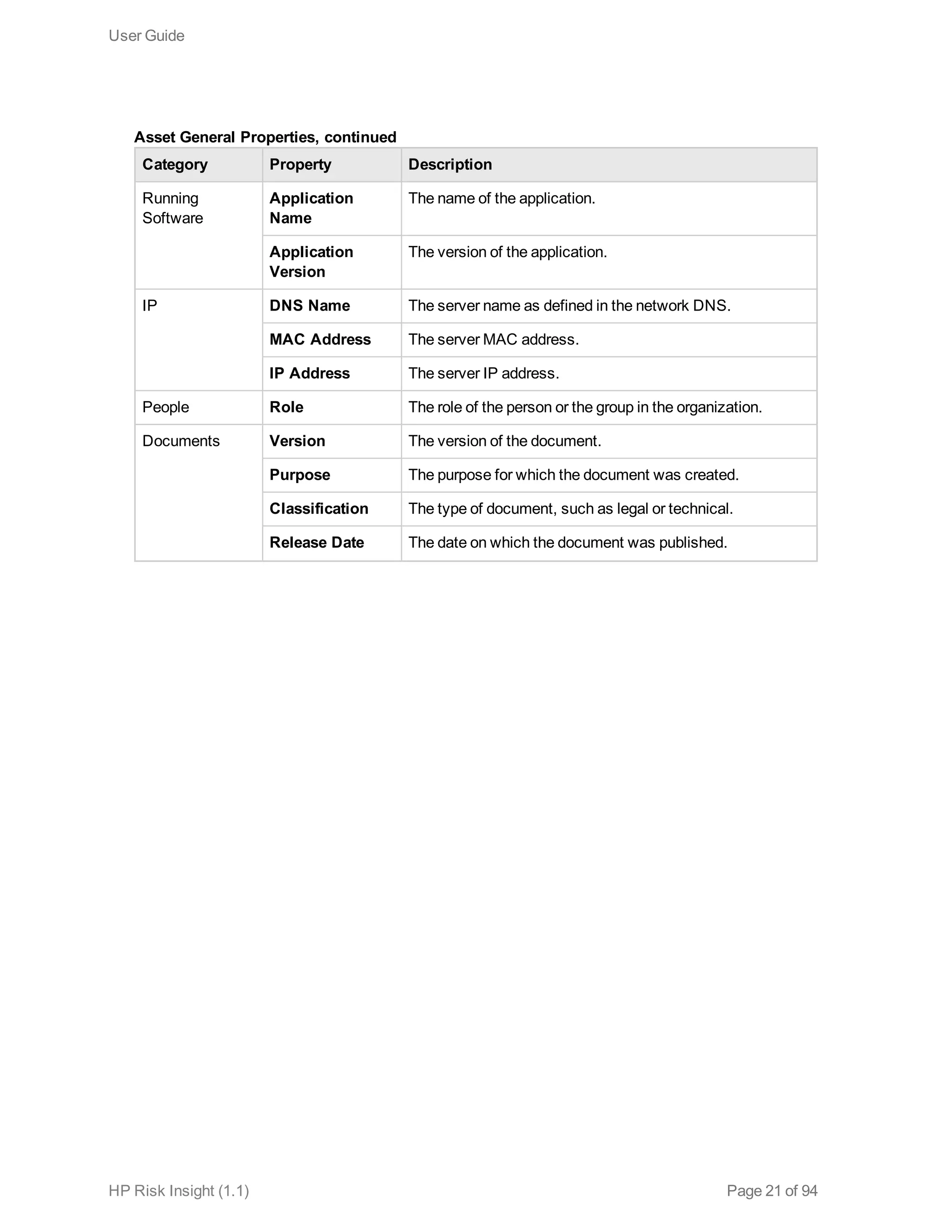
  • 89.
    Enumerations (CPEs) thatare associated with the vulnerability. For more information on CPEs, see "Common Platform Enumeration" on page 10. To view the properties of a vulnerability, click the vulnerability record in the left pane. The Properties tab is displayed. To view CPEs associated with the vulnerability, click the CPEs tab. You can search for vulnerabilities using their ID, title, details, or group or partial strings from these properties. Note: You can perform wildcard searches. For example, if you type ser*, the results will contain words beginning with ser (such as server and service). An asterisks cannot be placed before a string (*ser). User Guide HP Risk Insight (1.1) Page 89 of 94
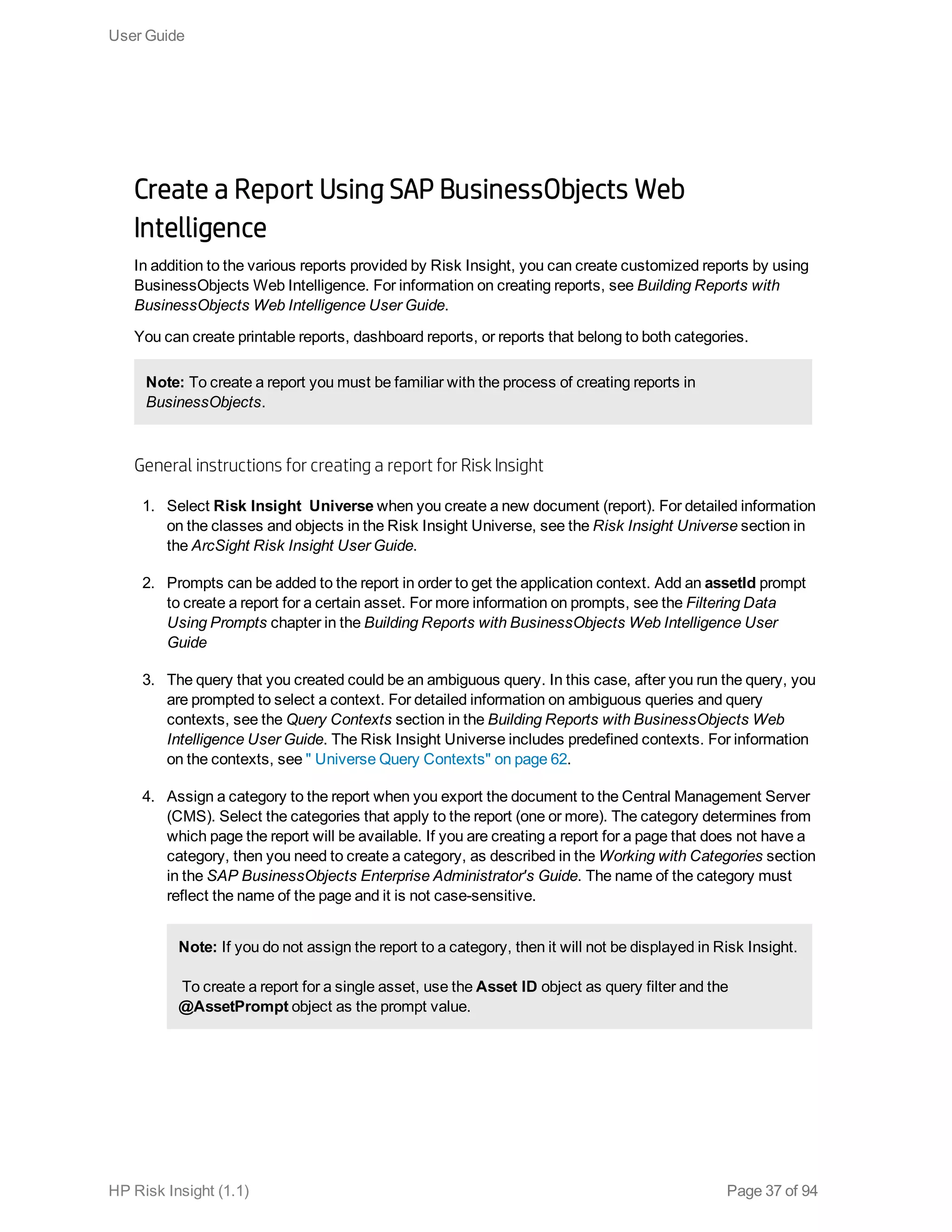
  • 90.
    Chapter 7: Settings RiskInsight includes a centralized settings module, through which you can configure all internal settings. To access the settings module, on the Risk Insight toolbar, click the Settings button. When the Settings dialog box opens, it displays one of the following: l Links to every module that has specific settings. This display appears when the Risk Insight page that is currently open does not have specific settings. Click the module name in order to access the configuration options for that module. l The settings for a specific module. This display appears when the Risk Insight page that is currently open has specific settings. For example, if the Vulnerability Management page is open, when you click the Settings button, then the Settings dialog box opens on the Vulnerabilities page. To return to the Settings main page, click Settings on the title bar. After you make a change in settings, you need to refresh the page in order to apply the changes. The following table includes all the configuration options available through the Settings dialog box, for each module. HP Risk Insight (1.1) Page 90 of 94
  • 91.
    Module Setting Page ExecutiveView Overall Score Formula For more information, see "Configure Overall Score Formula Weights" below. Overall Score Ranges For more information, see "Configure Asset Overall Score Ranges" on the next page. Criticality Level Ranges For more information, see "Configure Criticality Level Ranges" on the next page. Executive View KPI For more information, see "Overall Score KPI" on page 33. Vulnerabilities Asset Vulnerability Score Aggregation For more information, see "Configure Asset Vulnerability Score Aggregation Parameters" on page 71. Vulnerability KPI For more information, see "Vulnerability Score KPI " on page 33. Vulnerability Ranges For more information, see "Configure Vulnerability Score Ranges" on page 71 Risk Factor <Risk Factor Name> For more information, see the Configure Risk Factor Ranges section in the ArcSight Risk Insight Deployment Guide and "Configure Risk Factor KPI Settings" on page 30. Configure Overall Score Formula Weights The asset overall score reflects the total risk of the asset. It is composed of the weighted average of the aggregate scores of all risk factors. Following is the formula for calculating the asset overall score: You can edit the weights of each of the variables in the formula. User Guide HP Risk Insight (1.1) Page 91 of 94
  • 92.
    To configure theoverall score formula weights: 1. On the Risk Insight toolbar, click the Settings button. 2. In the Settings dialog box, click Executive View > Overall Score Formula Weights. 3. In the Overall Score Formula Weights page, enter the weight for each variable in the formula. 4. Click Save. Configure Asset Overall Score Ranges You can configure the ranges for the score severity indication for asset overall scores. Asset overall scores are displayed with one of the following icons: Low score Medium score High score This configuration is reflected throughout the application, wherever these scores are displayed. For example, on the Risk Register page, in the Asset Summary component and in the Overall Score Heat Map page. To configure vulnerability score ranges 1. On the Risk Insight toolbar, click the Settings button. 2. In the Settings dialog box, click Executive View > Overall Score Ranges. 3. Under Overall Score Ranges, drag the slider to define the score ranges. 4. Click Save. Configure Criticality Level Ranges You can configure the ranges for the severity indication for the criticality levels. Severity is indicated by color: User Guide HP Risk Insight (1.1) Page 92 of 94
  • 93.
    l Low =green l Medium = yellow l High = red This configuration is reflected in the Overall Score Heat Map. To configure criticality level ranges 1. On the Risk Insight toolbar, click the Settings button. 2. In the Settings dialog box, click Executive View > Criticality Level Ranges. 3. Under Criticality Level Ranges, drag the slider to define the ranges. 4. Click Save. User Guide HP Risk Insight (1.1) Page 93 of 94
  • 94.
    Send Documentation Feedback Ifyou have comments about this document, you can contact the documentation team by email. If an email client is configured on this system, click the link above and an email window opens with the following information in the subject line: Feedback on User Guide (Risk Insight 1.1) Just add your feedback to the email and click send. If no email client is available, copy the information above to a new message in a web mail client, and send your feedback to arc-doc@hp.com. We appreciate your feedback! HP Risk Insight (1.1) Page 94 of 94