APPLY RATE LIMITING POLICY
WITH MULESOFT API GATEWAY
Vince Jason Soliza
Pre-requisites
• API in Mulesoft API Gateway
– e.g. http://www.slideshare.net/VinceSoliza/proxy-existing-soap-web-service
Apply Policies in API Manager
This presentation will show how to apply Rate
Limiting Policy in API Gateway using Anypoint
Platform for APIs
Run in Anypoint Studio
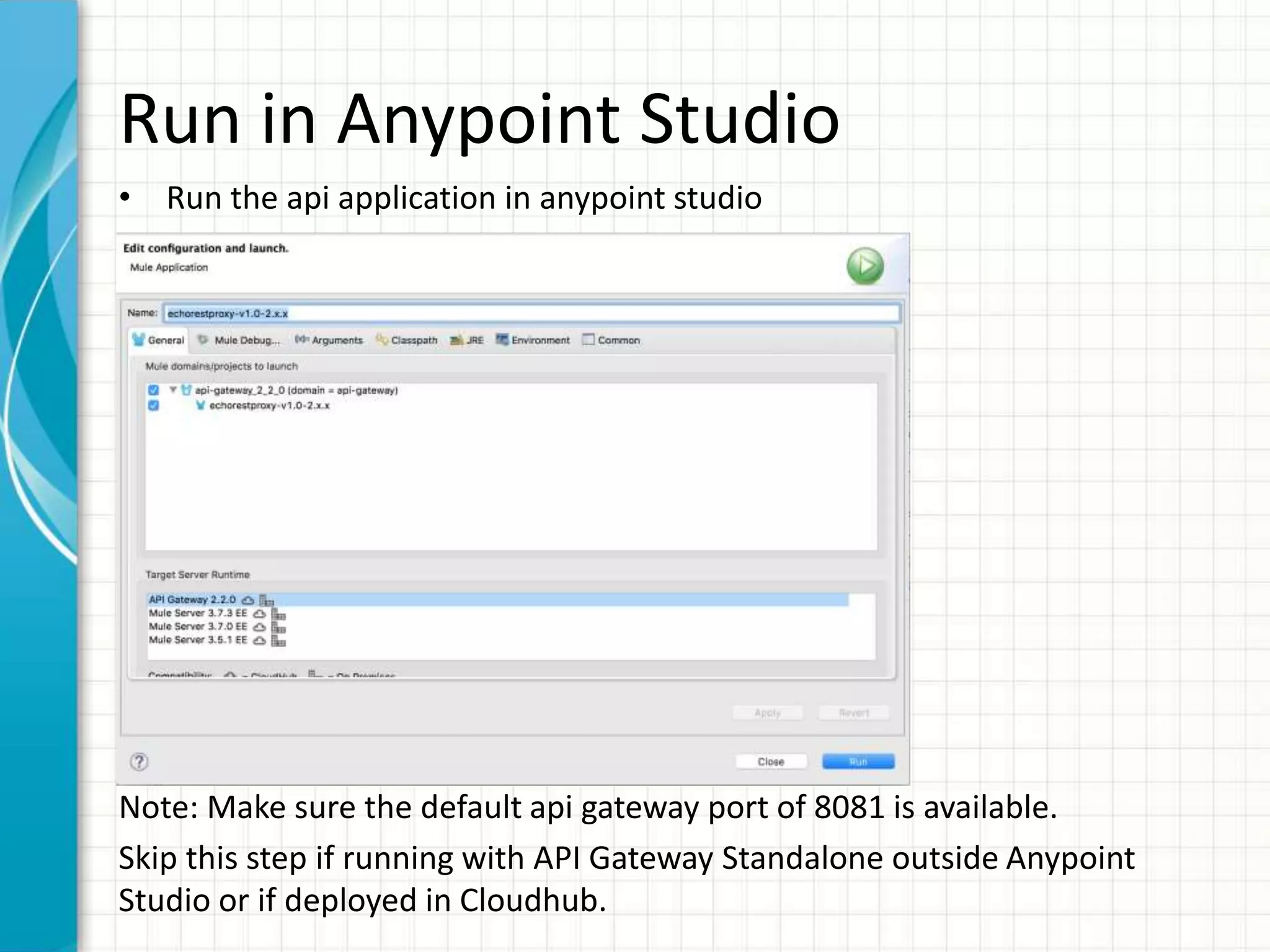
• Run the api application in anypoint studio
Note: Make sure the default api gateway port of 8081 is available.
Skip this step if running with API Gateway Standalone outside Anypoint
Studio or if deployed in Cloudhub.
Apply Rate Limiting Policy
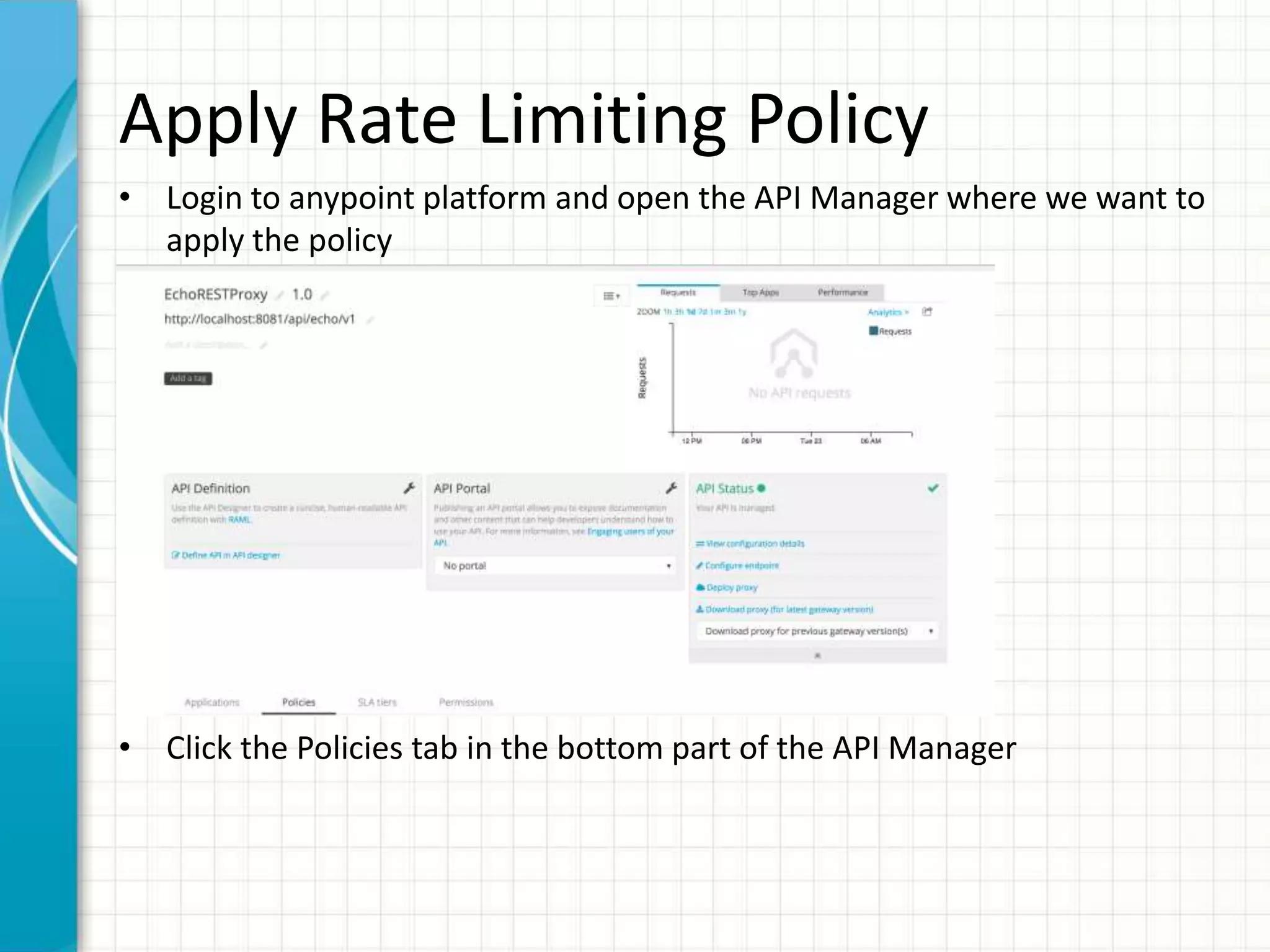
• Login to anypoint platform and open the API Manager where we want to
apply the policy
• Click the Policies tab in the bottom part of the API Manager
Apply Rate Limiting Policy
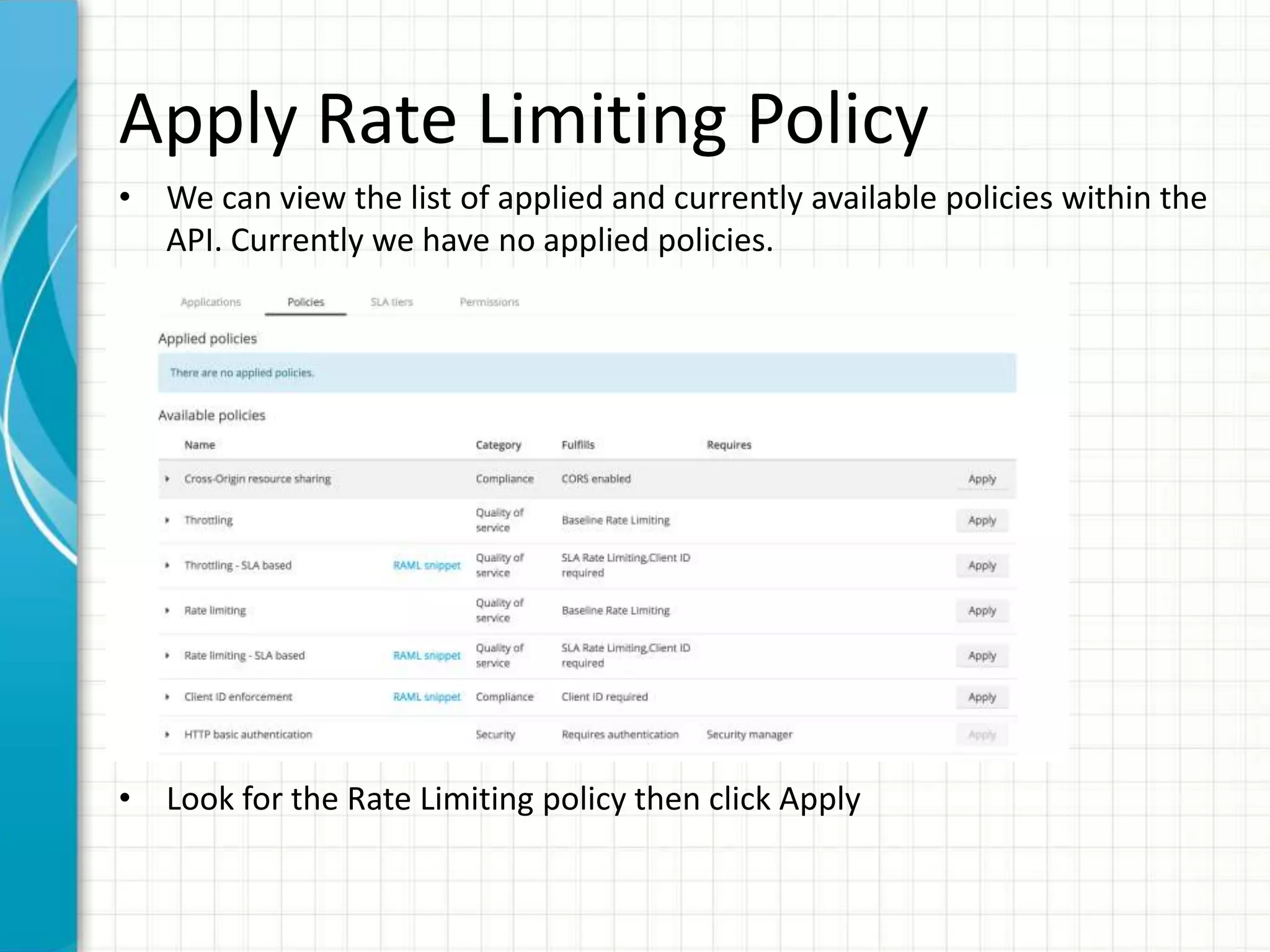
• We can view the list of applied and currently available policies within the
API. Currently we have no applied policies.
• Look for the Rate Limiting policy then click Apply
Apply Rate Limiting Policy
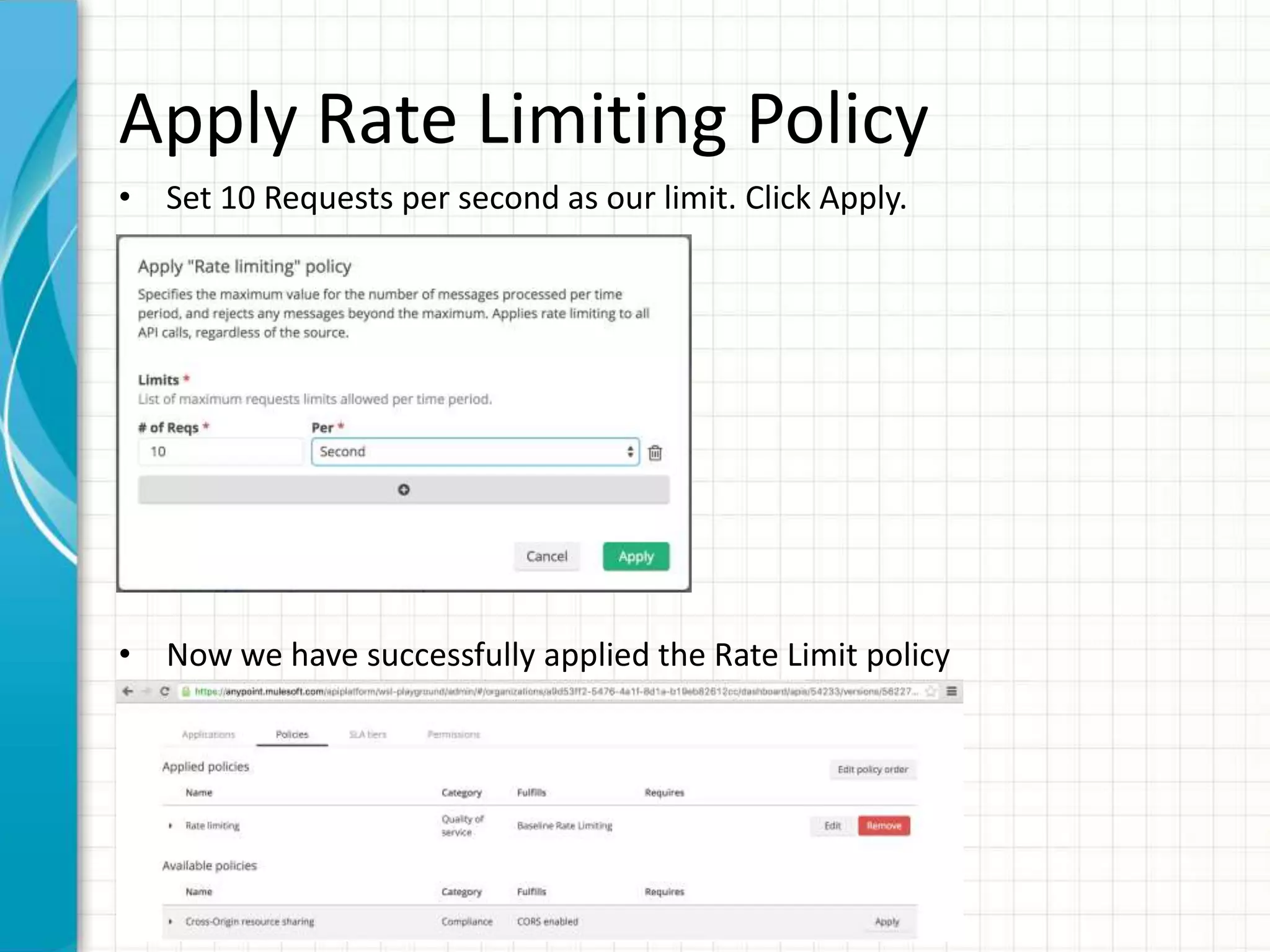
• Set 10 Requests per second as our limit. Click Apply.
• Now we have successfully applied the Rate Limit policy
Test Before Policy is Applied
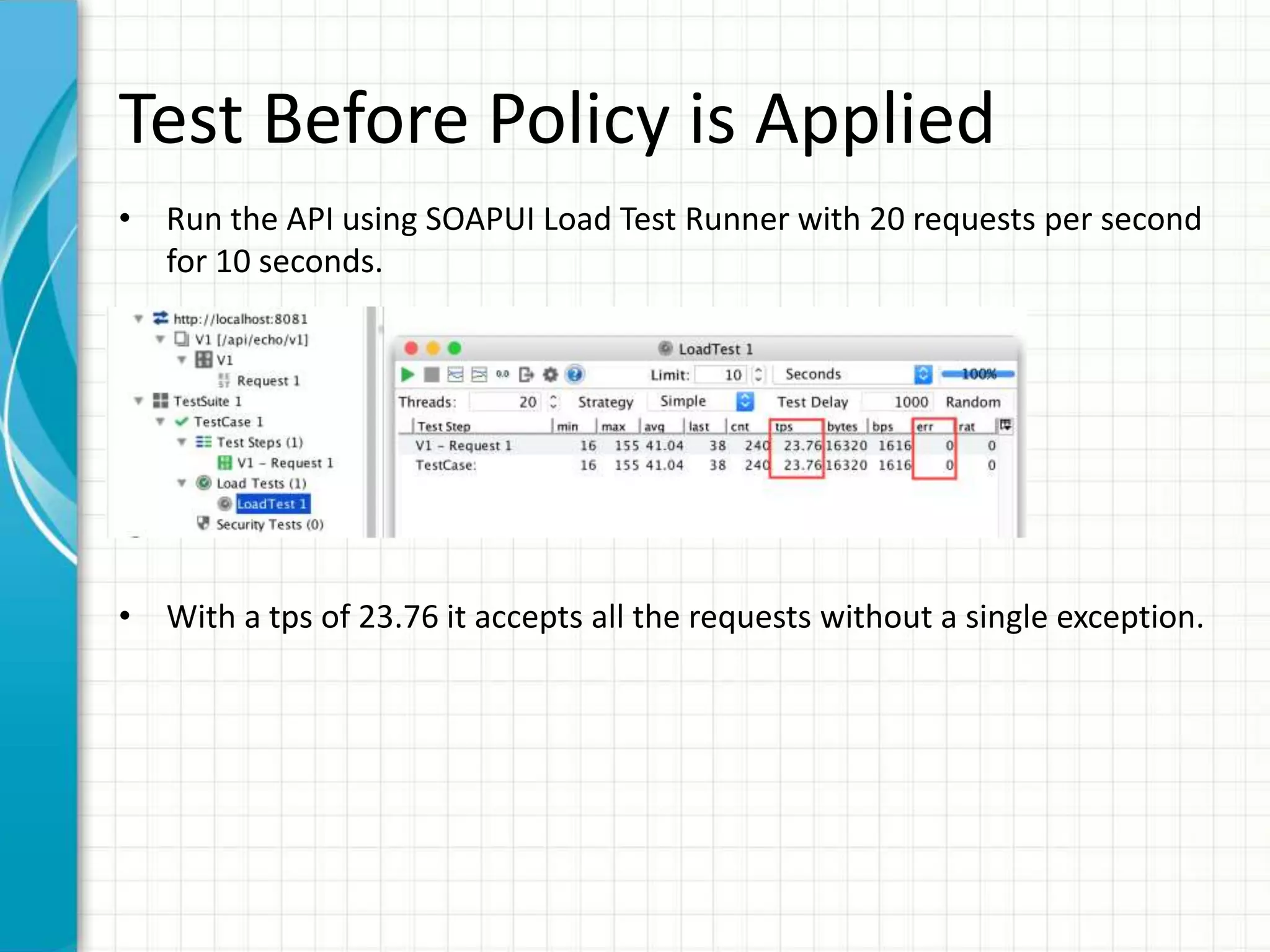
• Run the API using SOAPUI Load Test Runner with 20 requests per second
for 10 seconds.
• With a tps of 23.76 it accepts all the requests without a single exception.
Test After Policy is Applied
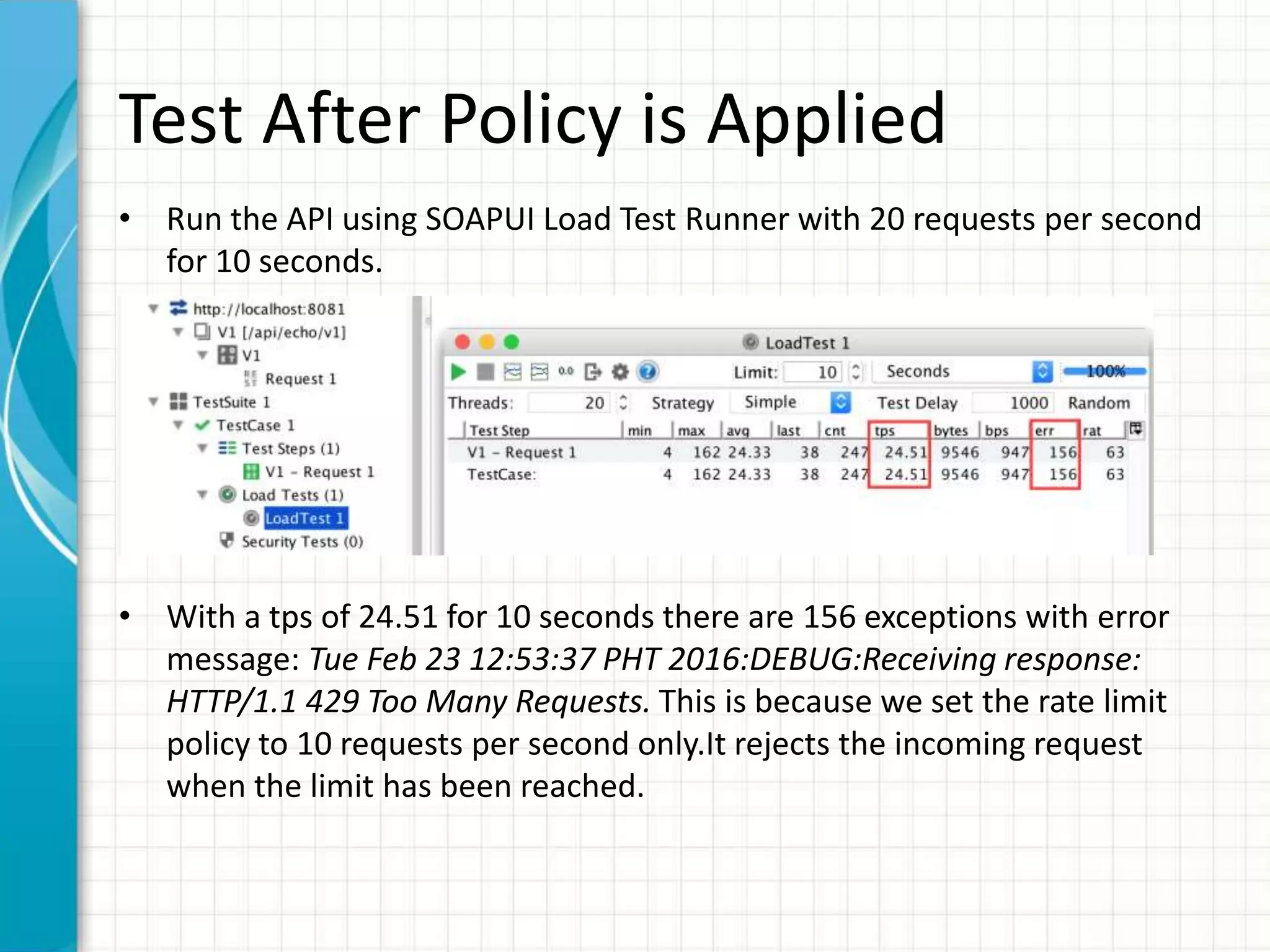
• Run the API using SOAPUI Load Test Runner with 20 requests per second
for 10 seconds.
• With a tps of 24.51 for 10 seconds there are 156 exceptions with error
message: Tue Feb 23 12:53:37 PHT 2016:DEBUG:Receiving response:
HTTP/1.1 429 Too Many Requests. This is because we set the rate limit
policy to 10 requests per second only.It rejects the incoming request
when the limit has been reached.
Summary
• Rate limiting is used to control the rate of traffic
sent or received by a network interface
controller.
• A policy is a mechanism the gateway uses to
enforce filters on traffic as it flows through the
gateway. The Anypoint Platform for APIs comes
with a number of pre-built policies including
Rate Limiting, Throttling, OAuth 2, Basic HTTP
Authentication, and XML and JSON threat
protection.
https://docs.mulesoft.com/anypoint-platform-for-apis/api-gateway-101#what-is-a-policy
QUESTIONS?
Please leave a comment 

Apply Rate Limiting Policy

  • 1.
    APPLY RATE LIMITINGPOLICY WITH MULESOFT API GATEWAY Vince Jason Soliza
  • 2.
    Pre-requisites • API inMulesoft API Gateway – e.g. http://www.slideshare.net/VinceSoliza/proxy-existing-soap-web-service
  • 3.
    Apply Policies inAPI Manager This presentation will show how to apply Rate Limiting Policy in API Gateway using Anypoint Platform for APIs
  • 4.
    Run in AnypointStudio • Run the api application in anypoint studio Note: Make sure the default api gateway port of 8081 is available. Skip this step if running with API Gateway Standalone outside Anypoint Studio or if deployed in Cloudhub.
  • 5.
    Apply Rate LimitingPolicy • Login to anypoint platform and open the API Manager where we want to apply the policy • Click the Policies tab in the bottom part of the API Manager
  • 6.
    Apply Rate LimitingPolicy • We can view the list of applied and currently available policies within the API. Currently we have no applied policies. • Look for the Rate Limiting policy then click Apply
  • 7.
    Apply Rate LimitingPolicy • Set 10 Requests per second as our limit. Click Apply. • Now we have successfully applied the Rate Limit policy
  • 8.
    Test Before Policyis Applied • Run the API using SOAPUI Load Test Runner with 20 requests per second for 10 seconds. • With a tps of 23.76 it accepts all the requests without a single exception.
  • 9.
    Test After Policyis Applied • Run the API using SOAPUI Load Test Runner with 20 requests per second for 10 seconds. • With a tps of 24.51 for 10 seconds there are 156 exceptions with error message: Tue Feb 23 12:53:37 PHT 2016:DEBUG:Receiving response: HTTP/1.1 429 Too Many Requests. This is because we set the rate limit policy to 10 requests per second only.It rejects the incoming request when the limit has been reached.
  • 10.
    Summary • Rate limitingis used to control the rate of traffic sent or received by a network interface controller. • A policy is a mechanism the gateway uses to enforce filters on traffic as it flows through the gateway. The Anypoint Platform for APIs comes with a number of pre-built policies including Rate Limiting, Throttling, OAuth 2, Basic HTTP Authentication, and XML and JSON threat protection. https://docs.mulesoft.com/anypoint-platform-for-apis/api-gateway-101#what-is-a-policy
  • 11.

Editor's Notes

  • #2 This template can be used as a starter file for presenting training materials in a group setting. Sections Sections can help to organize your slides or facilitate collaboration between multiple authors. On the Home tab under Slides, click Section, and then click Add Section. Notes Use the Notes pane for delivery notes or to provide additional details for the audience. You can see these notes in Presenter View during your presentation. Keep in mind the font size (important for accessibility, visibility, videotaping, and online production) Coordinated colors Pay particular attention to the graphs, charts, and text boxes. Consider that attendees will print in black and white or grayscale. Run a test print to make sure your colors work when printed in pure black and white and grayscale. Graphics, tables, and graphs Keep it simple: If possible, use consistent, non-distracting styles and colors. Label all graphs and tables.
  • #3 Give a brief overview of the presentation. Describe the major focus of the presentation and why it is important. Introduce each of the major topics. To provide a road map for the audience, you can repeat this Overview slide throughout the presentation, highlighting the particular topic you will discuss next.
  • #4 Give a brief overview of the presentation. Describe the major focus of the presentation and why it is important. Introduce each of the major topics. To provide a road map for the audience, you can repeat this Overview slide throughout the presentation, highlighting the particular topic you will discuss next.
  • #5 Give a brief overview of the presentation. Describe the major focus of the presentation and why it is important. Introduce each of the major topics. To provide a road map for the audience, you can repeat this Overview slide throughout the presentation, highlighting the particular topic you will discuss next.
  • #6 Give a brief overview of the presentation. Describe the major focus of the presentation and why it is important. Introduce each of the major topics. To provide a road map for the audience, you can repeat this Overview slide throughout the presentation, highlighting the particular topic you will discuss next.
  • #7 Give a brief overview of the presentation. Describe the major focus of the presentation and why it is important. Introduce each of the major topics. To provide a road map for the audience, you can repeat this Overview slide throughout the presentation, highlighting the particular topic you will discuss next.
  • #8 Give a brief overview of the presentation. Describe the major focus of the presentation and why it is important. Introduce each of the major topics. To provide a road map for the audience, you can repeat this Overview slide throughout the presentation, highlighting the particular topic you will discuss next.
  • #9 Give a brief overview of the presentation. Describe the major focus of the presentation and why it is important. Introduce each of the major topics. To provide a road map for the audience, you can repeat this Overview slide throughout the presentation, highlighting the particular topic you will discuss next.
  • #10 Give a brief overview of the presentation. Describe the major focus of the presentation and why it is important. Introduce each of the major topics. To provide a road map for the audience, you can repeat this Overview slide throughout the presentation, highlighting the particular topic you will discuss next.
  • #11 Summarize presentation content by restating the important points from the lessons. What do you want the audience to remember when they leave your presentation?
  • #12 Microsoft Confidential