Android Test Driven Development


             Carlo Codega
 carlo.codega@funambol.com
            Milano, 21 Maggio 2010
Agenda
•   Introduzione al Test Driven Development
•   Unit testing vs Functional testing
•   Unit testing:
     – Componenti indipendenti da Android: JUnit
     – Componenti dipendenti da Android, isolabili dal resto dell’applicazione
     – Macro componenti: Application, Activity, Service e ContentProvider
     – Generazione di test suite
     – Esecuzione di test suite con adb (Android Debug Bridge)
•   Functional testing:
     – Componenti che hanno interfaccia utente: Activity
     – Integration testing sull’intera applicazione: Instrumentation
•   Stress testing: Monkey tool
Introduzione al TDD
Perché fare TDD in Android:

1. Scrivere codice che funziona :)
2. Scrivere i test prima dell’implementazione funzionale
3. Pensare al design dell’applicazione prima dell’implementazione
   reale
4. Evitare i bachi di regression. Scrivere specifici test case per ogni
   bug trovato
5. Facilitare il refactoring del codice
Unit testing vs Functional testing
•   Unit tests:
     – Servono a verificare che tutte le componenti di un programma
       funzionano correttamente
     – Vengono fatti solitamente dagli stessi sviluppatori che hanno
       implementato il codice
     – Vengono scritti in un determinato linguaggio di programmazione


•   Funcional tests (o acceptance tests):
     – Servono a verificare se un programma risponde ai requisiti dell’utente
     – Vengono fatti da persone di QA (Quality Assurance)
     – Vengono scritti in un linguaggio di alto livello
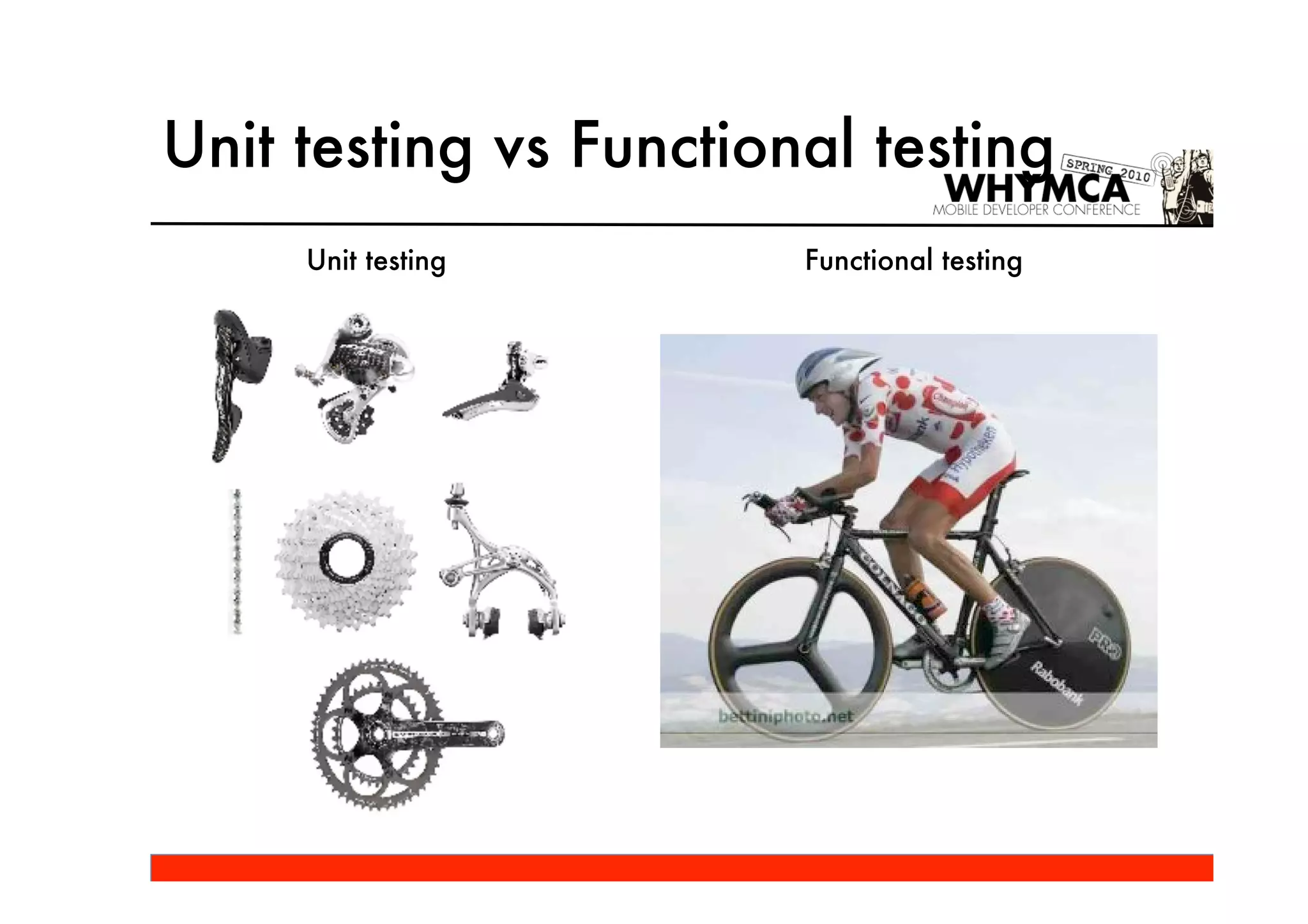
Unit testing vs Functional testing
     Unit testing       Functional testing
Android testing framework
•   Android integra al suo interno un framework per il testing:
     – Package android.test

•   Basato su JUnit 3
•   Supporta:
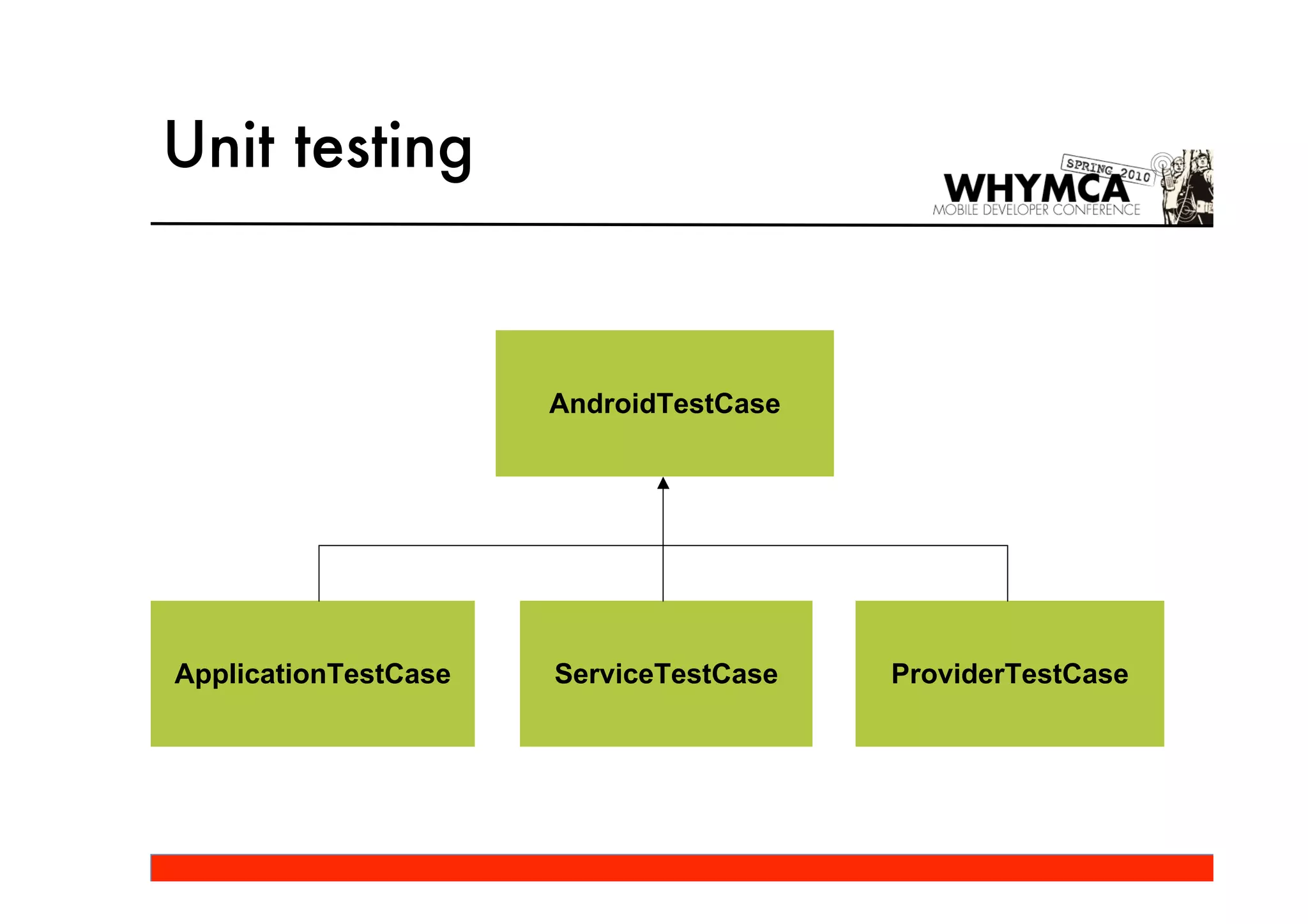
     – Unit testing: TestCase, AndroidTestCase
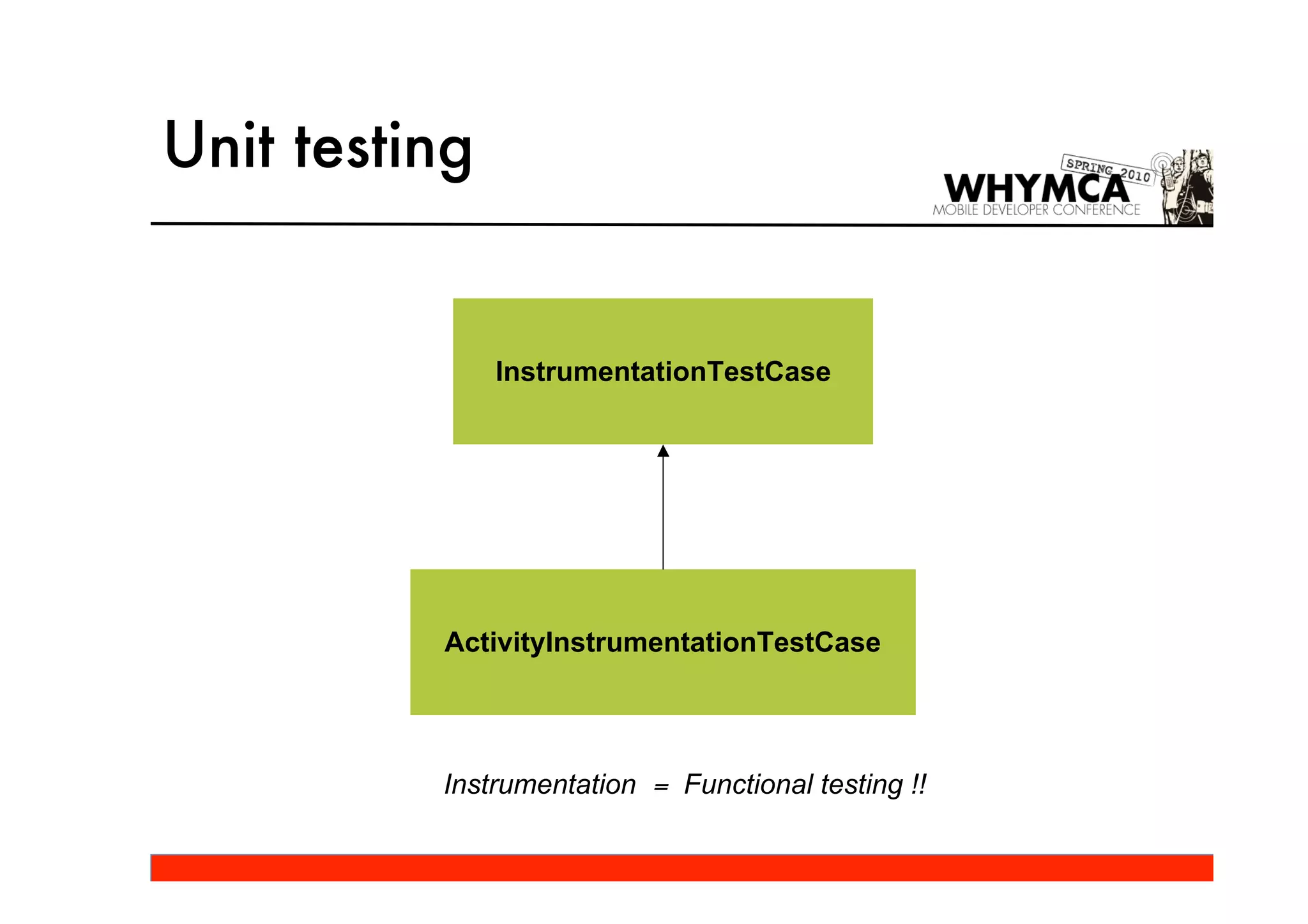
     – Functional testing: InstrumentationTestCase

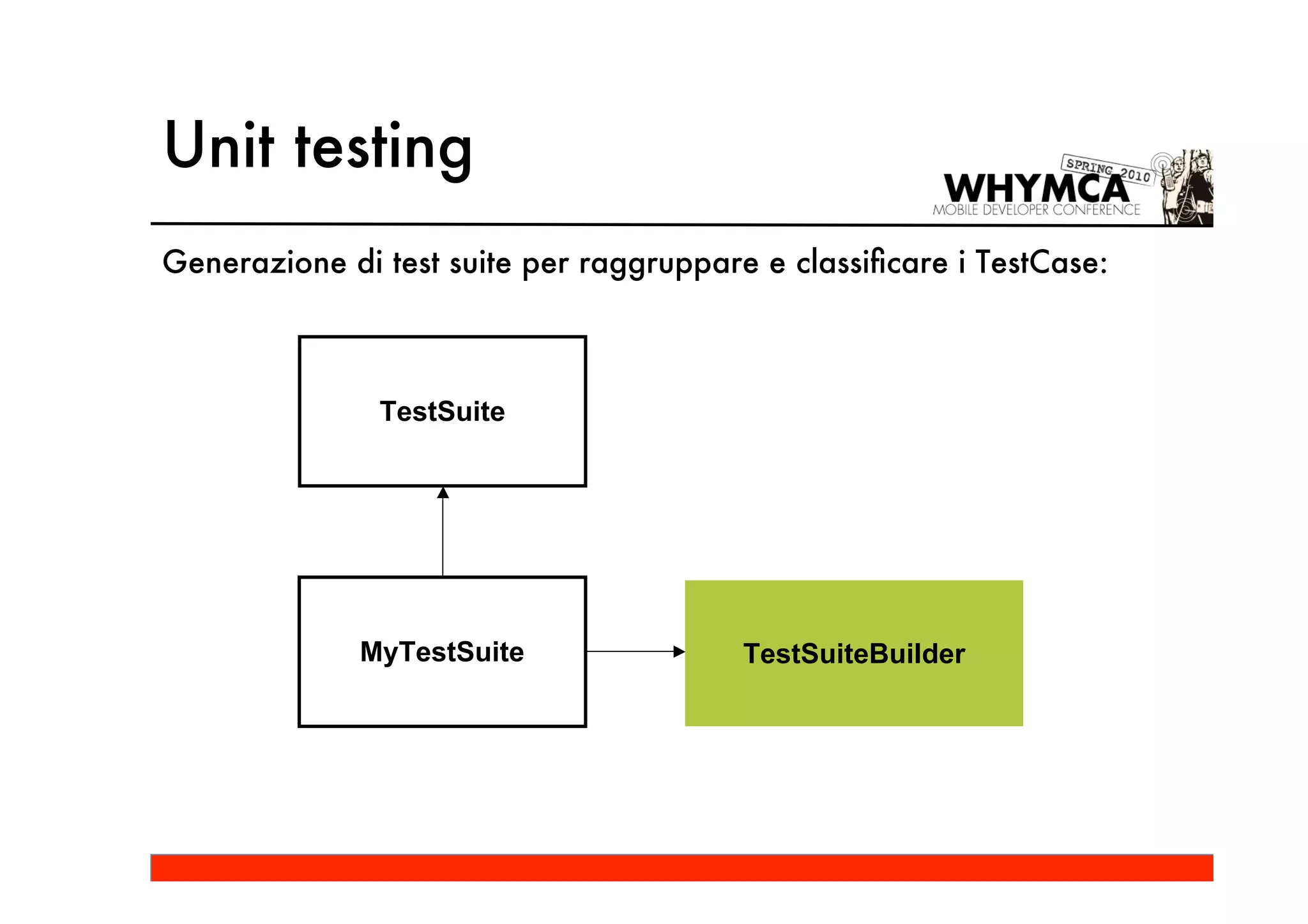
•   Include delle utility per facilitare la creazione di test suite
•   Android Debug Bridge (adb) per eseguire i test su emulatore o
    device reale
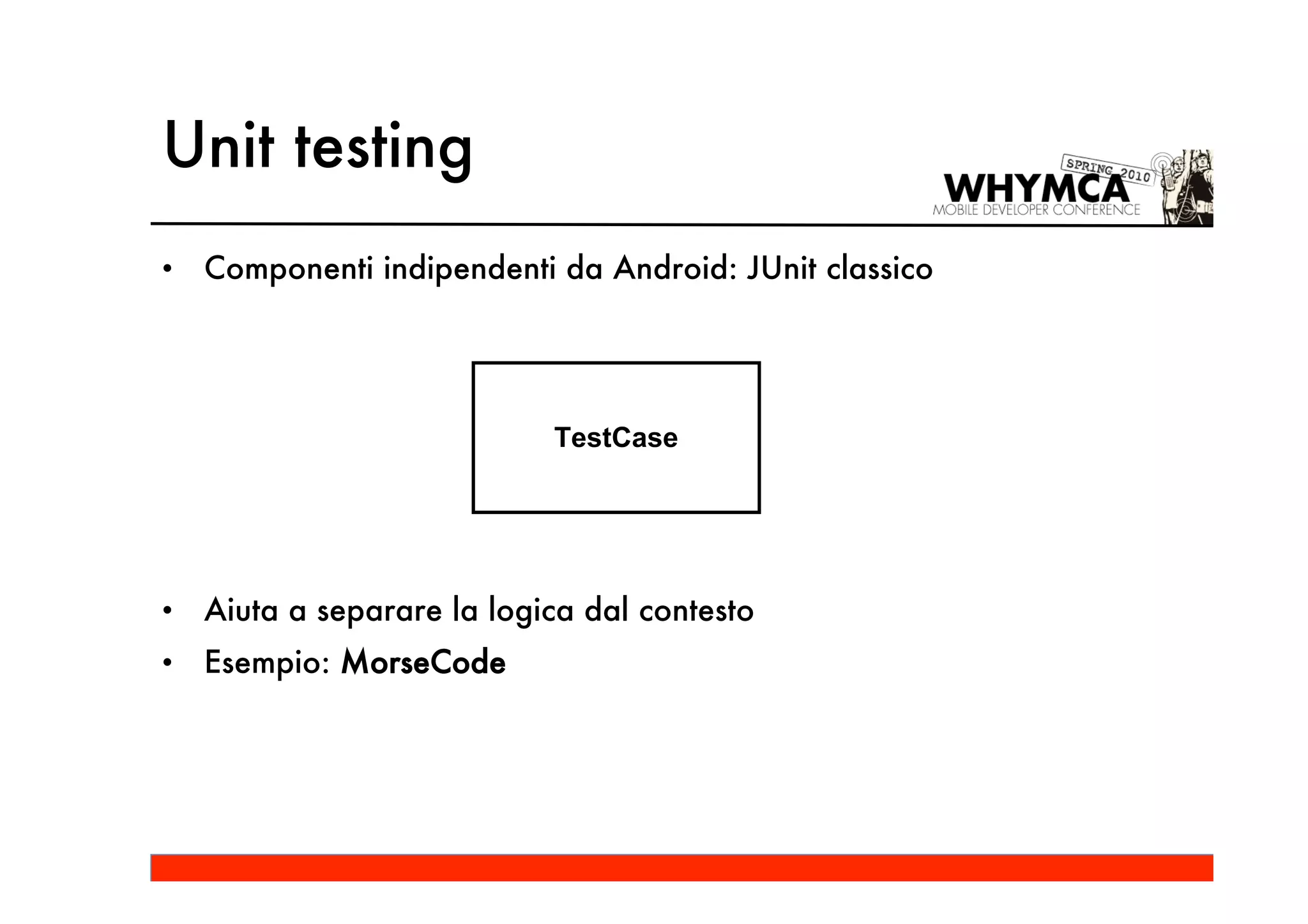
Unit testing
•   Componenti indipendenti da Android: JUnit classico


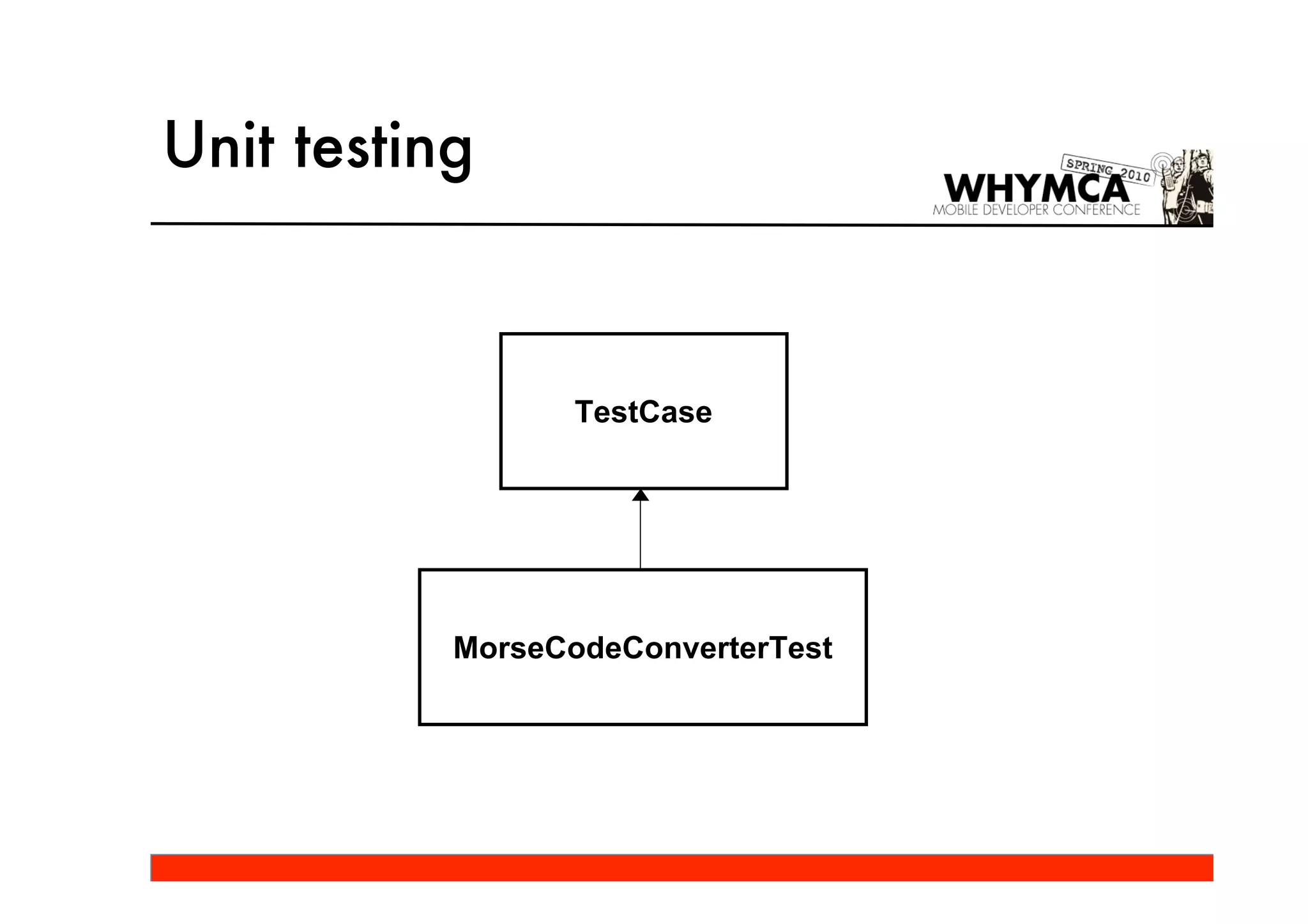
                            TestCase


•   Aiuta a separare la logica dal contesto
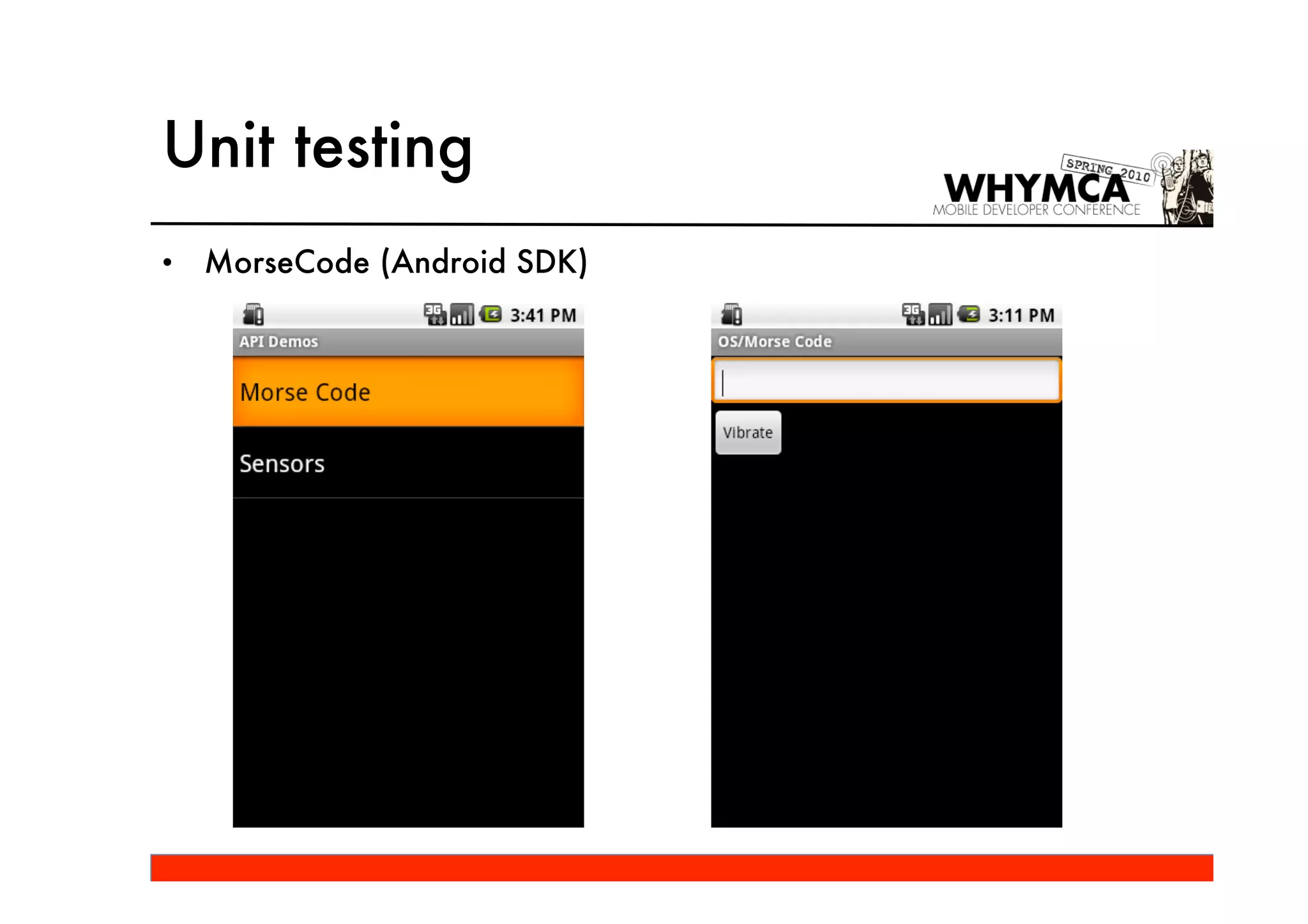
•   Esempio: MorseCode
Unit testing
•   MorseCode (Android SDK)
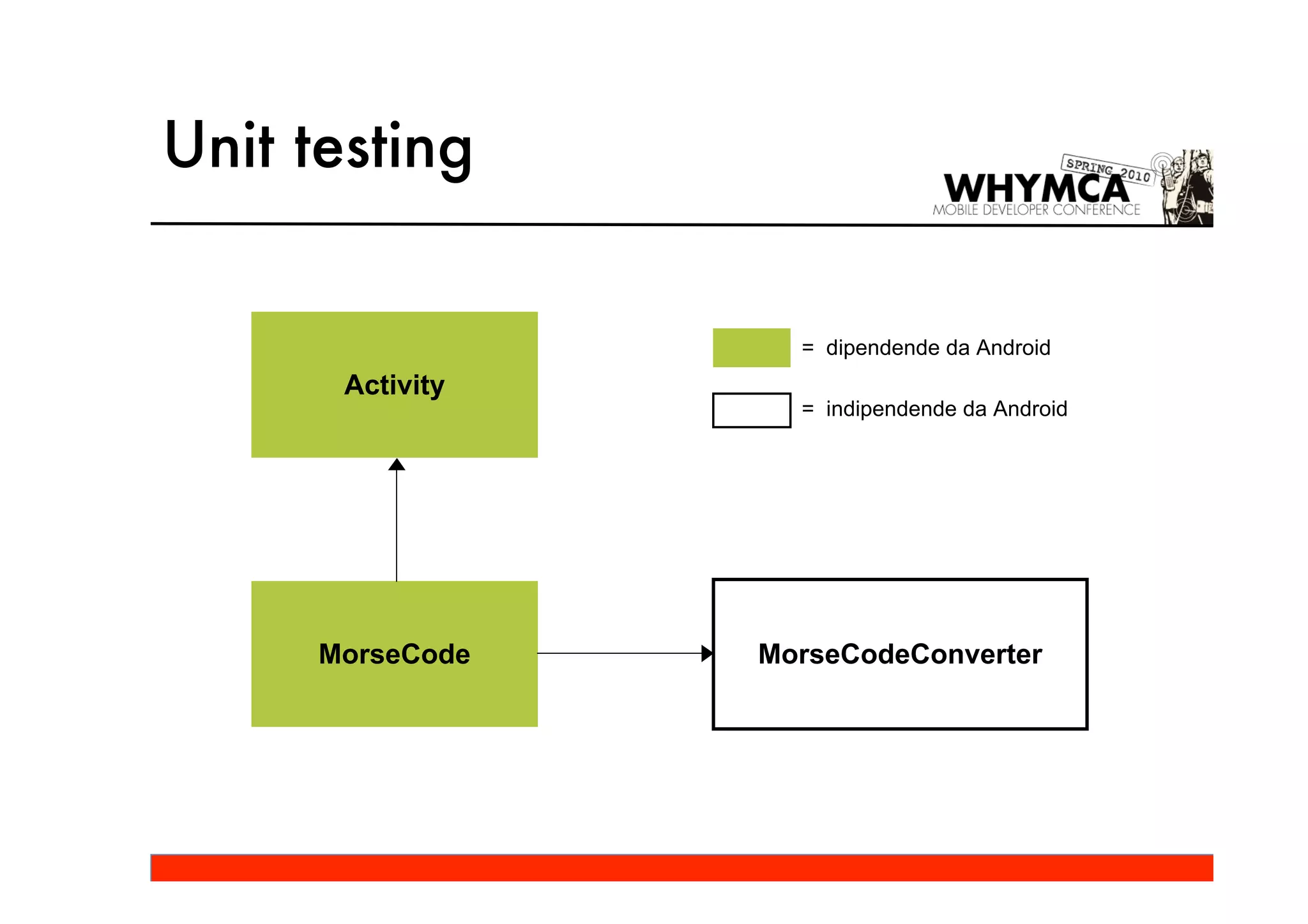
Unit testing


                    = dipendende da Android
       Activity
                    = indipendende da Android


      MorseCode   MorseCodeConverter
Unit testing
class MorseCodeConverter {
   static   final   long   SPEED_BASE = 100;
   static   final   long   DOT = SPEED_BASE;
   static   final   long   DASH = SPEED_BASE * 3;
   static   final   long   GAP = SPEED_BASE;

   /** The characters from 'A' to 'Z' */
   private static final long[][] LETTERS = new long[][] {
        /* A */ new long[] { DOT, GAP, DASH },
        /* B */ new long[] { DASH, GAP, DOT, GAP, DOT, GAP, DOT },
        /* C */ new long[] { DASH, GAP, DOT, GAP, DASH, GAP, DOT },
        ...
   };

   /** The characters from '0' to '9' */
   private static final long[][] NUMBERS = new long[][] {
        /* 0 */ new long[] { DASH, GAP, DASH, GAP, DASH, GAP, DASH },
        /* 1 */ new long[] { DOT, GAP, DASH, GAP, DASH, GAP, DASH },
        ...
   };
Unit testing

    /** Return the pattern data for a given character */
    static long[] pattern(char c) {
      ...
    }

     /** Return the pattern data for a given string */
    static long[] pattern(String str) {
      ...
    }
}
Unit testing


                  TestCase


           MorseCodeConverterTest
Unit testing

public class MorseCodeConverterTest extends TestCase {

    public void testCharacterS() throws Exception {

         long[] expectedBeeps = {   MorseCodeConverter.DOT,
                                    MorseCodeConverter.DOT,
                                    MorseCodeConverter.DOT,
                                    MorseCodeConverter.DOT,
                                     MorseCodeConverter.DOT };

         long[] beeps = MorseCodeConverter.pattern('s');

         assertEquals(expectedBeeps, beeps);
    }
}
Unit testing
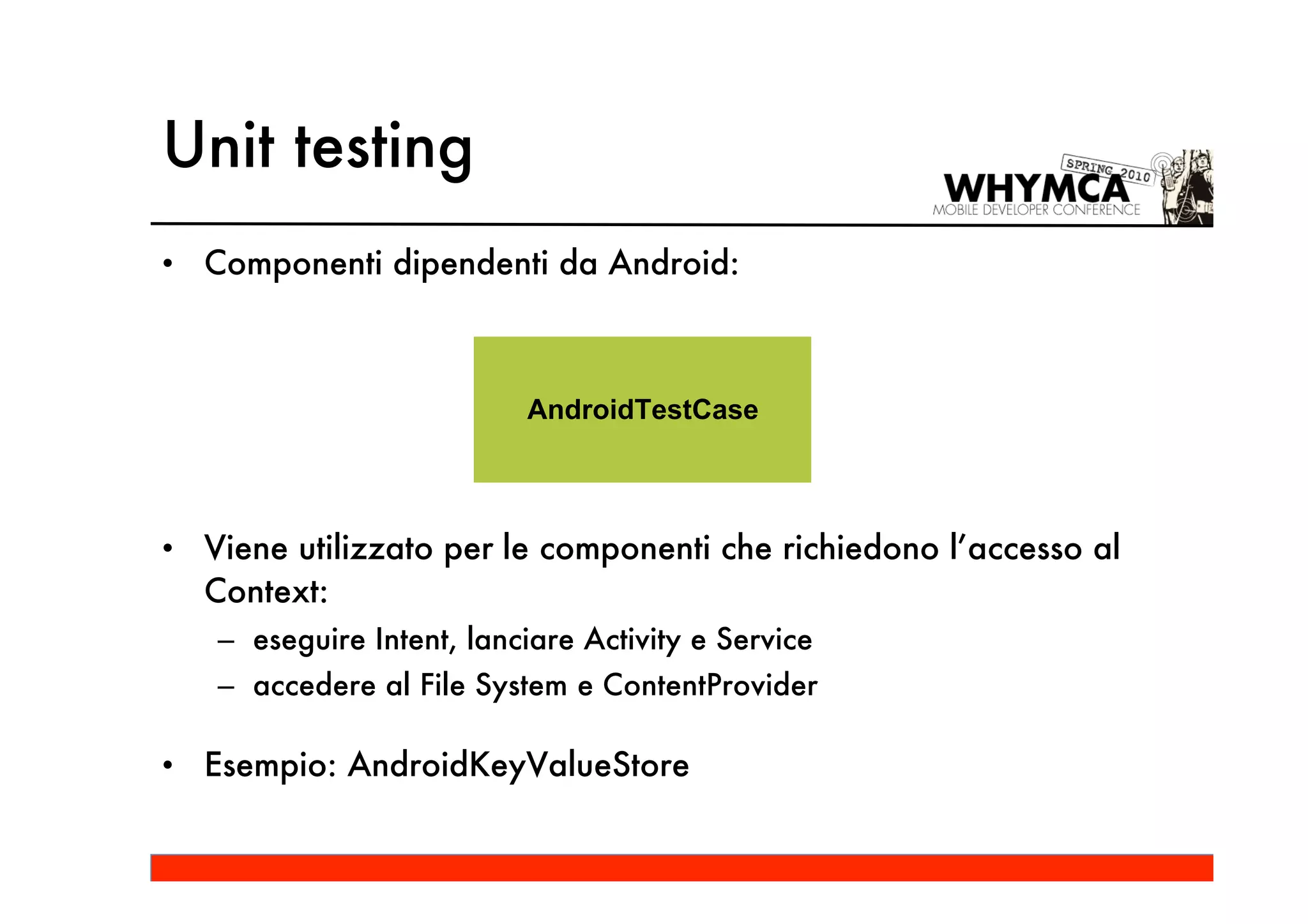
• Componenti dipendenti da Android:


                          AndroidTestCase


• Viene utilizzato per le componenti che richiedono l’accesso al
  Context:
   – eseguire Intent, lanciare Activity e Service
   – accedere al File System e ContentProvider

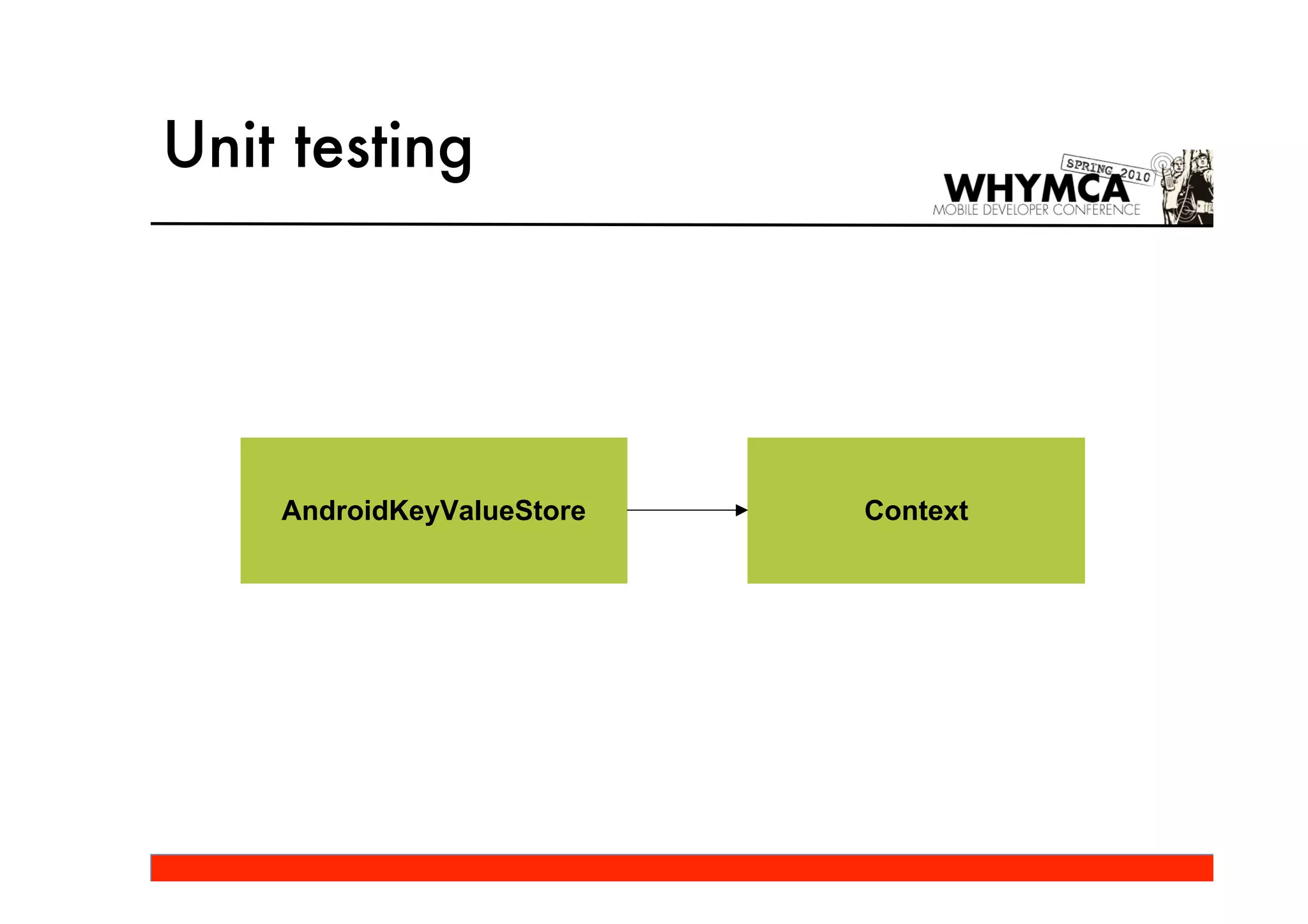
• Esempio: AndroidKeyValueStore
Unit testing


    AndroidKeyValueStore   Context
Unit testing
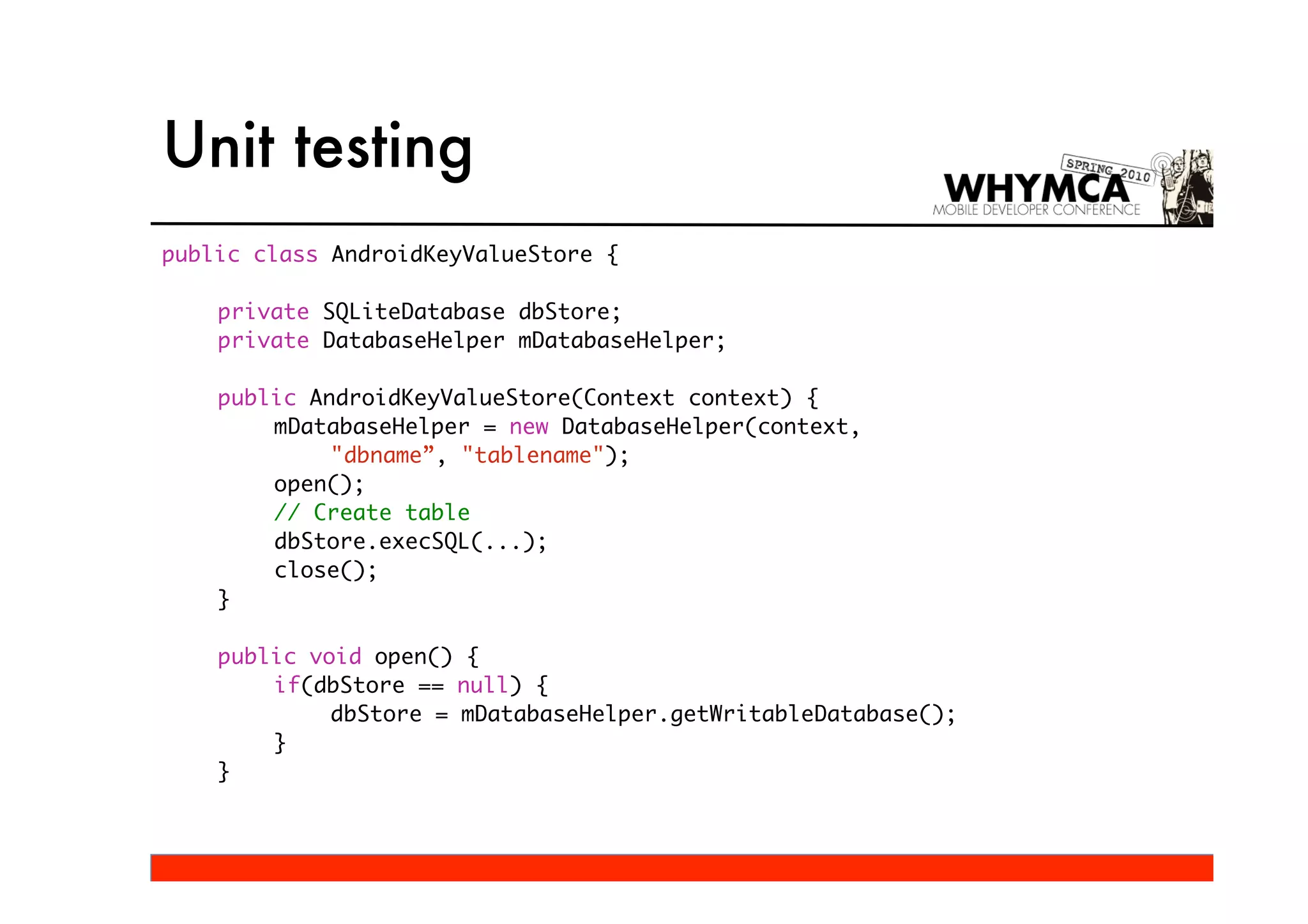
public class AndroidKeyValueStore {

    private SQLiteDatabase dbStore;
    private DatabaseHelper mDatabaseHelper;

    public AndroidKeyValueStore(Context context) {
        mDatabaseHelper = new DatabaseHelper(context,
             "dbname”, "tablename");
        open();
        // Create table
        dbStore.execSQL(...);
        close();
    }

    public void open() {
        if(dbStore == null) {
             dbStore = mDatabaseHelper.getWritableDatabase();
        }
    }
Unit testing

    public void close() {
        dbStore.close();
        dbStore = null;
    }

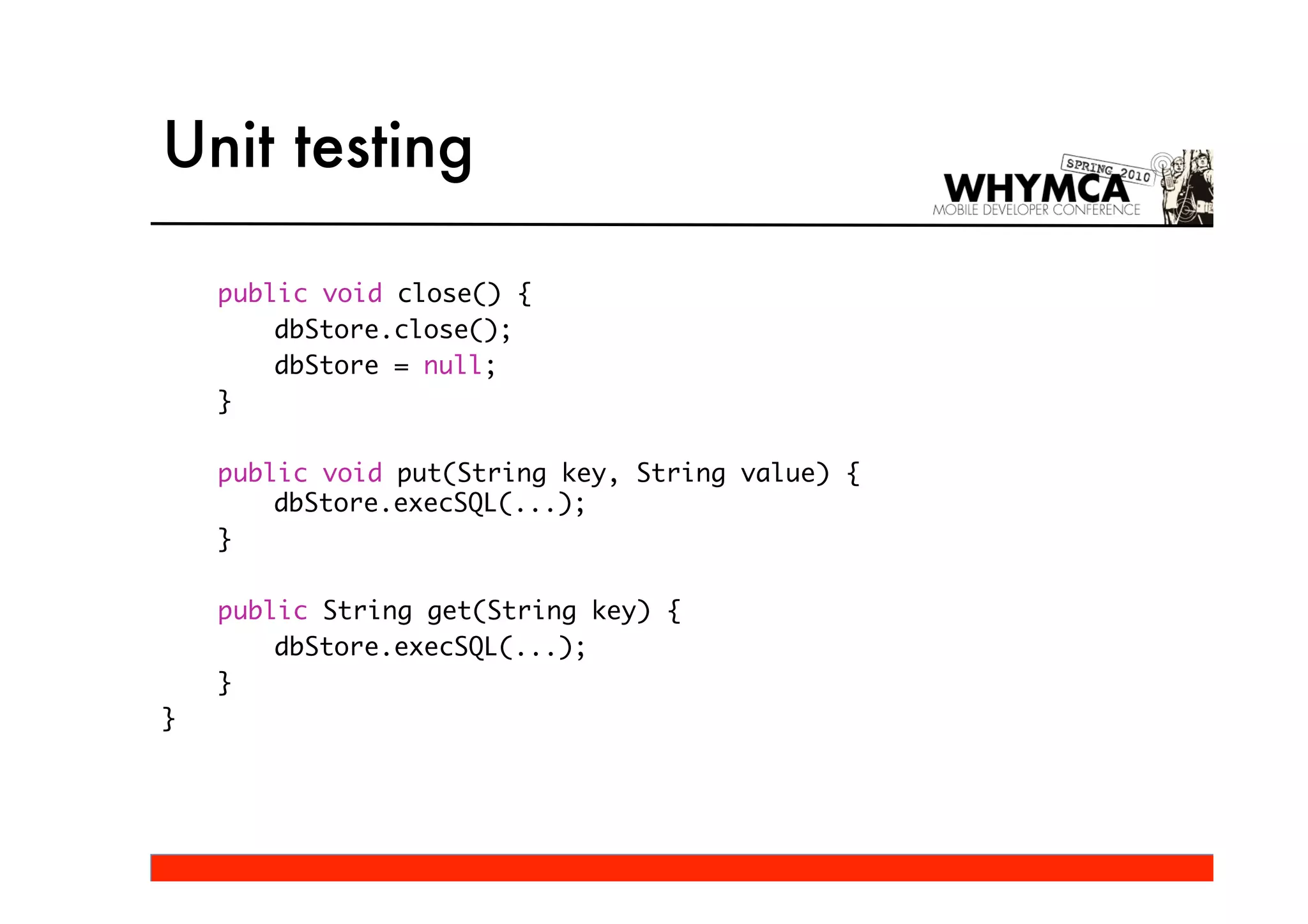
    public void put(String key, String value) {
        dbStore.execSQL(...);
    }

    public String get(String key) {
        dbStore.execSQL(...);
    }
}
Unit testing


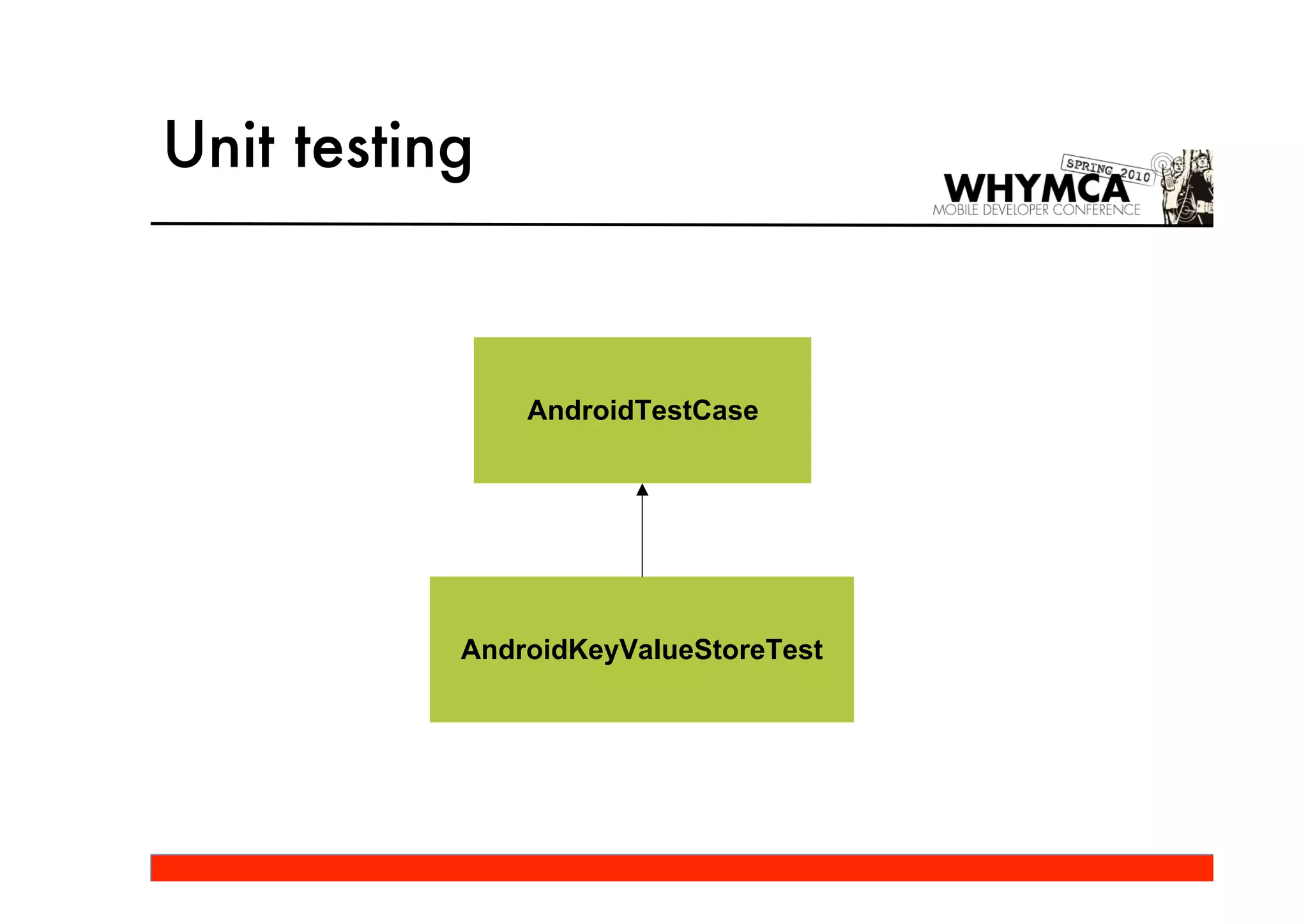
               AndroidTestCase


           AndroidKeyValueStoreTest
Unit testing
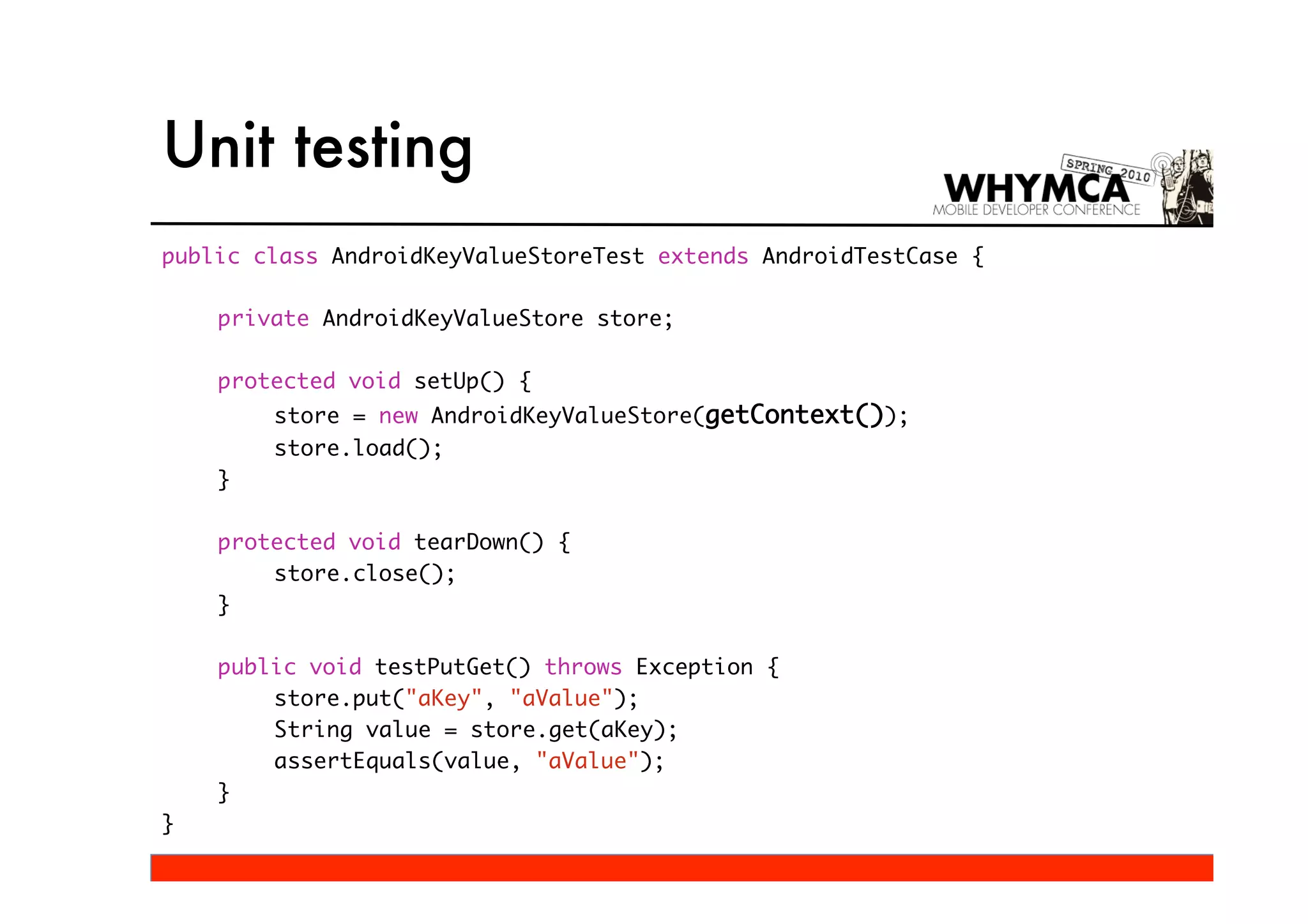
public class AndroidKeyValueStoreTest extends AndroidTestCase {

    private AndroidKeyValueStore store;

    protected void setUp() {
        store = new AndroidKeyValueStore(getContext());
        store.load();
    }

    protected void tearDown() {
        store.close();
    }

    public void testPutGet() throws Exception {
        store.put("aKey", "aValue");
        String value = store.get(aKey);
        assertEquals(value, "aValue");
    }
}
Unit testing
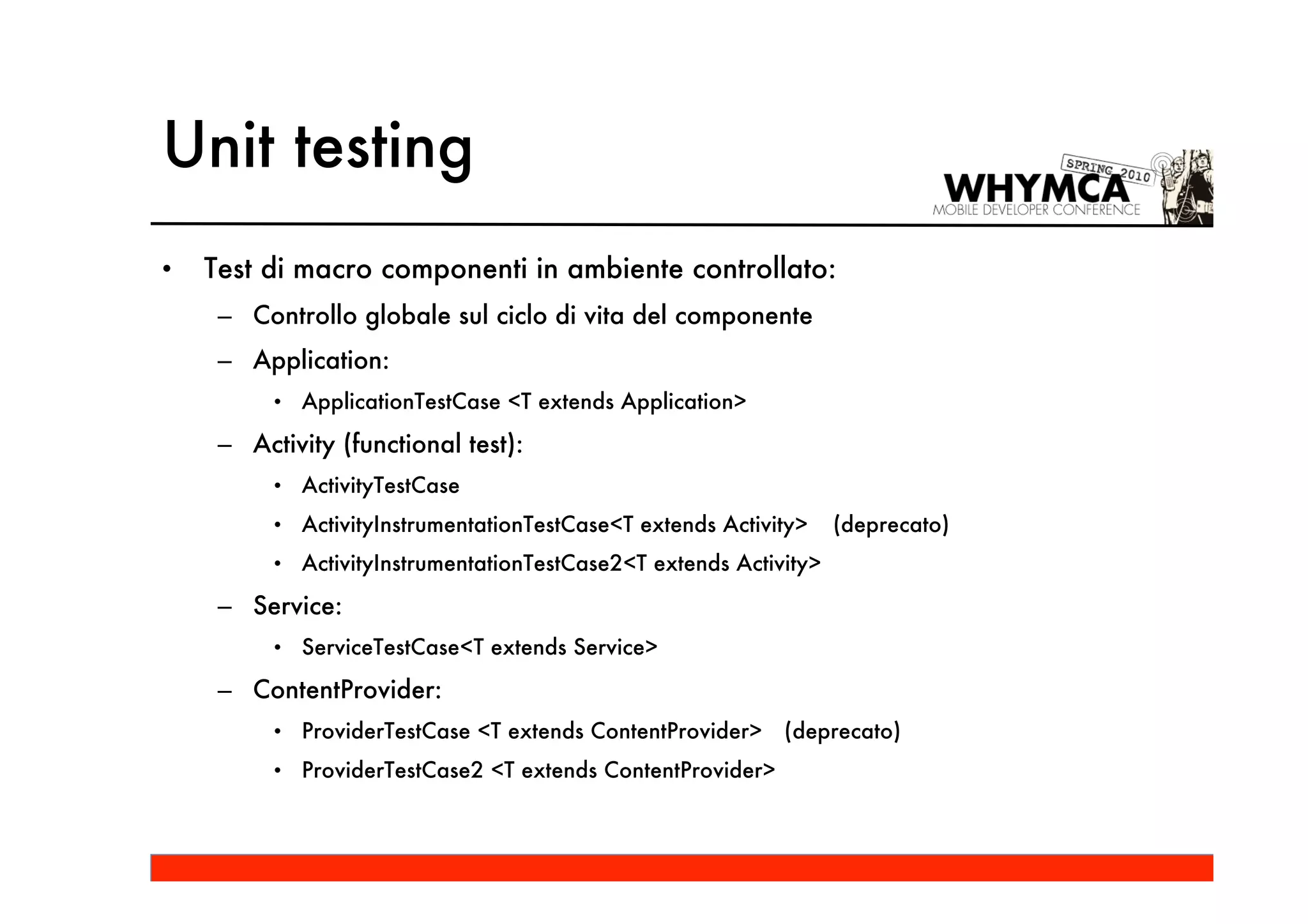
•   Test di macro componenti in ambiente controllato:
     – Controllo globale sul ciclo di vita del componente
     – Application:
          • ApplicationTestCase <T extends Application>

     – Activity (functional test):
          • ActivityTestCase
          • ActivityInstrumentationTestCase<T extends Activity>    (deprecato)
          • ActivityInstrumentationTestCase2<T extends Activity>

     – Service:
          • ServiceTestCase<T extends Service>

     – ContentProvider:
          • ProviderTestCase <T extends ContentProvider>    (deprecato)
          • ProviderTestCase2 <T extends ContentProvider>
Unit testing


                      AndroidTestCase


ApplicationTestCase   ServiceTestCase   ProviderTestCase
Unit testing


               InstrumentationTestCase


          ActivityInstrumentationTestCase


          Instrumentation = Functional testing !!
Unit testing
Generazione di test suite per raggruppare e classificare i TestCase:


               TestSuite


              MyTestSuite                TestSuiteBuilder
Unit testing
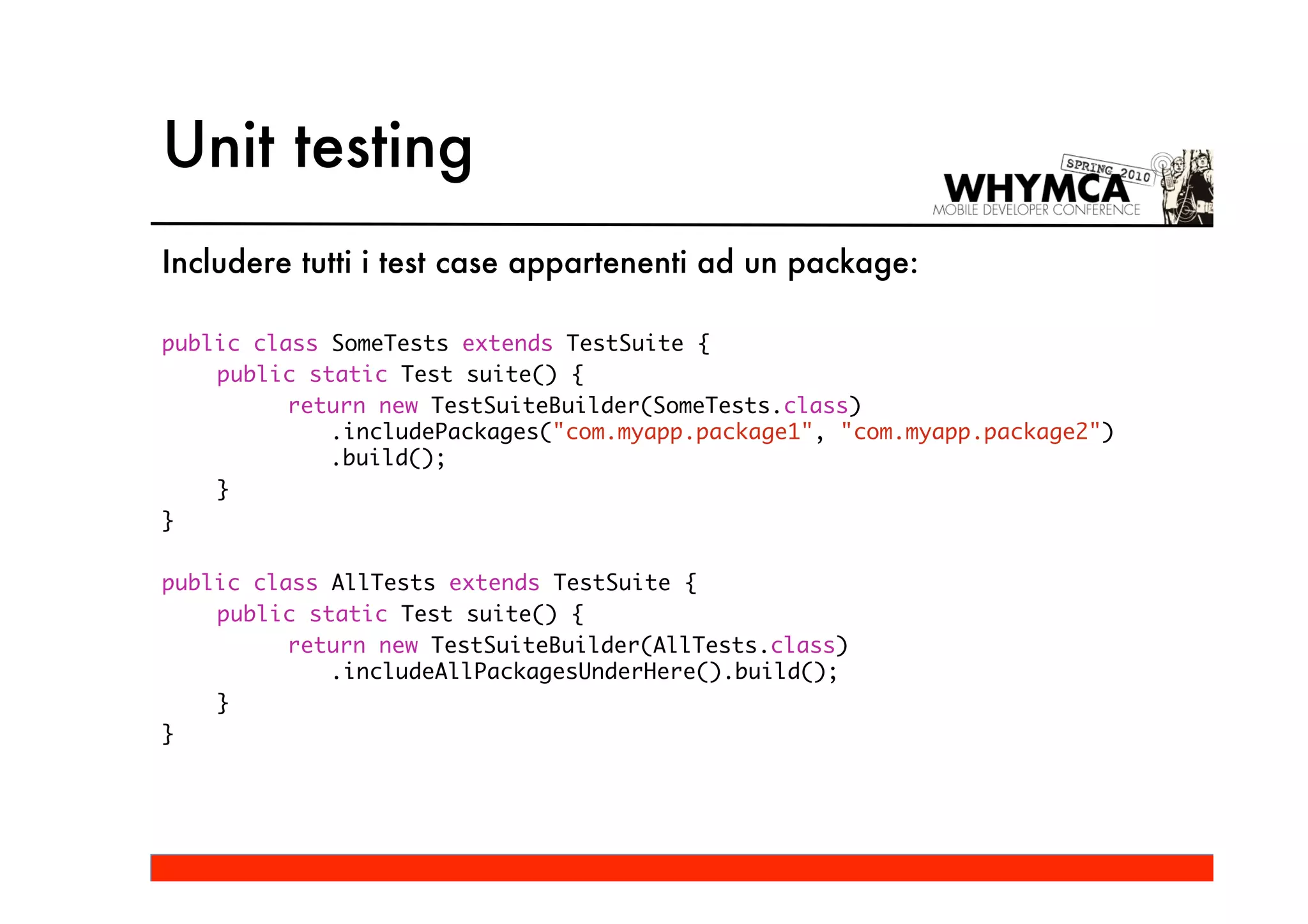
Includere tutti i test case appartenenti ad un package:

public class SomeTests extends TestSuite {
    public static Test suite() {
          return new TestSuiteBuilder(SomeTests.class)
             .includePackages("com.myapp.package1", "com.myapp.package2")
             .build();
    }
}

public class AllTests extends TestSuite {
    public static Test suite() {
          return new TestSuiteBuilder(AllTests.class)
             .includeAllPackagesUnderHere().build();
    }
}
Unit testing
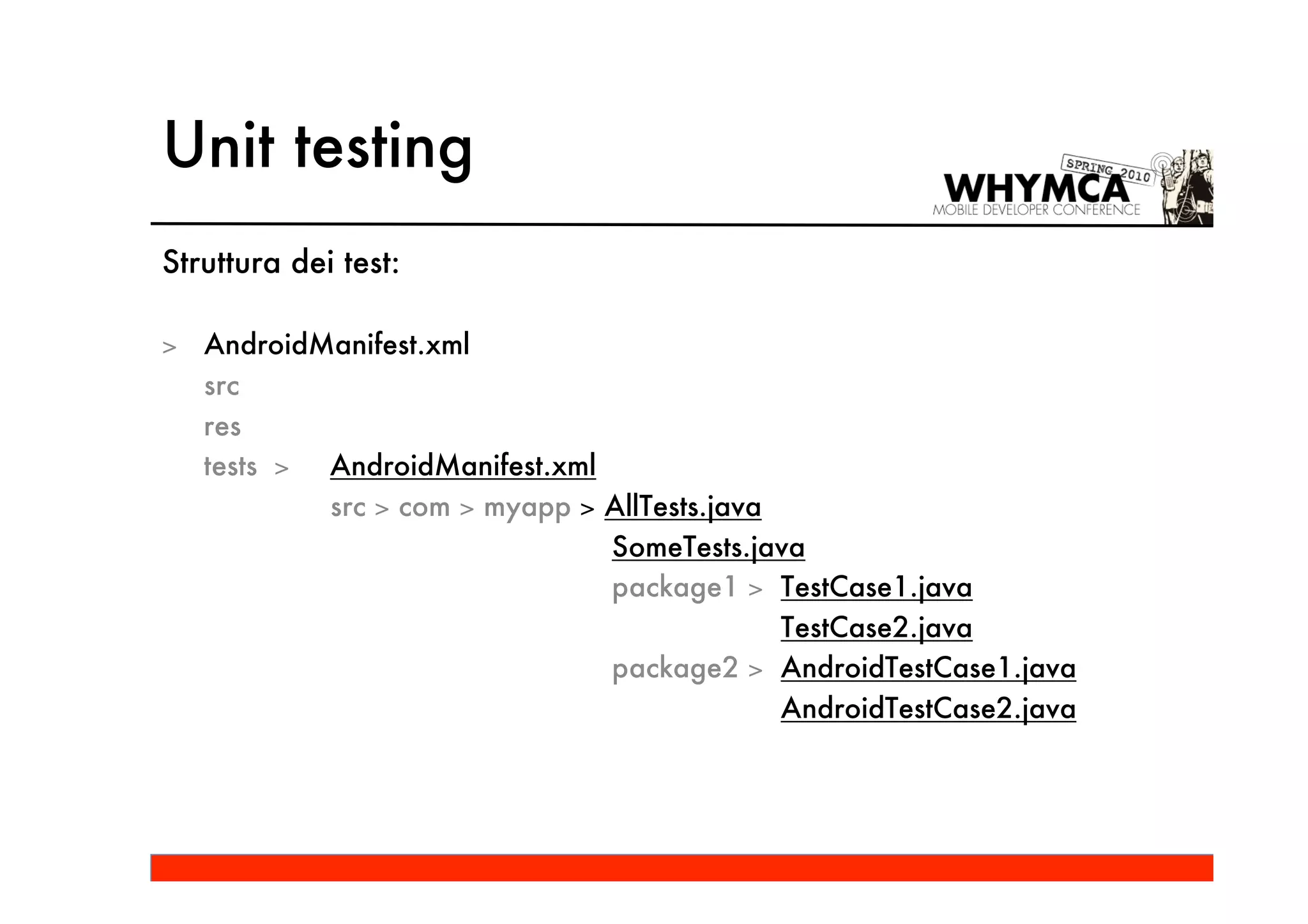
Struttura dei test:

> AndroidManifest.xml
  src
  res
  tests > AndroidManifest.xml
          src > com > myapp > AllTests.java
                              SomeTests.java
                              package1 > TestCase1.java
                                            TestCase2.java
                              package2 > AndroidTestCase1.java
                                            AndroidTestCase2.java
Unit testing
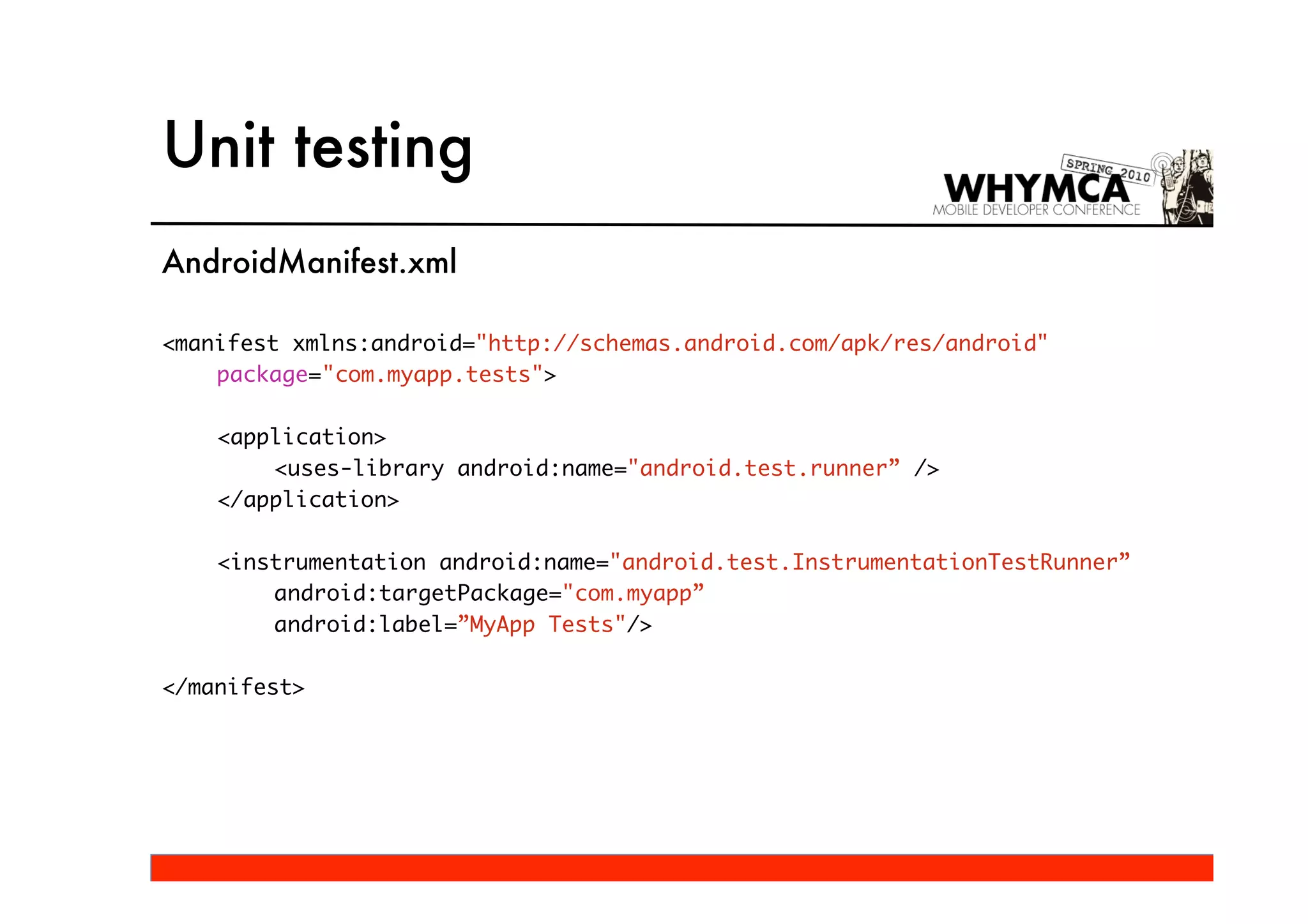
AndroidManifest.xml

<manifest xmlns:android="http://schemas.android.com/apk/res/android"
    package="com.myapp.tests">

    <application>
        <uses-library android:name="android.test.runner” />
    </application>

    <instrumentation android:name="android.test.InstrumentationTestRunner”
        android:targetPackage="com.myapp”
        android:label=”MyApp Tests"/>

</manifest>
Unit testing
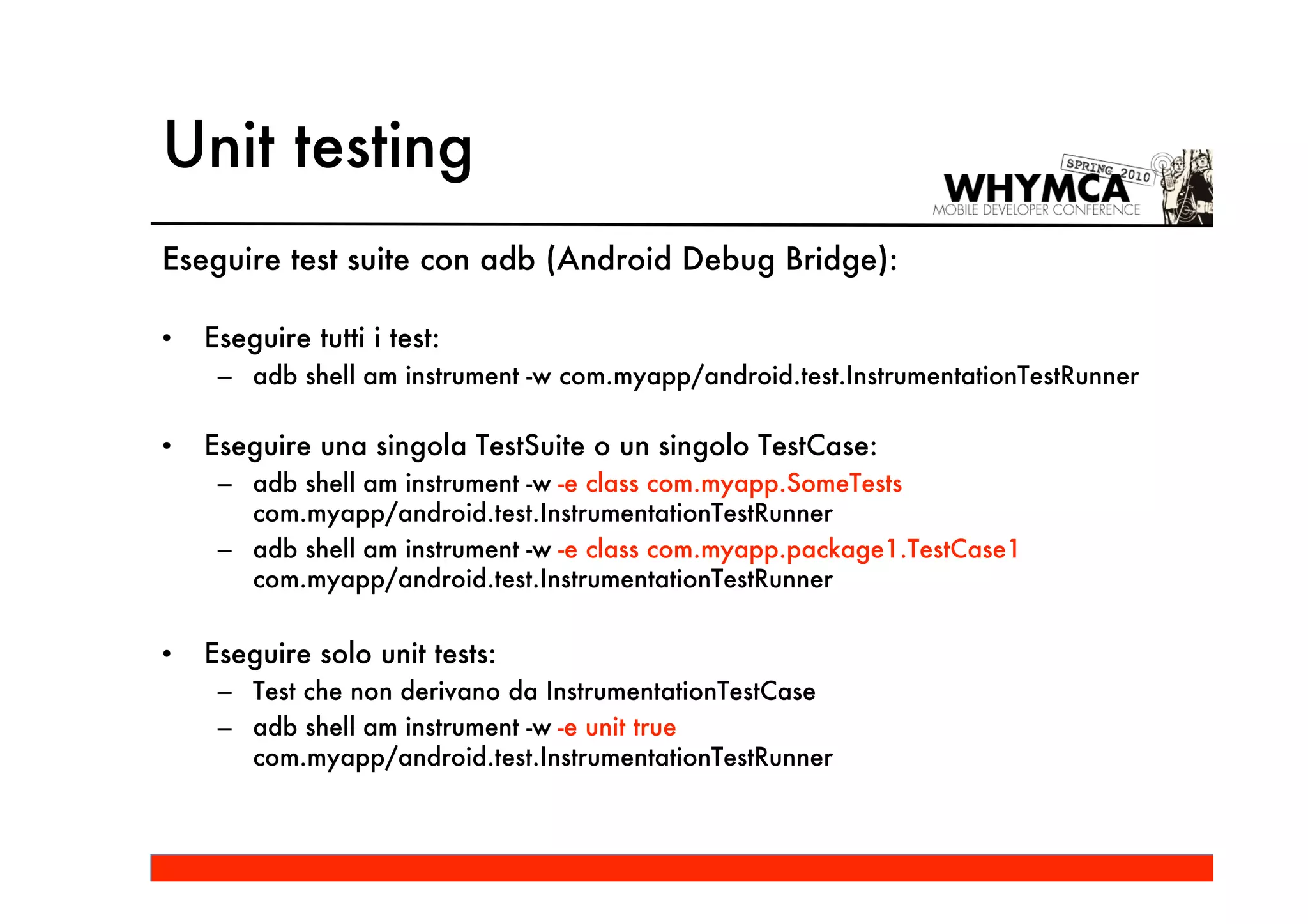
Eseguire test suite con adb (Android Debug Bridge):

•   Eseguire tutti i test:
     – adb shell am instrument -w com.myapp/android.test.InstrumentationTestRunner

•   Eseguire una singola TestSuite o un singolo TestCase:
     – adb shell am instrument -w -e class com.myapp.SomeTests
       com.myapp/android.test.InstrumentationTestRunner
     – adb shell am instrument -w -e class com.myapp.package1.TestCase1
       com.myapp/android.test.InstrumentationTestRunner


•   Eseguire solo unit tests:
     – Test che non derivano da InstrumentationTestCase
     – adb shell am instrument -w -e unit true
       com.myapp/android.test.InstrumentationTestRunner
Unit testing
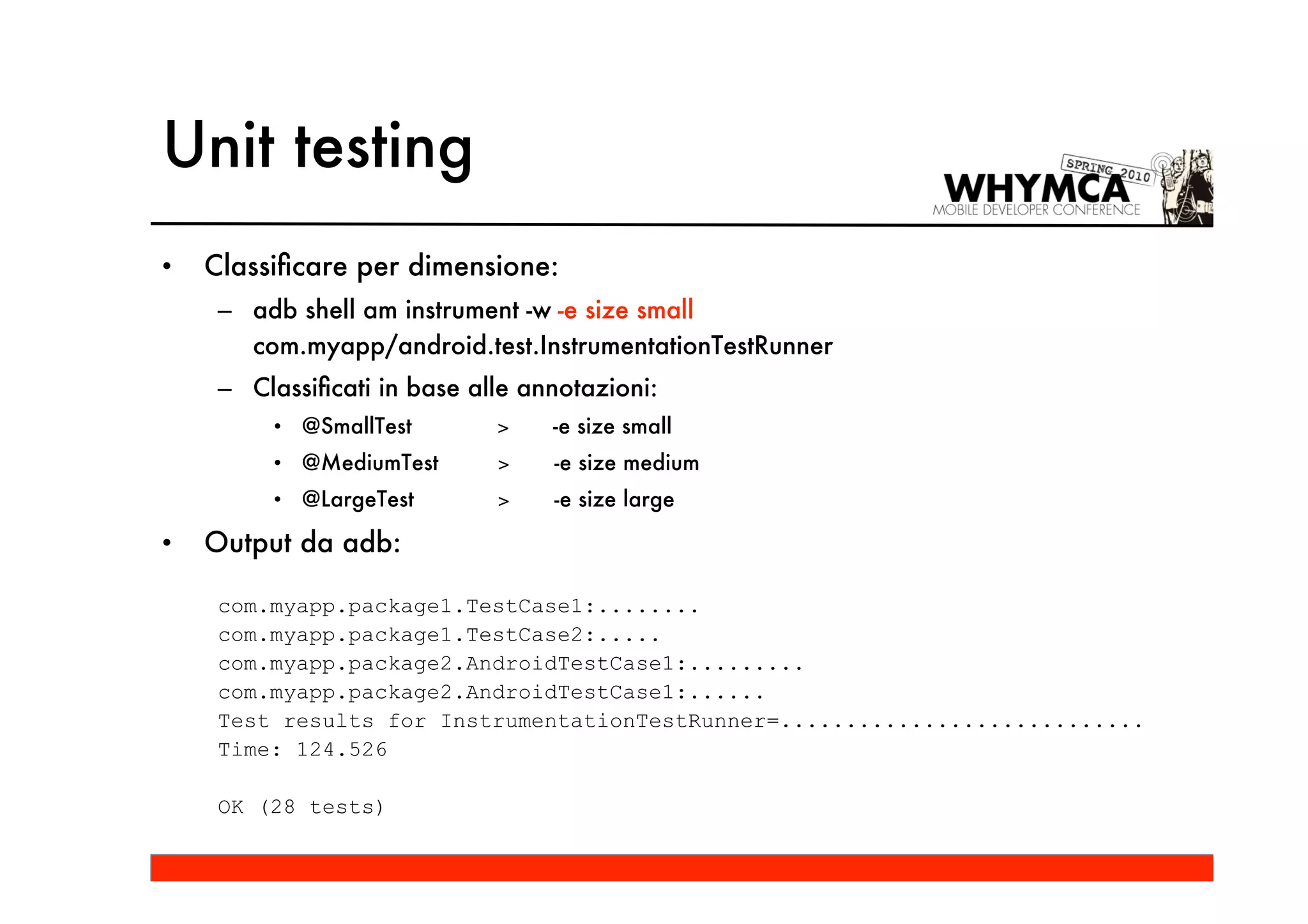
•   Classificare per dimensione:
     – adb shell am instrument -w -e size small
       com.myapp/android.test.InstrumentationTestRunner
     – Classificati in base alle annotazioni:
         • @SmallTest        >    -e size small
         • @MediumTest       >    -e size medium
         • @LargeTest        >    -e size large

•   Output da adb:

     com.myapp.package1.TestCase1:........
     com.myapp.package1.TestCase2:.....
     com.myapp.package2.AndroidTestCase1:.........
     com.myapp.package2.AndroidTestCase1:......
     Test results for InstrumentationTestRunner=............................
     Time: 124.526

     OK (28 tests)
Unit testing
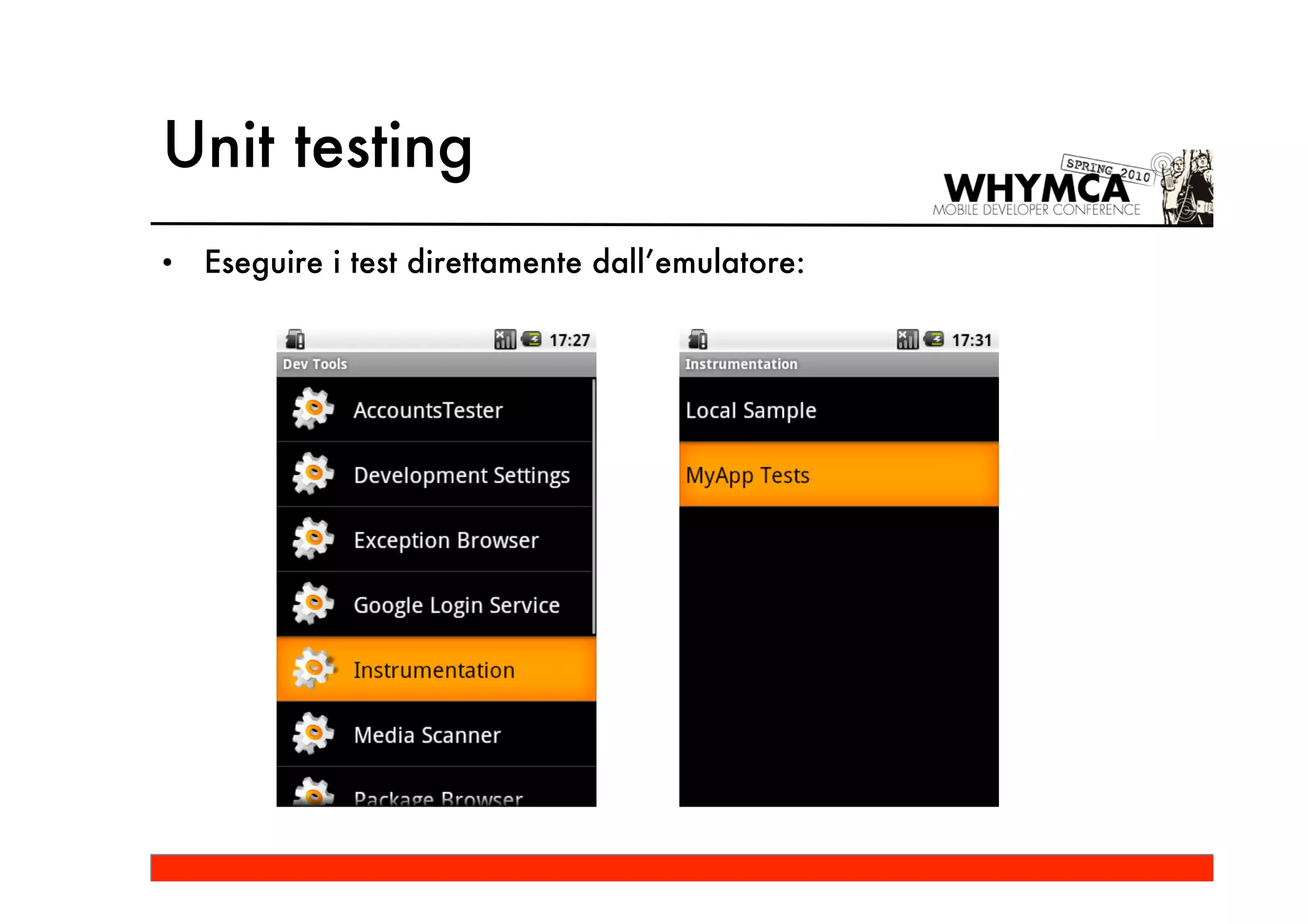
•   Eseguire i test direttamente dall’emulatore:
Functional testing
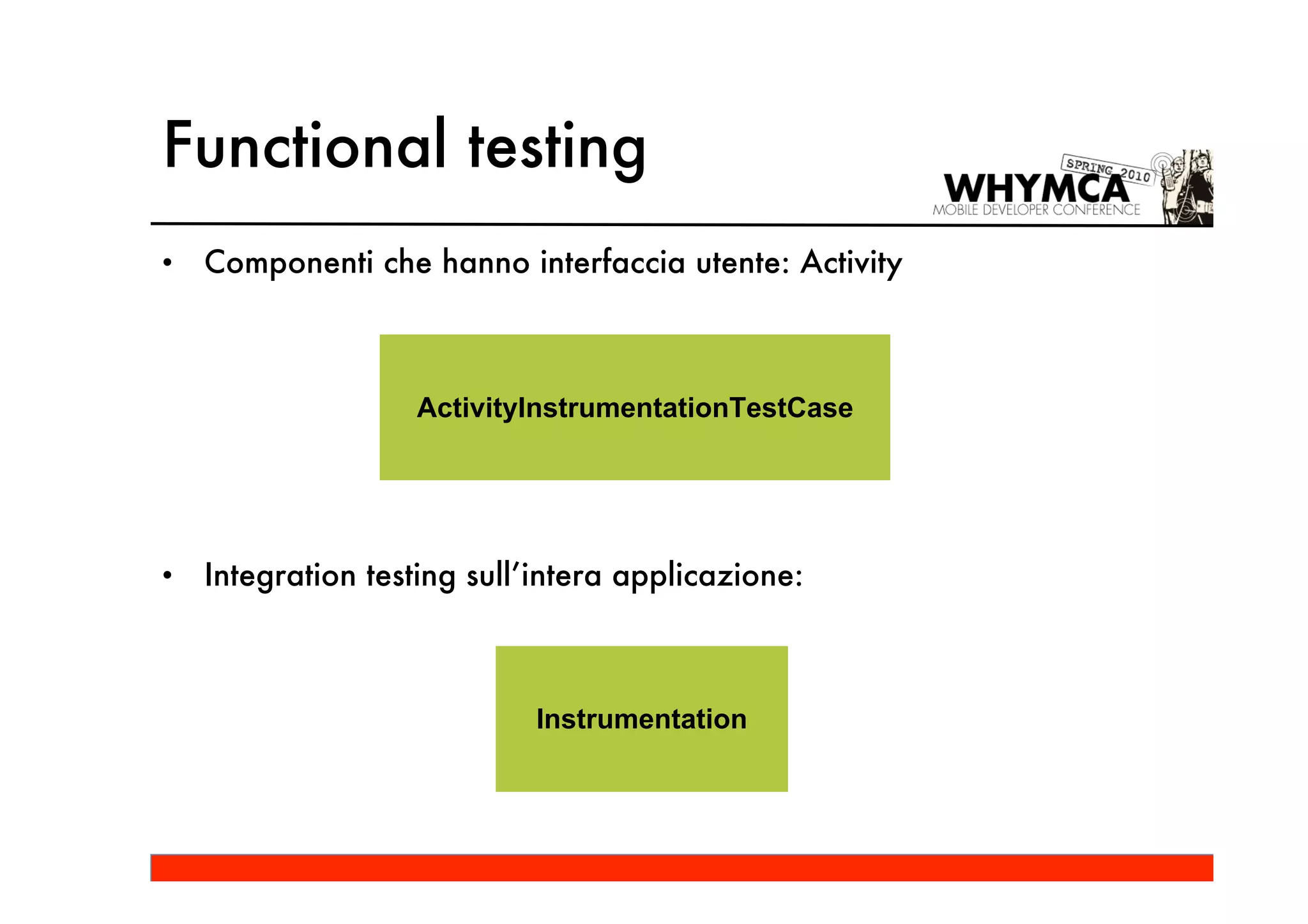
•   Componenti che hanno interfaccia utente: Activity


                   ActivityInstrumentationTestCase


•   Integration testing sull’intera applicazione:


                            Instrumentation
Functional testing
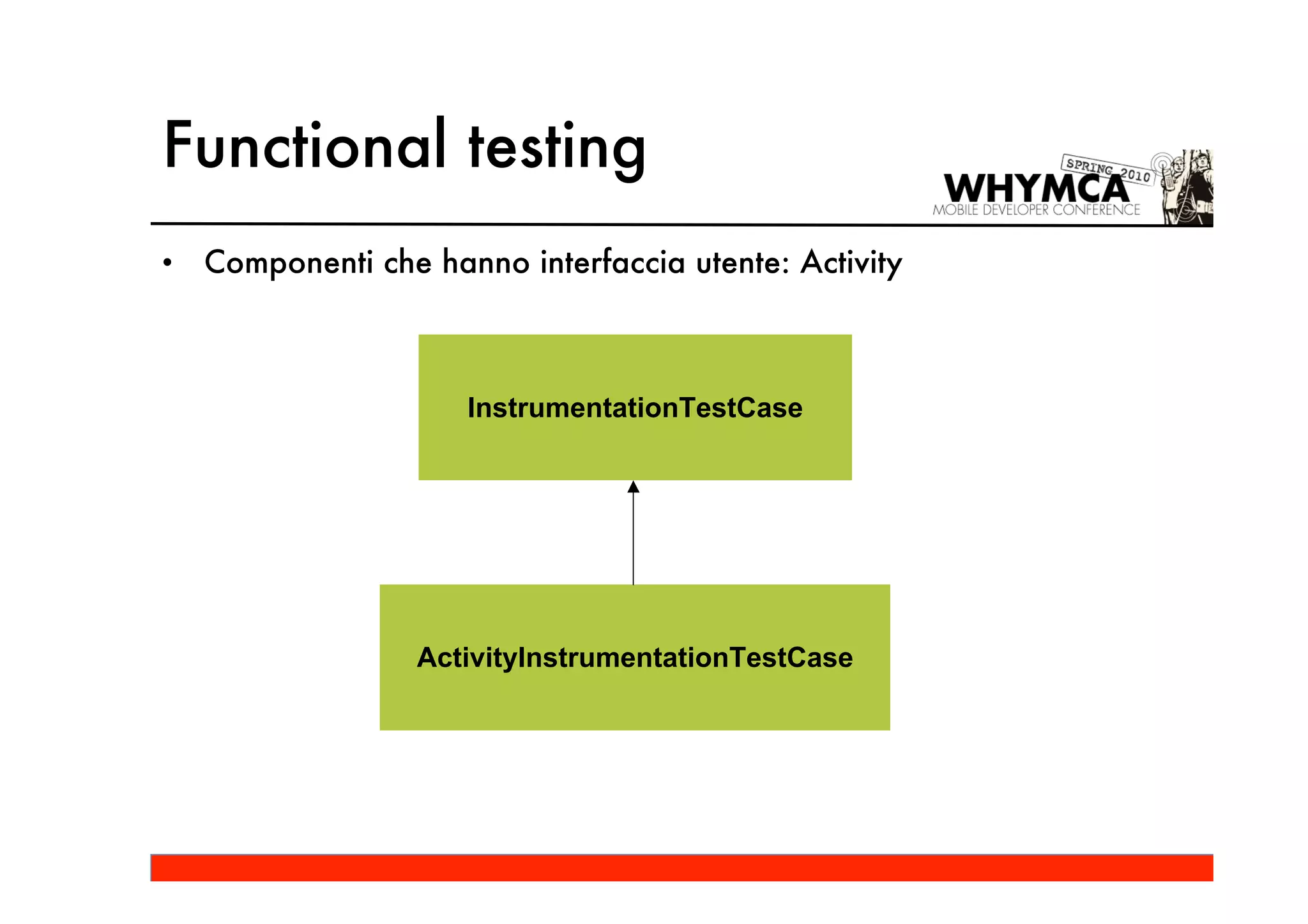
•   Componenti che hanno interfaccia utente: Activity


                      InstrumentationTestCase


                  ActivityInstrumentationTestCase
Functional testing
ActivityInstrumentationTestCase2<T extends Activity>


•   Testing isolato per una singola Activity
•   Tramite l’oggetto Instrumentation si può interagire con l’interfaccia
    utente
•   È possibile utilizzare le TouchUtils per simulare eventi touch
Functional testing
•   Instrumentation:
    – sendCharacterSync(int keyCode)
    – sendKeySync(KeyEvent event)
    – sendPointerSync(MotionEvent event)
    – sendStringSync(String text)
    – setInTouchMode(boolean inTouch)
Functional testing
•   TouchUtils:
     – clickView(InstrumentationTestCase test, View v)
     – drag(InstrumentationTestCase test, float fromX, float toX, float fromY,
       float toY, int stepCount)
     – longClickView(InstrumentationTestCase test, View v)
     – scrollToBottom(InstrumentationTestCase test, ViewGroup v)
     – tapView(InstrumentationTestCase test, View v)
Functional testing
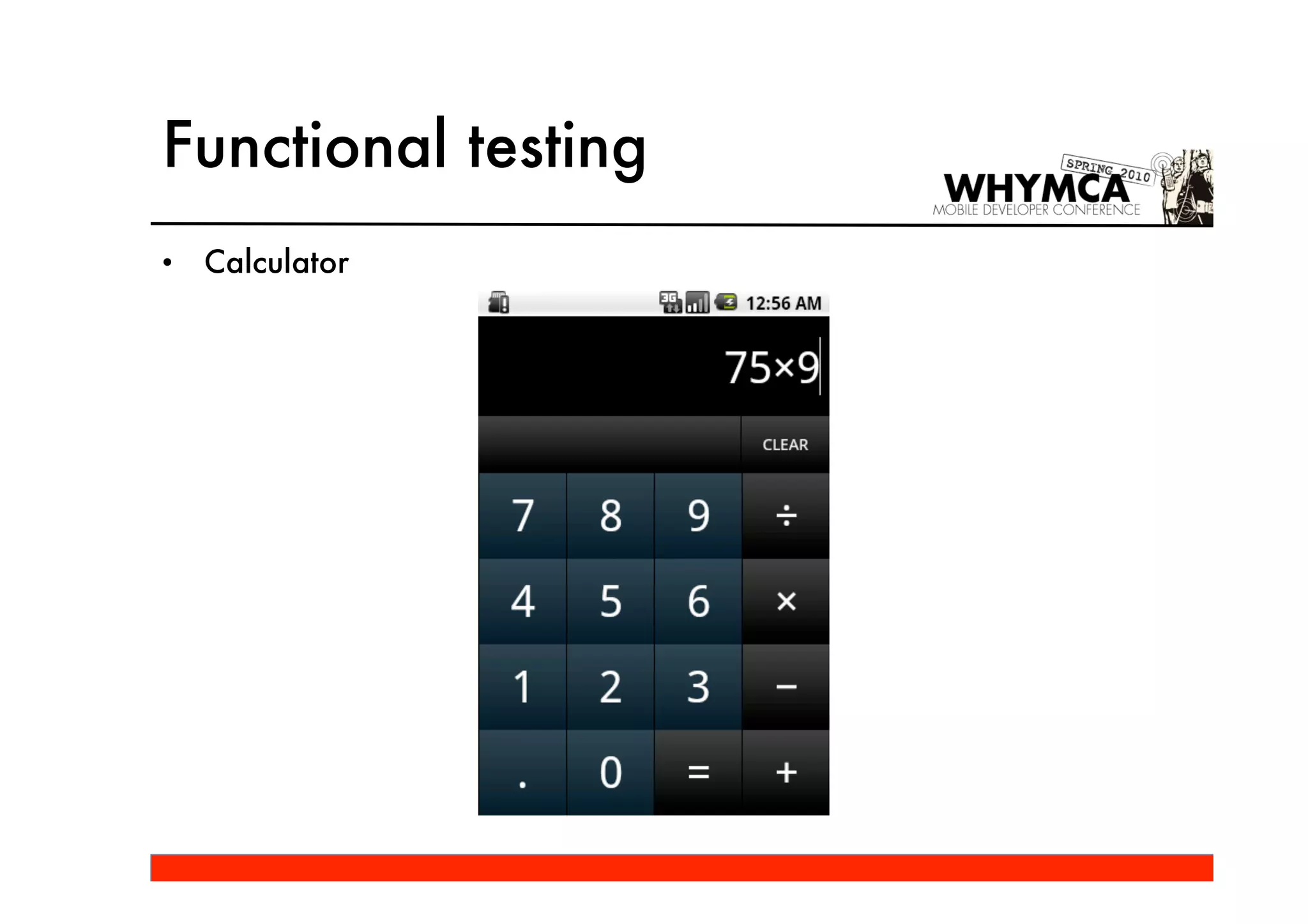
•   Calculator
Functional testing


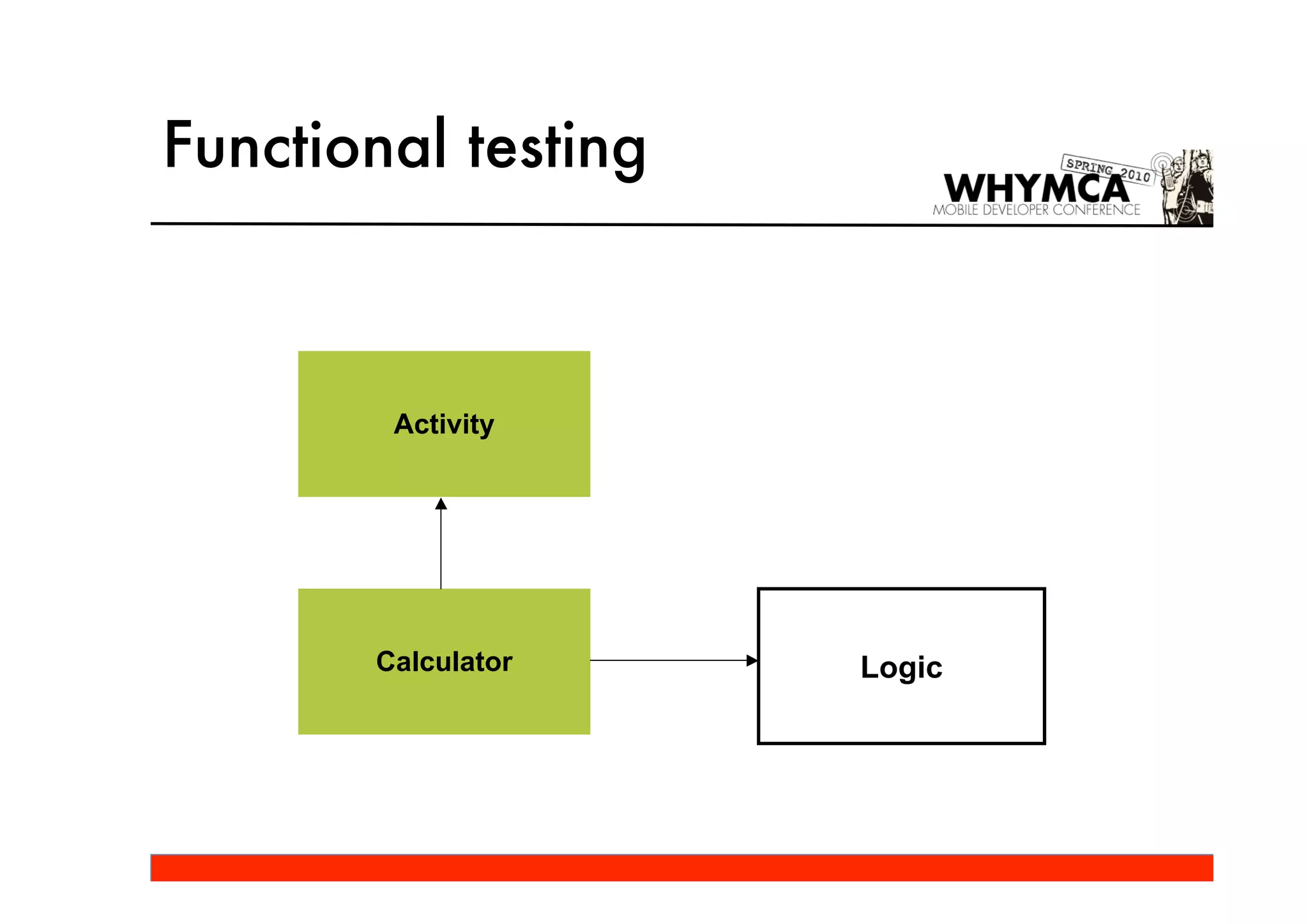
        Activity


       Calculator    Logic
Functional testing


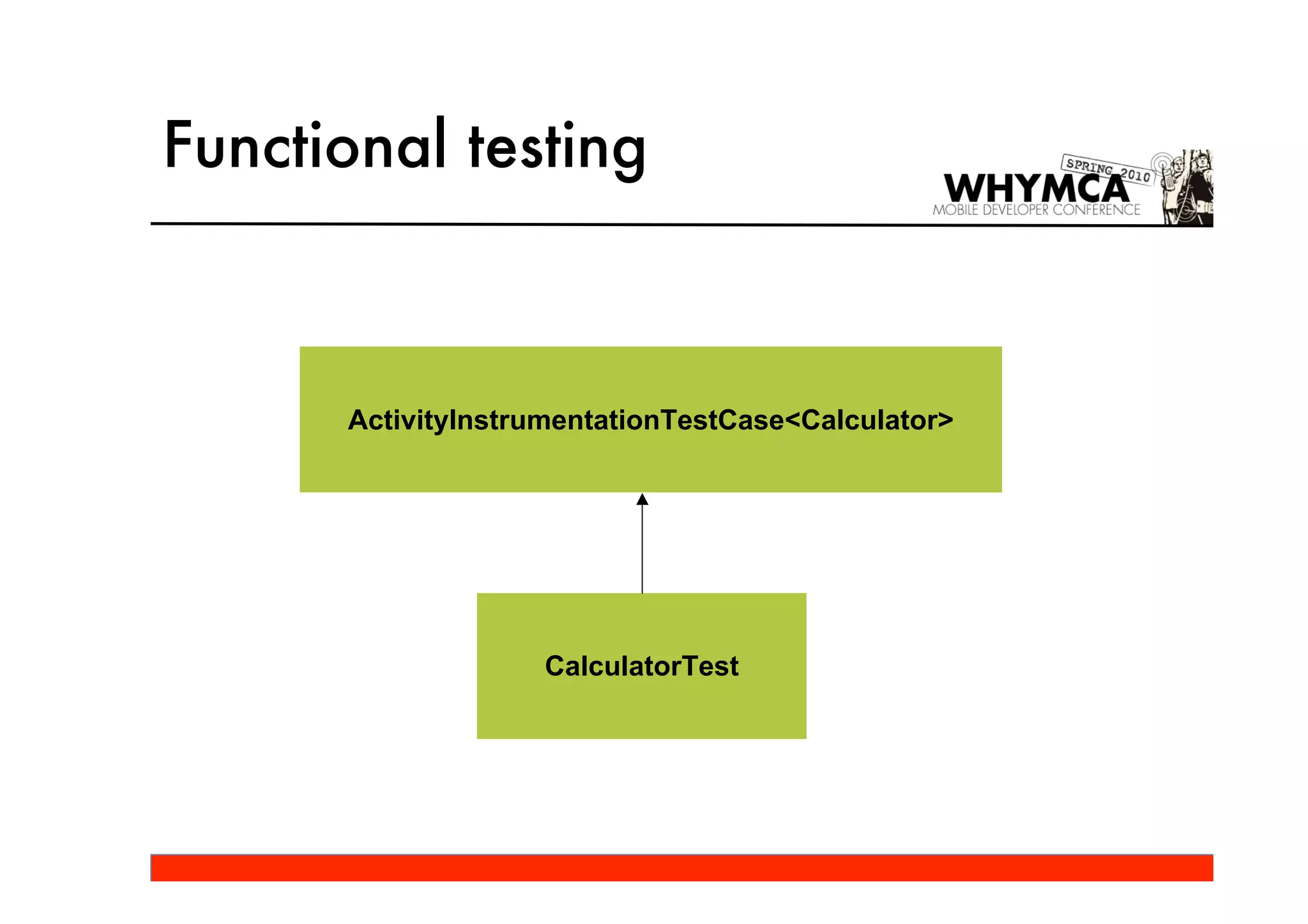
      ActivityInstrumentationTestCase<Calculator>


                   CalculatorTest
Functional testing
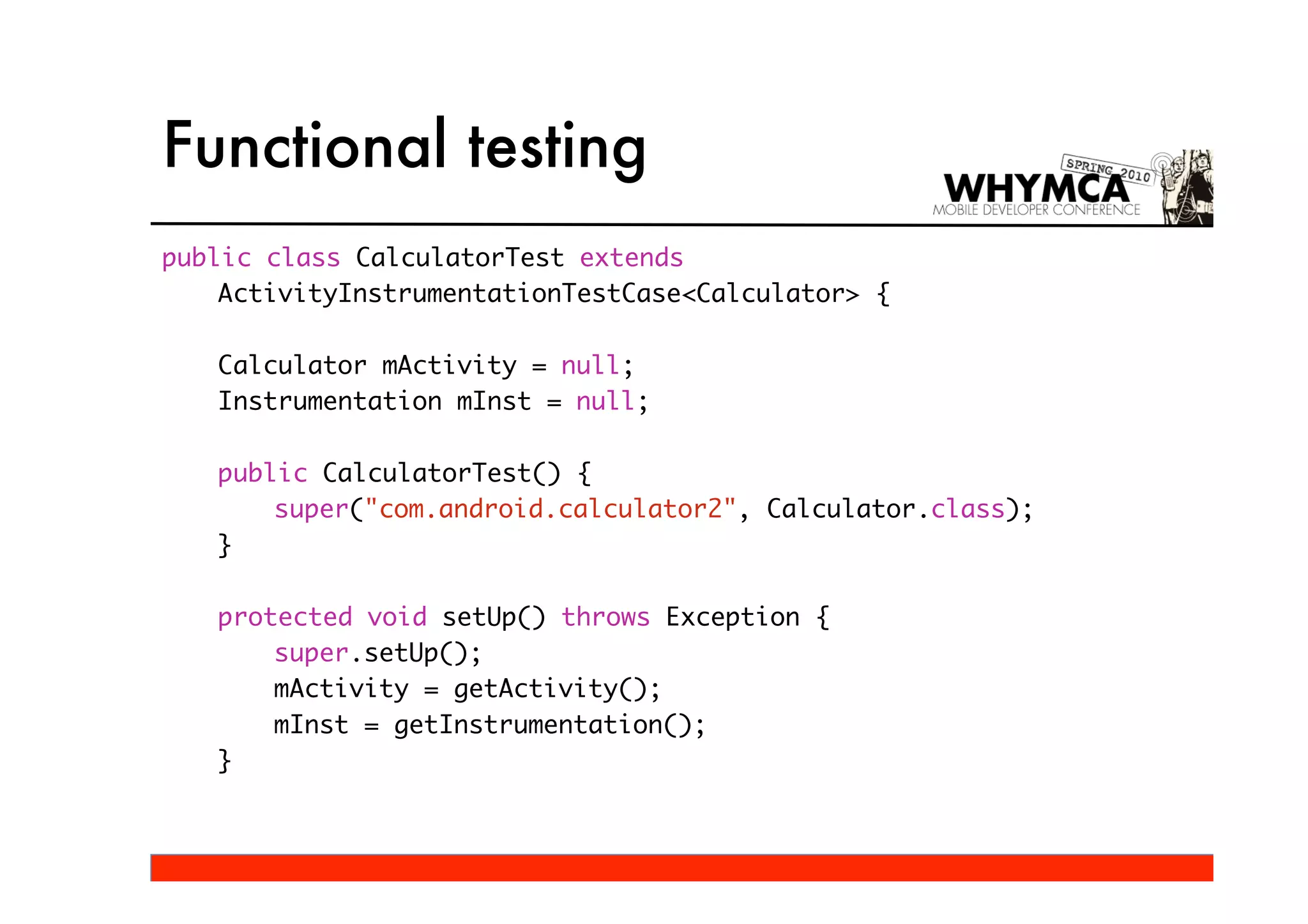
public class CalculatorTest extends
    ActivityInstrumentationTestCase<Calculator> {

   Calculator mActivity = null;
   Instrumentation mInst = null;

   public CalculatorTest() {
       super("com.android.calculator2", Calculator.class);
   }

   protected void setUp() throws Exception {
       super.setUp();
       mActivity = getActivity();
       mInst = getInstrumentation();
   }
Functional testing
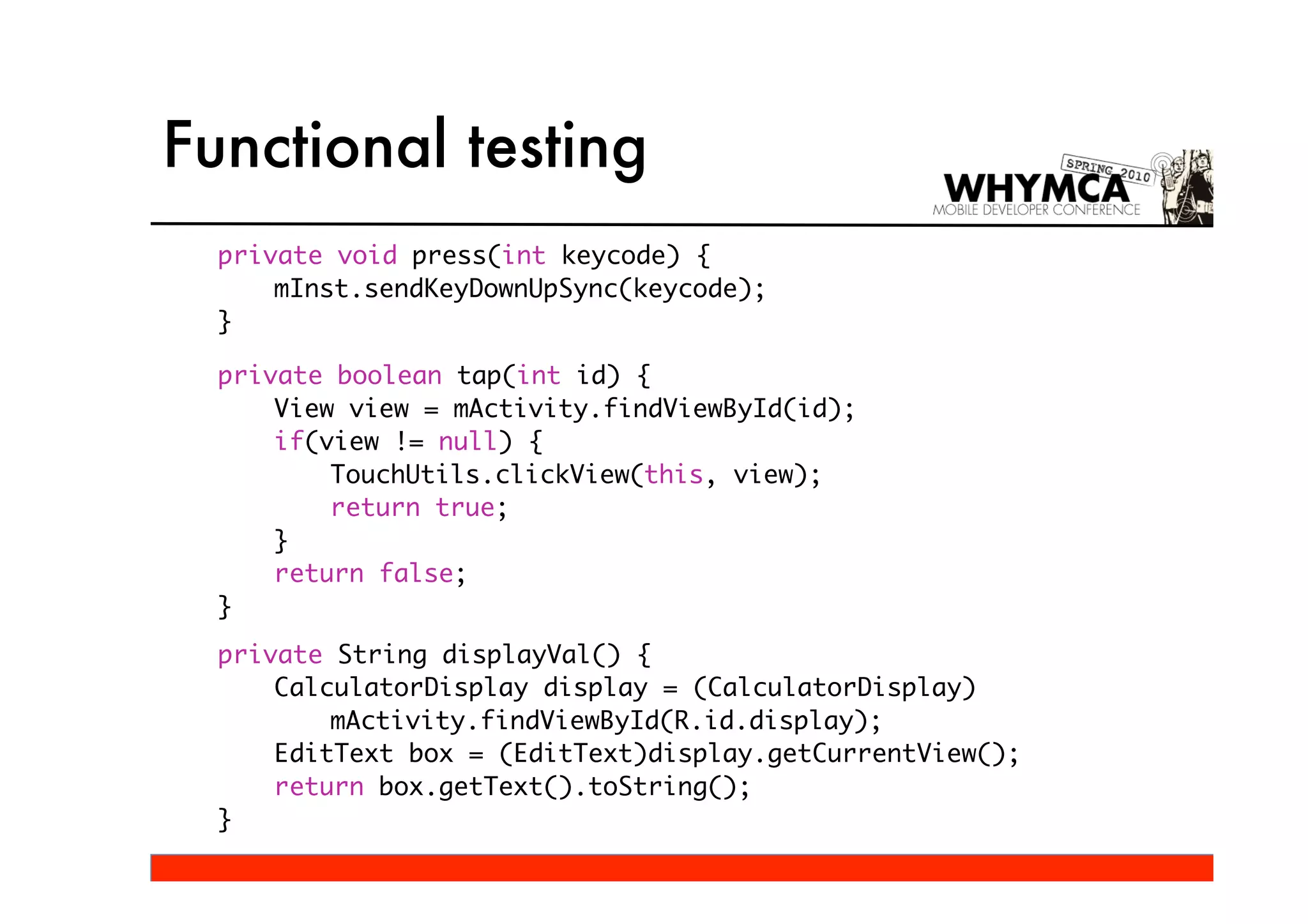
  private void press(int keycode) {
      mInst.sendKeyDownUpSync(keycode);
  }

  private boolean tap(int id) {
      View view = mActivity.findViewById(id);
      if(view != null) {
          TouchUtils.clickView(this, view);
          return true;
      }
      return false;
  }
  private String displayVal() {
      CalculatorDisplay display = (CalculatorDisplay)
          mActivity.findViewById(R.id.display);
      EditText box = (EditText)display.getCurrentView();
      return box.getText().toString();
  }
Functional testing
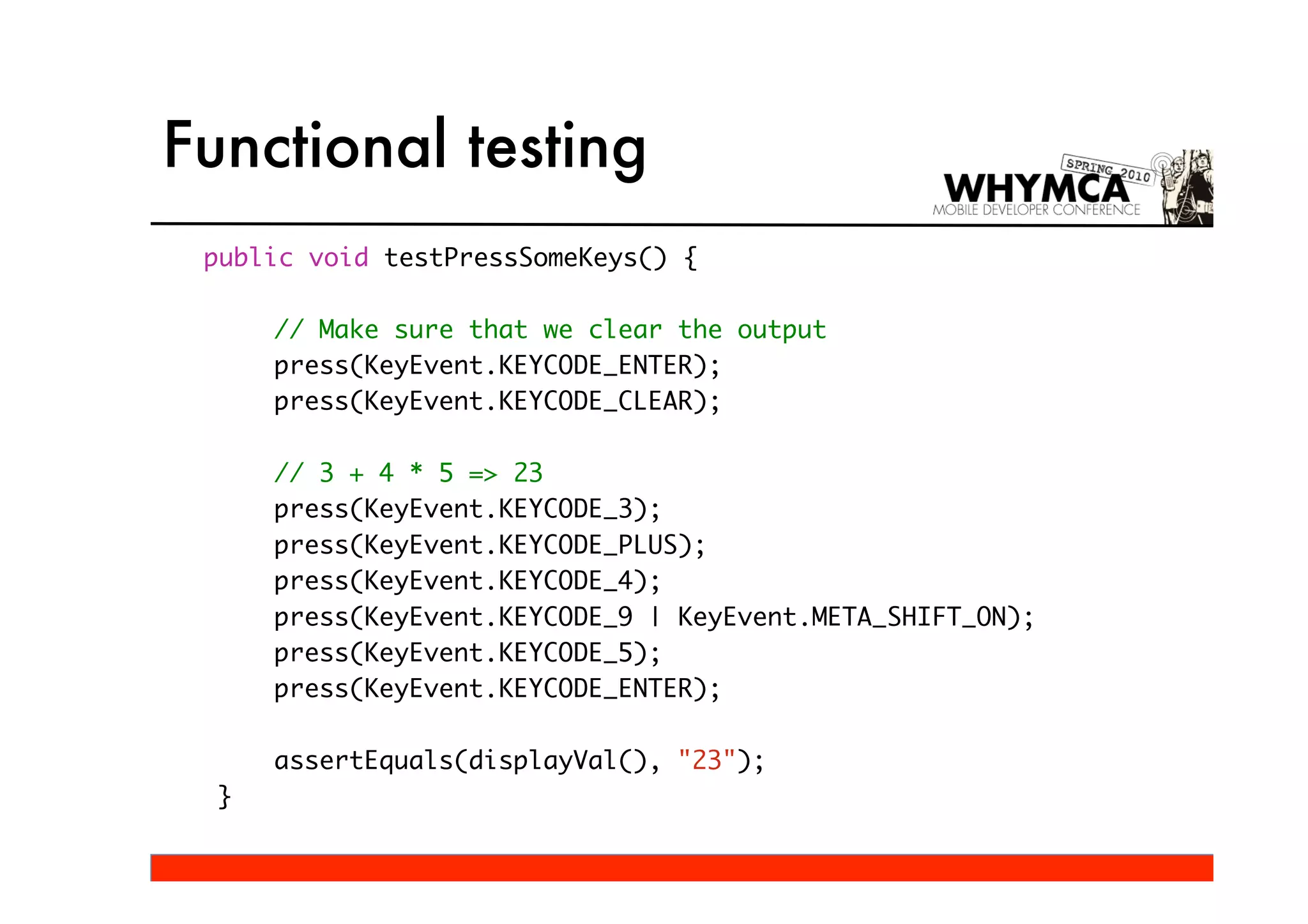
 public void testPressSomeKeys() {

      // Make sure that we clear the output
      press(KeyEvent.KEYCODE_ENTER);
      press(KeyEvent.KEYCODE_CLEAR);

      // 3 + 4 * 5 => 23
      press(KeyEvent.KEYCODE_3);
      press(KeyEvent.KEYCODE_PLUS);
      press(KeyEvent.KEYCODE_4);
      press(KeyEvent.KEYCODE_9 | KeyEvent.META_SHIFT_ON);
      press(KeyEvent.KEYCODE_5);
      press(KeyEvent.KEYCODE_ENTER);

      assertEquals(displayVal(), "23");
  }
Functional testing
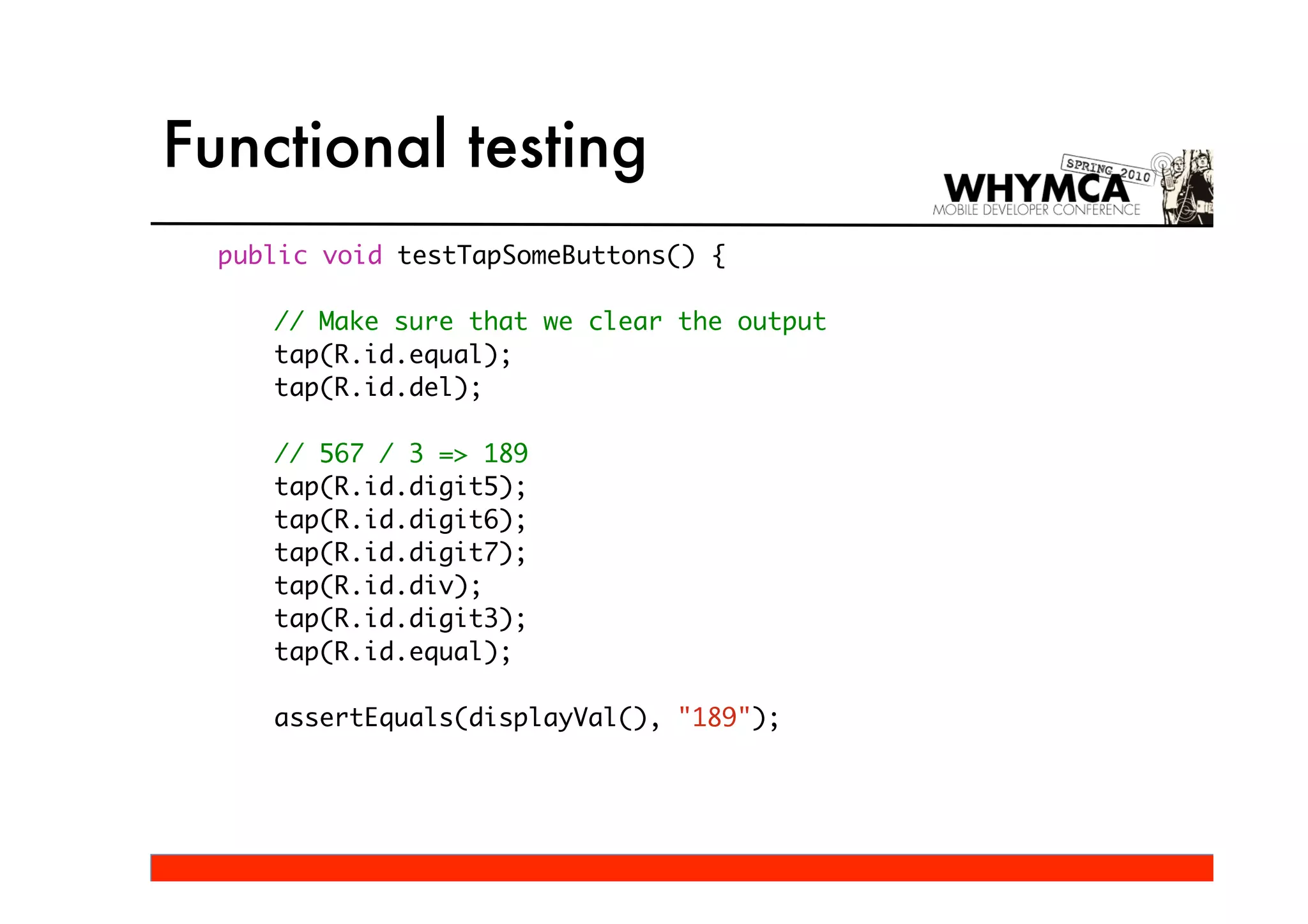
  public void testTapSomeButtons() {

     // Make sure that we clear the output
     tap(R.id.equal);
     tap(R.id.del);

     // 567 / 3 => 189
     tap(R.id.digit5);
     tap(R.id.digit6);
     tap(R.id.digit7);
     tap(R.id.div);
     tap(R.id.digit3);
     tap(R.id.equal);

     assertEquals(displayVal(), "189");
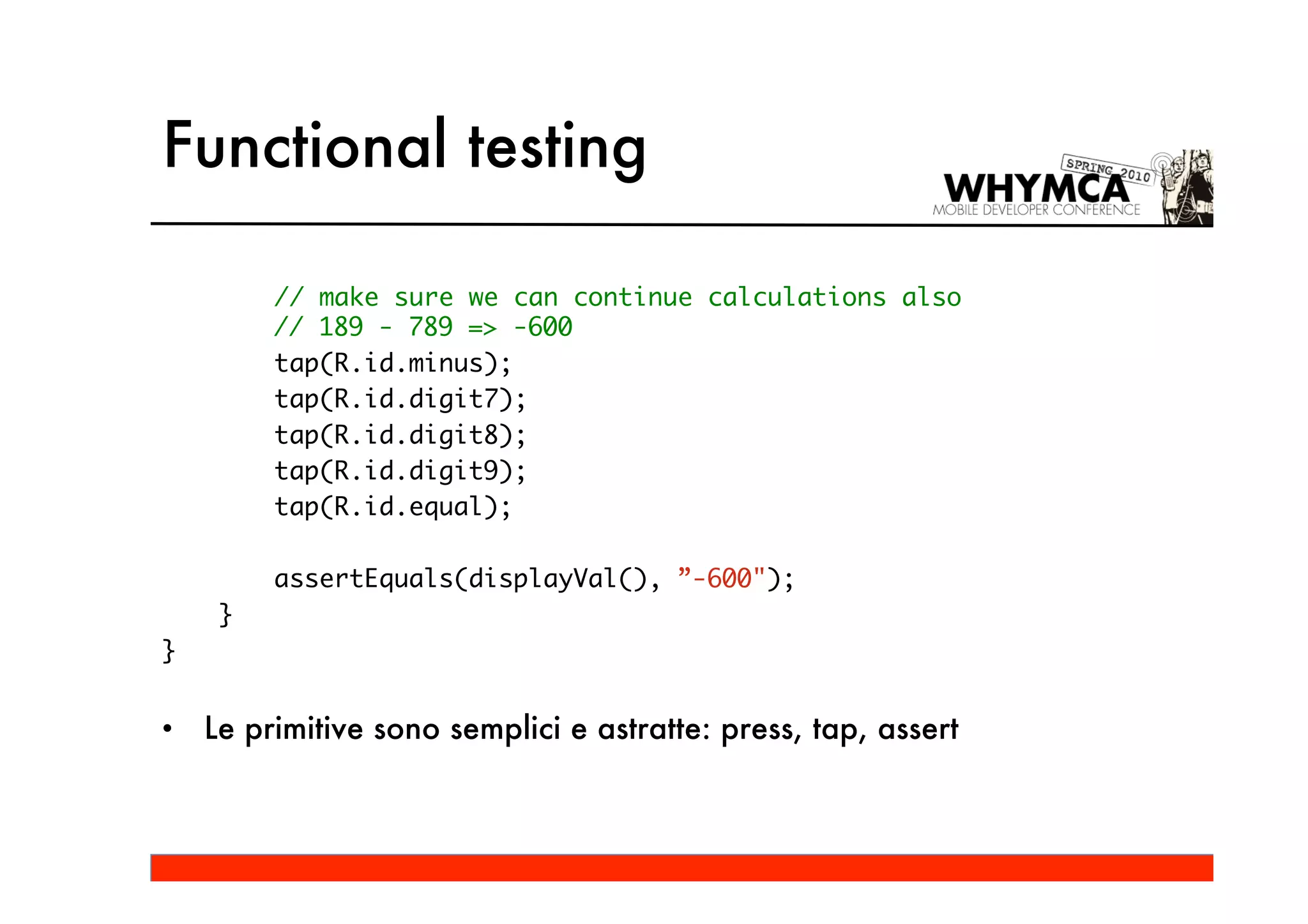
Functional testing

         // make sure we can continue calculations also
         // 189 - 789 => -600
         tap(R.id.minus);
         tap(R.id.digit7);
         tap(R.id.digit8);
         tap(R.id.digit9);
         tap(R.id.equal);

         assertEquals(displayVal(), ”-600");
     }
}


•   Le primitive sono semplici e astratte: press, tap, assert
Functional testing
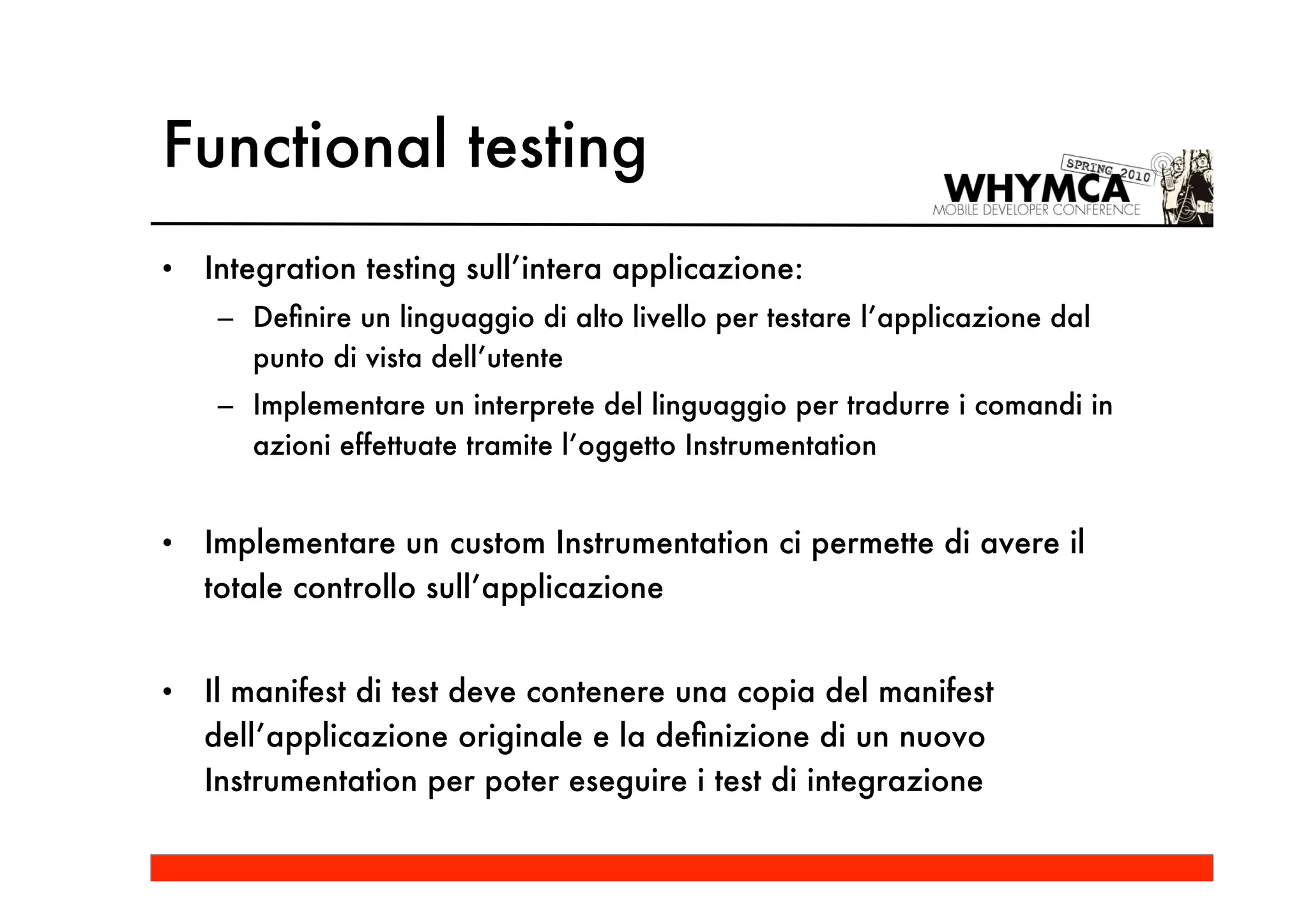
•   Integration testing sull’intera applicazione:
     – Definire un linguaggio di alto livello per testare l’applicazione dal
       punto di vista dell’utente
     – Implementare un interprete del linguaggio per tradurre i comandi in
       azioni effettuate tramite l’oggetto Instrumentation


•   Implementare un custom Instrumentation ci permette di avere il
    totale controllo sull’applicazione


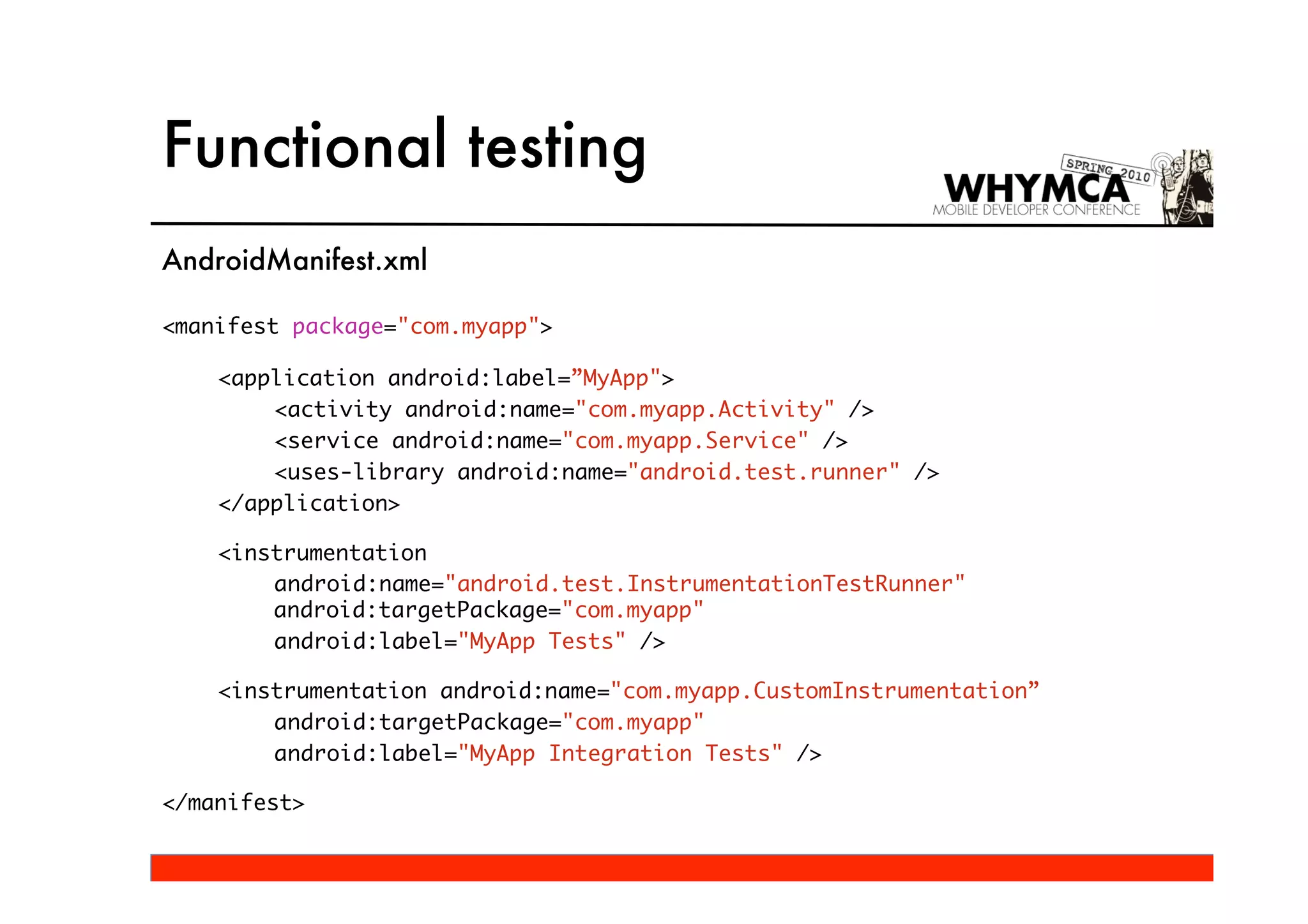
•   Il manifest di test deve contenere una copia del manifest
    dell’applicazione originale e la definizione di un nuovo
    Instrumentation per poter eseguire i test di integrazione
Functional testing
AndroidManifest.xml

<manifest package="com.myapp">

    <application android:label=”MyApp">
        <activity android:name="com.myapp.Activity" />
        <service android:name="com.myapp.Service" />
        <uses-library android:name="android.test.runner" />
    </application>

    <instrumentation
        android:name="android.test.InstrumentationTestRunner"
        android:targetPackage="com.myapp"
        android:label="MyApp Tests" />

    <instrumentation android:name="com.myapp.CustomInstrumentation”
        android:targetPackage="com.myapp"
        android:label="MyApp Integration Tests" />

</manifest>
Functional testing
•   Definire un linguaggio di alto livello per simulare le azioni
    dell’utente (esempio: Funambol integration tests):
     – StartMainApp()
     – KeyPress(String command, int count)
     – WriteString(String text)
     – CreateEmptyContact()
     – DeleteAllContacts()
     – Include(String scriptUrl)


•   Linguaggio utilizzato dal QA per scrivere i test partendo dagli
    acceptance tests
Functional testing


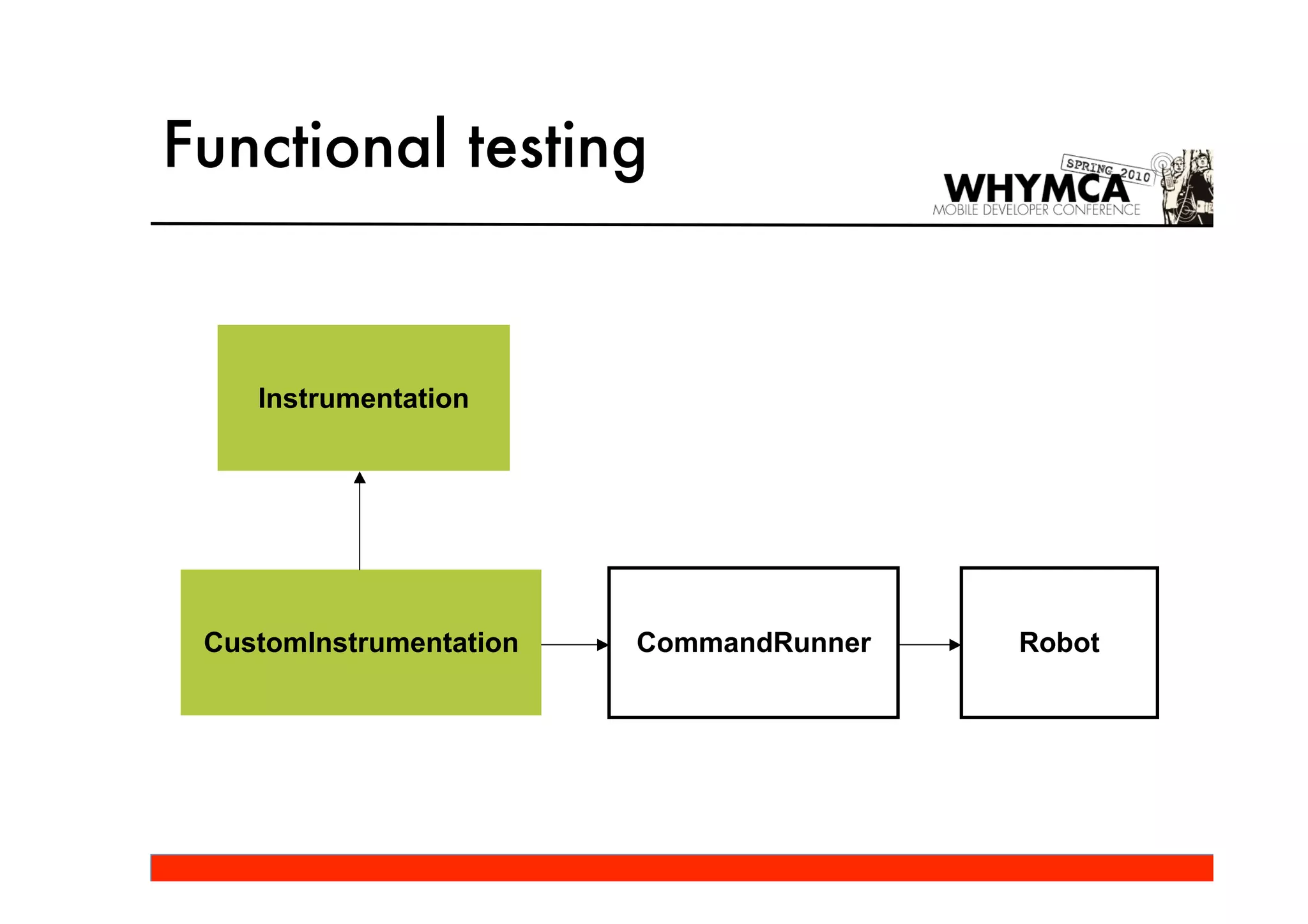
    Instrumentation


 CustomInstrumentation   CommandRunner   Robot
Functional testing
•   CustomInstrumentation:
    – Carica lo script di test e lo esegue tramite il CommandRunner
•   CommandRunner:
    – Interpreta lo script
    – Traduce ogni comando in azione eseguita tramite il Robot
•   Robot:
    – Esegue delle azioni sull’applicazione tramite un riferimento
       all’oggetto Instrumentation
Functional testing
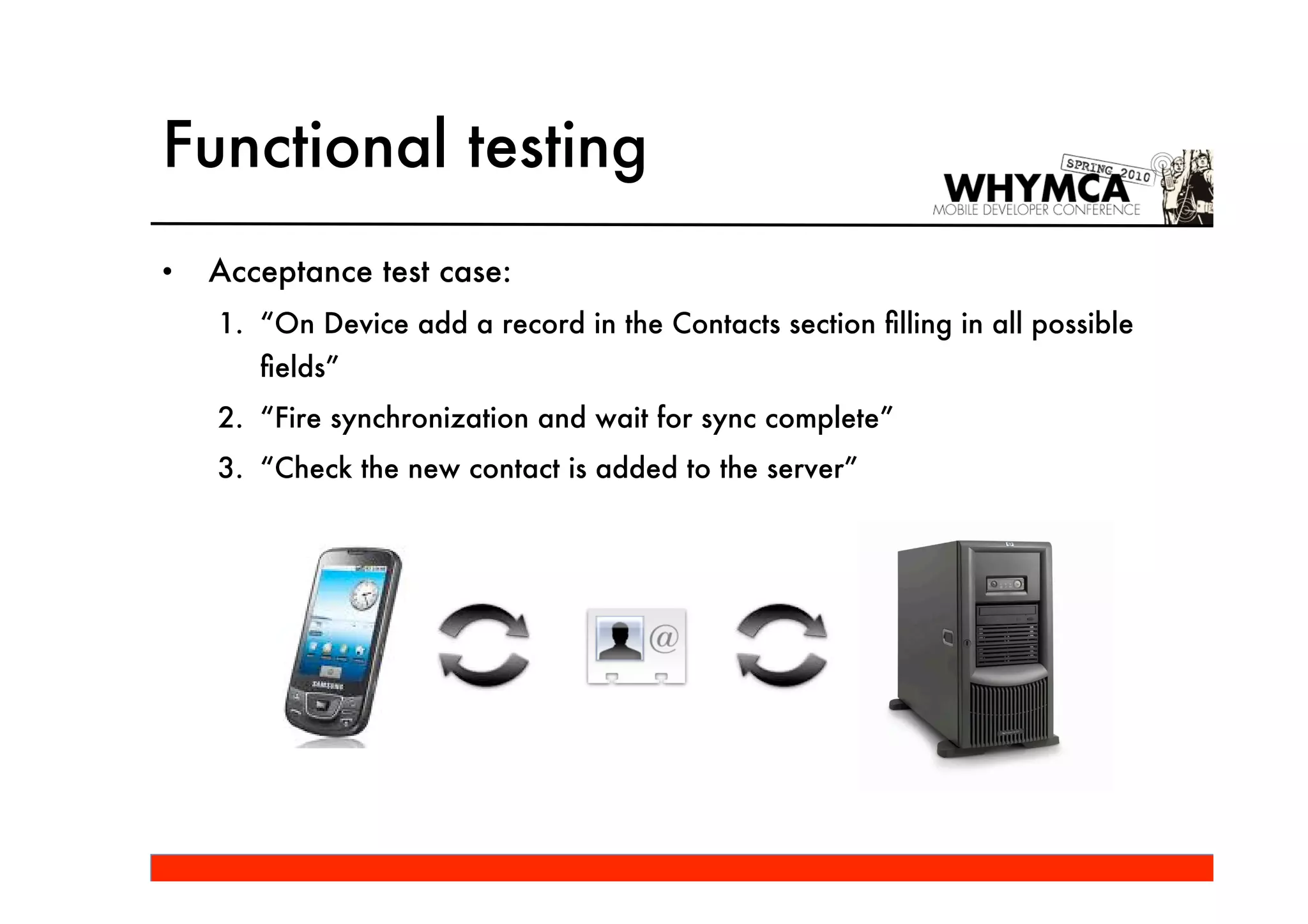
•   Acceptance test case:
    1. “On Device add a record in the Contacts section filling in all possible
       fields”
    2. “Fire synchronization and wait for sync complete”
    3. “Check the new contact is added to the server”
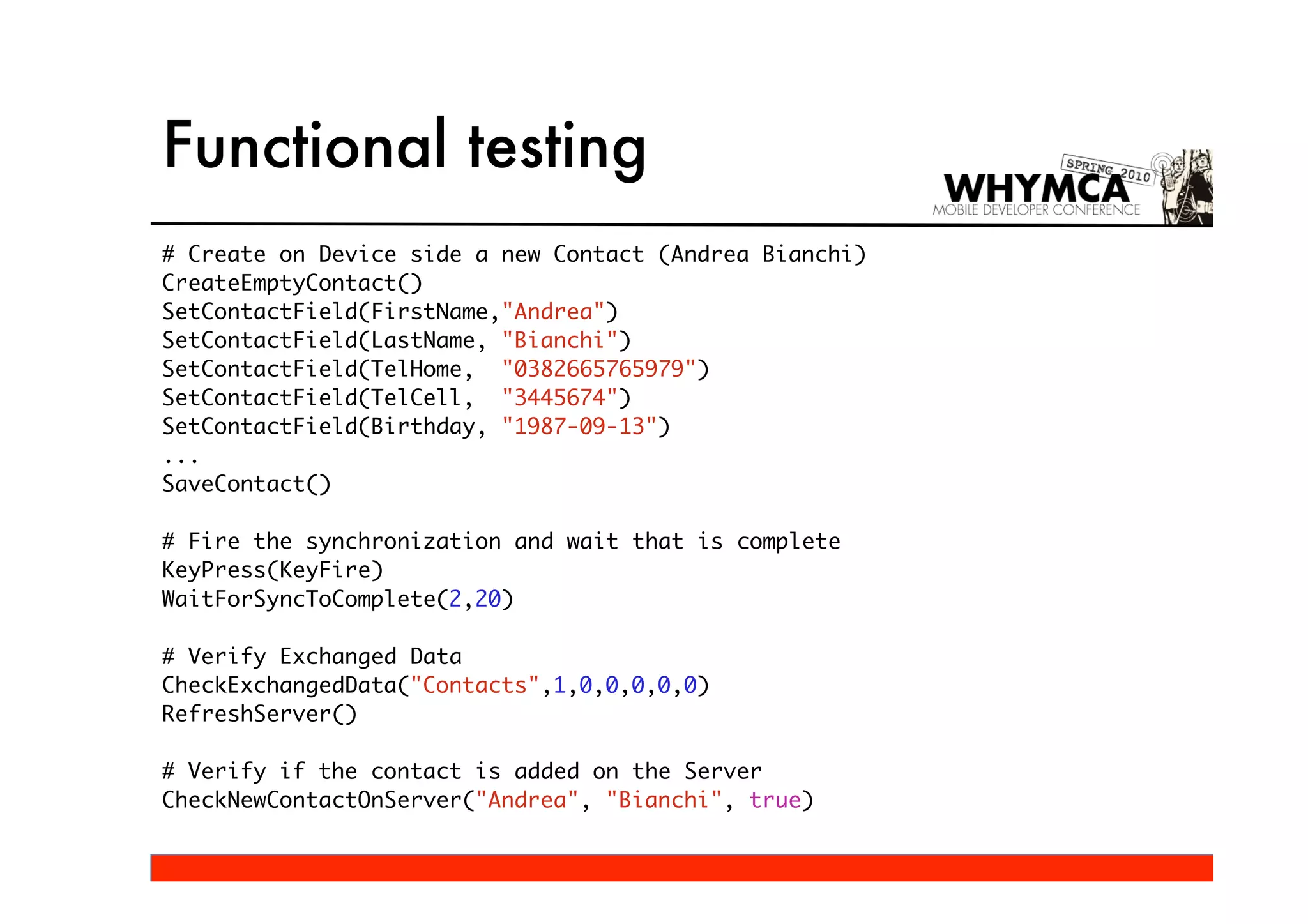
Functional testing
# Create on Device side a new Contact (Andrea Bianchi)
CreateEmptyContact()
SetContactField(FirstName,"Andrea")
SetContactField(LastName, "Bianchi")
SetContactField(TelHome, "0382665765979")
SetContactField(TelCell, "3445674")
SetContactField(Birthday, "1987-09-13")
...
SaveContact()

# Fire the synchronization and wait that is complete
KeyPress(KeyFire)
WaitForSyncToComplete(2,20)

# Verify Exchanged Data
CheckExchangedData("Contacts",1,0,0,0,0,0)
RefreshServer()

# Verify if the contact is added on the Server
CheckNewContactOnServer("Andrea", "Bianchi", true)
Functional testing
•   Eseguire i test di integrazione:
     – adb shell am instrument [options] -w
       com.myapp/com.myapp.CustomInstrumentation

     – È possibile specificare dei parametri aggiuntivi tramite il flag -e (extra)

     – I parametri vengono passati tramite una Bundle attraverso il metodo
       onCreate() dell’oggetto Instrumentation:
         • public void onCreate(Bundle arguments)

     – Dall’emulatore:
         • Dev Tools / Instrumentation / MyApp Integration Tests
Stress testing
•   Monkey tool:
    – Applicazione command line che può essere eseguita su emulatore o
      device reale
    – Genera eventi utente pseudo-casuali:
        • Click
        • Touch
        • Gestures
    – Configurabile:
        • -p <allowed-package-name>: lista dei package sui quali è possibile
          generare eventi
    – Usage:
        • adb shell monkey [options] <event-count>
Q&A

Android Test Driven Development

  • 1.
    Android Test DrivenDevelopment Carlo Codega carlo.codega@funambol.com Milano, 21 Maggio 2010
  • 2.
    Agenda • Introduzione al Test Driven Development • Unit testing vs Functional testing • Unit testing: – Componenti indipendenti da Android: JUnit – Componenti dipendenti da Android, isolabili dal resto dell’applicazione – Macro componenti: Application, Activity, Service e ContentProvider – Generazione di test suite – Esecuzione di test suite con adb (Android Debug Bridge) • Functional testing: – Componenti che hanno interfaccia utente: Activity – Integration testing sull’intera applicazione: Instrumentation • Stress testing: Monkey tool
  • 3.
    Introduzione al TDD Perchéfare TDD in Android: 1. Scrivere codice che funziona :) 2. Scrivere i test prima dell’implementazione funzionale 3. Pensare al design dell’applicazione prima dell’implementazione reale 4. Evitare i bachi di regression. Scrivere specifici test case per ogni bug trovato 5. Facilitare il refactoring del codice
  • 4.
    Unit testing vsFunctional testing • Unit tests: – Servono a verificare che tutte le componenti di un programma funzionano correttamente – Vengono fatti solitamente dagli stessi sviluppatori che hanno implementato il codice – Vengono scritti in un determinato linguaggio di programmazione • Funcional tests (o acceptance tests): – Servono a verificare se un programma risponde ai requisiti dell’utente – Vengono fatti da persone di QA (Quality Assurance) – Vengono scritti in un linguaggio di alto livello
  • 5.
    Unit testing vsFunctional testing Unit testing Functional testing
  • 6.
    Android testing framework • Android integra al suo interno un framework per il testing: – Package android.test • Basato su JUnit 3 • Supporta: – Unit testing: TestCase, AndroidTestCase – Functional testing: InstrumentationTestCase • Include delle utility per facilitare la creazione di test suite • Android Debug Bridge (adb) per eseguire i test su emulatore o device reale
  • 7.
    Unit testing • Componenti indipendenti da Android: JUnit classico TestCase • Aiuta a separare la logica dal contesto • Esempio: MorseCode
  • 8.
    Unit testing • MorseCode (Android SDK)
  • 9.
    Unit testing = dipendende da Android Activity = indipendende da Android MorseCode MorseCodeConverter
  • 10.
    Unit testing class MorseCodeConverter{ static final long SPEED_BASE = 100; static final long DOT = SPEED_BASE; static final long DASH = SPEED_BASE * 3; static final long GAP = SPEED_BASE; /** The characters from 'A' to 'Z' */ private static final long[][] LETTERS = new long[][] { /* A */ new long[] { DOT, GAP, DASH }, /* B */ new long[] { DASH, GAP, DOT, GAP, DOT, GAP, DOT }, /* C */ new long[] { DASH, GAP, DOT, GAP, DASH, GAP, DOT }, ... }; /** The characters from '0' to '9' */ private static final long[][] NUMBERS = new long[][] { /* 0 */ new long[] { DASH, GAP, DASH, GAP, DASH, GAP, DASH }, /* 1 */ new long[] { DOT, GAP, DASH, GAP, DASH, GAP, DASH }, ... };
  • 11.
    Unit testing /** Return the pattern data for a given character */ static long[] pattern(char c) { ... } /** Return the pattern data for a given string */ static long[] pattern(String str) { ... } }
  • 12.
    Unit testing TestCase MorseCodeConverterTest
  • 13.
    Unit testing public classMorseCodeConverterTest extends TestCase { public void testCharacterS() throws Exception { long[] expectedBeeps = { MorseCodeConverter.DOT, MorseCodeConverter.DOT, MorseCodeConverter.DOT, MorseCodeConverter.DOT, MorseCodeConverter.DOT }; long[] beeps = MorseCodeConverter.pattern('s'); assertEquals(expectedBeeps, beeps); } }
  • 14.
    Unit testing • Componentidipendenti da Android: AndroidTestCase • Viene utilizzato per le componenti che richiedono l’accesso al Context: – eseguire Intent, lanciare Activity e Service – accedere al File System e ContentProvider • Esempio: AndroidKeyValueStore
  • 15.
    Unit testing AndroidKeyValueStore Context
  • 16.
    Unit testing public classAndroidKeyValueStore { private SQLiteDatabase dbStore; private DatabaseHelper mDatabaseHelper; public AndroidKeyValueStore(Context context) { mDatabaseHelper = new DatabaseHelper(context, "dbname”, "tablename"); open(); // Create table dbStore.execSQL(...); close(); } public void open() { if(dbStore == null) { dbStore = mDatabaseHelper.getWritableDatabase(); } }
  • 17.
    Unit testing public void close() { dbStore.close(); dbStore = null; } public void put(String key, String value) { dbStore.execSQL(...); } public String get(String key) { dbStore.execSQL(...); } }
  • 18.
    Unit testing AndroidTestCase AndroidKeyValueStoreTest
  • 19.
    Unit testing public classAndroidKeyValueStoreTest extends AndroidTestCase { private AndroidKeyValueStore store; protected void setUp() { store = new AndroidKeyValueStore(getContext()); store.load(); } protected void tearDown() { store.close(); } public void testPutGet() throws Exception { store.put("aKey", "aValue"); String value = store.get(aKey); assertEquals(value, "aValue"); } }
  • 20.
    Unit testing • Test di macro componenti in ambiente controllato: – Controllo globale sul ciclo di vita del componente – Application: • ApplicationTestCase <T extends Application> – Activity (functional test): • ActivityTestCase • ActivityInstrumentationTestCase<T extends Activity> (deprecato) • ActivityInstrumentationTestCase2<T extends Activity> – Service: • ServiceTestCase<T extends Service> – ContentProvider: • ProviderTestCase <T extends ContentProvider> (deprecato) • ProviderTestCase2 <T extends ContentProvider>
  • 21.
    Unit testing AndroidTestCase ApplicationTestCase ServiceTestCase ProviderTestCase
  • 22.
    Unit testing InstrumentationTestCase ActivityInstrumentationTestCase Instrumentation = Functional testing !!
  • 23.
    Unit testing Generazione ditest suite per raggruppare e classificare i TestCase: TestSuite MyTestSuite TestSuiteBuilder
  • 24.
    Unit testing Includere tuttii test case appartenenti ad un package: public class SomeTests extends TestSuite { public static Test suite() { return new TestSuiteBuilder(SomeTests.class) .includePackages("com.myapp.package1", "com.myapp.package2") .build(); } } public class AllTests extends TestSuite { public static Test suite() { return new TestSuiteBuilder(AllTests.class) .includeAllPackagesUnderHere().build(); } }
  • 25.
    Unit testing Struttura deitest: > AndroidManifest.xml src res tests > AndroidManifest.xml src > com > myapp > AllTests.java SomeTests.java package1 > TestCase1.java TestCase2.java package2 > AndroidTestCase1.java AndroidTestCase2.java
  • 26.
    Unit testing AndroidManifest.xml <manifest xmlns:android="http://schemas.android.com/apk/res/android" package="com.myapp.tests"> <application> <uses-library android:name="android.test.runner” /> </application> <instrumentation android:name="android.test.InstrumentationTestRunner” android:targetPackage="com.myapp” android:label=”MyApp Tests"/> </manifest>
  • 27.
    Unit testing Eseguire testsuite con adb (Android Debug Bridge): • Eseguire tutti i test: – adb shell am instrument -w com.myapp/android.test.InstrumentationTestRunner • Eseguire una singola TestSuite o un singolo TestCase: – adb shell am instrument -w -e class com.myapp.SomeTests com.myapp/android.test.InstrumentationTestRunner – adb shell am instrument -w -e class com.myapp.package1.TestCase1 com.myapp/android.test.InstrumentationTestRunner • Eseguire solo unit tests: – Test che non derivano da InstrumentationTestCase – adb shell am instrument -w -e unit true com.myapp/android.test.InstrumentationTestRunner
  • 28.
    Unit testing • Classificare per dimensione: – adb shell am instrument -w -e size small com.myapp/android.test.InstrumentationTestRunner – Classificati in base alle annotazioni: • @SmallTest > -e size small • @MediumTest > -e size medium • @LargeTest > -e size large • Output da adb: com.myapp.package1.TestCase1:........ com.myapp.package1.TestCase2:..... com.myapp.package2.AndroidTestCase1:......... com.myapp.package2.AndroidTestCase1:...... Test results for InstrumentationTestRunner=............................ Time: 124.526 OK (28 tests)
  • 29.
    Unit testing • Eseguire i test direttamente dall’emulatore:
  • 30.
    Functional testing • Componenti che hanno interfaccia utente: Activity ActivityInstrumentationTestCase • Integration testing sull’intera applicazione: Instrumentation
  • 31.
    Functional testing • Componenti che hanno interfaccia utente: Activity InstrumentationTestCase ActivityInstrumentationTestCase
  • 32.
    Functional testing ActivityInstrumentationTestCase2<T extendsActivity> • Testing isolato per una singola Activity • Tramite l’oggetto Instrumentation si può interagire con l’interfaccia utente • È possibile utilizzare le TouchUtils per simulare eventi touch
  • 33.
    Functional testing • Instrumentation: – sendCharacterSync(int keyCode) – sendKeySync(KeyEvent event) – sendPointerSync(MotionEvent event) – sendStringSync(String text) – setInTouchMode(boolean inTouch)
  • 34.
    Functional testing • TouchUtils: – clickView(InstrumentationTestCase test, View v) – drag(InstrumentationTestCase test, float fromX, float toX, float fromY, float toY, int stepCount) – longClickView(InstrumentationTestCase test, View v) – scrollToBottom(InstrumentationTestCase test, ViewGroup v) – tapView(InstrumentationTestCase test, View v)
  • 35.
  • 36.
    Functional testing Activity Calculator Logic
  • 37.
    Functional testing ActivityInstrumentationTestCase<Calculator> CalculatorTest
  • 38.
    Functional testing public classCalculatorTest extends ActivityInstrumentationTestCase<Calculator> { Calculator mActivity = null; Instrumentation mInst = null; public CalculatorTest() { super("com.android.calculator2", Calculator.class); } protected void setUp() throws Exception { super.setUp(); mActivity = getActivity(); mInst = getInstrumentation(); }
  • 39.
    Functional testing private void press(int keycode) { mInst.sendKeyDownUpSync(keycode); } private boolean tap(int id) { View view = mActivity.findViewById(id); if(view != null) { TouchUtils.clickView(this, view); return true; } return false; } private String displayVal() { CalculatorDisplay display = (CalculatorDisplay) mActivity.findViewById(R.id.display); EditText box = (EditText)display.getCurrentView(); return box.getText().toString(); }
  • 40.
    Functional testing publicvoid testPressSomeKeys() { // Make sure that we clear the output press(KeyEvent.KEYCODE_ENTER); press(KeyEvent.KEYCODE_CLEAR); // 3 + 4 * 5 => 23 press(KeyEvent.KEYCODE_3); press(KeyEvent.KEYCODE_PLUS); press(KeyEvent.KEYCODE_4); press(KeyEvent.KEYCODE_9 | KeyEvent.META_SHIFT_ON); press(KeyEvent.KEYCODE_5); press(KeyEvent.KEYCODE_ENTER); assertEquals(displayVal(), "23"); }
  • 41.
    Functional testing public void testTapSomeButtons() { // Make sure that we clear the output tap(R.id.equal); tap(R.id.del); // 567 / 3 => 189 tap(R.id.digit5); tap(R.id.digit6); tap(R.id.digit7); tap(R.id.div); tap(R.id.digit3); tap(R.id.equal); assertEquals(displayVal(), "189");
  • 42.
    Functional testing // make sure we can continue calculations also // 189 - 789 => -600 tap(R.id.minus); tap(R.id.digit7); tap(R.id.digit8); tap(R.id.digit9); tap(R.id.equal); assertEquals(displayVal(), ”-600"); } } • Le primitive sono semplici e astratte: press, tap, assert
  • 43.
    Functional testing • Integration testing sull’intera applicazione: – Definire un linguaggio di alto livello per testare l’applicazione dal punto di vista dell’utente – Implementare un interprete del linguaggio per tradurre i comandi in azioni effettuate tramite l’oggetto Instrumentation • Implementare un custom Instrumentation ci permette di avere il totale controllo sull’applicazione • Il manifest di test deve contenere una copia del manifest dell’applicazione originale e la definizione di un nuovo Instrumentation per poter eseguire i test di integrazione
  • 44.
    Functional testing AndroidManifest.xml <manifest package="com.myapp"> <application android:label=”MyApp"> <activity android:name="com.myapp.Activity" /> <service android:name="com.myapp.Service" /> <uses-library android:name="android.test.runner" /> </application> <instrumentation android:name="android.test.InstrumentationTestRunner" android:targetPackage="com.myapp" android:label="MyApp Tests" /> <instrumentation android:name="com.myapp.CustomInstrumentation” android:targetPackage="com.myapp" android:label="MyApp Integration Tests" /> </manifest>
  • 45.
    Functional testing • Definire un linguaggio di alto livello per simulare le azioni dell’utente (esempio: Funambol integration tests): – StartMainApp() – KeyPress(String command, int count) – WriteString(String text) – CreateEmptyContact() – DeleteAllContacts() – Include(String scriptUrl) • Linguaggio utilizzato dal QA per scrivere i test partendo dagli acceptance tests
  • 46.
    Functional testing Instrumentation CustomInstrumentation CommandRunner Robot
  • 47.
    Functional testing • CustomInstrumentation: – Carica lo script di test e lo esegue tramite il CommandRunner • CommandRunner: – Interpreta lo script – Traduce ogni comando in azione eseguita tramite il Robot • Robot: – Esegue delle azioni sull’applicazione tramite un riferimento all’oggetto Instrumentation
  • 48.
    Functional testing • Acceptance test case: 1. “On Device add a record in the Contacts section filling in all possible fields” 2. “Fire synchronization and wait for sync complete” 3. “Check the new contact is added to the server”
  • 49.
    Functional testing # Createon Device side a new Contact (Andrea Bianchi) CreateEmptyContact() SetContactField(FirstName,"Andrea") SetContactField(LastName, "Bianchi") SetContactField(TelHome, "0382665765979") SetContactField(TelCell, "3445674") SetContactField(Birthday, "1987-09-13") ... SaveContact() # Fire the synchronization and wait that is complete KeyPress(KeyFire) WaitForSyncToComplete(2,20) # Verify Exchanged Data CheckExchangedData("Contacts",1,0,0,0,0,0) RefreshServer() # Verify if the contact is added on the Server CheckNewContactOnServer("Andrea", "Bianchi", true)
  • 50.
    Functional testing • Eseguire i test di integrazione: – adb shell am instrument [options] -w com.myapp/com.myapp.CustomInstrumentation – È possibile specificare dei parametri aggiuntivi tramite il flag -e (extra) – I parametri vengono passati tramite una Bundle attraverso il metodo onCreate() dell’oggetto Instrumentation: • public void onCreate(Bundle arguments) – Dall’emulatore: • Dev Tools / Instrumentation / MyApp Integration Tests
  • 51.
    Stress testing • Monkey tool: – Applicazione command line che può essere eseguita su emulatore o device reale – Genera eventi utente pseudo-casuali: • Click • Touch • Gestures – Configurabile: • -p <allowed-package-name>: lista dei package sui quali è possibile generare eventi – Usage: • adb shell monkey [options] <event-count>
  • 52.