Adding an Assignment in Blackboard CVCC Blackboard – Fall 2009
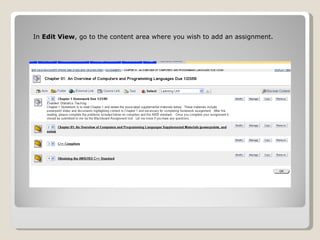
In  Edit View , go to the content area where you wish to add an assignment.
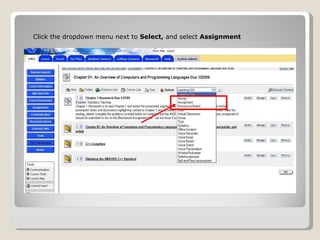
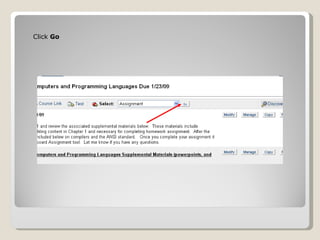
Click the dropdown menu next to  Select,  and select  Assignment
Click  Go
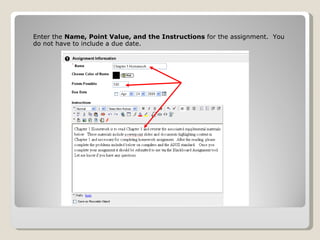
Enter the  Name, Point Value, and the Instructions  for the assignment.  You do not have to include a due date.
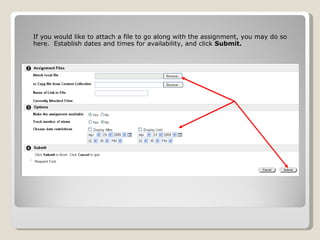
If you would like to attach a file to go along with the assignment, you may do so here.  Establish dates and times for availability, and click  Submit.
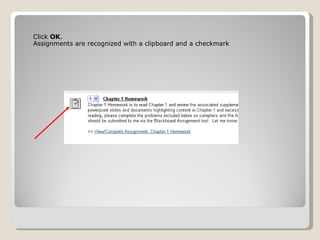
Click  OK . Assignments are recognized with a clipboard and a checkmark
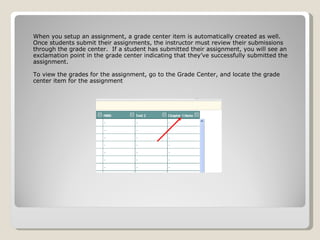
When you setup an assignment, a grade center item is automatically created as well.  Once students submit their assignments, the instructor must review their submissions through the grade center.  If a student has submitted their assignment, you will see an exclamation point in the grade center indicating that they’ve successfully submitted the assignment. To view the grades for the assignment, go to the Grade Center, and locate the grade center item for the assignment
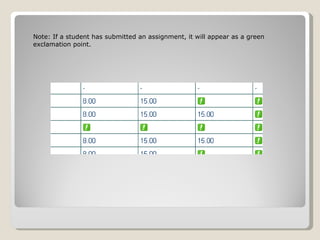
Note: If a student has submitted an assignment, it will appear as a green exclamation point.
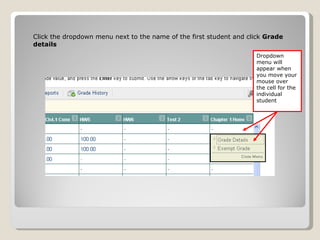
Click the dropdown menu next to the name of the first student and click  Grade details   Dropdown menu will appear when you move your mouse over the cell for the individual student
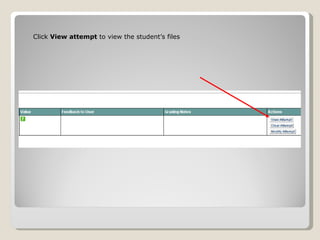
Click  View attempt  to view the student’s files
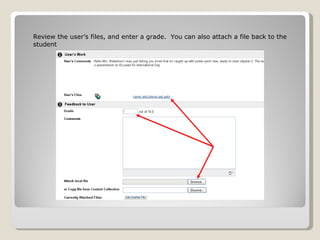
Review the user’s files, and enter a grade.  You can also attach a file back to the student
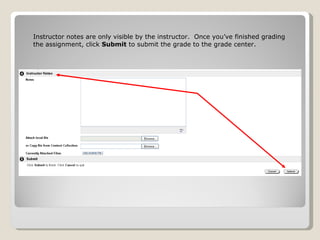
Instructor notes are only visible by the instructor.  Once you’ve finished grading the assignment, click  Submit  to submit the grade to the grade center.
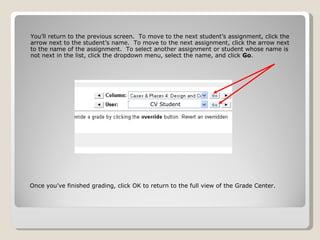
You’ll return to the previous screen.  To move to the next student’s assignment, click the arrow next to the student’s name.  To move to the next assignment, click the arrow next to the name of the assignment.  To select another assignment or student whose name is not next in the list, click the dropdown menu, select the name, and click  Go . Once you’ve finished grading, click OK to return to the full view of the Grade Center. CV Student

Adding An Assignment In Blackboard

  • 1.
    Adding an Assignmentin Blackboard CVCC Blackboard – Fall 2009
  • 2.
    In EditView , go to the content area where you wish to add an assignment.
  • 3.
    Click the dropdownmenu next to Select, and select Assignment
  • 4.
  • 5.
    Enter the Name, Point Value, and the Instructions for the assignment. You do not have to include a due date.
  • 6.
    If you wouldlike to attach a file to go along with the assignment, you may do so here. Establish dates and times for availability, and click Submit.
  • 7.
    Click OK. Assignments are recognized with a clipboard and a checkmark
  • 8.
    When you setupan assignment, a grade center item is automatically created as well. Once students submit their assignments, the instructor must review their submissions through the grade center. If a student has submitted their assignment, you will see an exclamation point in the grade center indicating that they’ve successfully submitted the assignment. To view the grades for the assignment, go to the Grade Center, and locate the grade center item for the assignment
  • 9.
    Note: If astudent has submitted an assignment, it will appear as a green exclamation point.
  • 10.
    Click the dropdownmenu next to the name of the first student and click Grade details Dropdown menu will appear when you move your mouse over the cell for the individual student
  • 11.
    Click Viewattempt to view the student’s files
  • 12.
    Review the user’sfiles, and enter a grade. You can also attach a file back to the student
  • 13.
    Instructor notes areonly visible by the instructor. Once you’ve finished grading the assignment, click Submit to submit the grade to the grade center.
  • 14.
    You’ll return tothe previous screen. To move to the next student’s assignment, click the arrow next to the student’s name. To move to the next assignment, click the arrow next to the name of the assignment. To select another assignment or student whose name is not next in the list, click the dropdown menu, select the name, and click Go . Once you’ve finished grading, click OK to return to the full view of the Grade Center. CV Student