Teradata Viewpoint
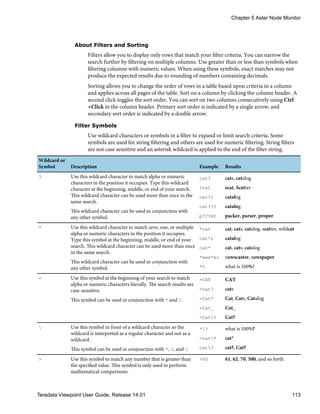
User Guide
Release 14.01
B035-2206-112K
October 2012
The product or products described in this book are licensed products of Teradata Corporation or its affiliates.
Teradata, Active Enterprise Intelligence, Applications-Within, Aprimo, Aprimo Marketing Studio, Aster, BYNET, Claraview, DecisionCast,
Gridscale, MyCommerce, Raising Intelligence, Smarter. Faster. Wins., SQL-MapReduce, Teradata Decision Experts, "Teradata Labs" logo,
"Teradata Raising Intelligence" logo, Teradata ServiceConnect, Teradata Source Experts, "Teradata The Best Decision Possible" logo, The
Best Decision Possible, WebAnalyst, and Xkoto are trademarks or registered trademarks of Teradata Corporation or its affiliates in the
United States and other countries.
Adaptec and SCSISelect are trademarks or registered trademarks of Adaptec, Inc.
AMD Opteron and Opteron are trademarks of Advanced Micro Devices, Inc.
Apache, Apache Hadoop, Hadoop, and the yellow elephant logo are either registered trademarks or trademarks of the Apache Software
Foundation in the United States and/or other countries.
Axeda is a registered trademark of Axeda Corporation. Axeda Agents, Axeda Applications, Axeda Policy Manager, Axeda Enterprise, Axeda
Access, Axeda Software Management, Axeda Service, Axeda ServiceLink, and Firewall-Friendly are trademarks and Maximum Results and
Maximum Support are servicemarks of Axeda Corporation.
Data Domain, EMC, PowerPath, SRDF, and Symmetrix are registered trademarks of EMC Corporation.
GoldenGate is a trademark of Oracle.
Hewlett-Packard and HP are registered trademarks of Hewlett-Packard Company.
Hortonworks, the Hortonworks logo and other Hortonworks trademarks are trademarks of Hortonworks Inc. in the United States and other
countries.
Intel, Pentium, and XEON are registered trademarks of Intel Corporation.
IBM, CICS, RACF, Tivoli, and z/OS are registered trademarks of International Business Machines Corporation.
Linux is a registered trademark of Linus Torvalds.
LSI is a registered trademark of LSI Corporation.
Microsoft, Active Directory, Windows, Windows NT, and Windows Server are registered trademarks of Microsoft Corporation in the
United States and other countries.
NetVault is a trademark or registered trademark of Quest Software, Inc. in the United States and/or other countries.
Novell and SUSE are registered trademarks of Novell, Inc., in the United States and other countries.
Oracle, Java, and Solaris are registered trademarks of Oracle and/or its affiliates.
QLogic and SANbox are trademarks or registered trademarks of QLogic Corporation.
Red Hat is a trademark of Red Hat, Inc., registered in the U.S. and other countries. Used under license.
SAS and SAS/C are trademarks or registered trademarks of SAS Institute Inc.
SPARC is a registered trademark of SPARC International, Inc.
Symantec, NetBackup, and VERITAS are trademarks or registered trademarks of Symantec Corporation or its affiliates in the United States
and other countries.
Unicode is a registered trademark of Unicode, Inc. in the United States and other countries.
UNIX is a registered trademark of The Open Group in the United States and other countries.
Other product and company names mentioned herein may be the trademarks of their respective owners.
The information contained in this document is provided on an "as-is" basis, without warranty of any kind, either express
or implied, including the implied warranties of merchantability, fitness for a particular purpose, or non-infringement.
Some jurisdictions do not allow the exclusion of implied warranties, so the above exclusion may not apply to you. In no
event will Teradata Corporation be liable for any indirect, direct, special, incidental, or consequential damages, including
lost profits or lost savings, even if expressly advised of the possibility of such damages.
The information contained in this document may contain references or cross-references to features, functions, products, or services that are
not announced or available in your country. Such references do not imply that Teradata Corporation intends to announce such features,
functions, products, or services in your country. Please consult your local Teradata Corporation representative for those features, functions,
products, or services available in your country.
Information contained in this document may contain technical inaccuracies or typographical errors. Information may be changed or
updated without notice. Teradata Corporation may also make improvements or changes in the products or services described in this
information at any time without notice.
To maintain the quality of our products and services, we would like your comments on the accuracy, clarity, organization, and value of this
document. Please e-mail: teradata-books@lists.teradata.com
Any comments or materials (collectively referred to as "Feedback") sent to Teradata Corporation will be deemed non-confidential. Teradata
Corporation will have no obligation of any kind with respect to Feedback and will be free to use, reproduce, disclose, exhibit, display,
transform, create derivative works of, and distribute the Feedback and derivative works thereof without limitation on a royalty-free basis.
Further, Teradata Corporation will be free to use any ideas, concepts, know-how, or techniques contained in such Feedback for any purpose
whatsoever, including developing, manufacturing, or marketing products or services incorporating Feedback.
Copyright © 2008 - 2012 by Teradata Corporation. All Rights Reserved.
Table of Contents
Preface...........................................................................................................................................................13
Changes to This Book........................................................................................................................................13
Related Documentation.....................................................................................................................................13
Chapter 1:
Teradata Viewpoint Basics........................................................................................................15
Teradata Viewpoint Portal and Portlets..........................................................................................................15
Getting Started.............................................................................................................................................15
Setting Up the Portal for Portlets..............................................................................................................16
Working With Portlets in the Portal........................................................................................................20
Chapter 2:
Profile.............................................................................................................................................................27
Profile...................................................................................................................................................................27
About the Personal Info Tab.....................................................................................................................27
About the Teradata Accounts Tab............................................................................................................29
Chapter 3:
System Administration..................................................................................................................33
System Administration......................................................................................................................................33
Admin Portlets.............................................................................................................................................33
Security and Permissions...........................................................................................................................34
Backup..................................................................................................................................................................34
About Backup Errors..................................................................................................................................35
Scheduling Viewpoint Backups.................................................................................................................35
Certificates...........................................................................................................................................................35
About Certificate Authorities....................................................................................................................36
About HTTPS Connections.......................................................................................................................36
General.................................................................................................................................................................38
Setting General Options.............................................................................................................................38
LDAP Servers......................................................................................................................................................38
Teradata Viewpoint User Guide, Release 14.01 3
What Is an LDAP Server?............................................................................................................................39
Adding an LDAP Server..............................................................................................................................39
About Role Mapping....................................................................................................................................40
Managed Servers..................................................................................................................................................41
Adding a Managed Server...........................................................................................................................42
Deleting a Managed Server.........................................................................................................................42
Enabling or Disabling a Managed Server..................................................................................................42
Portlet Library......................................................................................................................................................43
Enabling or Disabling Portlets....................................................................................................................43
Deleting a Shared Portlet.............................................................................................................................44
Query Group Setup.............................................................................................................................................44
Creating a Query Group..............................................................................................................................44
Viewing Query Groups................................................................................................................................46
Editing a Query Group................................................................................................................................46
Filter Symbols...............................................................................................................................................46
Deleting a Query Group..............................................................................................................................47
Roles Manager......................................................................................................................................................47
About Roles...................................................................................................................................................48
Example Roles...............................................................................................................................................48
About the Roles Manager View..................................................................................................................49
Adding a Role................................................................................................................................................49
Editing a Role................................................................................................................................................50
Copying a Role..............................................................................................................................................51
Deleting a Role..............................................................................................................................................52
Assigning Users to a Role............................................................................................................................52
Removing Users from a Role......................................................................................................................53
Portlet Preferences and Permissions.........................................................................................................53
Enabling Portlets for a Role........................................................................................................................53
Enabling Notifications for a Role...............................................................................................................54
Configuring Default Portlet Settings.........................................................................................................54
Granting Metric Permissions for a Role....................................................................................................55
Granting Portlet Permissions for a Role...................................................................................................55
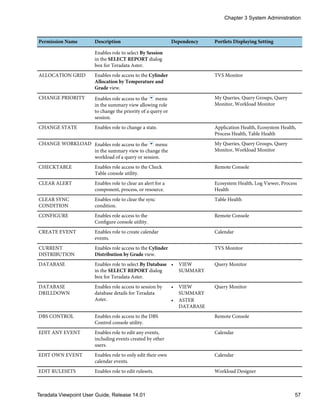
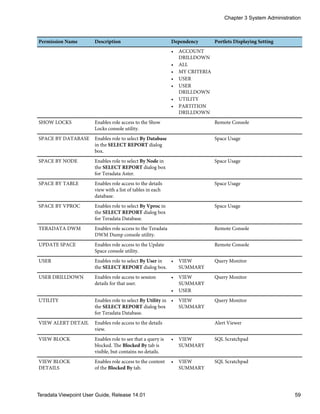
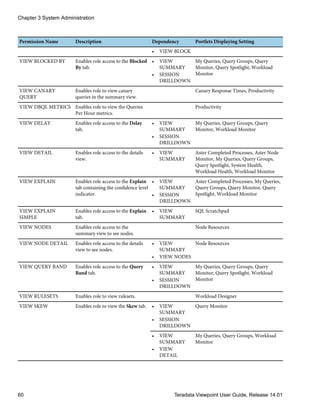
Portlet Permissions......................................................................................................................................56
Shared Pages.........................................................................................................................................................61
About Shared Page Controls.......................................................................................................................62
About Read-Only and Mandatory Shared Pages.....................................................................................63
Creating a Shared Page................................................................................................................................63
Copying a Shared Page................................................................................................................................64
Editing Portlets on a Shared Page..............................................................................................................65
Viewing All Shared Pages............................................................................................................................66
Deleting a Shared Page................................................................................................................................66
Teradata Systems.................................................................................................................................................66
General...........................................................................................................................................................67
Table of Contents
4 Teradata Viewpoint User Guide, Release 14.01
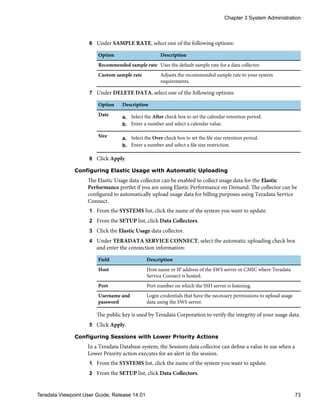
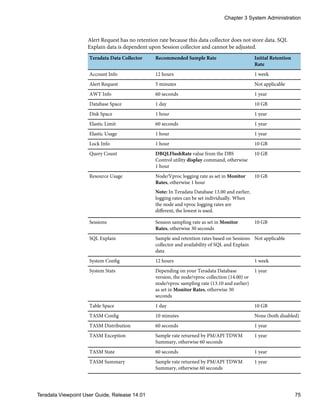
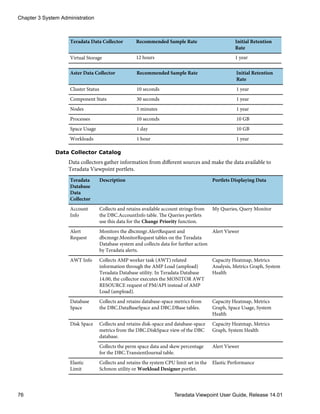
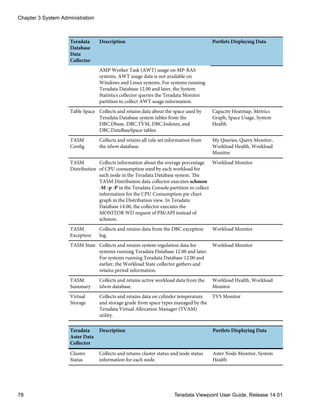
Data Collectors........................................................................................................................................................72
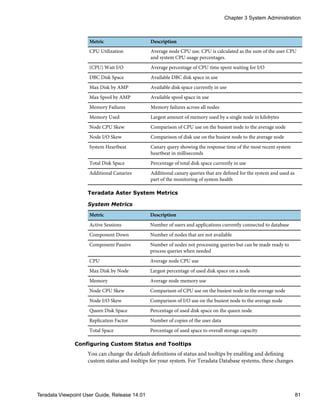
System Health..........................................................................................................................................................79
Canary Queries.......................................................................................................................................................82
Alerts........................................................................................................................................................................84
Monitor Rates..........................................................................................................................................................93
Log Table Clean Up................................................................................................................................................95
Clean Up Schedule.................................................................................................................................................96
Disk Usage...............................................................................................................................................................96
User Manager.................................................................................................................................................................97
About the User List View......................................................................................................................................97
About the User Details View.................................................................................................................................98
Chapter 4:
Aster Completed Processes...............................................................................................................103
Aster Completed Processes........................................................................................................................................103
Aster Completed Processes View.......................................................................................................................103
About Details View..............................................................................................................................................108
Chapter 5:
Aster Node Monitor....................................................................................................................................111
Aster Node Monitor....................................................................................................................................................111
Aster Node Monitor View...................................................................................................................................111
About the Details View........................................................................................................................................116
Chapter 6:
Calendar................................................................................................................................................................119
Calendar........................................................................................................................................................................119
About the Calendar Week View.........................................................................................................................119
About the Calendar Month View.......................................................................................................................120
About the Calendar Event Details View............................................................................................................121
Adding an Event...................................................................................................................................................122
Editing an Event...................................................................................................................................................123
Deleting an Event.................................................................................................................................................124
Table of Contents
Teradata Viewpoint User Guide, Release 14.01 5
Chapter 7:
Canary Response Times..............................................................................................................125
Canary Response Times....................................................................................................................................125
About the Canary Response Times View................................................................................................125
About the Preferences View......................................................................................................................127
Chapter 8:
Capacity Heatmap.............................................................................................................................131
Capacity Heatmap.............................................................................................................................................131
About the Capacity Heatmap View.........................................................................................................131
About the Capacity Heatmap Menus and Toolbar...............................................................................139
About the Preferences View......................................................................................................................142
Chapter 9:
Elastic Performance........................................................................................................................145
Elastic Performance...........................................................................................................................................145
About the Elastic Performance View.......................................................................................................145
About the Preferences View......................................................................................................................148
Chapter 10:
External Content.................................................................................................................................149
External Content................................................................................................................................................149
About the Preferences View......................................................................................................................149
Chapter 11:
Lock Viewer.............................................................................................................................................151
Lock Viewer........................................................................................................................................................151
About the Lock Viewer View....................................................................................................................151
Table of Contents
6 Teradata Viewpoint User Guide, Release 14.01
Chapter 12:
Metrics Analysis............................................................................................................................................159
Metrics Analysis...........................................................................................................................................................159
About the Metrics Analysis View.......................................................................................................................159
About the Preferences View................................................................................................................................165
Chapter 13:
Metrics Graph...................................................................................................................................................169
Metrics Graph..............................................................................................................................................................169
About the Metrics Graph View..........................................................................................................................169
About the Metrics Graph Menus and Toolbar.................................................................................................177
Chapter 14:
My Queries..........................................................................................................................................................179
My Queries...................................................................................................................................................................179
About the My Queries View...............................................................................................................................179
About the Details View........................................................................................................................................184
About Managing Queries and Sessions.............................................................................................................189
About the Preferences View................................................................................................................................192
Chapter 15:
Node Resources.............................................................................................................................................195
Node Resources............................................................................................................................................................195
About the Summary Views.................................................................................................................................195
About the Table View..........................................................................................................................................201
About the Details View........................................................................................................................................204
About the Preferences View................................................................................................................................207
Chapter 16:
Productivity.......................................................................................................................................................209
Productivity..................................................................................................................................................................209
About the Productivity View..............................................................................................................................209
About the Preferences View................................................................................................................................210
Table of Contents
Teradata Viewpoint User Guide, Release 14.01 7
Chapter 17:
Query Groups.........................................................................................................................................215
Query Groups.....................................................................................................................................................215
About the Query Groups View.................................................................................................................215
About the Details View..............................................................................................................................222
About Managing Queries and Sessions...................................................................................................227
About the Preferences View......................................................................................................................229
Chapter 18:
Query Monitor.......................................................................................................................................231
Query Monitor...................................................................................................................................................231
About the Query Monitor View...............................................................................................................231
About the Utility View..............................................................................................................................242
About the Details View..............................................................................................................................242
About Managing Queries and Sessions...................................................................................................248
About the Preferences View......................................................................................................................251
Chapter 19:
Query Spotlight....................................................................................................................................255
Query Spotlight..................................................................................................................................................255
About the Query Spotlight View..............................................................................................................255
About the Details View .............................................................................................................................260
About the Preferences View......................................................................................................................266
Chapter 20:
Remote Console...................................................................................................................................269
Remote Console.................................................................................................................................................269
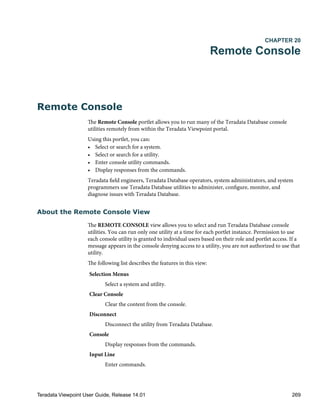
About the Remote Console View.............................................................................................................269
About the Remote Console Menus and Toolbar...................................................................................271
About Console Utilities.............................................................................................................................272
About the Preferences View......................................................................................................................273
Table of Contents
8 Teradata Viewpoint User Guide, Release 14.01
Chapter 21:
Space Usage......................................................................................................................................................275
Space Usage..................................................................................................................................................................275
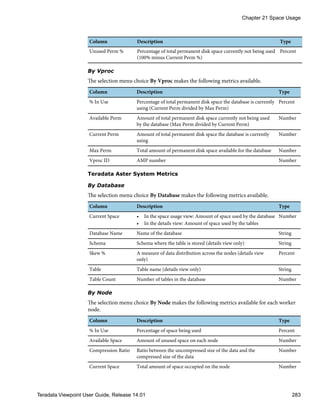
About the Space Usage View..............................................................................................................................275
About the Space Usage Details View.................................................................................................................284
About the Preferences View................................................................................................................................285
Chapter 22:
SQL Scratchpad..............................................................................................................................................287
SQL Scratchpad............................................................................................................................................................287
About the Query Box...........................................................................................................................................287
About Query Results............................................................................................................................................290
About the Object Browser...................................................................................................................................292
About the History Tab.........................................................................................................................................294
About the Saved Tab............................................................................................................................................295
Chapter 23:
System Health.................................................................................................................................................297
System Health...............................................................................................................................................................297
About the System Health View...........................................................................................................................297
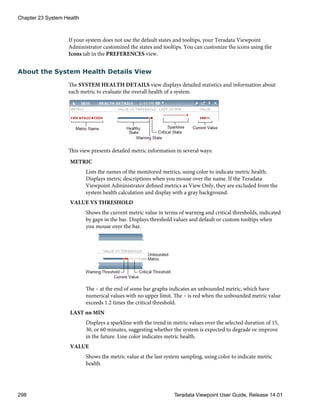
About the System Health Details View.............................................................................................................298
About the Preferences View................................................................................................................................300
Chapter 24:
Today's Statistics.........................................................................................................................................303
Today's Statistics..........................................................................................................................................................303
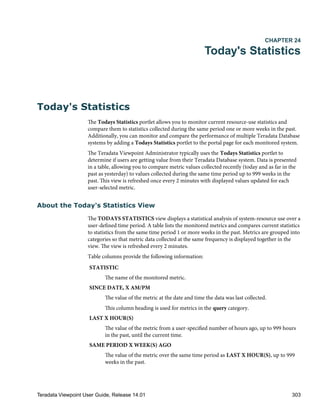
About the Today's Statistics View......................................................................................................................303
About the Preferences View................................................................................................................................306
Chapter 25:
TVS Monitor.......................................................................................................................................................309
TVS Monitor................................................................................................................................................................309
TVS Monitor Concepts........................................................................................................................................309
Table of Contents
Teradata Viewpoint User Guide, Release 14.01 9
Selecting a View..........................................................................................................................................310
Viewing Cylinder Distribution by Grade................................................................................................310
Viewing Historical Cylinder Distribution by Grade.............................................................................310
Viewing Cylinder Allocation by Temperature and Grade...................................................................311
Chapter 26:
Viewpoint Monitoring....................................................................................................................315
Viewpoint Monitoring......................................................................................................................................315
About the Viewpoint Monitoring View..................................................................................................315
About the Preferences View......................................................................................................................319
Chapter 27:
Workload Designer...........................................................................................................................323
Workload Designer...........................................................................................................................................323
Workload Designer Concepts..................................................................................................................323
About the Workload Designer View.......................................................................................................324
About Ruleset Options..............................................................................................................................325
About the Ruleset General View..............................................................................................................330
About Ruleset States...................................................................................................................................332
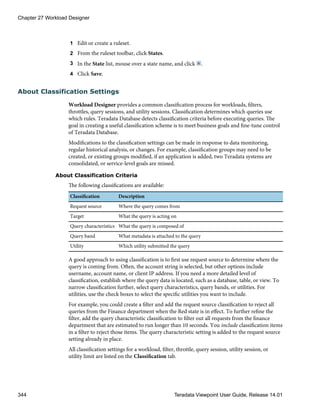
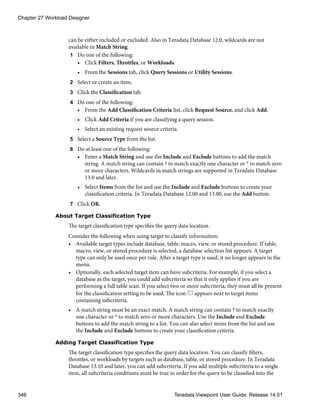
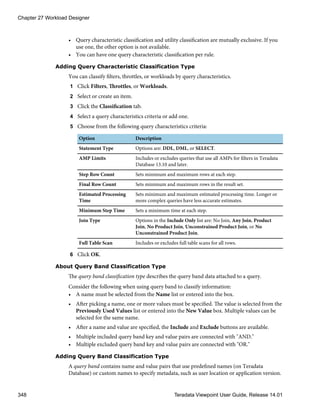
About Classification Settings....................................................................................................................344
About Ruleset Sessions..............................................................................................................................350
About Ruleset Filters..................................................................................................................................356
About Ruleset Throttles.............................................................................................................................358
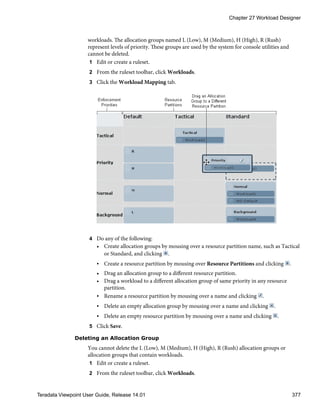
About Ruleset Workloads.........................................................................................................................361
About Ruleset Exceptions.........................................................................................................................378
Chapter 28:
Workload Health.................................................................................................................................381
Workload Health...............................................................................................................................................381
Workload Health Concepts......................................................................................................................381
About the Workload Health View...........................................................................................................382
About the Workload Health Details View..............................................................................................384
About the Preferences View......................................................................................................................387
Table of Contents
10 Teradata Viewpoint User Guide, Release 14.01
Chapter 29:
Workload Monitor........................................................................................................................................389
Workload Monitor......................................................................................................................................................389
Workload Monitor Concepts..............................................................................................................................389
Workload Monitor Views...................................................................................................................................391
About the State Matrix.........................................................................................................................................394
About the Dynamic Pipes View.........................................................................................................................395
About the Static Pipes View................................................................................................................................397
About the Distribution View..............................................................................................................................400
About the Workload Details View.....................................................................................................................403
About the Workload Group View......................................................................................................................405
About the Request Details View.........................................................................................................................405
About Managing Queries and Sessions.............................................................................................................410
About the Preferences View................................................................................................................................412
Table of Contents
Teradata Viewpoint User Guide, Release 14.01 11
Table of Contents
12 Teradata Viewpoint User Guide, Release 14.01
Preface
Changes to This Book
Date and Release Description
October 2012
14.01
Updated for the 14.01 release.
Related Documentation
Access the Teradata Information Products web site to view or download additional
documentation related to this product.
1. Go to http://www.info.teradata.com.
2. Under the Online Publications subcategory, click General Search.
3. Search on the title or publication ID.
Title Publication ID
Teradata Viewpoint Configuration Guide
Describes how to configure and upgrade a Teradata Viewpoint server.
B035-2207
Teradata Alerts User Guide
Describes how to set up and monitor alerts using Teradata Alerts portlets.
B035-2210
Teradata Alerts Installation and Configuration Guide
Describes how to configure Teradata Alerts on a Teradata Viewpoint server.
B035-2211
Teradata Data Lab User Guide
Describes how to use Teradata Data Lab portlets.
B035-2212
Teradata Viewpoint User Guide, Release 14.01 13
Preface
14 Teradata Viewpoint User Guide, Release 14.01
CHAPTER 1
Teradata Viewpoint Basics
Teradata Viewpoint Portal and Portlets
The Teradata Viewpoint portal is a framework where Web-based applications, known as
portlets, are displayed. IT professionals and business users can customize their portlets to
manage and monitor their Teradata systems using a Web browser.
Portlets enable users across an enterprise to customize tasks and display options to their
specific business needs. You can view current data, run queries, and make timely business
decisions, reducing the database administrator workload by allowing you to manage your
work independently. Portlets are added to a portal page from a menu. The Teradata
Viewpoint Administrator configures access to portlets based on your role.
Getting Started
Learn how to start and end a Teradata Viewpoint session, use the help, and use notifications.
Logging On
Logging on to the Teradata Viewpoint portal starts your session so you can begin working
with the Teradata Viewpoint portal.
1 Open a browser.
2 Enter the address for your Teradata Viewpoint portal.
The Welcome page appears, with the portal version number shown at the bottom.
3 Log on to the Teradata Viewpoint portal.
If your Teradata Viewpoint system is set up to create a user profile automatically, the
username and password you enter are authenticated against your company-provided
username and password the first time you log on to Teradata Viewpoint. Automatic
profile creation is known as auto-provisioning.
Using Viewpoint Help
The Teradata Viewpoint Help provides information about how to use Teradata Viewpoint
to manage and monitor your Teradata systems.
1 Click to open a browser window containing Teradata Viewpoint Help.
The display is divided into two panes. The Contents pane on the left lists the hierarchy
of topics contained in the help.
2 Do any of the following:
Teradata Viewpoint User Guide, Release 14.01 15
• Click next to a topic name to expand the list of available topics.
• Click next to a topic name to collapse the list of available topics.
3 Click any topic name to display corresponding topic information in the right pane.
4 [Optional] Select links to related topics that are above (parent) or below (child) the
current topic in the content hierarchy.
Using Notifications
Teradata Viewpoint uses notifications to communicate the status of Viewpoint operations.
Notifications are displayed in the Teradata Viewpoint portal for 72 hours from the last status
change.
Notifications appear if they are enabled for your role.
1 Read the notifications, and click to hide the notifications.
2 [Optional] Click to display hidden notifications.
You can click the icon again to hide notifications.
Logging Off
Logging off the Teradata Viewpoint portal ends your current session and returns you to the
Welcome page.
1 From the Teradata Viewpoint main menu bar, click Logout to exit the portal.
All page content is preserved for your next Teradata Viewpoint session. Any open
Teradata Viewpoint Help window is closed.
Setting Up the Portal for Portlets
Teradata Viewpoint provides portlets to manage and monitor systems. A portal page is a
virtual work space where you decide which portlets to display and how to arrange them on
the page. Examples of ways to organize your work include defining a page for each system
being monitored, or for each type of query or user. The currently selected page is called the
active page.
A portal page has two columns that can be resized. After adding portlets to the portal, you
can drag and drop portlets into either column. You can resize the width of the portal
columns on each page by dragging the column divider until the minimum size of a column is
reached. Portlets that can be horizontally resized will expand to fill the width of the column.
Portlets that cannot be horizontally resized are not affected by resizing the portal columns.
Resizing the browser window adjusts the columns proportionally unless a column is at its
minimum size. Not all Viewpoint portlets and products support resizing or two-column
layout.
Chapter 1 Teradata Viewpoint Basics
16 Teradata Viewpoint User Guide, Release 14.01
A shared page contains portlets that are applicable to your role. The Teradata Viewpoint
Administrator controls the type of shared page you have access to and can discuss
limitations you may have with read-only and mandatory pages. Your role may be prevented
from adding portlets, deleting portlets, moving portlets on a page, as well as other functions
you may have been accustomed to doing with regular portal pages.
Adding a Page
Organize your portlets by adding pages to the Teradata Viewpoint portal. Multiple pages
can be added or removed. The newest page is always the active page unless you click another
tab.
1 In the portal, do one of the following:
• Click Add Page.
• Click and select Add Page if shared page administration state is enabled for your
role.
A new tab appears and becomes the active page.
2 [Optional] Add portlets from the Add Content menu.
Naming a Page
One way you can customize the Teradata Viewpoint portal is by giving meaningful names to
the pages that display portlets. You can change the page name at any time during a Teradata
Viewpoint session. Two pages can have the same name.
1 Click the page tab to highlight the page name.
2 Enter the new name up to 30 characters.
3 Press Enter to apply the new name.
4 [Optional] Rearrange the portal pages to group and organize pages or according to the
frequency of use.
Adding a Portlet
A portlet can be added to the active page at any time during a session. Except for the
Calendar portlet, multiple instances of a portlet can be added to a portal page.
1 In the portal, click Add Content.
2 Select a portlet from the submenus.
The portlet is added to the top of the left-most column.
3 [Optional] Reposition the portlet on the portal page by dragging it to another location.
Chapter 1 Teradata Viewpoint Basics
Teradata Viewpoint User Guide, Release 14.01 17
Filtering Portlets
Locate a portlet by using the keyword filter box and the SEARCH RESULTS list. This
method is also useful when you want to add a portlet to the active page and the list of portlets
is long.
1 Click in the keyword filter box, and begin typing the portlet name.
As you type, the SEARCH RESULTS list shows the portlets that match your filter
criteria. This field is not case-sensitive.
2 Click a portlet name in the SEARCH RESULTS list to add it to the page.
Resizing Portal Columns
Portlets that can be horizontally resized will expand to fill the width of the column. Portlets
that cannot be horizontally resized are not affected by resizing the portal columns.
1 Mouse over the column divider.
The cursor changes to a bidirectional arrow .
2 Drag the column divider to the left or to the right to resize the column width.
The portlets resize after the column divider is released.
Arranging Pages
Initially portal pages appear in the order in which they have been added from left to right.
Arranging pages does not change page content, and can be done at any time during your
Teradata Viewpoint session.
1 In the portal task bar, mouse over the tab you intend to move.
The cursor changes to a directional cursor.
2 Drag the tab to the left or to the right of its current position.
The tab aligns in the new position.
Adding a Shared Page
A shared page contains portlets that are applicable to your role. A shared page can be added
multiple times if it is not read-only. Mandatory shared pages automatically appear when you
log on and cannot be added from the Add Content menu.
You can create shared pages if your role has permissions.
1 In the portal, click Add Content.
2 Select Shared Pages.
3 Select a shared page from the submenu.
A new tab appears to the right of the last tab and becomes the active page.
Chapter 1 Teradata Viewpoint Basics
18 Teradata Viewpoint User Guide, Release 14.01
4 [Optional] Add portlets from the Add Content menu if the shared page is not read-
only.
Refreshing a Shared Page
When the Teradata Viewpoint Administrator updates the contents of a shared page, an icon
in the tab indicates a new version of the page is available. You can keep your current
version by renaming the page or removing the out of date page and then adding the
refreshed page to the portal.
1 Rename or remove a shared page when a new version is available.
Option Description
Rename a. Click the page tab to highlight the page name.
b. Enter the new name up to 30 characters.
c. Press Enter.
The icon disappears from the tab after you rename the page.
Remove a. Click the out of date page tab indicated by .
b. Click to remove the page.
c. Click OK.
2 In the portal, click Add Content.
Mandatory shared pages automatically appear when you log on and cannot be added
from the Add Content menu.
3 Select Shared Pages.
4 Select the refreshed page from the submenu.
A new tab appears and becomes the active page.
5 [Optional] Add portlets from the Add Content menu if the shared page is not read-
only.
Deleting a Portlet
A portlet can be deleted from the active portal page at any time. Deleting a portlet resets
portlet information and deletes any custom settings set for that instance only. Other portlet
instances on the same page or on other pages are not affected.
1 On the active portal page, mouse over the portlet frame to activate the portlet.
The portlet does not need to be expanded if it is collapsed.
2 Click to remove the portlet from the portal page.
A confirmation message appears.
3 Click OK.
The portlet is removed from the active portal page.
Chapter 1 Teradata Viewpoint Basics
Teradata Viewpoint User Guide, Release 14.01 19
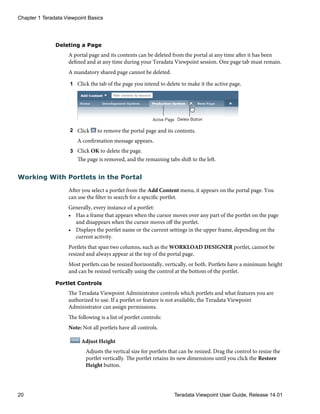
Deleting a Page
A portal page and its contents can be deleted from the portal at any time after it has been
defined and at any time during your Teradata Viewpoint session. One page tab must remain.
A mandatory shared page cannot be deleted.
1 Click the tab of the page you intend to delete to make it the active page.
2 Click to remove the portal page and its contents.
A confirmation message appears.
3 Click OK to delete the page.
The page is removed, and the remaining tabs shift to the left.
Working With Portlets in the Portal
After you select a portlet from the Add Content menu, it appears on the portal page. You
can use the filter to search for a specific portlet.
Generally, every instance of a portlet:
• Has a frame that appears when the cursor moves over any part of the portlet on the page
and disappears when the cursor moves off the portlet.
• Displays the portlet name or the current settings in the upper frame, depending on the
current activity.
Portlets that span two columns, such as the WORKLOAD DESIGNER portlet, cannot be
resized and always appear at the top of the portal page.
Most portlets can be resized horizontally, vertically, or both. Portlets have a minimum height
and can be resized vertically using the control at the bottom of the portlet.
Portlet Controls
The Teradata Viewpoint Administrator controls which portlets and what features you are
authorized to use. If a portlet or feature is not available, the Teradata Viewpoint
Administrator can assign permissions.
The following is a list of portlet controls:
Note: Not all portlets have all controls.
Adjust Height
Adjusts the vertical size for portlets that can be resized. Drag the control to resize the
portlet vertically. The portlet retains its new dimensions until you click the Restore
Height button.
Chapter 1 Teradata Viewpoint Basics
20 Teradata Viewpoint User Guide, Release 14.01
Back
Returns to the previous view.
Collapse
Toggles the portlet closed. This button appears only when the portlet is open. When
collapsed, only the upper and lower portlet frame sections are displayed.
Expand
Toggles the portlet open. This button appears only when the portlet is collapsed.
When expanded, the portlet returns to its normal size and position on the portal
page.
Maximize
Toggles the portlet to fill the portal page.
Minimize
Toggles the portlet to the default size of one column wide.
Pause, Resume
Pauses or resumes the data display for a portlet.
If rewind is on, you can select to Unlink from Rewind or Link to Rewind.
If rewind is off, you can select Refresh to bring the most current data from the
Teradata server to the portlet.
Portlet Frame
Contains the portlet name and portlet controls.
Portlet Name
Displays the portlet name. You can rename shareable portlets.
Preferences
Accesses portlet preferences and settings. Preferences are used to specify what
information is displayed, time intervals for reporting, and other features that help
you customize the portlet functions.
Remove
Removes the portlet and its settings from the active portal page.
Restore Height
Restores the portlet to its default height. This button appears only when you change
the default height of the portlet.
Rewind
Provides the following indications of the status of the rewind function for a portlet:
• indicates a portlet can participate in rewind.
• indicates the rewind feature is on.
Chapter 1 Teradata Viewpoint Basics
Teradata Viewpoint User Guide, Release 14.01 21
• indicates the portlet is unlinked from rewind.
Share Portlet
Captures a customized version of a portlet for use by other users. The Teradata
Viewpoint Administrator must make the customized portlet available for sharing.
Time Stamp
Displays the last time data was retrieved from the Teradata server. The time is based
on the time zone set in the Profile portlet.
Each portlet instance has its own settings and controls as well as the features common to all
portlets. A portlet can include any of the following features:
• Selection menus for accessing detailed information
• A toolbar with buttons for quick access to information
• Date-range slider for selecting start dates and end dates for analysis
• Information balloons to show detailed information when you mouse over the portlet
Teradata Database Logon Settings
Several portlets require you to log on to Teradata Database to take actions such as aborting a
query or session, changing a workload, changing a priority, or releasing a query from the
delay queue. Teradata Database logon information is stored with your session and does not
persist beyond the current session.
Chapter 1 Teradata Viewpoint Basics
22 Teradata Viewpoint User Guide, Release 14.01
The logon dialog box fields are listed below.
Field Name Description
username Name of the user account on Teradata Database and is authenticated
against a domain username that matches a Teradata Database username.
password Secret string of characters used to prove identity or gain access to a
resource and is authenticated against the domain password associated
with a domain username that matches a Teradata Database username.
account string Characteristics for profile member sessions in Teradata Database. An
account string identifies which account is charged for the space used by
the user and session and may include a priority-level Performance Group
prefix code which establishes the session priority.
authentication
mechanism
Method of identifying an account to the database. Options might include
TD2 or LDAP. If an authentication mechanism is not selected, the logon
uses the default authentication mechanism for the Teradata Database.
character set Character set the system uses to communicate with Teradata Database. If
not defined, Teradata Viewpoint uses Teradata Database system settings.
About the Rewind Feature
The rewind feature allows you to view data that corresponds to dates and times in the past
and compare it to data for a different date and time. You can rewind the data for some or all
portlets on a portal page to a previous point in time, such as when a job failed. Rewinding
portlet data is useful for identifying and resolving issues.
You can rewind data as far back as data is available. The rewind feature is not available for
portlets that have portlet-specific methods for reviewing data over time. The rewind feature
works uniquely in the QUERY SPOTLIGHT portlet. See the Query Spotlight topics for
further details.
Using the rewind toolbar, you can enter a specific date and time as well as scroll through the
data in increments of seconds, minutes, hours, or days. All portlets on the page that are
participating in rewind activities display data that corresponds to the selected rewind date
and time each time a selection is made.
If portlet data can be rewound, a rewind icon appears in the portlet frame.
Permission to use the rewind feature is granted to individual users based on their role and
portlet access. If the rewind toolbar does not appear on the portal page, you are not
authorized to use the feature. If the rewind icon does not appear in the portlet frame, the
rewind feature is not available for that portlet.
Rewinding a Portal Page
You can rewind data for some or all portlets on a portal page. Use rewind to see changes in
data over time among portlets displayed on the portal page.
1 In the upper right corner, click to turn on the rewind feature.
The rewind toolbar appears along the top of the portal page.
2 Click the Date and time fields to select a date from the calendar and enter a time.
Chapter 1 Teradata Viewpoint Basics
Teradata Viewpoint User Guide, Release 14.01 23
3 Do any of the following:
• Click and drag left to scroll back in time or right to scroll forward through time.
• Click an increment arrow to adjust time by seconds, minutes, hours, or days.
• Click and hold an increment arrow to adjust time continuously.
Pausing Rewind for a Portlet
You can pause an individual portlet on a portal page while other portlets on the page display
rewound data. Pausing an instance of a portlet freezes the display of data at the moment the
portlet is placed in pause mode, allowing you to compare data for multiple rewound time
periods.
1 In the upper right corner, click to turn on the rewind feature.
2 Click in the portlet frame.
3 Click Pause.
Data displayed in the portlet freezes and does not change until you resume the portlet
refresh.
Resuming Rewind for a Portlet
You can resume using the rewind feature for an individual portlet that is in pause mode on a
portal page.
1 Click in the portlet frame.
2 Click Resume.
Data displayed in the portlet is updated to the selected rewind time and does not change
until the selected date or time for the rewind feature is changed.
Stopping Rewind Participation
You can prevent an individual portlet from participating in rewind when the portlet frame
displays .
1 In the upper right corner, click to turn on the rewind feature.
2 Click in the portlet frame.
The portlet can be in pause mode or actively responding to the rewind date and time
controls.
3 Click Unlink from Rewind.
The portlet no longer responds to rewind date or time controls and is updated to display
the most recent data available from the Teradata server.
Chapter 1 Teradata Viewpoint Basics
24 Teradata Viewpoint User Guide, Release 14.01
Restarting Rewind Participation
You can have an individual portlet not participating in rewind resume participation when
the portlet frame displays .
1 Click in the portlet frame.
2 Click Link to Rewind.
The portlet returns to the mode it was in when it was unlinked from participation in
rewind. For example, if the portlet was in pause mode when unlinked from rewind, it is
in pause mode when participation in rewind resumes.
Turning Off the Rewind Feature
You can turn off the rewind feature and resume display of current data in all portlets on the
portal page.
1 In the upper right corner of the page, click to turn off the rewind feature.
All portlets on the portal page that were participating in rewind activities end
participation and display the most recent data available.
About the Pause Feature
Any rewindable portlet can be paused from refreshing data. Pausing an instance of a portlet
freezes the display of data at the moment the portlet is placed in pause mode, allowing you
to compare data for different time periods. The rewind feature does not need to be active to
pause the portlet. When a portlet is in pause mode, the time stamp flashes, indicating that
the data in the portlet is no longer being refreshed.
Pausing Portlet Refresh
You can pause an individual portlet on a portal page.
1 Click in the portlet frame.
2 Click Pause.
Data displayed in the portlet freezes and does not change until you resume the portlet
refresh.
Resuming Portlet Refresh
You can resume the portlet refresh when the portlet is in pause mode.
1 Click in the portlet frame.
2 To resume the portlet refresh, do one of the following:
• Click Refresh to refresh portlet summary and detail data to the current date and
time, including data from the Teradata server.
• Click Resume to resume the portlet refresh.
About Shared Portlets
Use the SHARE PORTLET feature to make a customized or preconfigured version of a
Teradata Viewpoint portlet available to other users. When a shared portlet is added to a
portal page, all the preferences and settings you selected when you customized the portlet
are used.
Chapter 1 Teradata Viewpoint Basics
Teradata Viewpoint User Guide, Release 14.01 25
Any user can customize a shareable portlet and submit it for sharing. Depending on your
Teradata Viewpoint system configuration, the portlet is not available to authorized users
until the Teradata Viewpoint Administrator approves the request. Only the Teradata
Viewpoint Administrator can delete the shared portlet entirely. If deleted, existing instances
remain on your portal page. However, a warning message appears if you try to access the
portlet.
The Shared Portlets feature allows you to:
• Share customized views of a Teradata Viewpoint portlet with other users.
• Create different configurations of a portlet for different roles.
• Assign a preconfigured portlet to a role as a default instance of the portlet.
• Assign a name to the preconfigured portlet.
The portlet name appears in the Shared submenu of the Add Content menu. The Shared
submenu only appears when at least one shared portlet is enabled for the user who is logged
on.
Creating a Shared Portlet
Use the SHARE PORTLET feature to customize a Teradata Viewpoint portlet and make it
available to other users.
1 Add a portlet instance that you want to share to your portal page.
2 From the portlet frame, click to access the PREFERENCES view.
3 Customize the portlet using the available preference settings.
4 Click OK to save the settings.
5 Click to access the SHARE PORTLET dialog box.
6 Enter a name for the custom portlet using up to 25 characters.
Depending on your Teradata Viewpoint system configuration, the portlet may or may
not be available to authorized users until the Teradata Viewpoint Administrator
approves your request.
7 Click Save.
8 [Optional] Contact the Teradata Viewpoint Administrator to verify that the portlet has
been received for approval.
Chapter 1 Teradata Viewpoint Basics
26 Teradata Viewpoint User Guide, Release 14.01
CHAPTER 2
Profile
Profile
The Profile portlet provides tabs that allow you to set your personal user settings and
manage your Teradata Database profile information:
Personal Info
Change your name, password, email address, and locale, and select the time zone.
Teradata Accounts
Manage settings for each of your Teradata Database user profiles. Link your
Teradata profile to the Teradata Database systems you are authorized to access.
Access the Profile portlet from the Teradata Viewpoint portal.
About the Personal Info Tab
The Personal Info tab in the Profile portlet allows you to manage your Teradata Viewpoint
profile:
• Change the first and last name for the profile.
• Change your Email address.
• Change your Locale.
• Select the Time Zone.
Use the Personal Info tab to set your locale. Supported locales include:
• Chinese (China and Taiwan)
• English (US and UK)
• French
• German
• Japanese
• Korean
The locale you select is applied to the entire Teradata Viewpoint session and is maintained
in future sessions.
Changing a Name
You can change the first and last name for a Teradata Viewpoint profile.
1 From the Profile portlet, click the Personal Info tab.
Teradata Viewpoint User Guide, Release 14.01 27
2 Change the name in the First Name field.
3 Change the name in the Last Name field.
4 Click Apply.
A confirmation message appears.
Setting a Contact Email Address
You can set your Email address using the Personal Info tab. This email address is used for
identification and communication in the Teradata Viewpoint system, including notifications
and reminders.
The email address cannot contain uppercase letters. Uppercase characters are automatically
converted to lowercase.
1 From the Profile portlet, click the Personal Info tab.
2 Enter your full address in the Email field.
3 Click Apply.
A confirmation message appears.
Managing Passwords
You can manage Teradata Viewpoint profile passwords. A password must be at least 4 and
no more than 25 characters.
A user cannot change their password if their profile is externally authenticated. The fields
required to change the password are not available when external authentication is used. To
change the password for an externally authenticated profile, follow your company policy for
password management.
1 From the Profile portlet, click the Personal Info tab.
2 Enter your current password in the Current Password field.
3 Enter a new password in the New Password field.
4 Confirm your new password by retyping it in the Re-enter New Password field.
5 Click Apply.
A confirmation message appears.
Setting the Locale
The locale is used to display the local language with the date, time, and number format
specific to the country. For example, if the locale is “English (US),” the system uses the
English language and displays the day in mm/dd/yy format. May 16, 2012 appears as
“5/16/12.” If the locale is “Japanese,” the system uses the Japanese language and displays the
day in dd/mm/yy format. May 16, 2012 appears as “16/05/12.”
The locale setting in the Profile portlet overrides the locale set by your Teradata Viewpoint
Administrator for your account.
1 From the Profile portlet, click the Personal Info tab.
2 Select the locale from the list.
Chapter 2 Profile
28 Teradata Viewpoint User Guide, Release 14.01
The Teradata Viewpoint application server locale is the default.
3 Click Apply.
A confirmation message appears.
Setting the Time Zone
You can adjust your local Teradata Viewpoint time zone setting to compensate for different
time zones. Select the local time zone to display all time and date information in the local
date and time, even if the Teradata Database system you are monitoring is located in a
different time zone.
The time zone you enter compensates for the time difference between the monitored system
location and the Teradata Viewpoint reporting location.
1 From the Profile portlet, click the Personal Info tab.
2 Select a time zone from the list.
Time zones shown are relative to Greenwich Mean Time (GMT) and include a reference
location. The Teradata Viewpoint application server time zone is the default. Use the
scroll bar to view more time zones.
3 Click Apply.
A confirmation message appears.
About the Teradata Accounts Tab
Use the Teradata Accounts tab in the Profile portlet to manage Teradata Database account
logon and profile information for each Teradata Database system. Teradata account
information is used by the My Queries portlet. For each Teradata Database system, you can:
• Add accounts
• Edit existing profiles
• Delete profiles
System profiles added using the Teradata Accounts tab must already exist on the monitored
system. The system validates the USERNAME, PASSWORD, ACCOUNT STRING, and
AUTHENTICATION fields prior to confirmation.
Chapter 2 Profile
Teradata Viewpoint User Guide, Release 14.01 29
Adding a User Profile
This task explains how to associate Teradata Database profiles with your Teradata Viewpoint
profile.
1 From the Profile portlet, click the Teradata Accounts tab.
2 Under Add Account, select a Teradata Database system from the list.
3 Enter the following information in the appropriate fields:
• Username
• Password
• [Optional] Account string
4 [Optional] Select an authentication mechanism from the list for use on the system.
5 [Optional] Click Test.
The icon appears if the operation is successful. The icon appears if the operation
fails; verify that the settings are correct, and try again.
6 Click Add.
Editing a User Profile
This topic explains how to edit a Teradata Database system user profile in Teradata
Viewpoint.
1 From the Profile portlet, click the Teradata Accounts tab.
2 Mouse over the row containing the user profile information for the Teradata Database
system you are updating.
The row is highlighted, and Edit and Delete appear.
3 Click Edit to the right of the row containing the user profile information.
4 Edit or change any of the following fields:
• PASSWORD
• ACCOUNT STRING
5 [Optional] Click Test to verify that the logon settings are correct.
A confirmation message appears.
6 Click Save to save your changes.
A confirmation message appears.
Deleting a User Profile
This task explains how to delete a Teradata Database system user profile from Teradata
Viewpoint.
1 From the Profile portlet, click the Teradata Accounts tab.
2 Mouse over the row containing the Teradata Database user profile information for the
system you are updating.
The row is highlighted, and Edit and Delete appear.
Chapter 2 Profile
30 Teradata Viewpoint User Guide, Release 14.01
3 Click Delete to the right of the row containing the user profile information.
If the deletion is successful, a confirmation message appears.
Chapter 2 Profile
Teradata Viewpoint User Guide, Release 14.01 31
Chapter 2 Profile
32 Teradata Viewpoint User Guide, Release 14.01
CHAPTER 3
System Administration
Admin Portlets
The Teradata Viewpoint administrative portlets allow the Teradata Viewpoint
Administrator to provide access to Teradata Viewpoint resources and information.
You can access these portlets from the Admin menu in the Teradata Viewpoint portal if
your role has permission. You can access the Profile portlet directly from the Teradata
Viewpoint portal.
Alert Setup
Configure the alert delivery settings and actions.
Backup
Configure the backup of Teradata Viewpoint server data.
Certificates
Manage trusted certificate authorities and HTTPS certificates.
General
Configure Teradata Viewpoint settings.
LDAP Servers
Configure the LDAP servers for Teradata Viewpoint to authenticate users and
assign user roles.
Managed Servers
Configure the servers available to display in the Viewpoint Monitoring portlet.
Portlet Library
View the installed portlets and specify which portlets can be accessed.
Profile
Configure settings for your Viewpoint user account and associate Teradata
Database accounts.
Query Group Setup
Manage the sets of queries available to users in the Query Groups portlet.
Teradata Viewpoint User Guide, Release 14.01 33
Roles Manager
Manage roles and specify the level of access users are given.
Shared Pages
Manage shared pages and how they are viewed by users.
Teradata Systems
Configure the systems and data collectors that provide data to portlets.
User Manager
Manage user accounts and assign users to roles.
Security and Permissions
The Teradata Viewpoint administrative portlets allow the Teradata Viewpoint Administrator
to control portlet access at different levels by setting permissions for Teradata Viewpoint
users.
Global
Enable or disable access to portlets globally using the Portlet Library portlet. This
setting takes precedence over all other portlet permission levels.
Role
Assign permissions to classes of users called roles using the Roles Manager portlet.
Each tab controls access to features.
User
Assign available roles to users and set role precedence using User Manager portlet.
Roles assigned higher priority take precedence over lower-priority roles.
Backup
The Backup portlet allows you to enable automatic Teradata Viewpoint system backups and
configure the data retention settings.
The Backup portlet displays the backup process icon with either a successful completion or
an error for the last attempt and lists the last successful backup date and time. Use the
Backup portlet to:
• Enable and disable the daily backup process
• Store the backup files on the local system or at a network location
• Select the daily backup time
• Select how many days to keep the backup files
Chapter 3 System Administration
34 Teradata Viewpoint User Guide, Release 14.01
About Backup Errors
The BACKUP dialog box displays an out-of-service icon and the status message AN
ERROR HAS OCCURRED, if an error occurs during the backup process. To investigate the
error, you can view the backup log file: /opt/teradata/dcs/logs/backup.log. For
additional information, see the Teradata Viewpoint Configuration Guide.
Scheduling Viewpoint Backups
You can configure automatic backups, set a data retention length, and enable or disable the
backup process at any time.
1 [Optional] From the BACKUP view, do one of the following:
• Select the Enable backup check box to activate the backup process.
• Clear the Enable backup check box to disable the automatic-backup process.
2 Under Location, select one of the following options to set the location of the backup
files:
Option Description
Local Backs up Teradata Viewpoint databases to the local server.
Network Backs up Teradata Viewpoint databases to a networked file server to prevent data loss
in the event of a catastrophic failure.
• Enter a Host to specify the host system name.
• Enter a Path to specify the absolute path name where the backups are stored on
the host system.
• [Optional] Click Test to verify that the login settings are correct. The icon
appears if the operation is successful. The icon appears if the operation fails;
verify that the settings are correct, and try again.
3 From the Daily Backup Time list, select the daily start time of the backup operation.
4 From the Keep Backups For list, select the number of days to retain the backup data.
5 Click Apply.
The changes are saved and backup files are deleted when they are older than the
configured number of days.
Certificates
The Certificates portlet allows you to manage certificates on the Viewpoint Server.
Certificates are used to help secure communications to and from a Viewpoint server. You
can install a certificate to secure communication from a browser to the Viewpoint server
and from the Viewpoint server to external servers. You can install a trusted root certificate
for a Certificate Authority to be trusted by the Viewpoint server.
Chapter 3 System Administration
Teradata Viewpoint User Guide, Release 14.01 35
About Certificate Authorities
Certificate Authorities (CA) issue certificates. To initiate secure communications with an
external server (e.g., a corporate LDAP server), the Viewpoint server must trust the CA that
issued the certificate of the external server.
The root certificates of certain standard CAs are pre-installed on the Viewpoint server and
certificates issued by them are automatically accepted. However, if a non-standard CA issued
the certificate, then the root certificate of this CA must be installed on the Viewpoint server
for the certificate to be accepted.
You can install the root certificate of a trusted CA from the Certificate Authority view.
Installing Trusted Root Certificates
1 From the SETUP list, click Certificate Authority.
2 Click Install.
3 Enter an alias for the Certificate Authority, up to 30 characters.
4 Click Browse and select the trusted root certificate.
5 Click Install.
Deleting Trusted Root Certificates
1 From the SETUP list, click Certificate Authority.
2 Click next to the certificate you want to delete.
3 Click Delete.
About HTTPS Connections
HTTPS connections are secure connections between a browser and the Viewpoint server. To
enable HTTPS connections, the Viewpoint server needs an identifying certificate that
provides the public key used to decrypt the information it sends. This certificate may be
either self-signed or signed by a Certificate Authority (CA).
To install a new certificate from a CA, you must first generate a Certificate Signing Request
and submit it to a CA for signing. Once you receive the signed certificate from the CA you
can install it.
Creating a Self-Signed Certificate
A self-signed certificate can provide security for an internal site or serve as a temporary
measure while a fully authenticated certificate is obtained from a Certificate Authority.
Installing a certificate replaces the existing certificate. Once a certificate is replaced, it cannot
be reinstalled.
1 From the SETUP list, click HTTPS Config.
2 Click Create SSC and enter the certificate information.
Chapter 3 System Administration
36 Teradata Viewpoint User Guide, Release 14.01
Field Description
Common Name Domain name
Organizational Unit Business unit
Organization Company name
City or Locality Company address
State or Province Company address
Country Company address, 2 characters
Expiration Select an expiration period
3 Click Install.
Creating a Certificate Signing Request
A signing request is used to obtain an authenticated certificate for the server. Creating and
saving a new signing request replaces a pending request. If a pending request is replaced, the
signed certificate that comes from the request cannot be installed. Once created, the request
must be submitted to the Certificate Authority to be signed.
1 From the SETUP list, click HTTPS Config.
2 Click Create CSR and enter the request information.
Field Description
Common Name Domain name
Organizational Unit Business unit
Organization Company name
City or Locality Company address
State or Province Company address
Country Company address, 2 characters
3 Click Create.
4 Save the file using the browser options.
The file is saved to your download area or to a location that you specify, depending on
the browser settings.
Installing a Signed Certificate
After obtaining an authenticated certificate from a trusted Certificate Authority, you can
install the certificate to facilitate secure communications to the Viewpoint server. Installing
a certificate replaces the active certificate. Once an active certificate has been replaced, it
cannot be reinstalled.
1 From the SETUP list, click HTTPS Config.
2 Click Install.
3 Click Browse.
Chapter 3 System Administration
Teradata Viewpoint User Guide, Release 14.01 37
4 Select the signed certificate.
5 Click Install.
Deleting Installed Certificates
A certificate can only be installed once.
1 From the SETUP list, click HTTPS Config.
2 Click next to the certificate you want to delete.
3 Click Delete.
General
The General portlet allows a Teradata Viewpoint Administrator to set the locale and session
timeout for a Teradata Viewpoint server. Users can choose a different locale in the Profile
portlet to override the default locale selection.
• The locale is used to localize content in the Viewpoint portal. Dates, times, and numbers
are displayed in Viewpoint portlets in the format used by the selected locale. If the
language pack for the selected locale is installed, then all content appears in the selected
language.
For example, the English (US) locale displays content in English and dates in a mm/dd/
yy format. If the language pack for the selected locale is not installed, content appears in
English and dates, times, and numbers appear in the format for the selected locale.
• The session timeout is the length of time a user account can remain idle before being
logged out of the system. The default setting is one hour and 30 minutes.
Setting General Options
1 Select a locale from the list.
2 Set a session timeout.
3 Click Apply.
LDAP Servers
The LDAP Servers portlet allows you to configure LDAP servers to authenticate users and
assign user roles in Teradata Viewpoint. The LDAP Servers portlet displays the names of
currently configured LDAP servers or is empty if an LDAP is not configured.
• Use next to SETUPS to add an LDAP server.
• Use the order buttons to adjust the evaluation order of the LDAP-server list.
• Use next to the server name to delete an LDAP server.
Chapter 3 System Administration
38 Teradata Viewpoint User Guide, Release 14.01
• Use the dialog box to enable and disable an LDAP server, and configure the LDAP to
automatically validate users against the LDAP directory with the auto-provisioning
feature or assign user roles with the role mapping feature.
What Is an LDAP Server?
Teradata Viewpoint uses a Lightweight Directory Access Protocol (LDAP) server to:
• Validate new user information by querying the LDAP for authentication. The binding
operation authenticates a username and a password.
• Automatically create a Teradata Viewpoint username with the auto-provisioning feature.
• Automatically assign users to a Teradata Viewpoint role with the Role Mapping feature.
Adding an LDAP Server
You can add an LDAP server to authenticate and assign roles to Teradata Viewpoint users.
1 Click next to SETUPS.
2 Enter a Nickname for the LDAP server up to 8 characters.
3 [Optional] Select the Enabled check box to activate LDAP upon successfully adding the
LDAP server to Teradata Viewpoint.
4 Enter a URL address.
One URL address is required. Use to delete, add, and move up or move down in
the evaluation order.
5 Select the Name Matching method from the following options:
• Select DN Pattern Bind to specify one or more patterns that represent a
distinguished name (DN) in the LDAP directory.
• Select User Search to search for a pattern in the base directory or subdirectories:
• [Optional] Enter a Service account DN and Service account password to search
with a specific account.
• [Optional] Leave Service account DN and Service account password blank to
connect to the LDAP as an anonymous user.
• Enter a Search pattern.
• Enter a Search base to specify a base directory for the search pattern.
• [Optional] Select the Search extent Recursive scan check box to include
subdirectories of the base directory in the search.
• [Optional] Under Search extent, clear the Recursive scan check box to limit the
search to the specified base directory.
6 Configure Key User Information:
• Enter the LDAP first name attribute.
• Enter the LDAP last name attribute.
• Enter the LDAP email attribute.
Chapter 3 System Administration
Teradata Viewpoint User Guide, Release 14.01 39
Every user has an email address. This default email domain is used if a valid email
address is not found in the LDAP directory during auto-provisioning.
7 [Optional] Test your settings:
a Click Test to display the LDAP test panel.
b Enter a Test username and Test password.
c Click Run.
The icon appears if the operation is successful. The icon appears if the operation
fails; verify that the settings are correct, and try again.
8 [Optional] Configure Auto-Provisioning:
a [Optional] Select the Turn on auto-provisioning check box to automatically validate
users against the LDAP directory.
b Select a role from the Automatically assign these roles menu. You can add or
remove roles.
c Enter a Default email domain to provide a notification email address.
Every user has an email address. This default email domain is used if a valid email
address is not found in the LDAP directory during auto-provisioning.
9 If the group role mapping method is specified, configure Role Mapping:
a Enter a Group search base.
b [Optional] Select the Group search subtree check box to include subtree directories
during the binding process.
c Enter a Group attribute name.
d [Optional] Click Add Role Mapping to add attribute or group settings so that you
can assign another role.
10 Click Apply.
The icon appears if the operation is successful. The icon appears if the operation
fails; verify that the settings are correct, and try again.
About Role Mapping
In Teradata Viewpoint, users are assigned roles to organize and control their access to
portlets, metrics, and features. You can use the Roles Manager portlet to assign permissions
to the roles. During the process of adding an LDAP configuration to Teradata Viewpoint, the
optional Role Mapping section in the LDAP Servers portlet allows you to assign a role
automatically to auto-provisioned users.
Use role mapping to:
• Assign roles for a new user.
• Add roles that were assigned to the user since the last user login.
• Remove roles that were removed since the last user login.
Chapter 3 System Administration
40 Teradata Viewpoint User Guide, Release 14.01
Consider the following:
• Only roles already defined using the Roles Manager portlet can be mapped.
• The Teradata Viewpoint Administrator can change a role at any time using the Roles
Manager portlet.
Role Mapping Use Cases
In the following use cases, the LDAP value represents the distinguished name (DN) of a
group. When the Type is Attribute, the attribute name field represents the user attribute
where the group DN is stored. When the Type is Group, the group attribute name field is
used for mapping and represents the group attribute where the user DN is stored.
The first use case assigns users to a Teradata Viewpoint role based on an attribute of the
user's record in LDAP. Assume you have a user with the following record in LDAP:
dn: cn=User1,ou=Users,dc=teradata,dc=com
memberOf: cn=USA,ou=Groups,dc=teradata,dc=com
In this case, the Group attribute name field is not relevant. To map User1 to the Teradata
Viewpoint role US Users, create the following role mapping:
• Type = Attribute
• Attribute name = memberOf
• LDAP value = cn=USA,ou=Groups,dc=teradata,dc=com
• Viewpoint role = US Users
The second use case assigns users to a Teradata Viewpoint role based on membership in
an LDAP group with the following structure:
dn: cn=DBAs,ou=Groups,dc=teradata,dc=com
uniqueMember: cn=User2,ou=Users,dc=teradata,dc=com
In this case, set the Group attribute name field to uniqueMember. To map User2 to the
Teradata Viewpoint role DBAs, create the following role mapping:
• Type = Group
• LDAP value = cn=DBAs,ou=Groups,dc=teradata,dc=com
• Viewpoint role = DBAs
Managed Servers
A managed server is a server in a Teradata cabinet that is monitored by the same Teradata
server management solution used to monitor TPA nodes. A managed server might be used
for storage, backup, or housing data collectors that provide portlet information and metric
data. Teradata Viewpoint monitors managed servers for system-level metrics and collects
information for Teradata Viewpoint portlets.
The Managed Servers portlet displays the names of currently configured managed servers or
is empty if no managed server is configured. Use next to SERVERS to add a managed
server. Use the dialog box to delete, enable, and disable a managed server for use by the
Teradata Viewpoint Data Collection Service (DCS).
Chapter 3 System Administration
Teradata Viewpoint User Guide, Release 14.01 41
Adding a Managed Server
You can add a managed server to Teradata Viewpoint. After a managed server is defined in
Teradata Viewpoint, you can test the configuration settings and enable the managed server
for use by the Data Collection Service (DCS).
1 Click next to SERVERS.
2 [Optional] Select the Server enabled check box to activate the managed server for the
DCS.
3 Enter values for these required fields:
• Managed Server Name up to eight characters.
• Hostname is the managed server IP address or domain name.
• Login is the user name and password.
The default values only need to be changed if you change the login and password settings
during the installation of TMS Monitor.
4 Do any of the following:
• Click Test to verify that the login settings are correct.
• Click Apply to update the managed server.
The icon appears if the operation is successful. The icon appears if the operation
fails; verify that the settings are correct, and try again. If you are unable to enable or
disable the managed server, contact the Teradata Viewpoint Administrator.
Deleting a Managed Server
You can delete a Teradata Viewpoint managed server. This is a permanent procedure that
differs from disabling the managed server from the Data Collection Service.
1 From the SERVERS list, click the managed server name you want to remove.
2 In the dialog box, click Delete Server.
A confirmation message appears.
3 Click OK.
Enabling or Disabling a Managed Server
After a managed server is defined in Teradata Viewpoint, you can enable it for use by the
Data Collection Service (DCS) or disable it.
1 From the SERVERS list, click the managed server name you want to update.
2 Do one of the following:
• Select the Server enabled check box to activate a managed server.
• Clear the Server enabled check box to disable a managed server.
When disabled, the DCS does not use the managed server. Any existing data about the
managed server can still be viewed.
Chapter 3 System Administration
42 Teradata Viewpoint User Guide, Release 14.01
3 Do any of the following:
• Click Test to verify that the login settings are correct.
• Click Apply to update the managed server.
The icon appears if the operation is successful. The icon appears if the operation
fails; verify that the settings are correct, and try again. If you are unable to enable or
disable the managed server, contact the Teradata Viewpoint Administrator.
Portlet Library
The Portlet Library allows you to enable or disable portlets globally. This setting takes
precedence over every other portlet permission level.
The Manage Existing Portlets view allows you to manage the installed portlets, which are
grouped by category. Details about portlets are also provided:
• Parent portlet name
• Version number
• Publisher name
• Bundle name
• Installation date
• Whether the portlet is enabled
• Whether the portlet can be deleted
Portlets in the Admin category display N/A in the ENABLE column. These portlets cannot
be disabled and are included in the view only to provide version information.
A shared portlet is a user-defined version of a portlet. The Parent Portlet column identifies
the original portlet before its customization as a shared portlet. Only portlets in the Shared
Portlet category can be deleted.
Enabling or Disabling Portlets
The Teradata Viewpoint Administrator can use the Portlet Library to enable or disable
installed portlets for Teradata Viewpoint user access.
1 In the Manage Existing Portlets dialog box, click a name to expand a category.
2 For each installed portlet, do one of the following:
• Enable the portlet by selecting the corresponding check box.
• Disable the portlet by clearing the corresponding check box.
You can enable all the portlets by clicking the ENABLE column heading. Portlets in the
Admin category display N/A in the ENABLE column. These portlets cannot be disabled
and are included in the view only to provide version information.
3 Click Apply.
Chapter 3 System Administration
Teradata Viewpoint User Guide, Release 14.01 43
Deleting a Shared Portlet
The Teradata Viewpoint Administrator can use the Portlet Library to delete a shared portlet
so Teradata Viewpoint users can no longer access it.
1 In the Manage Existing Portlets dialog box, click Shared to expand the category.
2 Click under the DELETE column that corresponds to the shared portlet you want to
delete.
A confirmation message appears.
3 Click OK.
The portlet name no longer appears in the Add Content menu in the portal, and the
portlet is no longer available to Teradata Viewpoint users. Existing instances of a shared
portlet on a portal page remain on the page. However, a warning message appears if a
user tries to access the portlet.
Query Group Setup
The Query Group Setup portlet allows the Teradata Viewpoint Administrator to manage the
sets of queries that are available to users in the Query Groups portlet. You can create query
groups based on a set of criteria, assign users that can access the group, and delete query
groups.
Creating a Query Group
Create a query group in the Query Group Setup portlet to allow users to view their most
relevant queries in the Query Groups portlet. You create a query group to filter the queries
that are displayed and limit the users that have access to the group.
1 Select a system from the list of enabled systems.
A system cannot be changed after you create a query group.
2 Click next to GROUPS.
3 Enter a query group name up to 30 characters.
4 [Optional] Enter a description up to 256 characters.
5 In the Criteria tab, do one of the following:
Chapter 3 System Administration
44 Teradata Viewpoint User Guide, Release 14.01
• Select Every criteria below to match at least one value in each defined sub-tab.
Criteria on each sub-tab are joined by AND.
• Select Any criteria below to match at least one value in one or more of the defined
sub-tabs. Criteria on each sub-tab are joined by OR.
6 Select a criteria from the Add Criteria list.
7 [Optional] For account string, username, or workload name criteria, do any of the
following:
• In the Match string box, type a value to dynamically define criteria, and click to
move it to the Selected box. The value can contain ? to match exactly one character in
the position it occupies, * to match zero or more characters, or = at the beginning of
the string to match alpha and numeric characters literally.
• In the Match string box, type a value to filter the list of available values.
• Select a value from the Available box and click to move it to the Selected box.
8 [Optional] For Query Band criteria, do any of the following:
• Select a query band name from the list and a value from the Available values box,
and click to move it to the Selected box.
• Type a custom query band name and value pair, and then click to move it to the
Selected box.
9 In the Access tab, do any of the following:
• In the User list filter box, type a value to filter the list of available users. The value
can contain ? to match exactly one character in the position it occupies, * to match
zero or more characters, or = at the beginning of the string to match alpha and
numeric characters literally.
• In the Available users box, select one or more Viewpoint users and click to move
it to the Selected users box.
• In the Available roles box, select one or more Viewpoint roles and click to move
it to the Selected roles box.
Chapter 3 System Administration
Teradata Viewpoint User Guide, Release 14.01 45
10 [Optional] Click Reset to clear the query group name, description, and the selections on
the Criteria and Access tabs.
11 Click Apply.
Viewing Query Groups
The Query Group Setup portlet allows you to view the query groups that have been created
for enabled systems. If a system is disabled in the Teradata Systems portlet, it does not
appear in the Query Group Setup portlet; however, the defined criteria is retained.
1 Select a system to view query groups related to that system.
2 [Optional] Click a row in the query group list to see the details for that group.
Editing a Query Group
Edit a query group when criteria or users require updating or if a user changes roles.
If a system is disabled in the Teradata Systems portlet, it does not appear in the Query
Group Setup portlet; however, the defined criteria is retained.
1 Select the system associated with the query group.
2 Click a row in the list for the query group you want to edit.
3 [Optional] Enter a new name or change the description.
4 [Optional] In the Criteria tab, do one of the following:
• Select Every criteria below to match at least one value in each defined sub-tab.
Criteria on each sub-tab are joined by AND.
• Select Any criteria below to match at least one value in one or more of the defined
sub-tabs. Criteria on each sub-tab are joined by OR.
5 For each criteria you select, do any of the following:
• Edit the criteria.
• Click to delete the criteria and associated values.
• Select unnecessary or obsolete criteria from the Selected box and click Remove.
6 In the Access tab, edit the list of Viewpoint users and roles that can view the query
group.
7 [Optional] Click Reset to revert the query group name and description, and any changes
made in the Criteria or Access tabs to the previously applied values.
8 Click Apply.
Filter Symbols
Use wildcard characters or symbols in a filter to expand or limit search criteria. Some
symbols are used for string filtering and others are used for numeric filtering. String filters
are not case sensitive and an asterisk wildcard is applied to the end of the filter string.
Chapter 3 System Administration
46 Teradata Viewpoint User Guide, Release 14.01
Wildcard or
Symbol Description Example Results
? Use this wildcard character to match alpha or numeric
characters in the position it occupies. Type this wildcard
character at the beginning, middle, or end of your search.
This wildcard character can be used more than once in the
same search.
This wildcard character can be used in conjunction with
any other symbol.
cat?
?cat
cat?l
cat???
p???er
cats, catalog
scat, Scatter
catalog
catalog
packer, parser, proper
* Use this wildcard character to match zero, one, or multiple
alpha or numeric characters in the position it occupies.
Type this symbol at the beginning, middle, or end of your
search. This wildcard character can be used more than once
in the same search.
This wildcard character can be used in conjunction with
any other symbol.
*cat
cat*l
cat*
*ews*er
*%
cat, cats, catalog, scatter, wildcat
catalog
cat, cats, catalog
newscaster, newspaper
what is 100%?
= Use this symbol at the beginning of your search to match
alpha or numeric characters literally. The search results are
case-sensitive.
This symbol can be used in conjunction with * and ?.
=CAT
=cat?
=Cat*
=Cat_
=Cat?
CAT
cats
Cat, Cats, Catalog
Cat_
Cat?
 Use this symbol in front of a wildcard character so the
wildcard is interpreted as a regular character and not as a
wildcard.
This symbol can be used in conjunction with *, ?, and .
*?
=cat*
cat?
what is 100%?
cat*
cat?, Cat?
Deleting a Query Group
Delete a query group when it is no longer useful.
1 Select a system.
2 Click on the row of the query group you want to delete.
Roles Manager
The Roles Manager portlet allows the Teradata Viewpoint Administrator to assign
permissions efficiently by creating classes of users called roles.
The Teradata Viewpoint Administrator can perform the following tasks:
• Add and configure new roles
• Edit the configuration and settings of existing and default roles
• Copy roles, saving time in creating new roles
• Enable or disable portlets for a role.
Chapter 3 System Administration
Teradata Viewpoint User Guide, Release 14.01 47
• Delete roles that are no longer needed
About Roles
Teradata Viewpoint includes preconfigured roles that cannot be removed from Teradata
Viewpoint. Change the following roles according to your needs:
Administrator
This role has all permissions and can be assigned to any account. It is recommended
that this role be used only by the Teradata Viewpoint Administrator.
User
This role is assigned to every Teradata Viewpoint user. It is recommended that this
role be set with no permissions.
TD_SE (Teradata Solution Engineer)
This role is intended for the Teradata Solution Engineer when they need access to
system health and metrics. It is recommended that you enable or disable this role,
but do not reconfigure it.
TD_TSS (Teradata Technical Support Specialist)
This role is intended for the Teradata Technical Support Specialist when they need
access to your system SQL. It is recommended that you enable or disable this role,
but do not reconfigure it.
It is recommended that you copy Administrator and User to configure new roles with
partial permissions that are appropriate to all users in that role. Each role you create controls
access to specific systems, portlets, metrics, preferences, and permissions in portlets.
Example Roles
The following examples show how roles can be defined to manage portlet usage and control
permissions within Teradata Viewpoint.
AppDBA
The AppDBA role is defined for users that are application DBAs. The rewind feature and
some portlets are enabled for this role so users can review graphs in the Productivity
portlet.
AcctDept
The AcctDept role is defined for all users in the Accounting Department. Some portlets
are enabled for this role. These users are granted permissions so they can edit all calendar
events in the Calendar portlet and access the My Queries portlet to monitor their queries.
OpDBA
The OpDBA role is defined for users that are operations DBAs. The rewind feature and all
portlets are enabled for this role so users can monitor performance trends. Users in the
Chapter 3 System Administration
48 Teradata Viewpoint User Guide, Release 14.01
OpDBA role access the Workload Monitor portlet to track Teradata Database request
arrivals and completions.
About the Roles Manager View
The Roles Manager view allows the Teradata Viewpoint Administrator to manage roles
efficiently, including assigning users to roles, and granting permissions to roles. After a role
is created, you can customize the role using the following tabs:
General
Enable or disable a role, and select the systems available to that role.
Users
Search for users and add them to, or remove them from, the list of users assigned to
the selected role.
Portlets
Enable or disable portlets for a role. This tab can also be used to configure default
settings per portlet, per role.
Notifications
Enable or disable notifications for a role. The notifications appear in the Teradata
Viewpoint portal.
Metrics
Select the metrics to display per metric, per system.
Permissions
Control whether users in this role can set their own preferences and share
customized versions of the portlet with other users, and configure which portlet
features the role can access.
Note: The SET PREFS check box is only available for portlets that have a
PREFERENCES view.
Adding a Role
You can add a role and assign one or more Teradata Database systems to the role.
1 From the Roles Manager view, click Add Role.
An Add role dialog box appears with the General tab selected (default).
2 Under Name, enter a new name for the role, up to 25 characters.
You can use alphanumeric characters and underscore (_), but no space.
3 Under Description, use the default or enter a new description, up to 255 characters.
4 [Optional] Under Role State, do one of the following:
• Leave the Role State as is.
Chapter 3 System Administration
Teradata Viewpoint User Guide, Release 14.01 49
• Select Enabled to enable the role for configuration and adding users, and activate the
role for use with Teradata Viewpoint.
• Select Disabled to enable the role for configuration and adding users, but disable the
role for use with Teradata Viewpoint.
5 [Optional] Under Rewind State, do one of the following:
• Leave the Rewind State as is.
• Select Enabled to grant permission to this role to use the rewind feature, when
available.
• Select Disabled to deny permission for this role to use the rewind feature.
6 [Optional] Under Shared Page Administration State, do one of the following:
• Leave Shared Pages Administration State as is.
• Select Enabled to grant permission to this role to administer shared pages.
• Select Disabled to deny permission for this role to administer shared pages.
7 [Optional] Under Enable Systems For Role, do one of the following:
• Leave the currently selected Teradata Database systems as is.
• Select new Teradata Database systems the selected role is authorized to access.
• Click the Enable Systems For Role column heading to select all check boxes for the
Teradata Database systems.
Note: You can click the column heading again to clear all check boxes.
Editing a Role
You can edit a role, but you cannot change the name of an existing role. To change the name,
you must either add a new role or copy the role, and then change the role name.
1 From the Roles Manager view, select a role from the list.
A dialog box appears with the current information for the selected role.
2 Under Description, use the default or enter a new description, up to 255 characters.
3 [Optional] Under Role State, do one of the following:
• Leave the Role State as is.
• Select Enabled to enable the role for configuration and adding users, and activate the
role for use with Teradata Viewpoint.
• Select Disabled to enable the role for configuration and adding users, but disable the
role for use with Teradata Viewpoint.
4 [Optional] Under Rewind State, do one of the following:
• Leave the Rewind State as is.
• Select Enabled to grant permission to this role to use the rewind feature, when
available.
• Select Disabled to deny permission for this role to use the rewind feature.
5 [Optional] Under Shared Page Administration State, do one of the following:
• Leave Shared Pages Administration State as is.
Chapter 3 System Administration
50 Teradata Viewpoint User Guide, Release 14.01
• Select Enabled to grant permission to this role to administer shared pages.
• Select Disabled to deny permission for this role to administer shared pages.
6 [Optional] Under Enable Systems For Role, do one of the following:
• Leave the currently selected Teradata Database systems as is.
• Select new Teradata Database systems the selected role is authorized to access.
• Click the Enable Systems For Role column heading to select all check boxes for the
Teradata Database systems.
Note: You can click the column heading again to clear all check boxes.
Copying a Role
When a role is copied, all settings on all tabs are inherited from the original role, except for
the Name field on the General tab. When the Administrator role is copied, all information
on all tabs is copied. However, the copied role does not have administrative privileges and
does not have an Admin menu on the portal.
1 From the Roles Manager view, select a role from the list.
2 Click Copy Role.
A dialog box appears with the General tab selected.
3 Under Name, enter a new name for the role, up to 25 characters.
You can use alphanumeric characters and underscore (_), but no space.
4 Under Description, use the default or enter a new description, up to 255 characters.
5 [Optional] Under Role State, do one of the following:
• Leave the Role State as is.
• Select Enabled to enable the role for configuration and adding users, and activate the
role for use with Teradata Viewpoint.
• Select Disabled to enable the role for configuration and adding users, but disable the
role for use with Teradata Viewpoint.
6 [Optional] Under Rewind State, do one of the following:
• Leave the Rewind State as is.
• Select Enabled to grant permission to this role to use the rewind feature, when
available.
• Select Disabled to deny permission for this role to use the rewind feature.
7 [Optional] Under Shared Page Administration State, do one of the following:
• Leave Shared Pages Administration State as is.
• Select Enabled to grant permission to this role to administer shared pages.
• Select Disabled to deny permission for this role to administer shared pages.
8 [Optional] Under Enable Systems For Role, do one of the following:
• Leave the currently selected Teradata Database systems as is.
• Select new Teradata Database systems the selected role is authorized to access.
Chapter 3 System Administration
Teradata Viewpoint User Guide, Release 14.01 51
• Click the Enable Systems For Role column heading to select all check boxes for the
Teradata Database systems.
Note: You can click the column heading again to clear all check boxes.
Deleting a Role
You can delete a role. After a role is deleted, it cannot be restored. This action affects all users
assigned to the role.
1 From the Roles Manager view, select a role from the list.
2 Click Delete Role.
A confirmation message appears.
3 Click OK.
The deleted role is removed from the list.
Assigning Users to a Role
You can search for users and assign them to a role.
If auto-provisioning is in use, a default role is automatically assigned to new users the first
time they log on. User is generally the default assignment.
1 From the Roles Manager view, select a role from the list.
2 Click the Users tab.
The users list appears and includes two panes. The left pane lists all Teradata Viewpoint
system users. The right pane lists users already assigned to the selected role. In the left
pane, the names of users already assigned to the selected role are dimmed.
3 [Optional] Search for a user:
a Select a filter from the list.
b Enter the search criteria in the contains field.
c Click Find.
The AVAILABLE USERS list displays only users meeting the search criteria.
4 Select one or more users from the left pane.
Press Ctrl while selecting additional names to select multiple users.
5 Click .
The selected users are assigned to the role. Selected user names are copied to the right
pane and are dimmed in the left pane.
6 Click Apply.
Chapter 3 System Administration
52 Teradata Viewpoint User Guide, Release 14.01
Removing Users from a Role
You can remove users from a role.
1 From the Roles Manager view, select a role from the list.
2 Click the Users tab.
The users list appears and includes two panes. The left pane lists all Teradata Viewpoint
system users. The right pane lists users already assigned to the selected role. In the left
pane, the names of users already assigned to the selected role are dimmed.
3 Select one or more users from the right pane.
You can select multiple users by holding the CRTL key and clicking additional names.
4 Click .
The selected users are removed from the role. The names no longer appear in the right
pane and are no longer dimmed in the left pane.
5 Click Apply.
Portlet Preferences and Permissions
The Teradata Viewpoint Administrator can set permissions for a role to access portlets,
preferences, and tabs. Higher level permissions override lower level permissions.
Portlet Access
This option is the highest permission level for portlet access and gives this role
access to the entire portlet. To grant a role access to this portlet from the Add
Content menu, select the ENABLE FOR ROLE check box from the Portlets tab.
Preferences Access
This option is the highest permission level for preferences and gives this role access
to change all preferences in this portlet. To grant a role access to the
PREFERENCES view, select the SET PREFS check box from the Permissions tab.
Note: The SET PREFS check box is only available for portlets that have a
PREFERENCES view.
Tab Access
This option is the lowest permission level for preferences and denies this role access
to tabs in the PREFERENCES view. To deny a role from using any tab in the
PREFERENCES view, select the Disable User Preferences for tab name globally
check box from the Portlets tab by clicking under CONFIGURE DEFAULTS.
Enabling Portlets for a Role
You can enable portlets for a role so they appear in the Add Content menu.
1 From the Roles Manager view, select a role from the list.
2 Click the Portlets tab.
Chapter 3 System Administration
Teradata Viewpoint User Guide, Release 14.01 53
3 For the selected role, do one of the following:
• Select the portlets to enable in each category.
• Click the ENABLE FOR ROLE column heading to enable all portlets for the role.
4 Click Apply.
Enabling Notifications for a Role
Teradata Viewpoint uses notifications to communicate the status of Viewpoint operations.
Notifications are displayed in the Teradata Viewpoint portal for 72 hours from the last status
change.
You can enable notifications to provide status of data migration and cluster setup. Data
migration notifications may display after a major upgrade when data is migrated to a new
format. Migration begins with the newest data. Cluster setup notifications may display when
the Teradata System Administrator sets up or recovers a Teradata Viewpoint cluster after a
promotion.
You can enable notifications for any role. The User role has data migration notification
enabled by default. The Administrator, TD_SE, and TD_TSS roles have data migration and
cluster setup notifications enabled by default. These notifications are not enabled by default
for any other roles.
The data migration notification displays information about:
• Percentage of migration completed
• Earliest available date for migrated data
• If the migration failed or completed
The cluster setup notification displays information about:
• Percentage of cluster setup completed
• If the setup failed or completed
1 From the Roles Manager view, select a role from the list.
2 Click the Notifications tab.
3 For the role, do one of the following:
• Select the notifications to enable individually.
• Click the ENABLE FOR ROLE column heading to enable all notifications for the
role.
4 Click Apply.
Configuring Default Portlet Settings
You can configure default portlet settings for a role. The settings you configure become the
default settings in the PREFERENCES view for each portlet. You can disable user
preferences if you do not want the PREFERENCES view to appear in a portlet, requiring the
users to accept the default settings you configured.
Chapter 3 System Administration
54 Teradata Viewpoint User Guide, Release 14.01
If a user is assigned to multiple roles, the role with the highest priority determines which
settings are applied to a portlet. For example, if a user is assigned the roles of Administrator
then User, the Administrator settings apply to each instance of the portlet.
Shared portlets are preconfigured using an instance of a portlet and cannot be configured
using the Roles Manager portlet.
1 From the Roles Manager view, select a role from the list.
2 Click the Portlets tab.
3 Click for the portlet you want to configure.
4 Click Apply.
Granting Metric Permissions for a Role
You can grant permissions for metrics by role. The metric permissions granted to a role
apply to the following portlets only:
• Capacity Heatmap
• Metrics Analysis
• Metrics Graph
• Todays Statistics
1 From the Roles Manager view, select a role from the list.
2 Click the Metrics tab.
A dialog box appears displaying the metrics categories and each Teradata Database
system name.
3 Select the metrics for each available Teradata Database system that you want users in the
selected role to see by doing any of the following:
• Click the top check box in a column to select or clear all check boxes for a category
for all systems.
• Click the system name at the left of the row to select or clear all check boxes for that
system.
• Click a check box to select or clear that category for that system.
4 Click Apply.
Granting Portlet Permissions for a Role
You can enable specific features of a portlet by system and role.
1 From the Roles Manager view, select a role from the list.
2 Click the Permissions tab.
3 Select a portlet from the Select portlet list.
The Permissions dialog box displays a list of the available systems and options.
Chapter 3 System Administration
Teradata Viewpoint User Guide, Release 14.01 55
4 Select the permissions you want to grant to the selected role for each available Teradata
Database system by doing any of the following:
• Select the SET PREFS check box to allow users to set their own preferences.
• Select the SHARE PORTLET check box to allow users to share customized versions
of the portlet with other users.
• Click the top check box in a column to select or clear all check boxes for a category for
all systems.
• Click the system name at the left of the row to select or clear all check boxes for that
system.
• Click a check box to select or clear that category for that system.
5 Click Apply.
Portlet Permissions
The Teradata Viewpoint Administrator can grant access to portlet views using the
Permissions tab. You must select the parent view setting for dependent child views to
display.
Permission Name Description Dependency Portlets Displaying Setting
SET PREFS Enables role access to set their own
preferences in this portlet. After
this setting is enabled, the user can
click in the portlet.
The SET PREFS check box is only
available for portlets that have a
PREFERENCES view.
SHARE PORTLET Enables role to share customized
versions of the portlet with other
users. After this setting is enabled,
the user can click in the portlet.
The SHARE PORTLET check box is
only available for portlets that can be
shared.
ABORT HOST Enables role access to the Abort
Host console utility.
Remote Console
ABORT QUERY Enables role access to the menu
in the summary view to abort
queries.
My Queries, Query Groups, Query
Monitor, Workload Monitor
ACCOUNT Enables role to select By Account
String in the SELECT REPORT
dialog box.
• VIEW
SUMMARY
Query Monitor
ACCOUNT
DRILLDOWN
Enables role access to a table of all
sessions for each account.
• VIEW
SUMMARY
• ACCOUNT
Query Monitor
ADD SPACE Enables role to reallocate
permanent disk space from one
Teradata Database to another.
Space Usage
ALL SESSIONS
REPORT
Enables role to select By Session >
All in the SELECT REPORT
dialog box for Teradata Database.
Query Monitor
Chapter 3 System Administration
56 Teradata Viewpoint User Guide, Release 14.01
Permission Name Description Dependency Portlets Displaying Setting
Enables role to select By Session
in the SELECT REPORT dialog
box for Teradata Aster.
ALLOCATION GRID Enables role access to the Cylinder
Allocation by Temperature and
Grade view.
TVS Monitor
CHANGE PRIORITY Enables role access to the menu
in the summary view allowing role
to change the priority of a query or
session.
My Queries, Query Groups, Query
Monitor, Workload Monitor
CHANGE STATE Enables role to change a state. Application Health, Ecosystem Health,
Process Health, Table Health
CHANGE WORKLOAD Enables role access to the menu
in the summary view to change the
workload of a query or session.
My Queries, Query Groups, Query
Monitor, Workload Monitor
CHECKTABLE Enables role access to the Check
Table console utility.
Remote Console
CLEAR ALERT Enables role to clear an alert for a
component, process, or resource.
Ecosystem Health, Log Viewer, Process
Health
CLEAR SYNC
CONDITION
Enables role to clear the sync
condition.
Table Health
CONFIGURE Enables role access to the
Configure console utility.
Remote Console
CREATE EVENT Enables role to create calendar
events.
Calendar
CURRENT
DISTRIBUTION
Enables role access to the Cylinder
Distribution by Grade view.
TVS Monitor
DATABASE Enables role to select By Database
in the SELECT REPORT dialog
box for Teradata Aster.
• VIEW
SUMMARY
Query Monitor
DATABASE
DRILLDOWN
Enables role access to session by
database details for Teradata
Aster.
• VIEW
SUMMARY
• ASTER
DATABASE
Query Monitor
DBS CONTROL Enables role access to the DBS
Control console utility.
Remote Console
EDIT ANY EVENT Enables role to edit any events,
including events created by other
users.
Calendar
EDIT OWN EVENT Enables role to only edit their own
calendar events.
Calendar
EDIT RULESETS Enables role to edit rulesets. Workload Designer
Chapter 3 System Administration
Teradata Viewpoint User Guide, Release 14.01 57
Permission Name Description Dependency Portlets Displaying Setting
ENABLE PARTIAL
SIZE
Enables role access to run SQL
queries on the system to retrieve
and calculate the precise size of a
partial table, a table with a
WHERE clause. Affects partial
table size only.
Data Mover
FERRET Enables role access to the Ferret
console utility.
Remote Console
GATEWAY GLOBAL Enables role access to the Gateway
Global console utility.
Remote Console
GET EXPLAIN FROM
DB
Enables a single query refresh
option. Allows the user to view the
latest Explain steps retrieved from
the database.
Query Groups, Query Monitor
HISTORICAL
DISTRIBUTION
Enables role access to the
Historical Cylinder Distribution
by Grade view.
TVS Monitor
LOCK DISPLAY Enables role access to the Lock
Display console utility.
Remote Console
MY CRITERIA Enables role to select By Session >
My Criteria in the SELECT
REPORT dialog box.
Query Monitor
OPERATOR CONSOLE Enables role access to the Operator
Console console utility.
Remote Console
PARTITION
DRILLDOWN
Enables role to select a utility from
the NAME column in the utility
view to see all sessions for the
selected utility.
• VIEW
SUMMARY
• UTILITY
Query Monitor
PRIORITY
SCHEDULER
Enables role access to the Priority
Scheduler console utility.
Remote Console
QUERY
CONFIGURATION
Enables role access to the Query
Configuration console utility.
Remote Console
QUERY SESSION Enables role access to the Query
Session console utility.
Remote Console
RECOVERY
MANAGER
Enables role access to the Recovery
Manager console utility.
Remote Console
RELEASE QUERY Enables role access to the menu
in the summary view to release a
query that is in the delay queue
and waiting to run.
My Queries, Query Groups, Query
Monitor, Workload Monitor
SESSION DRILLDOWN Enables role to view details of each
session from the Account String,
Session, User, or Utility reports.
• VIEW
SUMMARY
• ACCOUNT
Query Monitor
Chapter 3 System Administration
58 Teradata Viewpoint User Guide, Release 14.01
Permission Name Description Dependency Portlets Displaying Setting
• ACCOUNT
DRILLDOWN
• ALL
• MY CRITERIA
• USER
• USER
DRILLDOWN
• UTILITY
• PARTITION
DRILLDOWN
SHOW LOCKS Enables role access to the Show
Locks console utility.
Remote Console
SPACE BY DATABASE Enables role to select By Database
in the SELECT REPORT dialog
box.
Space Usage
SPACE BY NODE Enables role to select By Node in
the SELECT REPORT dialog box
for Teradata Aster.
Space Usage
SPACE BY TABLE Enables role access to the details
view with a list of tables in each
database.
Space Usage
SPACE BY VPROC Enables role to select By Vproc in
the SELECT REPORT dialog box
for Teradata Database.
Space Usage
TERADATA DWM Enables role access to the Teradata
DWM Dump console utility.
Remote Console
UPDATE SPACE Enables role access to the Update
Space console utility.
Remote Console
USER Enables role to select By User in
the SELECT REPORT dialog box.
• VIEW
SUMMARY
Query Monitor
USER DRILLDOWN Enables role access to session
details for that user.
• VIEW
SUMMARY
• USER
Query Monitor
UTILITY Enables role to select By Utility in
the SELECT REPORT dialog box
for Teradata Database.
• VIEW
SUMMARY
Query Monitor
VIEW ALERT DETAIL Enables role access to the details
view.
Alert Viewer
VIEW BLOCK Enables role to see that a query is
blocked. The Blocked By tab is
visible, but contains no details.
• VIEW
SUMMARY
SQL Scratchpad
VIEW BLOCK
DETAILS
Enables role access to the content
of the Blocked By tab.
• VIEW
SUMMARY
SQL Scratchpad
Chapter 3 System Administration
Teradata Viewpoint User Guide, Release 14.01 59
Permission Name Description Dependency Portlets Displaying Setting
• VIEW BLOCK
VIEW BLOCKED BY Enables role access to the Blocked
By tab.
• VIEW
SUMMARY
• SESSION
DRILLDOWN
My Queries, Query Groups, Query
Monitor, Query Spotlight, Workload
Monitor
VIEW CANARY
QUERY
Enables role to view canary
queries in the summary view.
Canary Response Times, Productivity
VIEW DBQL METRICS Enables role to view the Queries
Per Hour metrics.
Productivity
VIEW DELAY Enables role access to the Delay
tab.
• VIEW
SUMMARY
• SESSION
DRILLDOWN
My Queries, Query Groups, Query
Monitor, Workload Monitor
VIEW DETAIL Enables role access to the details
view.
• VIEW
SUMMARY
Aster Completed Processes, Aster Node
Monitor, My Queries, Query Groups,
Query Spotlight, System Health,
Workload Health, Workload Monitor
VIEW EXPLAIN Enables role access to the Explain
tab containing the confidence level
indicator.
• VIEW
SUMMARY
• SESSION
DRILLDOWN
Aster Completed Processes, My Queries,
Query Groups, Query Monitor, Query
Spotlight, Workload Monitor
VIEW EXPLAIN
SIMPLE
Enables role access to the Explain
tab.
• VIEW
SUMMARY
SQL Scratchpad
VIEW NODES Enables role access to the
summary view to see nodes.
Node Resources
VIEW NODE DETAIL Enables role access to the details
view to see nodes.
• VIEW
SUMMARY
• VIEW NODES
Node Resources
VIEW QUERY BAND Enables role access to the Query
Band tab.
• VIEW
SUMMARY
• SESSION
DRILLDOWN
My Queries, Query Groups, Query
Monitor, Query Spotlight, Workload
Monitor
VIEW RULESETS Enables role to view rulesets. Workload Designer
VIEW SKEW Enables role to view the Skew tab. • VIEW
SUMMARY
• SESSION
DRILLDOWN
Query Monitor
• VIEW
SUMMARY
• VIEW
DETAIL
My Queries, Query Groups, Workload
Monitor
Chapter 3 System Administration
60 Teradata Viewpoint User Guide, Release 14.01
Permission Name Description Dependency Portlets Displaying Setting
VIEW SQL Enables role access to the SQL tab. • VIEW
SUMMARY
• SESSION
DRILLDOWN
Aster Completed Processes, My Queries,
Query Groups, Query Monitor, Query
Spotlight, Workload Monitor
VIEW STATISTICS Enables role access to see statistics
in the TODAYS STATISTICS
view.
Todays Statistics
VIEW SUMMARY Enables role access to the
summary view.
Aster Completed Processes, Aster Node
Monitor, Canary Response Times, Data
Labs, Data Mover Elastic Performance,
Lab Group Setup, Lock Viewer, My
Queries, Node Resources, Productivity,
Query Groups, Query Monitor, Query
Spotlight, Remote Console, Space Usage,
SQL Scratchpad, System Health, TVS
Monitor, Viewpoint Monitoring,
Workload Health, Workload Monitor
VIEW VPROCS Enables role access to the
summary view to see vprocs.
Node Resources
VIEW VPROC DETAIL Enables role access to the details
view to see vprocs.
• VIEW
SUMMARY
• VIEW
VPROCS
Node Resources
VPROC MANAGER Enables role access to the Vproc
Manager console utility.
Remote Console
Shared Pages
The Shared Pages portlet provides an overview of the shared pages for a role and allows you
to configure and delete shared portal pages. As the Teradata Viewpoint Administrator, you
create one or more shared pages that contain the portlets, systems, and settings the role uses
most frequently. A shared page can only be assigned to one role and inherits the permissions
of the role. Multiple shared pages can be assigned to a role. You can copy and rename an
existing shared page and assign it to a different role than the original.
You determine how the portlets appear on the user portal page. If no restrictions are put on
a shared page, a user can perform all the same page functions as a normal page. If you
designate a shared page as read-only or mandatory, you restrict the user to the way you
created the page.
When you enable the Shared Pages Administration State for a role in the Roles Manager
portlet, that role can create, select, and preview shared pages for any role of which they are a
member. The Administrator role is an exception and can create, select, and preview shared
pages for all roles.
Chapter 3 System Administration
Teradata Viewpoint User Guide, Release 14.01 61
About Shared Page Controls
You can access shared page controls from several locations.
The shared page controls, accessed by clicking , are listed below.
Control Description
Publish Adds the page to the Shared Pages portlet.
When an enabled page is published, it is made available to the users in the
role assigned to the page.
Properties Opens the PROPERTIES dialog box.
Copy Creates an exact copy of the shared page and opens the PROPERTIES
dialog box so the page can be uniquely named.
Edit Unlocks the read-only and mandatory shared page for editing. You can
change the portlets and systems.
Close Removes the shared page and tab from the portal. The page can be added
again from the Add Content menu.
The PROPERTIES dialog box controls, accessed by clicking and selecting Properties or
for a new shared page, are listed below.
Control Description
Enable page Adds the non-mandatory page to the Add Content menu.
Read-only Prevents the user from adding portlets, or making changes to the content,
layout or page name of the shared page. The shared page can be added
from the Add Content menu and deleted from the portal.
Mandatory Same as read-only, except the shared page is present in the user portal at all
times. The shared page cannot be added from the Add Content menu or
deleted from the portal.
Show first time user
logs in
Displays the page when a new Viewpoint user logs on for the first time as a
member of the role.
Chapter 3 System Administration
62 Teradata Viewpoint User Guide, Release 14.01
Control Description
If selected, the shared pages display alphabetically as a group for each role
if a user has multiple roles. For example, the first group displays pages 1, 2,
and 3 for role A. the next group displays pages 1, 2, and 3 for role B.
The Shared Pages portlet controls, accessed from the Shared Pages portlet, are listed below.
Control Description
Edit Click a page name to edit the shared page. You can edit the page name,
description, tooltip, and other property controls. You cannot change roles
or portlets.
Delete Deletes the page from the Shared Pages portlet. Removes the page from
the Add Content menu for users in this role, and removes the mandatory
page from the portal when the user logs on or refreshes the page.
About Read-Only and Mandatory Shared Pages
You can restrict what a user can do by making a shared page read-only or mandatory.
Read-only prevents a user from adding portlets, or making changes to the content, layout or
name of the shared page. However, the user can add a page from the Add Content menu
and delete the page from the portal. Read-only pages can only be added once to the portal.
Mandatory pages are present in the user portal at all times. The restrictions are the same as
read-only pages, except the user cannot add a mandatory shared page from the Add
Content menu or delete the page from the portal.
When you update a read-only or mandatory shared page, the change is visible in the user
portal after the page is refreshed. Any changes the user made to the page are overwritten.
When a user is removed from a role, a read-only shared page remains in the portal until the
user deletes it. However, a mandatory shared page is removed from the portal when the user
logs on or refreshes the page.
Creating a Shared Page
Create a shared page when you want a role to use specific portlets, systems, and settings. The
page content displays with the permissions of the assigned role. You can add portlets and
change settings any time after you create a shared page. You must publish the shared page
for the user to see your changes.
1 In the portal task bar, click and select Add Shared Page.
2 Enter the new page name up to 30 characters.
Page names must be unique.
3 Select a role to assign to the page from the menu.
A role cannot be changed after you create a page. Only roles that you have permission to
see are displayed in the menu.
4 [Optional] Add a description up to 500 characters.
Chapter 3 System Administration
Teradata Viewpoint User Guide, Release 14.01 63
The description appears in the Shared Pages portlet.
5 [Optional] Add a tooltip up to 100 characters.
The tooltip appears when the user mouses over the page name in the tab.
6 [Optional] Clear the Enable page check box to prevent users in this role from accessing
the non-mandatory page from the Add Content menu.
The Enable page check box is selected by default which adds the non-mandatory page to
the Add Content menu for this role after the page is published.
7 [Optional] Select the Read-only check box to prevent users in this role from adding
portlets, or making changes to the content, layout or page name of the shared page.
8 [Optional] Select the Mandatory check box to make the shared page present in the user
portal at all times.
9 [Optional] Select the Show first time user logs in check box to display the page the first
time a new Viewpoint user logs on.
10 Click OK.
The new page appears and becomes the active page.
11 Select one of the following:
Option Description
Role: role name Preview how the page appears to the user in the role for which the page was
created. You must publish with this option selected.
All my roles Preview how the page appears to a user with all my roles.
12 [Optional] Add portlets or change the portlet settings and preferences.
13 [Optional] Click in the page tab and select Publish to distribute your changes and add
the page to the Shared Pages portlet.
14 [Optional] Select the shared page from the Add Content menu to see a preview of how
the page appears to the user in the role.
15 [Optional] Click in the page tab and select Close to close the preview.
Copying a Shared Page
Copy a shared page when the majority of the page characteristics are applicable to another
role. For example, you can copy a shared page and change the portlet types, add more
portlets, and change systems or preferences for users in another role.
To change the role, you must copy a shared page, and then delete the old shared page.
1 Click the page name to make it the active page.
2 Click in the page tab and select Copy.
3 Enter the new page name up to 30 characters.
Page names must be unique.
4 Select a role to assign to the page from the menu.
Chapter 3 System Administration
64 Teradata Viewpoint User Guide, Release 14.01
Only roles that you have permission to see are displayed in the menu.
5 [Optional] Add a description up to 500 characters.
The description appears in the Shared Pages portlet.
6 [Optional] Add a tooltip up to 100 characters.
The tooltip appears when the user mouses over the page name in the tab.
7 [Optional] Do one of the following:
• Select the Enable page check box to add the non-mandatory page to the Add
Content menu for users in this role after the page is published.
• Clear the Enable page check box to prevent users in this role from accessing the non-
mandatory page from the Add Content menu.
8 [Optional] Select the Read-only check box to prevent users in this role from adding
portlets, or making changes to the content, layout or page name of the shared page.
9 [Optional] Select the Mandatory check box to make the shared page present in the user
portal at all times.
10 [Optional] Select the Show first time user logs in check box to display the page the first
time a new Viewpoint user logs on.
11 Click OK.
The new page appears and becomes the active page.
12 Select one of the following:
Option Description
Role: role name Preview how the page appears to the user in the role for which the page was
created. You must publish with this option selected.
All my roles Preview how the page appears to a user with all my roles.
13 [Optional] Add portlets or change the portlet settings and preferences.
14 [Optional] Click in the page tab and select Publish to distribute your changes and add
the page to the Shared Pages portlet.
15 [Optional] Select the shared page from the Add Content menu to see a preview of how
the page appears to the user in the role.
16 [Optional] Click in the page tab and select Close to close the preview.
Editing Portlets on a Shared Page
Edit a shared page to add portlets or change portlet settings and preferences.
1 [Optional] If the shared page is not already in your portal, add the page from the Add
Content menu.
2 Click the page name to make it the active page.
3 Select one of the following:
Chapter 3 System Administration
Teradata Viewpoint User Guide, Release 14.01 65
Option Description
Role: role name Preview how the page appears to the user in the role for which the page was
created. You must publish with this option selected.
All my roles Preview how the page appears to a user with all my roles.
4 [Optional] Add portlets or change the portlet settings and preferences.
5 [Optional] Click in the page tab and select Properties, and then enable the page.
6 [Optional] Click in the page tab and select Publish to distribute your changes and add
the page to the Shared Pages portlet.
7 [Optional] Select the shared page from the Add Content menu to see a preview of how
the page appears to the user in the role.
8 [Optional] Click in the page tab and select Close to close the preview.
Viewing All Shared Pages
You can view all the shared pages that have been created, including the page names, the
portlets on a shared page, the role the page is assigned to, the date when the page was
created, the date when the page was last modified, the page description, and whether the
page is read-only, mandatory, first log on, or enabled.
1 From the Shared Pages portlet, view the specific attributes of a shared page.
2 [Optional] Click anywhere in the row to see the details for the page.
Deleting a Shared Page
Delete a shared page when there are many changes in portlets or systems for a role or when
the page is no longer useful.
Deleting a non-mandatory page removes the page from the Add Content menu for users in
this role. Deleting a mandatory shared page removes the page from the portal when the user
logs on or refreshes the page.
1 From the Shared Pages portlet, click located on the row of the page you want to
delete.
Teradata Systems
The Teradata Systems portlet allows the Teradata Viewpoint Administrator to add,
configure, enable, and disable systems using specific dialog boxes:
General
Configure the system nickname, TDPID, site ID, host ID, login credentials,
authentication method, and access to Teradata Database or Teradata Aster systems.
Test the connection and add or delete logins.
Chapter 3 System Administration
66 Teradata Viewpoint User Guide, Release 14.01
Data Collectors
Enable, disable, and configure data collectors to capture and retain portlet, disk
usage, and resource data.
System Health
Enable metrics for the System Health and Productivity portlets. Configure
degraded and critical thresholds for each metric. Create customized status and
tooltips.
Canary Queries
Configure canary queries used to test Teradata Database system response times. The
SYSTEM HEARTBEAT canary query cannot be removed.
Alerts
Add, delete, copy, and configure alerts, or migrate existing Teradata Manager alerts.
Monitor Rates
Set Teradata Database internal sample rates for sessions, node logging, and vproc
logging.
Log Table Clean Up
Select Teradata Database system log tables to clean up.
Clean Up Schedule
Schedule clean up of Teradata Database system log tables.
You can view the amount of disk space used:
Disk usage
View the percentage of total disk space being consumed by collected data on the
Teradata Database managed server.
Twelve hour change
View the percentage of Teradata Database disk space used or has become available
over the past twelve hours. Positive indicates the amount of space used has
increased. Negative indicates the amount of space used has decreased.
General
General system settings help you define the logins used to perform tasks on the system, such
as data collection, canary queries, cleanup, and TASM ruleset management. For certain
systems you can define character sets and select authentication options.
Adding a Teradata Database System
You can add a Teradata Database system to Teradata Viewpoint. The system must be added
and the logins created before you can configure the data collectors to monitor the database.
The default authentication mechanism is set up by your Teradata Database System
Administrator.
Chapter 3 System Administration
Teradata Viewpoint User Guide, Release 14.01 67
1 Click next to SYSTEMS and select Add Teradata System.
2 Enter a SYSTEM NICKNAME, up to 8 characters.
3 [Optional] Select the System enable check box to activate the Teradata Database system
for monitoring.
4 Enter the TDPID of the Teradata Database system.
5 [Optional] Enter the SITE ID assigned by Teradata Customer Services.
You must enter the SITE ID for the Teradata system if you are using Elastic Performance
on Demand.
6 Enter a LOGIN name and password.
You also have the option to specify an account string, authentication, add more logins,
test that the login settings are correct, and grant access to a Teradata Database system.
7 [Optional] Click Test to verify that the logon settings are correct.
The icon appears if the operation is successful. The icon appears if the operation
fails; verify that the settings are correct, and try again.
8 [Optional] Select an AUTHENTICATION OPTIONS check box to specify which
authentication mechanisms will be available in the portlets that require them.
9 [Optional] In the CHARACTER SET section, select default character sets and enter a
JDBC Flag value.
• [Optional] Select a character set from the Session menu.
• [Optional] Select a character set from the Monitor menu.
• [Optional] Enter a JDBC Flag value.
10 [Optional] Select the COLLECTORS check box to activate all data collectors except
Elastic Limit, Elastic Usage, and Virtual Storage so they can collect data points on this
system.
The data collectors can be enabled and configured individually in Data Collectors. The
Elastic Performance portlet uses the Elastic Limit and Elastic Usage data collectors to
display data. The TVS Monitor portlet uses the Virtual Storage data collector to display
data.
11 Select the ENHANCED TASM FUNCTIONS check box to activate the workload
management features available with your TASM license in SLES 11.
Once enabled, the (For SLES 11 systems only) comment no longer displays.
12 Click Apply.
The icon appears if the operation is successful. The icon appears if the operation
fails; verify that the settings are correct, and try again.
Adding a Teradata Aster System
You can add a Teradata Aster system to Teradata Viewpoint. The system must be added and
the logins created before you can configure the data collectors to monitor the database.
1 Click next to SYSTEMS and select Add Aster System.
2 Enter a SYSTEM NICKNAME, up to 8 characters.
Chapter 3 System Administration
68 Teradata Viewpoint User Guide, Release 14.01
3 [Optional] Select the Enable system check box to activate the system for monitoring.
4 Enter the HOST ID of the Teradata Aster system.
5 [Optional] Enter the SITE ID assigned by Teradata Customer Services.
6 Enter a LOGIN name and password.
7 [Optional] Click Test to verify that the logon settings are correct.
The icon appears if the operation is successful. The icon appears if the operation
fails; verify that the settings are correct, and try again.
8 [Optional] Select the COLLECTORS check box to activate Aster data collectors so they
can collect data points on this system.
The data collectors can be enabled and configured individually in Data Collectors.
9 Click Apply.
The icon appears if the operation is successful. The icon appears if the operation
fails; verify that the settings are correct, and try again.
Disabling a System
Disabling a system makes the system inaccessible in other Teradata Viewpoint portlets,
while maintaining the configured settings. You can enable the system as needed.
1 From the SYSTEMS list, click the name of the system you want to update.
2 From the SETUP list, click General.
3 Clear the Enable system check box.
4 Click Apply.
The icon appears if the operation is successful. The icon appears if the operation
fails; verify that the settings are correct, and try again.
Deleting a System
Deleting a system removes all information configured for that system, such as data
collectors, alerts, and canary queries.
1 From the SYSTEMS list, click the name of the system you want to update.
2 From the SETUP list, click General.
3 Click Delete System.
A confirmation message appears.
4 Click OK.
Adding a Login Account
An unlimited number of login credentials can be configured for use in the Teradata
Systems portlet dialog boxes.
The tdwm login is required to load and activate Workload Designer rulesets. The tdwm
login and authentication cannot be removed or renamed, but you can enter a password, an
account string, and test the tdwm login settings.
Chapter 3 System Administration
Teradata Viewpoint User Guide, Release 14.01 69
1 From the SYSTEMS list, click the name of the system you want to update.
2 From the SETUP list, click General.
3 Under LOGIN, click .
4 Enter a LOGIN name and password.
You also have the option to specify an account string, select an authentication
mechanism, add more logins, test that the login settings are correct, and grant access to a
Teradata Database system.
5 Click Apply.
The icon appears if the operation is successful. The icon appears if the operation
fails; verify that the settings are correct, and try again.
Granting Privileges
Granting privileges provides Viewpoint data collectors with access to Teradata Database
system resources.
1 From the SYSTEMS list, click the name of the system you want to update.
2 From the SETUP list, click General.
3 In the LOGIN section, click Grant for the user to be granted privileges.
4 Select a Version, if no Teradata Database system version is found.
Listed privileges may vary depending on version selected.
5 [Optional] Copy the SQL.
You can execute the SQL using an external tool.
6 Click Continue.
7 Enter login information to authenticate the Teradata user.
The user must be authorized to grant privileges.
8 Click Run.
9 Review results and click OK.
Deleting a Login Account
At least one login account must be configured for a system. You cannot remove the last login
account or the tdwm login.
1 From the SYSTEMS list, click the name of the system you want to update.
2 From the SETUP list, click General.
3 Under LOGIN, click on the login row to be removed.
The row disappears. The login is removed permanently.
Adding Portlet Authentication Options
Some Viewpoint portlets require authentication to access Teradata Database to change the
priority of a query. You can enable authentication options for Viewpoint portlets in addition
to the default Teradata Database logon option.
Chapter 3 System Administration
70 Teradata Viewpoint User Guide, Release 14.01
1 From the SYSTEMS list, click the name of the system you want to update.
2 Select the AUTHENTICATION OPTIONS check box to specify which authentication
mechanisms to make available in the portlets that require them.
3 Click Apply to apply the settings.
Character Set Definitions
When you configure a Teradata Database system, the CHARACTER SET section of the
GENERAL setup allows you to define the charset that the system uses to communicate with
Teradata Viewpoint. The character set definitions are optional. If you do not define them,
Teradata Viewpoint uses the Teradata Database system settings.
CHARACTER
SET Fields
Character Set Definition Suggestions
Session The UTF8 session character set is strongly recommended for the Teradata Viewpoint session to ensure
end-to-end fidelity of character data by avoiding conversion between character sets. However, the
UTF8 session character set does not support the KANJI1 server character sets, which are used for
storing data dictionary data in Teradata V2R6.x Japanese systems. For these systems, Japanese users
must specify the Kanji session character set.
Monitor The UNICODE session character set is not currently supported for the Teradata Performance Monitor
and Console Partition. To create Teradata Viewpoint object names that connect Monitor and Console
Partitions, use Non-Unicode session character sets such as LATIN1252_0A, KANJISJIS_OS, and
KANJIEUC_OU.
JDBC Flag The JDBC Flag setting is a legacy-support feature to assist the transition away from the unsupported use
of Teradata Database to store non-Latin characters in a Latin column, and the unsupported access of
non-ASCII in an ASCII session character set. The JDBC Flag option specifies the CLIENT_CHARSET
connection parameter, which can be used to override the Teradata JDBC Driver fixed-mapping of the
Teradata session character set to the Java character set. The valid values are the actual Java character set
names. Here are two examples of valid JDBC Flag settings:
• Windows-936 from Chinese (PRC)
• Windows-950 for Chinese (Taiwan)
The default Teradata Database system settings are listed below.
Teradata
Database
Language Support
Mode
Data Dictionary
Charset
Teradata
Viewpoint Session
Charset
Teradata
Viewpoint
Monitor Charset Limitations
12.00 and
later
Standard UNICODE UTF8 ASCII or
LATIN1252_0A
ASCII session only
supports the limited 7-bit
ASCII characters
12.00 and
later
Japanese UNICODE UTF8 KANJISJIS_OS Unknown
V2R6.x Standard LATIN UTF8 ASCII or
LATIN1252_0A
Unknown
V2R6.x Japanese KANJI1 KANJISJIS_OS or
KANJIEUC_OU
KANJISJIS_OS or
KANJIEUC_OU
Use either KANJISJIS_OS
or KANJIEUC_OU, for
both settings. Do not mix
character sets.
Chapter 3 System Administration
Teradata Viewpoint User Guide, Release 14.01 71
Viewing System Status
You can investigate the details of a system that is disabled or functioning with errors. Each
level provides additional icons that represent system status.
1 From the SYSTEMS list, click the system whose name appears with one of the following
icons:
Icon Description
Error Appears next to a system name or data collector name when one of these errors has
been detected:
• Processing exception
• Incorrect system privileges
• Configuration errors, such as an incorrect password
• System is offline
Disabled Appears next to a system name or data collector name if it is currently disabled.
Data Collectors
The Teradata Viewpoint Data Collection Service (DCS) is used to monitor systems. After a
system has been configured in Teradata Viewpoint, data collectors can be configured to
monitor the system. Data collectors gather information from different sources and make the
data available to Teradata Viewpoint portlets. Each data collector has a sample rate, or
frequency, used to collect data from the system and a retention rate used to keep the
collected data for a time period or up to a certain size.
Most data collectors have similar behaviors as described in the data collector catalog, but a
few are unique:
• Alert Request has no retention rate because this data collector does not store data.
• Sessions collects SQL and Explain data when thresholds are met in the session.
• Sessions defines values to use when a Lower Priority action executes for an alert in the
session.
• Elastic Usage can automatically upload usage data to Teradata Service Connect.
Configuring Data Collectors
After a system has been configured in Teradata Viewpoint, data collectors can be configured
to monitor the database. Sessions and Elastic Usage data collectors have other options to
configure.
The login values used by data collectors are established in the General view.
1 From the SYSTEMS list, click the name of the system you want to update.
2 From the SETUP list, click Data Collectors.
3 Click the data collector name you want to configure.
4 [Optional] Select the Enable data collector name Collector check box to enable the data
collector to begin processing data.
5 Under LOGIN, select the login you want to use to run the system task.
Chapter 3 System Administration
72 Teradata Viewpoint User Guide, Release 14.01
6 Under SAMPLE RATE, select one of the following options:
Option Description
Recommended sample rate Uses the default sample rate for a data collector.
Custom sample rate Adjusts the recommended sample rate to your system
requirements.
7 Under DELETE DATA, select one of the following options:
Option Description
Date a. Select the After check box to set the calendar retention period.
b. Enter a number and select a calendar value.
Size a. Select the Over check box to set the file size retention period.
b. Enter a number and select a file size restriction.
8 Click Apply.
Configuring Elastic Usage with Automatic Uploading
The Elastic Usage data collector can be enabled to collect usage data for the Elastic
Performance portlet if you are using Elastic Performance on Demand. The collector can be
configured to automatically upload usage data for billing purposes using Teradata Service
Connect.
1 From the SYSTEMS list, click the name of the system you want to update.
2 From the SETUP list, click Data Collectors.
3 Click the Elastic Usage data collector.
4 Under TERADATA SERVICE CONNECT, select the automatic uploading check box
and enter the connection information:
Field Description
Host Host name or IP address of the SWS server or CMIC where Teradata
Service Connect is hosted.
Port Port number on which the SSH server is listening.
Username and
password
Login credentials that have the necessary permissions to upload usage
data using the SWS server.
The public key is used by Teradata Corporation to verify the integrity of your usage data.
5 Click Apply.
Configuring Sessions with Lower Priority Actions
In a Teradata Database system, the Sessions data collector can define a value to use when a
Lower Priority action executes for an alert in the session.
1 From the SYSTEMS list, click the name of the system you want to update.
2 From the SETUP list, click Data Collectors.
Chapter 3 System Administration
Teradata Viewpoint User Guide, Release 14.01 73
3 Click the Sessions data collector.
4 Under New priority for Lower Priority action, enter one of the following values:
• $L is for low (default)
• $M is for medium
• $H is for high
• $R is for rush
When the Lower Priority action executes for an alert, the session that met the alert rules
has its priority changed to the value you enter.
5 Click Apply.
Configuring Sessions with SQL and Explain Tabs
The Sessions data collector collects all details for a session and the currently running request.
SQL and Explain text is only collected when SQL and Explain thresholds are met. The SQL
and Explain thresholds can be set high or low and corresponding SQL and Explain text
appears in the SQL and Explain tabs in query details views. The SQL associated with a query
can help you target and optimize the query. The Explain text shows a query's progress
through the Explain plan so you can optimize the query and change the Explain plan.
The Teradata Viewpoint system is configured to collect longer-running queries when SQL
and Explain collection is enabled. Set the threshold lower to include shorter running queries,
which may increase performance overhead.
If you want the Explain plan progress to update more frequently than the Sessions collection
rate, you can fetch the latest Explain steps directly from Teradata Database. The GET
EXPLAIN FROM DB check box controls the Teradata Database access requests for the
Query Monitor and Query Groups portlets on the Permissions tab of the Roles Manager
portlet. You can enable this feature for the users and roles that you want, but increased
access requests directly to Teradata Database increases performance overhead.
1 From the SYSTEMS list, click the name of the system you want to update.
2 From the SETUP list, click Data Collectors.
3 Click the Sessions data collector.
4 Under SQL and Explain Thresholds, set one or more thresholds:
• Elapsed seconds
• Total CPU seconds
When a threshold is exceeded, SQL and Explain text is collected for the session and the
SQL and Explain tabs appear in query details views.
5 Click Apply.
Data Collector Sample Rates
Teradata Viewpoint uses a sample rate to collect data from the system and uses a retention
rate to keep the collected data for a time period or up to a certain size. The sample rate and
retention rate vary for each data collector and can be adjusted as needed.
Chapter 3 System Administration
74 Teradata Viewpoint User Guide, Release 14.01
Alert Request has no retention rate because this data collector does not store data. SQL
Explain data is dependent upon Session collector and cannot be adjusted.
Teradata Data Collector Recommended Sample Rate Initial Retention
Rate
Account Info 12 hours 1 week
Alert Request 5 minutes Not applicable
AWT Info 60 seconds 1 year
Database Space 1 day 10 GB
Disk Space 1 hour 1 year
Elastic Limit 60 seconds 1 year
Elastic Usage 1 hour 1 year
Lock Info 1 hour 10 GB
Query Count DBQLFlushRate value from the DBS
Control utility display command, otherwise
1 hour
10 GB
Resource Usage Node/Vproc logging rate as set in Monitor
Rates, otherwise 1 hour
Note: In Teradata Database 13.00 and earlier,
logging rates can be set individually. When
the node and vproc logging rates are
different, the lowest is used.
10 GB
Sessions Session sampling rate as set in Monitor
Rates, otherwise 30 seconds
10 GB
SQL Explain Sample and retention rates based on Sessions
collector and availability of SQL and Explain
data
Not applicable
System Config 12 hours 1 week
System Stats Depending on your Teradata Database
version, the node/vproc collection (14.00) or
node/vproc sampling rate (13.10 and earlier)
as set in Monitor Rates, otherwise 30
seconds
1 year
Table Space 1 day 10 GB
TASM Config 10 minutes None (both disabled)
TASM Distribution 60 seconds 1 year
TASM Exception Sample rate returned by PM/API TDWM
Summary, otherwise 60 seconds
1 year
TASM State 60 seconds 1 year
TASM Summary Sample rate returned by PM/API TDWM
Summary, otherwise 60 seconds
1 year
Chapter 3 System Administration
Teradata Viewpoint User Guide, Release 14.01 75
Teradata Data Collector Recommended Sample Rate Initial Retention
Rate
Virtual Storage 12 hours 1 year
Aster Data Collector Recommended Sample Rate Initial Retention
Rate
Cluster Status 10 seconds 1 year
Component Stats 30 seconds 1 year
Nodes 5 minutes 1 year
Processes 10 seconds 10 GB
Space Usage 1 day 10 GB
Workloads 1 hour 1 year
Data Collector Catalog
Data collectors gather information from different sources and make the data available to
Teradata Viewpoint portlets.
Teradata
Database
Data
Collector
Description Portlets Displaying Data
Account
Info
Collects and retains available account strings from
the DBC.AccountInfo table. The Queries portlets
use this data for the Change Priority function.
My Queries, Query Monitor
Alert
Request
Monitors the dbcmngr.AlertRequest and
dbcmngr.MonitorRequest tables on the Teradata
Database system and collects data for further action
by Teradata alerts.
Alert Viewer
AWT Info Collects AMP worker task (AWT) related
information through the AMP Load (ampload)
Teradata Database utility. In Teradata Database
14.00, the collector executes the MONITOR AWT
RESOURCE request of PM/API instead of AMP
Load (ampload).
Capacity Heatmap, Metrics
Analysis, Metrics Graph, System
Health
Database
Space
Collects and retains database-space metrics from
the DBC.DataBaseSpace and DBC.DBase tables.
Capacity Heatmap, Metrics
Graph, Space Usage, System
Health
Disk Space Collects and retains disk-space and database-space
metrics from the DBC.DiskSpace view of the DBC
database.
Capacity Heatmap, Metrics
Graph, System Health
Collects the perm space data and skew percentage
for the DBC.TransientJournal table.
Alert Viewer
Elastic
Limit
Collects and retains the system CPU limit set in the
Schmon utility or Workload Designer portlet.
Elastic Performance
Chapter 3 System Administration
76 Teradata Viewpoint User Guide, Release 14.01
Teradata
Database
Data
Collector
Description Portlets Displaying Data
Elastic
Usage
Collects and retains the overall node CPU usage
from the DBC.ResUsageSPMA table.
Elastic Performance
Lock Info Collects and retains snapshots of lock information
from Locking Logger, a Teradata Database utility.
Lock Viewer
Query
Count
Collects and retains Teradata Database query
counts and DBQL query log data recorded for each
login from the tables DBC.DBQLogTbl and
DBC.DBQLSummaryTbl.
Capacity Heatmap, Productivity,
Todays Statistics, Metrics Graph
Resource
Usage
Collects and retains node and vproc resource usage
data from the DBC.ResUsageSPMA table for node
data and DBC.ResUsageIPMA table for vproc data.
Metrics Analysis
Sessions Collects and retains Teradata Database session
snapshots for each login from the Teradata Monitor
partition by using the Teradata Performance
Monitor API. The Sessions collector retains utility
data for the Query Monitor utility view.
Capacity Heatmap, Metrics
Graph, My Queries, Query
Monitor, Query Spotlight, SQL
Scratchpad, System Health,
Todays Statistics, Workload
Monitor
SQL
Explain
Collects and retains Teradata Database session SQL
and Explain data for current sessions on the system.
Querying this data can take a long time and impact
system performance.
Capacity Heatmap, Metrics
Graph, My Queries, Query
Monitor, Query Spotlight, SQL
Scratchpad, System Health,
Todays Statistics, Workload
Monitor
System
Config
Collects and retains Teradata system configuration
data used by portlets and collectors. The collector
retrieves the Teradata version from DBC.DBCInfo.
To gather physical system configuration data, the
collector also uses the MONITOR PHYSICAL
CONFIG request of the PM/API and executes
STATUS PDE of the Vproc Manager console
partition utility. This collector cannot be disabled.
In Teradata Database 14.00, the collector does not
call VprocManager console partition utility.
Alert Viewer, Canary Response
Times, Lock Viewer, Metrics
Analysis, My Queries, Node
Resources, Productivity, Query
Monitor, Query Spotlight, Space
Usage, System Health, TVS
Monitor, Todays Statistics,
Viewpoint Monitoring;
Workload Designer, Workload
Health, Workload Monitor;
Capacity Heatmap, Metrics
Graph
System Stats Collects and retains system, node, and vproc
statistics information from Teradata Database.
System statistics data is collected from the Teradata
Monitor partition by using the PM/API. Physical
and virtual resource statistics are collected from
Teradata Database system memory. For systems
running Teradata Database 12.00 and earlier, the
System Statistics collector executes awtmon -s
through the Teradata Console partition to collect
Capacity Heatmap, Metrics
Analysis, Metrics Graph, Node
Resources, System Health,
Todays Statistics, Workload
Health, Workload Monitor
Chapter 3 System Administration
Teradata Viewpoint User Guide, Release 14.01 77
Teradata
Database
Data
Collector
Description Portlets Displaying Data
AMP Worker Task (AWT) usage on MP-RAS
systems. AWT usage data is not available on
Windows and Linux systems. For systems running
Teradata Database 12.00 and later, the System
Statistics collector queries the Teradata Monitor
partition to collect AWT usage information.
Table Space Collects and retains data about the space used by
Teradata Database system tables from the
DBC.Dbase, DBC.TVM, DBC.Indexes, and
DBC.DataBaseSpace tables.
Capacity Heatmap, Metrics
Graph, Space Usage, System
Health
TASM
Config
Collects and retains all rule set information from
the tdwm database.
My Queries, Query Monitor,
Workload Health, Workload
Monitor
TASM
Distribution
Collects information about the average percentage
of CPU consumption used by each workload for
each node in the Teradata Database system. The
TASM Distribution data collector executes schmon
-M -p -P in the Teradata Console partition to collect
information for the CPU Consumption pie chart
graph in the Distribution view. In Teradata
Database 14.00, the collector executes the
MONITOR WD request of PM/API instead of
schmon.
Workload Monitor
TASM
Exception
Collects and retains data from the DBC exception
log.
Workload Monitor
TASM State Collects and retains system regulation data for
systems running Teradata Database 12.00 and later.
For systems running Teradata Database 12.00 and
earlier, the Workload State collector gathers and
retains period information.
Workload Monitor
TASM
Summary
Collects and retains active workload data from the
tdwm database.
Workload Health, Workload
Monitor
Virtual
Storage
Collects and retains data on cylinder temperature
and storage grade from space types managed by the
Teradata Virtual Allocation Manager (TVAM)
utility.
TVS Monitor
Teradata
Aster Data
Collector
Description Portlets Displaying Data
Cluster
Status
Collects and retains cluster status and node status
information for each node.
Aster Node Monitor, System
Health
Chapter 3 System Administration
78 Teradata Viewpoint User Guide, Release 14.01
Teradata
Aster Data
Collector
Description Portlets Displaying Data
Component
Stats
Collects and retains statistics for each node, such as
CPU, disk in and out, net in and out, and memory
utilization.
Aster Node Monitor, Capacity
Heatmap, Metrics Analysis,
Metrics Graph, System Health
Nodes Collects and retains basic node and node virtual
worker information.
Aster Node Monitor, Space
Usage, System Health
Processes Collects and retains session and process
information.
Aster Completed Processes,
Query Monitor
Space Usage Collects and retains database, table, and node
storage information.
Aster Node Monitor, Space
Usage, System Health
Workloads Collects and retains workload and workload service
class information.
Aster Completed Processes,
Query Monitor
Viewing Data Collector Status
You can investigate the details of a data collector that is disabled or functioning with errors.
1 From the SYSTEMS list, click the system that has one of the following icons:
Icon Description
Error Appears next to a system name or data collector name when one of these errors
has been detected:
• Processing exception
• Incorrect Teradata system privileges
• Configuration errors, such as an incorrect password
• Teradata system is offline
Disabled Appears next to a system name or data collector name if it is currently disabled.
2 From the SETUP list, click Data Collectors.
The DATA COLLECTORS list refreshes the condition of each collector, identifying
collectors that are disabled or have errors.
3 Do one of the following:
• Click next to the collector name of the log you want to view.
• Click next to the name of the collector you want to enable.
System Health
You can customize system status and tooltips and configure metrics and thresholds. The
thresholds are settings for the data collected by canary queries and the disk space, sessions,
and system statistics data collectors.
• For Teradata Database systems, the system status, tooltips, metrics, and thresholds
appear in the System Health and Productivity portlets.
• For Teradata Aster systems, the system status, tooltips, metrics, and thresholds appear
only in the System Health portlet.
Chapter 3 System Administration
Teradata Viewpoint User Guide, Release 14.01 79
Configuring System Health Values
You can define threshold values for your system status calculation.
1 From the SYSTEMS list, click a system name.
2 From the SETUP list, click System Health.
3 Under THRESHOLDS, select one of the following options for each metric:
Option Description
Enabled Makes the metric visible in the System Health portlet. Uses the threshold values in
the system status calculation.
Disabled Omits the metric in the System Health portlet. Does not use threshold values in the
system status calculation.
View Only Makes the metric visible in the System Health portlet. Does not use threshold
values in the system status calculation.
4 Adjust the degraded or critical thresholds for each metric.
5 [Optional] If CPU or I/O skew metrics are Enabled, do one of the following:
• Select the CPU or I/O skew qualification check box and specify a threshold.
If the system CPU is below the defined threshold, the skew metric is excluded from
the system health calculation. The metric displays in the System Health portlet as
View Only.
• Clear the CPU or I/O skew qualification check box to include the skew metric in the
system health calculation, regardless of system CPU.
6 Click Apply.
System Health Metrics
You can enable the metrics and thresholds that appear in the System Health and
Productivity portlets. Available metrics and the portlets in which the data appears differs
depending on the type of system you choose.
Teradata Database System Metrics
System Metrics
Metric Description
Active Sessions Number of sessions with active queries
AMP CPU Skew Comparison of CPU use on the busiest AMP to the average AMP
AMP I/O Skew Comparison of disk use on the busiest AMP to the average AMP
AMP Worker Tasks Average number of AMP worker tasks in use on each AMP
Component Down Number of components, such as BYNETs or AMPs, that are down
(CPU) System Average percentage of CPU time spent in system (kernel) mode
(CPU) User Average percentage of CPU time spent in user mode
Chapter 3 System Administration
80 Teradata Viewpoint User Guide, Release 14.01
Metric Description
CPU Utilization Average node CPU use. CPU is calculated as the sum of the user CPU
and system CPU usage percentages.
(CPU) Wait I/O Average percentage of CPU time spent waiting for I/O
DBC Disk Space Available DBC disk space in use
Max Disk by AMP Available disk space currently in use
Max Spool by AMP Available spool space in use
Memory Failures Memory failures across all nodes
Memory Used Largest amount of memory used by a single node in kilobytes
Node CPU Skew Comparison of CPU use on the busiest node to the average node
Node I/O Skew Comparison of disk use on the busiest node to the average node
System Heartbeat Canary query showing the response time of the most recent system
heartbeat in milliseconds
Total Disk Space Percentage of total disk space currently in use
Additional Canaries Additional canary queries that are defined for the system and used as
part of the monitoring of system health
Teradata Aster System Metrics
System Metrics
Metric Description
Active Sessions Number of users and applications currently connected to database
Component Down Number of nodes that are not available
Component Passive Number of nodes not processing queries but can be made ready to
process queries when needed
CPU Average node CPU use
Max Disk by Node Largest percentage of used disk space on a node
Memory Average node memory use
Node CPU Skew Comparison of CPU use on the busiest node to the average node
Node I/O Skew Comparison of I/O use on the busiest node to the average node
Queen Disk Space Percentage of used disk space on the queen node
Replication Factor Number of copies of the user data
Total Space Percentage of used space to overall storage capacity
Configuring Custom Status and Tooltips
You can change the default definitions of status and tooltips by enabling and defining
custom status and tooltips for your system. For Teradata Database systems, these changes
Chapter 3 System Administration
Teradata Viewpoint User Guide, Release 14.01 81
appear in the System Health and Productivity portlets. For Teradata Aster systems, these
changes appear only in the System Health portlet.
1 From the SYSTEMS list, click the system name.
2 From the SETUP list, click System Health.
3 Under Status and Tooltips, select Enable custom status.
4 Change the status and tooltip definitions for your system.
5 [Optional] Click at the end of the tooltip to restore the default definition.
6 Click Copy.
Copying System Health Settings Between Systems
You can copy the custom status, tooltips, and threshold settings to other compatible systems.
You cannot copy canary query threshold settings to other systems.
Note: All copied settings overwrite the target system settings.
1 From the SYSTEMS list, click the source system name.
2 From the SETUP list, click next to System Health.
3 [Optional] Select Copy status and tooltips check box to copy your custom status.
4 [Optional] Select Copy thresholds check box to copy your threshold settings, except
canary queries.
5 Select target systems.
6 Click Copy.
Canary Queries
After a Teradata Database system is configured in Teradata Viewpoint, the System Heartbeat
canary query checks the responsiveness of the system. You can also create user-defined
canary queries that gather and retain data to display in the Canary Response Times,
Productivity, and System Health portlets. Canary queries are not data collectors.
Adding or Copying a Canary Query
1 From the SYSTEMS list, click the name of the Teradata Database system you want to
update.
2 From the SETUP list, click Canary Queries.
3 Do one of the following:
Option Description
Add Click to add a canary query.
Copy Click in the row of the canary query you want to copy.
4 Enter a name for the canary query.
5 [Optional] Select the Enabled check box to enable the canary query.
Chapter 3 System Administration
82 Teradata Viewpoint User Guide, Release 14.01
6 Under SQL, enter or modify the query SQL code.
7 Under DEFAULT DATABASE, specify the default database.
8 Under LOGIN, select the login you want to use to run the system task.
a [Optional] Select the Log in each time the query executes check box to force a new
logon connection to the Teradata system each time that the query runs.
b [Optional] Enter a timeout value. The value indicates the number of seconds before
abandoning the attempt to log on to the Teradata system.
Enter a value only if you selected the Log in each time the query executes check box.
You cannot add an alert action for a logon timeout for a System Heartbeat canary
query.
9 Under COLLECT DATA, specify the data collection frequency in seconds.
The recommended sample rate is 2 minutes. The retention rate is one year.
10 Under EXECUTE, select one of the following options:
Option Description
24/7 a. Select 24/7 to execute the query 24 hours a day, 7 days a week.
Custom a. Select Custom to execute the query during a time range.
b. Specify the start time and end time.
c. Specify the start day and end day.
11 Under DELETE DATA, select one of the following options:
Option Description
Date a. Select the After check box to set the calendar retention period.
b. Enter a number and select a calendar value.
Size a. Select the Over check box to set the file size retention period.
b. Enter a number and select a file size restriction.
12 Click Apply.
The icon appears if the operation is successful. The icon appears if the operation
fails; verify that the settings are correct, and try again.
Deleting a Canary Query
SYSTEM HEARTBEAT is a canary query that cannot be deleted. It is used to check
whether the Teradata Database system is responsive.
1 From the SYSTEMS list, click the name of the system you want to update.
2 From the SETUP list, click Canary Queries.
3 Click in the row of the canary query you want to delete.
A confirmation message appears.
4 Click OK.
Chapter 3 System Administration
Teradata Viewpoint User Guide, Release 14.01 83
The canary query row disappears.
Alerts
Alerts monitor the performance of a system and automatically take action when events
occur. You can add, copy, and configure alerts, as well as migrate Teradata Manager alerts.
You can activate alert actions that send a notification, or take some other type of action,
when a metric exceeds a threshold.
After you add alert action sets in the Alert Setup portlet, they appear in the Teradata
Systems portlet.
The types of alert actions you can choose are:
Send an Email
Choose a defined email address and text message. Event information, such as date,
time, event name, threshold, and actual value, is automatically added to the body of
the email message.
Run a Program
Choose a program to execute (.exe).
Run a BTEQ Script
Choose a BTEQ script.
Run a SQL Query
Choose a SQL query.
Notify SNMP System
Choose an SNMP trap.
You can also choose one of the following alert actions for Teradata Database session alert-
types:
Abort Session
Abort the session for which an alert was detected. This action is only available for
sessions.
Lower Priority
Set the priority of the session for which an alert was detected to the one specified in
the New priority for lower priority action text box, located under Data Collectors
setup for Sessions.
Alert Types
You can set alerts that take place when performance or database space events occur on one
or more systems.
Chapter 3 System Administration
84 Teradata Viewpoint User Guide, Release 14.01
Teradata
Database System
Alert Type
Description
System Set an alert to occur when the performance on a Teradata Database reaches the
specified threshold.
Node Set an alert to occur when the performance on a Teradata Database reaches the
specified threshold at the node level.
Vproc Set an alert to occur when the performance on a Teradata Database reaches the
specified threshold at the vproc level.
Database Space Set an alert to occur when the space used on any resource, such as an AMP,
exceeds the specified percentage.
Session Set an alert to occur when the performance on a Teradata Database reaches the
specified threshold at the session level.
Canary Queries Set an alert to occur when the response time for a canary query exceeds the
threshold.
System Health Set an alert to occur when the system health of a Teradata Database reaches the
specified level.
Data Collectors Set an alert to occur when any errors are encountered by the DCS for the
specified data collectors.
Teradata Aster
System Alert Type
Description
System Set an alert to occur when the performance on Teradata Aster reaches the
specified threshold.
Node Set an alert to occur when the performance on Teradata Aster reaches the
specified threshold at the node level.
Process Set an alert to occur when the performance on Teradata Aster reaches the
specified threshold at the process level.
System Health Set an alert to occur when the system health of Teradata Aster reaches the
specified level.
Data Collectors Set an alert to occur when any errors are encountered by the DCS for the
specified data collectors.
Teradata Database Alert Metrics and Properties
These metrics are available for Teradata Database alerts. The associated property names
allow you to customize alert actions in the Alert Setup portlet.
The metrics that you can specify in the System dialog box for alerts are listed below.
Metric Description Property Name
Node CPU Usage Average percent of CPU usage of all online nodes
in the configuration
aveNodeCpuUsage
Node Disk Usage Average percent of disk usage of all online nodes
in the configuration
aveNodeDiskUsage
Chapter 3 System Administration
Teradata Viewpoint User Guide, Release 14.01 85
Metric Description Property Name
Net A Usage Total BYNET utilization (average of the online
BYNETs)
netAUse
AMP CPU Usage Average percent of CPU usage of all online
AMPs in the configuration
aveAmpCpuUsage
PE CPU Usage Average percent of CPU usage of all online PEs
in the configuration
avePeCpuUsage
Node CPU Skew Comparison of CPU use on the busiest node to
the average node
nodeCpuSkew
AMP CPU Skew Comparison of CPU use on the busiest AMP to
the average AMP
ampCpuSkew
Total Sessions Total number of logged on sessions totalSessions
Blocked Sessions Total number of blocked sessions blockedSessions
The metrics that you can specify in the Node dialog box and Vproc dialog box for alerts are
listed below.
Metric Description Property Name
Id ID of the process
Note: Not available in the dialog box.
procId
Node ID ID of the node
Note: Not available in the dialog box.
nodeId
Vproc Number Number of the vproc
Note: Not available in the dialog box.
vprocNo
Status Status of the node, where U means the resource is
up and D means the resource is down
status
CPU Usage Percent of CPU usage that is not idle (includes
system CPU and user CPU)
cpuUse
Disk Usage Percent of disk usage for this resource diskUse
Net A Usage Total BYNET utilization (average of the online
BYNETs)
netAUse
CIC Usage Percent of Channel Interface Controller usage for
this resource
cicUse
Disk Out Req Avg Average number of outstanding disk requests for
this resource
diskOutReqAvg
Disk I/O Number of disk I/Os diskIO
Host I/O Number of host I/Os hostIO
Swaps Total number of swap reads and swap writes swaps
Mem Failures Segment allocation attempts that failed memFailures
Chapter 3 System Administration
86 Teradata Viewpoint User Guide, Release 14.01
Metric Description Property Name
Node CPU Usage Average percent of CPU usage of all online nodes
in the configuration
aveNodeCpuUsage
Node Disk Usage Average percent of disk usage of all online nodes
in the configuration
aveNodeDiskUsage
Net A Use Total BYNET utilization (BYNET receiver usage) systemNetAUse
Node CPU Skew Comparison of CPU use on the busiest node to
the average node
nodeCpuSkew
Total Sessions Number of sessions logged on to the PE sessLogCount
Available AWT Total available AMP worker tasks availableAWTCount
Message Count Messages waiting on the vproc msgCount
AMP CPU Usage Average percent of CPU usage of all online AMPs
in the configuration
aveAmpCpuUsage
PE CPU Usage Average percent of CPU usage of all online PEs in
the configuration
avePeCpuUsage
AMP CPU Skew Comparison of CPU use on the busiest AMP to
the average AMP
ampCpuSkew
The metrics that you can specify in the Database Space dialog box for alerts are listed below.
Metric Description Property Name
Database Name Name of the database
Note: Not available in the dialog box.
databaseName
Current Perm % Percentage of the total permanent disk space the
database is currently using (Current Perm
divided by Max Perm)
spaceUsedPct
Current Perm Max % Current Perm Max * Number of Vprocs / Max
Perm
maxSpaceUsedPct
The metrics that you can specify in the Table Space dialog box for alerts are listed below.
Metric Description Property Name
Current Perm Amount of permanent disk space the
DBC.TransientJournal table is currently using
totalSize
Skew Percentage of uneven distribution of disk space
used for the DBC.TransientJournal table across
all AMPs
skewPct
The metrics that you can specify in the Session dialog box for alerts are listed below.
Metric Description Property Name
Session Number Number of the session
Note: Not available in the dialog box.
sessionNo
Chapter 3 System Administration
Teradata Viewpoint User Guide, Release 14.01 87
Metric Description Property Name
User User of the session
Note: Not available in the dialog box.
userName
Host ID Host ID or LAN ID associated with the PE that
processed the logon request for the session
hostId
Account Account from which a query was submitted userAccount
CPU Skew CPU skew during the last sample cpuSkew
CPU delta Total CPU usage time consumed, in seconds,
since the last sample
deltaCPU
AMP CPU Current elapsed CPU time, in seconds, used on
all AMPs by the associated session for executing
requests
ampCPUSec
AMP I/O Current number of logical Reads and Writes
issued across all AMPs by the associated session
ampIO
Request AMP CPU Current elapsed CPU time, in seconds, used on
all AMPs by the current request
requestAmpCPU
Request AMP I/O Current number of logical Reads and Writes
issued across all AMPs by the current request
requestAmpIO
Hot AMP CPU CPU time of the highest CPU utilized AMP
during the collection interval
hotAmp1CPU
Connection Time How long the session has been connected timeLoggedOn
Blocked Time How long the query has been blocked blockedTime
Idle Time How long the query has been idle idleTime
Sessions Per User Number of sessions logged on under this
username
sessionsForUser
Partition Partition to which the session is connected (SQL,
CONSOLE, MONITOR)
partName
Utility Session Session from one of the Teradata utilities,
indicated by True and False
utility
Blocked Session
Number 1
Session ID of the first blocked query blk1SessNo
Blocked User Name 1 Name of the user running the first blocked query blk1Username
Blocked Session
Number 2
Session ID of the second blocked query blk2SessNo
Blocked User Name 2 Name of the user running the second blocked
query
blk2Username
Blocked Session
Number 3
Session ID of the third blocked query blk3SessNo
Blocked User Name 3 Name of the user running the third blocked
query
blk3Username
Chapter 3 System Administration
88 Teradata Viewpoint User Guide, Release 14.01
The metrics that you can specify in the Canary Queries dialog box for alerts are listed below.
Metric Description Property Name
Canary ID ID of the canary query canaryId
Query Name Name of the query queryName
Login Timeout
Occurred
Timeout for the login, indicated by True and
False
loginTimeoutOccurred
Response Time Number of milliseconds it took for the canary
query to return a response
responseTime
The metrics that you can specify in the System Health dialog box for alerts are listed below.
Metric Description Property Name
Health Name of the system health state health
Teradata Aster Alert Metrics and Properties
These metrics are available for Teradata Aster alerts. The associated property names allow
you to customize alert actions in the Alert Setup portlet.
The metrics that you can specify in the System dialog box for alerts are listed below.
Metric Description Property Name
CPU Average node CPU use cpu
Memory Available amount of memory used by node memory
Node CPU Skew Comparison of CPU use on the busiest node to
the average node
nodeCpuSkew
Node I/O Skew Comparison of I/O use on the busiest node to the
average node
nodeIoSkew
Replication Factor Number of copies of user data replicationFactor
Active Processes Number of processes with active queries activeSessions
The metrics that you can specify in the Node dialog box for alerts are listed below.
Metric Description Property Name
State State of the node status
Type Values for node types as follows:
• Worker nodes hold the data and process the
queries
• Queen nodes manage the process, including
the performance of the other nodes and
delegation of queries
• Loader nodes transfer data in and out of
virtual workers
type
CPU Amount of available processing power used by
the node
cpuUse
Chapter 3 System Administration
Teradata Viewpoint User Guide, Release 14.01 89
Metric Description Property Name
Memory Memory used on the node memUse
Network In Rate of network traffic into the node in bytes per
second
netIn
Network Out Rate of network traffic out of the node in bytes
per second
netOut
Disk In Rate of disk traffic into the node in bytes per
second
diskWrite
Disk Out Rate of disk traffic out of the node in bytes per
second
diskRead
% Disk Full Percent of used disk space on the node. Includes
user data, replica data, and system data
percentFull
The metrics that you can specify in the Process dialog box for alerts are listed below.
Metric Description Property Name
User Name of the user who submitted the process userName
Database Name of the database on which the process ran dbName
Duration How long the process ran processExecutionTime
Migrating Alerts
After a Teradata Database system has been configured in Teradata Viewpoint, all of the alerts
except event alerts can be migrated from Teradata Manager to Teradata Viewpoint.
Configured rates cannot be migrated. You must configure data collection rates in Teradata
Viewpoint.
Alerts can only be migrated when there are no alerts in Teradata Viewpoint for a Teradata
Database system; therefore, migrate existing Teradata Manager alerts before adding and
copying alerts.
1 From the SYSTEMS list, click the name of the system you want to update.
2 From the SETUP list, click Alerts.
3 From the ALERT TYPES list, click an alert type.
4 Under ALERTS, click Migrate Alerts.
5 Enter the log on information for an account that has permission to read data from the
migrating database.
6 Select an Authentication Mechanism for the migrating database.
7 [Optional] Under SNMP Config, select the SNMP configuration that you assigned to any
migrated action sets containing an SNMP action.
This is required when the alert actions being migrated contain any SNMP actions. The
SNMP configurations are defined in the Alert Setup portlet.
8 Click Apply.
A message appears in the dialog box with the number of alerts that were migrated.
Chapter 3 System Administration
90 Teradata Viewpoint User Guide, Release 14.01
Adding and Copying Alerts
After you configure a system in Teradata Viewpoint, you can add an alert. Available alert
types differ depending on the type of system you choose.
Because you can only migrate alerts when no alerts currently exist in Teradata Viewpoint
for a Teradata Database system, migrate existing Teradata Manager alerts before adding and
copying alerts.
1 From the SYSTEMS list, click the name of the system you want to update.
2 From the SETUP list, click Alerts.
3 From the ALERT TYPES list, click an alert type.
4 From the ALERTS list, do one of the following:
• Click to add an alert.
• Click in the row of the alert you want to copy.
• Click the name of the alert you want to edit.
5 Enter a name for the alert.
6 [Optional] Select the Enabled check box to enable the alert.
7 Under Alert Rules, do the following:
Alert Type Trigger
• System
• Node
• Process
• Vproc
• Canary
Queries
a. Select a scope to apply to the defined rules.
• All applies all of the defined alert rules.
• Any applies one defined alert rule, depending on which rule first
meets criteria in the definition.
b. Select a metric from the list and enter a threshold value.
You can add or remove rules.
c. [Optional] Enter the number of minutes in the Only trigger if alert
rule(s) are met for box.
The alert triggers if the rule is true for the number of minutes that you
entered.
• Session a. Select a scope to apply to the defined rules.
• All applies all of the defined alert rules.
• Any applies one defined alert rule, depending on which rule first
meets criteria in the definition.
b. Select a metric from the list and enter a threshold value.
If you set up an alert rule whose only condition is Sessions per User, only
userName and sessionsForUser metrics are available when customizing
Teradata Alerts alert actions.
You can add or remove rules.
c. [Optional] Enter the name of one or more users to exclude from
receiving the alert.
Chapter 3 System Administration
Teradata Viewpoint User Guide, Release 14.01 91
Alert Type Trigger
You can add or remove users.
• Database
Space
a. [Optional] Select the scope of databases that the alert rule applies to.
• All databases includes all databases.
• All databases except excludes one or more databases that you specify.
• Only include databases includes one or more databases that you
specify.
You can add or remove databases from the scope.
b. Select a metric from the menu and enter a threshold value.
The alert triggers if the metric exceeds the value that you enter.
• Table Space a. [Optional] Enable and enter a value for one or more of the following for
the DBC.TransientJournal table:
• Current Perm is the amount of total permanent disk space the table
is currently using.
• Skew is the percentage of uneven distribution of disk space used for
the table across all AMPs.
The alert triggers if the metric exceeds the value that you entered.
• System
Health
a. Select a health level from the Trigger if system health is this level or
worse list.
b. [Optional] Enter the number of minutes in the Only trigger if alert
rule(s) are met for box.
The alert triggers if the rule is true for the number of minutes that you
entered.
• Data
Collectors
a. Select one or more data collectors from the Available box.
b. Click to move them to the Selected box.
The alert triggers if any errors are encountered by the DCS for the
selected data collectors.
8 Under Alert Action, do the following:
a Select an alert action from the list.
b Enter a limit for Do not run twice in a number of minutes.
The alert action does not run twice during the minutes that you entered. The alert
action does not run more frequently than the data collector SAMPLE RATE.
c [Optional] For session alerts only, select one of the following check boxes:
• Abort Session
This aborts the Teradata Database session after performing the selected alert
action.
• Lower Priority
Chapter 3 System Administration
92 Teradata Viewpoint User Guide, Release 14.01
This modifies the priority level for the Teradata Database session while
performing the selected alert action. The priority level is configured in the Session
data collector under New priority for Lower Priority action.
9 Under Severity, select a severity from the menu.
10 [Optional] Under Message, enter a message that appears when the alert action executes.
11 Click Apply.
The icon appears if the operation is successful. The icon appears if the operation
fails; verify that the settings are correct, and try again.
Copying Alerts Between Systems
You can copy all alerts, except canary query alerts, from one system to another compatible
system.
Note: Alerts with duplicate names are overwritten in the target system.
1 From the SYSTEMS list, click the system from which you want to copy alerts.
2 From the SETUP list, click next to Alerts.
3 Do one of the following:
• Select a target system.
• Select multiple target systems with Shift or Ctrl.
4 Click Copy.
Deleting Alerts
An alert can be deleted any time after it has been added to a system.
1 From the SYSTEMS list, click the name of the system you want to update.
2 From the SETUP list, click Alerts.
3 From the ALERT TYPES list, click an alert type.
4 Under ALERTS, select the alert name.
5 Click in the row of the alert you want to delete.
A confirmation message appears.
6 Click OK.
The alert row disappears.
Monitor Rates
After a Teradata system has been configured in Viewpoint, you can set Teradata Database
internal sample rates for sessions, node/vproc collection, and node/vproc logging. These
rates determine how often PM/API data are refreshed. Note the following when setting
rates:
Chapter 3 System Administration
Teradata Viewpoint User Guide, Release 14.01 93
Teradata
Database
Monitor Rate Description
12.00, 13.00,
13.10
• The rates are based on the numbers set in Teradata Database.
• The sample rates for node/vproc sampling and node/vproc logging must be an
integer divisor of 3600.
• The sample rate is valid when the new rate is an integer divisor of both current
logging rates.
• The logging rate is valid when the new rate is an integer multiple of the current
sample rate.
• The sample rate is applied before the logging rates are applied. When setting all
three values at the same time, the sample rate must be a divisor of the old and the
new logging rates. The logging rates must be a multiple of the old and new
sample rate.
14.00 • The rates are based on the numbers set in Teradata Database.
• The sample rates for node/vproc collection and node/vproc logging must be an
integer divisor of 3600.
• The logging rate is independent of the sample rate.
Setting Monitor Rates
You can set Teradata Database internal sample rates for sessions, system statistics, and
resource usage. The sample rate you set becomes the recommended sample rate for each
collector. Enabling the monitoring and logging process allows each collector to begin
collecting data.
1 From the SYSTEMS list, click the name of the system you want to update.
2 From the SETUP list, click Monitor Rates.
3 Enable and set collector rates for the following:
Teradata
Database
Description
12.00, 13.00,
13.10
a. Under Session Sampling, select the check box and enter the session sample
rate in the text box for the Sessions collector.
b. Under Node/Vproc Sampling, select the sample check box and sample rate
for the System Statistics collector.
c. Under Node/Vproc Sampling, select the logging check box and logging rate
for the Resource Usage collector.
14.00 a. Under Session Sampling, select the check box and enter the session sample
rate in the text box for the Sessions collector.
b. Under Node/Vproc Collection, select the check box and collection rate for
the System Statistics collector.
c. Under Node/Vproc Logging, select the check box and logging rate for the
Resource Usage collector.
4 Click Apply.
Chapter 3 System Administration
94 Teradata Viewpoint User Guide, Release 14.01
Log Table Clean Up
You can configure log table clean up to remove unnecessary information and reallocate
space in Teradata Database. After you enable the clean up process for a table and configure
the retention period, you must set the time of the clean up schedule. The clean up process
permanently deletes data and does not archive it.
Configuring Log Table Clean Up
1 From the SYSTEMS list, click the name of the system you want to update.
2 From the SETUP list, click Log Table Clean Up.
3 From the TABLES list, click a table.
4 [Optional] Under Settings for table name , do one of the following:
• Select the Enabled check box to activate clean up and include the table in the clean
up schedule.
• Clear the Enabled check box to disable clean up and exclude the table from the clean
up schedule.
5 Under LOGIN, select the user you want to run the clean up task.
6 Under CLEAN UP, set the retention period using a number and calendar value.
7 Click Apply.
Clean Up Tables
The following clean up processes delete the associated system log tables:
Clean Up Process Name System Log Table Name
DBQ Log • DBC.DBQLSummaryTbl
• DBC.DBQLStepTbl
• DBC.DBQLogTbl
• DBC.DBQLObjTbl
• DBC.DBQLExplainTbl
• DBC.DBQLSqlTbl
Resource Usage • DBC.ResUsageSpma
• DBC.ResUsageSvpr
• DBC.ResUsageShst
• DBC.ResUsageIpma
• DBC.ResUsageIvpr
• DBC.ResUsageScpu
• DBC.ResUsageSldv
• DBC.ResUsageSawt (12.0 and later)
• DBC.ResUsageSps (12.0 and later)
• DBC.ResUsageSpdsk (12.0 and later)
• DBC.ResUsageSvdsk (12.0 and later)
• DBC.ResUsageSobj (V2R6 only)
Event Log • DBC.EventLog
Chapter 3 System Administration
Teradata Viewpoint User Guide, Release 14.01 95
Clean Up Process Name System Log Table Name
TDWM • DBC.TDWMSummaryLog
• DBC.TDWMEventLog
• DBC.TDWMExceptionLog
SW Event Log • DBC.SW_Event_Log
Access Log • DBC.AccLogTbl
Clean Up Schedule
After the log table clean up has been configured for Teradata Database, you can set a
schedule. The schedule sets the time to delete all log tables that have been enabled for the
clean up process. The clean up process permanently deletes data and does not archive it.
Scheduling Log Table Clean Up
1 From the SYSTEMS list, click the name of the system you want to update.
2 From the SETUP list, click Clean Up Schedule.
3 [Optional] Under Clean Up Scheduler, do one of the following:
• Select the Enabled check box to activate the clean up schedule.
• Clear the Enabled check box to disable the clean up schedule.
4 Under LOGIN, select the user you want to collect the current time and Teradata
Database version.
5 Under DELETE TIME, enter a time at which the clean up task is run on the Viewpoint
server by the DCS.
Current Teradata Time shows your information, or Unknown shows that a connection
to Teradata Database cannot be made.
6 Click Apply.
Disk Usage
You can view disk usage over time and the distribution of data on the Teradata Viewpoint
server. The sparkline and graph provide different aspects of the data.
Graphics Description
Sparkline Shows 3 months of data. Information balloons show detailed data about
a point in time.
Graph Shows how the space used by the Teradata Viewpoint server is divided
among systems and their data collectors. Mouse over or click the system
boxes in the graph to see detailed disk space and data collector
information. If a system contains a region that is not associated with a
collector, the information balloon displays Unknown and the amount of
data space.
Chapter 3 System Administration
96 Teradata Viewpoint User Guide, Release 14.01
Viewing Disk Usage
1 Under SYSTEMS, click Disk usage.
2 [Optional] Mouse over the sparkline and graph to activate the information balloons and
see detailed information.
3 [Optional] Click a system box in the graph to view the disk usage for each data collector
on that system.
4 [Optional] Click the collector name in the graph to see the corresponding configuration
dialog box.
User Manager
The User Manager portlet allows the Teradata Viewpoint Administrator to view and
manage Teradata Viewpoint user accounts so that you can add usernames, modify user
accounts, assign roles, reset passwords, and export data. Each portal username must be
unique. You must have Teradata Viewpoint Administrator permission to access the User
Manager portlet.
About the User List View
The User List view displays a list of all Teradata Viewpoint system users by FIRST NAME,
LAST NAME, PORTAL USER NAME, EMAIL, and LAST LOGIN for each user.
You can view, select, and search for individual user details; add Teradata Viewpoint user
accounts, and export data. You can resize the column width or sort the contents of a column
alphabetically.
Searching for a User
You can search for an existing Teradata Viewpoint user, resize columns, and sort the
information in the columns.
1 From the User List view, click the Find Users list.
2 Select a search method from the list.
3 In the contains field, enter the search criterion.
4 Click Find.
Users with information matching the search criterion are listed in the search results.
5 [Optional] Drag the column border in either direction to resize the column.
6 [Optional] Sort on a column by clicking the column header.
Adding a User
Each portal username must be unique to avoid being logged off when someone logs on with
the same username, such as Administrator.
Chapter 3 System Administration
Teradata Viewpoint User Guide, Release 14.01 97
If your Teradata Viewpoint portal is configured to use auto-provisioning, a user account is
created automatically the first time a user logs on. Auto-provisioning validates portal
usernames with the LDAP directory and assigns the default role and email domain.
1 From the User List view, click Add User.
2 Enter the portal username for the user account.
3 Enter the first name, last name, and email address for the user account.
4 Choose an authentication method:
• Select the Externally Authenticated check box to authenticate the selected user from
an external source, such as LDAP.
• Clear the Externally Authenticated check box to authenticate the selected user from
the Teradata Viewpoint internal database.
5 [Optional] In the Password field, enter a preliminary password for the user account.
Externally authenticated passwords are stored in the external source, such as LDAP, and
validated from that source.
6 In the Re-enter Password field, enter the password again, exactly as it was entered
previously.
7 Click Apply.
Exporting Table Data
You can export data to a .csv file for further analysis and formatting. The exported .csv file
contains all available data. If filters are used, only filtered data is exported. The format for the
time, date, and some numeric values differs in the view and exported .csv file.
1 Click in the table header and select Export.
2 Save the file using the browser options.
The file is saved to your download area or to a location that you specify, depending on
the browser settings.
About the User Details View
The user details view allows you to delete a user, edit Teradata Viewpoint user accounts, and
manage roles assigned to users.
The following tabs are available in this view:
General
Displays the selected portal username, first name, last name, email address, whether
the user is externally authenticated, and the last time the user logged into Viewpoint.
Roles
Displays the available and assigned roles with role precedence for the selected user.
Chapter 3 System Administration
98 Teradata Viewpoint User Guide, Release 14.01
Assigning User Roles
A role must be defined in the Roles Manager portlet before it can be assigned to a user. The
Roles tab provides a list of available roles. Roles can be selected and assigned to the current
user account.
You can assign roles to an existing Teradata Viewpoint user account. If your Teradata
Viewpoint portal is configured to use auto-provisioning, a user account is created
automatically the first time a user logs on to Teradata Viewpoint. By default, auto-
provisioned accounts are authenticated externally and assigned a default role. The
authentication source (for example, LDAP) and default role are set during configuration.
1 From the User List view, browse the list of users or click Find Users to perform a
search.
2 Click a user's name.
The General tab appears and displays information about the selected user.
3 Click the Roles tab.
Available roles are listed in the AVAILABLE PORTAL ROLES pane. Roles assigned to
the user are shown in the ROLES FOR <User> pane.
4 Select a role from the AVAILABLE PORTAL ROLES list or select multiple roles by
pressing Shift or Ctrl.
5 Click .
The selected roles appear in the ROLES FOR <User> pane. In the AVAILABLE
PORTAL ROLES pane, the assigned roles are dimmed.
6 Click Apply.
Setting Role Priority
You can set role priority for existing Teradata Viewpoint roles. Roles assigned higher
priority take precedence over lower-priority roles.
1 From the User List view, browse the list of users or click Find Users to perform a
search.
2 Click a user's name.
The General tab appears and displays information about the selected user.
3 Click the Roles tab.
4 Select a role from the ROLES FOR <User> pane to change the role's priority.
5 Change the role priority by doing one of the following:
• Click Up to increase the selected role priority. Roles at the top of the list have higher
priority.
• Click Down to decrease the selected role priority. Roles at the bottom of the list are
lower in priority.
6 Click Apply.
Chapter 3 System Administration
Teradata Viewpoint User Guide, Release 14.01 99
Editing a User
You can edit a Teradata Viewpoint user account, except the portal username. The username
is defined when the user account is created using the User Manager portlet or it is stored in
LDAP when the user is externally authenticated.
1 From the User List view, browse the list of users or click Find Users to perform a search.
2 Click a user's name.
The General tab appears and displays information about the selected user.
3 [Optional] Change the first name, last name, or email address for the user account.
4 Choose an authentication method:
• Select the Externally Authenticated check box to authenticate the selected user from
an external source, such as LDAP.
• Clear the Externally Authenticated check box to authenticate the selected user from
the Teradata Viewpoint internal database.
5 [Optional] Change the password:
a Select the Change Password check box.
b In the Password field, enter the password.
c In the Re-enter Password field, enter the password exactly as it was entered
previously.
If Externally Authenticated is selected, the Change Password check box and related
password fields are unavailable, and the password must be changed in the external
source.
6 Click Apply.
Changing a User Password
You can change a Teradata Viewpoint user password except if Externally Authenticated is
selected. When the Change Password check box and related password fields are unavailable,
and the password must be changed in the external source.
1 From the User List view, browse the list of users or click Find Users to perform a search.
2 Click a user's name.
The General tab appears and displays information about the selected user.
3 Select the Change Password check box.
The Password and Re-enter Password fields change color.
4 In the Password field, enter a password.
5 In the Re-enter Password field, enter the password again, exactly as it was entered
previously.
6 Click Apply.
Chapter 3 System Administration
100 Teradata Viewpoint User Guide, Release 14.01
Deleting a User
You can delete a Teradata Viewpoint user account, except if you are logged on under the
user account you want to delete.
1 From the User List view, browse the list of users or click Find Users to perform a
search.
2 Click a user's name.
The General tab appears and displays information about the selected user.
3 Click Delete User.
A confirmation message appears.
4 Click OK.
Chapter 3 System Administration
Teradata Viewpoint User Guide, Release 14.01 101
Chapter 3 System Administration
102 Teradata Viewpoint User Guide, Release 14.01
CHAPTER 4
Aster Completed Processes
The Aster Completed Processes portlet allows you to view the final status of processes that
ran on a Teradata Aster system. Use the portlet to analyze the performance of longer-
running queries, to investigate processes that did not complete successfully, and to see how
the system is being used in general.
Each process is a SQL query, SQL command, or a block of SQL statements. The statements
might originate from Teradata Database or contain Teradata Aster SQL-MapReduce
functions.
Monitor multiple Teradata Aster systems by opening additional instances of the Aster
Completed Processes portlet.
Aster Completed Processes View
The ASTER COMPLETED PROCESSES view displays summary information about the
completed processes on a Teradata Aster system so you can monitor and locate issues.
Selection Menus
Show the name of the system and the time frame currently displayed. Click the
system name to select another system. Click the time frame to select another time
period.
State Filter Bar
Displays a count of the processes in each state. Click a state to show only the
processes in that state.
Filters
Control displayed data by showing only rows that match your filter criteria. Sort on
the column headers to group data in ascending or descending order.
Summary Table
Displays summary information for all processes. The table is configured in the
Columns dialog box. Click a row in the table to see details.
Table Actions
Clear Filters removes any content in the filter boxes.
Configure Columns allows you to choose the columns to display.
Teradata Viewpoint User Guide, Release 14.01 103
Export creates a .csv file containing all available data. If filters are used, only filtered
data is exported.
Selecting a System to Monitor
You can use selection menus to choose a system and time frame to monitor in the portlet,
starting with the highest level menu on the far left.
1 In the selection menu, click the currently selected system name to display a list of
available systems.
2 Select a system from the menu.
3 Click Next.
4 Select a time frame from the menu.
5 Click Next.
About the State Filter Bar
The state filter bar allows you to display specific states in the view.
Chapter 4 Aster Completed Processes
104 Teradata Viewpoint User Guide, Release 14.01
The state filter buttons provide, in near-real-time, a count of processes in each state.
All
Number of processes that finished running
Completed
Number of processes that ran successfully
Error
Number of processes that encountered a problem when running
Canceled
Number of processes that were stopped
About Filters and Sorting
Filters allow you to display only rows that match your filter criteria. You can narrow the
search further by filtering on multiple columns. Use greater than or less than symbols when
filtering columns with numeric values. When using these symbols, exact matches may not
produce the expected results due to rounding of numbers containing decimals.
Sorting allows you to change the order of rows in a table based upon criteria in a column
and applies across all pages of the table. Sort on a column by clicking the column header. A
second click toggles the sort order. You can sort on two columns consecutively using Ctrl
+Click in the column header. Primary sort order is indicated by a single arrow, and
secondary sort order is indicated by a double arrow.
Filter Symbols
Use wildcard characters or symbols in a filter to expand or limit search criteria. Some
symbols are used for string filtering and others are used for numeric filtering. String filters
are not case sensitive and an asterisk wildcard is applied to the end of the filter string.
Wildcard or
Symbol Description Example Results
? Use this wildcard character to match alpha or numeric
characters in the position it occupies. Type this wildcard
character at the beginning, middle, or end of your search.
This wildcard character can be used more than once in the
same search.
This wildcard character can be used in conjunction with
any other symbol.
cat?
?cat
cat?l
cat???
p???er
cats, catalog
scat, Scatter
catalog
catalog
packer, parser, proper
Chapter 4 Aster Completed Processes
Teradata Viewpoint User Guide, Release 14.01 105
Wildcard or
Symbol Description Example Results
* Use this wildcard character to match zero, one, or multiple
alpha or numeric characters in the position it occupies.
Type this symbol at the beginning, middle, or end of your
search. This wildcard character can be used more than once
in the same search.
This wildcard character can be used in conjunction with
any other symbol.
*cat
cat*l
cat*
*ews*er
*%
cat, cats, catalog, scatter, wildcat
catalog
cat, cats, catalog
newscaster, newspaper
what is 100%?
= Use this symbol at the beginning of your search to match
alpha or numeric characters literally. The search results are
case-sensitive.
This symbol can be used in conjunction with * and ?.
=CAT
=cat?
=Cat*
=Cat_
=Cat?
CAT
cats
Cat, Cats, Catalog
Cat_
Cat?
 Use this symbol in front of a wildcard character so the
wildcard is interpreted as a regular character and not as a
wildcard.
This symbol can be used in conjunction with *, ?, and .
*?
=cat*
cat?
what is 100%?
cat*
cat?, Cat?
> Use this symbol to match any number that is greater than
the specified value. This symbol is only used to perform
mathematical comparisons.
For columns containing percentages, avoid using % in the
filter. Type only > and the number.
>60 61, 62, 70, 500, and so forth
>= Use these symbols in conjunction to match values greater
than or equal to the specified number.
For columns containing percentages, avoid using % in the
filter. Type only >= and the number.
>=60 60, 61, 62, 70, 500, and so forth
< Use this symbol to match any number that is less than the
specified value. This symbol is only used to perform
mathematical comparisons.
For columns containing percentages, avoid using % in the
filter. Type only < and the number.
<60 59, 58, 50, 8, and so forth
<= Use these symbols in conjunction to match values less than
or equal to the specified number.
For columns containing percentages, avoid using % in the
filter. Type only <= and the number.
<=60 60, 59, 58, 50, 8, and so forth
! Use this symbol at the beginning of your search to match
alpha or numeric characters that do not contain the alpha
or numeric characters.
This symbol can be used in conjunction with any other
symbol or wildcard character.
!cat33 cat32, cat34, and so forth
Chapter 4 Aster Completed Processes
106 Teradata Viewpoint User Guide, Release 14.01
Clearing Filters
You can clear the filter box values from the table.
1 Do one of the following:
Option Description
Clear
individual
filter boxes
a. Click on the filter box.
Clear all
filter boxes
a. Select Clear Filters at the bottom of the portlet.
Configuring Columns to Display
Use the Columns dialog box to select, lock, and order columns. You can resize columns in
the table.
1 Click in the table header and select Configure Columns.
2 In the Columns dialog box, select the check boxes of columns to display.
Mouse over the name to see the complete name.
3 [Optional] Click next to the column name.
The columns at the top of the list can be locked in the table to remain on the left when
scrolling horizontally.
4 [Optional] Click and drag the row to reorder the column.
5 Click Apply to save the changes.
6 [Optional] In the table, drag the column heading border in either direction to resize
the column.
Exporting Table Data
You can export data to a .csv file for further analysis and formatting. The exported .csv file
contains all available data. If filters are used, only filtered data is exported. The format for the
time, date, and some numeric values differs in the view and exported .csv file.
1 Click in the table header and select Export.
2 Save the file using the browser options.
The file is saved to your download area or to a location that you specify, depending on
the browser settings.
State Icons
The following symbols appear in the Aster Completed Processes portlet:
Chapter 4 Aster Completed Processes
Teradata Viewpoint User Guide, Release 14.01 107
Symbol Name Definition
Canceled Process was stopped
Completed Process finished running
Error Error encountered during processing
Aster Completed Processes View Metrics
Metric Description
User Name of user that submitted the process
State Process state, such as error, canceled, completed
State Icon Symbol of the process state
Type Values for process types are as follows:
• SQL-MR
• SQL
• Teradata Import
• Teradata Export
Duration How long the process ran
Process ID Unique identifier for the process
Session ID Unique identifier for the session
Start Time the process began running
End Time the process stopped running
Workload Name of the workload in which the process ran
Database Name of the database against which the process ran
About Details View
The details view displays statistics and information about the selected process. This view is
accessed by clicking a process row in the summary table.
Tabs
Provides important process details about the Overview, SQL, and Explain tabs.
Process Details
Displays details of the selected process in sections that are specific to each tab.
Previous/Next
Allows you to move through processes without returning to the summary table.
Chapter 4 Aster Completed Processes
108 Teradata Viewpoint User Guide, Release 14.01
About the Overview Tab
The Overview tab displays detailed information about key metrics for the selected process.
The metric values show the status of a Teradata Aster process.
Query Information Description
State Process state, such as error, canceled, completed
Duration How long the process ran, displayed as hh:mm:ss
Start Time the process began running
End Time the process stopped running
State Details Additional information about errors in operating condition
Workload Information Description
Workload Policy Name of the workload policy used to manage the process. Defines
a set of related queries, and allows them to be prioritized in a
similar manner.
Service Class Name of the service class used by the workload policy. Specifies the
share of system resources allocated to a workload as a function of
the class's priority and weight values.
Priority Indicates the importance of the process.
• High
• Medium
• Low
Weight Number ranging from 1 to 100 that indicates the precedence of the
process within the priority level, increasing the resources that can
be allocated for the process. A higher value indicates a greater level
of precedence.
Chapter 4 Aster Completed Processes
Teradata Viewpoint User Guide, Release 14.01 109
Session Information Description
Session ID Unique ID for the session
User Name of user that submitted the query
Database Name of the database against which the process ran
IP Address IP address of the user
About the SQL Tab
The SQL tab displays the SQL for the selected query. This information is read-only. Click
to export the SQL as a .txt file.
About the Explain Tab
The Explain tab displays each Explain step of the query. Click to export the Explain data
as a .csv file.
To view all steps and phase details, click Show all. Alternatively, click Show summary to
view a shortened version of the Explain data.
Step Information Description
Step Status Icon Indicates the status of each Explain step. In the Aster Completed
Processes portlet, the icon is always black, indicating completed.
Time Duration of the step
Type Category of step such as Command, CommitPreparedTransaction,
DataTransfer, Import, PrepareTransaction, and Query.
Phase/Detail Summarized or full explanation of query that executes in this step.
Can be used to diagnose the cause of the failure or slowness.
Chapter 4 Aster Completed Processes
110 Teradata Viewpoint User Guide, Release 14.01
CHAPTER 5
Aster Node Monitor
Aster Node Monitor
The Aster Node Monitor portlet allows you to monitor nodes on a Teradata Aster system.
The portlet displays the operation and status of worker, loader, and queen nodes as well as
the amount of data stored on the node.
You can view details such as status and type for each node on the system. Hardware
statistics including CPU and Memory are available for selected time intervals.
Aster Node Monitor View
The ASTER NODE MONITOR view displays summary information about the nodes on a
Teradata Aster system so you can monitor node performance and identify issues.
Selection Menu
Shows the name of the system currently displayed. Click the system name to select
another system.
State Filter Bar
Displays a count of the nodes in each state. Click a state to show only the nodes in
that state.
Filters
Filters allow you to change displayed data by showing only rows that match your
filter criteria. Sort on the column headers to group data in ascending or descending
order.
Summary Table
Displays summary information for all nodes. The table is configured in the
Columns dialog box. The view is refreshed every 30 seconds. Click a row in the table
to see details.
Table Actions
Clear Filters removes any content in the filter boxes.
Configure Columns allows you to choose the columns to display.
Export creates a .csv file containing all available data. If filters are used, only filtered
data is exported.
Teradata Viewpoint User Guide, Release 14.01 111
Selecting a System to Monitor
1 In the selection menu, click the currently selected system name to display a list of
available systems.
2 Select a system from the menu.
3 Click Next.
About the State Filter Bar
The state filter bar allows you to display specific states in the view.
The state filter buttons provide a count of nodes in each state.
All
Number of nodes on the selected Teradata Aster system
Active
Nodes that are online and available for work
Failed
Nodes that are not participating in the nCluster
Prepared
Nodes that are ready to be incorporated in the nCluster and able to host a virtual
worker
Passive
Nodes that contain copies of virtual worker data and that can be made active with a
rebalance operation
Chapter 5 Aster Node Monitor
112 Teradata Viewpoint User Guide, Release 14.01
About Filters and Sorting
Filters allow you to display only rows that match your filter criteria. You can narrow the
search further by filtering on multiple columns. Use greater than or less than symbols when
filtering columns with numeric values. When using these symbols, exact matches may not
produce the expected results due to rounding of numbers containing decimals.
Sorting allows you to change the order of rows in a table based upon criteria in a column
and applies across all pages of the table. Sort on a column by clicking the column header. A
second click toggles the sort order. You can sort on two columns consecutively using Ctrl
+Click in the column header. Primary sort order is indicated by a single arrow, and
secondary sort order is indicated by a double arrow.
Filter Symbols
Use wildcard characters or symbols in a filter to expand or limit search criteria. Some
symbols are used for string filtering and others are used for numeric filtering. String filters
are not case sensitive and an asterisk wildcard is applied to the end of the filter string.
Wildcard or
Symbol Description Example Results
? Use this wildcard character to match alpha or numeric
characters in the position it occupies. Type this wildcard
character at the beginning, middle, or end of your search.
This wildcard character can be used more than once in the
same search.
This wildcard character can be used in conjunction with
any other symbol.
cat?
?cat
cat?l
cat???
p???er
cats, catalog
scat, Scatter
catalog
catalog
packer, parser, proper
* Use this wildcard character to match zero, one, or multiple
alpha or numeric characters in the position it occupies.
Type this symbol at the beginning, middle, or end of your
search. This wildcard character can be used more than once
in the same search.
This wildcard character can be used in conjunction with
any other symbol.
*cat
cat*l
cat*
*ews*er
*%
cat, cats, catalog, scatter, wildcat
catalog
cat, cats, catalog
newscaster, newspaper
what is 100%?
= Use this symbol at the beginning of your search to match
alpha or numeric characters literally. The search results are
case-sensitive.
This symbol can be used in conjunction with * and ?.
=CAT
=cat?
=Cat*
=Cat_
=Cat?
CAT
cats
Cat, Cats, Catalog
Cat_
Cat?
 Use this symbol in front of a wildcard character so the
wildcard is interpreted as a regular character and not as a
wildcard.
This symbol can be used in conjunction with *, ?, and .
*?
=cat*
cat?
what is 100%?
cat*
cat?, Cat?
> Use this symbol to match any number that is greater than
the specified value. This symbol is only used to perform
mathematical comparisons.
>60 61, 62, 70, 500, and so forth
Chapter 5 Aster Node Monitor
Teradata Viewpoint User Guide, Release 14.01 113
Wildcard or
Symbol Description Example Results
For columns containing percentages, avoid using % in the
filter. Type only > and the number.
>= Use these symbols in conjunction to match values greater
than or equal to the specified number.
For columns containing percentages, avoid using % in the
filter. Type only >= and the number.
>=60 60, 61, 62, 70, 500, and so forth
< Use this symbol to match any number that is less than the
specified value. This symbol is only used to perform
mathematical comparisons.
For columns containing percentages, avoid using % in the
filter. Type only < and the number.
<60 59, 58, 50, 8, and so forth
<= Use these symbols in conjunction to match values less than
or equal to the specified number.
For columns containing percentages, avoid using % in the
filter. Type only <= and the number.
<=60 60, 59, 58, 50, 8, and so forth
! Use this symbol at the beginning of your search to match
alpha or numeric characters that do not contain the alpha
or numeric characters.
This symbol can be used in conjunction with any other
symbol or wildcard character.
!cat33 cat32, cat34, and so forth
Clearing Filters
You can clear the filter box values from the table.
1 Do one of the following:
Option Description
Clear
individual
filter boxes
a. Click on the filter box.
Clear all
filter boxes
a. Select Clear Filters at the bottom of the portlet.
Configuring Columns to Display
Use the Columns dialog box to select, lock, and order columns. You can resize columns in
the table.
1 Click in the table header and select Configure Columns.
2 In the Columns dialog box, select the check boxes of columns to display.
Mouse over the name to see the complete name.
Chapter 5 Aster Node Monitor
114 Teradata Viewpoint User Guide, Release 14.01
3 [Optional] Click next to the column name.
The columns at the top of the list can be locked in the table to remain on the left when
scrolling horizontally.
4 [Optional] Click and drag the row to reorder the column.
5 Click Apply to save the changes.
6 [Optional] In the table, drag the column heading border in either direction to resize
the column.
Exporting Table Data
You can export data to a .csv file for further analysis and formatting. The exported .csv file
contains all available data. If filters are used, only filtered data is exported. The format for the
time, date, and some numeric values differs in the view and exported .csv file.
1 Click in the table header and select Export.
2 Save the file using the browser options.
The file is saved to your download area or to a location that you specify, depending on
the browser settings.
State Icons
The following icons appear in the ASTER NODE MONITOR portlet:
Icons Name Definition
Active Node is online and available to process data
Cleaning Node is being cleared of all data
Failed Node is offline and not participating in the nCluster
Installing Node is being added to a cluster
New Node recently added to the system
Passive Node holds copies of virtual worker data
Prepared Node is ready to be incorporated in the cluster and
can host a virtual worker
Preparing Node is preparing to host a virtual worker
Stopped Node is powered down
Unknown Node is not registered
Aster Node Monitor Metrics
Metric Description
% Full Percent of disk space used on the node
CPU Node CPU use
Disk In Rate of disk writes in bytes per second
Chapter 5 Aster Node Monitor
Teradata Viewpoint User Guide, Release 14.01 115
Metric Description
Disk Out Rate of disk reads in bytes per second
IP Address IP address of the node
Name Name of the node
Network In Rate of network traffic into the node in bytes per second
Network Out Rate of network traffic out of the node in bytes per second
Node ID Unique ID for the node
State Process state, such as active, installing, passive
State Icon Symbol of the process state
Type Values for node types as follows:
• Worker nodes hold the data and process the queries
• Queen nodes manage the process, including the performance
of the other nodes and delegation of queries
• Loader nodes transfer data in and out of virtual workers
About the Details View
The details view displays statistics and information about the selected node. This view is
accessed by clicking on a node row in the summary table.
Tabs
Provides important query details on the Overview and Hardware Statistics tabs.
Node Details
Displays details of the selected node in sections that are specific to each tab.
Previous/Next
Allows you to move through nodes without returning to the summary table.
Chapter 5 Aster Node Monitor
116 Teradata Viewpoint User Guide, Release 14.01
About the Overview Tab
The Overview tab displays detailed information about the selected node. The metric values
provide a snapshot of Teradata Aster system status.
Node Information Description
IP Address IP address of the node
Rack ID User-defined name that specifies the physical location of the node
State State of the node
Type Values for node types as follows:
• Worker nodes hold the data and process the queries
• Queen nodes manage the process, including the performance
of the other nodes and delegation of queries
• Loader nodes transfer data in and out of virtual workers
Up Since Date and time the node came online
Virtual Workers Number of virtual workers on the node
Virtual Worker Information Description
Data Size Amount of data on the virtual worker
Index The partition number corresponding to a virtual worker
Nodes with Replicas List of nodes that contain a copy of the virtual worker data
Status Current operating condition of the virtual worker
Type Values for virtual worker types as follows:
• Primary is the virtual worker in which the first copy of data is
inserted by Teradata Aster
Chapter 5 Aster Node Monitor
Teradata Viewpoint User Guide, Release 14.01 117
Virtual Worker Information Description
• Replica is the virtual worker in which a copy of the data is
inserted by Teradata Aster
About the Hardware Statistics Tab
The Hardware Statistics tab displays CPU, memory, and IO metrics for the node in a
selected time period. You can view statistics for the last hour, 12 hours, or 24 hours and
export the statistics for a node. The metrics in the list are the current values. The plot lines on
the graph represent values collected over the selected time period. Select a metric name to see
the plot line highlighted and surrounded by the performance envelope in the graph.
List Metrics Description
CPU Node CPU use
Disk In Rate of disk writes in bytes per second
Disk Out Rate of disk reads in bytes per second
Memory Memory used on the node
Network In Rate of network traffic into the node in bytes per second
Network Out Rate of network traffic out of the node in bytes per second
Setting the Time Period
You can set the time period that is used to plot the graph.
1 In the toolbar, click and select a time period from the list.
The portlet refreshes, and the graph is redrawn.
Removing Metrics from the Graph
You can disable a metric plot line to remove it from the graph and the metric remains in the
list.
1 Clear a colored checkbox in the metric list.
Exporting Metrics
You can export data to a .csv file for further analysis and formatting. The exported .csv file
contains data for the time period selected on the Hardware Statistics tab.
1 Click and select a time period from the list.
2 Click .
3 Save the file using the browser options.
The file is saved to your download area or to a location that you specify, depending on
the browser settings.
Chapter 5 Aster Node Monitor
118 Teradata Viewpoint User Guide, Release 14.01
CHAPTER 6
Calendar
Calendar
The Calendar portlet allows you to schedule and communicate events that might impact
one or more Teradata Database systems. You must have appropriate permissions to manage
system events. A single instance of the Calendar portlet can be added to a Teradata
Viewpoint portal page. Each instance is identical, displaying the same information.
The Calendar portlet provides the following views:
Week View
The Week view displays all events between Sunday and Saturday of the selected
week. In this view, only one day of the week is expanded at a time and event
indicators on other days of the week are displayed at the scheduled time in the
appropriate day column.
Month View
The Month view displays all events with start times falling between Sunday prior to
the start of the selected month and Saturday after the end of the month. In this view,
event indicators are color-coded squares.
An event cannot last longer than 24 hours. You can define a time and priority to an event
and, when you save it, an event indicator (a colored box) appears in the Week view or
Month view. A blue indicator means normal and a red indicator means high priority events.
Mouse over an event indicator to display details about the event. All times shown are for the
time zone defined in the user profile.
About the Calendar Week View
The Week view displays all events falling between Sunday and Saturday of the selected week.
In this view, only one day of the week can be expanded at a time. The selected day can
include one or more event summaries. The summary shows the event start and end times,
and the event title. The remaining days are collapsed into narrow columns. Click in any day
column to expand and display a different day of the week. Today's date is shaded darker if it
falls within the selected week.
Teradata Viewpoint User Guide, Release 14.01 119
From the Week view, you can see event details by clicking anywhere in the event summary
or event indicator. Events scheduled on other days of the week are indicated by a vertical line
located at the scheduled time in the appropriate day column.
Add Event Opens the Add Event dialog box to add an event to the calendar.
Today Opens the weekly calendar that includes today.
Displays the Week view. If you click the date (number), the selected day is
expanded in the Week view.
Displays the Month view.
Displays the previous week.
Displays the next week.
About the Calendar Month View
The Month view displays all events with start times that occur during the selected month.
Events shown in the selected month that start either in the previous or following month are
indicated by a lighter color. Today is shaded darker if it falls within the selected month.
Chapter 6 Calendar
120 Teradata Viewpoint User Guide, Release 14.01
From the Month view, you can see event details by clicking on a date (number) or an event
indicator.
Add Event Opens the Add Event dialog box to add an event to the calendar.
Today Opens the monthly calendar that includes today.
Displays the Week view. If you click the date (number), the selected day is
expanded in the Week view.
Displays the Month view.
Displays the previous month.
Displays the next month.
About the Calendar Event Details View
The Event Details view displays the details of the selected event, including event priority,
who created it (the author), whether it was modified, and when it is scheduled to occur. The
event title and description are also included in this view.
Chapter 6 Calendar
Teradata Viewpoint User Guide, Release 14.01 121
From this view, you can manage the calendar and scheduled events.
Back Return to the last displayed calendar view.
Edit Open the Edit Event dialog box to edit the event details.
Delete Delete this event.
Display the Week view containing the event.
Display the Month view containing the event.
Display the previous event.
Display the next event.
Adding an Event
Adding an event changes the system event calendar and affects all users. By default, new
events are added to the currently selected day.
1 From either the Calendar Week or Month view, click Add Event.
The ADD EVENT dialog box appears with the current date in the START and END date
fields.
Chapter 6 Calendar
122 Teradata Viewpoint User Guide, Release 14.01
2 Set the START date:
a Click inside the START date field.
A pop-up calendar appears.
b Click or to navigate to the appropriate month.
c Select the date from the pop-up calendar.
3 Set the END date.
4 Select the event START and END times from the list.
5 Select AM (morning) or PM (afternoon) from the list.
6 Select a priority:
• Normal
• High
7 Enter the EVENT TITLE.
8 [Optional] Enter the event DESCRIPTION.
9 Click OK.
Editing an Event
Editing an event changes the event instance affecting all users.
1 From either the Calendar Week or Month view, select the event you want to edit.
The event details view appears.
2 Click Edit.
The EDIT EVENT dialog box appears, showing event details.
3 Set the START date:
Chapter 6 Calendar
Teradata Viewpoint User Guide, Release 14.01 123
a Click inside the START date field.
A pop-up calendar appears.
b Click or to navigate to the appropriate month.
c Select the date from the pop-up calendar.
4 Set the END date.
5 Select the event START and END times from the list.
6 Select AM (morning) or PM (afternoon) from the list.
7 Select a priority:
• Normal
• High
8 Enter the EVENT TITLE.
9 [Optional] Enter the event DESCRIPTION.
10 Click OK.
Deleting an Event
Deleting an event removes the event instance from the database and affects all users.
1 From either the Calendar Week or Month view, select the event you want to delete.
2 In the Event Details view, click Delete.
A confirmation message appears.
3 Click OK.
Chapter 6 Calendar
124 Teradata Viewpoint User Guide, Release 14.01
CHAPTER 7
Canary Response Times
The Canary Response Times portlet allows you to analyze trends in single-system
performance over a 60-minute or a 120-minute period using canary queries. Canary queries
measure the time in milliseconds it takes for a user-defined query to run to completion. The
same query is run repeatedly at a preselected interval to compare system workload over
time. The longer the query takes to complete, the heavier the system workload at that time.
Canary response times can help you plan maintenance activities or schedule your workloads
appropriately. For example, you can use this portlet to identify heavy workload periods on a
Teradata Database system so that you can avoid assigning tasks when system performance is
marginal. You can also use canary response times to compare current performance with
average performance measured across one or more weeks of historical data. Additionally,
you can monitor and compare the performance of multiple Teradata Database systems by
adding a Canary Response Times portlet to the portal page for each monitored system.
The summary view displays a graphic overview of selected canary query metrics monitored
over the previous 60-minute or 120-minute period. Samples are taken once every minute,
and a data point is added to the graph for each selected canary query metric.
Use the PREFERENCES view to select and organize canary query metrics to display, change
thresholds, and adjust the vertical axis range for each metric. The Teradata Viewpoint
Administrator defines default metrics for the Canary Response Times portlet in the
Teradata Systems portlet. If enabled for your profile, you can set metrics that override the
defaults.
The Canary Response Times portlet also gives you a means for comparing current and
historical data by displaying past performance as an average of metric data points collected
over time. The duration over which the averages are calculated can be changed using the
Past Averages tab.
About the Canary Response Times View
The Canary Response Times portlet monitors the workload of a single Teradata Database
system over time. The summary view shows current and historical performance data using
sparklines. The sparkline is a horizontal graph, showing the time (in milliseconds) a query
takes to complete.
You can monitor the performance of multiple systems by adding a Canary Response Times
portlet instance for each Teradata Database system you want to monitor. Canary response
times, such as SYSTEM HEARTBEAT, are represented by a data point that is added to the
Teradata Viewpoint User Guide, Release 14.01 125
sparkline once every 60 seconds. Mouse over a sparkline to see an information balloon
containing detailed information about the data point.
The sparkline types are:
Current Data
Shows the time (in milliseconds) that a query takes to complete. Each data point
shown on the sparkline is the average of all response times recorded during a 120-
second interval, by default. The result is a curve sparkline. A large dot at the NOW
point on the sparkline indicates the value of the last data point captured. A number
to the right of the sparklines also indicates the NOW data-point value.
The Teradata Viewpoint Administrator sets the default data collection rate.
Past Average
Presents the averages for a user-selected number of weeks. The sparkline is shown as
a skyline chart with flat, solid data points. Use this sparkline to compare the current
performance from the previous 60-minute or 120-minute period with the system
performance during the same 60-minute or 120-minute period 1 or more weeks in
the past. Use the past-average data shown from NOW to 30 minutes or 60 minutes
in the future to estimate system workload and enhance decision-making regarding
workload assignments and resource allocation.
The summary views are:
Normal
The skyline shows 90 minutes of the average-workload data values from a user-
selected number of weeks in the past. The curve sparkline shows the actual data for
the past 60 minutes using 1-minute data points.
Maximized
The skyline shows 180 minutes of the average-workload data values from a user-
selected number of weeks in the past. The curve sparkline shows the actual data for
the past 120 minutes using 1-minute data points.
Toggle between the normal and maximized summary views using the (maximize) and
(minimize) portlet buttons.
Canary Response Times Metrics
The metrics available for display are canary queries.
Chapter 7 Canary Response Times
126 Teradata Viewpoint User Guide, Release 14.01
Metric
Default
Sparkline
Past Average
Line Description
System Heartbeat Curve Yes The predefined metric that is available for all systems. This is
the default canary query.
canary query name CQ Curve Yes Canary queries defined by the Teradata Viewpoint
Administrator appear on the Metrics tab.
About the Preferences View
The PREFERENCES view allows you to customize the portlet to monitor key metric trends
that are important to efficient operation of the system. You can select only one system to
monitor for each portlet instance.
From the portlet frame, click to access the PREFERENCES view and then use one or
more of the following tabs to customize your preferences.
System
Select a system to monitor.
Metrics
Select and organize metrics to monitor in the summary view. Drag metrics from a
list of all available metrics to the Preview pane where you can preview the results as
you go.
Settings
Define settings for the metrics selected for display. Set thresholds to highlight metric
values that are outside normal operating ranges. Set maximum vertical-axis ranges
to limit the range of values displayed for selected metrics.
Past Averages
Adjust the number of weeks of data points used to calculate the average value for
each displayed metric.
Selecting a System to Monitor
Use the System tab in the PREFERENCES view to select a Teradata Database system to
monitor. Only one system can be selected for each portlet instance.
1 From the portlet frame, click to access the PREFERENCES view.
2 Click the System tab.
3 [Optional] Click Clear Defaults to clear all user-defined default settings created for this
portlet.
4 Select a system from the list.
5 [Optional] Select the Use these settings as defaults check box to use the current settings
in all PREFERENCES tabs as the default configuration each time you add this portlet to
a portal page.
6 Click OK.
Chapter 7 Canary Response Times
Teradata Viewpoint User Guide, Release 14.01 127
Selecting Metrics to Monitor
Use the Metrics tab in the PREFERENCES view to select and organize the metrics shown in
the summary view.
1 From the portlet frame, click to access the PREFERENCES view.
2 Click the Metrics tab.
The Preview pane uses sample data to show how metric rows are displayed in the
summary view.
3 [Optional] Click Clear Defaults to clear all user-defined default settings created for this
portlet.
4 Do any of the following to change the way metric rows are displayed:
• Add a metric row. Drag a metric from the Select metrics for display list to the
Preview pane.
• Remove a metric row. Click located on the metric row.
• Change metric row order. Drag a metric already in the Preview pane to a new
location in the pane (up or down).
Adding or removing metrics affects only the system currently selected, provided that the
metrics are available on that system.
5 [Optional] Select the Use these settings as defaults check box to use the current settings
in all PREFERENCES tabs as the default configuration each time you add this portlet to
a portal page.
6 Click OK.
Setting Metric Thresholds
Use the Settings tab in the PREFERENCES view to set the THRESHOLD and VERTICAL
AXIS RANGE values for the metrics selected for display. Only metrics selected using the
Metrics tab appear in the list of available metrics. Changes to the metrics affect only the
system currently selected, provided that the metrics are available on that system.
1 From the portlet frame, click to access the PREFERENCES view.
2 Click the Settings tab.
3 [Optional] Click Clear Defaults to clear all user-defined default settings created for this
portlet.
4 [Optional] Enter the THRESHOLD setting for each available metric.
The threshold line does not appear in the view when the value entered is zero or blank.
5 [Optional] Enter the VERTICAL AXIS RANGE for each available metric.
The sparkline scales automatically when the value entered is zero or blank.
6 [Optional] Select the Use these settings as defaults check box to use the current settings
in all PREFERENCES tabs as the default configuration each time you add this portlet to
a portal page.
7 Click OK.
Chapter 7 Canary Response Times
128 Teradata Viewpoint User Guide, Release 14.01
Setting Past Averages
Use the Past Averages tab in the PREFERENCES view to specify the number of weeks of
data points used to calculate the average values displayed in metric graphs.
1 From the portlet frame, click to access the PREFERENCES view.
2 Click the Past Averages tab.
3 [Optional] Click Clear Defaults to clear all user-defined default settings created for this
portlet.
4 Enter the number of weeks (1 to 99 weeks).
The default is 2 weeks.
5 [Optional] Select the Use these settings as defaults check box to use the current settings
in all PREFERENCES tabs as the default configuration each time you add this portlet to
a portal page.
6 Click OK.
Chapter 7 Canary Response Times
Teradata Viewpoint User Guide, Release 14.01 129
Chapter 7 Canary Response Times
130 Teradata Viewpoint User Guide, Release 14.01
CHAPTER 8
Capacity Heatmap
Capacity Heatmap
The Capacity Heatmap portlet allows you to analyze resource usage trends on a system to
identify periods when a system is either over-utilized or under-utilized. You can use this
information to schedule resource-intensive jobs with minimal impact to other users.
The Capacity Heatmap portlet displays a grid with days on the horizontal axis and hours on
the vertical axis. The metric and system are selected using selection menus. Time-range
buttons on the toolbar allow you to select 1-month or 3-month periods. Each color-coded
square represents an hour and provides a visual indication of the metric value during a 1-
hour period.
The PREFERENCES view allows you to set the work week and shift specifications.
About the Capacity Heatmap View
The CAPACITY HEATMAP view displays a graph of variations and trends in system
resource usage. The graph plots days on the horizontal axis and hours along the vertical axis.
Customize the view using the menus, toolbar, and date-range slider to select metrics and
date ranges.
The following list describes the features in this view:
Selection Menus
Shows the selections that define the metric currently being displayed. You can
change the metric by changing the selections.
Toolbar
Contains the time-range buttons. Select a time-range button to change the graph.
The time-range start and end dates are displayed on the toolbar next to the time-
range buttons. You can use the Display and threshold buttons to define how the
cells are shaded. Export creates a .csv file containing selected data.
Date-Range Slider
Controls the amount of historical data displayed in the view and adjusts to display
from 1 week to approximately 4 months of historical data. Dates outside the date-
range slider timeline are shaded lighter. The darker-shaded area between the slider
handles represents the current date range being displayed.
Teradata Viewpoint User Guide, Release 14.01 131
Cell
Contains data about an hour on a specific date in the graph. Mouse over any cell to
display an information balloon containing the date, hour, and metric value for the
1-hour block.
Work Week and Shift Indicator
Highlights times when most users are normally accessing system resources with a
box around the work week and work shift hours. Specify work day and shift hours
using the PREFERENCES view.
Trend-Reporting Metrics for Teradata Database
Database Metrics
Metric Description Type
Current Perm Sum of the current amount of permanent space (disk space)
used across all vprocs
Number
Current Perm Max Maximum permanent space used on a single vproc Number
Current Perm Min Minimum permanent space used on a single vproc Number
Current Spool Sum of the current amount of spool space (disk space) used
across all vprocs
Number
Current Spool Max Maximum spool space used on a single vproc Number
Chapter 8 Capacity Heatmap
132 Teradata Viewpoint User Guide, Release 14.01
Metric Description Type
Current Spool Min Minimum spool space used on a single vproc Number
Current Temp Sum of the current amount of temporary space (disk space)
used across all vprocs
Number
Current Temp Max Maximum temporary space used on a single vproc Number
Current Temp Min Minimum temporary space used on a single vproc Number
Peak Perm Sum of the largest amount of permanent space used across all
vprocs since the last reset of the peak perm value
Number
Peak Perm Max Maximum of the largest amount of permanent space used on
a single vproc since the last reset
Number
Peak Perm Min Minimum of the largest amount of permanent space used on a
single vproc since the last reset
Number
Peak Spool Sum of the largest amount of spool used across all vprocs
since the last reset of the peak perm value
Number
Peak Spool Max Maximum of the largest amount of spool used on a single
vproc since the last reset
Number
Peak Spool Min Minimum of the largest amount of spool used on a single
vproc since the last reset
Number
Peak Temp Sum of the largest amount of temporary space used across all
vprocs since the last reset of the peak perm value
Number
Peak Temp Max Maximum of the largest amount of temporary space used on a
single vproc since the last reset
Number
Peak Temp Min Minimum of the largest amount of temporary space used on a
single vproc since the last reset
Number
Perm Limit Maximum space available for permanent space storage of all
index tables, data tables, subtables, stored procedures, triggers,
and permanent journals
Number
Spool Limit Maximum space available for storage of spool database objects Number
Temp Limit Maximum space available for storage of temporary database
objects
Number
Performance Metrics
Metric Description Type
Blocking Duration Total time the heartbeat query is blocked Number
Concurrency Average number of active tasks running on Teradata
Database while the heartbeat query is running
Number
Response Time Average response time of the selected canary query Number
Retrieve Time Average time to retrieve all results Number
Rows Returned Average number of rows returned by the selected canary
query
Number
Chapter 8 Capacity Heatmap
Teradata Viewpoint User Guide, Release 14.01 133
Metric Description Type
Total Time Combined response time and retrieve time Number
Query Metrics
Metric Description Type
Abort Total Number of aborted queries Number
Active AMPs Avg Average number of active AMPs Number
Active AMPs Max Maximum number of active AMPs Number
Active AMPs Min Minimum number of active AMPs Number
Active AMPs Stddev Standard deviation of active AMPs Number
AMP CPU Skew Avg Average percent of AMP CPU skew Percent
AMP CPU Skew Max Maximum percent of AMP CPU skew Percent
AMP CPU Skew Min Minimum percent of AMP CPU skew Percent
AMP CPU Skew Stddev Standard deviation percent of AMP CPU skew Percent
AMP I/O Skew Avg Average percent AMP I/O skew Percent
AMP I/O Skew Max Maximum percent AMP I/O skew Percent
AMP I/O Skew Min Minimum percent AMP I/O skew Percent
AMP I/O Skew Stddev Standard deviation of AMP I/O skew Percent
Cache Total Number of queries found in step cache Number
Concurrency Average number of queries executing simultaneously during
the hour
Number
Delay Time Avg Average query delay time Number
Delay Time Max Maximum query delay time Number
Delay Time Min Minimum query delay time Number
Delay Time Stddev Standard deviation of query delay time Number
First Response Time
Avg
Average time it takes to receive the first response Number
First Response Time
Max
Maximum time it takes to receive the first response Number
First Response Time
Min
Minimum time it takes to receive the first response Number
First Response Time
Stddev
Standard deviation of time it takes to receive the first response Number
Max Steps in
Parallelism Avg
Average number of level-2 query steps executed in parallel Number
Max Steps in
Parallelism Max
Maximum number of level-2 query steps executed in parallel Number
Chapter 8 Capacity Heatmap
134 Teradata Viewpoint User Guide, Release 14.01
Metric Description Type
Max Steps in
Parallelism Min
Minimum number of level-2 query steps executed in parallel Number
Max Steps in
Parallelism Stddev
Standard deviation of number of level-2 query steps executed
in parallel
Number
Number of Steps Avg Average number of query steps Number
Number of Steps Max Maximum number of query steps Number
Number of Steps Min Minimum number of query steps Number
Number of Steps
Stddev
Standard deviation of number of query steps Number
Query Count Queries logged in dbc.QryLog, or the sum of Querycount
from dbc.QryLogsummary during the sample period
Number
Query Seconds Avg Average query run time Number
Query Seconds Max Maximum query run time Number
Query Seconds Min Minimum query run time Number
Query Seconds Stddev Standard deviation of query run time Number
Result Rows Avg Average number of result rows for the query Number
Result Rows Max Maximum number of result rows for the query Number
Result Rows Min Minimum number of result rows for the query Number
Result Rows Stddev Standard deviation of number of result rows for the query Number
Spool Usage Avg Average amount of spool the query used Number
Spool Usage Max Maximum amount of spool the query used Number
Spool Usage Min Minimum amount of spool the query used Number
Spool Usage Stddev Standard deviation of amount of spool the query used Number
Steps with Parallelism
Avg
Average number of query steps with parallel steps Number
Steps with Parallelism
Max
Maximum number of query steps with parallel steps Number
Steps with Parallelism
Min
Minimum number of query steps with parallel steps Number
Steps with Parallelism
Stddev
Standard deviation of number of query steps with parallel
steps
Number
Total CPU Time Avg Average CPU time. CPU time is calculated as the total AMP
CPU time plus the total parser and dispatcher CPU time for
the query.
Number
Total CPU Time Max Maximum CPU time. CPU time is calculated as the total AMP
CPU time plus the total parser and dispatcher CPU time for
the query.
Number
Chapter 8 Capacity Heatmap
Teradata Viewpoint User Guide, Release 14.01 135
Metric Description Type
Total CPU Time Min Minimum CPU time. CPU time is calculated as the total AMP
CPU time plus the total parser and dispatcher CPU time for
the query.
Number
Total CPU Time Stddev Standard deviation of CPU time. CPU time is calculated as the
total AMP CPU time plus the total parser and dispatcher CPU
time for the query.
Number
Total I/O Count Avg Average I/O count for the query Number
Total I/O Count Max Maximum I/O count for the query Number
Total I/O Count Min Minimum I/O count for the query Number
Total I/O Count Stddev Standard deviation of I/O count for the query Number
Warning Total Total number of queries with warnings Number
System Metrics
Metric Description Type
Active Sessions Number of sessions with active queries Number
AMP CPU Skew Comparison of CPU use on the busiest AMP to the average
AMP
Percent
AMP I/O Skew Comparison of disk use on the busiest AMP to the average
AMP
Percent
Average Outstanding
Disk Reqs
Outstanding disk requests (disk queue size) Number
AWT Average number of AMP worker tasks in use on each AMP Number
Components Down Number of components, such as BYNETs or AMPs, that are
down
Number
CPU Average node CPU use. CPU is calculated as the sum of the
user CPU and system CPU usage percentages.
Percent
CPU AWT Processing CPU resources spent processing an AMP worker task.
Normalized by multiplying the value returned from Teradata
Database by the number of physical CPUs on the associated
node of the AWT.
Percent
CPU/Disk Ratio Ratio of CPU use to disk use. Calculated as the node CPU
time divided by the physical disk usage.
Percent
CPU Dispatcher
Processing
CPU resources spent in PE Dispatcher processing Percent
DBC Disk Space Available DBC disk space in use Percent
Disk I/O Number of disk I/Os Number
Disk Reads Total physical disk reads per system during the sample period Number
Disk Usage Disk use on the system Percent
Chapter 8 Capacity Heatmap
136 Teradata Viewpoint User Guide, Release 14.01
Metric Description Type
Disk Writes Total physical disk writes per system during the sample period Number
FSG Cache Miss Percentage of FSG cache misses. Calculated as physical I/Os
divided by logical I/Os.
Number
Host Block Reads Total message blocks (one or more messages sent in one
physical group) received from all clients
Number
Host Block Writes Total message blocks sent to all hosts Number
Index Ratio The percentage of index hits. Calculated as the index I/Os
divided by the data block I/Os.
Number
Logical MB/Sec Logical I/O of the system in megabytes per second Number
Max Disk Space By
AMP
Available disk space currently in use Percent
Max Spool Space By
AMP
Available spool space in use Percent
Memory Failures Total memory failures across all nodes Number
Memory Resources Total segments allocated to memory resources Number
Net A Usage Percent of BYNET A usage (BYNET receiver usage) Percent
Net Reads Total reads from the BYNET during the sample period Number
Net Writes Total messages written to the BYNET during the sample
period
Number
Node CPU Skew Comparison of CPU use on the busiest node to the average
node
Percent
Node CPU Usage Average percent of CPU usage of all online nodes in the
configuration
Percent
Node I/O Skew Comparison of disk use on the busiest node to the average
node
Percent
Nodes Down Number of system nodes down Number
Parallelism Percentage of parallelism, calculated as the average CPU
usage / maximum CPU usage x 100
Percent
Parser Usage Percent of CPU time the parser uses. It might exceed 100%.
Normalized by multiplying the value returned from Teradata
Database by the number of physical CPUs on the associated
node of the parser.
Percent
PE CPU Usage Average CPU usage of the PEs. Calculated as the average
usage of the parser and the dispatcher (both normalized
values). Normalized by multiplying the value by the number
of physical CPUs on the associated node of the PE.
Percent
Read I/O Percent of I/O that are reads Percent
Session Login Count Sessions currently logged on to the system Number
Chapter 8 Capacity Heatmap
Teradata Viewpoint User Guide, Release 14.01 137
Metric Description Type
Swap Drops Total pages or segments dropped from memory during the
sample period due to swapping
Number
Swap Reads Total pages or segments read into memory from the disk after
a prior write or drop during the sample period
Number
Swap Writes Total pages or segments written into swap area from memory
during the sample period
Number
System CPU Average CPU time spent in System mode Percent
Total AMP CPU Total AMP CPU use Percent
Total Disk Space Total disk space currently in use Percent
Total Node CPU Total node CPU use Percent
User CPU Average CPU time spent in User mode Percent
Vproc CPU Usage Average percent of the CPU usage of all online vprocs in the
configuration. Normalized by multiplying the value returned
from Teradata Database by the number of physical CPUs in
the associated vproc.
Percent
Wait I/O CPU Average CPU time spent waiting for I/O Percent
Table Metrics
Metric Description Type
Index Count Total number of indexes Number
Table Size Table size in bytes, including index, fallback, and journal
subtables
Number
Trend-Reporting Metrics for Teradata Aster
System Metrics
Metric Description Type
Active Processes Number of processes that are currently running Number
Components Down Number of nodes that are not available Number
Components Passive Number of nodes not processing queries but can be made
ready to process queries when needed
Number
CPU Average node CPU use Percent
Disk I/O Data transfer rate, in bytes per second Number
Disk In Rate of disk writes, in bytes per second Number
Disk Out Rate of disk reads, in bytes per second Number
Max Disk By Node For the node with the most used disk space, the amount of
used disk space on the node
Percent
Memory Average node memory use Percent
Chapter 8 Capacity Heatmap
138 Teradata Viewpoint User Guide, Release 14.01
Metric Description Type
Network In Rate of network traffic into the node, in bytes per second Number
Network Out Rate of network traffic out of the node, in bytes per second Number
Node CPU Skew Comparison of CPU use on the busiest node to the average
node
Percent
Node I/O Skew Comparison of I/O use on the busiest node to the average
node
Percent
Queen Disk Space Amount of used disk space on the queen node Percent
Session Login Count Number of sessions currently logged on to the system Number
Total Space Amount of used disk space on the system Percent
About the Capacity Heatmap Menus and Toolbar
The menus and toolbar allow you to specify the display attributes of the CAPACITY
HEATMAP view.
Use the selection menus to define a metric to monitor by selecting a:
• System
• Category
• Metric
• Source or Variant
The first time you add the portlet to the page, the first available metric that you have
permission to view is displayed. However, if you only have permission to view Table
metrics, no data appears in the portlet until you select a metric using the selection menus.
The 1 mo and 3 mo buttons allow you to adjust the time range displayed. As you adjust the
time range, the toolbar refreshes automatically to display the new time range in the toolbar.
The Display button allows you to show or hide cell values and adjust high and low values
that determine cell shading. The Display cell values check box is only available when the
metric displayed is a percentage. If the selected time range results in narrow cells, cell values
are not displayed even though the Display cell values check box is selected.
The threshold button displays the current threshold value and allows you to set the
threshold slider and adjust the threshold. The threshold button and slider only appear when
the metric displayed is a percentage.
Chapter 8 Capacity Heatmap
Teradata Viewpoint User Guide, Release 14.01 139
If the threshold value is within the gray-scale range defined in the DISPLAY OPTIONS
menu, the cells are displayed in a shade of the exception color equivalent to the
corresponding gray-scale shade for that cell value.
The Export button allows you to create a .csv file containing selected data.
Selecting Metrics and Systems to Monitor
You can use selection menus to choose a metric and system to monitor in the portlet,
starting with the highest level menu on the far left. Menus choices are available based on the
previous menu, so not all menus apply to all metrics.
You are not required to make a selection from every menu each time you modify a metric
selection.
1 In the selection menu, click the currently selected system name to display a list of
available systems.
2 Select a system from the menu.
3 Click Next.
4 Select a category from the menu.
5 Click Next.
6 Select a metric from the menu.
7 Click Next.
8 [Optional] Select a source or variant from the menu.
The menu for source or variant (sum, average, minimum, maximum, standard deviation
of that metric) is only available for certain metric categories.
9 Click Next.
Adjusting the Date Range
Use the toolbar to set the range of dates to display for the selected metric and system.
1 Mouse over the date-range slider to activate the start-date and end-date handles.
2 Drag the start-date handle until the intended start date is displayed in the toolbar.
3 Drag the end-date handle until the intended end date is displayed in the toolbar.
4 [Optional] Drag the date-range slider left or right to move the start-date and end-date
handles in unison.
Chapter 8 Capacity Heatmap
140 Teradata Viewpoint User Guide, Release 14.01
5 [Optional] Click 1 mo.
One month of historical data is displayed ending at the current end date.
6 [Optional] Click 3 mo.
Slightly more than three months of historical data is displayed ending at the current end
date.
Setting Cell Values and Shading
The DISPLAY OPTIONS dialog box allows you to display cell values and to set metric
thresholds for applying cell shading for each system monitored. The shading provides a
visual overview by highlighting interesting values.
You must repeat this procedure for each available metric to ensure appropriate shading is
applied when the metric is selected.
1 From the CAPACITY HEATMAP view, click Display.
The DISPLAY OPTIONS dialog box appears.
2 Do one of the following:
• Select the Display cell values check box to display cell values.
• Clear the Display cell values check box to display cells without values.
The Display cell values check box is only available when the metric displayed is a
percentage. If the selected date range results in narrow cells, cell values are not displayed
even though the Display cell values check box is selected.
3 Set the lower and upper threshold values in the Apply shading to values between boxes.
4 Click OK.
Values below the defined range appear in a very light shade of gray, while values above the
range have a very dark shade. Values within the defined range appear in three shades of
gray.
Setting the Threshold Value
The threshold button displays the current threshold value. Use the threshold button to
access the threshold slider and adjust exception highlighting to show when the system is
over-utilized or under-utilized.
The threshold button and slider only appear when the metric displayed is a percentage.
1 In the toolbar, click the threshold button.
The threshold slider appears.
Chapter 8 Capacity Heatmap
Teradata Viewpoint User Guide, Release 14.01 141
2 Do one of the following:
• Click to set an upper threshold, highlighting all values greater than the selected
value in shades of red.
• Click to set a lower threshold, highlighting all values less than the selected value in
shades of gray.
3 Drag up or down to adjust the threshold value.
The CAPACITY HEATMAP view highlights change to reflect values above or below the
threshold setting.
4 Click anywhere off the threshold slider to close the slider and return to the portlet.
Exporting Metrics
You can export data to a .csv file for further analysis and formatting. The exported .csv file
contains up to the last 8 months of data, regardless of the selected date range. One variant
(Avg, Max, or Min) is exported for the selected metric.
1 In the selection menu, select a system, category, metric, and variant.
2 Click .
3 Save the file using the browser options.
The file is saved to your download area or to a location that you specify, depending on
the browser settings.
4 [Optional] Reformat exported data to match the format in the view.
About the Preferences View
The PREFERENCES view allows you to specify the work days and hours that are outlined
with a border in the CAPACITY HEATMAP view. This setting helps to visually emphasize
the days and hours during which most users are using system resources.
From the portlet frame, click to access the PREFERENCES view.
Chapter 8 Capacity Heatmap
142 Teradata Viewpoint User Guide, Release 14.01
Configuring the Work Week and Shift
Use the Work week and shift tab in the PREFERENCES view to outline specific work days
and hours with a dark gray border in the CAPACITY HEATMAP view. The work-week-
and-shift-border helps you easily identify the days and hours when system resources are
used most.
1 From the portlet frame, click to access the PREFERENCES view.
2 Click the Work week and shift tab.
3 [Optional] Click Clear Defaults to clear all user-defined default settings created for this
portlet.
4 Select the number of shifts (work days) per week from the Total number of shifts per
week list.
A single row displays for each shift.
5 For each shift, click the appropriate arrow, and then select the following:
• Start day
• Start time
• Shift duration
6 [Optional] Select the Use these settings as defaults check box to use the current settings
in all PREFERENCES tabs as the default configuration each time you add this portlet to
a portal page.
7 Click OK.
Example with Overlapping Shifts
When multiple shifts are defined on the same day and the hours you specify overlap, they are
combined into one shift and are enclosed in one set of shift-indicator lines. The first shift starts at 6
AM and lasts for 8 hours, and the second shift starts at 1 PM and lasts for 8 hours. After you save
these settings, the work-week lines and shift-indicator lines show a single shift from 6 AM to 9
PM. The Work week and shift tab counts the combined Total number of shifts per week and the
Shift duration indicates a longer single shift.
Chapter 8 Capacity Heatmap
Teradata Viewpoint User Guide, Release 14.01 143
Chapter 8 Capacity Heatmap
144 Teradata Viewpoint User Guide, Release 14.01
CHAPTER 9
Elastic Performance
Elastic Performance
The Elastic Performance portlet allows you to view your Teradata system usage and identify
periods where usage exceeds licensed capacity. You can export data to assist in verifying that
pay per use charges reflected in the billing invoice from Teradata Corporation are accurate.
This portlet is disabled by default and must be enabled using the Portlet Library portlet.
The PREFERENCES view allows you to set the capacity baseline that is specified in your
TPERF Capacity on Demand Order Addendum. If you need additional information or
assistance, contact your Teradata Customer Service Representative.
About the Elastic Performance View
The ELASTIC PERFORMANCE view provides a graph of system usage over different time
periods for each node type on the Teradata system, allowing you to see when usage exceeds
baseline. The Elastic Usage collector must be enabled to see data in the view.
The following list describes the features in this view:
Selection Menus
Shows and allows you to change the system and the graph type being displayed. Use
the selection menus to select the following graph types:
Average CPU per hour: Displays bars with the average CPU usage per hour. The
percentage of CPU usage above baseline is highlighted in the graph.
CPU seconds above baseline: Displays CPU seconds above baseline per day in the
month graph or per week in the quarter graph.
Toolbar
Displays the date range. The dates and times represent system usage displayed in the
graph. The Export button allows you to create a .csv file containing data for a
customized date range.
System Usage
Displays the actual system usage with one graph for each node type on the system.
As you mouse over the bars in the graph, information balloons display details about
the data for the time period. The bar at the right side of the CPU seconds above
baseline graph will be shorter when the entire time period is not completed and
data is still being gathered.
Teradata Viewpoint User Guide, Release 14.01 145
System CPU Limit: The CPU limit set on the Teradata system which displays after
the Elastic Limit data collector is enabled. You can set the CPU limit using the
Workload Designer portlet or the Schmon utility.
Capacity Baseline: The capacity baseline is set in the PREFERENCES view.
Licensed capacity is shown below the line. Usage above the line, displayed in red, is
subject to pay per use charges.
Data Gap: A period of time when no usage data was available. Bars containing data
gaps are represented by a lighter color. The total amount of time where data was not
available is shown in the information balloon as you mouse over the bar.
Information Balloon: The information balloon for the CPU seconds above
baseline graph displays the following:
• CPU seconds above baseline: The total number of CPU seconds used above the
baseline in the day or week period.
• Hours above baseline: The count of all hours in the day or week period that had
an average CPU usage above the baseline.
• Average CPU when above baseline: The average CPU usage for all hours in the
day or week period that had an average CPU usage above the baseline.
Following is an example of the Average CPU per hour graph, where the bars represent the
average percent of CPU usage per hour.
Following is an example of the CPU seconds above baseline graph, where the bars represent
the CPU seconds above baseline for a month.
Chapter 9 Elastic Performance
146 Teradata Viewpoint User Guide, Release 14.01
Selecting a System
You can use selection menus to choose a system and graph type, starting with the highest
level menu on the far left. Menu choices are based on the previous menu.
1 In the selection menu, click the currently selected system name to display a list of
available systems.
2 Select a system from the menu.
Only systems that have the Elastic Usage collector enabled are included in the system
selection.
3 Click Next.
4 To select a graph type, do one of the following:
• Select Average CPU per hour.
• Select CPU seconds above baseline, click Next, and then select Month or Quarter.
5 Click Next.
Exporting Usage Data
You can export usage data for further analysis. The date range shown in the toolbar is the
default period for which data is exported. Start and end dates are inclusive. The time zone
used for the export date range is the Teradata system time zone.
1 In the selection menu, select a system and graph type.
2 Click .
3 [Optional] Change the start and end date.
4 Select one of the following export options:
Export File Type Description
Summary Data (CSV) Exports aggregate data from the graph for viewing.
Summary Data (ZIP) Exports aggregate data from the graph for billing purposes.
Chapter 9 Elastic Performance
Teradata Viewpoint User Guide, Release 14.01 147
Export File Type Description
All Data (ZIP) Exports all available data points from the selected time period for
billing purposes.
5 Click Export.
6 Save the file to the desired location.
About the Preferences View
The PREFERENCES view allows you to set the capacity baseline which should be based on
your TPERF Capacity on Demand Order Addendum.
Setting Capacity Baseline
Use the General tab in the PREFERENCES view to set the capacity baseline. The percentage
you enter is the capacity that you paid for and is displayed in the ELASTIC
PERFORMANCE view.
1 From the portlet frame, click to access the PREFERENCES view.
2 Enter the capacity baseline as specified in your TPERF Capacity on Demand Order
Addendum.
3 Click OK.
Chapter 9 Elastic Performance
148 Teradata Viewpoint User Guide, Release 14.01
CHAPTER 10
External Content
External Content
The External Content portlet allows you to access your company browser-based tools from
within the Teradata Viewpoint portal. Upon opening the External Content portlet, the web
page appears, as set by the Teradata Viewpoint Administrator. If you have the appropriate
permissions, you can use the PREFERENCES view to change the URL.
Caution: Any valid web URL can be used. However, the portlet does not validate page content.
Accessing some URLs might display the page outside the portlet or redirect the portal page
entirely.
About the Preferences View
The PREFERENCES view allows you to customize the URL that appears when the External
Content portlet is opened. You must have the appropriate permissions to change the URL.
Changing the URL
Use the PREFERENCES view to change the URL set by the Teradata Viewpoint
Administrator.
1 From the portlet frame, click to access the PREFERENCES view.
2 Enter the URL of your choice.
3 Press Enter.
A confirmation message appears.
4 Click Save.
The new URL is saved.
Setting the Default URL
Use the PREFERENCES view to change the default URL set by the Teradata Viewpoint
Administrator.
1 From the portlet frame, click to access the PREFERENCES view.
2 [Optional] Click Clear Defaults to clear all user-defined default settings created for this
portlet.
The URL reverts to the default URL set by the Teradata Viewpoint Administrator.
Teradata Viewpoint User Guide, Release 14.01 149
3 Select the Use these settings as defaults check box to use the current settings in all
PREFERENCES tabs as the default configuration each time you add this portlet to a
portal page.
4 Enter the URL of your choice.
5 Click OK.
A confirmation message appears.
6 Click Save.
The new URL is saved as the default URL.
Chapter 10 External Content
150 Teradata Viewpoint User Guide, Release 14.01
CHAPTER 11
Lock Viewer
Lock Viewer
The Lock Viewer portlet allows you to view the lock data such as transaction identifiers,
session identifiers, lock object identifiers, and global deadlocks. Viewing lock information
helps you determine whether system performance has been degraded by a database lock.
Locate locks:
• In a specific database
• In a specific time frame
• Caused by a specific user
• That are blocking a specific user
About the Lock Viewer View
The LOCK VIEWER view displays a report containing information about the database
locks that have occurred in the last 5 minutes, hour, day, or week. Lock data is displayed in
the report only after the lock contention is resolved. Real-time lock contention data is not
available. The Teradata Viewpoint Administrator must enable the appropriate collectors to
display data in the LOCK VIEWER view.
The following list describes the features in this view:
Selection Menus
Shows the system and time frame for which the lock information is collected. You
can choose a different system and time frame.
You can use the rewind feature with any time frame selection to retrieve lock data
and compare it to data for a different date and time. You can only use the 5 minutes
time frame with the rewind feature, and it is typically used to troubleshoot lock
contentions.
Filters
Changes the displayed data to only show rows that match your filter criteria. You
can use the filters to search for locks in a specific database, caused by a specific user,
or that are blocking a specific user.
Lock Log Report
Shows lock data for transaction identifiers, session identifiers, lock object identifiers,
and global deadlocks.
Teradata Viewpoint User Guide, Release 14.01 151
Table Actions
Clear Filters removes any content in the filter boxes.
Configure Columns allows you to choose the columns to display and set
thresholds.
Export creates a .csv file containing all available data. If filters are used, only filtered
data is exported.
Selecting a System and Time Frame
You can use selection menus above the filter to choose a system and time frame, starting with
the highest level menu on the far left.
1 In the selection menu, click the currently selected system name to display a list of
available systems.
2 Select a system from the menu.
3 Click Next.
4 Select a time frame from the SELECT TIME FRAME dialog box.
5 Click Next.
The report appears in the summary view.
Viewing the Lock Log Report
Use the Lock Log Report to view the lock data, such as transaction identifiers, session
identifiers, lock object identifiers, and global deadlocks. Lock data is displayed in the report
only after the lock contention is resolved. Real-time lock contention data is not available.
1 In the selection menu, choose a system and a time frame.
Chapter 11 Lock Viewer
152 Teradata Viewpoint User Guide, Release 14.01
The Lock Log Report appears with the database locks that occurred within the period of
time you specified.
2 [Optional] Drag the column border in either direction to resize the column.
Summary Locks
This topic describes the information that appears in the Lock Log Report.
Column Description Type
Blocking Host Logical host ID of the transaction that imposed the lock Number
Blocking Level Lock level of the transaction that imposed the lock. The
following values indicate the level:
• Database Locked at the database level
• Table Locked at the table level
• RowHash Locked at the row level
• RowRange Locked for a range of rows
Alpha
Blocking Mode Lock level mode of the transaction that imposed the lock.
The following values indicate the mode:
• Ac Access
• Ex Exclusive
• Rd Read
• Wr Write
Alpha
Blocking Session Session number of the transaction that imposed the lock.
The following session numbers are used to indicate
database internal sessions:
• 0 System User
• 1 System Accounting
• 2 System Recovery
• 3 Archive/Restore
Number
Blocking User Username that is blocking the query of another user Alpha
Blocktime Date and time at which the block occurred, displayed as
MM/DD/YY HH:MM:SS
Number
Database Database name on which the lock was requested Alpha or Number
Deadlock Indicates whether the lock contention results in a deadlock.
The following values indicate the type of deadlock:
• N No deadlock
• Y Local deadlock
• G Global deadlock
Alpha
Delay Total time, in seconds, the transaction waited for the block Number
Host Logical host ID of the transaction that was waiting for the
lock
Number
Chapter 11 Lock Viewer
Teradata Viewpoint User Guide, Release 14.01 153
Column Description Type
Level Lock level of the transaction that was waiting for the lock.
The following values indicate the level:
• Database Locked at the database level
• Table Locked at the table level
• RowHash Locked at the row level
• RowRange Locked for a range of rows
Alpha
Mode Lock level mode of the transaction that was waiting for the
lock. The following values indicate the mode:
• Ac Access
• Ex Exclusive
• Rd Read
• Wr Write
Alpha
Multiple Blocker Indicates whether more than one transaction encountered
the same lock contention. The following values indicate the
status:
• Y Two or more blocked transactions
• N One blocked transaction
Alpha
Processor ID Unique identifier of the AMP where the lock was requested Number
Session Session number of the transaction that was locked. The
following session numbers are used to indicate database
internal sessions:
• 0 System User
• 1 System Accounting
• 2 System Recovery
Number
Table Table name on which the lock was requested Alpha or Number
User Username whose query is blocked by another user Alpha or Number
About Filters and Sorting
Filters allow you to display only rows that match your filter criteria. You can narrow the
search further by filtering on multiple columns. Use greater than or less than symbols when
filtering columns with numeric values. When using these symbols, exact matches may not
produce the expected results due to rounding of numbers containing decimals.
Sorting allows you to change the order of rows in a table based upon criteria in a column and
applies across all pages of the table. Sort on a column by clicking the column header. A
second click toggles the sort order. You can sort on two columns consecutively using Ctrl
+Click in the column header. Primary sort order is indicated by a single arrow, and
secondary sort order is indicated by a double arrow.
The filtering, sorting, and page number settings that you choose for the default or minimized
view are not used when you switch to the maximized view.
Chapter 11 Lock Viewer
154 Teradata Viewpoint User Guide, Release 14.01
Filter Symbols
Use wildcard characters or symbols in a filter to expand or limit search criteria. Some
symbols are used for string filtering and others are used for numeric filtering. String filters
are not case sensitive and an asterisk wildcard is applied to the end of the filter string.
Wildcard or
Symbol Description Example Results
? Use this wildcard character to match alpha or numeric
characters in the position it occupies. Type this wildcard
character at the beginning, middle, or end of your search.
This wildcard character can be used more than once in the
same search.
This wildcard character can be used in conjunction with
any other symbol.
cat?
?cat
cat?l
cat???
p???er
cats, catalog
scat, Scatter
catalog
catalog
packer, parser, proper
* Use this wildcard character to match zero, one, or multiple
alpha or numeric characters in the position it occupies.
Type this symbol at the beginning, middle, or end of your
search. This wildcard character can be used more than once
in the same search.
This wildcard character can be used in conjunction with
any other symbol.
*cat
cat*l
cat*
*ews*er
*%
cat, cats, catalog, scatter, wildcat
catalog
cat, cats, catalog
newscaster, newspaper
what is 100%?
= Use this symbol at the beginning of your search to match
alpha or numeric characters literally. The search results are
case-sensitive.
This symbol can be used in conjunction with * and ?.
=CAT
=cat?
=Cat*
=Cat_
=Cat?
CAT
cats
Cat, Cats, Catalog
Cat_
Cat?
 Use this symbol in front of a wildcard character so the
wildcard is interpreted as a regular character and not as a
wildcard.
This symbol can be used in conjunction with *, ?, and .
*?
=cat*
cat?
what is 100%?
cat*
cat?, Cat?
> Use this symbol to match any number that is greater than
the specified value. This symbol is only used to perform
mathematical comparisons.
For columns containing percentages, avoid using % in the
filter. Type only > and the number.
>60 61, 62, 70, 500, and so forth
>= Use these symbols in conjunction to match values greater
than or equal to the specified number.
For columns containing percentages, avoid using % in the
filter. Type only >= and the number.
>=60 60, 61, 62, 70, 500, and so forth
< Use this symbol to match any number that is less than the
specified value. This symbol is only used to perform
mathematical comparisons.
<60 59, 58, 50, 8, and so forth
Chapter 11 Lock Viewer
Teradata Viewpoint User Guide, Release 14.01 155
Wildcard or
Symbol Description Example Results
For columns containing percentages, avoid using % in the
filter. Type only < and the number.
<= Use these symbols in conjunction to match values less than
or equal to the specified number.
For columns containing percentages, avoid using % in the
filter. Type only <= and the number.
<=60 60, 59, 58, 50, 8, and so forth
! Use this symbol at the beginning of your search to match
alpha or numeric characters that do not contain the alpha
or numeric characters.
This symbol can be used in conjunction with any other
symbol or wildcard character.
!cat33 cat32, cat34, and so forth
Clearing Filters
You can clear the filter box values from the table.
1 Do one of the following:
Option Description
Clear
individual
filter boxes
a. Click on the filter box.
Clear all
filter boxes
a. Select Clear Filters at the bottom of the portlet.
Configuring Columns to Display
Use the Columns dialog box to set thresholds and select, lock, and order columns. You can
resize columns in the table. The thresholds and column selection, order, and lock settings
that you choose are applied to the minimized and maximized views separately.
1 Click in the table header and select Configure Columns.
2 In the Columns dialog box, select the check boxes of columns to display.
Mouse over the name to see the complete name.
3 [Optional] Click next to the column name.
The columns at the top of the list can be locked in the table to remain on the left when
scrolling horizontally.
4 [Optional] Click Set, type a threshold value, and click OK.
Values exceeding the threshold are highlighted and displayed in the table.
5 [Optional] Click and drag the row to reorder the column.
Chapter 11 Lock Viewer
156 Teradata Viewpoint User Guide, Release 14.01
6 Click Apply to save the changes.
7 [Optional] In the table, drag the column heading border in either direction to resize
the column.
Exporting Table Data
You can export data to a .csv file for further analysis and formatting. The exported .csv file
contains all available data. If filters are used, only filtered data is exported. The format for the
time, date, and some numeric values differs in the view and exported .csv file.
1 Click in the table header and select Export.
2 Save the file using the browser options.
The file is saved to your download area or to a location that you specify, depending on
the browser settings.
Chapter 11 Lock Viewer
Teradata Viewpoint User Guide, Release 14.01 157
Chapter 11 Lock Viewer
158 Teradata Viewpoint User Guide, Release 14.01
CHAPTER 12
Metrics Analysis
Metrics Analysis
The Metrics Analysis portlet allows you to analyze resource usage trends for one or more
systems. Trends are graphed according to metrics such as CPU, memory, and throughput
within a specified time range. The information is refreshed every 60 seconds.
The METRICS ANALYSIS view displays a graph with time on the horizontal axis, metric
values on the vertical axis, and a different color for each metric plot line. Plot lines show the
average metric values as a line and have enhanced interactive features, such as performance
envelopes and information balloons that show the actual, minimum, and maximum metric
values. Time-range buttons allow you to monitor current usage within the last hour or view
usage trends over the last day, week, month, 3 months, or 6 months.
The PREFERENCES view allows you to select and organize metrics to display, set
thresholds, and adjust the vertical axis range for each metric.
About the Metrics Analysis View
The METRICS ANALYSIS view displays a graph that represents system resource usage.
One or more systems can be monitored in the time range using the same or different
metrics. Metrics can be selected with different thresholds and vertical axis ranges.
The following list describes the features in this view:
Toolbar
Contains the time-range buttons. Select a time-range button to change the graph.
Export creates a .csv file containing selected data.
Line Graph
Plots the time range on the horizontal axis and the metric values on the vertical axis.
The plot line is a colored line that represents the average metric values. Click a plot
line to see the highlighted plot line and performance envelope in a lighter shade of
the assigned color. The performance envelope represents the upper and lower metric
values.
Time Range
Shows the range of time selected with the time-range button on the toolbar. For
example, if one hour is selected, times from the previous hour appear across the
bottom of the graph.
Teradata Viewpoint User Guide, Release 14.01 159
Metrics
Lists up to 10 metrics that are defined in the PREFERENCES view. Each list
position is assigned a color and a check box. The metric name appears along with
the name of the system being monitored, if there is more than one system enabled.
Select a metric name to highlight the plot line and see the performance envelope in
the graph.
About Metric Thresholds
Set thresholds to highlight metric values that are outside normal operating ranges. Set
maximum vertical-axis ranges to limit the range of values displayed for selected metrics.
After a metric threshold is set in the PREFERENCES view, the threshold line is displayed
across the graph with the threshold value to the right of the graph when you select a metric
plot line. As you mouse over the selected plot line, information balloons display the data
point value and the minimum and maximum performance envelope values. The plot line and
information balloons change to red when the threshold is exceeded during the time range.
Threshold settings are optional and can be set any time after the metric has been configured.
Chapter 12 Metrics Analysis
160 Teradata Viewpoint User Guide, Release 14.01
Setting the Time Range
You can set the time range that is used to plot the graph.
1 In the toolbar, click a time-range button.
The portlet refreshes, and the graph is redrawn.
Removing Metrics from the Graph
You can disable a metric plot line to remove it from the graph and the metric remains in the
list.
1 Clear a colored checkbox in the metric list.
About the Toolbar
The toolbar allows you to choose the time range to display in the graph. The graph displays
the oldest data on the left and the most recent data on the right. For each metric, data is
collected every 15 seconds and averaged according to the time range chosen.
Button Description
1 hour Displays the metric values for the last hour, plotted by minute
1 day Displays the metric values for the last 24 hours, plotted by 15-minute periods
1 week Displays the metric values for the last week, plotted by hour
1 mo Displays the metric values for the last month, plotted by 4-hour periods
3 mo Displays the metric values for the last 3 months, plotted by 12-hour periods
6 mo Displays the metric values for the last 6 months, plotted by day
Clicking a different time-range button causes the portlet to immediately recalculate and
update the graph based on the data points collected for the metrics.
Chapter 12 Metrics Analysis
Teradata Viewpoint User Guide, Release 14.01 161
The Export button allows you to create a .csv file containing selected data.
Exporting Metrics
You can export data to a .csv file for further analysis and formatting. The exported .csv file
contains data for the selected time period. The minimum, average, and maximum is exported
for all metrics configured in the PREFERENCES view.
1 In the toolbar, click a time-range button.
Option Frequency
1 hour Data points at 2 minute intervals
1 day Data points at 15 minute intervals
1 week Data points at 1 hour intervals
1 mo Data points at 4 hour intervals
3 mo Data points at 12 hour intervals
6 mo Data points at a 1 day interval
2 Click .
3 Save the file using the browser options.
The file is saved to your download area or to a location that you specify, depending on
the browser settings.
4 [Optional] Reformat exported data to match the format in the view.
Analysis Metrics for Teradata Database
The following metrics are available to analyze resource usage for a Teradata Database system.
Metric Description Type
Active Sessions Number of sessions with active queries Number
AMP CPU Skew Comparison of CPU use on the busiest AMP to the average
AMP
Percent
AMP I/O Skew Comparison of disk use on the busiest AMP to the average
AMP
Percent
Average Outstanding
Disk Reqs
Outstanding disk requests (disk queue size) Number
AWT Average number of AMP worker tasks in use on each AMP Number
Components Down Number of components, such as BYNETs or AMPs that are
down
Number
CPU Average node CPU use. CPU is calculated as the sum of the
user CPU and system CPU usage percentages.
Percent
CPU AWT Processing CPU resources spent processing an AMP worker task.
Normalized by multiplying the value returned from Teradata
Database by the number of physical CPUs on the associated
node of the AWT.
Percent
Chapter 12 Metrics Analysis
162 Teradata Viewpoint User Guide, Release 14.01
Metric Description Type
CPU/Disk Ratio Ratio of CPU use to disk use. Calculated as the node CPU
time divided by the physical disk usage.
Percent
CPU Dispatcher
Processing
CPU resources spent in PE Dispatcher processing Percent
DBC Disk Space Available DBC disk space in use Percent
Disk I/O Number of disk I/Os Number
Disk Reads Total physical disk reads per system during the sample period Number
Disk Usage Disk use on the system Percent
Disk Writes Total physical disk writes per system during the sample period Number
FSG Cache Miss Percentage of FSG cache misses. Calculated as the physical I/
Os divided by the logical I/Os.
Number
Host Block Reads Message blocks (one or more messages sent in one physical
group) received from all clients
Number
Host Block Writes Message blocks sent to all hosts Number
Index Ratio Index I/Os divided by the data block I/Os Number
Logical MB/Sec Logical I/O of the system in megabytes per second Number
Max Disk By AMP Available disk space currently in use Percent
Max Spool By AMP Available spool space in use Percent
Memory Failures Memory failures across all nodes Number
Memory Resources Segments allocated to memory resources Number
Net A Usage Percent of BYNET A usage (BYNET receiver usage) Percent
Net Reads Reads from the BYNET during the sample period Number
Net Writes Messages written to the BYNET during the sample period Number
Node CPU Skew Comparison of CPU use on the busiest node to the average
node
Percent
Node CPU Usage Average percent of CPU usage of all online nodes in the
configuration
Percent
Node I/O Skew Comparison of disk use on the busiest node to the average
node
Percent
Nodes Down Number of system nodes down Number
Parallelism Percentage of parallelism, calculated as the average CPU
usage / maximum CPU usage x 100
Percent
Parser Usage Percent of CPU time the parser uses. It might exceed 100%.
Normalized by multiplying the value returned from Teradata
Database by the number of physical CPUs on the associated
node of the parser.
Percent
Chapter 12 Metrics Analysis
Teradata Viewpoint User Guide, Release 14.01 163
Metric Description Type
PE CPU Usage Average CPU usage of the PEs, calculated as the average usage
of the parser and the dispatcher (both normalized values).
Normalized by multiplying the value by the number of
physical CPUs on the associated node of the PE.
Percent
Read I/O Percent of I/O that are reads Percent
Session Login Count Sessions currently logged on to the system Number
Swap Drops Pages or segments dropped from memory during the sample
period due to swapping
Number
Swap Reads Pages or segments read into memory from the disk after a
prior write or drop during the sample period
Number
Swap Writes Pages or segments written into swap area from memory
during the sample period
Number
System CPU Average CPU time spent in System mode Percent
Total AMP CPU Total AMP CPU use Percent
Total Disk Space Total disk space in use Percent
Total Node CPU Total node CPU use Percent
User CPU Average CPU time spent in User mode Percent
Vproc CPU Usage Average percent of the CPU usage of all online vprocs in the
configuration
Percent
Wait I/O CPU Average CPU time spent waiting for I/O Percent
Analysis Metrics for Teradata Aster
The following metrics are available to analyze resource usage for a Teradata Aster system.
Metric Description Type
Active Processes Number of processes that are currently running Number
Components Down Number of nodes that are not available Number
Components Passive Number of nodes not processing queries but can be made
ready to process queries when needed
Number
CPU Average node CPU use Percent
Disk I/O Data transfer rate, in bytes per second Number
Disk In Rate of disk writes, in bytes per second Number
Disk Out Rate of disk reads, in bytes per second Number
Max Disk By Node For the node with the most used disk space, the amount of
used disk space on the node
Percent
Memory Average node memory use Percent
Network In Rate of network traffic into the node, in bytes per second Number
Network Out Rate of network traffic out of the node, in bytes per second Number
Chapter 12 Metrics Analysis
164 Teradata Viewpoint User Guide, Release 14.01
Metric Description Type
Node CPU Skew Comparison of CPU use on the busiest node to the average
node
Percent
Node I/O Skew Comparison of I/O use on the busiest node to the average
node
Percent
Queen Disk Space Amount of used disk space on the queen node Percent
Session Login Count Number of sessions currently logged on to the system Number
Total Space Amount of used disk space on the system Percent
About the Preferences View
From the portlet frame, click to access the PREFERENCES view.
In this view, you can:
• Add metrics to monitor and display.
• Delete metrics that you do not want to monitor or display.
• Select the ENABLE check box to plot the metric in the graph.
• Clear the ENABLE check box to remove the metric from the graph, but still list it below
the graph.
• Reorder metrics to change their position and color.
• Select systems to monitor and display.
• Set a threshold that helps you track the performance of each metric.
• Set a vertical axis range to limit the maximum value to display.
Adding Metrics
You can add metrics that are plotted in the graph.
1 From the portlet frame, click to access the PREFERENCES view.
2 [Optional] Select the ENABLE check box to enable the metric for display.
3 [Optional] Select a system from the list.
The SYSTEM list is available when more than one Teradata Viewpoint server is enabled
for the Data Collection Service.
4 Select a metric from the list.
You can add or remove metrics. Up to 10 metrics can be listed.
5 [Optional] Enter a THRESHOLD value.
6 [Optional] Enter a VERTICAL AXIS RANGE value.
7 [Optional] Click and drag the row to reorder the metrics for display.
8 [Optional] Select the Use these settings as defaults check box to use the current settings
in all PREFERENCES tabs as the default configuration each time you add this portlet to
a portal page.
9 Click OK.
Chapter 12 Metrics Analysis
Teradata Viewpoint User Guide, Release 14.01 165
Changing the Metrics Display Order
You can change the order of the metrics that are listed below the graph. Reordering the
metric list affects which color is assigned to the metric.
1 From the portlet frame, click to access the PREFERENCES view.
2 Click the Metrics tab.
3 [Optional] Click Clear Defaults to clear all user-defined default settings created for this
portlet.
4 On the metric row, click and drag the row to its new location.
5 [Optional] Select the Use these settings as defaults check box to use the current settings
in all PREFERENCES tabs as the default configuration each time you add this portlet to
a portal page.
6 Click OK.
Enabling and Disabling Metrics
You can enable and disable metrics from the graph. When a metric is disabled, the metric
plot line is not displayed in the graph; however, data points are still being collected, so the
metric is included in the list under the graph and can be reactivated at a later time.
1 From the portlet frame, click to access the PREFERENCES view.
2 [Optional] Click Clear Defaults to clear all user-defined default settings created for this
portlet.
3 Do one of the following:
• Clear ENABLE on the metric line to disable the metric.
• Select ENABLE on the metric line to enable the metric.
4 [Optional] Select the Use these settings as defaults check box to use the current settings
in all PREFERENCES tabs as the default configuration each time you add this portlet to
a portal page.
5 Click OK.
Deleting Metrics
You can delete metrics from the graph. When a metric is deleted in the PREFERENCES
view, the metric plot line is not displayed in the graph, and the metric is not included in the
list.
1 From the portlet frame, click to access the PREFERENCES view.
2 Select the Metrics tab.
3 [Optional] Click Clear Defaults to clear all user-defined default settings created for this
portlet.
4 Click on the metric row of the metric you want to delete.
The metric row disappears.
Chapter 12 Metrics Analysis
166 Teradata Viewpoint User Guide, Release 14.01
5 [Optional] Select the Use these settings as defaults check box to use the current settings
in all PREFERENCES tabs as the default configuration each time you add this portlet to
a portal page.
6 Click OK.
Chapter 12 Metrics Analysis
Teradata Viewpoint User Guide, Release 14.01 167
Chapter 12 Metrics Analysis
168 Teradata Viewpoint User Guide, Release 14.01
CHAPTER 13
Metrics Graph
Metrics Graph
The Metrics Graph portlet allows you to analyze resource usage trends on a system within a
specified time range to help identify daily or weekly periods when a system is either over-
utilized or under-utilized. You can use this information to determine when to schedule
resource-intensive jobs with minimal impact to other users.
The METRICS GRAPH view displays a graph with time on the horizontal axis and metric
values on the vertical axis. The metric and system are selected using selection menus. Time-
range buttons on the toolbar allow you to select 1-month or 3-month periods. The date
range displayed can be adjusted dynamically using the date-range slider. The vertical scale
for the metric values can be expanded or compressed by dragging the number up or down.
Each point on the graph represents the value collected for the selected metric during the
preceding 1-hour period.
About the Metrics Graph View
The METRICS GRAPH view displays a graph of variations and trends in system resource
usage. The graph plots the time range on the horizontal axis and the metric values on the
vertical axis. Customize the view using the menus, toolbar, and date-range slider to select
metrics and date ranges.
The following list describes the features in this view:
Selection Menus
Shows the selections that define the metric currently being displayed. You can
change the metric by changing the selections.
Toolbar
Contains the time-range buttons. Select a time-range button to change the graph.
The time-range start and end dates are displayed on the toolbar next to the time-
range buttons. Export creates a .csv file containing selected data.
Date-Range Slider
Controls the amount of historical data displayed in the view and adjusts to display
from 2 days to approximately 4 months of historical data. Dates outside the date-
range slider timeline are shaded lighter. The darker-shaded area between the slider
handles represents the current date range being displayed.
Teradata Viewpoint User Guide, Release 14.01 169
Line Graph
Shows the numerical value of metric on the vertical axis. Mouse over a number and
drag it up or down to expand or compress the vertical scale.
Plot Line
Displays metric data values in the graph. Mouse over a plot line to see an
information balloon containing the date and time the value was collected and the
metric value.
Trend-Reporting Metrics for Teradata Database
Database Metrics
Metric Description Type
Current Perm Sum of the current amount of permanent space (disk space)
used across all vprocs
Number
Current Perm Max Maximum permanent space used on a single vproc Number
Current Perm Min Minimum permanent space used on a single vproc Number
Current Spool Sum of the current amount of spool space (disk space) used
across all vprocs
Number
Current Spool Max Maximum spool space used on a single vproc Number
Current Spool Min Minimum spool space used on a single vproc Number
Chapter 13 Metrics Graph
170 Teradata Viewpoint User Guide, Release 14.01
Metric Description Type
Current Temp Sum of the current amount of temporary space (disk space)
used across all vprocs
Number
Current Temp Max Maximum temporary space used on a single vproc Number
Current Temp Min Minimum temporary space used on a single vproc Number
Peak Perm Sum of the largest amount of permanent space used across all
vprocs since the last reset of the peak perm value
Number
Peak Perm Max Maximum of the largest amount of permanent space used on
a single vproc since the last reset
Number
Peak Perm Min Minimum of the largest amount of permanent space used on a
single vproc since the last reset
Number
Peak Spool Sum of the largest amount of spool used across all vprocs
since the last reset of the peak perm value
Number
Peak Spool Max Maximum of the largest amount of spool used on a single
vproc since the last reset
Number
Peak Spool Min Minimum of the largest amount of spool used on a single
vproc since the last reset
Number
Peak Temp Sum of the largest amount of temporary space used across all
vprocs since the last reset of the peak perm value
Number
Peak Temp Max Maximum of the largest amount of temporary space used on a
single vproc since the last reset
Number
Peak Temp Min Minimum of the largest amount of temporary space used on a
single vproc since the last reset
Number
Perm Limit Maximum space available for permanent space storage of all
index tables, data tables, subtables, stored procedures, triggers,
and permanent journals
Number
Spool Limit Maximum space available for storage of spool database objects Number
Temp Limit Maximum space available for storage of temporary database
objects
Number
Performance Metrics
Metric Description Type
Blocking Duration Total time the heartbeat query is blocked Number
Concurrency Average number of active tasks running on Teradata
Database while the heartbeat query is running
Number
Response Time Average response time of the selected canary query Number
Retrieve Time Average time to retrieve all results Number
Rows Returned Average number of rows returned by the selected canary
query
Number
Total Time Combined response time and retrieve time Number
Chapter 13 Metrics Graph
Teradata Viewpoint User Guide, Release 14.01 171
Query Metrics
Metric Description Type
Abort Total Number of aborted queries Number
Active AMPs Avg Average number of active AMPs Number
Active AMPs Max Maximum number of active AMPs Number
Active AMPs Min Minimum number of active AMPs Number
Active AMPs Stddev Standard deviation of active AMPs Number
AMP CPU Skew Avg Average percent of AMP CPU skew Percent
AMP CPU Skew Max Maximum percent of AMP CPU skew Percent
AMP CPU Skew Min Minimum percent of AMP CPU skew Percent
AMP CPU Skew Stddev Standard deviation percent of AMP CPU skew Percent
AMP I/O Skew Avg Average percent AMP I/O skew Percent
AMP I/O Skew Max Maximum percent AMP I/O skew Percent
AMP I/O Skew Min Minimum percent AMP I/O skew Percent
AMP I/O Skew Stddev Standard deviation of AMP I/O skew Percent
Cache Total Number of queries found in step cache Number
Concurrency Average number of queries executing simultaneously during
the hour
Number
Delay Time Avg Average query delay time Number
Delay Time Max Maximum query delay time Number
Delay Time Min Minimum query delay time Number
Delay Time Stddev Standard deviation of query delay time Number
First Response Time
Avg
Average time it takes to receive the first response Number
First Response Time
Max
Maximum time it takes to receive the first response Number
First Response Time
Min
Minimum time it takes to receive the first response Number
First Response Time
Stddev
Standard deviation of time it takes to receive the first response Number
Max Steps in
Parallelism Avg
Average number of level-2 query steps executed in parallel Number
Max Steps in
Parallelism Max
Maximum number of level-2 query steps executed in parallel Number
Max Steps in
Parallelism Min
Minimum number of level-2 query steps executed in parallel Number
Chapter 13 Metrics Graph
172 Teradata Viewpoint User Guide, Release 14.01
Metric Description Type
Max Steps in
Parallelism Stddev
Standard deviation of number of level-2 query steps executed
in parallel
Number
Number of Steps Avg Average number of query steps Number
Number of Steps Max Maximum number of query steps Number
Number of Steps Min Minimum number of query steps Number
Number of Steps
Stddev
Standard deviation of number of query steps Number
Query Count Queries logged in dbc.QryLog, or the sum of Querycount
from dbc.QryLogsummary during the sample period
Number
Query Seconds Avg Average query run time Number
Query Seconds Max Maximum query run time Number
Query Seconds Min Minimum query run time Number
Query Seconds Stddev Standard deviation of query run time Number
Result Rows Avg Average number of result rows for the query Number
Result Rows Max Maximum number of result rows for the query Number
Result Rows Min Minimum number of result rows for the query Number
Result Rows Stddev Standard deviation of number of result rows for the query Number
Spool Usage Avg Average amount of spool the query used Number
Spool Usage Max Maximum amount of spool the query used Number
Spool Usage Min Minimum amount of spool the query used Number
Spool Usage Stddev Standard deviation of amount of spool the query used Number
Steps with Parallelism
Avg
Average number of query steps with parallel steps Number
Steps with Parallelism
Max
Maximum number of query steps with parallel steps Number
Steps with Parallelism
Min
Minimum number of query steps with parallel steps Number
Steps with Parallelism
Stddev
Standard deviation of number of query steps with parallel
steps
Number
Total CPU Time Avg Average CPU time. CPU time is calculated as the total AMP
CPU time plus the total parser and dispatcher CPU time for
the query.
Number
Total CPU Time Max Maximum CPU time. CPU time is calculated as the total AMP
CPU time plus the total parser and dispatcher CPU time for
the query.
Number
Total CPU Time Min Minimum CPU time. CPU time is calculated as the total AMP
CPU time plus the total parser and dispatcher CPU time for
the query.
Number
Chapter 13 Metrics Graph
Teradata Viewpoint User Guide, Release 14.01 173
Metric Description Type
Total CPU Time Stddev Standard deviation of CPU time. CPU time is calculated as the
total AMP CPU time plus the total parser and dispatcher CPU
time for the query.
Number
Total I/O Count Avg Average I/O count for the query Number
Total I/O Count Max Maximum I/O count for the query Number
Total I/O Count Min Minimum I/O count for the query Number
Total I/O Count Stddev Standard deviation of I/O count for the query Number
Warning Total Total number of queries with warnings Number
System Metrics
Metric Description Type
Active Sessions Number of sessions with active queries Number
AMP CPU Skew Comparison of CPU use on the busiest AMP to the average
AMP
Percent
AMP I/O Skew Comparison of disk use on the busiest AMP to the average
AMP
Percent
Average Outstanding
Disk Reqs
Outstanding disk requests (disk queue size) Number
AWT Average number of AMP worker tasks in use on each AMP Number
Components Down Number of components, such as BYNETs or AMPs, that are
down
Number
CPU Average node CPU use. CPU is calculated as the sum of the
user CPU and system CPU usage percentages.
Percent
CPU AWT Processing CPU resources spent processing an AMP worker task.
Normalized by multiplying the value returned from Teradata
Database by the number of physical CPUs on the associated
node of the AWT.
Percent
CPU/Disk Ratio Ratio of CPU use to disk use. Calculated as the node CPU
time divided by the physical disk usage.
Percent
CPU Dispatcher
Processing
CPU resources spent in PE Dispatcher processing Percent
DBC Disk Space Available DBC disk space in use Percent
Disk I/O Number of disk I/Os Number
Disk Reads Total physical disk reads per system during the sample period Number
Disk Usage Disk use on the system Percent
Disk Writes Total physical disk writes per system during the sample period Number
FSG Cache Miss Percentage of FSG cache misses. Calculated as physical I/Os
divided by logical I/Os.
Number
Chapter 13 Metrics Graph
174 Teradata Viewpoint User Guide, Release 14.01
Metric Description Type
Host Block Reads Total message blocks (one or more messages sent in one
physical group) received from all clients
Number
Host Block Writes Total message blocks sent to all hosts Number
Index Ratio The percentage of index hits. Calculated as the index I/Os
divided by the data block I/Os.
Number
Logical MB/Sec Logical I/O of the system in megabytes per second Number
Max Disk Space By
AMP
Available disk space currently in use Percent
Max Spool Space By
AMP
Available spool space in use Percent
Memory Failures Total memory failures across all nodes Number
Memory Resources Total segments allocated to memory resources Number
Net A Usage Percent of BYNET A usage (BYNET receiver usage) Percent
Net Reads Total reads from the BYNET during the sample period Number
Net Writes Total messages written to the BYNET during the sample
period
Number
Node CPU Skew Comparison of CPU use on the busiest node to the average
node
Percent
Node CPU Usage Average percent of CPU usage of all online nodes in the
configuration
Percent
Node I/O Skew Comparison of disk use on the busiest node to the average
node
Percent
Nodes Down Number of system nodes down Number
Parallelism Percentage of parallelism, calculated as the average CPU
usage / maximum CPU usage x 100
Percent
Parser Usage Percent of CPU time the parser uses. It might exceed 100%.
Normalized by multiplying the value returned from Teradata
Database by the number of physical CPUs on the associated
node of the parser.
Percent
PE CPU Usage Average CPU usage of the PEs. Calculated as the average
usage of the parser and the dispatcher (both normalized
values). Normalized by multiplying the value by the number
of physical CPUs on the associated node of the PE.
Percent
Read I/O Percent of I/O that are reads Percent
Session Login Count Sessions currently logged on to the system Number
Swap Drops Total pages or segments dropped from memory during the
sample period due to swapping
Number
Swap Reads Total pages or segments read into memory from the disk after
a prior write or drop during the sample period
Number
Chapter 13 Metrics Graph
Teradata Viewpoint User Guide, Release 14.01 175
Metric Description Type
Swap Writes Total pages or segments written into swap area from memory
during the sample period
Number
System CPU Average CPU time spent in System mode Percent
Total AMP CPU Total AMP CPU use Percent
Total Disk Space Total disk space currently in use Percent
Total Node CPU Total node CPU use Percent
User CPU Average CPU time spent in User mode Percent
Vproc CPU Usage Average percent of the CPU usage of all online vprocs in the
configuration. Normalized by multiplying the value returned
from Teradata Database by the number of physical CPUs in
the associated vproc.
Percent
Wait I/O CPU Average CPU time spent waiting for I/O Percent
Table Metrics
Metric Description Type
Index Count Total number of indexes Number
Table Size Table size in bytes, including index, fallback, and journal
subtables
Number
Trend-Reporting Metrics for Teradata Aster
System Metrics
Metric Description Type
Active Processes Number of processes that are currently running Number
Components Down Number of nodes that are not available Number
Components Passive Number of nodes not processing queries but can be made
ready to process queries when needed
Number
CPU Average node CPU use Percent
Disk I/O Data transfer rate, in bytes per second Number
Disk In Rate of disk writes, in bytes per second Number
Disk Out Rate of disk reads, in bytes per second Number
Max Disk By Node For the node with the most used disk space, the amount of
used disk space on the node
Percent
Memory Average node memory use Percent
Network In Rate of network traffic into the node, in bytes per second Number
Network Out Rate of network traffic out of the node, in bytes per second Number
Node CPU Skew Comparison of CPU use on the busiest node to the average
node
Percent
Chapter 13 Metrics Graph
176 Teradata Viewpoint User Guide, Release 14.01
Metric Description Type
Node I/O Skew Comparison of I/O use on the busiest node to the average
node
Percent
Queen Disk Space Amount of used disk space on the queen node Percent
Session Login Count Number of sessions currently logged on to the system Number
Total Space Amount of used disk space on the system Percent
About the Metrics Graph Menus and Toolbar
The menus and toolbar allow you to specify the display attributes of the METRICS GRAPH
view.
Use the selection menus to define a metric to monitor by selecting a:
• System
• Category
• Metric
• Source or Variant
The first time you add the portlet to the page, the first available metric that you have
permission to view is displayed. However, if you only have permission to view Table
metrics, no data appears in the portlet until you select a metric using the selection menus.
The 1 mo and 3 mo buttons allow you to adjust the time range displayed. As you adjust the
time range, the toolbar refreshes automatically to display the new time range in the toolbar.
The Export button allows you to create a .csv file containing selected data.
Selecting Metrics and Systems to Monitor
You can use selection menus to choose a metric and system to monitor in the portlet,
starting with the highest level menu on the far left. Menus choices are available based on the
previous menu, so not all menus apply to all metrics.
You are not required to make a selection from every menu each time you modify a metric
selection.
1 In the selection menu, click the currently selected system name to display a list of
available systems.
2 Select a system from the menu.
3 Click Next.
Chapter 13 Metrics Graph
Teradata Viewpoint User Guide, Release 14.01 177
4 Select a category from the menu.
5 Click Next.
6 Select a metric from the menu.
7 Click Next.
8 [Optional] Select a source or variant from the menu.
The menu for source or variant (sum, average, minimum, maximum, standard deviation
of that metric) is only available for certain metric categories.
9 Click Next.
Adjusting the Date Range
Use the toolbar to set the range of dates to display for the selected metric and system.
1 Mouse over the date-range slider to activate the start-date and end-date handles.
2 Drag the start-date handle until the intended start date is displayed in the toolbar.
3 Drag the end-date handle until the intended end date is displayed in the toolbar.
4 [Optional] Drag the date-range slider left or right to move the start-date and end-date
handles in unison.
5 [Optional] Click 1 mo.
One month of historical data is displayed ending at the current end date.
6 [Optional] Click 3 mo.
Three months of historical data is displayed ending at the current end date.
Exporting Metrics
You can export data to a .csv file for further analysis and formatting. The exported .csv file
contains up to the last 8 months of data, regardless of the selected date range. One variant
(Avg, Max, or Min) is exported for the selected metric.
1 In the selection menu, select a system, category, metric, and variant.
2 Click .
3 Save the file using the browser options.
The file is saved to your download area or to a location that you specify, depending on
the browser settings.
4 [Optional] Reformat exported data to match the format in the view.
Chapter 13 Metrics Graph
178 Teradata Viewpoint User Guide, Release 14.01
CHAPTER 14
My Queries
My Queries
The My Queries portlet allows you to view and manage your queries across multiple
Teradata Database systems. You can see if queries are queued or blocked, and you can see
their impact on system resources.
Use the My Queries portlet to view information about queries in either the summary view
or the details view. The summary view contains a table with one row allocated to each of the
sessions logged on under one or more user names. Select a row in the summary view to see
additional session and query information in the details view. Use the SQL, Explain, Blocked
By, or Query Band tab in the details view to display information for the selected session.
The PREFERENCES view allows you to select one or more Teradata Database systems, and
then select one or more users per system to monitor. From this view, you can also select a
format for the SQL that appears in the query details view.
About the My Queries View
After you add an account in the Profile portlet for each Teradata Database system you want
to monitor, the MY QUERIES view displays queries running on the selected systems under
your logon.
Filters
Displays data by showing only rows that match your filter criteria. Sort on the
column headers to group data in ascending or descending order.
Sessions
The MY QUERIES view displays information about each session in a table, with
columns configured specifically for the current view. These statistics are sampled
and the table is refreshed every 30 seconds. Highlighted values in any row indicate
that a session has exceeded threshold criteria for a specific metric. Click anywhere in
a row to see session details.
Table Actions
Clear Filters removes any content in the filter boxes.
Configure Columns allows you to choose the columns to display and set
thresholds.
Export creates a .csv file containing all available data. If filters are used, only filtered
data is exported.
Teradata Viewpoint User Guide, Release 14.01 179
About Filters and Sorting
Filters allow you to display only rows that match your filter criteria. You can narrow the
search further by filtering on multiple columns. Use greater than or less than symbols when
filtering columns with numeric values. When using these symbols, exact matches may not
produce the expected results due to rounding of numbers containing decimals.
Sorting allows you to change the order of rows in a table based upon criteria in a column and
applies across all pages of the table. Sort on a column by clicking the column header. A
second click toggles the sort order. You can sort on two columns consecutively using Ctrl
+Click in the column header. Primary sort order is indicated by a single arrow, and
secondary sort order is indicated by a double arrow.
The filtering, sorting, and page number settings that you choose for the default or minimized
view are not used when you switch to the maximized view.
Filter Symbols
Use wildcard characters or symbols in a filter to expand or limit search criteria. Some
symbols are used for string filtering and others are used for numeric filtering. String filters
are not case sensitive and an asterisk wildcard is applied to the end of the filter string.
Wildcard or
Symbol Description Example Results
? Use this wildcard character to match alpha or numeric
characters in the position it occupies. Type this wildcard
character at the beginning, middle, or end of your search.
This wildcard character can be used more than once in the
same search.
This wildcard character can be used in conjunction with any
other symbol.
cat?
?cat
cat?l
cat???
p???er
cats, catalog
scat, Scatter
catalog
catalog
packer, parser, proper
Chapter 14 My Queries
180 Teradata Viewpoint User Guide, Release 14.01
Wildcard or
Symbol Description Example Results
* Use this wildcard character to match zero, one, or multiple
alpha or numeric characters in the position it occupies.
Type this symbol at the beginning, middle, or end of your
search. This wildcard character can be used more than once
in the same search.
This wildcard character can be used in conjunction with any
other symbol.
*cat
cat*l
cat*
*ews*er
*%
cat, cats, catalog, scatter, wildcat
catalog
cat, cats, catalog
newscaster, newspaper
what is 100%?
= Use this symbol at the beginning of your search to match
alpha or numeric characters literally. The search results are
case-sensitive.
This symbol can be used in conjunction with * and ?.
=CAT
=cat?
=Cat*
=Cat_
=Cat?
CAT
cats
Cat, Cats, Catalog
Cat_
Cat?
 Use this symbol in front of a wildcard character so the
wildcard is interpreted as a regular character and not as a
wildcard.
This symbol can be used in conjunction with *, ?, and .
*?
=cat*
cat?
what is 100%?
cat*
cat?, Cat?
> Use this symbol to match any number that is greater than
the specified value. This symbol is only used to perform
mathematical comparisons.
For columns containing percentages, avoid using % in the
filter. Type only > and the number.
>60 61, 62, 70, 500, and so forth
>= Use these symbols in conjunction to match values greater
than or equal to the specified number.
For columns containing percentages, avoid using % in the
filter. Type only >= and the number.
>=60 60, 61, 62, 70, 500, and so forth
< Use this symbol to match any number that is less than the
specified value. This symbol is only used to perform
mathematical comparisons.
For columns containing percentages, avoid using % in the
filter. Type only < and the number.
<60 59, 58, 50, 8, and so forth
<= Use these symbols in conjunction to match values less than
or equal to the specified number.
For columns containing percentages, avoid using % in the
filter. Type only <= and the number.
<=60 60, 59, 58, 50, 8, and so forth
! Use this symbol at the beginning of your search to match
alpha or numeric characters that do not contain the alpha or
numeric characters.
This symbol can be used in conjunction with any other
symbol or wildcard character.
!cat33 cat32, cat34, and so forth
Chapter 14 My Queries
Teradata Viewpoint User Guide, Release 14.01 181
Clearing Filters
You can clear the filter box values from the table.
1 Do one of the following:
Option Description
Clear
individual
filter boxes
a. Click on the filter box.
Clear all
filter boxes
a. Select Clear Filters at the bottom of the portlet.
Configuring Columns to Display
Use the Columns dialog box to set thresholds and select, lock, and order columns. You can
resize columns in the table. The thresholds and column selection, order, and lock settings
that you choose are applied to the minimized and maximized views separately.
1 Click in the table header and select Configure Columns.
2 In the Columns dialog box, select the check boxes of columns to display.
Mouse over the name to see the complete name.
3 [Optional] Click next to the column name.
The columns at the top of the list can be locked in the table to remain on the left when
scrolling horizontally.
4 [Optional] Click Set, type a threshold value, and click OK.
Values exceeding the threshold are highlighted and displayed in the table.
5 [Optional] Click and drag the row to reorder the column.
6 Click Apply to save the changes.
7 [Optional] In the table, drag the column heading border in either direction to resize
the column.
Exporting Table Data
You can export data to a .csv file for further analysis and formatting. The exported .csv file
contains all available data. If filters are used, only filtered data is exported. The format for the
time, date, and some numeric values differs in the view and exported .csv file.
1 Click in the table header and select Export.
2 Save the file using the browser options.
The file is saved to your download area or to a location that you specify, depending on
the browser settings.
Chapter 14 My Queries
182 Teradata Viewpoint User Guide, Release 14.01
Session View Metrics
Metrics appearing in the summary view can be selected in the Columns dialog box. Metrics
available for monitoring and display are listed below.
Metric Description Type
Account Account from which a query was submitted String
Blocked Time How long the query has been blocked Number
CPU Skew CPU skew during the last sample Percent
CPU Use Percent of the total amount of available CPU used by the
query
Percent
Δ CPU Total CPU usage time consumed, in seconds, since the last
sample
Number
Δ I/O I/O count since the last sample Number
Duration How long the query has been running Number
Host Host ID or LAN ID associated with the PE that processed the
logon request for the session
Number
Impact CPU CPU time in seconds of the highest CPU utilized AMP during
the collection interval times the total number of AMPs
participating for this session during the last session collection
interval
Number
In State How long the query has been in the current state Number
I/O Skew I/O skew during the last sample Percent
Partition Partition in which the query is running String
PJI Ratio of the CPU milliseconds per I/O for the query, where a
larger Product Join Index number indicates system
performance degradation
Number
Query Band Set of name-value pairs for the session or transaction String
Req CPU Number of CPU seconds needed to run the query Number
Req I/O Number of disk I/Os performed to run the query Number
Session ID Unique session identifier Number
Spool Amount of spool space the query requires Number
Start Time that the query started running on Teradata Database Number
State Text describing the current state of the query String
State Icon Icon representing the current state of the query Icon
System Full name of the system running the query String
Temp Space Amount of temp space used by the query Number
Chapter 14 My Queries
Teradata Viewpoint User Guide, Release 14.01 183
Metric Description Type
Unnecessary I/O All AMP I/O divided by all AMP CPU, displayed in
milliseconds, to reveal large amounts of I/O occurring over a
short period of time
Number
Username Name of the user who submitted the query String
Workload Workload in which the query is running String
State Icons
The following icons appear in the portlet:
Icons Name Definition
Aborting Query has been aborted, and changes are being rolled
back.
Active Query is running.
Blocked Query is waiting for a lock held by another query.
Delayed Query is in a delay queue waiting to run.
Idle No query is running.
Other Query is in an unknown state.
Parsing Query is being parsed before running.
QTDelayed Query is waiting for rows to be inserted into a queue
table.
Response Query is returning results to the user.
SESDelayed Query is delayed because a utility limit has been
exceeded in FastLoad, MultiLoad, FastExport, or
ARC.
About the Details View
The details view displays statistics and information about the selected session. This view can
be accessed by clicking a session row in the summary view.
Tabs
Provides important query details on the Overview, SQL, Explain, Query Band,
Blocked By, Skew, and Delay tabs.
Query Details
Displays details of the selected query in sections that are specific to each tab.
Manage Queries
Manages the query or session for Teradata Database systems with Abort, Change
Priority, Change Workload, and Release Query options.
Chapter 14 My Queries
184 Teradata Viewpoint User Guide, Release 14.01
Previous/Next
Allows you to move through sessions without returning to the summary table.
About the Overview Tab
The Overview tab provides detailed information about key metrics for the selected session
and its queries. The metric values provide a view of the query status on the system. Metrics
that exceed defined thresholds are highlighted.
Query Information Description
State Query state, such as active, blocked, terminate
Time in State How long the query has been in the current state, displayed as
hh:mm:ss
Total Duration How long the query has run, displayed as hh:mm:ss
Spool Space Amount of spool space the query is using
Temp Space Amount of temp space the query is using
PJI Ratio of the CPU milliseconds per I/O for the query, where a
larger Product Join Index number indicates system performance
degradation
Unnecessary I/O All AMP I/O divided by all AMP CPU, displayed in milliseconds,
to reveal large amounts of I/O occurring over a short period of
time
Chapter 14 My Queries
Teradata Viewpoint User Guide, Release 14.01 185
Query Information Description
CPU Use Percent of the total amount of available CPU used by the query
CPU Total CPU usage time, in seconds, consumed by the query
CPU Skew CPU skew during the last sample
Impact CPU CPU time in seconds of the highest CPU utilized AMP during the
collection interval times the total number of AMPs participating
for this session during the last session collection interval
I/O Number of I/O operations the query performed
I/O Skew I/O skew during the last sample
Workload Information Description
Name Name of the workload where the query is actively running
Method Name of the workload management method in SLES 11. Available
values are:
• Tactical
• SLG Tier (not used by TIWM systems)
• Timeshare
CPU Decay Most severe level of CPU resource access restriction for queries in
a Timeshare workload in SLES 11
CPU Exception Nodes Number of nodes that exceeded the tactical CPU time exception
criteria for the session in a Tactical workload in SLES 11
Classification Mode How a query or session is assigned to a workload. Available values
are:
• Auto - Query is assigned automatically by TASM
• Request - Query is assigned manually to a workload using
Change Workload
• Session - Queries initiated in that session are assigned
manually to a workload using Change Workload
This field is empty if this is not a DBC/SQL session or if Teradata
Workload Management Category 3 is disabled.
VPart Name of the virtual partition in SLES 11
I/O Decay Most severe level of I/O resource access restriction for queries in a
Timeshare workload in SLES 11
I/O Exception Nodes Number of nodes that exceeded the tactical I/O usage exception
criteria for the session in a Tactical workload in SLES 11
Session Information Description
User Name of the user that submitted the query
Account Account of the user that submitted the query
Source Source details, such as application name, IP address, and host user
name
Chapter 14 My Queries
186 Teradata Viewpoint User Guide, Release 14.01
Session Information Description
Partition Partition in which the query is running
Requests Number of queries submitted by the session
About the SQL Tab
The SQL tab displays the SQL for the selected query. This information is read-only. Click
to export the SQL as a .txt file. The tab is only available when a query is active, blocked, or
delayed.
For Teradata Database systems, the tab is only available when a query meets certain
thresholds established by the Teradata Viewpoint Administrator.
About the Explain Tab
The Explain tab displays an abbreviated version of the Step statistics and Explain text that
result from an Explain request in an SQL session. Each Explain step is uniquely identified
with a number, where the background of the number box indicates status. This information
is read-only. The tab is only available when a query meets certain thresholds established by
the Teradata Viewpoint Administrator. Click to export the Explain data as a .csv file.
Step Information Description
Step Number • Completed steps are at the top of the list and indicated by a
black number box.
• Active steps are indicated by a pulsating number box (flashes
gray and white).
• Steps to run are at the bottom of the list and indicated by a
white number box.
Confidence Level Indicator Icon
- No confidence in the estimate
- Low confidence in the estimate
- High confidence in the estimate
- High confidence in the estimate due to a join index
Est. Time Estimated execution time for the step
Est. Rows Estimated number of rows for the step
Actual Time Actual CPU time consumed by the step, or blank if the step has
not run
Actual Rows Actual number of rows for the step, or blank if the step has not
run
About the Blocked By Tab
The Blocked By tab displays details about other queries that are blocking the selected query.
This information is read-only. The tab is only available when the selected query is blocked.
Chapter 14 My Queries
Teradata Viewpoint User Guide, Release 14.01 187
Blocked By Information Description
Username Name of the user that is running the query that holds the lock
Host Host ID or LAN ID associated with the PE that processed the
logon request for the session
Session ID Session ID of the blocking query
Lock Type Type of lock. Type can be Exclusive, Read, Write, or Access.
Status Lock status. Status can be Waiting or Granted.
Locked Name of the locked object
About the Query Band Tab
The Query Band tab displays the session and transaction query bands for the selected query.
This information is read-only. The tab is only available when a query band is included in the
query.
Query Band Information Description
Name Name of the query band for the session or transaction
Value Value of the query band for the session or transaction
About the Delay Tab
The Delay tab displays details about all rules that are delaying a query. A scroll bar appears if
there are more than two rules. This information is read-only. The tab is only available if the
selected query is delayed and monitored on a Teradata Database 13.10 system or later.
Statistics Information Description
Blocking Count Number of consecutive times this session has blocked at least one
other session
Utility Throttle Delay Time Amount of time request has been delayed by a utility throttle rule
System Throttle Delay Time Amount of time request has been delayed by a system throttle rule
Workload Throttle Delay Time Amount of time request has been delayed by a workload throttle
rule
Rule Information Description
Rule Name Name of rule causing request delay
Rule Type TASM type of rule causing request delay
Overridable Indicates if the Teradata Database Administrator can abort or
release the request
About the Skew Tab
The Skew tab displays details about the level of skew in the query or session. The Skew tab
does not display when the Delay tab is present.
Chapter 14 My Queries
188 Teradata Viewpoint User Guide, Release 14.01
Skew Information Description
Highest AMP with the highest CPU utilization or I/O count
2nd Highest AMP with the second highest CPU utilization or I/O count
3rd Highest AMP with the third highest CPU utilization or I/O count
Average AMP with the lowest CPU utilization or I/O count
3rd Lowest AMP with the second lowest CPU utilization or I/O count
2nd Lowest AMP with the third lowest CPU utilization or I/O count
Lowest Average CPU utilization or I/O count across all AMPS
Session Skew Difference between the highest and the average values
Participating AMPs Total number of AMPs participating for this session during the
last session collection interval
About Managing Queries and Sessions
You can manage queries and sessions to improve workload performance for Teradata
Database systems.
Abort
Abort the selected query or session
Change Priority
Change the priority of the selected query or session
Change Workload
Change the workload of the selected query or session
Release Query
Release the selected query from a delay queue
You must log on with a user ID that has permissions to abort, change priorities or
workloads, or release queries. If you log out, close a portlet, or open a new portlet instance,
you must log on again.
Note: Change Workload is available only if Teradata Active System Management (TASM)
is enabled. If TASM is disabled, Change Priority is available. If you do not see Change
Workload or Change Priority in the menu, the system you are monitoring does not
support these features or you do not have permission to use them. If the query you are
monitoring is delayed, only Release Query is available.
Aborting a Query or a Session
For Teradata Database systems, you can abort a query or session that is blocking other
queries or consuming too many resources.
1 Click the row of the query you want to abort.
2 Click .
Chapter 14 My Queries
Teradata Viewpoint User Guide, Release 14.01 189
3 Select Abort.
4 Log on to Teradata Database, if prompted.
5 Click Next.
6 Select one of the following:
• Abort Query to abort the selected query.
• Abort Session to abort the selected query and log off the session.
7 Click Next.
8 Click Next to confirm your selection.
Changing the Priority of a Query or Session
For Teradata Database systems, you can change the priority of a query or session to allow
higher priority queries to run or balance session resources.
This menu item is only available when workloads are not enabled and the system being
monitored supports this feature.
1 Click the row of the query you want to change.
2 Click .
3 Select Change Priority.
4 Log on to Teradata Database, if prompted.
5 Click Next.
6 From the list of accounts that have been assigned to the user, select an account to copy
the account name to the Edit new account string box.
7 [Optional] Edit the account string or enter a new account string.
8 Click Next.
9 Select one of the following:
• Move just this query to change the priority of the selected query.
• Move this query and all future queries associated with this session to change the
priority of the selected query and all subsequent queries in the current session.
10 Click Next.
11 Click Next to confirm your selection.
Changing the Workload of a Query or Session
For Teradata Database systems, you can change the workload of a query or session to allow
higher priority workloads to run or to balance workload resources.
This menu item is only available when workloads are enabled and the system being
monitored supports this feature.
1 Click the row of the query you want to change.
2 Click .
3 Select Change Workload.
Chapter 14 My Queries
190 Teradata Viewpoint User Guide, Release 14.01
4 Log on to Teradata Database, if prompted.
5 Click Next.
6 Select a different workload from the list and click Next.
7 Select one of the following:
• Move just this query to change the selected query.
• Move this query and all future queries associated with this session to change the
priority of the selected query and all subsequent queries in the current session.
8 Click Next.
9 Click Next to confirm your selection.
10 Click OK.
Releasing a Query
For Teradata Database systems, you can release a query from the delay queue for immediate
processing.
1 Click the row of the query you want to change.
2 Click .
3 Select Release Query.
4 Log on to Teradata Database, if prompted.
5 Click Next.
6 Click Next to confirm your selection.
Changing Multiple Sessions
You can change system resources for multiple sessions, users, or account strings in the
following locations:
• All sessions table from the summary view
• User sessions table from the details view
• Account strings table from the details view
1 Click a session from the summary view.
2 [Optional] Access user or account string tables from the details view.
a Click a session.
b Click the USER or ACCOUNT link under SESSION INFO.
3 Select a session action from the Table Actions menu.
Check boxes appear next to the sessions.
4 Do one of the following:
• Select the check box in the column heading to select all sessions.
• Select the check boxes for specific sessions.
5 Select Next.
6 Log on to Teradata Database, if prompted.
Chapter 14 My Queries
Teradata Viewpoint User Guide, Release 14.01 191
7 Follow the instructions on subsequent screens.
About the Preferences View
The PREFERENCES view allows you to select systems and users to monitor and to select a
format for the SQL that appears in the query details view.
From the portlet frame, click to access the PREFERENCES view and then use one or
more of the following tabs to customize your preferences.
Systems
Select the Teradata Database systems and login user names to monitor.
Display
Choose formatted or unformatted SQL to display on the SQL tab of the query details
view.
Selecting Systems and Users to Monitor
Use the Systems tab in the PREFERENCES view to select Teradata Database systems and
login user names to monitor.
Define user names for each system using the Profile portlet. Only predefined user names
appear on the Systems tab.
1 From the portlet frame, click to access the PREFERENCES view.
2 Click the Systems tab.
3 Click to expand system names and show available user names.
4 [Optional] Click Clear Defaults to clear all user-defined default settings created for this
portlet.
5 For each Teradata Database system and user name you want to monitor:
a Select the systems on which you want to monitor queries.
b Select the user names for each system that you want to monitor.
Chapter 14 My Queries
192 Teradata Viewpoint User Guide, Release 14.01
6 [Optional] Select the Use these settings as defaults check box to use the current settings
in all PREFERENCES tabs as the default configuration each time you add this portlet to
a portal page.
7 Click OK.
Selecting Display Options
The Display tab in the PREFERENCES view allows you to format the SQL that appears on
the SQL tab of the query details view.
1 From the portlet frame, click to access the PREFERENCES view.
2 Click the Display tab.
3 [Optional] Click Clear Defaults to clear all user-defined default settings created for this
portlet.
4 Do one of the following for Teradata Database systems:
• Select the Format SQL check box to use formatted SQL.
• Clear the Format SQL check box to use unformatted SQL.
5 [Optional] Select the Use these settings as defaults check box to use the current settings
in all PREFERENCES tabs as the default configuration each time you add this portlet to
a portal page.
6 Click OK.
Chapter 14 My Queries
Teradata Viewpoint User Guide, Release 14.01 193
Chapter 14 My Queries
194 Teradata Viewpoint User Guide, Release 14.01
CHAPTER 15
Node Resources
Node Resources
The Node Resources portlet allows you to monitor physical and virtual resources to locate
over or under-utilized resources and isolate performance or system issues. You choose
which system and resources to monitor on your Teradata Database system.
The Node Resources portlet provides metrics about:
• Percentage of CPU used by nodes or vprocs
• How system resource usage is spread across the vprocs
• How much physical disk I/O, BYNET traffic, or host reads and writes are occurring
• Whether congestion or excessive swapping is an issue on a single or group of nodes or
vprocs
These metrics allow you to analyze data and detect issues, such as poor node or vproc
parallel efficiency, or higher than expected disk read/write ratio or swap I/O rate.
The Node Resources portlet provides controls that let you choose what information is
displayed. The information is refreshed every 60 seconds.
The PREFERENCES view allows you to choose which metrics appear in the portlet views.
About the Summary Views
The summary views provide a status of the resources on your Teradata Database system so
you can monitor and locate issues. The NODES summary view displays the status of nodes,
grouped by clique. The VPROCS summary view displays the status of vprocs in a node.
The following list describes the features in these views:
Selection Menus
Shows the system and resources currently being displayed. Choose a system,
including multi-generational systems, and type of node.
Toolbar
Contains a count of the total resources on the selected system, the number of
resources outside the threshold, and the number of down resources that are out of
service or offline.
Teradata Viewpoint User Guide, Release 14.01 195
Preview Sliders
Displays resources that are outside the threshold or down. You can customize the
metrics displayed from the PREFERENCES view.
Resource Totals
Displays the total number of nodes or vprocs that are outside the threshold.
Clique ID
Displays the status of nodes, grouped by clique, when you select any of the Nodes
views from the selection menus.
Node ID
Displays the status of vprocs in a node when you select any of the Vprocs views
from the selection menus. You can click a node ID to view the details view for that
node.
Preview Squares
Displays node or vproc status by color-coded squares, depending on the resource
you chose from the selection menus.
Following is an example of the NODES summary view that you see when you select All
Nodes > Nodes > ALL from the selection menu.
Following is an example of the VPROCS summary view that you see when you select All
Nodes > Vprocs > ALL from the selection menu.
Chapter 15 Node Resources
196 Teradata Viewpoint User Guide, Release 14.01
Selecting a System to Monitor
You can use selection menus to choose a system and type of resource to monitor in the
portlet, starting with the highest level menu on the far left. Menu choices are based on the
previous menu.
1 In the selection menu, click the currently selected system name to display a list of
available systems.
2 Select a system from the menu.
3 Click Next.
4 Select a type of resource from the menu.
5 Click Next.
6 Select Nodes or Vprocs from the menu.
7 Click Next.
8 Do one of the following:
• Select Nodes, and then select ALL, With AMPs, or Without AMPs from the menu.
• Select Vprocs, and then select ALL, AMPs, or PEs from the menu.
9 [Optional] Click Next.
Selection Menu Choices
The Node Resources portlet displays data for a single Teradata Database system. The
selection menu allows you to choose the type of data that appears in the summary views,
Chapter 15 Node Resources
Teradata Viewpoint User Guide, Release 14.01 197
preview squares, and details views. Depending on your system, you may have access to
multi-generational systems.
Selection Menu Choices Description
Nodes > ALL Node data on all nodes, grouped by clique
Nodes > With AMPs Node data on all nodes with AMPs, grouped by clique
Nodes > Without AMPs Node data on all nodes without AMPs, grouped by clique
Vprocs > ALL Vproc data on all AMPs and vprocs, grouped by node
Vprocs > AMP Vproc data only on AMPs, grouped by node
Vprocs > PE Vproc data only on PEs, grouped by node
5500H, 5350, 4980, and so
forth
Multi-generational system data
For example, by selecting 5500H, you can view and compare data for
5500H nodes within a system. Typically, you would not compare metrics
on older hardware with metrics on newer hardware.
About the Toolbar
The toolbar allows you to filter the display attributes in the table view by using the resource
count status buttons. The toolbar displays a summary count of:
• The total resources on the selected system
• The > threshold resources that are outside the threshold
• The number of down resources that are out of service or offline
After you click a button, the table view appears with statistics and information about the
selected resources to help you isolate issues.
About the Preview Sliders
Preview sliders display metrics of resources that are outside the threshold or down and help
you determine if there is skew across the nodes or vprocs. The metrics and thresholds that
appear in the preview sliders are set in the PREFERENCES view.
As you move a slider:
• A box to the right of each slider displays the total number of nodes or vprocs that are
outside the threshold.
• A box above the slider displays a percentage + or - from the average. The left side of the
slider represents the average. As you move the slider to the right, the metric is further
away from the average.
• Preview squares reflect the resources that are outside the threshold.
You can click a node ID to see the details view for that node.
Chapter 15 Node Resources
198 Teradata Viewpoint User Guide, Release 14.01
A single vproc might be counted for each resource total, however, that vproc is only counted
once in the > threshold status button.
About the Preview Squares
Preview squares are color-coded squares that help you determine status for a particular
resource. Preview squares display data in the summary views and details views according to
the resources selected from the selection menu.
Mouse over a preview square to display an information balloon containing the metrics for
the resource selected. The information in the balloon corresponds to the metrics in the 3
preview sliders. Click a preview square to see the details view for that resource.
The types of preview squares are listed below.
Preview Square Status Description
Gray Normal No threshold is set or no metric is outside of the
threshold.
Orange Warning At least one metric for a resource is outside the
threshold.
Black Down Set automatically when the node goes down or when the
Teradata Database Administrator takes the resource out
of service or offline.
Summary View Metrics
Select metrics to appear in the summary view for nodes, vprocs, AMPs, and PEs using the
Columns dialog box. Some metrics are only available in certain views.
N
Nodes > ALL, Nodes > With AMPs, Nodes > Without AMPs
Chapter 15 Node Resources
Teradata Viewpoint User Guide, Release 14.01 199
V
Vprocs > ALL
A
Vprocs > AMP
P
Vprocs > PE
Metric Description Type View
CIC Usage Percent of Channel Interface Controller usage for this
resource
Percent N
CPU Usage Percent of CPU usage that is spent being active (not
idle)
Percent N, V, A, P
Disk I/O Number of disk I/Os for this resource Number N, V, A
Disk Out Req
Avg
Average number of outstanding disk requests for this
resource
Number N, V, A
Disk Reads Total number of physical disk reads for this resource
during the sample interval
Number N, V, A
Disk Usage Percentage of disk usage for this resource Percent N
Disk Writes Total number of physical disk writes for this resource
during the sample interval
Number N, V, A
Host Block
Reads
Number of message blocks received from all hosts.
A message block may consist of multiple messages.
Number N, V, P
Host Block
Writes
Number of message blocks sent to all hosts.
A message block may consist of multiple messages.
Number N, V, P
Host I/O Number of host I/Os for this resource Number N, V, P
Mem Agings Memory agings and collections done on old segments Number N
Mem Allocate
KB
Kilobytes allocated to memory resources Number N, V, A, P
Mem Allocates Segments allocated to memory resources Number N, V, A, P
Mem Failures Memory segment allocation attempts that failed Number N
Net A Usage Total BYNET utilization (average of the online
BYNETs)
Percent N
Net Reads Messages read from the BYNET and input into the
resource during the sample interval
Number N, V, A, P
Net Writes Messages written from the resource and output to the
BYNET during the sample interval
Number N, V, A, P
NV Mem Agings Backup storage disk segments flushed from nonvolatile
memory (on Teradata Database V2R6.x)
Number N
Chapter 15 Node Resources
200 Teradata Viewpoint User Guide, Release 14.01
Metric Description Type View
NV Mem
Allocate Segs
Complete and partial nonvolatile memory allocations
of disk segments read (written) for backup storage (on
Teradata Database V2R6.x)
Number N, V, A
NV Mem
Allocate
Kilobytes of nonvolatile memory allocated for AMP
backup storage (on Teradata Database V2R6.x)
Number N
Percent AMP
Worker Task
CPU resources spent in AMP Worker Task (AWT)
processing
Percent V, A
Percent Kernel Time spent in UNIX PDE Kernel waiting for I/Os to
complete
Percent N
Percent Service CPU resources spent in UNIX PDE user service
processing
Percent N, V, A, P
Percent
Dispatcher
Percent of CPU resources spent in PE Dispatcher
processing
Percent V, P
Percent User CPU resources spent in non-service user code
processing
Percent N
Parser Usage Percent of CPU resources spent in PE Parser
processing
Percent V, A, P
Swaps Total number of swap reads and swap writes Number N
Swap Drops Pages and segments dropped from resource memory
during the sample period due to swapping
Number N
Swap Reads Segments read into resource memory from the disk
during the sample interval due to swapping
Number N
Swap Writes Segments written to disk from resource memory
during the sample interval due to swapping
Number N
About the Table View
The table view displays statistics and information about the resources at one time, helping
you to isolate performance or system issues. This view is useful for comparing multiple
vprocs. The table view can be accessed from the summary views by clicking a resource count
status button in the toolbar or clicking any metric name in the preview slider.
Select and organize the displayed columns by clicking .
Click a row to access the details view for a particular node or vproc, depending on the
resource you chose from the selection menus.
About Filters and Sorting
Filters allow you to display only rows that match your filter criteria. You can narrow the
search further by filtering on multiple columns. Use greater than or less than symbols when
filtering columns with numeric values. When using these symbols, exact matches may not
produce the expected results due to rounding of numbers containing decimals.
Chapter 15 Node Resources
Teradata Viewpoint User Guide, Release 14.01 201
Sorting allows you to change the order of rows in a table based upon criteria in a column and
applies across all pages of the table. Sort on a column by clicking the column header. A
second click toggles the sort order. You can sort on two columns consecutively using Ctrl
+Click in the column header. Primary sort order is indicated by a single arrow, and
secondary sort order is indicated by a double arrow.
The filtering, sorting, and page number settings that you choose for the default or minimized
view are not used when you switch to the maximized view.
Filter Symbols
Use wildcard characters or symbols in a filter to expand or limit search criteria. Some
symbols are used for string filtering and others are used for numeric filtering. String filters
are not case sensitive and an asterisk wildcard is applied to the end of the filter string.
Wildcard or
Symbol Description Example Results
? Use this wildcard character to match alpha or numeric
characters in the position it occupies. Type this wildcard
character at the beginning, middle, or end of your search.
This wildcard character can be used more than once in the
same search.
This wildcard character can be used in conjunction with any
other symbol.
cat?
?cat
cat?l
cat???
p???er
cats, catalog
scat, Scatter
catalog
catalog
packer, parser, proper
* Use this wildcard character to match zero, one, or multiple
alpha or numeric characters in the position it occupies.
Type this symbol at the beginning, middle, or end of your
search. This wildcard character can be used more than once
in the same search.
This wildcard character can be used in conjunction with any
other symbol.
*cat
cat*l
cat*
*ews*er
*%
cat, cats, catalog, scatter, wildcat
catalog
cat, cats, catalog
newscaster, newspaper
what is 100%?
= Use this symbol at the beginning of your search to match
alpha or numeric characters literally. The search results are
case-sensitive.
This symbol can be used in conjunction with * and ?.
=CAT
=cat?
=Cat*
=Cat_
=Cat?
CAT
cats
Cat, Cats, Catalog
Cat_
Cat?
 Use this symbol in front of a wildcard character so the
wildcard is interpreted as a regular character and not as a
wildcard.
This symbol can be used in conjunction with *, ?, and .
*?
=cat*
cat?
what is 100%?
cat*
cat?, Cat?
> Use this symbol to match any number that is greater than
the specified value. This symbol is only used to perform
mathematical comparisons.
For columns containing percentages, avoid using % in the
filter. Type only > and the number.
>60 61, 62, 70, 500, and so forth
Chapter 15 Node Resources
202 Teradata Viewpoint User Guide, Release 14.01
Wildcard or
Symbol Description Example Results
>= Use these symbols in conjunction to match values greater
than or equal to the specified number.
For columns containing percentages, avoid using % in the
filter. Type only >= and the number.
>=60 60, 61, 62, 70, 500, and so forth
< Use this symbol to match any number that is less than the
specified value. This symbol is only used to perform
mathematical comparisons.
For columns containing percentages, avoid using % in the
filter. Type only < and the number.
<60 59, 58, 50, 8, and so forth
<= Use these symbols in conjunction to match values less than
or equal to the specified number.
For columns containing percentages, avoid using % in the
filter. Type only <= and the number.
<=60 60, 59, 58, 50, 8, and so forth
! Use this symbol at the beginning of your search to match
alpha or numeric characters that do not contain the alpha or
numeric characters.
This symbol can be used in conjunction with any other
symbol or wildcard character.
!cat33 cat32, cat34, and so forth
Clearing Filters
You can clear the filter box values from the table.
1 Do one of the following:
Option Description
Clear
individual
filter boxes
a. Click on the filter box.
Clear all
filter boxes
a. Select Clear Filters at the bottom of the portlet.
Configuring Columns to Display
Use the Columns dialog box to set thresholds and select, lock, and order columns. You can
resize columns in the table.
1 Click in the table header and select Configure Columns.
2 In the Columns dialog box, select the check boxes of columns to display.
Mouse over the name to see the complete name.
3 [Optional] Click next to the column name.
Chapter 15 Node Resources
Teradata Viewpoint User Guide, Release 14.01 203
The columns at the top of the list can be locked in the table to remain on the left when
scrolling horizontally.
4 [Optional] Click Set, type a threshold value, and click OK.
Qualifying data is highlighted in the table.
5 [Optional] Click and drag the row to reorder the column.
6 Click Apply to save the changes.
7 [Optional] In the table, drag the column heading border in either direction to resize
the column.
The thresholds and column selection, order, and lock settings that you choose are applied
to the minimized and maximized views separately.
Exporting Table Data
You can export data to a .csv file for further analysis and formatting. The exported .csv file
contains all available data. If filters are used, only filtered data is exported. The format for the
time, date, and some numeric values differs in the view and exported .csv file.
1 Click in the table header and select Export.
2 Save the file using the browser options.
The file is saved to your download area or to a location that you specify, depending on
the browser settings.
About the Details View
The details view displays statistics and information about a particular node or vproc to help
you isolate performance or system issues. This view can be accessed by clicking on a preview
square in the summary view or a row in the table view.
Preview squares at the bottom of the view help you determine the status for a particular
vproc within the node. Mouse over a square to display an information balloon containing
metrics for that vproc. Mouse over other preview squares to compare the metric values with
other vprocs. When viewing a vproc, the parent node number is shown in the information
balloon. Click a preview square to directly access the details view for another vproc. Click the
node ID to view the details view for that node.
Chapter 15 Node Resources
204 Teradata Viewpoint User Guide, Release 14.01
Details View Metrics
The metrics that may appear in the details view are listed below.
If the processing is skewed towards one or more AMPs (that is, the parallelism is not 100%),
the metrics may display a value greater than 100%. This is due to the way the data is
normalized.
Some metrics are only available in certain views.
N
Nodes > ALL, Nodes > With AMPs, Nodes > Without AMPs
V
Vprocs > ALL, Vprocs > AMP, Vprocs > PE
Metric/Name Description Type View
Status Status of the node or vproc, where U means the
resource is up, D means the resource is down, and S
means the resource is in stand-by state
Character N, V
Clique # Location of the clique in the rack. When there is one
clique, a dash displays.
Number N
Node # Unique identifier for each node (cabinet ID and node
ID)
Number V
Node Type Type of node Various N
Type Type of vproc Character V
Chapter 15 Node Resources
Teradata Viewpoint User Guide, Release 14.01 205
Metric/Name Description Type View
AMP Count Number of AMPs currently executing session requests
on this node
Number N
PE Count Number of PEs currently active on this node Number N
Host ID/Cluster Host Id is the logical host identifier associated with a
PE or session. Cluster is the cluster number associated
with an AMP.
Number V
Session Log
Count
Sessions currently logged on to this PE Number V
Session Run
Count
Sessions sending TSR messages to this vproc Number V
CPU Usage Percent of CPU usage that is not spent being active
(not idle)
Percent N, V
Percent Kernel Time spent in UNIX PDE Kernel waiting for I/Os to
complete
Percent N
% Service Percent of CPU resources spent in UNIX-PDE user
service processing
Percent N, V
% User CPU resources spent in non-service user code
processing
Percent N
Percent AMP
Worker Task
CPU Resources spent in AMP Worker Task (AWT)
processing
Percent V
Parser Usage Percent of CPU resources spent in PE Parser
processing
Percent V
Percent
Dispatcher
Percent of CPU resources spent in PE Dispatcher
processing
Percent V
Net A Usage Total BYNET utilization (average of the online
BYNETs)
Percent N
Disk Usage Percent of disk usage for this resource Percent N, V
CIC Usage Percent of Channel Interface Controller usage for this
resource
Percent N, V
Disk Reads Total physical disk reads for this resource during the
sample interval
Number N, V
Disk Writes Total physical disk writes for this resource during the
sample interval
Number N, V
Disk I/O Number of disk I/Os Number N, V
Disk Out Req
Avg
Average number of outstanding disk requests for this
resource
Number N, V
Host Block
Reads
Message blocks received from all hosts. A message
block may consist of multiple messages.
Number N, V
Host Block
Writes
Message blocks sent to all hosts. A message block may
consist of multiple messages.
Number N, V
Chapter 15 Node Resources
206 Teradata Viewpoint User Guide, Release 14.01
Metric/Name Description Type View
Host I/O Number of host I/Os Number N, V
Swap Reads Segments read into node memory from the disk
during the sample interval due to swapping
Number N
Swap Writes Segments written to disk from node memory during
the sample interval due to swapping
Number N
Swap Drops Pages and segments dropped from node memory
during the sample period due to swapping
Number N
Swaps Total number of swap reads and swap writes Number N
Mem Allocates
or Mem Allocs
Segments allocated to memory resources Number N, V
Mem Allocate
KB
Kilobytes allocated to memory resources Number N, V
Mem Faillures Segment allocation attempts that failed Number N
Mem SEGs
Agings
Memory agings and collections done on old segments Number N
Net Reads Messages read from the BYNET and input into the
node during the sample interval
Number N, V
Net Writes Messages written from the node and output to the
BYNET during the sample interval
Number N, V
NV Mem Agings Backup storage disk segments flushed from
nonvolatile memory (on Teradata Database V2R6.x)
Number N
NV Mem
Allocate
Kilobytes of nonvolatile memory allocated for AMP
backup storage (on Teradata Database V2R6.x)
Number N
NV Mem
Allocate SEGs
Complete and partial nonvolatile memory allocations
of disk segments read (written) for backup storage (on
Teradata Database V2R6.x)
Number N, V
PE CPU Use CPU usage of the parsing engines Percent V
Available AWT Total available AMP worker tasks Number V
AWT In Use Total in-use AMP worker tasks Number V
Message Count Messages waiting on the vproc Number V
Message DQ
Count
Messages processed from the queue Number V
About the Preferences View
The PREFERENCES view allows you to customize the way resource information is
displayed in the portlet views.
From the portlet frame, click to access the PREFERENCES view and then use one or
more of the following tabs to customize your preferences.
Chapter 15 Node Resources
Teradata Viewpoint User Guide, Release 14.01 207
Slider Metrics
Select the metrics to display in the preview sliders for each view. Set the maximum
threshold percent for each metric.
Display
Display or hide nodes or cliques in the summary views that are operating within set
thresholds.
Setting Metric Thresholds
Use the Slider Metrics tab in the PREFERENCES view to set metric thresholds. Use
MaxThreshold % to set the maximum range of the preview sliders in the summary views.
1 From the portlet frame, click to access the PREFERENCES view.
2 Click the Slider Metrics tab.
3 [Optional] Click Clear Defaults to clear all user-defined default settings created for this
portlet.
4 Select a view from the list.
5 Select a metric from the list.
6 Enter the maximum threshold percent for each metric.
The maximum range of the preview sliders changes in the summary views.
7 [Optional] Select the Use these settings as defaults check box to use the current settings
in all PREFERENCES tabs as the default configuration each time you add this portlet to
a portal page.
8 Click OK.
Hiding Nodes and Cliques
Use the Display tab in the PREFERENCES view to display or hide nodes or cliques in the
summary views.
1 From the portlet frame, click to access the PREFERENCES view.
2 Click the Display tab.
3 [Optional] Click Clear Defaults to clear all user-defined default settings created for this
portlet.
4 Do one of the following:
• Select the Hide nodes or cliques that are operating within set thresholds check box
to hide nodes or cliques in the summary views.
• Clear the Hide nodes or cliques that are operating within set thresholds check box
to display nodes or cliques in the summary views.
5 [Optional] Select the Use these settings as defaults check box to use the current settings
in all PREFERENCES tabs as the default configuration each time you add this portlet to
a portal page.
6 Click OK.
Chapter 15 Node Resources
208 Teradata Viewpoint User Guide, Release 14.01
CHAPTER 16
Productivity
Productivity
The Productivity portlet allows you to analyze performance trends for a Teradata Database
system over a 24-hour or a 48-hour period. You can also compare current performance with
average performance measured across one or more weeks of historical data. Additionally,
you can monitor and compare the productivity of multiple systems by adding a
Productivity portlet to the view for each Teradata Database system to be monitored.
Only the Teradata Viewpoint Administrator can enable system health metrics, configure the
warning and critical thresholds, and customize the states and tooltips for your system. The
metrics and thresholds are usually selected to highlight an unusual load on the system that
has the potential to impact overall performance.
About the Productivity View
The PRODUCTIVITY view displays a high-level overview of the performance trends for a
Teradata Database system during the preceding 24 hours or 48 hours. Data trends are
represented in a horizontal graph called a sparkline. Mouse over a sparkline to see an
information balloon containing detailed information about the data point. There are three
types of sparklines:
CANARY RESPONSE TIME
Canary-response-time metrics show the time (in milliseconds) a query takes to
complete. Canary response times, such as SYSTEM HEARTBEAT are represented
by a curve sparkline. Every 15 minutes, a new data point is added to the sparkline,
representing the average canary response time recorded during the interval. A large
dot and a number at the end of the sparkline indicate the last data point captured.
QUERIES PER HOUR
Queries-per-hour (QPH) metrics show the number of queries against the database
for each hour over the 24-hour or 48-hour period for the selected metric. For
example, the TOTAL QPH sparkline is a skyline sparkline, used to represent QPH
metrics. A flat, solid data point represents the number of queries per hour on the
timeline.
SYSTEM HEALTH
The SYSTEM HEALTH metric provides an overview of the worst state of the
monitored system, sampled at 15-minute intervals during the 24-hour or 48-hour
period. SYSTEM HEALTH is represented by a bar sparkline and uses default or
Teradata Viewpoint User Guide, Release 14.01 209
custom states and tooltips. The values on the sparkline represent the worst system
state experienced during each 15-minute period.
To display data in the PRODUCTIVITY view, the Teradata Viewpoint Administrator must
first enable the appropriate Teradata Viewpoint collectors, including Query count, System
statistics, and Canary queries. The Teradata Viewpoint Administrator also specifies the data
collection rate for each collector.
Factors external to Teradata Viewpoint can also affect the collection and display of data. The
Teradata System Administrator must enable query logging on the Teradata Database system.
Productivity Metrics
You can select and organize metrics to display, set thresholds, adjust the vertical axis range
for each metric, and adjust the duration over which the averages are calculated using the
PREFERENCES view.
Metric
Default
Sparkline
Past
Average
Line Default Description
Canary Response Times
Metrics
Curve Yes No Select individual canary query metrics
System Metrics: System
Health
Bar No Yes Shows customized states or these default states:
healthy, warning, critical, down, or unknown.
System Metrics: System
Heartbeat
Curve Yes Yes Shows whether the Teradata Database system is
responsive
System Metrics: Total
QPH
Skyline Yes Yes Select total queries per hour metrics
Queries Per Hour Metrics Skyline Yes No Select individual queries per hour metrics
About the Preferences View
The PREFERENCES view allows you to customize the portlet to monitor key metric trends
that are important to efficient operation of the system. You can select only one system to
monitor for each portlet instance.
Chapter 16 Productivity
210 Teradata Viewpoint User Guide, Release 14.01
From the portlet frame, click to access the PREFERENCES view and then use one or
more of the following tabs to customize your preferences.
System
Select a system to monitor.
Metrics
Select and organize metrics to monitor in the summary view. Drag metrics from a
list of all available metrics to the Preview pane where you can preview the results as
you go.
Settings
Define settings for the metrics selected for display. Set thresholds to highlight metric
values that are outside normal operating ranges. Set maximum vertical-axis ranges
to limit the range of values displayed for selected metrics.
Past Averages
Adjust the number of weeks of data points used to calculate the average value for
each displayed metric.
Selecting a System to Monitor
Use the System tab in the PREFERENCES view to select a Teradata Database system to
monitor. Only one system can be selected for each portlet instance.
1 From the portlet frame, click to access the PREFERENCES view.
2 Click the System tab.
3 [Optional] Click Clear Defaults to clear all user-defined default settings created for this
portlet.
4 Select a system from the list.
5 [Optional] Select the Use these settings as defaults check box to use the current settings
in all PREFERENCES tabs as the default configuration each time you add this portlet to
a portal page.
6 Click OK.
Selecting Metrics to Monitor
Use the Metrics tab in the PREFERENCES view to select and organize the metrics shown in
the summary view.
1 From the portlet frame, click to access the PREFERENCES view.
2 Click the Metrics tab.
The Preview pane uses sample data to show how metric rows are displayed in the
summary view.
3 [Optional] Click Clear Defaults to clear all user-defined default settings created for this
portlet.
4 Do any of the following to change the way metric rows are displayed:
Chapter 16 Productivity
Teradata Viewpoint User Guide, Release 14.01 211
• Add a metric row. Drag a metric from the Select metrics for display list to the
Preview pane.
• Remove a metric row. Click located on the metric row.
• Change metric row order. Drag a metric already in the Preview pane to a new
location in the pane (up or down).
Adding or removing metrics affects only the system currently selected, provided that the
metrics are available on that system.
5 [Optional] Select the Use these settings as defaults check box to use the current settings
in all PREFERENCES tabs as the default configuration each time you add this portlet to
a portal page.
6 Click OK.
Setting Metric Thresholds
Use the Settings tab in the PREFERENCES view to set the THRESHOLD and VERTICAL
AXIS RANGE values for the metrics selected for display. Only metrics selected using the
Metrics tab appear in the list of available metrics.
Only the Teradata Viewpoint Administrator can enable System Health metrics and
configure the degraded and critical thresholds. These selections are made in the Teradata
Systems portlet.
1 From the portlet frame, click to access the PREFERENCES view.
2 Click the Settings tab.
3 [Optional] Click Clear Defaults to clear all user-defined default settings created for this
portlet.
4 [Optional] Enter the THRESHOLD setting for each available metric.
The threshold line does not appear in the view when the value entered is zero or blank.
5 [Optional] Enter the VERTICAL AXIS RANGE for each available metric.
The sparkline scales automatically when the value entered is zero or blank.
6 [Optional] Select the Use these settings as defaults check box to use the current settings
in all PREFERENCES tabs as the default configuration each time you add this portlet to
a portal page.
7 Click OK.
Setting Past Averages
Use the Past Averages tab in the PREFERENCES view to specify the number of weeks of
data points used to calculate the average values displayed in metric graphs.
1 From the portlet frame, click to access the PREFERENCES view.
2 Click the Past Averages tab.
3 [Optional] Click Clear Defaults to clear all user-defined default settings created for this
portlet.
4 Enter the number of weeks (1 to 99 weeks).
Chapter 16 Productivity
212 Teradata Viewpoint User Guide, Release 14.01
The default is 2 weeks.
5 [Optional] Select the Use these settings as defaults check box to use the current settings
in all PREFERENCES tabs as the default configuration each time you add this portlet to
a portal page.
6 Click OK.
Chapter 16 Productivity
Teradata Viewpoint User Guide, Release 14.01 213
Chapter 16 Productivity
214 Teradata Viewpoint User Guide, Release 14.01
CHAPTER 17
Query Groups
Query Groups
The Query Groups portlet allows you to view information about session queries running on
a Teradata Database system that match defined criteria.
A query group is any combination of one or more Teradata Database users, account strings,
query bands, and workloads. For example, a query group that contains a group of users,
could be configured for you to view queries based on the country of the user.
Queries appear in a group because they match certain criteria or characteristics. You can
only view groups that have been assigned to you. If you identify a problem query, you can
correct the problem by changing the priority or workload, releasing the query, or aborting
the query or session. Take these actions for one query or session, or multiple queries or
sessions at a time.
The summary view contains a table with one row allocated to each group running on the
database. It contains all the information matching the criteria set for that group.
The details view contains session and query information.
The Query Groups portlet allows you to filter queries by group for all sessions. You can set
thresholds for certain columns, and when the threshold is exceeded, the information is
highlighted in the summary table.
The PREFERENCES view allows you to change display options.
You can monitor multiple Teradata Database systems by opening more than one instance of
the Query Groups portlet.
About the Query Groups View
The QUERY GROUPS view displays a summary of queries running on the selected
Teradata Database system.
Selection Menus
Shows the system and query group currently being displayed. Choose a system and
a query group.
State Filter Bar
Displays a count of the sessions in each of the states. Click any state in the bar to
change the displayed data in the summary table to only show the sessions running a
query in the selected state.
Teradata Viewpoint User Guide, Release 14.01 215
Filters
Filters allow you to change displayed data by showing only rows that match your
filter criteria. You can also sort on the column headers to find the details you want.
Summary Table
Displays information about each session for the group of queries, with columns
configured specifically for the current view. The view is refreshed every 30 seconds.
Click on a row in the table to see details.
Table Actions
Clear Filters removes any content in the filter boxes.
Configure Columns allows you to choose the columns to display and set
thresholds.
Abort, Change Priority, Change Workload, and Release Query allow you to
manage the selected queries and sessions.
Export creates a .csv file containing all available data. If filters are used, only filtered
data is exported.
Overflow Menu
Displays a list of states. You can select another state to replace the current state.
Selecting a System to Monitor
You can use selection menus to choose a system and a query group to monitor in the portlet,
starting with the highest level menu on the far left. Menu choices are based on the previous
menu.
You are not required to make a selection from every menu each time you modify a selection.
1 In the selection menu, click the currently selected system name to display a list of
available systems.
2 Select a system from the menu.
Chapter 17 Query Groups
216 Teradata Viewpoint User Guide, Release 14.01
3 Click Next.
4 Select a group from the menu.
5 Click Next.
About the State Filter Bar
The state filter bar allows you to display specific states in the view. If more than six states are
available in a Teradata Database system, you can select another state from the Overflow
Menu to replace the state in the last position.
The state filter buttons provide a count of sessions for each state category. Click any button
to filter for the selected state or select a state from the list. For example, click DELAY to
display the sessions running a query that is queued and waiting to run in the selected
system. Mouse over a state filter button to display the expanded content for large,
abbreviated numbers or truncated state names.
All
Sessions currently running in the selected Teradata Database system
Not idle
Sessions in any state except idle
Active
Sessions running a query that is in progress
Block
Sessions running a query that is waiting for a locked resource, such as a database
table or view
Delay
Sessions running a query that is queued waiting to run
Abort
Sessions running a query that is in the process of aborting (rolling back changes
made by the query)
Resp
Sessions running a query that has completed and is sending (responding) spooled
data back to the user
Idle
Sessions not currently running a query
Parse
Sessions running a query that is being parsed. It has not begun to execute.
Chapter 17 Query Groups
Teradata Viewpoint User Guide, Release 14.01 217
Other
Sessions whose status is unknown and do not fall into any of the above categories
QTDelayed
Sessions delayed due to a queue table restriction
SESDelayed
Utility sessions that are in the workload delay queue
About Filters and Sorting
Filters allow you to display only rows that match your filter criteria. You can narrow the
search further by filtering on multiple columns. Use greater than or less than symbols when
filtering columns with numeric values. When using these symbols, exact matches may not
produce the expected results due to rounding of numbers containing decimals.
Sorting allows you to change the order of rows in a table based upon criteria in a column and
applies across all pages of the table. Sort on a column by clicking the column header. A
second click toggles the sort order. You can sort on two columns consecutively using Ctrl
+Click in the column header. Primary sort order is indicated by a single arrow, and
secondary sort order is indicated by a double arrow.
The filtering, sorting, and page number settings that you choose for the default or minimized
view are not used when you switch to the maximized view.
Filter Symbols
Use wildcard characters or symbols in a filter to expand or limit search criteria. Some
symbols are used for string filtering and others are used for numeric filtering. String filters
are not case sensitive and an asterisk wildcard is applied to the end of the filter string.
Wildcard or
Symbol Description Example Results
? Use this wildcard character to match alpha or numeric
characters in the position it occupies. Type this wildcard
character at the beginning, middle, or end of your search.
This wildcard character can be used more than once in the
same search.
This wildcard character can be used in conjunction with any
other symbol.
cat?
?cat
cat?l
cat???
p???er
cats, catalog
scat, Scatter
catalog
catalog
packer, parser, proper
* Use this wildcard character to match zero, one, or multiple
alpha or numeric characters in the position it occupies.
Type this symbol at the beginning, middle, or end of your
search. This wildcard character can be used more than once
in the same search.
This wildcard character can be used in conjunction with any
other symbol.
*cat
cat*l
cat*
*ews*er
*%
cat, cats, catalog, scatter, wildcat
catalog
cat, cats, catalog
newscaster, newspaper
what is 100%?
= Use this symbol at the beginning of your search to match
alpha or numeric characters literally. The search results are
case-sensitive.
=CAT
=cat?
CAT
cats
Chapter 17 Query Groups
218 Teradata Viewpoint User Guide, Release 14.01
Wildcard or
Symbol Description Example Results
This symbol can be used in conjunction with * and ?. =Cat*
=Cat_
=Cat?
Cat, Cats, Catalog
Cat_
Cat?
 Use this symbol in front of a wildcard character so the
wildcard is interpreted as a regular character and not as a
wildcard.
This symbol can be used in conjunction with *, ?, and .
*?
=cat*
cat?
what is 100%?
cat*
cat?, Cat?
> Use this symbol to match any number that is greater than
the specified value. This symbol is only used to perform
mathematical comparisons.
For columns containing percentages, avoid using % in the
filter. Type only > and the number.
>60 61, 62, 70, 500, and so forth
>= Use these symbols in conjunction to match values greater
than or equal to the specified number.
For columns containing percentages, avoid using % in the
filter. Type only >= and the number.
>=60 60, 61, 62, 70, 500, and so forth
< Use this symbol to match any number that is less than the
specified value. This symbol is only used to perform
mathematical comparisons.
For columns containing percentages, avoid using % in the
filter. Type only < and the number.
<60 59, 58, 50, 8, and so forth
<= Use these symbols in conjunction to match values less than
or equal to the specified number.
For columns containing percentages, avoid using % in the
filter. Type only <= and the number.
<=60 60, 59, 58, 50, 8, and so forth
! Use this symbol at the beginning of your search to match
alpha or numeric characters that do not contain the alpha or
numeric characters.
This symbol can be used in conjunction with any other
symbol or wildcard character.
!cat33 cat32, cat34, and so forth
Clearing Filters
You can clear the filter box values from the table.
1 Do one of the following:
Option Description
Clear
individual
filter boxes
a. Click on the filter box.
Chapter 17 Query Groups
Teradata Viewpoint User Guide, Release 14.01 219
Option Description
Clear all
filter boxes
a. Select Clear Filters at the bottom of the portlet.
Configuring Columns to Display
Use the Columns dialog box to set thresholds and select, lock, and order columns. You can
resize columns in the table. The thresholds and column selection, order, and lock settings
that you choose are applied to the minimized and maximized views separately.
1 Click in the table header and select Configure Columns.
2 In the Columns dialog box, select the check boxes of columns to display.
Mouse over the name to see the complete name.
3 [Optional] Click next to the column name.
The columns at the top of the list can be locked in the table to remain on the left when
scrolling horizontally.
4 [Optional] Click Set, type a threshold value, and click OK.
Values exceeding the threshold are highlighted and displayed in the table.
5 [Optional] Click and drag the row to reorder the column.
6 Click Apply to save the changes.
7 [Optional] In the table, drag the column heading border in either direction to resize
the column.
Exporting Table Data
You can export data to a .csv file for further analysis and formatting. The exported .csv file
contains all available data. If filters are used, only filtered data is exported. The format for the
time, date, and some numeric values differs in the view and exported .csv file.
1 Click in the table header and select Export.
2 Save the file using the browser options.
The file is saved to your download area or to a location that you specify, depending on
the browser settings.
State Icons
The following icons appear in the portlet:
Icons Name Definition
Aborting Query has been aborted, and changes are being rolled
back.
Active Query is running.
Chapter 17 Query Groups
220 Teradata Viewpoint User Guide, Release 14.01
Icons Name Definition
Blocked Query is waiting for a lock held by another query.
Delayed Query is in a delay queue waiting to run.
Idle No query is running.
Other Query is in an unknown state.
Parsing Query is being parsed before running.
QTDelayed Query is waiting for rows to be inserted into a queue
table.
Response Query is returning results to the user.
SESDelayed Query is delayed because a utility limit has been
exceeded in FastLoad, MultiLoad, FastExport, or
ARC.
Query Group Metrics
Metric Description Type
Account Account from which a query was submitted String
Blocked Time How long the query has been blocked Number
CPU Skew CPU skew during the last sample Percent
CPU Use Percent of the total amount of available CPU used by the
query
Percent
Δ CPU Total CPU usage time consumed, in seconds, since the last
sample
Number
Δ I/O I/O count since the last sample Number
Duration How long the query has been running Number
Host Host ID or LAN ID associated with the PE that processed the
logon request for the session
Number
Impact CPU CPU time in seconds of the highest CPU utilized AMP during
the collection interval times the total number of AMPs
participating for this session during the last session collection
interval
Number
In State How long the query has been in the current state Number
I/O Skew I/O skew during the last sample Percent
Partition Partition in which the query is running String
PJI Ratio of the CPU milliseconds per I/O for the query, where a
larger Product Join Index number indicates system
performance degradation
Number
Query Band Entire query band string (Query bands are a set of name-
value pairs defined by the user to tag sessions or transactions
with an ID through an SQL interface.)
String
Chapter 17 Query Groups
Teradata Viewpoint User Guide, Release 14.01 221
Metric Description Type
Req CPU CPU seconds needed to run the query Number
Req I/O Disk I/Os performed to run the query Number
Session ID Unique session identifier Number
Spool Spool space the query requires Number
Start Time that the query started running on Teradata Database Number
State Icon Icon representing the current state of the query Icon
State Text describing the current state of the query String
Temp Space Temp space used by the query Number
Unnecessary I/O All AMP I/O divided by all AMP CPU, displayed in
milliseconds, to reveal large amounts of I/O occurring over a
short period of time
Number
User Name of the user who submitted the query String
Workload Workload in which the query is running String
About the Details View
The details view displays statistics and information about the selected session. This view can
be accessed by clicking a session row in the summary view.
Tabs
Provides important query details on the Overview, SQL, Explain, Query Band,
Blocked By, Skew, and Delay tabs.
Query Details
Displays details of the selected query in sections that are specific to each tab.
Manage Queries
Manages the query or session for Teradata Database systems with Abort, Change
Priority, Change Workload, and Release Query options.
Previous/Next
Allows you to move through sessions without returning to the summary table.
Chapter 17 Query Groups
222 Teradata Viewpoint User Guide, Release 14.01
About the Overview Tab
The Overview tab provides detailed information about key metrics for the selected session
and its queries. The metric values provide a view of the query status on the system. Metrics
that exceed defined thresholds are highlighted.
Query Information Description
State Query state, such as active, blocked, terminate
Time in State How long the query has been in the current state, displayed as
hh:mm:ss
Total Duration How long the query has run, displayed as hh:mm:ss
Spool Space Amount of spool space the query is using
Temp Space Amount of temp space the query is using
PJI Ratio of the CPU milliseconds per I/O for the query, where a
larger Product Join Index number indicates system performance
degradation
Unnecessary I/O All AMP I/O divided by all AMP CPU, displayed in milliseconds,
to reveal large amounts of I/O occurring over a short period of
time
CPU Use Percent of the total amount of available CPU used by the query
CPU Total CPU usage time, in seconds, consumed by the query
CPU Skew CPU skew during the last sample
Chapter 17 Query Groups
Teradata Viewpoint User Guide, Release 14.01 223
Query Information Description
Impact CPU CPU time in seconds of the highest CPU utilized AMP during the
collection interval times the total number of AMPs participating
for this session during the last session collection interval
I/O Number of I/O operations the query performed
I/O Skew I/O skew during the last sample
Workload Information Description
Name Name of the workload where the query is actively running
Method Name of the workload management method in SLES 11. Available
values are:
• Tactical
• SLG Tier (not used by TIWM systems)
• Timeshare
CPU Decay Most severe level of CPU resource access restriction for queries in
a Timeshare workload in SLES 11
CPU Exception Nodes Number of nodes that exceeded the tactical CPU time exception
criteria for the session in a Tactical workload in SLES 11
Classification Mode How a query or session is assigned to a workload. Available values
are:
• Auto - Query is assigned automatically by TASM
• Request - Query is assigned manually to a workload using
Change Workload
• Session - Queries initiated in that session are assigned
manually to a workload using Change Workload
This field is empty if this is not a DBC/SQL session or if Teradata
Workload Management Category 3 is disabled.
VPart Name of the virtual partition in SLES 11
I/O Decay Most severe level of I/O resource access restriction for queries in a
Timeshare workload in SLES 11
I/O Exception Nodes Number of nodes that exceeded the tactical I/O usage exception
criteria for the session in a Tactical workload in SLES 11
Session Information Description
User Name of the user that submitted the query
Account Account of the user that submitted the query
Source Source details, such as application name, IP address, and host user
name
Partition Partition in which the query is running
Requests Number of queries submitted by the session
Chapter 17 Query Groups
224 Teradata Viewpoint User Guide, Release 14.01
About the SQL Tab
The SQL tab displays the SQL for the selected query. This information is read-only. Click
to export the SQL as a .txt file. The tab is only available when a query is active, blocked, or
delayed.
For Teradata Database systems, the tab is only available when a query meets certain
thresholds established by the Teradata Viewpoint Administrator.
About the Explain Tab
The Explain tab displays an abbreviated version of the Step statistics and Explain text that
result from an Explain request in an SQL session. Each Explain step is uniquely identified
with a number, where the background of the number box indicates status. This information
is read-only. The tab is only available when a query meets certain thresholds established by
the Teradata Viewpoint Administrator. Click to export the Explain data as a .csv file.
If you have the correct permissions, use to retrieve the latest Explain steps from the
database. Click Refresh to update. The refresh screen data is not maintained once the
refresh view closes. Repeatedly retrieving current Explain data can impact system
performance.
Step Information Description
Step Number • Completed steps are at the top of the list and indicated by a
black number box.
• Active steps are indicated by a pulsating number box (flashes
gray and white).
• Steps to run are at the bottom of the list and indicated by a
white number box.
Confidence Level Indicator Icon
- No confidence in the estimate
- Low confidence in the estimate
- High confidence in the estimate
- High confidence in the estimate due to a join index
Est. Time Estimated execution time for the step
Est. Rows Estimated number of rows for the step
Actual Time Actual CPU time consumed by the step, or blank if the step has
not run
Actual Rows Actual number of rows for the step, or blank if the step has not
run
About the Blocked By Tab
The Blocked By tab displays details about other queries that are blocking the selected query.
This information is read-only. The tab is only available when the selected query is blocked.
Chapter 17 Query Groups
Teradata Viewpoint User Guide, Release 14.01 225
Blocked By Information Description
Username Name of the user that is running the query that holds the lock
Host Host ID or LAN ID associated with the PE that processed the
logon request for the session
Session ID Session ID of the blocking query
Lock Type Type of lock. Type can be Exclusive, Read, Write, or Access.
Status Lock status. Status can be Waiting or Granted.
Locked Name of the locked object
About the Query Band Tab
The Query Band tab displays the session and transaction query bands for the selected query.
This information is read-only. The tab is only available when a query band is included in the
query.
Query Band Information Description
Name Name of the query band for the session or transaction
Value Value of the query band for the session or transaction
About the Delay Tab
The Delay tab displays details about all rules that are delaying a query. A scroll bar appears if
there are more than two rules. This information is read-only. The tab is only available if the
selected query is delayed and monitored on a Teradata Database 13.10 system or later.
Statistics Information Description
Blocking Count Number of consecutive times this session has blocked at least one
other session
Utility Throttle Delay Time Amount of time request has been delayed by a utility throttle rule
System Throttle Delay Time Amount of time request has been delayed by a system throttle rule
Workload Throttle Delay Time Amount of time request has been delayed by a workload throttle
rule
Rule Information Description
Rule Name Name of rule causing request delay
Rule Type TASM type of rule causing request delay
Overridable Indicates if the Teradata Database Administrator can abort or
release the request
About the Skew Tab
The Skew tab displays details about the level of skew in the query or session. The Skew tab
does not display when the Delay tab is present.
Chapter 17 Query Groups
226 Teradata Viewpoint User Guide, Release 14.01
Skew Information Description
Highest AMP with the highest CPU utilization or I/O count
2nd Highest AMP with the second highest CPU utilization or I/O count
3rd Highest AMP with the third highest CPU utilization or I/O count
Average AMP with the lowest CPU utilization or I/O count
3rd Lowest AMP with the second lowest CPU utilization or I/O count
2nd Lowest AMP with the third lowest CPU utilization or I/O count
Lowest Average CPU utilization or I/O count across all AMPS
Session Skew Difference between the highest and the average values
Participating AMPs Total number of AMPs participating for this session during the
last session collection interval
About Managing Queries and Sessions
You can manage queries and sessions to improve workload performance for Teradata
Database systems.
Abort
Abort the selected query or session
Change Priority
Change the priority of the selected query or session
Change Workload
Change the workload of the selected query or session
Release Query
Release the selected query from a delay queue
You must log on with a user ID that has permissions to abort, change priorities or
workloads, or release queries. If you log out, close a portlet, or open a new portlet instance,
you must log on again.
Note: Change Workload is available only if Teradata Active System Management (TASM)
is enabled. If TASM is disabled, Change Priority is available. If you do not see Change
Workload or Change Priority in the menu, the system you are monitoring does not
support these features or you do not have permission to use them. If the query you are
monitoring is delayed, only Release Query is available.
Aborting a Query or a Session
For Teradata Database systems, you can abort a query or session that is blocking other
queries or consuming too many resources.
1 Click the row of the query you want to abort.
2 Click .
Chapter 17 Query Groups
Teradata Viewpoint User Guide, Release 14.01 227
3 Select Abort.
4 Log on to Teradata Database, if prompted.
5 Click Next.
6 Select one of the following:
• Abort Query to abort the selected query.
• Abort Session to abort the selected query and log off the session.
7 Click Next.
8 Click Next to confirm your selection.
Changing the Priority of a Query or Session
For Teradata Database systems, you can change the priority of a query or session to allow
higher priority queries to run or balance session resources.
This menu item is only available when workloads are not enabled and the system being
monitored supports this feature.
1 Click the row of the query you want to change.
2 Click .
3 Select Change Priority.
4 Log on to Teradata Database, if prompted.
5 Click Next.
6 From the list of accounts that have been assigned to the user, select an account to copy
the account name to the Edit new account string box.
7 [Optional] Edit the account string or enter a new account string.
8 Click Next.
9 Select one of the following:
• Move just this query to change the priority of the selected query.
• Move this query and all future queries associated with this session to change the
priority of the selected query and all subsequent queries in the current session.
10 Click Next.
11 Click Next to confirm your selection.
Changing the Workload of a Query or Session
For Teradata Database systems, you can change the workload of a query or session to allow
higher priority workloads to run or to balance workload resources.
This menu item is only available when workloads are enabled and the system being
monitored supports this feature.
1 Click the row of the query you want to change.
2 Click .
3 Select Change Workload.
Chapter 17 Query Groups
228 Teradata Viewpoint User Guide, Release 14.01
4 Log on to Teradata Database, if prompted.
5 Click Next.
6 Select a different workload from the list and click Next.
7 Select one of the following:
• Move just this query to change the selected query.
• Move this query and all future queries associated with this session to change the
priority of the selected query and all subsequent queries in the current session.
8 Click Next.
9 Click Next to confirm your selection.
10 Click OK.
Releasing a Query
For Teradata Database systems, you can release a query from the delay queue for immediate
processing.
1 Click the row of the query you want to change.
2 Click .
3 Select Release Query.
4 Log on to Teradata Database, if prompted.
5 Click Next.
6 Click Next to confirm your selection.
Changing Multiple Sessions
In Teradata Database systems, you can change system resources for multiple sessions from
the summary view.
1 Select a session action from the Table Actions menu.
Check boxes appear next to the sessions.
2 Do one of the following:
• Select the SEL check box in the column heading to choose all sessions.
• Select specific check boxes to choose only those sessions.
3 Click Next.
4 Log on to Teradata Database, if prompted.
5 Follow the instructions that appear on subsequent screens.
About the Preferences View
The PREFERENCES view allows you to change display options.
From the portlet frame, click to access the PREFERENCES view.
In this view you can:
Chapter 17 Query Groups
Teradata Viewpoint User Guide, Release 14.01 229
• Display or hide the state filter bar in the portlet.
• Choose formatted or unformatted SQL to display in the SQL tab.
Selecting Display Options
Use the Display tab in the PREFERENCES view to select a format for the SQL and to display
or hide filters.
1 From the portlet frame, click to access the PREFERENCES view.
2 [Optional] Click Clear Defaults to clear all user-defined default settings created for this
portlet.
3 Do one of the following:
• Select the Display the state filter bar check box to display the state filter bar in the
portlet.
• Clear the Display the state filter bar check box to hide the state filter bar in the
portlet.
4 Do one of the following:
• Select the Format SQL check box to use formatted SQL.
• Clear the Format SQL check box to use unformatted SQL.
5 [Optional] Select the Use these settings as defaults check box to use the current settings
in all PREFERENCES tabs as the default configuration each time you add this portlet to
a portal page.
6 Click OK.
Chapter 17 Query Groups
230 Teradata Viewpoint User Guide, Release 14.01
CHAPTER 18
Query Monitor
Query Monitor
The Query Monitor portlet allows you to view information about queries running in
Teradata Database and Teradata Aster systems so you can target problem queries.
For Teradata Database, you can see the progress of submitted queries and target longer-
running queries so you can optimize them. After you have identified a problem query, you
can take action to correct the problem by changing the priority or workload, releasing the
query, or aborting the query or session. You can take these actions for a single query or
session, or multiple queries or sessions at a time. The session view provides a table listing the
sessions, account strings, users, or utilities running on the database.
From the PREFERENCES view for Teradata Database systems, you can choose to display
the sessions list, top sessions graph, state filter bar, and set the criteria values used to display
sessions in the My Criteria view. The My Criteria session list displays only sessions that
have exceeded the defined thresholds.
For Teradata Aster, you can see the progress of queries. The session view provides a table
listing the sessions, databases, or users running on the database.
From the PREFERENCES view for Teradata Aster systems, you can choose to display the
sessions list and state filter bar.
About the Query Monitor View
The QUERY MONITOR view shows a list of sessions running on a system, which you can
group by account string, database, session, user, or utility.
Selection Menus
Shows the system and resources currently being displayed. Choose a system and
view options, including account string, database, session, user, or utility.
Top Sessions Graph
Displays the sessions with the largest value compared with the total number of
sessions currently running in a Teradata Database.
State Filter Bar
Displays a count of the sessions in each state. Click any state in the bar to change the
displayed data in the summary table to only show the sessions running a query in
the selected state.
Teradata Viewpoint User Guide, Release 14.01 231
Overflow Menu Displays additional states available for a Teradata Database
system. If the number of states on the State Filter Bar exceeds the available space,
you can select another state to replace the current state.
Filters
Displays data by showing only rows that match your filter criteria. Sort on the
column headers to group data in ascending or descending order.
Summary Table
Displays summary information about sessions, account strings, users, or utilities in
columns. The current view is configured in the Columns dialog box and
PREFERENCES view. The view is refreshed every 30 seconds. Click a row in the
table to see details.
Table Actions
For Teradata Database systems, Table Actions include:
• Clear Filters removes any content in the filter boxes.
• Configure Columns allows you to choose the columns to display and set
thresholds.
• Abort, Change Priority, Change Workload, and Release Query allow you to
manage the selected queries and sessions.
• Export creates a .csv file containing all available data. If filters are used, only
filtered data is exported.
For Teradata Aster systems, Table Actions include:
• Clear Filters removes any content in the filter boxes.
• Configure Columns allows you to choose the columns to display.
• Export creates a .csv file containing all available data. If filters are used, only
filtered data is exported.
Chapter 18 Query Monitor
232 Teradata Viewpoint User Guide, Release 14.01
Selecting a System to Monitor
You can use selection menus to choose a system, type of view, and information to monitor
in the portlet, starting with the highest level menu on the far left. Menu choices are based on
what you selected in the previous menu.
1 In the selection menu, click the currently selected system name to display a list of
available systems.
2 Select a system from the menu.
3 Click Next.
4 Select a type of view from the menu.
5 Click Next.
6 If you selected By Session for a Teradata Database system, you can further define the
criteria.
7 Click Next.
Selection Menu Choices
The Query Monitor portlet displays data for one system at a time, based on the data type
you select. The selection menu choices are specific to the type of system selected.
Teradata Database
Selection Menu Choices Description
By Account String Displays rows of account strings in the summary table
By Session > All Displays all sessions in the summary table
Chapter 18 Query Monitor
Teradata Viewpoint User Guide, Release 14.01 233
Teradata Database
Selection Menu Choices Description
By Session > My Criteria Displays the summary table for sessions that exceed the set criteria
values and the metrics enabled in the PREFERENCES view
By User Displays rows of users in the summary table
By Utility Displays rows of utilities in the summary table
Teradata Aster Selection
Menu Choices Description
By Database Displays rows of databases in the summary table
By Session Displays rows of sessions in the summary table
By User Displays rows of users in the summary table
About the Top Sessions Graph
The top sessions graph, which is only available for Teradata Database systems, provides a
Top sessions by menu where you can select one of several metrics. Selecting a metric
updates the graph to display sessions with the largest values in bars representing the relative
size of the metric value. As you mouse over the bar graph, information balloons display
session values. Click a graph section representing a session to see details for that session.
Use the maximized view to display some of the smaller sessions by clicking Other.
The Display tab in the PREFERENCES view allows you to show or hide the top sessions
graph in the summary view.
About the State Filter Bar
The state filter bar allows you to display specific states in the view. For a Teradata Database
system, if the number of states exceeds the available space, you can select another state from
the Overflow Menu. The new state replaces the last state on the state filter bar.
The state filter buttons provide a count of sessions for each state category. Click a state in the
state filter bar to display only sessions with a query in the selected state. For example, click
DELAY to display the sessions running a query that is queued and waiting to run. Mouse
over a state filter button to display the full state name or number.
For Teradata Database systems, these states are available:
Chapter 18 Query Monitor
234 Teradata Viewpoint User Guide, Release 14.01
All
Sessions in the system
Not idle
Sessions in any state except idle
Active
Sessions processing queries
Block
Sessions processing a query waiting for a locked resource, such as a database table or
view
Delay
Sessions waiting to be processed
Abort
Sessions in the process of aborting (rolling back changes made by the query)
Resp
Sessions running a query that has completed and is sending (responding) spooled
data back to the user
Idle
Sessions not currently running a query
Parse
Sessions running a query that is being parsed. It has not begun to execute.
Other
Sessions whose status is unknown and do not fall into another category
QTDelayed
Sessions delayed due to a queue table restriction
SESDelayed
Utility sessions that are in the workload delay queue
For Teradata Aster systems, these states are available:
All
Sessions in the system
Active
Sessions processing queries
Idle
Sessions not running
Chapter 18 Query Monitor
Teradata Viewpoint User Guide, Release 14.01 235
Canceling
Sessions being canceled by a system user
Pending
Sessions waiting to be processed
About Filters and Sorting
Filters allow you to display only rows that match your filter criteria. You can narrow the
search further by filtering on multiple columns. Use greater than or less than symbols when
filtering columns with numeric values. When using these symbols, exact matches may not
produce the expected results due to rounding of numbers containing decimals.
Sorting allows you to change the order of rows in a table based upon criteria in a column and
applies across all pages of the table. Sort on a column by clicking the column header. A
second click toggles the sort order. You can sort on two columns consecutively using Ctrl
+Click in the column header. Primary sort order is indicated by a single arrow, and
secondary sort order is indicated by a double arrow.
The filtering, sorting, and page number settings that you choose for the default or minimized
view are not used when you switch to the maximized view.
Filter Symbols
Use wildcard characters or symbols in a filter to expand or limit search criteria. Some
symbols are used for string filtering and others are used for numeric filtering. String filters
are not case sensitive and an asterisk wildcard is applied to the end of the filter string.
Wildcard or
Symbol Description Example Results
? Use this wildcard character to match alpha or numeric
characters in the position it occupies. Type this wildcard
character at the beginning, middle, or end of your search.
This wildcard character can be used more than once in the
same search.
This wildcard character can be used in conjunction with any
other symbol.
cat?
?cat
cat?l
cat???
p???er
cats, catalog
scat, Scatter
catalog
catalog
packer, parser, proper
* Use this wildcard character to match zero, one, or multiple
alpha or numeric characters in the position it occupies.
Type this symbol at the beginning, middle, or end of your
search. This wildcard character can be used more than once
in the same search.
This wildcard character can be used in conjunction with any
other symbol.
*cat
cat*l
cat*
*ews*er
*%
cat, cats, catalog, scatter, wildcat
catalog
cat, cats, catalog
newscaster, newspaper
what is 100%?
= Use this symbol at the beginning of your search to match
alpha or numeric characters literally. The search results are
case-sensitive.
This symbol can be used in conjunction with * and ?.
=CAT
=cat?
=Cat*
=Cat_
CAT
cats
Cat, Cats, Catalog
Cat_
Chapter 18 Query Monitor
236 Teradata Viewpoint User Guide, Release 14.01
Wildcard or
Symbol Description Example Results
=Cat? Cat?
 Use this symbol in front of a wildcard character so the
wildcard is interpreted as a regular character and not as a
wildcard.
This symbol can be used in conjunction with *, ?, and .
*?
=cat*
cat?
what is 100%?
cat*
cat?, Cat?
> Use this symbol to match any number that is greater than
the specified value. This symbol is only used to perform
mathematical comparisons.
For columns containing percentages, avoid using % in the
filter. Type only > and the number.
>60 61, 62, 70, 500, and so forth
>= Use these symbols in conjunction to match values greater
than or equal to the specified number.
For columns containing percentages, avoid using % in the
filter. Type only >= and the number.
>=60 60, 61, 62, 70, 500, and so forth
< Use this symbol to match any number that is less than the
specified value. This symbol is only used to perform
mathematical comparisons.
For columns containing percentages, avoid using % in the
filter. Type only < and the number.
<60 59, 58, 50, 8, and so forth
<= Use these symbols in conjunction to match values less than
or equal to the specified number.
For columns containing percentages, avoid using % in the
filter. Type only <= and the number.
<=60 60, 59, 58, 50, 8, and so forth
! Use this symbol at the beginning of your search to match
alpha or numeric characters that do not contain the alpha or
numeric characters.
This symbol can be used in conjunction with any other
symbol or wildcard character.
!cat33 cat32, cat34, and so forth
Clearing Filters
You can clear the filter box values from the table.
1 Do one of the following:
Option Description
Clear
individual
filter boxes
a. Click on the filter box.
Clear all
filter boxes
a. Select Clear Filters at the bottom of the portlet.
Chapter 18 Query Monitor
Teradata Viewpoint User Guide, Release 14.01 237
Option Description
Configuring Columns to Display
Use the Columns dialog box to select, lock, and order columns. You can resize columns in
the table. The thresholds and column selection, order, and lock settings that you choose are
applied to the minimized and maximized views separately.
1 Click in the table header and select Configure Columns.
2 In the Columns dialog box, select the check boxes of columns to display.
Mouse over the name to see the complete name.
3 [Optional] Click next to the column name.
The columns at the top of the list can be locked in the table to remain on the left when
scrolling horizontally.
4 [Optional] Click Set, type a threshold value, and click OK.
Threshold values can be set for Teradata Database systems. Values exceeding the
threshold are highlighted and displayed in the table.
5 [Optional] Click and drag the row to reorder the column.
6 Click Apply to save the changes.
7 [Optional] In the table, drag the column heading border in either direction to resize
the column.
Exporting Table Data
You can export data to a .csv file for further analysis and formatting. The exported .csv file
contains all available data. If filters are used, only filtered data is exported. The format for the
time, date, and some numeric values differs in the view and exported .csv file.
1 Click in the table header and select Export.
2 Save the file using the browser options.
The file is saved to your download area or to a location that you specify, depending on
the browser settings.
State Icons
The following icons appear for a Teradata Database system:
Icons Name Definition
Aborting Query has been aborted, and changes are being rolled
back.
Active Query is running.
Chapter 18 Query Monitor
238 Teradata Viewpoint User Guide, Release 14.01
Icons Name Definition
Blocked Query is waiting for a lock held by another query.
Delayed Query is in a delay queue waiting to run.
Idle No query is running.
Other Query is in an unknown state.
Parsing Query is being parsed before running.
QTDelayed Query is waiting for rows to be inserted into a queue
table.
Response Query is returning results to the user.
SESDelayed Query is delayed because a utility limit has been
exceeded in FastLoad, MultiLoad, FastExport, or
ARC.
The following icons appear for a Teradata Aster system:
Icons Name Definition
Active Process is running.
Canceling Process has been canceled and is stopping.
Pending Process is waiting to run.
Query Monitor Metrics
Metrics that appear in summary table can be customized using the Columns dialog box.
Available metrics differ depending on the type of system and selection menu options you
choose.
Teradata Database System Metrics
Session Metrics
The selection menu choice By Session > All or My Criteria makes the following metrics
available.
Metric Description Type
Account Account from which a query was submitted String
Blocked Time How long the query has been blocked Number
CPU Skew CPU skew during the last sample Percent
CPU Use Percent of the total amount of available CPU used by the
query
Percent
Δ CPU Total CPU usage time consumed, in seconds, since the last
sample
Number
Δ I/O I/O count since the last sample Number
Duration How long the query has been running Number
Chapter 18 Query Monitor
Teradata Viewpoint User Guide, Release 14.01 239
Metric Description Type
Host Host ID or LAN ID associated with the PE that processed the
logon request for the session
Number
Impact CPU CPU time in seconds of the highest CPU utilized AMP during
the collection interval times the total number of AMPs
participating for this session during the last session collection
interval
Number
In State How long the query has been in the current state Number
I/O Skew I/O skew during the last sample Percent
Partition Partition in which the query is running String
PJI Ratio of the CPU milliseconds per I/O for the query, where a
larger Product Join Index number indicates system
performance degradation
Number
Query Band Entire query band string (Query bands are a set of name-
value pairs defined by the user to tag sessions or transactions
with an ID through an SQL interface.)
String
Req CPU CPU seconds needed to run the query Number
Req I/O Disk I/Os performed to run the query Number
Session ID Unique session identifier Number
Spool Spool space the query requires Number
Start Time that the query started running on Teradata Database Number
State Icon Icon representing the current state of the query Icon
State Text describing the current state of the query String
Temp Space Temp space used by the query Number
Unnecessary I/O All AMP I/O divided by all AMP CPU, displayed in
milliseconds, to reveal large amounts of I/O occurring over a
short period of time
Number
User Name of the user who submitted the query String
Workload Workload in which the query is running String
Account String and User Metrics
The selection menu choice By Account String or By User makes the following metrics
available.
Metric Description Type
Δ CPU Total CPU usage time consumed, in seconds, since the last
sample
Number
Δ I/O I/O count since the last sample Number
Δ Request Count Total number of queries submitted by the user or account
string since the last sample
Number
Chapter 18 Query Monitor
240 Teradata Viewpoint User Guide, Release 14.01
Metric Description Type
Aborting Count Queries that have been aborted and changes are being rolled
back
Number
Account Account from which a query was submitted String
Active Count Queries that are running Number
Blocked Count Queries waiting for a lock held by another query Number
CPU Use Percent of the total amount of available CPU used by the
query
Percent
Delayed Count Queries in a delay queue waiting to run Number
Idle Count Queries that are not running Number
Parsing Count Queries being parsed before running Number
Response Count Queries that are returning results to the user Number
Spool Current spool used by the request across all AMPs, in bytes Number
Total Number of sessions for the user or account (total of active,
aborting, blocked, idle, parsing, response, delayed, and
unknown)
Number
Unknown Count Queries in an unknown state Number
Username Name of the user that submitted the query String
Teradata Aster System Metrics
Session Metrics
The selection menu choice By Session makes the following metrics available.
Metric Description Type
Database Name of the database on which the process is running String
Icon Values for process types are as follows:
• SQL-MR
• SQL
• Teradata Import
• Teradata Export
Number
In State How long the process has been in the current state Number
Process ID Unique process identifier Number
Session ID Unique session identifier Number
Start Time the process began running Number
State Process state, such as active, canceling, pending String
State Icon Symbol of the process state Icon
Username Name of the user who submitted the process String
Workload Workload in which the process is running String
Chapter 18 Query Monitor
Teradata Viewpoint User Guide, Release 14.01 241
Database and User Metrics
The selection menu choice By Database or By User makes the following metrics available.
Metric Description Type
Active Count Active processes Number
Canceling Count Processes created by the user that were canceled and are
stopping
Number
Database Name of the database on which the process is running String
Idle Count Number of processes with no running processes on this
database or for this user
Number
Pending Count Number of processes waiting to run Number
Total Number of active, idle, and pending processes Number
Username Name of the user who submitted the processes String
About the Utility View
The utility view, which is only available for Teradata Database systems, displays utility
names, states, and limits in the following columns:
Name
Type of utility, including the partition on which the utility is being run. You can
click a name to obtain details about an individual utility.
Note: TDWM Statistics reports many active utilities other than utility session. If you
select an active utility to obtain more information, you might receive a No Data
message.
Active
Current number of utilities active on the partition.
Limit
Maximum number of utilities allowed to be active on the partition. The limit value
can be either the system default value for the utility or a rule throttle value. You can
override the default limits by changing the setting in the DBS control record.
About the Details View
The details view displays statistics and information about the selected session. This view can
be accessed by clicking a session row in the summary view.
Tabs
Teradata Database systems have Overview, SQL, Explain, Query Band, Blocked By,
Skew, and Delay tabs.
Teradata Aster systems have Overview, SQL, and Explain tabs.
Chapter 18 Query Monitor
242 Teradata Viewpoint User Guide, Release 14.01
Query Details
Displays details of the selected query in sections that are specific to each tab.
Manage Queries
Manages the query or session for Teradata Database systems with Abort, Change
Priority, Change Workload, and Release Query options.
Previous/Next
Allows you to move through sessions without returning to the summary table.
About the Overview Tab for Teradata Database
The Overview tab provides detailed information about key metrics for the selected session
and its queries. The metric values provide a view of the query status on the system. Metrics
that exceed defined thresholds are highlighted. Under SESSION INFO, you can click a user
or account to see all sessions for that user or account string.
Query Information Description
State Query state, such as active, blocked, terminate
Time in State How long the query has been in the current state, displayed as
hh:mm:ss
Total Duration How long the query has run, displayed as hh:mm:ss
Spool Space Amount of spool space the query is using
Temp Space Amount of temp space the query is using
Chapter 18 Query Monitor
Teradata Viewpoint User Guide, Release 14.01 243
Query Information Description
PJI Ratio of the CPU milliseconds per I/O for the query, where a
larger Product Join Index number indicates system performance
degradation
Unnecessary I/O All AMP I/O divided by all AMP CPU, displayed in milliseconds,
to reveal large amounts of I/O occurring over a short period of
time
CPU Use Percent of the total amount of available CPU used by the query
CPU Total CPU usage time, in seconds, consumed by the query
CPU Skew CPU skew during the last sample
Impact CPU CPU time in seconds of the highest CPU utilized AMP during the
collection interval times the total number of AMPs participating
for this session during the last session collection interval
I/O Number of I/O operations the query performed
I/O Skew I/O skew during the last sample
Workload Information Description
Name Name of the workload where the query is actively running
Method Name of the workload management method in SLES 11. Available
values are:
• Tactical
• SLG Tier (not used by TIWM systems)
• Timeshare
CPU Decay Most severe level of CPU resource access restriction for queries in
a Timeshare workload in SLES 11
CPU Exception Nodes Number of nodes that exceeded the tactical CPU time exception
criteria for the session in a Tactical workload in SLES 11
Classification Mode How a query or session is assigned to a workload. Available values
are:
• Auto - Query is assigned automatically by TASM
• Request - Query is assigned manually to a workload using
Change Workload
• Session - Queries initiated in that session are assigned
manually to a workload using Change Workload
This field is empty if this is not a DBC/SQL session or if Teradata
Workload Management Category 3 is disabled.
VPart Name of the virtual partition in SLES 11
I/O Decay Most severe level of I/O resource access restriction for queries in a
Timeshare workload in SLES 11
I/O Exception Nodes Number of nodes that exceeded the tactical I/O usage exception
criteria for the session in a Tactical workload in SLES 11
Chapter 18 Query Monitor
244 Teradata Viewpoint User Guide, Release 14.01
Session Information Description
User Name of the user that submitted the query
Account Account of the user that submitted the query
Source Source details, such as application name, IP address, and host user
name
Partition Partition in which the query is running
Requests Number of queries submitted by the session
About the Overview Tab for Teradata Aster
The Overview tab displays detailed information about key metrics for the selected session.
The metric values provide a view of the query status on the system.
Query Information Description
Process ID Unique identifier for the process
State Process state, such as active, canceling, pending
In State How long the process has been in the current state
Start Time the process started running
Workload Information Description
Workload Policy Name of the workload policy used to manage the process. Defines
a set of related queries, and allows them to be prioritized in a
similar manner.
Service Class Name of the service class used by the workload policy. Specifies the
share of system resources allocated to a workload as a function of
the class's priority and weight values.
Priority Indicates the importance of the process.
• High
• Medium
• Low
Weight Number ranging from 1 to 100 that indicates the precedence of the
process within the priority level, increasing the resources that can
be allocated for the process. A higher value indicates a greater level
of precedence.
Session Information Description
User Name of user that submitted the query
Database Name of the database on which the process ran
IP Address IP address of the user that submitted the process
Chapter 18 Query Monitor
Teradata Viewpoint User Guide, Release 14.01 245
About the SQL Tab
The SQL tab displays the SQL for the selected query. This information is read-only. Click
to export the SQL as a .txt file. The tab is only available when a query is active, blocked, or
delayed.
For Teradata Database systems, the tab is only available when a query meets certain
thresholds established by the Teradata Viewpoint Administrator.
About the Explain Tab for Teradata Database
The Explain tab displays an abbreviated version of the Step statistics and Explain text that
result from an Explain request in an SQL session. Each Explain step is uniquely identified
with a number, where the background of the number box indicates status. This information
is read-only. The tab is only available when a query meets certain thresholds established by
the Teradata Viewpoint Administrator. Click to export the Explain data as a .csv file.
If you have the correct permissions, use to retrieve the latest Explain steps from the
database. Click Refresh to update. The refresh screen data is not maintained once the refresh
view closes. Repeatedly retrieving current Explain data can impact system performance.
Step Information Description
Step Number • Completed steps are at the top of the list and indicated by a
black number box.
• Active steps are indicated by a pulsating number box (flashes
gray and white).
• Steps to run are at the bottom of the list and indicated by a
white number box.
Confidence Level Indicator Icon
- No confidence in the estimate
- Low confidence in the estimate
- High confidence in the estimate
- High confidence in the estimate due to a join index
Est. Time Estimated execution time for the step
Est. Rows Estimated number of rows for the step
Actual Time Actual CPU time consumed by the step, or blank if the step has
not run
Actual Rows Actual number of rows for the step, or blank if the step has not
run
About the Explain Tab for Teradata Aster
The Explain tab displays the Explain text that shows a query's progress. Each Explain step
has a colored box that indicates the status of the step. This information is read-only. Click
to export the Explain data as a .csv file.
Chapter 18 Query Monitor
246 Teradata Viewpoint User Guide, Release 14.01
To view all steps and phase details, click Show all. Alternatively, click Show summary to
view a shortened version of the Explain data.
Step Information Description
Step Status Icon Indicates the status of each Explain step:
• Completed steps are at the top of the list and indicated by a
black box.
• Active steps are indicated by a pulsating box (flashes gray and
white).
• Steps to run are at the bottom of the list and indicated by a
white box.
Time Duration of the step
Type Category of step, such as Command,
CommitPreparedTransaction, DataTransfer, Import,
PrepareTransaction, and Query
Phase/Detail Summarized or full explanation of query that executes in this step.
Can be used to diagnose the cause of the failure or slowness.
About the Blocked By Tab for Teradata Database
The Blocked By tab displays details about other queries that are blocking the selected query.
This information is read-only. The tab is only available when the selected query is blocked.
The Session ID is a link that allows you to drill down into the session information for the
blocking session. This allows you to navigate the chain of blocking sessions to identify the
session currently holding the lock on the object.
Blocked By Information Description
Username Name of the user that is running the query that holds the lock
Host Host ID or LAN ID associated with the PE that processed the
logon request for the session
Session ID Session ID of the blocking query
Lock Type Type of lock. Type can be Exclusive, Read, Write, or Access.
Status Lock status. Status can be Waiting or Granted.
Locked Name of the locked object
About the Query Band Tab for Teradata Database
The Query Band tab displays the session and transaction query bands for the selected query.
This information is read-only. The tab is only available when a query band is included in the
query.
Query Band Information Description
Name Name of the query band for the session or transaction
Value Value of the query band for the session or transaction
Chapter 18 Query Monitor
Teradata Viewpoint User Guide, Release 14.01 247
About the Delay Tab for Teradata Database
The Delay tab displays details about all rules that are delaying a query. A scroll bar appears if
there are more than two rules. This information is read-only. The tab is only available if the
selected query is delayed and monitored on a Teradata Database 13.10 system or later.
Statistics Information Description
Blocking Count Number of consecutive times this session has blocked at least one
other session
Utility Throttle Delay Time Amount of time request has been delayed by a utility throttle rule
System Throttle Delay Time Amount of time request has been delayed by a system throttle rule
Workload Throttle Delay Time Amount of time request has been delayed by a workload throttle
rule
Rule Information Description
Rule Name Name of rule causing request delay
Rule Type TASM type of rule causing request delay
Overridable Indicates if the Teradata Database Administrator can abort or
release the request
About the Skew Tab for Teradata Database
The Skew tab displays details about the level of skew in the query or session. The Skew tab
does not display when the Delay tab is present.
Skew Information Description
Highest AMP with the highest CPU utilization or I/O count
2nd Highest AMP with the second highest CPU utilization or I/O count
3rd Highest AMP with the third highest CPU utilization or I/O count
Average AMP with the lowest CPU utilization or I/O count
3rd Lowest AMP with the second lowest CPU utilization or I/O count
2nd Lowest AMP with the third lowest CPU utilization or I/O count
Lowest Average CPU utilization or I/O count across all AMPS
Session Skew Difference between the highest and the average values
Participating AMPs Total number of AMPs participating for this session during the
last session collection interval
About Managing Queries and Sessions
You can manage queries and sessions to improve workload performance for Teradata
Database systems.
Chapter 18 Query Monitor
248 Teradata Viewpoint User Guide, Release 14.01
Abort
Abort the selected query or session
Change Priority
Change the priority of the selected query or session
Change Workload
Change the workload of the selected query or session
Release Query
Release the selected query from a delay queue
You must log on with a user ID that has permissions to abort, change priorities or
workloads, or release queries. If you log out, close a portlet, or open a new portlet instance,
you must log on again.
Note: Change Workload is available only if Teradata Active System Management (TASM)
is enabled. If TASM is disabled, Change Priority is available. If you do not see Change
Workload or Change Priority in the menu, the system you are monitoring does not
support these features or you do not have permission to use them. If the query you are
monitoring is delayed, only Release Query is available.
Aborting a Query or a Session
For Teradata Database systems, you can abort a query or session that is blocking other
queries or consuming too many resources.
1 Click the row of the query you want to abort.
2 Click .
3 Select Abort.
4 Log on to Teradata Database, if prompted.
5 Click Next.
6 Select one of the following:
• Abort Query to abort the selected query.
• Abort Session to abort the selected query and log off the session.
7 Click Next.
8 Click Next to confirm your selection.
Changing the Priority of a Query or Session
For Teradata Database systems, you can change the priority of a query or session to allow
higher priority queries to run or balance session resources.
This menu item is only available when workloads are not enabled and the system being
monitored supports this feature.
1 Click the row of the query you want to change.
2 Click .
Chapter 18 Query Monitor
Teradata Viewpoint User Guide, Release 14.01 249
3 Select Change Priority.
4 Log on to Teradata Database, if prompted.
5 Click Next.
6 From the list of accounts that have been assigned to the user, select an account to copy
the account name to the Edit new account string box.
7 [Optional] Edit the account string or enter a new account string.
8 Click Next.
9 Select one of the following:
• Move just this query to change the priority of the selected query.
• Move this query and all future queries associated with this session to change the
priority of the selected query and all subsequent queries in the current session.
10 Click Next.
11 Click Next to confirm your selection.
Changing the Workload of a Query or Session
For Teradata Database systems, you can change the workload of a query or session to allow
higher priority workloads to run or to balance workload resources.
This menu item is only available when workloads are enabled and the system being
monitored supports this feature.
1 Click the row of the query you want to change.
2 Click .
3 Select Change Workload.
4 Log on to Teradata Database, if prompted.
5 Click Next.
6 Select a different workload from the list and click Next.
7 Select one of the following:
• Move just this query to change the selected query.
• Move this query and all future queries associated with this session to change the
priority of the selected query and all subsequent queries in the current session.
8 Click Next.
9 Click Next to confirm your selection.
10 Click OK.
Releasing a Query
For Teradata Database systems, you can release a query from the delay queue for immediate
processing.
1 Click the row of the query you want to change.
2 Click .
Chapter 18 Query Monitor
250 Teradata Viewpoint User Guide, Release 14.01
3 Select Release Query.
4 Log on to Teradata Database, if prompted.
5 Click Next.
6 Click Next to confirm your selection.
Changing Multiple Sessions
For Teradata Database systems, you can change system resources for multiple sessions,
users, or account strings in the following locations:
• All sessions table from the summary view
• My Criteria sessions table from the summary view
• User sessions table from the details view
• Account strings table from the details view
• Utility table from the details view
1 Select By Session in the selection menu and one of the following choices:
• All
• My Criteria
2 [Optional] Access user or account string tables from the details view.
a Click a session.
b Click the USER or ACCOUNT link under SESSION INFO.
3 Select a session action from the Table Actions menu.
Check boxes appear next to the sessions.
4 Do one of the following:
• Select the check box in the column heading to select all sessions.
• Select the check boxes for specific sessions.
5 Select Next.
6 Log on to Teradata Database, if prompted.
7 Follow the instructions on subsequent screens.
About the Preferences View
The PREFERENCES view allows you to customize the way query and session information is
displayed in portlet views.
From the portlet frame, click to access the PREFERENCES view and then use one or
more of the following tabs to customize your preferences.
Display
For Teradata Database systems, choose formatted or unformatted SQL to display in
the SQL tab. Display or hide the top sessions graph, state filter bar, and session list
in the portlet.
Chapter 18 Query Monitor
Teradata Viewpoint User Guide, Release 14.01 251
For Teradata Aster systems, display or hide the state filter bar and session list in the
portlet.
Criteria
For Teradata Database systems, set the criteria values used to display sessions in the
My Criteria view. After setting the criteria value and enabling a metric, any query
exceeding the criteria value appears in the sessions table in the My Criteria view.
Selecting Display Options
Use the Display tab in the PREFERENCES view to display or hide the Top Session Graph,
State Filter Bar, or Session List in the portlet, and select a format for the SQL.
1 From the portlet frame, click to access the PREFERENCES view.
2 Click the Display tab.
3 [Optional] Click Clear Defaults to clear all user-defined default settings created for this
portlet.
4 Do one of the following for Teradata Database systems:
• Select the Top Sessions Graph check box to display the top session graph in the
portlet.
• Clear the Top Sessions Graph check box to hide the top sessions graph in the portlet.
5 Do one of the following:
• Select the State Filter Bar check box to display the state filter bar in the portlet.
• Clear the State Filter Bar check box to hide the state filter bar in the portlet.
6 Do one of the following:
• Select the Session List check box to display the session list in the summary table in
the portlet.
• Clear the Session List check box to hide the session list in the summary table in the
portlet.
7 Do one of the following for Teradata Database systems:
• Select the Format SQL check box to use formatted SQL.
• Clear the Format SQL check box to use unformatted SQL.
8 [Optional] Select the Use these settings as defaults check box to use the current settings
in all PREFERENCES tabs as the default configuration each time you add this portlet to
a portal page.
9 Click OK.
Selecting Threshold Criteria
For Teradata Database systems, use the Criteria tab in the PREFERENCES view to set the
criteria values used to display sessions in the My Criteria view. If any enabled metric exceeds
the threshold value, the session is displayed when the metric is also selected in the Columns
dialog box.
1 From the portlet frame, click to access the PREFERENCES view.
Chapter 18 Query Monitor
252 Teradata Viewpoint User Guide, Release 14.01
2 Click the Criteria tab.
3 [Optional] Click Clear Defaults to clear all user-defined default settings created for this
portlet.
4 Enter threshold values for each metric you want tested.
5 Select the metrics you want enabled.
6 [Optional] Select the Use these settings as defaults check box to use the current settings
in all PREFERENCES tabs as the default configuration each time you add this portlet to
a portal page.
7 Click OK.
Chapter 18 Query Monitor
Teradata Viewpoint User Guide, Release 14.01 253
Chapter 18 Query Monitor
254 Teradata Viewpoint User Guide, Release 14.01
CHAPTER 19
Query Spotlight
Query Spotlight
The Query Spotlight portlet allows you to view completed queries that exceeded the
thresholds you set. You can view individual queries of interest as a line graph over time and
against a variety of metrics. The Snapshot tab displays the query data at any point in time.
Use Query Spotlight to:
• View general information about a query.
• Inspect a query as a line graph using the date-range slider and time marker.
• Set a date and time in the rewind toolbar. This feature is useful for rewinding data in
surrounding portlets to a point of time specified within a query. The Query Spotlight
portlet can set time and date but it does not respond to changes made in the rewind
toolbar.
The PREFERENCES view allows you to choose the query criteria that filter which metrics
appear in the views.
You can monitor multiple systems by opening additional instances of the Query Spotlight
portlet. Rewind control is given over to the last instance of Query Spotlight to use the time
marker.
About the Query Spotlight View
The QUERY SPOTLIGHT view displays completed queries on the selected system and time
frame.
Selection Menus
Choose the system and time frame to display. Time frame options include viewing
by hours, days, weeks, or setting a custom range.
Filters
Displays data by showing only rows that match your filter criteria. Sort on the
column headers to group data in ascending or descending order.
Summary Table
Displays summary information about each query. The current view is configured in
the Columns dialog box and PREFERENCES view. Click on a row in the table to
see details.
Teradata Viewpoint User Guide, Release 14.01 255
Table Actions
Clear Filters removes any content in the filter boxes.
Configure Columns allows you to choose the columns to display and set
thresholds.
Export creates a .csv file containing all available data. If filters are used, only filtered
data is exported.
Selecting a System to Monitor
You can use the selection menu to choose a system and time frame to monitor.
1 In the selection menu, click the currently selected system name to display a list of
available systems.
2 Select a system from the menu.
3 Click Next.
4 Select a time frame.
Hours, week, and month are all based on the current time. Custom is a fixed time period.
5 Click Next.
If you chose Custom, enter a date and time range and click OK.
About Filters and Sorting
Filters allow you to display only rows that match your filter criteria. You can narrow the
search further by filtering on multiple columns. Use greater than or less than symbols when
filtering columns with numeric values. When using these symbols, exact matches may not
produce the expected results due to rounding of numbers containing decimals.
Sorting allows you to change the order of rows in a table based upon criteria in a column and
applies across all pages of the table. Sort on a column by clicking the column header. A
second click toggles the sort order. You can sort on two columns consecutively using Ctrl
+Click in the column header. Primary sort order is indicated by a single arrow, and
secondary sort order is indicated by a double arrow.
Chapter 19 Query Spotlight
256 Teradata Viewpoint User Guide, Release 14.01
The filtering, sorting, and page number settings that you choose for the default or
minimized view are not used when you switch to the maximized view.
Filter Symbols
Use wildcard characters or symbols in a filter to expand or limit search criteria. Some
symbols are used for string filtering and others are used for numeric filtering. String filters
are not case sensitive and an asterisk wildcard is applied to the end of the filter string.
Wildcard or
Symbol Description Example Results
? Use this wildcard character to match alpha or numeric
characters in the position it occupies. Type this wildcard
character at the beginning, middle, or end of your search.
This wildcard character can be used more than once in the
same search.
This wildcard character can be used in conjunction with
any other symbol.
cat?
?cat
cat?l
cat???
p???er
cats, catalog
scat, Scatter
catalog
catalog
packer, parser, proper
* Use this wildcard character to match zero, one, or multiple
alpha or numeric characters in the position it occupies.
Type this symbol at the beginning, middle, or end of your
search. This wildcard character can be used more than once
in the same search.
This wildcard character can be used in conjunction with
any other symbol.
*cat
cat*l
cat*
*ews*er
*%
cat, cats, catalog, scatter, wildcat
catalog
cat, cats, catalog
newscaster, newspaper
what is 100%?
= Use this symbol at the beginning of your search to match
alpha or numeric characters literally. The search results are
case-sensitive.
This symbol can be used in conjunction with * and ?.
=CAT
=cat?
=Cat*
=Cat_
=Cat?
CAT
cats
Cat, Cats, Catalog
Cat_
Cat?
 Use this symbol in front of a wildcard character so the
wildcard is interpreted as a regular character and not as a
wildcard.
This symbol can be used in conjunction with *, ?, and .
*?
=cat*
cat?
what is 100%?
cat*
cat?, Cat?
> Use this symbol to match any number that is greater than
the specified value. This symbol is only used to perform
mathematical comparisons.
For columns containing percentages, avoid using % in the
filter. Type only > and the number.
>60 61, 62, 70, 500, and so forth
>= Use these symbols in conjunction to match values greater
than or equal to the specified number.
For columns containing percentages, avoid using % in the
filter. Type only >= and the number.
>=60 60, 61, 62, 70, 500, and so forth
Chapter 19 Query Spotlight
Teradata Viewpoint User Guide, Release 14.01 257
Wildcard or
Symbol Description Example Results
< Use this symbol to match any number that is less than the
specified value. This symbol is only used to perform
mathematical comparisons.
For columns containing percentages, avoid using % in the
filter. Type only < and the number.
<60 59, 58, 50, 8, and so forth
<= Use these symbols in conjunction to match values less than
or equal to the specified number.
For columns containing percentages, avoid using % in the
filter. Type only <= and the number.
<=60 60, 59, 58, 50, 8, and so forth
! Use this symbol at the beginning of your search to match
alpha or numeric characters that do not contain the alpha
or numeric characters.
This symbol can be used in conjunction with any other
symbol or wildcard character.
!cat33 cat32, cat34, and so forth
Clearing Filters
You can clear the filter box values from the table.
1 Do one of the following:
Option Description
Clear
individual
filter boxes
a. Click on the filter box.
Clear all
filter boxes
a. Select Clear Filters at the bottom of the portlet.
Configuring Columns to Display
Use the Columns dialog box to set thresholds and select, lock, and order columns. You can
resize columns in the table. The thresholds and column selection, order, and lock settings
that you choose are applied to the minimized and maximized views separately.
1 Click in the table header and select Configure Columns.
2 In the Columns dialog box, select the check boxes of columns to display.
Mouse over the name to see the complete name.
3 [Optional] Click next to the column name.
The columns at the top of the list can be locked in the table to remain on the left when
scrolling horizontally.
4 [Optional] Click Set, type a threshold value, and click OK.
Chapter 19 Query Spotlight
258 Teradata Viewpoint User Guide, Release 14.01
Values exceeding the threshold are highlighted and displayed in the table.
5 [Optional] Click and drag the row to reorder the column.
6 Click Apply to save the changes.
7 [Optional] In the table, drag the column heading border in either direction to resize
the column.
Exporting Table Data
You can export data to a .csv file for further analysis and formatting. The exported .csv file
contains all available data. If filters are used, only filtered data is exported. The format for the
time, date, and some numeric values differs in the view and exported .csv file.
1 Click in the table header and select Export.
2 Save the file using the browser options.
The file is saved to your download area or to a location that you specify, depending on
the browser settings.
Query Spotlight View Metrics
Metrics appearing in the queries table can be selected using the Columns dialog box.
Metrics available for monitoring and display are listed below.
Metric Description Type
CPU Skew CPU skew during the last sample Percent
Duration How long the query has been running Number
End Time that the query stopped running on Teradata Database Number
Host Host ID or LAN ID associated with the PE that processed the
logon request for the session
Number
Impact CPU CPU time in seconds of the highest CPU utilized AMP during
the collection interval times the total number of AMPs
participating for this session during the last session collection
interval
Number
I/O Skew I/O skew during the last sample Percent
PJI Ratio of the CPU milliseconds per I/O for the query, where a
larger Product Join Index number indicates system
performance degradation
Number
Req CPU Number of CPU seconds needed to run the query Number
Req I/O Number of disk I/Os performed to run the query Number
Req Number Number of the specific request Number
Session ID Unique session identifier Number
Spool Amount of spool space the query requires Number
Start Time that the query started running on Teradata Database Number
Chapter 19 Query Spotlight
Teradata Viewpoint User Guide, Release 14.01 259
Metric Description Type
Unnecessary I/O All AMP I/O divided by all AMP CPU, displayed in
milliseconds, to reveal large amounts of I/O occurring over a
short period of time
Number
Username Name of the user who submitted the query String
About the Details View
The details view displays a graph, statistics, and information about a selected query. Choose a
metric from the metrics list to display one query as a line graph.
Metrics List
The list of metrics that can be graphed are as follows: CPU Skew, Impact CPU, I/O
Skew, PJI, CPU Delta, I/O Delta, Spool, and Unnecessary I/O.
Date-Range Slider
A slider used to control the amount of data displayed in the graph. The slider
appears for longer queries.
The darker-shaded area between the slider handles represents the current date range
displayed in the graph.
Metrics Graph
Charts selected metric for a query using Explain steps. As you mouse over the graph,
information balloons display query values.
Time Marker
A marker that pinpoints information about a query at a particular point in time.
Used to rewind time in the rewind toolbar when Control Rewind is enabled.
Determines the data displayed in the Snapshot and Blocked By tabs.
Job Steps
Numbers that denote the Explain step that occurs between the dashed lines in the
graph. Job steps are shown just below the graph area. Overlapping steps or steps-
within-steps are not shown.
When there is not enough room to display individual steps, the numbers are
grouped together. For example, you might see 1, 2, 3, 4, 8. Step 8 represents steps 5,
6, 7, and 8.
Tabs
Provides important query details on the Overview, SQL, Explain, Blocked By, and
Snapshot tabs.
Query Details
Displays details of the selected query in sections that are specific to each tab.
Chapter 19 Query Spotlight
260 Teradata Viewpoint User Guide, Release 14.01
Previous/Next
Allows you to move through sessions without returning to the summary table.
Time Frame
A window that displays the date and time range duration of the query.
Skyline
Skyline blocks represent a metric over the duration of the designated query step. For
Impact CPU this metric is the average Delta CPU. For Unnecessary I/O it is the
average Delta IO. No other metrics display skyline data.
Adjusting the Date Range
The date-range slider shows the most recent part of the query. The date and time range are
displayed in the time frame above the slider on the right.
1 Mouse over the date-range slider to activate the start-time and end-time handles.
Chapter 19 Query Spotlight
Teradata Viewpoint User Guide, Release 14.01 261
2 Drag the start-time handle until the intended start time is displayed in the time frame.
3 Drag the end-time handle until the intended end time is displayed in the time frame.
4 [Optional] Drag the date-range handle left or right to move the start-time and end-time
handles in unison.
Selecting a Metric to Graph
You can select different metrics to graph. The metrics contain historical details you can use
to investigate queries.
1 Click next to the metric name.
2 Select a metric from the menu.
About Query Spotlight and Rewind
The Query Spotlight portlet cannot rewind and does not use the rewind toolbar. The
Control Rewind button in the Query Spotlight portlet is a toggle that enables portal rewind
for portlets that support the rewind function on the same page. When rewind is enabled, the
time marker in Query Spotlight sets the time and date in the rewind toolbar and controls the
time and date for data in the other portlets. This allows you to investigate how metrics
compare across portlets during the same time frame.
When Control Rewind is toggled off, the time marker no longer controls the date and time
for data in the other portlets and portal rewind is controlled from the rewind toolbar.
Enabling and Using Rewind Control
The time marker is a vertical line in the graph with small triangles at the top and bottom. Its
position represents a point in time and controls rewind for the portlets that support the
rewind function. The time marker appears green when Control Rewind is enabled and you
interact with it.
1 From the Details View, click Control Rewind located below the graph in the middle of
the page.
The icon in the Control Rewind button turns green and the rewind toolbar appears.
2 Click or drag the time marker to a specific point in time.
Chapter 19 Query Spotlight
262 Teradata Viewpoint User Guide, Release 14.01
3 [Optional] Drag the time marker to another point in time.
Disabling Rewind Control
The icon in the Control Rewind button is green and the rewind toolbar is displayed with
rewind is enabled.
1 Click Control Rewind.
The in the Control Rewind button turns gray. The time marker no longer controls
the time and date in the rewind toolbar, and portal rewind is controlled from the rewind
toolbar.
About the Overview Tab
The Overview tab provides detailed information about key metrics for the selected session
and its queries. The metric values provide a view of the query status on the system. Metrics
that exceed defined thresholds are highlighted.
Metric Description Type
Total Duration How long the query has run, displayed as hh:mm:ss Number
User Name of the user that submitted the query Character
Account Account of the user that submitted the query Character
Req Number Number of I/O operations the query performed Number
Req CPU Total CPU usage time, in seconds, consumed by the query Number
Req I/O Number of I/O operations the query performed Number
Req Max Spool Amount of spool space the query requires Number
Source Source details, such as application name, IP address, and host
user name
Character
About the SQL Tab
The SQL tab displays the SQL for the selected query. This information is read-only. Click
to export the SQL as a .txt file. The tab is only available when a query is active, blocked, or
delayed.
For Teradata Database systems, the tab is only available when a query meets certain
thresholds established by the Teradata Viewpoint Administrator.
About the Explain Tab
The Explain tab displays an abbreviated version of the Step statistics and Explain text that
result from an Explain request in an SQL session. Each Explain step is uniquely identified
with a number, where the background of the number box indicates status. This information
is read-only. The tab is only available when a query meets certain thresholds established by
the Teradata Viewpoint Administrator. Click to export the Explain data as a .csv file.
Chapter 19 Query Spotlight
Teradata Viewpoint User Guide, Release 14.01 263
Step Information Description
Step Number • Completed steps are at the top of the list and indicated by a
black number box.
• Active steps are indicated by a pulsating number box (flashes
gray and white).
• Steps to run are at the bottom of the list and indicated by a
white number box.
Confidence Level Indicator Icon
- No confidence in the estimate
- Low confidence in the estimate
- High confidence in the estimate
- High confidence in the estimate due to a join index
Est. Time Estimated execution time for the step
Est. Rows Estimated number of rows for the step
Actual Time Actual CPU time consumed by the step, or blank if the step has
not run
Actual Rows Actual number of rows for the step, or blank if the step has not
run
About the Blocked By Tab
The Blocked By tab displays details about other queries that are blocking the selected query.
This information is read-only. The tab is only available when the selected query is blocked.
Blocked By Information Description
Username Name of the user that is running the query that holds the lock
Host Host ID or LAN ID associated with the PE that processed the
logon request for the session
Session ID Session ID of the blocking query
Lock Type Type of lock. Type can be Exclusive, Read, Write, or Access.
Status Lock status. Status can be Waiting or Granted.
Locked Name of the locked object
About the Query Band Tab
The Query Band tab displays the session and transaction query bands for the selected query.
This information is read-only. The tab is only available when a query band is included in the
query.
Query Band Information Description
Name Name of the query band for the session or transaction
Value Value of the query band for the session or transaction
Chapter 19 Query Spotlight
264 Teradata Viewpoint User Guide, Release 14.01
About the Snapshot Tab
The Snapshot tab displays detailed query data for any point in time. Metrics that exceed
defined thresholds are highlighted.
Query Information Description
State Query state, such as active, blocked, terminate
Time in State How long the query has been in the current state, displayed as
hh:mm:ss
Total Duration How long the query has run, displayed as hh:mm:ss
Spool Space Amount of spool space the query is using
Temp Space Amount of temp space the query is using
PJI Ratio of the CPU milliseconds per I/O for the query, where a
larger Product Join Index number indicates system performance
degradation
Unnecessary I/O All AMP I/O divided by all AMP CPU, displayed in milliseconds,
to reveal large amounts of I/O occurring over a short period of
time
CPU Use Percent of the total amount of available CPU used by the query
CPU Total CPU usage time, in seconds, consumed by the query
CPU Skew CPU skew during the last sample
Impact CPU CPU time in seconds of the highest CPU utilized AMP during the
collection interval times the total number of AMPs participating
for this session during the last session collection interval
I/O Number of I/O operations the query performed
I/O Skew I/O skew during the last sample
Workload Information Description
Name Name of the workload where the query is actively running
Method Name of the workload management method in SLES 11. Available
values are:
• Tactical
• SLG Tier (not used by TIWM systems)
• Timeshare
CPU Decay Most severe level of CPU resource access restriction for queries in
a Timeshare workload in SLES 11
CPU Exception Nodes Number of nodes that exceeded the tactical CPU time exception
criteria for the session in a Tactical workload in SLES 11
Classification Mode How a query or session is assigned to a workload. Available values
are:
• Auto - Query is assigned automatically by TASM
Chapter 19 Query Spotlight
Teradata Viewpoint User Guide, Release 14.01 265
Workload Information Description
• Request - Query is assigned manually to a workload using
Change Workload
• Session - Queries initiated in that session are assigned
manually to a workload using Change Workload
This field is empty if this is not a DBC/SQL session or if Teradata
Workload Management Category 3 is disabled.
VPart Name of the virtual partition in SLES 11
I/O Decay Most severe level of I/O resource access restriction for queries in a
Timeshare workload in SLES 11
I/O Exception Nodes Number of nodes that exceeded the tactical I/O usage exception
criteria for the session in a Tactical workload in SLES 11
Time Marker Description Type
Time Location Temporal location of the time marker within the Explain step Number
Step Location Explain step in which the time marker is located Number
About the Preferences View
The PREFERENCES view allows you to set thresholds to filter query data and customize the
way query list information is displayed in the portlet view.
From the portlet frame, click to access the PREFERENCES view and the Criteria tab.
Criteria
Specify threshold criteria to limit the number of queries shown in the query table.
After enabling a metric filter and setting the criteria value, any query exceeding the
criteria value appears in the query table if it is also selected in the Columns dialog
box.
Selecting Threshold Criteria
Use the Criteria tab in the PREFERENCES view to set the criteria values used to display
queries in the QUERY SPOTLIGHT view. If any enabled metric exceeds the threshold value,
the query is displayed when the metric is also selected in the Columns dialog box.
1 From the portlet frame, click to access the PREFERENCES view.
2 [Optional] Click Clear Defaults to clear all user-defined default settings created for this
portlet.
3 Enter threshold values for each metric you want tested.
4 Select the metrics you want enabled.
5 [Optional] Select the Use these settings as defaults check box to use the current settings
in all PREFERENCES tabs as the default configuration each time you add this portlet to
a portal page.
Chapter 19 Query Spotlight
266 Teradata Viewpoint User Guide, Release 14.01
6 Click OK.
Chapter 19 Query Spotlight
Teradata Viewpoint User Guide, Release 14.01 267
Chapter 19 Query Spotlight
268 Teradata Viewpoint User Guide, Release 14.01
CHAPTER 20
Remote Console
Remote Console
The Remote Console portlet allows you to run many of the Teradata Database console
utilities remotely from within the Teradata Viewpoint portal.
Using this portlet, you can:
• Select or search for a system.
• Select or search for a utility.
• Enter console utility commands.
• Display responses from the commands.
Teradata field engineers, Teradata Database operators, system administrators, and system
programmers use Teradata Database utilities to administer, configure, monitor, and
diagnose issues with Teradata Database.
About the Remote Console View
The REMOTE CONSOLE view allows you to select and run Teradata Database console
utilities. You can run only one utility at a time for each portlet instance. Permission to use
each console utility is granted to individual users based on their role and portlet access. If a
message appears in the console denying access to a utility, you are not authorized to use that
utility.
The following list describes the features in this view:
Selection Menus
Select a system and utility.
Clear Console
Clear the content from the console.
Disconnect
Disconnect the utility from Teradata Database.
Console
Display responses from the commands.
Input Line
Enter commands.
Teradata Viewpoint User Guide, Release 14.01 269
Submit Command
Click to submit the command.
Running a Utility
You can select a different system and utility, enter commands, and use the keyboard up and
down arrow keys to access previous commands.
Use this procedure only if you are logged into a system and utility, and want to select a
different system or utility.
1 In the selection menu, click the currently selected system name to display a list of
available systems.
2 Select a system from the menu.
3 Click Next.
4 Select a utility from the menu.
5 Click Next.
The name of the utility appears in the console.
6 Enter a command on the input line.
7 Click to submit the command.
The command results appear in the console.
Chapter 20 Remote Console
270 Teradata Viewpoint User Guide, Release 14.01
8 [Optional] From the input line, use your keyboard up and down arrows to access
previous commands.
The commands are temporarily saved and available as long as you are running the
utility. After disconnecting from the utility, the commands are cleared.
Note: After approximately 30 minutes of inactivity in the portlet, the Teradata Database
connection times out, and you must reconnect to the utility and Teradata Database.
About the Remote Console Menus and Toolbar
The menus and toolbar allow you to specify the display attributes of the REMOTE
CONSOLE view.
Use the selection menus to:
• Select or search for a system.
• Select or search for a utility.
Use Clear Console to clear the content from the console.
Use Disconnect to disconnect from the utility and Teradata Database.
Selecting a System and Utility
You can use selection menus above the toolbar to choose a system and utility to monitor in
the portlet, starting with the highest level menu on the far left. You must select a system and
utility before you can submit commands and see the output in the console.
1 In the selection menu, click the currently selected system name to display a list of
available systems.
2 Enter the name of the system in the Search box or select a system from the menu.
The Search box is not case sensitive. If you cannot find the correct system, press the
Backspace key on your keyboard until you find the system you want in the list.
As you type, the list shows the systems that match your filter criteria.
3 Click Next.
4 Enter the name of the utility in the Search box or select a utility from the menu.
The Search box is not case sensitive. If you cannot find the correct utility, press the
Backspace key on your keyboard until you find the utility you want in the list.
As you type, the list shows the utilities that match your filter criteria.
5 Click Next.
Clearing the Console
1 From the summary view, click Clear Console.
The contents of the console no longer appear.
Chapter 20 Remote Console
Teradata Viewpoint User Guide, Release 14.01 271
Disconnecting from a Utility
You can disconnect from a utility and database.
1 From the summary view, click Disconnect.
The input line no longer accepts input and the portlet no longer responds to commands.
The Teradata Database connection closes when you remove the portlet from the portal
page or click Disconnect. If you close the browser without clicking Disconnect, the
Teradata Database connection times out in approximately 30 minutes.
About Console Utilities
Teradata field engineers, Teradata Database operators, system administrators, and system
programmers use Teradata Database utilities to administer, configure, monitor, and
diagnose issues with Teradata Database.
Console Utilities
Information about available console utilities is listed below. You can access only the
following subset of Teradata Database utilities.
Utility Description
Abort Host Cancel all outstanding transactions running on a failed host until the system
restarts the host.
Check Table Check for inconsistencies between internal data structures, such as table headers,
row identifiers, and secondary indexes.
Configure Define AMPs, PEs, and hosts, and describe their interrelationships for Teradata
Database.
DBS Control Display and modify the DBS Control Record fields.
Ferret Define the scope of an action, such as a range of tables or selected vprocs, display
the parameters and scope of the action, and perform the action. The action is to
either move data to reconfigure data blocks and cylinders, or display disk space
and cylinder free space percent in use.
Gateway Global Monitor and control the sessions of Teradata Database LAN-connected users.
Lock Display Display a snapshot capture of all real-time database locks and their associated
currently running sessions.
Operator
Console
Run supervisor commands to manage the programs that perform Teradata
Database operations.
Priority
Scheduler
Create, modify, and monitor Teradata Database process prioritization parameters.
All processes have an assigned priority based on their Teradata Database session.
Priority Scheduler allocates CPU and I/O resources based on the priority.
Query
Configuration
Display the current Teradata Database configuration, including the node, AMP,
and PE identification and status.
Query Session Monitor the state of selected Teradata Database sessions on selected logical host
IDs.
Chapter 20 Remote Console
272 Teradata Viewpoint User Guide, Release 14.01
Utility Description
Recovery
Manager
Display information used to monitor progress of a Teradata Database recovery.
Show Locks Display locks placed by archive and recovery, and by table rebuild operations on
databases and tables.
Teradata DWM
Dump
Display information about active Teradata Dynamic Workload Manager
(Teradata DWM) rules on a Teradata Database system.
Vproc Manager Manage the vprocs including obtaining the status of specified vprocs, initializing
vprocs, forcing a vproc to restart, and forcing a Teradata Database restart.
Information on how to use a majority of these utilities is located in Utilities. Information on
how to use Teradata DWM Dump is in Teradata Dynamic Workload Manager User Guide.
Information on how to use Operator Console is in Graphical User Interfaces: Database
Window and Teradata MultiTool. Experienced utilities users can refer to the simplified
command descriptions in Utilities Quick Reference which provides the syntax diagrams for
each Teradata Database utility.
You can access these documents at: http://www.info.teradata.com.
About the Preferences View
The PREFERENCES view allows you to change the console text and background colors.
From the portlet frame, click to access the PREFERENCES view.
Setting the Display Background
Use the Display tab in the PREFERENCES view to change the console text and the display
background to light or dark.
1 From the portlet frame, click to access the PREFERENCES view.
2 Click the Display tab.
3 [Optional] Click Clear Defaults to clear all user-defined default settings created for this
portlet.
4 Change the color of the text and background by selecting one of the following options:
• Light text on dark background
• Dark text on light background
5 [Optional] Select the Use these settings as defaults check box to use the current settings
in all PREFERENCES tabs as the default configuration each time you add this portlet to
a portal page.
6 Click OK.
Chapter 20 Remote Console
Teradata Viewpoint User Guide, Release 14.01 273
Chapter 20 Remote Console
274 Teradata Viewpoint User Guide, Release 14.01
CHAPTER 21
Space Usage
Space Usage
The Space Usage portlet allows you to monitor database disk space usage for Teradata
Database and Teradata Aster systems. The views and the options vary depending on the
system you choose.
For Teradata Database systems, you can monitor database data, such as the perm space,
temp space, and spool space, and reallocate permanent disk space. The details view displays
permanent space usage over time in information balloons. You can reallocate permanent
disk space from one database to another using either the SPACE USAGE view or the details
view.
For Teradata Aster systems, you can monitor database data, such as the table count and
current space usage. The details view displays the space usage, schema and level of skew.
The PREFERENCES view allows you to customize the display for summary and details
views and set thresholds for filters. Preferences are only available for Teradata Database
systems.
About the Space Usage View
The SPACE USAGE view displays information about databases on the selected system. For
Teradata Database systems, the view displays a summary of perm, spool, and temp space for
each database on the selected system. Use this information to see if you need to reallocate
disk space to maximize space usage. For Teradata Aster systems, the view displays the
number of tables and amount of space used for each database on the selected system.
The following list describes the features in this view:
Selection Menus
Displays the system and space usage report. You can choose a different system and
report.
Threshold Filter Bar
Displays the number of databases on the system and the number of databases whose
space usage exceeds set thresholds. This feature is only available for Teradata
Database systems.
You can set the thresholds in the PREFERENCES view.
Teradata Viewpoint User Guide, Release 14.01 275
Filters
Displays data by showing only rows that match your filter criteria. Sort on the
column headers to group data in ascending or descending order.
Table Actions
This feature is only available for Teradata Database systems.
Clear Filters removes any content in the filter boxes.
Configure Columns allows you to choose the columns to display and set
thresholds.
Export creates a .csv file containing all available data. If filters are applied, only
filtered data is exported.
Add Space
Reallocates permanent disk space from one database to another. This feature is only
available for Teradata Database systems.
Summary Table
Displays summary information for the space usage report. The table is configured in
the Columns dialog box. Click a row in the table to see details.
Following is an example of the SPACE USAGE view that appears when you select a Teradata
Database system from the selection menu.
Following is an example of the SPACE USAGE view that appears when you select a Teradata
Aster system from the selection menu.
Chapter 21 Space Usage
276 Teradata Viewpoint User Guide, Release 14.01
About the Threshold Filter Bar
For Teradata Database systems, the threshold filter bar allows you to view databases that
exceed thresholds for space usage.
In the By Database report for Teradata Database systems, threshold buttons display the
number of databases that use space in all categories and that exceed set thresholds. Click any
threshold button to filter for the selected category. Define the thresholds in the
PREFERENCES view.
In Teradata Database systems, these states are available:
All
List of databases on the system
Perm
Number of databases using permanent disk space in excess of the set threshold
Spool
Number of databases using temporary spool space in excess of the set threshold
Temp
Number of databases using temporary space in excess of the set threshold
Selecting a System and Report
You can use selection menus above the toolbar to choose a system and report, starting with
the highest level menu on the far left.
Chapter 21 Space Usage
Teradata Viewpoint User Guide, Release 14.01 277
1 In the selection menu, click the currently selected system name to display a list of
available systems.
2 Select a system from the menu.
3 Click Next.
4 Select a report from the SELECT REPORT dialog box.
5 Click Next.
The report appears in the SPACE USAGE view.
Selection Menu Choices
The Space Usage portlet displays data for one system at a time. The selection menu defines
the information that appears in the SPACE USAGE view and in the details view.
Teradata Database
System Selection Menu
Choices Description
By Database Displays details by database for permanent disk space, such as the total
space being used and the amount of temporary spool space being used.
By Vproc Displays details by vproc for permanent disk space, such as the total
space being used and the amount of available space.
Teradata Aster System
Selection Menu Choices Description
By Database Displays details for the database, such as the name, table count, and
space in use.
By Node Displays details for each worker node, such as the percentage of space
being used and the amount of available space.
Adding Space
You can reallocate permanent disk space from one database to another. This feature is only
available for Teradata Database systems. Permission to reallocate disk space is granted to
individual users based on their Teradata Viewpoint role and portlet access.
1 To reallocate space, do one of the following:
• From the SPACE USAGE view, click and then select Add Space from the menu
that appears.
• From the details view, click Add Space.
2 Log onto the selected Teradata Database system, if prompted.
3 Click Next.
4 In the Add text box, enter how much space you want to reallocate.
5 In the MB from text box, select the source database from which the perm space is being
taken.
Chapter 21 Space Usage
278 Teradata Viewpoint User Guide, Release 14.01
6 Click Submit.
A confirmation message appears.
7 Click OK.
The space is reallocated to the database.
About Filters and Sorting
Filters allow you to display only rows that match your filter criteria. You can narrow the
search further by filtering on multiple columns. Use greater than or less than symbols when
filtering columns with numeric values. When using these symbols, exact matches may not
produce the expected results due to rounding of numbers containing decimals.
Sorting allows you to change the order of rows in a table based upon criteria in a column
and applies across all pages of the table. Sort on a column by clicking the column header. A
second click toggles the sort order. You can sort on two columns consecutively using Ctrl
+Click in the column header. Primary sort order is indicated by a single arrow, and
secondary sort order is indicated by a double arrow.
The filtering, sorting, and page number settings that you choose for the default or
minimized view are not used when you switch to the maximized view.
Filter Symbols
Use wildcard characters or symbols in a filter to expand or limit search criteria. Some
symbols are used for string filtering and others are used for numeric filtering. String filters
are not case sensitive and an asterisk wildcard is applied to the end of the filter string.
Wildcard or
Symbol Description Example Results
? Use this wildcard character to match alpha or numeric
characters in the position it occupies. Type this wildcard
character at the beginning, middle, or end of your search.
This wildcard character can be used more than once in the
same search.
This wildcard character can be used in conjunction with
any other symbol.
cat?
?cat
cat?l
cat???
p???er
cats, catalog
scat, Scatter
catalog
catalog
packer, parser, proper
* Use this wildcard character to match zero, one, or multiple
alpha or numeric characters in the position it occupies.
Type this symbol at the beginning, middle, or end of your
search. This wildcard character can be used more than once
in the same search.
This wildcard character can be used in conjunction with
any other symbol.
*cat
cat*l
cat*
*ews*er
*%
cat, cats, catalog, scatter, wildcat
catalog
cat, cats, catalog
newscaster, newspaper
what is 100%?
= Use this symbol at the beginning of your search to match
alpha or numeric characters literally. The search results are
case-sensitive.
This symbol can be used in conjunction with * and ?.
=CAT
=cat?
=Cat*
=Cat_
CAT
cats
Cat, Cats, Catalog
Cat_
Chapter 21 Space Usage
Teradata Viewpoint User Guide, Release 14.01 279
Wildcard or
Symbol Description Example Results
=Cat? Cat?
 Use this symbol in front of a wildcard character so the
wildcard is interpreted as a regular character and not as a
wildcard.
This symbol can be used in conjunction with *, ?, and .
*?
=cat*
cat?
what is 100%?
cat*
cat?, Cat?
> Use this symbol to match any number that is greater than
the specified value. This symbol is only used to perform
mathematical comparisons.
For columns containing percentages, avoid using % in the
filter. Type only > and the number.
>60 61, 62, 70, 500, and so forth
>= Use these symbols in conjunction to match values greater
than or equal to the specified number.
For columns containing percentages, avoid using % in the
filter. Type only >= and the number.
>=60 60, 61, 62, 70, 500, and so forth
< Use this symbol to match any number that is less than the
specified value. This symbol is only used to perform
mathematical comparisons.
For columns containing percentages, avoid using % in the
filter. Type only < and the number.
<60 59, 58, 50, 8, and so forth
<= Use these symbols in conjunction to match values less than
or equal to the specified number.
For columns containing percentages, avoid using % in the
filter. Type only <= and the number.
<=60 60, 59, 58, 50, 8, and so forth
! Use this symbol at the beginning of your search to match
alpha or numeric characters that do not contain the alpha
or numeric characters.
This symbol can be used in conjunction with any other
symbol or wildcard character.
!cat33 cat32, cat34, and so forth
Clearing Filters
You can clear the filter box values from the table.
1 Do one of the following:
Option Description
Clear
individual
filter boxes
a. Click on the filter box.
Clear all
filter boxes
a. Select Clear Filters at the bottom of the portlet.
Chapter 21 Space Usage
280 Teradata Viewpoint User Guide, Release 14.01
Option Description
Configuring Columns to Display
Use the Columns dialog box to set thresholds and select, lock, and order columns. You can
resize columns in the table. The thresholds and column selection, order, and lock settings
that you choose are applied to the minimized and maximized views separately.
1 Click in the table header and select Configure Columns.
2 In the Columns dialog box, select the check boxes of columns to display.
Mouse over the name to see the complete name.
3 [Optional] Click next to the column name.
The columns at the top of the list can be locked in the table to remain on the left when
scrolling horizontally.
4 [Optional] Click Set, type a threshold value, and click OK.
Values exceeding the threshold are highlighted and displayed in the table.
5 [Optional] Click and drag the row to reorder the column.
6 Click Apply to save the changes.
7 [Optional] In the table, drag the column heading border in either direction to resize
the column.
Exporting Table Data
You can export data to a .csv file for further analysis and formatting. The exported .csv file
contains all available data. If filters are used, only filtered data is exported. The format for the
time, date, and some numeric values differs in the view and exported .csv file.
1 Click in the table header and select Export.
2 Save the file using the browser options.
The file is saved to your download area or to a location that you specify, depending on
the browser settings.
Space Usage Metrics
Metrics that appear in summary table can be customized using the Columns dialog box.
Availability of metrics depends on the system and selection menu options you choose.
Teradata Database System Metrics
By Database
The selection menu choice By Database makes the following metrics available.
Chapter 21 Space Usage
Teradata Viewpoint User Guide, Release 14.01 281
Column Description Type
Current Perm • In the SPACE USAGE view: Amount of total permanent disk
space the database is currently using
• In the details view: Amount of total permanent disk space the
table is currently using
Number
Current Perm % Percentage of the total permanent disk space the database is
currently using (Current Perm divided by Max Perm)
Percent
Current Perm Skew
%
A measure of perm space data distribution across all AMPs for the
selected database
Note: A perfectly distributed database (same amount of data on
each AMP) has a skew of 0. A database which has all the data on
one AMP has a skew of 100.
Percent
Current Spool Amount of total temporary spool space the database is currently
using
Number
Current Spool % Percentage of total temporary spool space the database is currently
using (Current Spool divided by Max Spool)
Percent
Current Temp Amount of total temporary space the database is currently using Number
Current Temp % Percentage of total temporary space the database is currently using
(Current Spool divided by Max Spool)
Percent
Max Perm Total amount of permanent disk space available for the database Number
Max Spool Total amount of temporary spool space available for the database Number
Max Temp Total amount of temporary space available for the database Number
Name Database name String
Parent Database Parent database name String
Peak Perm • In the SPACE USAGE view: Greatest amount of permanent
disk space the database has used
• In the details view: Greatest amount of permanent disk space
the table has used
Number
Peak Perm % Highest percentage of total permanent disk space the database has
used (Peak Perm divided by Max Perm)
Percent
Peak Spool Greatest amount of temporary spool space the database has used Number
Peak Spool % Highest percentage of total temporary spool space the database
has used (Peak Spool divided by Max Spool)
Percent
Peak Temp Greatest amount of temporary space the database has used Number
Peak Temp % Highest percentage of total temporary space the database has used
(Peak Temp divided by Max Temp)
Percent
Skew % A measure of data distribution among the nodes (details view
only)
Number
Table Table name (details view only) String
Chapter 21 Space Usage
282 Teradata Viewpoint User Guide, Release 14.01
Column Description Type
Unused Perm % Percentage of total permanent disk space currently not being used
(100% minus Current Perm %)
Percent
By Vproc
The selection menu choice By Vproc makes the following metrics available.
Column Description Type
% In Use Percentage of total permanent disk space the database is currently
using (Current Perm divided by Max Perm)
Percent
Available Perm Amount of total permanent disk space currently not being used
by the database (Max Perm divided by Current Perm)
Number
Current Perm Amount of total permanent disk space the database is currently
using
Number
Max Perm Total amount of permanent disk space available for the database Number
Vproc ID AMP number Number
Teradata Aster System Metrics
By Database
The selection menu choice By Database makes the following metrics available.
Column Description Type
Current Space • In the space usage view: Amount of space used by the database
• In the details view: Amount of space used by the tables
Number
Database Name Name of the database String
Schema Schema where the table is stored (details view only) String
Skew % A measure of data distribution across the nodes (details view
only)
Percent
Table Table name (details view only) String
Table Count Number of tables in the database Number
By Node
The selection menu choice By Node makes the following metrics available for each worker
node.
Column Description Type
% In Use Percentage of space being used Percent
Available Space Amount of unused space on each node Number
Compression Ratio Ratio between the uncompressed size of the data and the
compressed size of the data
Number
Current Space Total amount of space occupied on the node Number
Chapter 21 Space Usage
Teradata Viewpoint User Guide, Release 14.01 283
Column Description Type
(Current User plus Replica plus System Space)
Total Space Storage capacity Number
Name Name of the node String
Node ID ID of the node Number
Replica Space Amount of space used by replica copies of data Number
Size On Disk Amount of space required to store the data Number
System Space Amount of space used by non-data files, such as system files Number
Uncompressed Size Amount of uncompressed user data Number
User Space Amount of space used by primary copies of data Number
About the Space Usage Details View
The details view displays space usage information for tables. Click a database name in the
SPACE USAGE view to access the details view.
Use the sparkline to determine if the space usage has increased or decreased over time.
The following list describes the features in this view:
Add Space
Reallocate permanent disk space from one database to another. This feature is only
available for Teradata Database systems.
Table Actions
Clear Filters removes any content in the filter boxes.
Configure Columns allows you to choose the columns to display and set thresholds.
Export creates a .csv file containing all available data. If filters are used, only filtered
data is exported.
Sparkline
For Teradata Database, see the perm space usage over the last 3 months in the
sparkline, where each data point on the sparkline is the amount of space usage
recorded during a single day.
For Teradata Aster, see the current space usage.
Mouse over the sparkline to display detailed information about the space usage in an
information balloon.
To the right of the sparkline, view the current peak and max perm for Teradata
Database and current space usage for Teradata Aster.
Filters
Displays data by showing only rows that match your filter criteria. Sort on the
column headers to group data in ascending or descending order.
Chapter 21 Space Usage
284 Teradata Viewpoint User Guide, Release 14.01
Report Details
View space usage information for tables, such as the current space used, or the peak
perm space used by the user.
About the Preferences View
From the portlet frame, click to access the PREFERENCES view. Set the threshold values
for the perm, spool, and temp space buttons in the toolbar. Preferences are applied to the By
Database report for Teradata Database systems. Customize the way information is
displayed in the SPACE USAGE and details views.
Setting Filter Thresholds and Display Options
For Teradata Database systems, you can set thresholds for the By Database report and
customize the way information is displayed.
1 From the portlet frame, click to access the PREFERENCES view.
2 [Optional] Click Clear Defaults to clear all user-defined default settings created for this
portlet.
3 Enter threshold values for buttons in the Threshold Filter Bar for the By Database
report.
4 Select the Define KB, MB and GB as multiples of 1,000 instead of 1,024 check box to
change the display in the SPACE USAGE and details views.
5 [Optional] Select the Use these settings as defaults check box to use the current settings
in all PREFERENCES tabs as the default configuration each time you add this portlet to
a portal page.
Chapter 21 Space Usage
Teradata Viewpoint User Guide, Release 14.01 285
6 Click OK.
Chapter 21 Space Usage
286 Teradata Viewpoint User Guide, Release 14.01
CHAPTER 22
SQL Scratchpad
SQL Scratchpad
The SQL Scratchpad portlet allows you to enter SQL queries and retrieve query results from
a Teradata Database system. You can connect to a system to run a single- or multi-
statement query, view and export the query results, and save one or more queries and pin, or
temporarily save, results. With the object browser, you can view a list of database objects
and insert object names into queries.
About the Query Box
The query box allows you to build queries and submit them to a Teradata Database system.
The results are available below the query box after you run the queries.
System Name
Connects to a Teradata Database system. Displays name of currently connected
system, or allows you to connect to a different system.
Disconnect
Disconnects from the Teradata Database system displayed in the System Name.
Query Box
Allows you to enter and edit SQL queries.
Load
Shows the query history from the current session or saved queries from any session.
The list displays the OBJECT BROWSER.
Run
Runs statements in the query box and provides results in the query tabs. The list
allows you to run a selected query and to save all queries or selected queries.
Teradata Viewpoint User Guide, Release 14.01 287
Connecting to a System
You can connect to a Teradata Database system. If you are currently connected to a system,
you can switch to another system by clicking System Name.
1 Click Select System.
The SELECT SYSTEM dialog box appears.
2 Select or search for a system from the list.
Teradata Database systems appear for those systems you are authorized to access.
3 Click Next.
4 In the CONNECT TO SYSTEM dialog box, enter the log on information.
5 Click Connect.
Disconnecting from a System
You can disconnect from a Teradata Database system to avoid idle connections.
1 Click Disconnect.
Select System replaces System Name in the portlet frame. The results tab is cleared.
Running a Query
You can enter and send multiple queries to a Teradata Database system. The currently
connected system is System Name in the portlet frame.
1 Enter one or more queries into the query box.
2 Click Run to submit all the queries you entered.
Running a Selected Query
You can run one or more adjacent queries if you do not want to run all queries that you
typed in the query box.
1 In the query box, highlight one or more complete query statements you want to run.
When you select more than one adjacent query statement to run, highlight each
statement, including the final semicolon.
2 Click the list next to Run and select Run Selected Query.
Chapter 22 SQL Scratchpad
288 Teradata Viewpoint User Guide, Release 14.01
About Query Statements
You can enter single- or multi-statement SQL queries using Data Definition Language
(DDL), Data Control Language (DCL), or Data Manipulation Language (DML) statements
in the query box.
DDL statements
Begin with SQL keywords, such as CREATE, ALTER, DROP, DELETE, MODIFY,
HELP, SHOW, SET, REPLACE.
DCL statements
Begin with SQL keywords GRANT, REVOKE, GIVE.
DML statements
Begin with SQL keywords, such as SELECT, INSERT, UPDATE.
For single-statement queries, enter the query, optionally followed by a semicolon. For multi-
statement queries, each statement must end with a semicolon.
Cancelling a Long-Running Query
Occasionally, a query may take longer to execute than you expected. You can cancel the
query before it completes.
1 Click Cancel in the results tab to stop a single, long-running query.
Saving All Queries
You can save all queries that you enter in the query box for reuse in current or future
sessions.
1 Click the list next to Run and select Save All Queries.
2 In the ENTER QUERY NAME dialog box, enter a name for your set of queries.
3 Click Save.
4 [Optional] Click Load and click the Saved tab to view your set of saved queries.
Saving Selected Query
You can save one or more adjacent queries that you typed in the query box for reuse in
current or future sessions.
1 In the query box, highlight one or more complete query statements you want to save.
When you select more than one adjacent query statement to save, highlight each
statement, including the final semicolon.
2 Click the list next to Run and select Save Selected Query.
3 In the ENTER QUERY NAME dialog box, enter a name for the selection.
4 Click Save.
5 [Optional] Click Load and click the Saved tab to view your saved query selection.
Chapter 22 SQL Scratchpad
Teradata Viewpoint User Guide, Release 14.01 289
About Query Results
Query results are displayed in a table below the query box. You can view, pin, or export
query results, as well as view SQL statements, Explain steps, and blocked query information.
Query Tabs
Display detailed query results in separately numbered tabs. Pinned query tabs show
stored results temporarily for the current session. You can pin or unpin query
results to be stored in the current session.
Submitted Statement
Displays a portion of the SQL statement.
Results Tab
Displays a table of query results that can be exported.
SQL Tab
Displays the entire SQL statement for the selected query.
Explain Tab
Displays Explain steps for the query, including step statistics and explain text. Only
appears when a query meets certain thresholds established by the Teradata
Viewpoint Administrator.
Blocked By Tab
Displays details about other queries that are blocking this query. Only appears when
a query is blocked.
Export
Saves results of the currently selected Query tab to a comma-separated values (CSV)
file.
Chapter 22 SQL Scratchpad
290 Teradata Viewpoint User Guide, Release 14.01
Results for each statement in the query appear in a separately numbered Query tab. Results
for a single-statement query appear in the Query 1 tab. Results for multi-statement queries
appear in additional tabs. For example, if you submit three statements, results appear in the
Query 1, Query 2, and Query 3 tabs.
Viewing Query Results
You can view results for queries that you submit in the Query tabs.
1 Click the Query tab corresponding to your query listed in the query box.
A table with the results of your query appears in the Results tab.
Pinning Query Results
You can pin query results for later reuse in the session. If you do not pin the Query tab, new
queries overwrite results currently displayed in the tab.
1 Click the Query tab that contains the query you want to pin and click .
The tab name changes from Query to Pinned. The tab retains its number. Query results
remain pinned until you unpin the tab or disconnect from the Teradata Database
system.
2 [Optional] Click to unpin your query.
The tab name changes from Pinned to Query. The results displayed in the results tab are
cleared when you submit another query.
Exporting Table Data
You can export data to a .csv file for further analysis and formatting. The exported .csv file
contains all available data. The format for the time, date, and some numeric values differs in
the view and exported .csv file.
1 Click in the table header and select Export.
2 Save the file using the browser options.
The file is saved to your download area or to a location that you specify, depending on
the browser settings.
About the Results Tab
The Results tab provides detailed information about your query results. To view more
columns in a wide results tab, drag the scroll box to the right. This information is read-only.
About the SQL Tab
The SQL tab displays the SQL for the selected query. This information is read-only.
About the Explain Tab
The Explain tab displays an abbreviated version of the Step statistics and Explain text that
result from an Explain request in an SQL session. Each Explain step is uniquely identified
with a number where the background of the number box indicates status. This information
is read-only. The tab is only available when a query meets certain thresholds established by
the Teradata Viewpoint Administrator.
Chapter 22 SQL Scratchpad
Teradata Viewpoint User Guide, Release 14.01 291
Step Information Description
Step Number • Completed steps are at the top of the list and indicated by a
black number box.
• Active steps are indicated by a pulsating number box (flashes
gray and white).
• Steps to run are at the bottom of the list and indicated by a
white number box.
Est. Time Estimated execution time for the step
Est. Rows Estimated number of rows for the step
Actual Time Actual CPU time consumed by the step, or blank if the step has
not run
Actual Rows Actual number of rows for the step, or blank if the step has not
run
About the Blocked By Tab
The Blocked By tab displays details about other queries that are blocking this query. This
information is read-only. The tab is available as long as other queries continue to block this
query. When the blocking query conditions are resolved, this query can then complete, and
the tab is no longer displayed.
Blocked By Information Description
Username Name of the user that is running the query that holds the lock
Session ID Session ID of the blocking query
Lock Type Type of lock. Type can be Exclusive, Read, Write, or Access.
Locked Name of the locked object
About the Object Browser
The object browser allows you to view a list of objects on a Teradata Database system and
insert an object into a query. You can reduce the time required to build a query and reduce
errors when inserting object names in a query.
The object browser displays database objects in the connected system as a hierarchically
organized tree. Types of database objects include databases, users, tables, views, macros,
functions, and procedures. You can use filtering to search for object types in the tree.
• Expand a branch of objects in the tree by clicking next to the object type. The object
browser totals the objects found on each expanded branch by object type. If no objects of
the type are found, the branch displays 0 items.
• Refresh the list of objects in the tree by clicking next to the Teradata Database system
name.
About Filtering Objects
Filtering allows you to display only objects that match your filter criteria in the object
browser. Filtering is not case-sensitive.
Chapter 22 SQL Scratchpad
292 Teradata Viewpoint User Guide, Release 14.01
Filter boxes are located at each branch and sub-branch of the directory tree, under the name
of the database object. When you click the object name, the filter box appears.
• Filter for databases and users by entering text in the box under the top branch of the tree.
For example, if you type dbc in the filter box at the top branch of the tree under the
Teradata Database name, databases and users containing the string DBC are displayed in
the tree.
• Filter for all other database object types by entering text in the box under the object type.
Object types include Tables, Views, Macros, Functions, and Procedures.
For example, if you type clear in the filter box under a Macros sub-branch of the tree,
macros containing the string Clear are displayed in the tree.
Change the filter criteria by entering a new string in the filter box. Unless you type new filter
criteria or open other branches, the object browser maintains the state of the tree, including
opened branches and applied filter criteria.
You cannot use ? or * as wildcards to match single or multiple characters in filter criteria.
The object browser can display a maximum of 500 objects at each branch of the tree. To
display fewer results, enter filter criteria to narrow the list of database objects displayed on
the branch.
Object Types
The database objects and associated icons that display in the object browser are listed below.
Database Object Icon
Database
User
Table
View
Macro
Function
Procedure
Inserting an Object into a Query
You can insert the qualified name of a database object into a query in the query box using
the object browser. A qualified object name is a name composed of more than one identifier,
joined with the dot character (.). The identifiers together specify a database object with more
precision than a single name.
1 Position the cursor in the query box where you want to insert the object.
2 Click the list next to the Load button and select Insert Object.
The OBJECT BROWSER opens, displaying the name of the connected Teradata
Database system.
3 Click next to the Teradata Database system name to expand the directory tree.
Chapter 22 SQL Scratchpad
Teradata Viewpoint User Guide, Release 14.01 293
4 [Optional] Enter filter criteria in the box under the Teradata Database system to find
databases or users containing the criteria.
5 Click next to the database object type in the tree to expand that sub-branch.
6 [Optional] Enter filter criteria in the box under the object type to find objects containing
the criteria.
7 Click to highlight the object name.
8 Click Insert Object to copy the qualified object name to the query box.
The object name is inserted in the query box after the cursor location.
9 Click Close.
Example of Inserting an Object into a Query
If you select the table object Accounts of the DBC database in the Teradata Database system
DEV1, the selected identifier is inserted as a qualified object name into the query box.
1 Click DEV1 to open the directory tree.
2 Click DBC to open a database sub-branch of the directory tree. DBC is a database
identifier for the DEV1 system.
3 Click Tables to open all table objects under the DBC sub-branch.
4 Click Accounts in the sub-branch to select the table. Accounts is the identifier of a
particular table in the DBC database for the DEV1 system.
5 Click Insert Object to copy the qualified name to the query box.
DBC.Accounts appears after the cursor in the query box.
About the History Tab
The History tab provides the following information in the table or in mouseover text for
queries submitted in the current session:
• Date and time of the query
• Complete SQL statement
• Amount of time to complete the query
• Number of rows processed
For longer SQL statements, click to display the complete query.
You can click Load to copy the query to the query box, for later reuse or editing.
Viewing Previously Run Queries
You can view a table of queries submitted in the current session. You can load a query from
the table for reuse in the same session.
1 Click Load and click the History tab.
The History tab provides the following information in the table or in mouseover text on
queries submitted in the current session:
• Date and time of the query
Chapter 22 SQL Scratchpad
294 Teradata Viewpoint User Guide, Release 14.01
• Complete SQL statement
• Amount of time to complete the query
• Number of rows processed
2 Click Close.
Loading a Previously Run Query
You can copy a query submitted in the current session to the query box for reuse or editing.
1 Click Load and click the History tab.
2 In the query history table, click Load for the query you want to run.
The query is copied to the query box and the History tab closes.
3 [Optional] Edit the query before running it.
4 Click Close.
About the Saved Tab
The History tab provides the following information on queries saved in the current or
previous sessions:
• Name of the saved query
• Complete SQL statement
For longer SQL statements, click to display the complete query.
You can click Load to copy the query to the query box, for later reuse or editing. You can
also click to delete a saved query.
Viewing Saved Queries
You can view a table of queries that you saved. You can also load a query from the table for
reuse in the current or future sessions.
1 Click Load and click the Saved tab.
The name of the query and the SQL statement appear in the table of saved queries.
2 Click Close.
Loading a Saved Query
You can load a saved query into the query box for reuse or editing.
1 Click Load and click the Saved tab.
2 In the table of saved queries, click Load for the query you want to run.
The query is copied to the query box and the Saved tab closes.
3 [Optional] Edit the query in the query box before running it.
4 Click Close.
Chapter 22 SQL Scratchpad
Teradata Viewpoint User Guide, Release 14.01 295
Deleting a Saved Query
You can delete a saved query that you no longer need.
1 Click Load and click the Saved tab.
2 In the table of saved queries, click for the query you want to delete.
A confirmation message appears.
3 Click OK.
4 Click Close.
Chapter 22 SQL Scratchpad
296 Teradata Viewpoint User Guide, Release 14.01
CHAPTER 23
System Health
System Health
The System Health portlet displays the status of monitored systems using a defined set of
metrics and thresholds. This portlet reports status with customized states or these default
states: healthy, warning, critical, down, or unknown with customized or default tooltips so
you can investigate metrics exceeding healthy thresholds.
Only the Teradata Viewpoint Administrator can enable system health metrics, configure the
warning and critical thresholds, and customize the states and tooltips for your system. The
metrics and thresholds are usually selected to highlight an unusual load on the system that
has the potential to impact overall performance.
About the System Health View
The SYSTEM HEALTH view displays a summary of states for one or more systems, using
colored text and icons to represent system health. From the SYSTEM HEALTH summary
view, click anywhere on a status icon or text to investigate metrics for that system in the
SYSTEM HEALTH DETAILS view.
Default Icon Text
Color
Default
States
Definition
Blue Healthy All metrics are within healthy ranges.
Orange Warning At least one metric exceeded the warning
threshold.
Red Critical At least one metric exceeded the critical
threshold.
Black Down The selected system is down.
Black Unknown Status of the selected system is unknown.
Teradata Viewpoint User Guide, Release 14.01 297
If your system does not use the default states and tooltips, your Teradata Viewpoint
Administrator customized the states and tooltips. You can customize the icons using the
Icons tab in the PREFERENCES view.
About the System Health Details View
The SYSTEM HEALTH DETAILS view displays detailed statistics and information about
each metric to evaluate the overall health of a system.
This view presents detailed metric information in several ways:
METRIC
Lists the names of the monitored metrics, using color to indicate metric health.
Displays metric descriptions when you mouse over the name. If the Teradata
Viewpoint Administrator defined metrics as View Only, they are excluded from the
system health calculation and display with a gray background.
VALUE VS THRESHOLD
Shows the current metric value in terms of warning and critical thresholds, indicated
by gaps in the bar. Displays threshold values and default or custom tooltips when
you mouse over the bar.
The at the end of some bar graphs indicates an unbounded metric, which have
numerical values with no upper limit. The is red when the unbounded metric value
exceeds 1.2 times the critical threshold.
LAST nn MIN
Displays a sparkline with the trend in metric values over the selected duration of 15,
30, or 60 minutes, suggesting whether the system is expected to degrade or improve
in the future. Line color indicates metric health.
VALUE
Shows the metric value at the last system sampling, using color to indicate metric
health.
Chapter 23 System Health
298 Teradata Viewpoint User Guide, Release 14.01
Viewing Component Down Details
When the COMPONENT DOWN metric has a value of one or greater, the SYSTEM
HEALTH DETAILS view displays detailed information so that you can investigate the
extent of your exposure to components that are down.
1 From the SYSTEM HEALTH DETAILS view, click the COMPONENT DOWN metric
name or value.
2 View the list of component types and the number of components affected.
System Health Details View Metrics
Metrics appearing in your SYSTEM HEALTH details view are selected for you by the
Teradata Viewpoint Administrator. Available metrics differ depending on the type of system
you choose.
Teradata Database System Metrics
System Metrics
Metric Description
Active Sessions Number of sessions with active queries
AMP CPU Skew Comparison of CPU use on the busiest AMP to the average AMP
AMP I/O Skew Comparison of disk use on the busiest AMP to the average AMP
AMP Worker Tasks Average number of AMP worker tasks in use on each AMP
Component Down Number of components, such as BYNETs or AMPs, that are down
(CPU) System Average percentage of CPU time spent in system (kernel) mode
(CPU) User Average percentage of CPU time spent in user mode
CPU Utilization Average node CPU use. CPU is calculated as the sum of the user CPU
and system CPU usage percentages.
(CPU) Wait I/O Average percentage of CPU time spent waiting for I/O
DBC Disk Space Available DBC disk space in use
Max Disk by AMP Available disk space currently in use
Max Spool by AMP Available spool space in use
Memory Failures Memory failures across all nodes
Memory Used Largest amount of memory used by a single node in kilobytes
Node CPU Skew Comparison of CPU use on the busiest node to the average node
Node I/O Skew Comparison of disk use on the busiest node to the average node
System Heartbeat Canary query showing the response time of the most recent system
heartbeat in milliseconds
Total Disk Space Percentage of total disk space currently in use
Chapter 23 System Health
Teradata Viewpoint User Guide, Release 14.01 299
Metric Description
Additional Canaries Additional canary queries that are defined for the system and used as
part of the monitoring of system health
Teradata Aster System Metrics
System Metrics
Metric Description
Active Sessions Number of users and applications currently connected to database
Component Down Number of nodes that are not available
Component Passive Number of nodes not processing queries but can be made ready to
process queries when needed
CPU Average node CPU use
Max Disk by Node Largest percentage of used disk space on a node
Memory Average node memory use
Node CPU Skew Comparison of CPU use on the busiest node to the average node
Node I/O Skew Comparison of I/O use on the busiest node to the average node
Queen Disk Space Percentage of used disk space on the queen node
Replication Factor Number of copies of the user data
Total Space Percentage of used space to overall storage capacity
About the Preferences View
The PREFERENCES view allows you to customize the portlet to display information that is
most useful to you.
From the portlet frame, click to access the PREFERENCES view and then use one or
more of the following tabs to customize your preferences.
Systems
Select the systems to monitor in the SYSTEM HEALTH and SYSTEM HEALTH
DETAILS views.
Icons
Select an icon style to use in the SYSTEM HEALTH view.
Trend Interval
Select the interval for the SYSTEM HEALTH trend line. Choose from among 15, 30,
or 60 minutes of historical data.
Selecting Systems to Monitor
Use the Systems tab in the PREFERENCES view to select the systems to monitor in the
summary and details views.
Chapter 23 System Health
300 Teradata Viewpoint User Guide, Release 14.01
1 From the portlet frame, click to access the PREFERENCES view.
2 Click the Systems tab.
3 [Optional] Click Clear Defaults to clear all user-defined default settings created for this
portlet.
4 Select the check boxes of systems to display.
5 [Optional] Select the Use these settings as defaults check box to use the current settings
in all PREFERENCES tabs as the default configuration each time you add this portlet to
a portal page.
6 Click OK.
Selecting the System Health Icon Style
Use the Icons tab in the PREFERENCES view to select the icon style to display in the
SYSTEM HEALTH view.
1 From the portlet frame, click to access the PREFERENCES view.
2 Click the Icons tab.
3 [Optional] Click Clear Defaults to clear all user-defined default settings created for this
portlet.
4 Select the icon style to use in the SYSTEM HEALTH view.
5 [Optional] Select the Use these settings as defaults check box to use the current settings
in all PREFERENCES tabs as the default configuration each time you add this portlet to
a portal page.
6 Click OK.
Setting the System Health Trend Interval
Use the Trend Interval tab in the PREFERENCES view to set the length of time used to
plot the sparklines in the SYSTEM HEALTH DETAILS view. This interval applies to all
metrics selected for this view.
The Example pane provides a sample of how the SYSTEM HEALTH view might look after
the change.
1 From the portlet frame, click to access the PREFERENCES view.
2 Click the Trend Interval tab.
3 [Optional] Click Clear Defaults to clear all user-defined default settings created for this
portlet.
4 From the Interval list, select an interval.
5 [Optional] Select the Use these settings as defaults check box to use the current settings
in all PREFERENCES tabs as the default configuration each time you add this portlet to
a portal page.
6 Click OK.
Chapter 23 System Health
Teradata Viewpoint User Guide, Release 14.01 301
Chapter 23 System Health
302 Teradata Viewpoint User Guide, Release 14.01
CHAPTER 24
Today's Statistics
Today's Statistics
The Todays Statistics portlet allows you to monitor current resource-use statistics and
compare them to statistics collected during the same period one or more weeks in the past.
Additionally, you can monitor and compare the performance of multiple Teradata Database
systems by adding a Todays Statistics portlet to the portal page for each monitored system.
The Teradata Viewpoint Administrator typically uses the Todays Statistics portlet to
determine if users are getting value from their Teradata Database system. Data is presented
in a table, allowing you to compare metric values collected recently (today and as far in the
past as yesterday) to values collected during the same time period up to 999 weeks in the
past. This view is refreshed once every 2 minutes with displayed values updated for each
user-selected metric.
About the Today's Statistics View
The TODAYS STATISTICS view displays a statistical analysis of system-resource use over a
user-defined time period. A table lists the monitored metrics and compares current statistics
to statistics from the same time period 1 or more weeks in the past. Metrics are grouped into
categories so that metric data collected at the same frequency is displayed together in the
view. The view is refreshed every 2 minutes.
Table columns provide the following information:
STATISTIC
The name of the monitored metric.
SINCE DATE, X AM/PM
The value of the metric at the date and time the data was last collected.
This column heading is used for metrics in the query category.
LAST X HOUR(S)
The value of the metric from a user-specified number of hours ago, up to 999 hours
in the past, until the current time.
SAME PERIOD X WEEK(S) AGO
The value of the metric over the same time period as LAST X HOUR(S), up to 999
weeks in the past.
Teradata Viewpoint User Guide, Release 14.01 303
SINCE X AM/PM TODAY/YESTERDAY
The value of the metric calculated from a user-specified hour of the day, either today
or as far in the past as yesterday, until the current time.
SAME PERIOD X WEEK(S) AGO
The value of the metric over the same time period as SINCE X AM/PM TODAY/
YESTERDAY, up to 999 weeks in the past.
To display statistical data in the TODAYS STATISTICS view, the Teradata Viewpoint
Administrator must first enable the appropriate Teradata Viewpoint collectors, including
Query count, System statistics, and Canary queries. The Teradata Viewpoint Administrator
also specifies the data collection rate for each collector.
Factors external to Teradata Viewpoint can also affect the collection and display of statistical
data:
• Query Logging. The Teradata System Administrator must enable query logging on the
Teradata Database system.
• Data Collection. Query data must have been collected during all time periods selected on
the Sampling Interval tab in the PREFERENCES view. Teradata Viewpoint collectors
and query logging must have been enabled during all selected time periods in order for
TODAYS STATISTICS data to display correctly.
Use the PREFERENCES view to select the system and metrics category to monitor, set
metrics thresholds, and set the sampling interval. The heading for the second column
depends on the selections made in the PREFERENCES view and how frequently data for
each metric is collected. For example, the heading LAST 2 HOURS appears when the
sampling interval is 2 hours and data for the previous 2 hours is available. The same heading
could appear as SINCE AUG 20, 2:10 AM if the sampling interval is set to 2 hours and the
data was last collected more than 2 hours ago.
Today's Statistics View Metrics
Information about available metrics is provided in the tables. Use the Metrics tab in the
PREFERENCES view to select metrics for display in the TODAYS STATISTICS view.
The Teradata Viewpoint Administrator must enable the appropriate collectors to calculate
and display statistical data in the TODAYS STATISTICS view. When the Canary Queries
Chapter 24 Today's Statistics
304 Teradata Viewpoint User Guide, Release 14.01
Collector is the source for a metric, the data displayed is always the heartbeat query for the
selected system.
System Metrics
The System Statistics collector gathers system metrics. System metrics are calculated as an
average.
Metric Description Type
Active Sessions Number of sessions with active queries Number
AMP CPU Skew Comparison of CPU use on the busiest AMP to the average
AMP
Percent
AMP I/O Skew Comparison of disk use on the busiest AMP to the average
AMP
Percent
AWT Average number of AMP worker tasks (AWTs) in use on
each AMP
Number
CPU Average node CPU use. CPU is calculated as the sum of the
user CPU and system CPU usage percentages.
Percent
System CPU Average CPU time spent in system mode Percent
Total Disk Space Total disk space currently in use Number
User CPU Average CPU time spent in user mode Percent
Wait I/O CPU Average CPU time spent waiting for I/O Percent
Query Metrics
The Query Count collector gathers query metrics.
Metric Description Type
Concurrency Average number of queries executing simultaneously during
the hour
Number
First Response Time
Avg
Average time in milliseconds it takes to receive the first
response
Number
First Response Time
Max
Maximum time in milliseconds it takes to receive the first
response
Number
First Response Time
Min
Minimum time in milliseconds it takes to receive the first
response
Number
First Response Time
Stddev
Standard deviation time in milliseconds it takes to receive the
first response
Number
Query Count Queries logged in dbc.QryLog, or the sum of Querycount
from dbc.QryLogsummary during the sample period
Number
Spool Usage Avg Average amount of spool in bytes the query used Number
Spool Usage Max Maximum amount of spool in bytes the query used Number
Spool Usage Min Minimum amount of spool in bytes the query used Number
Chapter 24 Today's Statistics
Teradata Viewpoint User Guide, Release 14.01 305
Metric Description Type
Spool Usage Stddev Standard deviation of amount of spool in bytes the query
used
Number
Performance Metrics
The Canary Queries collector gathers performance metrics. Performance metrics are
calculated as an average.
Metric Description Type
Response Time Average response time in milliseconds of the selected canary
query
Number
Rows Returned Average number of rows returned by the selected canary
query
Number
About the Preferences View
The PREFERENCES view allows you to customize the portlet to monitor key metric trends
to determine if you are getting value from your Teradata Database system. Only one system
can be selected for each portlet instance.
From the portlet frame, click to access the PREFERENCES view and then use one or
more of the following tabs to customize your preferences.
System
Select a Teradata Database system to monitor.
Metrics
Select appropriate metrics, by category, for display in the view, and set values for
highlighting metrics beyond a specified threshold. Metric values that exceed the
threshold are displayed in the exception color.
Sampling Interval
Specify the time periods from which statistics are displayed. Set the number of hours
(up to 999) prior to the current time, and define a comparison period up to 999
weeks in the past.
Selecting a System to Monitor
Use the System tab in the PREFERENCES view to select a Teradata Database system to
monitor. Only one system can be selected for each portlet instance.
1 From the portlet frame, click to access the PREFERENCES view.
2 Click the System tab.
3 [Optional] Click Clear Defaults to clear all user-defined default settings created for this
portlet.
4 Select a system from the list.
Chapter 24 Today's Statistics
306 Teradata Viewpoint User Guide, Release 14.01
5 [Optional] Select the Use these settings as defaults check box to use the current settings
in all PREFERENCES tabs as the default configuration each time you add this portlet to
a portal page.
6 Click OK.
Setting Metric Thresholds
Use the Metrics tab in the PREFERENCES view to select a metrics category to monitor and
to set thresholds to trigger the highlighting of values that exceed the thresholds.
1 From the portlet frame, click to access the PREFERENCES view.
2 Click the Metrics tab.
3 [Optional] Click Clear Defaults to clear all user-defined default settings created for this
portlet.
4 Select a metrics category.
When the Canary Queries collector is the source for a metric, the data displayed is
always the heartbeat query for the selected system.
5 In the Metric column, select check boxes for the metrics you want to monitor in the
view.
6 [Optional] For each metric selected, enter a Threshold value.
Values exceeding the threshold are highlighted in the view using the exception color.
7 [Optional] Select the Use these settings as defaults check box to use the current settings
in all PREFERENCES tabs as the default configuration each time you add this portlet to
a portal page.
8 Click OK.
Setting the Sampling Interval
Use the Sampling Interval tab in the PREFERENCES view to set the length of time used to
calculate the statistics shown in the TODAYS STATISTICS view. The Sampling Interval
applies to all metrics selected for display.
1 From the portlet frame, click to access the PREFERENCES view.
2 Click the Sampling Interval tab.
3 [Optional] Click Clear Defaults to clear all user-defined default settings created for this
portlet.
4 Enter the number of hours (up to 999) in the Statistics will be sampled during the last
X hour(s).
The value you enter determines the sampling interval for columns 2 and 3 of the
TODAYS STATISTICS view.
5 Enter the since sampling interval as follows:
a Select the time of day that begins the interval.
b Select Today or Yesterday from the list box.
Chapter 24 Today's Statistics
Teradata Viewpoint User Guide, Release 14.01 307
This value pair defines a start time up to 48 hours in the past for calculating column 4 of
the TODAYS STATISTICS view.
6 Enter a value for the comparison period, up to 999 weeks in the past.
The value you enter defines the number of weeks in the past for calculating column 5 of
the TODAYS STATISTICS view.
7 [Optional] Select the Use these settings as defaults check box to use the current settings
in all PREFERENCES tabs as the default configuration each time you add this portlet to
a portal page.
8 Click OK.
Chapter 24 Today's Statistics
308 Teradata Viewpoint User Guide, Release 14.01
CHAPTER 25
TVS Monitor
TVS Monitor
The TVS Monitor portlet allows you to view statistics on data temperature and storage
grade of cylinders allocated in Teradata Virtual Storage (TVS). Statistics reflect current
relationships between data temperature and storage grade, and historical trends in the
management of storage grades based on data temperature. This portlet is disabled by default
and must be enabled using the Portlet Library portlet.
Temperature and grade metrics help assess storage requirements for your data, as well as
fine tune the balance between disk performance and data-access demands. Suppose that
statistics indicate an increasing proportion of hot data allocated to slow-grade storage. If fast
storage is currently full, the Teradata System Administrator might consider upgrading to
faster storage. If fast storage is not full, the Teradata System Administrator should verify that
data migration and metrics collection have been enabled to ensure the slow migration of hot
data over time.
TVS Monitor Concepts
About Storage Grade
Storage grade refers to the access rate capabilities of disk storage. Access speed is graded as
slow, medium, or fast. Performance criteria for storage grade include physical speed of disk
read-write access, electronics, and buffer memory.
Slow-grade storage involves more I/O time than fast-grade storage. Cylinders on physical
disk drives are often associated with slow- and medium-grade storage. Cylinders on solid-
state drives can be associated with fast-grade storage.
Typically, Teradata Virtual Storage optimizes cylinder allocation by reserving fast-grade
storage for frequently accessed data, and slow-grade storage for infrequently accessed data.
Medium-grade storage is allocated for all other data-access frequencies.
About Data Temperature
Data temperature refers to the frequency of access to data stored in space types managed by
Teradata Virtual Storage (TVS). Data is considered hot, warm, or cold.
Data temperature is not static, but evolves over time, based on data-access patterns tracked
by TVS. Data temperature increases the more often it is accessed, and decreases as access
becomes less frequent.
Teradata Viewpoint User Guide, Release 14.01 309
About Space Types
A space type is a classification of how disk space is allocated in Teradata Database. Each space
type, such as perm, spool, or temp, is conventionally associated with a particular kind of
stored data. For example, the perm space type is disk space allocated to storage of tables,
indexes, and permanent journals in the database, and typically is the largest space type in the
system.
Teradata Virtual Storage reports on how space types are dynamically managed, according to
patterns of data access and the grade of the storage device.
Selecting a View
You can select different views of the relationships between data temperature, storage grade,
and space type.
1 Click one of the following:
• to see the Cylinder Distribution by Grade view.
• to see the Historical Cylinder Distribution by Grade view.
• to see the Cylinder Allocation by Temperature and Grade view.
Viewing Cylinder Distribution by Grade
The Cylinder Distribution by Grade view displays graphs of the current proportional
allocation of cold, warm, and hot data in slow-, medium-, and fast-grade storage, as well as
the total number of cylinders assigned to each storage grade. The dashed line in each graph
marks peak allocation for the storage grade in number and percent of cylinders, aggregated
over the past 30 days.
The percent values in the graphs and mouseover text that are displayed for this view indicate
the percentage of the total number of cylinders in the selected grade.
1 Click the Slow Storage graph to display metrics on total slow cylinders, data
temperatures, and peak allocation for slow storage.
2 Click the Medium Storage graph to display metrics on total medium cylinders, data
temperatures, and peak allocation for medium storage.
3 Click the Fast Storage graph to display metrics on total fast cylinders, data temperatures,
and peak allocation for fast storage.
Viewing Historical Cylinder Distribution by Grade
The Historical Cylinder Distribution by Grade view displays data temperature trends over
time in each storage grade. The horizontal axis marks days and the vertical axis marks
number of cylinders, in millions. You can change how temperature allocation metrics and
total number of cylinders are displayed for a specific point in time.
The percent values that are displayed in the graph and in the mouseover text for this view
indicate the percentage of the total number of cylinders in the selected grade.
Chapter 25 TVS Monitor
310 Teradata Viewpoint User Guide, Release 14.01
1 Mouse over the graph to display the time marker.
2 Move the time marker with the mouse to change the display of day and hour.
3 [Optional] Select a grade from the list to show proportion of cylinders, allocated by
temperature, for the grade.
4 [Optional] Select a time period from the list to show proportion of cylinders, allocated
by temperature, over the previous week or month.
Viewing Cylinder Allocation by Temperature and Grade
The Cylinder Allocation by Temperature and Grade view displays the current
relationships between data temperature, storage grade, and space type. Change the display
of the matrix and the Space Types by Cylinder Percentage table to see allocation metrics
for a specific combination of temperature, grade, or space.
The percent values that are displayed in the matrix for this view indicate the percentage of
the total of non-allocated space of the selected cylinder type.
1 Select a cylinder-allocation space type from the list above the matrix to display a space
type in the matrix and space-types table.
2 To filter the data shown in the space-types table, do one of the following:
a Click a row label (HOT, WARM, COLD) in the matrix to filter the space-types table
by data temperature allocation.
b Click a column label (SLOW, MEDIUM, FAST) in the bottom row of the matrix to
filter the space-types table by storage grade.
c Click any cell in the matrix to filter the space-types table by temperature-grade
combination.
3 Select a temperature, grade, or temperature-grade combination from the list in the
space-types table to filter space types by temperature, grade, or temperature-grade
combination.
Chapter 25 TVS Monitor
Teradata Viewpoint User Guide, Release 14.01 311
About Space Types by Cylinder Percentage Table
The Space Types by Cylinder Percentage table in the Cylinder Allocation by Temperature
and Grade view provides metrics about space types, storage grades, and data temperatures
managed by Teradata Virtual Storage.
SPACE
Lists the conventional space types (Perm, WAL, Spool, RSpool, Depot, Journal,
Durable, Other) as well as the unused cylinder space (Free).
GRADE
Lists the storage grade (Slow, Medium, Fast).
CYL
Lists the count of cylinders for a given space type, storage grade, or type-grade
combination, in millions of cylinders or thousands (K) of cylinders.
% SPACE
Lists the percentage of cylinders for a storage grade in a given space type. When you
filter the matrix by space type, the sum of this column for the space type is 100%. For
Chapter 25 TVS Monitor
312 Teradata Viewpoint User Guide, Release 14.01
example, if the number of cylinders (CYL) for WAL is 200 for slow grade, 400 for
medium grade, and 200 for fast grade, the % SPACE column lists 25 for slow, 50 for
medium, and 25 for fast, for a total of 100%. When you filter the table by All Zones,
the sum of this column for all storage grades for a given space type is 100%. This
column is only displayed if you filter the matrix by space type or if you filter the table
by All Zones.
% COLD
Lists the percentage of cylinders for a given space type-grade combination allocated
to cold data. The sum of % COLD, % WARM, and % HOT is 100% for a given space
type-grade combination. Only displayed if you filter the table by storage grade, or by
All Zones.
% WARM
Lists the percentage of cylinders for a given space type-grade combination allocated
to warm data. The sum of % COLD, % WARM, and % HOT is 100% for a given
space type-grade combination. Only displayed if you filter the table by storage grade,
or by All Zones.
% HOT
Lists the percentage of cylinders for a given space type-grade combination allocated
to hot data. The sum of % COLD, % WARM, and % HOT is 100% for a given space
type-grade combination. Only displayed if you filter the table by storage grade, or by
All Zones.
% SLOW
Lists the percentage of cylinders for a given space type-temperature combination
allocated to slow grade storage. The sum of % SLOW, % MEDIUM, and % FAST is
100% for a given space type-temperature combination. Only displayed if you filter
the table by data temperature, or by All Zones.
% MEDIUM
Lists the percentage of cylinders for a given space type-temperature combination
allocated to medium grade storage. The sum of % SLOW, % MEDIUM, and % FAST
is 100% for a given space type-temperature combination. Only displayed if you filter
the table by data temperature, or by All Zones.
% FAST
Lists the percentage of cylinders for a given space type-temperature combination
allocated to fast grade storage. The sum of % SLOW, % MEDIUM, and % FAST is
100% for a given space type-temperature combination. Only displayed if you filter
the table by data temperature, or by All Zones.
% OF ZONE
Lists the percentage of cylinders for a given space type in the temperature-grade
combination. The sum of cylinder percentages in the temperature-grade-
combination zone is 100%. Only displayed if you filter the table by a temperature-
grade combination.
Chapter 25 TVS Monitor
Teradata Viewpoint User Guide, Release 14.01 313
Chapter 25 TVS Monitor
314 Teradata Viewpoint User Guide, Release 14.01
CHAPTER 26
Viewpoint Monitoring
The Viewpoint Monitoring portlet allows you to analyze resource usage trends on one or
more Teradata Viewpoint servers or other managed servers. Trends are graphed according
to metrics, such as CPU, memory, and throughput within a specified time range.
The VIEWPOINT MONITORING view displays a graph with time on the horizontal axis,
metric values on the vertical axis, and a different color for each metric plot line. Plot lines
show the average metric values as a line and have enhanced interactive features, such as
performance envelopes and information balloons that show the actual, minimum, and
maximum metric values. Time-range buttons allow you to monitor current usage within the
last hour or view usage trends over the last day, week, month, 3 months, or 6 months.
The PREFERENCES view allows you to select and organize metrics to display, set
thresholds, and adjust the vertical axis range for each metric.
About the Viewpoint Monitoring View
The VIEWPOINT MONITORING view displays a graph that shows Teradata Viewpoint
server resource usage. One or more Teradata Viewpoint servers can be monitored in the
time range using the same or different metrics. Metrics can be selected with different
thresholds and vertical axis ranges.
The following list describes the features in this view:
Toolbar
Contains the time-range buttons. Select a time-range button to change the graph.
Export creates a .csv file containing selected data.
Line Graph
Plots the time range on the horizontal axis and the metric values on the vertical axis.
The plot line is a colored line that represents the average metric values. Click a plot
line to see the highlighted plot line and performance envelope in a lighter shade of
the assigned color. The performance envelope represents the upper and lower metric
values.
Time Range
Shows the range of time selected with the time-range button on the toolbar. For
example, if one hour is selected, times from the previous hour appear across the
bottom of the graph.
Teradata Viewpoint User Guide, Release 14.01 315
Metrics
Lists up to 10 metrics that are defined in the PREFERENCES view. Each list
position is assigned a color and a check box. The metric name appears along with
the name of the system being monitored, if there is more than one system enabled.
Select a metric name to highlight the plot line and see the performance envelope in
the graph.
About Metric Thresholds
Set thresholds to highlight metric values that are outside normal operating ranges. Set
maximum vertical-axis ranges to limit the range of values displayed for selected metrics.
After a metric threshold is set in the PREFERENCES view, the threshold line is displayed
across the graph with the threshold value to the right of the graph when you select a metric
plot line. As you mouse over the selected plot line, information balloons display the data
point value and the minimum and maximum performance envelope values. The plot line and
information balloons change to red when the threshold is exceeded during the time range.
Threshold settings are optional and can be set any time after the metric has been configured.
Chapter 26 Viewpoint Monitoring
316 Teradata Viewpoint User Guide, Release 14.01
Setting the Time Range
You can set the time range that is used to plot the graph.
1 In the toolbar, click a time-range button.
The portlet refreshes, and the graph is redrawn.
Removing Metrics from the Graph
You can disable a metric plot line to remove it from the graph and the metric remains in the
list.
1 Clear a colored checkbox in the metric list.
About the Toolbar
The toolbar allows you to choose the time range to display in the graph. The graph displays
the oldest data on the left and the most recent data on the right. For each metric, data is
collected every 15 seconds and averaged according to the time range chosen.
Button Description
1 hour Displays the metric values for the last hour, plotted by minute
1 day Displays the metric values for the last 24 hours, plotted by 15-minute periods
1 week Displays the metric values for the last week, plotted by hour
1 mo Displays the metric values for the last month, plotted by 4-hour periods
3 mo Displays the metric values for the last 3 months, plotted by 12-hour periods
6 mo Displays the metric values for the last 6 months, plotted by day
Clicking a different time-range button causes the portlet to immediately recalculate and
update the graph based on the data points collected for the metrics.
Chapter 26 Viewpoint Monitoring
Teradata Viewpoint User Guide, Release 14.01 317
The Export button allows you to create a .csv file containing selected data.
Exporting Metrics
You can export data to a .csv file for further analysis and formatting. The exported .csv file
contains data for the selected time period. The minimum, average, and maximum is exported
for all metrics configured in the PREFERENCES view.
1 In the toolbar, click a time-range button.
Option Frequency
1 hour Data points at 1 minute intervals
1 day Data points at 15 minute intervals
1 week Data points at 1 hour intervals
1 mo Data points at 4 hour intervals
3 mo Data points at 12 hour intervals
6 mo Data points at a 1 day interval
2 Click .
3 Save the file using the browser options.
The file is saved to your download area or to a location that you specify, depending on
the browser settings.
4 [Optional] Reformat exported data to match the format in the view.
Viewpoint Monitoring Metrics
The following metrics can be used to analyze resource usage.
CPU Metrics
Metric Description Type
CPU Idle Percent of total CPU time spent idle Percent
CPU Involuntary Wait Percent of total CPU time spent waiting involuntarily Percent
CPU I/O Wait Percent of total CPU time spent waiting for I/O Percent
CPU System Percent of total CPU time used by system processes Percent
CPU User Percent of total CPU time used by user processes Percent
CPU Usage Percent of CPU time used by user and system processes Percent
Memory Metrics
Metric Description Type
Memory Buffers Amount of memory currently used as a disk buffer cache KB
Memory Cache Amount of cache memory KB
Memory Free Amount of idle memory KB
Chapter 26 Viewpoint Monitoring
318 Teradata Viewpoint User Guide, Release 14.01
Metric Description Type
Memory Total Total amount of physical memory in the system KB
Memory Total Swap Amount of memory used for swap space KB
Memory Usage Total amount of memory used by the system, calculated as the
total memory minus the amount of free memory
KB
Memory Virtual Amount of virtual memory used KB
Procs Sleeping Number of processes in uninterruptible sleep Number
Procs Waiting Number of processes waiting for run time Number
Swap In Amount of memory swapped in from disk per second KB/sec
Swap Out Amount of memory swapped to disk per second KB/sec
Throughput Metrics
Metric Description Type
Avg. Jobs Last Minutes Average number of processes running or able to run during
the last minute
Number
Avg. Jobs Last Five
Minutes
Average number of processes running or able to run during
the last 5 minutes
Number
Avg. Jobs Last Fifteen
Minutes
Average number of processes running or able to run during
the last 15 minutes
Number
Blocks Received Number of blocks received from a block device per second Number
Blocks Sent Number of blocks sent to a block device per second Number
Context Switches per
Second
Number of context switches per second Number
Interrupts per Second Number of interrupts per second Number
About the Preferences View
From the portlet frame, click to access the PREFERENCES view.
In this view, you can:
• Add metrics to monitor and display.
• Delete metrics that you do not want to monitor or display.
• Select the ENABLE check box to plot the metric in the graph.
• Clear the ENABLE check box to remove the metric from the graph, but still list it below
the graph.
• Reorder metrics to change their position and color.
• Select systems to monitor and display.
• Set a threshold that helps you track the performance of each metric.
• Set a vertical axis range to limit the maximum value to display.
Chapter 26 Viewpoint Monitoring
Teradata Viewpoint User Guide, Release 14.01 319
Adding Metrics
You can add metrics that are plotted in the graph.
1 From the portlet frame, click to access the PREFERENCES view.
2 [Optional] Select the ENABLE check box to enable the metric for display.
3 [Optional] Select a system from the list.
The SYSTEM list is available when more than one Teradata Viewpoint server is enabled
for the Data Collection Service.
4 Select a metric from the list.
You can add or remove metrics. Up to 10 metrics can be listed.
5 [Optional] Enter a THRESHOLD value.
6 [Optional] Enter a VERTICAL AXIS RANGE value.
7 [Optional] Click and drag the row to reorder the metrics for display.
8 [Optional] Select the Use these settings as defaults check box to use the current settings
in all PREFERENCES tabs as the default configuration each time you add this portlet to
a portal page.
9 Click OK.
Changing the Metrics Display Order
You can change the order of the metrics that are listed below the graph. Reordering the
metric list affects which color is assigned to the metric.
1 From the portlet frame, click to access the PREFERENCES view.
2 Click the Metrics tab.
3 [Optional] Click Clear Defaults to clear all user-defined default settings created for this
portlet.
4 On the metric row, click and drag the row to its new location.
5 [Optional] Select the Use these settings as defaults check box to use the current settings
in all PREFERENCES tabs as the default configuration each time you add this portlet to
a portal page.
6 Click OK.
Enabling and Disabling Metrics
You can enable and disable metrics from the graph. When a metric is disabled, the metric
plot line is not displayed in the graph; however, data points are still being collected, so the
metric is included in the list under the graph and can be reactivated at a later time.
1 From the portlet frame, click to access the PREFERENCES view.
2 [Optional] Click Clear Defaults to clear all user-defined default settings created for this
portlet.
3 Do one of the following:
Chapter 26 Viewpoint Monitoring
320 Teradata Viewpoint User Guide, Release 14.01
• Clear ENABLE on the metric line to disable the metric.
• Select ENABLE on the metric line to enable the metric.
4 [Optional] Select the Use these settings as defaults check box to use the current settings
in all PREFERENCES tabs as the default configuration each time you add this portlet to
a portal page.
5 Click OK.
Deleting Metrics
You can delete metrics from the graph. When a metric is deleted in the PREFERENCES
view, the metric plot line is not displayed in the graph, and the metric is not included in the
list.
1 From the portlet frame, click to access the PREFERENCES view.
2 Select the Metrics tab.
3 [Optional] Click Clear Defaults to clear all user-defined default settings created for this
portlet.
4 Click on the metric row of the metric you want to delete.
The metric row disappears.
5 [Optional] Select the Use these settings as defaults check box to use the current settings
in all PREFERENCES tabs as the default configuration each time you add this portlet to
a portal page.
6 Click OK.
Chapter 26 Viewpoint Monitoring
Teradata Viewpoint User Guide, Release 14.01 321
Chapter 26 Viewpoint Monitoring
322 Teradata Viewpoint User Guide, Release 14.01
CHAPTER 27
Workload Designer
Workload Designer
The Workload Designer portlet allows you to create rulesets for workload management in
Teradata Database. The available options are different if Teradata Database is running on
SUSE Linux Enterprise Server version 10 or lower, or SLES 11 (SLES 10 or SLES 11). You
can define, control, balance, and refine rules for managing workloads. Use the following
features to manage workloads:
• Rulesets, which are collections of related filters, throttles, events, states, and workload
rules
• States, which cause actions when a specific combination of planned environment and
health condition occur
• Sessions limits, including query sessions limits, utility sessions limits, and utility limits
• Filters, which reject queries
• Throttles, which limit queries
• Exceptions, which cause actions when one or more specific events occur
• Classification criteria, which determine which queries use which rules
The WORKLOAD DESIGNER view provides controls to select a system and create, edit,
view, and perform other actions on rulesets on that system.
The Workload Designer Ruleset views provide controls that allow you to refine settings for a
system, states, sessions, filters, throttles, workloads, and exceptions.
Workload Designer Concepts
About TASM and IWM Systems in SLES 10 and SLES 11
Teradata Workload Management offers different strategies, depending on the platform you
select:
TASM for Enterprise Data Warehouse (EDW) platforms
Teradata Active System Management (TASM) is a product available on EDW
platforms to perform full workload management in Teradata Database.
IWM for base EDW and appliance platforms
Teradata Integrated Workload Management (IWM) is a Teradata Database feature
included on base EDW and appliance platforms to perform basic workload
management. Base EDW platforms can optionally purchase TASM.
Teradata Viewpoint User Guide, Release 14.01 323
TASM offers a full workload management feature set. IWM workload management features
are more limited and have different options in SLES 10 and SLES 11, depending on the
system you select:
States
The SLES 10 and SLES 11 IWM systems have no options for custom states, health
conditions, planned environments, or state-specific values for query sessions, filters,
and throttles. IWM systems only use the Base state, Normal health condition, and
Always planned environment. The SLES 10 IWM system has no options for
workloads.
Virtual Partitions
The SLES 10 and SLES 11 IWM system has no options for virtual partitions.
Workload Management Methods
The SLES 11 IWM system has no options for the SLG Tiers workload management
method. The IWM system only uses the Tactical and Timeshare management
methods.
Exceptions
The SLES 11 IWM system has no options for ruleset exceptions or non-tactical
workload exceptions. IWM systems only use tactical workload exceptions. The SLES
10 IWM system has no options for exceptions.
About the Workload Designer View
The WORKLOAD DESIGNER view shows summary information about rulesets. Items in
the options list depend on whether you are the ruleset owner. If a ruleset is locked by
someone else, you have fewer options than if you are the ruleset owner. The Working,
Ready, and Active sections contain the following options:
Working
Names and descriptions of rulesets that are being edited. In Working, you can create
and import rulesets. Rulesets in Ready can be copied to Working for editing.
Rulesets in Working can also appear in Ready and Active.
Ready
Rulesets that have been saved to the Teradata system, but are not active. A ruleset
must be in Ready before it is copied to Active. The Active ruleset cannot be deleted
from Ready.
Active
Active ruleset on the Teradata system. The only option available in the options list, if
you have permissions, is to deactivate the ruleset.
Ruleset background color indicates synchronization between the Working and Ready
sections. Gray in both sections indicates that the same version of the ruleset is in both
sections. Blue indicates that the ruleset has been modified in the Working section since it
was last saved to the Ready section.
Chapter 27 Workload Designer
324 Teradata Viewpoint User Guide, Release 14.01
TASM ruleset migration is performed automatically during the Teradata Database upgrade.
About Ruleset Options
The WORKLOAD DESIGNER view shows individual rulesets and specific options for each
ruleset based on the permissions assigned to your role and the section in which the ruleset is
located.
Working
The Working section contains rulesets that are being edited. Any ruleset listed in Working
can also be listed in Ready and Active. Available options are:
Make Ready
Copies the ruleset to the Teradata server and to the Ready section.
Make Active
Makes the ruleset the active ruleset on the Teradata server. Copies the ruleset to the
Ready and Active sections.
View/Edit
Opens the ruleset for viewing and/or editing.
Show All
Lists all ruleset attributes on one page.
Lock
Locks the ruleset so only the lock creator can edit the ruleset.
Unlock
Unlocks the ruleset so others can edit the ruleset.
Clone
Creates a copy of the ruleset. This option is useful if you want to use an existing
ruleset as a base or template to create a ruleset.
Export
Exports the ruleset XML file so you can view the file in a browser or save the file to a
location you specify. Use with the Import button to copy a ruleset from one system
to another.
Delete
Removes the ruleset from the Working section.
Ready
The Ready section lists rulesets saved to the Teradata server. Authorized users can create a
ruleset and add it to the Ready section. Then, from the Ready section, you can select Copy
to Working Rulesets and edit the ruleset. Available options are:
Chapter 27 Workload Designer
Teradata Viewpoint User Guide, Release 14.01 325
Activate
Makes the ruleset the active ruleset on the Teradata server.
Copy to Working Rulesets
Copies the ruleset to the Working section.
Delete
Removes the ruleset from the Teradata server.
Active
The Active section contains the active ruleset on the Teradata server. If you have permission,
the only available option is to Deactivate the current ruleset. In SLES 11, the deactivate
option is not available because there must always be an active ruleset.
Creating a Ruleset
A ruleset is a complete collection of related filters, throttles, events, states, and workload
rules. You can create multiple rulesets, but only one ruleset is active on the Teradata server at
a time. After creating a ruleset, you can use the toolbar buttons to specify settings, such as
states, sessions, and workloads. New rulesets are automatically locked so only the owner can
edit the ruleset.
1 From the WORKLOAD DESIGNER view, select a system from the list.
2 Click Create.
3 Enter a ruleset name.
4 [Optional] Enter a description.
5 Click Save.
6 [Optional] Specify settings using the tabs in the General view, such as Intervals and
Bypass.
7 [Optional] Click States and create a state matrix.
8 [Optional] Click Sessions and create any of the following:
• Query Sessions
• Utility Limits
• Utility Sessions
9 [Optional] Click Filters and create a filter.
10 [Optional] Click Throttles and create a system throttle.
11 [Optional] Click Workloads and create a workload.
12 [Optional] Click Exceptions and create an exception.
Editing a Ruleset
In the WORKLOAD DESIGNER view, you can edit ruleset properties. The Teradata
Viewpoint Administrator must grant your role permission to edit rulesets so you can
complete this action. Without permission to edit the ruleset, the menu option is View and
the ruleset view is read-only.
Chapter 27 Workload Designer
326 Teradata Viewpoint User Guide, Release 14.01
1 From the WORKLOAD DESIGNER view, select a system from the list.
2 In the local Working section, click the ruleset name.
3 Specify settings using the toolbar buttons and tabbed views.
4 Click Save after making changes in each view.
Cloning a Ruleset
You can clone a ruleset to make an exact copy of the ruleset, except for the name and
description. Cloning is a convenient way to create a ruleset using the criteria of an existing
ruleset as a base.
1 From the WORKLOAD DESIGNER view, select a system from the list.
2 In the local Working section, click the ruleset and click Clone.
An exact copy of the ruleset is made, and the General view appears.
3 Enter a name.
4 [Optional] Enter a description.
5 Click Save.
6 Specify additional settings using the toolbar buttons and tabbed views.
7 Click Save.
Deleting a Ruleset
Deleting a ruleset removes the ruleset and all associated information. The Teradata
Viewpoint Administrator must grant your role permission to edit rulesets so you can
complete this action.
1 From the WORKLOAD DESIGNER view, select a system from the list.
2 In the local Working section or the system Ready section, click the ruleset , and click
Delete.
3 Click Delete.
The ruleset is deleted from the section.
Importing a Ruleset
The import and export options can be used to copy a ruleset from one system to another.
The Teradata Viewpoint Administrator must grant your role permission to edit rulesets so
you can complete this action. Only rulesets exported from Workload Designer and a
Teradata Database of the same release can be imported.
1 From the WORKLOAD DESIGNER view, select a system from the list.
2 Click Import.
3 Enter a name for the imported ruleset.
4 Click Browse.
5 Locate and select the saved ruleset file.
Chapter 27 Workload Designer
Teradata Viewpoint User Guide, Release 14.01 327
Note: Exported ruleset files might be stored in the download area configured for your
browser.
6 Click Save.
Exporting a Ruleset
The import and export options can be used to copy a ruleset from one system to another. The
Teradata Viewpoint Administrator must grant your role permission to edit rulesets so you
can complete this action. Only rulesets exported from Workload Designer and a Teradata
Database of the same release can be imported.
1 From the WORKLOAD DESIGNER view, select a system from the list.
2 In the local Working section, click the ruleset , and click Export.
3 Click Save.
The ruleset file is saved to your download area or the location you specify, depending on
your browser settings.
Showing All Criteria in a Ruleset
You can display a read-only summary of all settings and state-specific values for a single
ruleset.
1 From the WORKLOAD DESIGNER view, select a system from the list.
2 In the local Working section, click the ruleset , and click Show All.
3 [Optional] Do any of the following:
• Click Collapse All to hide all sections of the view.
• Click Print to print the full summary.
• Click the section name to show or hide individual sections of the view.
Copying a Ruleset to the Teradata System
When you are finished editing a ruleset in the Working section, copy the ruleset to the
Ready section on the Teradata system. The Teradata Viewpoint Administrator must grant
your role permission to edit rulesets so you can complete this action. After copying a ruleset
to the Ready section, you can make the ruleset the active ruleset on the Teradata system.
Note: Copying a ruleset to a Teradata system that is under heavy load could take longer than
expected.
1 From the WORKLOAD DESIGNER view, select the Teradata system containing the
ruleset you want to copy.
2 In the Working section, click the ruleset , and click Make Ready.
Activating a Ruleset
Activating a ruleset copies the ruleset to the active state on the selected system. Only one
ruleset is active on the system at a time. A ruleset activated from the local Working section is
copied to the Ready section before being made active. The Teradata Viewpoint
Administrator must grant your role permission to edit rulesets so you can complete this
action.
Chapter 27 Workload Designer
328 Teradata Viewpoint User Guide, Release 14.01
1 From the WORKLOAD DESIGNER view, select a system from the list.
2 To make the ruleset active, do one of the following:
• From a ruleset in the Working section, click the ruleset , and click Make Active.
• From a ruleset in the Ready section, click the ruleset , and click Activate.
Deactivating a Ruleset
Deactivating a ruleset removes the ruleset from the active state on the selected system. The
Teradata Viewpoint Administrator must grant your role permission to edit rulesets so you
can complete this action.
1 From the WORKLOAD DESIGNER view, select a system from the list.
2 In the system Active section, click the ruleset , and click Deactivate.
In SLES 11, the deactivate option is not available because there must always be an active
ruleset.
About Ruleset Locks
An exclusive lock can be placed on a ruleset so that the ruleset cannot be edited, deleted, or
otherwise modified except by the owner of the lock. A ruleset is automatically locked by the
user when it is created and each time changes to the ruleset are saved. Use the
WORKLOAD DESIGNER view to lock and unlock rulesets. The Teradata Viewpoint
Administrator must grant your role permission to edit rulesets so you can complete this
action.
The WORKLOAD DESIGNER view displays the ruleset lock status:
Option Description
Locked
Unlocked
The ruleset views display the ruleset lock status:
Option Description
Unlocked
Locked by the current user
Locked by another user
Locking or Unlocking a Ruleset
Locking a ruleset prevents others from editing or deleting the ruleset. The Teradata
Viewpoint Administrator must grant your role permission to edit rulesets so you can
complete this action.
1 From the WORKLOAD DESIGNER view, select a system from the list.
2 In the local Working section, click the ruleset , and click Lock or Unlock.
Chapter 27 Workload Designer
Teradata Viewpoint User Guide, Release 14.01 329
About the Ruleset General View
The ruleset General view displays general attributes of a ruleset. The view appears after you
click the General button on the ruleset toolbar. The General view appears by default when
creating, editing, cloning, or viewing a ruleset. This view contains the following tabs:
General
Ruleset name and description.
Intervals
Collection and reporting intervals.
Option Description
Event Interval How often event thresholds are checked.
Note: If system or workload events have Simple or Averaging qualification
times, then the event interval must be less than or equal to the lowest
qualification time for any of the events.
Dashboard
Interval
How often workload statistics are collected.
Logging Interval How often workload and exception logs are written.
Exception
Interval
How often exception thresholds are checked.
Blocker
Settings for responding to throttled blockers. The log is located at DBC.TDWMEventLog.
Selecting Log only logs the blocker. Abort or Release logs the action after the abort or release
occurs.
Option Description
Block Cycles Number of intervals over which the query must be blocked before the specified
Block Action is taken.
Block Action Action to perform in response to query blocking.
Activation
Options available when the ruleset is activated. The feature is available when the option is
selected. The Events and States feature is available by default and cannot be disabled.
Option Description
Filters and Utility
Sessions
Filters reject user queries. Utility Sessions limit the number of sessions a specific
utility can use.
System Throttles
and Session
Control
System throttles delay or reject queries at the system level. Session Control
makes it possible to create session parameters.
Chapter 27 Workload Designer
330 Teradata Viewpoint User Guide, Release 14.01
Option Description
Workloads A ruleset workload is a group of queries that share characteristics so that a set of
workload management controls can be applied to the group. Workloads are
always available in SLES 11.
Events and States Events are occurrences that trigger a response from the system. States are
intersections of health conditions and planned environments.
Bypass
Users, accounts, and profiles whose queries are allowed to bypass system filters and
throttles.
Option Description
Source Type Type of query source. You can select one or more items from each available
source type. The dbc and tdwm user names cannot be removed.
Filter Limits your choices in the source list.
Items Lists the names of all available query sources of the selected type.
Bypass Selected sources, listed by source type. Queries from each of the listed query
sources will bypass system filters and throttles for this ruleset.
Decay
In SLES 11, you can enable timeshare decay, which automatically decreases the resource
access rate of long-running queries in a Timeshare workload over time.
Limits/Reserves
In SLES 11, you can limit the resources available to the system per planned environment.
Limits are defined as a percentage of CPU or I/O. You can also reserve AWTs for use by the
system per planned environment.
Option Description
CPU Limit Percentage of CPU that the system can use.
I/O Limit Percentage of I/O that the system can use.
Reserved AWTs Maximum number of AWTs to reserve for tactical workloads.
Max AWTs for
new work
Maximum number of AWTs for new tactical work.
Defining System-Level Bypass Settings
A system-level bypass is a collection of users, accounts, and profiles that are not filtered or
throttled at the system level. The dbc and tdwm usernames are listed automatically and
cannot be changed, renamed, or removed.
1 Edit or create a ruleset.
2 From the ruleset toolbar, click General.
3 Click the Bypass tab.
4 Select a Source Type from the list to exclude it from system-level filters and throttles.
Chapter 27 Workload Designer
Teradata Viewpoint User Guide, Release 14.01 331
5 [Optional] Enter a filter string in the Filter box to limit your choices.
6 Select a source from the list or select multiple sources by using Ctrl or Shift.
7 Click Add Selection to add your selections to the bypass list.
8 [Optional] Repeat steps 4 through 7 to add sources to the bypass list.
9 [Optional] Mouse over a source in the bypass list, and click to include it in system-
level filters and throttles.
10 Click Save.
Enabling Timeshare Decay
In SLES 11, you can enable timeshare decay.
Timeshare decay automatically decreases the resource access rate of queries in a Timeshare
workload over time. Enabling decay prevents problematic queries from monopolizing
system resources.
1 Edit or create a ruleset.
2 From the ruleset toolbar, click General.
3 Click the Decay tab.
4 Click the Enable Timeshare Decay check box.
5 Click Save.
Setting Limits and Reserves
In SLES 11, you can set limits and reserves for each planned environment.
1 Edit or create a ruleset.
2 From the ruleset toolbar, click General.
3 Click the Limits/Reserves tab.
4 Select a planned environment.
5 Define limits on CPU Utilization and I/O for the planned environment.
6 Define tactical reserves for tactical workloads in the planned environment.
7 Click Save.
About Ruleset States
A state is the intersection of a health condition and a planned environment. A health
condition is composed of unplanned events and a planned environment is composed of
planned events. Creating states provides greater control over how the system allocates
resources. When a health condition and a planned environment intersect, the resulting state
triggers system changes.
The SLES 10 and SLES 11 IWM systems have no options for custom states, health conditions,
planned environments, or state-specific values for query sessions, filters, and throttles. IWM
Chapter 27 Workload Designer
332 Teradata Viewpoint User Guide, Release 14.01
systems only use the Base state, Normal health condition, and Always planned
environment. The SLES 10 IWM system has no options for workloads.
Use the state matrix to create and organize states for a ruleset. With the state matrix, create
states so one ruleset can respond to a range of different system conditions. For example, if
you have many system users on weekdays, but run batch jobs on the weekend, allocate
system resources differently during the week than you do on weekends by creating two
planned environments: Weekdays and Weekends.
In the state matrix, create planned events, unplanned events, health conditions, planned
environments, and corresponding states specific to your business situation. Update the state
matrix at any time to reflect business, system, or priority changes.
The Normal health condition, Always planned environment, and Base state are defaults.
The defaults apply unless planned or unplanned events occur, triggering other configured
states. The defaults cannot be deleted or moved within the state matrix. Like any state, the
Base state can be used in multiple cells of the matrix.
Any states you create use the default settings. The default settings can be viewed and edited
on the state-specific settings tabs in workloads, filters, throttles, query sessions, and utility
limits. You can override the default settings by entering new values on the state-specific
settings tabs.
Using only a few states in the state matrix reduces maintenance time. However, consider
adding states to the matrix to manage the following situations:
• Consistent, peak workload hours or days where priority management must be strictly
assigned and enforced
• Load or query times where priority tasks must finish within a specific time frame
• Conditions where resources must be managed in a different way, such as giving higher
priority to critical work when system health is degraded
Creating a State Matrix
If you have created a ruleset, you can create a state matrix for the ruleset. The state matrix
instructs the system as to which predefined state to use when a specific combination of
planned environment and health condition exists.
1 Edit or create a ruleset.
2 From the ruleset toolbar, click States.
The state matrix appears. For a new ruleset, the default state matrix consists of one cell.
3 Define at least one health condition.
Chapter 27 Workload Designer
Teradata Viewpoint User Guide, Release 14.01 333
4 Define at least one unplanned event.
An unplanned event is a system event, user-defined event, workload event, or a
combination of these events.
5 Drag the unplanned event to the appropriate health condition so the event triggers the
health condition.
6 Define at least one planned environment.
7 Define at least one planned event.
A planned event is a period event, user-defined event, or a combination of these events.
8 Drag the planned event to the appropriate planned environment so the event triggers the
environment.
9 Define at least one state.
10 For each cell in the state matrix, drag and drop a state from the States list into the
appropriate cell of the matrix.
When the defined combination occurs, the state is triggered.
11 Click Save.
Defining Health Conditions
Health conditions define levels of system health and are used to reallocate system resources
when an event degrades the system. When at least one unplanned event occurs, a health
condition can be triggered. The default health condition is Normal, and it is used if no other
health conditions are triggered. The Normal health condition always remains at the top. The
lowest severity is listed at the top. The highest severity is at the bottom. If multiple unplanned
events are active at the same time, the health condition with the highest severity is triggered.
1 Edit or create a ruleset.
2 From the ruleset toolbar, click States.
3 Mouse over Health Conditions, and click .
A health condition is added with the default name newCond.
4 Mouse over the health condition and click .
5 Enter a name for the health condition.
6 Enter a minimum duration, in seconds, for the health condition.
The event that triggers the change to the health condition must remain above the trigger
threshold for the minimum duration you enter before the health condition goes into
effect. Setting minimum duration prevents short incidents of an event from triggering a
change in the health condition.
7 Click OK.
8 [Optional] Mouse over a health condition name and click to delete a health condition.
9 Click Save.
Defining System Events in the State Matrix
A system event is an unplanned event, such as a down node. Incorporating system events into
health conditions within the state matrix gives you greater control over the actions Teradata
Chapter 27 Workload Designer
334 Teradata Viewpoint User Guide, Release 14.01
Database takes when unexpected events occur. To create an event that only sends out a
notification, create the event, but do not assign it to any health condition. When the event
occurs, the notification action you specified is triggered.
1 Edit or create a ruleset.
2 From the ruleset toolbar, click States.
3 Mouse over Unplanned Events, and click .
4 Click next to Available Events.
5 Select System Event.
6 Enter a name.
7 [Optional] Enter a description.
8 Select a System Event Type from the list.
Maximum and minimum limits must be positive integers.
9 [Optional] Select a qualification option to prevent very short incidents from triggering
an event.
10 [Optional] Under Notifications, enable any of the following options for the start or the
end of the event:
Option Description
Send Alert Specifies the action to trigger.
Run Program Specifies the Alerts registered programs to trigger.
Post to QTable The string you enter is posted to the QTable.
11 Click OK.
12 [Optional] Drag the event under a specific health condition.
When the event occurs, it triggers the health condition.
13 Click Close.
14 Click Save.
System Event Type Options
System event type options are available in the following versions of Teradata Database:
Event Types Description 12.0 13.0 13.10 14.00
Node Down Maximum allowed number of nodes
down in a clique, defined as a
percentage between 0 and 100. The
default is 24%.
Available Available Available Available
AMP Fatal Maximum number of AMPs reported
as fatal at system startup.
Available Available Available Available
Chapter 27 Workload Designer
Teradata Viewpoint User Guide, Release 14.01 335
Event Types Description 12.0 13.0 13.10 14.00
Available
AWTs
Number of AWTs available on the
specified number of AMPs. Includes a
qualification time.
Available Available
AWTs In Use Maximum number of AWTs in use
on the specified number of AMPs.
Available Available
Gateway Fatal Maximum number of gateways
reported as fatal at system startup.
Available Available Available Available
PE Fatal Maximum number of PEs reported as
fatal at system startup.
Available Available Available Available
Flow Control Maximum allowed number of AMPs
in flow control. Includes a
qualification time.
Available Available Available Available
CPU
Utilization
Defines when the system CPU values
are consistently outside defined CPU
utilization threshold values. Includes
a qualification time.
Available
CPU Skew Maximum system-wide skew.
Includes a qualification time.
Available
Note: Setting qualification times can prevent very short incidents from triggering events.
Qualification Time
Options
Description
Simple Specifies how long an event threshold must be met before an event is triggered.
Immediate Specifies that an event is triggered immediately after an event threshold is met.
Averaging Specifies how long the rolling average of the metric value must meet the event
threshold before an event is triggered.
About Workload Events
Workload events are available starting with Teradata Database 14.00. A workload event is an
unplanned event. Use workload events to transition to different health conditions when the
events occur. When creating a workload event, select a Workload Event Type and define a
threshold for the event type. For example, select Active Requests as the event type and set a
threshold for the number of queries that can be active at one time. When the threshold is
met or exceeded, the workload event occurs.
To create an event that only sends out a notification, create the event but do not assign it to
any health condition. When the event occurs, the notification action you specified is
triggered.
Note: When events have been defined for a workload, the workload cannot be deleted until
the events have been manually deleted.
Defining Workload Events in the State Matrix
1 Edit or create a ruleset.
Chapter 27 Workload Designer
336 Teradata Viewpoint User Guide, Release 14.01
2 From the ruleset toolbar, click States.
3 Mouse over Unplanned Events and click .
4 Click next to Available Events.
5 Select Workload Event.
6 Enter a name.
7 [Optional] Enter a description.
8 Select a Workload.
9 Select a Workload Event Type from the list.
10 Define a threshold for the Workload Event Type.
Maximum and minimum limits must be positive integers.
11 [Optional] Select a qualification option to prevent very short incidents from triggering
an event.
12 [Optional] Under Notifications, enable any of the following options for the start or the
end of the event:
Option Description
Send Alert Specifies the action to trigger.
Run Program Specifies the Alerts registered programs to trigger.
Post to QTable The string you enter is posted to the QTable.
13 Click OK.
14 [Optional] Drag the event under a specific health condition.
When the event occurs, it triggers the health condition.
15 Click Close.
16 Click Save.
Workload Event Type Options
You can define thresholds for workload event types. When a threshold is met or exceeded,
the associated workload event occurs. Maximum and minimum limits must be positive
integers. The following event types are available:
Event Types Description
Active Requests Defines maximum or minimum number of queries that can be active at one
time. Active Requests are not available for utility workloads.
Arrivals Defines maximum or minimum per-second arrival rate for queries. Arrivals
are not available with utility workloads.
AWT Wait Time Defines minimum time a step in a request can wait to acquire an AWT.
CPU Utilization Defines maximum or minimum CPU usage for a query.
Chapter 27 Workload Designer
Teradata Viewpoint User Guide, Release 14.01 337
Event Types Description
Delay Queue
Depth
Defines minimum number of queries in the delay queue.
Delay Queue Time Defines a minimum for the time a request can be in the delay queue. The
threshold can include or exclude system throttle delay time.
SLG Response
Time
Triggers an event based on the Response Time SLG set for the workload.
Available only if a Response Time SLG is set for the workload.
SLG Throughput Triggers an event based on the Throughput SLG set for the workload.
Available only if a Throughput SLG is set for the workload.
Note: Some workload event types allow you to set a qualification time. Setting qualification
times can prevent very short incidents from triggering events. The qualification time is
checked at the end of each interval.
Qualification Time
Options
Description
Simple Specifies how long an event threshold must be met before an event is triggered.
Immediate Specifies that an event is triggered immediately after an event threshold is met.
Averaging Specifies how long the rolling average of the metric value must meet the event
threshold before an event is triggered.
Defining Planned Environments
Planned environments are used to reallocate system resources during scheduled times.
Planned environments are triggered when at least one associated planned event occurs. The
default planned environment is Always and it cannot be deleted or moved. The order of
precedence is from lowest to highest, reading from left to right. The planned environment
with the highest precedence is activated if multiple planned events are active at the same
time.
1 Edit or create a ruleset.
2 From the ruleset toolbar, click States.
3 Mouse over Planned Environments and click .
A planned environment is added with the default name newEnv.
4 Mouse over the planned environment and click .
5 Enter a name.
6 Click outside the name.
7 Click a planned environment name and drag the name to the left or right in the list to
change the order of precedence, if multiple planned environments exist.
8 [Optional] Mouse over the environment name and click to delete a planned
environment.
You cannot delete the Always environment.
9 Click Save.
Chapter 27 Workload Designer
338 Teradata Viewpoint User Guide, Release 14.01
Defining Period Events in the State Matrix
A period event is a planned event occurring on specific days and times, such as month-end
financial processing. Use periodic events to manage events that happen on a recurring basis.
To create an event that only sends out a notification, create the event, but do not assign it to
any planned environment. When the event occurs, the notification action you specified is
triggered.
1 Edit or create a ruleset.
2 From the ruleset toolbar, click States.
3 Mouse over Planned Events, and click .
4 Click next to Available Events.
5 Select Period Event.
6 Enter a name.
7 [Optional] Enter a description.
8 [Optional] Select Create New Corresponding Planned Environment to automatically
create a planned environment that this event triggers.
9 Select Day of Week or Day of Month, and click a single day or multiple days.
10 [Optional] Select Month of Year, and click one or more months.
11 [Optional] Select Start Time, and enter a start and end time.
12 [Optional] Select Wrap around midnight to have a time range spanning midnight for a
period event.
13 [Optional] Under Notifications, enable any of the following options for the start or the
end of the event:
Option Description
Send Alert Specifies the action to trigger.
Run Program Specifies the Alerts registered programs to trigger.
Post to QTable The string you enter is posted to the QTable.
14 Click OK.
15 [Optional] Drag the event under a planned environment.
16 Click Close.
17 Click Save.
Wrap around Midnight Example
When creating period events, use the Wrap around midnight option to have a time range
spanning midnight.
If the From time of a period event is later than the To time, two time segments are available:
midnight until the To time and the From time until midnight. When Wrap around
midnight is not selected, the period event is in effect for segment 1 and segment 2 on each
Chapter 27 Workload Designer
Teradata Viewpoint User Guide, Release 14.01 339
specified day. When Wrap around midnight is selected, the event is in effect for segment 2
on each specified day and for segment 1 on each day following the specified day.
For example, specify that a period event occurs on Mondays and Tuesdays with a From time
of 17:00 and a To time of 08:00.
If Wrap around midnight is not selected:
Monday Tuesday Wednesday
Midnight—08:00 (time segment 1) Yes Yes No
08:00—17:00 No No No
17:00—23:59 (time segment 2) Yes Yes No
If Wrap around midnight is selected:
Monday Tuesday Wednesday
Midnight—08:00 (time segment 1) No Yes Yes
08:00—17:00 No No No
17:00—23:59 (time segment 2) Yes Yes No
Defining User-Defined Events in the State Matrix
A user-defined event can be planned or unplanned. To create an event that only sends out a
notification, create the event, but do not assign it to any planned or unplanned environment.
When the event occurs, the notification action you specified is triggered.
1 Edit or create a ruleset.
2 From the ruleset toolbar, click States.
3 Mouse over Unplanned Events or Planned Events, and click .
4 Next to Available Events, click .
5 Select User Defined Event.
6 Enter a name.
7 [Optional] Enter a description.
8 [Optional] Select Create New Corresponding Planned Environment to automatically
create a planned environment that this event triggers.
This step can be taken if you are creating the user-defined event as a planned event.
9 Under Activate/Deactivate Event, copy the appropriate SQL request text.
10 Paste the text into an SQL script.
11 [Optional] Under Notifications, enable any of the following options for the start or the
end of the event:
Option Description
Send Alert Specifies the action to trigger.
Chapter 27 Workload Designer
340 Teradata Viewpoint User Guide, Release 14.01
Option Description
Run Program Specifies the Alerts registered programs to trigger.
Post to QTable The string you enter is posted to the QTable.
12 Click OK.
13 [Optional] Do one of the following:
• For unplanned events, drag the event under a health condition.
• For planned events, drag the event under a planned environment.
14 Click Close.
15 Click Save.
Defining Event Combinations in the State Matrix
An event combination is a mix of two or more different events, such as period, system, and
user-defined events. Event combinations can be planned or unplanned. To create an event
that only sends out a notification, create the event, but do not assign it to any planned
environment. When the event occurs, the notification action you specified is triggered.
1 Edit or create a ruleset.
2 From the ruleset toolbar, click States.
3 Mouse over Unplanned Events or Planned Events, and click .
4 Next to Available Events, click .
5 Select Event Combination.
6 Enter a name.
7 [Optional] Enter a description.
8 [Optional] If you are creating the combination event as a planned event, you can select
Create New Corresponding Planned Environment to automatically create a planned
environment that this event triggers.
9 Add available events and operators to build the formula representing the combination of
events that must occur to trigger the event. For example, Node Down OR Batch
Processing, or NOT PEI.
When creating event combinations, avoid placing two operators or two events next to
each other. When an event combination is valid, the background of the Event
Combination Formula text box is white. If a combination is invalid, the background is
orange.
10 [Optional] Under Notifications, enable any of the following options for the start or the
end of the event:
Option Description
Send Alert Specifies the action to trigger.
Run Program Specifies the Alerts registered programs to trigger.
Chapter 27 Workload Designer
Teradata Viewpoint User Guide, Release 14.01 341
Option Description
Post to QTable The string you enter is posted to the QTable.
11 Click OK.
12 [Optional] Do one of the following:
• For unplanned events, drag the event under a health condition.
• For planned events, drag the event under a planned environment.
13 Click Close.
14 Click Save.
Defining States in the State Matrix
You can create a state to control how resources are allocated in different health condition
and planned environment combinations.
1 Edit or create a ruleset.
2 From the ruleset toolbar, click States.
3 Mouse over States at the top of the states list and click .
A state is added to the list with the default name NewState.
4 Mouse over the state name and click .
5 Enter a name.
6 Click outside the name.
7 [Optional] Mouse over the state name and click to edit a state name.
8 Click Save.
Mapping States in the State Matrix
After creating a state, you can map it in the state matrix to control how resources are
allocated when different health condition and planned environment combinations occur. By
default, the cell in the upper left corner of the state matrix is assigned the Normal health
condition, the Always environment, and the Base state. This cell cannot be changed. All
other cells in the matrix must be associated with a single state. Any state, including the Base
state, can be used in multiple cells.
1 Edit or create a ruleset.
2 From the ruleset toolbar, click States.
3 Drag and drop a state name from the States list to a matrix cell to map a state in the state
matrix.
Chapter 27 Workload Designer
342 Teradata Viewpoint User Guide, Release 14.01
4 [Optional] Mouse over the state name in the States list and click to view details about
a state.
5 Click Save.
Mapping Events in the State Matrix
If you have created events in the state matrix, you can combine the events with health
conditions and planned environments for greater control of Teradata Database. Create the
health conditions and planned environments that you need before mapping events in the
state matrix.
1 Edit or create a ruleset.
2 From the ruleset toolbar, click States.
3 Map a planned event:
a Mouse over Planned Events, and click .
b In Available Events, drag and drop an event from the list into one or more of the
Planned Environment columns.
c [Optional] Click next to Available Events to create a planned event.
4 To map an unplanned event:
a Mouse over Unplanned Events, and click .
b In Available Events, drag an event from the list and drop it into one or more of the
Health Condition rows.
c [Optional] Click next to Available Events to create an unplanned event.
5 Click Close.
6 Click Save.
Deleting States from the State List
If a state is not used in the state matrix, you can remove it from the State list.
Chapter 27 Workload Designer
Teradata Viewpoint User Guide, Release 14.01 343
1 Edit or create a ruleset.
2 From the ruleset toolbar, click States.
3 In the State list, mouse over a state name, and click .
4 Click Save.
About Classification Settings
Workload Designer provides a common classification process for workloads, filters,
throttles, query sessions, and utility sessions. Classification determines which queries use
which rules. Teradata Database detects classification criteria before executing queries. The
goal in creating a useful classification scheme is to meet business goals and fine-tune control
of Teradata Database.
Modifications to the classification settings can be made in response to data monitoring,
regular historical analysis, or changes. For example, classification groups may need to be
created, or existing groups modified, if an application is added, two Teradata systems are
consolidated, or service-level goals are missed.
About Classification Criteria
The following classifications are available:
Classification Description
Request source Where the query comes from
Target What the query is acting on
Query characteristics What the query is composed of
Query band What metadata is attached to the query
Utility Which utility submitted the query
A good approach to using classification is to first use request source to determine where the
query is coming from. Often, the account string is selected, but other options include
username, account name, or client IP address. If you need a more detailed level of
classification, establish where the query data is located, such as a database, table, or view. To
narrow classification further, select query characteristics, query bands, or utilities. For
utilities, use the check boxes to select the specific utilities you want to include.
For example, you could create a filter and add the request source classification to reject all
queries from the Finance department when the Red state is in effect. To further refine the
filter, add the query characteristic classification to filter out all requests from the finance
department that are estimated to run longer than 10 seconds. You include classification items
in a filter to reject those items. The query characteristic setting is added to the request source
setting already in place.
All classification settings for a workload, filter, throttle, query session, utility session, or
utility limit are listed on the Classification tab.
Chapter 27 Workload Designer
344 Teradata Viewpoint User Guide, Release 14.01
On the Classification tab:
• Request source and target criteria can have a single criteria or several. In Teradata
Database 13.10 and later, if a criteria group has more than one criteria, then within the
group the criteria are joined by AND. In Teradata Database 12.0 and 13.0, the criteria are
joined by OR.
• In Teradata Database 13.10 and later, if request source and target groups exist together,
they are joined by an AND. In Teradata Database 12.0 and 13.0, a button can be used to
join the groups by AND or by OR.
• Within a query characteristics criteria group, if the Statement Type parameter is
enabled, it is joined to any additional parameters with an AND. In Teradata Database
13.10 and later, if there is more than one parameter, they are joined by an AND. In
Teradata Database 12.0 and 13.0, a button can be used to join the parameters by AND or
by OR.
About Request Source Classification Type
The request source classification type establishes which username, account name, account
string, profile, application, client IP address, or client ID is making the request.
Consider the following when using request source to classify information:
• A source type can only be used once per rule. After a source type is used, it no longer
appears in the menu.
• A match string must be an exact match. A match string can contain ? to match exactly
one character or * to match zero or more characters. Use the Include and Exclude
buttons to add the match string to a list. You can also select items from the list and use
the Include and Exclude buttons to create your classification criteria.
Adding Request Source Classification Type
You can classify filters, throttles, workloads, utility sessions, and query sessions by request
sources such as account name or client IP address.
In Teradata Database 12.0 and 13.0, when adding the request source classification type to
filters and throttles, an Add button is available instead of the Include and Exclude buttons.
Also in Teradata Database 12.0 and 13.0, the request source types available for filters and
throttles are Username, Profile, Account Name, and Account String. In Teradata Database
12.0, when adding the request source classification type to workloads, all specified criteria
Chapter 27 Workload Designer
Teradata Viewpoint User Guide, Release 14.01 345
can be either included or excluded. Also in Teradata Database 12.0, wildcards are not
available in Match String.
1 Do one of the following:
• Click Filters, Throttles, or Workloads.
• From the Sessions tab, click Query Sessions or Utility Sessions.
2 Select or create an item.
3 Click the Classification tab.
4 Do one of the following:
• From the Add Classification Criteria list, click Request Source, and click Add.
• Click Add Criteria if you are classifying a query session.
• Select an existing request source criteria.
5 Select a Source Type from the list.
6 Do at least one of the following:
• Enter a Match String and use the Include and Exclude buttons to add the match
string. A match string can contain ? to match exactly one character or * to match zero
or more characters. Wildcards in match strings are supported in Teradata Database
13.0 and later.
• Select Items from the list and use the Include and Exclude buttons to create your
classification criteria. In Teradata Database 12.00 and 13.00, use the Add button.
7 Click OK.
About Target Classification Type
The target classification type specifies the query data location.
Consider the following when using target to classify information:
• Available target types include database, table, macro, view, or stored procedure. If table,
macro, view, or stored procedure is selected, a database selection list appears. A target
type can only be used once per rule. After a target type is used, it no longer appears in the
menu.
• Optionally, each selected target item can have subcriteria. For example, if you select a
database as the target, you could add subcriteria so that it only applies if you are
performing a full table scan. If you select two or more subcriteria, they must all be present
for the classification setting to be used. The icon appears next to target items
containing subcriteria.
• A match string must be an exact match. A match string can contain ? to match exactly
one character or * to match zero or more characters. Use the Include and Exclude
buttons to add the match string to a list. You can also select items from the list and use
the Include and Exclude buttons to create your classification criteria.
Adding Target Classification Type
The target classification type specifies the query data location. You can classify filters,
throttles, or workloads by targets such as database, table, or stored procedure. In Teradata
Database 13.10 and later, you can add subcriteria. If you add multiple subcriteria to a single
item, all subcriteria conditions must be true in order for the query to be classified into the
Chapter 27 Workload Designer
346 Teradata Viewpoint User Guide, Release 14.01
rule. In Teradata Database 12.0 and 13.0, when adding the target classification type to filters
and throttles, an Add button is available instead of the Include and Exclude buttons. In
Teradata Database 12.0, when adding the target classification type to workloads, all specified
criteria can be either included or excluded. In Teradata Database 12.0, wildcards are not
available in Match String.
1 Click Filters, Throttles, or Workloads.
2 Select or create an item.
3 Click the Classification tab.
4 Select a target criteria or add one.
5 Select a Target Type from the list.
6 [Optional] Select a database from the list for Table, View, Macro, or Stored Procedure
target types.
7 Do at least one of the following:
• Enter a Match String and use the Include and Exclude buttons to add the match
string. A match string can contain ? to match exactly one character or * to match
zero or more characters.
• Select Items from the list and use the Include and Exclude buttons to create your
classification criteria.
8 [Optional] To add subcriteria, mouse over an item in the Selected list, click , and
choose from the following:
Option Description
Full Table Scan Includes or excludes all-row scans
Join Type Selects a type
Minimum Step Row Count Sets minimum rows at each step
Maximum Step Row Count Sets maximum rows at each step
Minimum Step Time Sets minimum time at each step
9 If you specified subcriteria, click Apply.
The icon appears next to target items containing subcriteria.
10 Click OK.
About Query Characteristic Classification Type
The query characteristic classification type describes a query by answering such questions as
what does the query do and how long will the query run.
Consider the following when using query characteristics to classify information:
• After a characteristic is selected, its value can be edited.
• Many characteristics have minimum and maximum values that can be set independently.
You can set all values above the minimum, below the maximum, or between a minimum
and a maximum.
Chapter 27 Workload Designer
Teradata Viewpoint User Guide, Release 14.01 347
• Query characteristic classification and utility classification are mutually exclusive. If you
use one, the other option is not available.
• You can have one query characteristic classification per rule.
Adding Query Characteristic Classification Type
You can classify filters, throttles, or workloads by query characteristics.
1 Click Filters, Throttles, or Workloads.
2 Select or create an item.
3 Click the Classification tab.
4 Select a query characteristics criteria or add one.
5 Choose from the following query characteristics criteria:
Option Description
Statement Type Options are: DDL, DML, or SELECT.
AMP Limits Includes or excludes queries that use all AMPs for filters in Teradata
Database 13.10 and later.
Step Row Count Sets minimum and maximum rows at each step.
Final Row Count Sets minimum and maximum rows in the result set.
Estimated Processing
Time
Sets minimum and maximum estimated processing time. Longer or
more complex queries have less accurate estimates.
Minimum Step Time Sets a minimum time at each step.
Join Type Options in the Include Only list are: No Join, Any Join, Product
Join, No Product Join, Unconstrained Product Join, or No
Unconstrained Product Join.
Full Table Scan Includes or excludes full table scans for all rows.
6 Click OK.
About Query Band Classification Type
The query band classification type describes the query band data attached to a query.
Consider the following when using query band to classify information:
• A name must be selected from the Name list or entered into the box.
• After picking a name, one or more values must be specified. The value is selected from the
Previously Used Values list or entered into the New Value box. Multiple values can be
selected for the same name.
• After a name and value are specified, the Include and Exclude buttons are available.
• Multiple included query band key and value pairs are connected with "AND."
• Multiple excluded query band key and value pairs are connected with "OR."
Adding Query Band Classification Type
A query band contains name and value pairs that use predefined names (on Teradata
Database) or custom names to specify metadata, such as user location or application version.
Chapter 27 Workload Designer
348 Teradata Viewpoint User Guide, Release 14.01
1 Click Filters, Throttles, or Workloads.
2 Select or create an item.
3 Click the Classification tab.
4 Select a query band criteria or add one.
5 Select a query band name from the list or add one.
6 Select a Previously Used Value or enter a New Value.
You must select a name and a value.
7 In Teradata Database 12.0 and 13.0, use the Add button to add query band classification
types to filters and throttles. In all other versions, use the Include and Exclude buttons
to create your classification criteria.
8 Click OK.
About Utility Classification Type
The utility classification type identifies which utility submitted the query.
Consider the following when using utility criteria to classify information:
• Available utility types include FastLoad, FastExport, MultiLoad, and Backup Utilities.
Select a top level utility such as FastExport or a specific implementation of a utility such
as JDBC FastExport.
• Utility classification and query characteristic classification are mutually exclusive. If you
use one, the other option is not available.
• You can have one utility classification per rule.
• The Utility classification is not available for a workload that has Arrivals or Active
Request as its associated event type, or for a workload that has an associated exception.
Adding Utility Classification Type
You can classify filters, throttles, workloads, or sessions by using utilities such as FastLoad or
MultiLoad.
1 Do one of the following:
• Click Filters, Throttles, or Workloads.
• From the Sessions tab, click Utility Limits or Utility Sessions.
2 Select an item or create one.
3 Click the Classification tab.
4 Select a utility criteria or add one.
5 Select any combination of FastLoad, FastExport, Backup Utilities, and MultiLoad
utilities. Select a utility type, such as FastLoad or FastExport, or a specific version, such
as JDBC FastLoad or Stand Alone MultiLoad.
6 Click OK.
Deleting a Classification Type
You can delete classification criteria from filters, throttles, workloads, query sessions, utility
sessions, or utility limits at any time.
Chapter 27 Workload Designer
Teradata Viewpoint User Guide, Release 14.01 349
1 Do one of the following:
• Click Filters, Throttles, or Workloads.
• From the Sessions tab, click Query Sessions, Utility Limits, or Utility Sessions.
2 Select an item.
3 Click the Classification tab.
4 Mouse over an existing classification criteria, and click . If you are deleting a utility
limit criterion, clear the utilities you want to delete from the classification.
5 Click Save.
About Ruleset Sessions
You can specify session limit information when creating and editing rulesets. In Teradata
Database 12.0 and 13.0, session throttles are configured on the Throttles tab. The following
tabs appear when you click Sessions on the ruleset toolbar:
Query Sessions
Limits on the number of query sessions that can be logged on at one time. In
Teradata Database 13.10 and later, you can create, enable, clone, and delete query
sessions.
Query Sessions by State
Limits on the number of query sessions for each state. In Teradata Database 13.10
and later, the default session limit for a state is listed, along with each state you have
created and its assigned, state-specific session limit.
Utility Limits
Limits on the number of utilities that can run at the same time. You can create,
enable, clone, and delete utility limits.
Utility Limits by State
Limits on the number of utilities for each utility limit rule in each state. The default
utility limit for a state is listed, along with each state you have created and its
assigned, state-specific utility limit.
Utility Sessions
Limits on the number of sessions a specific utility can use at one time. In Teradata
Database 13.10 and later, you can create, enable, clone, and delete utility sessions.
Utility Sessions Evaluation Order
Precedence of utility session rules, from highest to lowest. In Teradata Database
13.10 and later, evaluation order determines the rule in which the utility job is placed
if a utility job matches more than one utility session rule.
Creating a Query Session
You can create a query session in Teradata Database 13.10 or later. In Teradata Database
12.0 and 13.0, use a throttle. A query session limits the number of sessions that can be logged
Chapter 27 Workload Designer
350 Teradata Viewpoint User Guide, Release 14.01
on at one time. After the query session is created, additional controls in the Query Sessions
tab allow you to clone, delete, enable, or disable the query session. View all created query
sessions on the Query Sessions by State tab.
1 Edit or create a ruleset.
2 From the ruleset toolbar, click Sessions.
3 Click the Query Sessions tab.
4 Click Create Query Session.
5 Enter a name.
6 [Optional] Enter a description.
7 Select a Rule Type from the list:
• Select Collective if you want all users that meet the classification criteria treated as a
group, with the group allowed a maximum number of queries.
• Select Individual if you want to apply limits to each user individually.
• Select Member if you want accounts or profiles that represent user groups used as the
classification criteria for the rule. Limits are placed on each individual in the group,
and no limit is placed on the account or group.
8 Click Save.
9 Click the Classification tab.
10 Add classification criteria.
11 Click Save.
12 Click the State Specific Settings tab.
13 Set state-specific session limits.
14 Click Save.
Setting Classification for Query Sessions
Add classification settings to existing query sessions or when creating a query session.
Classification options determine which sessions are associated with the query session.
1 Edit or create a ruleset.
2 From the ruleset toolbar, click Sessions.
3 Click the Query Sessions tab.
4 Select a query session or create one.
5 Click the Classification tab.
6 Click Add Criteria.
7 In Source Type, click and select one of the following:
Option Description
Account Name Teradata Database account name
Chapter 27 Workload Designer
Teradata Viewpoint User Guide, Release 14.01 351
Option Description
Account String Teradata Database account identification string
Profile Teradata Database profile name
Application Application on the network client
Client IP Address IP address of the network client
Client ID Logon name on the network client
8 Do at least one of the following:
• Enter a Match String and use the Include and Exclude buttons to add the match
string. A match string can contain ? to match exactly one character or * to match zero
or more characters.
• Select Items from the list and use the Include and Exclude buttons to create your
classification criteria.
9 Click OK.
Setting State-Specific Values for Query Sessions
Add state-specific settings to existing query sessions or when creating a query session.
You can override the default by specifying session limits on a per-state basis. For example,
you might want to have session limits during high-traffic states and no session limits during
low-traffic states. View all created query sessions on the Query Sessions By State tab.
1 Edit or create a ruleset.
2 From the ruleset toolbar, click Sessions.
3 Click the Query Sessions tab.
4 Select a query session or create one.
5 Click the State Specific Settings tab.
6 Mouse over a state and click .
7 Select Create State Specific Settings.
8 Select Unlimited, or enter a session limit in the box.
9 Click OK.
Your selection is applied to each cell having that state, and overrides the setting specified
in Default Settings.
10 [Optional] Change the default setting by selecting Unlimited, or enter a session limit
number in the box.
11 Click Save.
Creating a Utility Limit
A utility limit determines the number and type of utility jobs that can be run at one time.
After the utility limit is created, additional controls in the Utility Limits tab allow you to
clone, delete, and enable or disable the utility limit.
Chapter 27 Workload Designer
352 Teradata Viewpoint User Guide, Release 14.01
1 Edit or create a ruleset.
2 From the ruleset toolbar, click Sessions.
3 Click the Utility Limits tab.
4 Click Create Utility Limit.
5 Enter a name.
6 [Optional] Enter a description.
7 In Teradata Database 12.0, you can select Reject utilities that exceed limit to abort any
utilities that exceed the limit.
If you do not select this option, utilities are delayed.
8 Click Save.
9 Click the Classification tab.
10 Select the utilities to which the limit should be applied.
When a utility limit is created, several utilities are selected by default. The default
utilities can be cleared.
11 Click Save.
12 Click the State Specific Settings tab.
13 Define utility limits for specific states.
14 Click Save.
Setting Classification for Utility Limits
Add classification settings to existing utility limits or when creating a utility limit.
Classification options determine which sessions are associated with a utility limit.
1 Edit or create a ruleset.
2 From the ruleset toolbar, click Sessions.
3 Click the Utility Limits tab.
4 Select a utility limit or create one.
5 Click the Classification tab.
6 Do one of the following:
• Select a utility type, such as FastLoad or FastExport.
• Select multiple utility types.
• Select a specific version, such as Backup/Archive/Restore.
• Select a combination of utility types and versions.
In Teradata Database 12.0 and 13.0, the only option is to select one utility type.
7 Click Save.
Setting State-Specific Job Limits for Utility Limits
Set state-specific job limits for existing utility limits or when creating a utility limit.
Chapter 27 Workload Designer
Teradata Viewpoint User Guide, Release 14.01 353
You can override the default by setting job limits on a per-state basis. For example, you
might want to raise the job limit during a low-traffic state, and lower the job limit during a
high-traffic state.
1 Edit or create a ruleset.
2 From the ruleset toolbar, click Sessions.
3 Click the Utility Limits tab.
4 Select a utility limit or create one.
5 Click the State Specific Settings tab.
6 [Optional] Do any of the following:
Option Description
Set a default job limit for the
utility limit in all states
a. Under Default Settings, select Job Limit.
b. Enter a number in the box.
c. In Teradata Database 13.0 or later, select Delay or Reject.
Set a job limit for the utility
limit in a specific state
a. Mouse over a state and click .
b. Select Create State Specific Settings.
c. Select Job Limit.
d. Enter a number in the box.
e. In Teradata Database 13.0 or later, select Delay or Reject.
f. Click OK.
7 Click Save.
Creating a Utility Session
You can create a utility session in Teradata Database 13.10 or later. A utility session controls
the number of sessions that are allowed to be logged on to each utility at one time. After the
utility session is created, additional controls in the Utility Sessions tab allow you to clone,
delete, and enable or disable the utility session.
1 Edit or create a ruleset.
2 From the ruleset toolbar, click Sessions.
3 Click the Utility Sessions tab.
4 Click Create Utility Session.
5 Enter a name.
6 [Optional] Enter a description.
7 Do one of the following:
Option Description
Session-Based
Utilities
a. Select Session Based Utilities.
b. Select the utilities to which this session limit applies.
c. From the list, select Data Size.
Chapter 27 Workload Designer
354 Teradata Viewpoint User Guide, Release 14.01
Option Description
d. In Max Sessions, enter the maximum number of sessions that are allowed
to be logged on to each of the selected utilities at one time.
Backup/
Archive/
Restore (BAR)
a. Select Backup/Archive/Restore.
b. From the list, select Data Size.
c. In Max Build Processes, enter the maximum number of build processes
that can be run at one time.
8 Click Save.
Setting Classification for Utility Sessions
Add classification settings to existing utility sessions or when creating a utility session.
Classification options determine which sessions are associated with a utility session.
1 Edit or create a ruleset.
2 From the ruleset toolbar, click Sessions.
3 Click the Utility Sessions tab.
4 Select a utility session or create one.
5 Click the Classification tab.
6 In the Add Classification Criteria list, select Request Source or Query Band.
7 Click Add.
8 Specify options based on the classification criteria you selected.
Option Description
Request
Source
Do one of the following:
• Enter a Match String and use the Include and Exclude buttons to add the
match string. A match string can contain ? to match exactly one character or
* to match zero or more characters.
• Select Items from the list and use the Include and Exclude buttons to create
your classification criteria.
Query Band a. Select a predefined query band name from the list.
b. Select a Previously Used Value or enter a New Value.
c. Use the Include and Exclude buttons to create your classification criteria.
9 Click OK.
Setting Evaluation Order for Utility Sessions
You can create utility sessions and set the evaluation order in Teradata Database 13.10 or
later. If a utility job matches more than one utility session rule, the evaluation order
determines the rule in which the utility job is placed. The rule in the highest position on the
Utility Sessions Evaluation Order tab is applied. You cannot change the order of the
system rules located at the bottom of the list.
Chapter 27 Workload Designer
Teradata Viewpoint User Guide, Release 14.01 355
1 Edit or create a ruleset.
2 From the ruleset toolbar, click Sessions.
3 Click the Utility Sessions Evaluation Order tab.
4 Drag rules to reorder the list of utility rules.
5 Click Save.
About Ruleset Filters
A filter rejects a query before the query starts running. You can specify filters when creating
or editing a ruleset. Add criteria to each filter that identifies the queries to which the filter
should be applied. When creating or editing a ruleset, filters are specified by clicking Filters
in the ruleset toolbar. After creating a filter, you can specify the states to which you want the
filter applied.
Following are examples of using filters:
• Create a filter that prohibits a specific user from running a query with an estimated
processing time of longer than 15 minutes.
• Create a filter to limit all members of a specific department that runs large reports from
accessing the database during peak work hours.
Creating a Filter
A filter rejects user queries.
1 Edit or create a ruleset.
2 From the ruleset toolbar, click Filters.
3 Click Create Filter.
4 Enter a name.
5 [Optional] Enter a description.
6 [Optional] In Teradata Database 12.0 and 13.0, select Global Rule - applies to all
requests to apply global filters to all objects and to all logon and query requests that meet
the criteria of the rule.
If Global Rule - applies to all requests is selected, the request source and target
classification types are not available. If the request source or target classification types are
used, the Global Rule - applies to all requests option is not available.
7 [Optional] Select Warning Only to have a warning message for the filter logged by the
database.
The queries still run when a warning is logged.
8 Click Save.
9 Click the Classification tab.
10 Add and save classification criteria.
Include classification items in a filter to reject those items. For example, create a filter and
add classification criteria to reject all queries from the finance department.
Chapter 27 Workload Designer
356 Teradata Viewpoint User Guide, Release 14.01
11 Click the State Specific Settings tab.
12 Set state-specific values for the filter. You can enable or disable filters on a per-state
basis.
13 Click OK.
14 Click Save.
Filter Classification Criteria
Filters for query characteristics classification criteria are available in the following versions
of Teradata Database:
Filter Options 12.0 13.0 13.10 14.00
Statement Type Available Available Available Available
AMP Limits Available Available
Step Row Count Available Available Available Available
Final Row Count Available Available Available Available
Estimated Processing Time
Rel
Available Available Available Available
Minimum Step Time Available Available
Join Type Available Available Available Available
Full Table Scan Available Available Available Available
AND or OR option to establish
how multiple criteria are joined
Available Available
Setting Classification for Filters
Filters reject user queries. Add classification settings to existing filters or when creating a
filter. Classification options determine which queries are associated with a filter.
When using the query characteristics classification criteria with filters, consider the
following:
• In Teradata Database 13.0 and earlier, select the AND or OR option to establish how
multiple criteria are joined.
• In Teradata Database 13.0 and earlier, the Statement Type, AMP Limits, and Estimated
Processing Time criteria are available.
• In Teradata Database 13.10 and later, a Minimum option is available when using Step
Row Count criteria.
1 Edit or create a ruleset.
2 From the ruleset toolbar, click Filters.
3 Select a filter or create one.
4 Click the Classification tab.
5 In the Add Classification Criteria list select Request Source, Target, Query
Characteristics, Query Band, or Utility.
Chapter 27 Workload Designer
Teradata Viewpoint User Guide, Release 14.01 357
6 Click Add.
7 Specify options based on the classification criteria you selected.
8 If you selected Request Source or Target, do at least one of the following:
• Enter a Match String and use the Include and Exclude buttons to add the match
string. A match string can contain ? to match exactly one character or * to match zero
or more characters.
• Select Items from the list and use the Include and Exclude buttons to create your
classification criteria.
9 Click OK.
Setting State-Specific Values for Filters
Add state-specific settings to existing filters or when creating a filter.
You can override the default by enabling or disabling the filter on a per-state basis. For
example, you may want to leave a filter enabled under all circumstances except when a
specific state occurs.
1 Edit or create a ruleset.
2 From the ruleset toolbar, click Filters.
3 Select a filter or create one.
4 Click the State Specific Settings tab.
5 Mouse over a state and click .
6 Select Create State Specific Settings.
7 Select Filter is Enabled or Filter is Disabled.
8 Click OK.
Your selection is applied to each cell having that state, and overrides the settings specified
in Default Settings.
9 [Optional] Change the default setting by selecting Filter is Enabled or Filter is Disabled.
10 Click Save.
About Ruleset Throttles
A throttle limits the number of user queries that can be active at the same time. When
creating or editing a ruleset, you can specify throttles. Throttles are different from filters,
which reject queries. After the throttle limit is reached, the workload adds new queries to the
delay queue.
The following are examples of throttles:
• A throttle that limits a specific user to running no more than 10 queries at a time.
• A throttle that limits a specific department to no more than 4 simultaneous queries.
When creating or editing a ruleset, throttles are specified by clicking Throttles in the ruleset
toolbar.
Chapter 27 Workload Designer
358 Teradata Viewpoint User Guide, Release 14.01
After creating a ruleset throttle, you can specify the throttle limits for each state.
Creating Throttles
Throttles limit the number of user queries that can be active at the same time. This is
different from filters, which reject queries and prevent them from running at all.
1 Edit or create a ruleset.
2 From the ruleset toolbar, click Throttles.
3 Click Create Throttle.
4 Enter a name.
5 [Optional] Enter a description.
6 Select a Rule Type:
• Select Collective if you want all users that meet the classification criteria treated as a
group, with the group allowed a maximum number of queries.
• Select Individual if you want to apply limits to each user individually.
• Select Member if you want accounts or profiles that represent user groups used as the
classification criteria for the rule. Limits are placed on individuals in the group and
no limit is placed on the account or group.
• In Teradata Database 12.0 and 13.0, you can select Global if you want all queries
placed in a single queue. If Global is selected, the request source and target
classification types are not available. If request source or target classification type is
used, the Global Rule option is not available.
7 [Optional] Select Disable Manual Release or Abort to prevent Teradata Database
Administrators from aborting or releasing throttled queries in the queue.
8 [Optional] In Teradata Database 12.0, select Reject throttled queries to abort throttled
queries.
9 Click Save.
10 Click the Classification tab.
11 Add and save classification criteria.
12 Click the State Specific Settings tab.
13 Define query limits for specific states.
14 Click OK.
15 Click Save.
Throttle Classification Criteria
Throttles for query characteristics classification criteria are available in the following
versions of Teradata Database.
Filter Options 12.0 13.0 13.10 14.00
Statement Type Available Available Available Available
AMP Limits Available Available Available Available
Chapter 27 Workload Designer
Teradata Viewpoint User Guide, Release 14.01 359
Filter Options 12.0 13.0 13.10 14.00
Any Step Time Exceeds Available Available
Step Row Count Available Available
Final Row Count Available Available
Estimated Processing Time Available Available
Minimum Step Time Available Available
Join Type Available Available
Full Table Scan Available Available
multiple criteria joined by AND Available Available
Setting Classification for Throttles
Throttles limit the number of user queries that can run at the same time. Add classification
settings to existing throttles or when creating a throttle. Classification options determine
which queries are associated with the throttle.
When using the query characteristics classification criteria with throttles in Teradata
Database 13.0 or earlier, the Statement Type, AMP Limits, and Any Step Time Exceeds
criteria are available.
1 Edit or create a ruleset.
2 From the ruleset toolbar, click Throttles.
3 Select a throttle or create one.
4 Click the Classification tab.
5 In the Add Classification Criteria list, select Request Source, Target, Query
Characteristics, Query Band, or Utility.
6 Click Add.
7 Specify options based on the classification criteria you selected.
8 If you selected the Request Source or Target criteria, do at least one of the following:
• Enter a Match String and use the Include and Exclude buttons to add the match
string. A match string can contain ? to match exactly one character or * to match zero
or more characters.
• Select Items from the list and use the Include and Exclude buttons to create your
classification criteria.
9 Click OK.
Setting State-Specific Values for Throttles
Set state-specific query limits for existing system throttles or when creating a throttle.
You can override the default by setting query limits on a per-state basis. For example, you
may want to raise the query limit of a system throttle during a low-traffic state, and lower the
query limit during a high-traffic state.
1 Edit or create a ruleset.
Chapter 27 Workload Designer
360 Teradata Viewpoint User Guide, Release 14.01
2 From the ruleset toolbar, click Throttles.
3 Select a system throttle or create one.
4 Select the State Specific Settings tab.
5 In When Query Limit Exceeded, select Delay or Reject.
This option is available in Teradata Database 12.0.
6 Mouse over a state and click .
7 Select Create State Specific Settings.
Note: If you select the Use Default Settings option, the settings at the bottom of the
Throttles tab apply to the state.
8 Do one of the following:
• Next to Query Limit, select Unlimited to place no limits on the number of queries
for this throttle.
• Enter a query limit number in the box, and select either Delay or Reject. The Delay
and Reject options are available in Teradata Database 13.0 or later.
• Next to Session Limit, select Unlimited or enter a session-limit number in the box.
These options are available in Teradata Database 12.0 and 13.0.
9 Click OK.
Your selection is applied to each cell having that state, and overrides the setting specified
in Default Settings.
10 [Optional] Change the Default Settings by selecting Unlimited, or enter a query limit
number in the box and select Delay or Reject.
The Delay and Reject options are available in Teradata Database 13.0 or later.
11 [Optional] Change the Session Limit by selecting Unlimited or entering a session limit
number in the box.
This option is available in Teradata Database 12.0 and 13.0.
12 Click Save.
About Ruleset Workloads
A ruleset workload is a group of queries that share characteristics so that a set of workload
management controls can be applied to the group. A workload has working values and
defining characteristics that are evaluated during the classification phase of system
management. High-quality workload management can improve response times and ensure
more consistent response times for critical work. The SLES 11 IWM system has no options
for the SLG Tiers workload management method. The IWM system only uses the Tactical
and Timeshare management methods.
The Workloads tab lists workload names, types, throttle limits, and enabled status. For each
workload, you can specify one or more of the following:
• Classification criteria that determine if a query is assigned to the workload
• Throttles that limit the number of concurrent active queries that can run
• Service level goals that specify a goal for workload query performance
Chapter 27 Workload Designer
Teradata Viewpoint User Guide, Release 14.01 361
• Exceptions that monitor queries and take specified actions if a query exceeds exception
criteria while executing
You can create up to 250 workloads. The following requests are examples of workloads:
• Batch jobs further subdivided by region or organization for reporting
• Weekly or monthly reports that follow the calendar or a regular schedule
• Jobs that are always critical whenever they occur
Queries not classified into a specific workload are placed into the default workload named
WD-Default. The WD-Default workload cannot be deleted or disabled.
A workload cannot be deleted if it has associated workload events. Workload events for a
workload are created in the state matrix.
Creating and Editing a Workload
You can group queries that share characteristics into a workload so that a set of workload
management controls can be applied to the group.
1 Edit or create a ruleset.
2 From the ruleset toolbar, click Workloads.
3 Click Create Workload.
4 In the General tab, enter a name.
5 [Optional] Enter a description.
6 [Optional] In SLES 11, click Virtual Partitions and assign the workload to a virtual
partition.
7 Select an Enforcement Priority or a Workload Management Method.
Operating
System
Description
SLES 10 Select an Enforcement Priority for the type of queries you expect to run in this
workload.
• Tactical queries are short, critical queries that have a defined service level
goals. They are typically single or few-AMP queries or all-AMP queries that
consume less than 1 CPU-second per node.
• Priority queries are important and higher priority than most other work.
• Normal queries are the average priority work running on the system.
• Background queries run for work that does not have a response time
requirement.
SLES 11 Select a Workload Management Method.
• Tactical queries are short and high-priority. They have access to all available
resources.
• SLG Tier queries have access to the resources that remain after Tactical
resource demands are met. (Not available with SLES 11 IWM.) SLG Tier
workloads are assigned to the lowest available tier.
Chapter 27 Workload Designer
362 Teradata Viewpoint User Guide, Release 14.01
Operating
System
Description
• Timeshare queries have access to the resources that remain after Tactical and
SLG resource demands are met. Timeshare workloads are assigned to the
Medium access level.
8 Click Save.
9 [Optional] Click the Classification tab and determine if you want incoming queries
classified into this workload.
10 [Optional] Click the Throttles tab and set a throttle just for this workload.
Any query that is classified into this workload is subject to this throttle.
11 [Optional] Click the Service Level Goals tab and set service level goals for this workload.
12 [Optional] Click the Exceptions tab and select an exception to be triggered for this
workload.
For example, if a query in this workload is taking too long, create an exception to move
the query to a different workload.
13 [Optional] In SLES 11, if your workload management method is tactical, click the
Tactical Exception tab and modify the tactical exception.
When you create a tactical workload, a tactical exception is created. You can modify the
tactical exception but you cannot delete because it is used to prevent tactical workloads
from depriving non-tactical workloads of system resources.
14 Click Save.
Setting Classification for Workloads
Classification options determine which queries go into a workload. Add classification
settings to existing workloads or when creating a workload. Additional classification options
cannot be added to any of the default workloads.
1 Edit or create a ruleset.
2 From the ruleset toolbar, click Workloads.
3 Select or create a workload.
4 Click the Classification tab.
5 Select classification criteria from the list.
A workload cannot be used to classify utilities if the workload has associated Active
Request or Arrival workload events.
6 Click Add.
7 Specify options based on the classification criteria you selected.
8 If you selected Request Source or Target, do at least one of the following:
• Enter a Match String and use the Include and Exclude buttons to add the match
string. A match string can contain ? to match exactly one character or * to match
zero or more characters.
Chapter 27 Workload Designer
Teradata Viewpoint User Guide, Release 14.01 363
• Select Items from the list and use the Include and Exclude buttons to create your
classification criteria.
9 Click OK.
Setting State-Specific Throttles for Workloads
Set state-specific throttle query limits for existing workloads or when creating a workload. If
you select the Use Default Settings option, the settings at the bottom of the Throttles tab
apply to the state.
1 Edit or create a ruleset.
2 From the ruleset toolbar, click Workloads.
3 Select or create a workload.
4 Click the Throttles tab.
5 Mouse over a state and click .
6 Select Create State Specific Settings.
7 Do one of the following:
• Select Unlimited to prevent limits on the number of queries for this workload.
• Enter a query limit number in the box, and select either Delay or Reject. The Delay
option is available in Teradata Database 13.0 and later.
8 Click OK.
Chapter 27 Workload Designer
364 Teradata Viewpoint User Guide, Release 14.01
Your selection is applied to each cell having that state and overrides the setting specified
in Default Settings.
9 [Optional] Change the default setting by selecting Unlimited or entering a number in
the box so queries over the limit are rejected.
The Delay and Reject options are available in Teradata Database 13.0 and later.
10 Click Save.
Setting Service-Level Goals
Service level goals (SLGs) help determine if workload management is meeting expectations.
You can set throughput and response time service-level goals.
1 Edit or create a ruleset.
2 From the ruleset toolbar, click Workloads.
3 Select or create a workload.
4 Click the Service-Level Goals tab and do one of the following to specify default Service
Level Goals:
• Select Response Time Goal, enter a time in seconds, and set a service percentage. For
example, if you want 90% of queries to finish within 4 seconds, set a response time of
4 and a service percent of 90. You can have different goals in different planned
environments. For example, you can set a response time of 4 seconds for a daytime
environment and 12 seconds for a nighttime environment. Metrics graphs show
response times.
• Select Throughput Goal and enter a throughput number per hour. You can set
different goals for different planned environments. For example, type 200 if you
expect 200 or more queries to be processed per hour.
• Select No Goal if you want no service-level goal for this workload. This option may
be appropriate, for example, for very low priority background workloads.
• Note: You cannot remove the service-level goal for a workload if there is an
associated workload event. To remove the service-level goal, delete the associated
event.
5 [Optional] To override the default settings, click a planned environment and set
environment-specific goals.
6 Click Save.
About Workload Exceptions
An exception is a defined set of actions to take when a threshold is exceeded for an
executing query in a workload. You can add multiple criteria to an exception. Workload
exceptions are triggered when all exception criteria are satisfied.
The SLES 11 IWM system has no options for ruleset exceptions or non-tactical workload
exceptions. IWM systems only use tactical workload exceptions. The SLES 10 IWM system
has no options for exceptions.
Some exception criteria give you the option to add qualification time. Qualification time is
the amount of time the criteria must take place to be recognized. Setting qualification time
prevents very short incidents of criteria from being acknowledged.
Chapter 27 Workload Designer
Teradata Viewpoint User Guide, Release 14.01 365
Defining a Workload Exception
1 Edit or create a ruleset.
2 From the ruleset toolbar, click Workloads.
3 Select or create a workload.
4 Click the Exceptions tab.
Note: In Teradata Database 12.0 and 13.0, local exceptions are displayed separately from
shared exceptions on the Exceptions tab.
5 Click Create Exception.
6 Enter a name.
7 [Optional] Enter a description.
8 Under Criteria, select an option from the list, click Add, and specify the additional
required information.
9 Under Actions, select one of the following actions to be performed when the specified
criteria are met:
• Select Notification Only to send notification, and take no other action.
• Select Abort to stop the query.
• Select Abort Selects Only to stop the query only if it is a SELECT.
• Select Change Workload to to change the query to the workload you select from the
list.
10 [Optional] Under Notifications, enable any of the following options for the start or the
end of the event:
Option Description
Send Alert Specifies the action to trigger.
Run Program Specifies the Alerts registered programs to trigger.
Post to QTable The string you enter is posted to the QTable.
11 Click OK.
12 In Teradata Database 12.0 and 13.0, set the priority of exceptions if multiple local
exceptions are assigned to the Change Workload action.
This feature is available from the Exception Precedence tab.
Defining Tactical Workload Exceptions in SLES 11
In SLES 11, a tactical exception is automatically created when you create a tactical workload.
Tactical exceptions trigger a change workload action that moves a query to another
workload. A tactical exception can also trigger other specified actions, such as issuing an alert
or running a program. Tactical exceptions occur when both of the defined criteria are met
for Tactical CPU Time or Tactical I/O Physical Byte. Tactical exceptions apply to the tactical
workloads they are associated with, across all environments. Tactical exceptions can be
modified but they cannot be deleted because they are used to prevent tactical workloads from
depriving non-tactical workloads of system resources.
Chapter 27 Workload Designer
366 Teradata Viewpoint User Guide, Release 14.01
1 From the ruleset toolbar, click Workloads.
2 Select or create a tactical workload.
3 Click the Tactical Exception tab.
4 Under Criteria, enter thresholds for Tactical CPU Time and Tactical I/O Physical
Byte.
5 Under Action, select a workload.
The query is moved to this workload if the query exceeds both Tactical CPU Time
thresholds or both Tactical I/O Physical Byte thresholds.
6 [Optional] Under Notifications, enable any of the following options for the start or the
end of the event:
Option Description
Send Alert Specifies the action to trigger.
Run Program Specifies the Alerts registered programs to trigger.
Post to QTable The string you enter is posted to the QTable.
7 Click Save.
Viewing Workload Service Level Goal Summary
A service level goal for workload query performance is set in either throughput or response
time with a service percentage. You can view a summary of service level goals that have been
set for individual workloads.
1 Edit or create a ruleset.
2 From the ruleset toolbar, click Workloads.
3 Click the SLG Summary tab.
Workloads are listed, along with their service level goals for each planned environment.
About Evaluation Order
Evaluation order determines the placement of queries into workloads and utility jobs into
rules. Setting evaluation order is useful when you have created several workloads or utility
sessions.
For workloads, if classification criteria can sort the same query into different workloads,
evaluation order determines the workload in which the query is placed. For example,
account finance users are classified into one workload and users in a specific geographical
location are classified into a different workload. If an individual is a member of both groups,
the workload highest on the evaluation order list is the workload in which the individual is
sorted.
For utility sessions, if a utility job matches more than one utility session rule, evaluation
order determines the rule in which the utility job is placed.
Chapter 27 Workload Designer
Teradata Viewpoint User Guide, Release 14.01 367
Setting Evaluation Order for Workloads
If classification criteria can sort the same query into different workloads, evaluation order
determines the workload in which the query is placed. The workload in the highest position
on the Evaluation Order tab is applied.
1 Edit or create a ruleset.
2 From the ruleset toolbar, click Workloads.
3 Click the Evaluation Order tab.
4 In versions prior to Teradata Database 14.00, select a Planned Environment from the
list.
5 In the list of workloads, do one of the following to order the list and place higher priority
workloads at the top:
• Drag workload names to reorder.
• Click in a number box, highlight the existing number, and enter a new number.
6 Click Save.
Setting Enforcement Priority for Workloads
An enforcement priority (EP) is a label given to assign weights for the queries running in a
workload.
1 Edit or create a ruleset.
2 From the ruleset toolbar, click Workloads.
3 Select a workload or create one.
4 Select an Enforcement Priority:
• Tactical queries are short, critical queries that have a defined service level goals. They
are typically single or few-AMP queries or all-AMP queries that consume less than 1
CPU-second per node.
• Priority queries are important and higher priority than most other work.
• Normal queries are the average priority work running on the system.
• Background queries run for work that does not have a response time requirement.
5 Click Save.
Adjusting Priority Distribution for Workloads
On the Priority Distribution tab, each cell in the diagram is an allocation group. The size of
each cell is proportional to the relative weight. Each column in the diagram is a resource
partition. The width of each column is proportional to the relative weight of the resource
partition. Drag cell borders to dynamically change the amount of CPU (as a percentage)
allocation groups are given. Drag column borders to change the amount of CPU available to
resource partitions.
Note: If you modify the base state on the Priority Distribution tab, the changes are applied
to other states as long as no change has been made to any of the other states. Once any of the
states are changed, the only values that are applied are the changes to system values.
Chapter 27 Workload Designer
368 Teradata Viewpoint User Guide, Release 14.01
1 Edit or create a ruleset.
2 From the ruleset toolbar, click Workloads.
3 Click the Priority Distribution tab.
4 In State, select a state from the list.
5 For resource partitions, do any of the following:
• Mouse over any resource partition name to obtain information about the partition.
• Click a resource partition name, and drag the column resize bar. This resizes the
column and reallocates space between the resource partitions.
• Click a resource partition name, and click . Enter a system percentage allocation
and, optionally, a CPU percentage limit. If you select the Locked option, this column
becomes fixed in the diagram, and other columns can be dynamically resized around
this column.
• Click a resource partition name and click or to unlock or lock the column.
6 For allocation groups, do any of the following:
• Mouse over any allocation group to obtain information about the group.
• Click in a cell, and drag the cell resize bar. This resizes the cell and reallocates space
within a resource partition.
• Click in a cell, and click . Enter a system percentage allocation and, optionally, a
CPU percentage limit. If you select the Locked option, this cell becomes fixed in the
diagram and other cells can be dynamically resized around this cell.
• Click in a cell and click or to lock or unlock the cell.
Chapter 27 Workload Designer
Teradata Viewpoint User Guide, Release 14.01 369
7 [Optional] Select System Values, and enter a CPU limit to set the maximum percentage
of system CPU that Teradata Database can use.
8 [Optional] Select Reserved AWTs (AMP Worker Task), and enter a number to set the
maximum number of AWTs that are reserved for tactical workloads.
9 [Optional] Select Max Expedited AWTs, and enter a number to set the maximum
number of AWTs that are created on each node.
10 Click Save.
About Virtual Partitions
Virtual partitions are a new feature in SLES 11. A virtual partition is used to divide a system
and afford a higher level of control for resource allocation. In SLES 11, the priority scheduler
manages resources using virtual partitions. In SLES 10, the priority scheduler uses
enforcement priorities and allocation groups to manage resources. A new Virtual Partitions
tab was added under the Workload button. You can create virtual partitions and assign
workloads to the partitions. Drag a workload to move it from one partition to another. A
workload can only exist in one partition. A maximum of 10 virtual partitions can exist.
In SLES 11, new tabs were created to manage virtual partitions. The Virtual Partitions,
Partition Resources, and Workload Distribution tabs are used to create the partitions,
allocate resources to the partitions, and distribute resources to workloads that are in the
partitions, respectively.
Assigning a workload to a different partition does not change the workload management
method. Assigning an SLG Tier workload to a different partition does not change the
workload tier assignment if both partitions have the same tiers. If the target partition does
not have the same tiers as the source partition, then the workload is assigned to the lowest
SLG tier in the target partition. For example, if a workload is moved from SLGTier3 in
Virtual Partition A to Virtual Partition B, the workload is assigned to Tier3 in Virtual
Partition B. If Tier3 does not exist in Virtual Partition B, then the workload is assigned to the
lowest SLG Tier in Virtual Partition B.
An icon to the right of each workload represents the workload tier type.
Icon Tier Type
Tactical
SLG Tier
Timeshare
Adding Virtual Partitions
In SLES 11, you can create virtual partitions and use them to manage workload resource
allocations. The SLES 10 and SLES 11 IWM system has no options for virtual partitions.
1 Edit or create a ruleset.
2 From the ruleset toolbar, click Workloads.
3 Click the Virtual Partitions tab.
4 Mouse over Virtual Partitions and click .
Chapter 27 Workload Designer
370 Teradata Viewpoint User Guide, Release 14.01
5 Enter a name.
6 [Optional] Drag a workload to a virtual partition to assign the workload to the virtual
partition.
A workload can exist in only one virtual partition.
7 [Optional] Mouse over the name of a virtual partition that does not contain any
workloads and click to delete the virtual partition.
8 Click Save.
Managing Partition Resources
In SLES 11, you can allocate resources to a virtual partition in a planned environment. If
there are multiple partitions, drag the border between partitions to change resource
allocations. If there are multiple planned environments, you can allocate a different level of
resources for each planned environment. Resource consumption may differ from the
allocation, based on activity on the system.
1 Edit or create a ruleset.
2 From the ruleset toolbar, click Workloads.
3 Click the Partition Resources tab.
4 Drag the border of a partition to adjust the resource allocation for the partition.
5 [Optional] Adjust the resource allocation for additional planned environments.
6 Click Save.
About Workload Distribution
In SLES 11, you can configure a virtual partition by allocating resources to workloads in the
partition. Resources can be allocated differently for each planned environment. The resource
consumption may differ from the allocation you set in this tab, based on activity on the
system. Resources are allocated to management methods as follows:
Tactical
Tactical workloads have access to all available resources.
SLG Tier
SLG Tier workloads have access to remaining resources after tactical demands are
met. If multiple SLG Tiers exist, resources are allocated to the top tier first, with
workloads in each tier consuming resources and passing remaining resources down
to the next tier. A workload that is moved into a fully allocated tier receives 0.1% of
the tier resources. The resources are taken from the workload with the highest
allocation in the tier.
An information balloon appears when you mouse over a workload. The balloon
shows information about the resources available to the workload.
Chapter 27 Workload Designer
Teradata Viewpoint User Guide, Release 14.01 371
• Relative to tier is the percent of tier resources allocated to the workload.
• Range based on activity in other workloads displays the minimum and
maximum resources available to the workloads when Tactical workloads are
inactive.
• The minimum value is the share of partition resources available when all
workloads in this tier and above are active and consuming all allocated
resources.
• The maximum value is the share of partition resources available when all
workloads in this tier and above are inactive.
• Unallocated Resources is the available tier resources that are not allocated to a
workload. Three percent of tier resources are reserved to prevent SLG demands
from depriving Timeshare workloads of any resources.
• Relative to tier is the percent of tier resources that can be passed down to
workloads in lower SLG tiers or to Timeshare workloads.
• Range based on activity in other workloads displays the minimum and
maximum resources available to the next Tier or to Timeshare workloads when
Tactical workloads are inactive.
• The minimum value is the share of partition resources available when all
workloads in this tier and above are active and consuming all allocated
resources.
• The maximum value is the share of partition resources available when all
workloads in this tier and above are inactive.
Timeshare
Timeshare workloads have access to remaining resources after tactical and SLG
resource demands are met.
• Top queries are given an access rate eight times the Low access level.
• High queries are given an access rate four times the Low access level.
• Medium queries are given an access rate two times the Low access level.
• Low queries are given the lowest access rate for the Timeshare method.
Distributing Workload Resources
In SLES 11, you can allocate resources to workloads for each planned environment.
1 Edit or create a ruleset.
2 From the ruleset toolbar, click Workloads.
3 Click the Workload Distribution tab.
4 [Optional] Click the Planned Environment and select a planned environment, if
multiple planned environments exist.
Chapter 27 Workload Designer
372 Teradata Viewpoint User Guide, Release 14.01
5 [Optional] Click the Virtual Partition and select a virtual partition, if multiple
virtual partitions exist.
6 [Optional] Drag a workload from one management method to another.
This action changes the management method for the workload in all planned
environments and may change existing resource allocation. The following table shows
the result of moving a workload from one management method to another:
Option Description
Tactical to SLG
Tier
• You select the SLG Tier in the current planned environment. The
workload is assigned to the lowest SLG Tier in all other planned
environments.
• Minimum allocation percentage (0.1%) is assigned to the workload. The
allocation comes from unallocated (“remaining”) resources for the tier, if
any, or from the workload with the highest allocation in the tier.
• Tactical Exception is deleted.
Tactical to
Timeshare
• You select the access level for the workload in the current environment.
The access level is changed to Medium in all other planned environments.
• Tactical Exception is deleted.
SLG Tier to
Tactical
Tactical Exception is created.
SLG Tier to
Timeshare
• You select the access level for the workload in the current environment.
• The access level is changed to Medium in all other planned environments.
Timeshare to
Tactical
Tactical Exception is created.
Timeshare to
SLG Tier
• You select the SLG Tier in the current planned environment. The
workload is assigned to the lowest SLG Tier in all other planned
environments.
• Minimum allocation percentage (0.1%) is assigned to the workload. The
allocation comes from unallocated (“remaining”) resources for the tier, if
any, or from the workload with the highest allocation in the tier.
7 [Optional] Under SLG Tier, do any of the following:
• Drag the border of a workload to change its resource allocation.
• Mouse over SLG Tiers and click to add an SLG Tier.
• If multiple SLG Tiers exist, drag workloads from one SLG Tier to another.
• Mouse over an SLG Tier name and click to delete the tier. Only the bottom tier
can be deleted. Only tiers that do not contain workloads can be deleted. If the bottom
tier does not contain workloads, the tier is automatically deleted when you save the
page. Tier 1, however can never be deleted.
8 [Optional] Under Timeshare, drag a workload from one access level to another to
assign the priority of resource allocation for queries in the workload.
9 Click Save.
Chapter 27 Workload Designer
Teradata Viewpoint User Guide, Release 14.01 373
Mapping Console Utilities to Workloads
Map console utilities to workloads so utilities can be organized and prioritized.
1 Edit or create a ruleset.
2 From the ruleset toolbar, click Workloads.
3 Click the Console Utilities tab.
4 In Console Utility to Workload Mapping, use the lists to set a workload name for each
console utility.
The lists contain the predefined workload, WD-Default, and any workloads you have
created. WD-Default is used when no other workload is specified.
5 Click Save.
About Performance Groups
A performance group is a collection of parameters used to control and prioritize resource
allocation for a particular set of database sessions. Performance groups belong to a resource
partition, a set of prioritized performance groups related by their users' associations.
Resource partitions have an assigned weight that determines the proportion of resources
available to that partition relative to other partitions.
Chapter 27 Workload Designer
374 Teradata Viewpoint User Guide, Release 14.01
Note: The performance groups named L, M, H, and R stand for Low, Medium, High, and
Rush. Do not use or modify the performance groups named L, M, H, and R. The groups
represent levels of priority and are used by the system for console utilities.
On the Console Utilities tab, the mapping of performance groups to workloads only applies
to console utilities that are not included in the Console Utility to Workload Mapping
section.
Creating a Performance Group
Create a performance group to determine which allocation group manages a query.
Performance groups belong to a resource partition, a collection of prioritized performance
groups related by their users' associations.
1 Edit or create a ruleset.
2 From the ruleset toolbar, click Workloads.
3 Click the Console Utilities tab.
4 Click Create Performance Group Mapping.
5 Mouse over New Performance Group and click .
6 Enter a name.
7 Click outside the name.
8 In the Workload Name column, select a workload from the list for the performance
group.
9 Click Save.
10 [Optional] Mouse over the group name and click to delete a performance group.
Mapping Performance Groups to Workloads
Map performance groups to workloads so the groups can be prioritized along with other
work.
1 Edit or create a ruleset.
2 From the ruleset toolbar, click Workloads.
3 Click the Console Utilities tab.
4 In Performance Group to Workload Mapping, use the lists to set a Workload Name
for each Performance Group.
The lists contain the predefined workload, WD-Default, and any workloads you have
created. WD-Default is used when no other workload is specified.
5 Click Save.
About Allocation Groups
An allocation group (AG) is a group of workloads that share an enforcement priority (EP).
The AG manages access to CPU resources based on the assigned weight from the EP. An EP
is a label given to assign weights for the queries running in a workload. Each AG takes the
EP of the first workload associated with it and after that, only workloads with the same EP
can be associated to that AG. As a result, each AG is a collection of one or more workloads
Chapter 27 Workload Designer
Teradata Viewpoint User Guide, Release 14.01 375
that share the same EP. Multiple AGs can use the same EP. In SLES 10, Teradata Database
uses the following EPs:
• Tactical queries are short, critical queries that have a defined service level goals. They are
typically single or few-AMP queries or all-AMP queries that consume less than 1 CPU-
second per node.
• Priority queries are important and higher priority than most other work.
• Normal queries are the average priority work running on the system.
• Background queries run for work that does not have a response time requirement.
You can group and manage AGs in resource partitions. The default allocation groups and
any groups you create are assigned to resource partitions.
You can change the default mapping by using the diagram on the Workload Mapping tab,
where you can reassign workloads to other allocation groups and reassign allocation groups
to other resource partitions. Allocation groups that contain workloads cannot be deleted.
Carefully consider the allocation groups you drag in and out of the tactical resource partition
because this can have a significant effect on the amount of CPU available to the queries
running in the allocation group. The tactical resource partition normally has a much higher
weight than other resource partitions. If you move an allocation group containing long,
resource-intensive queries into the tactical resource partition, those queries can consume a
large amount of the available CPU, impacting queries running in other resource partitions. If
you move a tactical allocation group out of the tactical resource partition, the queries
running in the tactical allocation group are assigned a lower priority and may not meet their
response-time goals.
Creating an Allocation Group
Create allocation groups using the Workload Mapping tab.
1 Edit or create a ruleset.
2 From the ruleset toolbar, click Workloads.
3 Click the Workload Mapping tab.
4 Mouse over the name of the resource partition, such as Tactical or Standard, to which
you want to add an allocation group, and click .
5 Enter a name.
6 Click outside the name.
7 [Optional] To move the allocation group to a different resource partition, mouse over the
name of the group, and drag the group to a different column.
8 [Optional] To change the name of the allocation group, mouse over the name of the
group, and click .
9 Click Save.
Mapping Allocation Groups to Workloads
If you have created workloads, you can view the Workload Mapping tab to see how the
workloads map to allocation groups and resource partitions. Allocation groups and resource
partitions determine how much CPU is available to the queries that are running in the listed
Chapter 27 Workload Designer
376 Teradata Viewpoint User Guide, Release 14.01
workloads. The allocation groups named L (Low), M (Medium), H (High), R (Rush)
represent levels of priority. These groups are used by the system for console utilities and
cannot be deleted.
1 Edit or create a ruleset.
2 From the ruleset toolbar, click Workloads.
3 Click the Workload Mapping tab.
4 Do any of the following:
• Create allocation groups by mousing over a resource partition name, such as Tactical
or Standard, and clicking .
• Create a resource partition by mousing over Resource Partitions and clicking .
• Drag an allocation group to a different resource partition.
• Drag a workload to a different allocation group of same priority in any resource
partition.
• Rename a resource partition by mousing over a name and clicking .
• Delete an empty allocation group by mousing over a name and clicking .
• Delete an empty resource partition by mousing over a name and clicking .
5 Click Save.
Deleting an Allocation Group
You cannot delete the L (Low), M (Medium), H (High), R (Rush) allocation groups or
allocation groups that contain workloads.
1 Edit or create a ruleset.
2 From the ruleset toolbar, click Workloads.
Chapter 27 Workload Designer
Teradata Viewpoint User Guide, Release 14.01 377
3 Click the Workload Mapping tab.
4 Mouse over the name of an allocation group, and click .
5 Click Save.
About Ruleset Exceptions
An exception is a defined set of actions to take when a threshold is exceeded for an executing
query. When creating or editing a ruleset, you can specify a set of exception criteria and
exception actions to apply to workloads for each planned environment. The SLES 11 IWM
system has no options for ruleset exceptions or non-tactical workload exceptions. IWM
systems only use tactical workload exceptions. The SLES 10 IWM system has no options for
exceptions.
The tabs on the ruleset Exceptions view display all exception information for a ruleset from
different perspectives:
By Planned Environment
Exceptions organized by planned environment. After selecting a planned
environment, all exceptions are listed alphabetically by name. All workloads are
listed in workload evaluation order. Select or clear the workload check boxes to
enable or disable the use of individual exceptions for individual workloads. If the
All-WD check box is selected, all check boxes in the row are selected and cannot be
individually controlled.
By Workload
Exceptions are organized by workloads. After selecting a workload, all exceptions are
listed by name. All planned environments are listed by name and by how they are
arranged in the state matrix. Select or clear the planned environment check boxes to
enable or disable individual exceptions for individual planned environments. Within
a workload, if an exception is enabled for All-WD in a planned environment, the
check box for the planned environment is selected and disabled. You can change the
exception setting on the Planned Environment tab. In Teradata Database 12.0 and
13.0, local exceptions are displayed separately from shared exceptions.
By Exception
List of all exceptions created for planned environments and workloads. After
selecting an exception, all workloads are listed in workload evaluation order. All
planned environments are listed by name. Select or clear the planned environment
check boxes to enable or disable individual workloads for individual planned
environments. If the All-WD check box is selected, all check boxes in the column are
selected and cannot be individually controlled.
Defining an Exception
An exception is a defined set of actions to take when a threshold is exceeded. If you add more
than one criterion, all criteria must be satisfied in order for the exception to be triggered.
Only one qualification time can be specified even if multiple qualified criteria are added. If
qualified criteria are specified, the exception is triggered only if all of the qualified criteria are
Chapter 27 Workload Designer
378 Teradata Viewpoint User Guide, Release 14.01
satisfied for the duration of the qualification time. After an exception is created, additional
controls in the tabs of the Exceptions view allow you to manage the exception.
1 Edit or create a ruleset.
2 From the ruleset toolbar, click Exceptions.
3 From any of the tabs in the Exception view, click Create Exception.
4 Enter a name.
5 [Optional] Enter a description.
6 Select an option from the Exception Criteria list, and click Add.
7 Enter a value for the criteria.
8 For qualified criteria (marked with *), enter a value in Qualification Time.
9 Select one of the following actions to be performed when the specified criteria are
satisfied:
Option Description
Notification Only Sends a notification only. No other action is performed.
Abort Stops the query.
Abort Selects Only Stops the query only if it is a SELECT.
Change Workload
to
Changes the workload of the query to the specified workload.
Change Workload to is unavailable if the Blocked Time criterion or
Elapsed Time criterion was selected.
In Teradata Database 12.0 and 13.0, there can be more than one shared
exception assigned to the Change Workload to action. Use the
Exception Precedence tab to set the priority of multiple exceptions.
10 [Optional] Under Notifications, enable any of the actions for the exception.
Option Description
Send Alert Specify the Teradata Alerts to trigger.
Run Program Specify the Teradata Alerts registered programs to trigger.
Post to QTable Enter a string to post to the QTable.
11 Click OK.
About Tactical CPU per Node Exceptions in SLES 10
If you select the Tactical CPU per Node exception criteria, the following rules apply:
• The exception can be enabled for workloads that use the tactical enforcement priority.
Tactical workloads are in the top row of the Workload Mapping tab.
• The exception must have a Change Workload to action to another workload in the same
resource partition column.
• The exception must have Tactical CPU per Node set to 5 CPU-seconds or less.
• The exception must have CPU Time set to a number greater than Tactical CPU per
Node.
Chapter 27 Workload Designer
Teradata Viewpoint User Guide, Release 14.01 379
• Using Tactical CPU per Node criteria disables the Blocked Time and Elapsed Time
criteria for the exception.
Managing Exceptions
Ruleset exceptions are managed from the ruleset Exceptions view. In Teradata Database 12.0
and 13.0, local exceptions are displayed separately from shared exceptions on the By
Workload tab.
1 Edit or create a ruleset.
2 From the ruleset toolbar, click Exceptions.
3 [Optional] Create exceptions by clicking Create Exception from any tab.
4 After exceptions have been created, click the By Planned Environment, By Workload,
or By Exception tab to manage exceptions.
5 Depending on the tab, select Workload or Exception from the list.
6 [Optional] Edit an exception from the By Planned Environment or By Workload tab by
mousing over the exception and clicking .
7 [Optional] Delete an exception from the By Planned Environment or By Workload tab
by mousing over the exception and clicking .
8 In the selected view, select or clear the appropriate check boxes to enable or disable the
exceptions for the listed workloads, planned environments, or workload and planned
environment combinations.
9 Click Save.
Chapter 27 Workload Designer
380 Teradata Viewpoint User Guide, Release 14.01
CHAPTER 28
Workload Health
Workload Health
The Workload Health portlet displays workload management activity in Teradata Database
for one system at a time. The available options are different if Teradata Database is running
on SUSE Linux Enterprise Server version 10 or lower, or SLES 11 (SLES 10 or SLES 11)..
You choose which system, workloads, and metrics to monitor. Filter and Sort menus allow
you to customize the information displayed. Data in the Workload Health portlet is
refreshed every minute and displays workloads that:
• Have completed processing according to their response time Service Level Goals
• Have missed their response time Service Level Goals
• Are inactive
• Are disabled
• Have no defined response time Service Level Goals
The HEALTH DETAILS view displays detailed metrics for an individual workload.
Workload Health Concepts
What Is a Workload?
A workload is a group of queries that share characteristics so that a set of workload
management controls can be applied to the group. A workload has working values and
defining characteristics that are evaluated during the classification phase of system
management. Queries are assigned to workloads based on classification criteria and
exceptions.
What Is a Service Level Goal?
A Service Level Goal (SLG) measures whether queries are meeting defined workload
management criteria. SLGs are defined for logging and reporting purposes. There are no
provisions in Teradata Database to enforce these goals.
The Workload Health portlet only displays response time SLGs.
What Is an Enforcement Priority?
When a workload is created in SLES 10, it is assigned an enforcement priority (EP) and an
allocation group (AG). An EP is a label given to assign weights for the queries running in a
workload. Each AG takes the EP of the first workload associated with it and after that, only
workloads with the same EP can be associated to that AG. As a result, each AG is a
Teradata Viewpoint User Guide, Release 14.01 381
collection of one or more workloads that share the same EP. Multiple AGs can use the same
EP. Teradata Database uses the following EPs:
• Tactical queries are short, critical queries that have a defined service level goals. They are
typically single or few-AMP queries or all-AMP queries that consume less than 1 CPU-
second per node.
• Priority queries are important and higher priority than most other work.
• Normal queries are the average priority work running on the system.
• Background queries run for work that does not have a response time requirement.
What Are Tiers and Access Levels?
When a workload is created in SLES 11, it is assigned to one of the following workload
management methods:
Tactical
Manages high-priority, critical queries with a short response-time requirement.
SLG Tier
Allocates resources according to the SLG tier on which the workload resides.
Multiple tiers can be prioritized so higher level tiers have higher resource allocation.
This method is not used in managing appliance platforms.
Timeshare
Assigns access levels that indicate the priority of resource allocation.
Low This is the baseline and lowest resource access rate for the Timeshare access
method.
Medium Queries are given an access rate 2 times the Low access level.
High Queries are given an access rate 4 times the Low access level.
Top Queries are given an access rate 8 times the Low access level.
About the Workload Health View
Use the WORKLOAD HEALTH view to display the health status of one or more workloads.
Workload health is determined in relation to a response time Service Level Goal (SLG).
Chapter 28 Workload Health
382 Teradata Viewpoint User Guide, Release 14.01
The following list describes the features in this view:
• Active ruleset name (the ruleset currently enabled on the Teradata Database system)
• Workload names
• Workload health, presented using color, icons, and predefined states
• Workload sort and filter capabilities
• Portlet rewind and share capabilities
Click a workload icon to go to the HEALTH DETAILS view for the workload. The
HEALTH DETAILS view is not available for workloads having a health state of NO_DATA.
Workload Health States
Workload health is described using a set of icons and predefined states. Health states are
listed in the default sort order.
Health states are determined by comparing the measured query response time with the
expected response time and percent SLG metrics.
Icon Text
Color
State Description
Red MISSED_SLG Workload missed its response time SLG for a period of
time.
Time periods below are for enforcement priorities in
SLES 10 or lower:
• Tactical: last minute
• Priority: last 30 minutes
• Normal and Background: last 60 minutes
Time periods below are for tier/access levels in SLES 11:
• Tactical: last minute
• SLG Tiers: last 30 minutes
• Timeshare: last 60 minutes
Blue MET_SLG Workload met its enforcement priority SLGs in SLES 10
or lower, or tier/access level SLGs in SLES 11.
Black NO_SLG No response time or percent SLGs have been set for this
workload.
Blue NO_DATA No data is available for this workload.
Blue DISABLED Workload has been disabled.
Gray INACTIVE Workload is inactive.
Selecting Filter Criteria
Use the Filters Workload button to display only the workloads in which you are interested.
1 Click Filter Workloads.
2 Select at least one of the following filtering options:
Chapter 28 Workload Health
Teradata Viewpoint User Guide, Release 14.01 383
Operating
System
Description
SLES10 and
earlier
• All Enforcement Priorities expands to display the list. Select at least one
enforcement priority.
• All Health States expands to display the list. Select at least one health
state.
SLES11 • All Virtual Partitions expands to display the list. Select at least one
virtual partition.
• All tier types/access levels expands to display the list. Select at least one
tier type or access level.
• All Health States expands to display the list. Select at least one health
state.
3 [Optional] Select the Name Filters tab and deselect a workload name check box to hide it
from view.
4 Click OK.
Setting Sort Criteria
1 Click Sort.
The Sort menu appears.
2 To specify the sort criteria, do one of the following:
• Click Missed SLG to sort workloads into workload health state groups in alphabetical
order by workload name.
• Click Name to display workloads in alphabetical order by workload name, regardless
of workload health state.
About the Workload Health Details View
The HEALTH DETAILS view displays metrics for a single workload. Use the
PREFERENCES view to select the metrics. This view appears after you click the workload
icon or name for a workload in the WORKLOAD HEALTH view. The HEALTH DETAILS
view is not available for workloads with a health state of NO_DATA.
Chapter 28 Workload Health
384 Teradata Viewpoint User Guide, Release 14.01
Metrics are arranged in a two-column format:
• Metric names
• Sparkline graphs
As you mouse over the sparklines, information balloons display event information. Each
sparkline ends with a percentage or a value, depending on the metric.
About Workload Metrics Graphs
Sparkline graphs illustrate workload performance metrics.
Solid lines represent the current data for their respective metric.
On a single-sparkline graph (for example, the MAX RESPONSE metric), the solid line
represents current data for the metric, and the grayed skyline represents the past averages
for that same metric.
On a multi-sparkline graph, a metric can be expressed in more than one value. When you
mouse over the sparkline, the color of the metric name, end data points, and information
balloons match.
A dotted line in the graph is called the SLG reference line. Data points above the SLG
reference line are color-coded in red.
Chapter 28 Workload Health
Teradata Viewpoint User Guide, Release 14.01 385
Workload Metrics
Metric Description Operating
System
Aborted Queries Number of aborted queries in the last 60 seconds SLES 10 and 11
Active Queries Number of active queries in the last 60 seconds SLES 10 and 11
Arrivals Number of queries arriving in the last 60 seconds.
Historical data is not displayed for this metric.
SLES 10 and 11
Average CPU-SEC per
Query
Average CPU seconds per completed queries SLES 10 and 11
Average Physical KB I/O
per Query
Average physical I/O usage, in kilobytes, of all queries
in this workload
SLES 11
Average Response and
Delay Time
Average response time and delay time for all active
queries
SLES 10 and 11
Cumulative CPU Cumulative CPU seconds per amp SLES 10 and 11
Decayed Active Queries Total number of queries that have decayed due to
CPU or I/O (Timeshare workloads only)
SLES 11
Delayed Queries Number of queries in the delay queue SLES 10 and 11
Exceptions Number of queries classified as exceptions in the last
60 seconds
SLES 10 and 11
Maximum CPU-SEC per
Query
Maximum CPU seconds used by completed queries is
a default metric for the Tactical EP
SLES 10 and 11
Maximum Physical KB I/
O per Query
Maximum physical I/O usage, in kilobytes, for all
queries in this workload
SLES 11
Maximum Response
Time
Maximum response time for all active requests SLES 10 and 11
Queries Throttled Number of queries throttled in the workload in the
last 60 seconds
SLES 10 and 11
Rejected Queries Number of rejected queries in the last 60 seconds SLES 10 and 11
Tactical Queries with
Exceptions
Total number of queries reclassified to another
workload as a result of a tactical exception based on
CPU per node and I/O per node values.
This metric is available only on the Metrics-Tactical
tab in the PREFERENCES view.
SLES 11
Throughput Number of completed queries in the last 60 seconds.
This metric does not display historical data.
SLES 10 and 11
Chapter 28 Workload Health
386 Teradata Viewpoint User Guide, Release 14.01
About the Preferences View
The PREFERENCES view allows you to customize the portlet.
From the portlet frame, click to access the PREFERENCES view and then use one or
more of the following tabs to customize your preferences.
Systems
Choose a system to monitor.
Metrics
In SLES 10, select metrics for workloads in the Tactical, Priority, Normal, or
Background enforcement priorities.
In SLES 11, select metrics for workloads in the Tactical, SLG Tier, or Timeshare
management methods.
Trend Interval
Set the time period displayed for the metric graphs.
Past Averages
Choose the time period for which a historical average is calculated.
Selecting a System to Monitor
Use the Systems tab in the PREFERENCES view to select a system to monitor.
1 From the portlet frame, click to access the PREFERENCES view.
2 Click the Systems tab.
3 [Optional] Click Clear Defaults to clear all user-defined default settings created for this
portlet.
4 Select a system from the list.
5 [Optional] Select the Use these settings as defaults check box to use the current settings
in all PREFERENCES tabs as the default configuration each time you add this portlet to
a portal page.
6 Click OK.
Setting Metrics for Enforcement Priority or Tier/Access Level
For each enforcement priority group in SLES 10 or tier/access level in SLES 11, you can
select and order metrics for display in the portlet. Choose from a defined list of metrics.
1 From the portlet frame, click to access the PREFERENCES view.
2 Click the Metrics tab for an enforcement priority group or tier/access level.
The Default display pane uses sample data to show how metric rows are displayed in
the portlet.
3 [Optional] Click Clear Defaults to clear all user-defined default settings created for this
portlet.
4 Do any of the following to change the way metric rows are displayed:
Chapter 28 Workload Health
Teradata Viewpoint User Guide, Release 14.01 387
• Add a metric row. Drag a metric from the Available Rows list to the Default display
pane.
• Remove a metric row. Click located on the metric row.
• Change metric row order. Drag a metric already in the Default display pane to a new
location in the pane (up or down).
5 [Optional] Select the Use these settings as defaults check box to use the current settings
in all PREFERENCES tabs as the default configuration each time you add this portlet to
a portal page.
6 Click OK.
Setting the Workload Trend Interval
Use the Trend Interval tab in the PREFERENCES view to set the length of time represented
in sparkline metrics.
1 From the portlet frame, click to access the PREFERENCES view.
2 Click the Trend Interval tab.
3 [Optional] Click Clear Defaults to clear all user-defined default settings created for this
portlet.
4 Select an Interval.
The default is 24 hours.
5 [Optional] Select the Use these settings as defaults check box to use the current settings
in all PREFERENCES tabs as the default configuration each time you add this portlet to
a portal page.
6 Click OK.
Setting Past Averages
Use the Past Averages tab in the PREFERENCES view to specify the number of weeks of
data points used to calculate the average values displayed in metric graphs.
1 From the portlet frame, click to access the PREFERENCES view.
2 Click the Past Averages tab.
3 [Optional] Click Clear Defaults to clear all user-defined default settings created for this
portlet.
4 Enter the number of weeks (1 to 99 weeks).
The default is 2 weeks.
5 [Optional] Select the Use these settings as defaults check box to use the current settings
in all PREFERENCES tabs as the default configuration each time you add this portlet to
a portal page.
6 Click OK.
Chapter 28 Workload Health
388 Teradata Viewpoint User Guide, Release 14.01
CHAPTER 29
Workload Monitor
Workload Monitor
The Workload Monitor portlet allows you to monitor workload management activity in
Teradata Database. The available options are different if Teradata Database is running on
SUSE Linux Enterprise Server version 10 or lower, or SLES 11 (SLES 10 or SLES 11).
The Workload Monitor portlet displays:
• Multiple views of workloads and related data
• Allocation of system resources per workload or associated groupings
• Information about how queries are being processed
• Information about active queries
Workload Monitor Concepts
What Is a Workload?
A workload is a group of queries that share characteristics so that a set of workload
management controls can be applied to the group. A workload has working values and
defining characteristics that are evaluated during the classification phase of system
management. Queries are assigned to workloads based on classification criteria and
exceptions.
What Is a Service Level Goal?
A Service Level Goal (SLG) measures whether workload management is meeting defined
criteria. SLGs are defined for logging and reporting purposes. There are no provisions in
Teradata Database to enforce these goals.
What Is an Exception?
A workload management exception is a collection of one or more thresholds that cause a
defined action to occur. The Workload Monitor portlet allows you to view details of the
workload exceptions as well as queries that are reclassified to another workload.
What Is an Enforcement Priority?
When a workload is created in SLES 10, it is assigned an enforcement priority (EP) and an
allocation group (AG). An EP is a label given to assign weights for the queries running in a
workload. Each AG takes the EP of the first workload associated with it and after that, only
workloads with the same EP can be associated to that AG. As a result, each AG is a
Teradata Viewpoint User Guide, Release 14.01 389
collection of one or more workloads that share the same EP. Multiple AGs can use the same
EP. Teradata Database uses the following EPs:
• Tactical queries are short, critical queries that have a defined service level goals. They are
typically single or few-AMP queries or all-AMP queries that consume less than 1 CPU-
second per node.
• Priority queries are important and higher priority than most other work.
• Normal queries are the average priority work running on the system.
• Background queries run for work that does not have a response time requirement.
What Are Tiers and Access Levels?
When a workload is created in SLES 11, it is assigned to one of the following workload
management methods:
Tactical
Manages high-priority, critical queries with a short response-time requirement.
SLG Tier
Allocates resources according to the SLG tier on which the workload resides.
Multiple tiers can be prioritized so higher level tiers have higher resource allocation.
This method is not used in managing appliance platforms.
Timeshare
Assigns access levels that indicate the priority of resource allocation.
Low This is the baseline and lowest resource access rate for the Timeshare access
method.
Medium Queries are given an access rate 2 times the Low access level.
High Queries are given an access rate 4 times the Low access level.
Top Queries are given an access rate 8 times the Low access level.
About TASM and TIWM Systems in SLES 10 and SLES 11
Teradata Workload Management offers different strategies, depending on the platform you
select:
TASM for Enterprise Data Warehouse (EDW) platforms
Teradata Active System Management (TASM) is a product available on EDW
platforms to perform full workload management in Teradata Database.
IWM for base EDW and appliance platforms
Teradata Integrated Workload Management (IWM) is a Teradata Database feature
included on base EDW and appliance platforms to perform basic workload
management. Base EDW platforms can optionally purchase TASM.
TASM offers a full workload management feature set. IWM workload management features
are more limited and have different options in SLES 10 and SLES 11, depending on the
system you select:
Chapter 29 Workload Monitor
390 Teradata Viewpoint User Guide, Release 14.01
States
The SLES 11 IWM system has no state matrix.
Virtual Partitions
The SLES 11 IWM system has no virtual partitions.
Workload Management Methods
The SLES 11 IWM system uses only the Tactical and Timeshare management
methods. There is no Metrics-SLG Tier tab in PREFERENCES because the SLG
Tiers management method is not available.
Exceptions
The SLES 11 IWM system only has tactical workload exceptions.
Workload Monitor Views
This topic lists the views available in the Workload Monitor portlet. More details are
available from the request status icons on many views.
View Name Description
Dynamic Pipes View Displays workload performance in near real-time at each system
management point of control
Static Pipes View Displays workload metrics for all workloads and system resources by
workload in the EP or tier/access level
Distribution View Displays active workload resource consumption:
• SLES 10: Displays CPU consumption per workload and CPU
allocation per allocation group.
• SLES 11: Displays system resource consumption by virtual
partition or workload
Distribution Details View In SLES 11, displays system resource consumption by tier/access level
or workload.
Workload Details View Displays details for a workload:
• Cumulative: Cumulative values for the workload processed during
the selected sampling period
• Snapshot: Values for the workload at the current point in time
• Trends: Displays sparkline metrics for the workload processed
during the trend interval set in PREFERENCES
Workload Group View Displays the group of workloads that belong to the AG in SLES 10 or
tier/access level in SLES 11:
• SLES 10: Percentage of AG CPU and total CPU consumed by the
workloads in the group
• SLES 11: Percentage of partition and system resources for each
workload in the group
State Details View Displays information about the current and previous states, planned
environments, health conditions, and events
Chapter 29 Workload Monitor
Teradata Viewpoint User Guide, Release 14.01 391
View Name Description
Active Requests View Displays metrics for requests that are active
Delayed Requests View Displays metrics for requests that were delayed by system and
workload throttles
Request Details View Displays statistics and information about the session
Request Status Icons
You can click the values associated with request status icons to see more detail.
Name Icon Description
Arrivals Requests arriving into system management.
Rejections
Aborted
Requests that were not allowed to continue processing. This
icon appears with the following values:
• The number of requests rejected by system filters
• The number of requests rejected by system throttles and
workload throttles
• The number of requests aborted due to exceptions
Warnings Requests that have been allowed to continue processing after a
warning message has been written to the system log file.
Chapter 29 Workload Monitor
392 Teradata Viewpoint User Guide, Release 14.01
Name Icon Description
Delays Requests that were delayed and completed or are currently
delayed. Does not include requests that were delayed, but are
still active.
Exceptions
Reclassified
Requests that triggered an exception. This icon appears with
these values:
• The total number of workload exceptions in the sampling
period
• The number of requests reclassified to a different workload
Completions Requests that executed successfully. These requests no longer
require system resources.
Selecting Views
You can select a summary view and a sampling period to identify issues in workload
management. The default sampling period is 60 minutes. Sampling period totals are updated
during the portlet refresh, which is every 60 seconds. Workload Details views are available
from each summary view.
1 Choose one of the following summary views:
Option Description
Dynamic Pipes a. Click the Dynamic Pipes icon.
b. Select a sampling period under Cumulative System Data from Last.
c. [Optional] In SLES 11, select a virtual partition to display data for
only that partition. The default is All.
Static Pipes a. Click the Static Pipes icon.
b. Select a sampling period under Cumulative System Data from Last.
c. [Optional] In SLES 11, select a virtual partition to display data for
only that partition. The default is All.
Distribution SLES
10
a. Click the Distribution icon.
b. Select a sampling period from CPU Consumption Per Workload
from Last.
c. Click any pie chart segment other than Idle or System to go to
another view:
• CPU Consumption segments correspond to the Workload Details
view.
• Relative Weight segments correspond to the Workload Group
view.
Distribution SLES
11
a. Click the Distribution icon.
b. Select CPU Consumption or I/O Consumption.
c. Select a sampling period in from Last.
Chapter 29 Workload Monitor
Teradata Viewpoint User Guide, Release 14.01 393
Option Description
d. Click any pie chart segment other than Idle or System in Per Virtual
Partitions to go to the Distribution Details view.
e. Select a Virtual Partition to see active workloads relative to their tier/
access level.
f. Click any pie chart segment to go to another view:
• Per Tier/Access Level segments correspond to the Workload
Details view.
• Per Workload segments correspond to the Workload Details
view.
2 From any of the summary views, click the workload name to display the Workload
Details view and click one of the following time frame buttons:
Option Description
Cumulative a. Click Cumulative to display aggregated values for the selected sampling
period.
b. Select a sampling period from Cumulative Workload Data from Last .
c. Click the values associated with the request status icons to view details.
Snapshot a. Click Snapshot to display current workload values for the allocation group or
access level.
Trends a. Click Trends to display sparkline metrics for the trend interval set in
PREFERENCES
3 From any of the Workload Details views, you can choose one of the following Workload
Group views:
Option Description
SLES 10 a. Click the allocation group name to display the Workload Group view.
b. Click the values associated with the request status icons to view details.
SLES 11 a. Click the tier/access level name to display the Workload Group view.
b. Click the values associated with the request status icons to view details.
About the State Matrix
The Teradata Database state matrix icon in the toolbar shows changes in state, planned
environment, or health condition during the cumulative sampling period. The SLES 11 IWM
system has no state matrix.
The state matrix icon uses color to show the following:
Dark blue
Active-state cell
Chapter 29 Workload Monitor
394 Teradata Viewpoint User Guide, Release 14.01
Medium blue
Previously active state cell
Light blue
Inactive-state cell
Note: During a state change, the cell representing the previous state changes from
dark blue to medium blue. If there was a second state change during the sampling
period, the previous state cell is shown in light blue.
The number of cells in the state matrix icon depends on the monitored system. If a one-by-
one state matrix is configured, the state matrix icon appears as one active cell. When you
mouse over the state matrix icon, information balloons show detail information and the last
state change if there was a state change within the sampling period.
In SLES 11, click the state matrix to view detailed information about the state.
About the State Details View
In SLES 11, the State Details view provides additional information about the current and
previous states, planned environments, health conditions, and events.
State Description
Active Planned
Environments
Lists all planned environments that are in an active state by precedence. The
first environment is used to determine the state.
Active Health
Conditions
Lists all health conditions that are in an active state by severity. The first health
condition is used to determine the state.
All Events Lists all events and whether they are currently active.
You can sort the columns in the table:
• Sort on a column by clicking the column header. A second click toggles the sort order.
• Sort on two columns consecutively using Ctrl+Click in the column header. Primary sort
order is indicated by a single arrow, and secondary sort order is indicated by a double
arrow.
About the Dynamic Pipes View
The Dynamic Pipes view helps you analyze workload performance.
Toolbar
State Matrix: Shows the changes in state, planned environment, or health condition
during the cumulative sampling period. In SLES 11, you can click it to see details
about the current state and previous states.
Request Icons: Shows the active and delayed requests. You can click them to see
more detail.
Navigation Icons: You can click them to access the summary views.
Chapter 29 Workload Monitor
Teradata Viewpoint User Guide, Release 14.01 395
Sampling Period Control
Filters the system information for the selected sampling period.
Virtual Partition Menu
In SLES 11, filters the system information for the selected virtual partition or all
virtual partitions.
Filter
Modifies the active workload display. If there are more than 18 workloads, they are
grouped by EP in SLES 10 and by tier/access level in SLES 11.
Workload Pane
Displays workloads based on the filter criteria and several interactive indicators:
• Red workload pipes highlight workloads that missed their SLGs.
• You can click the workload name to see the Workload Details view and access
cumulative, snapshot, and trend data for each workload.
• A pulsing circle near the workload name indicates that a workload is adding
requests to the delay queue.
Request Status Icons
Shows the number of requests processed at each step, including at system filters and
throttles. You can click the values associated with these icons to see more detail.
Chapter 29 Workload Monitor
396 Teradata Viewpoint User Guide, Release 14.01
Selecting Filter Criteria
1 In the Dynamic Pipes view, click in the Filter.
The FILTER WORKLOADS dialog box appears.
2 Select at least one of the following filtering options:
Operating
System
Description
SLES 10 • Group by enforcement priority groups workloads by their enforcement
priority.
• All Enforcement Priorities expands to display the list. Select at least one
enforcement priority.
• Missed SLG displays only those workloads which have missed their SLGs.
• Active Workloads displays only those workloads which were active within
the sampling period.
SLES 11 • Group by tier type/access level groups workloads by their tier type or
access level.
• All tier types/access levels expands to display the list. Select at least one
tier type or access level.
• Missed SLG displays only those workloads which have missed their SLGs.
• Active Workloads displays only those workloads which were active within
the sampling period.
3 [Optional] Select the Name Filters tab and deselect a workload name check box to hide
it from view.
4 Click OK.
About the Static Pipes View
The Static Pipes displays all workloads and indicates how many are active.
Toolbar
State Matrix: Shows the changes in state, planned environment, or health condition
during the cumulative sampling period. In SLES 11, you can click it to see details
about the current state and previous states.
Request Icons: Shows the active and delayed requests. You can click them to see
more detail.
Navigation Icons: You can click them to access the summary views.
Sampling Period Control
Filters the system information for the selected sampling period.
Chapter 29 Workload Monitor
Teradata Viewpoint User Guide, Release 14.01 397
Virtual Partition Menu
In SLES 11, filters the system information for the selected virtual partition or all
virtual partitions.
Request Status Icons
Shows the number of requests processed at each step, including at system filters and
throttles. You can click the values associated with these icons to see more detail.
Tabs
Workloads: Displays metrics for all workloads within the last sampling period. You
can click a workload name to access the Workload Pipe view and see cumulative,
snapshot, and trend data for each workload.
Enforcement Priorities: In SLES 10, displays summary data about all active
workloads, aggregated across all EPs. Available metrics include the total number of
active requests classified into one or more workloads in the EP, number of
completed requests within the EP, average CPU time, and percentage of workloads
that met their SLGs.
Tier/Access Level: In SLES 11, displays summary data about all active tiers and
access levels, aggregated across all virtual partitions. Available metrics for each tier/
access level include total number of active requests, number of completed requests,
average CPU time, and the percentage of queries in the tiers/access levels that met
their SLGs.
Table Actions
Click to select the columns displayed on the Workloads, Enforcement
Priorities, Tier/Access Level tabs. You can also select Export to create a .csv file
containing the information displayed in the summary table.
Workload Name
Shows the workload name. You can click it to show the Workload Details view and
access cumulative, snapshot, and trend data for each workload.
Chapter 29 Workload Monitor
398 Teradata Viewpoint User Guide, Release 14.01
Configuring Columns to Display
Use the Columns dialog box to select, lock, and order columns. You can resize columns in
the table.
1 Click in the table header and select Configure Columns.
2 In the Columns dialog box, select the check boxes of columns to display.
Mouse over the name to see the complete name.
3 [Optional] Click next to the column name.
The columns at the top of the list can be locked in the table to remain on the left when
scrolling horizontally.
4 [Optional] Click and drag the row to reorder the column.
5 Click Apply to save the changes.
6 [Optional] Sort on a column by clicking the column header.
• Sort on a column by clicking the column header. A second click toggles the sort
order.
• Sort on two columns consecutively using Ctrl+Click in the column header. Primary
sort order is indicated by a single arrow, and secondary sort order is indicated by a
double arrow.
7 [Optional] In the table, drag the column heading border in either direction to resize
the column.
Chapter 29 Workload Monitor
Teradata Viewpoint User Guide, Release 14.01 399
Exporting Table Data
You can export data to a .csv file for further analysis and formatting. The exported .csv file
contains all available data. The format for the time, date, and some numeric values differs in
the view and exported .csv file.
1 Click in the table header and select Export.
2 Save the file using the browser options.
The file is saved to your download area or to a location that you specify, depending on
the browser settings.
About the Distribution View
The Distribution view displays active workload resource consumption in an interactive
graphical format.
Toolbar
State Matrix: Shows the changes in state, planned environment, or health condition
during the cumulative sampling period. In SLES 11, you can click it to see details
about the current state and previous states.
Navigation Icons: You can click them to access the summary views.
Pie Charts for SLES 10
You can see two pie charts that display actual system resource consumption
compared to allocated system resources. Mouse over the pie charts to see system
resource consumption for workloads within an allocation group (AG) compared to
the relative weight of the AG. You can click any pie chart segment other than Idle or
System to go to another view:
• CPU Consumption: Displays CPU consumption data for each workload that was
active within the sampling period. Click a workload to access the Workload
Details view.
• Relative Weight: Displays the system resources allocated to an AG. Click an AG
to access the Workload Group view.
Pie Charts for SLES 11
You can see two pie charts that compare system resource consumption by virtual
partition or by workload.
• Per Virtual Partition: Displays consumption data for each virtual partition that
was active within the sampling period. Click a virtual partition to access the
Distribution Details view.
• Per Workload: Displays the relative weight of each pie section in relation to the
workload across all virtual partitions. Click a workload to access the Workload
Details view.
CPU Consumption or I/O Consumption toggles the consumption data for the
sampling period.
Chapter 29 Workload Monitor
400 Teradata Viewpoint User Guide, Release 14.01
List Controls
The expand ( ) and collapse ( ) list controls can be used to change the length of the
portlet. Minimizing the lists save space on the portal page.
Sampling Period Control
Filters the system information for the selected sampling period.
Following is an example Distribution view that you can see in SLES 10.
Following is an example Distribution view that you can see in SLES 11.
Chapter 29 Workload Monitor
Teradata Viewpoint User Guide, Release 14.01 401
About the Distribution Details View
In SLES 11, the Distribution Details view displays resource consumption for a virtual
partition by tier/access level or workload.
Toolbar
State Matrix: Shows the changes in state, planned environment, or health condition
during the cumulative sampling period. In SLES 11, you can click it to see details
about the current state and previous states.
Pie Charts
Compare system resource consumption by tier/access level or by workload. Click
any pie chart segment to go to another view:
• Per Tier/Access Level: Displays the relative weight of each pie section in relation
to the tier/access level in this virtual partition. Click a tier/access level to access
the Workload Group view.
• Per Workload: Displays the relative weight of each pie section in relation to the
workload in this virtual partition. Click a workload to access the Workload
Details view.
CPU Consumption or I/O Consumption
Toggles the consumption data for the sampling period.
Sampling Period Control
Filters the system information for the selected sampling period.
Virtual Partition Menu
In SLES 11, filters the system information for the selected virtual partition or all
virtual partitions.
List Controls
The expand ( ) and collapse ( ) list controls can be used to change the length of the
portlet. Minimizing the lists save space on the portal page.
Workload Name
Shows the workload name. You can click it to show the Workload Details view and
access cumulative, snapshot, and trend data for each workload.
Following is an example Distribution Details view that you can see in SLES 11.
Chapter 29 Workload Monitor
402 Teradata Viewpoint User Guide, Release 14.01
About the Workload Details View
The Workload Details view helps you analyze individual workloads.
Toolbar
State Matrix: Shows the changes in state, planned environment, or health condition
during the cumulative sampling period. In SLES 11, you can click it to see details
about the current state and previous states.
Time Frame Buttons
• Cumulative view displays aggregated workload values for the selected sampling
period.
• Snapshot view displays current workload values.
• Trends view displays sparkline metrics for the workload, using the trend interval
set in PREFERENCES.
Breadcrumbs
In SLES 10, the enforcement priority (EP) and allocation group (AG) are listed.
Click the AG name to access the Workload Group view.
In SLES 11, the virtual partition, tier/access level, and workload are listed. Click the
Tier/access level name to access the Workload Group view.
Sampling Period Control
Filters the system information for the selected sampling period.
Request Status Icons
Shows the number of requests processed at each step, including at system filters and
throttles. You can click the values associated with these icons to see more detail.
Chapter 29 Workload Monitor
Teradata Viewpoint User Guide, Release 14.01 403
Following is an example Workload Details view that you can see in SLES 10.
Workload Metrics
Workload metrics are displayed for each workload on the Trends view. The trend interval is
set in PREFERENCES.
Metric Description Operating
System
Active Queries Number of active queries SLES 10 and 11
Average CPU-SEC per
Query
Average CPU time, in seconds, of all workload queries SLES 10 and 11
Average Physical KB I/O
per Query
Average physical I/O usage, in kilobytes, of all
workload queries
SLES 11
Average Response Time
and Delay Time
Average response time and delay time for all
completed queries
SLES 10 and 11
Cumulative CPU Cumulative CPU seconds per amp SLES 10 and 11
Decayed Active Queries Total number of queries that have decayed due to
CPU or I/O consumption (Timeshare workloads
only)
SLES 11
Delayed Queries Number of queries in the delay queue SLES 10 and 11
Impact CPU-SEC Maximum amount of CPU time used by a workload
compared to the total CPU used by all workloads on
the system
SLES 10 and 11
Maximum CPU-SEC per
Query
Maximum CPU time, in seconds, of all queries that
completed
SLES 10 and 11
Maximum Physical KB I/
O per Query
Maximum physical I/O usage, in kilobytes, for all
queries in this workload
SLES 11
Chapter 29 Workload Monitor
404 Teradata Viewpoint User Guide, Release 14.01
Metric Description Operating
System
Maximum Response
Time
Longest response time of all requests that completed SLES 10 and 11
Tactical Queries with
Exceptions
Total number of queries reassigned to another
workload due to CPU or I/O per node tactical
exception (Tactical workloads only)
SLES 11
Throughput Number of queries arriving and completing every
minute
SLES 10 and 11
About the Workload Group View
The Workload Group view shows the group of workloads that belong to an AG or tier/
access level.
• The AG workload group view shows resource consumption as a percent of total CPU
consumption.
• The tier/access level workload group view shows the system resource consumption as a
percent of system or virtual partition for the tier/access level.
Toolbar
State Matrix: Shows the changes in state, planned environment, or health condition
during the cumulative sampling period. In SLES 11, you can click it to see details
about the current state and previous states.
Breadcrumbs
In SLES 10, the enforcement priority (EP) and allocation group (AG) are listed.
In SLES 11, the virtual partition or tier/access level and workload are listed.
Distribution View
Click the pie chart icon to go to the Distribution View.
About the Request Details View
The request details view displays statistics and information about the selected session. This
view can be accessed by clicking a session row.
Tabs
Provides important query details on the Overview, SQL, Explain, Query Band,
Blocked By, Skew, and Delay tabs.
Query Details
Displays details of the selected query in sections that are specific to each tab.
Manage Queries
Manages the query or session for Teradata Database systems with Abort, Change
Priority, Change Workload, and Release Query options.
Chapter 29 Workload Monitor
Teradata Viewpoint User Guide, Release 14.01 405
State Icons
The following icons appear in the portlet:
Icons Name Definition
Aborting Query has been aborted, and changes are being rolled
back.
Active Query is running.
Blocked Query is waiting for a lock held by another query.
Delayed Query is in a delay queue waiting to run.
Idle No query is running.
Other Query is in an unknown state.
Parsing Query is being parsed before running.
QTDelayed Query is waiting for rows to be inserted into a queue
table.
Response Query is returning results to the user.
SESDelayed Query is delayed because a utility limit has been
exceeded in FastLoad, MultiLoad, FastExport, or
ARC.
About the Overview Tab
The Overview tab provides detailed information about key metrics for the selected session
and its queries. The metric values provide a view of the query status on the system.
Query Information Description
State Query state, such as active, blocked, terminate
Time in State How long the query has been in the current state, displayed as
hh:mm:ss
Total Duration How long the query has run, displayed as hh:mm:ss
Spool Space Amount of spool space the query is using
Temp Space Amount of temp space the query is using
PJI Ratio of the CPU milliseconds per I/O for the query, where a
larger Product Join Index number indicates system performance
degradation
Unnecessary I/O All AMP I/O divided by all AMP CPU, displayed in milliseconds,
to reveal large amounts of I/O occurring over a short period of
time
CPU Use Percent of the total amount of available CPU used by the query
CPU Total CPU usage time, in seconds, consumed by the query
CPU Skew CPU skew during the last sample
Chapter 29 Workload Monitor
406 Teradata Viewpoint User Guide, Release 14.01
Query Information Description
Impact CPU CPU time in seconds of the highest CPU utilized AMP during the
collection interval times the total number of AMPs participating
for this session during the last session collection interval
I/O Number of I/O operations the query performed
I/O Skew I/O skew during the last sample
Workload Information Description
Name Name of the workload where the query is actively running
Method Name of the workload management method in SLES 11. Available
values are:
• Tactical
• SLG Tier (not used by TIWM systems)
• Timeshare
CPU Decay Most severe level of CPU resource access restriction for queries in
a Timeshare workload in SLES 11
CPU Exception Nodes Number of nodes that exceeded the tactical CPU time exception
criteria for the session in a Tactical workload in SLES 11
Classification Mode How a query or session is assigned to a workload. Available values
are:
• Auto - Query is assigned automatically by TASM
• Request - Query is assigned manually to a workload using
Change Workload
• Session - Queries initiated in that session are assigned
manually to a workload using Change Workload
This field is empty if this is not a DBC/SQL session or if Teradata
Workload Management Category 3 is disabled.
VPart Name of the virtual partition in SLES 11
I/O Decay Most severe level of I/O resource access restriction for queries in a
Timeshare workload in SLES 11
I/O Exception Nodes Number of nodes that exceeded the tactical I/O usage exception
criteria for the session in a Tactical workload in SLES 11
Session Information Description
User Name of the user that submitted the query
Account Account of the user that submitted the query
Source Source details, such as application name, IP address, and host user
name
Partition Partition in which the query is running
Requests Number of queries submitted by the session
Chapter 29 Workload Monitor
Teradata Viewpoint User Guide, Release 14.01 407
About the SQL Tab
The SQL tab displays the SQL for the selected query. This information is read-only. Click
to export the SQL as a .txt file. The tab is only available when a query is active, blocked, or
delayed.
For Teradata Database systems, the tab is only available when a query meets certain
thresholds established by the Teradata Viewpoint Administrator.
About the Explain Tab
The Explain tab displays an abbreviated version of the Step statistics and Explain text that
result from an Explain request in an SQL session. Each Explain step is uniquely identified
with a number, where the background of the number box indicates status. This information
is read-only. The tab is only available when a query meets certain thresholds established by
the Teradata Viewpoint Administrator. Click to export the Explain data as a .csv file.
Step Information Description
Step Number • Completed steps are at the top of the list and indicated by a
black number box.
• Active steps are indicated by a pulsating number box (flashes
gray and white).
• Steps to run are at the bottom of the list and indicated by a
white number box.
Confidence Level Indicator Icon
- No confidence in the estimate
- Low confidence in the estimate
- High confidence in the estimate
- High confidence in the estimate due to a join index
Est. Time Estimated execution time for the step
Est. Rows Estimated number of rows for the step
Actual Time Actual CPU time consumed by the step, or blank if the step has
not run
Actual Rows Actual number of rows for the step, or blank if the step has not
run
About the Blocked By Tab
The Blocked By tab displays details about other queries that are blocking the selected query.
This information is read-only. The tab is only available when the selected query is blocked.
Blocked By Information Description
Username Name of the user that is running the query that holds the lock
Host Host ID or LAN ID associated with the PE that processed the
logon request for the session
Session ID Session ID of the blocking query
Chapter 29 Workload Monitor
408 Teradata Viewpoint User Guide, Release 14.01
Blocked By Information Description
Lock Type Type of lock. Type can be Exclusive, Read, Write, or Access.
Status Lock status. Status can be Waiting or Granted.
Locked Name of the locked object
About the Query Band Tab
The Query Band tab displays the session and transaction query bands for the selected query.
This information is read-only. The tab is only available when a query band is included in the
query.
Query Band Information Description
Name Name of the query band for the session or transaction
Value Value of the query band for the session or transaction
About the Delay Tab
The Delay tab displays details about all rules that are delaying a query. A scroll bar appears if
there are more than two rules. This information is read-only. The tab is only available if the
selected query is delayed and monitored on a Teradata Database 13.10 system or later.
Statistics Information Description
Blocking Count Number of consecutive times this session has blocked at least one
other session
Utility Throttle Delay Time Amount of time request has been delayed by a utility throttle rule
System Throttle Delay Time Amount of time request has been delayed by a system throttle rule
Workload Throttle Delay Time Amount of time request has been delayed by a workload throttle
rule
Rule Information Description
Rule Name Name of rule causing request delay
Rule Type TASM type of rule causing request delay
Overridable Indicates if the Teradata Database Administrator can abort or
release the request
About the Skew Tab
The Skew tab displays details about the level of skew in the query or session. The Skew tab
does not display when the Delay tab is present.
Skew Information Description
Highest AMP with the highest CPU utilization or I/O count
2nd Highest AMP with the second highest CPU utilization or I/O count
3rd Highest AMP with the third highest CPU utilization or I/O count
Chapter 29 Workload Monitor
Teradata Viewpoint User Guide, Release 14.01 409
Skew Information Description
Average AMP with the lowest CPU utilization or I/O count
3rd Lowest AMP with the second lowest CPU utilization or I/O count
2nd Lowest AMP with the third lowest CPU utilization or I/O count
Lowest Average CPU utilization or I/O count across all AMPS
Session Skew Difference between the highest and the average values
Participating AMPs Total number of AMPs participating for this session during the
last session collection interval
About Managing Queries and Sessions
In Teradata Database systems, you can manage queries and sessions to improve workload
performance and balance system resources.
Abort
Abort the selected query or session
Change Priority
Change the priority of a query or session
Change Workload
Change the workload of the selected query or session
Release Query
Release the selected query from a delay queue
You must log on with a user ID that has permissions to abort, change workloads, or release
queries. If you log out, close a portlet, or open a new portlet instance, you must log on again.
Aborting a Query or a Session
For Teradata Database systems, you can abort a query or session that is blocking other
queries or consuming too many resources.
1 Click the row of the query you want to abort.
2 Click .
3 Select Abort.
4 Log on to Teradata Database, if prompted.
5 Click Next.
6 Select one of the following:
• Abort Query to abort the selected query.
• Abort Session to abort the selected query and log off the session.
7 Click Next.
8 Click Next to confirm your selection.
Chapter 29 Workload Monitor
410 Teradata Viewpoint User Guide, Release 14.01
Changing the Priority of a Query or Session
For Teradata Database systems, you can change the priority of a query or session to allow
higher priority queries to run or balance session resources.
This menu item is only available when workloads are not enabled and the system being
monitored supports this feature.
1 Click the row of the query you want to change.
2 Click .
3 Select Change Priority.
4 Log on to Teradata Database, if prompted.
5 Click Next.
6 From the list of accounts that have been assigned to the user, select an account to copy
the account name to the Edit new account string box.
7 [Optional] Edit the account string or enter a new account string.
8 Click Next.
9 Select one of the following:
• Move just this query to change the priority of the selected query.
• Move this query and all future queries associated with this session to change the
priority of the selected query and all subsequent queries in the current session.
10 Click Next.
11 Click Next to confirm your selection.
Changing the Workload of a Query or Session
For Teradata Database systems, you can change the workload of a query or session to allow
higher priority workloads to run or to balance workload resources.
This menu item is only available when workloads are enabled and the system being
monitored supports this feature.
1 Click the row of the query you want to change.
2 Click .
3 Select Change Workload.
4 Log on to Teradata Database, if prompted.
5 Click Next.
6 Select a different workload from the list and click Next.
7 Select one of the following:
• Move just this query to change the selected query.
• Move this query and all future queries associated with this session to change the
priority of the selected query and all subsequent queries in the current session.
8 Click Next.
Chapter 29 Workload Monitor
Teradata Viewpoint User Guide, Release 14.01 411
9 Click Next to confirm your selection.
10 Click OK.
Releasing a Query
For Teradata Database systems, you can release a query from the delay queue for immediate
processing.
1 Click the row of the query you want to change.
2 Click .
3 Select Release Query.
4 Log on to Teradata Database, if prompted.
5 Click Next.
6 Click Next to confirm your selection.
About the Preferences View
The PREFERENCES view allows you to customize the portlet.
From the portlet frame, click to access the PREFERENCES view and then use one or
more of the following tabs to customize your preferences.
Systems
Choose a system to monitor.
Metrics
In SLES 10, select metrics for workloads in the Tactical, Priority, Normal, or
Background enforcement priorities.
In SLES 11, select metrics for workloads in the Tactical, SLG Tier, or Timeshare
management methods.
Trend Interval
Set the time period displayed for the metric graphs.
Past Averages
Choose the time period for which a historical average is calculated.
Selecting a System to Monitor
Use the Systems tab in the PREFERENCES view to select a system to monitor.
1 From the portlet frame, click to access the PREFERENCES view.
2 Click the Systems tab.
3 [Optional] Click Clear Defaults to clear all user-defined default settings created for this
portlet.
4 Select a system from the list.
Chapter 29 Workload Monitor
412 Teradata Viewpoint User Guide, Release 14.01
5 [Optional] Select the Use these settings as defaults check box to use the current settings
in all PREFERENCES tabs as the default configuration each time you add this portlet to
a portal page.
6 Click OK.
Setting Metrics for Enforcement Priority or Tier/Access Level
For each enforcement priority group in SLES 10 or tier/access level in SLES 11, you can
select and order metrics for display in the portlet. Choose from a defined list of metrics.
1 From the portlet frame, click to access the PREFERENCES view.
2 Click the Metrics tab for an enforcement priority group or tier/access level.
The Default display pane uses sample data to show how metric rows are displayed in
the portlet.
3 [Optional] Click Clear Defaults to clear all user-defined default settings created for this
portlet.
4 Do any of the following to change the way metric rows are displayed:
• Add a metric row. Drag a metric from the Available Rows list to the Default display
pane.
• Remove a metric row. Click located on the metric row.
• Change metric row order. Drag a metric already in the Default display pane to a new
location in the pane (up or down).
5 [Optional] Select the Use these settings as defaults check box to use the current settings
in all PREFERENCES tabs as the default configuration each time you add this portlet to
a portal page.
6 Click OK.
Setting the Workload Trend Interval
Use the Trend Interval tab in the PREFERENCES view to set the length of time
represented in sparkline metrics.
1 From the portlet frame, click to access the PREFERENCES view.
2 Click the Trend Interval tab.
3 [Optional] Click Clear Defaults to clear all user-defined default settings created for this
portlet.
4 Select an Interval.
The default is 24 hours.
5 [Optional] Select the Use these settings as defaults check box to use the current settings
in all PREFERENCES tabs as the default configuration each time you add this portlet to
a portal page.
6 Click OK.
Chapter 29 Workload Monitor
Teradata Viewpoint User Guide, Release 14.01 413
Setting Past Averages
Use the Past Averages tab in the PREFERENCES view to specify the number of weeks of
data points used to calculate the average values displayed in metric graphs.
1 From the portlet frame, click to access the PREFERENCES view.
2 Click the Past Averages tab.
3 [Optional] Click Clear Defaults to clear all user-defined default settings created for this
portlet.
4 Enter the number of weeks (1 to 99 weeks).
The default is 2 weeks.
5 [Optional] Select the Use these settings as defaults check box to use the current settings
in all PREFERENCES tabs as the default configuration each time you add this portlet to
a portal page.
6 Click OK.
Chapter 29 Workload Monitor
414 Teradata Viewpoint User Guide, Release 14.01

2206 user 14.01

  • 1.
    Teradata Viewpoint User Guide Release14.01 B035-2206-112K October 2012
  • 2.
    The product orproducts described in this book are licensed products of Teradata Corporation or its affiliates. Teradata, Active Enterprise Intelligence, Applications-Within, Aprimo, Aprimo Marketing Studio, Aster, BYNET, Claraview, DecisionCast, Gridscale, MyCommerce, Raising Intelligence, Smarter. Faster. Wins., SQL-MapReduce, Teradata Decision Experts, "Teradata Labs" logo, "Teradata Raising Intelligence" logo, Teradata ServiceConnect, Teradata Source Experts, "Teradata The Best Decision Possible" logo, The Best Decision Possible, WebAnalyst, and Xkoto are trademarks or registered trademarks of Teradata Corporation or its affiliates in the United States and other countries. Adaptec and SCSISelect are trademarks or registered trademarks of Adaptec, Inc. AMD Opteron and Opteron are trademarks of Advanced Micro Devices, Inc. Apache, Apache Hadoop, Hadoop, and the yellow elephant logo are either registered trademarks or trademarks of the Apache Software Foundation in the United States and/or other countries. Axeda is a registered trademark of Axeda Corporation. Axeda Agents, Axeda Applications, Axeda Policy Manager, Axeda Enterprise, Axeda Access, Axeda Software Management, Axeda Service, Axeda ServiceLink, and Firewall-Friendly are trademarks and Maximum Results and Maximum Support are servicemarks of Axeda Corporation. Data Domain, EMC, PowerPath, SRDF, and Symmetrix are registered trademarks of EMC Corporation. GoldenGate is a trademark of Oracle. Hewlett-Packard and HP are registered trademarks of Hewlett-Packard Company. Hortonworks, the Hortonworks logo and other Hortonworks trademarks are trademarks of Hortonworks Inc. in the United States and other countries. Intel, Pentium, and XEON are registered trademarks of Intel Corporation. IBM, CICS, RACF, Tivoli, and z/OS are registered trademarks of International Business Machines Corporation. Linux is a registered trademark of Linus Torvalds. LSI is a registered trademark of LSI Corporation. Microsoft, Active Directory, Windows, Windows NT, and Windows Server are registered trademarks of Microsoft Corporation in the United States and other countries. NetVault is a trademark or registered trademark of Quest Software, Inc. in the United States and/or other countries. Novell and SUSE are registered trademarks of Novell, Inc., in the United States and other countries. Oracle, Java, and Solaris are registered trademarks of Oracle and/or its affiliates. QLogic and SANbox are trademarks or registered trademarks of QLogic Corporation. Red Hat is a trademark of Red Hat, Inc., registered in the U.S. and other countries. Used under license. SAS and SAS/C are trademarks or registered trademarks of SAS Institute Inc. SPARC is a registered trademark of SPARC International, Inc. Symantec, NetBackup, and VERITAS are trademarks or registered trademarks of Symantec Corporation or its affiliates in the United States and other countries. Unicode is a registered trademark of Unicode, Inc. in the United States and other countries. UNIX is a registered trademark of The Open Group in the United States and other countries. Other product and company names mentioned herein may be the trademarks of their respective owners. The information contained in this document is provided on an "as-is" basis, without warranty of any kind, either express or implied, including the implied warranties of merchantability, fitness for a particular purpose, or non-infringement. Some jurisdictions do not allow the exclusion of implied warranties, so the above exclusion may not apply to you. In no event will Teradata Corporation be liable for any indirect, direct, special, incidental, or consequential damages, including lost profits or lost savings, even if expressly advised of the possibility of such damages. The information contained in this document may contain references or cross-references to features, functions, products, or services that are not announced or available in your country. Such references do not imply that Teradata Corporation intends to announce such features, functions, products, or services in your country. Please consult your local Teradata Corporation representative for those features, functions, products, or services available in your country. Information contained in this document may contain technical inaccuracies or typographical errors. Information may be changed or updated without notice. Teradata Corporation may also make improvements or changes in the products or services described in this information at any time without notice. To maintain the quality of our products and services, we would like your comments on the accuracy, clarity, organization, and value of this document. Please e-mail: teradata-books@lists.teradata.com Any comments or materials (collectively referred to as "Feedback") sent to Teradata Corporation will be deemed non-confidential. Teradata Corporation will have no obligation of any kind with respect to Feedback and will be free to use, reproduce, disclose, exhibit, display, transform, create derivative works of, and distribute the Feedback and derivative works thereof without limitation on a royalty-free basis. Further, Teradata Corporation will be free to use any ideas, concepts, know-how, or techniques contained in such Feedback for any purpose whatsoever, including developing, manufacturing, or marketing products or services incorporating Feedback. Copyright © 2008 - 2012 by Teradata Corporation. All Rights Reserved.
  • 3.
    Table of Contents Preface...........................................................................................................................................................13 Changesto This Book........................................................................................................................................13 Related Documentation.....................................................................................................................................13 Chapter 1: Teradata Viewpoint Basics........................................................................................................15 Teradata Viewpoint Portal and Portlets..........................................................................................................15 Getting Started.............................................................................................................................................15 Setting Up the Portal for Portlets..............................................................................................................16 Working With Portlets in the Portal........................................................................................................20 Chapter 2: Profile.............................................................................................................................................................27 Profile...................................................................................................................................................................27 About the Personal Info Tab.....................................................................................................................27 About the Teradata Accounts Tab............................................................................................................29 Chapter 3: System Administration..................................................................................................................33 System Administration......................................................................................................................................33 Admin Portlets.............................................................................................................................................33 Security and Permissions...........................................................................................................................34 Backup..................................................................................................................................................................34 About Backup Errors..................................................................................................................................35 Scheduling Viewpoint Backups.................................................................................................................35 Certificates...........................................................................................................................................................35 About Certificate Authorities....................................................................................................................36 About HTTPS Connections.......................................................................................................................36 General.................................................................................................................................................................38 Setting General Options.............................................................................................................................38 LDAP Servers......................................................................................................................................................38 Teradata Viewpoint User Guide, Release 14.01 3
  • 4.
    What Is anLDAP Server?............................................................................................................................39 Adding an LDAP Server..............................................................................................................................39 About Role Mapping....................................................................................................................................40 Managed Servers..................................................................................................................................................41 Adding a Managed Server...........................................................................................................................42 Deleting a Managed Server.........................................................................................................................42 Enabling or Disabling a Managed Server..................................................................................................42 Portlet Library......................................................................................................................................................43 Enabling or Disabling Portlets....................................................................................................................43 Deleting a Shared Portlet.............................................................................................................................44 Query Group Setup.............................................................................................................................................44 Creating a Query Group..............................................................................................................................44 Viewing Query Groups................................................................................................................................46 Editing a Query Group................................................................................................................................46 Filter Symbols...............................................................................................................................................46 Deleting a Query Group..............................................................................................................................47 Roles Manager......................................................................................................................................................47 About Roles...................................................................................................................................................48 Example Roles...............................................................................................................................................48 About the Roles Manager View..................................................................................................................49 Adding a Role................................................................................................................................................49 Editing a Role................................................................................................................................................50 Copying a Role..............................................................................................................................................51 Deleting a Role..............................................................................................................................................52 Assigning Users to a Role............................................................................................................................52 Removing Users from a Role......................................................................................................................53 Portlet Preferences and Permissions.........................................................................................................53 Enabling Portlets for a Role........................................................................................................................53 Enabling Notifications for a Role...............................................................................................................54 Configuring Default Portlet Settings.........................................................................................................54 Granting Metric Permissions for a Role....................................................................................................55 Granting Portlet Permissions for a Role...................................................................................................55 Portlet Permissions......................................................................................................................................56 Shared Pages.........................................................................................................................................................61 About Shared Page Controls.......................................................................................................................62 About Read-Only and Mandatory Shared Pages.....................................................................................63 Creating a Shared Page................................................................................................................................63 Copying a Shared Page................................................................................................................................64 Editing Portlets on a Shared Page..............................................................................................................65 Viewing All Shared Pages............................................................................................................................66 Deleting a Shared Page................................................................................................................................66 Teradata Systems.................................................................................................................................................66 General...........................................................................................................................................................67 Table of Contents 4 Teradata Viewpoint User Guide, Release 14.01
  • 5.
    Data Collectors........................................................................................................................................................72 System Health..........................................................................................................................................................79 CanaryQueries.......................................................................................................................................................82 Alerts........................................................................................................................................................................84 Monitor Rates..........................................................................................................................................................93 Log Table Clean Up................................................................................................................................................95 Clean Up Schedule.................................................................................................................................................96 Disk Usage...............................................................................................................................................................96 User Manager.................................................................................................................................................................97 About the User List View......................................................................................................................................97 About the User Details View.................................................................................................................................98 Chapter 4: Aster Completed Processes...............................................................................................................103 Aster Completed Processes........................................................................................................................................103 Aster Completed Processes View.......................................................................................................................103 About Details View..............................................................................................................................................108 Chapter 5: Aster Node Monitor....................................................................................................................................111 Aster Node Monitor....................................................................................................................................................111 Aster Node Monitor View...................................................................................................................................111 About the Details View........................................................................................................................................116 Chapter 6: Calendar................................................................................................................................................................119 Calendar........................................................................................................................................................................119 About the Calendar Week View.........................................................................................................................119 About the Calendar Month View.......................................................................................................................120 About the Calendar Event Details View............................................................................................................121 Adding an Event...................................................................................................................................................122 Editing an Event...................................................................................................................................................123 Deleting an Event.................................................................................................................................................124 Table of Contents Teradata Viewpoint User Guide, Release 14.01 5
  • 6.
    Chapter 7: Canary ResponseTimes..............................................................................................................125 Canary Response Times....................................................................................................................................125 About the Canary Response Times View................................................................................................125 About the Preferences View......................................................................................................................127 Chapter 8: Capacity Heatmap.............................................................................................................................131 Capacity Heatmap.............................................................................................................................................131 About the Capacity Heatmap View.........................................................................................................131 About the Capacity Heatmap Menus and Toolbar...............................................................................139 About the Preferences View......................................................................................................................142 Chapter 9: Elastic Performance........................................................................................................................145 Elastic Performance...........................................................................................................................................145 About the Elastic Performance View.......................................................................................................145 About the Preferences View......................................................................................................................148 Chapter 10: External Content.................................................................................................................................149 External Content................................................................................................................................................149 About the Preferences View......................................................................................................................149 Chapter 11: Lock Viewer.............................................................................................................................................151 Lock Viewer........................................................................................................................................................151 About the Lock Viewer View....................................................................................................................151 Table of Contents 6 Teradata Viewpoint User Guide, Release 14.01
  • 7.
    Chapter 12: Metrics Analysis............................................................................................................................................159 MetricsAnalysis...........................................................................................................................................................159 About the Metrics Analysis View.......................................................................................................................159 About the Preferences View................................................................................................................................165 Chapter 13: Metrics Graph...................................................................................................................................................169 Metrics Graph..............................................................................................................................................................169 About the Metrics Graph View..........................................................................................................................169 About the Metrics Graph Menus and Toolbar.................................................................................................177 Chapter 14: My Queries..........................................................................................................................................................179 My Queries...................................................................................................................................................................179 About the My Queries View...............................................................................................................................179 About the Details View........................................................................................................................................184 About Managing Queries and Sessions.............................................................................................................189 About the Preferences View................................................................................................................................192 Chapter 15: Node Resources.............................................................................................................................................195 Node Resources............................................................................................................................................................195 About the Summary Views.................................................................................................................................195 About the Table View..........................................................................................................................................201 About the Details View........................................................................................................................................204 About the Preferences View................................................................................................................................207 Chapter 16: Productivity.......................................................................................................................................................209 Productivity..................................................................................................................................................................209 About the Productivity View..............................................................................................................................209 About the Preferences View................................................................................................................................210 Table of Contents Teradata Viewpoint User Guide, Release 14.01 7
  • 8.
    Chapter 17: Query Groups.........................................................................................................................................215 QueryGroups.....................................................................................................................................................215 About the Query Groups View.................................................................................................................215 About the Details View..............................................................................................................................222 About Managing Queries and Sessions...................................................................................................227 About the Preferences View......................................................................................................................229 Chapter 18: Query Monitor.......................................................................................................................................231 Query Monitor...................................................................................................................................................231 About the Query Monitor View...............................................................................................................231 About the Utility View..............................................................................................................................242 About the Details View..............................................................................................................................242 About Managing Queries and Sessions...................................................................................................248 About the Preferences View......................................................................................................................251 Chapter 19: Query Spotlight....................................................................................................................................255 Query Spotlight..................................................................................................................................................255 About the Query Spotlight View..............................................................................................................255 About the Details View .............................................................................................................................260 About the Preferences View......................................................................................................................266 Chapter 20: Remote Console...................................................................................................................................269 Remote Console.................................................................................................................................................269 About the Remote Console View.............................................................................................................269 About the Remote Console Menus and Toolbar...................................................................................271 About Console Utilities.............................................................................................................................272 About the Preferences View......................................................................................................................273 Table of Contents 8 Teradata Viewpoint User Guide, Release 14.01
  • 9.
    Chapter 21: Space Usage......................................................................................................................................................275 SpaceUsage..................................................................................................................................................................275 About the Space Usage View..............................................................................................................................275 About the Space Usage Details View.................................................................................................................284 About the Preferences View................................................................................................................................285 Chapter 22: SQL Scratchpad..............................................................................................................................................287 SQL Scratchpad............................................................................................................................................................287 About the Query Box...........................................................................................................................................287 About Query Results............................................................................................................................................290 About the Object Browser...................................................................................................................................292 About the History Tab.........................................................................................................................................294 About the Saved Tab............................................................................................................................................295 Chapter 23: System Health.................................................................................................................................................297 System Health...............................................................................................................................................................297 About the System Health View...........................................................................................................................297 About the System Health Details View.............................................................................................................298 About the Preferences View................................................................................................................................300 Chapter 24: Today's Statistics.........................................................................................................................................303 Today's Statistics..........................................................................................................................................................303 About the Today's Statistics View......................................................................................................................303 About the Preferences View................................................................................................................................306 Chapter 25: TVS Monitor.......................................................................................................................................................309 TVS Monitor................................................................................................................................................................309 TVS Monitor Concepts........................................................................................................................................309 Table of Contents Teradata Viewpoint User Guide, Release 14.01 9
  • 10.
    Selecting a View..........................................................................................................................................310 ViewingCylinder Distribution by Grade................................................................................................310 Viewing Historical Cylinder Distribution by Grade.............................................................................310 Viewing Cylinder Allocation by Temperature and Grade...................................................................311 Chapter 26: Viewpoint Monitoring....................................................................................................................315 Viewpoint Monitoring......................................................................................................................................315 About the Viewpoint Monitoring View..................................................................................................315 About the Preferences View......................................................................................................................319 Chapter 27: Workload Designer...........................................................................................................................323 Workload Designer...........................................................................................................................................323 Workload Designer Concepts..................................................................................................................323 About the Workload Designer View.......................................................................................................324 About Ruleset Options..............................................................................................................................325 About the Ruleset General View..............................................................................................................330 About Ruleset States...................................................................................................................................332 About Classification Settings....................................................................................................................344 About Ruleset Sessions..............................................................................................................................350 About Ruleset Filters..................................................................................................................................356 About Ruleset Throttles.............................................................................................................................358 About Ruleset Workloads.........................................................................................................................361 About Ruleset Exceptions.........................................................................................................................378 Chapter 28: Workload Health.................................................................................................................................381 Workload Health...............................................................................................................................................381 Workload Health Concepts......................................................................................................................381 About the Workload Health View...........................................................................................................382 About the Workload Health Details View..............................................................................................384 About the Preferences View......................................................................................................................387 Table of Contents 10 Teradata Viewpoint User Guide, Release 14.01
  • 11.
    Chapter 29: Workload Monitor........................................................................................................................................389 WorkloadMonitor......................................................................................................................................................389 Workload Monitor Concepts..............................................................................................................................389 Workload Monitor Views...................................................................................................................................391 About the State Matrix.........................................................................................................................................394 About the Dynamic Pipes View.........................................................................................................................395 About the Static Pipes View................................................................................................................................397 About the Distribution View..............................................................................................................................400 About the Workload Details View.....................................................................................................................403 About the Workload Group View......................................................................................................................405 About the Request Details View.........................................................................................................................405 About Managing Queries and Sessions.............................................................................................................410 About the Preferences View................................................................................................................................412 Table of Contents Teradata Viewpoint User Guide, Release 14.01 11
  • 12.
    Table of Contents 12Teradata Viewpoint User Guide, Release 14.01
  • 13.
    Preface Changes to ThisBook Date and Release Description October 2012 14.01 Updated for the 14.01 release. Related Documentation Access the Teradata Information Products web site to view or download additional documentation related to this product. 1. Go to http://www.info.teradata.com. 2. Under the Online Publications subcategory, click General Search. 3. Search on the title or publication ID. Title Publication ID Teradata Viewpoint Configuration Guide Describes how to configure and upgrade a Teradata Viewpoint server. B035-2207 Teradata Alerts User Guide Describes how to set up and monitor alerts using Teradata Alerts portlets. B035-2210 Teradata Alerts Installation and Configuration Guide Describes how to configure Teradata Alerts on a Teradata Viewpoint server. B035-2211 Teradata Data Lab User Guide Describes how to use Teradata Data Lab portlets. B035-2212 Teradata Viewpoint User Guide, Release 14.01 13
  • 14.
    Preface 14 Teradata ViewpointUser Guide, Release 14.01
  • 15.
    CHAPTER 1 Teradata ViewpointBasics Teradata Viewpoint Portal and Portlets The Teradata Viewpoint portal is a framework where Web-based applications, known as portlets, are displayed. IT professionals and business users can customize their portlets to manage and monitor their Teradata systems using a Web browser. Portlets enable users across an enterprise to customize tasks and display options to their specific business needs. You can view current data, run queries, and make timely business decisions, reducing the database administrator workload by allowing you to manage your work independently. Portlets are added to a portal page from a menu. The Teradata Viewpoint Administrator configures access to portlets based on your role. Getting Started Learn how to start and end a Teradata Viewpoint session, use the help, and use notifications. Logging On Logging on to the Teradata Viewpoint portal starts your session so you can begin working with the Teradata Viewpoint portal. 1 Open a browser. 2 Enter the address for your Teradata Viewpoint portal. The Welcome page appears, with the portal version number shown at the bottom. 3 Log on to the Teradata Viewpoint portal. If your Teradata Viewpoint system is set up to create a user profile automatically, the username and password you enter are authenticated against your company-provided username and password the first time you log on to Teradata Viewpoint. Automatic profile creation is known as auto-provisioning. Using Viewpoint Help The Teradata Viewpoint Help provides information about how to use Teradata Viewpoint to manage and monitor your Teradata systems. 1 Click to open a browser window containing Teradata Viewpoint Help. The display is divided into two panes. The Contents pane on the left lists the hierarchy of topics contained in the help. 2 Do any of the following: Teradata Viewpoint User Guide, Release 14.01 15
  • 16.
    • Click nextto a topic name to expand the list of available topics. • Click next to a topic name to collapse the list of available topics. 3 Click any topic name to display corresponding topic information in the right pane. 4 [Optional] Select links to related topics that are above (parent) or below (child) the current topic in the content hierarchy. Using Notifications Teradata Viewpoint uses notifications to communicate the status of Viewpoint operations. Notifications are displayed in the Teradata Viewpoint portal for 72 hours from the last status change. Notifications appear if they are enabled for your role. 1 Read the notifications, and click to hide the notifications. 2 [Optional] Click to display hidden notifications. You can click the icon again to hide notifications. Logging Off Logging off the Teradata Viewpoint portal ends your current session and returns you to the Welcome page. 1 From the Teradata Viewpoint main menu bar, click Logout to exit the portal. All page content is preserved for your next Teradata Viewpoint session. Any open Teradata Viewpoint Help window is closed. Setting Up the Portal for Portlets Teradata Viewpoint provides portlets to manage and monitor systems. A portal page is a virtual work space where you decide which portlets to display and how to arrange them on the page. Examples of ways to organize your work include defining a page for each system being monitored, or for each type of query or user. The currently selected page is called the active page. A portal page has two columns that can be resized. After adding portlets to the portal, you can drag and drop portlets into either column. You can resize the width of the portal columns on each page by dragging the column divider until the minimum size of a column is reached. Portlets that can be horizontally resized will expand to fill the width of the column. Portlets that cannot be horizontally resized are not affected by resizing the portal columns. Resizing the browser window adjusts the columns proportionally unless a column is at its minimum size. Not all Viewpoint portlets and products support resizing or two-column layout. Chapter 1 Teradata Viewpoint Basics 16 Teradata Viewpoint User Guide, Release 14.01
  • 17.
    A shared pagecontains portlets that are applicable to your role. The Teradata Viewpoint Administrator controls the type of shared page you have access to and can discuss limitations you may have with read-only and mandatory pages. Your role may be prevented from adding portlets, deleting portlets, moving portlets on a page, as well as other functions you may have been accustomed to doing with regular portal pages. Adding a Page Organize your portlets by adding pages to the Teradata Viewpoint portal. Multiple pages can be added or removed. The newest page is always the active page unless you click another tab. 1 In the portal, do one of the following: • Click Add Page. • Click and select Add Page if shared page administration state is enabled for your role. A new tab appears and becomes the active page. 2 [Optional] Add portlets from the Add Content menu. Naming a Page One way you can customize the Teradata Viewpoint portal is by giving meaningful names to the pages that display portlets. You can change the page name at any time during a Teradata Viewpoint session. Two pages can have the same name. 1 Click the page tab to highlight the page name. 2 Enter the new name up to 30 characters. 3 Press Enter to apply the new name. 4 [Optional] Rearrange the portal pages to group and organize pages or according to the frequency of use. Adding a Portlet A portlet can be added to the active page at any time during a session. Except for the Calendar portlet, multiple instances of a portlet can be added to a portal page. 1 In the portal, click Add Content. 2 Select a portlet from the submenus. The portlet is added to the top of the left-most column. 3 [Optional] Reposition the portlet on the portal page by dragging it to another location. Chapter 1 Teradata Viewpoint Basics Teradata Viewpoint User Guide, Release 14.01 17
  • 18.
    Filtering Portlets Locate aportlet by using the keyword filter box and the SEARCH RESULTS list. This method is also useful when you want to add a portlet to the active page and the list of portlets is long. 1 Click in the keyword filter box, and begin typing the portlet name. As you type, the SEARCH RESULTS list shows the portlets that match your filter criteria. This field is not case-sensitive. 2 Click a portlet name in the SEARCH RESULTS list to add it to the page. Resizing Portal Columns Portlets that can be horizontally resized will expand to fill the width of the column. Portlets that cannot be horizontally resized are not affected by resizing the portal columns. 1 Mouse over the column divider. The cursor changes to a bidirectional arrow . 2 Drag the column divider to the left or to the right to resize the column width. The portlets resize after the column divider is released. Arranging Pages Initially portal pages appear in the order in which they have been added from left to right. Arranging pages does not change page content, and can be done at any time during your Teradata Viewpoint session. 1 In the portal task bar, mouse over the tab you intend to move. The cursor changes to a directional cursor. 2 Drag the tab to the left or to the right of its current position. The tab aligns in the new position. Adding a Shared Page A shared page contains portlets that are applicable to your role. A shared page can be added multiple times if it is not read-only. Mandatory shared pages automatically appear when you log on and cannot be added from the Add Content menu. You can create shared pages if your role has permissions. 1 In the portal, click Add Content. 2 Select Shared Pages. 3 Select a shared page from the submenu. A new tab appears to the right of the last tab and becomes the active page. Chapter 1 Teradata Viewpoint Basics 18 Teradata Viewpoint User Guide, Release 14.01
  • 19.
    4 [Optional] Addportlets from the Add Content menu if the shared page is not read- only. Refreshing a Shared Page When the Teradata Viewpoint Administrator updates the contents of a shared page, an icon in the tab indicates a new version of the page is available. You can keep your current version by renaming the page or removing the out of date page and then adding the refreshed page to the portal. 1 Rename or remove a shared page when a new version is available. Option Description Rename a. Click the page tab to highlight the page name. b. Enter the new name up to 30 characters. c. Press Enter. The icon disappears from the tab after you rename the page. Remove a. Click the out of date page tab indicated by . b. Click to remove the page. c. Click OK. 2 In the portal, click Add Content. Mandatory shared pages automatically appear when you log on and cannot be added from the Add Content menu. 3 Select Shared Pages. 4 Select the refreshed page from the submenu. A new tab appears and becomes the active page. 5 [Optional] Add portlets from the Add Content menu if the shared page is not read- only. Deleting a Portlet A portlet can be deleted from the active portal page at any time. Deleting a portlet resets portlet information and deletes any custom settings set for that instance only. Other portlet instances on the same page or on other pages are not affected. 1 On the active portal page, mouse over the portlet frame to activate the portlet. The portlet does not need to be expanded if it is collapsed. 2 Click to remove the portlet from the portal page. A confirmation message appears. 3 Click OK. The portlet is removed from the active portal page. Chapter 1 Teradata Viewpoint Basics Teradata Viewpoint User Guide, Release 14.01 19
  • 20.
    Deleting a Page Aportal page and its contents can be deleted from the portal at any time after it has been defined and at any time during your Teradata Viewpoint session. One page tab must remain. A mandatory shared page cannot be deleted. 1 Click the tab of the page you intend to delete to make it the active page. 2 Click to remove the portal page and its contents. A confirmation message appears. 3 Click OK to delete the page. The page is removed, and the remaining tabs shift to the left. Working With Portlets in the Portal After you select a portlet from the Add Content menu, it appears on the portal page. You can use the filter to search for a specific portlet. Generally, every instance of a portlet: • Has a frame that appears when the cursor moves over any part of the portlet on the page and disappears when the cursor moves off the portlet. • Displays the portlet name or the current settings in the upper frame, depending on the current activity. Portlets that span two columns, such as the WORKLOAD DESIGNER portlet, cannot be resized and always appear at the top of the portal page. Most portlets can be resized horizontally, vertically, or both. Portlets have a minimum height and can be resized vertically using the control at the bottom of the portlet. Portlet Controls The Teradata Viewpoint Administrator controls which portlets and what features you are authorized to use. If a portlet or feature is not available, the Teradata Viewpoint Administrator can assign permissions. The following is a list of portlet controls: Note: Not all portlets have all controls. Adjust Height Adjusts the vertical size for portlets that can be resized. Drag the control to resize the portlet vertically. The portlet retains its new dimensions until you click the Restore Height button. Chapter 1 Teradata Viewpoint Basics 20 Teradata Viewpoint User Guide, Release 14.01
  • 21.
    Back Returns to theprevious view. Collapse Toggles the portlet closed. This button appears only when the portlet is open. When collapsed, only the upper and lower portlet frame sections are displayed. Expand Toggles the portlet open. This button appears only when the portlet is collapsed. When expanded, the portlet returns to its normal size and position on the portal page. Maximize Toggles the portlet to fill the portal page. Minimize Toggles the portlet to the default size of one column wide. Pause, Resume Pauses or resumes the data display for a portlet. If rewind is on, you can select to Unlink from Rewind or Link to Rewind. If rewind is off, you can select Refresh to bring the most current data from the Teradata server to the portlet. Portlet Frame Contains the portlet name and portlet controls. Portlet Name Displays the portlet name. You can rename shareable portlets. Preferences Accesses portlet preferences and settings. Preferences are used to specify what information is displayed, time intervals for reporting, and other features that help you customize the portlet functions. Remove Removes the portlet and its settings from the active portal page. Restore Height Restores the portlet to its default height. This button appears only when you change the default height of the portlet. Rewind Provides the following indications of the status of the rewind function for a portlet: • indicates a portlet can participate in rewind. • indicates the rewind feature is on. Chapter 1 Teradata Viewpoint Basics Teradata Viewpoint User Guide, Release 14.01 21
  • 22.
    • indicates theportlet is unlinked from rewind. Share Portlet Captures a customized version of a portlet for use by other users. The Teradata Viewpoint Administrator must make the customized portlet available for sharing. Time Stamp Displays the last time data was retrieved from the Teradata server. The time is based on the time zone set in the Profile portlet. Each portlet instance has its own settings and controls as well as the features common to all portlets. A portlet can include any of the following features: • Selection menus for accessing detailed information • A toolbar with buttons for quick access to information • Date-range slider for selecting start dates and end dates for analysis • Information balloons to show detailed information when you mouse over the portlet Teradata Database Logon Settings Several portlets require you to log on to Teradata Database to take actions such as aborting a query or session, changing a workload, changing a priority, or releasing a query from the delay queue. Teradata Database logon information is stored with your session and does not persist beyond the current session. Chapter 1 Teradata Viewpoint Basics 22 Teradata Viewpoint User Guide, Release 14.01
  • 23.
    The logon dialogbox fields are listed below. Field Name Description username Name of the user account on Teradata Database and is authenticated against a domain username that matches a Teradata Database username. password Secret string of characters used to prove identity or gain access to a resource and is authenticated against the domain password associated with a domain username that matches a Teradata Database username. account string Characteristics for profile member sessions in Teradata Database. An account string identifies which account is charged for the space used by the user and session and may include a priority-level Performance Group prefix code which establishes the session priority. authentication mechanism Method of identifying an account to the database. Options might include TD2 or LDAP. If an authentication mechanism is not selected, the logon uses the default authentication mechanism for the Teradata Database. character set Character set the system uses to communicate with Teradata Database. If not defined, Teradata Viewpoint uses Teradata Database system settings. About the Rewind Feature The rewind feature allows you to view data that corresponds to dates and times in the past and compare it to data for a different date and time. You can rewind the data for some or all portlets on a portal page to a previous point in time, such as when a job failed. Rewinding portlet data is useful for identifying and resolving issues. You can rewind data as far back as data is available. The rewind feature is not available for portlets that have portlet-specific methods for reviewing data over time. The rewind feature works uniquely in the QUERY SPOTLIGHT portlet. See the Query Spotlight topics for further details. Using the rewind toolbar, you can enter a specific date and time as well as scroll through the data in increments of seconds, minutes, hours, or days. All portlets on the page that are participating in rewind activities display data that corresponds to the selected rewind date and time each time a selection is made. If portlet data can be rewound, a rewind icon appears in the portlet frame. Permission to use the rewind feature is granted to individual users based on their role and portlet access. If the rewind toolbar does not appear on the portal page, you are not authorized to use the feature. If the rewind icon does not appear in the portlet frame, the rewind feature is not available for that portlet. Rewinding a Portal Page You can rewind data for some or all portlets on a portal page. Use rewind to see changes in data over time among portlets displayed on the portal page. 1 In the upper right corner, click to turn on the rewind feature. The rewind toolbar appears along the top of the portal page. 2 Click the Date and time fields to select a date from the calendar and enter a time. Chapter 1 Teradata Viewpoint Basics Teradata Viewpoint User Guide, Release 14.01 23
  • 24.
    3 Do anyof the following: • Click and drag left to scroll back in time or right to scroll forward through time. • Click an increment arrow to adjust time by seconds, minutes, hours, or days. • Click and hold an increment arrow to adjust time continuously. Pausing Rewind for a Portlet You can pause an individual portlet on a portal page while other portlets on the page display rewound data. Pausing an instance of a portlet freezes the display of data at the moment the portlet is placed in pause mode, allowing you to compare data for multiple rewound time periods. 1 In the upper right corner, click to turn on the rewind feature. 2 Click in the portlet frame. 3 Click Pause. Data displayed in the portlet freezes and does not change until you resume the portlet refresh. Resuming Rewind for a Portlet You can resume using the rewind feature for an individual portlet that is in pause mode on a portal page. 1 Click in the portlet frame. 2 Click Resume. Data displayed in the portlet is updated to the selected rewind time and does not change until the selected date or time for the rewind feature is changed. Stopping Rewind Participation You can prevent an individual portlet from participating in rewind when the portlet frame displays . 1 In the upper right corner, click to turn on the rewind feature. 2 Click in the portlet frame. The portlet can be in pause mode or actively responding to the rewind date and time controls. 3 Click Unlink from Rewind. The portlet no longer responds to rewind date or time controls and is updated to display the most recent data available from the Teradata server. Chapter 1 Teradata Viewpoint Basics 24 Teradata Viewpoint User Guide, Release 14.01
  • 25.
    Restarting Rewind Participation Youcan have an individual portlet not participating in rewind resume participation when the portlet frame displays . 1 Click in the portlet frame. 2 Click Link to Rewind. The portlet returns to the mode it was in when it was unlinked from participation in rewind. For example, if the portlet was in pause mode when unlinked from rewind, it is in pause mode when participation in rewind resumes. Turning Off the Rewind Feature You can turn off the rewind feature and resume display of current data in all portlets on the portal page. 1 In the upper right corner of the page, click to turn off the rewind feature. All portlets on the portal page that were participating in rewind activities end participation and display the most recent data available. About the Pause Feature Any rewindable portlet can be paused from refreshing data. Pausing an instance of a portlet freezes the display of data at the moment the portlet is placed in pause mode, allowing you to compare data for different time periods. The rewind feature does not need to be active to pause the portlet. When a portlet is in pause mode, the time stamp flashes, indicating that the data in the portlet is no longer being refreshed. Pausing Portlet Refresh You can pause an individual portlet on a portal page. 1 Click in the portlet frame. 2 Click Pause. Data displayed in the portlet freezes and does not change until you resume the portlet refresh. Resuming Portlet Refresh You can resume the portlet refresh when the portlet is in pause mode. 1 Click in the portlet frame. 2 To resume the portlet refresh, do one of the following: • Click Refresh to refresh portlet summary and detail data to the current date and time, including data from the Teradata server. • Click Resume to resume the portlet refresh. About Shared Portlets Use the SHARE PORTLET feature to make a customized or preconfigured version of a Teradata Viewpoint portlet available to other users. When a shared portlet is added to a portal page, all the preferences and settings you selected when you customized the portlet are used. Chapter 1 Teradata Viewpoint Basics Teradata Viewpoint User Guide, Release 14.01 25
  • 26.
    Any user cancustomize a shareable portlet and submit it for sharing. Depending on your Teradata Viewpoint system configuration, the portlet is not available to authorized users until the Teradata Viewpoint Administrator approves the request. Only the Teradata Viewpoint Administrator can delete the shared portlet entirely. If deleted, existing instances remain on your portal page. However, a warning message appears if you try to access the portlet. The Shared Portlets feature allows you to: • Share customized views of a Teradata Viewpoint portlet with other users. • Create different configurations of a portlet for different roles. • Assign a preconfigured portlet to a role as a default instance of the portlet. • Assign a name to the preconfigured portlet. The portlet name appears in the Shared submenu of the Add Content menu. The Shared submenu only appears when at least one shared portlet is enabled for the user who is logged on. Creating a Shared Portlet Use the SHARE PORTLET feature to customize a Teradata Viewpoint portlet and make it available to other users. 1 Add a portlet instance that you want to share to your portal page. 2 From the portlet frame, click to access the PREFERENCES view. 3 Customize the portlet using the available preference settings. 4 Click OK to save the settings. 5 Click to access the SHARE PORTLET dialog box. 6 Enter a name for the custom portlet using up to 25 characters. Depending on your Teradata Viewpoint system configuration, the portlet may or may not be available to authorized users until the Teradata Viewpoint Administrator approves your request. 7 Click Save. 8 [Optional] Contact the Teradata Viewpoint Administrator to verify that the portlet has been received for approval. Chapter 1 Teradata Viewpoint Basics 26 Teradata Viewpoint User Guide, Release 14.01
  • 27.
    CHAPTER 2 Profile Profile The Profileportlet provides tabs that allow you to set your personal user settings and manage your Teradata Database profile information: Personal Info Change your name, password, email address, and locale, and select the time zone. Teradata Accounts Manage settings for each of your Teradata Database user profiles. Link your Teradata profile to the Teradata Database systems you are authorized to access. Access the Profile portlet from the Teradata Viewpoint portal. About the Personal Info Tab The Personal Info tab in the Profile portlet allows you to manage your Teradata Viewpoint profile: • Change the first and last name for the profile. • Change your Email address. • Change your Locale. • Select the Time Zone. Use the Personal Info tab to set your locale. Supported locales include: • Chinese (China and Taiwan) • English (US and UK) • French • German • Japanese • Korean The locale you select is applied to the entire Teradata Viewpoint session and is maintained in future sessions. Changing a Name You can change the first and last name for a Teradata Viewpoint profile. 1 From the Profile portlet, click the Personal Info tab. Teradata Viewpoint User Guide, Release 14.01 27
  • 28.
    2 Change thename in the First Name field. 3 Change the name in the Last Name field. 4 Click Apply. A confirmation message appears. Setting a Contact Email Address You can set your Email address using the Personal Info tab. This email address is used for identification and communication in the Teradata Viewpoint system, including notifications and reminders. The email address cannot contain uppercase letters. Uppercase characters are automatically converted to lowercase. 1 From the Profile portlet, click the Personal Info tab. 2 Enter your full address in the Email field. 3 Click Apply. A confirmation message appears. Managing Passwords You can manage Teradata Viewpoint profile passwords. A password must be at least 4 and no more than 25 characters. A user cannot change their password if their profile is externally authenticated. The fields required to change the password are not available when external authentication is used. To change the password for an externally authenticated profile, follow your company policy for password management. 1 From the Profile portlet, click the Personal Info tab. 2 Enter your current password in the Current Password field. 3 Enter a new password in the New Password field. 4 Confirm your new password by retyping it in the Re-enter New Password field. 5 Click Apply. A confirmation message appears. Setting the Locale The locale is used to display the local language with the date, time, and number format specific to the country. For example, if the locale is “English (US),” the system uses the English language and displays the day in mm/dd/yy format. May 16, 2012 appears as “5/16/12.” If the locale is “Japanese,” the system uses the Japanese language and displays the day in dd/mm/yy format. May 16, 2012 appears as “16/05/12.” The locale setting in the Profile portlet overrides the locale set by your Teradata Viewpoint Administrator for your account. 1 From the Profile portlet, click the Personal Info tab. 2 Select the locale from the list. Chapter 2 Profile 28 Teradata Viewpoint User Guide, Release 14.01
  • 29.
    The Teradata Viewpointapplication server locale is the default. 3 Click Apply. A confirmation message appears. Setting the Time Zone You can adjust your local Teradata Viewpoint time zone setting to compensate for different time zones. Select the local time zone to display all time and date information in the local date and time, even if the Teradata Database system you are monitoring is located in a different time zone. The time zone you enter compensates for the time difference between the monitored system location and the Teradata Viewpoint reporting location. 1 From the Profile portlet, click the Personal Info tab. 2 Select a time zone from the list. Time zones shown are relative to Greenwich Mean Time (GMT) and include a reference location. The Teradata Viewpoint application server time zone is the default. Use the scroll bar to view more time zones. 3 Click Apply. A confirmation message appears. About the Teradata Accounts Tab Use the Teradata Accounts tab in the Profile portlet to manage Teradata Database account logon and profile information for each Teradata Database system. Teradata account information is used by the My Queries portlet. For each Teradata Database system, you can: • Add accounts • Edit existing profiles • Delete profiles System profiles added using the Teradata Accounts tab must already exist on the monitored system. The system validates the USERNAME, PASSWORD, ACCOUNT STRING, and AUTHENTICATION fields prior to confirmation. Chapter 2 Profile Teradata Viewpoint User Guide, Release 14.01 29
  • 30.
    Adding a UserProfile This task explains how to associate Teradata Database profiles with your Teradata Viewpoint profile. 1 From the Profile portlet, click the Teradata Accounts tab. 2 Under Add Account, select a Teradata Database system from the list. 3 Enter the following information in the appropriate fields: • Username • Password • [Optional] Account string 4 [Optional] Select an authentication mechanism from the list for use on the system. 5 [Optional] Click Test. The icon appears if the operation is successful. The icon appears if the operation fails; verify that the settings are correct, and try again. 6 Click Add. Editing a User Profile This topic explains how to edit a Teradata Database system user profile in Teradata Viewpoint. 1 From the Profile portlet, click the Teradata Accounts tab. 2 Mouse over the row containing the user profile information for the Teradata Database system you are updating. The row is highlighted, and Edit and Delete appear. 3 Click Edit to the right of the row containing the user profile information. 4 Edit or change any of the following fields: • PASSWORD • ACCOUNT STRING 5 [Optional] Click Test to verify that the logon settings are correct. A confirmation message appears. 6 Click Save to save your changes. A confirmation message appears. Deleting a User Profile This task explains how to delete a Teradata Database system user profile from Teradata Viewpoint. 1 From the Profile portlet, click the Teradata Accounts tab. 2 Mouse over the row containing the Teradata Database user profile information for the system you are updating. The row is highlighted, and Edit and Delete appear. Chapter 2 Profile 30 Teradata Viewpoint User Guide, Release 14.01
  • 31.
    3 Click Deleteto the right of the row containing the user profile information. If the deletion is successful, a confirmation message appears. Chapter 2 Profile Teradata Viewpoint User Guide, Release 14.01 31
  • 32.
    Chapter 2 Profile 32Teradata Viewpoint User Guide, Release 14.01
  • 33.
    CHAPTER 3 System Administration SystemAdministration Admin Portlets The Teradata Viewpoint administrative portlets allow the Teradata Viewpoint Administrator to provide access to Teradata Viewpoint resources and information. You can access these portlets from the Admin menu in the Teradata Viewpoint portal if your role has permission. You can access the Profile portlet directly from the Teradata Viewpoint portal. Alert Setup Configure the alert delivery settings and actions. Backup Configure the backup of Teradata Viewpoint server data. Certificates Manage trusted certificate authorities and HTTPS certificates. General Configure Teradata Viewpoint settings. LDAP Servers Configure the LDAP servers for Teradata Viewpoint to authenticate users and assign user roles. Managed Servers Configure the servers available to display in the Viewpoint Monitoring portlet. Portlet Library View the installed portlets and specify which portlets can be accessed. Profile Configure settings for your Viewpoint user account and associate Teradata Database accounts. Query Group Setup Manage the sets of queries available to users in the Query Groups portlet. Teradata Viewpoint User Guide, Release 14.01 33
  • 34.
    Roles Manager Manage rolesand specify the level of access users are given. Shared Pages Manage shared pages and how they are viewed by users. Teradata Systems Configure the systems and data collectors that provide data to portlets. User Manager Manage user accounts and assign users to roles. Security and Permissions The Teradata Viewpoint administrative portlets allow the Teradata Viewpoint Administrator to control portlet access at different levels by setting permissions for Teradata Viewpoint users. Global Enable or disable access to portlets globally using the Portlet Library portlet. This setting takes precedence over all other portlet permission levels. Role Assign permissions to classes of users called roles using the Roles Manager portlet. Each tab controls access to features. User Assign available roles to users and set role precedence using User Manager portlet. Roles assigned higher priority take precedence over lower-priority roles. Backup The Backup portlet allows you to enable automatic Teradata Viewpoint system backups and configure the data retention settings. The Backup portlet displays the backup process icon with either a successful completion or an error for the last attempt and lists the last successful backup date and time. Use the Backup portlet to: • Enable and disable the daily backup process • Store the backup files on the local system or at a network location • Select the daily backup time • Select how many days to keep the backup files Chapter 3 System Administration 34 Teradata Viewpoint User Guide, Release 14.01
  • 35.
    About Backup Errors TheBACKUP dialog box displays an out-of-service icon and the status message AN ERROR HAS OCCURRED, if an error occurs during the backup process. To investigate the error, you can view the backup log file: /opt/teradata/dcs/logs/backup.log. For additional information, see the Teradata Viewpoint Configuration Guide. Scheduling Viewpoint Backups You can configure automatic backups, set a data retention length, and enable or disable the backup process at any time. 1 [Optional] From the BACKUP view, do one of the following: • Select the Enable backup check box to activate the backup process. • Clear the Enable backup check box to disable the automatic-backup process. 2 Under Location, select one of the following options to set the location of the backup files: Option Description Local Backs up Teradata Viewpoint databases to the local server. Network Backs up Teradata Viewpoint databases to a networked file server to prevent data loss in the event of a catastrophic failure. • Enter a Host to specify the host system name. • Enter a Path to specify the absolute path name where the backups are stored on the host system. • [Optional] Click Test to verify that the login settings are correct. The icon appears if the operation is successful. The icon appears if the operation fails; verify that the settings are correct, and try again. 3 From the Daily Backup Time list, select the daily start time of the backup operation. 4 From the Keep Backups For list, select the number of days to retain the backup data. 5 Click Apply. The changes are saved and backup files are deleted when they are older than the configured number of days. Certificates The Certificates portlet allows you to manage certificates on the Viewpoint Server. Certificates are used to help secure communications to and from a Viewpoint server. You can install a certificate to secure communication from a browser to the Viewpoint server and from the Viewpoint server to external servers. You can install a trusted root certificate for a Certificate Authority to be trusted by the Viewpoint server. Chapter 3 System Administration Teradata Viewpoint User Guide, Release 14.01 35
  • 36.
    About Certificate Authorities CertificateAuthorities (CA) issue certificates. To initiate secure communications with an external server (e.g., a corporate LDAP server), the Viewpoint server must trust the CA that issued the certificate of the external server. The root certificates of certain standard CAs are pre-installed on the Viewpoint server and certificates issued by them are automatically accepted. However, if a non-standard CA issued the certificate, then the root certificate of this CA must be installed on the Viewpoint server for the certificate to be accepted. You can install the root certificate of a trusted CA from the Certificate Authority view. Installing Trusted Root Certificates 1 From the SETUP list, click Certificate Authority. 2 Click Install. 3 Enter an alias for the Certificate Authority, up to 30 characters. 4 Click Browse and select the trusted root certificate. 5 Click Install. Deleting Trusted Root Certificates 1 From the SETUP list, click Certificate Authority. 2 Click next to the certificate you want to delete. 3 Click Delete. About HTTPS Connections HTTPS connections are secure connections between a browser and the Viewpoint server. To enable HTTPS connections, the Viewpoint server needs an identifying certificate that provides the public key used to decrypt the information it sends. This certificate may be either self-signed or signed by a Certificate Authority (CA). To install a new certificate from a CA, you must first generate a Certificate Signing Request and submit it to a CA for signing. Once you receive the signed certificate from the CA you can install it. Creating a Self-Signed Certificate A self-signed certificate can provide security for an internal site or serve as a temporary measure while a fully authenticated certificate is obtained from a Certificate Authority. Installing a certificate replaces the existing certificate. Once a certificate is replaced, it cannot be reinstalled. 1 From the SETUP list, click HTTPS Config. 2 Click Create SSC and enter the certificate information. Chapter 3 System Administration 36 Teradata Viewpoint User Guide, Release 14.01
  • 37.
    Field Description Common NameDomain name Organizational Unit Business unit Organization Company name City or Locality Company address State or Province Company address Country Company address, 2 characters Expiration Select an expiration period 3 Click Install. Creating a Certificate Signing Request A signing request is used to obtain an authenticated certificate for the server. Creating and saving a new signing request replaces a pending request. If a pending request is replaced, the signed certificate that comes from the request cannot be installed. Once created, the request must be submitted to the Certificate Authority to be signed. 1 From the SETUP list, click HTTPS Config. 2 Click Create CSR and enter the request information. Field Description Common Name Domain name Organizational Unit Business unit Organization Company name City or Locality Company address State or Province Company address Country Company address, 2 characters 3 Click Create. 4 Save the file using the browser options. The file is saved to your download area or to a location that you specify, depending on the browser settings. Installing a Signed Certificate After obtaining an authenticated certificate from a trusted Certificate Authority, you can install the certificate to facilitate secure communications to the Viewpoint server. Installing a certificate replaces the active certificate. Once an active certificate has been replaced, it cannot be reinstalled. 1 From the SETUP list, click HTTPS Config. 2 Click Install. 3 Click Browse. Chapter 3 System Administration Teradata Viewpoint User Guide, Release 14.01 37
  • 38.
    4 Select thesigned certificate. 5 Click Install. Deleting Installed Certificates A certificate can only be installed once. 1 From the SETUP list, click HTTPS Config. 2 Click next to the certificate you want to delete. 3 Click Delete. General The General portlet allows a Teradata Viewpoint Administrator to set the locale and session timeout for a Teradata Viewpoint server. Users can choose a different locale in the Profile portlet to override the default locale selection. • The locale is used to localize content in the Viewpoint portal. Dates, times, and numbers are displayed in Viewpoint portlets in the format used by the selected locale. If the language pack for the selected locale is installed, then all content appears in the selected language. For example, the English (US) locale displays content in English and dates in a mm/dd/ yy format. If the language pack for the selected locale is not installed, content appears in English and dates, times, and numbers appear in the format for the selected locale. • The session timeout is the length of time a user account can remain idle before being logged out of the system. The default setting is one hour and 30 minutes. Setting General Options 1 Select a locale from the list. 2 Set a session timeout. 3 Click Apply. LDAP Servers The LDAP Servers portlet allows you to configure LDAP servers to authenticate users and assign user roles in Teradata Viewpoint. The LDAP Servers portlet displays the names of currently configured LDAP servers or is empty if an LDAP is not configured. • Use next to SETUPS to add an LDAP server. • Use the order buttons to adjust the evaluation order of the LDAP-server list. • Use next to the server name to delete an LDAP server. Chapter 3 System Administration 38 Teradata Viewpoint User Guide, Release 14.01
  • 39.
    • Use thedialog box to enable and disable an LDAP server, and configure the LDAP to automatically validate users against the LDAP directory with the auto-provisioning feature or assign user roles with the role mapping feature. What Is an LDAP Server? Teradata Viewpoint uses a Lightweight Directory Access Protocol (LDAP) server to: • Validate new user information by querying the LDAP for authentication. The binding operation authenticates a username and a password. • Automatically create a Teradata Viewpoint username with the auto-provisioning feature. • Automatically assign users to a Teradata Viewpoint role with the Role Mapping feature. Adding an LDAP Server You can add an LDAP server to authenticate and assign roles to Teradata Viewpoint users. 1 Click next to SETUPS. 2 Enter a Nickname for the LDAP server up to 8 characters. 3 [Optional] Select the Enabled check box to activate LDAP upon successfully adding the LDAP server to Teradata Viewpoint. 4 Enter a URL address. One URL address is required. Use to delete, add, and move up or move down in the evaluation order. 5 Select the Name Matching method from the following options: • Select DN Pattern Bind to specify one or more patterns that represent a distinguished name (DN) in the LDAP directory. • Select User Search to search for a pattern in the base directory or subdirectories: • [Optional] Enter a Service account DN and Service account password to search with a specific account. • [Optional] Leave Service account DN and Service account password blank to connect to the LDAP as an anonymous user. • Enter a Search pattern. • Enter a Search base to specify a base directory for the search pattern. • [Optional] Select the Search extent Recursive scan check box to include subdirectories of the base directory in the search. • [Optional] Under Search extent, clear the Recursive scan check box to limit the search to the specified base directory. 6 Configure Key User Information: • Enter the LDAP first name attribute. • Enter the LDAP last name attribute. • Enter the LDAP email attribute. Chapter 3 System Administration Teradata Viewpoint User Guide, Release 14.01 39
  • 40.
    Every user hasan email address. This default email domain is used if a valid email address is not found in the LDAP directory during auto-provisioning. 7 [Optional] Test your settings: a Click Test to display the LDAP test panel. b Enter a Test username and Test password. c Click Run. The icon appears if the operation is successful. The icon appears if the operation fails; verify that the settings are correct, and try again. 8 [Optional] Configure Auto-Provisioning: a [Optional] Select the Turn on auto-provisioning check box to automatically validate users against the LDAP directory. b Select a role from the Automatically assign these roles menu. You can add or remove roles. c Enter a Default email domain to provide a notification email address. Every user has an email address. This default email domain is used if a valid email address is not found in the LDAP directory during auto-provisioning. 9 If the group role mapping method is specified, configure Role Mapping: a Enter a Group search base. b [Optional] Select the Group search subtree check box to include subtree directories during the binding process. c Enter a Group attribute name. d [Optional] Click Add Role Mapping to add attribute or group settings so that you can assign another role. 10 Click Apply. The icon appears if the operation is successful. The icon appears if the operation fails; verify that the settings are correct, and try again. About Role Mapping In Teradata Viewpoint, users are assigned roles to organize and control their access to portlets, metrics, and features. You can use the Roles Manager portlet to assign permissions to the roles. During the process of adding an LDAP configuration to Teradata Viewpoint, the optional Role Mapping section in the LDAP Servers portlet allows you to assign a role automatically to auto-provisioned users. Use role mapping to: • Assign roles for a new user. • Add roles that were assigned to the user since the last user login. • Remove roles that were removed since the last user login. Chapter 3 System Administration 40 Teradata Viewpoint User Guide, Release 14.01
  • 41.
    Consider the following: •Only roles already defined using the Roles Manager portlet can be mapped. • The Teradata Viewpoint Administrator can change a role at any time using the Roles Manager portlet. Role Mapping Use Cases In the following use cases, the LDAP value represents the distinguished name (DN) of a group. When the Type is Attribute, the attribute name field represents the user attribute where the group DN is stored. When the Type is Group, the group attribute name field is used for mapping and represents the group attribute where the user DN is stored. The first use case assigns users to a Teradata Viewpoint role based on an attribute of the user's record in LDAP. Assume you have a user with the following record in LDAP: dn: cn=User1,ou=Users,dc=teradata,dc=com memberOf: cn=USA,ou=Groups,dc=teradata,dc=com In this case, the Group attribute name field is not relevant. To map User1 to the Teradata Viewpoint role US Users, create the following role mapping: • Type = Attribute • Attribute name = memberOf • LDAP value = cn=USA,ou=Groups,dc=teradata,dc=com • Viewpoint role = US Users The second use case assigns users to a Teradata Viewpoint role based on membership in an LDAP group with the following structure: dn: cn=DBAs,ou=Groups,dc=teradata,dc=com uniqueMember: cn=User2,ou=Users,dc=teradata,dc=com In this case, set the Group attribute name field to uniqueMember. To map User2 to the Teradata Viewpoint role DBAs, create the following role mapping: • Type = Group • LDAP value = cn=DBAs,ou=Groups,dc=teradata,dc=com • Viewpoint role = DBAs Managed Servers A managed server is a server in a Teradata cabinet that is monitored by the same Teradata server management solution used to monitor TPA nodes. A managed server might be used for storage, backup, or housing data collectors that provide portlet information and metric data. Teradata Viewpoint monitors managed servers for system-level metrics and collects information for Teradata Viewpoint portlets. The Managed Servers portlet displays the names of currently configured managed servers or is empty if no managed server is configured. Use next to SERVERS to add a managed server. Use the dialog box to delete, enable, and disable a managed server for use by the Teradata Viewpoint Data Collection Service (DCS). Chapter 3 System Administration Teradata Viewpoint User Guide, Release 14.01 41
  • 42.
    Adding a ManagedServer You can add a managed server to Teradata Viewpoint. After a managed server is defined in Teradata Viewpoint, you can test the configuration settings and enable the managed server for use by the Data Collection Service (DCS). 1 Click next to SERVERS. 2 [Optional] Select the Server enabled check box to activate the managed server for the DCS. 3 Enter values for these required fields: • Managed Server Name up to eight characters. • Hostname is the managed server IP address or domain name. • Login is the user name and password. The default values only need to be changed if you change the login and password settings during the installation of TMS Monitor. 4 Do any of the following: • Click Test to verify that the login settings are correct. • Click Apply to update the managed server. The icon appears if the operation is successful. The icon appears if the operation fails; verify that the settings are correct, and try again. If you are unable to enable or disable the managed server, contact the Teradata Viewpoint Administrator. Deleting a Managed Server You can delete a Teradata Viewpoint managed server. This is a permanent procedure that differs from disabling the managed server from the Data Collection Service. 1 From the SERVERS list, click the managed server name you want to remove. 2 In the dialog box, click Delete Server. A confirmation message appears. 3 Click OK. Enabling or Disabling a Managed Server After a managed server is defined in Teradata Viewpoint, you can enable it for use by the Data Collection Service (DCS) or disable it. 1 From the SERVERS list, click the managed server name you want to update. 2 Do one of the following: • Select the Server enabled check box to activate a managed server. • Clear the Server enabled check box to disable a managed server. When disabled, the DCS does not use the managed server. Any existing data about the managed server can still be viewed. Chapter 3 System Administration 42 Teradata Viewpoint User Guide, Release 14.01
  • 43.
    3 Do anyof the following: • Click Test to verify that the login settings are correct. • Click Apply to update the managed server. The icon appears if the operation is successful. The icon appears if the operation fails; verify that the settings are correct, and try again. If you are unable to enable or disable the managed server, contact the Teradata Viewpoint Administrator. Portlet Library The Portlet Library allows you to enable or disable portlets globally. This setting takes precedence over every other portlet permission level. The Manage Existing Portlets view allows you to manage the installed portlets, which are grouped by category. Details about portlets are also provided: • Parent portlet name • Version number • Publisher name • Bundle name • Installation date • Whether the portlet is enabled • Whether the portlet can be deleted Portlets in the Admin category display N/A in the ENABLE column. These portlets cannot be disabled and are included in the view only to provide version information. A shared portlet is a user-defined version of a portlet. The Parent Portlet column identifies the original portlet before its customization as a shared portlet. Only portlets in the Shared Portlet category can be deleted. Enabling or Disabling Portlets The Teradata Viewpoint Administrator can use the Portlet Library to enable or disable installed portlets for Teradata Viewpoint user access. 1 In the Manage Existing Portlets dialog box, click a name to expand a category. 2 For each installed portlet, do one of the following: • Enable the portlet by selecting the corresponding check box. • Disable the portlet by clearing the corresponding check box. You can enable all the portlets by clicking the ENABLE column heading. Portlets in the Admin category display N/A in the ENABLE column. These portlets cannot be disabled and are included in the view only to provide version information. 3 Click Apply. Chapter 3 System Administration Teradata Viewpoint User Guide, Release 14.01 43
  • 44.
    Deleting a SharedPortlet The Teradata Viewpoint Administrator can use the Portlet Library to delete a shared portlet so Teradata Viewpoint users can no longer access it. 1 In the Manage Existing Portlets dialog box, click Shared to expand the category. 2 Click under the DELETE column that corresponds to the shared portlet you want to delete. A confirmation message appears. 3 Click OK. The portlet name no longer appears in the Add Content menu in the portal, and the portlet is no longer available to Teradata Viewpoint users. Existing instances of a shared portlet on a portal page remain on the page. However, a warning message appears if a user tries to access the portlet. Query Group Setup The Query Group Setup portlet allows the Teradata Viewpoint Administrator to manage the sets of queries that are available to users in the Query Groups portlet. You can create query groups based on a set of criteria, assign users that can access the group, and delete query groups. Creating a Query Group Create a query group in the Query Group Setup portlet to allow users to view their most relevant queries in the Query Groups portlet. You create a query group to filter the queries that are displayed and limit the users that have access to the group. 1 Select a system from the list of enabled systems. A system cannot be changed after you create a query group. 2 Click next to GROUPS. 3 Enter a query group name up to 30 characters. 4 [Optional] Enter a description up to 256 characters. 5 In the Criteria tab, do one of the following: Chapter 3 System Administration 44 Teradata Viewpoint User Guide, Release 14.01
  • 45.
    • Select Everycriteria below to match at least one value in each defined sub-tab. Criteria on each sub-tab are joined by AND. • Select Any criteria below to match at least one value in one or more of the defined sub-tabs. Criteria on each sub-tab are joined by OR. 6 Select a criteria from the Add Criteria list. 7 [Optional] For account string, username, or workload name criteria, do any of the following: • In the Match string box, type a value to dynamically define criteria, and click to move it to the Selected box. The value can contain ? to match exactly one character in the position it occupies, * to match zero or more characters, or = at the beginning of the string to match alpha and numeric characters literally. • In the Match string box, type a value to filter the list of available values. • Select a value from the Available box and click to move it to the Selected box. 8 [Optional] For Query Band criteria, do any of the following: • Select a query band name from the list and a value from the Available values box, and click to move it to the Selected box. • Type a custom query band name and value pair, and then click to move it to the Selected box. 9 In the Access tab, do any of the following: • In the User list filter box, type a value to filter the list of available users. The value can contain ? to match exactly one character in the position it occupies, * to match zero or more characters, or = at the beginning of the string to match alpha and numeric characters literally. • In the Available users box, select one or more Viewpoint users and click to move it to the Selected users box. • In the Available roles box, select one or more Viewpoint roles and click to move it to the Selected roles box. Chapter 3 System Administration Teradata Viewpoint User Guide, Release 14.01 45
  • 46.
    10 [Optional] ClickReset to clear the query group name, description, and the selections on the Criteria and Access tabs. 11 Click Apply. Viewing Query Groups The Query Group Setup portlet allows you to view the query groups that have been created for enabled systems. If a system is disabled in the Teradata Systems portlet, it does not appear in the Query Group Setup portlet; however, the defined criteria is retained. 1 Select a system to view query groups related to that system. 2 [Optional] Click a row in the query group list to see the details for that group. Editing a Query Group Edit a query group when criteria or users require updating or if a user changes roles. If a system is disabled in the Teradata Systems portlet, it does not appear in the Query Group Setup portlet; however, the defined criteria is retained. 1 Select the system associated with the query group. 2 Click a row in the list for the query group you want to edit. 3 [Optional] Enter a new name or change the description. 4 [Optional] In the Criteria tab, do one of the following: • Select Every criteria below to match at least one value in each defined sub-tab. Criteria on each sub-tab are joined by AND. • Select Any criteria below to match at least one value in one or more of the defined sub-tabs. Criteria on each sub-tab are joined by OR. 5 For each criteria you select, do any of the following: • Edit the criteria. • Click to delete the criteria and associated values. • Select unnecessary or obsolete criteria from the Selected box and click Remove. 6 In the Access tab, edit the list of Viewpoint users and roles that can view the query group. 7 [Optional] Click Reset to revert the query group name and description, and any changes made in the Criteria or Access tabs to the previously applied values. 8 Click Apply. Filter Symbols Use wildcard characters or symbols in a filter to expand or limit search criteria. Some symbols are used for string filtering and others are used for numeric filtering. String filters are not case sensitive and an asterisk wildcard is applied to the end of the filter string. Chapter 3 System Administration 46 Teradata Viewpoint User Guide, Release 14.01
  • 47.
    Wildcard or Symbol DescriptionExample Results ? Use this wildcard character to match alpha or numeric characters in the position it occupies. Type this wildcard character at the beginning, middle, or end of your search. This wildcard character can be used more than once in the same search. This wildcard character can be used in conjunction with any other symbol. cat? ?cat cat?l cat??? p???er cats, catalog scat, Scatter catalog catalog packer, parser, proper * Use this wildcard character to match zero, one, or multiple alpha or numeric characters in the position it occupies. Type this symbol at the beginning, middle, or end of your search. This wildcard character can be used more than once in the same search. This wildcard character can be used in conjunction with any other symbol. *cat cat*l cat* *ews*er *% cat, cats, catalog, scatter, wildcat catalog cat, cats, catalog newscaster, newspaper what is 100%? = Use this symbol at the beginning of your search to match alpha or numeric characters literally. The search results are case-sensitive. This symbol can be used in conjunction with * and ?. =CAT =cat? =Cat* =Cat_ =Cat? CAT cats Cat, Cats, Catalog Cat_ Cat? Use this symbol in front of a wildcard character so the wildcard is interpreted as a regular character and not as a wildcard. This symbol can be used in conjunction with *, ?, and . *? =cat* cat? what is 100%? cat* cat?, Cat? Deleting a Query Group Delete a query group when it is no longer useful. 1 Select a system. 2 Click on the row of the query group you want to delete. Roles Manager The Roles Manager portlet allows the Teradata Viewpoint Administrator to assign permissions efficiently by creating classes of users called roles. The Teradata Viewpoint Administrator can perform the following tasks: • Add and configure new roles • Edit the configuration and settings of existing and default roles • Copy roles, saving time in creating new roles • Enable or disable portlets for a role. Chapter 3 System Administration Teradata Viewpoint User Guide, Release 14.01 47
  • 48.
    • Delete rolesthat are no longer needed About Roles Teradata Viewpoint includes preconfigured roles that cannot be removed from Teradata Viewpoint. Change the following roles according to your needs: Administrator This role has all permissions and can be assigned to any account. It is recommended that this role be used only by the Teradata Viewpoint Administrator. User This role is assigned to every Teradata Viewpoint user. It is recommended that this role be set with no permissions. TD_SE (Teradata Solution Engineer) This role is intended for the Teradata Solution Engineer when they need access to system health and metrics. It is recommended that you enable or disable this role, but do not reconfigure it. TD_TSS (Teradata Technical Support Specialist) This role is intended for the Teradata Technical Support Specialist when they need access to your system SQL. It is recommended that you enable or disable this role, but do not reconfigure it. It is recommended that you copy Administrator and User to configure new roles with partial permissions that are appropriate to all users in that role. Each role you create controls access to specific systems, portlets, metrics, preferences, and permissions in portlets. Example Roles The following examples show how roles can be defined to manage portlet usage and control permissions within Teradata Viewpoint. AppDBA The AppDBA role is defined for users that are application DBAs. The rewind feature and some portlets are enabled for this role so users can review graphs in the Productivity portlet. AcctDept The AcctDept role is defined for all users in the Accounting Department. Some portlets are enabled for this role. These users are granted permissions so they can edit all calendar events in the Calendar portlet and access the My Queries portlet to monitor their queries. OpDBA The OpDBA role is defined for users that are operations DBAs. The rewind feature and all portlets are enabled for this role so users can monitor performance trends. Users in the Chapter 3 System Administration 48 Teradata Viewpoint User Guide, Release 14.01
  • 49.
    OpDBA role accessthe Workload Monitor portlet to track Teradata Database request arrivals and completions. About the Roles Manager View The Roles Manager view allows the Teradata Viewpoint Administrator to manage roles efficiently, including assigning users to roles, and granting permissions to roles. After a role is created, you can customize the role using the following tabs: General Enable or disable a role, and select the systems available to that role. Users Search for users and add them to, or remove them from, the list of users assigned to the selected role. Portlets Enable or disable portlets for a role. This tab can also be used to configure default settings per portlet, per role. Notifications Enable or disable notifications for a role. The notifications appear in the Teradata Viewpoint portal. Metrics Select the metrics to display per metric, per system. Permissions Control whether users in this role can set their own preferences and share customized versions of the portlet with other users, and configure which portlet features the role can access. Note: The SET PREFS check box is only available for portlets that have a PREFERENCES view. Adding a Role You can add a role and assign one or more Teradata Database systems to the role. 1 From the Roles Manager view, click Add Role. An Add role dialog box appears with the General tab selected (default). 2 Under Name, enter a new name for the role, up to 25 characters. You can use alphanumeric characters and underscore (_), but no space. 3 Under Description, use the default or enter a new description, up to 255 characters. 4 [Optional] Under Role State, do one of the following: • Leave the Role State as is. Chapter 3 System Administration Teradata Viewpoint User Guide, Release 14.01 49
  • 50.
    • Select Enabledto enable the role for configuration and adding users, and activate the role for use with Teradata Viewpoint. • Select Disabled to enable the role for configuration and adding users, but disable the role for use with Teradata Viewpoint. 5 [Optional] Under Rewind State, do one of the following: • Leave the Rewind State as is. • Select Enabled to grant permission to this role to use the rewind feature, when available. • Select Disabled to deny permission for this role to use the rewind feature. 6 [Optional] Under Shared Page Administration State, do one of the following: • Leave Shared Pages Administration State as is. • Select Enabled to grant permission to this role to administer shared pages. • Select Disabled to deny permission for this role to administer shared pages. 7 [Optional] Under Enable Systems For Role, do one of the following: • Leave the currently selected Teradata Database systems as is. • Select new Teradata Database systems the selected role is authorized to access. • Click the Enable Systems For Role column heading to select all check boxes for the Teradata Database systems. Note: You can click the column heading again to clear all check boxes. Editing a Role You can edit a role, but you cannot change the name of an existing role. To change the name, you must either add a new role or copy the role, and then change the role name. 1 From the Roles Manager view, select a role from the list. A dialog box appears with the current information for the selected role. 2 Under Description, use the default or enter a new description, up to 255 characters. 3 [Optional] Under Role State, do one of the following: • Leave the Role State as is. • Select Enabled to enable the role for configuration and adding users, and activate the role for use with Teradata Viewpoint. • Select Disabled to enable the role for configuration and adding users, but disable the role for use with Teradata Viewpoint. 4 [Optional] Under Rewind State, do one of the following: • Leave the Rewind State as is. • Select Enabled to grant permission to this role to use the rewind feature, when available. • Select Disabled to deny permission for this role to use the rewind feature. 5 [Optional] Under Shared Page Administration State, do one of the following: • Leave Shared Pages Administration State as is. Chapter 3 System Administration 50 Teradata Viewpoint User Guide, Release 14.01
  • 51.
    • Select Enabledto grant permission to this role to administer shared pages. • Select Disabled to deny permission for this role to administer shared pages. 6 [Optional] Under Enable Systems For Role, do one of the following: • Leave the currently selected Teradata Database systems as is. • Select new Teradata Database systems the selected role is authorized to access. • Click the Enable Systems For Role column heading to select all check boxes for the Teradata Database systems. Note: You can click the column heading again to clear all check boxes. Copying a Role When a role is copied, all settings on all tabs are inherited from the original role, except for the Name field on the General tab. When the Administrator role is copied, all information on all tabs is copied. However, the copied role does not have administrative privileges and does not have an Admin menu on the portal. 1 From the Roles Manager view, select a role from the list. 2 Click Copy Role. A dialog box appears with the General tab selected. 3 Under Name, enter a new name for the role, up to 25 characters. You can use alphanumeric characters and underscore (_), but no space. 4 Under Description, use the default or enter a new description, up to 255 characters. 5 [Optional] Under Role State, do one of the following: • Leave the Role State as is. • Select Enabled to enable the role for configuration and adding users, and activate the role for use with Teradata Viewpoint. • Select Disabled to enable the role for configuration and adding users, but disable the role for use with Teradata Viewpoint. 6 [Optional] Under Rewind State, do one of the following: • Leave the Rewind State as is. • Select Enabled to grant permission to this role to use the rewind feature, when available. • Select Disabled to deny permission for this role to use the rewind feature. 7 [Optional] Under Shared Page Administration State, do one of the following: • Leave Shared Pages Administration State as is. • Select Enabled to grant permission to this role to administer shared pages. • Select Disabled to deny permission for this role to administer shared pages. 8 [Optional] Under Enable Systems For Role, do one of the following: • Leave the currently selected Teradata Database systems as is. • Select new Teradata Database systems the selected role is authorized to access. Chapter 3 System Administration Teradata Viewpoint User Guide, Release 14.01 51
  • 52.
    • Click theEnable Systems For Role column heading to select all check boxes for the Teradata Database systems. Note: You can click the column heading again to clear all check boxes. Deleting a Role You can delete a role. After a role is deleted, it cannot be restored. This action affects all users assigned to the role. 1 From the Roles Manager view, select a role from the list. 2 Click Delete Role. A confirmation message appears. 3 Click OK. The deleted role is removed from the list. Assigning Users to a Role You can search for users and assign them to a role. If auto-provisioning is in use, a default role is automatically assigned to new users the first time they log on. User is generally the default assignment. 1 From the Roles Manager view, select a role from the list. 2 Click the Users tab. The users list appears and includes two panes. The left pane lists all Teradata Viewpoint system users. The right pane lists users already assigned to the selected role. In the left pane, the names of users already assigned to the selected role are dimmed. 3 [Optional] Search for a user: a Select a filter from the list. b Enter the search criteria in the contains field. c Click Find. The AVAILABLE USERS list displays only users meeting the search criteria. 4 Select one or more users from the left pane. Press Ctrl while selecting additional names to select multiple users. 5 Click . The selected users are assigned to the role. Selected user names are copied to the right pane and are dimmed in the left pane. 6 Click Apply. Chapter 3 System Administration 52 Teradata Viewpoint User Guide, Release 14.01
  • 53.
    Removing Users froma Role You can remove users from a role. 1 From the Roles Manager view, select a role from the list. 2 Click the Users tab. The users list appears and includes two panes. The left pane lists all Teradata Viewpoint system users. The right pane lists users already assigned to the selected role. In the left pane, the names of users already assigned to the selected role are dimmed. 3 Select one or more users from the right pane. You can select multiple users by holding the CRTL key and clicking additional names. 4 Click . The selected users are removed from the role. The names no longer appear in the right pane and are no longer dimmed in the left pane. 5 Click Apply. Portlet Preferences and Permissions The Teradata Viewpoint Administrator can set permissions for a role to access portlets, preferences, and tabs. Higher level permissions override lower level permissions. Portlet Access This option is the highest permission level for portlet access and gives this role access to the entire portlet. To grant a role access to this portlet from the Add Content menu, select the ENABLE FOR ROLE check box from the Portlets tab. Preferences Access This option is the highest permission level for preferences and gives this role access to change all preferences in this portlet. To grant a role access to the PREFERENCES view, select the SET PREFS check box from the Permissions tab. Note: The SET PREFS check box is only available for portlets that have a PREFERENCES view. Tab Access This option is the lowest permission level for preferences and denies this role access to tabs in the PREFERENCES view. To deny a role from using any tab in the PREFERENCES view, select the Disable User Preferences for tab name globally check box from the Portlets tab by clicking under CONFIGURE DEFAULTS. Enabling Portlets for a Role You can enable portlets for a role so they appear in the Add Content menu. 1 From the Roles Manager view, select a role from the list. 2 Click the Portlets tab. Chapter 3 System Administration Teradata Viewpoint User Guide, Release 14.01 53
  • 54.
    3 For theselected role, do one of the following: • Select the portlets to enable in each category. • Click the ENABLE FOR ROLE column heading to enable all portlets for the role. 4 Click Apply. Enabling Notifications for a Role Teradata Viewpoint uses notifications to communicate the status of Viewpoint operations. Notifications are displayed in the Teradata Viewpoint portal for 72 hours from the last status change. You can enable notifications to provide status of data migration and cluster setup. Data migration notifications may display after a major upgrade when data is migrated to a new format. Migration begins with the newest data. Cluster setup notifications may display when the Teradata System Administrator sets up or recovers a Teradata Viewpoint cluster after a promotion. You can enable notifications for any role. The User role has data migration notification enabled by default. The Administrator, TD_SE, and TD_TSS roles have data migration and cluster setup notifications enabled by default. These notifications are not enabled by default for any other roles. The data migration notification displays information about: • Percentage of migration completed • Earliest available date for migrated data • If the migration failed or completed The cluster setup notification displays information about: • Percentage of cluster setup completed • If the setup failed or completed 1 From the Roles Manager view, select a role from the list. 2 Click the Notifications tab. 3 For the role, do one of the following: • Select the notifications to enable individually. • Click the ENABLE FOR ROLE column heading to enable all notifications for the role. 4 Click Apply. Configuring Default Portlet Settings You can configure default portlet settings for a role. The settings you configure become the default settings in the PREFERENCES view for each portlet. You can disable user preferences if you do not want the PREFERENCES view to appear in a portlet, requiring the users to accept the default settings you configured. Chapter 3 System Administration 54 Teradata Viewpoint User Guide, Release 14.01
  • 55.
    If a useris assigned to multiple roles, the role with the highest priority determines which settings are applied to a portlet. For example, if a user is assigned the roles of Administrator then User, the Administrator settings apply to each instance of the portlet. Shared portlets are preconfigured using an instance of a portlet and cannot be configured using the Roles Manager portlet. 1 From the Roles Manager view, select a role from the list. 2 Click the Portlets tab. 3 Click for the portlet you want to configure. 4 Click Apply. Granting Metric Permissions for a Role You can grant permissions for metrics by role. The metric permissions granted to a role apply to the following portlets only: • Capacity Heatmap • Metrics Analysis • Metrics Graph • Todays Statistics 1 From the Roles Manager view, select a role from the list. 2 Click the Metrics tab. A dialog box appears displaying the metrics categories and each Teradata Database system name. 3 Select the metrics for each available Teradata Database system that you want users in the selected role to see by doing any of the following: • Click the top check box in a column to select or clear all check boxes for a category for all systems. • Click the system name at the left of the row to select or clear all check boxes for that system. • Click a check box to select or clear that category for that system. 4 Click Apply. Granting Portlet Permissions for a Role You can enable specific features of a portlet by system and role. 1 From the Roles Manager view, select a role from the list. 2 Click the Permissions tab. 3 Select a portlet from the Select portlet list. The Permissions dialog box displays a list of the available systems and options. Chapter 3 System Administration Teradata Viewpoint User Guide, Release 14.01 55
  • 56.
    4 Select thepermissions you want to grant to the selected role for each available Teradata Database system by doing any of the following: • Select the SET PREFS check box to allow users to set their own preferences. • Select the SHARE PORTLET check box to allow users to share customized versions of the portlet with other users. • Click the top check box in a column to select or clear all check boxes for a category for all systems. • Click the system name at the left of the row to select or clear all check boxes for that system. • Click a check box to select or clear that category for that system. 5 Click Apply. Portlet Permissions The Teradata Viewpoint Administrator can grant access to portlet views using the Permissions tab. You must select the parent view setting for dependent child views to display. Permission Name Description Dependency Portlets Displaying Setting SET PREFS Enables role access to set their own preferences in this portlet. After this setting is enabled, the user can click in the portlet. The SET PREFS check box is only available for portlets that have a PREFERENCES view. SHARE PORTLET Enables role to share customized versions of the portlet with other users. After this setting is enabled, the user can click in the portlet. The SHARE PORTLET check box is only available for portlets that can be shared. ABORT HOST Enables role access to the Abort Host console utility. Remote Console ABORT QUERY Enables role access to the menu in the summary view to abort queries. My Queries, Query Groups, Query Monitor, Workload Monitor ACCOUNT Enables role to select By Account String in the SELECT REPORT dialog box. • VIEW SUMMARY Query Monitor ACCOUNT DRILLDOWN Enables role access to a table of all sessions for each account. • VIEW SUMMARY • ACCOUNT Query Monitor ADD SPACE Enables role to reallocate permanent disk space from one Teradata Database to another. Space Usage ALL SESSIONS REPORT Enables role to select By Session > All in the SELECT REPORT dialog box for Teradata Database. Query Monitor Chapter 3 System Administration 56 Teradata Viewpoint User Guide, Release 14.01
  • 57.
    Permission Name DescriptionDependency Portlets Displaying Setting Enables role to select By Session in the SELECT REPORT dialog box for Teradata Aster. ALLOCATION GRID Enables role access to the Cylinder Allocation by Temperature and Grade view. TVS Monitor CHANGE PRIORITY Enables role access to the menu in the summary view allowing role to change the priority of a query or session. My Queries, Query Groups, Query Monitor, Workload Monitor CHANGE STATE Enables role to change a state. Application Health, Ecosystem Health, Process Health, Table Health CHANGE WORKLOAD Enables role access to the menu in the summary view to change the workload of a query or session. My Queries, Query Groups, Query Monitor, Workload Monitor CHECKTABLE Enables role access to the Check Table console utility. Remote Console CLEAR ALERT Enables role to clear an alert for a component, process, or resource. Ecosystem Health, Log Viewer, Process Health CLEAR SYNC CONDITION Enables role to clear the sync condition. Table Health CONFIGURE Enables role access to the Configure console utility. Remote Console CREATE EVENT Enables role to create calendar events. Calendar CURRENT DISTRIBUTION Enables role access to the Cylinder Distribution by Grade view. TVS Monitor DATABASE Enables role to select By Database in the SELECT REPORT dialog box for Teradata Aster. • VIEW SUMMARY Query Monitor DATABASE DRILLDOWN Enables role access to session by database details for Teradata Aster. • VIEW SUMMARY • ASTER DATABASE Query Monitor DBS CONTROL Enables role access to the DBS Control console utility. Remote Console EDIT ANY EVENT Enables role to edit any events, including events created by other users. Calendar EDIT OWN EVENT Enables role to only edit their own calendar events. Calendar EDIT RULESETS Enables role to edit rulesets. Workload Designer Chapter 3 System Administration Teradata Viewpoint User Guide, Release 14.01 57
  • 58.
    Permission Name DescriptionDependency Portlets Displaying Setting ENABLE PARTIAL SIZE Enables role access to run SQL queries on the system to retrieve and calculate the precise size of a partial table, a table with a WHERE clause. Affects partial table size only. Data Mover FERRET Enables role access to the Ferret console utility. Remote Console GATEWAY GLOBAL Enables role access to the Gateway Global console utility. Remote Console GET EXPLAIN FROM DB Enables a single query refresh option. Allows the user to view the latest Explain steps retrieved from the database. Query Groups, Query Monitor HISTORICAL DISTRIBUTION Enables role access to the Historical Cylinder Distribution by Grade view. TVS Monitor LOCK DISPLAY Enables role access to the Lock Display console utility. Remote Console MY CRITERIA Enables role to select By Session > My Criteria in the SELECT REPORT dialog box. Query Monitor OPERATOR CONSOLE Enables role access to the Operator Console console utility. Remote Console PARTITION DRILLDOWN Enables role to select a utility from the NAME column in the utility view to see all sessions for the selected utility. • VIEW SUMMARY • UTILITY Query Monitor PRIORITY SCHEDULER Enables role access to the Priority Scheduler console utility. Remote Console QUERY CONFIGURATION Enables role access to the Query Configuration console utility. Remote Console QUERY SESSION Enables role access to the Query Session console utility. Remote Console RECOVERY MANAGER Enables role access to the Recovery Manager console utility. Remote Console RELEASE QUERY Enables role access to the menu in the summary view to release a query that is in the delay queue and waiting to run. My Queries, Query Groups, Query Monitor, Workload Monitor SESSION DRILLDOWN Enables role to view details of each session from the Account String, Session, User, or Utility reports. • VIEW SUMMARY • ACCOUNT Query Monitor Chapter 3 System Administration 58 Teradata Viewpoint User Guide, Release 14.01
  • 59.
    Permission Name DescriptionDependency Portlets Displaying Setting • ACCOUNT DRILLDOWN • ALL • MY CRITERIA • USER • USER DRILLDOWN • UTILITY • PARTITION DRILLDOWN SHOW LOCKS Enables role access to the Show Locks console utility. Remote Console SPACE BY DATABASE Enables role to select By Database in the SELECT REPORT dialog box. Space Usage SPACE BY NODE Enables role to select By Node in the SELECT REPORT dialog box for Teradata Aster. Space Usage SPACE BY TABLE Enables role access to the details view with a list of tables in each database. Space Usage SPACE BY VPROC Enables role to select By Vproc in the SELECT REPORT dialog box for Teradata Database. Space Usage TERADATA DWM Enables role access to the Teradata DWM Dump console utility. Remote Console UPDATE SPACE Enables role access to the Update Space console utility. Remote Console USER Enables role to select By User in the SELECT REPORT dialog box. • VIEW SUMMARY Query Monitor USER DRILLDOWN Enables role access to session details for that user. • VIEW SUMMARY • USER Query Monitor UTILITY Enables role to select By Utility in the SELECT REPORT dialog box for Teradata Database. • VIEW SUMMARY Query Monitor VIEW ALERT DETAIL Enables role access to the details view. Alert Viewer VIEW BLOCK Enables role to see that a query is blocked. The Blocked By tab is visible, but contains no details. • VIEW SUMMARY SQL Scratchpad VIEW BLOCK DETAILS Enables role access to the content of the Blocked By tab. • VIEW SUMMARY SQL Scratchpad Chapter 3 System Administration Teradata Viewpoint User Guide, Release 14.01 59
  • 60.
    Permission Name DescriptionDependency Portlets Displaying Setting • VIEW BLOCK VIEW BLOCKED BY Enables role access to the Blocked By tab. • VIEW SUMMARY • SESSION DRILLDOWN My Queries, Query Groups, Query Monitor, Query Spotlight, Workload Monitor VIEW CANARY QUERY Enables role to view canary queries in the summary view. Canary Response Times, Productivity VIEW DBQL METRICS Enables role to view the Queries Per Hour metrics. Productivity VIEW DELAY Enables role access to the Delay tab. • VIEW SUMMARY • SESSION DRILLDOWN My Queries, Query Groups, Query Monitor, Workload Monitor VIEW DETAIL Enables role access to the details view. • VIEW SUMMARY Aster Completed Processes, Aster Node Monitor, My Queries, Query Groups, Query Spotlight, System Health, Workload Health, Workload Monitor VIEW EXPLAIN Enables role access to the Explain tab containing the confidence level indicator. • VIEW SUMMARY • SESSION DRILLDOWN Aster Completed Processes, My Queries, Query Groups, Query Monitor, Query Spotlight, Workload Monitor VIEW EXPLAIN SIMPLE Enables role access to the Explain tab. • VIEW SUMMARY SQL Scratchpad VIEW NODES Enables role access to the summary view to see nodes. Node Resources VIEW NODE DETAIL Enables role access to the details view to see nodes. • VIEW SUMMARY • VIEW NODES Node Resources VIEW QUERY BAND Enables role access to the Query Band tab. • VIEW SUMMARY • SESSION DRILLDOWN My Queries, Query Groups, Query Monitor, Query Spotlight, Workload Monitor VIEW RULESETS Enables role to view rulesets. Workload Designer VIEW SKEW Enables role to view the Skew tab. • VIEW SUMMARY • SESSION DRILLDOWN Query Monitor • VIEW SUMMARY • VIEW DETAIL My Queries, Query Groups, Workload Monitor Chapter 3 System Administration 60 Teradata Viewpoint User Guide, Release 14.01
  • 61.
    Permission Name DescriptionDependency Portlets Displaying Setting VIEW SQL Enables role access to the SQL tab. • VIEW SUMMARY • SESSION DRILLDOWN Aster Completed Processes, My Queries, Query Groups, Query Monitor, Query Spotlight, Workload Monitor VIEW STATISTICS Enables role access to see statistics in the TODAYS STATISTICS view. Todays Statistics VIEW SUMMARY Enables role access to the summary view. Aster Completed Processes, Aster Node Monitor, Canary Response Times, Data Labs, Data Mover Elastic Performance, Lab Group Setup, Lock Viewer, My Queries, Node Resources, Productivity, Query Groups, Query Monitor, Query Spotlight, Remote Console, Space Usage, SQL Scratchpad, System Health, TVS Monitor, Viewpoint Monitoring, Workload Health, Workload Monitor VIEW VPROCS Enables role access to the summary view to see vprocs. Node Resources VIEW VPROC DETAIL Enables role access to the details view to see vprocs. • VIEW SUMMARY • VIEW VPROCS Node Resources VPROC MANAGER Enables role access to the Vproc Manager console utility. Remote Console Shared Pages The Shared Pages portlet provides an overview of the shared pages for a role and allows you to configure and delete shared portal pages. As the Teradata Viewpoint Administrator, you create one or more shared pages that contain the portlets, systems, and settings the role uses most frequently. A shared page can only be assigned to one role and inherits the permissions of the role. Multiple shared pages can be assigned to a role. You can copy and rename an existing shared page and assign it to a different role than the original. You determine how the portlets appear on the user portal page. If no restrictions are put on a shared page, a user can perform all the same page functions as a normal page. If you designate a shared page as read-only or mandatory, you restrict the user to the way you created the page. When you enable the Shared Pages Administration State for a role in the Roles Manager portlet, that role can create, select, and preview shared pages for any role of which they are a member. The Administrator role is an exception and can create, select, and preview shared pages for all roles. Chapter 3 System Administration Teradata Viewpoint User Guide, Release 14.01 61
  • 62.
    About Shared PageControls You can access shared page controls from several locations. The shared page controls, accessed by clicking , are listed below. Control Description Publish Adds the page to the Shared Pages portlet. When an enabled page is published, it is made available to the users in the role assigned to the page. Properties Opens the PROPERTIES dialog box. Copy Creates an exact copy of the shared page and opens the PROPERTIES dialog box so the page can be uniquely named. Edit Unlocks the read-only and mandatory shared page for editing. You can change the portlets and systems. Close Removes the shared page and tab from the portal. The page can be added again from the Add Content menu. The PROPERTIES dialog box controls, accessed by clicking and selecting Properties or for a new shared page, are listed below. Control Description Enable page Adds the non-mandatory page to the Add Content menu. Read-only Prevents the user from adding portlets, or making changes to the content, layout or page name of the shared page. The shared page can be added from the Add Content menu and deleted from the portal. Mandatory Same as read-only, except the shared page is present in the user portal at all times. The shared page cannot be added from the Add Content menu or deleted from the portal. Show first time user logs in Displays the page when a new Viewpoint user logs on for the first time as a member of the role. Chapter 3 System Administration 62 Teradata Viewpoint User Guide, Release 14.01
  • 63.
    Control Description If selected,the shared pages display alphabetically as a group for each role if a user has multiple roles. For example, the first group displays pages 1, 2, and 3 for role A. the next group displays pages 1, 2, and 3 for role B. The Shared Pages portlet controls, accessed from the Shared Pages portlet, are listed below. Control Description Edit Click a page name to edit the shared page. You can edit the page name, description, tooltip, and other property controls. You cannot change roles or portlets. Delete Deletes the page from the Shared Pages portlet. Removes the page from the Add Content menu for users in this role, and removes the mandatory page from the portal when the user logs on or refreshes the page. About Read-Only and Mandatory Shared Pages You can restrict what a user can do by making a shared page read-only or mandatory. Read-only prevents a user from adding portlets, or making changes to the content, layout or name of the shared page. However, the user can add a page from the Add Content menu and delete the page from the portal. Read-only pages can only be added once to the portal. Mandatory pages are present in the user portal at all times. The restrictions are the same as read-only pages, except the user cannot add a mandatory shared page from the Add Content menu or delete the page from the portal. When you update a read-only or mandatory shared page, the change is visible in the user portal after the page is refreshed. Any changes the user made to the page are overwritten. When a user is removed from a role, a read-only shared page remains in the portal until the user deletes it. However, a mandatory shared page is removed from the portal when the user logs on or refreshes the page. Creating a Shared Page Create a shared page when you want a role to use specific portlets, systems, and settings. The page content displays with the permissions of the assigned role. You can add portlets and change settings any time after you create a shared page. You must publish the shared page for the user to see your changes. 1 In the portal task bar, click and select Add Shared Page. 2 Enter the new page name up to 30 characters. Page names must be unique. 3 Select a role to assign to the page from the menu. A role cannot be changed after you create a page. Only roles that you have permission to see are displayed in the menu. 4 [Optional] Add a description up to 500 characters. Chapter 3 System Administration Teradata Viewpoint User Guide, Release 14.01 63
  • 64.
    The description appearsin the Shared Pages portlet. 5 [Optional] Add a tooltip up to 100 characters. The tooltip appears when the user mouses over the page name in the tab. 6 [Optional] Clear the Enable page check box to prevent users in this role from accessing the non-mandatory page from the Add Content menu. The Enable page check box is selected by default which adds the non-mandatory page to the Add Content menu for this role after the page is published. 7 [Optional] Select the Read-only check box to prevent users in this role from adding portlets, or making changes to the content, layout or page name of the shared page. 8 [Optional] Select the Mandatory check box to make the shared page present in the user portal at all times. 9 [Optional] Select the Show first time user logs in check box to display the page the first time a new Viewpoint user logs on. 10 Click OK. The new page appears and becomes the active page. 11 Select one of the following: Option Description Role: role name Preview how the page appears to the user in the role for which the page was created. You must publish with this option selected. All my roles Preview how the page appears to a user with all my roles. 12 [Optional] Add portlets or change the portlet settings and preferences. 13 [Optional] Click in the page tab and select Publish to distribute your changes and add the page to the Shared Pages portlet. 14 [Optional] Select the shared page from the Add Content menu to see a preview of how the page appears to the user in the role. 15 [Optional] Click in the page tab and select Close to close the preview. Copying a Shared Page Copy a shared page when the majority of the page characteristics are applicable to another role. For example, you can copy a shared page and change the portlet types, add more portlets, and change systems or preferences for users in another role. To change the role, you must copy a shared page, and then delete the old shared page. 1 Click the page name to make it the active page. 2 Click in the page tab and select Copy. 3 Enter the new page name up to 30 characters. Page names must be unique. 4 Select a role to assign to the page from the menu. Chapter 3 System Administration 64 Teradata Viewpoint User Guide, Release 14.01
  • 65.
    Only roles thatyou have permission to see are displayed in the menu. 5 [Optional] Add a description up to 500 characters. The description appears in the Shared Pages portlet. 6 [Optional] Add a tooltip up to 100 characters. The tooltip appears when the user mouses over the page name in the tab. 7 [Optional] Do one of the following: • Select the Enable page check box to add the non-mandatory page to the Add Content menu for users in this role after the page is published. • Clear the Enable page check box to prevent users in this role from accessing the non- mandatory page from the Add Content menu. 8 [Optional] Select the Read-only check box to prevent users in this role from adding portlets, or making changes to the content, layout or page name of the shared page. 9 [Optional] Select the Mandatory check box to make the shared page present in the user portal at all times. 10 [Optional] Select the Show first time user logs in check box to display the page the first time a new Viewpoint user logs on. 11 Click OK. The new page appears and becomes the active page. 12 Select one of the following: Option Description Role: role name Preview how the page appears to the user in the role for which the page was created. You must publish with this option selected. All my roles Preview how the page appears to a user with all my roles. 13 [Optional] Add portlets or change the portlet settings and preferences. 14 [Optional] Click in the page tab and select Publish to distribute your changes and add the page to the Shared Pages portlet. 15 [Optional] Select the shared page from the Add Content menu to see a preview of how the page appears to the user in the role. 16 [Optional] Click in the page tab and select Close to close the preview. Editing Portlets on a Shared Page Edit a shared page to add portlets or change portlet settings and preferences. 1 [Optional] If the shared page is not already in your portal, add the page from the Add Content menu. 2 Click the page name to make it the active page. 3 Select one of the following: Chapter 3 System Administration Teradata Viewpoint User Guide, Release 14.01 65
  • 66.
    Option Description Role: rolename Preview how the page appears to the user in the role for which the page was created. You must publish with this option selected. All my roles Preview how the page appears to a user with all my roles. 4 [Optional] Add portlets or change the portlet settings and preferences. 5 [Optional] Click in the page tab and select Properties, and then enable the page. 6 [Optional] Click in the page tab and select Publish to distribute your changes and add the page to the Shared Pages portlet. 7 [Optional] Select the shared page from the Add Content menu to see a preview of how the page appears to the user in the role. 8 [Optional] Click in the page tab and select Close to close the preview. Viewing All Shared Pages You can view all the shared pages that have been created, including the page names, the portlets on a shared page, the role the page is assigned to, the date when the page was created, the date when the page was last modified, the page description, and whether the page is read-only, mandatory, first log on, or enabled. 1 From the Shared Pages portlet, view the specific attributes of a shared page. 2 [Optional] Click anywhere in the row to see the details for the page. Deleting a Shared Page Delete a shared page when there are many changes in portlets or systems for a role or when the page is no longer useful. Deleting a non-mandatory page removes the page from the Add Content menu for users in this role. Deleting a mandatory shared page removes the page from the portal when the user logs on or refreshes the page. 1 From the Shared Pages portlet, click located on the row of the page you want to delete. Teradata Systems The Teradata Systems portlet allows the Teradata Viewpoint Administrator to add, configure, enable, and disable systems using specific dialog boxes: General Configure the system nickname, TDPID, site ID, host ID, login credentials, authentication method, and access to Teradata Database or Teradata Aster systems. Test the connection and add or delete logins. Chapter 3 System Administration 66 Teradata Viewpoint User Guide, Release 14.01
  • 67.
    Data Collectors Enable, disable,and configure data collectors to capture and retain portlet, disk usage, and resource data. System Health Enable metrics for the System Health and Productivity portlets. Configure degraded and critical thresholds for each metric. Create customized status and tooltips. Canary Queries Configure canary queries used to test Teradata Database system response times. The SYSTEM HEARTBEAT canary query cannot be removed. Alerts Add, delete, copy, and configure alerts, or migrate existing Teradata Manager alerts. Monitor Rates Set Teradata Database internal sample rates for sessions, node logging, and vproc logging. Log Table Clean Up Select Teradata Database system log tables to clean up. Clean Up Schedule Schedule clean up of Teradata Database system log tables. You can view the amount of disk space used: Disk usage View the percentage of total disk space being consumed by collected data on the Teradata Database managed server. Twelve hour change View the percentage of Teradata Database disk space used or has become available over the past twelve hours. Positive indicates the amount of space used has increased. Negative indicates the amount of space used has decreased. General General system settings help you define the logins used to perform tasks on the system, such as data collection, canary queries, cleanup, and TASM ruleset management. For certain systems you can define character sets and select authentication options. Adding a Teradata Database System You can add a Teradata Database system to Teradata Viewpoint. The system must be added and the logins created before you can configure the data collectors to monitor the database. The default authentication mechanism is set up by your Teradata Database System Administrator. Chapter 3 System Administration Teradata Viewpoint User Guide, Release 14.01 67
  • 68.
    1 Click nextto SYSTEMS and select Add Teradata System. 2 Enter a SYSTEM NICKNAME, up to 8 characters. 3 [Optional] Select the System enable check box to activate the Teradata Database system for monitoring. 4 Enter the TDPID of the Teradata Database system. 5 [Optional] Enter the SITE ID assigned by Teradata Customer Services. You must enter the SITE ID for the Teradata system if you are using Elastic Performance on Demand. 6 Enter a LOGIN name and password. You also have the option to specify an account string, authentication, add more logins, test that the login settings are correct, and grant access to a Teradata Database system. 7 [Optional] Click Test to verify that the logon settings are correct. The icon appears if the operation is successful. The icon appears if the operation fails; verify that the settings are correct, and try again. 8 [Optional] Select an AUTHENTICATION OPTIONS check box to specify which authentication mechanisms will be available in the portlets that require them. 9 [Optional] In the CHARACTER SET section, select default character sets and enter a JDBC Flag value. • [Optional] Select a character set from the Session menu. • [Optional] Select a character set from the Monitor menu. • [Optional] Enter a JDBC Flag value. 10 [Optional] Select the COLLECTORS check box to activate all data collectors except Elastic Limit, Elastic Usage, and Virtual Storage so they can collect data points on this system. The data collectors can be enabled and configured individually in Data Collectors. The Elastic Performance portlet uses the Elastic Limit and Elastic Usage data collectors to display data. The TVS Monitor portlet uses the Virtual Storage data collector to display data. 11 Select the ENHANCED TASM FUNCTIONS check box to activate the workload management features available with your TASM license in SLES 11. Once enabled, the (For SLES 11 systems only) comment no longer displays. 12 Click Apply. The icon appears if the operation is successful. The icon appears if the operation fails; verify that the settings are correct, and try again. Adding a Teradata Aster System You can add a Teradata Aster system to Teradata Viewpoint. The system must be added and the logins created before you can configure the data collectors to monitor the database. 1 Click next to SYSTEMS and select Add Aster System. 2 Enter a SYSTEM NICKNAME, up to 8 characters. Chapter 3 System Administration 68 Teradata Viewpoint User Guide, Release 14.01
  • 69.
    3 [Optional] Selectthe Enable system check box to activate the system for monitoring. 4 Enter the HOST ID of the Teradata Aster system. 5 [Optional] Enter the SITE ID assigned by Teradata Customer Services. 6 Enter a LOGIN name and password. 7 [Optional] Click Test to verify that the logon settings are correct. The icon appears if the operation is successful. The icon appears if the operation fails; verify that the settings are correct, and try again. 8 [Optional] Select the COLLECTORS check box to activate Aster data collectors so they can collect data points on this system. The data collectors can be enabled and configured individually in Data Collectors. 9 Click Apply. The icon appears if the operation is successful. The icon appears if the operation fails; verify that the settings are correct, and try again. Disabling a System Disabling a system makes the system inaccessible in other Teradata Viewpoint portlets, while maintaining the configured settings. You can enable the system as needed. 1 From the SYSTEMS list, click the name of the system you want to update. 2 From the SETUP list, click General. 3 Clear the Enable system check box. 4 Click Apply. The icon appears if the operation is successful. The icon appears if the operation fails; verify that the settings are correct, and try again. Deleting a System Deleting a system removes all information configured for that system, such as data collectors, alerts, and canary queries. 1 From the SYSTEMS list, click the name of the system you want to update. 2 From the SETUP list, click General. 3 Click Delete System. A confirmation message appears. 4 Click OK. Adding a Login Account An unlimited number of login credentials can be configured for use in the Teradata Systems portlet dialog boxes. The tdwm login is required to load and activate Workload Designer rulesets. The tdwm login and authentication cannot be removed or renamed, but you can enter a password, an account string, and test the tdwm login settings. Chapter 3 System Administration Teradata Viewpoint User Guide, Release 14.01 69
  • 70.
    1 From theSYSTEMS list, click the name of the system you want to update. 2 From the SETUP list, click General. 3 Under LOGIN, click . 4 Enter a LOGIN name and password. You also have the option to specify an account string, select an authentication mechanism, add more logins, test that the login settings are correct, and grant access to a Teradata Database system. 5 Click Apply. The icon appears if the operation is successful. The icon appears if the operation fails; verify that the settings are correct, and try again. Granting Privileges Granting privileges provides Viewpoint data collectors with access to Teradata Database system resources. 1 From the SYSTEMS list, click the name of the system you want to update. 2 From the SETUP list, click General. 3 In the LOGIN section, click Grant for the user to be granted privileges. 4 Select a Version, if no Teradata Database system version is found. Listed privileges may vary depending on version selected. 5 [Optional] Copy the SQL. You can execute the SQL using an external tool. 6 Click Continue. 7 Enter login information to authenticate the Teradata user. The user must be authorized to grant privileges. 8 Click Run. 9 Review results and click OK. Deleting a Login Account At least one login account must be configured for a system. You cannot remove the last login account or the tdwm login. 1 From the SYSTEMS list, click the name of the system you want to update. 2 From the SETUP list, click General. 3 Under LOGIN, click on the login row to be removed. The row disappears. The login is removed permanently. Adding Portlet Authentication Options Some Viewpoint portlets require authentication to access Teradata Database to change the priority of a query. You can enable authentication options for Viewpoint portlets in addition to the default Teradata Database logon option. Chapter 3 System Administration 70 Teradata Viewpoint User Guide, Release 14.01
  • 71.
    1 From theSYSTEMS list, click the name of the system you want to update. 2 Select the AUTHENTICATION OPTIONS check box to specify which authentication mechanisms to make available in the portlets that require them. 3 Click Apply to apply the settings. Character Set Definitions When you configure a Teradata Database system, the CHARACTER SET section of the GENERAL setup allows you to define the charset that the system uses to communicate with Teradata Viewpoint. The character set definitions are optional. If you do not define them, Teradata Viewpoint uses the Teradata Database system settings. CHARACTER SET Fields Character Set Definition Suggestions Session The UTF8 session character set is strongly recommended for the Teradata Viewpoint session to ensure end-to-end fidelity of character data by avoiding conversion between character sets. However, the UTF8 session character set does not support the KANJI1 server character sets, which are used for storing data dictionary data in Teradata V2R6.x Japanese systems. For these systems, Japanese users must specify the Kanji session character set. Monitor The UNICODE session character set is not currently supported for the Teradata Performance Monitor and Console Partition. To create Teradata Viewpoint object names that connect Monitor and Console Partitions, use Non-Unicode session character sets such as LATIN1252_0A, KANJISJIS_OS, and KANJIEUC_OU. JDBC Flag The JDBC Flag setting is a legacy-support feature to assist the transition away from the unsupported use of Teradata Database to store non-Latin characters in a Latin column, and the unsupported access of non-ASCII in an ASCII session character set. The JDBC Flag option specifies the CLIENT_CHARSET connection parameter, which can be used to override the Teradata JDBC Driver fixed-mapping of the Teradata session character set to the Java character set. The valid values are the actual Java character set names. Here are two examples of valid JDBC Flag settings: • Windows-936 from Chinese (PRC) • Windows-950 for Chinese (Taiwan) The default Teradata Database system settings are listed below. Teradata Database Language Support Mode Data Dictionary Charset Teradata Viewpoint Session Charset Teradata Viewpoint Monitor Charset Limitations 12.00 and later Standard UNICODE UTF8 ASCII or LATIN1252_0A ASCII session only supports the limited 7-bit ASCII characters 12.00 and later Japanese UNICODE UTF8 KANJISJIS_OS Unknown V2R6.x Standard LATIN UTF8 ASCII or LATIN1252_0A Unknown V2R6.x Japanese KANJI1 KANJISJIS_OS or KANJIEUC_OU KANJISJIS_OS or KANJIEUC_OU Use either KANJISJIS_OS or KANJIEUC_OU, for both settings. Do not mix character sets. Chapter 3 System Administration Teradata Viewpoint User Guide, Release 14.01 71
  • 72.
    Viewing System Status Youcan investigate the details of a system that is disabled or functioning with errors. Each level provides additional icons that represent system status. 1 From the SYSTEMS list, click the system whose name appears with one of the following icons: Icon Description Error Appears next to a system name or data collector name when one of these errors has been detected: • Processing exception • Incorrect system privileges • Configuration errors, such as an incorrect password • System is offline Disabled Appears next to a system name or data collector name if it is currently disabled. Data Collectors The Teradata Viewpoint Data Collection Service (DCS) is used to monitor systems. After a system has been configured in Teradata Viewpoint, data collectors can be configured to monitor the system. Data collectors gather information from different sources and make the data available to Teradata Viewpoint portlets. Each data collector has a sample rate, or frequency, used to collect data from the system and a retention rate used to keep the collected data for a time period or up to a certain size. Most data collectors have similar behaviors as described in the data collector catalog, but a few are unique: • Alert Request has no retention rate because this data collector does not store data. • Sessions collects SQL and Explain data when thresholds are met in the session. • Sessions defines values to use when a Lower Priority action executes for an alert in the session. • Elastic Usage can automatically upload usage data to Teradata Service Connect. Configuring Data Collectors After a system has been configured in Teradata Viewpoint, data collectors can be configured to monitor the database. Sessions and Elastic Usage data collectors have other options to configure. The login values used by data collectors are established in the General view. 1 From the SYSTEMS list, click the name of the system you want to update. 2 From the SETUP list, click Data Collectors. 3 Click the data collector name you want to configure. 4 [Optional] Select the Enable data collector name Collector check box to enable the data collector to begin processing data. 5 Under LOGIN, select the login you want to use to run the system task. Chapter 3 System Administration 72 Teradata Viewpoint User Guide, Release 14.01
  • 73.
    6 Under SAMPLERATE, select one of the following options: Option Description Recommended sample rate Uses the default sample rate for a data collector. Custom sample rate Adjusts the recommended sample rate to your system requirements. 7 Under DELETE DATA, select one of the following options: Option Description Date a. Select the After check box to set the calendar retention period. b. Enter a number and select a calendar value. Size a. Select the Over check box to set the file size retention period. b. Enter a number and select a file size restriction. 8 Click Apply. Configuring Elastic Usage with Automatic Uploading The Elastic Usage data collector can be enabled to collect usage data for the Elastic Performance portlet if you are using Elastic Performance on Demand. The collector can be configured to automatically upload usage data for billing purposes using Teradata Service Connect. 1 From the SYSTEMS list, click the name of the system you want to update. 2 From the SETUP list, click Data Collectors. 3 Click the Elastic Usage data collector. 4 Under TERADATA SERVICE CONNECT, select the automatic uploading check box and enter the connection information: Field Description Host Host name or IP address of the SWS server or CMIC where Teradata Service Connect is hosted. Port Port number on which the SSH server is listening. Username and password Login credentials that have the necessary permissions to upload usage data using the SWS server. The public key is used by Teradata Corporation to verify the integrity of your usage data. 5 Click Apply. Configuring Sessions with Lower Priority Actions In a Teradata Database system, the Sessions data collector can define a value to use when a Lower Priority action executes for an alert in the session. 1 From the SYSTEMS list, click the name of the system you want to update. 2 From the SETUP list, click Data Collectors. Chapter 3 System Administration Teradata Viewpoint User Guide, Release 14.01 73
  • 74.
    3 Click theSessions data collector. 4 Under New priority for Lower Priority action, enter one of the following values: • $L is for low (default) • $M is for medium • $H is for high • $R is for rush When the Lower Priority action executes for an alert, the session that met the alert rules has its priority changed to the value you enter. 5 Click Apply. Configuring Sessions with SQL and Explain Tabs The Sessions data collector collects all details for a session and the currently running request. SQL and Explain text is only collected when SQL and Explain thresholds are met. The SQL and Explain thresholds can be set high or low and corresponding SQL and Explain text appears in the SQL and Explain tabs in query details views. The SQL associated with a query can help you target and optimize the query. The Explain text shows a query's progress through the Explain plan so you can optimize the query and change the Explain plan. The Teradata Viewpoint system is configured to collect longer-running queries when SQL and Explain collection is enabled. Set the threshold lower to include shorter running queries, which may increase performance overhead. If you want the Explain plan progress to update more frequently than the Sessions collection rate, you can fetch the latest Explain steps directly from Teradata Database. The GET EXPLAIN FROM DB check box controls the Teradata Database access requests for the Query Monitor and Query Groups portlets on the Permissions tab of the Roles Manager portlet. You can enable this feature for the users and roles that you want, but increased access requests directly to Teradata Database increases performance overhead. 1 From the SYSTEMS list, click the name of the system you want to update. 2 From the SETUP list, click Data Collectors. 3 Click the Sessions data collector. 4 Under SQL and Explain Thresholds, set one or more thresholds: • Elapsed seconds • Total CPU seconds When a threshold is exceeded, SQL and Explain text is collected for the session and the SQL and Explain tabs appear in query details views. 5 Click Apply. Data Collector Sample Rates Teradata Viewpoint uses a sample rate to collect data from the system and uses a retention rate to keep the collected data for a time period or up to a certain size. The sample rate and retention rate vary for each data collector and can be adjusted as needed. Chapter 3 System Administration 74 Teradata Viewpoint User Guide, Release 14.01
  • 75.
    Alert Request hasno retention rate because this data collector does not store data. SQL Explain data is dependent upon Session collector and cannot be adjusted. Teradata Data Collector Recommended Sample Rate Initial Retention Rate Account Info 12 hours 1 week Alert Request 5 minutes Not applicable AWT Info 60 seconds 1 year Database Space 1 day 10 GB Disk Space 1 hour 1 year Elastic Limit 60 seconds 1 year Elastic Usage 1 hour 1 year Lock Info 1 hour 10 GB Query Count DBQLFlushRate value from the DBS Control utility display command, otherwise 1 hour 10 GB Resource Usage Node/Vproc logging rate as set in Monitor Rates, otherwise 1 hour Note: In Teradata Database 13.00 and earlier, logging rates can be set individually. When the node and vproc logging rates are different, the lowest is used. 10 GB Sessions Session sampling rate as set in Monitor Rates, otherwise 30 seconds 10 GB SQL Explain Sample and retention rates based on Sessions collector and availability of SQL and Explain data Not applicable System Config 12 hours 1 week System Stats Depending on your Teradata Database version, the node/vproc collection (14.00) or node/vproc sampling rate (13.10 and earlier) as set in Monitor Rates, otherwise 30 seconds 1 year Table Space 1 day 10 GB TASM Config 10 minutes None (both disabled) TASM Distribution 60 seconds 1 year TASM Exception Sample rate returned by PM/API TDWM Summary, otherwise 60 seconds 1 year TASM State 60 seconds 1 year TASM Summary Sample rate returned by PM/API TDWM Summary, otherwise 60 seconds 1 year Chapter 3 System Administration Teradata Viewpoint User Guide, Release 14.01 75
  • 76.
    Teradata Data CollectorRecommended Sample Rate Initial Retention Rate Virtual Storage 12 hours 1 year Aster Data Collector Recommended Sample Rate Initial Retention Rate Cluster Status 10 seconds 1 year Component Stats 30 seconds 1 year Nodes 5 minutes 1 year Processes 10 seconds 10 GB Space Usage 1 day 10 GB Workloads 1 hour 1 year Data Collector Catalog Data collectors gather information from different sources and make the data available to Teradata Viewpoint portlets. Teradata Database Data Collector Description Portlets Displaying Data Account Info Collects and retains available account strings from the DBC.AccountInfo table. The Queries portlets use this data for the Change Priority function. My Queries, Query Monitor Alert Request Monitors the dbcmngr.AlertRequest and dbcmngr.MonitorRequest tables on the Teradata Database system and collects data for further action by Teradata alerts. Alert Viewer AWT Info Collects AMP worker task (AWT) related information through the AMP Load (ampload) Teradata Database utility. In Teradata Database 14.00, the collector executes the MONITOR AWT RESOURCE request of PM/API instead of AMP Load (ampload). Capacity Heatmap, Metrics Analysis, Metrics Graph, System Health Database Space Collects and retains database-space metrics from the DBC.DataBaseSpace and DBC.DBase tables. Capacity Heatmap, Metrics Graph, Space Usage, System Health Disk Space Collects and retains disk-space and database-space metrics from the DBC.DiskSpace view of the DBC database. Capacity Heatmap, Metrics Graph, System Health Collects the perm space data and skew percentage for the DBC.TransientJournal table. Alert Viewer Elastic Limit Collects and retains the system CPU limit set in the Schmon utility or Workload Designer portlet. Elastic Performance Chapter 3 System Administration 76 Teradata Viewpoint User Guide, Release 14.01
  • 77.
    Teradata Database Data Collector Description Portlets DisplayingData Elastic Usage Collects and retains the overall node CPU usage from the DBC.ResUsageSPMA table. Elastic Performance Lock Info Collects and retains snapshots of lock information from Locking Logger, a Teradata Database utility. Lock Viewer Query Count Collects and retains Teradata Database query counts and DBQL query log data recorded for each login from the tables DBC.DBQLogTbl and DBC.DBQLSummaryTbl. Capacity Heatmap, Productivity, Todays Statistics, Metrics Graph Resource Usage Collects and retains node and vproc resource usage data from the DBC.ResUsageSPMA table for node data and DBC.ResUsageIPMA table for vproc data. Metrics Analysis Sessions Collects and retains Teradata Database session snapshots for each login from the Teradata Monitor partition by using the Teradata Performance Monitor API. The Sessions collector retains utility data for the Query Monitor utility view. Capacity Heatmap, Metrics Graph, My Queries, Query Monitor, Query Spotlight, SQL Scratchpad, System Health, Todays Statistics, Workload Monitor SQL Explain Collects and retains Teradata Database session SQL and Explain data for current sessions on the system. Querying this data can take a long time and impact system performance. Capacity Heatmap, Metrics Graph, My Queries, Query Monitor, Query Spotlight, SQL Scratchpad, System Health, Todays Statistics, Workload Monitor System Config Collects and retains Teradata system configuration data used by portlets and collectors. The collector retrieves the Teradata version from DBC.DBCInfo. To gather physical system configuration data, the collector also uses the MONITOR PHYSICAL CONFIG request of the PM/API and executes STATUS PDE of the Vproc Manager console partition utility. This collector cannot be disabled. In Teradata Database 14.00, the collector does not call VprocManager console partition utility. Alert Viewer, Canary Response Times, Lock Viewer, Metrics Analysis, My Queries, Node Resources, Productivity, Query Monitor, Query Spotlight, Space Usage, System Health, TVS Monitor, Todays Statistics, Viewpoint Monitoring; Workload Designer, Workload Health, Workload Monitor; Capacity Heatmap, Metrics Graph System Stats Collects and retains system, node, and vproc statistics information from Teradata Database. System statistics data is collected from the Teradata Monitor partition by using the PM/API. Physical and virtual resource statistics are collected from Teradata Database system memory. For systems running Teradata Database 12.00 and earlier, the System Statistics collector executes awtmon -s through the Teradata Console partition to collect Capacity Heatmap, Metrics Analysis, Metrics Graph, Node Resources, System Health, Todays Statistics, Workload Health, Workload Monitor Chapter 3 System Administration Teradata Viewpoint User Guide, Release 14.01 77
  • 78.
    Teradata Database Data Collector Description Portlets DisplayingData AMP Worker Task (AWT) usage on MP-RAS systems. AWT usage data is not available on Windows and Linux systems. For systems running Teradata Database 12.00 and later, the System Statistics collector queries the Teradata Monitor partition to collect AWT usage information. Table Space Collects and retains data about the space used by Teradata Database system tables from the DBC.Dbase, DBC.TVM, DBC.Indexes, and DBC.DataBaseSpace tables. Capacity Heatmap, Metrics Graph, Space Usage, System Health TASM Config Collects and retains all rule set information from the tdwm database. My Queries, Query Monitor, Workload Health, Workload Monitor TASM Distribution Collects information about the average percentage of CPU consumption used by each workload for each node in the Teradata Database system. The TASM Distribution data collector executes schmon -M -p -P in the Teradata Console partition to collect information for the CPU Consumption pie chart graph in the Distribution view. In Teradata Database 14.00, the collector executes the MONITOR WD request of PM/API instead of schmon. Workload Monitor TASM Exception Collects and retains data from the DBC exception log. Workload Monitor TASM State Collects and retains system regulation data for systems running Teradata Database 12.00 and later. For systems running Teradata Database 12.00 and earlier, the Workload State collector gathers and retains period information. Workload Monitor TASM Summary Collects and retains active workload data from the tdwm database. Workload Health, Workload Monitor Virtual Storage Collects and retains data on cylinder temperature and storage grade from space types managed by the Teradata Virtual Allocation Manager (TVAM) utility. TVS Monitor Teradata Aster Data Collector Description Portlets Displaying Data Cluster Status Collects and retains cluster status and node status information for each node. Aster Node Monitor, System Health Chapter 3 System Administration 78 Teradata Viewpoint User Guide, Release 14.01
  • 79.
    Teradata Aster Data Collector Description PortletsDisplaying Data Component Stats Collects and retains statistics for each node, such as CPU, disk in and out, net in and out, and memory utilization. Aster Node Monitor, Capacity Heatmap, Metrics Analysis, Metrics Graph, System Health Nodes Collects and retains basic node and node virtual worker information. Aster Node Monitor, Space Usage, System Health Processes Collects and retains session and process information. Aster Completed Processes, Query Monitor Space Usage Collects and retains database, table, and node storage information. Aster Node Monitor, Space Usage, System Health Workloads Collects and retains workload and workload service class information. Aster Completed Processes, Query Monitor Viewing Data Collector Status You can investigate the details of a data collector that is disabled or functioning with errors. 1 From the SYSTEMS list, click the system that has one of the following icons: Icon Description Error Appears next to a system name or data collector name when one of these errors has been detected: • Processing exception • Incorrect Teradata system privileges • Configuration errors, such as an incorrect password • Teradata system is offline Disabled Appears next to a system name or data collector name if it is currently disabled. 2 From the SETUP list, click Data Collectors. The DATA COLLECTORS list refreshes the condition of each collector, identifying collectors that are disabled or have errors. 3 Do one of the following: • Click next to the collector name of the log you want to view. • Click next to the name of the collector you want to enable. System Health You can customize system status and tooltips and configure metrics and thresholds. The thresholds are settings for the data collected by canary queries and the disk space, sessions, and system statistics data collectors. • For Teradata Database systems, the system status, tooltips, metrics, and thresholds appear in the System Health and Productivity portlets. • For Teradata Aster systems, the system status, tooltips, metrics, and thresholds appear only in the System Health portlet. Chapter 3 System Administration Teradata Viewpoint User Guide, Release 14.01 79
  • 80.
    Configuring System HealthValues You can define threshold values for your system status calculation. 1 From the SYSTEMS list, click a system name. 2 From the SETUP list, click System Health. 3 Under THRESHOLDS, select one of the following options for each metric: Option Description Enabled Makes the metric visible in the System Health portlet. Uses the threshold values in the system status calculation. Disabled Omits the metric in the System Health portlet. Does not use threshold values in the system status calculation. View Only Makes the metric visible in the System Health portlet. Does not use threshold values in the system status calculation. 4 Adjust the degraded or critical thresholds for each metric. 5 [Optional] If CPU or I/O skew metrics are Enabled, do one of the following: • Select the CPU or I/O skew qualification check box and specify a threshold. If the system CPU is below the defined threshold, the skew metric is excluded from the system health calculation. The metric displays in the System Health portlet as View Only. • Clear the CPU or I/O skew qualification check box to include the skew metric in the system health calculation, regardless of system CPU. 6 Click Apply. System Health Metrics You can enable the metrics and thresholds that appear in the System Health and Productivity portlets. Available metrics and the portlets in which the data appears differs depending on the type of system you choose. Teradata Database System Metrics System Metrics Metric Description Active Sessions Number of sessions with active queries AMP CPU Skew Comparison of CPU use on the busiest AMP to the average AMP AMP I/O Skew Comparison of disk use on the busiest AMP to the average AMP AMP Worker Tasks Average number of AMP worker tasks in use on each AMP Component Down Number of components, such as BYNETs or AMPs, that are down (CPU) System Average percentage of CPU time spent in system (kernel) mode (CPU) User Average percentage of CPU time spent in user mode Chapter 3 System Administration 80 Teradata Viewpoint User Guide, Release 14.01
  • 81.
    Metric Description CPU UtilizationAverage node CPU use. CPU is calculated as the sum of the user CPU and system CPU usage percentages. (CPU) Wait I/O Average percentage of CPU time spent waiting for I/O DBC Disk Space Available DBC disk space in use Max Disk by AMP Available disk space currently in use Max Spool by AMP Available spool space in use Memory Failures Memory failures across all nodes Memory Used Largest amount of memory used by a single node in kilobytes Node CPU Skew Comparison of CPU use on the busiest node to the average node Node I/O Skew Comparison of disk use on the busiest node to the average node System Heartbeat Canary query showing the response time of the most recent system heartbeat in milliseconds Total Disk Space Percentage of total disk space currently in use Additional Canaries Additional canary queries that are defined for the system and used as part of the monitoring of system health Teradata Aster System Metrics System Metrics Metric Description Active Sessions Number of users and applications currently connected to database Component Down Number of nodes that are not available Component Passive Number of nodes not processing queries but can be made ready to process queries when needed CPU Average node CPU use Max Disk by Node Largest percentage of used disk space on a node Memory Average node memory use Node CPU Skew Comparison of CPU use on the busiest node to the average node Node I/O Skew Comparison of I/O use on the busiest node to the average node Queen Disk Space Percentage of used disk space on the queen node Replication Factor Number of copies of the user data Total Space Percentage of used space to overall storage capacity Configuring Custom Status and Tooltips You can change the default definitions of status and tooltips by enabling and defining custom status and tooltips for your system. For Teradata Database systems, these changes Chapter 3 System Administration Teradata Viewpoint User Guide, Release 14.01 81
  • 82.
    appear in theSystem Health and Productivity portlets. For Teradata Aster systems, these changes appear only in the System Health portlet. 1 From the SYSTEMS list, click the system name. 2 From the SETUP list, click System Health. 3 Under Status and Tooltips, select Enable custom status. 4 Change the status and tooltip definitions for your system. 5 [Optional] Click at the end of the tooltip to restore the default definition. 6 Click Copy. Copying System Health Settings Between Systems You can copy the custom status, tooltips, and threshold settings to other compatible systems. You cannot copy canary query threshold settings to other systems. Note: All copied settings overwrite the target system settings. 1 From the SYSTEMS list, click the source system name. 2 From the SETUP list, click next to System Health. 3 [Optional] Select Copy status and tooltips check box to copy your custom status. 4 [Optional] Select Copy thresholds check box to copy your threshold settings, except canary queries. 5 Select target systems. 6 Click Copy. Canary Queries After a Teradata Database system is configured in Teradata Viewpoint, the System Heartbeat canary query checks the responsiveness of the system. You can also create user-defined canary queries that gather and retain data to display in the Canary Response Times, Productivity, and System Health portlets. Canary queries are not data collectors. Adding or Copying a Canary Query 1 From the SYSTEMS list, click the name of the Teradata Database system you want to update. 2 From the SETUP list, click Canary Queries. 3 Do one of the following: Option Description Add Click to add a canary query. Copy Click in the row of the canary query you want to copy. 4 Enter a name for the canary query. 5 [Optional] Select the Enabled check box to enable the canary query. Chapter 3 System Administration 82 Teradata Viewpoint User Guide, Release 14.01
  • 83.
    6 Under SQL,enter or modify the query SQL code. 7 Under DEFAULT DATABASE, specify the default database. 8 Under LOGIN, select the login you want to use to run the system task. a [Optional] Select the Log in each time the query executes check box to force a new logon connection to the Teradata system each time that the query runs. b [Optional] Enter a timeout value. The value indicates the number of seconds before abandoning the attempt to log on to the Teradata system. Enter a value only if you selected the Log in each time the query executes check box. You cannot add an alert action for a logon timeout for a System Heartbeat canary query. 9 Under COLLECT DATA, specify the data collection frequency in seconds. The recommended sample rate is 2 minutes. The retention rate is one year. 10 Under EXECUTE, select one of the following options: Option Description 24/7 a. Select 24/7 to execute the query 24 hours a day, 7 days a week. Custom a. Select Custom to execute the query during a time range. b. Specify the start time and end time. c. Specify the start day and end day. 11 Under DELETE DATA, select one of the following options: Option Description Date a. Select the After check box to set the calendar retention period. b. Enter a number and select a calendar value. Size a. Select the Over check box to set the file size retention period. b. Enter a number and select a file size restriction. 12 Click Apply. The icon appears if the operation is successful. The icon appears if the operation fails; verify that the settings are correct, and try again. Deleting a Canary Query SYSTEM HEARTBEAT is a canary query that cannot be deleted. It is used to check whether the Teradata Database system is responsive. 1 From the SYSTEMS list, click the name of the system you want to update. 2 From the SETUP list, click Canary Queries. 3 Click in the row of the canary query you want to delete. A confirmation message appears. 4 Click OK. Chapter 3 System Administration Teradata Viewpoint User Guide, Release 14.01 83
  • 84.
    The canary queryrow disappears. Alerts Alerts monitor the performance of a system and automatically take action when events occur. You can add, copy, and configure alerts, as well as migrate Teradata Manager alerts. You can activate alert actions that send a notification, or take some other type of action, when a metric exceeds a threshold. After you add alert action sets in the Alert Setup portlet, they appear in the Teradata Systems portlet. The types of alert actions you can choose are: Send an Email Choose a defined email address and text message. Event information, such as date, time, event name, threshold, and actual value, is automatically added to the body of the email message. Run a Program Choose a program to execute (.exe). Run a BTEQ Script Choose a BTEQ script. Run a SQL Query Choose a SQL query. Notify SNMP System Choose an SNMP trap. You can also choose one of the following alert actions for Teradata Database session alert- types: Abort Session Abort the session for which an alert was detected. This action is only available for sessions. Lower Priority Set the priority of the session for which an alert was detected to the one specified in the New priority for lower priority action text box, located under Data Collectors setup for Sessions. Alert Types You can set alerts that take place when performance or database space events occur on one or more systems. Chapter 3 System Administration 84 Teradata Viewpoint User Guide, Release 14.01
  • 85.
    Teradata Database System Alert Type Description SystemSet an alert to occur when the performance on a Teradata Database reaches the specified threshold. Node Set an alert to occur when the performance on a Teradata Database reaches the specified threshold at the node level. Vproc Set an alert to occur when the performance on a Teradata Database reaches the specified threshold at the vproc level. Database Space Set an alert to occur when the space used on any resource, such as an AMP, exceeds the specified percentage. Session Set an alert to occur when the performance on a Teradata Database reaches the specified threshold at the session level. Canary Queries Set an alert to occur when the response time for a canary query exceeds the threshold. System Health Set an alert to occur when the system health of a Teradata Database reaches the specified level. Data Collectors Set an alert to occur when any errors are encountered by the DCS for the specified data collectors. Teradata Aster System Alert Type Description System Set an alert to occur when the performance on Teradata Aster reaches the specified threshold. Node Set an alert to occur when the performance on Teradata Aster reaches the specified threshold at the node level. Process Set an alert to occur when the performance on Teradata Aster reaches the specified threshold at the process level. System Health Set an alert to occur when the system health of Teradata Aster reaches the specified level. Data Collectors Set an alert to occur when any errors are encountered by the DCS for the specified data collectors. Teradata Database Alert Metrics and Properties These metrics are available for Teradata Database alerts. The associated property names allow you to customize alert actions in the Alert Setup portlet. The metrics that you can specify in the System dialog box for alerts are listed below. Metric Description Property Name Node CPU Usage Average percent of CPU usage of all online nodes in the configuration aveNodeCpuUsage Node Disk Usage Average percent of disk usage of all online nodes in the configuration aveNodeDiskUsage Chapter 3 System Administration Teradata Viewpoint User Guide, Release 14.01 85
  • 86.
    Metric Description PropertyName Net A Usage Total BYNET utilization (average of the online BYNETs) netAUse AMP CPU Usage Average percent of CPU usage of all online AMPs in the configuration aveAmpCpuUsage PE CPU Usage Average percent of CPU usage of all online PEs in the configuration avePeCpuUsage Node CPU Skew Comparison of CPU use on the busiest node to the average node nodeCpuSkew AMP CPU Skew Comparison of CPU use on the busiest AMP to the average AMP ampCpuSkew Total Sessions Total number of logged on sessions totalSessions Blocked Sessions Total number of blocked sessions blockedSessions The metrics that you can specify in the Node dialog box and Vproc dialog box for alerts are listed below. Metric Description Property Name Id ID of the process Note: Not available in the dialog box. procId Node ID ID of the node Note: Not available in the dialog box. nodeId Vproc Number Number of the vproc Note: Not available in the dialog box. vprocNo Status Status of the node, where U means the resource is up and D means the resource is down status CPU Usage Percent of CPU usage that is not idle (includes system CPU and user CPU) cpuUse Disk Usage Percent of disk usage for this resource diskUse Net A Usage Total BYNET utilization (average of the online BYNETs) netAUse CIC Usage Percent of Channel Interface Controller usage for this resource cicUse Disk Out Req Avg Average number of outstanding disk requests for this resource diskOutReqAvg Disk I/O Number of disk I/Os diskIO Host I/O Number of host I/Os hostIO Swaps Total number of swap reads and swap writes swaps Mem Failures Segment allocation attempts that failed memFailures Chapter 3 System Administration 86 Teradata Viewpoint User Guide, Release 14.01
  • 87.
    Metric Description PropertyName Node CPU Usage Average percent of CPU usage of all online nodes in the configuration aveNodeCpuUsage Node Disk Usage Average percent of disk usage of all online nodes in the configuration aveNodeDiskUsage Net A Use Total BYNET utilization (BYNET receiver usage) systemNetAUse Node CPU Skew Comparison of CPU use on the busiest node to the average node nodeCpuSkew Total Sessions Number of sessions logged on to the PE sessLogCount Available AWT Total available AMP worker tasks availableAWTCount Message Count Messages waiting on the vproc msgCount AMP CPU Usage Average percent of CPU usage of all online AMPs in the configuration aveAmpCpuUsage PE CPU Usage Average percent of CPU usage of all online PEs in the configuration avePeCpuUsage AMP CPU Skew Comparison of CPU use on the busiest AMP to the average AMP ampCpuSkew The metrics that you can specify in the Database Space dialog box for alerts are listed below. Metric Description Property Name Database Name Name of the database Note: Not available in the dialog box. databaseName Current Perm % Percentage of the total permanent disk space the database is currently using (Current Perm divided by Max Perm) spaceUsedPct Current Perm Max % Current Perm Max * Number of Vprocs / Max Perm maxSpaceUsedPct The metrics that you can specify in the Table Space dialog box for alerts are listed below. Metric Description Property Name Current Perm Amount of permanent disk space the DBC.TransientJournal table is currently using totalSize Skew Percentage of uneven distribution of disk space used for the DBC.TransientJournal table across all AMPs skewPct The metrics that you can specify in the Session dialog box for alerts are listed below. Metric Description Property Name Session Number Number of the session Note: Not available in the dialog box. sessionNo Chapter 3 System Administration Teradata Viewpoint User Guide, Release 14.01 87
  • 88.
    Metric Description PropertyName User User of the session Note: Not available in the dialog box. userName Host ID Host ID or LAN ID associated with the PE that processed the logon request for the session hostId Account Account from which a query was submitted userAccount CPU Skew CPU skew during the last sample cpuSkew CPU delta Total CPU usage time consumed, in seconds, since the last sample deltaCPU AMP CPU Current elapsed CPU time, in seconds, used on all AMPs by the associated session for executing requests ampCPUSec AMP I/O Current number of logical Reads and Writes issued across all AMPs by the associated session ampIO Request AMP CPU Current elapsed CPU time, in seconds, used on all AMPs by the current request requestAmpCPU Request AMP I/O Current number of logical Reads and Writes issued across all AMPs by the current request requestAmpIO Hot AMP CPU CPU time of the highest CPU utilized AMP during the collection interval hotAmp1CPU Connection Time How long the session has been connected timeLoggedOn Blocked Time How long the query has been blocked blockedTime Idle Time How long the query has been idle idleTime Sessions Per User Number of sessions logged on under this username sessionsForUser Partition Partition to which the session is connected (SQL, CONSOLE, MONITOR) partName Utility Session Session from one of the Teradata utilities, indicated by True and False utility Blocked Session Number 1 Session ID of the first blocked query blk1SessNo Blocked User Name 1 Name of the user running the first blocked query blk1Username Blocked Session Number 2 Session ID of the second blocked query blk2SessNo Blocked User Name 2 Name of the user running the second blocked query blk2Username Blocked Session Number 3 Session ID of the third blocked query blk3SessNo Blocked User Name 3 Name of the user running the third blocked query blk3Username Chapter 3 System Administration 88 Teradata Viewpoint User Guide, Release 14.01
  • 89.
    The metrics thatyou can specify in the Canary Queries dialog box for alerts are listed below. Metric Description Property Name Canary ID ID of the canary query canaryId Query Name Name of the query queryName Login Timeout Occurred Timeout for the login, indicated by True and False loginTimeoutOccurred Response Time Number of milliseconds it took for the canary query to return a response responseTime The metrics that you can specify in the System Health dialog box for alerts are listed below. Metric Description Property Name Health Name of the system health state health Teradata Aster Alert Metrics and Properties These metrics are available for Teradata Aster alerts. The associated property names allow you to customize alert actions in the Alert Setup portlet. The metrics that you can specify in the System dialog box for alerts are listed below. Metric Description Property Name CPU Average node CPU use cpu Memory Available amount of memory used by node memory Node CPU Skew Comparison of CPU use on the busiest node to the average node nodeCpuSkew Node I/O Skew Comparison of I/O use on the busiest node to the average node nodeIoSkew Replication Factor Number of copies of user data replicationFactor Active Processes Number of processes with active queries activeSessions The metrics that you can specify in the Node dialog box for alerts are listed below. Metric Description Property Name State State of the node status Type Values for node types as follows: • Worker nodes hold the data and process the queries • Queen nodes manage the process, including the performance of the other nodes and delegation of queries • Loader nodes transfer data in and out of virtual workers type CPU Amount of available processing power used by the node cpuUse Chapter 3 System Administration Teradata Viewpoint User Guide, Release 14.01 89
  • 90.
    Metric Description PropertyName Memory Memory used on the node memUse Network In Rate of network traffic into the node in bytes per second netIn Network Out Rate of network traffic out of the node in bytes per second netOut Disk In Rate of disk traffic into the node in bytes per second diskWrite Disk Out Rate of disk traffic out of the node in bytes per second diskRead % Disk Full Percent of used disk space on the node. Includes user data, replica data, and system data percentFull The metrics that you can specify in the Process dialog box for alerts are listed below. Metric Description Property Name User Name of the user who submitted the process userName Database Name of the database on which the process ran dbName Duration How long the process ran processExecutionTime Migrating Alerts After a Teradata Database system has been configured in Teradata Viewpoint, all of the alerts except event alerts can be migrated from Teradata Manager to Teradata Viewpoint. Configured rates cannot be migrated. You must configure data collection rates in Teradata Viewpoint. Alerts can only be migrated when there are no alerts in Teradata Viewpoint for a Teradata Database system; therefore, migrate existing Teradata Manager alerts before adding and copying alerts. 1 From the SYSTEMS list, click the name of the system you want to update. 2 From the SETUP list, click Alerts. 3 From the ALERT TYPES list, click an alert type. 4 Under ALERTS, click Migrate Alerts. 5 Enter the log on information for an account that has permission to read data from the migrating database. 6 Select an Authentication Mechanism for the migrating database. 7 [Optional] Under SNMP Config, select the SNMP configuration that you assigned to any migrated action sets containing an SNMP action. This is required when the alert actions being migrated contain any SNMP actions. The SNMP configurations are defined in the Alert Setup portlet. 8 Click Apply. A message appears in the dialog box with the number of alerts that were migrated. Chapter 3 System Administration 90 Teradata Viewpoint User Guide, Release 14.01
  • 91.
    Adding and CopyingAlerts After you configure a system in Teradata Viewpoint, you can add an alert. Available alert types differ depending on the type of system you choose. Because you can only migrate alerts when no alerts currently exist in Teradata Viewpoint for a Teradata Database system, migrate existing Teradata Manager alerts before adding and copying alerts. 1 From the SYSTEMS list, click the name of the system you want to update. 2 From the SETUP list, click Alerts. 3 From the ALERT TYPES list, click an alert type. 4 From the ALERTS list, do one of the following: • Click to add an alert. • Click in the row of the alert you want to copy. • Click the name of the alert you want to edit. 5 Enter a name for the alert. 6 [Optional] Select the Enabled check box to enable the alert. 7 Under Alert Rules, do the following: Alert Type Trigger • System • Node • Process • Vproc • Canary Queries a. Select a scope to apply to the defined rules. • All applies all of the defined alert rules. • Any applies one defined alert rule, depending on which rule first meets criteria in the definition. b. Select a metric from the list and enter a threshold value. You can add or remove rules. c. [Optional] Enter the number of minutes in the Only trigger if alert rule(s) are met for box. The alert triggers if the rule is true for the number of minutes that you entered. • Session a. Select a scope to apply to the defined rules. • All applies all of the defined alert rules. • Any applies one defined alert rule, depending on which rule first meets criteria in the definition. b. Select a metric from the list and enter a threshold value. If you set up an alert rule whose only condition is Sessions per User, only userName and sessionsForUser metrics are available when customizing Teradata Alerts alert actions. You can add or remove rules. c. [Optional] Enter the name of one or more users to exclude from receiving the alert. Chapter 3 System Administration Teradata Viewpoint User Guide, Release 14.01 91
  • 92.
    Alert Type Trigger Youcan add or remove users. • Database Space a. [Optional] Select the scope of databases that the alert rule applies to. • All databases includes all databases. • All databases except excludes one or more databases that you specify. • Only include databases includes one or more databases that you specify. You can add or remove databases from the scope. b. Select a metric from the menu and enter a threshold value. The alert triggers if the metric exceeds the value that you enter. • Table Space a. [Optional] Enable and enter a value for one or more of the following for the DBC.TransientJournal table: • Current Perm is the amount of total permanent disk space the table is currently using. • Skew is the percentage of uneven distribution of disk space used for the table across all AMPs. The alert triggers if the metric exceeds the value that you entered. • System Health a. Select a health level from the Trigger if system health is this level or worse list. b. [Optional] Enter the number of minutes in the Only trigger if alert rule(s) are met for box. The alert triggers if the rule is true for the number of minutes that you entered. • Data Collectors a. Select one or more data collectors from the Available box. b. Click to move them to the Selected box. The alert triggers if any errors are encountered by the DCS for the selected data collectors. 8 Under Alert Action, do the following: a Select an alert action from the list. b Enter a limit for Do not run twice in a number of minutes. The alert action does not run twice during the minutes that you entered. The alert action does not run more frequently than the data collector SAMPLE RATE. c [Optional] For session alerts only, select one of the following check boxes: • Abort Session This aborts the Teradata Database session after performing the selected alert action. • Lower Priority Chapter 3 System Administration 92 Teradata Viewpoint User Guide, Release 14.01
  • 93.
    This modifies thepriority level for the Teradata Database session while performing the selected alert action. The priority level is configured in the Session data collector under New priority for Lower Priority action. 9 Under Severity, select a severity from the menu. 10 [Optional] Under Message, enter a message that appears when the alert action executes. 11 Click Apply. The icon appears if the operation is successful. The icon appears if the operation fails; verify that the settings are correct, and try again. Copying Alerts Between Systems You can copy all alerts, except canary query alerts, from one system to another compatible system. Note: Alerts with duplicate names are overwritten in the target system. 1 From the SYSTEMS list, click the system from which you want to copy alerts. 2 From the SETUP list, click next to Alerts. 3 Do one of the following: • Select a target system. • Select multiple target systems with Shift or Ctrl. 4 Click Copy. Deleting Alerts An alert can be deleted any time after it has been added to a system. 1 From the SYSTEMS list, click the name of the system you want to update. 2 From the SETUP list, click Alerts. 3 From the ALERT TYPES list, click an alert type. 4 Under ALERTS, select the alert name. 5 Click in the row of the alert you want to delete. A confirmation message appears. 6 Click OK. The alert row disappears. Monitor Rates After a Teradata system has been configured in Viewpoint, you can set Teradata Database internal sample rates for sessions, node/vproc collection, and node/vproc logging. These rates determine how often PM/API data are refreshed. Note the following when setting rates: Chapter 3 System Administration Teradata Viewpoint User Guide, Release 14.01 93
  • 94.
    Teradata Database Monitor Rate Description 12.00,13.00, 13.10 • The rates are based on the numbers set in Teradata Database. • The sample rates for node/vproc sampling and node/vproc logging must be an integer divisor of 3600. • The sample rate is valid when the new rate is an integer divisor of both current logging rates. • The logging rate is valid when the new rate is an integer multiple of the current sample rate. • The sample rate is applied before the logging rates are applied. When setting all three values at the same time, the sample rate must be a divisor of the old and the new logging rates. The logging rates must be a multiple of the old and new sample rate. 14.00 • The rates are based on the numbers set in Teradata Database. • The sample rates for node/vproc collection and node/vproc logging must be an integer divisor of 3600. • The logging rate is independent of the sample rate. Setting Monitor Rates You can set Teradata Database internal sample rates for sessions, system statistics, and resource usage. The sample rate you set becomes the recommended sample rate for each collector. Enabling the monitoring and logging process allows each collector to begin collecting data. 1 From the SYSTEMS list, click the name of the system you want to update. 2 From the SETUP list, click Monitor Rates. 3 Enable and set collector rates for the following: Teradata Database Description 12.00, 13.00, 13.10 a. Under Session Sampling, select the check box and enter the session sample rate in the text box for the Sessions collector. b. Under Node/Vproc Sampling, select the sample check box and sample rate for the System Statistics collector. c. Under Node/Vproc Sampling, select the logging check box and logging rate for the Resource Usage collector. 14.00 a. Under Session Sampling, select the check box and enter the session sample rate in the text box for the Sessions collector. b. Under Node/Vproc Collection, select the check box and collection rate for the System Statistics collector. c. Under Node/Vproc Logging, select the check box and logging rate for the Resource Usage collector. 4 Click Apply. Chapter 3 System Administration 94 Teradata Viewpoint User Guide, Release 14.01
  • 95.
    Log Table CleanUp You can configure log table clean up to remove unnecessary information and reallocate space in Teradata Database. After you enable the clean up process for a table and configure the retention period, you must set the time of the clean up schedule. The clean up process permanently deletes data and does not archive it. Configuring Log Table Clean Up 1 From the SYSTEMS list, click the name of the system you want to update. 2 From the SETUP list, click Log Table Clean Up. 3 From the TABLES list, click a table. 4 [Optional] Under Settings for table name , do one of the following: • Select the Enabled check box to activate clean up and include the table in the clean up schedule. • Clear the Enabled check box to disable clean up and exclude the table from the clean up schedule. 5 Under LOGIN, select the user you want to run the clean up task. 6 Under CLEAN UP, set the retention period using a number and calendar value. 7 Click Apply. Clean Up Tables The following clean up processes delete the associated system log tables: Clean Up Process Name System Log Table Name DBQ Log • DBC.DBQLSummaryTbl • DBC.DBQLStepTbl • DBC.DBQLogTbl • DBC.DBQLObjTbl • DBC.DBQLExplainTbl • DBC.DBQLSqlTbl Resource Usage • DBC.ResUsageSpma • DBC.ResUsageSvpr • DBC.ResUsageShst • DBC.ResUsageIpma • DBC.ResUsageIvpr • DBC.ResUsageScpu • DBC.ResUsageSldv • DBC.ResUsageSawt (12.0 and later) • DBC.ResUsageSps (12.0 and later) • DBC.ResUsageSpdsk (12.0 and later) • DBC.ResUsageSvdsk (12.0 and later) • DBC.ResUsageSobj (V2R6 only) Event Log • DBC.EventLog Chapter 3 System Administration Teradata Viewpoint User Guide, Release 14.01 95
  • 96.
    Clean Up ProcessName System Log Table Name TDWM • DBC.TDWMSummaryLog • DBC.TDWMEventLog • DBC.TDWMExceptionLog SW Event Log • DBC.SW_Event_Log Access Log • DBC.AccLogTbl Clean Up Schedule After the log table clean up has been configured for Teradata Database, you can set a schedule. The schedule sets the time to delete all log tables that have been enabled for the clean up process. The clean up process permanently deletes data and does not archive it. Scheduling Log Table Clean Up 1 From the SYSTEMS list, click the name of the system you want to update. 2 From the SETUP list, click Clean Up Schedule. 3 [Optional] Under Clean Up Scheduler, do one of the following: • Select the Enabled check box to activate the clean up schedule. • Clear the Enabled check box to disable the clean up schedule. 4 Under LOGIN, select the user you want to collect the current time and Teradata Database version. 5 Under DELETE TIME, enter a time at which the clean up task is run on the Viewpoint server by the DCS. Current Teradata Time shows your information, or Unknown shows that a connection to Teradata Database cannot be made. 6 Click Apply. Disk Usage You can view disk usage over time and the distribution of data on the Teradata Viewpoint server. The sparkline and graph provide different aspects of the data. Graphics Description Sparkline Shows 3 months of data. Information balloons show detailed data about a point in time. Graph Shows how the space used by the Teradata Viewpoint server is divided among systems and their data collectors. Mouse over or click the system boxes in the graph to see detailed disk space and data collector information. If a system contains a region that is not associated with a collector, the information balloon displays Unknown and the amount of data space. Chapter 3 System Administration 96 Teradata Viewpoint User Guide, Release 14.01
  • 97.
    Viewing Disk Usage 1Under SYSTEMS, click Disk usage. 2 [Optional] Mouse over the sparkline and graph to activate the information balloons and see detailed information. 3 [Optional] Click a system box in the graph to view the disk usage for each data collector on that system. 4 [Optional] Click the collector name in the graph to see the corresponding configuration dialog box. User Manager The User Manager portlet allows the Teradata Viewpoint Administrator to view and manage Teradata Viewpoint user accounts so that you can add usernames, modify user accounts, assign roles, reset passwords, and export data. Each portal username must be unique. You must have Teradata Viewpoint Administrator permission to access the User Manager portlet. About the User List View The User List view displays a list of all Teradata Viewpoint system users by FIRST NAME, LAST NAME, PORTAL USER NAME, EMAIL, and LAST LOGIN for each user. You can view, select, and search for individual user details; add Teradata Viewpoint user accounts, and export data. You can resize the column width or sort the contents of a column alphabetically. Searching for a User You can search for an existing Teradata Viewpoint user, resize columns, and sort the information in the columns. 1 From the User List view, click the Find Users list. 2 Select a search method from the list. 3 In the contains field, enter the search criterion. 4 Click Find. Users with information matching the search criterion are listed in the search results. 5 [Optional] Drag the column border in either direction to resize the column. 6 [Optional] Sort on a column by clicking the column header. Adding a User Each portal username must be unique to avoid being logged off when someone logs on with the same username, such as Administrator. Chapter 3 System Administration Teradata Viewpoint User Guide, Release 14.01 97
  • 98.
    If your TeradataViewpoint portal is configured to use auto-provisioning, a user account is created automatically the first time a user logs on. Auto-provisioning validates portal usernames with the LDAP directory and assigns the default role and email domain. 1 From the User List view, click Add User. 2 Enter the portal username for the user account. 3 Enter the first name, last name, and email address for the user account. 4 Choose an authentication method: • Select the Externally Authenticated check box to authenticate the selected user from an external source, such as LDAP. • Clear the Externally Authenticated check box to authenticate the selected user from the Teradata Viewpoint internal database. 5 [Optional] In the Password field, enter a preliminary password for the user account. Externally authenticated passwords are stored in the external source, such as LDAP, and validated from that source. 6 In the Re-enter Password field, enter the password again, exactly as it was entered previously. 7 Click Apply. Exporting Table Data You can export data to a .csv file for further analysis and formatting. The exported .csv file contains all available data. If filters are used, only filtered data is exported. The format for the time, date, and some numeric values differs in the view and exported .csv file. 1 Click in the table header and select Export. 2 Save the file using the browser options. The file is saved to your download area or to a location that you specify, depending on the browser settings. About the User Details View The user details view allows you to delete a user, edit Teradata Viewpoint user accounts, and manage roles assigned to users. The following tabs are available in this view: General Displays the selected portal username, first name, last name, email address, whether the user is externally authenticated, and the last time the user logged into Viewpoint. Roles Displays the available and assigned roles with role precedence for the selected user. Chapter 3 System Administration 98 Teradata Viewpoint User Guide, Release 14.01
  • 99.
    Assigning User Roles Arole must be defined in the Roles Manager portlet before it can be assigned to a user. The Roles tab provides a list of available roles. Roles can be selected and assigned to the current user account. You can assign roles to an existing Teradata Viewpoint user account. If your Teradata Viewpoint portal is configured to use auto-provisioning, a user account is created automatically the first time a user logs on to Teradata Viewpoint. By default, auto- provisioned accounts are authenticated externally and assigned a default role. The authentication source (for example, LDAP) and default role are set during configuration. 1 From the User List view, browse the list of users or click Find Users to perform a search. 2 Click a user's name. The General tab appears and displays information about the selected user. 3 Click the Roles tab. Available roles are listed in the AVAILABLE PORTAL ROLES pane. Roles assigned to the user are shown in the ROLES FOR <User> pane. 4 Select a role from the AVAILABLE PORTAL ROLES list or select multiple roles by pressing Shift or Ctrl. 5 Click . The selected roles appear in the ROLES FOR <User> pane. In the AVAILABLE PORTAL ROLES pane, the assigned roles are dimmed. 6 Click Apply. Setting Role Priority You can set role priority for existing Teradata Viewpoint roles. Roles assigned higher priority take precedence over lower-priority roles. 1 From the User List view, browse the list of users or click Find Users to perform a search. 2 Click a user's name. The General tab appears and displays information about the selected user. 3 Click the Roles tab. 4 Select a role from the ROLES FOR <User> pane to change the role's priority. 5 Change the role priority by doing one of the following: • Click Up to increase the selected role priority. Roles at the top of the list have higher priority. • Click Down to decrease the selected role priority. Roles at the bottom of the list are lower in priority. 6 Click Apply. Chapter 3 System Administration Teradata Viewpoint User Guide, Release 14.01 99
  • 100.
    Editing a User Youcan edit a Teradata Viewpoint user account, except the portal username. The username is defined when the user account is created using the User Manager portlet or it is stored in LDAP when the user is externally authenticated. 1 From the User List view, browse the list of users or click Find Users to perform a search. 2 Click a user's name. The General tab appears and displays information about the selected user. 3 [Optional] Change the first name, last name, or email address for the user account. 4 Choose an authentication method: • Select the Externally Authenticated check box to authenticate the selected user from an external source, such as LDAP. • Clear the Externally Authenticated check box to authenticate the selected user from the Teradata Viewpoint internal database. 5 [Optional] Change the password: a Select the Change Password check box. b In the Password field, enter the password. c In the Re-enter Password field, enter the password exactly as it was entered previously. If Externally Authenticated is selected, the Change Password check box and related password fields are unavailable, and the password must be changed in the external source. 6 Click Apply. Changing a User Password You can change a Teradata Viewpoint user password except if Externally Authenticated is selected. When the Change Password check box and related password fields are unavailable, and the password must be changed in the external source. 1 From the User List view, browse the list of users or click Find Users to perform a search. 2 Click a user's name. The General tab appears and displays information about the selected user. 3 Select the Change Password check box. The Password and Re-enter Password fields change color. 4 In the Password field, enter a password. 5 In the Re-enter Password field, enter the password again, exactly as it was entered previously. 6 Click Apply. Chapter 3 System Administration 100 Teradata Viewpoint User Guide, Release 14.01
  • 101.
    Deleting a User Youcan delete a Teradata Viewpoint user account, except if you are logged on under the user account you want to delete. 1 From the User List view, browse the list of users or click Find Users to perform a search. 2 Click a user's name. The General tab appears and displays information about the selected user. 3 Click Delete User. A confirmation message appears. 4 Click OK. Chapter 3 System Administration Teradata Viewpoint User Guide, Release 14.01 101
  • 102.
    Chapter 3 SystemAdministration 102 Teradata Viewpoint User Guide, Release 14.01
  • 103.
    CHAPTER 4 Aster CompletedProcesses Aster Completed Processes The Aster Completed Processes portlet allows you to view the final status of processes that ran on a Teradata Aster system. Use the portlet to analyze the performance of longer- running queries, to investigate processes that did not complete successfully, and to see how the system is being used in general. Each process is a SQL query, SQL command, or a block of SQL statements. The statements might originate from Teradata Database or contain Teradata Aster SQL-MapReduce functions. Monitor multiple Teradata Aster systems by opening additional instances of the Aster Completed Processes portlet. Aster Completed Processes View The ASTER COMPLETED PROCESSES view displays summary information about the completed processes on a Teradata Aster system so you can monitor and locate issues. Selection Menus Show the name of the system and the time frame currently displayed. Click the system name to select another system. Click the time frame to select another time period. State Filter Bar Displays a count of the processes in each state. Click a state to show only the processes in that state. Filters Control displayed data by showing only rows that match your filter criteria. Sort on the column headers to group data in ascending or descending order. Summary Table Displays summary information for all processes. The table is configured in the Columns dialog box. Click a row in the table to see details. Table Actions Clear Filters removes any content in the filter boxes. Configure Columns allows you to choose the columns to display. Teradata Viewpoint User Guide, Release 14.01 103
  • 104.
    Export creates a.csv file containing all available data. If filters are used, only filtered data is exported. Selecting a System to Monitor You can use selection menus to choose a system and time frame to monitor in the portlet, starting with the highest level menu on the far left. 1 In the selection menu, click the currently selected system name to display a list of available systems. 2 Select a system from the menu. 3 Click Next. 4 Select a time frame from the menu. 5 Click Next. About the State Filter Bar The state filter bar allows you to display specific states in the view. Chapter 4 Aster Completed Processes 104 Teradata Viewpoint User Guide, Release 14.01
  • 105.
    The state filterbuttons provide, in near-real-time, a count of processes in each state. All Number of processes that finished running Completed Number of processes that ran successfully Error Number of processes that encountered a problem when running Canceled Number of processes that were stopped About Filters and Sorting Filters allow you to display only rows that match your filter criteria. You can narrow the search further by filtering on multiple columns. Use greater than or less than symbols when filtering columns with numeric values. When using these symbols, exact matches may not produce the expected results due to rounding of numbers containing decimals. Sorting allows you to change the order of rows in a table based upon criteria in a column and applies across all pages of the table. Sort on a column by clicking the column header. A second click toggles the sort order. You can sort on two columns consecutively using Ctrl +Click in the column header. Primary sort order is indicated by a single arrow, and secondary sort order is indicated by a double arrow. Filter Symbols Use wildcard characters or symbols in a filter to expand or limit search criteria. Some symbols are used for string filtering and others are used for numeric filtering. String filters are not case sensitive and an asterisk wildcard is applied to the end of the filter string. Wildcard or Symbol Description Example Results ? Use this wildcard character to match alpha or numeric characters in the position it occupies. Type this wildcard character at the beginning, middle, or end of your search. This wildcard character can be used more than once in the same search. This wildcard character can be used in conjunction with any other symbol. cat? ?cat cat?l cat??? p???er cats, catalog scat, Scatter catalog catalog packer, parser, proper Chapter 4 Aster Completed Processes Teradata Viewpoint User Guide, Release 14.01 105
  • 106.
    Wildcard or Symbol DescriptionExample Results * Use this wildcard character to match zero, one, or multiple alpha or numeric characters in the position it occupies. Type this symbol at the beginning, middle, or end of your search. This wildcard character can be used more than once in the same search. This wildcard character can be used in conjunction with any other symbol. *cat cat*l cat* *ews*er *% cat, cats, catalog, scatter, wildcat catalog cat, cats, catalog newscaster, newspaper what is 100%? = Use this symbol at the beginning of your search to match alpha or numeric characters literally. The search results are case-sensitive. This symbol can be used in conjunction with * and ?. =CAT =cat? =Cat* =Cat_ =Cat? CAT cats Cat, Cats, Catalog Cat_ Cat? Use this symbol in front of a wildcard character so the wildcard is interpreted as a regular character and not as a wildcard. This symbol can be used in conjunction with *, ?, and . *? =cat* cat? what is 100%? cat* cat?, Cat? > Use this symbol to match any number that is greater than the specified value. This symbol is only used to perform mathematical comparisons. For columns containing percentages, avoid using % in the filter. Type only > and the number. >60 61, 62, 70, 500, and so forth >= Use these symbols in conjunction to match values greater than or equal to the specified number. For columns containing percentages, avoid using % in the filter. Type only >= and the number. >=60 60, 61, 62, 70, 500, and so forth < Use this symbol to match any number that is less than the specified value. This symbol is only used to perform mathematical comparisons. For columns containing percentages, avoid using % in the filter. Type only < and the number. <60 59, 58, 50, 8, and so forth <= Use these symbols in conjunction to match values less than or equal to the specified number. For columns containing percentages, avoid using % in the filter. Type only <= and the number. <=60 60, 59, 58, 50, 8, and so forth ! Use this symbol at the beginning of your search to match alpha or numeric characters that do not contain the alpha or numeric characters. This symbol can be used in conjunction with any other symbol or wildcard character. !cat33 cat32, cat34, and so forth Chapter 4 Aster Completed Processes 106 Teradata Viewpoint User Guide, Release 14.01
  • 107.
    Clearing Filters You canclear the filter box values from the table. 1 Do one of the following: Option Description Clear individual filter boxes a. Click on the filter box. Clear all filter boxes a. Select Clear Filters at the bottom of the portlet. Configuring Columns to Display Use the Columns dialog box to select, lock, and order columns. You can resize columns in the table. 1 Click in the table header and select Configure Columns. 2 In the Columns dialog box, select the check boxes of columns to display. Mouse over the name to see the complete name. 3 [Optional] Click next to the column name. The columns at the top of the list can be locked in the table to remain on the left when scrolling horizontally. 4 [Optional] Click and drag the row to reorder the column. 5 Click Apply to save the changes. 6 [Optional] In the table, drag the column heading border in either direction to resize the column. Exporting Table Data You can export data to a .csv file for further analysis and formatting. The exported .csv file contains all available data. If filters are used, only filtered data is exported. The format for the time, date, and some numeric values differs in the view and exported .csv file. 1 Click in the table header and select Export. 2 Save the file using the browser options. The file is saved to your download area or to a location that you specify, depending on the browser settings. State Icons The following symbols appear in the Aster Completed Processes portlet: Chapter 4 Aster Completed Processes Teradata Viewpoint User Guide, Release 14.01 107
  • 108.
    Symbol Name Definition CanceledProcess was stopped Completed Process finished running Error Error encountered during processing Aster Completed Processes View Metrics Metric Description User Name of user that submitted the process State Process state, such as error, canceled, completed State Icon Symbol of the process state Type Values for process types are as follows: • SQL-MR • SQL • Teradata Import • Teradata Export Duration How long the process ran Process ID Unique identifier for the process Session ID Unique identifier for the session Start Time the process began running End Time the process stopped running Workload Name of the workload in which the process ran Database Name of the database against which the process ran About Details View The details view displays statistics and information about the selected process. This view is accessed by clicking a process row in the summary table. Tabs Provides important process details about the Overview, SQL, and Explain tabs. Process Details Displays details of the selected process in sections that are specific to each tab. Previous/Next Allows you to move through processes without returning to the summary table. Chapter 4 Aster Completed Processes 108 Teradata Viewpoint User Guide, Release 14.01
  • 109.
    About the OverviewTab The Overview tab displays detailed information about key metrics for the selected process. The metric values show the status of a Teradata Aster process. Query Information Description State Process state, such as error, canceled, completed Duration How long the process ran, displayed as hh:mm:ss Start Time the process began running End Time the process stopped running State Details Additional information about errors in operating condition Workload Information Description Workload Policy Name of the workload policy used to manage the process. Defines a set of related queries, and allows them to be prioritized in a similar manner. Service Class Name of the service class used by the workload policy. Specifies the share of system resources allocated to a workload as a function of the class's priority and weight values. Priority Indicates the importance of the process. • High • Medium • Low Weight Number ranging from 1 to 100 that indicates the precedence of the process within the priority level, increasing the resources that can be allocated for the process. A higher value indicates a greater level of precedence. Chapter 4 Aster Completed Processes Teradata Viewpoint User Guide, Release 14.01 109
  • 110.
    Session Information Description SessionID Unique ID for the session User Name of user that submitted the query Database Name of the database against which the process ran IP Address IP address of the user About the SQL Tab The SQL tab displays the SQL for the selected query. This information is read-only. Click to export the SQL as a .txt file. About the Explain Tab The Explain tab displays each Explain step of the query. Click to export the Explain data as a .csv file. To view all steps and phase details, click Show all. Alternatively, click Show summary to view a shortened version of the Explain data. Step Information Description Step Status Icon Indicates the status of each Explain step. In the Aster Completed Processes portlet, the icon is always black, indicating completed. Time Duration of the step Type Category of step such as Command, CommitPreparedTransaction, DataTransfer, Import, PrepareTransaction, and Query. Phase/Detail Summarized or full explanation of query that executes in this step. Can be used to diagnose the cause of the failure or slowness. Chapter 4 Aster Completed Processes 110 Teradata Viewpoint User Guide, Release 14.01
  • 111.
    CHAPTER 5 Aster NodeMonitor Aster Node Monitor The Aster Node Monitor portlet allows you to monitor nodes on a Teradata Aster system. The portlet displays the operation and status of worker, loader, and queen nodes as well as the amount of data stored on the node. You can view details such as status and type for each node on the system. Hardware statistics including CPU and Memory are available for selected time intervals. Aster Node Monitor View The ASTER NODE MONITOR view displays summary information about the nodes on a Teradata Aster system so you can monitor node performance and identify issues. Selection Menu Shows the name of the system currently displayed. Click the system name to select another system. State Filter Bar Displays a count of the nodes in each state. Click a state to show only the nodes in that state. Filters Filters allow you to change displayed data by showing only rows that match your filter criteria. Sort on the column headers to group data in ascending or descending order. Summary Table Displays summary information for all nodes. The table is configured in the Columns dialog box. The view is refreshed every 30 seconds. Click a row in the table to see details. Table Actions Clear Filters removes any content in the filter boxes. Configure Columns allows you to choose the columns to display. Export creates a .csv file containing all available data. If filters are used, only filtered data is exported. Teradata Viewpoint User Guide, Release 14.01 111
  • 112.
    Selecting a Systemto Monitor 1 In the selection menu, click the currently selected system name to display a list of available systems. 2 Select a system from the menu. 3 Click Next. About the State Filter Bar The state filter bar allows you to display specific states in the view. The state filter buttons provide a count of nodes in each state. All Number of nodes on the selected Teradata Aster system Active Nodes that are online and available for work Failed Nodes that are not participating in the nCluster Prepared Nodes that are ready to be incorporated in the nCluster and able to host a virtual worker Passive Nodes that contain copies of virtual worker data and that can be made active with a rebalance operation Chapter 5 Aster Node Monitor 112 Teradata Viewpoint User Guide, Release 14.01
  • 113.
    About Filters andSorting Filters allow you to display only rows that match your filter criteria. You can narrow the search further by filtering on multiple columns. Use greater than or less than symbols when filtering columns with numeric values. When using these symbols, exact matches may not produce the expected results due to rounding of numbers containing decimals. Sorting allows you to change the order of rows in a table based upon criteria in a column and applies across all pages of the table. Sort on a column by clicking the column header. A second click toggles the sort order. You can sort on two columns consecutively using Ctrl +Click in the column header. Primary sort order is indicated by a single arrow, and secondary sort order is indicated by a double arrow. Filter Symbols Use wildcard characters or symbols in a filter to expand or limit search criteria. Some symbols are used for string filtering and others are used for numeric filtering. String filters are not case sensitive and an asterisk wildcard is applied to the end of the filter string. Wildcard or Symbol Description Example Results ? Use this wildcard character to match alpha or numeric characters in the position it occupies. Type this wildcard character at the beginning, middle, or end of your search. This wildcard character can be used more than once in the same search. This wildcard character can be used in conjunction with any other symbol. cat? ?cat cat?l cat??? p???er cats, catalog scat, Scatter catalog catalog packer, parser, proper * Use this wildcard character to match zero, one, or multiple alpha or numeric characters in the position it occupies. Type this symbol at the beginning, middle, or end of your search. This wildcard character can be used more than once in the same search. This wildcard character can be used in conjunction with any other symbol. *cat cat*l cat* *ews*er *% cat, cats, catalog, scatter, wildcat catalog cat, cats, catalog newscaster, newspaper what is 100%? = Use this symbol at the beginning of your search to match alpha or numeric characters literally. The search results are case-sensitive. This symbol can be used in conjunction with * and ?. =CAT =cat? =Cat* =Cat_ =Cat? CAT cats Cat, Cats, Catalog Cat_ Cat? Use this symbol in front of a wildcard character so the wildcard is interpreted as a regular character and not as a wildcard. This symbol can be used in conjunction with *, ?, and . *? =cat* cat? what is 100%? cat* cat?, Cat? > Use this symbol to match any number that is greater than the specified value. This symbol is only used to perform mathematical comparisons. >60 61, 62, 70, 500, and so forth Chapter 5 Aster Node Monitor Teradata Viewpoint User Guide, Release 14.01 113
  • 114.
    Wildcard or Symbol DescriptionExample Results For columns containing percentages, avoid using % in the filter. Type only > and the number. >= Use these symbols in conjunction to match values greater than or equal to the specified number. For columns containing percentages, avoid using % in the filter. Type only >= and the number. >=60 60, 61, 62, 70, 500, and so forth < Use this symbol to match any number that is less than the specified value. This symbol is only used to perform mathematical comparisons. For columns containing percentages, avoid using % in the filter. Type only < and the number. <60 59, 58, 50, 8, and so forth <= Use these symbols in conjunction to match values less than or equal to the specified number. For columns containing percentages, avoid using % in the filter. Type only <= and the number. <=60 60, 59, 58, 50, 8, and so forth ! Use this symbol at the beginning of your search to match alpha or numeric characters that do not contain the alpha or numeric characters. This symbol can be used in conjunction with any other symbol or wildcard character. !cat33 cat32, cat34, and so forth Clearing Filters You can clear the filter box values from the table. 1 Do one of the following: Option Description Clear individual filter boxes a. Click on the filter box. Clear all filter boxes a. Select Clear Filters at the bottom of the portlet. Configuring Columns to Display Use the Columns dialog box to select, lock, and order columns. You can resize columns in the table. 1 Click in the table header and select Configure Columns. 2 In the Columns dialog box, select the check boxes of columns to display. Mouse over the name to see the complete name. Chapter 5 Aster Node Monitor 114 Teradata Viewpoint User Guide, Release 14.01
  • 115.
    3 [Optional] Clicknext to the column name. The columns at the top of the list can be locked in the table to remain on the left when scrolling horizontally. 4 [Optional] Click and drag the row to reorder the column. 5 Click Apply to save the changes. 6 [Optional] In the table, drag the column heading border in either direction to resize the column. Exporting Table Data You can export data to a .csv file for further analysis and formatting. The exported .csv file contains all available data. If filters are used, only filtered data is exported. The format for the time, date, and some numeric values differs in the view and exported .csv file. 1 Click in the table header and select Export. 2 Save the file using the browser options. The file is saved to your download area or to a location that you specify, depending on the browser settings. State Icons The following icons appear in the ASTER NODE MONITOR portlet: Icons Name Definition Active Node is online and available to process data Cleaning Node is being cleared of all data Failed Node is offline and not participating in the nCluster Installing Node is being added to a cluster New Node recently added to the system Passive Node holds copies of virtual worker data Prepared Node is ready to be incorporated in the cluster and can host a virtual worker Preparing Node is preparing to host a virtual worker Stopped Node is powered down Unknown Node is not registered Aster Node Monitor Metrics Metric Description % Full Percent of disk space used on the node CPU Node CPU use Disk In Rate of disk writes in bytes per second Chapter 5 Aster Node Monitor Teradata Viewpoint User Guide, Release 14.01 115
  • 116.
    Metric Description Disk OutRate of disk reads in bytes per second IP Address IP address of the node Name Name of the node Network In Rate of network traffic into the node in bytes per second Network Out Rate of network traffic out of the node in bytes per second Node ID Unique ID for the node State Process state, such as active, installing, passive State Icon Symbol of the process state Type Values for node types as follows: • Worker nodes hold the data and process the queries • Queen nodes manage the process, including the performance of the other nodes and delegation of queries • Loader nodes transfer data in and out of virtual workers About the Details View The details view displays statistics and information about the selected node. This view is accessed by clicking on a node row in the summary table. Tabs Provides important query details on the Overview and Hardware Statistics tabs. Node Details Displays details of the selected node in sections that are specific to each tab. Previous/Next Allows you to move through nodes without returning to the summary table. Chapter 5 Aster Node Monitor 116 Teradata Viewpoint User Guide, Release 14.01
  • 117.
    About the OverviewTab The Overview tab displays detailed information about the selected node. The metric values provide a snapshot of Teradata Aster system status. Node Information Description IP Address IP address of the node Rack ID User-defined name that specifies the physical location of the node State State of the node Type Values for node types as follows: • Worker nodes hold the data and process the queries • Queen nodes manage the process, including the performance of the other nodes and delegation of queries • Loader nodes transfer data in and out of virtual workers Up Since Date and time the node came online Virtual Workers Number of virtual workers on the node Virtual Worker Information Description Data Size Amount of data on the virtual worker Index The partition number corresponding to a virtual worker Nodes with Replicas List of nodes that contain a copy of the virtual worker data Status Current operating condition of the virtual worker Type Values for virtual worker types as follows: • Primary is the virtual worker in which the first copy of data is inserted by Teradata Aster Chapter 5 Aster Node Monitor Teradata Viewpoint User Guide, Release 14.01 117
  • 118.
    Virtual Worker InformationDescription • Replica is the virtual worker in which a copy of the data is inserted by Teradata Aster About the Hardware Statistics Tab The Hardware Statistics tab displays CPU, memory, and IO metrics for the node in a selected time period. You can view statistics for the last hour, 12 hours, or 24 hours and export the statistics for a node. The metrics in the list are the current values. The plot lines on the graph represent values collected over the selected time period. Select a metric name to see the plot line highlighted and surrounded by the performance envelope in the graph. List Metrics Description CPU Node CPU use Disk In Rate of disk writes in bytes per second Disk Out Rate of disk reads in bytes per second Memory Memory used on the node Network In Rate of network traffic into the node in bytes per second Network Out Rate of network traffic out of the node in bytes per second Setting the Time Period You can set the time period that is used to plot the graph. 1 In the toolbar, click and select a time period from the list. The portlet refreshes, and the graph is redrawn. Removing Metrics from the Graph You can disable a metric plot line to remove it from the graph and the metric remains in the list. 1 Clear a colored checkbox in the metric list. Exporting Metrics You can export data to a .csv file for further analysis and formatting. The exported .csv file contains data for the time period selected on the Hardware Statistics tab. 1 Click and select a time period from the list. 2 Click . 3 Save the file using the browser options. The file is saved to your download area or to a location that you specify, depending on the browser settings. Chapter 5 Aster Node Monitor 118 Teradata Viewpoint User Guide, Release 14.01
  • 119.
    CHAPTER 6 Calendar Calendar The Calendarportlet allows you to schedule and communicate events that might impact one or more Teradata Database systems. You must have appropriate permissions to manage system events. A single instance of the Calendar portlet can be added to a Teradata Viewpoint portal page. Each instance is identical, displaying the same information. The Calendar portlet provides the following views: Week View The Week view displays all events between Sunday and Saturday of the selected week. In this view, only one day of the week is expanded at a time and event indicators on other days of the week are displayed at the scheduled time in the appropriate day column. Month View The Month view displays all events with start times falling between Sunday prior to the start of the selected month and Saturday after the end of the month. In this view, event indicators are color-coded squares. An event cannot last longer than 24 hours. You can define a time and priority to an event and, when you save it, an event indicator (a colored box) appears in the Week view or Month view. A blue indicator means normal and a red indicator means high priority events. Mouse over an event indicator to display details about the event. All times shown are for the time zone defined in the user profile. About the Calendar Week View The Week view displays all events falling between Sunday and Saturday of the selected week. In this view, only one day of the week can be expanded at a time. The selected day can include one or more event summaries. The summary shows the event start and end times, and the event title. The remaining days are collapsed into narrow columns. Click in any day column to expand and display a different day of the week. Today's date is shaded darker if it falls within the selected week. Teradata Viewpoint User Guide, Release 14.01 119
  • 120.
    From the Weekview, you can see event details by clicking anywhere in the event summary or event indicator. Events scheduled on other days of the week are indicated by a vertical line located at the scheduled time in the appropriate day column. Add Event Opens the Add Event dialog box to add an event to the calendar. Today Opens the weekly calendar that includes today. Displays the Week view. If you click the date (number), the selected day is expanded in the Week view. Displays the Month view. Displays the previous week. Displays the next week. About the Calendar Month View The Month view displays all events with start times that occur during the selected month. Events shown in the selected month that start either in the previous or following month are indicated by a lighter color. Today is shaded darker if it falls within the selected month. Chapter 6 Calendar 120 Teradata Viewpoint User Guide, Release 14.01
  • 121.
    From the Monthview, you can see event details by clicking on a date (number) or an event indicator. Add Event Opens the Add Event dialog box to add an event to the calendar. Today Opens the monthly calendar that includes today. Displays the Week view. If you click the date (number), the selected day is expanded in the Week view. Displays the Month view. Displays the previous month. Displays the next month. About the Calendar Event Details View The Event Details view displays the details of the selected event, including event priority, who created it (the author), whether it was modified, and when it is scheduled to occur. The event title and description are also included in this view. Chapter 6 Calendar Teradata Viewpoint User Guide, Release 14.01 121
  • 122.
    From this view,you can manage the calendar and scheduled events. Back Return to the last displayed calendar view. Edit Open the Edit Event dialog box to edit the event details. Delete Delete this event. Display the Week view containing the event. Display the Month view containing the event. Display the previous event. Display the next event. Adding an Event Adding an event changes the system event calendar and affects all users. By default, new events are added to the currently selected day. 1 From either the Calendar Week or Month view, click Add Event. The ADD EVENT dialog box appears with the current date in the START and END date fields. Chapter 6 Calendar 122 Teradata Viewpoint User Guide, Release 14.01
  • 123.
    2 Set theSTART date: a Click inside the START date field. A pop-up calendar appears. b Click or to navigate to the appropriate month. c Select the date from the pop-up calendar. 3 Set the END date. 4 Select the event START and END times from the list. 5 Select AM (morning) or PM (afternoon) from the list. 6 Select a priority: • Normal • High 7 Enter the EVENT TITLE. 8 [Optional] Enter the event DESCRIPTION. 9 Click OK. Editing an Event Editing an event changes the event instance affecting all users. 1 From either the Calendar Week or Month view, select the event you want to edit. The event details view appears. 2 Click Edit. The EDIT EVENT dialog box appears, showing event details. 3 Set the START date: Chapter 6 Calendar Teradata Viewpoint User Guide, Release 14.01 123
  • 124.
    a Click insidethe START date field. A pop-up calendar appears. b Click or to navigate to the appropriate month. c Select the date from the pop-up calendar. 4 Set the END date. 5 Select the event START and END times from the list. 6 Select AM (morning) or PM (afternoon) from the list. 7 Select a priority: • Normal • High 8 Enter the EVENT TITLE. 9 [Optional] Enter the event DESCRIPTION. 10 Click OK. Deleting an Event Deleting an event removes the event instance from the database and affects all users. 1 From either the Calendar Week or Month view, select the event you want to delete. 2 In the Event Details view, click Delete. A confirmation message appears. 3 Click OK. Chapter 6 Calendar 124 Teradata Viewpoint User Guide, Release 14.01
  • 125.
    CHAPTER 7 Canary ResponseTimes Canary Response Times The Canary Response Times portlet allows you to analyze trends in single-system performance over a 60-minute or a 120-minute period using canary queries. Canary queries measure the time in milliseconds it takes for a user-defined query to run to completion. The same query is run repeatedly at a preselected interval to compare system workload over time. The longer the query takes to complete, the heavier the system workload at that time. Canary response times can help you plan maintenance activities or schedule your workloads appropriately. For example, you can use this portlet to identify heavy workload periods on a Teradata Database system so that you can avoid assigning tasks when system performance is marginal. You can also use canary response times to compare current performance with average performance measured across one or more weeks of historical data. Additionally, you can monitor and compare the performance of multiple Teradata Database systems by adding a Canary Response Times portlet to the portal page for each monitored system. The summary view displays a graphic overview of selected canary query metrics monitored over the previous 60-minute or 120-minute period. Samples are taken once every minute, and a data point is added to the graph for each selected canary query metric. Use the PREFERENCES view to select and organize canary query metrics to display, change thresholds, and adjust the vertical axis range for each metric. The Teradata Viewpoint Administrator defines default metrics for the Canary Response Times portlet in the Teradata Systems portlet. If enabled for your profile, you can set metrics that override the defaults. The Canary Response Times portlet also gives you a means for comparing current and historical data by displaying past performance as an average of metric data points collected over time. The duration over which the averages are calculated can be changed using the Past Averages tab. About the Canary Response Times View The Canary Response Times portlet monitors the workload of a single Teradata Database system over time. The summary view shows current and historical performance data using sparklines. The sparkline is a horizontal graph, showing the time (in milliseconds) a query takes to complete. You can monitor the performance of multiple systems by adding a Canary Response Times portlet instance for each Teradata Database system you want to monitor. Canary response times, such as SYSTEM HEARTBEAT, are represented by a data point that is added to the Teradata Viewpoint User Guide, Release 14.01 125
  • 126.
    sparkline once every60 seconds. Mouse over a sparkline to see an information balloon containing detailed information about the data point. The sparkline types are: Current Data Shows the time (in milliseconds) that a query takes to complete. Each data point shown on the sparkline is the average of all response times recorded during a 120- second interval, by default. The result is a curve sparkline. A large dot at the NOW point on the sparkline indicates the value of the last data point captured. A number to the right of the sparklines also indicates the NOW data-point value. The Teradata Viewpoint Administrator sets the default data collection rate. Past Average Presents the averages for a user-selected number of weeks. The sparkline is shown as a skyline chart with flat, solid data points. Use this sparkline to compare the current performance from the previous 60-minute or 120-minute period with the system performance during the same 60-minute or 120-minute period 1 or more weeks in the past. Use the past-average data shown from NOW to 30 minutes or 60 minutes in the future to estimate system workload and enhance decision-making regarding workload assignments and resource allocation. The summary views are: Normal The skyline shows 90 minutes of the average-workload data values from a user- selected number of weeks in the past. The curve sparkline shows the actual data for the past 60 minutes using 1-minute data points. Maximized The skyline shows 180 minutes of the average-workload data values from a user- selected number of weeks in the past. The curve sparkline shows the actual data for the past 120 minutes using 1-minute data points. Toggle between the normal and maximized summary views using the (maximize) and (minimize) portlet buttons. Canary Response Times Metrics The metrics available for display are canary queries. Chapter 7 Canary Response Times 126 Teradata Viewpoint User Guide, Release 14.01
  • 127.
    Metric Default Sparkline Past Average Line Description SystemHeartbeat Curve Yes The predefined metric that is available for all systems. This is the default canary query. canary query name CQ Curve Yes Canary queries defined by the Teradata Viewpoint Administrator appear on the Metrics tab. About the Preferences View The PREFERENCES view allows you to customize the portlet to monitor key metric trends that are important to efficient operation of the system. You can select only one system to monitor for each portlet instance. From the portlet frame, click to access the PREFERENCES view and then use one or more of the following tabs to customize your preferences. System Select a system to monitor. Metrics Select and organize metrics to monitor in the summary view. Drag metrics from a list of all available metrics to the Preview pane where you can preview the results as you go. Settings Define settings for the metrics selected for display. Set thresholds to highlight metric values that are outside normal operating ranges. Set maximum vertical-axis ranges to limit the range of values displayed for selected metrics. Past Averages Adjust the number of weeks of data points used to calculate the average value for each displayed metric. Selecting a System to Monitor Use the System tab in the PREFERENCES view to select a Teradata Database system to monitor. Only one system can be selected for each portlet instance. 1 From the portlet frame, click to access the PREFERENCES view. 2 Click the System tab. 3 [Optional] Click Clear Defaults to clear all user-defined default settings created for this portlet. 4 Select a system from the list. 5 [Optional] Select the Use these settings as defaults check box to use the current settings in all PREFERENCES tabs as the default configuration each time you add this portlet to a portal page. 6 Click OK. Chapter 7 Canary Response Times Teradata Viewpoint User Guide, Release 14.01 127
  • 128.
    Selecting Metrics toMonitor Use the Metrics tab in the PREFERENCES view to select and organize the metrics shown in the summary view. 1 From the portlet frame, click to access the PREFERENCES view. 2 Click the Metrics tab. The Preview pane uses sample data to show how metric rows are displayed in the summary view. 3 [Optional] Click Clear Defaults to clear all user-defined default settings created for this portlet. 4 Do any of the following to change the way metric rows are displayed: • Add a metric row. Drag a metric from the Select metrics for display list to the Preview pane. • Remove a metric row. Click located on the metric row. • Change metric row order. Drag a metric already in the Preview pane to a new location in the pane (up or down). Adding or removing metrics affects only the system currently selected, provided that the metrics are available on that system. 5 [Optional] Select the Use these settings as defaults check box to use the current settings in all PREFERENCES tabs as the default configuration each time you add this portlet to a portal page. 6 Click OK. Setting Metric Thresholds Use the Settings tab in the PREFERENCES view to set the THRESHOLD and VERTICAL AXIS RANGE values for the metrics selected for display. Only metrics selected using the Metrics tab appear in the list of available metrics. Changes to the metrics affect only the system currently selected, provided that the metrics are available on that system. 1 From the portlet frame, click to access the PREFERENCES view. 2 Click the Settings tab. 3 [Optional] Click Clear Defaults to clear all user-defined default settings created for this portlet. 4 [Optional] Enter the THRESHOLD setting for each available metric. The threshold line does not appear in the view when the value entered is zero or blank. 5 [Optional] Enter the VERTICAL AXIS RANGE for each available metric. The sparkline scales automatically when the value entered is zero or blank. 6 [Optional] Select the Use these settings as defaults check box to use the current settings in all PREFERENCES tabs as the default configuration each time you add this portlet to a portal page. 7 Click OK. Chapter 7 Canary Response Times 128 Teradata Viewpoint User Guide, Release 14.01
  • 129.
    Setting Past Averages Usethe Past Averages tab in the PREFERENCES view to specify the number of weeks of data points used to calculate the average values displayed in metric graphs. 1 From the portlet frame, click to access the PREFERENCES view. 2 Click the Past Averages tab. 3 [Optional] Click Clear Defaults to clear all user-defined default settings created for this portlet. 4 Enter the number of weeks (1 to 99 weeks). The default is 2 weeks. 5 [Optional] Select the Use these settings as defaults check box to use the current settings in all PREFERENCES tabs as the default configuration each time you add this portlet to a portal page. 6 Click OK. Chapter 7 Canary Response Times Teradata Viewpoint User Guide, Release 14.01 129
  • 130.
    Chapter 7 CanaryResponse Times 130 Teradata Viewpoint User Guide, Release 14.01
  • 131.
    CHAPTER 8 Capacity Heatmap CapacityHeatmap The Capacity Heatmap portlet allows you to analyze resource usage trends on a system to identify periods when a system is either over-utilized or under-utilized. You can use this information to schedule resource-intensive jobs with minimal impact to other users. The Capacity Heatmap portlet displays a grid with days on the horizontal axis and hours on the vertical axis. The metric and system are selected using selection menus. Time-range buttons on the toolbar allow you to select 1-month or 3-month periods. Each color-coded square represents an hour and provides a visual indication of the metric value during a 1- hour period. The PREFERENCES view allows you to set the work week and shift specifications. About the Capacity Heatmap View The CAPACITY HEATMAP view displays a graph of variations and trends in system resource usage. The graph plots days on the horizontal axis and hours along the vertical axis. Customize the view using the menus, toolbar, and date-range slider to select metrics and date ranges. The following list describes the features in this view: Selection Menus Shows the selections that define the metric currently being displayed. You can change the metric by changing the selections. Toolbar Contains the time-range buttons. Select a time-range button to change the graph. The time-range start and end dates are displayed on the toolbar next to the time- range buttons. You can use the Display and threshold buttons to define how the cells are shaded. Export creates a .csv file containing selected data. Date-Range Slider Controls the amount of historical data displayed in the view and adjusts to display from 1 week to approximately 4 months of historical data. Dates outside the date- range slider timeline are shaded lighter. The darker-shaded area between the slider handles represents the current date range being displayed. Teradata Viewpoint User Guide, Release 14.01 131
  • 132.
    Cell Contains data aboutan hour on a specific date in the graph. Mouse over any cell to display an information balloon containing the date, hour, and metric value for the 1-hour block. Work Week and Shift Indicator Highlights times when most users are normally accessing system resources with a box around the work week and work shift hours. Specify work day and shift hours using the PREFERENCES view. Trend-Reporting Metrics for Teradata Database Database Metrics Metric Description Type Current Perm Sum of the current amount of permanent space (disk space) used across all vprocs Number Current Perm Max Maximum permanent space used on a single vproc Number Current Perm Min Minimum permanent space used on a single vproc Number Current Spool Sum of the current amount of spool space (disk space) used across all vprocs Number Current Spool Max Maximum spool space used on a single vproc Number Chapter 8 Capacity Heatmap 132 Teradata Viewpoint User Guide, Release 14.01
  • 133.
    Metric Description Type CurrentSpool Min Minimum spool space used on a single vproc Number Current Temp Sum of the current amount of temporary space (disk space) used across all vprocs Number Current Temp Max Maximum temporary space used on a single vproc Number Current Temp Min Minimum temporary space used on a single vproc Number Peak Perm Sum of the largest amount of permanent space used across all vprocs since the last reset of the peak perm value Number Peak Perm Max Maximum of the largest amount of permanent space used on a single vproc since the last reset Number Peak Perm Min Minimum of the largest amount of permanent space used on a single vproc since the last reset Number Peak Spool Sum of the largest amount of spool used across all vprocs since the last reset of the peak perm value Number Peak Spool Max Maximum of the largest amount of spool used on a single vproc since the last reset Number Peak Spool Min Minimum of the largest amount of spool used on a single vproc since the last reset Number Peak Temp Sum of the largest amount of temporary space used across all vprocs since the last reset of the peak perm value Number Peak Temp Max Maximum of the largest amount of temporary space used on a single vproc since the last reset Number Peak Temp Min Minimum of the largest amount of temporary space used on a single vproc since the last reset Number Perm Limit Maximum space available for permanent space storage of all index tables, data tables, subtables, stored procedures, triggers, and permanent journals Number Spool Limit Maximum space available for storage of spool database objects Number Temp Limit Maximum space available for storage of temporary database objects Number Performance Metrics Metric Description Type Blocking Duration Total time the heartbeat query is blocked Number Concurrency Average number of active tasks running on Teradata Database while the heartbeat query is running Number Response Time Average response time of the selected canary query Number Retrieve Time Average time to retrieve all results Number Rows Returned Average number of rows returned by the selected canary query Number Chapter 8 Capacity Heatmap Teradata Viewpoint User Guide, Release 14.01 133
  • 134.
    Metric Description Type TotalTime Combined response time and retrieve time Number Query Metrics Metric Description Type Abort Total Number of aborted queries Number Active AMPs Avg Average number of active AMPs Number Active AMPs Max Maximum number of active AMPs Number Active AMPs Min Minimum number of active AMPs Number Active AMPs Stddev Standard deviation of active AMPs Number AMP CPU Skew Avg Average percent of AMP CPU skew Percent AMP CPU Skew Max Maximum percent of AMP CPU skew Percent AMP CPU Skew Min Minimum percent of AMP CPU skew Percent AMP CPU Skew Stddev Standard deviation percent of AMP CPU skew Percent AMP I/O Skew Avg Average percent AMP I/O skew Percent AMP I/O Skew Max Maximum percent AMP I/O skew Percent AMP I/O Skew Min Minimum percent AMP I/O skew Percent AMP I/O Skew Stddev Standard deviation of AMP I/O skew Percent Cache Total Number of queries found in step cache Number Concurrency Average number of queries executing simultaneously during the hour Number Delay Time Avg Average query delay time Number Delay Time Max Maximum query delay time Number Delay Time Min Minimum query delay time Number Delay Time Stddev Standard deviation of query delay time Number First Response Time Avg Average time it takes to receive the first response Number First Response Time Max Maximum time it takes to receive the first response Number First Response Time Min Minimum time it takes to receive the first response Number First Response Time Stddev Standard deviation of time it takes to receive the first response Number Max Steps in Parallelism Avg Average number of level-2 query steps executed in parallel Number Max Steps in Parallelism Max Maximum number of level-2 query steps executed in parallel Number Chapter 8 Capacity Heatmap 134 Teradata Viewpoint User Guide, Release 14.01
  • 135.
    Metric Description Type MaxSteps in Parallelism Min Minimum number of level-2 query steps executed in parallel Number Max Steps in Parallelism Stddev Standard deviation of number of level-2 query steps executed in parallel Number Number of Steps Avg Average number of query steps Number Number of Steps Max Maximum number of query steps Number Number of Steps Min Minimum number of query steps Number Number of Steps Stddev Standard deviation of number of query steps Number Query Count Queries logged in dbc.QryLog, or the sum of Querycount from dbc.QryLogsummary during the sample period Number Query Seconds Avg Average query run time Number Query Seconds Max Maximum query run time Number Query Seconds Min Minimum query run time Number Query Seconds Stddev Standard deviation of query run time Number Result Rows Avg Average number of result rows for the query Number Result Rows Max Maximum number of result rows for the query Number Result Rows Min Minimum number of result rows for the query Number Result Rows Stddev Standard deviation of number of result rows for the query Number Spool Usage Avg Average amount of spool the query used Number Spool Usage Max Maximum amount of spool the query used Number Spool Usage Min Minimum amount of spool the query used Number Spool Usage Stddev Standard deviation of amount of spool the query used Number Steps with Parallelism Avg Average number of query steps with parallel steps Number Steps with Parallelism Max Maximum number of query steps with parallel steps Number Steps with Parallelism Min Minimum number of query steps with parallel steps Number Steps with Parallelism Stddev Standard deviation of number of query steps with parallel steps Number Total CPU Time Avg Average CPU time. CPU time is calculated as the total AMP CPU time plus the total parser and dispatcher CPU time for the query. Number Total CPU Time Max Maximum CPU time. CPU time is calculated as the total AMP CPU time plus the total parser and dispatcher CPU time for the query. Number Chapter 8 Capacity Heatmap Teradata Viewpoint User Guide, Release 14.01 135
  • 136.
    Metric Description Type TotalCPU Time Min Minimum CPU time. CPU time is calculated as the total AMP CPU time plus the total parser and dispatcher CPU time for the query. Number Total CPU Time Stddev Standard deviation of CPU time. CPU time is calculated as the total AMP CPU time plus the total parser and dispatcher CPU time for the query. Number Total I/O Count Avg Average I/O count for the query Number Total I/O Count Max Maximum I/O count for the query Number Total I/O Count Min Minimum I/O count for the query Number Total I/O Count Stddev Standard deviation of I/O count for the query Number Warning Total Total number of queries with warnings Number System Metrics Metric Description Type Active Sessions Number of sessions with active queries Number AMP CPU Skew Comparison of CPU use on the busiest AMP to the average AMP Percent AMP I/O Skew Comparison of disk use on the busiest AMP to the average AMP Percent Average Outstanding Disk Reqs Outstanding disk requests (disk queue size) Number AWT Average number of AMP worker tasks in use on each AMP Number Components Down Number of components, such as BYNETs or AMPs, that are down Number CPU Average node CPU use. CPU is calculated as the sum of the user CPU and system CPU usage percentages. Percent CPU AWT Processing CPU resources spent processing an AMP worker task. Normalized by multiplying the value returned from Teradata Database by the number of physical CPUs on the associated node of the AWT. Percent CPU/Disk Ratio Ratio of CPU use to disk use. Calculated as the node CPU time divided by the physical disk usage. Percent CPU Dispatcher Processing CPU resources spent in PE Dispatcher processing Percent DBC Disk Space Available DBC disk space in use Percent Disk I/O Number of disk I/Os Number Disk Reads Total physical disk reads per system during the sample period Number Disk Usage Disk use on the system Percent Chapter 8 Capacity Heatmap 136 Teradata Viewpoint User Guide, Release 14.01
  • 137.
    Metric Description Type DiskWrites Total physical disk writes per system during the sample period Number FSG Cache Miss Percentage of FSG cache misses. Calculated as physical I/Os divided by logical I/Os. Number Host Block Reads Total message blocks (one or more messages sent in one physical group) received from all clients Number Host Block Writes Total message blocks sent to all hosts Number Index Ratio The percentage of index hits. Calculated as the index I/Os divided by the data block I/Os. Number Logical MB/Sec Logical I/O of the system in megabytes per second Number Max Disk Space By AMP Available disk space currently in use Percent Max Spool Space By AMP Available spool space in use Percent Memory Failures Total memory failures across all nodes Number Memory Resources Total segments allocated to memory resources Number Net A Usage Percent of BYNET A usage (BYNET receiver usage) Percent Net Reads Total reads from the BYNET during the sample period Number Net Writes Total messages written to the BYNET during the sample period Number Node CPU Skew Comparison of CPU use on the busiest node to the average node Percent Node CPU Usage Average percent of CPU usage of all online nodes in the configuration Percent Node I/O Skew Comparison of disk use on the busiest node to the average node Percent Nodes Down Number of system nodes down Number Parallelism Percentage of parallelism, calculated as the average CPU usage / maximum CPU usage x 100 Percent Parser Usage Percent of CPU time the parser uses. It might exceed 100%. Normalized by multiplying the value returned from Teradata Database by the number of physical CPUs on the associated node of the parser. Percent PE CPU Usage Average CPU usage of the PEs. Calculated as the average usage of the parser and the dispatcher (both normalized values). Normalized by multiplying the value by the number of physical CPUs on the associated node of the PE. Percent Read I/O Percent of I/O that are reads Percent Session Login Count Sessions currently logged on to the system Number Chapter 8 Capacity Heatmap Teradata Viewpoint User Guide, Release 14.01 137
  • 138.
    Metric Description Type SwapDrops Total pages or segments dropped from memory during the sample period due to swapping Number Swap Reads Total pages or segments read into memory from the disk after a prior write or drop during the sample period Number Swap Writes Total pages or segments written into swap area from memory during the sample period Number System CPU Average CPU time spent in System mode Percent Total AMP CPU Total AMP CPU use Percent Total Disk Space Total disk space currently in use Percent Total Node CPU Total node CPU use Percent User CPU Average CPU time spent in User mode Percent Vproc CPU Usage Average percent of the CPU usage of all online vprocs in the configuration. Normalized by multiplying the value returned from Teradata Database by the number of physical CPUs in the associated vproc. Percent Wait I/O CPU Average CPU time spent waiting for I/O Percent Table Metrics Metric Description Type Index Count Total number of indexes Number Table Size Table size in bytes, including index, fallback, and journal subtables Number Trend-Reporting Metrics for Teradata Aster System Metrics Metric Description Type Active Processes Number of processes that are currently running Number Components Down Number of nodes that are not available Number Components Passive Number of nodes not processing queries but can be made ready to process queries when needed Number CPU Average node CPU use Percent Disk I/O Data transfer rate, in bytes per second Number Disk In Rate of disk writes, in bytes per second Number Disk Out Rate of disk reads, in bytes per second Number Max Disk By Node For the node with the most used disk space, the amount of used disk space on the node Percent Memory Average node memory use Percent Chapter 8 Capacity Heatmap 138 Teradata Viewpoint User Guide, Release 14.01
  • 139.
    Metric Description Type NetworkIn Rate of network traffic into the node, in bytes per second Number Network Out Rate of network traffic out of the node, in bytes per second Number Node CPU Skew Comparison of CPU use on the busiest node to the average node Percent Node I/O Skew Comparison of I/O use on the busiest node to the average node Percent Queen Disk Space Amount of used disk space on the queen node Percent Session Login Count Number of sessions currently logged on to the system Number Total Space Amount of used disk space on the system Percent About the Capacity Heatmap Menus and Toolbar The menus and toolbar allow you to specify the display attributes of the CAPACITY HEATMAP view. Use the selection menus to define a metric to monitor by selecting a: • System • Category • Metric • Source or Variant The first time you add the portlet to the page, the first available metric that you have permission to view is displayed. However, if you only have permission to view Table metrics, no data appears in the portlet until you select a metric using the selection menus. The 1 mo and 3 mo buttons allow you to adjust the time range displayed. As you adjust the time range, the toolbar refreshes automatically to display the new time range in the toolbar. The Display button allows you to show or hide cell values and adjust high and low values that determine cell shading. The Display cell values check box is only available when the metric displayed is a percentage. If the selected time range results in narrow cells, cell values are not displayed even though the Display cell values check box is selected. The threshold button displays the current threshold value and allows you to set the threshold slider and adjust the threshold. The threshold button and slider only appear when the metric displayed is a percentage. Chapter 8 Capacity Heatmap Teradata Viewpoint User Guide, Release 14.01 139
  • 140.
    If the thresholdvalue is within the gray-scale range defined in the DISPLAY OPTIONS menu, the cells are displayed in a shade of the exception color equivalent to the corresponding gray-scale shade for that cell value. The Export button allows you to create a .csv file containing selected data. Selecting Metrics and Systems to Monitor You can use selection menus to choose a metric and system to monitor in the portlet, starting with the highest level menu on the far left. Menus choices are available based on the previous menu, so not all menus apply to all metrics. You are not required to make a selection from every menu each time you modify a metric selection. 1 In the selection menu, click the currently selected system name to display a list of available systems. 2 Select a system from the menu. 3 Click Next. 4 Select a category from the menu. 5 Click Next. 6 Select a metric from the menu. 7 Click Next. 8 [Optional] Select a source or variant from the menu. The menu for source or variant (sum, average, minimum, maximum, standard deviation of that metric) is only available for certain metric categories. 9 Click Next. Adjusting the Date Range Use the toolbar to set the range of dates to display for the selected metric and system. 1 Mouse over the date-range slider to activate the start-date and end-date handles. 2 Drag the start-date handle until the intended start date is displayed in the toolbar. 3 Drag the end-date handle until the intended end date is displayed in the toolbar. 4 [Optional] Drag the date-range slider left or right to move the start-date and end-date handles in unison. Chapter 8 Capacity Heatmap 140 Teradata Viewpoint User Guide, Release 14.01
  • 141.
    5 [Optional] Click1 mo. One month of historical data is displayed ending at the current end date. 6 [Optional] Click 3 mo. Slightly more than three months of historical data is displayed ending at the current end date. Setting Cell Values and Shading The DISPLAY OPTIONS dialog box allows you to display cell values and to set metric thresholds for applying cell shading for each system monitored. The shading provides a visual overview by highlighting interesting values. You must repeat this procedure for each available metric to ensure appropriate shading is applied when the metric is selected. 1 From the CAPACITY HEATMAP view, click Display. The DISPLAY OPTIONS dialog box appears. 2 Do one of the following: • Select the Display cell values check box to display cell values. • Clear the Display cell values check box to display cells without values. The Display cell values check box is only available when the metric displayed is a percentage. If the selected date range results in narrow cells, cell values are not displayed even though the Display cell values check box is selected. 3 Set the lower and upper threshold values in the Apply shading to values between boxes. 4 Click OK. Values below the defined range appear in a very light shade of gray, while values above the range have a very dark shade. Values within the defined range appear in three shades of gray. Setting the Threshold Value The threshold button displays the current threshold value. Use the threshold button to access the threshold slider and adjust exception highlighting to show when the system is over-utilized or under-utilized. The threshold button and slider only appear when the metric displayed is a percentage. 1 In the toolbar, click the threshold button. The threshold slider appears. Chapter 8 Capacity Heatmap Teradata Viewpoint User Guide, Release 14.01 141
  • 142.
    2 Do oneof the following: • Click to set an upper threshold, highlighting all values greater than the selected value in shades of red. • Click to set a lower threshold, highlighting all values less than the selected value in shades of gray. 3 Drag up or down to adjust the threshold value. The CAPACITY HEATMAP view highlights change to reflect values above or below the threshold setting. 4 Click anywhere off the threshold slider to close the slider and return to the portlet. Exporting Metrics You can export data to a .csv file for further analysis and formatting. The exported .csv file contains up to the last 8 months of data, regardless of the selected date range. One variant (Avg, Max, or Min) is exported for the selected metric. 1 In the selection menu, select a system, category, metric, and variant. 2 Click . 3 Save the file using the browser options. The file is saved to your download area or to a location that you specify, depending on the browser settings. 4 [Optional] Reformat exported data to match the format in the view. About the Preferences View The PREFERENCES view allows you to specify the work days and hours that are outlined with a border in the CAPACITY HEATMAP view. This setting helps to visually emphasize the days and hours during which most users are using system resources. From the portlet frame, click to access the PREFERENCES view. Chapter 8 Capacity Heatmap 142 Teradata Viewpoint User Guide, Release 14.01
  • 143.
    Configuring the WorkWeek and Shift Use the Work week and shift tab in the PREFERENCES view to outline specific work days and hours with a dark gray border in the CAPACITY HEATMAP view. The work-week- and-shift-border helps you easily identify the days and hours when system resources are used most. 1 From the portlet frame, click to access the PREFERENCES view. 2 Click the Work week and shift tab. 3 [Optional] Click Clear Defaults to clear all user-defined default settings created for this portlet. 4 Select the number of shifts (work days) per week from the Total number of shifts per week list. A single row displays for each shift. 5 For each shift, click the appropriate arrow, and then select the following: • Start day • Start time • Shift duration 6 [Optional] Select the Use these settings as defaults check box to use the current settings in all PREFERENCES tabs as the default configuration each time you add this portlet to a portal page. 7 Click OK. Example with Overlapping Shifts When multiple shifts are defined on the same day and the hours you specify overlap, they are combined into one shift and are enclosed in one set of shift-indicator lines. The first shift starts at 6 AM and lasts for 8 hours, and the second shift starts at 1 PM and lasts for 8 hours. After you save these settings, the work-week lines and shift-indicator lines show a single shift from 6 AM to 9 PM. The Work week and shift tab counts the combined Total number of shifts per week and the Shift duration indicates a longer single shift. Chapter 8 Capacity Heatmap Teradata Viewpoint User Guide, Release 14.01 143
  • 144.
    Chapter 8 CapacityHeatmap 144 Teradata Viewpoint User Guide, Release 14.01
  • 145.
    CHAPTER 9 Elastic Performance ElasticPerformance The Elastic Performance portlet allows you to view your Teradata system usage and identify periods where usage exceeds licensed capacity. You can export data to assist in verifying that pay per use charges reflected in the billing invoice from Teradata Corporation are accurate. This portlet is disabled by default and must be enabled using the Portlet Library portlet. The PREFERENCES view allows you to set the capacity baseline that is specified in your TPERF Capacity on Demand Order Addendum. If you need additional information or assistance, contact your Teradata Customer Service Representative. About the Elastic Performance View The ELASTIC PERFORMANCE view provides a graph of system usage over different time periods for each node type on the Teradata system, allowing you to see when usage exceeds baseline. The Elastic Usage collector must be enabled to see data in the view. The following list describes the features in this view: Selection Menus Shows and allows you to change the system and the graph type being displayed. Use the selection menus to select the following graph types: Average CPU per hour: Displays bars with the average CPU usage per hour. The percentage of CPU usage above baseline is highlighted in the graph. CPU seconds above baseline: Displays CPU seconds above baseline per day in the month graph or per week in the quarter graph. Toolbar Displays the date range. The dates and times represent system usage displayed in the graph. The Export button allows you to create a .csv file containing data for a customized date range. System Usage Displays the actual system usage with one graph for each node type on the system. As you mouse over the bars in the graph, information balloons display details about the data for the time period. The bar at the right side of the CPU seconds above baseline graph will be shorter when the entire time period is not completed and data is still being gathered. Teradata Viewpoint User Guide, Release 14.01 145
  • 146.
    System CPU Limit:The CPU limit set on the Teradata system which displays after the Elastic Limit data collector is enabled. You can set the CPU limit using the Workload Designer portlet or the Schmon utility. Capacity Baseline: The capacity baseline is set in the PREFERENCES view. Licensed capacity is shown below the line. Usage above the line, displayed in red, is subject to pay per use charges. Data Gap: A period of time when no usage data was available. Bars containing data gaps are represented by a lighter color. The total amount of time where data was not available is shown in the information balloon as you mouse over the bar. Information Balloon: The information balloon for the CPU seconds above baseline graph displays the following: • CPU seconds above baseline: The total number of CPU seconds used above the baseline in the day or week period. • Hours above baseline: The count of all hours in the day or week period that had an average CPU usage above the baseline. • Average CPU when above baseline: The average CPU usage for all hours in the day or week period that had an average CPU usage above the baseline. Following is an example of the Average CPU per hour graph, where the bars represent the average percent of CPU usage per hour. Following is an example of the CPU seconds above baseline graph, where the bars represent the CPU seconds above baseline for a month. Chapter 9 Elastic Performance 146 Teradata Viewpoint User Guide, Release 14.01
  • 147.
    Selecting a System Youcan use selection menus to choose a system and graph type, starting with the highest level menu on the far left. Menu choices are based on the previous menu. 1 In the selection menu, click the currently selected system name to display a list of available systems. 2 Select a system from the menu. Only systems that have the Elastic Usage collector enabled are included in the system selection. 3 Click Next. 4 To select a graph type, do one of the following: • Select Average CPU per hour. • Select CPU seconds above baseline, click Next, and then select Month or Quarter. 5 Click Next. Exporting Usage Data You can export usage data for further analysis. The date range shown in the toolbar is the default period for which data is exported. Start and end dates are inclusive. The time zone used for the export date range is the Teradata system time zone. 1 In the selection menu, select a system and graph type. 2 Click . 3 [Optional] Change the start and end date. 4 Select one of the following export options: Export File Type Description Summary Data (CSV) Exports aggregate data from the graph for viewing. Summary Data (ZIP) Exports aggregate data from the graph for billing purposes. Chapter 9 Elastic Performance Teradata Viewpoint User Guide, Release 14.01 147
  • 148.
    Export File TypeDescription All Data (ZIP) Exports all available data points from the selected time period for billing purposes. 5 Click Export. 6 Save the file to the desired location. About the Preferences View The PREFERENCES view allows you to set the capacity baseline which should be based on your TPERF Capacity on Demand Order Addendum. Setting Capacity Baseline Use the General tab in the PREFERENCES view to set the capacity baseline. The percentage you enter is the capacity that you paid for and is displayed in the ELASTIC PERFORMANCE view. 1 From the portlet frame, click to access the PREFERENCES view. 2 Enter the capacity baseline as specified in your TPERF Capacity on Demand Order Addendum. 3 Click OK. Chapter 9 Elastic Performance 148 Teradata Viewpoint User Guide, Release 14.01
  • 149.
    CHAPTER 10 External Content ExternalContent The External Content portlet allows you to access your company browser-based tools from within the Teradata Viewpoint portal. Upon opening the External Content portlet, the web page appears, as set by the Teradata Viewpoint Administrator. If you have the appropriate permissions, you can use the PREFERENCES view to change the URL. Caution: Any valid web URL can be used. However, the portlet does not validate page content. Accessing some URLs might display the page outside the portlet or redirect the portal page entirely. About the Preferences View The PREFERENCES view allows you to customize the URL that appears when the External Content portlet is opened. You must have the appropriate permissions to change the URL. Changing the URL Use the PREFERENCES view to change the URL set by the Teradata Viewpoint Administrator. 1 From the portlet frame, click to access the PREFERENCES view. 2 Enter the URL of your choice. 3 Press Enter. A confirmation message appears. 4 Click Save. The new URL is saved. Setting the Default URL Use the PREFERENCES view to change the default URL set by the Teradata Viewpoint Administrator. 1 From the portlet frame, click to access the PREFERENCES view. 2 [Optional] Click Clear Defaults to clear all user-defined default settings created for this portlet. The URL reverts to the default URL set by the Teradata Viewpoint Administrator. Teradata Viewpoint User Guide, Release 14.01 149
  • 150.
    3 Select theUse these settings as defaults check box to use the current settings in all PREFERENCES tabs as the default configuration each time you add this portlet to a portal page. 4 Enter the URL of your choice. 5 Click OK. A confirmation message appears. 6 Click Save. The new URL is saved as the default URL. Chapter 10 External Content 150 Teradata Viewpoint User Guide, Release 14.01
  • 151.
    CHAPTER 11 Lock Viewer LockViewer The Lock Viewer portlet allows you to view the lock data such as transaction identifiers, session identifiers, lock object identifiers, and global deadlocks. Viewing lock information helps you determine whether system performance has been degraded by a database lock. Locate locks: • In a specific database • In a specific time frame • Caused by a specific user • That are blocking a specific user About the Lock Viewer View The LOCK VIEWER view displays a report containing information about the database locks that have occurred in the last 5 minutes, hour, day, or week. Lock data is displayed in the report only after the lock contention is resolved. Real-time lock contention data is not available. The Teradata Viewpoint Administrator must enable the appropriate collectors to display data in the LOCK VIEWER view. The following list describes the features in this view: Selection Menus Shows the system and time frame for which the lock information is collected. You can choose a different system and time frame. You can use the rewind feature with any time frame selection to retrieve lock data and compare it to data for a different date and time. You can only use the 5 minutes time frame with the rewind feature, and it is typically used to troubleshoot lock contentions. Filters Changes the displayed data to only show rows that match your filter criteria. You can use the filters to search for locks in a specific database, caused by a specific user, or that are blocking a specific user. Lock Log Report Shows lock data for transaction identifiers, session identifiers, lock object identifiers, and global deadlocks. Teradata Viewpoint User Guide, Release 14.01 151
  • 152.
    Table Actions Clear Filtersremoves any content in the filter boxes. Configure Columns allows you to choose the columns to display and set thresholds. Export creates a .csv file containing all available data. If filters are used, only filtered data is exported. Selecting a System and Time Frame You can use selection menus above the filter to choose a system and time frame, starting with the highest level menu on the far left. 1 In the selection menu, click the currently selected system name to display a list of available systems. 2 Select a system from the menu. 3 Click Next. 4 Select a time frame from the SELECT TIME FRAME dialog box. 5 Click Next. The report appears in the summary view. Viewing the Lock Log Report Use the Lock Log Report to view the lock data, such as transaction identifiers, session identifiers, lock object identifiers, and global deadlocks. Lock data is displayed in the report only after the lock contention is resolved. Real-time lock contention data is not available. 1 In the selection menu, choose a system and a time frame. Chapter 11 Lock Viewer 152 Teradata Viewpoint User Guide, Release 14.01
  • 153.
    The Lock LogReport appears with the database locks that occurred within the period of time you specified. 2 [Optional] Drag the column border in either direction to resize the column. Summary Locks This topic describes the information that appears in the Lock Log Report. Column Description Type Blocking Host Logical host ID of the transaction that imposed the lock Number Blocking Level Lock level of the transaction that imposed the lock. The following values indicate the level: • Database Locked at the database level • Table Locked at the table level • RowHash Locked at the row level • RowRange Locked for a range of rows Alpha Blocking Mode Lock level mode of the transaction that imposed the lock. The following values indicate the mode: • Ac Access • Ex Exclusive • Rd Read • Wr Write Alpha Blocking Session Session number of the transaction that imposed the lock. The following session numbers are used to indicate database internal sessions: • 0 System User • 1 System Accounting • 2 System Recovery • 3 Archive/Restore Number Blocking User Username that is blocking the query of another user Alpha Blocktime Date and time at which the block occurred, displayed as MM/DD/YY HH:MM:SS Number Database Database name on which the lock was requested Alpha or Number Deadlock Indicates whether the lock contention results in a deadlock. The following values indicate the type of deadlock: • N No deadlock • Y Local deadlock • G Global deadlock Alpha Delay Total time, in seconds, the transaction waited for the block Number Host Logical host ID of the transaction that was waiting for the lock Number Chapter 11 Lock Viewer Teradata Viewpoint User Guide, Release 14.01 153
  • 154.
    Column Description Type LevelLock level of the transaction that was waiting for the lock. The following values indicate the level: • Database Locked at the database level • Table Locked at the table level • RowHash Locked at the row level • RowRange Locked for a range of rows Alpha Mode Lock level mode of the transaction that was waiting for the lock. The following values indicate the mode: • Ac Access • Ex Exclusive • Rd Read • Wr Write Alpha Multiple Blocker Indicates whether more than one transaction encountered the same lock contention. The following values indicate the status: • Y Two or more blocked transactions • N One blocked transaction Alpha Processor ID Unique identifier of the AMP where the lock was requested Number Session Session number of the transaction that was locked. The following session numbers are used to indicate database internal sessions: • 0 System User • 1 System Accounting • 2 System Recovery Number Table Table name on which the lock was requested Alpha or Number User Username whose query is blocked by another user Alpha or Number About Filters and Sorting Filters allow you to display only rows that match your filter criteria. You can narrow the search further by filtering on multiple columns. Use greater than or less than symbols when filtering columns with numeric values. When using these symbols, exact matches may not produce the expected results due to rounding of numbers containing decimals. Sorting allows you to change the order of rows in a table based upon criteria in a column and applies across all pages of the table. Sort on a column by clicking the column header. A second click toggles the sort order. You can sort on two columns consecutively using Ctrl +Click in the column header. Primary sort order is indicated by a single arrow, and secondary sort order is indicated by a double arrow. The filtering, sorting, and page number settings that you choose for the default or minimized view are not used when you switch to the maximized view. Chapter 11 Lock Viewer 154 Teradata Viewpoint User Guide, Release 14.01
  • 155.
    Filter Symbols Use wildcardcharacters or symbols in a filter to expand or limit search criteria. Some symbols are used for string filtering and others are used for numeric filtering. String filters are not case sensitive and an asterisk wildcard is applied to the end of the filter string. Wildcard or Symbol Description Example Results ? Use this wildcard character to match alpha or numeric characters in the position it occupies. Type this wildcard character at the beginning, middle, or end of your search. This wildcard character can be used more than once in the same search. This wildcard character can be used in conjunction with any other symbol. cat? ?cat cat?l cat??? p???er cats, catalog scat, Scatter catalog catalog packer, parser, proper * Use this wildcard character to match zero, one, or multiple alpha or numeric characters in the position it occupies. Type this symbol at the beginning, middle, or end of your search. This wildcard character can be used more than once in the same search. This wildcard character can be used in conjunction with any other symbol. *cat cat*l cat* *ews*er *% cat, cats, catalog, scatter, wildcat catalog cat, cats, catalog newscaster, newspaper what is 100%? = Use this symbol at the beginning of your search to match alpha or numeric characters literally. The search results are case-sensitive. This symbol can be used in conjunction with * and ?. =CAT =cat? =Cat* =Cat_ =Cat? CAT cats Cat, Cats, Catalog Cat_ Cat? Use this symbol in front of a wildcard character so the wildcard is interpreted as a regular character and not as a wildcard. This symbol can be used in conjunction with *, ?, and . *? =cat* cat? what is 100%? cat* cat?, Cat? > Use this symbol to match any number that is greater than the specified value. This symbol is only used to perform mathematical comparisons. For columns containing percentages, avoid using % in the filter. Type only > and the number. >60 61, 62, 70, 500, and so forth >= Use these symbols in conjunction to match values greater than or equal to the specified number. For columns containing percentages, avoid using % in the filter. Type only >= and the number. >=60 60, 61, 62, 70, 500, and so forth < Use this symbol to match any number that is less than the specified value. This symbol is only used to perform mathematical comparisons. <60 59, 58, 50, 8, and so forth Chapter 11 Lock Viewer Teradata Viewpoint User Guide, Release 14.01 155
  • 156.
    Wildcard or Symbol DescriptionExample Results For columns containing percentages, avoid using % in the filter. Type only < and the number. <= Use these symbols in conjunction to match values less than or equal to the specified number. For columns containing percentages, avoid using % in the filter. Type only <= and the number. <=60 60, 59, 58, 50, 8, and so forth ! Use this symbol at the beginning of your search to match alpha or numeric characters that do not contain the alpha or numeric characters. This symbol can be used in conjunction with any other symbol or wildcard character. !cat33 cat32, cat34, and so forth Clearing Filters You can clear the filter box values from the table. 1 Do one of the following: Option Description Clear individual filter boxes a. Click on the filter box. Clear all filter boxes a. Select Clear Filters at the bottom of the portlet. Configuring Columns to Display Use the Columns dialog box to set thresholds and select, lock, and order columns. You can resize columns in the table. The thresholds and column selection, order, and lock settings that you choose are applied to the minimized and maximized views separately. 1 Click in the table header and select Configure Columns. 2 In the Columns dialog box, select the check boxes of columns to display. Mouse over the name to see the complete name. 3 [Optional] Click next to the column name. The columns at the top of the list can be locked in the table to remain on the left when scrolling horizontally. 4 [Optional] Click Set, type a threshold value, and click OK. Values exceeding the threshold are highlighted and displayed in the table. 5 [Optional] Click and drag the row to reorder the column. Chapter 11 Lock Viewer 156 Teradata Viewpoint User Guide, Release 14.01
  • 157.
    6 Click Applyto save the changes. 7 [Optional] In the table, drag the column heading border in either direction to resize the column. Exporting Table Data You can export data to a .csv file for further analysis and formatting. The exported .csv file contains all available data. If filters are used, only filtered data is exported. The format for the time, date, and some numeric values differs in the view and exported .csv file. 1 Click in the table header and select Export. 2 Save the file using the browser options. The file is saved to your download area or to a location that you specify, depending on the browser settings. Chapter 11 Lock Viewer Teradata Viewpoint User Guide, Release 14.01 157
  • 158.
    Chapter 11 LockViewer 158 Teradata Viewpoint User Guide, Release 14.01
  • 159.
    CHAPTER 12 Metrics Analysis MetricsAnalysis The Metrics Analysis portlet allows you to analyze resource usage trends for one or more systems. Trends are graphed according to metrics such as CPU, memory, and throughput within a specified time range. The information is refreshed every 60 seconds. The METRICS ANALYSIS view displays a graph with time on the horizontal axis, metric values on the vertical axis, and a different color for each metric plot line. Plot lines show the average metric values as a line and have enhanced interactive features, such as performance envelopes and information balloons that show the actual, minimum, and maximum metric values. Time-range buttons allow you to monitor current usage within the last hour or view usage trends over the last day, week, month, 3 months, or 6 months. The PREFERENCES view allows you to select and organize metrics to display, set thresholds, and adjust the vertical axis range for each metric. About the Metrics Analysis View The METRICS ANALYSIS view displays a graph that represents system resource usage. One or more systems can be monitored in the time range using the same or different metrics. Metrics can be selected with different thresholds and vertical axis ranges. The following list describes the features in this view: Toolbar Contains the time-range buttons. Select a time-range button to change the graph. Export creates a .csv file containing selected data. Line Graph Plots the time range on the horizontal axis and the metric values on the vertical axis. The plot line is a colored line that represents the average metric values. Click a plot line to see the highlighted plot line and performance envelope in a lighter shade of the assigned color. The performance envelope represents the upper and lower metric values. Time Range Shows the range of time selected with the time-range button on the toolbar. For example, if one hour is selected, times from the previous hour appear across the bottom of the graph. Teradata Viewpoint User Guide, Release 14.01 159
  • 160.
    Metrics Lists up to10 metrics that are defined in the PREFERENCES view. Each list position is assigned a color and a check box. The metric name appears along with the name of the system being monitored, if there is more than one system enabled. Select a metric name to highlight the plot line and see the performance envelope in the graph. About Metric Thresholds Set thresholds to highlight metric values that are outside normal operating ranges. Set maximum vertical-axis ranges to limit the range of values displayed for selected metrics. After a metric threshold is set in the PREFERENCES view, the threshold line is displayed across the graph with the threshold value to the right of the graph when you select a metric plot line. As you mouse over the selected plot line, information balloons display the data point value and the minimum and maximum performance envelope values. The plot line and information balloons change to red when the threshold is exceeded during the time range. Threshold settings are optional and can be set any time after the metric has been configured. Chapter 12 Metrics Analysis 160 Teradata Viewpoint User Guide, Release 14.01
  • 161.
    Setting the TimeRange You can set the time range that is used to plot the graph. 1 In the toolbar, click a time-range button. The portlet refreshes, and the graph is redrawn. Removing Metrics from the Graph You can disable a metric plot line to remove it from the graph and the metric remains in the list. 1 Clear a colored checkbox in the metric list. About the Toolbar The toolbar allows you to choose the time range to display in the graph. The graph displays the oldest data on the left and the most recent data on the right. For each metric, data is collected every 15 seconds and averaged according to the time range chosen. Button Description 1 hour Displays the metric values for the last hour, plotted by minute 1 day Displays the metric values for the last 24 hours, plotted by 15-minute periods 1 week Displays the metric values for the last week, plotted by hour 1 mo Displays the metric values for the last month, plotted by 4-hour periods 3 mo Displays the metric values for the last 3 months, plotted by 12-hour periods 6 mo Displays the metric values for the last 6 months, plotted by day Clicking a different time-range button causes the portlet to immediately recalculate and update the graph based on the data points collected for the metrics. Chapter 12 Metrics Analysis Teradata Viewpoint User Guide, Release 14.01 161
  • 162.
    The Export buttonallows you to create a .csv file containing selected data. Exporting Metrics You can export data to a .csv file for further analysis and formatting. The exported .csv file contains data for the selected time period. The minimum, average, and maximum is exported for all metrics configured in the PREFERENCES view. 1 In the toolbar, click a time-range button. Option Frequency 1 hour Data points at 2 minute intervals 1 day Data points at 15 minute intervals 1 week Data points at 1 hour intervals 1 mo Data points at 4 hour intervals 3 mo Data points at 12 hour intervals 6 mo Data points at a 1 day interval 2 Click . 3 Save the file using the browser options. The file is saved to your download area or to a location that you specify, depending on the browser settings. 4 [Optional] Reformat exported data to match the format in the view. Analysis Metrics for Teradata Database The following metrics are available to analyze resource usage for a Teradata Database system. Metric Description Type Active Sessions Number of sessions with active queries Number AMP CPU Skew Comparison of CPU use on the busiest AMP to the average AMP Percent AMP I/O Skew Comparison of disk use on the busiest AMP to the average AMP Percent Average Outstanding Disk Reqs Outstanding disk requests (disk queue size) Number AWT Average number of AMP worker tasks in use on each AMP Number Components Down Number of components, such as BYNETs or AMPs that are down Number CPU Average node CPU use. CPU is calculated as the sum of the user CPU and system CPU usage percentages. Percent CPU AWT Processing CPU resources spent processing an AMP worker task. Normalized by multiplying the value returned from Teradata Database by the number of physical CPUs on the associated node of the AWT. Percent Chapter 12 Metrics Analysis 162 Teradata Viewpoint User Guide, Release 14.01
  • 163.
    Metric Description Type CPU/DiskRatio Ratio of CPU use to disk use. Calculated as the node CPU time divided by the physical disk usage. Percent CPU Dispatcher Processing CPU resources spent in PE Dispatcher processing Percent DBC Disk Space Available DBC disk space in use Percent Disk I/O Number of disk I/Os Number Disk Reads Total physical disk reads per system during the sample period Number Disk Usage Disk use on the system Percent Disk Writes Total physical disk writes per system during the sample period Number FSG Cache Miss Percentage of FSG cache misses. Calculated as the physical I/ Os divided by the logical I/Os. Number Host Block Reads Message blocks (one or more messages sent in one physical group) received from all clients Number Host Block Writes Message blocks sent to all hosts Number Index Ratio Index I/Os divided by the data block I/Os Number Logical MB/Sec Logical I/O of the system in megabytes per second Number Max Disk By AMP Available disk space currently in use Percent Max Spool By AMP Available spool space in use Percent Memory Failures Memory failures across all nodes Number Memory Resources Segments allocated to memory resources Number Net A Usage Percent of BYNET A usage (BYNET receiver usage) Percent Net Reads Reads from the BYNET during the sample period Number Net Writes Messages written to the BYNET during the sample period Number Node CPU Skew Comparison of CPU use on the busiest node to the average node Percent Node CPU Usage Average percent of CPU usage of all online nodes in the configuration Percent Node I/O Skew Comparison of disk use on the busiest node to the average node Percent Nodes Down Number of system nodes down Number Parallelism Percentage of parallelism, calculated as the average CPU usage / maximum CPU usage x 100 Percent Parser Usage Percent of CPU time the parser uses. It might exceed 100%. Normalized by multiplying the value returned from Teradata Database by the number of physical CPUs on the associated node of the parser. Percent Chapter 12 Metrics Analysis Teradata Viewpoint User Guide, Release 14.01 163
  • 164.
    Metric Description Type PECPU Usage Average CPU usage of the PEs, calculated as the average usage of the parser and the dispatcher (both normalized values). Normalized by multiplying the value by the number of physical CPUs on the associated node of the PE. Percent Read I/O Percent of I/O that are reads Percent Session Login Count Sessions currently logged on to the system Number Swap Drops Pages or segments dropped from memory during the sample period due to swapping Number Swap Reads Pages or segments read into memory from the disk after a prior write or drop during the sample period Number Swap Writes Pages or segments written into swap area from memory during the sample period Number System CPU Average CPU time spent in System mode Percent Total AMP CPU Total AMP CPU use Percent Total Disk Space Total disk space in use Percent Total Node CPU Total node CPU use Percent User CPU Average CPU time spent in User mode Percent Vproc CPU Usage Average percent of the CPU usage of all online vprocs in the configuration Percent Wait I/O CPU Average CPU time spent waiting for I/O Percent Analysis Metrics for Teradata Aster The following metrics are available to analyze resource usage for a Teradata Aster system. Metric Description Type Active Processes Number of processes that are currently running Number Components Down Number of nodes that are not available Number Components Passive Number of nodes not processing queries but can be made ready to process queries when needed Number CPU Average node CPU use Percent Disk I/O Data transfer rate, in bytes per second Number Disk In Rate of disk writes, in bytes per second Number Disk Out Rate of disk reads, in bytes per second Number Max Disk By Node For the node with the most used disk space, the amount of used disk space on the node Percent Memory Average node memory use Percent Network In Rate of network traffic into the node, in bytes per second Number Network Out Rate of network traffic out of the node, in bytes per second Number Chapter 12 Metrics Analysis 164 Teradata Viewpoint User Guide, Release 14.01
  • 165.
    Metric Description Type NodeCPU Skew Comparison of CPU use on the busiest node to the average node Percent Node I/O Skew Comparison of I/O use on the busiest node to the average node Percent Queen Disk Space Amount of used disk space on the queen node Percent Session Login Count Number of sessions currently logged on to the system Number Total Space Amount of used disk space on the system Percent About the Preferences View From the portlet frame, click to access the PREFERENCES view. In this view, you can: • Add metrics to monitor and display. • Delete metrics that you do not want to monitor or display. • Select the ENABLE check box to plot the metric in the graph. • Clear the ENABLE check box to remove the metric from the graph, but still list it below the graph. • Reorder metrics to change their position and color. • Select systems to monitor and display. • Set a threshold that helps you track the performance of each metric. • Set a vertical axis range to limit the maximum value to display. Adding Metrics You can add metrics that are plotted in the graph. 1 From the portlet frame, click to access the PREFERENCES view. 2 [Optional] Select the ENABLE check box to enable the metric for display. 3 [Optional] Select a system from the list. The SYSTEM list is available when more than one Teradata Viewpoint server is enabled for the Data Collection Service. 4 Select a metric from the list. You can add or remove metrics. Up to 10 metrics can be listed. 5 [Optional] Enter a THRESHOLD value. 6 [Optional] Enter a VERTICAL AXIS RANGE value. 7 [Optional] Click and drag the row to reorder the metrics for display. 8 [Optional] Select the Use these settings as defaults check box to use the current settings in all PREFERENCES tabs as the default configuration each time you add this portlet to a portal page. 9 Click OK. Chapter 12 Metrics Analysis Teradata Viewpoint User Guide, Release 14.01 165
  • 166.
    Changing the MetricsDisplay Order You can change the order of the metrics that are listed below the graph. Reordering the metric list affects which color is assigned to the metric. 1 From the portlet frame, click to access the PREFERENCES view. 2 Click the Metrics tab. 3 [Optional] Click Clear Defaults to clear all user-defined default settings created for this portlet. 4 On the metric row, click and drag the row to its new location. 5 [Optional] Select the Use these settings as defaults check box to use the current settings in all PREFERENCES tabs as the default configuration each time you add this portlet to a portal page. 6 Click OK. Enabling and Disabling Metrics You can enable and disable metrics from the graph. When a metric is disabled, the metric plot line is not displayed in the graph; however, data points are still being collected, so the metric is included in the list under the graph and can be reactivated at a later time. 1 From the portlet frame, click to access the PREFERENCES view. 2 [Optional] Click Clear Defaults to clear all user-defined default settings created for this portlet. 3 Do one of the following: • Clear ENABLE on the metric line to disable the metric. • Select ENABLE on the metric line to enable the metric. 4 [Optional] Select the Use these settings as defaults check box to use the current settings in all PREFERENCES tabs as the default configuration each time you add this portlet to a portal page. 5 Click OK. Deleting Metrics You can delete metrics from the graph. When a metric is deleted in the PREFERENCES view, the metric plot line is not displayed in the graph, and the metric is not included in the list. 1 From the portlet frame, click to access the PREFERENCES view. 2 Select the Metrics tab. 3 [Optional] Click Clear Defaults to clear all user-defined default settings created for this portlet. 4 Click on the metric row of the metric you want to delete. The metric row disappears. Chapter 12 Metrics Analysis 166 Teradata Viewpoint User Guide, Release 14.01
  • 167.
    5 [Optional] Selectthe Use these settings as defaults check box to use the current settings in all PREFERENCES tabs as the default configuration each time you add this portlet to a portal page. 6 Click OK. Chapter 12 Metrics Analysis Teradata Viewpoint User Guide, Release 14.01 167
  • 168.
    Chapter 12 MetricsAnalysis 168 Teradata Viewpoint User Guide, Release 14.01
  • 169.
    CHAPTER 13 Metrics Graph MetricsGraph The Metrics Graph portlet allows you to analyze resource usage trends on a system within a specified time range to help identify daily or weekly periods when a system is either over- utilized or under-utilized. You can use this information to determine when to schedule resource-intensive jobs with minimal impact to other users. The METRICS GRAPH view displays a graph with time on the horizontal axis and metric values on the vertical axis. The metric and system are selected using selection menus. Time- range buttons on the toolbar allow you to select 1-month or 3-month periods. The date range displayed can be adjusted dynamically using the date-range slider. The vertical scale for the metric values can be expanded or compressed by dragging the number up or down. Each point on the graph represents the value collected for the selected metric during the preceding 1-hour period. About the Metrics Graph View The METRICS GRAPH view displays a graph of variations and trends in system resource usage. The graph plots the time range on the horizontal axis and the metric values on the vertical axis. Customize the view using the menus, toolbar, and date-range slider to select metrics and date ranges. The following list describes the features in this view: Selection Menus Shows the selections that define the metric currently being displayed. You can change the metric by changing the selections. Toolbar Contains the time-range buttons. Select a time-range button to change the graph. The time-range start and end dates are displayed on the toolbar next to the time- range buttons. Export creates a .csv file containing selected data. Date-Range Slider Controls the amount of historical data displayed in the view and adjusts to display from 2 days to approximately 4 months of historical data. Dates outside the date- range slider timeline are shaded lighter. The darker-shaded area between the slider handles represents the current date range being displayed. Teradata Viewpoint User Guide, Release 14.01 169
  • 170.
    Line Graph Shows thenumerical value of metric on the vertical axis. Mouse over a number and drag it up or down to expand or compress the vertical scale. Plot Line Displays metric data values in the graph. Mouse over a plot line to see an information balloon containing the date and time the value was collected and the metric value. Trend-Reporting Metrics for Teradata Database Database Metrics Metric Description Type Current Perm Sum of the current amount of permanent space (disk space) used across all vprocs Number Current Perm Max Maximum permanent space used on a single vproc Number Current Perm Min Minimum permanent space used on a single vproc Number Current Spool Sum of the current amount of spool space (disk space) used across all vprocs Number Current Spool Max Maximum spool space used on a single vproc Number Current Spool Min Minimum spool space used on a single vproc Number Chapter 13 Metrics Graph 170 Teradata Viewpoint User Guide, Release 14.01
  • 171.
    Metric Description Type CurrentTemp Sum of the current amount of temporary space (disk space) used across all vprocs Number Current Temp Max Maximum temporary space used on a single vproc Number Current Temp Min Minimum temporary space used on a single vproc Number Peak Perm Sum of the largest amount of permanent space used across all vprocs since the last reset of the peak perm value Number Peak Perm Max Maximum of the largest amount of permanent space used on a single vproc since the last reset Number Peak Perm Min Minimum of the largest amount of permanent space used on a single vproc since the last reset Number Peak Spool Sum of the largest amount of spool used across all vprocs since the last reset of the peak perm value Number Peak Spool Max Maximum of the largest amount of spool used on a single vproc since the last reset Number Peak Spool Min Minimum of the largest amount of spool used on a single vproc since the last reset Number Peak Temp Sum of the largest amount of temporary space used across all vprocs since the last reset of the peak perm value Number Peak Temp Max Maximum of the largest amount of temporary space used on a single vproc since the last reset Number Peak Temp Min Minimum of the largest amount of temporary space used on a single vproc since the last reset Number Perm Limit Maximum space available for permanent space storage of all index tables, data tables, subtables, stored procedures, triggers, and permanent journals Number Spool Limit Maximum space available for storage of spool database objects Number Temp Limit Maximum space available for storage of temporary database objects Number Performance Metrics Metric Description Type Blocking Duration Total time the heartbeat query is blocked Number Concurrency Average number of active tasks running on Teradata Database while the heartbeat query is running Number Response Time Average response time of the selected canary query Number Retrieve Time Average time to retrieve all results Number Rows Returned Average number of rows returned by the selected canary query Number Total Time Combined response time and retrieve time Number Chapter 13 Metrics Graph Teradata Viewpoint User Guide, Release 14.01 171
  • 172.
    Query Metrics Metric DescriptionType Abort Total Number of aborted queries Number Active AMPs Avg Average number of active AMPs Number Active AMPs Max Maximum number of active AMPs Number Active AMPs Min Minimum number of active AMPs Number Active AMPs Stddev Standard deviation of active AMPs Number AMP CPU Skew Avg Average percent of AMP CPU skew Percent AMP CPU Skew Max Maximum percent of AMP CPU skew Percent AMP CPU Skew Min Minimum percent of AMP CPU skew Percent AMP CPU Skew Stddev Standard deviation percent of AMP CPU skew Percent AMP I/O Skew Avg Average percent AMP I/O skew Percent AMP I/O Skew Max Maximum percent AMP I/O skew Percent AMP I/O Skew Min Minimum percent AMP I/O skew Percent AMP I/O Skew Stddev Standard deviation of AMP I/O skew Percent Cache Total Number of queries found in step cache Number Concurrency Average number of queries executing simultaneously during the hour Number Delay Time Avg Average query delay time Number Delay Time Max Maximum query delay time Number Delay Time Min Minimum query delay time Number Delay Time Stddev Standard deviation of query delay time Number First Response Time Avg Average time it takes to receive the first response Number First Response Time Max Maximum time it takes to receive the first response Number First Response Time Min Minimum time it takes to receive the first response Number First Response Time Stddev Standard deviation of time it takes to receive the first response Number Max Steps in Parallelism Avg Average number of level-2 query steps executed in parallel Number Max Steps in Parallelism Max Maximum number of level-2 query steps executed in parallel Number Max Steps in Parallelism Min Minimum number of level-2 query steps executed in parallel Number Chapter 13 Metrics Graph 172 Teradata Viewpoint User Guide, Release 14.01
  • 173.
    Metric Description Type MaxSteps in Parallelism Stddev Standard deviation of number of level-2 query steps executed in parallel Number Number of Steps Avg Average number of query steps Number Number of Steps Max Maximum number of query steps Number Number of Steps Min Minimum number of query steps Number Number of Steps Stddev Standard deviation of number of query steps Number Query Count Queries logged in dbc.QryLog, or the sum of Querycount from dbc.QryLogsummary during the sample period Number Query Seconds Avg Average query run time Number Query Seconds Max Maximum query run time Number Query Seconds Min Minimum query run time Number Query Seconds Stddev Standard deviation of query run time Number Result Rows Avg Average number of result rows for the query Number Result Rows Max Maximum number of result rows for the query Number Result Rows Min Minimum number of result rows for the query Number Result Rows Stddev Standard deviation of number of result rows for the query Number Spool Usage Avg Average amount of spool the query used Number Spool Usage Max Maximum amount of spool the query used Number Spool Usage Min Minimum amount of spool the query used Number Spool Usage Stddev Standard deviation of amount of spool the query used Number Steps with Parallelism Avg Average number of query steps with parallel steps Number Steps with Parallelism Max Maximum number of query steps with parallel steps Number Steps with Parallelism Min Minimum number of query steps with parallel steps Number Steps with Parallelism Stddev Standard deviation of number of query steps with parallel steps Number Total CPU Time Avg Average CPU time. CPU time is calculated as the total AMP CPU time plus the total parser and dispatcher CPU time for the query. Number Total CPU Time Max Maximum CPU time. CPU time is calculated as the total AMP CPU time plus the total parser and dispatcher CPU time for the query. Number Total CPU Time Min Minimum CPU time. CPU time is calculated as the total AMP CPU time plus the total parser and dispatcher CPU time for the query. Number Chapter 13 Metrics Graph Teradata Viewpoint User Guide, Release 14.01 173
  • 174.
    Metric Description Type TotalCPU Time Stddev Standard deviation of CPU time. CPU time is calculated as the total AMP CPU time plus the total parser and dispatcher CPU time for the query. Number Total I/O Count Avg Average I/O count for the query Number Total I/O Count Max Maximum I/O count for the query Number Total I/O Count Min Minimum I/O count for the query Number Total I/O Count Stddev Standard deviation of I/O count for the query Number Warning Total Total number of queries with warnings Number System Metrics Metric Description Type Active Sessions Number of sessions with active queries Number AMP CPU Skew Comparison of CPU use on the busiest AMP to the average AMP Percent AMP I/O Skew Comparison of disk use on the busiest AMP to the average AMP Percent Average Outstanding Disk Reqs Outstanding disk requests (disk queue size) Number AWT Average number of AMP worker tasks in use on each AMP Number Components Down Number of components, such as BYNETs or AMPs, that are down Number CPU Average node CPU use. CPU is calculated as the sum of the user CPU and system CPU usage percentages. Percent CPU AWT Processing CPU resources spent processing an AMP worker task. Normalized by multiplying the value returned from Teradata Database by the number of physical CPUs on the associated node of the AWT. Percent CPU/Disk Ratio Ratio of CPU use to disk use. Calculated as the node CPU time divided by the physical disk usage. Percent CPU Dispatcher Processing CPU resources spent in PE Dispatcher processing Percent DBC Disk Space Available DBC disk space in use Percent Disk I/O Number of disk I/Os Number Disk Reads Total physical disk reads per system during the sample period Number Disk Usage Disk use on the system Percent Disk Writes Total physical disk writes per system during the sample period Number FSG Cache Miss Percentage of FSG cache misses. Calculated as physical I/Os divided by logical I/Os. Number Chapter 13 Metrics Graph 174 Teradata Viewpoint User Guide, Release 14.01
  • 175.
    Metric Description Type HostBlock Reads Total message blocks (one or more messages sent in one physical group) received from all clients Number Host Block Writes Total message blocks sent to all hosts Number Index Ratio The percentage of index hits. Calculated as the index I/Os divided by the data block I/Os. Number Logical MB/Sec Logical I/O of the system in megabytes per second Number Max Disk Space By AMP Available disk space currently in use Percent Max Spool Space By AMP Available spool space in use Percent Memory Failures Total memory failures across all nodes Number Memory Resources Total segments allocated to memory resources Number Net A Usage Percent of BYNET A usage (BYNET receiver usage) Percent Net Reads Total reads from the BYNET during the sample period Number Net Writes Total messages written to the BYNET during the sample period Number Node CPU Skew Comparison of CPU use on the busiest node to the average node Percent Node CPU Usage Average percent of CPU usage of all online nodes in the configuration Percent Node I/O Skew Comparison of disk use on the busiest node to the average node Percent Nodes Down Number of system nodes down Number Parallelism Percentage of parallelism, calculated as the average CPU usage / maximum CPU usage x 100 Percent Parser Usage Percent of CPU time the parser uses. It might exceed 100%. Normalized by multiplying the value returned from Teradata Database by the number of physical CPUs on the associated node of the parser. Percent PE CPU Usage Average CPU usage of the PEs. Calculated as the average usage of the parser and the dispatcher (both normalized values). Normalized by multiplying the value by the number of physical CPUs on the associated node of the PE. Percent Read I/O Percent of I/O that are reads Percent Session Login Count Sessions currently logged on to the system Number Swap Drops Total pages or segments dropped from memory during the sample period due to swapping Number Swap Reads Total pages or segments read into memory from the disk after a prior write or drop during the sample period Number Chapter 13 Metrics Graph Teradata Viewpoint User Guide, Release 14.01 175
  • 176.
    Metric Description Type SwapWrites Total pages or segments written into swap area from memory during the sample period Number System CPU Average CPU time spent in System mode Percent Total AMP CPU Total AMP CPU use Percent Total Disk Space Total disk space currently in use Percent Total Node CPU Total node CPU use Percent User CPU Average CPU time spent in User mode Percent Vproc CPU Usage Average percent of the CPU usage of all online vprocs in the configuration. Normalized by multiplying the value returned from Teradata Database by the number of physical CPUs in the associated vproc. Percent Wait I/O CPU Average CPU time spent waiting for I/O Percent Table Metrics Metric Description Type Index Count Total number of indexes Number Table Size Table size in bytes, including index, fallback, and journal subtables Number Trend-Reporting Metrics for Teradata Aster System Metrics Metric Description Type Active Processes Number of processes that are currently running Number Components Down Number of nodes that are not available Number Components Passive Number of nodes not processing queries but can be made ready to process queries when needed Number CPU Average node CPU use Percent Disk I/O Data transfer rate, in bytes per second Number Disk In Rate of disk writes, in bytes per second Number Disk Out Rate of disk reads, in bytes per second Number Max Disk By Node For the node with the most used disk space, the amount of used disk space on the node Percent Memory Average node memory use Percent Network In Rate of network traffic into the node, in bytes per second Number Network Out Rate of network traffic out of the node, in bytes per second Number Node CPU Skew Comparison of CPU use on the busiest node to the average node Percent Chapter 13 Metrics Graph 176 Teradata Viewpoint User Guide, Release 14.01
  • 177.
    Metric Description Type NodeI/O Skew Comparison of I/O use on the busiest node to the average node Percent Queen Disk Space Amount of used disk space on the queen node Percent Session Login Count Number of sessions currently logged on to the system Number Total Space Amount of used disk space on the system Percent About the Metrics Graph Menus and Toolbar The menus and toolbar allow you to specify the display attributes of the METRICS GRAPH view. Use the selection menus to define a metric to monitor by selecting a: • System • Category • Metric • Source or Variant The first time you add the portlet to the page, the first available metric that you have permission to view is displayed. However, if you only have permission to view Table metrics, no data appears in the portlet until you select a metric using the selection menus. The 1 mo and 3 mo buttons allow you to adjust the time range displayed. As you adjust the time range, the toolbar refreshes automatically to display the new time range in the toolbar. The Export button allows you to create a .csv file containing selected data. Selecting Metrics and Systems to Monitor You can use selection menus to choose a metric and system to monitor in the portlet, starting with the highest level menu on the far left. Menus choices are available based on the previous menu, so not all menus apply to all metrics. You are not required to make a selection from every menu each time you modify a metric selection. 1 In the selection menu, click the currently selected system name to display a list of available systems. 2 Select a system from the menu. 3 Click Next. Chapter 13 Metrics Graph Teradata Viewpoint User Guide, Release 14.01 177
  • 178.
    4 Select acategory from the menu. 5 Click Next. 6 Select a metric from the menu. 7 Click Next. 8 [Optional] Select a source or variant from the menu. The menu for source or variant (sum, average, minimum, maximum, standard deviation of that metric) is only available for certain metric categories. 9 Click Next. Adjusting the Date Range Use the toolbar to set the range of dates to display for the selected metric and system. 1 Mouse over the date-range slider to activate the start-date and end-date handles. 2 Drag the start-date handle until the intended start date is displayed in the toolbar. 3 Drag the end-date handle until the intended end date is displayed in the toolbar. 4 [Optional] Drag the date-range slider left or right to move the start-date and end-date handles in unison. 5 [Optional] Click 1 mo. One month of historical data is displayed ending at the current end date. 6 [Optional] Click 3 mo. Three months of historical data is displayed ending at the current end date. Exporting Metrics You can export data to a .csv file for further analysis and formatting. The exported .csv file contains up to the last 8 months of data, regardless of the selected date range. One variant (Avg, Max, or Min) is exported for the selected metric. 1 In the selection menu, select a system, category, metric, and variant. 2 Click . 3 Save the file using the browser options. The file is saved to your download area or to a location that you specify, depending on the browser settings. 4 [Optional] Reformat exported data to match the format in the view. Chapter 13 Metrics Graph 178 Teradata Viewpoint User Guide, Release 14.01
  • 179.
    CHAPTER 14 My Queries MyQueries The My Queries portlet allows you to view and manage your queries across multiple Teradata Database systems. You can see if queries are queued or blocked, and you can see their impact on system resources. Use the My Queries portlet to view information about queries in either the summary view or the details view. The summary view contains a table with one row allocated to each of the sessions logged on under one or more user names. Select a row in the summary view to see additional session and query information in the details view. Use the SQL, Explain, Blocked By, or Query Band tab in the details view to display information for the selected session. The PREFERENCES view allows you to select one or more Teradata Database systems, and then select one or more users per system to monitor. From this view, you can also select a format for the SQL that appears in the query details view. About the My Queries View After you add an account in the Profile portlet for each Teradata Database system you want to monitor, the MY QUERIES view displays queries running on the selected systems under your logon. Filters Displays data by showing only rows that match your filter criteria. Sort on the column headers to group data in ascending or descending order. Sessions The MY QUERIES view displays information about each session in a table, with columns configured specifically for the current view. These statistics are sampled and the table is refreshed every 30 seconds. Highlighted values in any row indicate that a session has exceeded threshold criteria for a specific metric. Click anywhere in a row to see session details. Table Actions Clear Filters removes any content in the filter boxes. Configure Columns allows you to choose the columns to display and set thresholds. Export creates a .csv file containing all available data. If filters are used, only filtered data is exported. Teradata Viewpoint User Guide, Release 14.01 179
  • 180.
    About Filters andSorting Filters allow you to display only rows that match your filter criteria. You can narrow the search further by filtering on multiple columns. Use greater than or less than symbols when filtering columns with numeric values. When using these symbols, exact matches may not produce the expected results due to rounding of numbers containing decimals. Sorting allows you to change the order of rows in a table based upon criteria in a column and applies across all pages of the table. Sort on a column by clicking the column header. A second click toggles the sort order. You can sort on two columns consecutively using Ctrl +Click in the column header. Primary sort order is indicated by a single arrow, and secondary sort order is indicated by a double arrow. The filtering, sorting, and page number settings that you choose for the default or minimized view are not used when you switch to the maximized view. Filter Symbols Use wildcard characters or symbols in a filter to expand or limit search criteria. Some symbols are used for string filtering and others are used for numeric filtering. String filters are not case sensitive and an asterisk wildcard is applied to the end of the filter string. Wildcard or Symbol Description Example Results ? Use this wildcard character to match alpha or numeric characters in the position it occupies. Type this wildcard character at the beginning, middle, or end of your search. This wildcard character can be used more than once in the same search. This wildcard character can be used in conjunction with any other symbol. cat? ?cat cat?l cat??? p???er cats, catalog scat, Scatter catalog catalog packer, parser, proper Chapter 14 My Queries 180 Teradata Viewpoint User Guide, Release 14.01
  • 181.
    Wildcard or Symbol DescriptionExample Results * Use this wildcard character to match zero, one, or multiple alpha or numeric characters in the position it occupies. Type this symbol at the beginning, middle, or end of your search. This wildcard character can be used more than once in the same search. This wildcard character can be used in conjunction with any other symbol. *cat cat*l cat* *ews*er *% cat, cats, catalog, scatter, wildcat catalog cat, cats, catalog newscaster, newspaper what is 100%? = Use this symbol at the beginning of your search to match alpha or numeric characters literally. The search results are case-sensitive. This symbol can be used in conjunction with * and ?. =CAT =cat? =Cat* =Cat_ =Cat? CAT cats Cat, Cats, Catalog Cat_ Cat? Use this symbol in front of a wildcard character so the wildcard is interpreted as a regular character and not as a wildcard. This symbol can be used in conjunction with *, ?, and . *? =cat* cat? what is 100%? cat* cat?, Cat? > Use this symbol to match any number that is greater than the specified value. This symbol is only used to perform mathematical comparisons. For columns containing percentages, avoid using % in the filter. Type only > and the number. >60 61, 62, 70, 500, and so forth >= Use these symbols in conjunction to match values greater than or equal to the specified number. For columns containing percentages, avoid using % in the filter. Type only >= and the number. >=60 60, 61, 62, 70, 500, and so forth < Use this symbol to match any number that is less than the specified value. This symbol is only used to perform mathematical comparisons. For columns containing percentages, avoid using % in the filter. Type only < and the number. <60 59, 58, 50, 8, and so forth <= Use these symbols in conjunction to match values less than or equal to the specified number. For columns containing percentages, avoid using % in the filter. Type only <= and the number. <=60 60, 59, 58, 50, 8, and so forth ! Use this symbol at the beginning of your search to match alpha or numeric characters that do not contain the alpha or numeric characters. This symbol can be used in conjunction with any other symbol or wildcard character. !cat33 cat32, cat34, and so forth Chapter 14 My Queries Teradata Viewpoint User Guide, Release 14.01 181
  • 182.
    Clearing Filters You canclear the filter box values from the table. 1 Do one of the following: Option Description Clear individual filter boxes a. Click on the filter box. Clear all filter boxes a. Select Clear Filters at the bottom of the portlet. Configuring Columns to Display Use the Columns dialog box to set thresholds and select, lock, and order columns. You can resize columns in the table. The thresholds and column selection, order, and lock settings that you choose are applied to the minimized and maximized views separately. 1 Click in the table header and select Configure Columns. 2 In the Columns dialog box, select the check boxes of columns to display. Mouse over the name to see the complete name. 3 [Optional] Click next to the column name. The columns at the top of the list can be locked in the table to remain on the left when scrolling horizontally. 4 [Optional] Click Set, type a threshold value, and click OK. Values exceeding the threshold are highlighted and displayed in the table. 5 [Optional] Click and drag the row to reorder the column. 6 Click Apply to save the changes. 7 [Optional] In the table, drag the column heading border in either direction to resize the column. Exporting Table Data You can export data to a .csv file for further analysis and formatting. The exported .csv file contains all available data. If filters are used, only filtered data is exported. The format for the time, date, and some numeric values differs in the view and exported .csv file. 1 Click in the table header and select Export. 2 Save the file using the browser options. The file is saved to your download area or to a location that you specify, depending on the browser settings. Chapter 14 My Queries 182 Teradata Viewpoint User Guide, Release 14.01
  • 183.
    Session View Metrics Metricsappearing in the summary view can be selected in the Columns dialog box. Metrics available for monitoring and display are listed below. Metric Description Type Account Account from which a query was submitted String Blocked Time How long the query has been blocked Number CPU Skew CPU skew during the last sample Percent CPU Use Percent of the total amount of available CPU used by the query Percent Δ CPU Total CPU usage time consumed, in seconds, since the last sample Number Δ I/O I/O count since the last sample Number Duration How long the query has been running Number Host Host ID or LAN ID associated with the PE that processed the logon request for the session Number Impact CPU CPU time in seconds of the highest CPU utilized AMP during the collection interval times the total number of AMPs participating for this session during the last session collection interval Number In State How long the query has been in the current state Number I/O Skew I/O skew during the last sample Percent Partition Partition in which the query is running String PJI Ratio of the CPU milliseconds per I/O for the query, where a larger Product Join Index number indicates system performance degradation Number Query Band Set of name-value pairs for the session or transaction String Req CPU Number of CPU seconds needed to run the query Number Req I/O Number of disk I/Os performed to run the query Number Session ID Unique session identifier Number Spool Amount of spool space the query requires Number Start Time that the query started running on Teradata Database Number State Text describing the current state of the query String State Icon Icon representing the current state of the query Icon System Full name of the system running the query String Temp Space Amount of temp space used by the query Number Chapter 14 My Queries Teradata Viewpoint User Guide, Release 14.01 183
  • 184.
    Metric Description Type UnnecessaryI/O All AMP I/O divided by all AMP CPU, displayed in milliseconds, to reveal large amounts of I/O occurring over a short period of time Number Username Name of the user who submitted the query String Workload Workload in which the query is running String State Icons The following icons appear in the portlet: Icons Name Definition Aborting Query has been aborted, and changes are being rolled back. Active Query is running. Blocked Query is waiting for a lock held by another query. Delayed Query is in a delay queue waiting to run. Idle No query is running. Other Query is in an unknown state. Parsing Query is being parsed before running. QTDelayed Query is waiting for rows to be inserted into a queue table. Response Query is returning results to the user. SESDelayed Query is delayed because a utility limit has been exceeded in FastLoad, MultiLoad, FastExport, or ARC. About the Details View The details view displays statistics and information about the selected session. This view can be accessed by clicking a session row in the summary view. Tabs Provides important query details on the Overview, SQL, Explain, Query Band, Blocked By, Skew, and Delay tabs. Query Details Displays details of the selected query in sections that are specific to each tab. Manage Queries Manages the query or session for Teradata Database systems with Abort, Change Priority, Change Workload, and Release Query options. Chapter 14 My Queries 184 Teradata Viewpoint User Guide, Release 14.01
  • 185.
    Previous/Next Allows you tomove through sessions without returning to the summary table. About the Overview Tab The Overview tab provides detailed information about key metrics for the selected session and its queries. The metric values provide a view of the query status on the system. Metrics that exceed defined thresholds are highlighted. Query Information Description State Query state, such as active, blocked, terminate Time in State How long the query has been in the current state, displayed as hh:mm:ss Total Duration How long the query has run, displayed as hh:mm:ss Spool Space Amount of spool space the query is using Temp Space Amount of temp space the query is using PJI Ratio of the CPU milliseconds per I/O for the query, where a larger Product Join Index number indicates system performance degradation Unnecessary I/O All AMP I/O divided by all AMP CPU, displayed in milliseconds, to reveal large amounts of I/O occurring over a short period of time Chapter 14 My Queries Teradata Viewpoint User Guide, Release 14.01 185
  • 186.
    Query Information Description CPUUse Percent of the total amount of available CPU used by the query CPU Total CPU usage time, in seconds, consumed by the query CPU Skew CPU skew during the last sample Impact CPU CPU time in seconds of the highest CPU utilized AMP during the collection interval times the total number of AMPs participating for this session during the last session collection interval I/O Number of I/O operations the query performed I/O Skew I/O skew during the last sample Workload Information Description Name Name of the workload where the query is actively running Method Name of the workload management method in SLES 11. Available values are: • Tactical • SLG Tier (not used by TIWM systems) • Timeshare CPU Decay Most severe level of CPU resource access restriction for queries in a Timeshare workload in SLES 11 CPU Exception Nodes Number of nodes that exceeded the tactical CPU time exception criteria for the session in a Tactical workload in SLES 11 Classification Mode How a query or session is assigned to a workload. Available values are: • Auto - Query is assigned automatically by TASM • Request - Query is assigned manually to a workload using Change Workload • Session - Queries initiated in that session are assigned manually to a workload using Change Workload This field is empty if this is not a DBC/SQL session or if Teradata Workload Management Category 3 is disabled. VPart Name of the virtual partition in SLES 11 I/O Decay Most severe level of I/O resource access restriction for queries in a Timeshare workload in SLES 11 I/O Exception Nodes Number of nodes that exceeded the tactical I/O usage exception criteria for the session in a Tactical workload in SLES 11 Session Information Description User Name of the user that submitted the query Account Account of the user that submitted the query Source Source details, such as application name, IP address, and host user name Chapter 14 My Queries 186 Teradata Viewpoint User Guide, Release 14.01
  • 187.
    Session Information Description PartitionPartition in which the query is running Requests Number of queries submitted by the session About the SQL Tab The SQL tab displays the SQL for the selected query. This information is read-only. Click to export the SQL as a .txt file. The tab is only available when a query is active, blocked, or delayed. For Teradata Database systems, the tab is only available when a query meets certain thresholds established by the Teradata Viewpoint Administrator. About the Explain Tab The Explain tab displays an abbreviated version of the Step statistics and Explain text that result from an Explain request in an SQL session. Each Explain step is uniquely identified with a number, where the background of the number box indicates status. This information is read-only. The tab is only available when a query meets certain thresholds established by the Teradata Viewpoint Administrator. Click to export the Explain data as a .csv file. Step Information Description Step Number • Completed steps are at the top of the list and indicated by a black number box. • Active steps are indicated by a pulsating number box (flashes gray and white). • Steps to run are at the bottom of the list and indicated by a white number box. Confidence Level Indicator Icon - No confidence in the estimate - Low confidence in the estimate - High confidence in the estimate - High confidence in the estimate due to a join index Est. Time Estimated execution time for the step Est. Rows Estimated number of rows for the step Actual Time Actual CPU time consumed by the step, or blank if the step has not run Actual Rows Actual number of rows for the step, or blank if the step has not run About the Blocked By Tab The Blocked By tab displays details about other queries that are blocking the selected query. This information is read-only. The tab is only available when the selected query is blocked. Chapter 14 My Queries Teradata Viewpoint User Guide, Release 14.01 187
  • 188.
    Blocked By InformationDescription Username Name of the user that is running the query that holds the lock Host Host ID or LAN ID associated with the PE that processed the logon request for the session Session ID Session ID of the blocking query Lock Type Type of lock. Type can be Exclusive, Read, Write, or Access. Status Lock status. Status can be Waiting or Granted. Locked Name of the locked object About the Query Band Tab The Query Band tab displays the session and transaction query bands for the selected query. This information is read-only. The tab is only available when a query band is included in the query. Query Band Information Description Name Name of the query band for the session or transaction Value Value of the query band for the session or transaction About the Delay Tab The Delay tab displays details about all rules that are delaying a query. A scroll bar appears if there are more than two rules. This information is read-only. The tab is only available if the selected query is delayed and monitored on a Teradata Database 13.10 system or later. Statistics Information Description Blocking Count Number of consecutive times this session has blocked at least one other session Utility Throttle Delay Time Amount of time request has been delayed by a utility throttle rule System Throttle Delay Time Amount of time request has been delayed by a system throttle rule Workload Throttle Delay Time Amount of time request has been delayed by a workload throttle rule Rule Information Description Rule Name Name of rule causing request delay Rule Type TASM type of rule causing request delay Overridable Indicates if the Teradata Database Administrator can abort or release the request About the Skew Tab The Skew tab displays details about the level of skew in the query or session. The Skew tab does not display when the Delay tab is present. Chapter 14 My Queries 188 Teradata Viewpoint User Guide, Release 14.01
  • 189.
    Skew Information Description HighestAMP with the highest CPU utilization or I/O count 2nd Highest AMP with the second highest CPU utilization or I/O count 3rd Highest AMP with the third highest CPU utilization or I/O count Average AMP with the lowest CPU utilization or I/O count 3rd Lowest AMP with the second lowest CPU utilization or I/O count 2nd Lowest AMP with the third lowest CPU utilization or I/O count Lowest Average CPU utilization or I/O count across all AMPS Session Skew Difference between the highest and the average values Participating AMPs Total number of AMPs participating for this session during the last session collection interval About Managing Queries and Sessions You can manage queries and sessions to improve workload performance for Teradata Database systems. Abort Abort the selected query or session Change Priority Change the priority of the selected query or session Change Workload Change the workload of the selected query or session Release Query Release the selected query from a delay queue You must log on with a user ID that has permissions to abort, change priorities or workloads, or release queries. If you log out, close a portlet, or open a new portlet instance, you must log on again. Note: Change Workload is available only if Teradata Active System Management (TASM) is enabled. If TASM is disabled, Change Priority is available. If you do not see Change Workload or Change Priority in the menu, the system you are monitoring does not support these features or you do not have permission to use them. If the query you are monitoring is delayed, only Release Query is available. Aborting a Query or a Session For Teradata Database systems, you can abort a query or session that is blocking other queries or consuming too many resources. 1 Click the row of the query you want to abort. 2 Click . Chapter 14 My Queries Teradata Viewpoint User Guide, Release 14.01 189
  • 190.
    3 Select Abort. 4Log on to Teradata Database, if prompted. 5 Click Next. 6 Select one of the following: • Abort Query to abort the selected query. • Abort Session to abort the selected query and log off the session. 7 Click Next. 8 Click Next to confirm your selection. Changing the Priority of a Query or Session For Teradata Database systems, you can change the priority of a query or session to allow higher priority queries to run or balance session resources. This menu item is only available when workloads are not enabled and the system being monitored supports this feature. 1 Click the row of the query you want to change. 2 Click . 3 Select Change Priority. 4 Log on to Teradata Database, if prompted. 5 Click Next. 6 From the list of accounts that have been assigned to the user, select an account to copy the account name to the Edit new account string box. 7 [Optional] Edit the account string or enter a new account string. 8 Click Next. 9 Select one of the following: • Move just this query to change the priority of the selected query. • Move this query and all future queries associated with this session to change the priority of the selected query and all subsequent queries in the current session. 10 Click Next. 11 Click Next to confirm your selection. Changing the Workload of a Query or Session For Teradata Database systems, you can change the workload of a query or session to allow higher priority workloads to run or to balance workload resources. This menu item is only available when workloads are enabled and the system being monitored supports this feature. 1 Click the row of the query you want to change. 2 Click . 3 Select Change Workload. Chapter 14 My Queries 190 Teradata Viewpoint User Guide, Release 14.01
  • 191.
    4 Log onto Teradata Database, if prompted. 5 Click Next. 6 Select a different workload from the list and click Next. 7 Select one of the following: • Move just this query to change the selected query. • Move this query and all future queries associated with this session to change the priority of the selected query and all subsequent queries in the current session. 8 Click Next. 9 Click Next to confirm your selection. 10 Click OK. Releasing a Query For Teradata Database systems, you can release a query from the delay queue for immediate processing. 1 Click the row of the query you want to change. 2 Click . 3 Select Release Query. 4 Log on to Teradata Database, if prompted. 5 Click Next. 6 Click Next to confirm your selection. Changing Multiple Sessions You can change system resources for multiple sessions, users, or account strings in the following locations: • All sessions table from the summary view • User sessions table from the details view • Account strings table from the details view 1 Click a session from the summary view. 2 [Optional] Access user or account string tables from the details view. a Click a session. b Click the USER or ACCOUNT link under SESSION INFO. 3 Select a session action from the Table Actions menu. Check boxes appear next to the sessions. 4 Do one of the following: • Select the check box in the column heading to select all sessions. • Select the check boxes for specific sessions. 5 Select Next. 6 Log on to Teradata Database, if prompted. Chapter 14 My Queries Teradata Viewpoint User Guide, Release 14.01 191
  • 192.
    7 Follow theinstructions on subsequent screens. About the Preferences View The PREFERENCES view allows you to select systems and users to monitor and to select a format for the SQL that appears in the query details view. From the portlet frame, click to access the PREFERENCES view and then use one or more of the following tabs to customize your preferences. Systems Select the Teradata Database systems and login user names to monitor. Display Choose formatted or unformatted SQL to display on the SQL tab of the query details view. Selecting Systems and Users to Monitor Use the Systems tab in the PREFERENCES view to select Teradata Database systems and login user names to monitor. Define user names for each system using the Profile portlet. Only predefined user names appear on the Systems tab. 1 From the portlet frame, click to access the PREFERENCES view. 2 Click the Systems tab. 3 Click to expand system names and show available user names. 4 [Optional] Click Clear Defaults to clear all user-defined default settings created for this portlet. 5 For each Teradata Database system and user name you want to monitor: a Select the systems on which you want to monitor queries. b Select the user names for each system that you want to monitor. Chapter 14 My Queries 192 Teradata Viewpoint User Guide, Release 14.01
  • 193.
    6 [Optional] Selectthe Use these settings as defaults check box to use the current settings in all PREFERENCES tabs as the default configuration each time you add this portlet to a portal page. 7 Click OK. Selecting Display Options The Display tab in the PREFERENCES view allows you to format the SQL that appears on the SQL tab of the query details view. 1 From the portlet frame, click to access the PREFERENCES view. 2 Click the Display tab. 3 [Optional] Click Clear Defaults to clear all user-defined default settings created for this portlet. 4 Do one of the following for Teradata Database systems: • Select the Format SQL check box to use formatted SQL. • Clear the Format SQL check box to use unformatted SQL. 5 [Optional] Select the Use these settings as defaults check box to use the current settings in all PREFERENCES tabs as the default configuration each time you add this portlet to a portal page. 6 Click OK. Chapter 14 My Queries Teradata Viewpoint User Guide, Release 14.01 193
  • 194.
    Chapter 14 MyQueries 194 Teradata Viewpoint User Guide, Release 14.01
  • 195.
    CHAPTER 15 Node Resources NodeResources The Node Resources portlet allows you to monitor physical and virtual resources to locate over or under-utilized resources and isolate performance or system issues. You choose which system and resources to monitor on your Teradata Database system. The Node Resources portlet provides metrics about: • Percentage of CPU used by nodes or vprocs • How system resource usage is spread across the vprocs • How much physical disk I/O, BYNET traffic, or host reads and writes are occurring • Whether congestion or excessive swapping is an issue on a single or group of nodes or vprocs These metrics allow you to analyze data and detect issues, such as poor node or vproc parallel efficiency, or higher than expected disk read/write ratio or swap I/O rate. The Node Resources portlet provides controls that let you choose what information is displayed. The information is refreshed every 60 seconds. The PREFERENCES view allows you to choose which metrics appear in the portlet views. About the Summary Views The summary views provide a status of the resources on your Teradata Database system so you can monitor and locate issues. The NODES summary view displays the status of nodes, grouped by clique. The VPROCS summary view displays the status of vprocs in a node. The following list describes the features in these views: Selection Menus Shows the system and resources currently being displayed. Choose a system, including multi-generational systems, and type of node. Toolbar Contains a count of the total resources on the selected system, the number of resources outside the threshold, and the number of down resources that are out of service or offline. Teradata Viewpoint User Guide, Release 14.01 195
  • 196.
    Preview Sliders Displays resourcesthat are outside the threshold or down. You can customize the metrics displayed from the PREFERENCES view. Resource Totals Displays the total number of nodes or vprocs that are outside the threshold. Clique ID Displays the status of nodes, grouped by clique, when you select any of the Nodes views from the selection menus. Node ID Displays the status of vprocs in a node when you select any of the Vprocs views from the selection menus. You can click a node ID to view the details view for that node. Preview Squares Displays node or vproc status by color-coded squares, depending on the resource you chose from the selection menus. Following is an example of the NODES summary view that you see when you select All Nodes > Nodes > ALL from the selection menu. Following is an example of the VPROCS summary view that you see when you select All Nodes > Vprocs > ALL from the selection menu. Chapter 15 Node Resources 196 Teradata Viewpoint User Guide, Release 14.01
  • 197.
    Selecting a Systemto Monitor You can use selection menus to choose a system and type of resource to monitor in the portlet, starting with the highest level menu on the far left. Menu choices are based on the previous menu. 1 In the selection menu, click the currently selected system name to display a list of available systems. 2 Select a system from the menu. 3 Click Next. 4 Select a type of resource from the menu. 5 Click Next. 6 Select Nodes or Vprocs from the menu. 7 Click Next. 8 Do one of the following: • Select Nodes, and then select ALL, With AMPs, or Without AMPs from the menu. • Select Vprocs, and then select ALL, AMPs, or PEs from the menu. 9 [Optional] Click Next. Selection Menu Choices The Node Resources portlet displays data for a single Teradata Database system. The selection menu allows you to choose the type of data that appears in the summary views, Chapter 15 Node Resources Teradata Viewpoint User Guide, Release 14.01 197
  • 198.
    preview squares, anddetails views. Depending on your system, you may have access to multi-generational systems. Selection Menu Choices Description Nodes > ALL Node data on all nodes, grouped by clique Nodes > With AMPs Node data on all nodes with AMPs, grouped by clique Nodes > Without AMPs Node data on all nodes without AMPs, grouped by clique Vprocs > ALL Vproc data on all AMPs and vprocs, grouped by node Vprocs > AMP Vproc data only on AMPs, grouped by node Vprocs > PE Vproc data only on PEs, grouped by node 5500H, 5350, 4980, and so forth Multi-generational system data For example, by selecting 5500H, you can view and compare data for 5500H nodes within a system. Typically, you would not compare metrics on older hardware with metrics on newer hardware. About the Toolbar The toolbar allows you to filter the display attributes in the table view by using the resource count status buttons. The toolbar displays a summary count of: • The total resources on the selected system • The > threshold resources that are outside the threshold • The number of down resources that are out of service or offline After you click a button, the table view appears with statistics and information about the selected resources to help you isolate issues. About the Preview Sliders Preview sliders display metrics of resources that are outside the threshold or down and help you determine if there is skew across the nodes or vprocs. The metrics and thresholds that appear in the preview sliders are set in the PREFERENCES view. As you move a slider: • A box to the right of each slider displays the total number of nodes or vprocs that are outside the threshold. • A box above the slider displays a percentage + or - from the average. The left side of the slider represents the average. As you move the slider to the right, the metric is further away from the average. • Preview squares reflect the resources that are outside the threshold. You can click a node ID to see the details view for that node. Chapter 15 Node Resources 198 Teradata Viewpoint User Guide, Release 14.01
  • 199.
    A single vprocmight be counted for each resource total, however, that vproc is only counted once in the > threshold status button. About the Preview Squares Preview squares are color-coded squares that help you determine status for a particular resource. Preview squares display data in the summary views and details views according to the resources selected from the selection menu. Mouse over a preview square to display an information balloon containing the metrics for the resource selected. The information in the balloon corresponds to the metrics in the 3 preview sliders. Click a preview square to see the details view for that resource. The types of preview squares are listed below. Preview Square Status Description Gray Normal No threshold is set or no metric is outside of the threshold. Orange Warning At least one metric for a resource is outside the threshold. Black Down Set automatically when the node goes down or when the Teradata Database Administrator takes the resource out of service or offline. Summary View Metrics Select metrics to appear in the summary view for nodes, vprocs, AMPs, and PEs using the Columns dialog box. Some metrics are only available in certain views. N Nodes > ALL, Nodes > With AMPs, Nodes > Without AMPs Chapter 15 Node Resources Teradata Viewpoint User Guide, Release 14.01 199
  • 200.
    V Vprocs > ALL A Vprocs> AMP P Vprocs > PE Metric Description Type View CIC Usage Percent of Channel Interface Controller usage for this resource Percent N CPU Usage Percent of CPU usage that is spent being active (not idle) Percent N, V, A, P Disk I/O Number of disk I/Os for this resource Number N, V, A Disk Out Req Avg Average number of outstanding disk requests for this resource Number N, V, A Disk Reads Total number of physical disk reads for this resource during the sample interval Number N, V, A Disk Usage Percentage of disk usage for this resource Percent N Disk Writes Total number of physical disk writes for this resource during the sample interval Number N, V, A Host Block Reads Number of message blocks received from all hosts. A message block may consist of multiple messages. Number N, V, P Host Block Writes Number of message blocks sent to all hosts. A message block may consist of multiple messages. Number N, V, P Host I/O Number of host I/Os for this resource Number N, V, P Mem Agings Memory agings and collections done on old segments Number N Mem Allocate KB Kilobytes allocated to memory resources Number N, V, A, P Mem Allocates Segments allocated to memory resources Number N, V, A, P Mem Failures Memory segment allocation attempts that failed Number N Net A Usage Total BYNET utilization (average of the online BYNETs) Percent N Net Reads Messages read from the BYNET and input into the resource during the sample interval Number N, V, A, P Net Writes Messages written from the resource and output to the BYNET during the sample interval Number N, V, A, P NV Mem Agings Backup storage disk segments flushed from nonvolatile memory (on Teradata Database V2R6.x) Number N Chapter 15 Node Resources 200 Teradata Viewpoint User Guide, Release 14.01
  • 201.
    Metric Description TypeView NV Mem Allocate Segs Complete and partial nonvolatile memory allocations of disk segments read (written) for backup storage (on Teradata Database V2R6.x) Number N, V, A NV Mem Allocate Kilobytes of nonvolatile memory allocated for AMP backup storage (on Teradata Database V2R6.x) Number N Percent AMP Worker Task CPU resources spent in AMP Worker Task (AWT) processing Percent V, A Percent Kernel Time spent in UNIX PDE Kernel waiting for I/Os to complete Percent N Percent Service CPU resources spent in UNIX PDE user service processing Percent N, V, A, P Percent Dispatcher Percent of CPU resources spent in PE Dispatcher processing Percent V, P Percent User CPU resources spent in non-service user code processing Percent N Parser Usage Percent of CPU resources spent in PE Parser processing Percent V, A, P Swaps Total number of swap reads and swap writes Number N Swap Drops Pages and segments dropped from resource memory during the sample period due to swapping Number N Swap Reads Segments read into resource memory from the disk during the sample interval due to swapping Number N Swap Writes Segments written to disk from resource memory during the sample interval due to swapping Number N About the Table View The table view displays statistics and information about the resources at one time, helping you to isolate performance or system issues. This view is useful for comparing multiple vprocs. The table view can be accessed from the summary views by clicking a resource count status button in the toolbar or clicking any metric name in the preview slider. Select and organize the displayed columns by clicking . Click a row to access the details view for a particular node or vproc, depending on the resource you chose from the selection menus. About Filters and Sorting Filters allow you to display only rows that match your filter criteria. You can narrow the search further by filtering on multiple columns. Use greater than or less than symbols when filtering columns with numeric values. When using these symbols, exact matches may not produce the expected results due to rounding of numbers containing decimals. Chapter 15 Node Resources Teradata Viewpoint User Guide, Release 14.01 201
  • 202.
    Sorting allows youto change the order of rows in a table based upon criteria in a column and applies across all pages of the table. Sort on a column by clicking the column header. A second click toggles the sort order. You can sort on two columns consecutively using Ctrl +Click in the column header. Primary sort order is indicated by a single arrow, and secondary sort order is indicated by a double arrow. The filtering, sorting, and page number settings that you choose for the default or minimized view are not used when you switch to the maximized view. Filter Symbols Use wildcard characters or symbols in a filter to expand or limit search criteria. Some symbols are used for string filtering and others are used for numeric filtering. String filters are not case sensitive and an asterisk wildcard is applied to the end of the filter string. Wildcard or Symbol Description Example Results ? Use this wildcard character to match alpha or numeric characters in the position it occupies. Type this wildcard character at the beginning, middle, or end of your search. This wildcard character can be used more than once in the same search. This wildcard character can be used in conjunction with any other symbol. cat? ?cat cat?l cat??? p???er cats, catalog scat, Scatter catalog catalog packer, parser, proper * Use this wildcard character to match zero, one, or multiple alpha or numeric characters in the position it occupies. Type this symbol at the beginning, middle, or end of your search. This wildcard character can be used more than once in the same search. This wildcard character can be used in conjunction with any other symbol. *cat cat*l cat* *ews*er *% cat, cats, catalog, scatter, wildcat catalog cat, cats, catalog newscaster, newspaper what is 100%? = Use this symbol at the beginning of your search to match alpha or numeric characters literally. The search results are case-sensitive. This symbol can be used in conjunction with * and ?. =CAT =cat? =Cat* =Cat_ =Cat? CAT cats Cat, Cats, Catalog Cat_ Cat? Use this symbol in front of a wildcard character so the wildcard is interpreted as a regular character and not as a wildcard. This symbol can be used in conjunction with *, ?, and . *? =cat* cat? what is 100%? cat* cat?, Cat? > Use this symbol to match any number that is greater than the specified value. This symbol is only used to perform mathematical comparisons. For columns containing percentages, avoid using % in the filter. Type only > and the number. >60 61, 62, 70, 500, and so forth Chapter 15 Node Resources 202 Teradata Viewpoint User Guide, Release 14.01
  • 203.
    Wildcard or Symbol DescriptionExample Results >= Use these symbols in conjunction to match values greater than or equal to the specified number. For columns containing percentages, avoid using % in the filter. Type only >= and the number. >=60 60, 61, 62, 70, 500, and so forth < Use this symbol to match any number that is less than the specified value. This symbol is only used to perform mathematical comparisons. For columns containing percentages, avoid using % in the filter. Type only < and the number. <60 59, 58, 50, 8, and so forth <= Use these symbols in conjunction to match values less than or equal to the specified number. For columns containing percentages, avoid using % in the filter. Type only <= and the number. <=60 60, 59, 58, 50, 8, and so forth ! Use this symbol at the beginning of your search to match alpha or numeric characters that do not contain the alpha or numeric characters. This symbol can be used in conjunction with any other symbol or wildcard character. !cat33 cat32, cat34, and so forth Clearing Filters You can clear the filter box values from the table. 1 Do one of the following: Option Description Clear individual filter boxes a. Click on the filter box. Clear all filter boxes a. Select Clear Filters at the bottom of the portlet. Configuring Columns to Display Use the Columns dialog box to set thresholds and select, lock, and order columns. You can resize columns in the table. 1 Click in the table header and select Configure Columns. 2 In the Columns dialog box, select the check boxes of columns to display. Mouse over the name to see the complete name. 3 [Optional] Click next to the column name. Chapter 15 Node Resources Teradata Viewpoint User Guide, Release 14.01 203
  • 204.
    The columns atthe top of the list can be locked in the table to remain on the left when scrolling horizontally. 4 [Optional] Click Set, type a threshold value, and click OK. Qualifying data is highlighted in the table. 5 [Optional] Click and drag the row to reorder the column. 6 Click Apply to save the changes. 7 [Optional] In the table, drag the column heading border in either direction to resize the column. The thresholds and column selection, order, and lock settings that you choose are applied to the minimized and maximized views separately. Exporting Table Data You can export data to a .csv file for further analysis and formatting. The exported .csv file contains all available data. If filters are used, only filtered data is exported. The format for the time, date, and some numeric values differs in the view and exported .csv file. 1 Click in the table header and select Export. 2 Save the file using the browser options. The file is saved to your download area or to a location that you specify, depending on the browser settings. About the Details View The details view displays statistics and information about a particular node or vproc to help you isolate performance or system issues. This view can be accessed by clicking on a preview square in the summary view or a row in the table view. Preview squares at the bottom of the view help you determine the status for a particular vproc within the node. Mouse over a square to display an information balloon containing metrics for that vproc. Mouse over other preview squares to compare the metric values with other vprocs. When viewing a vproc, the parent node number is shown in the information balloon. Click a preview square to directly access the details view for another vproc. Click the node ID to view the details view for that node. Chapter 15 Node Resources 204 Teradata Viewpoint User Guide, Release 14.01
  • 205.
    Details View Metrics Themetrics that may appear in the details view are listed below. If the processing is skewed towards one or more AMPs (that is, the parallelism is not 100%), the metrics may display a value greater than 100%. This is due to the way the data is normalized. Some metrics are only available in certain views. N Nodes > ALL, Nodes > With AMPs, Nodes > Without AMPs V Vprocs > ALL, Vprocs > AMP, Vprocs > PE Metric/Name Description Type View Status Status of the node or vproc, where U means the resource is up, D means the resource is down, and S means the resource is in stand-by state Character N, V Clique # Location of the clique in the rack. When there is one clique, a dash displays. Number N Node # Unique identifier for each node (cabinet ID and node ID) Number V Node Type Type of node Various N Type Type of vproc Character V Chapter 15 Node Resources Teradata Viewpoint User Guide, Release 14.01 205
  • 206.
    Metric/Name Description TypeView AMP Count Number of AMPs currently executing session requests on this node Number N PE Count Number of PEs currently active on this node Number N Host ID/Cluster Host Id is the logical host identifier associated with a PE or session. Cluster is the cluster number associated with an AMP. Number V Session Log Count Sessions currently logged on to this PE Number V Session Run Count Sessions sending TSR messages to this vproc Number V CPU Usage Percent of CPU usage that is not spent being active (not idle) Percent N, V Percent Kernel Time spent in UNIX PDE Kernel waiting for I/Os to complete Percent N % Service Percent of CPU resources spent in UNIX-PDE user service processing Percent N, V % User CPU resources spent in non-service user code processing Percent N Percent AMP Worker Task CPU Resources spent in AMP Worker Task (AWT) processing Percent V Parser Usage Percent of CPU resources spent in PE Parser processing Percent V Percent Dispatcher Percent of CPU resources spent in PE Dispatcher processing Percent V Net A Usage Total BYNET utilization (average of the online BYNETs) Percent N Disk Usage Percent of disk usage for this resource Percent N, V CIC Usage Percent of Channel Interface Controller usage for this resource Percent N, V Disk Reads Total physical disk reads for this resource during the sample interval Number N, V Disk Writes Total physical disk writes for this resource during the sample interval Number N, V Disk I/O Number of disk I/Os Number N, V Disk Out Req Avg Average number of outstanding disk requests for this resource Number N, V Host Block Reads Message blocks received from all hosts. A message block may consist of multiple messages. Number N, V Host Block Writes Message blocks sent to all hosts. A message block may consist of multiple messages. Number N, V Chapter 15 Node Resources 206 Teradata Viewpoint User Guide, Release 14.01
  • 207.
    Metric/Name Description TypeView Host I/O Number of host I/Os Number N, V Swap Reads Segments read into node memory from the disk during the sample interval due to swapping Number N Swap Writes Segments written to disk from node memory during the sample interval due to swapping Number N Swap Drops Pages and segments dropped from node memory during the sample period due to swapping Number N Swaps Total number of swap reads and swap writes Number N Mem Allocates or Mem Allocs Segments allocated to memory resources Number N, V Mem Allocate KB Kilobytes allocated to memory resources Number N, V Mem Faillures Segment allocation attempts that failed Number N Mem SEGs Agings Memory agings and collections done on old segments Number N Net Reads Messages read from the BYNET and input into the node during the sample interval Number N, V Net Writes Messages written from the node and output to the BYNET during the sample interval Number N, V NV Mem Agings Backup storage disk segments flushed from nonvolatile memory (on Teradata Database V2R6.x) Number N NV Mem Allocate Kilobytes of nonvolatile memory allocated for AMP backup storage (on Teradata Database V2R6.x) Number N NV Mem Allocate SEGs Complete and partial nonvolatile memory allocations of disk segments read (written) for backup storage (on Teradata Database V2R6.x) Number N, V PE CPU Use CPU usage of the parsing engines Percent V Available AWT Total available AMP worker tasks Number V AWT In Use Total in-use AMP worker tasks Number V Message Count Messages waiting on the vproc Number V Message DQ Count Messages processed from the queue Number V About the Preferences View The PREFERENCES view allows you to customize the way resource information is displayed in the portlet views. From the portlet frame, click to access the PREFERENCES view and then use one or more of the following tabs to customize your preferences. Chapter 15 Node Resources Teradata Viewpoint User Guide, Release 14.01 207
  • 208.
    Slider Metrics Select themetrics to display in the preview sliders for each view. Set the maximum threshold percent for each metric. Display Display or hide nodes or cliques in the summary views that are operating within set thresholds. Setting Metric Thresholds Use the Slider Metrics tab in the PREFERENCES view to set metric thresholds. Use MaxThreshold % to set the maximum range of the preview sliders in the summary views. 1 From the portlet frame, click to access the PREFERENCES view. 2 Click the Slider Metrics tab. 3 [Optional] Click Clear Defaults to clear all user-defined default settings created for this portlet. 4 Select a view from the list. 5 Select a metric from the list. 6 Enter the maximum threshold percent for each metric. The maximum range of the preview sliders changes in the summary views. 7 [Optional] Select the Use these settings as defaults check box to use the current settings in all PREFERENCES tabs as the default configuration each time you add this portlet to a portal page. 8 Click OK. Hiding Nodes and Cliques Use the Display tab in the PREFERENCES view to display or hide nodes or cliques in the summary views. 1 From the portlet frame, click to access the PREFERENCES view. 2 Click the Display tab. 3 [Optional] Click Clear Defaults to clear all user-defined default settings created for this portlet. 4 Do one of the following: • Select the Hide nodes or cliques that are operating within set thresholds check box to hide nodes or cliques in the summary views. • Clear the Hide nodes or cliques that are operating within set thresholds check box to display nodes or cliques in the summary views. 5 [Optional] Select the Use these settings as defaults check box to use the current settings in all PREFERENCES tabs as the default configuration each time you add this portlet to a portal page. 6 Click OK. Chapter 15 Node Resources 208 Teradata Viewpoint User Guide, Release 14.01
  • 209.
    CHAPTER 16 Productivity Productivity The Productivityportlet allows you to analyze performance trends for a Teradata Database system over a 24-hour or a 48-hour period. You can also compare current performance with average performance measured across one or more weeks of historical data. Additionally, you can monitor and compare the productivity of multiple systems by adding a Productivity portlet to the view for each Teradata Database system to be monitored. Only the Teradata Viewpoint Administrator can enable system health metrics, configure the warning and critical thresholds, and customize the states and tooltips for your system. The metrics and thresholds are usually selected to highlight an unusual load on the system that has the potential to impact overall performance. About the Productivity View The PRODUCTIVITY view displays a high-level overview of the performance trends for a Teradata Database system during the preceding 24 hours or 48 hours. Data trends are represented in a horizontal graph called a sparkline. Mouse over a sparkline to see an information balloon containing detailed information about the data point. There are three types of sparklines: CANARY RESPONSE TIME Canary-response-time metrics show the time (in milliseconds) a query takes to complete. Canary response times, such as SYSTEM HEARTBEAT are represented by a curve sparkline. Every 15 minutes, a new data point is added to the sparkline, representing the average canary response time recorded during the interval. A large dot and a number at the end of the sparkline indicate the last data point captured. QUERIES PER HOUR Queries-per-hour (QPH) metrics show the number of queries against the database for each hour over the 24-hour or 48-hour period for the selected metric. For example, the TOTAL QPH sparkline is a skyline sparkline, used to represent QPH metrics. A flat, solid data point represents the number of queries per hour on the timeline. SYSTEM HEALTH The SYSTEM HEALTH metric provides an overview of the worst state of the monitored system, sampled at 15-minute intervals during the 24-hour or 48-hour period. SYSTEM HEALTH is represented by a bar sparkline and uses default or Teradata Viewpoint User Guide, Release 14.01 209
  • 210.
    custom states andtooltips. The values on the sparkline represent the worst system state experienced during each 15-minute period. To display data in the PRODUCTIVITY view, the Teradata Viewpoint Administrator must first enable the appropriate Teradata Viewpoint collectors, including Query count, System statistics, and Canary queries. The Teradata Viewpoint Administrator also specifies the data collection rate for each collector. Factors external to Teradata Viewpoint can also affect the collection and display of data. The Teradata System Administrator must enable query logging on the Teradata Database system. Productivity Metrics You can select and organize metrics to display, set thresholds, adjust the vertical axis range for each metric, and adjust the duration over which the averages are calculated using the PREFERENCES view. Metric Default Sparkline Past Average Line Default Description Canary Response Times Metrics Curve Yes No Select individual canary query metrics System Metrics: System Health Bar No Yes Shows customized states or these default states: healthy, warning, critical, down, or unknown. System Metrics: System Heartbeat Curve Yes Yes Shows whether the Teradata Database system is responsive System Metrics: Total QPH Skyline Yes Yes Select total queries per hour metrics Queries Per Hour Metrics Skyline Yes No Select individual queries per hour metrics About the Preferences View The PREFERENCES view allows you to customize the portlet to monitor key metric trends that are important to efficient operation of the system. You can select only one system to monitor for each portlet instance. Chapter 16 Productivity 210 Teradata Viewpoint User Guide, Release 14.01
  • 211.
    From the portletframe, click to access the PREFERENCES view and then use one or more of the following tabs to customize your preferences. System Select a system to monitor. Metrics Select and organize metrics to monitor in the summary view. Drag metrics from a list of all available metrics to the Preview pane where you can preview the results as you go. Settings Define settings for the metrics selected for display. Set thresholds to highlight metric values that are outside normal operating ranges. Set maximum vertical-axis ranges to limit the range of values displayed for selected metrics. Past Averages Adjust the number of weeks of data points used to calculate the average value for each displayed metric. Selecting a System to Monitor Use the System tab in the PREFERENCES view to select a Teradata Database system to monitor. Only one system can be selected for each portlet instance. 1 From the portlet frame, click to access the PREFERENCES view. 2 Click the System tab. 3 [Optional] Click Clear Defaults to clear all user-defined default settings created for this portlet. 4 Select a system from the list. 5 [Optional] Select the Use these settings as defaults check box to use the current settings in all PREFERENCES tabs as the default configuration each time you add this portlet to a portal page. 6 Click OK. Selecting Metrics to Monitor Use the Metrics tab in the PREFERENCES view to select and organize the metrics shown in the summary view. 1 From the portlet frame, click to access the PREFERENCES view. 2 Click the Metrics tab. The Preview pane uses sample data to show how metric rows are displayed in the summary view. 3 [Optional] Click Clear Defaults to clear all user-defined default settings created for this portlet. 4 Do any of the following to change the way metric rows are displayed: Chapter 16 Productivity Teradata Viewpoint User Guide, Release 14.01 211
  • 212.
    • Add ametric row. Drag a metric from the Select metrics for display list to the Preview pane. • Remove a metric row. Click located on the metric row. • Change metric row order. Drag a metric already in the Preview pane to a new location in the pane (up or down). Adding or removing metrics affects only the system currently selected, provided that the metrics are available on that system. 5 [Optional] Select the Use these settings as defaults check box to use the current settings in all PREFERENCES tabs as the default configuration each time you add this portlet to a portal page. 6 Click OK. Setting Metric Thresholds Use the Settings tab in the PREFERENCES view to set the THRESHOLD and VERTICAL AXIS RANGE values for the metrics selected for display. Only metrics selected using the Metrics tab appear in the list of available metrics. Only the Teradata Viewpoint Administrator can enable System Health metrics and configure the degraded and critical thresholds. These selections are made in the Teradata Systems portlet. 1 From the portlet frame, click to access the PREFERENCES view. 2 Click the Settings tab. 3 [Optional] Click Clear Defaults to clear all user-defined default settings created for this portlet. 4 [Optional] Enter the THRESHOLD setting for each available metric. The threshold line does not appear in the view when the value entered is zero or blank. 5 [Optional] Enter the VERTICAL AXIS RANGE for each available metric. The sparkline scales automatically when the value entered is zero or blank. 6 [Optional] Select the Use these settings as defaults check box to use the current settings in all PREFERENCES tabs as the default configuration each time you add this portlet to a portal page. 7 Click OK. Setting Past Averages Use the Past Averages tab in the PREFERENCES view to specify the number of weeks of data points used to calculate the average values displayed in metric graphs. 1 From the portlet frame, click to access the PREFERENCES view. 2 Click the Past Averages tab. 3 [Optional] Click Clear Defaults to clear all user-defined default settings created for this portlet. 4 Enter the number of weeks (1 to 99 weeks). Chapter 16 Productivity 212 Teradata Viewpoint User Guide, Release 14.01
  • 213.
    The default is2 weeks. 5 [Optional] Select the Use these settings as defaults check box to use the current settings in all PREFERENCES tabs as the default configuration each time you add this portlet to a portal page. 6 Click OK. Chapter 16 Productivity Teradata Viewpoint User Guide, Release 14.01 213
  • 214.
    Chapter 16 Productivity 214Teradata Viewpoint User Guide, Release 14.01
  • 215.
    CHAPTER 17 Query Groups QueryGroups The Query Groups portlet allows you to view information about session queries running on a Teradata Database system that match defined criteria. A query group is any combination of one or more Teradata Database users, account strings, query bands, and workloads. For example, a query group that contains a group of users, could be configured for you to view queries based on the country of the user. Queries appear in a group because they match certain criteria or characteristics. You can only view groups that have been assigned to you. If you identify a problem query, you can correct the problem by changing the priority or workload, releasing the query, or aborting the query or session. Take these actions for one query or session, or multiple queries or sessions at a time. The summary view contains a table with one row allocated to each group running on the database. It contains all the information matching the criteria set for that group. The details view contains session and query information. The Query Groups portlet allows you to filter queries by group for all sessions. You can set thresholds for certain columns, and when the threshold is exceeded, the information is highlighted in the summary table. The PREFERENCES view allows you to change display options. You can monitor multiple Teradata Database systems by opening more than one instance of the Query Groups portlet. About the Query Groups View The QUERY GROUPS view displays a summary of queries running on the selected Teradata Database system. Selection Menus Shows the system and query group currently being displayed. Choose a system and a query group. State Filter Bar Displays a count of the sessions in each of the states. Click any state in the bar to change the displayed data in the summary table to only show the sessions running a query in the selected state. Teradata Viewpoint User Guide, Release 14.01 215
  • 216.
    Filters Filters allow youto change displayed data by showing only rows that match your filter criteria. You can also sort on the column headers to find the details you want. Summary Table Displays information about each session for the group of queries, with columns configured specifically for the current view. The view is refreshed every 30 seconds. Click on a row in the table to see details. Table Actions Clear Filters removes any content in the filter boxes. Configure Columns allows you to choose the columns to display and set thresholds. Abort, Change Priority, Change Workload, and Release Query allow you to manage the selected queries and sessions. Export creates a .csv file containing all available data. If filters are used, only filtered data is exported. Overflow Menu Displays a list of states. You can select another state to replace the current state. Selecting a System to Monitor You can use selection menus to choose a system and a query group to monitor in the portlet, starting with the highest level menu on the far left. Menu choices are based on the previous menu. You are not required to make a selection from every menu each time you modify a selection. 1 In the selection menu, click the currently selected system name to display a list of available systems. 2 Select a system from the menu. Chapter 17 Query Groups 216 Teradata Viewpoint User Guide, Release 14.01
  • 217.
    3 Click Next. 4Select a group from the menu. 5 Click Next. About the State Filter Bar The state filter bar allows you to display specific states in the view. If more than six states are available in a Teradata Database system, you can select another state from the Overflow Menu to replace the state in the last position. The state filter buttons provide a count of sessions for each state category. Click any button to filter for the selected state or select a state from the list. For example, click DELAY to display the sessions running a query that is queued and waiting to run in the selected system. Mouse over a state filter button to display the expanded content for large, abbreviated numbers or truncated state names. All Sessions currently running in the selected Teradata Database system Not idle Sessions in any state except idle Active Sessions running a query that is in progress Block Sessions running a query that is waiting for a locked resource, such as a database table or view Delay Sessions running a query that is queued waiting to run Abort Sessions running a query that is in the process of aborting (rolling back changes made by the query) Resp Sessions running a query that has completed and is sending (responding) spooled data back to the user Idle Sessions not currently running a query Parse Sessions running a query that is being parsed. It has not begun to execute. Chapter 17 Query Groups Teradata Viewpoint User Guide, Release 14.01 217
  • 218.
    Other Sessions whose statusis unknown and do not fall into any of the above categories QTDelayed Sessions delayed due to a queue table restriction SESDelayed Utility sessions that are in the workload delay queue About Filters and Sorting Filters allow you to display only rows that match your filter criteria. You can narrow the search further by filtering on multiple columns. Use greater than or less than symbols when filtering columns with numeric values. When using these symbols, exact matches may not produce the expected results due to rounding of numbers containing decimals. Sorting allows you to change the order of rows in a table based upon criteria in a column and applies across all pages of the table. Sort on a column by clicking the column header. A second click toggles the sort order. You can sort on two columns consecutively using Ctrl +Click in the column header. Primary sort order is indicated by a single arrow, and secondary sort order is indicated by a double arrow. The filtering, sorting, and page number settings that you choose for the default or minimized view are not used when you switch to the maximized view. Filter Symbols Use wildcard characters or symbols in a filter to expand or limit search criteria. Some symbols are used for string filtering and others are used for numeric filtering. String filters are not case sensitive and an asterisk wildcard is applied to the end of the filter string. Wildcard or Symbol Description Example Results ? Use this wildcard character to match alpha or numeric characters in the position it occupies. Type this wildcard character at the beginning, middle, or end of your search. This wildcard character can be used more than once in the same search. This wildcard character can be used in conjunction with any other symbol. cat? ?cat cat?l cat??? p???er cats, catalog scat, Scatter catalog catalog packer, parser, proper * Use this wildcard character to match zero, one, or multiple alpha or numeric characters in the position it occupies. Type this symbol at the beginning, middle, or end of your search. This wildcard character can be used more than once in the same search. This wildcard character can be used in conjunction with any other symbol. *cat cat*l cat* *ews*er *% cat, cats, catalog, scatter, wildcat catalog cat, cats, catalog newscaster, newspaper what is 100%? = Use this symbol at the beginning of your search to match alpha or numeric characters literally. The search results are case-sensitive. =CAT =cat? CAT cats Chapter 17 Query Groups 218 Teradata Viewpoint User Guide, Release 14.01
  • 219.
    Wildcard or Symbol DescriptionExample Results This symbol can be used in conjunction with * and ?. =Cat* =Cat_ =Cat? Cat, Cats, Catalog Cat_ Cat? Use this symbol in front of a wildcard character so the wildcard is interpreted as a regular character and not as a wildcard. This symbol can be used in conjunction with *, ?, and . *? =cat* cat? what is 100%? cat* cat?, Cat? > Use this symbol to match any number that is greater than the specified value. This symbol is only used to perform mathematical comparisons. For columns containing percentages, avoid using % in the filter. Type only > and the number. >60 61, 62, 70, 500, and so forth >= Use these symbols in conjunction to match values greater than or equal to the specified number. For columns containing percentages, avoid using % in the filter. Type only >= and the number. >=60 60, 61, 62, 70, 500, and so forth < Use this symbol to match any number that is less than the specified value. This symbol is only used to perform mathematical comparisons. For columns containing percentages, avoid using % in the filter. Type only < and the number. <60 59, 58, 50, 8, and so forth <= Use these symbols in conjunction to match values less than or equal to the specified number. For columns containing percentages, avoid using % in the filter. Type only <= and the number. <=60 60, 59, 58, 50, 8, and so forth ! Use this symbol at the beginning of your search to match alpha or numeric characters that do not contain the alpha or numeric characters. This symbol can be used in conjunction with any other symbol or wildcard character. !cat33 cat32, cat34, and so forth Clearing Filters You can clear the filter box values from the table. 1 Do one of the following: Option Description Clear individual filter boxes a. Click on the filter box. Chapter 17 Query Groups Teradata Viewpoint User Guide, Release 14.01 219
  • 220.
    Option Description Clear all filterboxes a. Select Clear Filters at the bottom of the portlet. Configuring Columns to Display Use the Columns dialog box to set thresholds and select, lock, and order columns. You can resize columns in the table. The thresholds and column selection, order, and lock settings that you choose are applied to the minimized and maximized views separately. 1 Click in the table header and select Configure Columns. 2 In the Columns dialog box, select the check boxes of columns to display. Mouse over the name to see the complete name. 3 [Optional] Click next to the column name. The columns at the top of the list can be locked in the table to remain on the left when scrolling horizontally. 4 [Optional] Click Set, type a threshold value, and click OK. Values exceeding the threshold are highlighted and displayed in the table. 5 [Optional] Click and drag the row to reorder the column. 6 Click Apply to save the changes. 7 [Optional] In the table, drag the column heading border in either direction to resize the column. Exporting Table Data You can export data to a .csv file for further analysis and formatting. The exported .csv file contains all available data. If filters are used, only filtered data is exported. The format for the time, date, and some numeric values differs in the view and exported .csv file. 1 Click in the table header and select Export. 2 Save the file using the browser options. The file is saved to your download area or to a location that you specify, depending on the browser settings. State Icons The following icons appear in the portlet: Icons Name Definition Aborting Query has been aborted, and changes are being rolled back. Active Query is running. Chapter 17 Query Groups 220 Teradata Viewpoint User Guide, Release 14.01
  • 221.
    Icons Name Definition BlockedQuery is waiting for a lock held by another query. Delayed Query is in a delay queue waiting to run. Idle No query is running. Other Query is in an unknown state. Parsing Query is being parsed before running. QTDelayed Query is waiting for rows to be inserted into a queue table. Response Query is returning results to the user. SESDelayed Query is delayed because a utility limit has been exceeded in FastLoad, MultiLoad, FastExport, or ARC. Query Group Metrics Metric Description Type Account Account from which a query was submitted String Blocked Time How long the query has been blocked Number CPU Skew CPU skew during the last sample Percent CPU Use Percent of the total amount of available CPU used by the query Percent Δ CPU Total CPU usage time consumed, in seconds, since the last sample Number Δ I/O I/O count since the last sample Number Duration How long the query has been running Number Host Host ID or LAN ID associated with the PE that processed the logon request for the session Number Impact CPU CPU time in seconds of the highest CPU utilized AMP during the collection interval times the total number of AMPs participating for this session during the last session collection interval Number In State How long the query has been in the current state Number I/O Skew I/O skew during the last sample Percent Partition Partition in which the query is running String PJI Ratio of the CPU milliseconds per I/O for the query, where a larger Product Join Index number indicates system performance degradation Number Query Band Entire query band string (Query bands are a set of name- value pairs defined by the user to tag sessions or transactions with an ID through an SQL interface.) String Chapter 17 Query Groups Teradata Viewpoint User Guide, Release 14.01 221
  • 222.
    Metric Description Type ReqCPU CPU seconds needed to run the query Number Req I/O Disk I/Os performed to run the query Number Session ID Unique session identifier Number Spool Spool space the query requires Number Start Time that the query started running on Teradata Database Number State Icon Icon representing the current state of the query Icon State Text describing the current state of the query String Temp Space Temp space used by the query Number Unnecessary I/O All AMP I/O divided by all AMP CPU, displayed in milliseconds, to reveal large amounts of I/O occurring over a short period of time Number User Name of the user who submitted the query String Workload Workload in which the query is running String About the Details View The details view displays statistics and information about the selected session. This view can be accessed by clicking a session row in the summary view. Tabs Provides important query details on the Overview, SQL, Explain, Query Band, Blocked By, Skew, and Delay tabs. Query Details Displays details of the selected query in sections that are specific to each tab. Manage Queries Manages the query or session for Teradata Database systems with Abort, Change Priority, Change Workload, and Release Query options. Previous/Next Allows you to move through sessions without returning to the summary table. Chapter 17 Query Groups 222 Teradata Viewpoint User Guide, Release 14.01
  • 223.
    About the OverviewTab The Overview tab provides detailed information about key metrics for the selected session and its queries. The metric values provide a view of the query status on the system. Metrics that exceed defined thresholds are highlighted. Query Information Description State Query state, such as active, blocked, terminate Time in State How long the query has been in the current state, displayed as hh:mm:ss Total Duration How long the query has run, displayed as hh:mm:ss Spool Space Amount of spool space the query is using Temp Space Amount of temp space the query is using PJI Ratio of the CPU milliseconds per I/O for the query, where a larger Product Join Index number indicates system performance degradation Unnecessary I/O All AMP I/O divided by all AMP CPU, displayed in milliseconds, to reveal large amounts of I/O occurring over a short period of time CPU Use Percent of the total amount of available CPU used by the query CPU Total CPU usage time, in seconds, consumed by the query CPU Skew CPU skew during the last sample Chapter 17 Query Groups Teradata Viewpoint User Guide, Release 14.01 223
  • 224.
    Query Information Description ImpactCPU CPU time in seconds of the highest CPU utilized AMP during the collection interval times the total number of AMPs participating for this session during the last session collection interval I/O Number of I/O operations the query performed I/O Skew I/O skew during the last sample Workload Information Description Name Name of the workload where the query is actively running Method Name of the workload management method in SLES 11. Available values are: • Tactical • SLG Tier (not used by TIWM systems) • Timeshare CPU Decay Most severe level of CPU resource access restriction for queries in a Timeshare workload in SLES 11 CPU Exception Nodes Number of nodes that exceeded the tactical CPU time exception criteria for the session in a Tactical workload in SLES 11 Classification Mode How a query or session is assigned to a workload. Available values are: • Auto - Query is assigned automatically by TASM • Request - Query is assigned manually to a workload using Change Workload • Session - Queries initiated in that session are assigned manually to a workload using Change Workload This field is empty if this is not a DBC/SQL session or if Teradata Workload Management Category 3 is disabled. VPart Name of the virtual partition in SLES 11 I/O Decay Most severe level of I/O resource access restriction for queries in a Timeshare workload in SLES 11 I/O Exception Nodes Number of nodes that exceeded the tactical I/O usage exception criteria for the session in a Tactical workload in SLES 11 Session Information Description User Name of the user that submitted the query Account Account of the user that submitted the query Source Source details, such as application name, IP address, and host user name Partition Partition in which the query is running Requests Number of queries submitted by the session Chapter 17 Query Groups 224 Teradata Viewpoint User Guide, Release 14.01
  • 225.
    About the SQLTab The SQL tab displays the SQL for the selected query. This information is read-only. Click to export the SQL as a .txt file. The tab is only available when a query is active, blocked, or delayed. For Teradata Database systems, the tab is only available when a query meets certain thresholds established by the Teradata Viewpoint Administrator. About the Explain Tab The Explain tab displays an abbreviated version of the Step statistics and Explain text that result from an Explain request in an SQL session. Each Explain step is uniquely identified with a number, where the background of the number box indicates status. This information is read-only. The tab is only available when a query meets certain thresholds established by the Teradata Viewpoint Administrator. Click to export the Explain data as a .csv file. If you have the correct permissions, use to retrieve the latest Explain steps from the database. Click Refresh to update. The refresh screen data is not maintained once the refresh view closes. Repeatedly retrieving current Explain data can impact system performance. Step Information Description Step Number • Completed steps are at the top of the list and indicated by a black number box. • Active steps are indicated by a pulsating number box (flashes gray and white). • Steps to run are at the bottom of the list and indicated by a white number box. Confidence Level Indicator Icon - No confidence in the estimate - Low confidence in the estimate - High confidence in the estimate - High confidence in the estimate due to a join index Est. Time Estimated execution time for the step Est. Rows Estimated number of rows for the step Actual Time Actual CPU time consumed by the step, or blank if the step has not run Actual Rows Actual number of rows for the step, or blank if the step has not run About the Blocked By Tab The Blocked By tab displays details about other queries that are blocking the selected query. This information is read-only. The tab is only available when the selected query is blocked. Chapter 17 Query Groups Teradata Viewpoint User Guide, Release 14.01 225
  • 226.
    Blocked By InformationDescription Username Name of the user that is running the query that holds the lock Host Host ID or LAN ID associated with the PE that processed the logon request for the session Session ID Session ID of the blocking query Lock Type Type of lock. Type can be Exclusive, Read, Write, or Access. Status Lock status. Status can be Waiting or Granted. Locked Name of the locked object About the Query Band Tab The Query Band tab displays the session and transaction query bands for the selected query. This information is read-only. The tab is only available when a query band is included in the query. Query Band Information Description Name Name of the query band for the session or transaction Value Value of the query band for the session or transaction About the Delay Tab The Delay tab displays details about all rules that are delaying a query. A scroll bar appears if there are more than two rules. This information is read-only. The tab is only available if the selected query is delayed and monitored on a Teradata Database 13.10 system or later. Statistics Information Description Blocking Count Number of consecutive times this session has blocked at least one other session Utility Throttle Delay Time Amount of time request has been delayed by a utility throttle rule System Throttle Delay Time Amount of time request has been delayed by a system throttle rule Workload Throttle Delay Time Amount of time request has been delayed by a workload throttle rule Rule Information Description Rule Name Name of rule causing request delay Rule Type TASM type of rule causing request delay Overridable Indicates if the Teradata Database Administrator can abort or release the request About the Skew Tab The Skew tab displays details about the level of skew in the query or session. The Skew tab does not display when the Delay tab is present. Chapter 17 Query Groups 226 Teradata Viewpoint User Guide, Release 14.01
  • 227.
    Skew Information Description HighestAMP with the highest CPU utilization or I/O count 2nd Highest AMP with the second highest CPU utilization or I/O count 3rd Highest AMP with the third highest CPU utilization or I/O count Average AMP with the lowest CPU utilization or I/O count 3rd Lowest AMP with the second lowest CPU utilization or I/O count 2nd Lowest AMP with the third lowest CPU utilization or I/O count Lowest Average CPU utilization or I/O count across all AMPS Session Skew Difference between the highest and the average values Participating AMPs Total number of AMPs participating for this session during the last session collection interval About Managing Queries and Sessions You can manage queries and sessions to improve workload performance for Teradata Database systems. Abort Abort the selected query or session Change Priority Change the priority of the selected query or session Change Workload Change the workload of the selected query or session Release Query Release the selected query from a delay queue You must log on with a user ID that has permissions to abort, change priorities or workloads, or release queries. If you log out, close a portlet, or open a new portlet instance, you must log on again. Note: Change Workload is available only if Teradata Active System Management (TASM) is enabled. If TASM is disabled, Change Priority is available. If you do not see Change Workload or Change Priority in the menu, the system you are monitoring does not support these features or you do not have permission to use them. If the query you are monitoring is delayed, only Release Query is available. Aborting a Query or a Session For Teradata Database systems, you can abort a query or session that is blocking other queries or consuming too many resources. 1 Click the row of the query you want to abort. 2 Click . Chapter 17 Query Groups Teradata Viewpoint User Guide, Release 14.01 227
  • 228.
    3 Select Abort. 4Log on to Teradata Database, if prompted. 5 Click Next. 6 Select one of the following: • Abort Query to abort the selected query. • Abort Session to abort the selected query and log off the session. 7 Click Next. 8 Click Next to confirm your selection. Changing the Priority of a Query or Session For Teradata Database systems, you can change the priority of a query or session to allow higher priority queries to run or balance session resources. This menu item is only available when workloads are not enabled and the system being monitored supports this feature. 1 Click the row of the query you want to change. 2 Click . 3 Select Change Priority. 4 Log on to Teradata Database, if prompted. 5 Click Next. 6 From the list of accounts that have been assigned to the user, select an account to copy the account name to the Edit new account string box. 7 [Optional] Edit the account string or enter a new account string. 8 Click Next. 9 Select one of the following: • Move just this query to change the priority of the selected query. • Move this query and all future queries associated with this session to change the priority of the selected query and all subsequent queries in the current session. 10 Click Next. 11 Click Next to confirm your selection. Changing the Workload of a Query or Session For Teradata Database systems, you can change the workload of a query or session to allow higher priority workloads to run or to balance workload resources. This menu item is only available when workloads are enabled and the system being monitored supports this feature. 1 Click the row of the query you want to change. 2 Click . 3 Select Change Workload. Chapter 17 Query Groups 228 Teradata Viewpoint User Guide, Release 14.01
  • 229.
    4 Log onto Teradata Database, if prompted. 5 Click Next. 6 Select a different workload from the list and click Next. 7 Select one of the following: • Move just this query to change the selected query. • Move this query and all future queries associated with this session to change the priority of the selected query and all subsequent queries in the current session. 8 Click Next. 9 Click Next to confirm your selection. 10 Click OK. Releasing a Query For Teradata Database systems, you can release a query from the delay queue for immediate processing. 1 Click the row of the query you want to change. 2 Click . 3 Select Release Query. 4 Log on to Teradata Database, if prompted. 5 Click Next. 6 Click Next to confirm your selection. Changing Multiple Sessions In Teradata Database systems, you can change system resources for multiple sessions from the summary view. 1 Select a session action from the Table Actions menu. Check boxes appear next to the sessions. 2 Do one of the following: • Select the SEL check box in the column heading to choose all sessions. • Select specific check boxes to choose only those sessions. 3 Click Next. 4 Log on to Teradata Database, if prompted. 5 Follow the instructions that appear on subsequent screens. About the Preferences View The PREFERENCES view allows you to change display options. From the portlet frame, click to access the PREFERENCES view. In this view you can: Chapter 17 Query Groups Teradata Viewpoint User Guide, Release 14.01 229
  • 230.
    • Display orhide the state filter bar in the portlet. • Choose formatted or unformatted SQL to display in the SQL tab. Selecting Display Options Use the Display tab in the PREFERENCES view to select a format for the SQL and to display or hide filters. 1 From the portlet frame, click to access the PREFERENCES view. 2 [Optional] Click Clear Defaults to clear all user-defined default settings created for this portlet. 3 Do one of the following: • Select the Display the state filter bar check box to display the state filter bar in the portlet. • Clear the Display the state filter bar check box to hide the state filter bar in the portlet. 4 Do one of the following: • Select the Format SQL check box to use formatted SQL. • Clear the Format SQL check box to use unformatted SQL. 5 [Optional] Select the Use these settings as defaults check box to use the current settings in all PREFERENCES tabs as the default configuration each time you add this portlet to a portal page. 6 Click OK. Chapter 17 Query Groups 230 Teradata Viewpoint User Guide, Release 14.01
  • 231.
    CHAPTER 18 Query Monitor QueryMonitor The Query Monitor portlet allows you to view information about queries running in Teradata Database and Teradata Aster systems so you can target problem queries. For Teradata Database, you can see the progress of submitted queries and target longer- running queries so you can optimize them. After you have identified a problem query, you can take action to correct the problem by changing the priority or workload, releasing the query, or aborting the query or session. You can take these actions for a single query or session, or multiple queries or sessions at a time. The session view provides a table listing the sessions, account strings, users, or utilities running on the database. From the PREFERENCES view for Teradata Database systems, you can choose to display the sessions list, top sessions graph, state filter bar, and set the criteria values used to display sessions in the My Criteria view. The My Criteria session list displays only sessions that have exceeded the defined thresholds. For Teradata Aster, you can see the progress of queries. The session view provides a table listing the sessions, databases, or users running on the database. From the PREFERENCES view for Teradata Aster systems, you can choose to display the sessions list and state filter bar. About the Query Monitor View The QUERY MONITOR view shows a list of sessions running on a system, which you can group by account string, database, session, user, or utility. Selection Menus Shows the system and resources currently being displayed. Choose a system and view options, including account string, database, session, user, or utility. Top Sessions Graph Displays the sessions with the largest value compared with the total number of sessions currently running in a Teradata Database. State Filter Bar Displays a count of the sessions in each state. Click any state in the bar to change the displayed data in the summary table to only show the sessions running a query in the selected state. Teradata Viewpoint User Guide, Release 14.01 231
  • 232.
    Overflow Menu Displaysadditional states available for a Teradata Database system. If the number of states on the State Filter Bar exceeds the available space, you can select another state to replace the current state. Filters Displays data by showing only rows that match your filter criteria. Sort on the column headers to group data in ascending or descending order. Summary Table Displays summary information about sessions, account strings, users, or utilities in columns. The current view is configured in the Columns dialog box and PREFERENCES view. The view is refreshed every 30 seconds. Click a row in the table to see details. Table Actions For Teradata Database systems, Table Actions include: • Clear Filters removes any content in the filter boxes. • Configure Columns allows you to choose the columns to display and set thresholds. • Abort, Change Priority, Change Workload, and Release Query allow you to manage the selected queries and sessions. • Export creates a .csv file containing all available data. If filters are used, only filtered data is exported. For Teradata Aster systems, Table Actions include: • Clear Filters removes any content in the filter boxes. • Configure Columns allows you to choose the columns to display. • Export creates a .csv file containing all available data. If filters are used, only filtered data is exported. Chapter 18 Query Monitor 232 Teradata Viewpoint User Guide, Release 14.01
  • 233.
    Selecting a Systemto Monitor You can use selection menus to choose a system, type of view, and information to monitor in the portlet, starting with the highest level menu on the far left. Menu choices are based on what you selected in the previous menu. 1 In the selection menu, click the currently selected system name to display a list of available systems. 2 Select a system from the menu. 3 Click Next. 4 Select a type of view from the menu. 5 Click Next. 6 If you selected By Session for a Teradata Database system, you can further define the criteria. 7 Click Next. Selection Menu Choices The Query Monitor portlet displays data for one system at a time, based on the data type you select. The selection menu choices are specific to the type of system selected. Teradata Database Selection Menu Choices Description By Account String Displays rows of account strings in the summary table By Session > All Displays all sessions in the summary table Chapter 18 Query Monitor Teradata Viewpoint User Guide, Release 14.01 233
  • 234.
    Teradata Database Selection MenuChoices Description By Session > My Criteria Displays the summary table for sessions that exceed the set criteria values and the metrics enabled in the PREFERENCES view By User Displays rows of users in the summary table By Utility Displays rows of utilities in the summary table Teradata Aster Selection Menu Choices Description By Database Displays rows of databases in the summary table By Session Displays rows of sessions in the summary table By User Displays rows of users in the summary table About the Top Sessions Graph The top sessions graph, which is only available for Teradata Database systems, provides a Top sessions by menu where you can select one of several metrics. Selecting a metric updates the graph to display sessions with the largest values in bars representing the relative size of the metric value. As you mouse over the bar graph, information balloons display session values. Click a graph section representing a session to see details for that session. Use the maximized view to display some of the smaller sessions by clicking Other. The Display tab in the PREFERENCES view allows you to show or hide the top sessions graph in the summary view. About the State Filter Bar The state filter bar allows you to display specific states in the view. For a Teradata Database system, if the number of states exceeds the available space, you can select another state from the Overflow Menu. The new state replaces the last state on the state filter bar. The state filter buttons provide a count of sessions for each state category. Click a state in the state filter bar to display only sessions with a query in the selected state. For example, click DELAY to display the sessions running a query that is queued and waiting to run. Mouse over a state filter button to display the full state name or number. For Teradata Database systems, these states are available: Chapter 18 Query Monitor 234 Teradata Viewpoint User Guide, Release 14.01
  • 235.
    All Sessions in thesystem Not idle Sessions in any state except idle Active Sessions processing queries Block Sessions processing a query waiting for a locked resource, such as a database table or view Delay Sessions waiting to be processed Abort Sessions in the process of aborting (rolling back changes made by the query) Resp Sessions running a query that has completed and is sending (responding) spooled data back to the user Idle Sessions not currently running a query Parse Sessions running a query that is being parsed. It has not begun to execute. Other Sessions whose status is unknown and do not fall into another category QTDelayed Sessions delayed due to a queue table restriction SESDelayed Utility sessions that are in the workload delay queue For Teradata Aster systems, these states are available: All Sessions in the system Active Sessions processing queries Idle Sessions not running Chapter 18 Query Monitor Teradata Viewpoint User Guide, Release 14.01 235
  • 236.
    Canceling Sessions being canceledby a system user Pending Sessions waiting to be processed About Filters and Sorting Filters allow you to display only rows that match your filter criteria. You can narrow the search further by filtering on multiple columns. Use greater than or less than symbols when filtering columns with numeric values. When using these symbols, exact matches may not produce the expected results due to rounding of numbers containing decimals. Sorting allows you to change the order of rows in a table based upon criteria in a column and applies across all pages of the table. Sort on a column by clicking the column header. A second click toggles the sort order. You can sort on two columns consecutively using Ctrl +Click in the column header. Primary sort order is indicated by a single arrow, and secondary sort order is indicated by a double arrow. The filtering, sorting, and page number settings that you choose for the default or minimized view are not used when you switch to the maximized view. Filter Symbols Use wildcard characters or symbols in a filter to expand or limit search criteria. Some symbols are used for string filtering and others are used for numeric filtering. String filters are not case sensitive and an asterisk wildcard is applied to the end of the filter string. Wildcard or Symbol Description Example Results ? Use this wildcard character to match alpha or numeric characters in the position it occupies. Type this wildcard character at the beginning, middle, or end of your search. This wildcard character can be used more than once in the same search. This wildcard character can be used in conjunction with any other symbol. cat? ?cat cat?l cat??? p???er cats, catalog scat, Scatter catalog catalog packer, parser, proper * Use this wildcard character to match zero, one, or multiple alpha or numeric characters in the position it occupies. Type this symbol at the beginning, middle, or end of your search. This wildcard character can be used more than once in the same search. This wildcard character can be used in conjunction with any other symbol. *cat cat*l cat* *ews*er *% cat, cats, catalog, scatter, wildcat catalog cat, cats, catalog newscaster, newspaper what is 100%? = Use this symbol at the beginning of your search to match alpha or numeric characters literally. The search results are case-sensitive. This symbol can be used in conjunction with * and ?. =CAT =cat? =Cat* =Cat_ CAT cats Cat, Cats, Catalog Cat_ Chapter 18 Query Monitor 236 Teradata Viewpoint User Guide, Release 14.01
  • 237.
    Wildcard or Symbol DescriptionExample Results =Cat? Cat? Use this symbol in front of a wildcard character so the wildcard is interpreted as a regular character and not as a wildcard. This symbol can be used in conjunction with *, ?, and . *? =cat* cat? what is 100%? cat* cat?, Cat? > Use this symbol to match any number that is greater than the specified value. This symbol is only used to perform mathematical comparisons. For columns containing percentages, avoid using % in the filter. Type only > and the number. >60 61, 62, 70, 500, and so forth >= Use these symbols in conjunction to match values greater than or equal to the specified number. For columns containing percentages, avoid using % in the filter. Type only >= and the number. >=60 60, 61, 62, 70, 500, and so forth < Use this symbol to match any number that is less than the specified value. This symbol is only used to perform mathematical comparisons. For columns containing percentages, avoid using % in the filter. Type only < and the number. <60 59, 58, 50, 8, and so forth <= Use these symbols in conjunction to match values less than or equal to the specified number. For columns containing percentages, avoid using % in the filter. Type only <= and the number. <=60 60, 59, 58, 50, 8, and so forth ! Use this symbol at the beginning of your search to match alpha or numeric characters that do not contain the alpha or numeric characters. This symbol can be used in conjunction with any other symbol or wildcard character. !cat33 cat32, cat34, and so forth Clearing Filters You can clear the filter box values from the table. 1 Do one of the following: Option Description Clear individual filter boxes a. Click on the filter box. Clear all filter boxes a. Select Clear Filters at the bottom of the portlet. Chapter 18 Query Monitor Teradata Viewpoint User Guide, Release 14.01 237
  • 238.
    Option Description Configuring Columnsto Display Use the Columns dialog box to select, lock, and order columns. You can resize columns in the table. The thresholds and column selection, order, and lock settings that you choose are applied to the minimized and maximized views separately. 1 Click in the table header and select Configure Columns. 2 In the Columns dialog box, select the check boxes of columns to display. Mouse over the name to see the complete name. 3 [Optional] Click next to the column name. The columns at the top of the list can be locked in the table to remain on the left when scrolling horizontally. 4 [Optional] Click Set, type a threshold value, and click OK. Threshold values can be set for Teradata Database systems. Values exceeding the threshold are highlighted and displayed in the table. 5 [Optional] Click and drag the row to reorder the column. 6 Click Apply to save the changes. 7 [Optional] In the table, drag the column heading border in either direction to resize the column. Exporting Table Data You can export data to a .csv file for further analysis and formatting. The exported .csv file contains all available data. If filters are used, only filtered data is exported. The format for the time, date, and some numeric values differs in the view and exported .csv file. 1 Click in the table header and select Export. 2 Save the file using the browser options. The file is saved to your download area or to a location that you specify, depending on the browser settings. State Icons The following icons appear for a Teradata Database system: Icons Name Definition Aborting Query has been aborted, and changes are being rolled back. Active Query is running. Chapter 18 Query Monitor 238 Teradata Viewpoint User Guide, Release 14.01
  • 239.
    Icons Name Definition BlockedQuery is waiting for a lock held by another query. Delayed Query is in a delay queue waiting to run. Idle No query is running. Other Query is in an unknown state. Parsing Query is being parsed before running. QTDelayed Query is waiting for rows to be inserted into a queue table. Response Query is returning results to the user. SESDelayed Query is delayed because a utility limit has been exceeded in FastLoad, MultiLoad, FastExport, or ARC. The following icons appear for a Teradata Aster system: Icons Name Definition Active Process is running. Canceling Process has been canceled and is stopping. Pending Process is waiting to run. Query Monitor Metrics Metrics that appear in summary table can be customized using the Columns dialog box. Available metrics differ depending on the type of system and selection menu options you choose. Teradata Database System Metrics Session Metrics The selection menu choice By Session > All or My Criteria makes the following metrics available. Metric Description Type Account Account from which a query was submitted String Blocked Time How long the query has been blocked Number CPU Skew CPU skew during the last sample Percent CPU Use Percent of the total amount of available CPU used by the query Percent Δ CPU Total CPU usage time consumed, in seconds, since the last sample Number Δ I/O I/O count since the last sample Number Duration How long the query has been running Number Chapter 18 Query Monitor Teradata Viewpoint User Guide, Release 14.01 239
  • 240.
    Metric Description Type HostHost ID or LAN ID associated with the PE that processed the logon request for the session Number Impact CPU CPU time in seconds of the highest CPU utilized AMP during the collection interval times the total number of AMPs participating for this session during the last session collection interval Number In State How long the query has been in the current state Number I/O Skew I/O skew during the last sample Percent Partition Partition in which the query is running String PJI Ratio of the CPU milliseconds per I/O for the query, where a larger Product Join Index number indicates system performance degradation Number Query Band Entire query band string (Query bands are a set of name- value pairs defined by the user to tag sessions or transactions with an ID through an SQL interface.) String Req CPU CPU seconds needed to run the query Number Req I/O Disk I/Os performed to run the query Number Session ID Unique session identifier Number Spool Spool space the query requires Number Start Time that the query started running on Teradata Database Number State Icon Icon representing the current state of the query Icon State Text describing the current state of the query String Temp Space Temp space used by the query Number Unnecessary I/O All AMP I/O divided by all AMP CPU, displayed in milliseconds, to reveal large amounts of I/O occurring over a short period of time Number User Name of the user who submitted the query String Workload Workload in which the query is running String Account String and User Metrics The selection menu choice By Account String or By User makes the following metrics available. Metric Description Type Δ CPU Total CPU usage time consumed, in seconds, since the last sample Number Δ I/O I/O count since the last sample Number Δ Request Count Total number of queries submitted by the user or account string since the last sample Number Chapter 18 Query Monitor 240 Teradata Viewpoint User Guide, Release 14.01
  • 241.
    Metric Description Type AbortingCount Queries that have been aborted and changes are being rolled back Number Account Account from which a query was submitted String Active Count Queries that are running Number Blocked Count Queries waiting for a lock held by another query Number CPU Use Percent of the total amount of available CPU used by the query Percent Delayed Count Queries in a delay queue waiting to run Number Idle Count Queries that are not running Number Parsing Count Queries being parsed before running Number Response Count Queries that are returning results to the user Number Spool Current spool used by the request across all AMPs, in bytes Number Total Number of sessions for the user or account (total of active, aborting, blocked, idle, parsing, response, delayed, and unknown) Number Unknown Count Queries in an unknown state Number Username Name of the user that submitted the query String Teradata Aster System Metrics Session Metrics The selection menu choice By Session makes the following metrics available. Metric Description Type Database Name of the database on which the process is running String Icon Values for process types are as follows: • SQL-MR • SQL • Teradata Import • Teradata Export Number In State How long the process has been in the current state Number Process ID Unique process identifier Number Session ID Unique session identifier Number Start Time the process began running Number State Process state, such as active, canceling, pending String State Icon Symbol of the process state Icon Username Name of the user who submitted the process String Workload Workload in which the process is running String Chapter 18 Query Monitor Teradata Viewpoint User Guide, Release 14.01 241
  • 242.
    Database and UserMetrics The selection menu choice By Database or By User makes the following metrics available. Metric Description Type Active Count Active processes Number Canceling Count Processes created by the user that were canceled and are stopping Number Database Name of the database on which the process is running String Idle Count Number of processes with no running processes on this database or for this user Number Pending Count Number of processes waiting to run Number Total Number of active, idle, and pending processes Number Username Name of the user who submitted the processes String About the Utility View The utility view, which is only available for Teradata Database systems, displays utility names, states, and limits in the following columns: Name Type of utility, including the partition on which the utility is being run. You can click a name to obtain details about an individual utility. Note: TDWM Statistics reports many active utilities other than utility session. If you select an active utility to obtain more information, you might receive a No Data message. Active Current number of utilities active on the partition. Limit Maximum number of utilities allowed to be active on the partition. The limit value can be either the system default value for the utility or a rule throttle value. You can override the default limits by changing the setting in the DBS control record. About the Details View The details view displays statistics and information about the selected session. This view can be accessed by clicking a session row in the summary view. Tabs Teradata Database systems have Overview, SQL, Explain, Query Band, Blocked By, Skew, and Delay tabs. Teradata Aster systems have Overview, SQL, and Explain tabs. Chapter 18 Query Monitor 242 Teradata Viewpoint User Guide, Release 14.01
  • 243.
    Query Details Displays detailsof the selected query in sections that are specific to each tab. Manage Queries Manages the query or session for Teradata Database systems with Abort, Change Priority, Change Workload, and Release Query options. Previous/Next Allows you to move through sessions without returning to the summary table. About the Overview Tab for Teradata Database The Overview tab provides detailed information about key metrics for the selected session and its queries. The metric values provide a view of the query status on the system. Metrics that exceed defined thresholds are highlighted. Under SESSION INFO, you can click a user or account to see all sessions for that user or account string. Query Information Description State Query state, such as active, blocked, terminate Time in State How long the query has been in the current state, displayed as hh:mm:ss Total Duration How long the query has run, displayed as hh:mm:ss Spool Space Amount of spool space the query is using Temp Space Amount of temp space the query is using Chapter 18 Query Monitor Teradata Viewpoint User Guide, Release 14.01 243
  • 244.
    Query Information Description PJIRatio of the CPU milliseconds per I/O for the query, where a larger Product Join Index number indicates system performance degradation Unnecessary I/O All AMP I/O divided by all AMP CPU, displayed in milliseconds, to reveal large amounts of I/O occurring over a short period of time CPU Use Percent of the total amount of available CPU used by the query CPU Total CPU usage time, in seconds, consumed by the query CPU Skew CPU skew during the last sample Impact CPU CPU time in seconds of the highest CPU utilized AMP during the collection interval times the total number of AMPs participating for this session during the last session collection interval I/O Number of I/O operations the query performed I/O Skew I/O skew during the last sample Workload Information Description Name Name of the workload where the query is actively running Method Name of the workload management method in SLES 11. Available values are: • Tactical • SLG Tier (not used by TIWM systems) • Timeshare CPU Decay Most severe level of CPU resource access restriction for queries in a Timeshare workload in SLES 11 CPU Exception Nodes Number of nodes that exceeded the tactical CPU time exception criteria for the session in a Tactical workload in SLES 11 Classification Mode How a query or session is assigned to a workload. Available values are: • Auto - Query is assigned automatically by TASM • Request - Query is assigned manually to a workload using Change Workload • Session - Queries initiated in that session are assigned manually to a workload using Change Workload This field is empty if this is not a DBC/SQL session or if Teradata Workload Management Category 3 is disabled. VPart Name of the virtual partition in SLES 11 I/O Decay Most severe level of I/O resource access restriction for queries in a Timeshare workload in SLES 11 I/O Exception Nodes Number of nodes that exceeded the tactical I/O usage exception criteria for the session in a Tactical workload in SLES 11 Chapter 18 Query Monitor 244 Teradata Viewpoint User Guide, Release 14.01
  • 245.
    Session Information Description UserName of the user that submitted the query Account Account of the user that submitted the query Source Source details, such as application name, IP address, and host user name Partition Partition in which the query is running Requests Number of queries submitted by the session About the Overview Tab for Teradata Aster The Overview tab displays detailed information about key metrics for the selected session. The metric values provide a view of the query status on the system. Query Information Description Process ID Unique identifier for the process State Process state, such as active, canceling, pending In State How long the process has been in the current state Start Time the process started running Workload Information Description Workload Policy Name of the workload policy used to manage the process. Defines a set of related queries, and allows them to be prioritized in a similar manner. Service Class Name of the service class used by the workload policy. Specifies the share of system resources allocated to a workload as a function of the class's priority and weight values. Priority Indicates the importance of the process. • High • Medium • Low Weight Number ranging from 1 to 100 that indicates the precedence of the process within the priority level, increasing the resources that can be allocated for the process. A higher value indicates a greater level of precedence. Session Information Description User Name of user that submitted the query Database Name of the database on which the process ran IP Address IP address of the user that submitted the process Chapter 18 Query Monitor Teradata Viewpoint User Guide, Release 14.01 245
  • 246.
    About the SQLTab The SQL tab displays the SQL for the selected query. This information is read-only. Click to export the SQL as a .txt file. The tab is only available when a query is active, blocked, or delayed. For Teradata Database systems, the tab is only available when a query meets certain thresholds established by the Teradata Viewpoint Administrator. About the Explain Tab for Teradata Database The Explain tab displays an abbreviated version of the Step statistics and Explain text that result from an Explain request in an SQL session. Each Explain step is uniquely identified with a number, where the background of the number box indicates status. This information is read-only. The tab is only available when a query meets certain thresholds established by the Teradata Viewpoint Administrator. Click to export the Explain data as a .csv file. If you have the correct permissions, use to retrieve the latest Explain steps from the database. Click Refresh to update. The refresh screen data is not maintained once the refresh view closes. Repeatedly retrieving current Explain data can impact system performance. Step Information Description Step Number • Completed steps are at the top of the list and indicated by a black number box. • Active steps are indicated by a pulsating number box (flashes gray and white). • Steps to run are at the bottom of the list and indicated by a white number box. Confidence Level Indicator Icon - No confidence in the estimate - Low confidence in the estimate - High confidence in the estimate - High confidence in the estimate due to a join index Est. Time Estimated execution time for the step Est. Rows Estimated number of rows for the step Actual Time Actual CPU time consumed by the step, or blank if the step has not run Actual Rows Actual number of rows for the step, or blank if the step has not run About the Explain Tab for Teradata Aster The Explain tab displays the Explain text that shows a query's progress. Each Explain step has a colored box that indicates the status of the step. This information is read-only. Click to export the Explain data as a .csv file. Chapter 18 Query Monitor 246 Teradata Viewpoint User Guide, Release 14.01
  • 247.
    To view allsteps and phase details, click Show all. Alternatively, click Show summary to view a shortened version of the Explain data. Step Information Description Step Status Icon Indicates the status of each Explain step: • Completed steps are at the top of the list and indicated by a black box. • Active steps are indicated by a pulsating box (flashes gray and white). • Steps to run are at the bottom of the list and indicated by a white box. Time Duration of the step Type Category of step, such as Command, CommitPreparedTransaction, DataTransfer, Import, PrepareTransaction, and Query Phase/Detail Summarized or full explanation of query that executes in this step. Can be used to diagnose the cause of the failure or slowness. About the Blocked By Tab for Teradata Database The Blocked By tab displays details about other queries that are blocking the selected query. This information is read-only. The tab is only available when the selected query is blocked. The Session ID is a link that allows you to drill down into the session information for the blocking session. This allows you to navigate the chain of blocking sessions to identify the session currently holding the lock on the object. Blocked By Information Description Username Name of the user that is running the query that holds the lock Host Host ID or LAN ID associated with the PE that processed the logon request for the session Session ID Session ID of the blocking query Lock Type Type of lock. Type can be Exclusive, Read, Write, or Access. Status Lock status. Status can be Waiting or Granted. Locked Name of the locked object About the Query Band Tab for Teradata Database The Query Band tab displays the session and transaction query bands for the selected query. This information is read-only. The tab is only available when a query band is included in the query. Query Band Information Description Name Name of the query band for the session or transaction Value Value of the query band for the session or transaction Chapter 18 Query Monitor Teradata Viewpoint User Guide, Release 14.01 247
  • 248.
    About the DelayTab for Teradata Database The Delay tab displays details about all rules that are delaying a query. A scroll bar appears if there are more than two rules. This information is read-only. The tab is only available if the selected query is delayed and monitored on a Teradata Database 13.10 system or later. Statistics Information Description Blocking Count Number of consecutive times this session has blocked at least one other session Utility Throttle Delay Time Amount of time request has been delayed by a utility throttle rule System Throttle Delay Time Amount of time request has been delayed by a system throttle rule Workload Throttle Delay Time Amount of time request has been delayed by a workload throttle rule Rule Information Description Rule Name Name of rule causing request delay Rule Type TASM type of rule causing request delay Overridable Indicates if the Teradata Database Administrator can abort or release the request About the Skew Tab for Teradata Database The Skew tab displays details about the level of skew in the query or session. The Skew tab does not display when the Delay tab is present. Skew Information Description Highest AMP with the highest CPU utilization or I/O count 2nd Highest AMP with the second highest CPU utilization or I/O count 3rd Highest AMP with the third highest CPU utilization or I/O count Average AMP with the lowest CPU utilization or I/O count 3rd Lowest AMP with the second lowest CPU utilization or I/O count 2nd Lowest AMP with the third lowest CPU utilization or I/O count Lowest Average CPU utilization or I/O count across all AMPS Session Skew Difference between the highest and the average values Participating AMPs Total number of AMPs participating for this session during the last session collection interval About Managing Queries and Sessions You can manage queries and sessions to improve workload performance for Teradata Database systems. Chapter 18 Query Monitor 248 Teradata Viewpoint User Guide, Release 14.01
  • 249.
    Abort Abort the selectedquery or session Change Priority Change the priority of the selected query or session Change Workload Change the workload of the selected query or session Release Query Release the selected query from a delay queue You must log on with a user ID that has permissions to abort, change priorities or workloads, or release queries. If you log out, close a portlet, or open a new portlet instance, you must log on again. Note: Change Workload is available only if Teradata Active System Management (TASM) is enabled. If TASM is disabled, Change Priority is available. If you do not see Change Workload or Change Priority in the menu, the system you are monitoring does not support these features or you do not have permission to use them. If the query you are monitoring is delayed, only Release Query is available. Aborting a Query or a Session For Teradata Database systems, you can abort a query or session that is blocking other queries or consuming too many resources. 1 Click the row of the query you want to abort. 2 Click . 3 Select Abort. 4 Log on to Teradata Database, if prompted. 5 Click Next. 6 Select one of the following: • Abort Query to abort the selected query. • Abort Session to abort the selected query and log off the session. 7 Click Next. 8 Click Next to confirm your selection. Changing the Priority of a Query or Session For Teradata Database systems, you can change the priority of a query or session to allow higher priority queries to run or balance session resources. This menu item is only available when workloads are not enabled and the system being monitored supports this feature. 1 Click the row of the query you want to change. 2 Click . Chapter 18 Query Monitor Teradata Viewpoint User Guide, Release 14.01 249
  • 250.
    3 Select ChangePriority. 4 Log on to Teradata Database, if prompted. 5 Click Next. 6 From the list of accounts that have been assigned to the user, select an account to copy the account name to the Edit new account string box. 7 [Optional] Edit the account string or enter a new account string. 8 Click Next. 9 Select one of the following: • Move just this query to change the priority of the selected query. • Move this query and all future queries associated with this session to change the priority of the selected query and all subsequent queries in the current session. 10 Click Next. 11 Click Next to confirm your selection. Changing the Workload of a Query or Session For Teradata Database systems, you can change the workload of a query or session to allow higher priority workloads to run or to balance workload resources. This menu item is only available when workloads are enabled and the system being monitored supports this feature. 1 Click the row of the query you want to change. 2 Click . 3 Select Change Workload. 4 Log on to Teradata Database, if prompted. 5 Click Next. 6 Select a different workload from the list and click Next. 7 Select one of the following: • Move just this query to change the selected query. • Move this query and all future queries associated with this session to change the priority of the selected query and all subsequent queries in the current session. 8 Click Next. 9 Click Next to confirm your selection. 10 Click OK. Releasing a Query For Teradata Database systems, you can release a query from the delay queue for immediate processing. 1 Click the row of the query you want to change. 2 Click . Chapter 18 Query Monitor 250 Teradata Viewpoint User Guide, Release 14.01
  • 251.
    3 Select ReleaseQuery. 4 Log on to Teradata Database, if prompted. 5 Click Next. 6 Click Next to confirm your selection. Changing Multiple Sessions For Teradata Database systems, you can change system resources for multiple sessions, users, or account strings in the following locations: • All sessions table from the summary view • My Criteria sessions table from the summary view • User sessions table from the details view • Account strings table from the details view • Utility table from the details view 1 Select By Session in the selection menu and one of the following choices: • All • My Criteria 2 [Optional] Access user or account string tables from the details view. a Click a session. b Click the USER or ACCOUNT link under SESSION INFO. 3 Select a session action from the Table Actions menu. Check boxes appear next to the sessions. 4 Do one of the following: • Select the check box in the column heading to select all sessions. • Select the check boxes for specific sessions. 5 Select Next. 6 Log on to Teradata Database, if prompted. 7 Follow the instructions on subsequent screens. About the Preferences View The PREFERENCES view allows you to customize the way query and session information is displayed in portlet views. From the portlet frame, click to access the PREFERENCES view and then use one or more of the following tabs to customize your preferences. Display For Teradata Database systems, choose formatted or unformatted SQL to display in the SQL tab. Display or hide the top sessions graph, state filter bar, and session list in the portlet. Chapter 18 Query Monitor Teradata Viewpoint User Guide, Release 14.01 251
  • 252.
    For Teradata Astersystems, display or hide the state filter bar and session list in the portlet. Criteria For Teradata Database systems, set the criteria values used to display sessions in the My Criteria view. After setting the criteria value and enabling a metric, any query exceeding the criteria value appears in the sessions table in the My Criteria view. Selecting Display Options Use the Display tab in the PREFERENCES view to display or hide the Top Session Graph, State Filter Bar, or Session List in the portlet, and select a format for the SQL. 1 From the portlet frame, click to access the PREFERENCES view. 2 Click the Display tab. 3 [Optional] Click Clear Defaults to clear all user-defined default settings created for this portlet. 4 Do one of the following for Teradata Database systems: • Select the Top Sessions Graph check box to display the top session graph in the portlet. • Clear the Top Sessions Graph check box to hide the top sessions graph in the portlet. 5 Do one of the following: • Select the State Filter Bar check box to display the state filter bar in the portlet. • Clear the State Filter Bar check box to hide the state filter bar in the portlet. 6 Do one of the following: • Select the Session List check box to display the session list in the summary table in the portlet. • Clear the Session List check box to hide the session list in the summary table in the portlet. 7 Do one of the following for Teradata Database systems: • Select the Format SQL check box to use formatted SQL. • Clear the Format SQL check box to use unformatted SQL. 8 [Optional] Select the Use these settings as defaults check box to use the current settings in all PREFERENCES tabs as the default configuration each time you add this portlet to a portal page. 9 Click OK. Selecting Threshold Criteria For Teradata Database systems, use the Criteria tab in the PREFERENCES view to set the criteria values used to display sessions in the My Criteria view. If any enabled metric exceeds the threshold value, the session is displayed when the metric is also selected in the Columns dialog box. 1 From the portlet frame, click to access the PREFERENCES view. Chapter 18 Query Monitor 252 Teradata Viewpoint User Guide, Release 14.01
  • 253.
    2 Click theCriteria tab. 3 [Optional] Click Clear Defaults to clear all user-defined default settings created for this portlet. 4 Enter threshold values for each metric you want tested. 5 Select the metrics you want enabled. 6 [Optional] Select the Use these settings as defaults check box to use the current settings in all PREFERENCES tabs as the default configuration each time you add this portlet to a portal page. 7 Click OK. Chapter 18 Query Monitor Teradata Viewpoint User Guide, Release 14.01 253
  • 254.
    Chapter 18 QueryMonitor 254 Teradata Viewpoint User Guide, Release 14.01
  • 255.
    CHAPTER 19 Query Spotlight QuerySpotlight The Query Spotlight portlet allows you to view completed queries that exceeded the thresholds you set. You can view individual queries of interest as a line graph over time and against a variety of metrics. The Snapshot tab displays the query data at any point in time. Use Query Spotlight to: • View general information about a query. • Inspect a query as a line graph using the date-range slider and time marker. • Set a date and time in the rewind toolbar. This feature is useful for rewinding data in surrounding portlets to a point of time specified within a query. The Query Spotlight portlet can set time and date but it does not respond to changes made in the rewind toolbar. The PREFERENCES view allows you to choose the query criteria that filter which metrics appear in the views. You can monitor multiple systems by opening additional instances of the Query Spotlight portlet. Rewind control is given over to the last instance of Query Spotlight to use the time marker. About the Query Spotlight View The QUERY SPOTLIGHT view displays completed queries on the selected system and time frame. Selection Menus Choose the system and time frame to display. Time frame options include viewing by hours, days, weeks, or setting a custom range. Filters Displays data by showing only rows that match your filter criteria. Sort on the column headers to group data in ascending or descending order. Summary Table Displays summary information about each query. The current view is configured in the Columns dialog box and PREFERENCES view. Click on a row in the table to see details. Teradata Viewpoint User Guide, Release 14.01 255
  • 256.
    Table Actions Clear Filtersremoves any content in the filter boxes. Configure Columns allows you to choose the columns to display and set thresholds. Export creates a .csv file containing all available data. If filters are used, only filtered data is exported. Selecting a System to Monitor You can use the selection menu to choose a system and time frame to monitor. 1 In the selection menu, click the currently selected system name to display a list of available systems. 2 Select a system from the menu. 3 Click Next. 4 Select a time frame. Hours, week, and month are all based on the current time. Custom is a fixed time period. 5 Click Next. If you chose Custom, enter a date and time range and click OK. About Filters and Sorting Filters allow you to display only rows that match your filter criteria. You can narrow the search further by filtering on multiple columns. Use greater than or less than symbols when filtering columns with numeric values. When using these symbols, exact matches may not produce the expected results due to rounding of numbers containing decimals. Sorting allows you to change the order of rows in a table based upon criteria in a column and applies across all pages of the table. Sort on a column by clicking the column header. A second click toggles the sort order. You can sort on two columns consecutively using Ctrl +Click in the column header. Primary sort order is indicated by a single arrow, and secondary sort order is indicated by a double arrow. Chapter 19 Query Spotlight 256 Teradata Viewpoint User Guide, Release 14.01
  • 257.
    The filtering, sorting,and page number settings that you choose for the default or minimized view are not used when you switch to the maximized view. Filter Symbols Use wildcard characters or symbols in a filter to expand or limit search criteria. Some symbols are used for string filtering and others are used for numeric filtering. String filters are not case sensitive and an asterisk wildcard is applied to the end of the filter string. Wildcard or Symbol Description Example Results ? Use this wildcard character to match alpha or numeric characters in the position it occupies. Type this wildcard character at the beginning, middle, or end of your search. This wildcard character can be used more than once in the same search. This wildcard character can be used in conjunction with any other symbol. cat? ?cat cat?l cat??? p???er cats, catalog scat, Scatter catalog catalog packer, parser, proper * Use this wildcard character to match zero, one, or multiple alpha or numeric characters in the position it occupies. Type this symbol at the beginning, middle, or end of your search. This wildcard character can be used more than once in the same search. This wildcard character can be used in conjunction with any other symbol. *cat cat*l cat* *ews*er *% cat, cats, catalog, scatter, wildcat catalog cat, cats, catalog newscaster, newspaper what is 100%? = Use this symbol at the beginning of your search to match alpha or numeric characters literally. The search results are case-sensitive. This symbol can be used in conjunction with * and ?. =CAT =cat? =Cat* =Cat_ =Cat? CAT cats Cat, Cats, Catalog Cat_ Cat? Use this symbol in front of a wildcard character so the wildcard is interpreted as a regular character and not as a wildcard. This symbol can be used in conjunction with *, ?, and . *? =cat* cat? what is 100%? cat* cat?, Cat? > Use this symbol to match any number that is greater than the specified value. This symbol is only used to perform mathematical comparisons. For columns containing percentages, avoid using % in the filter. Type only > and the number. >60 61, 62, 70, 500, and so forth >= Use these symbols in conjunction to match values greater than or equal to the specified number. For columns containing percentages, avoid using % in the filter. Type only >= and the number. >=60 60, 61, 62, 70, 500, and so forth Chapter 19 Query Spotlight Teradata Viewpoint User Guide, Release 14.01 257
  • 258.
    Wildcard or Symbol DescriptionExample Results < Use this symbol to match any number that is less than the specified value. This symbol is only used to perform mathematical comparisons. For columns containing percentages, avoid using % in the filter. Type only < and the number. <60 59, 58, 50, 8, and so forth <= Use these symbols in conjunction to match values less than or equal to the specified number. For columns containing percentages, avoid using % in the filter. Type only <= and the number. <=60 60, 59, 58, 50, 8, and so forth ! Use this symbol at the beginning of your search to match alpha or numeric characters that do not contain the alpha or numeric characters. This symbol can be used in conjunction with any other symbol or wildcard character. !cat33 cat32, cat34, and so forth Clearing Filters You can clear the filter box values from the table. 1 Do one of the following: Option Description Clear individual filter boxes a. Click on the filter box. Clear all filter boxes a. Select Clear Filters at the bottom of the portlet. Configuring Columns to Display Use the Columns dialog box to set thresholds and select, lock, and order columns. You can resize columns in the table. The thresholds and column selection, order, and lock settings that you choose are applied to the minimized and maximized views separately. 1 Click in the table header and select Configure Columns. 2 In the Columns dialog box, select the check boxes of columns to display. Mouse over the name to see the complete name. 3 [Optional] Click next to the column name. The columns at the top of the list can be locked in the table to remain on the left when scrolling horizontally. 4 [Optional] Click Set, type a threshold value, and click OK. Chapter 19 Query Spotlight 258 Teradata Viewpoint User Guide, Release 14.01
  • 259.
    Values exceeding thethreshold are highlighted and displayed in the table. 5 [Optional] Click and drag the row to reorder the column. 6 Click Apply to save the changes. 7 [Optional] In the table, drag the column heading border in either direction to resize the column. Exporting Table Data You can export data to a .csv file for further analysis and formatting. The exported .csv file contains all available data. If filters are used, only filtered data is exported. The format for the time, date, and some numeric values differs in the view and exported .csv file. 1 Click in the table header and select Export. 2 Save the file using the browser options. The file is saved to your download area or to a location that you specify, depending on the browser settings. Query Spotlight View Metrics Metrics appearing in the queries table can be selected using the Columns dialog box. Metrics available for monitoring and display are listed below. Metric Description Type CPU Skew CPU skew during the last sample Percent Duration How long the query has been running Number End Time that the query stopped running on Teradata Database Number Host Host ID or LAN ID associated with the PE that processed the logon request for the session Number Impact CPU CPU time in seconds of the highest CPU utilized AMP during the collection interval times the total number of AMPs participating for this session during the last session collection interval Number I/O Skew I/O skew during the last sample Percent PJI Ratio of the CPU milliseconds per I/O for the query, where a larger Product Join Index number indicates system performance degradation Number Req CPU Number of CPU seconds needed to run the query Number Req I/O Number of disk I/Os performed to run the query Number Req Number Number of the specific request Number Session ID Unique session identifier Number Spool Amount of spool space the query requires Number Start Time that the query started running on Teradata Database Number Chapter 19 Query Spotlight Teradata Viewpoint User Guide, Release 14.01 259
  • 260.
    Metric Description Type UnnecessaryI/O All AMP I/O divided by all AMP CPU, displayed in milliseconds, to reveal large amounts of I/O occurring over a short period of time Number Username Name of the user who submitted the query String About the Details View The details view displays a graph, statistics, and information about a selected query. Choose a metric from the metrics list to display one query as a line graph. Metrics List The list of metrics that can be graphed are as follows: CPU Skew, Impact CPU, I/O Skew, PJI, CPU Delta, I/O Delta, Spool, and Unnecessary I/O. Date-Range Slider A slider used to control the amount of data displayed in the graph. The slider appears for longer queries. The darker-shaded area between the slider handles represents the current date range displayed in the graph. Metrics Graph Charts selected metric for a query using Explain steps. As you mouse over the graph, information balloons display query values. Time Marker A marker that pinpoints information about a query at a particular point in time. Used to rewind time in the rewind toolbar when Control Rewind is enabled. Determines the data displayed in the Snapshot and Blocked By tabs. Job Steps Numbers that denote the Explain step that occurs between the dashed lines in the graph. Job steps are shown just below the graph area. Overlapping steps or steps- within-steps are not shown. When there is not enough room to display individual steps, the numbers are grouped together. For example, you might see 1, 2, 3, 4, 8. Step 8 represents steps 5, 6, 7, and 8. Tabs Provides important query details on the Overview, SQL, Explain, Blocked By, and Snapshot tabs. Query Details Displays details of the selected query in sections that are specific to each tab. Chapter 19 Query Spotlight 260 Teradata Viewpoint User Guide, Release 14.01
  • 261.
    Previous/Next Allows you tomove through sessions without returning to the summary table. Time Frame A window that displays the date and time range duration of the query. Skyline Skyline blocks represent a metric over the duration of the designated query step. For Impact CPU this metric is the average Delta CPU. For Unnecessary I/O it is the average Delta IO. No other metrics display skyline data. Adjusting the Date Range The date-range slider shows the most recent part of the query. The date and time range are displayed in the time frame above the slider on the right. 1 Mouse over the date-range slider to activate the start-time and end-time handles. Chapter 19 Query Spotlight Teradata Viewpoint User Guide, Release 14.01 261
  • 262.
    2 Drag thestart-time handle until the intended start time is displayed in the time frame. 3 Drag the end-time handle until the intended end time is displayed in the time frame. 4 [Optional] Drag the date-range handle left or right to move the start-time and end-time handles in unison. Selecting a Metric to Graph You can select different metrics to graph. The metrics contain historical details you can use to investigate queries. 1 Click next to the metric name. 2 Select a metric from the menu. About Query Spotlight and Rewind The Query Spotlight portlet cannot rewind and does not use the rewind toolbar. The Control Rewind button in the Query Spotlight portlet is a toggle that enables portal rewind for portlets that support the rewind function on the same page. When rewind is enabled, the time marker in Query Spotlight sets the time and date in the rewind toolbar and controls the time and date for data in the other portlets. This allows you to investigate how metrics compare across portlets during the same time frame. When Control Rewind is toggled off, the time marker no longer controls the date and time for data in the other portlets and portal rewind is controlled from the rewind toolbar. Enabling and Using Rewind Control The time marker is a vertical line in the graph with small triangles at the top and bottom. Its position represents a point in time and controls rewind for the portlets that support the rewind function. The time marker appears green when Control Rewind is enabled and you interact with it. 1 From the Details View, click Control Rewind located below the graph in the middle of the page. The icon in the Control Rewind button turns green and the rewind toolbar appears. 2 Click or drag the time marker to a specific point in time. Chapter 19 Query Spotlight 262 Teradata Viewpoint User Guide, Release 14.01
  • 263.
    3 [Optional] Dragthe time marker to another point in time. Disabling Rewind Control The icon in the Control Rewind button is green and the rewind toolbar is displayed with rewind is enabled. 1 Click Control Rewind. The in the Control Rewind button turns gray. The time marker no longer controls the time and date in the rewind toolbar, and portal rewind is controlled from the rewind toolbar. About the Overview Tab The Overview tab provides detailed information about key metrics for the selected session and its queries. The metric values provide a view of the query status on the system. Metrics that exceed defined thresholds are highlighted. Metric Description Type Total Duration How long the query has run, displayed as hh:mm:ss Number User Name of the user that submitted the query Character Account Account of the user that submitted the query Character Req Number Number of I/O operations the query performed Number Req CPU Total CPU usage time, in seconds, consumed by the query Number Req I/O Number of I/O operations the query performed Number Req Max Spool Amount of spool space the query requires Number Source Source details, such as application name, IP address, and host user name Character About the SQL Tab The SQL tab displays the SQL for the selected query. This information is read-only. Click to export the SQL as a .txt file. The tab is only available when a query is active, blocked, or delayed. For Teradata Database systems, the tab is only available when a query meets certain thresholds established by the Teradata Viewpoint Administrator. About the Explain Tab The Explain tab displays an abbreviated version of the Step statistics and Explain text that result from an Explain request in an SQL session. Each Explain step is uniquely identified with a number, where the background of the number box indicates status. This information is read-only. The tab is only available when a query meets certain thresholds established by the Teradata Viewpoint Administrator. Click to export the Explain data as a .csv file. Chapter 19 Query Spotlight Teradata Viewpoint User Guide, Release 14.01 263
  • 264.
    Step Information Description StepNumber • Completed steps are at the top of the list and indicated by a black number box. • Active steps are indicated by a pulsating number box (flashes gray and white). • Steps to run are at the bottom of the list and indicated by a white number box. Confidence Level Indicator Icon - No confidence in the estimate - Low confidence in the estimate - High confidence in the estimate - High confidence in the estimate due to a join index Est. Time Estimated execution time for the step Est. Rows Estimated number of rows for the step Actual Time Actual CPU time consumed by the step, or blank if the step has not run Actual Rows Actual number of rows for the step, or blank if the step has not run About the Blocked By Tab The Blocked By tab displays details about other queries that are blocking the selected query. This information is read-only. The tab is only available when the selected query is blocked. Blocked By Information Description Username Name of the user that is running the query that holds the lock Host Host ID or LAN ID associated with the PE that processed the logon request for the session Session ID Session ID of the blocking query Lock Type Type of lock. Type can be Exclusive, Read, Write, or Access. Status Lock status. Status can be Waiting or Granted. Locked Name of the locked object About the Query Band Tab The Query Band tab displays the session and transaction query bands for the selected query. This information is read-only. The tab is only available when a query band is included in the query. Query Band Information Description Name Name of the query band for the session or transaction Value Value of the query band for the session or transaction Chapter 19 Query Spotlight 264 Teradata Viewpoint User Guide, Release 14.01
  • 265.
    About the SnapshotTab The Snapshot tab displays detailed query data for any point in time. Metrics that exceed defined thresholds are highlighted. Query Information Description State Query state, such as active, blocked, terminate Time in State How long the query has been in the current state, displayed as hh:mm:ss Total Duration How long the query has run, displayed as hh:mm:ss Spool Space Amount of spool space the query is using Temp Space Amount of temp space the query is using PJI Ratio of the CPU milliseconds per I/O for the query, where a larger Product Join Index number indicates system performance degradation Unnecessary I/O All AMP I/O divided by all AMP CPU, displayed in milliseconds, to reveal large amounts of I/O occurring over a short period of time CPU Use Percent of the total amount of available CPU used by the query CPU Total CPU usage time, in seconds, consumed by the query CPU Skew CPU skew during the last sample Impact CPU CPU time in seconds of the highest CPU utilized AMP during the collection interval times the total number of AMPs participating for this session during the last session collection interval I/O Number of I/O operations the query performed I/O Skew I/O skew during the last sample Workload Information Description Name Name of the workload where the query is actively running Method Name of the workload management method in SLES 11. Available values are: • Tactical • SLG Tier (not used by TIWM systems) • Timeshare CPU Decay Most severe level of CPU resource access restriction for queries in a Timeshare workload in SLES 11 CPU Exception Nodes Number of nodes that exceeded the tactical CPU time exception criteria for the session in a Tactical workload in SLES 11 Classification Mode How a query or session is assigned to a workload. Available values are: • Auto - Query is assigned automatically by TASM Chapter 19 Query Spotlight Teradata Viewpoint User Guide, Release 14.01 265
  • 266.
    Workload Information Description •Request - Query is assigned manually to a workload using Change Workload • Session - Queries initiated in that session are assigned manually to a workload using Change Workload This field is empty if this is not a DBC/SQL session or if Teradata Workload Management Category 3 is disabled. VPart Name of the virtual partition in SLES 11 I/O Decay Most severe level of I/O resource access restriction for queries in a Timeshare workload in SLES 11 I/O Exception Nodes Number of nodes that exceeded the tactical I/O usage exception criteria for the session in a Tactical workload in SLES 11 Time Marker Description Type Time Location Temporal location of the time marker within the Explain step Number Step Location Explain step in which the time marker is located Number About the Preferences View The PREFERENCES view allows you to set thresholds to filter query data and customize the way query list information is displayed in the portlet view. From the portlet frame, click to access the PREFERENCES view and the Criteria tab. Criteria Specify threshold criteria to limit the number of queries shown in the query table. After enabling a metric filter and setting the criteria value, any query exceeding the criteria value appears in the query table if it is also selected in the Columns dialog box. Selecting Threshold Criteria Use the Criteria tab in the PREFERENCES view to set the criteria values used to display queries in the QUERY SPOTLIGHT view. If any enabled metric exceeds the threshold value, the query is displayed when the metric is also selected in the Columns dialog box. 1 From the portlet frame, click to access the PREFERENCES view. 2 [Optional] Click Clear Defaults to clear all user-defined default settings created for this portlet. 3 Enter threshold values for each metric you want tested. 4 Select the metrics you want enabled. 5 [Optional] Select the Use these settings as defaults check box to use the current settings in all PREFERENCES tabs as the default configuration each time you add this portlet to a portal page. Chapter 19 Query Spotlight 266 Teradata Viewpoint User Guide, Release 14.01
  • 267.
    6 Click OK. Chapter19 Query Spotlight Teradata Viewpoint User Guide, Release 14.01 267
  • 268.
    Chapter 19 QuerySpotlight 268 Teradata Viewpoint User Guide, Release 14.01
  • 269.
    CHAPTER 20 Remote Console RemoteConsole The Remote Console portlet allows you to run many of the Teradata Database console utilities remotely from within the Teradata Viewpoint portal. Using this portlet, you can: • Select or search for a system. • Select or search for a utility. • Enter console utility commands. • Display responses from the commands. Teradata field engineers, Teradata Database operators, system administrators, and system programmers use Teradata Database utilities to administer, configure, monitor, and diagnose issues with Teradata Database. About the Remote Console View The REMOTE CONSOLE view allows you to select and run Teradata Database console utilities. You can run only one utility at a time for each portlet instance. Permission to use each console utility is granted to individual users based on their role and portlet access. If a message appears in the console denying access to a utility, you are not authorized to use that utility. The following list describes the features in this view: Selection Menus Select a system and utility. Clear Console Clear the content from the console. Disconnect Disconnect the utility from Teradata Database. Console Display responses from the commands. Input Line Enter commands. Teradata Viewpoint User Guide, Release 14.01 269
  • 270.
    Submit Command Click tosubmit the command. Running a Utility You can select a different system and utility, enter commands, and use the keyboard up and down arrow keys to access previous commands. Use this procedure only if you are logged into a system and utility, and want to select a different system or utility. 1 In the selection menu, click the currently selected system name to display a list of available systems. 2 Select a system from the menu. 3 Click Next. 4 Select a utility from the menu. 5 Click Next. The name of the utility appears in the console. 6 Enter a command on the input line. 7 Click to submit the command. The command results appear in the console. Chapter 20 Remote Console 270 Teradata Viewpoint User Guide, Release 14.01
  • 271.
    8 [Optional] Fromthe input line, use your keyboard up and down arrows to access previous commands. The commands are temporarily saved and available as long as you are running the utility. After disconnecting from the utility, the commands are cleared. Note: After approximately 30 minutes of inactivity in the portlet, the Teradata Database connection times out, and you must reconnect to the utility and Teradata Database. About the Remote Console Menus and Toolbar The menus and toolbar allow you to specify the display attributes of the REMOTE CONSOLE view. Use the selection menus to: • Select or search for a system. • Select or search for a utility. Use Clear Console to clear the content from the console. Use Disconnect to disconnect from the utility and Teradata Database. Selecting a System and Utility You can use selection menus above the toolbar to choose a system and utility to monitor in the portlet, starting with the highest level menu on the far left. You must select a system and utility before you can submit commands and see the output in the console. 1 In the selection menu, click the currently selected system name to display a list of available systems. 2 Enter the name of the system in the Search box or select a system from the menu. The Search box is not case sensitive. If you cannot find the correct system, press the Backspace key on your keyboard until you find the system you want in the list. As you type, the list shows the systems that match your filter criteria. 3 Click Next. 4 Enter the name of the utility in the Search box or select a utility from the menu. The Search box is not case sensitive. If you cannot find the correct utility, press the Backspace key on your keyboard until you find the utility you want in the list. As you type, the list shows the utilities that match your filter criteria. 5 Click Next. Clearing the Console 1 From the summary view, click Clear Console. The contents of the console no longer appear. Chapter 20 Remote Console Teradata Viewpoint User Guide, Release 14.01 271
  • 272.
    Disconnecting from aUtility You can disconnect from a utility and database. 1 From the summary view, click Disconnect. The input line no longer accepts input and the portlet no longer responds to commands. The Teradata Database connection closes when you remove the portlet from the portal page or click Disconnect. If you close the browser without clicking Disconnect, the Teradata Database connection times out in approximately 30 minutes. About Console Utilities Teradata field engineers, Teradata Database operators, system administrators, and system programmers use Teradata Database utilities to administer, configure, monitor, and diagnose issues with Teradata Database. Console Utilities Information about available console utilities is listed below. You can access only the following subset of Teradata Database utilities. Utility Description Abort Host Cancel all outstanding transactions running on a failed host until the system restarts the host. Check Table Check for inconsistencies between internal data structures, such as table headers, row identifiers, and secondary indexes. Configure Define AMPs, PEs, and hosts, and describe their interrelationships for Teradata Database. DBS Control Display and modify the DBS Control Record fields. Ferret Define the scope of an action, such as a range of tables or selected vprocs, display the parameters and scope of the action, and perform the action. The action is to either move data to reconfigure data blocks and cylinders, or display disk space and cylinder free space percent in use. Gateway Global Monitor and control the sessions of Teradata Database LAN-connected users. Lock Display Display a snapshot capture of all real-time database locks and their associated currently running sessions. Operator Console Run supervisor commands to manage the programs that perform Teradata Database operations. Priority Scheduler Create, modify, and monitor Teradata Database process prioritization parameters. All processes have an assigned priority based on their Teradata Database session. Priority Scheduler allocates CPU and I/O resources based on the priority. Query Configuration Display the current Teradata Database configuration, including the node, AMP, and PE identification and status. Query Session Monitor the state of selected Teradata Database sessions on selected logical host IDs. Chapter 20 Remote Console 272 Teradata Viewpoint User Guide, Release 14.01
  • 273.
    Utility Description Recovery Manager Display informationused to monitor progress of a Teradata Database recovery. Show Locks Display locks placed by archive and recovery, and by table rebuild operations on databases and tables. Teradata DWM Dump Display information about active Teradata Dynamic Workload Manager (Teradata DWM) rules on a Teradata Database system. Vproc Manager Manage the vprocs including obtaining the status of specified vprocs, initializing vprocs, forcing a vproc to restart, and forcing a Teradata Database restart. Information on how to use a majority of these utilities is located in Utilities. Information on how to use Teradata DWM Dump is in Teradata Dynamic Workload Manager User Guide. Information on how to use Operator Console is in Graphical User Interfaces: Database Window and Teradata MultiTool. Experienced utilities users can refer to the simplified command descriptions in Utilities Quick Reference which provides the syntax diagrams for each Teradata Database utility. You can access these documents at: http://www.info.teradata.com. About the Preferences View The PREFERENCES view allows you to change the console text and background colors. From the portlet frame, click to access the PREFERENCES view. Setting the Display Background Use the Display tab in the PREFERENCES view to change the console text and the display background to light or dark. 1 From the portlet frame, click to access the PREFERENCES view. 2 Click the Display tab. 3 [Optional] Click Clear Defaults to clear all user-defined default settings created for this portlet. 4 Change the color of the text and background by selecting one of the following options: • Light text on dark background • Dark text on light background 5 [Optional] Select the Use these settings as defaults check box to use the current settings in all PREFERENCES tabs as the default configuration each time you add this portlet to a portal page. 6 Click OK. Chapter 20 Remote Console Teradata Viewpoint User Guide, Release 14.01 273
  • 274.
    Chapter 20 RemoteConsole 274 Teradata Viewpoint User Guide, Release 14.01
  • 275.
    CHAPTER 21 Space Usage SpaceUsage The Space Usage portlet allows you to monitor database disk space usage for Teradata Database and Teradata Aster systems. The views and the options vary depending on the system you choose. For Teradata Database systems, you can monitor database data, such as the perm space, temp space, and spool space, and reallocate permanent disk space. The details view displays permanent space usage over time in information balloons. You can reallocate permanent disk space from one database to another using either the SPACE USAGE view or the details view. For Teradata Aster systems, you can monitor database data, such as the table count and current space usage. The details view displays the space usage, schema and level of skew. The PREFERENCES view allows you to customize the display for summary and details views and set thresholds for filters. Preferences are only available for Teradata Database systems. About the Space Usage View The SPACE USAGE view displays information about databases on the selected system. For Teradata Database systems, the view displays a summary of perm, spool, and temp space for each database on the selected system. Use this information to see if you need to reallocate disk space to maximize space usage. For Teradata Aster systems, the view displays the number of tables and amount of space used for each database on the selected system. The following list describes the features in this view: Selection Menus Displays the system and space usage report. You can choose a different system and report. Threshold Filter Bar Displays the number of databases on the system and the number of databases whose space usage exceeds set thresholds. This feature is only available for Teradata Database systems. You can set the thresholds in the PREFERENCES view. Teradata Viewpoint User Guide, Release 14.01 275
  • 276.
    Filters Displays data byshowing only rows that match your filter criteria. Sort on the column headers to group data in ascending or descending order. Table Actions This feature is only available for Teradata Database systems. Clear Filters removes any content in the filter boxes. Configure Columns allows you to choose the columns to display and set thresholds. Export creates a .csv file containing all available data. If filters are applied, only filtered data is exported. Add Space Reallocates permanent disk space from one database to another. This feature is only available for Teradata Database systems. Summary Table Displays summary information for the space usage report. The table is configured in the Columns dialog box. Click a row in the table to see details. Following is an example of the SPACE USAGE view that appears when you select a Teradata Database system from the selection menu. Following is an example of the SPACE USAGE view that appears when you select a Teradata Aster system from the selection menu. Chapter 21 Space Usage 276 Teradata Viewpoint User Guide, Release 14.01
  • 277.
    About the ThresholdFilter Bar For Teradata Database systems, the threshold filter bar allows you to view databases that exceed thresholds for space usage. In the By Database report for Teradata Database systems, threshold buttons display the number of databases that use space in all categories and that exceed set thresholds. Click any threshold button to filter for the selected category. Define the thresholds in the PREFERENCES view. In Teradata Database systems, these states are available: All List of databases on the system Perm Number of databases using permanent disk space in excess of the set threshold Spool Number of databases using temporary spool space in excess of the set threshold Temp Number of databases using temporary space in excess of the set threshold Selecting a System and Report You can use selection menus above the toolbar to choose a system and report, starting with the highest level menu on the far left. Chapter 21 Space Usage Teradata Viewpoint User Guide, Release 14.01 277
  • 278.
    1 In theselection menu, click the currently selected system name to display a list of available systems. 2 Select a system from the menu. 3 Click Next. 4 Select a report from the SELECT REPORT dialog box. 5 Click Next. The report appears in the SPACE USAGE view. Selection Menu Choices The Space Usage portlet displays data for one system at a time. The selection menu defines the information that appears in the SPACE USAGE view and in the details view. Teradata Database System Selection Menu Choices Description By Database Displays details by database for permanent disk space, such as the total space being used and the amount of temporary spool space being used. By Vproc Displays details by vproc for permanent disk space, such as the total space being used and the amount of available space. Teradata Aster System Selection Menu Choices Description By Database Displays details for the database, such as the name, table count, and space in use. By Node Displays details for each worker node, such as the percentage of space being used and the amount of available space. Adding Space You can reallocate permanent disk space from one database to another. This feature is only available for Teradata Database systems. Permission to reallocate disk space is granted to individual users based on their Teradata Viewpoint role and portlet access. 1 To reallocate space, do one of the following: • From the SPACE USAGE view, click and then select Add Space from the menu that appears. • From the details view, click Add Space. 2 Log onto the selected Teradata Database system, if prompted. 3 Click Next. 4 In the Add text box, enter how much space you want to reallocate. 5 In the MB from text box, select the source database from which the perm space is being taken. Chapter 21 Space Usage 278 Teradata Viewpoint User Guide, Release 14.01
  • 279.
    6 Click Submit. Aconfirmation message appears. 7 Click OK. The space is reallocated to the database. About Filters and Sorting Filters allow you to display only rows that match your filter criteria. You can narrow the search further by filtering on multiple columns. Use greater than or less than symbols when filtering columns with numeric values. When using these symbols, exact matches may not produce the expected results due to rounding of numbers containing decimals. Sorting allows you to change the order of rows in a table based upon criteria in a column and applies across all pages of the table. Sort on a column by clicking the column header. A second click toggles the sort order. You can sort on two columns consecutively using Ctrl +Click in the column header. Primary sort order is indicated by a single arrow, and secondary sort order is indicated by a double arrow. The filtering, sorting, and page number settings that you choose for the default or minimized view are not used when you switch to the maximized view. Filter Symbols Use wildcard characters or symbols in a filter to expand or limit search criteria. Some symbols are used for string filtering and others are used for numeric filtering. String filters are not case sensitive and an asterisk wildcard is applied to the end of the filter string. Wildcard or Symbol Description Example Results ? Use this wildcard character to match alpha or numeric characters in the position it occupies. Type this wildcard character at the beginning, middle, or end of your search. This wildcard character can be used more than once in the same search. This wildcard character can be used in conjunction with any other symbol. cat? ?cat cat?l cat??? p???er cats, catalog scat, Scatter catalog catalog packer, parser, proper * Use this wildcard character to match zero, one, or multiple alpha or numeric characters in the position it occupies. Type this symbol at the beginning, middle, or end of your search. This wildcard character can be used more than once in the same search. This wildcard character can be used in conjunction with any other symbol. *cat cat*l cat* *ews*er *% cat, cats, catalog, scatter, wildcat catalog cat, cats, catalog newscaster, newspaper what is 100%? = Use this symbol at the beginning of your search to match alpha or numeric characters literally. The search results are case-sensitive. This symbol can be used in conjunction with * and ?. =CAT =cat? =Cat* =Cat_ CAT cats Cat, Cats, Catalog Cat_ Chapter 21 Space Usage Teradata Viewpoint User Guide, Release 14.01 279
  • 280.
    Wildcard or Symbol DescriptionExample Results =Cat? Cat? Use this symbol in front of a wildcard character so the wildcard is interpreted as a regular character and not as a wildcard. This symbol can be used in conjunction with *, ?, and . *? =cat* cat? what is 100%? cat* cat?, Cat? > Use this symbol to match any number that is greater than the specified value. This symbol is only used to perform mathematical comparisons. For columns containing percentages, avoid using % in the filter. Type only > and the number. >60 61, 62, 70, 500, and so forth >= Use these symbols in conjunction to match values greater than or equal to the specified number. For columns containing percentages, avoid using % in the filter. Type only >= and the number. >=60 60, 61, 62, 70, 500, and so forth < Use this symbol to match any number that is less than the specified value. This symbol is only used to perform mathematical comparisons. For columns containing percentages, avoid using % in the filter. Type only < and the number. <60 59, 58, 50, 8, and so forth <= Use these symbols in conjunction to match values less than or equal to the specified number. For columns containing percentages, avoid using % in the filter. Type only <= and the number. <=60 60, 59, 58, 50, 8, and so forth ! Use this symbol at the beginning of your search to match alpha or numeric characters that do not contain the alpha or numeric characters. This symbol can be used in conjunction with any other symbol or wildcard character. !cat33 cat32, cat34, and so forth Clearing Filters You can clear the filter box values from the table. 1 Do one of the following: Option Description Clear individual filter boxes a. Click on the filter box. Clear all filter boxes a. Select Clear Filters at the bottom of the portlet. Chapter 21 Space Usage 280 Teradata Viewpoint User Guide, Release 14.01
  • 281.
    Option Description Configuring Columnsto Display Use the Columns dialog box to set thresholds and select, lock, and order columns. You can resize columns in the table. The thresholds and column selection, order, and lock settings that you choose are applied to the minimized and maximized views separately. 1 Click in the table header and select Configure Columns. 2 In the Columns dialog box, select the check boxes of columns to display. Mouse over the name to see the complete name. 3 [Optional] Click next to the column name. The columns at the top of the list can be locked in the table to remain on the left when scrolling horizontally. 4 [Optional] Click Set, type a threshold value, and click OK. Values exceeding the threshold are highlighted and displayed in the table. 5 [Optional] Click and drag the row to reorder the column. 6 Click Apply to save the changes. 7 [Optional] In the table, drag the column heading border in either direction to resize the column. Exporting Table Data You can export data to a .csv file for further analysis and formatting. The exported .csv file contains all available data. If filters are used, only filtered data is exported. The format for the time, date, and some numeric values differs in the view and exported .csv file. 1 Click in the table header and select Export. 2 Save the file using the browser options. The file is saved to your download area or to a location that you specify, depending on the browser settings. Space Usage Metrics Metrics that appear in summary table can be customized using the Columns dialog box. Availability of metrics depends on the system and selection menu options you choose. Teradata Database System Metrics By Database The selection menu choice By Database makes the following metrics available. Chapter 21 Space Usage Teradata Viewpoint User Guide, Release 14.01 281
  • 282.
    Column Description Type CurrentPerm • In the SPACE USAGE view: Amount of total permanent disk space the database is currently using • In the details view: Amount of total permanent disk space the table is currently using Number Current Perm % Percentage of the total permanent disk space the database is currently using (Current Perm divided by Max Perm) Percent Current Perm Skew % A measure of perm space data distribution across all AMPs for the selected database Note: A perfectly distributed database (same amount of data on each AMP) has a skew of 0. A database which has all the data on one AMP has a skew of 100. Percent Current Spool Amount of total temporary spool space the database is currently using Number Current Spool % Percentage of total temporary spool space the database is currently using (Current Spool divided by Max Spool) Percent Current Temp Amount of total temporary space the database is currently using Number Current Temp % Percentage of total temporary space the database is currently using (Current Spool divided by Max Spool) Percent Max Perm Total amount of permanent disk space available for the database Number Max Spool Total amount of temporary spool space available for the database Number Max Temp Total amount of temporary space available for the database Number Name Database name String Parent Database Parent database name String Peak Perm • In the SPACE USAGE view: Greatest amount of permanent disk space the database has used • In the details view: Greatest amount of permanent disk space the table has used Number Peak Perm % Highest percentage of total permanent disk space the database has used (Peak Perm divided by Max Perm) Percent Peak Spool Greatest amount of temporary spool space the database has used Number Peak Spool % Highest percentage of total temporary spool space the database has used (Peak Spool divided by Max Spool) Percent Peak Temp Greatest amount of temporary space the database has used Number Peak Temp % Highest percentage of total temporary space the database has used (Peak Temp divided by Max Temp) Percent Skew % A measure of data distribution among the nodes (details view only) Number Table Table name (details view only) String Chapter 21 Space Usage 282 Teradata Viewpoint User Guide, Release 14.01
  • 283.
    Column Description Type UnusedPerm % Percentage of total permanent disk space currently not being used (100% minus Current Perm %) Percent By Vproc The selection menu choice By Vproc makes the following metrics available. Column Description Type % In Use Percentage of total permanent disk space the database is currently using (Current Perm divided by Max Perm) Percent Available Perm Amount of total permanent disk space currently not being used by the database (Max Perm divided by Current Perm) Number Current Perm Amount of total permanent disk space the database is currently using Number Max Perm Total amount of permanent disk space available for the database Number Vproc ID AMP number Number Teradata Aster System Metrics By Database The selection menu choice By Database makes the following metrics available. Column Description Type Current Space • In the space usage view: Amount of space used by the database • In the details view: Amount of space used by the tables Number Database Name Name of the database String Schema Schema where the table is stored (details view only) String Skew % A measure of data distribution across the nodes (details view only) Percent Table Table name (details view only) String Table Count Number of tables in the database Number By Node The selection menu choice By Node makes the following metrics available for each worker node. Column Description Type % In Use Percentage of space being used Percent Available Space Amount of unused space on each node Number Compression Ratio Ratio between the uncompressed size of the data and the compressed size of the data Number Current Space Total amount of space occupied on the node Number Chapter 21 Space Usage Teradata Viewpoint User Guide, Release 14.01 283
  • 284.
    Column Description Type (CurrentUser plus Replica plus System Space) Total Space Storage capacity Number Name Name of the node String Node ID ID of the node Number Replica Space Amount of space used by replica copies of data Number Size On Disk Amount of space required to store the data Number System Space Amount of space used by non-data files, such as system files Number Uncompressed Size Amount of uncompressed user data Number User Space Amount of space used by primary copies of data Number About the Space Usage Details View The details view displays space usage information for tables. Click a database name in the SPACE USAGE view to access the details view. Use the sparkline to determine if the space usage has increased or decreased over time. The following list describes the features in this view: Add Space Reallocate permanent disk space from one database to another. This feature is only available for Teradata Database systems. Table Actions Clear Filters removes any content in the filter boxes. Configure Columns allows you to choose the columns to display and set thresholds. Export creates a .csv file containing all available data. If filters are used, only filtered data is exported. Sparkline For Teradata Database, see the perm space usage over the last 3 months in the sparkline, where each data point on the sparkline is the amount of space usage recorded during a single day. For Teradata Aster, see the current space usage. Mouse over the sparkline to display detailed information about the space usage in an information balloon. To the right of the sparkline, view the current peak and max perm for Teradata Database and current space usage for Teradata Aster. Filters Displays data by showing only rows that match your filter criteria. Sort on the column headers to group data in ascending or descending order. Chapter 21 Space Usage 284 Teradata Viewpoint User Guide, Release 14.01
  • 285.
    Report Details View spaceusage information for tables, such as the current space used, or the peak perm space used by the user. About the Preferences View From the portlet frame, click to access the PREFERENCES view. Set the threshold values for the perm, spool, and temp space buttons in the toolbar. Preferences are applied to the By Database report for Teradata Database systems. Customize the way information is displayed in the SPACE USAGE and details views. Setting Filter Thresholds and Display Options For Teradata Database systems, you can set thresholds for the By Database report and customize the way information is displayed. 1 From the portlet frame, click to access the PREFERENCES view. 2 [Optional] Click Clear Defaults to clear all user-defined default settings created for this portlet. 3 Enter threshold values for buttons in the Threshold Filter Bar for the By Database report. 4 Select the Define KB, MB and GB as multiples of 1,000 instead of 1,024 check box to change the display in the SPACE USAGE and details views. 5 [Optional] Select the Use these settings as defaults check box to use the current settings in all PREFERENCES tabs as the default configuration each time you add this portlet to a portal page. Chapter 21 Space Usage Teradata Viewpoint User Guide, Release 14.01 285
  • 286.
    6 Click OK. Chapter21 Space Usage 286 Teradata Viewpoint User Guide, Release 14.01
  • 287.
    CHAPTER 22 SQL Scratchpad SQLScratchpad The SQL Scratchpad portlet allows you to enter SQL queries and retrieve query results from a Teradata Database system. You can connect to a system to run a single- or multi- statement query, view and export the query results, and save one or more queries and pin, or temporarily save, results. With the object browser, you can view a list of database objects and insert object names into queries. About the Query Box The query box allows you to build queries and submit them to a Teradata Database system. The results are available below the query box after you run the queries. System Name Connects to a Teradata Database system. Displays name of currently connected system, or allows you to connect to a different system. Disconnect Disconnects from the Teradata Database system displayed in the System Name. Query Box Allows you to enter and edit SQL queries. Load Shows the query history from the current session or saved queries from any session. The list displays the OBJECT BROWSER. Run Runs statements in the query box and provides results in the query tabs. The list allows you to run a selected query and to save all queries or selected queries. Teradata Viewpoint User Guide, Release 14.01 287
  • 288.
    Connecting to aSystem You can connect to a Teradata Database system. If you are currently connected to a system, you can switch to another system by clicking System Name. 1 Click Select System. The SELECT SYSTEM dialog box appears. 2 Select or search for a system from the list. Teradata Database systems appear for those systems you are authorized to access. 3 Click Next. 4 In the CONNECT TO SYSTEM dialog box, enter the log on information. 5 Click Connect. Disconnecting from a System You can disconnect from a Teradata Database system to avoid idle connections. 1 Click Disconnect. Select System replaces System Name in the portlet frame. The results tab is cleared. Running a Query You can enter and send multiple queries to a Teradata Database system. The currently connected system is System Name in the portlet frame. 1 Enter one or more queries into the query box. 2 Click Run to submit all the queries you entered. Running a Selected Query You can run one or more adjacent queries if you do not want to run all queries that you typed in the query box. 1 In the query box, highlight one or more complete query statements you want to run. When you select more than one adjacent query statement to run, highlight each statement, including the final semicolon. 2 Click the list next to Run and select Run Selected Query. Chapter 22 SQL Scratchpad 288 Teradata Viewpoint User Guide, Release 14.01
  • 289.
    About Query Statements Youcan enter single- or multi-statement SQL queries using Data Definition Language (DDL), Data Control Language (DCL), or Data Manipulation Language (DML) statements in the query box. DDL statements Begin with SQL keywords, such as CREATE, ALTER, DROP, DELETE, MODIFY, HELP, SHOW, SET, REPLACE. DCL statements Begin with SQL keywords GRANT, REVOKE, GIVE. DML statements Begin with SQL keywords, such as SELECT, INSERT, UPDATE. For single-statement queries, enter the query, optionally followed by a semicolon. For multi- statement queries, each statement must end with a semicolon. Cancelling a Long-Running Query Occasionally, a query may take longer to execute than you expected. You can cancel the query before it completes. 1 Click Cancel in the results tab to stop a single, long-running query. Saving All Queries You can save all queries that you enter in the query box for reuse in current or future sessions. 1 Click the list next to Run and select Save All Queries. 2 In the ENTER QUERY NAME dialog box, enter a name for your set of queries. 3 Click Save. 4 [Optional] Click Load and click the Saved tab to view your set of saved queries. Saving Selected Query You can save one or more adjacent queries that you typed in the query box for reuse in current or future sessions. 1 In the query box, highlight one or more complete query statements you want to save. When you select more than one adjacent query statement to save, highlight each statement, including the final semicolon. 2 Click the list next to Run and select Save Selected Query. 3 In the ENTER QUERY NAME dialog box, enter a name for the selection. 4 Click Save. 5 [Optional] Click Load and click the Saved tab to view your saved query selection. Chapter 22 SQL Scratchpad Teradata Viewpoint User Guide, Release 14.01 289
  • 290.
    About Query Results Queryresults are displayed in a table below the query box. You can view, pin, or export query results, as well as view SQL statements, Explain steps, and blocked query information. Query Tabs Display detailed query results in separately numbered tabs. Pinned query tabs show stored results temporarily for the current session. You can pin or unpin query results to be stored in the current session. Submitted Statement Displays a portion of the SQL statement. Results Tab Displays a table of query results that can be exported. SQL Tab Displays the entire SQL statement for the selected query. Explain Tab Displays Explain steps for the query, including step statistics and explain text. Only appears when a query meets certain thresholds established by the Teradata Viewpoint Administrator. Blocked By Tab Displays details about other queries that are blocking this query. Only appears when a query is blocked. Export Saves results of the currently selected Query tab to a comma-separated values (CSV) file. Chapter 22 SQL Scratchpad 290 Teradata Viewpoint User Guide, Release 14.01
  • 291.
    Results for eachstatement in the query appear in a separately numbered Query tab. Results for a single-statement query appear in the Query 1 tab. Results for multi-statement queries appear in additional tabs. For example, if you submit three statements, results appear in the Query 1, Query 2, and Query 3 tabs. Viewing Query Results You can view results for queries that you submit in the Query tabs. 1 Click the Query tab corresponding to your query listed in the query box. A table with the results of your query appears in the Results tab. Pinning Query Results You can pin query results for later reuse in the session. If you do not pin the Query tab, new queries overwrite results currently displayed in the tab. 1 Click the Query tab that contains the query you want to pin and click . The tab name changes from Query to Pinned. The tab retains its number. Query results remain pinned until you unpin the tab or disconnect from the Teradata Database system. 2 [Optional] Click to unpin your query. The tab name changes from Pinned to Query. The results displayed in the results tab are cleared when you submit another query. Exporting Table Data You can export data to a .csv file for further analysis and formatting. The exported .csv file contains all available data. The format for the time, date, and some numeric values differs in the view and exported .csv file. 1 Click in the table header and select Export. 2 Save the file using the browser options. The file is saved to your download area or to a location that you specify, depending on the browser settings. About the Results Tab The Results tab provides detailed information about your query results. To view more columns in a wide results tab, drag the scroll box to the right. This information is read-only. About the SQL Tab The SQL tab displays the SQL for the selected query. This information is read-only. About the Explain Tab The Explain tab displays an abbreviated version of the Step statistics and Explain text that result from an Explain request in an SQL session. Each Explain step is uniquely identified with a number where the background of the number box indicates status. This information is read-only. The tab is only available when a query meets certain thresholds established by the Teradata Viewpoint Administrator. Chapter 22 SQL Scratchpad Teradata Viewpoint User Guide, Release 14.01 291
  • 292.
    Step Information Description StepNumber • Completed steps are at the top of the list and indicated by a black number box. • Active steps are indicated by a pulsating number box (flashes gray and white). • Steps to run are at the bottom of the list and indicated by a white number box. Est. Time Estimated execution time for the step Est. Rows Estimated number of rows for the step Actual Time Actual CPU time consumed by the step, or blank if the step has not run Actual Rows Actual number of rows for the step, or blank if the step has not run About the Blocked By Tab The Blocked By tab displays details about other queries that are blocking this query. This information is read-only. The tab is available as long as other queries continue to block this query. When the blocking query conditions are resolved, this query can then complete, and the tab is no longer displayed. Blocked By Information Description Username Name of the user that is running the query that holds the lock Session ID Session ID of the blocking query Lock Type Type of lock. Type can be Exclusive, Read, Write, or Access. Locked Name of the locked object About the Object Browser The object browser allows you to view a list of objects on a Teradata Database system and insert an object into a query. You can reduce the time required to build a query and reduce errors when inserting object names in a query. The object browser displays database objects in the connected system as a hierarchically organized tree. Types of database objects include databases, users, tables, views, macros, functions, and procedures. You can use filtering to search for object types in the tree. • Expand a branch of objects in the tree by clicking next to the object type. The object browser totals the objects found on each expanded branch by object type. If no objects of the type are found, the branch displays 0 items. • Refresh the list of objects in the tree by clicking next to the Teradata Database system name. About Filtering Objects Filtering allows you to display only objects that match your filter criteria in the object browser. Filtering is not case-sensitive. Chapter 22 SQL Scratchpad 292 Teradata Viewpoint User Guide, Release 14.01
  • 293.
    Filter boxes arelocated at each branch and sub-branch of the directory tree, under the name of the database object. When you click the object name, the filter box appears. • Filter for databases and users by entering text in the box under the top branch of the tree. For example, if you type dbc in the filter box at the top branch of the tree under the Teradata Database name, databases and users containing the string DBC are displayed in the tree. • Filter for all other database object types by entering text in the box under the object type. Object types include Tables, Views, Macros, Functions, and Procedures. For example, if you type clear in the filter box under a Macros sub-branch of the tree, macros containing the string Clear are displayed in the tree. Change the filter criteria by entering a new string in the filter box. Unless you type new filter criteria or open other branches, the object browser maintains the state of the tree, including opened branches and applied filter criteria. You cannot use ? or * as wildcards to match single or multiple characters in filter criteria. The object browser can display a maximum of 500 objects at each branch of the tree. To display fewer results, enter filter criteria to narrow the list of database objects displayed on the branch. Object Types The database objects and associated icons that display in the object browser are listed below. Database Object Icon Database User Table View Macro Function Procedure Inserting an Object into a Query You can insert the qualified name of a database object into a query in the query box using the object browser. A qualified object name is a name composed of more than one identifier, joined with the dot character (.). The identifiers together specify a database object with more precision than a single name. 1 Position the cursor in the query box where you want to insert the object. 2 Click the list next to the Load button and select Insert Object. The OBJECT BROWSER opens, displaying the name of the connected Teradata Database system. 3 Click next to the Teradata Database system name to expand the directory tree. Chapter 22 SQL Scratchpad Teradata Viewpoint User Guide, Release 14.01 293
  • 294.
    4 [Optional] Enterfilter criteria in the box under the Teradata Database system to find databases or users containing the criteria. 5 Click next to the database object type in the tree to expand that sub-branch. 6 [Optional] Enter filter criteria in the box under the object type to find objects containing the criteria. 7 Click to highlight the object name. 8 Click Insert Object to copy the qualified object name to the query box. The object name is inserted in the query box after the cursor location. 9 Click Close. Example of Inserting an Object into a Query If you select the table object Accounts of the DBC database in the Teradata Database system DEV1, the selected identifier is inserted as a qualified object name into the query box. 1 Click DEV1 to open the directory tree. 2 Click DBC to open a database sub-branch of the directory tree. DBC is a database identifier for the DEV1 system. 3 Click Tables to open all table objects under the DBC sub-branch. 4 Click Accounts in the sub-branch to select the table. Accounts is the identifier of a particular table in the DBC database for the DEV1 system. 5 Click Insert Object to copy the qualified name to the query box. DBC.Accounts appears after the cursor in the query box. About the History Tab The History tab provides the following information in the table or in mouseover text for queries submitted in the current session: • Date and time of the query • Complete SQL statement • Amount of time to complete the query • Number of rows processed For longer SQL statements, click to display the complete query. You can click Load to copy the query to the query box, for later reuse or editing. Viewing Previously Run Queries You can view a table of queries submitted in the current session. You can load a query from the table for reuse in the same session. 1 Click Load and click the History tab. The History tab provides the following information in the table or in mouseover text on queries submitted in the current session: • Date and time of the query Chapter 22 SQL Scratchpad 294 Teradata Viewpoint User Guide, Release 14.01
  • 295.
    • Complete SQLstatement • Amount of time to complete the query • Number of rows processed 2 Click Close. Loading a Previously Run Query You can copy a query submitted in the current session to the query box for reuse or editing. 1 Click Load and click the History tab. 2 In the query history table, click Load for the query you want to run. The query is copied to the query box and the History tab closes. 3 [Optional] Edit the query before running it. 4 Click Close. About the Saved Tab The History tab provides the following information on queries saved in the current or previous sessions: • Name of the saved query • Complete SQL statement For longer SQL statements, click to display the complete query. You can click Load to copy the query to the query box, for later reuse or editing. You can also click to delete a saved query. Viewing Saved Queries You can view a table of queries that you saved. You can also load a query from the table for reuse in the current or future sessions. 1 Click Load and click the Saved tab. The name of the query and the SQL statement appear in the table of saved queries. 2 Click Close. Loading a Saved Query You can load a saved query into the query box for reuse or editing. 1 Click Load and click the Saved tab. 2 In the table of saved queries, click Load for the query you want to run. The query is copied to the query box and the Saved tab closes. 3 [Optional] Edit the query in the query box before running it. 4 Click Close. Chapter 22 SQL Scratchpad Teradata Viewpoint User Guide, Release 14.01 295
  • 296.
    Deleting a SavedQuery You can delete a saved query that you no longer need. 1 Click Load and click the Saved tab. 2 In the table of saved queries, click for the query you want to delete. A confirmation message appears. 3 Click OK. 4 Click Close. Chapter 22 SQL Scratchpad 296 Teradata Viewpoint User Guide, Release 14.01
  • 297.
    CHAPTER 23 System Health SystemHealth The System Health portlet displays the status of monitored systems using a defined set of metrics and thresholds. This portlet reports status with customized states or these default states: healthy, warning, critical, down, or unknown with customized or default tooltips so you can investigate metrics exceeding healthy thresholds. Only the Teradata Viewpoint Administrator can enable system health metrics, configure the warning and critical thresholds, and customize the states and tooltips for your system. The metrics and thresholds are usually selected to highlight an unusual load on the system that has the potential to impact overall performance. About the System Health View The SYSTEM HEALTH view displays a summary of states for one or more systems, using colored text and icons to represent system health. From the SYSTEM HEALTH summary view, click anywhere on a status icon or text to investigate metrics for that system in the SYSTEM HEALTH DETAILS view. Default Icon Text Color Default States Definition Blue Healthy All metrics are within healthy ranges. Orange Warning At least one metric exceeded the warning threshold. Red Critical At least one metric exceeded the critical threshold. Black Down The selected system is down. Black Unknown Status of the selected system is unknown. Teradata Viewpoint User Guide, Release 14.01 297
  • 298.
    If your systemdoes not use the default states and tooltips, your Teradata Viewpoint Administrator customized the states and tooltips. You can customize the icons using the Icons tab in the PREFERENCES view. About the System Health Details View The SYSTEM HEALTH DETAILS view displays detailed statistics and information about each metric to evaluate the overall health of a system. This view presents detailed metric information in several ways: METRIC Lists the names of the monitored metrics, using color to indicate metric health. Displays metric descriptions when you mouse over the name. If the Teradata Viewpoint Administrator defined metrics as View Only, they are excluded from the system health calculation and display with a gray background. VALUE VS THRESHOLD Shows the current metric value in terms of warning and critical thresholds, indicated by gaps in the bar. Displays threshold values and default or custom tooltips when you mouse over the bar. The at the end of some bar graphs indicates an unbounded metric, which have numerical values with no upper limit. The is red when the unbounded metric value exceeds 1.2 times the critical threshold. LAST nn MIN Displays a sparkline with the trend in metric values over the selected duration of 15, 30, or 60 minutes, suggesting whether the system is expected to degrade or improve in the future. Line color indicates metric health. VALUE Shows the metric value at the last system sampling, using color to indicate metric health. Chapter 23 System Health 298 Teradata Viewpoint User Guide, Release 14.01
  • 299.
    Viewing Component DownDetails When the COMPONENT DOWN metric has a value of one or greater, the SYSTEM HEALTH DETAILS view displays detailed information so that you can investigate the extent of your exposure to components that are down. 1 From the SYSTEM HEALTH DETAILS view, click the COMPONENT DOWN metric name or value. 2 View the list of component types and the number of components affected. System Health Details View Metrics Metrics appearing in your SYSTEM HEALTH details view are selected for you by the Teradata Viewpoint Administrator. Available metrics differ depending on the type of system you choose. Teradata Database System Metrics System Metrics Metric Description Active Sessions Number of sessions with active queries AMP CPU Skew Comparison of CPU use on the busiest AMP to the average AMP AMP I/O Skew Comparison of disk use on the busiest AMP to the average AMP AMP Worker Tasks Average number of AMP worker tasks in use on each AMP Component Down Number of components, such as BYNETs or AMPs, that are down (CPU) System Average percentage of CPU time spent in system (kernel) mode (CPU) User Average percentage of CPU time spent in user mode CPU Utilization Average node CPU use. CPU is calculated as the sum of the user CPU and system CPU usage percentages. (CPU) Wait I/O Average percentage of CPU time spent waiting for I/O DBC Disk Space Available DBC disk space in use Max Disk by AMP Available disk space currently in use Max Spool by AMP Available spool space in use Memory Failures Memory failures across all nodes Memory Used Largest amount of memory used by a single node in kilobytes Node CPU Skew Comparison of CPU use on the busiest node to the average node Node I/O Skew Comparison of disk use on the busiest node to the average node System Heartbeat Canary query showing the response time of the most recent system heartbeat in milliseconds Total Disk Space Percentage of total disk space currently in use Chapter 23 System Health Teradata Viewpoint User Guide, Release 14.01 299
  • 300.
    Metric Description Additional CanariesAdditional canary queries that are defined for the system and used as part of the monitoring of system health Teradata Aster System Metrics System Metrics Metric Description Active Sessions Number of users and applications currently connected to database Component Down Number of nodes that are not available Component Passive Number of nodes not processing queries but can be made ready to process queries when needed CPU Average node CPU use Max Disk by Node Largest percentage of used disk space on a node Memory Average node memory use Node CPU Skew Comparison of CPU use on the busiest node to the average node Node I/O Skew Comparison of I/O use on the busiest node to the average node Queen Disk Space Percentage of used disk space on the queen node Replication Factor Number of copies of the user data Total Space Percentage of used space to overall storage capacity About the Preferences View The PREFERENCES view allows you to customize the portlet to display information that is most useful to you. From the portlet frame, click to access the PREFERENCES view and then use one or more of the following tabs to customize your preferences. Systems Select the systems to monitor in the SYSTEM HEALTH and SYSTEM HEALTH DETAILS views. Icons Select an icon style to use in the SYSTEM HEALTH view. Trend Interval Select the interval for the SYSTEM HEALTH trend line. Choose from among 15, 30, or 60 minutes of historical data. Selecting Systems to Monitor Use the Systems tab in the PREFERENCES view to select the systems to monitor in the summary and details views. Chapter 23 System Health 300 Teradata Viewpoint User Guide, Release 14.01
  • 301.
    1 From theportlet frame, click to access the PREFERENCES view. 2 Click the Systems tab. 3 [Optional] Click Clear Defaults to clear all user-defined default settings created for this portlet. 4 Select the check boxes of systems to display. 5 [Optional] Select the Use these settings as defaults check box to use the current settings in all PREFERENCES tabs as the default configuration each time you add this portlet to a portal page. 6 Click OK. Selecting the System Health Icon Style Use the Icons tab in the PREFERENCES view to select the icon style to display in the SYSTEM HEALTH view. 1 From the portlet frame, click to access the PREFERENCES view. 2 Click the Icons tab. 3 [Optional] Click Clear Defaults to clear all user-defined default settings created for this portlet. 4 Select the icon style to use in the SYSTEM HEALTH view. 5 [Optional] Select the Use these settings as defaults check box to use the current settings in all PREFERENCES tabs as the default configuration each time you add this portlet to a portal page. 6 Click OK. Setting the System Health Trend Interval Use the Trend Interval tab in the PREFERENCES view to set the length of time used to plot the sparklines in the SYSTEM HEALTH DETAILS view. This interval applies to all metrics selected for this view. The Example pane provides a sample of how the SYSTEM HEALTH view might look after the change. 1 From the portlet frame, click to access the PREFERENCES view. 2 Click the Trend Interval tab. 3 [Optional] Click Clear Defaults to clear all user-defined default settings created for this portlet. 4 From the Interval list, select an interval. 5 [Optional] Select the Use these settings as defaults check box to use the current settings in all PREFERENCES tabs as the default configuration each time you add this portlet to a portal page. 6 Click OK. Chapter 23 System Health Teradata Viewpoint User Guide, Release 14.01 301
  • 302.
    Chapter 23 SystemHealth 302 Teradata Viewpoint User Guide, Release 14.01
  • 303.
    CHAPTER 24 Today's Statistics Today'sStatistics The Todays Statistics portlet allows you to monitor current resource-use statistics and compare them to statistics collected during the same period one or more weeks in the past. Additionally, you can monitor and compare the performance of multiple Teradata Database systems by adding a Todays Statistics portlet to the portal page for each monitored system. The Teradata Viewpoint Administrator typically uses the Todays Statistics portlet to determine if users are getting value from their Teradata Database system. Data is presented in a table, allowing you to compare metric values collected recently (today and as far in the past as yesterday) to values collected during the same time period up to 999 weeks in the past. This view is refreshed once every 2 minutes with displayed values updated for each user-selected metric. About the Today's Statistics View The TODAYS STATISTICS view displays a statistical analysis of system-resource use over a user-defined time period. A table lists the monitored metrics and compares current statistics to statistics from the same time period 1 or more weeks in the past. Metrics are grouped into categories so that metric data collected at the same frequency is displayed together in the view. The view is refreshed every 2 minutes. Table columns provide the following information: STATISTIC The name of the monitored metric. SINCE DATE, X AM/PM The value of the metric at the date and time the data was last collected. This column heading is used for metrics in the query category. LAST X HOUR(S) The value of the metric from a user-specified number of hours ago, up to 999 hours in the past, until the current time. SAME PERIOD X WEEK(S) AGO The value of the metric over the same time period as LAST X HOUR(S), up to 999 weeks in the past. Teradata Viewpoint User Guide, Release 14.01 303
  • 304.
    SINCE X AM/PMTODAY/YESTERDAY The value of the metric calculated from a user-specified hour of the day, either today or as far in the past as yesterday, until the current time. SAME PERIOD X WEEK(S) AGO The value of the metric over the same time period as SINCE X AM/PM TODAY/ YESTERDAY, up to 999 weeks in the past. To display statistical data in the TODAYS STATISTICS view, the Teradata Viewpoint Administrator must first enable the appropriate Teradata Viewpoint collectors, including Query count, System statistics, and Canary queries. The Teradata Viewpoint Administrator also specifies the data collection rate for each collector. Factors external to Teradata Viewpoint can also affect the collection and display of statistical data: • Query Logging. The Teradata System Administrator must enable query logging on the Teradata Database system. • Data Collection. Query data must have been collected during all time periods selected on the Sampling Interval tab in the PREFERENCES view. Teradata Viewpoint collectors and query logging must have been enabled during all selected time periods in order for TODAYS STATISTICS data to display correctly. Use the PREFERENCES view to select the system and metrics category to monitor, set metrics thresholds, and set the sampling interval. The heading for the second column depends on the selections made in the PREFERENCES view and how frequently data for each metric is collected. For example, the heading LAST 2 HOURS appears when the sampling interval is 2 hours and data for the previous 2 hours is available. The same heading could appear as SINCE AUG 20, 2:10 AM if the sampling interval is set to 2 hours and the data was last collected more than 2 hours ago. Today's Statistics View Metrics Information about available metrics is provided in the tables. Use the Metrics tab in the PREFERENCES view to select metrics for display in the TODAYS STATISTICS view. The Teradata Viewpoint Administrator must enable the appropriate collectors to calculate and display statistical data in the TODAYS STATISTICS view. When the Canary Queries Chapter 24 Today's Statistics 304 Teradata Viewpoint User Guide, Release 14.01
  • 305.
    Collector is thesource for a metric, the data displayed is always the heartbeat query for the selected system. System Metrics The System Statistics collector gathers system metrics. System metrics are calculated as an average. Metric Description Type Active Sessions Number of sessions with active queries Number AMP CPU Skew Comparison of CPU use on the busiest AMP to the average AMP Percent AMP I/O Skew Comparison of disk use on the busiest AMP to the average AMP Percent AWT Average number of AMP worker tasks (AWTs) in use on each AMP Number CPU Average node CPU use. CPU is calculated as the sum of the user CPU and system CPU usage percentages. Percent System CPU Average CPU time spent in system mode Percent Total Disk Space Total disk space currently in use Number User CPU Average CPU time spent in user mode Percent Wait I/O CPU Average CPU time spent waiting for I/O Percent Query Metrics The Query Count collector gathers query metrics. Metric Description Type Concurrency Average number of queries executing simultaneously during the hour Number First Response Time Avg Average time in milliseconds it takes to receive the first response Number First Response Time Max Maximum time in milliseconds it takes to receive the first response Number First Response Time Min Minimum time in milliseconds it takes to receive the first response Number First Response Time Stddev Standard deviation time in milliseconds it takes to receive the first response Number Query Count Queries logged in dbc.QryLog, or the sum of Querycount from dbc.QryLogsummary during the sample period Number Spool Usage Avg Average amount of spool in bytes the query used Number Spool Usage Max Maximum amount of spool in bytes the query used Number Spool Usage Min Minimum amount of spool in bytes the query used Number Chapter 24 Today's Statistics Teradata Viewpoint User Guide, Release 14.01 305
  • 306.
    Metric Description Type SpoolUsage Stddev Standard deviation of amount of spool in bytes the query used Number Performance Metrics The Canary Queries collector gathers performance metrics. Performance metrics are calculated as an average. Metric Description Type Response Time Average response time in milliseconds of the selected canary query Number Rows Returned Average number of rows returned by the selected canary query Number About the Preferences View The PREFERENCES view allows you to customize the portlet to monitor key metric trends to determine if you are getting value from your Teradata Database system. Only one system can be selected for each portlet instance. From the portlet frame, click to access the PREFERENCES view and then use one or more of the following tabs to customize your preferences. System Select a Teradata Database system to monitor. Metrics Select appropriate metrics, by category, for display in the view, and set values for highlighting metrics beyond a specified threshold. Metric values that exceed the threshold are displayed in the exception color. Sampling Interval Specify the time periods from which statistics are displayed. Set the number of hours (up to 999) prior to the current time, and define a comparison period up to 999 weeks in the past. Selecting a System to Monitor Use the System tab in the PREFERENCES view to select a Teradata Database system to monitor. Only one system can be selected for each portlet instance. 1 From the portlet frame, click to access the PREFERENCES view. 2 Click the System tab. 3 [Optional] Click Clear Defaults to clear all user-defined default settings created for this portlet. 4 Select a system from the list. Chapter 24 Today's Statistics 306 Teradata Viewpoint User Guide, Release 14.01
  • 307.
    5 [Optional] Selectthe Use these settings as defaults check box to use the current settings in all PREFERENCES tabs as the default configuration each time you add this portlet to a portal page. 6 Click OK. Setting Metric Thresholds Use the Metrics tab in the PREFERENCES view to select a metrics category to monitor and to set thresholds to trigger the highlighting of values that exceed the thresholds. 1 From the portlet frame, click to access the PREFERENCES view. 2 Click the Metrics tab. 3 [Optional] Click Clear Defaults to clear all user-defined default settings created for this portlet. 4 Select a metrics category. When the Canary Queries collector is the source for a metric, the data displayed is always the heartbeat query for the selected system. 5 In the Metric column, select check boxes for the metrics you want to monitor in the view. 6 [Optional] For each metric selected, enter a Threshold value. Values exceeding the threshold are highlighted in the view using the exception color. 7 [Optional] Select the Use these settings as defaults check box to use the current settings in all PREFERENCES tabs as the default configuration each time you add this portlet to a portal page. 8 Click OK. Setting the Sampling Interval Use the Sampling Interval tab in the PREFERENCES view to set the length of time used to calculate the statistics shown in the TODAYS STATISTICS view. The Sampling Interval applies to all metrics selected for display. 1 From the portlet frame, click to access the PREFERENCES view. 2 Click the Sampling Interval tab. 3 [Optional] Click Clear Defaults to clear all user-defined default settings created for this portlet. 4 Enter the number of hours (up to 999) in the Statistics will be sampled during the last X hour(s). The value you enter determines the sampling interval for columns 2 and 3 of the TODAYS STATISTICS view. 5 Enter the since sampling interval as follows: a Select the time of day that begins the interval. b Select Today or Yesterday from the list box. Chapter 24 Today's Statistics Teradata Viewpoint User Guide, Release 14.01 307
  • 308.
    This value pairdefines a start time up to 48 hours in the past for calculating column 4 of the TODAYS STATISTICS view. 6 Enter a value for the comparison period, up to 999 weeks in the past. The value you enter defines the number of weeks in the past for calculating column 5 of the TODAYS STATISTICS view. 7 [Optional] Select the Use these settings as defaults check box to use the current settings in all PREFERENCES tabs as the default configuration each time you add this portlet to a portal page. 8 Click OK. Chapter 24 Today's Statistics 308 Teradata Viewpoint User Guide, Release 14.01
  • 309.
    CHAPTER 25 TVS Monitor TVSMonitor The TVS Monitor portlet allows you to view statistics on data temperature and storage grade of cylinders allocated in Teradata Virtual Storage (TVS). Statistics reflect current relationships between data temperature and storage grade, and historical trends in the management of storage grades based on data temperature. This portlet is disabled by default and must be enabled using the Portlet Library portlet. Temperature and grade metrics help assess storage requirements for your data, as well as fine tune the balance between disk performance and data-access demands. Suppose that statistics indicate an increasing proportion of hot data allocated to slow-grade storage. If fast storage is currently full, the Teradata System Administrator might consider upgrading to faster storage. If fast storage is not full, the Teradata System Administrator should verify that data migration and metrics collection have been enabled to ensure the slow migration of hot data over time. TVS Monitor Concepts About Storage Grade Storage grade refers to the access rate capabilities of disk storage. Access speed is graded as slow, medium, or fast. Performance criteria for storage grade include physical speed of disk read-write access, electronics, and buffer memory. Slow-grade storage involves more I/O time than fast-grade storage. Cylinders on physical disk drives are often associated with slow- and medium-grade storage. Cylinders on solid- state drives can be associated with fast-grade storage. Typically, Teradata Virtual Storage optimizes cylinder allocation by reserving fast-grade storage for frequently accessed data, and slow-grade storage for infrequently accessed data. Medium-grade storage is allocated for all other data-access frequencies. About Data Temperature Data temperature refers to the frequency of access to data stored in space types managed by Teradata Virtual Storage (TVS). Data is considered hot, warm, or cold. Data temperature is not static, but evolves over time, based on data-access patterns tracked by TVS. Data temperature increases the more often it is accessed, and decreases as access becomes less frequent. Teradata Viewpoint User Guide, Release 14.01 309
  • 310.
    About Space Types Aspace type is a classification of how disk space is allocated in Teradata Database. Each space type, such as perm, spool, or temp, is conventionally associated with a particular kind of stored data. For example, the perm space type is disk space allocated to storage of tables, indexes, and permanent journals in the database, and typically is the largest space type in the system. Teradata Virtual Storage reports on how space types are dynamically managed, according to patterns of data access and the grade of the storage device. Selecting a View You can select different views of the relationships between data temperature, storage grade, and space type. 1 Click one of the following: • to see the Cylinder Distribution by Grade view. • to see the Historical Cylinder Distribution by Grade view. • to see the Cylinder Allocation by Temperature and Grade view. Viewing Cylinder Distribution by Grade The Cylinder Distribution by Grade view displays graphs of the current proportional allocation of cold, warm, and hot data in slow-, medium-, and fast-grade storage, as well as the total number of cylinders assigned to each storage grade. The dashed line in each graph marks peak allocation for the storage grade in number and percent of cylinders, aggregated over the past 30 days. The percent values in the graphs and mouseover text that are displayed for this view indicate the percentage of the total number of cylinders in the selected grade. 1 Click the Slow Storage graph to display metrics on total slow cylinders, data temperatures, and peak allocation for slow storage. 2 Click the Medium Storage graph to display metrics on total medium cylinders, data temperatures, and peak allocation for medium storage. 3 Click the Fast Storage graph to display metrics on total fast cylinders, data temperatures, and peak allocation for fast storage. Viewing Historical Cylinder Distribution by Grade The Historical Cylinder Distribution by Grade view displays data temperature trends over time in each storage grade. The horizontal axis marks days and the vertical axis marks number of cylinders, in millions. You can change how temperature allocation metrics and total number of cylinders are displayed for a specific point in time. The percent values that are displayed in the graph and in the mouseover text for this view indicate the percentage of the total number of cylinders in the selected grade. Chapter 25 TVS Monitor 310 Teradata Viewpoint User Guide, Release 14.01
  • 311.
    1 Mouse overthe graph to display the time marker. 2 Move the time marker with the mouse to change the display of day and hour. 3 [Optional] Select a grade from the list to show proportion of cylinders, allocated by temperature, for the grade. 4 [Optional] Select a time period from the list to show proportion of cylinders, allocated by temperature, over the previous week or month. Viewing Cylinder Allocation by Temperature and Grade The Cylinder Allocation by Temperature and Grade view displays the current relationships between data temperature, storage grade, and space type. Change the display of the matrix and the Space Types by Cylinder Percentage table to see allocation metrics for a specific combination of temperature, grade, or space. The percent values that are displayed in the matrix for this view indicate the percentage of the total of non-allocated space of the selected cylinder type. 1 Select a cylinder-allocation space type from the list above the matrix to display a space type in the matrix and space-types table. 2 To filter the data shown in the space-types table, do one of the following: a Click a row label (HOT, WARM, COLD) in the matrix to filter the space-types table by data temperature allocation. b Click a column label (SLOW, MEDIUM, FAST) in the bottom row of the matrix to filter the space-types table by storage grade. c Click any cell in the matrix to filter the space-types table by temperature-grade combination. 3 Select a temperature, grade, or temperature-grade combination from the list in the space-types table to filter space types by temperature, grade, or temperature-grade combination. Chapter 25 TVS Monitor Teradata Viewpoint User Guide, Release 14.01 311
  • 312.
    About Space Typesby Cylinder Percentage Table The Space Types by Cylinder Percentage table in the Cylinder Allocation by Temperature and Grade view provides metrics about space types, storage grades, and data temperatures managed by Teradata Virtual Storage. SPACE Lists the conventional space types (Perm, WAL, Spool, RSpool, Depot, Journal, Durable, Other) as well as the unused cylinder space (Free). GRADE Lists the storage grade (Slow, Medium, Fast). CYL Lists the count of cylinders for a given space type, storage grade, or type-grade combination, in millions of cylinders or thousands (K) of cylinders. % SPACE Lists the percentage of cylinders for a storage grade in a given space type. When you filter the matrix by space type, the sum of this column for the space type is 100%. For Chapter 25 TVS Monitor 312 Teradata Viewpoint User Guide, Release 14.01
  • 313.
    example, if thenumber of cylinders (CYL) for WAL is 200 for slow grade, 400 for medium grade, and 200 for fast grade, the % SPACE column lists 25 for slow, 50 for medium, and 25 for fast, for a total of 100%. When you filter the table by All Zones, the sum of this column for all storage grades for a given space type is 100%. This column is only displayed if you filter the matrix by space type or if you filter the table by All Zones. % COLD Lists the percentage of cylinders for a given space type-grade combination allocated to cold data. The sum of % COLD, % WARM, and % HOT is 100% for a given space type-grade combination. Only displayed if you filter the table by storage grade, or by All Zones. % WARM Lists the percentage of cylinders for a given space type-grade combination allocated to warm data. The sum of % COLD, % WARM, and % HOT is 100% for a given space type-grade combination. Only displayed if you filter the table by storage grade, or by All Zones. % HOT Lists the percentage of cylinders for a given space type-grade combination allocated to hot data. The sum of % COLD, % WARM, and % HOT is 100% for a given space type-grade combination. Only displayed if you filter the table by storage grade, or by All Zones. % SLOW Lists the percentage of cylinders for a given space type-temperature combination allocated to slow grade storage. The sum of % SLOW, % MEDIUM, and % FAST is 100% for a given space type-temperature combination. Only displayed if you filter the table by data temperature, or by All Zones. % MEDIUM Lists the percentage of cylinders for a given space type-temperature combination allocated to medium grade storage. The sum of % SLOW, % MEDIUM, and % FAST is 100% for a given space type-temperature combination. Only displayed if you filter the table by data temperature, or by All Zones. % FAST Lists the percentage of cylinders for a given space type-temperature combination allocated to fast grade storage. The sum of % SLOW, % MEDIUM, and % FAST is 100% for a given space type-temperature combination. Only displayed if you filter the table by data temperature, or by All Zones. % OF ZONE Lists the percentage of cylinders for a given space type in the temperature-grade combination. The sum of cylinder percentages in the temperature-grade- combination zone is 100%. Only displayed if you filter the table by a temperature- grade combination. Chapter 25 TVS Monitor Teradata Viewpoint User Guide, Release 14.01 313
  • 314.
    Chapter 25 TVSMonitor 314 Teradata Viewpoint User Guide, Release 14.01
  • 315.
    CHAPTER 26 Viewpoint Monitoring ViewpointMonitoring The Viewpoint Monitoring portlet allows you to analyze resource usage trends on one or more Teradata Viewpoint servers or other managed servers. Trends are graphed according to metrics, such as CPU, memory, and throughput within a specified time range. The VIEWPOINT MONITORING view displays a graph with time on the horizontal axis, metric values on the vertical axis, and a different color for each metric plot line. Plot lines show the average metric values as a line and have enhanced interactive features, such as performance envelopes and information balloons that show the actual, minimum, and maximum metric values. Time-range buttons allow you to monitor current usage within the last hour or view usage trends over the last day, week, month, 3 months, or 6 months. The PREFERENCES view allows you to select and organize metrics to display, set thresholds, and adjust the vertical axis range for each metric. About the Viewpoint Monitoring View The VIEWPOINT MONITORING view displays a graph that shows Teradata Viewpoint server resource usage. One or more Teradata Viewpoint servers can be monitored in the time range using the same or different metrics. Metrics can be selected with different thresholds and vertical axis ranges. The following list describes the features in this view: Toolbar Contains the time-range buttons. Select a time-range button to change the graph. Export creates a .csv file containing selected data. Line Graph Plots the time range on the horizontal axis and the metric values on the vertical axis. The plot line is a colored line that represents the average metric values. Click a plot line to see the highlighted plot line and performance envelope in a lighter shade of the assigned color. The performance envelope represents the upper and lower metric values. Time Range Shows the range of time selected with the time-range button on the toolbar. For example, if one hour is selected, times from the previous hour appear across the bottom of the graph. Teradata Viewpoint User Guide, Release 14.01 315
  • 316.
    Metrics Lists up to10 metrics that are defined in the PREFERENCES view. Each list position is assigned a color and a check box. The metric name appears along with the name of the system being monitored, if there is more than one system enabled. Select a metric name to highlight the plot line and see the performance envelope in the graph. About Metric Thresholds Set thresholds to highlight metric values that are outside normal operating ranges. Set maximum vertical-axis ranges to limit the range of values displayed for selected metrics. After a metric threshold is set in the PREFERENCES view, the threshold line is displayed across the graph with the threshold value to the right of the graph when you select a metric plot line. As you mouse over the selected plot line, information balloons display the data point value and the minimum and maximum performance envelope values. The plot line and information balloons change to red when the threshold is exceeded during the time range. Threshold settings are optional and can be set any time after the metric has been configured. Chapter 26 Viewpoint Monitoring 316 Teradata Viewpoint User Guide, Release 14.01
  • 317.
    Setting the TimeRange You can set the time range that is used to plot the graph. 1 In the toolbar, click a time-range button. The portlet refreshes, and the graph is redrawn. Removing Metrics from the Graph You can disable a metric plot line to remove it from the graph and the metric remains in the list. 1 Clear a colored checkbox in the metric list. About the Toolbar The toolbar allows you to choose the time range to display in the graph. The graph displays the oldest data on the left and the most recent data on the right. For each metric, data is collected every 15 seconds and averaged according to the time range chosen. Button Description 1 hour Displays the metric values for the last hour, plotted by minute 1 day Displays the metric values for the last 24 hours, plotted by 15-minute periods 1 week Displays the metric values for the last week, plotted by hour 1 mo Displays the metric values for the last month, plotted by 4-hour periods 3 mo Displays the metric values for the last 3 months, plotted by 12-hour periods 6 mo Displays the metric values for the last 6 months, plotted by day Clicking a different time-range button causes the portlet to immediately recalculate and update the graph based on the data points collected for the metrics. Chapter 26 Viewpoint Monitoring Teradata Viewpoint User Guide, Release 14.01 317
  • 318.
    The Export buttonallows you to create a .csv file containing selected data. Exporting Metrics You can export data to a .csv file for further analysis and formatting. The exported .csv file contains data for the selected time period. The minimum, average, and maximum is exported for all metrics configured in the PREFERENCES view. 1 In the toolbar, click a time-range button. Option Frequency 1 hour Data points at 1 minute intervals 1 day Data points at 15 minute intervals 1 week Data points at 1 hour intervals 1 mo Data points at 4 hour intervals 3 mo Data points at 12 hour intervals 6 mo Data points at a 1 day interval 2 Click . 3 Save the file using the browser options. The file is saved to your download area or to a location that you specify, depending on the browser settings. 4 [Optional] Reformat exported data to match the format in the view. Viewpoint Monitoring Metrics The following metrics can be used to analyze resource usage. CPU Metrics Metric Description Type CPU Idle Percent of total CPU time spent idle Percent CPU Involuntary Wait Percent of total CPU time spent waiting involuntarily Percent CPU I/O Wait Percent of total CPU time spent waiting for I/O Percent CPU System Percent of total CPU time used by system processes Percent CPU User Percent of total CPU time used by user processes Percent CPU Usage Percent of CPU time used by user and system processes Percent Memory Metrics Metric Description Type Memory Buffers Amount of memory currently used as a disk buffer cache KB Memory Cache Amount of cache memory KB Memory Free Amount of idle memory KB Chapter 26 Viewpoint Monitoring 318 Teradata Viewpoint User Guide, Release 14.01
  • 319.
    Metric Description Type MemoryTotal Total amount of physical memory in the system KB Memory Total Swap Amount of memory used for swap space KB Memory Usage Total amount of memory used by the system, calculated as the total memory minus the amount of free memory KB Memory Virtual Amount of virtual memory used KB Procs Sleeping Number of processes in uninterruptible sleep Number Procs Waiting Number of processes waiting for run time Number Swap In Amount of memory swapped in from disk per second KB/sec Swap Out Amount of memory swapped to disk per second KB/sec Throughput Metrics Metric Description Type Avg. Jobs Last Minutes Average number of processes running or able to run during the last minute Number Avg. Jobs Last Five Minutes Average number of processes running or able to run during the last 5 minutes Number Avg. Jobs Last Fifteen Minutes Average number of processes running or able to run during the last 15 minutes Number Blocks Received Number of blocks received from a block device per second Number Blocks Sent Number of blocks sent to a block device per second Number Context Switches per Second Number of context switches per second Number Interrupts per Second Number of interrupts per second Number About the Preferences View From the portlet frame, click to access the PREFERENCES view. In this view, you can: • Add metrics to monitor and display. • Delete metrics that you do not want to monitor or display. • Select the ENABLE check box to plot the metric in the graph. • Clear the ENABLE check box to remove the metric from the graph, but still list it below the graph. • Reorder metrics to change their position and color. • Select systems to monitor and display. • Set a threshold that helps you track the performance of each metric. • Set a vertical axis range to limit the maximum value to display. Chapter 26 Viewpoint Monitoring Teradata Viewpoint User Guide, Release 14.01 319
  • 320.
    Adding Metrics You canadd metrics that are plotted in the graph. 1 From the portlet frame, click to access the PREFERENCES view. 2 [Optional] Select the ENABLE check box to enable the metric for display. 3 [Optional] Select a system from the list. The SYSTEM list is available when more than one Teradata Viewpoint server is enabled for the Data Collection Service. 4 Select a metric from the list. You can add or remove metrics. Up to 10 metrics can be listed. 5 [Optional] Enter a THRESHOLD value. 6 [Optional] Enter a VERTICAL AXIS RANGE value. 7 [Optional] Click and drag the row to reorder the metrics for display. 8 [Optional] Select the Use these settings as defaults check box to use the current settings in all PREFERENCES tabs as the default configuration each time you add this portlet to a portal page. 9 Click OK. Changing the Metrics Display Order You can change the order of the metrics that are listed below the graph. Reordering the metric list affects which color is assigned to the metric. 1 From the portlet frame, click to access the PREFERENCES view. 2 Click the Metrics tab. 3 [Optional] Click Clear Defaults to clear all user-defined default settings created for this portlet. 4 On the metric row, click and drag the row to its new location. 5 [Optional] Select the Use these settings as defaults check box to use the current settings in all PREFERENCES tabs as the default configuration each time you add this portlet to a portal page. 6 Click OK. Enabling and Disabling Metrics You can enable and disable metrics from the graph. When a metric is disabled, the metric plot line is not displayed in the graph; however, data points are still being collected, so the metric is included in the list under the graph and can be reactivated at a later time. 1 From the portlet frame, click to access the PREFERENCES view. 2 [Optional] Click Clear Defaults to clear all user-defined default settings created for this portlet. 3 Do one of the following: Chapter 26 Viewpoint Monitoring 320 Teradata Viewpoint User Guide, Release 14.01
  • 321.
    • Clear ENABLEon the metric line to disable the metric. • Select ENABLE on the metric line to enable the metric. 4 [Optional] Select the Use these settings as defaults check box to use the current settings in all PREFERENCES tabs as the default configuration each time you add this portlet to a portal page. 5 Click OK. Deleting Metrics You can delete metrics from the graph. When a metric is deleted in the PREFERENCES view, the metric plot line is not displayed in the graph, and the metric is not included in the list. 1 From the portlet frame, click to access the PREFERENCES view. 2 Select the Metrics tab. 3 [Optional] Click Clear Defaults to clear all user-defined default settings created for this portlet. 4 Click on the metric row of the metric you want to delete. The metric row disappears. 5 [Optional] Select the Use these settings as defaults check box to use the current settings in all PREFERENCES tabs as the default configuration each time you add this portlet to a portal page. 6 Click OK. Chapter 26 Viewpoint Monitoring Teradata Viewpoint User Guide, Release 14.01 321
  • 322.
    Chapter 26 ViewpointMonitoring 322 Teradata Viewpoint User Guide, Release 14.01
  • 323.
    CHAPTER 27 Workload Designer WorkloadDesigner The Workload Designer portlet allows you to create rulesets for workload management in Teradata Database. The available options are different if Teradata Database is running on SUSE Linux Enterprise Server version 10 or lower, or SLES 11 (SLES 10 or SLES 11). You can define, control, balance, and refine rules for managing workloads. Use the following features to manage workloads: • Rulesets, which are collections of related filters, throttles, events, states, and workload rules • States, which cause actions when a specific combination of planned environment and health condition occur • Sessions limits, including query sessions limits, utility sessions limits, and utility limits • Filters, which reject queries • Throttles, which limit queries • Exceptions, which cause actions when one or more specific events occur • Classification criteria, which determine which queries use which rules The WORKLOAD DESIGNER view provides controls to select a system and create, edit, view, and perform other actions on rulesets on that system. The Workload Designer Ruleset views provide controls that allow you to refine settings for a system, states, sessions, filters, throttles, workloads, and exceptions. Workload Designer Concepts About TASM and IWM Systems in SLES 10 and SLES 11 Teradata Workload Management offers different strategies, depending on the platform you select: TASM for Enterprise Data Warehouse (EDW) platforms Teradata Active System Management (TASM) is a product available on EDW platforms to perform full workload management in Teradata Database. IWM for base EDW and appliance platforms Teradata Integrated Workload Management (IWM) is a Teradata Database feature included on base EDW and appliance platforms to perform basic workload management. Base EDW platforms can optionally purchase TASM. Teradata Viewpoint User Guide, Release 14.01 323
  • 324.
    TASM offers afull workload management feature set. IWM workload management features are more limited and have different options in SLES 10 and SLES 11, depending on the system you select: States The SLES 10 and SLES 11 IWM systems have no options for custom states, health conditions, planned environments, or state-specific values for query sessions, filters, and throttles. IWM systems only use the Base state, Normal health condition, and Always planned environment. The SLES 10 IWM system has no options for workloads. Virtual Partitions The SLES 10 and SLES 11 IWM system has no options for virtual partitions. Workload Management Methods The SLES 11 IWM system has no options for the SLG Tiers workload management method. The IWM system only uses the Tactical and Timeshare management methods. Exceptions The SLES 11 IWM system has no options for ruleset exceptions or non-tactical workload exceptions. IWM systems only use tactical workload exceptions. The SLES 10 IWM system has no options for exceptions. About the Workload Designer View The WORKLOAD DESIGNER view shows summary information about rulesets. Items in the options list depend on whether you are the ruleset owner. If a ruleset is locked by someone else, you have fewer options than if you are the ruleset owner. The Working, Ready, and Active sections contain the following options: Working Names and descriptions of rulesets that are being edited. In Working, you can create and import rulesets. Rulesets in Ready can be copied to Working for editing. Rulesets in Working can also appear in Ready and Active. Ready Rulesets that have been saved to the Teradata system, but are not active. A ruleset must be in Ready before it is copied to Active. The Active ruleset cannot be deleted from Ready. Active Active ruleset on the Teradata system. The only option available in the options list, if you have permissions, is to deactivate the ruleset. Ruleset background color indicates synchronization between the Working and Ready sections. Gray in both sections indicates that the same version of the ruleset is in both sections. Blue indicates that the ruleset has been modified in the Working section since it was last saved to the Ready section. Chapter 27 Workload Designer 324 Teradata Viewpoint User Guide, Release 14.01
  • 325.
    TASM ruleset migrationis performed automatically during the Teradata Database upgrade. About Ruleset Options The WORKLOAD DESIGNER view shows individual rulesets and specific options for each ruleset based on the permissions assigned to your role and the section in which the ruleset is located. Working The Working section contains rulesets that are being edited. Any ruleset listed in Working can also be listed in Ready and Active. Available options are: Make Ready Copies the ruleset to the Teradata server and to the Ready section. Make Active Makes the ruleset the active ruleset on the Teradata server. Copies the ruleset to the Ready and Active sections. View/Edit Opens the ruleset for viewing and/or editing. Show All Lists all ruleset attributes on one page. Lock Locks the ruleset so only the lock creator can edit the ruleset. Unlock Unlocks the ruleset so others can edit the ruleset. Clone Creates a copy of the ruleset. This option is useful if you want to use an existing ruleset as a base or template to create a ruleset. Export Exports the ruleset XML file so you can view the file in a browser or save the file to a location you specify. Use with the Import button to copy a ruleset from one system to another. Delete Removes the ruleset from the Working section. Ready The Ready section lists rulesets saved to the Teradata server. Authorized users can create a ruleset and add it to the Ready section. Then, from the Ready section, you can select Copy to Working Rulesets and edit the ruleset. Available options are: Chapter 27 Workload Designer Teradata Viewpoint User Guide, Release 14.01 325
  • 326.
    Activate Makes the rulesetthe active ruleset on the Teradata server. Copy to Working Rulesets Copies the ruleset to the Working section. Delete Removes the ruleset from the Teradata server. Active The Active section contains the active ruleset on the Teradata server. If you have permission, the only available option is to Deactivate the current ruleset. In SLES 11, the deactivate option is not available because there must always be an active ruleset. Creating a Ruleset A ruleset is a complete collection of related filters, throttles, events, states, and workload rules. You can create multiple rulesets, but only one ruleset is active on the Teradata server at a time. After creating a ruleset, you can use the toolbar buttons to specify settings, such as states, sessions, and workloads. New rulesets are automatically locked so only the owner can edit the ruleset. 1 From the WORKLOAD DESIGNER view, select a system from the list. 2 Click Create. 3 Enter a ruleset name. 4 [Optional] Enter a description. 5 Click Save. 6 [Optional] Specify settings using the tabs in the General view, such as Intervals and Bypass. 7 [Optional] Click States and create a state matrix. 8 [Optional] Click Sessions and create any of the following: • Query Sessions • Utility Limits • Utility Sessions 9 [Optional] Click Filters and create a filter. 10 [Optional] Click Throttles and create a system throttle. 11 [Optional] Click Workloads and create a workload. 12 [Optional] Click Exceptions and create an exception. Editing a Ruleset In the WORKLOAD DESIGNER view, you can edit ruleset properties. The Teradata Viewpoint Administrator must grant your role permission to edit rulesets so you can complete this action. Without permission to edit the ruleset, the menu option is View and the ruleset view is read-only. Chapter 27 Workload Designer 326 Teradata Viewpoint User Guide, Release 14.01
  • 327.
    1 From theWORKLOAD DESIGNER view, select a system from the list. 2 In the local Working section, click the ruleset name. 3 Specify settings using the toolbar buttons and tabbed views. 4 Click Save after making changes in each view. Cloning a Ruleset You can clone a ruleset to make an exact copy of the ruleset, except for the name and description. Cloning is a convenient way to create a ruleset using the criteria of an existing ruleset as a base. 1 From the WORKLOAD DESIGNER view, select a system from the list. 2 In the local Working section, click the ruleset and click Clone. An exact copy of the ruleset is made, and the General view appears. 3 Enter a name. 4 [Optional] Enter a description. 5 Click Save. 6 Specify additional settings using the toolbar buttons and tabbed views. 7 Click Save. Deleting a Ruleset Deleting a ruleset removes the ruleset and all associated information. The Teradata Viewpoint Administrator must grant your role permission to edit rulesets so you can complete this action. 1 From the WORKLOAD DESIGNER view, select a system from the list. 2 In the local Working section or the system Ready section, click the ruleset , and click Delete. 3 Click Delete. The ruleset is deleted from the section. Importing a Ruleset The import and export options can be used to copy a ruleset from one system to another. The Teradata Viewpoint Administrator must grant your role permission to edit rulesets so you can complete this action. Only rulesets exported from Workload Designer and a Teradata Database of the same release can be imported. 1 From the WORKLOAD DESIGNER view, select a system from the list. 2 Click Import. 3 Enter a name for the imported ruleset. 4 Click Browse. 5 Locate and select the saved ruleset file. Chapter 27 Workload Designer Teradata Viewpoint User Guide, Release 14.01 327
  • 328.
    Note: Exported rulesetfiles might be stored in the download area configured for your browser. 6 Click Save. Exporting a Ruleset The import and export options can be used to copy a ruleset from one system to another. The Teradata Viewpoint Administrator must grant your role permission to edit rulesets so you can complete this action. Only rulesets exported from Workload Designer and a Teradata Database of the same release can be imported. 1 From the WORKLOAD DESIGNER view, select a system from the list. 2 In the local Working section, click the ruleset , and click Export. 3 Click Save. The ruleset file is saved to your download area or the location you specify, depending on your browser settings. Showing All Criteria in a Ruleset You can display a read-only summary of all settings and state-specific values for a single ruleset. 1 From the WORKLOAD DESIGNER view, select a system from the list. 2 In the local Working section, click the ruleset , and click Show All. 3 [Optional] Do any of the following: • Click Collapse All to hide all sections of the view. • Click Print to print the full summary. • Click the section name to show or hide individual sections of the view. Copying a Ruleset to the Teradata System When you are finished editing a ruleset in the Working section, copy the ruleset to the Ready section on the Teradata system. The Teradata Viewpoint Administrator must grant your role permission to edit rulesets so you can complete this action. After copying a ruleset to the Ready section, you can make the ruleset the active ruleset on the Teradata system. Note: Copying a ruleset to a Teradata system that is under heavy load could take longer than expected. 1 From the WORKLOAD DESIGNER view, select the Teradata system containing the ruleset you want to copy. 2 In the Working section, click the ruleset , and click Make Ready. Activating a Ruleset Activating a ruleset copies the ruleset to the active state on the selected system. Only one ruleset is active on the system at a time. A ruleset activated from the local Working section is copied to the Ready section before being made active. The Teradata Viewpoint Administrator must grant your role permission to edit rulesets so you can complete this action. Chapter 27 Workload Designer 328 Teradata Viewpoint User Guide, Release 14.01
  • 329.
    1 From theWORKLOAD DESIGNER view, select a system from the list. 2 To make the ruleset active, do one of the following: • From a ruleset in the Working section, click the ruleset , and click Make Active. • From a ruleset in the Ready section, click the ruleset , and click Activate. Deactivating a Ruleset Deactivating a ruleset removes the ruleset from the active state on the selected system. The Teradata Viewpoint Administrator must grant your role permission to edit rulesets so you can complete this action. 1 From the WORKLOAD DESIGNER view, select a system from the list. 2 In the system Active section, click the ruleset , and click Deactivate. In SLES 11, the deactivate option is not available because there must always be an active ruleset. About Ruleset Locks An exclusive lock can be placed on a ruleset so that the ruleset cannot be edited, deleted, or otherwise modified except by the owner of the lock. A ruleset is automatically locked by the user when it is created and each time changes to the ruleset are saved. Use the WORKLOAD DESIGNER view to lock and unlock rulesets. The Teradata Viewpoint Administrator must grant your role permission to edit rulesets so you can complete this action. The WORKLOAD DESIGNER view displays the ruleset lock status: Option Description Locked Unlocked The ruleset views display the ruleset lock status: Option Description Unlocked Locked by the current user Locked by another user Locking or Unlocking a Ruleset Locking a ruleset prevents others from editing or deleting the ruleset. The Teradata Viewpoint Administrator must grant your role permission to edit rulesets so you can complete this action. 1 From the WORKLOAD DESIGNER view, select a system from the list. 2 In the local Working section, click the ruleset , and click Lock or Unlock. Chapter 27 Workload Designer Teradata Viewpoint User Guide, Release 14.01 329
  • 330.
    About the RulesetGeneral View The ruleset General view displays general attributes of a ruleset. The view appears after you click the General button on the ruleset toolbar. The General view appears by default when creating, editing, cloning, or viewing a ruleset. This view contains the following tabs: General Ruleset name and description. Intervals Collection and reporting intervals. Option Description Event Interval How often event thresholds are checked. Note: If system or workload events have Simple or Averaging qualification times, then the event interval must be less than or equal to the lowest qualification time for any of the events. Dashboard Interval How often workload statistics are collected. Logging Interval How often workload and exception logs are written. Exception Interval How often exception thresholds are checked. Blocker Settings for responding to throttled blockers. The log is located at DBC.TDWMEventLog. Selecting Log only logs the blocker. Abort or Release logs the action after the abort or release occurs. Option Description Block Cycles Number of intervals over which the query must be blocked before the specified Block Action is taken. Block Action Action to perform in response to query blocking. Activation Options available when the ruleset is activated. The feature is available when the option is selected. The Events and States feature is available by default and cannot be disabled. Option Description Filters and Utility Sessions Filters reject user queries. Utility Sessions limit the number of sessions a specific utility can use. System Throttles and Session Control System throttles delay or reject queries at the system level. Session Control makes it possible to create session parameters. Chapter 27 Workload Designer 330 Teradata Viewpoint User Guide, Release 14.01
  • 331.
    Option Description Workloads Aruleset workload is a group of queries that share characteristics so that a set of workload management controls can be applied to the group. Workloads are always available in SLES 11. Events and States Events are occurrences that trigger a response from the system. States are intersections of health conditions and planned environments. Bypass Users, accounts, and profiles whose queries are allowed to bypass system filters and throttles. Option Description Source Type Type of query source. You can select one or more items from each available source type. The dbc and tdwm user names cannot be removed. Filter Limits your choices in the source list. Items Lists the names of all available query sources of the selected type. Bypass Selected sources, listed by source type. Queries from each of the listed query sources will bypass system filters and throttles for this ruleset. Decay In SLES 11, you can enable timeshare decay, which automatically decreases the resource access rate of long-running queries in a Timeshare workload over time. Limits/Reserves In SLES 11, you can limit the resources available to the system per planned environment. Limits are defined as a percentage of CPU or I/O. You can also reserve AWTs for use by the system per planned environment. Option Description CPU Limit Percentage of CPU that the system can use. I/O Limit Percentage of I/O that the system can use. Reserved AWTs Maximum number of AWTs to reserve for tactical workloads. Max AWTs for new work Maximum number of AWTs for new tactical work. Defining System-Level Bypass Settings A system-level bypass is a collection of users, accounts, and profiles that are not filtered or throttled at the system level. The dbc and tdwm usernames are listed automatically and cannot be changed, renamed, or removed. 1 Edit or create a ruleset. 2 From the ruleset toolbar, click General. 3 Click the Bypass tab. 4 Select a Source Type from the list to exclude it from system-level filters and throttles. Chapter 27 Workload Designer Teradata Viewpoint User Guide, Release 14.01 331
  • 332.
    5 [Optional] Entera filter string in the Filter box to limit your choices. 6 Select a source from the list or select multiple sources by using Ctrl or Shift. 7 Click Add Selection to add your selections to the bypass list. 8 [Optional] Repeat steps 4 through 7 to add sources to the bypass list. 9 [Optional] Mouse over a source in the bypass list, and click to include it in system- level filters and throttles. 10 Click Save. Enabling Timeshare Decay In SLES 11, you can enable timeshare decay. Timeshare decay automatically decreases the resource access rate of queries in a Timeshare workload over time. Enabling decay prevents problematic queries from monopolizing system resources. 1 Edit or create a ruleset. 2 From the ruleset toolbar, click General. 3 Click the Decay tab. 4 Click the Enable Timeshare Decay check box. 5 Click Save. Setting Limits and Reserves In SLES 11, you can set limits and reserves for each planned environment. 1 Edit or create a ruleset. 2 From the ruleset toolbar, click General. 3 Click the Limits/Reserves tab. 4 Select a planned environment. 5 Define limits on CPU Utilization and I/O for the planned environment. 6 Define tactical reserves for tactical workloads in the planned environment. 7 Click Save. About Ruleset States A state is the intersection of a health condition and a planned environment. A health condition is composed of unplanned events and a planned environment is composed of planned events. Creating states provides greater control over how the system allocates resources. When a health condition and a planned environment intersect, the resulting state triggers system changes. The SLES 10 and SLES 11 IWM systems have no options for custom states, health conditions, planned environments, or state-specific values for query sessions, filters, and throttles. IWM Chapter 27 Workload Designer 332 Teradata Viewpoint User Guide, Release 14.01
  • 333.
    systems only usethe Base state, Normal health condition, and Always planned environment. The SLES 10 IWM system has no options for workloads. Use the state matrix to create and organize states for a ruleset. With the state matrix, create states so one ruleset can respond to a range of different system conditions. For example, if you have many system users on weekdays, but run batch jobs on the weekend, allocate system resources differently during the week than you do on weekends by creating two planned environments: Weekdays and Weekends. In the state matrix, create planned events, unplanned events, health conditions, planned environments, and corresponding states specific to your business situation. Update the state matrix at any time to reflect business, system, or priority changes. The Normal health condition, Always planned environment, and Base state are defaults. The defaults apply unless planned or unplanned events occur, triggering other configured states. The defaults cannot be deleted or moved within the state matrix. Like any state, the Base state can be used in multiple cells of the matrix. Any states you create use the default settings. The default settings can be viewed and edited on the state-specific settings tabs in workloads, filters, throttles, query sessions, and utility limits. You can override the default settings by entering new values on the state-specific settings tabs. Using only a few states in the state matrix reduces maintenance time. However, consider adding states to the matrix to manage the following situations: • Consistent, peak workload hours or days where priority management must be strictly assigned and enforced • Load or query times where priority tasks must finish within a specific time frame • Conditions where resources must be managed in a different way, such as giving higher priority to critical work when system health is degraded Creating a State Matrix If you have created a ruleset, you can create a state matrix for the ruleset. The state matrix instructs the system as to which predefined state to use when a specific combination of planned environment and health condition exists. 1 Edit or create a ruleset. 2 From the ruleset toolbar, click States. The state matrix appears. For a new ruleset, the default state matrix consists of one cell. 3 Define at least one health condition. Chapter 27 Workload Designer Teradata Viewpoint User Guide, Release 14.01 333
  • 334.
    4 Define atleast one unplanned event. An unplanned event is a system event, user-defined event, workload event, or a combination of these events. 5 Drag the unplanned event to the appropriate health condition so the event triggers the health condition. 6 Define at least one planned environment. 7 Define at least one planned event. A planned event is a period event, user-defined event, or a combination of these events. 8 Drag the planned event to the appropriate planned environment so the event triggers the environment. 9 Define at least one state. 10 For each cell in the state matrix, drag and drop a state from the States list into the appropriate cell of the matrix. When the defined combination occurs, the state is triggered. 11 Click Save. Defining Health Conditions Health conditions define levels of system health and are used to reallocate system resources when an event degrades the system. When at least one unplanned event occurs, a health condition can be triggered. The default health condition is Normal, and it is used if no other health conditions are triggered. The Normal health condition always remains at the top. The lowest severity is listed at the top. The highest severity is at the bottom. If multiple unplanned events are active at the same time, the health condition with the highest severity is triggered. 1 Edit or create a ruleset. 2 From the ruleset toolbar, click States. 3 Mouse over Health Conditions, and click . A health condition is added with the default name newCond. 4 Mouse over the health condition and click . 5 Enter a name for the health condition. 6 Enter a minimum duration, in seconds, for the health condition. The event that triggers the change to the health condition must remain above the trigger threshold for the minimum duration you enter before the health condition goes into effect. Setting minimum duration prevents short incidents of an event from triggering a change in the health condition. 7 Click OK. 8 [Optional] Mouse over a health condition name and click to delete a health condition. 9 Click Save. Defining System Events in the State Matrix A system event is an unplanned event, such as a down node. Incorporating system events into health conditions within the state matrix gives you greater control over the actions Teradata Chapter 27 Workload Designer 334 Teradata Viewpoint User Guide, Release 14.01
  • 335.
    Database takes whenunexpected events occur. To create an event that only sends out a notification, create the event, but do not assign it to any health condition. When the event occurs, the notification action you specified is triggered. 1 Edit or create a ruleset. 2 From the ruleset toolbar, click States. 3 Mouse over Unplanned Events, and click . 4 Click next to Available Events. 5 Select System Event. 6 Enter a name. 7 [Optional] Enter a description. 8 Select a System Event Type from the list. Maximum and minimum limits must be positive integers. 9 [Optional] Select a qualification option to prevent very short incidents from triggering an event. 10 [Optional] Under Notifications, enable any of the following options for the start or the end of the event: Option Description Send Alert Specifies the action to trigger. Run Program Specifies the Alerts registered programs to trigger. Post to QTable The string you enter is posted to the QTable. 11 Click OK. 12 [Optional] Drag the event under a specific health condition. When the event occurs, it triggers the health condition. 13 Click Close. 14 Click Save. System Event Type Options System event type options are available in the following versions of Teradata Database: Event Types Description 12.0 13.0 13.10 14.00 Node Down Maximum allowed number of nodes down in a clique, defined as a percentage between 0 and 100. The default is 24%. Available Available Available Available AMP Fatal Maximum number of AMPs reported as fatal at system startup. Available Available Available Available Chapter 27 Workload Designer Teradata Viewpoint User Guide, Release 14.01 335
  • 336.
    Event Types Description12.0 13.0 13.10 14.00 Available AWTs Number of AWTs available on the specified number of AMPs. Includes a qualification time. Available Available AWTs In Use Maximum number of AWTs in use on the specified number of AMPs. Available Available Gateway Fatal Maximum number of gateways reported as fatal at system startup. Available Available Available Available PE Fatal Maximum number of PEs reported as fatal at system startup. Available Available Available Available Flow Control Maximum allowed number of AMPs in flow control. Includes a qualification time. Available Available Available Available CPU Utilization Defines when the system CPU values are consistently outside defined CPU utilization threshold values. Includes a qualification time. Available CPU Skew Maximum system-wide skew. Includes a qualification time. Available Note: Setting qualification times can prevent very short incidents from triggering events. Qualification Time Options Description Simple Specifies how long an event threshold must be met before an event is triggered. Immediate Specifies that an event is triggered immediately after an event threshold is met. Averaging Specifies how long the rolling average of the metric value must meet the event threshold before an event is triggered. About Workload Events Workload events are available starting with Teradata Database 14.00. A workload event is an unplanned event. Use workload events to transition to different health conditions when the events occur. When creating a workload event, select a Workload Event Type and define a threshold for the event type. For example, select Active Requests as the event type and set a threshold for the number of queries that can be active at one time. When the threshold is met or exceeded, the workload event occurs. To create an event that only sends out a notification, create the event but do not assign it to any health condition. When the event occurs, the notification action you specified is triggered. Note: When events have been defined for a workload, the workload cannot be deleted until the events have been manually deleted. Defining Workload Events in the State Matrix 1 Edit or create a ruleset. Chapter 27 Workload Designer 336 Teradata Viewpoint User Guide, Release 14.01
  • 337.
    2 From theruleset toolbar, click States. 3 Mouse over Unplanned Events and click . 4 Click next to Available Events. 5 Select Workload Event. 6 Enter a name. 7 [Optional] Enter a description. 8 Select a Workload. 9 Select a Workload Event Type from the list. 10 Define a threshold for the Workload Event Type. Maximum and minimum limits must be positive integers. 11 [Optional] Select a qualification option to prevent very short incidents from triggering an event. 12 [Optional] Under Notifications, enable any of the following options for the start or the end of the event: Option Description Send Alert Specifies the action to trigger. Run Program Specifies the Alerts registered programs to trigger. Post to QTable The string you enter is posted to the QTable. 13 Click OK. 14 [Optional] Drag the event under a specific health condition. When the event occurs, it triggers the health condition. 15 Click Close. 16 Click Save. Workload Event Type Options You can define thresholds for workload event types. When a threshold is met or exceeded, the associated workload event occurs. Maximum and minimum limits must be positive integers. The following event types are available: Event Types Description Active Requests Defines maximum or minimum number of queries that can be active at one time. Active Requests are not available for utility workloads. Arrivals Defines maximum or minimum per-second arrival rate for queries. Arrivals are not available with utility workloads. AWT Wait Time Defines minimum time a step in a request can wait to acquire an AWT. CPU Utilization Defines maximum or minimum CPU usage for a query. Chapter 27 Workload Designer Teradata Viewpoint User Guide, Release 14.01 337
  • 338.
    Event Types Description DelayQueue Depth Defines minimum number of queries in the delay queue. Delay Queue Time Defines a minimum for the time a request can be in the delay queue. The threshold can include or exclude system throttle delay time. SLG Response Time Triggers an event based on the Response Time SLG set for the workload. Available only if a Response Time SLG is set for the workload. SLG Throughput Triggers an event based on the Throughput SLG set for the workload. Available only if a Throughput SLG is set for the workload. Note: Some workload event types allow you to set a qualification time. Setting qualification times can prevent very short incidents from triggering events. The qualification time is checked at the end of each interval. Qualification Time Options Description Simple Specifies how long an event threshold must be met before an event is triggered. Immediate Specifies that an event is triggered immediately after an event threshold is met. Averaging Specifies how long the rolling average of the metric value must meet the event threshold before an event is triggered. Defining Planned Environments Planned environments are used to reallocate system resources during scheduled times. Planned environments are triggered when at least one associated planned event occurs. The default planned environment is Always and it cannot be deleted or moved. The order of precedence is from lowest to highest, reading from left to right. The planned environment with the highest precedence is activated if multiple planned events are active at the same time. 1 Edit or create a ruleset. 2 From the ruleset toolbar, click States. 3 Mouse over Planned Environments and click . A planned environment is added with the default name newEnv. 4 Mouse over the planned environment and click . 5 Enter a name. 6 Click outside the name. 7 Click a planned environment name and drag the name to the left or right in the list to change the order of precedence, if multiple planned environments exist. 8 [Optional] Mouse over the environment name and click to delete a planned environment. You cannot delete the Always environment. 9 Click Save. Chapter 27 Workload Designer 338 Teradata Viewpoint User Guide, Release 14.01
  • 339.
    Defining Period Eventsin the State Matrix A period event is a planned event occurring on specific days and times, such as month-end financial processing. Use periodic events to manage events that happen on a recurring basis. To create an event that only sends out a notification, create the event, but do not assign it to any planned environment. When the event occurs, the notification action you specified is triggered. 1 Edit or create a ruleset. 2 From the ruleset toolbar, click States. 3 Mouse over Planned Events, and click . 4 Click next to Available Events. 5 Select Period Event. 6 Enter a name. 7 [Optional] Enter a description. 8 [Optional] Select Create New Corresponding Planned Environment to automatically create a planned environment that this event triggers. 9 Select Day of Week or Day of Month, and click a single day or multiple days. 10 [Optional] Select Month of Year, and click one or more months. 11 [Optional] Select Start Time, and enter a start and end time. 12 [Optional] Select Wrap around midnight to have a time range spanning midnight for a period event. 13 [Optional] Under Notifications, enable any of the following options for the start or the end of the event: Option Description Send Alert Specifies the action to trigger. Run Program Specifies the Alerts registered programs to trigger. Post to QTable The string you enter is posted to the QTable. 14 Click OK. 15 [Optional] Drag the event under a planned environment. 16 Click Close. 17 Click Save. Wrap around Midnight Example When creating period events, use the Wrap around midnight option to have a time range spanning midnight. If the From time of a period event is later than the To time, two time segments are available: midnight until the To time and the From time until midnight. When Wrap around midnight is not selected, the period event is in effect for segment 1 and segment 2 on each Chapter 27 Workload Designer Teradata Viewpoint User Guide, Release 14.01 339
  • 340.
    specified day. WhenWrap around midnight is selected, the event is in effect for segment 2 on each specified day and for segment 1 on each day following the specified day. For example, specify that a period event occurs on Mondays and Tuesdays with a From time of 17:00 and a To time of 08:00. If Wrap around midnight is not selected: Monday Tuesday Wednesday Midnight—08:00 (time segment 1) Yes Yes No 08:00—17:00 No No No 17:00—23:59 (time segment 2) Yes Yes No If Wrap around midnight is selected: Monday Tuesday Wednesday Midnight—08:00 (time segment 1) No Yes Yes 08:00—17:00 No No No 17:00—23:59 (time segment 2) Yes Yes No Defining User-Defined Events in the State Matrix A user-defined event can be planned or unplanned. To create an event that only sends out a notification, create the event, but do not assign it to any planned or unplanned environment. When the event occurs, the notification action you specified is triggered. 1 Edit or create a ruleset. 2 From the ruleset toolbar, click States. 3 Mouse over Unplanned Events or Planned Events, and click . 4 Next to Available Events, click . 5 Select User Defined Event. 6 Enter a name. 7 [Optional] Enter a description. 8 [Optional] Select Create New Corresponding Planned Environment to automatically create a planned environment that this event triggers. This step can be taken if you are creating the user-defined event as a planned event. 9 Under Activate/Deactivate Event, copy the appropriate SQL request text. 10 Paste the text into an SQL script. 11 [Optional] Under Notifications, enable any of the following options for the start or the end of the event: Option Description Send Alert Specifies the action to trigger. Chapter 27 Workload Designer 340 Teradata Viewpoint User Guide, Release 14.01
  • 341.
    Option Description Run ProgramSpecifies the Alerts registered programs to trigger. Post to QTable The string you enter is posted to the QTable. 12 Click OK. 13 [Optional] Do one of the following: • For unplanned events, drag the event under a health condition. • For planned events, drag the event under a planned environment. 14 Click Close. 15 Click Save. Defining Event Combinations in the State Matrix An event combination is a mix of two or more different events, such as period, system, and user-defined events. Event combinations can be planned or unplanned. To create an event that only sends out a notification, create the event, but do not assign it to any planned environment. When the event occurs, the notification action you specified is triggered. 1 Edit or create a ruleset. 2 From the ruleset toolbar, click States. 3 Mouse over Unplanned Events or Planned Events, and click . 4 Next to Available Events, click . 5 Select Event Combination. 6 Enter a name. 7 [Optional] Enter a description. 8 [Optional] If you are creating the combination event as a planned event, you can select Create New Corresponding Planned Environment to automatically create a planned environment that this event triggers. 9 Add available events and operators to build the formula representing the combination of events that must occur to trigger the event. For example, Node Down OR Batch Processing, or NOT PEI. When creating event combinations, avoid placing two operators or two events next to each other. When an event combination is valid, the background of the Event Combination Formula text box is white. If a combination is invalid, the background is orange. 10 [Optional] Under Notifications, enable any of the following options for the start or the end of the event: Option Description Send Alert Specifies the action to trigger. Run Program Specifies the Alerts registered programs to trigger. Chapter 27 Workload Designer Teradata Viewpoint User Guide, Release 14.01 341
  • 342.
    Option Description Post toQTable The string you enter is posted to the QTable. 11 Click OK. 12 [Optional] Do one of the following: • For unplanned events, drag the event under a health condition. • For planned events, drag the event under a planned environment. 13 Click Close. 14 Click Save. Defining States in the State Matrix You can create a state to control how resources are allocated in different health condition and planned environment combinations. 1 Edit or create a ruleset. 2 From the ruleset toolbar, click States. 3 Mouse over States at the top of the states list and click . A state is added to the list with the default name NewState. 4 Mouse over the state name and click . 5 Enter a name. 6 Click outside the name. 7 [Optional] Mouse over the state name and click to edit a state name. 8 Click Save. Mapping States in the State Matrix After creating a state, you can map it in the state matrix to control how resources are allocated when different health condition and planned environment combinations occur. By default, the cell in the upper left corner of the state matrix is assigned the Normal health condition, the Always environment, and the Base state. This cell cannot be changed. All other cells in the matrix must be associated with a single state. Any state, including the Base state, can be used in multiple cells. 1 Edit or create a ruleset. 2 From the ruleset toolbar, click States. 3 Drag and drop a state name from the States list to a matrix cell to map a state in the state matrix. Chapter 27 Workload Designer 342 Teradata Viewpoint User Guide, Release 14.01
  • 343.
    4 [Optional] Mouseover the state name in the States list and click to view details about a state. 5 Click Save. Mapping Events in the State Matrix If you have created events in the state matrix, you can combine the events with health conditions and planned environments for greater control of Teradata Database. Create the health conditions and planned environments that you need before mapping events in the state matrix. 1 Edit or create a ruleset. 2 From the ruleset toolbar, click States. 3 Map a planned event: a Mouse over Planned Events, and click . b In Available Events, drag and drop an event from the list into one or more of the Planned Environment columns. c [Optional] Click next to Available Events to create a planned event. 4 To map an unplanned event: a Mouse over Unplanned Events, and click . b In Available Events, drag an event from the list and drop it into one or more of the Health Condition rows. c [Optional] Click next to Available Events to create an unplanned event. 5 Click Close. 6 Click Save. Deleting States from the State List If a state is not used in the state matrix, you can remove it from the State list. Chapter 27 Workload Designer Teradata Viewpoint User Guide, Release 14.01 343
  • 344.
    1 Edit orcreate a ruleset. 2 From the ruleset toolbar, click States. 3 In the State list, mouse over a state name, and click . 4 Click Save. About Classification Settings Workload Designer provides a common classification process for workloads, filters, throttles, query sessions, and utility sessions. Classification determines which queries use which rules. Teradata Database detects classification criteria before executing queries. The goal in creating a useful classification scheme is to meet business goals and fine-tune control of Teradata Database. Modifications to the classification settings can be made in response to data monitoring, regular historical analysis, or changes. For example, classification groups may need to be created, or existing groups modified, if an application is added, two Teradata systems are consolidated, or service-level goals are missed. About Classification Criteria The following classifications are available: Classification Description Request source Where the query comes from Target What the query is acting on Query characteristics What the query is composed of Query band What metadata is attached to the query Utility Which utility submitted the query A good approach to using classification is to first use request source to determine where the query is coming from. Often, the account string is selected, but other options include username, account name, or client IP address. If you need a more detailed level of classification, establish where the query data is located, such as a database, table, or view. To narrow classification further, select query characteristics, query bands, or utilities. For utilities, use the check boxes to select the specific utilities you want to include. For example, you could create a filter and add the request source classification to reject all queries from the Finance department when the Red state is in effect. To further refine the filter, add the query characteristic classification to filter out all requests from the finance department that are estimated to run longer than 10 seconds. You include classification items in a filter to reject those items. The query characteristic setting is added to the request source setting already in place. All classification settings for a workload, filter, throttle, query session, utility session, or utility limit are listed on the Classification tab. Chapter 27 Workload Designer 344 Teradata Viewpoint User Guide, Release 14.01
  • 345.
    On the Classificationtab: • Request source and target criteria can have a single criteria or several. In Teradata Database 13.10 and later, if a criteria group has more than one criteria, then within the group the criteria are joined by AND. In Teradata Database 12.0 and 13.0, the criteria are joined by OR. • In Teradata Database 13.10 and later, if request source and target groups exist together, they are joined by an AND. In Teradata Database 12.0 and 13.0, a button can be used to join the groups by AND or by OR. • Within a query characteristics criteria group, if the Statement Type parameter is enabled, it is joined to any additional parameters with an AND. In Teradata Database 13.10 and later, if there is more than one parameter, they are joined by an AND. In Teradata Database 12.0 and 13.0, a button can be used to join the parameters by AND or by OR. About Request Source Classification Type The request source classification type establishes which username, account name, account string, profile, application, client IP address, or client ID is making the request. Consider the following when using request source to classify information: • A source type can only be used once per rule. After a source type is used, it no longer appears in the menu. • A match string must be an exact match. A match string can contain ? to match exactly one character or * to match zero or more characters. Use the Include and Exclude buttons to add the match string to a list. You can also select items from the list and use the Include and Exclude buttons to create your classification criteria. Adding Request Source Classification Type You can classify filters, throttles, workloads, utility sessions, and query sessions by request sources such as account name or client IP address. In Teradata Database 12.0 and 13.0, when adding the request source classification type to filters and throttles, an Add button is available instead of the Include and Exclude buttons. Also in Teradata Database 12.0 and 13.0, the request source types available for filters and throttles are Username, Profile, Account Name, and Account String. In Teradata Database 12.0, when adding the request source classification type to workloads, all specified criteria Chapter 27 Workload Designer Teradata Viewpoint User Guide, Release 14.01 345
  • 346.
    can be eitherincluded or excluded. Also in Teradata Database 12.0, wildcards are not available in Match String. 1 Do one of the following: • Click Filters, Throttles, or Workloads. • From the Sessions tab, click Query Sessions or Utility Sessions. 2 Select or create an item. 3 Click the Classification tab. 4 Do one of the following: • From the Add Classification Criteria list, click Request Source, and click Add. • Click Add Criteria if you are classifying a query session. • Select an existing request source criteria. 5 Select a Source Type from the list. 6 Do at least one of the following: • Enter a Match String and use the Include and Exclude buttons to add the match string. A match string can contain ? to match exactly one character or * to match zero or more characters. Wildcards in match strings are supported in Teradata Database 13.0 and later. • Select Items from the list and use the Include and Exclude buttons to create your classification criteria. In Teradata Database 12.00 and 13.00, use the Add button. 7 Click OK. About Target Classification Type The target classification type specifies the query data location. Consider the following when using target to classify information: • Available target types include database, table, macro, view, or stored procedure. If table, macro, view, or stored procedure is selected, a database selection list appears. A target type can only be used once per rule. After a target type is used, it no longer appears in the menu. • Optionally, each selected target item can have subcriteria. For example, if you select a database as the target, you could add subcriteria so that it only applies if you are performing a full table scan. If you select two or more subcriteria, they must all be present for the classification setting to be used. The icon appears next to target items containing subcriteria. • A match string must be an exact match. A match string can contain ? to match exactly one character or * to match zero or more characters. Use the Include and Exclude buttons to add the match string to a list. You can also select items from the list and use the Include and Exclude buttons to create your classification criteria. Adding Target Classification Type The target classification type specifies the query data location. You can classify filters, throttles, or workloads by targets such as database, table, or stored procedure. In Teradata Database 13.10 and later, you can add subcriteria. If you add multiple subcriteria to a single item, all subcriteria conditions must be true in order for the query to be classified into the Chapter 27 Workload Designer 346 Teradata Viewpoint User Guide, Release 14.01
  • 347.
    rule. In TeradataDatabase 12.0 and 13.0, when adding the target classification type to filters and throttles, an Add button is available instead of the Include and Exclude buttons. In Teradata Database 12.0, when adding the target classification type to workloads, all specified criteria can be either included or excluded. In Teradata Database 12.0, wildcards are not available in Match String. 1 Click Filters, Throttles, or Workloads. 2 Select or create an item. 3 Click the Classification tab. 4 Select a target criteria or add one. 5 Select a Target Type from the list. 6 [Optional] Select a database from the list for Table, View, Macro, or Stored Procedure target types. 7 Do at least one of the following: • Enter a Match String and use the Include and Exclude buttons to add the match string. A match string can contain ? to match exactly one character or * to match zero or more characters. • Select Items from the list and use the Include and Exclude buttons to create your classification criteria. 8 [Optional] To add subcriteria, mouse over an item in the Selected list, click , and choose from the following: Option Description Full Table Scan Includes or excludes all-row scans Join Type Selects a type Minimum Step Row Count Sets minimum rows at each step Maximum Step Row Count Sets maximum rows at each step Minimum Step Time Sets minimum time at each step 9 If you specified subcriteria, click Apply. The icon appears next to target items containing subcriteria. 10 Click OK. About Query Characteristic Classification Type The query characteristic classification type describes a query by answering such questions as what does the query do and how long will the query run. Consider the following when using query characteristics to classify information: • After a characteristic is selected, its value can be edited. • Many characteristics have minimum and maximum values that can be set independently. You can set all values above the minimum, below the maximum, or between a minimum and a maximum. Chapter 27 Workload Designer Teradata Viewpoint User Guide, Release 14.01 347
  • 348.
    • Query characteristicclassification and utility classification are mutually exclusive. If you use one, the other option is not available. • You can have one query characteristic classification per rule. Adding Query Characteristic Classification Type You can classify filters, throttles, or workloads by query characteristics. 1 Click Filters, Throttles, or Workloads. 2 Select or create an item. 3 Click the Classification tab. 4 Select a query characteristics criteria or add one. 5 Choose from the following query characteristics criteria: Option Description Statement Type Options are: DDL, DML, or SELECT. AMP Limits Includes or excludes queries that use all AMPs for filters in Teradata Database 13.10 and later. Step Row Count Sets minimum and maximum rows at each step. Final Row Count Sets minimum and maximum rows in the result set. Estimated Processing Time Sets minimum and maximum estimated processing time. Longer or more complex queries have less accurate estimates. Minimum Step Time Sets a minimum time at each step. Join Type Options in the Include Only list are: No Join, Any Join, Product Join, No Product Join, Unconstrained Product Join, or No Unconstrained Product Join. Full Table Scan Includes or excludes full table scans for all rows. 6 Click OK. About Query Band Classification Type The query band classification type describes the query band data attached to a query. Consider the following when using query band to classify information: • A name must be selected from the Name list or entered into the box. • After picking a name, one or more values must be specified. The value is selected from the Previously Used Values list or entered into the New Value box. Multiple values can be selected for the same name. • After a name and value are specified, the Include and Exclude buttons are available. • Multiple included query band key and value pairs are connected with "AND." • Multiple excluded query band key and value pairs are connected with "OR." Adding Query Band Classification Type A query band contains name and value pairs that use predefined names (on Teradata Database) or custom names to specify metadata, such as user location or application version. Chapter 27 Workload Designer 348 Teradata Viewpoint User Guide, Release 14.01
  • 349.
    1 Click Filters,Throttles, or Workloads. 2 Select or create an item. 3 Click the Classification tab. 4 Select a query band criteria or add one. 5 Select a query band name from the list or add one. 6 Select a Previously Used Value or enter a New Value. You must select a name and a value. 7 In Teradata Database 12.0 and 13.0, use the Add button to add query band classification types to filters and throttles. In all other versions, use the Include and Exclude buttons to create your classification criteria. 8 Click OK. About Utility Classification Type The utility classification type identifies which utility submitted the query. Consider the following when using utility criteria to classify information: • Available utility types include FastLoad, FastExport, MultiLoad, and Backup Utilities. Select a top level utility such as FastExport or a specific implementation of a utility such as JDBC FastExport. • Utility classification and query characteristic classification are mutually exclusive. If you use one, the other option is not available. • You can have one utility classification per rule. • The Utility classification is not available for a workload that has Arrivals or Active Request as its associated event type, or for a workload that has an associated exception. Adding Utility Classification Type You can classify filters, throttles, workloads, or sessions by using utilities such as FastLoad or MultiLoad. 1 Do one of the following: • Click Filters, Throttles, or Workloads. • From the Sessions tab, click Utility Limits or Utility Sessions. 2 Select an item or create one. 3 Click the Classification tab. 4 Select a utility criteria or add one. 5 Select any combination of FastLoad, FastExport, Backup Utilities, and MultiLoad utilities. Select a utility type, such as FastLoad or FastExport, or a specific version, such as JDBC FastLoad or Stand Alone MultiLoad. 6 Click OK. Deleting a Classification Type You can delete classification criteria from filters, throttles, workloads, query sessions, utility sessions, or utility limits at any time. Chapter 27 Workload Designer Teradata Viewpoint User Guide, Release 14.01 349
  • 350.
    1 Do oneof the following: • Click Filters, Throttles, or Workloads. • From the Sessions tab, click Query Sessions, Utility Limits, or Utility Sessions. 2 Select an item. 3 Click the Classification tab. 4 Mouse over an existing classification criteria, and click . If you are deleting a utility limit criterion, clear the utilities you want to delete from the classification. 5 Click Save. About Ruleset Sessions You can specify session limit information when creating and editing rulesets. In Teradata Database 12.0 and 13.0, session throttles are configured on the Throttles tab. The following tabs appear when you click Sessions on the ruleset toolbar: Query Sessions Limits on the number of query sessions that can be logged on at one time. In Teradata Database 13.10 and later, you can create, enable, clone, and delete query sessions. Query Sessions by State Limits on the number of query sessions for each state. In Teradata Database 13.10 and later, the default session limit for a state is listed, along with each state you have created and its assigned, state-specific session limit. Utility Limits Limits on the number of utilities that can run at the same time. You can create, enable, clone, and delete utility limits. Utility Limits by State Limits on the number of utilities for each utility limit rule in each state. The default utility limit for a state is listed, along with each state you have created and its assigned, state-specific utility limit. Utility Sessions Limits on the number of sessions a specific utility can use at one time. In Teradata Database 13.10 and later, you can create, enable, clone, and delete utility sessions. Utility Sessions Evaluation Order Precedence of utility session rules, from highest to lowest. In Teradata Database 13.10 and later, evaluation order determines the rule in which the utility job is placed if a utility job matches more than one utility session rule. Creating a Query Session You can create a query session in Teradata Database 13.10 or later. In Teradata Database 12.0 and 13.0, use a throttle. A query session limits the number of sessions that can be logged Chapter 27 Workload Designer 350 Teradata Viewpoint User Guide, Release 14.01
  • 351.
    on at onetime. After the query session is created, additional controls in the Query Sessions tab allow you to clone, delete, enable, or disable the query session. View all created query sessions on the Query Sessions by State tab. 1 Edit or create a ruleset. 2 From the ruleset toolbar, click Sessions. 3 Click the Query Sessions tab. 4 Click Create Query Session. 5 Enter a name. 6 [Optional] Enter a description. 7 Select a Rule Type from the list: • Select Collective if you want all users that meet the classification criteria treated as a group, with the group allowed a maximum number of queries. • Select Individual if you want to apply limits to each user individually. • Select Member if you want accounts or profiles that represent user groups used as the classification criteria for the rule. Limits are placed on each individual in the group, and no limit is placed on the account or group. 8 Click Save. 9 Click the Classification tab. 10 Add classification criteria. 11 Click Save. 12 Click the State Specific Settings tab. 13 Set state-specific session limits. 14 Click Save. Setting Classification for Query Sessions Add classification settings to existing query sessions or when creating a query session. Classification options determine which sessions are associated with the query session. 1 Edit or create a ruleset. 2 From the ruleset toolbar, click Sessions. 3 Click the Query Sessions tab. 4 Select a query session or create one. 5 Click the Classification tab. 6 Click Add Criteria. 7 In Source Type, click and select one of the following: Option Description Account Name Teradata Database account name Chapter 27 Workload Designer Teradata Viewpoint User Guide, Release 14.01 351
  • 352.
    Option Description Account StringTeradata Database account identification string Profile Teradata Database profile name Application Application on the network client Client IP Address IP address of the network client Client ID Logon name on the network client 8 Do at least one of the following: • Enter a Match String and use the Include and Exclude buttons to add the match string. A match string can contain ? to match exactly one character or * to match zero or more characters. • Select Items from the list and use the Include and Exclude buttons to create your classification criteria. 9 Click OK. Setting State-Specific Values for Query Sessions Add state-specific settings to existing query sessions or when creating a query session. You can override the default by specifying session limits on a per-state basis. For example, you might want to have session limits during high-traffic states and no session limits during low-traffic states. View all created query sessions on the Query Sessions By State tab. 1 Edit or create a ruleset. 2 From the ruleset toolbar, click Sessions. 3 Click the Query Sessions tab. 4 Select a query session or create one. 5 Click the State Specific Settings tab. 6 Mouse over a state and click . 7 Select Create State Specific Settings. 8 Select Unlimited, or enter a session limit in the box. 9 Click OK. Your selection is applied to each cell having that state, and overrides the setting specified in Default Settings. 10 [Optional] Change the default setting by selecting Unlimited, or enter a session limit number in the box. 11 Click Save. Creating a Utility Limit A utility limit determines the number and type of utility jobs that can be run at one time. After the utility limit is created, additional controls in the Utility Limits tab allow you to clone, delete, and enable or disable the utility limit. Chapter 27 Workload Designer 352 Teradata Viewpoint User Guide, Release 14.01
  • 353.
    1 Edit orcreate a ruleset. 2 From the ruleset toolbar, click Sessions. 3 Click the Utility Limits tab. 4 Click Create Utility Limit. 5 Enter a name. 6 [Optional] Enter a description. 7 In Teradata Database 12.0, you can select Reject utilities that exceed limit to abort any utilities that exceed the limit. If you do not select this option, utilities are delayed. 8 Click Save. 9 Click the Classification tab. 10 Select the utilities to which the limit should be applied. When a utility limit is created, several utilities are selected by default. The default utilities can be cleared. 11 Click Save. 12 Click the State Specific Settings tab. 13 Define utility limits for specific states. 14 Click Save. Setting Classification for Utility Limits Add classification settings to existing utility limits or when creating a utility limit. Classification options determine which sessions are associated with a utility limit. 1 Edit or create a ruleset. 2 From the ruleset toolbar, click Sessions. 3 Click the Utility Limits tab. 4 Select a utility limit or create one. 5 Click the Classification tab. 6 Do one of the following: • Select a utility type, such as FastLoad or FastExport. • Select multiple utility types. • Select a specific version, such as Backup/Archive/Restore. • Select a combination of utility types and versions. In Teradata Database 12.0 and 13.0, the only option is to select one utility type. 7 Click Save. Setting State-Specific Job Limits for Utility Limits Set state-specific job limits for existing utility limits or when creating a utility limit. Chapter 27 Workload Designer Teradata Viewpoint User Guide, Release 14.01 353
  • 354.
    You can overridethe default by setting job limits on a per-state basis. For example, you might want to raise the job limit during a low-traffic state, and lower the job limit during a high-traffic state. 1 Edit or create a ruleset. 2 From the ruleset toolbar, click Sessions. 3 Click the Utility Limits tab. 4 Select a utility limit or create one. 5 Click the State Specific Settings tab. 6 [Optional] Do any of the following: Option Description Set a default job limit for the utility limit in all states a. Under Default Settings, select Job Limit. b. Enter a number in the box. c. In Teradata Database 13.0 or later, select Delay or Reject. Set a job limit for the utility limit in a specific state a. Mouse over a state and click . b. Select Create State Specific Settings. c. Select Job Limit. d. Enter a number in the box. e. In Teradata Database 13.0 or later, select Delay or Reject. f. Click OK. 7 Click Save. Creating a Utility Session You can create a utility session in Teradata Database 13.10 or later. A utility session controls the number of sessions that are allowed to be logged on to each utility at one time. After the utility session is created, additional controls in the Utility Sessions tab allow you to clone, delete, and enable or disable the utility session. 1 Edit or create a ruleset. 2 From the ruleset toolbar, click Sessions. 3 Click the Utility Sessions tab. 4 Click Create Utility Session. 5 Enter a name. 6 [Optional] Enter a description. 7 Do one of the following: Option Description Session-Based Utilities a. Select Session Based Utilities. b. Select the utilities to which this session limit applies. c. From the list, select Data Size. Chapter 27 Workload Designer 354 Teradata Viewpoint User Guide, Release 14.01
  • 355.
    Option Description d. InMax Sessions, enter the maximum number of sessions that are allowed to be logged on to each of the selected utilities at one time. Backup/ Archive/ Restore (BAR) a. Select Backup/Archive/Restore. b. From the list, select Data Size. c. In Max Build Processes, enter the maximum number of build processes that can be run at one time. 8 Click Save. Setting Classification for Utility Sessions Add classification settings to existing utility sessions or when creating a utility session. Classification options determine which sessions are associated with a utility session. 1 Edit or create a ruleset. 2 From the ruleset toolbar, click Sessions. 3 Click the Utility Sessions tab. 4 Select a utility session or create one. 5 Click the Classification tab. 6 In the Add Classification Criteria list, select Request Source or Query Band. 7 Click Add. 8 Specify options based on the classification criteria you selected. Option Description Request Source Do one of the following: • Enter a Match String and use the Include and Exclude buttons to add the match string. A match string can contain ? to match exactly one character or * to match zero or more characters. • Select Items from the list and use the Include and Exclude buttons to create your classification criteria. Query Band a. Select a predefined query band name from the list. b. Select a Previously Used Value or enter a New Value. c. Use the Include and Exclude buttons to create your classification criteria. 9 Click OK. Setting Evaluation Order for Utility Sessions You can create utility sessions and set the evaluation order in Teradata Database 13.10 or later. If a utility job matches more than one utility session rule, the evaluation order determines the rule in which the utility job is placed. The rule in the highest position on the Utility Sessions Evaluation Order tab is applied. You cannot change the order of the system rules located at the bottom of the list. Chapter 27 Workload Designer Teradata Viewpoint User Guide, Release 14.01 355
  • 356.
    1 Edit orcreate a ruleset. 2 From the ruleset toolbar, click Sessions. 3 Click the Utility Sessions Evaluation Order tab. 4 Drag rules to reorder the list of utility rules. 5 Click Save. About Ruleset Filters A filter rejects a query before the query starts running. You can specify filters when creating or editing a ruleset. Add criteria to each filter that identifies the queries to which the filter should be applied. When creating or editing a ruleset, filters are specified by clicking Filters in the ruleset toolbar. After creating a filter, you can specify the states to which you want the filter applied. Following are examples of using filters: • Create a filter that prohibits a specific user from running a query with an estimated processing time of longer than 15 minutes. • Create a filter to limit all members of a specific department that runs large reports from accessing the database during peak work hours. Creating a Filter A filter rejects user queries. 1 Edit or create a ruleset. 2 From the ruleset toolbar, click Filters. 3 Click Create Filter. 4 Enter a name. 5 [Optional] Enter a description. 6 [Optional] In Teradata Database 12.0 and 13.0, select Global Rule - applies to all requests to apply global filters to all objects and to all logon and query requests that meet the criteria of the rule. If Global Rule - applies to all requests is selected, the request source and target classification types are not available. If the request source or target classification types are used, the Global Rule - applies to all requests option is not available. 7 [Optional] Select Warning Only to have a warning message for the filter logged by the database. The queries still run when a warning is logged. 8 Click Save. 9 Click the Classification tab. 10 Add and save classification criteria. Include classification items in a filter to reject those items. For example, create a filter and add classification criteria to reject all queries from the finance department. Chapter 27 Workload Designer 356 Teradata Viewpoint User Guide, Release 14.01
  • 357.
    11 Click theState Specific Settings tab. 12 Set state-specific values for the filter. You can enable or disable filters on a per-state basis. 13 Click OK. 14 Click Save. Filter Classification Criteria Filters for query characteristics classification criteria are available in the following versions of Teradata Database: Filter Options 12.0 13.0 13.10 14.00 Statement Type Available Available Available Available AMP Limits Available Available Step Row Count Available Available Available Available Final Row Count Available Available Available Available Estimated Processing Time Rel Available Available Available Available Minimum Step Time Available Available Join Type Available Available Available Available Full Table Scan Available Available Available Available AND or OR option to establish how multiple criteria are joined Available Available Setting Classification for Filters Filters reject user queries. Add classification settings to existing filters or when creating a filter. Classification options determine which queries are associated with a filter. When using the query characteristics classification criteria with filters, consider the following: • In Teradata Database 13.0 and earlier, select the AND or OR option to establish how multiple criteria are joined. • In Teradata Database 13.0 and earlier, the Statement Type, AMP Limits, and Estimated Processing Time criteria are available. • In Teradata Database 13.10 and later, a Minimum option is available when using Step Row Count criteria. 1 Edit or create a ruleset. 2 From the ruleset toolbar, click Filters. 3 Select a filter or create one. 4 Click the Classification tab. 5 In the Add Classification Criteria list select Request Source, Target, Query Characteristics, Query Band, or Utility. Chapter 27 Workload Designer Teradata Viewpoint User Guide, Release 14.01 357
  • 358.
    6 Click Add. 7Specify options based on the classification criteria you selected. 8 If you selected Request Source or Target, do at least one of the following: • Enter a Match String and use the Include and Exclude buttons to add the match string. A match string can contain ? to match exactly one character or * to match zero or more characters. • Select Items from the list and use the Include and Exclude buttons to create your classification criteria. 9 Click OK. Setting State-Specific Values for Filters Add state-specific settings to existing filters or when creating a filter. You can override the default by enabling or disabling the filter on a per-state basis. For example, you may want to leave a filter enabled under all circumstances except when a specific state occurs. 1 Edit or create a ruleset. 2 From the ruleset toolbar, click Filters. 3 Select a filter or create one. 4 Click the State Specific Settings tab. 5 Mouse over a state and click . 6 Select Create State Specific Settings. 7 Select Filter is Enabled or Filter is Disabled. 8 Click OK. Your selection is applied to each cell having that state, and overrides the settings specified in Default Settings. 9 [Optional] Change the default setting by selecting Filter is Enabled or Filter is Disabled. 10 Click Save. About Ruleset Throttles A throttle limits the number of user queries that can be active at the same time. When creating or editing a ruleset, you can specify throttles. Throttles are different from filters, which reject queries. After the throttle limit is reached, the workload adds new queries to the delay queue. The following are examples of throttles: • A throttle that limits a specific user to running no more than 10 queries at a time. • A throttle that limits a specific department to no more than 4 simultaneous queries. When creating or editing a ruleset, throttles are specified by clicking Throttles in the ruleset toolbar. Chapter 27 Workload Designer 358 Teradata Viewpoint User Guide, Release 14.01
  • 359.
    After creating aruleset throttle, you can specify the throttle limits for each state. Creating Throttles Throttles limit the number of user queries that can be active at the same time. This is different from filters, which reject queries and prevent them from running at all. 1 Edit or create a ruleset. 2 From the ruleset toolbar, click Throttles. 3 Click Create Throttle. 4 Enter a name. 5 [Optional] Enter a description. 6 Select a Rule Type: • Select Collective if you want all users that meet the classification criteria treated as a group, with the group allowed a maximum number of queries. • Select Individual if you want to apply limits to each user individually. • Select Member if you want accounts or profiles that represent user groups used as the classification criteria for the rule. Limits are placed on individuals in the group and no limit is placed on the account or group. • In Teradata Database 12.0 and 13.0, you can select Global if you want all queries placed in a single queue. If Global is selected, the request source and target classification types are not available. If request source or target classification type is used, the Global Rule option is not available. 7 [Optional] Select Disable Manual Release or Abort to prevent Teradata Database Administrators from aborting or releasing throttled queries in the queue. 8 [Optional] In Teradata Database 12.0, select Reject throttled queries to abort throttled queries. 9 Click Save. 10 Click the Classification tab. 11 Add and save classification criteria. 12 Click the State Specific Settings tab. 13 Define query limits for specific states. 14 Click OK. 15 Click Save. Throttle Classification Criteria Throttles for query characteristics classification criteria are available in the following versions of Teradata Database. Filter Options 12.0 13.0 13.10 14.00 Statement Type Available Available Available Available AMP Limits Available Available Available Available Chapter 27 Workload Designer Teradata Viewpoint User Guide, Release 14.01 359
  • 360.
    Filter Options 12.013.0 13.10 14.00 Any Step Time Exceeds Available Available Step Row Count Available Available Final Row Count Available Available Estimated Processing Time Available Available Minimum Step Time Available Available Join Type Available Available Full Table Scan Available Available multiple criteria joined by AND Available Available Setting Classification for Throttles Throttles limit the number of user queries that can run at the same time. Add classification settings to existing throttles or when creating a throttle. Classification options determine which queries are associated with the throttle. When using the query characteristics classification criteria with throttles in Teradata Database 13.0 or earlier, the Statement Type, AMP Limits, and Any Step Time Exceeds criteria are available. 1 Edit or create a ruleset. 2 From the ruleset toolbar, click Throttles. 3 Select a throttle or create one. 4 Click the Classification tab. 5 In the Add Classification Criteria list, select Request Source, Target, Query Characteristics, Query Band, or Utility. 6 Click Add. 7 Specify options based on the classification criteria you selected. 8 If you selected the Request Source or Target criteria, do at least one of the following: • Enter a Match String and use the Include and Exclude buttons to add the match string. A match string can contain ? to match exactly one character or * to match zero or more characters. • Select Items from the list and use the Include and Exclude buttons to create your classification criteria. 9 Click OK. Setting State-Specific Values for Throttles Set state-specific query limits for existing system throttles or when creating a throttle. You can override the default by setting query limits on a per-state basis. For example, you may want to raise the query limit of a system throttle during a low-traffic state, and lower the query limit during a high-traffic state. 1 Edit or create a ruleset. Chapter 27 Workload Designer 360 Teradata Viewpoint User Guide, Release 14.01
  • 361.
    2 From theruleset toolbar, click Throttles. 3 Select a system throttle or create one. 4 Select the State Specific Settings tab. 5 In When Query Limit Exceeded, select Delay or Reject. This option is available in Teradata Database 12.0. 6 Mouse over a state and click . 7 Select Create State Specific Settings. Note: If you select the Use Default Settings option, the settings at the bottom of the Throttles tab apply to the state. 8 Do one of the following: • Next to Query Limit, select Unlimited to place no limits on the number of queries for this throttle. • Enter a query limit number in the box, and select either Delay or Reject. The Delay and Reject options are available in Teradata Database 13.0 or later. • Next to Session Limit, select Unlimited or enter a session-limit number in the box. These options are available in Teradata Database 12.0 and 13.0. 9 Click OK. Your selection is applied to each cell having that state, and overrides the setting specified in Default Settings. 10 [Optional] Change the Default Settings by selecting Unlimited, or enter a query limit number in the box and select Delay or Reject. The Delay and Reject options are available in Teradata Database 13.0 or later. 11 [Optional] Change the Session Limit by selecting Unlimited or entering a session limit number in the box. This option is available in Teradata Database 12.0 and 13.0. 12 Click Save. About Ruleset Workloads A ruleset workload is a group of queries that share characteristics so that a set of workload management controls can be applied to the group. A workload has working values and defining characteristics that are evaluated during the classification phase of system management. High-quality workload management can improve response times and ensure more consistent response times for critical work. The SLES 11 IWM system has no options for the SLG Tiers workload management method. The IWM system only uses the Tactical and Timeshare management methods. The Workloads tab lists workload names, types, throttle limits, and enabled status. For each workload, you can specify one or more of the following: • Classification criteria that determine if a query is assigned to the workload • Throttles that limit the number of concurrent active queries that can run • Service level goals that specify a goal for workload query performance Chapter 27 Workload Designer Teradata Viewpoint User Guide, Release 14.01 361
  • 362.
    • Exceptions thatmonitor queries and take specified actions if a query exceeds exception criteria while executing You can create up to 250 workloads. The following requests are examples of workloads: • Batch jobs further subdivided by region or organization for reporting • Weekly or monthly reports that follow the calendar or a regular schedule • Jobs that are always critical whenever they occur Queries not classified into a specific workload are placed into the default workload named WD-Default. The WD-Default workload cannot be deleted or disabled. A workload cannot be deleted if it has associated workload events. Workload events for a workload are created in the state matrix. Creating and Editing a Workload You can group queries that share characteristics into a workload so that a set of workload management controls can be applied to the group. 1 Edit or create a ruleset. 2 From the ruleset toolbar, click Workloads. 3 Click Create Workload. 4 In the General tab, enter a name. 5 [Optional] Enter a description. 6 [Optional] In SLES 11, click Virtual Partitions and assign the workload to a virtual partition. 7 Select an Enforcement Priority or a Workload Management Method. Operating System Description SLES 10 Select an Enforcement Priority for the type of queries you expect to run in this workload. • Tactical queries are short, critical queries that have a defined service level goals. They are typically single or few-AMP queries or all-AMP queries that consume less than 1 CPU-second per node. • Priority queries are important and higher priority than most other work. • Normal queries are the average priority work running on the system. • Background queries run for work that does not have a response time requirement. SLES 11 Select a Workload Management Method. • Tactical queries are short and high-priority. They have access to all available resources. • SLG Tier queries have access to the resources that remain after Tactical resource demands are met. (Not available with SLES 11 IWM.) SLG Tier workloads are assigned to the lowest available tier. Chapter 27 Workload Designer 362 Teradata Viewpoint User Guide, Release 14.01
  • 363.
    Operating System Description • Timeshare querieshave access to the resources that remain after Tactical and SLG resource demands are met. Timeshare workloads are assigned to the Medium access level. 8 Click Save. 9 [Optional] Click the Classification tab and determine if you want incoming queries classified into this workload. 10 [Optional] Click the Throttles tab and set a throttle just for this workload. Any query that is classified into this workload is subject to this throttle. 11 [Optional] Click the Service Level Goals tab and set service level goals for this workload. 12 [Optional] Click the Exceptions tab and select an exception to be triggered for this workload. For example, if a query in this workload is taking too long, create an exception to move the query to a different workload. 13 [Optional] In SLES 11, if your workload management method is tactical, click the Tactical Exception tab and modify the tactical exception. When you create a tactical workload, a tactical exception is created. You can modify the tactical exception but you cannot delete because it is used to prevent tactical workloads from depriving non-tactical workloads of system resources. 14 Click Save. Setting Classification for Workloads Classification options determine which queries go into a workload. Add classification settings to existing workloads or when creating a workload. Additional classification options cannot be added to any of the default workloads. 1 Edit or create a ruleset. 2 From the ruleset toolbar, click Workloads. 3 Select or create a workload. 4 Click the Classification tab. 5 Select classification criteria from the list. A workload cannot be used to classify utilities if the workload has associated Active Request or Arrival workload events. 6 Click Add. 7 Specify options based on the classification criteria you selected. 8 If you selected Request Source or Target, do at least one of the following: • Enter a Match String and use the Include and Exclude buttons to add the match string. A match string can contain ? to match exactly one character or * to match zero or more characters. Chapter 27 Workload Designer Teradata Viewpoint User Guide, Release 14.01 363
  • 364.
    • Select Itemsfrom the list and use the Include and Exclude buttons to create your classification criteria. 9 Click OK. Setting State-Specific Throttles for Workloads Set state-specific throttle query limits for existing workloads or when creating a workload. If you select the Use Default Settings option, the settings at the bottom of the Throttles tab apply to the state. 1 Edit or create a ruleset. 2 From the ruleset toolbar, click Workloads. 3 Select or create a workload. 4 Click the Throttles tab. 5 Mouse over a state and click . 6 Select Create State Specific Settings. 7 Do one of the following: • Select Unlimited to prevent limits on the number of queries for this workload. • Enter a query limit number in the box, and select either Delay or Reject. The Delay option is available in Teradata Database 13.0 and later. 8 Click OK. Chapter 27 Workload Designer 364 Teradata Viewpoint User Guide, Release 14.01
  • 365.
    Your selection isapplied to each cell having that state and overrides the setting specified in Default Settings. 9 [Optional] Change the default setting by selecting Unlimited or entering a number in the box so queries over the limit are rejected. The Delay and Reject options are available in Teradata Database 13.0 and later. 10 Click Save. Setting Service-Level Goals Service level goals (SLGs) help determine if workload management is meeting expectations. You can set throughput and response time service-level goals. 1 Edit or create a ruleset. 2 From the ruleset toolbar, click Workloads. 3 Select or create a workload. 4 Click the Service-Level Goals tab and do one of the following to specify default Service Level Goals: • Select Response Time Goal, enter a time in seconds, and set a service percentage. For example, if you want 90% of queries to finish within 4 seconds, set a response time of 4 and a service percent of 90. You can have different goals in different planned environments. For example, you can set a response time of 4 seconds for a daytime environment and 12 seconds for a nighttime environment. Metrics graphs show response times. • Select Throughput Goal and enter a throughput number per hour. You can set different goals for different planned environments. For example, type 200 if you expect 200 or more queries to be processed per hour. • Select No Goal if you want no service-level goal for this workload. This option may be appropriate, for example, for very low priority background workloads. • Note: You cannot remove the service-level goal for a workload if there is an associated workload event. To remove the service-level goal, delete the associated event. 5 [Optional] To override the default settings, click a planned environment and set environment-specific goals. 6 Click Save. About Workload Exceptions An exception is a defined set of actions to take when a threshold is exceeded for an executing query in a workload. You can add multiple criteria to an exception. Workload exceptions are triggered when all exception criteria are satisfied. The SLES 11 IWM system has no options for ruleset exceptions or non-tactical workload exceptions. IWM systems only use tactical workload exceptions. The SLES 10 IWM system has no options for exceptions. Some exception criteria give you the option to add qualification time. Qualification time is the amount of time the criteria must take place to be recognized. Setting qualification time prevents very short incidents of criteria from being acknowledged. Chapter 27 Workload Designer Teradata Viewpoint User Guide, Release 14.01 365
  • 366.
    Defining a WorkloadException 1 Edit or create a ruleset. 2 From the ruleset toolbar, click Workloads. 3 Select or create a workload. 4 Click the Exceptions tab. Note: In Teradata Database 12.0 and 13.0, local exceptions are displayed separately from shared exceptions on the Exceptions tab. 5 Click Create Exception. 6 Enter a name. 7 [Optional] Enter a description. 8 Under Criteria, select an option from the list, click Add, and specify the additional required information. 9 Under Actions, select one of the following actions to be performed when the specified criteria are met: • Select Notification Only to send notification, and take no other action. • Select Abort to stop the query. • Select Abort Selects Only to stop the query only if it is a SELECT. • Select Change Workload to to change the query to the workload you select from the list. 10 [Optional] Under Notifications, enable any of the following options for the start or the end of the event: Option Description Send Alert Specifies the action to trigger. Run Program Specifies the Alerts registered programs to trigger. Post to QTable The string you enter is posted to the QTable. 11 Click OK. 12 In Teradata Database 12.0 and 13.0, set the priority of exceptions if multiple local exceptions are assigned to the Change Workload action. This feature is available from the Exception Precedence tab. Defining Tactical Workload Exceptions in SLES 11 In SLES 11, a tactical exception is automatically created when you create a tactical workload. Tactical exceptions trigger a change workload action that moves a query to another workload. A tactical exception can also trigger other specified actions, such as issuing an alert or running a program. Tactical exceptions occur when both of the defined criteria are met for Tactical CPU Time or Tactical I/O Physical Byte. Tactical exceptions apply to the tactical workloads they are associated with, across all environments. Tactical exceptions can be modified but they cannot be deleted because they are used to prevent tactical workloads from depriving non-tactical workloads of system resources. Chapter 27 Workload Designer 366 Teradata Viewpoint User Guide, Release 14.01
  • 367.
    1 From theruleset toolbar, click Workloads. 2 Select or create a tactical workload. 3 Click the Tactical Exception tab. 4 Under Criteria, enter thresholds for Tactical CPU Time and Tactical I/O Physical Byte. 5 Under Action, select a workload. The query is moved to this workload if the query exceeds both Tactical CPU Time thresholds or both Tactical I/O Physical Byte thresholds. 6 [Optional] Under Notifications, enable any of the following options for the start or the end of the event: Option Description Send Alert Specifies the action to trigger. Run Program Specifies the Alerts registered programs to trigger. Post to QTable The string you enter is posted to the QTable. 7 Click Save. Viewing Workload Service Level Goal Summary A service level goal for workload query performance is set in either throughput or response time with a service percentage. You can view a summary of service level goals that have been set for individual workloads. 1 Edit or create a ruleset. 2 From the ruleset toolbar, click Workloads. 3 Click the SLG Summary tab. Workloads are listed, along with their service level goals for each planned environment. About Evaluation Order Evaluation order determines the placement of queries into workloads and utility jobs into rules. Setting evaluation order is useful when you have created several workloads or utility sessions. For workloads, if classification criteria can sort the same query into different workloads, evaluation order determines the workload in which the query is placed. For example, account finance users are classified into one workload and users in a specific geographical location are classified into a different workload. If an individual is a member of both groups, the workload highest on the evaluation order list is the workload in which the individual is sorted. For utility sessions, if a utility job matches more than one utility session rule, evaluation order determines the rule in which the utility job is placed. Chapter 27 Workload Designer Teradata Viewpoint User Guide, Release 14.01 367
  • 368.
    Setting Evaluation Orderfor Workloads If classification criteria can sort the same query into different workloads, evaluation order determines the workload in which the query is placed. The workload in the highest position on the Evaluation Order tab is applied. 1 Edit or create a ruleset. 2 From the ruleset toolbar, click Workloads. 3 Click the Evaluation Order tab. 4 In versions prior to Teradata Database 14.00, select a Planned Environment from the list. 5 In the list of workloads, do one of the following to order the list and place higher priority workloads at the top: • Drag workload names to reorder. • Click in a number box, highlight the existing number, and enter a new number. 6 Click Save. Setting Enforcement Priority for Workloads An enforcement priority (EP) is a label given to assign weights for the queries running in a workload. 1 Edit or create a ruleset. 2 From the ruleset toolbar, click Workloads. 3 Select a workload or create one. 4 Select an Enforcement Priority: • Tactical queries are short, critical queries that have a defined service level goals. They are typically single or few-AMP queries or all-AMP queries that consume less than 1 CPU-second per node. • Priority queries are important and higher priority than most other work. • Normal queries are the average priority work running on the system. • Background queries run for work that does not have a response time requirement. 5 Click Save. Adjusting Priority Distribution for Workloads On the Priority Distribution tab, each cell in the diagram is an allocation group. The size of each cell is proportional to the relative weight. Each column in the diagram is a resource partition. The width of each column is proportional to the relative weight of the resource partition. Drag cell borders to dynamically change the amount of CPU (as a percentage) allocation groups are given. Drag column borders to change the amount of CPU available to resource partitions. Note: If you modify the base state on the Priority Distribution tab, the changes are applied to other states as long as no change has been made to any of the other states. Once any of the states are changed, the only values that are applied are the changes to system values. Chapter 27 Workload Designer 368 Teradata Viewpoint User Guide, Release 14.01
  • 369.
    1 Edit orcreate a ruleset. 2 From the ruleset toolbar, click Workloads. 3 Click the Priority Distribution tab. 4 In State, select a state from the list. 5 For resource partitions, do any of the following: • Mouse over any resource partition name to obtain information about the partition. • Click a resource partition name, and drag the column resize bar. This resizes the column and reallocates space between the resource partitions. • Click a resource partition name, and click . Enter a system percentage allocation and, optionally, a CPU percentage limit. If you select the Locked option, this column becomes fixed in the diagram, and other columns can be dynamically resized around this column. • Click a resource partition name and click or to unlock or lock the column. 6 For allocation groups, do any of the following: • Mouse over any allocation group to obtain information about the group. • Click in a cell, and drag the cell resize bar. This resizes the cell and reallocates space within a resource partition. • Click in a cell, and click . Enter a system percentage allocation and, optionally, a CPU percentage limit. If you select the Locked option, this cell becomes fixed in the diagram and other cells can be dynamically resized around this cell. • Click in a cell and click or to lock or unlock the cell. Chapter 27 Workload Designer Teradata Viewpoint User Guide, Release 14.01 369
  • 370.
    7 [Optional] SelectSystem Values, and enter a CPU limit to set the maximum percentage of system CPU that Teradata Database can use. 8 [Optional] Select Reserved AWTs (AMP Worker Task), and enter a number to set the maximum number of AWTs that are reserved for tactical workloads. 9 [Optional] Select Max Expedited AWTs, and enter a number to set the maximum number of AWTs that are created on each node. 10 Click Save. About Virtual Partitions Virtual partitions are a new feature in SLES 11. A virtual partition is used to divide a system and afford a higher level of control for resource allocation. In SLES 11, the priority scheduler manages resources using virtual partitions. In SLES 10, the priority scheduler uses enforcement priorities and allocation groups to manage resources. A new Virtual Partitions tab was added under the Workload button. You can create virtual partitions and assign workloads to the partitions. Drag a workload to move it from one partition to another. A workload can only exist in one partition. A maximum of 10 virtual partitions can exist. In SLES 11, new tabs were created to manage virtual partitions. The Virtual Partitions, Partition Resources, and Workload Distribution tabs are used to create the partitions, allocate resources to the partitions, and distribute resources to workloads that are in the partitions, respectively. Assigning a workload to a different partition does not change the workload management method. Assigning an SLG Tier workload to a different partition does not change the workload tier assignment if both partitions have the same tiers. If the target partition does not have the same tiers as the source partition, then the workload is assigned to the lowest SLG tier in the target partition. For example, if a workload is moved from SLGTier3 in Virtual Partition A to Virtual Partition B, the workload is assigned to Tier3 in Virtual Partition B. If Tier3 does not exist in Virtual Partition B, then the workload is assigned to the lowest SLG Tier in Virtual Partition B. An icon to the right of each workload represents the workload tier type. Icon Tier Type Tactical SLG Tier Timeshare Adding Virtual Partitions In SLES 11, you can create virtual partitions and use them to manage workload resource allocations. The SLES 10 and SLES 11 IWM system has no options for virtual partitions. 1 Edit or create a ruleset. 2 From the ruleset toolbar, click Workloads. 3 Click the Virtual Partitions tab. 4 Mouse over Virtual Partitions and click . Chapter 27 Workload Designer 370 Teradata Viewpoint User Guide, Release 14.01
  • 371.
    5 Enter aname. 6 [Optional] Drag a workload to a virtual partition to assign the workload to the virtual partition. A workload can exist in only one virtual partition. 7 [Optional] Mouse over the name of a virtual partition that does not contain any workloads and click to delete the virtual partition. 8 Click Save. Managing Partition Resources In SLES 11, you can allocate resources to a virtual partition in a planned environment. If there are multiple partitions, drag the border between partitions to change resource allocations. If there are multiple planned environments, you can allocate a different level of resources for each planned environment. Resource consumption may differ from the allocation, based on activity on the system. 1 Edit or create a ruleset. 2 From the ruleset toolbar, click Workloads. 3 Click the Partition Resources tab. 4 Drag the border of a partition to adjust the resource allocation for the partition. 5 [Optional] Adjust the resource allocation for additional planned environments. 6 Click Save. About Workload Distribution In SLES 11, you can configure a virtual partition by allocating resources to workloads in the partition. Resources can be allocated differently for each planned environment. The resource consumption may differ from the allocation you set in this tab, based on activity on the system. Resources are allocated to management methods as follows: Tactical Tactical workloads have access to all available resources. SLG Tier SLG Tier workloads have access to remaining resources after tactical demands are met. If multiple SLG Tiers exist, resources are allocated to the top tier first, with workloads in each tier consuming resources and passing remaining resources down to the next tier. A workload that is moved into a fully allocated tier receives 0.1% of the tier resources. The resources are taken from the workload with the highest allocation in the tier. An information balloon appears when you mouse over a workload. The balloon shows information about the resources available to the workload. Chapter 27 Workload Designer Teradata Viewpoint User Guide, Release 14.01 371
  • 372.
    • Relative totier is the percent of tier resources allocated to the workload. • Range based on activity in other workloads displays the minimum and maximum resources available to the workloads when Tactical workloads are inactive. • The minimum value is the share of partition resources available when all workloads in this tier and above are active and consuming all allocated resources. • The maximum value is the share of partition resources available when all workloads in this tier and above are inactive. • Unallocated Resources is the available tier resources that are not allocated to a workload. Three percent of tier resources are reserved to prevent SLG demands from depriving Timeshare workloads of any resources. • Relative to tier is the percent of tier resources that can be passed down to workloads in lower SLG tiers or to Timeshare workloads. • Range based on activity in other workloads displays the minimum and maximum resources available to the next Tier or to Timeshare workloads when Tactical workloads are inactive. • The minimum value is the share of partition resources available when all workloads in this tier and above are active and consuming all allocated resources. • The maximum value is the share of partition resources available when all workloads in this tier and above are inactive. Timeshare Timeshare workloads have access to remaining resources after tactical and SLG resource demands are met. • Top queries are given an access rate eight times the Low access level. • High queries are given an access rate four times the Low access level. • Medium queries are given an access rate two times the Low access level. • Low queries are given the lowest access rate for the Timeshare method. Distributing Workload Resources In SLES 11, you can allocate resources to workloads for each planned environment. 1 Edit or create a ruleset. 2 From the ruleset toolbar, click Workloads. 3 Click the Workload Distribution tab. 4 [Optional] Click the Planned Environment and select a planned environment, if multiple planned environments exist. Chapter 27 Workload Designer 372 Teradata Viewpoint User Guide, Release 14.01
  • 373.
    5 [Optional] Clickthe Virtual Partition and select a virtual partition, if multiple virtual partitions exist. 6 [Optional] Drag a workload from one management method to another. This action changes the management method for the workload in all planned environments and may change existing resource allocation. The following table shows the result of moving a workload from one management method to another: Option Description Tactical to SLG Tier • You select the SLG Tier in the current planned environment. The workload is assigned to the lowest SLG Tier in all other planned environments. • Minimum allocation percentage (0.1%) is assigned to the workload. The allocation comes from unallocated (“remaining”) resources for the tier, if any, or from the workload with the highest allocation in the tier. • Tactical Exception is deleted. Tactical to Timeshare • You select the access level for the workload in the current environment. The access level is changed to Medium in all other planned environments. • Tactical Exception is deleted. SLG Tier to Tactical Tactical Exception is created. SLG Tier to Timeshare • You select the access level for the workload in the current environment. • The access level is changed to Medium in all other planned environments. Timeshare to Tactical Tactical Exception is created. Timeshare to SLG Tier • You select the SLG Tier in the current planned environment. The workload is assigned to the lowest SLG Tier in all other planned environments. • Minimum allocation percentage (0.1%) is assigned to the workload. The allocation comes from unallocated (“remaining”) resources for the tier, if any, or from the workload with the highest allocation in the tier. 7 [Optional] Under SLG Tier, do any of the following: • Drag the border of a workload to change its resource allocation. • Mouse over SLG Tiers and click to add an SLG Tier. • If multiple SLG Tiers exist, drag workloads from one SLG Tier to another. • Mouse over an SLG Tier name and click to delete the tier. Only the bottom tier can be deleted. Only tiers that do not contain workloads can be deleted. If the bottom tier does not contain workloads, the tier is automatically deleted when you save the page. Tier 1, however can never be deleted. 8 [Optional] Under Timeshare, drag a workload from one access level to another to assign the priority of resource allocation for queries in the workload. 9 Click Save. Chapter 27 Workload Designer Teradata Viewpoint User Guide, Release 14.01 373
  • 374.
    Mapping Console Utilitiesto Workloads Map console utilities to workloads so utilities can be organized and prioritized. 1 Edit or create a ruleset. 2 From the ruleset toolbar, click Workloads. 3 Click the Console Utilities tab. 4 In Console Utility to Workload Mapping, use the lists to set a workload name for each console utility. The lists contain the predefined workload, WD-Default, and any workloads you have created. WD-Default is used when no other workload is specified. 5 Click Save. About Performance Groups A performance group is a collection of parameters used to control and prioritize resource allocation for a particular set of database sessions. Performance groups belong to a resource partition, a set of prioritized performance groups related by their users' associations. Resource partitions have an assigned weight that determines the proportion of resources available to that partition relative to other partitions. Chapter 27 Workload Designer 374 Teradata Viewpoint User Guide, Release 14.01
  • 375.
    Note: The performancegroups named L, M, H, and R stand for Low, Medium, High, and Rush. Do not use or modify the performance groups named L, M, H, and R. The groups represent levels of priority and are used by the system for console utilities. On the Console Utilities tab, the mapping of performance groups to workloads only applies to console utilities that are not included in the Console Utility to Workload Mapping section. Creating a Performance Group Create a performance group to determine which allocation group manages a query. Performance groups belong to a resource partition, a collection of prioritized performance groups related by their users' associations. 1 Edit or create a ruleset. 2 From the ruleset toolbar, click Workloads. 3 Click the Console Utilities tab. 4 Click Create Performance Group Mapping. 5 Mouse over New Performance Group and click . 6 Enter a name. 7 Click outside the name. 8 In the Workload Name column, select a workload from the list for the performance group. 9 Click Save. 10 [Optional] Mouse over the group name and click to delete a performance group. Mapping Performance Groups to Workloads Map performance groups to workloads so the groups can be prioritized along with other work. 1 Edit or create a ruleset. 2 From the ruleset toolbar, click Workloads. 3 Click the Console Utilities tab. 4 In Performance Group to Workload Mapping, use the lists to set a Workload Name for each Performance Group. The lists contain the predefined workload, WD-Default, and any workloads you have created. WD-Default is used when no other workload is specified. 5 Click Save. About Allocation Groups An allocation group (AG) is a group of workloads that share an enforcement priority (EP). The AG manages access to CPU resources based on the assigned weight from the EP. An EP is a label given to assign weights for the queries running in a workload. Each AG takes the EP of the first workload associated with it and after that, only workloads with the same EP can be associated to that AG. As a result, each AG is a collection of one or more workloads Chapter 27 Workload Designer Teradata Viewpoint User Guide, Release 14.01 375
  • 376.
    that share thesame EP. Multiple AGs can use the same EP. In SLES 10, Teradata Database uses the following EPs: • Tactical queries are short, critical queries that have a defined service level goals. They are typically single or few-AMP queries or all-AMP queries that consume less than 1 CPU- second per node. • Priority queries are important and higher priority than most other work. • Normal queries are the average priority work running on the system. • Background queries run for work that does not have a response time requirement. You can group and manage AGs in resource partitions. The default allocation groups and any groups you create are assigned to resource partitions. You can change the default mapping by using the diagram on the Workload Mapping tab, where you can reassign workloads to other allocation groups and reassign allocation groups to other resource partitions. Allocation groups that contain workloads cannot be deleted. Carefully consider the allocation groups you drag in and out of the tactical resource partition because this can have a significant effect on the amount of CPU available to the queries running in the allocation group. The tactical resource partition normally has a much higher weight than other resource partitions. If you move an allocation group containing long, resource-intensive queries into the tactical resource partition, those queries can consume a large amount of the available CPU, impacting queries running in other resource partitions. If you move a tactical allocation group out of the tactical resource partition, the queries running in the tactical allocation group are assigned a lower priority and may not meet their response-time goals. Creating an Allocation Group Create allocation groups using the Workload Mapping tab. 1 Edit or create a ruleset. 2 From the ruleset toolbar, click Workloads. 3 Click the Workload Mapping tab. 4 Mouse over the name of the resource partition, such as Tactical or Standard, to which you want to add an allocation group, and click . 5 Enter a name. 6 Click outside the name. 7 [Optional] To move the allocation group to a different resource partition, mouse over the name of the group, and drag the group to a different column. 8 [Optional] To change the name of the allocation group, mouse over the name of the group, and click . 9 Click Save. Mapping Allocation Groups to Workloads If you have created workloads, you can view the Workload Mapping tab to see how the workloads map to allocation groups and resource partitions. Allocation groups and resource partitions determine how much CPU is available to the queries that are running in the listed Chapter 27 Workload Designer 376 Teradata Viewpoint User Guide, Release 14.01
  • 377.
    workloads. The allocationgroups named L (Low), M (Medium), H (High), R (Rush) represent levels of priority. These groups are used by the system for console utilities and cannot be deleted. 1 Edit or create a ruleset. 2 From the ruleset toolbar, click Workloads. 3 Click the Workload Mapping tab. 4 Do any of the following: • Create allocation groups by mousing over a resource partition name, such as Tactical or Standard, and clicking . • Create a resource partition by mousing over Resource Partitions and clicking . • Drag an allocation group to a different resource partition. • Drag a workload to a different allocation group of same priority in any resource partition. • Rename a resource partition by mousing over a name and clicking . • Delete an empty allocation group by mousing over a name and clicking . • Delete an empty resource partition by mousing over a name and clicking . 5 Click Save. Deleting an Allocation Group You cannot delete the L (Low), M (Medium), H (High), R (Rush) allocation groups or allocation groups that contain workloads. 1 Edit or create a ruleset. 2 From the ruleset toolbar, click Workloads. Chapter 27 Workload Designer Teradata Viewpoint User Guide, Release 14.01 377
  • 378.
    3 Click theWorkload Mapping tab. 4 Mouse over the name of an allocation group, and click . 5 Click Save. About Ruleset Exceptions An exception is a defined set of actions to take when a threshold is exceeded for an executing query. When creating or editing a ruleset, you can specify a set of exception criteria and exception actions to apply to workloads for each planned environment. The SLES 11 IWM system has no options for ruleset exceptions or non-tactical workload exceptions. IWM systems only use tactical workload exceptions. The SLES 10 IWM system has no options for exceptions. The tabs on the ruleset Exceptions view display all exception information for a ruleset from different perspectives: By Planned Environment Exceptions organized by planned environment. After selecting a planned environment, all exceptions are listed alphabetically by name. All workloads are listed in workload evaluation order. Select or clear the workload check boxes to enable or disable the use of individual exceptions for individual workloads. If the All-WD check box is selected, all check boxes in the row are selected and cannot be individually controlled. By Workload Exceptions are organized by workloads. After selecting a workload, all exceptions are listed by name. All planned environments are listed by name and by how they are arranged in the state matrix. Select or clear the planned environment check boxes to enable or disable individual exceptions for individual planned environments. Within a workload, if an exception is enabled for All-WD in a planned environment, the check box for the planned environment is selected and disabled. You can change the exception setting on the Planned Environment tab. In Teradata Database 12.0 and 13.0, local exceptions are displayed separately from shared exceptions. By Exception List of all exceptions created for planned environments and workloads. After selecting an exception, all workloads are listed in workload evaluation order. All planned environments are listed by name. Select or clear the planned environment check boxes to enable or disable individual workloads for individual planned environments. If the All-WD check box is selected, all check boxes in the column are selected and cannot be individually controlled. Defining an Exception An exception is a defined set of actions to take when a threshold is exceeded. If you add more than one criterion, all criteria must be satisfied in order for the exception to be triggered. Only one qualification time can be specified even if multiple qualified criteria are added. If qualified criteria are specified, the exception is triggered only if all of the qualified criteria are Chapter 27 Workload Designer 378 Teradata Viewpoint User Guide, Release 14.01
  • 379.
    satisfied for theduration of the qualification time. After an exception is created, additional controls in the tabs of the Exceptions view allow you to manage the exception. 1 Edit or create a ruleset. 2 From the ruleset toolbar, click Exceptions. 3 From any of the tabs in the Exception view, click Create Exception. 4 Enter a name. 5 [Optional] Enter a description. 6 Select an option from the Exception Criteria list, and click Add. 7 Enter a value for the criteria. 8 For qualified criteria (marked with *), enter a value in Qualification Time. 9 Select one of the following actions to be performed when the specified criteria are satisfied: Option Description Notification Only Sends a notification only. No other action is performed. Abort Stops the query. Abort Selects Only Stops the query only if it is a SELECT. Change Workload to Changes the workload of the query to the specified workload. Change Workload to is unavailable if the Blocked Time criterion or Elapsed Time criterion was selected. In Teradata Database 12.0 and 13.0, there can be more than one shared exception assigned to the Change Workload to action. Use the Exception Precedence tab to set the priority of multiple exceptions. 10 [Optional] Under Notifications, enable any of the actions for the exception. Option Description Send Alert Specify the Teradata Alerts to trigger. Run Program Specify the Teradata Alerts registered programs to trigger. Post to QTable Enter a string to post to the QTable. 11 Click OK. About Tactical CPU per Node Exceptions in SLES 10 If you select the Tactical CPU per Node exception criteria, the following rules apply: • The exception can be enabled for workloads that use the tactical enforcement priority. Tactical workloads are in the top row of the Workload Mapping tab. • The exception must have a Change Workload to action to another workload in the same resource partition column. • The exception must have Tactical CPU per Node set to 5 CPU-seconds or less. • The exception must have CPU Time set to a number greater than Tactical CPU per Node. Chapter 27 Workload Designer Teradata Viewpoint User Guide, Release 14.01 379
  • 380.
    • Using TacticalCPU per Node criteria disables the Blocked Time and Elapsed Time criteria for the exception. Managing Exceptions Ruleset exceptions are managed from the ruleset Exceptions view. In Teradata Database 12.0 and 13.0, local exceptions are displayed separately from shared exceptions on the By Workload tab. 1 Edit or create a ruleset. 2 From the ruleset toolbar, click Exceptions. 3 [Optional] Create exceptions by clicking Create Exception from any tab. 4 After exceptions have been created, click the By Planned Environment, By Workload, or By Exception tab to manage exceptions. 5 Depending on the tab, select Workload or Exception from the list. 6 [Optional] Edit an exception from the By Planned Environment or By Workload tab by mousing over the exception and clicking . 7 [Optional] Delete an exception from the By Planned Environment or By Workload tab by mousing over the exception and clicking . 8 In the selected view, select or clear the appropriate check boxes to enable or disable the exceptions for the listed workloads, planned environments, or workload and planned environment combinations. 9 Click Save. Chapter 27 Workload Designer 380 Teradata Viewpoint User Guide, Release 14.01
  • 381.
    CHAPTER 28 Workload Health WorkloadHealth The Workload Health portlet displays workload management activity in Teradata Database for one system at a time. The available options are different if Teradata Database is running on SUSE Linux Enterprise Server version 10 or lower, or SLES 11 (SLES 10 or SLES 11).. You choose which system, workloads, and metrics to monitor. Filter and Sort menus allow you to customize the information displayed. Data in the Workload Health portlet is refreshed every minute and displays workloads that: • Have completed processing according to their response time Service Level Goals • Have missed their response time Service Level Goals • Are inactive • Are disabled • Have no defined response time Service Level Goals The HEALTH DETAILS view displays detailed metrics for an individual workload. Workload Health Concepts What Is a Workload? A workload is a group of queries that share characteristics so that a set of workload management controls can be applied to the group. A workload has working values and defining characteristics that are evaluated during the classification phase of system management. Queries are assigned to workloads based on classification criteria and exceptions. What Is a Service Level Goal? A Service Level Goal (SLG) measures whether queries are meeting defined workload management criteria. SLGs are defined for logging and reporting purposes. There are no provisions in Teradata Database to enforce these goals. The Workload Health portlet only displays response time SLGs. What Is an Enforcement Priority? When a workload is created in SLES 10, it is assigned an enforcement priority (EP) and an allocation group (AG). An EP is a label given to assign weights for the queries running in a workload. Each AG takes the EP of the first workload associated with it and after that, only workloads with the same EP can be associated to that AG. As a result, each AG is a Teradata Viewpoint User Guide, Release 14.01 381
  • 382.
    collection of oneor more workloads that share the same EP. Multiple AGs can use the same EP. Teradata Database uses the following EPs: • Tactical queries are short, critical queries that have a defined service level goals. They are typically single or few-AMP queries or all-AMP queries that consume less than 1 CPU- second per node. • Priority queries are important and higher priority than most other work. • Normal queries are the average priority work running on the system. • Background queries run for work that does not have a response time requirement. What Are Tiers and Access Levels? When a workload is created in SLES 11, it is assigned to one of the following workload management methods: Tactical Manages high-priority, critical queries with a short response-time requirement. SLG Tier Allocates resources according to the SLG tier on which the workload resides. Multiple tiers can be prioritized so higher level tiers have higher resource allocation. This method is not used in managing appliance platforms. Timeshare Assigns access levels that indicate the priority of resource allocation. Low This is the baseline and lowest resource access rate for the Timeshare access method. Medium Queries are given an access rate 2 times the Low access level. High Queries are given an access rate 4 times the Low access level. Top Queries are given an access rate 8 times the Low access level. About the Workload Health View Use the WORKLOAD HEALTH view to display the health status of one or more workloads. Workload health is determined in relation to a response time Service Level Goal (SLG). Chapter 28 Workload Health 382 Teradata Viewpoint User Guide, Release 14.01
  • 383.
    The following listdescribes the features in this view: • Active ruleset name (the ruleset currently enabled on the Teradata Database system) • Workload names • Workload health, presented using color, icons, and predefined states • Workload sort and filter capabilities • Portlet rewind and share capabilities Click a workload icon to go to the HEALTH DETAILS view for the workload. The HEALTH DETAILS view is not available for workloads having a health state of NO_DATA. Workload Health States Workload health is described using a set of icons and predefined states. Health states are listed in the default sort order. Health states are determined by comparing the measured query response time with the expected response time and percent SLG metrics. Icon Text Color State Description Red MISSED_SLG Workload missed its response time SLG for a period of time. Time periods below are for enforcement priorities in SLES 10 or lower: • Tactical: last minute • Priority: last 30 minutes • Normal and Background: last 60 minutes Time periods below are for tier/access levels in SLES 11: • Tactical: last minute • SLG Tiers: last 30 minutes • Timeshare: last 60 minutes Blue MET_SLG Workload met its enforcement priority SLGs in SLES 10 or lower, or tier/access level SLGs in SLES 11. Black NO_SLG No response time or percent SLGs have been set for this workload. Blue NO_DATA No data is available for this workload. Blue DISABLED Workload has been disabled. Gray INACTIVE Workload is inactive. Selecting Filter Criteria Use the Filters Workload button to display only the workloads in which you are interested. 1 Click Filter Workloads. 2 Select at least one of the following filtering options: Chapter 28 Workload Health Teradata Viewpoint User Guide, Release 14.01 383
  • 384.
    Operating System Description SLES10 and earlier • AllEnforcement Priorities expands to display the list. Select at least one enforcement priority. • All Health States expands to display the list. Select at least one health state. SLES11 • All Virtual Partitions expands to display the list. Select at least one virtual partition. • All tier types/access levels expands to display the list. Select at least one tier type or access level. • All Health States expands to display the list. Select at least one health state. 3 [Optional] Select the Name Filters tab and deselect a workload name check box to hide it from view. 4 Click OK. Setting Sort Criteria 1 Click Sort. The Sort menu appears. 2 To specify the sort criteria, do one of the following: • Click Missed SLG to sort workloads into workload health state groups in alphabetical order by workload name. • Click Name to display workloads in alphabetical order by workload name, regardless of workload health state. About the Workload Health Details View The HEALTH DETAILS view displays metrics for a single workload. Use the PREFERENCES view to select the metrics. This view appears after you click the workload icon or name for a workload in the WORKLOAD HEALTH view. The HEALTH DETAILS view is not available for workloads with a health state of NO_DATA. Chapter 28 Workload Health 384 Teradata Viewpoint User Guide, Release 14.01
  • 385.
    Metrics are arrangedin a two-column format: • Metric names • Sparkline graphs As you mouse over the sparklines, information balloons display event information. Each sparkline ends with a percentage or a value, depending on the metric. About Workload Metrics Graphs Sparkline graphs illustrate workload performance metrics. Solid lines represent the current data for their respective metric. On a single-sparkline graph (for example, the MAX RESPONSE metric), the solid line represents current data for the metric, and the grayed skyline represents the past averages for that same metric. On a multi-sparkline graph, a metric can be expressed in more than one value. When you mouse over the sparkline, the color of the metric name, end data points, and information balloons match. A dotted line in the graph is called the SLG reference line. Data points above the SLG reference line are color-coded in red. Chapter 28 Workload Health Teradata Viewpoint User Guide, Release 14.01 385
  • 386.
    Workload Metrics Metric DescriptionOperating System Aborted Queries Number of aborted queries in the last 60 seconds SLES 10 and 11 Active Queries Number of active queries in the last 60 seconds SLES 10 and 11 Arrivals Number of queries arriving in the last 60 seconds. Historical data is not displayed for this metric. SLES 10 and 11 Average CPU-SEC per Query Average CPU seconds per completed queries SLES 10 and 11 Average Physical KB I/O per Query Average physical I/O usage, in kilobytes, of all queries in this workload SLES 11 Average Response and Delay Time Average response time and delay time for all active queries SLES 10 and 11 Cumulative CPU Cumulative CPU seconds per amp SLES 10 and 11 Decayed Active Queries Total number of queries that have decayed due to CPU or I/O (Timeshare workloads only) SLES 11 Delayed Queries Number of queries in the delay queue SLES 10 and 11 Exceptions Number of queries classified as exceptions in the last 60 seconds SLES 10 and 11 Maximum CPU-SEC per Query Maximum CPU seconds used by completed queries is a default metric for the Tactical EP SLES 10 and 11 Maximum Physical KB I/ O per Query Maximum physical I/O usage, in kilobytes, for all queries in this workload SLES 11 Maximum Response Time Maximum response time for all active requests SLES 10 and 11 Queries Throttled Number of queries throttled in the workload in the last 60 seconds SLES 10 and 11 Rejected Queries Number of rejected queries in the last 60 seconds SLES 10 and 11 Tactical Queries with Exceptions Total number of queries reclassified to another workload as a result of a tactical exception based on CPU per node and I/O per node values. This metric is available only on the Metrics-Tactical tab in the PREFERENCES view. SLES 11 Throughput Number of completed queries in the last 60 seconds. This metric does not display historical data. SLES 10 and 11 Chapter 28 Workload Health 386 Teradata Viewpoint User Guide, Release 14.01
  • 387.
    About the PreferencesView The PREFERENCES view allows you to customize the portlet. From the portlet frame, click to access the PREFERENCES view and then use one or more of the following tabs to customize your preferences. Systems Choose a system to monitor. Metrics In SLES 10, select metrics for workloads in the Tactical, Priority, Normal, or Background enforcement priorities. In SLES 11, select metrics for workloads in the Tactical, SLG Tier, or Timeshare management methods. Trend Interval Set the time period displayed for the metric graphs. Past Averages Choose the time period for which a historical average is calculated. Selecting a System to Monitor Use the Systems tab in the PREFERENCES view to select a system to monitor. 1 From the portlet frame, click to access the PREFERENCES view. 2 Click the Systems tab. 3 [Optional] Click Clear Defaults to clear all user-defined default settings created for this portlet. 4 Select a system from the list. 5 [Optional] Select the Use these settings as defaults check box to use the current settings in all PREFERENCES tabs as the default configuration each time you add this portlet to a portal page. 6 Click OK. Setting Metrics for Enforcement Priority or Tier/Access Level For each enforcement priority group in SLES 10 or tier/access level in SLES 11, you can select and order metrics for display in the portlet. Choose from a defined list of metrics. 1 From the portlet frame, click to access the PREFERENCES view. 2 Click the Metrics tab for an enforcement priority group or tier/access level. The Default display pane uses sample data to show how metric rows are displayed in the portlet. 3 [Optional] Click Clear Defaults to clear all user-defined default settings created for this portlet. 4 Do any of the following to change the way metric rows are displayed: Chapter 28 Workload Health Teradata Viewpoint User Guide, Release 14.01 387
  • 388.
    • Add ametric row. Drag a metric from the Available Rows list to the Default display pane. • Remove a metric row. Click located on the metric row. • Change metric row order. Drag a metric already in the Default display pane to a new location in the pane (up or down). 5 [Optional] Select the Use these settings as defaults check box to use the current settings in all PREFERENCES tabs as the default configuration each time you add this portlet to a portal page. 6 Click OK. Setting the Workload Trend Interval Use the Trend Interval tab in the PREFERENCES view to set the length of time represented in sparkline metrics. 1 From the portlet frame, click to access the PREFERENCES view. 2 Click the Trend Interval tab. 3 [Optional] Click Clear Defaults to clear all user-defined default settings created for this portlet. 4 Select an Interval. The default is 24 hours. 5 [Optional] Select the Use these settings as defaults check box to use the current settings in all PREFERENCES tabs as the default configuration each time you add this portlet to a portal page. 6 Click OK. Setting Past Averages Use the Past Averages tab in the PREFERENCES view to specify the number of weeks of data points used to calculate the average values displayed in metric graphs. 1 From the portlet frame, click to access the PREFERENCES view. 2 Click the Past Averages tab. 3 [Optional] Click Clear Defaults to clear all user-defined default settings created for this portlet. 4 Enter the number of weeks (1 to 99 weeks). The default is 2 weeks. 5 [Optional] Select the Use these settings as defaults check box to use the current settings in all PREFERENCES tabs as the default configuration each time you add this portlet to a portal page. 6 Click OK. Chapter 28 Workload Health 388 Teradata Viewpoint User Guide, Release 14.01
  • 389.
    CHAPTER 29 Workload Monitor WorkloadMonitor The Workload Monitor portlet allows you to monitor workload management activity in Teradata Database. The available options are different if Teradata Database is running on SUSE Linux Enterprise Server version 10 or lower, or SLES 11 (SLES 10 or SLES 11). The Workload Monitor portlet displays: • Multiple views of workloads and related data • Allocation of system resources per workload or associated groupings • Information about how queries are being processed • Information about active queries Workload Monitor Concepts What Is a Workload? A workload is a group of queries that share characteristics so that a set of workload management controls can be applied to the group. A workload has working values and defining characteristics that are evaluated during the classification phase of system management. Queries are assigned to workloads based on classification criteria and exceptions. What Is a Service Level Goal? A Service Level Goal (SLG) measures whether workload management is meeting defined criteria. SLGs are defined for logging and reporting purposes. There are no provisions in Teradata Database to enforce these goals. What Is an Exception? A workload management exception is a collection of one or more thresholds that cause a defined action to occur. The Workload Monitor portlet allows you to view details of the workload exceptions as well as queries that are reclassified to another workload. What Is an Enforcement Priority? When a workload is created in SLES 10, it is assigned an enforcement priority (EP) and an allocation group (AG). An EP is a label given to assign weights for the queries running in a workload. Each AG takes the EP of the first workload associated with it and after that, only workloads with the same EP can be associated to that AG. As a result, each AG is a Teradata Viewpoint User Guide, Release 14.01 389
  • 390.
    collection of oneor more workloads that share the same EP. Multiple AGs can use the same EP. Teradata Database uses the following EPs: • Tactical queries are short, critical queries that have a defined service level goals. They are typically single or few-AMP queries or all-AMP queries that consume less than 1 CPU- second per node. • Priority queries are important and higher priority than most other work. • Normal queries are the average priority work running on the system. • Background queries run for work that does not have a response time requirement. What Are Tiers and Access Levels? When a workload is created in SLES 11, it is assigned to one of the following workload management methods: Tactical Manages high-priority, critical queries with a short response-time requirement. SLG Tier Allocates resources according to the SLG tier on which the workload resides. Multiple tiers can be prioritized so higher level tiers have higher resource allocation. This method is not used in managing appliance platforms. Timeshare Assigns access levels that indicate the priority of resource allocation. Low This is the baseline and lowest resource access rate for the Timeshare access method. Medium Queries are given an access rate 2 times the Low access level. High Queries are given an access rate 4 times the Low access level. Top Queries are given an access rate 8 times the Low access level. About TASM and TIWM Systems in SLES 10 and SLES 11 Teradata Workload Management offers different strategies, depending on the platform you select: TASM for Enterprise Data Warehouse (EDW) platforms Teradata Active System Management (TASM) is a product available on EDW platforms to perform full workload management in Teradata Database. IWM for base EDW and appliance platforms Teradata Integrated Workload Management (IWM) is a Teradata Database feature included on base EDW and appliance platforms to perform basic workload management. Base EDW platforms can optionally purchase TASM. TASM offers a full workload management feature set. IWM workload management features are more limited and have different options in SLES 10 and SLES 11, depending on the system you select: Chapter 29 Workload Monitor 390 Teradata Viewpoint User Guide, Release 14.01
  • 391.
    States The SLES 11IWM system has no state matrix. Virtual Partitions The SLES 11 IWM system has no virtual partitions. Workload Management Methods The SLES 11 IWM system uses only the Tactical and Timeshare management methods. There is no Metrics-SLG Tier tab in PREFERENCES because the SLG Tiers management method is not available. Exceptions The SLES 11 IWM system only has tactical workload exceptions. Workload Monitor Views This topic lists the views available in the Workload Monitor portlet. More details are available from the request status icons on many views. View Name Description Dynamic Pipes View Displays workload performance in near real-time at each system management point of control Static Pipes View Displays workload metrics for all workloads and system resources by workload in the EP or tier/access level Distribution View Displays active workload resource consumption: • SLES 10: Displays CPU consumption per workload and CPU allocation per allocation group. • SLES 11: Displays system resource consumption by virtual partition or workload Distribution Details View In SLES 11, displays system resource consumption by tier/access level or workload. Workload Details View Displays details for a workload: • Cumulative: Cumulative values for the workload processed during the selected sampling period • Snapshot: Values for the workload at the current point in time • Trends: Displays sparkline metrics for the workload processed during the trend interval set in PREFERENCES Workload Group View Displays the group of workloads that belong to the AG in SLES 10 or tier/access level in SLES 11: • SLES 10: Percentage of AG CPU and total CPU consumed by the workloads in the group • SLES 11: Percentage of partition and system resources for each workload in the group State Details View Displays information about the current and previous states, planned environments, health conditions, and events Chapter 29 Workload Monitor Teradata Viewpoint User Guide, Release 14.01 391
  • 392.
    View Name Description ActiveRequests View Displays metrics for requests that are active Delayed Requests View Displays metrics for requests that were delayed by system and workload throttles Request Details View Displays statistics and information about the session Request Status Icons You can click the values associated with request status icons to see more detail. Name Icon Description Arrivals Requests arriving into system management. Rejections Aborted Requests that were not allowed to continue processing. This icon appears with the following values: • The number of requests rejected by system filters • The number of requests rejected by system throttles and workload throttles • The number of requests aborted due to exceptions Warnings Requests that have been allowed to continue processing after a warning message has been written to the system log file. Chapter 29 Workload Monitor 392 Teradata Viewpoint User Guide, Release 14.01
  • 393.
    Name Icon Description DelaysRequests that were delayed and completed or are currently delayed. Does not include requests that were delayed, but are still active. Exceptions Reclassified Requests that triggered an exception. This icon appears with these values: • The total number of workload exceptions in the sampling period • The number of requests reclassified to a different workload Completions Requests that executed successfully. These requests no longer require system resources. Selecting Views You can select a summary view and a sampling period to identify issues in workload management. The default sampling period is 60 minutes. Sampling period totals are updated during the portlet refresh, which is every 60 seconds. Workload Details views are available from each summary view. 1 Choose one of the following summary views: Option Description Dynamic Pipes a. Click the Dynamic Pipes icon. b. Select a sampling period under Cumulative System Data from Last. c. [Optional] In SLES 11, select a virtual partition to display data for only that partition. The default is All. Static Pipes a. Click the Static Pipes icon. b. Select a sampling period under Cumulative System Data from Last. c. [Optional] In SLES 11, select a virtual partition to display data for only that partition. The default is All. Distribution SLES 10 a. Click the Distribution icon. b. Select a sampling period from CPU Consumption Per Workload from Last. c. Click any pie chart segment other than Idle or System to go to another view: • CPU Consumption segments correspond to the Workload Details view. • Relative Weight segments correspond to the Workload Group view. Distribution SLES 11 a. Click the Distribution icon. b. Select CPU Consumption or I/O Consumption. c. Select a sampling period in from Last. Chapter 29 Workload Monitor Teradata Viewpoint User Guide, Release 14.01 393
  • 394.
    Option Description d. Clickany pie chart segment other than Idle or System in Per Virtual Partitions to go to the Distribution Details view. e. Select a Virtual Partition to see active workloads relative to their tier/ access level. f. Click any pie chart segment to go to another view: • Per Tier/Access Level segments correspond to the Workload Details view. • Per Workload segments correspond to the Workload Details view. 2 From any of the summary views, click the workload name to display the Workload Details view and click one of the following time frame buttons: Option Description Cumulative a. Click Cumulative to display aggregated values for the selected sampling period. b. Select a sampling period from Cumulative Workload Data from Last . c. Click the values associated with the request status icons to view details. Snapshot a. Click Snapshot to display current workload values for the allocation group or access level. Trends a. Click Trends to display sparkline metrics for the trend interval set in PREFERENCES 3 From any of the Workload Details views, you can choose one of the following Workload Group views: Option Description SLES 10 a. Click the allocation group name to display the Workload Group view. b. Click the values associated with the request status icons to view details. SLES 11 a. Click the tier/access level name to display the Workload Group view. b. Click the values associated with the request status icons to view details. About the State Matrix The Teradata Database state matrix icon in the toolbar shows changes in state, planned environment, or health condition during the cumulative sampling period. The SLES 11 IWM system has no state matrix. The state matrix icon uses color to show the following: Dark blue Active-state cell Chapter 29 Workload Monitor 394 Teradata Viewpoint User Guide, Release 14.01
  • 395.
    Medium blue Previously activestate cell Light blue Inactive-state cell Note: During a state change, the cell representing the previous state changes from dark blue to medium blue. If there was a second state change during the sampling period, the previous state cell is shown in light blue. The number of cells in the state matrix icon depends on the monitored system. If a one-by- one state matrix is configured, the state matrix icon appears as one active cell. When you mouse over the state matrix icon, information balloons show detail information and the last state change if there was a state change within the sampling period. In SLES 11, click the state matrix to view detailed information about the state. About the State Details View In SLES 11, the State Details view provides additional information about the current and previous states, planned environments, health conditions, and events. State Description Active Planned Environments Lists all planned environments that are in an active state by precedence. The first environment is used to determine the state. Active Health Conditions Lists all health conditions that are in an active state by severity. The first health condition is used to determine the state. All Events Lists all events and whether they are currently active. You can sort the columns in the table: • Sort on a column by clicking the column header. A second click toggles the sort order. • Sort on two columns consecutively using Ctrl+Click in the column header. Primary sort order is indicated by a single arrow, and secondary sort order is indicated by a double arrow. About the Dynamic Pipes View The Dynamic Pipes view helps you analyze workload performance. Toolbar State Matrix: Shows the changes in state, planned environment, or health condition during the cumulative sampling period. In SLES 11, you can click it to see details about the current state and previous states. Request Icons: Shows the active and delayed requests. You can click them to see more detail. Navigation Icons: You can click them to access the summary views. Chapter 29 Workload Monitor Teradata Viewpoint User Guide, Release 14.01 395
  • 396.
    Sampling Period Control Filtersthe system information for the selected sampling period. Virtual Partition Menu In SLES 11, filters the system information for the selected virtual partition or all virtual partitions. Filter Modifies the active workload display. If there are more than 18 workloads, they are grouped by EP in SLES 10 and by tier/access level in SLES 11. Workload Pane Displays workloads based on the filter criteria and several interactive indicators: • Red workload pipes highlight workloads that missed their SLGs. • You can click the workload name to see the Workload Details view and access cumulative, snapshot, and trend data for each workload. • A pulsing circle near the workload name indicates that a workload is adding requests to the delay queue. Request Status Icons Shows the number of requests processed at each step, including at system filters and throttles. You can click the values associated with these icons to see more detail. Chapter 29 Workload Monitor 396 Teradata Viewpoint User Guide, Release 14.01
  • 397.
    Selecting Filter Criteria 1In the Dynamic Pipes view, click in the Filter. The FILTER WORKLOADS dialog box appears. 2 Select at least one of the following filtering options: Operating System Description SLES 10 • Group by enforcement priority groups workloads by their enforcement priority. • All Enforcement Priorities expands to display the list. Select at least one enforcement priority. • Missed SLG displays only those workloads which have missed their SLGs. • Active Workloads displays only those workloads which were active within the sampling period. SLES 11 • Group by tier type/access level groups workloads by their tier type or access level. • All tier types/access levels expands to display the list. Select at least one tier type or access level. • Missed SLG displays only those workloads which have missed their SLGs. • Active Workloads displays only those workloads which were active within the sampling period. 3 [Optional] Select the Name Filters tab and deselect a workload name check box to hide it from view. 4 Click OK. About the Static Pipes View The Static Pipes displays all workloads and indicates how many are active. Toolbar State Matrix: Shows the changes in state, planned environment, or health condition during the cumulative sampling period. In SLES 11, you can click it to see details about the current state and previous states. Request Icons: Shows the active and delayed requests. You can click them to see more detail. Navigation Icons: You can click them to access the summary views. Sampling Period Control Filters the system information for the selected sampling period. Chapter 29 Workload Monitor Teradata Viewpoint User Guide, Release 14.01 397
  • 398.
    Virtual Partition Menu InSLES 11, filters the system information for the selected virtual partition or all virtual partitions. Request Status Icons Shows the number of requests processed at each step, including at system filters and throttles. You can click the values associated with these icons to see more detail. Tabs Workloads: Displays metrics for all workloads within the last sampling period. You can click a workload name to access the Workload Pipe view and see cumulative, snapshot, and trend data for each workload. Enforcement Priorities: In SLES 10, displays summary data about all active workloads, aggregated across all EPs. Available metrics include the total number of active requests classified into one or more workloads in the EP, number of completed requests within the EP, average CPU time, and percentage of workloads that met their SLGs. Tier/Access Level: In SLES 11, displays summary data about all active tiers and access levels, aggregated across all virtual partitions. Available metrics for each tier/ access level include total number of active requests, number of completed requests, average CPU time, and the percentage of queries in the tiers/access levels that met their SLGs. Table Actions Click to select the columns displayed on the Workloads, Enforcement Priorities, Tier/Access Level tabs. You can also select Export to create a .csv file containing the information displayed in the summary table. Workload Name Shows the workload name. You can click it to show the Workload Details view and access cumulative, snapshot, and trend data for each workload. Chapter 29 Workload Monitor 398 Teradata Viewpoint User Guide, Release 14.01
  • 399.
    Configuring Columns toDisplay Use the Columns dialog box to select, lock, and order columns. You can resize columns in the table. 1 Click in the table header and select Configure Columns. 2 In the Columns dialog box, select the check boxes of columns to display. Mouse over the name to see the complete name. 3 [Optional] Click next to the column name. The columns at the top of the list can be locked in the table to remain on the left when scrolling horizontally. 4 [Optional] Click and drag the row to reorder the column. 5 Click Apply to save the changes. 6 [Optional] Sort on a column by clicking the column header. • Sort on a column by clicking the column header. A second click toggles the sort order. • Sort on two columns consecutively using Ctrl+Click in the column header. Primary sort order is indicated by a single arrow, and secondary sort order is indicated by a double arrow. 7 [Optional] In the table, drag the column heading border in either direction to resize the column. Chapter 29 Workload Monitor Teradata Viewpoint User Guide, Release 14.01 399
  • 400.
    Exporting Table Data Youcan export data to a .csv file for further analysis and formatting. The exported .csv file contains all available data. The format for the time, date, and some numeric values differs in the view and exported .csv file. 1 Click in the table header and select Export. 2 Save the file using the browser options. The file is saved to your download area or to a location that you specify, depending on the browser settings. About the Distribution View The Distribution view displays active workload resource consumption in an interactive graphical format. Toolbar State Matrix: Shows the changes in state, planned environment, or health condition during the cumulative sampling period. In SLES 11, you can click it to see details about the current state and previous states. Navigation Icons: You can click them to access the summary views. Pie Charts for SLES 10 You can see two pie charts that display actual system resource consumption compared to allocated system resources. Mouse over the pie charts to see system resource consumption for workloads within an allocation group (AG) compared to the relative weight of the AG. You can click any pie chart segment other than Idle or System to go to another view: • CPU Consumption: Displays CPU consumption data for each workload that was active within the sampling period. Click a workload to access the Workload Details view. • Relative Weight: Displays the system resources allocated to an AG. Click an AG to access the Workload Group view. Pie Charts for SLES 11 You can see two pie charts that compare system resource consumption by virtual partition or by workload. • Per Virtual Partition: Displays consumption data for each virtual partition that was active within the sampling period. Click a virtual partition to access the Distribution Details view. • Per Workload: Displays the relative weight of each pie section in relation to the workload across all virtual partitions. Click a workload to access the Workload Details view. CPU Consumption or I/O Consumption toggles the consumption data for the sampling period. Chapter 29 Workload Monitor 400 Teradata Viewpoint User Guide, Release 14.01
  • 401.
    List Controls The expand( ) and collapse ( ) list controls can be used to change the length of the portlet. Minimizing the lists save space on the portal page. Sampling Period Control Filters the system information for the selected sampling period. Following is an example Distribution view that you can see in SLES 10. Following is an example Distribution view that you can see in SLES 11. Chapter 29 Workload Monitor Teradata Viewpoint User Guide, Release 14.01 401
  • 402.
    About the DistributionDetails View In SLES 11, the Distribution Details view displays resource consumption for a virtual partition by tier/access level or workload. Toolbar State Matrix: Shows the changes in state, planned environment, or health condition during the cumulative sampling period. In SLES 11, you can click it to see details about the current state and previous states. Pie Charts Compare system resource consumption by tier/access level or by workload. Click any pie chart segment to go to another view: • Per Tier/Access Level: Displays the relative weight of each pie section in relation to the tier/access level in this virtual partition. Click a tier/access level to access the Workload Group view. • Per Workload: Displays the relative weight of each pie section in relation to the workload in this virtual partition. Click a workload to access the Workload Details view. CPU Consumption or I/O Consumption Toggles the consumption data for the sampling period. Sampling Period Control Filters the system information for the selected sampling period. Virtual Partition Menu In SLES 11, filters the system information for the selected virtual partition or all virtual partitions. List Controls The expand ( ) and collapse ( ) list controls can be used to change the length of the portlet. Minimizing the lists save space on the portal page. Workload Name Shows the workload name. You can click it to show the Workload Details view and access cumulative, snapshot, and trend data for each workload. Following is an example Distribution Details view that you can see in SLES 11. Chapter 29 Workload Monitor 402 Teradata Viewpoint User Guide, Release 14.01
  • 403.
    About the WorkloadDetails View The Workload Details view helps you analyze individual workloads. Toolbar State Matrix: Shows the changes in state, planned environment, or health condition during the cumulative sampling period. In SLES 11, you can click it to see details about the current state and previous states. Time Frame Buttons • Cumulative view displays aggregated workload values for the selected sampling period. • Snapshot view displays current workload values. • Trends view displays sparkline metrics for the workload, using the trend interval set in PREFERENCES. Breadcrumbs In SLES 10, the enforcement priority (EP) and allocation group (AG) are listed. Click the AG name to access the Workload Group view. In SLES 11, the virtual partition, tier/access level, and workload are listed. Click the Tier/access level name to access the Workload Group view. Sampling Period Control Filters the system information for the selected sampling period. Request Status Icons Shows the number of requests processed at each step, including at system filters and throttles. You can click the values associated with these icons to see more detail. Chapter 29 Workload Monitor Teradata Viewpoint User Guide, Release 14.01 403
  • 404.
    Following is anexample Workload Details view that you can see in SLES 10. Workload Metrics Workload metrics are displayed for each workload on the Trends view. The trend interval is set in PREFERENCES. Metric Description Operating System Active Queries Number of active queries SLES 10 and 11 Average CPU-SEC per Query Average CPU time, in seconds, of all workload queries SLES 10 and 11 Average Physical KB I/O per Query Average physical I/O usage, in kilobytes, of all workload queries SLES 11 Average Response Time and Delay Time Average response time and delay time for all completed queries SLES 10 and 11 Cumulative CPU Cumulative CPU seconds per amp SLES 10 and 11 Decayed Active Queries Total number of queries that have decayed due to CPU or I/O consumption (Timeshare workloads only) SLES 11 Delayed Queries Number of queries in the delay queue SLES 10 and 11 Impact CPU-SEC Maximum amount of CPU time used by a workload compared to the total CPU used by all workloads on the system SLES 10 and 11 Maximum CPU-SEC per Query Maximum CPU time, in seconds, of all queries that completed SLES 10 and 11 Maximum Physical KB I/ O per Query Maximum physical I/O usage, in kilobytes, for all queries in this workload SLES 11 Chapter 29 Workload Monitor 404 Teradata Viewpoint User Guide, Release 14.01
  • 405.
    Metric Description Operating System MaximumResponse Time Longest response time of all requests that completed SLES 10 and 11 Tactical Queries with Exceptions Total number of queries reassigned to another workload due to CPU or I/O per node tactical exception (Tactical workloads only) SLES 11 Throughput Number of queries arriving and completing every minute SLES 10 and 11 About the Workload Group View The Workload Group view shows the group of workloads that belong to an AG or tier/ access level. • The AG workload group view shows resource consumption as a percent of total CPU consumption. • The tier/access level workload group view shows the system resource consumption as a percent of system or virtual partition for the tier/access level. Toolbar State Matrix: Shows the changes in state, planned environment, or health condition during the cumulative sampling period. In SLES 11, you can click it to see details about the current state and previous states. Breadcrumbs In SLES 10, the enforcement priority (EP) and allocation group (AG) are listed. In SLES 11, the virtual partition or tier/access level and workload are listed. Distribution View Click the pie chart icon to go to the Distribution View. About the Request Details View The request details view displays statistics and information about the selected session. This view can be accessed by clicking a session row. Tabs Provides important query details on the Overview, SQL, Explain, Query Band, Blocked By, Skew, and Delay tabs. Query Details Displays details of the selected query in sections that are specific to each tab. Manage Queries Manages the query or session for Teradata Database systems with Abort, Change Priority, Change Workload, and Release Query options. Chapter 29 Workload Monitor Teradata Viewpoint User Guide, Release 14.01 405
  • 406.
    State Icons The followingicons appear in the portlet: Icons Name Definition Aborting Query has been aborted, and changes are being rolled back. Active Query is running. Blocked Query is waiting for a lock held by another query. Delayed Query is in a delay queue waiting to run. Idle No query is running. Other Query is in an unknown state. Parsing Query is being parsed before running. QTDelayed Query is waiting for rows to be inserted into a queue table. Response Query is returning results to the user. SESDelayed Query is delayed because a utility limit has been exceeded in FastLoad, MultiLoad, FastExport, or ARC. About the Overview Tab The Overview tab provides detailed information about key metrics for the selected session and its queries. The metric values provide a view of the query status on the system. Query Information Description State Query state, such as active, blocked, terminate Time in State How long the query has been in the current state, displayed as hh:mm:ss Total Duration How long the query has run, displayed as hh:mm:ss Spool Space Amount of spool space the query is using Temp Space Amount of temp space the query is using PJI Ratio of the CPU milliseconds per I/O for the query, where a larger Product Join Index number indicates system performance degradation Unnecessary I/O All AMP I/O divided by all AMP CPU, displayed in milliseconds, to reveal large amounts of I/O occurring over a short period of time CPU Use Percent of the total amount of available CPU used by the query CPU Total CPU usage time, in seconds, consumed by the query CPU Skew CPU skew during the last sample Chapter 29 Workload Monitor 406 Teradata Viewpoint User Guide, Release 14.01
  • 407.
    Query Information Description ImpactCPU CPU time in seconds of the highest CPU utilized AMP during the collection interval times the total number of AMPs participating for this session during the last session collection interval I/O Number of I/O operations the query performed I/O Skew I/O skew during the last sample Workload Information Description Name Name of the workload where the query is actively running Method Name of the workload management method in SLES 11. Available values are: • Tactical • SLG Tier (not used by TIWM systems) • Timeshare CPU Decay Most severe level of CPU resource access restriction for queries in a Timeshare workload in SLES 11 CPU Exception Nodes Number of nodes that exceeded the tactical CPU time exception criteria for the session in a Tactical workload in SLES 11 Classification Mode How a query or session is assigned to a workload. Available values are: • Auto - Query is assigned automatically by TASM • Request - Query is assigned manually to a workload using Change Workload • Session - Queries initiated in that session are assigned manually to a workload using Change Workload This field is empty if this is not a DBC/SQL session or if Teradata Workload Management Category 3 is disabled. VPart Name of the virtual partition in SLES 11 I/O Decay Most severe level of I/O resource access restriction for queries in a Timeshare workload in SLES 11 I/O Exception Nodes Number of nodes that exceeded the tactical I/O usage exception criteria for the session in a Tactical workload in SLES 11 Session Information Description User Name of the user that submitted the query Account Account of the user that submitted the query Source Source details, such as application name, IP address, and host user name Partition Partition in which the query is running Requests Number of queries submitted by the session Chapter 29 Workload Monitor Teradata Viewpoint User Guide, Release 14.01 407
  • 408.
    About the SQLTab The SQL tab displays the SQL for the selected query. This information is read-only. Click to export the SQL as a .txt file. The tab is only available when a query is active, blocked, or delayed. For Teradata Database systems, the tab is only available when a query meets certain thresholds established by the Teradata Viewpoint Administrator. About the Explain Tab The Explain tab displays an abbreviated version of the Step statistics and Explain text that result from an Explain request in an SQL session. Each Explain step is uniquely identified with a number, where the background of the number box indicates status. This information is read-only. The tab is only available when a query meets certain thresholds established by the Teradata Viewpoint Administrator. Click to export the Explain data as a .csv file. Step Information Description Step Number • Completed steps are at the top of the list and indicated by a black number box. • Active steps are indicated by a pulsating number box (flashes gray and white). • Steps to run are at the bottom of the list and indicated by a white number box. Confidence Level Indicator Icon - No confidence in the estimate - Low confidence in the estimate - High confidence in the estimate - High confidence in the estimate due to a join index Est. Time Estimated execution time for the step Est. Rows Estimated number of rows for the step Actual Time Actual CPU time consumed by the step, or blank if the step has not run Actual Rows Actual number of rows for the step, or blank if the step has not run About the Blocked By Tab The Blocked By tab displays details about other queries that are blocking the selected query. This information is read-only. The tab is only available when the selected query is blocked. Blocked By Information Description Username Name of the user that is running the query that holds the lock Host Host ID or LAN ID associated with the PE that processed the logon request for the session Session ID Session ID of the blocking query Chapter 29 Workload Monitor 408 Teradata Viewpoint User Guide, Release 14.01
  • 409.
    Blocked By InformationDescription Lock Type Type of lock. Type can be Exclusive, Read, Write, or Access. Status Lock status. Status can be Waiting or Granted. Locked Name of the locked object About the Query Band Tab The Query Band tab displays the session and transaction query bands for the selected query. This information is read-only. The tab is only available when a query band is included in the query. Query Band Information Description Name Name of the query band for the session or transaction Value Value of the query band for the session or transaction About the Delay Tab The Delay tab displays details about all rules that are delaying a query. A scroll bar appears if there are more than two rules. This information is read-only. The tab is only available if the selected query is delayed and monitored on a Teradata Database 13.10 system or later. Statistics Information Description Blocking Count Number of consecutive times this session has blocked at least one other session Utility Throttle Delay Time Amount of time request has been delayed by a utility throttle rule System Throttle Delay Time Amount of time request has been delayed by a system throttle rule Workload Throttle Delay Time Amount of time request has been delayed by a workload throttle rule Rule Information Description Rule Name Name of rule causing request delay Rule Type TASM type of rule causing request delay Overridable Indicates if the Teradata Database Administrator can abort or release the request About the Skew Tab The Skew tab displays details about the level of skew in the query or session. The Skew tab does not display when the Delay tab is present. Skew Information Description Highest AMP with the highest CPU utilization or I/O count 2nd Highest AMP with the second highest CPU utilization or I/O count 3rd Highest AMP with the third highest CPU utilization or I/O count Chapter 29 Workload Monitor Teradata Viewpoint User Guide, Release 14.01 409
  • 410.
    Skew Information Description AverageAMP with the lowest CPU utilization or I/O count 3rd Lowest AMP with the second lowest CPU utilization or I/O count 2nd Lowest AMP with the third lowest CPU utilization or I/O count Lowest Average CPU utilization or I/O count across all AMPS Session Skew Difference between the highest and the average values Participating AMPs Total number of AMPs participating for this session during the last session collection interval About Managing Queries and Sessions In Teradata Database systems, you can manage queries and sessions to improve workload performance and balance system resources. Abort Abort the selected query or session Change Priority Change the priority of a query or session Change Workload Change the workload of the selected query or session Release Query Release the selected query from a delay queue You must log on with a user ID that has permissions to abort, change workloads, or release queries. If you log out, close a portlet, or open a new portlet instance, you must log on again. Aborting a Query or a Session For Teradata Database systems, you can abort a query or session that is blocking other queries or consuming too many resources. 1 Click the row of the query you want to abort. 2 Click . 3 Select Abort. 4 Log on to Teradata Database, if prompted. 5 Click Next. 6 Select one of the following: • Abort Query to abort the selected query. • Abort Session to abort the selected query and log off the session. 7 Click Next. 8 Click Next to confirm your selection. Chapter 29 Workload Monitor 410 Teradata Viewpoint User Guide, Release 14.01
  • 411.
    Changing the Priorityof a Query or Session For Teradata Database systems, you can change the priority of a query or session to allow higher priority queries to run or balance session resources. This menu item is only available when workloads are not enabled and the system being monitored supports this feature. 1 Click the row of the query you want to change. 2 Click . 3 Select Change Priority. 4 Log on to Teradata Database, if prompted. 5 Click Next. 6 From the list of accounts that have been assigned to the user, select an account to copy the account name to the Edit new account string box. 7 [Optional] Edit the account string or enter a new account string. 8 Click Next. 9 Select one of the following: • Move just this query to change the priority of the selected query. • Move this query and all future queries associated with this session to change the priority of the selected query and all subsequent queries in the current session. 10 Click Next. 11 Click Next to confirm your selection. Changing the Workload of a Query or Session For Teradata Database systems, you can change the workload of a query or session to allow higher priority workloads to run or to balance workload resources. This menu item is only available when workloads are enabled and the system being monitored supports this feature. 1 Click the row of the query you want to change. 2 Click . 3 Select Change Workload. 4 Log on to Teradata Database, if prompted. 5 Click Next. 6 Select a different workload from the list and click Next. 7 Select one of the following: • Move just this query to change the selected query. • Move this query and all future queries associated with this session to change the priority of the selected query and all subsequent queries in the current session. 8 Click Next. Chapter 29 Workload Monitor Teradata Viewpoint User Guide, Release 14.01 411
  • 412.
    9 Click Nextto confirm your selection. 10 Click OK. Releasing a Query For Teradata Database systems, you can release a query from the delay queue for immediate processing. 1 Click the row of the query you want to change. 2 Click . 3 Select Release Query. 4 Log on to Teradata Database, if prompted. 5 Click Next. 6 Click Next to confirm your selection. About the Preferences View The PREFERENCES view allows you to customize the portlet. From the portlet frame, click to access the PREFERENCES view and then use one or more of the following tabs to customize your preferences. Systems Choose a system to monitor. Metrics In SLES 10, select metrics for workloads in the Tactical, Priority, Normal, or Background enforcement priorities. In SLES 11, select metrics for workloads in the Tactical, SLG Tier, or Timeshare management methods. Trend Interval Set the time period displayed for the metric graphs. Past Averages Choose the time period for which a historical average is calculated. Selecting a System to Monitor Use the Systems tab in the PREFERENCES view to select a system to monitor. 1 From the portlet frame, click to access the PREFERENCES view. 2 Click the Systems tab. 3 [Optional] Click Clear Defaults to clear all user-defined default settings created for this portlet. 4 Select a system from the list. Chapter 29 Workload Monitor 412 Teradata Viewpoint User Guide, Release 14.01
  • 413.
    5 [Optional] Selectthe Use these settings as defaults check box to use the current settings in all PREFERENCES tabs as the default configuration each time you add this portlet to a portal page. 6 Click OK. Setting Metrics for Enforcement Priority or Tier/Access Level For each enforcement priority group in SLES 10 or tier/access level in SLES 11, you can select and order metrics for display in the portlet. Choose from a defined list of metrics. 1 From the portlet frame, click to access the PREFERENCES view. 2 Click the Metrics tab for an enforcement priority group or tier/access level. The Default display pane uses sample data to show how metric rows are displayed in the portlet. 3 [Optional] Click Clear Defaults to clear all user-defined default settings created for this portlet. 4 Do any of the following to change the way metric rows are displayed: • Add a metric row. Drag a metric from the Available Rows list to the Default display pane. • Remove a metric row. Click located on the metric row. • Change metric row order. Drag a metric already in the Default display pane to a new location in the pane (up or down). 5 [Optional] Select the Use these settings as defaults check box to use the current settings in all PREFERENCES tabs as the default configuration each time you add this portlet to a portal page. 6 Click OK. Setting the Workload Trend Interval Use the Trend Interval tab in the PREFERENCES view to set the length of time represented in sparkline metrics. 1 From the portlet frame, click to access the PREFERENCES view. 2 Click the Trend Interval tab. 3 [Optional] Click Clear Defaults to clear all user-defined default settings created for this portlet. 4 Select an Interval. The default is 24 hours. 5 [Optional] Select the Use these settings as defaults check box to use the current settings in all PREFERENCES tabs as the default configuration each time you add this portlet to a portal page. 6 Click OK. Chapter 29 Workload Monitor Teradata Viewpoint User Guide, Release 14.01 413
  • 414.
    Setting Past Averages Usethe Past Averages tab in the PREFERENCES view to specify the number of weeks of data points used to calculate the average values displayed in metric graphs. 1 From the portlet frame, click to access the PREFERENCES view. 2 Click the Past Averages tab. 3 [Optional] Click Clear Defaults to clear all user-defined default settings created for this portlet. 4 Enter the number of weeks (1 to 99 weeks). The default is 2 weeks. 5 [Optional] Select the Use these settings as defaults check box to use the current settings in all PREFERENCES tabs as the default configuration each time you add this portlet to a portal page. 6 Click OK. Chapter 29 Workload Monitor 414 Teradata Viewpoint User Guide, Release 14.01