Download free for 30 days
Sign in
Upload
Language (EN)
Support
Business
Mobile
Social Media
Marketing
Technology
Art & Photos
Career
Design
Education
Presentations & Public Speaking
Government & Nonprofit
Healthcare
Internet
Law
Leadership & Management
Automotive
Engineering
Software
Recruiting & HR
Retail
Sales
Services
Science
Small Business & Entrepreneurship
Food
Environment
Economy & Finance
Data & Analytics
Investor Relations
Sports
Spiritual
News & Politics
Travel
Self Improvement
Real Estate
Entertainment & Humor
Health & Medicine
Devices & Hardware
Lifestyle
Change Language
Language
English
Español
Português
Français
Deutsche
Cancel
Save
Submit search
EN
Uploaded by
Tà Thần
156 views
Mgs category alert_user_guide
Technology
◦
Business
◦
Read more
0
Save
Share
Embed
Embed presentation
Download
Download to read offline
1
/ 5
2
/ 5
3
/ 5
4
/ 5
5
/ 5
More Related Content
PDF
Mgs mobile theme_user_guide
by
Tà Thần
PDF
Mgs product images_promotion_user_guide
by
Tà Thần
PDF
Art blue responsive mangeto theme document
by
Tà Thần
PDF
Art blue responsive-mangeto_theme_document
by
Tà Thần
PDF
Mgs ajax cartpro
by
Tà Thần
PDF
Mgs one step_checkout_user_guide
by
Tà Thần
PDF
Mgs mega menu_user_guide
by
Tà Thần
PDF
Mgs product video_user_guide
by
Tà Thần
Mgs mobile theme_user_guide
by
Tà Thần
Mgs product images_promotion_user_guide
by
Tà Thần
Art blue responsive mangeto theme document
by
Tà Thần
Art blue responsive-mangeto_theme_document
by
Tà Thần
Mgs ajax cartpro
by
Tà Thần
Mgs one step_checkout_user_guide
by
Tà Thần
Mgs mega menu_user_guide
by
Tà Thần
Mgs product video_user_guide
by
Tà Thần
Recently uploaded
PDF
CISO_2027_Playbook: Sovereign AI Resilience & Quantum-Proof Identity
by
SaraDavis91
PDF
Enterprise Data Services_ A Development Guide with Use Cases, Trends and Impl...
by
2601harsh23
PDF
How to Build a Crypto Wallet that Excels in 2026.pdf
by
imoliviabennett
PDF
10 Best AI Tools for Fashion Brands in 2026
by
mockitseo
PPTX
CRM for the Insurance Industry Lessons for Insurance CIOs and Digital Leaders...
by
Kerry Millar
PDF
How the EU Ecolabel's Record Growth Creates ESG Opportunities for CRE
by
Wastify AI
PPTX
Advance Computer Architecture Lecture 4.pptx
by
BottshikanBottshikan
PDF
Deploying Windows Clients & Managing Identities
by
VICTOR MAESTRE RAMIREZ
PDF
Kubernetes Cloud Native Indonesia Meetup - January 2026
by
Prasta Maha
PDF
Skills to Pass the UiPath Agentic Automation Associate (UiAAA) Certification
by
UiPathCommunity
PPTX
SOFTWARE DEVELOPMENT PROCESS - INTRODUCTION
by
Parithi Thamizh
DOCX
Mathematical reviewer gor mmw in theofern
by
yeojlevantinojesalva
PPTX
AI and Digital Transformation Solutions.
by
Buildingblocks
PPTX
6G and Non-Terrestrial Networks (NTN) Testing.pptx
by
XRComm
PPT
Database Management Systems: Basics, History, Data Models, etc.
by
Parithi Thamizh
PPTX
Dell poweredge-customer-presentation.pptx
by
hungungphu123
PPTX
Strategic Shelf Planning for the New Year Turning Resolutions into Revenue .pptx
by
Anoop Ashok
PPTX
apidays Australia 2025 | Building AI RAG Applications with No Code.pptx
by
apidays
PDF
Getting the Best of TrueDEM – January News & Updates
by
panagenda
PPTX
AI in Marine Insurance Future of Smarter Risk, Faster Claims & Safer Shipping...
by
AutomationEdge Technologies
CISO_2027_Playbook: Sovereign AI Resilience & Quantum-Proof Identity
by
SaraDavis91
Enterprise Data Services_ A Development Guide with Use Cases, Trends and Impl...
by
2601harsh23
How to Build a Crypto Wallet that Excels in 2026.pdf
by
imoliviabennett
10 Best AI Tools for Fashion Brands in 2026
by
mockitseo
CRM for the Insurance Industry Lessons for Insurance CIOs and Digital Leaders...
by
Kerry Millar
How the EU Ecolabel's Record Growth Creates ESG Opportunities for CRE
by
Wastify AI
Advance Computer Architecture Lecture 4.pptx
by
BottshikanBottshikan
Deploying Windows Clients & Managing Identities
by
VICTOR MAESTRE RAMIREZ
Kubernetes Cloud Native Indonesia Meetup - January 2026
by
Prasta Maha
Skills to Pass the UiPath Agentic Automation Associate (UiAAA) Certification
by
UiPathCommunity
SOFTWARE DEVELOPMENT PROCESS - INTRODUCTION
by
Parithi Thamizh
Mathematical reviewer gor mmw in theofern
by
yeojlevantinojesalva
AI and Digital Transformation Solutions.
by
Buildingblocks
6G and Non-Terrestrial Networks (NTN) Testing.pptx
by
XRComm
Database Management Systems: Basics, History, Data Models, etc.
by
Parithi Thamizh
Dell poweredge-customer-presentation.pptx
by
hungungphu123
Strategic Shelf Planning for the New Year Turning Resolutions into Revenue .pptx
by
Anoop Ashok
apidays Australia 2025 | Building AI RAG Applications with No Code.pptx
by
apidays
Getting the Best of TrueDEM – January News & Updates
by
panagenda
AI in Marine Insurance Future of Smarter Risk, Faster Claims & Safer Shipping...
by
AutomationEdge Technologies
Featured
PDF
2024 Trend Updates: What Really Works In SEO & Content Marketing
by
Search Engine Journal
PDF
Storytelling For The Web: Integrate Storytelling in your Design Process
by
Chiara Aliotta
PDF
Artificial Intelligence, Data and Competition – SCHREPEL – June 2024 OECD dis...
by
OECD Directorate for Financial and Enterprise Affairs
PDF
How to Leverage AI to Boost Employee Wellness - Lydia Di Francesco - SocialHR...
by
SocialHRCamp
PDF
2024 State of Marketing Report – by Hubspot
by
Marius Sescu
PDF
Everything You Need To Know About ChatGPT
by
Expeed Software
PDF
Product Design Trends in 2024 | Teenage Engineerings
by
Pixeldarts
PDF
How Race, Age and Gender Shape Attitudes Towards Mental Health
by
ThinkNow
PDF
AI Trends in Creative Operations 2024 by Artwork Flow.pdf
by
marketingartwork
PDF
Skeleton Culture Code
by
Skeleton Technologies
PDF
PEPSICO Presentation to CAGNY Conference Feb 2024
by
Neil Kimberley
PDF
Content Methodology: A Best Practices Report (Webinar)
by
contently
PPTX
How to Prepare For a Successful Job Search for 2024
by
Albert Qian
PDF
Social Media Marketing Trends 2024 // The Global Indie Insights
by
Kurio // The Social Media Age(ncy)
PDF
Trends In Paid Search: Navigating The Digital Landscape In 2024
by
Search Engine Journal
PDF
5 Public speaking tips from TED - Visualized summary
by
SpeakerHub
PDF
ChatGPT and the Future of Work - Clark Boyd
by
Clark Boyd
PDF
Getting into the tech field. what next
by
Tessa Mero
PDF
Google's Just Not That Into You: Understanding Core Updates & Search Intent
by
Lily Ray
PDF
How to have difficult conversations
by
Rajiv Jayarajah, MAppComm, ACC
2024 Trend Updates: What Really Works In SEO & Content Marketing
by
Search Engine Journal
Storytelling For The Web: Integrate Storytelling in your Design Process
by
Chiara Aliotta
Artificial Intelligence, Data and Competition – SCHREPEL – June 2024 OECD dis...
by
OECD Directorate for Financial and Enterprise Affairs
How to Leverage AI to Boost Employee Wellness - Lydia Di Francesco - SocialHR...
by
SocialHRCamp
2024 State of Marketing Report – by Hubspot
by
Marius Sescu
Everything You Need To Know About ChatGPT
by
Expeed Software
Product Design Trends in 2024 | Teenage Engineerings
by
Pixeldarts
How Race, Age and Gender Shape Attitudes Towards Mental Health
by
ThinkNow
AI Trends in Creative Operations 2024 by Artwork Flow.pdf
by
marketingartwork
Skeleton Culture Code
by
Skeleton Technologies
PEPSICO Presentation to CAGNY Conference Feb 2024
by
Neil Kimberley
Content Methodology: A Best Practices Report (Webinar)
by
contently
How to Prepare For a Successful Job Search for 2024
by
Albert Qian
Social Media Marketing Trends 2024 // The Global Indie Insights
by
Kurio // The Social Media Age(ncy)
Trends In Paid Search: Navigating The Digital Landscape In 2024
by
Search Engine Journal
5 Public speaking tips from TED - Visualized summary
by
SpeakerHub
ChatGPT and the Future of Work - Clark Boyd
by
Clark Boyd
Getting into the tech field. what next
by
Tessa Mero
Google's Just Not That Into You: Understanding Core Updates & Search Intent
by
Lily Ray
How to have difficult conversations
by
Rajiv Jayarajah, MAppComm, ACC
Mgs category alert_user_guide
1.
MGS Category Alert
User Guide Copyright © 2013 Mage Solution. All Rights Reserved. Page 1 Category Alert Version: 1.0 Support: support@magesolution.com
2.
MGS Category Alert
User Guide Copyright © 2013 Mage Solution. All Rights Reserved. Page 2 Table of Contents 1. Extension Setting: ...........................................................................................................................................................3 2. Create template email ....................................................................................................................................................3 3. Subscribe to category......................................................................................................................................................4 4. Setup cron job.................................................................................................................................................................5
3.
MGS Category Alert
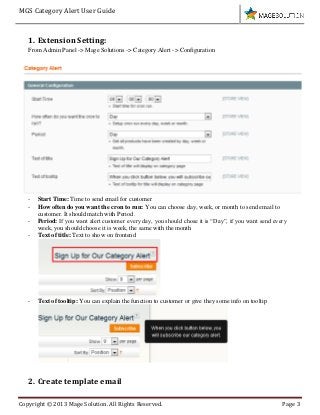
User Guide Copyright © 2013 Mage Solution. All Rights Reserved. Page 3 1. Extension Setting: From Admin Panel -> Mage Solutions -> Category Alert -> Configuration - Start Time: Time to send email for customer - How often do you want the cron to run: You can choose day, week, or month to send email to customer. It should match with Period. - Period: If you want alert customer every day, you should chose it is “Day”, if you want send every week, you should choose it is week, the same with the month - Text of title: Text to show on frontend - Text of tooltip: You can explain the function to customer or give they some info on tooltip 2. Create template email
4.
MGS Category Alert
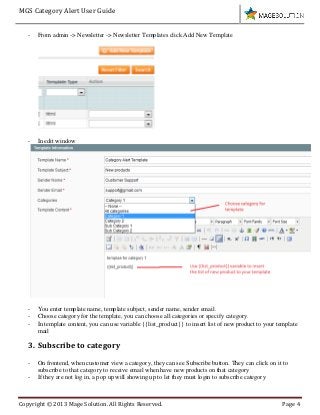
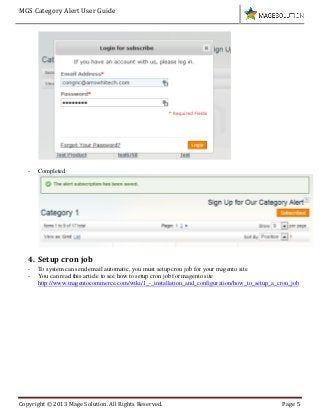
User Guide Copyright © 2013 Mage Solution. All Rights Reserved. Page 4 - From admin -> Newsletter -> Newsletter Templates click Add New Template - In edit window - You enter template name, template subject, sender name, sender email. - Choose category for the template, you can choose all categories or specify category. - In template content, you can use variable {{list_product}} to insert list of new product to your template mail 3. Subscribe to category - On frontend, when customer view a category, they can see Subscribe button. They can click on it to subscribe to that category to receive email when have new products on that category - If they are not log in, a pop up will showing up to let they must login to subscribe category
5.
MGS Category Alert
User Guide Copyright © 2013 Mage Solution. All Rights Reserved. Page 5 - Completed 4. Setup cron job - To system can send email automatic, you must setup cron job for your magento site - You can read this article to see how to setup cron job for magento site http://www.magentocommerce.com/wiki/1_-_installation_and_configuration/how_to_setup_a_cron_job
Download