





WordPress 101
Shanta R. Nathwani
Agenda
 About Me
 Introduction
 WordPress
 Hiring someone
 FAQ’s & Tips
 Q & A’s
Find Me!
Tweet Me:
@ShantaDotCa
Email:
shanta@shanta.ca
My Web Site:
http://shanta.ca
About Me
• Instructor, Sheridan College
• Joint program with University of
Toronto at Mississauga: Institute of
Culture, Communication,
Information and Technology
• Web Design and Capstone Project
• Independent IT and Social Media
Consultant
• Clients include NPOs, Real Estate,
Software Development, Financial
and Political Sectors
• Bachelor of Commerce in Info Tech
Mgmt., Ryerson University
Disclaimer
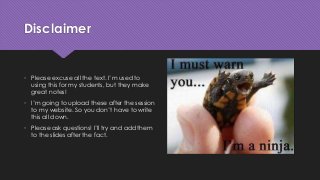
• Please excuse all the text. I’m used to
using this for my students, but they make
great notes!
• I’m going to upload these after the session
to my website. So you don’t have to write
this all down.
• Please ask questions! I’ll try and add them
to the slides after the fact.
What Is WordPress? Why Should I Use It?
 WordPress used be known as a blogging tool. Now, it is a platform for creating websites.
 Currently powers 23% of the world’s websites, including The Huffington Post. This has been
increasing at a rate of approximately 2-3% per year over the last 3-4 years. It’s not going
away any time soon.
 Easy to use, can have multiple contributors at different levels of access and much of the
time, doesn’t need code.
 Easy to integrate with numerous other platforms, especially Social Media.
.COM vs .ORG
wordpress.COM
 Hosted by WordPress/Automattic
 FREE!
 Typically has a set domain made up of
your username and “.wordpress.com”.
i.e., http://tantienhime.wordpress.com
 Can have your own domain or modify
themes, but costs extra
 No Plugins
 Some consider this choice limiting, others
find it comforting.
wordpress.ORG
 Also referred to as “Self-Hosted”.
 Hosted by a third-party (such as Bluehost)
 FREE for the software. You will pay for
hosting.
 Can have whatever domain you want.
i.e., http://shanta.ca,
http://tantienhime.com
 Can modify themes, add plugins and
much more!
Themes
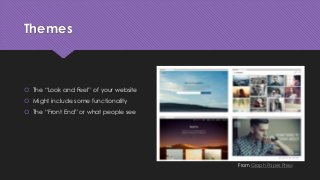
 The “Look and Feel” of your website
 Might include some functionality
 The “Front End” or what people see
From Graph Paper Press
Plugins
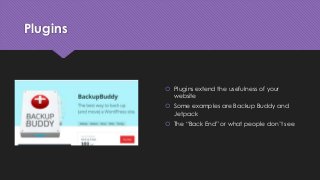
 Plugins extend the usefulness of your
website
 Some examples are Backup Buddy and
Jetpack
 The “Back End” or what people don’t see
Which One Should I Use? It Depends…
Personal
 If you just want to use it for a personal
website and more of a blog, use the
.COM version
Business
 If you are going to run your business off of
this site, use .ORG
Coding Tips & Tricks
 No matter what your discipline, learn a bit of HTML and CSS. This will help you modify your
themes
 Use Firebug to target what you need to find in your webpages.
 Never go live (Thank you Al Davis). Always back up your work, and I don’t recommend
making changes to the code through the WordPress Dashboard. This is the ONLY thing I
don’t recommend doing through the Dashboard.
 You can probably learn more about these topics at numerous talks online and at
WordCamps (Hamilton and Toronto are the closest)
Recommendations
 Don’t use your social media as your primary channel (such as Facebook)
 I recommend using at least Facebook, Twitter and LinkedIn (depending on the focus of the org)
 Keep it current
 Gallery Plug-in
 Stories?
 Automate to Social Media and Email Lists (Mailchimp, for example)
 Monitor all the channels that you are on
 Pay the money when you need to
Common Questions
And maybe some common answers
1. Do I have to
download WordPress
to my computer?
Short Answer: NO
Long Answer:
WordPress.org is hosted on a
server running a number of
different services, including
MySQL Server. You could run it
on your computer, but it’s
complicated for many
beginners
My advice:
Unless you have to do a lot of
testing, such as a developer or
designer, don’t bother running it
locally.
2. Where can I get
themes and plugins?
Short Answer: Many places
Long Answer
Do NOT use either themes or
plugins from an unreliable
source
My Advice
Start with themes and plugins
from WordPress itself. These can
be downloaded directly
through your Dashboard or from
WordPress.org
3. Okay, you’ve
convinced me. How
do I move from .COM
to .ORG?
Short Answer: It can be done, but it isn’t easy.
Long Answer:
WordPress offers a premium
service for about $150 that will
migrate your site over to your
new hosting company. This
includes redirects and SEO.
My Advice:
Let the pros handle it.
Extra Resources
 Codecademy.com: Lessons on learning how to code
 Lynda.com: Videos as well as starter files included (paid service, but sometimes free
through in your education institution)
 W3Schools: Great lookup resource for code. We don’t memorize every piece of code, we
look it up
 WordPress: This is where you can learn almost everything I’ve just talked about! There is
also one for .ORG, but this will get you about 90% of the way there. Skip the “Getting
Started” part if you are using the .ORG
 Lucas Cherkewski: Great advice on hiring a developer!
Final Thoughts
 Join a local WordPress Meetup (Hamilton has a great one!) Tell Brian I said “Hi!”
 Do your research, as with anything, especially hosting
 Have an idea of what you want going into a relationship with a designer or developer,
both look and functionality
Want something more hands on?
Sign up for one of my classes on HackerNest!
 Next one being offered is on March 29th, 2015
Questions?
Tweet Me:
@ShantaDotCa
Email:
shanta@shanta.ca
My Web Site:
http://shanta.ca

WordPress 101 Presentation to Haltech

  • 1.
  • 2.
    Agenda  About Me Introduction  WordPress  Hiring someone  FAQ’s & Tips  Q & A’s
  • 3.
  • 4.
    About Me • Instructor,Sheridan College • Joint program with University of Toronto at Mississauga: Institute of Culture, Communication, Information and Technology • Web Design and Capstone Project • Independent IT and Social Media Consultant • Clients include NPOs, Real Estate, Software Development, Financial and Political Sectors • Bachelor of Commerce in Info Tech Mgmt., Ryerson University
  • 5.
    Disclaimer • Please excuseall the text. I’m used to using this for my students, but they make great notes! • I’m going to upload these after the session to my website. So you don’t have to write this all down. • Please ask questions! I’ll try and add them to the slides after the fact.
  • 6.
    What Is WordPress?Why Should I Use It?  WordPress used be known as a blogging tool. Now, it is a platform for creating websites.  Currently powers 23% of the world’s websites, including The Huffington Post. This has been increasing at a rate of approximately 2-3% per year over the last 3-4 years. It’s not going away any time soon.  Easy to use, can have multiple contributors at different levels of access and much of the time, doesn’t need code.  Easy to integrate with numerous other platforms, especially Social Media.
  • 7.
    .COM vs .ORG wordpress.COM Hosted by WordPress/Automattic  FREE!  Typically has a set domain made up of your username and “.wordpress.com”. i.e., http://tantienhime.wordpress.com  Can have your own domain or modify themes, but costs extra  No Plugins  Some consider this choice limiting, others find it comforting. wordpress.ORG  Also referred to as “Self-Hosted”.  Hosted by a third-party (such as Bluehost)  FREE for the software. You will pay for hosting.  Can have whatever domain you want. i.e., http://shanta.ca, http://tantienhime.com  Can modify themes, add plugins and much more!
  • 8.
    Themes  The “Lookand Feel” of your website  Might include some functionality  The “Front End” or what people see From Graph Paper Press
  • 9.
    Plugins  Plugins extendthe usefulness of your website  Some examples are Backup Buddy and Jetpack  The “Back End” or what people don’t see
  • 10.
    Which One ShouldI Use? It Depends… Personal  If you just want to use it for a personal website and more of a blog, use the .COM version Business  If you are going to run your business off of this site, use .ORG
  • 11.
    Coding Tips &Tricks  No matter what your discipline, learn a bit of HTML and CSS. This will help you modify your themes  Use Firebug to target what you need to find in your webpages.  Never go live (Thank you Al Davis). Always back up your work, and I don’t recommend making changes to the code through the WordPress Dashboard. This is the ONLY thing I don’t recommend doing through the Dashboard.  You can probably learn more about these topics at numerous talks online and at WordCamps (Hamilton and Toronto are the closest)
  • 12.
    Recommendations  Don’t useyour social media as your primary channel (such as Facebook)  I recommend using at least Facebook, Twitter and LinkedIn (depending on the focus of the org)  Keep it current  Gallery Plug-in  Stories?  Automate to Social Media and Email Lists (Mailchimp, for example)  Monitor all the channels that you are on  Pay the money when you need to
  • 13.
    Common Questions And maybesome common answers
  • 14.
    1. Do Ihave to download WordPress to my computer? Short Answer: NO Long Answer: WordPress.org is hosted on a server running a number of different services, including MySQL Server. You could run it on your computer, but it’s complicated for many beginners My advice: Unless you have to do a lot of testing, such as a developer or designer, don’t bother running it locally.
  • 15.
    2. Where canI get themes and plugins? Short Answer: Many places Long Answer Do NOT use either themes or plugins from an unreliable source My Advice Start with themes and plugins from WordPress itself. These can be downloaded directly through your Dashboard or from WordPress.org
  • 16.
    3. Okay, you’ve convincedme. How do I move from .COM to .ORG? Short Answer: It can be done, but it isn’t easy. Long Answer: WordPress offers a premium service for about $150 that will migrate your site over to your new hosting company. This includes redirects and SEO. My Advice: Let the pros handle it.
  • 17.
    Extra Resources  Codecademy.com:Lessons on learning how to code  Lynda.com: Videos as well as starter files included (paid service, but sometimes free through in your education institution)  W3Schools: Great lookup resource for code. We don’t memorize every piece of code, we look it up  WordPress: This is where you can learn almost everything I’ve just talked about! There is also one for .ORG, but this will get you about 90% of the way there. Skip the “Getting Started” part if you are using the .ORG  Lucas Cherkewski: Great advice on hiring a developer!
  • 18.
    Final Thoughts  Joina local WordPress Meetup (Hamilton has a great one!) Tell Brian I said “Hi!”  Do your research, as with anything, especially hosting  Have an idea of what you want going into a relationship with a designer or developer, both look and functionality
  • 19.
    Want something morehands on? Sign up for one of my classes on HackerNest!  Next one being offered is on March 29th, 2015
  • 20.

Editor's Notes

  • #8 .COM: Cannot sell stuff (as far as I know). Apparently there have been some changes to this recently, but must be non-commercial
  • #10 Other popular ones might be WordFence or Google Analytics
  • #13 While we were redesigning our site, we did use it as the primary, but once the website was up, I taught the organization how to use it We are going to go through a redesign Unlike what was said in an earlier session, use the publicize feature to post to those sites. It won’t be as ideal as posting natively, but it will save time and will be less confusing. Don’t just post and forget about it. Don’t just get someone’s niece to do it, invest the money.
  • #17 Many people will simply download the database and upload it into the new space. There are difficulties with this: Media is not moved with it Theme stays behind No Redirects (505’s, etc.)