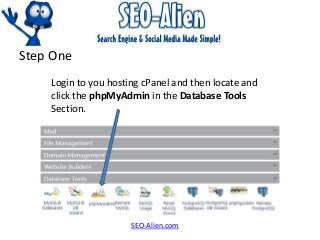
How to Change Your Wordpress Password from phpMyAdmin
Need to change your WordPress password from your cPanel? Your Password is encrypted for security reasons using MD5 encryption. This will show you how to do it!
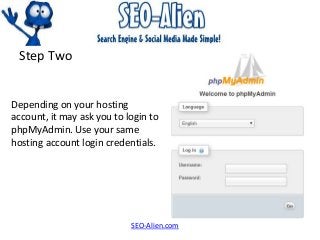
Step Two
SEO-Alien.com
Depending onyour hosting
account, it may ask you to login to
phpMyAdmin. Use your same
hosting account login credentials.
4.
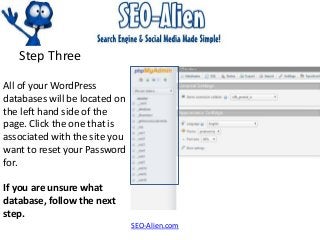
Step Three
SEO-Alien.com
All ofyour WordPress
databases will be located on
the left hand side of the
page. Click the one that is
associated with the site you
want to reset your Password
for.
If you are unsure what
database, follow the next
step.
5.
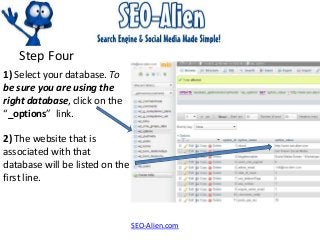
Step Four
SEO-Alien.com
1) Selectyour database. To
be sure you are using the
right database, click on the
“_options” link.
2) The website that is
associated with that
database will be listed on the
first line.
6.
Step Five
SEO-Alien.com
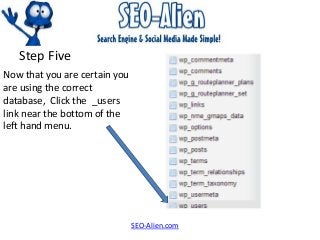
Now thatyou are certain you
are using the correct
database, Click the _users
link near the bottom of the
left hand menu.
7.
Step Six
SEO-Alien.com
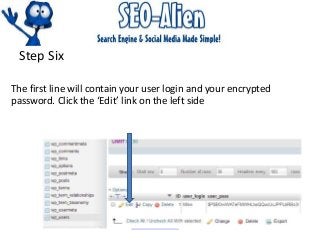
The firstline will contain your user login and your encrypted
password. Click the ‘Edit’ link on the left side
8.
Step Seven
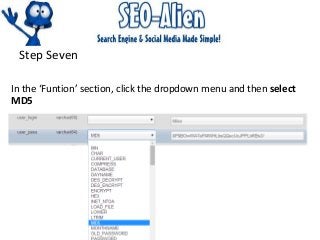
In the‘Funtion’ section, click the dropdown menu and then select
MD5