EOSC Provider and Resource Onboarding Tutorial
v1.00 – 30/09/2020
Dr. Jorge-A. Sanchez-P., Dr. Nikos Vogiatzis, Antonis Zervas, JNP
Overview of EOSC Portal Onboarding Process
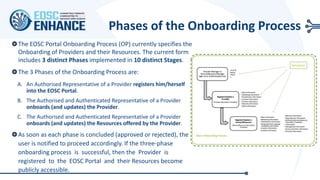
Phases of the Onboarding Process
The EOSC Portal Onboarding Process (OP) currently specifies the
Onboarding of Providers and their Resources. The current form
includes 3 distinct Phases implemented in 10 distinct Stages.
The 3 Phases of the Onboarding Process are:
A. An Authorised Representative of a Provider registers him/herself
into the EOSC Portal.
B. The Authorised and Authenticated Representative of a Provider
onboards (and updates) the Provider.
C. The Authorised and Authenticated Representative of a Provider
onboards (and updates) the Resources offered by the Provider.
As soon as each phase is concluded (approved or rejected), the
user is notified to proceed accordingly. If the three-phase
onboarding process is successful, then the Provider is
registered to the EOSC Portal and their Resources become
publicly accessible.
The 10 Stages of the Onboarding Process are:
1. The ARP [1] registers with the EOSC Portal
2. The AARP [2] logins to the EOSC Portal
3. Τhe AARP asserts Authorisation for the Provider
4. The AARP applies to onboard the Provider
5. The EPOT [3] reviews the Provider Profile
6. The AARP selects the method to onboard Resources
7. The AARP applies to onboard Resources
8. The EPOT reviews the Resource Profiles
9. The AARP applies to onboard other Resources
10.The EPQT [4] creates a Report
[1] ARP: Authorised Representative of the Provider
[1] AARP: Authorised and Authenticated Representative of the Provider
[1] EPOT: EOSC Portal Onboarding Team
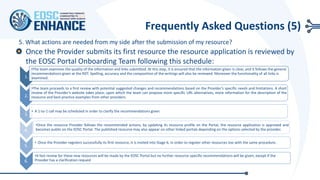
[1] EPQT: EOSC Portal Quality Team
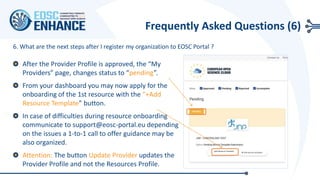
Stages of the Onboarding Process
Phase A. Registration of Authorized
Representative of Provider
Stage 0
A Representative of the Provider visits the EOSC Portal
A Representative of the Provider [1] visits the “For
Providers” Section of the Portal [2] and clicks on
"Become a provider! Apply now" [3] to start the process
of applying to become a Provider.
[1] Assumed to be authorised to act on behalf of the Provider at this stage.
[2] https://providers.eosc-portal.eu/becomeAProvider
[3] https://providers.eosc-portal.eu/newServiceProvider
Stage 1
The ARP registers with the EOSC Portal
The ARP[1] registers with the EOSC Portal using an existing
identity from a Social or Academic Authentication and
Authorization Infrastructure (AAI) mechanism.
EOSC supports AAI mechanisms of many Academic and
Research Institutions worldwide as well as ORCID,
Google, aria, DARIAH, eduTeams, IGTF, EGI Check-in,
B2ACCESS, OpenAIRE, openMINTED.
In case of difficulties during authentication communicate
to login@eosc-portal.eu. Depending on the issues a 1-to-
1 call to offer guidance may be also organized.
[1] ARP: Authorised Representative of the Provider
Stage 2
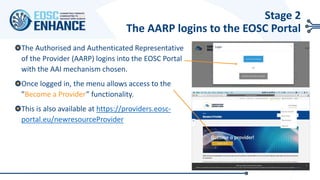
The AARP logins to the EOSC Portal
The Authorised and Authenticated Representative
of the Provider (AARP) logins into the EOSC Portal
with the AAI mechanism chosen.
Once logged in, the menu allows access to the
”Become a Provider” functionality.
This is also available at https://providers.eosc-
portal.eu/newresourceProvider
Stage 3
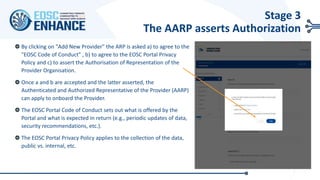
The AARP asserts Authorization
By clicking on "Add New Provider" the ARP is asked a) to agree to the
"EOSC Code of Conduct" , b) to agree to the EOSC Portal Privacy
Policy and c) to assert the Authorisation of Representation of the
Provider Organisation.
Once a and b are accepted and the latter asserted, the
Authenticated and Authorized Representative of the Provider (AARP)
can apply to onboard the Provider.
The EOSC Portal Code of Conduct sets out what is offered by the
Portal and what is expected in return (e.g., periodic updates of data,
security recommendations, etc.).
The EOSC Portal Privacy Policy applies to the collection of the data,
public vs. internal, etc.
Phase B. Onboarding of EOSC Provider
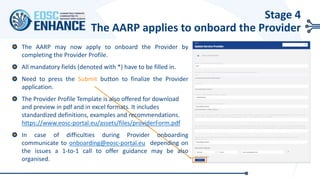
The AARP may now apply το onboard the Provider by
completing the Provider Profile.
All mandatory fields (denoted with *) have to be filled in.
Need to press the Submit button to finalize the Provider
application.
The Provider Profile Template is also offered for download
and preview in pdf and in excel formats. It includes
standardized definitions, examples and recommendations.
https://www.eosc-portal.eu/assets/files/providerForm.pdf
In case of difficulties during Provider onboarding
communicate to onboarding@eosc-portal.eu depending on
the issues a 1-to-1 call to offer guidance may be also
organised.
Stage 4
The AARP applies to onboard the Provider
Stage 4
The AARP applies to onboard the Provider
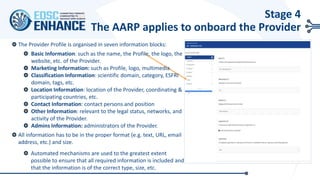
The Provider Profile is organised in seven information blocks:
Basic Information: such as the name, the Profile, the logo, the
website, etc. of the Provider.
Marketing Information: such as Profile, logo, multimedia
Classification Information: scientific domain, category, ESFRI
domain, tags, etc.
Location Information: location of the Provider, coordinating &
participating countries, etc.
Contact Information: contact persons and position
Other Information: relevant to the legal status, networks, and
activity of the Provider.
Admins Information: administrators of the Provider.
All information has to be in the proper format (e.g. text, URL, email
address, etc.) and size.
Automated mechanisms are used to the greatest extent
possible to ensure that all required information is included and
that the information is of the correct type, size, etc.
Pending Resource Template Submission Pending Resource Template
Submission
Pending Resource Template Submission
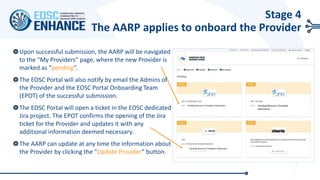
Upon successful submission, the AARP will be navigated
to the “My Providers” page, where the new Provider is
marked as “pending”.
Τhe EOSC Portal will also notify by email the Admins of
the Provider and the EOSC Portal Onboarding Team
(EPOT) of the successful submission.
The EOSC Portal will open a ticket in the EOSC dedicated
Jira project. The EPOT confirms the opening of the Jira
ticket for the Provider and updates it with any
additional information deemed necessary.
The AARP can update at any time the information about
the Provider by clicking the “Update Provider” button.
Stage 4
The AARP applies to onboard the Provider
At this stage the Provider application needs to get approved by the EOSC
Portal Onboarding Team (EPOT) using the EOSC Validation Tool.
The EPOT checks the Minimum Requirements and the rules and criteria and
the typology of the Provider Profile Template (mandatory fields, lengths,
types, etc.) and provides comments and recommendations for
improvements on the Validation Tool.
If the Provider Profile does not comply with the minimum requirements, or
the rules and criteria or the typology of the Provider Profile Template, the
AARP is contacted by email to take action on the recommendations stated
in the Validation Tool and update the Provider Profile.
Typos and obvious errata are corrected by the EPOT. The AARP is informed
accordingly.
At this stage the AARP is offered the option to join an information or
training session with the EPOT to get personalized consultation on the best
way to onboard the Provider and its Resources. In this, often 1-to-1
Webinar, the Provider will have the chance to ask questions and get
personalized consultation on the best way to register its Resources.
In case of delays, both the Provider and the EPOT receive reminders of the
pending process via email messages.
Stage 5
The EPOT reviews the Provider Profile
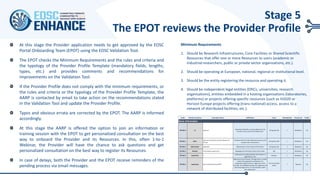
Minimum Requirements
1. Should be Research Infrastructures, Core Facilities or Shared Scientific
Resources that offer one or more Resources to users (academic or
industrial researchers, public or private sector organisations, etc.).
2. Should be operating at European, national, regional or institutional level.
3. Should be the entity registering the resource and operating it.
4. Should be independent legal entities (ERICs, universities, research
organisations), entities embedded in a hosting organisations (laboratories,
platforms) or projects offering specific resources (such as H2020 or
Horizon Europe projects offering (trans-national) access, access to a
network of distributed facilities, etc.).
Code Attribute Name Example Value Definition Type Multiplicity Required Public
Basic Information
EPP.BAI.0 ID openaire
A persistent identifier, a uniquereferenceto the
Provider in thecontext of theEOSC Portal.
String (max 30) 1 Mandatory Yes
EPP.BAI.1 Name
Open Access Infrastructurefor Research in
Europe
Full NameoftheProvider offering theresourceand
acting as main contact point.
String (max 100) 1 Mandatory Yes
EPP.BAI.2 Abbreviation OpenAIRE Abbreviation or short nameof theProvider. String (max 30) 1 Mandatory Yes
EPP.BAI.3 Website https://www.openaire.eu Webpagewith information about theProvider. URL 1 Mandatory Yes
EPP.BAI.4 Legal Entity Y
A Y/N question to definewhether theProvider is a
Legal Entity or not.
Boolean 1 Mandatory Yes
EPP.BAI.5 Legal Status Non-Profit Partnership (NPP)
Legal status of theProvider. Thelegal status is usually
noted in theregistration act/statutes. For
independent legal entities (1) - legal status of the
Provider. For embedded providers (2) -legal status of
thehosting legal entity. It is also possibleto select
Not a legal entity.
List of controlled
values
1 Optional Yes
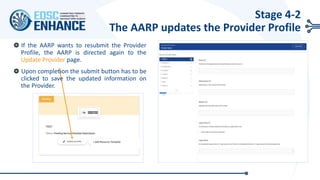
If the AARP wants to resubmit the Provider
Profile, the AARP is directed again to the
Update Provider page.
Upon completion the submit button has to be
clicked to save the updated information on
the Provider.
Stage 4-2
The AARP updates the Provider Profile
+ Add Resource Template
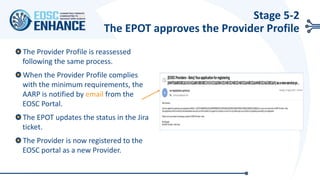
The Provider Profile is reassessed
following the same process.
When the Provider Profile complies
with the minimum requirements, the
AARP is notified by email from the
EOSC Portal.
The EPOT updates the status in the Jira
ticket.
The Provider is now registered to the
EOSC portal as a new Provider.
Stage 5-2
The EPOT approves the Provider Profile
Phase C. Registration of resource
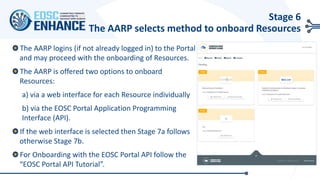
The AARP logins (if not already logged in) to the Portal
and may proceed with the onboarding of Resources.
The AARP is offered two options to onboard
Resources:
a) via a web interface for each Resource individually
b) via the EOSC Portal Application Programming
Interface (API).
If the web interface is selected then Stage 7a follows
otherwise Stage 7b.
For Onboarding with the EOSC Portal API follow the
“EOSC Portal API Tutorial”.
Stage 6
The AARP selects method to onboard Resources
+ Add Resource Template
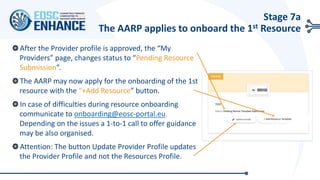
After the Provider profile is approved, the “My
Providers” page, changes status to “Pending Resource
Submission”.
The AARP may now apply for the onboarding of the 1st
resource with the “+Add Resource” button.
In case of difficulties during resource onboarding
communicate to onboarding@eosc-portal.eu.
Depending on the issues a 1-to-1 call to offer guidance
may be also organised.
Attention: The button Update Provider Profile updates
the Provider Profile and not the Resources Profile.
Stage 7a
The AARP applies to onboard the 1st Resource
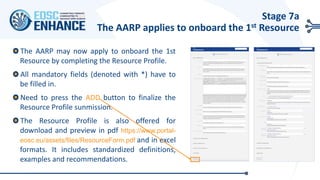
The AARP may now apply to onboard the 1st
Resource by completing the Resource Profile.
All mandatory fields (denoted with *) have to
be filled in.
Need to press the ADD button to finalize the
Resource Profile sunmission.
The Resource Profile is also offered for
download and preview in pdf https://www.portal-
eosc.eu/assets/files/ResourceForm.pdf and in excel
formats. It includes standardized definitions,
examples and recommendations.
Stage 7a
The AARP applies to onboard the 1st Resource
Stage 7a
The AARP applies to onboard the 1st Resource
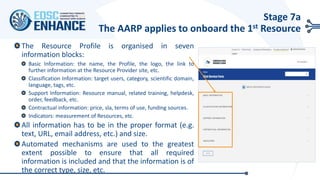
The Resource Profile is organised in seven
information blocks:
Basic Information: the name, the Profile, the logo, the link to
further information at the Resource Provider site, etc.
Classification Information: target users, category, scientific domain,
language, tags, etc.
Support Information: Resource manual, related training, helpdesk,
order, feedback, etc.
Contractual information: price, sla, terms of use, funding sources.
Indicators: measurement of Resources, etc.
All information has to be in the proper format (e.g.
text, URL, email address, etc.) and size.
Automated mechanisms are used to the greatest
extent possible to ensure that all required
information is included and that the information is of
the correct type, size, etc.
Stage 7a
The AARP applies to onboard the 1st Resource
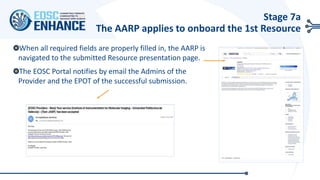
When all required fields are properly filled in, the AARP is
navigated to the submitted Resource presentation page.
Τhe EOSC Portal notifies by email the Admins of the
Provider and the EPOT of the successful submission.
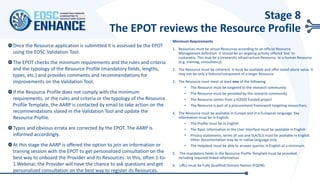
Once the Resource application is submitted it is assessed by the EPOT
using the EOSC Validation Tool.
The EPOT checks the minimum requirements and the rules and criteria
and the typology of the Resource Profile (mandatory fields, lengths,
types, etc.) and provides comments and recommendations for
improvements on the Validation Tool.
If the Resource Profile does not comply with the minimum
requirements, or the rules and criteria or the typology of the Resource
Profile Template, the AARP is contacted by email to take action on the
recommendations stated in the Validation Tool and update the
Resource Profile.
Typos and obvious errata are corrected by the EPOT. The AARP is
informed accordingly.
At this stage the AARP is offered the option to join an information or
training session with the EPOT to get personalized consultation on the
best way to onboard the Provider and its Resources. In this, often 1-to-
1 Webinar, the Provider will have the chance to ask questions and get
personalized consultation on the best way to register its Resources.
Stage 8
The EPOT reviews the Resource Profile
Minimum Requirements
1. Resources must be actual Resources according to an official Resource
Management definition. It should be an ongoing activity offered ‘live’ to
customers. This may be a (research) infrastructure Resource, or a human Resource
(e.g. training, consultancy).
2. The Resource must be coherent. It must be available and offer stand-alone value. It
may not be only a feature/component of a larger Resource.
3. The Resource must meet at least one of the following:
• The Resource must be targeted to the research community
• The Resource must be provided by the research community
• The Resource comes from a H2020 funded project
• The Resource is part of a procurement framework targeting researchers.
4. The Resource must be available in Europe and in a European language. Key
information must be in English:
• The Profile must be in English
• The Basic Information in the User Interface must be available in English
• Privacy statements, terms of use and SLA/SLS must be available in English.
Other documentation may be in native language only.
• The Helpdesk must be able to answer queries in English at a minimum.
5. The mandatory fields in the Resource Profile Template must be provided,
including required linked information.
6. URLs must be Fully Qualified Domain Names (FQDN).
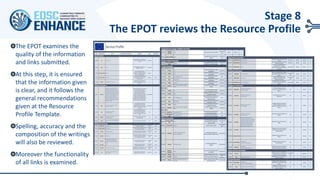
The EPOT examines the
quality of the information
and links submitted.
At this step, it is ensured
that the information given
is clear, and it follows the
general recommendations
given at the Resource
Profile Template.
Spelling, accuracy and the
composition of the writings
will also be reviewed.
Moreover the functionality
of all links is examined.
Stage 8
The EPOT reviews the Resource Profile
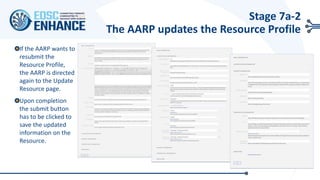
If the AARP wants to
resubmit the
Resource Profile,
the AARP is directed
again to the Update
Resource page.
Upon completion
the submit button
has to be clicked to
save the updated
information on the
Resource.
Stage 7a-2
The AARP updates the Resource Profile
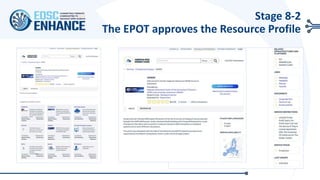
Stage 8-2
The EPOT approves the Resource Profile
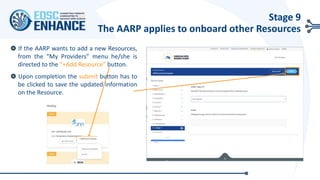
If the AARP wants to add a new Resources,
from the “My Providers” menu he/she is
directed to the “+Add Resource” button.
Upon completion the submit button has to
be clicked to save the updated information
on the Resource.
Stage 9
The AARP applies to onboard other Resources
+ Add Resource Template
Stage 10
The EPQT sends a Report
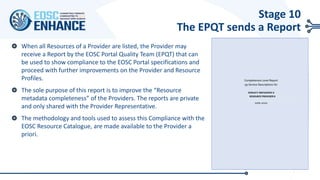
When all Resources of a Provider are listed, the Provider may
receive a Report by the EOSC Portal Quality Team (EPQT) that can
be used to show compliance to the EOSC Portal specifications and
proceed with further improvements on the Provider and Resource
Profiles.
The sole purpose of this report is to improve the “Resource
metadata completeness” of the Providers. The reports are private
and only shared with the Provider Representative.
The methodology and tools used to assess this Compliance with the
EOSC Resource Catalogue, are made available to the Provider a
priori.
RESOURCE PROVIDER X
EOSC Portal Onboarding FAQs
Antonis Zervas, JNP
Frequently Asked Questions (1)
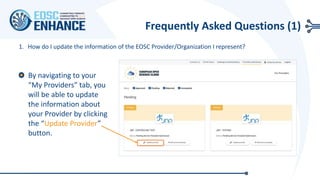
1. How do I update the information of the EOSC Provider/Organization I represent?
By navigating to your
“My Providers” tab, you
will be able to update
the information about
your Provider by clicking
the “Update Provider”
button.
2. How much time it takes, after I submit a Provider Profile or Resource Profile, to get an answer?
According to the EOSC Portal SLA (Service Level Agreement), the EOSC Portal
Onboarding Team responds within 24 hours to your application in working days.
Frequently Asked Questions (2)
3. What are the actions I need to take if the submission of the Organization I represent doesn’t get
approved?
Your application is reviewed by the EOSC Portal Onboarding Team and if it does not
comply with the minimum requirements of the EOSC Rules of Participation you may
be asked to join an information or training session or take other action.
An Introduction Webinar is offered to showcase the Portal's functions.
In this, often 1-to-1 Webinar, you will have the chance to ask questions and get
personalized consultation on the best way to register your organisation’s resources.
Frequently Asked Questions (3)
Registering your organization and its resources at EOSC Portal can be beneficial to you
to:
Improve discoverability and visibility of your resources
Expand your user base and widen the pool of your users with more communities
Help you attract potential customers from the industry
Showcase your resources in an EOSC-compatible format
Facilitate with a shared language and path to users
Become user-oriented, user-centric, business-focus and professional in resource provisioning
4. Why should I register my organization at EOSC Portal?
Frequently Asked Questions (4)
5. What actions are needed from my side after the submission of my resource?
1.
•The team examines the quality of the information and links submitted. At this step, it is ensured that the information given is clear, and it follows the general
recommendations given at the RDT. Spelling, accuracy and the composition of the writings will also be reviewed. Moreover the functionality of all links is
examined.
2.
•The team proceeds to a first review with potential suggested changes and recommendations based on the Provider's specific needs and limitations. A short
review of the Provider’s website takes place, upon which the team can propose more specific URL alternatives, more information for the description of the
resource and best practice examples from other providers.
3.
• A 1-to-1 call may be scheduled in order to clarify the recommendations given.
4.
•Once the resource Provider follows the recommended actions, by updating its resource profile on the Portal, the resource application is approved and
becomes public on the EOSC Portal. The published resource may also appear on other linked portals depending on the options selected by the provider.
5.
• Once the Provider registers successfully its first resource, it is invited into Stage 6, in order to register other resources too with the same procedure.
6.
•A fast review for these new resources will be made by the EOSC Portal but no further resource-specific recommendations will be given, except if the
Provider has a clarification request
Frequently Asked Questions (5)
Once the Provider submits its first resource the resource application is reviewed by
the EOSC Portal Onboarding Team following this schedule:
6. What are the next steps after I register my organization to EOSC Portal ?
After the Provider Profile is approved, the “My
Providers” page, changes status to “pending”.
From your dashboard you may now apply for the
onboarding of the 1st resource with the “+Add
Resource Template” button.
In case of difficulties during resource onboarding
communicate to support@eosc-portal.eu depending
on the issues a 1-to-1 call to offer guidance may be
also organized.
Attention: The button Update Provider updates the
Provider Profile and not the Resources Profile.
Frequently Asked Questions (6)
+Add Resource Template
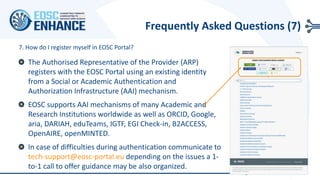
The Authorised Representative of the Provider (ARP)
registers with the EOSC Portal using an existing identity
from a Social or Academic Authentication and
Authorization Infrastructure (AAI) mechanism.
EOSC supports AAI mechanisms of many Academic and
Research Institutions worldwide as well as ORCID, Google,
aria, DARIAH, eduTeams, IGTF, EGI Check-in, B2ACCESS,
OpenAIRE, openMINTED.
In case of difficulties during authentication communicate to
tech-support@eosc-portal.eu depending on the issues a 1-
to-1 call to offer guidance may be also organized.
7. How do I register myself in EOSC Portal?
Frequently Asked Questions (7)
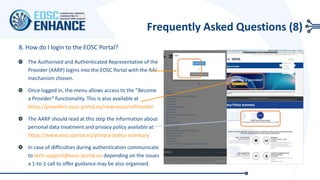
The Authorised and Authenticated Representative of the
Provider (AARP) logins into the EOSC Portal with the AAI
mechanism chosen.
Once logged in, the menu allows access to the ”Become
a Provider” functionality. This is also available at
https://providers.eosc-portal.eu/newresourceProvider
The AARP should read at this step the information about
personal data treatment and privacy policy available at
https://www.eosc-portal.eu/privacy-policy-summary
In case of difficulties during authentication communicate
to tech-support@eosc-portal.eu depending on the issues
a 1-to-1 call to offer guidance may be also organised.
8. How do I login to the EOSC Portal?
Frequently Asked Questions (8)
11/11/2020 38
Disclaimer
The information contained in this document is provided by the copyright holders "as is" and any express or
implied warranties, including, but not limited to, the implied warranties of merchantability and fitness for a
particular purpose are disclaimed. In no event shall the authors or the European Commission be liable for
any direct, indirect, incidental, special, exemplary, or consequential damages (including, but not limited to,
procurement of substitute goods or services; loss of use, data, or profits; or business interruption) however
caused and on any theory of liability, whether in contract, strict liability, or tort (including negligence or
otherwise) arising in any way out of the use of the information contained in this document, even if advised
of the possibility of such damage. The sole responsibility for the content of this publication lies with the
authors. It does not necessarily reflect the opinion of the European Commission. The European Commission
is not responsible for any use that may be made of the information contained therein.
Copyright
This work by JNP, NKUA and CYFRONET is licensed under a Creative Commons Attribution 4.0 International
License (http://creativecommons.org/licenses/by/4.0/).
https://www.eosc-portal.eu/
info@eosc-portal.eu
https://twitter.com/eoscportal
EOSC Provider and Resource Onboarding Tutorial

EOSC Provider and Resource Onboarding Tutorial

  • 1.
    EOSC Provider andResource Onboarding Tutorial v1.00 – 30/09/2020 Dr. Jorge-A. Sanchez-P., Dr. Nikos Vogiatzis, Antonis Zervas, JNP
  • 2.
    Overview of EOSCPortal Onboarding Process
  • 3.
    Phases of theOnboarding Process The EOSC Portal Onboarding Process (OP) currently specifies the Onboarding of Providers and their Resources. The current form includes 3 distinct Phases implemented in 10 distinct Stages. The 3 Phases of the Onboarding Process are: A. An Authorised Representative of a Provider registers him/herself into the EOSC Portal. B. The Authorised and Authenticated Representative of a Provider onboards (and updates) the Provider. C. The Authorised and Authenticated Representative of a Provider onboards (and updates) the Resources offered by the Provider. As soon as each phase is concluded (approved or rejected), the user is notified to proceed accordingly. If the three-phase onboarding process is successful, then the Provider is registered to the EOSC Portal and their Resources become publicly accessible.
  • 4.
    The 10 Stagesof the Onboarding Process are: 1. The ARP [1] registers with the EOSC Portal 2. The AARP [2] logins to the EOSC Portal 3. Τhe AARP asserts Authorisation for the Provider 4. The AARP applies to onboard the Provider 5. The EPOT [3] reviews the Provider Profile 6. The AARP selects the method to onboard Resources 7. The AARP applies to onboard Resources 8. The EPOT reviews the Resource Profiles 9. The AARP applies to onboard other Resources 10.The EPQT [4] creates a Report [1] ARP: Authorised Representative of the Provider [1] AARP: Authorised and Authenticated Representative of the Provider [1] EPOT: EOSC Portal Onboarding Team [1] EPQT: EOSC Portal Quality Team Stages of the Onboarding Process
  • 5.
    Phase A. Registrationof Authorized Representative of Provider
  • 6.
    Stage 0 A Representativeof the Provider visits the EOSC Portal A Representative of the Provider [1] visits the “For Providers” Section of the Portal [2] and clicks on "Become a provider! Apply now" [3] to start the process of applying to become a Provider. [1] Assumed to be authorised to act on behalf of the Provider at this stage. [2] https://providers.eosc-portal.eu/becomeAProvider [3] https://providers.eosc-portal.eu/newServiceProvider
  • 7.
    Stage 1 The ARPregisters with the EOSC Portal The ARP[1] registers with the EOSC Portal using an existing identity from a Social or Academic Authentication and Authorization Infrastructure (AAI) mechanism. EOSC supports AAI mechanisms of many Academic and Research Institutions worldwide as well as ORCID, Google, aria, DARIAH, eduTeams, IGTF, EGI Check-in, B2ACCESS, OpenAIRE, openMINTED. In case of difficulties during authentication communicate to login@eosc-portal.eu. Depending on the issues a 1-to- 1 call to offer guidance may be also organized. [1] ARP: Authorised Representative of the Provider
  • 8.
    Stage 2 The AARPlogins to the EOSC Portal The Authorised and Authenticated Representative of the Provider (AARP) logins into the EOSC Portal with the AAI mechanism chosen. Once logged in, the menu allows access to the ”Become a Provider” functionality. This is also available at https://providers.eosc- portal.eu/newresourceProvider
  • 9.
    Stage 3 The AARPasserts Authorization By clicking on "Add New Provider" the ARP is asked a) to agree to the "EOSC Code of Conduct" , b) to agree to the EOSC Portal Privacy Policy and c) to assert the Authorisation of Representation of the Provider Organisation. Once a and b are accepted and the latter asserted, the Authenticated and Authorized Representative of the Provider (AARP) can apply to onboard the Provider. The EOSC Portal Code of Conduct sets out what is offered by the Portal and what is expected in return (e.g., periodic updates of data, security recommendations, etc.). The EOSC Portal Privacy Policy applies to the collection of the data, public vs. internal, etc.
  • 10.
    Phase B. Onboardingof EOSC Provider
  • 11.
    The AARP maynow apply το onboard the Provider by completing the Provider Profile. All mandatory fields (denoted with *) have to be filled in. Need to press the Submit button to finalize the Provider application. The Provider Profile Template is also offered for download and preview in pdf and in excel formats. It includes standardized definitions, examples and recommendations. https://www.eosc-portal.eu/assets/files/providerForm.pdf In case of difficulties during Provider onboarding communicate to onboarding@eosc-portal.eu depending on the issues a 1-to-1 call to offer guidance may be also organised. Stage 4 The AARP applies to onboard the Provider
  • 12.
    Stage 4 The AARPapplies to onboard the Provider The Provider Profile is organised in seven information blocks: Basic Information: such as the name, the Profile, the logo, the website, etc. of the Provider. Marketing Information: such as Profile, logo, multimedia Classification Information: scientific domain, category, ESFRI domain, tags, etc. Location Information: location of the Provider, coordinating & participating countries, etc. Contact Information: contact persons and position Other Information: relevant to the legal status, networks, and activity of the Provider. Admins Information: administrators of the Provider. All information has to be in the proper format (e.g. text, URL, email address, etc.) and size. Automated mechanisms are used to the greatest extent possible to ensure that all required information is included and that the information is of the correct type, size, etc.
  • 13.
    Pending Resource TemplateSubmission Pending Resource Template Submission Pending Resource Template Submission Upon successful submission, the AARP will be navigated to the “My Providers” page, where the new Provider is marked as “pending”. Τhe EOSC Portal will also notify by email the Admins of the Provider and the EOSC Portal Onboarding Team (EPOT) of the successful submission. The EOSC Portal will open a ticket in the EOSC dedicated Jira project. The EPOT confirms the opening of the Jira ticket for the Provider and updates it with any additional information deemed necessary. The AARP can update at any time the information about the Provider by clicking the “Update Provider” button. Stage 4 The AARP applies to onboard the Provider
  • 14.
    At this stagethe Provider application needs to get approved by the EOSC Portal Onboarding Team (EPOT) using the EOSC Validation Tool. The EPOT checks the Minimum Requirements and the rules and criteria and the typology of the Provider Profile Template (mandatory fields, lengths, types, etc.) and provides comments and recommendations for improvements on the Validation Tool. If the Provider Profile does not comply with the minimum requirements, or the rules and criteria or the typology of the Provider Profile Template, the AARP is contacted by email to take action on the recommendations stated in the Validation Tool and update the Provider Profile. Typos and obvious errata are corrected by the EPOT. The AARP is informed accordingly. At this stage the AARP is offered the option to join an information or training session with the EPOT to get personalized consultation on the best way to onboard the Provider and its Resources. In this, often 1-to-1 Webinar, the Provider will have the chance to ask questions and get personalized consultation on the best way to register its Resources. In case of delays, both the Provider and the EPOT receive reminders of the pending process via email messages. Stage 5 The EPOT reviews the Provider Profile Minimum Requirements 1. Should be Research Infrastructures, Core Facilities or Shared Scientific Resources that offer one or more Resources to users (academic or industrial researchers, public or private sector organisations, etc.). 2. Should be operating at European, national, regional or institutional level. 3. Should be the entity registering the resource and operating it. 4. Should be independent legal entities (ERICs, universities, research organisations), entities embedded in a hosting organisations (laboratories, platforms) or projects offering specific resources (such as H2020 or Horizon Europe projects offering (trans-national) access, access to a network of distributed facilities, etc.). Code Attribute Name Example Value Definition Type Multiplicity Required Public Basic Information EPP.BAI.0 ID openaire A persistent identifier, a uniquereferenceto the Provider in thecontext of theEOSC Portal. String (max 30) 1 Mandatory Yes EPP.BAI.1 Name Open Access Infrastructurefor Research in Europe Full NameoftheProvider offering theresourceand acting as main contact point. String (max 100) 1 Mandatory Yes EPP.BAI.2 Abbreviation OpenAIRE Abbreviation or short nameof theProvider. String (max 30) 1 Mandatory Yes EPP.BAI.3 Website https://www.openaire.eu Webpagewith information about theProvider. URL 1 Mandatory Yes EPP.BAI.4 Legal Entity Y A Y/N question to definewhether theProvider is a Legal Entity or not. Boolean 1 Mandatory Yes EPP.BAI.5 Legal Status Non-Profit Partnership (NPP) Legal status of theProvider. Thelegal status is usually noted in theregistration act/statutes. For independent legal entities (1) - legal status of the Provider. For embedded providers (2) -legal status of thehosting legal entity. It is also possibleto select Not a legal entity. List of controlled values 1 Optional Yes
  • 15.
    If the AARPwants to resubmit the Provider Profile, the AARP is directed again to the Update Provider page. Upon completion the submit button has to be clicked to save the updated information on the Provider. Stage 4-2 The AARP updates the Provider Profile + Add Resource Template
  • 16.
    The Provider Profileis reassessed following the same process. When the Provider Profile complies with the minimum requirements, the AARP is notified by email from the EOSC Portal. The EPOT updates the status in the Jira ticket. The Provider is now registered to the EOSC portal as a new Provider. Stage 5-2 The EPOT approves the Provider Profile
  • 17.
  • 18.
    The AARP logins(if not already logged in) to the Portal and may proceed with the onboarding of Resources. The AARP is offered two options to onboard Resources: a) via a web interface for each Resource individually b) via the EOSC Portal Application Programming Interface (API). If the web interface is selected then Stage 7a follows otherwise Stage 7b. For Onboarding with the EOSC Portal API follow the “EOSC Portal API Tutorial”. Stage 6 The AARP selects method to onboard Resources
  • 19.
    + Add ResourceTemplate After the Provider profile is approved, the “My Providers” page, changes status to “Pending Resource Submission”. The AARP may now apply for the onboarding of the 1st resource with the “+Add Resource” button. In case of difficulties during resource onboarding communicate to onboarding@eosc-portal.eu. Depending on the issues a 1-to-1 call to offer guidance may be also organised. Attention: The button Update Provider Profile updates the Provider Profile and not the Resources Profile. Stage 7a The AARP applies to onboard the 1st Resource
  • 20.
    The AARP maynow apply to onboard the 1st Resource by completing the Resource Profile. All mandatory fields (denoted with *) have to be filled in. Need to press the ADD button to finalize the Resource Profile sunmission. The Resource Profile is also offered for download and preview in pdf https://www.portal- eosc.eu/assets/files/ResourceForm.pdf and in excel formats. It includes standardized definitions, examples and recommendations. Stage 7a The AARP applies to onboard the 1st Resource
  • 21.
    Stage 7a The AARPapplies to onboard the 1st Resource The Resource Profile is organised in seven information blocks: Basic Information: the name, the Profile, the logo, the link to further information at the Resource Provider site, etc. Classification Information: target users, category, scientific domain, language, tags, etc. Support Information: Resource manual, related training, helpdesk, order, feedback, etc. Contractual information: price, sla, terms of use, funding sources. Indicators: measurement of Resources, etc. All information has to be in the proper format (e.g. text, URL, email address, etc.) and size. Automated mechanisms are used to the greatest extent possible to ensure that all required information is included and that the information is of the correct type, size, etc.
  • 22.
    Stage 7a The AARPapplies to onboard the 1st Resource When all required fields are properly filled in, the AARP is navigated to the submitted Resource presentation page. Τhe EOSC Portal notifies by email the Admins of the Provider and the EPOT of the successful submission.
  • 23.
    Once the Resourceapplication is submitted it is assessed by the EPOT using the EOSC Validation Tool. The EPOT checks the minimum requirements and the rules and criteria and the typology of the Resource Profile (mandatory fields, lengths, types, etc.) and provides comments and recommendations for improvements on the Validation Tool. If the Resource Profile does not comply with the minimum requirements, or the rules and criteria or the typology of the Resource Profile Template, the AARP is contacted by email to take action on the recommendations stated in the Validation Tool and update the Resource Profile. Typos and obvious errata are corrected by the EPOT. The AARP is informed accordingly. At this stage the AARP is offered the option to join an information or training session with the EPOT to get personalized consultation on the best way to onboard the Provider and its Resources. In this, often 1-to- 1 Webinar, the Provider will have the chance to ask questions and get personalized consultation on the best way to register its Resources. Stage 8 The EPOT reviews the Resource Profile Minimum Requirements 1. Resources must be actual Resources according to an official Resource Management definition. It should be an ongoing activity offered ‘live’ to customers. This may be a (research) infrastructure Resource, or a human Resource (e.g. training, consultancy). 2. The Resource must be coherent. It must be available and offer stand-alone value. It may not be only a feature/component of a larger Resource. 3. The Resource must meet at least one of the following: • The Resource must be targeted to the research community • The Resource must be provided by the research community • The Resource comes from a H2020 funded project • The Resource is part of a procurement framework targeting researchers. 4. The Resource must be available in Europe and in a European language. Key information must be in English: • The Profile must be in English • The Basic Information in the User Interface must be available in English • Privacy statements, terms of use and SLA/SLS must be available in English. Other documentation may be in native language only. • The Helpdesk must be able to answer queries in English at a minimum. 5. The mandatory fields in the Resource Profile Template must be provided, including required linked information. 6. URLs must be Fully Qualified Domain Names (FQDN).
  • 24.
    The EPOT examinesthe quality of the information and links submitted. At this step, it is ensured that the information given is clear, and it follows the general recommendations given at the Resource Profile Template. Spelling, accuracy and the composition of the writings will also be reviewed. Moreover the functionality of all links is examined. Stage 8 The EPOT reviews the Resource Profile
  • 25.
    If the AARPwants to resubmit the Resource Profile, the AARP is directed again to the Update Resource page. Upon completion the submit button has to be clicked to save the updated information on the Resource. Stage 7a-2 The AARP updates the Resource Profile
  • 26.
    Stage 8-2 The EPOTapproves the Resource Profile
  • 27.
    If the AARPwants to add a new Resources, from the “My Providers” menu he/she is directed to the “+Add Resource” button. Upon completion the submit button has to be clicked to save the updated information on the Resource. Stage 9 The AARP applies to onboard other Resources + Add Resource Template
  • 28.
    Stage 10 The EPQTsends a Report When all Resources of a Provider are listed, the Provider may receive a Report by the EOSC Portal Quality Team (EPQT) that can be used to show compliance to the EOSC Portal specifications and proceed with further improvements on the Provider and Resource Profiles. The sole purpose of this report is to improve the “Resource metadata completeness” of the Providers. The reports are private and only shared with the Provider Representative. The methodology and tools used to assess this Compliance with the EOSC Resource Catalogue, are made available to the Provider a priori. RESOURCE PROVIDER X
  • 29.
    EOSC Portal OnboardingFAQs Antonis Zervas, JNP
  • 30.
    Frequently Asked Questions(1) 1. How do I update the information of the EOSC Provider/Organization I represent? By navigating to your “My Providers” tab, you will be able to update the information about your Provider by clicking the “Update Provider” button.
  • 31.
    2. How muchtime it takes, after I submit a Provider Profile or Resource Profile, to get an answer? According to the EOSC Portal SLA (Service Level Agreement), the EOSC Portal Onboarding Team responds within 24 hours to your application in working days. Frequently Asked Questions (2)
  • 32.
    3. What arethe actions I need to take if the submission of the Organization I represent doesn’t get approved? Your application is reviewed by the EOSC Portal Onboarding Team and if it does not comply with the minimum requirements of the EOSC Rules of Participation you may be asked to join an information or training session or take other action. An Introduction Webinar is offered to showcase the Portal's functions. In this, often 1-to-1 Webinar, you will have the chance to ask questions and get personalized consultation on the best way to register your organisation’s resources. Frequently Asked Questions (3)
  • 33.
    Registering your organizationand its resources at EOSC Portal can be beneficial to you to: Improve discoverability and visibility of your resources Expand your user base and widen the pool of your users with more communities Help you attract potential customers from the industry Showcase your resources in an EOSC-compatible format Facilitate with a shared language and path to users Become user-oriented, user-centric, business-focus and professional in resource provisioning 4. Why should I register my organization at EOSC Portal? Frequently Asked Questions (4)
  • 34.
    5. What actionsare needed from my side after the submission of my resource? 1. •The team examines the quality of the information and links submitted. At this step, it is ensured that the information given is clear, and it follows the general recommendations given at the RDT. Spelling, accuracy and the composition of the writings will also be reviewed. Moreover the functionality of all links is examined. 2. •The team proceeds to a first review with potential suggested changes and recommendations based on the Provider's specific needs and limitations. A short review of the Provider’s website takes place, upon which the team can propose more specific URL alternatives, more information for the description of the resource and best practice examples from other providers. 3. • A 1-to-1 call may be scheduled in order to clarify the recommendations given. 4. •Once the resource Provider follows the recommended actions, by updating its resource profile on the Portal, the resource application is approved and becomes public on the EOSC Portal. The published resource may also appear on other linked portals depending on the options selected by the provider. 5. • Once the Provider registers successfully its first resource, it is invited into Stage 6, in order to register other resources too with the same procedure. 6. •A fast review for these new resources will be made by the EOSC Portal but no further resource-specific recommendations will be given, except if the Provider has a clarification request Frequently Asked Questions (5) Once the Provider submits its first resource the resource application is reviewed by the EOSC Portal Onboarding Team following this schedule:
  • 35.
    6. What arethe next steps after I register my organization to EOSC Portal ? After the Provider Profile is approved, the “My Providers” page, changes status to “pending”. From your dashboard you may now apply for the onboarding of the 1st resource with the “+Add Resource Template” button. In case of difficulties during resource onboarding communicate to support@eosc-portal.eu depending on the issues a 1-to-1 call to offer guidance may be also organized. Attention: The button Update Provider updates the Provider Profile and not the Resources Profile. Frequently Asked Questions (6) +Add Resource Template
  • 36.
    The Authorised Representativeof the Provider (ARP) registers with the EOSC Portal using an existing identity from a Social or Academic Authentication and Authorization Infrastructure (AAI) mechanism. EOSC supports AAI mechanisms of many Academic and Research Institutions worldwide as well as ORCID, Google, aria, DARIAH, eduTeams, IGTF, EGI Check-in, B2ACCESS, OpenAIRE, openMINTED. In case of difficulties during authentication communicate to tech-support@eosc-portal.eu depending on the issues a 1- to-1 call to offer guidance may be also organized. 7. How do I register myself in EOSC Portal? Frequently Asked Questions (7)
  • 37.
    The Authorised andAuthenticated Representative of the Provider (AARP) logins into the EOSC Portal with the AAI mechanism chosen. Once logged in, the menu allows access to the ”Become a Provider” functionality. This is also available at https://providers.eosc-portal.eu/newresourceProvider The AARP should read at this step the information about personal data treatment and privacy policy available at https://www.eosc-portal.eu/privacy-policy-summary In case of difficulties during authentication communicate to tech-support@eosc-portal.eu depending on the issues a 1-to-1 call to offer guidance may be also organised. 8. How do I login to the EOSC Portal? Frequently Asked Questions (8)
  • 38.
    11/11/2020 38 Disclaimer The informationcontained in this document is provided by the copyright holders "as is" and any express or implied warranties, including, but not limited to, the implied warranties of merchantability and fitness for a particular purpose are disclaimed. In no event shall the authors or the European Commission be liable for any direct, indirect, incidental, special, exemplary, or consequential damages (including, but not limited to, procurement of substitute goods or services; loss of use, data, or profits; or business interruption) however caused and on any theory of liability, whether in contract, strict liability, or tort (including negligence or otherwise) arising in any way out of the use of the information contained in this document, even if advised of the possibility of such damage. The sole responsibility for the content of this publication lies with the authors. It does not necessarily reflect the opinion of the European Commission. The European Commission is not responsible for any use that may be made of the information contained therein. Copyright This work by JNP, NKUA and CYFRONET is licensed under a Creative Commons Attribution 4.0 International License (http://creativecommons.org/licenses/by/4.0/).
  • 39.