Artem Livshits
CEO OblakSoft


Yapixx is WordPress



… that stores all its data in Amazon S3



… … ( thanks to OblakSoft ClouSE )



Configured as a picture sharing site



… but really can do anything you need


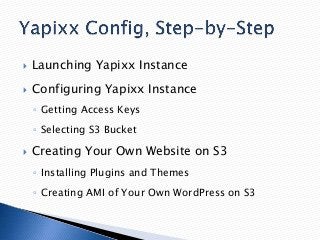
Launching Yapixx Instance



Configuring Yapixx Instance
◦ Getting Access Keys
◦ Selecting S3 Bucket



Creating Your Own Website on S3
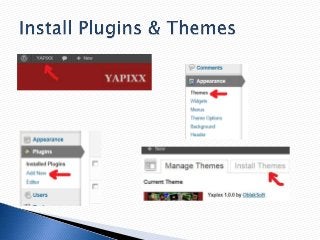
◦ Installing Plugins and Themes

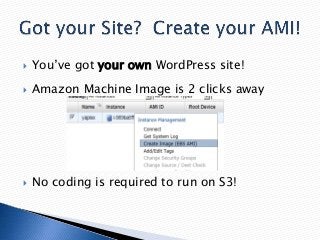
◦ Creating AMI of Your Own WordPress on S3


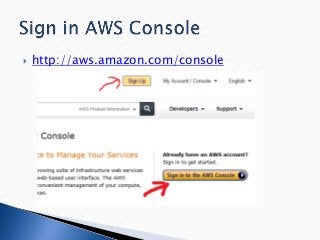
http://aws.amazon.com/console


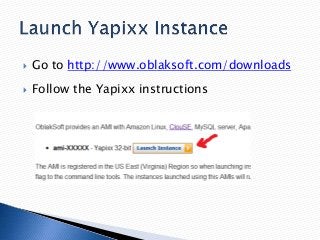
Go to http://www.oblaksoft.com/downloads



Follow the Yapixx instructions


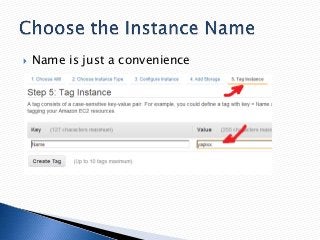
Name is just a convenience


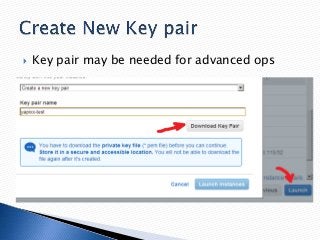
Key pair may be needed for advanced ops


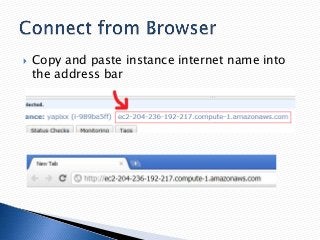
Copy and paste instance internet name into
the address bar


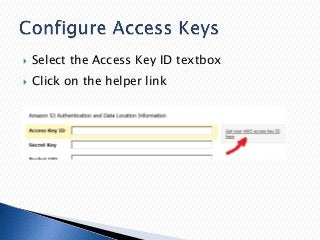
Select the Access Key ID textbox



Click on the helper link


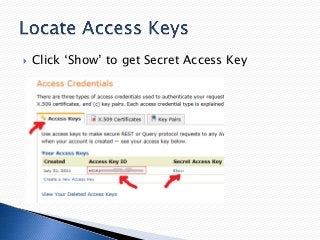
Click ‘Show’ to get Secret Access Key


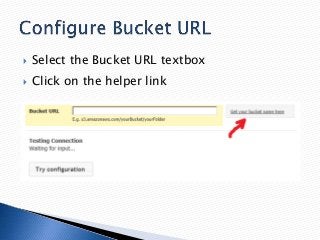
Select the Bucket URL textbox



Click on the helper link


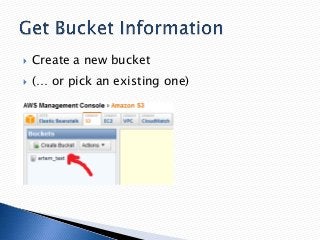
Create a new bucket



(… or pick an existing one)


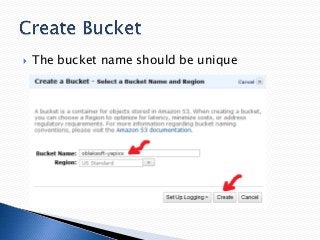
The bucket name should be unique


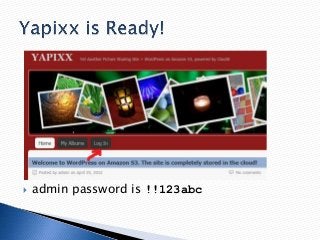
admin password is !!123abc


Create your own WorPress site



… that stores all its data in Amazon S3



… … ( thanks to OblakSoft ClouSE )



Transform Yapixx into anything you need!


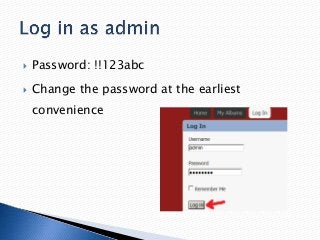
Password: !!123abc



Change the password at the earliest
convenience


You’ve got your own WordPress site!



Amazon Machine Image is 2 clicks away



No coding is required to run on S3!
OblakSoft
YOUR WAY TO THE CLOUD



Get FREE WordPress on S3 / Yapixx @
www.oblaksoft.com/downloads



artem@oblaksoft.com



www.oblaksoft.com

WordPress on S3: step-by-step

Editor's Notes

  • #3 Yapixx stands for Yet Another Picture Sharing Site.Yapixx is just an example of how WordPress can benefit from the power of cloud.WordPress is a mature and versatile platform that powers millions of websites with diverse purposes from blogging to social networking. Now it can run with Amazon S3 without writing a line of code.
  • #5 To work with Yapixx you need to sign in AWS management console.If you don’t have an AWS account yet, press the “Sign Up” button and follow the instructions.
  • #6 Follow the links to get to the Yapixx: WordPress on S3 instructions.Click Launch Instance button.Instance is a virtual machine within the Amazon Elastic Compute Cloud (EC2).
  • #7 Name can help to identify what the instance is.
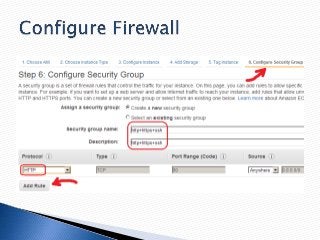
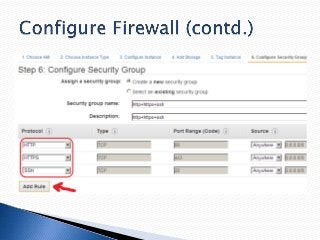
  • #8 The default security group does not allow any external network access to the instance.You need HTTP, HTTPS and SSH access to the instance.HTTP and HTTPS are needed to access the website.SSH is needed for advanced operations such as troubleshooting, installing additional software, etc.Creating a new security group is a one time operation, an existing security group can be used to launch new instances.Choose the group name and description to describe what the firewall enables.To start configuring, select HTTP from the dropdown list and hit Add Rule.
  • #9 Add a couple more rules for HTTPS and SSH.
  • #10 When prompted to create a new key pair, enter an name (yapixx-test is as good as any).You won’t need the key pair for Yapixx configuration, but you will need it for advanced operations, such as troubleshooting, installing additional software, etc.Keep the file that you’ve downloaded from Amazon in a safe place: this is the only copy of your private key! Creating a key pair is a one time operation, an existing key pair can be used to launch new instances.
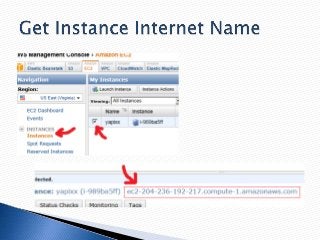
  • #11 Go to the list of instances and select the instance.In the bottom pane you can see the instance properties.The most important one is the instance internet name.Note that the name is assigned by Amazon and is going to be different for each instance.
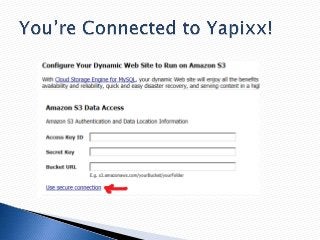
  • #13 When you connect to Yapixx for the first time, you need to specify where data needs to be stored.Access and Secret keys are information that you must not share with anyone, so it’s recommended to use SSL.To use SSL, click the ‘Use secure connection’ link.The website uses self-signed certificate which causes browser warning.
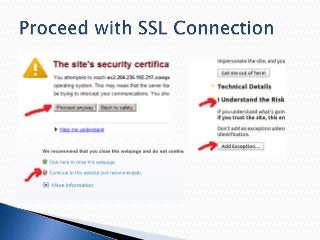
  • #14 Yapixx uses self-signed certificate which causes browsers to issue a warning.Here are the warnings issued by Chrome, Internet Explorer and Firefox.Choose to proceed, because this is expected.
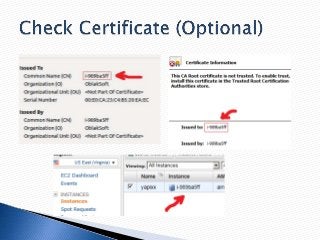
  • #15 To make sure that the connection is indeed established with the instance, view the certificate.The certificate is issued to the instance when it’s launched and contains the instance ID.Compare the instance ID in the certificate and the instance ID in the AWS management console.The instance IDs must match.
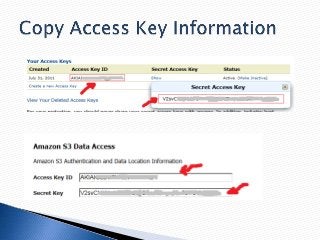
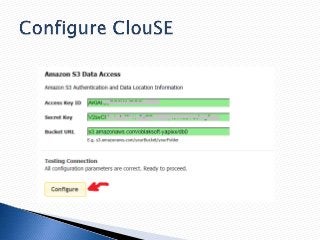
  • #18 Copy and paste the access keys to the ClouSE configurator.
  • #20 If you have an existing bucket in the US standard region, you can use it to store Yapixx data.If you don’t have any buckets in the US standard region, you can create one.
  • #21 Type in a unique name and hit create.Make sure that the region is US Standard.
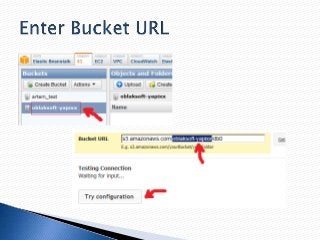
  • #22 Use the bucket name you’ve just created in the bucket URL.The last part of the URL is an arbitrary folder name that allows creating multiple databases in one bucket.After the bucket URL is entered, try configuration.
  • #24 Yapixx is fully configured now.Please change the admin password as soon as possibleEnjoy!
  • #27 Go to the WordPress dashboardSelect Add new plugin and follow the instructionsSelect Install Themes and follow the instructionsGet more at http://wordpress.org/
  • #28 After you’ve transformed Yapixx into your own WordPress site, you can create an AMI for itRight-click on the instance in the AWS console and pick “Create Image”.Now your AMI has your website installation, while your data is stored in Amazon S3.