Working With TextAdobe Illustrator
IntroductionIn this tutorial you will learn the following:How to use the Text ToolHow to put Text on a PathHow to put Text inside a shapeHow to change Text to an editable shapeTo do this, we’ll be working on the text for the front of a cereal box
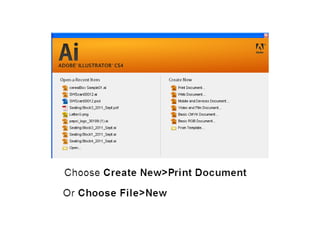
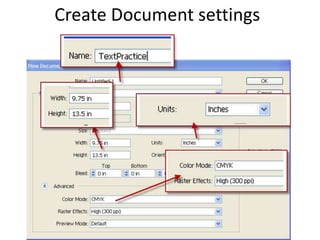
Create Document settings
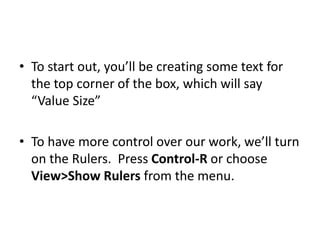
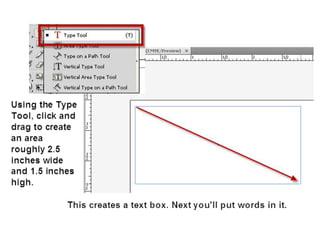
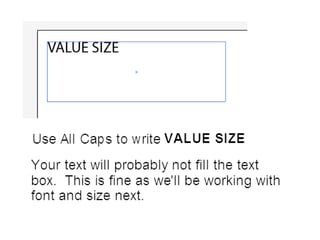
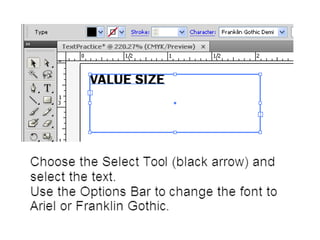
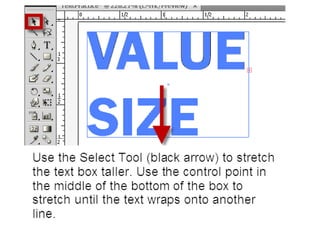
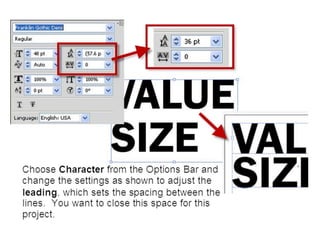
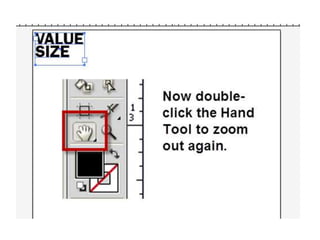
To start out, you’ll be creating some text for the top corner of the box, which will say “Value Size”To have more control over our work, we’ll turn on the Rulers.  Press Control-R or choose View>Show Rulers from the menu.
Save your project to you personal folder as BoxSample-IDNO.ai.  Replace IDNO with your ID number in the file name.
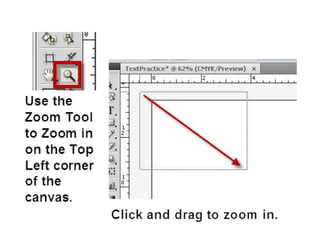
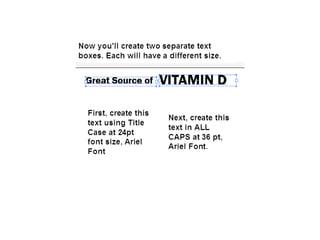
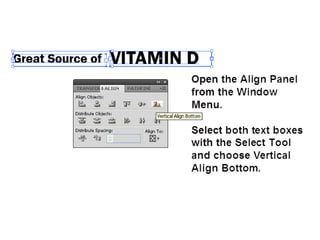
Zoom in on the middle-top part of your document.  You’ll be creating some additional marketing text now using another text box.
Working with text
Working with text
Working with text
Working with text

Working with text

  • 1.
  • 2.
    IntroductionIn this tutorialyou will learn the following:How to use the Text ToolHow to put Text on a PathHow to put Text inside a shapeHow to change Text to an editable shapeTo do this, we’ll be working on the text for the front of a cereal box
  • 4.
  • 5.
    To start out,you’ll be creating some text for the top corner of the box, which will say “Value Size”To have more control over our work, we’ll turn on the Rulers. Press Control-R or choose View>Show Rulers from the menu.
  • 6.
    Save your projectto you personal folder as BoxSample-IDNO.ai. Replace IDNO with your ID number in the file name.
  • 14.
    Zoom in onthe middle-top part of your document. You’ll be creating some additional marketing text now using another text box.