WORDPROCESSING
K.HIMABINDU., M. Tech
23-04-2021
WORD PROCESSING
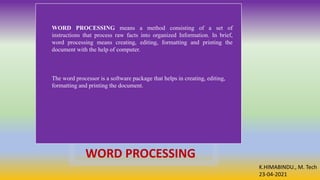
WORD PROCESSING means a method consisting of a set of
instructions that process raw facts into organized Information. In brief,
word processing means creating, editing, formatting and printing the
document with the help of computer.
The word processor is a software package that helps in creating, editing,
formatting and printing the document.
K.HIMABINDU., M. Tech
23-04-2021
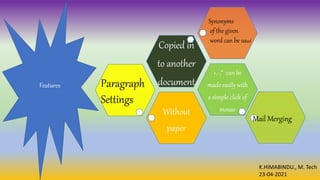
Features
Without
paper
+,-,* can be
made easily with
a simple click of
mouse
Copied in
to another
document
Paragraph
Settings
Synonyms
of the given
word can be used
Mail Merging
K.HIMABINDU., M. Tech
23-04-2021
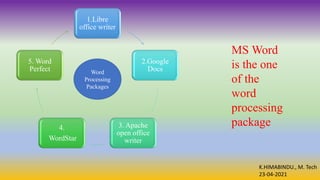
1.Libre
office writer
2.Google
Docs
3. Apache
open office
writer
4.
WordStar
5. Word
Perfect Word
Processing
Packages
MS Word
is the one
of the
word
processing
package
K.HIMABINDU., M. Tech
23-04-2021
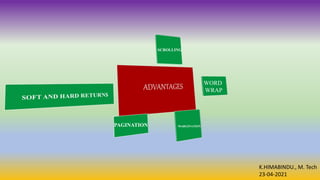
WORD
WRAP
SCROLLING
MARGINATION
PAGINATION
K.HIMABINDU., M. Tech
23-04-2021
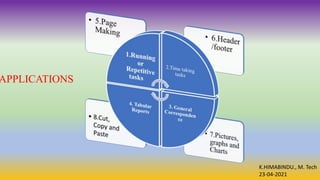
APPLICATIONS
K.HIMABINDU., M. Tech
23-04-2021
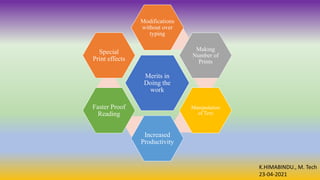
Merits in
Doing the
work
Modifications
without over
typing
Making
Number of
Prints
Manipulation
of Text
Increased
Productivity
Faster Proof
Reading
Special
Print effects
Word Processing is perhaps the most common and
comparatively easier application to work on any
computer.
A word processor lets you to change words, move
whole sections of text from one place to another,
store blocks of text, align margins all in few seconds..
MS Word is an advanced word processing product
by Microsoft company.
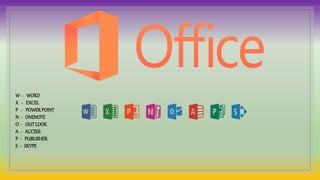
W - WORD
X - EXCEL
P - POWERPOINT
N - ONENOTE
O - OUTLOOK
A - ACCESS
P - PUBLISHER
S - SKYPE
MS Office
Introduction
◦ Microsoft Office, or simply Office, is a family of client software, server software, and services
developed by Microsoft. It was first announced by Bill Gates on August 1, 1988,
at COMDEX in Las Vegas. Initially a marketing term for an office suite (bundled set of
productivity applications), the first version of Office contained Microsoft Word, Microsoft
Excel, and Microsoft PowerPoint.
◦ Over the years, Office applications have grown substantially closer with shared features such as
a common spell checker, OLE data integration and Visual Basic for Applications scripting
language. Microsoft also positions Office as a development platform for line-of-business
software under the Office Business Applications brand. On July 10, 2012, Softpedia reported
that Office was being used by over a billion people worldwide.
◦ Office is produced in several versions targeted towards different end-users and computing
environments. The original, and most widely used version, is the desktop version, available
for PCs running the Windows and macOS operating systems. Microsoft also
maintains mobile apps for Android and iOS. Office on the web is a version of the software that
runs within a web browser.
◦ Since Office 2013, Microsoft has promoted Office 365 as the primary means of obtaining
Microsoft Office: it allows the use of the software and other services on a subscription business
model, and users receive feature updates to the software for the lifetime of the subscription,
including new features and cloud computing integration that are not necessarily included in the
"on-premises" releases of Office sold under conventional license terms. In 2017, revenue from
Office 365 overtook conventional license sales.
◦ The current on-premises, desktop version of Office is Office 2019, released on September 24,
2018
MS WORD USES
◦ Business and workplace use of Microsoft Word
letterhead samples, bills, and cash memos, joining letters,
receipts, letterheads, and all various types of accounts management-
related work. You can send an email by using a mail merge that helps you
to send one document to thousands of people with names and addresses.
◦ EDUCATION
◦ HOME BASED USERS –Birthday cards, invitation
cards
◦ To get a job
◦ Create resumes, notes, assignments
◦ Create books, articles, newsletters
◦ Online business – data entry, freelancing, sell
documents, notes preparation, home based cyber café
◦ Projects and Document Preparation
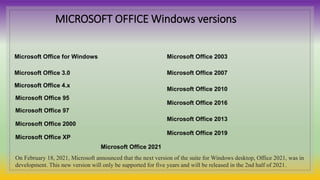
Microsoft Office for Windows
Microsoft Office 3.0
Microsoft Office 4.x
Microsoft Office 95
Microsoft Office 97
Microsoft Office 2000
Microsoft Office XP
Microsoft Office 2003
Microsoft Office 2007
Microsoft Office 2010
Microsoft Office 2016
Microsoft Office 2013
Microsoft Office 2019
Microsoft Office 2021
On February 18, 2021, Microsoft announced that the next version of the suite for Windows desktop, Office 2021, was in
development. This new version will only be supported for five years and will be released in the 2nd half of 2021.
MICROSOFT OFFICE Windows versions
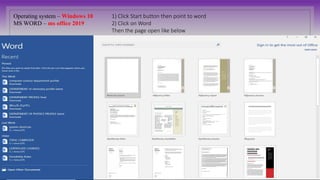
Operating system – Windows 10
MS WORD – ms office 2019
1) Click Start button then point to word
2) Click on Word
Then the page open like below
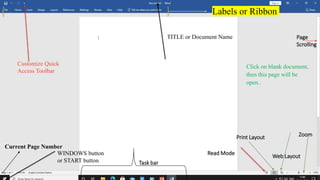
Click on blank document,
then this page will be
open..
TITLE or Document Name
Labels or Ribbon
Customize Quick
Access Toolbar
WINDOWS button
or START button
Current Page Number
Read Mode
Print Layout
Web Layout
Zoom
Page
Scrolling
Task bar
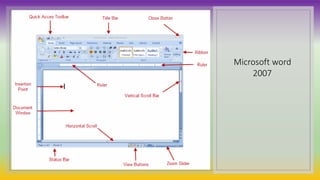
Microsoft word
2007
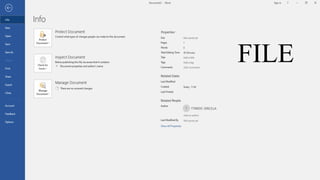
FILE
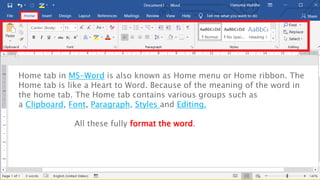
Home tab in MS-Word is also known as Home menu or Home ribbon. The
Home tab is like a Heart to Word. Because of the meaning of the word in
the home tab. The Home tab contains various groups such as
a Clipboard, Font, Paragraph, Styles and Editing.
All these fully format the word.
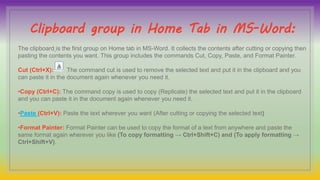
Clipboard group in Home Tab in MS-Word:
The clipboard is the first group on Home tab in MS-Word. It collects the contents after cutting or copying then
pasting the contents you want. This group includes the commands Cut, Copy, Paste, and Format Painter.
Cut (Ctrl+X): The command cut is used to remove the selected text and put it in the clipboard and you
can paste it in the document again whenever you need it.
•Copy (Ctrl+C): The command copy is used to copy (Replicate) the selected text and put it in the clipboard
and you can paste it in the document again whenever you need it.
•Paste (Ctrl+V): Paste the text wherever you want (After cutting or copying the selected text)
•Format Painter: Format Painter can be used to copy the format of a text from anywhere and paste the
same format again wherever you like (To copy formatting → Ctrl+Shift+C) and (To apply formatting →
Ctrl+Shift+V).
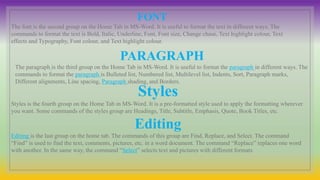
FONT
The font is the second group on the Home Tab in MS-Word. It is useful to format the text in different ways. The
commands to format the text is Bold, Italic, Underline, Font, Font size, Change chase, Text highlight colour, Text
effects and Typography, Font colour, and Text highlight colour.
PARAGRAPH
The paragraph is the third group on the Home Tab in MS-Word. It is useful to format the paragraph in different ways. The
commands to format the paragraph is Bulleted list, Numbered list, Multilevel list, Indents, Sort, Paragraph marks,
Different alignments, Line spacing, Paragraph shading, and Borders.
Styles
Styles is the fourth group on the Home Tab in MS-Word. It is a pre-formatted style used to apply the formatting wherever
you want. Some commands of the styles group are Headings, Title, Subtitle, Emphasis, Quote, Book Titles, etc.
Editing
Editing is the last group on the home tab. The commands of this group are Find, Replace, and Select. The command
“Find” is used to find the text, comments, pictures, etc. in a word document. The command “Replace” replaces one word
with another. In the same way, the command “Select” selects text and pictures with different formats
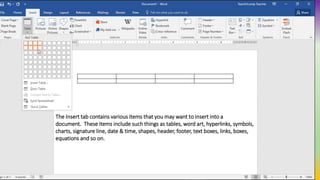
The Insert tab contains various items that you may want to insert into a
document. These items include such things as tables, word art, hyperlinks, symbols,
charts, signature line, date & time, shapes, header, footer, text boxes, links, boxes,
equations and so on.
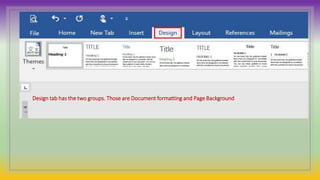
Design tab has the two groups. Those are Document formatting and Page Background
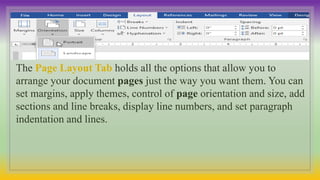
The Page Layout Tab holds all the options that allow you to
arrange your document pages just the way you want them. You can
set margins, apply themes, control of page orientation and size, add
sections and line breaks, display line numbers, and set paragraph
indentation and lines.
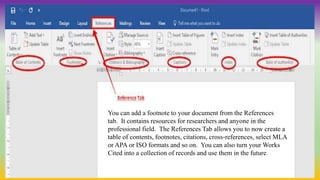
You can add a footnote to your document from the References
tab. It contains resources for researchers and anyone in the
professional field. The References Tab allows you to now create a
table of contents, footnotes, citations, cross‐references, select MLA
or APA or ISO formats and so on. You can also turn your Works
Cited into a collection of records and use them in the future.
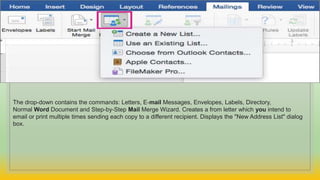
The drop-down contains the commands: Letters, E-mail Messages, Envelopes, Labels, Directory,
Normal Word Document and Step-by-Step Mail Merge Wizard. Creates a from letter which you intend to
email or print multiple times sending each copy to a different recipient. Displays the "New Address List" dialog
box.
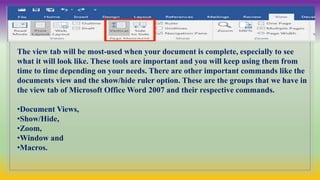
The view tab will be most-used when your document is complete, especially to see
what it will look like. These tools are important and you will keep using them from
time to time depending on your needs. There are other important commands like the
documents view and the show/hide ruler option. These are the groups that we have in
the view tab of Microsoft Office Word 2007 and their respective commands.
•Document Views,
•Show/Hide,
•Zoom,
•Window and
•Macros.
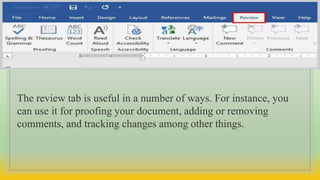
The review tab is useful in a number of ways. For instance, you
can use it for proofing your document, adding or removing
comments, and tracking changes among other things.
K.HIMABINDU
M. Tech
Thank you

Word processing

  • 1.
  • 2.
    K.HIMABINDU., M. Tech 23-04-2021 WORDPROCESSING WORD PROCESSING means a method consisting of a set of instructions that process raw facts into organized Information. In brief, word processing means creating, editing, formatting and printing the document with the help of computer. The word processor is a software package that helps in creating, editing, formatting and printing the document.
  • 3.
    K.HIMABINDU., M. Tech 23-04-2021 Features Without paper +,-,*can be made easily with a simple click of mouse Copied in to another document Paragraph Settings Synonyms of the given word can be used Mail Merging
  • 4.
    K.HIMABINDU., M. Tech 23-04-2021 1.Libre officewriter 2.Google Docs 3. Apache open office writer 4. WordStar 5. Word Perfect Word Processing Packages MS Word is the one of the word processing package
  • 5.
  • 6.
  • 7.
    K.HIMABINDU., M. Tech 23-04-2021 Meritsin Doing the work Modifications without over typing Making Number of Prints Manipulation of Text Increased Productivity Faster Proof Reading Special Print effects
  • 8.
    Word Processing isperhaps the most common and comparatively easier application to work on any computer. A word processor lets you to change words, move whole sections of text from one place to another, store blocks of text, align margins all in few seconds.. MS Word is an advanced word processing product by Microsoft company.
  • 9.
    W - WORD X- EXCEL P - POWERPOINT N - ONENOTE O - OUTLOOK A - ACCESS P - PUBLISHER S - SKYPE
  • 10.
    MS Office Introduction ◦ MicrosoftOffice, or simply Office, is a family of client software, server software, and services developed by Microsoft. It was first announced by Bill Gates on August 1, 1988, at COMDEX in Las Vegas. Initially a marketing term for an office suite (bundled set of productivity applications), the first version of Office contained Microsoft Word, Microsoft Excel, and Microsoft PowerPoint. ◦ Over the years, Office applications have grown substantially closer with shared features such as a common spell checker, OLE data integration and Visual Basic for Applications scripting language. Microsoft also positions Office as a development platform for line-of-business software under the Office Business Applications brand. On July 10, 2012, Softpedia reported that Office was being used by over a billion people worldwide. ◦ Office is produced in several versions targeted towards different end-users and computing environments. The original, and most widely used version, is the desktop version, available for PCs running the Windows and macOS operating systems. Microsoft also maintains mobile apps for Android and iOS. Office on the web is a version of the software that runs within a web browser. ◦ Since Office 2013, Microsoft has promoted Office 365 as the primary means of obtaining Microsoft Office: it allows the use of the software and other services on a subscription business model, and users receive feature updates to the software for the lifetime of the subscription, including new features and cloud computing integration that are not necessarily included in the "on-premises" releases of Office sold under conventional license terms. In 2017, revenue from Office 365 overtook conventional license sales. ◦ The current on-premises, desktop version of Office is Office 2019, released on September 24, 2018
  • 11.
    MS WORD USES ◦Business and workplace use of Microsoft Word letterhead samples, bills, and cash memos, joining letters, receipts, letterheads, and all various types of accounts management- related work. You can send an email by using a mail merge that helps you to send one document to thousands of people with names and addresses. ◦ EDUCATION ◦ HOME BASED USERS –Birthday cards, invitation cards ◦ To get a job ◦ Create resumes, notes, assignments ◦ Create books, articles, newsletters ◦ Online business – data entry, freelancing, sell documents, notes preparation, home based cyber café ◦ Projects and Document Preparation
  • 12.
    Microsoft Office forWindows Microsoft Office 3.0 Microsoft Office 4.x Microsoft Office 95 Microsoft Office 97 Microsoft Office 2000 Microsoft Office XP Microsoft Office 2003 Microsoft Office 2007 Microsoft Office 2010 Microsoft Office 2016 Microsoft Office 2013 Microsoft Office 2019 Microsoft Office 2021 On February 18, 2021, Microsoft announced that the next version of the suite for Windows desktop, Office 2021, was in development. This new version will only be supported for five years and will be released in the 2nd half of 2021. MICROSOFT OFFICE Windows versions
  • 13.
    Operating system –Windows 10 MS WORD – ms office 2019 1) Click Start button then point to word 2) Click on Word Then the page open like below
  • 14.
    Click on blankdocument, then this page will be open.. TITLE or Document Name Labels or Ribbon Customize Quick Access Toolbar WINDOWS button or START button Current Page Number Read Mode Print Layout Web Layout Zoom Page Scrolling Task bar
  • 15.
  • 16.
  • 17.
    Home tab inMS-Word is also known as Home menu or Home ribbon. The Home tab is like a Heart to Word. Because of the meaning of the word in the home tab. The Home tab contains various groups such as a Clipboard, Font, Paragraph, Styles and Editing. All these fully format the word.
  • 18.
    Clipboard group inHome Tab in MS-Word: The clipboard is the first group on Home tab in MS-Word. It collects the contents after cutting or copying then pasting the contents you want. This group includes the commands Cut, Copy, Paste, and Format Painter. Cut (Ctrl+X): The command cut is used to remove the selected text and put it in the clipboard and you can paste it in the document again whenever you need it. •Copy (Ctrl+C): The command copy is used to copy (Replicate) the selected text and put it in the clipboard and you can paste it in the document again whenever you need it. •Paste (Ctrl+V): Paste the text wherever you want (After cutting or copying the selected text) •Format Painter: Format Painter can be used to copy the format of a text from anywhere and paste the same format again wherever you like (To copy formatting → Ctrl+Shift+C) and (To apply formatting → Ctrl+Shift+V).
  • 19.
    FONT The font isthe second group on the Home Tab in MS-Word. It is useful to format the text in different ways. The commands to format the text is Bold, Italic, Underline, Font, Font size, Change chase, Text highlight colour, Text effects and Typography, Font colour, and Text highlight colour. PARAGRAPH The paragraph is the third group on the Home Tab in MS-Word. It is useful to format the paragraph in different ways. The commands to format the paragraph is Bulleted list, Numbered list, Multilevel list, Indents, Sort, Paragraph marks, Different alignments, Line spacing, Paragraph shading, and Borders. Styles Styles is the fourth group on the Home Tab in MS-Word. It is a pre-formatted style used to apply the formatting wherever you want. Some commands of the styles group are Headings, Title, Subtitle, Emphasis, Quote, Book Titles, etc. Editing Editing is the last group on the home tab. The commands of this group are Find, Replace, and Select. The command “Find” is used to find the text, comments, pictures, etc. in a word document. The command “Replace” replaces one word with another. In the same way, the command “Select” selects text and pictures with different formats
  • 20.
    The Insert tabcontains various items that you may want to insert into a document. These items include such things as tables, word art, hyperlinks, symbols, charts, signature line, date & time, shapes, header, footer, text boxes, links, boxes, equations and so on.
  • 21.
    Design tab hasthe two groups. Those are Document formatting and Page Background
  • 22.
    The Page LayoutTab holds all the options that allow you to arrange your document pages just the way you want them. You can set margins, apply themes, control of page orientation and size, add sections and line breaks, display line numbers, and set paragraph indentation and lines.
  • 23.
    You can adda footnote to your document from the References tab. It contains resources for researchers and anyone in the professional field. The References Tab allows you to now create a table of contents, footnotes, citations, cross‐references, select MLA or APA or ISO formats and so on. You can also turn your Works Cited into a collection of records and use them in the future.
  • 24.
    The drop-down containsthe commands: Letters, E-mail Messages, Envelopes, Labels, Directory, Normal Word Document and Step-by-Step Mail Merge Wizard. Creates a from letter which you intend to email or print multiple times sending each copy to a different recipient. Displays the "New Address List" dialog box.
  • 25.
    The view tabwill be most-used when your document is complete, especially to see what it will look like. These tools are important and you will keep using them from time to time depending on your needs. There are other important commands like the documents view and the show/hide ruler option. These are the groups that we have in the view tab of Microsoft Office Word 2007 and their respective commands. •Document Views, •Show/Hide, •Zoom, •Window and •Macros.
  • 26.
    The review tabis useful in a number of ways. For instance, you can use it for proofing your document, adding or removing comments, and tracking changes among other things.
  • 27.