Microsoft Word Activities
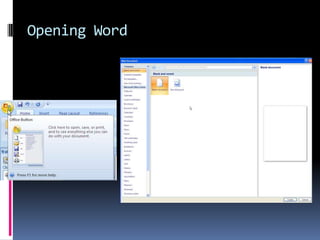
Opening Word
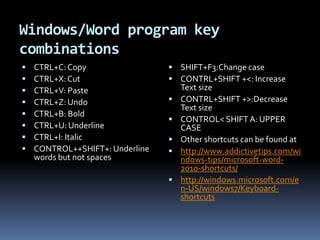
Windows/Word program key combinationsCTRL+C: CopyCTRL+X: CutCTRL+V: PasteCTRL+Z: UndoCTRL+B: BoldCTRL+U: UnderlineCTRL+I: ItalicCONTROL++SHIFT+: Underline words but not spacesSHIFT+F3:Change caseCONTRL+SHIFT +<: Increase Text sizeCONTRL+SHIFT +>:Decrease Text sizeCONTROL< SHIFT A: UPPER CASEOther shortcuts can be found at http://www.addictivetips.com/windows-tips/microsoft-word-2010-shortcuts/http://windows.microsoft.com/en-US/windows7/Keyboard-shortcuts
ACTIVITY 1
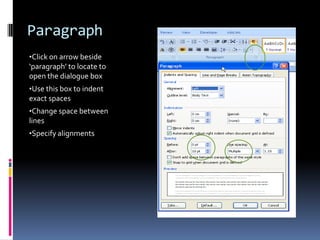
ParagraphClick on arrow beside ‘paragraph’ to locate to open the dialogue box
Use this box to indent exact spaces
Change space between lines
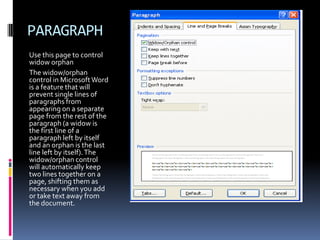
Specify alignmentsPARAGRAPHUse this page to control widow orphanThe widow/orphan control in Microsoft Word is a feature that will prevent single lines of paragraphs from appearing on a separate page from the rest of the paragraph (a widow is the first line of a paragraph left by itself and an orphan is the last line left by itself). The widow/orphan control will automatically keep two lines together on a page, shifting them as necessary when you add or take text away from the document.
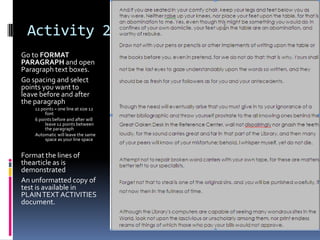
Activity 2Go to FORMAT PARAGRAPH and open Paragraph text boxes. Go spacing and select points you want to leave before and after the paragraph12 points = one line at size 12 font6 points before and after will leave 12 points between the paragraphAutomatic will leave the same space as your line spaceFormat the lines of thearticle as is demonstratedAn unformatted copy of test is available in PLAIN TEXT ACTIVITIES document.
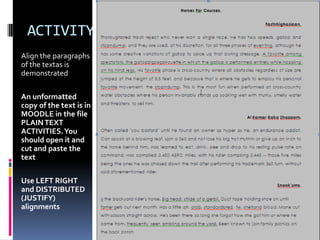
ACTIVITY 3Align the paragraphs of the textas is demonstratedAn unformatted copy of the text is in MOODLE in the file PLAIN TEXT ACTIVITIES. You should open it and cut and paste the textUse LEFT RIGHT and DISTRIBUTED  (JUSTIFY) alignments
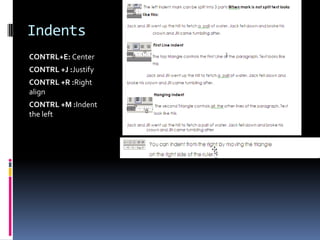
IndentsCONTRL+E: Center CONTRL +J :Justify CONTRL +R :Right align CONTRL +M :Indent the left
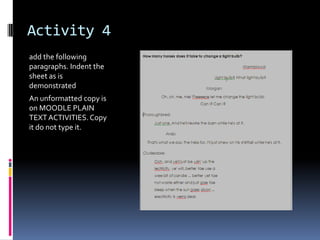
Activity 4add the following paragraphs. Indent the sheet as is demonstratedAn unformatted copy is on MOODLE PLAIN TEXT ACTIVITIES. Copy it do not type it.
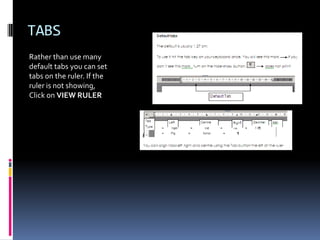
TABSRather than use many default tabs you can set tabs on the ruler. If the ruler is not showing, Click on VIEW RULER
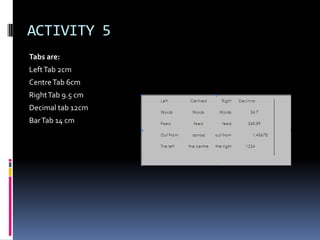
ACTIVITY 5Tabs are:Left Tab 2cmCentre Tab 6cmRight Tab 9.5 cmDecimal tab 12cmBar Tab 14 cm
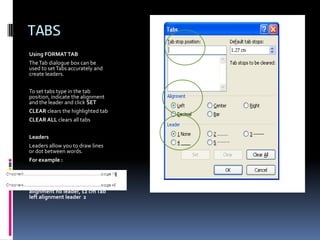
TABSUsing FORMAT TABThe Tab dialogue box can be used to set Tabs accurately and create leaders. To set tabs type in the tab position, indicate the alignment and the leader and click SETCLEAR clears the highlighted tabCLEAR ALL clears all tabs LeadersLeaders allow you to draw lines or dot between words. For example :This is set 2cm tab, Left alignment no leader, 12 cm Tab left alignment leader  2
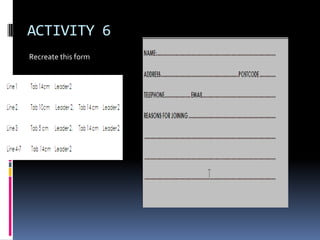
ACTIVITY 6Recreate this form
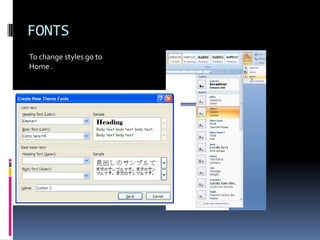
FONTSTo change styles go to Home .
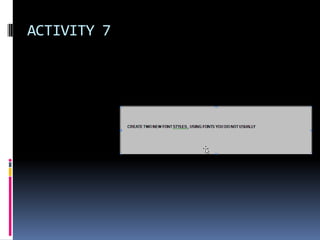
ACTIVITY 7
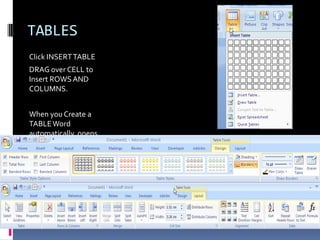
TABLESClick INSERT TABLEDRAG over CELL to Insert ROWS AND COLUMNS.When you Create a TABLE Word automatically  opens TABLE toolsDESIGN and LAYOUT which all you to edit TABLES
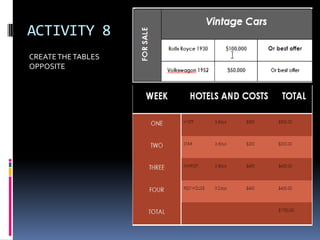
ACTIVITY 8CREATE THE TABLES OPPOSITE
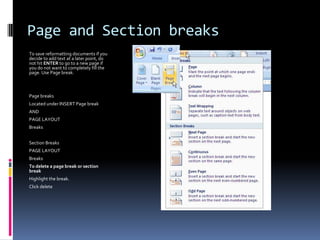
Page and Section breaksTo save reformatting documents if you decide to add text at a later point, do not hit ENTER to go to a new page if you do not want to completely fill the page. Use Page break.Page breaksLocated under INSERT Page breakANDPAGE LAYOUTBreaksSection Breaks PAGE LAYOUTBreaksTo delete a page break or section breakHighlight the break. Click delete
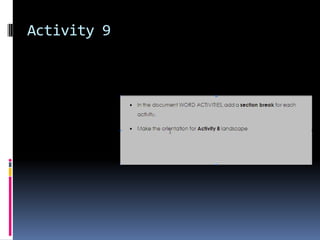
Activity 9
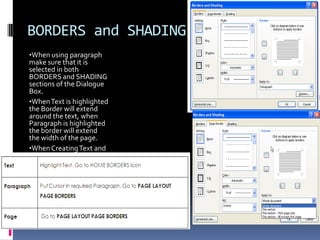
BORDERS and SHADINGWhen using paragraph make sure that it is selected in both BORDERS and SHADING sections of the Dialogue Box.
When Text is highlighted the Border will extend around the text, when Paragraph is highlighted the border will extend the width of the page.
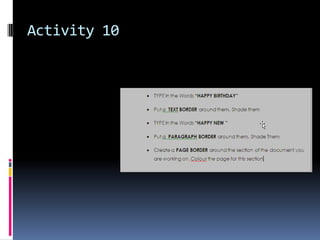
When Creating Text and Paragraphs with Borders leave an empty paragraph on either side of the text. This will avoid carrying formatting into other text.Activity 10
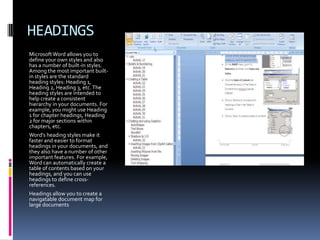
HEADINGSMicrosoft Word allows you to define your own styles and also has a number of built-in styles. Among the most important built-in styles are the standard heading styles: Heading 1, Heading 2, Heading 3, etc. The heading styles are intended to help create a consistent hierarchy in your documents. For example, you might use Heading 1 for chapter headings, Heading 2 for major sections within chapters, etc.Word's heading styles make it faster and easier to format headings in your documents, and they also have a number of other important features. For example, Word can automatically create a table of contents based on your headings, and you can use headings to define cross-references.Headings allow you to create a navigatable document map for large documents
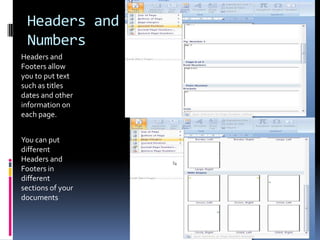
Headers and Footers and Page NumbersHeaders and Footers allow you to put text such as titles dates and other information on each page.You can put different Headers and Footers in different sections of your documents
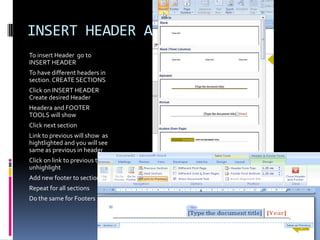
INSERT HEADER AND FOOTERTo insert Header  go to INSERT HEADERTo have different headers in section. CREATE SECTIONSClick on INSERT HEADER Create desired Header Headera and FOOTER TOOLS will showClick next sectionLink to previous will show  as hightlighted and you will see same as previous in headerClick on link to previous to unhighlightAdd new footer to sectionRepeat for all sectionsDo the same for Footers
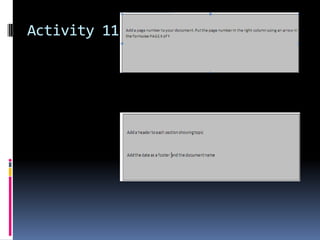
Activity 11
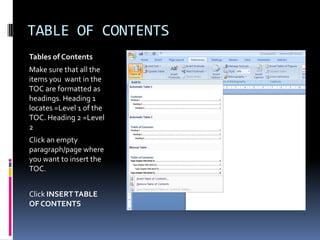
TABLE OF CONTENTSTables of ContentsMake sure that all the items you  want in the TOC are formatted as headings. Heading 1 locates =Level 1 of the TOC. Heading 2 =Level 2Click an empty paragraph/page where you want to insert the TOC.Click INSERT TABLE OF CONTENTS
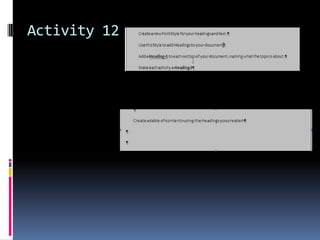
Activity 12
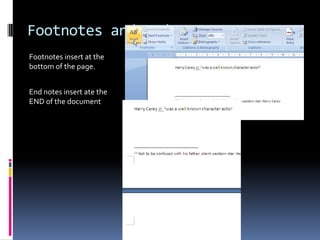
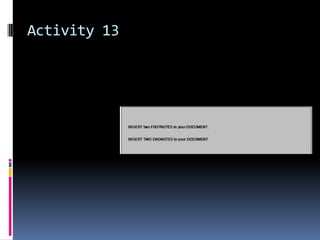
Footnotes and EndnotesFootnotes insert at the bottom of the page.End notes insert ate the END of the document
Activity 13
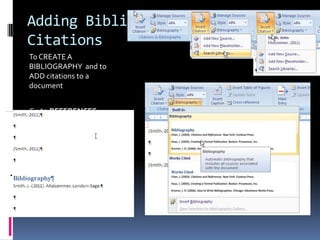
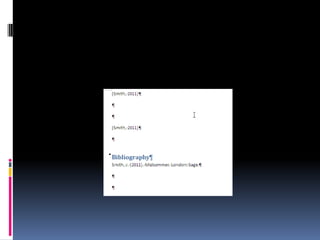
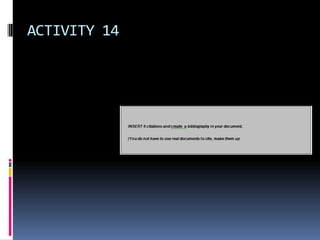
Adding Bibliographies and CitationsTo CREATE A BIBLIOGRAPHY  and to ADD citations to a documentGo to REFERENCESCITATIONS AND BIBLIIOGRAPHIES
ACTIVITY 14
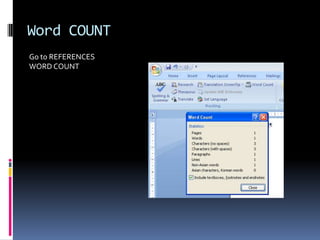
Word COUNTGo to REFERENCES WORD COUNT
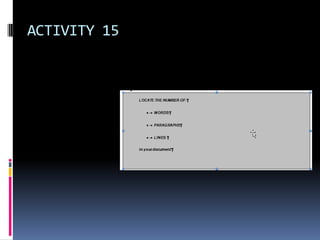
ACTIVITY 15
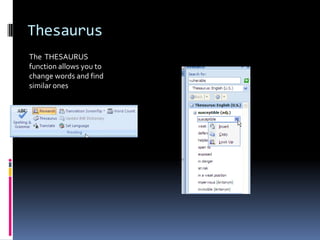
ThesaurusThe  THESAURUS  function allows you to change words and find similar onesYou type in the word, highlight it and the click REVIEW THESAURUS
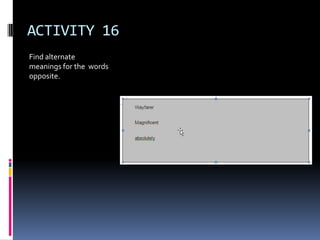
ACTIVITY 16Find alternate meanings for the  words opposite.
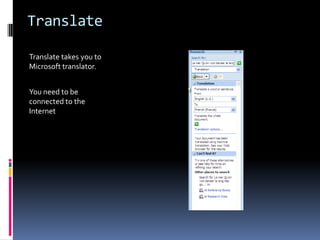
TranslateTranslate takes you to Microsoft translator.You need to be connected to the Internet
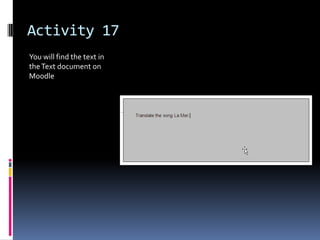
Activity 17You will find the text in the Text document on Moodle
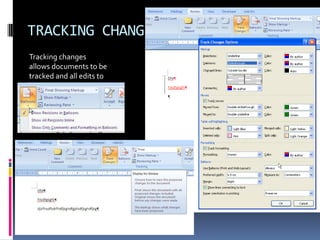
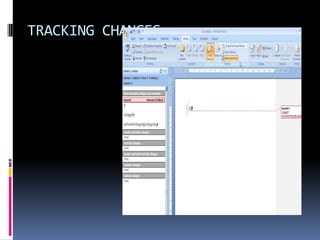
TRACKING CHANGESTracking changes allows documents to be tracked and all edits to be recorded. This can be done as formatting or by comments boxes.
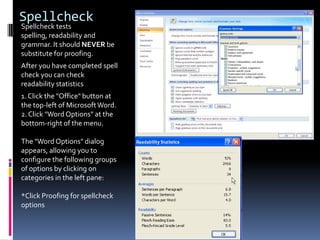
SpellcheckSpellcheck tests spelling, readability and grammar. It should NEVER be substitute for proofing.After you have completed spell check you can check readability statistics1. Click the "Office" button at the top-left of Microsoft Word.2. Click "Word Options" at the bottom-right of the menu.The "Word Options" dialog appears, allowing you to configure the following groups of options by clicking on categories in the left pane:*Click Proofing for spellcheck options
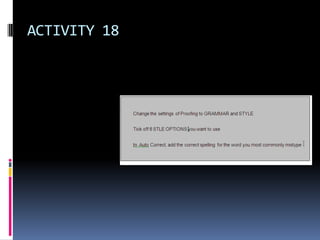
ACTIVITY 18
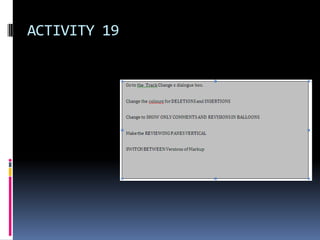
TRACKING CHANGES
ACTIVITY 19
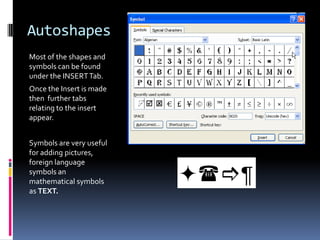
AutoshapesMost of the shapes and symbols can be found  under the INSERT Tab. Once the Insert is made then  further tabs relating to the insert appear.Symbols are very useful for adding pictures, foreign language symbols an mathematical symbols as TEXT.
Activity 20
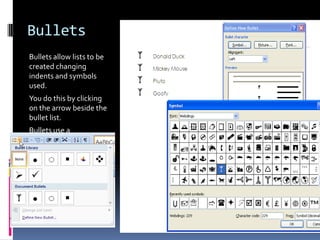
BulletsBullets allow lists to be created changing indents and symbols used.You do this by clicking on the arrow beside the bullet list.Bullets use a combination of INDENTTAB and SYMBOL buttons.You can align text in a bullet on a new line by using SHIFT-ENTER rather than just ENTER
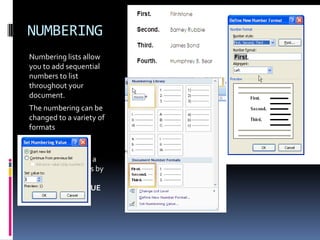
NUMBERINGNumbering lists allow you to add sequential numbers to list throughout your document.The numbering can be changed to a variety of formatsYou can chose to continue with numbering or start a new set of numbers by clicking on SET NUMBERING VALUE
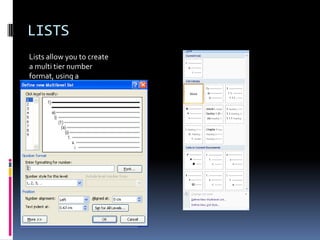
LISTSLists allow you to create a multi tier number format, using a combination of symbols , numbers and TABS
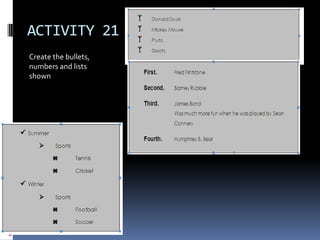
ACTIVITY 21Create the bullets, numbers and lists shown
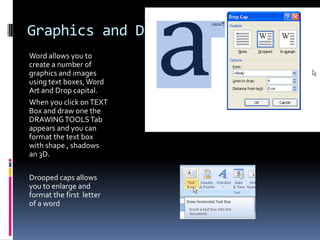
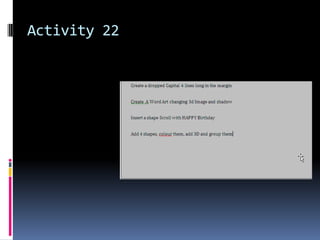
Graphics and Drooped CapitalsWord allows you to create a number of graphics and images using text boxes, Word Art and Drop capital.When you click on TEXT Box and draw one the DRAWING TOOLS Tab appears and you can format the text box with shape , shadows an 3D.Drooped caps allows you to enlarge and format the first  letter of a word
Activity 22

Word

  • 1.
  • 2.
  • 3.
    Windows/Word program keycombinationsCTRL+C: CopyCTRL+X: CutCTRL+V: PasteCTRL+Z: UndoCTRL+B: BoldCTRL+U: UnderlineCTRL+I: ItalicCONTROL++SHIFT+: Underline words but not spacesSHIFT+F3:Change caseCONTRL+SHIFT +<: Increase Text sizeCONTRL+SHIFT +>:Decrease Text sizeCONTROL< SHIFT A: UPPER CASEOther shortcuts can be found at http://www.addictivetips.com/windows-tips/microsoft-word-2010-shortcuts/http://windows.microsoft.com/en-US/windows7/Keyboard-shortcuts
  • 4.
  • 5.
    ParagraphClick on arrowbeside ‘paragraph’ to locate to open the dialogue box
  • 6.
    Use this boxto indent exact spaces
  • 7.
  • 8.
    Specify alignmentsPARAGRAPHUse thispage to control widow orphanThe widow/orphan control in Microsoft Word is a feature that will prevent single lines of paragraphs from appearing on a separate page from the rest of the paragraph (a widow is the first line of a paragraph left by itself and an orphan is the last line left by itself). The widow/orphan control will automatically keep two lines together on a page, shifting them as necessary when you add or take text away from the document.
  • 9.
    Activity 2Go toFORMAT PARAGRAPH and open Paragraph text boxes. Go spacing and select points you want to leave before and after the paragraph12 points = one line at size 12 font6 points before and after will leave 12 points between the paragraphAutomatic will leave the same space as your line spaceFormat the lines of thearticle as is demonstratedAn unformatted copy of test is available in PLAIN TEXT ACTIVITIES document.
  • 10.
    ACTIVITY 3Align theparagraphs of the textas is demonstratedAn unformatted copy of the text is in MOODLE in the file PLAIN TEXT ACTIVITIES. You should open it and cut and paste the textUse LEFT RIGHT and DISTRIBUTED (JUSTIFY) alignments
  • 11.
    IndentsCONTRL+E: Center CONTRL+J :Justify CONTRL +R :Right align CONTRL +M :Indent the left
  • 12.
    Activity 4add thefollowing paragraphs. Indent the sheet as is demonstratedAn unformatted copy is on MOODLE PLAIN TEXT ACTIVITIES. Copy it do not type it.
  • 13.
    TABSRather than usemany default tabs you can set tabs on the ruler. If the ruler is not showing, Click on VIEW RULER
  • 14.
    ACTIVITY 5Tabs are:LeftTab 2cmCentre Tab 6cmRight Tab 9.5 cmDecimal tab 12cmBar Tab 14 cm
  • 15.
    TABSUsing FORMAT TABTheTab dialogue box can be used to set Tabs accurately and create leaders. To set tabs type in the tab position, indicate the alignment and the leader and click SETCLEAR clears the highlighted tabCLEAR ALL clears all tabs LeadersLeaders allow you to draw lines or dot between words. For example :This is set 2cm tab, Left alignment no leader, 12 cm Tab left alignment leader 2
  • 16.
  • 17.
  • 18.
  • 19.
    TABLESClick INSERT TABLEDRAGover CELL to Insert ROWS AND COLUMNS.When you Create a TABLE Word automatically opens TABLE toolsDESIGN and LAYOUT which all you to edit TABLES
  • 20.
    ACTIVITY 8CREATE THETABLES OPPOSITE
  • 21.
    Page and SectionbreaksTo save reformatting documents if you decide to add text at a later point, do not hit ENTER to go to a new page if you do not want to completely fill the page. Use Page break.Page breaksLocated under INSERT Page breakANDPAGE LAYOUTBreaksSection Breaks PAGE LAYOUTBreaksTo delete a page break or section breakHighlight the break. Click delete
  • 22.
  • 23.
    BORDERS and SHADINGWhenusing paragraph make sure that it is selected in both BORDERS and SHADING sections of the Dialogue Box.
  • 24.
    When Text ishighlighted the Border will extend around the text, when Paragraph is highlighted the border will extend the width of the page.
  • 25.
    When Creating Textand Paragraphs with Borders leave an empty paragraph on either side of the text. This will avoid carrying formatting into other text.Activity 10
  • 26.
    HEADINGSMicrosoft Word allowsyou to define your own styles and also has a number of built-in styles. Among the most important built-in styles are the standard heading styles: Heading 1, Heading 2, Heading 3, etc. The heading styles are intended to help create a consistent hierarchy in your documents. For example, you might use Heading 1 for chapter headings, Heading 2 for major sections within chapters, etc.Word's heading styles make it faster and easier to format headings in your documents, and they also have a number of other important features. For example, Word can automatically create a table of contents based on your headings, and you can use headings to define cross-references.Headings allow you to create a navigatable document map for large documents
  • 27.
    Headers and Footersand Page NumbersHeaders and Footers allow you to put text such as titles dates and other information on each page.You can put different Headers and Footers in different sections of your documents
  • 28.
    INSERT HEADER ANDFOOTERTo insert Header go to INSERT HEADERTo have different headers in section. CREATE SECTIONSClick on INSERT HEADER Create desired Header Headera and FOOTER TOOLS will showClick next sectionLink to previous will show as hightlighted and you will see same as previous in headerClick on link to previous to unhighlightAdd new footer to sectionRepeat for all sectionsDo the same for Footers
  • 29.
  • 30.
    TABLE OF CONTENTSTablesof ContentsMake sure that all the items you want in the TOC are formatted as headings. Heading 1 locates =Level 1 of the TOC. Heading 2 =Level 2Click an empty paragraph/page where you want to insert the TOC.Click INSERT TABLE OF CONTENTS
  • 31.
  • 32.
    Footnotes and EndnotesFootnotesinsert at the bottom of the page.End notes insert ate the END of the document
  • 33.
  • 34.
    Adding Bibliographies andCitationsTo CREATE A BIBLIOGRAPHY and to ADD citations to a documentGo to REFERENCESCITATIONS AND BIBLIIOGRAPHIES
  • 36.
  • 37.
    Word COUNTGo toREFERENCES WORD COUNT
  • 38.
  • 39.
    ThesaurusThe THESAURUS function allows you to change words and find similar onesYou type in the word, highlight it and the click REVIEW THESAURUS
  • 40.
    ACTIVITY 16Find alternatemeanings for the words opposite.
  • 41.
    TranslateTranslate takes youto Microsoft translator.You need to be connected to the Internet
  • 42.
    Activity 17You willfind the text in the Text document on Moodle
  • 43.
    TRACKING CHANGESTracking changesallows documents to be tracked and all edits to be recorded. This can be done as formatting or by comments boxes.
  • 44.
    SpellcheckSpellcheck tests spelling,readability and grammar. It should NEVER be substitute for proofing.After you have completed spell check you can check readability statistics1. Click the "Office" button at the top-left of Microsoft Word.2. Click "Word Options" at the bottom-right of the menu.The "Word Options" dialog appears, allowing you to configure the following groups of options by clicking on categories in the left pane:*Click Proofing for spellcheck options
  • 45.
  • 46.
  • 47.
  • 48.
    AutoshapesMost of theshapes and symbols can be found under the INSERT Tab. Once the Insert is made then further tabs relating to the insert appear.Symbols are very useful for adding pictures, foreign language symbols an mathematical symbols as TEXT.
  • 49.
  • 50.
    BulletsBullets allow liststo be created changing indents and symbols used.You do this by clicking on the arrow beside the bullet list.Bullets use a combination of INDENTTAB and SYMBOL buttons.You can align text in a bullet on a new line by using SHIFT-ENTER rather than just ENTER
  • 51.
    NUMBERINGNumbering lists allowyou to add sequential numbers to list throughout your document.The numbering can be changed to a variety of formatsYou can chose to continue with numbering or start a new set of numbers by clicking on SET NUMBERING VALUE
  • 52.
    LISTSLists allow youto create a multi tier number format, using a combination of symbols , numbers and TABS
  • 53.
    ACTIVITY 21Create thebullets, numbers and lists shown
  • 54.
    Graphics and DroopedCapitalsWord allows you to create a number of graphics and images using text boxes, Word Art and Drop capital.When you click on TEXT Box and draw one the DRAWING TOOLS Tab appears and you can format the text box with shape , shadows an 3D.Drooped caps allows you to enlarge and format the first letter of a word
  • 55.