
WIZIQ


WiZiQ – Learn and Teach Online

This Project has been funded with support from the European
                         Commission
WiZiQ
HELPS YOU LEARN AND TEACH ON-LINE


WHAT IS WIZIQ?
    WiZiQ enables you to teach online and even earn money from
     your teaching expertise.
    Give live, online classes
    Upload and manage your content
    Create tests

http://www.wiziq.com/teachers-tour

WHY DO I NEED IT?
Some features of WiZiQ:

      Easy-to-use, no downloads, unlimited                                          Records everything
       attendees                                                                     Records the class as it happens, including
      Works in Flash technology, browser-like                                        presenters’ audio and video inputs
       tabbed interface                                                              Integrate with LMS or website with our
      Advanced whiteboard tools                                                      APIs
      Drawing tool, math tool, group/ungroup                                        Plug-in available for Moodle or
       objects, multiple whiteboards                                                  integrate with your own website
      Share anything, including your desktop                                        Co-branding Options
      Share most content file types; even your                                      Show off your own brand in the Virtual
       desktop with a simple click                                                    Classroom


The training is funded by the European Commission (Life Long Learning programme, KA2) Languages)

                                     This work by Tomasz Walasek is licensed under Creative Commons BY-SA 3.0 License.   Page 1
Watch the video: http://www.wiziq.com/Virtual_Classroom.aspx


CREATING YOUR WIZIQ USER ACCOUNT
Before we start, create an account on www.wiziq.com.

HOW TO USE IT?
You can use WiZiQ in several ways. During this workshop we will show you how to use it to:

      upload a file (pdf, doc, ppt and many others…) and share them with other WiZiQ users,
      give live, online class.

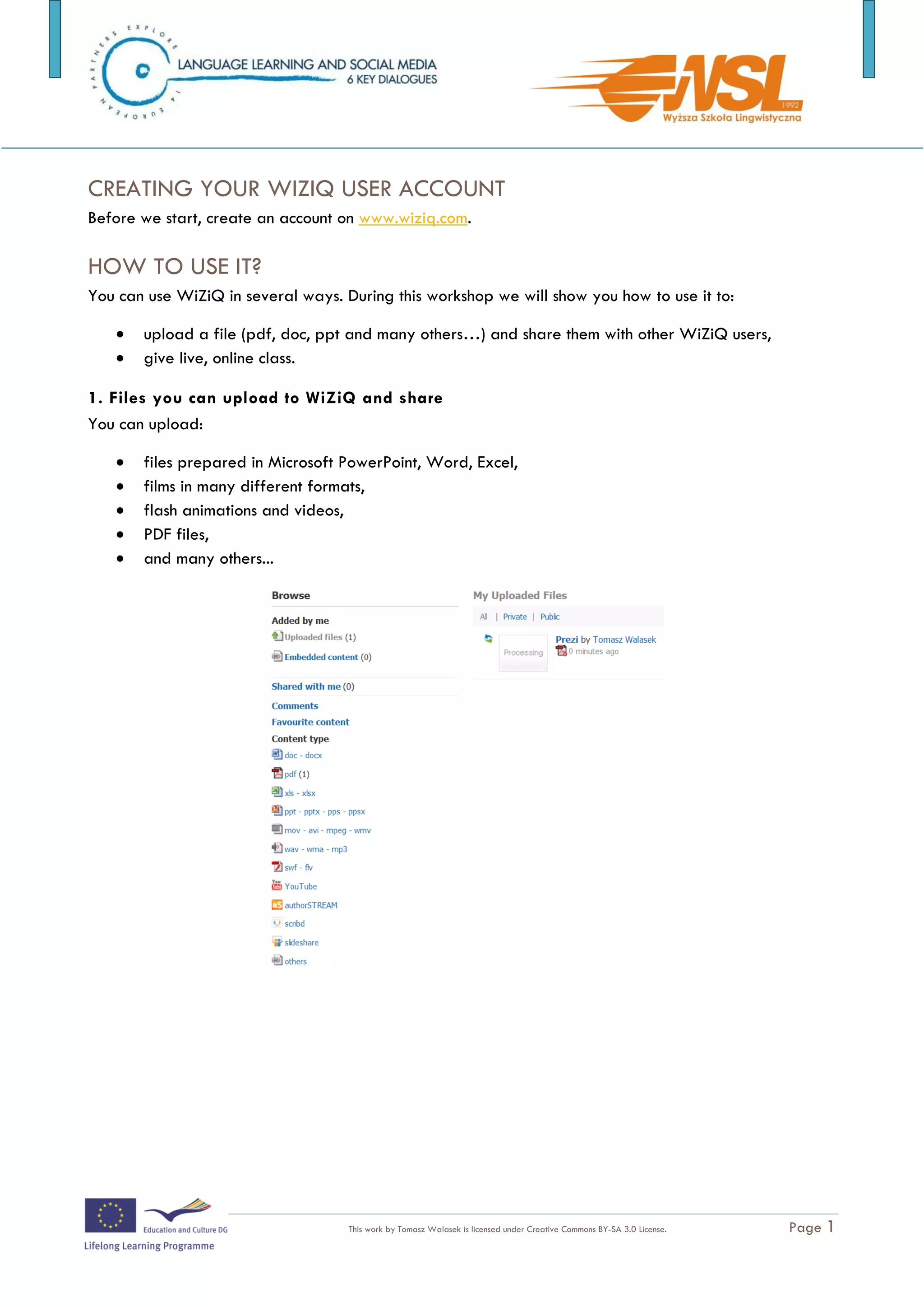
1. Files you can upload to WiZiQ and share
You can upload:

      files prepared in Microsoft PowerPoint, Word, Excel,
      films in many different formats,
      flash animations and videos,
      PDF files,
      and many others...


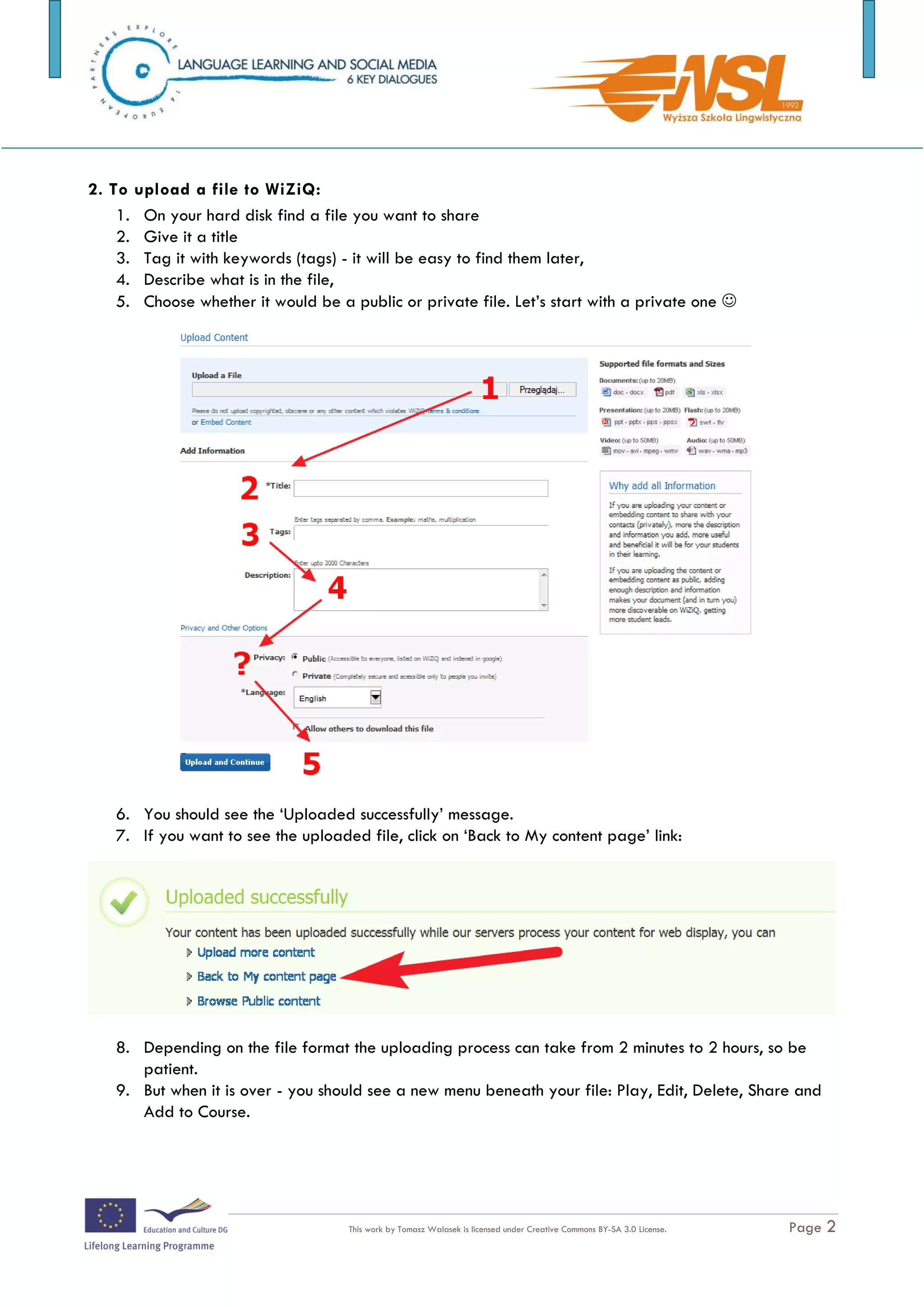
2. To upload a file to WiZiQ:
    1. On your hard disk find a file you want to share
The training is funded by the European Commission (Life Long Learning programme, KA2) Languages)

                                    This work by Tomasz Walasek is licensed under Creative Commons BY-SA 3.0 License.   Page 1
2.   Give it a title
   3.   Tag it with keywords (tags) - it will be easy to find them later,
   4.   Describe what is in the file,
   5.   Choose whether it would be a public or private file. Let’s start with a private one 


3. You should see the ‘Uploaded successfully’ message.

4. If you want to see the uploaded file, click on ‘Back to My content page’ link:


5. Depending on the file format the uploading process can take from 2 minutes to 2 hours,
so be patient.

6. But when it is over - you should see a new menu beneath your file: Play, Edit, Delete,
Share and Add to Course.


The training is funded by the European Commission (Life Long Learning programme, KA2) Languages)

                                     This work by Tomasz Walasek is licensed under Creative Commons BY-SA 3.0 License.   Page 2
ASSIGNMENTS
Assignment 1: Share your file with the t utor
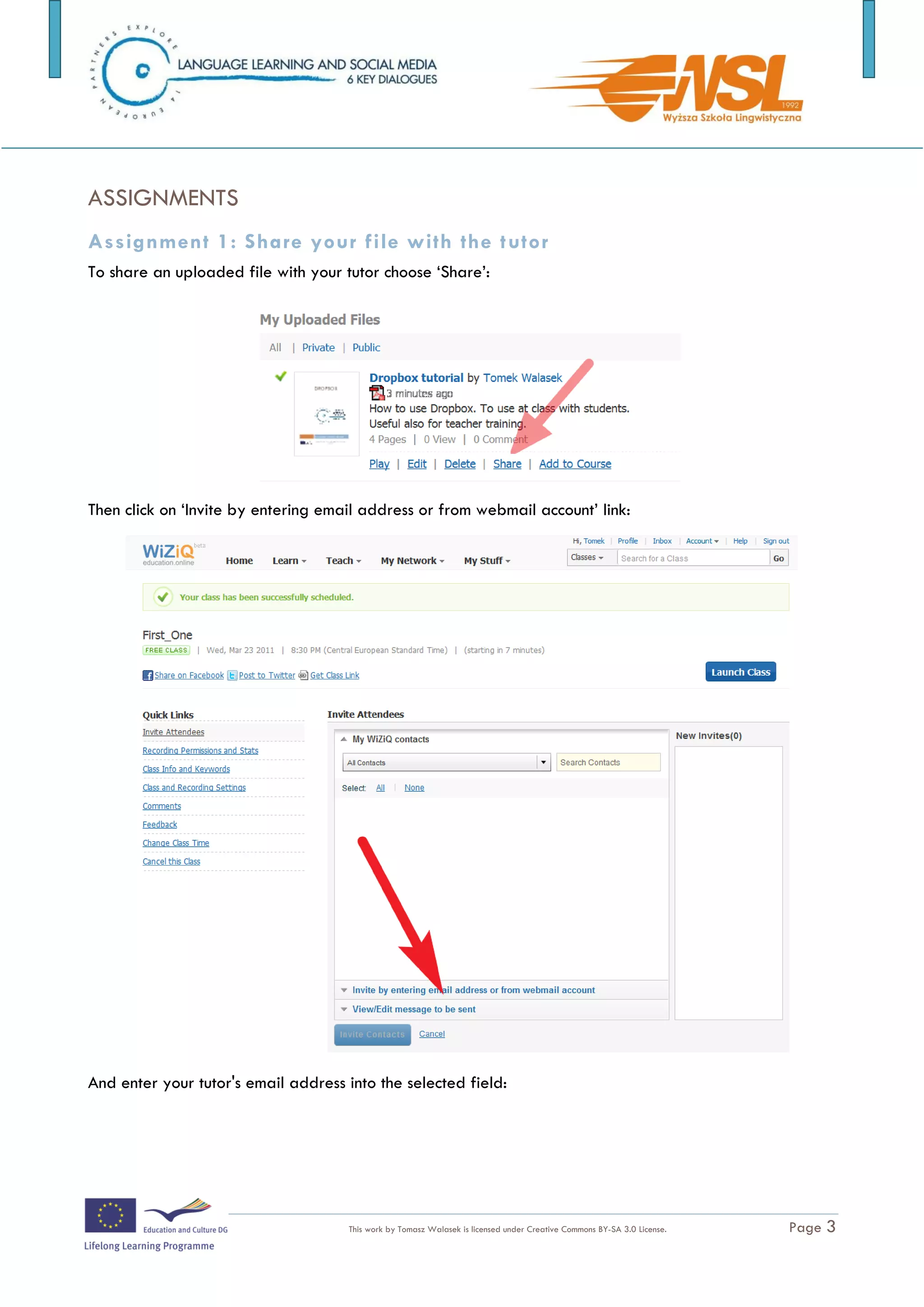
To share an uploaded file with your tutor choose ‘Share’:


Then click on ‘Invite by entering email address or from webmail account’ link:


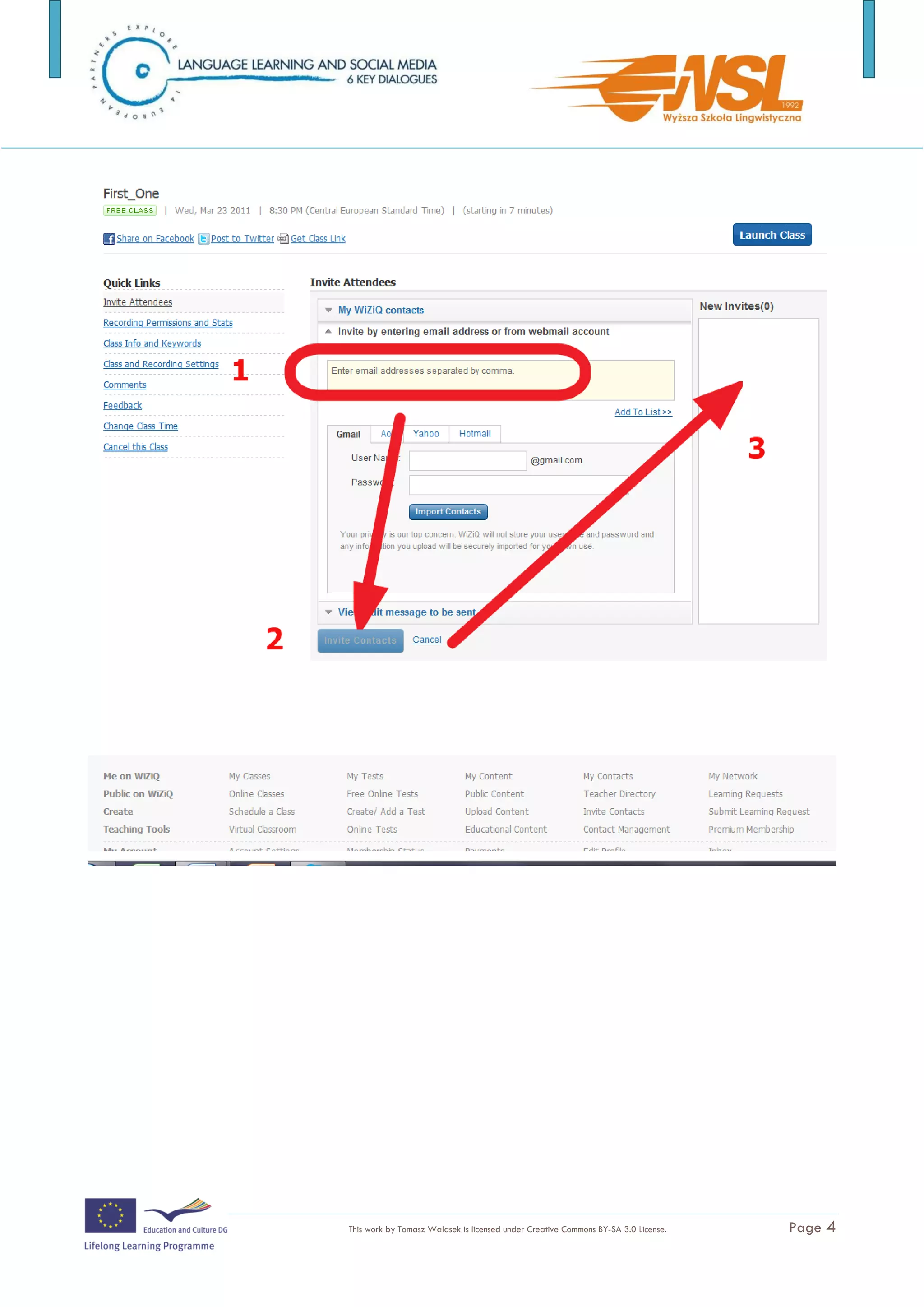
And enter your tutor's email address into the selected field:


The training is funded by the European Commission (Life Long Learning programme, KA2) Languages)

                                     This work by Tomasz Walasek is licensed under Creative Commons BY-SA 3.0 License.   Page 3
The training is funded by the European Commission (Life Long Learning programme, KA2) Languages)

                                    This work by Tomasz Walasek is licensed under Creative Commons BY-SA 3.0 License.   Page 4
Assignment 2: Schedule and launch a class
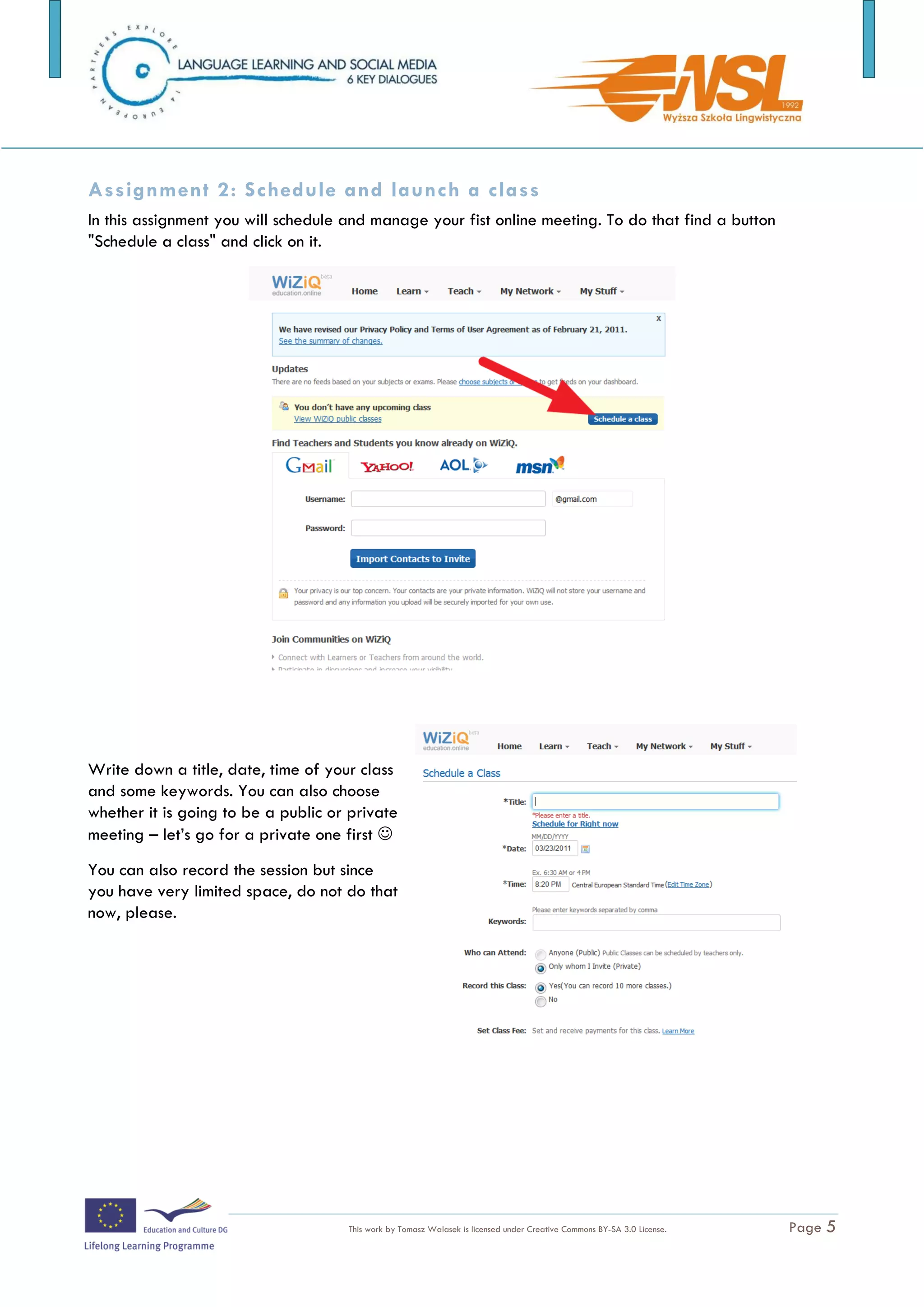
In this assignment you will schedule and manage your fist online meeting. To do that find a button
"Schedule a class" and click on it.


Write down a title, date, time of your class
and some keywords. You can also choose
whether it is going to be a public or private
meeting – let’s go for a private one first 
You can also record the session but since
you have very limited space, do not do that
now, please.


The training is funded by the European Commission (Life Long Learning programme, KA2) Languages)

                                     This work by Tomasz Walasek is licensed under Creative Commons BY-SA 3.0 License.   Page 5
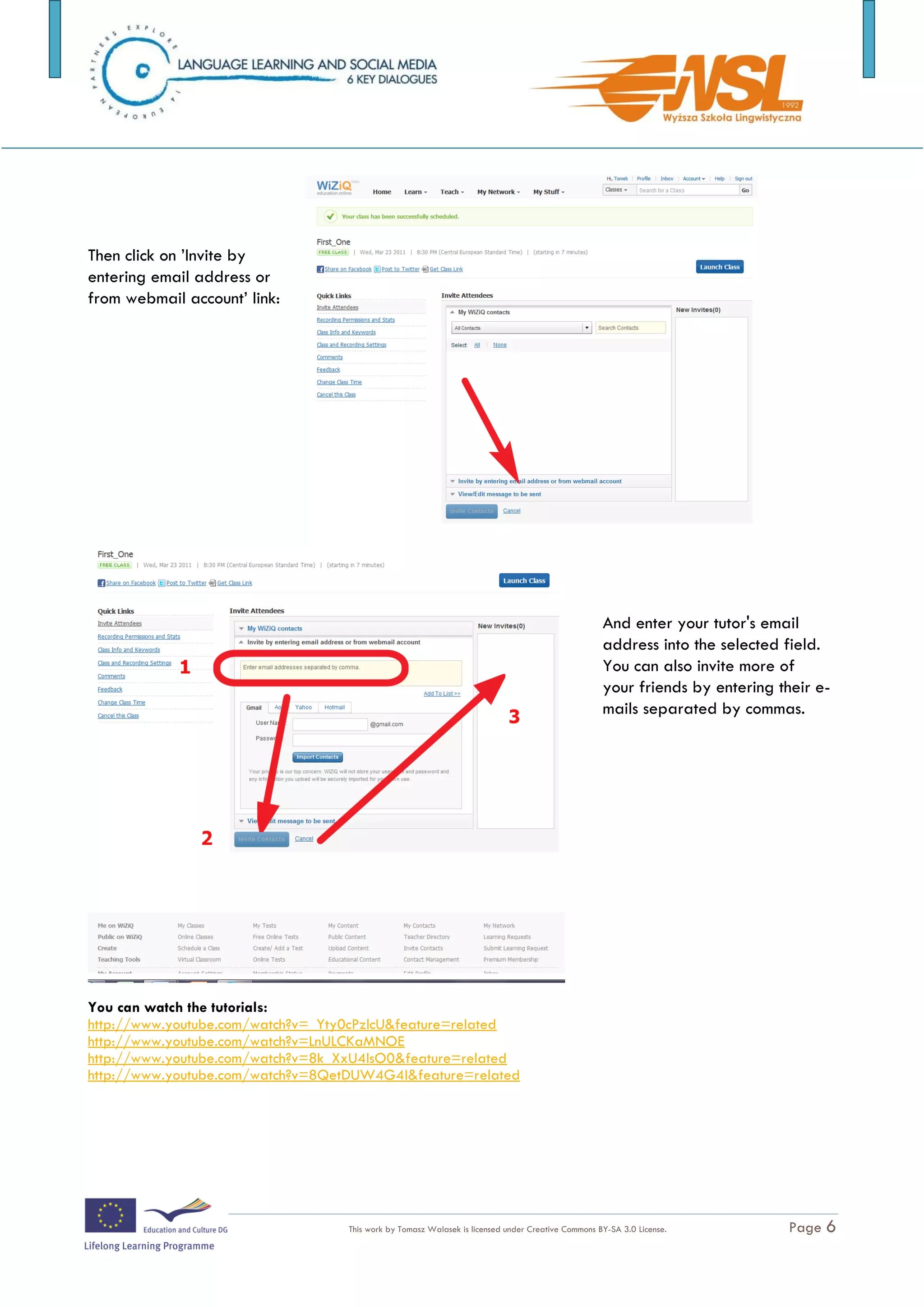
Then click on ’Invite by
entering email address or
from webmail account’ link:


                                                                                                    And enter your tutor's email
                                                                                                    address into the selected field.
                                                                                                    You can also invite more of
                                                                                                    your friends by entering their e-
                                                                                                    mails separated by commas.


You can watch the tutorials:
http://www.youtube.com/watch?v=_Yty0cPzlcU&feature=related
http://www.youtube.com/watch?v=LnULCKaMNOE
http://www.youtube.com/watch?v=8k_XxU4lsO0&feature=related
http://www.youtube.com/watch?v=8QetDUW4G4I&feature=related


The training is funded by the European Commission (Life Long Learning programme, KA2) Languages)

                                    This work by Tomasz Walasek is licensed under Creative Commons BY-SA 3.0 License.          Page 6

Wiziq handouts EN

  • 1.
    WIZIQ WiZiQ – Learnand Teach Online This Project has been funded with support from the European Commission
  • 2.
    WiZiQ HELPS YOU LEARNAND TEACH ON-LINE WHAT IS WIZIQ?  WiZiQ enables you to teach online and even earn money from your teaching expertise.  Give live, online classes  Upload and manage your content  Create tests http://www.wiziq.com/teachers-tour WHY DO I NEED IT? Some features of WiZiQ:  Easy-to-use, no downloads, unlimited  Records everything attendees  Records the class as it happens, including  Works in Flash technology, browser-like presenters’ audio and video inputs tabbed interface  Integrate with LMS or website with our  Advanced whiteboard tools APIs  Drawing tool, math tool, group/ungroup  Plug-in available for Moodle or objects, multiple whiteboards integrate with your own website  Share anything, including your desktop  Co-branding Options  Share most content file types; even your  Show off your own brand in the Virtual desktop with a simple click Classroom The training is funded by the European Commission (Life Long Learning programme, KA2) Languages) This work by Tomasz Walasek is licensed under Creative Commons BY-SA 3.0 License. Page 1
  • 3.
    Watch the video:http://www.wiziq.com/Virtual_Classroom.aspx CREATING YOUR WIZIQ USER ACCOUNT Before we start, create an account on www.wiziq.com. HOW TO USE IT? You can use WiZiQ in several ways. During this workshop we will show you how to use it to:  upload a file (pdf, doc, ppt and many others…) and share them with other WiZiQ users,  give live, online class. 1. Files you can upload to WiZiQ and share You can upload:  files prepared in Microsoft PowerPoint, Word, Excel,  films in many different formats,  flash animations and videos,  PDF files,  and many others... 2. To upload a file to WiZiQ: 1. On your hard disk find a file you want to share The training is funded by the European Commission (Life Long Learning programme, KA2) Languages) This work by Tomasz Walasek is licensed under Creative Commons BY-SA 3.0 License. Page 1
  • 4.
    2. Give it a title 3. Tag it with keywords (tags) - it will be easy to find them later, 4. Describe what is in the file, 5. Choose whether it would be a public or private file. Let’s start with a private one  3. You should see the ‘Uploaded successfully’ message. 4. If you want to see the uploaded file, click on ‘Back to My content page’ link: 5. Depending on the file format the uploading process can take from 2 minutes to 2 hours, so be patient. 6. But when it is over - you should see a new menu beneath your file: Play, Edit, Delete, Share and Add to Course. The training is funded by the European Commission (Life Long Learning programme, KA2) Languages) This work by Tomasz Walasek is licensed under Creative Commons BY-SA 3.0 License. Page 2
  • 5.
    ASSIGNMENTS Assignment 1: Shareyour file with the t utor To share an uploaded file with your tutor choose ‘Share’: Then click on ‘Invite by entering email address or from webmail account’ link: And enter your tutor's email address into the selected field: The training is funded by the European Commission (Life Long Learning programme, KA2) Languages) This work by Tomasz Walasek is licensed under Creative Commons BY-SA 3.0 License. Page 3
  • 6.
    The training isfunded by the European Commission (Life Long Learning programme, KA2) Languages) This work by Tomasz Walasek is licensed under Creative Commons BY-SA 3.0 License. Page 4
  • 7.
    Assignment 2: Scheduleand launch a class In this assignment you will schedule and manage your fist online meeting. To do that find a button "Schedule a class" and click on it. Write down a title, date, time of your class and some keywords. You can also choose whether it is going to be a public or private meeting – let’s go for a private one first  You can also record the session but since you have very limited space, do not do that now, please. The training is funded by the European Commission (Life Long Learning programme, KA2) Languages) This work by Tomasz Walasek is licensed under Creative Commons BY-SA 3.0 License. Page 5
  • 8.
    Then click on’Invite by entering email address or from webmail account’ link: And enter your tutor's email address into the selected field. You can also invite more of your friends by entering their e- mails separated by commas. You can watch the tutorials: http://www.youtube.com/watch?v=_Yty0cPzlcU&feature=related http://www.youtube.com/watch?v=LnULCKaMNOE http://www.youtube.com/watch?v=8k_XxU4lsO0&feature=related http://www.youtube.com/watch?v=8QetDUW4G4I&feature=related The training is funded by the European Commission (Life Long Learning programme, KA2) Languages) This work by Tomasz Walasek is licensed under Creative Commons BY-SA 3.0 License. Page 6