User
•	 Individual
Use Case
•	 Log in to site
•	 Change the start page to Media Content, and the default date range toThis Month
•	 Add“most”to the end of the name of the tag that is applied to the most clips, and edit the associated auto-tag rule to exclude (only)
new clips that contain the word“fun”.
•	 Make sure all auto-tags are activated
Required Information
•	 User name and Password
Wire FrameWalkthrough: #2 (Complete various Settings tasks)
Click numbers above or the bottom right corner of the page to advance the flow
Use Case 1 2 3 4 5 6 7 8 9 10 11 12 13 14 15 16
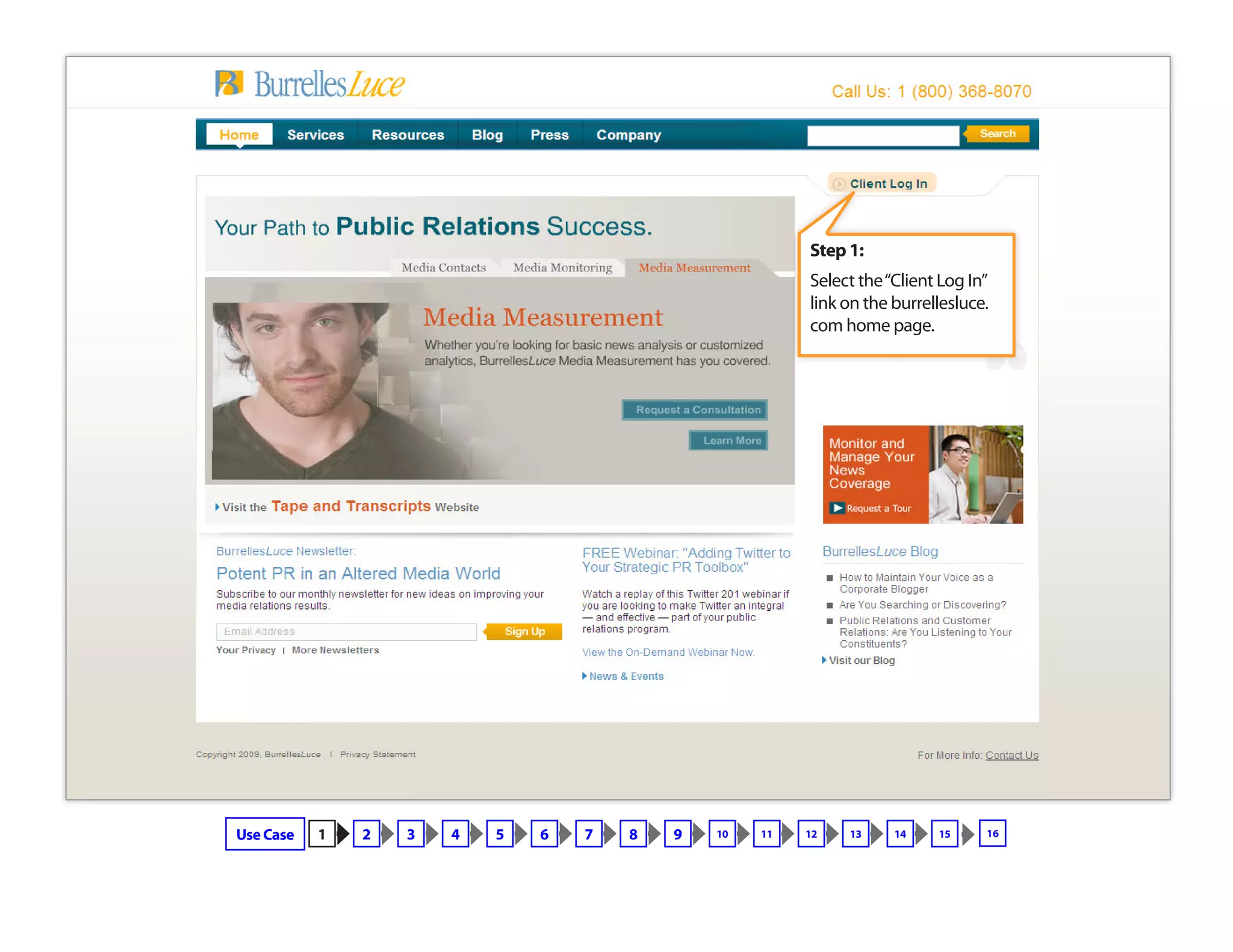
Step 1:
Select the“Client Log In”
link on the burrellesluce.
com home page.
Use Case 1 2 3 4 5 6 7 8 9 10 11 12 13 14 15 16
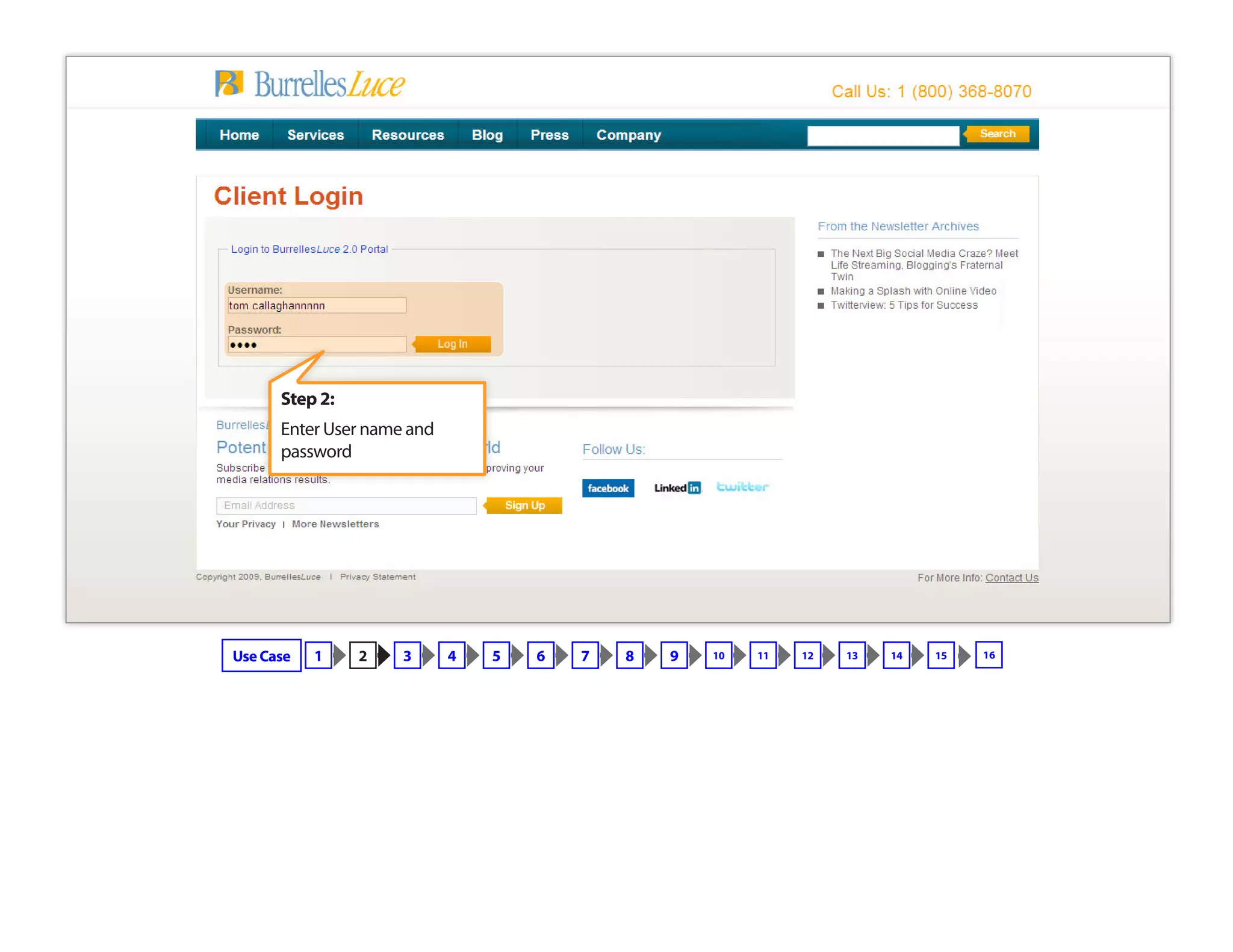
Step 2:
Enter User name and
password
Use Case 1 2 3 4 5 6 7 8 9 10 11 12 13 14 15 16
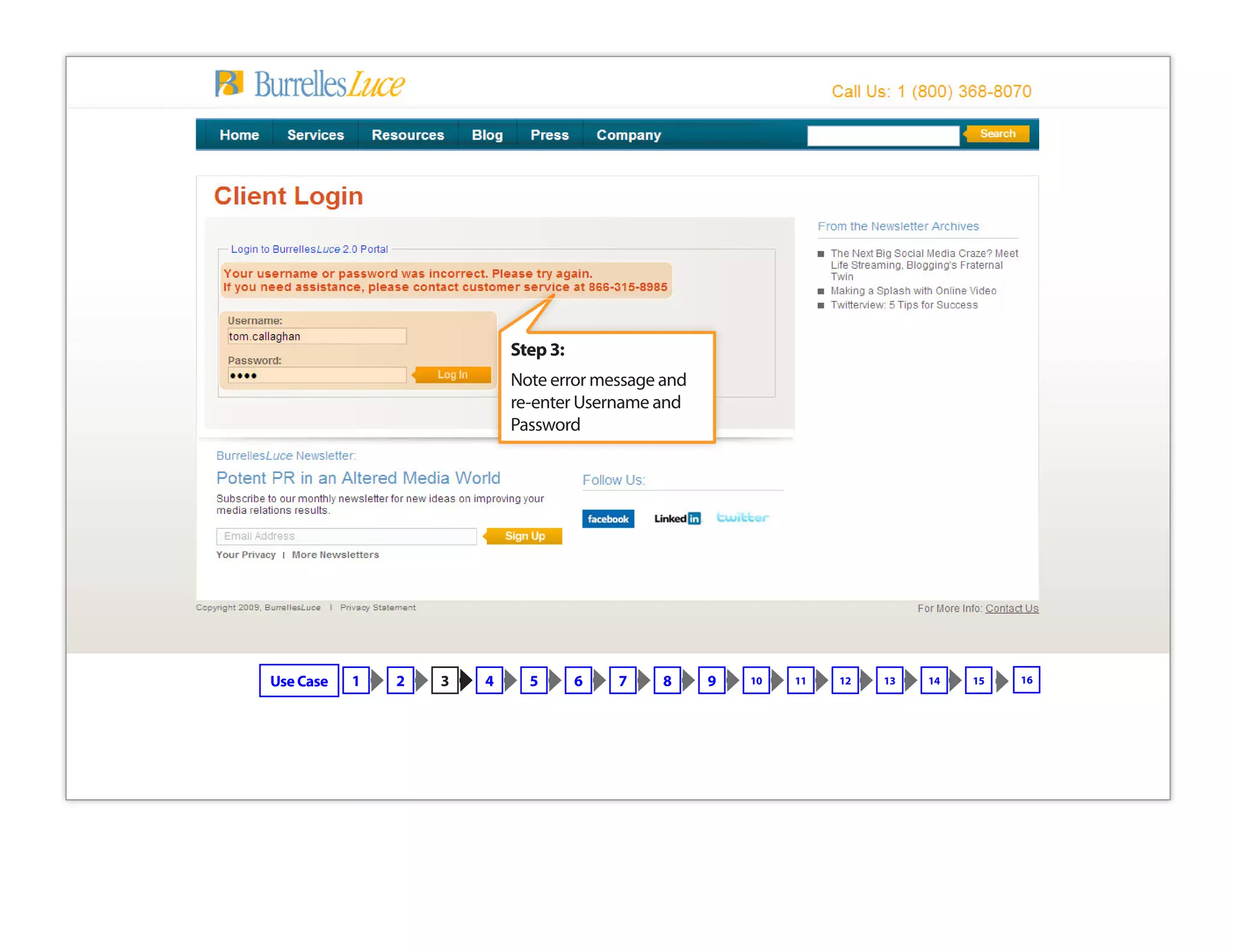
Step 3:
Note error message and
re-enter Username and
Password
Use Case 1 2 3 4 5 6 7 8 9 10 11 12 13 14 15 16
Copyright © 2009 BurrellesLuce
Welcome to BurrellesLuce 2.0
The web portal for media relations professionals
To get started, choose one of the services you already subscribe to. Or learn more about
other available services.
Monitoring
iMonitor
Search the latest news on the web. Save your searches to have matching clips automatically
added to Media Content, 24 hours a day. iMonitor returns links and excerpts from mainstream
and consumer-generated media, including many subscription and international news sites.
Media Content
View all of the news from your Press Clipping and Express monitoring services. Tag, manage, and
share edited coverage from print and online sources, complete with graphics and photos, plus radio
and TV coverage. Excerpts and links from your iMonitor service are organized here too. (To view most
edited coverage, you will need Adobe Acrobat.)
Measurement
Media Measurement
Powerful, graphical reports summarize public relations results and provide insight. View online or
export to a spreadsheet for further analysis.
Subscribed Services
Planning
Media Contacts
Everything you need to research journalists and outlets, distribute your press materials and
create your own media lists.
Available Services
Take me to:
• Media Content: Press clips
• iMonitor: Web search and alerts
• Media Measurement: Charts and graphs
Learn more about:
• Media Contacts: Names, numbers, and distribution
Sign up for a BurrellesLuce 2.0 Webinar
... and get a demo of this single solution for managing every
aspect of your media relations.
For customer service,
contact us at 800-631-1160
Monday through Friday, 8 a.m. to 8 p.m. ET
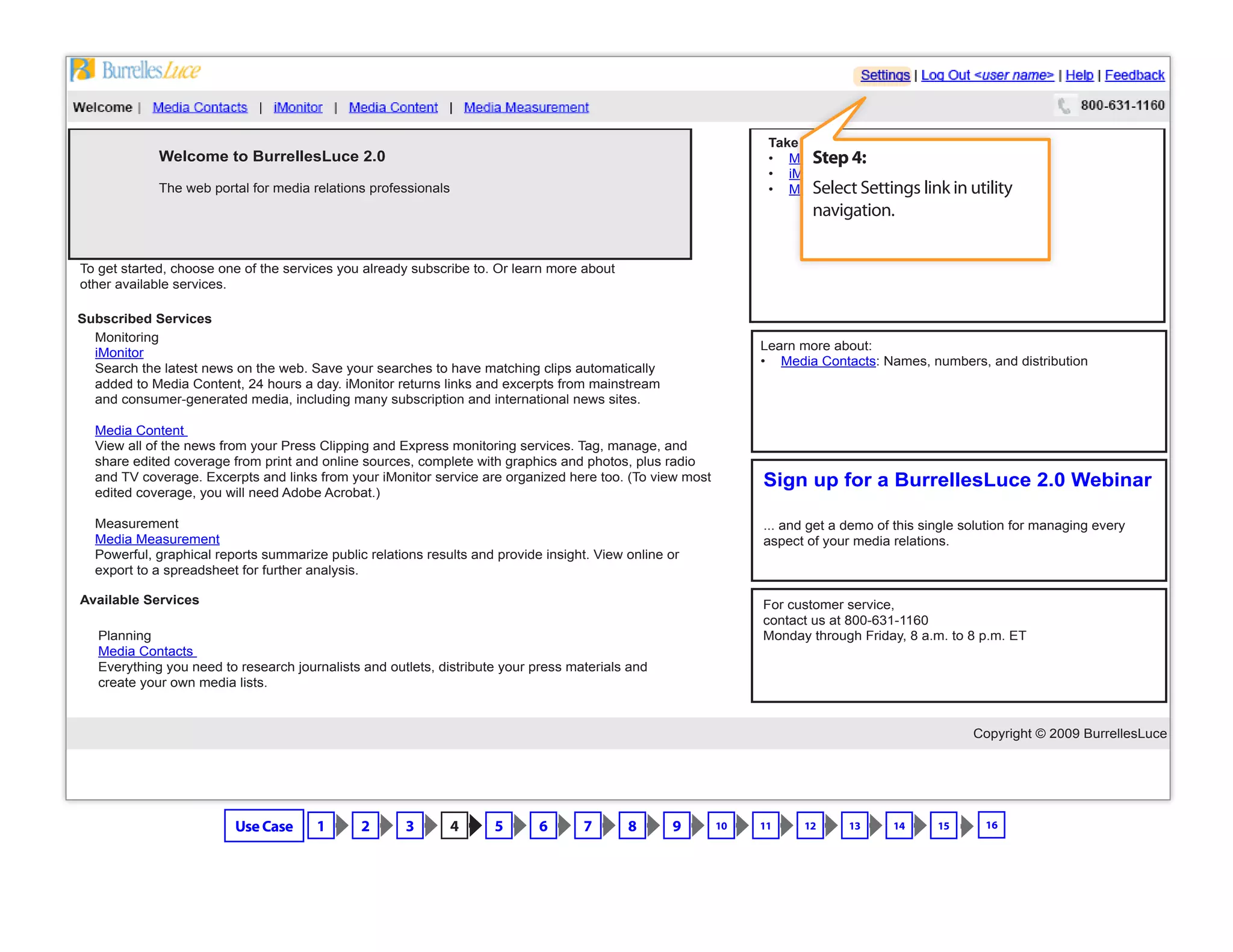
Step 4:
Select Settings link in utility
navigation.
Use Case 1 2 3 4 5 6 7 8 9 10 11 12 13 14 15 16
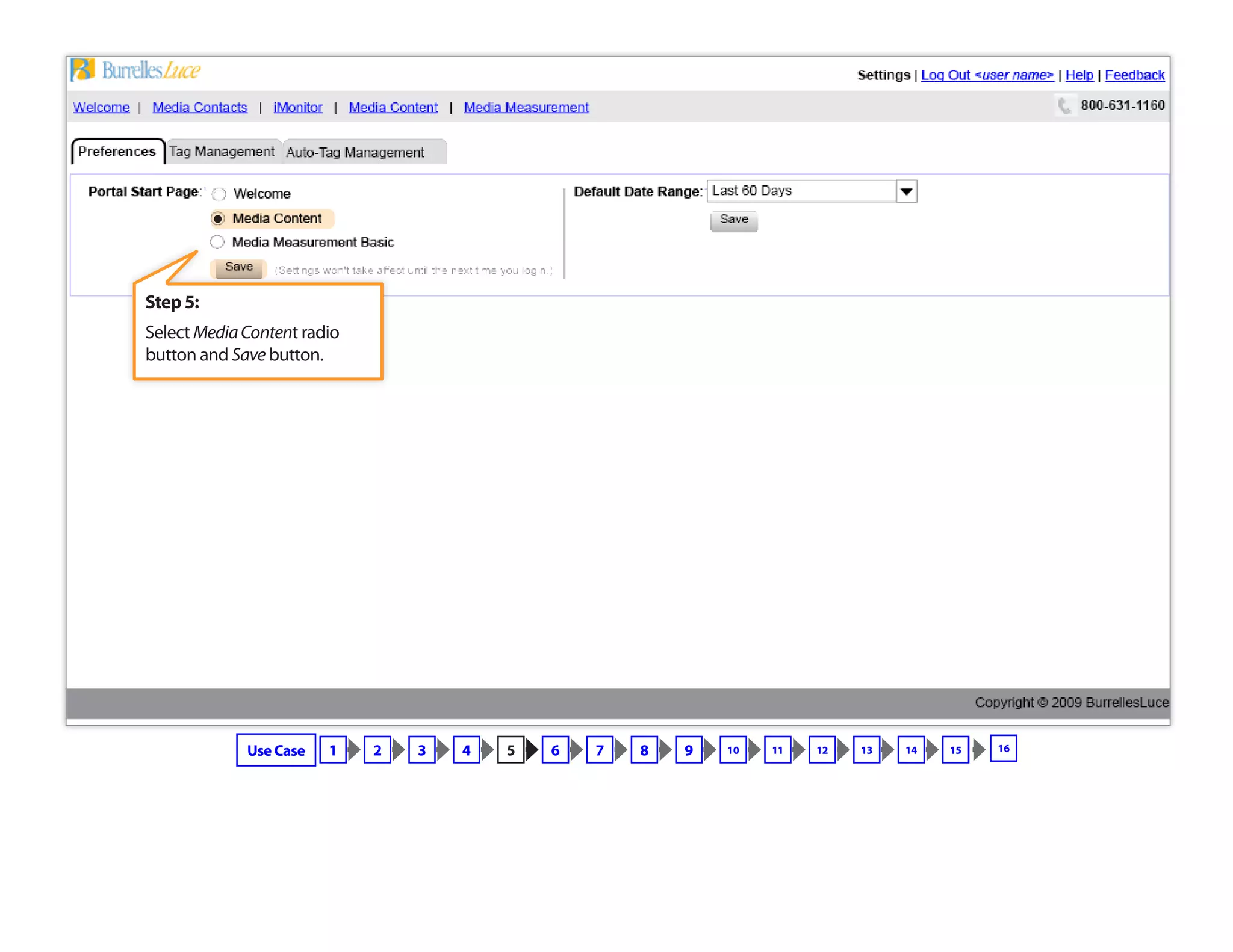
Step 5:
Select MediaContent radio
button and Save button.
Use Case 1 2 3 4 5 6 7 8 9 10 11 12 13 14 15 16
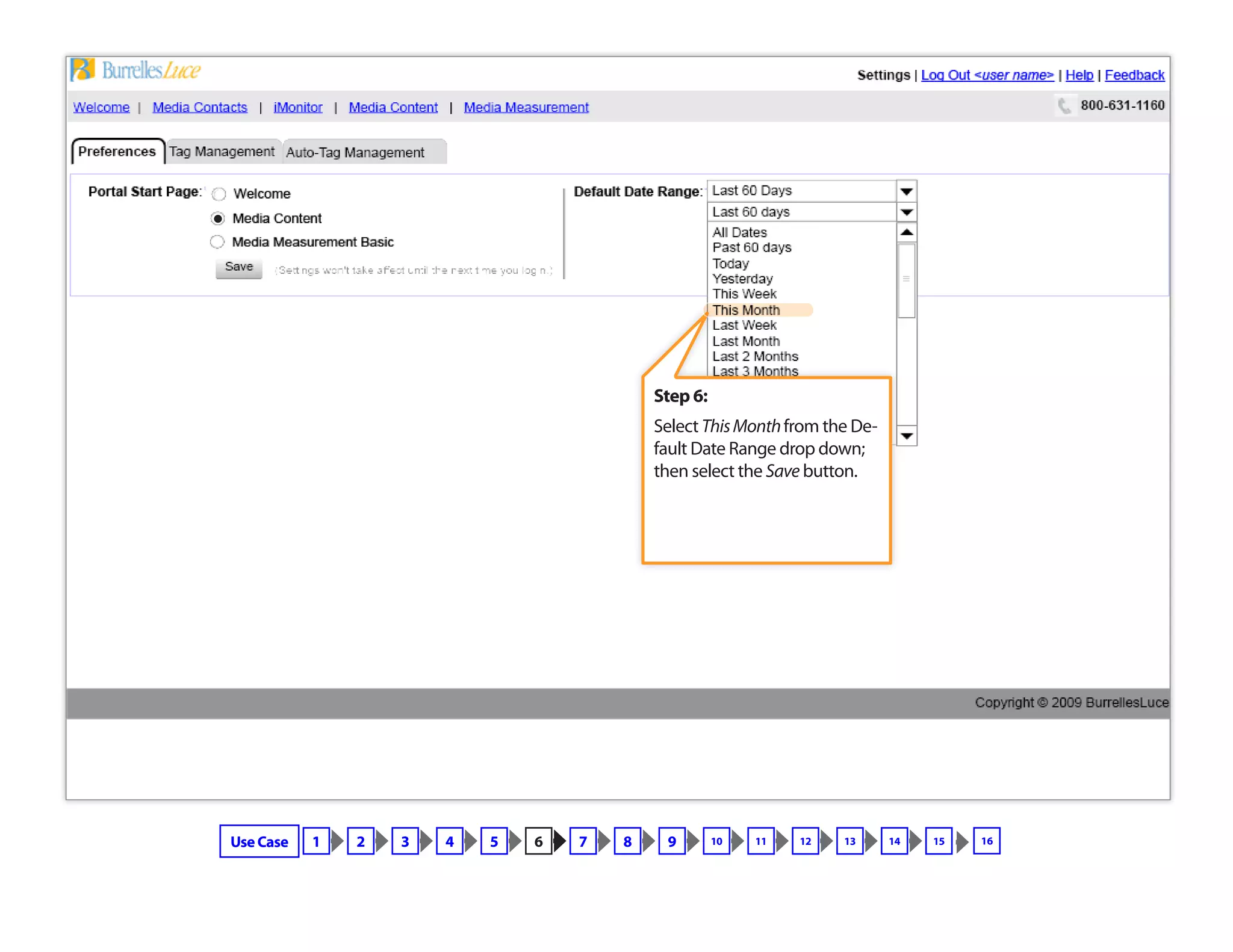
Step 6:
Select ThisMonthfrom the De-
fault Date Range drop down;
then select the Save button.
Use Case 1 2 3 4 5 6 7 8 9 10 11 12 13 14 15 16
Step 7:
SelectTag Management tab
Use Case 1 2 3 4 5 6 7 8 9 10 11 12 13 14 15 16
Use Case 1 2 3 4 5 6 7 8 9 10 11 12 13 14 15
Step 8:
Select ClipsAppliedTo
(largestfirst)from sort
drop down
16
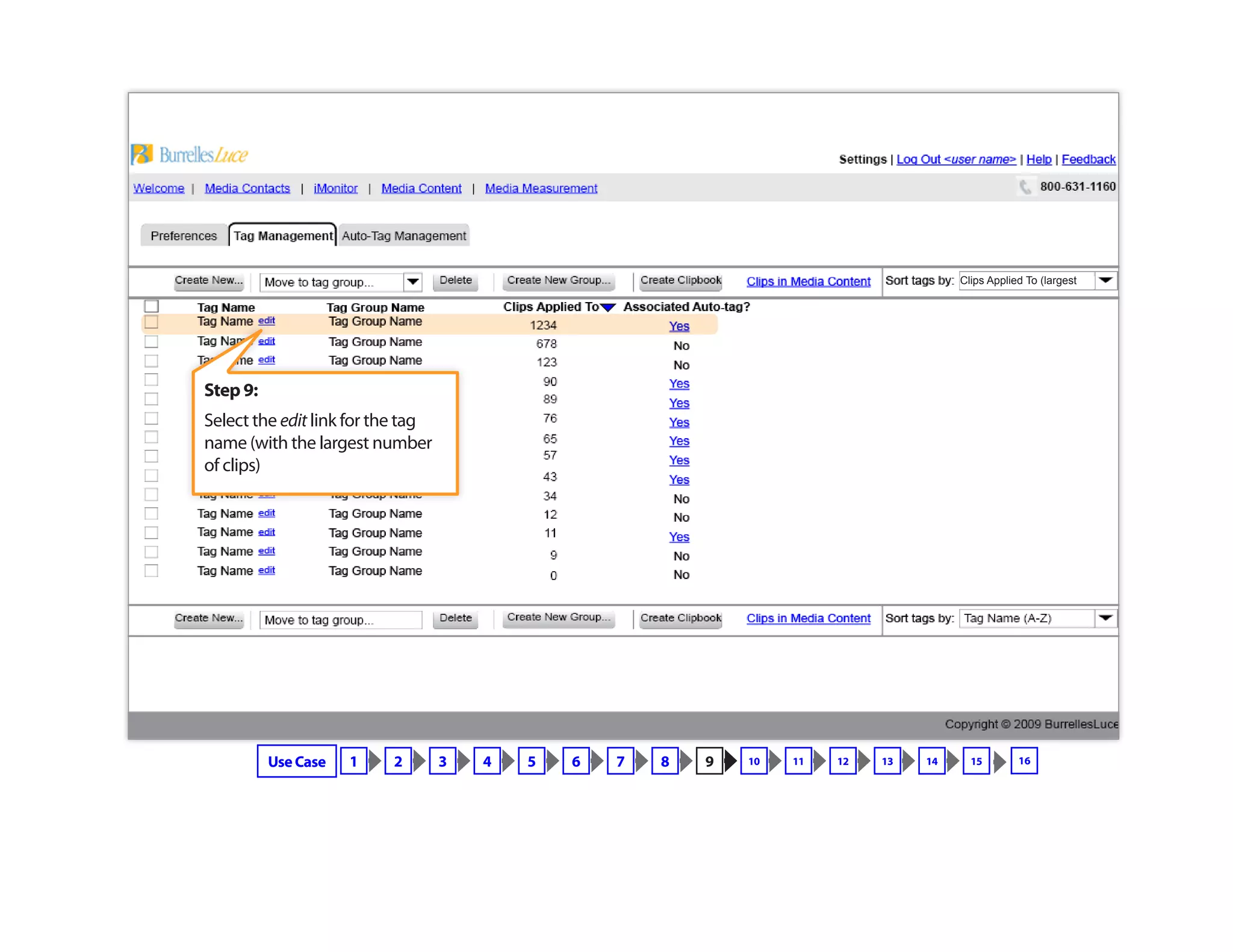
Step 9:
Select the edit link for the tag
name (with the largest number
of clips)
Use Case 1 2 3 4 5 6 7 8 9 10 11 12 13 14 15
Clips Applied To (largest
16
Step 10:
Add“most”to the end of the tag
name; press Enter key or click
somewhere else on the page to
close edit field and apply edit
Use Case 1 2 3 4 5 6 7 8 9 10 11 12 13 14 15
most
16
Step 11:
Click on the Associated Auto-Tag
Yeslink to open the Edit Auto-
Tag dialogue.
Use Case 1 2 3 4 5 6 7 8 9 10 11 12 13 14 15
most edit
16
Copyright © 2009 BurrellesLuce
800-631-1160Welcome | Media Contacts | iMonitor | Media Content | Media Measurement
Settings | Log Out <user name> | Help | FeedbackSettings
Preferences Tag Management
Tag Group Name
Yes
No
No
Yes
Yes
Yes
Yes
Yes
Yes
No
No
Yes
No
No
57
12
0
34
76
1234
678
123
89
90
65
43
11
9
Tag Name Associated Auto-tag?Clips Applied To
Create New...
Create New...
Create New Group...
Create New Group...
Create Clipbook
Create Clipbook
Delete
Delete
edit
edit
edit
edit
edit
edit
edit
edit
edit
edit
edit
edit
edit
edit
Tag Group Name
Tag Group Name
Tag Group Name
Tag Group Name
Tag Group Name
Tag Group Name
Tag Group Name
Tag Group Name
Tag Group Name
Tag Group Name
Tag Group Name
Tag Group Name
Tag Group Name
Tag Group Name
Tag Name
Tag Name
Tag Name
Tag Name
Tag Name
Tag Name
Tag Name
Tag Name
Tag Name
Tag Name
Tag Name
Tag Name
Tag Name
Tag Name
Tag Name (A-Z)Sort tags by:
Move to tag group...
Clips in Media Content
Auto-Tag Management
57
12
0
34
76
1234
678
89
123
90
65
43
11
9
taxes
Edit Auto-Tag
Search Rule
Tag Selection
Agreements:
Alerts:
Video:
Filters
Cancel
Create New...Tag Group A Tag Name #1Tag Group: Tag Name:
Save Edits Save As New Auto-Tag
Also apply to existing clips in Media Content
Reset
Include articles with video clips
are within words of each other
super bowl
20
catch throw
toomer
“Eli Manning”
Use all of these words
Be sure these words
Use any of these words
Exclude these words
Use this exact phrase
Media Type: BroadcastAll Print Web
[option]
[option]
[option]
[option]
[option]
[option]
[option]
[option]
[option]
[option]
super bowl “Eli Manning” catch OR throw –toomer
Step 12:
Enter“fun”into the Usethisexactphrase
field and click SaveEditsbutton
Use Case 1 2 3 4 5 6 7 8 9 10 11 12 13 14 15
-fun
-fun
most edit
16
Copyright © 2009 BurrellesLuce
800-631-1160Welcome | Media Contacts | iMonitor | Media Content | Media Measurement
Settings | Log Out <user name> | Help | FeedbackSettings
Preferences Tag Management
Tag Group Name
Yes
No
No
Yes
Yes
Yes
Yes
Yes
Yes
No
No
Yes
No
No
57
12
0
34
76
1234
678
123
89
90
65
43
11
9
Tag Name Associated Auto-tag?Clips Applied To
Create New...
Create New...
Create New Group...
Create New Group...
Create Clipbook
Create Clipbook
Delete
Delete
edit
edit
edit
edit
edit
edit
edit
edit
edit
edit
edit
edit
edit
edit
Tag Group Name
Tag Group Name
Tag Group Name
Tag Group Name
Tag Group Name
Tag Group Name
Tag Group Name
Tag Group Name
Tag Group Name
Tag Group Name
Tag Group Name
Tag Group Name
Tag Group Name
Tag Group Name
Tag Name
Tag Name
Tag Name
Tag Name
Tag Name
Tag Name
Tag Name
Tag Name
Tag Name
Tag Name
Tag Name
Tag Name
Tag Name
Tag Name
Tag Name (A-Z)Sort tags by:
Move to tag group...
Clips in Media Content
Auto-Tag Management
57
12
0
34
76
1234
678
89
123
90
65
43
11
9
Use Case 1 2 3 4 5 6 7 8 9 10 11 12 13 14 15
Message Icon
The auto-tag “Tag Name most” has been edited.
X
most edit
Step 13:
View the confirmation message
16
Copyright © 2009 BurrellesLuce
800-631-1160Welcome | Media Contacts | iMonitor | Media Content | Media Measurement
Settings | Log Out <user name> | Help | FeedbackSettings
Preferences Tag Management
Tag Group Name
Yes
No
No
Yes
Yes
Yes
Yes
Yes
Yes
No
No
Yes
No
No
57
12
0
34
76
1234
678
123
89
90
65
43
11
9
Tag Name Associated Auto-tag?Clips Applied To
Create New...
Create New...
Create New Group...
Create New Group...
Create Clipbook
Create Clipbook
Delete
Delete
edit
edit
edit
edit
edit
edit
edit
edit
edit
edit
edit
edit
edit
edit
Tag Group Name
Tag Group Name
Tag Group Name
Tag Group Name
Tag Group Name
Tag Group Name
Tag Group Name
Tag Group Name
Tag Group Name
Tag Group Name
Tag Group Name
Tag Group Name
Tag Group Name
Tag Group Name
Tag Name
Tag Name
Tag Name
Tag Name
Tag Name
Tag Name
Tag Name
Tag Name
Tag Name
Tag Name
Tag Name
Tag Name
Tag Name
Tag Name
Tag Name (A-Z)Sort tags by:
Move to tag group...
Clips in Media Content
Auto-Tag Management
57
12
0
34
76
1234
678
89
123
90
65
43
11
9
Step 14:
Select Auto-TagManagement
tab.
Use Case 1 2 3 4 5 6 7 8 9 10 11 12 13 14 15 16
Copyright © 2009 BurrellesLuce
800-631-1160Welcome | Media Contacts | iMonitor | Media Content | Media Measurement
Settings | Log Out <user name> | Help | FeedbackSettings
Preferences Auto-Tag ManagementTag Management
Create New...
Create New...
Delete
Delete
De-activate
De-activate
Activate
Activate
Tag name #1 (Tag Group A)
Tag name #2 (Tag Group B)
Tag name #3 (Tag Group B)
Tag name #4 (Tag Group C)
Inactive Edit
Edit
Edit
Edit
Active
Active
Active
Status Actions
super bowl “Eli Manning” catch OR throw –toomer
Tag Name (Group)
Tag Name (A-Z)Sort Auto-Tags by:
Clips in Media Content
Clips to Include... Updated
Jan 23, 2009
Jan 23, 2009
Jan 23, 2009
Jan 23, 2009
Step 15:
Select all auto-tag rows, and click
the Activate button.
Use Case 1 2 3 4 5 6 7 8 9 10 11 12 13 14 15 16
Copyright © 2009 BurrellesLuce
800-631-1160Welcome | Media Contacts | iMonitor | Media Content | Media Measurement
Settings | Log Out <user name> | Help | FeedbackSettings
Preferences Auto-Tag ManagementTag Management
Create New...
Create New...
Delete
Delete
De-activate
De-activate
Activate
Activate
Tag name #1 (Tag Group A)
Tag name #2 (Tag Group B)
Tag name #3 (Tag Group B)
Tag name #4 (Tag Group C)
Inactive Edit
Edit
Edit
Edit
Active
Active
Active
Status Actions
super bowl “Eli Manning” catch OR throw –toomer
Tag Name (Group)
Tag Name (A-Z)Sort Auto-Tags by:
Clips in Media Content
Clips to Include... Updated
Jan 23, 2009
Jan 23, 2009
Jan 23, 2009
Jan 23, 2009
Use Case 1 2 3 4 5 6 7 8 9 10 11 12 13 14 15
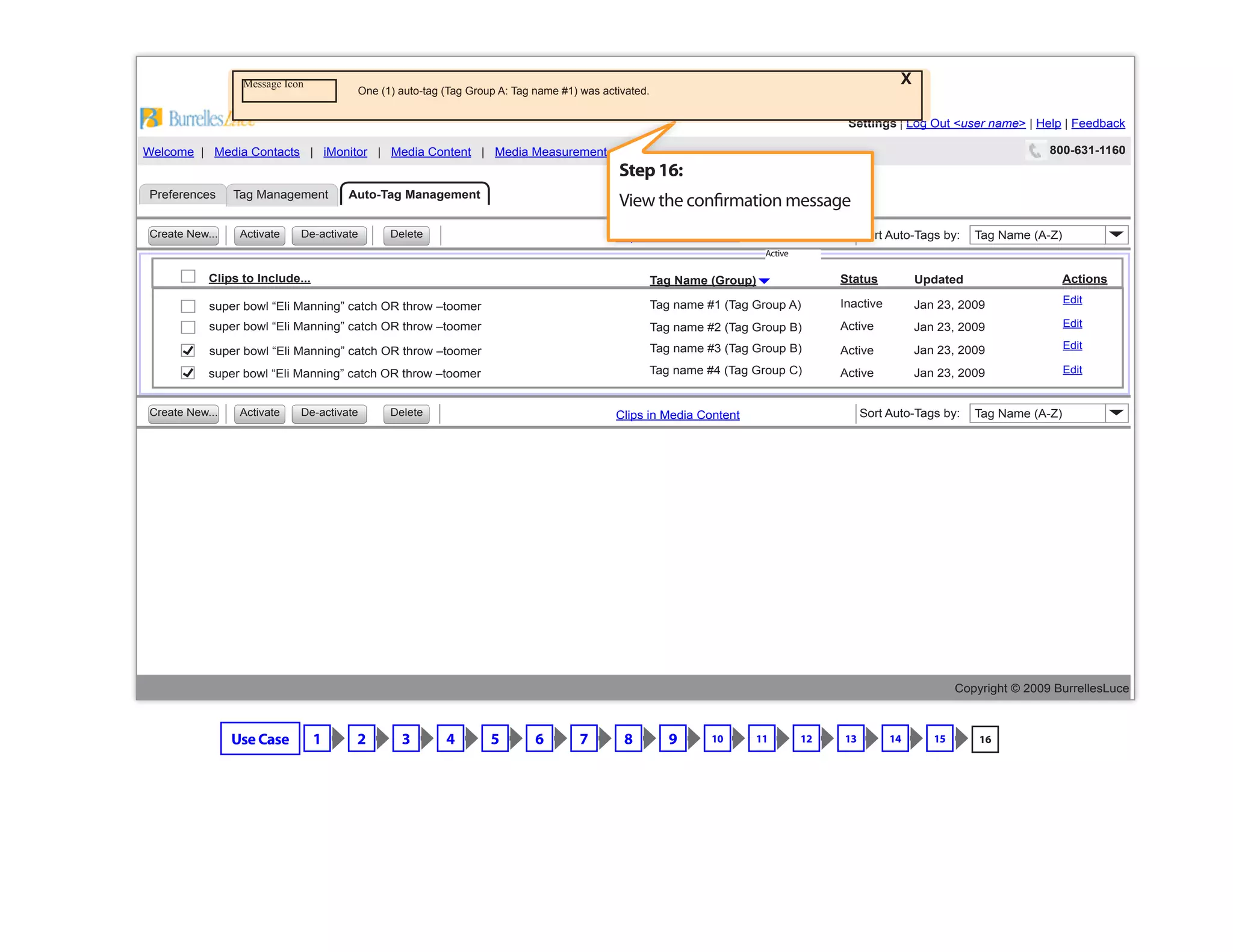
Step 16:
View the confirmation message
Message Icon
One (1) auto-tag (Tag Group A: Tag name #1) was activated.
X
Active
16

Wire-Flow_2.122172514

  • 1.
    User • Individual Use Case • Log in to site • Change the start page to Media Content, and the default date range toThis Month • Add“most”to the end of the name of the tag that is applied to the most clips, and edit the associated auto-tag rule to exclude (only) new clips that contain the word“fun”. • Make sure all auto-tags are activated Required Information • User name and Password Wire FrameWalkthrough: #2 (Complete various Settings tasks) Click numbers above or the bottom right corner of the page to advance the flow Use Case 1 2 3 4 5 6 7 8 9 10 11 12 13 14 15 16
  • 2.
    Step 1: Select the“ClientLog In” link on the burrellesluce. com home page. Use Case 1 2 3 4 5 6 7 8 9 10 11 12 13 14 15 16
  • 3.
    Step 2: Enter Username and password Use Case 1 2 3 4 5 6 7 8 9 10 11 12 13 14 15 16
  • 4.
    Step 3: Note errormessage and re-enter Username and Password Use Case 1 2 3 4 5 6 7 8 9 10 11 12 13 14 15 16
  • 5.
    Copyright © 2009BurrellesLuce Welcome to BurrellesLuce 2.0 The web portal for media relations professionals To get started, choose one of the services you already subscribe to. Or learn more about other available services. Monitoring iMonitor Search the latest news on the web. Save your searches to have matching clips automatically added to Media Content, 24 hours a day. iMonitor returns links and excerpts from mainstream and consumer-generated media, including many subscription and international news sites. Media Content View all of the news from your Press Clipping and Express monitoring services. Tag, manage, and share edited coverage from print and online sources, complete with graphics and photos, plus radio and TV coverage. Excerpts and links from your iMonitor service are organized here too. (To view most edited coverage, you will need Adobe Acrobat.) Measurement Media Measurement Powerful, graphical reports summarize public relations results and provide insight. View online or export to a spreadsheet for further analysis. Subscribed Services Planning Media Contacts Everything you need to research journalists and outlets, distribute your press materials and create your own media lists. Available Services Take me to: • Media Content: Press clips • iMonitor: Web search and alerts • Media Measurement: Charts and graphs Learn more about: • Media Contacts: Names, numbers, and distribution Sign up for a BurrellesLuce 2.0 Webinar ... and get a demo of this single solution for managing every aspect of your media relations. For customer service, contact us at 800-631-1160 Monday through Friday, 8 a.m. to 8 p.m. ET Step 4: Select Settings link in utility navigation. Use Case 1 2 3 4 5 6 7 8 9 10 11 12 13 14 15 16
  • 6.
    Step 5: Select MediaContentradio button and Save button. Use Case 1 2 3 4 5 6 7 8 9 10 11 12 13 14 15 16
  • 7.
    Step 6: Select ThisMonthfromthe De- fault Date Range drop down; then select the Save button. Use Case 1 2 3 4 5 6 7 8 9 10 11 12 13 14 15 16
  • 8.
    Step 7: SelectTag Managementtab Use Case 1 2 3 4 5 6 7 8 9 10 11 12 13 14 15 16
  • 9.
    Use Case 12 3 4 5 6 7 8 9 10 11 12 13 14 15 Step 8: Select ClipsAppliedTo (largestfirst)from sort drop down 16
  • 10.
    Step 9: Select theedit link for the tag name (with the largest number of clips) Use Case 1 2 3 4 5 6 7 8 9 10 11 12 13 14 15 Clips Applied To (largest 16
  • 11.
    Step 10: Add“most”to theend of the tag name; press Enter key or click somewhere else on the page to close edit field and apply edit Use Case 1 2 3 4 5 6 7 8 9 10 11 12 13 14 15 most 16
  • 12.
    Step 11: Click onthe Associated Auto-Tag Yeslink to open the Edit Auto- Tag dialogue. Use Case 1 2 3 4 5 6 7 8 9 10 11 12 13 14 15 most edit 16
  • 13.
    Copyright © 2009BurrellesLuce 800-631-1160Welcome | Media Contacts | iMonitor | Media Content | Media Measurement Settings | Log Out <user name> | Help | FeedbackSettings Preferences Tag Management Tag Group Name Yes No No Yes Yes Yes Yes Yes Yes No No Yes No No 57 12 0 34 76 1234 678 123 89 90 65 43 11 9 Tag Name Associated Auto-tag?Clips Applied To Create New... Create New... Create New Group... Create New Group... Create Clipbook Create Clipbook Delete Delete edit edit edit edit edit edit edit edit edit edit edit edit edit edit Tag Group Name Tag Group Name Tag Group Name Tag Group Name Tag Group Name Tag Group Name Tag Group Name Tag Group Name Tag Group Name Tag Group Name Tag Group Name Tag Group Name Tag Group Name Tag Group Name Tag Name Tag Name Tag Name Tag Name Tag Name Tag Name Tag Name Tag Name Tag Name Tag Name Tag Name Tag Name Tag Name Tag Name Tag Name (A-Z)Sort tags by: Tag Name (A-Z)Sort tags by: Move to tag group... Move to tag group... Clips in Media Content Clips in Media Content Auto-Tag Management 57 12 0 34 76 1234 678 89 123 90 65 43 11 9 taxes Edit Auto-Tag Search Rule Tag Selection Agreements: Alerts: Video: Filters Cancel Create New...Tag Group A Tag Name #1Tag Group: Tag Name: Save Edits Save As New Auto-Tag Also apply to existing clips in Media Content Reset Include articles with video clips are within words of each other super bowl 20 catch throw toomer “Eli Manning” Use all of these words Be sure these words Use any of these words Exclude these words Use this exact phrase Media Type: BroadcastAll Print Web [option] [option] [option] [option] [option] [option] [option] [option] [option] [option] super bowl “Eli Manning” catch OR throw –toomer Step 12: Enter“fun”into the Usethisexactphrase field and click SaveEditsbutton Use Case 1 2 3 4 5 6 7 8 9 10 11 12 13 14 15 -fun -fun most edit 16
  • 14.
    Copyright © 2009BurrellesLuce 800-631-1160Welcome | Media Contacts | iMonitor | Media Content | Media Measurement Settings | Log Out <user name> | Help | FeedbackSettings Preferences Tag Management Tag Group Name Yes No No Yes Yes Yes Yes Yes Yes No No Yes No No 57 12 0 34 76 1234 678 123 89 90 65 43 11 9 Tag Name Associated Auto-tag?Clips Applied To Create New... Create New... Create New Group... Create New Group... Create Clipbook Create Clipbook Delete Delete edit edit edit edit edit edit edit edit edit edit edit edit edit edit Tag Group Name Tag Group Name Tag Group Name Tag Group Name Tag Group Name Tag Group Name Tag Group Name Tag Group Name Tag Group Name Tag Group Name Tag Group Name Tag Group Name Tag Group Name Tag Group Name Tag Name Tag Name Tag Name Tag Name Tag Name Tag Name Tag Name Tag Name Tag Name Tag Name Tag Name Tag Name Tag Name Tag Name Tag Name (A-Z)Sort tags by: Tag Name (A-Z)Sort tags by: Move to tag group... Move to tag group... Clips in Media Content Clips in Media Content Auto-Tag Management 57 12 0 34 76 1234 678 89 123 90 65 43 11 9 Use Case 1 2 3 4 5 6 7 8 9 10 11 12 13 14 15 Message Icon The auto-tag “Tag Name most” has been edited. X most edit Step 13: View the confirmation message 16
  • 15.
    Copyright © 2009BurrellesLuce 800-631-1160Welcome | Media Contacts | iMonitor | Media Content | Media Measurement Settings | Log Out <user name> | Help | FeedbackSettings Preferences Tag Management Tag Group Name Yes No No Yes Yes Yes Yes Yes Yes No No Yes No No 57 12 0 34 76 1234 678 123 89 90 65 43 11 9 Tag Name Associated Auto-tag?Clips Applied To Create New... Create New... Create New Group... Create New Group... Create Clipbook Create Clipbook Delete Delete edit edit edit edit edit edit edit edit edit edit edit edit edit edit Tag Group Name Tag Group Name Tag Group Name Tag Group Name Tag Group Name Tag Group Name Tag Group Name Tag Group Name Tag Group Name Tag Group Name Tag Group Name Tag Group Name Tag Group Name Tag Group Name Tag Name Tag Name Tag Name Tag Name Tag Name Tag Name Tag Name Tag Name Tag Name Tag Name Tag Name Tag Name Tag Name Tag Name Tag Name (A-Z)Sort tags by: Tag Name (A-Z)Sort tags by: Move to tag group... Move to tag group... Clips in Media Content Clips in Media Content Auto-Tag Management 57 12 0 34 76 1234 678 89 123 90 65 43 11 9 Step 14: Select Auto-TagManagement tab. Use Case 1 2 3 4 5 6 7 8 9 10 11 12 13 14 15 16
  • 16.
    Copyright © 2009BurrellesLuce 800-631-1160Welcome | Media Contacts | iMonitor | Media Content | Media Measurement Settings | Log Out <user name> | Help | FeedbackSettings Preferences Auto-Tag ManagementTag Management Create New... Create New... Delete Delete De-activate De-activate Activate Activate Tag name #1 (Tag Group A) Tag name #2 (Tag Group B) Tag name #3 (Tag Group B) Tag name #4 (Tag Group C) Inactive Edit Edit Edit Edit Active Active Active Status Actions super bowl “Eli Manning” catch OR throw –toomer super bowl “Eli Manning” catch OR throw –toomer super bowl “Eli Manning” catch OR throw –toomer super bowl “Eli Manning” catch OR throw –toomer Tag Name (Group) Tag Name (A-Z)Sort Auto-Tags by: Tag Name (A-Z)Sort Auto-Tags by: Clips in Media Content Clips in Media Content Clips to Include... Updated Jan 23, 2009 Jan 23, 2009 Jan 23, 2009 Jan 23, 2009 Step 15: Select all auto-tag rows, and click the Activate button. Use Case 1 2 3 4 5 6 7 8 9 10 11 12 13 14 15 16
  • 17.
    Copyright © 2009BurrellesLuce 800-631-1160Welcome | Media Contacts | iMonitor | Media Content | Media Measurement Settings | Log Out <user name> | Help | FeedbackSettings Preferences Auto-Tag ManagementTag Management Create New... Create New... Delete Delete De-activate De-activate Activate Activate Tag name #1 (Tag Group A) Tag name #2 (Tag Group B) Tag name #3 (Tag Group B) Tag name #4 (Tag Group C) Inactive Edit Edit Edit Edit Active Active Active Status Actions super bowl “Eli Manning” catch OR throw –toomer super bowl “Eli Manning” catch OR throw –toomer super bowl “Eli Manning” catch OR throw –toomer super bowl “Eli Manning” catch OR throw –toomer Tag Name (Group) Tag Name (A-Z)Sort Auto-Tags by: Tag Name (A-Z)Sort Auto-Tags by: Clips in Media Content Clips in Media Content Clips to Include... Updated Jan 23, 2009 Jan 23, 2009 Jan 23, 2009 Jan 23, 2009 Use Case 1 2 3 4 5 6 7 8 9 10 11 12 13 14 15 Step 16: View the confirmation message Message Icon One (1) auto-tag (Tag Group A: Tag name #1) was activated. X Active 16