HTML
WEEK 1
Hypertext Markup Language
HTML stands for Hypertext Markup Language
• Hyper refers to creating linked and nonlinear structures of information.
• Text refers to the words on the computer screen that we are marking up.
• Markup is the process of preparing the text to define how it displays when
viewed as pages on the WWW by marking them with formatting directions
conveyed by notations called ―tags
• Language is a system of signs used for communication—written and oral.
Hypertext Markup Language
• HTML is a document-layout and hyperlink- specification language.
• HTML is a set of logical codes (markup) in parentheses that constitute the
appearance of a web document and the information it contains.
Example:
<B>This text would appear bold in the browser</B>
• HTML is platform independent.
• The basic syntax and semantics of HTML are defined in the HTML standard.
Text Editor
• Notepad from Microsoft is the common HTML Text Editor.
• Microsoft Word and WordPerfect can also be used to create HTML document.
• HTML documents has a file extension .html or .htm
Elements of a Web Page
Title : A Web page’s title identifies the subject or purpose of the page.
Body : The body of the Web page contains information that displays in the
browser window.
Normal text : It is the text that makes up the main content of a Web page.
Headings : These are used to set off different paragraphs of text or different
sections of a page.
Image : It is another important element of a Web page such as an icon, bullet,
line, photo, illustration or other picture.
Hyperlink : It serve as a primary way to navigate between pages.
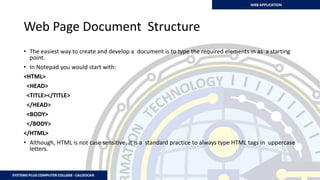
Web Page Document Structure
• The easiest way to create and develop a document is to type the required elements in as a starting
point.
• In Notepad you would start with:
<HTML>
<HEAD>
<TITLE></TITLE>
</HEAD>
<BODY>
</BODY>
</HTML>
• Although, HTML is not case sensitive, it is a standard practice to always type HTML tags in uppercase
letters.
HTML –
Tags and Attributes
WEEK 1
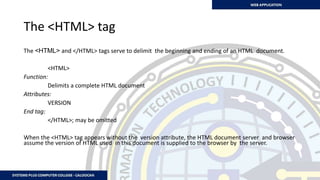
The <HTML> tag
The <HTML> and </HTML> tags serve to delimit the beginning and ending of an HTML document.
<HTML>
Function:
Delimits a complete HTML document
Attributes:
VERSION
End tag:
</HTML>; may be omitted
When the <HTML> tag appears without the version attribute, the HTML document server and browser
assume the version of HTML used in this document is supplied to the browser by the server.
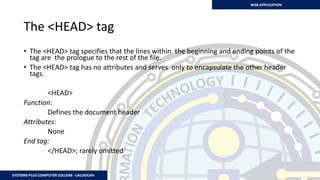
The <HEAD> tag
• The <HEAD> tag specifies that the lines within the beginning and ending points of the
tag are the prologue to the rest of the file.
• The <HEAD> tag has no attributes and serves only to encapsulate the other header
tags.
<HEAD>
Function:
Defines the document header
Attributes:
None
End tag:
</HEAD>; rarely omitted
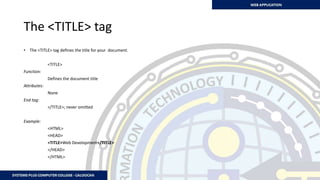
The <TITLE> tag
• The <TITLE> tag defines the title for your document.
<TITLE>
Function:
Defines the document title
Attributes:
None
End tag:
</TITLE>; never omitted
Example:
<HTML>
<HEAD>
<TITLE>Web Development</TITLE>
</HEAD>
</HTML>
The <BODY> tag
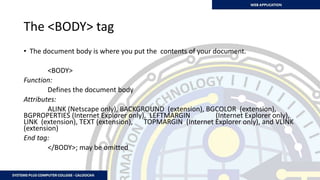
• The document body is where you put the contents of your document.
<BODY>
Function:
Defines the document body
Attributes:
ALINK (Netscape only), BACKGROUND (extension), BGCOLOR (extension),
BGPROPERTIES (Internet Explorer only), LEFTMARGIN (Internet Explorer only),
LINK (extension), TEXT (extension), TOPMARGIN (Internet Explorer only), and VLINK
(extension)
End tag:
</BODY>; may be omitted
The <BODY> Attributes
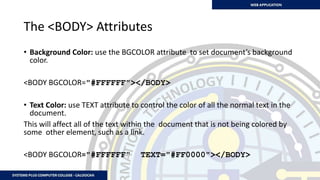
• Background Color: use the BGCOLOR attribute to set document’s background
color.
<BODY BGCOLOR="#FFFFFF"></BODY>
• Text Color: use TEXT attribute to control the color of all the normal text in the
document.
This will affect all of the text within the document that is not being colored by
some other element, such as a link.
<BODY BGCOLOR="#FFFFFF" TEXT="#FF0000"></BODY>
The <BODY> Attributes
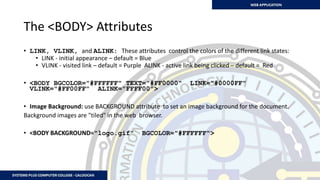
• LINK, VLINK, and ALINK: These attributes control the colors of the different link states:
• LINK - initial appearance – default = Blue
• VLINK - visited link – default = Purple ALINK - active link being clicked – default = Red
• <BODY BGCOLOR="#FFFFFF" TEXT="#FF0000" LINK="#0000FF"
VLINK="#FF00FF" ALINK="FFFF00">
• Image Background: use BACKGROUND attribute to set an image background for the document.
Background images are "tiled" in the web browser.
• <BODY BACKGROUND="logo.gif" BGCOLOR="#FFFFFF">
HTML Tags
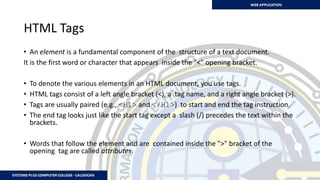
• An element is a fundamental component of the structure of a text document.
It is the first word or character that appears inside the "<" opening bracket.
• To denote the various elements in an HTML document, you use tags.
• HTML tags consist of a left angle bracket (<), a tag name, and a right angle bracket (>).
• Tags are usually paired (e.g., <H1> and </H1>) to start and end the tag instruction.
• The end tag looks just like the start tag except a slash (/) precedes the text within the
brackets.
• Words that follow the element and are contained inside the ">" bracket of the
opening tag are called attributes.
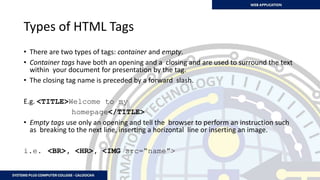
Types of HTML Tags
• There are two types of tags: container and empty.
• Container tags have both an opening and a closing and are used to surround the text
within your document for presentation by the tag.
• The closing tag name is preceded by a forward slash.
E.g. <TITLE>Welcome to my
homepage</TITLE>
• Empty tags use only an opening and tell the browser to perform an instruction such
as breaking to the next line, inserting a horizontal line or inserting an image.
i.e. <BR>, <HR>, <IMG src=“name”>
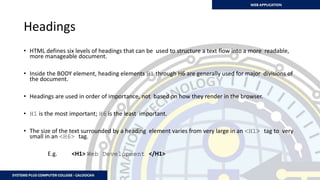
Headings
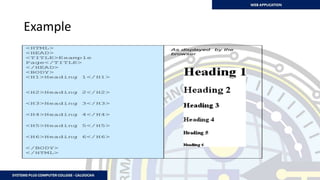
• HTML defines six levels of headings that can be used to structure a text flow into a more readable,
more manageable document.
• Inside the BODY element, heading elements H1 through H6 are generally used for major divisions of
the document.
• Headings are used in order of importance, not based on how they render in the browser.
• H1 is the most important; H6 is the least important.
• The size of the text surrounded by a heading element varies from very large in an <H1> tag to very
small in an <H6> tag.
E.g. <H1> Web Development </H1>
Example
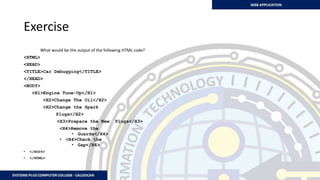
Exercise
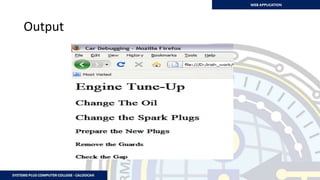
What would be the output of the following HTML code?
<HTML>
<HEAD>
<TITLE>Car Debugging</TITLE>
</HEAD>
<BODY>
<H1>Engine Tune-Up</H1>
<H2>Change The Oil</H2>
<H2>Change the Spark
Plugs</H2>
<H3>Prepare the New Plugs</H3>
<H4>Remove the
• Guards</H4>
• <H4>Check the
• Gap</H4>
• </BODY>
• </HTML>
Output
Paragraph
• One of the most commonly used tags in
• HTML is the paragraph marker, which is used to break apart blocks of text into
separate paragraphs.
• Each paragraph starts with <P> and ends with the corresponding </P> tag.
Paragraph
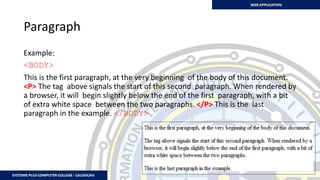
Example:
<BODY>
This is the first paragraph, at the very beginning of the body of this document.
<P> The tag above signals the start of this second paragraph. When rendered by
a browser, it will begin slightly below the end of the first paragraph, with a bit
of extra white space between the two paragraphs. </P> This is the last
paragraph in the example. </BODY>
Line Break <BR>
 Line breaks allow you to decide where the text will break on a line or continue to the end of the
window.
 A <BR> is an Empty Element, which may contain attributes but it does not contain any content.
 The <BR> element does not have a closing tag because it marks a position and does not contain any
content.
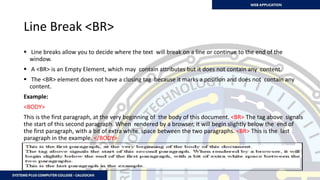
Example:
<BODY>
This is the first paragraph, at the very beginning of the body of this document. <BR> The tag above signals
the start of this second paragraph. When rendered by a browser, it will begin slightly below the end of
the first paragraph, with a bit of extra white space between the two paragraphs. <BR> This is the last
paragraph in the example. </BODY>
Horizontal Rule
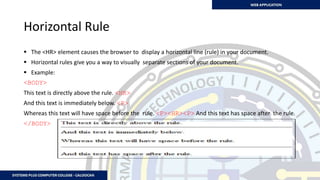
 The <HR> element causes the browser to display a horizontal line (rule) in your document.
 Horizontal rules give you a way to visually separate sections of your document.
 Example:
<BODY>
This text is directly above the rule. <HR>
And this text is immediately below. <P>
Whereas this text will have space before the rule. <P><HR><P> And this text has space after the rule.
</BODY>
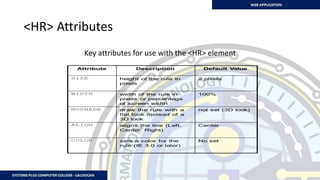
<HR> Attributes
Key attributes for use with the <HR> element

Week-1_PPT_WEBAPPS-done.pptx

  • 1.
  • 2.
    Hypertext Markup Language HTMLstands for Hypertext Markup Language • Hyper refers to creating linked and nonlinear structures of information. • Text refers to the words on the computer screen that we are marking up. • Markup is the process of preparing the text to define how it displays when viewed as pages on the WWW by marking them with formatting directions conveyed by notations called ―tags • Language is a system of signs used for communication—written and oral.
  • 3.
    Hypertext Markup Language •HTML is a document-layout and hyperlink- specification language. • HTML is a set of logical codes (markup) in parentheses that constitute the appearance of a web document and the information it contains. Example: <B>This text would appear bold in the browser</B> • HTML is platform independent. • The basic syntax and semantics of HTML are defined in the HTML standard.
  • 4.
    Text Editor • Notepadfrom Microsoft is the common HTML Text Editor. • Microsoft Word and WordPerfect can also be used to create HTML document. • HTML documents has a file extension .html or .htm
  • 5.
    Elements of aWeb Page Title : A Web page’s title identifies the subject or purpose of the page. Body : The body of the Web page contains information that displays in the browser window. Normal text : It is the text that makes up the main content of a Web page. Headings : These are used to set off different paragraphs of text or different sections of a page. Image : It is another important element of a Web page such as an icon, bullet, line, photo, illustration or other picture. Hyperlink : It serve as a primary way to navigate between pages.
  • 6.
    Web Page DocumentStructure • The easiest way to create and develop a document is to type the required elements in as a starting point. • In Notepad you would start with: <HTML> <HEAD> <TITLE></TITLE> </HEAD> <BODY> </BODY> </HTML> • Although, HTML is not case sensitive, it is a standard practice to always type HTML tags in uppercase letters.
  • 7.
    HTML – Tags andAttributes WEEK 1
  • 8.
    The <HTML> tag The<HTML> and </HTML> tags serve to delimit the beginning and ending of an HTML document. <HTML> Function: Delimits a complete HTML document Attributes: VERSION End tag: </HTML>; may be omitted When the <HTML> tag appears without the version attribute, the HTML document server and browser assume the version of HTML used in this document is supplied to the browser by the server.
  • 9.
    The <HEAD> tag •The <HEAD> tag specifies that the lines within the beginning and ending points of the tag are the prologue to the rest of the file. • The <HEAD> tag has no attributes and serves only to encapsulate the other header tags. <HEAD> Function: Defines the document header Attributes: None End tag: </HEAD>; rarely omitted
  • 10.
    The <TITLE> tag •The <TITLE> tag defines the title for your document. <TITLE> Function: Defines the document title Attributes: None End tag: </TITLE>; never omitted Example: <HTML> <HEAD> <TITLE>Web Development</TITLE> </HEAD> </HTML>
  • 11.
    The <BODY> tag •The document body is where you put the contents of your document. <BODY> Function: Defines the document body Attributes: ALINK (Netscape only), BACKGROUND (extension), BGCOLOR (extension), BGPROPERTIES (Internet Explorer only), LEFTMARGIN (Internet Explorer only), LINK (extension), TEXT (extension), TOPMARGIN (Internet Explorer only), and VLINK (extension) End tag: </BODY>; may be omitted
  • 12.
    The <BODY> Attributes •Background Color: use the BGCOLOR attribute to set document’s background color. <BODY BGCOLOR="#FFFFFF"></BODY> • Text Color: use TEXT attribute to control the color of all the normal text in the document. This will affect all of the text within the document that is not being colored by some other element, such as a link. <BODY BGCOLOR="#FFFFFF" TEXT="#FF0000"></BODY>
  • 13.
    The <BODY> Attributes •LINK, VLINK, and ALINK: These attributes control the colors of the different link states: • LINK - initial appearance – default = Blue • VLINK - visited link – default = Purple ALINK - active link being clicked – default = Red • <BODY BGCOLOR="#FFFFFF" TEXT="#FF0000" LINK="#0000FF" VLINK="#FF00FF" ALINK="FFFF00"> • Image Background: use BACKGROUND attribute to set an image background for the document. Background images are "tiled" in the web browser. • <BODY BACKGROUND="logo.gif" BGCOLOR="#FFFFFF">
  • 14.
    HTML Tags • Anelement is a fundamental component of the structure of a text document. It is the first word or character that appears inside the "<" opening bracket. • To denote the various elements in an HTML document, you use tags. • HTML tags consist of a left angle bracket (<), a tag name, and a right angle bracket (>). • Tags are usually paired (e.g., <H1> and </H1>) to start and end the tag instruction. • The end tag looks just like the start tag except a slash (/) precedes the text within the brackets. • Words that follow the element and are contained inside the ">" bracket of the opening tag are called attributes.
  • 15.
    Types of HTMLTags • There are two types of tags: container and empty. • Container tags have both an opening and a closing and are used to surround the text within your document for presentation by the tag. • The closing tag name is preceded by a forward slash. E.g. <TITLE>Welcome to my homepage</TITLE> • Empty tags use only an opening and tell the browser to perform an instruction such as breaking to the next line, inserting a horizontal line or inserting an image. i.e. <BR>, <HR>, <IMG src=“name”>
  • 16.
    Headings • HTML definessix levels of headings that can be used to structure a text flow into a more readable, more manageable document. • Inside the BODY element, heading elements H1 through H6 are generally used for major divisions of the document. • Headings are used in order of importance, not based on how they render in the browser. • H1 is the most important; H6 is the least important. • The size of the text surrounded by a heading element varies from very large in an <H1> tag to very small in an <H6> tag. E.g. <H1> Web Development </H1>
  • 17.
  • 18.
    Exercise What would bethe output of the following HTML code? <HTML> <HEAD> <TITLE>Car Debugging</TITLE> </HEAD> <BODY> <H1>Engine Tune-Up</H1> <H2>Change The Oil</H2> <H2>Change the Spark Plugs</H2> <H3>Prepare the New Plugs</H3> <H4>Remove the • Guards</H4> • <H4>Check the • Gap</H4> • </BODY> • </HTML>
  • 19.
  • 20.
    Paragraph • One ofthe most commonly used tags in • HTML is the paragraph marker, which is used to break apart blocks of text into separate paragraphs. • Each paragraph starts with <P> and ends with the corresponding </P> tag.
  • 21.
    Paragraph Example: <BODY> This is thefirst paragraph, at the very beginning of the body of this document. <P> The tag above signals the start of this second paragraph. When rendered by a browser, it will begin slightly below the end of the first paragraph, with a bit of extra white space between the two paragraphs. </P> This is the last paragraph in the example. </BODY>
  • 22.
    Line Break <BR> Line breaks allow you to decide where the text will break on a line or continue to the end of the window.  A <BR> is an Empty Element, which may contain attributes but it does not contain any content.  The <BR> element does not have a closing tag because it marks a position and does not contain any content. Example: <BODY> This is the first paragraph, at the very beginning of the body of this document. <BR> The tag above signals the start of this second paragraph. When rendered by a browser, it will begin slightly below the end of the first paragraph, with a bit of extra white space between the two paragraphs. <BR> This is the last paragraph in the example. </BODY>
  • 23.
    Horizontal Rule  The<HR> element causes the browser to display a horizontal line (rule) in your document.  Horizontal rules give you a way to visually separate sections of your document.  Example: <BODY> This text is directly above the rule. <HR> And this text is immediately below. <P> Whereas this text will have space before the rule. <P><HR><P> And this text has space after the rule. </BODY>
  • 24.
    <HR> Attributes Key attributesfor use with the <HR> element