WEEK 1:
COMPUTER
BASICS
Lesson 2: How to Navigate Your
Desktop
• Now that you understand how your computer works, let’s take a look at
navigating the desktop and various applications. When you first turn on your
computer, you may come across a login screen. This screen allows multiple
users to share one computer and not risk losing any saved information. For
example, the computers at school are connected to a network.
• When you want to use a computer at school, you must enter the student user
name and password. By having users log on, the school limits who can use its
network. Passwords can also protect your personal files from being opened,
deleted, or changed by other people.
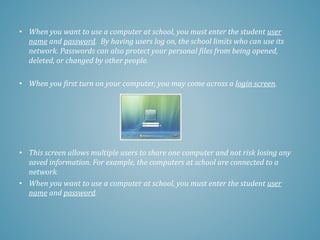
• When you first turn on your computer, you may come across a login screen.
• This screen allows multiple users to share one computer and not risk losing any
saved information. For example, the computers at school are connected to a
network.
• When you want to use a computer at school, you must enter the student user
name and password.
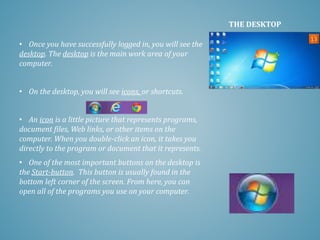
• Once you have successfully logged in, you will see the
desktop. The desktop is the main work area of your
computer.
• On the desktop, you will see icons, or shortcuts.
• An icon is a little picture that represents programs,
document files, Web links, or other items on the
computer. When you double-click an icon, it takes you
directly to the program or document that it represents.
• One of the most important buttons on the desktop is
the Start-button. This button is usually found in the
bottom left corner of the screen. From here, you can
open all of the programs you use on your computer.
THE DESKTOP
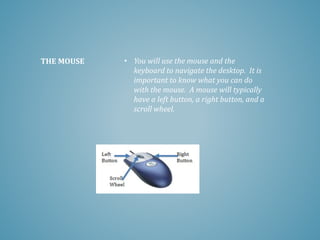
• You will use the mouse and the
keyboard to navigate the desktop. It is
important to know what you can do
with the mouse. A mouse will typically
have a left button, a right button, and a
scroll wheel.
THE MOUSE
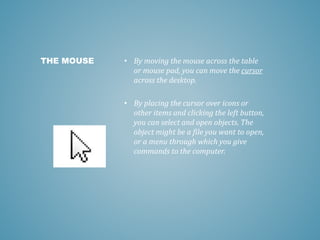
• By moving the mouse across the table
or mouse pad, you can move the cursor
across the desktop.
• By placing the cursor over icons or
other items and clicking the left button,
you can select and open objects. The
object might be a file you want to open,
or a menu through which you give
commands to the computer.
THE MOUSE
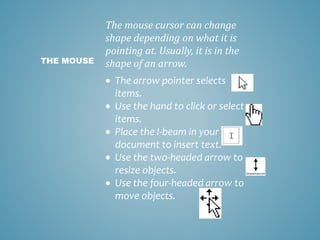
The mouse cursor can change
shape depending on what it is
pointing at. Usually, it is in the
shape of an arrow.
 The arrow pointer selects
items.
 Use the hand to click or select
items.
 Place the I-beam in your
document to insert text.
 Use the two-headed arrow to
resize objects.
 Use the four-headed arrow to
move objects.
THE MOUSE
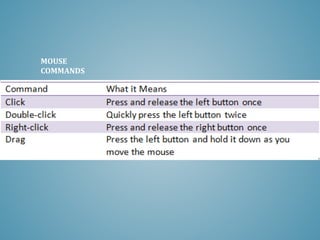
• Most of the time, you will use the left button on
the mouse for clicking and selecting items.
However, the right button has many important
functions too. Typically, you click the right button
to bring up a shortcut to a list of common
functions that pertain to the program you are
currently in.
• The scroll wheel is used to move a page that you
are looking at up and down the screen. A page
may be too long for you to use, so you can roll the
scroll wheel up or down to bring other parts of the
page into view.
MOUSE
COMMANDS
• Although you can use the mouse for
many computer functions, you still need
your keyboard to enter text and numbers.
• You can use the keyboard to do many
things that can be done by clicking a
mouse. For example, you can move the
insertion point with either your mouse or
a keyboard key. The insertion point is the
symbol that shows where you will be
entering text or data on your screen. It is
usually a blinking vertical line.
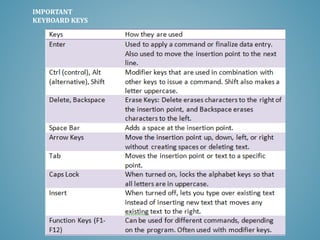
• Most of the keys on the keyboard are
letters, symbols, or numbers. The table
below lists other important keys that you
need to know.
THE KEYBOARD
IMPORTANT
KEYBOARD KEYS
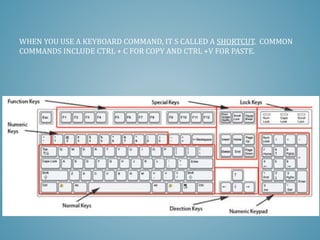
WHEN YOU USE A KEYBOARD COMMAND, IT S CALLED A SHORTCUT. COMMON
COMMANDS INCLUDE CTRL + C FOR COPY AND CTRL +V FOR PASTE.

Week 1 lesson 2 for Intro to Tech class

  • 1.
    WEEK 1: COMPUTER BASICS Lesson 2:How to Navigate Your Desktop • Now that you understand how your computer works, let’s take a look at navigating the desktop and various applications. When you first turn on your computer, you may come across a login screen. This screen allows multiple users to share one computer and not risk losing any saved information. For example, the computers at school are connected to a network.
  • 2.
    • When youwant to use a computer at school, you must enter the student user name and password. By having users log on, the school limits who can use its network. Passwords can also protect your personal files from being opened, deleted, or changed by other people. • When you first turn on your computer, you may come across a login screen. • This screen allows multiple users to share one computer and not risk losing any saved information. For example, the computers at school are connected to a network. • When you want to use a computer at school, you must enter the student user name and password.
  • 3.
    • Once youhave successfully logged in, you will see the desktop. The desktop is the main work area of your computer. • On the desktop, you will see icons, or shortcuts. • An icon is a little picture that represents programs, document files, Web links, or other items on the computer. When you double-click an icon, it takes you directly to the program or document that it represents. • One of the most important buttons on the desktop is the Start-button. This button is usually found in the bottom left corner of the screen. From here, you can open all of the programs you use on your computer. THE DESKTOP
  • 4.
    • You willuse the mouse and the keyboard to navigate the desktop. It is important to know what you can do with the mouse. A mouse will typically have a left button, a right button, and a scroll wheel. THE MOUSE
  • 5.
    • By movingthe mouse across the table or mouse pad, you can move the cursor across the desktop. • By placing the cursor over icons or other items and clicking the left button, you can select and open objects. The object might be a file you want to open, or a menu through which you give commands to the computer. THE MOUSE
  • 6.
    The mouse cursorcan change shape depending on what it is pointing at. Usually, it is in the shape of an arrow.  The arrow pointer selects items.  Use the hand to click or select items.  Place the I-beam in your document to insert text.  Use the two-headed arrow to resize objects.  Use the four-headed arrow to move objects. THE MOUSE
  • 7.
    • Most ofthe time, you will use the left button on the mouse for clicking and selecting items. However, the right button has many important functions too. Typically, you click the right button to bring up a shortcut to a list of common functions that pertain to the program you are currently in. • The scroll wheel is used to move a page that you are looking at up and down the screen. A page may be too long for you to use, so you can roll the scroll wheel up or down to bring other parts of the page into view.
  • 8.
  • 9.
    • Although youcan use the mouse for many computer functions, you still need your keyboard to enter text and numbers. • You can use the keyboard to do many things that can be done by clicking a mouse. For example, you can move the insertion point with either your mouse or a keyboard key. The insertion point is the symbol that shows where you will be entering text or data on your screen. It is usually a blinking vertical line. • Most of the keys on the keyboard are letters, symbols, or numbers. The table below lists other important keys that you need to know. THE KEYBOARD
  • 10.
  • 11.
    WHEN YOU USEA KEYBOARD COMMAND, IT S CALLED A SHORTCUT. COMMON COMMANDS INCLUDE CTRL + C FOR COPY AND CTRL +V FOR PASTE.