WEEBLY
http://goo.gl/SHQbNu
WHY?
A- To better communicate with students &
parents
B- To create a digital portfolio
C- To add enrichment & reinforcement options
D- All or None of the above
MY WEEBLY SKILLS
A- Amazing
B- Not great but I am a whiz with a
computer
C- I can’t answer this question as my
brain is dead after a day of school
D- Don’t have any idea how to use a
computer
I TEACH
A- Wild Animals and Rabid Kids
B- Primary grades
C- Intermediate grades
D- High School
WWW.TINYURL.COM/SHAREDWEEBLY
ADD A SLIDE OF ALL THE WAYS YOU “SHARE” WITH
OTHERS
Go here…
PURPOSE
Which of the items from your “share” could you put on a
website?
• Blog
• Pictures
• Assignments
• Links
• Videos
• Newsletters
• FAQ’s
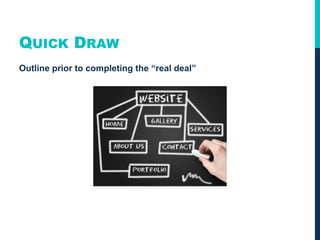
QUICK DRAW
Outline prior to completing the “real deal”
Introduction To Weebly
Every Educator’s Favorite Website Design Tool
WHY WEEBLY
Drag and Drop
Free Account
Multimedia Features
Blogging Options
No Ads
Beautiful Themes
Easy
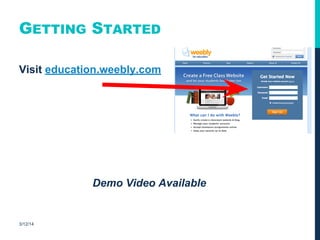
GETTING STARTED
Visit education.weebly.com
Demo Video Available
3/12/14
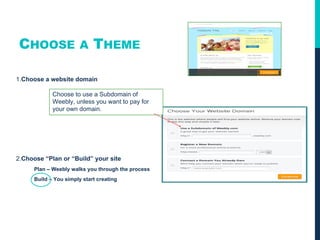
CHOOSE A THEME
1.Choose a website domain
2.Choose “Plan or “Build” your site
Plan – Weebly walks you through the process
Build – You simply start creating
Choose to use a Subdomain of
Weebly, unless you want to pay for
your own domain.
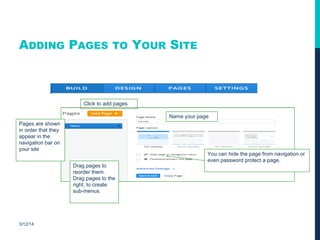
ADDING PAGES TO YOUR SITE
3/12/14
Click to add pages
Pages are shown
in order that they
appear in the
navigation bar on
your site
Drag pages to
reorder them.
Drag pages to the
right, to create
sub-menus.
You can hide the page from navigation or
even password protect a page.
Name your page
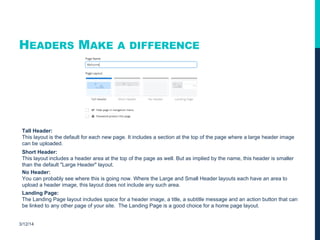
HEADERS MAKE A DIFFERENCE
3/12/14
Tall Header:
This layout is the default for each new page. It includes a section at the top of the page where a large header image
can be uploaded.
Short Header:
This layout includes a header area at the top of the page as well. But as implied by the name, this header is smaller
than the default "Large Header" layout.
No Header:
You can probably see where this is going now. Where the Large and Small Header layouts each have an area to
upload a header image, this layout does not include any such area.
Landing Page:
The Landing Page layout includes space for a header image, a title, a subtitle message and an action button that can
be linked to any other page of your site. The Landing Page is a good choice for a home page layout.
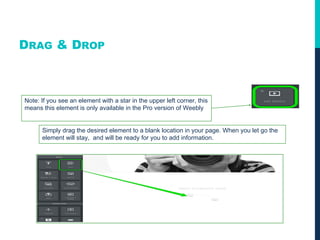
DRAG & DROP
Note: If you see an element with a star in the upper left corner, this
means this element is only available in the Pro version of Weebly
Simply drag the desired element to a blank location in your page. When you let go the
element will stay, and will be ready for you to add information.
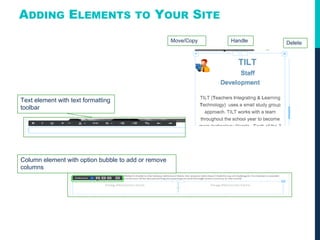
ADDING ELEMENTS TO YOUR SITE
Move/Copy Handle Delete
Text element with text formatting
toolbar
Column element with option bubble to add or remove
columns
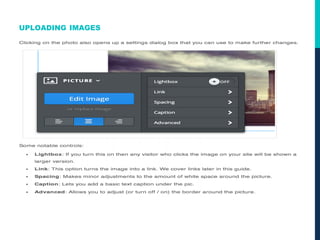
UPLOADING IMAGES
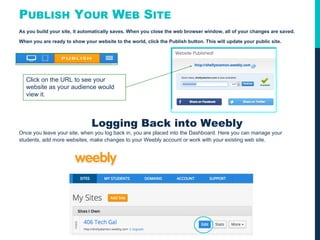
PUBLISH YOUR WEB SITE
As you build your site, it automatically saves. When you close the web browser window, all of your changes are saved.
When you are ready to show your website to the world, click the Publish button. This will update your public site.
Logging Back into Weebly
Once you leave your site, when you log back in, you are placed into the Dashboard. Here you can manage your
students, add more websites, make changes to your Weebly account or work with your existing web site.
Click on the URL to see your
website as your audience would
view it.

Weebly

  • 1.
  • 2.
    WHY? A- To bettercommunicate with students & parents B- To create a digital portfolio C- To add enrichment & reinforcement options D- All or None of the above
  • 3.
    MY WEEBLY SKILLS A-Amazing B- Not great but I am a whiz with a computer C- I can’t answer this question as my brain is dead after a day of school D- Don’t have any idea how to use a computer
  • 4.
    I TEACH A- WildAnimals and Rabid Kids B- Primary grades C- Intermediate grades D- High School
  • 5.
    WWW.TINYURL.COM/SHAREDWEEBLY ADD A SLIDEOF ALL THE WAYS YOU “SHARE” WITH OTHERS Go here…
  • 6.
    PURPOSE Which of theitems from your “share” could you put on a website? • Blog • Pictures • Assignments • Links • Videos • Newsletters • FAQ’s
  • 7.
    QUICK DRAW Outline priorto completing the “real deal”
  • 8.
    Introduction To Weebly EveryEducator’s Favorite Website Design Tool
  • 9.
    WHY WEEBLY Drag andDrop Free Account Multimedia Features Blogging Options No Ads Beautiful Themes Easy
  • 10.
  • 11.
    CHOOSE A THEME 1.Choosea website domain 2.Choose “Plan or “Build” your site Plan – Weebly walks you through the process Build – You simply start creating Choose to use a Subdomain of Weebly, unless you want to pay for your own domain.
  • 13.
    ADDING PAGES TOYOUR SITE 3/12/14 Click to add pages Pages are shown in order that they appear in the navigation bar on your site Drag pages to reorder them. Drag pages to the right, to create sub-menus. You can hide the page from navigation or even password protect a page. Name your page
  • 14.
    HEADERS MAKE ADIFFERENCE 3/12/14 Tall Header: This layout is the default for each new page. It includes a section at the top of the page where a large header image can be uploaded. Short Header: This layout includes a header area at the top of the page as well. But as implied by the name, this header is smaller than the default "Large Header" layout. No Header: You can probably see where this is going now. Where the Large and Small Header layouts each have an area to upload a header image, this layout does not include any such area. Landing Page: The Landing Page layout includes space for a header image, a title, a subtitle message and an action button that can be linked to any other page of your site. The Landing Page is a good choice for a home page layout.
  • 16.
    DRAG & DROP Note:If you see an element with a star in the upper left corner, this means this element is only available in the Pro version of Weebly Simply drag the desired element to a blank location in your page. When you let go the element will stay, and will be ready for you to add information.
  • 17.
    ADDING ELEMENTS TOYOUR SITE Move/Copy Handle Delete Text element with text formatting toolbar Column element with option bubble to add or remove columns
  • 18.
  • 19.
    PUBLISH YOUR WEBSITE As you build your site, it automatically saves. When you close the web browser window, all of your changes are saved. When you are ready to show your website to the world, click the Publish button. This will update your public site. Logging Back into Weebly Once you leave your site, when you log back in, you are placed into the Dashboard. Here you can manage your students, add more websites, make changes to your Weebly account or work with your existing web site. Click on the URL to see your website as your audience would view it.