Web Accessibility and Design


Colin Clark, Fluid Technical Lead & Architect
Justin Obara, Fluid QA Lead
Jess Mitchell, Fluid Project Manager
Topics We’ll Cover
• The Fluid community
• What is accessibility?
• Demo: assistive technologies
• Accessibility, Design, and WCAG 2.0
• Testing for accessibility
• Overview of building accessible
  websites
An Open Source Community for Inclusive Design

Fluid is much more than a software
project. Fluid is culture change, best
practices, a way to approach design,
development, and the power therein.
Fluid...
          http://fluidproject.org

• Is an open source community of
 • Designers
 • Developers
 • Accessibility experts
• Helps other open communities
• Consists of universities, museums and
  individuals
What We Do
• Code (examples, tools, best-practices)
• Design (advice, tools)
• Expertise & Resources
• Teaching & Evangelism
• Help
Tangibles
  • core product: framework,
    code, components


  • project with museums: visitor
    experience


  • project with museums:
    collections management
Fluid Engage

• Open source collaboration with museums
• Visitor engagement: learn and contribute
• Mobile apps and in-gallery kiosks
• Use phones visitors bring into the museum
• All built with open source Web technology
What about you?

• Tell us who you are...
• Particular questions
• Particular concerns or goals for the day
• Structure for the day
What is Accessibility?
A New Definition

• Accessibility is the ability of the system to
  accommodate the needs of the user
• Disability is the mismatch between the user
  and the interface provided
• We all experience disability
• Accessible software = better software
Motivations for
        Accessibility

• Legislative (ADA and Section 508)
 • Target
 • Spy Museum
Target and ADA
                     (brick and mortar vs. the Web)
            “In early 2006, The National Federation of the Blind
            (NFB) and others charged that blind people could
            not access Target.com, citing “public accommodation”
            provisions under the Americans with Disabilities Act
            (ADA).

        Target fought the lawsuit, claiming that ADA provisions
        only related to their “brick-and-mortar” stores. The
        court found that Target.com was a “gateway” to stores
        and “heavily integrated” with physical stores, making the
        website subject to ADA requirements.”
http://gneil.blogspot.com/2008/09/target-6-million-settlement-is-your.html
Spy museum and ADA...
      • Title III of ADA applies to Museums
      • no individual with a disability is discriminated against
           on the basis of a disability in the full and equal
           enjoyment of the entities’ goods, services, and
           facilities
      • a public accommodation must also provide
           appropriate auxiliary aids and services in order to
           ensure effective communication


http://www.ada.gov/spymuseumfctsht.html
Motivations for
        Accessibility

• Legislative (ADA and Section 508)
• Business and outreach (reach everyone)
• Accessible is better (for everyone)
It’s just better
• “curb cut effect” -- everyone benefits
• accessible technology tends to be
 • more interoperable
 • easier to re-purpose
 • more future-proof
 • more robust
 • easier to use on a variety of devices
Models for Web
       Accessibility

• Text-only site
• One site, accessible for all
• Adaptable and Personalizable
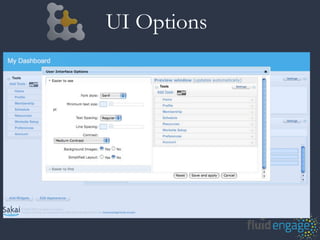
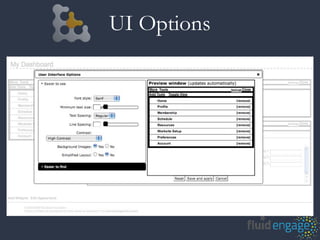
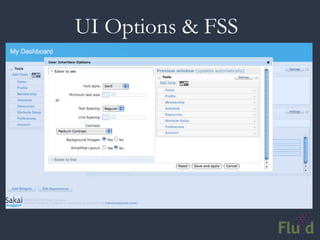
UI Options
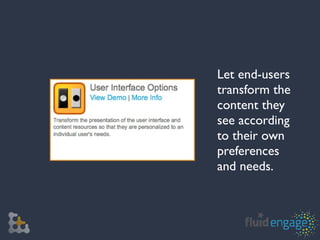
• One size doesn’t fit all
• Allows users to customize your app:
 • layout
 • styling
 • navigation
• Uses FSS by default; can be configured to
  work with your own classes
Let end-users
transform the
content they
see according
to their own
preferences
and needs.
UI Options
UI Options
Assistive Technology Demos
W3C: Web Content
Accessibility Guidelines
     (WCAG) 2.0
•   Principle 1: Perceivable - Information and user
    interface components must be presentable to
    users in ways they can perceive.
•   Principle 2: Operable - User interface
    components and navigation must be operable.
•   Principle 3: Understandable - Information and
    the operation of user interface must be
    understandable.
•   Principle 4: Robust - Content must be robust
    enough that it can be interpreted reliably by a
    wide variety of user agents, including assistive
    technologies.
WCAG is Good Design
Perceivable
• Text alternatives for:
  •   Images

  •   Time-based media

  •   CAPTCHAs

• Adaptable presentation
• Use colour and contrast effectively
• Organize content in a meaningful sequence
           Searchable, readable, faster
Operable

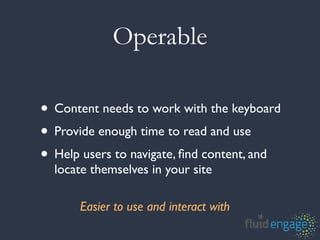
• Content needs to work with the keyboard
• Provide enough time to read and use
• Help users to navigate, find content, and
  locate themselves in your site

      Easier to use and interact with
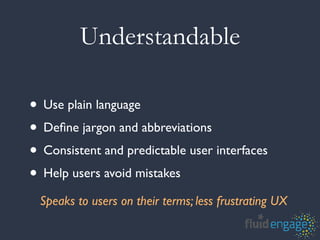
Understandable

• Use plain language
• Define jargon and abbreviations
• Consistent and predictable user interfaces
• Help users avoid mistakes
 Speaks to users on their terms; less frustrating UX
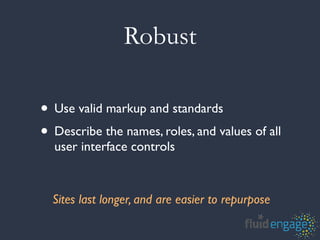
Robust

• Use valid markup and standards
• Describe the names, roles, and values of all
  user interface controls


  Sites last longer, and are easier to repurpose
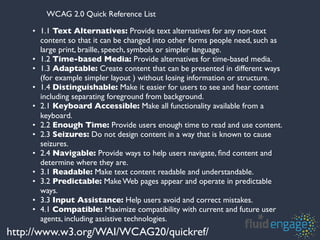
WCAG 2.0 Quick Reference List

    • 1.1 Text Alternatives: Provide text alternatives for any non-text
      content so that it can be changed into other forms people need, such as
      large print, braille, speech, symbols or simpler language.
    • 1.2 Time-based Media: Provide alternatives for time-based media.
    • 1.3 Adaptable: Create content that can be presented in different ways
      (for example simpler layout ) without losing information or structure.
    • 1.4 Distinguishable: Make it easier for users to see and hear content
      including separating foreground from background.
    • 2.1 Keyboard Accessible: Make all functionality available from a
      keyboard.
    • 2.2 Enough Time: Provide users enough time to read and use content.
    • 2.3 Seizures: Do not design content in a way that is known to cause
      seizures.
    • 2.4 Navigable: Provide ways to help users navigate, find content and
      determine where they are.
    • 3.1 Readable: Make text content readable and understandable.
    • 3.2 Predictable: Make Web pages appear and operate in predictable
      ways.
    • 3.3 Input Assistance: Help users avoid and correct mistakes.
    • 4.1 Compatible: Maximize compatibility with current and future user
      agents, including assistive technologies.
http://www.w3.org/WAI/WCAG20/quickref/
Better Usability
        Designing for everyone

• Look at what an interaction is like for
  various users and contexts and then
  (re)envision how it could be
• start with interactions, not technology
• iterative testing
• have a wide-open community
Designing for Everyone
     • Accessibility is no longer optional
     • Visual design is no longer optional
     • Accessibility cannot be absolutely measured
     • Accessibility is a continuum
     • Accessibility and Design have the same
        GOAL

http://webaim.org/blog/access_vs_design/
Designing for Everyone

• Problem Statement / Goals
• Contextual Inquiry / Observations
• Personas / Scenarios
• Design Patterns / Patterns of Activity
• Test Test Test (there are ways to test all of this)
How to start:
1. Use “alt” text
How to start:
1. Use “alt” text
  • caution: it might make you re-think what
    you use as images!
How to start:
1. Use “alt” text
  • caution: it might make you re-think what
    you use as images!
2. Label and describe your content
How to start:
1. Use “alt” text
  • caution: it might make you re-think what
    you use as images!
2. Label and describe your content
  • makes it more robust and searchable
How to start:
1. Use “alt” text
  • caution: it might make you re-think what
    you use as images!
2. Label and describe your content
  • more useful, compatible, and searchable
3. Add captions and transcripts to your media
How to start:
1. Use “alt” text
  • caution: it might make you re-think what you
    use as images!
2. Label and describe your content
  • more useful, compatible, and searchable
3. Add captions and transcripts to your media
  • Searchable, usable in diverse environments
Taking a Look at Accessibility
Testing and Checking

• Fluid UX Walkthroughs
• Evaluators: AChecker, WAVE, and more
• General principles:
 • Flexibility
 • Labelling
 • Alternatives
Step in the shoes of your users...

•   Fluid UX Walkthroughs

•   Easy ways to assess usability and accessibility

•   Combination heuristic evaluation and cognitive walkthrough

•   Translated: a checklist with scenarios

•   Anyone can do one

     http://wiki.fluidproject.org/display/fluid/User+Experience+Walkthroughs
Simple Accessibility Evaluation


1. Try changing your font size, window size and resolution
2. Look critically at your page’s layout, structure & content
3. Use the Tab key to navigate through all controls
4. Check for alternatives to images, sound, and video
Screen Enlargement

When you make things bigger or resize...

1. Is all the text visible?
2. Does it overlap or break up in any way?
3. Are headers and labels still correctly associated?
4. Do columns shift or realign unexpectedly?
Layout and Structure

•   Is the page structured into logical sections?
•   Are the sections clearly labeled?
•   Are there sufficient non-visual cues for site structure?
•   Are there sufficient visual cues?
•   Is the most important information prominent?
•   Is navigation consistent from page to page?
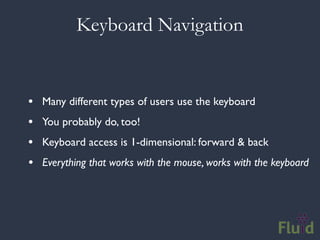
Keyboard Navigation


•   Many different types of users use the keyboard
•   You probably do, too!
•   Keyboard access is 1-dimensional: forward & back
•   Everything that works with the mouse, works with the keyboard
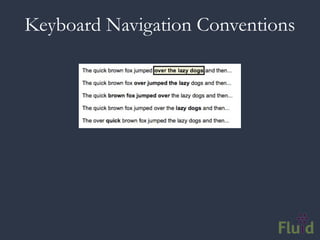
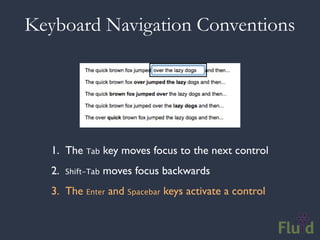
Keyboard Navigation Conventions


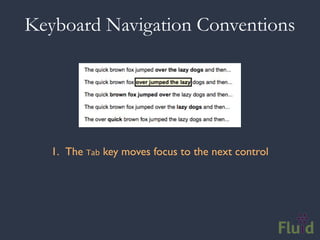
   1. The Tab key moves focus to the next control
Keyboard Navigation Conventions


   1. The Tab key moves focus to the next control
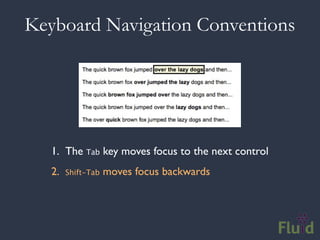
   2.   Shift-Tab   moves focus backwards
Keyboard Navigation Conventions


   1. The Tab key moves focus to the next control
   2.   Shift-Tab   moves focus backwards
   3. The Enter and Spacebar keys activate a control
Keyboard Navigation Checklist


1. Do all links, buttons, and form controls receive focus?
2. Can all controls be activated with Enter or Spacebar?
3. Are there any areas you get stuck or need the mouse?
4. Do calendar pickers and other rich widgets work?
What About Shortcuts?


•   Accessibility guidelines use to suggest “access keys”
•   Keyboard shortcuts bound to the alt key
•   A huge source of controversy
•   Bottom line: don’t add new keyboard shortcuts
Alternatives to Media


1. Do all images have meaningful, non-redundant alt text?
2. Do videos have captions? (They’re easy to add!)
3. Does audio have a transcript?


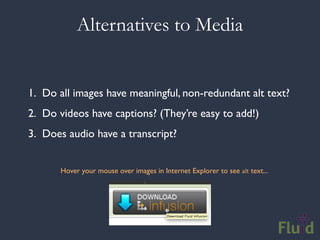
       Hover your mouse over images in Internet Explorer to see alt text...
Tools for Evaluating Accessibility
Evaluation Tools


1. Static Analyzers
2. HTML and CSS
3. Accessibility
HTML & CSS Validation

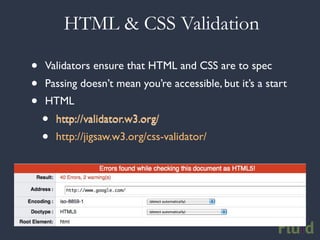
•   Validators ensure that HTML and CSS are to spec
•   Passing doesn’t mean you’re accessible, but it’s a start
•   HTML
    •   http://validator.w3.org/
    •   http://jigsaw.w3.org/css-validator/
Accessibility Checkers

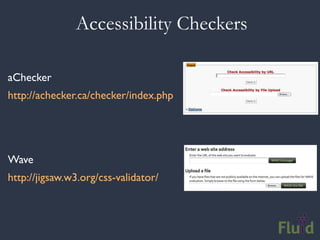
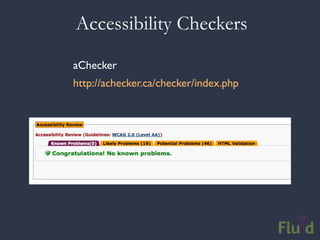
aChecker
http://achecker.ca/checker/index.php


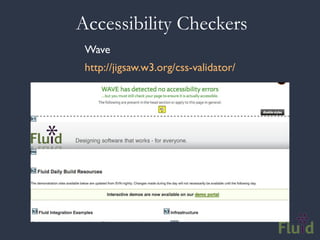
Wave
http://jigsaw.w3.org/css-validator/
Accessibility Checkers
aChecker
http://achecker.ca/checker/index.php
Accessibility Checkers
 Wave
 http://jigsaw.w3.org/css-validator/
Accessibility Checkers:
       What They Do

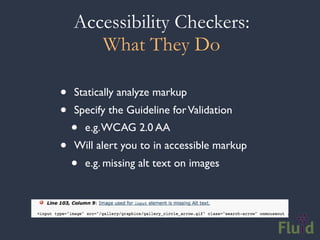
•   Statically analyze markup
•   Specify the Guideline for Validation
    •   e.g. WCAG 2.0 AA
•   Will alert you to in accessible markup
    •   e.g. missing alt text on images
Accessibility Checkers:
         Limitations
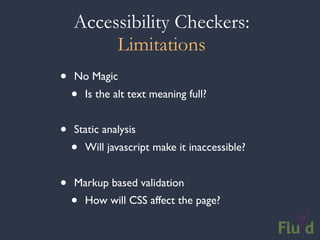
•   No Magic
    •   Is the alt text meaning full?


•   Static analysis
    •   Will javascript make it inaccessible?


•   Markup based validation
    •   How will CSS affect the page?
Colour Validation


              •   View in respect to Colour Blindness
              •   Determine Adjustability of Colours


http://colorfilter.wickline.org
http://vischeck.com
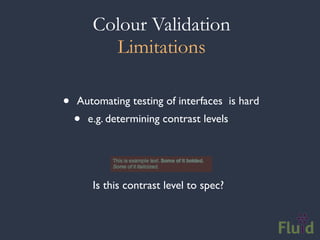
Colour Validation
           Limitations

•   Automating testing of interfaces is hard
    •   e.g. determining contrast levels


         Is this contrast level to spec?
Design Early


  Easier and cheaper to make good design choices early


      Colour Pickers that also measure contrast
http://gmazzocato.altervista.org/colorwheel/wheel.php
http://www.snook.ca/technical/colour_contrast/colour.html
Accessible Markup
Concepts of HTML Accessibility


• Label as much as you can
• Use semantic markup to describe your page
• Design in layers
 • Textual alternatives
 • Clearly delineate navigation from content
what is “alt” text?
          It is read by screen readers in place of images
          allowing the content and function of the image to be
          accessible to those with visual or certain cognitive
          disabilities.
        • It is displayed in place of the image in user agents
          (browsers) that don't support the display of images
          or when the user has chosen not to view images.
        • It provides a semantic meaning and description to
          images which can be read by search engines or be
          used to later determine the content of the image
          from page context alone.

http://www.webaim.org/techniques/alttext/
The “alt” attribute
       •Be accurate and equivalent in presenting the
        same content and function as presented by
        the image.
       •Be succinct. Typically no more than a few
        words are necessary.
       •NOT be redundant or provide the exact same
        information as text within the context.
       •NOT use the phrases "image of ..." or "graphic
        of ..." to describe the image. It usually
        apparent to the user that it is an image.

http://www.webaim.org/techniques/alttext/
“alt” text in code


<img src="boat.gif" alt="Big Boat" />
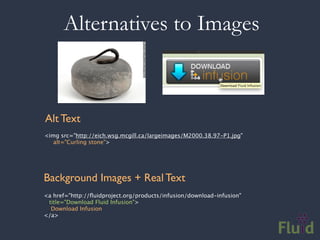
Alternatives to Images


Alt Text
<img src="http://eich.wsg.mcgill.ca/largeimages/M2000.38.97-P1.jpg"
   alt="Curling stone">


Background Images + Real Text
<a href="http://fluidproject.org/products/infusion/download-infusion"
 title="Download Fluid Infusion">
  Download Infusion
</a>
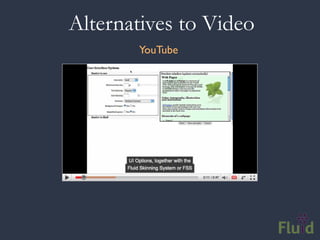
Alternatives to Video
       YouTube
Captioning
               YouTube and beyond


• Captions are great for everyone
• They make your videos search-friendly
• YouTube Automatic Captioning
 • Speech recognition: pretty awkward
 • Supply a transcript: quick and reliable
• Flash has a11y problems, but HTML 5 is coming
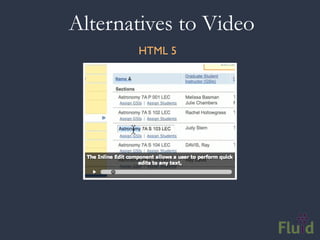
Alternatives to Video
       HTML 5
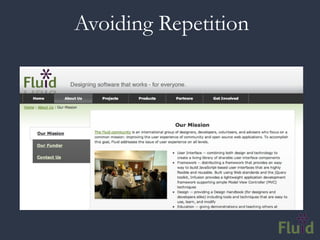
Avoiding Repetition
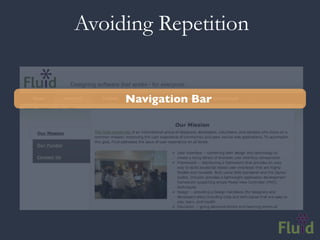
Avoiding Repetition


     Navigation Bar
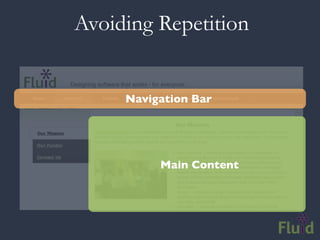
Avoiding Repetition


     Navigation Bar


          Main Content
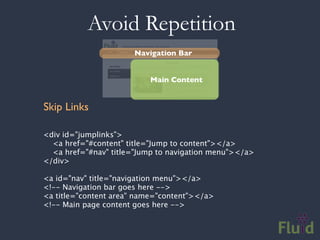
Avoid Repetition
                      Navigation Bar


                          Main Content


Skip Links

<div id="jumplinks">
  <a href="#content" title="Jump to content"></a>
  <a href="#nav" title="Jump to navigation menu"></a>
</div>

<a id="nav" title="navigation menu"></a>
<!-- Navigation bar goes here -->
<a title="content area" name="content"></a>
<!-- Main page content goes here -->
Designing Navigation


• Keep in mind that keyboard navigation is:
 • not just for screen reader users
 • is linear and 1-dimensional
 • can be slow and tedious
• Skip links should be available and visible to all
• Place them as high in the page as possible
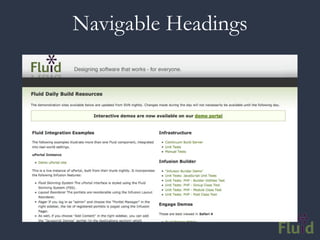
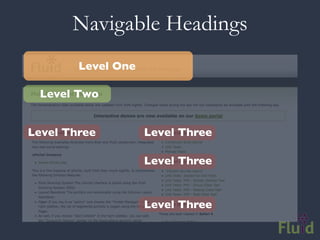
Navigable Headings
Navigable Headings
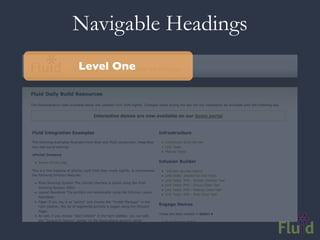
Level One
Navigable Headings
      Level One

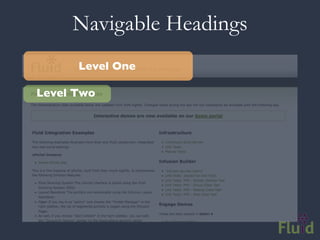
Level Two
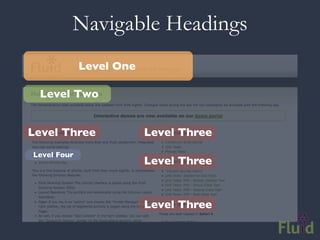
Navigable Headings
        Level One

 Level Two


Level Three         Level Three

                    Level Three


                    Level Three
Navigable Headings
             Level One

 Level Two


Level Three              Level Three
Level Four
                         Level Three


                         Level Three
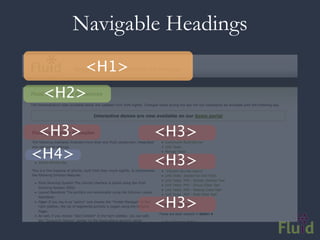
Navigable Headings
       <H1>
 <H2>

<H3>          <H3>
<H4>          <H3>

              <H3>
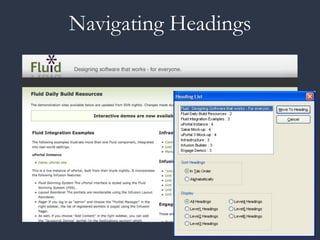
Navigating Headings
Navigable Headings


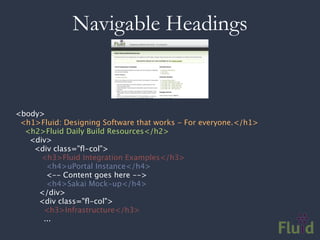
<body>
  <h1>Fluid: Designing Software that works - For everyone.</h1>
    <h2>Fluid Daily Build Resources</h2>
      <div>
        <div class="fl-col">            
          <h3>Fluid Integration Examples</h3>
            <h4>uPortal Instance</h4>
            <-- Content goes here -->
             <h4>Sakai Mock-up</h4>
          </div>
          <div class="fl-col">  
            <h3>Infrastructure</h3>
            ...
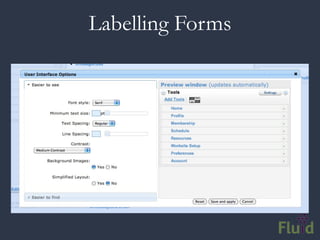
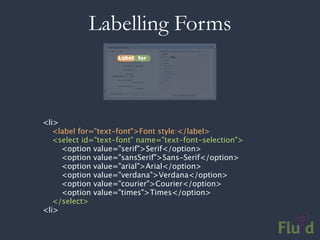
Labelling Forms
Labelling Forms


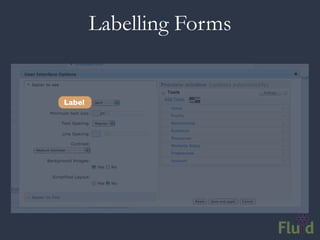
Label
Labelling Forms


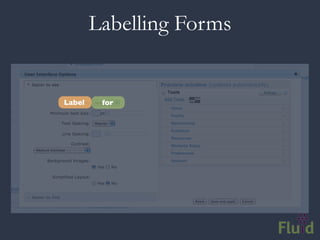
Label    for
Labelling Forms
                   Label for


<li>
   <label for="text-font">Font style:</label>
   <select id="text-font" name="text-font-selection">
     <option value="serif">Serif</option>
     <option value="sansSerif">Sans-Serif</option>
     <option value="arial">Arial</option>
     <option value="verdana">Verdana</option>
     <option value="courier">Courier</option>
     <option value="times">Times</option>
   </select>
<li>
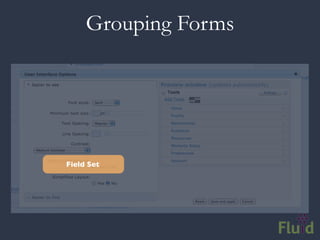
Grouping Forms


Field Set
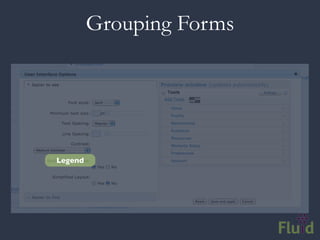
Grouping Forms


Legend
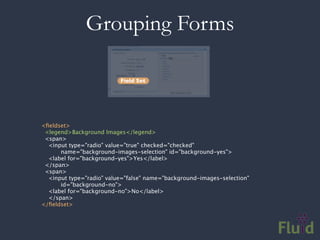
Grouping Forms

                          Field Set


<fieldset>
  <legend>Background Images</legend>
  <span>
  <input type="radio" value="true" checked="checked"
        name="background-images-selection" id="background-yes">
    <label for="background-yes">Yes</label>
  </span>
  <span>
  <input type="radio" value="false" name="background-images-selection"
        id="background-no">
    <label for="background-no">No</label>
    </span>
</fieldset>
Tables


• Tables got a really bad rap in the ‘90s
• Deservedly so
• Use them for data, not layouts
• They can be big: summarize them
• Seriously, you don’t need them for layouts
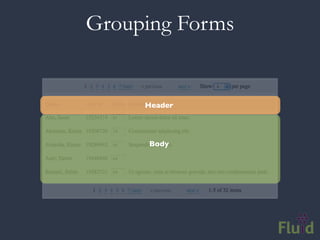
Grouping Forms


     Header


     Body
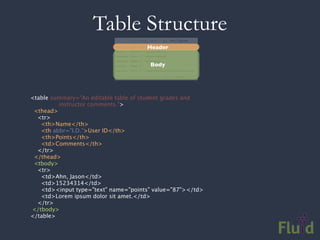
Table Structure
                                       Header


                                        Body


<table summary="An editable table of student grades and
            instructor comments.">
  <thead>
  <tr>
    <th>Name</th>
      <th abbr="I.D.”>User ID</th>
      <th>Points</th>
      <td>Comments</th>
    </tr>
  </thead>
  <tbody>
  <tr>
    <td>Ahn, Jason</td>
      <td>15234314</td>
      <td><input type="text" name="points" value="87"></td>
      <td>Lorem ipsum dolor sit amet.</td>
    </tr>
 </tbody>
</table>
Web 2.0 Accessibility
What is Accessibility?
A New Definition

• Accessibility is the ability of the system to
  accommodate the needs of the user
• Disability is the mismatch between the user
  and the interface provided
• We all experience disability
• Accessible software = better software
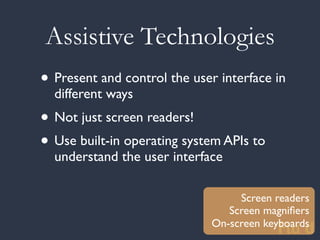
Assistive Technologies
• Present and control the user interface in
  different ways
• Not just screen readers!
• Use built-in operating system APIs to
  understand the user interface

                                   Screen readers
                                 Screen magnifiers
                              On-screen keyboards
DHTML: A New Can of Worms


• Shift from documents to applications
• Familiar a11y techniques aren’t enough
• Most DHTML is completely inaccessible
• New techniques are still being figured out
The Problem

• Custom widgets often look, but don’t act,
  like their counterparts on the desktop
• HTML provides only simple semantics
• Not enough information for ATs
• Dynamic updates require new design
  strategies to be accessible
The Solution


• Describe user interfaces with ARIA
• Add consistent keyboard controls
• Provide flexible styling and presentation
Supporting Assistive Technology
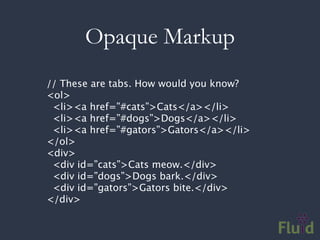
Opaque Markup
// These are tabs. How would you know?
<ol>
 <li><a href=”#cats”>Cats</a></li>
 <li><a href=”#dogs”>Dogs</a></li>
 <li><a href=”#gators”>Gators</a></li>
</ol>
<div>
 <div id=”cats”>Cats meow.</div>
 <div id=”dogs”>Dogs bark.</div>
 <div id=”gators”>Gators bite.</div>
</div>
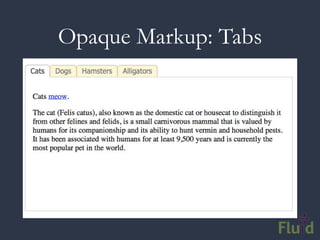
Opaque Markup: Tabs
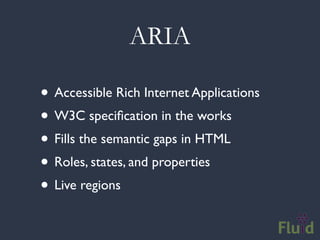
ARIA

• Accessible Rich Internet Applications
• W3C specification in the works
• Fills the semantic gaps in HTML
• Roles, states, and properties
• Live regions
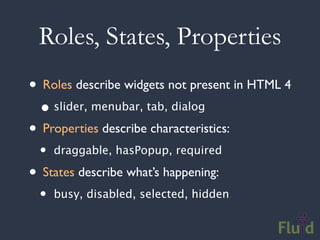
Roles, States, Properties
• Roles describe widgets not present in HTML 4
  • slider, menubar, tab, dialog
• Properties describe characteristics:
  •   draggable, hasPopup, required

• States describe what’s happening:
  •   busy, disabled, selected, hidden
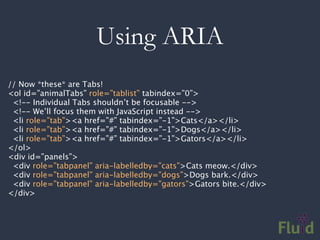
Using ARIA
// Now *these* are Tabs!
<ol id=”animalTabs” role=”tablist” tabindex=”0”>
 <!-- Individual Tabs shouldn’t be focusable -->
 <!-- We’ll focus them with JavaScript instead -->
 <li role=”tab”><a href=”#” tabindex=”-1”>Cats</a></li>
 <li role=”tab”><a href=”#” tabindex=”-1”>Dogs</a></li>
 <li role=”tab”><a href=”#” tabindex=”-1”>Gators</a></li>
</ol>
<div id=”panels”>
 <div role=”tabpanel” aria-labelledby=”cats”>Cats meow.</div>
 <div role=”tabpanel” aria-labelledby=”dogs”>Dogs bark.</div>
 <div role=”tabpanel” aria-labelledby=”gators”>Gators bite.</div>
</div>
Adding ARIA in Code
// Identify the container as a list of tabs.
tabContainer.attr("role", "tablist");

// Give each tab the "tab" role.
tabs.attr("role", "tab");

// Give each panel the appropriate role,          panels.attr("role",
"tabpanel");
panels.each(function (idx, panel) {
   var tabForPanel = that.tabs.eq(idx);
   // Relate the panel to the tab that labels it.
   $(panel).attr("aria-labelledby", tabForPanel[0].id);
});
Keyboard Accessibility
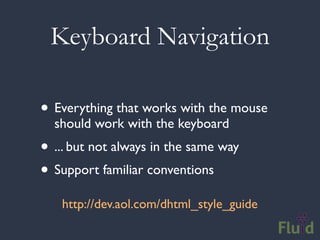
Keyboard Navigation

• Everything that works with the mouse
  should work with the keyboard
• ... but not always in the same way
• Support familiar conventions
   http://dev.aol.com/dhtml_style_guide
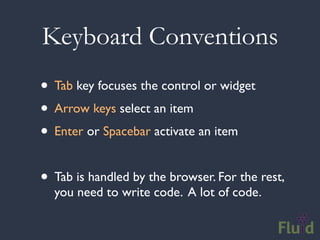
Keyboard Conventions
• Tab key focuses the control or widget
• Arrow keys select an item
• Enter or Spacebar activate an item

• Tab is handled by the browser. For the rest,
  you need to write code. A lot of code.
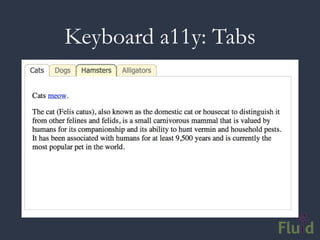
Keyboard a11y: Tabs
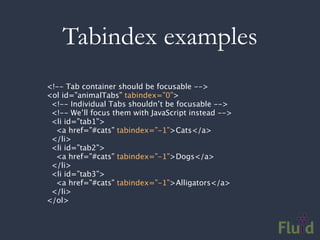
Tabindex examples
<!-- Tab container should be focusable -->
<ol id=”animalTabs” tabindex=”0”>
 <!-- Individual Tabs shouldn’t be focusable -->
 <!-- We’ll focus them with JavaScript instead -->
 <li id=”tab1”>
  <a href=”#cats” tabindex=”-1”>Cats</a>
 </li>
 <li id=”tab2”>
  <a href=”#cats” tabindex=”-1”>Dogs</a>
 </li>
 <li id=”tab3”>
  <a href=”#cats” tabindex=”-1”>Alligators</a>
 </li>
</ol>
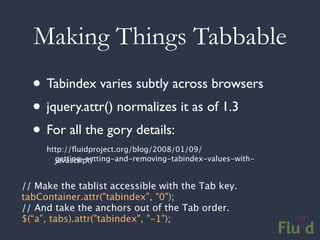
Making Things Tabbable
  • Tabindex varies subtly across browsers
  • jquery.attr() normalizes it as of 1.3
  • For all the gory details:
     http://fluidproject.org/blog/2008/01/09/
       getting-setting-and-removing-tabindex-values-with-
       javascript/


// Make the tablist accessible with the Tab key.
tabContainer.attr("tabindex", "0");
// And take the anchors out of the Tab order.
$(“a”, tabs).attr("tabindex", "-1");
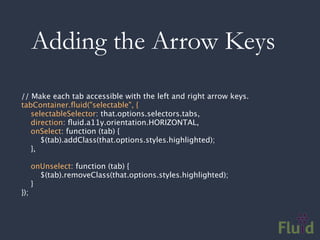
Adding the Arrow Keys
// Make each tab accessible with the left and right arrow keys.
tabContainer.fluid("selectable", {
   selectableSelector: that.options.selectors.tabs,
   direction: fluid.a11y.orientation.HORIZONTAL,
   onSelect: function (tab) {
      $(tab).addClass(that.options.styles.highlighted);
   },

      onUnselect: function (tab) {
        $(tab).removeClass(that.options.styles.highlighted);
      }
});
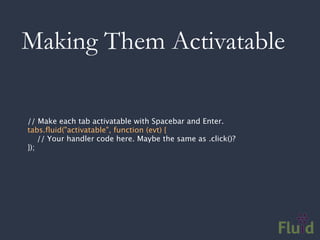
Making Them Activatable

// Make each tab activatable with Spacebar and Enter.
tabs.fluid("activatable", function (evt) {
    // Your handler code here. Maybe the same as .click()?
});
Documentation

• Tutorial:
 http://wiki.fluidproject.org/display/fluid/Keyboard+Accessibility
 +Tutorial


• API Reference:
 http://wiki.fluidproject.org/display/fluid/Keyboard+Accessibility
 +Plugin+API
Accessibility Resources
http://codetalks.org

http://wiki.fluidproject.org/display/fluid/DHTML+Developer+Checklist

http://wiki.fluidproject.org/display/fluid/UX+Accessibility+Walkthrough
+Protocols

http://developer.mozilla.org/en/docs/Accessible_DHTML

http://developer.mozilla.org/en/docs/Key-
navigable_custom_DHTML_widgets

http://developer.mozilla.org/en/docs/AJAX:WAI_ARIA_Live_Regions
Toolkit Accessibility
Dojo
• The first to tackle DHTML accessibility
• Accessibility features include:
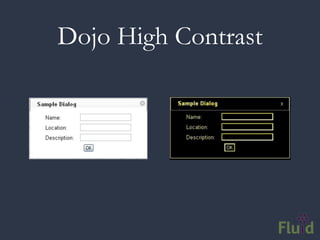
 • Support for Windows High Contrast
 • Comprehensive ARIA library
 • Keyboard navigation
• Most core widgets are covered
Dojo High Contrast
jQuery
• A truly community-driven effort
• A step-by-step approach
• Features include:
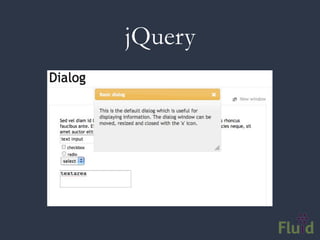
 • Several accessible widgets, more to come
 • Comprehensive ARIA library
 • Keyboard navigation in progress
jQuery
http://fluidproject.org/products/infusion/
Meet Infusion

• Application framework built on top of jQuery
• The culmination of our work helping others
• Designed for usability and accessibility
• Open architecture: everything is configurable
What’s in Infusion?


• A development framework for building apps
• UI components you can reuse and adapt
• Lightweight CSS framework for styling
• Accessibility tools and plugins for jQuery
a11y: Infusion Goes Deeper

• jQuery Keyboard Navigation Plugin
• ARIA everywhere
• Everything is highly adaptable and flexible
• UI Options and the Fluid Skinning System:
 • Users can customize their environment
Building Great UIs Is Hard

  • Your code gets unruly as it grows
  • UIs are hard to reuse or repurpose
  • Design change requires big code change
  • Accessibility is confusing
  • Combining different code/libraries doesn’t
    always work
Flexible User Interfaces


Infusion is an application framework designed to
provide unprecedented flexibility while
preserving interoperability.
Types of JavaScript Tools

• Foundational Toolkits
• Widget libraries
• Application Frameworks
     ... compare and contrast
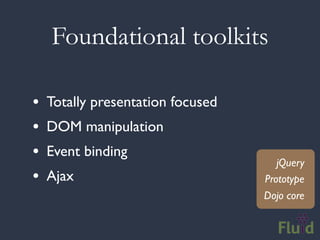
Foundational toolkits

•   Totally presentation focused
•   DOM manipulation
•   Event binding
                                      jQuery
•   Ajax                           Prototype
                                   Dojo core
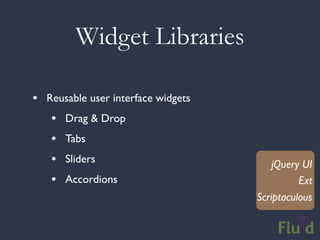
Widget Libraries

• Reusable user interface widgets
   • Drag & Drop
   • Tabs
   • Sliders                            jQuery UI
   • Accordions                               Ext
                                    Scriptaculous
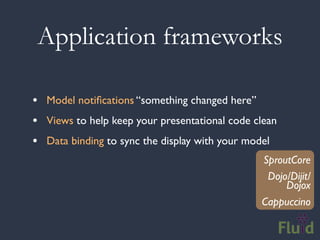
Application frameworks

• Model notifications “something changed here”
• Views to help keep your presentational code clean
• Data binding to sync the display with your model
                                               SproutCore
                                                Dojo/Dijit/
                                                    Dojox
                                               Cappuccino
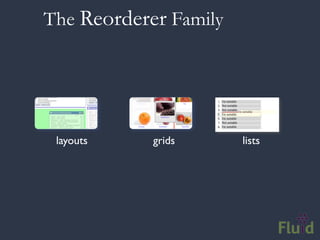
The Reorderer Family


 layouts    grids      lists
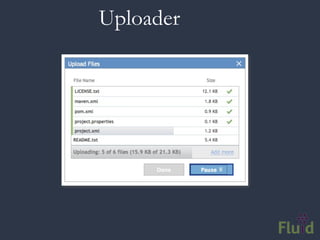
Uploader
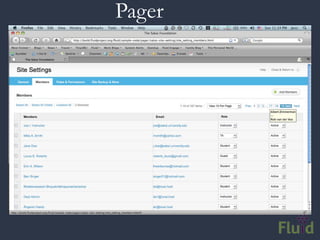
Pager
UI Options & FSS
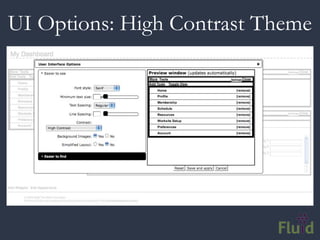
UI Options: High Contrast Theme
Infusion is Different

• Accessibility baked right in
• Carefully designed interactions
• Markup is in your control
• Not the same old MVC
• Supports portals, mashups and CMS’s
CSS Frameworks
“If you’re going to use a framework, it
should be yours; one that you’ve created.
You can look at existing frameworks for
ideas and hack at it. But the professionals
in this room are not well served by picking
up a framework and using it as-is.”
                               - Eric Meyer
Fluid Skinning System

• FSS is built to be hacked on
• Provides a core set of building blocks
• Reset, text, layouts, themes
• Namespaced: no conflicts with your stuff
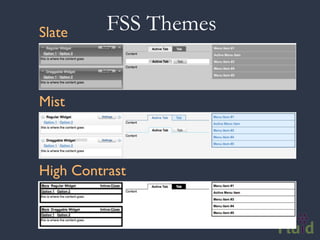
• Themes for better legibility & readability
       http://wiki.fluidproject.org/x/96M7
Building with FSS
Code!
Slate     FSS Themes


Mist


High Contrast
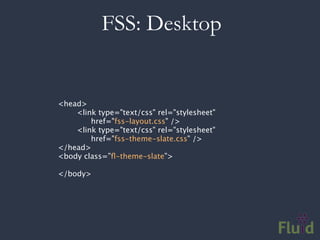
FSS: Desktop


<head>
    <link type="text/css" rel="stylesheet"
        href="fss-layout.css" />
    <link type="text/css" rel="stylesheet"
        href="fss-theme-slate.css" />
</head>
<body class=”fl-theme-slate”>

</body>
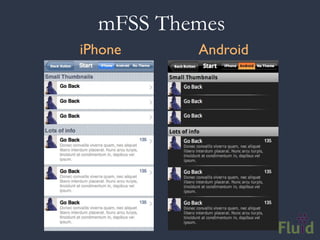
mFSS Themes
iPhone    Android
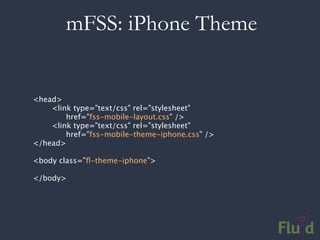
mFSS: iPhone Theme


<head>
    <link type="text/css" rel="stylesheet"
        href="fss-mobile-layout.css" />
    <link type="text/css" rel="stylesheet"
        href="fss-mobile-theme-iphone.css" />
</head>

<body class=”fl-theme-iphone”>

</body>
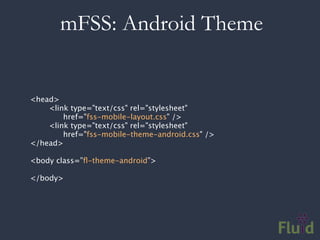
mFSS: Android Theme


<head>
    <link type="text/css" rel="stylesheet"
        href="fss-mobile-layout.css" />
    <link type="text/css" rel="stylesheet"
        href="fss-mobile-theme-android.css" />
</head>

<body class=”fl-theme-android”>

</body>
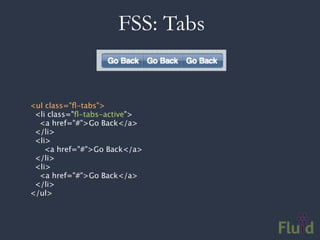
FSS: Tabs


<ul class="fl-tabs">
  <li class="fl-tabs-active">
   <a href="#">Go Back</a>
  </li>
  <li>
     <a href="#">Go Back</a>
  </li>
  <li>
   <a href="#">Go Back</a>
  </li>
</ul>
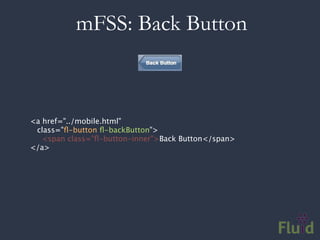
mFSS: Back Button


<a href="../mobile.html"
 class="fl-button fl-backButton">
   <span class="fl-button-inner">Back Button</span>
</a>
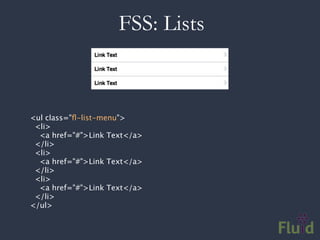
FSS: Lists


<ul class="fl-list-menu">
  <li>
   <a href="#">Link Text</a>
  </li>
  <li>
   <a href="#">Link Text</a>
  </li>
  <li>
   <a href="#">Link Text</a>
  </li>
</ul>
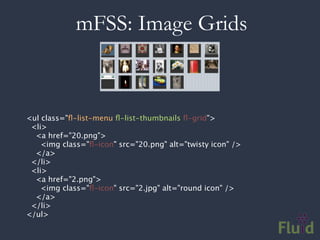
mFSS: Image Grids


<ul class="fl-list-menu fl-list-thumbnails fl-grid">
  <li>
  <a href="20.png">
    <img class="fl-icon" src="20.png" alt="twisty icon" />
    </a>
  </li>
  <li>
  <a href="2.png">
    <img class="fl-icon" src="2.jpg" alt="round icon" />
    </a>
  </li>
</ul>
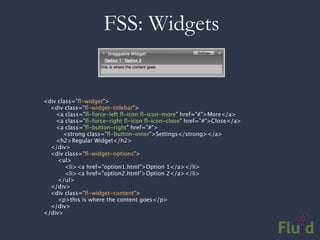
FSS: Widgets

                
<div class="fl-widget">
    <div class="fl-widget-titlebar">
     <a class="fl-force-left fl-icon fl-icon-more" href="#">More</a>
       <a class="fl-force-right fl-icon fl-icon-close" href="#">Close</a>
       <a class="fl-button-right" href="#">
           <strong class="fl-button-inner">Settings</strong></a>
       <h2>Regular Widget</h2>
    </div>
    <div class="fl-widget-options">
     <ul>
         <li><a href="option1.html">Option 1</a></li>
            <li><a href="option2.html">Option 2</a></li>
        </ul>
    </div>
    <div class="fl-widget-content">
        <p>this is where the content goes</p>
    </div>
</div>
Links to get started

• http://www.alistapart.com
• http://webaim.org
• http://wiki.fluidproject.org/display/fluid/
  Design+Handbook
Questions?

Web Accessibility and Design

  • 1.
    Web Accessibility andDesign Colin Clark, Fluid Technical Lead & Architect Justin Obara, Fluid QA Lead Jess Mitchell, Fluid Project Manager
  • 2.
    Topics We’ll Cover •The Fluid community • What is accessibility? • Demo: assistive technologies • Accessibility, Design, and WCAG 2.0 • Testing for accessibility • Overview of building accessible websites
  • 3.
    An Open SourceCommunity for Inclusive Design Fluid is much more than a software project. Fluid is culture change, best practices, a way to approach design, development, and the power therein.
  • 4.
    Fluid... http://fluidproject.org • Is an open source community of • Designers • Developers • Accessibility experts • Helps other open communities • Consists of universities, museums and individuals
  • 5.
    What We Do •Code (examples, tools, best-practices) • Design (advice, tools) • Expertise & Resources • Teaching & Evangelism • Help
  • 6.
    Tangibles •core product: framework, code, components • project with museums: visitor experience • project with museums: collections management
  • 7.
    Fluid Engage • Opensource collaboration with museums • Visitor engagement: learn and contribute • Mobile apps and in-gallery kiosks • Use phones visitors bring into the museum • All built with open source Web technology
  • 8.
    What about you? •Tell us who you are... • Particular questions • Particular concerns or goals for the day • Structure for the day
  • 9.
  • 10.
    A New Definition •Accessibility is the ability of the system to accommodate the needs of the user • Disability is the mismatch between the user and the interface provided • We all experience disability • Accessible software = better software
  • 11.
    Motivations for Accessibility • Legislative (ADA and Section 508) • Target • Spy Museum
  • 12.
    Target and ADA (brick and mortar vs. the Web) “In early 2006, The National Federation of the Blind (NFB) and others charged that blind people could not access Target.com, citing “public accommodation” provisions under the Americans with Disabilities Act (ADA). Target fought the lawsuit, claiming that ADA provisions only related to their “brick-and-mortar” stores. The court found that Target.com was a “gateway” to stores and “heavily integrated” with physical stores, making the website subject to ADA requirements.” http://gneil.blogspot.com/2008/09/target-6-million-settlement-is-your.html
  • 13.
    Spy museum andADA... • Title III of ADA applies to Museums • no individual with a disability is discriminated against on the basis of a disability in the full and equal enjoyment of the entities’ goods, services, and facilities • a public accommodation must also provide appropriate auxiliary aids and services in order to ensure effective communication http://www.ada.gov/spymuseumfctsht.html
  • 14.
    Motivations for Accessibility • Legislative (ADA and Section 508) • Business and outreach (reach everyone) • Accessible is better (for everyone)
  • 15.
    It’s just better •“curb cut effect” -- everyone benefits • accessible technology tends to be • more interoperable • easier to re-purpose • more future-proof • more robust • easier to use on a variety of devices
  • 16.
    Models for Web Accessibility • Text-only site • One site, accessible for all • Adaptable and Personalizable
  • 17.
    UI Options • Onesize doesn’t fit all • Allows users to customize your app: • layout • styling • navigation • Uses FSS by default; can be configured to work with your own classes
  • 18.
    Let end-users transform the contentthey see according to their own preferences and needs.
  • 19.
  • 20.
  • 21.
  • 22.
    W3C: Web Content AccessibilityGuidelines (WCAG) 2.0
  • 23.
    Principle 1: Perceivable - Information and user interface components must be presentable to users in ways they can perceive. • Principle 2: Operable - User interface components and navigation must be operable. • Principle 3: Understandable - Information and the operation of user interface must be understandable. • Principle 4: Robust - Content must be robust enough that it can be interpreted reliably by a wide variety of user agents, including assistive technologies.
  • 24.
  • 25.
    Perceivable • Text alternativesfor: • Images • Time-based media • CAPTCHAs • Adaptable presentation • Use colour and contrast effectively • Organize content in a meaningful sequence Searchable, readable, faster
  • 26.
    Operable • Content needsto work with the keyboard • Provide enough time to read and use • Help users to navigate, find content, and locate themselves in your site Easier to use and interact with
  • 27.
    Understandable • Use plainlanguage • Define jargon and abbreviations • Consistent and predictable user interfaces • Help users avoid mistakes Speaks to users on their terms; less frustrating UX
  • 28.
    Robust • Use validmarkup and standards • Describe the names, roles, and values of all user interface controls Sites last longer, and are easier to repurpose
  • 29.
    WCAG 2.0 QuickReference List • 1.1 Text Alternatives: Provide text alternatives for any non-text content so that it can be changed into other forms people need, such as large print, braille, speech, symbols or simpler language. • 1.2 Time-based Media: Provide alternatives for time-based media. • 1.3 Adaptable: Create content that can be presented in different ways (for example simpler layout ) without losing information or structure. • 1.4 Distinguishable: Make it easier for users to see and hear content including separating foreground from background. • 2.1 Keyboard Accessible: Make all functionality available from a keyboard. • 2.2 Enough Time: Provide users enough time to read and use content. • 2.3 Seizures: Do not design content in a way that is known to cause seizures. • 2.4 Navigable: Provide ways to help users navigate, find content and determine where they are. • 3.1 Readable: Make text content readable and understandable. • 3.2 Predictable: Make Web pages appear and operate in predictable ways. • 3.3 Input Assistance: Help users avoid and correct mistakes. • 4.1 Compatible: Maximize compatibility with current and future user agents, including assistive technologies. http://www.w3.org/WAI/WCAG20/quickref/
  • 30.
    Better Usability Designing for everyone • Look at what an interaction is like for various users and contexts and then (re)envision how it could be • start with interactions, not technology • iterative testing • have a wide-open community
  • 31.
    Designing for Everyone • Accessibility is no longer optional • Visual design is no longer optional • Accessibility cannot be absolutely measured • Accessibility is a continuum • Accessibility and Design have the same GOAL http://webaim.org/blog/access_vs_design/
  • 32.
    Designing for Everyone •Problem Statement / Goals • Contextual Inquiry / Observations • Personas / Scenarios • Design Patterns / Patterns of Activity • Test Test Test (there are ways to test all of this)
  • 33.
    How to start: 1.Use “alt” text
  • 34.
    How to start: 1.Use “alt” text • caution: it might make you re-think what you use as images!
  • 35.
    How to start: 1.Use “alt” text • caution: it might make you re-think what you use as images! 2. Label and describe your content
  • 36.
    How to start: 1.Use “alt” text • caution: it might make you re-think what you use as images! 2. Label and describe your content • makes it more robust and searchable
  • 37.
    How to start: 1.Use “alt” text • caution: it might make you re-think what you use as images! 2. Label and describe your content • more useful, compatible, and searchable 3. Add captions and transcripts to your media
  • 38.
    How to start: 1.Use “alt” text • caution: it might make you re-think what you use as images! 2. Label and describe your content • more useful, compatible, and searchable 3. Add captions and transcripts to your media • Searchable, usable in diverse environments
  • 39.
    Taking a Lookat Accessibility
  • 40.
    Testing and Checking •Fluid UX Walkthroughs • Evaluators: AChecker, WAVE, and more • General principles: • Flexibility • Labelling • Alternatives
  • 41.
    Step in theshoes of your users... • Fluid UX Walkthroughs • Easy ways to assess usability and accessibility • Combination heuristic evaluation and cognitive walkthrough • Translated: a checklist with scenarios • Anyone can do one http://wiki.fluidproject.org/display/fluid/User+Experience+Walkthroughs
  • 42.
    Simple Accessibility Evaluation 1.Try changing your font size, window size and resolution 2. Look critically at your page’s layout, structure & content 3. Use the Tab key to navigate through all controls 4. Check for alternatives to images, sound, and video
  • 43.
    Screen Enlargement When youmake things bigger or resize... 1. Is all the text visible? 2. Does it overlap or break up in any way? 3. Are headers and labels still correctly associated? 4. Do columns shift or realign unexpectedly?
  • 44.
    Layout and Structure • Is the page structured into logical sections? • Are the sections clearly labeled? • Are there sufficient non-visual cues for site structure? • Are there sufficient visual cues? • Is the most important information prominent? • Is navigation consistent from page to page?
  • 45.
    Keyboard Navigation • Many different types of users use the keyboard • You probably do, too! • Keyboard access is 1-dimensional: forward & back • Everything that works with the mouse, works with the keyboard
  • 46.
  • 47.
    Keyboard Navigation Conventions 1. The Tab key moves focus to the next control
  • 48.
    Keyboard Navigation Conventions 1. The Tab key moves focus to the next control 2. Shift-Tab moves focus backwards
  • 49.
    Keyboard Navigation Conventions 1. The Tab key moves focus to the next control 2. Shift-Tab moves focus backwards 3. The Enter and Spacebar keys activate a control
  • 50.
    Keyboard Navigation Checklist 1.Do all links, buttons, and form controls receive focus? 2. Can all controls be activated with Enter or Spacebar? 3. Are there any areas you get stuck or need the mouse? 4. Do calendar pickers and other rich widgets work?
  • 51.
    What About Shortcuts? • Accessibility guidelines use to suggest “access keys” • Keyboard shortcuts bound to the alt key • A huge source of controversy • Bottom line: don’t add new keyboard shortcuts
  • 52.
    Alternatives to Media 1.Do all images have meaningful, non-redundant alt text? 2. Do videos have captions? (They’re easy to add!) 3. Does audio have a transcript? Hover your mouse over images in Internet Explorer to see alt text...
  • 53.
    Tools for EvaluatingAccessibility
  • 54.
    Evaluation Tools 1. StaticAnalyzers 2. HTML and CSS 3. Accessibility
  • 55.
    HTML & CSSValidation • Validators ensure that HTML and CSS are to spec • Passing doesn’t mean you’re accessible, but it’s a start • HTML • http://validator.w3.org/ • http://jigsaw.w3.org/css-validator/
  • 56.
  • 57.
  • 58.
    Accessibility Checkers Wave http://jigsaw.w3.org/css-validator/
  • 59.
    Accessibility Checkers: What They Do • Statically analyze markup • Specify the Guideline for Validation • e.g. WCAG 2.0 AA • Will alert you to in accessible markup • e.g. missing alt text on images
  • 60.
    Accessibility Checkers: Limitations • No Magic • Is the alt text meaning full? • Static analysis • Will javascript make it inaccessible? • Markup based validation • How will CSS affect the page?
  • 61.
    Colour Validation • View in respect to Colour Blindness • Determine Adjustability of Colours http://colorfilter.wickline.org http://vischeck.com
  • 62.
    Colour Validation Limitations • Automating testing of interfaces is hard • e.g. determining contrast levels Is this contrast level to spec?
  • 63.
    Design Early Easier and cheaper to make good design choices early Colour Pickers that also measure contrast http://gmazzocato.altervista.org/colorwheel/wheel.php http://www.snook.ca/technical/colour_contrast/colour.html
  • 64.
  • 65.
    Concepts of HTMLAccessibility • Label as much as you can • Use semantic markup to describe your page • Design in layers • Textual alternatives • Clearly delineate navigation from content
  • 66.
    what is “alt”text? It is read by screen readers in place of images allowing the content and function of the image to be accessible to those with visual or certain cognitive disabilities. • It is displayed in place of the image in user agents (browsers) that don't support the display of images or when the user has chosen not to view images. • It provides a semantic meaning and description to images which can be read by search engines or be used to later determine the content of the image from page context alone. http://www.webaim.org/techniques/alttext/
  • 67.
    The “alt” attribute •Be accurate and equivalent in presenting the same content and function as presented by the image. •Be succinct. Typically no more than a few words are necessary. •NOT be redundant or provide the exact same information as text within the context. •NOT use the phrases "image of ..." or "graphic of ..." to describe the image. It usually apparent to the user that it is an image. http://www.webaim.org/techniques/alttext/
  • 68.
    “alt” text incode <img src="boat.gif" alt="Big Boat" />
  • 69.
    Alternatives to Images AltText <img src="http://eich.wsg.mcgill.ca/largeimages/M2000.38.97-P1.jpg" alt="Curling stone"> Background Images + Real Text <a href="http://fluidproject.org/products/infusion/download-infusion" title="Download Fluid Infusion"> Download Infusion </a>
  • 70.
  • 71.
    Captioning YouTube and beyond • Captions are great for everyone • They make your videos search-friendly • YouTube Automatic Captioning • Speech recognition: pretty awkward • Supply a transcript: quick and reliable • Flash has a11y problems, but HTML 5 is coming
  • 72.
  • 73.
  • 74.
    Avoiding Repetition Navigation Bar
  • 75.
    Avoiding Repetition Navigation Bar Main Content
  • 76.
    Avoid Repetition Navigation Bar Main Content Skip Links <div id="jumplinks"> <a href="#content" title="Jump to content"></a> <a href="#nav" title="Jump to navigation menu"></a> </div> <a id="nav" title="navigation menu"></a> <!-- Navigation bar goes here --> <a title="content area" name="content"></a> <!-- Main page content goes here -->
  • 77.
    Designing Navigation • Keepin mind that keyboard navigation is: • not just for screen reader users • is linear and 1-dimensional • can be slow and tedious • Skip links should be available and visible to all • Place them as high in the page as possible
  • 78.
  • 79.
  • 80.
    Navigable Headings Level One Level Two
  • 81.
    Navigable Headings Level One Level Two Level Three Level Three Level Three Level Three
  • 82.
    Navigable Headings Level One Level Two Level Three Level Three Level Four Level Three Level Three
  • 83.
    Navigable Headings <H1> <H2> <H3> <H3> <H4> <H3> <H3>
  • 84.
  • 85.
    Navigable Headings <body> <h1>Fluid: Designing Software that works - For everyone.</h1>     <h2>Fluid Daily Build Resources</h2>       <div>         <div class="fl-col">                       <h3>Fluid Integration Examples</h3>             <h4>uPortal Instance</h4>             <-- Content goes here --> <h4>Sakai Mock-up</h4>           </div>           <div class="fl-col">               <h3>Infrastructure</h3>             ...
  • 86.
  • 87.
  • 88.
  • 89.
    Labelling Forms Label for <li> <label for="text-font">Font style:</label> <select id="text-font" name="text-font-selection"> <option value="serif">Serif</option> <option value="sansSerif">Sans-Serif</option> <option value="arial">Arial</option> <option value="verdana">Verdana</option> <option value="courier">Courier</option> <option value="times">Times</option> </select> <li>
  • 90.
  • 91.
  • 92.
    Grouping Forms Field Set <fieldset>   <legend>Background Images</legend> <span>   <input type="radio" value="true" checked="checked" name="background-images-selection" id="background-yes">     <label for="background-yes">Yes</label>   </span> <span>   <input type="radio" value="false" name="background-images-selection" id="background-no">     <label for="background-no">No</label>     </span> </fieldset>
  • 93.
    Tables • Tables gota really bad rap in the ‘90s • Deservedly so • Use them for data, not layouts • They can be big: summarize them • Seriously, you don’t need them for layouts
  • 94.
    Grouping Forms Header Body
  • 95.
    Table Structure Header Body <table summary="An editable table of student grades and instructor comments."> <thead>   <tr>     <th>Name</th>       <th abbr="I.D.”>User ID</th>       <th>Points</th>       <td>Comments</th>     </tr>   </thead>   <tbody>   <tr>     <td>Ahn, Jason</td>       <td>15234314</td>       <td><input type="text" name="points" value="87"></td>       <td>Lorem ipsum dolor sit amet.</td>     </tr>  </tbody> </table>
  • 96.
  • 97.
  • 98.
    A New Definition •Accessibility is the ability of the system to accommodate the needs of the user • Disability is the mismatch between the user and the interface provided • We all experience disability • Accessible software = better software
  • 99.
    Assistive Technologies • Presentand control the user interface in different ways • Not just screen readers! • Use built-in operating system APIs to understand the user interface Screen readers Screen magnifiers On-screen keyboards
  • 100.
    DHTML: A NewCan of Worms • Shift from documents to applications • Familiar a11y techniques aren’t enough • Most DHTML is completely inaccessible • New techniques are still being figured out
  • 101.
    The Problem • Customwidgets often look, but don’t act, like their counterparts on the desktop • HTML provides only simple semantics • Not enough information for ATs • Dynamic updates require new design strategies to be accessible
  • 102.
    The Solution • Describeuser interfaces with ARIA • Add consistent keyboard controls • Provide flexible styling and presentation
  • 103.
  • 104.
    Opaque Markup // Theseare tabs. How would you know? <ol> <li><a href=”#cats”>Cats</a></li> <li><a href=”#dogs”>Dogs</a></li> <li><a href=”#gators”>Gators</a></li> </ol> <div> <div id=”cats”>Cats meow.</div> <div id=”dogs”>Dogs bark.</div> <div id=”gators”>Gators bite.</div> </div>
  • 105.
  • 106.
    ARIA • Accessible RichInternet Applications • W3C specification in the works • Fills the semantic gaps in HTML • Roles, states, and properties • Live regions
  • 107.
    Roles, States, Properties •Roles describe widgets not present in HTML 4 • slider, menubar, tab, dialog • Properties describe characteristics: • draggable, hasPopup, required • States describe what’s happening: • busy, disabled, selected, hidden
  • 108.
    Using ARIA // Now*these* are Tabs! <ol id=”animalTabs” role=”tablist” tabindex=”0”> <!-- Individual Tabs shouldn’t be focusable --> <!-- We’ll focus them with JavaScript instead --> <li role=”tab”><a href=”#” tabindex=”-1”>Cats</a></li> <li role=”tab”><a href=”#” tabindex=”-1”>Dogs</a></li> <li role=”tab”><a href=”#” tabindex=”-1”>Gators</a></li> </ol> <div id=”panels”> <div role=”tabpanel” aria-labelledby=”cats”>Cats meow.</div> <div role=”tabpanel” aria-labelledby=”dogs”>Dogs bark.</div> <div role=”tabpanel” aria-labelledby=”gators”>Gators bite.</div> </div>
  • 109.
    Adding ARIA inCode // Identify the container as a list of tabs. tabContainer.attr("role", "tablist"); // Give each tab the "tab" role. tabs.attr("role", "tab"); // Give each panel the appropriate role, panels.attr("role", "tabpanel"); panels.each(function (idx, panel) { var tabForPanel = that.tabs.eq(idx); // Relate the panel to the tab that labels it. $(panel).attr("aria-labelledby", tabForPanel[0].id); });
  • 110.
  • 111.
    Keyboard Navigation • Everythingthat works with the mouse should work with the keyboard • ... but not always in the same way • Support familiar conventions http://dev.aol.com/dhtml_style_guide
  • 112.
    Keyboard Conventions • Tabkey focuses the control or widget • Arrow keys select an item • Enter or Spacebar activate an item • Tab is handled by the browser. For the rest, you need to write code. A lot of code.
  • 113.
  • 114.
    Tabindex examples <!-- Tabcontainer should be focusable --> <ol id=”animalTabs” tabindex=”0”> <!-- Individual Tabs shouldn’t be focusable --> <!-- We’ll focus them with JavaScript instead --> <li id=”tab1”> <a href=”#cats” tabindex=”-1”>Cats</a> </li> <li id=”tab2”> <a href=”#cats” tabindex=”-1”>Dogs</a> </li> <li id=”tab3”> <a href=”#cats” tabindex=”-1”>Alligators</a> </li> </ol>
  • 115.
    Making Things Tabbable • Tabindex varies subtly across browsers • jquery.attr() normalizes it as of 1.3 • For all the gory details: http://fluidproject.org/blog/2008/01/09/ getting-setting-and-removing-tabindex-values-with- javascript/ // Make the tablist accessible with the Tab key. tabContainer.attr("tabindex", "0"); // And take the anchors out of the Tab order. $(“a”, tabs).attr("tabindex", "-1");
  • 116.
    Adding the ArrowKeys // Make each tab accessible with the left and right arrow keys. tabContainer.fluid("selectable", { selectableSelector: that.options.selectors.tabs, direction: fluid.a11y.orientation.HORIZONTAL, onSelect: function (tab) { $(tab).addClass(that.options.styles.highlighted); }, onUnselect: function (tab) { $(tab).removeClass(that.options.styles.highlighted); } });
  • 117.
    Making Them Activatable //Make each tab activatable with Spacebar and Enter. tabs.fluid("activatable", function (evt) { // Your handler code here. Maybe the same as .click()? });
  • 118.
    Documentation • Tutorial: http://wiki.fluidproject.org/display/fluid/Keyboard+Accessibility +Tutorial • API Reference: http://wiki.fluidproject.org/display/fluid/Keyboard+Accessibility +Plugin+API
  • 119.
  • 120.
  • 121.
    Dojo • The firstto tackle DHTML accessibility • Accessibility features include: • Support for Windows High Contrast • Comprehensive ARIA library • Keyboard navigation • Most core widgets are covered
  • 122.
  • 123.
    jQuery • A trulycommunity-driven effort • A step-by-step approach • Features include: • Several accessible widgets, more to come • Comprehensive ARIA library • Keyboard navigation in progress
  • 124.
  • 125.
  • 126.
    Meet Infusion • Applicationframework built on top of jQuery • The culmination of our work helping others • Designed for usability and accessibility • Open architecture: everything is configurable
  • 127.
    What’s in Infusion? •A development framework for building apps • UI components you can reuse and adapt • Lightweight CSS framework for styling • Accessibility tools and plugins for jQuery
  • 128.
    a11y: Infusion GoesDeeper • jQuery Keyboard Navigation Plugin • ARIA everywhere • Everything is highly adaptable and flexible • UI Options and the Fluid Skinning System: • Users can customize their environment
  • 129.
    Building Great UIsIs Hard • Your code gets unruly as it grows • UIs are hard to reuse or repurpose • Design change requires big code change • Accessibility is confusing • Combining different code/libraries doesn’t always work
  • 130.
    Flexible User Interfaces Infusionis an application framework designed to provide unprecedented flexibility while preserving interoperability.
  • 131.
    Types of JavaScriptTools • Foundational Toolkits • Widget libraries • Application Frameworks ... compare and contrast
  • 132.
    Foundational toolkits • Totally presentation focused • DOM manipulation • Event binding jQuery • Ajax Prototype Dojo core
  • 133.
    Widget Libraries • Reusableuser interface widgets • Drag & Drop • Tabs • Sliders jQuery UI • Accordions Ext Scriptaculous
  • 134.
    Application frameworks • Modelnotifications “something changed here” • Views to help keep your presentational code clean • Data binding to sync the display with your model SproutCore Dojo/Dijit/ Dojox Cappuccino
  • 135.
    The Reorderer Family layouts grids lists
  • 136.
  • 137.
  • 138.
  • 139.
    UI Options: HighContrast Theme
  • 140.
    Infusion is Different •Accessibility baked right in • Carefully designed interactions • Markup is in your control • Not the same old MVC • Supports portals, mashups and CMS’s
  • 141.
    CSS Frameworks “If you’regoing to use a framework, it should be yours; one that you’ve created. You can look at existing frameworks for ideas and hack at it. But the professionals in this room are not well served by picking up a framework and using it as-is.” - Eric Meyer
  • 142.
    Fluid Skinning System •FSS is built to be hacked on • Provides a core set of building blocks • Reset, text, layouts, themes • Namespaced: no conflicts with your stuff • Themes for better legibility & readability http://wiki.fluidproject.org/x/96M7
  • 143.
  • 144.
  • 145.
    Slate FSS Themes Mist High Contrast
  • 146.
    FSS: Desktop <head> <link type="text/css" rel="stylesheet" href="fss-layout.css" /> <link type="text/css" rel="stylesheet" href="fss-theme-slate.css" /> </head> <body class=”fl-theme-slate”> </body>
  • 147.
  • 148.
    mFSS: iPhone Theme <head> <link type="text/css" rel="stylesheet" href="fss-mobile-layout.css" /> <link type="text/css" rel="stylesheet" href="fss-mobile-theme-iphone.css" /> </head> <body class=”fl-theme-iphone”> </body>
  • 149.
    mFSS: Android Theme <head> <link type="text/css" rel="stylesheet" href="fss-mobile-layout.css" /> <link type="text/css" rel="stylesheet" href="fss-mobile-theme-android.css" /> </head> <body class=”fl-theme-android”> </body>
  • 150.
    FSS: Tabs <ul class="fl-tabs"> <li class="fl-tabs-active"> <a href="#">Go Back</a> </li>   <li> <a href="#">Go Back</a> </li>   <li> <a href="#">Go Back</a> </li> </ul>
  • 151.
    mFSS: Back Button <ahref="../mobile.html" class="fl-button fl-backButton"> <span class="fl-button-inner">Back Button</span> </a>
  • 152.
    FSS: Lists <ul class="fl-list-menu"> <li> <a href="#">Link Text</a> </li>   <li> <a href="#">Link Text</a> </li>   <li> <a href="#">Link Text</a> </li> </ul>
  • 153.
    mFSS: Image Grids <ulclass="fl-list-menu fl-list-thumbnails fl-grid"> <li>   <a href="20.png">     <img class="fl-icon" src="20.png" alt="twisty icon" />     </a>   </li>   <li>   <a href="2.png">     <img class="fl-icon" src="2.jpg" alt="round icon" />     </a> </li> </ul>
  • 154.
    FSS: Widgets                  <div class="fl-widget"> <div class="fl-widget-titlebar">      <a class="fl-force-left fl-icon fl-icon-more" href="#">More</a>        <a class="fl-force-right fl-icon fl-icon-close" href="#">Close</a>        <a class="fl-button-right" href="#"> <strong class="fl-button-inner">Settings</strong></a>        <h2>Regular Widget</h2>     </div>     <div class="fl-widget-options">      <ul>          <li><a href="option1.html">Option 1</a></li>             <li><a href="option2.html">Option 2</a></li>         </ul>     </div>     <div class="fl-widget-content">     <p>this is where the content goes</p>     </div> </div>
  • 155.
    Links to getstarted • http://www.alistapart.com • http://webaim.org • http://wiki.fluidproject.org/display/fluid/ Design+Handbook
  • 156.