WordPress: Tips &
Tricks
Jon Bishop
Kurt Eng
Oct 25th, 2013
Agenda
• Plugins
• How to select and test
• Review of some basic and advanced plugins
• Themes
• How to choose and properly edit themes

• How to find quality themes
• SEO – on-site preparation and how to
• Security – how to protect your site from Spam, robot attacks

• Backup and Recovery – updates, how to implement your own process
Live DEMO time!
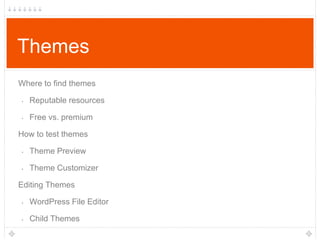
Themes
Where to find themes
•

Reputable resources

•

Free vs. premium

How to test themes
•

Theme Preview

•

Theme Customizer

Editing Themes
•

WordPress File Editor

•

Child Themes
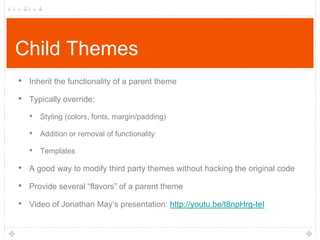
Child Themes
• Inherit the functionality of a parent theme
• Typically override:
• Styling (colors, fonts, margin/padding)
• Addition or removal of functionality
• Templates

• A good way to modify third party themes without hacking the original code
• Provide several “flavors” of a parent theme
• Video of Jonathan May‟s presentation: http://youtu.be/t8npHrg-teI
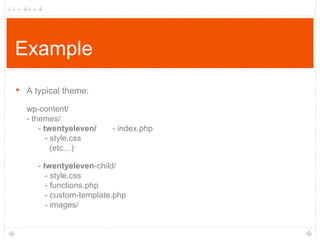
Example
•

A typical theme:
wp-content/
- themes/
- twentyeleven/
- style.css
(etc…)

- index.php

- twentyeleven-child/
- style.css
- functions.php
- custom-template.php
- images/
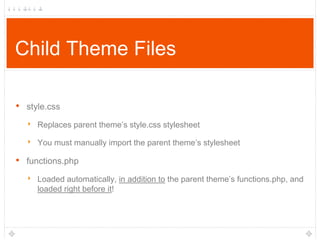
Child Theme Files
•

style.css

‣ Replaces parent theme‟s style.css stylesheet
‣ You must manually import the parent theme‟s stylesheet

•

functions.php

‣ Loaded automatically, in addition to the parent theme‟s functions.php, and
loaded right before it!
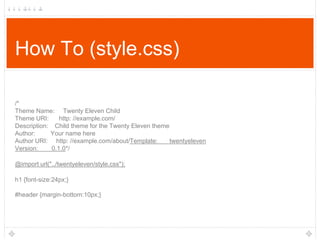
How To (style.css)
/*
Theme Name: Twenty Eleven Child
Theme URI:
http: //example.com/
Description: Child theme for the Twenty Eleven theme
Author:
Your name here
Author URI: http: //example.com/about/Template:
twentyeleven
Version:
0.1.0*/
@import url("../twentyeleven/style.css");
h1 {font-size:24px;}

#header {margin-bottom:10px;}
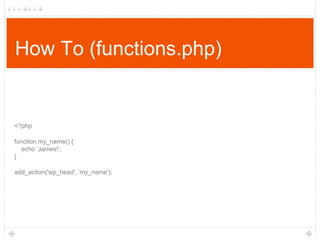
How To (functions.php)

<?php
function my_name() {
echo „James!‟;
}
add_action('wp_head', ‟my_name');
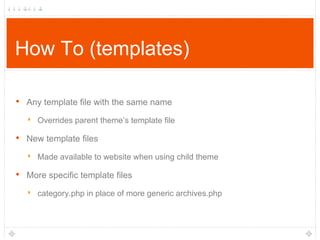
How To (templates)
•

Any template file with the same name

‣ Overrides parent theme‟s template file

•

New template files

‣ Made available to website when using child theme

•

More specific template files

‣ category.php in place of more generic archives.php
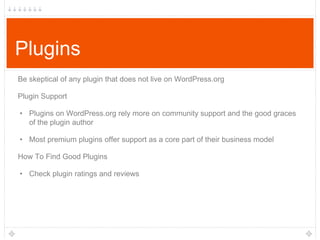
Plugins
Be skeptical of any plugin that does not live on WordPress.org
Plugin Support
• Plugins on WordPress.org rely more on community support and the good graces
of the plugin author
• Most premium plugins offer support as a core part of their business model
How To Find Good Plugins
• Check plugin ratings and reviews
Security
• Upgrade WordPress core, plugins, and themes!
• Password strength across all entry points (Hosting control panel, FTP,
WordPress admin)

• Don‟t use default username “admin”
• Download code directly wordpress.org

• Public WiFi caution: your traffic is probably not secure
• Disable unused/unneeded features (e.g., remote publishing)
• File permissions (FTP)
Akismet
Built-in spam remover created by Automattic
●

Requires registration of plugin

●

Works extremely well with WordPress
○

●

There may be some hiccups with forums or other plugins

Works only as good as you use it
○

Emptying spam folder sends data to Automattic
Wordfence
Free or premium plugin for security
•

Repairs files

•

Scans site for bad links/URLs

•

Scans for malware

•

Built-in firewall

•

Manage IPs and crawlers
Updates/Upgrades
• Upgrade often, but maybe not too often
• Don‟t wait for minor updates that fix critical bugs or security issues
• Wait a bit longer on major releases (3.0, 3.2, 3.3)
• Follow the WordPress Development Blog: http://wordpress.org/news
• WordPress, themes & plugins are open-source & community developed: embrace
but be cautious

• Keep plugins & themes updated, too
• Be careful & mindful of what files you‟ve changed (ideally, don‟t change any “core”
files in themes, plugins or WordPress itself)

• Before upgrading, backup your site & check plugin compatibility
ManageWP
• Access all of your WordPress sites from one dashboard
• With one click, all of your plugins and themes will be updated
• Uptime Monitoring
• SEO Analysis
• Automated Backup Scheduling
• Mass Migrations
• Bulk Posting

https://managewp.com
Backups
• Automated backups provided by your hosting provider (but don‟t back
up to the same server your site is hosted!)
• Remember: A WordPress site lives in two separate worlds
simultaneously

• Files in a folder you can see via FTP (especially /wp-content)
• Data in tables in a database server (you can see and manipulate using 3rd
party tools, often provided by your hosting provider)

• Secure your backups!

More Tips: http://codex.wordpress.org/Hardening_WordPress
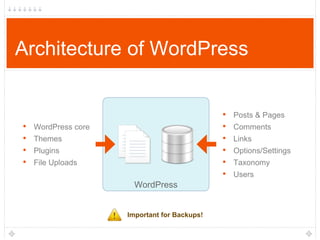
Architecture of WordPress

•
•
•
•

• Posts & Pages
• Comments
• Links
• Options/Settings
• Taxonomy
• Users

WordPress core
Themes
Plugins
File Uploads

WordPress

Important for Backups!
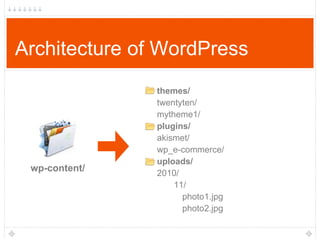
Architecture of WordPress

wp-content/

themes/
twentyten/
mytheme1/
plugins/
akismet/
wp_e-commerce/
uploads/
2010/
11/
photo1.jpg
photo2.jpg
VaultPress
• Monitor Backup Activity in Realtime
• Restore Backups Automatically
• Download a Backup
• Scan Your Site Daily
• Review & Fix
SEO
“WordPress takes care of 80-90% of (the mechanics of) Search Engine
Optimization (SEO)” - Matt Cutts

• Beyond the benefits provided by a stock WordPress install…
• Theme used & author‟s ability to write semantic HTML
• Additional meta data you supply using an SEO plugin
• How you write and organize your content (HTML, taxonomy, etc.)
• Permalinks w/ a good link structure (the default works wonders)

• Google Webmaster Tools (monitor your site‟s ranking performance)
WordPress SEO
•

Manage Page Titles

•

Internal Links

•

Sitemaps

•

Canonical Links

•

Robots.txt
Caching
• What is it?
• Practice of storing data in a way so that future accesses are much
faster.

• Types
• Server-side: Expensive, repeated operations like large database queries
are performed once, saved in a cache, and served from cache (until
data changes or cache expires)

• Client-side (browser): Images, CSS, JavaScript assets are saved locally
on the visitor‟s computer until a specific expiration date or until assets
change
W3 Total Cache
• Server & client side caching tools for WordPress
• Recommended by notable hosts MediaTemple, HostGator, etc.
• Used by smashingmagazine.com, mashable.com, etc.
• Promises at least 10x performance increase

• Reduce web server load
• Up to 80% bandwidth reduction ($$$!)
• Comes from Boston!
HostGator
• Cheaper hosting with unlimited storage, bandwidth and domains
• Great if you plan on starting more than 1 WordPress site
• Plenty of support for the server and you don‟t need to have WordPress
on it (self-install)

• Lots of software, room to experiment!
Use code WordCampBoston for 25%
discount
WP-Engine

• WordPress only hosting
• Cheap, integrated, automatic backups and updates
• Set it and forget it!
• Secure, fast and reliable
Use code WPMeetupBoston2013 at
http://j.mp/boswpshop for 1 month free
Thank You
Jon Bishop
Twitter: @jondbishop
http://johbishop.com

Kurt Eng
Twitter: @kurteng
http://kurteng.com

WCBos13 intermediate workshop

  • 1.
    WordPress: Tips & Tricks JonBishop Kurt Eng Oct 25th, 2013
  • 2.
    Agenda • Plugins • Howto select and test • Review of some basic and advanced plugins • Themes • How to choose and properly edit themes • How to find quality themes • SEO – on-site preparation and how to • Security – how to protect your site from Spam, robot attacks • Backup and Recovery – updates, how to implement your own process
  • 3.
  • 4.
    Themes Where to findthemes • Reputable resources • Free vs. premium How to test themes • Theme Preview • Theme Customizer Editing Themes • WordPress File Editor • Child Themes
  • 5.
    Child Themes • Inheritthe functionality of a parent theme • Typically override: • Styling (colors, fonts, margin/padding) • Addition or removal of functionality • Templates • A good way to modify third party themes without hacking the original code • Provide several “flavors” of a parent theme • Video of Jonathan May‟s presentation: http://youtu.be/t8npHrg-teI
  • 6.
    Example • A typical theme: wp-content/ -themes/ - twentyeleven/ - style.css (etc…) - index.php - twentyeleven-child/ - style.css - functions.php - custom-template.php - images/
  • 7.
    Child Theme Files • style.css ‣Replaces parent theme‟s style.css stylesheet ‣ You must manually import the parent theme‟s stylesheet • functions.php ‣ Loaded automatically, in addition to the parent theme‟s functions.php, and loaded right before it!
  • 8.
    How To (style.css) /* ThemeName: Twenty Eleven Child Theme URI: http: //example.com/ Description: Child theme for the Twenty Eleven theme Author: Your name here Author URI: http: //example.com/about/Template: twentyeleven Version: 0.1.0*/ @import url("../twentyeleven/style.css"); h1 {font-size:24px;} #header {margin-bottom:10px;}
  • 9.
    How To (functions.php) <?php functionmy_name() { echo „James!‟; } add_action('wp_head', ‟my_name');
  • 10.
    How To (templates) • Anytemplate file with the same name ‣ Overrides parent theme‟s template file • New template files ‣ Made available to website when using child theme • More specific template files ‣ category.php in place of more generic archives.php
  • 11.
    Plugins Be skeptical ofany plugin that does not live on WordPress.org Plugin Support • Plugins on WordPress.org rely more on community support and the good graces of the plugin author • Most premium plugins offer support as a core part of their business model How To Find Good Plugins • Check plugin ratings and reviews
  • 12.
    Security • Upgrade WordPresscore, plugins, and themes! • Password strength across all entry points (Hosting control panel, FTP, WordPress admin) • Don‟t use default username “admin” • Download code directly wordpress.org • Public WiFi caution: your traffic is probably not secure • Disable unused/unneeded features (e.g., remote publishing) • File permissions (FTP)
  • 13.
    Akismet Built-in spam removercreated by Automattic ● Requires registration of plugin ● Works extremely well with WordPress ○ ● There may be some hiccups with forums or other plugins Works only as good as you use it ○ Emptying spam folder sends data to Automattic
  • 14.
    Wordfence Free or premiumplugin for security • Repairs files • Scans site for bad links/URLs • Scans for malware • Built-in firewall • Manage IPs and crawlers
  • 15.
    Updates/Upgrades • Upgrade often,but maybe not too often • Don‟t wait for minor updates that fix critical bugs or security issues • Wait a bit longer on major releases (3.0, 3.2, 3.3) • Follow the WordPress Development Blog: http://wordpress.org/news • WordPress, themes & plugins are open-source & community developed: embrace but be cautious • Keep plugins & themes updated, too • Be careful & mindful of what files you‟ve changed (ideally, don‟t change any “core” files in themes, plugins or WordPress itself) • Before upgrading, backup your site & check plugin compatibility
  • 16.
    ManageWP • Access allof your WordPress sites from one dashboard • With one click, all of your plugins and themes will be updated • Uptime Monitoring • SEO Analysis • Automated Backup Scheduling • Mass Migrations • Bulk Posting https://managewp.com
  • 17.
    Backups • Automated backupsprovided by your hosting provider (but don‟t back up to the same server your site is hosted!) • Remember: A WordPress site lives in two separate worlds simultaneously • Files in a folder you can see via FTP (especially /wp-content) • Data in tables in a database server (you can see and manipulate using 3rd party tools, often provided by your hosting provider) • Secure your backups! More Tips: http://codex.wordpress.org/Hardening_WordPress
  • 18.
    Architecture of WordPress • • • • •Posts & Pages • Comments • Links • Options/Settings • Taxonomy • Users WordPress core Themes Plugins File Uploads WordPress Important for Backups!
  • 19.
  • 20.
    VaultPress • Monitor BackupActivity in Realtime • Restore Backups Automatically • Download a Backup • Scan Your Site Daily • Review & Fix
  • 21.
    SEO “WordPress takes careof 80-90% of (the mechanics of) Search Engine Optimization (SEO)” - Matt Cutts • Beyond the benefits provided by a stock WordPress install… • Theme used & author‟s ability to write semantic HTML • Additional meta data you supply using an SEO plugin • How you write and organize your content (HTML, taxonomy, etc.) • Permalinks w/ a good link structure (the default works wonders) • Google Webmaster Tools (monitor your site‟s ranking performance)
  • 22.
    WordPress SEO • Manage PageTitles • Internal Links • Sitemaps • Canonical Links • Robots.txt
  • 23.
    Caching • What isit? • Practice of storing data in a way so that future accesses are much faster. • Types • Server-side: Expensive, repeated operations like large database queries are performed once, saved in a cache, and served from cache (until data changes or cache expires) • Client-side (browser): Images, CSS, JavaScript assets are saved locally on the visitor‟s computer until a specific expiration date or until assets change
  • 24.
    W3 Total Cache •Server & client side caching tools for WordPress • Recommended by notable hosts MediaTemple, HostGator, etc. • Used by smashingmagazine.com, mashable.com, etc. • Promises at least 10x performance increase • Reduce web server load • Up to 80% bandwidth reduction ($$$!) • Comes from Boston!
  • 25.
    HostGator • Cheaper hostingwith unlimited storage, bandwidth and domains • Great if you plan on starting more than 1 WordPress site • Plenty of support for the server and you don‟t need to have WordPress on it (self-install) • Lots of software, room to experiment! Use code WordCampBoston for 25% discount
  • 26.
    WP-Engine • WordPress onlyhosting • Cheap, integrated, automatic backups and updates • Set it and forget it! • Secure, fast and reliable Use code WPMeetupBoston2013 at http://j.mp/boswpshop for 1 month free
  • 27.
    Thank You Jon Bishop Twitter:@jondbishop http://johbishop.com Kurt Eng Twitter: @kurteng http://kurteng.com