About this Tutorial
This tutorial is intended to:
 Introduce all the tools in the app
 Illustrate a sample activity that can be done
using the app
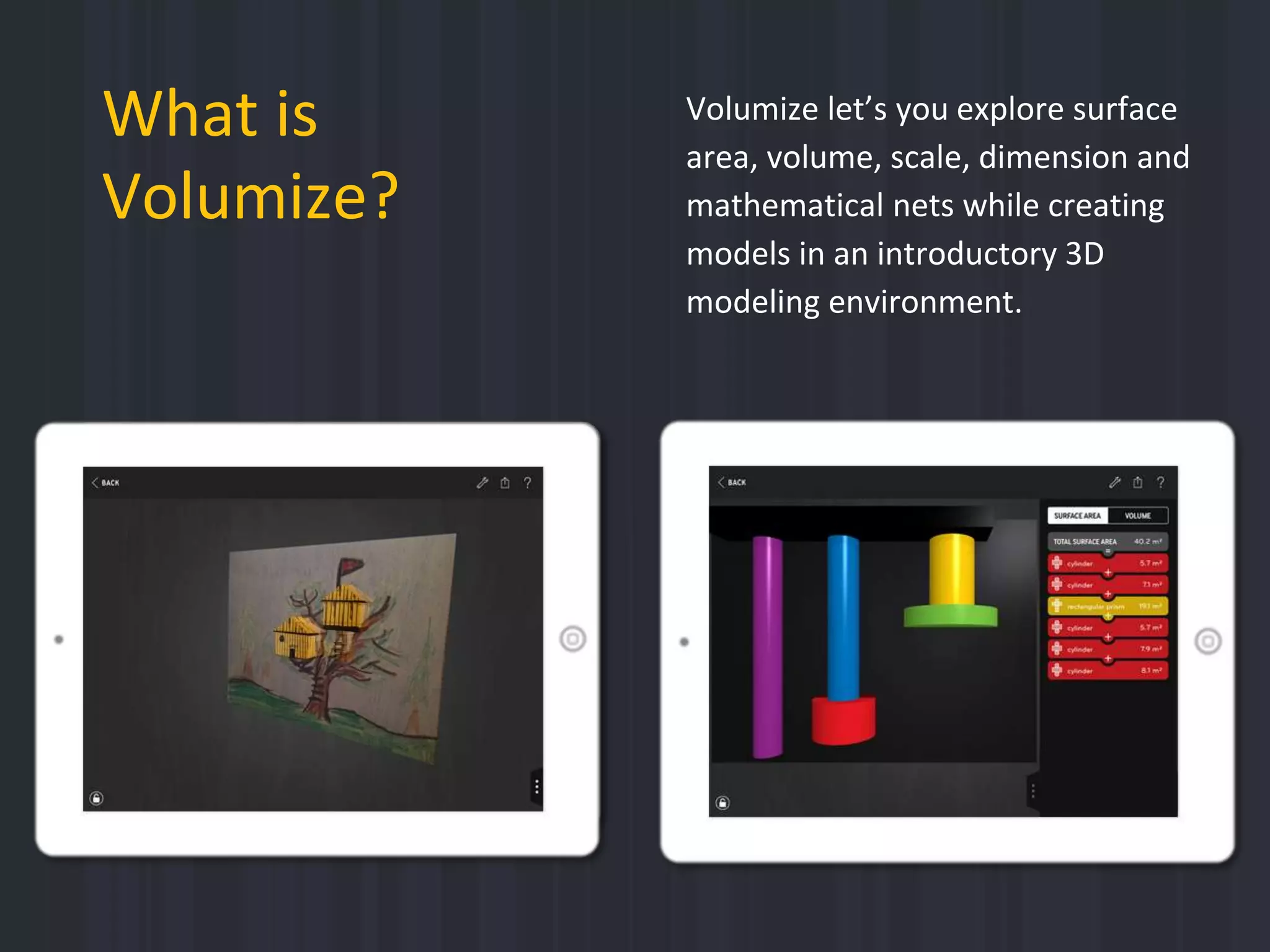
Volumize let’s you explore surface
area, volume, scale, dimension and
mathematical nets while creating
models in an introductory 3D
modeling environment.
What is
Volumize?
Volumize was inspired by the power of 3D
modeling to design with classic solid shapes
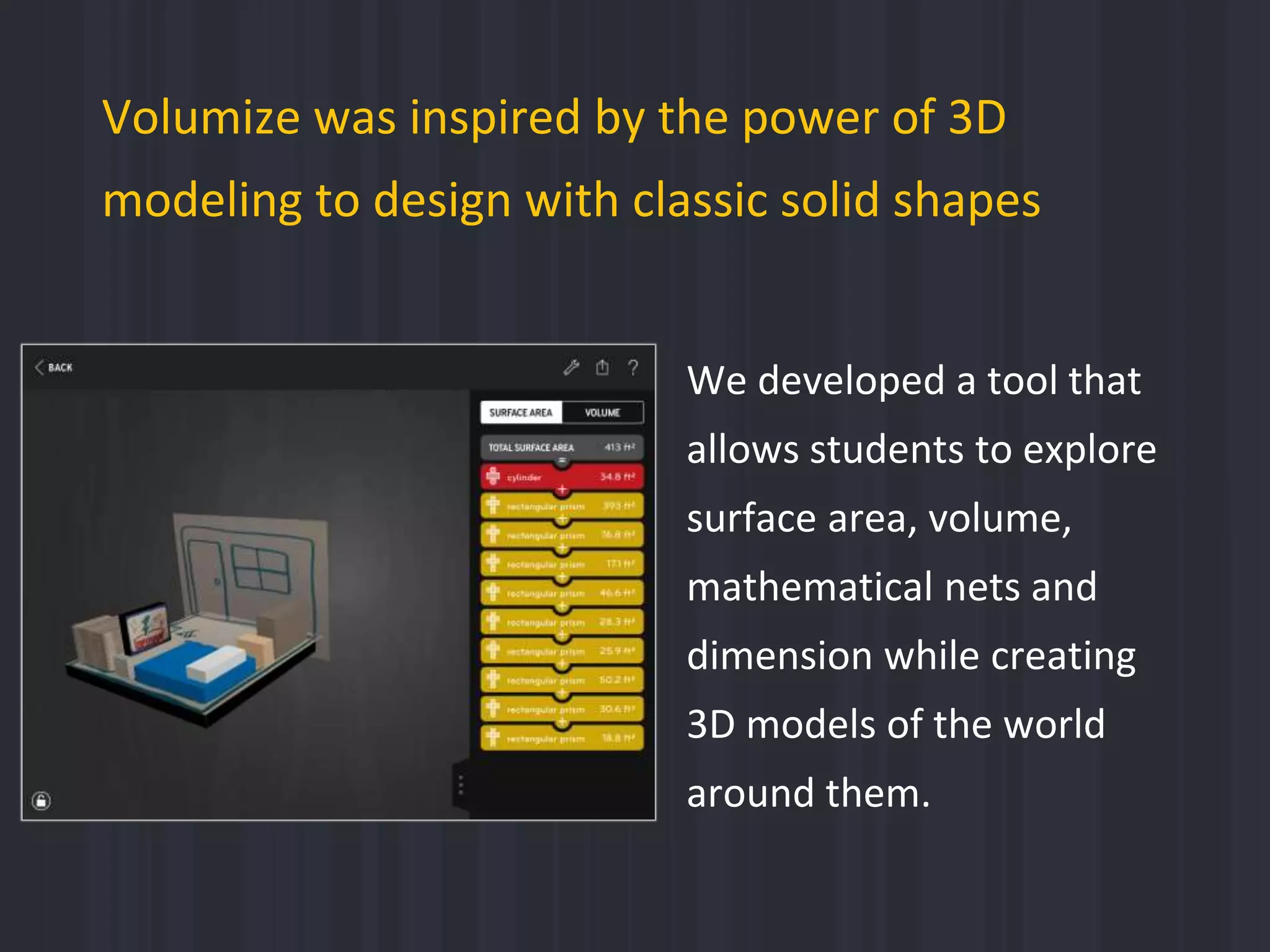
We developed a tool that
allows students to explore
surface area, volume,
mathematical nets and
dimension while creating
3D models of the world
around them.
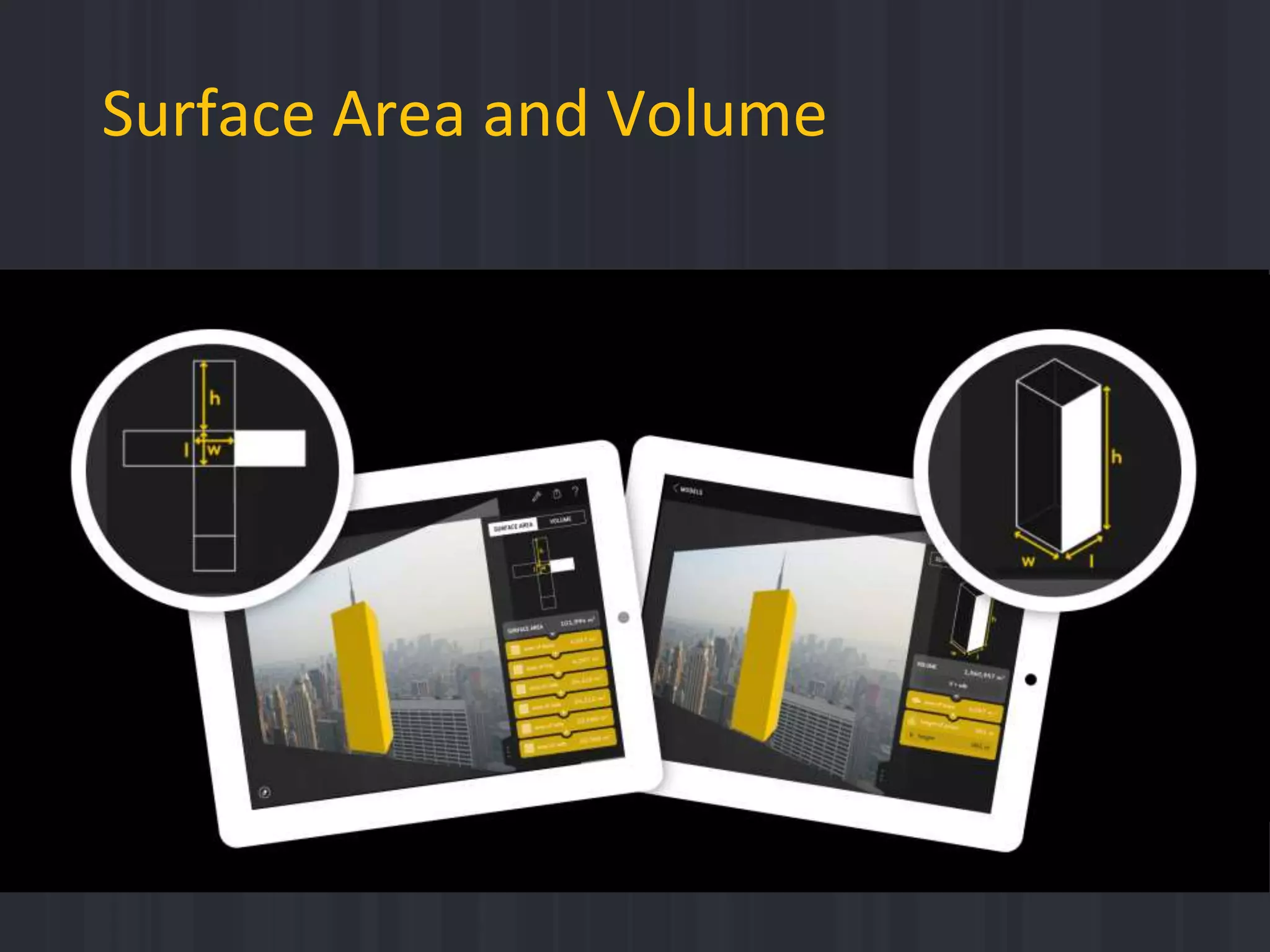
Surface Area and Volume
In this app, you’re playing around with simple 3D shapes and
building approximations of real things in your 2D pictures.
Set your scale to match the size of real objects to estimate
the surface area and volume of the real thing. Use just one or
two shapes for a quick estimate. Use more shapes to add
detail and get a closer approximation.
Surface Area and Volume
(Believe it or not, you’re doing math)
Sample Activity:
Make a Simple Model
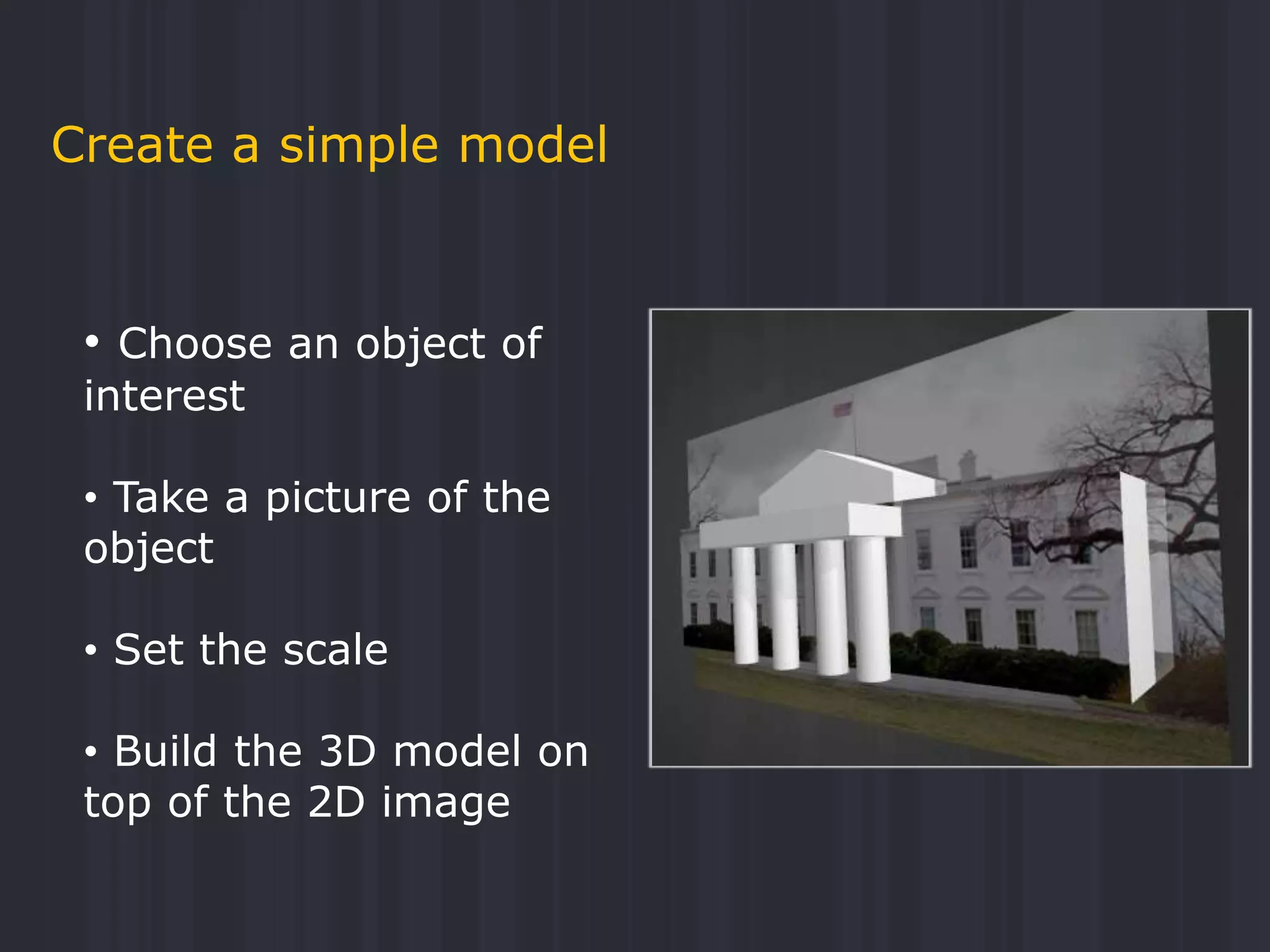
Create a simple model
• Choose an object of
interest
• Take a picture of the
object
• Set the scale
• Build the 3D model on
top of the 2D image
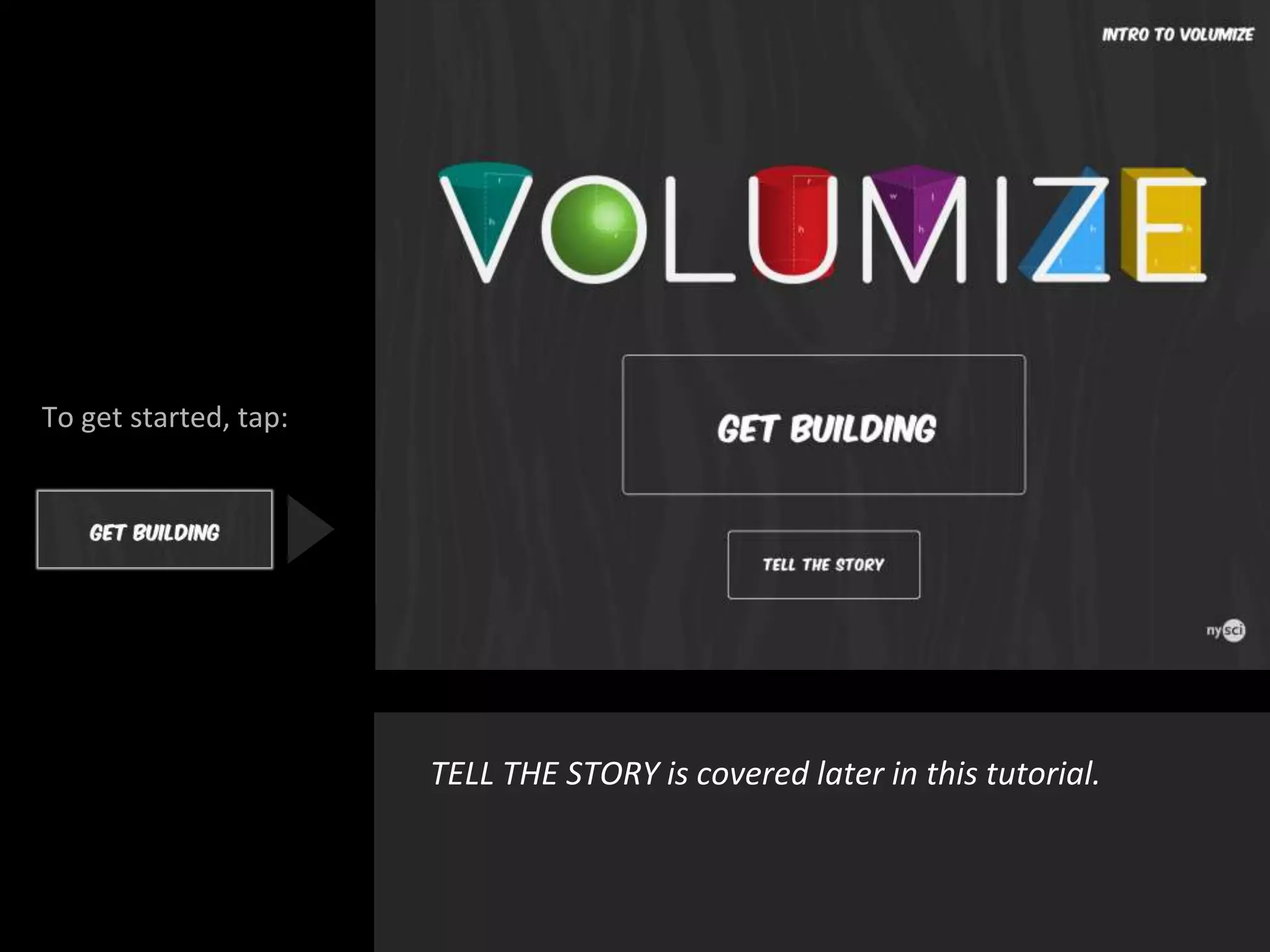
To get started, tap:
TELL THE STORY is covered later in this tutorial.
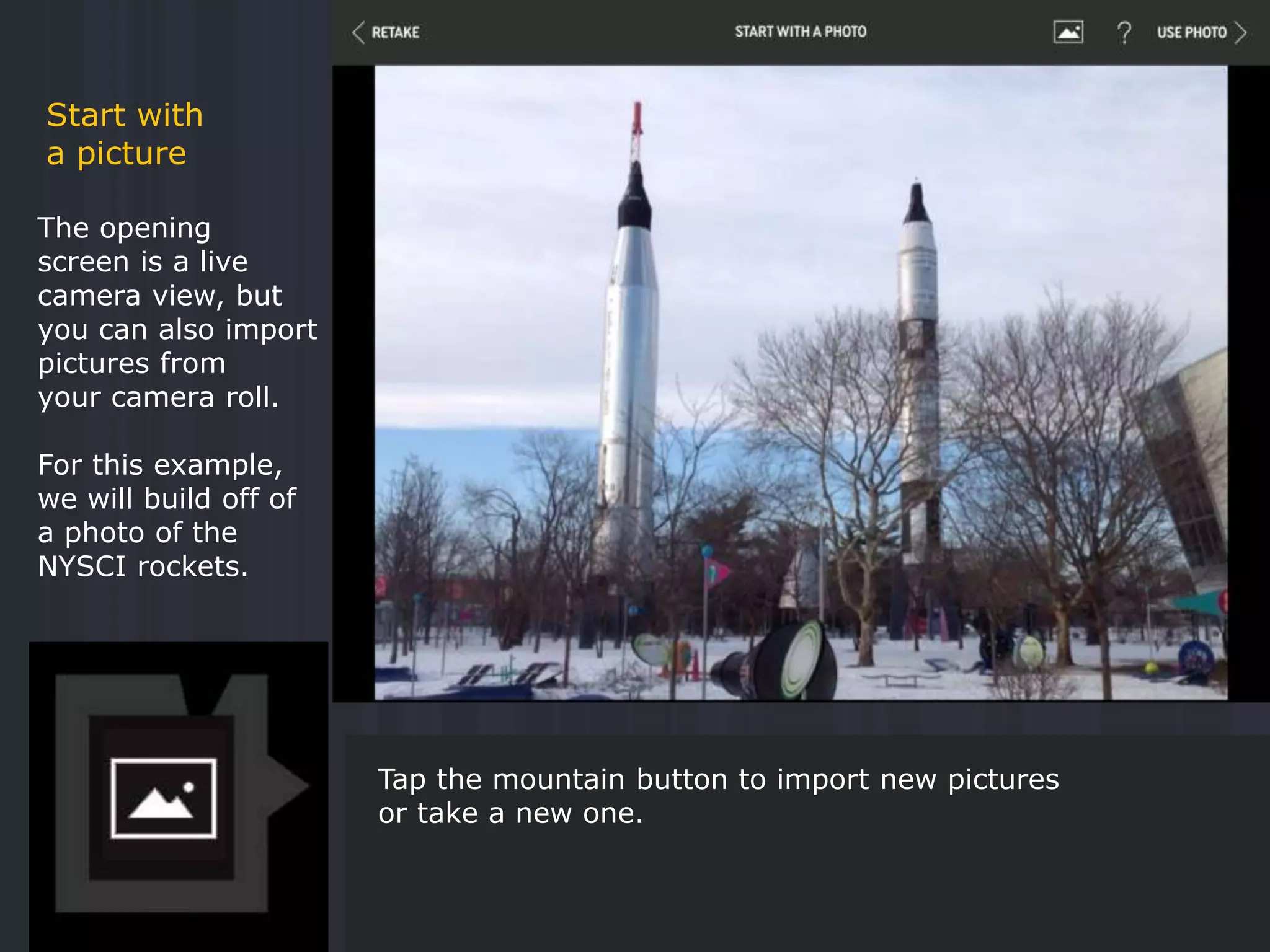
The opening
screen is a live
camera view, but
you can also import
pictures from
your camera roll.
For this example,
we will build off of
a photo of the
NYSCI rockets.
Start with
a picture
Tap the mountain button to import new pictures
or take a new one.
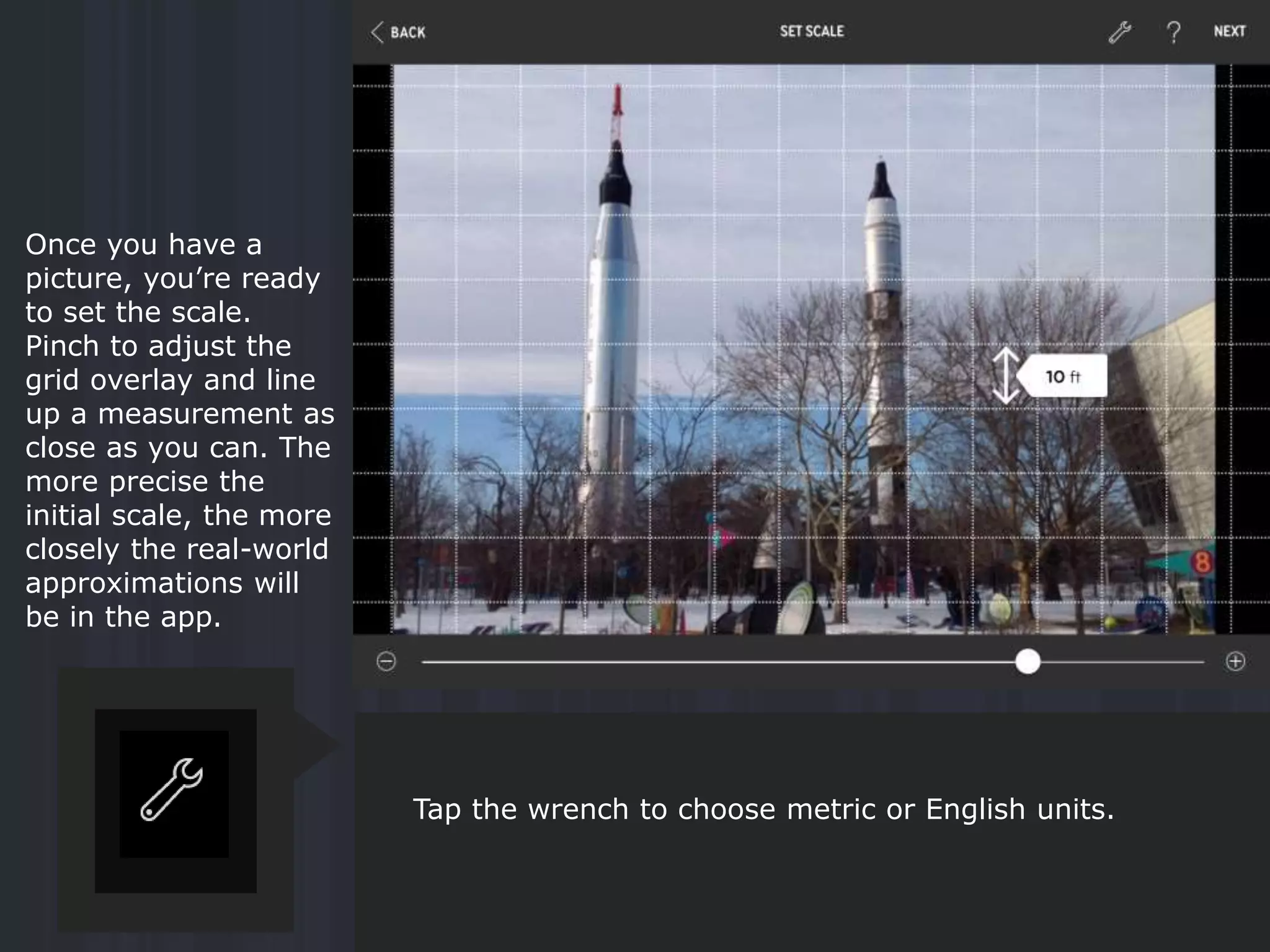
Once you have a
picture, you’re ready
to set the scale.
Pinch to adjust the
grid overlay and line
up a measurement as
close as you can. The
more precise the
initial scale, the more
closely the real-world
approximations will
be in the app.
Tap the wrench to choose metric or English units.
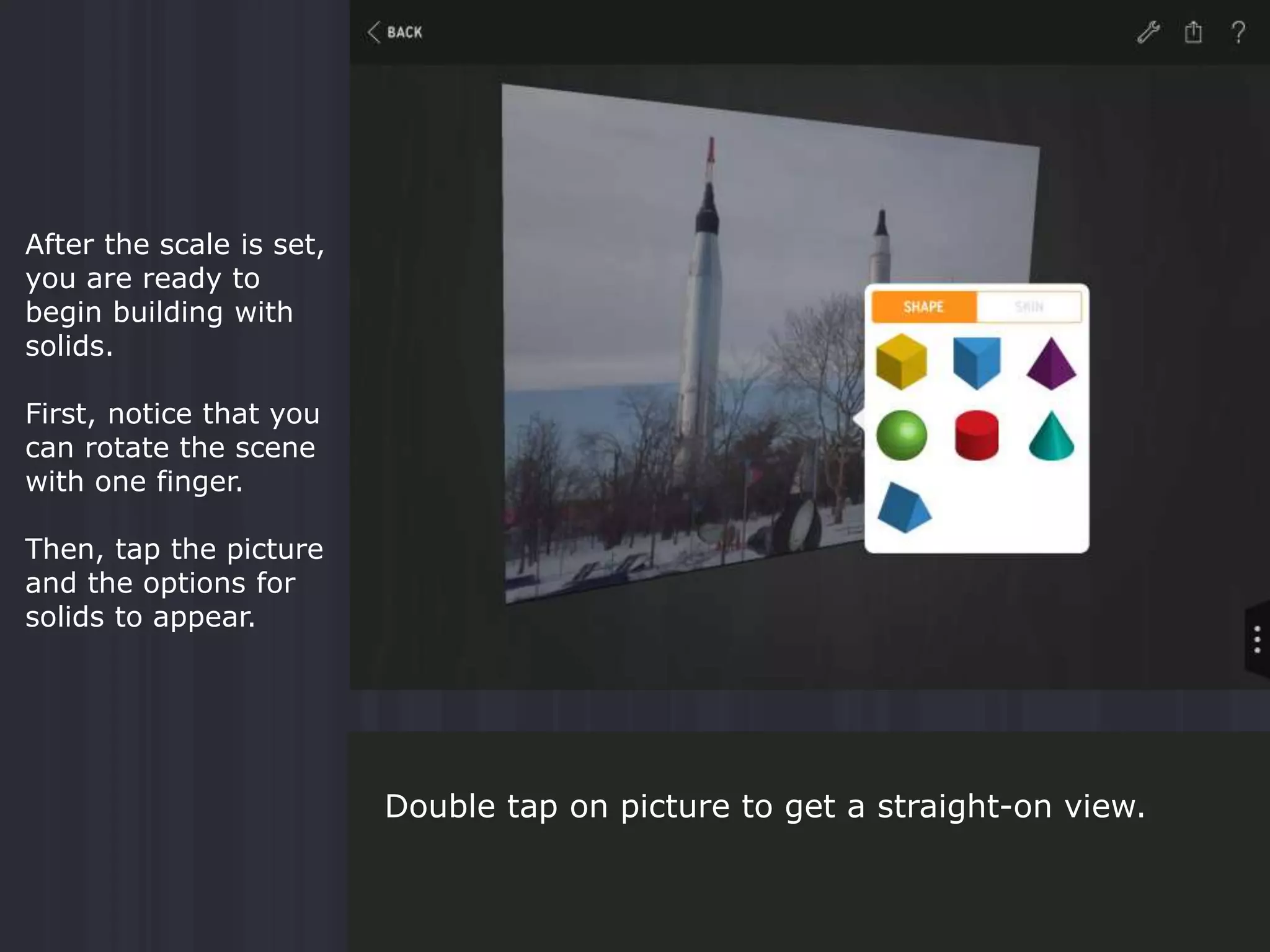
After the scale is set,
you are ready to
begin building with
solids.
First, notice that you
can rotate the scene
with one finger.
Then, tap the picture
and the options for
solids to appear.
Double tap on picture to get a straight-on view.
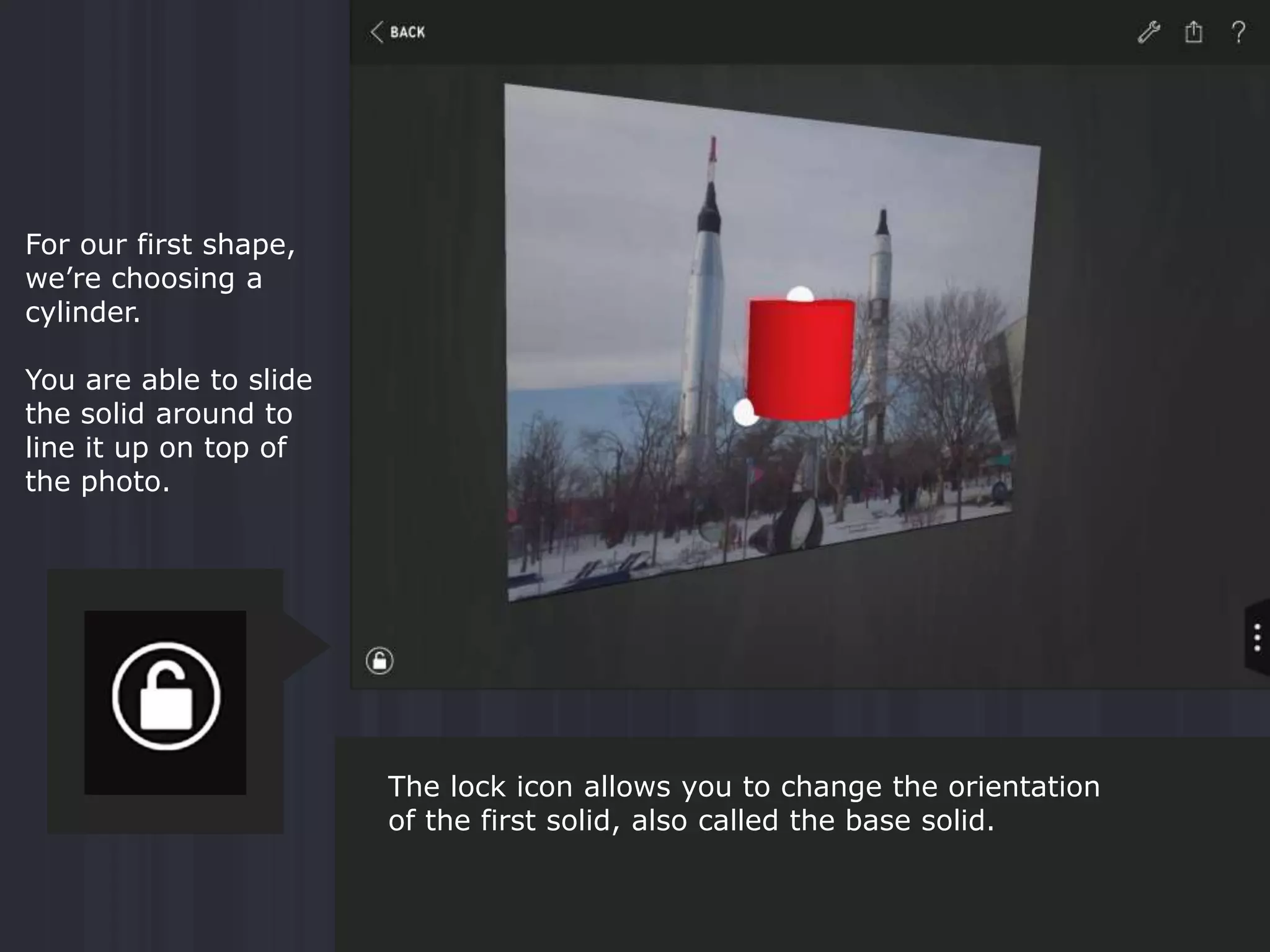
For our first shape,
we’re choosing a
cylinder.
You are able to slide
the solid around to
line it up on top of
the photo.
The lock icon allows you to change the orientation
of the first solid, also called the base solid.
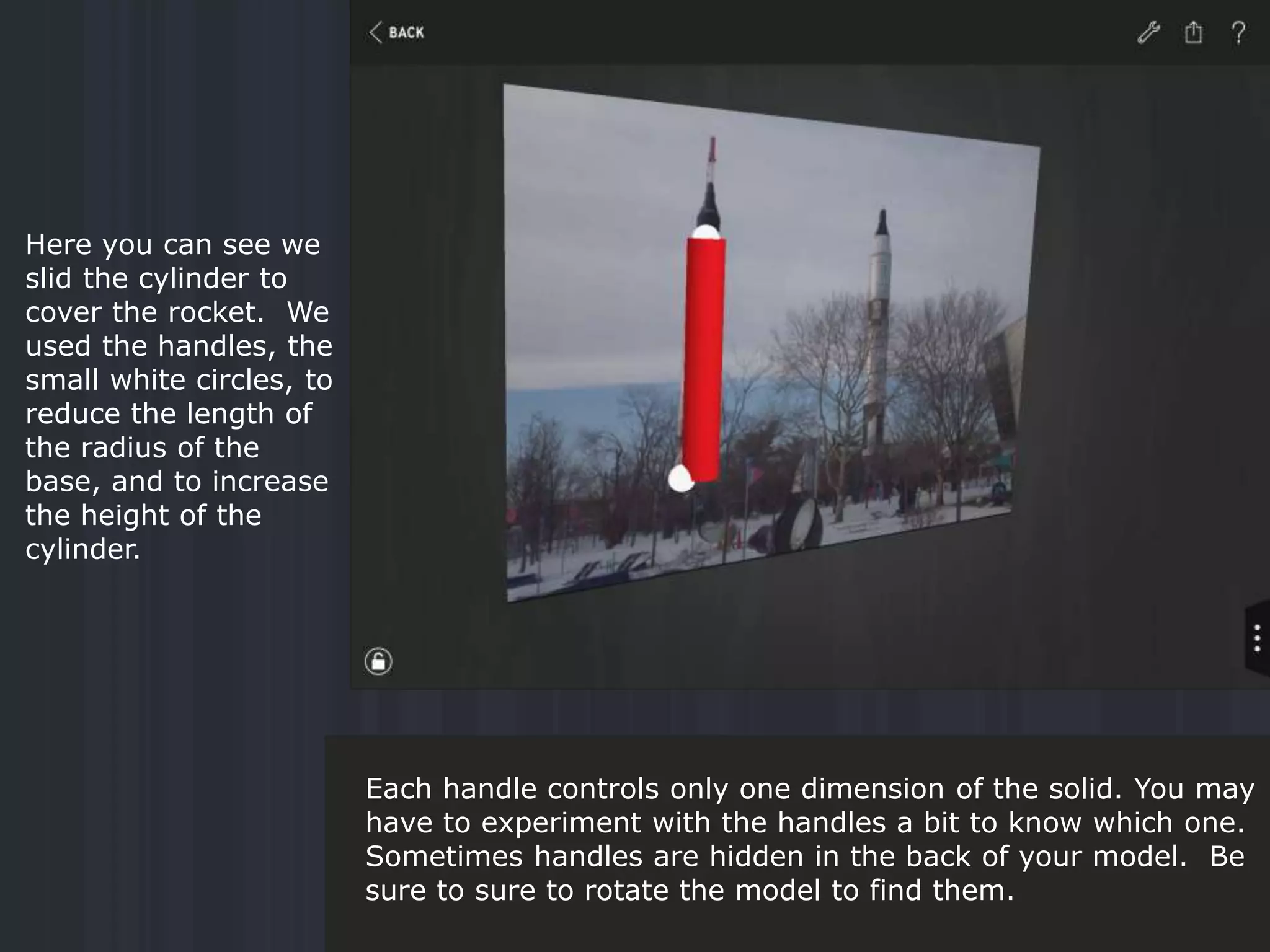
Here you can see we
slid the cylinder to
cover the rocket. We
used the handles, the
small white circles, to
reduce the length of
the radius of the
base, and to increase
the height of the
cylinder.
Each handle controls only one dimension of the solid. You may
have to experiment with the handles a bit to know which one.
Sometimes handles are hidden in the back of your model. Be
sure to sure to rotate the model to find them.
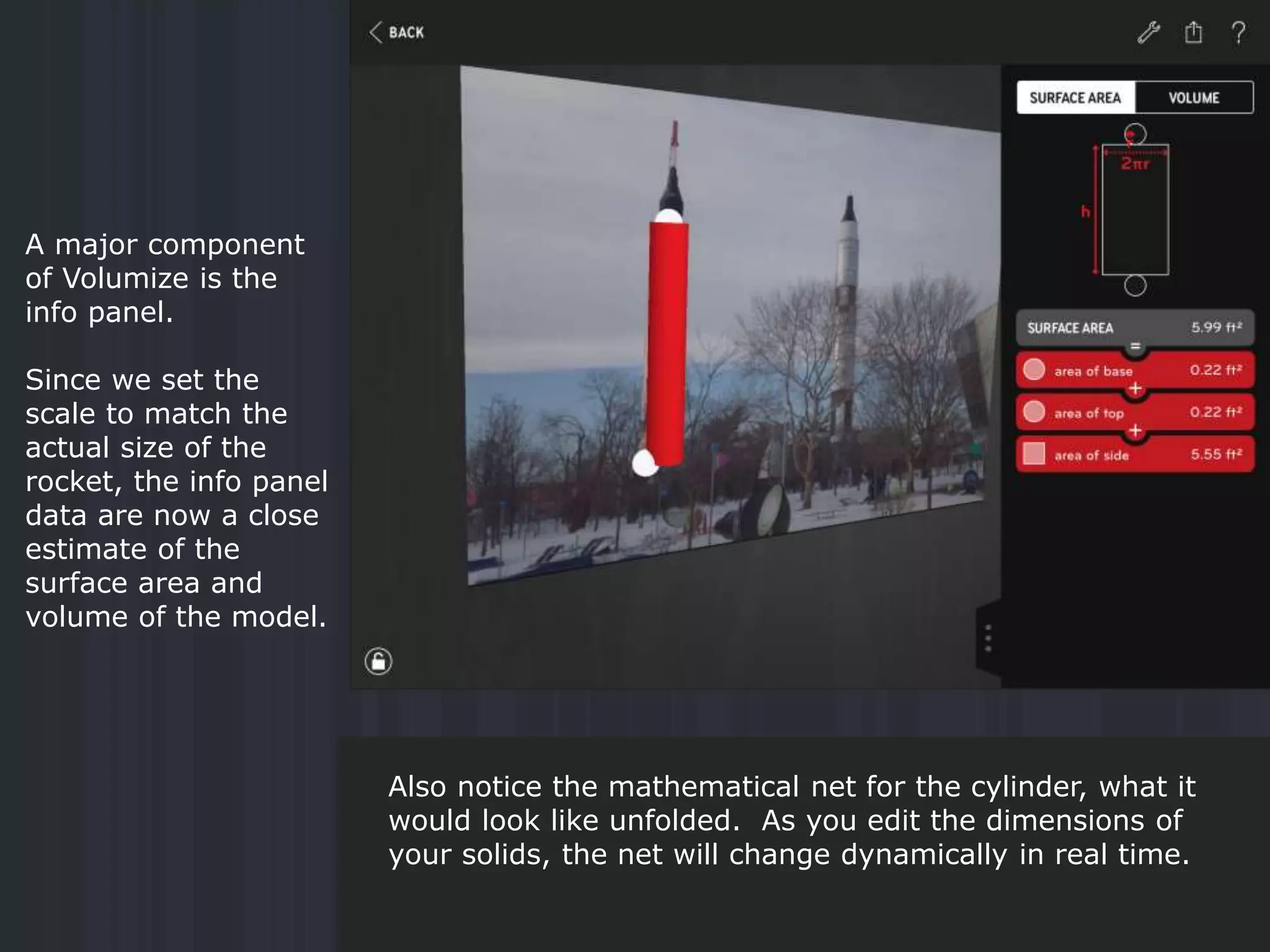
A major component
of Volumize is the
info panel.
Since we set the
scale to match the
actual size of the
rocket, the info panel
data are now a close
estimate of the
surface area and
volume of the model.
Also notice the mathematical net for the cylinder, what it
would look like unfolded. As you edit the dimensions of
your solids, the net will change dynamically in real time.
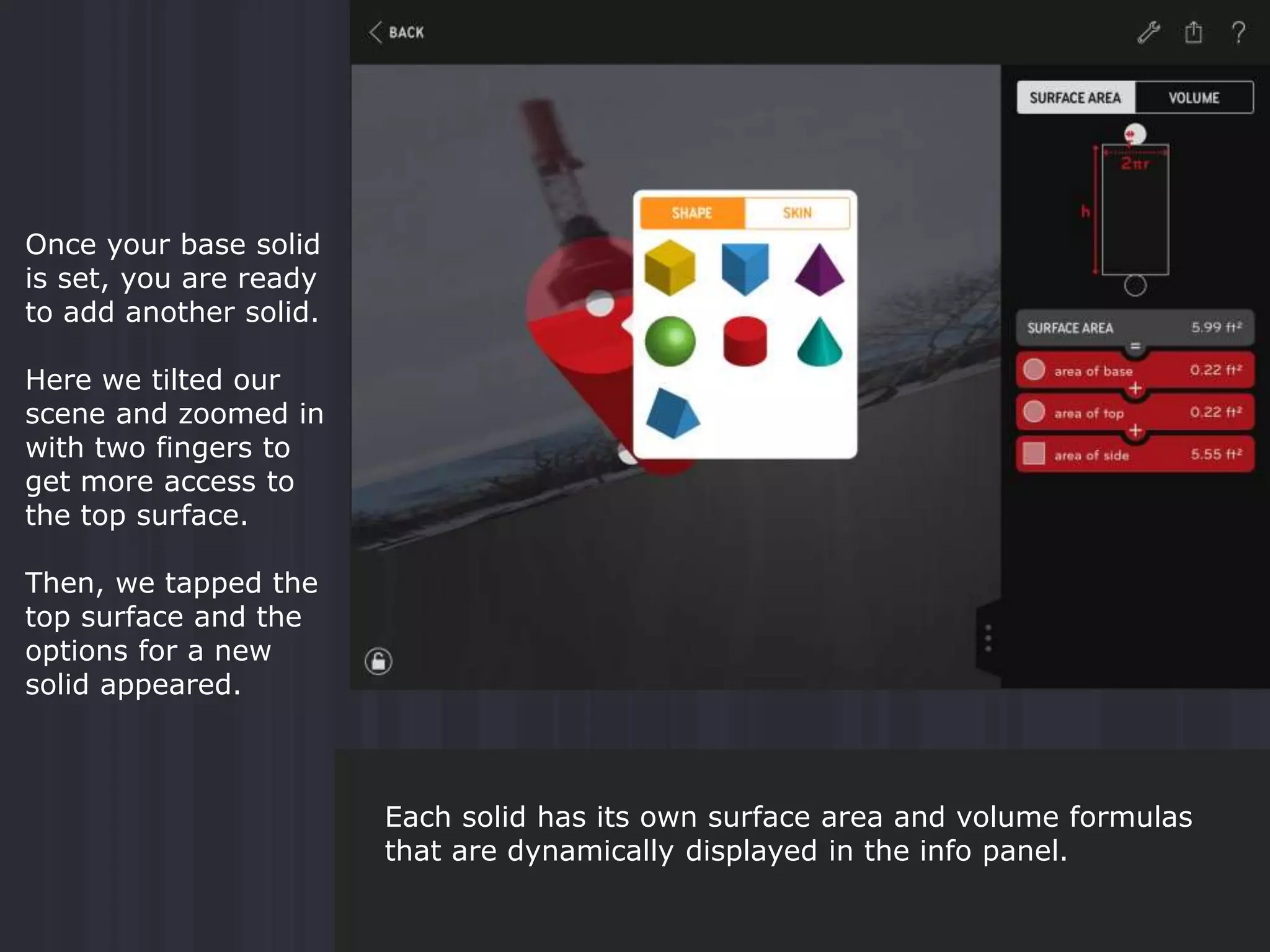
Once your base solid
is set, you are ready
to add another solid.
Here we tilted our
scene and zoomed in
with two fingers to
get more access to
the top surface.
Then, we tapped the
top surface and the
options for a new
solid appeared.
Each solid has its own surface area and volume formulas
that are dynamically displayed in the info panel.
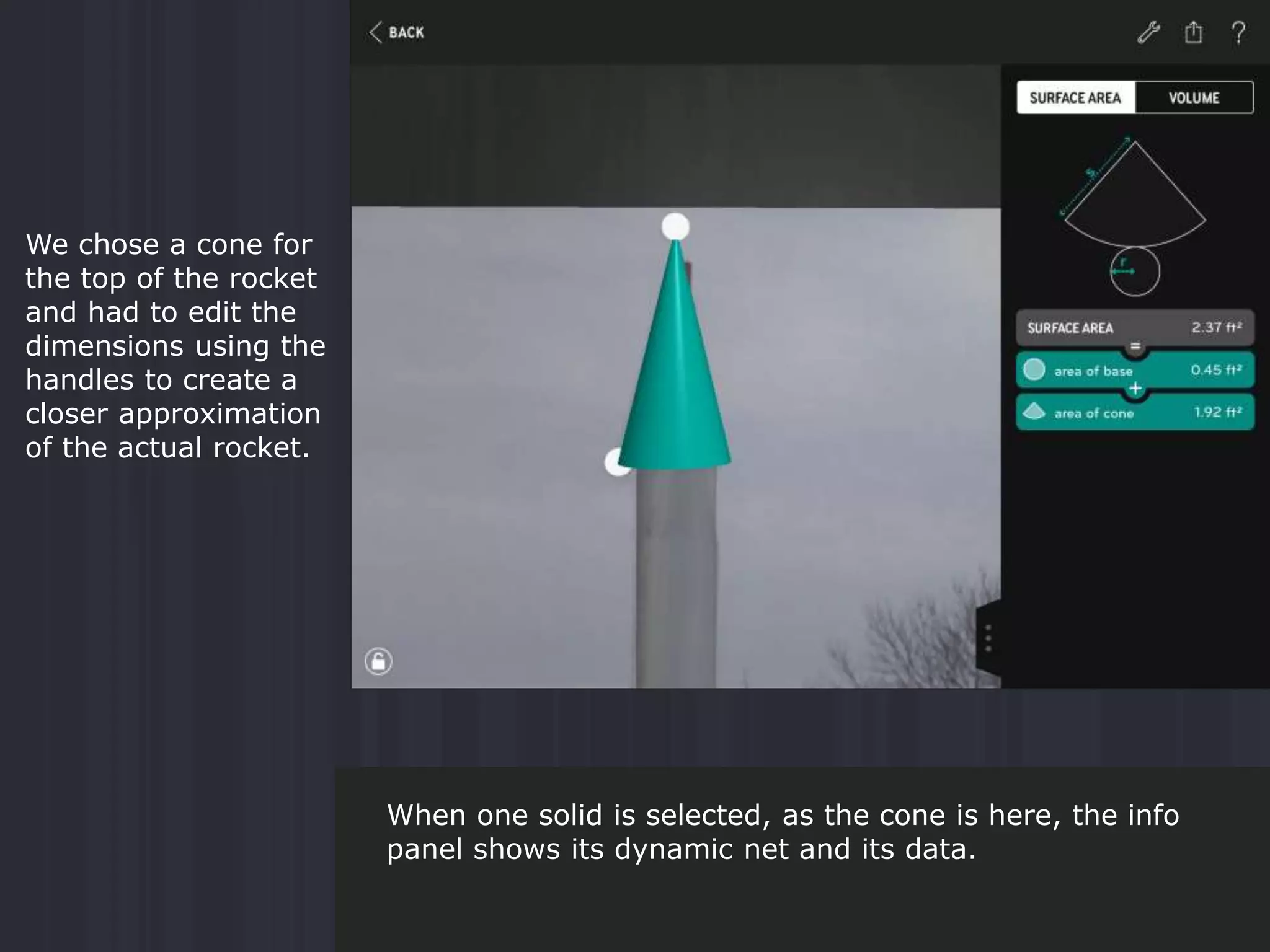
We chose a cone for
the top of the rocket
and had to edit the
dimensions using the
handles to create a
closer approximation
of the actual rocket.
When one solid is selected, as the cone is here, the info
panel shows its dynamic net and its data.
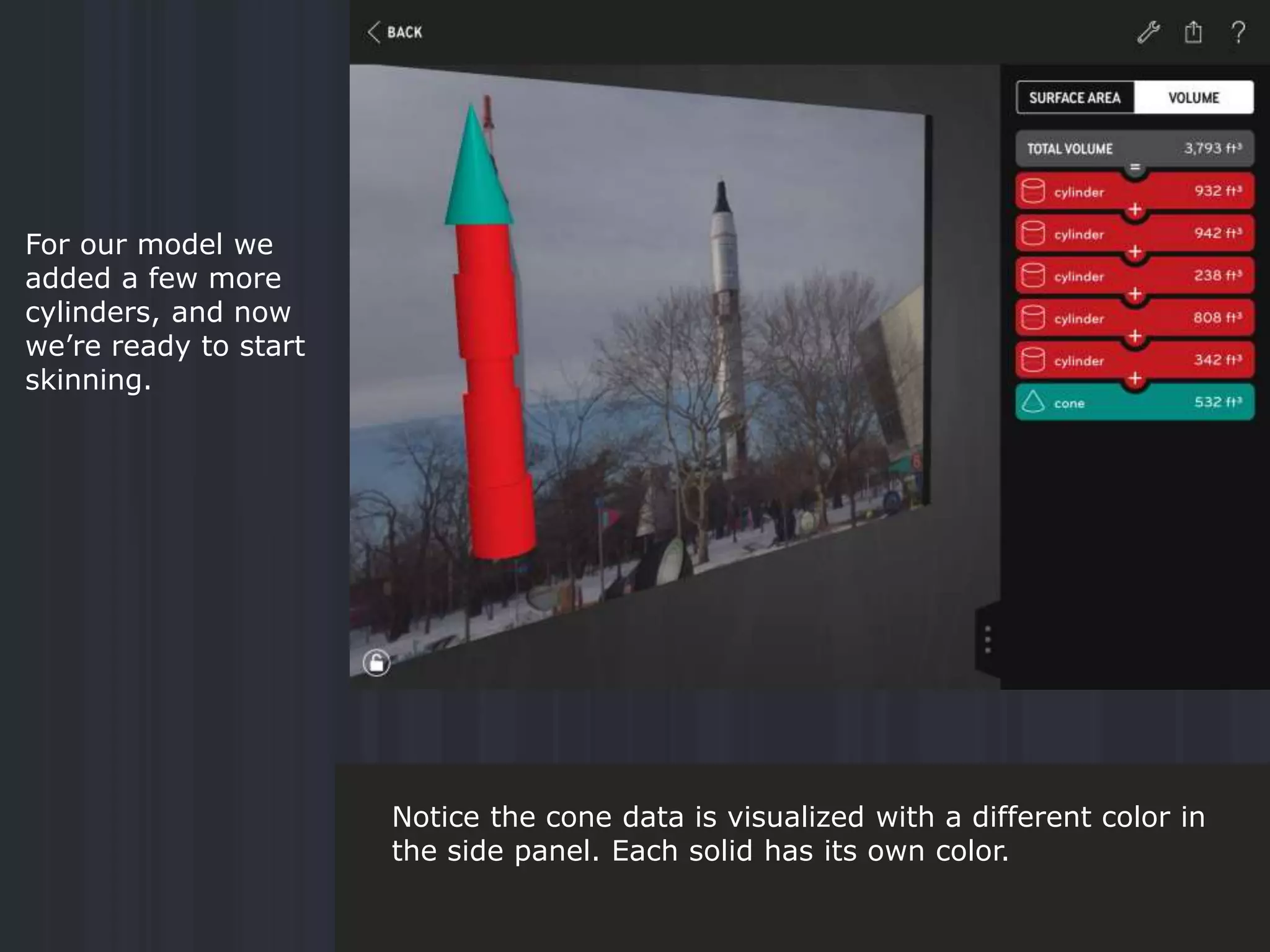
For our model we
added a few more
cylinders, and now
we’re ready to start
skinning.
Notice the cone data is visualized with a different color in
the side panel. Each solid has its own color.
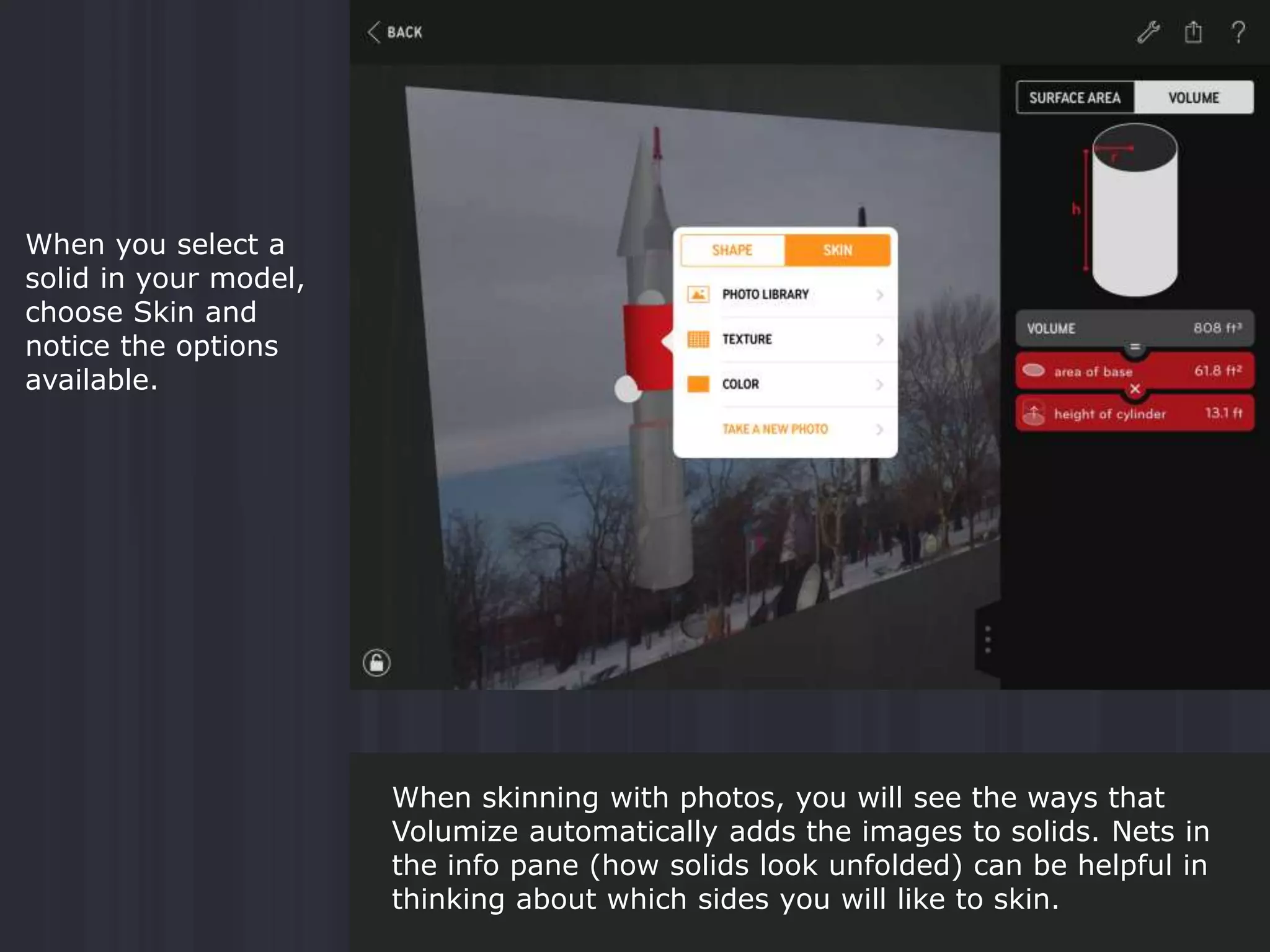
When you select a
solid in your model,
choose Skin and
notice the options
available.
When skinning with photos, you will see the ways that
Volumize automatically adds the images to solids. Nets in
the info pane (how solids look unfolded) can be helpful in
thinking about which sides you will like to skin.
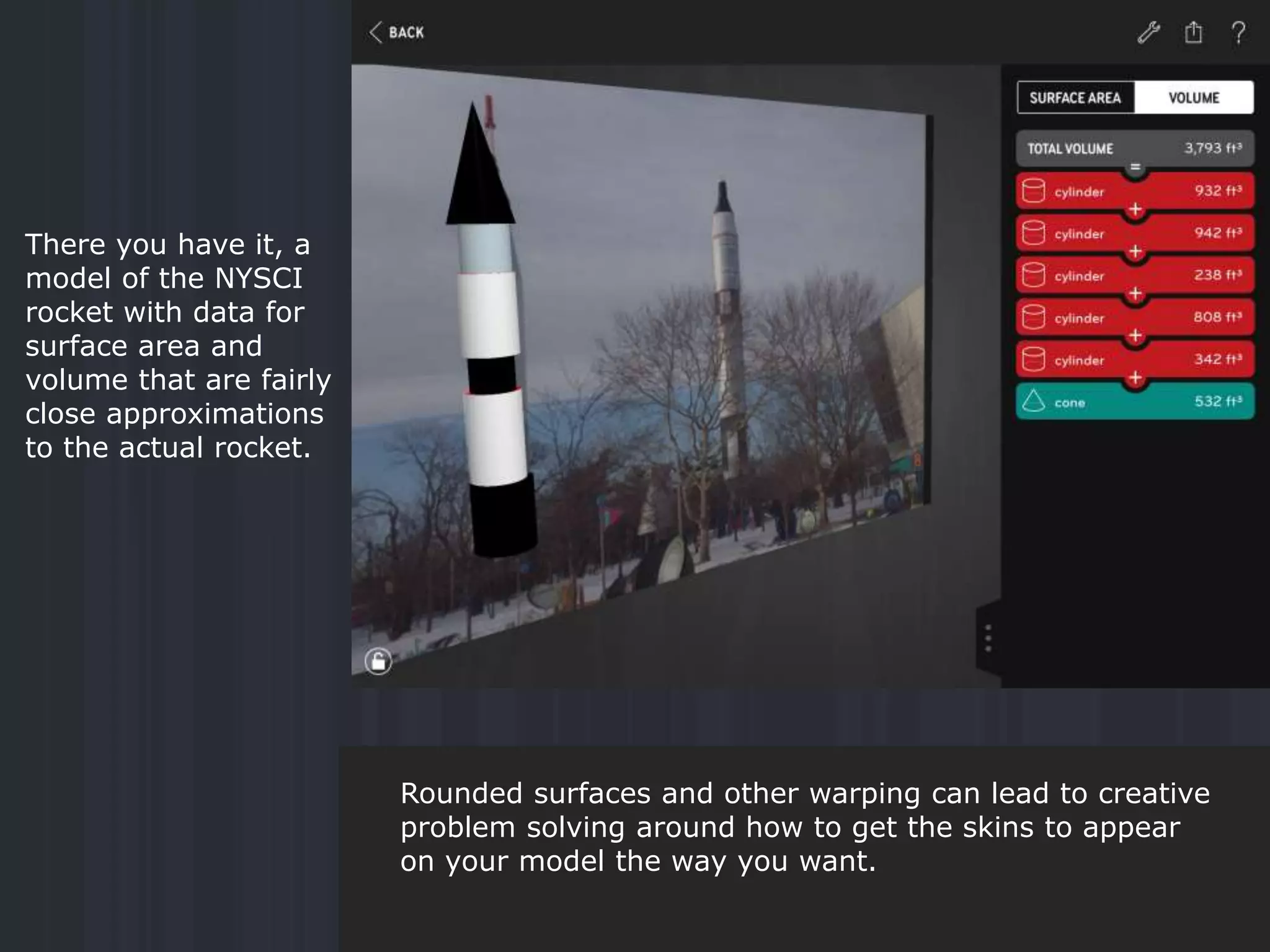
There you have it, a
model of the NYSCI
rocket with data for
surface area and
volume that are fairly
close approximations
to the actual rocket.
Rounded surfaces and other warping can lead to creative
problem solving around how to get the skins to appear
on your model the way you want.
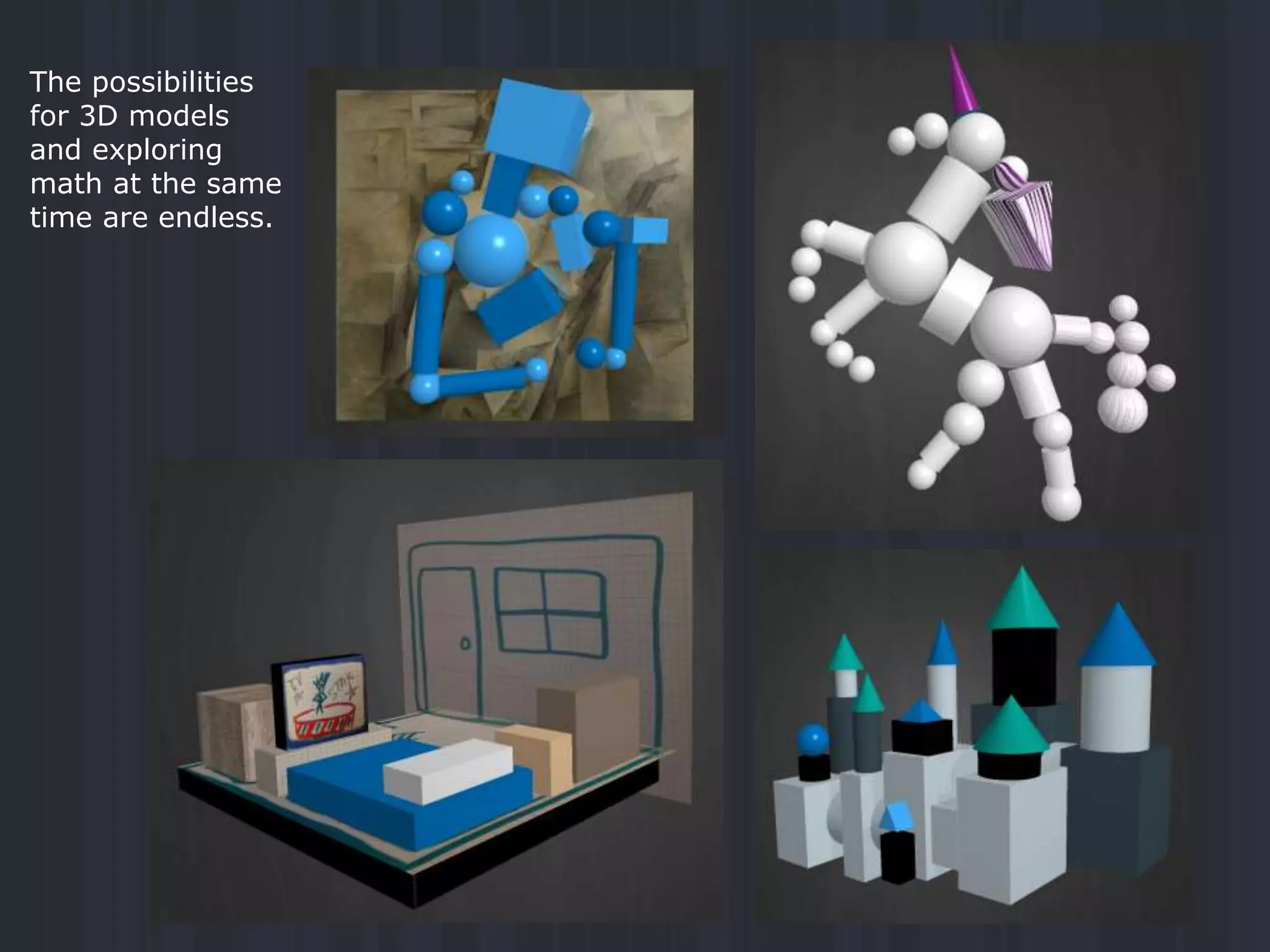
The possibilities
for 3D models
and exploring
math at the same
time are endless.
Tell the Story
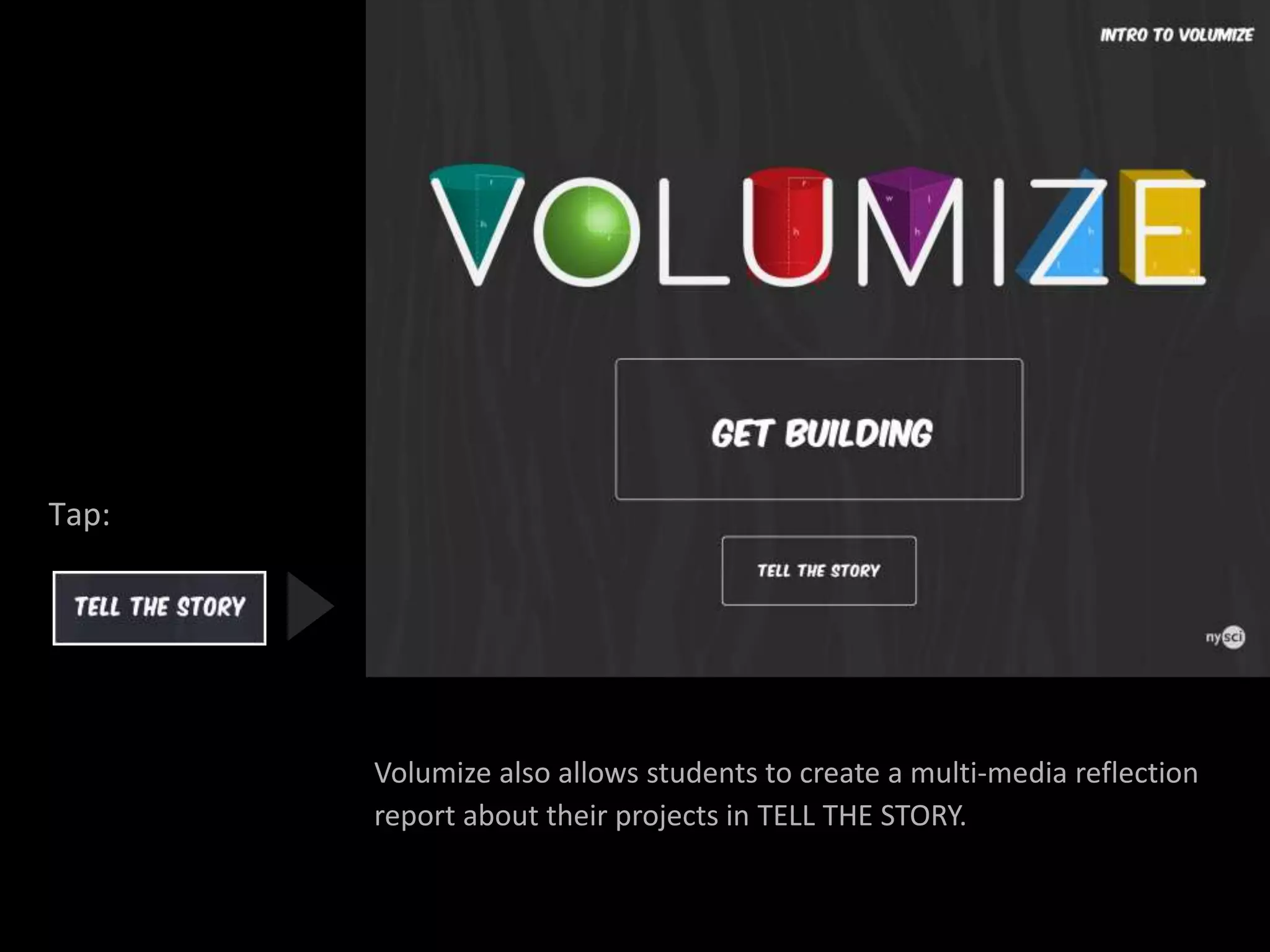
Volumize also allows students to create a multi-media reflection
report about their projects in TELL THE STORY.
Tap:
Create a
Reflection
Report
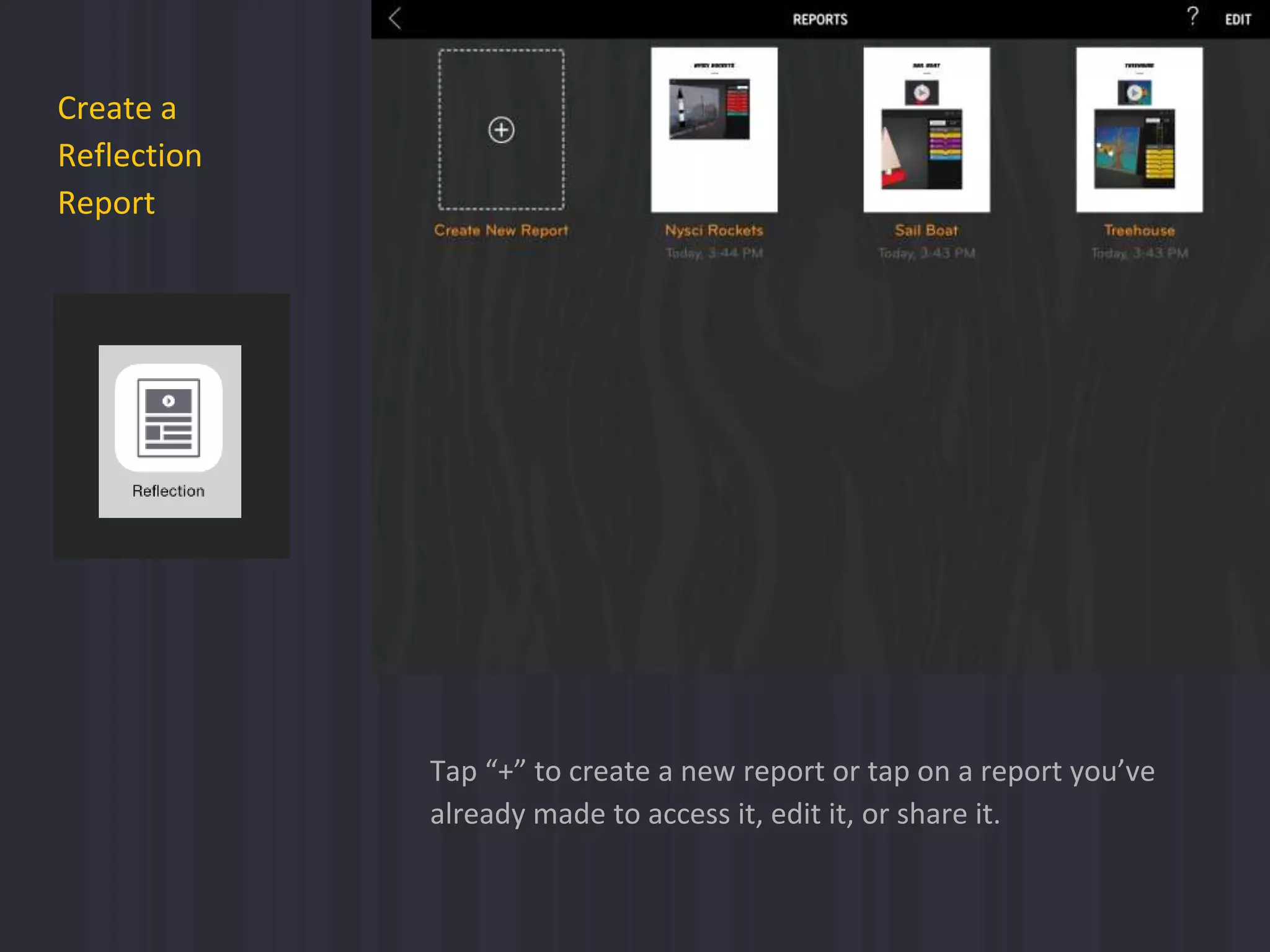
Tap “+” to create a new report or tap on a report you’ve
already made to access it, edit it, or share it.
Create a Report
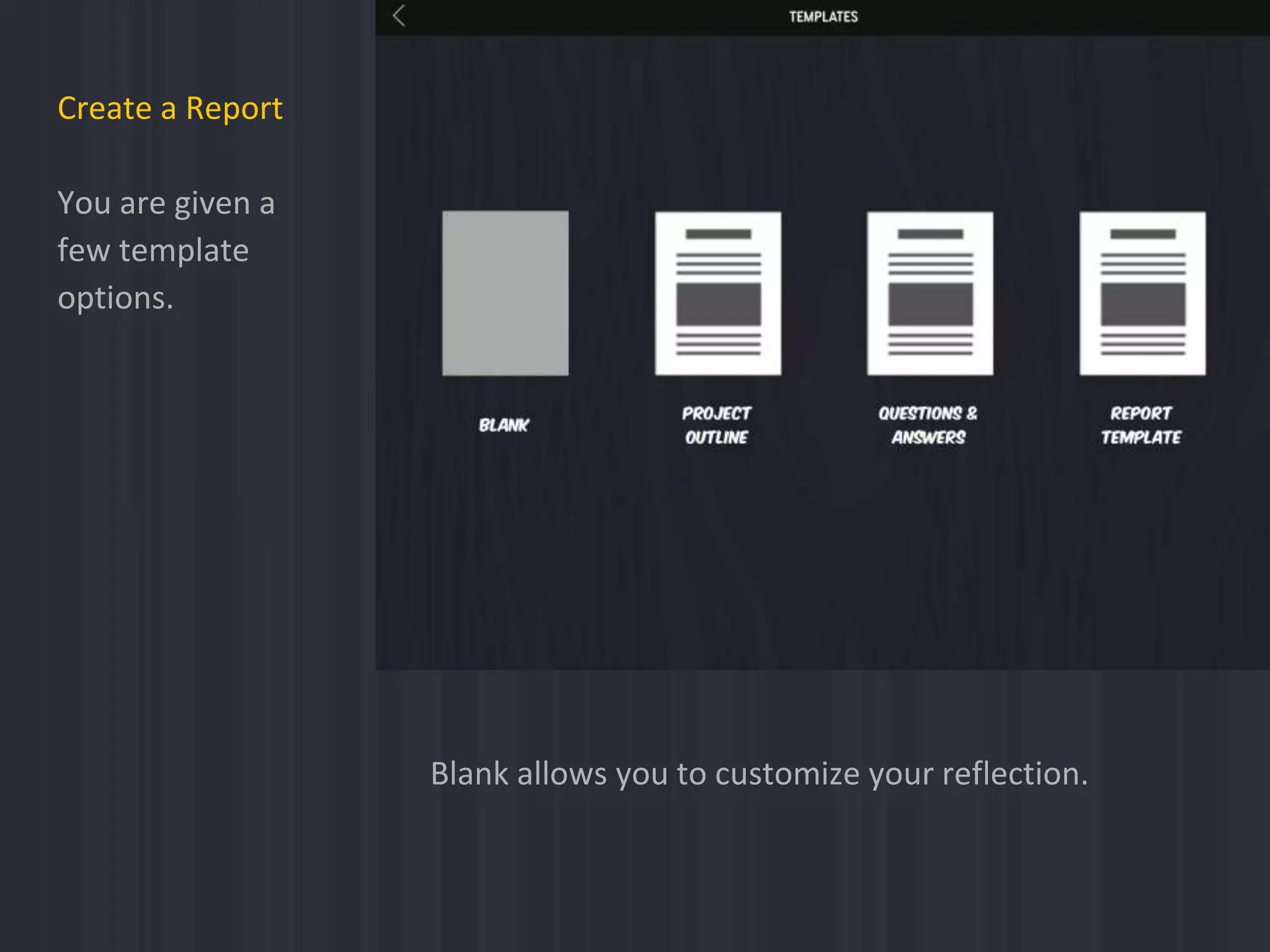
You are given a
few template
options.
Blank allows you to customize your reflection.
Create a Report
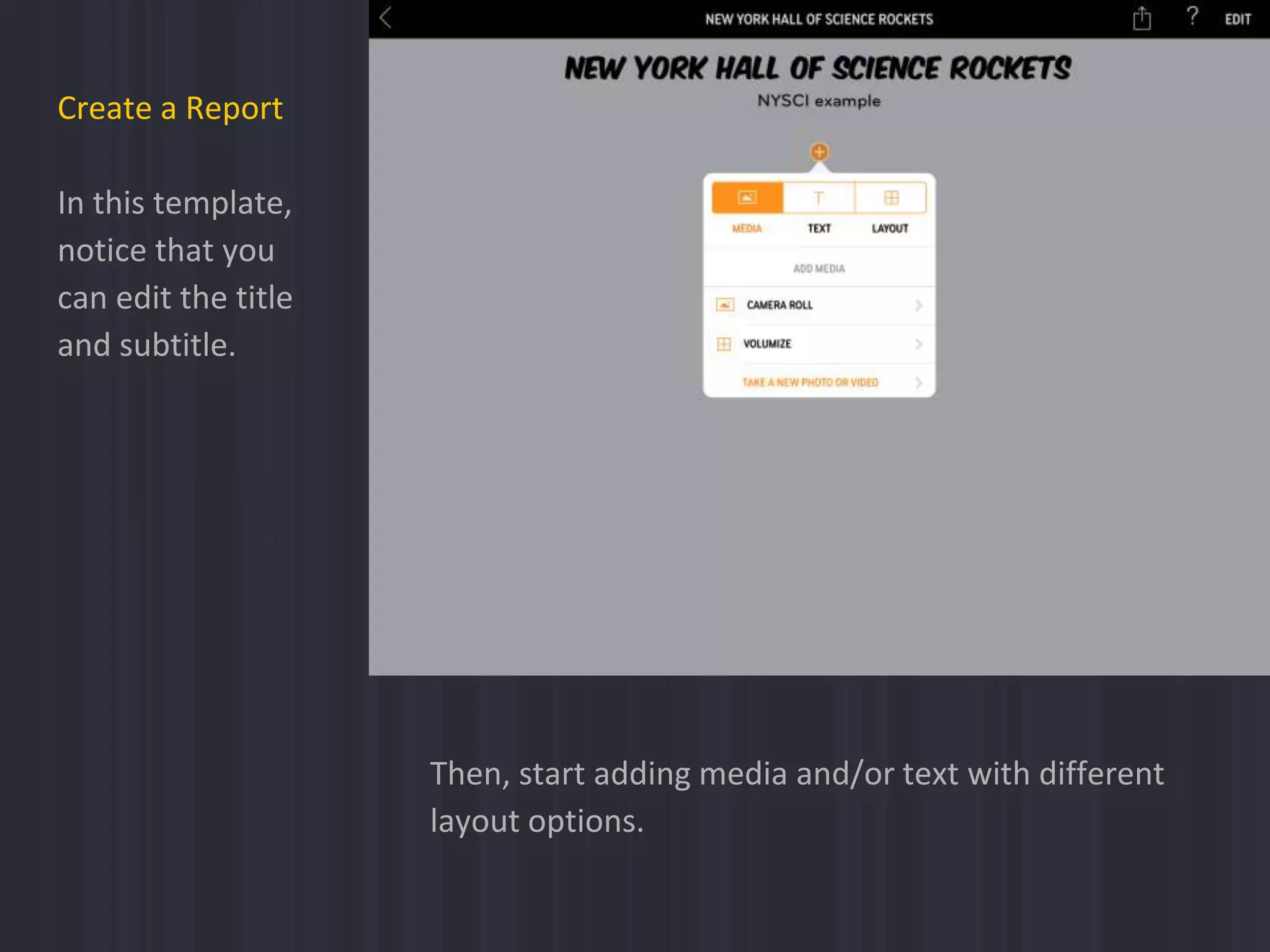
In this template,
notice that you
can edit the title
and subtitle.
Then, start adding media and/or text with different
layout options.
Create a Report
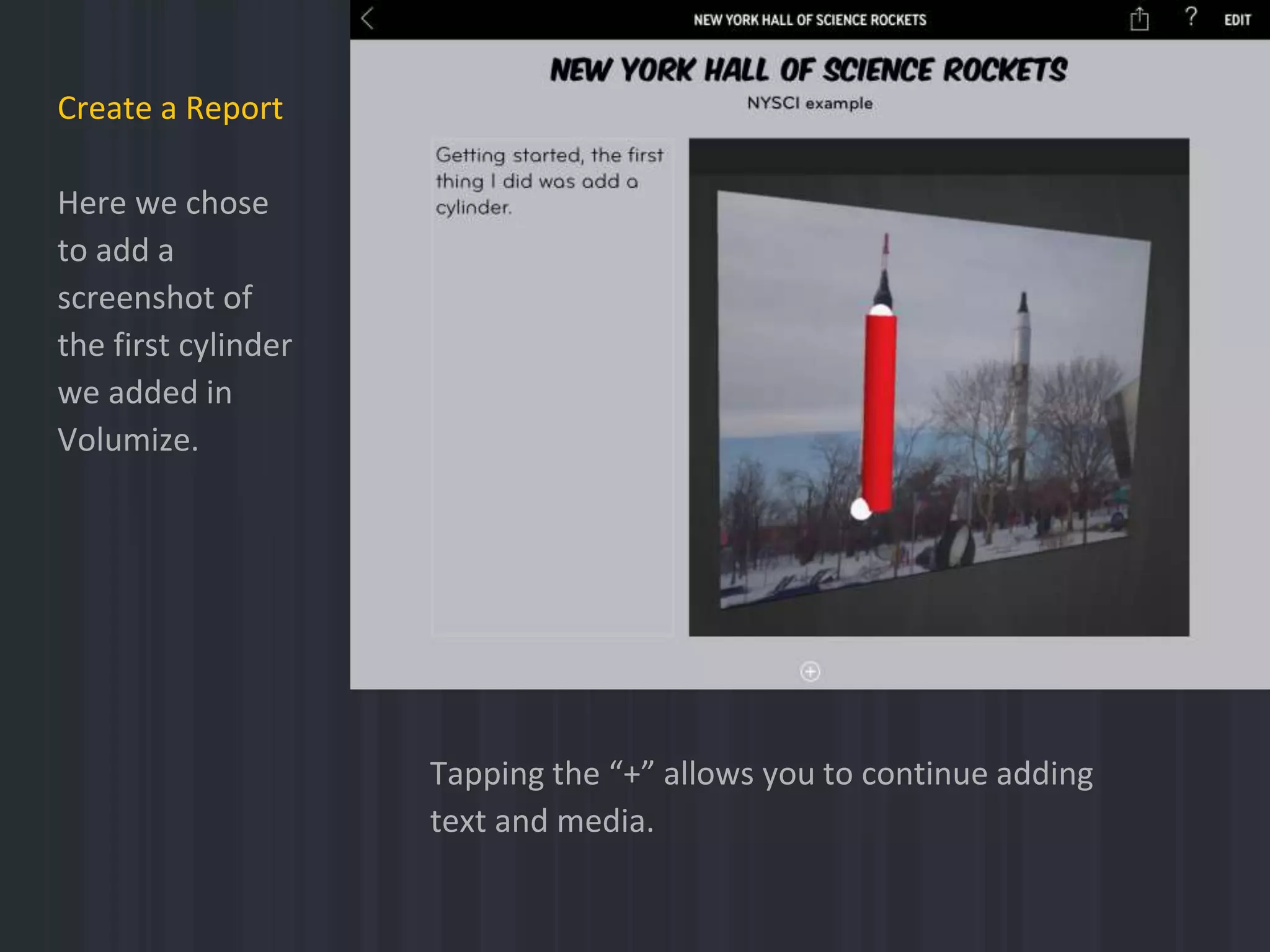
Here we chose
to add a
screenshot of
the first cylinder
we added in
Volumize.
Tapping the “+” allows you to continue adding
text and media.
Create a Report
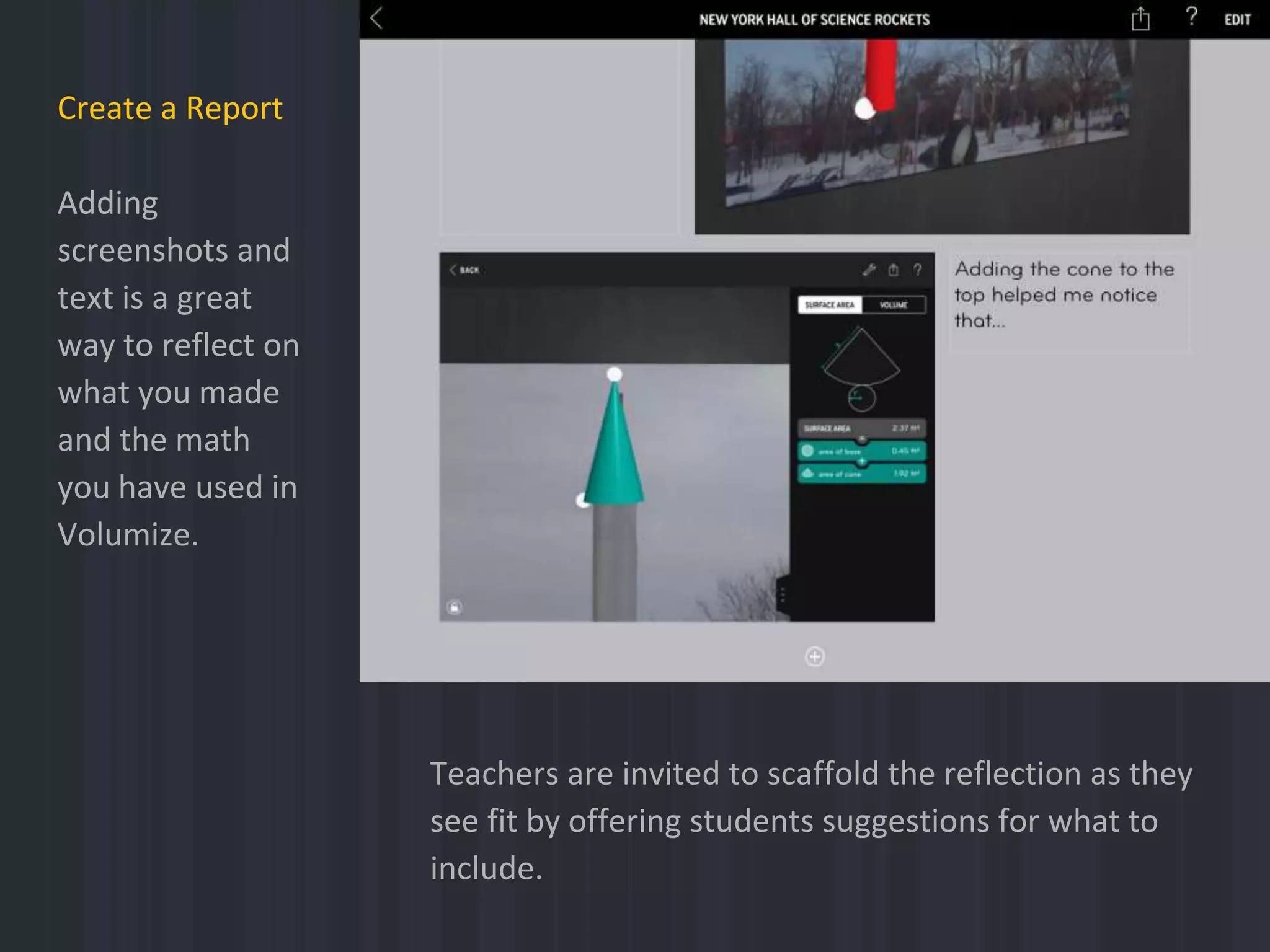
Adding
screenshots and
text is a great
way to reflect on
what you made
and the math
you have used in
Volumize.
Teachers are invited to scaffold the reflection as they
see fit by offering students suggestions for what to
include.
Create a Report
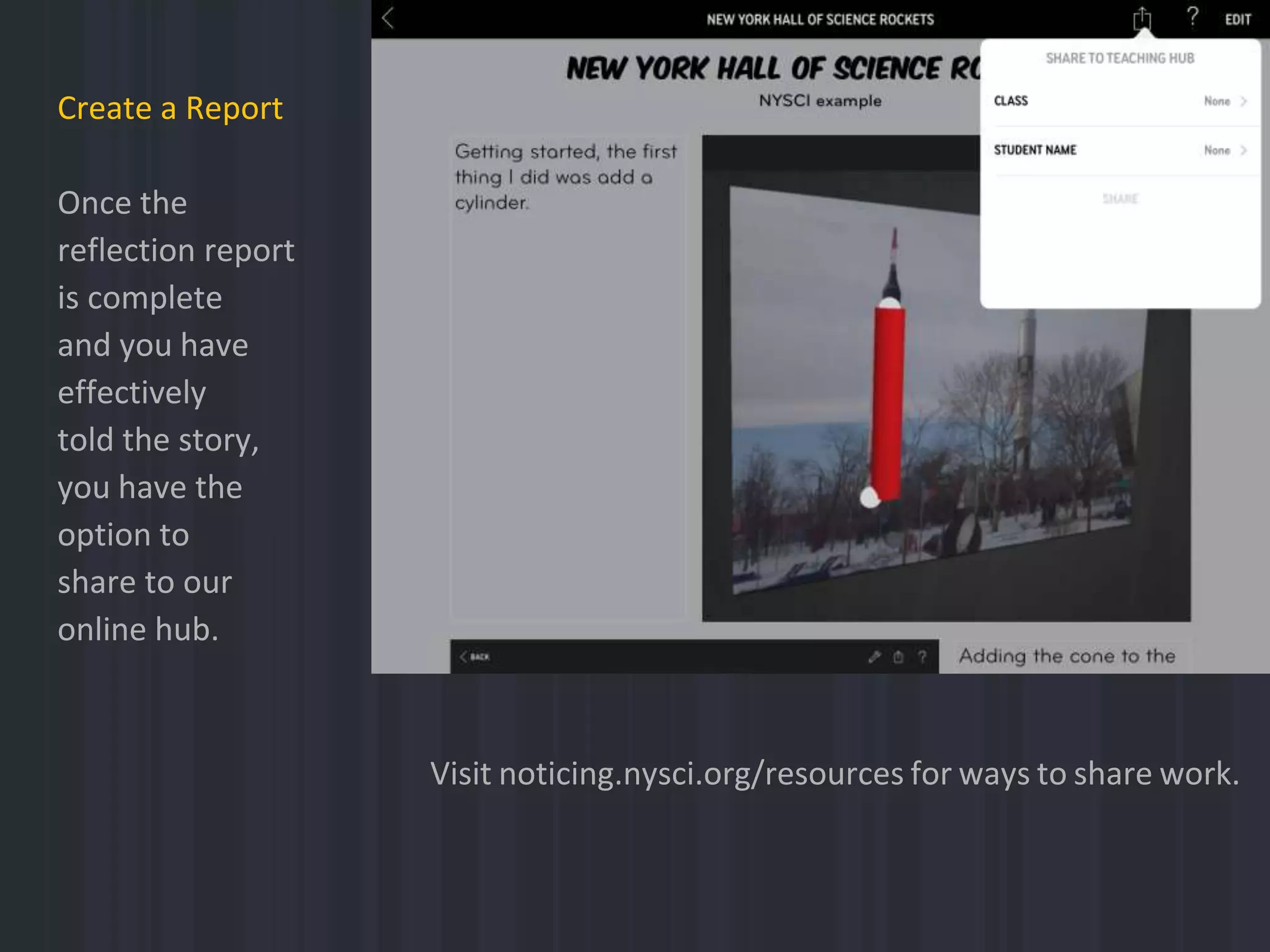
Once the
reflection report
is complete
and you have
effectively
told the story,
you have the
option to
share to our
online hub.
Visit noticing.nysci.org/resources for ways to share work.
Help
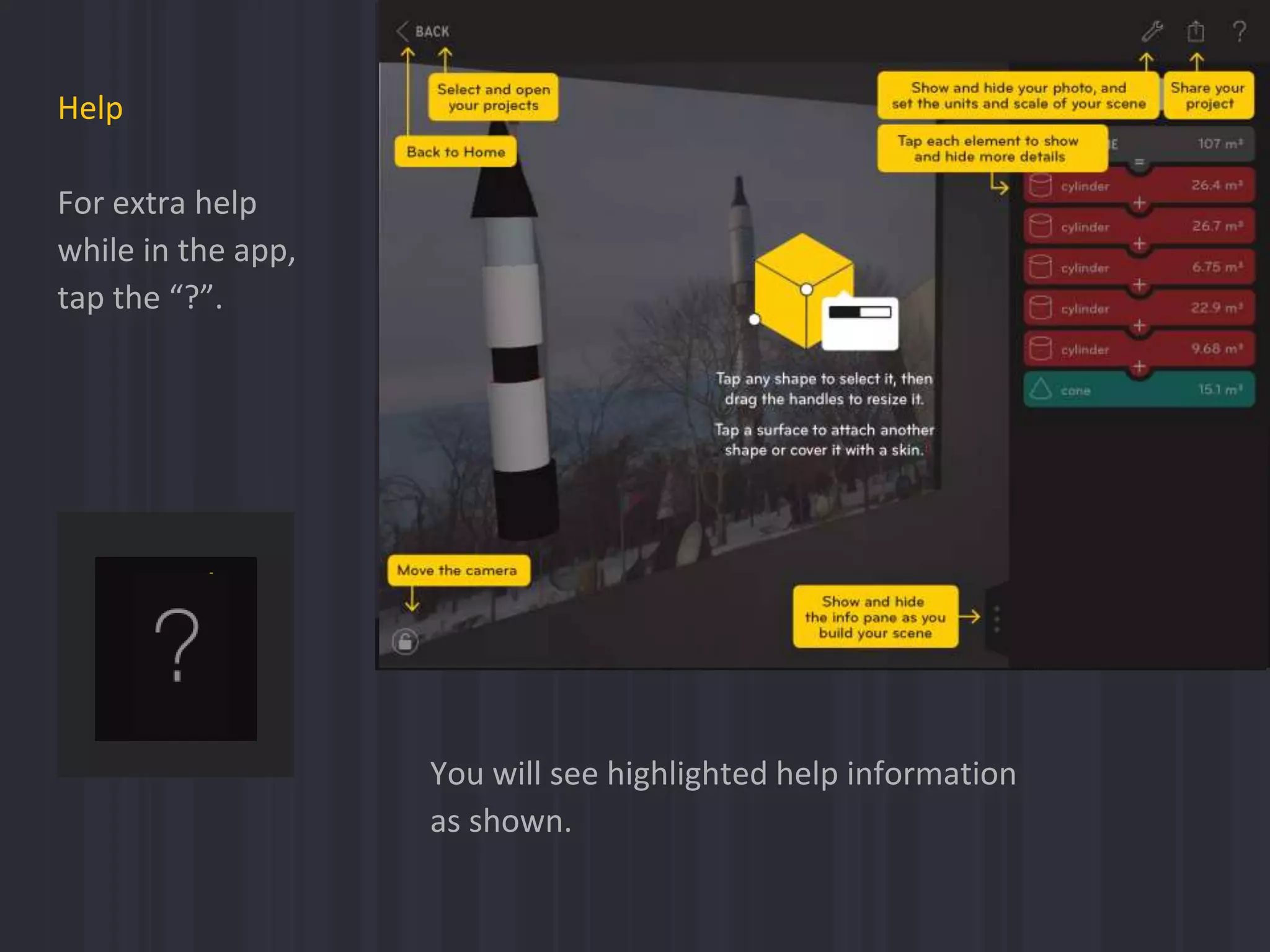
For extra help
while in the app,
tap the “?”.
You will see highlighted help information
as shown.
 For classroom activities, visit: www.nysci.org/noticing/resources
 For more information, FAQ’s, other info, check out our website:
www.nysci.org/noticing
We hope you have a lot of fun with Volumize, and learn some
things about surface area and volume in the process.
Resources Thanks very much for checking
out the tutorial.
More Noticing Tools from NYSCI
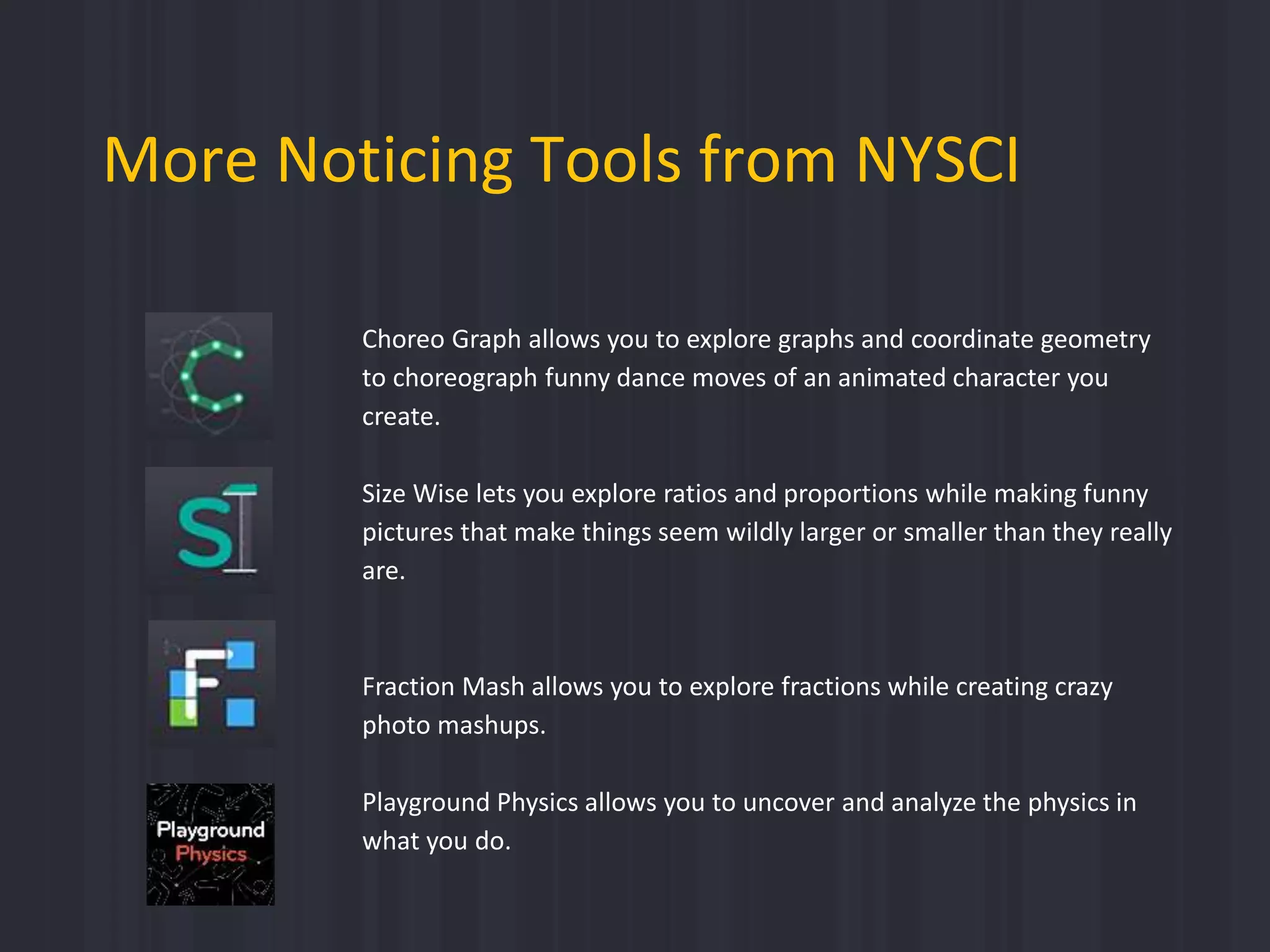
Choreo Graph allows you to explore graphs and coordinate geometry
to choreograph funny dance moves of an animated character you
create.
Size Wise lets you explore ratios and proportions while making funny
pictures that make things seem wildly larger or smaller than they really
are.
Fraction Mash allows you to explore fractions while creating crazy
photo mashups.
Playground Physics allows you to uncover and analyze the physics in
what you do.
Volumize tutorial final

Volumize tutorial final

  • 2.
    About this Tutorial Thistutorial is intended to:  Introduce all the tools in the app  Illustrate a sample activity that can be done using the app
  • 3.
    Volumize let’s youexplore surface area, volume, scale, dimension and mathematical nets while creating models in an introductory 3D modeling environment. What is Volumize?
  • 4.
    Volumize was inspiredby the power of 3D modeling to design with classic solid shapes We developed a tool that allows students to explore surface area, volume, mathematical nets and dimension while creating 3D models of the world around them.
  • 5.
  • 6.
    In this app,you’re playing around with simple 3D shapes and building approximations of real things in your 2D pictures. Set your scale to match the size of real objects to estimate the surface area and volume of the real thing. Use just one or two shapes for a quick estimate. Use more shapes to add detail and get a closer approximation. Surface Area and Volume (Believe it or not, you’re doing math)
  • 7.
  • 8.
    Create a simplemodel • Choose an object of interest • Take a picture of the object • Set the scale • Build the 3D model on top of the 2D image
  • 9.
    To get started,tap: TELL THE STORY is covered later in this tutorial.
  • 10.
    The opening screen isa live camera view, but you can also import pictures from your camera roll. For this example, we will build off of a photo of the NYSCI rockets. Start with a picture Tap the mountain button to import new pictures or take a new one.
  • 11.
    Once you havea picture, you’re ready to set the scale. Pinch to adjust the grid overlay and line up a measurement as close as you can. The more precise the initial scale, the more closely the real-world approximations will be in the app. Tap the wrench to choose metric or English units.
  • 12.
    After the scaleis set, you are ready to begin building with solids. First, notice that you can rotate the scene with one finger. Then, tap the picture and the options for solids to appear. Double tap on picture to get a straight-on view.
  • 13.
    For our firstshape, we’re choosing a cylinder. You are able to slide the solid around to line it up on top of the photo. The lock icon allows you to change the orientation of the first solid, also called the base solid.
  • 14.
    Here you cansee we slid the cylinder to cover the rocket. We used the handles, the small white circles, to reduce the length of the radius of the base, and to increase the height of the cylinder. Each handle controls only one dimension of the solid. You may have to experiment with the handles a bit to know which one. Sometimes handles are hidden in the back of your model. Be sure to sure to rotate the model to find them.
  • 15.
    A major component ofVolumize is the info panel. Since we set the scale to match the actual size of the rocket, the info panel data are now a close estimate of the surface area and volume of the model. Also notice the mathematical net for the cylinder, what it would look like unfolded. As you edit the dimensions of your solids, the net will change dynamically in real time.
  • 16.
    Once your basesolid is set, you are ready to add another solid. Here we tilted our scene and zoomed in with two fingers to get more access to the top surface. Then, we tapped the top surface and the options for a new solid appeared. Each solid has its own surface area and volume formulas that are dynamically displayed in the info panel.
  • 17.
    We chose acone for the top of the rocket and had to edit the dimensions using the handles to create a closer approximation of the actual rocket. When one solid is selected, as the cone is here, the info panel shows its dynamic net and its data.
  • 18.
    For our modelwe added a few more cylinders, and now we’re ready to start skinning. Notice the cone data is visualized with a different color in the side panel. Each solid has its own color.
  • 19.
    When you selecta solid in your model, choose Skin and notice the options available. When skinning with photos, you will see the ways that Volumize automatically adds the images to solids. Nets in the info pane (how solids look unfolded) can be helpful in thinking about which sides you will like to skin.
  • 20.
    There you haveit, a model of the NYSCI rocket with data for surface area and volume that are fairly close approximations to the actual rocket. Rounded surfaces and other warping can lead to creative problem solving around how to get the skins to appear on your model the way you want.
  • 21.
    The possibilities for 3Dmodels and exploring math at the same time are endless.
  • 22.
  • 23.
    Volumize also allowsstudents to create a multi-media reflection report about their projects in TELL THE STORY. Tap:
  • 24.
    Create a Reflection Report Tap “+”to create a new report or tap on a report you’ve already made to access it, edit it, or share it.
  • 25.
    Create a Report Youare given a few template options. Blank allows you to customize your reflection.
  • 26.
    Create a Report Inthis template, notice that you can edit the title and subtitle. Then, start adding media and/or text with different layout options.
  • 27.
    Create a Report Herewe chose to add a screenshot of the first cylinder we added in Volumize. Tapping the “+” allows you to continue adding text and media.
  • 28.
    Create a Report Adding screenshotsand text is a great way to reflect on what you made and the math you have used in Volumize. Teachers are invited to scaffold the reflection as they see fit by offering students suggestions for what to include.
  • 29.
    Create a Report Oncethe reflection report is complete and you have effectively told the story, you have the option to share to our online hub. Visit noticing.nysci.org/resources for ways to share work.
  • 30.
    Help For extra help whilein the app, tap the “?”. You will see highlighted help information as shown.
  • 31.
     For classroomactivities, visit: www.nysci.org/noticing/resources  For more information, FAQ’s, other info, check out our website: www.nysci.org/noticing We hope you have a lot of fun with Volumize, and learn some things about surface area and volume in the process. Resources Thanks very much for checking out the tutorial.
  • 32.
    More Noticing Toolsfrom NYSCI Choreo Graph allows you to explore graphs and coordinate geometry to choreograph funny dance moves of an animated character you create. Size Wise lets you explore ratios and proportions while making funny pictures that make things seem wildly larger or smaller than they really are. Fraction Mash allows you to explore fractions while creating crazy photo mashups. Playground Physics allows you to uncover and analyze the physics in what you do.