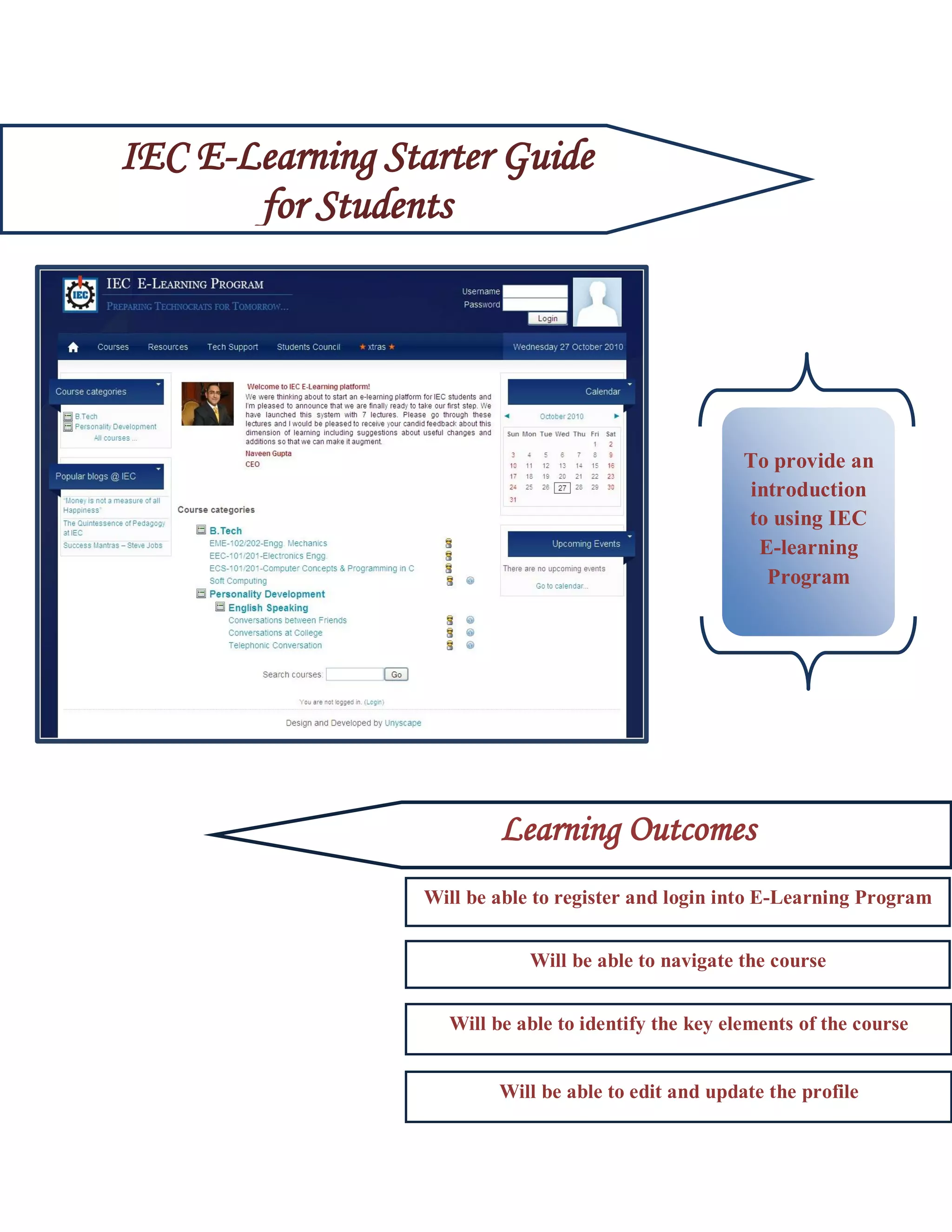
IEC E-Learning Starter Guide
       for Students


                                                       To provide an
                                                       introduction
                                                       to using IEC
                                                        E-learning
                                                         Program


                          Learning Outcomes
                  Will be able to register and login into E-Learning Program


           Lear               Will be able to navigate the course


                    Will be able to identify the key elements of the course


                          Will be able to edit and update the profile
Table of Contents


Logging In to IEC E-Learning .............................................................................................................. 1
Viewing, Editing and Updating your Profile ........................................................................................ 3
Entering into Your Courses .................................................................................................................. 5
Enrolling on your course ....................................................................................................................... 5
Course Home Page ................................................................................................................................ 6
   1.         Topic Outline ............................................................................................................................. 6
        1.          Viewing Specific topic ............................................................................................................ 7
        2.          Files type and Viewing them .................................................................................................. 7
              i.       Assignment File .................................................................................................................. 7
              ii.      Scorm File ……………………………………………………………………………………8
              iii. Documents, Presentations and Pdf files ........................................................................... 10
   2.         Blocks ....................................................................................................................................... 11
        i.          My Courses............................................................................................................................ 11
        ii.         People Block.......................................................................................................................... 11
        iii. Administration Block ............................................................................................................ 11
        iv.         Search Forum ....................................................................................................................... 12
        v.          Recent Activity Block............................................................................................................. 12
Navigating your courses ...................................................................................................................... 13
             Breadcrumbs ............................................................................................................................. 13
             Dropdown menu .......................................................................................................................... 3
Logging In to IEC E-Learning

    Go to the http://www.iecelearning.com in your browser.

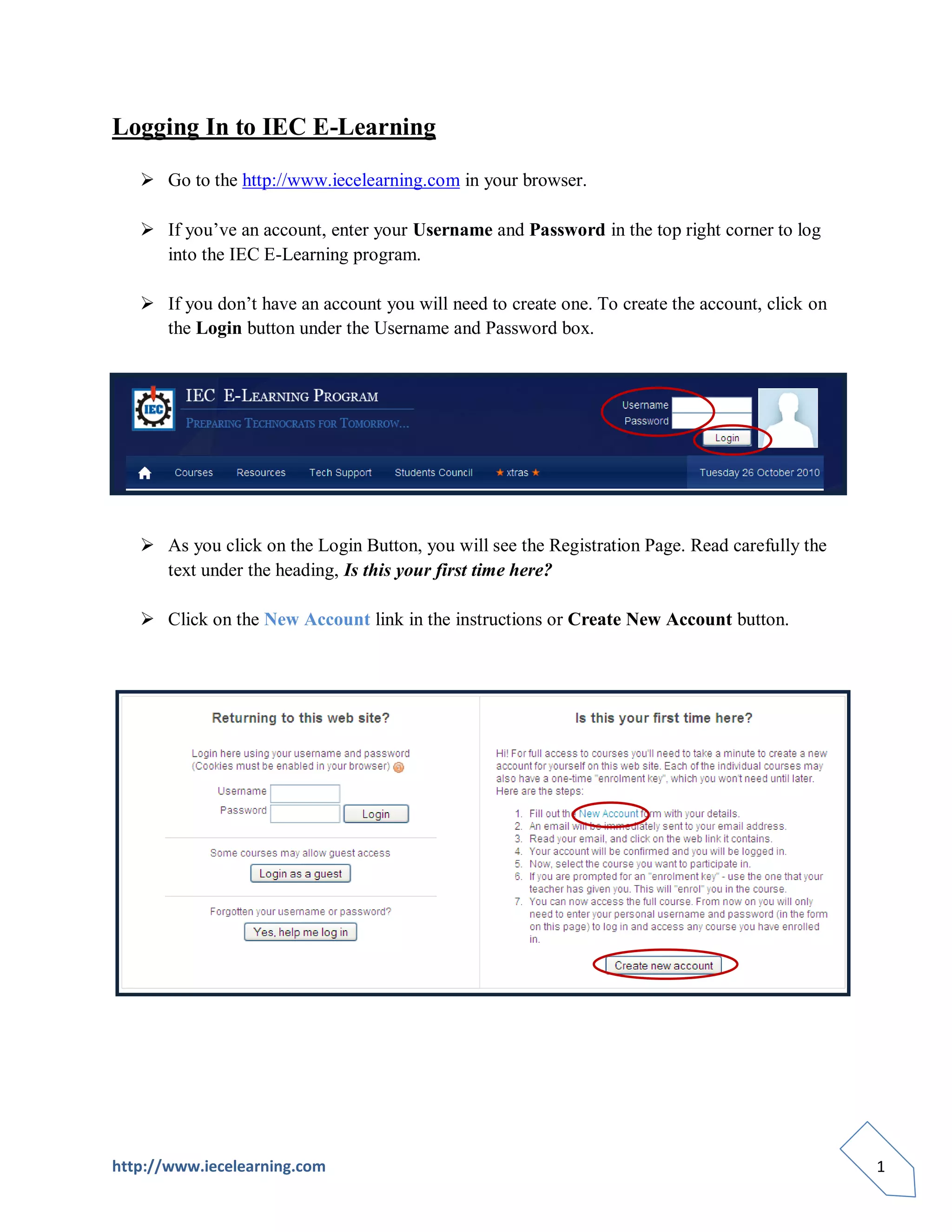
    If you’ve an account, enter your Username and Password in the top right corner to log
     into the IEC E-Learning program.

    If you don’t have an account you will need to create one. To create the account, click on
     the Login button under the Username and Password box.


    As you click on the Login Button, you will see the Registration Page. Read carefully the
     text under the heading, Is this your first time here?

    Click on the New Account link in the instructions or Create New Account button.


http://www.iecelearning.com                                                                      1
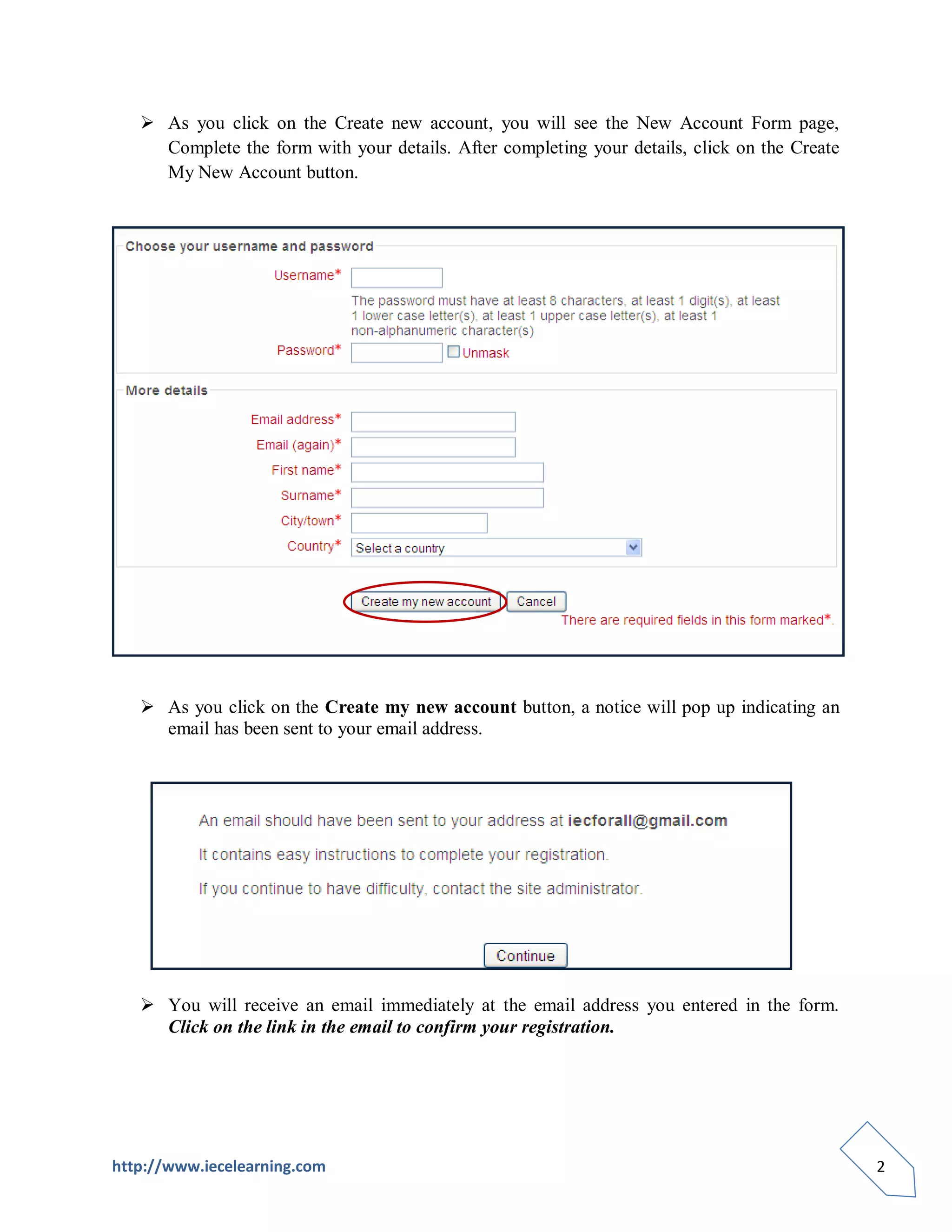
 As you click on the Create new account, you will see the New Account Form page,
     Complete the form with your details. After completing your details, click on the Create
     My New Account button.


    As you click on the Create my new account button, a notice will pop up indicating an
     email has been sent to your email address.


    You will receive an email immediately at the email address you entered in the form.
     Click on the link in the email to confirm your registration.


http://www.iecelearning.com                                                                    2
Viewing, Editing and Updating your Profile

Your profile displays information about you to other users. You can also add a photo to your
profile. It is also worth checking your timezone is accurate, as this will affect when you can
access scheduled events such as quizzes and chats.

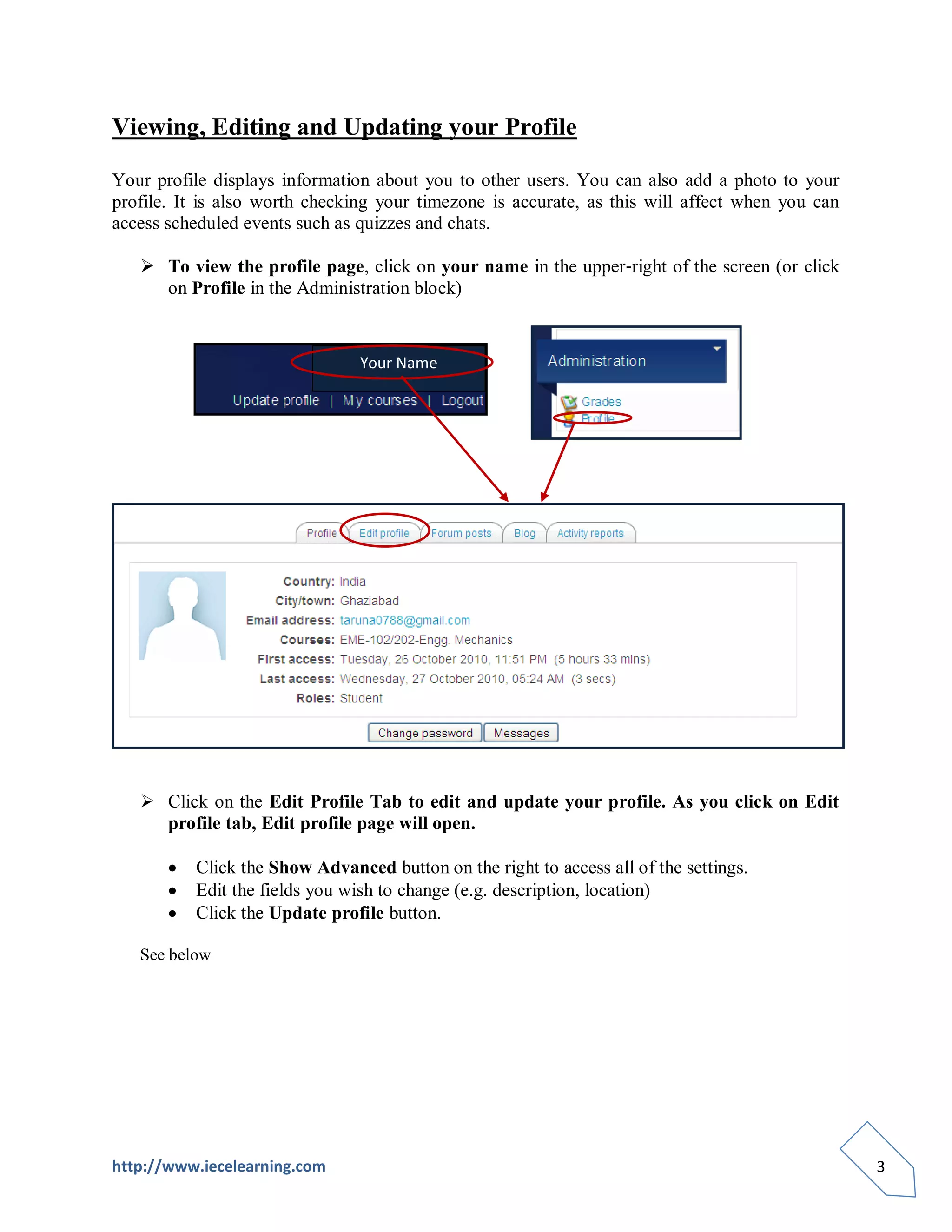
    To view the profile page, click on your name in the upper‐right of the screen (or click
     on Profile in the Administration block)


                                Your Name


    Click on the Edit Profile Tab to edit and update your profile. As you click on Edit
     profile tab, Edit profile page will open.

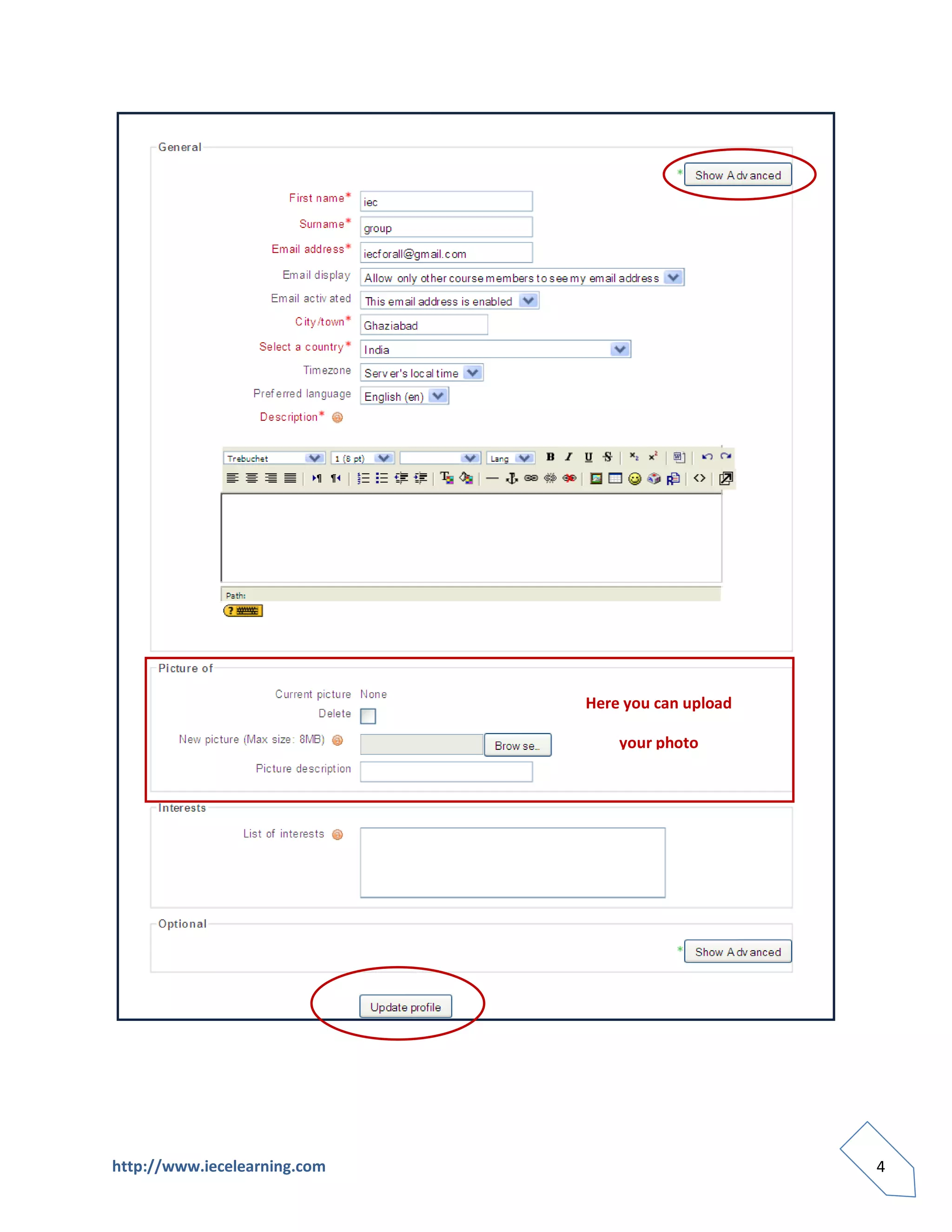
          Click the Show Advanced button on the right to access all of the settings.
          Edit the fields you wish to change (e.g. description, location)
          Click the Update profile button.

   See below


http://www.iecelearning.com                                                                      3
Here you can upload

                                  your photo


http://www.iecelearning.com                         4
Entering into Your Courses
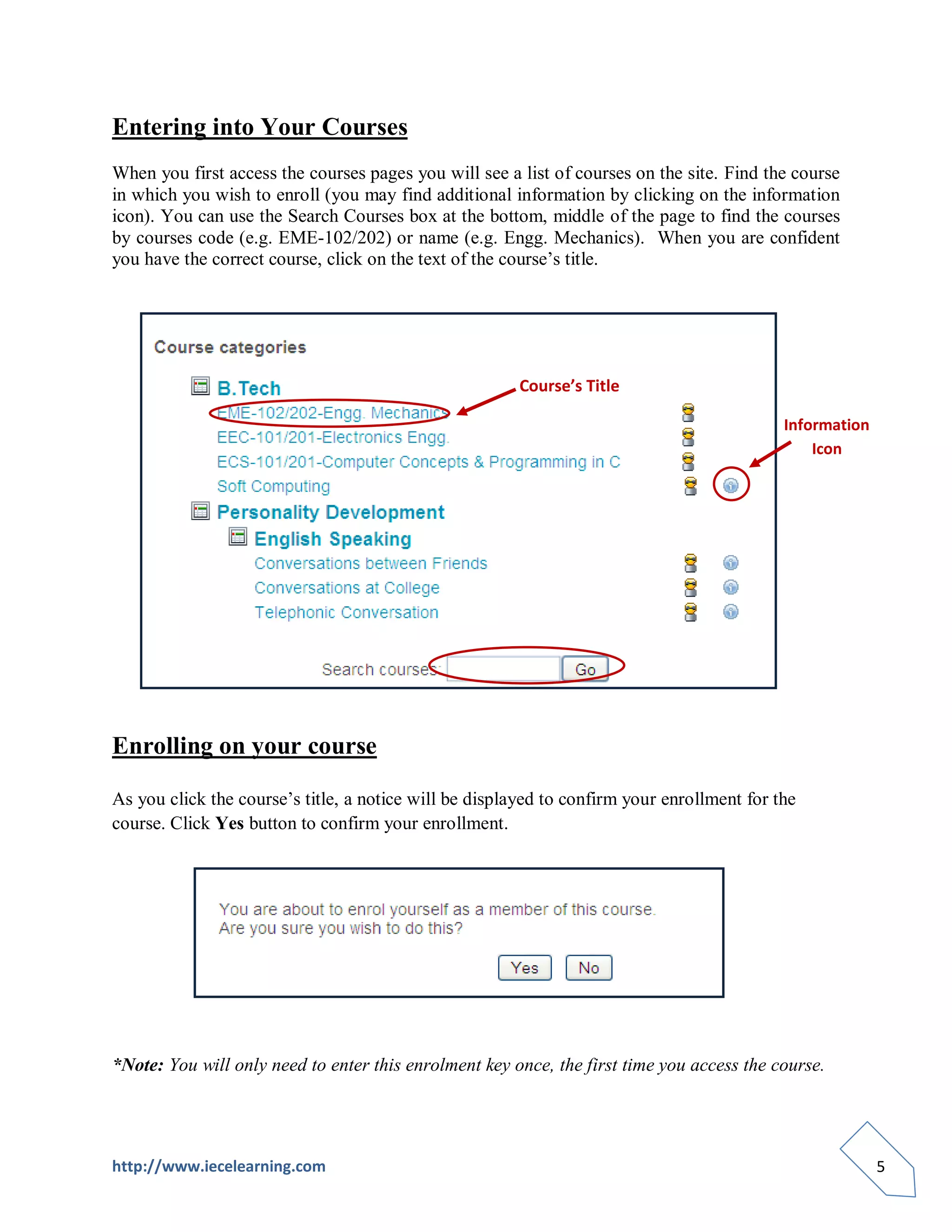
When you first access the courses pages you will see a list of courses on the site. Find the course
in which you wish to enroll (you may find additional information by clicking on the information
icon). You can use the Search Courses box at the bottom, middle of the page to find the courses
by courses code (e.g. EME-102/202) or name (e.g. Engg. Mechanics). When you are confident
you have the correct course, click on the text of the course’s title.


                                                        Course’s Title

                                                                                            Information
                                                                                                Icon


Enrolling on your course

As you click the course’s title, a notice will be displayed to confirm your enrollment for the
course. Click Yes button to confirm your enrollment.


*Note: You will only need to enter this enrolment key once, the first time you access the course.


http://www.iecelearning.com                                                                               5
Course Home Page

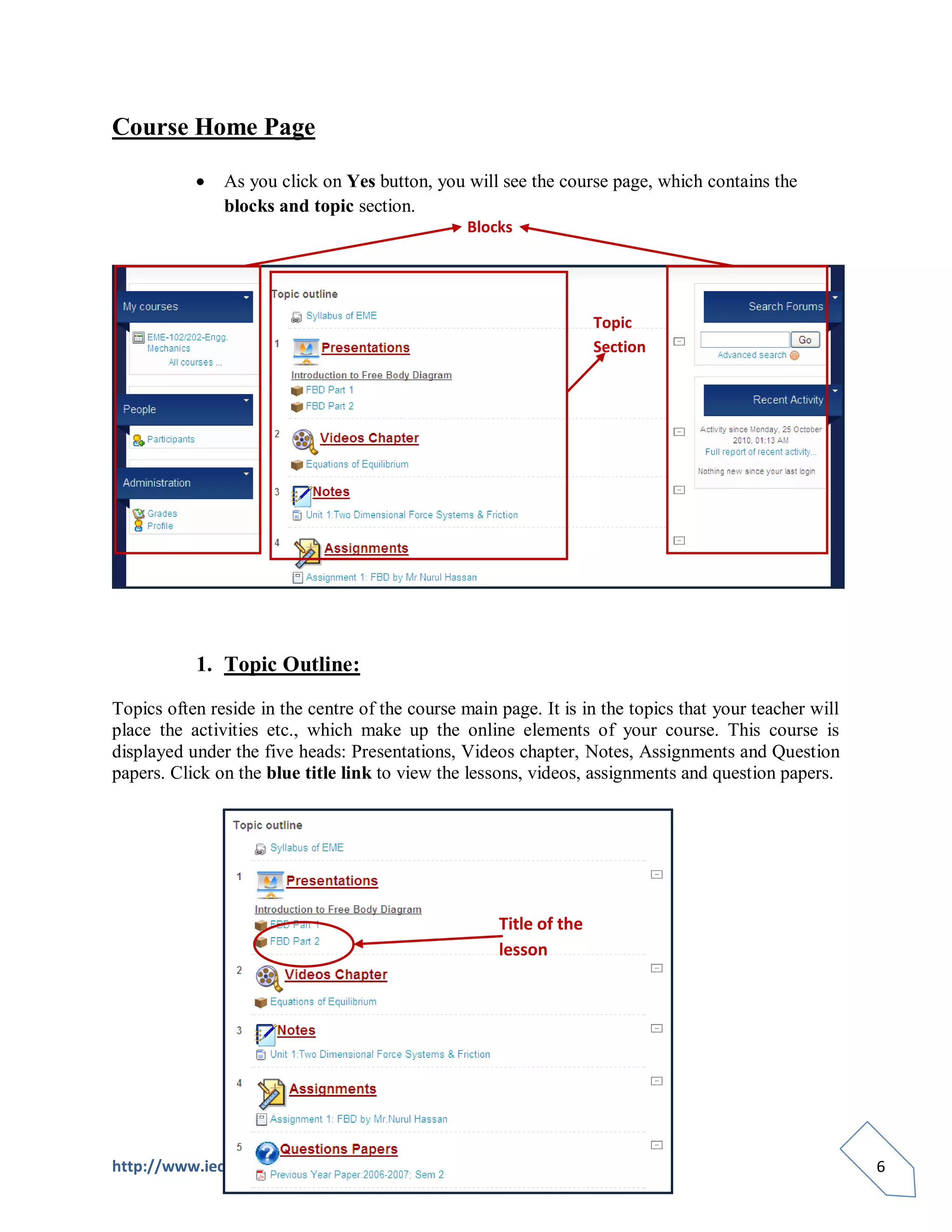
               As you click on Yes button, you will see the course page, which contains the
               blocks and topic section.
                                                 Blocks


                                                                    Topic
                                                                    Section


           1. Topic Outline:

Topics often reside in the centre of the course main page. It is in the topics that your teacher will
place the activities etc., which make up the online elements of your course. This course is
displayed under the five heads: Presentations, Videos chapter, Notes, Assignments and Question
papers. Click on the blue title link to view the lessons, videos, assignments and question papers.


                                                     Title of the
                                                     lesson


http://www.iecelearning.com                                                                             6
1. Viewing Specific topic:

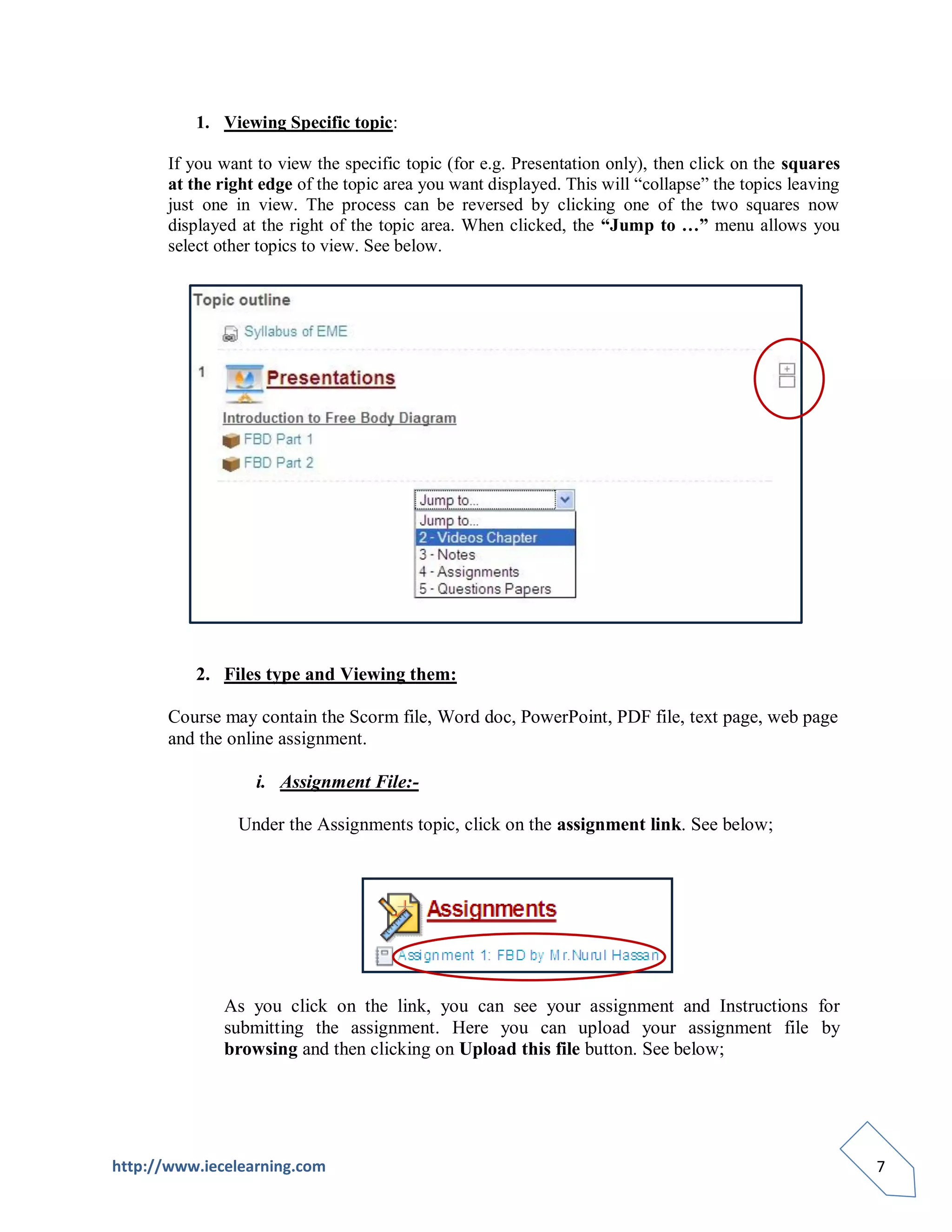
       If you want to view the specific topic (for e.g. Presentation only), then click on the squares
       at the right edge of the topic area you want displayed. This will “collapse” the topics leaving
       just one in view. The process can be reversed by clicking one of the two squares now
       displayed at the right of the topic area. When clicked, the “Jump to …” menu allows you
       select other topics to view. See below.


          2. Files type and Viewing them:

       Course may contain the Scorm file, Word doc, PowerPoint, PDF file, text page, web page
       and the online assignment.

                   i. Assignment File:-

                Under the Assignments topic, click on the assignment link. See below;


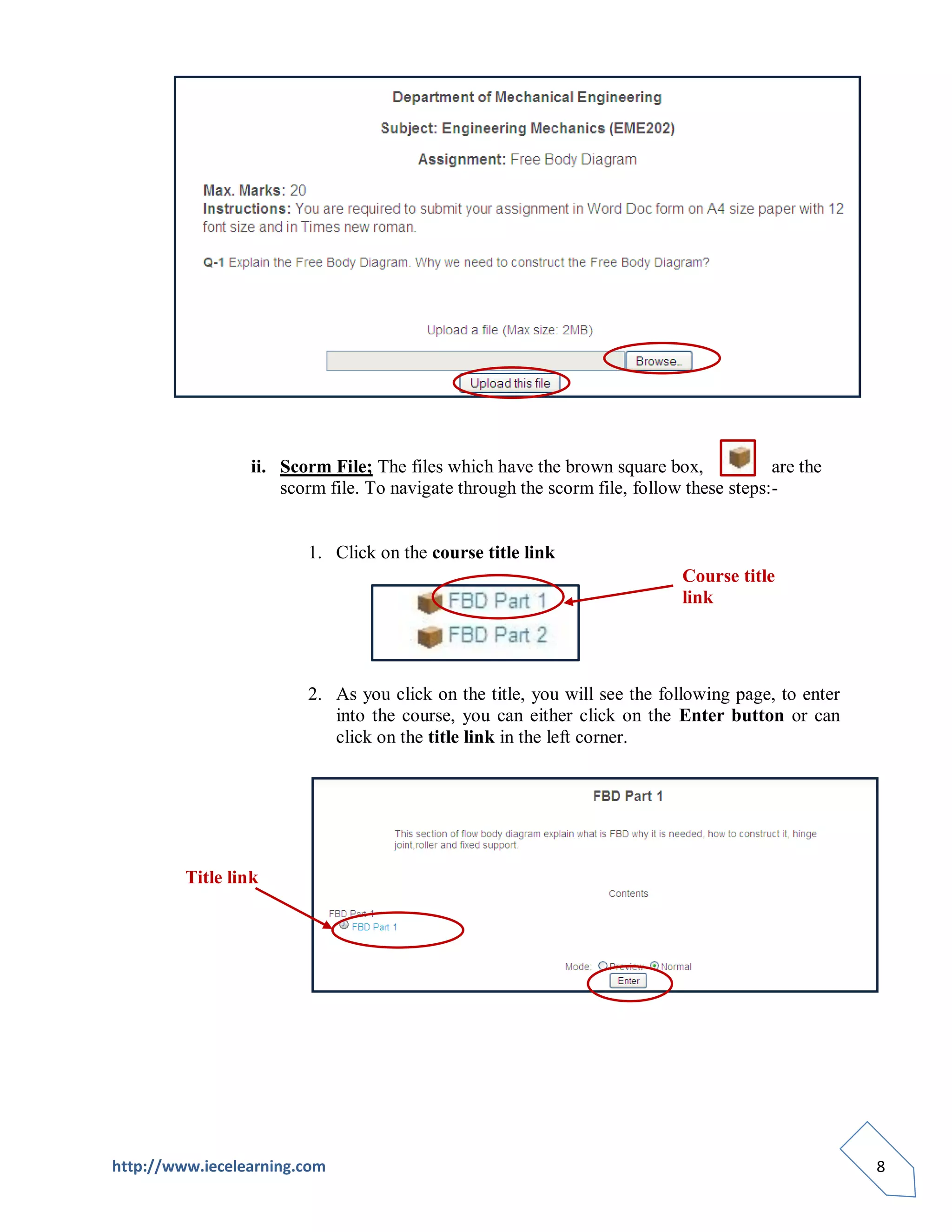
              As you click on the link, you can see your assignment and Instructions for
              submitting the assignment. Here you can upload your assignment file by
              browsing and then clicking on Upload this file button. See below;


http://www.iecelearning.com                                                                              7
ii. Scorm File; The files which have the brown square box,             are the
                     scorm file. To navigate through the scorm file, follow these steps:-


                        1. Click on the course title link
                                                                           Course title
                                                                           link


                        2. As you click on the title, you will see the following page, to enter
                           into the course, you can either click on the Enter button or can
                           click on the title link in the left corner.


         Title link


http://www.iecelearning.com                                                                       8
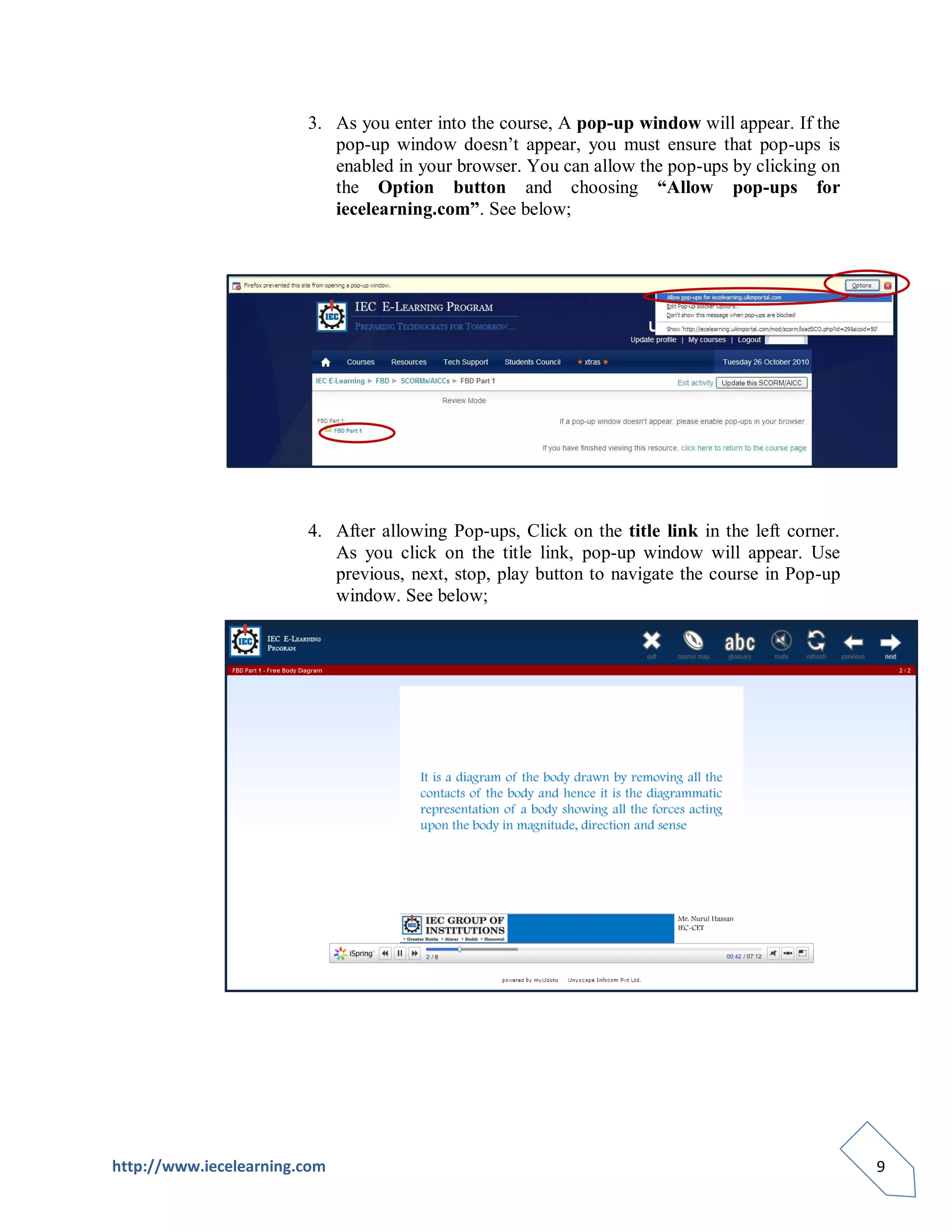
3. As you enter into the course, A pop-up window will appear. If the
                           pop-up window doesn’t appear, you must ensure that pop-ups is
                           enabled in your browser. You can allow the pop-ups by clicking on
                           the Option button and choosing “Allow pop-ups for
                           iecelearning.com”. See below;


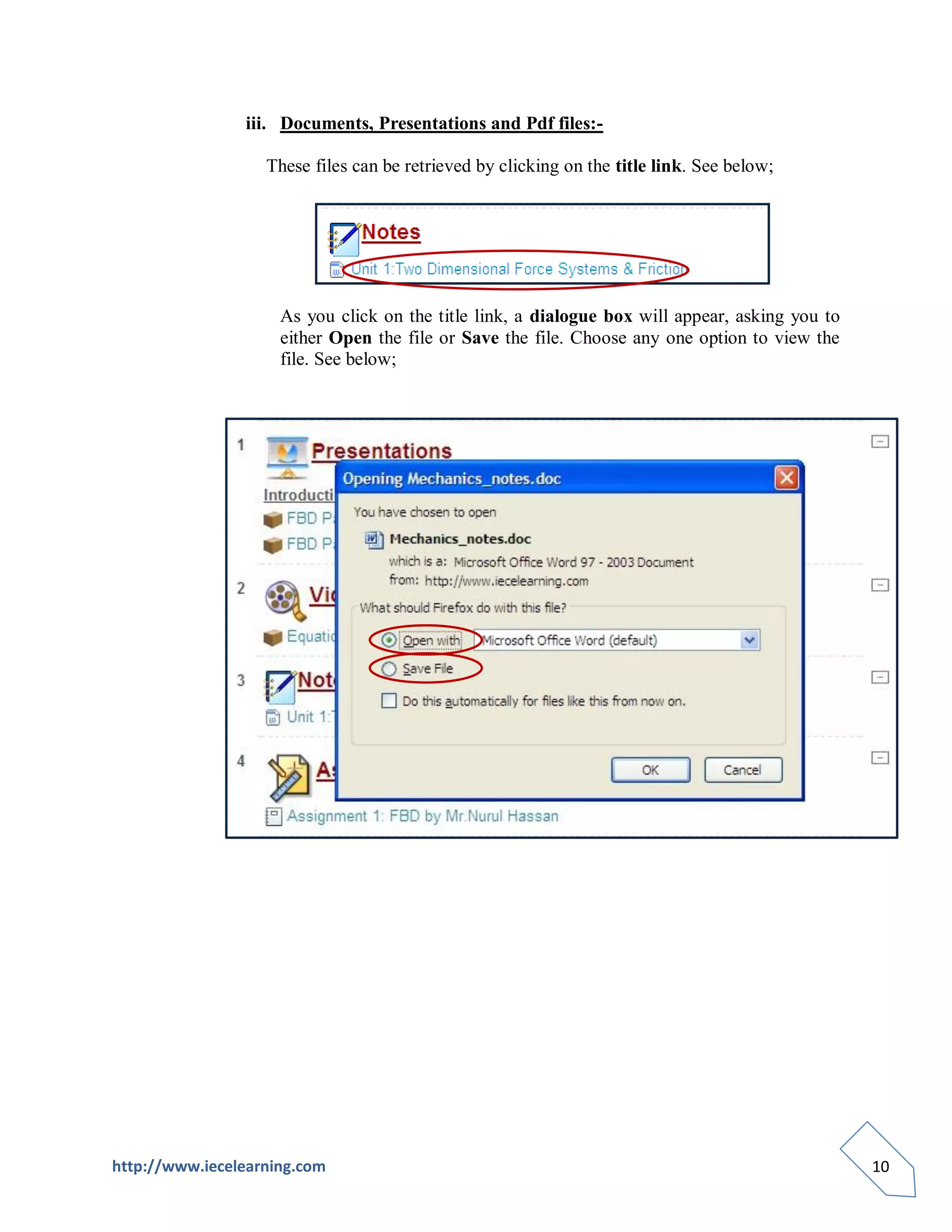
                        4. After allowing Pop-ups, Click on the title link in the left corner.
                           As you click on the title link, pop-up window will appear. Use
                           previous, next, stop, play button to navigate the course in Pop-up
                           window. See below;


http://www.iecelearning.com                                                                      9
iii. Documents, Presentations and Pdf files:-

                   These files can be retrieved by clicking on the title link. See below;


                     As you click on the title link, a dialogue box will appear, asking you to
                     either Open the file or Save the file. Choose any one option to view the
                     file. See below;


http://www.iecelearning.com                                                                      10
2. Blocks

    Blocks are on screen areas which are placed at the side of the main course page. They fulfill a
    range of functions as described below.

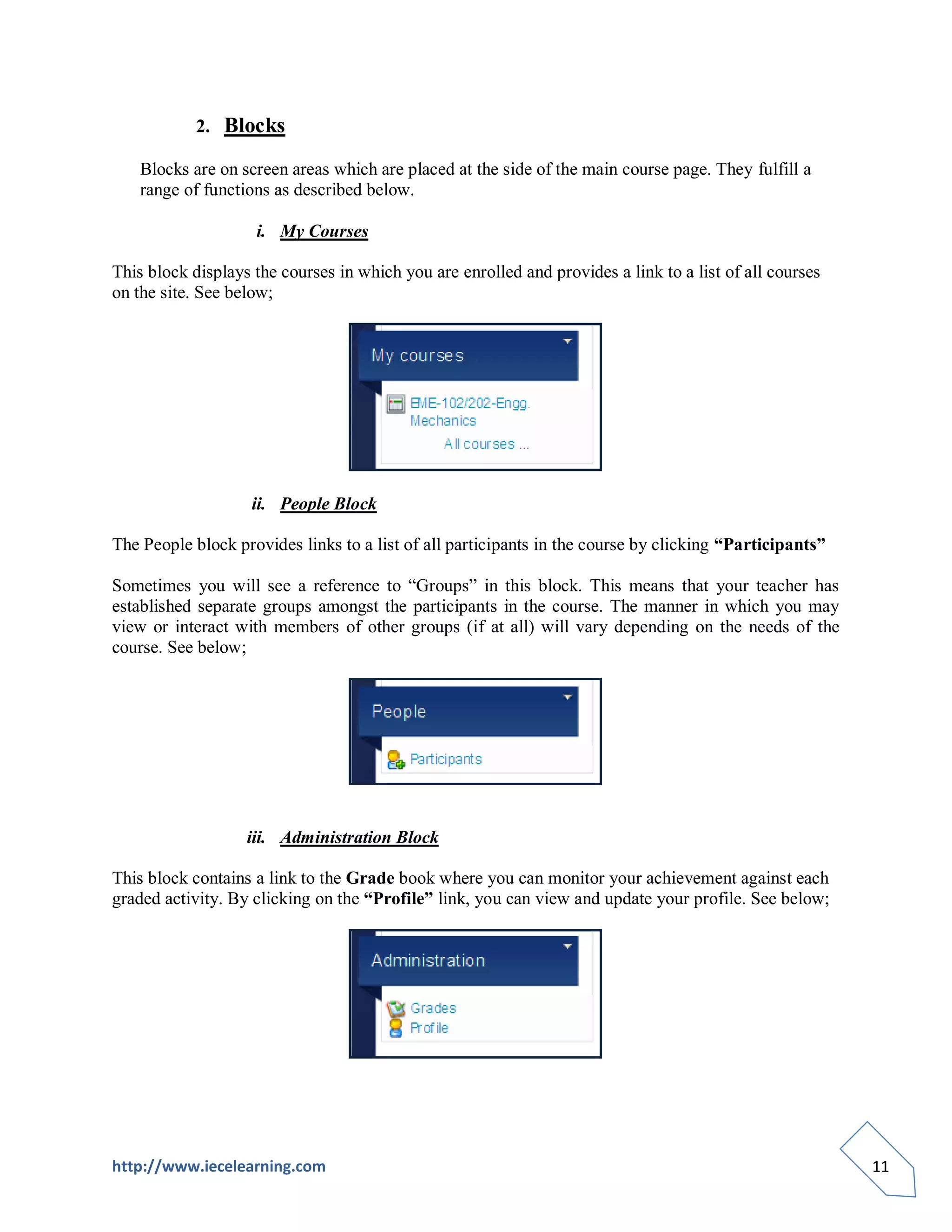
                    i. My Courses

This block displays the courses in which you are enrolled and provides a link to a list of all courses
on the site. See below;


                    ii. People Block

The People block provides links to a list of all participants in the course by clicking “Participants”

Sometimes you will see a reference to “Groups” in this block. This means that your teacher has
established separate groups amongst the participants in the course. The manner in which you may
view or interact with members of other groups (if at all) will vary depending on the needs of the
course. See below;


                   iii. Administration Block

This block contains a link to the Grade book where you can monitor your achievement against each
graded activity. By clicking on the “Profile” link, you can view and update your profile. See below;


http://www.iecelearning.com                                                                              11
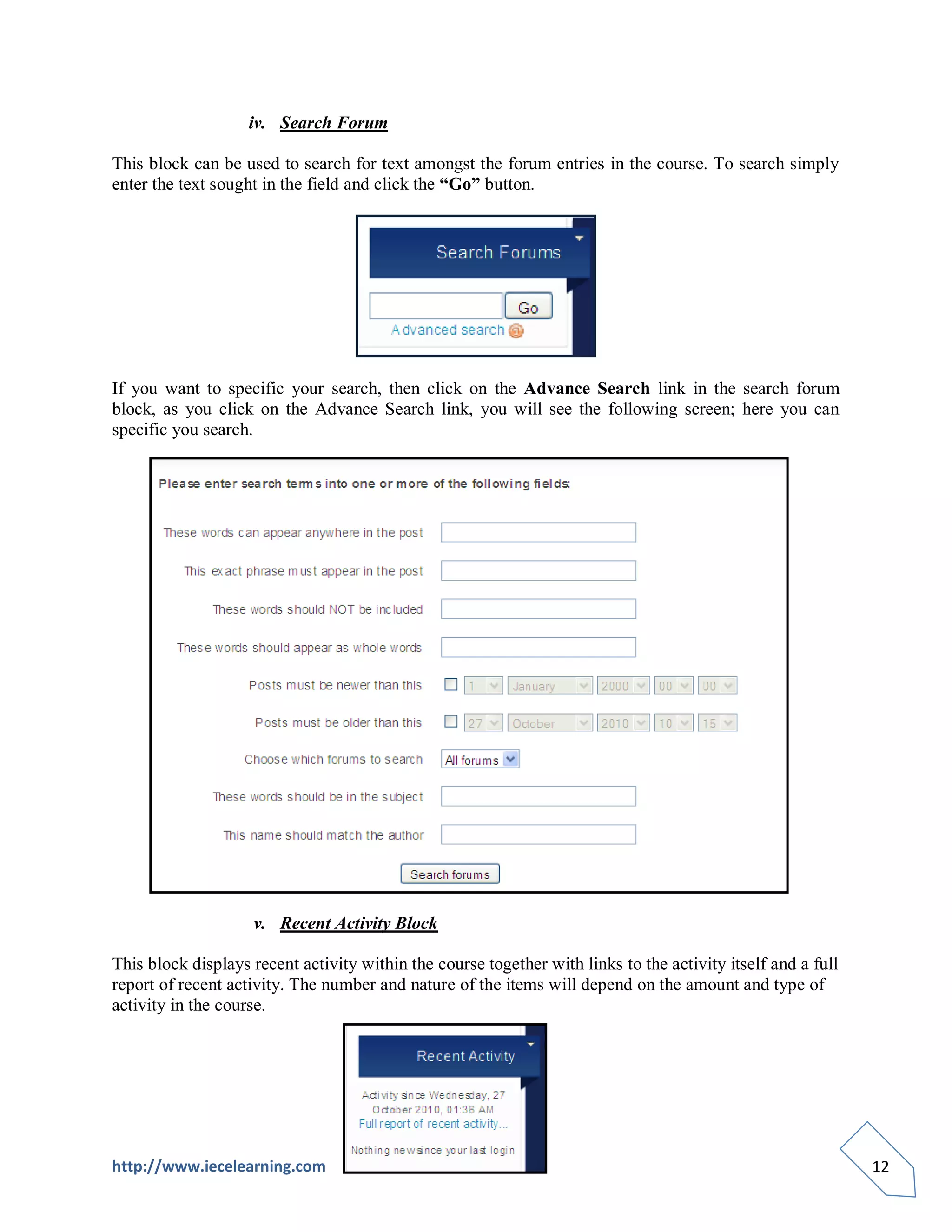
iv. Search Forum

This block can be used to search for text amongst the forum entries in the course. To search simply
enter the text sought in the field and click the “Go” button.


If you want to specific your search, then click on the Advance Search link in the search forum
block, as you click on the Advance Search link, you will see the following screen; here you can
specific you search.


                    v. Recent Activity Block

This block displays recent activity within the course together with links to the activity itself and a full
report of recent activity. The number and nature of the items will depend on the amount and type of
activity in the course.


http://www.iecelearning.com                                                                                   12
Navigating your courses

There are several ways to navigate within the course site.

    Breadcrumbs

This is a menu positioned below the course title showing your location within the course site.
Just as you got there you can now retrace your steps in the opposite direction to return to where
you started. Just like leaving a trail of breadcrumbs thus the name.


The above example of a “breadcrumb” shows your current location is FBD Part 1. If you click on
SCORMs/AICCS you will be taken to a page that lists all the Scorm files within the course.
Click on the name of the course and you will be returned to the course homepage. As you
navigate you will notice this menu changes to reflect your current position.

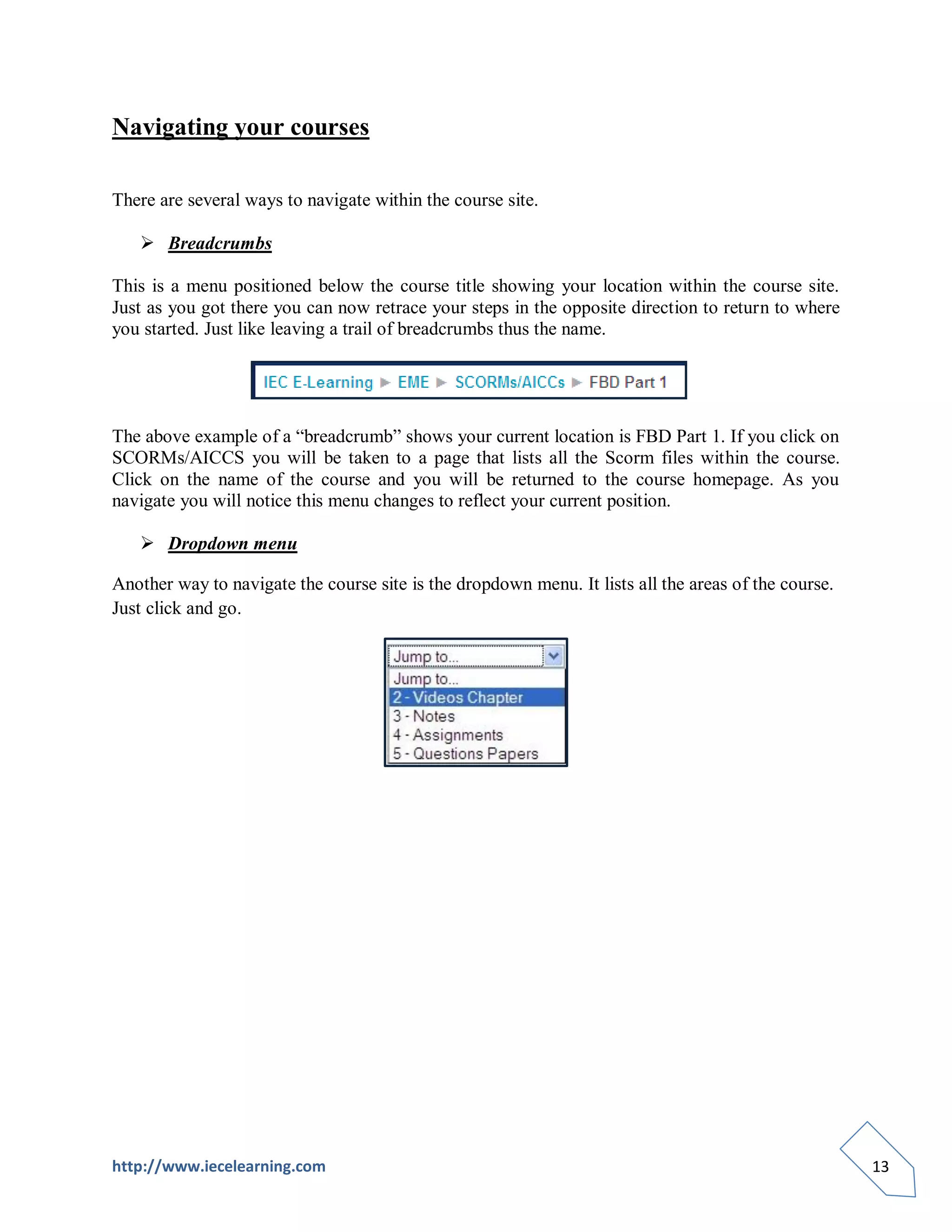
    Dropdown menu

Another way to navigate the course site is the dropdown menu. It lists all the areas of the course.
Just click and go.


http://www.iecelearning.com                                                                           13

User guide IEC E-learning website(iecelearning.com)

  • 1.
    IEC E-Learning StarterGuide for Students To provide an introduction to using IEC E-learning Program Learning Outcomes Will be able to register and login into E-Learning Program Lear Will be able to navigate the course Will be able to identify the key elements of the course Will be able to edit and update the profile
  • 2.
    Table of Contents LoggingIn to IEC E-Learning .............................................................................................................. 1 Viewing, Editing and Updating your Profile ........................................................................................ 3 Entering into Your Courses .................................................................................................................. 5 Enrolling on your course ....................................................................................................................... 5 Course Home Page ................................................................................................................................ 6 1. Topic Outline ............................................................................................................................. 6 1. Viewing Specific topic ............................................................................................................ 7 2. Files type and Viewing them .................................................................................................. 7 i. Assignment File .................................................................................................................. 7 ii. Scorm File ……………………………………………………………………………………8 iii. Documents, Presentations and Pdf files ........................................................................... 10 2. Blocks ....................................................................................................................................... 11 i. My Courses............................................................................................................................ 11 ii. People Block.......................................................................................................................... 11 iii. Administration Block ............................................................................................................ 11 iv. Search Forum ....................................................................................................................... 12 v. Recent Activity Block............................................................................................................. 12 Navigating your courses ...................................................................................................................... 13  Breadcrumbs ............................................................................................................................. 13  Dropdown menu .......................................................................................................................... 3
  • 3.
    Logging In toIEC E-Learning  Go to the http://www.iecelearning.com in your browser.  If you’ve an account, enter your Username and Password in the top right corner to log into the IEC E-Learning program.  If you don’t have an account you will need to create one. To create the account, click on the Login button under the Username and Password box.  As you click on the Login Button, you will see the Registration Page. Read carefully the text under the heading, Is this your first time here?  Click on the New Account link in the instructions or Create New Account button. http://www.iecelearning.com 1
  • 4.
     As youclick on the Create new account, you will see the New Account Form page, Complete the form with your details. After completing your details, click on the Create My New Account button.  As you click on the Create my new account button, a notice will pop up indicating an email has been sent to your email address.  You will receive an email immediately at the email address you entered in the form. Click on the link in the email to confirm your registration. http://www.iecelearning.com 2
  • 5.
    Viewing, Editing andUpdating your Profile Your profile displays information about you to other users. You can also add a photo to your profile. It is also worth checking your timezone is accurate, as this will affect when you can access scheduled events such as quizzes and chats.  To view the profile page, click on your name in the upper‐right of the screen (or click on Profile in the Administration block) Your Name  Click on the Edit Profile Tab to edit and update your profile. As you click on Edit profile tab, Edit profile page will open. Click the Show Advanced button on the right to access all of the settings. Edit the fields you wish to change (e.g. description, location) Click the Update profile button. See below http://www.iecelearning.com 3
  • 6.
    Here you canupload your photo http://www.iecelearning.com 4
  • 7.
    Entering into YourCourses When you first access the courses pages you will see a list of courses on the site. Find the course in which you wish to enroll (you may find additional information by clicking on the information icon). You can use the Search Courses box at the bottom, middle of the page to find the courses by courses code (e.g. EME-102/202) or name (e.g. Engg. Mechanics). When you are confident you have the correct course, click on the text of the course’s title. Course’s Title Information Icon Enrolling on your course As you click the course’s title, a notice will be displayed to confirm your enrollment for the course. Click Yes button to confirm your enrollment. *Note: You will only need to enter this enrolment key once, the first time you access the course. http://www.iecelearning.com 5
  • 8.
    Course Home Page As you click on Yes button, you will see the course page, which contains the blocks and topic section. Blocks Topic Section 1. Topic Outline: Topics often reside in the centre of the course main page. It is in the topics that your teacher will place the activities etc., which make up the online elements of your course. This course is displayed under the five heads: Presentations, Videos chapter, Notes, Assignments and Question papers. Click on the blue title link to view the lessons, videos, assignments and question papers. Title of the lesson http://www.iecelearning.com 6
  • 9.
    1. Viewing Specifictopic: If you want to view the specific topic (for e.g. Presentation only), then click on the squares at the right edge of the topic area you want displayed. This will “collapse” the topics leaving just one in view. The process can be reversed by clicking one of the two squares now displayed at the right of the topic area. When clicked, the “Jump to …” menu allows you select other topics to view. See below. 2. Files type and Viewing them: Course may contain the Scorm file, Word doc, PowerPoint, PDF file, text page, web page and the online assignment. i. Assignment File:- Under the Assignments topic, click on the assignment link. See below; As you click on the link, you can see your assignment and Instructions for submitting the assignment. Here you can upload your assignment file by browsing and then clicking on Upload this file button. See below; http://www.iecelearning.com 7
  • 10.
    ii. Scorm File;The files which have the brown square box, are the scorm file. To navigate through the scorm file, follow these steps:- 1. Click on the course title link Course title link 2. As you click on the title, you will see the following page, to enter into the course, you can either click on the Enter button or can click on the title link in the left corner. Title link http://www.iecelearning.com 8
  • 11.
    3. As youenter into the course, A pop-up window will appear. If the pop-up window doesn’t appear, you must ensure that pop-ups is enabled in your browser. You can allow the pop-ups by clicking on the Option button and choosing “Allow pop-ups for iecelearning.com”. See below; 4. After allowing Pop-ups, Click on the title link in the left corner. As you click on the title link, pop-up window will appear. Use previous, next, stop, play button to navigate the course in Pop-up window. See below; http://www.iecelearning.com 9
  • 12.
    iii. Documents, Presentationsand Pdf files:- These files can be retrieved by clicking on the title link. See below; As you click on the title link, a dialogue box will appear, asking you to either Open the file or Save the file. Choose any one option to view the file. See below; http://www.iecelearning.com 10
  • 13.
    2. Blocks Blocks are on screen areas which are placed at the side of the main course page. They fulfill a range of functions as described below. i. My Courses This block displays the courses in which you are enrolled and provides a link to a list of all courses on the site. See below; ii. People Block The People block provides links to a list of all participants in the course by clicking “Participants” Sometimes you will see a reference to “Groups” in this block. This means that your teacher has established separate groups amongst the participants in the course. The manner in which you may view or interact with members of other groups (if at all) will vary depending on the needs of the course. See below; iii. Administration Block This block contains a link to the Grade book where you can monitor your achievement against each graded activity. By clicking on the “Profile” link, you can view and update your profile. See below; http://www.iecelearning.com 11
  • 14.
    iv. Search Forum Thisblock can be used to search for text amongst the forum entries in the course. To search simply enter the text sought in the field and click the “Go” button. If you want to specific your search, then click on the Advance Search link in the search forum block, as you click on the Advance Search link, you will see the following screen; here you can specific you search. v. Recent Activity Block This block displays recent activity within the course together with links to the activity itself and a full report of recent activity. The number and nature of the items will depend on the amount and type of activity in the course. http://www.iecelearning.com 12
  • 15.
    Navigating your courses Thereare several ways to navigate within the course site.  Breadcrumbs This is a menu positioned below the course title showing your location within the course site. Just as you got there you can now retrace your steps in the opposite direction to return to where you started. Just like leaving a trail of breadcrumbs thus the name. The above example of a “breadcrumb” shows your current location is FBD Part 1. If you click on SCORMs/AICCS you will be taken to a page that lists all the Scorm files within the course. Click on the name of the course and you will be returned to the course homepage. As you navigate you will notice this menu changes to reflect your current position.  Dropdown menu Another way to navigate the course site is the dropdown menu. It lists all the areas of the course. Just click and go. http://www.iecelearning.com 13