Unit-4 (JS)
Dr. Lokesh Gagnani
Outline
1. Introduction
I. Task Performed by Client side Scripts
II. Pros & Cons of Client side Scripts
III. Client side Scripts V/S Server side Scripts
2. Variables
3. Functions
4. Conditions & Loops
5. Pop up boxes
6. External JavaScript
7. JavaScript Objects
8. DOM
9. DHTML
Introduction
▪ For a Web page, HTML supplies document content and structure
while CSS provides presentation styling
▪ In addition, client-side scripts can control browser actions
associated with a Web page.
▪ Client-side scripts are almost written in the Javascript language to
control browser’s actions.
▪ Client-side scripting can make Web pages more dynamic and more
responsive
Tasks performed by client-side scripts
▪ Checking correctness of user input
▪ Monitoring user events and specifying reactions
▪ Replacing and updating parts of a page
▪ Changing the style and position of displayed elements
dynamically
▪ Modifying a page in response to events
▪ Getting browser information
▪ Making the Web page different depending on the browser and
browser features
▪ Generating HTML code for parts of the page
Pros & Cons of Client Side Scripting
▪ Pros
• Allow for more interactivity by immediately responding to users’
actions.
• Execute quickly because they do not require a trip to the server.
• The web browser uses its own resources, and eases the burden on
the server.
• It saves network bandwidth.
▪ Cons
• Code is loaded in the browser so it will be visible to the client.
• Code is modifiable.
• Local files and databases cannot be accessed.
• User is able to disable client side scripting
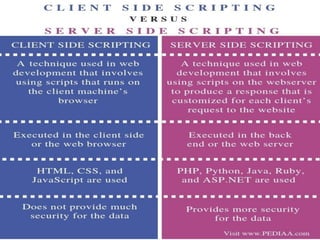
Server Side Scripting Client Side Scripting
Server side scripting is used to create
dynamic pages based on a number of
conditions when the users browser makes a
request to the server.
Client side scripting is used when the users
browser already has all the code and the
page is altered on the basis of the users
input.
The Web Server executes the server side
scripting that produces the page to be sent
to the browser.
The Web Browser executes the client side
scripting that resides at the user’s computer.
Server side scripting is used to connect to the
databases and files that reside on the web
server.
Client side scripting cannot be used to
connect to the databases and files on the
web server.
Client V/S Server Side Scripting
What is Javascript?
▪ JavaScript was first known as LiveScript.
▪ JavaScript is a scripting or programming language that allows you
to implement complex features on web pages — every time a web
page does more than just sit there and display static information
for you to look at — displaying timely content updates, interactive
maps, animated 2D/3D graphics, scrolling video jukeboxes, etc.
▪ JavaScript is the Programming Language for the Web.
▪ JavaScript can update and change both HTML and CSS.
▪ JavaScript can calculate, manipulate and validate data.
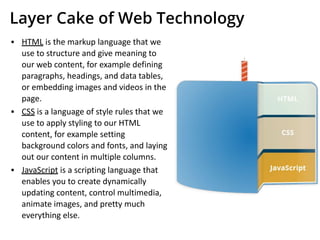
Layer Cake of Web Technology
▪ HTML is the markup language that we
use to structure and give meaning to
our web content, for example defining
paragraphs, headings, and data tables,
or embedding images and videos in the
page.
▪ CSS is a language of style rules that we
use to apply styling to our HTML
content, for example setting
background colors and fonts, and laying
out our content in multiple columns.
▪ JavaScript is a scripting language that
enables you to create dynamically
updating content, control multimedia,
animate images, and pretty much
everything else.
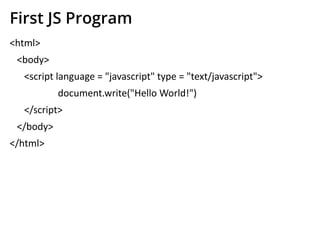
First JS Program
<html>
<body>
<script language = "javascript" type = "text/javascript">
document.write("Hello World!")
</script>
</body>
</html>
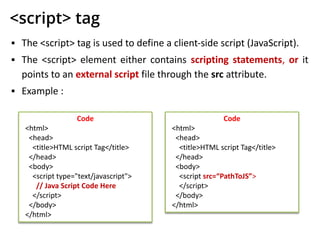
<script> tag
▪ The <script> tag is used to define a client-side script (JavaScript).
▪ The <script> element either contains scripting statements, or it
points to an external script file through the src attribute.
▪ Example :
Code
<html>
<head>
<title>HTML script Tag</title>
</head>
<body>
<script type="text/javascript">
// Java Script Code Here
</script>
</body>
</html>
Code
<html>
<head>
<title>HTML script Tag</title>
</head>
<body>
<script src=“PathToJS”>
</script>
</body>
</html>
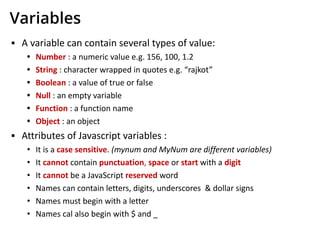
Variables
▪ A variable can contain several types of value:
• Number : a numeric value e.g. 156, 100, 1.2
• String : character wrapped in quotes e.g. “rajkot”
• Boolean : a value of true or false
• Null : an empty variable
• Function : a function name
• Object : an object
▪ Attributes of Javascript variables :
• It is a case sensitive. (mynum and MyNum are different variables)
• It cannot contain punctuation, space or start with a digit
• It cannot be a JavaScript reserved word
• Names can contain letters, digits, underscores & dollar signs
• Names must begin with a letter
• Names cal also begin with $ and _
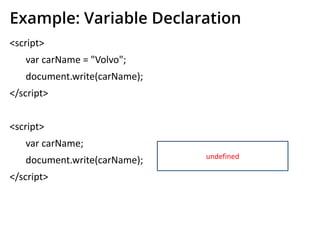
Example: Variable Declaration
<script>
var carName = "Volvo";
document.write(carName);
</script>
<script>
var carName;
document.write(carName);
</script>
undefined
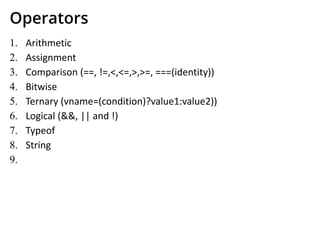
Operators
1. Arithmetic
2. Assignment
3. Comparison (==, !=,<,<=,>,>=, ===(identity))
4. Bitwise
5. Ternary (vname=(condition)?value1:value2))
6. Logical (&&, || and !)
7. Typeof
8. String
9.
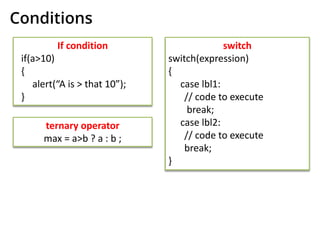
Conditions
If condition
if(a>10)
{
alert(“A is > that 10”);
}
switch
switch(expression)
{
case lbl1:
// code to execute
break;
case lbl2:
// code to execute
break;
}
ternary operator
max = a>b ? a : b ;
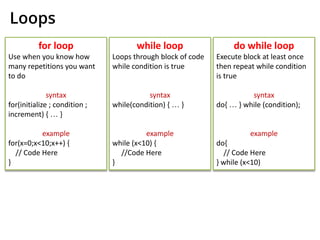
Loops
for loop
Use when you know how
many repetitions you want
to do
syntax
for(initialize ; condition ;
increment) { … }
example
for(x=0;x<10;x++) {
// Code Here
}
while loop
Loops through block of code
while condition is true
syntax
while(condition) { … }
example
while (x<10) {
//Code Here
}
do while loop
Execute block at least once
then repeat while condition
is true
syntax
do{ … } while (condition);
example
do{
// Code Here
} while (x<10)
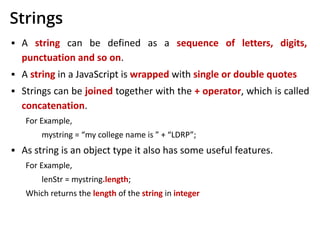
Strings
▪ A string can be defined as a sequence of letters, digits,
punctuation and so on.
▪ A string in a JavaScript is wrapped with single or double quotes
▪ Strings can be joined together with the + operator, which is called
concatenation.
For Example,
mystring = “my college name is ” + “LDRP”;
▪ As string is an object type it also has some useful features.
For Example,
lenStr = mystring.length;
Which returns the length of the string in integer
Strings (Cont.)
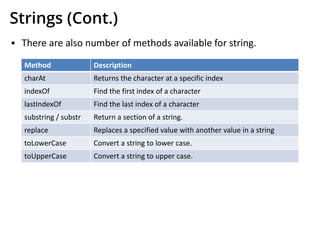
▪ There are also number of methods available for string.
Method Description
charAt Returns the character at a specific index
indexOf Find the first index of a character
lastIndexOf Find the last index of a character
substring / substr Return a section of a string.
replace Replaces a specified value with another value in a string
toLowerCase Convert a string to lower case.
toUpperCase Convert a string to upper case.
Strings (Cont.)
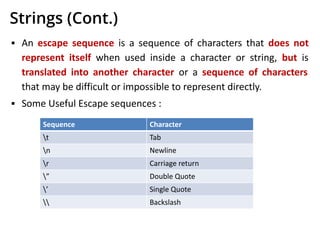
▪ An escape sequence is a sequence of characters that does not
represent itself when used inside a character or string, but is
translated into another character or a sequence of characters
that may be difficult or impossible to represent directly.
▪ Some Useful Escape sequences :
Sequence Character
t Tab
n Newline
r Carriage return
” Double Quote
’ Single Quote
 Backslash
Arrays
▪ An array is a collection of data, each item in array has an index to
access it.
▪ Ways to use array in JavaScript
• var myArray = new Array();
myArray[0] = “ldrp”;
myArray[1] = 222;
myArray[2] = false;
• var myArray = new Array(“ldrp” , 123 , true);
Functions
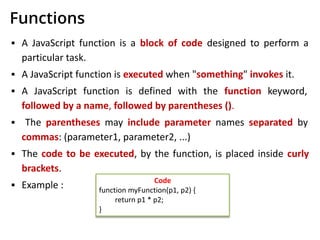
▪ A JavaScript function is a block of code designed to perform a
particular task.
▪ A JavaScript function is executed when "something" invokes it.
▪ A JavaScript function is defined with the function keyword,
followed by a name, followed by parentheses ().
▪ The parentheses may include parameter names separated by
commas: (parameter1, parameter2, ...)
▪ The code to be executed, by the function, is placed inside curly
brackets.
▪ Example : Code
function myFunction(p1, p2) {
return p1 * p2;
}
Functions (Cont.)
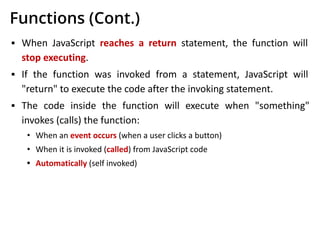
▪ When JavaScript reaches a return statement, the function will
stop executing.
▪ If the function was invoked from a statement, JavaScript will
"return" to execute the code after the invoking statement.
▪ The code inside the function will execute when "something"
invokes (calls) the function:
• When an event occurs (when a user clicks a button)
• When it is invoked (called) from JavaScript code
• Automatically (self invoked)
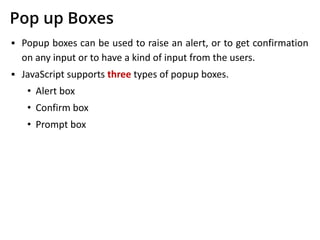
Pop up Boxes
▪ Popup boxes can be used to raise an alert, or to get confirmation
on any input or to have a kind of input from the users.
▪ JavaScript supports three types of popup boxes.
• Alert box
• Confirm box
• Prompt box
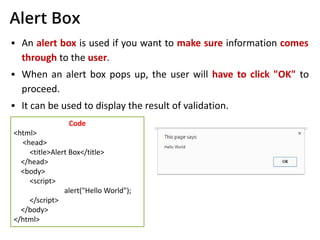
Alert Box
▪ An alert box is used if you want to make sure information comes
through to the user.
▪ When an alert box pops up, the user will have to click "OK" to
proceed.
▪ It can be used to display the result of validation.
Code
<html>
<head>
<title>Alert Box</title>
</head>
<body>
<script>
alert("Hello World");
</script>
</body>
</html>
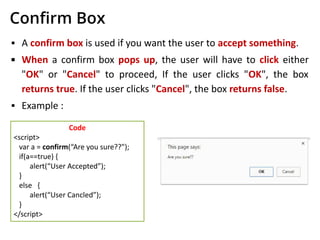
Confirm Box
▪ A confirm box is used if you want the user to accept something.
▪ When a confirm box pops up, the user will have to click either
"OK" or "Cancel" to proceed, If the user clicks "OK", the box
returns true. If the user clicks "Cancel", the box returns false.
▪ Example :
Code
<script>
var a = confirm(“Are you sure??");
if(a==true) {
alert(“User Accepted”);
}
else {
alert(“User Cancled”);
}
</script>
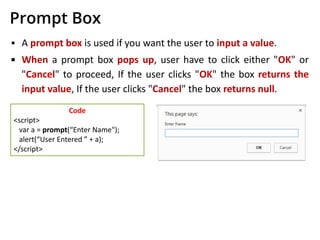
Prompt Box
▪ A prompt box is used if you want the user to input a value.
▪ When a prompt box pops up, user have to click either "OK" or
"Cancel" to proceed, If the user clicks "OK" the box returns the
input value, If the user clicks "Cancel" the box returns null.
Code
<script>
var a = prompt(“Enter Name");
alert(“User Entered ” + a);
</script>
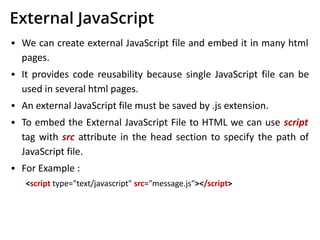
External JavaScript
▪ We can create external JavaScript file and embed it in many html
pages.
▪ It provides code reusability because single JavaScript file can be
used in several html pages.
▪ An external JavaScript file must be saved by .js extension.
▪ To embed the External JavaScript File to HTML we can use script
tag with src attribute in the head section to specify the path of
JavaScript file.
▪ For Example :
<script type="text/javascript" src="message.js"></script>
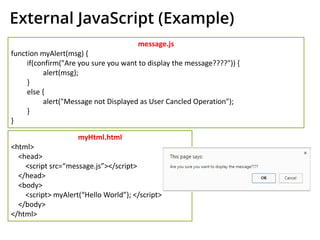
External JavaScript (Example)
message.js
function myAlert(msg) {
if(confirm("Are you sure you want to display the message????")) {
alert(msg);
}
else {
alert("Message not Displayed as User Cancled Operation");
}
}
myHtml.html
<html>
<head>
<script src=“message.js”></script>
</head>
<body>
<script> myAlert(“Hello World”); </script>
</body>
</html>
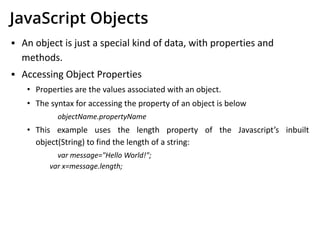
JavaScript Objects
▪ An object is just a special kind of data, with properties and
methods.
▪ Accessing Object Properties
• Properties are the values associated with an object.
• The syntax for accessing the property of an object is below
objectName.propertyName
• This example uses the length property of the Javascript’s inbuilt
object(String) to find the length of a string:
var message="Hello World!";
var x=message.length;
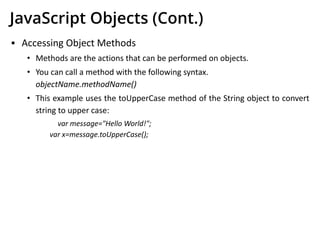
JavaScript Objects (Cont.)
▪ Accessing Object Methods
• Methods are the actions that can be performed on objects.
• You can call a method with the following syntax.
objectName.methodName()
• This example uses the toUpperCase method of the String object to convert
string to upper case:
var message="Hello World!";
var x=message.toUpperCase();
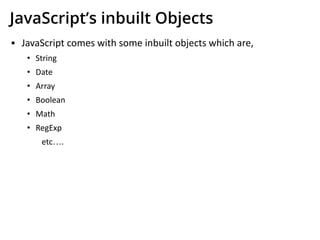
JavaScript’s inbuilt Objects
▪ JavaScript comes with some inbuilt objects which are,
• String
• Date
• Array
• Boolean
• Math
• RegExp
etc….
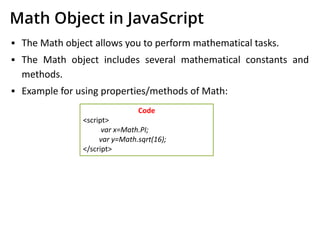
Math Object in JavaScript
▪ The Math object allows you to perform mathematical tasks.
▪ The Math object includes several mathematical constants and
methods.
▪ Example for using properties/methods of Math:
Code
<script>
var x=Math.PI;
var y=Math.sqrt(16);
</script>
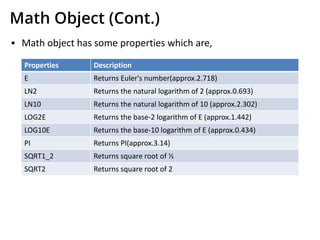
Math Object (Cont.)
▪ Math object has some properties which are,
Properties Description
E Returns Euler's number(approx.2.718)
LN2 Returns the natural logarithm of 2 (approx.0.693)
LN10 Returns the natural logarithm of 10 (approx.2.302)
LOG2E Returns the base-2 logarithm of E (approx.1.442)
LOG10E Returns the base-10 logarithm of E (approx.0.434)
PI Returns PI(approx.3.14)
SQRT1_2 Returns square root of ½
SQRT2 Returns square root of 2
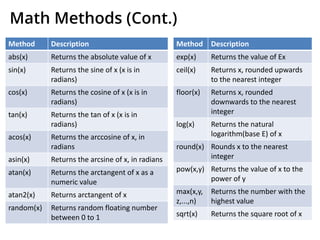
Math Methods (Cont.)
Method Description
abs(x) Returns the absolute value of x
sin(x) Returns the sine of x (x is in
radians)
cos(x) Returns the cosine of x (x is in
radians)
tan(x) Returns the tan of x (x is in
radians)
acos(x) Returns the arccosine of x, in
radians
asin(x) Returns the arcsine of x, in radians
atan(x) Returns the arctangent of x as a
numeric value
atan2(x) Returns arctangent of x
random(x) Returns random floating number
between 0 to 1
Method Description
exp(x) Returns the value of Ex
ceil(x) Returns x, rounded upwards
to the nearest integer
floor(x) Returns x, rounded
downwards to the nearest
integer
log(x) Returns the natural
logarithm(base E) of x
round(x) Rounds x to the nearest
integer
pow(x,y) Returns the value of x to the
power of y
max(x,y,
z,...,n)
Returns the number with the
highest value
sqrt(x) Returns the square root of x
User Defined Objects
▪ JavaScript allows you to create your own objects.
▪ The first step is to use the new operator.
var myObj= new Object();
▪ This creates an empty object.
▪ This can then be used to start a new object that you can then give
new properties and methods.
▪ In object- oriented programming such a new object is usually
given a constructor to initialize values when it is first created.
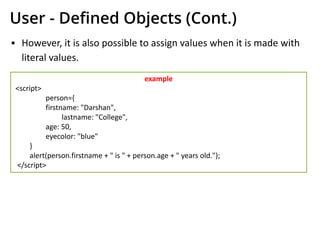
User - Defined Objects (Cont.)
▪ However, it is also possible to assign values when it is made with
literal values.
example
<script>
person={
firstname: "Darshan",
lastname: "College",
age: 50,
eyecolor: "blue"
}
alert(person.firstname + " is " + person.age + " years old.");
</script>
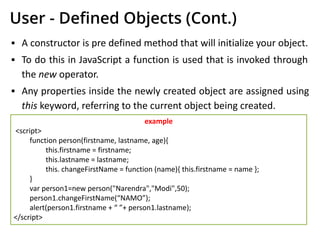
User - Defined Objects (Cont.)
▪ A constructor is pre defined method that will initialize your object.
▪ To do this in JavaScript a function is used that is invoked through
the new operator.
▪ Any properties inside the newly created object are assigned using
this keyword, referring to the current object being created.
example
<script>
function person(firstname, lastname, age){
this.firstname = firstname;
this.lastname = lastname;
this. changeFirstName = function (name){ this.firstname = name };
}
var person1=new person("Narendra","Modi",50);
person1.changeFirstName(“NAMO”);
alert(person1.firstname + “ ”+ person1.lastname);
</script>
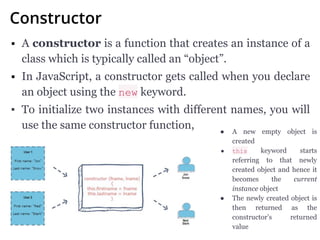
Constructor
▪ A constructor is a function that creates an instance of a
class which is typically called an “object”.
▪ In JavaScript, a constructor gets called when you declare
an object using the new keyword.
▪ To initialize two instances with different names, you will
use the same constructor function, ● A new empty object is
created
● this keyword starts
referring to that newly
created object and hence it
becomes the current
instance object
● The newly created object is
then returned as the
constructor’s returned
value
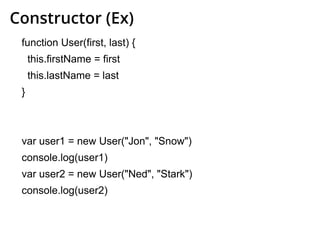
Constructor (Ex)
function User(first, last) {
this.firstName = first
this.lastName = last
}
var user1 = new User("Jon", "Snow")
console.log(user1)
var user2 = new User("Ned", "Stark")
console.log(user2)
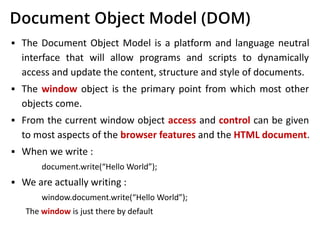
Document Object Model (DOM)
▪ The Document Object Model is a platform and language neutral
interface that will allow programs and scripts to dynamically
access and update the content, structure and style of documents.
▪ The window object is the primary point from which most other
objects come.
▪ From the current window object access and control can be given
to most aspects of the browser features and the HTML document.
▪ When we write :
document.write(“Hello World”);
▪ We are actually writing :
window.document.write(“Hello World”);
The window is just there by default
DOM (Cont)
▪ This window object represents the window or frame that displays
the document and is the global object in client side programming
for JavaScript.
▪ All the client side objects are connected to the window object.
window
self,
parent,
window,
top
frames[] navigator location history document screen
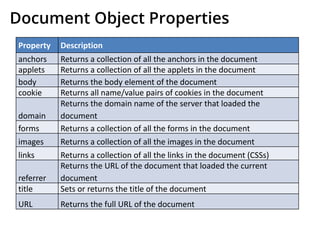
Document Object Properties
Property Description
anchors Returns a collection of all the anchors in the document
applets Returns a collection of all the applets in the document
body Returns the body element of the document
cookie Returns all name/value pairs of cookies in the document
domain
Returns the domain name of the server that loaded the
document
forms Returns a collection of all the forms in the document
images Returns a collection of all the images in the document
links Returns a collection of all the links in the document (CSSs)
referrer
Returns the URL of the document that loaded the current
document
title Sets or returns the title of the document
URL Returns the full URL of the document
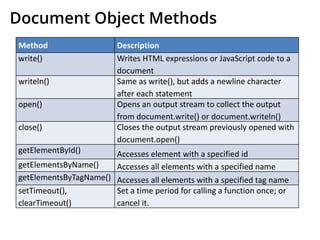
Document Object Methods
Method Description
write() Writes HTML expressions or JavaScript code to a
document
writeln() Same as write(), but adds a newline character
after each statement
open() Opens an output stream to collect the output
from document.write() or document.writeln()
close() Closes the output stream previously opened with
document.open()
getElementById() Accesses element with a specified id
getElementsByName() Accesses all elements with a specified name
getElementsByTagName() Accesses all elements with a specified tag name
setTimeout(),
clearTimeout()
Set a time period for calling a function once; or
cancel it.
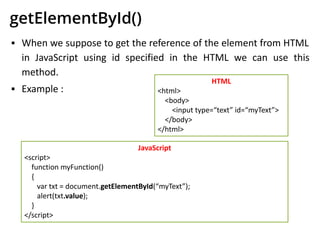
getElementById()
▪ When we suppose to get the reference of the element from HTML
in JavaScript using id specified in the HTML we can use this
method.
▪ Example :
HTML
<html>
<body>
<input type=“text” id=“myText”>
</body>
</html>
JavaScript
<script>
function myFunction()
{
var txt = document.getElementById(“myText”);
alert(txt.value);
}
</script>
getElementsByName()
▪ When we suppose to get the reference of the elements from
HTML in JavaScript using name specified in the HTML we can use
this method.
▪ It will return the array of elements with the provided name.
▪ Example :
HTML
<html>
<body>
<input type=“text”
name=“myText”>
</body>
</html>
JavaScript
<script>
function myFunction()
{
a=document.getElementsByName(“myText”)[0];
alert(a.value);
}
</script>
getElementsByTagName()
▪ When we suppose to get the reference of the elements from
HTML in JavaScript using name of the tag specified in the HTML
we can use this method.
▪ It will return the array of elements with the provided tag name.
▪ Example :
HTML
<html>
<body>
<input type=“text” name=“uname”>
<input type=“text” name=“pword”>
</body>
</html>
JavaScript
<script>
function myFunction() {
a=document.getElementsByTagName(“input”);
alert(a[0].value);
alert(a[1].value);
}
</script>
Forms using DOM
▪ We can access the elements of form in DOM quite easily using the
name/id of the form.
▪ Example :
HTML
<html>
<body>
<form name=“myForm”>
<input type=“text” name=“uname”>
<input type=“text” name=“pword”>
<input type=“button” onClick=“f()”>
</form>
</body>
</html>
JS
function f()
{
var a = document.forms[“myForm”];
var u = a.uname.value;
var p = a.pword.value;
if(u==“admin” && p==“123”)
{
alert(“valid”);
}
else
{
alert(“Invalid”);
}
}
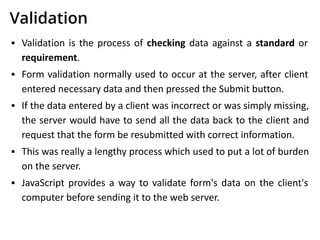
Validation
▪ Validation is the process of checking data against a standard or
requirement.
▪ Form validation normally used to occur at the server, after client
entered necessary data and then pressed the Submit button.
▪ If the data entered by a client was incorrect or was simply missing,
the server would have to send all the data back to the client and
request that the form be resubmitted with correct information.
▪ This was really a lengthy process which used to put a lot of burden
on the server.
▪ JavaScript provides a way to validate form's data on the client's
computer before sending it to the web server.
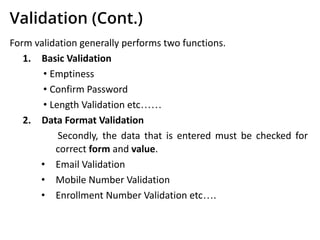
Validation (Cont.)
Form validation generally performs two functions.
1. Basic Validation
• Emptiness
• Confirm Password
• Length Validation etc……
2. Data Format Validation
Secondly, the data that is entered must be checked for
correct form and value.
• Email Validation
• Mobile Number Validation
• Enrollment Number Validation etc….
Validation using RegExp
▪ A regular expression is an object that describes a pattern of
characters.
▪ Regular expressions are used to perform pattern-matching and
"search-and-replace" functions on text.
▪ example:
var pattern = "^ [w]$"; // will allow only words in the string
var regex = new RegExp(pattern);
If(regex.test(testString)){
//Valid
} else {
//Invalid
}
RegExp (Cont.) (Metacharacters)
▪ To find word characters in the string we can use w
• We can also use [a-z], [A-Z] or [a-zA-Z] for the same
▪ To find non-word characters in the string we can use W
▪ to find digit characters in the string we can use d
• We can also use [0-9] for the same
▪ To find non-digit characters in the string we can use D
▪ We can use n for new line and t for tab
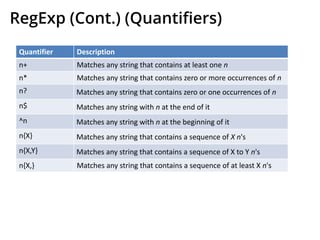
RegExp (Cont.) (Quantifiers)
Quantifier Description
n+ Matches any string that contains at least one n
n* Matches any string that contains zero or more occurrences of n
n? Matches any string that contains zero or one occurrences of n
n$ Matches any string with n at the end of it
^n Matches any string with n at the beginning of it
n{X} Matches any string that contains a sequence of X n's
n{X,Y} Matches any string that contains a sequence of X to Y n's
n{X,} Matches any string that contains a sequence of at least X n's
Email Validation Using RegExp
JavaScript
<script>
function checkMail()
{
var a = document.getElementById("myText").value;
var pattern ="^[w-_.]*[w-_.]@[w].+[w]+[w]$”;
var regex = new RegExp(pattern);
if(regex.test(a))
{
alert("Valid");
}
else
{
alert("Invalid");
}
}
</script>
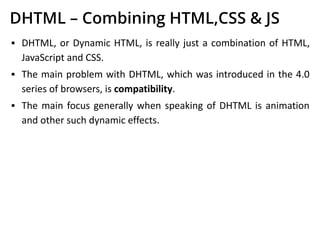
DHTML – Combining HTML,CSS & JS
▪ DHTML, or Dynamic HTML, is really just a combination of HTML,
JavaScript and CSS.
▪ The main problem with DHTML, which was introduced in the 4.0
series of browsers, is compatibility.
▪ The main focus generally when speaking of DHTML is animation
and other such dynamic effects.
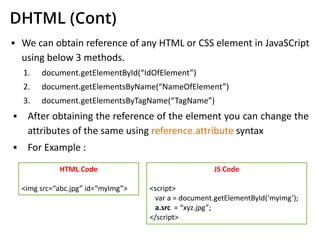
DHTML (Cont)
▪ We can obtain reference of any HTML or CSS element in JavaSCript
using below 3 methods.
1. document.getElementById(“IdOfElement”)
2. document.getElementsByName(“NameOfElement”)
3. document.getElementsByTagName(“TagName”)
▪ After obtaining the reference of the element you can change the
attributes of the same using reference.attribute syntax
▪ For Example :
HTML Code
<img src=“abc.jpg” id=“myImg”>
JS Code
<script>
var a = document.getElementById(‘myImg’);
a.src = “xyz.jpg”;
</script>
DHTML (Cont) (Example)
JavaScript
<html>
<body>
<div id=“myDiv”>
Red Alert !!!!!!
</div>
<script>
var objDiv = document.getElementById(“myDiv”);
var colors = [‘white’,’yellow’,’orange’,’red’];
var nextColor = 0;
setInterval(“objDiv.style.backgroundColor = colors[nextColor++%colors.length];”,500);
</script>
</body>
</html>
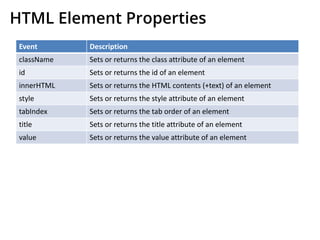
HTML Element Properties
Event Description
className Sets or returns the class attribute of an element
id Sets or returns the id of an element
innerHTML Sets or returns the HTML contents (+text) of an element
style Sets or returns the style attribute of an element
tabIndex Sets or returns the tab order of an element
title Sets or returns the title attribute of an element
value Sets or returns the value attribute of an element
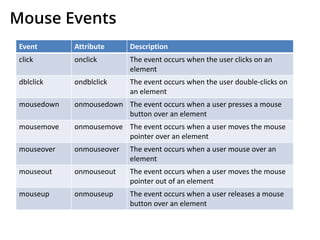
Mouse Events
Event Attribute Description
click onclick The event occurs when the user clicks on an
element
dblclick ondblclick The event occurs when the user double-clicks on
an element
mousedown onmousedown The event occurs when a user presses a mouse
button over an element
mousemove onmousemove The event occurs when a user moves the mouse
pointer over an element
mouseover onmouseover The event occurs when a user mouse over an
element
mouseout onmouseout The event occurs when a user moves the mouse
pointer out of an element
mouseup onmouseup The event occurs when a user releases a mouse
button over an element
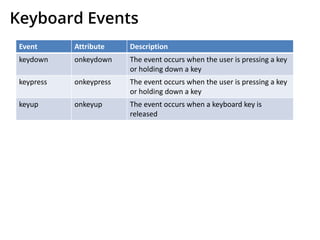
Keyboard Events
Event Attribute Description
keydown onkeydown The event occurs when the user is pressing a key
or holding down a key
keypress onkeypress The event occurs when the user is pressing a key
or holding down a key
keyup onkeyup The event occurs when a keyboard key is
released
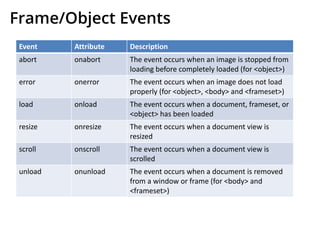
Frame/Object Events
Event Attribute Description
abort onabort The event occurs when an image is stopped from
loading before completely loaded (for <object>)
error onerror The event occurs when an image does not load
properly (for <object>, <body> and <frameset>)
load onload The event occurs when a document, frameset, or
<object> has been loaded
resize onresize The event occurs when a document view is
resized
scroll onscroll The event occurs when a document view is
scrolled
unload onunload The event occurs when a document is removed
from a window or frame (for <body> and
<frameset>)
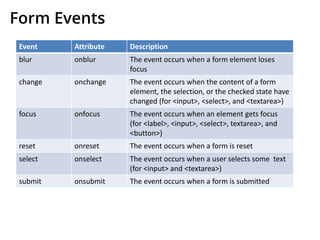
Form Events
Event Attribute Description
blur onblur The event occurs when a form element loses
focus
change onchange The event occurs when the content of a form
element, the selection, or the checked state have
changed (for <input>, <select>, and <textarea>)
focus onfocus The event occurs when an element gets focus
(for <label>, <input>, <select>, textarea>, and
<button>)
reset onreset The event occurs when a form is reset
select onselect The event occurs when a user selects some text
(for <input> and <textarea>)
submit onsubmit The event occurs when a form is submitted
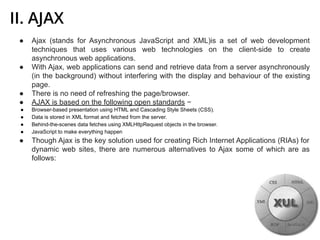
II. AJAX
● Ajax (stands for Asynchronous JavaScript and XML)is a set of web development
techniques that uses various web technologies on the client-side to create
asynchronous web applications.
● With Ajax, web applications can send and retrieve data from a server asynchronously
(in the background) without interfering with the display and behaviour of the existing
page.
● There is no need of refreshing the page/browser.
● AJAX is based on the following open standards −
● Browser-based presentation using HTML and Cascading Style Sheets (CSS).
● Data is stored in XML format and fetched from the server.
● Behind-the-scenes data fetches using XMLHttpRequest objects in the browser.
● JavaScript to make everything happen
● Though Ajax is the key solution used for creating Rich Internet Applications (RIAs) for
dynamic web sites, there are numerous alternatives to Ajax some of which are as
follows:
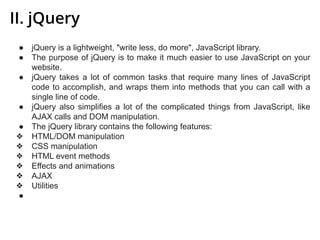
II. jQuery
● jQuery is a lightweight, "write less, do more", JavaScript library.
● The purpose of jQuery is to make it much easier to use JavaScript on your
website.
● jQuery takes a lot of common tasks that require many lines of JavaScript
code to accomplish, and wraps them into methods that you can call with a
single line of code.
● jQuery also simplifies a lot of the complicated things from JavaScript, like
AJAX calls and DOM manipulation.
● The jQuery library contains the following features:
❖ HTML/DOM manipulation
❖ CSS manipulation
❖ HTML event methods
❖ Effects and animations
❖ AJAX
❖ Utilities
●
II. jQuery Example
Adding jQuery to Your Web Pages
● Download the jQuery library from jQuery.com (jQuery.com)
● Include jQuery from a CDN, like Google
There are two versions of jQuery available for downloading:
● Production version - this is for your live website because it has been minified and
compressed
● Development version - this is for testing and development (uncompressed and
readable code)
Place the downloaded file in the same directory as the pages where you wish to
use it.
II. jQuery Syntax
jQuery Syntax
The jQuery syntax is tailor-made for selecting HTML elements and performing
some action on the element(s).
Basic syntax is: $(selector).action()
● A $ sign to define/access jQuery
● A (selector) to "query (or find)" HTML elements
● A jQuery action() to be performed on the element(s)
Examples:
● $(this).hide() - hides the current element.
● $("p").hide() - hides all <p> elements.
● $(".test").hide() - hides all elements with class="test".
● $("#test").hide() - hides the element with id="test".
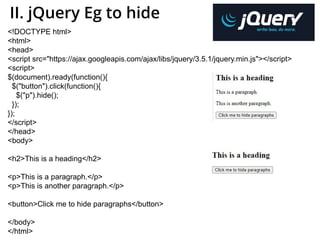
II. jQuery Eg to hide
<!DOCTYPE html>
<html>
<head>
<script src="https://ajax.googleapis.com/ajax/libs/jquery/3.5.1/jquery.min.js"></script>
<script>
$(document).ready(function(){
$("button").click(function(){
$("p").hide();
});
});
</script>
</head>
<body>
<h2>This is a heading</h2>
<p>This is a paragraph.</p>
<p>This is another paragraph.</p>
<button>Click me to hide paragraphs</button>
</body>
</html>
II. jQuery Eg (for Study)
<!DOCTYPE html>
<html>
<head>
<script src="https://ajax.googleapis.com/ajax/libs/jquery/3.5.1/jquery.min.js"></script>
<script>
$(document).ready(function(){
$("input").focus(function(){
$(this).css("background-color", "yellow");
});
$("input").blur(function(){
$(this).css("background-color", "green");
});
});
</script>
</head>
<body>
Name: <input type="text" name="fullname"><br>
Email: <input type="text" name="email">
</body>
</html>
II. Reference Book
1) JavaScript and JQuery: The Ultimate Beginner's Guide to
Learn JavaScript and JQuery Step by Step | 1st Edition | 2020
2) Murach's JavaScript and jQuery (4th Edition)

Unit 4(it workshop)

  • 1.
  • 2.
    Outline 1. Introduction I. TaskPerformed by Client side Scripts II. Pros & Cons of Client side Scripts III. Client side Scripts V/S Server side Scripts 2. Variables 3. Functions 4. Conditions & Loops 5. Pop up boxes 6. External JavaScript 7. JavaScript Objects 8. DOM 9. DHTML
  • 3.
    Introduction ▪ For aWeb page, HTML supplies document content and structure while CSS provides presentation styling ▪ In addition, client-side scripts can control browser actions associated with a Web page. ▪ Client-side scripts are almost written in the Javascript language to control browser’s actions. ▪ Client-side scripting can make Web pages more dynamic and more responsive
  • 4.
    Tasks performed byclient-side scripts ▪ Checking correctness of user input ▪ Monitoring user events and specifying reactions ▪ Replacing and updating parts of a page ▪ Changing the style and position of displayed elements dynamically ▪ Modifying a page in response to events ▪ Getting browser information ▪ Making the Web page different depending on the browser and browser features ▪ Generating HTML code for parts of the page
  • 5.
    Pros & Consof Client Side Scripting ▪ Pros • Allow for more interactivity by immediately responding to users’ actions. • Execute quickly because they do not require a trip to the server. • The web browser uses its own resources, and eases the burden on the server. • It saves network bandwidth. ▪ Cons • Code is loaded in the browser so it will be visible to the client. • Code is modifiable. • Local files and databases cannot be accessed. • User is able to disable client side scripting
  • 6.
    Server Side ScriptingClient Side Scripting Server side scripting is used to create dynamic pages based on a number of conditions when the users browser makes a request to the server. Client side scripting is used when the users browser already has all the code and the page is altered on the basis of the users input. The Web Server executes the server side scripting that produces the page to be sent to the browser. The Web Browser executes the client side scripting that resides at the user’s computer. Server side scripting is used to connect to the databases and files that reside on the web server. Client side scripting cannot be used to connect to the databases and files on the web server. Client V/S Server Side Scripting
  • 7.
    What is Javascript? ▪JavaScript was first known as LiveScript. ▪ JavaScript is a scripting or programming language that allows you to implement complex features on web pages — every time a web page does more than just sit there and display static information for you to look at — displaying timely content updates, interactive maps, animated 2D/3D graphics, scrolling video jukeboxes, etc. ▪ JavaScript is the Programming Language for the Web. ▪ JavaScript can update and change both HTML and CSS. ▪ JavaScript can calculate, manipulate and validate data.
  • 8.
    Layer Cake ofWeb Technology ▪ HTML is the markup language that we use to structure and give meaning to our web content, for example defining paragraphs, headings, and data tables, or embedding images and videos in the page. ▪ CSS is a language of style rules that we use to apply styling to our HTML content, for example setting background colors and fonts, and laying out our content in multiple columns. ▪ JavaScript is a scripting language that enables you to create dynamically updating content, control multimedia, animate images, and pretty much everything else.
  • 9.
    First JS Program <html> <body> <scriptlanguage = "javascript" type = "text/javascript"> document.write("Hello World!") </script> </body> </html>
  • 10.
    <script> tag ▪ The<script> tag is used to define a client-side script (JavaScript). ▪ The <script> element either contains scripting statements, or it points to an external script file through the src attribute. ▪ Example : Code <html> <head> <title>HTML script Tag</title> </head> <body> <script type="text/javascript"> // Java Script Code Here </script> </body> </html> Code <html> <head> <title>HTML script Tag</title> </head> <body> <script src=“PathToJS”> </script> </body> </html>
  • 11.
    Variables ▪ A variablecan contain several types of value: • Number : a numeric value e.g. 156, 100, 1.2 • String : character wrapped in quotes e.g. “rajkot” • Boolean : a value of true or false • Null : an empty variable • Function : a function name • Object : an object ▪ Attributes of Javascript variables : • It is a case sensitive. (mynum and MyNum are different variables) • It cannot contain punctuation, space or start with a digit • It cannot be a JavaScript reserved word • Names can contain letters, digits, underscores & dollar signs • Names must begin with a letter • Names cal also begin with $ and _
  • 12.
    Example: Variable Declaration <script> varcarName = "Volvo"; document.write(carName); </script> <script> var carName; document.write(carName); </script> undefined
  • 13.
    Operators 1. Arithmetic 2. Assignment 3.Comparison (==, !=,<,<=,>,>=, ===(identity)) 4. Bitwise 5. Ternary (vname=(condition)?value1:value2)) 6. Logical (&&, || and !) 7. Typeof 8. String 9.
  • 14.
    Conditions If condition if(a>10) { alert(“A is> that 10”); } switch switch(expression) { case lbl1: // code to execute break; case lbl2: // code to execute break; } ternary operator max = a>b ? a : b ;
  • 15.
    Loops for loop Use whenyou know how many repetitions you want to do syntax for(initialize ; condition ; increment) { … } example for(x=0;x<10;x++) { // Code Here } while loop Loops through block of code while condition is true syntax while(condition) { … } example while (x<10) { //Code Here } do while loop Execute block at least once then repeat while condition is true syntax do{ … } while (condition); example do{ // Code Here } while (x<10)
  • 16.
    Strings ▪ A stringcan be defined as a sequence of letters, digits, punctuation and so on. ▪ A string in a JavaScript is wrapped with single or double quotes ▪ Strings can be joined together with the + operator, which is called concatenation. For Example, mystring = “my college name is ” + “LDRP”; ▪ As string is an object type it also has some useful features. For Example, lenStr = mystring.length; Which returns the length of the string in integer
  • 17.
    Strings (Cont.) ▪ Thereare also number of methods available for string. Method Description charAt Returns the character at a specific index indexOf Find the first index of a character lastIndexOf Find the last index of a character substring / substr Return a section of a string. replace Replaces a specified value with another value in a string toLowerCase Convert a string to lower case. toUpperCase Convert a string to upper case.
  • 18.
    Strings (Cont.) ▪ Anescape sequence is a sequence of characters that does not represent itself when used inside a character or string, but is translated into another character or a sequence of characters that may be difficult or impossible to represent directly. ▪ Some Useful Escape sequences : Sequence Character t Tab n Newline r Carriage return ” Double Quote ’ Single Quote Backslash
  • 19.
    Arrays ▪ An arrayis a collection of data, each item in array has an index to access it. ▪ Ways to use array in JavaScript • var myArray = new Array(); myArray[0] = “ldrp”; myArray[1] = 222; myArray[2] = false; • var myArray = new Array(“ldrp” , 123 , true);
  • 20.
    Functions ▪ A JavaScriptfunction is a block of code designed to perform a particular task. ▪ A JavaScript function is executed when "something" invokes it. ▪ A JavaScript function is defined with the function keyword, followed by a name, followed by parentheses (). ▪ The parentheses may include parameter names separated by commas: (parameter1, parameter2, ...) ▪ The code to be executed, by the function, is placed inside curly brackets. ▪ Example : Code function myFunction(p1, p2) { return p1 * p2; }
  • 21.
    Functions (Cont.) ▪ WhenJavaScript reaches a return statement, the function will stop executing. ▪ If the function was invoked from a statement, JavaScript will "return" to execute the code after the invoking statement. ▪ The code inside the function will execute when "something" invokes (calls) the function: • When an event occurs (when a user clicks a button) • When it is invoked (called) from JavaScript code • Automatically (self invoked)
  • 22.
    Pop up Boxes ▪Popup boxes can be used to raise an alert, or to get confirmation on any input or to have a kind of input from the users. ▪ JavaScript supports three types of popup boxes. • Alert box • Confirm box • Prompt box
  • 23.
    Alert Box ▪ Analert box is used if you want to make sure information comes through to the user. ▪ When an alert box pops up, the user will have to click "OK" to proceed. ▪ It can be used to display the result of validation. Code <html> <head> <title>Alert Box</title> </head> <body> <script> alert("Hello World"); </script> </body> </html>
  • 24.
    Confirm Box ▪ Aconfirm box is used if you want the user to accept something. ▪ When a confirm box pops up, the user will have to click either "OK" or "Cancel" to proceed, If the user clicks "OK", the box returns true. If the user clicks "Cancel", the box returns false. ▪ Example : Code <script> var a = confirm(“Are you sure??"); if(a==true) { alert(“User Accepted”); } else { alert(“User Cancled”); } </script>
  • 25.
    Prompt Box ▪ Aprompt box is used if you want the user to input a value. ▪ When a prompt box pops up, user have to click either "OK" or "Cancel" to proceed, If the user clicks "OK" the box returns the input value, If the user clicks "Cancel" the box returns null. Code <script> var a = prompt(“Enter Name"); alert(“User Entered ” + a); </script>
  • 26.
    External JavaScript ▪ Wecan create external JavaScript file and embed it in many html pages. ▪ It provides code reusability because single JavaScript file can be used in several html pages. ▪ An external JavaScript file must be saved by .js extension. ▪ To embed the External JavaScript File to HTML we can use script tag with src attribute in the head section to specify the path of JavaScript file. ▪ For Example : <script type="text/javascript" src="message.js"></script>
  • 27.
    External JavaScript (Example) message.js functionmyAlert(msg) { if(confirm("Are you sure you want to display the message????")) { alert(msg); } else { alert("Message not Displayed as User Cancled Operation"); } } myHtml.html <html> <head> <script src=“message.js”></script> </head> <body> <script> myAlert(“Hello World”); </script> </body> </html>
  • 28.
    JavaScript Objects ▪ Anobject is just a special kind of data, with properties and methods. ▪ Accessing Object Properties • Properties are the values associated with an object. • The syntax for accessing the property of an object is below objectName.propertyName • This example uses the length property of the Javascript’s inbuilt object(String) to find the length of a string: var message="Hello World!"; var x=message.length;
  • 29.
    JavaScript Objects (Cont.) ▪Accessing Object Methods • Methods are the actions that can be performed on objects. • You can call a method with the following syntax. objectName.methodName() • This example uses the toUpperCase method of the String object to convert string to upper case: var message="Hello World!"; var x=message.toUpperCase();
  • 30.
    JavaScript’s inbuilt Objects ▪JavaScript comes with some inbuilt objects which are, • String • Date • Array • Boolean • Math • RegExp etc….
  • 31.
    Math Object inJavaScript ▪ The Math object allows you to perform mathematical tasks. ▪ The Math object includes several mathematical constants and methods. ▪ Example for using properties/methods of Math: Code <script> var x=Math.PI; var y=Math.sqrt(16); </script>
  • 32.
    Math Object (Cont.) ▪Math object has some properties which are, Properties Description E Returns Euler's number(approx.2.718) LN2 Returns the natural logarithm of 2 (approx.0.693) LN10 Returns the natural logarithm of 10 (approx.2.302) LOG2E Returns the base-2 logarithm of E (approx.1.442) LOG10E Returns the base-10 logarithm of E (approx.0.434) PI Returns PI(approx.3.14) SQRT1_2 Returns square root of ½ SQRT2 Returns square root of 2
  • 33.
    Math Methods (Cont.) MethodDescription abs(x) Returns the absolute value of x sin(x) Returns the sine of x (x is in radians) cos(x) Returns the cosine of x (x is in radians) tan(x) Returns the tan of x (x is in radians) acos(x) Returns the arccosine of x, in radians asin(x) Returns the arcsine of x, in radians atan(x) Returns the arctangent of x as a numeric value atan2(x) Returns arctangent of x random(x) Returns random floating number between 0 to 1 Method Description exp(x) Returns the value of Ex ceil(x) Returns x, rounded upwards to the nearest integer floor(x) Returns x, rounded downwards to the nearest integer log(x) Returns the natural logarithm(base E) of x round(x) Rounds x to the nearest integer pow(x,y) Returns the value of x to the power of y max(x,y, z,...,n) Returns the number with the highest value sqrt(x) Returns the square root of x
  • 34.
    User Defined Objects ▪JavaScript allows you to create your own objects. ▪ The first step is to use the new operator. var myObj= new Object(); ▪ This creates an empty object. ▪ This can then be used to start a new object that you can then give new properties and methods. ▪ In object- oriented programming such a new object is usually given a constructor to initialize values when it is first created.
  • 35.
    User - DefinedObjects (Cont.) ▪ However, it is also possible to assign values when it is made with literal values. example <script> person={ firstname: "Darshan", lastname: "College", age: 50, eyecolor: "blue" } alert(person.firstname + " is " + person.age + " years old."); </script>
  • 36.
    User - DefinedObjects (Cont.) ▪ A constructor is pre defined method that will initialize your object. ▪ To do this in JavaScript a function is used that is invoked through the new operator. ▪ Any properties inside the newly created object are assigned using this keyword, referring to the current object being created. example <script> function person(firstname, lastname, age){ this.firstname = firstname; this.lastname = lastname; this. changeFirstName = function (name){ this.firstname = name }; } var person1=new person("Narendra","Modi",50); person1.changeFirstName(“NAMO”); alert(person1.firstname + “ ”+ person1.lastname); </script>
  • 37.
    Constructor ▪ A constructoris a function that creates an instance of a class which is typically called an “object”. ▪ In JavaScript, a constructor gets called when you declare an object using the new keyword. ▪ To initialize two instances with different names, you will use the same constructor function, ● A new empty object is created ● this keyword starts referring to that newly created object and hence it becomes the current instance object ● The newly created object is then returned as the constructor’s returned value
  • 38.
    Constructor (Ex) function User(first,last) { this.firstName = first this.lastName = last } var user1 = new User("Jon", "Snow") console.log(user1) var user2 = new User("Ned", "Stark") console.log(user2)
  • 39.
    Document Object Model(DOM) ▪ The Document Object Model is a platform and language neutral interface that will allow programs and scripts to dynamically access and update the content, structure and style of documents. ▪ The window object is the primary point from which most other objects come. ▪ From the current window object access and control can be given to most aspects of the browser features and the HTML document. ▪ When we write : document.write(“Hello World”); ▪ We are actually writing : window.document.write(“Hello World”); The window is just there by default
  • 40.
    DOM (Cont) ▪ Thiswindow object represents the window or frame that displays the document and is the global object in client side programming for JavaScript. ▪ All the client side objects are connected to the window object. window self, parent, window, top frames[] navigator location history document screen
  • 41.
    Document Object Properties PropertyDescription anchors Returns a collection of all the anchors in the document applets Returns a collection of all the applets in the document body Returns the body element of the document cookie Returns all name/value pairs of cookies in the document domain Returns the domain name of the server that loaded the document forms Returns a collection of all the forms in the document images Returns a collection of all the images in the document links Returns a collection of all the links in the document (CSSs) referrer Returns the URL of the document that loaded the current document title Sets or returns the title of the document URL Returns the full URL of the document
  • 42.
    Document Object Methods MethodDescription write() Writes HTML expressions or JavaScript code to a document writeln() Same as write(), but adds a newline character after each statement open() Opens an output stream to collect the output from document.write() or document.writeln() close() Closes the output stream previously opened with document.open() getElementById() Accesses element with a specified id getElementsByName() Accesses all elements with a specified name getElementsByTagName() Accesses all elements with a specified tag name setTimeout(), clearTimeout() Set a time period for calling a function once; or cancel it.
  • 43.
    getElementById() ▪ When wesuppose to get the reference of the element from HTML in JavaScript using id specified in the HTML we can use this method. ▪ Example : HTML <html> <body> <input type=“text” id=“myText”> </body> </html> JavaScript <script> function myFunction() { var txt = document.getElementById(“myText”); alert(txt.value); } </script>
  • 44.
    getElementsByName() ▪ When wesuppose to get the reference of the elements from HTML in JavaScript using name specified in the HTML we can use this method. ▪ It will return the array of elements with the provided name. ▪ Example : HTML <html> <body> <input type=“text” name=“myText”> </body> </html> JavaScript <script> function myFunction() { a=document.getElementsByName(“myText”)[0]; alert(a.value); } </script>
  • 45.
    getElementsByTagName() ▪ When wesuppose to get the reference of the elements from HTML in JavaScript using name of the tag specified in the HTML we can use this method. ▪ It will return the array of elements with the provided tag name. ▪ Example : HTML <html> <body> <input type=“text” name=“uname”> <input type=“text” name=“pword”> </body> </html> JavaScript <script> function myFunction() { a=document.getElementsByTagName(“input”); alert(a[0].value); alert(a[1].value); } </script>
  • 46.
    Forms using DOM ▪We can access the elements of form in DOM quite easily using the name/id of the form. ▪ Example : HTML <html> <body> <form name=“myForm”> <input type=“text” name=“uname”> <input type=“text” name=“pword”> <input type=“button” onClick=“f()”> </form> </body> </html> JS function f() { var a = document.forms[“myForm”]; var u = a.uname.value; var p = a.pword.value; if(u==“admin” && p==“123”) { alert(“valid”); } else { alert(“Invalid”); } }
  • 47.
    Validation ▪ Validation isthe process of checking data against a standard or requirement. ▪ Form validation normally used to occur at the server, after client entered necessary data and then pressed the Submit button. ▪ If the data entered by a client was incorrect or was simply missing, the server would have to send all the data back to the client and request that the form be resubmitted with correct information. ▪ This was really a lengthy process which used to put a lot of burden on the server. ▪ JavaScript provides a way to validate form's data on the client's computer before sending it to the web server.
  • 48.
    Validation (Cont.) Form validationgenerally performs two functions. 1. Basic Validation • Emptiness • Confirm Password • Length Validation etc…… 2. Data Format Validation Secondly, the data that is entered must be checked for correct form and value. • Email Validation • Mobile Number Validation • Enrollment Number Validation etc….
  • 49.
    Validation using RegExp ▪A regular expression is an object that describes a pattern of characters. ▪ Regular expressions are used to perform pattern-matching and "search-and-replace" functions on text. ▪ example: var pattern = "^ [w]$"; // will allow only words in the string var regex = new RegExp(pattern); If(regex.test(testString)){ //Valid } else { //Invalid }
  • 50.
    RegExp (Cont.) (Metacharacters) ▪To find word characters in the string we can use w • We can also use [a-z], [A-Z] or [a-zA-Z] for the same ▪ To find non-word characters in the string we can use W ▪ to find digit characters in the string we can use d • We can also use [0-9] for the same ▪ To find non-digit characters in the string we can use D ▪ We can use n for new line and t for tab
  • 51.
    RegExp (Cont.) (Quantifiers) QuantifierDescription n+ Matches any string that contains at least one n n* Matches any string that contains zero or more occurrences of n n? Matches any string that contains zero or one occurrences of n n$ Matches any string with n at the end of it ^n Matches any string with n at the beginning of it n{X} Matches any string that contains a sequence of X n's n{X,Y} Matches any string that contains a sequence of X to Y n's n{X,} Matches any string that contains a sequence of at least X n's
  • 52.
    Email Validation UsingRegExp JavaScript <script> function checkMail() { var a = document.getElementById("myText").value; var pattern ="^[w-_.]*[w-_.]@[w].+[w]+[w]$”; var regex = new RegExp(pattern); if(regex.test(a)) { alert("Valid"); } else { alert("Invalid"); } } </script>
  • 53.
    DHTML – CombiningHTML,CSS & JS ▪ DHTML, or Dynamic HTML, is really just a combination of HTML, JavaScript and CSS. ▪ The main problem with DHTML, which was introduced in the 4.0 series of browsers, is compatibility. ▪ The main focus generally when speaking of DHTML is animation and other such dynamic effects.
  • 54.
    DHTML (Cont) ▪ Wecan obtain reference of any HTML or CSS element in JavaSCript using below 3 methods. 1. document.getElementById(“IdOfElement”) 2. document.getElementsByName(“NameOfElement”) 3. document.getElementsByTagName(“TagName”) ▪ After obtaining the reference of the element you can change the attributes of the same using reference.attribute syntax ▪ For Example : HTML Code <img src=“abc.jpg” id=“myImg”> JS Code <script> var a = document.getElementById(‘myImg’); a.src = “xyz.jpg”; </script>
  • 55.
    DHTML (Cont) (Example) JavaScript <html> <body> <divid=“myDiv”> Red Alert !!!!!! </div> <script> var objDiv = document.getElementById(“myDiv”); var colors = [‘white’,’yellow’,’orange’,’red’]; var nextColor = 0; setInterval(“objDiv.style.backgroundColor = colors[nextColor++%colors.length];”,500); </script> </body> </html>
  • 56.
    HTML Element Properties EventDescription className Sets or returns the class attribute of an element id Sets or returns the id of an element innerHTML Sets or returns the HTML contents (+text) of an element style Sets or returns the style attribute of an element tabIndex Sets or returns the tab order of an element title Sets or returns the title attribute of an element value Sets or returns the value attribute of an element
  • 57.
    Mouse Events Event AttributeDescription click onclick The event occurs when the user clicks on an element dblclick ondblclick The event occurs when the user double-clicks on an element mousedown onmousedown The event occurs when a user presses a mouse button over an element mousemove onmousemove The event occurs when a user moves the mouse pointer over an element mouseover onmouseover The event occurs when a user mouse over an element mouseout onmouseout The event occurs when a user moves the mouse pointer out of an element mouseup onmouseup The event occurs when a user releases a mouse button over an element
  • 58.
    Keyboard Events Event AttributeDescription keydown onkeydown The event occurs when the user is pressing a key or holding down a key keypress onkeypress The event occurs when the user is pressing a key or holding down a key keyup onkeyup The event occurs when a keyboard key is released
  • 59.
    Frame/Object Events Event AttributeDescription abort onabort The event occurs when an image is stopped from loading before completely loaded (for <object>) error onerror The event occurs when an image does not load properly (for <object>, <body> and <frameset>) load onload The event occurs when a document, frameset, or <object> has been loaded resize onresize The event occurs when a document view is resized scroll onscroll The event occurs when a document view is scrolled unload onunload The event occurs when a document is removed from a window or frame (for <body> and <frameset>)
  • 60.
    Form Events Event AttributeDescription blur onblur The event occurs when a form element loses focus change onchange The event occurs when the content of a form element, the selection, or the checked state have changed (for <input>, <select>, and <textarea>) focus onfocus The event occurs when an element gets focus (for <label>, <input>, <select>, textarea>, and <button>) reset onreset The event occurs when a form is reset select onselect The event occurs when a user selects some text (for <input> and <textarea>) submit onsubmit The event occurs when a form is submitted
  • 61.
    II. AJAX ● Ajax(stands for Asynchronous JavaScript and XML)is a set of web development techniques that uses various web technologies on the client-side to create asynchronous web applications. ● With Ajax, web applications can send and retrieve data from a server asynchronously (in the background) without interfering with the display and behaviour of the existing page. ● There is no need of refreshing the page/browser. ● AJAX is based on the following open standards − ● Browser-based presentation using HTML and Cascading Style Sheets (CSS). ● Data is stored in XML format and fetched from the server. ● Behind-the-scenes data fetches using XMLHttpRequest objects in the browser. ● JavaScript to make everything happen ● Though Ajax is the key solution used for creating Rich Internet Applications (RIAs) for dynamic web sites, there are numerous alternatives to Ajax some of which are as follows:
  • 62.
    II. jQuery ● jQueryis a lightweight, "write less, do more", JavaScript library. ● The purpose of jQuery is to make it much easier to use JavaScript on your website. ● jQuery takes a lot of common tasks that require many lines of JavaScript code to accomplish, and wraps them into methods that you can call with a single line of code. ● jQuery also simplifies a lot of the complicated things from JavaScript, like AJAX calls and DOM manipulation. ● The jQuery library contains the following features: ❖ HTML/DOM manipulation ❖ CSS manipulation ❖ HTML event methods ❖ Effects and animations ❖ AJAX ❖ Utilities ●
  • 63.
    II. jQuery Example AddingjQuery to Your Web Pages ● Download the jQuery library from jQuery.com (jQuery.com) ● Include jQuery from a CDN, like Google There are two versions of jQuery available for downloading: ● Production version - this is for your live website because it has been minified and compressed ● Development version - this is for testing and development (uncompressed and readable code) Place the downloaded file in the same directory as the pages where you wish to use it.
  • 64.
    II. jQuery Syntax jQuerySyntax The jQuery syntax is tailor-made for selecting HTML elements and performing some action on the element(s). Basic syntax is: $(selector).action() ● A $ sign to define/access jQuery ● A (selector) to "query (or find)" HTML elements ● A jQuery action() to be performed on the element(s) Examples: ● $(this).hide() - hides the current element. ● $("p").hide() - hides all <p> elements. ● $(".test").hide() - hides all elements with class="test". ● $("#test").hide() - hides the element with id="test".
  • 65.
    II. jQuery Egto hide <!DOCTYPE html> <html> <head> <script src="https://ajax.googleapis.com/ajax/libs/jquery/3.5.1/jquery.min.js"></script> <script> $(document).ready(function(){ $("button").click(function(){ $("p").hide(); }); }); </script> </head> <body> <h2>This is a heading</h2> <p>This is a paragraph.</p> <p>This is another paragraph.</p> <button>Click me to hide paragraphs</button> </body> </html>
  • 66.
    II. jQuery Eg(for Study) <!DOCTYPE html> <html> <head> <script src="https://ajax.googleapis.com/ajax/libs/jquery/3.5.1/jquery.min.js"></script> <script> $(document).ready(function(){ $("input").focus(function(){ $(this).css("background-color", "yellow"); }); $("input").blur(function(){ $(this).css("background-color", "green"); }); }); </script> </head> <body> Name: <input type="text" name="fullname"><br> Email: <input type="text" name="email"> </body> </html>
  • 67.
    II. Reference Book 1)JavaScript and JQuery: The Ultimate Beginner's Guide to Learn JavaScript and JQuery Step by Step | 1st Edition | 2020 2) Murach's JavaScript and jQuery (4th Edition)