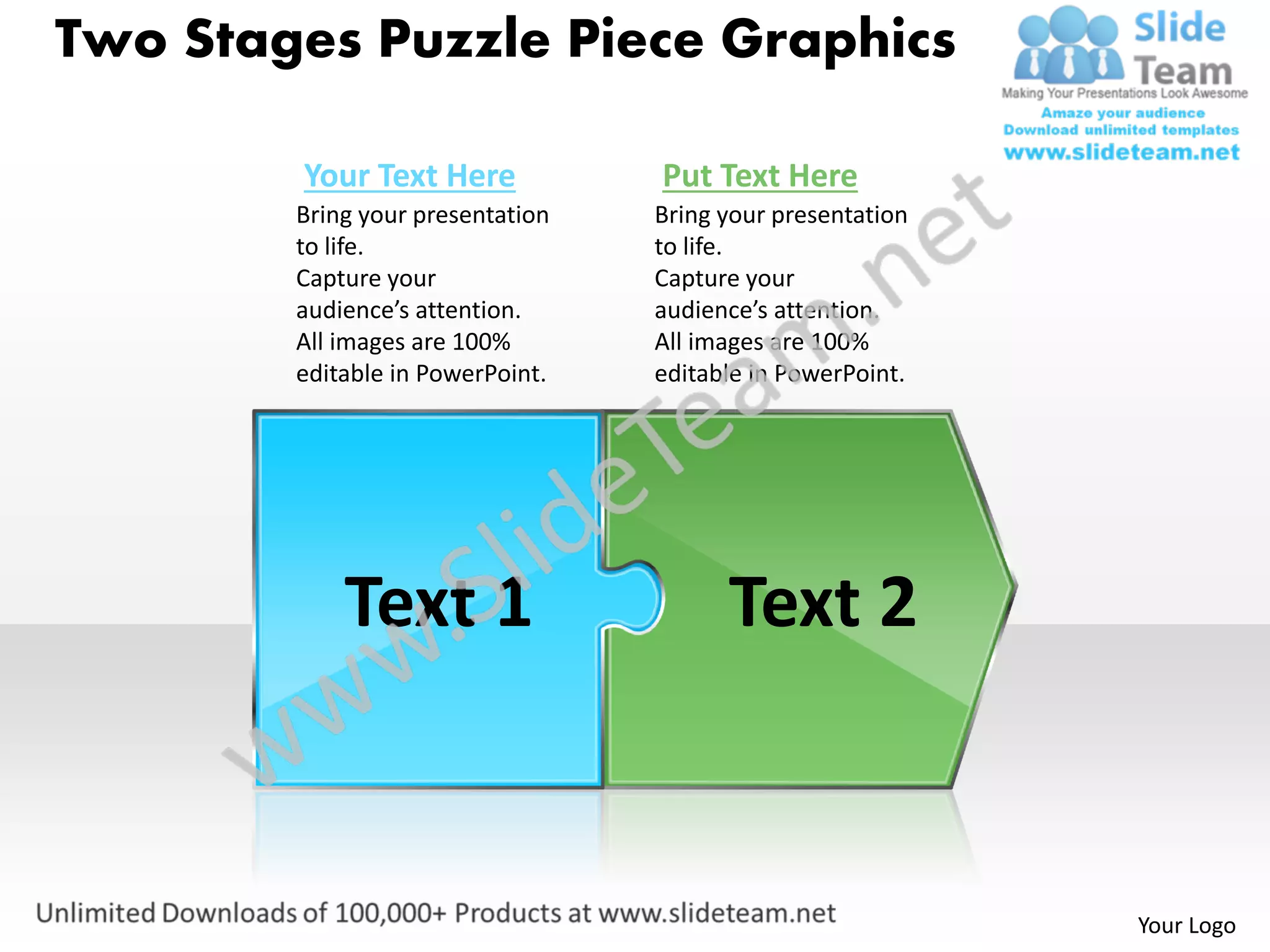
Two Stages Puzzle Piece Graphics

        Your Text Here            Put Text Here
        Bring your presentation   Bring your presentation
        to life.                  to life.
        Capture your              Capture your
        audience’s attention.     audience’s attention.
        All images are 100%       All images are 100%
        editable in PowerPoint.   editable in PowerPoint.


            Text 1                      Text 2


                                                            Your Logo
Two Stages Puzzle Piece Graphics

        Your Text Here            Put Text Here
        Bring your presentation   Bring your presentation
        to life.                  to life.
        Capture your              Capture your
        audience’s attention.     audience’s attention.
        All images are 100%       All images are 100%
        editable in PowerPoint.   editable in PowerPoint.


            Text 1                      Text 2


                                                            Your Logo
Two Stages Puzzle Piece Graphics

        Your Text Here            Put Text Here
        Bring your presentation   Bring your presentation
        to life.                  to life.
        Capture your              Capture your
        audience’s attention.     audience’s attention.
        All images are 100%       All images are 100%
        editable in PowerPoint.   editable in PowerPoint.


            Text 1                      Text 2


                                                            Your Logo
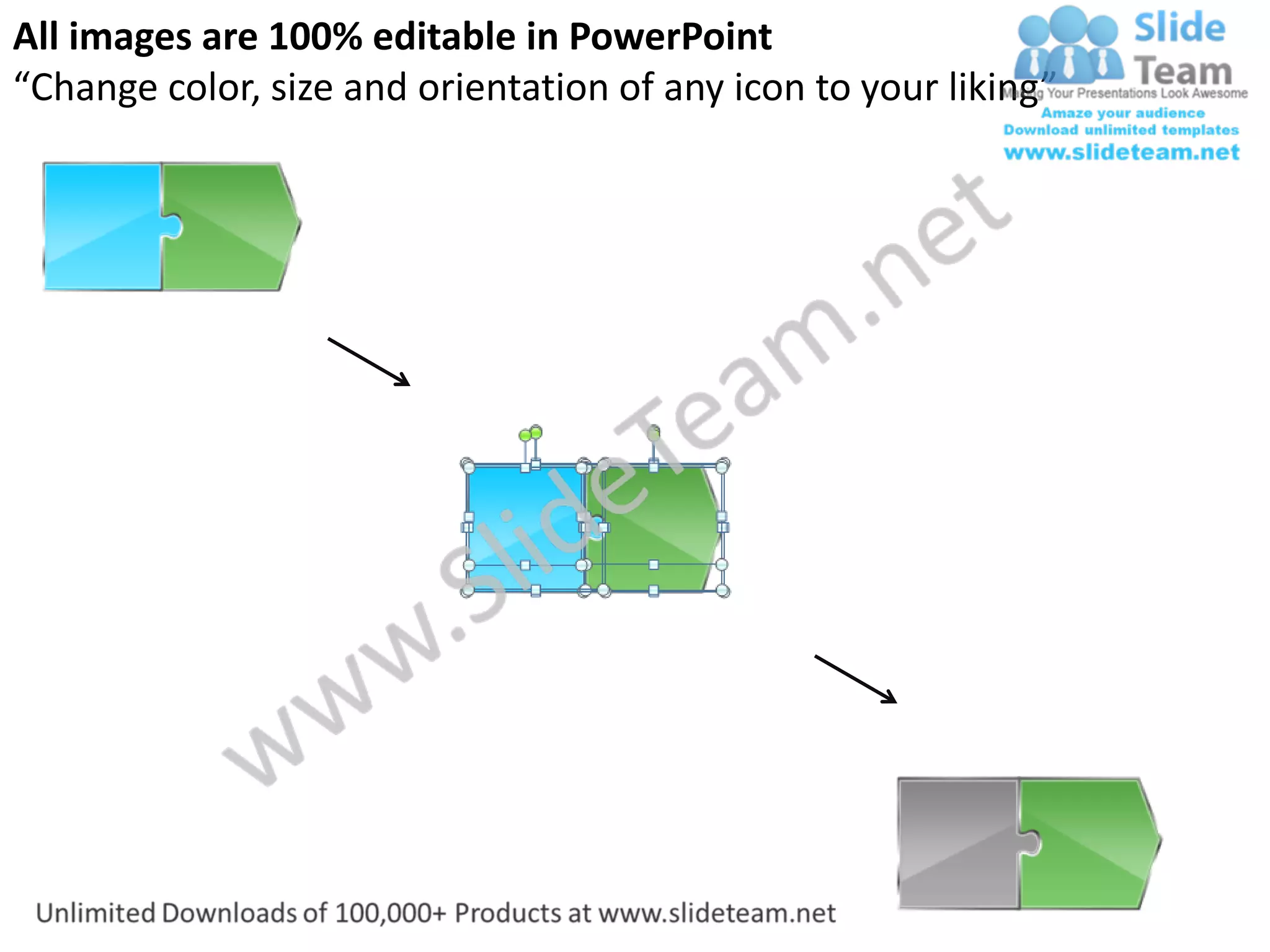
All images are 100% editable in PowerPoint
“Change color, size and orientation of any icon to your liking”
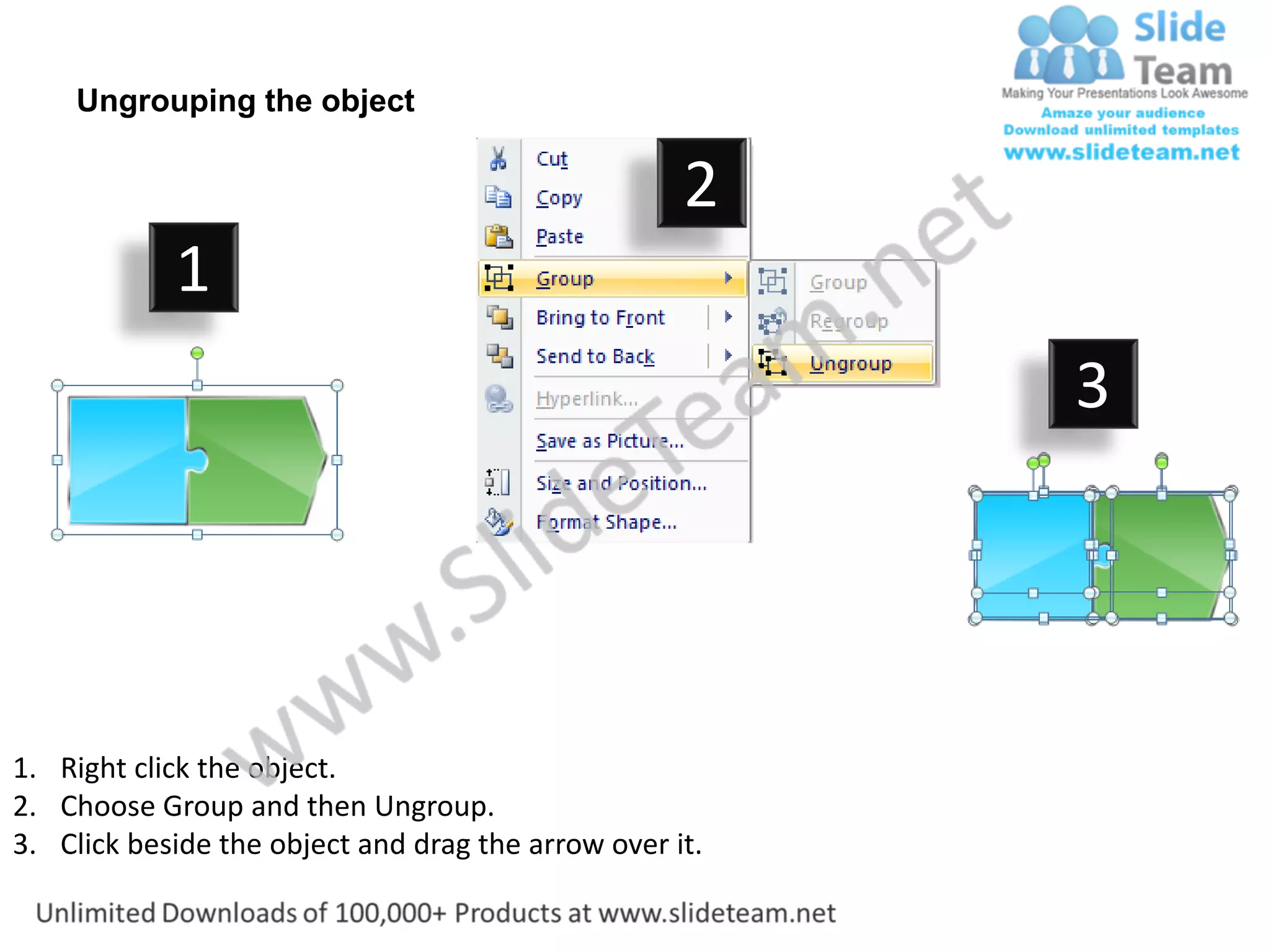
Ungrouping the object

                                                    2
            1
                                                         3


1. Right click the object.
2. Choose Group and then Ungroup.
3. Click beside the object and drag the arrow over it.
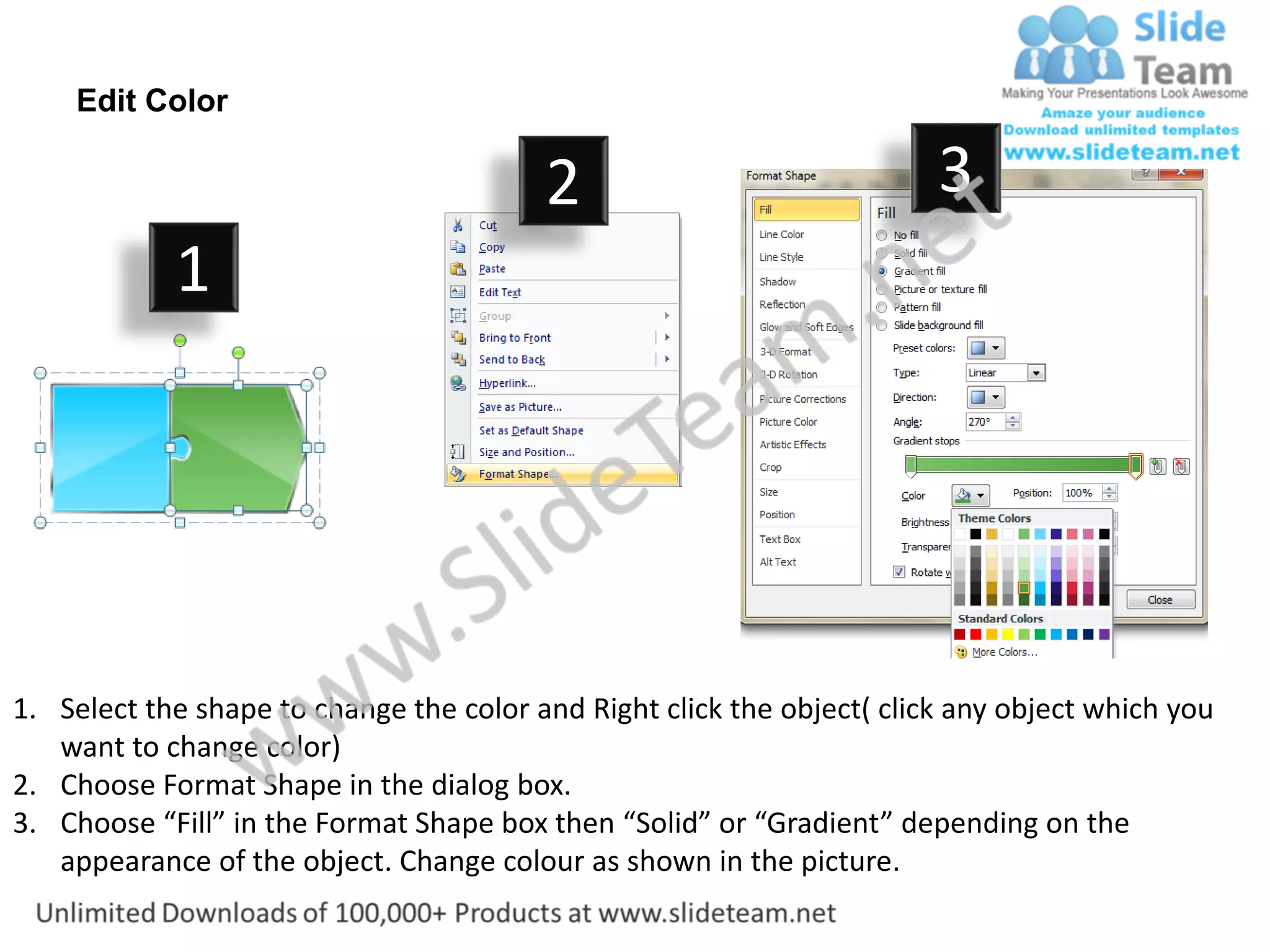
Edit Color

                                         2                              3
            1


1. Select the shape to change the color and Right click the object( click any object which you
   want to change color)
2. Choose Format Shape in the dialog box.
3. Choose “Fill” in the Format Shape box then “Solid” or “Gradient” depending on the
   appearance of the object. Change colour as shown in the picture.
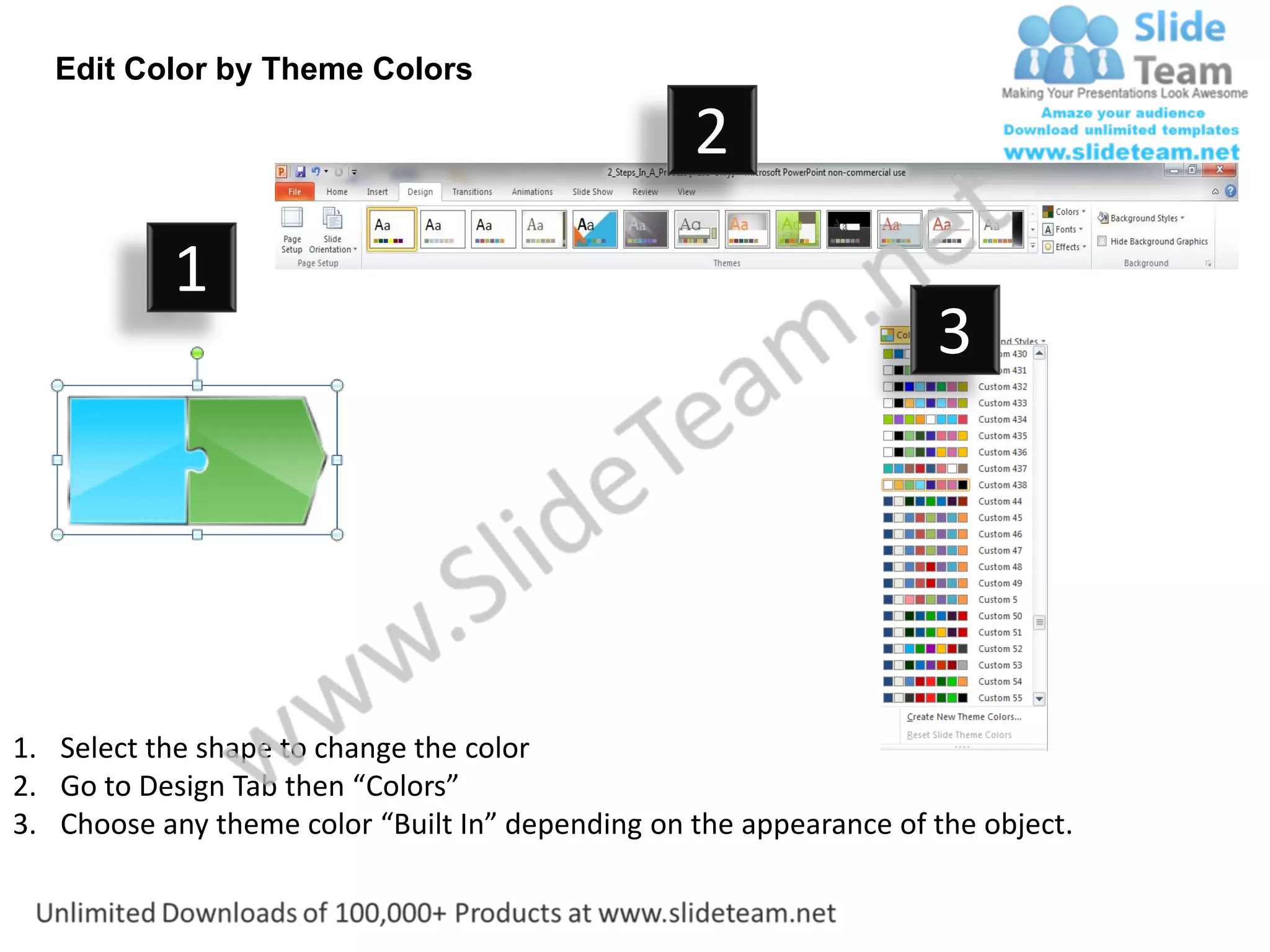
Edit Color by Theme Colors

                                                  2
           1
                                                                    3


1. Select the shape to change the color
2. Go to Design Tab then “Colors”
3. Choose any theme color “Built In” depending on the appearance of the object.

Two stages puzzle piece graphics production flow charts power point slides

  • 1.
    Two Stages PuzzlePiece Graphics Your Text Here Put Text Here Bring your presentation Bring your presentation to life. to life. Capture your Capture your audience’s attention. audience’s attention. All images are 100% All images are 100% editable in PowerPoint. editable in PowerPoint. Text 1 Text 2 Your Logo
  • 2.
    Two Stages PuzzlePiece Graphics Your Text Here Put Text Here Bring your presentation Bring your presentation to life. to life. Capture your Capture your audience’s attention. audience’s attention. All images are 100% All images are 100% editable in PowerPoint. editable in PowerPoint. Text 1 Text 2 Your Logo
  • 3.
    Two Stages PuzzlePiece Graphics Your Text Here Put Text Here Bring your presentation Bring your presentation to life. to life. Capture your Capture your audience’s attention. audience’s attention. All images are 100% All images are 100% editable in PowerPoint. editable in PowerPoint. Text 1 Text 2 Your Logo
  • 4.
    All images are100% editable in PowerPoint “Change color, size and orientation of any icon to your liking”
  • 5.
    Ungrouping the object 2 1 3 1. Right click the object. 2. Choose Group and then Ungroup. 3. Click beside the object and drag the arrow over it.
  • 6.
    Edit Color 2 3 1 1. Select the shape to change the color and Right click the object( click any object which you want to change color) 2. Choose Format Shape in the dialog box. 3. Choose “Fill” in the Format Shape box then “Solid” or “Gradient” depending on the appearance of the object. Change colour as shown in the picture.
  • 7.
    Edit Color byTheme Colors 2 1 3 1. Select the shape to change the color 2. Go to Design Tab then “Colors” 3. Choose any theme color “Built In” depending on the appearance of the object.