O Futuro do Java Chegou! 
Java, Embedded, Cloud, Internet of Things, Mobile 
The Developers Conference 2014 - Keynote 
Bruno Borges 
Principal Product Manager 
Cloud Application Foundation 
Outubro, 2014 
Copyright © 2014, Oracle and/or its affiliates. All rights reserved. |
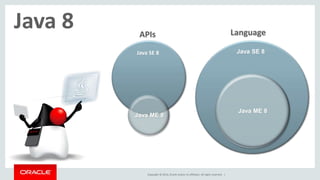
APIs Language 
Java SE 8 Java SE 8 
Copyright © 2014, Oracle and/or its affiliates. All rights reserved. | 
Java ME 8 
Java 8 
Java ME 8
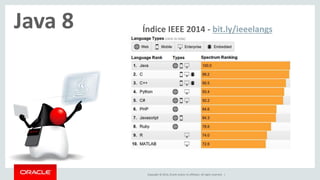
Java 8 Índice IEEE 2014 - bit.ly/ieeelangs 
Copyright © 2014, Oracle and/or its affiliates. All rights reserved. |
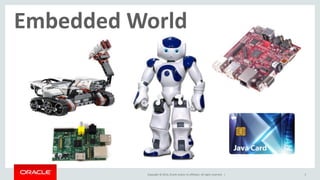
Embedded World 
Copyright © 2014, Oracle and/or its affiliates. All rights reserved. | 5
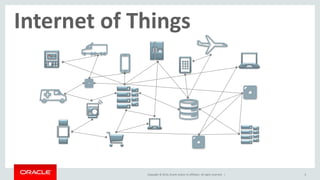
Internet of Things 
Copyright © 2014, Oracle and/or its affiliates. All rights reserved. | 6
Copyright © 2014, Oracle and/or its affiliates. All rights reserved. | 
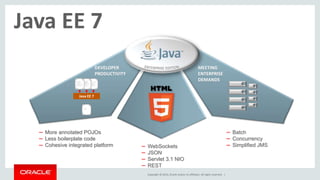
Java EE 7 
DEVELOPER 
PRODUCTIVITY 
Java EE 7 
– Batch 
– Concurrency 
– Simplified JMS 
– More annotated POJOs 
– Less boilerplate code 
– Cohesive integrated platform – WebSockets 
– JSON 
– Servlet 3.1 NIO 
– REST 
MEETING 
ENTERPRISE 
DEMANDS
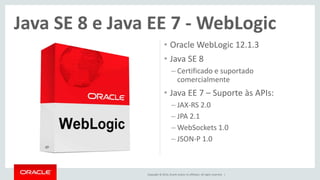
Java SE 8 e Java EE 7 -WebLogic 
• Oracle WebLogic 12.1.3 
• Java SE 8 
– Certificado e suportado 
comercialmente 
• Java EE 7 – Suporte às APIs: 
– JAX-RS 2.0 
– JPA 2.1 
–WebSockets 1.0 
– JSON-P 1.0 
Copyright © 2014, Oracle and/or its affiliates. All rights reserved. |
Copyright © 2014, Oracle and/or its affiliates. All rights reserved. | 9 
Oracle Cloud 
IaaS 
PaaS 
SaaS
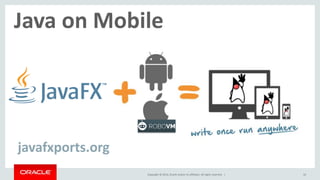
Java on Mobile 
Copyright © 2014, Oracle and/or its affiliates. All rights reserved. | 10 
javafxports.org
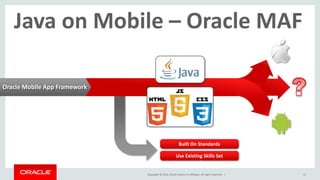
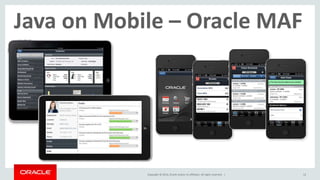
Java on Mobile – Oracle MAF 
Built On Standards 
Use Existing Skills Set 
Copyright © 2014, Oracle and/or its affiliates. All rights reserved. | 11 
Oracle Mobile App Framework
Java on Mobile – Oracle MAF 
Copyright © 2014, Oracle and/or its affiliates. All rights reserved. | 12
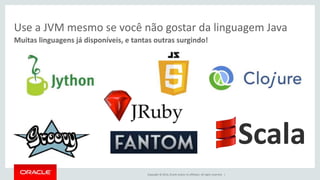
Use a JVM mesmo se você não gostar da linguagem Java 
Muitas linguagens já disponíveis, e tantas outras surgindo! 
Copyright © 2014, Oracle and/or its affiliates. All rights reserved. | 
Scala
cloud.oracle.com 
Copyright © 2014, Oracle and/or its affiliates. All rights reserved. | 
14

The Developers Conference 2014 - Oracle Keynote

  • 1.
    O Futuro doJava Chegou! Java, Embedded, Cloud, Internet of Things, Mobile The Developers Conference 2014 - Keynote Bruno Borges Principal Product Manager Cloud Application Foundation Outubro, 2014 Copyright © 2014, Oracle and/or its affiliates. All rights reserved. |
  • 2.
    APIs Language JavaSE 8 Java SE 8 Copyright © 2014, Oracle and/or its affiliates. All rights reserved. | Java ME 8 Java 8 Java ME 8
  • 3.
    Java 8 ÍndiceIEEE 2014 - bit.ly/ieeelangs Copyright © 2014, Oracle and/or its affiliates. All rights reserved. |
  • 4.
    Embedded World Copyright© 2014, Oracle and/or its affiliates. All rights reserved. | 5
  • 5.
    Internet of Things Copyright © 2014, Oracle and/or its affiliates. All rights reserved. | 6
  • 6.
    Copyright © 2014,Oracle and/or its affiliates. All rights reserved. | Java EE 7 DEVELOPER PRODUCTIVITY Java EE 7 – Batch – Concurrency – Simplified JMS – More annotated POJOs – Less boilerplate code – Cohesive integrated platform – WebSockets – JSON – Servlet 3.1 NIO – REST MEETING ENTERPRISE DEMANDS
  • 7.
    Java SE 8e Java EE 7 -WebLogic • Oracle WebLogic 12.1.3 • Java SE 8 – Certificado e suportado comercialmente • Java EE 7 – Suporte às APIs: – JAX-RS 2.0 – JPA 2.1 –WebSockets 1.0 – JSON-P 1.0 Copyright © 2014, Oracle and/or its affiliates. All rights reserved. |
  • 8.
    Copyright © 2014,Oracle and/or its affiliates. All rights reserved. | 9 Oracle Cloud IaaS PaaS SaaS
  • 9.
    Java on Mobile Copyright © 2014, Oracle and/or its affiliates. All rights reserved. | 10 javafxports.org
  • 10.
    Java on Mobile– Oracle MAF Built On Standards Use Existing Skills Set Copyright © 2014, Oracle and/or its affiliates. All rights reserved. | 11 Oracle Mobile App Framework
  • 11.
    Java on Mobile– Oracle MAF Copyright © 2014, Oracle and/or its affiliates. All rights reserved. | 12
  • 12.
    Use a JVMmesmo se você não gostar da linguagem Java Muitas linguagens já disponíveis, e tantas outras surgindo! Copyright © 2014, Oracle and/or its affiliates. All rights reserved. | Scala
  • 13.
    cloud.oracle.com Copyright ©2014, Oracle and/or its affiliates. All rights reserved. | 14

Editor's Notes

  • #3 This is a Title Slide with Picture slide ideal for including a picture with a brief title, subtitle and presenter information. To customize this slide with your own picture: Right-click the slide area and choose Format Background from the pop-up menu. From the Fill menu, click Picture and texture fill. Under Insert from: click File. Locate your new picture and click Insert. To copy the Customized Background from Another Presentation on PC Click New Slide from the Home tab's Slides group and select Reuse Slides. Click Browse in the Reuse Slides panel and select Browse Files. Double-click the PowerPoint presentation that contains the background you wish to copy. Check Keep Source Formatting and click the slide that contains the background you want. Click the left-hand slide preview to which you wish to apply the new master layout. Apply New Layout (Important): Right-click any selected slide, point to Layout, and click the slide containing the desired layout from the layout gallery. Delete any unwanted slides or duplicates. To copy the Customized Background from Another Presentation on Mac Click New Slide from the Home tab's Slides group and select Insert Slides from Other Presentation… Navigate to the PowerPoint presentation file that contains the background you wish to copy. Double-click or press Insert. This prompts the Slide Finder dialogue box. Make sure Keep design of original slides is unchecked and click the slide(s) that contains the background you want. Hold Shift key to select multiple slides. Click the left-hand slide preview to which you wish to apply the new master layout. Apply New Layout (Important): Click Layout from the Home tab's Slides group, and click the slide containing the desired layout from the layout gallery. Delete any unwanted slides or duplicates.
  • #8  Productivity Html 5 Enterprise demands
  • #9  Productivity Html 5 Enterprise demands
  • #11 This is a sample iOS Smartphone and Tablet: Horizontal slide ideal for including sample mobile device screen pictures. To Replace the Pictures on this Sample Slide (this applies to all slides in this template that contain replaceable pictures) Select the sample picture and press Delete. Click the icon inside the shape to open the Insert Picture dialog box. Navigate to the location where the picture is stored, select desired picture and click on the Insert button to fit the image proportionally within the shape. Note: Do not right-click the image to change the picture inside the picture placeholder. This will change the frame size of the picture placeholder. Instead, follow the steps outlined above.
  • #12 This is a sample iOS Smartphone and Tablet: Horizontal slide ideal for including sample mobile device screen pictures. To Replace the Pictures on this Sample Slide (this applies to all slides in this template that contain replaceable pictures) Select the sample picture and press Delete. Click the icon inside the shape to open the Insert Picture dialog box. Navigate to the location where the picture is stored, select desired picture and click on the Insert button to fit the image proportionally within the shape. Note: Do not right-click the image to change the picture inside the picture placeholder. This will change the frame size of the picture placeholder. Instead, follow the steps outlined above.
  • #13 This is a sample iOS Smartphone and Tablet: Horizontal slide ideal for including sample mobile device screen pictures. To Replace the Pictures on this Sample Slide (this applies to all slides in this template that contain replaceable pictures) Select the sample picture and press Delete. Click the icon inside the shape to open the Insert Picture dialog box. Navigate to the location where the picture is stored, select desired picture and click on the Insert button to fit the image proportionally within the shape. Note: Do not right-click the image to change the picture inside the picture placeholder. This will change the frame size of the picture placeholder. Instead, follow the steps outlined above.
  • #14 The advantages of the JVM have been recognized by many others. Some wanted to try something different than Java but rather than reinventing the wheel completely they realized the advantage of, and leverage the continued improvement of, the JVM by -instead of creating their own runtime- writing compilers to create java bytecode which then runs on the JVM and, in some cases, leverage java libraries.
  • #15 To copy the Customized Background from Another Presentation on PC Click New Slide from the Home tab's Slides group and select Reuse Slides. Click Browse in the Reuse Slides panel and select Browse Files. Double-click the PowerPoint presentation that contains the background you wish to copy. Check Keep Source Formatting and click the slide that contains the background you want. Click the left-hand slide preview to which you wish to apply the new master layout. Apply New Layout (Important): Right-click any selected slide, point to Layout, and click the slide containing the desired layout from the layout gallery. Delete any unwanted slides or duplicates. To copy the Customized Background from Another Presentation on Mac Click New Slide from the Home tab's Slides group and select Insert Slides from Other Presentation… Navigate to the PowerPoint presentation file that contains the background you wish to copy. Double-click or press Insert. This prompts the Slide Finder dialogue box. Make sure Keep design of original slides is unchecked and click the slide(s) that contains the background you want. Hold Shift key to select multiple slides. Click the left-hand slide preview to which you wish to apply the new master layout. Apply New Layout (Important): Click Layout from the Home tab's Slides group, and click the slide containing the desired layout from the layout gallery. Delete any unwanted slides or duplicates.