SYSTEM CLIENT
Overview
Agenda
•
•

Compatbility
Installation and Deployment
– Browsing to the SyAM Web Server
– Logging In

•

System Client Interface
– Dashboard
– Management Tree

•

Detail Tabs
–
–
–
–
–

System
Hardware
Network
Storage
Software
• Retrieving Windows Events

System Client - Overview

2
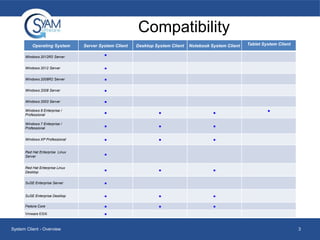
Compatibility
Operating System
Windows 2012R2 Server

Server System Client

Desktop System Client

Notebook System Client

Tablet System Client

■

Windows 2012 Server

■

Windows 2008R2 Server

■

Windows 2008 Server

■

Windows 2003 Server

■

Windows 8 Enterprise /
Professional

■

■

■

Windows 7 Enterprise /
Professional

■

■

■

Windows XP Professional

■

■

■

Red Hat Enterprise Linux
Server

■

Red Hat Enterprise Linux
Desktop

■

■

■

SuSE Enterprise Server

■

SuSE Enterprise Desktop

■

■

■

Fedora Core

■

■

■

Vmware ESXi

■

System Client - Overview

■

3
Firewall Security
• The following ports must be opened if you are using a firewall on
your Linux system. They are automatically opened on Windows
systems
–
–
–
–

3894 – Used for agent management service
3930 – Used for web server if installed
5800 – Used for Remote Console access from System Area Manager
5900 – Used for Remote Console access from System Area Manager

System Client - Overview

4
INSTALLATION AND
DEPLOYMENT
System Client - Overview

5
Installation Instructions – Windows
•
•
•
•
•

•

Double-click the downloaded SyAM executable. Then just follow the Install
Wizard instructions.
Choose the language of the user interface.
The System Client will be installed in the C:Program Files (x86)SyAM
folder automatically but can be manually saved in a desired folder
Choose either the Local or Agent installation. (default=Local)
To enable security through 128-bit data encryption from SyAM Server Web
Server to the browser, choose the SSL option. (default=No)
After the installation has finished, the SyAM services will start and
dynamically discover and configure your system's monitoring environment.

System Client - Overview

6
Installation Instructions – Linux
•
•
•
•
•
•
•
•

Download the required product version or copy it from the SyAM Software
CD, to the Linux system.
Extract the files and change permission to execute the files
Enter ./install – then follow the on screen instructions
Choose the language of the user interface.
Choose the destination folder (This cannot contain any spaces in the name)
Choose either the Local or Agent installation. (default=Local)
To enable security through 128-bit data encryption from SyAM Server Web
Server to the browser, choose the SSL option. (default=No)
After the installation has finished, the SyAM services will start and
dynamically discover and configure your system's monitoring environment.

System Client - Overview

7
Installation Instructions – Mac OSX
• Download the SyAM OSX System Client Pkg file and double click to
proceed with installation
• Once the opening installation screen comes up press continue
• Review the End User License Agreement and press continue
• Choose Agree to continue the installation
• On the next screen you can modify the path or Press install to
choose the default location
• Enter the password and click Install Software to continue the
installation
• The software will automatically detect the hardware for Intel or
Power PC and Desktop versus Notebook
• Once installation is finished the software will initialize itself
automatically

System Client - Overview

8
Installing ESXi
•
•
•

For Installing to the ESXi Service Console System, Root Level Access with ssh is
necessary.
Copy the System Client installer .tgz file to the ESXi system, this can be done
through any ssh client that supports scp file transfer.
Once the file is there issue the following command:
–

# tar -xvzf syam-v4.52-0001.tgz

• The result will be the following:
./
./ESXi/
./ESXi/syam-4.52-0001.tar
./ESXi/install
• Change Directory to the ESXi folder:
–

# cd /ESXi

System Client - Overview

9
Installing ESXi
•

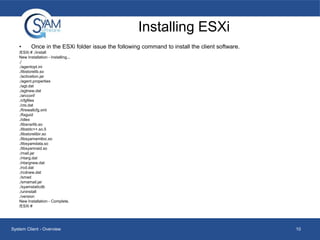
Once in the ESXi folder issue the following command to install the client software.

/ESXi # ./install
New Installation - Installing...
./
./agentopt.ini
./libstorelib.so
./activation.jar
./agent.properties
./agt.dat
./agtnew.dat
./arcconf
./cfgfiles
./ctx.dat
./firewallcfg.xml
./fixguid
./idlex
./libsnsrlib.so
./libstdc++.so.5
./libstorelibir.so
./libsyamamtloc.so
./libsyamdata.so
./libsyamraid.so
./mail.jar
./ntarg.dat
./ntargnew.dat
./rcd.dat
./rcdnew.dat
./smad
./smamail.jar
./syamstaticdb
./uninstall
./version
New Installation - Complete.
/ESXi #

System Client - Overview

10
Local Interface Options
•
•
•

You have two options of deployment during installation – Local or Agent
Local enables you to manage the system directly via a web browser
Agent installs the management agent only. The system can only be
managed with this option via the system running the System Area Manager
software.

System Client - Overview

11
Browsing to the SyAM Web Server
•

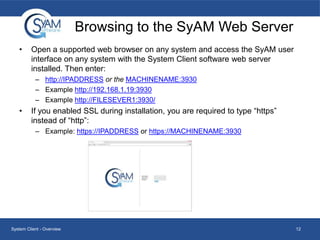
Open a supported web browser on any system and access the SyAM user
interface on any system with the System Client software web server
installed. Then enter:
– http://IPADDRESS or the MACHINENAME:3930
– Example http://192.168.1.19:3930
– Example http://FILESEVER1:3930/

•

If you enabled SSL during installation, you are required to type “https”
instead of “http”:
– Example: https://IPADDRESS or https://MACHINENAME:3930

System Client - Overview

12
Logging In
•

•
•
•
•
•
•
•
•
•

The SyAM web server does not maintain its own separate set of users and
passwords. It requests the operating system to log you in, so uses the
accounts that are already in place on your system. To login you must satisfy
the following conditions:
For Standalone systems (not in a Windows Domain)
The User name and Password must be valid on the system you are logging
into.
The User must have Administrator rights on the system.
For systems within a Windows Domain
The User name and Password must be valid in the Domain.
The User must have "Domain Admin" rights within the Windows Domain
A Valid Domain Name for the system must be entered in the Domain field.
For Linux systems
The User name and Password must be valid on the system you are logging
into.

System Client - Overview

13
SYSTEM CLIENT INTERFACE

System Client - Overview

14
Dashboard
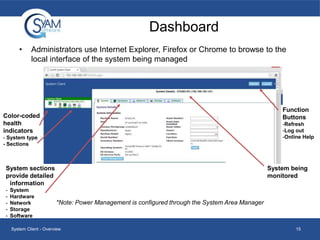
•

Administrators use Internet Explorer, Firefox or Chrome to browse to the
local interface of the system being managed

Function
Buttons

Color-coded
health
indicators

-Refresh
-Log out
-Online Help

- System type
- Sections

System sections
provide detailed
information
-

System
Hardware
Network
Storage
Software

System being
monitored

*Note: Power Management is configured through the System Area Manager

System Client - Overview

15
Health Colors
•

•

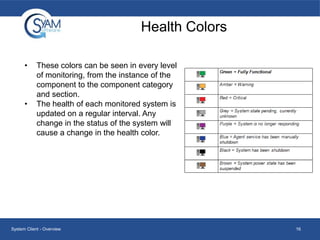
These colors can be seen in every level
of monitoring, from the instance of the
component to the component category
and section.
The health of each monitored system is
updated on a regular interval. Any
change in the status of the system will
cause a change in the health color.

System Client - Overview

16
Icons
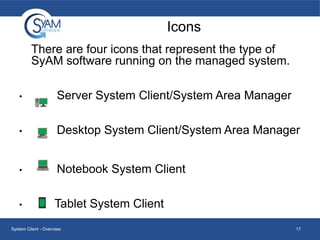
There are four icons that represent the type of
SyAM software running on the managed system.
•

Server System Client/System Area Manager

•

Desktop System Client/System Area Manager

•

Notebook System Client

•

Tablet System Client

System Client - Overview

17
Management Tree
•

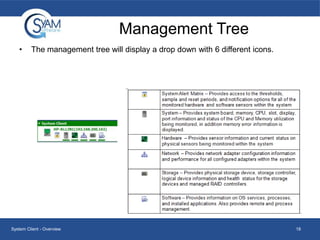
The management tree will display a drop down with 6 different icons.

System Client - Overview

18
DETAIL TABS

System Client - Overview

19
System Alert Matrix
•

•
•

•

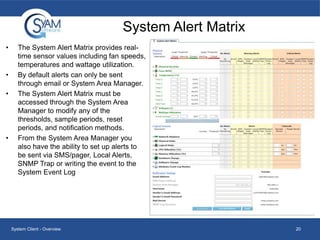
The System Alert Matrix provides realtime sensor values including fan speeds,
temperatures and wattage utilization.
By default alerts can only be sent
through email or System Area Manager.
The System Alert Matrix must be
accessed through the System Area
Manager to modify any of the
thresholds, sample periods, reset
periods, and notification methods.
From the System Area Manager you
also have the ability to set up alerts to
be sent via SMS/pager, Local Alerts,
SNMP Trap or writing the event to the
System Event Log

System Client - Overview

20
System Detail Tab
•

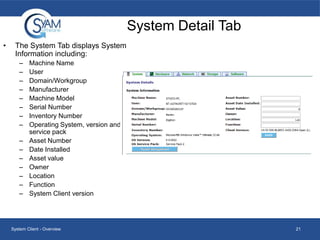
The System Tab displays System
Information including:
–
–
–
–
–
–
–
–
–
–
–
–
–
–
–

Machine Name
User
Domain/Workgroup
Manufacturer
Machine Model
Serial Number
Inventory Number
Operating System, version and
service pack
Asset Number
Date Installed
Asset value
Owner
Location
Function
System Client version

System Client - Overview

21
System Detail Tab
•

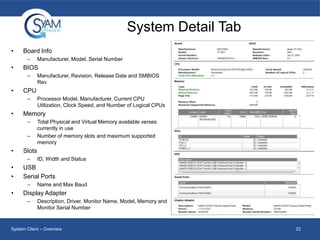
Board Info
–

•

BIOS
–

•

–

ID, Width and Status

USB
Serial Ports
–

•

Total Physical and Virtual Memory available verses
currently in use
Number of memory slots and maximum supported
memory

Slots
–

•
•

Processor Model, Manufacturer, Current CPU
Utilization, Clock Speed, and Number of Logical CPUs

Memory
–

•

Manufacturer, Revision, Release Date and SMBIOS
Rev

CPU
–

•

Manufacturer, Model, Serial Number

Name and Max Baud

Display Adapter
–

Description, Driver, Monitor Name, Model, Memory and
Monitor Serial Number

System Client – Overview

22
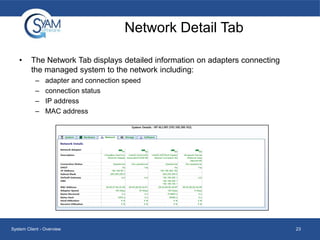
Network Detail Tab
•

The Network Tab displays detailed information on adapters connecting
the managed system to the network including:
–
–
–
–

adapter and connection speed
connection status
IP address
MAC address

System Client - Overview

23
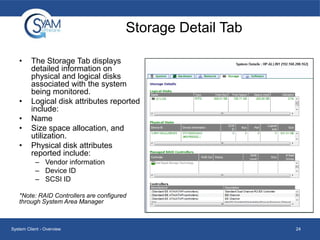
Storage Detail Tab
•

•
•
•
•

The Storage Tab displays
detailed information on
physical and logical disks
associated with the system
being monitored.
Logical disk attributes reported
include:
Name
Size space allocation, and
utilization.
Physical disk attributes
reported include:
– Vendor information
– Device ID
– SCSI ID

*Note: RAID Controllers are configured
through System Area Manager

System Client - Overview

24
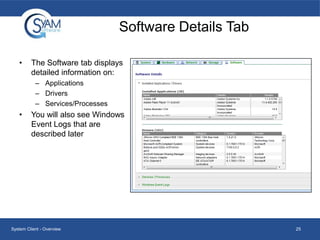
Software Details Tab
•

The Software tab displays
detailed information on:
– Applications
– Drivers
– Services/Processes

•

You will also see Windows
Event Logs that are
described later

System Client - Overview

25
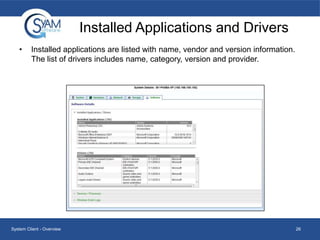
Installed Applications and Drivers
•

Installed applications are listed with name, vendor and version information.
The list of drivers includes name, category, version and provider.

System Client - Overview

26
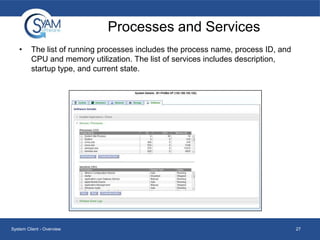
Processes and Services
•

The list of running processes includes the process name, process ID, and
CPU and memory utilization. The list of services includes description,
startup type, and current state.

System Client - Overview

27
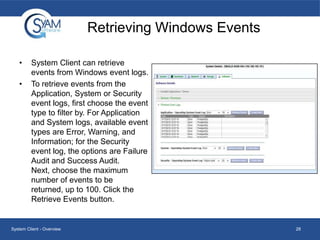
Retrieving Windows Events
•

•

System Client can retrieve
events from Windows event logs.
To retrieve events from the
Application, System or Security
event logs, first choose the event
type to filter by. For Application
and System logs, available event
types are Error, Warning, and
Information; for the Security
event log, the options are Failure
Audit and Success Audit.
Next, choose the maximum
number of events to be
returned, up to 100. Click the
Retrieve Events button.

System Client - Overview

28

System Client Details

  • 1.
  • 2.
    Agenda • • Compatbility Installation and Deployment –Browsing to the SyAM Web Server – Logging In • System Client Interface – Dashboard – Management Tree • Detail Tabs – – – – – System Hardware Network Storage Software • Retrieving Windows Events System Client - Overview 2
  • 3.
    Compatibility Operating System Windows 2012R2Server Server System Client Desktop System Client Notebook System Client Tablet System Client ■ Windows 2012 Server ■ Windows 2008R2 Server ■ Windows 2008 Server ■ Windows 2003 Server ■ Windows 8 Enterprise / Professional ■ ■ ■ Windows 7 Enterprise / Professional ■ ■ ■ Windows XP Professional ■ ■ ■ Red Hat Enterprise Linux Server ■ Red Hat Enterprise Linux Desktop ■ ■ ■ SuSE Enterprise Server ■ SuSE Enterprise Desktop ■ ■ ■ Fedora Core ■ ■ ■ Vmware ESXi ■ System Client - Overview ■ 3
  • 4.
    Firewall Security • Thefollowing ports must be opened if you are using a firewall on your Linux system. They are automatically opened on Windows systems – – – – 3894 – Used for agent management service 3930 – Used for web server if installed 5800 – Used for Remote Console access from System Area Manager 5900 – Used for Remote Console access from System Area Manager System Client - Overview 4
  • 5.
  • 6.
    Installation Instructions –Windows • • • • • • Double-click the downloaded SyAM executable. Then just follow the Install Wizard instructions. Choose the language of the user interface. The System Client will be installed in the C:Program Files (x86)SyAM folder automatically but can be manually saved in a desired folder Choose either the Local or Agent installation. (default=Local) To enable security through 128-bit data encryption from SyAM Server Web Server to the browser, choose the SSL option. (default=No) After the installation has finished, the SyAM services will start and dynamically discover and configure your system's monitoring environment. System Client - Overview 6
  • 7.
    Installation Instructions –Linux • • • • • • • • Download the required product version or copy it from the SyAM Software CD, to the Linux system. Extract the files and change permission to execute the files Enter ./install – then follow the on screen instructions Choose the language of the user interface. Choose the destination folder (This cannot contain any spaces in the name) Choose either the Local or Agent installation. (default=Local) To enable security through 128-bit data encryption from SyAM Server Web Server to the browser, choose the SSL option. (default=No) After the installation has finished, the SyAM services will start and dynamically discover and configure your system's monitoring environment. System Client - Overview 7
  • 8.
    Installation Instructions –Mac OSX • Download the SyAM OSX System Client Pkg file and double click to proceed with installation • Once the opening installation screen comes up press continue • Review the End User License Agreement and press continue • Choose Agree to continue the installation • On the next screen you can modify the path or Press install to choose the default location • Enter the password and click Install Software to continue the installation • The software will automatically detect the hardware for Intel or Power PC and Desktop versus Notebook • Once installation is finished the software will initialize itself automatically System Client - Overview 8
  • 9.
    Installing ESXi • • • For Installingto the ESXi Service Console System, Root Level Access with ssh is necessary. Copy the System Client installer .tgz file to the ESXi system, this can be done through any ssh client that supports scp file transfer. Once the file is there issue the following command: – # tar -xvzf syam-v4.52-0001.tgz • The result will be the following: ./ ./ESXi/ ./ESXi/syam-4.52-0001.tar ./ESXi/install • Change Directory to the ESXi folder: – # cd /ESXi System Client - Overview 9
  • 10.
    Installing ESXi • Once inthe ESXi folder issue the following command to install the client software. /ESXi # ./install New Installation - Installing... ./ ./agentopt.ini ./libstorelib.so ./activation.jar ./agent.properties ./agt.dat ./agtnew.dat ./arcconf ./cfgfiles ./ctx.dat ./firewallcfg.xml ./fixguid ./idlex ./libsnsrlib.so ./libstdc++.so.5 ./libstorelibir.so ./libsyamamtloc.so ./libsyamdata.so ./libsyamraid.so ./mail.jar ./ntarg.dat ./ntargnew.dat ./rcd.dat ./rcdnew.dat ./smad ./smamail.jar ./syamstaticdb ./uninstall ./version New Installation - Complete. /ESXi # System Client - Overview 10
  • 11.
    Local Interface Options • • • Youhave two options of deployment during installation – Local or Agent Local enables you to manage the system directly via a web browser Agent installs the management agent only. The system can only be managed with this option via the system running the System Area Manager software. System Client - Overview 11
  • 12.
    Browsing to theSyAM Web Server • Open a supported web browser on any system and access the SyAM user interface on any system with the System Client software web server installed. Then enter: – http://IPADDRESS or the MACHINENAME:3930 – Example http://192.168.1.19:3930 – Example http://FILESEVER1:3930/ • If you enabled SSL during installation, you are required to type “https” instead of “http”: – Example: https://IPADDRESS or https://MACHINENAME:3930 System Client - Overview 12
  • 13.
    Logging In • • • • • • • • • • The SyAMweb server does not maintain its own separate set of users and passwords. It requests the operating system to log you in, so uses the accounts that are already in place on your system. To login you must satisfy the following conditions: For Standalone systems (not in a Windows Domain) The User name and Password must be valid on the system you are logging into. The User must have Administrator rights on the system. For systems within a Windows Domain The User name and Password must be valid in the Domain. The User must have "Domain Admin" rights within the Windows Domain A Valid Domain Name for the system must be entered in the Domain field. For Linux systems The User name and Password must be valid on the system you are logging into. System Client - Overview 13
  • 14.
    SYSTEM CLIENT INTERFACE SystemClient - Overview 14
  • 15.
    Dashboard • Administrators use InternetExplorer, Firefox or Chrome to browse to the local interface of the system being managed Function Buttons Color-coded health indicators -Refresh -Log out -Online Help - System type - Sections System sections provide detailed information - System Hardware Network Storage Software System being monitored *Note: Power Management is configured through the System Area Manager System Client - Overview 15
  • 16.
    Health Colors • • These colorscan be seen in every level of monitoring, from the instance of the component to the component category and section. The health of each monitored system is updated on a regular interval. Any change in the status of the system will cause a change in the health color. System Client - Overview 16
  • 17.
    Icons There are fouricons that represent the type of SyAM software running on the managed system. • Server System Client/System Area Manager • Desktop System Client/System Area Manager • Notebook System Client • Tablet System Client System Client - Overview 17
  • 18.
    Management Tree • The managementtree will display a drop down with 6 different icons. System Client - Overview 18
  • 19.
  • 20.
    System Alert Matrix • • • • TheSystem Alert Matrix provides realtime sensor values including fan speeds, temperatures and wattage utilization. By default alerts can only be sent through email or System Area Manager. The System Alert Matrix must be accessed through the System Area Manager to modify any of the thresholds, sample periods, reset periods, and notification methods. From the System Area Manager you also have the ability to set up alerts to be sent via SMS/pager, Local Alerts, SNMP Trap or writing the event to the System Event Log System Client - Overview 20
  • 21.
    System Detail Tab • TheSystem Tab displays System Information including: – – – – – – – – – – – – – – – Machine Name User Domain/Workgroup Manufacturer Machine Model Serial Number Inventory Number Operating System, version and service pack Asset Number Date Installed Asset value Owner Location Function System Client version System Client - Overview 21
  • 22.
    System Detail Tab • BoardInfo – • BIOS – • – ID, Width and Status USB Serial Ports – • Total Physical and Virtual Memory available verses currently in use Number of memory slots and maximum supported memory Slots – • • Processor Model, Manufacturer, Current CPU Utilization, Clock Speed, and Number of Logical CPUs Memory – • Manufacturer, Revision, Release Date and SMBIOS Rev CPU – • Manufacturer, Model, Serial Number Name and Max Baud Display Adapter – Description, Driver, Monitor Name, Model, Memory and Monitor Serial Number System Client – Overview 22
  • 23.
    Network Detail Tab • TheNetwork Tab displays detailed information on adapters connecting the managed system to the network including: – – – – adapter and connection speed connection status IP address MAC address System Client - Overview 23
  • 24.
    Storage Detail Tab • • • • • TheStorage Tab displays detailed information on physical and logical disks associated with the system being monitored. Logical disk attributes reported include: Name Size space allocation, and utilization. Physical disk attributes reported include: – Vendor information – Device ID – SCSI ID *Note: RAID Controllers are configured through System Area Manager System Client - Overview 24
  • 25.
    Software Details Tab • TheSoftware tab displays detailed information on: – Applications – Drivers – Services/Processes • You will also see Windows Event Logs that are described later System Client - Overview 25
  • 26.
    Installed Applications andDrivers • Installed applications are listed with name, vendor and version information. The list of drivers includes name, category, version and provider. System Client - Overview 26
  • 27.
    Processes and Services • Thelist of running processes includes the process name, process ID, and CPU and memory utilization. The list of services includes description, startup type, and current state. System Client - Overview 27
  • 28.
    Retrieving Windows Events • • SystemClient can retrieve events from Windows event logs. To retrieve events from the Application, System or Security event logs, first choose the event type to filter by. For Application and System logs, available event types are Error, Warning, and Information; for the Security event log, the options are Failure Audit and Success Audit. Next, choose the maximum number of events to be returned, up to 100. Click the Retrieve Events button. System Client - Overview 28