Skills Development
College Magazine
Photoshop
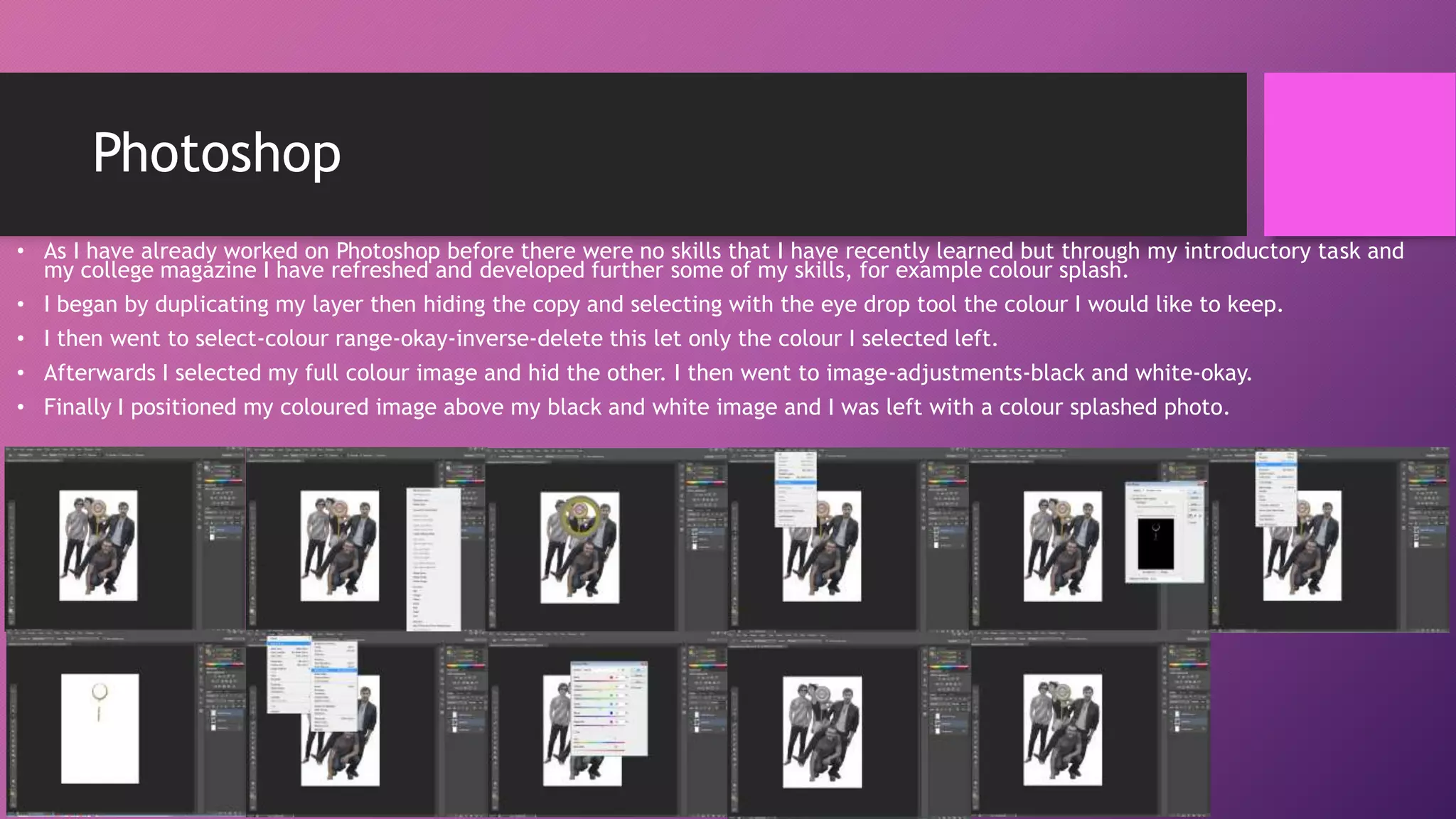
• As I have already worked on Photoshop before there were no skills that I have recently learned but through my introductory task and
my college magazine I have refreshed and developed further some of my skills, for example colour splash.
• I began by duplicating my layer then hiding the copy and selecting with the eye drop tool the colour I would like to keep.
• I then went to select-colour range-okay-inverse-delete this let only the colour I selected left.
• Afterwards I selected my full colour image and hid the other. I then went to image-adjustments-black and white-okay.
• Finally I positioned my coloured image above my black and white image and I was left with a colour splashed photo.
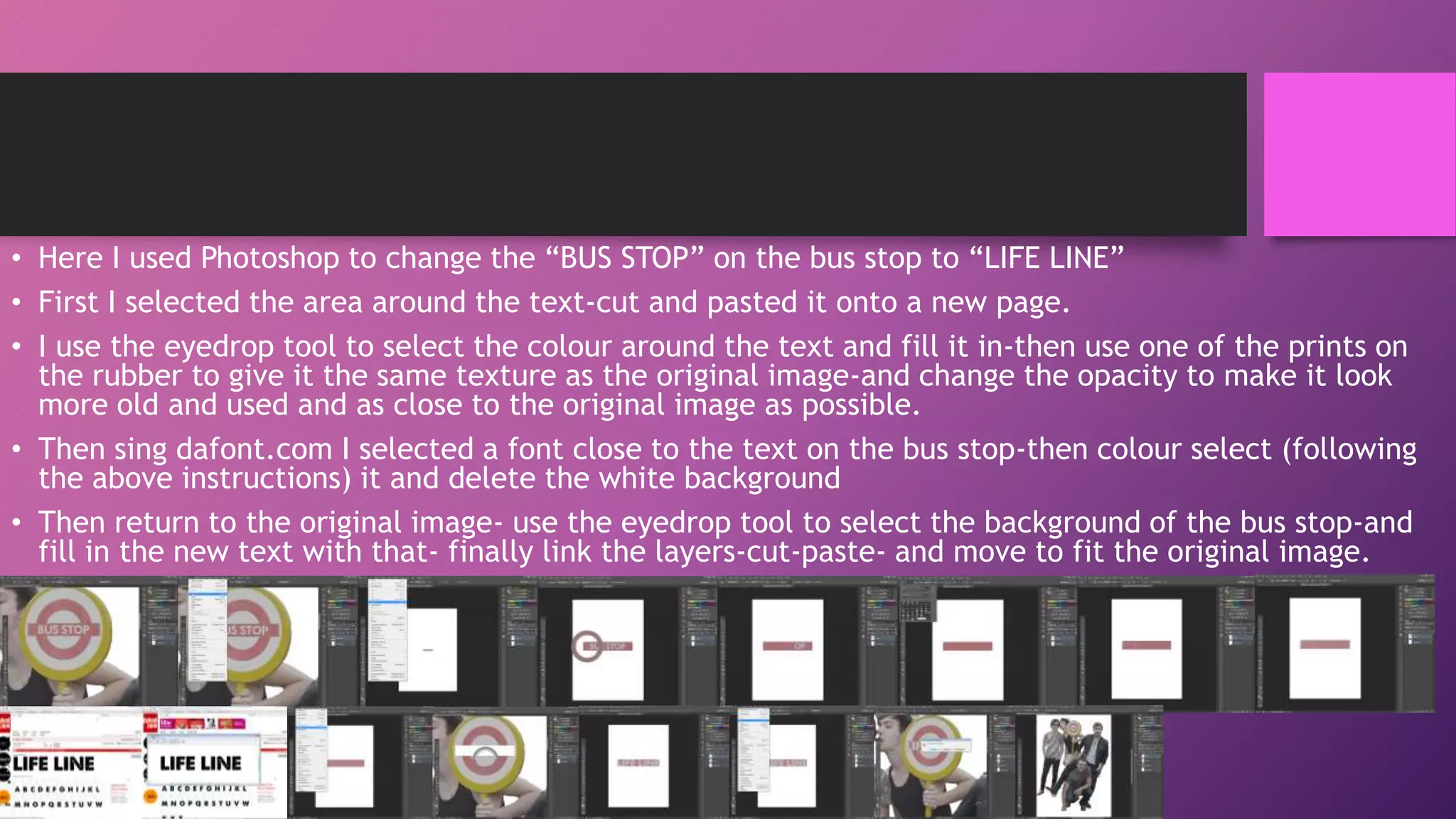
• Here I used Photoshop to change the “BUS STOP” on the bus stop to “LIFE LINE”
• First I selected the area around the text-cut and pasted it onto a new page.
• I use the eyedrop tool to select the colour around the text and fill it in-then use one of the prints on
the rubber to give it the same texture as the original image-and change the opacity to make it look
more old and used and as close to the original image as possible.
• Then sing dafont.com I selected a font close to the text on the bus stop-then colour select (following
the above instructions) it and delete the white background
• Then return to the original image- use the eyedrop tool to select the background of the bus stop-and
fill in the new text with that- finally link the layers-cut-paste- and move to fit the original image.
InDesign
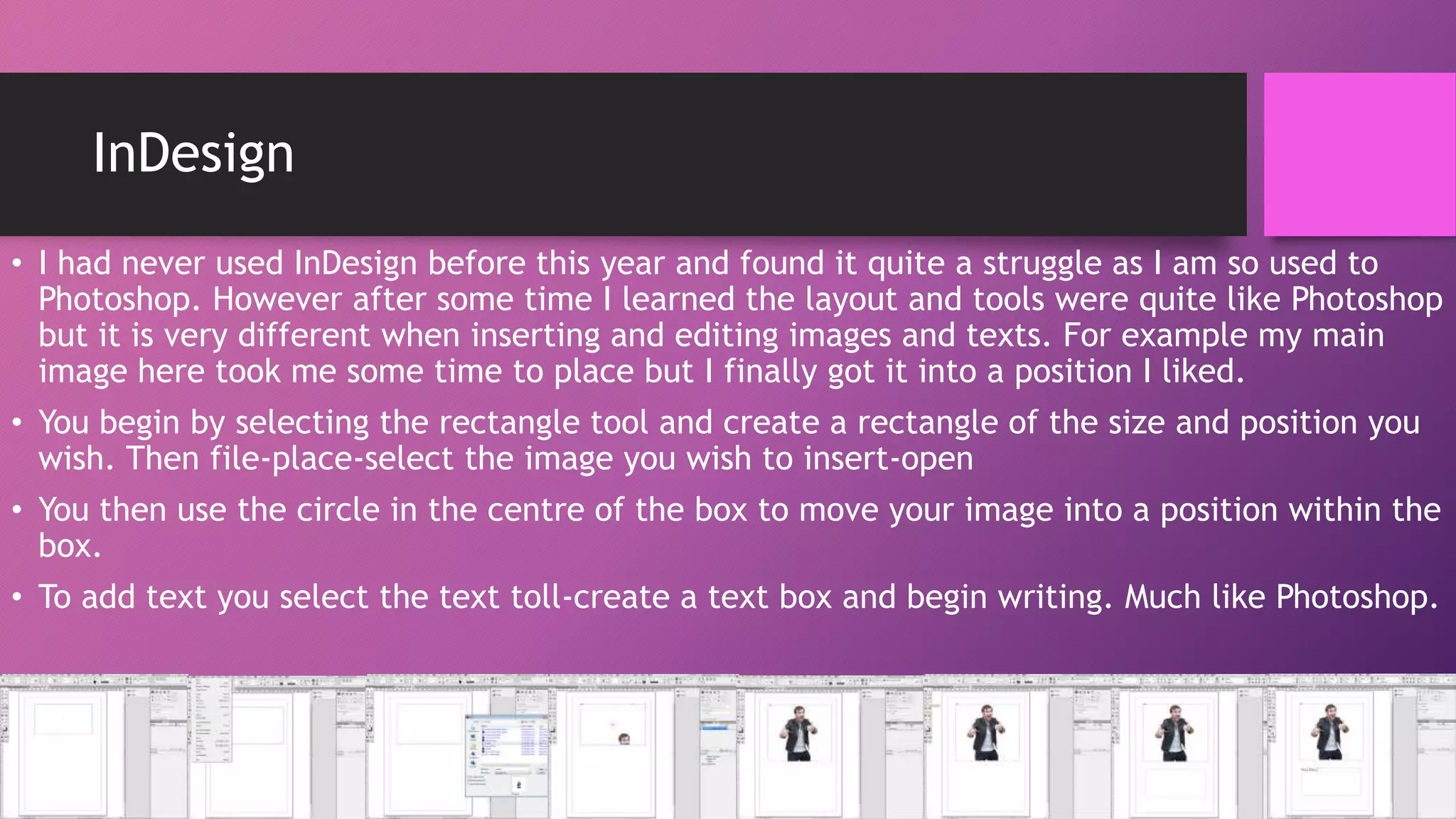
• I had never used InDesign before this year and found it quite a struggle as I am so used to
Photoshop. However after some time I learned the layout and tools were quite like Photoshop
but it is very different when inserting and editing images and texts. For example my main
image here took me some time to place but I finally got it into a position I liked.
• You begin by selecting the rectangle tool and create a rectangle of the size and position you
wish. Then file-place-select the image you wish to insert-open
• You then use the circle in the centre of the box to move your image into a position within the
box.

• To add text you select the text toll-create a text box and begin writing. Much like Photoshop.

Skills development

  • 1.
  • 2.
    Photoshop • As Ihave already worked on Photoshop before there were no skills that I have recently learned but through my introductory task and my college magazine I have refreshed and developed further some of my skills, for example colour splash. • I began by duplicating my layer then hiding the copy and selecting with the eye drop tool the colour I would like to keep. • I then went to select-colour range-okay-inverse-delete this let only the colour I selected left. • Afterwards I selected my full colour image and hid the other. I then went to image-adjustments-black and white-okay. • Finally I positioned my coloured image above my black and white image and I was left with a colour splashed photo.
  • 3.
    • Here Iused Photoshop to change the “BUS STOP” on the bus stop to “LIFE LINE” • First I selected the area around the text-cut and pasted it onto a new page. • I use the eyedrop tool to select the colour around the text and fill it in-then use one of the prints on the rubber to give it the same texture as the original image-and change the opacity to make it look more old and used and as close to the original image as possible. • Then sing dafont.com I selected a font close to the text on the bus stop-then colour select (following the above instructions) it and delete the white background • Then return to the original image- use the eyedrop tool to select the background of the bus stop-and fill in the new text with that- finally link the layers-cut-paste- and move to fit the original image.
  • 4.
    InDesign • I hadnever used InDesign before this year and found it quite a struggle as I am so used to Photoshop. However after some time I learned the layout and tools were quite like Photoshop but it is very different when inserting and editing images and texts. For example my main image here took me some time to place but I finally got it into a position I liked. • You begin by selecting the rectangle tool and create a rectangle of the size and position you wish. Then file-place-select the image you wish to insert-open • You then use the circle in the centre of the box to move your image into a position within the box. • To add text you select the text toll-create a text box and begin writing. Much like Photoshop.