Setting up the “To Do” Module1
Things to KnowTeachers will never receive “To Do” notificationsYou must create an “Assignment,” “Test,” or “Survey” with a “Due Date” & “Due Time”2
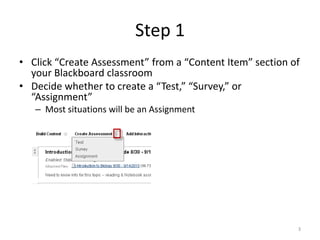
Step 1Click “Create Assessment” from a “Content Item” section of your Blackboard classroomDecide whether to create a “Test,” “Survey,” or “Assignment”Most situations will be an Assignment3
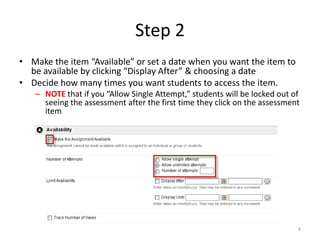
Step 2Make the item “Available” or set a date when you want the item to be available by clicking “Display After” & choosing a dateDecide how many times you want students to access the item.NOTE that if you “Allow Single Attempt,” students will be locked out of seeing the assessment after the first time they click on the assessment item4
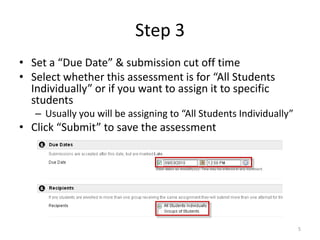
Step 3Set a “Due Date” & submission cut off timeSelect whether this assessment is for “All Students Individually” or if you want to assign it to specific studentsUsually you will be assigning to “All Students Individually”Click “Submit” to save the assessment5
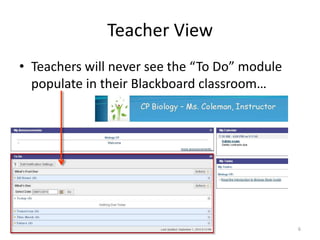
Teacher View6Teachers will never see the “To Do” module populate in their Blackboard classroom…
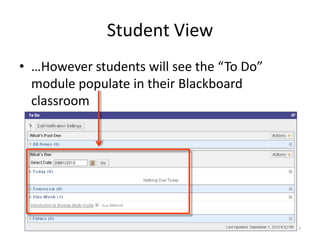
Student View7…However students will see the “To Do” module populate in their Blackboard classroom

Setting up the To Do Module

  • 1.
    Setting up the“To Do” Module1
  • 2.
    Things to KnowTeacherswill never receive “To Do” notificationsYou must create an “Assignment,” “Test,” or “Survey” with a “Due Date” & “Due Time”2
  • 3.
    Step 1Click “CreateAssessment” from a “Content Item” section of your Blackboard classroomDecide whether to create a “Test,” “Survey,” or “Assignment”Most situations will be an Assignment3
  • 4.
    Step 2Make theitem “Available” or set a date when you want the item to be available by clicking “Display After” & choosing a dateDecide how many times you want students to access the item.NOTE that if you “Allow Single Attempt,” students will be locked out of seeing the assessment after the first time they click on the assessment item4
  • 5.
    Step 3Set a“Due Date” & submission cut off timeSelect whether this assessment is for “All Students Individually” or if you want to assign it to specific studentsUsually you will be assigning to “All Students Individually”Click “Submit” to save the assessment5
  • 6.
    Teacher View6Teachers willnever see the “To Do” module populate in their Blackboard classroom…
  • 7.
    Student View7…However studentswill see the “To Do” module populate in their Blackboard classroom