Automation Testing by Selenium
Web Driver
Why automate testing?
Test automation has specific advantages for improving the
long-term efficiency of a software team’s testing processes.
Test automation supports:
Frequent regression testing
Rapid feedback to developers
Virtually unlimited iterations of test case execution
Support for Agile and extreme development methodologies
Disciplined documentation of test cases
Customized defect reporting
Finding defects missed by manual testing
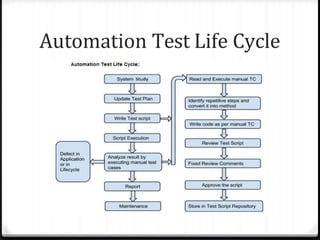
Automation Test Life Cycle
Selenium History
ThoughtWorks in Chicago, Jason Huggins built the Core mode as
"JavaScriptTestRunner" for the testing of an internal Time and Expenses
application (Python, Plone).
2006 - at Google, Simon Stewart started work on a project he called WebDriver. Google
had long been a heavy user of Selenium, but testers had to work around the
limitations of the product. The WebDriver project began with the aim to
solve the Selenium’ pain-points.
2008 - merging of Selenium and WebDriver. Selenium had massive community and
commercial support, but WebDriver was clearly the tool of the future. The joining of
the two tools provided a common set of features for all users and brought some of
the brightest minds in test automation under one roof.
Shinya Kasatani in Japan became interested in Selenium, he
Wrapped the core code into an IDE module into the Firefox browser
Added the ability to record tests as well as play them back in the same plugin.
This tool, turned out an eye opener in more ways that was originally thought as it is
not bound to the same origin policy.
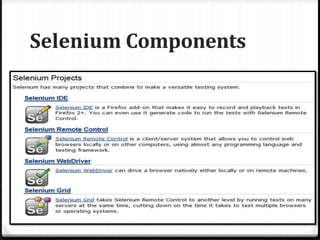
Selenium Components
Selenium IDE –
Limitations/Drawbacks
 Firefox only
 Can not Specify any condition Statement.
 Can not Specify any Looping Statement.
 Can not take external text data from External
Resources such as XLS,XML or Database.
 Handing Exceptions is not in scope.
Note:- To overcome the limitation of Selenium IDE we go for
Selenium WebDriver.
Selenium WebDriver
What is WebDriver?
 WebDriver is one of the component in selenium.
 WebDriver is module.
Firefox browser  Firefox( )
Chrome browser  Chrome()
Edge  Edge( )
WebDriver is an API (Application Programming
Interface)
Selenium Web Driver
 WebDriver is a tool for automating web
application testing, and in particular to verify that
they work as expected.
 It aims to provide a friendly API that’s easy to
explore and understand, easier to use than the
Selenium-RC (1.0) API, which will help to make your
tests easier to read and maintain.
 It’s not tied to any particular test framework, so it
can be used equally well in a unit testing or from a
plain old “main” method.
Selenium Web Driver –
Browser Support
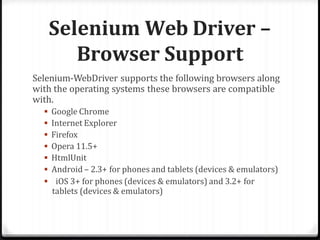
Selenium-WebDriver supports the following browsers along
with the operating systems these browsers are compatible
with.
 Google Chrome
 Internet Explorer
 Firefox
 Opera 11.5+
 HtmlUnit
 Android – 2.3+ for phones and tablets (devices & emulators)
 iOS 3+ for phones (devices & emulators) and 3.2+ for
tablets (devices & emulators)
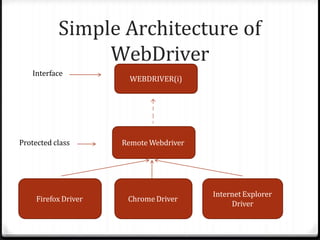
Simple Architecture of
WebDriver
WEBDRIVER(i)
Remote Webdriver
Firefox Driver Chrome Driver
Internet Explorer
Driver
Interface
Protected class
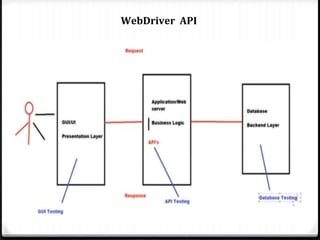
WebDriver API
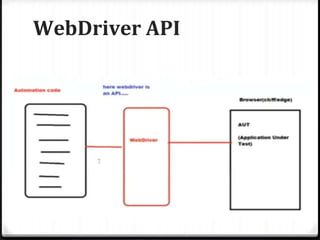
WebDriver API
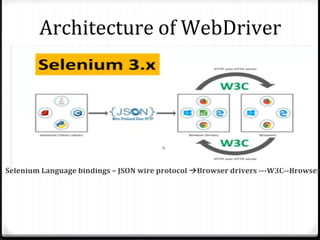
Architecture of WebDriver
Selenium Language bindings – JSON wire protocol Browser drivers ---W3C--Browser
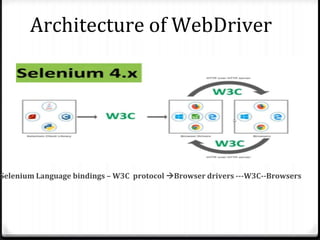
Architecture of WebDriver
Selenium Language bindings – W3C protocol Browser drivers ---W3C--Browsers
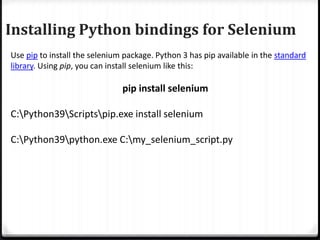
Installing Python bindings for Selenium
Use pip to install the selenium package. Python 3 has pip available in the standard
library. Using pip, you can install selenium like this:
pip install selenium
C:Python39Scriptspip.exe install selenium
C:Python39python.exe C:my_selenium_script.py
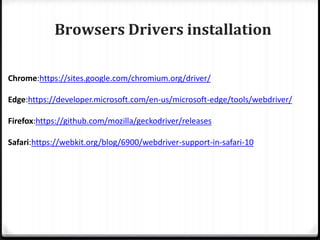
Browsers Drivers installation
Chrome:https://sites.google.com/chromium.org/driver/
Edge:https://developer.microsoft.com/en-us/microsoft-edge/tools/webdriver/
Firefox:https://github.com/mozilla/geckodriver/releases
Safari:https://webkit.org/blog/6900/webdriver-support-in-safari-10
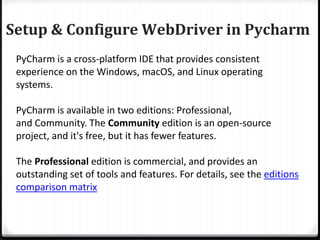
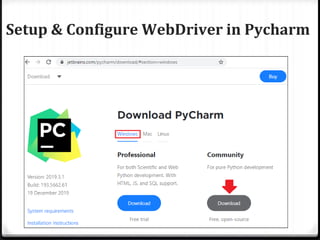
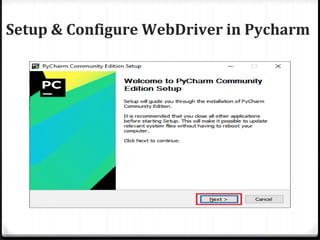
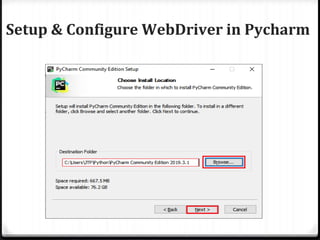
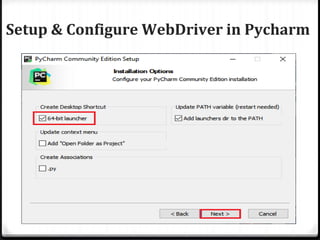
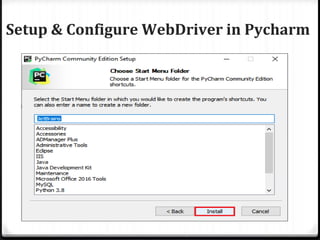
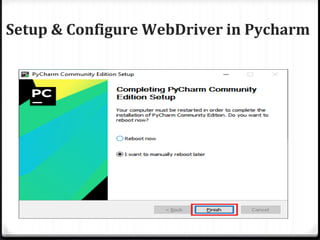
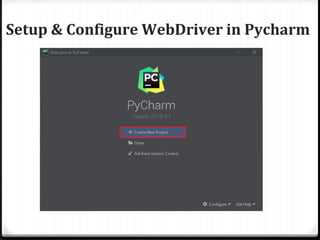
Setup & Configure WebDriver in Pycharm
PyCharm is a cross-platform IDE that provides consistent
experience on the Windows, macOS, and Linux operating
systems.
PyCharm is available in two editions: Professional,
and Community. The Community edition is an open-source
project, and it's free, but it has fewer features.
The Professional edition is commercial, and provides an
outstanding set of tools and features. For details, see the editions
comparison matrix
Setup & Configure WebDriver in Pycharm
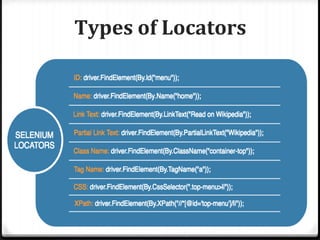
Types of Locators
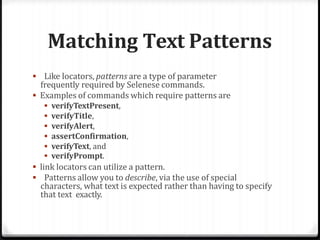
Matching Text Patterns
 Like locators, patterns are a type of parameter
frequently required by Selenese commands.
 Examples of commands which require patterns are
 verifyTextPresent,
 verifyTitle,
 verifyAlert,
 assertConfirmation,
 verifyText, and
 verifyPrompt.
 link locators can utilize a pattern.
 Patterns allow you to describe, via the use of special
characters, what text is expected rather than having to specify
that text exactly.
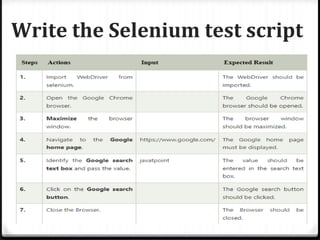
Write the Selenium test script
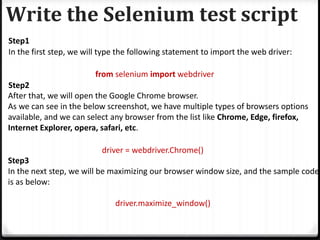
Step1
In the first step, we will type the following statement to import the web driver:
from selenium import webdriver
Step2
After that, we will open the Google Chrome browser.
As we can see in the below screenshot, we have multiple types of browsers options
available, and we can select any browser from the list like Chrome, Edge, firefox,
Internet Explorer, opera, safari, etc.
driver = webdriver.Chrome()
Step3
In the next step, we will be maximizing our browser window size, and the sample code
is as below:
driver.maximize_window()
Write the Selenium test script
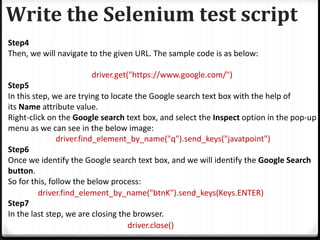
Step4
Then, we will navigate to the given URL. The sample code is as below:
driver.get("https://www.google.com/")
Step5
In this step, we are trying to locate the Google search text box with the help of
its Name attribute value.
Right-click on the Google search text box, and select the Inspect option in the pop-up
menu as we can see in the below image:
driver.find_element_by_name("q").send_keys("javatpoint")
Step6
Once we identify the Google search text box, and we will identify the Google Search
button.
So for this, follow the below process:
driver.find_element_by_name("btnK").send_keys(Keys.ENTER)
Step7
In the last step, we are closing the browser.
driver.close()
Write the Selenium test script
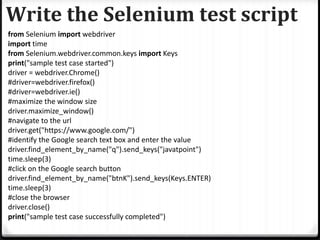
from Selenium import webdriver
import time
from Selenium.webdriver.common.keys import Keys
print("sample test case started")
driver = webdriver.Chrome()
#driver=webdriver.firefox()
#driver=webdriver.ie()
#maximize the window size
driver.maximize_window()
#navigate to the url
driver.get("https://www.google.com/")
#identify the Google search text box and enter the value
driver.find_element_by_name("q").send_keys("javatpoint")
time.sleep(3)
#click on the Google search button
driver.find_element_by_name("btnK").send_keys(Keys.ENTER)
time.sleep(3)
#close the browser
driver.close()
print("sample test case successfully completed")
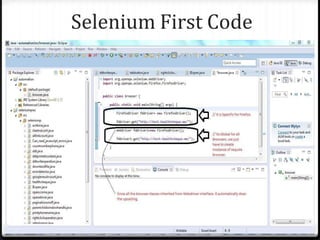
Selenium First Code
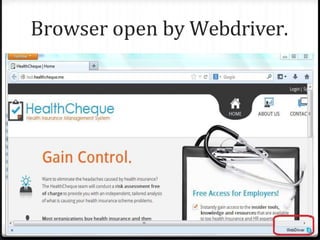
Browser open by Webdriver.
Methods:- “findElement” is a method of webdriver interface which is
Use to identify required element in the application. This method takes an
Object as an argument of type “By”.
Locators:- Webdriver supports 8 types of locators to identify the
Elements and all the locators will return the object of the type
Webelements.
Types of Locators:-
1. By.id(arg)
2. By.name(String)
3. By.xpath(String xpathExpression)
4. By.cssSelector(String Selector)
5. By.linkText(String linkText)
6. By.partialLinkText(String linkText)
7. By.className(String className)
8. By.tagName(String Name)
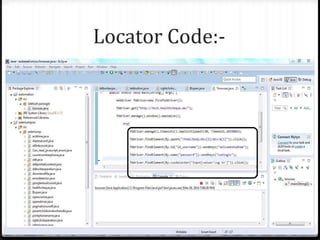
Locator Code:-
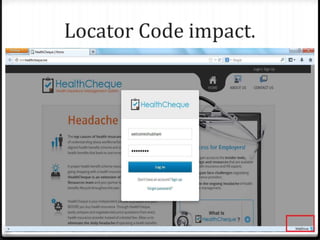
Locator Code impact.
Retrieving the value from
application
While doing validation we compare excepted result and actual
result then we will report the status. Actual result will be taken from
application during runtime. In order to do this we use following important
Method.
1. getTitle() :- This method help us to retrieve the title of the webpage.
2.GetcurrentUrl():- This method will retrieve the current url from the
address bar of the browser.
3.getAttribute(“value”) :- This is used to retrieve property value from the
element present in the application. It is basically used to retrieve text from
Textbox, password field, Address Field, Path of uploading file and button
name.
4.isEnable() :- This method is used to check whether the specify elements
enable or not. True indicates enable and false indicates disable.
5.isSelected() :- It is used to checked whether the specific checkbox or radio
button is selected or not.
6. getText():- It is used to retrieve the text of the following element.
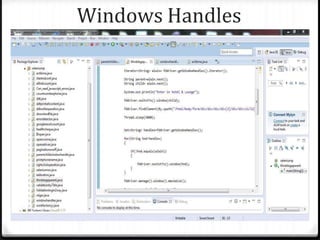
Windows Handles
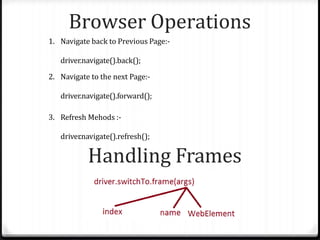
Browser Operations
1. Navigate back to Previous Page:-
driver.navigate().back();
2. Navigate to the next Page:-
driver.navigate().forward();
3. Refresh Mehods :-
driver
.navigate().refresh();
Handling Frames
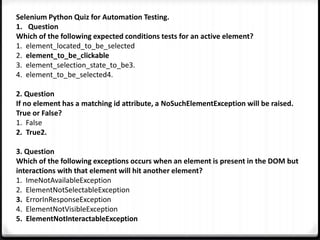
Selenium Python Quiz for Automation Testing.
1. Question
Which of the following expected conditions tests for an active element?
1. element_located_to_be_selected
2. element_to_be_clickable
3. element_selection_state_to_be3.
4. element_to_be_selected4.
2. Question
If no element has a matching id attribute, a NoSuchElementException will be raised.
True or False?
1. False
2. True2.
3. Question
Which of the following exceptions occurs when an element is present in the DOM but
interactions with that element will hit another element?
1. ImeNotAvailableException
2. ElementNotSelectableException
3. ErrorInResponseException
4. ElementNotVisibleException
5. ElementNotInteractableException
Selenium Python Quiz for Automation Testing.
4. Question
Which of the following functions does return a list of elements?
1. find_element_by_id
2. find_elements_by_name2.
3. find_element_by_xpath
4. find_element_by_link_text
5. find_element_by_partial_link_text5.
5. Question
Which of the following is the recommended style of import?
1. from selenium import *
2. import selenium, webdriver
3. from selenium import webdriver
4. import selenium.webdriver
6. Question
Which of the following functions would only deselect a single option?
1. deselect_by_visible_text(text)
2. deselect_all()
3. None
4. deselect_by_value(value)
5. deselect_by_index(index)
Selenium Python Quiz for Automation Testing.
7. Question
What is the difference between the following methods of the
selenium.webdriver.common.action_chains.ActionChains class?
A) send_keys(*keys_to_send)
B) send_keys_to_element(element, *keys_to_send)
1. None
2. A sends keys to the first visible element whereas B sends keys to the selected element.
3. A sends keys to currently focused element whereas B sends keys to the target element.
4. A sends keys to the first element it finds whereas B sends keys to the target element
8. Question
How to wait until an element is no longer attached to the DOM?
1. None
2. selenium.webdriver.support.expected_conditions.presence_of_all_elements_located(locator)
3. selenium.webdriver.support.expected_conditions.presence_of_element_located(locator)
4. selenium.webdriver.support.expected_conditions.staleness_of(element)
9. Question
Which of the following methods makes an expectation for checking an element is visible and enabled?
1. None
2. selenium.webdriver.support.expected_conditions.visibility_of_element_located(locator)
3. selenium.webdriver.support.expected_conditions.element_to_be_selected(element)
4. selenium.webdriver.support.expected_conditions.element_to_be_clickable(locator)
Selenium Python Quiz for Automation Testing.
7. Question
What is the difference between the following methods of the
selenium.webdriver.common.action_chains.ActionChains class?
A) send_keys(*keys_to_send)
B) send_keys_to_element(element, *keys_to_send)
1. None
2. A sends keys to the first visible element whereas B sends keys to the selected element.
3. A sends keys to currently focused element whereas B sends keys to the target element.
4. A sends keys to the first element it finds whereas B sends keys to the target element
8. Question
How to wait until an element is no longer attached to the DOM?
1. None
2. selenium.webdriver.support.expected_conditions.presence_of_all_elements_located(locator)
3. selenium.webdriver.support.expected_conditions.presence_of_element_located(locator)
4. selenium.webdriver.support.expected_conditions.staleness_of(element)
9. Question
Which of the following methods makes an expectation for checking an element is visible and enabled?
1. None
2. selenium.webdriver.support.expected_conditions.visibility_of_element_located(locator)
3. selenium.webdriver.support.expected_conditions.element_to_be_selected(element)
4. selenium.webdriver.support.expected_conditions.element_to_be_clickable(locator)

Selenium.pptx

  • 1.
    Automation Testing bySelenium Web Driver
  • 2.
    Why automate testing? Testautomation has specific advantages for improving the long-term efficiency of a software team’s testing processes. Test automation supports: Frequent regression testing Rapid feedback to developers Virtually unlimited iterations of test case execution Support for Agile and extreme development methodologies Disciplined documentation of test cases Customized defect reporting Finding defects missed by manual testing
  • 3.
  • 4.
    Selenium History ThoughtWorks inChicago, Jason Huggins built the Core mode as "JavaScriptTestRunner" for the testing of an internal Time and Expenses application (Python, Plone). 2006 - at Google, Simon Stewart started work on a project he called WebDriver. Google had long been a heavy user of Selenium, but testers had to work around the limitations of the product. The WebDriver project began with the aim to solve the Selenium’ pain-points. 2008 - merging of Selenium and WebDriver. Selenium had massive community and commercial support, but WebDriver was clearly the tool of the future. The joining of the two tools provided a common set of features for all users and brought some of the brightest minds in test automation under one roof. Shinya Kasatani in Japan became interested in Selenium, he Wrapped the core code into an IDE module into the Firefox browser Added the ability to record tests as well as play them back in the same plugin. This tool, turned out an eye opener in more ways that was originally thought as it is not bound to the same origin policy.
  • 5.
  • 6.
    Selenium IDE – Limitations/Drawbacks Firefox only  Can not Specify any condition Statement.  Can not Specify any Looping Statement.  Can not take external text data from External Resources such as XLS,XML or Database.  Handing Exceptions is not in scope. Note:- To overcome the limitation of Selenium IDE we go for Selenium WebDriver.
  • 7.
    Selenium WebDriver What isWebDriver?  WebDriver is one of the component in selenium.  WebDriver is module. Firefox browser  Firefox( ) Chrome browser  Chrome() Edge  Edge( ) WebDriver is an API (Application Programming Interface)
  • 8.
    Selenium Web Driver WebDriver is a tool for automating web application testing, and in particular to verify that they work as expected.  It aims to provide a friendly API that’s easy to explore and understand, easier to use than the Selenium-RC (1.0) API, which will help to make your tests easier to read and maintain.  It’s not tied to any particular test framework, so it can be used equally well in a unit testing or from a plain old “main” method.
  • 9.
    Selenium Web Driver– Browser Support Selenium-WebDriver supports the following browsers along with the operating systems these browsers are compatible with.  Google Chrome  Internet Explorer  Firefox  Opera 11.5+  HtmlUnit  Android – 2.3+ for phones and tablets (devices & emulators)  iOS 3+ for phones (devices & emulators) and 3.2+ for tablets (devices & emulators)
  • 10.
    Simple Architecture of WebDriver WEBDRIVER(i) RemoteWebdriver Firefox Driver Chrome Driver Internet Explorer Driver Interface Protected class
  • 11.
  • 12.
  • 13.
    Architecture of WebDriver SeleniumLanguage bindings – JSON wire protocol Browser drivers ---W3C--Browser
  • 14.
    Architecture of WebDriver SeleniumLanguage bindings – W3C protocol Browser drivers ---W3C--Browsers
  • 15.
    Installing Python bindingsfor Selenium Use pip to install the selenium package. Python 3 has pip available in the standard library. Using pip, you can install selenium like this: pip install selenium C:Python39Scriptspip.exe install selenium C:Python39python.exe C:my_selenium_script.py
  • 16.
  • 17.
    Setup & ConfigureWebDriver in Pycharm PyCharm is a cross-platform IDE that provides consistent experience on the Windows, macOS, and Linux operating systems. PyCharm is available in two editions: Professional, and Community. The Community edition is an open-source project, and it's free, but it has fewer features. The Professional edition is commercial, and provides an outstanding set of tools and features. For details, see the editions comparison matrix
  • 18.
    Setup & ConfigureWebDriver in Pycharm
  • 19.
    Setup & ConfigureWebDriver in Pycharm
  • 20.
    Setup & ConfigureWebDriver in Pycharm
  • 21.
    Setup & ConfigureWebDriver in Pycharm
  • 22.
    Setup & ConfigureWebDriver in Pycharm
  • 23.
    Setup & ConfigureWebDriver in Pycharm
  • 24.
    Setup & ConfigureWebDriver in Pycharm
  • 25.
  • 26.
    Matching Text Patterns Like locators, patterns are a type of parameter frequently required by Selenese commands.  Examples of commands which require patterns are  verifyTextPresent,  verifyTitle,  verifyAlert,  assertConfirmation,  verifyText, and  verifyPrompt.  link locators can utilize a pattern.  Patterns allow you to describe, via the use of special characters, what text is expected rather than having to specify that text exactly.
  • 27.
    Write the Seleniumtest script
  • 28.
    Write the Seleniumtest script Step1 In the first step, we will type the following statement to import the web driver: from selenium import webdriver Step2 After that, we will open the Google Chrome browser. As we can see in the below screenshot, we have multiple types of browsers options available, and we can select any browser from the list like Chrome, Edge, firefox, Internet Explorer, opera, safari, etc. driver = webdriver.Chrome() Step3 In the next step, we will be maximizing our browser window size, and the sample code is as below: driver.maximize_window()
  • 29.
    Write the Seleniumtest script Step4 Then, we will navigate to the given URL. The sample code is as below: driver.get("https://www.google.com/") Step5 In this step, we are trying to locate the Google search text box with the help of its Name attribute value. Right-click on the Google search text box, and select the Inspect option in the pop-up menu as we can see in the below image: driver.find_element_by_name("q").send_keys("javatpoint") Step6 Once we identify the Google search text box, and we will identify the Google Search button. So for this, follow the below process: driver.find_element_by_name("btnK").send_keys(Keys.ENTER) Step7 In the last step, we are closing the browser. driver.close()
  • 30.
    Write the Seleniumtest script from Selenium import webdriver import time from Selenium.webdriver.common.keys import Keys print("sample test case started") driver = webdriver.Chrome() #driver=webdriver.firefox() #driver=webdriver.ie() #maximize the window size driver.maximize_window() #navigate to the url driver.get("https://www.google.com/") #identify the Google search text box and enter the value driver.find_element_by_name("q").send_keys("javatpoint") time.sleep(3) #click on the Google search button driver.find_element_by_name("btnK").send_keys(Keys.ENTER) time.sleep(3) #close the browser driver.close() print("sample test case successfully completed")
  • 31.
  • 32.
    Browser open byWebdriver.
  • 33.
    Methods:- “findElement” isa method of webdriver interface which is Use to identify required element in the application. This method takes an Object as an argument of type “By”. Locators:- Webdriver supports 8 types of locators to identify the Elements and all the locators will return the object of the type Webelements. Types of Locators:- 1. By.id(arg) 2. By.name(String) 3. By.xpath(String xpathExpression) 4. By.cssSelector(String Selector) 5. By.linkText(String linkText) 6. By.partialLinkText(String linkText) 7. By.className(String className) 8. By.tagName(String Name)
  • 34.
  • 35.
  • 36.
    Retrieving the valuefrom application While doing validation we compare excepted result and actual result then we will report the status. Actual result will be taken from application during runtime. In order to do this we use following important Method. 1. getTitle() :- This method help us to retrieve the title of the webpage. 2.GetcurrentUrl():- This method will retrieve the current url from the address bar of the browser. 3.getAttribute(“value”) :- This is used to retrieve property value from the element present in the application. It is basically used to retrieve text from Textbox, password field, Address Field, Path of uploading file and button name. 4.isEnable() :- This method is used to check whether the specify elements enable or not. True indicates enable and false indicates disable. 5.isSelected() :- It is used to checked whether the specific checkbox or radio button is selected or not. 6. getText():- It is used to retrieve the text of the following element.
  • 37.
  • 38.
    Browser Operations 1. Navigateback to Previous Page:- driver.navigate().back(); 2. Navigate to the next Page:- driver.navigate().forward(); 3. Refresh Mehods :- driver .navigate().refresh(); Handling Frames
  • 39.
    Selenium Python Quizfor Automation Testing. 1. Question Which of the following expected conditions tests for an active element? 1. element_located_to_be_selected 2. element_to_be_clickable 3. element_selection_state_to_be3. 4. element_to_be_selected4. 2. Question If no element has a matching id attribute, a NoSuchElementException will be raised. True or False? 1. False 2. True2. 3. Question Which of the following exceptions occurs when an element is present in the DOM but interactions with that element will hit another element? 1. ImeNotAvailableException 2. ElementNotSelectableException 3. ErrorInResponseException 4. ElementNotVisibleException 5. ElementNotInteractableException
  • 40.
    Selenium Python Quizfor Automation Testing. 4. Question Which of the following functions does return a list of elements? 1. find_element_by_id 2. find_elements_by_name2. 3. find_element_by_xpath 4. find_element_by_link_text 5. find_element_by_partial_link_text5. 5. Question Which of the following is the recommended style of import? 1. from selenium import * 2. import selenium, webdriver 3. from selenium import webdriver 4. import selenium.webdriver 6. Question Which of the following functions would only deselect a single option? 1. deselect_by_visible_text(text) 2. deselect_all() 3. None 4. deselect_by_value(value) 5. deselect_by_index(index)
  • 41.
    Selenium Python Quizfor Automation Testing. 7. Question What is the difference between the following methods of the selenium.webdriver.common.action_chains.ActionChains class? A) send_keys(*keys_to_send) B) send_keys_to_element(element, *keys_to_send) 1. None 2. A sends keys to the first visible element whereas B sends keys to the selected element. 3. A sends keys to currently focused element whereas B sends keys to the target element. 4. A sends keys to the first element it finds whereas B sends keys to the target element 8. Question How to wait until an element is no longer attached to the DOM? 1. None 2. selenium.webdriver.support.expected_conditions.presence_of_all_elements_located(locator) 3. selenium.webdriver.support.expected_conditions.presence_of_element_located(locator) 4. selenium.webdriver.support.expected_conditions.staleness_of(element) 9. Question Which of the following methods makes an expectation for checking an element is visible and enabled? 1. None 2. selenium.webdriver.support.expected_conditions.visibility_of_element_located(locator) 3. selenium.webdriver.support.expected_conditions.element_to_be_selected(element) 4. selenium.webdriver.support.expected_conditions.element_to_be_clickable(locator)
  • 42.
    Selenium Python Quizfor Automation Testing. 7. Question What is the difference between the following methods of the selenium.webdriver.common.action_chains.ActionChains class? A) send_keys(*keys_to_send) B) send_keys_to_element(element, *keys_to_send) 1. None 2. A sends keys to the first visible element whereas B sends keys to the selected element. 3. A sends keys to currently focused element whereas B sends keys to the target element. 4. A sends keys to the first element it finds whereas B sends keys to the target element 8. Question How to wait until an element is no longer attached to the DOM? 1. None 2. selenium.webdriver.support.expected_conditions.presence_of_all_elements_located(locator) 3. selenium.webdriver.support.expected_conditions.presence_of_element_located(locator) 4. selenium.webdriver.support.expected_conditions.staleness_of(element) 9. Question Which of the following methods makes an expectation for checking an element is visible and enabled? 1. None 2. selenium.webdriver.support.expected_conditions.visibility_of_element_located(locator) 3. selenium.webdriver.support.expected_conditions.element_to_be_selected(element) 4. selenium.webdriver.support.expected_conditions.element_to_be_clickable(locator)