Selenium With Java 2
Locators
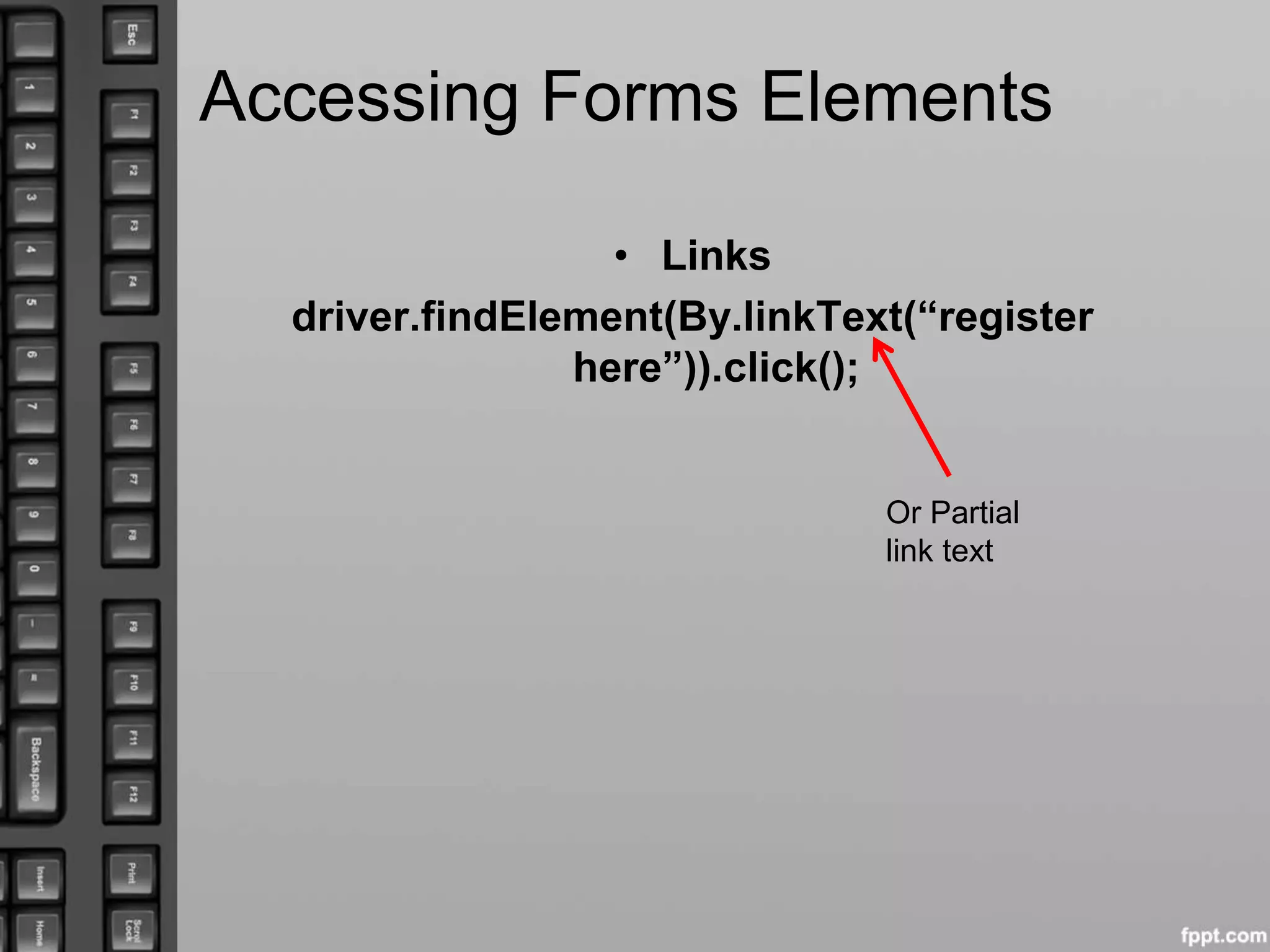
Accessing Forms Elements
• Input Box:
driver.findElement(By.id(“username”)).sendKeys(
“asasya”);
• Radio button
Driver.findElement(By.cssSelector(“input[value=‘
male’]”)).click();
• Check box
WebElement checbox =
driver.findElement(By.id(“persist_box”));
For(int i=0;i<2;i++){
Checkbox.click();
System.out.println(checkbox.isSelected());
Accessing Forms Elements
• Links
driver.findElement(By.linkText(“register
here”)).click();
Or Partial
link text
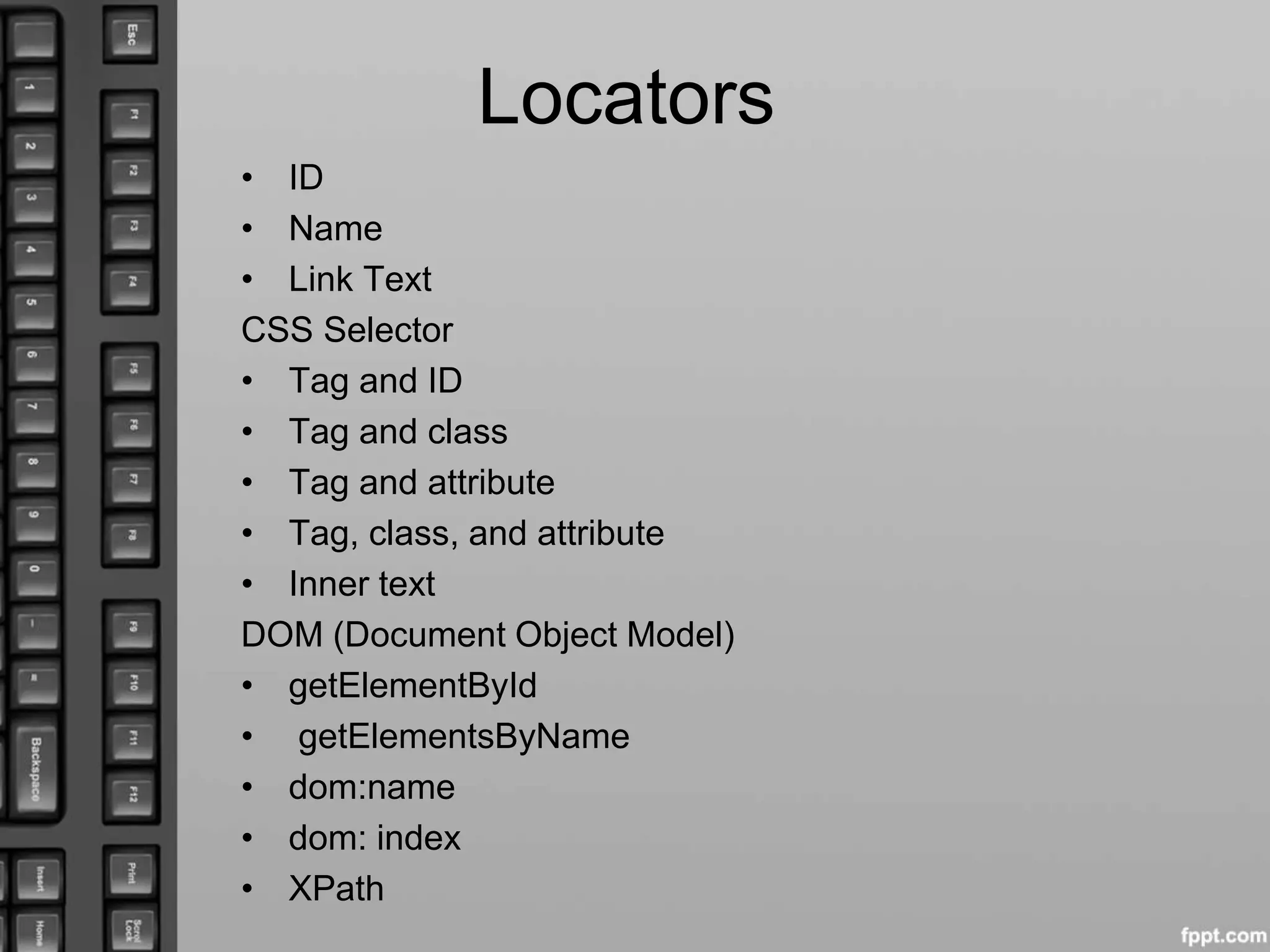
Locators
• ID
• Name
• Link Text
CSS Selector
• Tag and ID
• Tag and class
• Tag and attribute
• Tag, class, and attribute
• Inner text
DOM (Document Object Model)
• getElementById
• getElementsByName
• dom:name
• dom: index
• XPath
Locators
• ID
Id = email
• Name
Name = username
• Locating by Name using Filters(Filters are additional
attributes used to distinguish elements with the same
name.)
Target Format: name=name_of_the_element
filter=value_of_filter
Ex- name=tripType value=oneway
• Link Text
Target Format: link=link_text
Ex- link = register
Locators
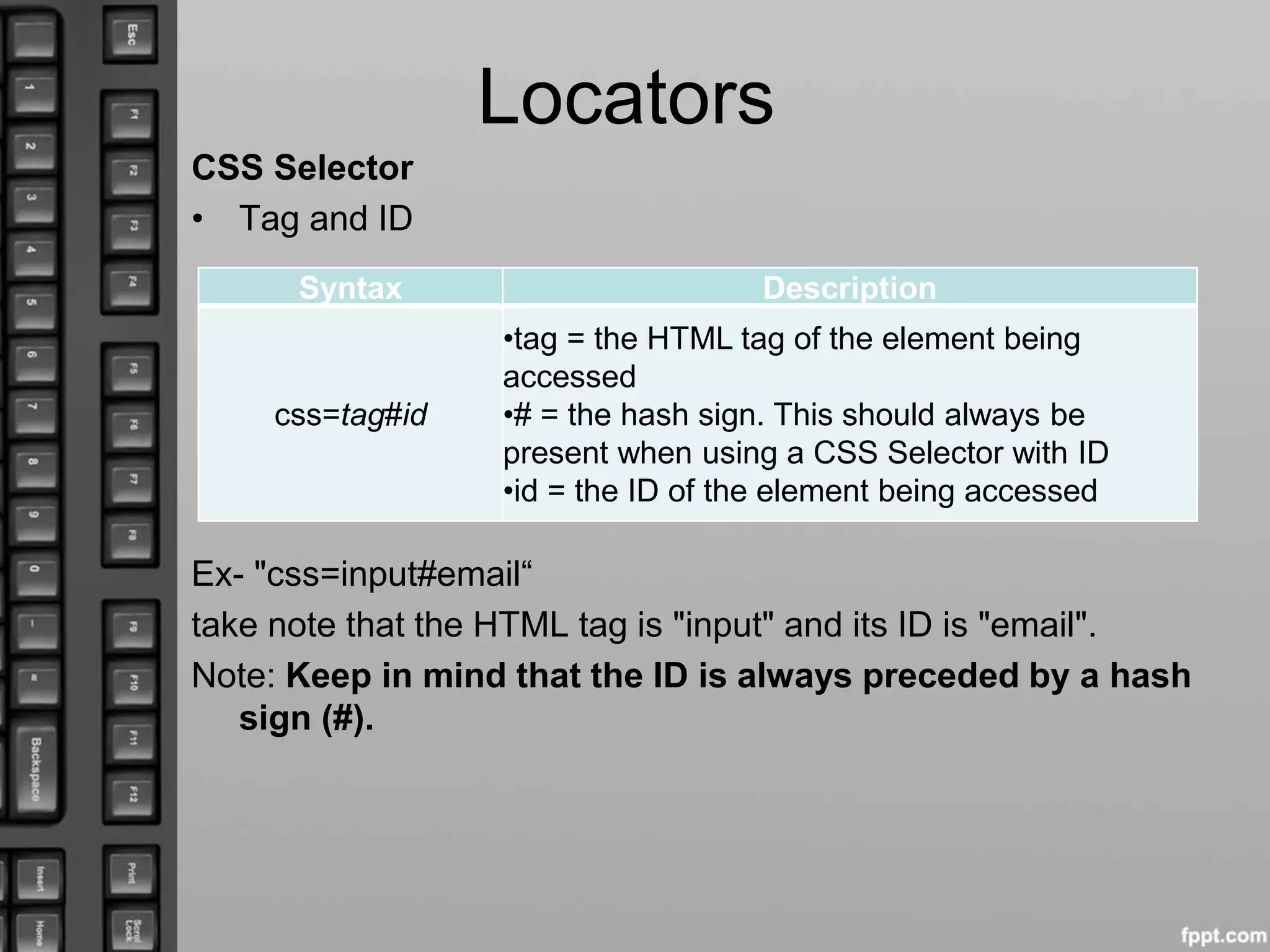
CSS Selector
• Tag and ID
Ex- "css=input#email“
take note that the HTML tag is "input" and its ID is "email".
Note: Keep in mind that the ID is always preceded by a hash
sign (#).
Syntax Description
css=tag#id
•tag = the HTML tag of the element being
accessed
•# = the hash sign. This should always be
present when using a CSS Selector with ID
•id = the ID of the element being accessed
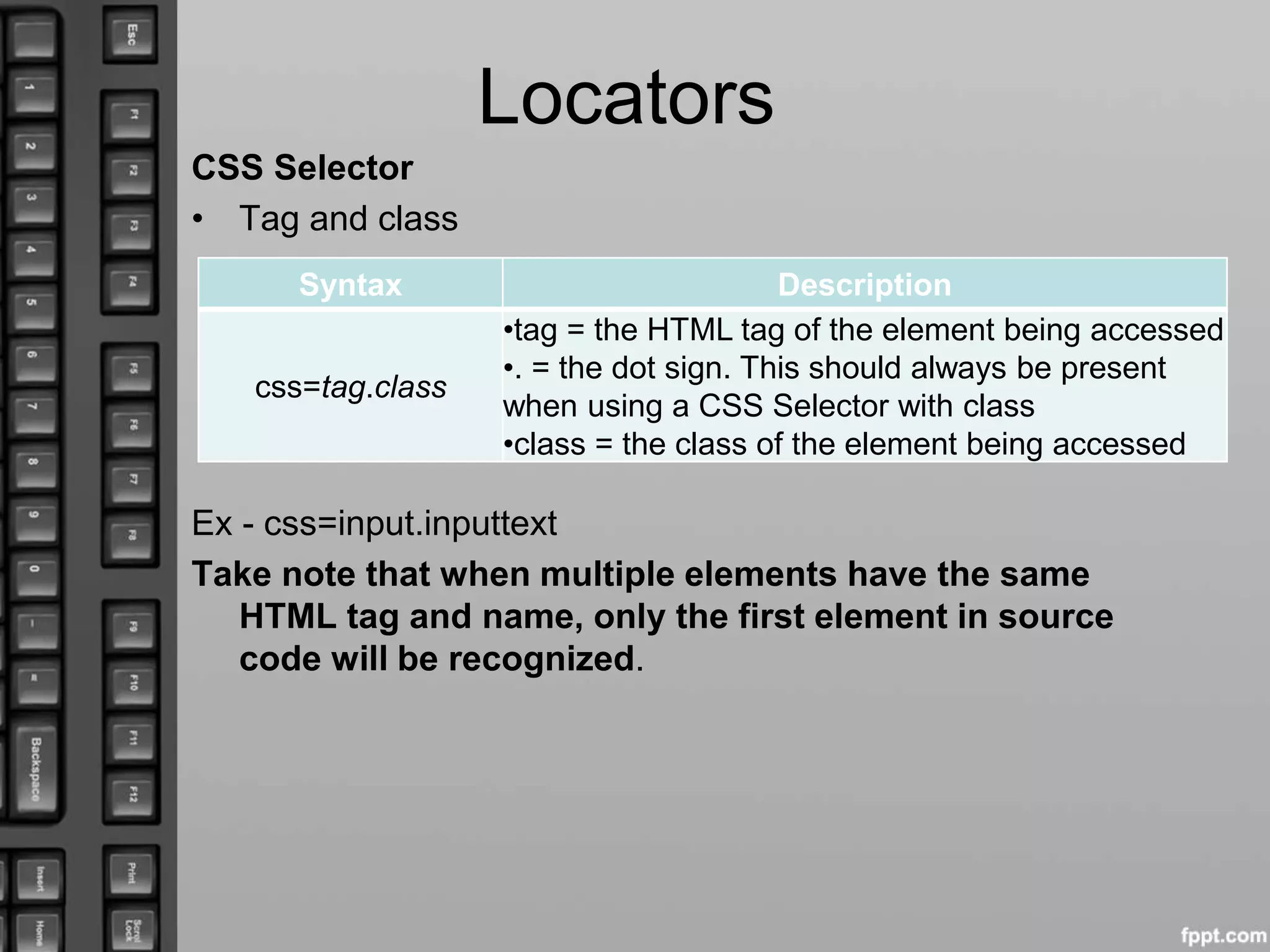
Locators
CSS Selector
• Tag and class
Ex - css=input.inputtext
Take note that when multiple elements have the same
HTML tag and name, only the first element in source
code will be recognized.
Syntax Description
css=tag.class
•tag = the HTML tag of the element being accessed
•. = the dot sign. This should always be present
when using a CSS Selector with class
•class = the class of the element being accessed
Locators
CSS Selector
• Tag and attribute
Ex - css=input[name=lastName]
When multiple elements have the same HTML tag and
attribute, only the first one will be recognized.
Syntax Description
css=tag[attribute=value]
•tag = the HTML tag of the element being
accessed
•[ and ] = square brackets within which a
specific attribute and its corresponding value
will be placed
•attribute = the attribute to be used. It is
advisable to use an attribute that is unique to
the element such as a name or ID.
•value = the corresponding value of the
chosen attribute.
Locators
CSS Selector
Tag, class, and attribute
Syntax Description
css=tag.class[attribute=value]
Ex-
css=input.inputtext[tabindex=1]
•tag = the HTML tag of the element
being accessed
•. = the dot sign. This should always be
present when using a CSS Selector with
class
•class = the class of the element being
accessed
•[ and ] = square brackets within which a
specific attribute and its corresponding
value will be placed
•attribute = the attribute to be used. It is
advisable to use an attribute that is
unique to the element such as a name or
ID.
•value = the corresponding value of the
chosen attribute.
Locators
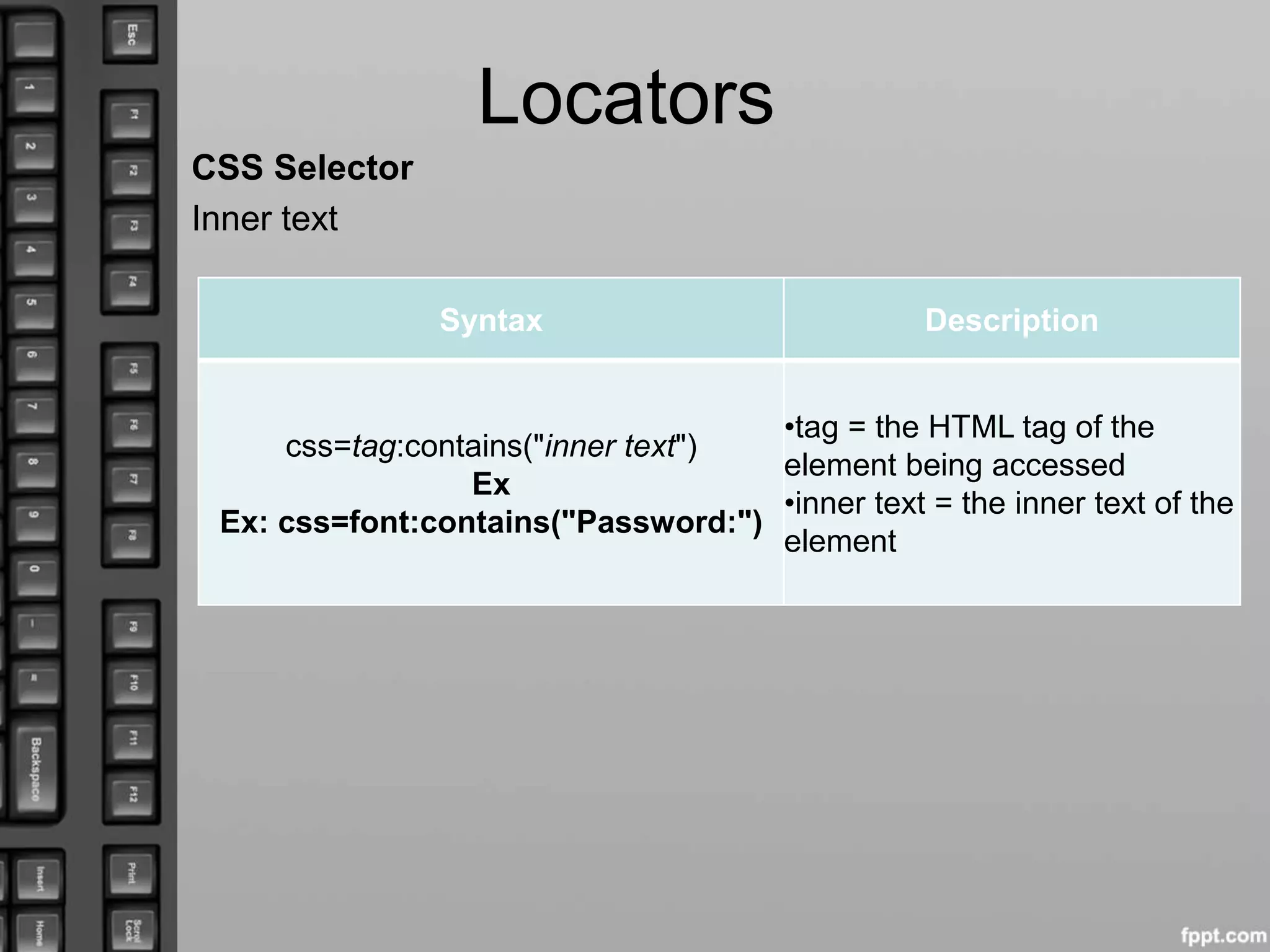
CSS Selector
Inner text
Syntax Description
css=tag:contains("inner text")
Ex
Ex: css=font:contains("Password:")
•tag = the HTML tag of the
element being accessed
•inner text = the inner text of the
element
Locators
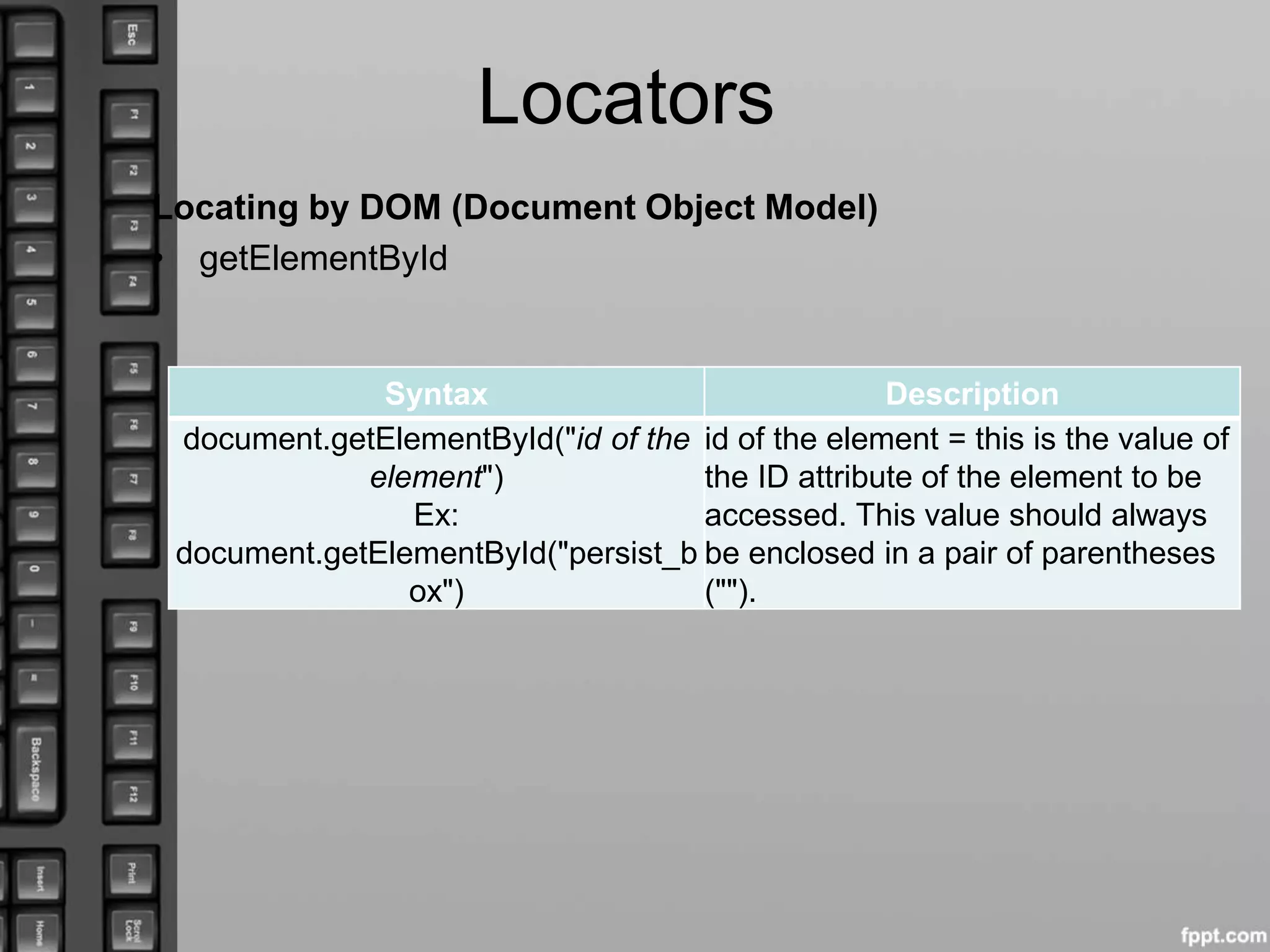
Locating by DOM (Document Object Model)
• getElementById
Syntax Description
document.getElementById("id of the
element")
Ex:
document.getElementById("persist_b
ox")
id of the element = this is the value of
the ID attribute of the element to be
accessed. This value should always
be enclosed in a pair of parentheses
("").
Locators
Locating by DOM (Document Object Model)
• getElementsByName
Syntax Description
document.getElementsByName("name")
[index]
Ex: document.getElementsByName
("servClass")[0]
•name = name of the element as
defined by its 'name' attribute
•index = an integer that indicates
which element within
getElementsByName's array will
be used.
Locators
Locating by DOM (Document Object Model)
• dom:name
• Ex: document.forms["home"].elements["userName"]
Syntax Description
document.forms["name of the
form"].elements["name of the
element"]
•name of the form = the value of the
name attribute of the form tag that
contains the element you want to access
•name of the element = the value of the
name attribute of the element you wish
to access
Locators
Locating by DOM (Document Object Model)
• dom:index
• Ex: document.forms[0].elements[3]
• document.forms[0].elements[“phone”]
Syntax Description
document.forms[index of the
form].elements[index of the
element]
•index of the form = the index number
(starting at 0) of the form with respect to
the whole page
•index of the element = the index
number (starting at 0) of the element
with respect to the whole form that
contains it
Xpath
Xpath
Xpath=//tagname[@attribute='value']
• // : Select current node.
• Tagname: Tagname of the particular node.
• @: Select attribute.
• Attribute: Attribute name of the node.
• Value : Value of the attribute.
Xpath
Xpath locators
Id,classname,Name,Link text, Xpath, CSSpath
Types of X-path
There are two types of XPath:
• 1) Absolute XPath
html/body/div[1]/section/div[1]/div/div/div/div[1]/d
iv/div/div/div/div[3]/div[1]/div/h4[1]/b
2) Relative XPath
Xpath=//*[@id='rt-feature']//parent::div[1]
Xpath=//input[@name='uid']
Reference :
http://www.guru99.com/xpath-selenium.html
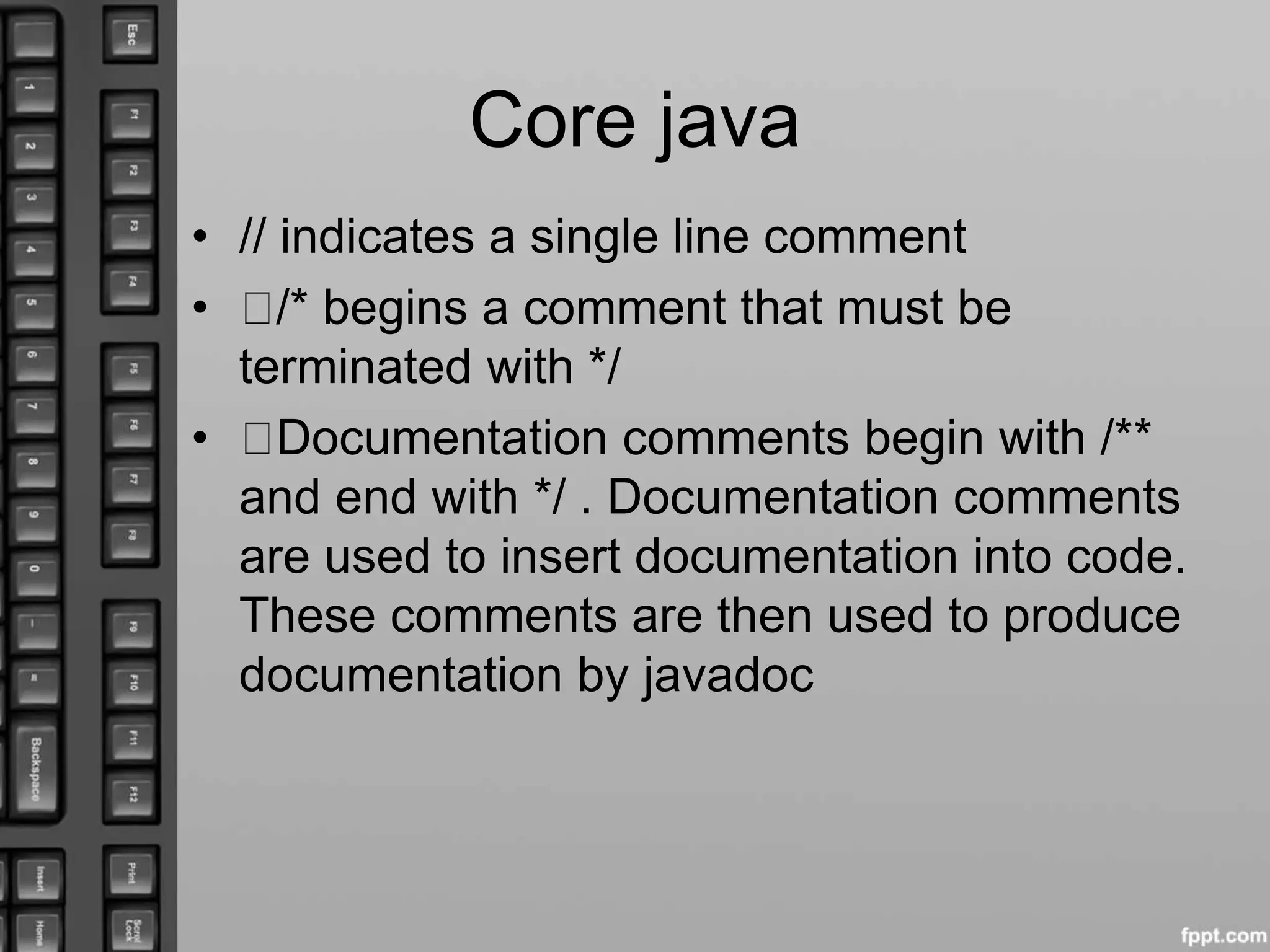
Core java
• // indicates a single line comment
• /* begins a comment that must be
terminated with */
• Documentation comments begin with /**
and end with */ . Documentation comments
are used to insert documentation into code.
These comments are then used to produce
documentation by javadoc
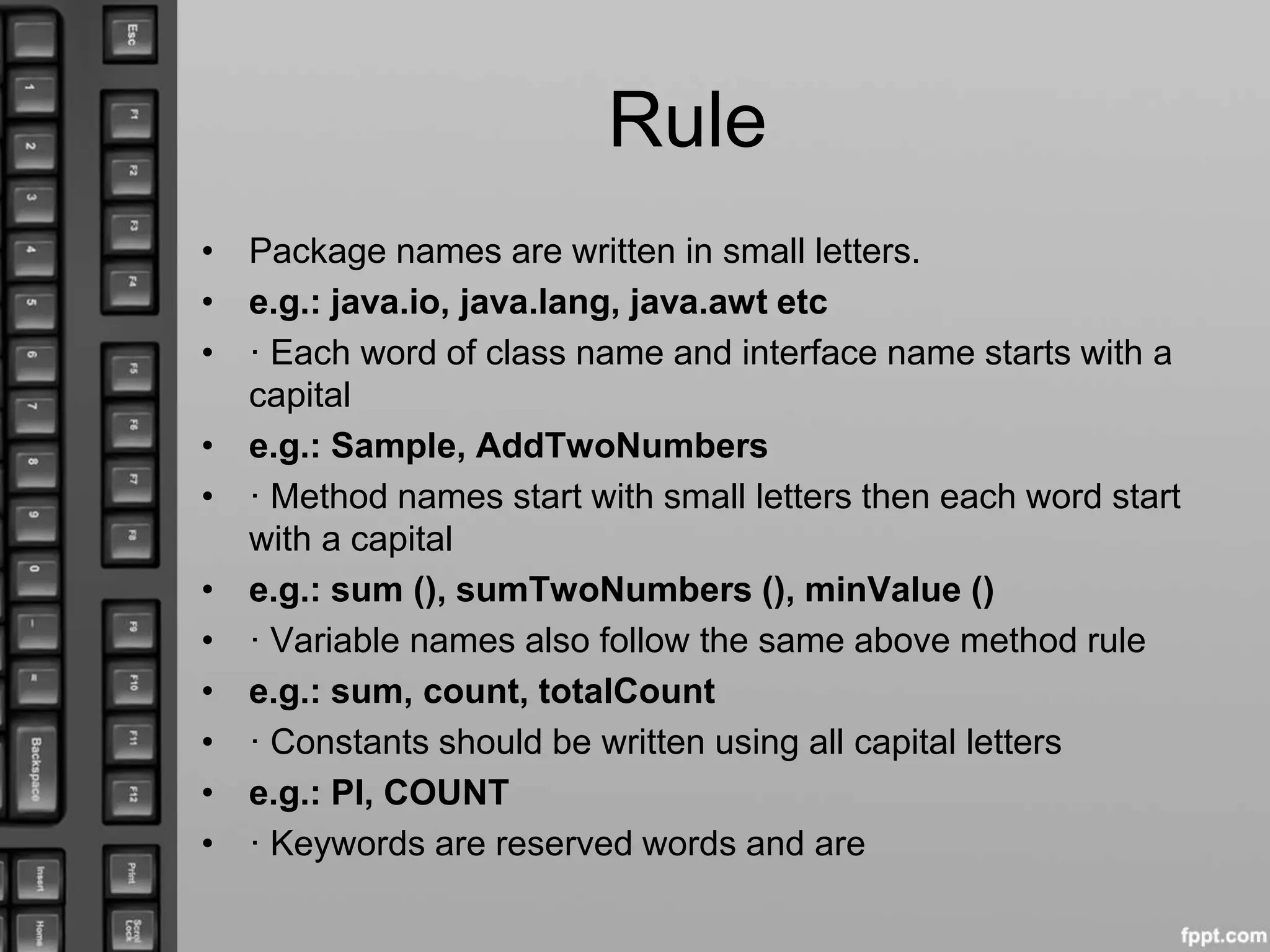
Rule
• Package names are written in small letters.
• e.g.: java.io, java.lang, java.awt etc
• · Each word of class name and interface name starts with a
capital
• e.g.: Sample, AddTwoNumbers
• · Method names start with small letters then each word start
with a capital
• e.g.: sum (), sumTwoNumbers (), minValue ()
• · Variable names also follow the same above method rule
• e.g.: sum, count, totalCount
• · Constants should be written using all capital letters
• e.g.: PI, COUNT
• · Keywords are reserved words and are

Selenium Locators

  • 1.
  • 2.
    Accessing Forms Elements •Input Box: driver.findElement(By.id(“username”)).sendKeys( “asasya”); • Radio button Driver.findElement(By.cssSelector(“input[value=‘ male’]”)).click(); • Check box WebElement checbox = driver.findElement(By.id(“persist_box”)); For(int i=0;i<2;i++){ Checkbox.click(); System.out.println(checkbox.isSelected());
  • 3.
    Accessing Forms Elements •Links driver.findElement(By.linkText(“register here”)).click(); Or Partial link text
  • 4.
    Locators • ID • Name •Link Text CSS Selector • Tag and ID • Tag and class • Tag and attribute • Tag, class, and attribute • Inner text DOM (Document Object Model) • getElementById • getElementsByName • dom:name • dom: index • XPath
  • 5.
    Locators • ID Id =email • Name Name = username • Locating by Name using Filters(Filters are additional attributes used to distinguish elements with the same name.) Target Format: name=name_of_the_element filter=value_of_filter Ex- name=tripType value=oneway • Link Text Target Format: link=link_text Ex- link = register
  • 6.
    Locators CSS Selector • Tagand ID Ex- "css=input#email“ take note that the HTML tag is "input" and its ID is "email". Note: Keep in mind that the ID is always preceded by a hash sign (#). Syntax Description css=tag#id •tag = the HTML tag of the element being accessed •# = the hash sign. This should always be present when using a CSS Selector with ID •id = the ID of the element being accessed
  • 7.
    Locators CSS Selector • Tagand class Ex - css=input.inputtext Take note that when multiple elements have the same HTML tag and name, only the first element in source code will be recognized. Syntax Description css=tag.class •tag = the HTML tag of the element being accessed •. = the dot sign. This should always be present when using a CSS Selector with class •class = the class of the element being accessed
  • 8.
    Locators CSS Selector • Tagand attribute Ex - css=input[name=lastName] When multiple elements have the same HTML tag and attribute, only the first one will be recognized. Syntax Description css=tag[attribute=value] •tag = the HTML tag of the element being accessed •[ and ] = square brackets within which a specific attribute and its corresponding value will be placed •attribute = the attribute to be used. It is advisable to use an attribute that is unique to the element such as a name or ID. •value = the corresponding value of the chosen attribute.
  • 9.
    Locators CSS Selector Tag, class,and attribute Syntax Description css=tag.class[attribute=value] Ex- css=input.inputtext[tabindex=1] •tag = the HTML tag of the element being accessed •. = the dot sign. This should always be present when using a CSS Selector with class •class = the class of the element being accessed •[ and ] = square brackets within which a specific attribute and its corresponding value will be placed •attribute = the attribute to be used. It is advisable to use an attribute that is unique to the element such as a name or ID. •value = the corresponding value of the chosen attribute.
  • 10.
    Locators CSS Selector Inner text SyntaxDescription css=tag:contains("inner text") Ex Ex: css=font:contains("Password:") •tag = the HTML tag of the element being accessed •inner text = the inner text of the element
  • 11.
    Locators Locating by DOM(Document Object Model) • getElementById Syntax Description document.getElementById("id of the element") Ex: document.getElementById("persist_b ox") id of the element = this is the value of the ID attribute of the element to be accessed. This value should always be enclosed in a pair of parentheses ("").
  • 12.
    Locators Locating by DOM(Document Object Model) • getElementsByName Syntax Description document.getElementsByName("name") [index] Ex: document.getElementsByName ("servClass")[0] •name = name of the element as defined by its 'name' attribute •index = an integer that indicates which element within getElementsByName's array will be used.
  • 13.
    Locators Locating by DOM(Document Object Model) • dom:name • Ex: document.forms["home"].elements["userName"] Syntax Description document.forms["name of the form"].elements["name of the element"] •name of the form = the value of the name attribute of the form tag that contains the element you want to access •name of the element = the value of the name attribute of the element you wish to access
  • 14.
    Locators Locating by DOM(Document Object Model) • dom:index • Ex: document.forms[0].elements[3] • document.forms[0].elements[“phone”] Syntax Description document.forms[index of the form].elements[index of the element] •index of the form = the index number (starting at 0) of the form with respect to the whole page •index of the element = the index number (starting at 0) of the element with respect to the whole form that contains it
  • 15.
    Xpath Xpath Xpath=//tagname[@attribute='value'] • // :Select current node. • Tagname: Tagname of the particular node. • @: Select attribute. • Attribute: Attribute name of the node. • Value : Value of the attribute.
  • 16.
    Xpath Xpath locators Id,classname,Name,Link text,Xpath, CSSpath Types of X-path There are two types of XPath: • 1) Absolute XPath html/body/div[1]/section/div[1]/div/div/div/div[1]/d iv/div/div/div/div[3]/div[1]/div/h4[1]/b 2) Relative XPath Xpath=//*[@id='rt-feature']//parent::div[1] Xpath=//input[@name='uid'] Reference : http://www.guru99.com/xpath-selenium.html
  • 17.
    Core java • //indicates a single line comment • /* begins a comment that must be terminated with */ • Documentation comments begin with /** and end with */ . Documentation comments are used to insert documentation into code. These comments are then used to produce documentation by javadoc
  • 18.
    Rule • Package namesare written in small letters. • e.g.: java.io, java.lang, java.awt etc • · Each word of class name and interface name starts with a capital • e.g.: Sample, AddTwoNumbers • · Method names start with small letters then each word start with a capital • e.g.: sum (), sumTwoNumbers (), minValue () • · Variable names also follow the same above method rule • e.g.: sum, count, totalCount • · Constants should be written using all capital letters • e.g.: PI, COUNT • · Keywords are reserved words and are