* 1
React
— Module III—
Dr. Kamalakanta Sethi
Assistant Professor
Computer Science and Engineering Group
Indian Institute of Information Technology, Sri City
React
* 2
■ Introduction to Advanced Front End Frameworks
■ Front-end JavaScript Frameworks and Libraries Overview
■ Introduction to React
■ React APP Overview
Outline
React
* 3
React Introduction
■ React is a JavaScript library for building user interfaces. React focus on User
Interface (UI).
■ React makes building complex, interactive and reactive user interfaces
simpler.
■ It was developed by Jordan Walker, who was a software engineer in
Facebook in 2011.
■ React is used to build single-page applications (SPA)
■ React uses component based architecture. These components can be reused.
React
* 4
How React Works
■ In React, we don't actually interact with the browser DOM and React creates
Virtual DOM in memory. The DOM represents the web page as a tree
structure in which each node is an object that represents a part of the
document.
■ We interact with the virtual DOM, which is an exact copy of the browser
DOM, but in memory. Manipulating browser DOM is much slower than
manipulating Virtual DOM.
■ Any React component that we write is inserted as a child to the virtual DOM
■ The virtual DOM is the reason React renders so quickly and efficiently
■ React only changes what needs to be changed!
■ React, updates in the virtual DOM first
■ Then, the browser DOM and virtual DOM are compared to see if there are
any updates made to virtual DOM that must be updated in the browser
DOM
■ React can be used to control parts of HTML page or entire pages
React
* 5
React: Component based approach
■ A component is one of the core building blocks of React
■ In other words, in every application you will develop in React
will be made of pieces called components
■ Components make the task of building UI much easier
■ React uses Declarative programming (DP) paradigm. DP is just like
asking your friend to draw a landscape. You don’t care how they draw
it, that is up to them
■ Tell React what you want and React will build the actual UI.
React
* 6
Advantages of React
Advantages of React
■Code Maintainability, because we can now reuse components and break
complex logic into smaller parts
■Fast and Performant, because only part of the browser DOM is updated
instead of the whole thing.
■One way Data Flow, which means that data flow is possible only from
the parent component to child components
■That is, components are nested, with the top most component being App
■This keeps everything modular
■Easy to learn and use, development time is less and learning curve is
small
React
* 7
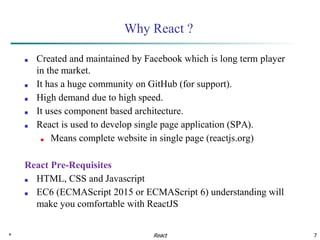
Why React ?
■ Created and maintained by Facebook which is long term player
in the market.
■ It has a huge community on GitHub (for support).
■ High demand due to high speed.
■ It uses component based architecture.
■ React is used to develop single page application (SPA).
■ Means complete website in single page (reactjs.org)
React Pre-Requisites
■ HTML, CSS and Javascript
■ EC6 (ECMAScript 2015 or ECMAScript 6) understanding will
make you comfortable with ReactJS
React
* 8
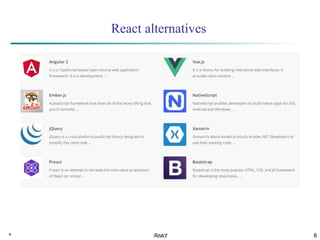
React alternatives
React
* 9
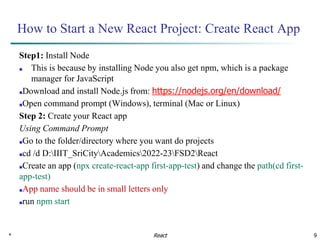
How to Start a New React Project: Create React App
Step1: Install Node
■ This is because by installing Node you also get npm, which is a package
manager for JavaScript
■Download and install Node.js from: https://nodejs.org/en/download/
■Open command prompt (Windows), terminal (Mac or Linux)
Step 2: Create your React app
Using Command Prompt
■Go to the folder/directory where you want do projects
■cd /d D:IIIT_SriCityAcademics2022-23FSD2React
■Create an app (npx create-react-app first-app-test) and change the path(cd first-
app-test)
■App name should be in small letters only
■run npm start
React
* 10
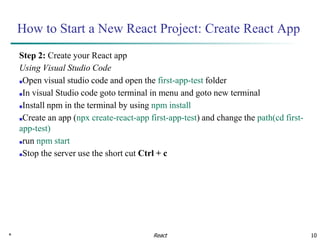
How to Start a New React Project: Create React App
Step 2: Create your React app
Using Visual Studio Code
■Open visual studio code and open the first-app-test folder
■In visual Studio code goto terminal in menu and goto new terminal
■Install npm in the terminal by using npm install
■Create an app (npx create-react-app first-app-test) and change the path(cd first-
app-test)
■run npm start
■Stop the server use the short cut Ctrl + c
React
* 11
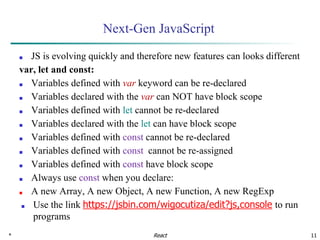
Next-Gen JavaScript
■ JS is evolving quickly and therefore new features can looks different
var, let and const:
■ Variables defined with var keyword can be re-declared
■ Variables declared with the var can NOT have block scope
■ Variables defined with let cannot be re-declared
■ Variables declared with the let can have block scope
■ Variables defined with const cannot be re-declared
■ Variables defined with const cannot be re-assigned
■ Variables defined with const have block scope
■ Always use const when you declare:
■ A new Array, A new Object, A new Function, A new RegExp
■ Use the link https://jsbin.com/wigocutiza/edit?js,console to run
programs
React
* 12
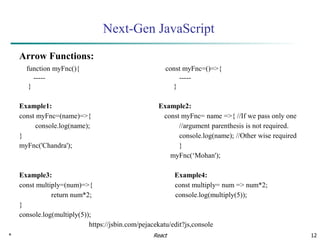
Next-Gen JavaScript
Arrow Functions:
function myFnc(){ const myFnc=()=>{
----- -----
} }
Example1: Example2:
const myFnc=(name)=>{ const myFnc= name =>{ //If we pass only one
console.log(name); //argument parenthesis is not required.
} console.log(name); //Other wise required
myFnc('Chandra'); }
myFnc(‘Mohan');
Example3: Example4:
const multiply=(num)=>{ const multiply= num => num*2;
return num*2; console.log(multiply(5));
}
console.log(multiply(5));
https://jsbin.com/pejacekatu/edit?js,console
React
* 13
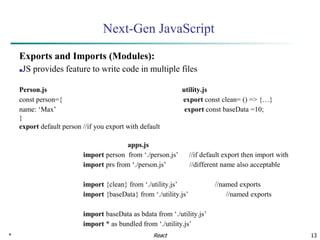
Next-Gen JavaScript
Exports and Imports (Modules):
■JS provides feature to write code in multiple files
Person.js utility.js
const person={ export const clean= () => {…}
name: ‘Max’ export const baseData =10;
}
export default person //if you export with default
apps.js
import person from ‘./person.js’ //if default export then import with
import prs from ‘./person.js’ //different name also acceptable
import {clean} from ‘./utility.js’ //named exports
import {baseData} from ‘./utility.js’ //named exports
import baseData as bdata from ‘./utility.js’
import * as bundled from ‘./utility.js’
React
* 14
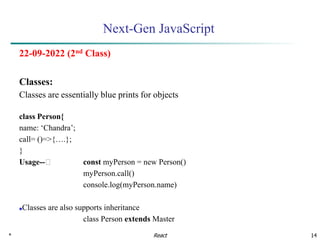
Next-Gen JavaScript
22-09-2022 (2nd Class)
Classes:
Classes are essentially blue prints for objects
class Person{
name: ‘Chandra’;
call= ()=>{….};
}
Usage--🡪 const myPerson = new Person()
myPerson.call()
console.log(myPerson.name)
■Classes are also supports inheritance
class Person extends Master
React
* 15
Next-Gen JavaScript
Spread and Rest Operators: both represented with same symbol
■Spread (…) used to split up array elements or object properties
const newArray = […oldArray,1,2]
const newObject = {…oldObject,newProp:5}
Example 1:
const array =[1,2,3];
const newArray=[array,4];
console.log(newArray);
Example 3:
const Person= {
name: 'Chandra'
};
const newPerson={
…Person,
Age:35
}
console.log(newPerson);
React
Example 2:
const array =[1,2,3];
const newArray=[…array,4];
console.log(newArray);
* 16
Next-Gen JavaScript
■ Rest(…) used to merge a list of function arguments into an array
function sortArgs(…args){
return args.sort()
}
Example 1:
const filter = (…args) => {
return args.filter(el => el ===1);
}
console.log(filter(1,2,3));
Destructuring:
■ Easily extract array elements or object properties and store them in variables
Array:
const [a, b]=['Chandra', 'Kanta'];
console.log(a);//Chandra
console.log(b);//Kanta
React
Object:
const {name}={name:'Chandra',age:35}
console.log(name);//Chandra
console.log(age);//undefined
* 17
Next-Gen JavaScript
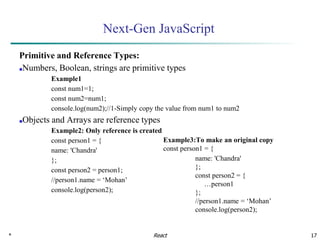
Primitive and Reference Types:
■Numbers, Boolean, strings are primitive types
Example1
const num1=1;
const num2=num1;
console.log(num2);//1-Simply copy the value from num1 to num2
■Objects and Arrays are reference types
Example2: Only reference is created
const person1 = {
name: 'Chandra'
};
const person2 = person1;
//person1.name = ‘Mohan’
console.log(person2);
React
Example3:To make an original copy
const person1 = {
name: 'Chandra'
};
const person2 = {
…person1
};
//person1.name = ‘Mohan’
console.log(person2);
* 18
Next-Gen JavaScript
Refreshing Array Functions:
■The map() function picks each element from array and send to a function
Example1
const numbers = [1, 2, 3]
const doubleNumber = numbers.map((num)=>{
return num*2;
})
console.log(doubleNumber);
React
* 19
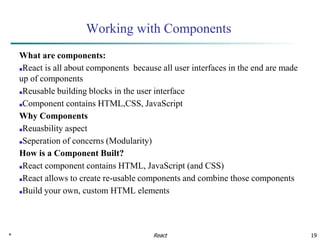
Working with Components
What are components:
■React is all about components because all user interfaces in the end are made
up of components
■Reusable building blocks in the user interface
■Component contains HTML,CSS, JavaScript
Why Components
■Reuasbility aspect
■Seperation of concerns (Modularity)
How is a Component Built?
■React component contains HTML, JavaScript (and CSS)
■React allows to create re-usable components and combine those components
■Build your own, custom HTML elements
React
* 20
JSX
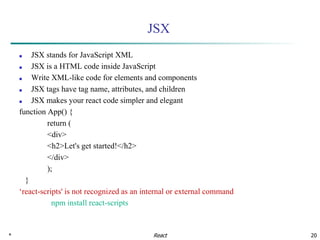
■ JSX stands for JavaScript XML
■ JSX is a HTML code inside JavaScript
■ Write XML-like code for elements and components
■ JSX tags have tag name, attributes, and children
■ JSX makes your react code simpler and elegant
function App() {
return (
<div>
<h2>Let's get started!</h2>
</div>
);
}
‘react-scripts' is not recognized as an internal or external command
npm install react-scripts
React
* 21
JSX
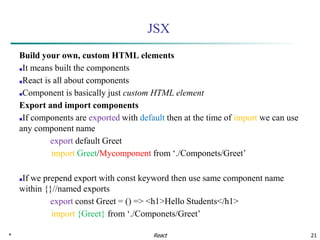
Build your own, custom HTML elements
■It means built the components
■React is all about components
■Component is basically just custom HTML element
Export and import components
■If components are exported with default then at the time of import we can use
any component name
export default Greet
import Greet/Mycomponent from ‘./Componets/Greet’
■If we prepend export with const keyword then use same component name
within {}//named exports
export const Greet = () => <h1>Hello Students</h1>
import {Greet} from ‘./Componets/Greet’
React
* 22
JSX
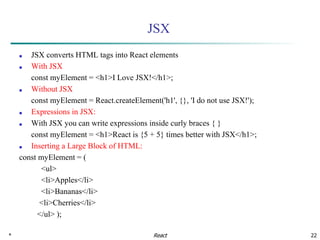
■ JSX converts HTML tags into React elements
■ With JSX
const myElement = <h1>I Love JSX!</h1>;
■ Without JSX
const myElement = React.createElement('h1', {}, 'I do not use JSX!');
■ Expressions in JSX:
■ With JSX you can write expressions inside curly braces { }
const myElement = <h1>React is {5 + 5} times better with JSX</h1>;
■ Inserting a Large Block of HTML:
const myElement = (
<ul>
<li>Apples</li>
<li>Bananas</li>
<li>Cherries</li>
</ul> );
React
* 23
JSX
One Top Level Element:
■The HTML code must be wrapped in ONE top level element
■So if you like to write two paragraphs, you must put them inside a parent element, like a div.
const myElement = (
<div>
<p>I am a paragraph.</p>
<p>I am a paragraph too.</p>
</div>
);
■Alternatively, you can use a "fragment" to wrap multiple lines
■This will prevent unnecessarily adding extra nodes to the DOM
■A fragment looks like an empty HTML tag: <></>
cons myElement = (
<>
<p>I am a paragraph.</p>
<p>I am a paragraph too.</p>
</>
);
React
* 24
JSX
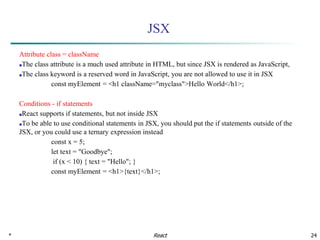
Attribute class = className
■The class attribute is a much used attribute in HTML, but since JSX is rendered as JavaScript,
■The class keyword is a reserved word in JavaScript, you are not allowed to use it in JSX
const myElement = <h1 className="myclass">Hello World</h1>;
Conditions - if statements
■React supports if statements, but not inside JSX
■To be able to use conditional statements in JSX, you should put the if statements outside of the
JSX, or you could use a ternary expression instead
const x = 5;
let text = "Goodbye";
if (x < 10) { text = "Hello"; }
const myElement = <h1>{text}</h1>;
React
* 25
Folder Structure
■ Starting point to check is index.html in public folder
■ Next folder is src folder, we will work more during development
■ Starting point for react application is index.js
■ In any react application root component is App component
■ The DOM element which will be control with react is div element
■ App component represents the view what we can see in the browser
React
* 26
React Components
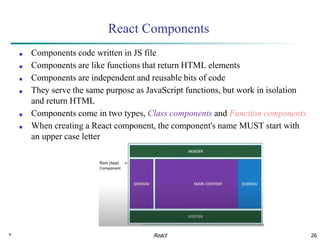
■ Components code written in JS file
■ Components are like functions that return HTML elements
■ Components are independent and reusable bits of code
■ They serve the same purpose as JavaScript functions, but work in isolation
and return HTML
■ Components come in two types, Class components and Function components
■ When creating a React component, the component's name MUST start with
an upper case letter
React
* 27
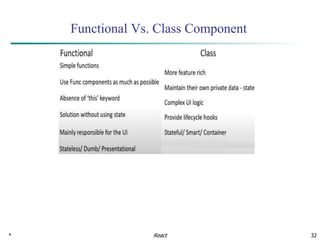
React Components: Functional component
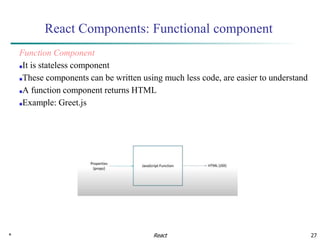
Function Component
■It is stateless component
■These components can be written using much less code, are easier to understand
■A function component returns HTML
■Example: Greet.js
React
* 28
React Components: Class Component
Components in Components
■We can refer to components inside other components
Props
■Components can be passed as props, which stands for properties
■Props are like function arguments, and you send them into the component as
attributes
React
* 29
React Components: Class Component
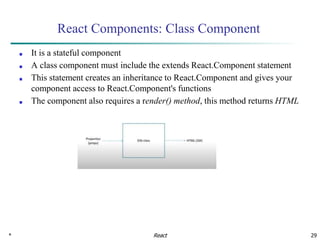
■ It is a stateful component
■ A class component must include the extends React.Component statement
■ This statement creates an inheritance to React.Component and gives your
component access to React.Component's functions
■ The component also requires a render() method, this method returns HTML
React
* 30
React Components: Class Component
Component Constructor
■If there is a constructor() function in your component, this function will be
called when the component gets initiated
■The constructor function is where you initiate the component's properties
■In React, component properties should be kept in an object called state
■The parent component is invoked with super() statement, which executes the
parent component's constructor function, then component has access to all the
functions of the parent component (React.Component)
Example: ClassConstructor.js
Props in the Constructor
■If your component has a constructor function, the props should always be
passed to the constructor
■Also to the React.Component via the super() method
Example: ClassConstructorProps.js
React
* 31
React Components: Class Component
Components in Components
■We can refer to components inside other components
Example: NestedClassComponent.js
React Class Component State
■React Class components have a built-in state object
■The state object is where you store property values that belongs to the
component
■When the state object changes, the component re-renders
React
* 32
Functional Vs. Class Component
React
January 14, 2024 33
React Components: Event Handling
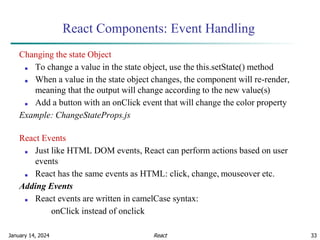
Changing the state Object
■ To change a value in the state object, use the this.setState() method
■ When a value in the state object changes, the component will re-render,
meaning that the output will change according to the new value(s)
■ Add a button with an onClick event that will change the color property
Example: ChangeStateProps.js
React Events
■ Just like HTML DOM events, React can perform actions based on user
events
■ React has the same events as HTML: click, change, mouseover etc.
Adding Events
■ React events are written in camelCase syntax:
onClick instead of onclick
React
January 14, 2024 34
React Components: Event Handling
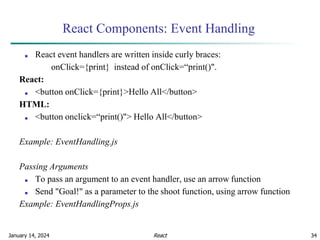
■ React event handlers are written inside curly braces:
onClick={print} instead of onClick=“print()".
React:
■ <button onClick={print}>Hello All</button>
HTML:
■ <button onclick=“print()"> Hello All</button>
Example: EventHandling.js
Passing Arguments
■ To pass an argument to an event handler, use an arrow function
■ Send "Goal!" as a parameter to the shoot function, using arrow function
Example: EventHandlingProps.js
React
January 14, 2024 35
React Components: Event Handling
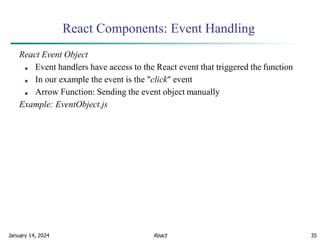
React Event Object
■ Event handlers have access to the React event that triggered the function
■ In our example the event is the "click" event
■ Arrow Function: Sending the event object manually
Example: EventObject.js
React
January 14, 2024 36
React Conditional Rendering
■ In React, you can conditionally render components in several ways
if Statement:
■ We can use the if JavaScript operator to decide which component to render
Example: ConditionalIf.js
Logical && Operator:
■ Another way to conditionally render a React component is by using
the && operator
Example: ConditionalLogAnd.js
Ternary Operator
■ Another way to conditionally render elements is by using a ternary
operator.
condition ? true : false
Example: ConditionalTerinary.js
React
January 14, 2024 37
React Lists
■ In React, you will render lists with some type of loop
■ The JavaScript map() array method is generally the preferred method
Example: ListRender.js
Keys:
■ Keys allow React to keep track of elements
■ This way, if an item is updated or removed, only that item will be re-
rendered instead of the entire list
■ Keys need to be unique to each sibling
■ But they can be duplicated globally
Example: ListKeysRender.js
React
January 14, 2024 38
React CSS Styling
■ There are many ways to style React with CSS, the three common ways:
■ Inline styling
■ CSS stylesheets
■ CSS Modules
1.Inline Styling:
■ To style an element with the inline style attribute, the value must be a
JavaScript object:
Example: InlineCSS.js
camelCased Property Names:
■ Since the inline CSS is written in a JavaScript object, properties with
hyphen separators, like background-color, must be written with camel case
syntax:
Use backgroundColor instead of background-color
Example: InlineCSSBackground.js
React
January 14, 2024 39
React CSS Styling
JavaScript Object:
■ You can also create an object with styling information, and refer to it in the
style attribute:
Example: InlineCSSObject.js
2.CSS Stylesheet
■ You can write your CSS styling in a separate file, just save the file with
the .css file extension, and import it in your application (demo.css)
■ Import the stylesheet in your application
Example: CSSStyling.js
3.CSS Modules
■ CSS Modules are convenient for components that are placed in separate files
■ Create the CSS module with the .module.css extension
Example: CSSModule.js
React
January 14, 2024 40
■ Advanced Front End Frameworks
■ React Forms
■ React Hooks
■ React Router
Outline
React
January 14, 2024 41
React Forms
■ Just like in HTML, React uses forms to allow users to interact with the
web page
Adding Forms in React:
■ You add a form with React like any other element
Example: ReactFormsTextBox.js
■ When the form will submit and the page will refresh
■ But this is generally not what we want to happen in React
■ We want to prevent this default behavior and let React control the form
Handling Forms:
■ Handling forms is about how you handle the data when it changes value or
gets submitted
■ In HTML, form data is usually handled by the DOM
■ In React, form data is usually handled by the components
React
January 14, 2024 42
React Hooks
■ When the data is handled by the components, all the data is stored in the
component state
■ You can control changes by adding event handlers in
the onChange attribute
■ We can use the useState Hook to keep track of each inputs value and
provide a "single source of truth" for the entire application
Example: MyForm.js
Hooks:
■ Hooks were added to React in version 16.8
■ Hooks allow function components to have access to state and other React
features
■ Because of this, class components are generally no longer needed
■ Hooks allow us to "hook" into React features such as state and lifecycle
methods
■ we are using the useState Hook to keep track of the application state
Example: FavoriteColor.js React
January 14, 2024 43
React Hooks
■ The React useState Hook allows us to track state in a function component
■ State generally refers to data or properties that need to be tracking in an
application
Import useState
■ To use the useState Hook, we first need to import it into our component
import { useState } from "react";
■ We are destructuring useState from react as it is a named export
Initialize useState
■ We initialize our state by calling useState in our function component
■ useState accepts an initial state and returns two values:
■ The current state
■ A function that updates the state
React
January 14, 2024 44
React Hooks
■ Initialize state at the top of the function component
function FavoriteColor() {
const [color, setColor] = useState(“”);
}
■ Notice that again, we are destructuring the returned values from useState
■ The first value, color, is our current state
■ The second value, setColor, is the function that is used to update our state
Read State
■ Use the state variable in the rendered component
function FavoriteColor() {
const [color, setColor] = useState(“red”);
return <h1>My favorite color is {color}!</h1>
}
React
January 14, 2024 45
React Hooks
Update State
■ To update our state, we use our state updater function
■ We should never directly update state. Ex: color = "red" is not allowed
function FavoriteColor() {
const [color, setColor] = useState(“red”);
return (
<>
<h1>My favorite color is {color}!</h1>
<button
type="button"
onClick={() => setColor("blue")} >Blue</button>
</> )
}
React
January 14, 2024 46
React Hooks
What Can State Hold
■ The useState Hook can be used to keep track of strings, numbers, booleans,
arrays, objects, and any combination of these!
■ We could create multiple state Hooks to track individual values
function Car() {
const [brand, setBrand] = useState("Ford");
const [model, setModel] = useState("Mustang");
const [year, setYear] = useState("1964");
const [color, setColor] = useState("red");
return (
<> <h1>My {brand}</h1>
<p> It is a {color} {model} from {year}. </p>
</> )
}
React
January 14, 2024 47
React Hooks
What Can State Hold
■ The useState Hook can be used to keep track of strings, numbers, booleans,
arrays, objects, and any combination of these!
■ We could create multiple state Hooks to track individual values
function Car() {
const [car, setCar] = useState({
brand: "Ford",
model: "Mustang",
year: "1964",
color: "red"});
return (
<> <h1>My {car.brand}</h1>
<p> It is a {car.color} {car.model} from {car.year}. </p>
</> )
}
React
January 14, 2024 48
React Forms
Submitting Forms:
■ You can control the submit action by adding an event handler in
the onSubmit attribute for the <form>
Example: Submit_Form.js
Textarea
■ The textarea element in React is slightly different from ordinary HTML
■ In HTML the value of a textarea was the text between the start
tag <textarea> and the end tag </textarea>
■ In React the value of a textarea is placed in a value attribute
Example: Form_TextArea.js
Select
■ A drop down list, or a select box, in React is also a bit different from
HTML.
■ in HTML, the selected value in the drop down list was defined with
the selected attribute
React
January 14, 2024 49
React Forms
■ In React, the selected value is defined with a value attribute on
the select tag
Example: Form_Select.js
Multiple Input Fields
■ You can control the values of more than one input field by adding
a name attribute to each element
■ We will initialize our state with an empty object
■ To access the fields in the event handler use
the event.target.name and event.target.value syntax
■ To update the state, use square brackets [bracket notation] around the
property name
Example: Form_MultipleInputs.js
React
January 14, 2024 50
React Forms
Submitting Forms:
■ You can control the submit action by adding an event handler in
the onSubmit attribute for the <form>
Example: Submit_Form.js
Textarea
■ The textarea element in React is slightly different from ordinary HTML
■ In HTML the value of a textarea was the text between the start
tag <textarea> and the end tag </textarea>
■ In React the value of a textarea is placed in a value attribute
Example: Form_TextArea.js
Select
■ A drop down list, or a select box, in React is also a bit different from
HTML.
■ in HTML, the selected value in the drop down list was defined with
the selected attribute
React
January 14, 2024 51
React Forms
■ In React, the selected value is defined with a value attribute on
the select tag
Example: Form_Select.js
Multiple Input Fields
■ You can control the values of more than one input field by adding
a name attribute to each element
■ We will initialize our state with an empty object
■ To access the fields in the event handler use
the event.target.name and event.target.value syntax
■ To update the state, use square brackets [bracket notation] around the
property name
Example: Form_MultipleInputs.js
React
January 14, 2024 52
React Router
■ Create React App doesn't include page routing
■ React Router is the most popular solution
Add React Router
■ To add React Router in your application, run this in the terminal from the
root directory of the application:
npm i -D react-router-dom
Folder Structure
■ To create an application with multiple page routes, let's first start with the
file structure
■ Within the src/Components folder, we'll create a folder named Pages with
several files:
■ srcpages:
■ Layout.js, Home.js, Blogs.js, Contact.js, NoPage.js
■ Each file will contain a very basic React component
React
January 14, 2024 53
React Router
Routes:
■ We wrap our content first with <BrowserRouter>
■ Then we define our <Routes>
■ An application can have multiple <Routes>
■ Our basic example only uses one
■ <Route>s can be nested
■ The first <Route> has a path of / and renders the Layout component
■ The nested <Route>s inherit and add to the parent route
■ So the blogs path is combined with the parent and becomes /blogs
■ The Home component route does not have a path but has
an index attribute
■ That specifies this route as the default route for the parent route, which is /
■ Setting the path to * will act as a catch-all for any undefined URLs
■ This is great for a 404 error page.
React
January 14, 2024 54
React Router
Pages / Components
■ The Layout component has <Outlet> and <Link> elements
■ The <Outlet> renders the current route selected
■ <Link> is used to set the URL and keep track of browsing history
■ Anytime we link to an internal path, we will use <Link> instead of <a
href="">
■ The "layout route" is a shared component that inserts common content on
all pages, such as a navigation menu
React
January 14, 2024 55
Fetching Data with useEffect
useEffect Hook
■ The useEffect Hook allows you to perform side effects in your
components
■ Some examples of side effects are:
■ Fetching data,
■ Directly updating the DOM, and
■ Timers
■ useEffect accepts two arguments
■ The second argument is optional
useEffect(<function>, <dependency>)
■ It is a close replacement for componentDidMount, componentDidUpdate,
componentWillUnmount lifecycle methods
■ useEffect takes arrow function as an argument and runs after every render
of the component
■ useEffect place inside the component
React
January 14, 2024 56
Fetching Data with useEffect
■ Without useEffect hook
Example: HookCounterOne.js
■ With useEffect Hook
Example: HookCounterTitle.js
■ With condition use the useEffect Hook
■ Use second argument in useEffect for conditional run the effect
Example: HookCounterCondEffect.js
■ To run useEffect only once
Example: HookCounterOnceEffect.js
■ How to fetch data from API end point?
npm install axios
React
January 14, 2024 57
Fetching Data with useEffect
■ Fetching complete data from https://jsonplaceholder.typicode.com/
Example: DataFetching.js
■ Fetching individual posts by changing the textbox value
Example: IndividualPostFetching.js
■ Fetching individual posts by button click
Example: FetchWithButtonClick.js
React

React_Complete.pptx

  • 1.
    * 1 React — ModuleIII— Dr. Kamalakanta Sethi Assistant Professor Computer Science and Engineering Group Indian Institute of Information Technology, Sri City React
  • 2.
    * 2 ■ Introductionto Advanced Front End Frameworks ■ Front-end JavaScript Frameworks and Libraries Overview ■ Introduction to React ■ React APP Overview Outline React
  • 3.
    * 3 React Introduction ■React is a JavaScript library for building user interfaces. React focus on User Interface (UI). ■ React makes building complex, interactive and reactive user interfaces simpler. ■ It was developed by Jordan Walker, who was a software engineer in Facebook in 2011. ■ React is used to build single-page applications (SPA) ■ React uses component based architecture. These components can be reused. React
  • 4.
    * 4 How ReactWorks ■ In React, we don't actually interact with the browser DOM and React creates Virtual DOM in memory. The DOM represents the web page as a tree structure in which each node is an object that represents a part of the document. ■ We interact with the virtual DOM, which is an exact copy of the browser DOM, but in memory. Manipulating browser DOM is much slower than manipulating Virtual DOM. ■ Any React component that we write is inserted as a child to the virtual DOM ■ The virtual DOM is the reason React renders so quickly and efficiently ■ React only changes what needs to be changed! ■ React, updates in the virtual DOM first ■ Then, the browser DOM and virtual DOM are compared to see if there are any updates made to virtual DOM that must be updated in the browser DOM ■ React can be used to control parts of HTML page or entire pages React
  • 5.
    * 5 React: Componentbased approach ■ A component is one of the core building blocks of React ■ In other words, in every application you will develop in React will be made of pieces called components ■ Components make the task of building UI much easier ■ React uses Declarative programming (DP) paradigm. DP is just like asking your friend to draw a landscape. You don’t care how they draw it, that is up to them ■ Tell React what you want and React will build the actual UI. React
  • 6.
    * 6 Advantages ofReact Advantages of React ■Code Maintainability, because we can now reuse components and break complex logic into smaller parts ■Fast and Performant, because only part of the browser DOM is updated instead of the whole thing. ■One way Data Flow, which means that data flow is possible only from the parent component to child components ■That is, components are nested, with the top most component being App ■This keeps everything modular ■Easy to learn and use, development time is less and learning curve is small React
  • 7.
    * 7 Why React? ■ Created and maintained by Facebook which is long term player in the market. ■ It has a huge community on GitHub (for support). ■ High demand due to high speed. ■ It uses component based architecture. ■ React is used to develop single page application (SPA). ■ Means complete website in single page (reactjs.org) React Pre-Requisites ■ HTML, CSS and Javascript ■ EC6 (ECMAScript 2015 or ECMAScript 6) understanding will make you comfortable with ReactJS React
  • 8.
  • 9.
    * 9 How toStart a New React Project: Create React App Step1: Install Node ■ This is because by installing Node you also get npm, which is a package manager for JavaScript ■Download and install Node.js from: https://nodejs.org/en/download/ ■Open command prompt (Windows), terminal (Mac or Linux) Step 2: Create your React app Using Command Prompt ■Go to the folder/directory where you want do projects ■cd /d D:IIIT_SriCityAcademics2022-23FSD2React ■Create an app (npx create-react-app first-app-test) and change the path(cd first- app-test) ■App name should be in small letters only ■run npm start React
  • 10.
    * 10 How toStart a New React Project: Create React App Step 2: Create your React app Using Visual Studio Code ■Open visual studio code and open the first-app-test folder ■In visual Studio code goto terminal in menu and goto new terminal ■Install npm in the terminal by using npm install ■Create an app (npx create-react-app first-app-test) and change the path(cd first- app-test) ■run npm start ■Stop the server use the short cut Ctrl + c React
  • 11.
    * 11 Next-Gen JavaScript ■JS is evolving quickly and therefore new features can looks different var, let and const: ■ Variables defined with var keyword can be re-declared ■ Variables declared with the var can NOT have block scope ■ Variables defined with let cannot be re-declared ■ Variables declared with the let can have block scope ■ Variables defined with const cannot be re-declared ■ Variables defined with const cannot be re-assigned ■ Variables defined with const have block scope ■ Always use const when you declare: ■ A new Array, A new Object, A new Function, A new RegExp ■ Use the link https://jsbin.com/wigocutiza/edit?js,console to run programs React
  • 12.
    * 12 Next-Gen JavaScript ArrowFunctions: function myFnc(){ const myFnc=()=>{ ----- ----- } } Example1: Example2: const myFnc=(name)=>{ const myFnc= name =>{ //If we pass only one console.log(name); //argument parenthesis is not required. } console.log(name); //Other wise required myFnc('Chandra'); } myFnc(‘Mohan'); Example3: Example4: const multiply=(num)=>{ const multiply= num => num*2; return num*2; console.log(multiply(5)); } console.log(multiply(5)); https://jsbin.com/pejacekatu/edit?js,console React
  • 13.
    * 13 Next-Gen JavaScript Exportsand Imports (Modules): ■JS provides feature to write code in multiple files Person.js utility.js const person={ export const clean= () => {…} name: ‘Max’ export const baseData =10; } export default person //if you export with default apps.js import person from ‘./person.js’ //if default export then import with import prs from ‘./person.js’ //different name also acceptable import {clean} from ‘./utility.js’ //named exports import {baseData} from ‘./utility.js’ //named exports import baseData as bdata from ‘./utility.js’ import * as bundled from ‘./utility.js’ React
  • 14.
    * 14 Next-Gen JavaScript 22-09-2022(2nd Class) Classes: Classes are essentially blue prints for objects class Person{ name: ‘Chandra’; call= ()=>{….}; } Usage--🡪 const myPerson = new Person() myPerson.call() console.log(myPerson.name) ■Classes are also supports inheritance class Person extends Master React
  • 15.
    * 15 Next-Gen JavaScript Spreadand Rest Operators: both represented with same symbol ■Spread (…) used to split up array elements or object properties const newArray = […oldArray,1,2] const newObject = {…oldObject,newProp:5} Example 1: const array =[1,2,3]; const newArray=[array,4]; console.log(newArray); Example 3: const Person= { name: 'Chandra' }; const newPerson={ …Person, Age:35 } console.log(newPerson); React Example 2: const array =[1,2,3]; const newArray=[…array,4]; console.log(newArray);
  • 16.
    * 16 Next-Gen JavaScript ■Rest(…) used to merge a list of function arguments into an array function sortArgs(…args){ return args.sort() } Example 1: const filter = (…args) => { return args.filter(el => el ===1); } console.log(filter(1,2,3)); Destructuring: ■ Easily extract array elements or object properties and store them in variables Array: const [a, b]=['Chandra', 'Kanta']; console.log(a);//Chandra console.log(b);//Kanta React Object: const {name}={name:'Chandra',age:35} console.log(name);//Chandra console.log(age);//undefined
  • 17.
    * 17 Next-Gen JavaScript Primitiveand Reference Types: ■Numbers, Boolean, strings are primitive types Example1 const num1=1; const num2=num1; console.log(num2);//1-Simply copy the value from num1 to num2 ■Objects and Arrays are reference types Example2: Only reference is created const person1 = { name: 'Chandra' }; const person2 = person1; //person1.name = ‘Mohan’ console.log(person2); React Example3:To make an original copy const person1 = { name: 'Chandra' }; const person2 = { …person1 }; //person1.name = ‘Mohan’ console.log(person2);
  • 18.
    * 18 Next-Gen JavaScript RefreshingArray Functions: ■The map() function picks each element from array and send to a function Example1 const numbers = [1, 2, 3] const doubleNumber = numbers.map((num)=>{ return num*2; }) console.log(doubleNumber); React
  • 19.
    * 19 Working withComponents What are components: ■React is all about components because all user interfaces in the end are made up of components ■Reusable building blocks in the user interface ■Component contains HTML,CSS, JavaScript Why Components ■Reuasbility aspect ■Seperation of concerns (Modularity) How is a Component Built? ■React component contains HTML, JavaScript (and CSS) ■React allows to create re-usable components and combine those components ■Build your own, custom HTML elements React
  • 20.
    * 20 JSX ■ JSXstands for JavaScript XML ■ JSX is a HTML code inside JavaScript ■ Write XML-like code for elements and components ■ JSX tags have tag name, attributes, and children ■ JSX makes your react code simpler and elegant function App() { return ( <div> <h2>Let's get started!</h2> </div> ); } ‘react-scripts' is not recognized as an internal or external command npm install react-scripts React
  • 21.
    * 21 JSX Build yourown, custom HTML elements ■It means built the components ■React is all about components ■Component is basically just custom HTML element Export and import components ■If components are exported with default then at the time of import we can use any component name export default Greet import Greet/Mycomponent from ‘./Componets/Greet’ ■If we prepend export with const keyword then use same component name within {}//named exports export const Greet = () => <h1>Hello Students</h1> import {Greet} from ‘./Componets/Greet’ React
  • 22.
    * 22 JSX ■ JSXconverts HTML tags into React elements ■ With JSX const myElement = <h1>I Love JSX!</h1>; ■ Without JSX const myElement = React.createElement('h1', {}, 'I do not use JSX!'); ■ Expressions in JSX: ■ With JSX you can write expressions inside curly braces { } const myElement = <h1>React is {5 + 5} times better with JSX</h1>; ■ Inserting a Large Block of HTML: const myElement = ( <ul> <li>Apples</li> <li>Bananas</li> <li>Cherries</li> </ul> ); React
  • 23.
    * 23 JSX One TopLevel Element: ■The HTML code must be wrapped in ONE top level element ■So if you like to write two paragraphs, you must put them inside a parent element, like a div. const myElement = ( <div> <p>I am a paragraph.</p> <p>I am a paragraph too.</p> </div> ); ■Alternatively, you can use a "fragment" to wrap multiple lines ■This will prevent unnecessarily adding extra nodes to the DOM ■A fragment looks like an empty HTML tag: <></> cons myElement = ( <> <p>I am a paragraph.</p> <p>I am a paragraph too.</p> </> ); React
  • 24.
    * 24 JSX Attribute class= className ■The class attribute is a much used attribute in HTML, but since JSX is rendered as JavaScript, ■The class keyword is a reserved word in JavaScript, you are not allowed to use it in JSX const myElement = <h1 className="myclass">Hello World</h1>; Conditions - if statements ■React supports if statements, but not inside JSX ■To be able to use conditional statements in JSX, you should put the if statements outside of the JSX, or you could use a ternary expression instead const x = 5; let text = "Goodbye"; if (x < 10) { text = "Hello"; } const myElement = <h1>{text}</h1>; React
  • 25.
    * 25 Folder Structure ■Starting point to check is index.html in public folder ■ Next folder is src folder, we will work more during development ■ Starting point for react application is index.js ■ In any react application root component is App component ■ The DOM element which will be control with react is div element ■ App component represents the view what we can see in the browser React
  • 26.
    * 26 React Components ■Components code written in JS file ■ Components are like functions that return HTML elements ■ Components are independent and reusable bits of code ■ They serve the same purpose as JavaScript functions, but work in isolation and return HTML ■ Components come in two types, Class components and Function components ■ When creating a React component, the component's name MUST start with an upper case letter React
  • 27.
    * 27 React Components:Functional component Function Component ■It is stateless component ■These components can be written using much less code, are easier to understand ■A function component returns HTML ■Example: Greet.js React
  • 28.
    * 28 React Components:Class Component Components in Components ■We can refer to components inside other components Props ■Components can be passed as props, which stands for properties ■Props are like function arguments, and you send them into the component as attributes React
  • 29.
    * 29 React Components:Class Component ■ It is a stateful component ■ A class component must include the extends React.Component statement ■ This statement creates an inheritance to React.Component and gives your component access to React.Component's functions ■ The component also requires a render() method, this method returns HTML React
  • 30.
    * 30 React Components:Class Component Component Constructor ■If there is a constructor() function in your component, this function will be called when the component gets initiated ■The constructor function is where you initiate the component's properties ■In React, component properties should be kept in an object called state ■The parent component is invoked with super() statement, which executes the parent component's constructor function, then component has access to all the functions of the parent component (React.Component) Example: ClassConstructor.js Props in the Constructor ■If your component has a constructor function, the props should always be passed to the constructor ■Also to the React.Component via the super() method Example: ClassConstructorProps.js React
  • 31.
    * 31 React Components:Class Component Components in Components ■We can refer to components inside other components Example: NestedClassComponent.js React Class Component State ■React Class components have a built-in state object ■The state object is where you store property values that belongs to the component ■When the state object changes, the component re-renders React
  • 32.
    * 32 Functional Vs.Class Component React
  • 33.
    January 14, 202433 React Components: Event Handling Changing the state Object ■ To change a value in the state object, use the this.setState() method ■ When a value in the state object changes, the component will re-render, meaning that the output will change according to the new value(s) ■ Add a button with an onClick event that will change the color property Example: ChangeStateProps.js React Events ■ Just like HTML DOM events, React can perform actions based on user events ■ React has the same events as HTML: click, change, mouseover etc. Adding Events ■ React events are written in camelCase syntax: onClick instead of onclick React
  • 34.
    January 14, 202434 React Components: Event Handling ■ React event handlers are written inside curly braces: onClick={print} instead of onClick=“print()". React: ■ <button onClick={print}>Hello All</button> HTML: ■ <button onclick=“print()"> Hello All</button> Example: EventHandling.js Passing Arguments ■ To pass an argument to an event handler, use an arrow function ■ Send "Goal!" as a parameter to the shoot function, using arrow function Example: EventHandlingProps.js React
  • 35.
    January 14, 202435 React Components: Event Handling React Event Object ■ Event handlers have access to the React event that triggered the function ■ In our example the event is the "click" event ■ Arrow Function: Sending the event object manually Example: EventObject.js React
  • 36.
    January 14, 202436 React Conditional Rendering ■ In React, you can conditionally render components in several ways if Statement: ■ We can use the if JavaScript operator to decide which component to render Example: ConditionalIf.js Logical && Operator: ■ Another way to conditionally render a React component is by using the && operator Example: ConditionalLogAnd.js Ternary Operator ■ Another way to conditionally render elements is by using a ternary operator. condition ? true : false Example: ConditionalTerinary.js React
  • 37.
    January 14, 202437 React Lists ■ In React, you will render lists with some type of loop ■ The JavaScript map() array method is generally the preferred method Example: ListRender.js Keys: ■ Keys allow React to keep track of elements ■ This way, if an item is updated or removed, only that item will be re- rendered instead of the entire list ■ Keys need to be unique to each sibling ■ But they can be duplicated globally Example: ListKeysRender.js React
  • 38.
    January 14, 202438 React CSS Styling ■ There are many ways to style React with CSS, the three common ways: ■ Inline styling ■ CSS stylesheets ■ CSS Modules 1.Inline Styling: ■ To style an element with the inline style attribute, the value must be a JavaScript object: Example: InlineCSS.js camelCased Property Names: ■ Since the inline CSS is written in a JavaScript object, properties with hyphen separators, like background-color, must be written with camel case syntax: Use backgroundColor instead of background-color Example: InlineCSSBackground.js React
  • 39.
    January 14, 202439 React CSS Styling JavaScript Object: ■ You can also create an object with styling information, and refer to it in the style attribute: Example: InlineCSSObject.js 2.CSS Stylesheet ■ You can write your CSS styling in a separate file, just save the file with the .css file extension, and import it in your application (demo.css) ■ Import the stylesheet in your application Example: CSSStyling.js 3.CSS Modules ■ CSS Modules are convenient for components that are placed in separate files ■ Create the CSS module with the .module.css extension Example: CSSModule.js React
  • 40.
    January 14, 202440 ■ Advanced Front End Frameworks ■ React Forms ■ React Hooks ■ React Router Outline React
  • 41.
    January 14, 202441 React Forms ■ Just like in HTML, React uses forms to allow users to interact with the web page Adding Forms in React: ■ You add a form with React like any other element Example: ReactFormsTextBox.js ■ When the form will submit and the page will refresh ■ But this is generally not what we want to happen in React ■ We want to prevent this default behavior and let React control the form Handling Forms: ■ Handling forms is about how you handle the data when it changes value or gets submitted ■ In HTML, form data is usually handled by the DOM ■ In React, form data is usually handled by the components React
  • 42.
    January 14, 202442 React Hooks ■ When the data is handled by the components, all the data is stored in the component state ■ You can control changes by adding event handlers in the onChange attribute ■ We can use the useState Hook to keep track of each inputs value and provide a "single source of truth" for the entire application Example: MyForm.js Hooks: ■ Hooks were added to React in version 16.8 ■ Hooks allow function components to have access to state and other React features ■ Because of this, class components are generally no longer needed ■ Hooks allow us to "hook" into React features such as state and lifecycle methods ■ we are using the useState Hook to keep track of the application state Example: FavoriteColor.js React
  • 43.
    January 14, 202443 React Hooks ■ The React useState Hook allows us to track state in a function component ■ State generally refers to data or properties that need to be tracking in an application Import useState ■ To use the useState Hook, we first need to import it into our component import { useState } from "react"; ■ We are destructuring useState from react as it is a named export Initialize useState ■ We initialize our state by calling useState in our function component ■ useState accepts an initial state and returns two values: ■ The current state ■ A function that updates the state React
  • 44.
    January 14, 202444 React Hooks ■ Initialize state at the top of the function component function FavoriteColor() { const [color, setColor] = useState(“”); } ■ Notice that again, we are destructuring the returned values from useState ■ The first value, color, is our current state ■ The second value, setColor, is the function that is used to update our state Read State ■ Use the state variable in the rendered component function FavoriteColor() { const [color, setColor] = useState(“red”); return <h1>My favorite color is {color}!</h1> } React
  • 45.
    January 14, 202445 React Hooks Update State ■ To update our state, we use our state updater function ■ We should never directly update state. Ex: color = "red" is not allowed function FavoriteColor() { const [color, setColor] = useState(“red”); return ( <> <h1>My favorite color is {color}!</h1> <button type="button" onClick={() => setColor("blue")} >Blue</button> </> ) } React
  • 46.
    January 14, 202446 React Hooks What Can State Hold ■ The useState Hook can be used to keep track of strings, numbers, booleans, arrays, objects, and any combination of these! ■ We could create multiple state Hooks to track individual values function Car() { const [brand, setBrand] = useState("Ford"); const [model, setModel] = useState("Mustang"); const [year, setYear] = useState("1964"); const [color, setColor] = useState("red"); return ( <> <h1>My {brand}</h1> <p> It is a {color} {model} from {year}. </p> </> ) } React
  • 47.
    January 14, 202447 React Hooks What Can State Hold ■ The useState Hook can be used to keep track of strings, numbers, booleans, arrays, objects, and any combination of these! ■ We could create multiple state Hooks to track individual values function Car() { const [car, setCar] = useState({ brand: "Ford", model: "Mustang", year: "1964", color: "red"}); return ( <> <h1>My {car.brand}</h1> <p> It is a {car.color} {car.model} from {car.year}. </p> </> ) } React
  • 48.
    January 14, 202448 React Forms Submitting Forms: ■ You can control the submit action by adding an event handler in the onSubmit attribute for the <form> Example: Submit_Form.js Textarea ■ The textarea element in React is slightly different from ordinary HTML ■ In HTML the value of a textarea was the text between the start tag <textarea> and the end tag </textarea> ■ In React the value of a textarea is placed in a value attribute Example: Form_TextArea.js Select ■ A drop down list, or a select box, in React is also a bit different from HTML. ■ in HTML, the selected value in the drop down list was defined with the selected attribute React
  • 49.
    January 14, 202449 React Forms ■ In React, the selected value is defined with a value attribute on the select tag Example: Form_Select.js Multiple Input Fields ■ You can control the values of more than one input field by adding a name attribute to each element ■ We will initialize our state with an empty object ■ To access the fields in the event handler use the event.target.name and event.target.value syntax ■ To update the state, use square brackets [bracket notation] around the property name Example: Form_MultipleInputs.js React
  • 50.
    January 14, 202450 React Forms Submitting Forms: ■ You can control the submit action by adding an event handler in the onSubmit attribute for the <form> Example: Submit_Form.js Textarea ■ The textarea element in React is slightly different from ordinary HTML ■ In HTML the value of a textarea was the text between the start tag <textarea> and the end tag </textarea> ■ In React the value of a textarea is placed in a value attribute Example: Form_TextArea.js Select ■ A drop down list, or a select box, in React is also a bit different from HTML. ■ in HTML, the selected value in the drop down list was defined with the selected attribute React
  • 51.
    January 14, 202451 React Forms ■ In React, the selected value is defined with a value attribute on the select tag Example: Form_Select.js Multiple Input Fields ■ You can control the values of more than one input field by adding a name attribute to each element ■ We will initialize our state with an empty object ■ To access the fields in the event handler use the event.target.name and event.target.value syntax ■ To update the state, use square brackets [bracket notation] around the property name Example: Form_MultipleInputs.js React
  • 52.
    January 14, 202452 React Router ■ Create React App doesn't include page routing ■ React Router is the most popular solution Add React Router ■ To add React Router in your application, run this in the terminal from the root directory of the application: npm i -D react-router-dom Folder Structure ■ To create an application with multiple page routes, let's first start with the file structure ■ Within the src/Components folder, we'll create a folder named Pages with several files: ■ srcpages: ■ Layout.js, Home.js, Blogs.js, Contact.js, NoPage.js ■ Each file will contain a very basic React component React
  • 53.
    January 14, 202453 React Router Routes: ■ We wrap our content first with <BrowserRouter> ■ Then we define our <Routes> ■ An application can have multiple <Routes> ■ Our basic example only uses one ■ <Route>s can be nested ■ The first <Route> has a path of / and renders the Layout component ■ The nested <Route>s inherit and add to the parent route ■ So the blogs path is combined with the parent and becomes /blogs ■ The Home component route does not have a path but has an index attribute ■ That specifies this route as the default route for the parent route, which is / ■ Setting the path to * will act as a catch-all for any undefined URLs ■ This is great for a 404 error page. React
  • 54.
    January 14, 202454 React Router Pages / Components ■ The Layout component has <Outlet> and <Link> elements ■ The <Outlet> renders the current route selected ■ <Link> is used to set the URL and keep track of browsing history ■ Anytime we link to an internal path, we will use <Link> instead of <a href=""> ■ The "layout route" is a shared component that inserts common content on all pages, such as a navigation menu React
  • 55.
    January 14, 202455 Fetching Data with useEffect useEffect Hook ■ The useEffect Hook allows you to perform side effects in your components ■ Some examples of side effects are: ■ Fetching data, ■ Directly updating the DOM, and ■ Timers ■ useEffect accepts two arguments ■ The second argument is optional useEffect(<function>, <dependency>) ■ It is a close replacement for componentDidMount, componentDidUpdate, componentWillUnmount lifecycle methods ■ useEffect takes arrow function as an argument and runs after every render of the component ■ useEffect place inside the component React
  • 56.
    January 14, 202456 Fetching Data with useEffect ■ Without useEffect hook Example: HookCounterOne.js ■ With useEffect Hook Example: HookCounterTitle.js ■ With condition use the useEffect Hook ■ Use second argument in useEffect for conditional run the effect Example: HookCounterCondEffect.js ■ To run useEffect only once Example: HookCounterOnceEffect.js ■ How to fetch data from API end point? npm install axios React
  • 57.
    January 14, 202457 Fetching Data with useEffect ■ Fetching complete data from https://jsonplaceholder.typicode.com/ Example: DataFetching.js ■ Fetching individual posts by changing the textbox value Example: IndividualPostFetching.js ■ Fetching individual posts by button click Example: FetchWithButtonClick.js React