Rapid e-learning tools
Rapid elearning is all about making it easy for trainers to design and create engaging learning experiences. This session
looks at tools to get you thinking about how you design resources for your students. We dive in to the huge range of apps
and applications that can you can use to create and share your resources in your training. We will also look at some of the
tools you might get your students to use to demonstrate their own skills! We will focus on tools that are easy to use and
often freely available. Bring ideas and suggestions for your own favourite content creation tools to share in the session!
TODAYS SESSION
• Set up your framework
• LOCO
• PowerPoint and beyond
• Acrobat Portfolios
• Screencast tools
• Image editors
• Presentation tools
Setting up your online framework
Where to put the stuff you want to share with
students?
• Local network only
• Organisational solutions (e.g. LMS)
• Cloud services
• Mix of the above
Your tools
Share your favourite tools and resources (LIVE)
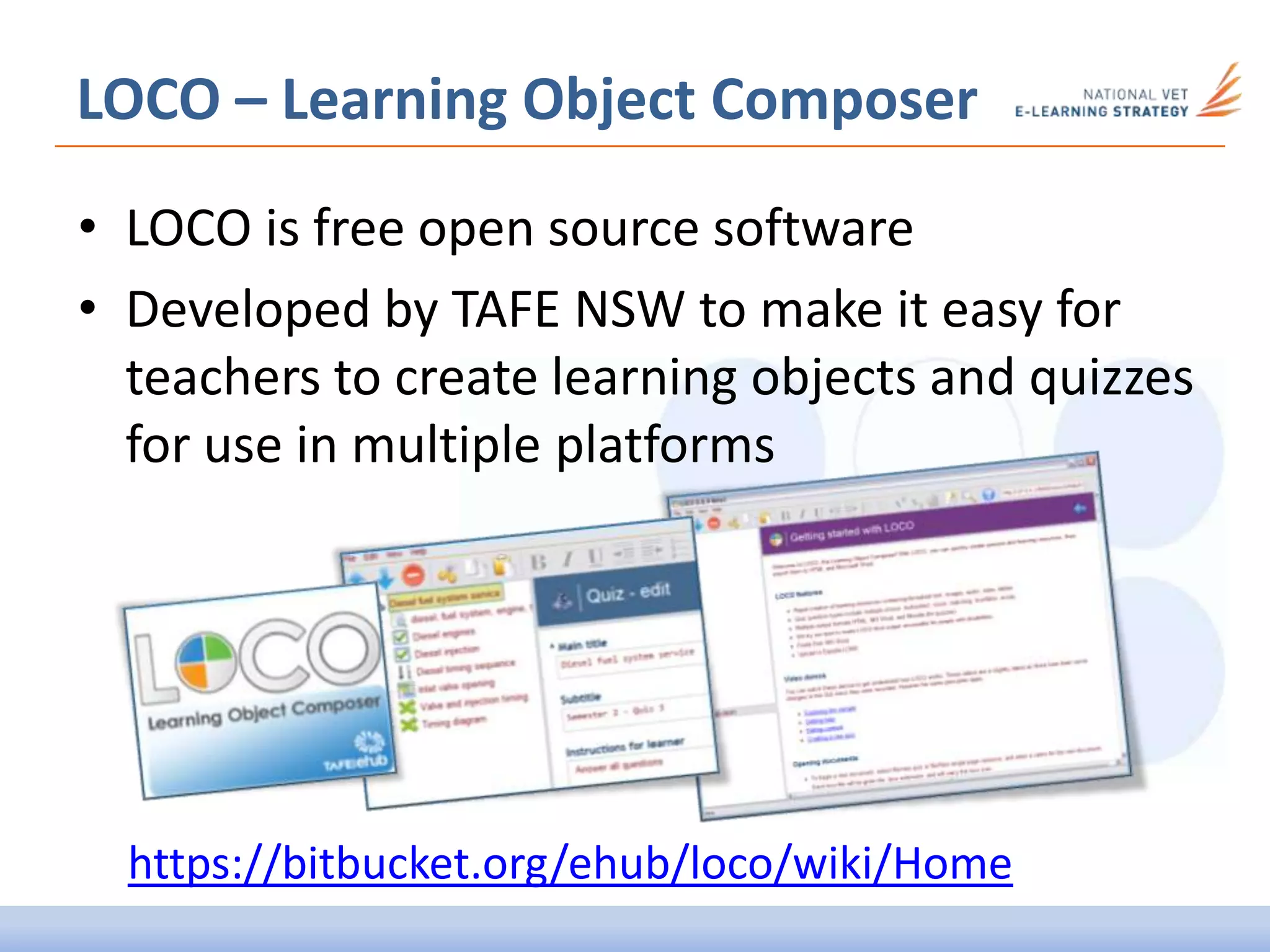
LOCO – Learning Object Composer
• LOCO is free open source software
• Developed by TAFE NSW to make it easy for
teachers to create learning objects and quizzes
for use in multiple platforms
https://bitbucket.org/ehub/loco/wiki/Home
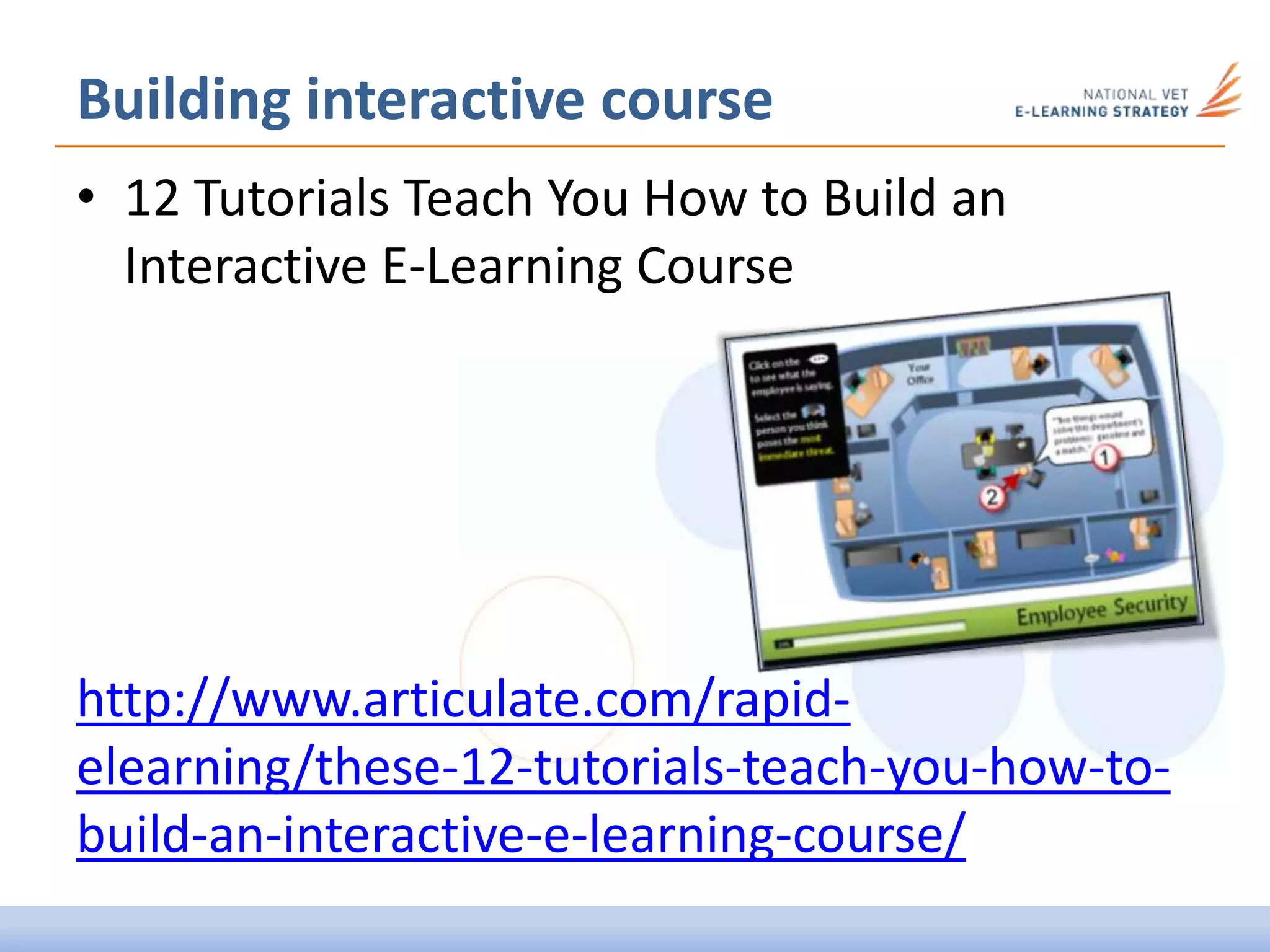
Building interactive course
• 12 Tutorials Teach You How to Build an
Interactive E-Learning Course
http://www.articulate.com/rapid-
elearning/these-12-tutorials-teach-you-how-to-
build-an-interactive-e-learning-course/
Simple things to do with PPT
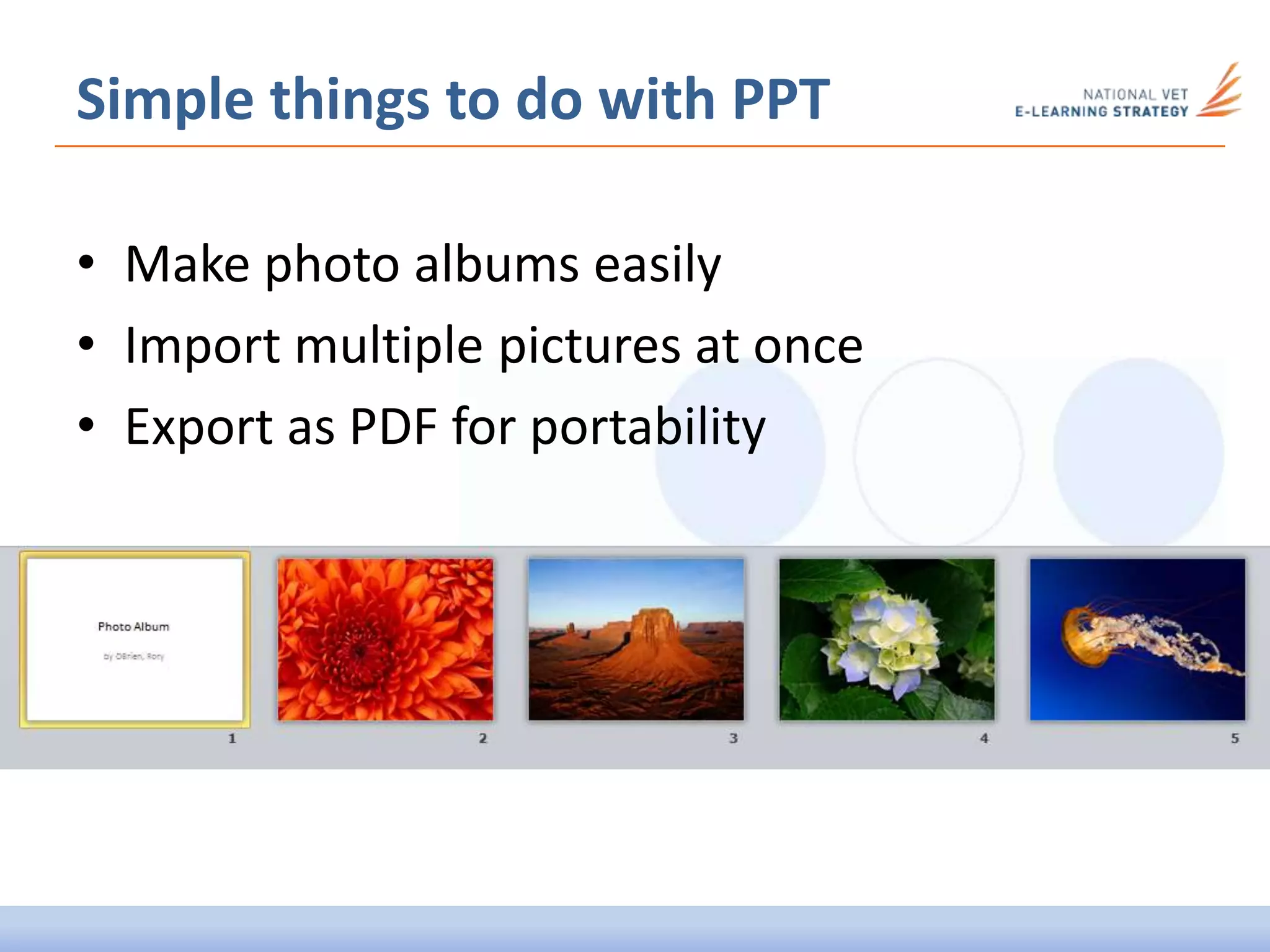
• Make photo albums easily
• Import multiple pictures at once
• Export as PDF for portability
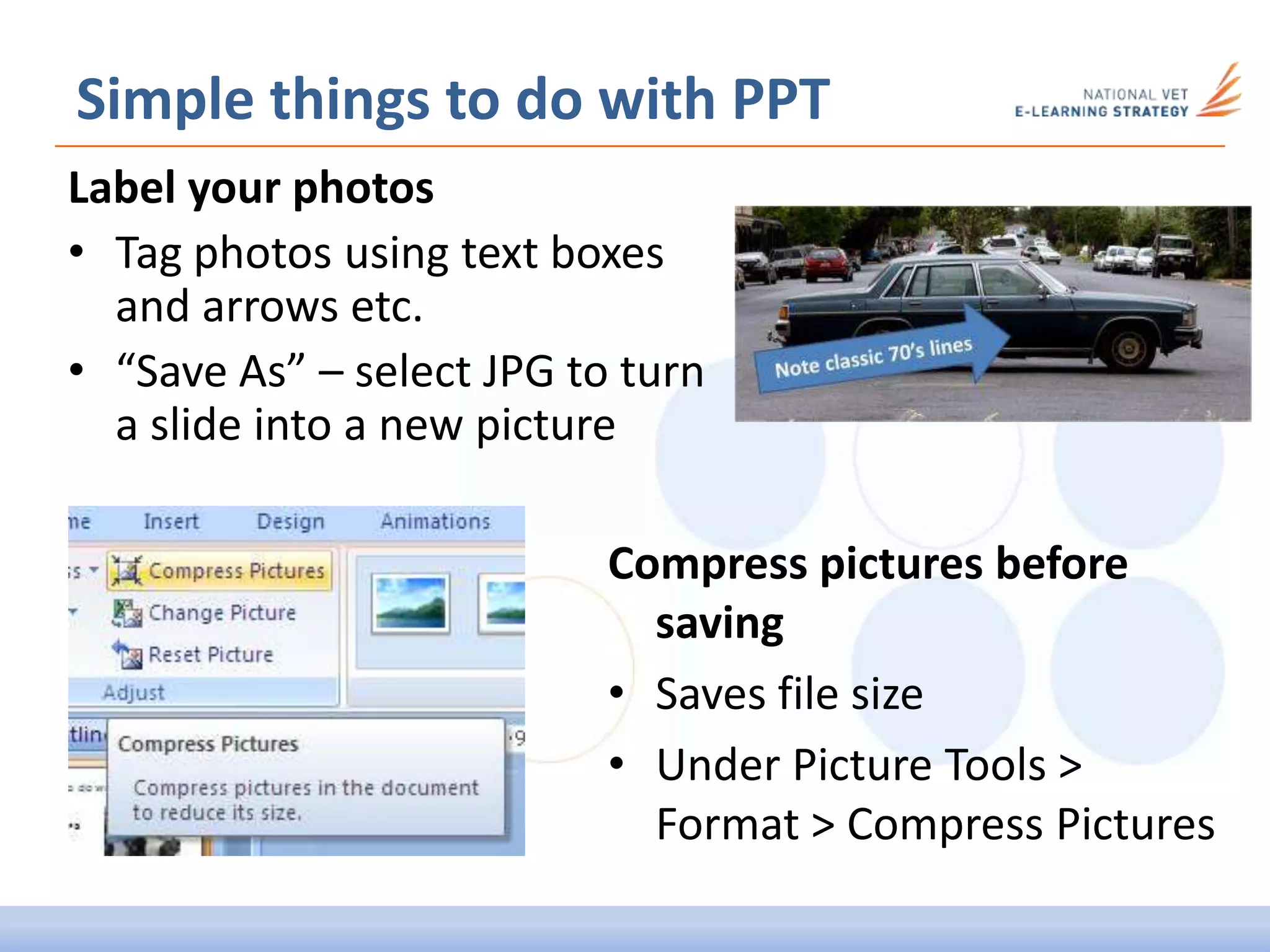
Label your photos
• Tag photos using text boxes
and arrows etc.
• “Save As” – select JPG to turn
a slide into a new picture
Simple things to do with PPT
Compress pictures before
saving
• Saves file size
• Under Picture Tools >
Format > Compress Pictures
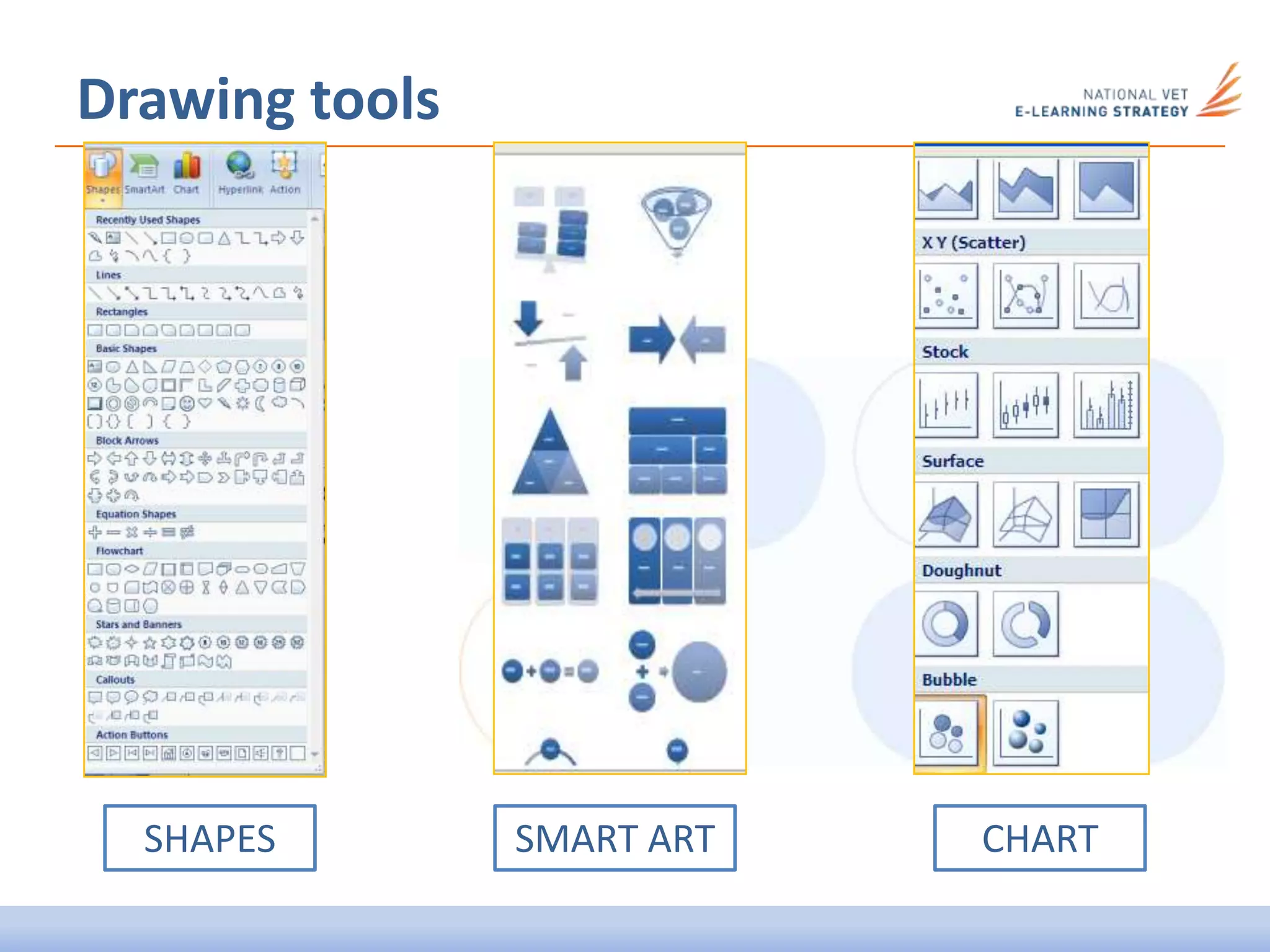
Drawing tools
SHAPES SMART ART CHART
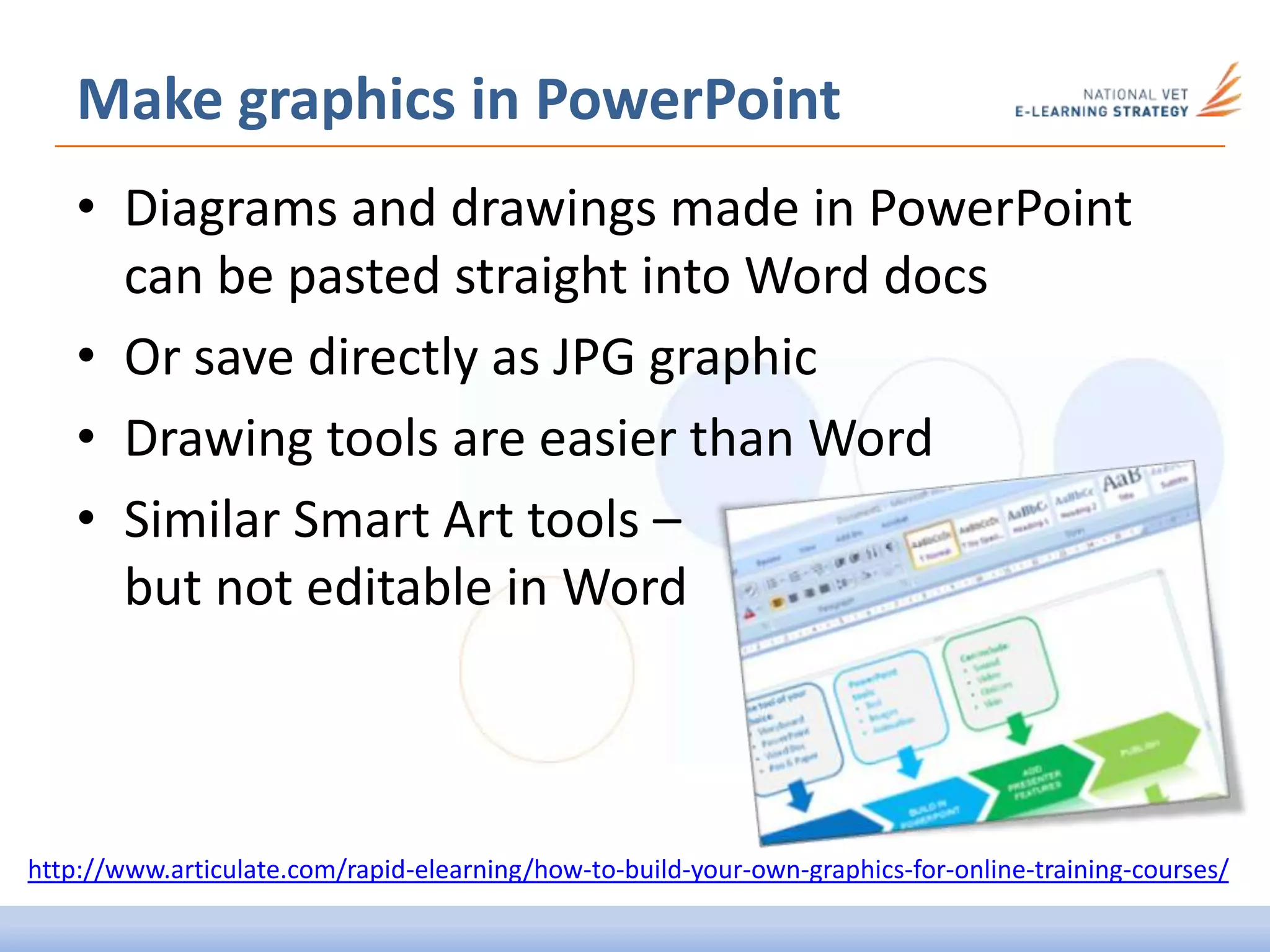
• Diagrams and drawings made in PowerPoint
can be pasted straight into Word docs
• Or save directly as JPG graphic
• Drawing tools are easier than Word
• Similar Smart Art tools –
but not editable in Word
Make graphics in PowerPoint
http://www.articulate.com/rapid-elearning/how-to-build-your-own-graphics-for-online-training-courses/
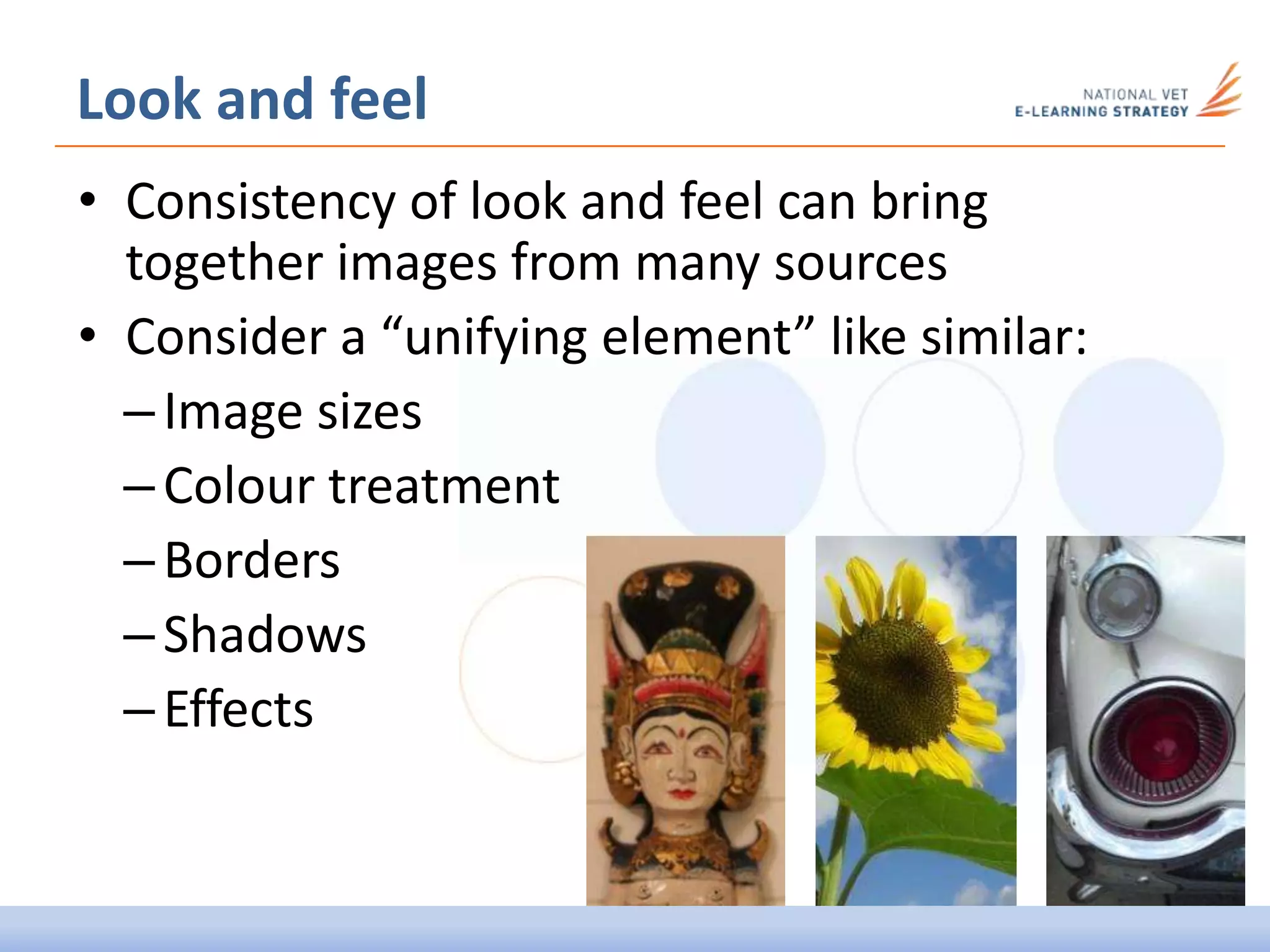
• Consistency of look and feel can bring
together images from many sources
• Consider a “unifying element” like similar:
–Image sizes
–Colour treatment
–Borders
–Shadows
–Effects
Look and feel
Getting more from PowerPoint
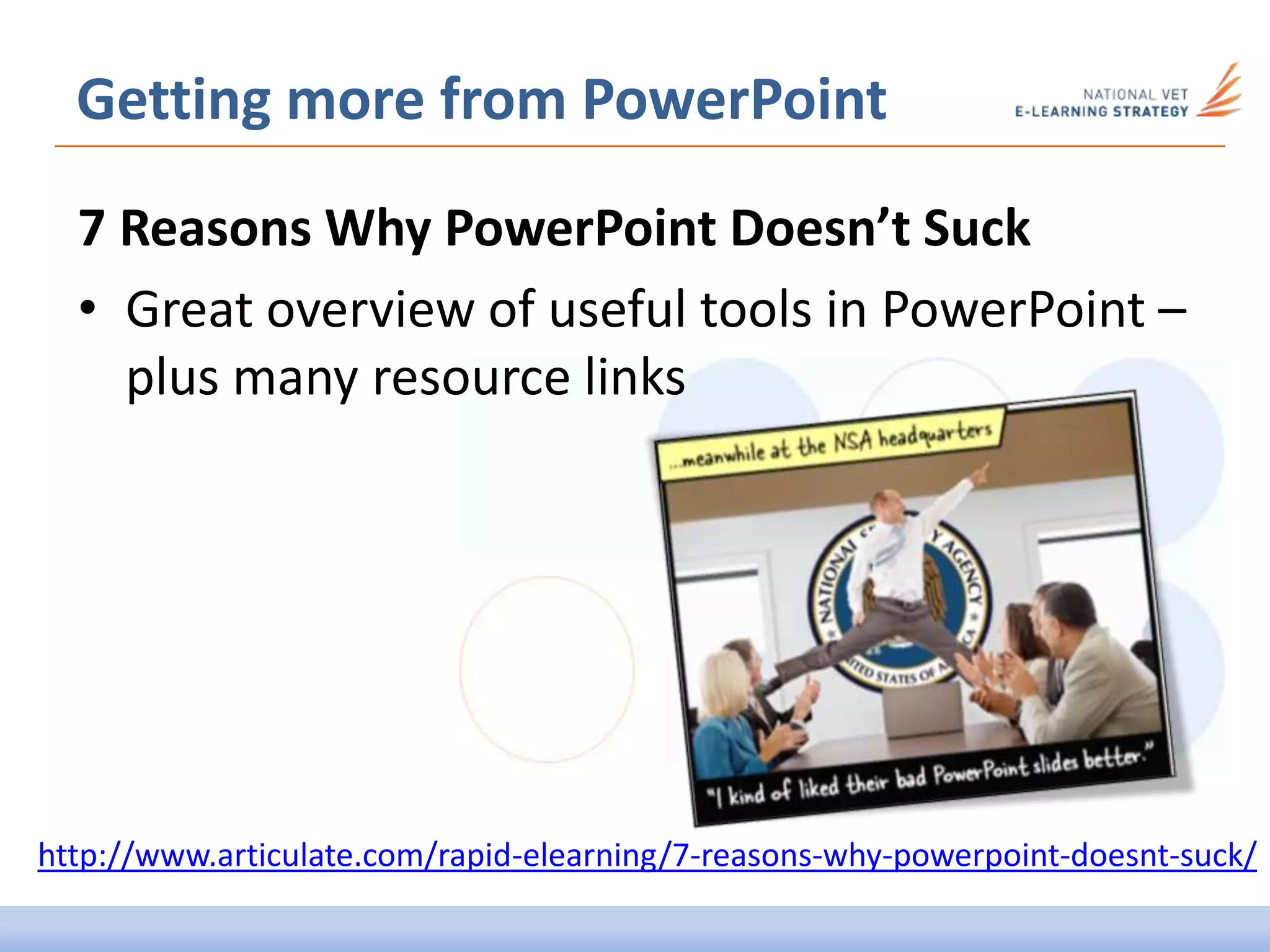
7 Reasons Why PowerPoint Doesn’t Suck
• Great overview of useful tools in PowerPoint –
plus many resource links
http://www.articulate.com/rapid-elearning/7-reasons-why-powerpoint-doesnt-suck/
Why You Need PowerPoint
2010 for Rapid E-Learning
• Overview of how the latest
version of PowerPoint has
added some really useful
tools for teachers making
elearning resources
PowerPoint for e-learning
http://www.articulate.com/rapid-elearning/why-you-need-
powerpoint-2010-for-rapid-e-learning/
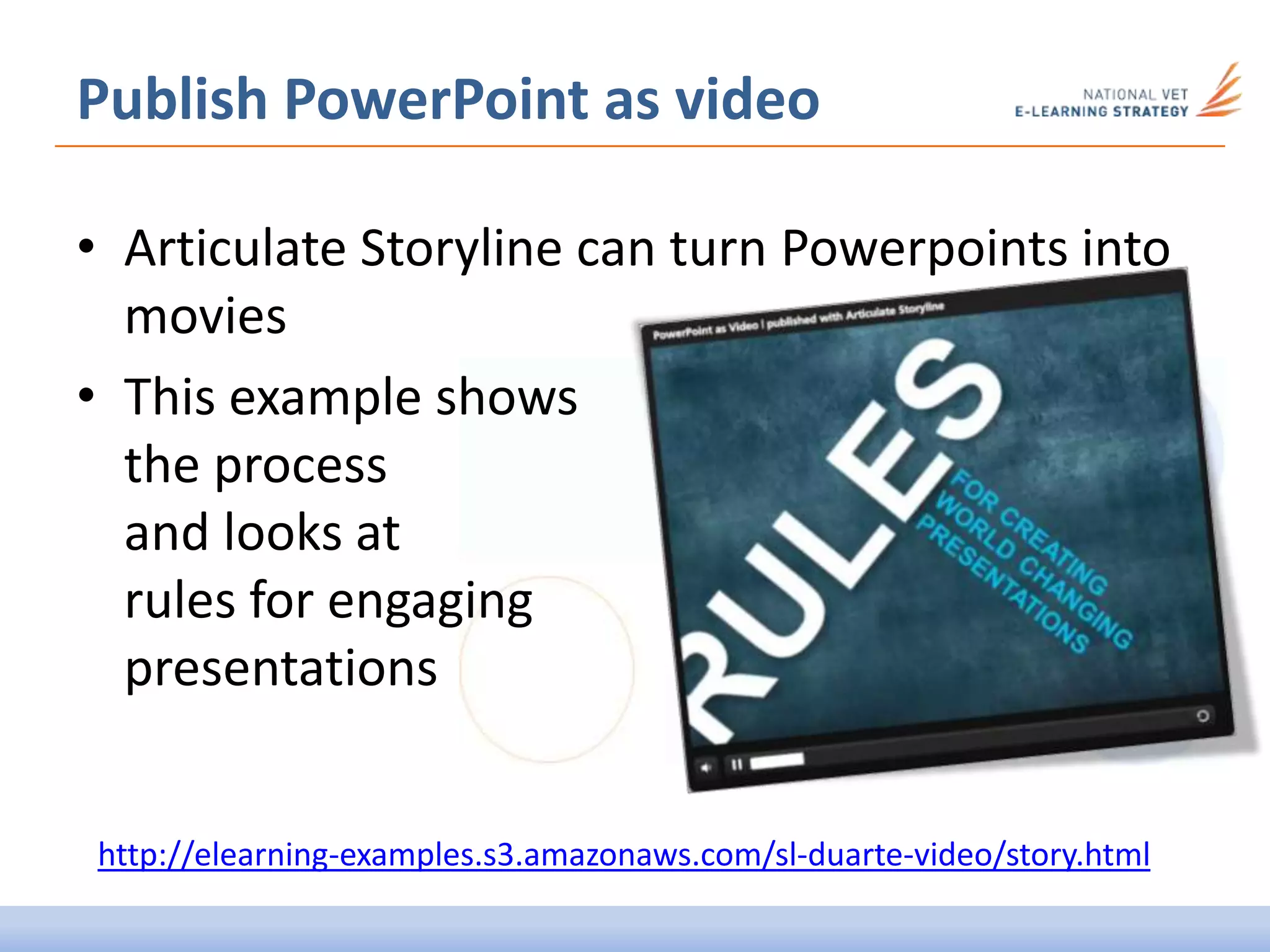
Publish PowerPoint as video
• Articulate Storyline can turn Powerpoints into
movies
• This example shows
the process
and looks at
rules for engaging
presentations
http://elearning-examples.s3.amazonaws.com/sl-duarte-video/story.html
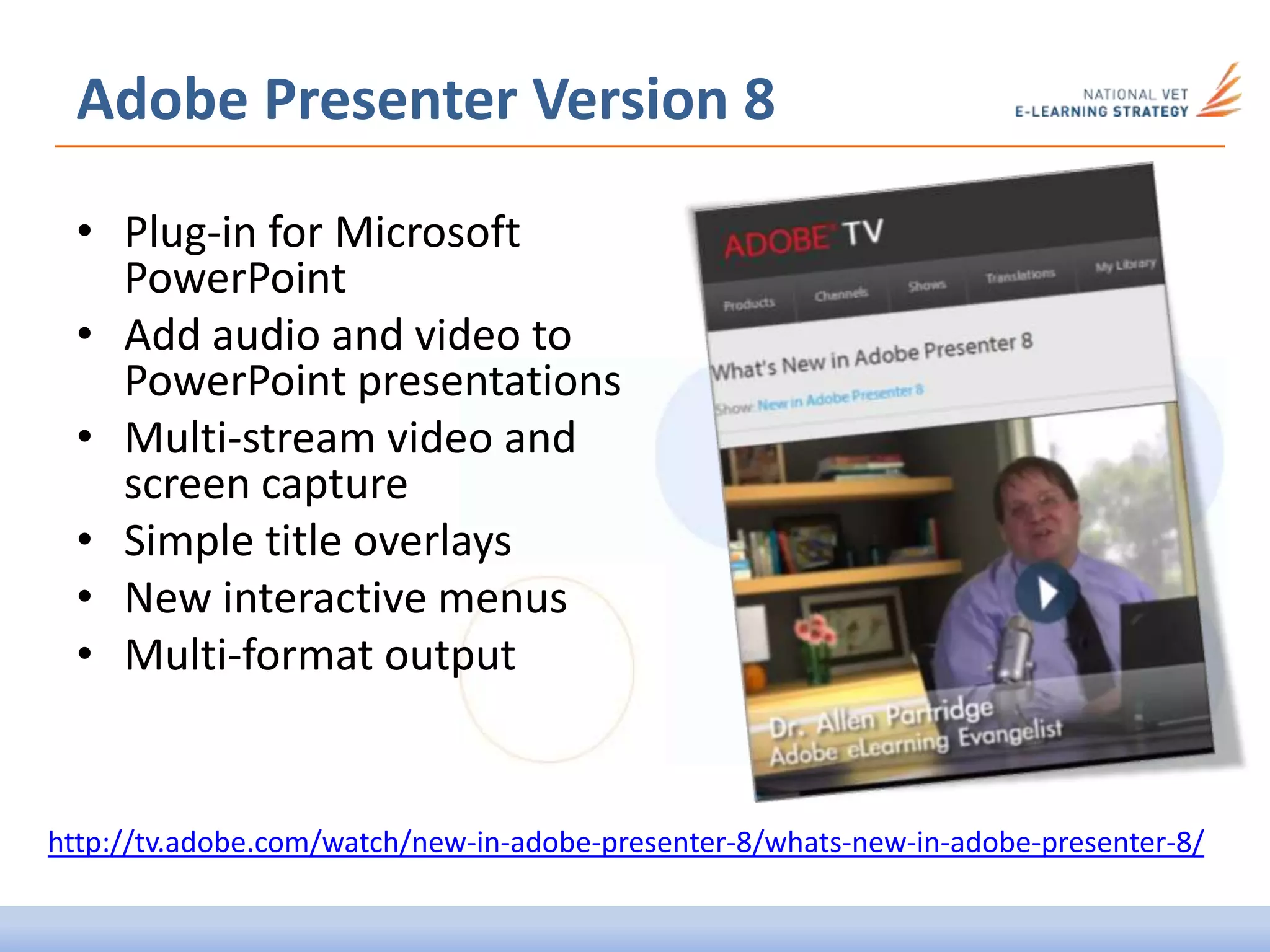
Adobe Presenter Version 8
• Plug-in for Microsoft
PowerPoint
• Add audio and video to
PowerPoint presentations
• Multi-stream video and
screen capture
• Simple title overlays
• New interactive menus
• Multi-format output
http://tv.adobe.com/watch/new-in-adobe-presenter-8/whats-new-in-adobe-presenter-8/
Adobe Captivate VS Presenter?
Both Adobe Captivate and Presenter
• Can be used to create quizzes
• Publish to PDF and web formats
• Can integrate with SCORM LMS (Moodle/Sakai/Blackboard)
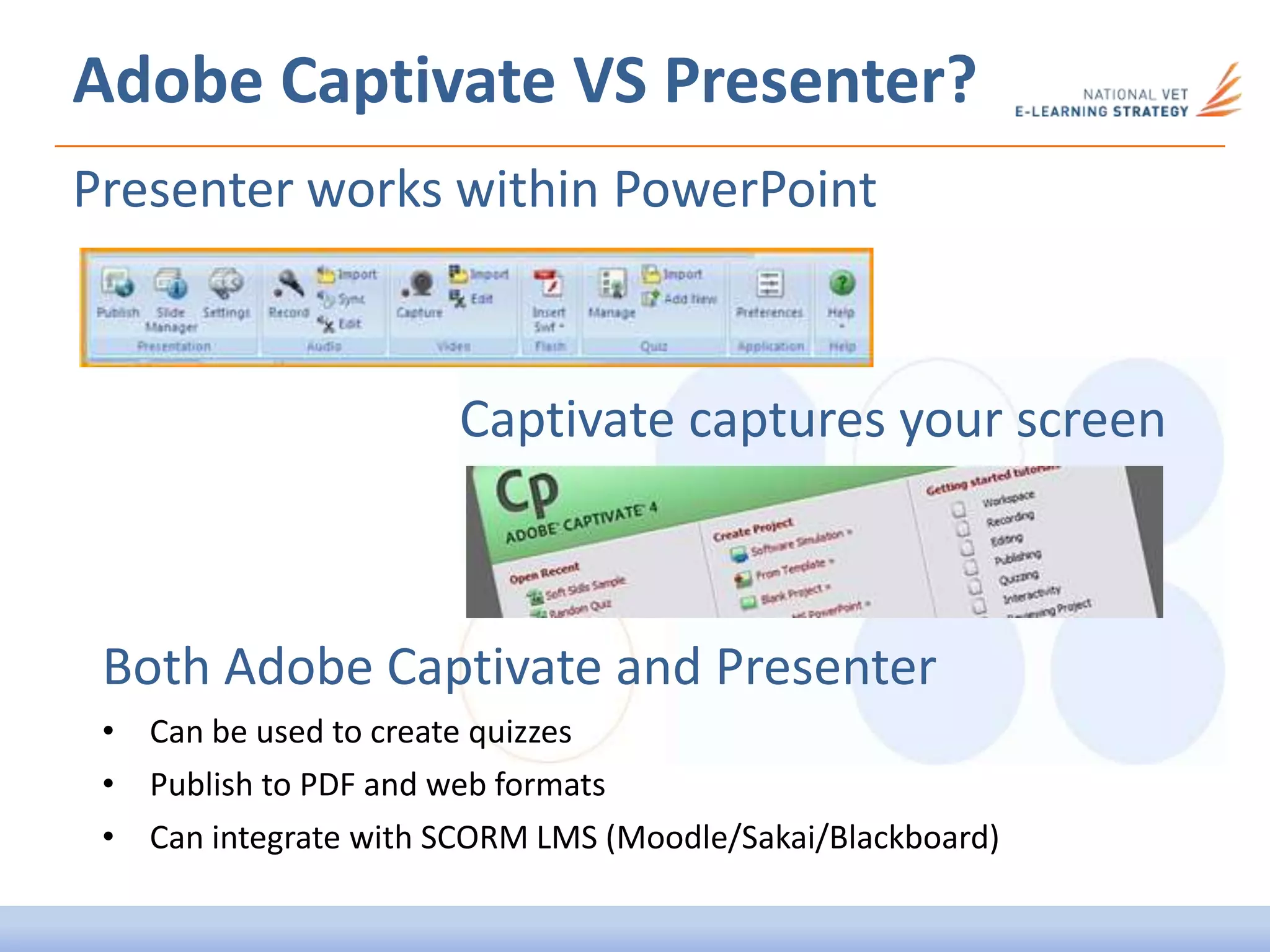
Presenter works within PowerPoint
Captivate captures your screen
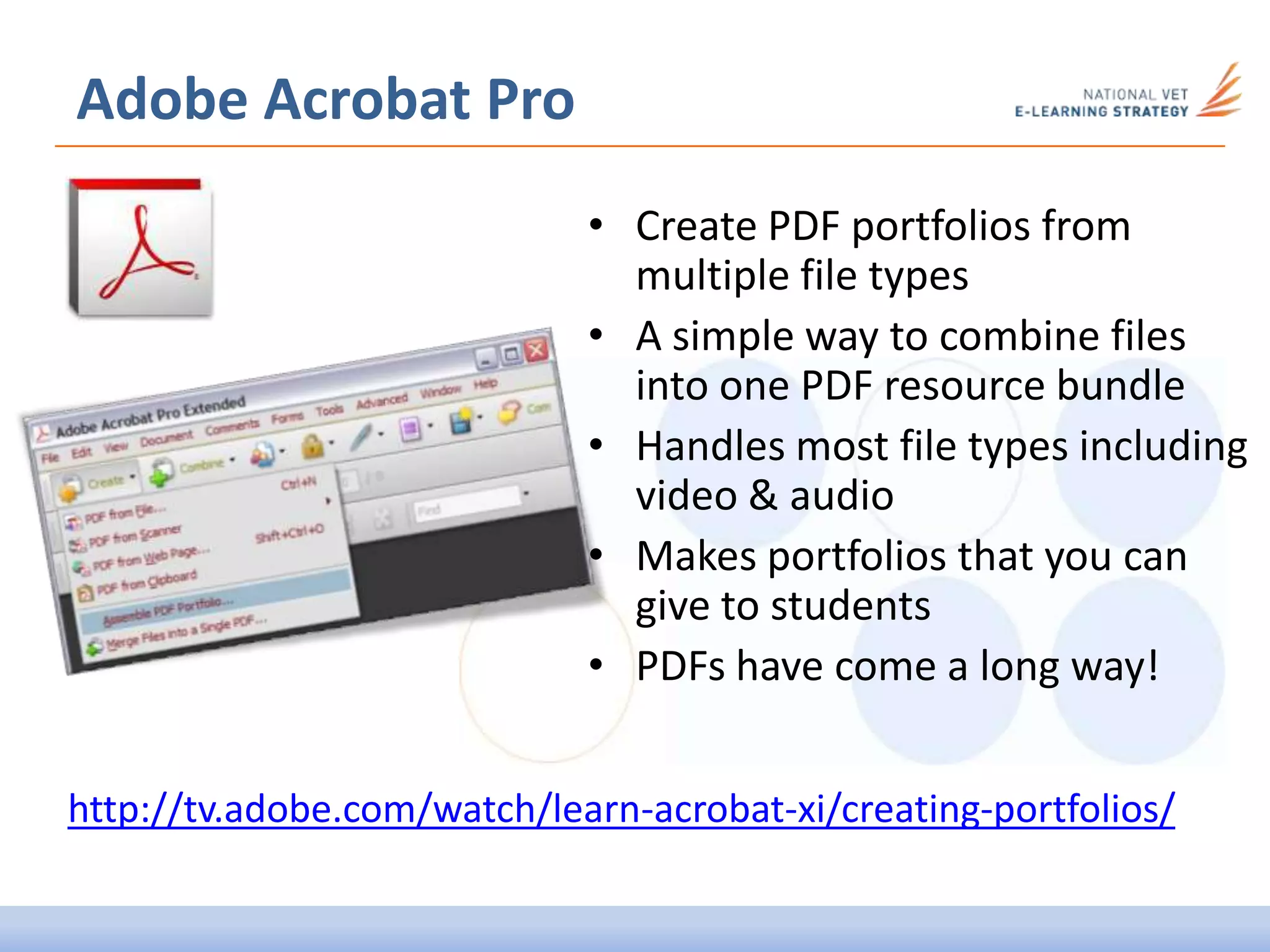
• Create PDF portfolios from
multiple file types
• A simple way to combine files
into one PDF resource bundle
• Handles most file types including
video & audio
• Makes portfolios that you can
give to students
• PDFs have come a long way!
Adobe Acrobat Pro
http://tv.adobe.com/watch/learn-acrobat-xi/creating-portfolios/
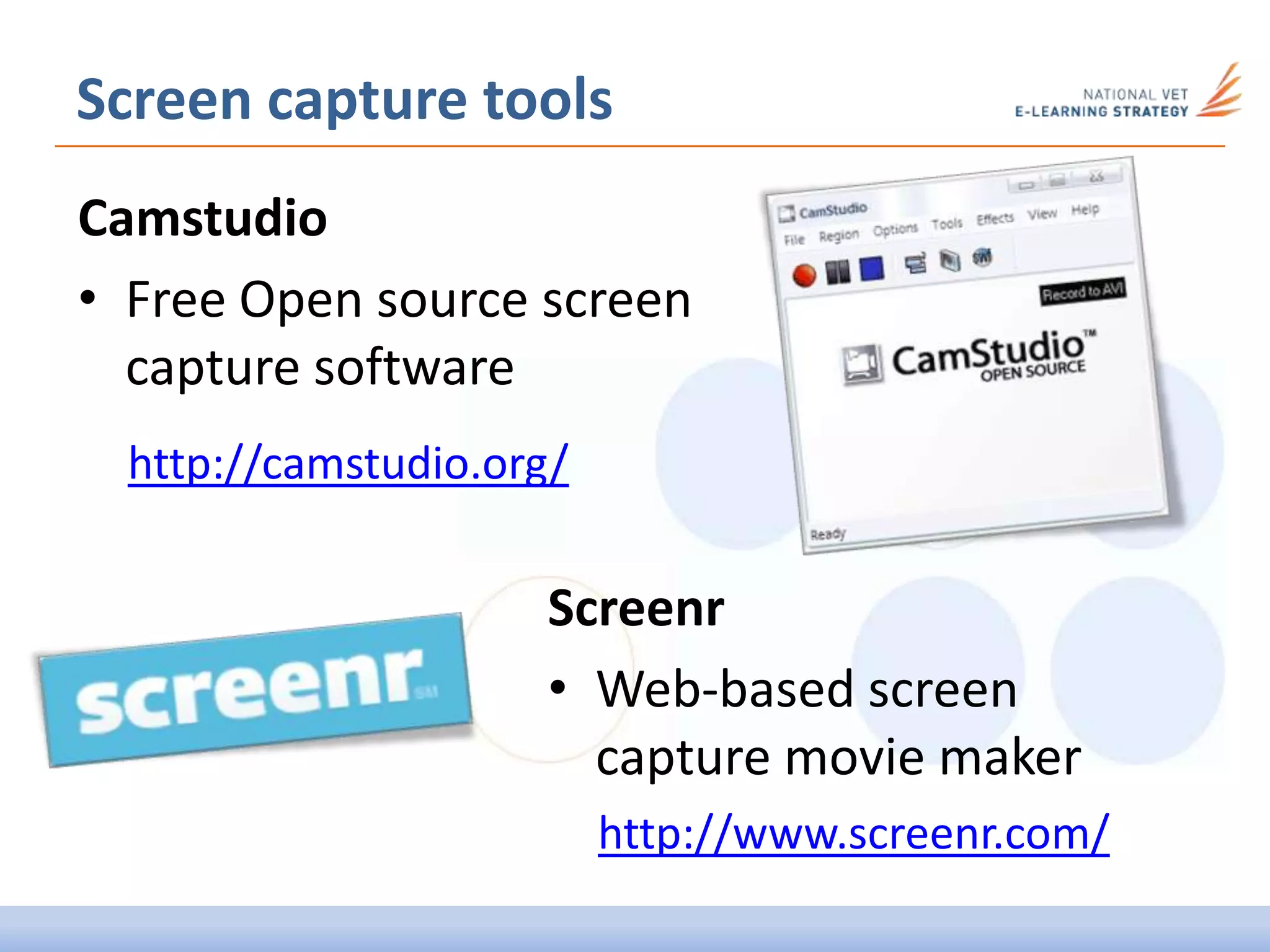
Screen capture tools
Camstudio
• Free Open source screen
capture software
Screenr
• Web-based screen
capture movie maker
http://www.screenr.com/
http://camstudio.org/
Screen capture tools
Adobe Captivate
• Create complex presentations
based on screen capture movies
• Can create quizzes that work with
Moodle (via SCORM)
http://www.adobe.com/au/products/captivate.html
Camtasia Studio
• Industry leading commercial software
• Record on-screen activity, add imported
media, create interactive content, and
share videos
http://www.techsmith.com/camtasia.html
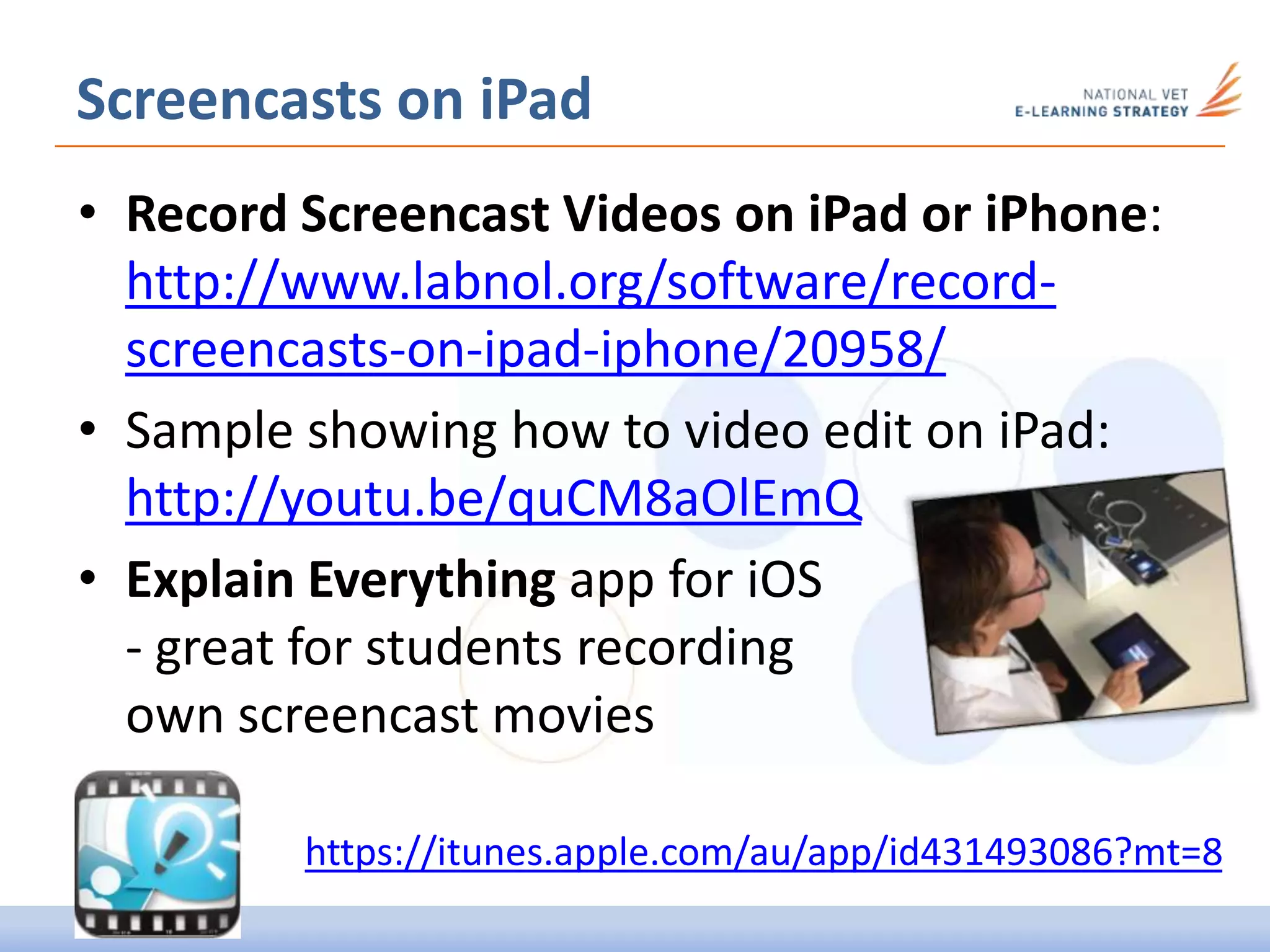
Screencasts on iPad
• Record Screencast Videos on iPad or iPhone:
http://www.labnol.org/software/record-
screencasts-on-ipad-iphone/20958/
• Sample showing how to video edit on iPad:
http://youtu.be/quCM8aOlEmQ
• Explain Everything app for iOS
- great for students recording
own screencast movies
https://itunes.apple.com/au/app/id431493086?mt=8
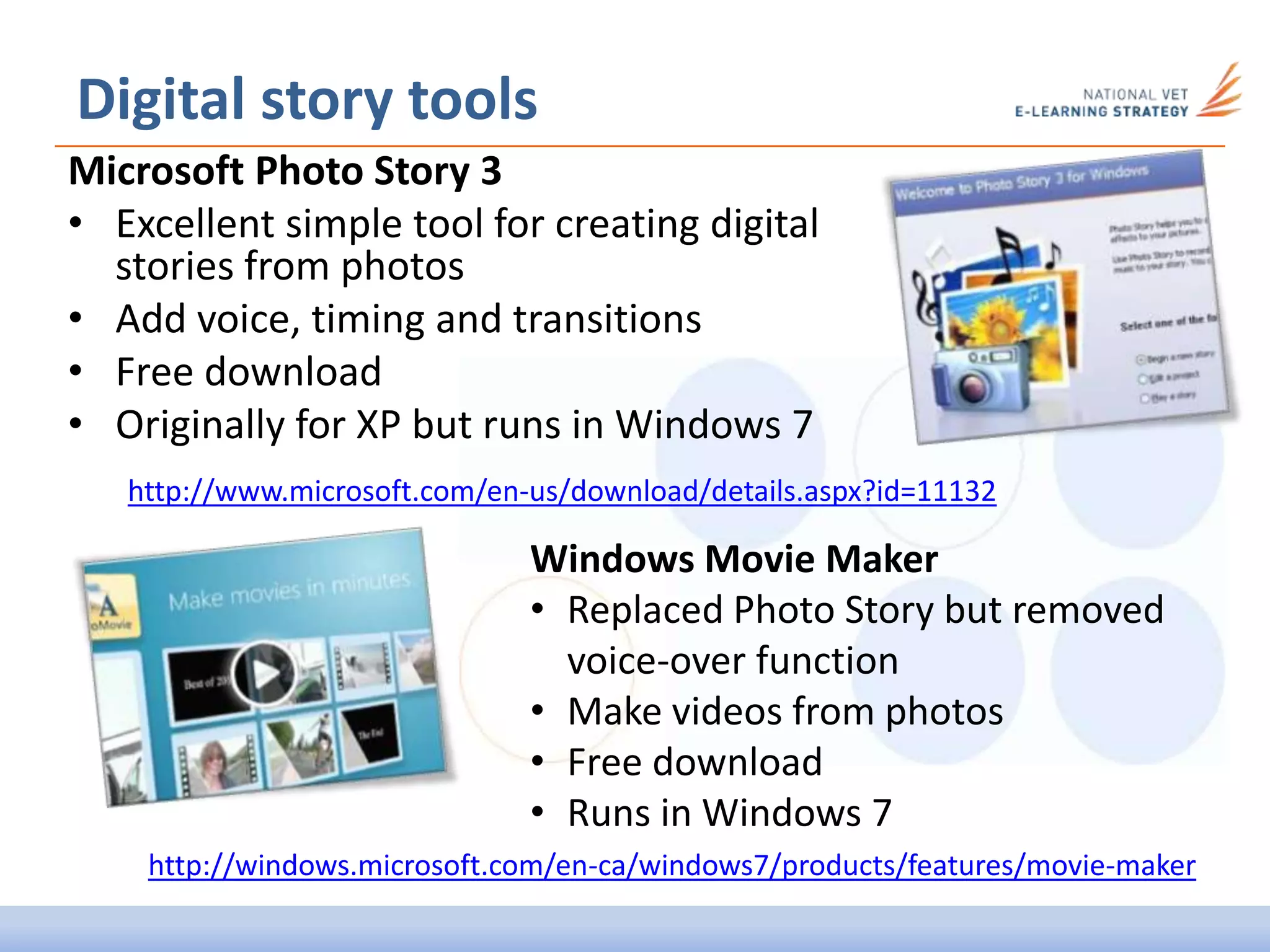
Digital story tools
Microsoft Photo Story 3
• Excellent simple tool for creating digital
stories from photos
• Add voice, timing and transitions
• Free download
• Originally for XP but runs in Windows 7
Windows Movie Maker
• Replaced Photo Story but removed
voice-over function
• Make videos from photos
• Free download
• Runs in Windows 7
http://www.microsoft.com/en-us/download/details.aspx?id=11132
http://windows.microsoft.com/en-ca/windows7/products/features/movie-maker
Image tools
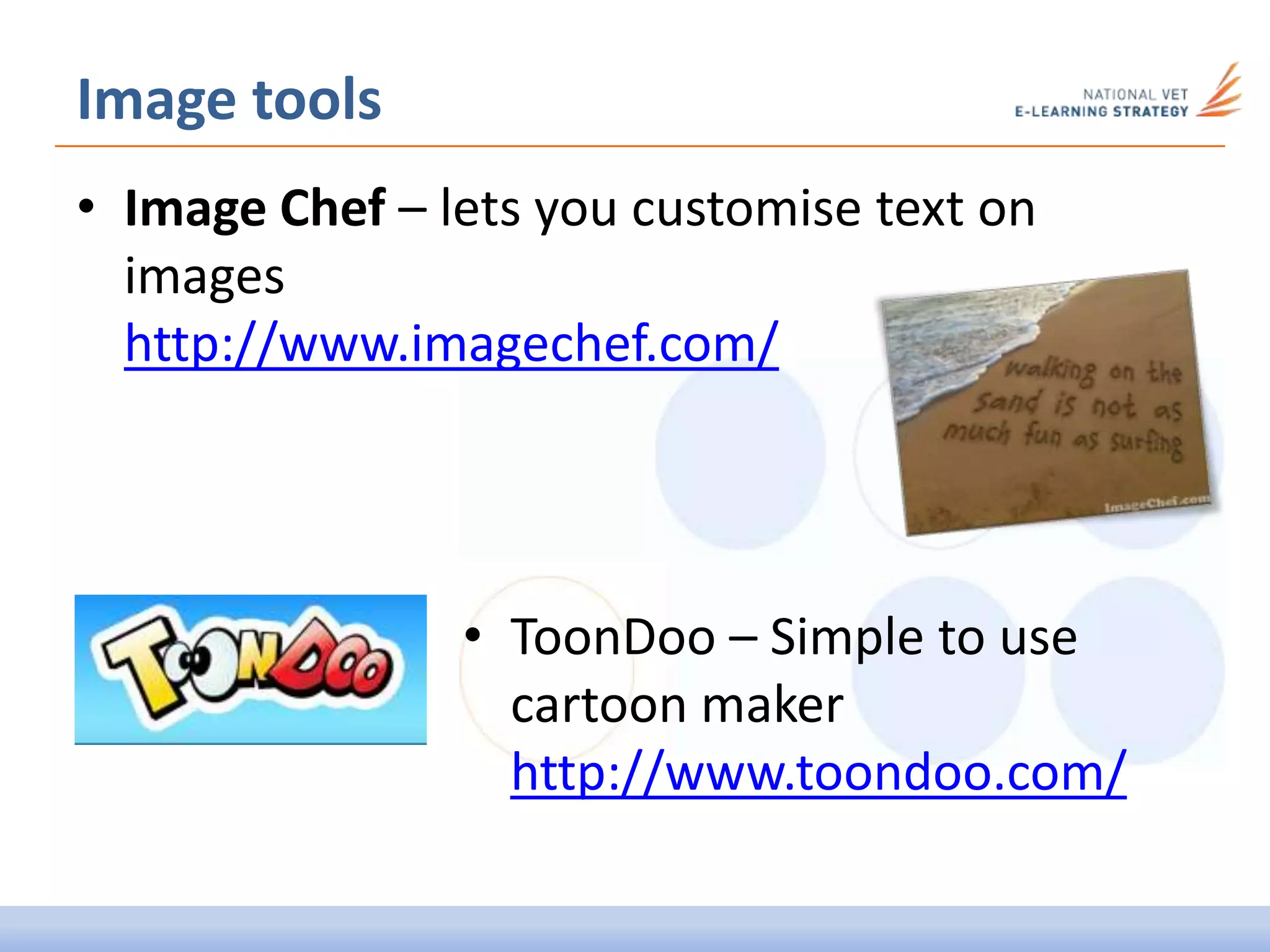
• Image Chef – lets you customise text on
images
http://www.imagechef.com/
• ToonDoo – Simple to use
cartoon maker
http://www.toondoo.com/
Screen snipping tools
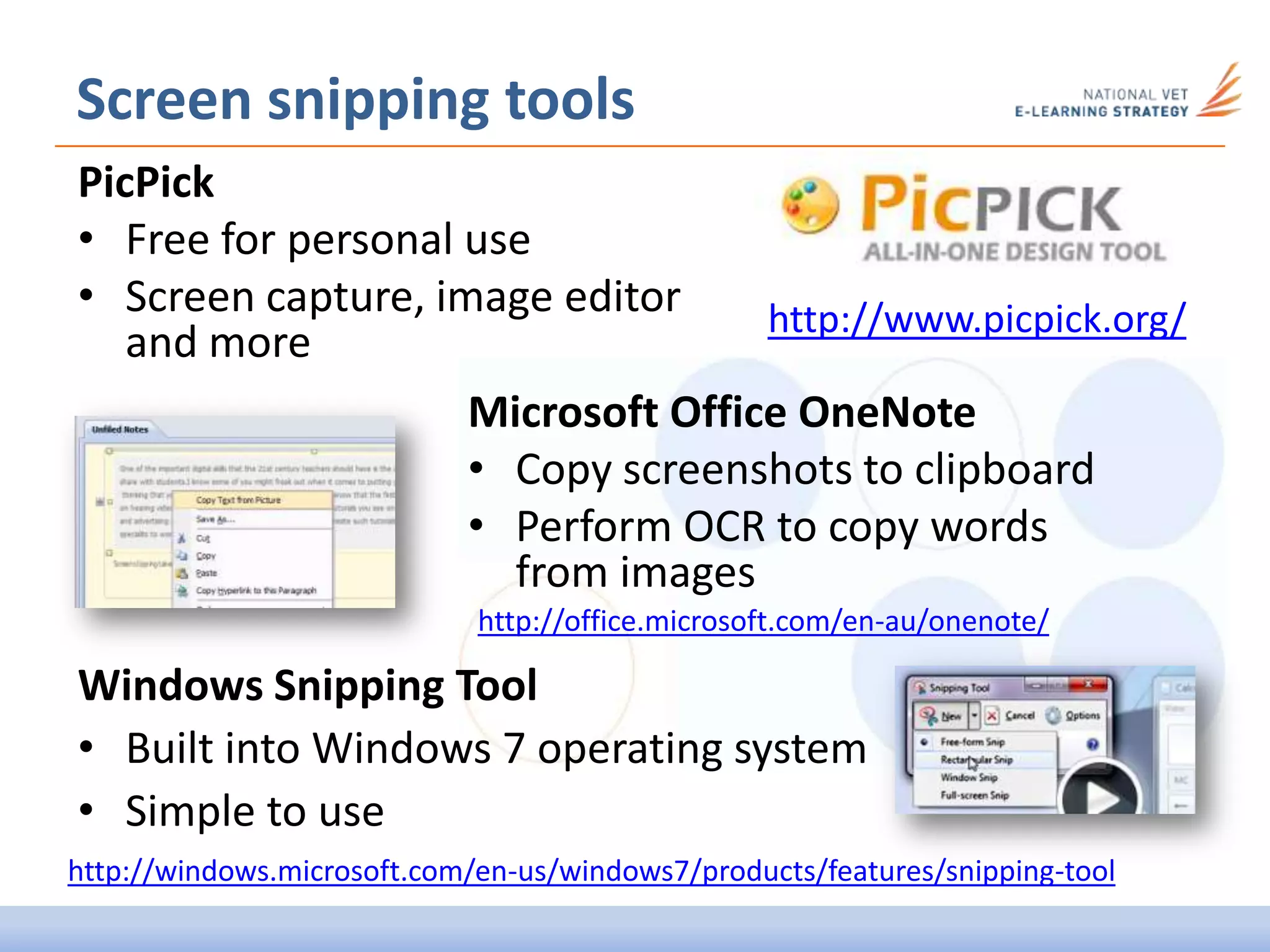
PicPick
• Free for personal use
• Screen capture, image editor
and more
http://www.picpick.org/
Microsoft Office OneNote
• Copy screenshots to clipboard
• Perform OCR to copy words
from images
Windows Snipping Tool
• Built into Windows 7 operating system
• Simple to use
http://windows.microsoft.com/en-us/windows7/products/features/snipping-tool
http://office.microsoft.com/en-au/onenote/
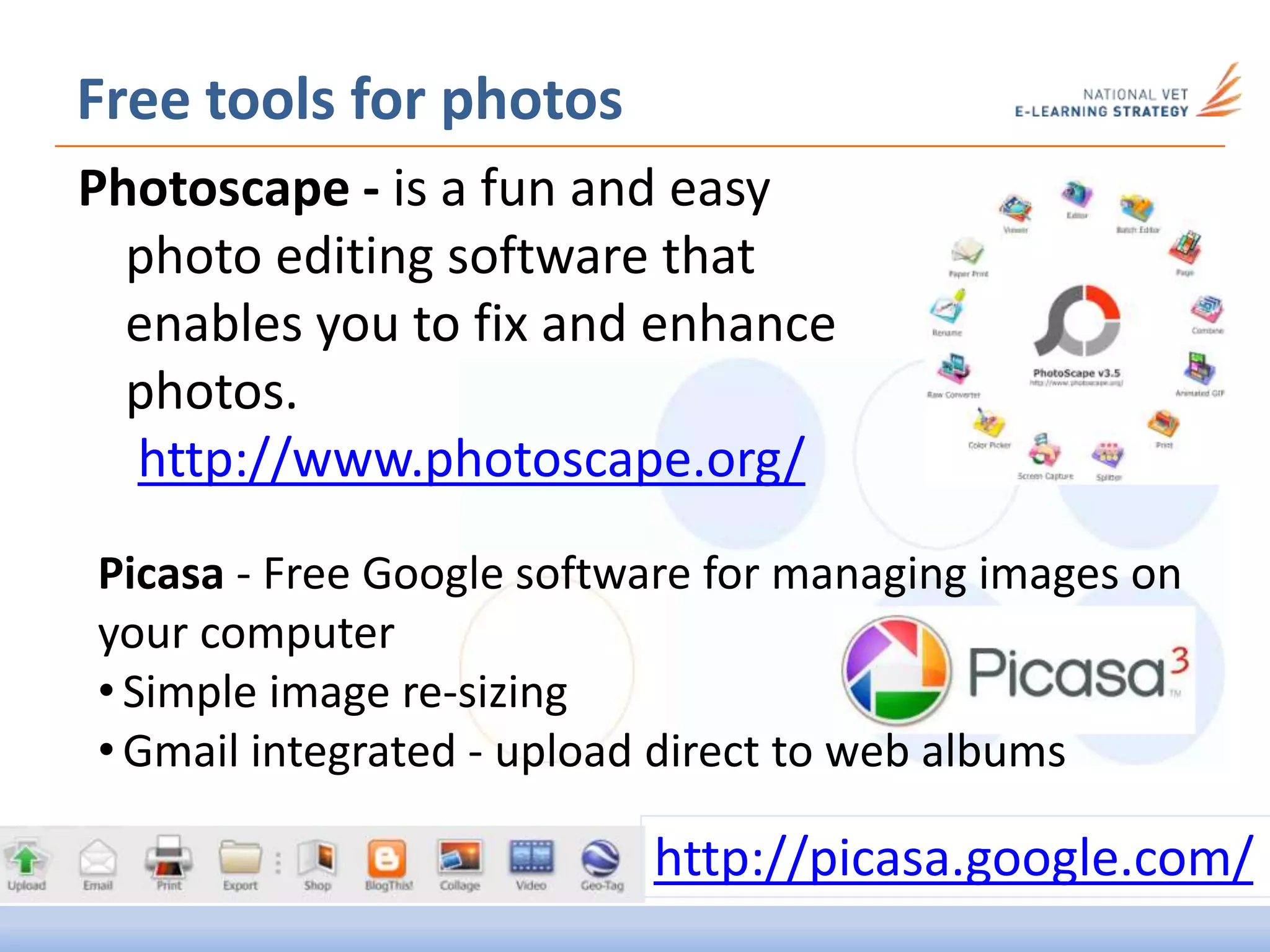
Photoscape - is a fun and easy
photo editing software that
enables you to fix and enhance
photos.
http://www.photoscape.org/
Free tools for photos
Picasa - Free Google software for managing images on
your computer
• Simple image re-sizing
• Gmail integrated - upload direct to web albums
http://picasa.google.com/
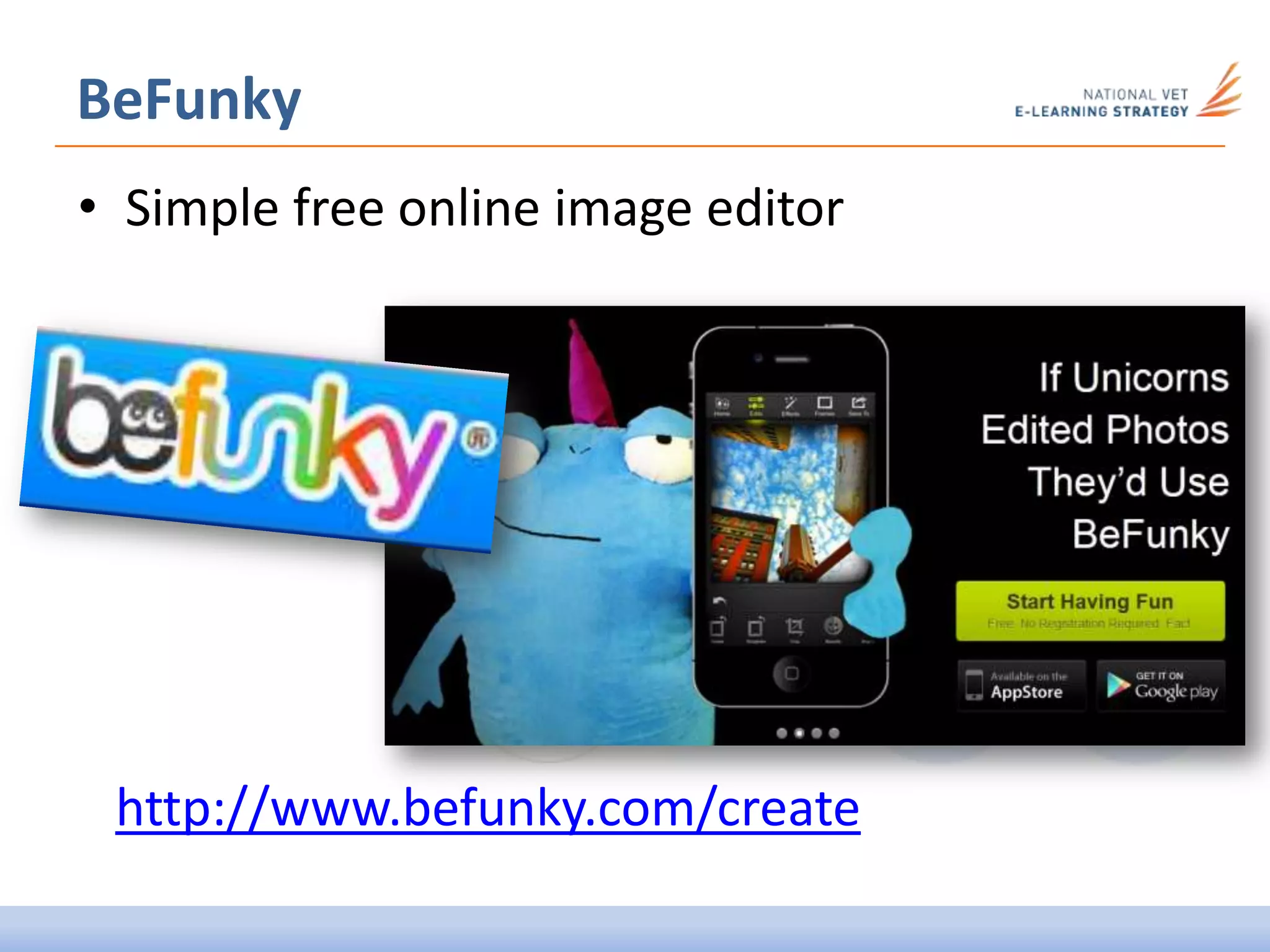
• Simple free online image editor
BeFunky
http://www.befunky.com/create
Alternative to LMS
Edmodo:
• Between and LMS and Facebook
• Great for group discussions
• Teachers can post files
• Students can upload along with their
posts
• Teachers can grade work
• Much simpler than Moodle
• Group-only access controlled by teacher
http://www.edmodo.com/
Audio editing
Audacity
• Free, open source,
cross-platform software for
recording and editing sounds.
• Audacity is available for
Windows, Mac, GNU/Linux and
other operating systems.
http://audacity.sourceforge.net/
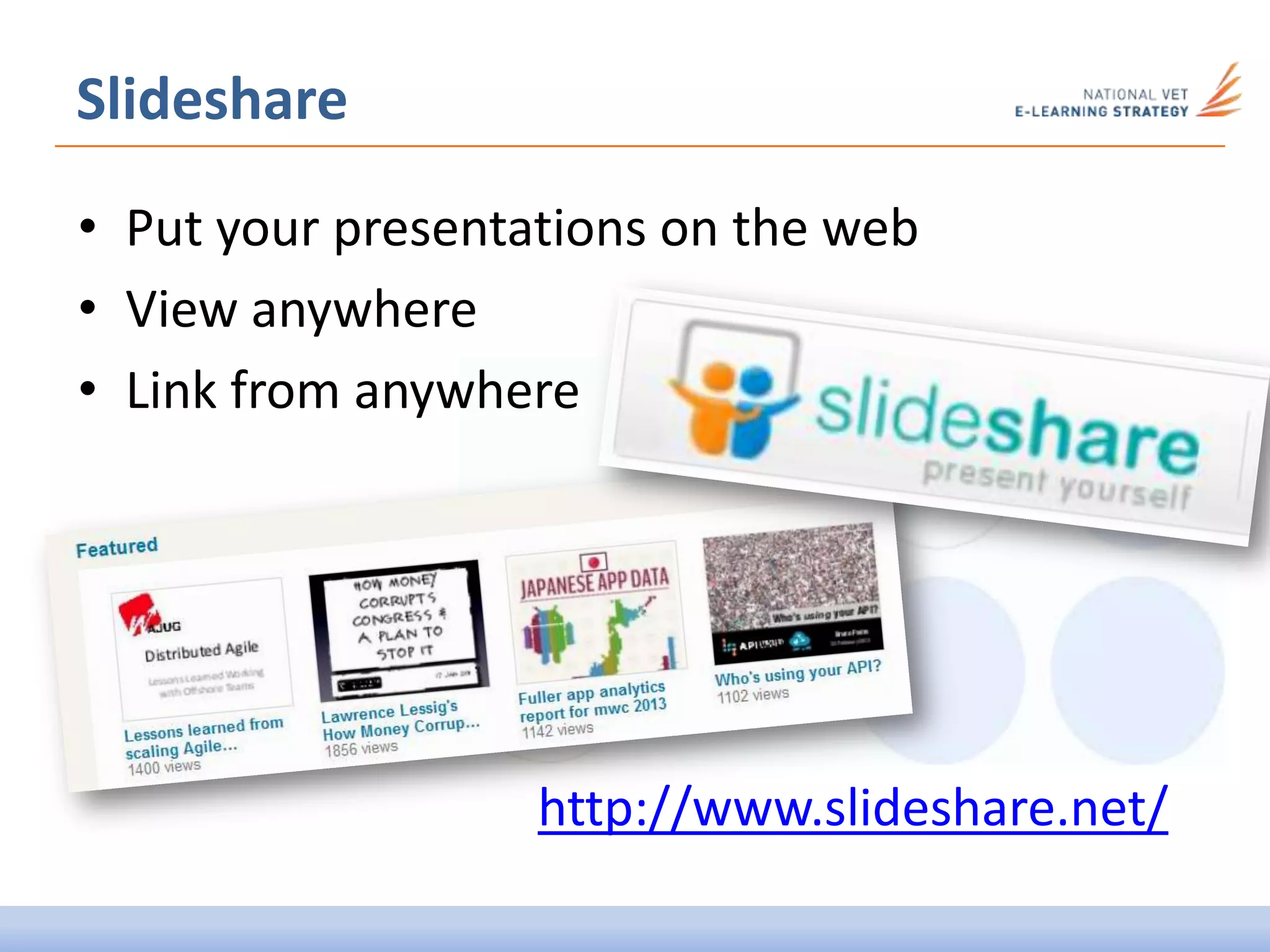
• Put your presentations on the web
• View anywhere
• Link from anywhere
Slideshare
http://www.slideshare.net/
• Online animated
presentation software
• Good looking alternative
to PPTX
• Relies on good net
connection
Prezi
http://prezi.com/
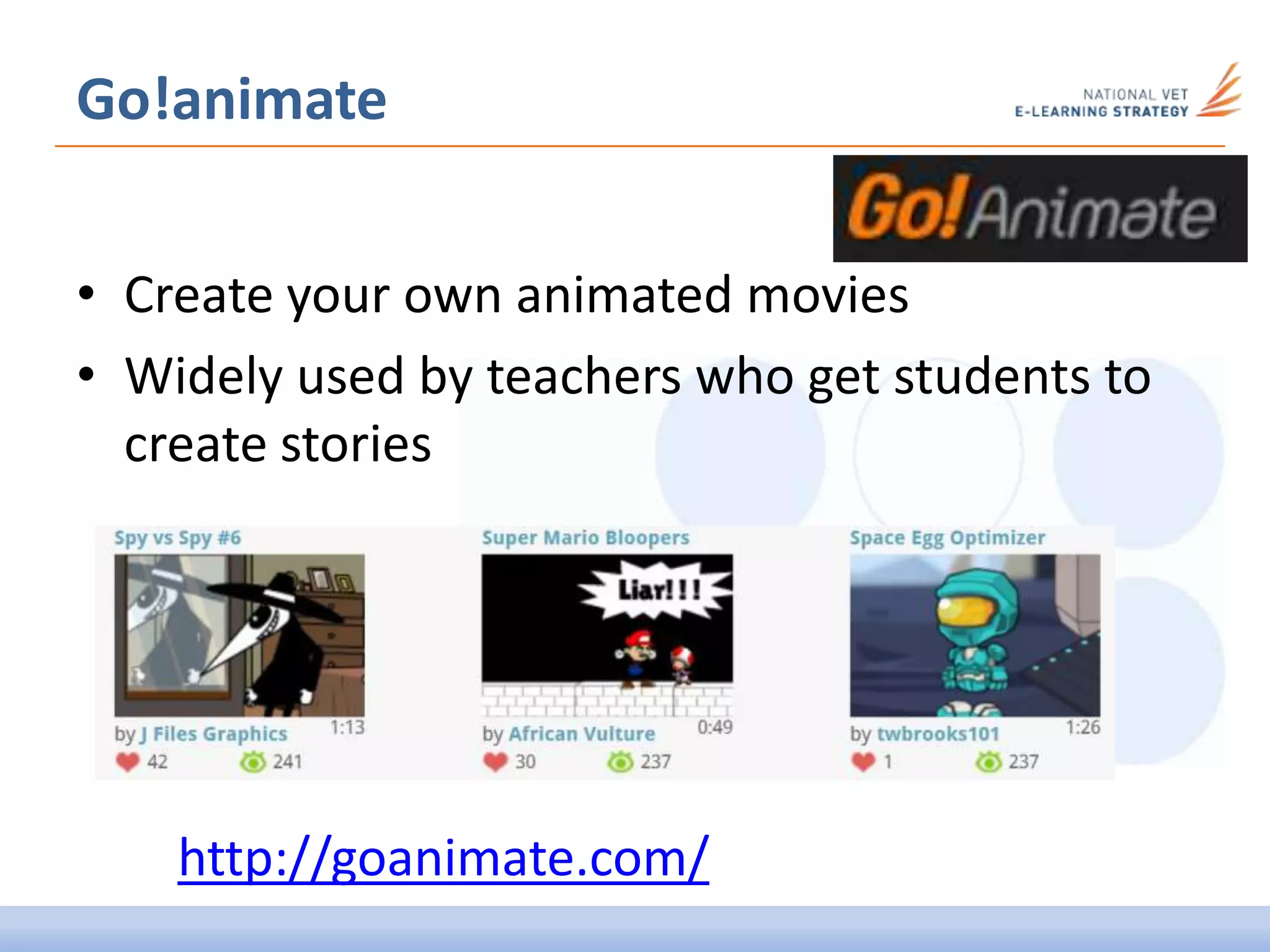
Go!animate
• Create your own animated movies
• Widely used by teachers who get students to
create stories
http://goanimate.com/
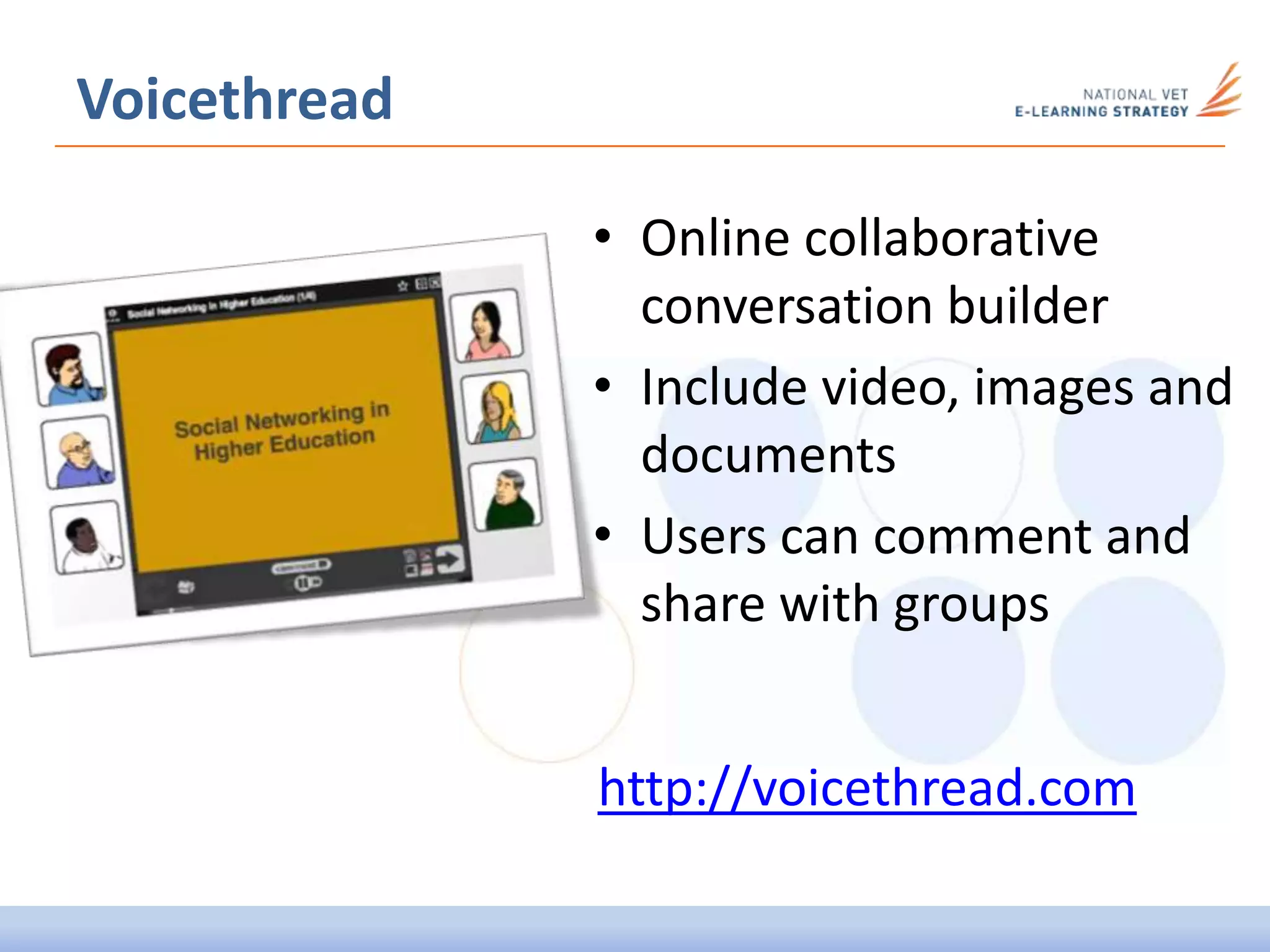
• Online collaborative
conversation builder
• Include video, images and
documents
• Users can comment and
share with groups
Voicethread
http://voicethread.com
APP SUGGESTIONS
Online workflow apps:
• Box: www.box.com
• e-Backpack: www.ebackpack.com
• Evernote: evernote.com
• DropBox: www.dropbox.com/ipad/
• iCloud: www.icloud.com
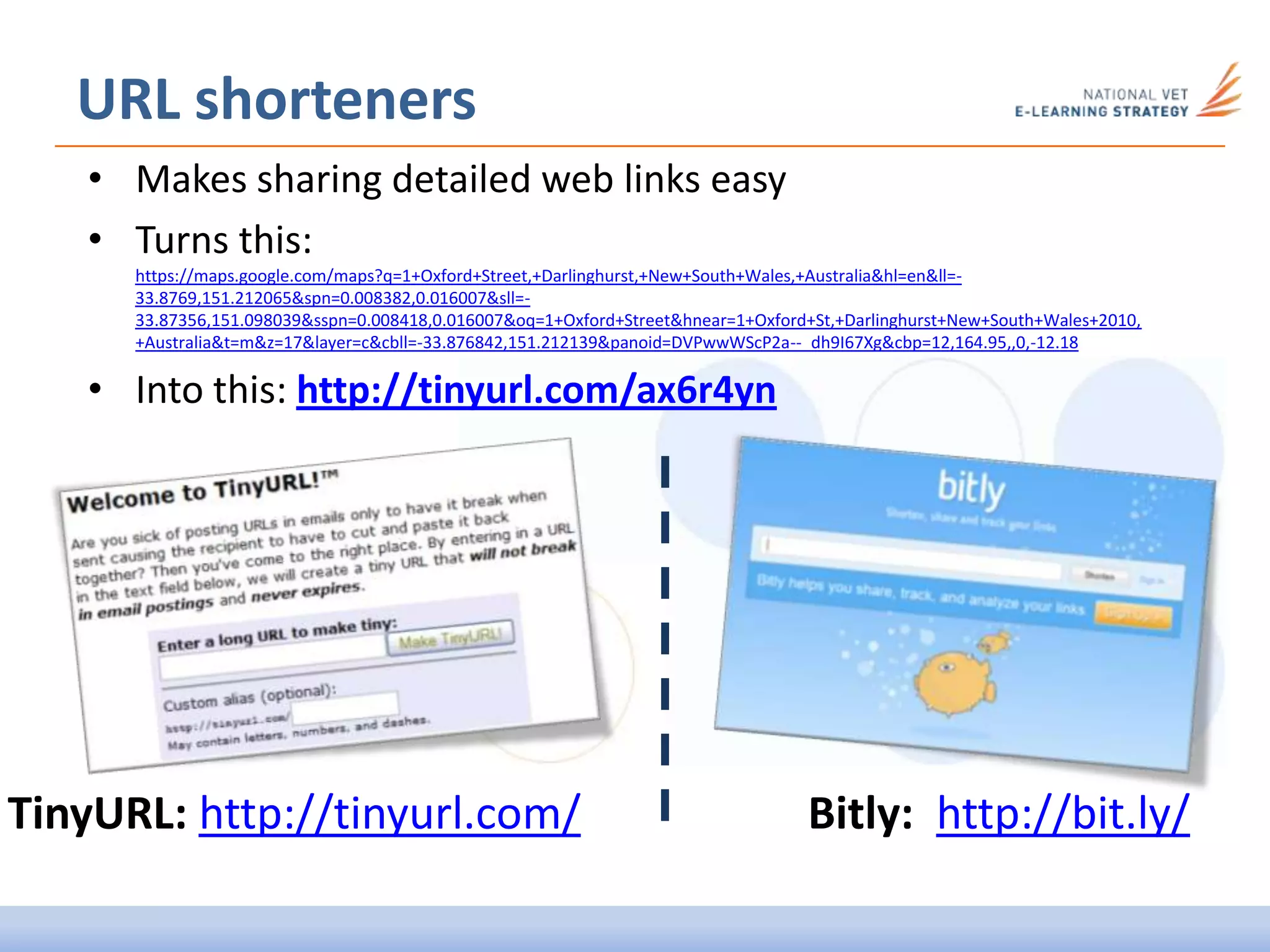
• Makes sharing detailed web links easy
• Turns this:
https://maps.google.com/maps?q=1+Oxford+Street,+Darlinghurst,+New+South+Wales,+Australia&hl=en&ll=-
33.8769,151.212065&spn=0.008382,0.016007&sll=-
33.87356,151.098039&sspn=0.008418,0.016007&oq=1+Oxford+Street&hnear=1+Oxford+St,+Darlinghurst+New+South+Wales+2010,
+Australia&t=m&z=17&layer=c&cbll=-33.876842,151.212139&panoid=DVPwwWScP2a--_dh9I67Xg&cbp=12,164.95,,0,-12.18
• Into this: http://tinyurl.com/ax6r4yn
URL shorteners
Bitly: http://bit.ly/TinyURL: http://tinyurl.com/
Current projects
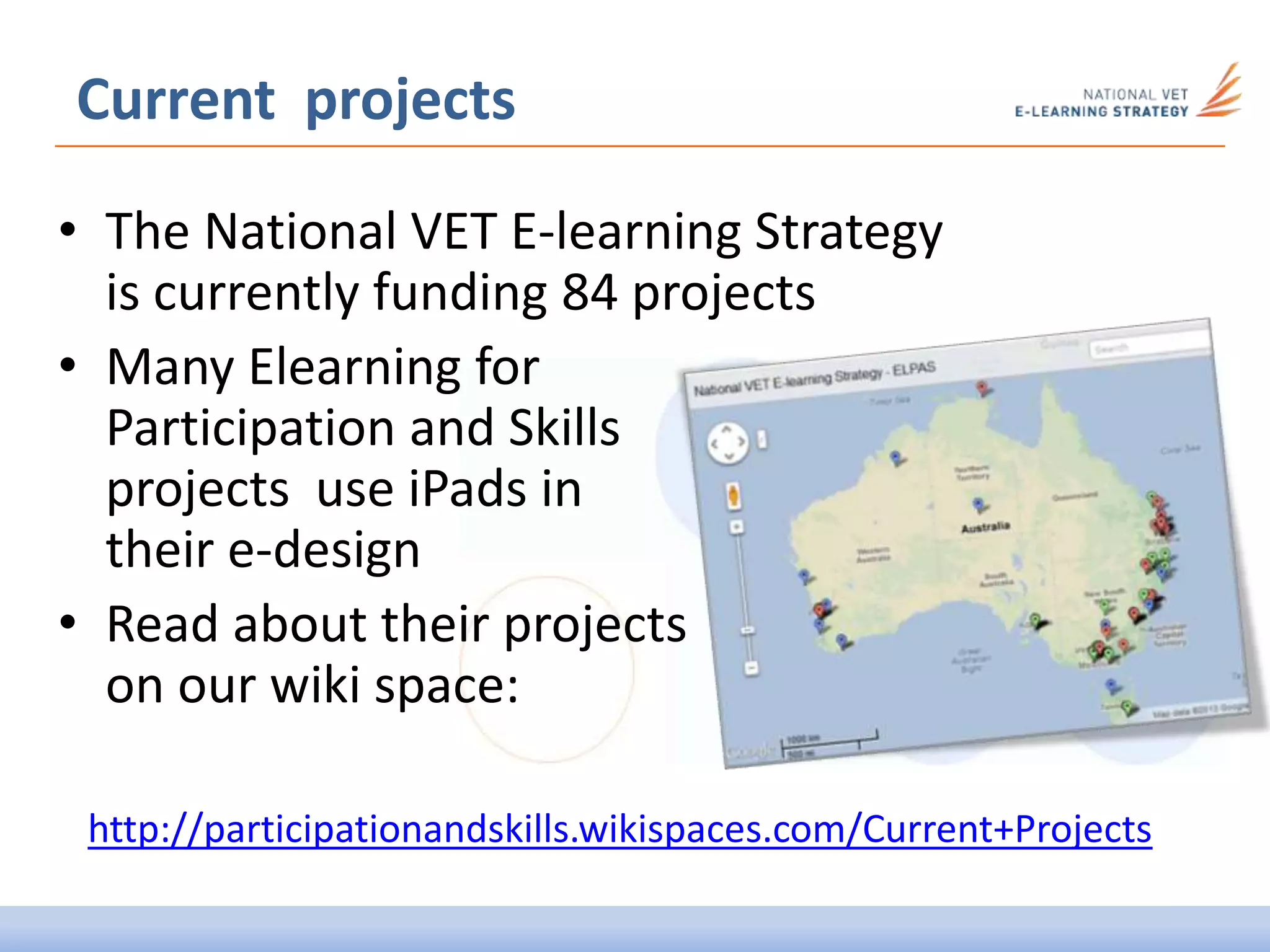
• The National VET E-learning Strategy
is currently funding 84 projects
• Many Elearning for
Participation and Skills
projects use iPads in
their e-design
• Read about their projects
on our wiki space:
http://participationandskills.wikispaces.com/Current+Projects
Rapid e-learning tools
THANKING YOU
Rory OBrien
deMOOC - June 2013
NSW Content Services Advisor
National VET E-learning Strategy
Email: rory.obrien@det.nsw.edu.au
Mob: 0477 348 650
Web: http://nswinnovations.wikispaces.com/
CC Image: Rory OBrien 2013

Rapid e learning tools (deMOOC presentation)

  • 1.
    Rapid e-learning tools Rapidelearning is all about making it easy for trainers to design and create engaging learning experiences. This session looks at tools to get you thinking about how you design resources for your students. We dive in to the huge range of apps and applications that can you can use to create and share your resources in your training. We will also look at some of the tools you might get your students to use to demonstrate their own skills! We will focus on tools that are easy to use and often freely available. Bring ideas and suggestions for your own favourite content creation tools to share in the session!
  • 2.
    TODAYS SESSION • Setup your framework • LOCO • PowerPoint and beyond • Acrobat Portfolios • Screencast tools • Image editors • Presentation tools
  • 3.
    Setting up youronline framework Where to put the stuff you want to share with students? • Local network only • Organisational solutions (e.g. LMS) • Cloud services • Mix of the above
  • 4.
    Your tools Share yourfavourite tools and resources (LIVE)
  • 5.
    LOCO – LearningObject Composer • LOCO is free open source software • Developed by TAFE NSW to make it easy for teachers to create learning objects and quizzes for use in multiple platforms https://bitbucket.org/ehub/loco/wiki/Home
  • 6.
    Building interactive course •12 Tutorials Teach You How to Build an Interactive E-Learning Course http://www.articulate.com/rapid- elearning/these-12-tutorials-teach-you-how-to- build-an-interactive-e-learning-course/
  • 7.
    Simple things todo with PPT • Make photo albums easily • Import multiple pictures at once • Export as PDF for portability
  • 8.
    Label your photos •Tag photos using text boxes and arrows etc. • “Save As” – select JPG to turn a slide into a new picture Simple things to do with PPT Compress pictures before saving • Saves file size • Under Picture Tools > Format > Compress Pictures
  • 9.
  • 10.
    • Diagrams anddrawings made in PowerPoint can be pasted straight into Word docs • Or save directly as JPG graphic • Drawing tools are easier than Word • Similar Smart Art tools – but not editable in Word Make graphics in PowerPoint http://www.articulate.com/rapid-elearning/how-to-build-your-own-graphics-for-online-training-courses/
  • 11.
    • Consistency oflook and feel can bring together images from many sources • Consider a “unifying element” like similar: –Image sizes –Colour treatment –Borders –Shadows –Effects Look and feel
  • 12.
    Getting more fromPowerPoint 7 Reasons Why PowerPoint Doesn’t Suck • Great overview of useful tools in PowerPoint – plus many resource links http://www.articulate.com/rapid-elearning/7-reasons-why-powerpoint-doesnt-suck/
  • 13.
    Why You NeedPowerPoint 2010 for Rapid E-Learning • Overview of how the latest version of PowerPoint has added some really useful tools for teachers making elearning resources PowerPoint for e-learning http://www.articulate.com/rapid-elearning/why-you-need- powerpoint-2010-for-rapid-e-learning/
  • 14.
    Publish PowerPoint asvideo • Articulate Storyline can turn Powerpoints into movies • This example shows the process and looks at rules for engaging presentations http://elearning-examples.s3.amazonaws.com/sl-duarte-video/story.html
  • 15.
    Adobe Presenter Version8 • Plug-in for Microsoft PowerPoint • Add audio and video to PowerPoint presentations • Multi-stream video and screen capture • Simple title overlays • New interactive menus • Multi-format output http://tv.adobe.com/watch/new-in-adobe-presenter-8/whats-new-in-adobe-presenter-8/
  • 16.
    Adobe Captivate VSPresenter? Both Adobe Captivate and Presenter • Can be used to create quizzes • Publish to PDF and web formats • Can integrate with SCORM LMS (Moodle/Sakai/Blackboard) Presenter works within PowerPoint Captivate captures your screen
  • 17.
    • Create PDFportfolios from multiple file types • A simple way to combine files into one PDF resource bundle • Handles most file types including video & audio • Makes portfolios that you can give to students • PDFs have come a long way! Adobe Acrobat Pro http://tv.adobe.com/watch/learn-acrobat-xi/creating-portfolios/
  • 18.
    Screen capture tools Camstudio •Free Open source screen capture software Screenr • Web-based screen capture movie maker http://www.screenr.com/ http://camstudio.org/
  • 19.
    Screen capture tools AdobeCaptivate • Create complex presentations based on screen capture movies • Can create quizzes that work with Moodle (via SCORM) http://www.adobe.com/au/products/captivate.html Camtasia Studio • Industry leading commercial software • Record on-screen activity, add imported media, create interactive content, and share videos http://www.techsmith.com/camtasia.html
  • 20.
    Screencasts on iPad •Record Screencast Videos on iPad or iPhone: http://www.labnol.org/software/record- screencasts-on-ipad-iphone/20958/ • Sample showing how to video edit on iPad: http://youtu.be/quCM8aOlEmQ • Explain Everything app for iOS - great for students recording own screencast movies https://itunes.apple.com/au/app/id431493086?mt=8
  • 21.
    Digital story tools MicrosoftPhoto Story 3 • Excellent simple tool for creating digital stories from photos • Add voice, timing and transitions • Free download • Originally for XP but runs in Windows 7 Windows Movie Maker • Replaced Photo Story but removed voice-over function • Make videos from photos • Free download • Runs in Windows 7 http://www.microsoft.com/en-us/download/details.aspx?id=11132 http://windows.microsoft.com/en-ca/windows7/products/features/movie-maker
  • 22.
    Image tools • ImageChef – lets you customise text on images http://www.imagechef.com/ • ToonDoo – Simple to use cartoon maker http://www.toondoo.com/
  • 23.
    Screen snipping tools PicPick •Free for personal use • Screen capture, image editor and more http://www.picpick.org/ Microsoft Office OneNote • Copy screenshots to clipboard • Perform OCR to copy words from images Windows Snipping Tool • Built into Windows 7 operating system • Simple to use http://windows.microsoft.com/en-us/windows7/products/features/snipping-tool http://office.microsoft.com/en-au/onenote/
  • 24.
    Photoscape - isa fun and easy photo editing software that enables you to fix and enhance photos. http://www.photoscape.org/ Free tools for photos Picasa - Free Google software for managing images on your computer • Simple image re-sizing • Gmail integrated - upload direct to web albums http://picasa.google.com/
  • 25.
    • Simple freeonline image editor BeFunky http://www.befunky.com/create
  • 26.
    Alternative to LMS Edmodo: •Between and LMS and Facebook • Great for group discussions • Teachers can post files • Students can upload along with their posts • Teachers can grade work • Much simpler than Moodle • Group-only access controlled by teacher http://www.edmodo.com/
  • 27.
    Audio editing Audacity • Free,open source, cross-platform software for recording and editing sounds. • Audacity is available for Windows, Mac, GNU/Linux and other operating systems. http://audacity.sourceforge.net/
  • 28.
    • Put yourpresentations on the web • View anywhere • Link from anywhere Slideshare http://www.slideshare.net/
  • 29.
    • Online animated presentationsoftware • Good looking alternative to PPTX • Relies on good net connection Prezi http://prezi.com/
  • 30.
    Go!animate • Create yourown animated movies • Widely used by teachers who get students to create stories http://goanimate.com/
  • 31.
    • Online collaborative conversationbuilder • Include video, images and documents • Users can comment and share with groups Voicethread http://voicethread.com
  • 32.
    APP SUGGESTIONS Online workflowapps: • Box: www.box.com • e-Backpack: www.ebackpack.com • Evernote: evernote.com • DropBox: www.dropbox.com/ipad/ • iCloud: www.icloud.com
  • 33.
    • Makes sharingdetailed web links easy • Turns this: https://maps.google.com/maps?q=1+Oxford+Street,+Darlinghurst,+New+South+Wales,+Australia&hl=en&ll=- 33.8769,151.212065&spn=0.008382,0.016007&sll=- 33.87356,151.098039&sspn=0.008418,0.016007&oq=1+Oxford+Street&hnear=1+Oxford+St,+Darlinghurst+New+South+Wales+2010, +Australia&t=m&z=17&layer=c&cbll=-33.876842,151.212139&panoid=DVPwwWScP2a--_dh9I67Xg&cbp=12,164.95,,0,-12.18 • Into this: http://tinyurl.com/ax6r4yn URL shorteners Bitly: http://bit.ly/TinyURL: http://tinyurl.com/
  • 34.
    Current projects • TheNational VET E-learning Strategy is currently funding 84 projects • Many Elearning for Participation and Skills projects use iPads in their e-design • Read about their projects on our wiki space: http://participationandskills.wikispaces.com/Current+Projects
  • 35.
    Rapid e-learning tools THANKINGYOU Rory OBrien deMOOC - June 2013 NSW Content Services Advisor National VET E-learning Strategy Email: rory.obrien@det.nsw.edu.au Mob: 0477 348 650 Web: http://nswinnovations.wikispaces.com/ CC Image: Rory OBrien 2013