QUICKBOOKS
RECONCILIATION
DISCREPANCIES:
COMMON CAUSES
AND SOLUTIONS
a2autocare.com
info@a2autocare.com
In order to have correct financial records in
QuickBooks, reconciliation is essential. You may make
sure that all of your records are correct and current by
checking your QuickBooks transactions with your bank
or credit card statements. Differences may, however,
surface during reconciliation, resulting in annoyance
and inaccurate financial statements. We will examine
the typical reasons for QuickBooks reconciliation
discrepancy in this extensive article, along with
workable fixes.
a2autocare.com
a2autocare.com
What Are Reconciliation Discrepancies?
When the amounts in QuickBooks do not match the
amounts on your credit card or bank accounts, this is
known as a reconciliation discrepancy. Inaccurate
account configurations, data entry mistakes, or
missing transactions are just a few of the causes of
these disparities. Maintaining accurate financial
records and guaranteeing adherence to accounting
standards depend on locating and addressing these
disparities.
a2autocare.com
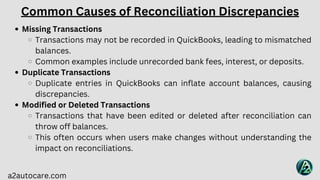
Missing Transactions
Transactions may not be recorded in QuickBooks, leading to mismatched
balances.
Common examples include unrecorded bank fees, interest, or deposits.
Duplicate Transactions
Duplicate entries in QuickBooks can inflate account balances, causing
discrepancies.
Modified or Deleted Transactions
Transactions that have been edited or deleted after reconciliation can
throw off balances.
This often occurs when users make changes without understanding the
impact on reconciliations.
Common Causes of Reconciliation Discrepancies
a2autocare.com
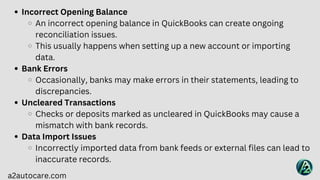
Incorrect Opening Balance
An incorrect opening balance in QuickBooks can create ongoing
reconciliation issues.
This usually happens when setting up a new account or importing
data.
Bank Errors
Occasionally, banks may make errors in their statements, leading to
discrepancies.
Uncleared Transactions
Checks or deposits marked as uncleared in QuickBooks may cause a
mismatch with bank records.
Data Import Issues
Incorrectly imported data from bank feeds or external files can lead to
inaccurate records.
a2autocare.com
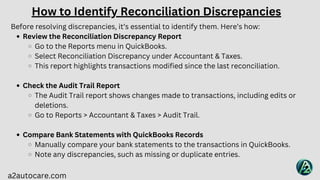
Before resolving discrepancies, it’s essential to identify them. Here’s how:
Review the Reconciliation Discrepancy Report
Go to the Reports menu in QuickBooks.
Select Reconciliation Discrepancy under Accountant & Taxes.
This report highlights transactions modified since the last reconciliation.
Check the Audit Trail Report
The Audit Trail report shows changes made to transactions, including edits or
deletions.
Go to Reports > Accountant & Taxes > Audit Trail.
Compare Bank Statements with QuickBooks Records
Manually compare your bank statements to the transactions in QuickBooks.
Note any discrepancies, such as missing or duplicate entries.
How to Identify Reconciliation Discrepancies
a2autocare.com
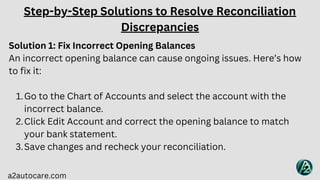
Solution 1: Fix Incorrect Opening Balances
An incorrect opening balance can cause ongoing issues. Here’s how
to fix it:
Go to the Chart of Accounts and select the account with the
incorrect balance.
1.
Click Edit Account and correct the opening balance to match
your bank statement.
2.
Save changes and recheck your reconciliation.
3.
Step-by-Step Solutions to Resolve Reconciliation
Discrepancies
a2autocare.com
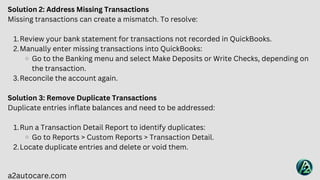
Solution 2: Address Missing Transactions
Missing transactions can create a mismatch. To resolve:
Review your bank statement for transactions not recorded in QuickBooks.
1.
Manually enter missing transactions into QuickBooks:
2.
Go to the Banking menu and select Make Deposits or Write Checks, depending on
the transaction.
Reconcile the account again.
3.
Solution 3: Remove Duplicate Transactions
Duplicate entries inflate balances and need to be addressed:
Run a Transaction Detail Report to identify duplicates:
1.
Go to Reports > Custom Reports > Transaction Detail.
Locate duplicate entries and delete or void them.
2.
a2autocare.com
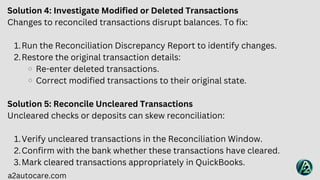
Solution 4: Investigate Modified or Deleted Transactions
Changes to reconciled transactions disrupt balances. To fix:
Run the Reconciliation Discrepancy Report to identify changes.
1.
Restore the original transaction details:
2.
Re-enter deleted transactions.
Correct modified transactions to their original state.
Solution 5: Reconcile Uncleared Transactions
Uncleared checks or deposits can skew reconciliation:
Verify uncleared transactions in the Reconciliation Window.
1.
Confirm with the bank whether these transactions have cleared.
2.
Mark cleared transactions appropriately in QuickBooks.
3.
a2autocare.com
Solution 6: Resolve Data Import Issues
Incorrectly imported data needs correction:
Review imported transactions for errors or duplicates.
1.
Delete erroneous entries and re-import data correctly.
2.
Solution 7: Adjust for Bank Errors
If the discrepancy is due to a bank error:
Contact your bank to confirm the mistake.
1.
Create a journal entry in QuickBooks to temporarily adjust the
balance until the error is corrected by the bank.
2.
a2autocare.com
Solution 8: Address Exchange Rate Variations
For businesses using multiple currencies:
Ensure the correct exchange rates are applied
to transactions.
1.
Adjust entries as needed to reflect accurate
conversion rates.
2.
a2autocare.com
Preventing Reconciliation Discrepancies
To minimize future discrepancies, follow these best practices:
Regular Reconciliations
1.
Reconcile accounts monthly to catch errors early.
Avoid Deleting Transactions
2.
Instead of deleting, void transactions to maintain an audit trail.
Use Bank Feeds Wisely
3.
Regularly review and match imported transactions to QuickBooks records.
Set User Permissions
4.
Limit access to prevent unauthorized edits or deletions.
Educate Your Team
5.
Train employees on proper data entry and reconciliation procedures.
Backup Data Regularly
6.
Maintain regular backups of your company file to safeguard against data loss.
Your financial procedures may be disrupted by QuickBooks
reconciliation problems, but they can be effectively fixed with a
methodical approach. You may keep correct records and expedite
your reconciliation process by comprehending the typical reasons,
spotting inconsistencies, and implementing the fixes described in this
tutorial.
By putting preventive measures in place, you may further lower the
possibility of future discrepancies and guarantee your company's
financial operations run smoothly. Never be afraid to seek the advice
of professionals when dealing with complicated problems.
a2autocare.com
Conclusion
THANK'S FOR WATCHING
Connect Us
E-MAIL: info@a2autocare.com
DIAL: 1(800) 780-3064
SITE: a2autocare.com

QuickBooks Reconciliation Discrepancies Common Causes and Solutions

  • 1.
  • 2.
    In order tohave correct financial records in QuickBooks, reconciliation is essential. You may make sure that all of your records are correct and current by checking your QuickBooks transactions with your bank or credit card statements. Differences may, however, surface during reconciliation, resulting in annoyance and inaccurate financial statements. We will examine the typical reasons for QuickBooks reconciliation discrepancy in this extensive article, along with workable fixes. a2autocare.com
  • 3.
    a2autocare.com What Are ReconciliationDiscrepancies? When the amounts in QuickBooks do not match the amounts on your credit card or bank accounts, this is known as a reconciliation discrepancy. Inaccurate account configurations, data entry mistakes, or missing transactions are just a few of the causes of these disparities. Maintaining accurate financial records and guaranteeing adherence to accounting standards depend on locating and addressing these disparities.
  • 4.
    a2autocare.com Missing Transactions Transactions maynot be recorded in QuickBooks, leading to mismatched balances. Common examples include unrecorded bank fees, interest, or deposits. Duplicate Transactions Duplicate entries in QuickBooks can inflate account balances, causing discrepancies. Modified or Deleted Transactions Transactions that have been edited or deleted after reconciliation can throw off balances. This often occurs when users make changes without understanding the impact on reconciliations. Common Causes of Reconciliation Discrepancies
  • 5.
    a2autocare.com Incorrect Opening Balance Anincorrect opening balance in QuickBooks can create ongoing reconciliation issues. This usually happens when setting up a new account or importing data. Bank Errors Occasionally, banks may make errors in their statements, leading to discrepancies. Uncleared Transactions Checks or deposits marked as uncleared in QuickBooks may cause a mismatch with bank records. Data Import Issues Incorrectly imported data from bank feeds or external files can lead to inaccurate records.
  • 6.
    a2autocare.com Before resolving discrepancies,it’s essential to identify them. Here’s how: Review the Reconciliation Discrepancy Report Go to the Reports menu in QuickBooks. Select Reconciliation Discrepancy under Accountant & Taxes. This report highlights transactions modified since the last reconciliation. Check the Audit Trail Report The Audit Trail report shows changes made to transactions, including edits or deletions. Go to Reports > Accountant & Taxes > Audit Trail. Compare Bank Statements with QuickBooks Records Manually compare your bank statements to the transactions in QuickBooks. Note any discrepancies, such as missing or duplicate entries. How to Identify Reconciliation Discrepancies
  • 7.
    a2autocare.com Solution 1: FixIncorrect Opening Balances An incorrect opening balance can cause ongoing issues. Here’s how to fix it: Go to the Chart of Accounts and select the account with the incorrect balance. 1. Click Edit Account and correct the opening balance to match your bank statement. 2. Save changes and recheck your reconciliation. 3. Step-by-Step Solutions to Resolve Reconciliation Discrepancies
  • 8.
    a2autocare.com Solution 2: AddressMissing Transactions Missing transactions can create a mismatch. To resolve: Review your bank statement for transactions not recorded in QuickBooks. 1. Manually enter missing transactions into QuickBooks: 2. Go to the Banking menu and select Make Deposits or Write Checks, depending on the transaction. Reconcile the account again. 3. Solution 3: Remove Duplicate Transactions Duplicate entries inflate balances and need to be addressed: Run a Transaction Detail Report to identify duplicates: 1. Go to Reports > Custom Reports > Transaction Detail. Locate duplicate entries and delete or void them. 2.
  • 9.
    a2autocare.com Solution 4: InvestigateModified or Deleted Transactions Changes to reconciled transactions disrupt balances. To fix: Run the Reconciliation Discrepancy Report to identify changes. 1. Restore the original transaction details: 2. Re-enter deleted transactions. Correct modified transactions to their original state. Solution 5: Reconcile Uncleared Transactions Uncleared checks or deposits can skew reconciliation: Verify uncleared transactions in the Reconciliation Window. 1. Confirm with the bank whether these transactions have cleared. 2. Mark cleared transactions appropriately in QuickBooks. 3.
  • 10.
    a2autocare.com Solution 6: ResolveData Import Issues Incorrectly imported data needs correction: Review imported transactions for errors or duplicates. 1. Delete erroneous entries and re-import data correctly. 2. Solution 7: Adjust for Bank Errors If the discrepancy is due to a bank error: Contact your bank to confirm the mistake. 1. Create a journal entry in QuickBooks to temporarily adjust the balance until the error is corrected by the bank. 2.
  • 11.
    a2autocare.com Solution 8: AddressExchange Rate Variations For businesses using multiple currencies: Ensure the correct exchange rates are applied to transactions. 1. Adjust entries as needed to reflect accurate conversion rates. 2.
  • 12.
    a2autocare.com Preventing Reconciliation Discrepancies Tominimize future discrepancies, follow these best practices: Regular Reconciliations 1. Reconcile accounts monthly to catch errors early. Avoid Deleting Transactions 2. Instead of deleting, void transactions to maintain an audit trail. Use Bank Feeds Wisely 3. Regularly review and match imported transactions to QuickBooks records. Set User Permissions 4. Limit access to prevent unauthorized edits or deletions. Educate Your Team 5. Train employees on proper data entry and reconciliation procedures. Backup Data Regularly 6. Maintain regular backups of your company file to safeguard against data loss.
  • 13.
    Your financial proceduresmay be disrupted by QuickBooks reconciliation problems, but they can be effectively fixed with a methodical approach. You may keep correct records and expedite your reconciliation process by comprehending the typical reasons, spotting inconsistencies, and implementing the fixes described in this tutorial. By putting preventive measures in place, you may further lower the possibility of future discrepancies and guarantee your company's financial operations run smoothly. Never be afraid to seek the advice of professionals when dealing with complicated problems. a2autocare.com Conclusion
  • 14.
    THANK'S FOR WATCHING ConnectUs E-MAIL: info@a2autocare.com DIAL: 1(800) 780-3064 SITE: a2autocare.com