Quant Studio 
Broker Connectivity and 
Trade Execution
• Install Brokerage Software 
• Setup Broker Connections 
• Order Processing 
• Automatic Trading 
Quant Studio - Intelligent Trading Expert Adviser 2
Install Brokerage 
Software 
Quant Studio - Intelligent Trading Expert Adviser 3
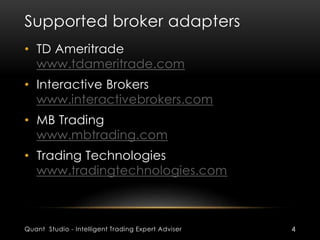
Supported broker adapters 
• TD Ameritrade 
www.tdameritrade.com 
• Interactive Brokers 
www.interactivebrokers.com 
• MB Trading 
www.mbtrading.com 
• Trading Technologies 
www.tradingtechnologies.com 
Quant Studio - Intelligent Trading Expert Adviser 4
TD Ameritrade setup 
• Open account with TD Ameritrade 
https://invest.tdameritrade.com/grid/p/a 
ccountApplication 
• Get account login and password 
• Use these in connection dialog 
• No specific third-party software is 
necessary to install 
Quant Studio - Intelligent Trading Expert Adviser 5
Interactive Brokers TWS setup 
• Open account with Interactive Brokers 
• Install Trader Workstation (TWS) 
https://www.interactivebrokers.com/en/i 
ndex.php?f=1537 
• Configure API settings in TWS 
https://www.interactivebrokers.com/en/s 
oftware/tws/usersguidebook/configuretw 
s/apisettings.htm 
Quant Studio - Intelligent Trading Expert Adviser 6
Interactive Brokers TWS settings 
1. Log into Trader Workstation 
2. On the Edit menu, select Global 
Configuration 
3. Select API in the left pane, then 
click Settings 
4. In the right pane, click the check 
box for Enable ActiveX and Socket 
Clients 
Quant Studio - Intelligent Trading Expert Adviser 7
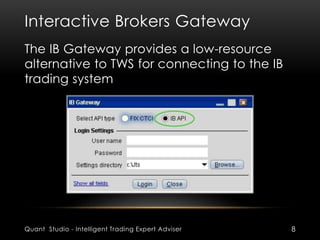
Interactive Brokers Gateway 
The IB Gateway provides a low-resource 
alternative to TWS for connecting to the IB 
trading system 
Quant Studio - Intelligent Trading Expert Adviser 8
Interactive Brokers Gateway 
1. From the Login menu on the IB web site, 
select IB Gateway 
2. Select the API radio button 
3. Log in using your IB username and 
password, just as you would when 
logging into TWS 
4. Click Login. The Interactive Brokers 
Gateway box opens, displaying the 
connection status and gateway activity 
Quant Studio - Intelligent Trading Expert Adviser 9
MB Trading setup 
• Open MB Trading account 
• You will need MBT Desktop Pro to be 
installed on your system 
• Download MBT Desktop Pro from 
http://www.mbtrading.com/mbtDesktop 
Pro.aspx#downloads 
• Follow instructions in the installer to 
complete the setup 
Quant Studio - Intelligent Trading Expert Adviser 10
Trading Technologies FIX 
• Trading Technologies FIX gateway for 
order processing 
• No additional client software setup is 
required 
• Receive gateway address, user name 
and password from your broker 
• Fill provided connection details into 
connection settings dialog 
Quant Studio - Intelligent Trading Expert Adviser 11
Setup Broker 
Connection 
Quant Studio - Intelligent Trading Expert Adviser 12
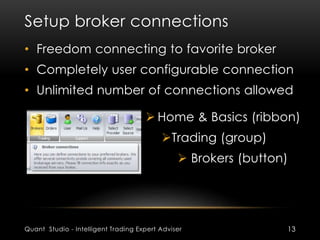
Setup broker connections 
• Freedom connecting to favorite broker 
• Completely user configurable connection 
• Unlimited number of connections allowed 
 Home & Basics (ribbon) 
Trading (group) 
 Brokers (button) 
Quant Studio - Intelligent Trading Expert Adviser 13
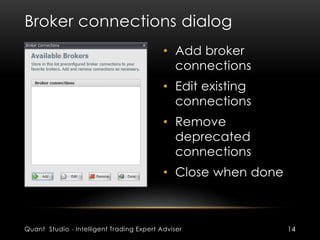
Broker connections dialog 
• Add broker 
connections 
• Edit existing 
connections 
• Remove 
deprecated 
connections 
• Close when done 
Quant Studio - Intelligent Trading Expert Adviser 14
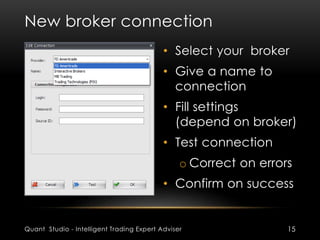
New broker connection 
• Select your broker 
• Give a name to 
connection 
• Fill settings 
(depend on broker) 
• Test connection 
o Correct on errors 
• Confirm on success 
Quant Studio - Intelligent Trading Expert Adviser 15
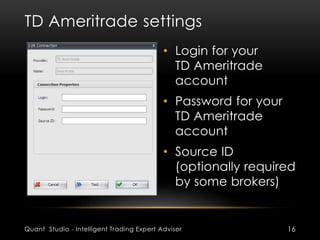
TD Ameritrade settings 
• Login for your 
TD Ameritrade 
account 
• Password for your 
TD Ameritrade 
account 
• Source ID 
(optionally required 
by some brokers) 
Quant Studio - Intelligent Trading Expert Adviser 16
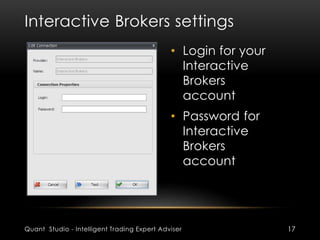
Interactive Brokers settings 
• Login for your 
Interactive 
Brokers 
account 
• Password for 
Interactive 
Brokers 
account 
Quant Studio - Intelligent Trading Expert Adviser 17
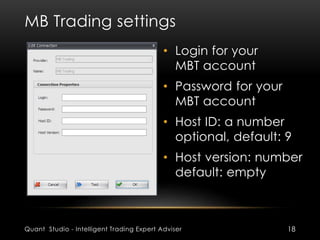
MB Trading settings 
• Login for your 
MBT account 
• Password for your 
MBT account 
• Host ID: a number 
optional, default: 9 
• Host version: number 
default: empty 
Quant Studio - Intelligent Trading Expert Adviser 18
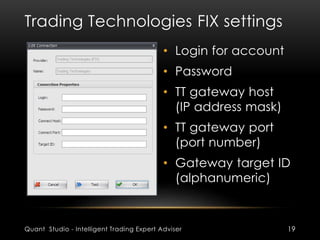
Trading Technologies FIX settings 
• Login for account 
• Password 
• TT gateway host 
(IP address mask) 
• TT gateway port 
(port number) 
• Gateway target ID 
(alphanumeric) 
Quant Studio - Intelligent Trading Expert Adviser 19
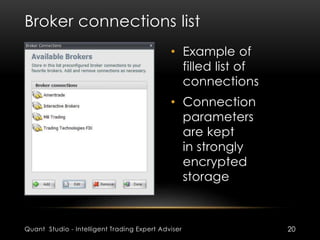
Broker connections list 
• Example of 
filled list of 
connections 
• Connection 
parameters 
are kept 
in strongly 
encrypted 
storage 
Quant Studio - Intelligent Trading Expert Adviser 20
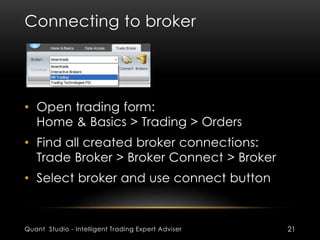
Connecting to broker 
• Open trading form: 
Home & Basics > Trading > Orders 
• Find all created broker connections: 
Trade Broker > Broker Connect > Broker 
• Select broker and use connect button 
Quant Studio - Intelligent Trading Expert Adviser 21
Order Submission and 
Trade Management 
Quant Studio - Intelligent Trading Expert Adviser 22
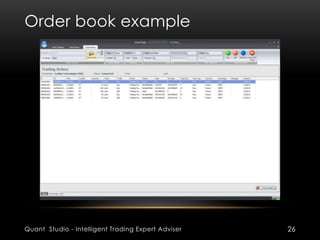
Order book 
• Single interface to all brokers 
• Single gateway to all exchanges 
• Manual trading pad with convenient 
order controls 
• Combined tabular view of manual 
and automated orders from EA 
• Full control on open orders including 
automated orders from EA 
Quant Studio - Intelligent Trading Expert Adviser 23
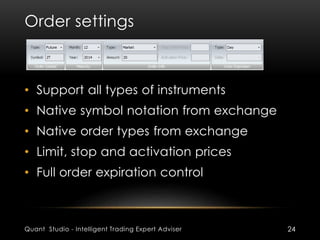
Order settings 
• Support all types of instruments 
• Native symbol notation from exchange 
• Native order types from exchange 
• Limit, stop and activation prices 
• Full order expiration control 
Quant Studio - Intelligent Trading Expert Adviser 24
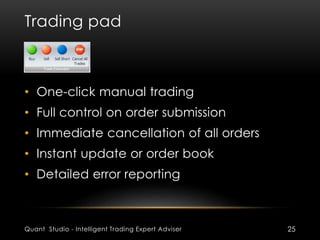
Trading pad 
• One-click manual trading 
• Full control on order submission 
• Immediate cancellation of all orders 
• Instant update or order book 
• Detailed error reporting 
Quant Studio - Intelligent Trading Expert Adviser 25
Order book example 
Quant Studio - Intelligent Trading Expert Adviser 26
Automatic Trading with 
Expert Adviser 
Quant Studio - Intelligent Trading Expert Adviser 27
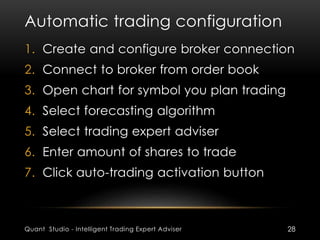
Automatic trading configuration 
1. Create and configure broker connection 
2. Connect to broker from order book 
3. Open chart for symbol you plan trading 
4. Select forecasting algorithm 
5. Select trading expert adviser 
6. Enter amount of shares to trade 
7. Click auto-trading activation button 
Quant Studio - Intelligent Trading Expert Adviser 28
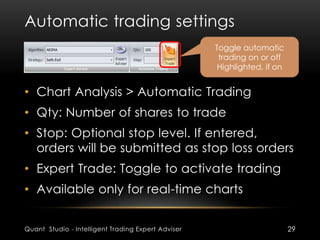
Automatic trading settings 
Toggle automatic 
trading on or off 
Highlighted, if on 
• Chart Analysis > Automatic Trading 
• Qty: Number of shares to trade 
• Stop: Optional stop level. If entered, 
orders will be submitted as stop loss orders 
• Expert Trade: Toggle to activate trading 
• Available only for real-time charts 
Quant Studio - Intelligent Trading Expert Adviser 29
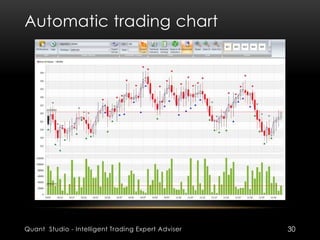
Automatic trading chart 
Quant Studio - Intelligent Trading Expert Adviser 30
About Quant 
Copyright © 2014 Technical Bazaar Solutions Pvt Ltd . All rights reserved. No part 
of the materials including graphics or logos, available in this Web site may be 
copied, reproduced, translated or reduced to any electronic medium or 
machine-readable form, in whole or in part without written permission. 
The product names used in this document are for identification purposes only. 
All trademarks and registered trademarks are the property of their respective 
owners. 
Trading futures and options involves the risk of loss. You should consider carefully 
whether futures or options are appropriate to your financial situation. You must 
review the customer account agreement and risk disclosure prior to establishing 
an account. Only risk capital should be used when trading futures or 
options. Investors could lose more than their initial investment. 
Past results are not necessarily indicative of futures results. The risk of loss in 
trading futures or options can be substantial, carefully consider the inherent risks 
of such an investment in light of your financial condition. Information contained, 
viewed, sent or attached is considered a solicitation for business. 
Quant Studio - Intelligent Trading Expert Adviser 31

Quant studio dealing

  • 1.
    Quant Studio BrokerConnectivity and Trade Execution
  • 2.
    • Install BrokerageSoftware • Setup Broker Connections • Order Processing • Automatic Trading Quant Studio - Intelligent Trading Expert Adviser 2
  • 3.
    Install Brokerage Software Quant Studio - Intelligent Trading Expert Adviser 3
  • 4.
    Supported broker adapters • TD Ameritrade www.tdameritrade.com • Interactive Brokers www.interactivebrokers.com • MB Trading www.mbtrading.com • Trading Technologies www.tradingtechnologies.com Quant Studio - Intelligent Trading Expert Adviser 4
  • 5.
    TD Ameritrade setup • Open account with TD Ameritrade https://invest.tdameritrade.com/grid/p/a ccountApplication • Get account login and password • Use these in connection dialog • No specific third-party software is necessary to install Quant Studio - Intelligent Trading Expert Adviser 5
  • 6.
    Interactive Brokers TWSsetup • Open account with Interactive Brokers • Install Trader Workstation (TWS) https://www.interactivebrokers.com/en/i ndex.php?f=1537 • Configure API settings in TWS https://www.interactivebrokers.com/en/s oftware/tws/usersguidebook/configuretw s/apisettings.htm Quant Studio - Intelligent Trading Expert Adviser 6
  • 7.
    Interactive Brokers TWSsettings 1. Log into Trader Workstation 2. On the Edit menu, select Global Configuration 3. Select API in the left pane, then click Settings 4. In the right pane, click the check box for Enable ActiveX and Socket Clients Quant Studio - Intelligent Trading Expert Adviser 7
  • 8.
    Interactive Brokers Gateway The IB Gateway provides a low-resource alternative to TWS for connecting to the IB trading system Quant Studio - Intelligent Trading Expert Adviser 8
  • 9.
    Interactive Brokers Gateway 1. From the Login menu on the IB web site, select IB Gateway 2. Select the API radio button 3. Log in using your IB username and password, just as you would when logging into TWS 4. Click Login. The Interactive Brokers Gateway box opens, displaying the connection status and gateway activity Quant Studio - Intelligent Trading Expert Adviser 9
  • 10.
    MB Trading setup • Open MB Trading account • You will need MBT Desktop Pro to be installed on your system • Download MBT Desktop Pro from http://www.mbtrading.com/mbtDesktop Pro.aspx#downloads • Follow instructions in the installer to complete the setup Quant Studio - Intelligent Trading Expert Adviser 10
  • 11.
    Trading Technologies FIX • Trading Technologies FIX gateway for order processing • No additional client software setup is required • Receive gateway address, user name and password from your broker • Fill provided connection details into connection settings dialog Quant Studio - Intelligent Trading Expert Adviser 11
  • 12.
    Setup Broker Connection Quant Studio - Intelligent Trading Expert Adviser 12
  • 13.
    Setup broker connections • Freedom connecting to favorite broker • Completely user configurable connection • Unlimited number of connections allowed  Home & Basics (ribbon) Trading (group)  Brokers (button) Quant Studio - Intelligent Trading Expert Adviser 13
  • 14.
    Broker connections dialog • Add broker connections • Edit existing connections • Remove deprecated connections • Close when done Quant Studio - Intelligent Trading Expert Adviser 14
  • 15.
    New broker connection • Select your broker • Give a name to connection • Fill settings (depend on broker) • Test connection o Correct on errors • Confirm on success Quant Studio - Intelligent Trading Expert Adviser 15
  • 16.
    TD Ameritrade settings • Login for your TD Ameritrade account • Password for your TD Ameritrade account • Source ID (optionally required by some brokers) Quant Studio - Intelligent Trading Expert Adviser 16
  • 17.
    Interactive Brokers settings • Login for your Interactive Brokers account • Password for Interactive Brokers account Quant Studio - Intelligent Trading Expert Adviser 17
  • 18.
    MB Trading settings • Login for your MBT account • Password for your MBT account • Host ID: a number optional, default: 9 • Host version: number default: empty Quant Studio - Intelligent Trading Expert Adviser 18
  • 19.
    Trading Technologies FIXsettings • Login for account • Password • TT gateway host (IP address mask) • TT gateway port (port number) • Gateway target ID (alphanumeric) Quant Studio - Intelligent Trading Expert Adviser 19
  • 20.
    Broker connections list • Example of filled list of connections • Connection parameters are kept in strongly encrypted storage Quant Studio - Intelligent Trading Expert Adviser 20
  • 21.
    Connecting to broker • Open trading form: Home & Basics > Trading > Orders • Find all created broker connections: Trade Broker > Broker Connect > Broker • Select broker and use connect button Quant Studio - Intelligent Trading Expert Adviser 21
  • 22.
    Order Submission and Trade Management Quant Studio - Intelligent Trading Expert Adviser 22
  • 23.
    Order book •Single interface to all brokers • Single gateway to all exchanges • Manual trading pad with convenient order controls • Combined tabular view of manual and automated orders from EA • Full control on open orders including automated orders from EA Quant Studio - Intelligent Trading Expert Adviser 23
  • 24.
    Order settings •Support all types of instruments • Native symbol notation from exchange • Native order types from exchange • Limit, stop and activation prices • Full order expiration control Quant Studio - Intelligent Trading Expert Adviser 24
  • 25.
    Trading pad •One-click manual trading • Full control on order submission • Immediate cancellation of all orders • Instant update or order book • Detailed error reporting Quant Studio - Intelligent Trading Expert Adviser 25
  • 26.
    Order book example Quant Studio - Intelligent Trading Expert Adviser 26
  • 27.
    Automatic Trading with Expert Adviser Quant Studio - Intelligent Trading Expert Adviser 27
  • 28.
    Automatic trading configuration 1. Create and configure broker connection 2. Connect to broker from order book 3. Open chart for symbol you plan trading 4. Select forecasting algorithm 5. Select trading expert adviser 6. Enter amount of shares to trade 7. Click auto-trading activation button Quant Studio - Intelligent Trading Expert Adviser 28
  • 29.
    Automatic trading settings Toggle automatic trading on or off Highlighted, if on • Chart Analysis > Automatic Trading • Qty: Number of shares to trade • Stop: Optional stop level. If entered, orders will be submitted as stop loss orders • Expert Trade: Toggle to activate trading • Available only for real-time charts Quant Studio - Intelligent Trading Expert Adviser 29
  • 30.
    Automatic trading chart Quant Studio - Intelligent Trading Expert Adviser 30
  • 31.
    About Quant Copyright© 2014 Technical Bazaar Solutions Pvt Ltd . All rights reserved. No part of the materials including graphics or logos, available in this Web site may be copied, reproduced, translated or reduced to any electronic medium or machine-readable form, in whole or in part without written permission. The product names used in this document are for identification purposes only. All trademarks and registered trademarks are the property of their respective owners. Trading futures and options involves the risk of loss. You should consider carefully whether futures or options are appropriate to your financial situation. You must review the customer account agreement and risk disclosure prior to establishing an account. Only risk capital should be used when trading futures or options. Investors could lose more than their initial investment. Past results are not necessarily indicative of futures results. The risk of loss in trading futures or options can be substantial, carefully consider the inherent risks of such an investment in light of your financial condition. Information contained, viewed, sent or attached is considered a solicitation for business. Quant Studio - Intelligent Trading Expert Adviser 31